MEERA MTNTB786IPS 7.85inch Tablet PC User Manual Contents

MEERA INTERNATIONAL LIMITED 7.85inch Tablet PC Contents

User manual

1Tablet PCUser Manual
ContentsContents.............................................................................................................................................. 11 Introduction .................................................................................................................................... . 31.1 Acknowledgements ......................................................................................................... ... 31.2 Precautions ....................................................................................................................... .. 31.3 Safety Instructions ............................................................................................................ .. 31.4 Abbreviations/Terms .......................................................................................................... . 42 Quick Look at MID ........................................................................................................................ . 52.1 MID Usage and Preparation.............................................................................................. . 52.2 MID Status and Notification ............................................................................................. .. 53 QuickStart ...................................................................................................................................... . 73.1 Functions of Keys ............................................................................................................ ... 73.2 Power On & Power Off ....................................................................................................... 73.3 Switch On/Off Screen ......................................................................................................... 83.4 Application of Touch Screen ............................................................................................... 83.5 Home Screen.................................................................................................................. ... 113.6 Access Application .......................................................................................................... .. 163.7 USB Connection ............................................................................................................ ... 173.8 Input Text ........................................................................................................................ ... 183.9 Tips and Tricks ............................................................................................................... ... 194 Basic Settings ............................................................................................................................... 214.1 SIM Management ............................................................................................................ . 214.2 Wi-Fi & WLAN ................................................................................................................... 244.3 Bluetooth ............................................................................................................................ 264.4 Data Usage Status ......................................................................................................... .. 304.5 More................................................................................................................................. .. 314.6 Audio Profiles .................................................................................................................. .. 384.7 Display ............................................................................................................................. .. 424.8 Storage ............................................................................................................................. . 464.9 Battery ................................................................................................................................ 494.10 Apps ................................................................................................................................. 504.11 Location Access ............................................................................................................ .. 524.12 Security ............................................................................................................................ 534.13 Language and Input Method ....................................................................................... .. 554.14 Backup and Reset ......................................................................................................... . 584.15 Accounts and Sync ......................................................................................................... 594.16 Data and Time............................................................................................................... .. 614.17 Scheduled Power On & Off .......................................................................................... . 624.18 Accessibility .................................................................................................................. ... 634.19 Developer Options .......................................................................................................... 644.20 About Tablet ..................................................................................................................... 651
1 Introduction1.1 AcknowledgementsThank you very much for purchasing the product! MT-786 is a high-definition tabletPCwith 7.85inch IPS screen. MT-786 features the master chip of MT8382 with quad-coreCortex-A7 processor and basic frequency of 1.3GHz. The product is based on the Android4.2operating system.The product’s built-in functions of Wi-Fi, BT, GPS, FM, 2G and 3G offer easyconnection to wireless network to freely surf the Internet whenever and wherever possible. Thebuilt-in high-precision GPS module can realize navigation function by installing a map app. Inaddition, the built-in kinds of sensors provide you brand-new operation and entertainmentexperience. The built-in camera, shooting and other functions lead e-consumer to acompletely new age of handheld Internet entertainment.The Manual systematically introduces multi-functions, application skills andprecautions of the mobile Internet device (MID). Please read the Manual carefully beforeusing the MID.1.2 PrecautionsMaintenancePlease keep the device dry. Do not expose the device, battery and charger towater or moisture, or use wet hand to operate the device/charger to avoid shortcircuit of device, failure arising from corrosion and electric shock.Do not let the device, battery and charger be subjected to strong shock orshake to avoid failure of the device, battery and charger.Do not place the device, battery and charger at places with too low or too hightemperatures. Otherwise, it may cause failure of the device, battery or charger.Do not strike, throw or prick the MID to avoid unintentional fall, crush or bend.Do not dismantle the device and its accessories arbitrarily. Otherwise, thedevice and its accessories will be deprived of warranty.1.3 Safety InstructionsPlease peruse the instructions in the section prior to using the MID, and make sure3
your children understand all these instructions. For more details, please refer to the SafetyInstructions and Precautions.Do not use the MID when driving for safety concerns.Please conform to the relevant rules and regulations in medical premises.Please shut down the MID when staying around medical facilities.Please shut down the MID or activate the airplane mode when boarding anairplane to prevent wireless signals from interfering in the airplane’s controlsignal.Please shut down the MID when a high-precision electronic device isworking nearby. Otherwise, it may cause failure of the electronic device.Do not dismantle the MID and its accessories arbitrarily. Only theauthorized agencies are able to repair the MID.Please keep the MID away from any magnetic equipment. Otherwise, theradiation emitted by the MID will clear the information stored in themagnetic equipment.Do not use the MID at places with high temperature or inflammable gas, e.g.around a gas station.Please keep the MID and its accessories out of reach of children. Do not letchildren use the MID without supervision.Please comply with the relevant laws and regulations, and respect others’privacy and legal rights when operating the MID.Please strictly follow the relevant instructions contained in the Manual whenusing a USB data line so as to avoid damaging the MID or PC.Do not use the MID in bathroom or any other moist circumstances. Alwaysavoid soaking or flushing the MID.1.4 Abbreviations/TermsAbbreviation/Full Name DescriptionTermMID Mobile Internet Device Mobile Internet TerminalWi-Fi Wireless Fidelity WLAN based on IEEE 802.11b standardTF TransFlash Also named Micro SD, a super-mini memorycard4
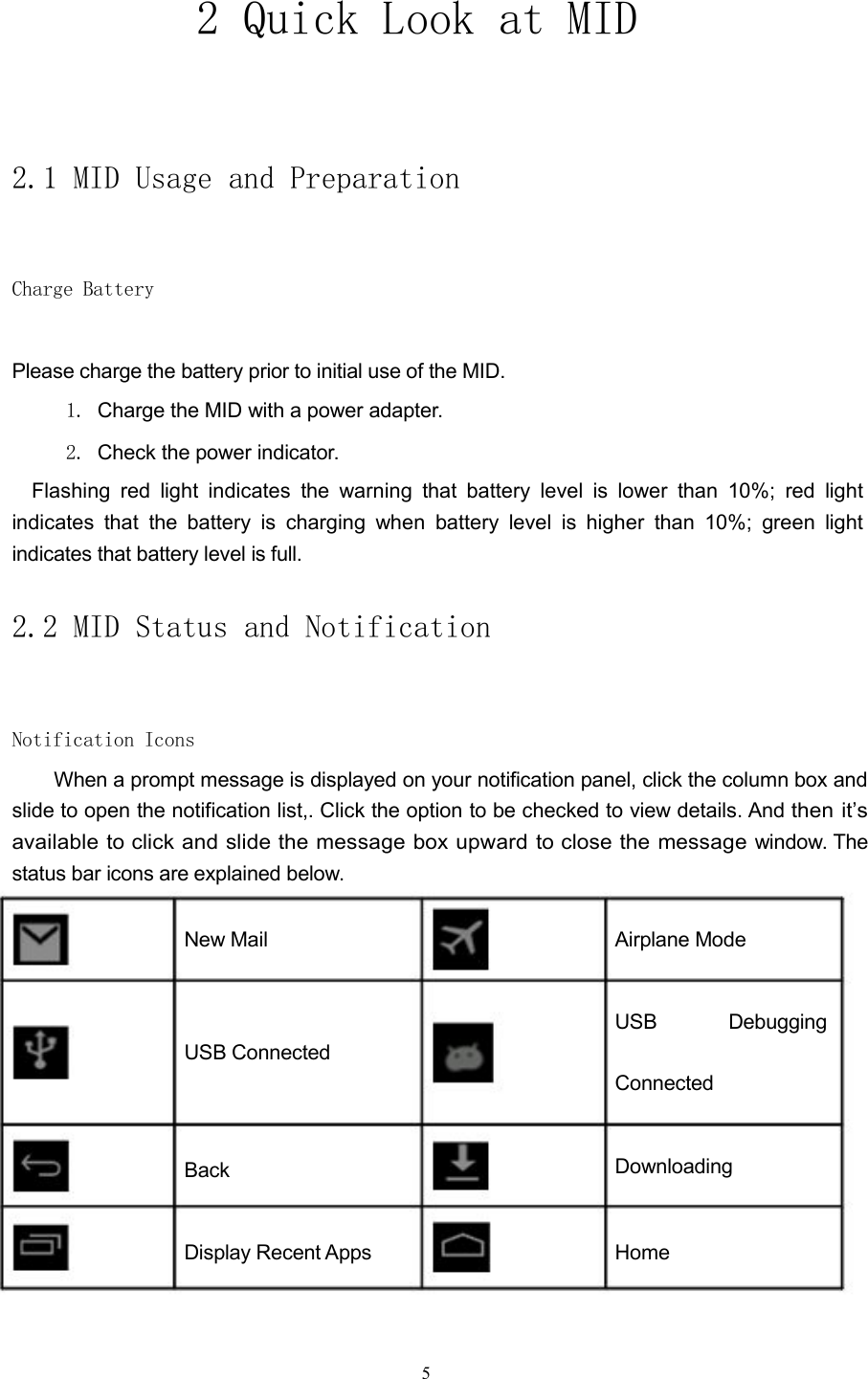
2 Quick Look at MID2.1 MID Usage and PreparationCharge BatteryPlease charge the battery prior to initial use of the MID.1. Charge the MID with a power adapter.2. Check the power indicator.Flashing red light indicates the warning that battery level is lower than 10%; red lightindicates that the battery is charging when battery level is higher than 10%; green lightindicates that battery level is full.2.2 MID Status and NotificationNotification IconsWhen a prompt message is displayed on your notification panel, click the column box andslide to open the notification list,. Click the option to be checked to view details. Andthen it’savailable to click and slide the message box upward to close the messagewindow. Thestatus bar icons are explained below.New Mail Airplane ModeUSB DebuggingUSB ConnectedConnectedBack DownloadingDisplay Recent Apps Home5
Battery Level Connected to Wi-FiPicture 2.1Notification PanelThe notification bar will report new mails, Wi-Fi activation and ongoing operations. You canopen the notification panel to view details.Open Notification PanelWhen a new notification icon is displayed on the notification bar, please click thenotification bar to open the notification panel.6
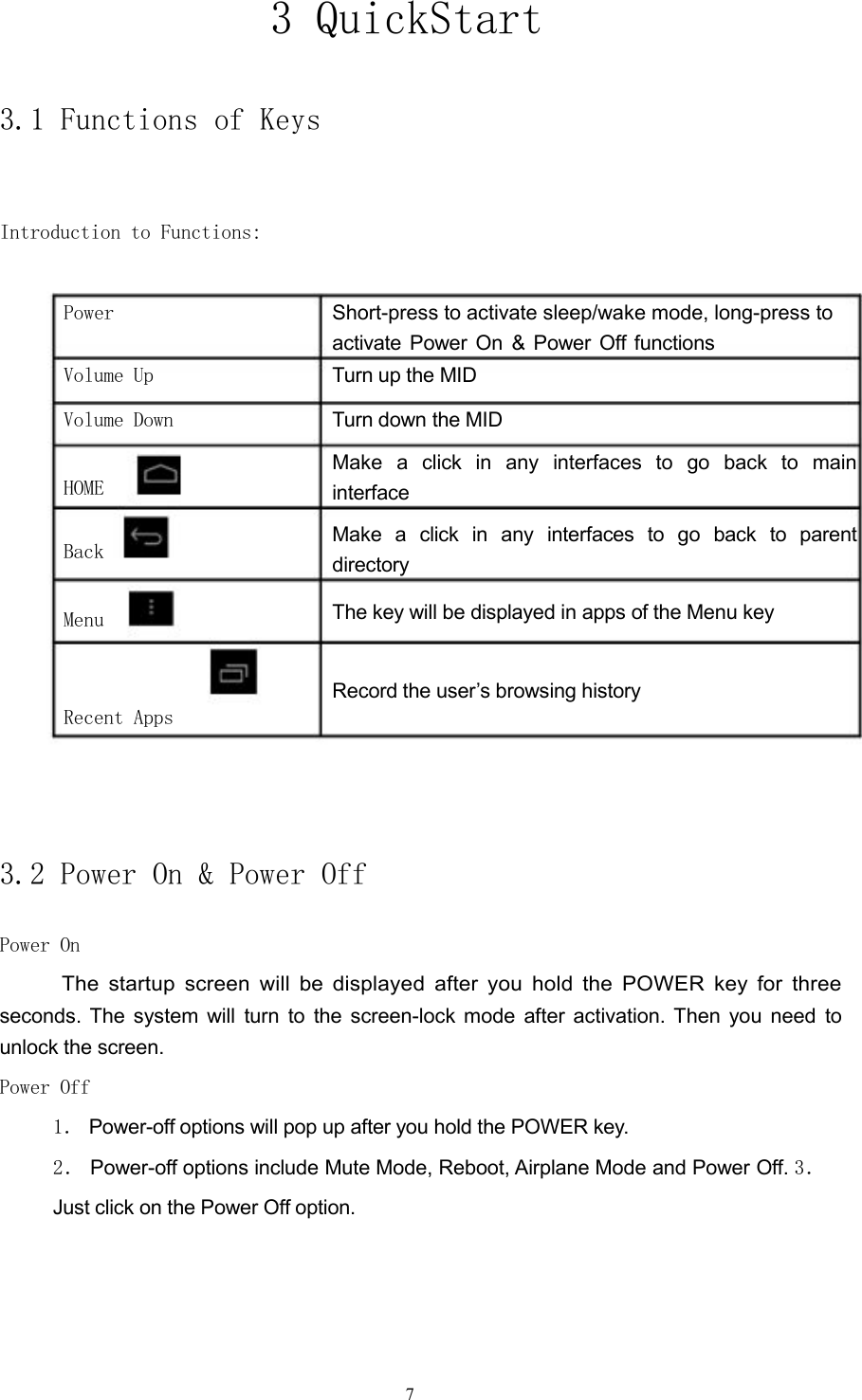
3 QuickStart3.1 Functions of KeysIntroduction to Functions:PowerVolume UpVolume DownHOMEBackMenuRecent AppsShort-press to activate sleep/wake mode, long-press toactivate Power On & Power Off functionsTurn up the MIDTurn down the MIDMake a click in any interfaces to go back to maininterfaceMake a click in any interfaces to go back to parentdirectoryThe key will be displayed in apps of the Menu keyRecord the user’s browsing history3.2 Power On & Power OffPower OnThe startup screen will be displayed after you hold the POWER key for threeseconds. The system will turn to the screen-lock mode after activation. Then you need tounlock the screen.Power Off1. Power-off options will pop up after you hold the POWER key.2. Power-off options include Mute Mode, Reboot, Airplane Mode and Power Off. 3.Just click on the Power Off option.7
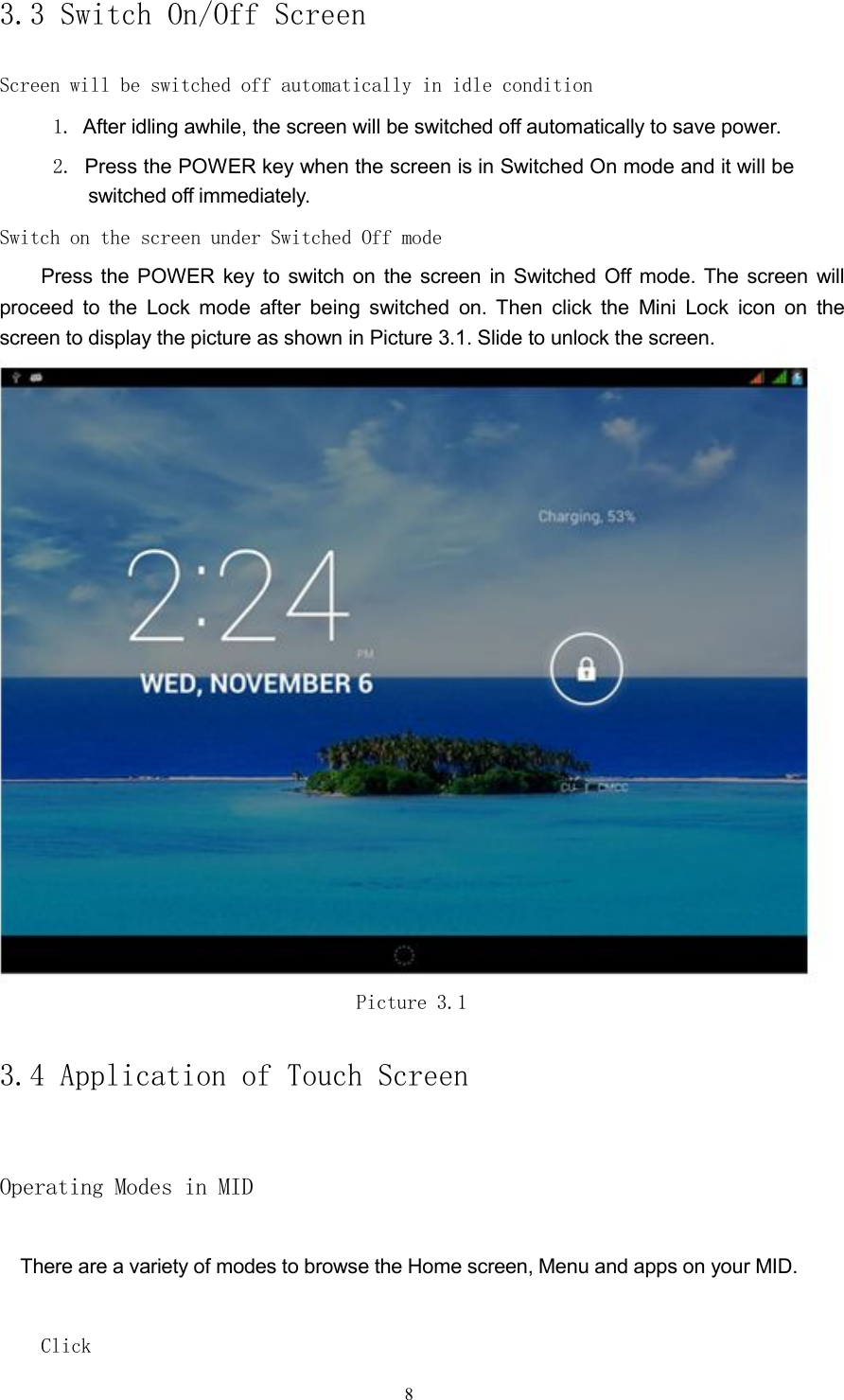
3.3 Switch On/Off ScreenScreen will be switched off automatically in idle condition1. After idling awhile, the screen will be switched off automatically to save power.2. Press the POWER key when the screen is in Switched On mode and it will beswitched off immediately.Switch on the screen under Switched Off modePress the POWER key to switch on the screen in Switched Off mode. The screen willproceed to the Lock mode after being switched on. Then click the Mini Lock icon on thescreen to display the picture as shown in Picture 3.1. Slide to unlock the screen.Picture 3.13.4 Application of Touch ScreenOperating Modes in MIDThere are a variety of modes to browse the Home screen, Menu and apps on your MID.Click8
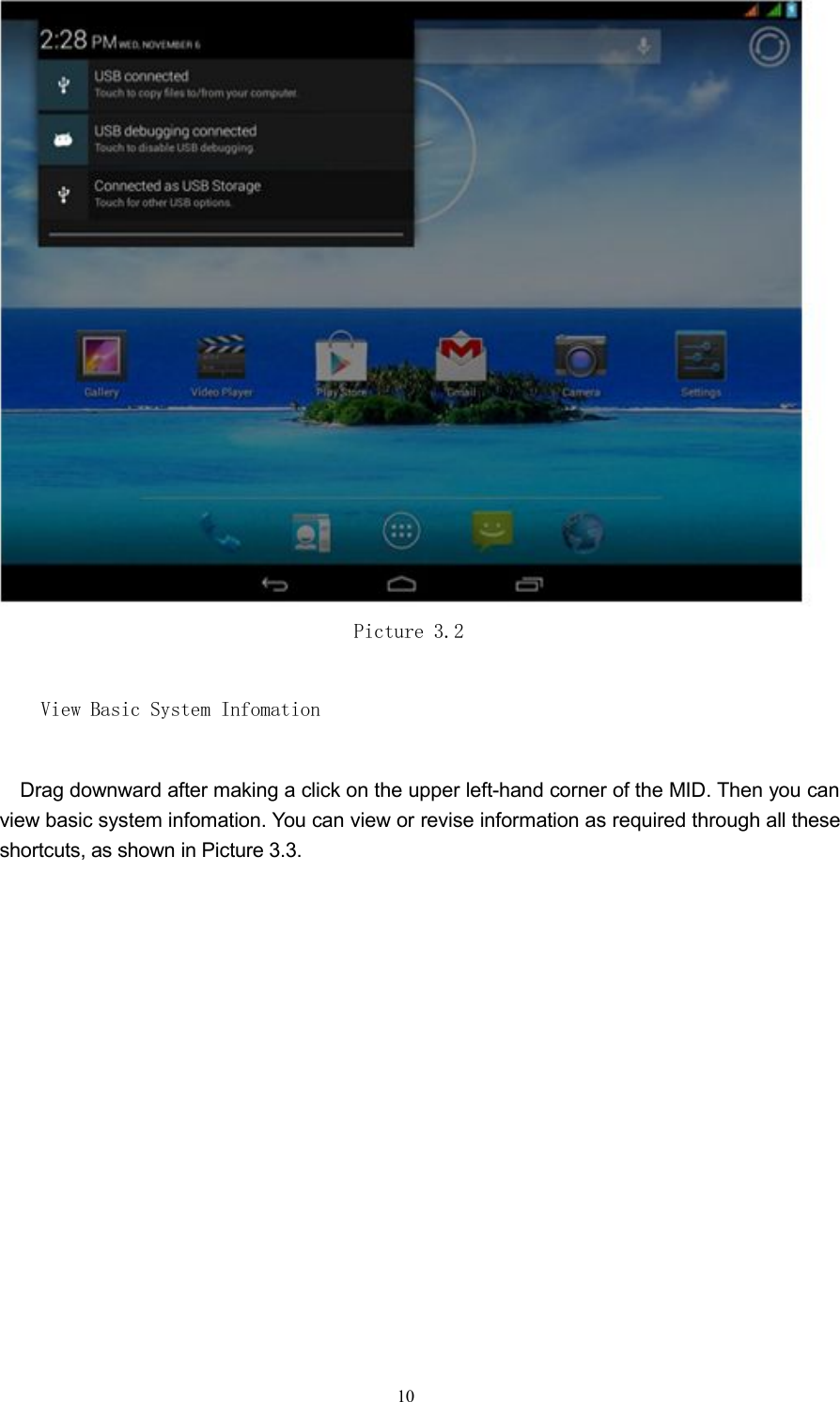
When you want to input information through screen keyboard or select apps and other itemson the main UI, just touch and click the target on the screen.HoldIf you want to activate available options of an item, e.g. textbox or website links, orshortcut on main UI and shift main program menu, just hold the icon of the item.Quick Slide or SlideQuick Slide or Slide indicates the quick action of vertical or horizontal drag-and-drop by afinger on the screen.Drag-and-dropBefore you start a drag-and-drop action, you must hold the item hard with your finger anddo not release your finger until the specific item is dragged to the right place.RotationFor most of pictures, lateral rotation of the MID during operations like text input andmusic entertainment will automatically turn the screen to a vertical position from beinghorizontal,View Notification BarDrag downward after making a click in the upper right-hand corner of the MID, you can viewthe system task notification, as shown in Picture 3.2.9
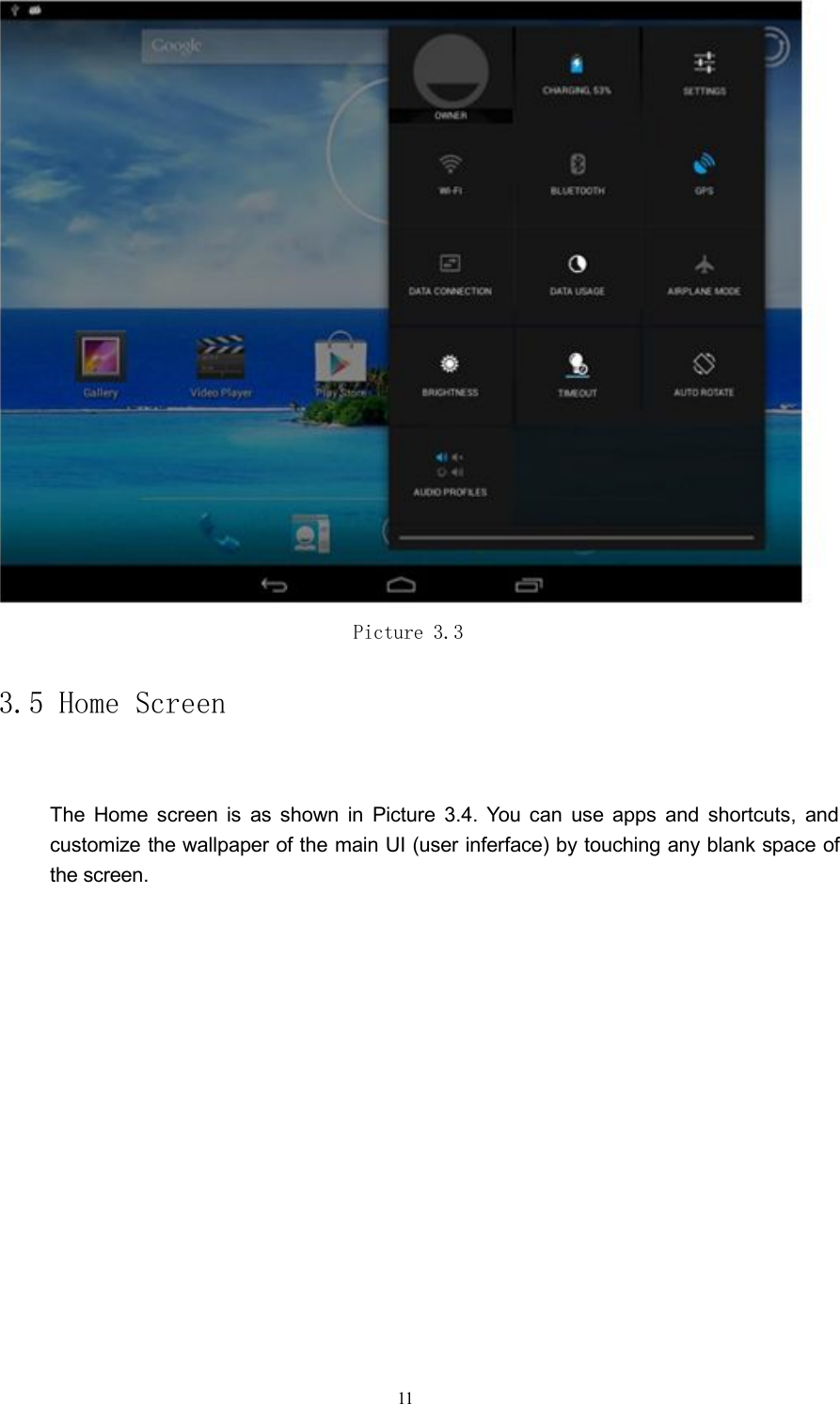
Picture 3.2View Basic System InfomationDrag downward after making a click on the upper left-hand corner of the MID. Then you canview basic system infomation. You can view or revise information as required through all theseshortcuts, as shown in Picture 3.3.10
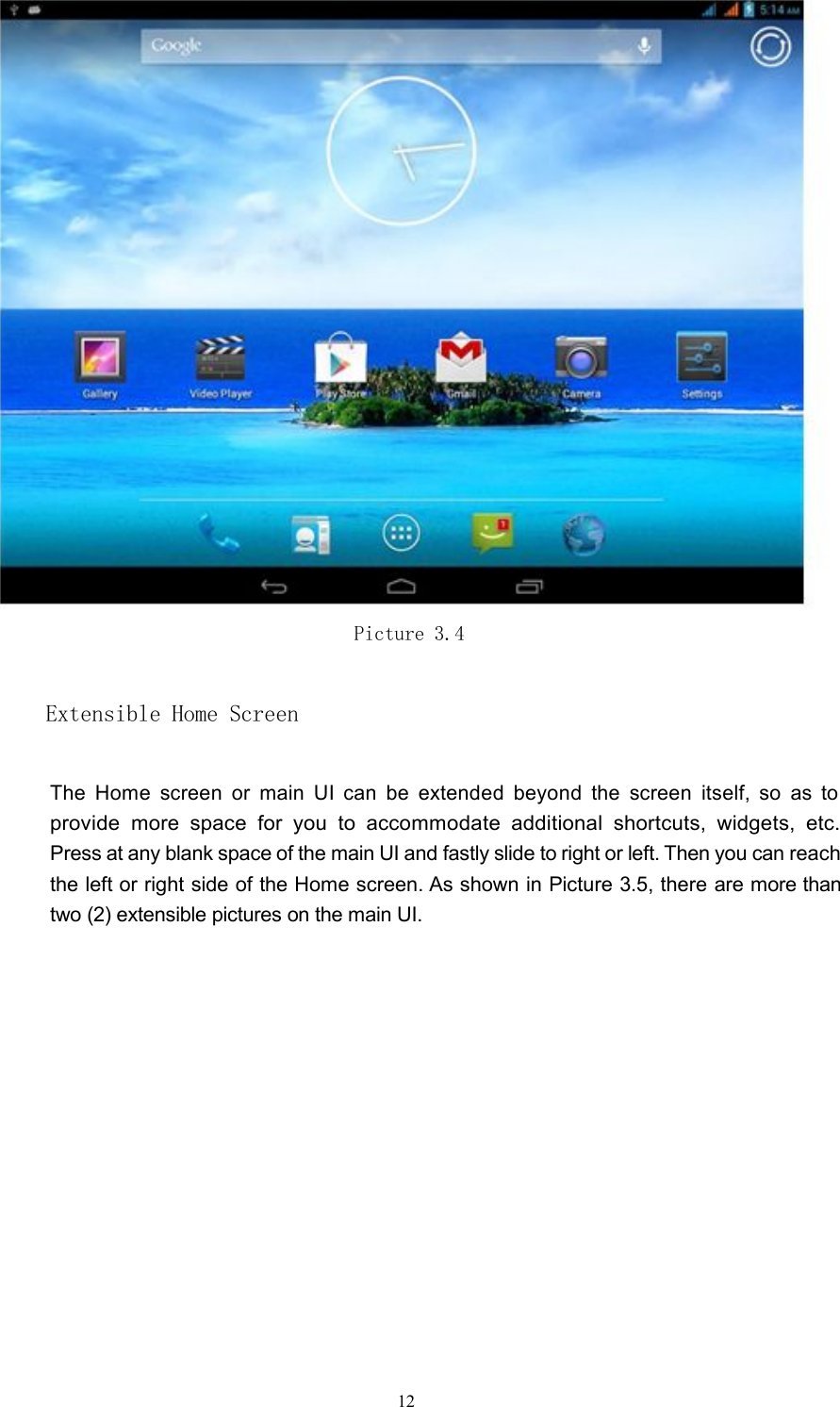
Picture 3.33.5 Home ScreenThe Home screen is as shown in Picture 3.4. You can use apps and shortcuts, andcustomize the wallpaper of the main UI (user inferface) by touching any blank space ofthe screen.11
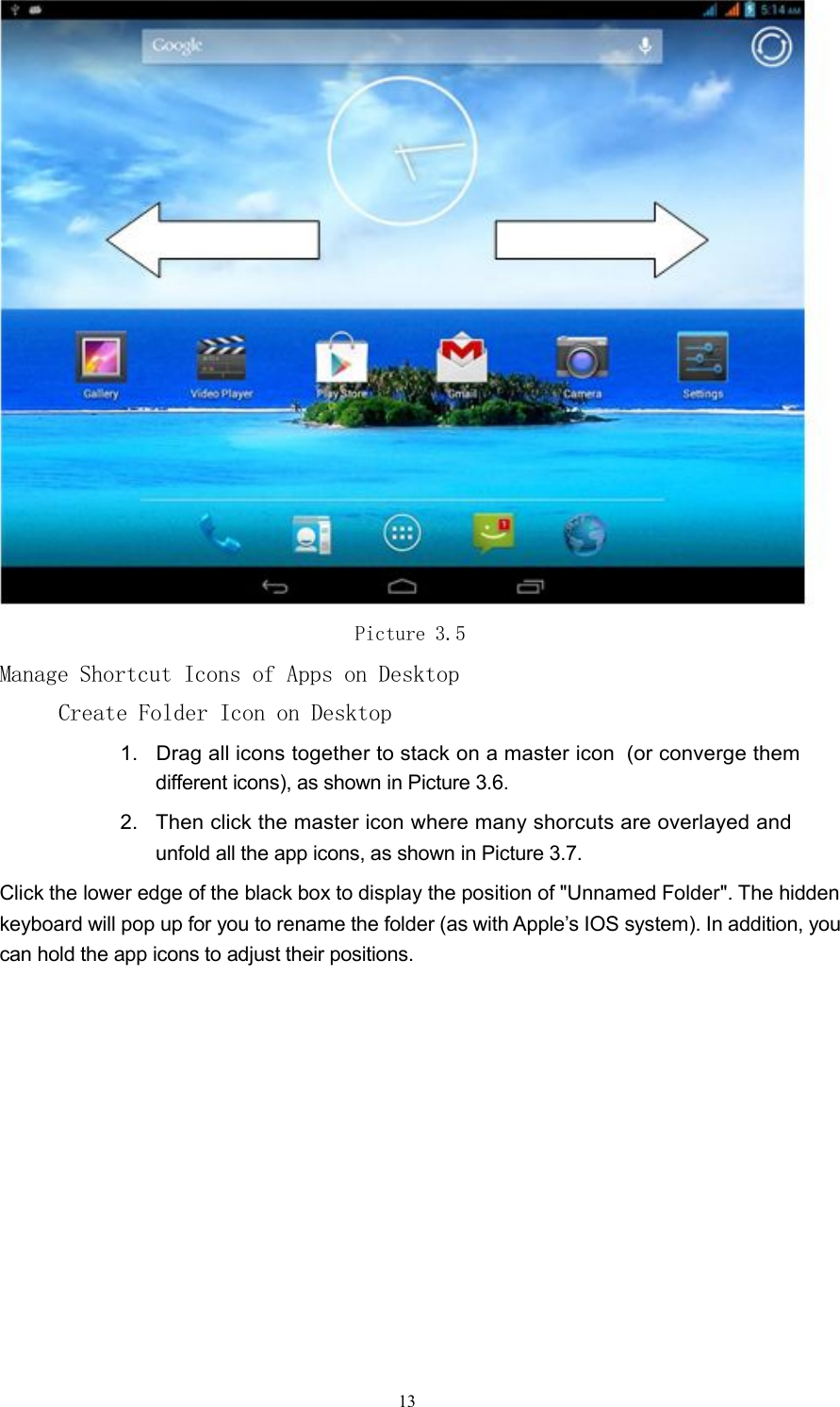
Picture 3.4Extensible Home ScreenThe Home screen or main UI can be extended beyond the screen itself, so as toprovide more space for you to accommodate additional shortcuts, widgets, etc.Press at any blank space of the main UI and fastly slide to right or left. Then you can reachthe left or right side of the Home screen. As shown in Picture 3.5, there are more thantwo (2) extensible pictures on the main UI.12
Picture 3.5Manage Shortcut Icons of Apps on DesktopCreate Folder Icon on Desktop1. Drag all icons together to stack on a master icon (or converge themdifferent icons), as shown in Picture 3.6.2. Then click the master icon where many shorcuts are overlayed andunfold all the app icons, as shown in Picture 3.7.Click the lower edge of the black box to display the position of "Unnamed Folder". The hiddenkeyboard will pop up for you to rename the folder (as with Apple’s IOS system). In addition, youcan hold the app icons to adjust their positions.13
Picture 3.6Picture 3.714
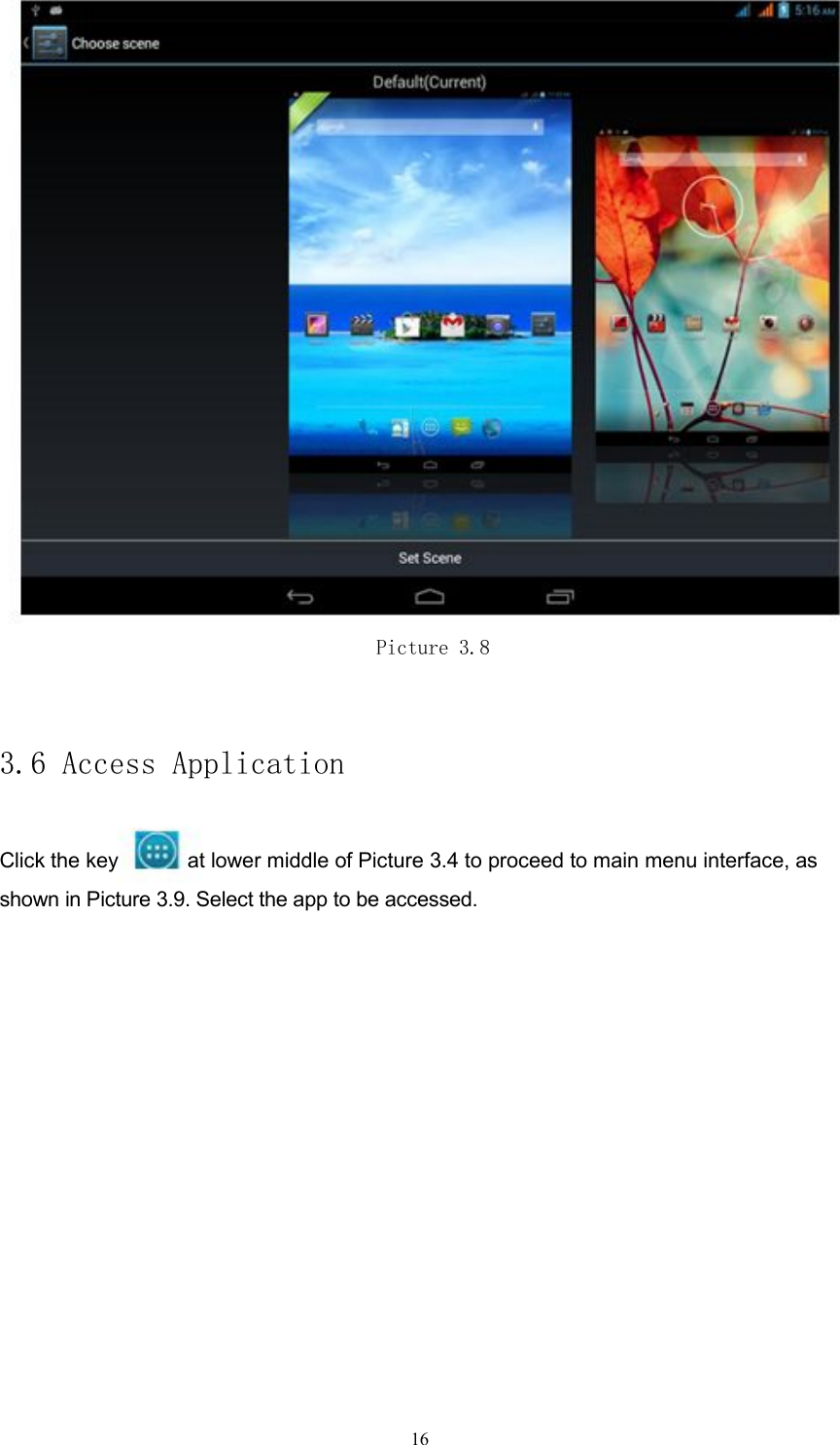
Delete Icon on Desktop1. Hold the icon to be deleted until the icon will be displayed at the top ofthe screen.2. Drag the icon to the top of the icon to be deleted. After the iconturns red, release your finger to delete it.Replace Desktop Wallpaper1. On the main UI, keep touching the blank space of the Home screen. Thena window will pop up to allow you to set wallpaper.2.Click gallery or wallpaper gallery to select a picture. VoiceSearch1. Touch the MIC icon2. Select from the pop-up Google options as required.3. Set a language in the pop-up voice search box as prompted. Click “OK”.4. Speak to the MIC what you want to search, and the browser will opensearch results list.Note: Please make sure your MID is connected to the Internet before making avoice search.Set Scene1. Touch the icon in the upper right-hand corner-hand corner of Picture3.6.2. Proceed to scene selection interface to find two available scenes. Slide to thescene you prefer and then click “Set Scene” at the bottom to complete scenereplacement, as shown in Picture 3.8.15
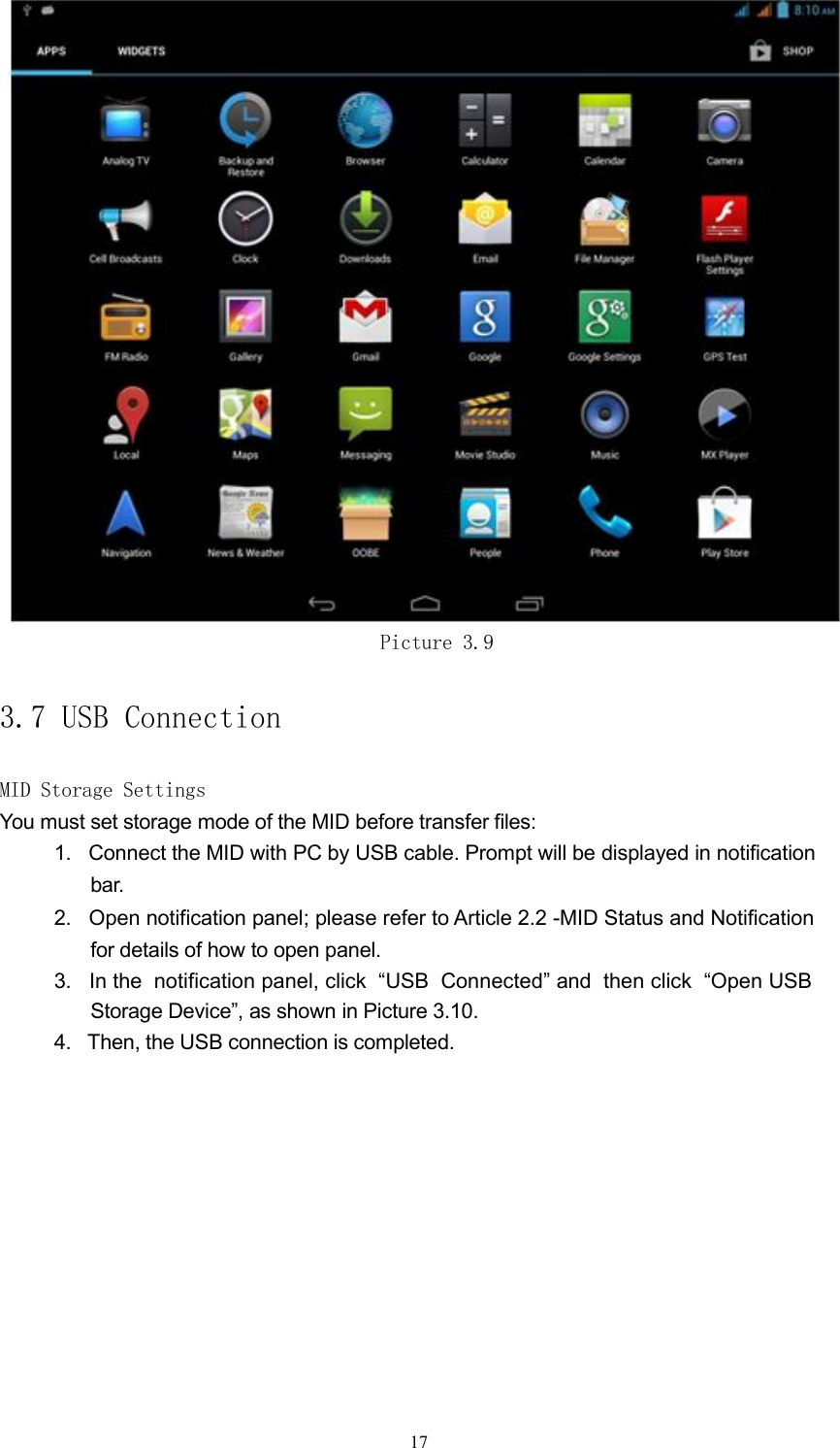
Picture 3.83.6 Access ApplicationClick the key at lower middle of Picture 3.4 to proceed to main menu interface, asshown in Picture 3.9. Select the app to be accessed.16
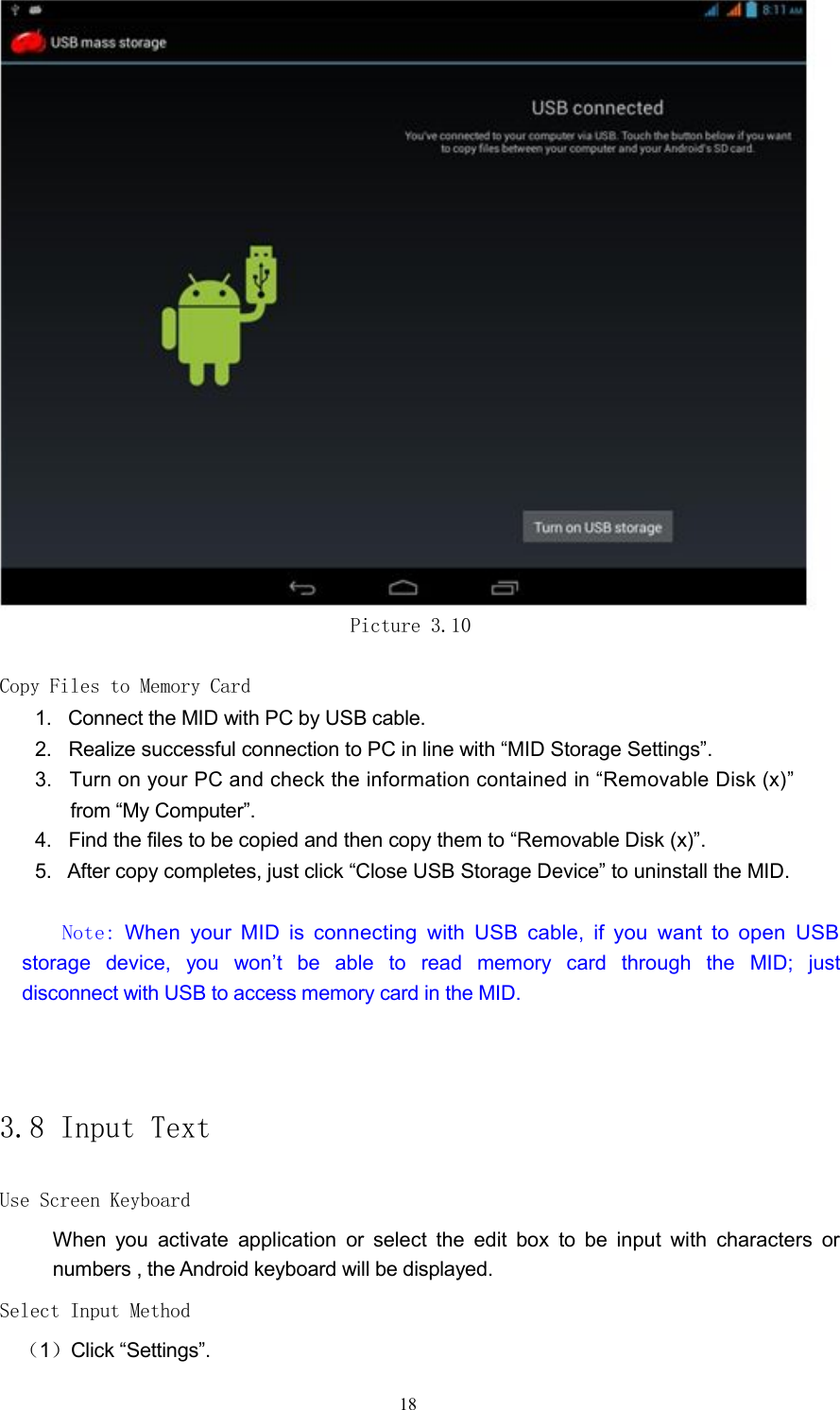
Picture 3.93.7 USB ConnectionMID Storage SettingsYou must set storage mode of the MID before transfer files:1. Connect the MID with PC by USB cable. Prompt will be displayed in notificationbar.2. Open notification panel; please refer to Article 2.2 -MID Status and Notificationfor details of how to open panel.3. In the notification panel, click “USB Connected” and then click “Open USBStorage Device”, as shown in Picture 3.10.4. Then, the USB connection is completed.17
Picture 3.10Copy Files to Memory Card1. Connect the MID with PC by USB cable.2. Realize successful connection to PC in line with “MID Storage Settings”.3. Turn on your PC and check the information contained in “Removable Disk (x)”from “My Computer”.4. Find the files to be copied and then copy them to “Removable Disk (x)”.5. After copy completes, just click “Close USB Storage Device” to uninstall the MID.Note:When your MID is connecting with USB cable, if you want to open USBstorage device, you won’t be able to read memory card through the MID; justdisconnect with USB to access memory card in the MID.3.8 Input TextUse Screen KeyboardWhen you activate application or select the edit box to be input with characters ornumbers , the Android keyboard will be displayed.Select Input Method(1)Click “Settings”.18
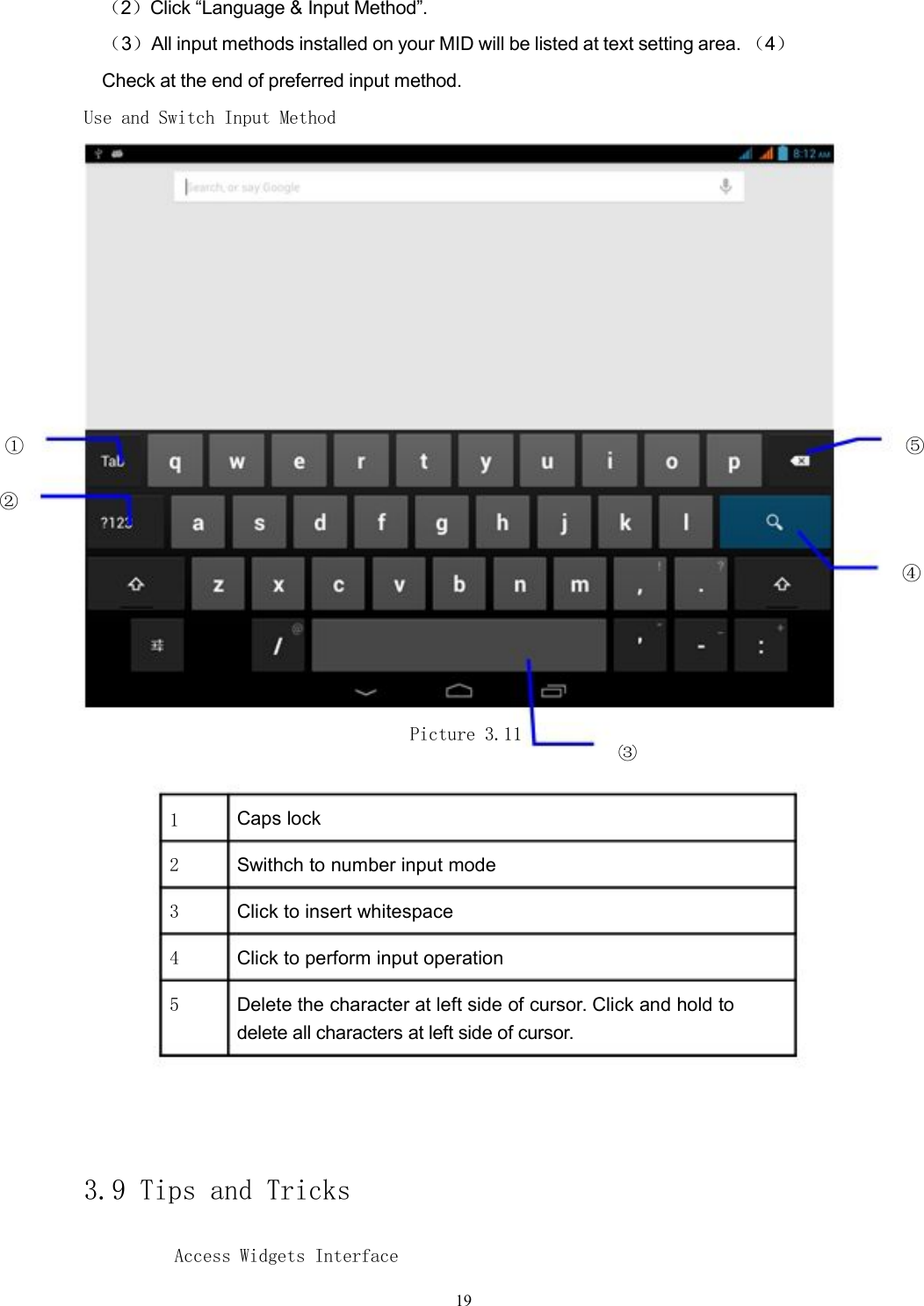
(2)Click “Language & Input Method”.(3)All input methods installed on your MID will be listed at text setting area. (4)Check at the end of preferred input method.Use and Switch Input Method① ⑤②④Picture 3.11③1Caps lock2Swithch to number input mode3Click to insert whitespace4Click to perform input operation5Delete the character at left side of cursor. Click and hold todelete all characters at left side of cursor.3.9 Tips and TricksAccess Widgets Interface19
Click on “Widgets” at the top of application interface and go to Widgetsinterface. Keep holding any widget to create its shortcut on the desktop. Clickthe shortcut on the desktop and access the corresponding app fast.Create Shortcut Icon of Apps on DesktopIn apps or widgets interface, keep touching any icon will lead you to the desktopautomatically. By draging and holding the icon, you can put it at any position on thedesktop.Note: If the target position of drag-and-drop has no space, the widget will fail to beadded to the Home screen.20
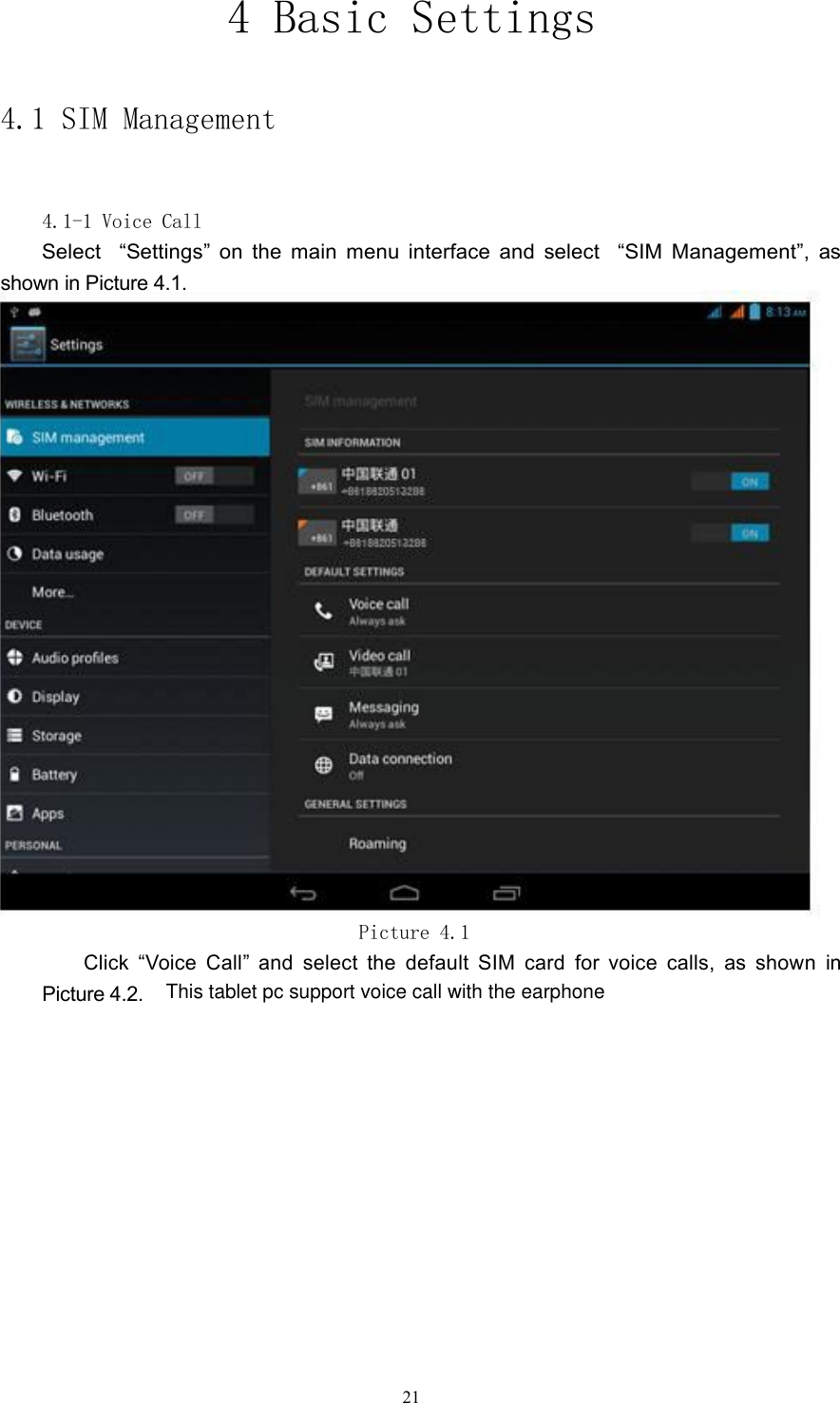
4 Basic Settings4.1 SIM Management4.1-1 Voice CallSelect “Settings” on the main menu interface and select “SIM Management”, asshown in Picture 4.1.Picture 4.1Click “Voice Call” and select the default SIM card for voice calls, as shown inPicture 4.2.21This tablet pc support voice call with the earphone
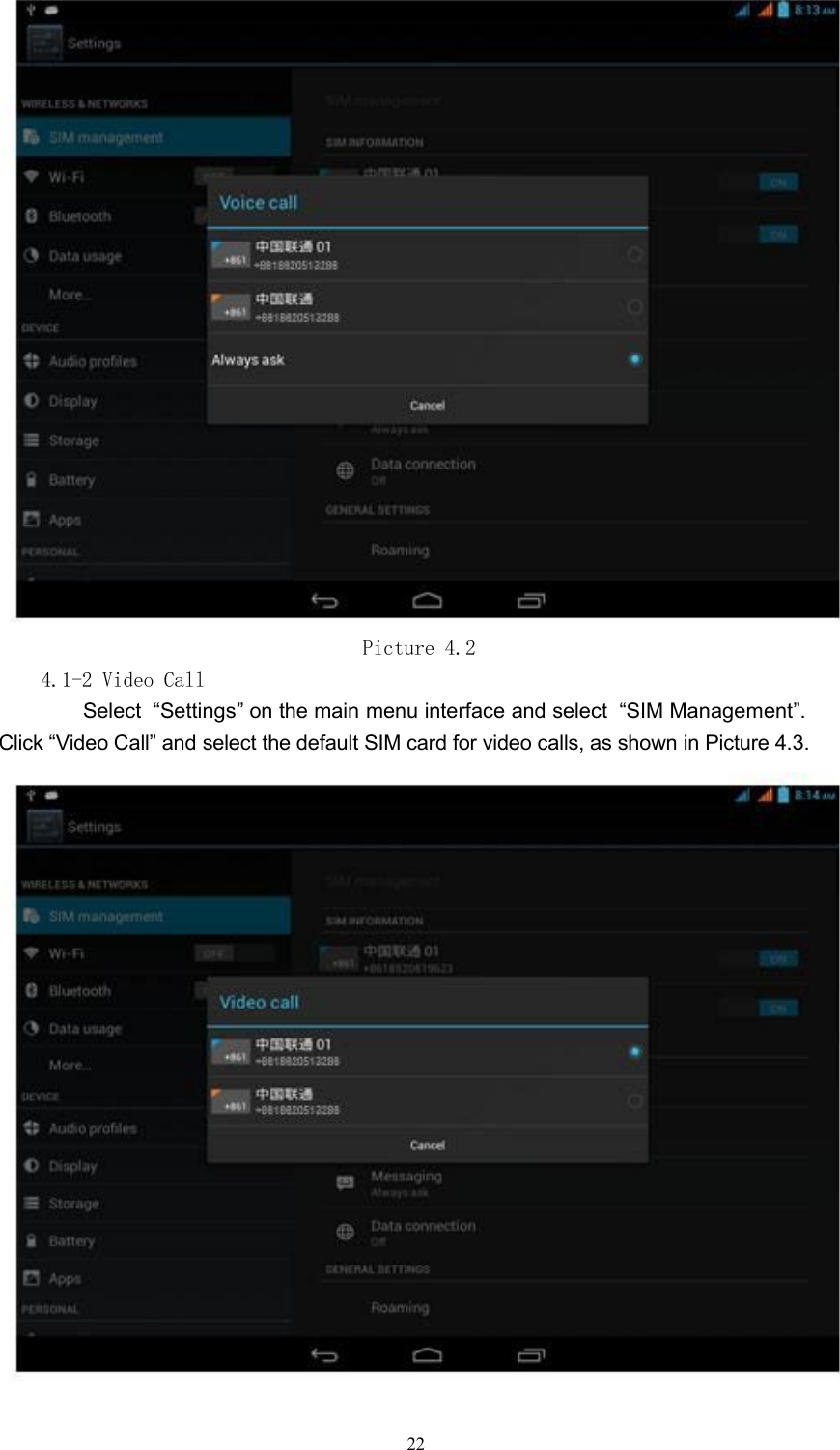
Picture 4.24.1-2 Video CallSelect “Settings” on the main menu interface and select “SIM Management”.Click “Video Call” and select the default SIM card for video calls, as shown in Picture 4.3.22
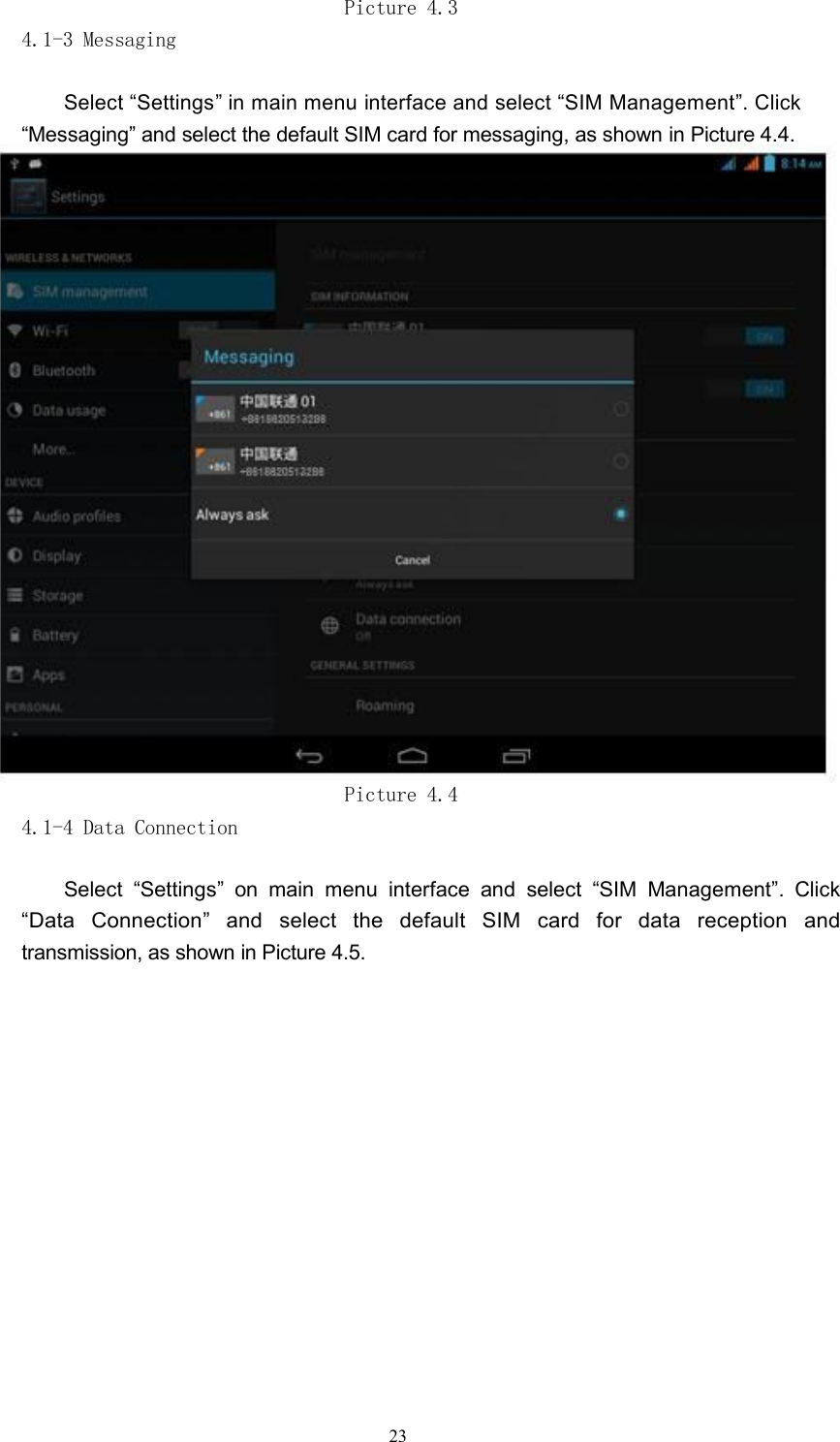
Picture 4.34.1-3 MessagingSelect “Settings” in main menu interface and select “SIM Management”. Click“Messaging” and select the default SIM card for messaging, as shown in Picture 4.4.Picture 4.44.1-4 Data ConnectionSelect “Settings” on main menu interface and select “SIM Management”. Click“Data Connection” and select the default SIM card for data reception andtransmission, as shown in Picture 4.5.23
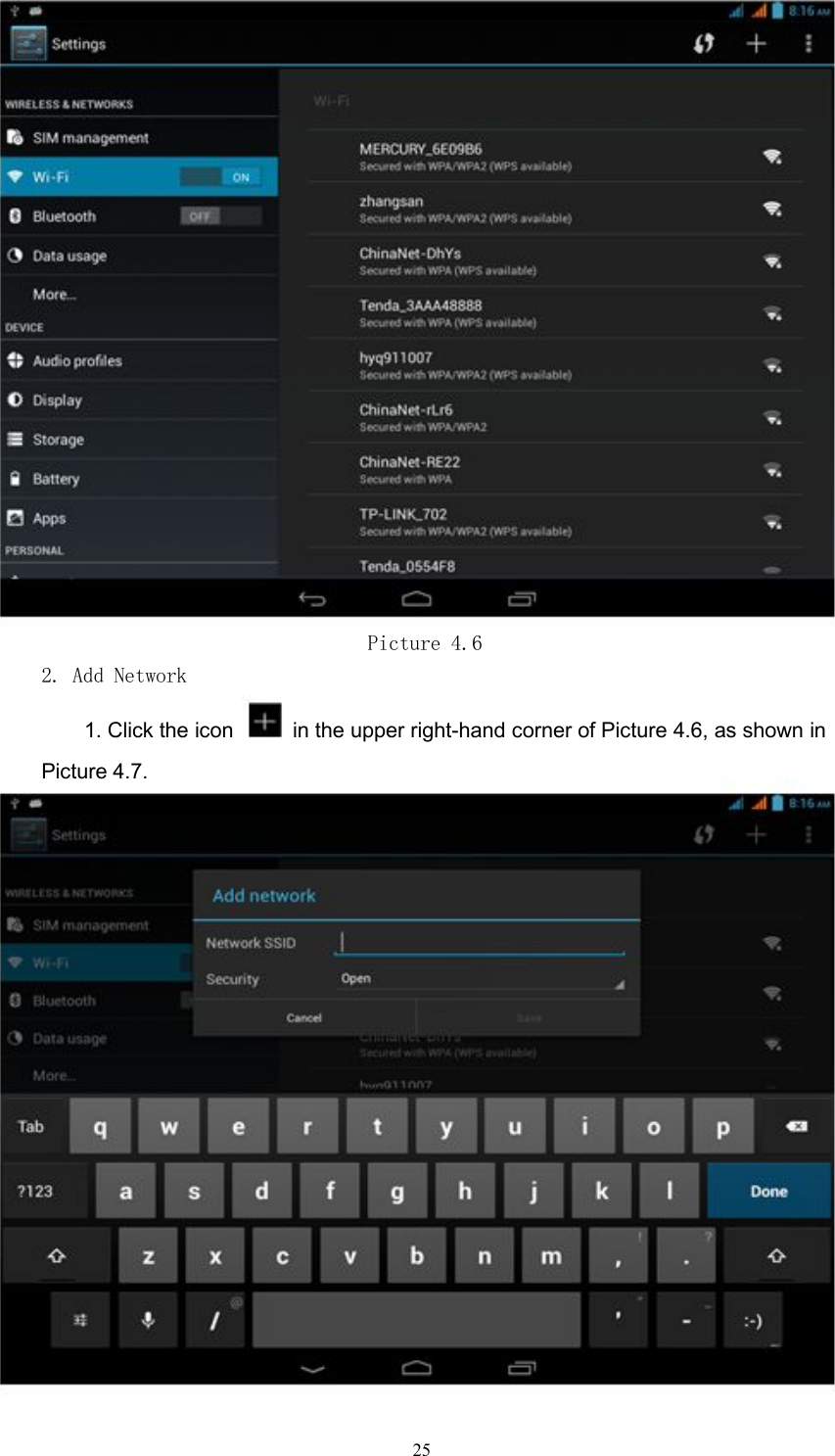
Picture 4.54.2 Wi-Fi & WLANEstablish Wi-Fi Connection1. Select “Settings” on main menu interface.2. Click Wi-Fi, and the MID will automatically scan the available Wi-Fi wirelessnetworks, as shown in Picture 4.6.3. Select the Wi-Fi network for connection. The “Enter Password” window willpop up in case of encrypted network. First enter the correct password andthen click “Connect”.24
Picture 4.62. Add Network1. Click the icon in the upper right-hand corner of Picture 4.6, as shown inPicture 4.7.25
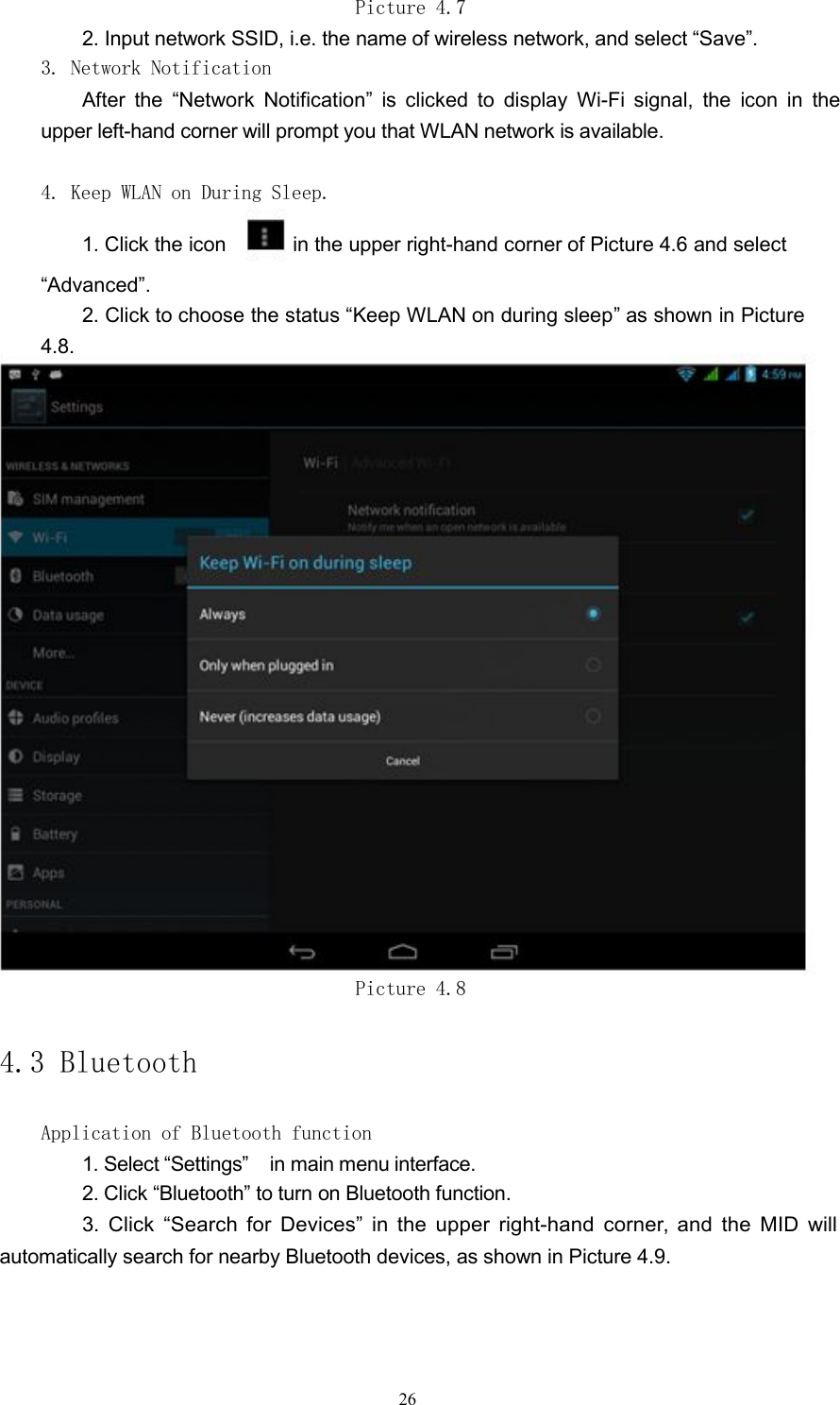
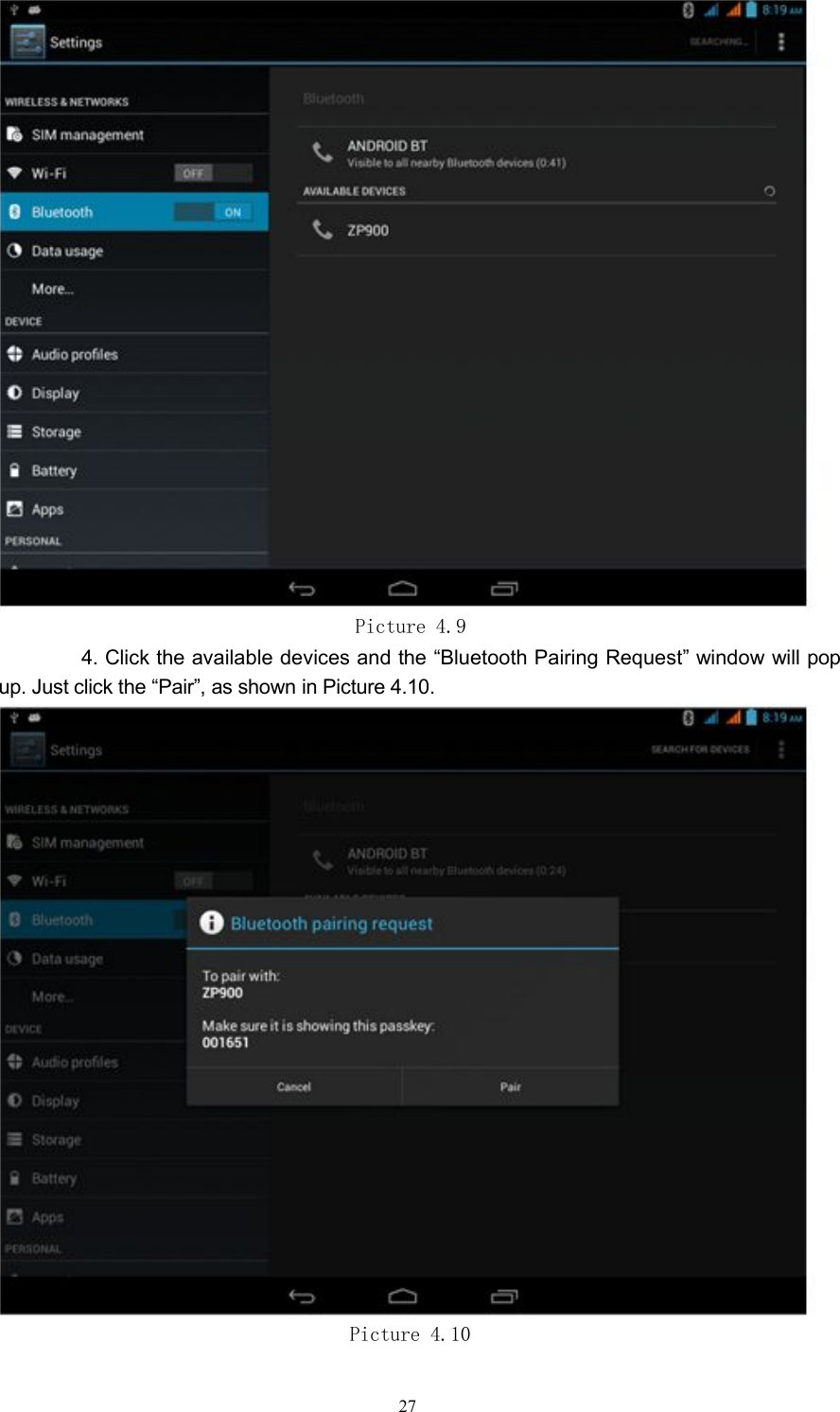
Picture 4.72. Input network SSID, i.e. the name of wireless network, and select “Save”.3. Network NotificationAfter the “Network Notification” is clicked to display Wi-Fi signal, the icon in theupper left-hand corner will prompt you that WLAN network is available.4. Keep WLAN on During Sleep.1. Click the icon in the upper right-hand corner of Picture 4.6 and select“Advanced”.2. Click to choose the status “Keep WLAN on during sleep” as shown in Picture4.8.Picture 4.84.3 BluetoothApplication of Bluetooth function1. Select “Settings” in main menu interface.2. Click “Bluetooth” to turn on Bluetooth function.3. Click “Search for Devices” in the upper right-hand corner, and the MID willautomatically search for nearby Bluetooth devices, as shown in Picture 4.9.26
Picture 4.94. Click the available devices and the “Bluetooth Pairing Request” window will popup. Just click the “Pair”, as shown in Picture 4.10.Picture 4.1027
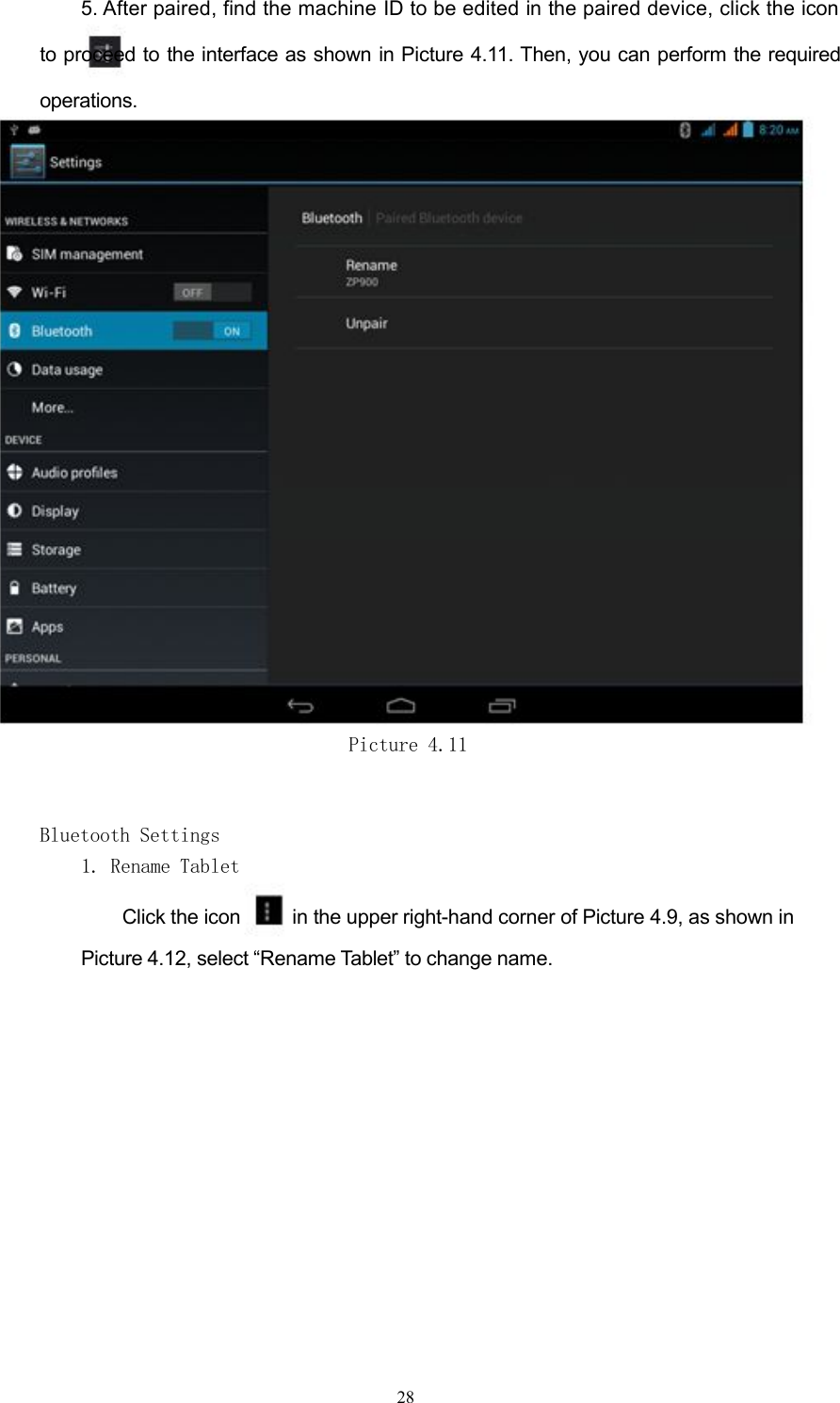
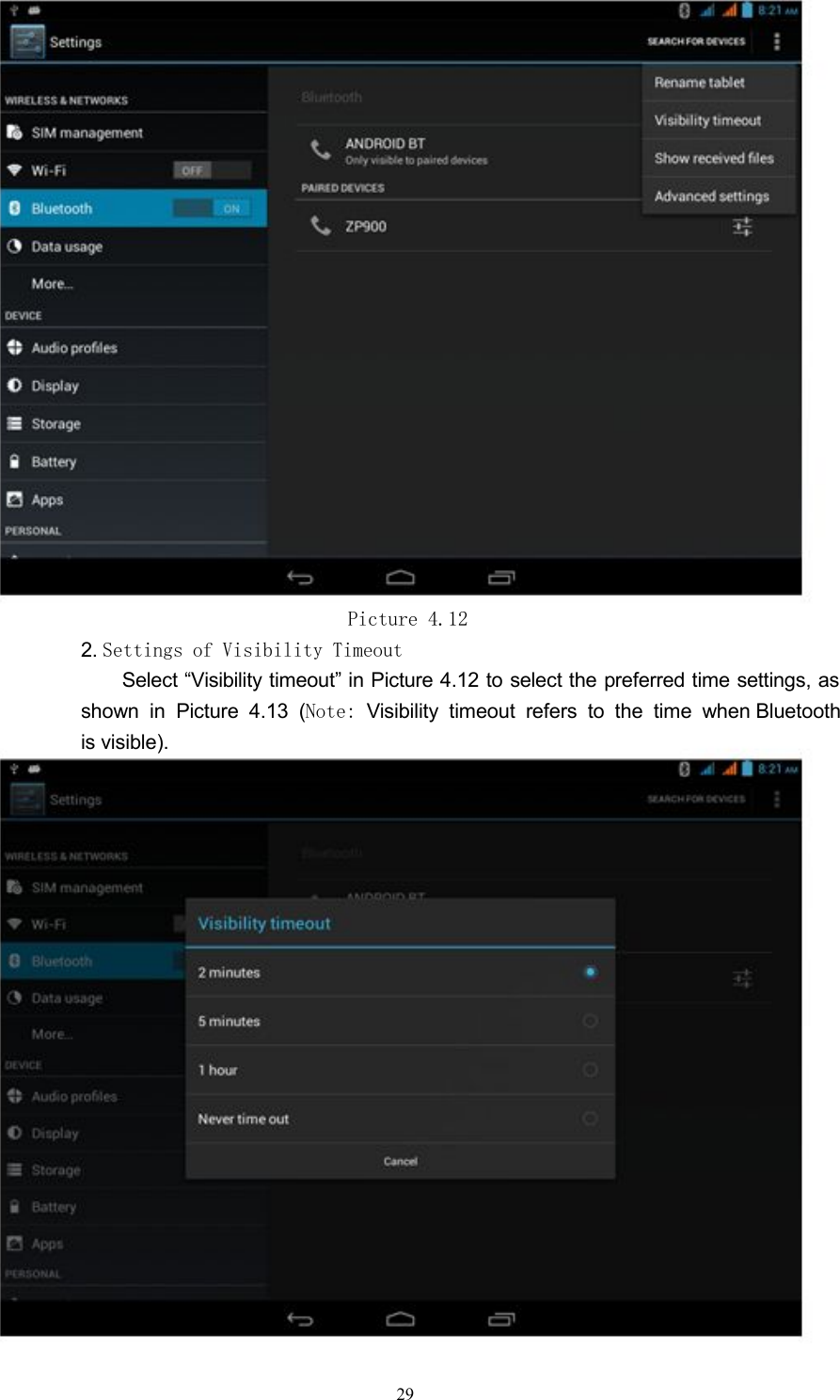
5. After paired, find the machine ID to be edited in the paired device, click theiconto proceed to the interface as shown in Picture 4.11. Then, you can perform the requiredoperations.Picture 4.11Bluetooth Settings1. Rename TabletClick the icon in the upper right-hand corner of Picture 4.9, as shown inPicture 4.12, select “Rename Tablet” to change name.28
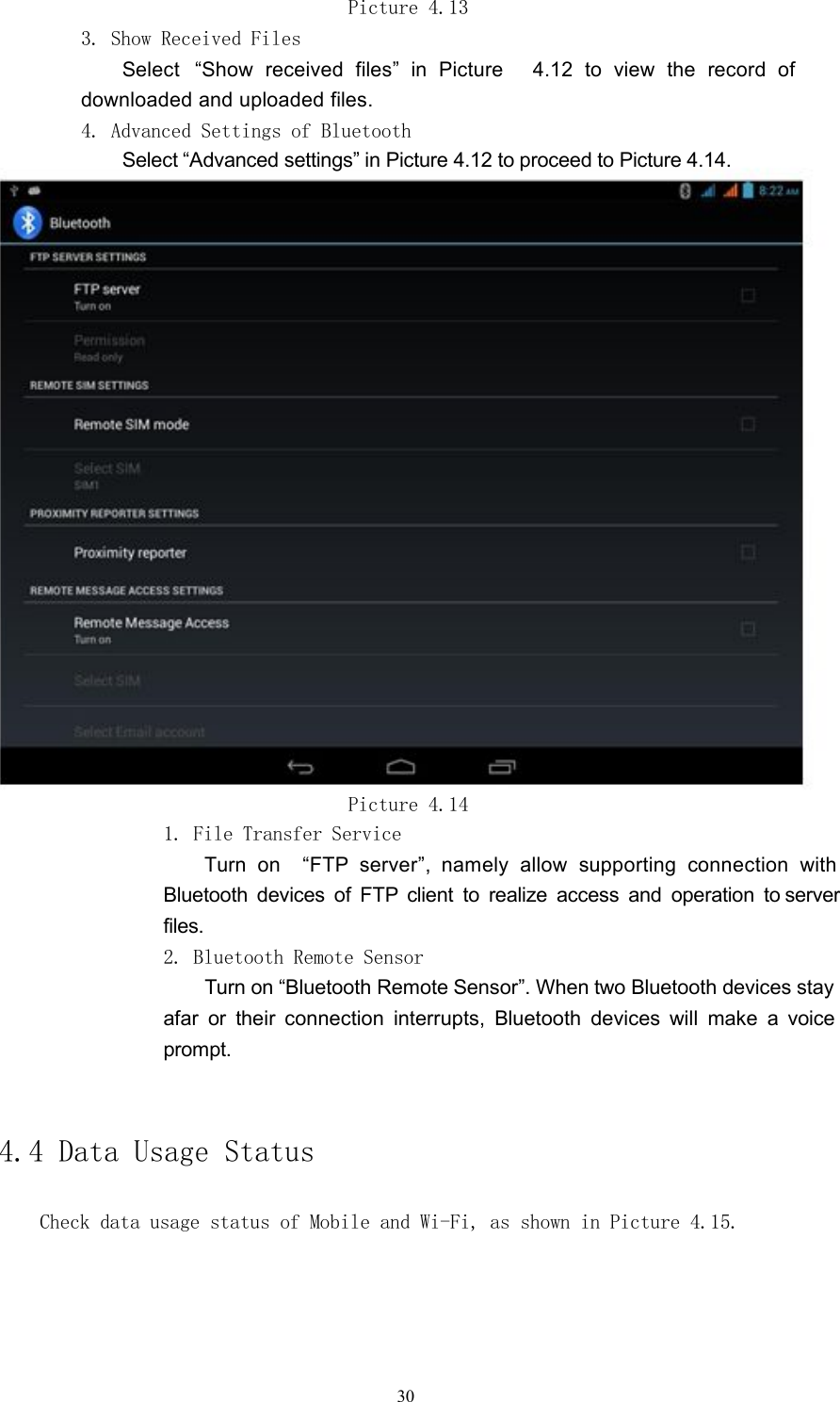
Picture 4.122. Settings of Visibility TimeoutSelect “Visibility timeout” in Picture 4.12 to select the preferred time settings, asshown in Picture 4.13 (Note: Visibility timeout refers to the time when Bluetoothis visible).29
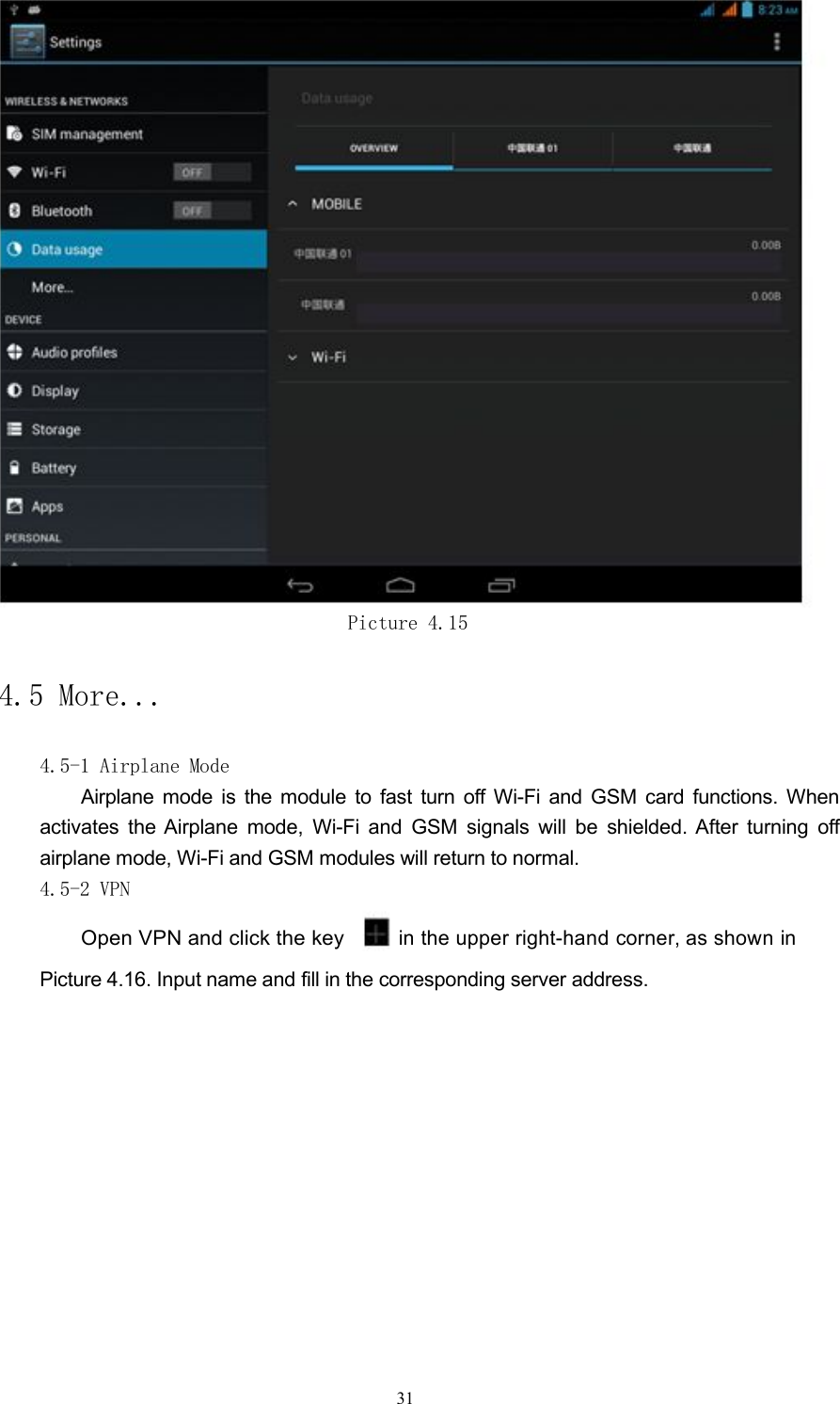
Picture 4.133. Show Received FilesSelect “Show received files” in Picture 4.12 to view the record ofdownloaded and uploaded files.4. Advanced Settings of BluetoothSelect “Advanced settings” in Picture 4.12 to proceed to Picture 4.14.Picture 4.141. File Transfer ServiceTurn on “FTP server”, namely allow supporting connection withBluetooth devices of FTP client to realize access and operation to serverfiles.2. Bluetooth Remote SensorTurn on “Bluetooth Remote Sensor”. When two Bluetooth devices stayafar or their connection interrupts, Bluetooth devices will make a voiceprompt.4.4 Data Usage StatusCheck data usage status of Mobile and Wi-Fi, as shown in Picture 4.15.30
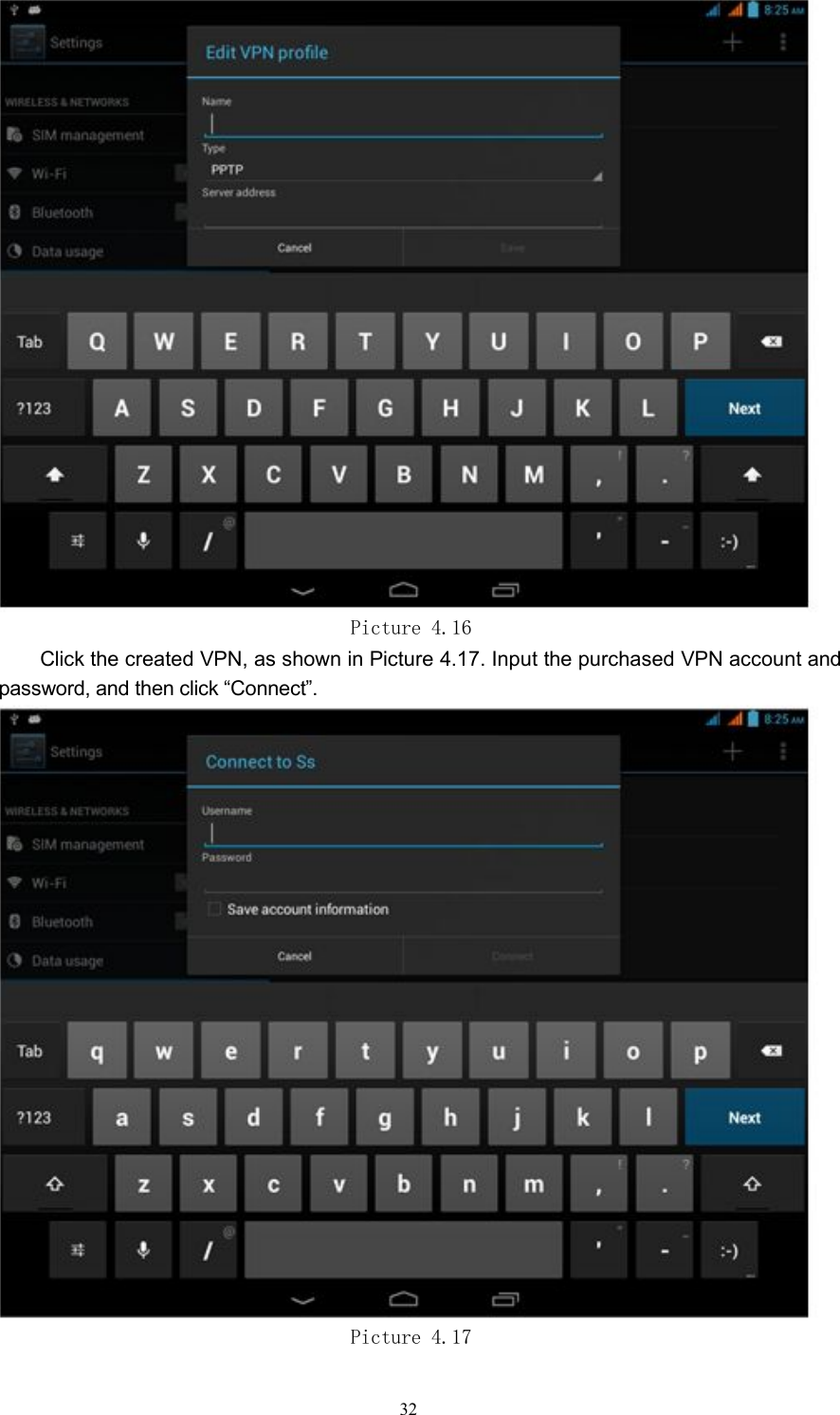
Picture 4.154.5 More...4.5-1 Airplane ModeAirplane mode is the module to fast turn off Wi-Fi and GSM card functions. Whenactivates the Airplane mode, Wi-Fi and GSM signals will be shielded. After turning offairplane mode, Wi-Fi and GSM modules will return to normal.4.5-2 VPNOpen VPN and click the keyin the upper right-hand corner, as shown inPicture 4.16. Input name and fill in the corresponding server address.31
Picture 4.16Click the created VPN, as shown in Picture 4.17. Input the purchased VPN account andpassword, and then click “Connect”.Picture 4.1732
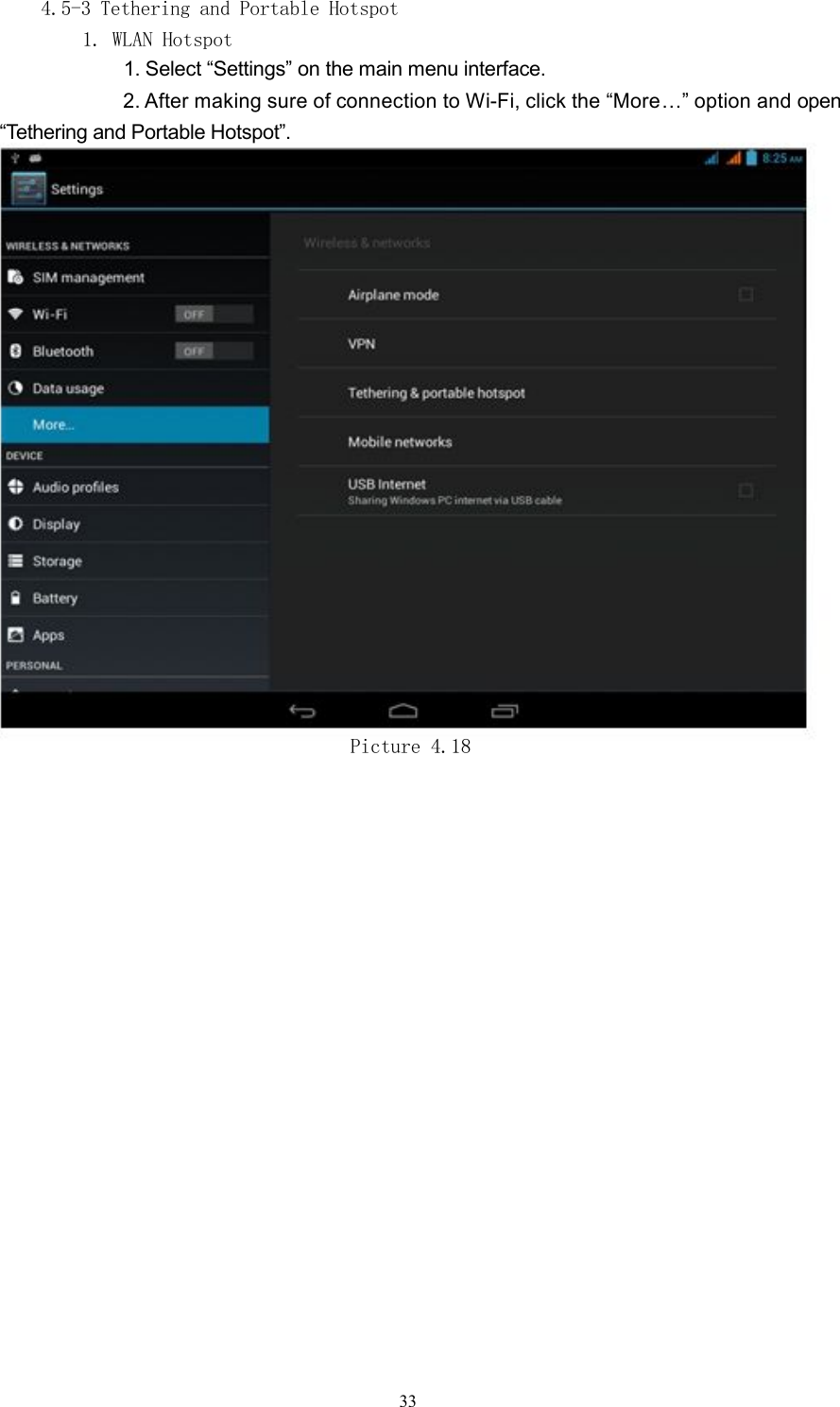
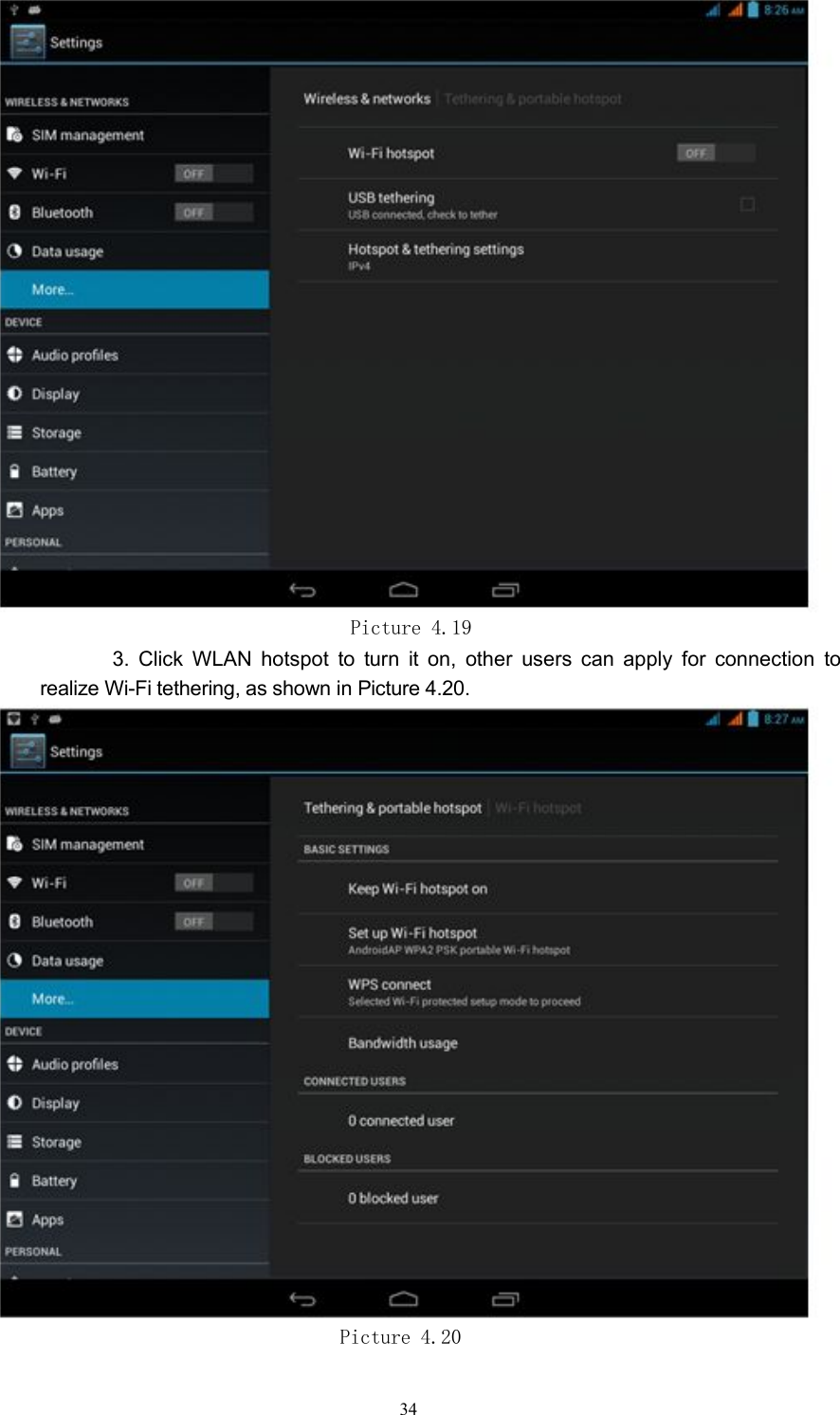
4.5-3 Tethering and Portable Hotspot1. WLAN Hotspot1. Select “Settings” on the main menu interface.2. After making sure of connection to Wi-Fi, click the “More…” option andopen“Tethering and Portable Hotspot”.Picture 4.1833
Picture 4.193. Click WLAN hotspot to turn it on, other users can apply for connection torealize Wi-Fi tethering, as shown in Picture 4.20.Picture 4.2034
4. Click “Keep Wi-Fi hotspot on” to set period of keeping WLAN on, asshown in Picture 4.21.Picture 4.215. Click “Set up Wi-Fi hotspot” to perform password setting and alteration tothe activated Wi-Fi hotspot, as shown in Picture 4.22.35
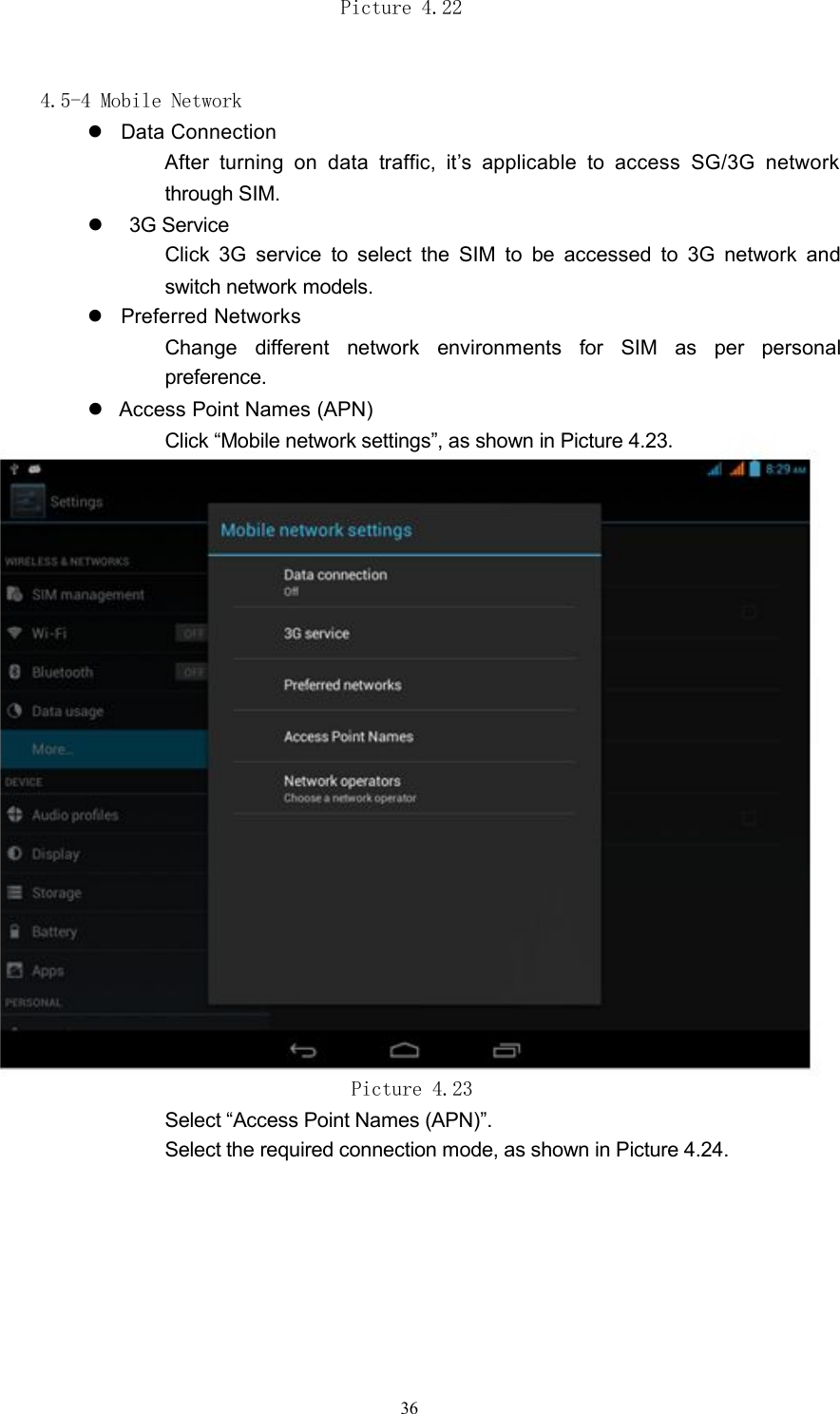
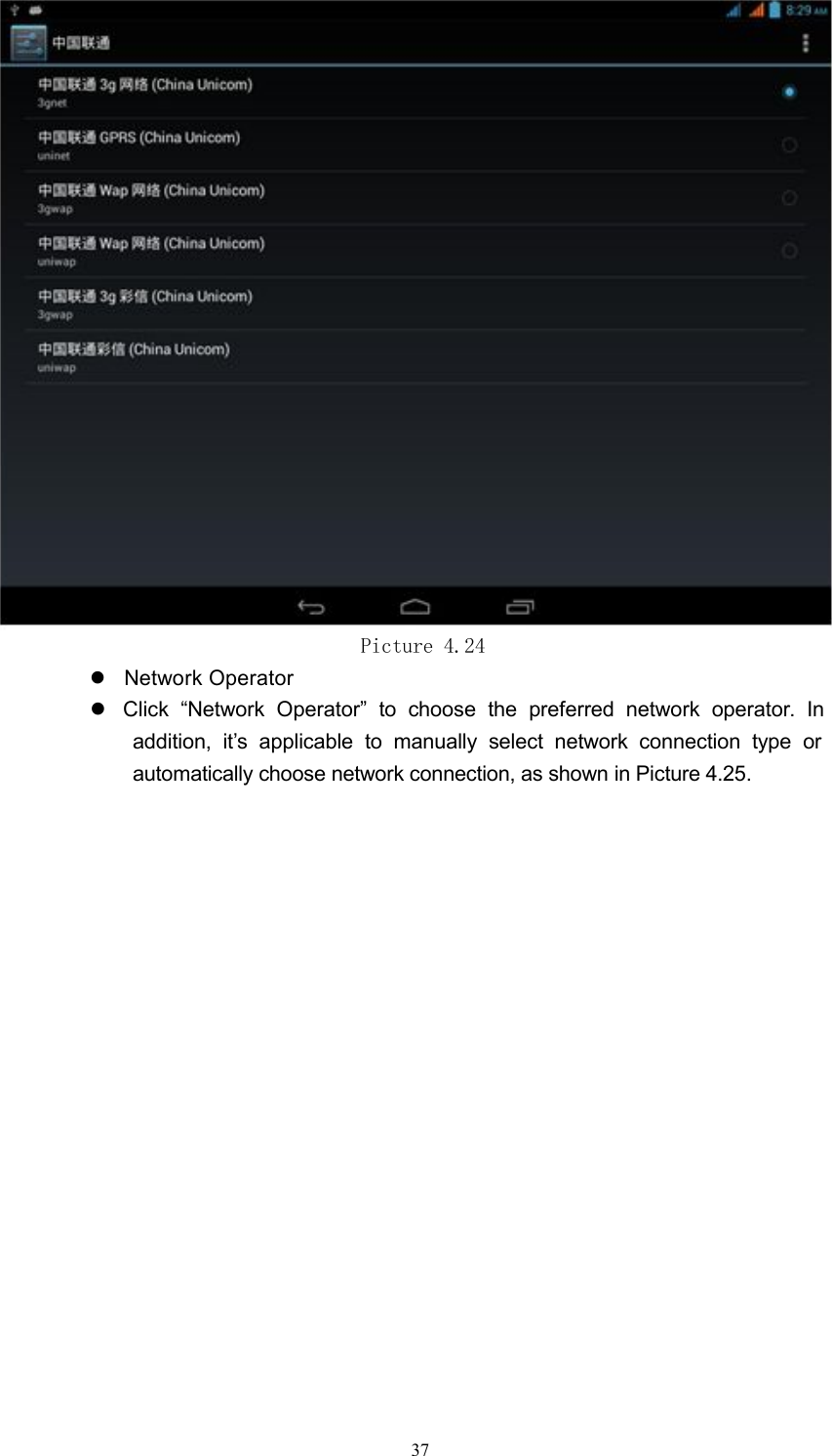
Picture 4.224.5-4 Mobile NetworkData ConnectionAfter turning on data traffic, it’s applicable to access SG/3G networkthrough SIM.3G ServiceClick 3G service to select the SIM to be accessed to 3G network andswitch network models.Preferred NetworksChange different network environments for SIM as per personalpreference.Access Point Names (APN)Click “Mobile network settings”, as shown in Picture 4.23.Picture 4.23Select “Access Point Names (APN)”.Select the required connection mode, as shown in Picture 4.24.36
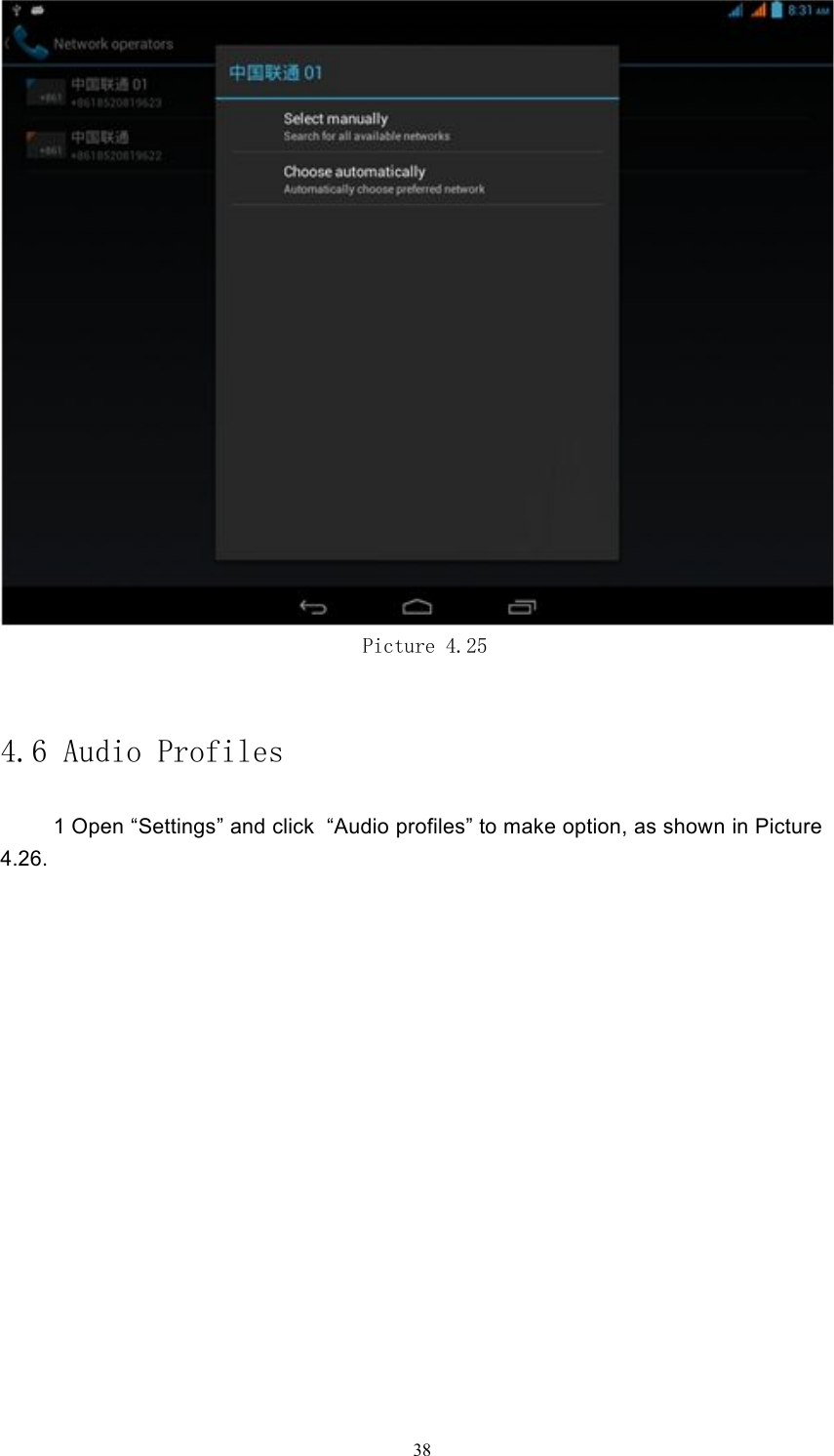
Picture 4.24Network OperatorClick “Network Operator” to choose the preferred network operator. Inaddition, it’s applicable to manually select network connection type orautomatically choose network connection, as shown in Picture 4.25.37
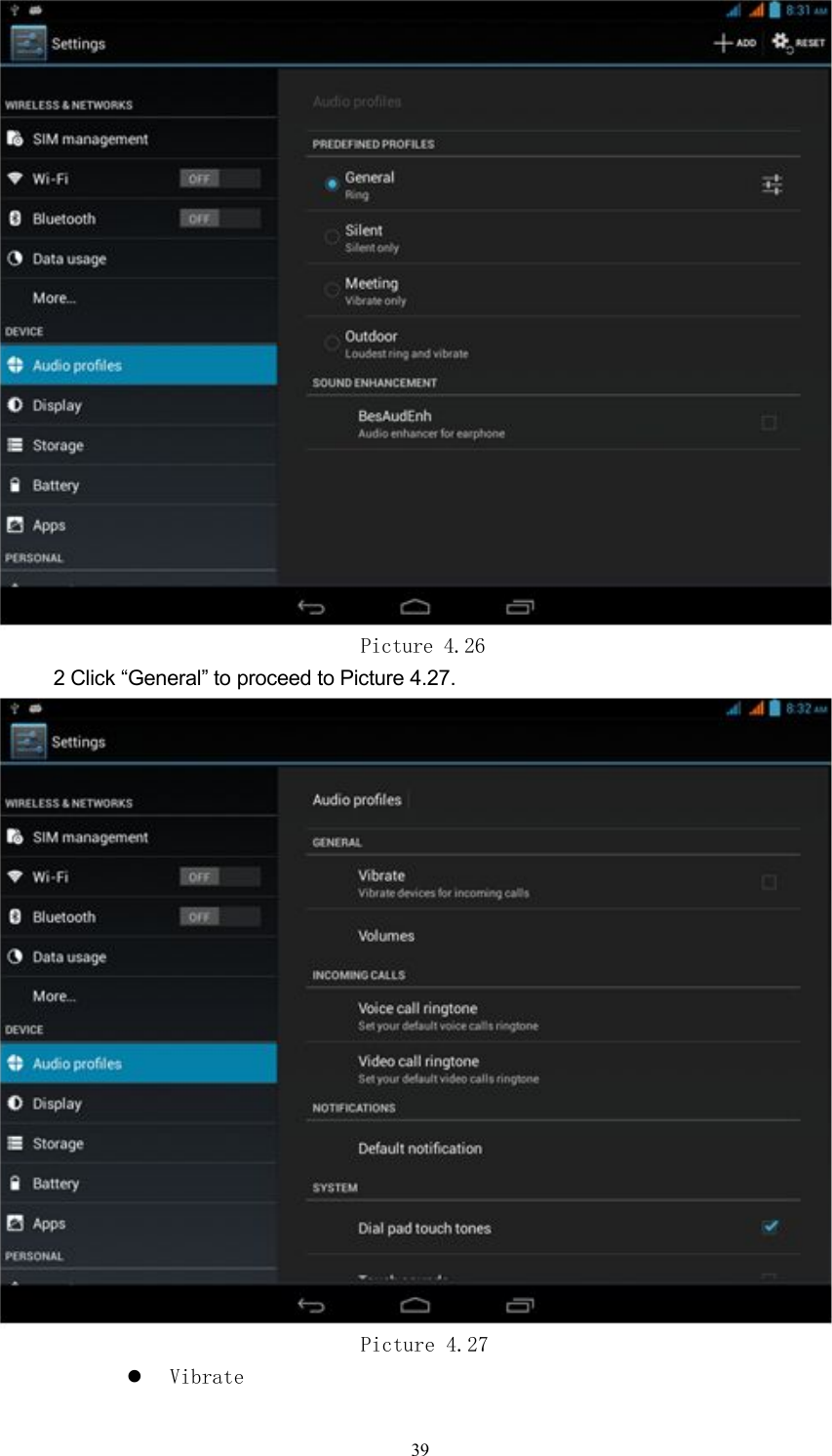
Picture 4.254.6 Audio Profiles1 Open “Settings” and click “Audio profiles” to make option, as shown in Picture4.26.38
Picture 4.262 Click “General” to proceed to Picture 4.27.Picture 4.27Vibrate39
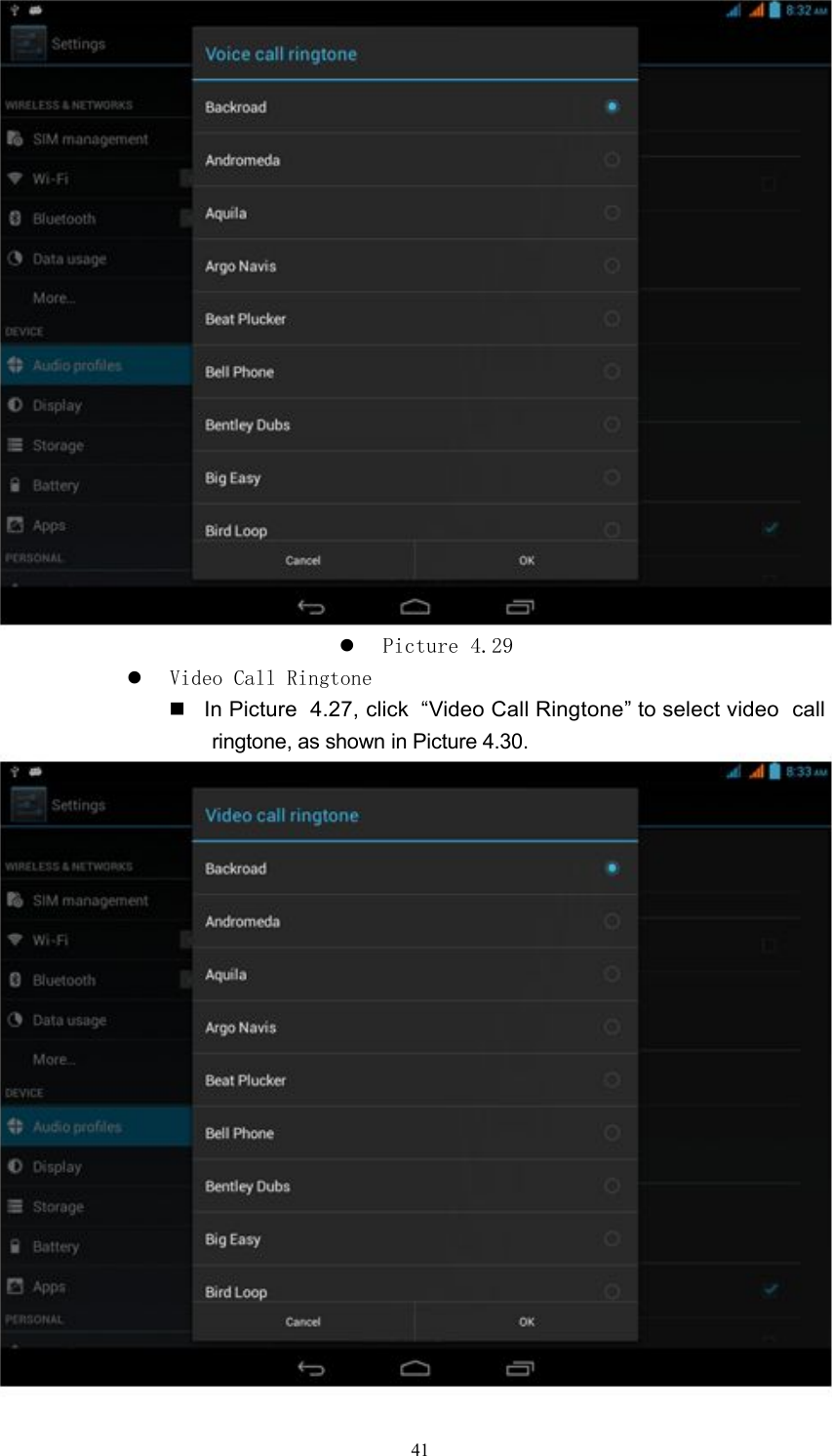
In Picture 4.27, click “Vibrate” to vibrate the MID for incoming calls. VolumesIn Picture 4.27, click “Volumes” to adjust volume of “Ringtone &Notification” and “Alarms”, as shown in Picture 4.28.Picture 4.28Voice Call RingtoneIn Picture 4.27, click “Voice Call Ringtone” to select voice callringtone, as shown in Picture 4.29.40
Picture 4.29Video Call RingtoneIn Picture 4.27, click “Video Call Ringtone” to select video callringtone, as shown in Picture 4.30.41
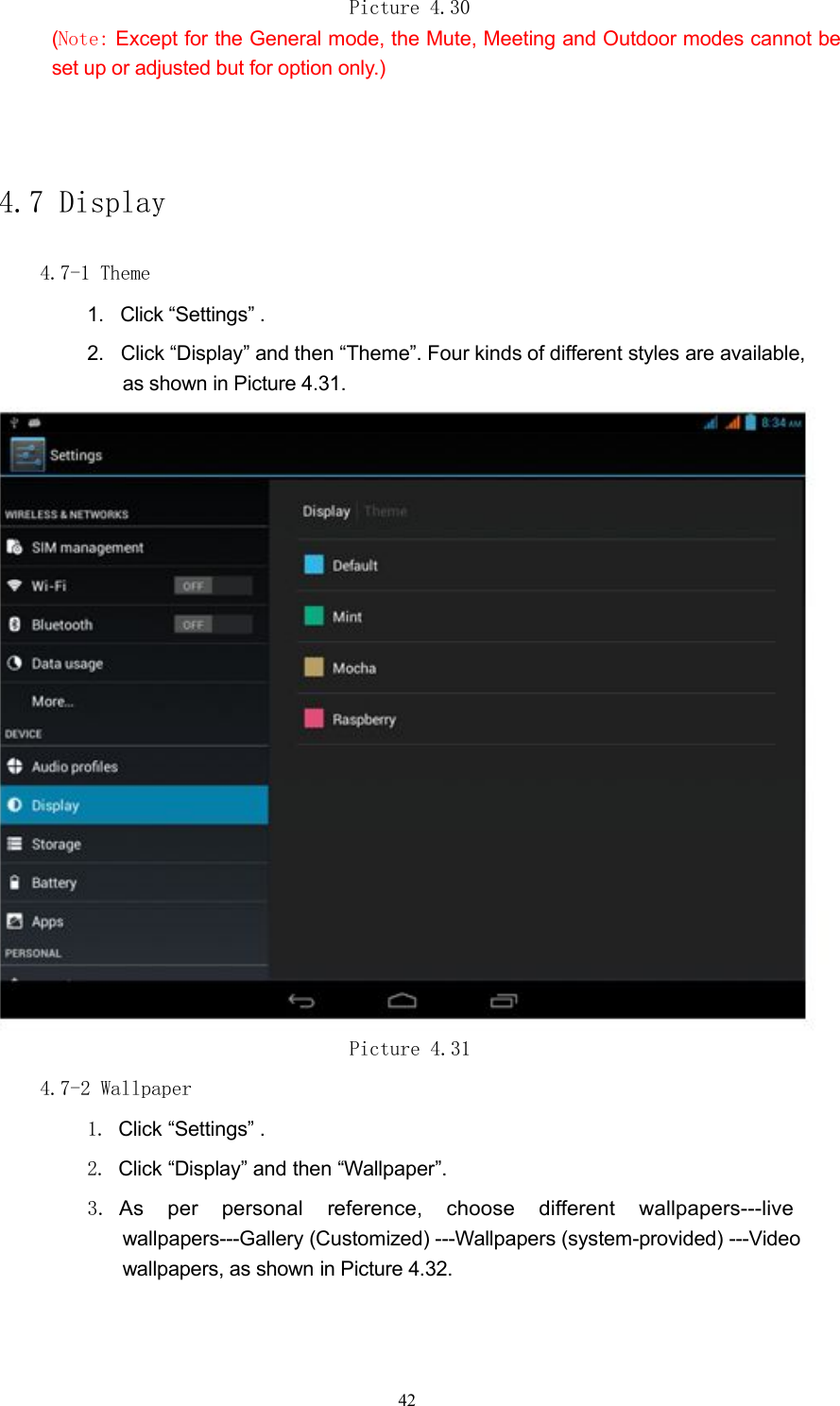
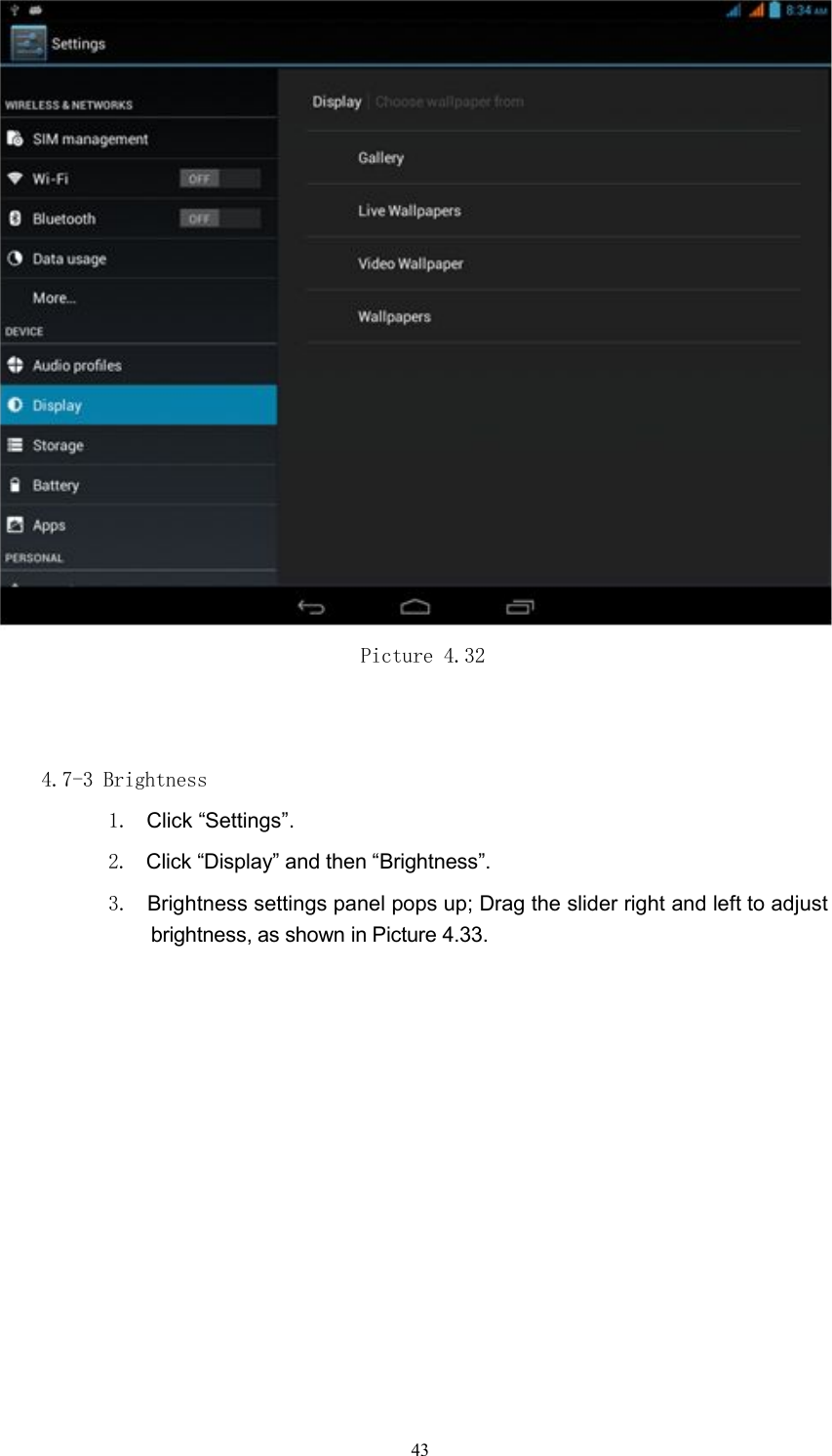
Picture 4.30(Note: Except for the General mode, the Mute, Meeting and Outdoor modes cannot beset up or adjusted but for option only.)4.7 Display4.7-1 Theme1. Click “Settings” .2. Click “Display” and then “Theme”. Four kinds of different styles are available,as shown in Picture 4.31.Picture 4.314.7-2 Wallpaper1. Click “Settings” .2. Click “Display” and then “Wallpaper”.3.As per personal reference, choose different wallpapers---livewallpapers---Gallery (Customized) ---Wallpapers (system-provided) ---Videowallpapers, as shown in Picture 4.32.42
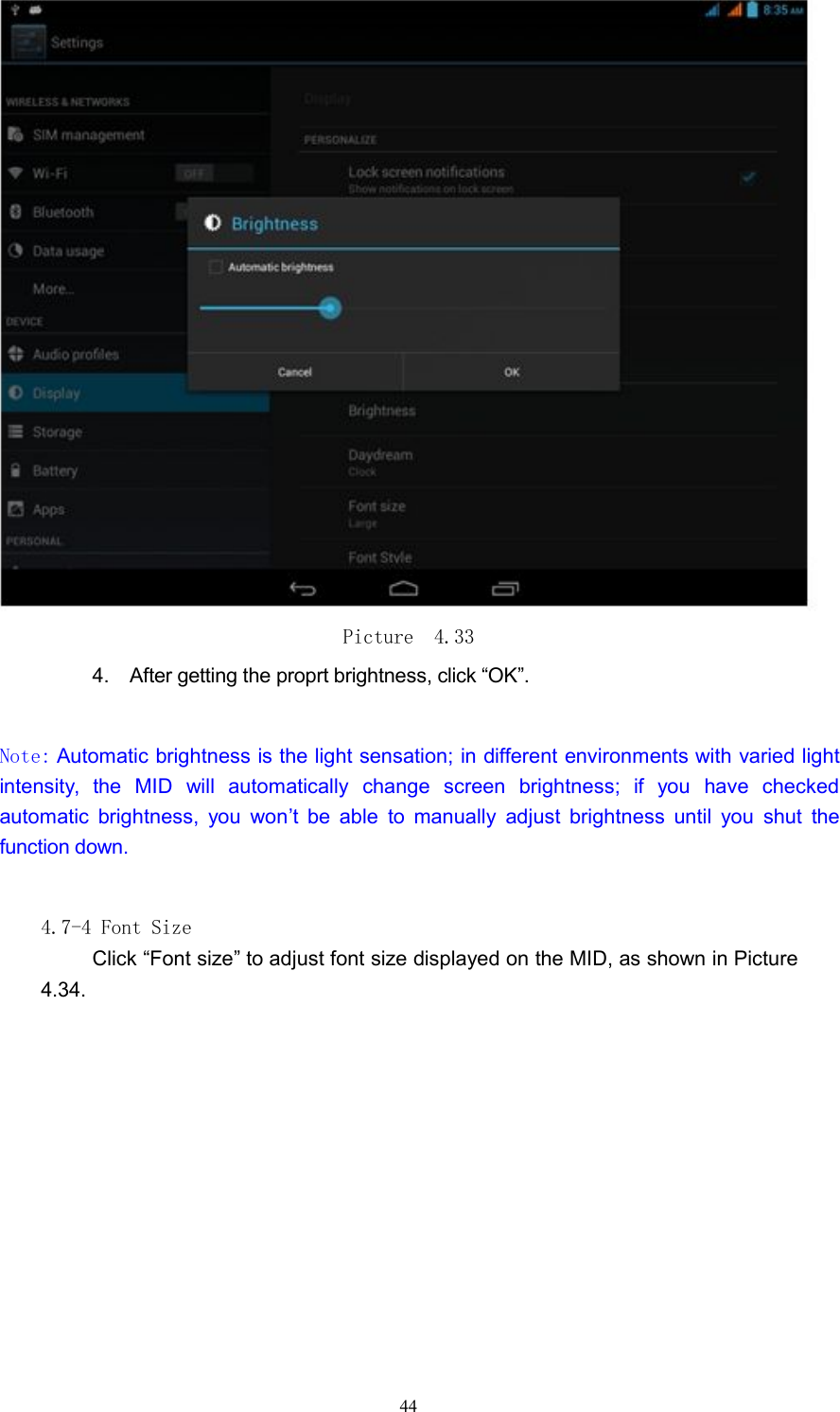
Picture 4.324.7-3 Brightness1. Click “Settings”.2. Click “Display” and then “Brightness”.3. Brightness settings panel pops up; Drag the slider right and left to adjustbrightness, as shown in Picture 4.33.43
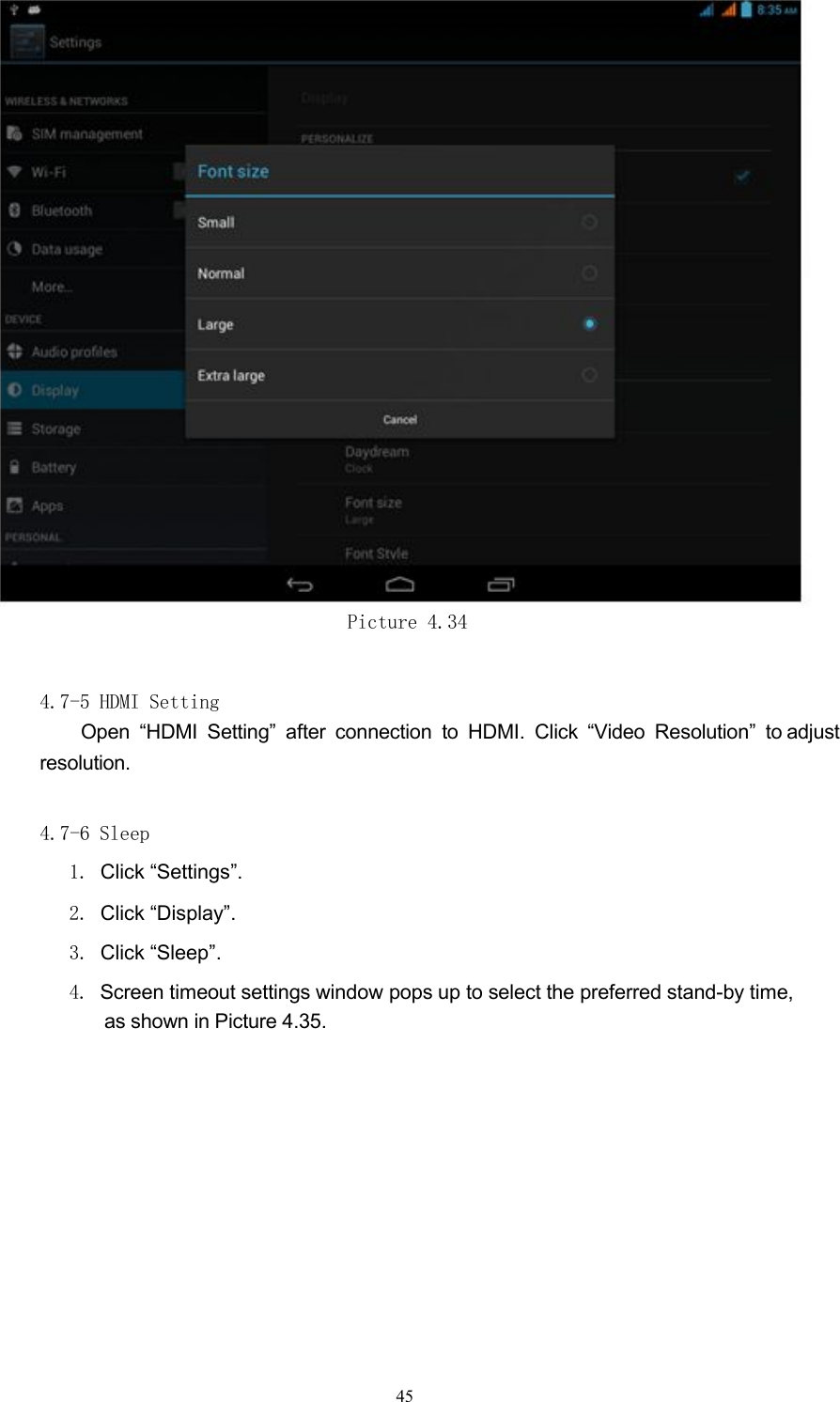
Picture 4.334. After getting the proprt brightness, click “OK”.Note: Automatic brightness is the light sensation; in different environments with varied lightintensity, the MID will automatically change screen brightness; if you have checkedautomatic brightness, you won’t be able to manually adjust brightness until you shut thefunction down.4.7-4 Font SizeClick “Font size” to adjust font size displayed on the MID, as shown in Picture4.34.44
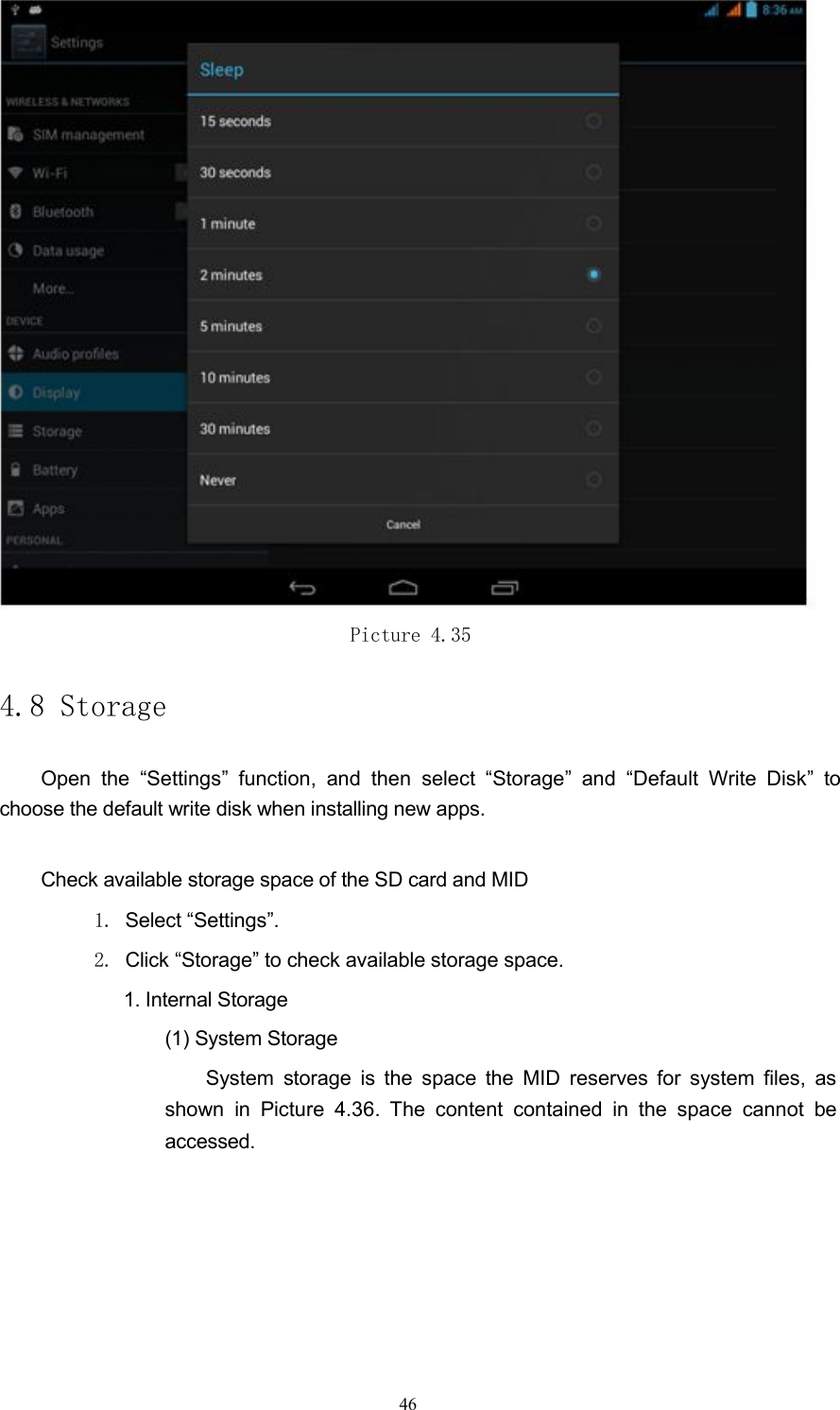
Picture 4.344.7-5 HDMI SettingOpen “HDMI Setting” after connection to HDMI. Click “Video Resolution” to adjustresolution.4.7-6 Sleep1. Click “Settings”.2. Click “Display”.3. Click “Sleep”.4. Screen timeout settings window pops up to select the preferred stand-by time,as shown in Picture 4.35.45
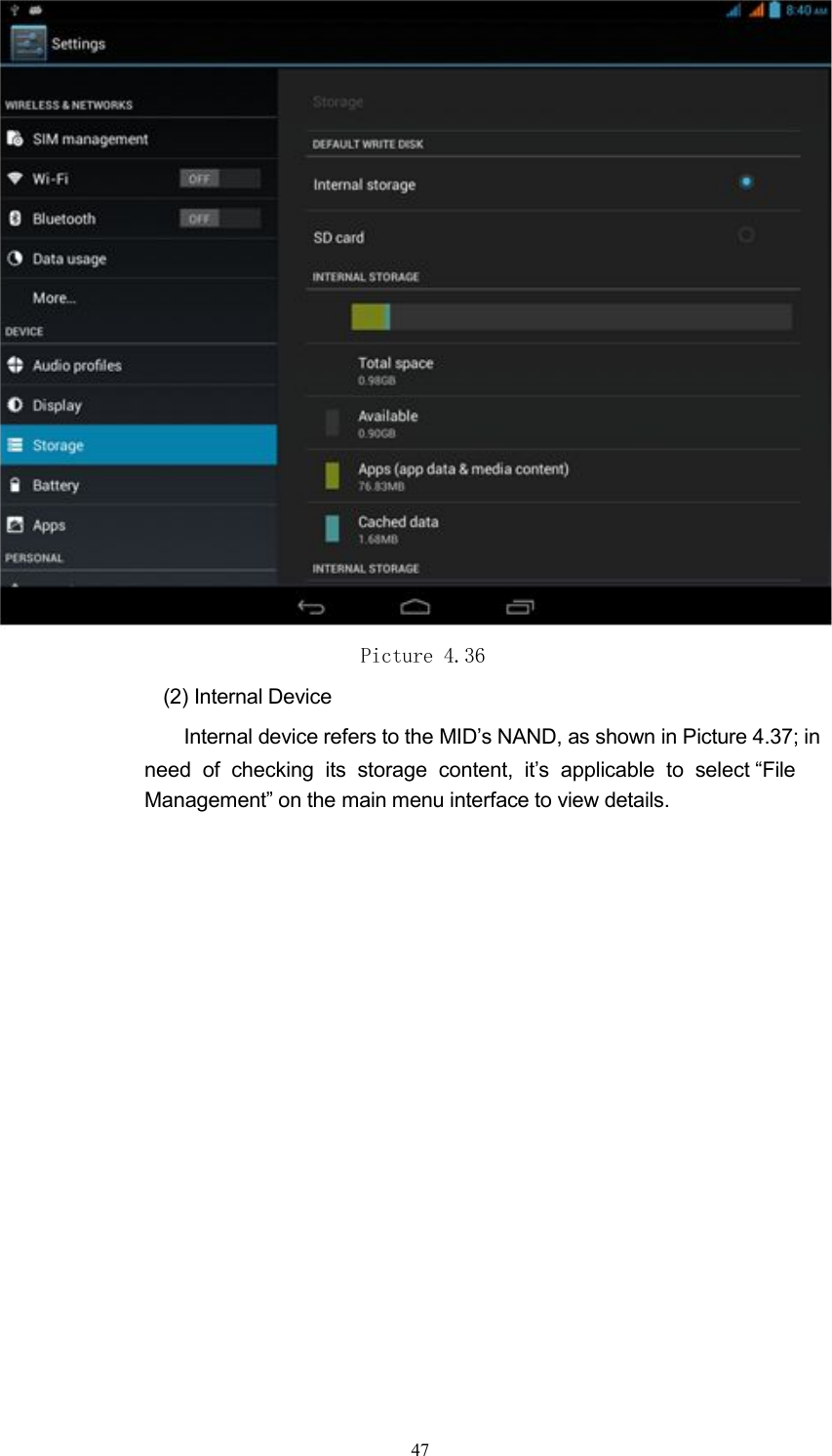
Picture 4.354.8 StorageOpen the “Settings” function, and then select “Storage” and “Default Write Disk” tochoose the default write disk when installing new apps.Check available storage space of the SD card and MID1. Select “Settings”.2. Click “Storage” to check available storage space.1. Internal Storage(1) System StorageSystem storage is the space the MID reserves for system files, asshown in Picture 4.36. The content contained in the space cannot beaccessed.46
Picture 4.36(2) Internal DeviceInternal device refers to the MID’s NAND, as shown in Picture 4.37; inneed of checking its storage content, it’s applicable to select “FileManagement” on the main menu interface to view details.47
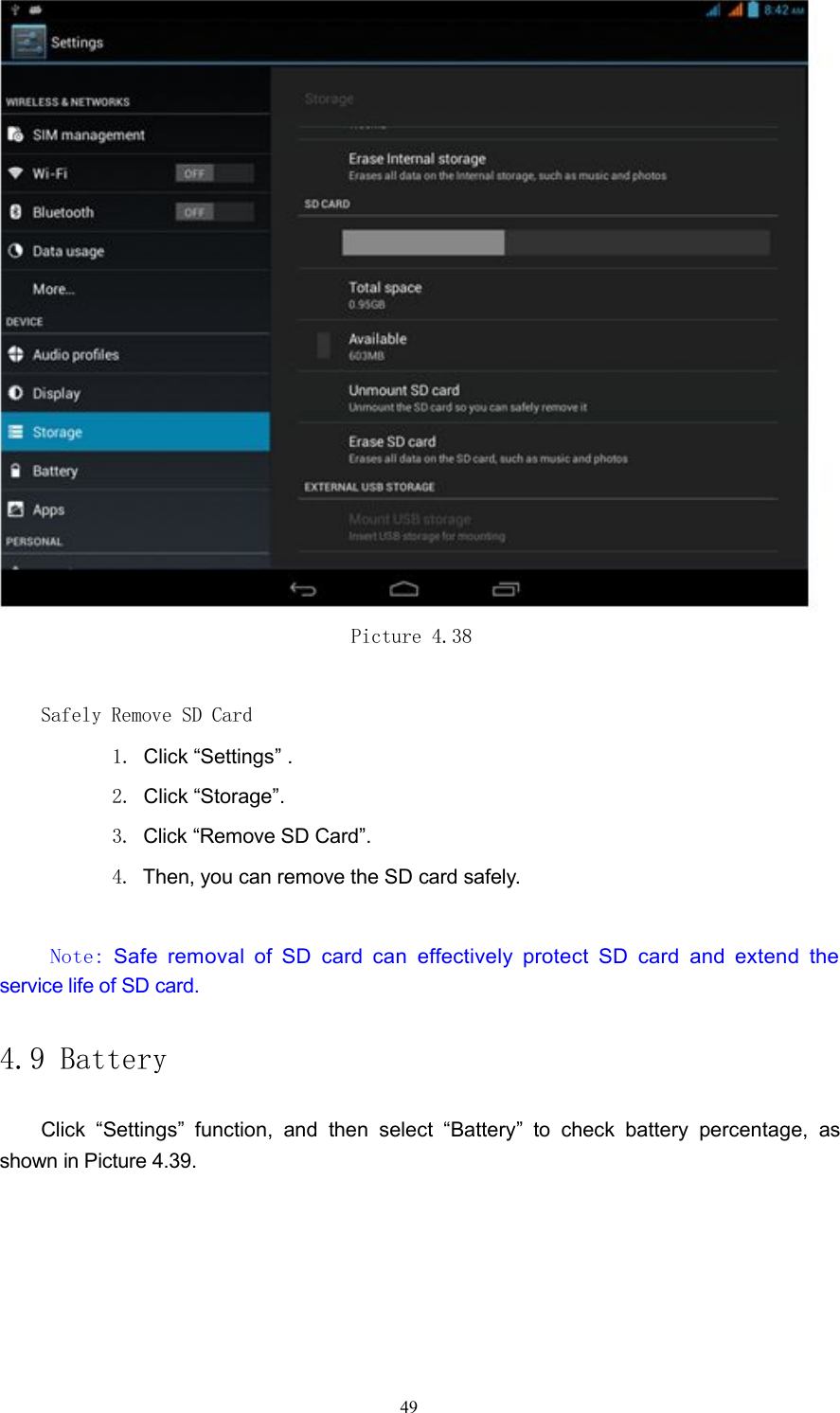
Picture 4.372. SD CardIn Storage interface, you can check total space and available space ofSDcard, and perform operations of “Remove SD card” and “Format SDCard”, asshown in Picture 4.38.48
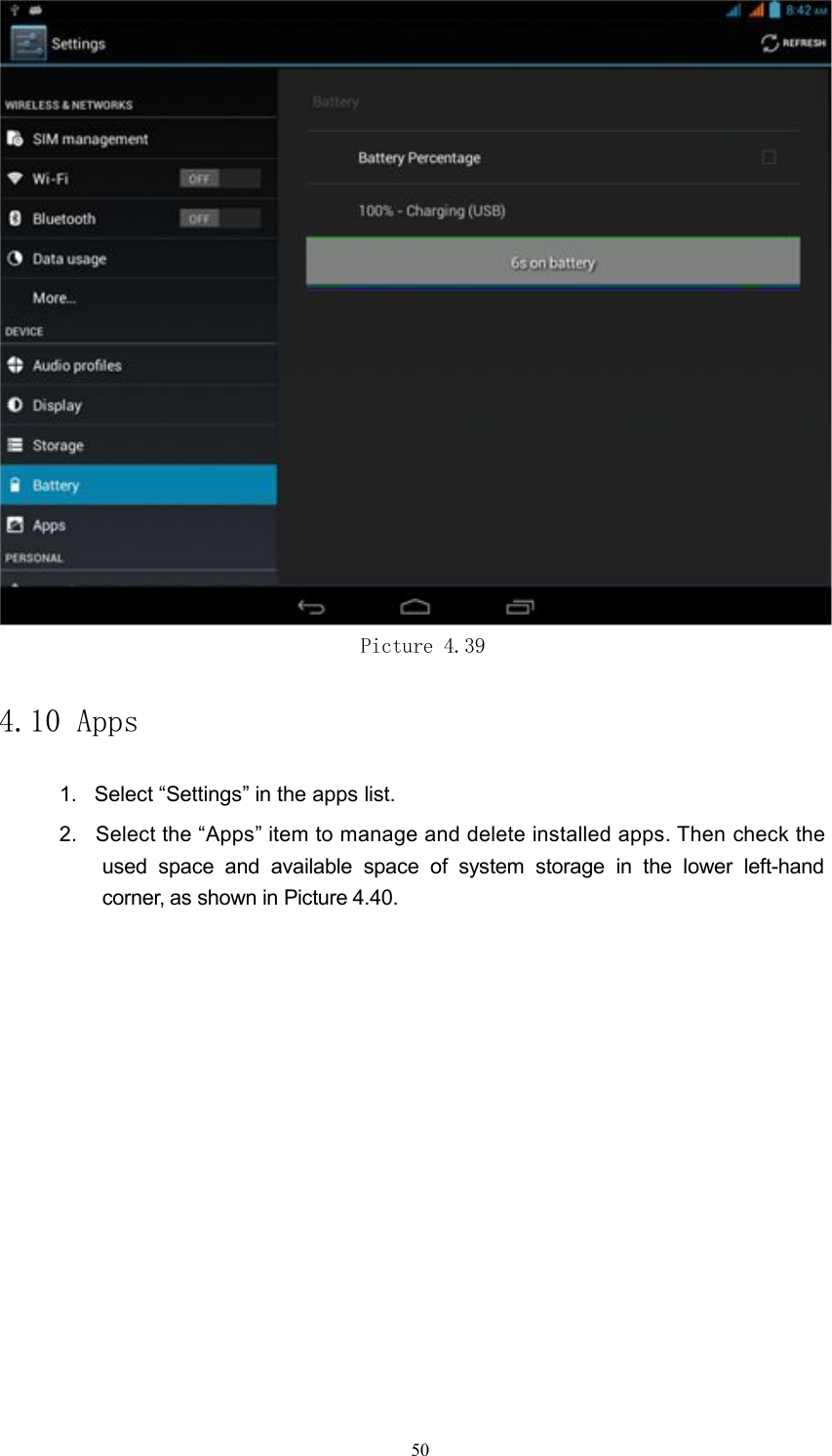
Picture 4.38Safely Remove SD Card1. Click “Settings” .2. Click “Storage”.3. Click “Remove SD Card”.4. Then, you can remove the SD card safely.Note:Safe removal of SD card can effectively protect SD card and extend theservice life of SD card.4.9 BatteryClick “Settings” function, and then select “Battery” to check battery percentage, asshown in Picture 4.39.49
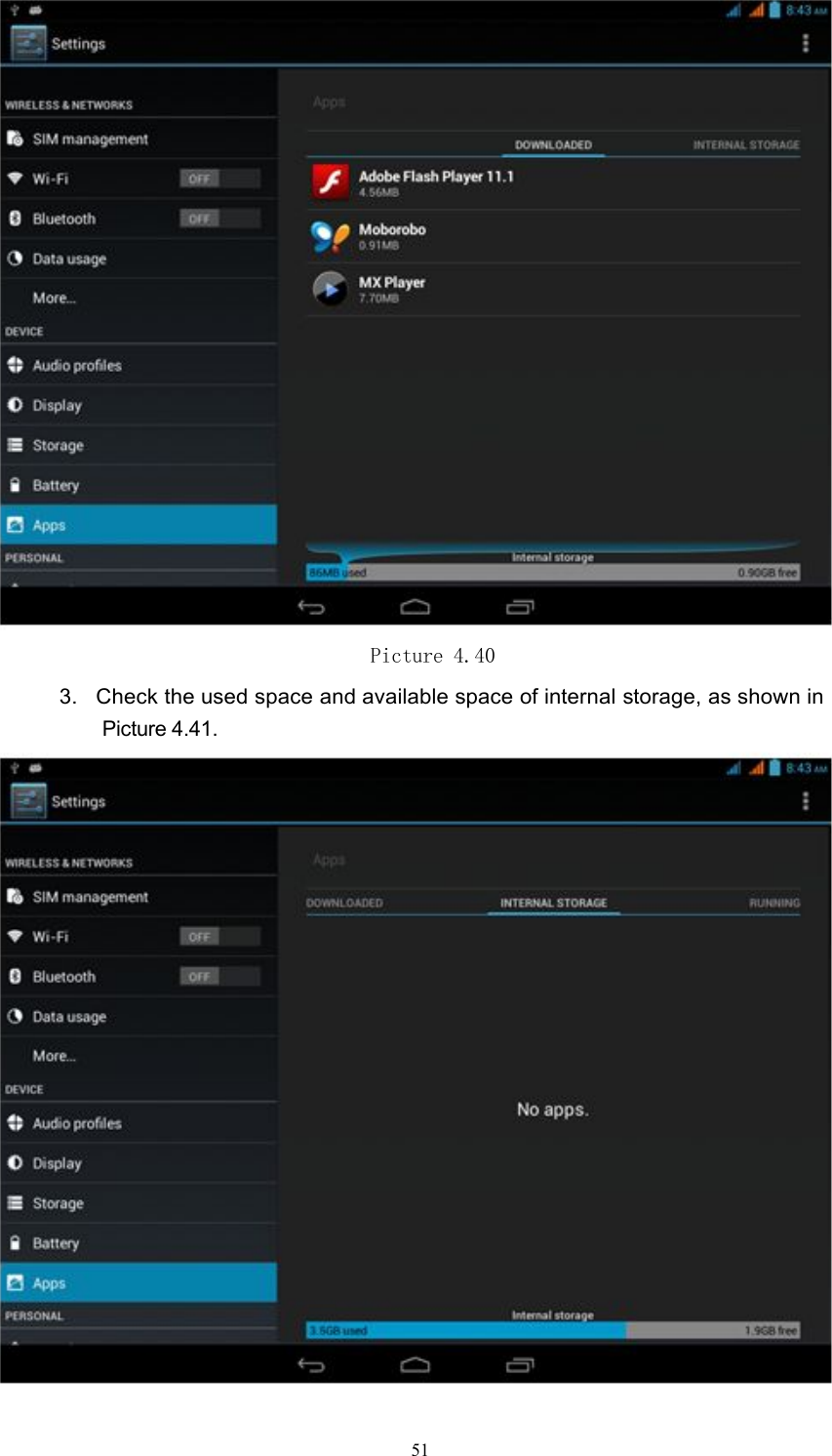
Picture 4.394.10 Apps1. Select “Settings” in the apps list.2. Select the “Apps” item to manage and delete installed apps. Then check theused space and available space of system storage in the lower left-handcorner, as shown in Picture 4.40.50
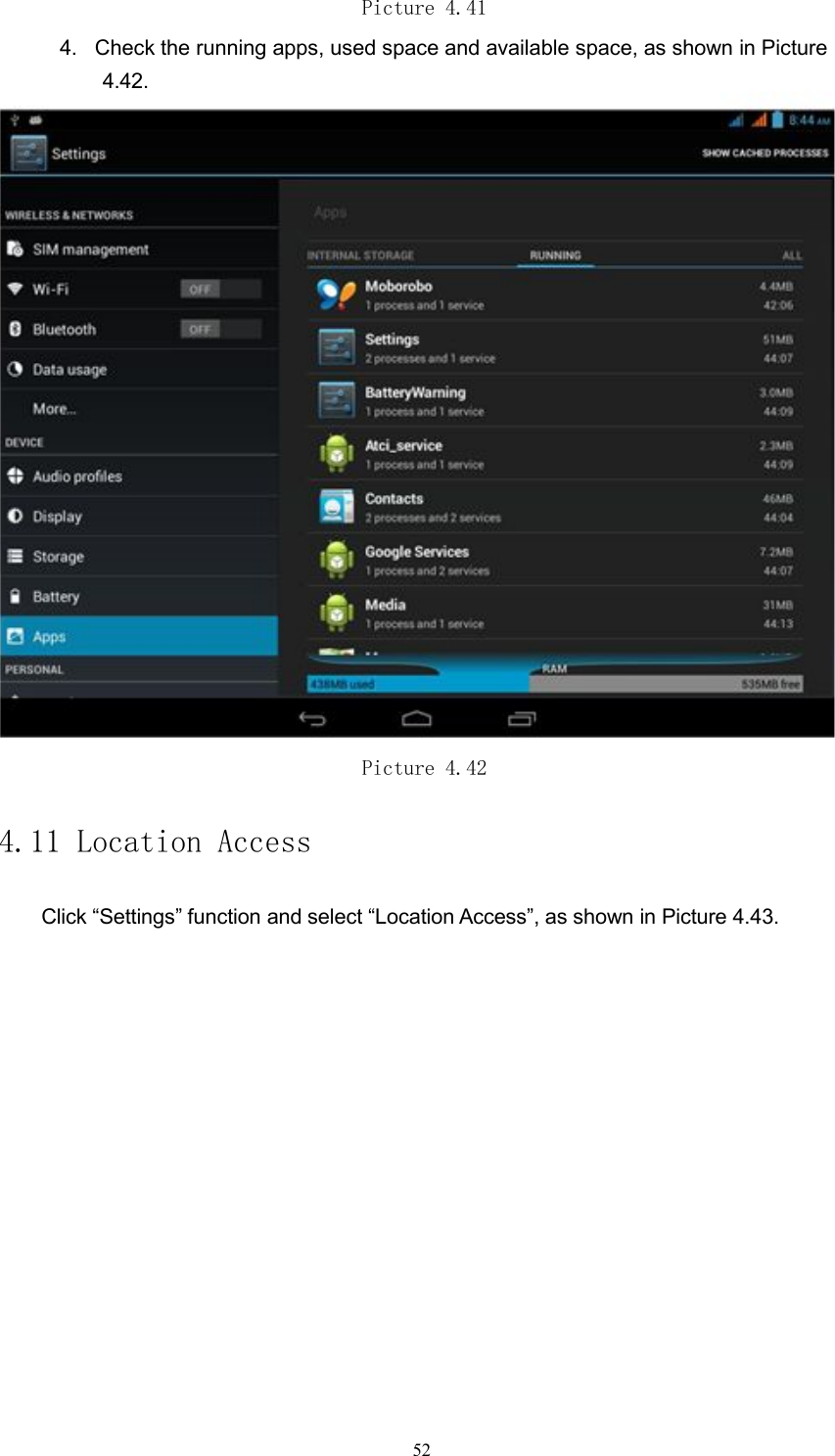
Picture 4.403. Check the used space and available space of internal storage, as shown inPicture 4.41.51
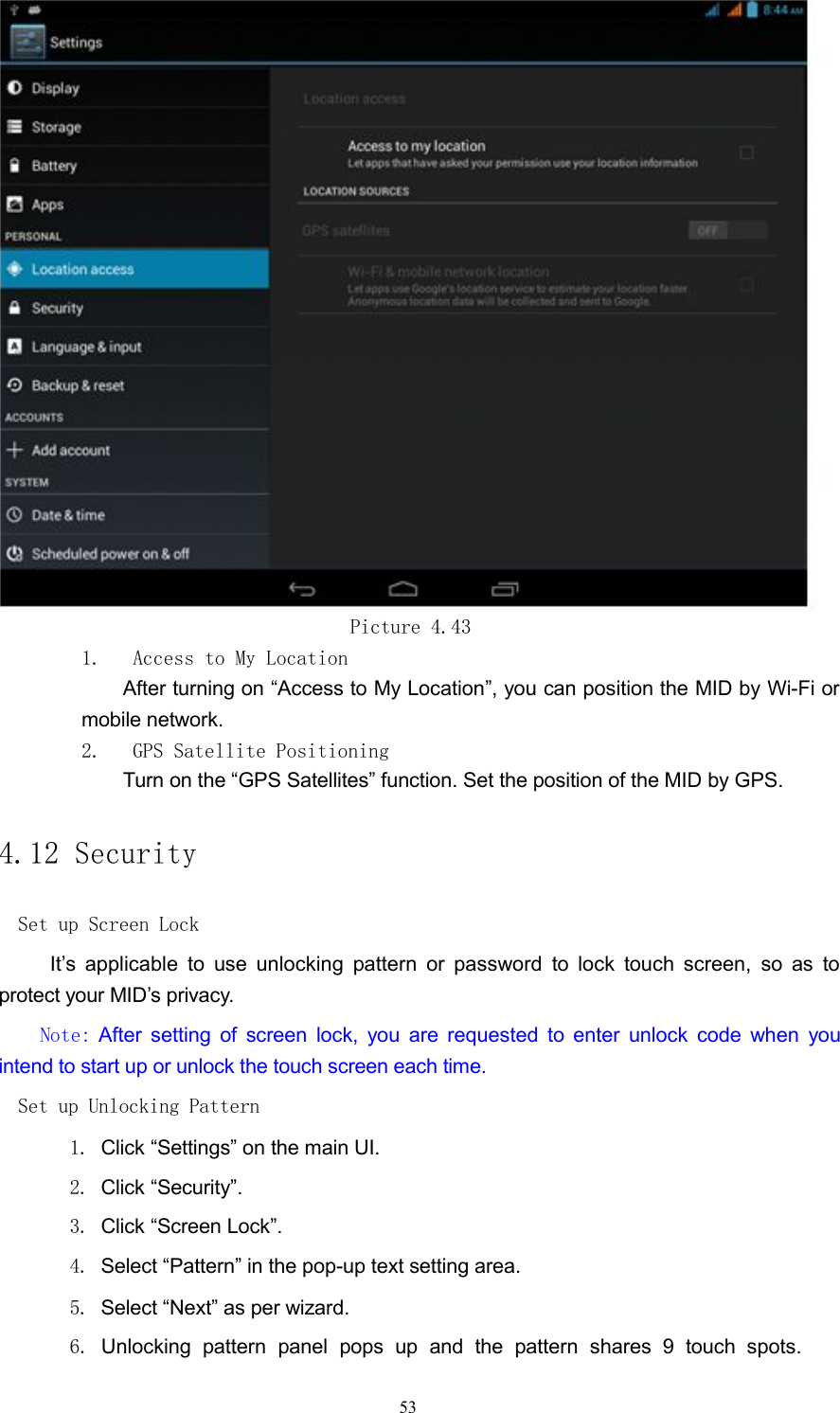
Picture 4.414. Check the running apps, used space and available space, as shown in Picture4.42.Picture 4.424.11 Location AccessClick “Settings” function and select “Location Access”, as shown in Picture 4.43.52
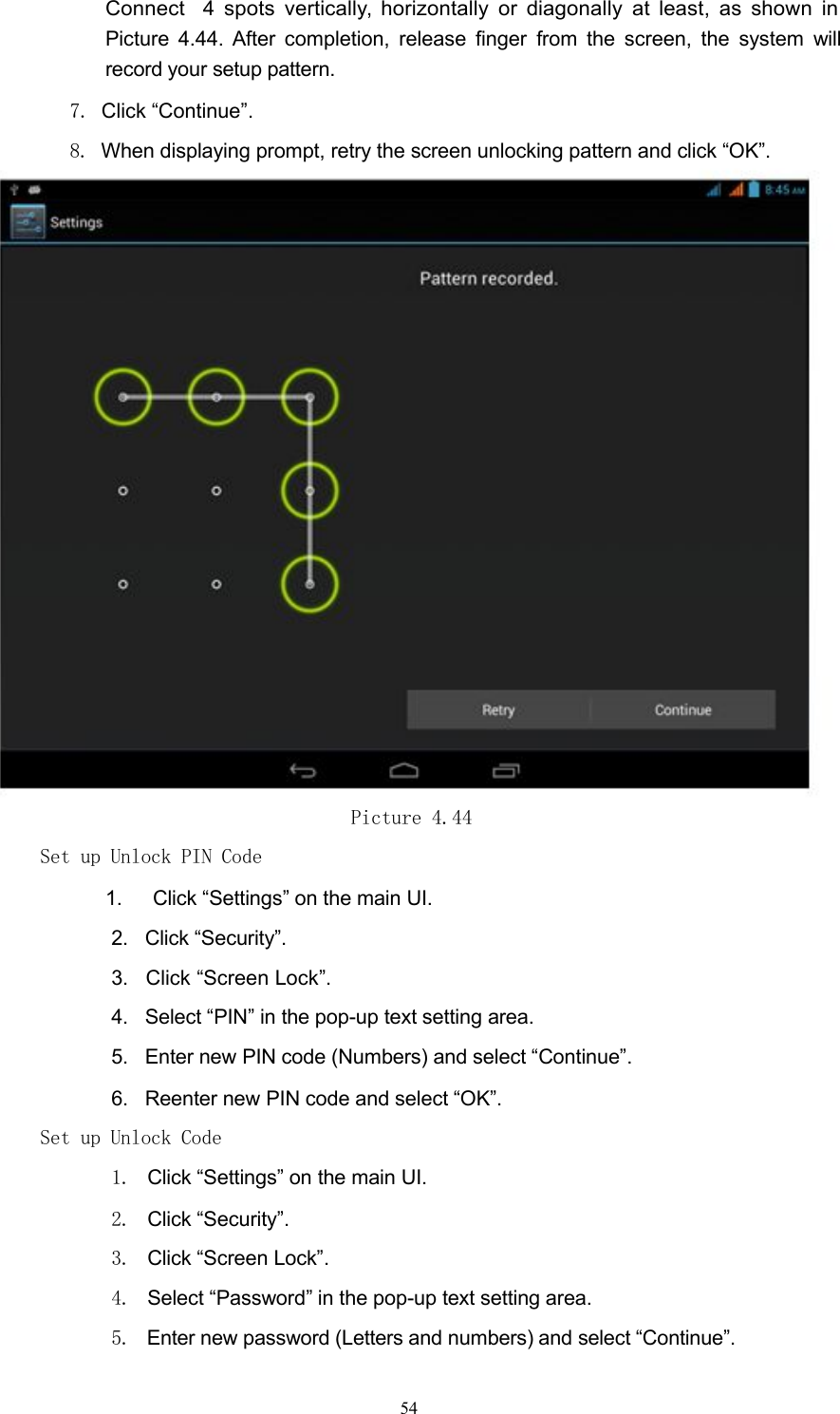
Picture 4.431. Access to My LocationAfter turning on “Access to My Location”, you can position the MID by Wi-Fi ormobile network.2. GPS Satellite PositioningTurn on the “GPS Satellites” function. Set the position of the MID by GPS.4.12 SecuritySet up Screen LockIt’s applicable to use unlocking pattern or password to lock touch screen, so as toprotect your MID’s privacy.Note: After setting of screen lock, you are requested to enter unlock code when youintend to start up or unlock the touch screen each time.Set up Unlocking Pattern1. Click “Settings” on the main UI.2. Click “Security”.3. Click “Screen Lock”.4. Select “Pattern” in the pop-up text setting area.5. Select “Next” as per wizard.6. Unlocking pattern panel pops up and the pattern shares 9 touch spots.53
Connect 4 spots vertically, horizontally or diagonally at least, as shown inPicture 4.44. After completion, release finger from the screen, the system willrecord your setup pattern.7. Click “Continue”.8. When displaying prompt, retry the screen unlocking pattern and click “OK”.Picture 4.44Set up Unlock PIN Code1. Click “Settings” on the main UI.2. Click “Security”.3. Click “Screen Lock”.4. Select “PIN” in the pop-up text setting area.5. Enter new PIN code (Numbers) and select “Continue”.6. Reenter new PIN code and select “OK”.Set up Unlock Code1. Click “Settings” on the main UI.2. Click “Security”.3. Click “Screen Lock”.4. Select “Password” in the pop-up text setting area.5. Enter new password (Letters and numbers) and select “Continue”.54
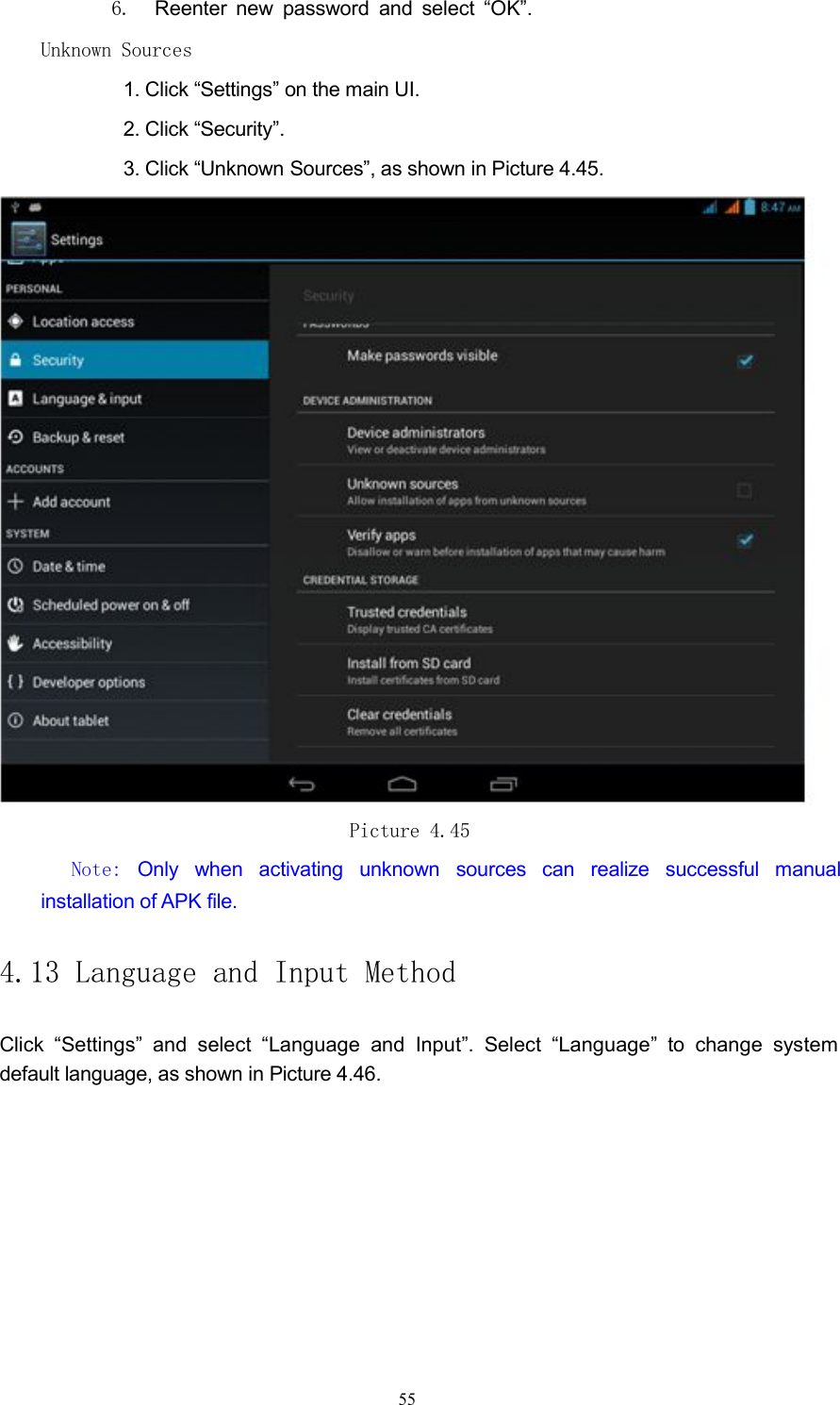
6. Reenter new password and select “OK”.Unknown Sources1. Click “Settings” on the main UI.2. Click “Security”.3. Click “Unknown Sources”, as shown in Picture 4.45.Picture 4.45Note: Only when activating unknown sources can realize successful manualinstallation of APK file.4.13 Language and Input MethodClick “Settings” and select “Language and Input”. Select “Language” to change systemdefault language, as shown in Picture 4.46.55
Picture 4.46Click “Settings” and select “Language and Input”. Select “Android Keyboard Settings” and“Input Language”, as shown in Picture 4.47.56
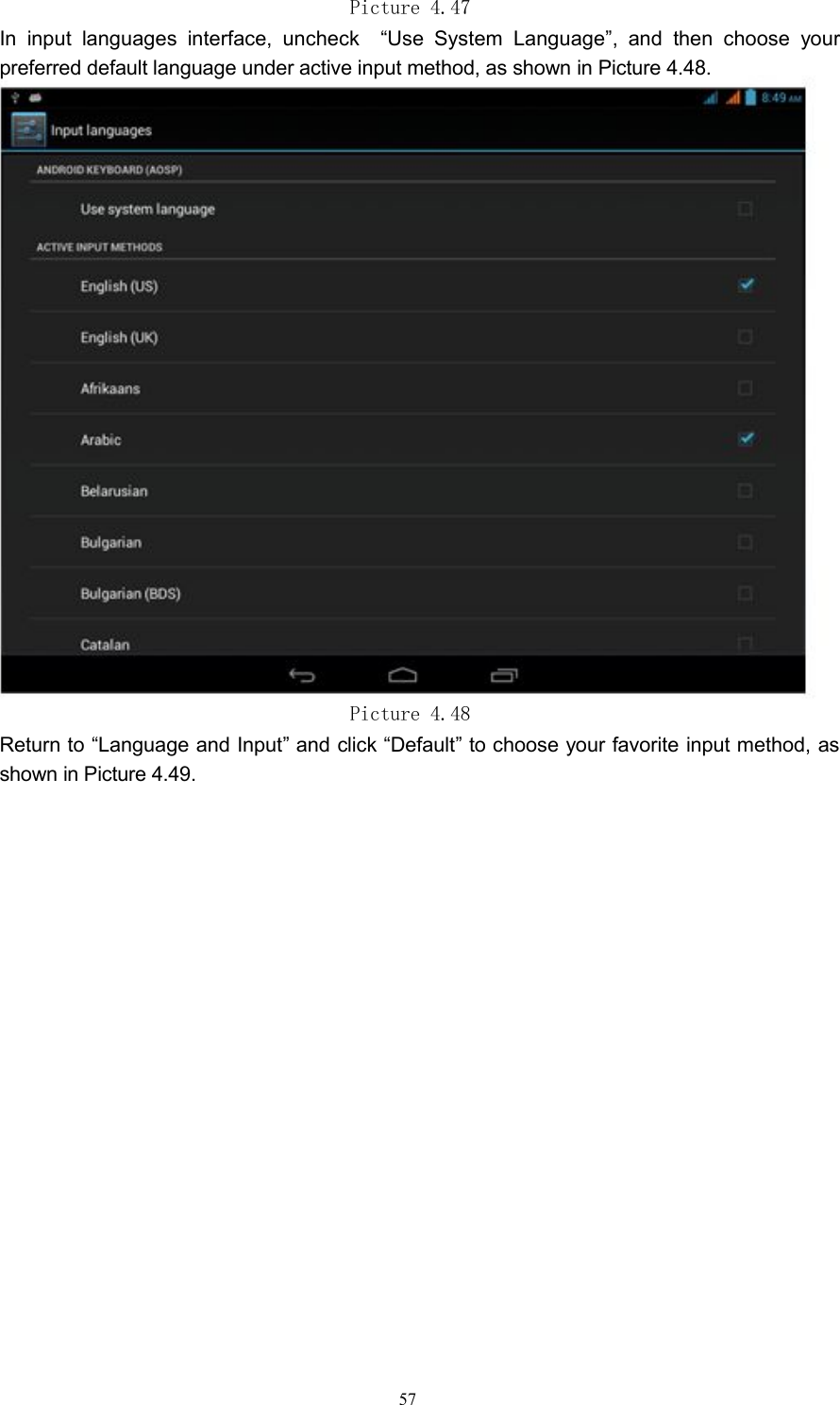
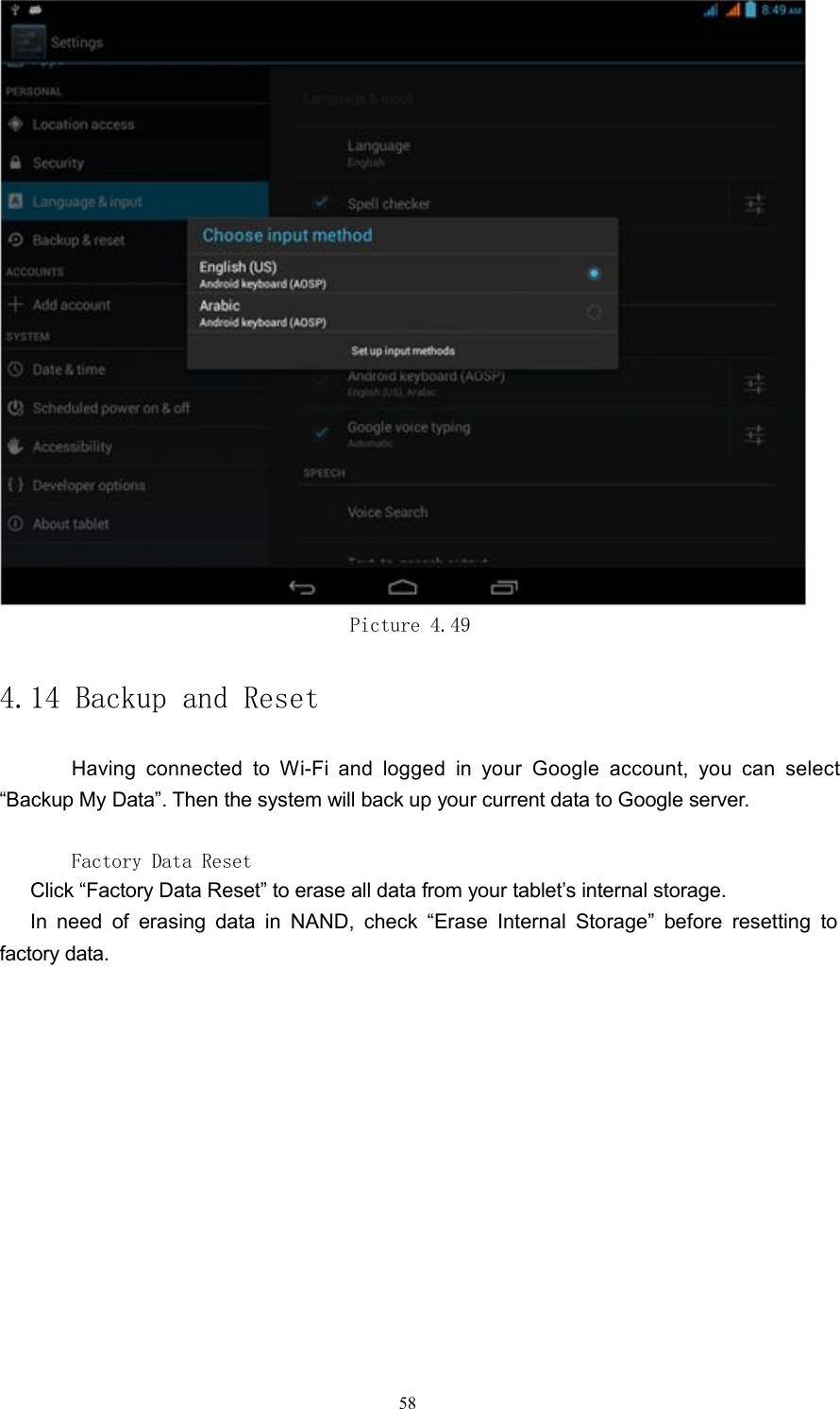
Picture 4.47In input languages interface, uncheck “Use System Language”, and then choose yourpreferred default language under active input method, as shown in Picture 4.48.Picture 4.48Return to “Language and Input” and click “Default” to choose your favorite input method, asshown in Picture 4.49.57
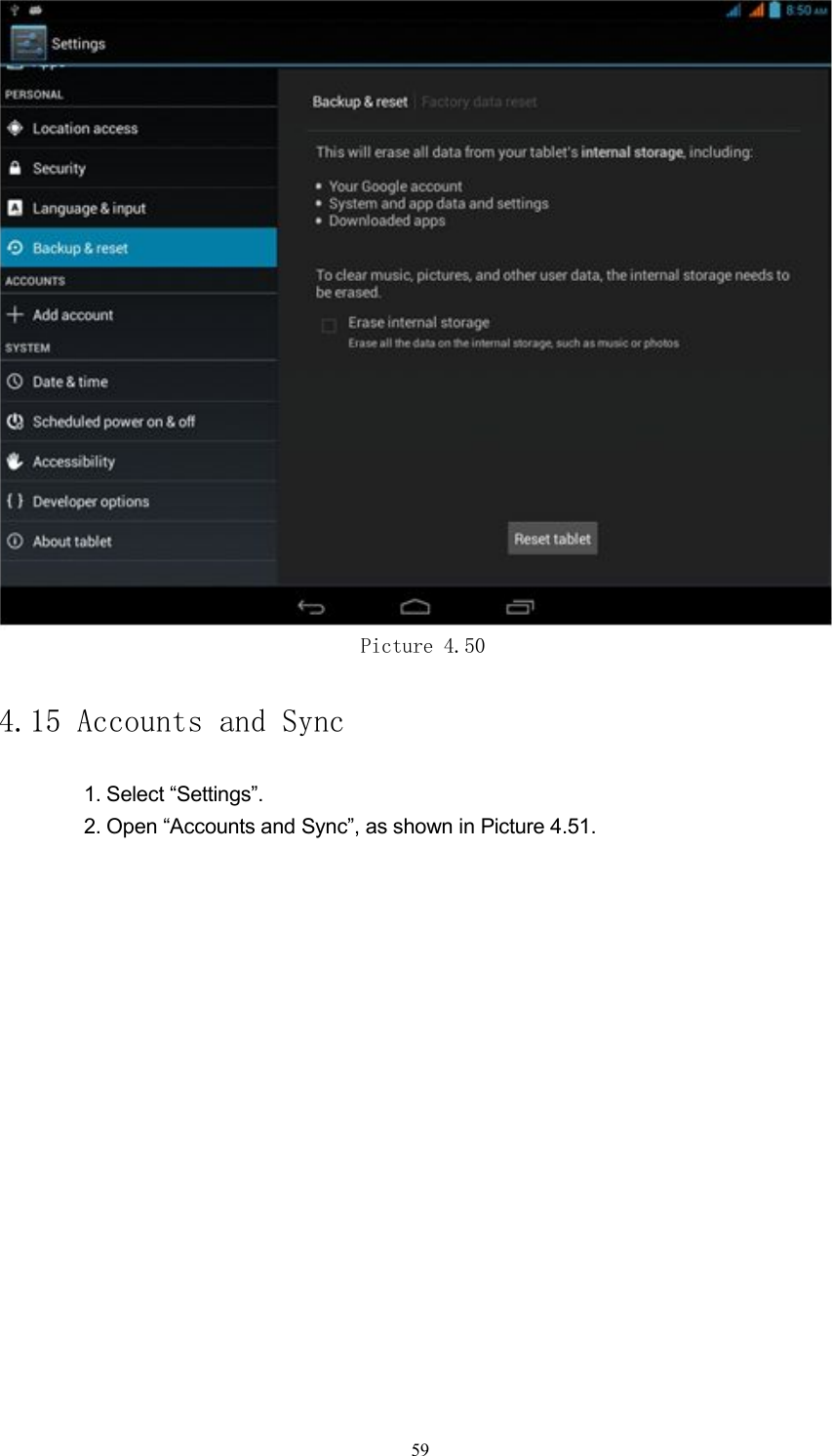
Picture 4.494.14 Backup and ResetHaving connected to Wi-Fi and logged in your Google account, you can select“Backup My Data”. Then the system will back up your current data to Google server.Factory Data ResetClick “Factory Data Reset” to erase all data from your tablet’s internal storage.In need of erasing data in NAND, check “Erase Internal Storage” before resetting tofactory data.58
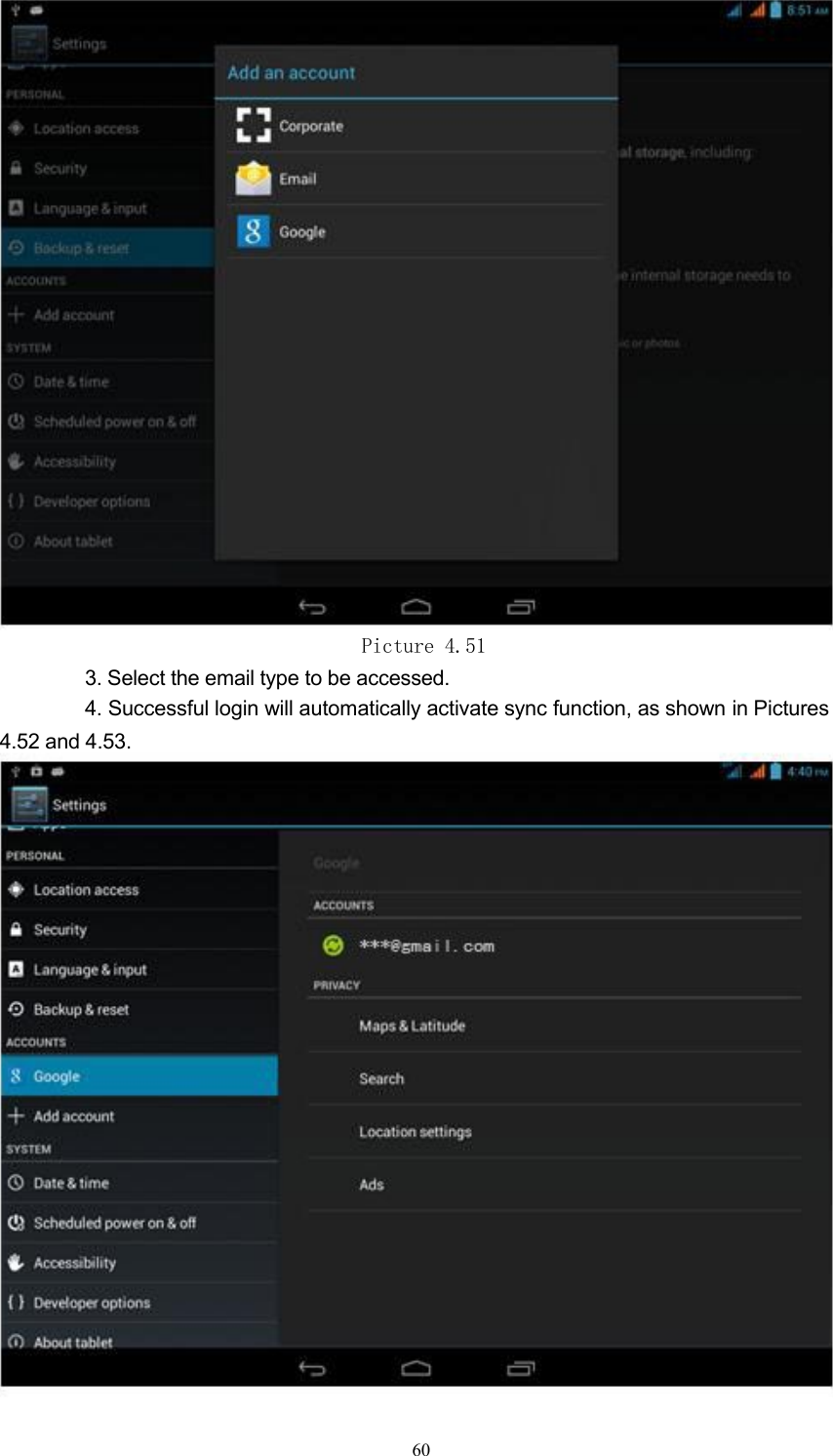
Picture 4.504.15 Accounts and Sync1. Select “Settings”.2. Open “Accounts and Sync”, as shown in Picture 4.51.59
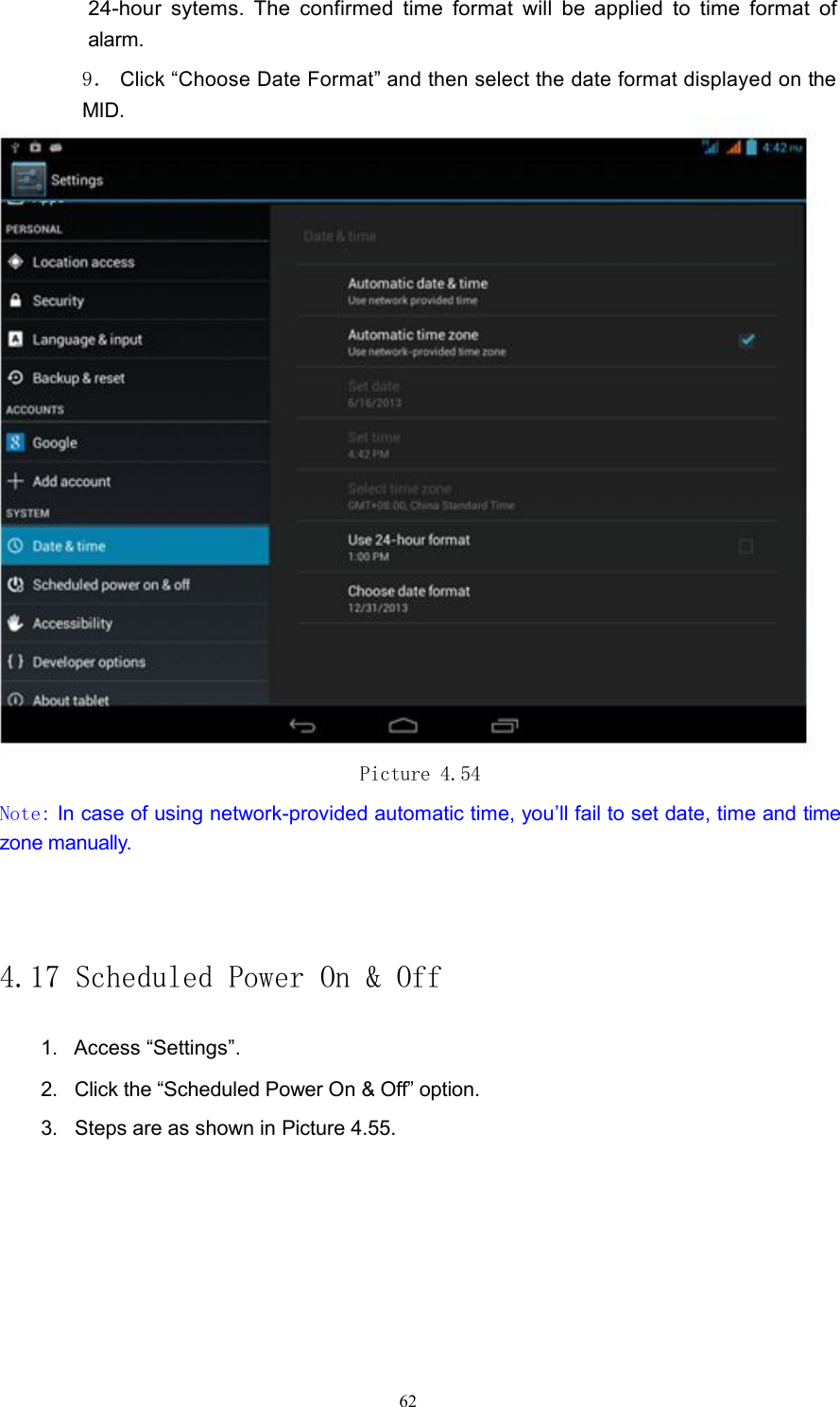
Picture 4.513. Select the email type to be accessed.4. Successful login will automatically activate sync function, as shown in Pictures4.52 and 4.53.60
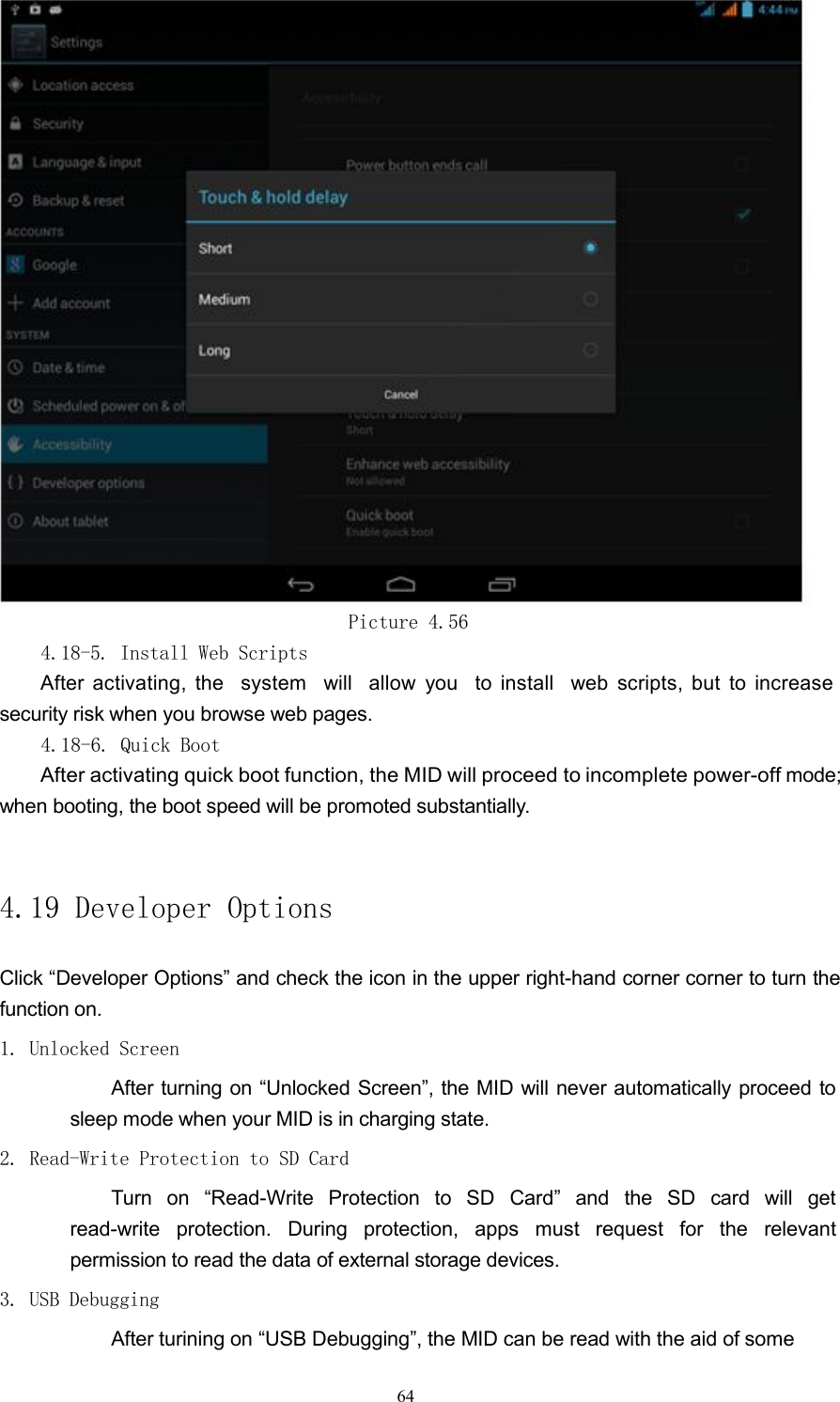
Picture 4.52Picture 4.534.16 Data and TimeAs per presetting, the system will automatically use network-provided date, time zone andtime.Manually adjust date, time zone and time1. Click “Settings”.2. Scroll down the screen and then click “Date and Time”. 3.Turn off “Automatic Date & Time”.4. Turn off “Automatic Time Zone”.5.Click “Select Time Zone” and then select the time zone in the list. Scrolldownthe list to view more time zones.6.Click “Set Date” and then click up or down key to adjust date, month andyear,click “Setting” after completion.7. Click “Set Time” and then click up or down key to adjust hour and minute, AM orPM to change morning or afternoon (the option is hidden after selecting the “Use24-hour Format”) and then click the “Setting” to finish.8. Select check box of “Use 24-hour Format” to switch between 12-hour and61
24-hour sytems. The confirmed time format will be applied to time format ofalarm.9.Click “Choose Date Format” and then select the date format displayed ontheMID.Picture 4.54Note: In case of using network-provided automatic time, you’ll fail to set date, time and timezone manually.4.17 Scheduled Power On & Off1. Access “Settings”.2. Click the “Scheduled Power On & Off” option.3. Steps are as shown in Picture 4.55.62
Click to accessscheduledpower-onsettingsClick to accessscheduledpower-offsettingsPicture 4.554.18 Accessibility4.18-1. TalkbackTalkback is the function specifically provided for the blind and users with visualimpairment, the system will make voice feedback for specific content you touch, selectand activate.4.18-2.Large FontAfter checking, the system font will be larger.4.18-3.Auto Rotate ScreenAfter checking, the screen will rotate by following gravity sense direction.4.18-4.Touch and Hold DelayClick “Touch and Hold Delay” to adjust delay time, as shown in Picture 4.56.63On/off ofScheduledpower-onOn/off ofScheduledpower-off
Picture 4.564.18-5. Install Web ScriptsAfter activating, the system will allow you to install web scripts, but to increasesecurity risk when you browse web pages.4.18-6. Quick BootAfter activating quick boot function, the MID will proceed to incomplete power-offmode;when booting, the boot speed will be promoted substantially.4.19 Developer OptionsClick “Developer Options” and check the icon in the upper right-hand corner corner to turn thefunction on.1. Unlocked ScreenAfter turning on “Unlocked Screen”, the MID will never automatically proceed tosleep mode when your MID is in charging state.2. Read-Write Protection to SD CardTurn on “Read-Write Protection to SD Card” and the SD card will getread-write protection. During protection, apps must request for the relevantpermission to read the data of external storage devices.3. USB DebuggingAfter turining on “USB Debugging”, the MID can be read with the aid of some64
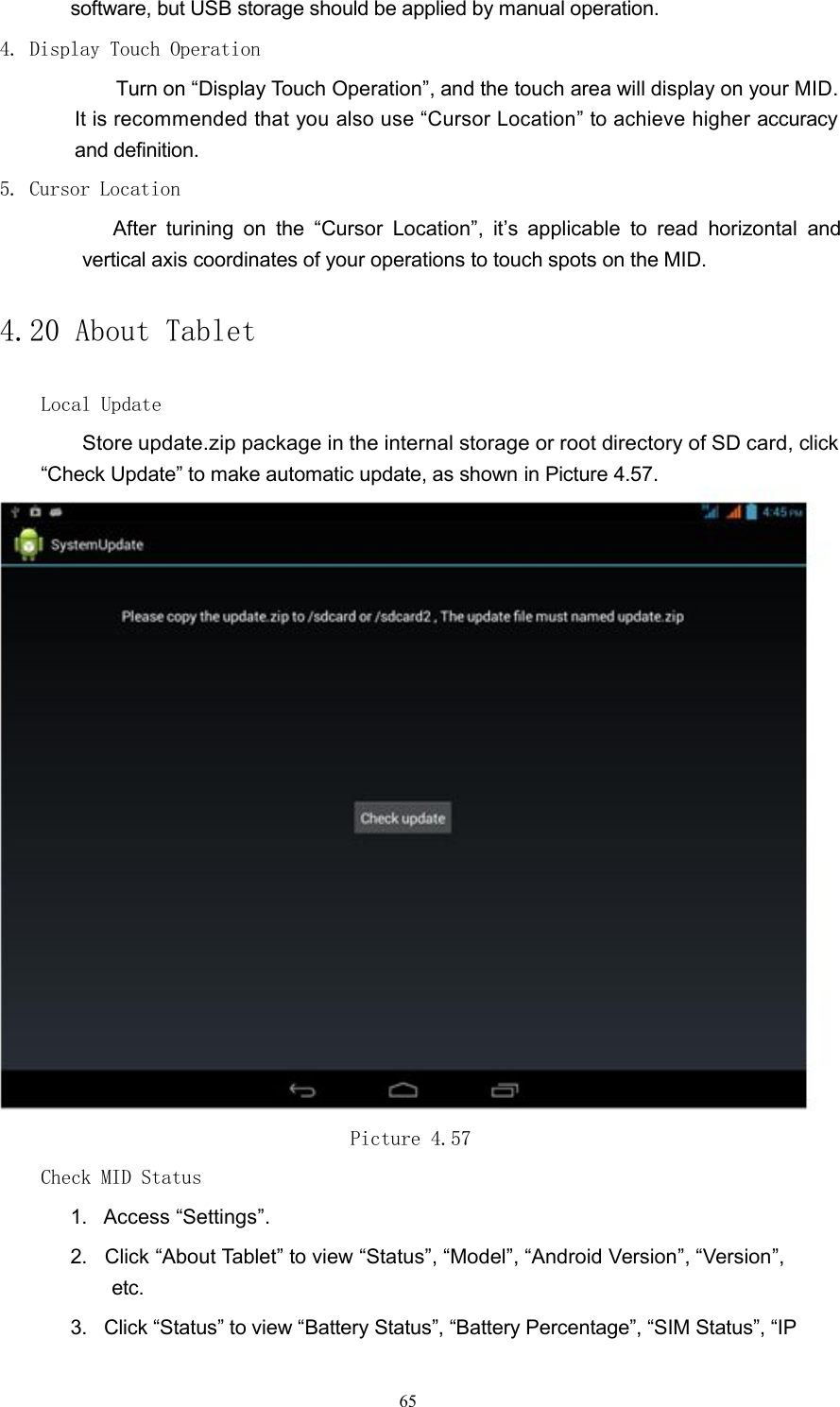
software, but USB storage should be applied by manual operation.4. Display Touch OperationTurn on “Display Touch Operation”, and the touch area will display on yourMID.It is recommended that you also use “Cursor Location” to achieve higheraccuracyand definition.5. Cursor LocationAfter turining on the “Cursor Location”, it’s applicable to read horizontal andvertical axis coordinates of your operations to touch spots on the MID.4.20 About TabletLocal UpdateStore update.zip package in the internal storage or root directory of SD card,click“Check Update” to make automatic update, as shown in Picture 4.57.Picture 4.57Check MID Status1. Access “Settings”.2. Click “About Tablet” to view “Status”, “Model”, “Android Version”, “Version”,etc.3. Click “Status” to view “Battery Status”, “Battery Percentage”, “SIM Status”, “IP65
Address”and other information.66
 FCC warning statement. This device complies with part 15 of the FCC Rules. Operation is subject to the following two conditions:   (1) This device may not cause harmful interference, and   (2) this device must accept any interference received, including interference that may cause undesired operation. Any  Changes  or  modifications  not  expressly  approved  by  the  party responsible  for  compliance  could  void  the  user's  authority  to  operate  the equipment.  Note: This equipment has been tested and found to comply with the limits for a Class B digital device, pursuant to part 15 of the FCC  Rules.  These limits  are  designed  to  provide  reasonable  protection  against  harmful interference in a residential installation. This equipment generates uses and can  radiate  radio  frequency  energy  and,  if  not  installed  and  used  in accordance  with  the instructions,  may  cause harmful  interference to  radio communications. However, there is no guarantee that interference will not occur  in  a  particular  installation.  If  this  equipment  does  cause  harmful interference  to  radio  or  television reception,  which  can  be  determined  by turning the equipment off and on, the user is encouraged to try to correct the interference by one or more of the following measures: -Reorient or relocate the receiving antenna. 67
 -Increase the separation between the equipment and receiver. -Connect the equipment into an outlet on a circuit different from that to which the receiver is connected. -Consult the dealer or an experienced radio/TV technician for help.  Specific Absorption Rate (SAR) information:  This 7.85 inch Tablet PC meets the government's requirements for exposure to radio waves. The guidelines are based on standards that were developed by independent scientific organizations through periodic and thorough evaluation of scientific studies. The standards include a substantial safety margin designed to assure the safety of all persons regardless of age or health. FCC RF Exposure Information and Statement  :The SAR limit of USA (FCC) is 1.6 W/kg averaged over one gram of tissue. Device types: MT-786 IPS (FCC ID: 2AASXMTNTB786IPS) has also been tested against this SAR limit. The highest SAR value reported under this standard during product certification for use at the   body is 1.2W/kg. This device was tested for typical body-worn operations with the back of the handset kept 1.5cm from the body. To maintain compliance with FCC RF exposure requirements, use accessories that maintain a 1.5cm separation distance between the user's body and the back of the handset. The use of belt clips, holsters and similar accessories should not contain metallic components in its assembly. The use of accessories that do not satisfy these requirements may not comply with FCC RF exposure requirements, and should be avoided. 68
  Body-worn Operation This device was tested for typical body-worn operations. To comply with RF exposure requirements, a minimum separation distance of 1.5 cm must be maintained between the user’s body and the handset, including the antenna. Third-party belt-clips, holsters, and similar accessories used by this device should not contain any metallic components. Body-worn accessories that do not meet these requirements may not comply with RF exposure requirements and should be avoided. Use only the supplied or an approved antenna.                    69

Navigation menu