MITSUBISHI Projection/Digital 42 And Above TV Manual 97110159
User Manual: MITSUBISHI MITSUBISHI Projection/Digital 42 and above TV Manual MITSUBISHI Projection/Digital 42 and above TV Owner's Manual, MITSUBISHI Projection/Digital 42 and above TV installation guides
Open the PDF directly: View PDF  .
.
Page Count: 103 [warning: Documents this large are best viewed by clicking the View PDF Link!]
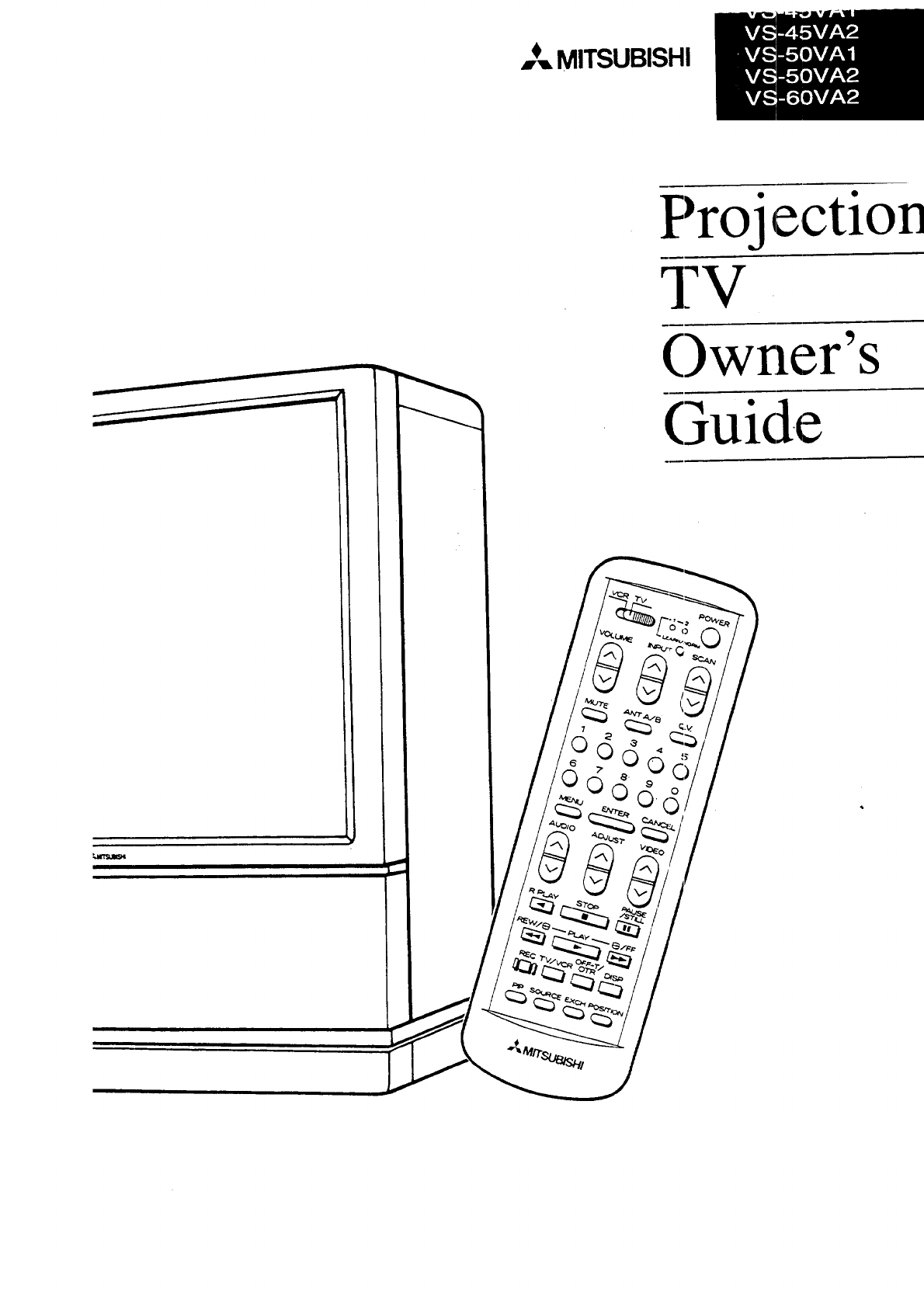
,,,_,_MITSUBISHI
-3
Proj e,ctlon
TV
Owner's
Guide
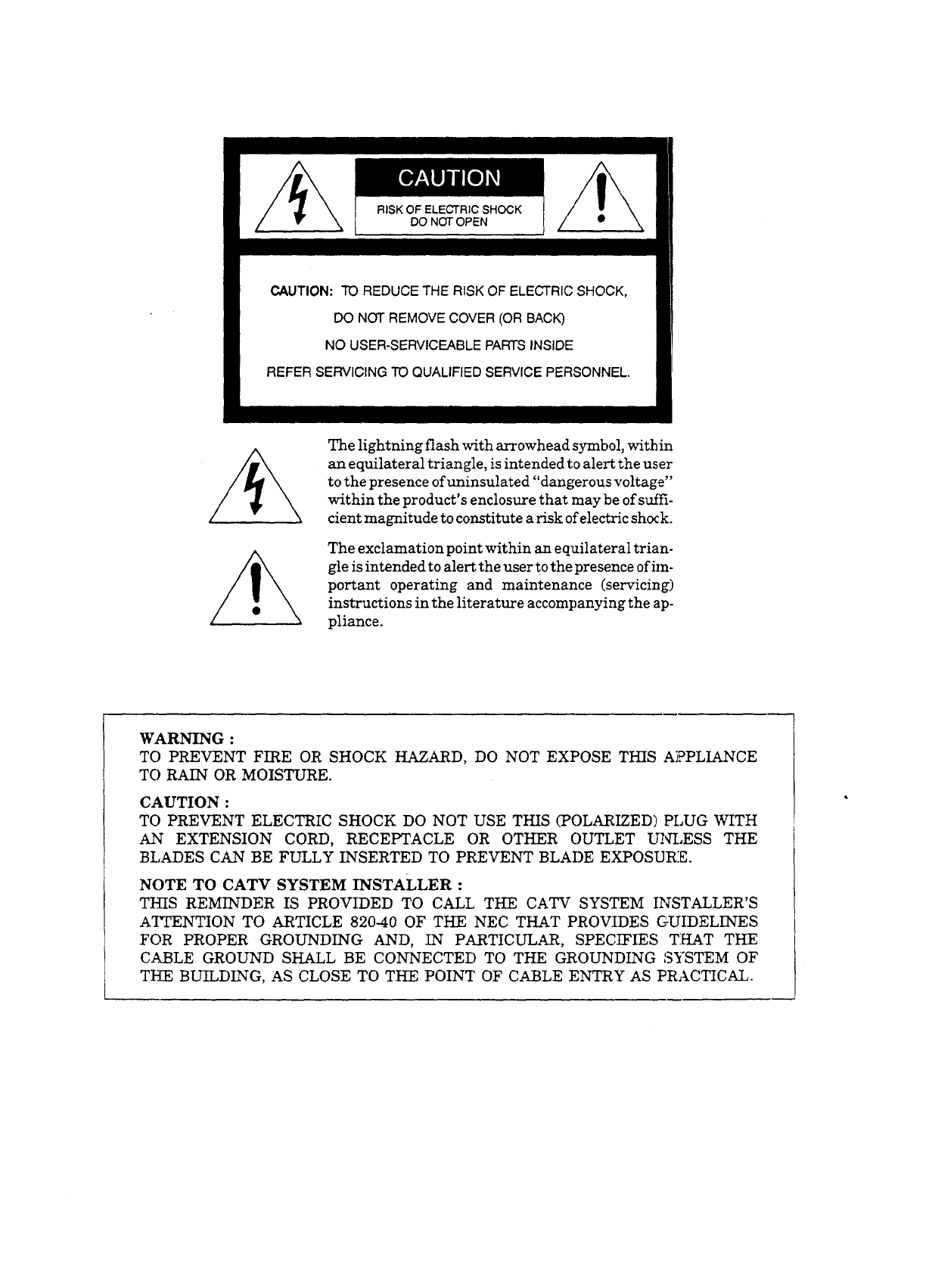
RISK OF ELECTRIC SHOCK
DO NOT OPEN
CAUTION: TO REDUCE THE RISK OF ELECTRIC SHOCK,
DO NOT REMOVE COVER (OR BACK)
NO USER-SERVICEABLE PARTS INSIDE
REFER SERVICING TO QUALIFIED SERVICE PERSONNEL.
The lightning flash with arrowhead symbol, within
an equilateral triangle, is intended to alert the user
to the presence ofuninsulated "dangerous voltage"
within the product's enclosure that may be of suffi-
cient magnitude to constitute a risk of electric shock.
The exclamation point within an equilateral trian-
gle is intended to alert the user to the presence of im-
portant operating and maintenance (servicing)
instructions in the literature accompanying the ap-
pliance.
WARNING :
TO PREVENT FIRE OR SHOCK HAZARD, DO NOT EXPOSE THIS AiPPLIANCE
TO RAIN OR MOISTURE.
CAUTION :
TO PREVENT ELECTRIC SHOCK DO NOT USE THIS (POLARIZED) PLUG WITH
AN EXTENSION CORD, RECEPTACLE OR OTHER OUTLET UNLESS THE
BLADES CAN BE FULLY INSERTED TO PREVENT BLADE EXPOSUR:E.
NOTE TO CATV SYSTEM INSTALLER :
THIS REMINDER IS PROVIDED TO CALL THE CATV SYSTEM INSTALLER'S
A'ITENTION TO ARTICLE 820-40 OF THE NEC THAT PROVIDES GUIDELINES
FOR PROPER GROUNDING AND, IN PARTICULAR, SPECIFIES THAT THE
CABLE GROUND SHALL BE CONNECTED TO THE GROUNDING SYSTEM OF
THE BUILDING, AS CLOSE TO THE POINT OF CABLE ENTRY AS PRACTICAL.
MITSUBISHI OWNER'S GUIDE
of onte-- s
Important Safeguards .......................................................... 4
Preface: Welcome to Mitsubishi ................................................. 9
Summary of Special Features ............................................... 10
Unpacking Your Projection TV ............................................. 11
What you'll fred ....................................................... 11
Afew suggestions ...................................................... 11
What's in Each Chapter .................................................... 12
Some Conventions Used in This Guide ....................................... 13
Chapter 1: Getting to Know Your Projection TV ................................ 15
Overview of the Front Panel ............................................... 16
Overview of the Remote Control ............................................. 18
Getting ready to use the remote control .................................... 18
Remote control buttons and functions ...................................... 20
Chapter 2: Connecting Your Projection TV ..................................... 25
Overview of the Back Panel ................................................ 26
Basic Connections ........................................................ 28
Projection TV + external speakers ........... ............................. 29
Projectaon TV + antenna or cable without a decoder box ..................... 30
Projection TV + antenna or cable with a decoder box ........................ 31
Projectaon TV + separate UHF and VHF antennas .......................... 33
Projection TV + VCR + antenna or cable without a decoder box .............. 34
Projecuon TV + VCR + antenna or cable with a decoder box ................ 37
Projectxon TV + home theater receiver (A/V receiver) ....................... 40
Projecuon TV + audio system ............................................ 42
Projecuon TV + external speaker with subwoofer out termfiaal ................ 43
Projecuon TV + an amplifier that has a center channel O[.EC terminal
(VS-50VA1, VS-50VA2, and VS-60VA2 only.) ............................. 44
Chapter3: Operating Your Projection TV ........................... 47
Getting Started ................................................ 48
Programming the remote control ................................ 49
Turning the Projection TV on/off .............................. 52
Selecting the input source ..................................... 53
Changing channels ........................................... 54
Setting the clock ............................................. 57
Memorizing channels ......................................... 58
Adding and deleting channels ................................. ,59
Using home theater ........................................... 60
Renaming the inputs ........................................... 61
Adjusting the color alignment .................................. 62
Adjusting the sound .......................................... 63
Adjusting the picture .......................................... 65
Using the Advanced Features ..................................... 67
Setting the timer ............................................. 68
Using the parental lock ........................................ 69
Using the super quick view tuning .............................. 70
Using Video Mute ............................................ 72
Using the power restore feature ................................. 73
Chapter 4: Using the Special Features ................................ 75
Understanding the On-Screen Displays ............................. 76
Using the Off-Timer ........................................... 78
Setting the off-timer .......................................... 79
Changing or canceling the off-timer ............................. 80
Using the Picture-in-Picture (PIP) Mode ............................ 81
Selecting the PIP image ....................................... 82
Selecting the source ......................................... 83
Exchanging the PIP image ..................................... 84
Freezing the PIP image ....................................... 85
Moving the PIP image ........................................ 86
Chapter 5: Troubleshooting ...................................... 87
Using the VCR Tray ......................................... 90
Caution and Care ........................................... 92
Calling for Service .......................................... 93
Appendix: Automatic Procedure for the Parental Lock .............. 95
Index .......................................................... 97
3Table of Contents
IMPORTANT SAFEGUARDS
PLEASE READ ALL THESE INSTRUCTIONS REGARDING
YOUR TELEVISION SET AND RETAIN FOR FUTURE
REFERENCES. FOLLOW ALL WARNINGS AND INSTRUC-
TIONS MARKED ON THE TV RECE]VER.
I.Read Instructions
Allthesafetyandoperatinginstructionsshouldbereadbeforethe
applianceisoperated.
2. Retain Instructions °
The safety and operating instructions ._hould be retained for fu-
ture reference.
3. Heed Warnings
All warnings on the appliance and in the operating instructions
should be adhered to.
4. Follow Instructions
All operating and use instructions should be followed.
°Cleaning
Unplug this Projection TV from the wall outlet before cleaning.
Do not use liquid or aerosol cleaners. Use a damp cloth for
cleaning.
.Attachment and Equipment
Never add any attachments and/or equipment without approval
of the manufacturer as such additions may result in the risk of
fire, electric shock or other personal injury.
.Water and Moisture
Do not use this Projection TV where contact with or immersion in
water is a possibility. Do not use near: bath tubs, mash bowls,
kitchen sinks, laundry tubs, or swimming pools, etc.
4
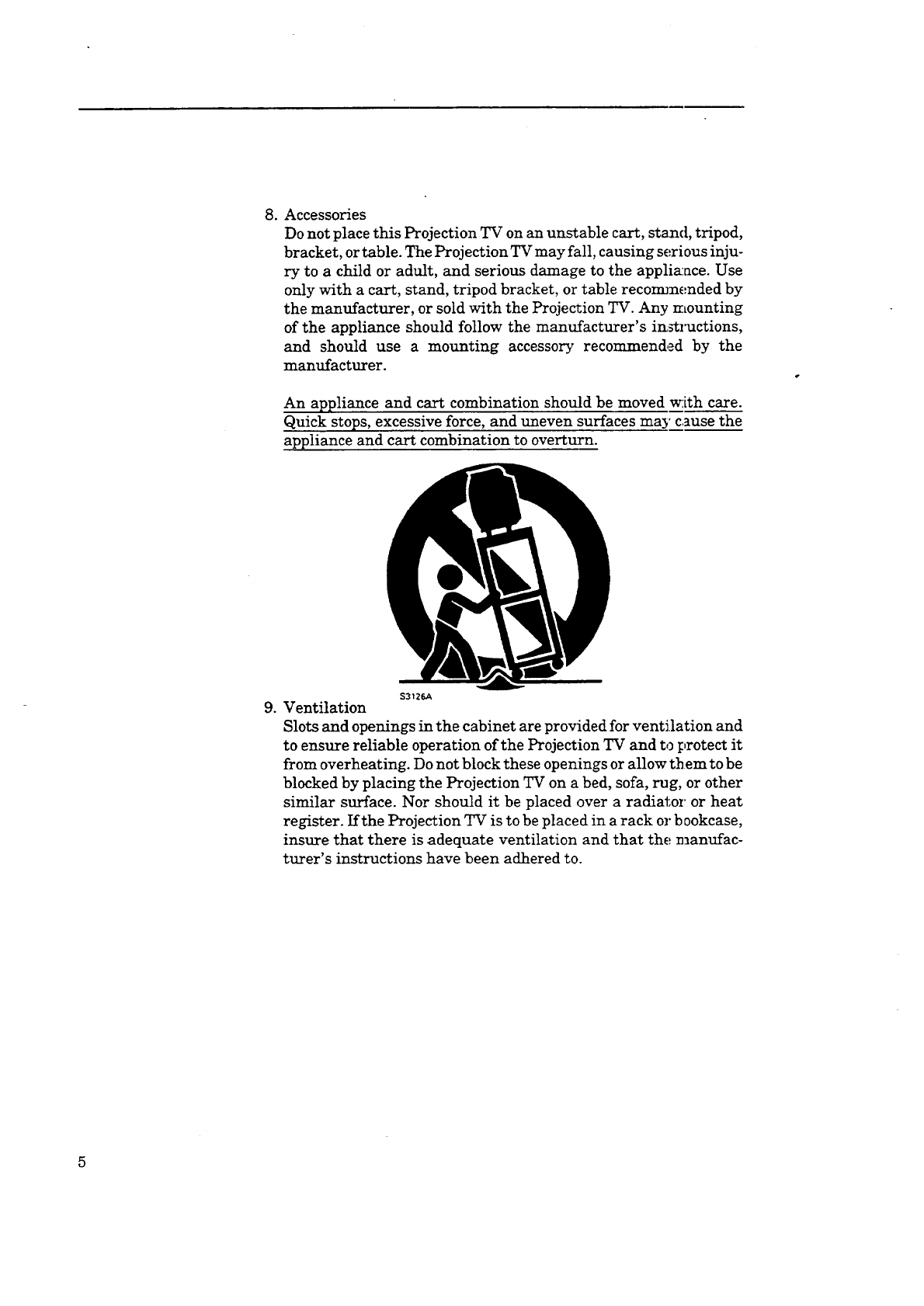
.Accessories
Do not place this Projection TV on an unstable cart, stand, tripod,
bracket, or table. The Projection TV may fall, causing serious inju-
ry to a child or adult, and serious damage to the applia:ace. Use
only with a cart, stand, tripod bracket, or table recommended by
the manufacturer, or sold with the Projection TV. Any mounting
of the appliance should follow the manufacturer's ia_l_ctions,
and should use a mounting accessory recommended by the
manufacturer.
An appliance and cart combination should be moved w:ith care.
Quick stops, excessive force, and uneven surfaces may cause the
appliance and cart combination to overturn.
S3126A
.Ventilation
Slots and openings in the cabinet are provided for ventilation and
to ensure reliable operation of the Projection TV and to protect it
from overheating. Do not block these openings or allow them to be
blocked by placing the Projection TV on a bed, sofa, rug, or other
similar surface. Nor should it be placed over a radiator or heat
register. If the Projection TV is to be placed in a rack or bookcase,
insure that there is adequate ventilation and that the manufac-
turer's instructions have been adhered to.
10.PowerSources
ThisProjectionTVshouldbeoperatedo:aly from the type of power
source indicated on the marking label. If you are not sure of the
type of power supply to your home, consult your appliance dealer
or local power company.
11. Grounding or Polarization
For your safety, this Projection TV is equipped with a polarized al-
ternating current line plug having one blade wider th an the other.
This plug will fit into the power outlet; o:aly one way. ]£you are un-
able to insert the plug fully into the outlet, try reversing the plug.
If the plug should still fail to fit, contact :your electrician to replace
your obsolete outlet. Do :not defeat the _'_ety purpose of the pola-
rized plug.
12. Power-Cord Protection
Power-supply cords should be routed :30that they are not likely to
be walked on or pinched by items placed upon or against them,
paying particular attention to cords at plugs, convenience recep-
tacles, and the point where they exit from the appliance.
13. Lightning
For added protection for this Projection TV during; a lightning
storm, or when it is left unattended and unused for long periods of
time, unplug it from the wall outlet and disconnect the antenna or
cable system. This will prevent damage to the video product due to
lightning and power-line surges.
14. Power Lines
An outside antenna system should not t>elocated in the vicinity of
overhead power lines or other electric light or power circuits, or
where it can fall into such power line,_ o r circuits. When installing
an outside antenna system, extreme care should be taken to keep
from touching such power lines or c:Lrcuits as contact with them
might be fatal.
6
15.Overloading
Donotoverloadwall outletandextensioncordsasthiscanresult
in a risk offire orelectricshock.
16.
17.
Object and Liquid Entry
Never push objects of any kind into this Prqje(,_ion TV through
openings as they may touch dangerous voltage points or short-out
parts that could result in a fire or electric shock. :Never spill liquid
of any kind on the Projection TV.
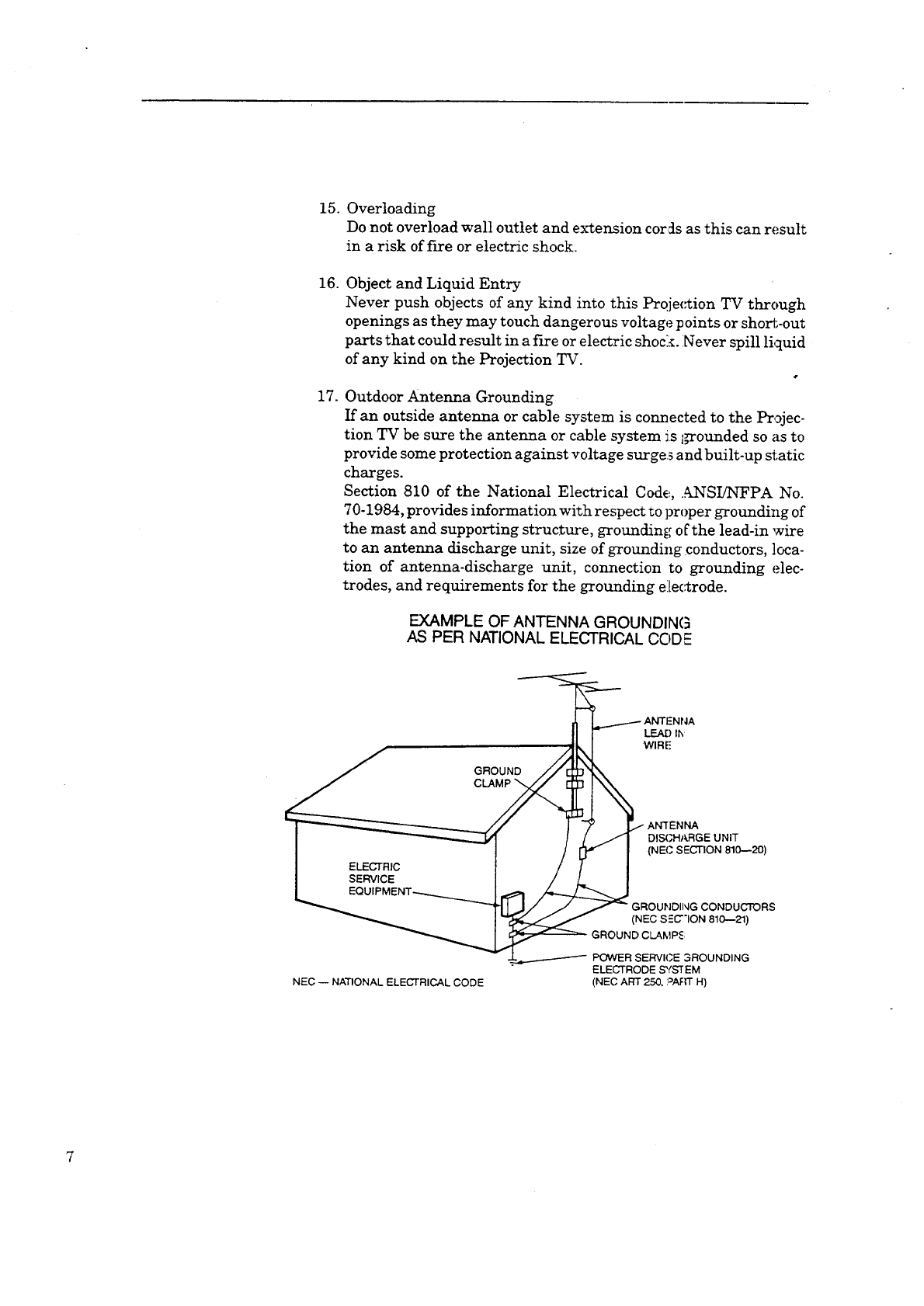
Outdoor Antenna Grounding
If an outside antenna or cable system is connected to the Projec-
tion TV be sure the antenna or cable system is I,rrounded so as to
provide some protection against voltage surges and built-up static
charges.
Section 810 of the National Electrical Code,., ANSIiNFPA No.
70-1984, provides information with respect to proper grotmding of
the mast and supporting structure, grounding of the lead-in wire
to an antenna discharge unit, size of grounding conductors, ]oca-
tion of antenna-discharge unit, connection to grounding elec-
trodes, and requirements for the grounding electrode.
EXAMPLE OF ANTENNA GROUNDING
AS PER NATIONAL ELECTRICAL CODE
_ ANTENNA
II F LEAOI_
II. I WIRE
I_ ."J_" _ AN'I'ENNA
I _ I//I DISCHARGEUNIT
I-/[7" I
I ELECtRiC / / I
]SERVICE /LI
LEQUIPMENT_ _ //_..._
_]_J/ //_ GROUNDIIqG CONDUCTORS
_(NEC S;C"ION 810--21)
GROUND CLAMP_:
_--4--"------------------POWER SERVICE 3ROUNDING
ELECTRODE SYSTEM
NEC -- NATIONAL ELECTRICAL CODE (NEC ART 250, ?AFrr H)
18. Servicing
Do not attempt to service this Projection TV yourself as opening or
removing covers may expose you to dangerous voltage or other
hazards. Refer all servicing to qualified service personnel.
19. Damage Requiring Service
Unplug this Projection TV from the wall outlet and refer servicing
to qualified service personnel under th_ following conditions:
(a) When the power-supply cord or plug is damaged..
(b) If liquid has been spilled, or objects have fallen into the Projec-
tion TV.
(c) If the Projection TV has been expo,;ed to rain or water.
(d) If the Projection TV does not operate normally by following
the operating instructions. Adjust only those controls that are
covered by the operating instruc_icns as an improper adjust-
ment of other controls may result in damage and will often
require extensive work by a qualifie d technician _orestore the
Projection TV to its normal operation.
(e) If the Projection TV ihas been dropped or the cabinet has been
damaged.
(f) When the Projection TV exhibits a distinct change in perfor-
mance -- this indicates a need for _ervice.
20. Replacement Parts
When replacement parts are required, be sure the service techni-
cian has used replacement parts specified by the manufacturer or
have the same characteristics as the original part. Unauthorized
substitutions may result in fLre, electri.c shock or ot:her hazards.
21. Safety Check
Upon completion of any service or repairs to this l:_ojection TV
ask the service technician to perform safety checks to determine
that the Projection TV is in a safe o_erating conditions.
8

PREFACE
Telcome to Mitsubishi
Congratulations on your purchase of the Mitsubishi Projection TV. Your
Projection TV is designed for superb viewing pleasure as well as con-
tinued reliability.
To familiarize you with your new Projection TV and owner's guide,
we suggest that you read through the preface, which provides the follow-
ing important information.
• Summary of Special Features
• Unpacking Your Projection TV
• What's in Each Chapter
• Some Conventions Used in This Guide
Mitsubishi has strived to create your Project2.on TV so that it will bring
you years of viewing enjoyment. Similarly, your owner's guide is
designed with a "user friendly" philosophy that will help you take
advantage of all of your equipment's feam:;es.
Once again, thank you for selecting our product and welcome to Mitsubishi!
Summary of Special Features
Your top rated Mitsubishi Projection TV delivers:
• 181-Channel Capacitymprograms up to 181 channels, ensuring
your continued viewing pleasure as cable services continue to expand.
•Two-Speaker Sound System--a special speaker system produces
clear, stereo sound.
•Expanded Sound Capabilitymallows you to connect the Projec-
tion TV to an external audio system for enhanc_ listening pleasur[.
In addition to the standard features found on most advanced Projection
TVs, Mitsubishi is proud to offer the following distinctive features:
•Remote Control with VCR/TV Ftmction--us_s a single re:mote
control transmitter for the television and select Mitsubishi VCRs.
• Learning Remote Control Unit---can learn the functions of other
remote control unit.
• On-Screen Displays--indicates the status of various functions and
appears whenever a function is adjusted.
• Picture-in-Picture Mode--allows you to view _o different sources
at the same time.
Each of these features will be explained in more detail in Chapter 3,
"Operating Your Projection TV."
10 Preface
Unpacking Your Projection TV
What you will find
As you unpack your new Mitsubishi Projection TV, please check to
be sure that the following items are included:
• an owner's guide,
• a remote control transmitter,
• a set of two size AAA batteries for the remote control and,
• a belt for VCR (VS-45VA 1, VS-45VA2, VS-50VA1 and VS-50VA2
only). "
A few suggestions
Before you hook up your new Projection TV p:.ease take a few minutes to:
0Complete the registration card. The registration card asks for the
Projection TV's serial number, which you'll find on the back of
the unit.
0Keep the box and packing materials fo:: furore use.
0File your sales receipt and warranty card.
0 Place the Projection TV on astable surface with sufficient fighting
to do the hook-up.
Unpacking Your ProjectionTV II
What's in Each Chapter
Here's what you will find in this owner's guide::
Chapter 1, "Getting to Know Your Projection TV", introduces you
to the location and functions of the buttons, conuols and terminals of
your Projection TV.
Chapter 2, "Connecting Your Projection TV", explains how to connect
a VCR, antenna, decoder and other equipment to yeur Projection TV.
Chapter 3,"Operating Your Projection TV", provides the step-by-step
instructions you need in order to use your Projection TV.
Chapter 4, "Using the Special Features", explains how to use some
of your Projection TV's special features.
Chapter 5, "Troubleshooting", summarizes the problLems you may have
along with the suggestions for remedying these problems.
The appendix explains an automatic procedure for the channel lock.
You'll also find a detailed index at the back of r.he book.
12 Preface
Some Conventions Used in this Guide
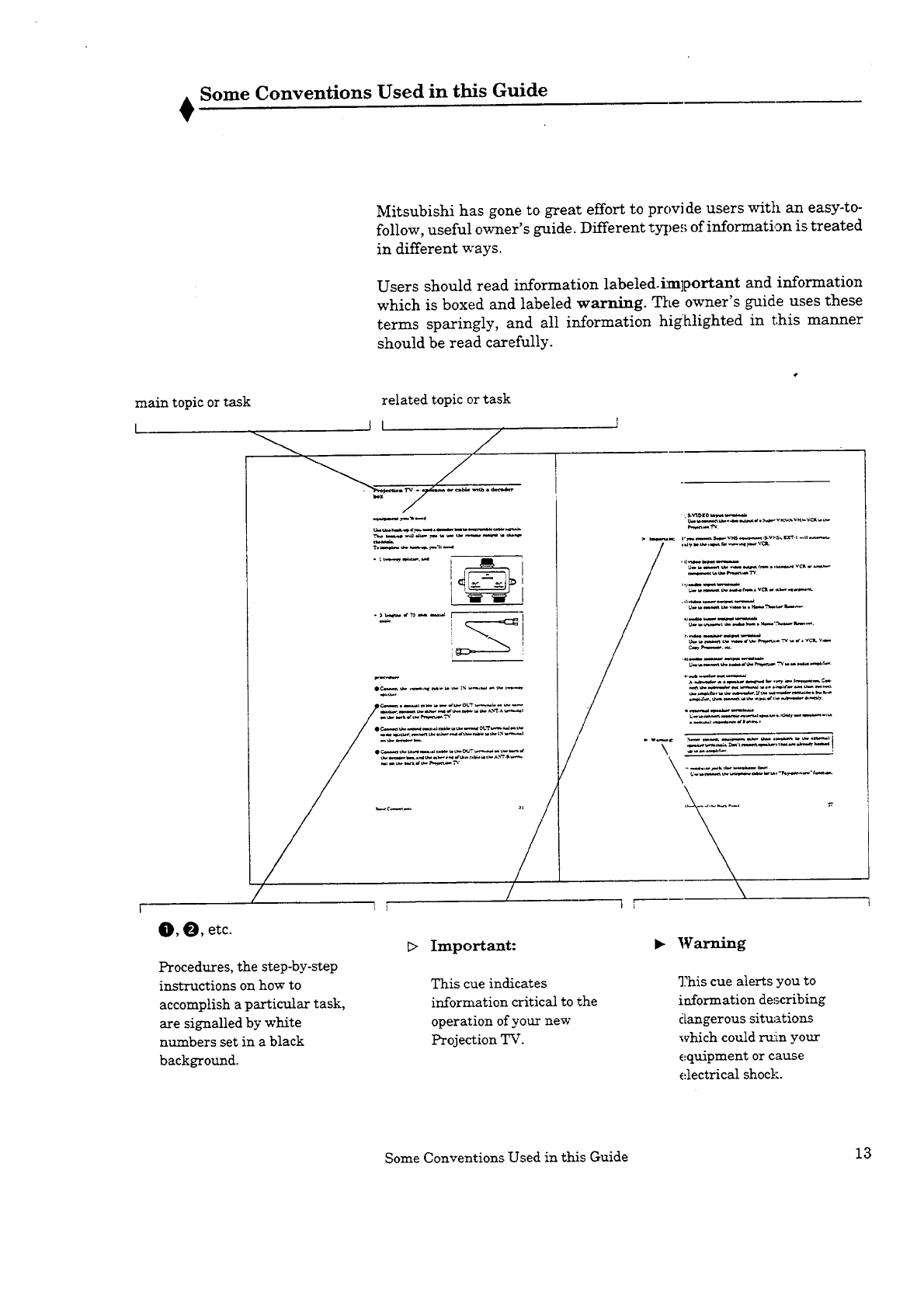
Mitsubishi has gone to great effort to provide users with an easy-to-
follow, useful owner's guide. Different _ype_; of information is treated
in different ways.
Users should read information labeled.im]portant and information
which is boxed and labeled warning. The owner's guide uses these
terms sparingly, and all information hig:hlighted in this manner
should be read carefully.
main topic or task related topic or task
_, _, etc.
I
Procedures, the step-by-step
instructions on how to
accomplish a particular task,
are signalled by white
numbers set in a black
background.
DImportant:
This cue indicates
,i-wDto w._
F._,,.-,_-rv
>,,,,_ lw•w
Warning
This cue alerts you to
information critical to the
operation of your new
Projection TV.
information describing
dangerous situations
which could ruAnyour
equipment or cause
electrical shock.
Some Conventions Used in this Guide 13

CHAPTER 1
Getting to Know Your Projection TV
Now that you've unpacked your Projection TV, read through the safety
information, and glanced at the overview explaining how this owner's guide
is organized, it's time to become familiar with the buttons and controls you'll
be using when you operate the TV. This chapter will introduce the range of
options available by using the buttons on the front panel of the TV or the remote
control. It also offers some general guideline., for using the remote control.
Most functions can be controlled by using either the front panel or the
remote control, but certain specialized functions require the use of one
or the other. This chapter, which will familiarize you with the full
range of button functions, contains the following sections:
• Overview of the Front Panel
• Overview of the Remote Control
Overview of the Front Panel
(MONO)
.S-_O _,IDEO L-AUI_O.-R
L._ F'I:_:_FrIN (EX'F-'T)------------;
PROGRAM
TIMER
0 0 0
E> Important:
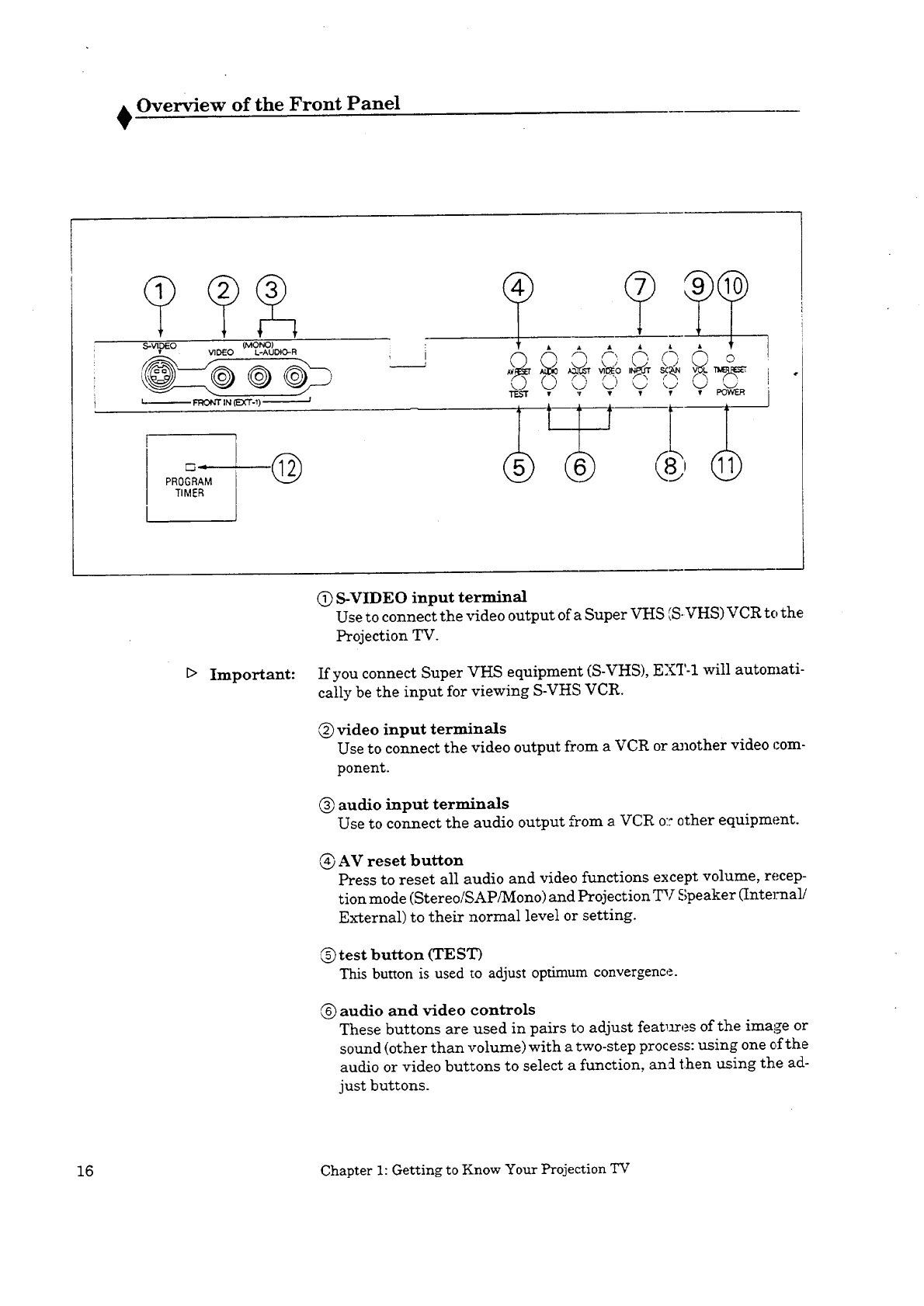
(_) S-VIDEO input terminal
Use to connect the video output of a Super VHS (S-VHS) VCR to the
Projection TV.
If you connect Super VHS equipment (S-VHS), EXT-1 will automati-
cally be the input for viewing S-VHS VCR.
video input terminals
Use to connect the video output from a VCR or aJ_other video com-
ponent.
audio input terminals
Use to connect the audio output from a VCR o:: other equipment
AV reset button
Press to reset all audio and video functions except volume, recep-
tion mode (Stereo/SAP/Mono) and Projection TV Speaker (Intelmali
External) to their normal level or setting.
(_)test button (TEST)
This button is used to adjust optimum convergence.
audio and video controls
These buttons are used in pairs to adjust rear,ares of the image or
sound (other than volume) with a two-step process: using one of the
audio or video buttons to select a function, an5 then using the ad-
just buttons.
16 Chapter 1: Getting to Know Your Projection TV
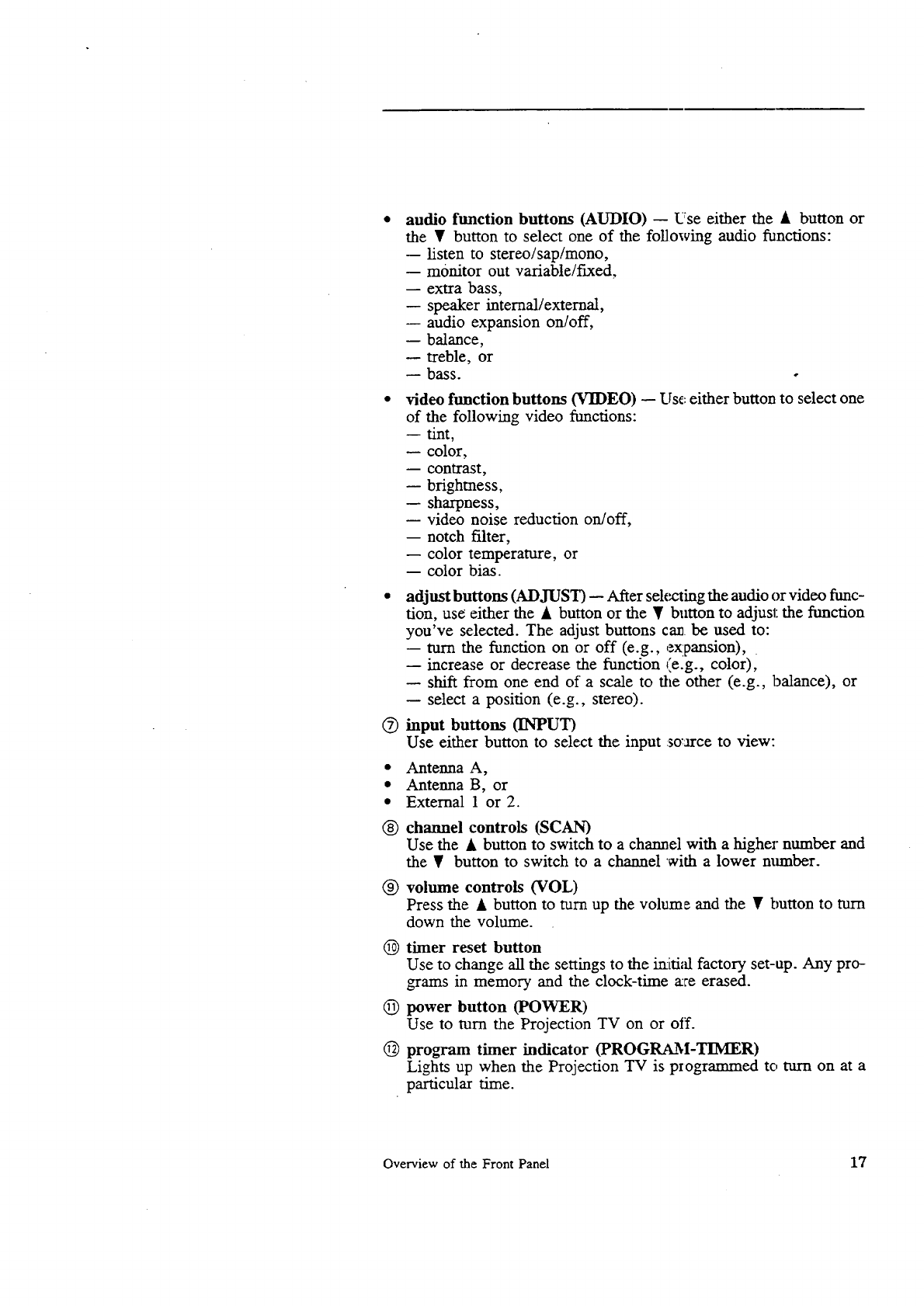
audio function buttons (AUDIO) -- Use either the • buuon or
the • button to select one of the following audio functions:
-- listen to stereo/sap/mono,
-- monitor out variable/fixed,
-- extra bass,
-- speaker internal/external,
-- audio expansion on/off,
-- balance,
-- treble, or
bass. .
video function buttons (VIDEO) -- Use either button to select one
of the following video functions:
-- tint,
-- color,
-- contrast,
-- brighmess,
-- sharpness,
-- video noise reduction on/off,
-- notch filter,
-- color temperature, or
-- color bias.
adjust buttons (ADJUST) -- After selecting the audio or video func-
tion, use either the • button or the • button to adjust the function
you've selected. The adjust buttons ca_ be used to:
-- turn the function on or off (e.g., expansion),
-- increase or decrease the function (e.g., color),
-- shift from one end of a scale to the other (e.g., balance), or
-- select a position (e.g., stereo).
@input buttons (INPUT)
Use either button to select the input so'arce to view:
•Antenna A,
• Antenna B, or
•External 1 or 2.
@channel controls (SCAN)
Use the • button to switch to a channel with a higher number and
the T button to switch to a channel with a lower mtmber.
@volume controls (VOL)
Press the • button to turn up the volume and the • button to turn
down the volume.
(D timer reset button
Use to change all the settings to the imti,'d factory set-up. Any pro-
grams in memory and the clock-time a:re erased.
@ power button (POWER)
Use to mrn the Projection TV on or off.
@program timer indicator (PROGRAM-TIIVIER)
Lights up when the Projection TV is programmed to turn on at a
particular time.
Overview of the Front Panel 17
Overview of the Remote Control
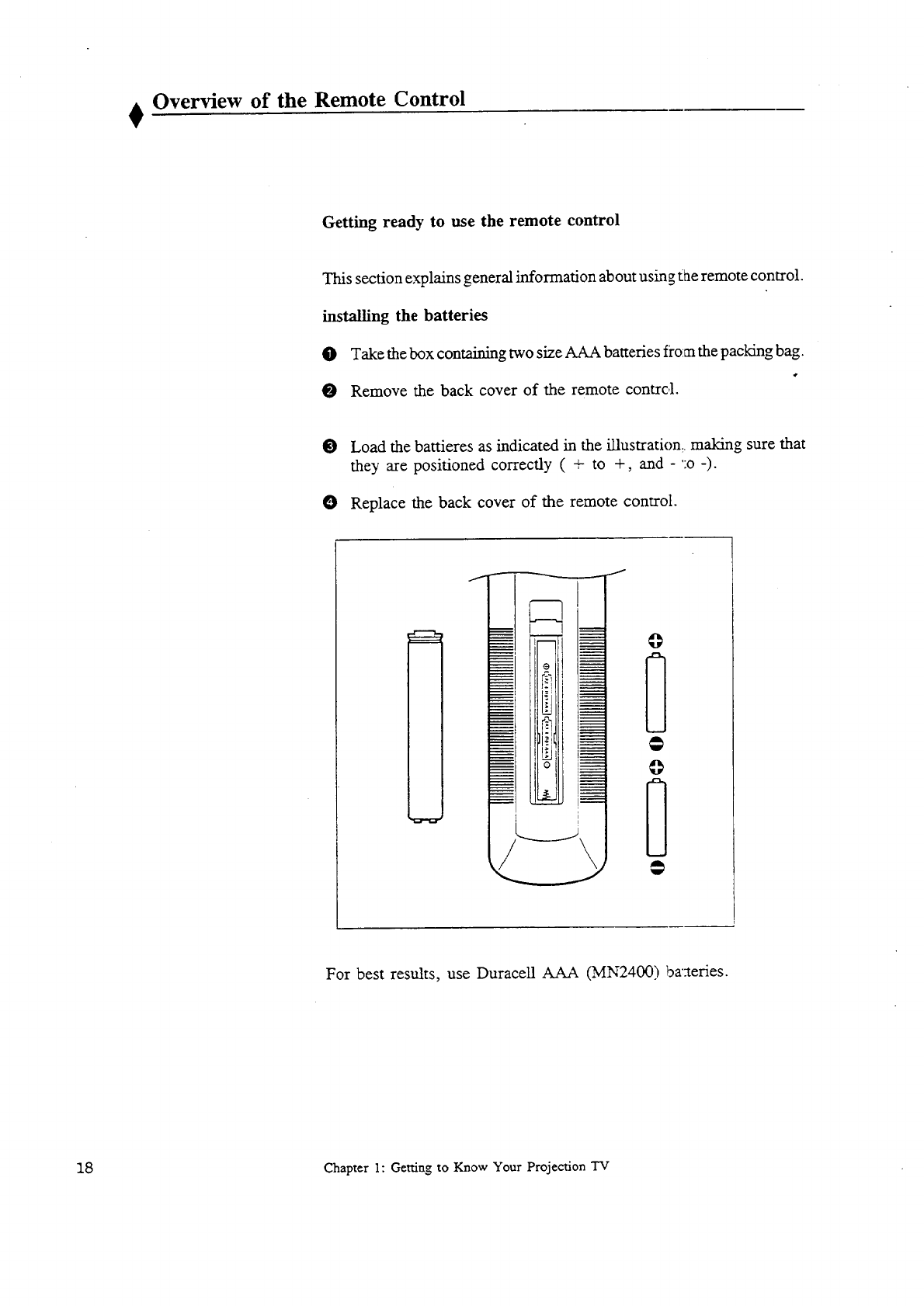
Getting ready to use the remote control
This section explains general information about using tae remote control.
installing the batteries
O Take the box containing two size AAA batteries from the packing bag.
O Remove the back cover of the remote contrc,1.
OLoad the battieres as indicated in the illustration: making sure that
they are positioned correctly ( + to +, and - ':o -).
O Replace the back cover of the remote control.
For best results, use Duracell AAA (MN2400) bazteries.
18 Chapter 1: Getting to Know Your Projection TV
some dos and don'ts
To ensure that your remote control will continue working properly,
follow these guidelines:
• Don't press two or more buttons at the same time.
• Don't allow the remote control to get we_ or become heated.
• Avoid dropping the remote control on a hard surface.
• When cleaning the remote control, don't use any harsh chemicals.
Use only a soft, slightly moistened cloth.
general instructions
When using the remote control to operate the Projection TV or VCR,
follow these procedures:
O Be within 20 feet of the Projection TV.
Point the top of the remote control towa::d the Projection TV.
O Press the appropriate button or group 3 c,fbuttons.
The following section explains more about t he range of options availa-
ble by using the remote control.
Overview of the Remote Control 19
Remote control buttons and functions
@
©
®
@
@
@
@
@
I
VCR TV
MUTE
0
6
©
2
0
AUDIO ADJUST VIDE.O
RF_I-AY STOP j PAUSE
REVV/_ -- PLAY -- _/FF
OFF-T//
REC VCR/TV, OTR/DISP
PiP SOURCE EXCH POSITION
_.MITSUBISHI
@
,9
@
©
@
20 Chapter 1: Getting To Know Your TV
Q
©
®
®
®
®
®
®
®
@
@
@
®
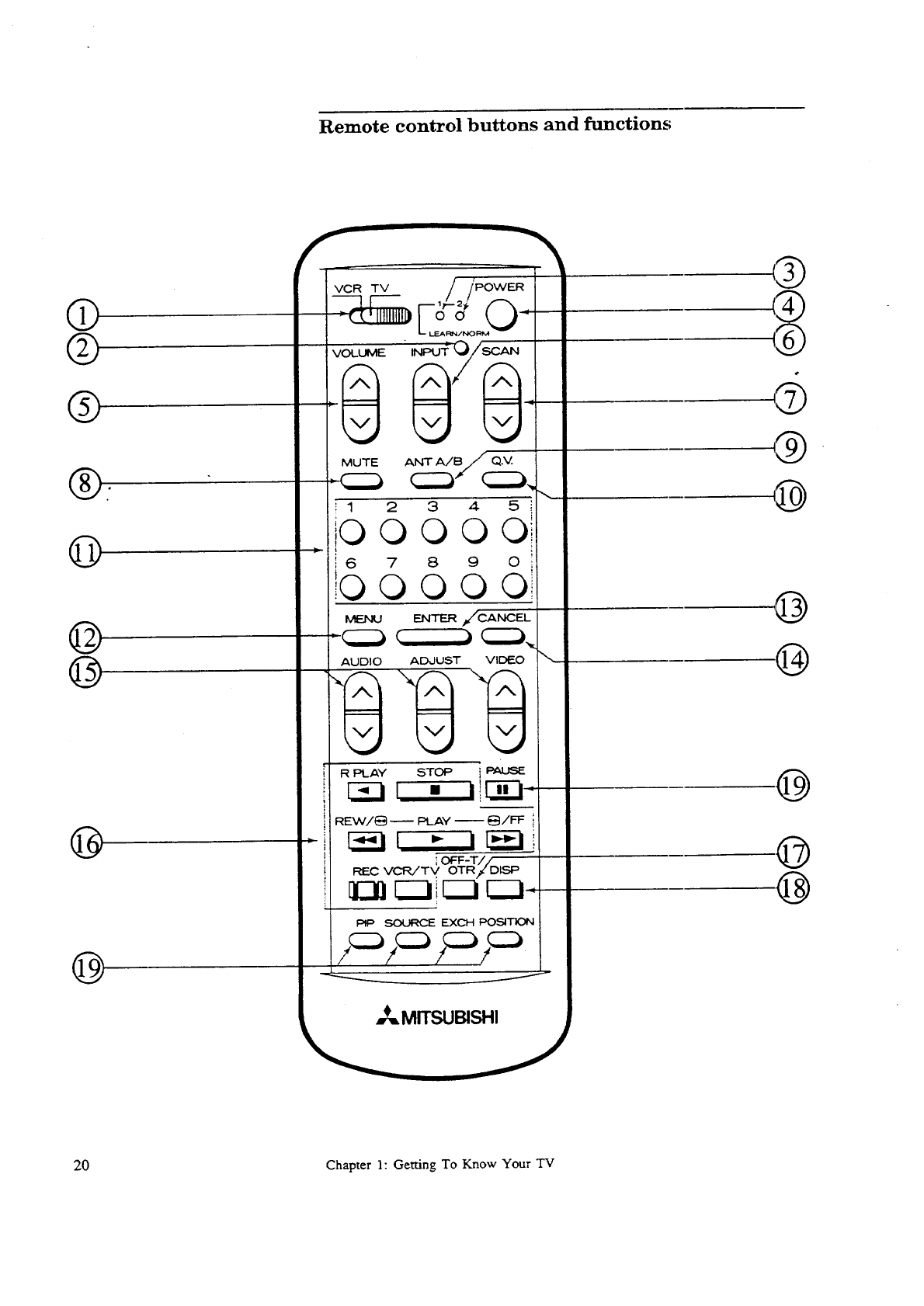
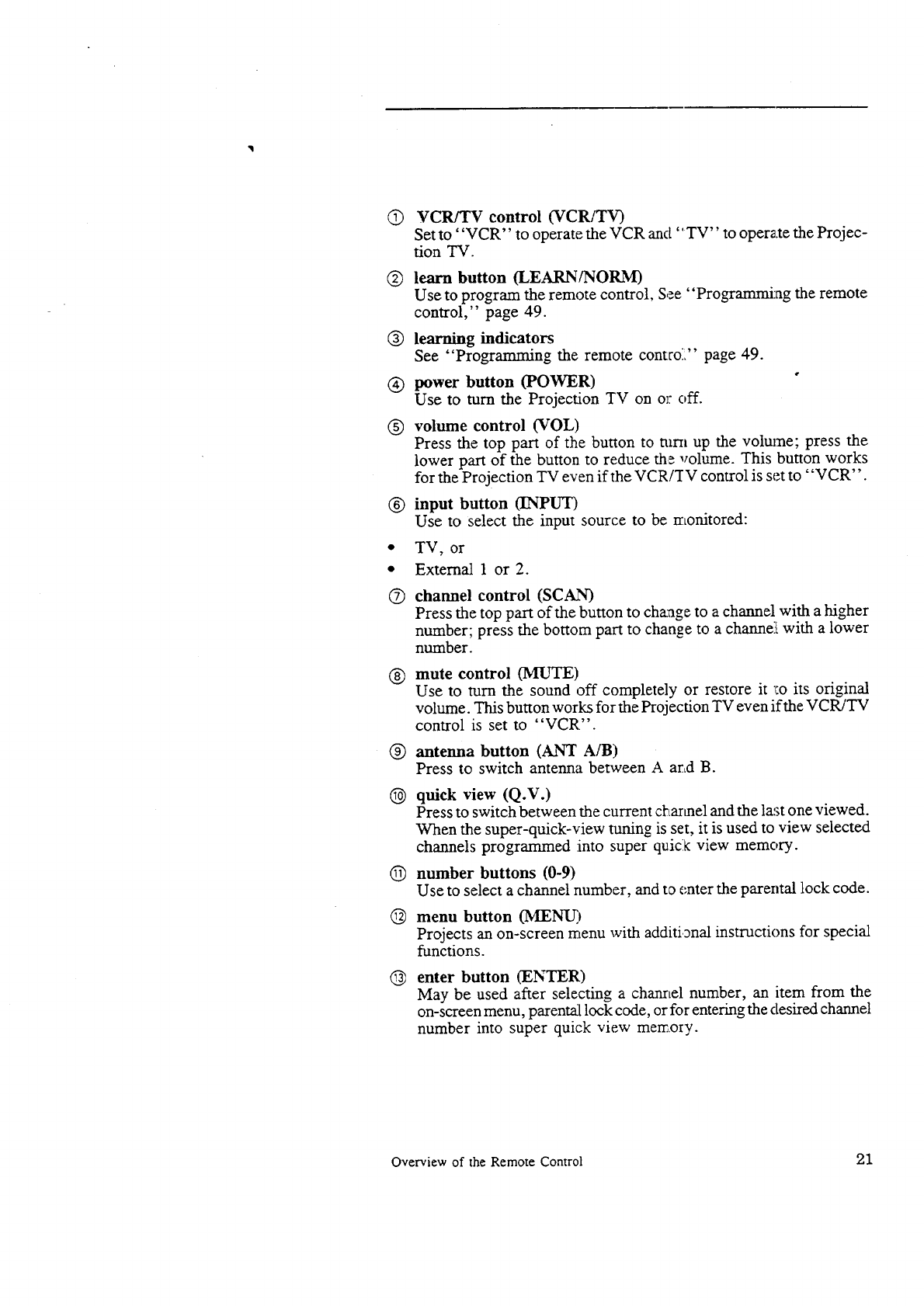
VCR/TV control (VCR/TV)
Setto "VCR" to operate the VCR and "TV" to opera.te the Projec-
tion 'IV.
learn button (LEARN/NORM)
Use to program the remote control, See "Programming the remote
control," page 49.
learning indicators
See "Programming the remote contcoY' page 49.
power button (POWER)
Use to turn the Projection TV on or off.
volume control (VOL)
Press the top part of the button to turn up the volume; press the
lower part of the button to reduce the volume. This button works
for the Projection TV even if the VCR/'IV control is set to "VCR".
input button (INPUT)
Use to select the input source to be monitored:
TV, or
External 1 or 2.
channel control (SCAN)
Press the top part of the button to change to a channel with a higher
number; press the bottom part to change to a channe]l with a lower
number.
mute control (MUTE)
Use to turn the sound off completely or restore it _:oits original
volume. This button works for the Projection TV even if the VCRiTV
control is set to "VCR".
antenna button (ANT A/B)
Press to switch antenna between A ard B.
quick view (Q.V.)
Press to switch between the current &Larmel and the last one viewed.
When the super-quick-view tuning is set, it is used to view selected
channels programmed into super quick view memory.
number buttons (0-9)
Use to select a channel number, and to enter the parental lock code.
menu button (MENU)
Projects an on-screen menu with additional instructions for special
functions.
enter button (ENTER)
May be used after selecting a channel number, an item from the
on-screen menu, parenta2t lock code, or for entering the desired channel
number into super quick view memory.
Overview of the Remote Control 21
Remote control buttons and functions (cont.)
®
®
®
®
®
cancel button (CANCEL)
This button is used to cancel the entered channel n_mber within ldaree
seconds, to erase the parental lock code during the parental lock se-
quence, and to clear the channel programmed into super quick view
memory.
audio and video controls
These buttons are used in pairs to adjust features of the image or sc,und
(other than volume) with a two-step process: using one of the audio
or video buttons to select a function, and then ushag the adjust buttons.
audio function buttons (AUDIO)--Use either the top or the boa-
torn part of the button to select one of the following audio functions:
-listen to stereo/SAP/mono,
-monitor out variable/fixed,
-extra bass,
-speaker internal/external,
-audio expansion on/off,
-balance,
-treble, or
-bass.
video function buttons (VIDEO)--Use to select one of the foE.ow-
ing video functions:
-tint,
-color,
-contrast,
-brightness
-sharpness,
-video noise reduction on/off,
-notch filter on/off,
-color temperature high/mid/low, or
-color bias.
adjust buttons (ADJUST)--After selecting an audio or video fimc-
tion, use either the A button or the ¥ button to adjust the function
you've selected. The adjust button can be used to:
-turn the function on or off (e.g. :. expansion),
-increase or decrease the function (e.g., color),
-shift from one end of a scale to the other (e.g., balance), or
-select a position (e.g., stereo).
These are also used to select an item from the on-screen menu.
VCR buttons
Can be used to control most Mitsubishi VCRs (See your VCR's
owner's guide for additional information). These buttons work with
the VCR even if the VCPUTV control is set to "TV".
off-timer button (OFF-T/OTR)
Use to program the TV to turn off automatically at a later tJ.me.
display button (DISP)
Use to view an on-screen summary of the current settings for Projec-
tion TV or cable functions.
22 Chapter 1: Getting to Know Your Projection TV
®picture-in-picture controls
Use to control the special picture-in--picture (PIP) fumction.
PIP button (PIP)-Press to see the reduced PIP image or cancel it.
pause button 0PAUSE)-Press to freeze the reduced PIP image or
cancel the image freezing.
source button (SOURCE)-Press reI_ttedly to switch the source of
the reduced PIP image between the TV and the external inputs.
exchange button (EXCH)-Press to :,'witch back and forth between
the reduced PIP image and the main image.
position button (POSITION)-Press to move the position of the
reduced PIP image.
Overview of the Remote Control 23


ACHAPTER 2
Connecting Your Projection TV
This chapter offers step-by-step instructions for completimg the most
common hook-ups. It contains the following sections: ,
•Overview of the Back Panel
•Basic Connections
Overview of the Back Panel
@
®
ANT
(VHF/UHF)
A
-0
CAUTION: CONNECT TO
EXTERNAL SPEAKERS ONLY.
DO NOT MAKE ANY OTHER
CONNECTIONS INCLUDING
EXTERNAL AMPLIFIER.
NOTE:
TURN OFF THE SET BEFORE
SWITCHING SPEAKERS.
°t
INPUT OUTPUT .
EXT-1 EXT-2 TUNER MONITOR
I I I
LJ
Important:
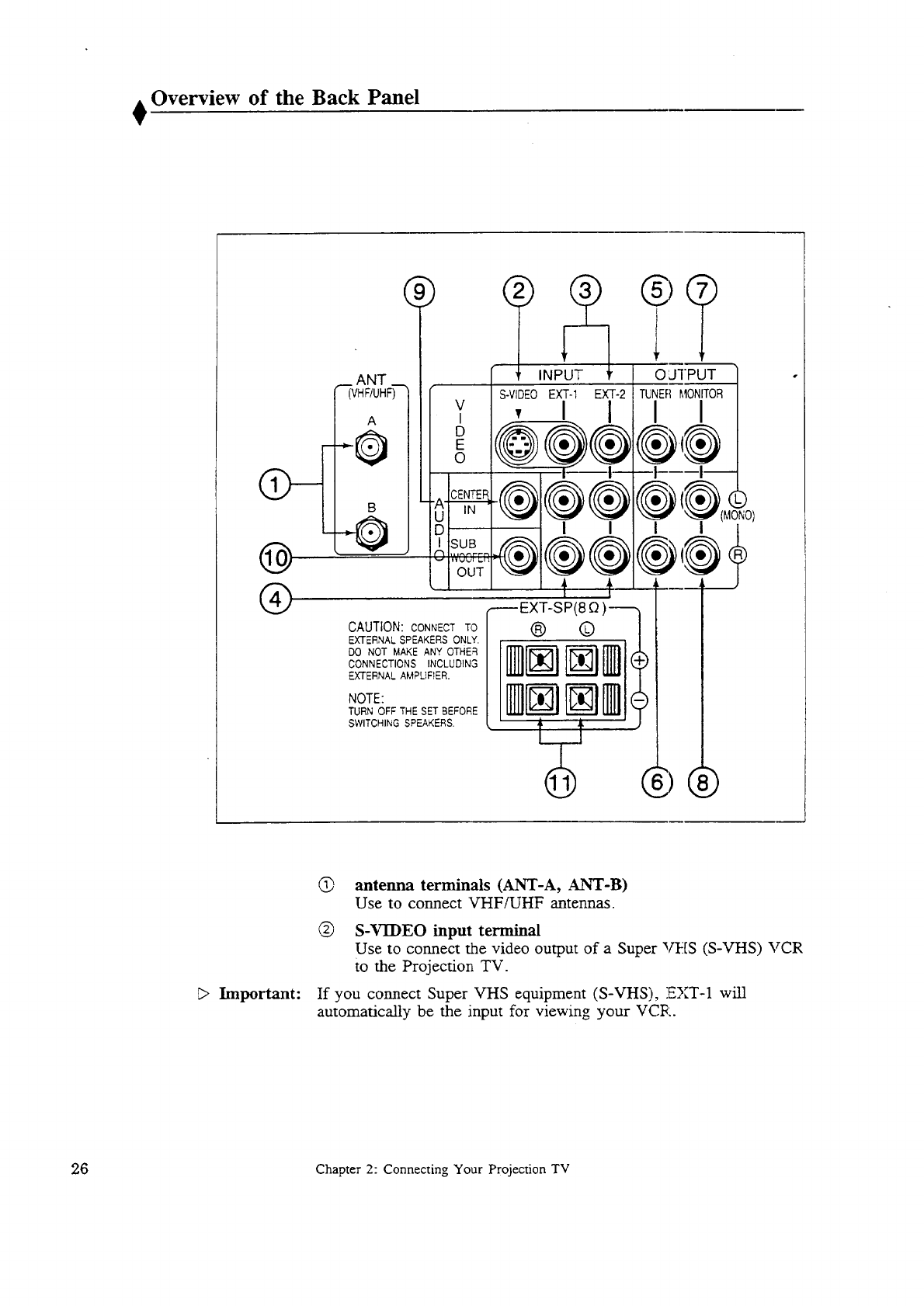
@ antenna terminals (ANT-A, ANT-B)
Use to connect VHF/UHF antennas.
(_) S-VIDEO input terminal
Use to connect the video output of a Super _[S (S-VHS) VCR
to the Projection TV.
If you connect Super VHS equipment (S-VHS), EXT-1 will
automatically be the input for viewing your VCR.
9.6 Chapter 2: Connecting Your Projection TV
®
®
®
®
®
®
®
®
®
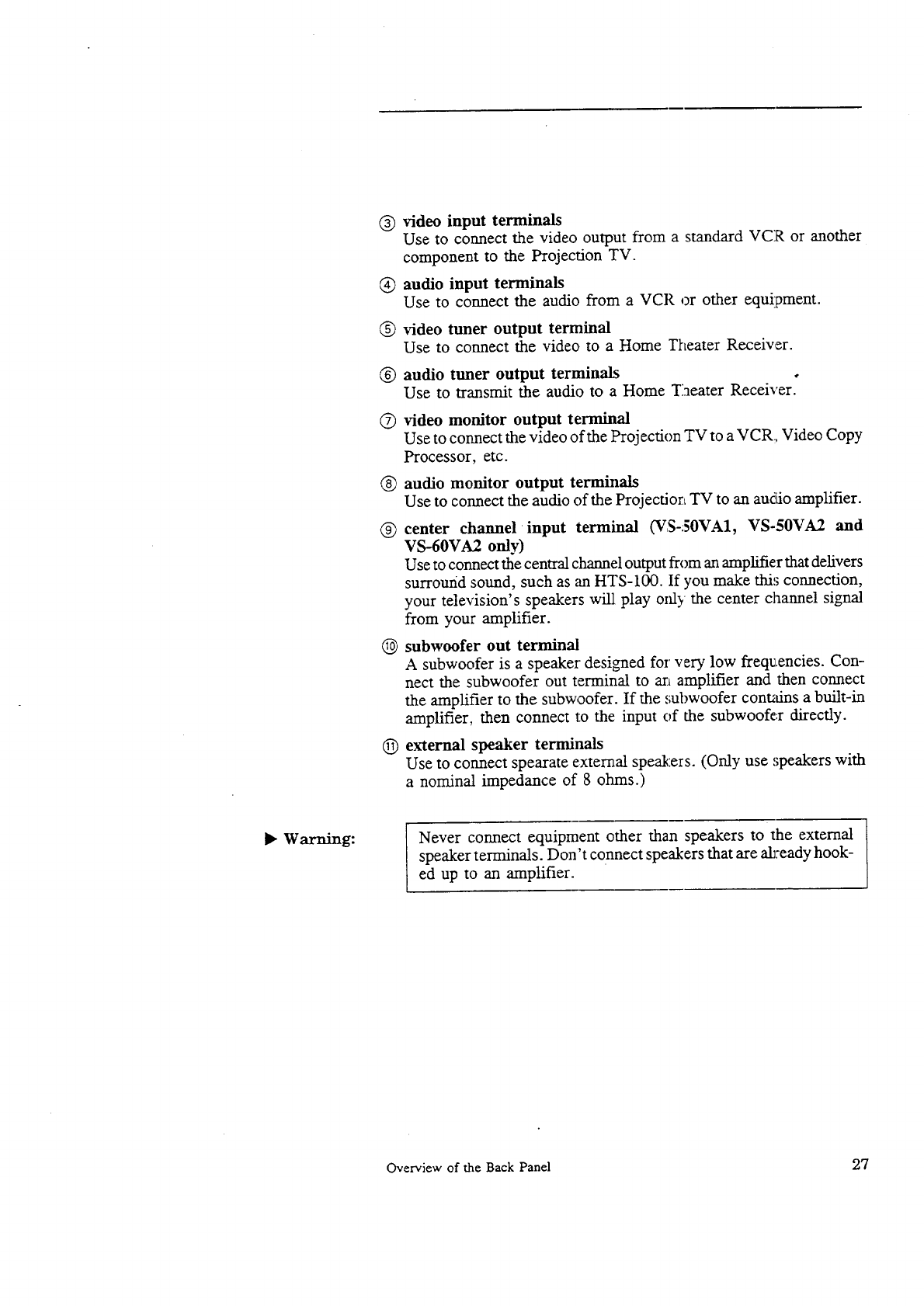
video input terminals
Use to connect the video output from a standard VCR or another
component to the Projection TV.
audio input terminals
Use to connect the audio from a VCR or other equipment.
video tuner output terminal
Use to connect the video to a Home Theater Receiver.
audio tuner output terminals
Use to transmit the audio to a Home Theater Receiver.
video monitor output terminal
Use to connect the video of the Projection TV to a VCR, Video Copy
Processor, etc.
audio monitor output terminals
Use to connect the audio of the Projectior_ TV to an audio amplifier.
center channel •input terminal (VS-50VA1, VS-50VA2 and
VS-60VA2 only)
Use to connect the central channel output from an amplifier that delivers
surround sound, such as an HTS-100. If you make this connection,
your television's speakers will play only the center channel signal
from your amplifier.
subwoofer out terminal
A subwoofer is a speaker designed for very low frequencies. Con-
nect the subwoofer out terminal to an amplifier and then connect
the amplifier to the subwoofer. If the subwoofer cont_fins a built-in
amplifier, then connect to the input of the subwoofer directly.
external speaker terminals
Use to connect spearate external speakers. (Only use ,;peakers with
anominal impedance of 8 ohms.)
•Warning: Never connect equipment other than speakers to the external
speaker terminals. Don't connect speakers that are ab:eady hook-
ed up to an amplifier.
Overview of the Back Panel 27
Basic Connections
This section explains the basic connections you will need to make be-
tween your Projection TV, antennas, and VCR. You will see there are
different connections shown depending upon whether you have a decoder
box and the type of antenna you are using. Choose the type of cormection
for the type of equipment you have.
• Projection TV + external speakers,
•Projection TV + antenna or cable without a decoder box,
•Projection TV + antenna or cable with a decoder box,
• Projection TV + separate UIIF and VHF antennas,
•Projection TV + VCR + antenna or cable without a decoder box,
•Projection TV + VCR + antenna or cable with a decoder box,
• Projection TV + home theater receiver (A/V receiver),
• Projection TV + audio system,
•Projection TV + external speaker with subwoofer out terminal,
and
•Projection TV + an amplifier that has a cente:v channel olYr
terminal (VS-50VA1, VS-50VA2, and VS-60VA2 only).
28 Chapter 2: Connecting Your Projection TV
Projection TV + external speakers
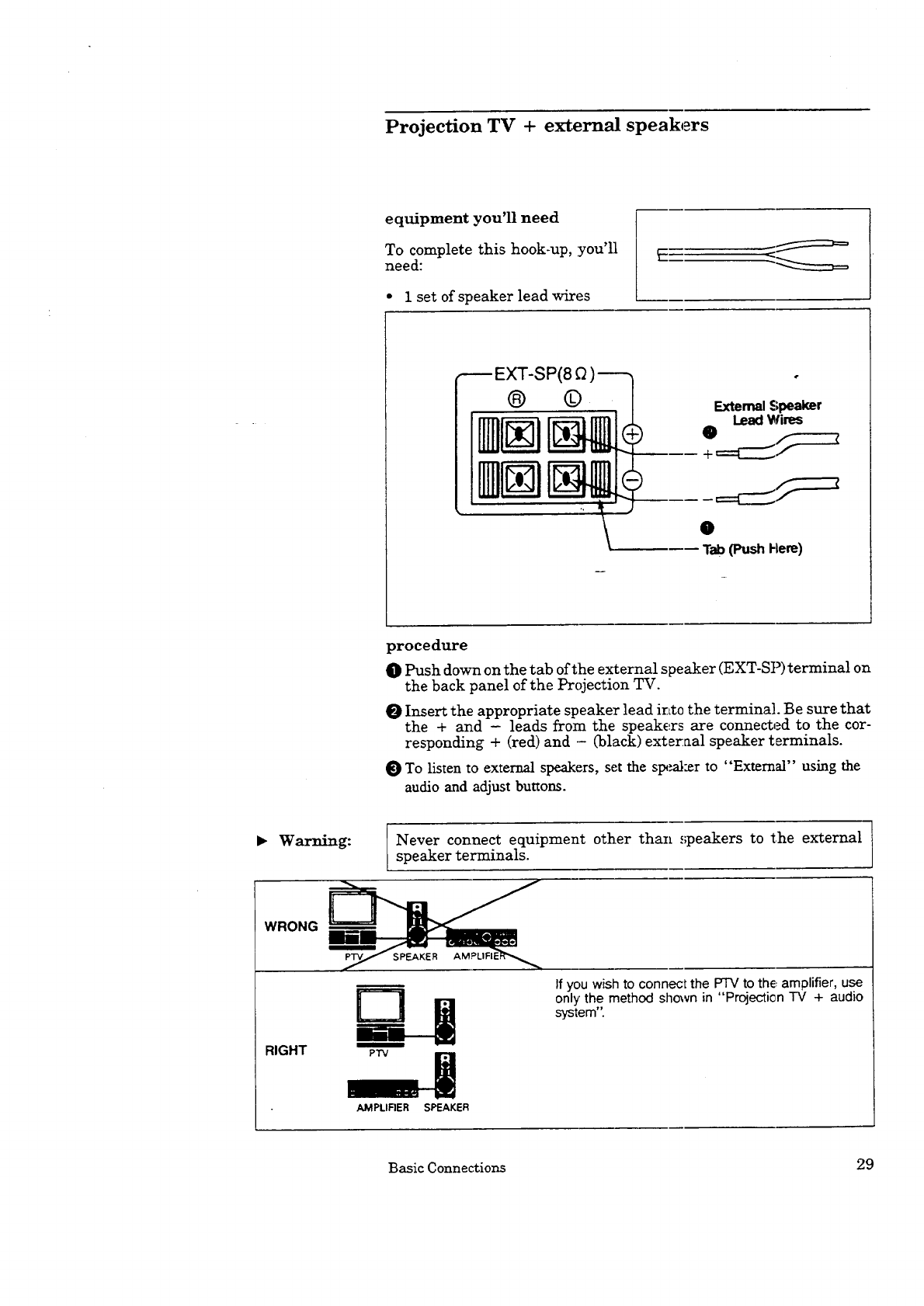
equipment you'll need
To complete this hook-up, you'll
need:
•1set of speaker lead wires
--EXT-SP
(_) ExternalSpesker
Wires
0
Tab (Push Hem}
procedure
OPush down on the tab oft;he external speaker (EXT-SP) terminal on
the back panel of the Projection TV.
Insert the appropriate speaker lead irLtothe terminal. Be sure that
the + and - leads from the speakers are connected to the cor-
responding + (red) and - (black) exteraal speaker terminals.
To Listen to external speakers, set the Sl_.aJ:er to "External" using the
audio and adjust buttons.
•Warnmg: Never connect equipment other than speakers to the external
speaker terminals.
WRONG
RIGHT
D
m
AMPLIRER SPEAKER
If you wish to connect the PTV to the amplifier, use
only' the method shown in "Projection TV +audio
system".
Basic Connections 29
Projection TV + antenna or cable without a
decoder box
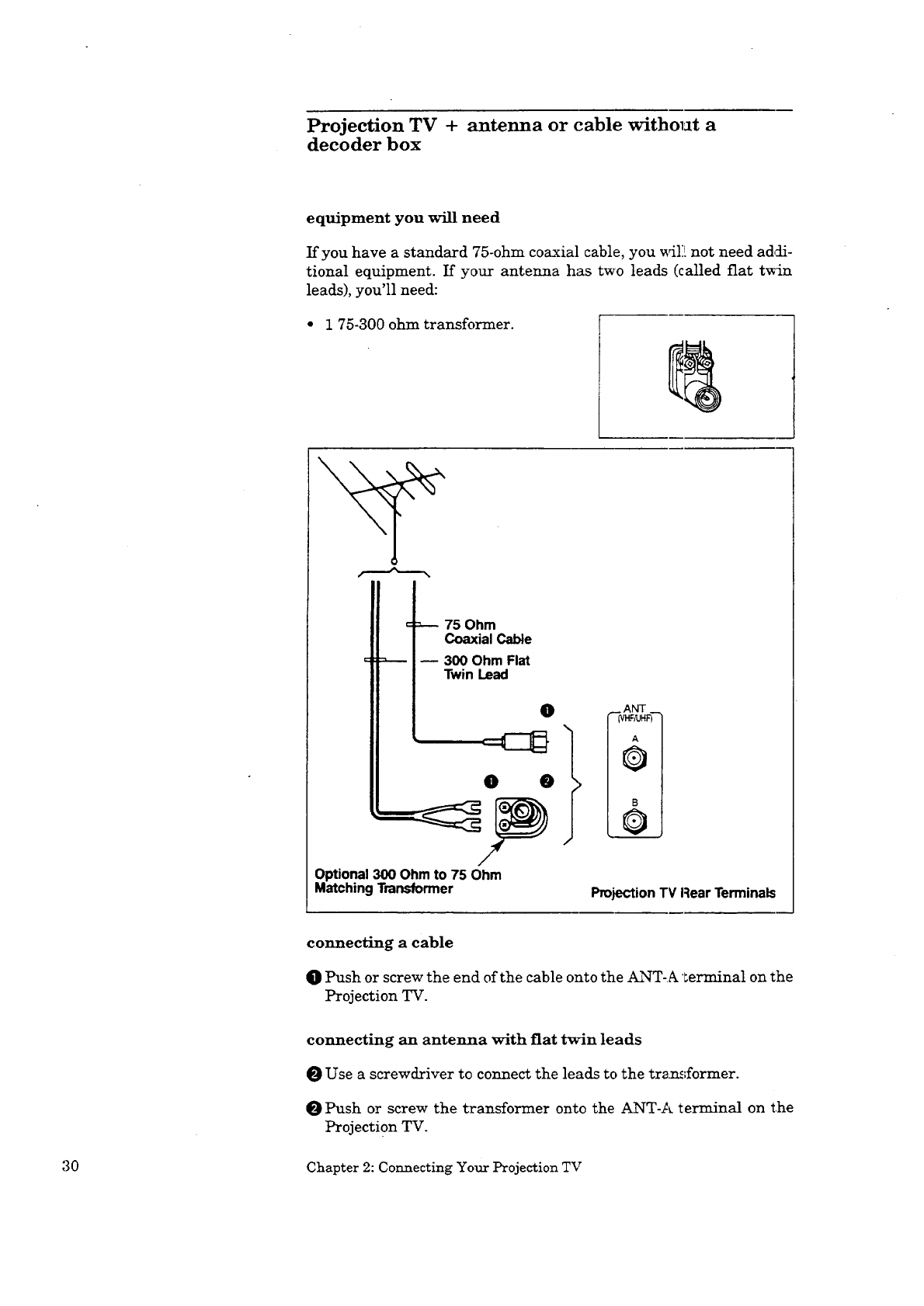
equipment you will need
If you have a standard 75-ohm coaxial cable, you x_l: _.not need ad,ii-
tional equipment. If your antenna has two leads (called flat twLu
leads), you'll need:
•175-300 ohm transformer.
A
=-- 75 Ohm
Coaxial Cable
300 Ohm Flat
Twin Lead
Optional 300 Ohm to 75 Ohm
Matching Transformer
ANT _
5_'_PJH_
A
0
B
Projection TV Rear Terminals
connecting a cable
O Push or screw the end of the cable onto the ANT-A '_erminal on the
Projection TV.
30
connecting an antenna with fiat twin leads
O Use a screwdriver to connect the leads to the tra_;former.
Push or screw the transformer onto the ANT-A terminal on the
Projection TV.
Chapter 2: Connecting Your Projection TV
Projection TV + antenna or cable with adecoder
box
equipment you_l need
Use this hook-up if you need a decoder box to descramble cable signals.
This hook-up wil! allow you to use the remote control to change
channels.
To complete the hook-up, you'll need:
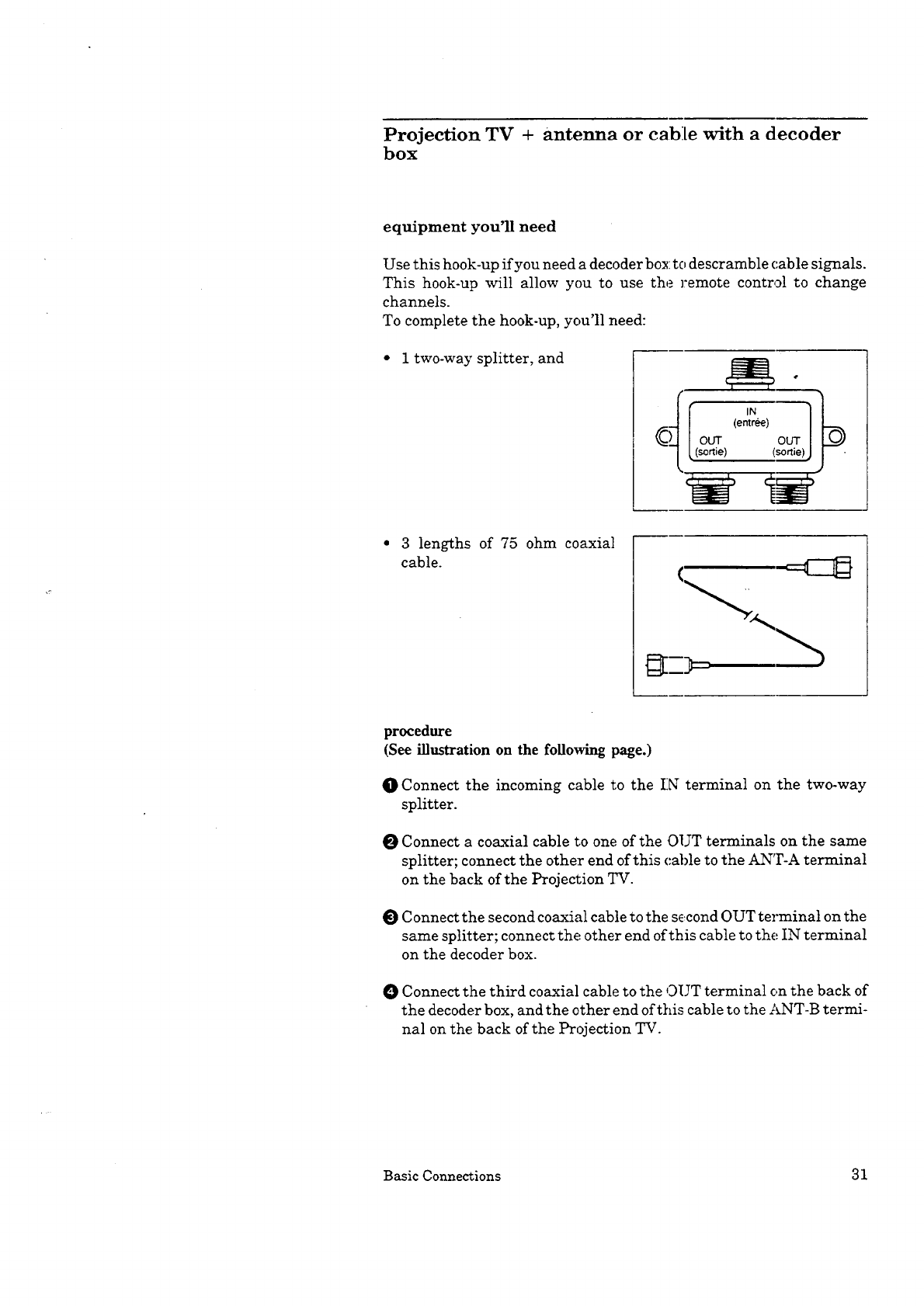
1 two-way splitter, and
3 lengths of 75 ohm coaxial
cable.
procedure
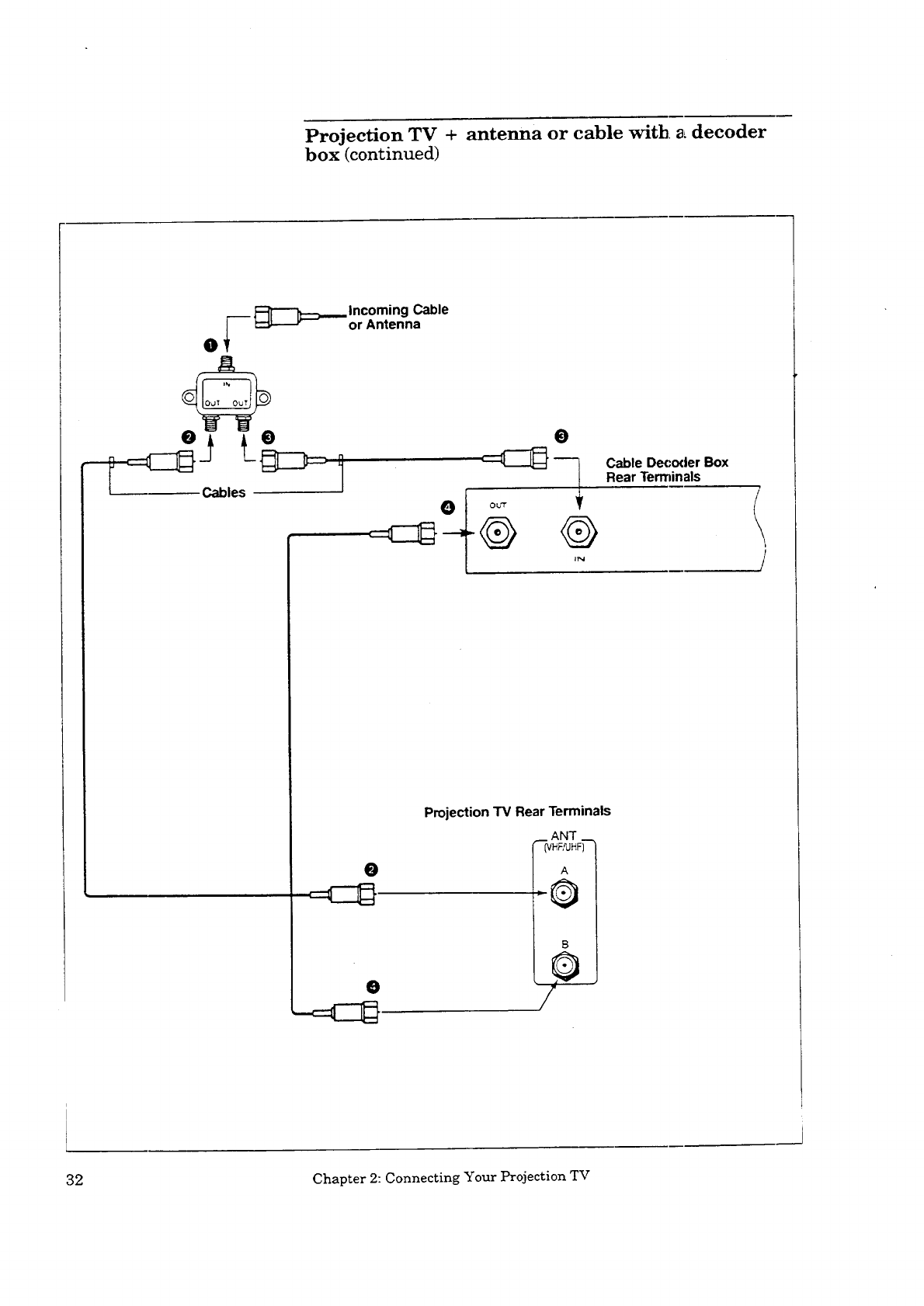
(See illustration on the following page.)
O Connect the incoming cable to the ]:N terminal on the two-way
splitter.
O Connect a coaxial cable to one of the OUT terminals on the same
splitter; connect the other end of this cable to the ANT-A terminal
on the back of the Projection TV.
Connect the second coaxial cable to the s_,cond OUT terminal on the
same splitter; connect the other end of this cable to the IN terminal
on the decoder box.
O Connect the third coaxial cable to the OUT terminal on the back of
the decoder box, and the other end of this cable to the _'_qT-B termi-
nal on the back of the Projection TV.
Basic Connections 31
Projection TV + antenna or cable with. a decoder
box (continued)
___ _r-_.__lncoming Cable
| =:_L_r or Antenna
O
O
®
Cable Decoder Box
Rear Terminals
/
/
@
Projection TV Rear Terminals
ANT
_--_HF,_HF_---I
J
32 Chapter 2: Connecting Your Projection TV
Projection TV + separate UHF and VHF antennas
equipment you will need
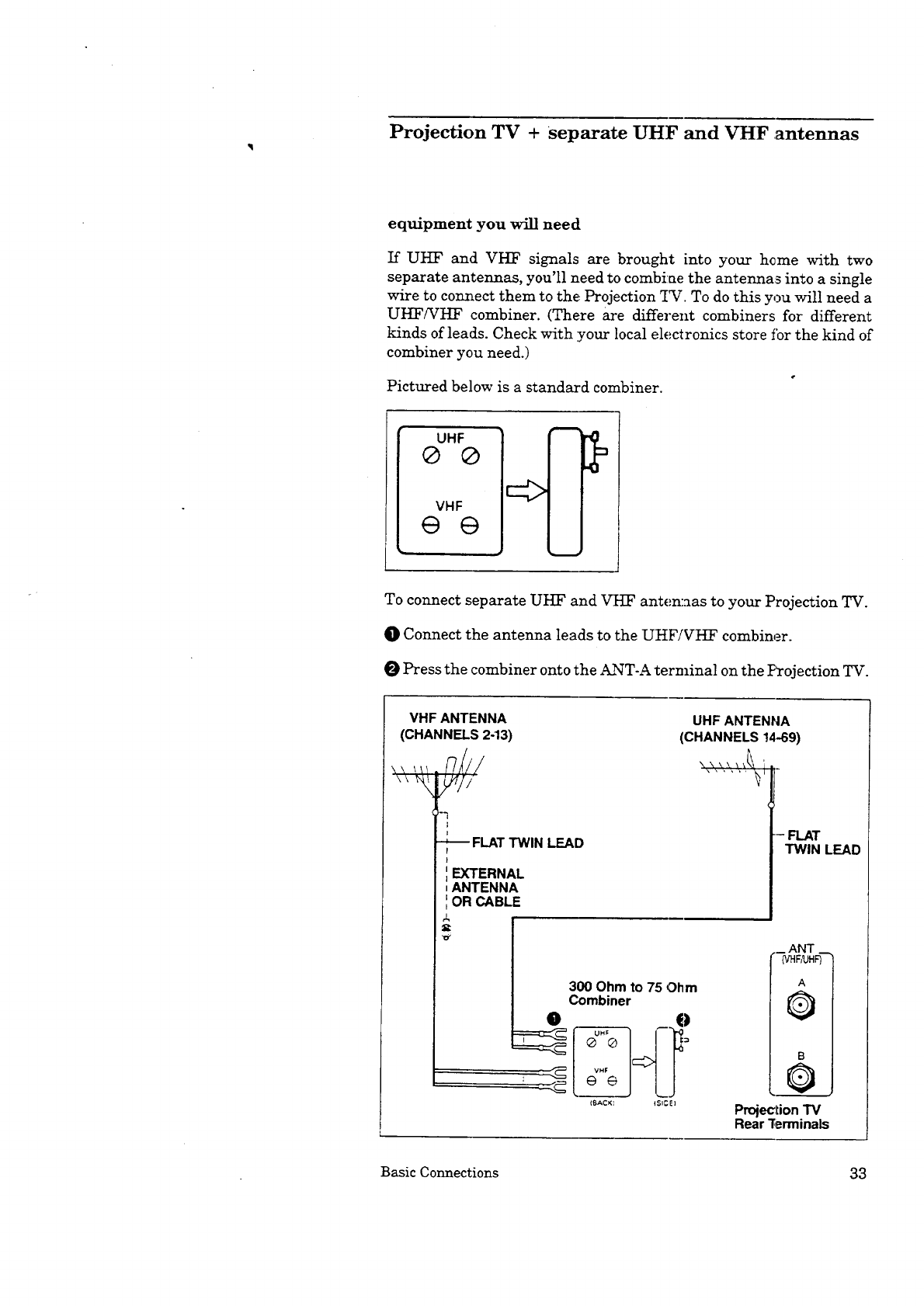
If UI-]:F and VHF signals are brought into your home with two
separate antennas, you'll need to combine the antennas into a single
wire to connect them to the Projection _IuJ. To do this you will need a
UHF/VI-]:F combiner. (There are different combiners for different
kinds of leads. Check with :your local electronics store fbr the kind of
combiner you need.)
Pictured below is a standard combiner.
UHF
® ® .!1
To connect separate UHF and VI-IF antem_as to your Projection TV.
O Connect the antenna leads to the UHFiVI-IF combiner.
Press the combiner onto the ANT-A terminal on the P_ojection TV.
VHF ANTENNA
(CHANNELS 2-13)
I
1
-_ FLATTWIN LEAD
EXTERNAL
ANTENNA
OR CABLE
4
UHF ANTENNA
(CHANNELS!4-69)
--FLAT
TWIN LEAD
300 Ohm to 75 Ohm
Combiner
(_ACK_ ISI_E]
._ANT _
(VHF/UHF)
B
O
ProjeclionTV
RearTerminals
Basic Connections 33
Projection TV + VCR ÷antenna or cable without a
decoder box
equipment you will need
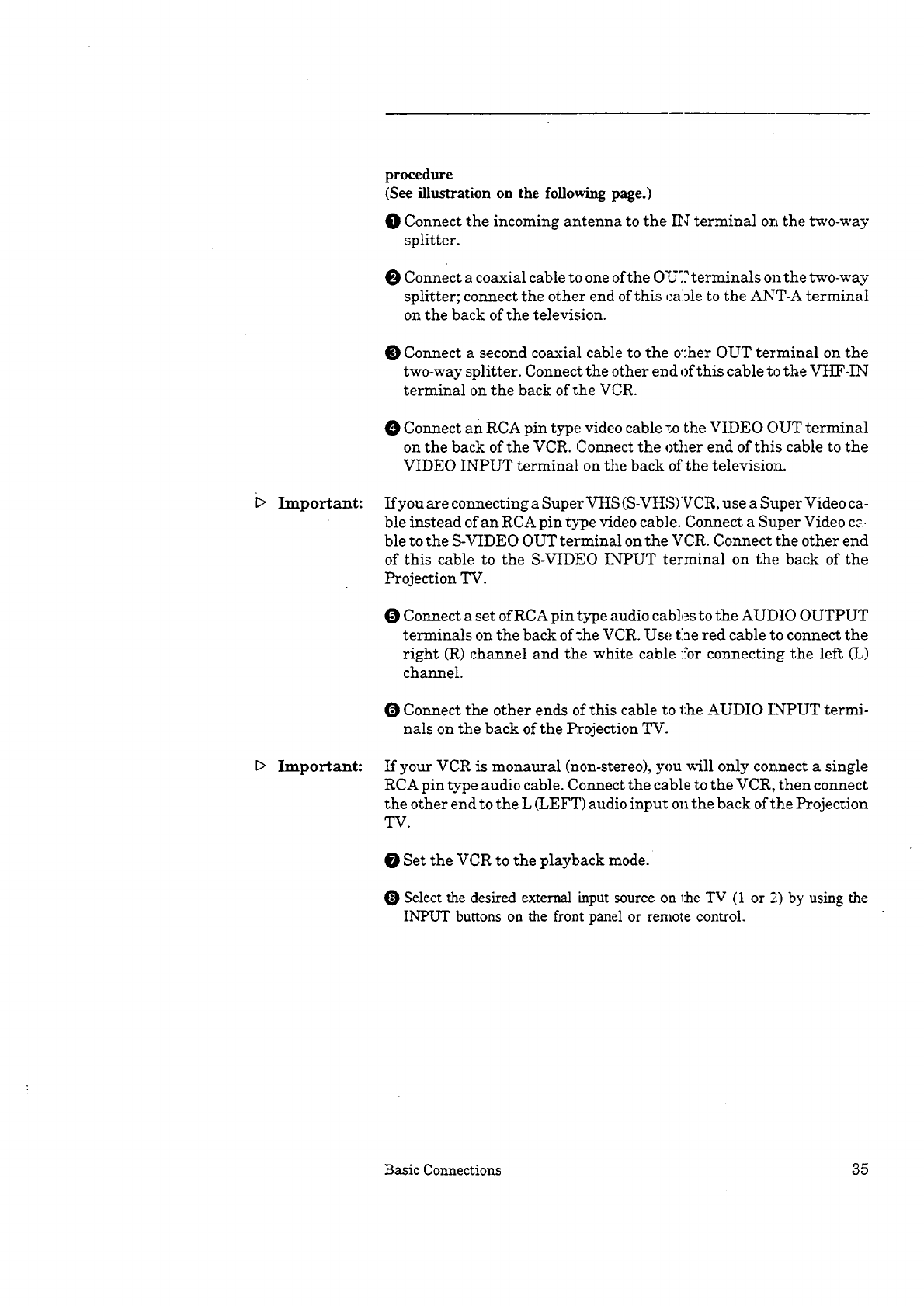
You may want to connect a VCR along with your antennas or cable. To
complete this hook-up, you may need the following equipment.
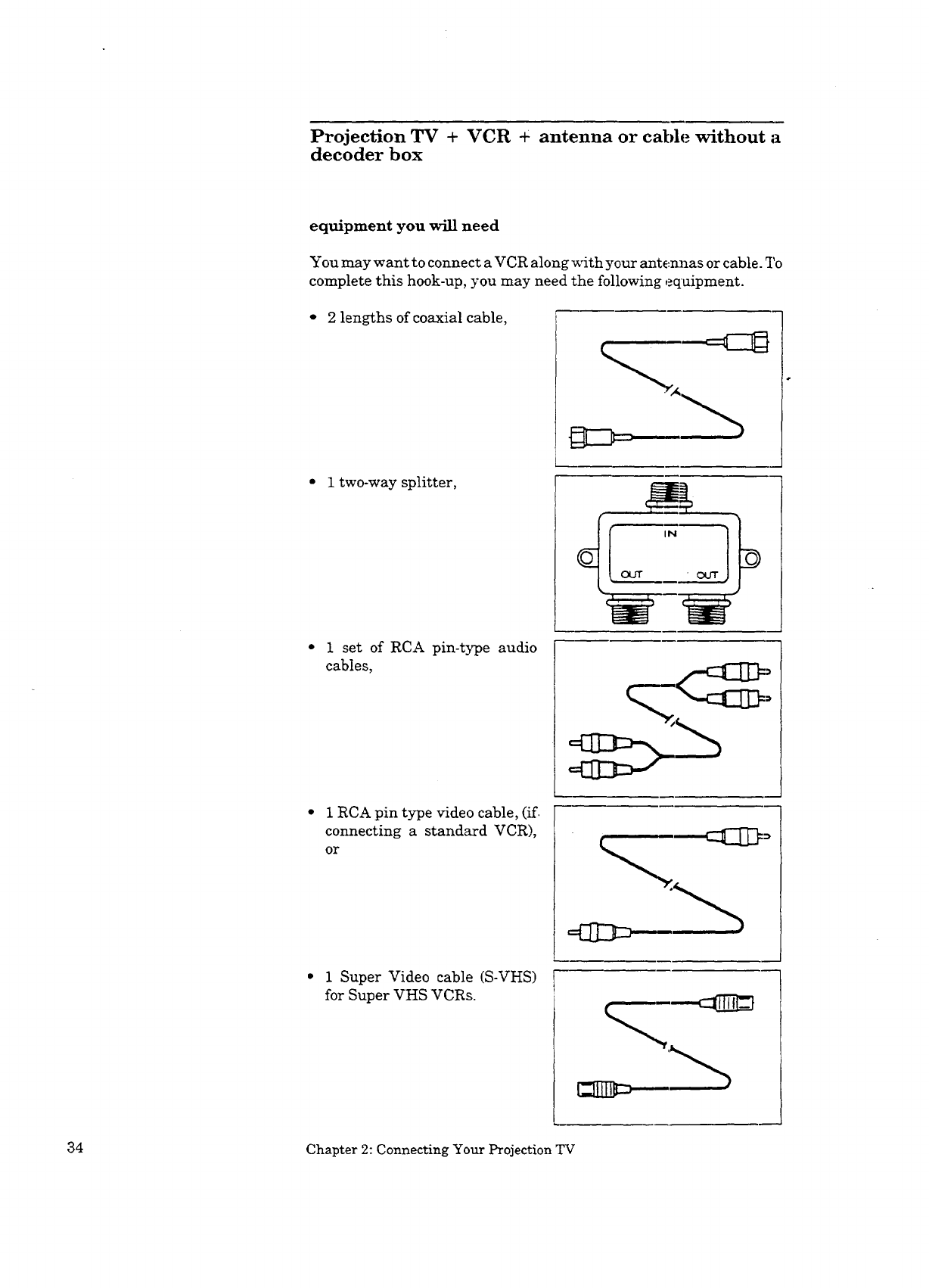
2 lengths of coaxial cable,
itwo-way splitter,
1 set of RCA pin-type audio
cables,
1 RCA pin type video cable, (if_
connecting a standard VCR),
or
1 Super Video cable (S-VHS)
for Super VHS VCRs.
34 Chapter 2: Connecting Your Projection TV
_>
Important:
Important:
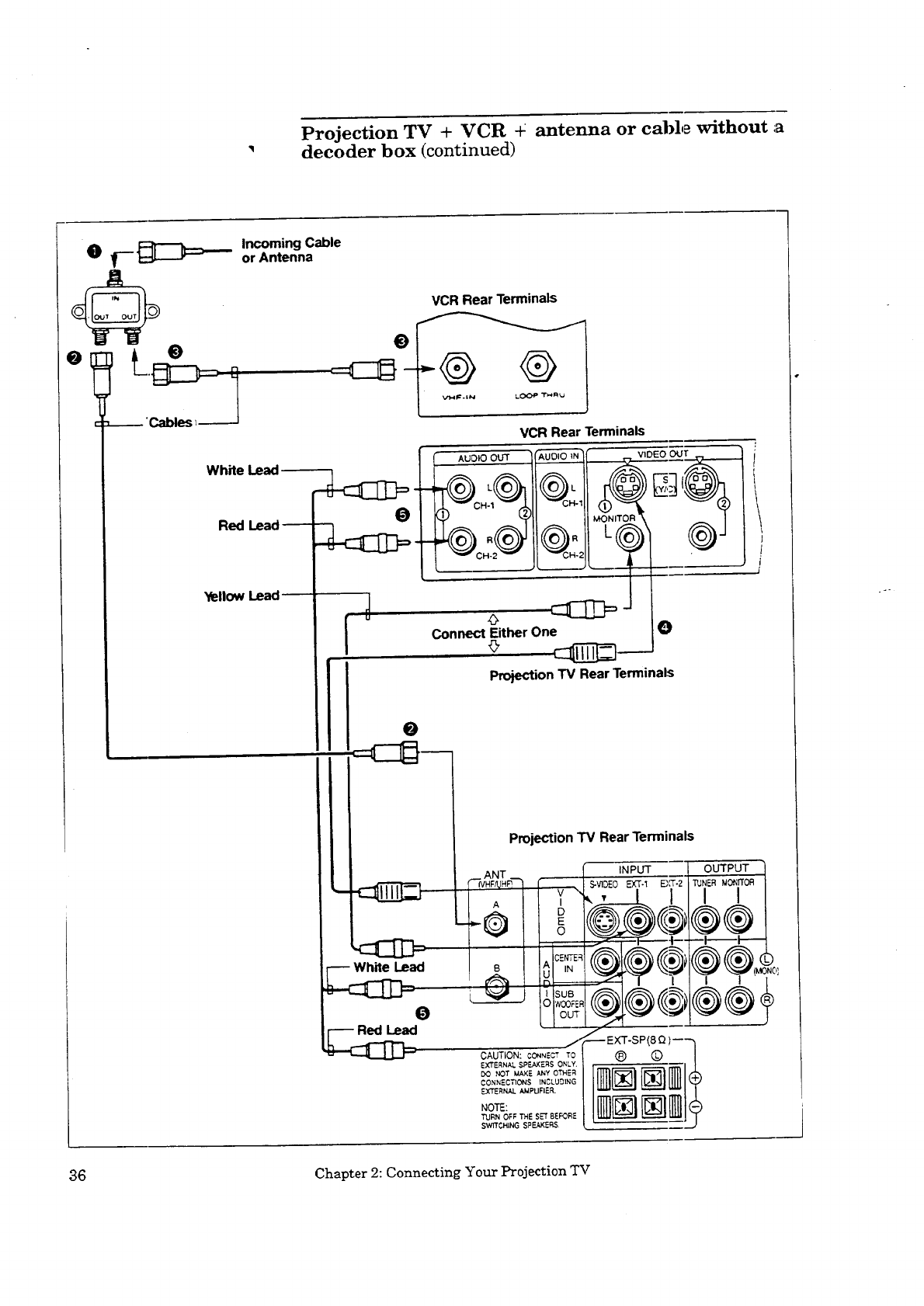
procedure
(See illustration on the following page.)
OConnect the incoming antenna to the IN terminal on the two-way
splitter.
O Connect a coaxial cable to one of the OU:? terminals on the two-way
splitter; connect the other end of this cable to the ANT-A terminal
on the back of the television.
Connect a second coaxial cable to the ol:her OUT terminal on the
two-way splitter. Connect the other end of this cable to the VHF-IN
terminal on the back of the VCR.
Connect an RCA pin type video cable _o the VIDEO OUT terminal
on the back of the VCR. Connect the other end of this cable to the
VIDEO INPUT terminal on the back of the televisio_a.
If you are connecting a Super VHS (S-VHS)VCR, use a Super Video ca-
ble instead of an RCA pin type video cable. Connect a Super Video c_
ble to the S-VIDEO OUT terminal on the VCR. Connect the other end
of this cable to the S-VIDEO INPUT terminal on the back of the
Projection TV.
OConnect a set of RCA pin type audio cables to the AUDIO OUTPUT
terminals on the back of the VCR. Use the red cable to connect the
right (R) channel and the white cable :."orconnecting the left (L)
channel.
O Connect the other ends of this cable to the AUDIO INPUT termi-
nals on the back of the Projection TV.
If your VCR is monaural (non-stereo), you will only connect a single
RCA pin type audio cable. Connect the cable to the VCR, then connect
the other end to the L (LEFT) audio input on the back of the Projection
TV.
Set the VCR to the playback mode.
0 Select the desired external input source on the TV (1 or 2) by using the
INPUT buttons on the front panel or remote control.
Basic Connections 35
Projection TV + VCR -_ antenna or cable without a
decoder box (continued)
oIncoming Cable
or Antenna
VCR Rear Terminals
White Lead
Red Lead
YellowLead,
VCR Rear Terminals
AUDIO OUT
CH-1
J
iConnect Either One
0
Projection TV Rear Terminals
AUDIO _"--'-----_(_ VIDEO (ZP,.,rT
Projection TV Rear Terminals
INPUT OUTPUT
S-VIDEO _9(r.I _,'T-2 TUNER MONffOR
I I
j'
CAUTION: CONNECT TO
EXTERNAL SPEAKERS ONLY.
DO NOT k_AXE ANY OTHE_
CONNEC_ONS {NCLUDING
_('T£_NAL _,MPURE_.
NOTE:
T_JRN OF_ THE SET 6EF<_RE
swrr CHING SPEAKERS
36 Chapter 2: Connecting Your Projection TV
Projection TV + VCR + antenna or cable with a
decoder box
equipment you'll need
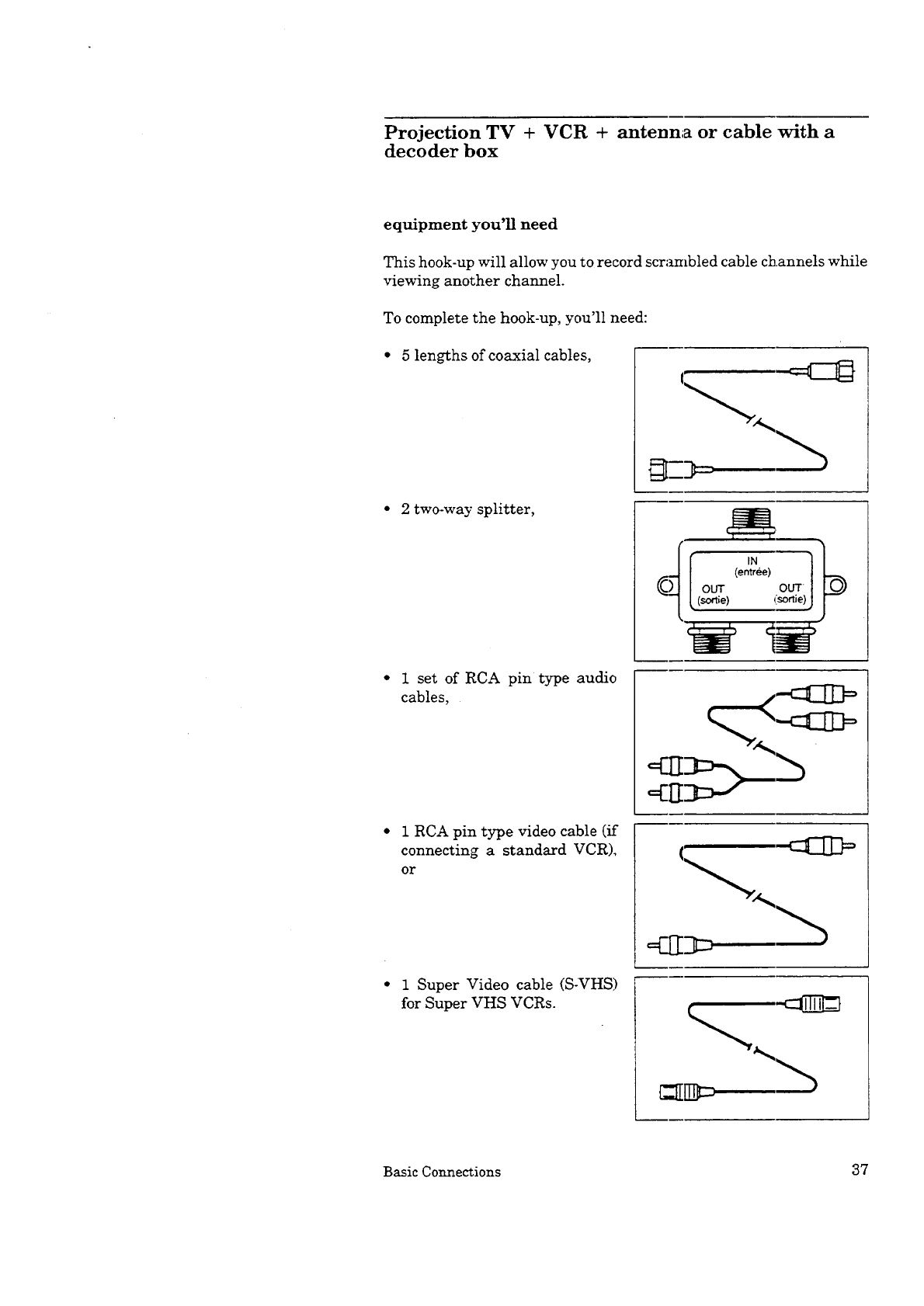
This hook-up will allow you to record scrambled cable channels while
viewing another channel.
To complete the hook-up, you'll need:
5 lengths of coaxial cables,
2 two-way splitter,
1 set of RCA pin type audio
1RCA pin type video cable (if --___
connecting a standard VCR),
or
1 Super Video cable (S-VHS)
for Super VHS VCRs.
Basic Connections 37
_>
_>
Important:
Important:
Projection TV + VCR + antenna or cable with a
decoder box (continued)
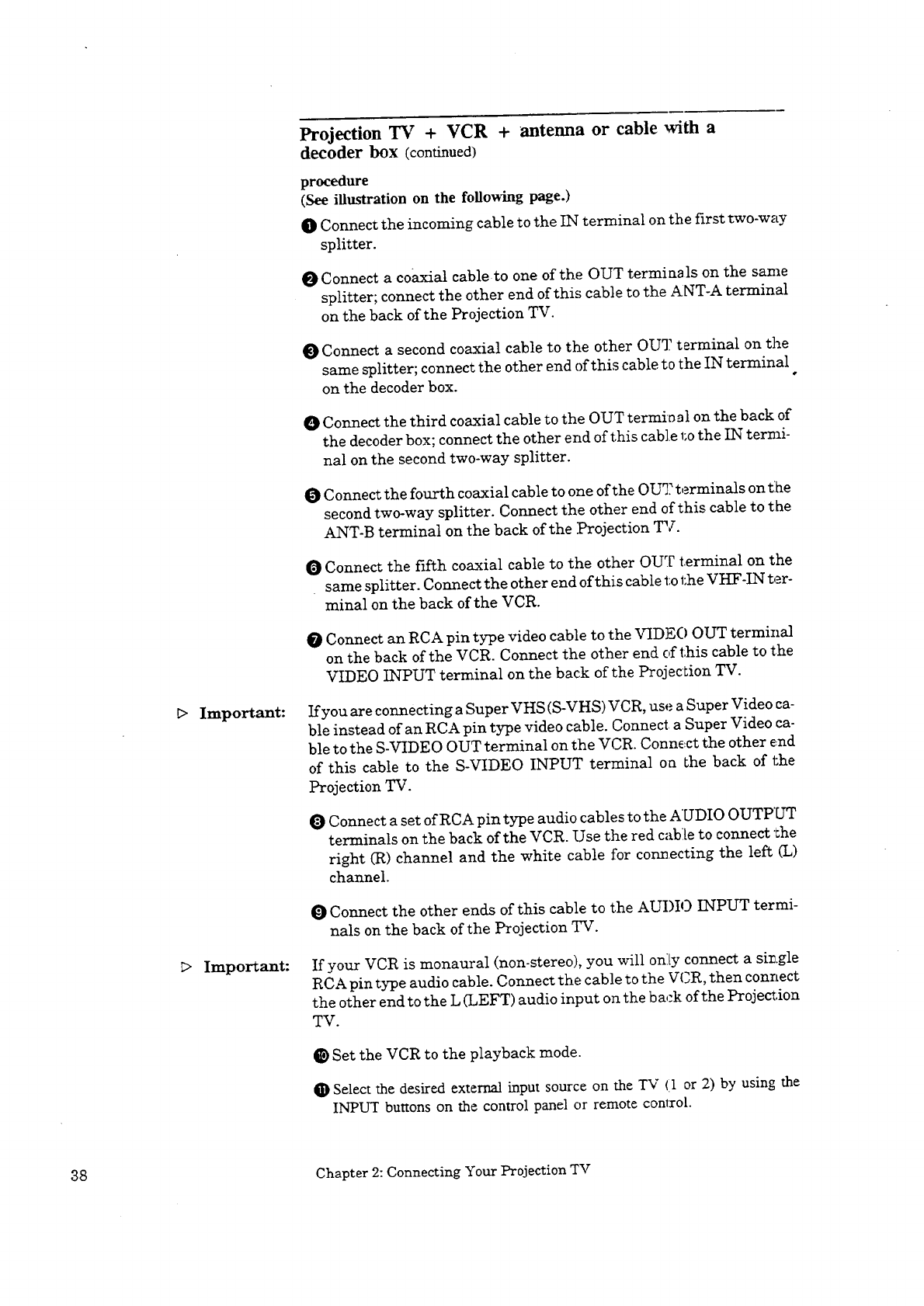
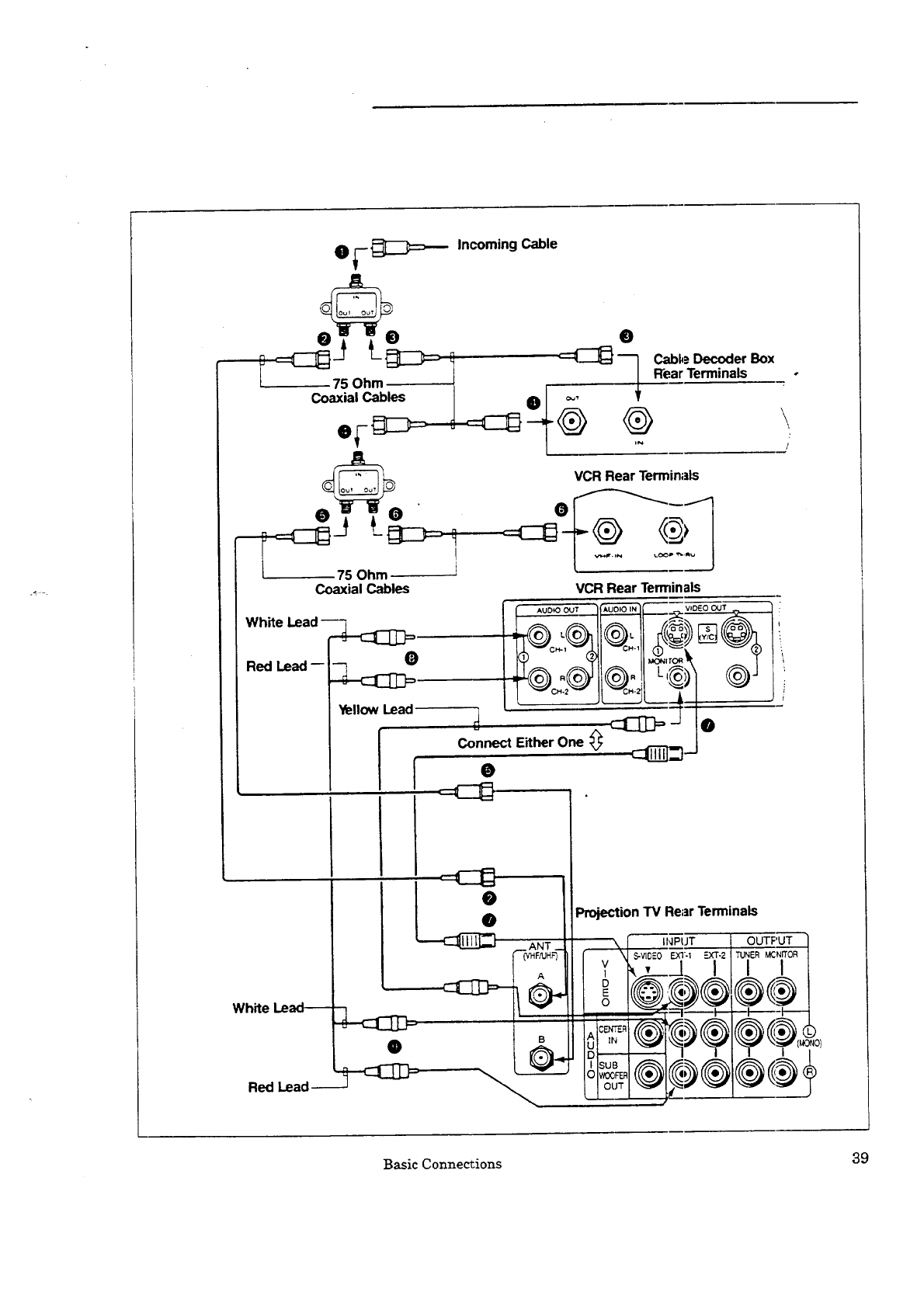
procedure
(See illustration on the following page.)
0Connect the incoming cable to the IN terminal on the first two-way
splitter.
O Connect a coaxial cableto one of the OUT termiasls on the same
splitter; connect the other end of this cable to the ANT-A terminal
on the back of the Projection TV.
O Connect a second coaxial cable to the other OUT terminal on the
same splitter; connect the other end of this cable to the IN terminal
on the decoder box. "
O Connect the third coaxial cable to the OUT termi sal on the back of
the decoder box; connect the other end of this cab].e to the IN termi-
nal on the second two-way splitter.
Connect the fourth coaxial cable to one of the Ol.Y]:terminals on title
second two-way splitter. Connect the other end of this cable to the
ANT-B terminal on the back of the .Projection TV.
0 Connect the fifth coaxial cable to the other OUT terminal on the
same splitter. Connect the other end of this cable to the VHF-IN ter-
minal on the back of the VCR.
0Connect an RCA pin type video cable to the VIDE() OUT terminal
on the back of the VCR. Connect the other end of this cable to the
VIDEO INPUT terminal on the back of the Projection TV.
If you are connecting a Super VHS (S-VHS) VCR, use a Super Video ca-
ble instead of an RCA pin type video cable. Connect a Super Video ca-
ble to the S-VIDEO OUT terminal on t:he VCR. Connect the other end
of this cable to the S-VIDEO INPUT terminal on the back of the
Projection TV.
0 Connect a set of RCA pin type audio cables to the AUDIO OUTPUT
terminals on the back of the VCR. Use the red cable to connect :_he
right (R) channel and the white cable for connecting the left (L)
channel.
0 Connect the other ends of this cable to the AUDIO INPUT termi-
nals on the back of the Projection TV.
If your VCR is monaural (non-stereo), you will only connect a single
RCA pin type audio cable. Connect the cable to the VCR, then connect
the other end to the L (LEFT) audio input on the back of the Projection
TV.
O Set the VCR to the playback mode.
Select the desired external input source on the TV (1 or 2) by using the
INPUT buttons on the control panel or remote conlxol.
38 Chapter 2: Connecting Your ProjectionTV
e_-_ Incoming Cable
I, I
Coaxial Cab____F: _ •
!
.... 75 Ohm ]
Coaxial Cables
White Lead
Red Lead-
YellowLead
i
0
]Cable Decoder Box
Rear Terminals
-@ @
VCR Rear Terminals
VCR Rear Terminals
_f'@:© tl@_!f'-,,__1 @-'i
d'-------: -----: J
_- •
Connect Either One #
0
White Lead--
Red Lead
ANT _
(VHF_JH_
A
J
B
Projection TV Rear Terminals
INPUT
\S-_DEO EXI._ -:XT.2
Y,' ,A I
OUT __
i
\
/
OUTPUT 1
TUNER MCNITOR
Basic Connections 39
Projection TV + home theater receiver (A/V
receiver)
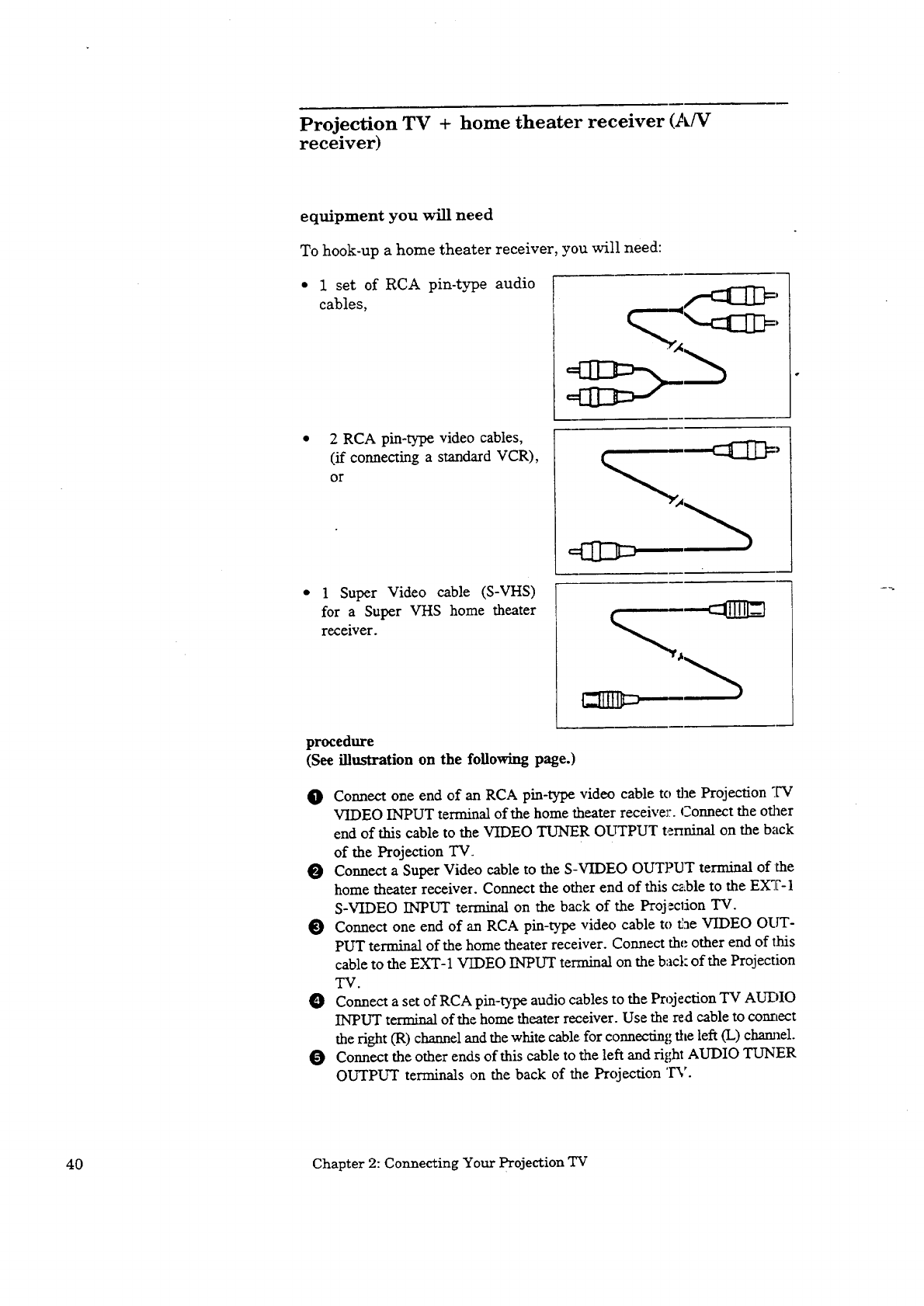
equipment you will need
To hook-up a home theater receiver, you will need:
1set of RCA pin-type audio
cables,
2 RCA pin-type video cables,
(if connecting a standard VCR),
or
u
=C3=
• 1 Super Video cable (S-VHS)
for a Super VHS home theater
receiver.
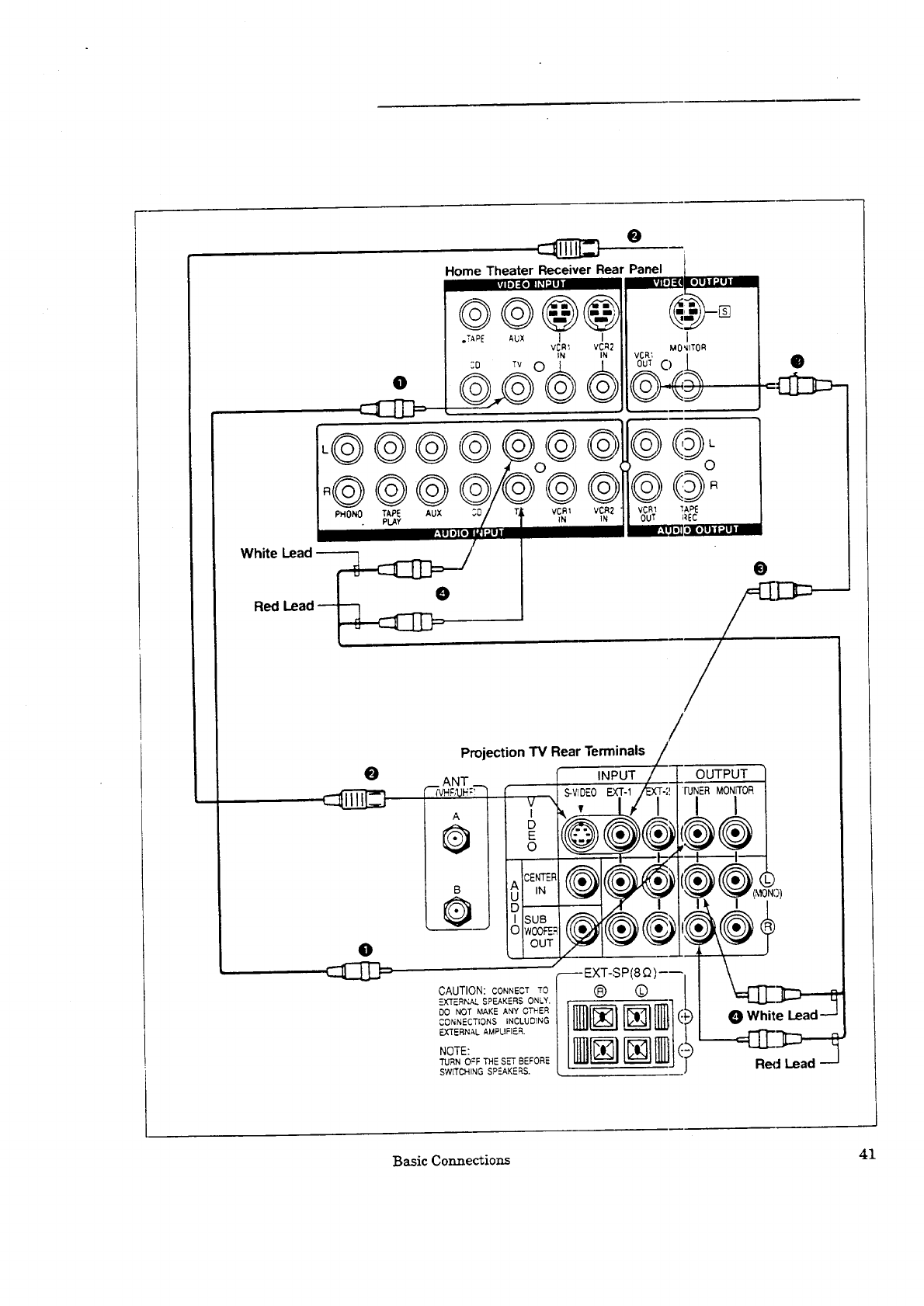
procedure
(See illustration on the following page.)
O Connect one end of an RCA pin-type video cable to the Projection TV
VIDEO INPUT terminal of the home theater receiveJ:. Connect the other
end of this cable to the VIDEO TUNER OUTPUT terminal on the back
of the Projection TV.
O Connect a Super Video cable to the S-VIDEO OUTPUT terminal of the
home theater receiver. Connect the other end of this c_,ble to the EXT-1
S-VIDEO INPUT terminal on the back of the Proj_clion TV.
Connect one end of an RCA pin-type video cable to fae VIDEO OUT-
PUT terminal of the home theater receiver. Connect the other end of this
cable to the EXT-1 VIDEO INPUT terminal on the back of the Projection
TV.
O Connect a set of RCA pin-type audio cables to the Projection TV AUDIO
INPUT terminal of the home theater receiver. Use the red cable to connect
the right (R) channel and the white cable: for connecting rite left (L) channel.
O Connect the other ends of this cable to the left and right AUDIO TUNER
OUTPUT terminals on the back of the Projection 'I_'.
40 Chapter 2: Connecting Your Projection TV
Home Theater Receiver Rear
II ,=,]=Lo_=q
®®@@
.TAr'E AUX I I
VCR _ VC,_2
IN IN
e.G°®® I
vCR; MO',ItTOR
_c) I
L®®®®_Oe®
_®®®®/®®9
White Lead
O
Red Lead- "--_
@@o
VCR'I ]APE
OuT _'IEC
:Illo]l#XolIltI ;,,1.II
0
/
@
Projection TV Rear Terminals
INPUT
---EXT-SP(8 _)----
CAUTION: CONNECT TO (_) (_
CONNECTIONS INCLUDtNG
EXTERNAL AMPLIFIER.
TURN O:F THE SET BEFORE
SWITCHING SPEAKERS.
OUTPUT
®
Red Lea
Basic Comzections 41
Projection TV + audio system
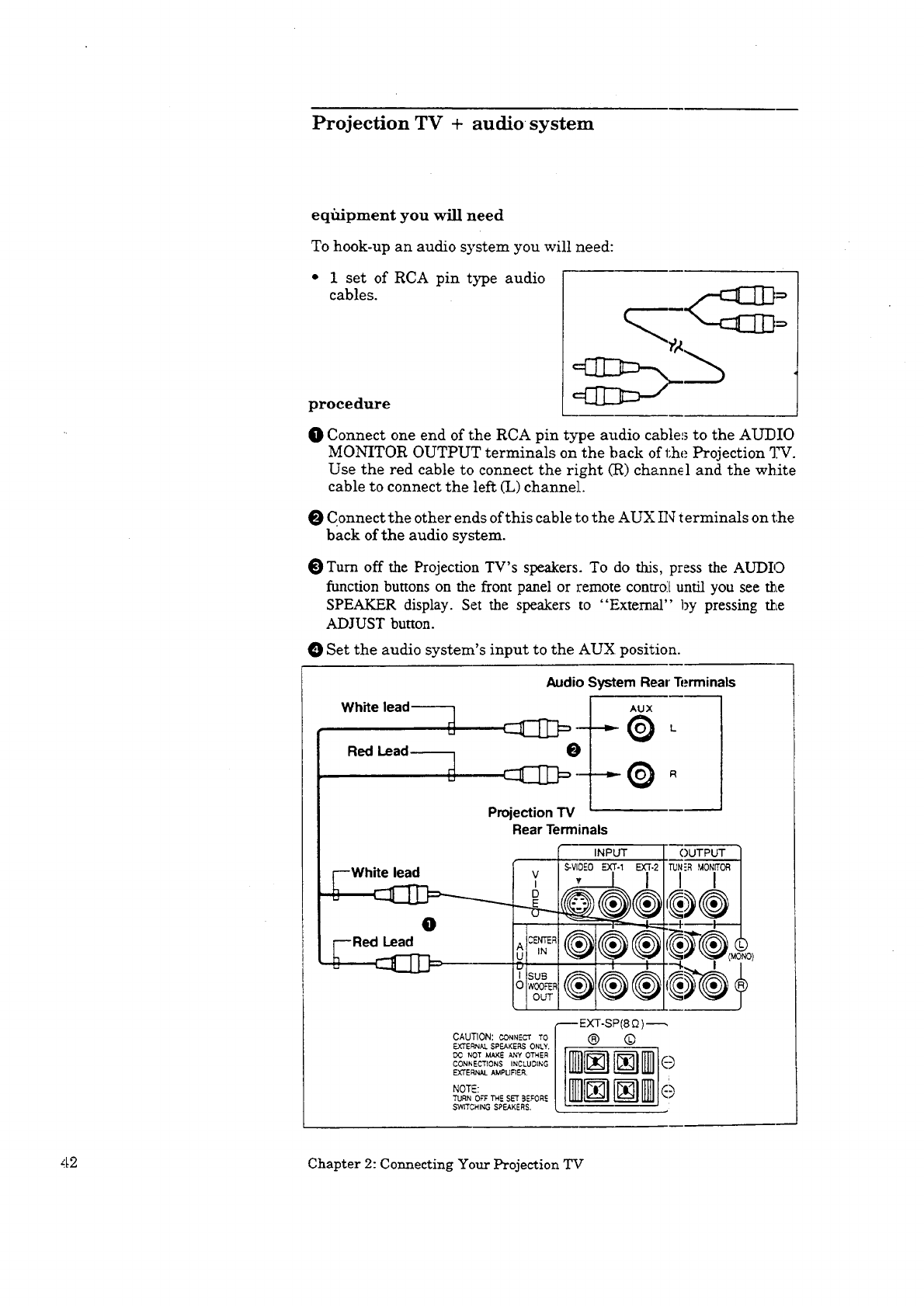
equipment you will need
To hook-up an audio system you will need:
•1set of RCA pin type audio
cables.
procedure
O Connect one end of the RCA pin type audio cables to the AUDIO
MONITOR OUTPUT terminals on the back of 1:he Projection TV.
Use the red cable to connect the right (R) channel and the white
cable to connect the left (L) channel.
Connect the other ends of this cable to the AUX IN terminals on the
back of the audio system.
OTurn off the Projection TV's speakers. To do this, press the AUDIO
function buttons on the front panel or remote control[ until you see the
SPEAKER display. Set the speakers to "External" by pressing the
ADJUST button.
Set the audio system's input to the AUX position.
Audio System Real'Terminals
AUX
Projection TV
Rear Terminals
INPUT
S-VIDEO _T-1 EXT.2
D
0
®®®
OUT
OUTPUT 1
TUN'R MONITOR
CAUTION: CONNECTTO I"---EXT'SP(8£_ )_
_ NOT M._E _d_YOT_ER
CONN ECT[CNS INCLUDING
EXTERNAL AMPUF_ER.
TURN OFF TM=. SET _EFORE
SWITCHING SPEAKERS.
42 Chapter 2: Connecting Your Projection TV
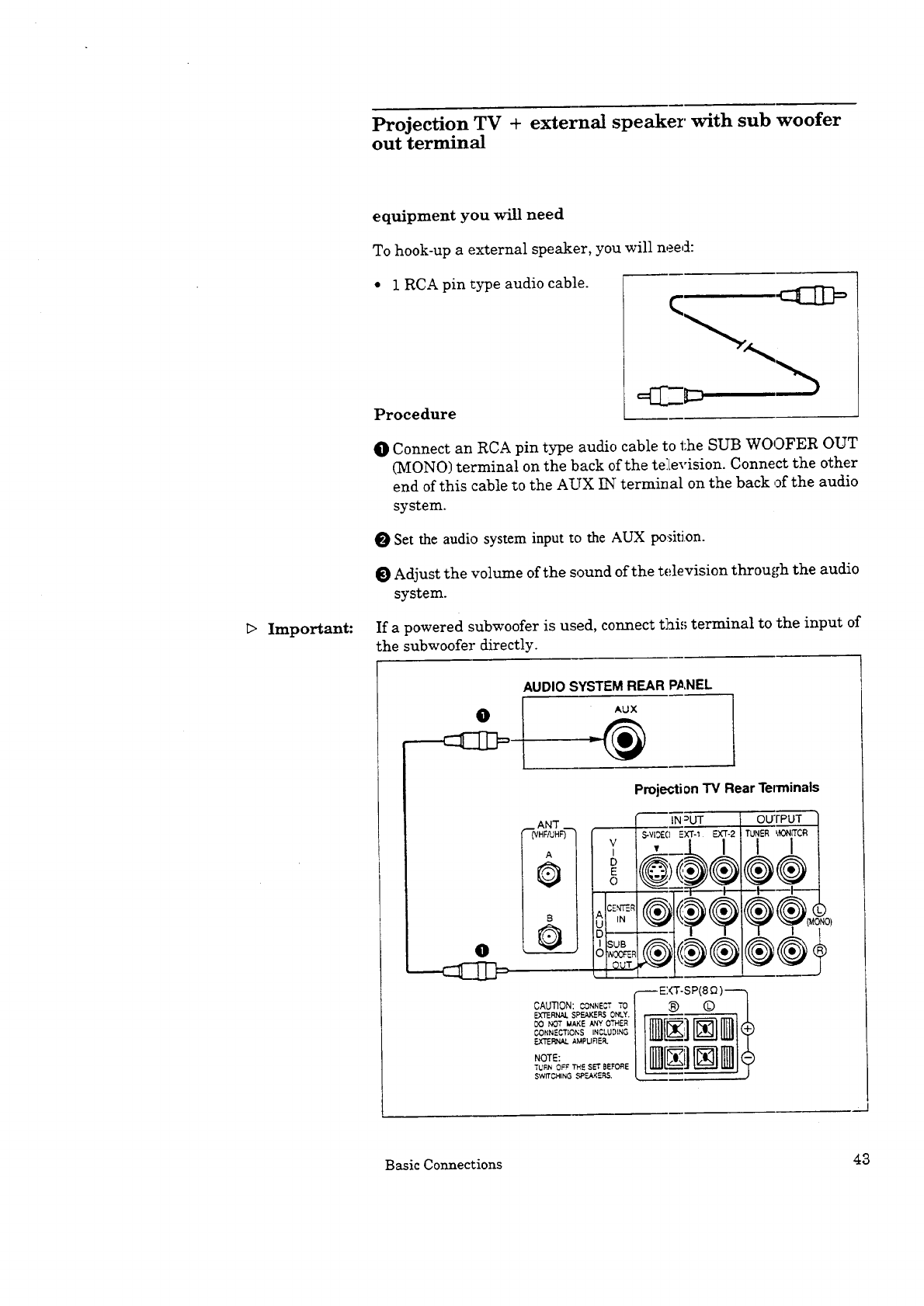
Projection TV + external speaker with sub woofer
out terminal
Important:
equipment you will need
To hook-up a external speaker, you will need:
• 1 RCA pin type audio cable.
Procedure
q
O Connect an RCA pin type audio cable to the SUB WOOFER OUT
(MONO) terminal on the back of the te:Levision. Connect the other
end of this cable to the AUX IN terminal on the back of the audio
system.
Set the audio system input to the AUX posit£on.
Adjust the volume of the sound of the television through the audio
system.
If a powered subwoofer is used, connect this terminal to the input of
the subwoofer directly.
AUDIOSYSTEMREAR PANEL
AUX
,_: ANT
{VHFAJHF")
A
0
I
I
B
0 _
v
0
CE,,rr_=RI
U IN
SUB !
OWOOFER
OUT
OAUT]ON: _..ONNE_'? TO
EXTERNAL $PF.AKEI_SONLY.
DO NOT MAKE ANY OTHER
CONNECTIONS INCLUDING
EXTERNAL AMPURER.
NOTE:
TURN OFF TH£ SET BEFORE
SWIT C_-IINGSP_C_R&
Projection TV Rear Ten_inals
tN =UT
S-vi3E EXT-1 EXT.2
® ,
OUTPUT
TUNER £1ON(TOR
I I
®®
_--_1-----
-- EXT-SP(8 _)----- h
NN NNI
Basic Connections 43
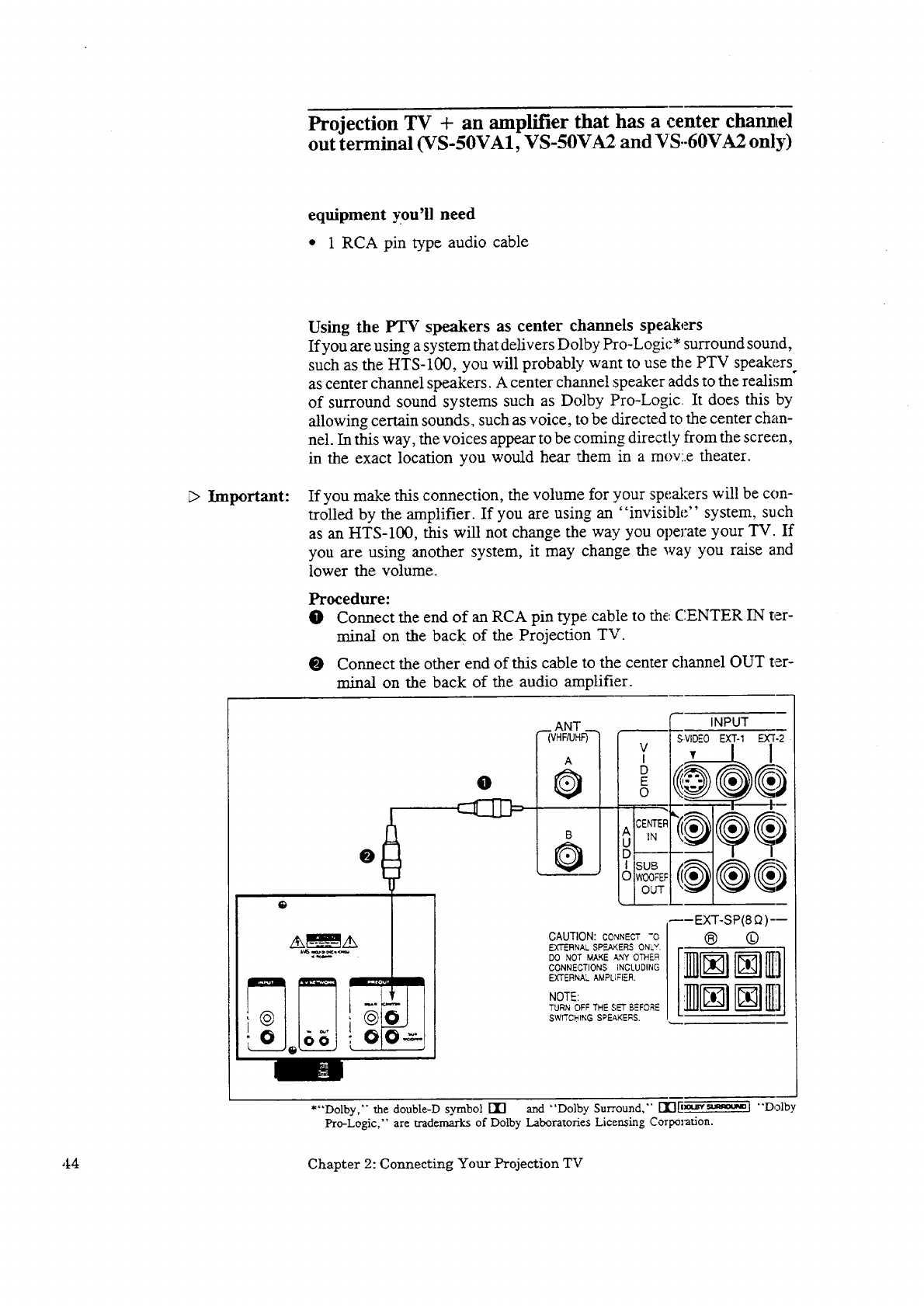
Projection TV + an amplifier that has a center charmel
out terminal (VS-50VA1, VS-50VA2 and VS.-60VA2 only)
equipment you'll need
• 1 RCA pin type audio cable
E>Important:
Using the PTV speakers as center channels speakers
If you are using a system that delivers Dolby Pro-Logic* surround sound,
such as the HTS-100, you will probably want to use the PTV speakers°
as center channel speakers. A center channel speaker adds to the realism
of surround sound systems such as Dolby Pro-Logic It does this by
allowing certain sounds, such as voice, to be directed to the center chan-
nel. In this way, the voices appear to be coming directly from the screen,
in the exact location you would hear them in a mov:.e theater.
If you make this connection, the volume for your speal:ers will be con-
trolled by the amplifier. If you are using an "invisible." system, such
as an HTS-IO0, this will not change the way you operate your TV. If
you are using another system, it may change the way you raise and
lower the volume.
Procedure:
O Connect the end of an RCA pin type cable to the CENTER IN ter-
minal on the back of the Projection TV.
O Connect the other end of this cable to the center channel OUT ter-
minal on the back of the audio amplifier.
@
7Sti'
.
_AN7"
(VHF/UHF) I V
I
D
E
O
I ISUB
CAUTION: CONNECT "O
EXTERNAL SPEAKERS ONLY.
DO NOT MAKE ANY OTHER
CONNECTIONS iNCLUDING
EXTERNAL AMPLIFIER.
NOTE:
TURN OFF THE SET BEFORE
swrI"CI_INGSPEAKERS.
INPUT
S-VIDEOEXT-1 EX3".2
----EXT-SP(8 Q )---
® ©
*"Dolby,'" the double-D symbol [I] and "'Dolby Surround," rl"l[i_t_'=_,_H "'Dolb
Pro-Logic," are trademarks of Dolby Laboratories Licensing Corporation.
,14 Chapter 2: Connecting Your Projection TV


CHAPTER 3
Operating Your Projection TV
Now that your TV is connected to the cable, antennas, or e_:temal compo-
nents, it's time to enjoy your equipment. Tkis chapter will explain how to
operate the TV, first focusing on functions thai: are basic and easy and then
explaining some advanced features.
This chapter explains:
•Getting Started
•Using the Advanced Features
_ Getting Started
This section is designed to get you started enjoying your new Projection
TV. If you follow these procedures one by one, you will soon have
a picture and can begin discovering everylhing yourPrc,je.:tion TV can do.
You will fred information on:
• Programming the remote control,
• Turning the Projection TV on/off,
•Selecting the input source,
• Changing channels,
• Setting the clock,
•Memorizing channels,
•Adding/deleting channels,
• Using home theater
• Renaming the inputs,
• Adjusting the color alignment
• Adjusting the sound, and
• Adjusting the picture
48 Chapter 3: Operating Your Projection TV
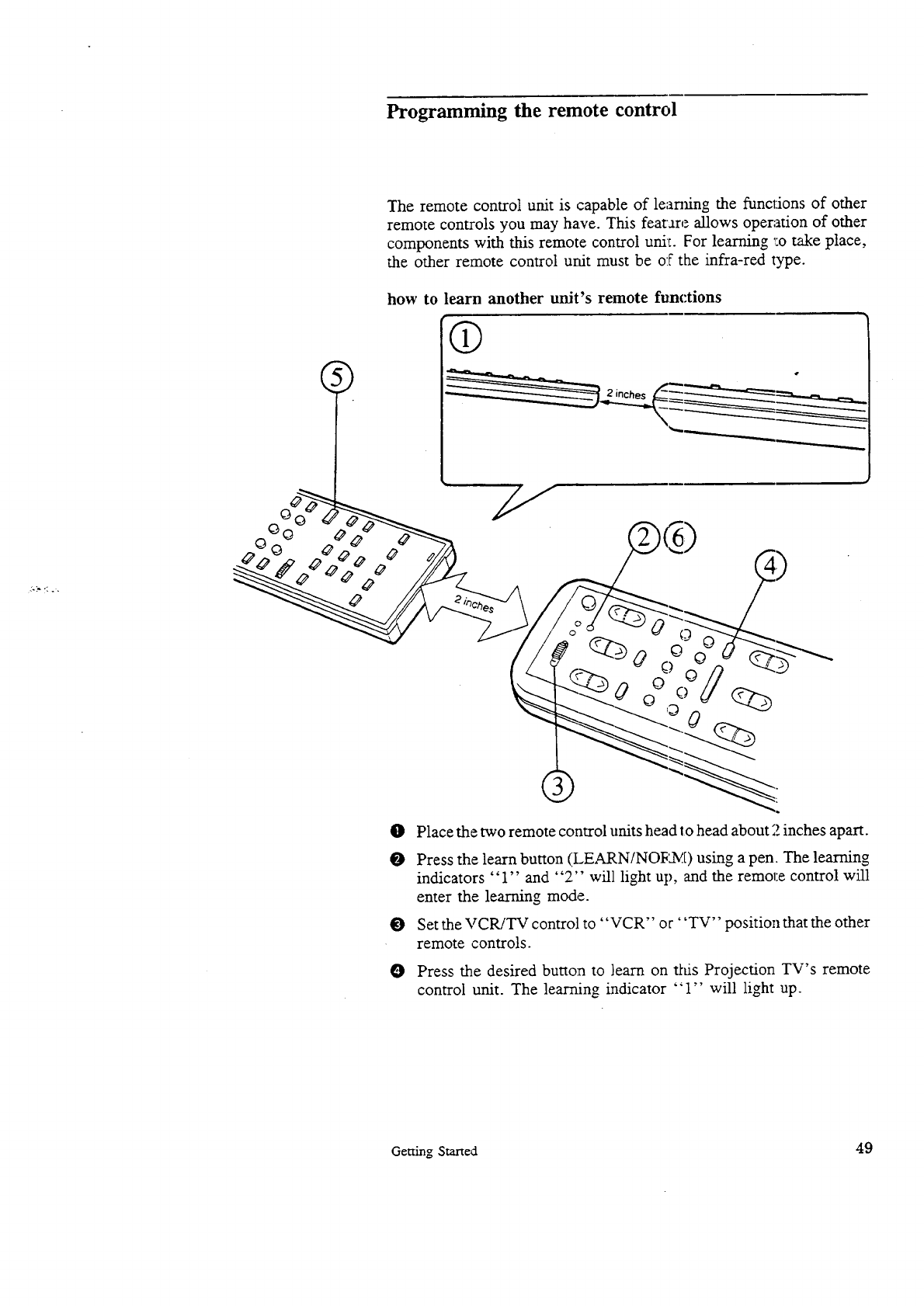
Programming the remote control
The remote control unit is capable of learning the functions of other
remote controls you may have. This fearare allows operation of other
components with this remote control uni;. For learning _:otake place,
the other remote control unit must be of the infra-red type.
how to learn another unit's remote functions
OPlace the two remote control units head to head about 2 inches apart.
OPress the learn button (LEARN/NOI_tM) using a pen. The learning
indicators "1" and "2" will light up, and the remol:e control will
enter the learning mode.
OSet the VCR/TV control to "VCR" or' 'TV" position that the other
remote controls.
OPress the desired button to learn on this Projection TV's remote
control unit. The learning indicator "1" will light up.
Getting Started 49
Programming the remote control (cont.)
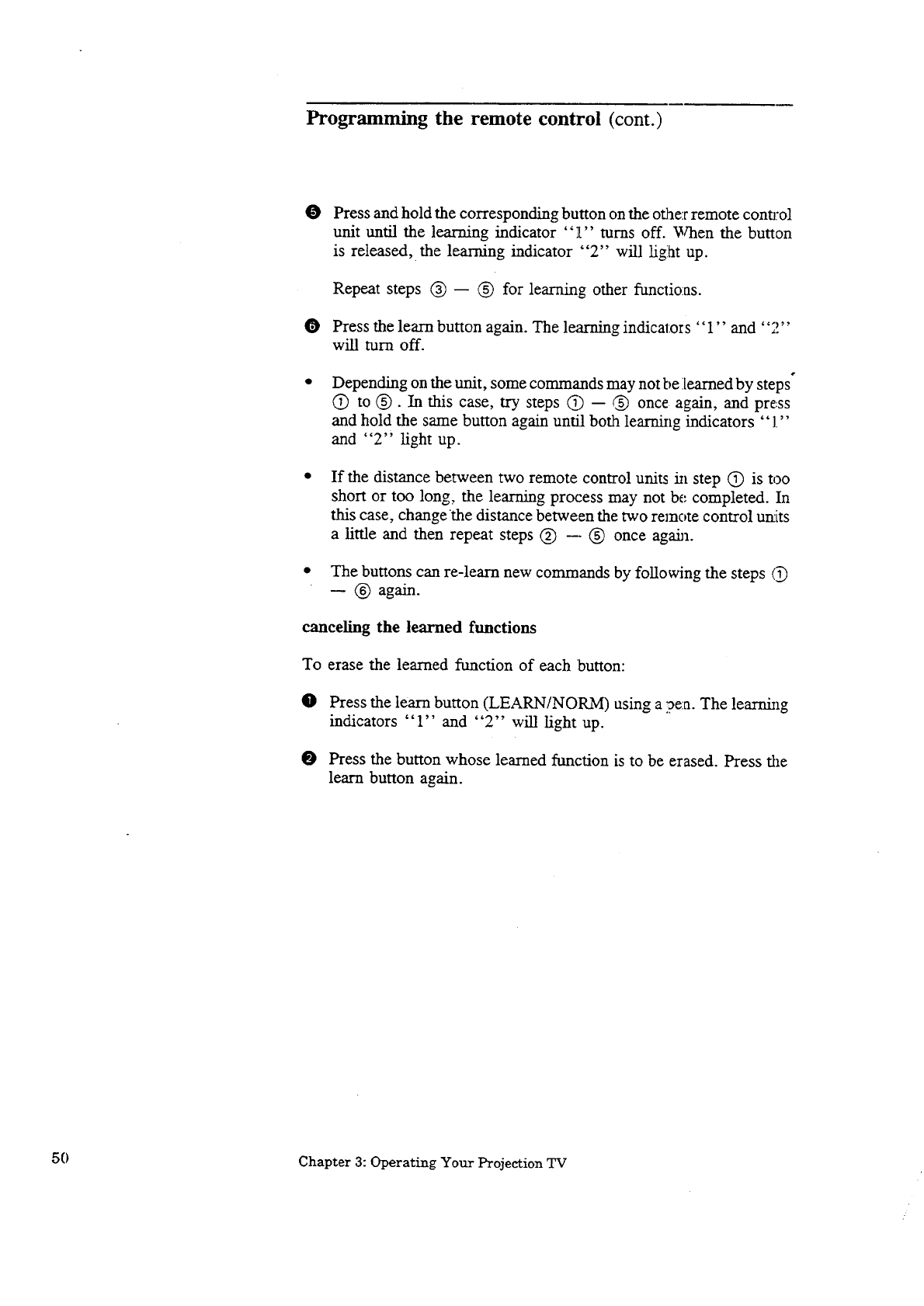
O Press and hold the corresponding button on the other remote conl_'ol
unit until the learning indicator "1" turns off. "¢_en the button
is released, the learning indicator "2" will light up.
Repeat steps @ -- @ for learning other funclioas.
• Press the learn button again. The learning indicators "1" and "2"
will turn off.
Depending on the unit, some commands may not be learned by steps
@ to @. In this case, try steps @ -- @ once again, and press
and hold the same button again until both learning indicators "1"
and "2" light up.
If the distance between two remote control units in step (_) is too
short or too long, the learning process may not be completed. In
this case, changethe distance between the two remote control umts
a little and then repeat steps @ --- @ once ag_a.
• The buttons can re-learn new commands by following the steps (3
-- (_) again.
canceling the learned functions
To erase the learned function of each button:
•Press the learn button (LEARN/NORM) using a pen. The learnfllg
indicators "1" and "2"' will light up.
O Press the button whose learned function is to be erased. Press the
learn button again.
50 Chapter 3: Operating Your Projection TV
_> Important: 0 Change the batteries regularly. If you don't, you may lose the learned
memory. We suggest you change the batteries after about 10 months of
use (though their life is approximately one year).
The learning in step _ may not be completed when the learning in-
dicators "1" and "2" flash under the following conditions:,
•Ifthe batteries ofthe remote control unit whose commands are to be
learned have run low
-- Replace with new fresh batteries.
• If all or some commands cannot be learned by the remote control
unit.
If the command is difficult to learn or _;he memory capacity of the
unit has been exceeded (that is, if the leveled command code is com-
plex, the learnable number of commands :may become less than the
learnable number of buttons).
-- Erase all the commands that have already been learned, and
start over again. (It is recommended Lhat the most frequently
used commands be learned first.)
If the units are far apart or too close, the unit may misread the light
from the other and fill its memory capacity with meaningless
commands.
-- Erase all learned commands, change slightly the distance be-
tween the units and start over again.
O Similar problems can also arise when the sensor i_';exposed to
strong light from fluorescent fLxtures and other powe:fful sources.
Getting Started 51
Turning the Projection TV on]off
E> Im_rtant:
_> Important:
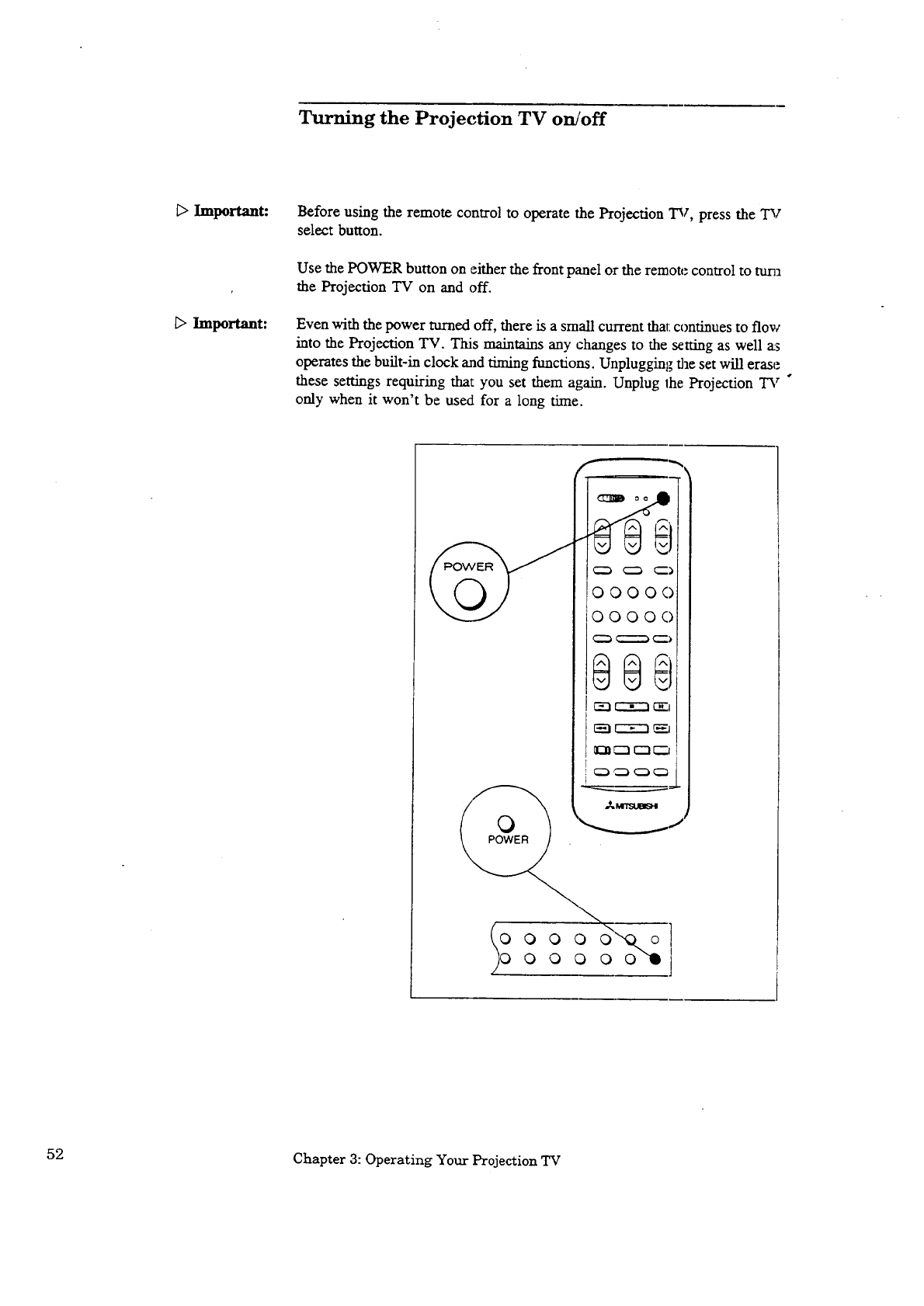
Before using the remote control to operate the Projection TV, press the "I31
select button.
Use the POWER button on either the front panel or the remote control to tuna
the Projection TV on and off.
Even with the power turned off, there is a small current that:continues to flow
into the Projection TV. This maintains any changes to the setting as well as
operates the built-in clock and timing functions. Unplugging the set will erase
these settings requiring that you set them again. Unplug lhe Projection TV °
only when it won't be used for a long time.
O00OO
OOOO0
ooooooo
52 Chapter 3: Operating Your Projection TV
Selecting the input source
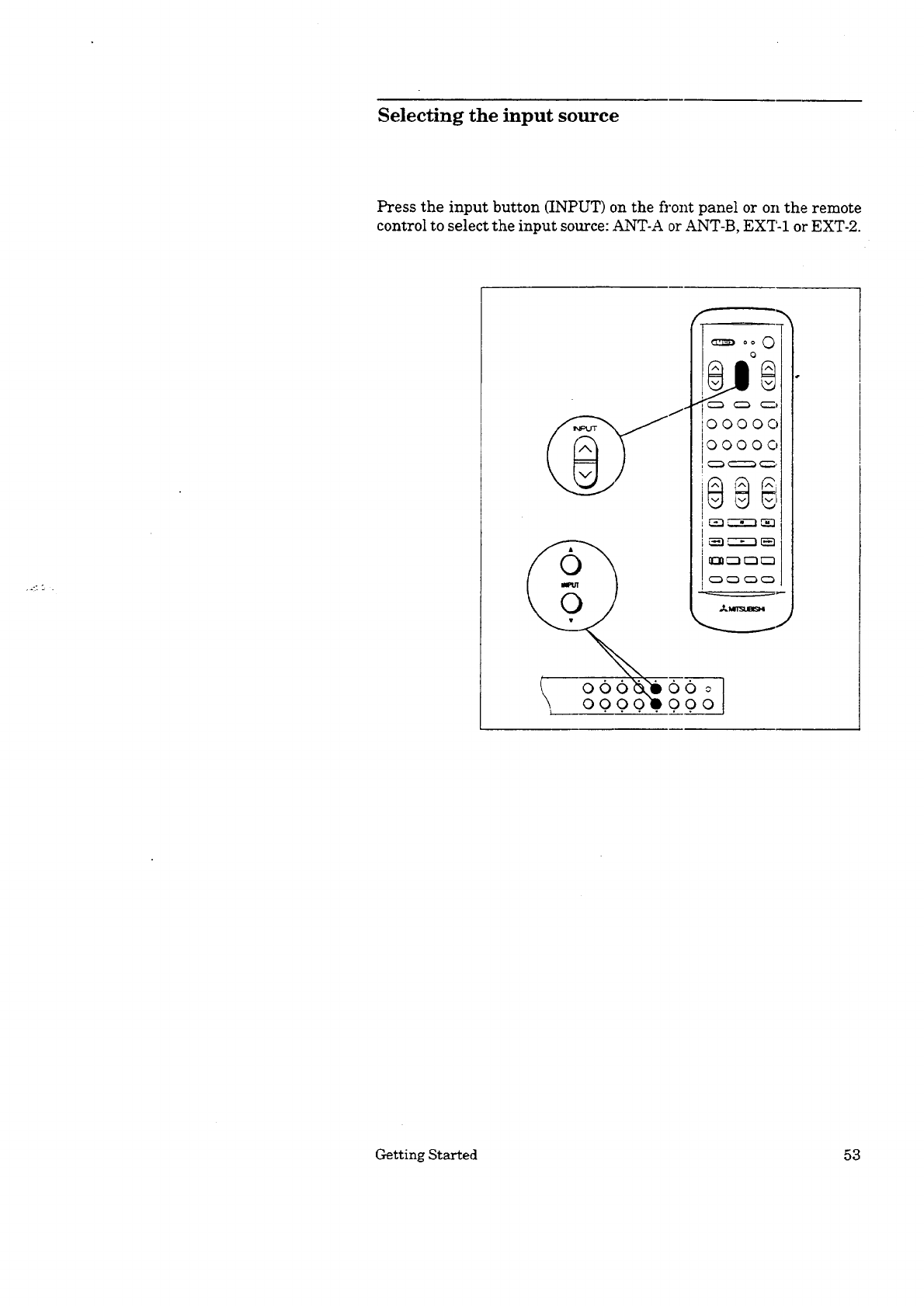
Press the input button (INPUT) on the fi'ont panel or oil the remote
control to select the input source: ANT-A or ANT-B, EXT-I or EXT-2.
•<: "_ .
oo o0o
0000 000
I ......
_J
Getting Started 53
Changing channels
Your Mitsubishi Projection TV offers you three way,,; of changing chan-
nels once their numbers have been programmed into channel memo13r:
• selecting a channel using the automatic channel scan feature,
• directly accessing a channel by pressing the nttmber buttons,
•using the special quick view option _o alternate between the current
channel and the last channel viewed, and
• using the super quick view function to alternate between special
channels programmed for quick viewing.
_> Important:
E> Important:
To change channels faster, use either of the following procedures:
• Enter three digits for every channelnumber, using zeros where needed.
(For example, enter "004" to view channel4 and "028" to view c_la-
nel 28.)
• Press the ENTER button after selecting the number of the channel.
(For example, press "4" and "ENTER" to vJ.ew channel 4.)
Cable stations (CATV) channel numbers 0 and greater than 126 are
unassigned. TV stations (TV) 0, 1 and 70 through 999 are unassigned.
If these channel numbers are pressed, the channel re:_a_tins unchanged.
54 Chapter 3: Operating Your Projection TV
I
.°O1
OOOOOi
O0000[
,_ 0 0 0 0 o
0 0 0 0 0
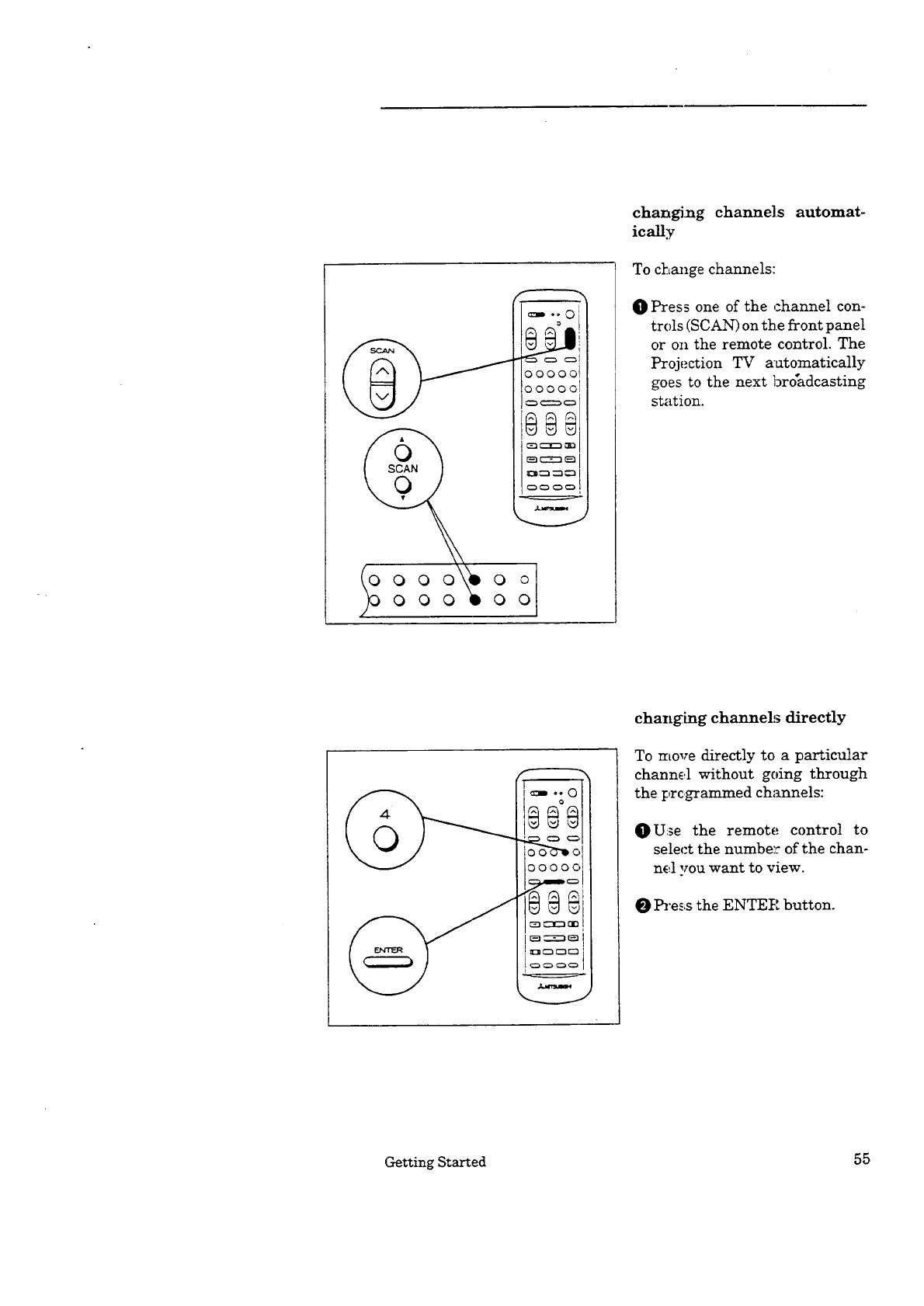
changing channels automat-
ically
To change channels:
O Press one of the channel con-
trols (SCAN) on the front panel
or on the remote control. The
Projection TV aatomatically
goes to the next broadcasting
station.
100(:71t0
changhag channels directly
To move directly to a particular
channel without going through
the prcgrammed ch_mnels:
O Use the remote control to
select the numbe: of the chan-
nel you want to view.
O }h'ess the ENTE}_ button.
Getting Started 55
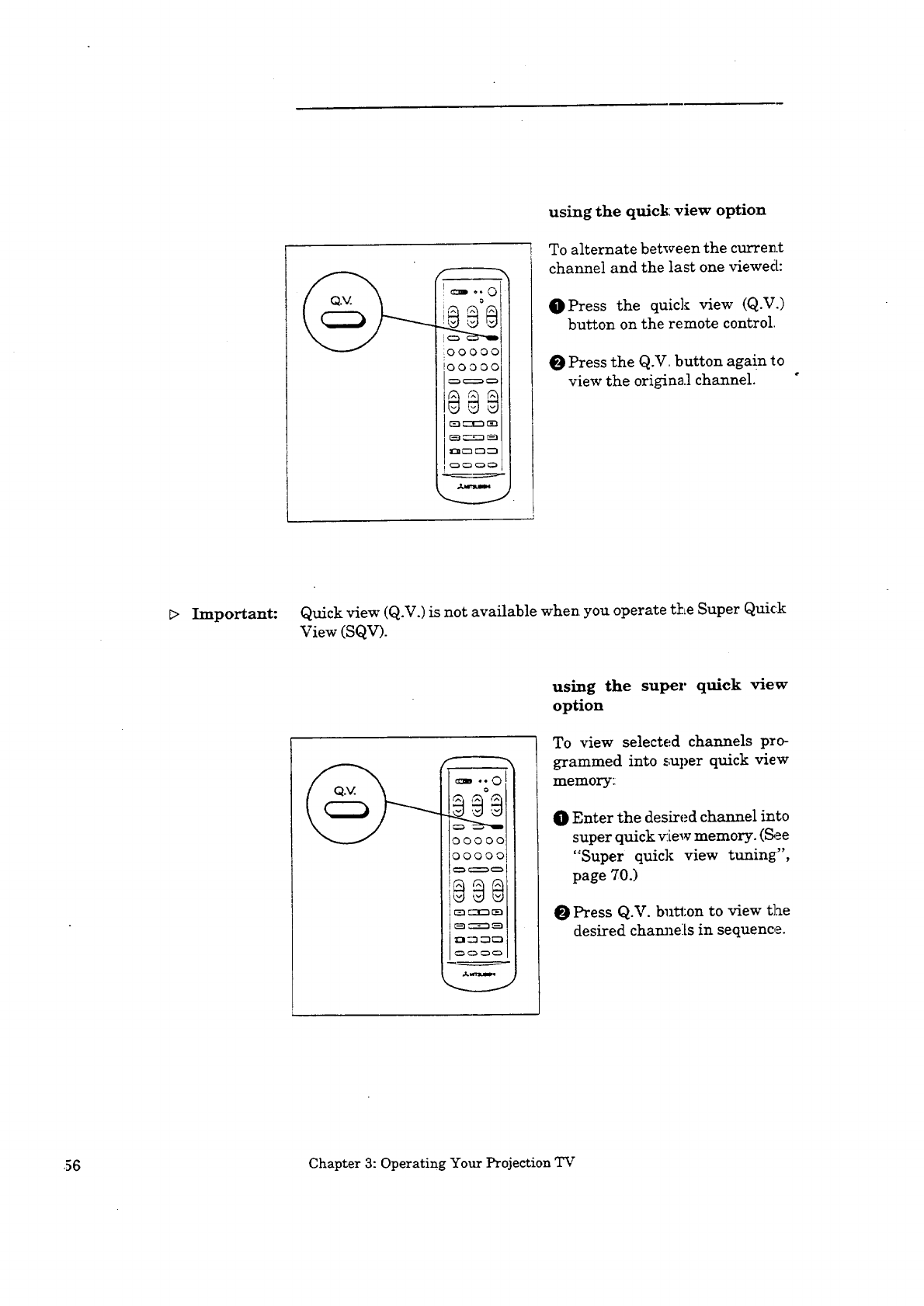
using the quick: view option
To alternate between the currer.t
channel and the last one viewed:
O Press the quick view (Q.V.)
button on the remote control.
O Press the Q.V. button again to
view the original channel.
D Important: Quick view (Q.V.) is not available when you operate tkLe Super Quick
View (SQV).
ooooo
ooooo
using the super quick view
option
To view selected channels pro-
gr_mmed into super quick view
memory:
OEnter the desired channel into
super quick _Lew memory. (F_,e
"Super quick view tuning",
page 70.)
Press Q.V. button to view tl._e
desired cham_e:Ls in sequence.
,56 Chapter 3: Operating Your Projection TV
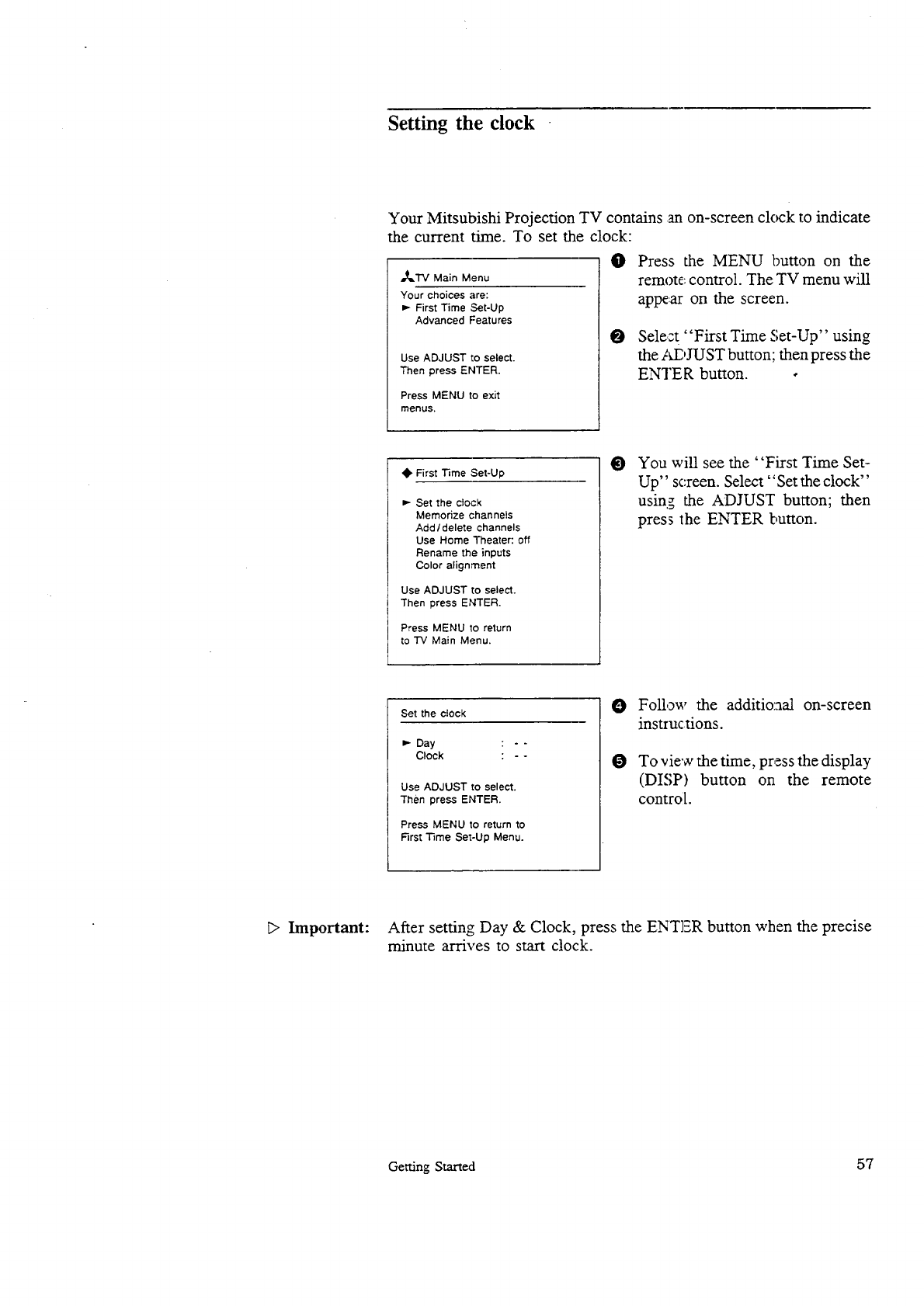
Setting the clock
Your Mitsubishi Projection TV contains an on-screen clock to indicate
the current time. To set the clock:
,,_TV Main Menu
Your choices are:
First Time Set-Up
Advanced Features
Use ADJUST to select.
Then press ENTER.
Press MENU to exit
menus.
O
O
Press the MENU button on the
remote: control. The TV menu will
appear on the screen.
Select "First Time Set-Up" using
the ,M2,JUST button; then press the
ENTER button. •
O First Time Set-Up
Set the clock
Memorize channels
Add /delete channels
Use Home Theater: off
Rename the inputs
Color alignment
Use ADJUST to select.
Then press ENTER.
Press MENU to return
to "IV Main Menu.
OYou will see the "First Time Set-
Up" screen. Select" Set the clock"
using the ADJUST button; then
press the ENTER button.
Set the clock
Day : - -
Clock : - -
Use ADJUST to select.
Then press ENTER.
Press MENU to return to
First Time Set-Up Menu.
O
O
Follow the additio:aal on-screen
instructions.
To view the time, press the display
(DISP) button on the remote
control
E> Important: After setting Day & Clock, press the ENTER button when the precise
minute arrives to start clock.
Getting Started 57
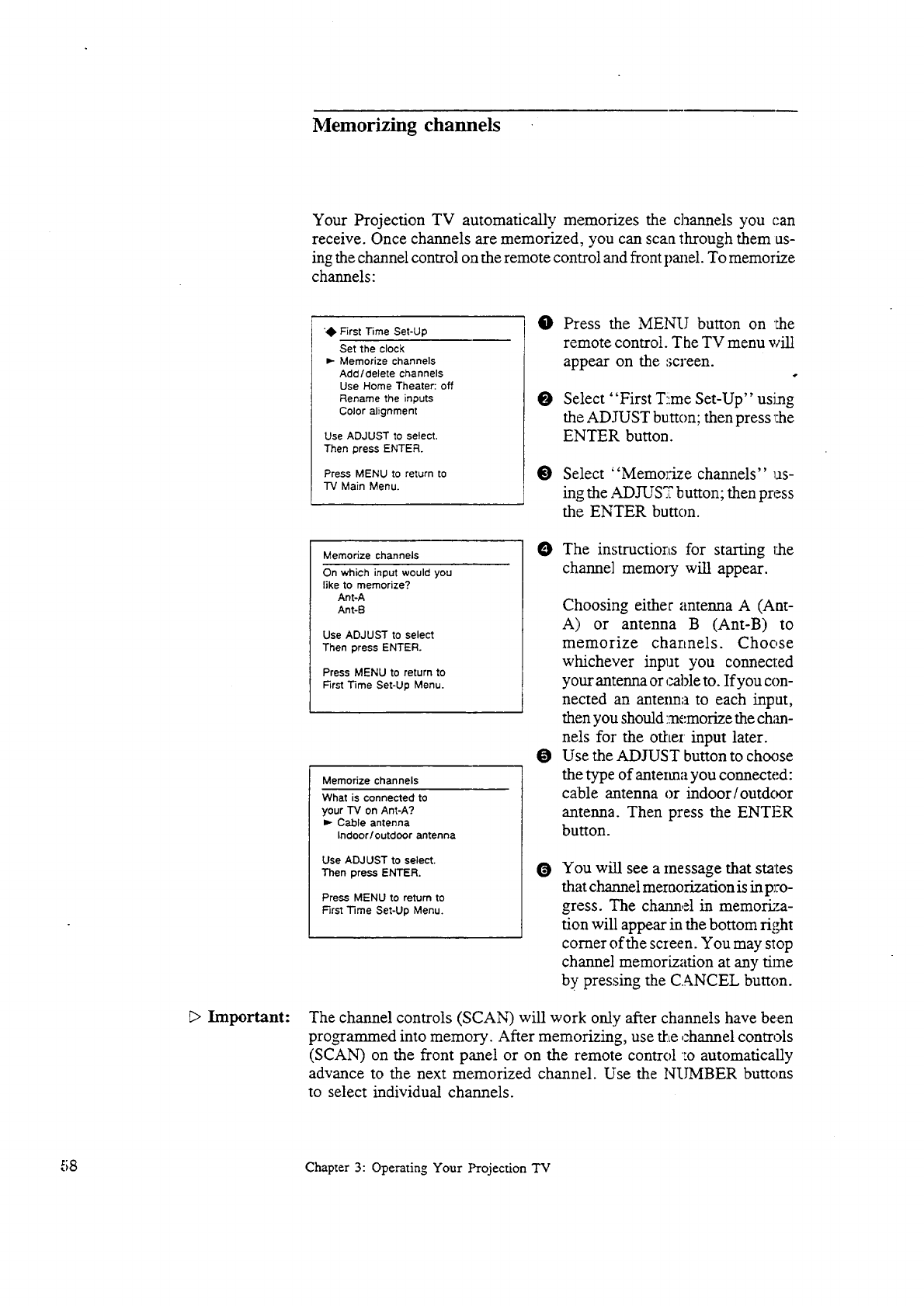
Memorizing channels
Your Projection TV automatically memorizes the channels you can
receive. Once channels are memorized, you can scan through them us-
ing the channel control on the remote control and front panel. To memorize
channels:
_> Important:
0 First Time Set-Up
Set the clock
_- Memorize channels
Add/delete channels
Use Home Theater: off
Rename the inputs
Color alignment
Use ADJUST 1o select.
Then press ENTER.
Press MENU to return to
TV Main Menu.
O
O
O
Press the MENU button on the
remote contro!. The TV menu will
appear on the :_creen.
Select "First Tiime Set-Up" using
the ADJUST button; then press _:he
ENTER button.
Select "Memorize channels" us-
ing the ADJUST button; then press
the ENTER button.
Memorize channels
On which input would you
like to memorize?
Ant-A
Ant-B
Use ADJUST to select
Then press ENTER.
Press MENU to return to
First Time Set-Up Menu.
Memorize channels
What is connected to
your "IV on Ant-A?
P- Cable antenna
Inctoor/outdoor antenna
Use ADJUST to select.
Then press ENTER.
Press MENU to return to
First 3qme Set-Up Menu.
O
O
O
The instructiorts for starting l:he
channel memory will appear.
Choosing either antenna A (Ant-
A) or antenna B (Ant-B) to
memorize channels. Choose
whichever input you connected
your antenna or ,:able to. If you con-
nected an antenna to each input,
then you should :.Tlemorize the chan-
nels for the orktez input later.
Use the ADJUST button to ch(x_se
the type of antenna you connected:
cable antenna or indoor/outdc_r
antenna. Then press the ENTER
button.
You will see a message that states
that channel memorization is in pJ'o-
gross. The channel in memori:,a-
tion will appear in the bottom right
comer of the screen. You may stop
channel memorization at any time
by pressing the CANCEL button.
The channel controls (SCAN) will work only after channels have been
programmed into memory. After memorizing, use tile channel controls
(SCAN) on the front panel or on the remote control :o automatically
advance to the next memorized channel. Use the NUMBER buttons
to select individual channels.
58 Chapter 3: Operating Your Projection TV
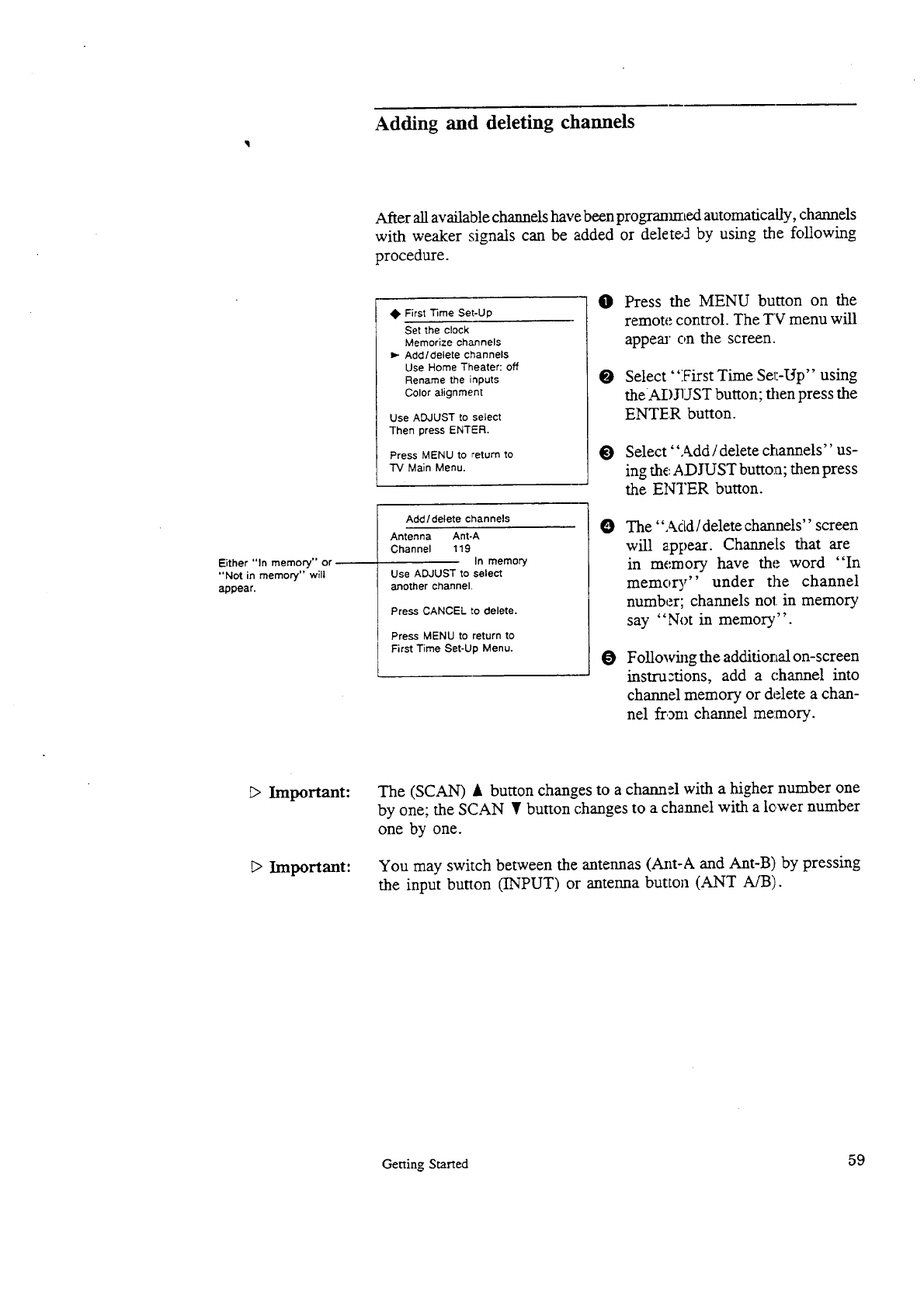
Adding and deleting channels
After all available channels have been programmed automatically, channels
with weaker signals can be added or delete5 by using the following
procedure.
Either "In memory" or
"Not in memory" will
appear.
First Time Set-Up
Set the clock
Memorize channels
Add/delete channels
Use Home Theater: off
Rename the inputs
Color alignment
Use ADJUST to select
Then press ENTER.
Press MENU to return to
TV Main Menu.
Add/delete channels
Antenna Ant-A
Channel 119
In memory
Use ADJUST to select
another channel,
Press CANCEL to delete.
Press MENU to return to
First Time Set-Up Menu.
0Press the MENU button on the
remote control. The TV menu will
appear c,n the screen.
O Select "iFirst Time SeT:-Up" using
theADJUST button; then press the
ENTER button.
O Select "Add /delete charmels" us-
ing the ADJUST button; then press
the ENTER button.
OThe "Add/delete channels" screen
will appear. Channels that are
in memory have the word "In
memory" under the channel
number; channels not in memory
say "Not in memory".
OFollowhlg the additional on-screen
instruztions, add a channel into
channel memory or delete a chan-
nel if,am channel memory.
_> Important:
_>Important:
The (SCAN) A button changes to a chatm_l with a higher number one
by one; the SCAN • button changes to a channel with a lower number
one by one.
You may switch between the antennas (A_t-A and Ant-B) by pressing
the input button (INPUT) or antenna button (ANT A/B).
Getting Started 59
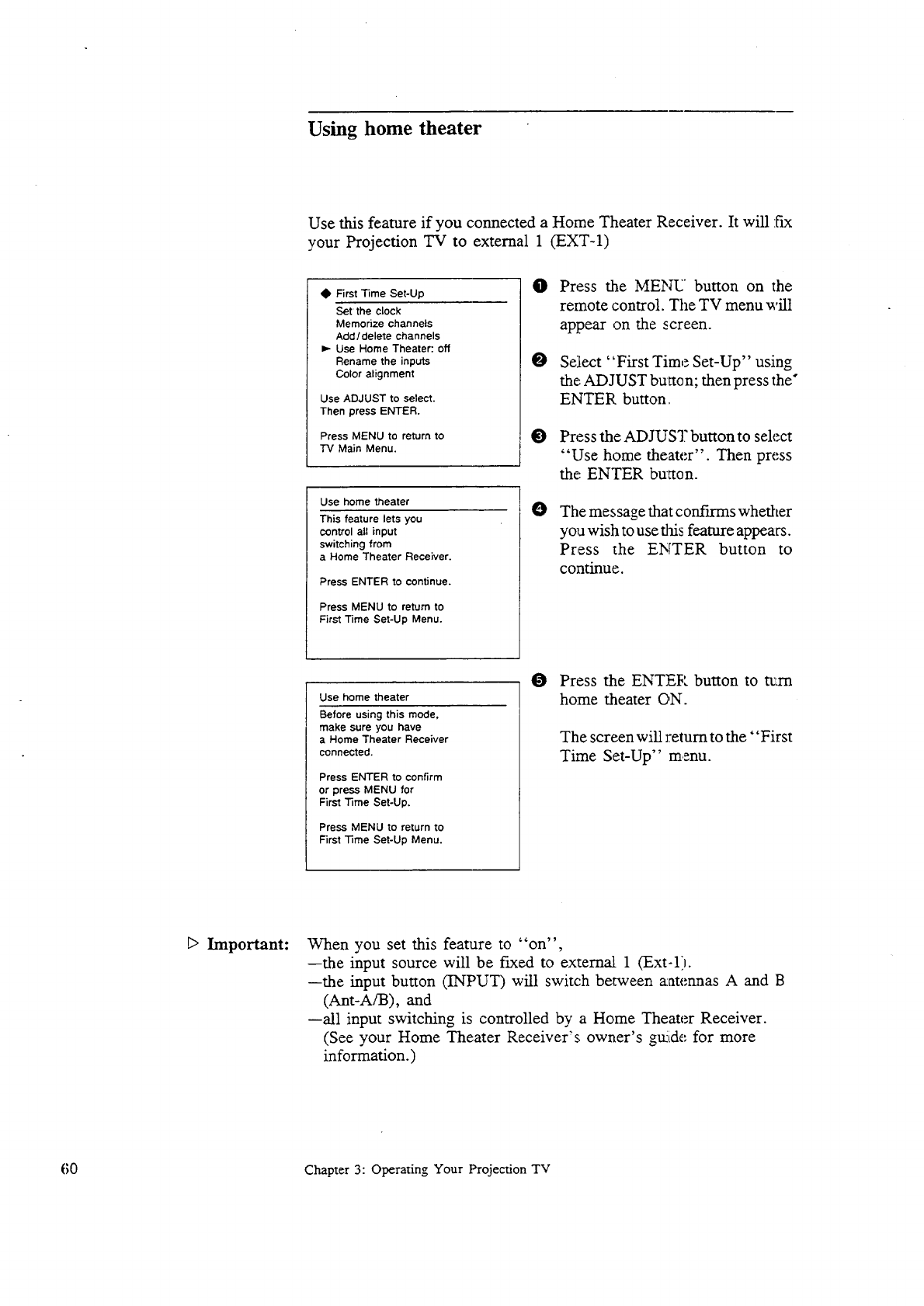
Using home theater
Use this feature if you connected a Home Theater Receiver. It will fix
your Projection TV to external 1 (EXT-1)
•First Time Set-Up
Set the clock
Memorize channels
Acid / delete channels
Use Home Theater:. off
Rename the inputs
Color alignment
Use ADJUST to select.
Then press ENTER.
Press MENU to return to
3"4 Main Menu.
Use home theater
This feature lets you
control all input
switching from
a Home Theater Receiver.
Press ENTER to continue.
Press MENU to return to
First Time Set-Up Menu.
O
O
Press the MENU button on the
remote control. The TV menu will
appear on the screen.
Select ' 'First Time Set-Up" using
the ADJUST butten; then press the"
ENTER button.
O Press the ADJUST button to select
"Use home theater". Then press
the', ENTER button.
OThe message that confirms whether
yo a wish to use dais feature appears.
Press the ENTER button to
continue.
Use home theater
Before using this mode,
make sure you have
aHome Theater Receiver
connected.
Press ENTER to confirm
or press MENU for
First Time Set-Up.
Press MENU to return to
First Time Set-Up Menu.
O Press the ENTER button to ta:rn
home theater ON.
The screen will return to the' 'First
Time Set-Up" menu.
_> Important: When you set this feature to "on",
--the input source will be f_ed to external 1 (Ext-1).
--the input button (INPUT) will switch between aatennas A and B
(Ant-A/B), and
--all input switching is controlled by a Home Theater Receiver.
(See your Home Theater Receiver's owner's grade for more
information.)
60 Chapter 3: Operating Your Projection TV
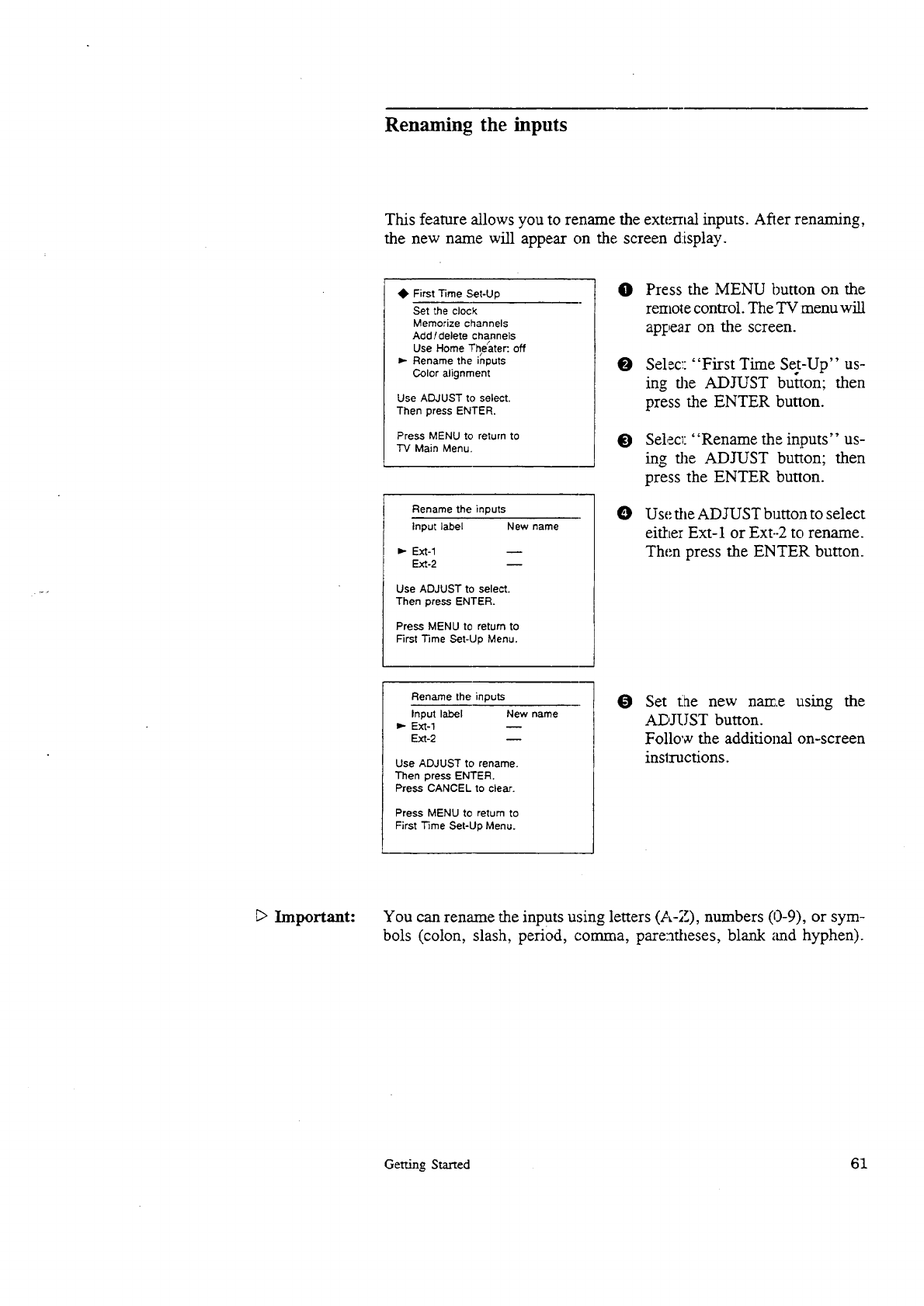
Renaming the inputs
This feature allows you to rename the external inputs. After renaming,
the new name will appear on the screen display.
• First Time Set-Up
Set the clock
Memorize channels
Add ldelete channels
Use Home The_ater: off
_- Rename the inputs
Color alignment
Use ADJUST to select.
Then press ENTER.
Press MENU to return to
"IV Main Menu.
Rename the inputs
Input label New name
m- Ext-1
Ext-2
Use ADJUST to select.
Then press ENTER.
Press MENU to return to
First Time Set-Up Menu.
OPress the MENU button on the
realole control. The TV :menu will
appear on the screen.
O Selec:: "First Time Set-Up" us-
ing the ADJUST button; then
press the ENTER button.
O Select: "Rename the inputs" us-
hag the ADJUST button; then
press the ENTER button.
OUse the ADJUST bunon to select
eitkter Ext-1 or Ext--2 to rename.
Then press the ENTER button.
Rename the inputs
Input label New name
D.-Ext-1
Ext-2
Use ADJUST to rename.
Then press ENTER.
Press CANCEL to clear.
Press MENU to return to
First T_me Set-Up Menu.
OSet t_e new nan=e using the
ADYUST button.
Follow the additional on-screen
inslxuctions.
_> Important: You can rename the inPuts using letters (A-Z), numbers (0-9), or sym-
bols (colon, slash, period, comma, pareatheses, blank and hyphen).
Getting Started 6I
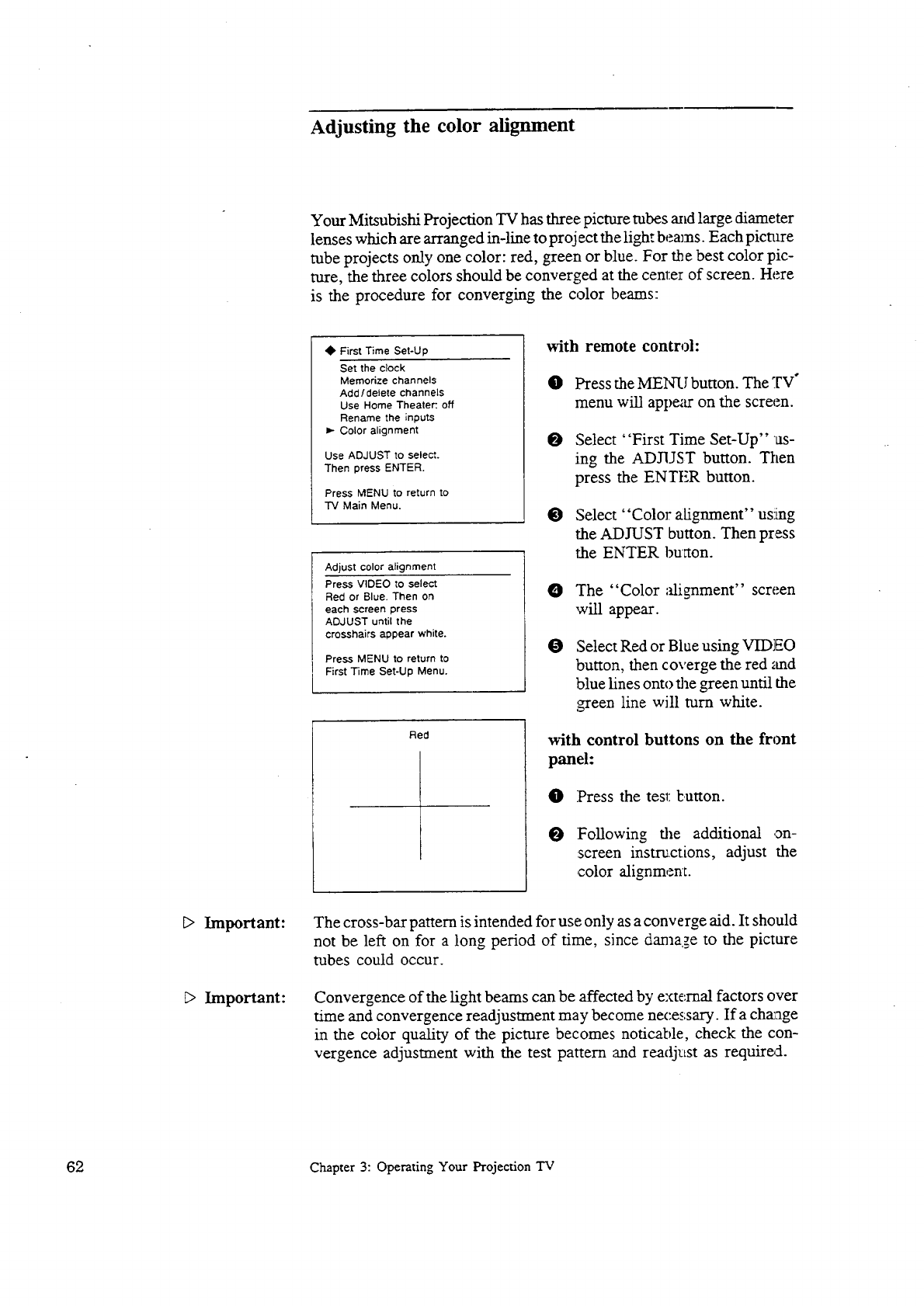
Adjusting the color alignment
Your Mitsubishi Projection TV has three picture tubes and large diameter
lenses which are arranged in-line to project the light beams. Each picture
tube projects only one color: red, green or blue. For the best color pic-
ture, the three colors should be converged at the center of screen. Here
is the procedure for converging the color beams:
• First Time Set-Up
Set the clock
Memorize channels
Add/delete channels
Use Home Theater:. off
Rename the inputs
Color alignment
Use ADJUST to select.
Then press ENTER.
Press MENU to return to
TV Main Menu.
Adjust color alignment
Press VIDEO to select
Red or Blue. Then on
each screen press
ADJUST until the
crosshairs appear white.
Press MENU to return to
First Time Set-Up Menu.
Red
with remote controh
0Press the MENU button. The TV °
menu will appear on the screen.
OSelect "First Time Set-Up"as-
ing the ADJUST button. Then
press the ENTER button.
• Select "Color alignment" using
the ADJUST button. Then press
the ENTER bu_ton.
O
O
The "Color alignment" screen
,will appear.
Select Red or Blue using VIDEO
button, then coverge the red and
blue lines onto the green until the
,green line will turn white.
with control buttons on the front
panel:
O Press the test button.
0Following the additional on-
:screen instructions, adjust the
color alignment.
_> Important:
_> Important:
The cross-bar pattern is intended for use only as a converge aid. It should
not be left on for a long period of time, since damage to the picture
tubes could occur.
Convergence of the light beams can be affected by external factors over
time and convergence readjustment may become necessary. Ifa cha:age
in the color quality of the picture becomes noticable, check the con-
vergence adjustment with the test pattern and readjust as required.
62 Chapter 3: Operating Your Projection TV
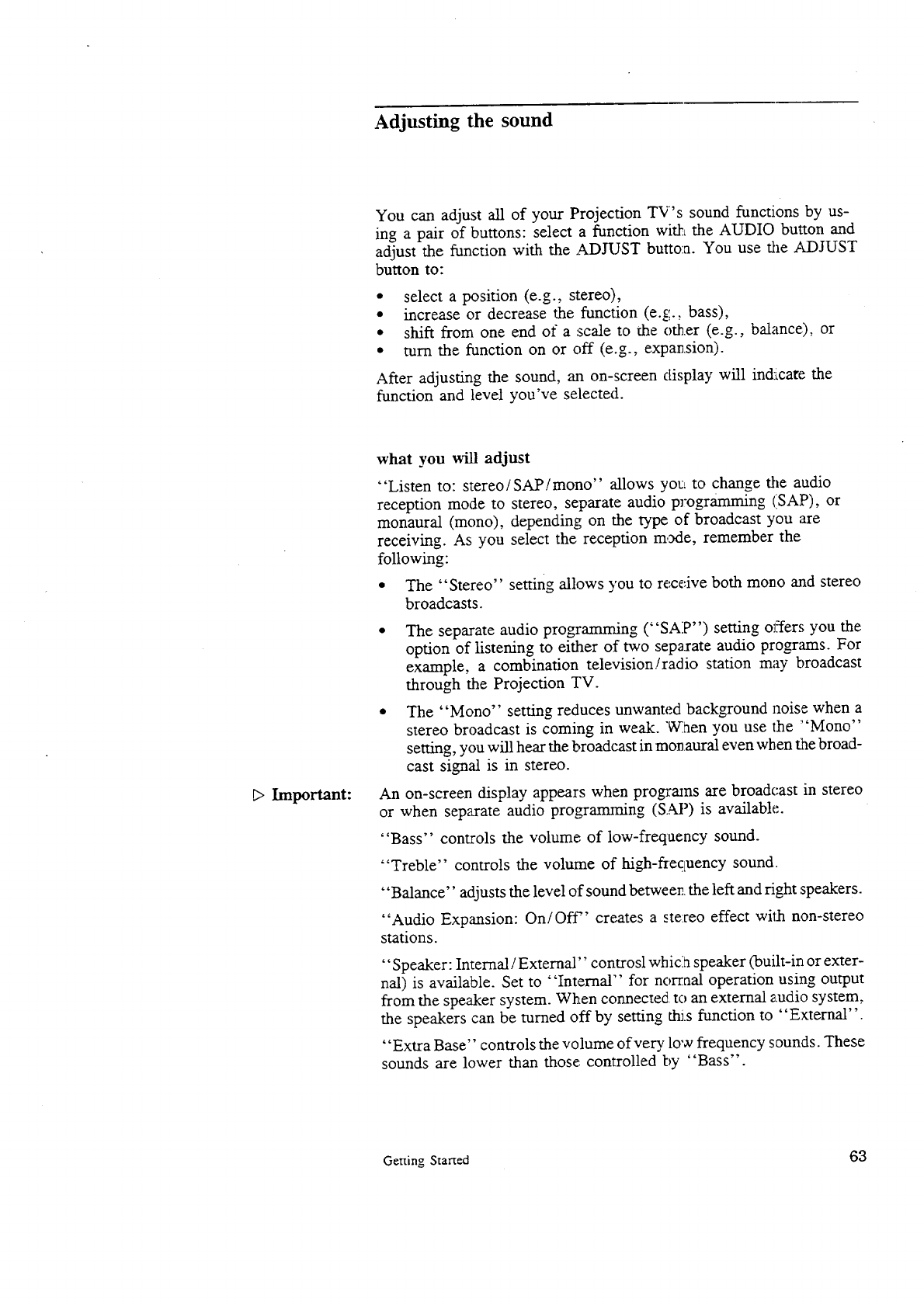
Adjusting the sound
You can adjust all of your Projection TV's sound functions by us-
ing a pair of buttons: select a function witkL the AUDIO button and
adjust the function with the ,ADJUST butto:a. You use tile ADJUST
button to:
• select a position (e.g., stereo),
• increase or decrease the function (e.g., bass),
• shift from one end of a scale to the other (e.g., balance), or
• mrn the function on or off (e.g., expanzion).
After adjusting the sound, an on-screen display will ind:_care the
function and level you've selected.
E> Important:
what you will adjust
"Listen to: stereo/SAP/mono" allows yOrLto change the audio
reception mode to stereo, separate audio programming (SAP), or
monaural (mono), depending on the type of broadcast you are
receiving. As you select the reception m,_e, remember the
following:
• The "Stereo" setting allows you to receive both mono and stereo
broadcasts.
The separate audio programming ("SAP") setting ol.:fers you the
option of listening to either of two separate audio programs. For
example, a combination television!radio station may broadcast
through the Projection TV.
The "Mono" setting reduces unwanted background noise when a
stereo broadcast is coming in weak. "_v_aenyou use the "Mono"
setting, you will hear the broadcast in monaural even when the broad-
cast signal is in stereo.
An on-screen display appears when programs are broadcast in stereo
or when separate audio programming (SAP) is available.
"Bass" controls the volume of low-frequency sound.
"Treble" controls the volume of high-fiegLuency sound.
"Balance" adjusts the level of sound between, the left and right speakers.
"Audio Expansion: On/Off" creates a ste:veo effect with non-stereo
stations.
"Speaker: Internal /External" controsl wbicia speaker (built-in or exter-
nal) is available. Set to "Internal" for norraal operation using output
from the speaker system. When connected to an external audio system,
the speakers can be turned off by setting thJ.s function to "External"
"Extra Base" controls the volume of very low frequency sounds. These
sounds are lower than those, controlled by "Bass".
Getting Started 63
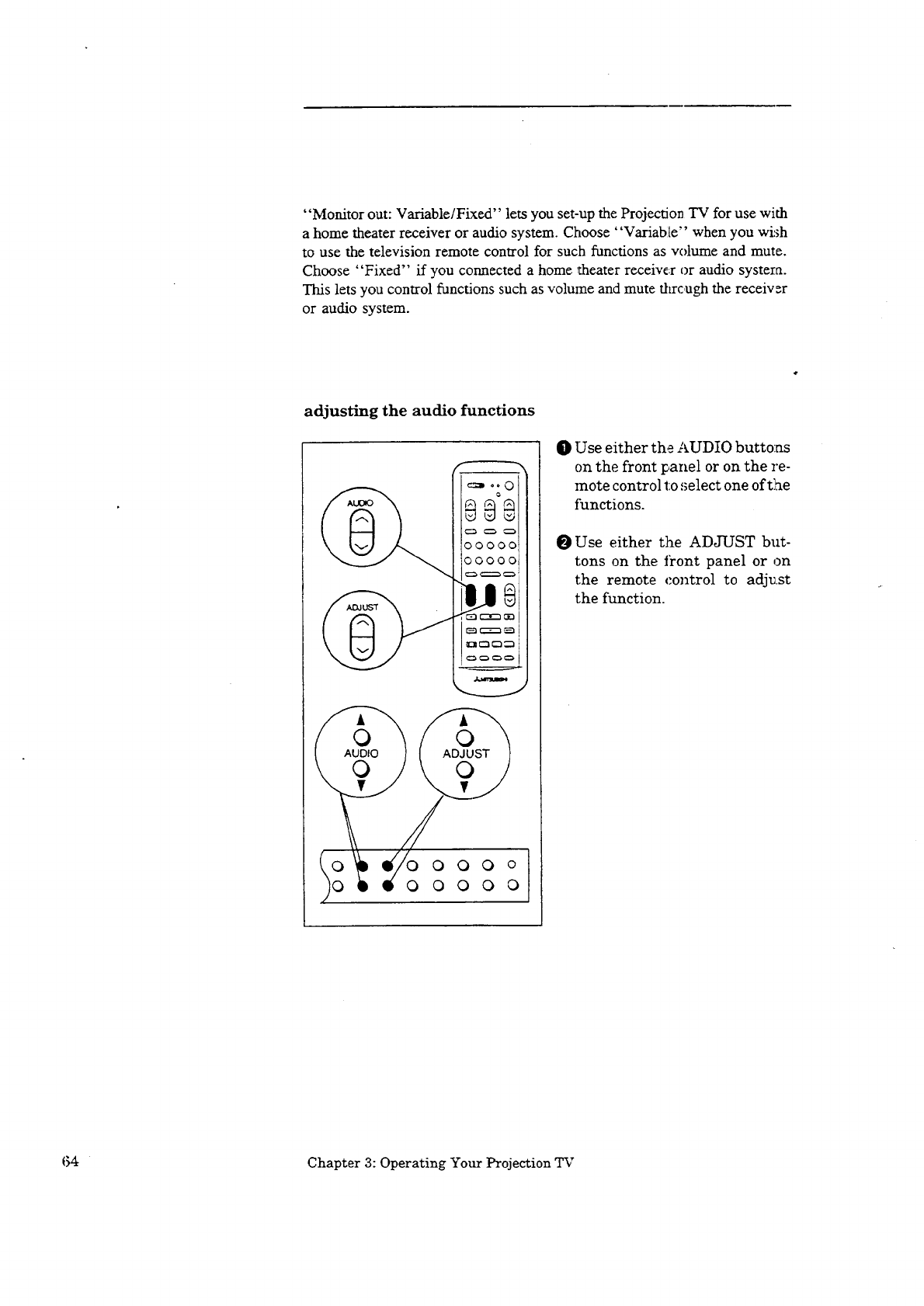
"Monitor out: Variable/Fixed" lets you set-up the Projection TV for use with
a home theater receiver or audio system. Choose "Variable" when you wish
to use the television remote control for such functions as volume and mute.
Choose "Fixed" if you connected a home theater receive:r or audio systera.
This lets you control functions such as volume and mute through the receiver
or audio system.
adjusting the audio functions
000°I
00000
O Use either the AUDIO butto:as
on the front lc,anel or on the re-
mote control to ,;elect one oft]ae
functions.
Use either the ADJUST but-
tons on the front panel or on
the remote control to adju.st
the function.
I_4 Chapter 3: Operating Your Projection TV
Adjusting the picture
You can adjust all of your Projection TV's video functions by us-
ing a pair of buttons: select a function with the VIDEO button and
adjust the function with the .ADJUST button. You use the ADJUST
button to:
• shift from one end of a scale to the other (e.g., tint),
* increase or decrease the function (e.g., color),
• turn the function on or off (e.g., video noise reduction), or
• select a position (e.g., color tempurature).
what you will adjust
"Tint" adjusts the proportion of red to green that determines the
delicate tones of color.
"Color" determines the intensity of the color.
"Contrast" controls the level of white-to-black in the picture.
"Bright(ness)" controls the light level of the image on screen.
"Sharpness" adjusts the detail and clarity of the picture:.
"Video N(oise) R(eduction): on/off'' is used to reduce background
noise that can occur with weak signals. Usually this function is set
to "off''.
"Notch filter:on/off'' is used in special cases to stabilize the color
of striped or checked patterns.
"Color temp.(erature): High/Middle/Low" is used to change the
relative warmth of the picture.
"Color bias: Average/Skin-tone/Accurate" is used to improve the
color reproduction depending to the input source.
Important: "Video NR" and "Color Bias" are automatically set to "off" or
"Average" when turning the Projection TV off, or changing a channel
or an input source.
Getting Started 65
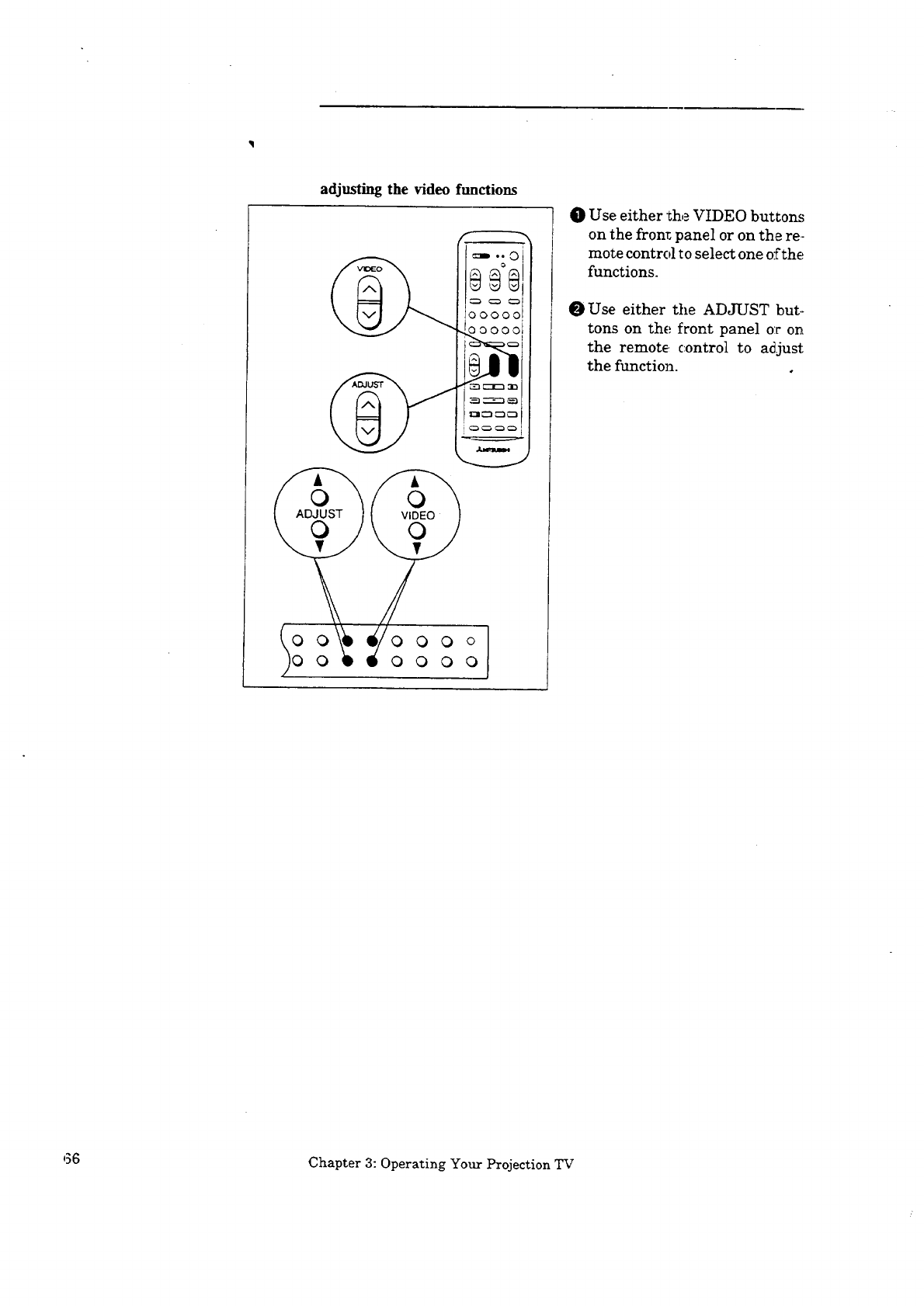
adjusting the video functions
0
00000
0 0 0 o
0 0 0 0
O Use either the VIDEO buttom_
on the front panel or on the re.-
mote control to select one o:[the
functions.
O Use either the ADJUST but.-
tons on the front panel o:r on
the remote, c:ontrol to adjust:
the function, o
,36 Chapter 3: Operating Your Projection TV
Using the Advanced Features
This section explains how to use some of the more advanced functions.
You will learn:
• setting the timer,
• using the parental lock,
• using the super-quick-_iew tuning,
• using Video Mute, and
• using the power restore feature.
Using the Advanced Features 67
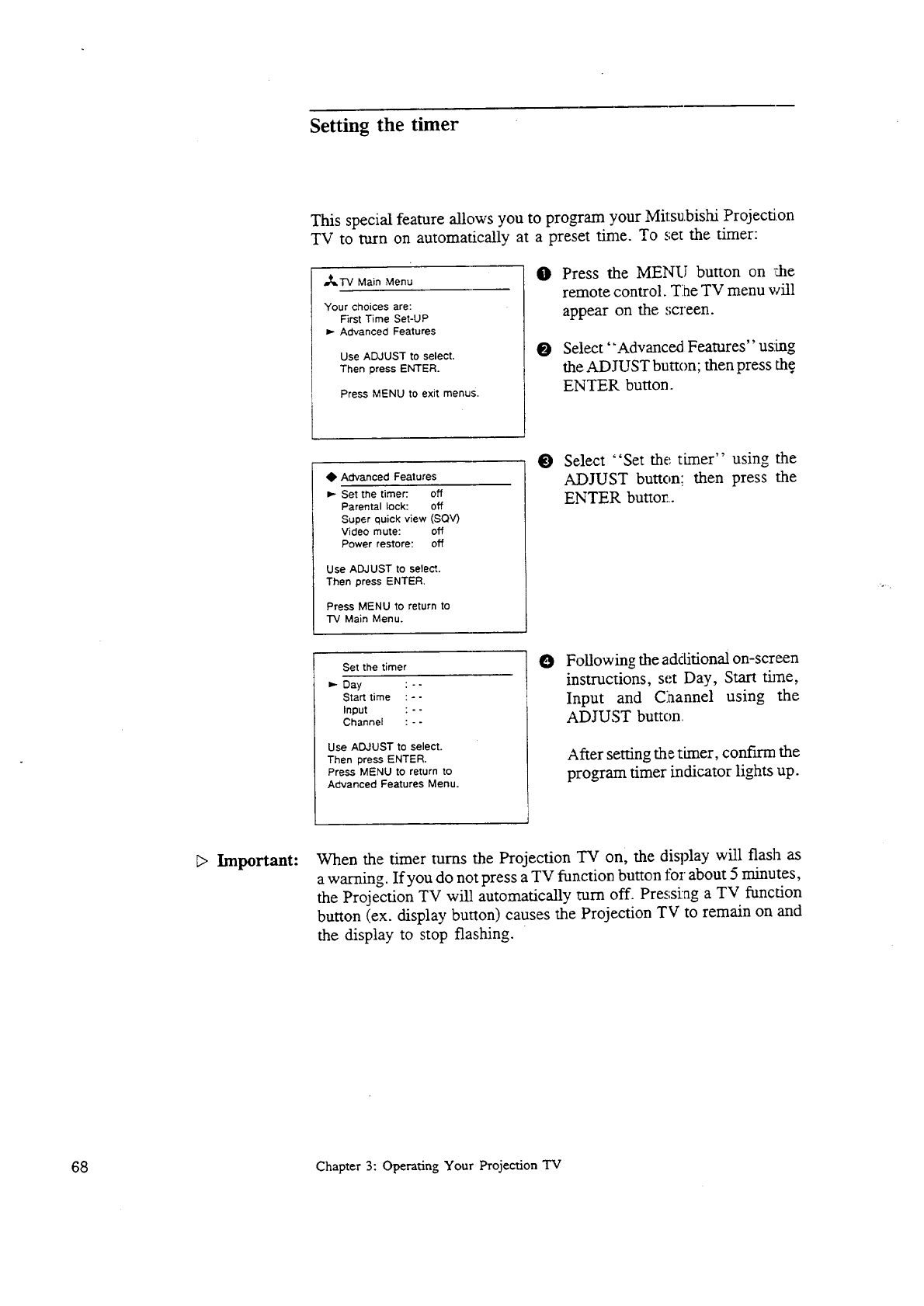
Setting the timer
This special feature allows you to program your Mitsubishi Projecti.on
TV to turn on automatically at a preset time. To set the timer:
N%.TV Main Menu
Your choices are:
First Time Set-UP
Advanced Features
Use ADJUST to select.
Then press ENTER.
Press MENU to exit menus.
0Press the MENU button on abe
remote control. Ti0e TV menu will
appear on the _';creen.
O Select "Advanced Features" us:rag
the ADJUST button; then press the
ENTER button.
_1_Advanced Features
_,- Set the timer: off
Parental lock: off
Super quick view (SQV)
Video mute: off
Power restore: off
Use ADJUST to select.
Then press ENTER.
Press MENU to return to
"IV Main Menu.
O Select "Set the timer" using the
ADJUST button; then press the
ENTER buttor...
Set the timer
Day :--
Start time : - -
Input : - -
Channel : - -
Use ADJUST to select.
Then press ENTER.
Press MENU to return to
Advanced Features Menu.
OFollowing the additional on-screen
instructions, set Day, Start trine,
Input and Channel using the
ADJUST button,
After setting the timer, confirm the
program timer indicator lights up.
Important: When the timer turns the Projection "IV on, the display will flash as
a warning. If you do not press a TV function button for about 5 minutes,
the Projection TV will automatically rum off. Pressi:ag a TV function
button (ex. display button) causes the Projection TV to remain on and
the display to stop flashing.
68 Chapter 3: Operating Your Projection TV
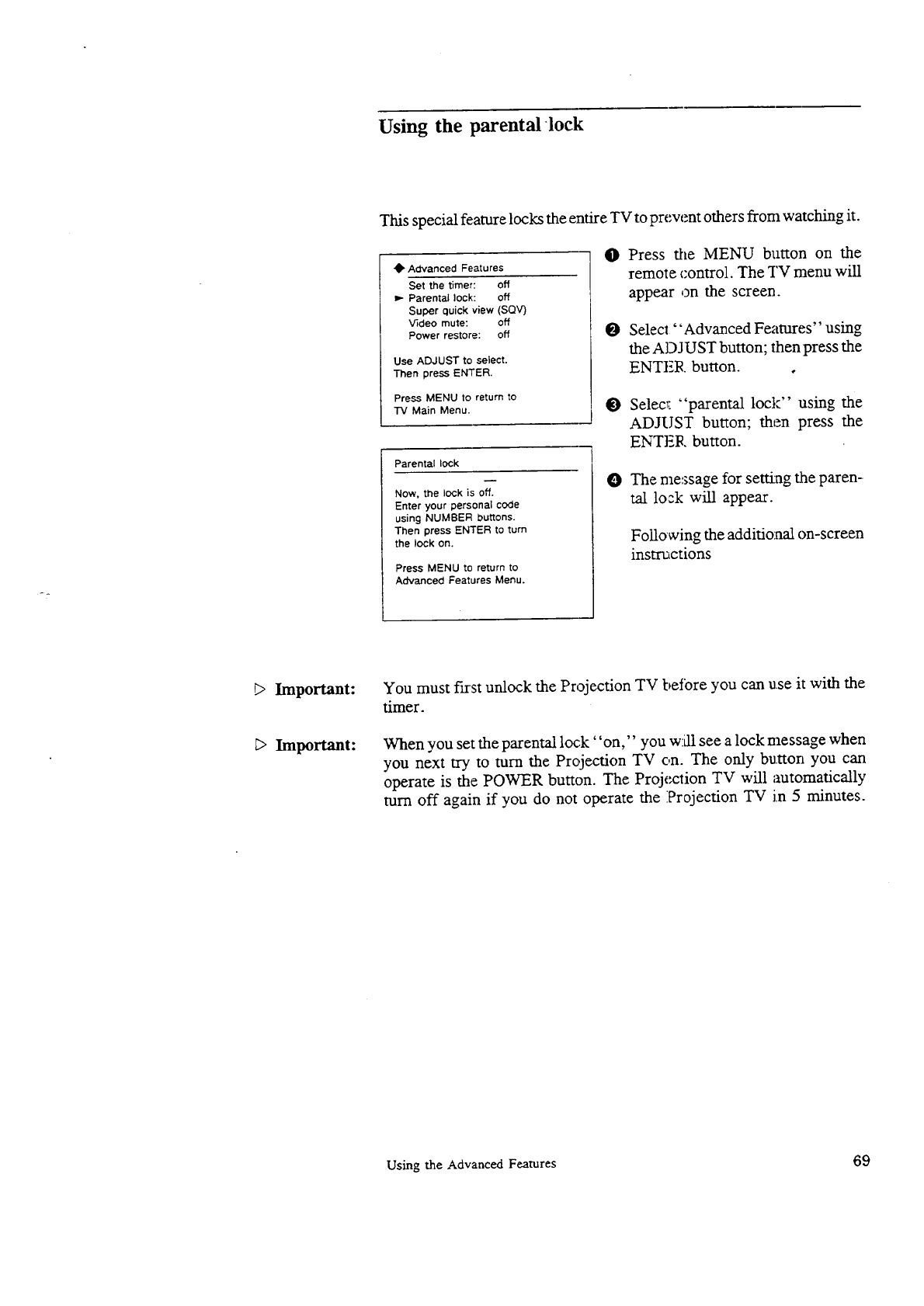
Using the parentallock
_7
This special feature locks the entire TV to prevent others from watching it.
@Advanced Features
Set the timer: off
Parental lock: off
Super quick view (SQV)
Video mute: off
Power restore: off
Use ADJUST to select.
Then press ENTER.
Press MENU to return to
-rv Main Menu.
Parental lock
Now, the lock is off.
Enter your personal code
using NUMBER buttons.
Then press ENTER to turn
the lock on,
Press MENU to return to
Advanced Features Menu.
OPress the MENU button on the
remote control. The TV menu will
appear on the screen.
OSelect"Advanced Features" using
the ADJUST button; then press the
ENTER button, o
tB Selecl; "parental lock" using the
ADJUST button; then press the
ENTER button.
O The me:_sage for setting the paren-
tal lo:k will appear.
Following the additional on-screen
instructions
Important:
2> Important:
You must f'n-st unlock the Projection TV beIbre you can use it with the
timer.
When you set the parental lock "on," you w:kllsee a lock message when
you next try to turn the Projection TV on. The only button you can
operate is the POWER button. The Projection TV will automatically
turn off again if you do not operate the Projection TV in 5 minutes.
Using the Advanced Features 69
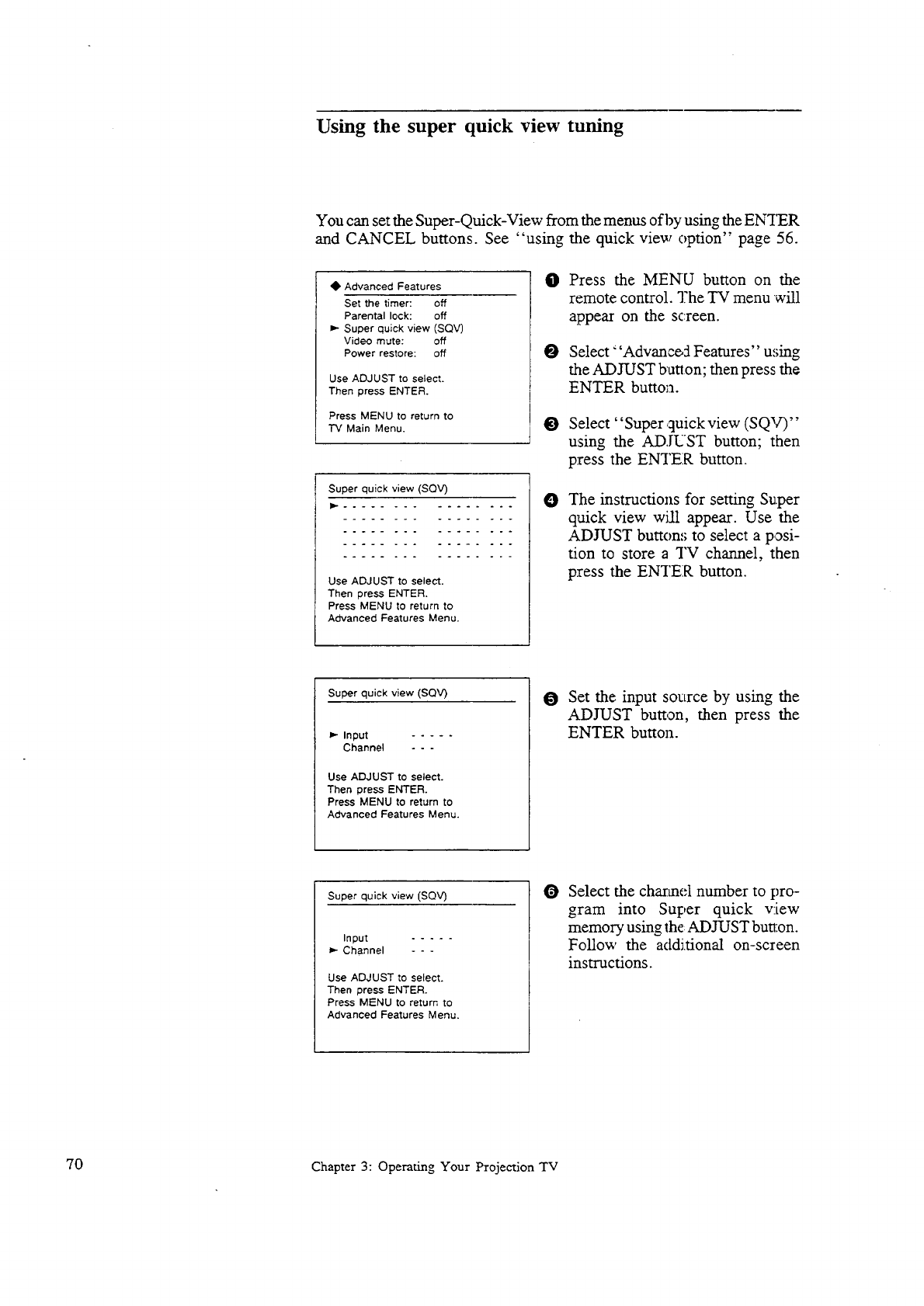
Using the super quick view tuning
You can set the Super-Quick-View from the menus of by using the ENTER
and CANCEL buttons. See "using the quick view option" page 56.
_, Advanced Features
Set the timer: off
Parental lock: off
_- Super quick view (SQV)
Video mute: off
Power restore: off
Use ADJUST to select.
Then press ENTER.
Press MENU to return to
"iV Main Menu.
Super quick view (SQV)
ID- ................
Use ADJUST to select.
Then press ENTER.
Press MENU to return to
Advanced Features Menu.
O
O
Press the MENU button on the
remote control. "]?heTV menu will
appear on the screen.
Select _'Advanc_5 Features" u,;ing
the ADJUST button; then press the
ENTER button.
O Select"Super,quick view (SQV)"
using the AD.IUST button; then
press the ENTER button.
OThe instructions for setting Super
quick view will appear. Use the
ADJUST button:; to select a posi-
tion to store a TV channel, then
press the ENTER button.
Super quick view (SQV)
Input .....
Channel - - -
Use ADJUST to select.
Then press ENTER.
Press MENU to return to
Advanced Features Menu.
OSet the input source by using the
ADJUST button, then press the
ENTER button.
Super quick view (SQV)
Input .....
_- Channel - - -
Use ADJUST to select.
Then press ENTER.
Press MENU to return to
Advanced Features Menu.
O Select the channel number to pro-
gram into Super quick view
memory using the ADJUST bun:on.
Follow the additional on-screen
instructions.
70 Chapter 3: Operating Your Projection TV
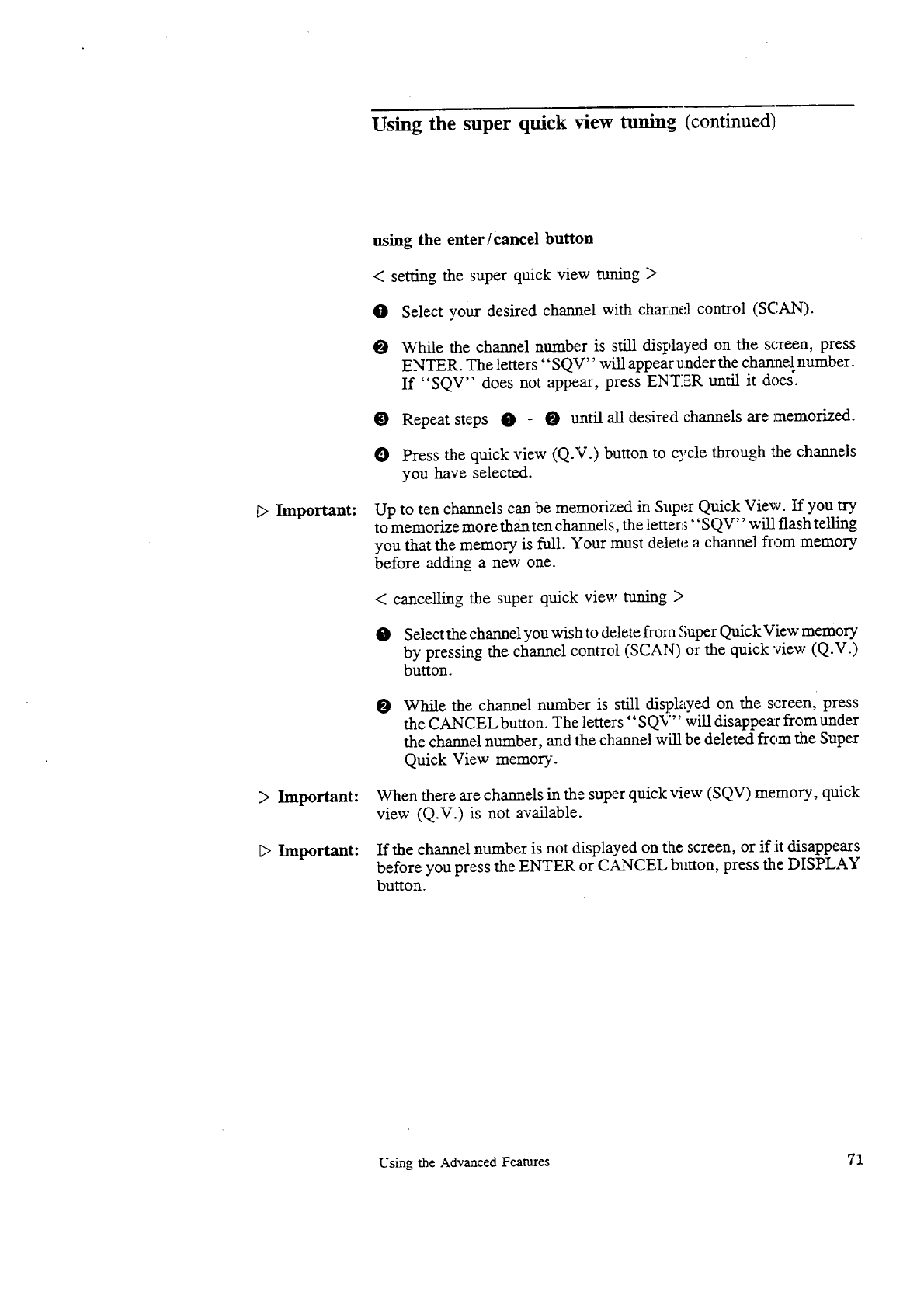
Using the super quick view tuning (continued)
[;>Important:
_> Important:
DImportant:
using the enter/cancel button
< setting the super quick view tuning >
0Select your desired channel with charmel control (SCAN).
0While the channel number is still displayed on the screen, press
ENTER. The letters"SQV" will appear under the channel number.
If "SQV'" does not appear, press ENTER until it does'.
0Repeat steps 0 0 until all desired channels are memorized.
0Press the quick view (Q.V.) button to cycle through the channels
you have selected.
Up to ten channels can be memorized in Super Quick View. If you try
to memorize more than ten channels, the letters"SQV" will flash telling
you that the memory is full. Your must delete a channel from :memory
before adding a new one.
< cancelling the super quick view tuning >
0Select the channel you wish to delete flora Super QuickView memory
by pressing the channel control (SCAN) or the quick "view (Q.V.)
button.
OWhile the channel number is still displayed on the screen, press
the CANCEL button. The letters "SQV" will disappe,_r from under
the channel number, and the channel will be deleted from the Super
Quick View memory.
When there are channels in the super quick view (SQV) memory, quick
view (Q.V.) is not available.
If the channel number is not displayed on the screen, or if :itdisappears
before you press the ENTER or CANCEL button, press the DISPLAY
button.
Using the Advanced Features 71
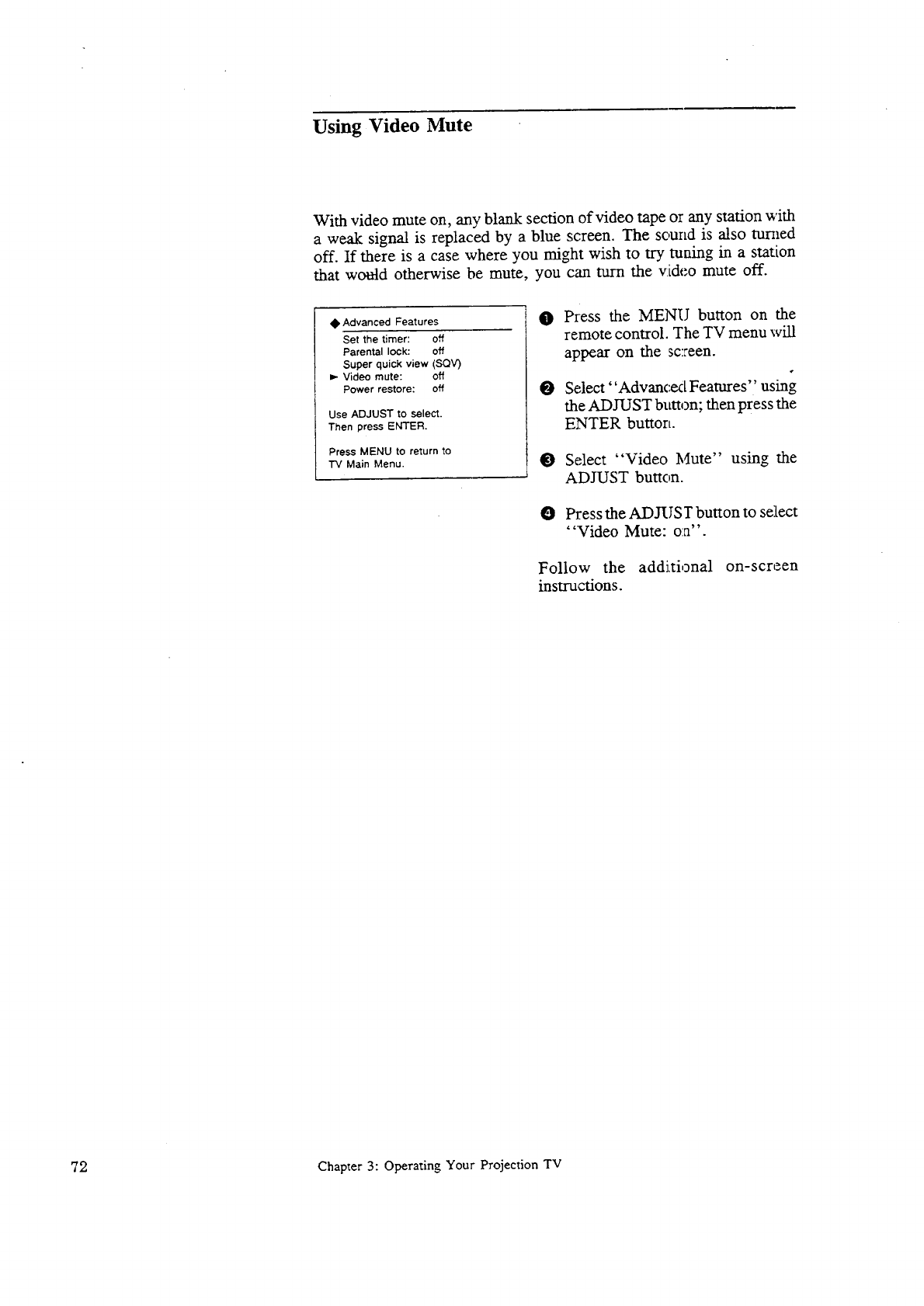
Using Video Mute
With video mute on, any blank section of video tape or any station with
a weak signal is replaced by a blue screen. The sound is also turned
off. If there is a case where you might wish to try tuning in a station
that would otherwise be mute, you can turn the video mute off.
Ik Advanced Features
Set the timer: off
Parental lock: off
Super quick view (SQV)
Video mute: off
Power restore: off
Use ADJUST to select.
Then press ENTER.
Press MENU to return to
"rv Main Menu.
O Press the MENU button on the
remote control. The TV menu will
appear on the screen.
O Select ' 'Advancex[ Features" using
the ADJUST button; then press the
ENTER button.
O Select "Video Mute" using the
ADJUST button.
O Press the ADJUST button to select
'"Video Mute: o:a".
Follow the additional on-screen
instructions.
72 Chapter 3: Operating Your Projection TV
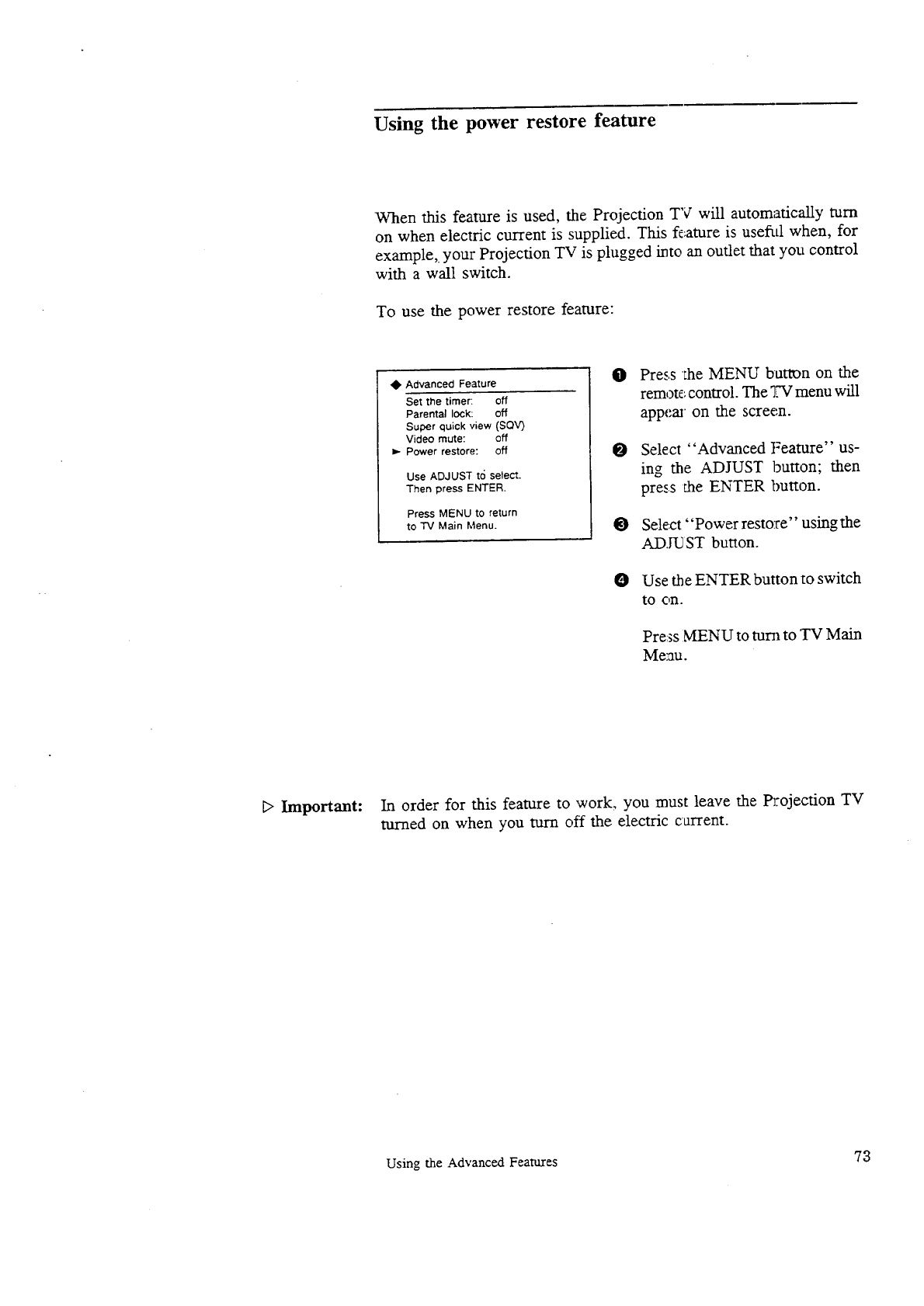
Using the power restore feature
When this feature is used, the Projection TV will automaticaliy turn
on when electric current is supplied. This feature is useful when, for
example,, your Projection TV is plugged into an outlet that you control
with a wall switch.
To use the power restore feature:
Advanced Feature
Set the timer: Off
Parental lock: off
Super quick view (SQV)
Video mute: off
=,- Power restore: off
Use ADJUST to select.
Then press ENTER.
Press MENU to return
to "IV Main Menu.
OPress che MENU button on the
remote control. The TV menu will
appear on the screen.
O
O
Select "Advanced Peature" us-
ing the ADJUST button; then
press _he ENTER button.
Select' 'Power restore" using the
AD.IV ST button.
O Use the ENTER button to switch
tO On.
Press MENU to turn to 'IN Main
Menu.
D Important: In order for this feature to work, you must leave the Projection TV
turned on when you turn off the electric current.
Using the Advanced Features 73

__llkC H___!AP__TER 4
Using the Special Features
In addition to the basic and advanced functions explained in the previous
chapter, your Mitsubishi Projection TV offers you several SlC_cjalfeatures
not generally available on other brand Projection TVs. This chapter
will explain how to use these distinctive featau-es. It contains the follow-
hag topics:
•Understanding the On-Screen Displays;
•Using the Off-Timer
• Using the Picture-in-Picture (PIP) Mode
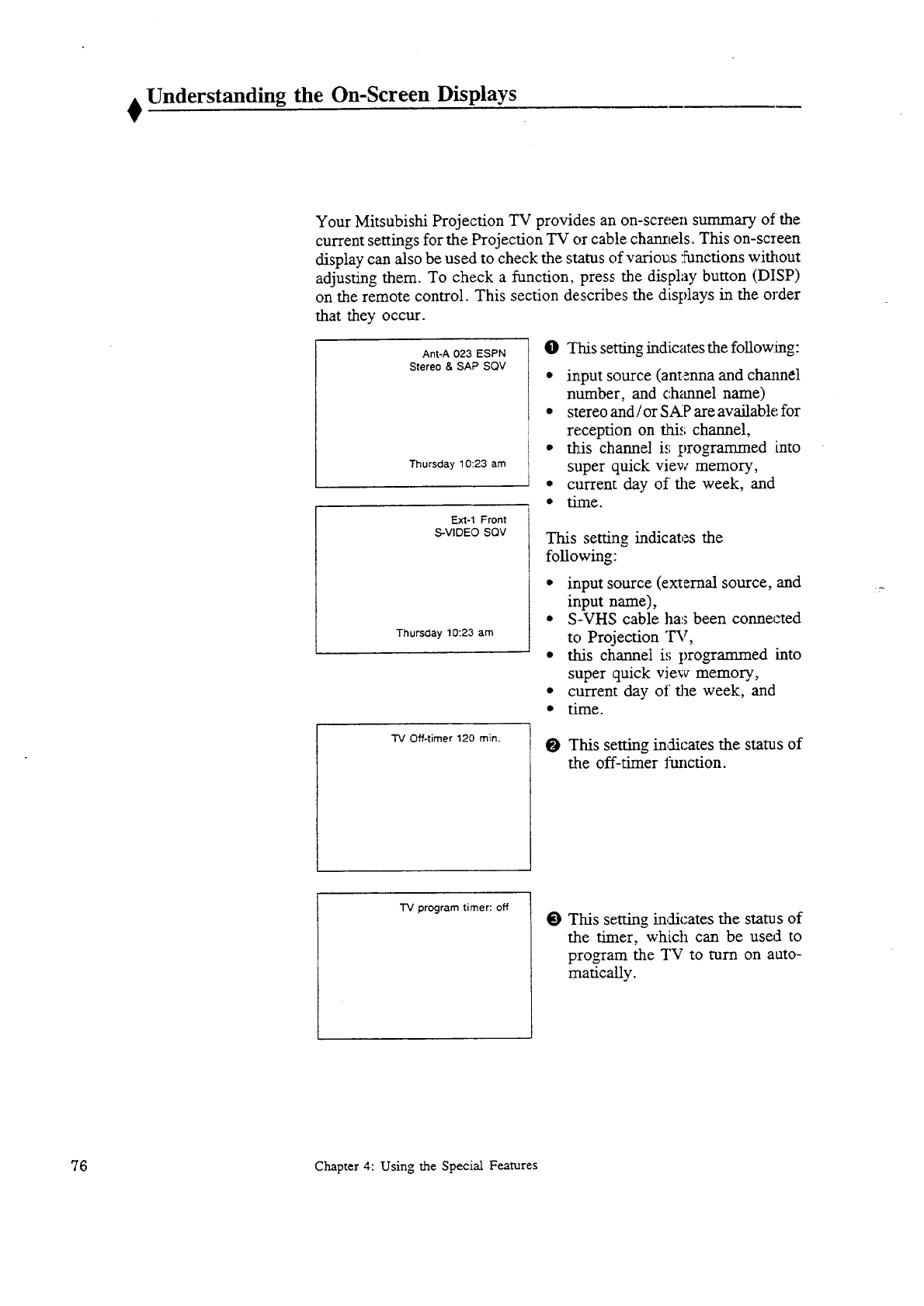
Understanding the On-Screen Displays
Your Mitsubishi Projection TV provides an on-screen summary of the
current settings for the Projection TV or cable charmels. This on-screen
display can also be used to check the status of various functions without
adjusting them. To check a function, press the display button (DISP)
on the remote control. This section describes the displays in the order
that they occur.
Ant-A 023 ESPN
Stereo & SAP SQV
Thursday 10:23 am
Ext-1 Front
S-VIDEO SQV
Thursday 10:23 am
0 This setting indicates the fouowmg:
• input source (antenna and chmmel
number, and channel name)
• stereo and/or SAP are available for
reception on fin.i,;channel,
• this channel is programmed into
super quick view memory,
• current day of the week, and
•time.
This setting indicates the
following:
• input source (external source, and
input name),
• S-VHS cable has been connected
to Projection "IW,
• this channel is programmed into
super quick view memory,
• current day of the week, and
• time.
TV Off-timer 120 rain. O This setting indicates the status of
the off-timer Jmlcdon.
TV program timer: off O This setting indicates the status of
the timer, which can be use,] to
program the TV to turn on auto-
matically.
76 Chapter 4: Using the Special Features
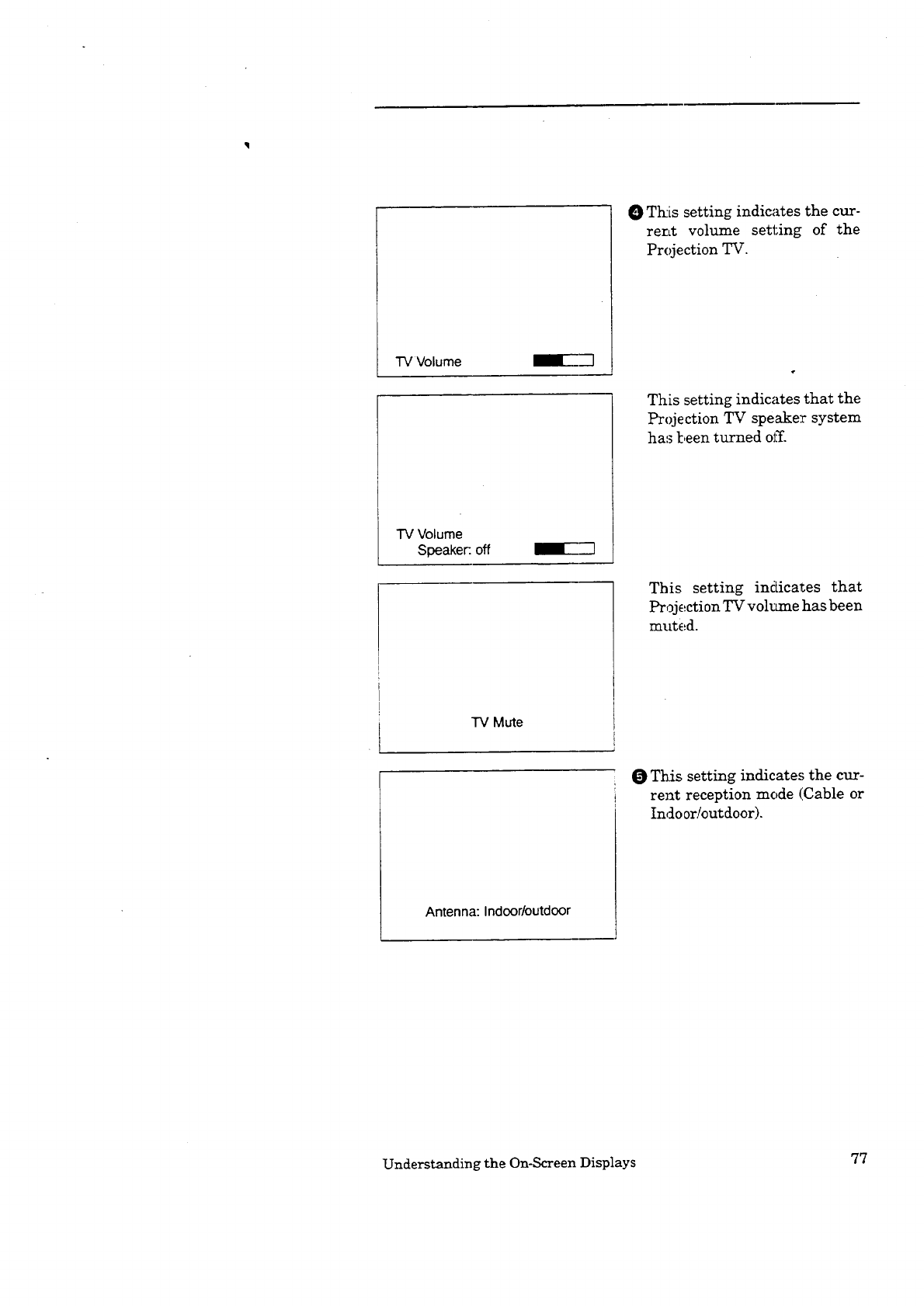
TV Volume _EZ'-I
"IV Volume
Speaker:. off _---"1
O Tl_is setting indicates the cur-
rerLt volume setting of the
Projection TV.
This setting indicates that the
Projection TV speaker system
has been turned off.
This setting indicates that
Projection TV vol_ne has been
muted.
TV Mute
O This setting indicates the cur-
rent reception mode (Cable or
Indoor/outdoor).
Antenna: Indoor/outdoor
Understanding the On-Screen Displays 77
Using the Off-Timer
This special function aUows you to set the Projection TV to turn off automati-
cally. You can set the Projection TV to turn off from 10 to 120 minute:_ (2
hours). In this section you'll learn:
• setting the off-timer, and
• changing or canceling the off-timer.
78 Chapter 4: Using the Special Features
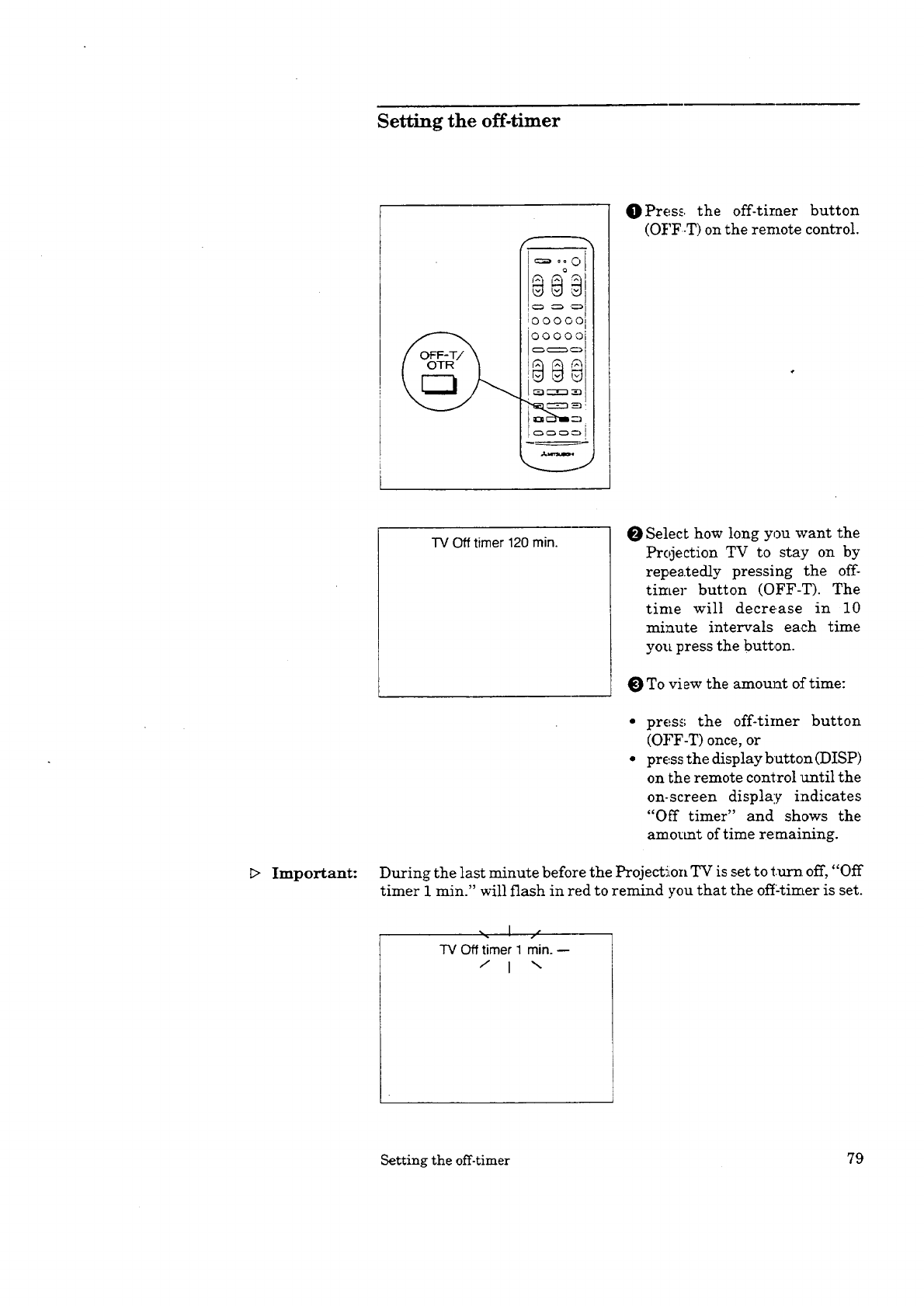
Setting the off-timer
OPress the off-tiraer button
(OFF-T) on the remote control.
Important:
TV Off timer 120 min. O Select how long you want the
Projection TV to stay on by
repeatedly pressing the off-
timer button (OFF-T). The
time will decrease in 10
minute intervals each time
you press the button.
To view the amount of time:
press the off-timer button
(OFF-T) once, or
press the display button (DISP)
on the remote control antil the
on-screen display indicates
"Off timer" and shows the
amozmt of time remaining.
During the last minute before the Projectiion TV is set to turn off, "Off
timer 1 min." will flash in red to remind you that the off:timer is set.
%_ ]jf
TV Off timer I min. --
/I \
Setting the off-timer 79
Changing or canceling, the off-timer
TV Off timer 10 rain O Press the off timer button
(OFF-T) on the remote control.
An on-screen display will in-
dicate the aJ_ount of time re-
maining un_il the Projection
TV will turn off.
O Continue pressing the off
timer button (OFF-T) repeat-
edly to cha_.ge the remain:rag
time or to cancel the off-timer.
The off-timer is canceled when
"---" appears instead of the
remaining t:[n_.e.
80 Chapter 4: Using the Special Features
Using the Picture-in-Picture (PIP) Mode
Important:
One of the special features of your Mitsubishi l:Tojection TV is the picture-
in-picture (PIP) mode, which allows you to view two different sources
at the same time. In this section you'll lem-n:
• selecting the PIP image,
•selecting the source,
• exchanging the PIP image,
• freezing the PIP image, and
• moving the PIP image.
You must have a VCR connected to the P_ojection TV to see two dif-
ferentlive action pictures when using P]_P.
Using the Picture-in-Picture (PIP) Mode 81
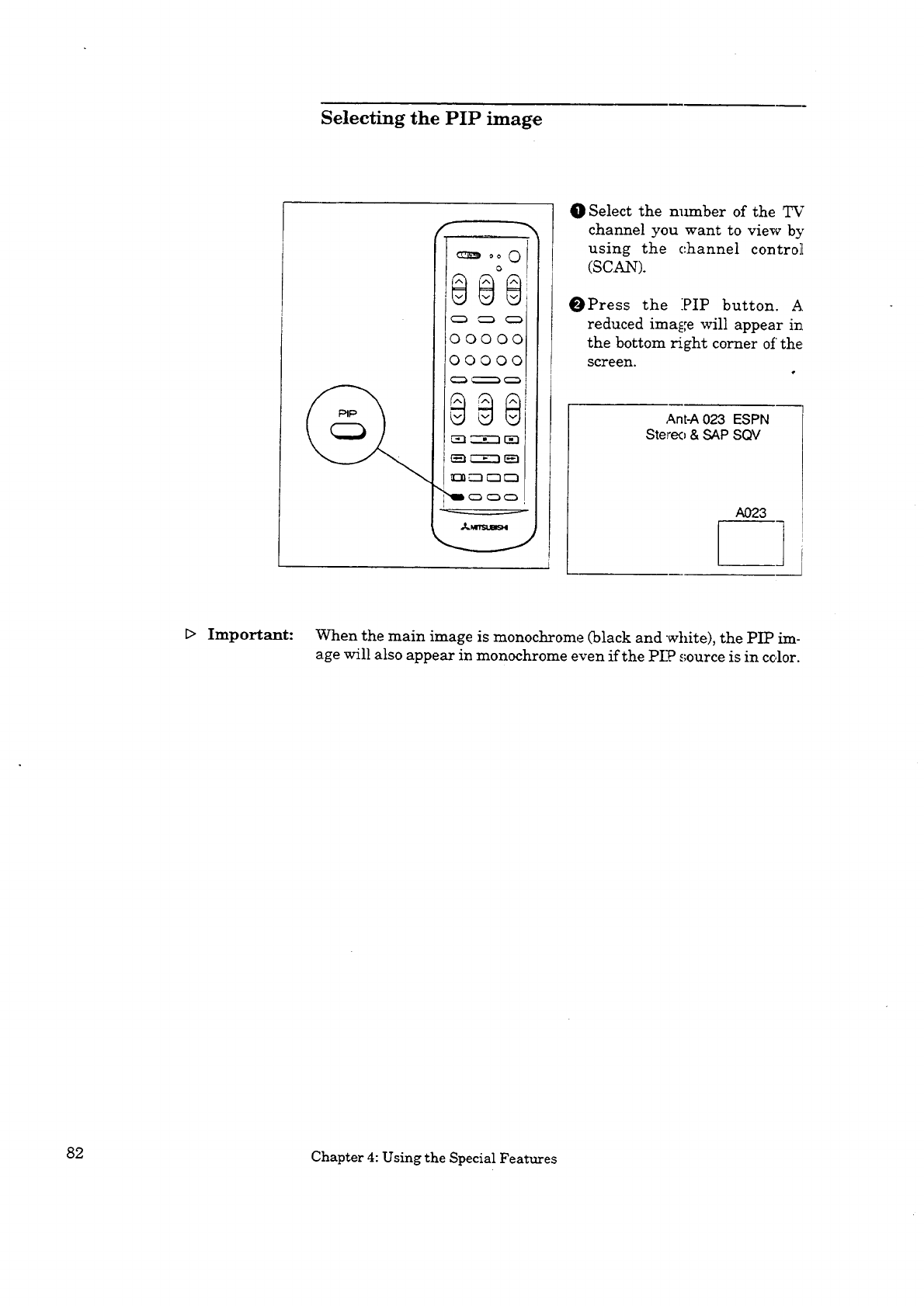
Selecting the PIP image
O0000i
tooooo
O Select the number of the TV
channel you want to view by
using the channel control[
(SCAN).
_Press the :PIP button. A.
reduced image will appear in
the bottom right corner of'the
screen.
Ant-A 023 ESPN
Stet'eo & SAP SQV
A023
l i
_> Important: When the main image is monochrome (black and white), the PIP im-
age will also appear in monochrome even if the PIP source is in color.
82 Chapter 4: Using the Special Features
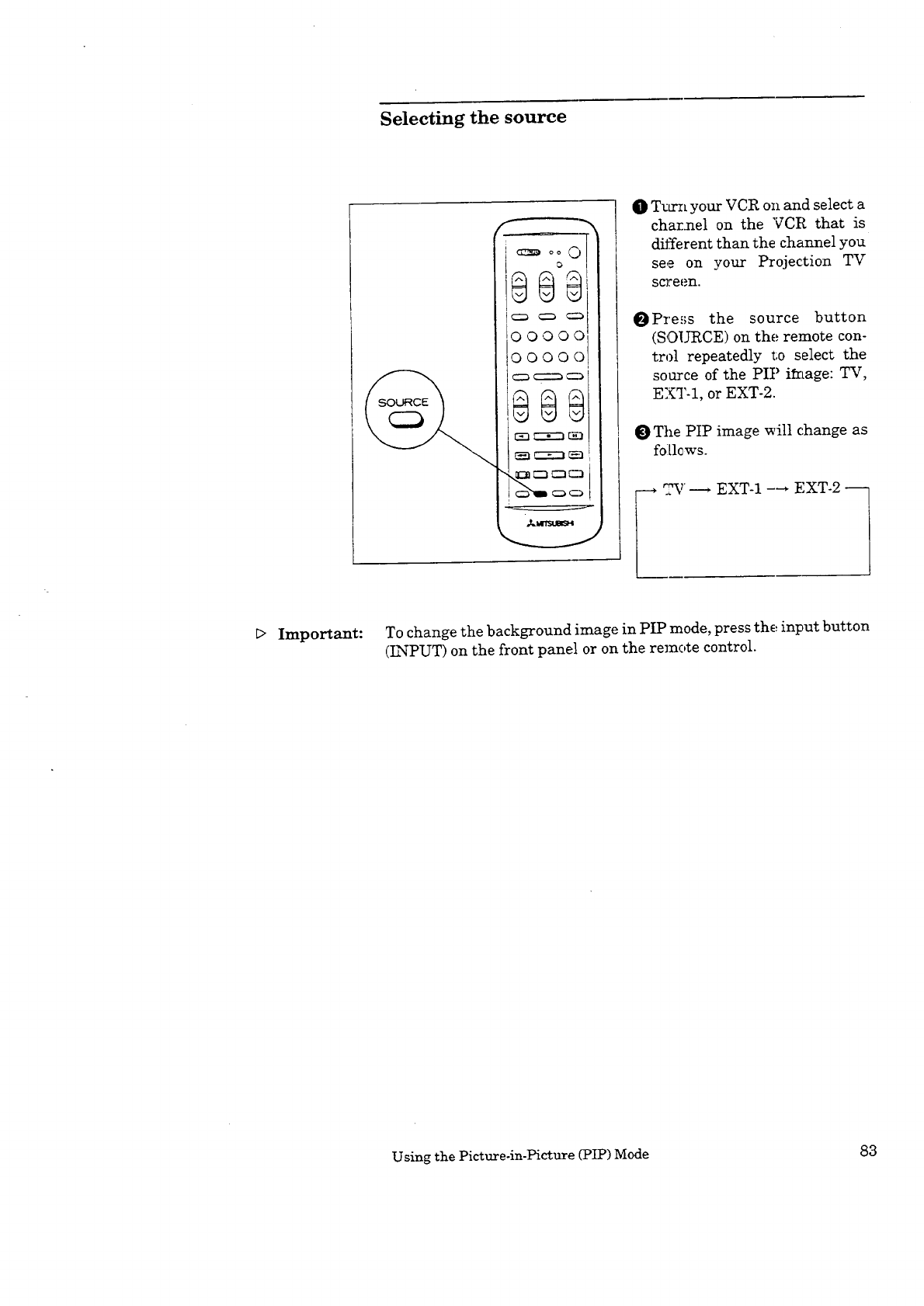
Selecting the source
F -7
° ° 0
ooooo
o0ooo
O T_az_ your VCR on and select a
charnel on the VCR that is
different than the channel you
see on your Projection TV
sc]_een.
OPress the source button
(SOIYRCE) on the remote con-
trol repeatedly to select the
source of the PIP ilztage: TV,
EXT-1, or EXT-2.
The PIP image will change as
follows.
E> Important: To change the background image in PIP mode, press the input button
(LN-PUT) on the front panel or on the remote control.
Using the Picture-in-Picture (PIP) Mode 83
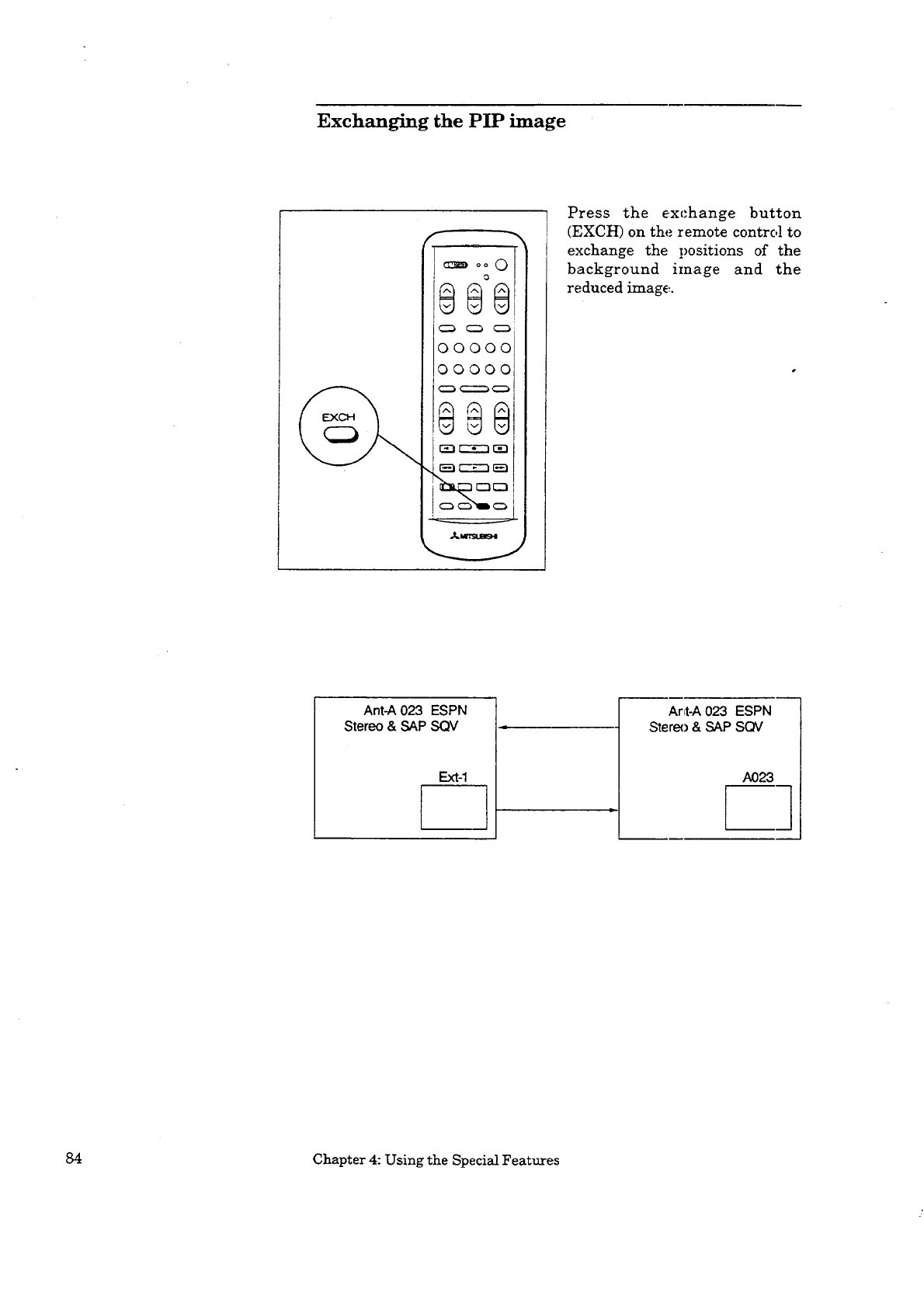
Exchanging the PIP image
f
o_0
888
OOOO0
00000
,888
Press the exchange button
(EXCH) on the remote control to
exchange the positions of the
background image and the
reduced image.
Ant-A 02"3 ESPN
Stereo & SAP SQV
Ext-1 t
Ar_t-A023 ESPN
Stere{) & SAP SQV
A023 ]
84 Chapter 4: Using the Special Features
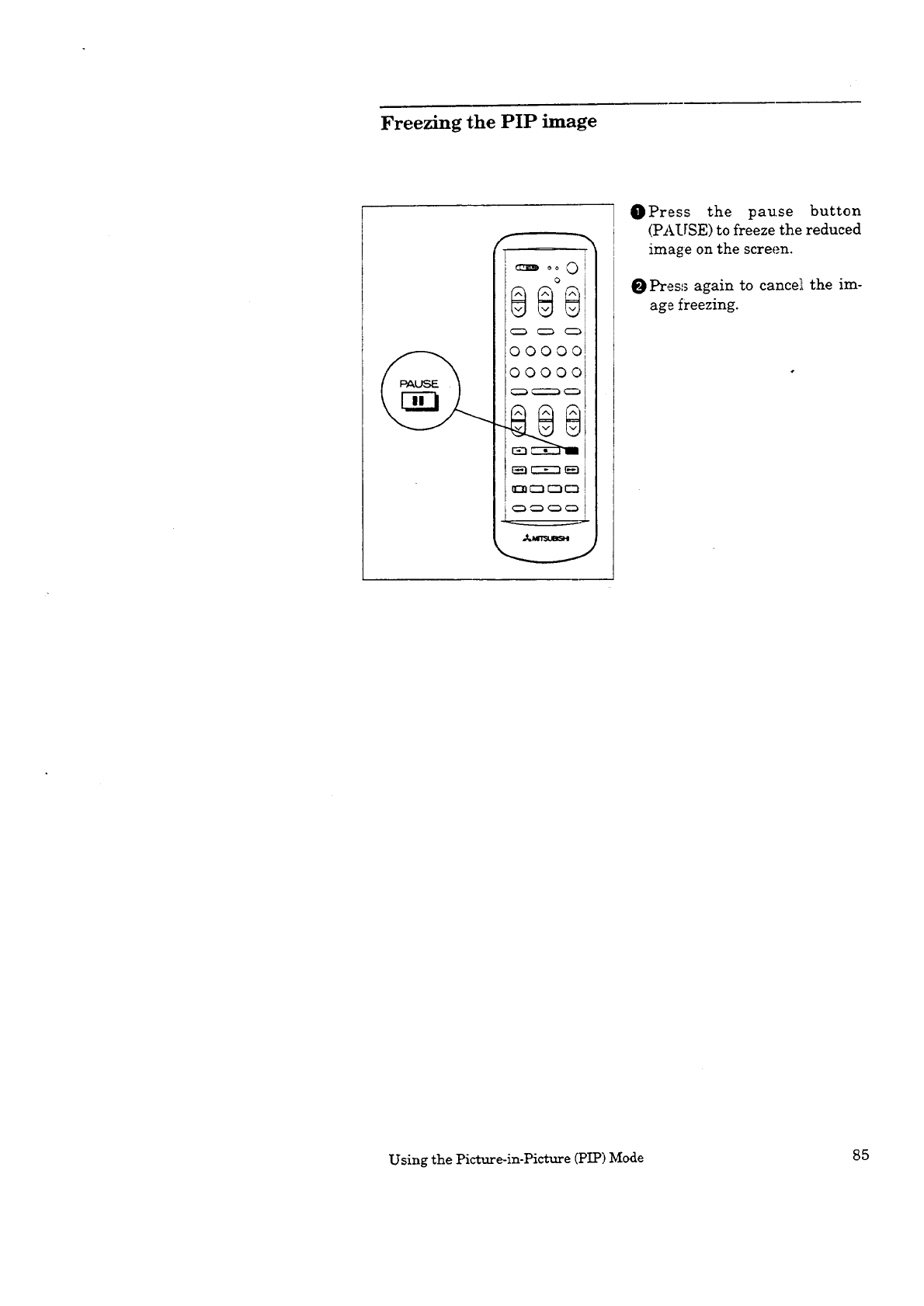
Freezing the PIP image
_ oo 0
00000
00000
0
OPress the pause button
(PAUSE) to freeze the reduced
image on the screen.
O Pres_ again to cancel, the im-
age freezing.
Using the Picture-in-Picture (PIP) Mode 85
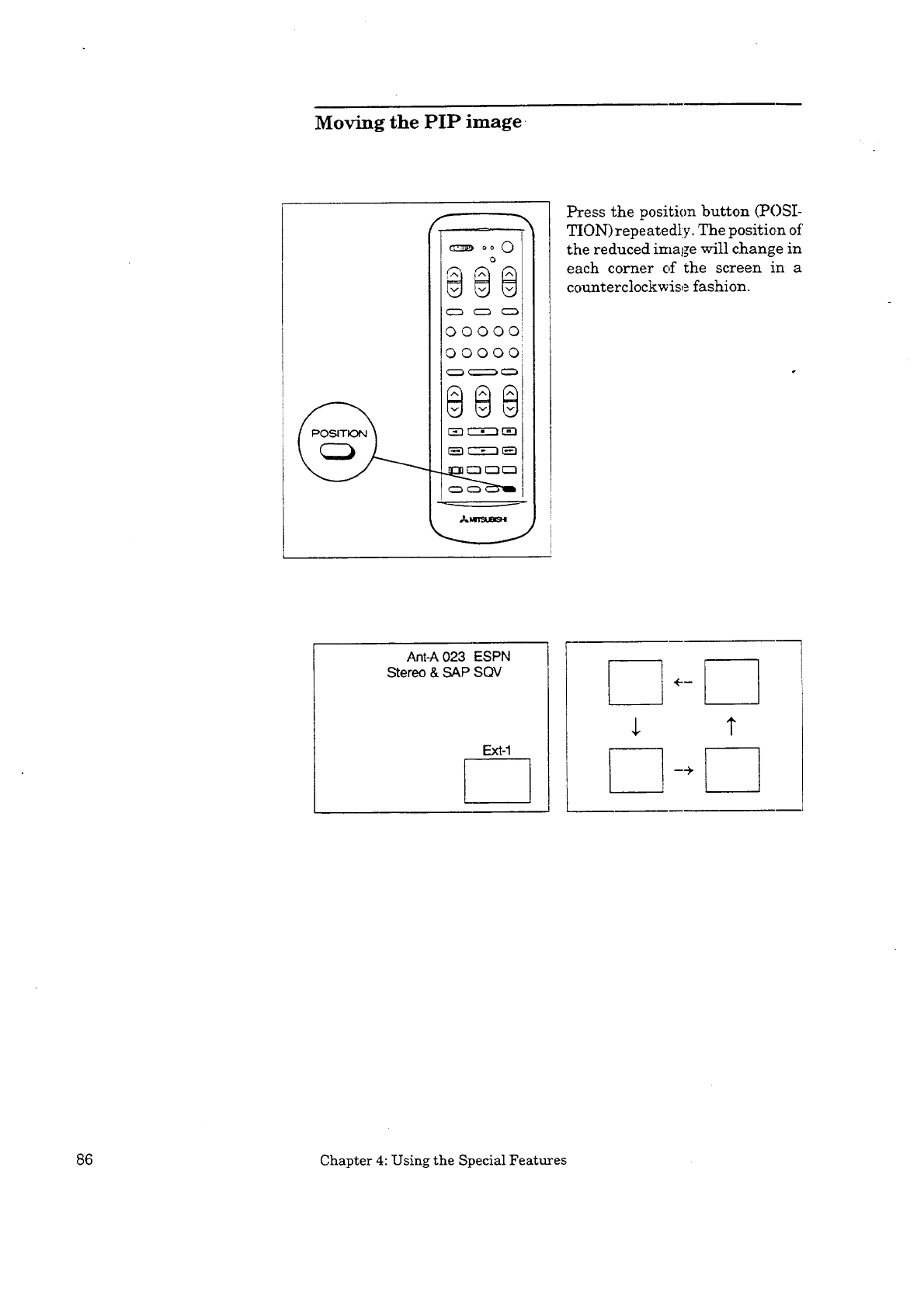
Moving the PIP image.
Press the position button (POSI-
q_ION) repeatedly. The position of'
the reduced ima_e will change in
each corner c,f the screen in a
counterclockwise fashion.
Ant-A 023 ESPN
Stereo & SAP SQV
Ext-1
86 Chapter 4: Using the Special Features


AC_H_AP__ TE_R5
Troubleshooting
Even though you're now familiar with the t,asic and advanced opera-
tions of your Mitsubishi Projection TV, you may run into trouble from
time to time as you become accustomed to the raany features. This chapter
offers solutions to some of the common problems you may encounter.
We suggest that you consult this chart be:tore contacting a Mitsubishi
service representative.
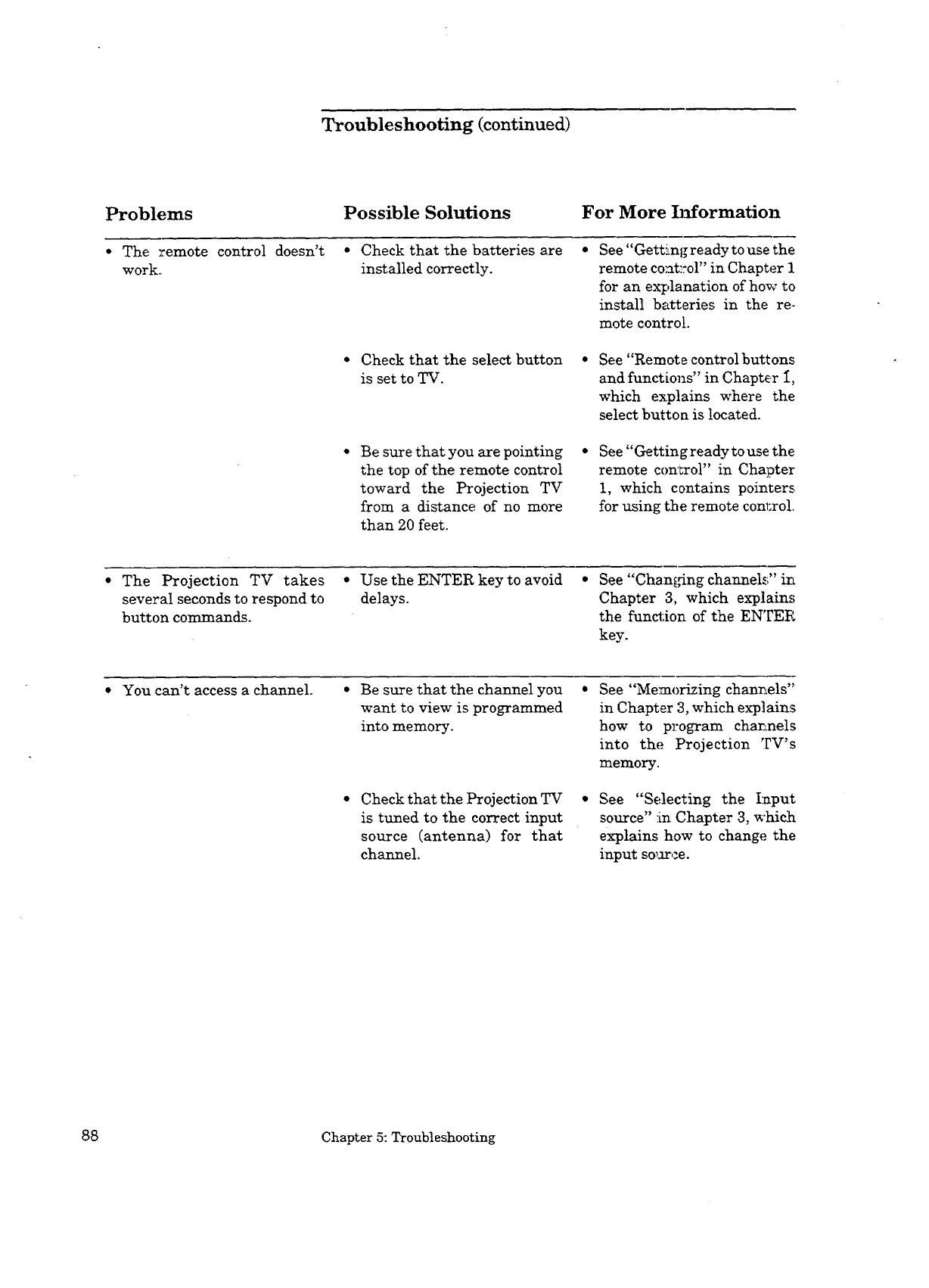
Troubleshooting (continued)
Problems Possible Solutions For More IJ_formation
The remote control doesn't
work.
* Check that the batteries are
installed correctly.
See"Getti_ng ready to use the
remote co:at::ol" in Chapter 1
for an explanation of how to
install batteries in the re-
mote control.
Check that the select button
is set to TV.
See "Remote control buttons
and functiol_s" in Chapt_,r I,
which explains where the
select button is located.
Be sure that you are pointing
the top of the remote control
toward the Projection TV
from a distance of no more
than 20 feet.
See "Getting ready to use the
remote con'_rol" in Chapter
1, which contains pointers
for using the remote conl;rol.
The Projection TV takes
several seconds to respond to
button commands.
•Use the ENTER key to avoid
delays.
See "Chan_,4ng channel,€_" irL
Chapter 3, which explain,,;
the function of the ENTER
key.
You can't access a channel. • Be sure that the channel you
want to view is programmed
into memory.
Check that the Projection TV
is tuned to the correct input
source (antenna) for that
channel.
See "Memorizing chanr._els"
in Chapter 3, which explains
how to program charLnels
into the Projection TV's
memory.
See "Selecting the I:nput
source" :in Chapter 3, which
explains how to change the
input so_arce.
88 Chapter 5: Troubleshooting
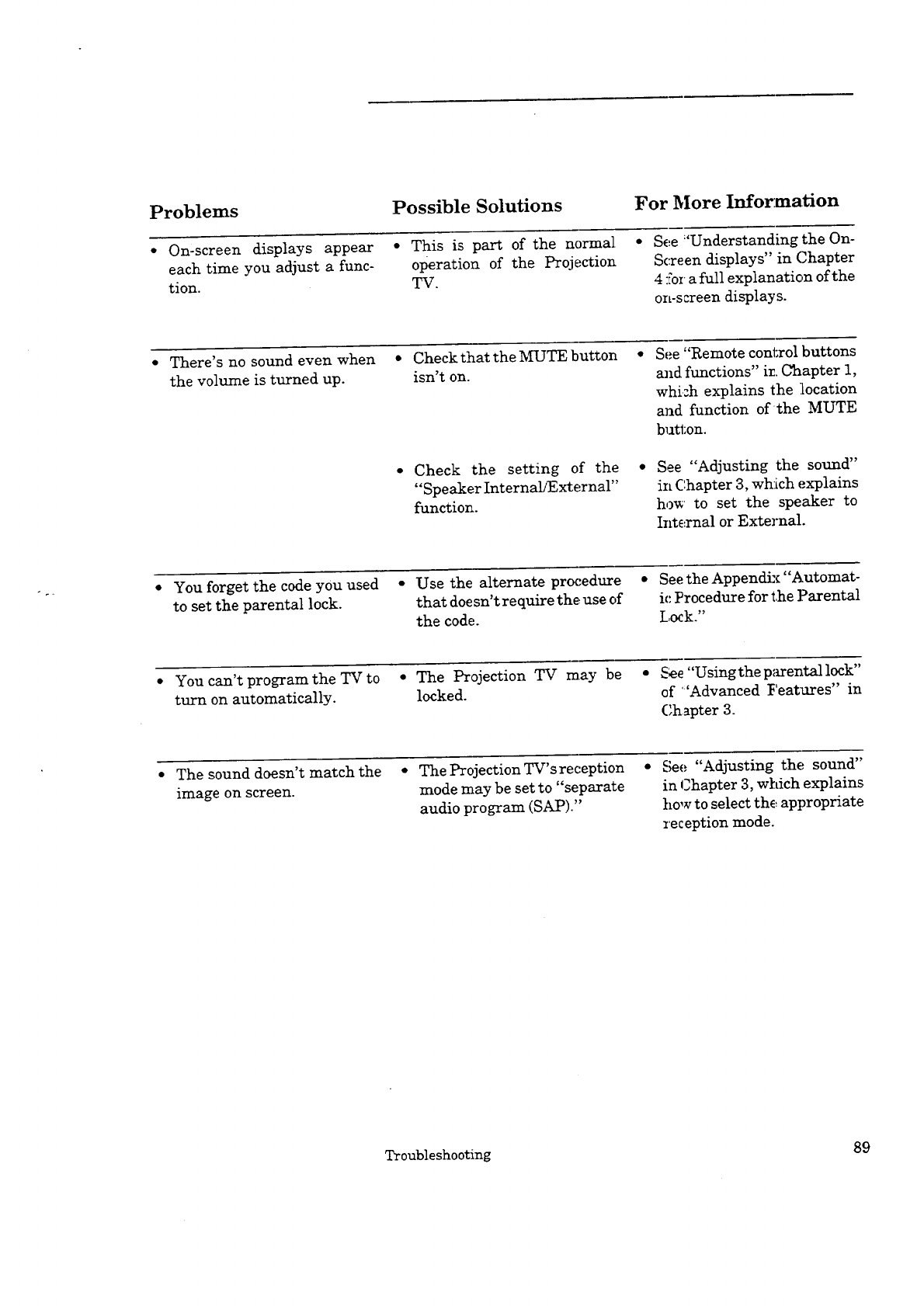
Problems Possible Solutions For More Information
On-screen displays appear
each time you adjust a func-
tion.
*This is part of the normal
operation of the Projection
TV
See "Understanding the On-
Screen displays" in Chapter
4 for a full explanation of the
on-screen displays.
There's no sound even when
the volume is turned up.
• Check that the MUTE button
isn't on.
• Check the setting of the
"Speaker Internal/External"
function.
See "Remote control buttons
and functions" in Chapter 1,
whi=h explains the location
and function of the MUTE
button.
See "Adjusting the sound"
in Chapter 3, wh:Lchexplains
ho_ to set the speaker to
Int_xnal or Extel_al.
• You forget the code you used •Use the alternate procedure • See the Appendix "Automat-
to set the parental lock. that doesn't require the use of ic Procedure for the Parental
the code. Lock."
• You can't program the TV to • The Projection TV may be • _ee "Usingtheparentallock"
turn on automatically, locked, of :'Advanced Features" in
Chapter 3
The sound doesn't match the
image on screen
• The Projection TV's reception
mode may be set to "separate
audio program (SAP)"
See "Adjusting the sound"
in Chapter 3, which explains
how to select the appropriate
reception mode.
Troubleshooting 89
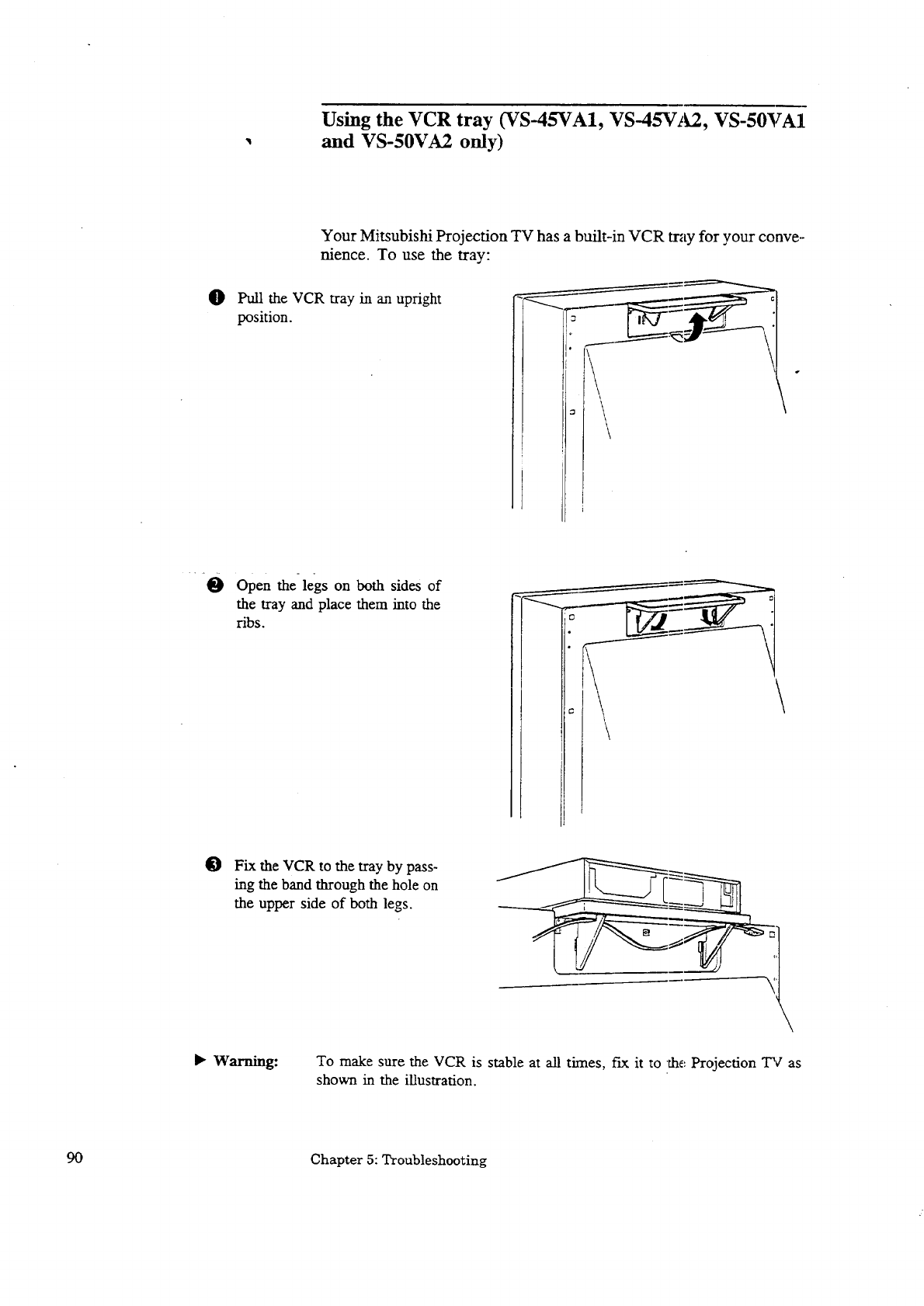
Using the VCR tray (VS-45VA1, VS-45VbL2, VS-50VA1
and VS-50VA2 only)
O
Your Mitsubishi Projection TV has a built-in VCR tray for your conve--
nience. To use the tray:
Pull the VCR tray in an upright
position. °L_-_-J_j--
\\
Open the legs on both sides of
the tray and place them into the
ribs.
\
@Fix the VCR to the tray by pass-
hag the band through the hole on
the upper side of both legs.
I_- Warning: To make sure the VCR is stable at all times, fax it to the: Projection TV as
shown in the illustration.
90 Chapter 5: Troubleshooting
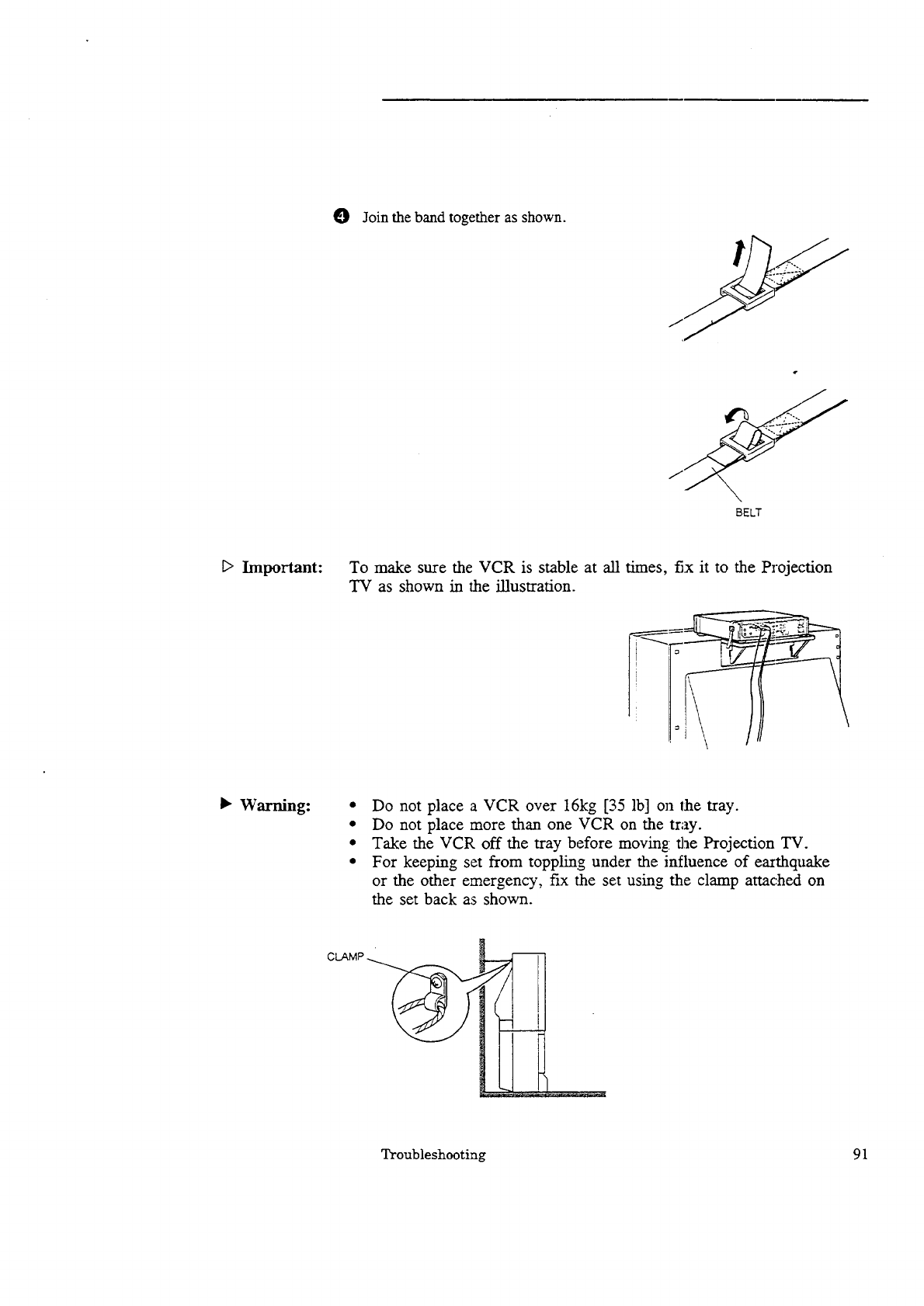
O Join the band together as shown.
BELT
[_ Important: To make sure the VCR is stable at all times, fix it to the Projection
TV as shown in the illustration.
•Warning: • Do not place a VCR over 16kg [35 lb] on the tray.
• Do not place more than one VCR on the tray.
• Take the VCR off the tray before moving the Projection TV.
• For keeping set from toppling under the influence of earthquake
or the other emergency, fix the set using the clamp attached on
the set back as shown.
CLAMP
Troubleshooting 91
Caution and care
•Warning: Don't leave stationary images, such as those ge:aerated from stock
market reports or video games, on screen for more than 10 minutes.
Still patterns can scar the Projection TV c,'msing permanent
damage to the picture tube.
E> Important: If you plan to place speakers next to the Projection TV, make sure they
are the magnetically shielded. Ordinary speakers will cause distor-
tion in the picture due to their strong magnets. This distortion.,
however, will not harm the picture tube. "
For maximum enjoyment and safe ,operation of your MITSUB:[SHI
Projection TV, please read the "IMPORTANT S.._EGUARDS" sec-
tion carefully and apply them properly.
92 Chapter 5: Troubleshooting
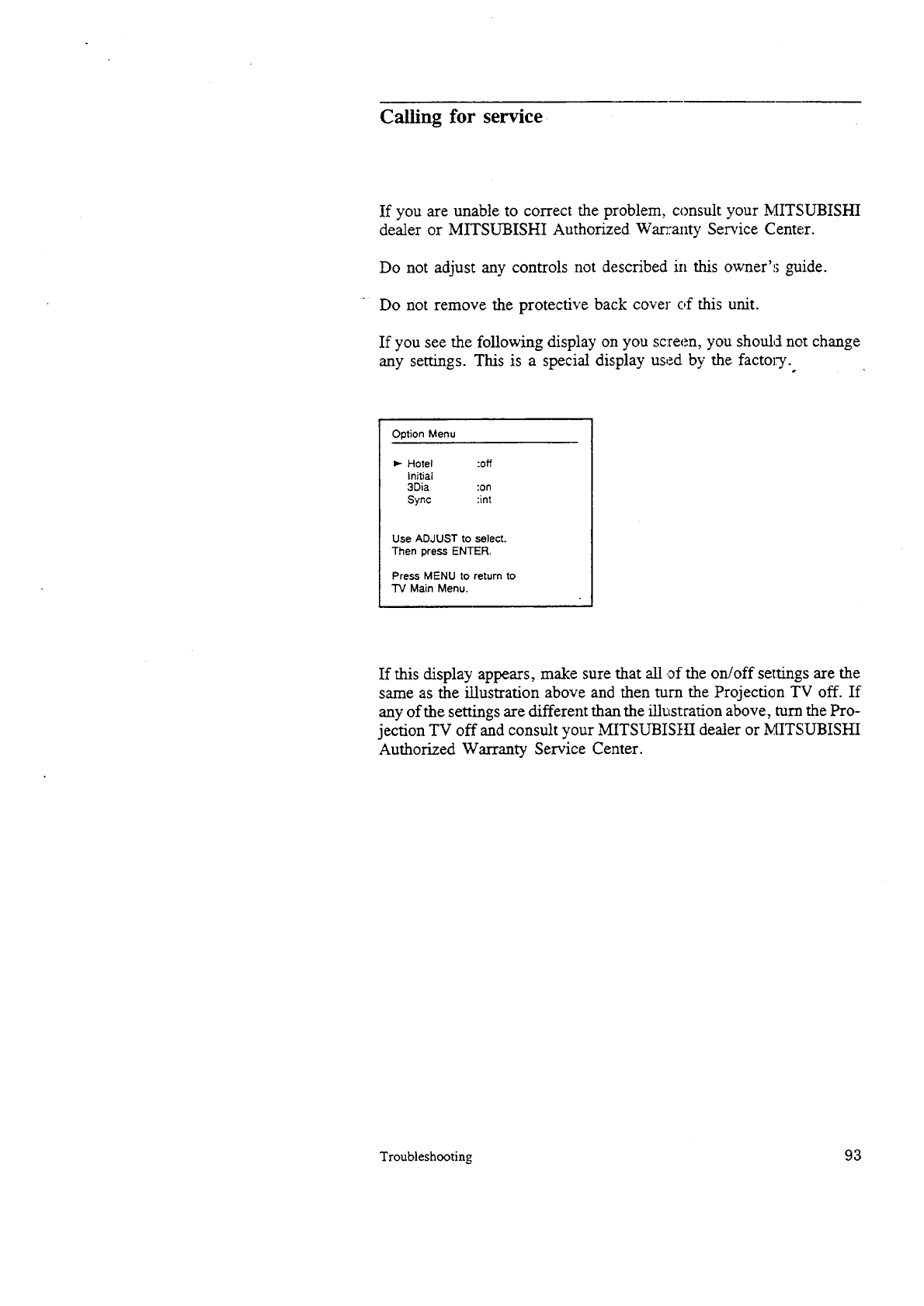
Calling for service.
If you are unable to correct the problem, consult your MITSUBISHI
dealer or MITSUBISHI Authorized Wan-amy Service Center.
Do not adjust any controls not described in this owner':; guide.
Do not remove the protective back cover of this unit.
If you see the following display on you sc:reen, you should not change
any settings. This is a special display used by the factory.°
Option Menu
Hotel :off
Initial
3Dia :on
Syn¢ tint
Use ADJUST to select.
Then press ENTER.
Press MENU to return to
"IV Main Menu.
If this display appears, make sure that all of the on/off settings are the
same as the illustration above and then turn the Projection TV off. If
any of the settings are different than the illustration above, turn the Pro-
jection TV off and consult your MITSUBIStLI dealer or MITSUBISHI
Authorized Warranty Service Center.
Troubleshooting 9 3

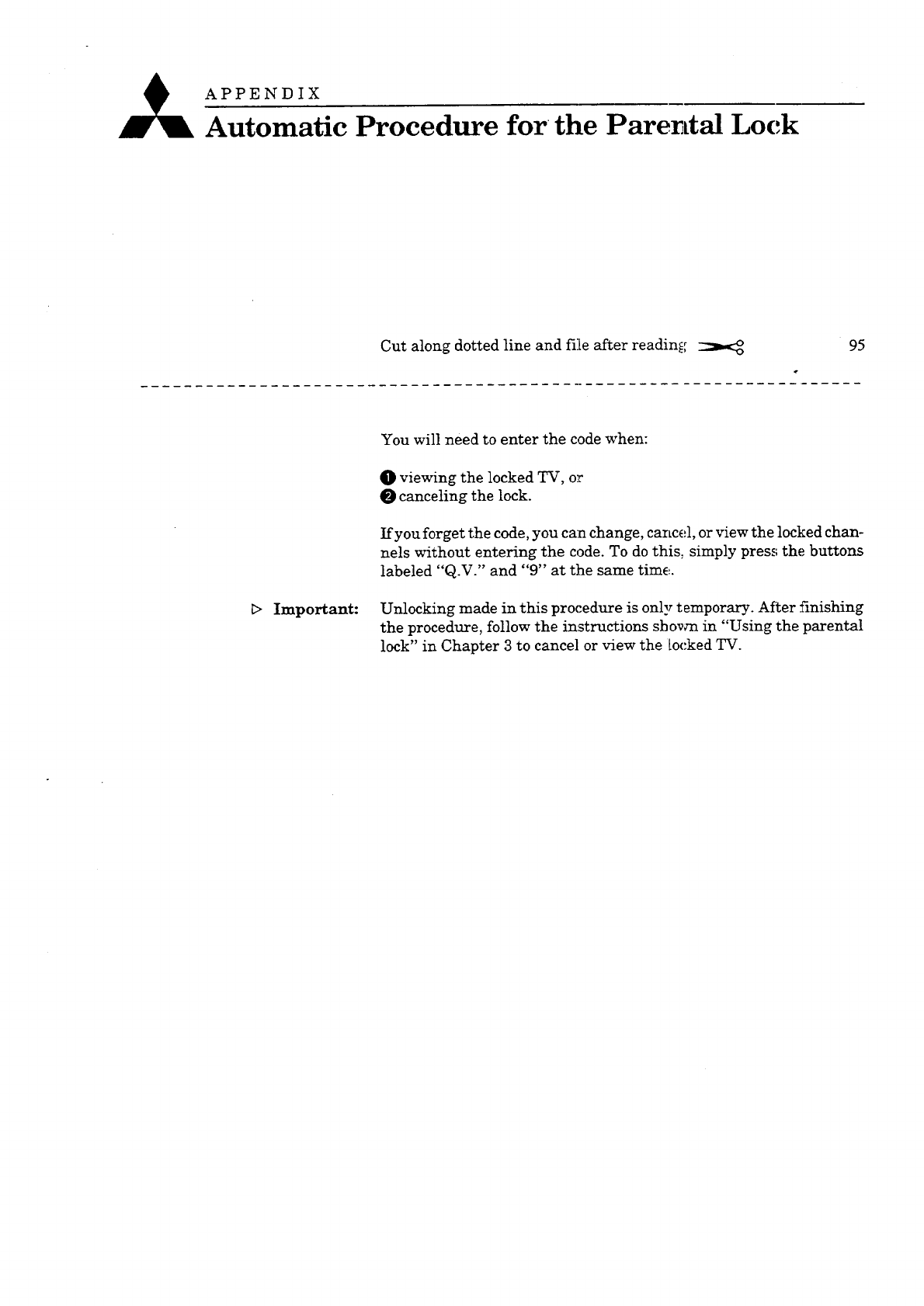
A APPENDIX
A- oma-tic Procedure for the Parental Lock
Cut along dotted line and file after reading 95
Important:
You will need to enter the code when:
O viewing the locked TV, or
O canceling the lock.
If you forget the code, you can change, cancel, or view the locked chan-
nels without entering the code. To do this, simply press the buttons
labeled "Q.V." and "9" at the same time.
Unlocking made in this procedure is only temporary. After finishing
the procedure, follow the instructions shown in "Using the parental
lock" in Chapter 3 to cancel or view the locked TV.

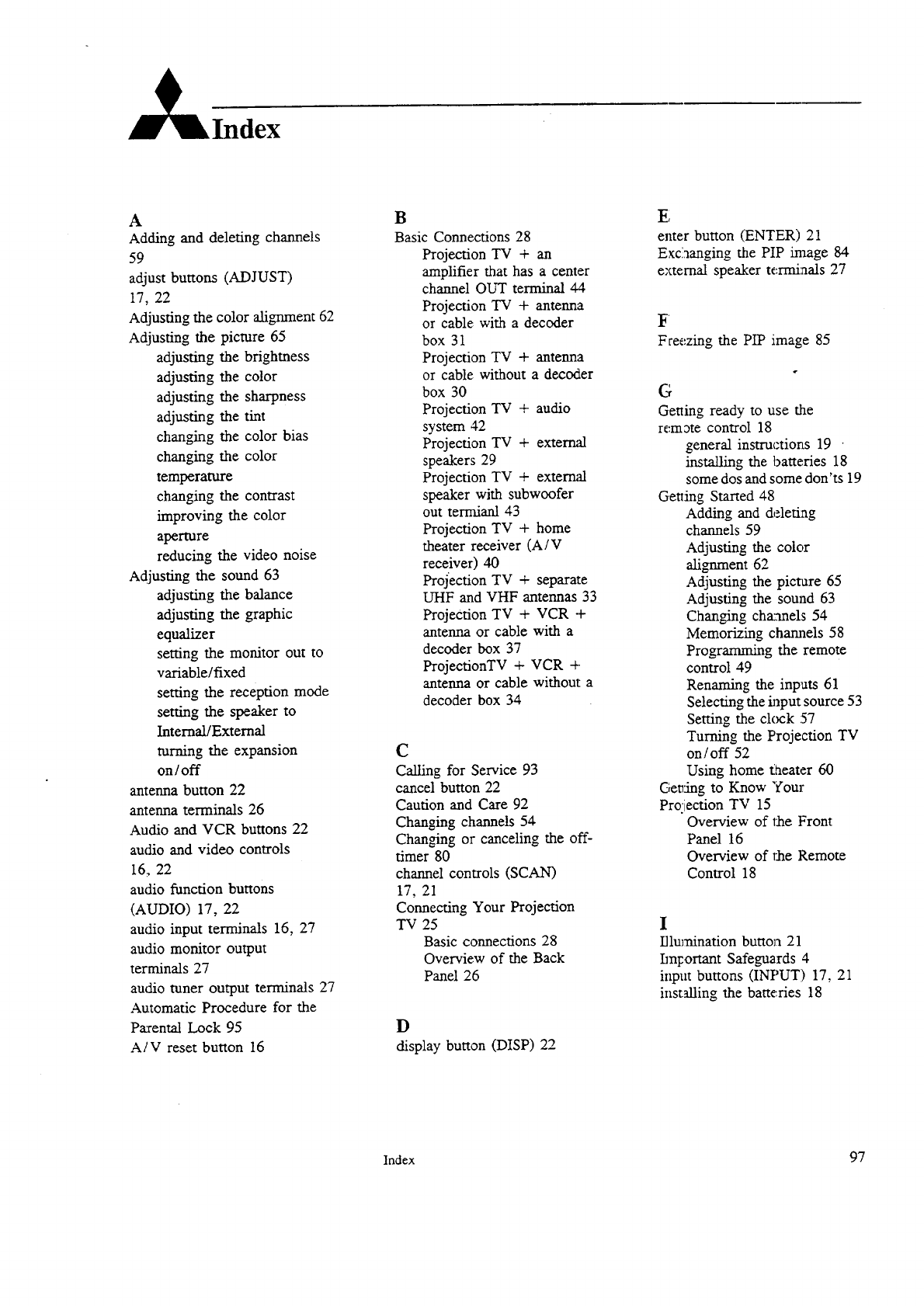
A
Adding and deleting channels
59
adjust buttons (ADJUST)
17, 22
Adjusting the color alignment 62
Adjusting the picture 65
adjusting the brightness
adjusting the color
adjusting the sharpness
adjusting the tint
changing the color bias
changing the color
temperature
changing the contrast
improving the color
aperture
reducing the video noise
Adjusting the sound 63
adjusting the balance
adjusting the graphic
equalizer
setting the monitor out to
variable/fixed
setting the reception mode
setting the speaker to
Internal/External
turning the expansion
on/off
antenna button 22
antenna terminals 26
Audio and VCR buttons 22
audio and video controls
16, 22
audio function buttons
(AUDIO) 17, 22
audio input terminals 16, 27
audio monitor output
terminals 27
audio tuner output terminals 27
Automatic Procedure for the
Parental Lock 95
A/V reset button 16
B
Basic Connections 28
Projection TV + an
amplifier that has a center
channel OUT terminal 44
Projection TV + antenna
or cable with a decoder
box 31
Projection TV + antenna
or cable without a decoder
box 30
Projection TV + audio
system 42
Projection TV + external
speakers 29
Projection TV + extern_d
speaker with subwoofer
out termianl 43
Projection TV + home
theater receiver (A /V
receiver) 40
Projection TV +separate
UHF and VHF antennas 33
ProjeCtion TV + VCR +
antenna or cable with a
decoder box 37
ProjectionTV + VCR +
antenna or cable without a
decoder box 34
c
Calling for Service 93
cancel button 22
Caution and Care 92
Changing channels 54
Changing or canceling the off-
timer 80
channel controls (SCAN)
17, 21
Connecting Your Projection
TV 25
Basic connections 28
Overview of the Back
Panel 26
D
display button (DISP) 22
E;
enter button (ENTER) 21
Exclaanging the PIP inaage 84
external speaker terminals 27
Freezing the PIP image 85
Getting ready to use the
remote control 18
general instructions 19 -
installing the batteries 18
some dos and some don'ts 19
Getting Started 48
Adding and deleting
channels 59
Adjusting the color
alignment 62
Adjusting the picture 65
Adjusting the sound 63
Changing chxanels 54
Memorizing channels 58
Programming the remote
control 49
Renaming the inputs 61
Selecting the input source 53
Setting the clcx:k :57
Turning the Projection TV
on/off 52
Using home taeater 60
Geving to Know Your
Projection TV 15
Overview of the Front
Panel 16
Overview of 1taeRemote
Control 18
I
I/lumination button 21
ImFortant Safeguards 4
input buttons (INPUT) 17, 2 ]
installing the batteries 18
Index 97
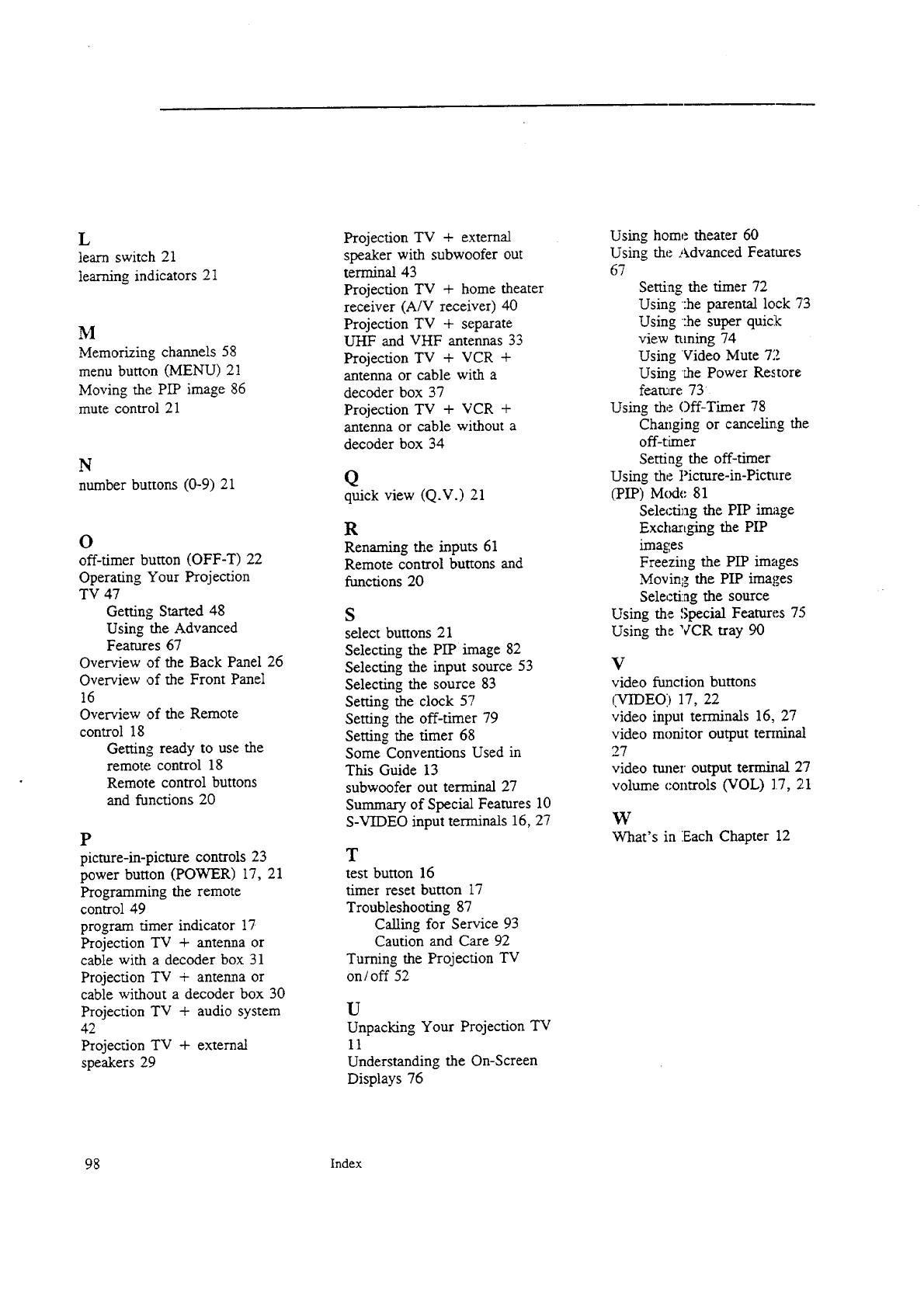
L
learn switch 21
learning indicators 21
M
Memorizing channels 58
menu button (MENU) 21
Moving the PIP image 86
mute control 21
N
number buttons (0-9) 21
O
off-timer button (OFF-T) 22
Operating Your Projection
TV 47
Getting Started 48
Using the Advanced
Features 67
Overview of the Back Panel 26
Overview of the Front Panel
16
Overview of the Remote
control 18
Getting ready to use the
remote control 18
Remote control buttons
and functions 20
P
picture-in-picture controls 23
power button (POWER) 17, 21
Programming the remote
control 49
program timer indicator 17
Projection TV + antenna or
cable with a decoder box 31
Projection TV + antenna or
cable without a decoder box 30
Projection TV + audio system
42
Projection TV + external
speakers 29
Projection TV + external
speaker with subwoofer out
terminal 43
Projection TV + home theater
receiver (A/V receiver) 40
Projection TV + separate
UHF and VHF antennas 33
Projection TV + VCR +
antenna or cable with a
decoder box 37
Projection TV + VCR +
antenna or cable without a
decoder box 34
Q
quick view (Q. v.) 21
R
Renaming the inputs 61
Remote control buttons and
fianctions 20
S
select buttons 21
Selecting the PIP image 82
Selecting the input source 53
Selecting the source 83
Setting the clock 57
Setting the off-timer 79
Setting the timer 68
Some Conventions Used in
This Guide 13
subwoofer out terminal 27
Summary of Special Features 10
S-VIDEO input terminals 16, 27
T
test button 16
timer reset button 17
Troubleshooting 87
Calling for Service 93
Caution and Care 92
Turning the Projection TV
on / off 52
U
Unpacking Your Projection TV
11
Understanding the On-Screen
Displays 76
Using home theater 60
Using theAdvanced Features
67
Setting the timer 72
Using ':he parental lock 73
Using :he super quick
view tuning 74
Using Video Mute 72
Using '_e Power Restore
feature 73
Using the Oif-Timer 78
Changing or canceling the
off-timer
Setting the off-timer
Using the Picture-in-Picture
(PIP) Mode 81
Selectiag the PIP image
Exchar_ging the PIP
images
Freezing the PIP images
Moving the PIP images
Selecti:ag the source
Using the Special Features 75
Using the VCR tray 90
¥
video ftmclion buttons
(VIDEO) 17,22
videoinpulterminals16,27
videomonitoroutputterminal
27
videotimeroutputterminal27
volume controls (VOL) 1.7, 21
W
What's in Each Chapter 12
98 Index

,,,*_MITSUBISHI
MITSUBISHI ELECTRONICS AMERICA, INC.
5757 Plaza Drive, P.O. Box 6007
Cypress, CA 90630-0007
871D174A3 Printed in USA
