MOBOTIX DISPB Building Automation Server with touchscreen display User Manual BellRFID Quick Install

MOBOTIX AG Building Automation Server with touchscreen display BellRFID Quick Install

Contents

UserManual.pdf

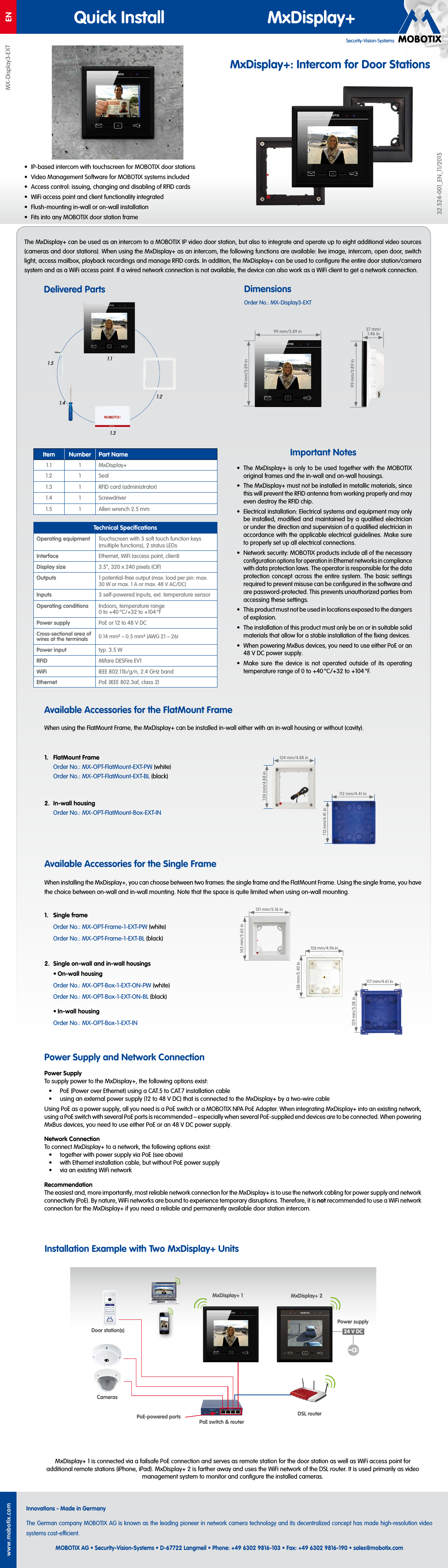
Security-Vision-SystemsENMX-Display3-EXTwww.mobotix.comInnovations - Made in GermanyThe German company MOBOTIX AG is known as the leading pioneer in network camera technology and its decentralized concept has made high-resolution video systems cost-ecient.MOBOTIX AG • Security-Vision-Systems • D-67722 Langmeil • Phone: +49 6302 9816-103 • Fax: +49 6302 9816-190 • sales@mobotix.comQuick Install MxDisplay+32.524-001_EN_11/2015MxDisplay+: Intercom for Door Stations•  IP-based intercom with touchscreen for MOBOTIX door stations•  Video Management Software for MOBOTIX systems included•  Access control: issuing, changing and disabling of RFID cards•  WiFi access point and client functionality integrated•  Flush-mounting in-wall or on-wall installation•  Fits into any MOBOTIX door station frameThe MxDisplay+ can be used as an intercom to a MOBOTIX IP video door station, but also to integrate and operate up to eight additional video sources (cameras and door stations). When using the MxDisplay+ as an intercom, the following functions are available: live image, intercom, open door, switch light, access mailbox, playback recordings and manage RFID cards. In addition, the MxDisplay+ can be used to configure the entire door station/camera system and as a WiFi access point. If a wired network connection is not available, the device can also work as a WiFi client to get a network connection.Delivered PartsPower Supply and Network ConnectionMxDisplay+1 is connected via a failsafe PoE connection and serves as remote station for the door station as well as WiFi access point for additional remote stations (iPhone, iPad). MxDisplay+2 is farther away and uses the WiFi network of the DSL router. It is used primarily as video management system to monitor and configure the installed cameras.When installing the MxDisplay+, you can choose between two frames: the single frame and the FlatMount Frame. Using the single frame, you have the choice between on-wall and in-wall mounting. Note that the space is quite limited when using on-wall mounting.Available Accessories for the Single Frame1.  Single frameOrder No.: MX-OPT-Frame-1-EXT-PW (white)Order No.: MX-OPT-Frame-1-EXT-BL (black)2.  Single on-wall and in-wall housings• On-wall housingOrder No.: MX-OPT-Box-1-EXT-ON-PW (white)Order No.: MX-OPT-Box-1-EXT-ON-BL (black)• In-wall housingOrder No.: MX-OPT-Box-1-EXT-IN117mm/4.61in129mm/5.08in126mm/4.96in138mm/5.43in131mm/5.16in143mm/5.63in99mm/3.89in99mm/3.89inWhen using the FlatMount Frame, the MxDisplay+ can be installed in-wall either with an in-wall housing or without (cavity).Available Accessories for the FlatMount Frame1.  FlatMount FrameOrder No.: MX-OPT-FlatMount-EXT-PW (white)Order No.: MX-OPT-FlatMount-EXT-BL (black)2.  In-wall housingOrder No.: MX-OPT-FlatMount-Box-EXT-IN112mm/4.41in112mm/4.41in124mm/4.88in124mm/4.88inImportant Notes•  The MxDisplay+ is only to be used together with the MOBOTIX original frames and the in-wall and on-wall housings.•  The MxDisplay+ must not be installed in metallic materials, since this will prevent the RFID antenna from working properly and may even destroy the RFID chip.•  Electrical installation: Electrical systems and equipment may only be installed, modified and maintained by a qualified electrician or under the direction and supervision of a qualified electrician in accordance with the applicable electrical guidelines. Make sure to properly set up all electrical connections.•  Network security: MOBOTIX products include all of the necessary configuration options for operation in Ethernet networks in compliance with data protection laws. The operator is responsible for the data protection concept across the entire system. The basic settings required to prevent misuse can be configured in the software and are password-protected. This prevents unauthorized parties from accessing these settings.•  This product must not be used in locations exposed to the dangers of explosion.•  The installation of this product must only be on or in suitable solid materials that allow for a stable installation of the fixing devices.•  When powering MxBus devices, you need to use either PoE or an 48VDC power supply.•  Make sure the device is not operated outside of its operating temperature range of 0 to +40 °C/+32 to +104 °F.Item Number Part Name1.1 1 MxDisplay+1.2 1 Seal1.3 1 RFID card (administrator)1.4 1 Screwdriver1.5 1 Allen wrench 2.5mm99mm/3.89in37mm/ 1.46inDimensionsPower SupplyTo supply power to the MxDisplay+, the following options exist:•  PoE (Power over Ethernet) using a CAT.5 to CAT.7 installation cable•  using an external power supply (12 to 48V DC) that is connected to the MxDisplay+ by a two-wire cableUsing PoE as a power supply, all you need is a PoE switch or a MOBOTIX NPA PoE Adapter. When integrating MxDisplay+ into an existing network, using a PoE switch with several PoE ports is recommended – especially when several PoE-supplied end devices are to be connected. When powering MxBus devices, you need to use either PoE or an 48VDC power supply.Network ConnectionTo connect MxDisplay+ to a network, the following options exist:•  together with power supply via PoE (see above)•  with Ethernet installation cable, but without PoE power supply•  via an existing WiFi networkRecommendationThe easiest and, more importantly, most reliable network connection for the MxDisplay+ is to use the network cabling for power supply and network connectivity (PoE). By nature, WiFi networks are bound to experience temporary disruptions. Therefore, it is not recommended to use a WiFi network connection for the MxDisplay+ if you need a reliable and permanently available door station intercom.Installation Example with Two MxDisplay+ UnitsOrder No.: MX-Display3-EXTDoor station(s)CamerasPoE switch & routerMxDisplay+ 1PoE-powered portsPower supply24V DCMxDisplay+ 2DSL router1.51.41.11.21.3Technical SpecificationsOperating equipment Touchscreen with 3 soft touch function keys (multiple functions), 2 status LEDsInterface Ethernet, WiFi (access point, client)Display size 3.5“, 320 x 240 pixels (CIF)Outputs 1 potential-free output (max. load per pin: max. 30W or max. 1A or max. 48V AC/DC)Inputs 3 self-powered inputs, ext. temperature sensorOperating conditions Indoors, temperature range 0 to +40 °C/+32 to +104 °FPower supply PoE or 12 to 48V DCCross-sectional area of wires at the terminals 0.14 mm² – 0.5 mm² (AWG 21 – 26)Power input typ. 3.5WRFID Mifare DESFire EV1WiFi IEEE 802.11b/g/n, 2.4 GHz bandEthernet PoE (IEEE 802.3af, class2)
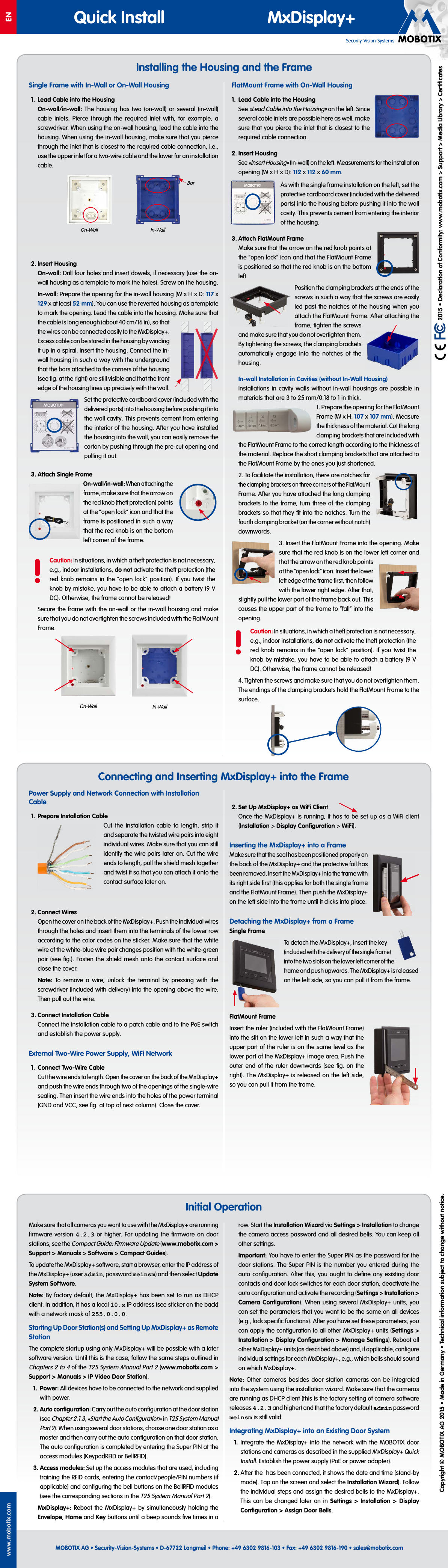
Security-Vision-SystemsENQuick Install MxDisplay+MOBOTIX AG • Security-Vision-Systems • D-67722 Langmeil • Phone: +49 6302 9816-103 • Fax: +49 6302 9816-190 • sales@mobotix.comwww.mobotix.com  2015 • Declaration of Conformity: www.mobotix.com> Support> Media Library> CertificatesCopyright © MOBOTIX AG 2015 • Made in Germany • Technical information subject to change without notice.Installing the Housing and the FrameMake sure that all cameras you want to use with the MxDisplay+ are running firmware version 4.2.3 or higher. For updating the firmware on door stations, see the Compact Guide: Firmware Update (www.mobotix.com> Support> Manuals> Software> Compact Guides).To update the MxDisplay+ software, start a browser, enter the IP address of the MxDisplay+ (user admin, password meinsm) and then select Update System Software.Note: By factory default, the MxDisplay+ has been set to run as DHCP client. In addition, it has a local 10.x IP address (see sticker on the back) with a network mask of 255.0.0.0.Starting Up Door Station(s) and Setting Up MxDisplay+ as Remote StationThe complete startup using only MxDisplay+ will be possible with a later software version. Until this is the case, follow the same steps outlined in Chapters 2 to 4 of the T25 System Manual Part2 (www.mobotix.com> Support> Manuals> IP Video Door Station).1.  Power: All devices have to be connected to the network and supplied with power.2. Auto configuration: Carry out the auto configuration at the door station (see Chapter2.1.3, «Start the Auto Configuration» in T25 System Manual Part2). When using several door stations, choose one door station as a master and then carry out the auto configuration on that door station. The auto configuration is completed by entering the Super PIN at the access modules (KeypadRFID or BellRFID).3. Access modules: Set up the access modules that are used, including training the RFID cards, entering the contact/people/PIN numbers (if applicable) and configuring the bell buttons on the BellRFID modules (see the corresponding sections in the T25 System Manual Part2).MxDisplay+: Reboot the MxDisplay+ by simultaneously holding the Envelope, Home and Key buttons until a beep sounds five times in a row. Start the Installation Wizard via Settings> Installation to change the camera access password and all desired bells. You can keep all other settings.Important: You have to enter the Super PIN as the password for the door stations. The Super PIN is the number you entered during the auto configuration. After this, you ought to define any existing door contacts and door lock switches for each door station, deactivate the auto configuration and activate the recording (Settings> Installation> Camera Configuration). When using several MxDisplay+ units, you can set the parameters that you want to be the same on all devices (e.g., lock specific functions). After you have set these parameters, you can apply the configuration to all other MxDisplay+ units (Settings> Installation> Display Configuration> Manage Settings). Reboot all other MxDisplay+ units (as described above) and, if applicable, configure individual settings for each MxDisplay+, e.g., which bells should sound on which MxDisplay+.Note: Other cameras besides door station cameras can be integrated into the system using the installation wizard. Make sure that the cameras are running as DHCP client (this is the factory setting of camera software releases 4.2.3 and higher) and that the factory default admin password meinsm is still valid.Integrating MxDisplay+ into an Existing Door System1.  Integrate the MxDisplay+ into the network with the MOBOTIX door stations and cameras as described in the supplied MxDisplay+ Quick Install. Establish the power supply (PoE or power adapter).2. After the  has been connected, it shows the date and time (stand-by mode). Tap on the screen and select the Installation Wizard). Follow the individual steps and assign the desired bells to the MxDisplay+. This can be changed later on in Settings > Installation > Display Configuration> Assign Door Bells.Initial OperationPower Supply and Network Connection with Installation Cable1.  Prepare Installation CableCut the installation cable to length, strip it and separate the twisted wire pairs into eight individual wires. Make sure that you can still identify the wire pairs later on. Cut the wire ends to length, pull the shield mesh together and twist it so that you can attach it onto the contact surface later on.2. Connect WiresOpen the cover on the back of the MxDisplay+. Push the individual wires through the holes and insert them into the terminals of the lower row according to the color codes on the sticker. Make sure that the white wire of the white-blue wire pair changes position with the white-green pair (see fig.). Fasten the shield mesh onto the contact surface and close the cover.Note: To remove a wire, unlock the terminal by pressing with the screwdriver (included with delivery) into the opening above the wire. Then pull out the wire.3. Connect Installation CableConnect the installation cable to a patch cable and to the PoE switch and establish the power supply.External Two-Wire Power Supply, WiFi Network1.  Connect Two-Wire CableCut the wire ends to length. Open the cover on the back of the MxDisplay+ and push the wire ends through two of the openings of the single-wire sealing. Then insert the wire ends into the holes of the power terminal (GND and VCC, see fig. at top of next column). Close the cover.2. Set Up MxDisplay+ as WiFi ClientOnce the MxDisplay+ is running, it has to be set up as a WiFi client (Installation> Display Configuration> WiFi).Inserting the MxDisplay+ into a FrameMake sure that the seal has been positioned properly on the back of the MxDisplay+ and the protective foil has been removed. Insert the MxDisplay+ into the frame with its right side first (this applies for both the single frame and the FlatMount Frame). Then push the MxDisplay+ on the left side into the frame until it clicks into place.Detaching the MxDisplay+ from a FrameSingle FrameTo detach the MxDisplay+, insert the key (included with the delivery of the single frame) into the two slots on the lower left corner of the frame and push upwards. The MxDisplay+ is released on the left side, so you can pull it from the frame.FlatMount FrameInsert the ruler (included with the FlatMount Frame) into the slit on the lower left in such a way that the upper part of the ruler is on the same level as the lower part of the MxDisplay+ image area. Push the outer end of the ruler downwards (see fig. on the right). The MxDisplay+ is released on the left side, so you can pull it from the frame.Connecting and Inserting MxDisplay+ into the FrameSingle Frame with In-Wall or On-Wall Housing1.  Lead Cable into the HousingOn-wall/in-wall: The housing has two (on-wall) or several (in-wall) cable inlets. Pierce through the required inlet with, for example, a screwdriver. When using the on-wall housing, lead the cable into the housing. When using the in-wall housing, make sure that you pierce through the inlet that is closest to the required cable connection, i.e., use the upper inlet for a two-wire cable and the lower for an installation cable.2. Insert HousingOn-wall: Drill four holes and insert dowels, if necessary (use the on-wall housing as a template to mark the holes). Screw on the housing.In-wall: Prepare the opening for the in-wall housing (W x H x D: 117 x 129 x at least 52 mm). You can use the reverted housing as a template to mark the opening. Lead the cable into the housing. Make sure that the cable is long enough (about 40cm/16in), so that the wires can be connected easily to the MxDisplay+. Excess cable can be stored in the housing by winding it up in a spiral. Insert the housing. Connect the in-wall housing in such a way with the underground that the bars attached to the corners of the housing (see fig. at the right) are still visible and that the front edge of the housing lines up precisely with the wall.Set the protective cardboard cover (included with the delivered parts) into the housing before pushing it into the wall cavity. This prevents cement from entering the interior of the housing. After you have installed the housing into the wall, you can easily remove the carton by pushing through the pre-cut opening and pulling it out.3. Attach Single FrameOn-wall/in-wall: When attaching the frame, make sure that the arrow on the red knob (theft protection) points at the “open lock” icon and that the frame is positioned in such a way that the red knob is on the bottom left corner of the frame.!Caution: In situations, in which a theft protection is not necessary, e.g., indoor installations, do not activate the theft protection (the red knob remains in the “open lock” position). If you twist the knob by mistake, you have to be able to attach a battery (9V DC). Otherwise, the frame cannot be released!Secure the frame with the on-wall or the in-wall housing and make sure that you do not overtighten the screws included with the FlatMount Frame.FlatMount Frame with On-Wall Housing1.  Lead Cable into the HousingSee «Lead Cable into the Housing» on the left. Since several cable inlets are possible here as well, make sure that you pierce the inlet that is closest to the required cable connection.2. Insert HousingSee «Insert Housing» (In-wall) on the left. Measurements for the installation opening (Wx Hx D): 112 x 112 x 60 mm.As with the single frame installation on the left, set the protective cardboard cover (included with the delivered parts) into the housing before pushing it into the wall cavity. This prevents cement from entering the interior of the housing.3. Attach FlatMount FrameMake sure that the arrow on the red knob points at the “open lock” icon and that the FlatMount Frame is positioned so that the red knob is on the bottom left.Position the clamping brackets at the ends of the screws in such a way that the screws are easily led past the notches of the housing when you attach the FlatMount Frame. After attaching the frame, tighten the screws and make sure that you do not overtighten them. By tightening the screws, the clamping brackets automatically engage into the notches of the housing.In-wall Installation in Cavities (without In-Wall Housing)Installations in cavity walls without in-wall housings are possible in materials that are 3 to 25mm/0.18 to 1in thick.1. Prepare the opening for the FlatMount Frame (W x H: 107x 107 mm). Measure the thickness of the material. Cut the long clamping brackets that are included with the FlatMount Frame to the correct length according to the thickness of the material. Replace the short clamping brackets that are attached to the FlatMount Frame by the ones you just shortened.2. To facilitate the installation, there are notches for the clamping brackets on three corners of the FlatMount Frame. After you have attached the long clamping brackets to the frame, turn three of the clamping brackets so that they fit into the notches. Turn the fourth clamping bracket (on the corner without notch) downwards.3. Insert the FlatMount Frame into the opening. Make sure that the red knob is on the lower left corner and that the arrow on the red knob points at the “open lock” icon. Insert the lower left edge of the frame first, then follow with the lower right edge. After that, slightly pull the lower part of the frame back out. This causes the upper part of the frame to “fall” into the opening.!Caution: In situations, in which a theft protection is not necessary, e.g., indoor installations, do not activate the theft protection (the red knob remains in the “open lock” position). If you twist the knob by mistake, you have to be able to attach a battery (9V DC). Otherwise, the frame cannot be released!4. Tighten the screws and make sure that you do not overtighten them. The endings of the clamping brackets hold the FlatMount Frame to the surface.On-Wall In-WallBarIn-WallOn-Wall

Navigation menu