Monday FR200NM The product is RF Card Reader and Controller User Manual

MONDAY The product is RF Card Reader and Controller

User Manual

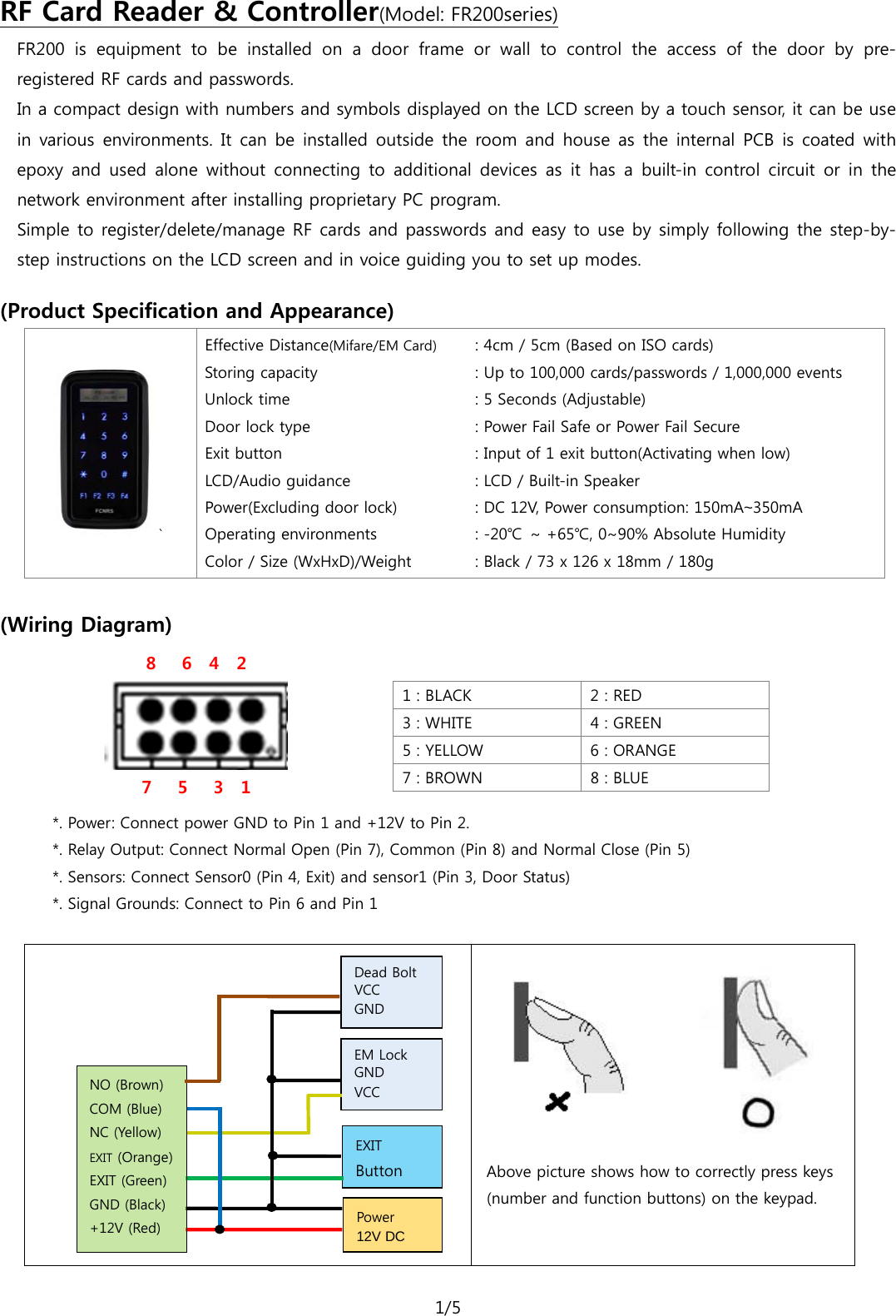
1/5  FR200  is equipment to be installed on a door frame or wall to control the access of the door by pre-registered RF cards and passwords. RF Card Reader & Controller(Model: FR200series) In a compact design with numbers and symbols displayed on the LCD screen by a touch sensor, it can be use in various environments. It can be installed outside the room and house as the internal  PCB  is  coated with epoxy  and  used  alone without connecting to additional devices as it has a built-in control circuit or in the network environment after installing proprietary PC program.   Simple to register/delete/manage RF cards and passwords and easy to use by simply following the step-by-step instructions on the LCD screen and in voice guiding you to set up modes.  (Product Specification and Appearance)     ` Effective Distance(Mifare/EM Card) Storing capacity   Unlock time Door lock type Exit button LCD/Audio guidance Power(Excluding door lock) Operating environments Color / Size (WxHxD)/Weight : 4cm / 5cm (Based on ISO cards) : Up to 100,000 cards/passwords / 1,000,000 events : 5 Seconds (Adjustable) : Power Fail Safe or Power Fail Secure : Input of 1 exit button(Activating when low) : LCD / Built-in Speaker   : DC 12V, Power consumption: 150mA~350mA : -20℃ ~ +65℃, 0~90% Absolute Humidity : Black / 73 x 126 x 18mm / 180g              (Wiring Diagram) 8   6  4  2  7   5   3  1  1 : BLACK   2 : RED 3 : WHITE 4 : GREEN 5 : YELLOW  6 : ORANGE 7 : BROWN 8 : BLUE   *. Power: Connect power GND to Pin 1 and +12V to Pin 2. *. Relay Output: Connect Normal Open (Pin 7), Common (Pin 8) and Normal Close (Pin 5) *. Sensors: Connect Sensor0 (Pin 4, Exit) and sensor1 (Pin 3, Door Status) *. Signal Grounds: Connect to Pin 6 and Pin 1             Above picture shows how to correctly press keys (number and function buttons) on the keypad.   Dead Bolt  VCC GND EXIT Button Power 12V DC NO (Brown) COM (Blue) NC (Yellow) EXIT (Orange) EXIT (Green) GND (Black) +12V (Red) EM Lock GND VCC
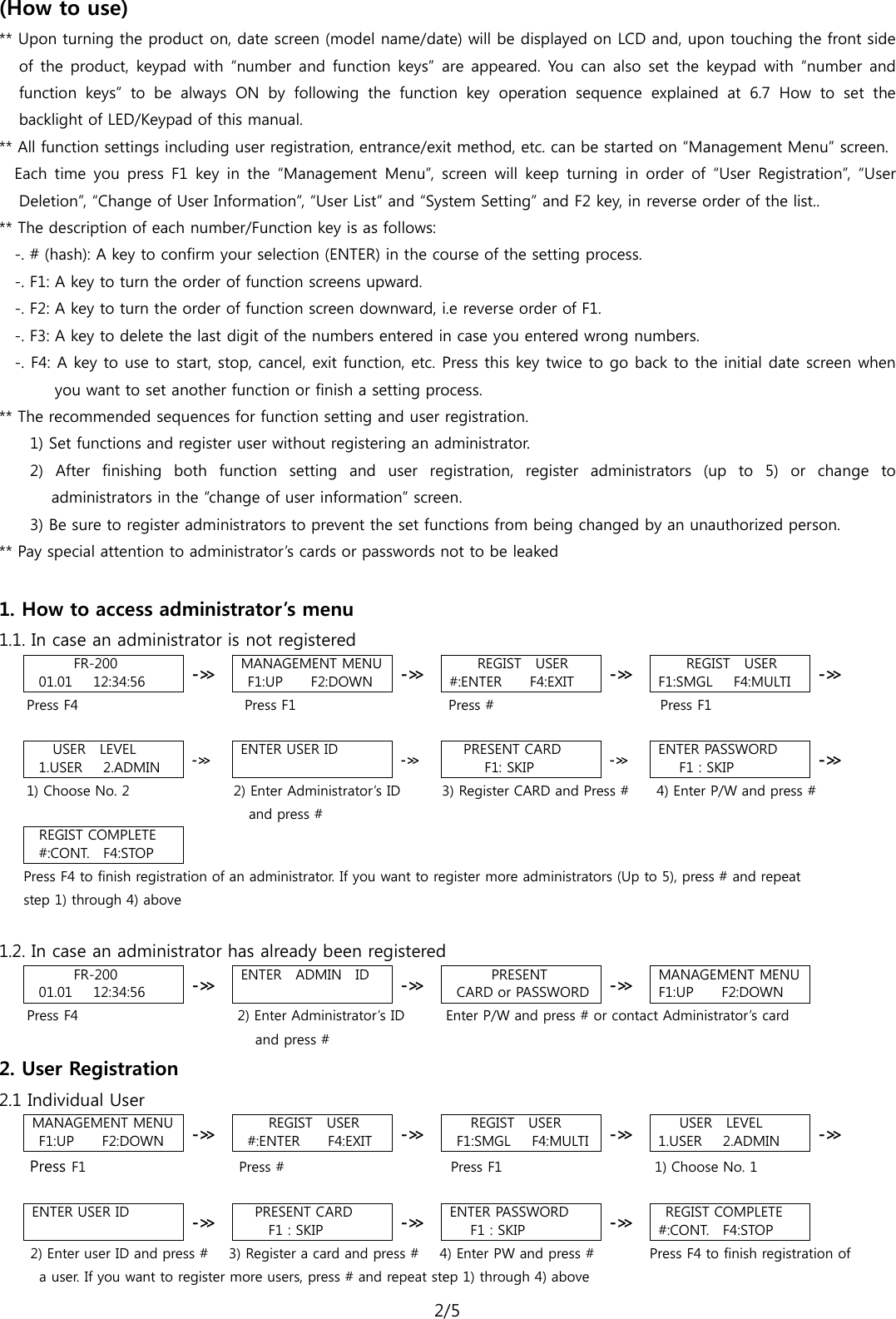
2/5  (How to use) ** Upon turning the product on, date screen (model name/date) will be displayed on LCD and, upon touching the front side of the product, keypad with “number and function keys” are appeared. You can also set the keypad with “number and function keys” to be always ON by following the function key operation sequence explained at 6.7 How to set the backlight of LED/Keypad of this manual.   ** All function settings including user registration, entrance/exit method, etc. can be started on “Management Menu” screen.   Each time you press F1 key in the “Management Menu”, screen will keep  turning in order of “User Registration”, “User Deletion”, “Change of User Information”, “User List” and “System Setting” and F2 key, in reverse order of the list..   ** The description of each number/Function key is as follows: -. # (hash): A key to confirm your selection (ENTER) in the course of the setting process. -. F1: A key to turn the order of function screens upward. -. F2: A key to turn the order of function screen downward, i.e reverse order of F1.   -. F3: A key to delete the last digit of the numbers entered in case you entered wrong numbers. -. F4: A key to use to start, stop, cancel, exit function, etc. Press this key twice to go back to the initial date screen when you want to set another function or finish a setting process.       ** The recommended sequences for function setting and user registration.   1) Set functions and register user without registering an administrator.   2)  After finishing both function setting and user registration, register administrators (up to 5) or change to administrators in the “change of user information” screen.   3) Be sure to register administrators to prevent the set functions from being changed by an unauthorized person. ** Pay special attention to administrator’s cards or passwords not to be leaked    1. How to access administrator’s menu 1.1. In case an administrator is not registered FR-200 01.01   12:34:56  -≫ MANAGEMENT MENU F1:UP    F2:DOWN -≫  REGIST  USER #:ENTER    F4:EXIT -≫  REGIST  USER F1:SMGL   F4:MULTI -≫  Press F4                        Press F1                      Press #                        Press F1  USER  LEVEL 1.USER   2.ADMIN -≫ ENTER USER ID  -≫ PRESENT CARD      F1: SKIP -≫ ENTER PASSWORD F1 : SKIP -≫ 1) Choose No. 2               2) Enter Administrator’s ID       3) Register CARD and Press #     4) Enter P/W and press #                                    and press # REGIST COMPLETE #:CONT.   F4:STOP  Press F4 to finish registration of an administrator. If you want to register more administrators (Up to 5), press # and repeat   step 1) through 4) above  1.2. In case an administrator has already been registered FR-200 01.01   12:34:56  -≫ ENTER   ADMIN   ID  -≫ PRESENT  CARD or PASSWORD -≫ MANAGEMENT MENU F1:UP    F2:DOWN      Press F4                        2) Enter Administrator’s ID      Enter P/W and press # or contact Administrator’s card and press # 2. User Registration   2.1 Individual User MANAGEMENT MENU F1:UP    F2:DOWN -≫  REGIST  USER #:ENTER    F4:EXIT -≫    REGIST  USER F1:SMGL   F4:MULTI -≫ USER  LEVEL 1.USER   2.ADMIN -≫     Press F1                      Press #                        Press F1                      1) Choose No. 1    ENTER USER ID  -≫ PRESENT CARD F1 : SKIP -≫ ENTER PASSWORD F1 : SKIP -≫ REGIST COMPLETE #:CONT.   F4:STOP   2) Enter user ID and press #   3) Register a card and press #   4) Enter PW and press #         Press F4 to finish registration of  a user. If you want to register more users, press # and repeat step 1) through 4) above
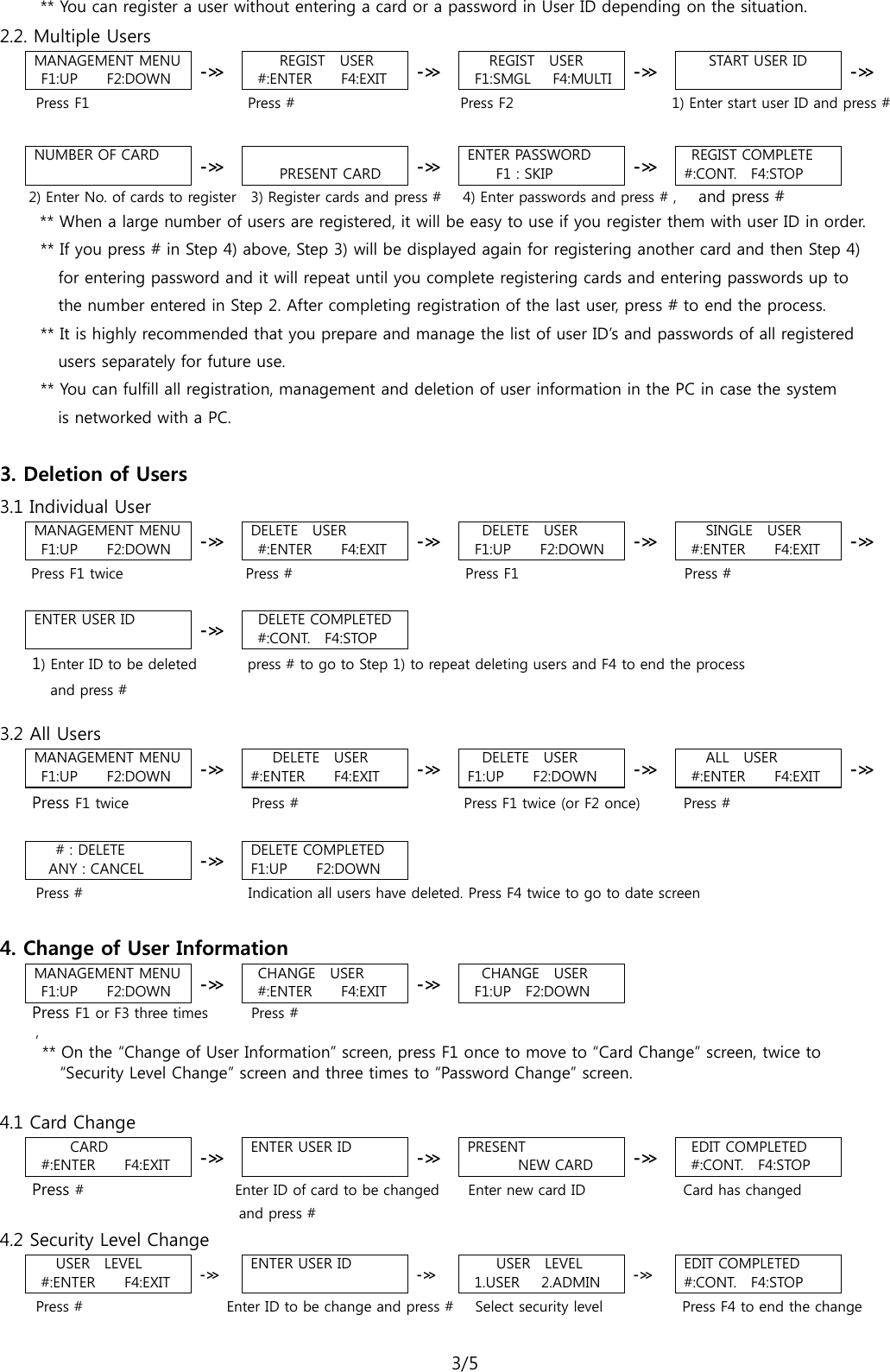
3/5  ** You can register a user without entering a card or a password in User ID depending on the situation. 2.2. Multiple Users MANAGEMENT MENU F1:UP    F2:DOWN -≫  REGIST  USER #:ENTER    F4:EXIT -≫    REGIST  USER F1:SMGL   F4:MULTI -≫ START USER ID  -≫ Press F1                      Press #                        Press F2                       1) Enter start user ID and press #     NUMBER OF CARD                       -≫  PRESENT CARD -≫ ENTER PASSWORD F1 : SKIP -≫ REGIST COMPLETE #:CONT.   F4:STOP      2) Enter No. of cards to register    3) Register cards and press #   4) Enter passwords and press # ,   and press #      ** When a large number of users are registered, it will be easy to use if you register them with user ID in order. ** If you press # in Step 4) above, Step 3) will be displayed again for registering another card and then Step 4)   for entering password and it will repeat until you complete registering cards and entering passwords up to   the number entered in Step 2. After completing registration of the last user, press # to end the process.   ** It is highly recommended that you prepare and manage the list of user ID’s and passwords of all registered   users separately for future use. ** You can fulfill all registration, management and deletion of user information in the PC in case the system   is networked with a PC.        3. Deletion of Users 3.1 Individual User MANAGEMENT MENU F1:UP    F2:DOWN -≫ DELETE  USER #:ENTER    F4:EXIT -≫ DELETE  USER F1:UP    F2:DOWN -≫    SINGLE  USER #:ENTER    F4:EXIT -≫     Press F1 twice                 Press #                        Press F1                       Press #    ENTER USER ID              -≫  DELETE COMPLETED #:CONT.   F4:STOP     1) Enter ID to be deleted       press # to go to Step 1) to repeat deleting users and F4 to end the process         and press #  3.2 All Users MANAGEMENT MENU F1:UP    F2:DOWN -≫ DELETE  USER #:ENTER    F4:EXIT -≫ DELETE  USER F1:UP    F2:DOWN -≫ ALL  USER #:ENTER    F4:EXIT -≫     Press F1 twice                 Press #                       Press F1 twice (or F2 once)      Press #      # : DELETE ANY : CANCEL -≫ DELETE COMPLETED F1:UP    F2:DOWN      Press #                       Indication all users have deleted. Press F4 twice to go to date screen    4. Change of User Information MANAGEMENT MENU F1:UP    F2:DOWN -≫  CHANGE  USER #:ENTER    F4:EXIT -≫  CHANGE  USER F1:UP  F2:DOWN          Press F1 or F3 three times      Press # ,                          ** On the “Change of User Information” screen, press F1 once to move to “Card Change” screen, twice to   “Security Level Change” screen and three times to “Password Change” screen.  4.1 Card Change CARD #:ENTER    F4:EXIT -≫ ENTER USER ID  -≫ PRESENT        NEW CARD -≫  EDIT COMPLETED #:CONT.   F4:STOP     Press #                     Enter ID of card to be changed    Enter new card ID      Card has changed    and press # 4.2 Security Level Change  USER  LEVEL #:ENTER    F4:EXIT -≫ ENTER USER ID  -≫  USER  LEVEL 1.USER   2.ADMIN -≫ EDIT COMPLETED #:CONT.   F4:STOP      Press #                    Enter ID to be change and press #   Select security level           Press F4 to end the change
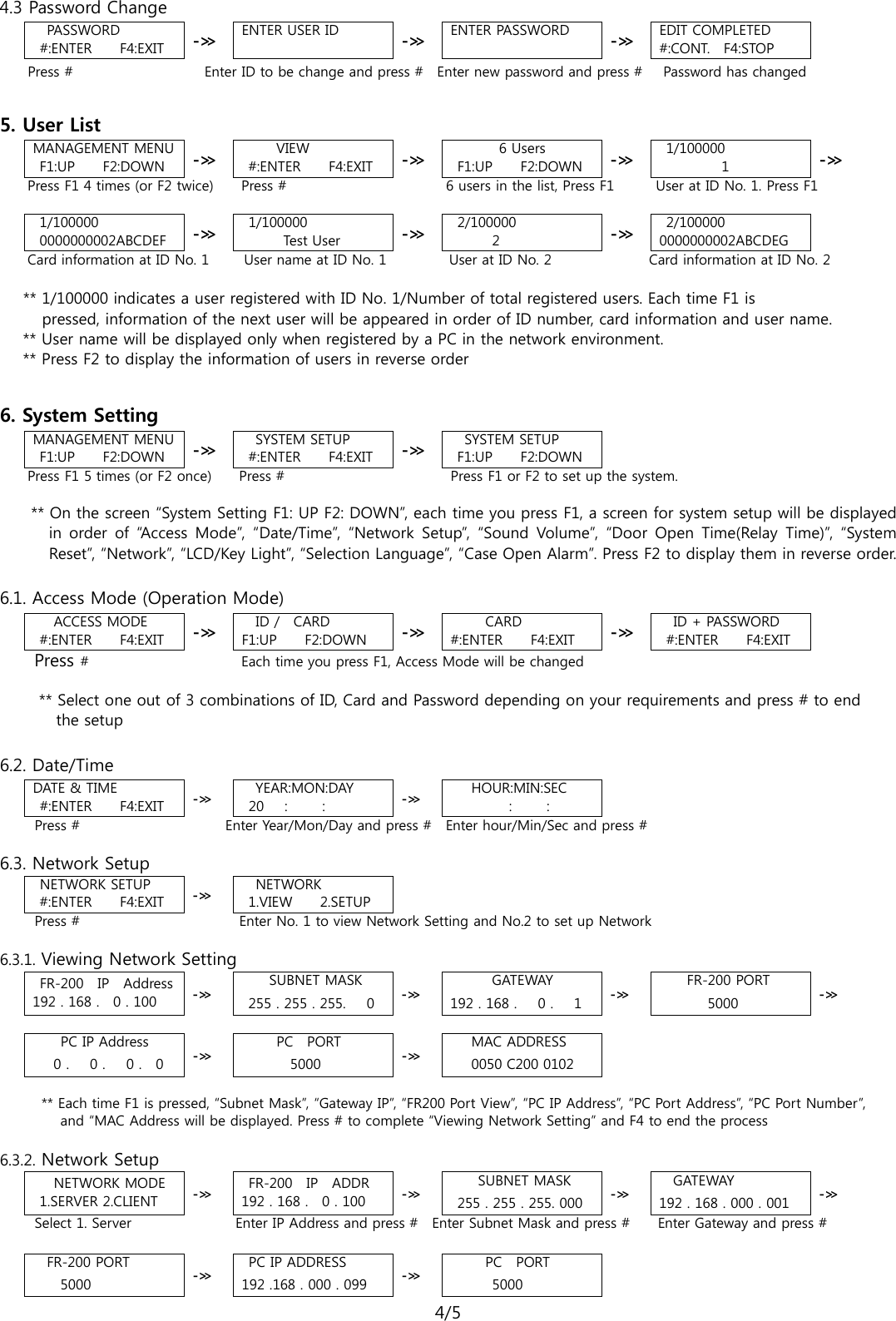
4/5  4.3 Password Change PASSWORD #:ENTER    F4:EXIT -≫ ENTER USER ID  -≫ ENTER PASSWORD  -≫ EDIT COMPLETED #:CONT.   F4:STOP     Press #                    Enter ID to be change and press #  Enter new password and press #   Password has changed  5. User List   MANAGEMENT MENU F1:UP    F2:DOWN -≫      VIEW #:ENTER    F4:EXIT -≫ 6 Users F1:UP    F2:DOWN -≫ 1/100000 1  -≫    Press F1 4 times (or F2 twice)    Press #                       6 users in the list, Press F1      User at ID No. 1. Press F1  1/100000 0000000002ABCDEF -≫ 1/100000 Test User -≫ 2/100000 2  -≫ 2/100000 0000000002ABCDEG    Card information at ID No. 1     User name at ID No. 1         User at ID No. 2              Card information at ID No. 2      ** 1/100000 indicates a user registered with ID No. 1/Number of total registered users. Each time F1 is   pressed, information of the next user will be appeared in order of ID number, card information and user name.      ** User name will be displayed only when registered by a PC in the network environment.      ** Press F2 to display the information of users in reverse order  6. System Setting MANAGEMENT MENU F1:UP    F2:DOWN -≫  SYSTEM SETUP #:ENTER    F4:EXIT -≫ SYSTEM SETUP F1:UP    F2:DOWN Press F1 5 times (or F2 once)    Press #                        Press F1 or F2 to set up the system.  ** On the screen “System Setting F1: UP F2: DOWN”, each time you press F1, a screen for system setup will be displayed in order of “Access Mode”,  “Date/Time”,  “Network Setup”,  “Sound Volume”,  “Door Open Time(Relay Time)”,  “System Reset”, “Network”, “LCD/Key Light”, “Selection Language”, “Case Open Alarm”. Press F2 to display them in reverse order.    6.1. Access Mode (Operation Mode) ACCESS MODE #:ENTER    F4:EXIT -≫ ID /    CARD F1:UP    F2:DOWN -≫ CARD #:ENTER    F4:EXIT -≫   ID + PASSWORD #:ENTER    F4:EXIT    Press #                         Each time you press F1, Access Mode will be changed   ** Select one out of 3 combinations of ID, Card and Password depending on your requirements and press # to end   the setup  6.2. Date/Time DATE & TIME #:ENTER    F4:EXIT -≫  YEAR:MON:DAY 20   :     : -≫ HOUR:MIN:SEC        :     :      Press #                       Enter Year/Mon/Day and press #  Enter hour/Min/Sec and press #  6.3. Network Setup  NETWORK SETUP #:ENTER    F4:EXIT -≫   NETWORK 1.VIEW    2.SETUP      Press #                       Enter No. 1 to view Network Setting and No.2 to set up Network  6.3.1. Viewing Network Setting FR-200  IP  Address 192 . 168 .    0 . 100 -≫ SUBNET MASK 255 . 255 . 255.      0 -≫ GATEWAY 192 . 168 .   0 .   1 -≫ FR-200 PORT 5000 -≫     PC IP Address 0 .   0 .   0 .  0 -≫ PC  PORT 5000 -≫ MAC ADDRESS 0050 C200 0102   ** Each time F1 is pressed, “Subnet Mask”, “Gateway IP”, “FR200 Port View”, “PC IP Address”, “PC Port Address”, “PC Port Number ”,   and “MAC Address will be displayed. Press # to complete “Viewing Network Setting” and F4 to end the process  6.3.2. Network Setup  NETWORK MODE 1.SERVER 2.CLIENT -≫ FR-200  IP  ADDR 192 . 168 .    0 . 100 -≫ SUBNET MASK 255 . 255 . 255. 000 -≫ GATEWAY 192 . 168 . 000 . 001 -≫      Select 1. Server               Enter IP Address and press #  Enter Subnet Mask and press #      Enter Gateway and press #   FR-200 PORT 5000 -≫ PC IP ADDRESS 192 .168 . 000 . 099 -≫ PC  PORT 5000
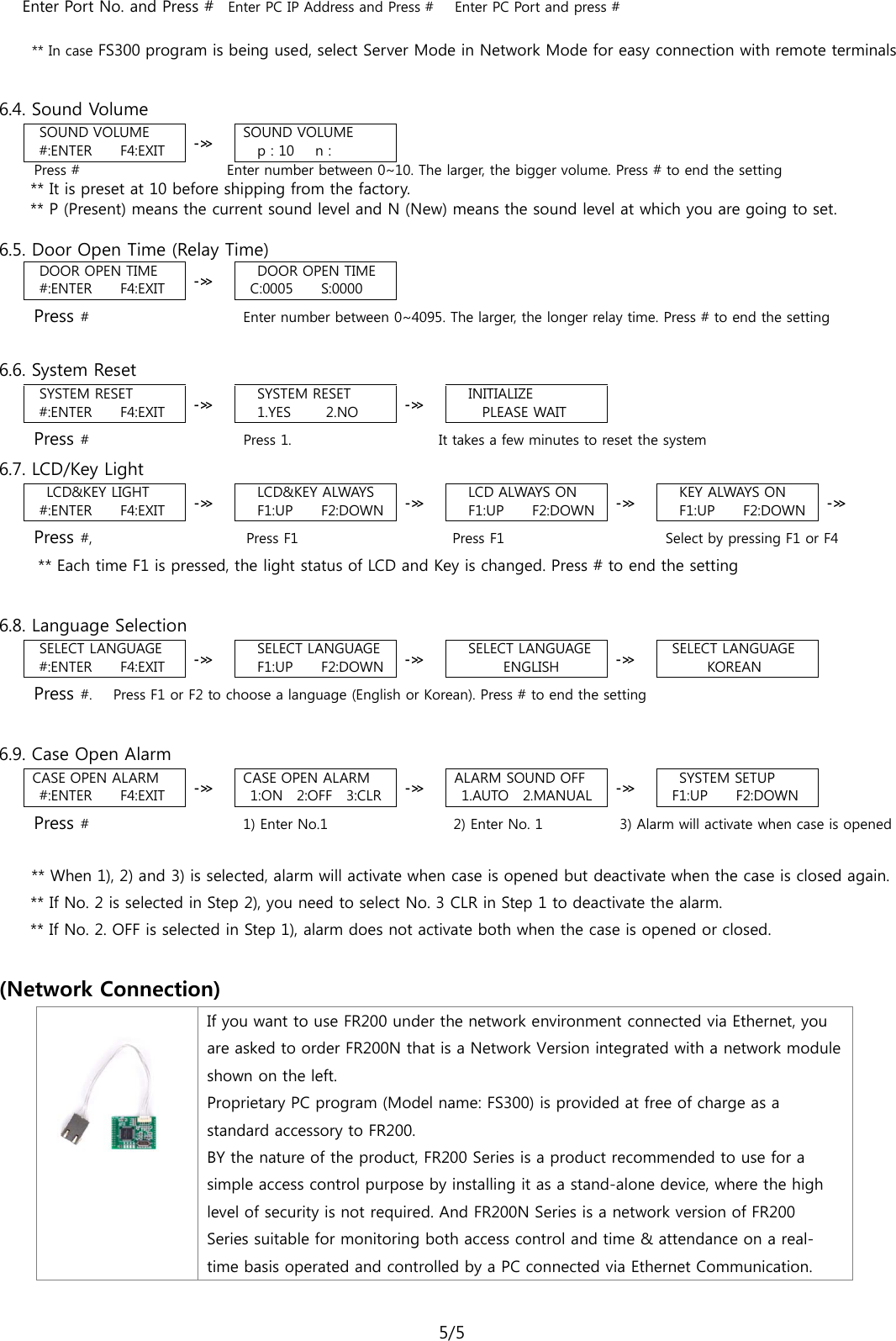
5/5     Enter Port No. and Press #  Enter PC IP Address and Press #   Enter PC Port and press #   ** In case FS300 program is being used, select Server Mode in Network Mode for easy connection with remote terminals     6.4. Sound Volume  SOUND VOLUME #:ENTER    F4:EXIT -≫ SOUND VOLUME p : 10   n :      Press #                     Enter number between 0~10. The larger, the bigger volume. Press # to end the setting     ** It is preset at 10 before shipping from the factory.     ** P (Present) means the current sound level and N (New) means the sound level at which you are going to set.  6.5. Door Open Time (Relay Time) DOOR OPEN TIME #:ENTER    F4:EXIT -≫ DOOR OPEN TIME C:0005    S:0000     Press #                      Enter number between 0~4095. The larger, the longer relay time. Press # to end the setting  6.6. System Reset  SYSTEM RESET #:ENTER    F4:EXIT -≫ SYSTEM RESET 1.YES     2.NO -≫   INITIALIZE PLEASE WAIT     Press #                      Press 1.                     It takes a few minutes to reset the system 6.7. LCD/Key Light   LCD&KEY LIGHT   #:ENTER    F4:EXIT -≫ LCD&KEY ALWAYS F1:UP    F2:DOWN -≫ LCD ALWAYS ON F1:UP    F2:DOWN -≫ KEY ALWAYS ON F1:UP    F2:DOWN -≫     Press #,                       Press F1                      Press F1                       Select by pressing F1 or F4       ** Each time F1 is pressed, the light status of LCD and Key is changed. Press # to end the setting  6.8. Language Selection  SELECT LANGUAGE #:ENTER    F4:EXIT -≫ SELECT LANGUAGE F1:UP    F2:DOWN -≫ SELECT LANGUAGE      ENGLISH -≫ SELECT LANGUAGE KOREAN     Press #.    Press F1 or F2 to choose a language (English or Korean). Press # to end the setting  6.9. Case Open Alarm CASE OPEN ALARM #:ENTER    F4:EXIT -≫ CASE OPEN ALARM 1:ON   2:OFF    3:CLR -≫ ALARM SOUND OFF  1.AUTO   2.MANUAL -≫ SYSTEM SETUP F1:UP    F2:DOWN     Press #                      1) Enter No.1                    2) Enter No. 1           3) Alarm will activate when case is opened  ** When 1), 2) and 3) is selected, alarm will activate when case is opened but deactivate when the case is closed again. ** If No. 2 is selected in Step 2), you need to select No. 3 CLR in Step 1 to deactivate the alarm. ** If No. 2. OFF is selected in Step 1), alarm does not activate both when the case is opened or closed.    (Network Connection)   If you want to use FR200 under the network environment connected via Ethernet, you are asked to order FR200N that is a Network Version integrated with a network module shown on the left. Proprietary PC program (Model name: FS300) is provided at free of charge as a standard accessory to FR200. BY the nature of the product, FR200 Series is a product recommended to use for a simple access control purpose by installing it as a stand-alone device, where the high level of security is not required. And FR200N Series is a network version of FR200 Series suitable for monitoring both access control and time & attendance on a real-time basis operated and controlled by a PC connected via Ethernet Communication.
FCC Notice   NOTE:  This equipment has been tested and found to comply with the limits for a Class B digital device, pursuant to part 15 of the FCC Rules.  These limits are designed to provide reasonable protection against harmful interference in a residential installation.  This equipment generates uses and can radiate radio frequency energy and, if not installed and used in accordance with the instructions, may cause harmful interference to radio communications.  However, there is no guarantee that interference will not occur in a particular installation.  If this equipment does cause harmful interference to radio or television reception, which can be determined by turning the equipment off and on, the user is encouraged to try to correct the interference by one or more of the following measures: - Reorient or relocate the receiving antenna. - Increase the separation between the equipment and receiver. -Connect the equipment into an outlet on a circuit different from that to which the receiver is connected. -Consult the dealer or an experienced radio/TV technician for help.  NOTE:      THE GRANTEE IS NOT RESPONSIBLE FOR ANY CHANGES OR MODIFICATIONS NOT EXPRESSLY APPROVED BY THE PARTY RESPONSIBLE FOR COMPLIANCE. SUCH MODIFICATIONS COULD VOID THE USER’S AUTHORITY TO OPERATE THE EQUIPMENT.     THIS DEVICE COMPLIES WITH PART 15 OF THE FCC RULES. OPERATION IS SUBJECT TO THE FOLLOWING TWO CONDITIONS: (1) THIS DEVICE MAY NOT CAUSE HARMFUL INTERFERENCE, AND (2) THIS DEVICE MUST   ACCEPT ANY INTERFERENCE RECEIVED, INCLUDING INTERFERENCE THAT MAY CAUSE UNDESIRED OPERATION.

Navigation menu