MOX GROUP A43 Mobile Phone User Manual

MOX GROUP LIMITED Mobile Phone

user manual

 1            User Guide  Mobile Phone Brand Name: MOX Model Name: A43 FCC ID:2ABBS-A43
 2   1. For your safety ................................................................................ 错误!未定义书签。 2. Learn about the phone ............................................................................................................ 4 3. Before using .............................................................................................................................. 5 4. Getting started .......................................................................................................................... 5 5. Communication ........................................................................................................................ 8 6. Multimedia ................................................................................................................................. 9 7. Connecting to networks and devices ............................................................................... 11 8. Health and safety ................................................................................................................... 13
 3  1. For your safety   Read these simple guidelines. Not following them may be dangerous or illegal.   SWITCH OFF IN HOSPITALS Follow any restrictions. Switch the device off near medical equipment. Do not use the device where blasting is in progress.   Please keep this cell phone away from children, as they could mistake it for a toy, and hurt themselves with it. Don’t try to modify the phone except by the professional. Warning! Only use the authorized spare parts, otherwise it may damage the phone and the warranty will be void. And it may be dangerous.   SWITCH OFF WHEN REFUELING Don’t use the phone at a refueling point. Don’t use near fuel or chemicals.      SIM CARD AND T-FLASH CARD ARE PORTABLE Keep your phone, phone parts and accessories out of children’s reach Notice:  The  T-Flash  Card  can  be  used  as  a  Memory  Disk,  and  the  USB  cable  is necessary.   BATTERY Please do not destroy or damage the battery, it can be dangerous and cause fire. Please do not throw battery in fire to avoid danger When battery cannot be used, please dispose in an environmental safe method Do not try to dismantle the battery. If the battery or the charger is broken or old, please stop using them, and replace with certified genuine battery
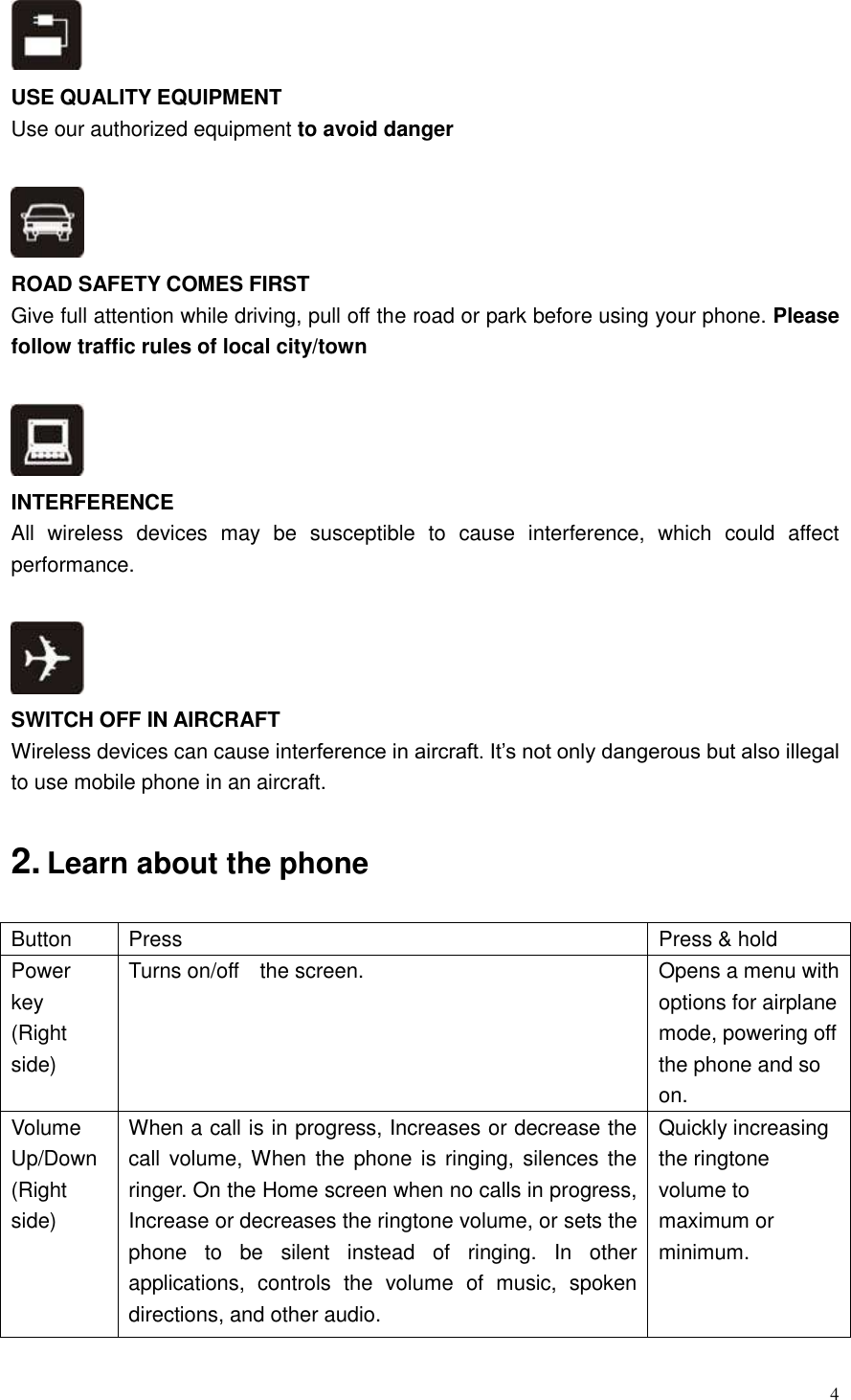
 4   USE QUALITY EQUIPMENT Use our authorized equipment to avoid danger   ROAD SAFETY COMES FIRST Give full attention while driving, pull off the road or park before using your phone. Please follow traffic rules of local city/town   INTERFERENCE All  wireless  devices  may  be  susceptible  to  cause  interference,  which  could  affect performance.   SWITCH OFF IN AIRCRAFT Wireless devices can cause interference in aircraft. It’s not only dangerous but also illegal to use mobile phone in an aircraft.  2. Learn about the phone  Button Press Press & hold Power key (Right side) Turns on/off    the screen. Opens a menu with options for airplane mode, powering off the phone and so on. Volume Up/Down (Right side) When a call is in progress, Increases or decrease the call volume, When the phone is  ringing, silences the ringer. On the Home screen when no calls in progress, Increase or decreases the ringtone volume, or sets the phone  to  be  silent  instead  of  ringing.  In  other applications,  controls  the  volume  of  music,  spoken directions, and other audio. Quickly increasing the ringtone volume to maximum or minimum.
 5   3. Before using Insert SIM card The phone is Dual SIM mobile phone allowing you to use the facility of two networks. To insert SIM card(s): 1.  Switch off the mobile phone and remove the rear cover and battery. 2.  Insert the SIM card correctly in the card slot(s) 3.    Finally insert the battery and replace the rear cover of the mobile phone. Note: The SIM card is a small object; please keep the card out of the reach of children to avoid swallowing the card by accident. Do not touch the metal surface of the SIM card and keep it away from electromagnetism to avoid loss and damage of the data. You will not be able to connect to the network if the SIM card is damaged.  Insert Memory card   Use only compatible memory cards approved by our company for use with this device. Incompatible memory cards  may damage the  card or the  device and  corrupt the  data stored in the card. TToo  iinnsseerrtt  tthhee  mmeemmoorryy  ccaarrdd::  1. Power off the mobile phone. Then remove the rear cover. 2. Insert the memory card into the slot. 3. Finally insert the battery and replace the rear cover of the mobile phone.  Remove/Insert Battery You may need to remove the battery to insert SIM cards or for replacing the battery. To insert the battery: 1. Invert the back of the mobile phone upward and then take off the rear cover. 2. Insert the battery. 3. Finally place back the rear cover of the mobile phone. Note: Please use the original-packing battery and accessories.    Charger 1. Connect the charger to the charger jack on the phone. 2. Next connect the charger to a power socket, the charging starts, with the charging icon in an animated state. 3. When the charging icon becomes static, it indicates that the battery is full. 4. Disconnect the charger from the power socket and the phone. Note: Slight heating during charging is normal. It indicates that the battery is full, when the charging icon becomes static.  4. Getting started 44..11  TTuurrnn  oonn//ooffff  yyoouurr  pphhoonnee    Turn on the phone Long press the power key to start up the cell phone. If you have got the SIM card 1 or 2
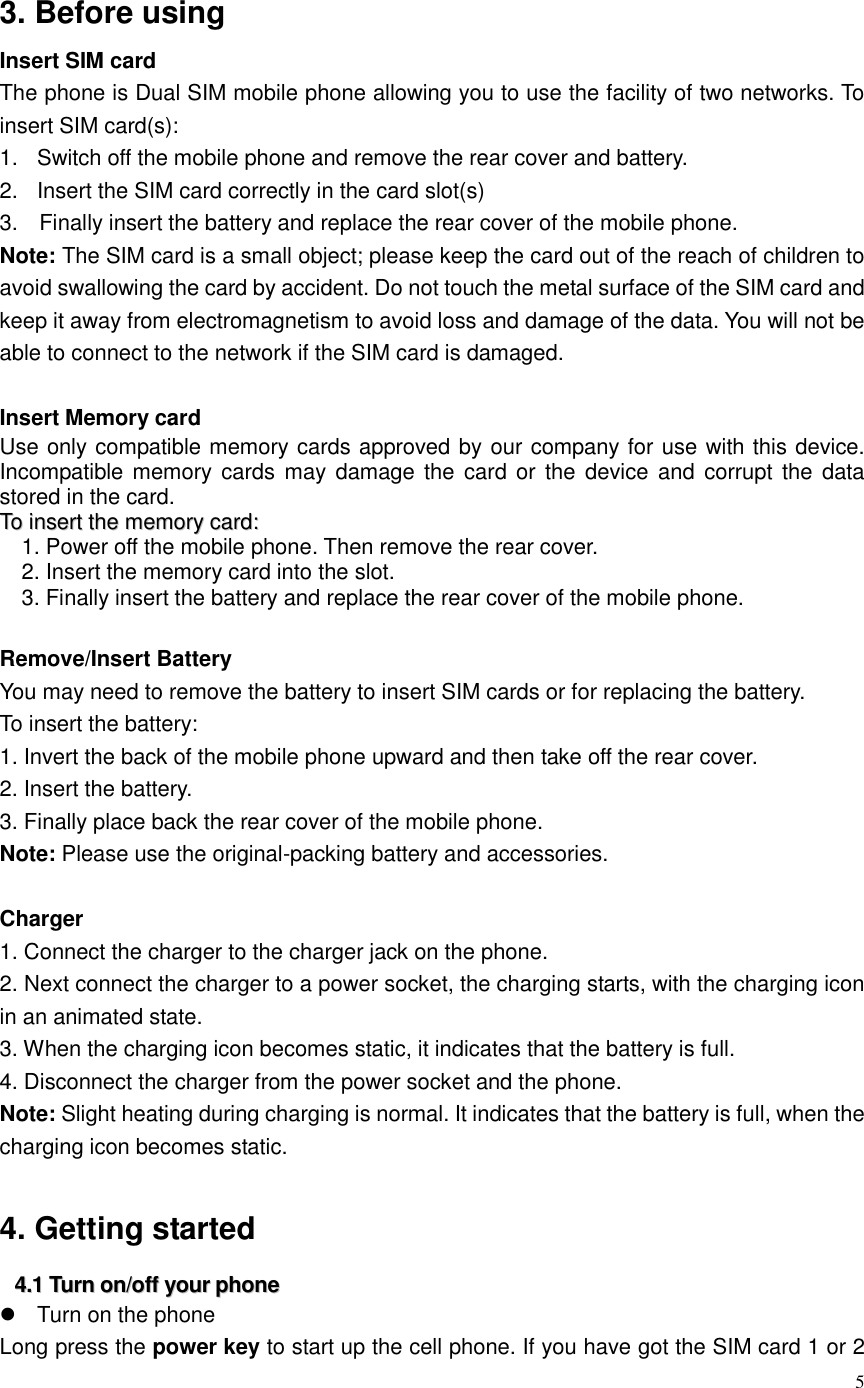
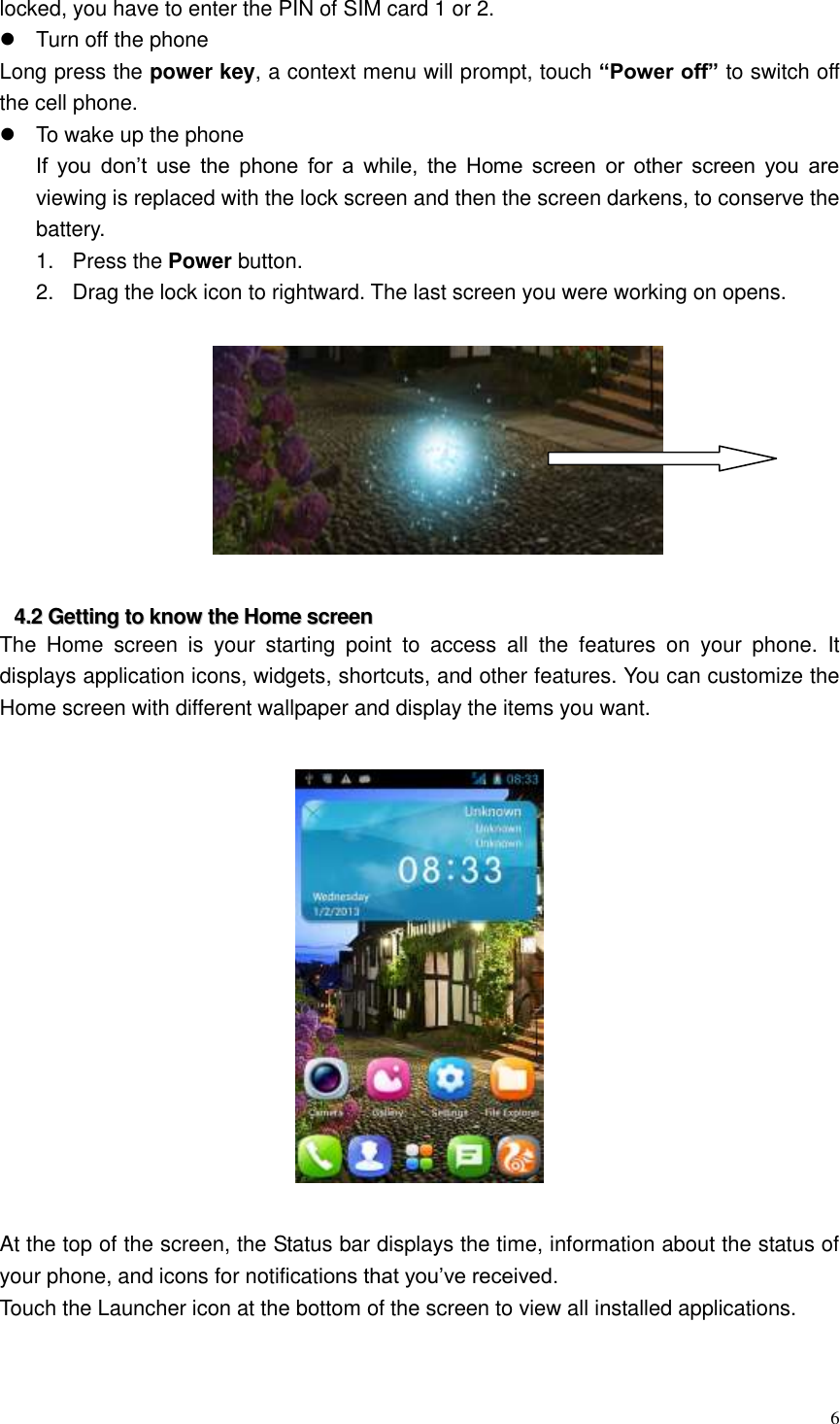
 6  locked, you have to enter the PIN of SIM card 1 or 2.   Turn off the phone Long press the power key, a context menu will prompt, touch “Power off” to switch off the cell phone.   To wake up the phone If  you  don’t  use  the  phone  for  a  while,  the  Home  screen  or  other  screen  you  are viewing is replaced with the lock screen and then the screen darkens, to conserve the battery. 1.  Press the Power button.   2.  Drag the lock icon to rightward. The last screen you were working on opens.    44..22  GGeettttiinngg  ttoo  kknnooww  tthhee  HHoommee  ssccrreeeenn  The  Home  screen  is  your  starting  point  to  access  all  the  features  on  your  phone.  It displays application icons, widgets, shortcuts, and other features. You can customize the Home screen with different wallpaper and display the items you want.      At the top of the screen, the Status bar displays the time, information about the status of your phone, and icons for notifications that you’ve received.   Touch the Launcher icon at the bottom of the screen to view all installed applications.
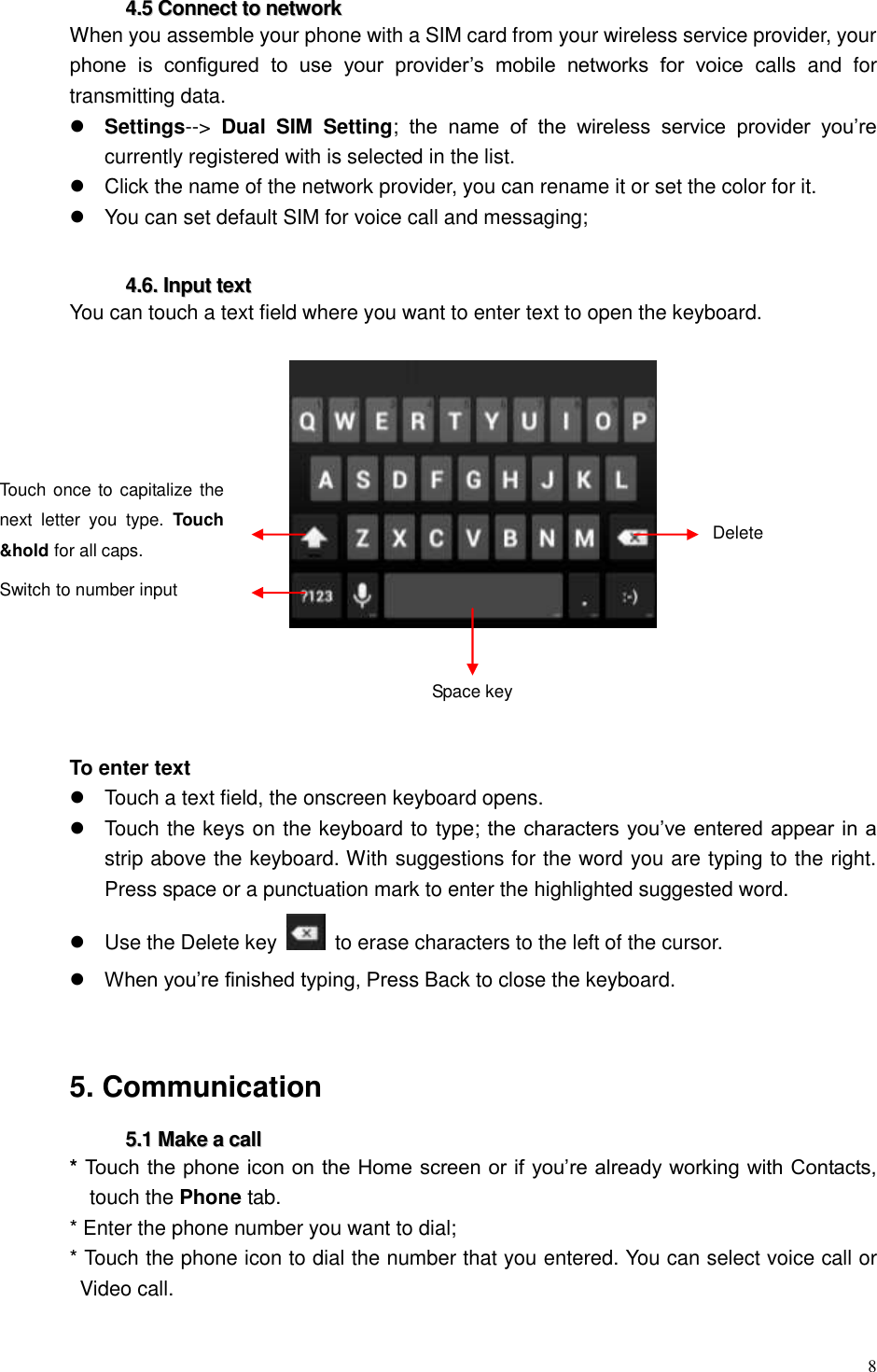
 7  44..33  UUssiinngg  tthhee  ttoouucchh  ssccrreeeenn  The main way to control Android features is by using your finger to touch icons, buttons, menu items, the onscreen keyboard, and other items on the touch screen.   Touch: To act on items on the screen, such as application and settings icons, to type letters  and  symbols  using  the  onscreen  keyboard,  or  to  press  onscreen  buttons,  you simply touch them with your finger. Touch & hold: Touch & hold an item on the screen by touching it and not lifting your finger until an action occurs. For example, to open a menu for customizing the Home screen, you touch an empty area on the Home screen until the menu opens. Drag: Touch & hold an item for a moment and then, without lifting your finger, move your finger  on the  screen until  you reach  the  target  position.  You  drag  items  on  the  Home screen to reposition them and you drag to open the Notification panel.   Swipe or slide: To swipe or slide, you quickly move your finger across the surface of the screen,  without  pausing  when  you  first  touch  (so  you  don’t  drag  an  item  instead).  For example, you slide the screen up or down to scroll a list, and in some Calendar views you swipe quickly across the screen to change the range of time visible. Double-tap: Tap quickly twice on a webpage, map, or other screen to zoom. For example, you can double-tap a section of a webpage in Browser to zoom that section to fit the width of the screen. You can also double-tap to control the Camera zoom, In Maps, and in other applications, Double-tapping after pinching to zoom in some applications, such as browser, reflows a column of text to fit the width of the screen. Pinch: In some applications (Such as Maps, Browser, and Gallery) you can zoom in and out by placing two fingers on the screen at once and pinching them together (to zoom out) or spreading them apart (to zoom in). Rotate the screen: On most screens, the orientation of the screen rotates with the phone as you turn it from upright to its slide and back again. You can turn this feature on and off.  44..44  CCuussttoommiizziinngg  tthhee  HHoommee  ssccrreeeenn  To add items to the Home screen Enter the main menu, touch & hold the icon of an application, drag it to “Move to Desktop” shown on the top of screen, then the application will be added to the Home screen.  To move an item on the Home screen 1.  Touch & hold the item you want to move. Don’t lift your finger. 2.  Drag the item to a new location on the screen. Pause at the edge of the screen to drag the item onto another screen pane. 3.  When the item is where you want it, lift your finger.  To remove an item from the Home screen 1.  Touch & hold the item you want to remove. Don’t lift your finger. The top of the screen will appear “Delete”. 2.  Drag the item to the “Delete” icon. 3.  When the icon turns red, lift your finger.
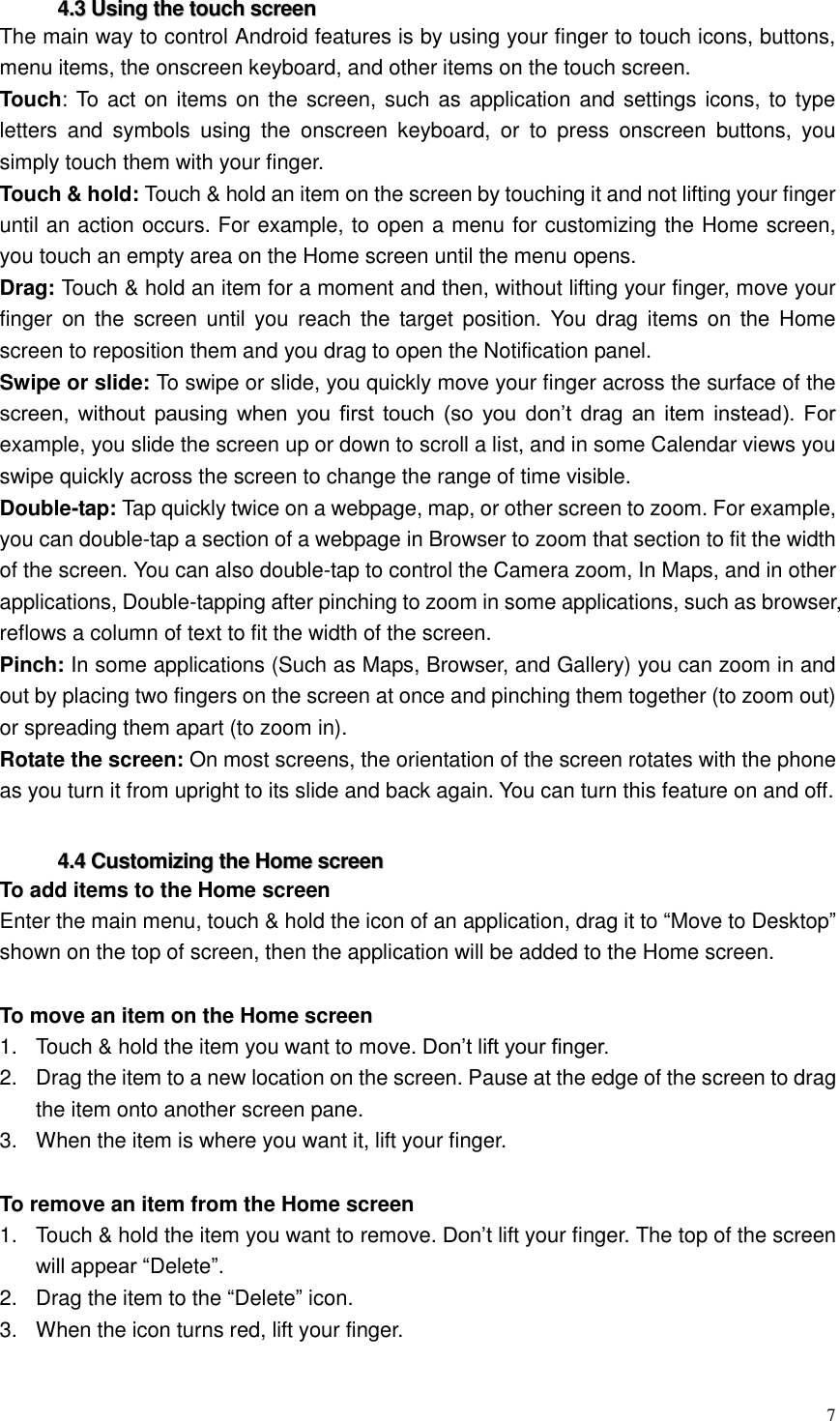
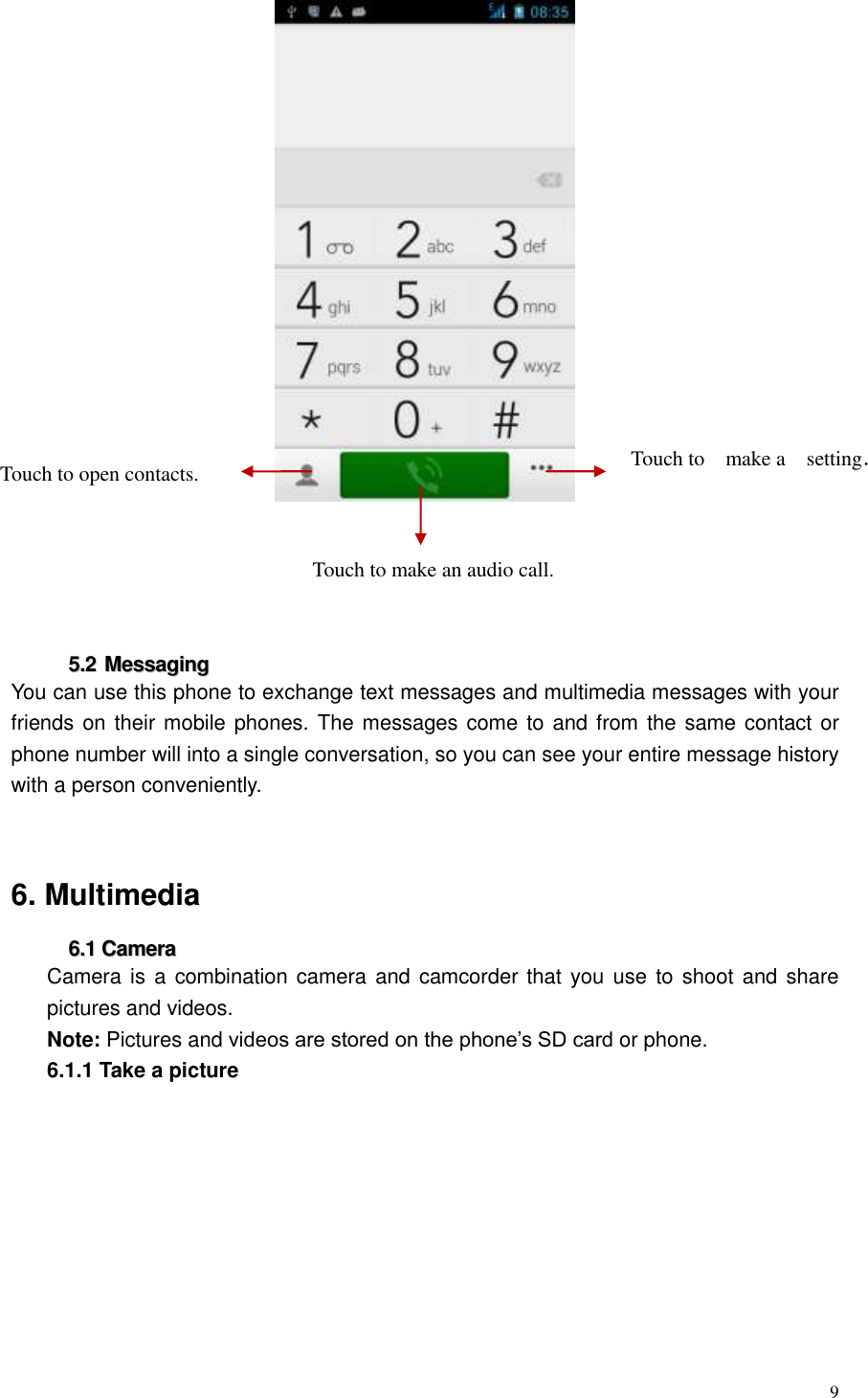
 8  44..55  CCoonnnneecctt  ttoo  nneettwwoorrkk  When you assemble your phone with a SIM card from your wireless service provider, your phone  is  configured  to  use  your  provider’s  mobile  networks  for  voice  calls  and  for transmitting data.  Settings-->  Dual  SIM  Setting;  the  name  of  the  wireless  service  provider  you’re currently registered with is selected in the list.   Click the name of the network provider, you can rename it or set the color for it.   You can set default SIM for voice call and messaging;    44..66..  IInnppuutt  tteexxtt  You can touch a text field where you want to enter text to open the keyboard.       To enter text   Touch a text field, the onscreen keyboard opens.     Touch the keys on the keyboard to type; the characters you’ve entered appear in a strip above the keyboard. With suggestions for the word you are typing to the right. Press space or a punctuation mark to enter the highlighted suggested word.     Use the Delete key    to erase characters to the left of the cursor.  When you’re finished typing, Press Back to close the keyboard.     5. Communication   55..11  MMaakkee  aa  ccaallll  * Touch the phone icon on the Home screen or if you’re already working with Contacts, touch the Phone tab. * Enter the phone number you want to dial; * Touch the phone icon to dial the number that you entered. You can select voice call or Video call.  Space key Delete Switch to number input Touch once to capitalize the next  letter  you  type.  Touch &hold for all caps.
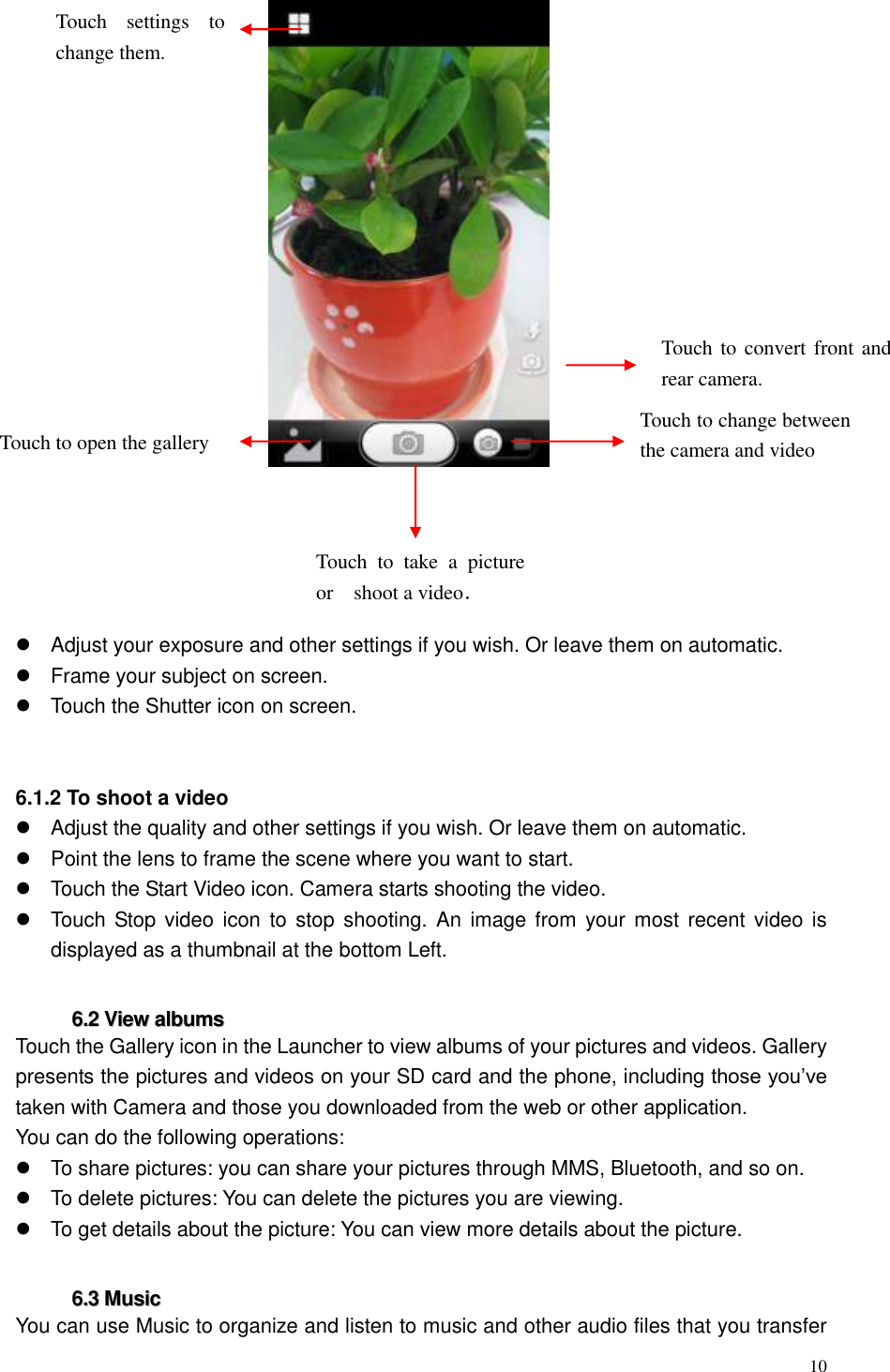
 9       55..22  MMeessssaaggiinngg  You can use this phone to exchange text messages and multimedia messages with your friends on their mobile phones. The messages come to and from the same contact or phone number will into a single conversation, so you can see your entire message history with a person conveniently.     6. Multimedia 66..11  CCaammeerraa  Camera is a combination camera and camcorder that you use  to shoot and share pictures and videos. Note: Pictures and videos are stored on the phone’s SD card or phone.   6.1.1 Take a picture   Touch to open contacts. Touch to make an audio call.   Touch to make a setting.
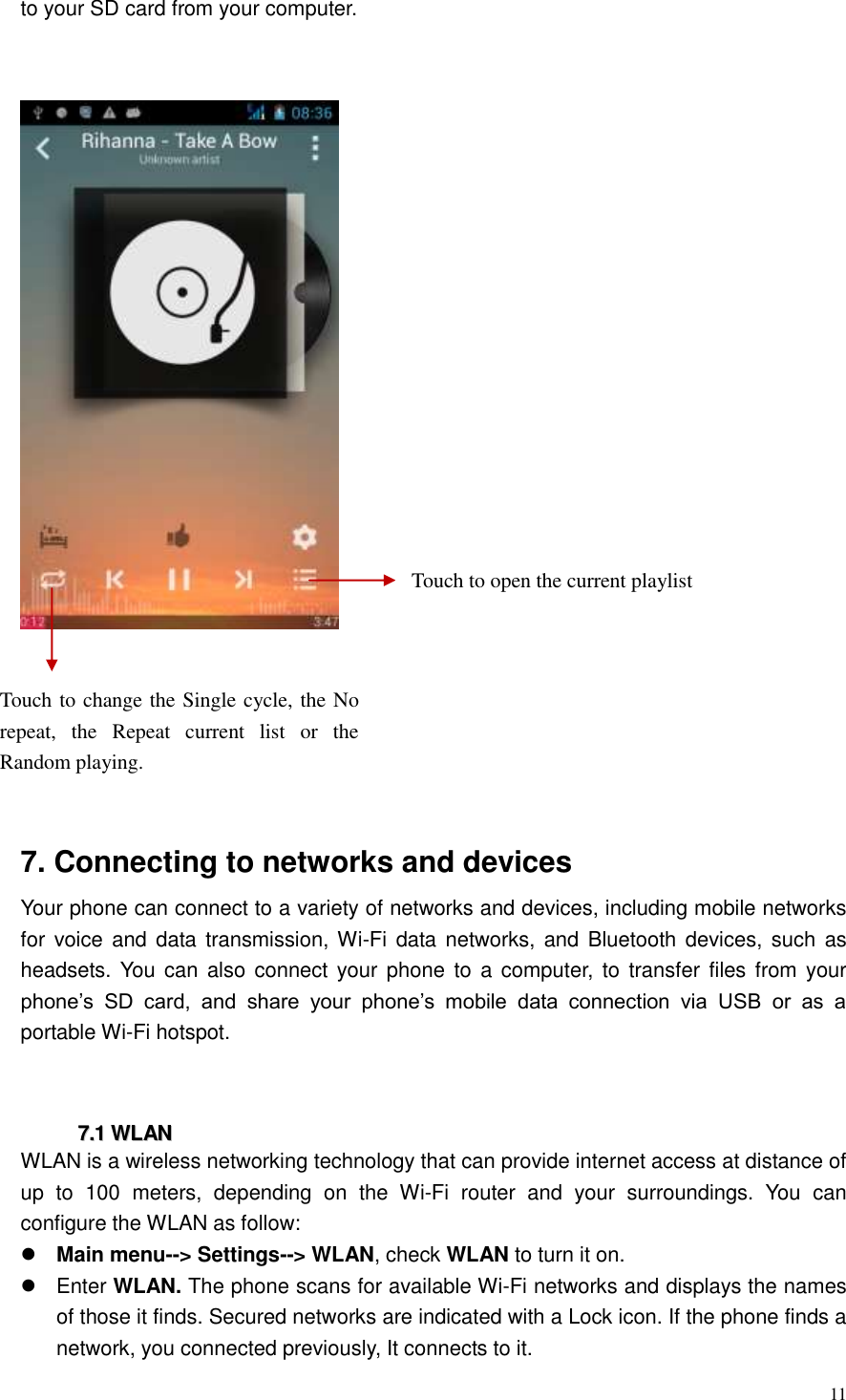
 10          Adjust your exposure and other settings if you wish. Or leave them on automatic.   Frame your subject on screen.   Touch the Shutter icon on screen.   6.1.2 To shoot a video   Adjust the quality and other settings if you wish. Or leave them on automatic.   Point the lens to frame the scene where you want to start.   Touch the Start Video icon. Camera starts shooting the video.     Touch  Stop video icon  to stop  shooting. An  image from  your most  recent video  is displayed as a thumbnail at the bottom Left.  66..22  VViieeww  aallbbuummss  Touch the Gallery icon in the Launcher to view albums of your pictures and videos. Gallery presents the pictures and videos on your SD card and the phone, including those you’ve taken with Camera and those you downloaded from the web or other application. You can do the following operations:   To share pictures: you can share your pictures through MMS, Bluetooth, and so on.   To delete pictures: You can delete the pictures you are viewing.   To get details about the picture: You can view more details about the picture.  66..33  MMuussiicc    You can use Music to organize and listen to music and other audio files that you transfer Touch to  convert front and rear camera. Touch to change between the camera and video Touch  to  take  a  picture or shoot a video.  Touch  settings  to change them. Touch to open the gallery
 11  to your SD card from your computer.      7. Connecting to networks and devices Your phone can connect to a variety of networks and devices, including mobile networks for  voice  and data transmission, Wi-Fi  data networks, and  Bluetooth devices, such  as headsets. You  can also connect your  phone  to  a computer,  to transfer  files from your phone’s  SD  card,  and  share  your  phone’s  mobile  data  connection  via  USB  or  as  a portable Wi-Fi hotspot.   77..11  WWLLAANN  WLAN is a wireless networking technology that can provide internet access at distance of up  to  100  meters,  depending  on  the  Wi-Fi  router  and  your  surroundings.  You  can configure the WLAN as follow:  Main menu--> Settings--> WLAN, check WLAN to turn it on.   Enter WLAN. The phone scans for available Wi-Fi networks and displays the names of those it finds. Secured networks are indicated with a Lock icon. If the phone finds a network, you connected previously, It connects to it. Touch to open the current playlist Touch to change the Single cycle, the No repeat,  the  Repeat  current  list  or  the Random playing.
 12    Touch a network to connect to it.   If the network is open, you are prompted to confirm that you want to connect to that network by touching connect. If the network is secured, you’re prompted to enter a password or other credentials     77..22  BBlluueettooootthh  Bluetooth is a short-range wireless communications technology that devices can use to exchange information over a distance of about 10 meters. The most common Bluetooth devices are headphones for making calls or listening to music, hands-free kits for cars , and other portable device, including laptops and cell phones.    7.2.1 To send a file  Main menu--> Settings--> Bluetooth, check Bluetooth to turn it on.   Enter File Explorer to select a file and long press it, Select Share--> Bluetooth.   Touch Scan for devices, the phone will scan for and display the IDs of all available Bluetooth devices in range.   Touch the ID of the other device in the list to pair them. After paired the file will be sent.  7.2.2 To receive a file  Main menu--> Settings--> Bluetooth, check Bluetooth to turn it on.    Ensure your Bluetooth been connected within visibility time   After  paired,  the  phone  will  receive  the  file.  The  file  you  received  will  save  to the ”Bluetooth” folder on the SD card.  7.2.3 To connect to a Handsfree device  Main menu--> Settings--> Bluetooth, Select “Search for devices”;   Turn on the Handsfree device, Select the Handsfree device in the list to pair.   After paired, you can use the Handsfree device to listen to music and receive call.  77..33  CCoonnnneeccttiinngg  ttoo  aa  ccoommppuutteerr  vviiaa  UUSSBB  You can connect your phone to a computer with a USB cable, to transfer music, pictures, and other files between your phone’s SD card and the computer. When connecting your phone to a computer and mounting its SD card, you must follow your  computer’s  instructions  for  connecting  and  disconnecting  USB  devices,  to  avoid damaging or corrupting the files on your SD card. You can’t share your phone’s data connection and SD card via USB cable at the same time. If you are using USB tethering, you must turn that off first.   7.3.1 To connect your phone to a computer via USB 1. Use the USB cable that came with your phone to connect the phone to a USB port on your computer.   2. Touch USB storage in the screen that opens to confirm that you want to transfer files. When the phone is connected as USB storage, the screen indicates that USB storage is in use and you receive a notification. You phone’s SD card is mounted as a drive on your
 13  computer. You can now copy files to or from the SD card.   During  this  time,  you  can’t  access  the  SD  card  from  your  phone,  so  you  can’t  use applications that rely on the SD card, such as camera, Gallery, and Music.   7.3.2 To disable phone calls (Airplane mode) Some  locations may  require  you  to  turn  off  your phone’s mobile,  GPS, Wi-Fi, FM and Bluetooth wireless connections. You can turn off all these wireless connections at once by placing your phone in Airplane mode. 1. Press & hold the Power button 2. Touch Airplane mode.  8. Health and safety Please read these simple guidelines. Not following them may be dangerous or illegal. SAR Compliance   Your  phone  is  designed  not  to  exceed  the  limits  of  emission  of  radio  waves recommended by international guidelines.   SAR  (specific absorption rate)  is  the  measurement of  body-absorbed RF  quantity when the phone is in use. SAR value is ascertained according to the highest RF level generated during laboratory tests.   The SAR value of the phone may depend on factors such as proximity to the network tower, use of accessories and other enhancements.   The true SAR level during normal phone usage will be much lower than this level.   The  highest  SAR  value  of  this  device  at  the  head  and  body  are  0.655W/kg  and 1.137W/kg respectively averaged over 15cm gap of human tissue. SAR Recommendations   Use a wireless hands-free system (headphone, headset) with a low power Bluetooth emitter.   Please keep your calls short and use SMS whenever more convenient. This advice applies especially to children, adolescents and pregnant women   Make sure the cell phone has a low SAR.   Prefer to use your cell phone when the signal quality is good. Safe Driving   Do not use the phone while driving. When you have to use the phone, please use the personal hands-free kit.   Please do not put the phone onto any passenger seat or any place from which it may fall down in case of vehicular collision or emergency braking. During Flight   Flight is influenced by interference caused by the phone. It is illegal to use a phone on the airplane. Please turn off your phone during a flight. In Hospitals  Your Phone’s radio waves may interfere with the functioning of inadequately shielded medical  devices.  Consult  a  physician  or  the  manufacturer  of  the  medical  device  to determine whether they are adequately shielded from external Radio Frequency. Switch off your device when regulations posted instruct you to do so.
 14    To avoid potential interference with implanted medical devices such as a pacemaker or cardioverter defibrillator:     Always keep your phone at least 15.3 centimeters (6 inches) from the medical device.   Do not carry the wireless device in a breast pocket.   Turn off the phone if there is any reason to suspect that interference is taking place.   Follow the manufacturer directions for the implanted medical device.   If you have any questions about using your wireless device with an implanted medical device, consult your health care provider. Unsafe Areas   Please turn off your phone when you are close to a gas station or in the vicinity of any place where fuel and chemical preparations, or any other dangerous goods are stored.   FCC RF EXPOSURE INFORMATION: WARNING!! Read this information before using your phone In August 1986 the Federal Communications Commission (FCC) of the United States with its action in Report and Outer FCC 96-326 adopted an updated safety standard for human exposure  to  radio  frequency  (RF)  electromagnetic  energy  emitted  by  FCC  regulated transmitters. Those guidelines are consistent with the safety standard previously set by both U.S. and international standards bodies. The design of this phone complies with the FCC guidelines and these international standards. Use only the supplied or an approved antenna. Unauthorized antennas modifications, or attachments could impair call quality, damage the phone, or result in violation of FCC regulations. Do not use the phone with a damaged antenna. If a damaged antenna comes into contact with the skin, a minor burn may result. Please contact your local dealer for replacement antenna.  BODY-WORN OPERATION: This device was tested for typical body-worn operations with the back of the phone kept 15mm  from  the  body.  To  comply  with  FCC  RF  exposure  requirements,  a  minimum separation distance of 15mm must be maintained between the user's body and the back of the phone, including the antenna, whether extended or retracted. Third-party belt-clips, holsters  and  similar  accessories  containing  metallic  components  shall  not  be  used. Body-worn accessories that cannot maintain 15mm separation distance between the user’s body and the back of the phone, and have not been tested for typical body-worn operations may not comply with FCC RF exposure limits and should be avoided. For more information about RF exposure, please visit the FCC website at www.fcc.gov  Your wireless handheld portable telephone is a low power radio transmitter and receiver. When it is ON, it receives and also sends out radio frequency (RF) signals. In August, 1996, the Federal Communications Commissions (FCC) adopted RF exposure guidelines with safety levels for hand-held wireless phones. Those guidelines are consistent with the safety standards previously set by both U.S. and international standards bodies:
 15  <ANSIC95.1> (1992) / <NCRP Report 86> (1986) / <ICIMIRP> (1996)  Those standards were based on comprehensive and periodic evaluations of the relevant scientific  literature.  For  example,  over  120  scientists,  engineers,  and  physicians  from universities, government health  agencies,  and  industry  reviewed the  available  body of research to develop the ANSI Standard (C95.1). Nevertheless, we recommend that you use a hands-free kit with your phone (such as an earpiece or headset) to avoid potential exposure to RF energy. The design of your phone complies with the FCC guidelines (and those standards).  Use  only  the  supplied  or  an  approved  replacement  antenna.  Unauthorized  antennas, modifications, or attachments could damage the phone and may violate FCC regulations.    NORMAL POSITION:   Hold the phone as you would any other telephone with the antenna pointed up and over your shoulder.  TIPS ON EFFICIENT OPERATION:   For your phone to operate most efficiently: • Extend your antenna fully. • Do not touch the antenna unnecessarily when the phone is in use. Contact with the antenna affects call quality and may cause the phone to operate at a higher power level than otherwise needed.  RF Exposure Information: This product is compliance to FCC RF Exposure requirements and refer to FCC website search for FCC ID: 2ABBS-A43 to gain further information include SAR Values.   This device complies with part 15 of the FCC rules. Operation is subject to the following two conditions: (1) this device may not cause harmful interference, and (2)  this  device  must  accept  any  interference received,  including interference  that may cause undesired operation.   NOTE: The manufacturer is not responsible for any radio or TV interference caused by unauthorized modifications to  this  equipment.  Such  modifications could  void the  user’s authority to operate the equipment. NOTE: This equipment has been tested and found to comply with the limits for a Class B digital device, pursuant to part 15 of the FCC Rules. These limits are designed to provide reasonable  protection  against  harmful  interference  in  a  residential  installation.  This equipment generates uses and can radiate radio frequency energy and, if not installed and used in accordance with the instructions, may cause harmful interference to radio
 16  communications.  However,  there  is  no  guarantee  that  interference  will  not  occur  in  a particular  installation.  If  this  equipment  does  cause  harmful  interference  to  radio  or television reception, which can be determined by turning the equipment off and on, the user  is  encouraged  to  try  to  correct  the  interference  by  one  or  more  of  the  following measures:   - Reorient or relocate the receiving antenna. - Increase the separation between the equipment and receiver. -Connect the equipment into an outlet on a circuit different from that to which the receiver is connected. -Consult the dealer or an experienced radio/TV technician for help          Do  not  use the  device  with  the  environment which  below  minimum  -10℃  or  over maximum 50℃, the device may not work.          Changes or modifications to this unit not expressly approved by the party responsible for compliance could void the user’s authority to operate the equipment.  Ad Hoc function is supported but not able to operate on non-US frequencies.

Navigation menu