MOX GROUP M17 Mobile Phone User Manual Content

MOX GROUP LIMITED Mobile Phone Content

User Manual

    Mobile Phone Brand Name: MOX Model Name: M17 FCC ID: 2ABBS-M17
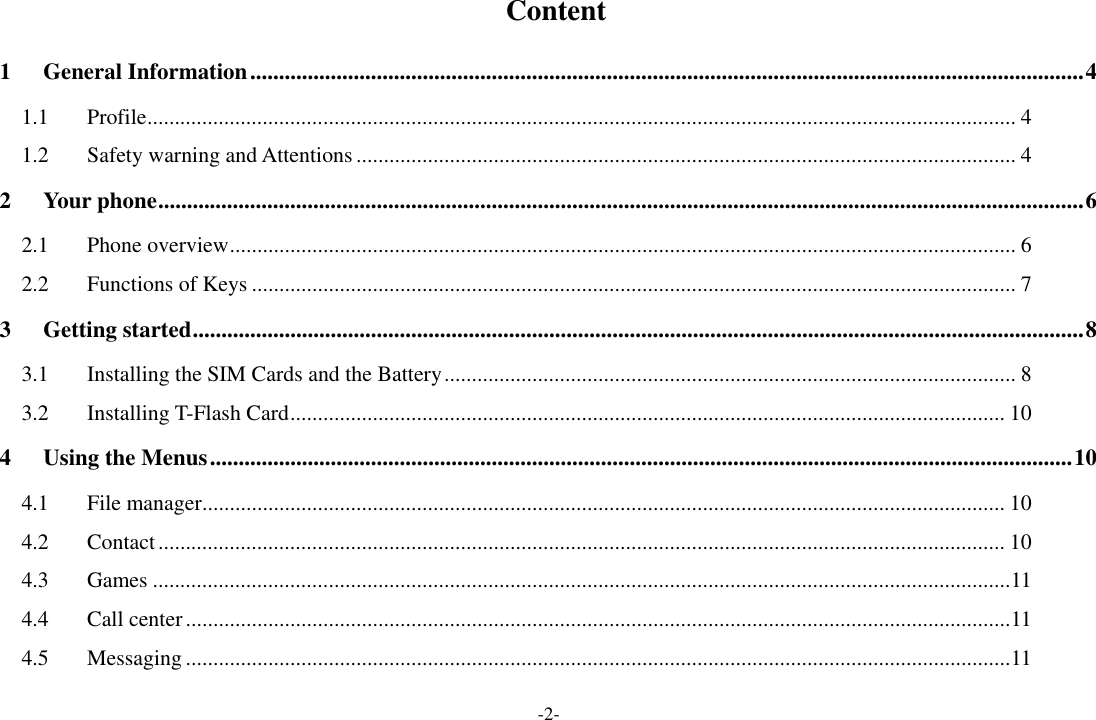
-2-   Content 1 General Information ................................................................................................................................................. 4 1.1 Profile .............................................................................................................................................................. 4 1.2 Safety warning and Attentions ........................................................................................................................ 4 2 Your phone ................................................................................................................................................................. 6 2.1 Phone overview ............................................................................................................................................... 6 2.2 Functions of Keys ........................................................................................................................................... 7 3 Getting started ........................................................................................................................................................... 8 3.1 Installing the SIM Cards and the Battery ........................................................................................................ 8 3.2 Installing T-Flash Card .................................................................................................................................. 10 4 Using the Menus ...................................................................................................................................................... 10 4.1 File manager .................................................................................................................................................. 10 4.2 Contact .......................................................................................................................................................... 10 4.3 Games ............................................................................................................................................................ 11 4.4 Call center ...................................................................................................................................................... 11 4.5 Messaging ...................................................................................................................................................... 11
-3- 4.6 Multimedia .................................................................................................................................................... 12 4.7 Organizer ....................................................................................................................................................... 13 4.8 Settings .......................................................................................................................................................... 13 4.9 Profiles .......................................................................................................................................................... 15 4.10 Tools .............................................................................................................................................................. 16 4.11 Services ......................................................................................................................................................... 16 4.12 Shortcuts ....................................................................................................................................................... 16 5 Appendix .................................................................................................................................................................. 17
-4- 1  General Information 1.1  Profile    Please read this pamphlet carefully in order to make your phone in perfect condition.    Our company may change this mobile phone without prior written notice and reserves the final right to interpret the performance of this mobile phone.    Due to different software and network operators, display on your phone may be different, refer to your phone for details. 1.2  Safety warning and Attentions  ROAD SAFETY COMES FIRST Do not use a hand-held phone while driving. Use hands-free fittings when calls are unavoidable while driving. In some countries, dialing or receiving calls while driving is illegal!  SWITCH OFF IN AIRCRAFT Wireless devices can cause interference in aircraft. Using a mobile phone in flight is illegal and risky.     Please make sure that your mobile phone is powered off in flight.  SWITCH OFF BEFORE ENTERING RISKY AREAS Strictly observe the relevant laws, codes, and regulations on the use of mobile phones in risky areas. Turn off your mobile phone before entering a place susceptible to explosion, such as an oil station, oil tank, chemical plant or a place where a blasting process is under way.  OBSERVE ALL SPECIAL REGULATIONS Follow  any  special  regulations  in  force  in  any  area  such  as  hospitals  and  always  switch  off  your  phone
-5- whenever it is forbidden to use it or, when it may cause interference or danger. Properly use your mobile phone near medical apparatuses, such as pacemakers, hearing aids and some other electronic medical devices, as it may cause interference to such apparatuses.  INTERFERENCE The conversation quality of any  mobile phone may be affected by radio interference. An  antenna is built inside  the  mobile  phone  and  located  below  the  microphone.  Do  not  touch  the  antenna  area  during  a conversation, lest that the conversation quality deteriorate.  QUALIFIED SERVICE Only qualified personnel may install or repair phone equipment. Installing or repairing the mobile phone on your own may bring great danger and violates the warranty rules.  ACCESSORIES AND BATTERIES Use only approved accessories and batteries.  USE SENSIBLY Use only in a normal and proper manner.  EMERGENCY CALLS Ensure the phone is switched on and in service, enter the emergency number, e.g. 112, then press the Dial key. Give your location and state your situation briefly. Do not end the call until told to do so. Note:  Just  like  all  other  mobile  phones,  this  mobile  phone  does  not  necessarily  support  all  the  features described in this manual due to network or radio transmission problems. Some networks even do not support the emergency call service. Therefore, do not rely solely on the mobile phone for critical communications such as first aid. Please consult the local network operator.
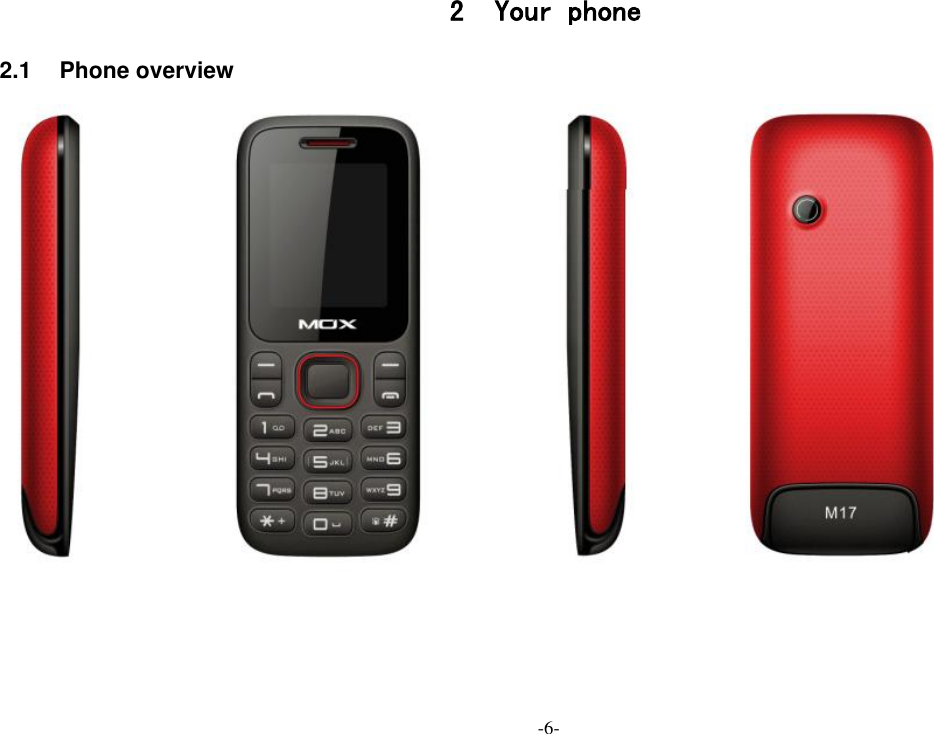
-6- 2 Your phone 2.1  Phone overview
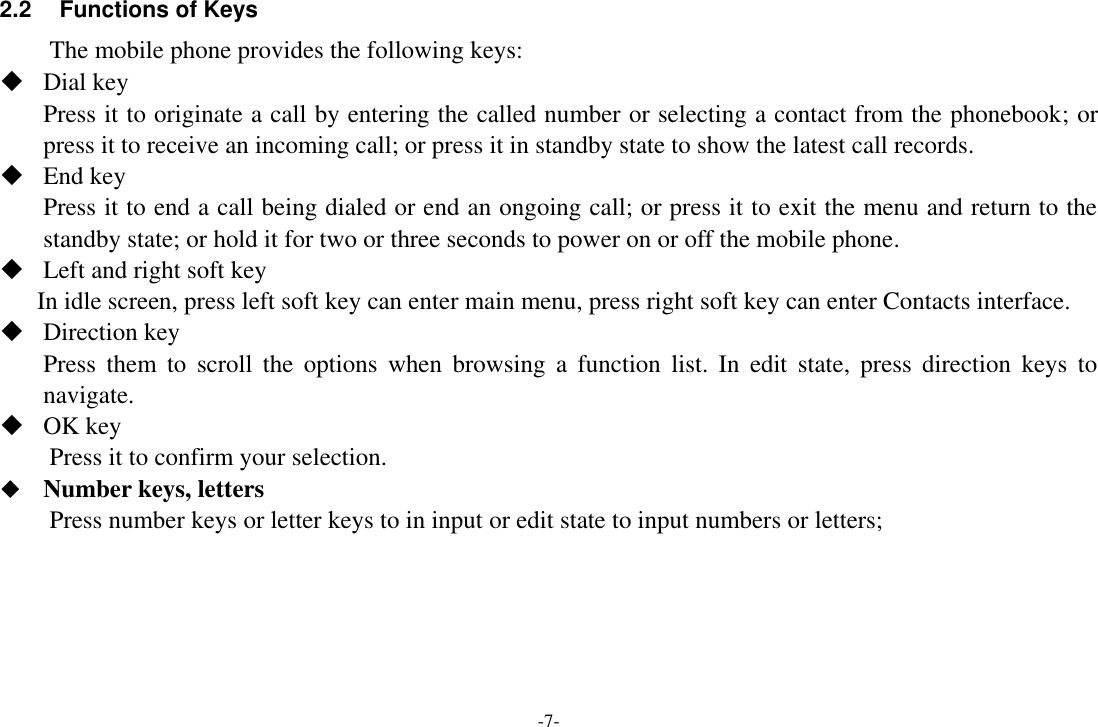
-7- 2.2 Functions of Keys The mobile phone provides the following keys:  Dial key Press it to originate a call by entering the called number or selecting a contact from the phonebook; or press it to receive an incoming call; or press it in standby state to show the latest call records.  End key Press it to end a call being dialed or end an ongoing call; or press it to exit the menu and return to the standby state; or hold it for two or three seconds to power on or off the mobile phone.  Left and right soft key In idle screen, press left soft key can enter main menu, press right soft key can enter Contacts interface.    Direction key Press  them  to  scroll  the  options  when  browsing  a  function  list.  In  edit  state,  press  direction  keys  to navigate.    OK key Press it to confirm your selection.  Number keys, letters Press number keys or letter keys to in input or edit state to input numbers or letters;
-8- 3 Getting started 3.1  Installing the SIM Cards and the Battery An SIM card carries useful information, including your mobile phone number, PIN (Personal Identification Number),  PIN2,  PUK  (PIN  Unlocking  Key),  PUK2  (PIN2  Unlocking  Key),  IMSI  (International  Mobile Subscriber Identity), network information, contacts data, and short messages data. Note: After powering off your mobile phone, wait for a few seconds before removing or inserting an SIM card. Exercise caution when operating an SIM card, as friction or bending will damage the SIM card. Properly keep the mobile phone and its fittings such as the SIM cards beyond children's reach. Installation  Hold the End key for a while to power off the mobile phone  Push the back cover above the battery and remove it.  Pull the left battery buckle outward and then lift the battery away.  Insert the SIM card into the SIM card slot lightly with the corner cutting of the card aligning to the notch of the slot and the gold plate of the card facing download, till the SIM card cannot be further pushed in.  With  the  metallic  contacts  of  the  battery  facing  the  metallic  contacts  in  the  battery  slot,  press  the battery down until it locks into place.    Phone lock code The phone lock code may be set to prevent your mobile phone from being misused. In general, this code is provided along with the mobile phone by the manufacturer. The initial phone lock code is set to 1122 by the
-9- manufacturer. If the phone lock code is set, you need to input the phone lock code when powering on the mobile phone.  PIN The PIN (Personal identification number, 4 to 8 digits) code prevents your SIM card from being used by unauthorized people. In general, the PIN is supplied with SIM card by the network operator. If PIN check is enabled, you need to input the PIN each time when you power on your mobile phone. The SIM card will be locked if you input wrong PIN code for three times. Unlocking methods as follows: -Input the correct PUK according to the screen tips to unlock the SIM card. -Then input the new PIN and press the OK key. -Input the new PIN again and then press the OK key. -If the input PUK is correct, the SIM card will be unlocked and the PIN will be reset. Note: The SIM card will be locked if you input wrong PIN code for three times. To unlock the SIM card, you need to input the PUK. In general, the PUK can be obtained from the network operator.  PUK The PUK code (Personal Unlocking Key) is required to change a blocked PIN. It is supplied with SIM card. If not, contact your network operator. If you input wrong PUK code for 10 times, SIM card will be invalid. Please contact the network operator to replace the SIM card.  Barring code A barring code is required for setting the call barring function. You can obtain this code from the network operator to set the call barring function.
-10- 3.2  Installing T-Flash Card The T-Flash card is a pluggable mobile storage card inside the mobile phone. Insert the T-flash card into the T-flash card slot. Note: 1. The mobile phone cannot automatically identify the T-flash card being inserted when the mobile phone is powered on. You must power off the mobile phone and then power it on, so that the phone can identify the T-Flash card. 2. The T-Flash card is a miniature object. Keep it out of the reach of children for fear that children swallow it!   4 Using the Menus 4.1 File manager The phone provides a certain space for users to manage files and supports the T-Flash card. The capacity of the T-Flash card is selectable. You can use the file manager to conveniently manage various directories and files on the phone and the T-Flash card. You can use this function to format all the data in the memory. 4.2  Contact   The mobile phone can store up to 200 telephone numbers. The telephone numbers that an SIM card can store depends on the storage capacity of the SIM card. The telephone numbers stored in the mobile phone and in
-11- the SIM cards form a phonebook. 4.3  Games A  game name F1 race was embedded in this menu. For specific operation, please refer to ‘help’ option of each game. 4.4  Call center Call history Through this function, you can view a list of missed calls, dialed call and received calls. Call settings Through this function, you can set call waiting, call barring, call diverts, etc.\ 4.5  Messaging Through this function, you can create, read or send a new message.   Write message Access this menu to create a text message or a multimedia message. Inbox Received messages are listed in this item.   Drafts Drafts messages are listed in this menu. Outbox The messages which are sent failed are stored in the Outbox.
-12- Sent messages The messages which are sent successful are stored in this folder. Service messages You can receive service messages in this interface. You should create an account first. SMS templates Ten text templates are embedded in the phone. They can be used to create a new message. SMS Settings This function enables you to set the default features about the SMS. 4.6  Multimedia Camera Use this function to capture pictures. Image viewer You can view the pictures or images through this function. Video recorder Use this function to record video files. Video player Use this function to play video files. By pressing the direction key can you control the playing process of video player: play/pause(OK key), fast forward (press right direction key) and rewind (press left direction key). In this interface, you can press up and down direction key to tune volume. Audio player Use this function to play audio files. By pressing the direction key can you control the playing process of
-13- audio player: play/pause(OK key), switch to last song/next song  (press left or right direction key), fast forward (press and hold right direction key) and rewind (press and hold left direction key) . In this interface, you can press* and # key to tune volume. Sound recorder The phone support WAV and AMR. The AMR takes the compression algorithm. So in the same memory condition, it has longer recording time than WAV. FM radio You can use the application as a traditional FM radio with automatic tuning and saved channels. In FM radio interface, you can press up and down direction key to search channel manually, press * and # key to tune volume. 4.7  Organizer   Calendar Once you enter this menu, there is a monthly-view calendar for you to keep track of important appointments, etc. Days with events entered will be marked. Alarm Five alarm clocks are set but deactivated by default. You can activate one, multiple or all of them as needed. For each alarm clock, the ringing date and the ringing time can be set. 4.8  Settings Dual SIM settings Dual-SIM refers to two SIM card slots, and the two cards can only set one of them to display on the idle screen.
-14- Phone settings  Time and date: You can set time and date through this function.  Schedule power on/off: Set the time when the mobile phone will be automatically powered on or off. Alert: Before entering an area where the use of mobile phones is forbidden, make sure that the scheduled power-on function is deactivated to avoid accidents.  Language: Select the display language for the mobile phone.  Pref. input method: Select an input method as preferred input method as per your need.  Display: Users can access this item to set wallpaper, screen saver, power on/off display, etc.  Dedicated keys: Set shortcuts of direction key through this function.  Auto update time and date: Activate/deactivate this function as per your need.  Flight mode: When this function is engaged, it will suspend many of the device's signals transmitting functions – thereby disabling the device's capacity to place or receive calls or text messages– while still permitting use of other functions that do not require signal transmission (e.g., games, built-in camera, MP3 player.)  Misc. settings: You can set the brightness and duration of LCD backlight and view the MRE VERSION in this interface. Network settings Through this function, you can select network and set preferred network. Security Settings  SIM security: You can turn on/off you PIN lock and change your PIN in this interface.  Phone security: This function provides you with related settings about safety use. The initial phone lock code is set to 1122 by the manufacturer.
-15- Connectivity    Bluetooth: With Bluetooth, you can make a wireless connection to other compatible devices, such as mobile phones, computers, headsets and car kits. You can use the Bluetooth to send images, video clips, music, sound clips and notes, and transfer files from your compatible pc.  Data accounts: Access this interface to set data account related parameters. Restore factory settings  Use this function to restore factory setting. The initial password is 1122. 4.9  Profiles The mobile phone provides multiple user profiles, so that you can customize some settings to adapt to the specific events and environments. Customize the user profiles according to your preference and then activate the user profiles. The user profiles fall into seven scenarios: General, Silent, Meeting and Outdoor. When you insert an earpiece to the mobile phone, the mobile phone automatically enters the Headset mode. There is no option for activating the Headset mode on the screen. For details on operation, refer to General.           Activate Select Activate to activate the selected mode. Customize After choosing one of the above seven modes, select Customize to edit the items. Reset Reset the parameters of the profiles.
-16- 4.10  Tools Calculator The calculator can add, subtract, multiply and divide. To use the calculator: Press the up, down, left and right key to select  +,  -, ×, ÷respectively. Press right soft key to delete the figure. Hold down the ‘#’key to get the decimal point. Confirm with the OK key. Torch You can select to turn on/off this function. 4.11  Services   Internet service You can surf the internet through this function. You should turn on the Data service first. License manager You can manage license through this function. STK STK service is the tool kit of SIM card. This phone supports the service function .The specific items are depended by SIM card and network. 4.12  Shortcuts Set shortcuts to enter the interface quickly.
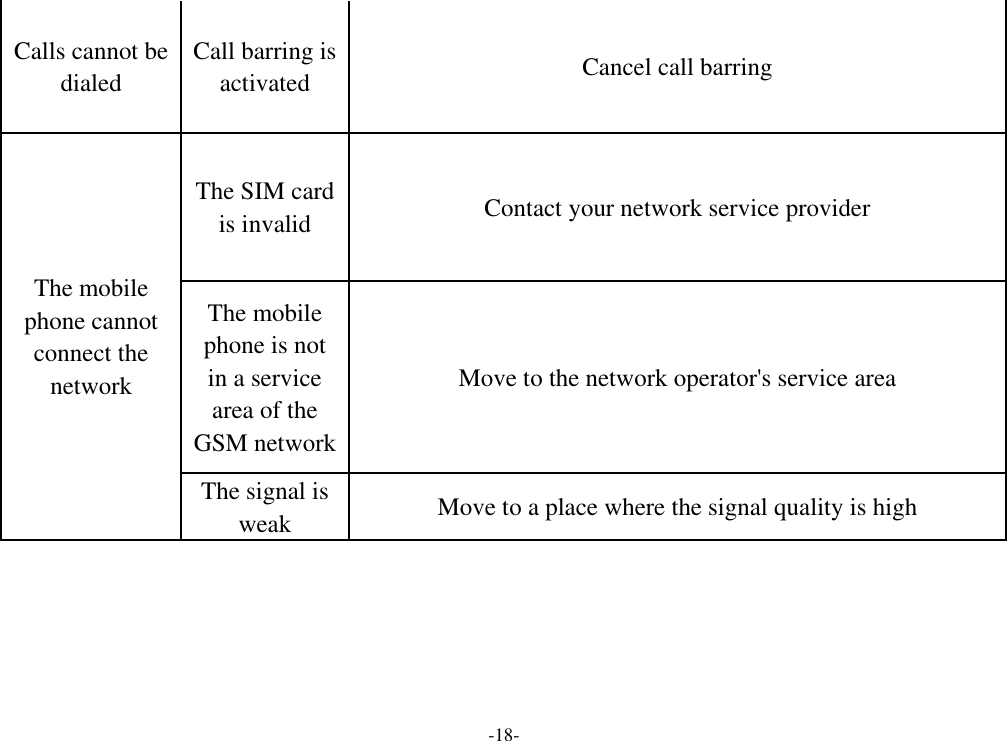
-17-  5 Appendix Appendix 1:Troubleshooting If you find exceptions when operating the mobile phone, restore the factory settings and then refer to the following table to solve the problem. If the problem persists, contact the distributor or service provider. Fault Cause Solution SIM card error The SIM card is damaged. Contact your network service provider The SIM card is not in position. Check the SIM card The metal face of the SIM card is polluted. Clean the SIM card with a clean cloth The mobile phone cannot be powered on The battery energy is exhausted. Charge the battery
-18- Calls cannot be dialed Call barring is activated Cancel call barring The mobile phone cannot connect the network The SIM card is invalid Contact your network service provider The mobile phone is not in a service area of the GSM network Move to the network operator's service area The signal is weak Move to a place where the signal quality is high
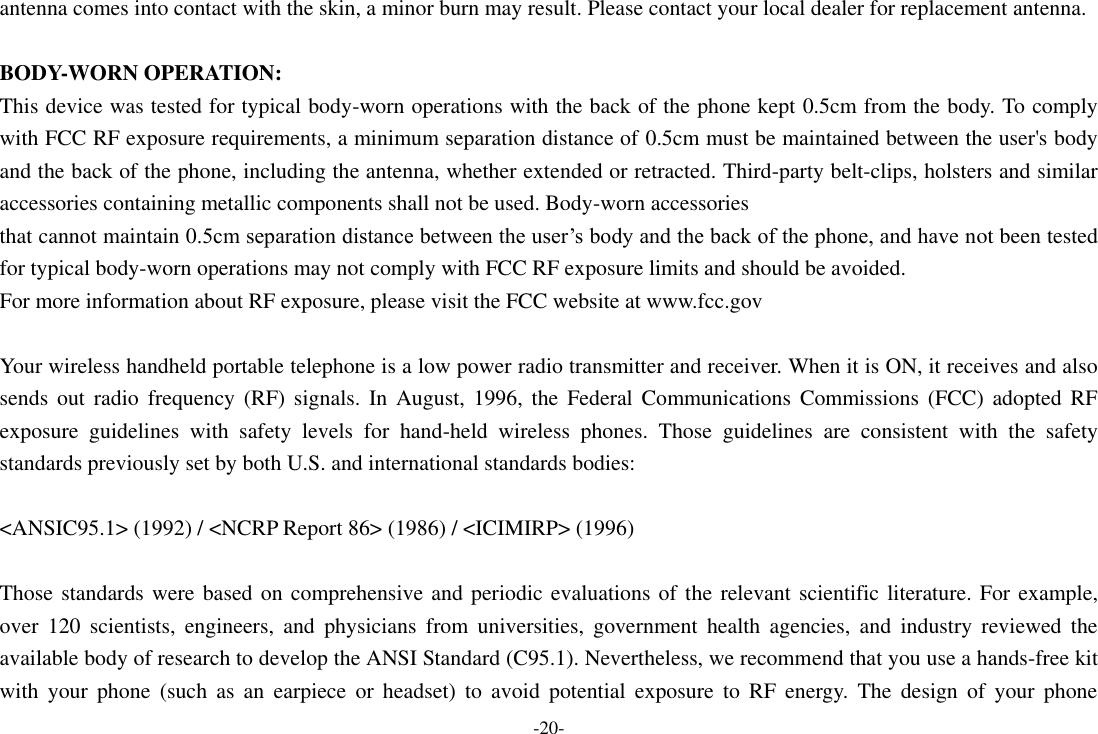
-19-   FCC RF EXPOSURE INFORMATION: WARNING!! Read this information before using your phone In August 1986 the Federal Communications Commission (FCC) of the United States with its action in Report and Outer FCC 96-326 adopted an updated safety standard for human exposure to radio frequency (RF) electromagnetic energy emitted by FCC  regulated  transmitters. Those  guidelines are  consistent  with  the  safety standard previously  set  by both  U.S.  and international standards bodies. The design of this phone complies with the FCC guidelines and these international standards. Use only the supplied or an approved antenna. Unauthorized antennas modifications, or attachments could impair call quality, damage the phone, or result in violation of FCC regulations. Do not use the phone with a damaged antenna. If a damaged The battery cannot be charged The charging voltage does not match the voltage range indicated on the charger Ensure the charging voltage matches the voltage range indicated on the charger An improper charger is used Use the charger specially designed for the mobile phone Poor contact Ensure the charger plug is in good contact with the mobile phone
-20- antenna comes into contact with the skin, a minor burn may result. Please contact your local dealer for replacement antenna.  BODY-WORN OPERATION: This device was tested for typical body-worn operations with the back of the phone kept 0.5cm from the body. To comply with FCC RF exposure requirements, a minimum separation distance of 0.5cm must be maintained between the user's body and the back of the phone, including the antenna, whether extended or retracted. Third-party belt-clips, holsters and similar accessories containing metallic components shall not be used. Body-worn accessories that cannot maintain 0.5cm separation distance between the user’s body and the back of the phone, and have not been tested for typical body-worn operations may not comply with FCC RF exposure limits and should be avoided. For more information about RF exposure, please visit the FCC website at www.fcc.gov  Your wireless handheld portable telephone is a low power radio transmitter and receiver. When it is ON, it receives and also sends  out  radio  frequency  (RF)  signals.  In  August,  1996,  the  Federal  Communications Commissions  (FCC) adopted  RF exposure  guidelines  with  safety  levels  for  hand-held  wireless  phones.  Those  guidelines  are  consistent  with  the  safety standards previously set by both U.S. and international standards bodies:  <ANSIC95.1> (1992) / <NCRP Report 86> (1986) / <ICIMIRP> (1996)  Those standards were based on comprehensive and periodic evaluations of the relevant scientific literature. For example, over  120  scientists,  engineers,  and  physicians  from  universities,  government  health  agencies,  and  industry  reviewed  the available body of research to develop the ANSI Standard (C95.1). Nevertheless, we recommend that you use a hands-free kit with  your  phone  (such  as  an  earpiece  or  headset)  to  avoid  potential  exposure  to  RF  energy.  The  design  of  your  phone
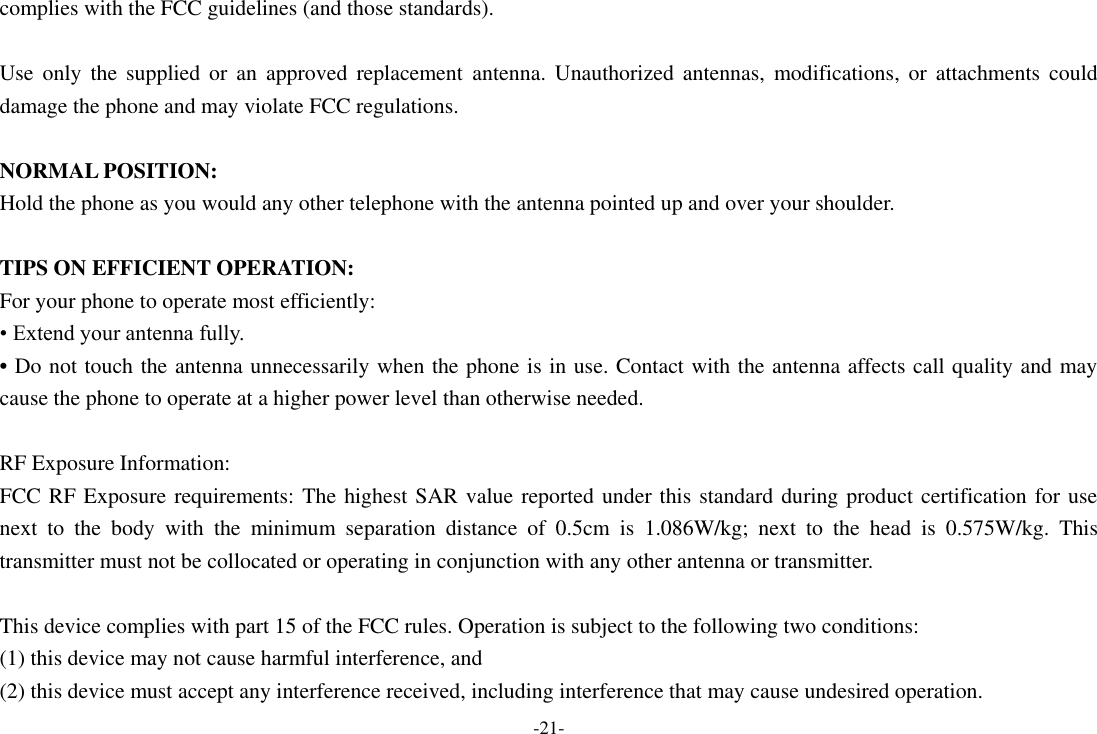
-21- complies with the FCC guidelines (and those standards).  Use  only  the  supplied  or  an  approved  replacement  antenna.  Unauthorized  antennas,  modifications,  or  attachments  could damage the phone and may violate FCC regulations.    NORMAL POSITION:   Hold the phone as you would any other telephone with the antenna pointed up and over your shoulder.  TIPS ON EFFICIENT OPERATION:   For your phone to operate most efficiently: • Extend your antenna fully. • Do not touch the antenna unnecessarily when the phone is in use. Contact with the antenna affects call quality and may cause the phone to operate at a higher power level than otherwise needed.  RF Exposure Information: FCC RF Exposure requirements: The highest SAR value reported under this standard during product certification for use next  to  the  body  with  the  minimum  separation  distance  of  0.5cm  is  1.086W/kg;  next  to  the  head  is  0.575W/kg.  This transmitter must not be collocated or operating in conjunction with any other antenna or transmitter.  This device complies with part 15 of the FCC rules. Operation is subject to the following two conditions: (1) this device may not cause harmful interference, and (2) this device must accept any interference received, including interference that may cause undesired operation.
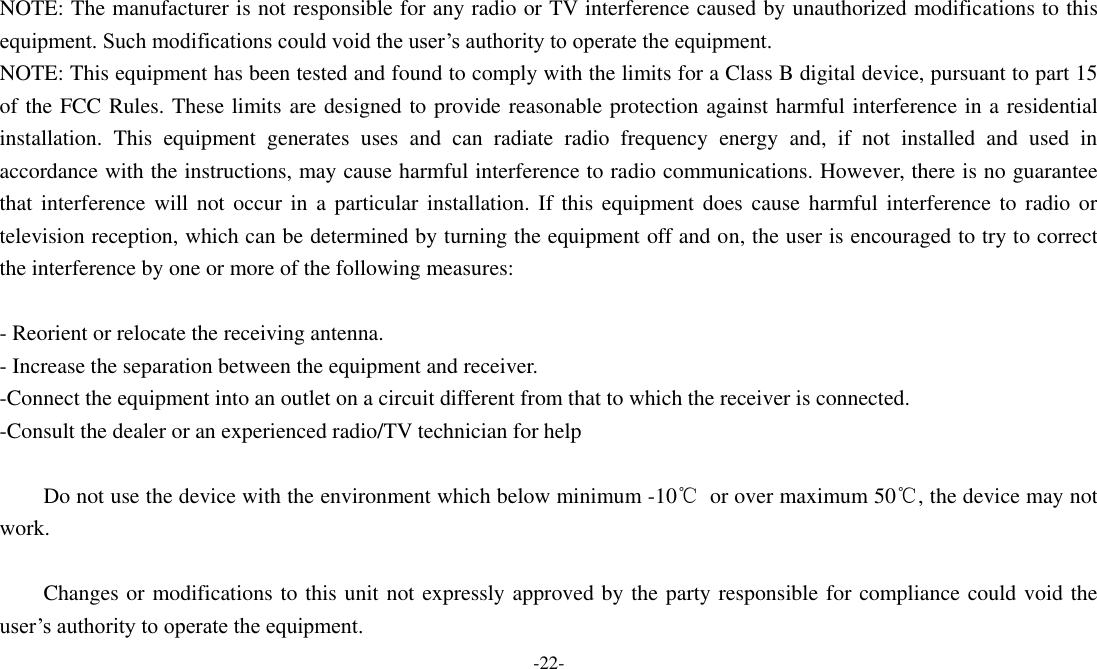
-22-   NOTE: The manufacturer is not responsible for any radio or TV interference caused by unauthorized modifications to this equipment. Such modifications could void the user’s authority to operate the equipment. NOTE: This equipment has been tested and found to comply with the limits for a Class B digital device, pursuant to part 15 of the FCC Rules. These limits are designed to provide reasonable protection against harmful interference in a residential installation.  This  equipment  generates  uses  and  can  radiate  radio  frequency  energy  and,  if  not  installed  and  used  in accordance with the instructions, may cause harmful interference to radio communications. However, there is no guarantee that  interference  will  not  occur in  a  particular  installation. If  this  equipment  does  cause harmful interference  to  radio or television reception, which can be determined by turning the equipment off and on, the user is encouraged to try to correct the interference by one or more of the following measures:  - Reorient or relocate the receiving antenna. - Increase the separation between the equipment and receiver. -Connect the equipment into an outlet on a circuit different from that to which the receiver is connected. -Consult the dealer or an experienced radio/TV technician for help          Do not use the device with the environment which below minimum -10℃  or over maximum 50℃, the device may not work.          Changes or modifications to this unit not expressly approved by the party responsible for compliance could void the user’s authority to operate the equipment.

Navigation menu