MOX GROUP M275 GSM MOBILE PHONE User Manual
MOX GROUP LIMITED GSM MOBILE PHONE
User Manual
User manual
Model:M275
Brand:MOX
Dear Customer,
Thank you for purchasing MOX M275. Kindly read this user manual
carefully to learn about key functional characteristics and operational
methods of this mobile phone.
1 Safety Precautions.....................................................................2
2 Phone Introduction.....................................................................4
2.1 Components Sitemap..................................................................4
2.1.1 Keys and Functions..................................................................5
2.2 Safety Password.........................................................................6
2.2.1 PIN code.................................................................................6
2.2.2 PIN2 code...............................................................................6
2.2.3 PUK code................................................................................6
2.2.4 Mobile phone password............................................................6
3 Functional Menus........................................................................7
3.1 Phonebook.................................................................................7
3.2 Message....................................................................................7
3.3 Call History.................................................................................7
3.4 Multimedia.................................................................................7
3.5 My Files.....................................................................................7
3.6 Rlive..........................................................................................8
3.7 Internet......................................................................................8
3.8 Settings.....................................................................................8
3.9 Audio Player...............................................................................8
3.10 Rage Treasure Box...................................................................8
3.11 Application..............................................................................10
3.12 Tools......................................................................................10
1

4 FAQ and Solutions.....................................................................11
5 About SAR................................................. .. .. .. .........................13
1 Safety Precautions
For your safety, read the guidelines carefully. Breaking the rules may be
dangerous or illegal. Please refer “health and safety” section for detail
security information.
Traffic Safety
Please follow local rules and regulations during driving. Do not use your
mobile phone when driving. Use hand-free or stop your car beside the
road if emergency.
Do not put your mobile phone on the car's airbag. This will harmed you if
the airbag swell or burst.
Switch off near dangerous stuff
Don’t use the phone at a refueling point. Don’t use near fuels or chemicals.
Switch off in Airport
Wireless devices can cause interference in aircraft. The use of mobile
telephones in an aircraft is illegal. Please switch off your mobile before
taking off the plane and please ensure the alarm clock should be closed
when the mobile is turned off.
Switch off in Hospitals
Switch the device off near medical equipment or in hospital (except for
the designated using area). Like other common devices, the mobile phone
will interfere in the operation of other electrical apparatus, electrical
equipments or radio-frequency equipment (such as cardiac pacemaker,
hearing aids and etc.).
Interference
All wireless devices may be susceptible to interference, which could affect
performance.
Waterproof
2

3
Please keep the phone dry because the phone is not waterproofed.
Remove battery if any liquid go into your mobile phone and allow the
device to dry completely before replacing it.
Accessories and batteries
Please use the batteries and adapter designated by our company, or
otherwise causing explosion possibly.
Connect to other devices
Connect to other devices, you must first read the device's user manual
to ensure proper use.
Keep the phone out of stretch of the kids
The phone and its accessories (including fittings) should be kept out of
the stretch of the kids.
Specialized service
Please do not bold to dismantle the phone and its accessories. Only can
authorized agencies maintain the phone.
4
2 Phone Introduction
2.1 Components Sitemap
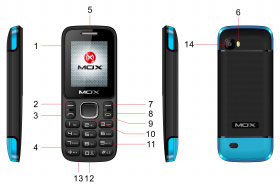
1.LCD 2. Left Functional Key
3. Dial Key 4. MIC
5. Receiver 6. Flash lamp
7. Right Soft Key
8. OK Key
9. End Key 10. Navigation Key
11. Numbers Key 12. USB Port
13. Headphone jack
14. Camera
5
2.1.1 K ey s an d Functions
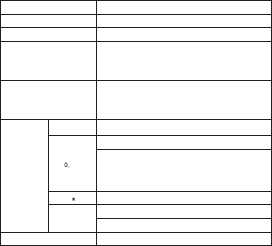
Name
Funct ion in standby screen
Left soft key Enter the main menu
Right soft key E nte r the p hon ebo ok
Dial key
Answer incoming calls
Dial numbers by SIM card in dial screen
Go to the call log list
End ke y
Short press: End the ca ll or rej ect inc oming c all; re turn to
standby screen in any mode.
Long press: Switch on/off pho ne
Numeric keys
1
Short press: g o to dial s creen a nd inpu t numbe r 1
2~9
Short press: g o to dial s creen , and inp ut numb ers 0,2~9.
Long press: di al out nu mber st ored in s peed dial function
if speed dial en abled .
Short press: g o to dial s creen a nd inpu t *.
#
Short press: g o to dial s creen a nd inpu t #.
Long press: ac tivat e/dea ctiva te the Silent mode.
Flashlight k ey Long p ress: " 0" is turned on / off the flashlight
6
2.2 Safety Password
2.2.1 PIN code
PIN1 Code is the Personal Identification Number for entering a SIM card.
'Input PIN' is requested each time the phone is switched on if this PIN1
code is activated.
You can get PIN1 Code with the SIM card by your network operator. It
usually has 4 digits.
2.2.2 PIN2 code
PIN2 is required for some specific functions provided by the network,
such as the charge information.
2.2.3 PUK c ode
PUK (Personal Unblocking Key, 8-digit) unlocks a locked PIN. If you enter
the PUK incorrectly ten times in a row, the SIM card will become invalid.
Please contact your network operator for a new SIM card.
2.2.4 Mobile phone password
The phone lock protects your phone from unauthorized use. The default
phone lock code is 1234. You can change it into any numeric string of 4
to 8 digits.
If the phone lock function is enabled, you need to enter the correct phone
lock code when the phone is powered on or in the standby mode.
7
3 Functional Menus
3.1 Phonebook
You can store the name and telephone number in the phone memory or
the SIM card.
3.2 Message
The SMS function is a network service. You may need to apply to the
network operator first before you can send and receive a message.
3.3 Call History
You can view the call logs (Missed, Dialed, received calls) through this
option.
3.4 Multimedia
You can access your camera、image viewer、video recorder、video player
、audio player、sound recorder 、FM radio 、recorder and file management.
3.5 My Files
>You can use File manager to organize your files in folders.
>Select Phone or Memory card and select options to brouse,copy and
move the files in folders.
8
3.6 Rlive
You can download games.
3.7 Internet
You can access internet.Services is shown only if it is provided by your
SIM card. For further details,please contact your network operator.
3.8 Settings
• This menu option let you view and edit your call settings, phone, display,
security settings and connection management.
• The default password for Phone lock, Privacy & Restore factory settings
is “1234” you can personalize the password.
Caution: You will lose all the data stored in the memory card after format.
3.9 Audio Player
You can press OK button to enter this menu option for music play.
3.10 MOX Treasure Box
3.10.1 Safety Guard
3.10.2.1 Privacy
9
3.10.2.2 Guardlock
When the Guard is on, once your phone is lost or SIM card is replaced,
the phone will automatically send stolen information to the presented
Guardlock numbers. Before access to the function,enter the default phone
lock code,related operations can be done only when entering the correct
password.
Settings:
Start and enter the Guardlock numbers,after that if the SIM card is replaced
(including the phone being stolen),every time the phone be turned on,
it will automatically send a stolen information to the present Guardlock
numbers,which includes the card number being used in your phone illegally.
Note: Guardlock numbers better be the mobile phone number of your
familiar people or your other mobile phone number.
3.10.2.3 Blacklist
3.10.2.3.1 Blacklist list
3.10.2.3.2 Blacklist settings
3.10.2.3.3.1 Auto call interception
You can define the following settings:
MODE-Firewalls on/off setting, includs open and close blacklist(the call
from numbers in Blacklist will automatically reject)Blacklist-Edit Blacklist,
you can manually input,or select your desired number from the call log
and phonebook list,select Add to blacklist from the
10
option list to quickly add to the Blacklist.
3.10.2.3.2.2 Message Interception
Access to this option you can set SMS firewall state and SMS Blacklist
number. If the firewall state is set on, the user will not receive any information
from the blacklist numbers;if the firewall status is set off,the device can
receive all messages normally.
3.10.2 Smart Call
3.10.2.1 Auto call recorder
Set this feature ON, as long as you call, the content will be automatically
recorded.
3.10.2.2 SMS Reject
You could activate this function.The mobile will reject the incoming calls
and send a SMS to the caller automatically. The SMS is I am busy now ,
will call you later.
3.11 Application
In the main menu interface,press the left soft key to select organizer, you
may make use of functions.
3.12 Tools
In the main menu interface, press the left soft key to select organizer, you
may make use of functions such as calculator,calender,alarm,electric
torch and bluetooth.
11
4 FAQ and Solutions
Before contacting your after-sales services provider, please conduct
some simple inspections as below. In this way, you may save unnecessary
maintenance time and costs.
FAQ Causes and solutions
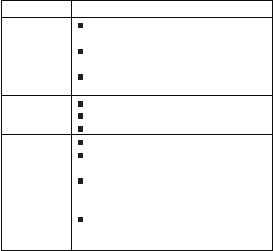
Unable to boot up
Ensure you have pressed and held the Start key for at least 1
second;
Check the battery for proper connection. Dissemble and reinstall the
battery, and then try to restart the phone;
Check whether the battery power has been used up. Please
re-charge your battery.
Access to network failed
For weak signal, move to another place and retry;
Out of reach of the network service provider;
SIM card is inactive. Contact your network service provider;
Display information
during startup
Check the SIM card to see if the SIM card is correctly installed;
Automatic lock function is checked. Enter the phone lock password
before use;
The PIN code is displayed. The PIN function has been checked.
Enter the PIN code each time when the phone is started up; (For the
first use, enter the PIN code provided with the SIM card)
Enter PUK code: If wrong PIN codes are entered for three times
consecutively, the mobile phone will be locked. In this case, input the
PUK code provided by the network service provider.
12
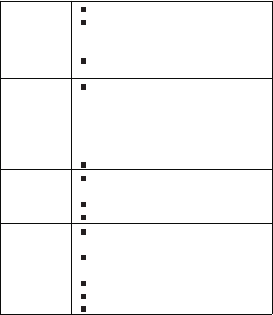
Poor voice quality
Please check whether the volume control is suitable;
When the phone is used in places with poor telecommunications,
such as high rises or basement, the radio wave cannot be
transmitted efficiently;
When you use the phone in the rush hour of calls, line congestion will
disable calls.
Shorter standby time
The standby time is associated with the network system setup. In this
case, you are possibly in place with poor communication. When the
signal is not available, the phone will continue to search for the base
station. This will consume a lot of battery power, making standby time
much shorter. To continue to use, move to a place with strong signal,
or shut down the phone temporarily
Replace the battery with a new battery;
SIM card error
If the metal surface of the SIM card is dirty, clean the metal contact
with a clean piece of cloth;
SIM card has not been properly installed;
If SIM card is damaged, contact your network service provider.
Unable to make calls
Check whether the Dial key is depressed after the number is
inputted;
Check whether your calls have been barred due to insufficient mobile
phone fee;
Check whether the SIM card is effective;
Check whether the call barring function has been set;
Check whether the fixed dialing function has been set;

13
Your caller is unable to
access to you
Check that your phone has been started up and accessed to the
network;
Check whether your phone has been restricted because of
insufficient mobile phone fee;
Check whether the SIM card is valid;
Check whether the call barring function has been set;
Check whether the fixed dialing function has been set;
Unable to re-charge the
battery
Not well connected. Check whether the plug is properly connected;
Charge the battery under 10 ℃or above 55℃. Please change to
another environment;
The battery or battery charge is damaged. If necessary, change it.
Unable to
set up some functions
Operation errors;
The network service provider doesn’t support this function, or you
have not applied for this function.
5 About SAR
a. Use of wireless hands-free system (headphone, headset) with a low
power Bluetooth emitter.
b. Make sure the cell phone has a low SAR.
c. Keep your calls short or send a text message (SMS) instead. This
advice applies especially to children, adolescents and pregnant women.
d. Use cell phone when the signal quality is good.
e. People having active medical implants should preferably keep the
cell phone at least 15 cm away from the implant.
f. This model's SAR info: Head: 0.521 Watt/kg Body: 0.659 Watt/kg
14
FCC Warning
This device complies with part 15 of the FCC Rules. Operation is subject
to the condition that this device does not cause harmful interference.
Any Changes or modifications not expressly approved by the party responsible
for compliance could void the user's authority to operate the equipment.
Note: This equipment has been tested and found to comply with the limits
for a Class B digital device, pursuant to part 15 of the FCC Rules. These
limits are designed to provide reasonable protection against harmful
interference in a residential installation. This equipment generates uses
and can radiate radio frequency energy and, if not installed and used in
accordance with the instructions, may cause harmful interference to radio
communications. However, there is no guarantee that interference will not
occur in a particular installation. If this equipment does cause harmful
interference to radio or television reception, which can be determined by
turning the equipment off and on, the user is encouraged to try to correct
the interference by one or more of the following measures:
-Reorient or relocate the receiving antenna.
-Increase the separation between the equipment and receiver.
-Connect the equipment into an outlet on a circuit different from that to
which the receiver is connected.
-Consult the dealer or an experienced radio/TV technician for help.
Specific Absorption Rate (SAR) information:
This GSM Mobile Phone meets the government's requirements for exposure
to radio waves. The guidelines are based on standards that were developed
by independent scientific organizations through periodic and thorough
evaluation of scientific studies. The standards include a substantial safety
margin designed to assure the safety of all persons regardless of age or
health.
FCC RF Exposure Information and Statement
The SAR limit of USA (FCC) is 1.6 W/kg averaged over one gram of tissue.
Device types: M275 (FCC ID: 2ABBS-M275) has also been tested against
this SAR limit. The highest SAR value reported under this standard during
product certification for use at the head is 0.767W/kg and when properly worn
on the body is 0.904W/kg. This device was tested for typical body-worn
operations with the back of the handset kept 1cm from the body. To maintain
compliance with FCC RF exposure requirements, use accessories that
maintain a 1cm separation distance between the user's body and the back
of the handset. The use of belt clips, holsters and similar accessories
should not contain metallic components in its assembly. The use of
accessories that do not satisfy these requirements may not comply with
FCC RF exposure requirements, and should be avoided.
15
Body-worn Operation
This device was tested for typical body-worn operations. To comply with
RF exposure requirements, a minimum separation distance of 1cm must
be maintained between the user ’s body and the handset, including the
antenna. Third-party belt-clips, holsters, and similar accessories used
by this device should not contain any metallic components. Body-worn
accessories that do not meet these requirements may not comply with
RF exposure requirements and should be avoided. Use only the supplied
or an approved antenna.