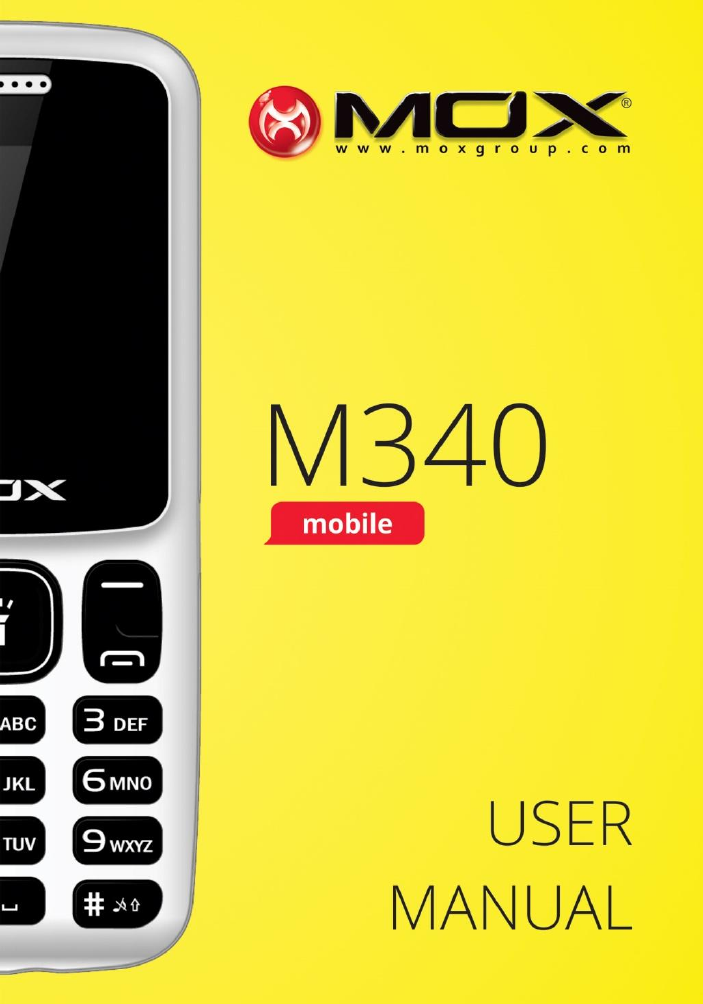
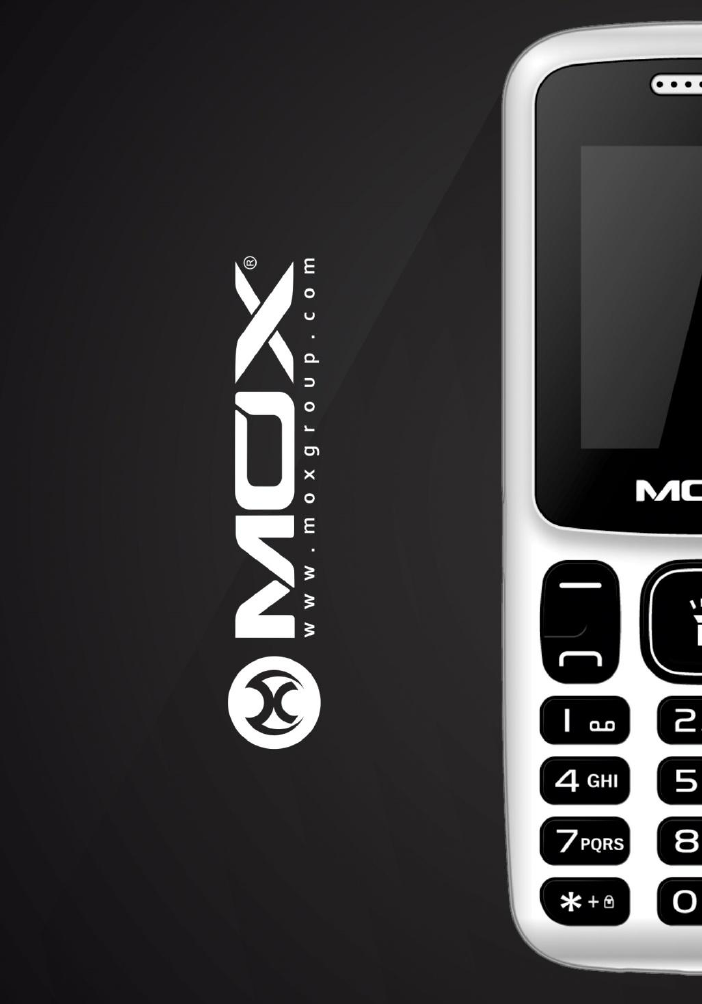
MOX GROUP M340 GSM MOBILE PHONE User Manual

MOX GROUP LIMITED GSM MOBILE PHONE

Contents

User manual

   1
  2 TABLE OF CONTENT 1. BASIC INFORMATION .................... 5 1.1. BRIEF INTRODUCTION ........................................... 5 2. BEFORE USE ...................................... 6 2.1. NAME AND EXPLANATION OF EACH PART ............. 6 2.1.1. Appearance Sketch Map ........................... 6 2.1.2. Description of the Standby Pictures .......... 6 2.1.3. Description of Keys .................................. 7 2.2. INSTALL SIM CARD AND MEMORY CARD ............. 9 2.2.1. SIM Card ................................................... 9 2.2.2. Memory Card .......................................... 10 2.3. BATTERY ............................................................ 10 2.3.1. Install the Battery .................................... 10 2.3.2. Charging .................................................. 11 2.4. SECURITY PASSWORD ......................................... 11 3. QUICK USER GUIDE ..................... 13 3.1. DIAL A CALL ....................................................... 13
  3 3.2. RECEIVE A CALL ................................................. 13 3.3. END A CALL ........................................................ 13 3.4. EMERGENCY SERVICES ....................................... 14 3.5. EXTENSION SPEED DIAL ..................................... 14 3.6. DIALED CALLS/MISSED CALLS/RECEIVED CALLS/REJECTED CALLS .............................................. 14 3.7. CALL FORWARD .................................................. 14 3.8. CALL WAITING ................................................... 15 3.9. CALL BARRING ................................................... 15 3.10. POWER OFF THE PHONE ...................................... 15 3.11. T-FLASH CARD ................................................... 16 4. FUNCTION MENU .......................... 16 4.1. CONTACTS .......................................................... 16 4.2. MESSAGE ............................................................ 16 4.3. CALL LOGS ......................................................... 18 4.4. SETTINGS ............................................................ 19 4.5. MULTIMEDIA ...................................................... 22 4.6. ORGANIZER ........................................................ 24 4.7. PROFILES ............................................................ 25 4.8. INTERNET ........................................................... 26
  4 5. TEXT INPUT ..................................... 26 6. CARE AND MAINTENANCE ........ 28 7. HEALTH AND SAFETY PRECAUTIONS ..................................... 30
  5 1. Basic Information 1.1. Brief Introduction Thanks  for  selecting  MOX  M340  mobile  phone.  Through reading the manual, you can fully know how to use M340 mobile phone,  appreciate  its  complete  function  and  simple  operating method.   M340  mobile  phone  is  designed  aiming  at  GSM/GPRS network  environment;  the  phone  is  Two Card Two  Standby,  but you can`t call another SIM card when one SIM card is under phone call. Besides basic call functions, M340 also provides many kinds of  practical  functions,  such  as  name  card  holder,  scene  mode, message, audio and video player, camera and video, alarm clock, calculator, STK, time and date, auto power-on and shut-down and etc.  so  that  convenient  for  your  work  and  leisure  activities.  In addition,  M340adopts  personalized  human-computer  interface design, its complete function can meet your different requirements.   M340 mobile phone accords with GSM/GPRS criterion, has obtained the certification of competent authority.   The company reserves the rights to revise the contents of the manual without prior notice.
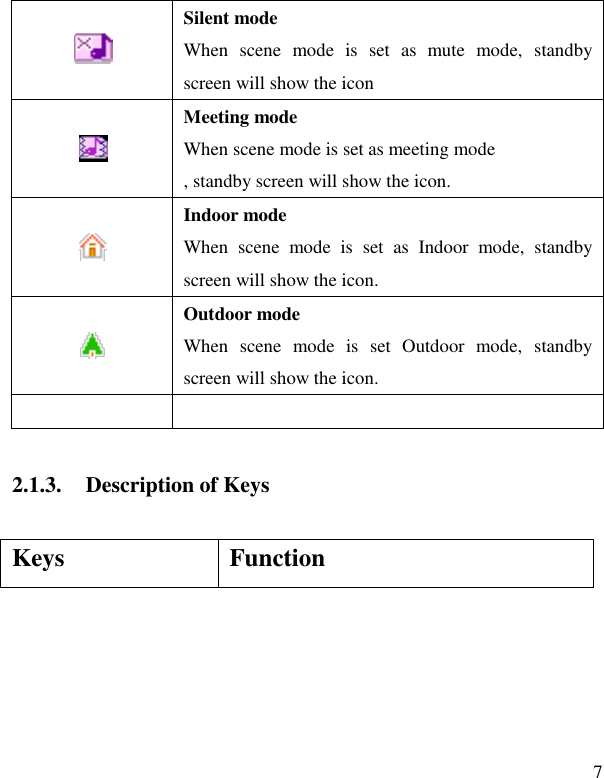
  6 2. Before Use 2.1. Name and Explanation of Each Part 2.1.1. Appearance Sketch Map The picture is only for your reference. 2.1.2. Description of the Standby Pictures  Network signal strength The  more  the  stripe  is,  the  stronger  the  signal  is. When  SIM  card  1s  inserted  in  card  slot  1,  standby screen will show the icon.  Network signal strength The  more  the  stripe  is,  the  stronger  the  signal  is. When  SIM  card  1s  inserted  in  card  slot  2,  standby screen will show the icon.  Battery strength The  full  the  fill  is,  the  more  electric  quantity  is. Standby screen will show the icon.
  7  Silent mode When  scene  mode  is  set  as  mute  mode,  standby screen will show the icon  Meeting mode When scene mode is set as meeting mode , standby screen will show the icon.  Indoor mode When  scene  mode  is  set  as  Indoor  mode,  standby screen will show the icon.  Outdoor mode When  scene  mode  is  set  Outdoor  mode,  standby screen will show the icon.   2.1.3. Description of Keys Keys Function
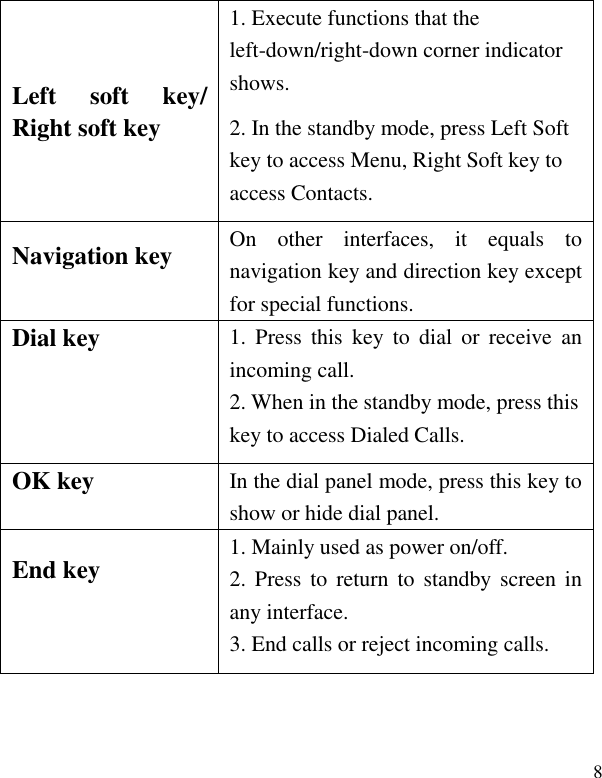
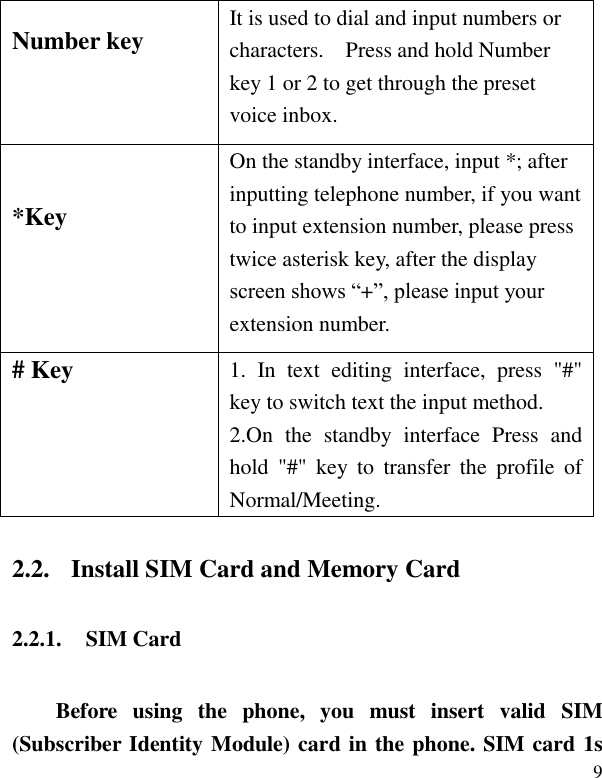
  8 Left  soft  key/ Right soft key 1. Execute functions that the left-down/right-down corner indicator shows.   2. In the standby mode, press Left Soft key to access Menu, Right Soft key to access Contacts. Navigation key  On  other  interfaces,  it  equals  to navigation key and direction key except for special functions.   Dial key  1.  Press  this  key  to  dial  or  receive  an incoming call.   2. When in the standby mode, press this key to access Dialed Calls. OK key  In the dial panel mode, press this key to show or hide dial panel. End key  1. Mainly used as power on/off.   2. Press  to  return to  standby screen  in any interface. 3. End calls or reject incoming calls.
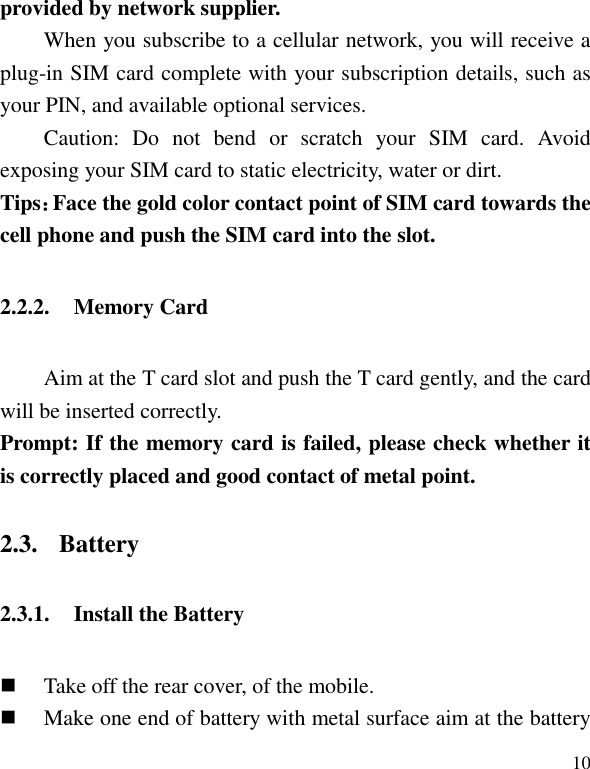
  9 Number key  It is used to dial and input numbers or characters.    Press and hold Number key 1 or 2 to get through the preset voice inbox. *Key  On the standby interface, input *; after inputting telephone number, if you want to input extension number, please press twice asterisk key, after the display screen shows “+”, please input your extension number. # Key  1.  In  text  editing  interface,  press  "#" key to switch text the input method. 2.On  the  standby  interface  Press  and hold  "#"  key  to  transfer  the  profile  of Normal/Meeting. 2.2. Install SIM Card and Memory Card 2.2.1. SIM Card Before  using  the  phone,  you  must  insert  valid  SIM (Subscriber Identity Module) card in the phone. SIM card 1s
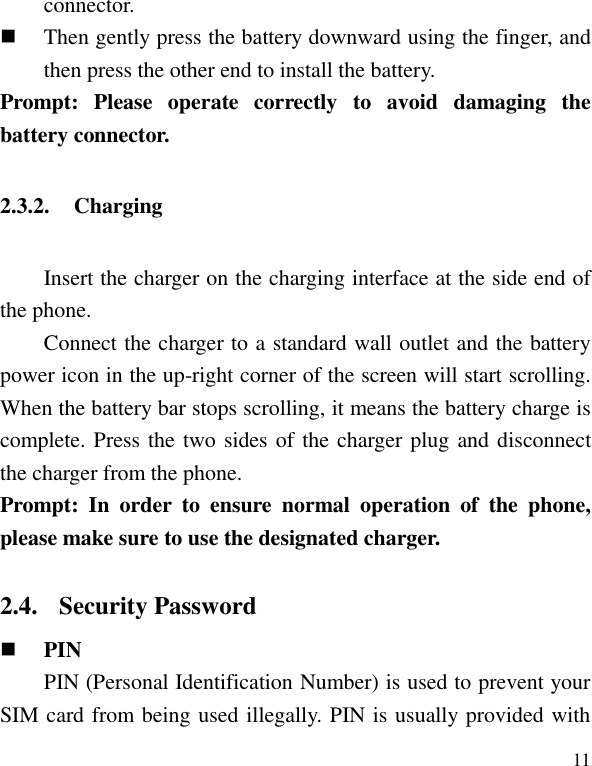
  10 provided by network supplier.   When you subscribe to a cellular network, you will receive a plug-in SIM card complete with your subscription details, such as your PIN, and available optional services. Caution:  Do  not  bend  or  scratch  your  SIM  card.  Avoid exposing your SIM card to static electricity, water or dirt. Tips:Face the gold color contact point of SIM card towards the cell phone and push the SIM card into the slot. 2.2.2. Memory Card Aim at the T card slot and push the T card gently, and the card will be inserted correctly.   Prompt: If the memory card is failed, please check whether it is correctly placed and good contact of metal point. 2.3. Battery 2.3.1. Install the Battery  Take off the rear cover, of the mobile.    Make one end of battery with metal surface aim at the battery
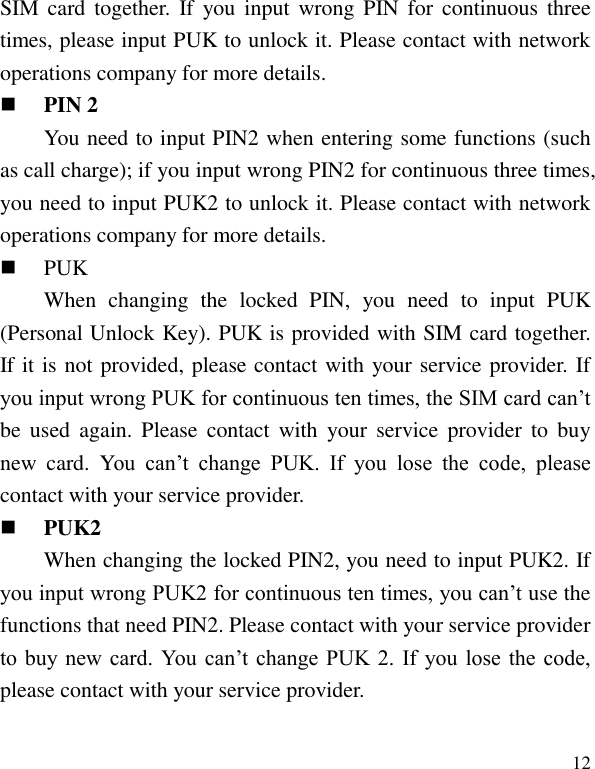
  11 connector.    Then gently press the battery downward using the finger, and then press the other end to install the battery.   Prompt:  Please  operate  correctly  to  avoid  damaging  the battery connector.   2.3.2. Charging Insert the charger on the charging interface at the side end of the phone.   Connect the charger to a standard wall outlet and the battery power icon in the up-right corner of the screen will start scrolling. When the battery bar stops scrolling, it means the battery charge is complete. Press the two sides of the charger plug and disconnect the charger from the phone. Prompt:  In  order  to  ensure  normal  operation  of  the  phone, please make sure to use the designated charger.  2.4. Security Password  PIN   PIN (Personal Identification Number) is used to prevent your SIM card from being used illegally. PIN is usually provided with
  12 SIM card  together.  If  you  input  wrong  PIN for  continuous  three times, please input PUK to unlock it. Please contact with network operations company for more details.    PIN 2 You need to input PIN2 when entering some functions (such as call charge); if you input wrong PIN2 for continuous three times, you need to input PUK2 to unlock it. Please contact with network operations company for more details.  PUK When  changing  the  locked  PIN,  you  need  to  input  PUK (Personal Unlock Key). PUK is provided with SIM card together. If it is not provided, please contact with your service provider. If you input wrong PUK for continuous ten times, the SIM card can’t be  used  again.  Please  contact  with  your  service provider  to  buy new  card.  You  can’t  change  PUK.  If  you  lose  the  code,  please contact with your service provider.    PUK2 When changing the locked PIN2, you need to input PUK2. If you input wrong PUK2 for continuous ten times, you can’t use the functions that need PIN2. Please contact with your service provider to buy new card.  You  can’t change PUK 2.  If  you lose  the  code, please contact with your service provider.
  13 3. Quick User Guide 3.1. Dial a Call In  standby  mode,  press  numerical  keys  to  input  phone number  to  dial  phone  number.  When  you  finish  inputting  phone number, press the dial key to make a call.   Reject a Call You can press End key to reject an incoming call.   3.2. Receive a Call When an  incoming call arrives, the phone  will  give out  the corresponding  prompt  (such  as  vibration,  ring  tone,  and  etc.);  if network  support,  the  phone  screen  will  show  the  name  and telephone number of the caller; at this time, you can press Dial key to receive an incoming call.   3.3. End a Call After finishing a call, you can press End key to end a call.
  14 3.4. Emergency Services You can directly dial an emergency service call without SIM card.   Different network uses different emergency numbers, please consult your network operations company for more details.   3.5. Extension Speed Dial After inputting telephone number, if you want to input branch number,  please  press  and  hold  “*”,  input  your  extension  number after the display screen shows “P”. After getting through the call, it will directly dial the extension.   3.6. Dialed Calls/Missed Calls/Received Calls/Rejected Calls You can enter call log to check the relevant details of dialed calls, missed calls, received calls and rejected calls.   Prompt:  The  record  of  incoming  call  from  blacklist  number will be saved in Rejected Calls.   3.7. Call Forward After call forward function is started, according to different forward  conditions  settings  (Call  Forward  Unconditionally,
  15 Forward Busy, Forward No Answer, Forward Can Not Reach), you can  select  to  switch  the  incoming  call  to  voice  inbox  or  other telephone numbers.   3.8. Call Waiting After call  waiting  function is  started,  when you are  calling, the other call can be put through. 3.9. Call Barring After  call  barring  function  is  started,  according  to  different restricted conditions settings (all the dialed calls, all the incoming calls,  incoming  calls  when  roaming,  dialed  international  calls, outgoing  international  calls  when  roaming),  you  can  restrict  the call under the corresponding conditions (need to apply to network operator for business).   3.10. Power off the Phone In the standby mode, press and hold End key to power off the phone.
  16 3.11. T-flash Card Insert the T-Flash card into phone from the background. This will expand the Flash memory of the phone. Tap Multimedia menu, you can browse MP3, MP4, picture, video, photograph etc. 4. Function Menu 4.1. Contacts When this device standby, select [contacts] and open the name list. The  contacts  are  listed  in  the  order  of  unnamed,  special symbol, digit and English letter respectively (for Chinese names, the English letter corresponding to their pinyin prevails). 4.2. Message Message service is actually a network service. This menu works soundly depending on the type of your SIM card and the service provided by the network operator. Therefore, please check it before applying such function.
  17  Write message Please have the service center number from the network operator before applying this function. The storage capacity of SIM card depends on its type. ――SMS Under idle situation, press “information service” button to enter into the mailbox list interface, press [Write message →New SMS] to enter into the message editor interface, manual input or insert the contacts from the address list as the recipients, press “send” button to send the messages after editing the contents.  Inbox Save the received SMS    Outbox Save the SMS not sent out successfully.  Drafts Save the unsent messages.  Sent box Save the SMS you sent successfully.
  18  Templates Directly use the default phrases when writing the messages. Settings:  Set  relevant  parameters  for  the  short  messages, multimedia messages and push messages. Message capacity: Show the memory capacity of the messages. 4.3. Call logs  Call logs Display your recent call log.  Missed calls   Display the list of your recent missed numbers. The operation is the same as the Dialed.  Dialed calls Display the list of your recent dialed numbers.  Received calls Display the list of your recent answered numbers. The operation is the same as the Dialed.
  19  Rejected calls Display the incoming call records in the blacklist.  Delete all You  could  delete  all  the  records  of  the  Dialed,  Received, Missed and Rejected.  Call timers Display information details of SIM1/SIM2: Last Call, Received Calls, Dialed Calls, and All Calls. Press left soft key to "Reset".  GPRS counter Display  information  details  of  SIM1/SIM2:  Last  sent,  Last received,  Total  sent,  and  Total  received.  Press  left  soft  key  to "Reset". 4.4. Settings You  can  customize  the  settings,  such  as  time  and  date, language, call settings etc.  Call settings     Including:
  20 Dual-SIM: Including Standby mode, Reply by original SIM, Set SIM name, Set dual SIM call divert. Call  divert: When  “call  divert”  function  is  started  up,  you  can transfer the incoming call to  voice inbox or  other phone number according to the tasked “call divert” conditions. Call waiting: You can start up or shut down the function. When it is  started  up,  even  when  you  are  making  a  call,  you  can  also receive another income call. Call  barring:  All  outgoing  calls,  incoming  calls,  roaming incoming calls, international outgoing calls, roaming international outgoing calls are available. Hide ID: Set the display mode of the phone number. Others:  The  setting  options  include  Call  time  minute  reminder, Auto  redial,  Vibration  when  connected,  Reply  SMS  after  reject, Auto record voice call.  Phone settings Date&time: You can set up the date and time on the phone as well as their display mode. Language settings: You can select phone language. Shortcut  settings:  You  can  set  the  menu  when  you  press navigation button to enter in standby interface. Auto  Power  on/off:  You  can  set  the  time  and  repeat  mode  of power-on and power-off.
  21 Restore  factory  settings:  You  can  restore  part  of  the  phone settings as  factory  settings. The  default code of restoring factory settings is: 0000.  Display Wallpaper  Settings: Supported:  Static  wallpaper  and  more pictures. Idle display settings:   Contrast: Adjust the screen backlight. Backlight: Adjust the backlight time. Keypad backlight time: Adjust the keypad backlight time.  Security PIN: Start and close of PIN code and the modification of PIN. Modify PIN2: Modification of PIN2 code. Phone locked:Open or close the phone lock. The default password is “0000”. Modify the cellphone password: Change the phone and privacy password. Privacy:  Set  the  privacy  protection.  The  default  password  is “0000”. Lock  screen  by  end-key:  Choose  open  or  closed  by  red  key locking function. Guard lock: You can start up or shut down anti-theft function or revise anti-theft function password (the password shall be 6-digit).
  22 The default anti-theft password is 123456. Fixed  dialing:  Start  and  close  of  the  fixed  dialing,  and management of the fixed dialing list Blacklist: Set the Settings of the blacklist and management of the list.  Connections The items are:   Network  account:  Manage  internet  account,  and  support  editor and delete. GPRS Service: Choose turn on or off GPRS service. Data connection settings: Select to connect as needed or all the time. Network selection: Select to automatically or manually connect. 4.5. Multimedia  Camera The device is equipped with a webcam with high pixels. You can take photo at any time and save the photo in the device or SIM card. Press OK key to get the picture.  DV The device is equipped with a video capture so that you can chat with your friends through it. A driver is needed to be
  23 installed when the video capture function is used. The details can be found in driver installation guide.  Image Check  the  pictures  and  shoot  photos  in  the  memory  card through the photo album.  Audio This phone could play the MP3 stored in the phone memory and support the background play.Press the navigation key into the song list.Press OK to play or pause, press the navigation button to stop playing. Press up key and down key to adjust volume.  FM radio You can listen to FM radio only when using a headphone. Enter the radio interface. Press the left and right navigation key to switch on  a  channel  and  a  channel.  Press  the  ok  keys  to  stop/play broadcasting  FM  radio.  Press  the  navigation  button  start  FM recording. press the * and # key to adjust the volume . Video This phone supports the video format of 3GP and MP4. Enter the video play list interface, press left soft key, you could go on the following operations.  Recorder Use this function you can record or listen to your own record.
  24 The record file format: wav.  File Manager files manager can manage the files in the memory card. (make sure the card has been inserted).  Games This mobile phone provides, Sokoban ,snake , Bubblebobble and Tetris four small game, please see the in-game help illustrate specific operation 4.6. Organizer  Calendar   You can use this feature to view the year, date and solar term easily. Use up/down/left/right direction key to navigator other date.  Alarm You can edit alarm, time, ring and repeated ring mode. In “ alarm edit” mode,    you can scroll up or down direction key, when the cursor goes to the desired option, press “OK”, then you can select desired settings.  Calculator The function will make your device a calculator with which you can carry out simple math calculation.
  25  Torch You can turn on/off torch light or long press 0 key in standby interface.    BT  E-book  4.7. Profiles The  preset  modes  are  Normal  mode,  Silent  mode,  Meeting mode,  Indoor  mode,  Outdoor  mode  and  Earphone  mode.It support custom profiles, define at most 5 profiles, and users can set the parameters of the profiles. Instruction:  The  preset  profiles  do  not  support  delete,  while  the custom profiles support delete.   More Functions Choose one mode, to open the option menu: Rename:Rename the current mode. Ring settings: Set the SIM1/SIM2 call ring and message ring. Adjust volume: Adjust volume for Caller ring tone, Message ring tone, Alarm& calendar ring tone and Power ring tone. Ring type: Set the SIM1/SIM2 call alert and message alert, Alarm
  26 & calendar remind. Other  alert  rings:  Set  the  other  alert  rings,  such  as  Key  tone, Battery low alert, Power ring tone, Dial tone. 4.8. Internet The  device  is  compatible  with  WAP  service.  You  can  visit various WAP  services, for  instance,  news,  weather  forecast and airlines etc. The services are specially designed for the device and are maintained by WAP service supplier.   WAP service requires network backup. You can consult the network operator or service supplier about the availability, rates and tax of WAP services. 5. Text Input The device provides several text input modes so that you can write text or input data in your “contacts”, edit “contacts” record, search English names and write SMS and to-do list. In “text  input”  mode, if  you  want to  change  the input way, you can press “#” key. The selected input way will appear on the top left of the screen.
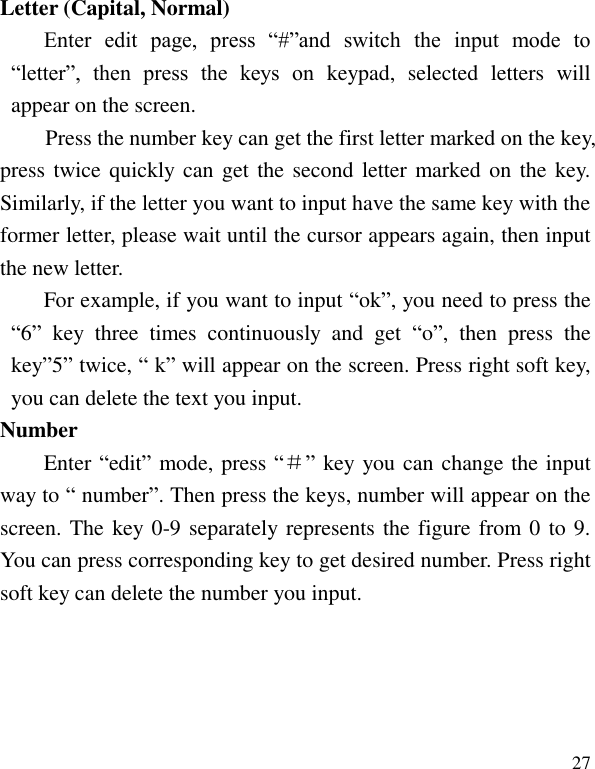
  27 Letter (Capital, Normal) Enter  edit  page,  press  “#”and  switch  the  input  mode  to “letter”,  then  press  the  keys  on  keypad,  selected  letters  will appear on the screen. Press the number key can get the first letter marked on the key, press twice quickly can get  the second letter marked on  the key. Similarly, if the letter you want to input have the same key with the former letter, please wait until the cursor appears again, then input the new letter. For example, if you want to input “ok”, you need to press the “6”  key  three  times  continuously  and  get  “o”,  then  press  the key”5” twice, “ k” will appear on the screen. Press right soft key, you can delete the text you input. Number Enter “edit” mode, press “#” key you can change the input way to “ number”. Then press the keys, number will appear on the screen. The key 0-9 separately represents the figure from 0 to 9. You can press corresponding key to get desired number. Press right soft key can delete the number you input.
  28 6. Care and Maintenance Maintenance of battery ·Your device is powered by a rechargeable battery. It is necessary to have the battery charged when it is going to wear out. The full performance  of  a  new  battery  is  achieved  only  when  it  is  fully wore out. ·Unplug the charger from the electrical plug and the device when not in use. Do not leave fully a  charged  battery connected to  a charger over a week, since overcharging may shorten its lifetime. ·Temperature  tends  to  affect  the  limit  of  battery  to  be  charged. Therefore, it is necessary for the battery to be cooled or warmed before it is charged. If the temperature of batter exceeds 40ºC ,the battery cannot be charged. ·Use  the  battery  only  for  its  intended  purpose  and  avoid short-circuiting.  Accidental  short-circuiting  can  occur  when  a metallic  object  causes  direct  connection  of  the  positive(+)  and negative(-) terminals of the battery.   ·Do not use damaged battery. ·Leave the  battery in hot  or  cold  places  will  reduce  the capacity and lifetime of the battery. A device with a hot or cold battery may not work temporarily, even when the battery is fully charged.
  29 ·Do not dispose of batteries in a fire as they may explode. Dispose of batteries according to local regulations. Care of maintenance of your device The  suggestions  below  will  help  you  protect  your  warranty coverage.   ·Keep the device and accessories out of the reach of small children. ·Keep the device dry. All types of liquids or moisture will corrode electronic circuits. ·  Do  not  store  the  device  in  hot  areas.  High  temperatures  can shorten  the  life  of  electronic  devices  and  warp  or  melt  certain plastics. ·Do not attempt to open the device other than as instructed in this guide. Non-professional handling may damage the device. ·Do  not  use  harsh  chemicals  or  strong  detergents  to  clean  the device.  Declaration  of  Conformity  with  the  requirements  of  the  e-waste Management Rules, 2011 (adopted by Notification S.O.1035 (E) of Ministry of Environment and Forests) The Product is in conformity with the requirements of Rule 13 of the  e-waste  Rules.  The  content  of  hazardous  substance  with  the exemption  of  the  applications  listed  in  SCHEDULE  II  of  the ROHS Declaration
  30 e-waste Rules:  1. Lead (Pb) – not over 0.1% by weight; 2. Cadmium (Cd) – not over 0.01% by weight; 3. Mercury (Hg) – not over 0.1% by weight; 4. Hexavalent chromium (Cr6+) – not over 0.1% by weight; 5. Polybrominated biphenyls (PBBs) – not over 0.1% by weight; 6.  Polybrominated  diphenyl  ethers  (PBDEs)  –  not  over 0.1%  by weight. 7. Health and Safety Precautions Please read these simple guidelines. Not following them  may be dangerous or illegal.  Your  phone  is  designed  not  to  exceed  the  limits  of  emission  of radio waves recommended by international guidelines. SAR  (specific  absorption  rate)  is  the  measurement  of body-absorbed RF quantity when the phone is in use. SAR value is ascertained  according  to  the  highest  RF  level  generated  during SAR Compliance
  31 laboratory tests. The  SAR  value  of  the  phone  may  depend  on  factors  such  as proximity  to  the  network  tower,  use  of  accessories  or  other accessories. The highest SAR value of the M340 is 0.479  W/kg averaged over 1 gm of human tissue.  Please  keep  your  calls  short  and  use  SMS  whenever  more convenient. This advice applies especially to children, adolescents and pregnant women Prefer to use your cell phone when the signal quality is good. People having active medical implants should preferably keep the cell phone at least 10 cm away from the implant. Maintain a preferable distance of 10 mm from the device.    Do  not  use  the phone  while driving.  When  you  have to  use  the phone, please use the personal hands-free kit. Please do not put the phone onto any passenger seat or any place from  which  it  may  fall  down  in  case  of  vehicular  collision  or SAR Recommendations  Safe Driving
  32 emergency braking. Flight  is  influenced  by  interference  caused  by  the  phone.  It  is illegal to use a phone on the airplane. Please turn off your phone during a flight. Your  Phone’s  radio  waves  may  interfere  with  the  functioning  of inadequately shielded medical devices. Consult a physician or the manufacturer of the medical device to determine whether they are adequately  shielded  from  external  Radio  Frequency.  Switch  off your device when regulations posted instruct you to do so. To  avoid  potential  interference  with  implanted  medical  devices such as a pacemaker or cardioverter defibrillator:   Always keep your phone at least 15.3 centimeters (6 inches) from the medical device. Do not carry the wireless device in a breast pocket. Turn  off  the  phone  if  there  is  any  reason  to  suspect  that interference is taking place. Follow  the  manufacturer  directions  for  the  implanted  medical device. If you have any questions about using your wireless device with an implanted medical device, consult your health care provider. During Flight In Hospitals Unsafe Areas
  33 Please turn off your phone when you are close to a gas station or in the vicinity of any place where fuel and chemical preparations, or any other dangerous goods are stored.                Limited Warranty Terms and Conditions     This warranty is valid for the Paraguay. For other countries please refer to the local legislation or distributor. Repair Guarantee 12 months.
  34 MOX SA is liable for any lack of conformity which exists at the time the goods were delivered during a period of 12 months, under the terms and conditions set out below. This warranty covers any defects in workmanship or materials. This warranty doesn’t cover any failure of the product due to accidents, misuse or alteration made by an unauthorized person. This warranty doesn’t cover any failure and damage caused by fire, earthquake, lightning, flood and other natural disaster. This warranty is granted to the buyer and user, if duly justified by an invoice or receipt. Warranty management involves the repair and, in case of not being possible, the replacement of any product, piece or component that presents an evil functioning due to a manufacturing defect. The repairing work will be always done MOX facilities. The buyer or user must provide proof of purchase of the product. This guarantee of 12 months includes also the accessories, understanding like such all the components included in the original box.
  35 Batteries are excluded from this warranty, having a warranty period of 3 months. During the 12 months after purchase the customer will be required to ship the device to MOX Technical Service by the means the client deems most appropriate and at his expense. As far as possible the client will send the device to MOX Technical Service in its original box and with the accessories included at the time of purchase. The replacement or repair of the product doesn’t extend the initial warranty period, although the time required for the replacement or repair of products is not taken into account for calculating the warranty period. This warranty doesn’t cover any damage or loss to any data stored in warranty products, therefore MOX Technical Service will not assume any loss of the above mentioned information so it is recommended to make a backup of your data and to remove any data or personal data from its internal memory before you send the product, or to send it only with the original data. Replacement during the first 3 days
  36 If within 3 days after the purchase, the product has a manufacturing defect MOX will replace the product for a totally new unit of the same model. If for reasons of stock is not possible to do the replacement for the same model, this one would be carried out for a model of equal or higher performance than the original product. This management will not cause any type of expense for the customer. Repairs out of guarantee After the warranty period of 12 months, or when the product’s failure is not covered by this warranty, or when the customer has no invoice or ticket of purchase, MOX SA offers to its clients the possibility of repairing the product out of warranty. The repairs out of warranty imply that all management expenses are charged to the customer, including the shipping costs. MOX SA offers the customers requesting it, the possibility to request a repair estimate. Once accepted, the client will receive the information related to the shipment of the product and to the payment of the reparation. The request of an estimate doesn’t entail any acceptance of the quotation, neither cost to the customer.
  37 FCC Warning  This device complies with part 15 of the FCC Rules. Operation is subject to the condition that this device does not cause harmful interference. Any Changes or modifications not expressly approved by the party responsible for compliance could void the user's authority to operate the equipment.    Note: This equipment has been tested and found to comply with the limits for a Class B digital device, pursuant to part 15 of the FCC Rules. These limits are designed to provide reasonable protection against harmful interference in a residential installation. This equipment generates uses and can radiate radio frequency energy and, if not installed and used in accordance with the instructions, may cause harmful interference to radio communications. However, there is no guarantee that interference will not occur in a particular installation. If this equipment does cause harmful interference to radio or television reception, which can be determined by turning the equipment off and on, the user is encouraged to try to correct the interference by one or more of the following measures:     -Reorient or relocate the receiving antenna.     -Increase the separation between the equipment and receiver.
  38   -Connect the equipment into an outlet on a circuit different from that to which the receiver is connected.     -Consult the dealer or an experienced radio/TV technician for help.    Specific Absorption Rate (SAR) information:   This GSM MOBILE PHONE meets the government's requirements for exposure to radio waves. The guidelines are based on standards that were developed by independent scientific organizations through periodic and thorough evaluation of scientific studies. The standards include a substantial safety margin designed to assure the safety of all persons regardless of age or health.    FCC RF Exposure Information and Statement   The SAR limit of USA (FCC) is 1.6 W/kg averaged over one gram of tissue. Device types: M340 (FCC ID: 2ABBS-M340) has also been tested against this SAR limit. The highest SAR value reported under this standard during product certification for use at the ear is 0.479W/kg and when properly worn on the body is 0.381W/kg. This device was tested for typical body-worn operations with the back of the handset kept  0mm from the body. To maintain compliance with FCC RF exposure requirements, use accessories that maintain a 10mm separation distance between the user's body and the back of the
  39 handset. The use of belt clips, holsters and similar accessories should not contain metallic components in its assembly. The use of accessories that do not satisfy these requirements may not comply with FCC RF exposure requirements, and should be avoided.    Body-worn Operation   This device was tested for typical body-worn operations. To comply with RF exposure requirements, a minimum separation distance of 10mm must be maintained between the user’s body and the handset, including the antenna. Third-party belt-clips, holsters, and similar accessories used by this device should not contain any metallic components. Body-worn accessories that do not meet these requirements may not comply with RF exposure requirements and should be avoided. Use only the supplied or an approved antenna.
  40

Navigation menu