MOX GROUP M45 Mobile Phone User Manual Contents

MOX GROUP LIMITED Mobile Phone Contents

User manual

- 1 - Contents 1 PREFACE ................................................. 2 2 SAFETY .................................................... 2 3 ABOUT YOUR DEVICE ........................... 4 4 GETTING STARTED ................................ 9 5 CALL FUNCTIONS ................................ 14 6 TEXT ENTRY.......................................... 24 7 MENU OPERATION ............................... 26 8 MENU FUNCTIONS ............................... 26
- 2 - 1  Preface Thank you very much for your choice of this product designed by our company! Our  product  complies  with  the Telecommunication  industries  standards of Europe. The wireless device described in this  guide  is  approved  for  use  on  the GSM network GSM network is a global cellular communication system  of  international  standards.  Allow you to receive an international telephone call used as in your homeland. However, before  using  these  advanced  network functions, you must firstly apply for these required services. In order to  better  use your device, we suggest that you carefully read this guide to know all the functions well. Note:  Due  to  the  cellular  network  settings and  the services  provided,  some  functions  may  be unavailable.  For  more  information,  please contact your service provider.   2  Safety Read  these  concise  guidelines.  Not  following them may be dangerous or illegal.  ROAD SAFETY Always  keep  your  hands  free  to  operate  the vehicle  while  driving.  Park  your  vehicle safely before using your device.
- 3 -  SWITCH  OFF  OR  USE  FLIGHT  MODE  IN AIRCRAFT Wireless  devices  can  cause  interference  in aircraft.  Using  them  in  aircraft  is  both dangerous  and  illegal.  Switch  off  your device or switch to fight mode before on board.  SWITCH OFF IN HOSPITALS Follow relevant regulations or rules. Switch your device off near medical equipment.  SWITCH OFF WHEN REFUELING Switch  off  your  device  at  a  refueling  point  or near fuels or chemicals. SWITCH OFF NEAR BLASTING Don’t  use  your  device  where  blasting  is  in progress. Observe restrictions, and follow any regulations or rules.  INTERFERENCE All  wireless  phones  may  be  susceptible  to interference,  which  could  affect  the performance.  USE PROPERLY Use  in  the  normal  position  explained  in  the product  documentation.  Don't  touch  the antenna unnecessarily.  ACCESSORIES AND BATTERIES Use  only  the  approved  accessories  and batteries. Do not connect to incompatible products.  EMERGENCY CALLS Ensure the phone is switched on and in service. Enter  the  emergency  number,  and  then
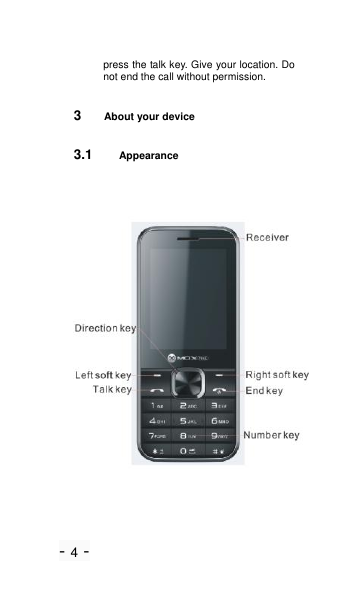
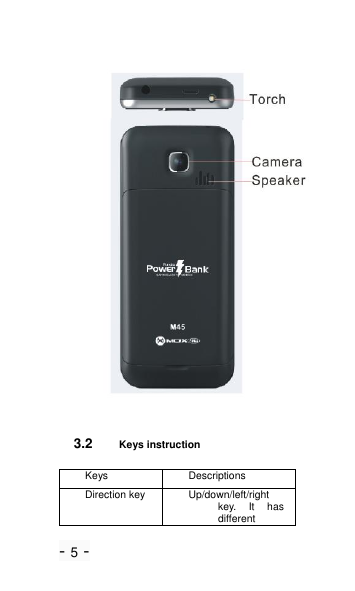
- 4 - press the talk key. Give your location. Do not end the call without permission.  3  About your device 3.1 Appearance       Receiver Right  soft key  End key Torch Camera Speaker
- 5 -   3.2 Keys instruction Keys Descriptions Direction key Up/down/left/right key.  It  has different
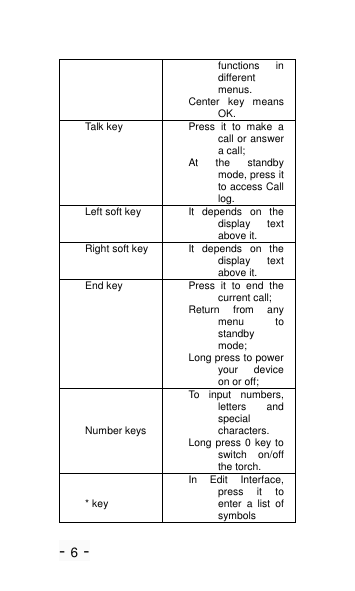
- 6 - functions  in different menus. Center  key  means OK. Talk key   Press  it  to  make  a call or answer a call; At  the  standby mode, press it to access Call log. Left soft key It  depends  on  the display  text above it. Right soft key It  depends  on  the display  text above it. End key Press  it  to  end  the current call; Return  from  any menu  to standby mode; Long press to power your  device on or off; Number keys To  input  numbers, letters  and special characters. Long press 0 key to switch  on/off the torch.  * key In  Edit  Interface, press  it  to enter  a  list  of symbols
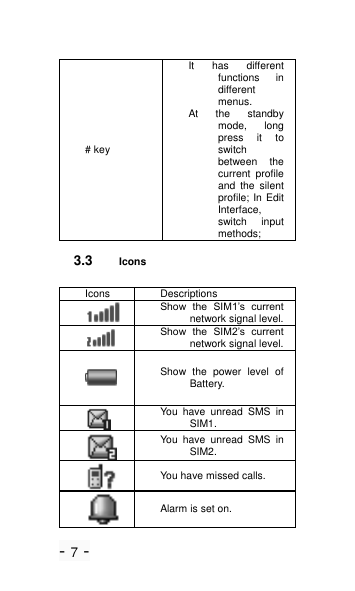
- 7 - # key It  has  different functions  in different menus. At  the  standby mode,  long press  it  to switch between  the current  profile and  the  silent profile; In Edit Interface, switch  input methods; 3.3 Icons Icons Descriptions  Show  the  SIM1’s  current network signal level.  Show  the  SIM2’s  current network signal level.  Show  the  power  level  of Battery.  You  have  unread  SMS  in SIM1.  You  have  unread  SMS  in SIM2.  You have missed calls.  Alarm is set on.
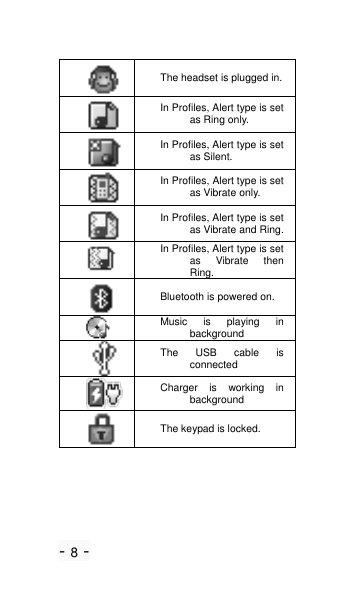
- 8 -  The headset is plugged in.  In Profiles, Alert type is set as Ring only.  In Profiles, Alert type is set as Silent.  In Profiles, Alert type is set as Vibrate only.  In Profiles, Alert type is set as Vibrate and Ring.  In Profiles, Alert type is set as  Vibrate  then Ring.  Bluetooth is powered on.  Music  is  playing  in background  The  USB  cable  is connected  Charger  is  working  in background  The keypad is locked.
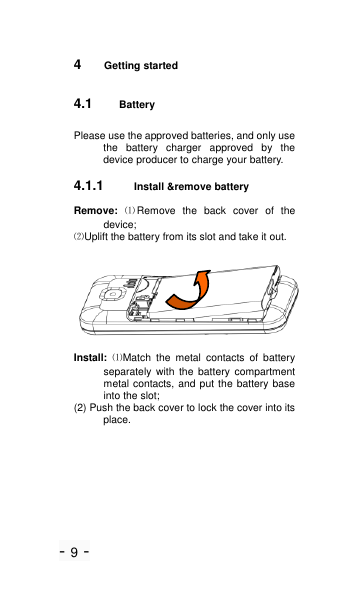
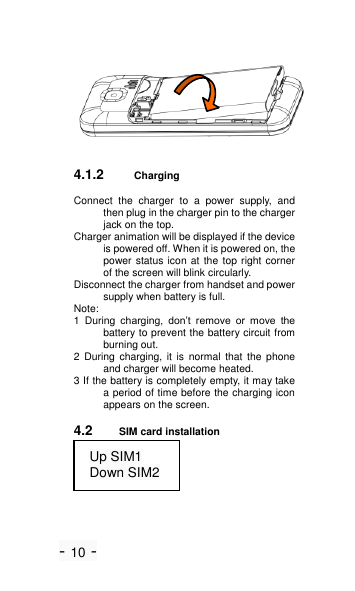
- 9 - 4  Getting started 4.1 Battery Please use the approved batteries, and only use the  battery  charger  approved  by  the device producer to charge your battery.   4.1.1 Install &remove battery Remove:  ⑴Remove  the  back  cover  of  the device; ⑵Uplift the battery from its slot and take it out.  Install: ⑴Match  the  metal  contacts  of  battery separately  with  the  battery  compartment metal contacts, and put the battery base into the slot; (2) Push the back cover to lock the cover into its place.
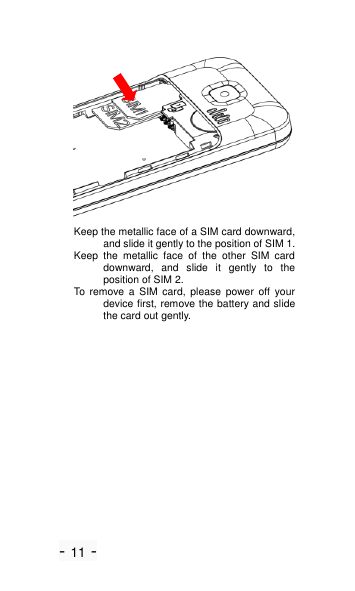
- 10 -  4.1.2 Charging Connect  the  charger  to  a  power  supply,  and then plug in the charger pin to the charger jack on the top.   Charger animation will be displayed if the device is powered off. When it is powered on, the power status icon at  the top right corner of the screen will blink circularly. Disconnect the charger from handset and power supply when battery is full. Note: 1  During  charging,  don’t  remove  or  move  the battery to prevent the battery circuit from burning out. 2  During  charging,  it  is  normal  that  the  phone and charger will become heated. 3 If the battery is completely empty, it may take a period of time before the charging icon appears on the screen. 4.2 SIM card installation  Up SIM1 Down SIM2
- 11 -  Keep the metallic face of a SIM card downward, and slide it gently to the position of SIM 1. Keep  the  metallic  face  of  the  other  SIM  card downward,  and  slide  it  gently  to  the position of SIM 2. To  remove  a  SIM  card,  please  power  off  your device first, remove the battery and slide the card out gently.
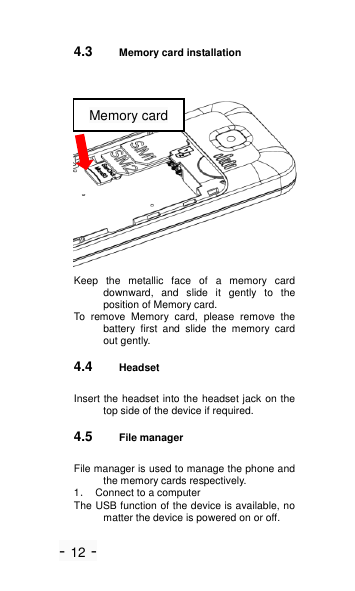
- 12 - 4.3 Memory card installation  Keep  the  metallic  face  of  a  memory  card downward,  and  slide  it  gently  to  the position of Memory card. To  remove  Memory  card,  please  remove  the battery  first  and  slide  the  memory  card out gently. 4.4 Headset Insert the headset into the headset jack on the top side of the device if required. 4.5 File manager File manager is used to manage the phone and the memory cards respectively. 1.  Connect to a computer The USB function of the device is available, no matter the device is powered on or off. Memory card
- 13 - While  the  device  is  powered  off,  it  will  start charging and open File manager after the USB cable is plugged in. When the device is  powered  on,  it  will  enter  the  ―USB Config‖  interface  automatically  after  the USB cable is plugged in. In the interface, select  ―Mass  storage‖  to  start  File manager.  If  your  memory  cards  are inserted,  the  computer  will  pop  up removal  disks,  respectively  representing your device and memory cards. After you enter, you will find some preset files or folders.  For  the  sake  of  normal  use, please  put  related  files  into  relevant directories,  that  is,  videos  into  Videos, photos  into  Photos,  records  into  Audio and  Bluetooth  received  into  Received. After  the  operation  is  completed,  if  you want  to  exit,  click  the  USB  icon  on  the lower right side of the PC desktop, select to  stop  the  USB  devices,  and  remove them  after  the  pop-up  warning  ―USB devices can be removed now‖ appears. 2.  Format If you format Phone or Memory card, all files in it will be deleted. You can format Phone or Memory card in two ways: Use the phone to format directly. Steps:  Select  File  manager  >  Memory card/Phone > Format. Use PC to format To better complete the formatting, please follow the following steps: (1) Right click My computer to select Manage > Storage >Disk management; (2) Right click the disk of a  memory card, and select Format. (3)  In  Allocation  Unit  Size,  select  Default  and then confirm.
- 14 - 4.6 Power on and off Press  and  hold  the  End  key  to  switch  your device on/off. If  SIM  lock  or  Phone  lock  is  activated,  please enter the password as required. 5  Call functions 5.1 Make a call When the sign of a network operator appears on the idle screen, you can make or answer calls. 5.1.1 Make a domestic call Enter a phone number, including the area code if  you  are  calling  a  fixed  phone  number (excluding local numbers). Press Talk key to make a call via your desired SIM card. 5.1.2 Make an extension call When making an extension call, you can press * key to switch until the extension prefix ―P‖ appears.  After  a  switchboard  number  is dialed, the device will pause automatically for a few seconds then dial your desired extension number. Input the following one by one: Area code –Switchboard number – P – Extension number. Then press Talk key to make a call via your selected SIM card.
- 15 - 5.1.3 Make an international call Enter the country code, the  area code and the phone number. Press Talk key to make a call  via  your  selected SIM  card.  ―+‖  is required when you enter the country code. You  can  press  *  key  to  switch  until  + appears. 5.1.4 Make a call from Phonebook Access  Contact menu  to select a contact,  and press  Talk  key  to  make  a  call  via  your selected SIM card. 5.1.5 Redial a call by Call log Access  Call  log,  scroll  to  a desired  number  or name, and press Talk key to make a call via your selected SIM card. 5.2 Answer a call When  there  is  an  incoming  call,  there  will  be reminding  information  of  the corresponding  SIM  card.  The  caller’s name or number will appear in the screen if you have activated the Caller ID Display service. At this time, you can press Talk key to answer it. If an incoming call arrives during your operation in sub window, a new window will pop up to inform  you and your operation will be interrupted. If you miss it, when you return to  the  standby  screen,  you  will  be reminded  that  there  is  a  missed  call  of SIM 1 or SIM 2.
- 16 - 5.3 Call options During a call, you can press the left soft key to enter  Call  options.  The  options  differ according to your call status. Here below are a few of them: Hold single call, End single  call,  New  call,  Phonebook,  Call history, Messages, Mute, DTMF, Volume.
- 17 - 6  Text entry During use,  you  will  be  required  to  input  texts  time  and time again. You can input texts, letters, numbers or symbols (including punctuations). 6.1 Switch input methods In any Text Editor, press # key to switch input methods. 6.2 English input method Switch  to  ABC  or  abc  input  method.  Following  the sequence of letters on a key, you can press the key once to insert the first letter on the key, twice for the second  letter,  etc.,  until  the  highlight  is  on  your desired letter. Then release the key to input it. 6.3 PT input method Switch  to  pt  input  method.  Following  the  sequence  of letters  on  a  key,  you  can  press  the  key  once  to insert the first letter on the key, twice for the second letter,  etc.,  until  the  highlight  is  on  your  desired letter. Then release the key to input it 6.4 ES input method Switch  to  es  input  method.  Following  the  sequence  of letters  on  a  key,  you  can  press  the  key  once  to insert the first letter on the key, twice for the second letter,  etc.,  until  the  highlight  is  on  your  desired letter. Then release the key to input it
- 18 - 6.5 Input punctuations and symbols No matter what input method you are using, press * key to display a list of punctuations and symbols for you to select. 6.6 Input numbers Switch  to  Numeric  input  method.  Directly  press  the number keys to input numbers   7  Menu operation 7.1 Access menus You can press the left soft key or short press OK key to view menus of all levels. 7.2 Access shortcuts At  the  standby  mode,  press  direction  key  to  enter  the shortcuts list that you set in phone setting. 8  Menu functions 8.1 Call log Select Call log to view recent calls in SIM1 and in SIM2, including Dialed calls, Missed calls, Received calls, Delete call log, Call timers, SMS counter
- 19 - 8.2 Contacts After  you  enter  contacts,  you  can  select  a  number  to View  ,  Send  SMS,  Call,  Edit,  Delete,  Copy, Phonebook settings Note: 1. Files in File manager can be set as ring tone only after they are sent to Ring tone list. 2.  When  you  are  copying  entries  from  Phone  to SIM1/SIM2 only the names and numbers of entries will be copied. 8.3 Browser Your  device  supports  internet  service.  You  can  surf  the Internet in your device.   Note: To use browser, your SIM 1 or SIM 2 shall support GPRS. 8.4 Camera After you enter camera, you can view the captured picture through  the  screen;  at  the  same  time,  in  the preview  status,  you  can  press  Left  soft  key  to conduct  the  following  settings  and  set  detailed parameters:  Switch  to  video  recorder,  Photos, Camera  settings,  Image  settings,  White  balance, Scene mode, Effect settings, Restore default. After all settings are done, press Center key to capture. 8.5 Messages 8.5.1 Write message Access this menu to edit and send  SMS. When you are
- 20 - writing a message, you can Insert contact. After a message is completed, you can select to send from or save to SIM 1 / SIM 2. 8.5.2 Inbox View all received SMS messages. When  there  is  a  new  message  in  SIM1  or  SIM2,  the device will play the preset message tone and the corresponding unread message icon will appear on top of the screen.  You  can  tap and view the  new message, or enter Inbox to read it. After the message is read, you can press Options to View, Forward, Delete, and Filter by. 8.5.3 Drafts In Drafts, you can view the saved SMS messages.  You can select one to Send, Edit or Delete. 8.5.4 Outbox In  Outbox,  you  can  view  the  uncompleted  saved  sent SMS  messages.  You  can  select  one  to  Resend, Edit or Delete. 8.5.5 Sent messages In Outbox, you can view the saved sent SMS messages. You can select one to Forward, View or Delete. 8.5.6 SMS settings Access  this  menu  to  configure  the  following  settings  of SIM  1  or  SIM  2,  Memory  status,  save  sent message, preferred storage.
- 21 - 8.6 Charger   In this function you can charge other phones. Get into the menu  and  insert  the  charging  cable,  your  phone can  output  5V  voltage.  After  you  link  the  other phone  with  the  USB  cable,  you  can  charge  the phone. Press the minimize key or the end key, you can  charge  in  background.  Press  the  quit  key  to stop the charger function. 8.7 Tools 8.7.1 Torch Enter Torch > On to activate Torch. The torch on top of the device will be turned on for illumination. 8.7.2 Alarm You  can  set  5 alarms  at  most.  And  alarm  is  still  active when you power the device off. In the list of Alarm, select one alarm. You can configure these settings: Status, Time, Alert type, Snooze etc. 8.7.3 Games this  device  have  Snake  game,you  can  play  and  enter games setting menu for set game parameter 8.7.4 Calendar In this function, you can view calendar at any time. You can click to view other dates.
- 22 - 8.7.5 Bluetooth The  device  supports  Bluetooth.  You  can  establish connections between the device and other devices (Bluetooth  headset,  PC  or  handheld  Bluetooth device  etc)  to  realize  voice  calls,  data  exchange, data synchronization etc. Settings are as follows: -Power: Activate or deactivate Bluetooth. -Visibility: Set  whether  Bluetooth  of  the  device  can  be found or not. -My  device:  Display  the  current  or  once  connected device, and inquiry new ones. -Search  audio  device:  Search  for  a  Bluetooth  headset and pair it. -My name: Display online Bluetooth devices   -Advanced: Advanced settings of Bluetooth, as follows: Audio path: Change sound output device. My address: Display Bluetooth address of the device. 8.7.6 Calculator The device can be used as a calculator to do some simple arithmetic work. 8.7.7 STK This function is provided by network providers. If your SIM card  and  network  provider  don’t  support  it,  this function will be unavailable. For more information, please contact your network provider. 8.8 Media 8.8.1 Music Access this function to play your favorite mp3 songs. In
- 23 - the  player  interface,  press  the  center  key  to play/pause.  Press  the  left/right  key  to  switch  to another song. Press the up/down key to volume. Press Options to display the following menus: Play: song playing. Details: Display the information of the playing song. Refresh list: Manually update songs 8.8.2 FM In  the  FM  radio  interface,  you  can  customize  Settings, enter Channel list, Turn on/off or switch to another channel. Player interface: Press  the  up/down  key  to  volume  up/down,  press  the center key to stop/pause, press the left/right key to switch to another channel (+/-0.1MHz). Channel list: Display the names and numbers of channels that are saved. Manual input: Enter the FM frequency manually. Auto search: Search all channels available and save them in the channel list automatically. Settings: You can activate or deactivate background play (FM  is  active  while  you  are  operating  in  other interfaces)  and  FM  loud  speaker, and set Record format, Audio quality and Record storage. Record: You can record the current FM program. Append: Add the current FM content to an existing record file. File list: View record files in File manager. Search mode: When Search is activated, you can  press the left/right key to start auto search until an active program is acquired. Note: Insert the earphone while playing or  searching for channels.
- 24 - 8.8.3 Videos   Enter Video to select your favorite video clip to play. The device supports MP4/3GP/AVI. While playing, you can  press  the  left/right key  to  adjust  the  volume, press  the  up/down  key  to  control  the  playing progress. 8.8.4 Photos In  Album,  you  can  operate  on  a  photo:  View,  Image information, Browse style, Send, Use as, Rename, Delete,.  Whether  your  operation  can  be  done successfully is subject to such factors as the screen size etc, In addition, when viewing a photo, you can press the left key and press1or 3 key to rotate,   8.8.5 Video recorder Enter  Video  recorder  to  see  video  preview  interface. Press Options menu: Switch to camera, To player, Camcorder settings, Video settings, White balance, Effect settings, After configuration, tap the record icon to start or pause. When the recording is completed, press OK key,press Right soft key to stop recording. You will be reminded to save the video clip. Note: For video recorder review, press 1 to check Video Quality, press 2 to check White Balance, and press 3  for  Effect  Settings,  press  4  to  switch  to  Night Mode. 8.8.6 File manager This enables you to view multimedia files in the memory cards. You  can also select one to View, Rename, Copy, Delete etc.
- 25 - Note: Before formatting, please back up important files to avoid data loss due to formatting. 8.9 Settings 8.9.1 Profiles The device provides you with several profiles so that you can customize the following settings to meet your different needs: alert type, ring type, incoming call, ringtone  volume,  message,  message  volume, keypad,  keypad  volume,  power  on,  power  off  , system  alert  prompt  tone  and  answer  mode.  The profiles  available  are  General,  Silent,  Meeting, Outdoor. 8.9.2 Phone In Phone settings, you can configure the settings below: Time  and  date,  Dedicated  key,  Shortcuts  list, Schedule on/off, Language, Preferred input method, Flight mode. 8.9.3 Display   In  Phone  settings,  you  can  configure  the  settings  blew: Wallpaper, LCD Backlight. 8.9.4 Call   In this function, you can configure SIM 1 call settings, SIM 2 call settings and advanced settings. SIM 1/SIM 2 call settings —Call waiting If  the  network  supports,  during  calling,  the  network  will remind  you  of  a  new  incoming.  You  can  hold  the current incoming and answer the other one.
- 26 - To  make  this  function  available,  please  contact  local network operator. —Call divert Call  divert  is  a  network  function. With  this  function,  an incoming can be diverted to another phone number or voice mailbox, avoiding missing it. There are several diverts available: Divert all voice calls, Divert if unreachable, Divert if no answer, Divert if busy, Divert all data calls, and Cancel all (diverts). —Call barring If  the  network  supports,  this  function  will  enable  you  to restrict the incoming or outgoing calls. —Auto redial You can set it on/off to activate or deactivate this function. —Call time reminder You can set a fixed time or a time period to remind you during your call. -—Answer mode You  can  set  any  key  and  Auto  answer  when  headset mode. -—Call vibration You can set on/off to Dialed call is vibration tip. 8.9.5 Network   In  this  function,  you  can  configure  network  settings  for SIM1, SIM2, including Network selection. Data account contains GPRS account of SIM 1 and SIM 2. To  use  Internet  normally,  please  make  the  following settings correct: Account name, Access point name, User name and Password. 8.9.6 Security   You can configure the security settings for Phone,  SIM1 and SIM2 to protect your device or SIM cards from unauthorized use.
- 27 - The preset password of your phone is 1122. Please revise it to be yours immediately. -SIM1/SIM2 security PIN lock This option makes you select whether to use PIN code or not.  The  preset  PIN  code  is  1234.  After  three consecutive  incorrect  PIN  code  entries,  the  code will  be  locked,  and  you  need  the  PUK  code  to unlock it. If you have activated SIM lock, you are required to input the PIN code each time you power the device on to use the locked SIM card. -Phone lock Phone lock can be activated to avoid unauthorized use. If you have activated Phone lock, you will be required to input the password each time you power the device on. -Auto keypad lock Auto  keypad  lock  can  prevent  from  unintentional operations on keypad. At  the  standby  mode,  hold  and  press  OK  to  lock  the keypad. When the keypad is locked, you can hold and  press  OK  or  press  leaf  key+  *  to  unlock  the keypad -Change password You can change PIN code and PIN2 code here. For  SIM2  security  setup,  please  refer  to  SIM1  security setup. 8.9.7 Reset   In this function, when you input phone lock password and confirm,  related  parameters  will  be  restored  to factory settings.
- 28 - FCC Statement: 1. This device complies with Part 15 of the FCC Rules. Operation is subject to the following two conditions: (1) This device may not cause harmful interference. (2)  This  device  must  accept  any  interference received,  including  interference  that  may  cause undesired operation. 2. Changes or modifications not expressly approved by  the  party  responsible  for  compliance  could  void the user's authority to operate the equipment. NOTE:   This equipment has been tested and found to comply with the limits for a Class B digital device, pursuant to Part 15 of the FCC Rules. These limits are designed to  provide  reasonable  protection  against  harmful interference in a residential installation. This  equipment  generates  uses  and  can  radiate radio frequency energy and, if not installed and used in  accordance  with  the  instructions,  may  cause harmful  interference  to  radio  communications. However, there is no guarantee that interference will not occur in a particular installation. If this equipment does cause harmful interference to radio or television reception,  which  can  be  determined  by  turning  the equipment off and on, the user is encouraged to try to  correct  the  interference  by  one  or  more  of  the following measures: Reorient or relocate the receiving antenna. Increase the separation between the equipment and receiver. Connect  the  equipment  into  an  outlet  on  a  circuit different from that to which the receiver is connected.   Consult  the  dealer  or  an  experienced  radio/TV technician for help.  SAR Information Statement Your  wireless  phone  is  a  radio  transmitter  and receiver.  It  is  designed  and  manufactured  not  to exceed  the  emission  limits  for  exposure  to
- 29 - radiofrequency  (RF)  energy  set  by  the  Federal Communications  Commission  of  the  U.S. Government. These limits are part of comprehensive guidelines  and  establish  permitted  levels  of  RF energy for the general population. The guidelines are based  on  standards  that  were  developed  by independent scientific organizations through periodic and  thorough  evaluation  of  scientific  studies.  The standards  include  a  substantial  safety  margin designed  to  assure  the  safety  of  all  persons, regardless of age and health. The exposure standard for  wireless  mobile  phones  employs  a  unit  of measurement known as the Specific Absorption Rate, or SAR. The SAR limit set by the FCC is 1.6 W/kg. * Tests  for  SAR  are  conducted  with  the  phone transmitting at its highest certified power level in all tested  frequency  bands.  Although  the  SAR  is determined at the highest certified power level,  the actual SAR level of the phone while operating can be well below the maximum value. This is because the phone  is  designed  to  operate  at  multiple  power levels so as to use only the power required to reach the  network.  In  general,  the  closer  you  are  to  a wireless base station antenna, the lower the  power output. Before a phone model is available for sale to the public, it must be tested and certified to the FCC that it does not exceed the limit established by the government adopted requirement for safe exposure. The  tests  are  performed  in  positions  and  locations (e.g., at the ear and worn on the body) as required by the FCC for each model. The highest SAR value for this model phone when tested for use at  the ear is 0.647W/Kg  and  when  worn  on  the  body,  as described  in  this  user  guide,  is 0.437W/Kg(Body-worn  measurements differ among phone  models,  depending  upon  available accessories and FCC requirements).   While  there  may  be  differences  between  the  SAR levels  of  various  phones  and  at  various  positions,
- 30 - they  all  meet  the  government  requirement  for  safe exposure.  The  FCC  has  granted  an  Equipment Authorization for this model phone with all reported SAR levels evaluated as in compliance with the FCC RF  exposure  guidelines.  SAR  information  on  this model  phone  is  on  file  with  the  FCC  and  can  be found  under  the  Display  Grant  section  of http://www.fcc.gov/ oet/fccid after searching on   FCC  ID:  2ABBS-M45  Additional  information  on Specific Absorption Rates (SAR) can be found on the Cellular  Telecommunications  Industry  Asso-ciation (CTIA) web-site at http://www.wow-com.com. * In the United States and Canada, the SAR limit for mobile phones  used  by  the  public  is  1.6  watts/kg  (W/kg) averaged  over  one  gram  of  tissue.  The  standard incorporates a sub-stantial margin  of  safety to give additional protection for the public and to account for any variations in measurements.  Body-worn Operation This  device  was  tested  for  typical  body-worn operations.  To  comply  with  RF  exposure requirements,  a  minimum  separation  distance  of 15mm must be maintained between the user’s body and the handset, including the antenna. Third-party belt-clips, holsters, and similar accessories used by this  device  should  not  contain  any  metallic components.  Body-worn  accessories  that  do  not meet  these  requirements  may  not  comply  with  RF exposure requirements and should be avoided. Use only the supplied or an approved antenna.

Navigation menu