Mackie Ppm1008 Users Manual 8 Channel 2x800 W Professional Powered Mixer Owner's
PPM1008 to the manual 71d9077e-61bb-0e14-f5e1-80e5d870a713
2015-02-02
: Mackie Mackie-Ppm1008-Users-Manual-436510 mackie-ppm1008-users-manual-436510 mackie pdf
Open the PDF directly: View PDF  .
.
Page Count: 32
- Front Cover
- Important Safety Instructions
- Read This Page!
- Introduction
- Contents
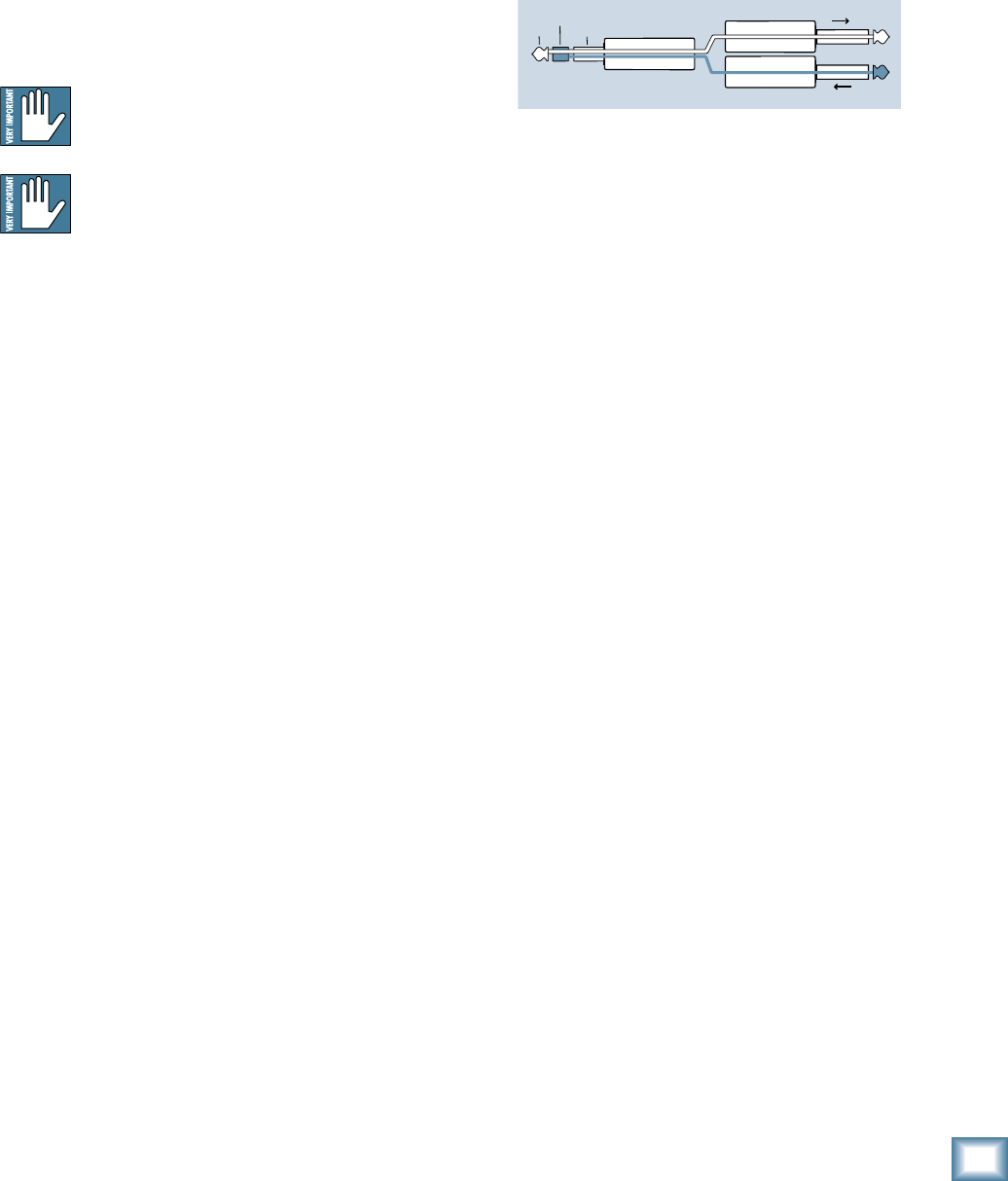
- Hookup Diagrams
- Rear Panel Features
- Front Panel Features
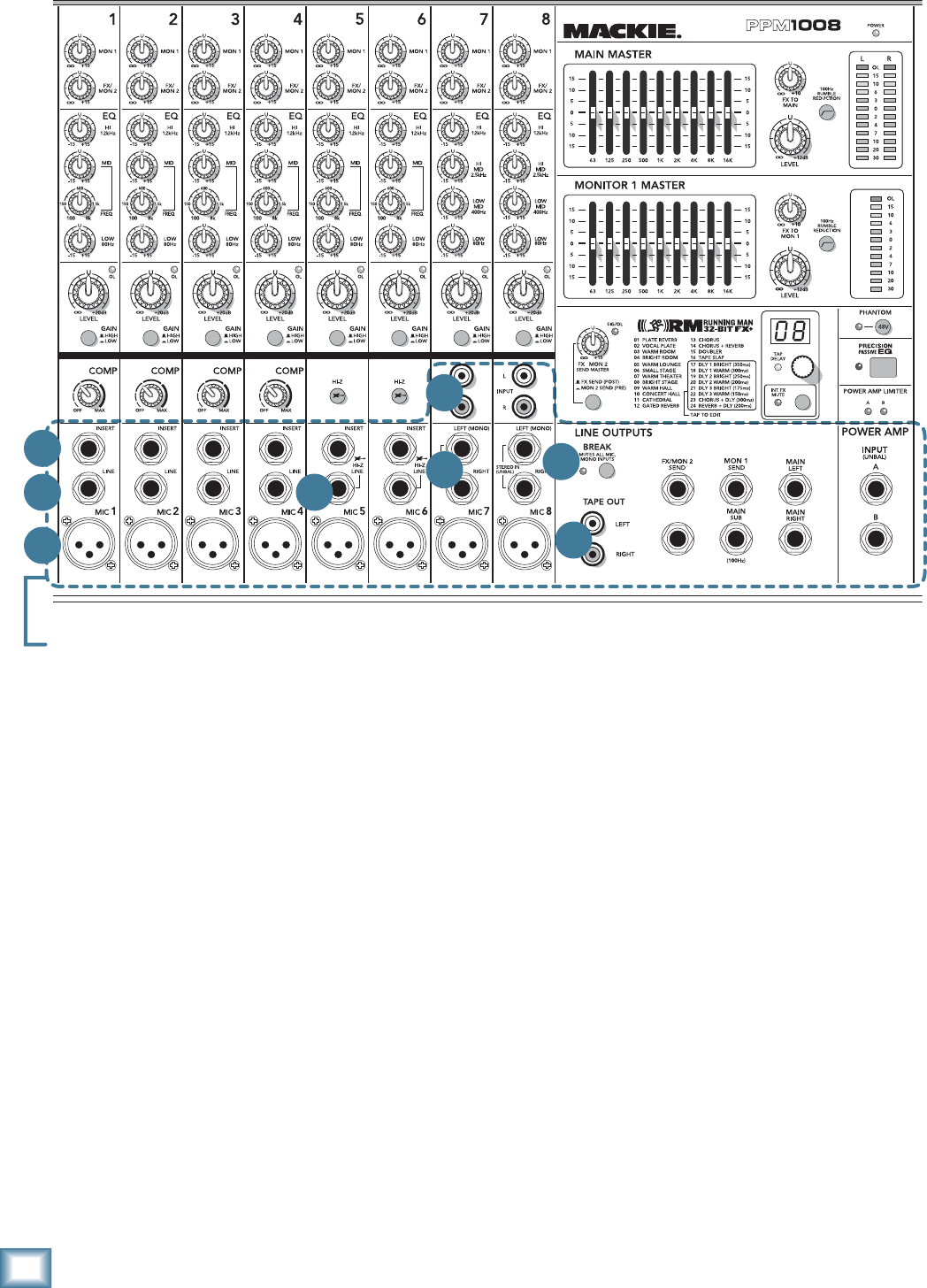
- 7. MIC INPUTS
- 8. MONO LINE INPUTS (CH. 1 to 4)
- 9. LINE/INSTRUMENT INPUTS (CH. 5 and 6)
- 10. STEREO LINE INPUTS (CH. 7 and 8)
- 11. RCA INPUTS (CH. 7 and 8)
- 12. INSERT (CH. 1 to 6)
- 13. TAPE OUTPUTS
- 14. BREAK SWITCH and LED
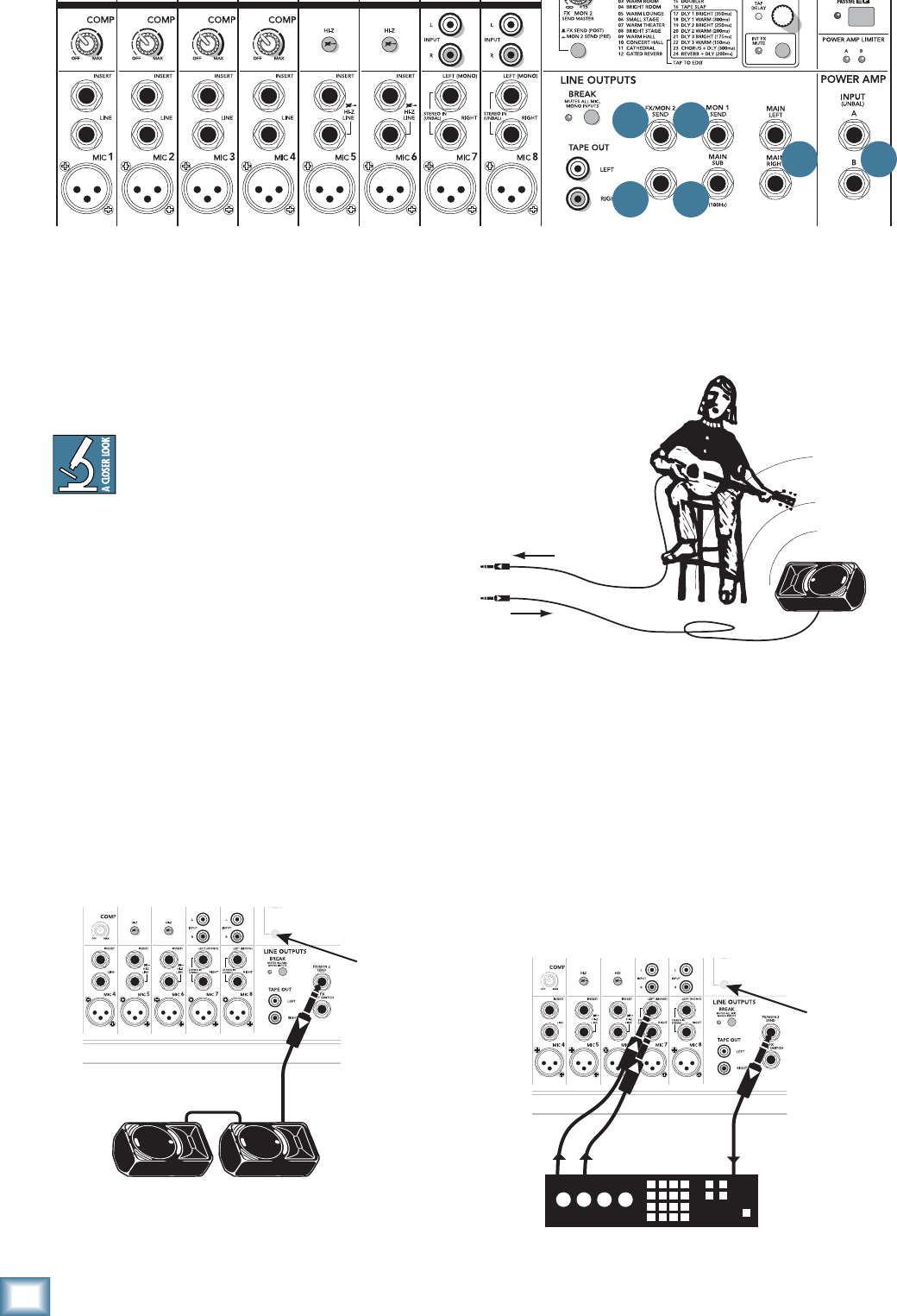
- 15. FX/MON 2 SEND OUTPUT
- 16. FX FOOTSWITCH
- 17. MON 1 SEND
- 18. MAIN SUB
- 19. MAIN OUTPUTS
- 20. POWER AMP INPUTS
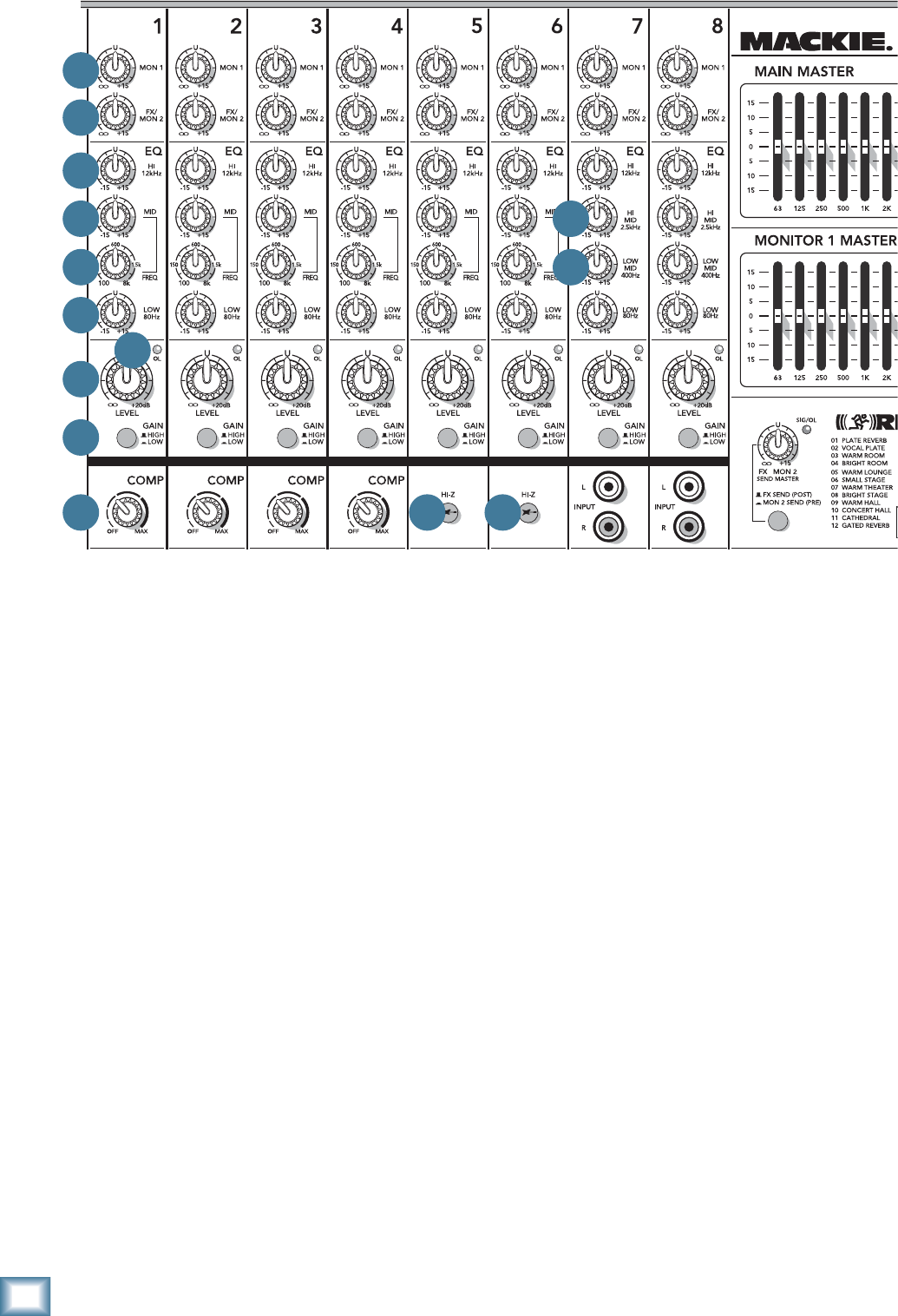
- 21. MON 1
- 22. FX/MON 2
- 23. HIGH EQ
- 24. MID EQ LEVEL (Ch. 1 to 6)
- 25. MID EQ FREQUENCY (Ch. 1 to 6)
- 26. HIGH MID EQ LEVEL (Ch. 7 and 8)
- 27. LOW MID EQ LEVEL (Ch. 7 and 8)
- 28. ICE CREAM DISPENSER
- 29. LOW EQ
- 30. OVERLOAD (OL) LED
- 31. CHANNEL LEVEL
- 32. GAIN SWITCH
- 33. COMPRESSOR
- 34. HI-Z SWITCH
- 35. POWER LED
- 36. MAIN MASTER GRAPHIC EQ
- 37. FX TO MAIN
- 38. MAIN LEVEL
- 39. 100 Hz RUMBLE REDUCTION SWITCH
- 40. MAIN MIX METERS
- 41. MONITOR 1 MASTER GRAPHIC EQ
- 42. FX TO MON 1
- 43. MONITOR 1 LEVEL
- 44. 100 Hz RUMBLE REDUCTION SWITCH
- 45. MONITOR 1 METER
- 46. PHANTOM SWITCH
- 47. PRECISION PASSIVE EQ
- 48. POWER AMP LIMITER LEDs
- 49. FX/MON 2 SEND MASTER
- 50. SIG/OL LED
- 51. FX SEND (POST)/MON 2 SEND (PRE)
- 52. PRESET DISPLAY
- 53. PRESET SELECTOR, TAP DELAY and LED
- 54. INTERNAL FX MUTE
- Appendix A: Service Information
- Appendix B: Connections
- Appendix C: Technical Information
- Appendix D: Table of Effects Presets
- PPM1008 Limited Warranty
- Rear Cover
OWNER’S MANUAL
FOOT SWITCH
FX
/
2 X 800W PROFESSIONAL POWERED MIXER
PPM1008
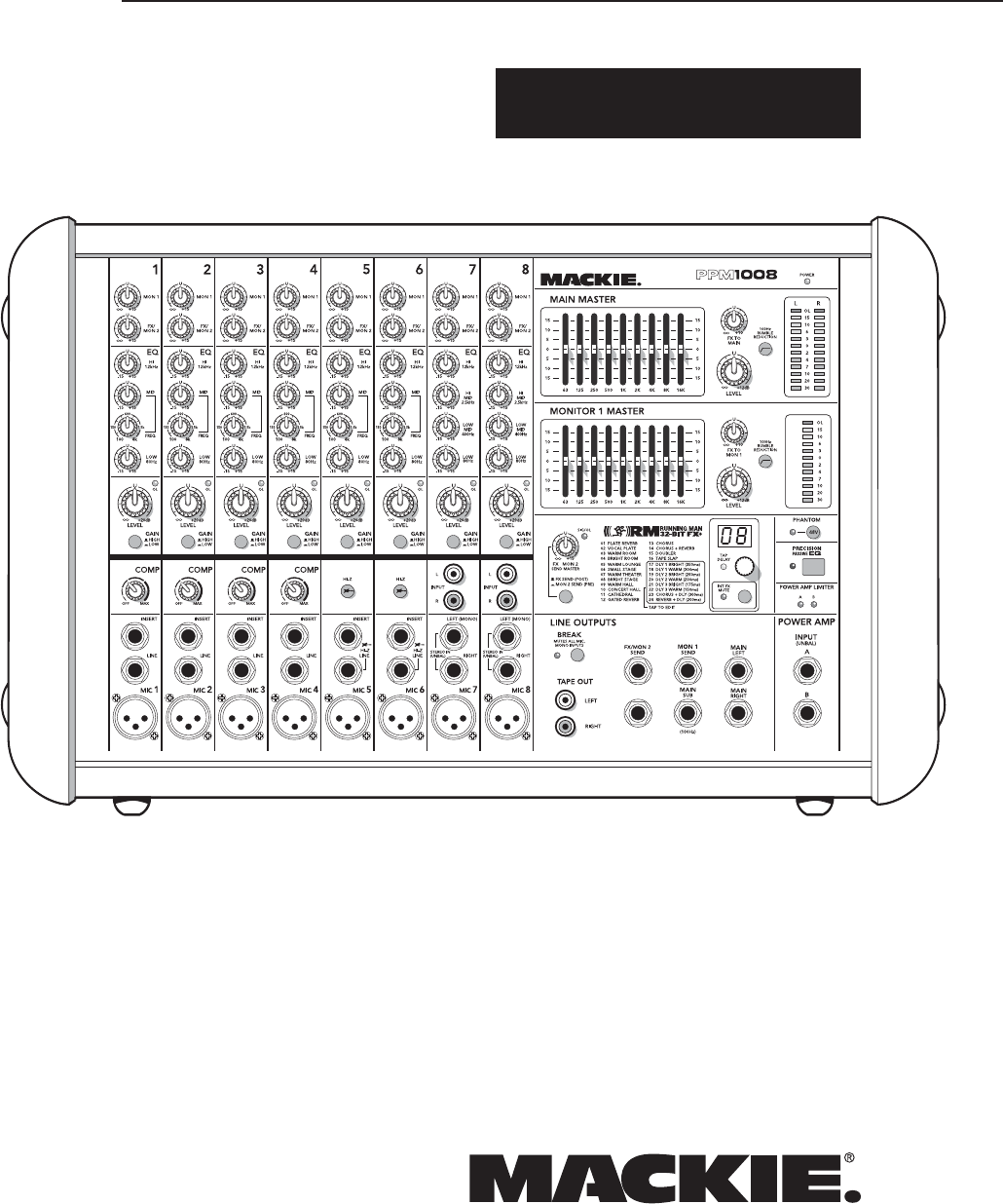
8-Channel, 2 x 800 W Professional Powered Mixer
2
PPM1008
PPM1008
1. Read these instructions.
2. Keep these instructions.
3. Heed all warnings.
4. Follow all instructions.
5. Do not use this apparatus near water.
6. Clean only with a dry cloth.
7. Do not block any ventilation openings. Install in accordance with the
manufacturer’s instructions.
8. Do not install near any heat sources such as radiators, heat registers,
stoves, or other apparatus (including amplifi ers) that produce heat.
9. Do not defeat the safety purpose of the polarized or grounding-type
plug. A polarized plug has two blades with one wider than the other.
A grounding-type plug has two blades and a third grounding prong.
The wide blade or the third prong are provided for your safety. If the
provided plug does not fi t into your outlet, consult an electrician for
replacement of the obsolete outlet.
10.
Do not overload wall outlets and extension cords as this can result in a
risk of fi re or electric shock.
11.
Protect the power cord from being walked on or pinched particularly at
plugs, convenience receptacles, and the point where they exit from the
apparatus.
12.
Only use attachments/accessories specifi ed by the manufacturer.
13.
Use only with a cart,
stand, tripod, bracket,
or table specifi ed by the
manufacturer, or sold
with the apparatus.
When a cart is used,
use caution when mov-
ing the cart/apparatus
combination to avoid
injury from tip-over.
14.
Unplug this apparatus during lightning storms or when unused for long
periods of time.
15.
Refer all servicing to qualifi ed service personnel. Servicing is required
when the apparatus has been damaged in any way, such as power-
supply cord or plug is damaged, liquid has been spilled or objects have
fallen into the apparatus, the apparatus has been exposed to rain or
moisture, does not operate normally, or has been dropped.
16.
This apparatus shall not be exposed to dripping or splashing, and no
object fi lled with liquids, such as vases or beer glasses, shall be placed
on the apparatus.
17.
This apparatus has been designed with Class-I construction and must
be connected to a mains socket outlet with a protective earthing con-
nection (the third grounding prong).
18.
This apparatus has been equipped with an all-pole, rocker-style AC
mains power switch. This switch is located on the rear panel and
should remain readily accessible to the user.
19.
The MAINS plug or an appliance coupler is used as the disconnect
device, so the disconnect device shall remain readily operable.
20. NOTE: This equipment has been tested and found to comply with
the limits for a Class B digital device, pursuant to part 15 of the FCC
Rules. These limits are designed to provide reasonable protection
against harmful interference in a residential installation. This equip-
ment generates, uses, and can radiate radio frequency energy and, if
not installed and used in accordance with the instructions, may cause
harmful interference to radio communications. However, there is no
guarantee that interference will not occur in a particular installation. If
this equipment does cause harmful interference to radio or television
reception, which can be determined by turning the equipment off and
on, the user is encouraged to try to correct the interference by one or
more of the following measures:
• Reorient or relocate the receiving antenna.
• Increase the separation between the equipment and the
receiver.
• Connect the equipment into an outlet on a circuit different from
that to which the receiver is connected.
• Consult the dealer or an experienced radio/TV technician for
help.
CAUTION: Changes or modifi cations to this device not expressly
approved by LOUD Technologies Inc. could void the user's authority to
operate the equipment under FCC rules.
21.
This apparatus does not exceed the Class A/Class B (whichever is
applicable)
limits for radio noise emissions from digital apparatus as
set out in the radio interference regulations of the Canadian Department
of Com mu ni ca tions.
ATTENTION — Le présent appareil numérique n’émet pas de bruits
radioélectriques dépassant las limites applicables aux appareils numériques de
class A/de class B (selon le cas) prescrites dans le réglement sur le brouillage
radioélectrique édicté par les ministere des com mu ni ca tions du Canada.
22.
Exposure to extremely high noise levels may cause permanent hearing
loss. Individuals vary considerably in susceptibility to noise-induced
hearing loss, but nearly everyone will lose some hearing if exposed to
suffi ciently intense noise for a period of time. The U.S. Government’s
Occupational Safety and Health Administration (OSHA) has specifi ed
the permissible noise level exposures shown in the following chart.
According to OSHA, any exposure in excess of these permissible limits
could result in some hearing loss. To ensure against potentially danger-
ous exposure to high sound pressure levels, it is recommended that all
persons exposed to equipment capable of producing high sound pres-
sure levels use hearing protectors while the equipment is in operation.
Ear plugs or protectors in the ear canals or over the ears must be worn
when operating the equipment in order to prevent permanent hearing
loss if exposure is in excess of the limits set forth here.
Important Safety Instructions
PORTABLE CART WARNING
Carts and stands - The
Component should be used
only with a cart or stand
that is recommended by
the manufacturer.
A Component and cart
combination should be
moved with care. Quick
stops, excessive force, and
uneven surfaces may cause
the Component and cart
combination to overturn.
WARNING — To reduce the risk of fi re or electric shock, do not
expose this apparatus to rain or moisture.
Duration,
per day in
hours
Sound Level
dBA, Slow
Response
Typical Example
8 90 Duo in small club
692
4 95 Subway Train
397
2 100 Very loud classical music
1.5 102
1 105 Dave screaming at Steve about
deadlines
0.5 110
0.25 or less 115 Loudest parts at a rock concert
CAUTION AVIS
RISK OF ELECTRIC SHOCK. DO NOT OPEN
RISQUE DE CHOC ELECTRIQUE. NE PAS OUVRIR
CAUTION: TO REDUCE THE RISK OF ELECTRIC SHOCK DO NOT REMOVE COVER (OR BACK)
NO USER-SERVICEABLE PARTS INSIDE. REFER SERVICING TO QUALIFIED PERSONNEL
ATTENTION: POUR EVITER LES RISQUES DE CHOC ELECTRIQUE, NE PAS ENLEVER LE COUVERCLE.
AUCUN ENTRETIEN DE PIECES INTERIEURES PAR L'USAGER.
CONFIER L'ENTRETIEN AU PERSONNEL QUALIFIE.
AVIS: POUR EVITER LES RISQUES D'INCENDIE OU D'ELECTROCUTION, N'EXPOSEZ PAS CET ARTICLE
A LA PLUIE OU A L'HUMIDITE
The lightning flash with arrowhead symbol within an equilateral triangle is
intended to alert the user to the presence of uninsulated "dangerous
voltage" within the product's enclosure, that may be of sufficient magnitude
to constitute a risk of electric shock to persons.
Le symbole éclair avec point de flèche à l'intérieur d'un triangle équilatéral
est utilisé pour alerter l'utilisateur de la présence à l'intérieur du coffret de
"voltage dangereux" non isolé d'ampleur suffisante pour constituer un risque
d'éléctrocution.
The exclamation point within an equilateral triangle is intended to alert the
user of the presence of important operating and maintenance (servicing)
instructions in the literature accompanying the appliance.
Le point d'exclamation à l'intérieur d'un triangle équilatéral est employé
pour alerter les utilisateurs de la présence d'instructions importantes pour le
fonctionnement et l'entretien (service) dans le livret d'instruction
accompagnant l'appareil.

3
Owner’s Manual
Owner’s Manual
Part No. SW0685 Rev. A
©2008 LOUD Technologies Inc. All Rights Reserved.
Episode 3: The Mackie marketing department landing party arrives on
Aldebaran 3 to investigate a distress signal, with hilarious results.
Ready, steady, go!
1. Turn the channel level, mon 1, and FX/mon 2
controls fully down.
2. Turn down the compressor controls (ch. 1–4).
3. Set all the EQ controls to the center, including
the graphic EQ sliders.
4. Turn down the main level and monitor 1 level
controls.
5. For each channel, press the gain switch in (low
gain) if you are using a line-level source. Press
it out (high gain) if you are using a microphone
or other low-level source.
6. For condenser mics, push in the phantom
power switch. If you are using both condenser
and dynamic mics, don’t worry. Phantom power
will not hurt most dynamic mics. Check the
micro phone’s user manual if you’re not sure.
7. Play something into an input at real-world lev-
els, and turn up the channel level to U (unity).
8. In normal playing, the channel's OL LED should
only light occasionally. If it stays on for a large
portion of your performance, check that the
gain switch is set correctly.
9. Slowly turn up the main level control until you
hear the signal in your speakers.
10. Repeat steps 5 to 8 for the remaining channels.
11. If needed, apply some EQ wisely.
12. Adjust the levels to get the best mix. Keep the
level controls fully down on unused channels.
Other Notes
• Only connect the powered mixer's speaker-level
outputs to passive loudspeakers.
• When shutting down, turn off any external
amplifi ers or powered loudspeakers fi rst. When
powering up, turn on any external amplifi ers or
powered loudspeakers last.
• Save the shipping box!
Read This Page!
We realize that you must be keen to try
out your new powered mixer, but please
read the safety instructions on page 2,
and this page fi rst.
Setup
The PPM1008 powered mixer is designed to be easy to
operate, and to be set up quickly.
Place the powered mixer in a position where it is easy
to reach the controls. All the controls and input con-
nection points are located on the front panel so you can
make quick adjustments and connections on stage.
Make sure there is at least 6 inches of airspace behind
the powered mixer for ventilation. There are two fans
inside the cabinet to cool the power amplifi er section.
Use the powered mixers in a nice clean and dry environ-
ment, free from dryer lint and dust bunnies.
Connections
1. Be sure the rear-panel power switch is off
before making any connections.
2. Push the linecord securely into the IEC connec-
tor on the rear panel, and plug it into a 3-prong
AC outlet that is properly confi gured for the
voltage of your powered mixer.
3. Plug a balanced microphone into one of the mic
XLR (3-pin) connectors on the front panel. Or
you can connect any line-level signal (key-
board, or guitar preamp) to a line-level input
using a TS or a TRS 1/4" plug.
4. You can connect a guitar directly to inputs 5 or
6 without need for a DI box, if you press the hi-z
switch on these channels.
5. The insert jacks can be used to connect an
external effects or dynamics processor into the
signal chain. See page 13 for more details.
6. Plug the speakers (4 ohms or greater) into the
speaker output jacks on the rear panel. If you
plug two speakers in one side, each speaker
must be 8 ohms or greater to maintain a 4-ohm
minimum load on the amplifi er. Use at least
18 gauge speaker cable with 1/4" TS plugs or
Speakon® plugs. For now, set the rear panel
power amp mode switch to stereo mains.
Don’t use guitar cords for speaker cables!
They’re not designed to handle speaker-level
signals and could overheat.
Please write your serial number here for future
reference (i.e., insurance claims, tech support,
return authorization, make dad proud, etc.)
Purchased at:
Date of purchase:

4
PPM1008
PPM1008
Introduction
It is possible that only one person will read this
manual all the way through. Hello mom. Here's another
manual from your boy.
Thank you for choosing a Mackie professional pow-
ered mixer. These powerful mixers are designed to meet
the needs of almost any small to medium-sized club,
meeting room, sanctuary, or outdoor gathering.
At Mackie, we know what it takes to be roadworthy.
After all, our mixers have traveled all over the world
under the worst of conditions and the best of conditions,
and we’ve applied what we’ve learned to the mechanical
design of our powered mixers.
Reliability is paramount to sound reinforcement.
That’s why our engineers have subjected our powered
mixers to the most rigorous and fi endish tests imagin-
able to fi ne-tune the design and extend its limits beyond
those of ordinary mixers or amplifi ers.
Features
• Two internal power amplifi ers each rated at
800 watts peak at 4 ohms
• Three selectable amplifi er modes (stereo main,
mono-main/monitor 1, or mon 1/mon 2)
• 8 channels (6 mono, 2 stereo)
• Mic inputs on all channels
• Line-level inputs (6 mono, 2 stereo)
• RCA inputs on stereo channels
• Insert jacks on mono channels
• Channels 5 and 6 allow direct connection of
guitars and basses without a DI box
• 3-band EQ with sweepable mid-range frequency
on mono channels
• 4-band EQ on stereo channels
• Monitor 1 send
• Main mix stereo line outputs
• Main mix mono sub out
• Amplifi er line-level inputs allow the connection
of external mixers if more channels are needed
• Footswitch connection for FX mute/unmute
• FX/monitor 2 send (selectable pre/post)
• +48v Phantom power can be applied to all mics
• Built-in compressors on the fi rst 4 mono inputs
(dedicated in-line compression)
• 24 built-in Running Man 32-bit effects with
input gain, tap delay, and footswitch mute/un-
mute
• Independent 9-band graphic EQs with constant-
Q fi lters on main and monitor outputs
• Tape/CD stereo RCA outputs
• 12-segment stereo output meters on main mix,
and mono meter on monitor 1
• Break switch mutes all mono channels
• Speakon and 1/4" power amp outputs
• Precision passive switch for enhanced clar-
ity and LF response with key Mackie passive
speakers
• Polycarbonate sides with built-in metal handles
• Modern and splendidly-stylish powered rabbit
hutch design
How To Use This Manual
The fi rst pages after the table of contents are the
hookup diagrams. These show typical setups for fun
times with your powered mixer.
Next is a detailed tour of the entire mixer. The de-
scriptions are divided into sections, just as your mixer is
organized into distinct zones:
• Rear panel: The AC input, power switch, speak-
er-level outputs and amplifi er mode switch
• Patchbay: The lower front section, where you
connect microphones and guitars etc.
• Channel Strips: The channel strips where you
adjust and control each channel
• Master Section: The section on the right, with
graphic EQs and main level controls
• Stereo Effects Processor
Throughout these sections you’ll fi nd illustrations
with each feature numbered and described in nearby
paragraphs.
This icon marks infor mation that is critically
important or unique to the mixer. For your own
good, read them and remember them.
This icon will lead you to some explanations of
features and practical tips. Go ahead and skip
these if you need to leave the room in a hurry.
Appendix A: Service information.
Appendix B: Connectors.
Appendix C: Technical information.
Appendix D: Table of Effects Presets
The thickness of the manual makes it ideal for fi tting
under wobbly table legs. Mackie's technical writers also
wear them on their heads, as they make an excellent
shield from Venusian mind-probes.

5
Owner’s Manual
Owner’s Manual
Need help with your new mixer?
• Visit www.mackie.com and click
Support to fi nd: FAQs, manuals,
addendums, and user forums.
• Email us at: techmail@mackie.com.
• Telephone 1-800-898-3211 to speak
with one of our splendid technical
support chaps, (Monday through
Friday, from 7 a.m. to 5 p.m. PST).
Contents
IMPORTANT SAFETY INSTRUCTIONS ........................ 2
READ THIS PAGE! .................................................... 3
INTRODUCTION ...................................................... 4
HOOKUP DIAGRAMS...............................................6
REAR PANEL FEATURES ......................................... 10
1. POWER CONNECTION .............................10
2. POWER SWITCH ..................................... 10
3. SPEAKER-LEVEL OUTPUTS ....................... 10
4. POWER AMP MODE SWITCH ..................11
5. VENTILATION AND REAR PANEL .............. 11
6. HANDLES ............................................... 11
FRONT PANEL FEATURES ....................................... 12
PATCHBAY
7. MIC INPUTS ...........................................12
8. MONO LINE INPUTS (CH. 1 TO 4) ............ 13
9. LINE/INSTRUMENT INPUTS (CH. 5, 6) ..... 13
10. STEREO LINE INPUTS (CH. 7 AND 8) ........ 13
11. RCA INPUTS (CH. 7 AND 8) ....................13
12. INSERT (CH. 1 TO 6) ............................... 13
13. TAPE OUTPUTS ...................................... 13
14. BREAK SWITCH AND LED ....................... 13
15. FX/MON 2 SEND OUTPUT ..................... 14
16. FX FOOTSWITCH .................................... 15
17. MON 1 SEND ........................................ 15
18. MAIN SUB ............................................. 15
19. MAIN OUTPUTS ....................................15
20. POWER AMP INPUTS ............................ 15
CHANNEL CONTROLS
21. MON 1 .................................................. 17
22. FX/MON 2 ............................................ 17
23. HIGH EQ ................................................17
24. MID EQ LEVEL (CH. 1 TO 6) ..................... 17
25. MID EQ FREQUENCY (CH. 1 TO 6) ........... 17
26. HIGH MID EQ LEVEL (CH. 7 AND 8) ......... 17
27. LOW MID EQ LEVEL (CH. 7 AND 8) .......... 17
28. ICE CREAM DISPENSER ........................... 17
29. LOW EQ ................................................. 18
30. OVERLOAD (OL) LED ............................... 18
31. CHANNEL LEVEL ..................................... 18
32. GAIN SWITCH ........................................ 18
33. COMPRESSOR ........................................ 19
34. HI-Z SWITCH ......................................... 19
35. POWER LED ...........................................20
MASTER CONTROLS
36. MAIN MASTER GRAPHIC EQ ................... 20
37. FX TO MAIN ........................................... 20
38. MAIN LEVEL ........................................... 20
39. 100 HZ RUMBLE REDUCTION SWITCH ..... 21
40. MAIN MIX METERS ................................21
41. MONITOR 1 MASTER GRAPHIC EQ .......... 21
42. FX TO MON 1 ........................................ 21
43. MONITOR 1 LEVEL .................................21
44. 100 HZ RUMBLE REDUCTION SWITCH ..... 21
45. MONITOR 1 METER ................................ 21
46. PHANTOM SWITCH ................................ 22
47. PRECISION PASSIVE EQ .......................... 22
48. POWER AMP LIMITER LEDS ..................... 22
STEREO EFFECTS PROCESSOR
49. FX/MON 2 SEND MASTER ...................... 22
50. SIG/OL LED ........................................... 22
51. FX SEND (POST)/MON 2 SEND (PRE) ...... 23
52. PRESET DISPLAY ....................................23
53. PRESET SELECTOR, TAP DELAY AND LED ...23
54. INTERNAL FX MUTE ................................23
APPENDIX A: SERVICE INFORMATION .................... 24
APPENDIX B: CONNECTIONS..................................25
APPENDIX C: TECHNICAL INFORMATION ................ 27
APPENDIX D: TABLE OF EFFECTS PRESETS ............... 30
PPM1008 LIMITED WARRANTY ............................. 31
6
PPM1008
PPM1008
Hookup Diagrams
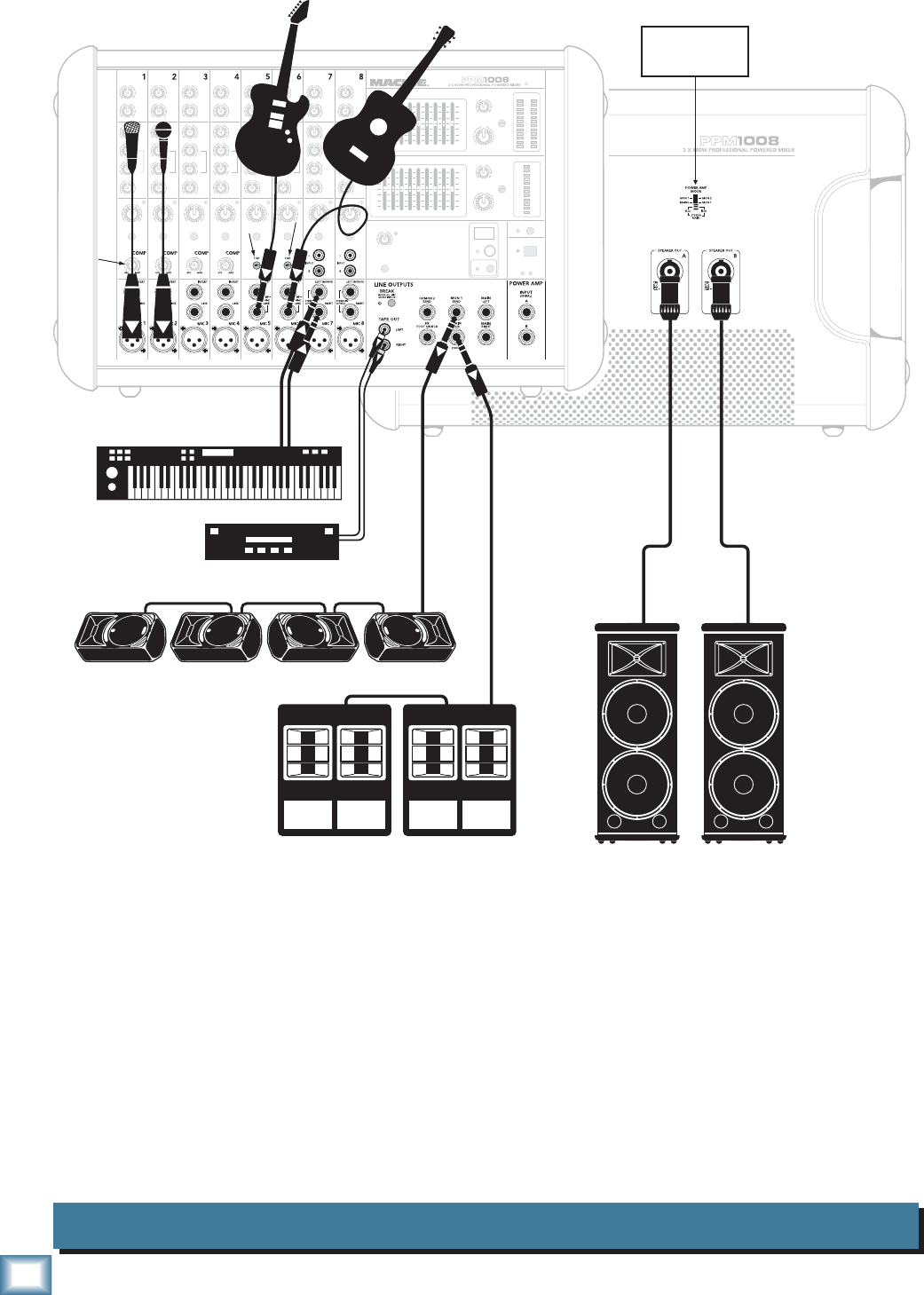
Club System
This diagram shows microphones attached to channels 1 and 2, electric guitars connected directly to
channels 5 and 6 (with hi-z switch pressed in), and a keyboard attached to channel 7's stereo inputs. A
portable recorder is attached to the stereo tape outputs to record the performance.
Mackie SRM450v2 powered monitors are connected to the monitor 1 send, and play as stage moni-
tors. The mon 1 controls of each channel allow you to set up a stage monitor mix that is independent of
the main mix.
Mackie S225 passive speakers are connected to the speaker-level power output of the powered mixer,
and they play the main stereo mix to your audience. SWA1801z powered subwoofers are connected to
the main mix sub out, to reinforce the low end in your system.
SWA1801z Powered Subwoofers
(plays main mix below 100 Hz)
Microphones
press HI-Z
button
Keyboards
S225 Passive Speakers
(plays stereo main mix)
SRM450 v2 Powered Stage Monitors
(plays mon 1 output)
Portable Recorder
Rear Panel
Front Panel Power Amp Mode
switch set to
Stereo Mains
Adjust
Vocal
Compression
press HI-Z
button
7
Owner’s Manual
Owner’s Manual
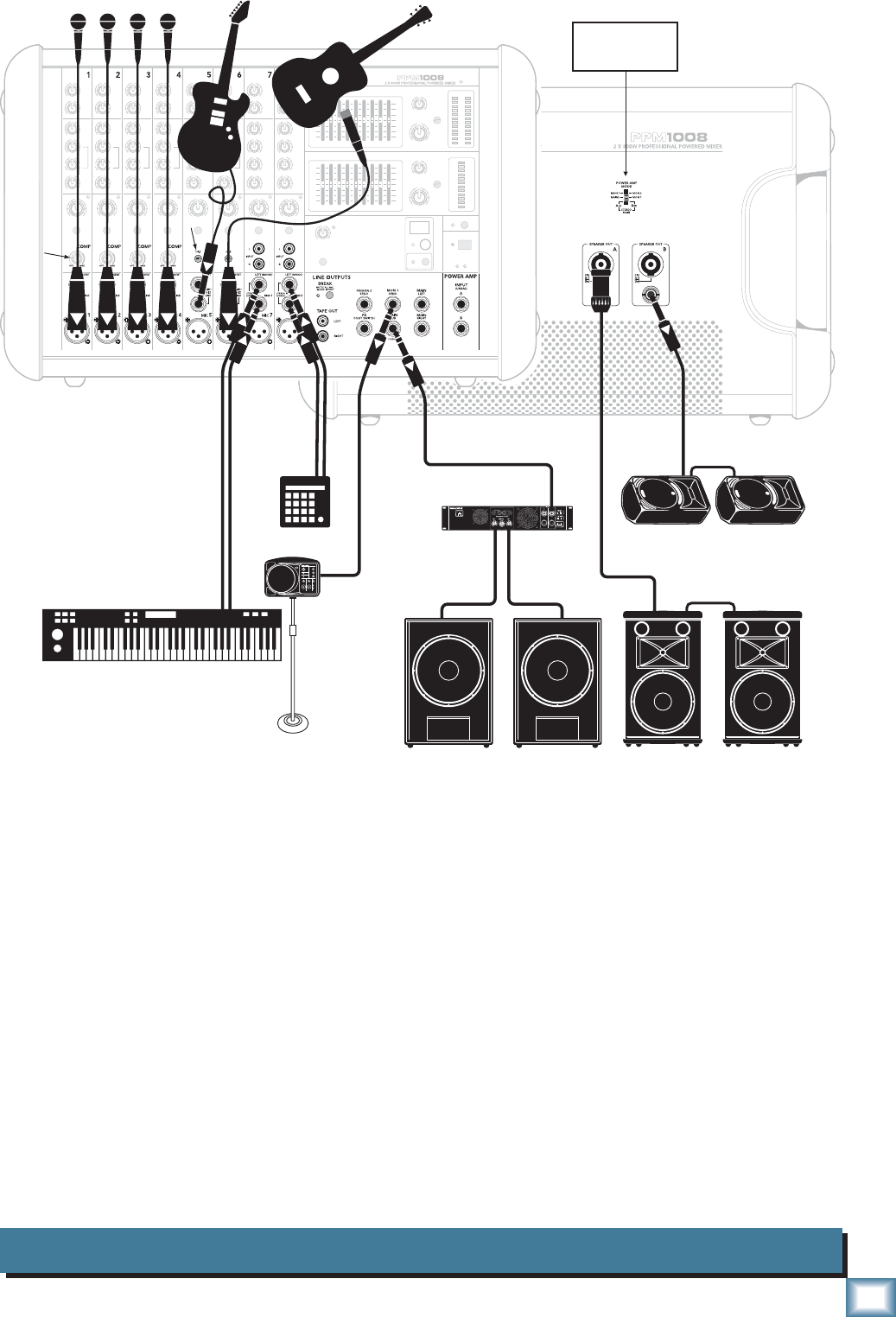
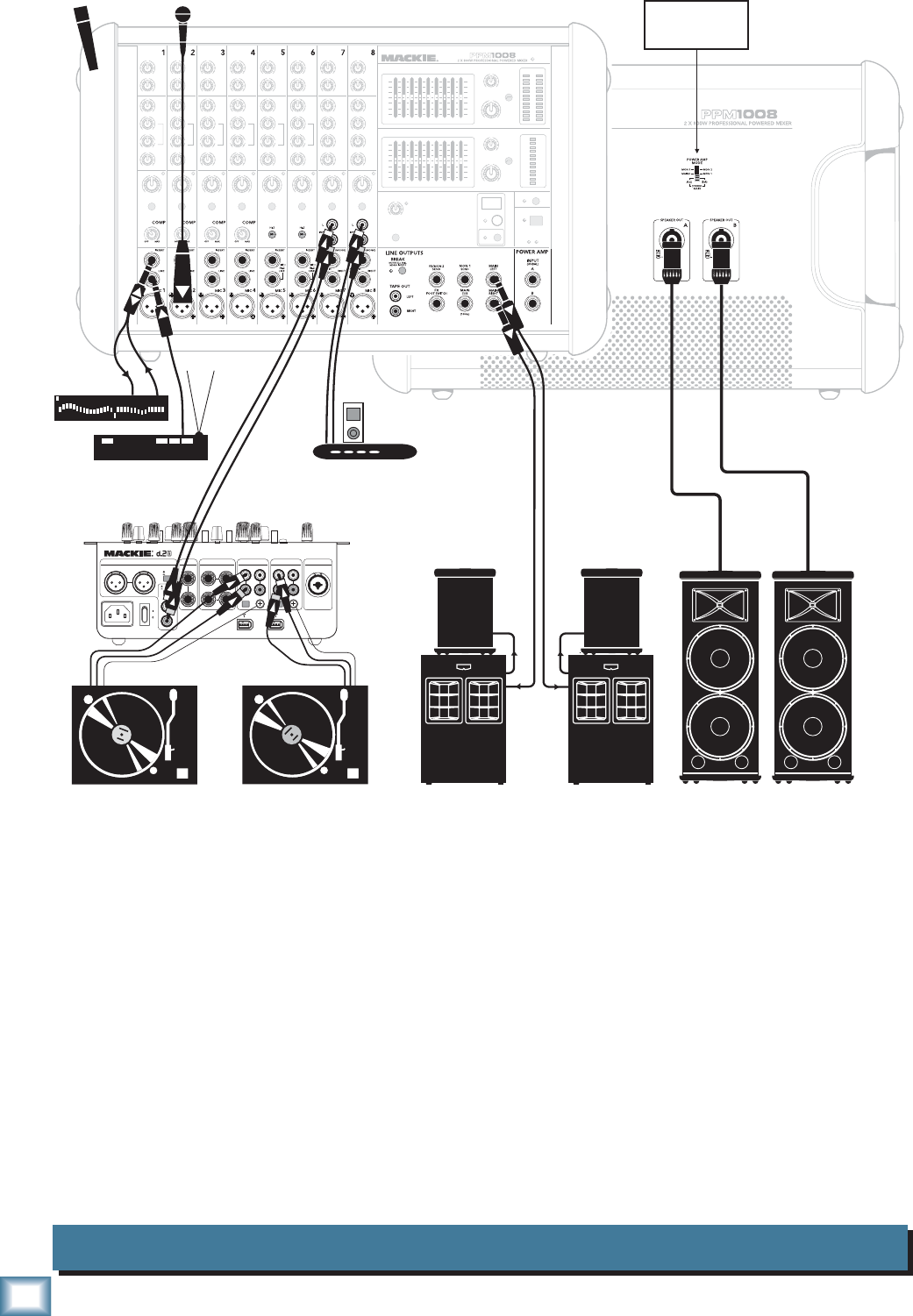
House of Worship System
This diagram shows microphones attached to the mic inputs of channels 1 to 4, an electric guitar con-
nected directly to channel 5 (with hi-z switch pressed in), an acoustic guitar mic connected to channel 6
mic in, a keyboard attached to channel 7's stereo inputs, and a drum machine to channel 8.
A Mackie SRM150 powered monitor is connected to the monitor 1 send, and acts as a personal stage
monitor to the keyboard player. The mon 1 knobs of each channel allow you to set up a monitor mix that
is independent of the main mix.
The power amp mode switch is set to play the mono main mix on ch. A, and monitor 1 mix on ch. B.
Mackie S215 passive speakers are connected to the channel A speaker-level power output of the pow-
ered mixer, and they play the main mono mix to your audience.
S218s subwoofers are powered by a Mackie FRS2800 amplifi er connected to the main mix sub out, to
reinforce the low end in your main mix.
C300z passive stage monitors are connected to the channel B speaker-level power output of the pow-
ered mixer. These play the stage monitor mix 1 to your performers.
Microphones
press HI-Z
button
Keyboards
Drum
Machine
S215 Passive Speakers
House System
(plays mono main mix)
C300z Passive Stage Monitors
(plays mon 1 output)
FRS2800
Amplifier
dual-mono
mode
Rear Panel
Front Panel Power Amp Mode
switch set to
Mains/Mon 1
Adjust
Vocal
Compression
SRM150 Powered Monitor
(plays mon 1 output) S218s Passive Subwoofers
(plays main mix below 100 Hz)
Acoustic Guitar
and Mic
8
PPM1008
PPM1008
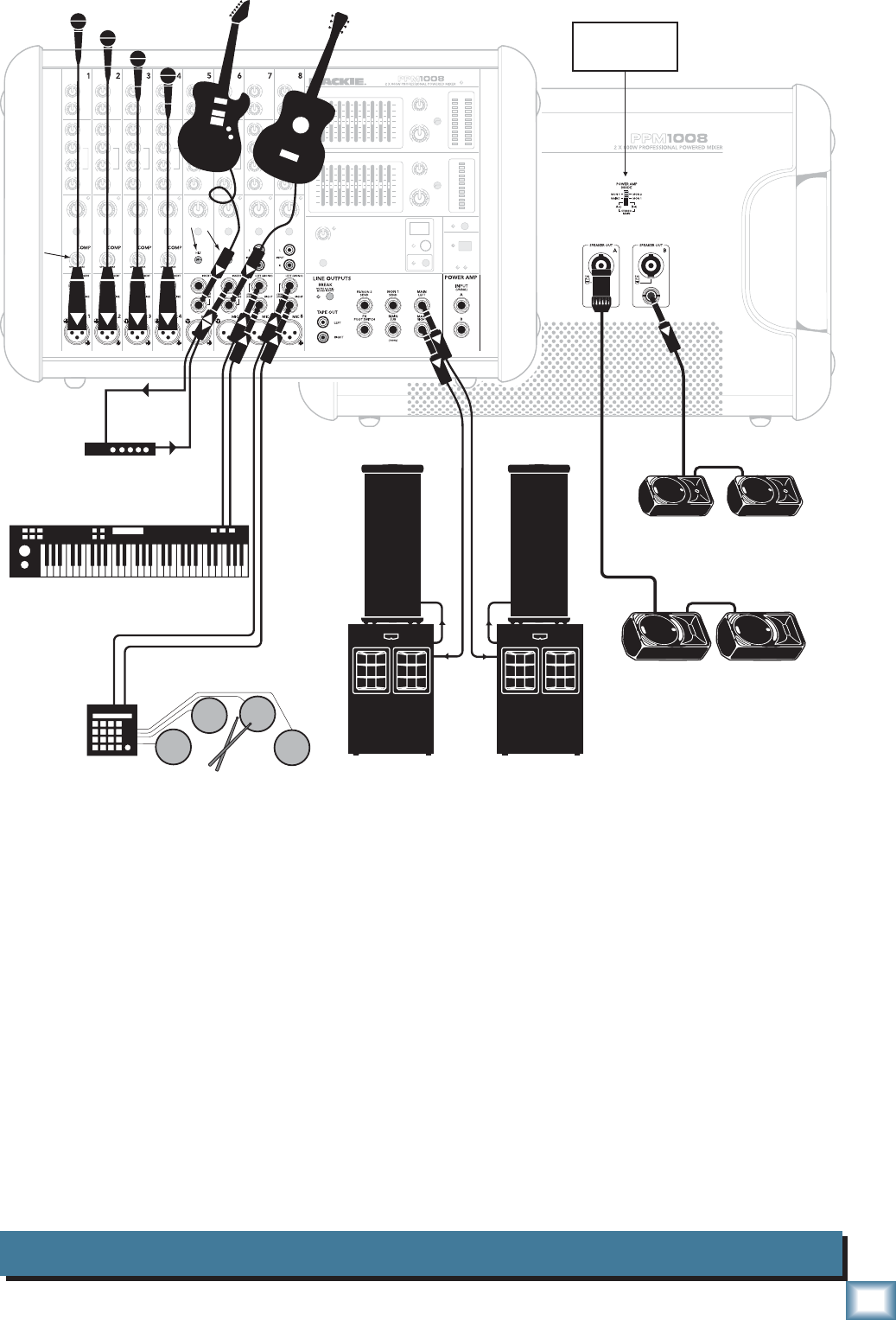
DJ System
This diagram shows a wireless microphone receiver connected to the channel 1 line input, a graphic
EQ connected to channel 1's insert jack (to help control feedback in the wireless mic), a microphone con-
nected to channel 2, and an iPod docking station attached to channel 8's RCA inputs.
A Mackie d.2 Pro DJ production console is connected to two turntables, and its RCA output connects to
the powered mixer's channel 7 stereo RCA inputs. Use the d.2 Pro's advanced DJ controls to get the best
performance from your records. Use the powered mixer to play the d.2 Pro output, and control the mics
and iPod.
The power amp mode switch is set to play the stereo main mix in the Mackie S225 passive speakers,
connected to the speaker-level power outputs.
Mackie SA1521z powered speakers and SWA2801z powered subwoofers are connected to the line-
level main mix outputs, and also play the stereo main mix to your audience.
Microphones
Wireless
Microphone
Rear Panel
Front Panel Power Amp Mode
switch set to
Stereo Mains
S225 Passive Speakers
(plays stereo main mix)
LINE
MIC
RR
PGM 2
MAIN OUT MIC
LLLLLR
PHONO CD
SEND R
BOOTH FX
GND
LINE
PHONO
RETURN
L(MONO) RR
L
R
LIVE
RECORD
~100-240 VAC 50-60Hz 20W
PGM 1
LINE
PHONO GND
PHONO CD
RR
LL
Wireless Mic
Receiver
Graphic EQ
Turntables with phono-level output
Mackie d.2 Pro
DJ Production Console
iPodTM Docking Station
SWA2801z
Powered Subwoofer
(left main mix)
SWA2801z
Powered Subwoofer
(right main mix)
SA1521z
Powered
Speaker
SA1521z
Powered
Speaker
9
Owner’s Manual
Owner’s Manual
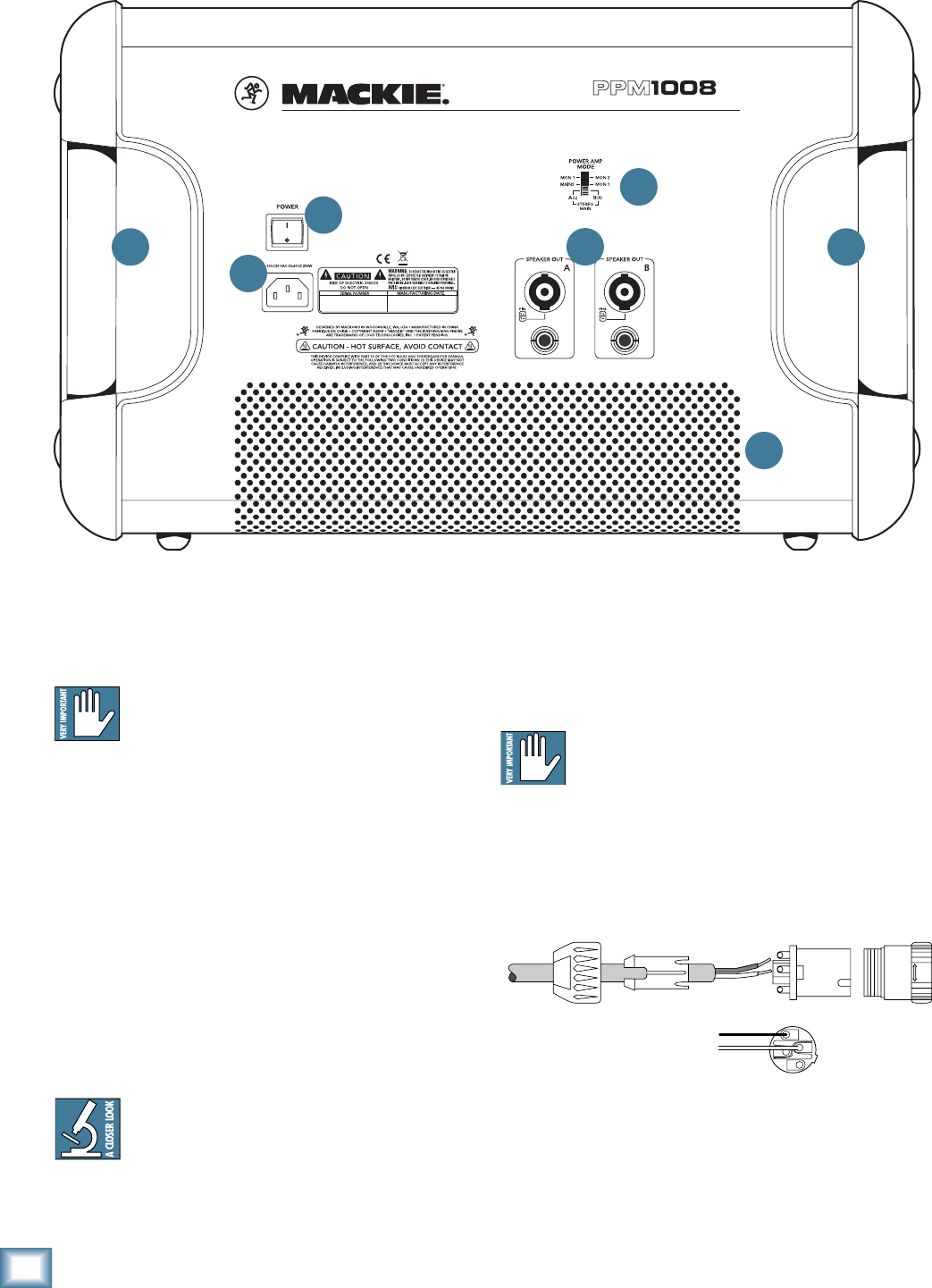
Large Band System
This diagram shows microphones attached to the mic inputs of channels 1 to 4, electric guitars con-
nected directly to ch. 5 and 6 (with hi-z switches pressed in), a guitar processor connected to ch.6 insert,
a keyboard attached to channel 7's stereo inputs, and an electronic drum kit attached to channel 8. Add
vocal compression as required, by tweaking the compression knobs on channels 1 to 4.
The power amp mode switch is set to play the monitor 1 mix on channel A, and monitor 2 mix on
channel B. Note: Press in the front panel FX send/mon 2 send switch, or monitor 2 will not play.
Mackie SA1532z powered speakers and SWA2801z powered subwoofers are connected to the line-
level main mix outputs, and play the stereo main mix to your audience.
C200z passive stage monitors are connected to the channel B speaker-level power output of the pow-
ered mixer. These play the stage monitor mix 2 to your performers. C300z passive stage monitors are
connected to the channel A speaker-level power output, and play stage monitor mix 1.
Microphones
press HI-Z
buttons
Guitar Processor
(connected to INSERT)
Send
Return
Keyboards
C300z Passive Stage Monitors
(plays mon 1 output)
SA1532z
Powered
Speaker
SA1532z
Powered
Speaker
C200z Passive Stage Monitors
(plays mon 2 output)
Rear Panel
Front Panel Power Amp Mode
switch set to
Mon 1/Mon 2
Adjust
Vocal
Compression
Electronic Drum Kit SWA2801z
Powered Subwoofer
(plays left main mix)
SWA2801z
Powered Subwoofer
(plays right main mix)
10
PPM1008
PPM1008
OUTPUT POWER: @ 4 OHMS, 800 WATTS PEAK PER CH
MINIMUM LOAD: 4 OHMS PER CHANNEL
2 X 800W PROFESSIONAL POWERED MIXER
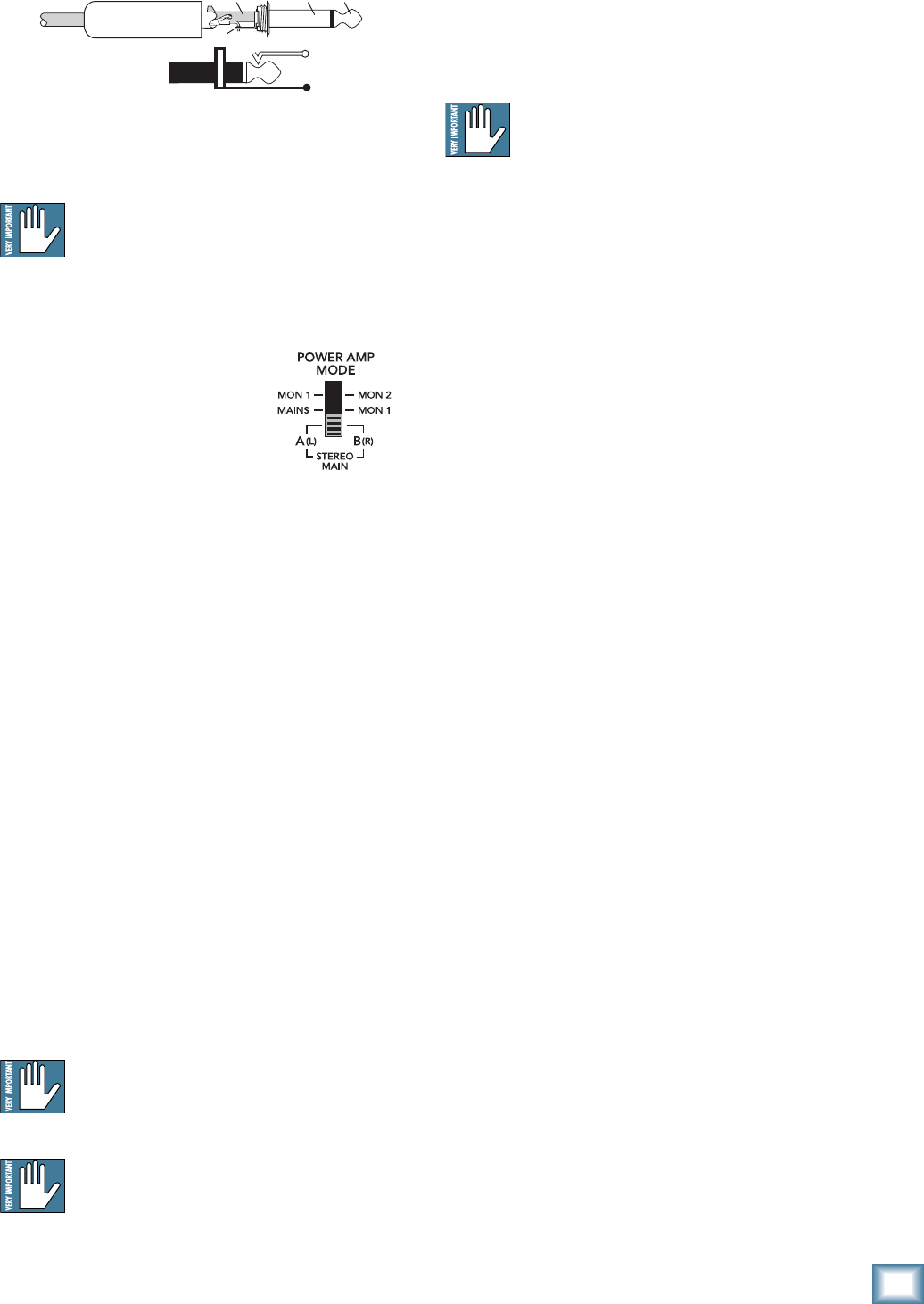
Rear Panel Features
1. POWER CONNECTION
This jack accepts the supplied 3-prong IEC AC power
cord.
Before you plug the AC power cord into the
powered mixer, make sure that the voltage of
your unit is the same voltage as your local AC
mains supply. Use only the power cord supplied. Also,
disconnecting the plug’s ground pin is dangerous. Please
don’t do it.
2. POWER SWITCH
Press the top of this rocker switch inwards to turn on
the mixer. The front panel power LED [35] will glow
with happiness, or at least it will if you have the mixer
plugged into a suitable live AC mains supply.
Press the bottom of this switch to turn off the mixer,
whenever you feel that this would be a safe thing to do.
Half-way through a heavy metal guitar solo might not be
such a good time, unless you can run fast.
As a general guide, you should turn on your
mixer fi rst, before any external power ampli-
fi ers or powered speakers, and turn it off last.
This will reduce the possibilities of any turn-
on, or turn-off thumps in your speakers.
3. SPEAKER-LEVEL OUTPUTS
These output connections provide speaker-level
output power from the internal power amplifi ers to your
passive speakers. The power output of the PPM1008 is
500 watts rms per channel into 4 ohms.
Only passive loudspeakers should be con-
nected to these speaker-level outputs.
The outputs can be selected with the amp mode
switch [4] to be either the stereo main mix, mono main
mix/monitor 1, or monitor 1/monitor 2.
Two common types of connector are provided for your
convenience: Speakons and 1/4" TS.
• Speakon outputs are wired Pin 1+ positive
(hot) and Pin 1– negative (cold).
Mono Speakon Connection
24
3 66
5
COLD
HOT 1+
1+
1–
1–
2–
2+
1
11
Owner’s Manual
Owner’s Manual
• 1/4" TS outputs are wired Tip positive, and
Sleeve negative.
1/4" TS Connection
These two types of outputs are wired in parallel, and
it is possible to use both types at once.
The minimum impedance that the powered
mixers can handle is 4 ohms per channel, and
we recommend that you do not go below this.
If you are using both outputs per channel, make sure
each loudspeaker is 8 ohms impedance or greater.
4. POWER AMP MODE SWITCH
This three-position switch lets
you choose which signal paths
from the mixer section are sent
to the internal power amplifi ers.
This allows considerable fl ex-
ibility in the use of the powered mixer. For example, if
you already have powered main loudspeakers, you could
use the PPM1008 power amplifi ers to run passive stage
monitors.
Stereo Mains
The output from channel A is the left side of the main
mix, and the output from channel B is the right side of
the main mix. Choose this position to play a straight
stereo show.
Mains/Monitor 1
Channel A is the mono main mix, and channel B is the
monitor 1 mix. In this setup, you could run a mono PA
system on one channel, and a passive stage monitor
system on the other.
Monitor 1/Monitor 2
Channel A is the monitor 1 mix, and channel B is the
monitor 2 mix. In this setup, the internal power am-
plifi ers are powering two independent passive stage
monitor systems.
Make sure that the front panel FX send/mon
2 send switch [51] is pressed in (mon 2) , or
there will be no monitor 2 signal to the inter-
nal power amplifi er channel B.
If anything is plugged into the front panel
power amp inputs [20], then this switch has
no effect. The internal power amplifi er will
play whatever signals are coming into the
power amp inputs.
5. VENTILATION and REAR PANEL
Ventilation holes in the rear panel and the bottom
panel allow the internal fans to fl ow breezy and minty-
fresh cooling air over the internal power amplifi ers. Do
not obstruct these holes, or the amplifi ers may overheat
and shut down.
Do not remove the feet, as these keep the
powered mixer off the ground for ventilation.
Do not place the powered mixer on a carpeted
or similar soft and fuzzy surface that may obstruct the
ventilation holes in the bottom panel.
6. HANDLES
These metal handles are delightfully modern in
styling and good looks, and truly represent the perfect
accessory to accent your busy work schedule. Use the
handles to carefully lift and move the powered mixer.
Better yet, have someone else lift it for you. They will
be remarkably pleased with its light weight, and high
power, ideal for all sorts of road trips.
SLEEVE
TIP
TIP
SLEEVE
TIP
SLEEVE
12
PPM1008
PPM1008
Front Panel Features
7. MIC INPUTS
We use phantom-powered, balanced microphone
inputs just like the big studio mega-consoles, for exactly
the same reason: This kind of circuit is excellent at
rejecting hum and noise. You can plug in almost any
kind of mic that has a standard XLR-type male mic con-
nector.
Professional ribbon, dynamic, and condenser mics all
sound excellent through these inputs. The mic inputs
will handle any kind of mic level you can toss at them,
without overloading.
Microphone-level signals are passed through the
mixer's splendid microphone preamplifi ers to become
line-level signals. Because more gain is required to
boost the microphone level signals, make sure the gain
switch [32] is in the up position when you are using
microphones.
Channels 1 to 4 have the extra benefi t of built-in sig-
nal in-line compressors [33]. These can be adjusted to
add just the right amount of compression to your vocals
and help prevent distortion and the effects of tonsillitis.
Patchbay section
This is where you plug in things such as: microphones,
line-level instruments, guitars, and effects, a recorder,
PA system, powered monitors, powered subwoofer etc.
(The speaker-level outputs from the internal power
amplifi ers are on the rear panel.) Check out the hookup
diagrams for some connection ideas. See Appendix B
(page 25) for further details and some rather lovely
drawings of the connectors you can use with your mixer.
FOOT SWITCH
FX
/
2 X 800W PROFESSIONAL POWERED MIXER
7
8 9 10
11
12
13
14
13
Owner’s Manual
Owner’s Manual
12. INSERT (CH. 1 to 6)
These unbalanced 1/4" jacks on channels 1 to 6 are for
connecting serial effects processors such as compres-
sors, equalizers, de-essers, or fi lters. The insert point
is after the gain switch [32] and compressor circuits
(on channels 1 – 4), but before the channel’s EQ and
level [31] controls. The channel signal can go out of
the insert jack to an external device, be processed (or
whatever) and come back in on the same insert jack.
To do this requires a special insert cable that must be
wired thusly:
Tip = send (output to effects device)
Ring = return (input from effects device)
Sleeve = common ground
Insert jacks can be used as channel direct outputs;
post-gain, and pre-EQ. See the connector section on
page 26 (fi gure G) showing three ways to use insert con-
nections.
13. TAPE OUTPUTS
These stereo unbalanced RCA outputs allow you
to record the main stereo mix onto a tape deck, hard
disk recorder, automatic CD burner, or a computer, for
example. This allows you to make a recording for poster-
ity/archive/legal purposes whenever the band gets back
together again.
The tape output is the stereo main mix, not affected
by the main level [38], or the main graphic EQ [36].
14. BREAK SWITCH and LED
This important "take-a-break" switch quickly mutes
all the microphones and the mono channel line-level
inputs when the band is between sets. This will prevent
protestors or rogue karaoke singers from storming the
stage at the interval. The monitor 1 and FX/monitor 2
outputs, and the drive signal to the internal effects are
also muted. The LED will come on, as a reminder that
the break switch is engaged. Check this LED fi rst, if you
are having trouble with no sound in your system.
You can still play the stereo channel line inputs
[10] and RCA inputs [11] in the main stereo mix. For
example, you could play a soothing CD to restore order
before the police arrive.
PHANTOM POWER
Most modern professional condenser mics are
equipped for phantom power, which lets the mixer
send low-current DC voltage to the mic’s electronics
through the same wires that carry audio. (Semi-pro
condenser mics often have batteries to accomplish the
same thing.) “Phantom” owes its name to an ability to
be “unseen” by dynamic mics (Shure SM57/SM58, for
instance), which don’t need external power and aren’t
affected by it anyway.
The mixer's phantom power is globally controlled
by the phantom [46] switch on the front panel. (The
phantom power for all channels is turned on and off
together.)
Never plug single-ended (unbalanced) micro-
phones, or ribbon mics into the mic input
jacks if phantom power is on.
Do not plug instrument outputs into the mic
XLR input jacks with phantom power on,
unless you know for certain it is safe to do so.
8. MONO LINE INPUTS (CH. 1 to 4)
These 1/4" jacks share circuitry (but not phantom
power) with the mic preamps, and can be driven by bal-
anced or unbalanced sources.
To connect balanced lines to these inputs, use a 1⁄4"
Tip-Ring-Sleeve (TRS) plug.
To connect unbalanced lines to these inputs, use a
1⁄4" mono (TS) phone plug or instrument cable.
9. LINE/INSTRUMENT INPUTS (CH. 5 and 6)
The line-level inputs for channels 5 and 6 can also
accept instrument-level signals if the hi-z switches
[34] are pressed in. This allows you to connect guitars
directly to channels 5 and 6, without the need for a DI
box. The input impedance is optimized for direct con-
nection, and high-frequency fi delity is assured.
10. STEREO LINE INPUTS (CH. 7 and 8)
Channel 7 and 8 have stereo line inputs. If you
just have a mono source, plug it into the left input of
channel 7 or 8 (labeled left/mono), and the signal will
appear (as if by magic) equally on the left and right of
the main mix.
11. RCA INPUTS (CH. 7 and 8)
Channel 7 and 8 also have RCA line inputs, suitable
for connecting the line-level, unbalanced output from
CD players, tape decks, iPod docks etc. They are not
suitable for direct connection of phono-level outputs
from turntables, as a phono preamp is required.
“tip”
This plug connects to one of the
mixer’s Channel Insert jacks. “ring”
tip ring sleeve
SEND to processor
RETURN from processor
(TRS plug)
14
PPM1008
PPM1008
15. FX/MON 2 SEND OUTPUT
This 1/4" TRS line-level output can be used to feed an
external effects processor (FX) or another set of stage
monitors (mon 2). The output here is a copy of what
goes into the internal FX processor, being the careful
mix of all channels whose FX/mon 2 control [22] is
turned more than minimum.
The processed output of the internal FX does
not come out of here, but is added internally
to the main mix or monitor 1 mix.
The overall output level can be adjusted with the
FX/mon 2 send control [49], and it can be either post
or pre channel level, depending on the setting of the FX
send /mon 2 send switch [51] as follows:
MONITOR 2 SEND or FX SEND?
To run one set of stage monitors, use the monitor 1
system because it has its own graphic EQ [41], master
level [43], and meter [45]. To run another set of moni-
tors, set the FX send/mon 2 send switch to mon 2.
Stage monitors allow the talented musicians in your
band to hear themselves clearly on stage, and this can
often be a good thing. The monitor output can be care-
fully adjusted in level using the channel FX/mon 2 con-
trols [22], and not change if the channel levels or main
mix levels are adjusted. This is known as "pre-fader."
If they want "more me, and less Keith," you can turn
up their channel's FX/mon 2 control, and turn down
Keith's. (If you were using monitor 1 to feed the stage
monitor, then you would adjust the mon 1 control [21]
on each channel.)
To feed an external effects processor, such as a nice
sound effect, or delay, the feed should be "post-fader."
In this way, any changes to the channel level will also
affect the level going to the external processor. The
processed output from the effects processor is usu-
ally returned to a spare channel, and you can carefully
mix the original unprocessed channel (dry) and the
processed channel (wet). Altering the original channel
level increases both the wet and dry signals and keeps
them at the same delicate ratio. (For example, the re-
verb remains at the same level relative to the original).
SRM450v2
Powered Stage Monitor
From mon 1 or mon 2
line-level output
To channel 5 or 6
instrument inputs
FOOT SWITCH
FX
/
Stereo effects processor
Using the output to feed a stereo effects processor. In this
example, the stereo outputs go to ch. 7 stereo inputs.
Switch out
FX Send (Post)
POST
SRM450v2 Powered Stage Monitors
(plays mon 2 output)
Using the output to feed a pair of powered stage monitors.
Switch in
Mon 2 Send (Pre)
PRE
15 17 19
16 18 20

15
Owner’s Manual
Owner’s Manual
EFFECTS: SERIAL OR PARALLEL?
“Serial” means that the entire channel signal
leaves the mixer (insert [12] send), is routed
through the effects device, and returns to the
mixer (insert return). Examples: compressor,
limiter, graphic equalizer. Line-level sources can also be
patched through a serial effects device before connec-
tion to the mixer.
“Parallel” means that a portion of the signal in the
mixer is tapped off to the device, processed, and re-
turned to a spare channel of the mixer to be mixed with
the original “dry” signal. This way, multiple channels
can all make use of the same effects device. Examples:
reverb, digital delay. The internal effects are parallel,
as all channels can make use of it, and the processed
output is added to the main mix.
16. FX FOOTSWITCH
This 1/4" TRS connector is where you can connect a
footswitch. This will allow you to easily mute or un-mute
the internal effects, while stamping your foot and look-
ing like you were mad about something. Any one-button
on/off footswitch will work.
If the internal effects have already been muted with
the front panel mute switch [54] then the footswitch
has no effect, but you can still stamp your foot and pout
if that helps any. Cultivate that bad-boy image.
17. MON 1 SEND
This 1/4" TRS connector allows you to send the moni-
tor 1 line-level output to stage monitors. These could
either be passive stage monitors powered by an external
amplifi er, or powered stage monitors with their own
amplifi er built in.
The monitor signal is the sum (mix) of all the chan-
nels whose mon 1 control [21] is set to more than
minimum. The overall output level can be adjusted with
the mon 1 master level [43] and its EQ tweaked with
the monitor graphic EQ [41].
The monitor 1 output is not affected by the main
master level [38], or the channel level controls [31].
This allows you to set up the monitor mix and level just
right, and not have it change every time a channel level
or the main mix level is adjusted. This is the main aim
of a monitor mix: independence from the main mix.
18. MAIN SUB
This 1/4" TRS connector supplies a copy of the mono
main mix below 100 Hz. This is usually patched to the
inputs of an external power amplifi er running a passive
subwoofer, or directly to a powered subwoofer. Whatever
adjustments you make to the main mix, will affect this
output below 100 Hz.
(The main mix still plays the full frequency range,
this sub output is just a copy of the range below 100 Hz
for external subwoofers.)
19. MAIN OUTPUTS
These 1/4" TRS outputs supply the stereo main mix at
line-level. You can connect these outputs to the line-lev-
el inputs of external power amplifi ers running passive
loudspeakers, or to the inputs of powered loudspeakers
(or not use them at all, if you don't have the external
gear).
These outputs play the same signal as the rear-panel
speaker-level outputs [3] (when set to stereo mains),
only at line-level.
These outputs can also be used to feed an external
stereo effects processor or other device, and have the
processed output of that device feed the power amp
inputs [20]. This places the device in-line and it will
affect the main mix.
Another super idea is to use an external
active crossover. This splits the line-level main
output into two or three frequency bands. The
high-frequency output of the crossover could
be connected to the power amp inputs [20], so the
internal amplifi ers will power your top-frequency-range
loudspeakers. The active crossover's low-frequency out-
puts could connect directly to powered subwoofers. In
this way, you can take some of the strain off your pow-
ered mixer's internal amplifi ers, and have the powered
subwoofers crank out the bass.
20. POWER AMP INPUTS
These unbalanced 1/4" TS inputs allow you to connect
line-level signals directly to the input of the internal
power amplifi ers.
The amplifi ers will only play what you put in, and only
the precision passive EQ switch [47] and limiters [48]
will affect the output. The power amp mode switch [4]
has no effect, and the meters will not show the levels.
Plugging anything in here, does not affect any of the
line-level outputs.
You could patch a device between the main outputs
[19] and these inputs, in which case, the controls and
meters will work except for the power amp mode switch.
These inputs are also useful when you need more
channels then the PPM1008 provides. You could con-
nect the line-level outputs from another mixer, and use
it to control the mix and levels playing in loudspeakers
attached to the powered mixer.
The external mixer or device will control the
volume, so turn it down at fi rst, or the pow-
ered mixer may come on at full volume.
16
PPM1008
PPM1008
Channel Controls
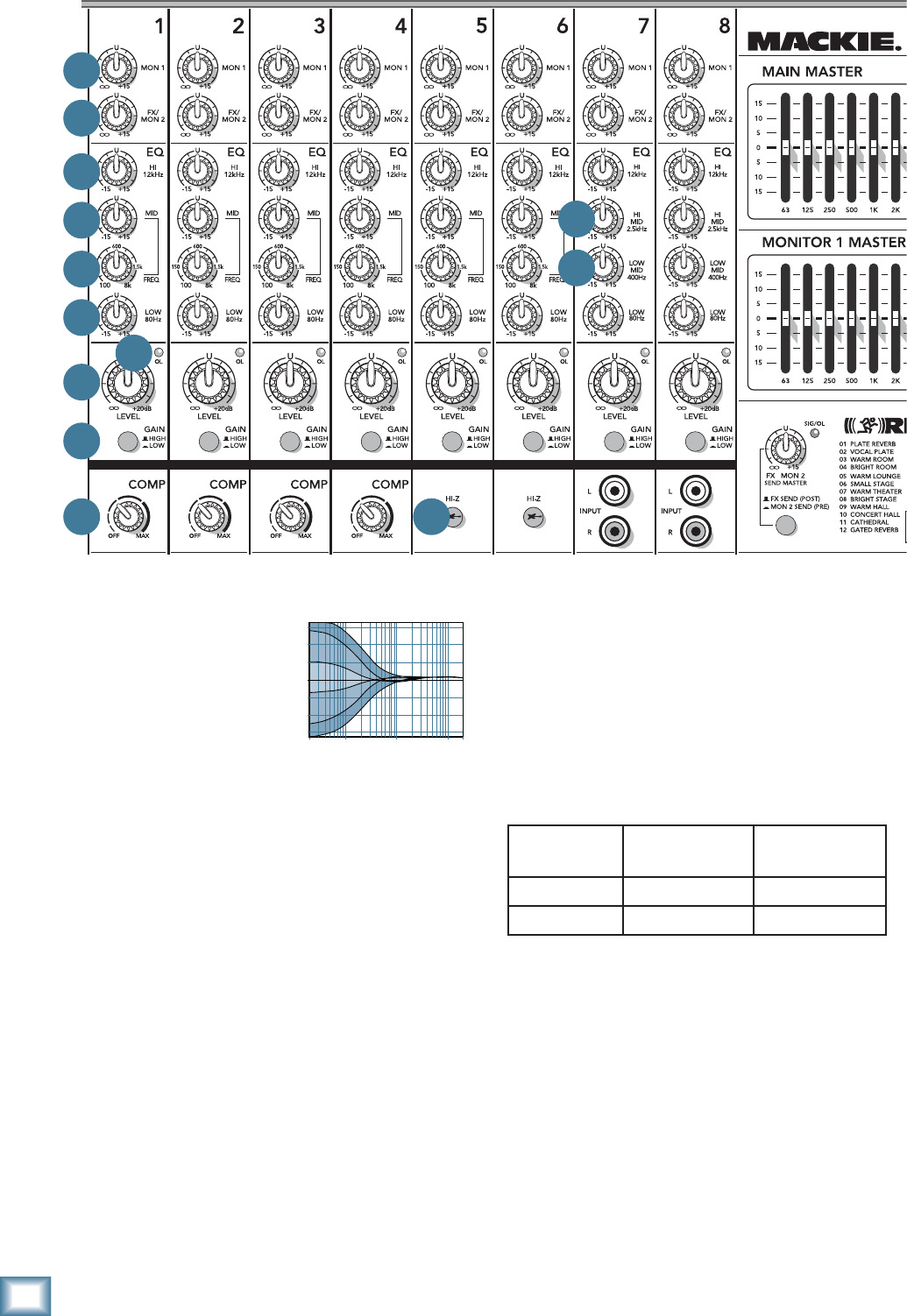
The eight vertical channel strips look very similar,
with only a few differences between them. Each chan-
nel works independently, and just controls the signals
plugged into the inputs directly below it.
Mono Channels 1 to 6
• Channels 1 to 6 are mono channels, and their
controls affect either the mono mic input or the
mono line-level input.
• Channels 1 to 4 have a built-in signal in-line-
compressor circuit with adjustable threshold.
• Channels 5 and 6 have a hi-z switch [34] so you
can connect guitars directly.
• The mono 3-band EQ has shelving high, low,
and peaking mid EQ with sweepable frequency.
• The mono signals are split equally to the left
and right of the main mix.
Stereo Channels 7 to 8
• Channels 7 and 8 are stereo channels, and their
controls affect either the mono mic input, ste-
reo line-level input, or stereo RCA inputs. (The
mono mic input of each stereo channel is split
equally to left and right).
• The stereo channel 4-band EQ has shelving
high, shelving low, peaking lo-mid, and hi-mid.
“U” like Unity gain
Mackie mixers have a “U” symbol on almost every level
control. It stands for “unity gain,” meaning no change in
signal level. The labels on the controls are measured in
decibels (dB), so you’ll know what you’re doing level-
wise if you choose to change a control setting.
Signal Flow
The block diagram on page 29 shows the signal fl ow,
but here is a short description of the fl ow through the
channel strip section:
The mic inputs and mono line inputs each feed a
preamplifi er whose gain is set by the gain switch [32].
The stereo channel line inputs and RCA inputs do not go
through a gain-selectable preamp.
The signal then passes through the compressor circuit
(ch. 1 to 4 only), then through the channel EQ, and the
channel level [31].
The mon 1 control [21] taps the signal off just before
(pre) the channel level.
The FX/mon 2 control [22] taps the signal off before
(pre) and after (post) the channel level. The FX send/
mon 2 send switch [51] lets you choose which is used.
Post is used for FX, and pre is for monitor 2.
/
21
22
23
24
25
29
31
32
33 34
30
34
26
27

17
Owner’s Manual
Owner’s Manual
21. MON 1
This control allows you set up a nice monitor mix,
independent of the main mix or the monitor 2 mix.
Adjust these controls on each channel until your band is
happy with the stage monitor mix. The controls are off
when turned fully down, deliver unity gain at the center
detent, and can provide up to 15 dB of gain turned fully
up. Adjustments to the channel level or main mix level
will not affect the monitor output, but channel EQ and
gain [32] will.
One of the powered mixer's internal amplifi ers can
power passive stage monitors if you set the power amp
mode switch [4] on the rear panel. Mon 1 send [17] is a
line-level output if you want to connect external power
amplifi ers and passive stage monitors, or powered stage
monitors.
22. FX/MON 2
These controls allow you to send a sample of each
channel's signal to the internal FX processor, and to the
FX/mon 2 line-level output [15] to run external proces-
sors, or a second set of stage monitors.
Carefully adjust each control to set up the FX or moni-
tor 2 mix. The controls are off when turned fully down,
deliver unity gain at the center detent, and can provide
up to 15 dB of gain turned fully up.
The dual nature of this knob (FX or mon 2) is deter-
mined by the setting of the FX send /mon 2 send switch
[51]. More FX/mon 2 details are shown on page 14 and
page 23 (item 51).
CHANNEL EQUALIZATION (EQ)
The PPM1008 mono channels have 3-band equaliza-
tion: low shelving, mid peaking with adjustable frequen-
cy, and high shelving. The stereo channels have 4-band
EQ: low shelving, low-mid and high-mid peaking, and
high shelving. It’s probably all the EQ you’ll ever need!
Shelving means that the circuitry boosts or cuts all
frequencies past the specifi ed frequency. For example,
the low EQ boosts bass frequencies below 80 Hz and
continues down to the lowest note you never heard.
Peaking means that certain frequencies form a “hill”
around the center frequency.
With too much EQ, you can really upset
things. We’ve designed a lot of boost and cut
into each equalizer circuit because we know
that everyone will occasionally need that. But
if you max the EQ on every channel, you’ll get mix mush.
Equalize subtly and use the left sides of the knobs
(cut), as well as the right (boost). If you fi nd yourself
repeatedly using full boost or cut, consider altering the
sound source, such as placing a mic differently, trying a
different kind of mic, changing the strings, or gargling.
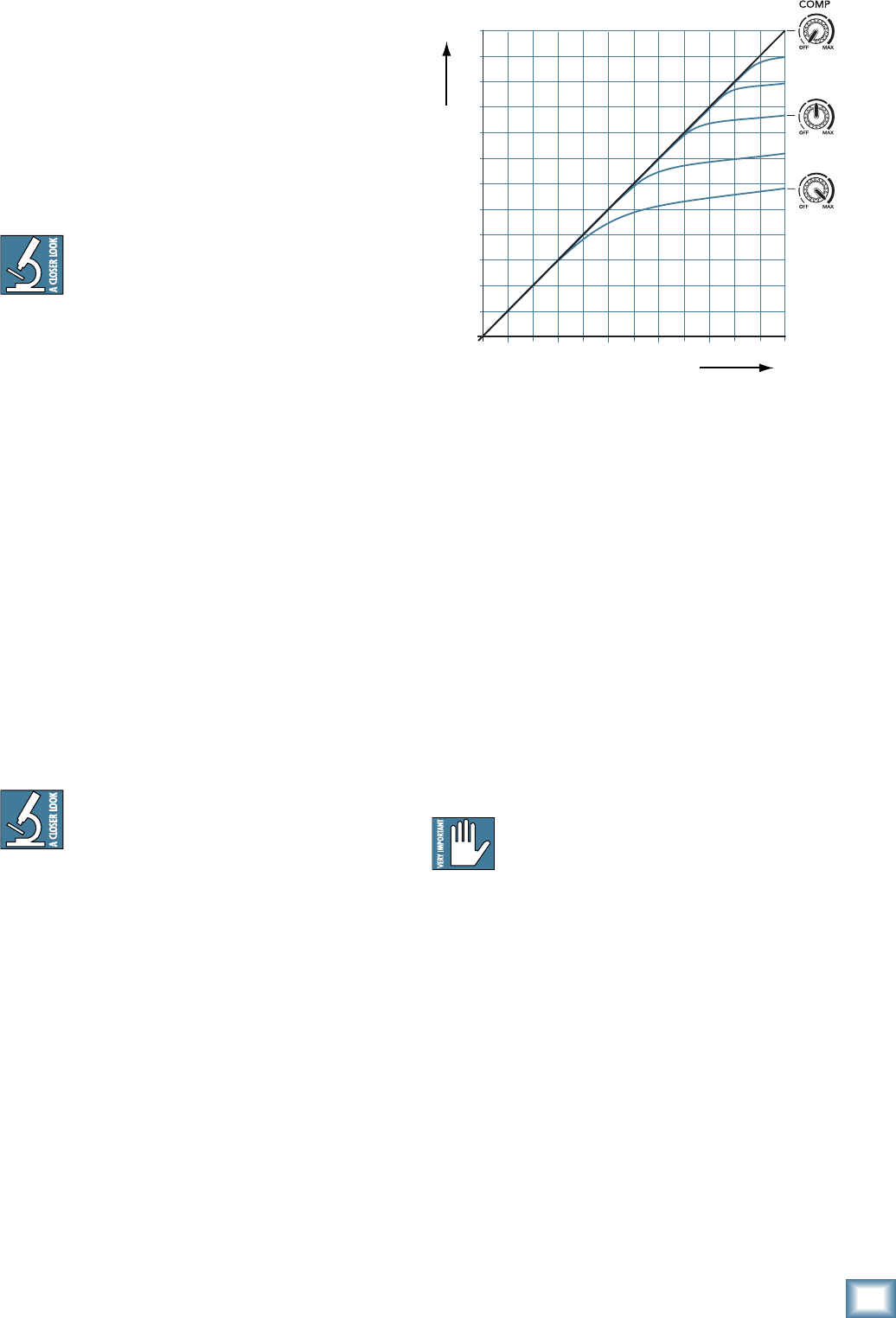
23. HIGH EQ
The high EQ provides up to 15
dB of boost or cut above 12 kHz,
and it is also fl at at the detent.
Use it to add sizzle to cymbals,
an overall sense of transpar-
ency, or an edge to keyboards,
vocals, guitar and bacon frying. Turn it down a little to
reduce sibilance or to mask tape hiss.
24. MID EQ LEVEL (Ch. 1 to 6)
The mid knob sets the
amount of boost or cut, up to
15 dB, and is effectively by-
passed at the center detent.
The frequency at which the cut
or boost occurs is set by the
frequency control [25].
25. MID EQ FREQUENCY (Ch. 1 to 6)
This knob sets the center
frequency of the mid EQ control
[24]. This is sweepable from
100 Hz to 8 kHz.
Once this is set, the mid EQ
level can be adjusted with the
mid EQ level control [24].
Most of the root and lower harmonics that defi ne
a sound are located in the 100 Hz–8 kHz frequency
range, and you can create drastic changes with these
two knobs. Many engineers use mid EQ to cut midrange
frequencies, not boost them. One popular trick is to set
the mid fully up, turn the frequency knob until you fi nd
a point where it sounds just terrible, then back the mid
down into the cut range, causing those terrible frequen-
cies to disappear. Sounds silly, but it works. Sometimes.
26. HIGH MID EQ LEVEL (Ch. 7 and 8)
The high mid EQ provides up to 15 dB of boost or cut
at 2.5 kHz, and it is also fl at at the detent. This control
is only available on stereo channels 7 and 8.
27. LOW MID EQ LEVEL (Ch. 7 and 8)
The low mid EQ provides up to 15 dB of boost or cut
at 400 Hz, and it is also fl at at the detent. This control is
only available on stereo channels 7 and 8.
28. ICE CREAM DISPENSER
This control is not there. It was going to be, but after
much discussion among the engineers, it was decided
not to add it after all. It would have been good though.
20
Hz
100
Hz
1k
Hz
10k
Hz
20k
Hz
–15
–10
–5
0
+5
+10
+15
20
Hz
100
Hz
1k
Hz
10k
Hz
20k
H
z
–15
–10
–5
0
+5
+10
+15
20
Hz
100
Hz
1k
Hz
10k
Hz
20k
Hz
–15
–10
–5
0
+5
+10
+15
18
PPM1008
PPM1008
32. GAIN SWITCH
Press this in (low) if you are connecting a line-level
input source to channels 1 to 6.
Press this out (high) if you are connecting a micro-
phone-level signal to channels 1 to 8, or a instrument-
level signal to channels 5 and 6 only (hi-z switch in).
Note that the gain switch has no effect on the line-
level inputs and RCA inputs of channels 7 or 8.
This is the fi rst control that the input signals meet. It
allows you to choose the level depending on the type of
input source you have connected. If it is set incorrectly,
then the input signals may overload the mixer, caus-
ing distortion, or it may come in too low, and be lost in
noise.
The gain switch allows you to make the initial level
adjustment, appropriate for the connected device (mic
or line-level, for example). The channel level controls
[31] are more for fi ne-tuning, to balance the channels
appropriately for the song.
29. LOW EQ
The low EQ provides up to 15
dB of boost or cut below 80 Hz.
The circuit is fl at (no boost or
cut) at the center detent posi-
tion. This frequency represents
the punch in bass drums, bass
guitar, fat synth patches, and some really serious male
singers who eat raw beef for breakfast.
30. OVERLOAD (OL) LED
This LED will come on when the channel’s input
signal is too high. This should be avoided, as distortion
will occur.
If the LED is coming on regularly, check that the gain
switch [32] is set correctly for your input device: Set
it to low if you are using a line-level input, or high if
you are using a microphone, or instrument-level input
(channel 5 and 6 only).
31. CHANNEL LEVEL
This adjusts the level of each channel onto the main
mix. The “U” mark indicates unity gain, meaning no
increase or decrease of signal level. All the way up
provides an additional 20 dB, should you need to boost
a section of the band. If you fi nd that the overall level
is too quiet or too loud with the level near unity, you’ll
want to confi rm the gain switch is set correctly.
/
20
Hz
100
Hz
1k
Hz
10k
Hz
20k
Hz
–15
–10
–5
0
+5
+10
+15
21
22
23
24
25
29
31
32
33 34
30
26
27
Gain switch
position MIC (XLR)
Inputs LINE (TRS)
Inputs
IN (LOW) Gain = 25 dB Gain = 0 dB
OUT (HIGH) Gain = 45 dB Gain = 20 dB
19
Owner’s Manual
Owner’s Manual
33. COMPRESSOR
Channels 1 to 4 have an in-line compressor circuit
with a variable threshold. This is very useful for com-
pression of vocals, for example.
When the incoming signals exceed the threshold level
set by this knob, the signal level is automatically com-
pressed. This reduces the dynamic range, and reduces
the chance of distortion due to overloading the input
signals.
Dynamic range is the difference in level be-
tween the quietest part of your song and the
loudest part. Using a compressor, you are able
to squeeze the dynamic range, resulting in
an overall steadier, more constant volume level for the
signal. It helps sources such as vocals "sit" properly in
the mix, and it is very useful for live sound as well.
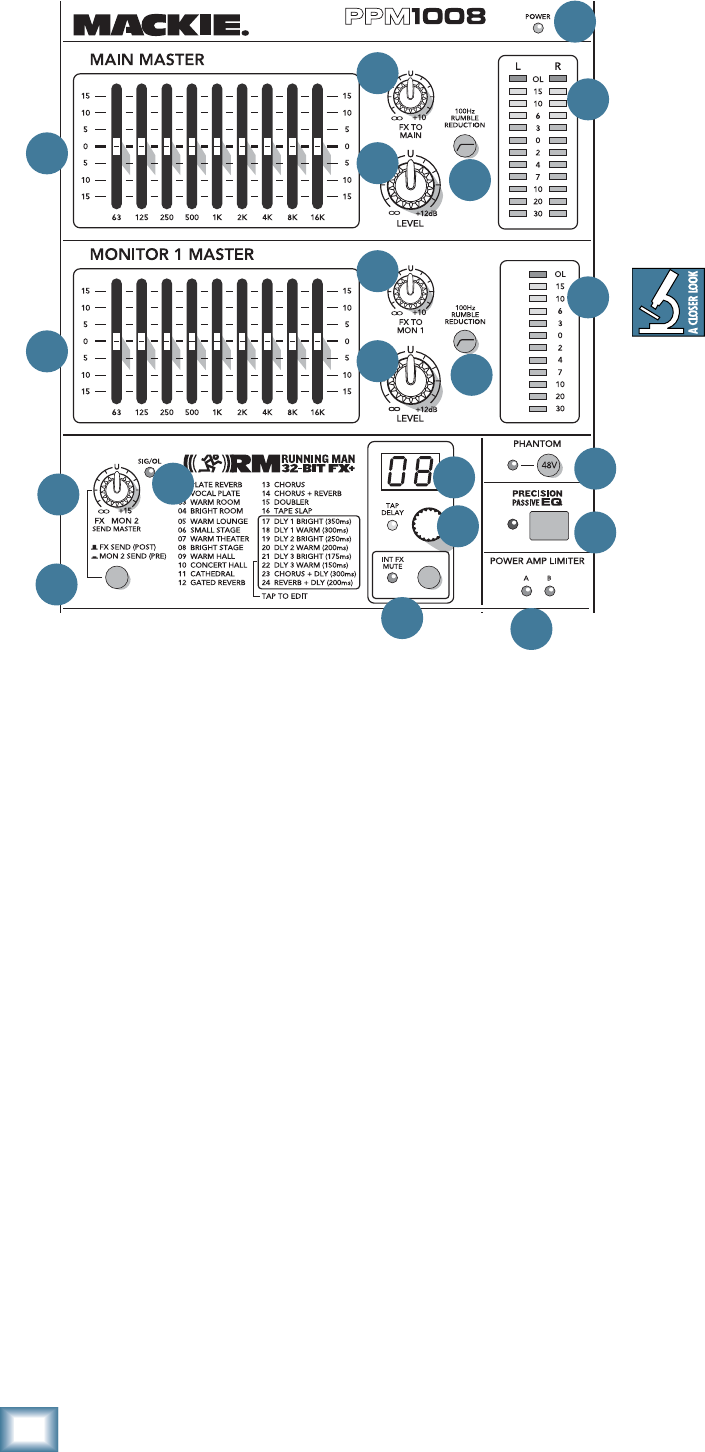
The compression ratio is fi xed at around 6:1, with
a soft knee response. The threshold can be adjusted
clockwise from off (no compression) to 0 dBu (max).
As an example, suppose the threshold is set to maxi-
mum. An incoming signal reaches the threshold of 0
dBu. As it increases beyond the threshold, it becomes
compressed at a ratio of 6:1. This means that even if the
input further increases by 6 dB, the actual output only
increases by 1 dB. This compresses the output signal, so
there is more protection to your system from distortion
and overload due to poor microphone technique (say
it ain't so) and general pops, bangs and heavy metal
screaming. The soft knee means that the compression
slowly ramps up to 6:1 from the threshold. It does not
jump abruptly to 6:1, as this would be hard knee com-
pression, and hard on the ears too.
The following graph shows the input signal
level going into the compressor, versus the
output level coming out of it. It is the typical
graph to see when compressors are discussed,
and is just the kind of thing our engineers like to talk
about during the company Christmas party.
If the compressor is off, then the input = output. For
example an input signal level of +5 dBu results in an
output level of +5 dBu. The diagonal line from lower left
to upper right represents x = y, that is, input = output.
At the maximum compression, the threshold is set at
0 dBu, and the input to output relationship is repre-
sented by the lower blue curve. If the input is –5 dBu
(that is, below the threshold), the output is –5. As the
input reaches 0 dBu, the output is a bit less than 0 dBu.
If the input is +5 dBu, the output is about +2 dBu. If
the input reaches +10 dBu, then the output is +3 dBu.
Notice the shapely curve of the soft knee between the
diagonal slope of x = y and the compressor slope of 6:1
(the compression ratio).
+20
-10
-5
+0
+5
+10
+15
+20-10 -5 +0
SLOPE 6:1
SOFT KNEE
SLOPE 1:1
+5 +10 +15
INPUT SIGNAL STRENGTH dBu
OUTPUT SIGNAL STRENGTH dBu
The other blue curves represent in-between positions
of the compressor knob, with higher thresholds before
compression begins.
Separate compressors often have controls such as
compression ratio, threshold, soft knee/hard knee, at-
tack time, and release time. These last two affect how
quickly the compressor kicks in when the input exceeds
the threshold, and how quickly it is released after it
drops below the threshold. In this powered mixer com-
pressor, these parameters are specially chosen to give
you the best overall performance.
Adjust the threshold carefully, so your dynamic range
is still lovely, without distortion or overload during the
performance. Run through a few practice songs and
adjust the compression as required.
34. HI-Z SWITCH
Channels 5 and 6 are the only place to plug
in guitars and basses directly to the powered
mixer. These switches must be pressed in fi rst.
If you connect a line-level device, such as a keyboard
or drum machine, make sure these switches are out.
(They only affect the 1/4" line inputs of channels 5 or 6,
not the XLR mic inputs.)
To use guitars or other instruments on other chan-
nels, you will need to use an external DI box fi rst. With-
out the DI box, (or if these switches are not pressed in)
guitars will sound dull and muddy.
20
PPM1008
PPM1008
Master Controls
35. POWER LED
This LED comes on when the powered mixer is
plugged into the correct-voltage AC mains supply, and
the rear panel power switch [2] is on.
If the LED does not turn on, make sure the AC power
is live, both ends of the power cord are correctly in-
serted, your electricity bill has been paid, and the lights
in town are still on.
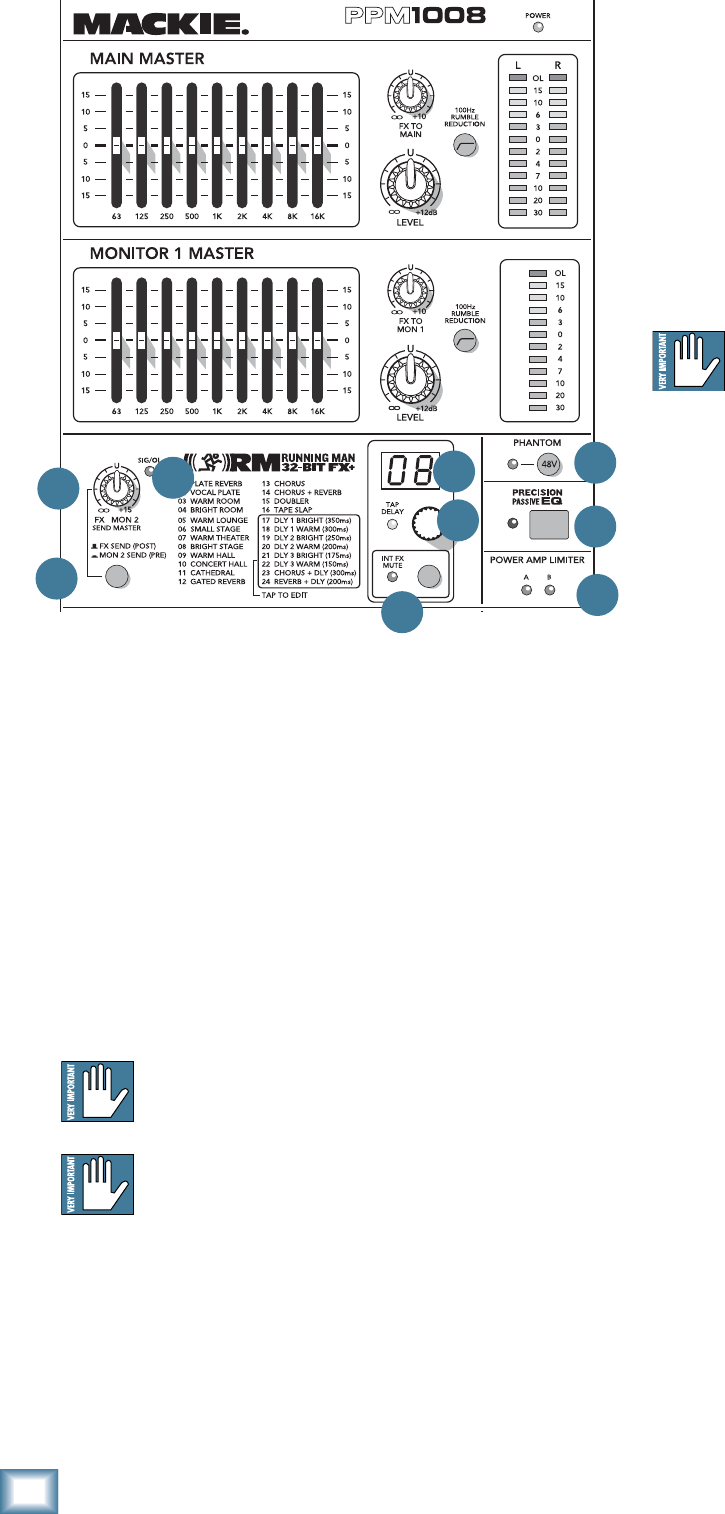
36. MAIN MASTER GRAPHIC EQ
This 9-band graphic equalizer adjusts the main mix
output. It affects the line-level outputs [19], as well as
the main speaker-level outputs if the internal amplifi ers
are playing the main mix.
Each slider allows you to adjust the level of its
frequency band, with up to 15 dB of boost or cut, and
no change in level at the center (0 dB) position. The
frequency bands are: 63, 125, 250, 500, 1k, 2k, 4k, 8k
and 16 kHz.
The EQ section comes after the main level [38], and
just before the main meters [40]. Therefore, as you ad-
just the EQ, you can keep an eye on the meters in case
you over-do it and take the levels into overload.
As with the channel EQ, just take it easy.
There is a large amount of adjustment, and if
you are not careful, you can upset the delicate
balance of nature. Although it may not seem
cool to turn down controls, with EQ it is often
your best option. Turn down the offending
frequency range, rather than boost the wanted
range. Having many sliders will allow you to
reduce the level of some frequency bands where
feedback occurs.
With this constant-Q graphic EQ, the
bandwidth (and Q) of a frequency
band doesn't vary with the amount of
boost or cut. The adjustment of one
slider has minimal effect on adjacent bands
for all settings of the slider levels. (There's
always some effect on adjacent bands to avoid
too much variation or ripple between bands,
but the constant-Q design keeps this fairly
constant for all settings.) The position of the
sliders gives a good indication of the frequency
response across the audio band. Non-constant
types of EQ (on other mixers) give a wider
bandwidth for lower levels of boost or cut, and
narrows as the level goes up or down. For ex-
ample, if you're boosting 500 Hz and 2 kHz slightly, the
1 kHz band will also be boosted, even though the 1 kHz
slider is in the fl at position.
37. FX TO MAIN
This knob lets you adjust the level of the internal
effects being added to the main mix. (It is a stereo con-
trol, as the output from the internal effects processor is
stereo and is added to the left and right main mix.)
Adjust the FX level being added, compared to the
other channels playing in the main mix.
At the fully-down position, no effects are added, the
center U mark is unity gain, and 10 dB of effects gain is
available at the fully clockwise position.
38. MAIN LEVEL
This knob controls the overall level of the main mix,
and affects the main meters [40], main line-level out-
puts [19], main sub out [18], and the main speaker-lev-
el outputs if the internal amplifi ers are playing the main
mix. The level adjustment occurs before the EQ [36].
This gives you ultimate control over your audience.
Adjust it carefully, with your good eye on the meters to
prevent overloading, and your good ear to the levels to
make sure your audience is happy.
/
2 X 800W PROFESSIONAL POWERED MIXER
36
37
38 39
40
35
41
42
43 44
45
49 50
51 54 48
47
46
52
53

21
Owner’s Manual
Owner’s Manual
The control does not affect the monitor 1 output [17],
monitor 2 output [15], or the internal power amp if it
is playing a monitor. (For stage monitor work, it is good
that the main mix level does not affect the monitor out-
puts, so they can be set up nicely and stay that way.)
The main mix signals are off with the level fully down,
the “U” marking is unity gain, and fully up provides 12
dB of additional gain. This additional gain will typically
never be needed, but once again, it’s nice to know it’s
there. The level control is stereo, as it affects both the
left and right of the main mix equally. This is the control
to turn down at the end of the song when you want “The
Great Fade-Out.”
39. 100 Hz RUMBLE REDUCTION SWITCH
This switch is used to reduce the level of the frequen-
cy range below 100 Hz. It operates on the mono channel
1 to 6 mix, not the stereo channel mix.
Use this to reduce the amount of low frequency
problems such as mic handling, stage rumble, bangs and
thumps in your main mix.
This switch is the audio-electronic equiva-
lent of taking anti-gas medication. It relieves
low-end rumble, and the whole room sounds
better.
40. MAIN MIX METERS
Developed from a harmless ex-NASA hamster
hypnotizer*, these stereo meters show the level of the
left and right main mix, after it has passed through the
main level [38] and graphic EQ [36]. The top LEDs are
marked OL (overload), and you should adjust the levels
to avoid these coming on too often, if at all.
Please remember: Audio meter displays are just tools
to help assure you that your levels are “in the ballpark.”
You don’t have to stare at them (unless you want to).
*Tests have shown that it is possible to send hamsters
safely to Mars and back under deep hypnosis.
41. MONITOR 1 MASTER GRAPHIC EQ
This 9-band, constant-Q, graphic equalizer adjusts the
monitor 1 mix output. It affects the line-level monitor 1
outputs [17], and the monitor 1 speaker-level output if
the internal amplifi er is playing the monitor 1 mix.
Each slider allows you to adjust the level of its
frequency band, with up to 15 dB of boost or cut, and
no change in level at the center (0 dB) position. The
frequency bands are: 63, 125, 250, 500, 1k, 2k, 4k, 8k and
16 kHz.
The EQ section comes after the monitor 1 level [43],
and just before the monitor 1 meter [45]. Therefore, as
you adjust the EQ, you can keep an eye on the meter in
case you over-do it and take the levels into overload. As
with the channel EQ, just take it easy.
Having many sliders will help you reduce the level of
frequency bands in the stage monitors that cause feed-
back from nearby microphones.
42. FX TO MON 1
This knob lets you adjust how much of the internal
effects is added to the mono monitor 1 mix. (The output
from the internal effects processor is stereo, summed to
mono and added to the mono monitor 1 mix.)
Adjust the FX level being added, compared to the
other channels playing in the monitor 1 mix.
At the fully-down position, no effects are added, the
center U mark is unity gain, and there is 10 dB of effects
gain at the fully clockwise position.
43. MONITOR 1 LEVEL
This knob controls the level of the monitor 1 mix, and
affects the monitor 1 meter [45], mon 1 line-level out-
puts [17], and the monitor 1 speaker-level output if the
internal amplifi er is playing the monitor 1 mix. The level
adjustment occurs before the monitor 1 EQ [41].
This gives you ultimate control over your monitor 1
stage monitors. Adjust it carefully, with your good eye
on the meter [45] to check against overloading, and
to make sure your band are happy with the levels. The
control does not affect the main mix level.
The monitor 1 mix signals are off with the level fully
down, the “U” marking is unity gain, and fully up pro-
vides 12 dB of additional gain.
44. 100 Hz RUMBLE REDUCTION SWITCH
This switch is used to reduce the level of the frequen-
cy range below 100 Hz, playing in the monitor 1 mix. It
only affects the monitor 1 mix, and does not affect any
effects being added from the internal FX processor.
Use this to reduce the amount of low frequency
problems such as mic handling, stage rumble, bangs and
thumps, that might affect the stage monitors.
45. MONITOR 1 METER
This meter shows you the level of the monitor 1 mix,
after it has passed through the monitor 1 level [43] and
graphic EQ [41].
The top LED is marked OL (overload), and you should
adjust the levels to avoid this coming on too often, if at all.
22
PPM1008
PPM1008
46. PHANTOM SWITCH
Press in this switch to add phantom power to all the
XLR microphone inputs of the mixer. This lets the mixer
send low-current DC voltage to the mic’s electronics
through the same wires that carry audio. The LED will
turn on as a reminder that phantom power is engaged.
Most modern professional condenser mics are
equipped for phantom power. Semi-pro condenser mics
often have batteries to accomplish the same thing.
“Phantom” owes its name to an ability to be “unseen”
by dynamic mics (Shure SM57/SM58, for instance),
which don’t need external power and aren’t affected by
it anyway.
Never plug single-ended (unbalanced) micro-
phones, or ribbon mics into the mic input
jacks if phantom power is on.
Do not plug instrument outputs into the mic
input jacks with phantom power on, unless
you know for certain it is safe to do so.
47. PRECISION PASSIVE EQ
If you are using Mackie passive speakers such as
the C200, C300z, S408, S215, and S225, then press this
switch for enhanced clarity and low-frequency response.
If you are not using Mackie speakers, then press it
anyway and listen for an improvement. The passive EQ
circuit is added just before the internal power ampli-
fi ers, so only loudspeakers connected to the
rear panel speaker-level outputs [3] will be
affected.
48. POWER AMP LIMITER LEDs
These independent LEDs turn on when
power amplifi er channel A or B is being over-
loaded internally and its internal automatic
limiter (which is always in the signal path) is
actively working. The LED will pulse in time
with how much the limiter is being used in
the signal path.
If the limiter LEDs come on and
stay on for more than a second or
two, it means the power supply has
overheated and the limiter is holding the amp
signal down to 1/4 power until the power sup-
ply cools down enough to release the limiter.
If this happens, check there is good ventila-
tion around the mixer, and that you are not
cranking it too much. Also make sure that
your speakers are OK, and are not less than 4
ohms impedance.
Stereo Effects Processor
The Mackie Running-Man 32-bit internal effects pro-
cessor is a mono-in, stereo-out effects processor, with 24
presets. It is fed by adjusting the FX/mon 2 control [22]
on each channel.
The output from the processor can be added to the
main mix or monitor 1 mix by adjusting the FX to main
[37] and FX to mon 1 [42] controls.
Every time you select preset 15, someone in downtown
Woodinville, WA, orders a double cheese burger and
fries. Nobody knows why.
49. FX/MON 2 SEND MASTER
Use this knob to control the level of the signals going
into the internal effects processor. Adjust it carefully,
with your inner magical eye on the adjacent SIG/OL
LED [50] to prevent overloading the effects processor.
This knob also affects the level going out of the FX/
mon 2 output [15], and the internal power amplifi er if it
is playing monitor 2.
50. SIG/OL LED
This dual-LED illuminates in green when the signal
level reaching the effects processor is in a good operat-
ing range (SIG). It illuminates in red when the effects
processor is being overloaded with too strong a signal
(OL). Turn down the level [49] if it is.
/
2 X 800W PROFESSIONAL POWERED MIXER
49 50
51 54 48
47
46
52
53
23
Owner’s Manual
Owner’s Manual
The signals going into the processor are affected by
the channel FX/mon 2 controls [22], and the channel
level controls [31] (if the FX send/mon 2 send switch
[51] is out (post)). Check the LED if you alter these
controls.
51. FX SEND (POST)/MON 2 SEND (PRE)
This switch lets you choose which signal path is used
to feed the internal effects processor (and the FX/mon 2
output [15]) as follows:
FX SEND (POST)
Choose this (out) position when you want to use the
internal effects processor, or if you want to set up an
external processor.
The FX/mon 2 control [22] on each channel samples
the channel signals after (post) the channel level
controls [31]. Any changes to the channel level will also
affect the level feeding the internal effects.
You can also set up an external effects processor by:
1. Muting the internal effects processor.
2. Connecting the FX/mon 2 output to an external
processor.
3. Returning the processed signal back to a free
mono or stereo channel line input.
MON 2 SEND (PRE)
In this position (in), the FX/mon 2 control on each
channel samples the channel signals before (pre) the
channel level controls.
This is ideal for using the FX/mon 2 output to feed a
stage monitor 2 setup, or to use the internal power amp
to power it (power amp mode switch [4] in the mon
1/mon 2 position).
You might want to mute the internal effects processor
with the FX mute switch [54].
For more details, please see page 14, or the
rather lovely block diagram on page 29.
52. PRESET DISPLAY
This display shows the number of the currently
selected effects preset, as shown in the list of presets
silkscreened to the left of the display. Rotate the preset
selector knob to choose a preset.
The new preset will be loaded approximately 1/4 of
a second after you stop turning the knob, and will be
stored into the FX memory after about one second.
When the powered mixer is turned on, the FX section
will load up the last-used preset.
53. PRESET SELECTOR, TAP DELAY and LED
Rotate this endless control to select one of the 24
preset effects. When you stop the rotation, that preset
will be loaded and become operational. The current pre-
set number is shown in the display [52]. The different
presets are shown in this table and marked on the panel
silkscreen. Further details of each preset are shown in
Appendix D on page 30.
The knob also offers a tap delay function for presets
17 to 24. This works as follows:
1. Use the knob to select a preset from 17 to 24.
2. Press the knob in at least two times.
The DSP processor will calculate the time delay
between the last two pushes, and it will assign
this time interval to the echoes of the current
digital delay. The minimum tap delay is 50 ms
and the maximum is 500 ms. If taps are faster
than 50 ms, they will be set to 50 ms. If taps
are between 500 ms and 1 second, they will be
set to 500 ms. If taps are greater than 1 sec-
ond apart, they will be ignored. Try again a bit
faster.
3. The LED will fl ash in time with the new tap
delay time.
54. INTERNAL FX MUTE
When engaged, the internal effects processor is muted
at its output, and the adjacent LED will come on. The
footswitch connection [16] becomes disabled, and you
will not be able to use the footswitch to mute or unmute
the effects.
If this switch is not engaged, then the internal effects
can be muted or unmuted with the footswitch.
Congratulations! You’ve just read about all the fea-
tures of your powered mixer. Time for a cold one.
1 Plate Reverb 13 Chorus
2 Vocal Plate 14 Chorus + Reverb
3 Warm Room 15 Doubler
4 Bright Room 16 Tape Slap
5 Warm Lounge 17 Delay 1 Brt 350ms
6 Small Stage 18 Delay 1 Wrm 300ms
7 Warm Theater 19 Delay 2 Brt 250ms
8 Bright Stage 20 Delay 2 Wrm 200ms
9 Warm Hall 21 Delay 3 Brt 175ms
10 Concert Hall 22 Delay 3 Wrm 150ms
11 Cathedral 23 Chorus + Dly 300ms
12 Gated Reverb 24 Reverb + Dly 200ms

24
PPM1008
PPM1008
Appendix A: Service Information
If you think your powered mixer has a problem, please
check out the following troubleshooting tips and do your
best to confi rm the problem. Visit the Support section of
our website (www.mackie.com) where you will fi nd lots
of useful information such as FAQs, documentation and
user forums. You may fi nd the answer to the problem
without having to send your mixer away.
Troubleshooting
Bad Channel
• Is the EQ set up nicely?
• Is the gain switch set correctly?
• Is the level up enough?
• Is the channel OL led on?
• Is there too much compression on channels
1-4?
• Are the hi-z instrument switches set OK for
guitars connected to channels 5 and 6?
• Try unplugging any insert devices from the
insert jacks.
• Try the same source signal in another channel,
set up exactly like the suspect channel.
• Is phantom power required for your micro-
phones?
Bad Output
• Is the main master level control turned up?
• Are the graphic EQs set to reasonable levels?
• Is the FX level going to the main mix, too high?
• If it’s one of the main speaker-level outputs,
try unplugging its companion. For example, if
it’s the 1/4" left main output, unplug the left
Speakon output. If the problem goes away, it’s
not the powered mixer.
• If a left speaker is presumed dead, connect it
to the right output instead. If the problem stays
with the same speaker, check the speaker wir-
ing, or any speaker fuses.
• Unplug anything from the main line-level
outputs, or other line-level outputs, such as the
sub out, FX/mon 2 send, or mon 1 send, just in
case one of your external pieces has a problem.
• If the power amp limiter lights come on often,
you may be overdriving the amplifi ers. Check
the loudspeaker average load impedance is not
less than 4 ohms. Check the speaker wiring.
Noise
• Turn the channel levels down, one by one. If
the sound disappears, it’s either that channel or
whatever is plugged into it, so unplug whatever
that is. If the noise disappears, it’s from your
whatever.
Power
• The power LED should come on if the powered
mixer is connected to a suitable live AC mains
outlet, and the power switch is on. Check the
power cord is securely plugged in.
Repair
For warranty repair or replacement, please refer to
the warranty information on page 31.
Non-warranty repair for Mackie products is available
at a factory-authorized service center. To locate your
nearest service center, visit www.mackie.com, click
“Support” and select “Locate a Service Center.” Service
for Mackie products living outside the United States can
be obtained through local dealers or distributors.
If you do not have access to our website, you can call
our Tech Support department at 1-800-898-3211, Mon-
day-Friday, 7 am to 5 pm Pacifi c Time, to explain the
problem. Tech Support will tell you where the nearest
factory-authorized service center is located in your area.
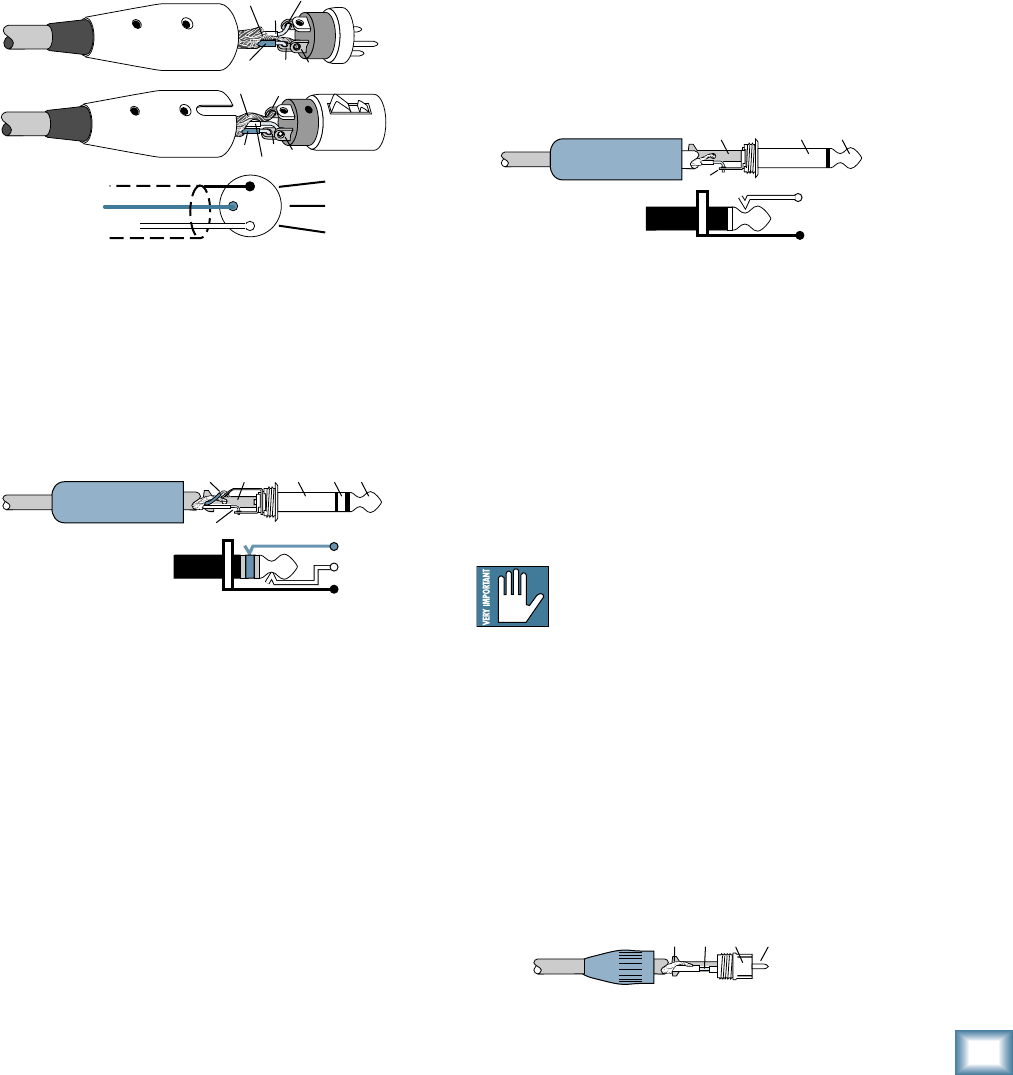
25
Owner’s Manual
Owner’s Manual
“XLR” Connectors
Mackie mixers use 3-pin female “XLR” connectors on
all microphone inputs, with pin 1 wired to the grounded
(earthed) shield, pin 2 wired to the “high” (”hot” or
positive polarity) side of the audio signal and pin 3
wired to the “low” (“cold” or negative polarity) side of
the signal. See Figure A. This is all totally above board
and in full accord with the hallowed standards dictated
by the AES (Audio Engineering Society).
Use a male “XLR”-type connector, usually found on the
nether end of what is called a “mic cable,” to connect to
a female XLR jack.
1⁄4" TRS Phone Plugs and Jacks
“TRS” stands for Tip-Ring-Sleeve, the three
connections available on a “stereo” 1⁄4" or “balanced”
phone jack or plug. See Figure B.
TRS jacks and plugs are used in several different ap-
plications:
• Balanced mono circuits. When wired as a bal-
anced connector, a 1⁄4" TRS jack or plug is con-
nected tip to signal high (hot), ring to signal
low (cold), and sleeve to ground (earth).
• Stereo Headphones, and rarely, stereo micro-
phones and stereo line connections.
When wired for stereo, a 1⁄4" TRS jack or plug
is connected tip to left, ring to right and sleeve
to ground (earth). Mackie mixers do not
directly accept 1-plug-type stereo micro phones.
Appendix B: Connections
They must be separated into a left cord and a
right cord, which are plugged into the two mic
preamps.
You can cook up your own adapter for a stereo
microphone adapter. “Y” two cables out of a
female 1⁄4" TRS jack to two male XLR plugs,
one for the Right signal and one for the Left.
• Unbalanced Send/Return circuits. When wired
as send/return “Y” connector, a 1⁄4" TRS jack
or plug is connected tip to signal send (output
from mixer), ring to signal return (input back
into mixer), and sleeve to ground (earth).
1⁄4" TS Phone Plugs and Jacks
“TS” stands for Tip-Sleeve, the two connections avail-
able on a “mono” 1⁄4" phone jack or plug. See Figure C.
TS jacks and plugs are used in many different
applications, always unbalanced. The tip is connected to
the audio signal and the sleeve to ground (earth). Some
examples:
• Unbalanced microphones
• Electric guitars and electronic instruments
• Unbalanced line-level connections
• Speaker connections
Don’t use guitar cords for speaker cables!
They’re not designed to handle speaker-level
signals and could overheat.
RCA Plugs and Jacks
RCA-type plugs (also known as phono plugs) and
jacks are often used in home stereo and video equip-
ment and in many other applications (Figure D). They
are unbalanced and electrically identical to a 1⁄4" TS
phone plug or jack. Connect the signal to the center
post and the ground (earth) or shield to the surround-
ing “basket.”
SLEEVE
TIP
TIPSLEEVE
TIP
SLEEVE
Figure C: TS Plug
2
2
31
1
SHIELD
COLD
HOT
SHIELD
COLD
HOT
3
SHIELD
COLD
HOT
3
2
1
Figure A: XLR Connectors
SLEEVE
TIPSLEEVE
TIP
RING
RING
TIP
SLEEVERING
Figure B: 1⁄4" TRS Plugs
TI
P
SLEEVETIPSLEEVE
Figure D: RCA Plug
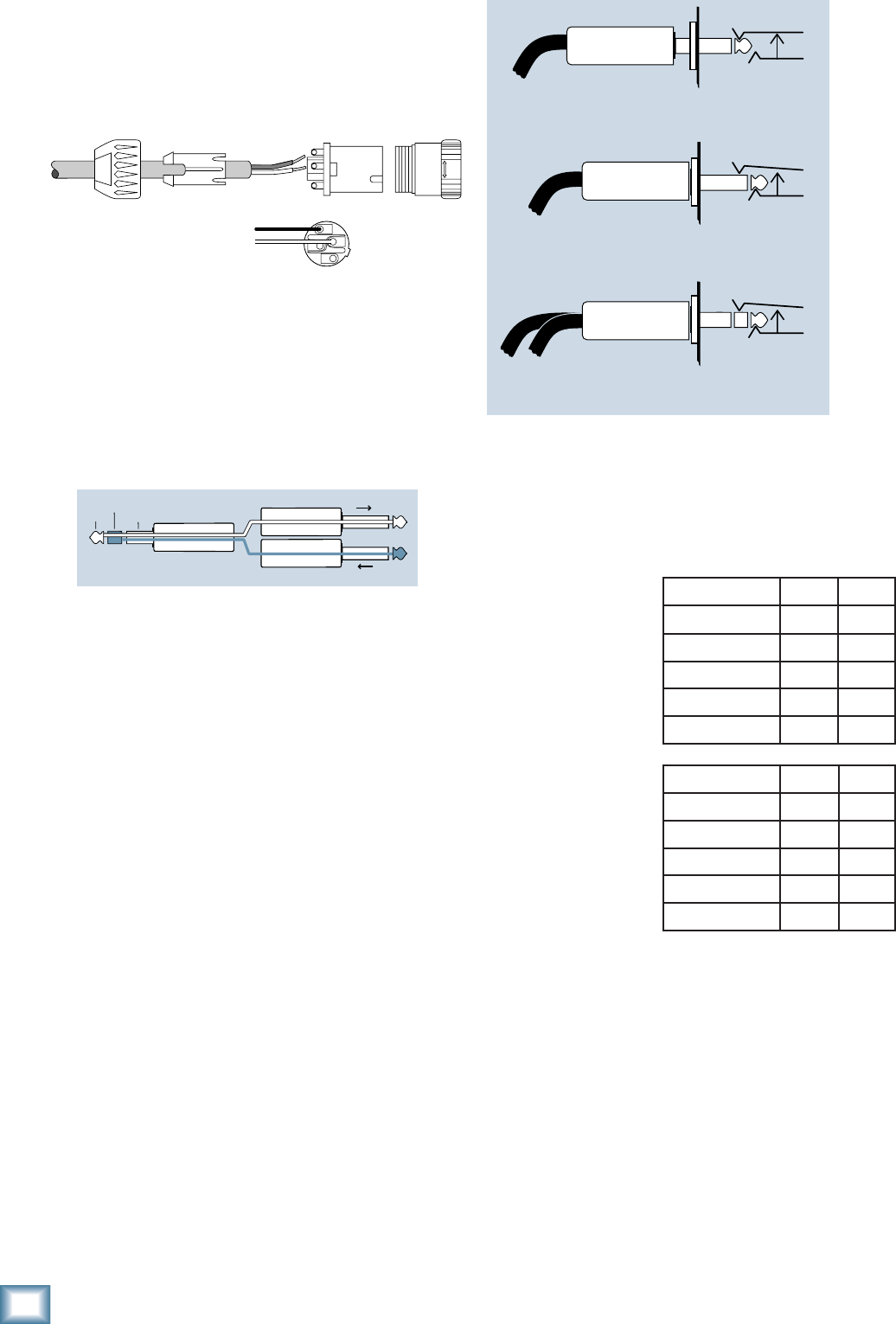
26
PPM1008
PPM1008
Loudspeaker Cable
Use loudspeaker cables with a minimum conductor
size for the length you need as listed in these tables.
This will minimize
power losses to less
than 0.5 dB. The cable
lengths listed are “up
to” lengths. For in-
between lengths, use
the next larger con-
ductor gauge. Using
larger than the rec-
ommended conductor
size is always permis-
sible. Using smaller
than recommended
conductor size will
result in higher power
losses.
The recommended conductor gauges are listed for
AWG (American Wire Gauge) and Metric WG (Metric
Wire Gauge). Note that smaller AWG numbers = larger
conductors and smaller Metric WG numbers = smaller
conductors. The Metric WG is equal to ten times the
nominal conductor diameter in millimeters.
Longer Lengths
For cable lengths over 200 feet / 60 m at 8 ohms, and
over 100 feet / 30 m at 4 ohms, the conductor sizes need-
ed for less than 0.5 dB power losses are rarely practical
for physical and cost reasons. As a practical compromise
for these situations the recommended conductor gauge
is 10 AWG or 25 metric.
Speakons
When using the Speakon outputs to connect your loud-
speakers, wire the Speakon connectors as shown below:
TRS Send/Receive Insert Jacks
Mackie’s single-jack inserts are the three- conductor,
TRS-type 1⁄4" phone. They are unbalanced, but have
both the mixer output (send) and the mixer input
(return) signals in one connector. See Figure F.
The sleeve is the common ground (earth) for both
signals. The send from the mixer to the external unit is
carried on the tip, and the return from the unit to the
mixer is on the ring.
Using the Send-only on an Insert Jack
If you insert a TS (mono) 1⁄4" plug only partially (to
the fi rst click) into a Mackie insert jack, the plug will
not activate the jack switch and will not open the insert
loop in the circuit (thereby allowing the channel signal
to continue on its merry way through the mixer).
This allows you to tap out the channel signal without
interrupting normal operation.
If you push the 1⁄4" TS plug in to the second click, you
will open the jack switch and create a direct out, which
does interrupt the signal in that channel. See Figure G.
NOTE: Do not overload or short-circuit the signal you
are tapping from the mixer. That will affect the internal
signal.
“tip”
This plug connects to one of the
mixer’s Channel Insert jacks. “ring”
tip ring sleeve
SEND to processor
RETURN from processor
(TRS plug)
Figure F
Direct out with no signal interruption to master.
Insert only to first “click.”
Channel Insert jack
Channel Insert jack
Channel Insert jack
Direct out with signal interruption to master.
Insert all the way in to the second “click.”
For use as an effects loop.
(TIP = SEND to effect, RING = RETURN from effect.)
MONO PLUG
MONO PLUG
STEREO
PLUG
Figure G
Figure E
COLD
HOT 1+
1+
1–
1–
2–
2+
Minimum AWG 4 ohm 8 ohm
18 10 ft 25 ft
16 25 50
14 25 75
12 50 125
10 100 200
Min Metric WG 4 ohm 8 ohm
12 3 m 8 m
14 8 15
16 8 25
20 15 40
25 30 60

27
Owner’s Manual
Owner’s Manual
Appendix C: Technical Information
Specifi cations
Distortion (THD + N)
(1 kHz, 30 kHz bandwidth)
Mic mono: <0.007% high gain
<0.005% low gain
Line mono: <0.005% low gain
Line stereo <0.01% at main out
Main mix output noise
(1 kHz, 30 kHz bandwidth)
Main mix level down, all channel levels down: –95 dBu
Main mix level 0 dB, all channel levels down: –86 dBu
Main mix level 0 dB, all channel levels 0 dB: –77 dBu
Frequency Response
(+0 dB/–3 dB)
Mic mono input: < 10 Hz–80 kHz
Line mono inputs: < 10 Hz–40 kHz
Line stereo inputs: < 10 Hz–75 kHz
Equivalent Input Noise (EIN)
Mic input (20 Hz – 20 kHz)
150 Ω termination: –128 dBu
Gain
Mic mono input: 45 dB high gain
25 dB low gain
Line mono inputs: 20 dB high gain
0 dB low gain
Line stereo inputs: 0 dB
Maximum Levels
Mic mono input: –25 dBu high gain
–5 dBu low gain
Line mono inputs: +21 dBu low gain
+1 dBu high gain
Line stereo inputs: +21 dBu
Preamp main and monitor outputs: +21 dBu
Impedances
Mic mono input, balanced: 3.6 kΩ balanced
Line mono input, balanced: 20 kΩ balanced
Line mono input, Ch 5, 6 Hi-Z: 500 kΩ unbalanced
Main and monitor preamp outputs: 240 Ω balanced
120 Ω unbalanced
Channel EQ
High Shelving (all channels) ±15 dB @ 12 kHz
Mid Mono Channels:
Mid Peaking, sweepable ±15 dB
Mid sweep range: 100 Hz to 8 kHz
Mid Stereo Channels:
Hi Mid Peaking: ±15 dB @ 2.5 kHz
Lo Mid Peaking: ±15 dB @ 400 kHz
Low Shelving (all channels) ±15 dB @ 80 Hz
9-Band Graphic EQ
Main and Monitor 1: ±15 dB @
63, 125, 250, 500, 1k,
2k, 4k, 8k and 16 kHz
Connections
Mic input: XLR balanced
Line mono input: 1/4" TRS balanced
Line stereo input: 1/4" TRS unbalanced
Preamp main outputs: 1/4" TRS balanced
Monitor outputs: 1/4" TRS balanced
Inserts: 1/4" TRS unbalanced
Loudspeaker outputs: 1/4" TS and Neutrik
Speakon
Loudspeaker outputs
(Both channels loaded and driven at 1 kHz.)
Peak output power @ 4 Ω: 2 x 800 W peak
Average output power @ 4 Ω: 2 x 400 W rms, 1% THD
2 x 500 W rms, 3% THD
Average output power @ 8 Ω: 2 x 250 W rms, 1% THD
2 x 300 W rms, 3% THD
Recommended load impedance: 4 – 8 Ω per side
Running Man Effects
Type: 32-bit internal processor,
mono in, stereo out
Effects presets: 24 Mackie-designed
presets
Power Consumption
120 VAC, 50/60 Hz,
680 watts
Dimensions (H x W x D)
12.3" x 19.3" x 11.4"
(314 mm x 490 x 290)
Weight
24.5 lb (11.1 kg)
Top Speed
13 knots
LOUD Technologies Inc. is always striving to improve our prod-
ucts by incorporating new and improved materials, components,
and manufacturing methods. Therefore, we reserve the right to
change these specifi cations at any time without notice.
“Mackie,” and the “Running Man” are registered trademarks of
LOUD Technologies Inc. All other brand names mentioned are
trademarks or registered trademarks of their respective hold-
ers, and are hereby acknowledged.
Please check our website in case there are any corrections and
updates to this manual: www.mackie.com.
©2008 LOUD Technologies Inc. All Rights Reserved.
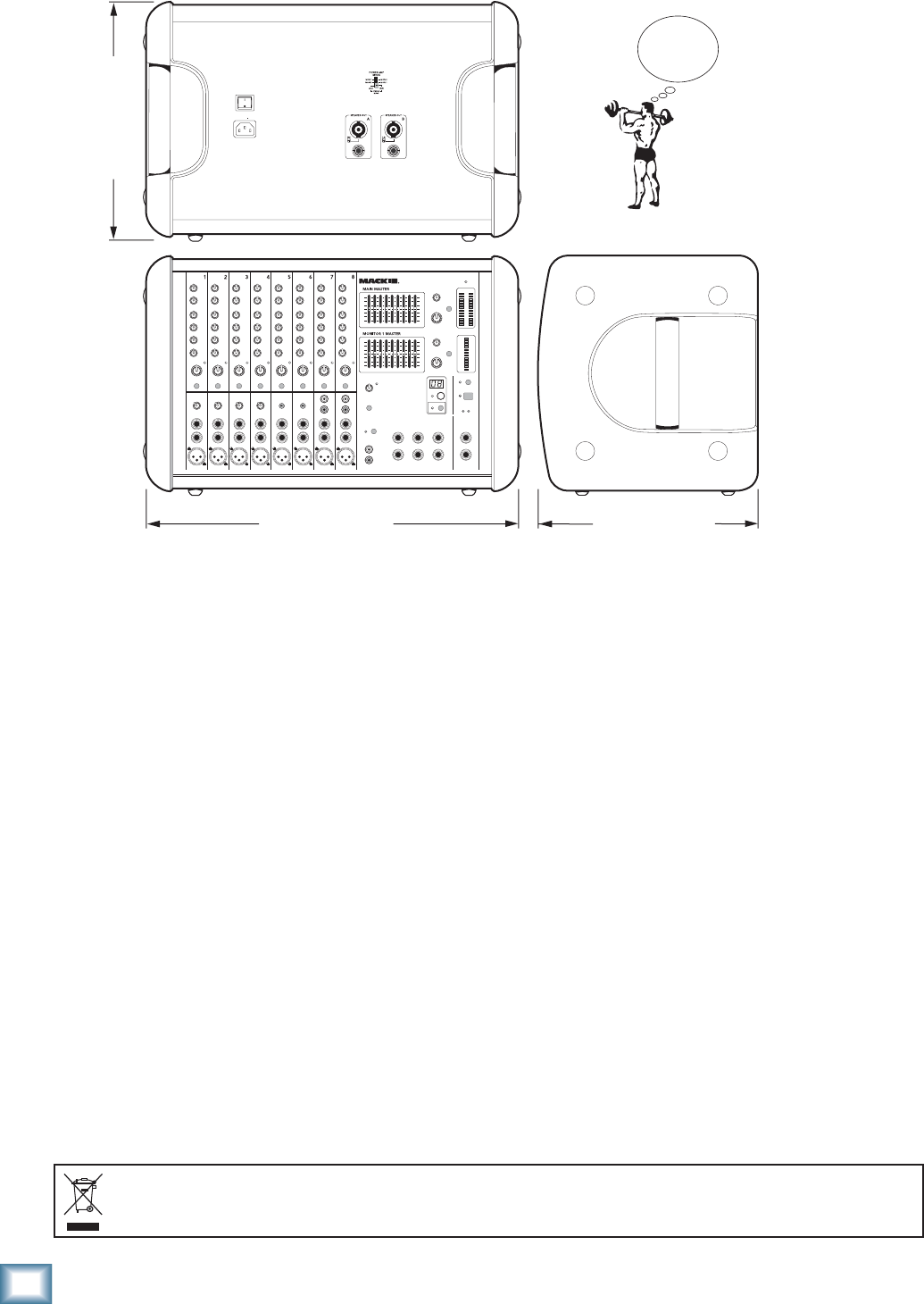
28
PPM1008
PPM1008
Dimensions
12.3 in/ 314mm
19.3 in/ 490 mm 11.4 in/ 290 mm
WEIGHT
24.5 lb
11.1 kg
Correct disposal of this product. This symbol indicates that this product should not be disposed of with your household waste, according to the WEEE Directive (2002/96/EC) and your national law. This product
should be handed over to an authorized collection site for recycling waste electrical and electronic equipment (EEE). Improper handling of this type of waste could have a possible negative impact on the environment and
human health due to potentially hazardous substances that are generally associated with EEE. At the same time, your cooperation in the correct disposal of this product will contribute to the effective usage of natural
resources. For more information about where you can drop off your waste equipment for recycling, please contact your local city offi ce, waste authority, or your household waste disposal service.
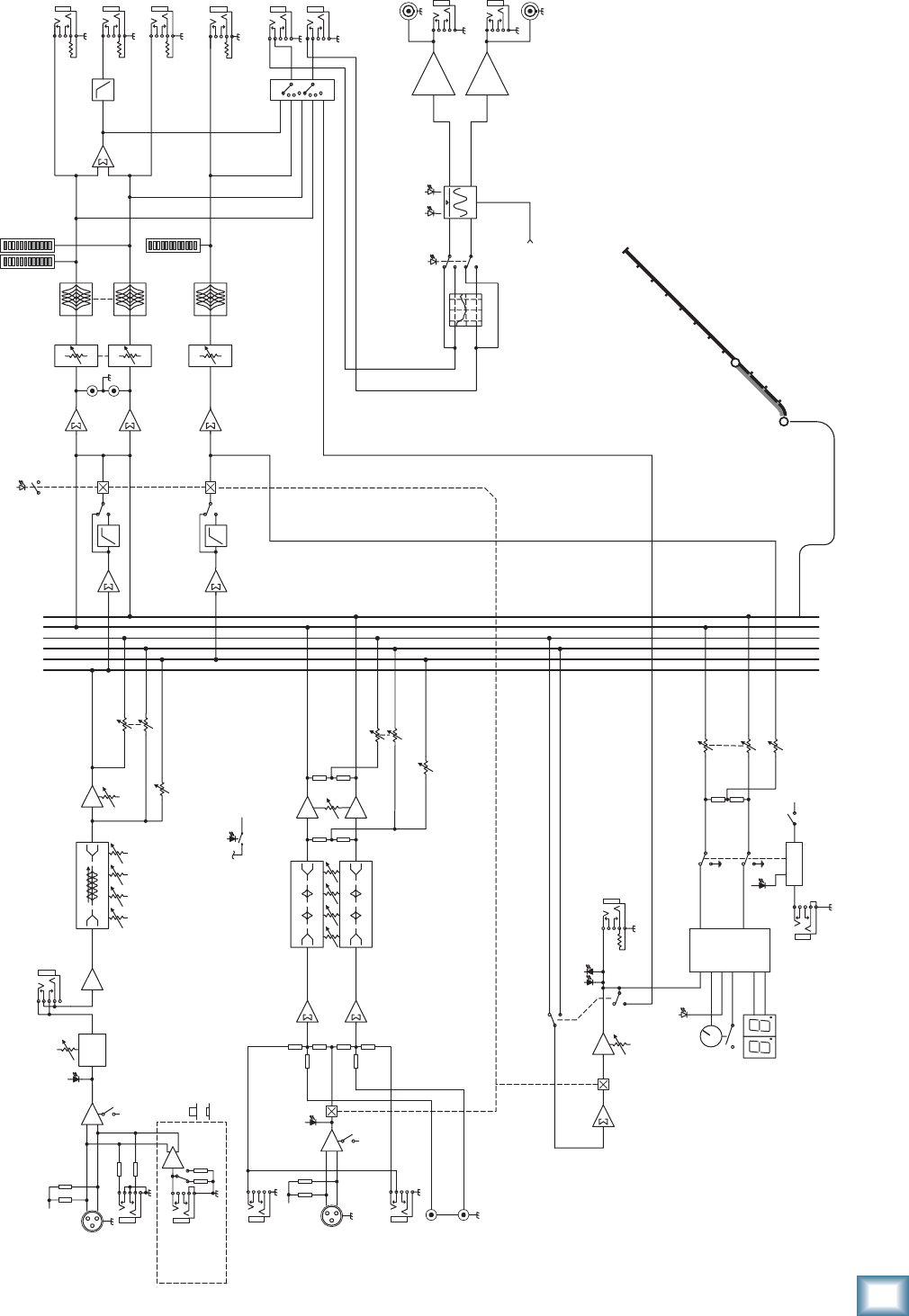
29
Owner’s Manual
Owner’s Manual
Block Diagram
West Ham
Plaistow
Upton Park
East Ham
Upney
Dagenham Heathway
Dagenham East
Elm Park
Hornchurch
Upminster Bridge
Upminster
Becontree
Barking
48V
Mics
Mon 2 (pre)
Efx (post)
L
R
L
R
Main level
Stereo
Channels
7-8
L
R
Mono
Channels
Mic
Line
Insert
Gain
Channel Level
Channel Level
Mon
L
Main Out
Main Out
R
Out
A
B
Mics
+
-
Mon 1
L
R
3-Band EQ
4-Band EQ
Mon
Mic: +25 ~ +45dB
Line: 0 ~ +20dB
©2007 Loud Technologies Inc. All rights reserved
Note: all switches are shown in their default (out) position
The train now leaving platform 3 is the 10:30 to Upton Park
LO MID
80 100~8K 12K
HI
Comp
Efx
Global phantom power
phtm
phtm
Efx
100Hz
Low Pass Main Sub Out
Efx sum
Mon 1
HI-Z
LINE
Hi-Z
(Channel
5-6 only)
-or-
1 Meg
Mics
Mon 2 (pre)
Efx (post)
Mon 1
Mic
Gain
+
-
Mic:+25~+45dB
phtm
OL
OL
OL
Sig
select/tap
tap
delay
EFX
display
bypass
Efx to Main
footswitch
Efx to Mon
LO MID MID
80 400 2.5K 12K
HI
LO MID MID
80 400 2.5K 12K
HI
100Hz
Break
Tape out
Mon1 level
Mon1 Out
Amp A in
Amp B in
Precision
Passive EQ
Amp Mode
Limiter Power Amps
FX/ Mon2
out
Post/Pre
FX
level
9-band
Graphic EQ
9-band
Graphic EQ
100Hz
Break
L
R
AB
Thermal
power limit

30
PPM1008
PPM1008
Appendix D: Table of Effects Presets
No. Title Description Example of its use
01 Plate Reverb This preset emulates vintage mechanical reverberation
that was generated with a metal plate. Its sound is char-
acterized by lots of early refl ections and no pre-delay.
Perfect for thickening percussive instruments, such
as a snare drum, or tight vocal arrangements.
02 Vocal Plate This vintage plate emulation is warmer than your
standard plate, with a long reverberant tail, lots of fast
refl ections and a very short pre-delay.
Particularly suited for vocal signals, but can also
be used for extra-thick drum tracks.
03 Warm Room This preset is characterized by lots of fast early refl ections
with a short pre-delay to simulate the sound of a small,
wood paneled room.
Useful for adding a tight and controlled
ambient effect to vocals and acoustic instruments.
04 Bright Room This room has a bright tone with lots of scattered refl ec-
tions to simulate harder, more refl ective surfaces. Useful on vocals that require a brighter reverb to
cut through the mix, or for giving acoustic instru-
ments a livelier vibe.
05 Warm Lounge This preset features a medium sized room sound, with
just enough enhancement of the lower mids to produce a
warm tone.
Useful for vocals on songs that require a larger,
more “wet” sound, or for giving dimension to
bright horns without adding harshness.
06 Small Stage This preset simulates the sound of a small concert stage,
with a medium reverb time and reverberant space. Useful for vocals or guitars in fast paced, high-
energy songs that call for a “live” sounding
reverberation.
07 Warm Theater This reverb has a warm bodied tone and medium long
reverb time to simulate the live acoustics of a theater
space.
Perfect for vocals, drums, acoustic and electric
guitars, keyboards, and more.
08 Bright Stage This preset emulates the sound of a large performance
stage, characterized by medium long reverb time and
pre-delay, plus a touch of sizzle.
Great for adding life and dimension to drums and
other acoustic instruments, and for that big live
vocal sound.
09 Warm Hall This reverb simulates the sound of a spacious, yet cozy,
heavily draped and carpeted concert hall with an espe-
cially warm tone.
Perfect for adding natural concert hall ambience
to close-mic’ed orchestral instruments.
10 Concert Hall This hall reverb is characterized by its large, spacious
sound, long pre-delay, and vibrant tone. Adds life to acoustic instruments and vocals from
solos to full-on symphonies and choirs.
11 Cathedral This reverb emulates the extremely long tails, dense dif-
fusion and long pre-delays and refl ections that would be
found in a very large, stone walled house of worship.
Gives amazing depth to choirs, wind instruments,
organs, and soft acoustic guitars.
12 Gated Reverb This preset incorporates an age-old trick whereby an
extremely dense reverb is processed through a fast gate
for an interesting, albeit artifi cial, sound.
Most often used to fatten snare drums and toms
without clutter.
13 Chorus This preset provides a soft, ethereal sweeping effect that
is useful for thickening and for making a particular sound
pop out of the mix.
Perfect for enhancement of electric and acoustic
guitar and bass, or to add a dramatic effect to
vocals, particularly group harmonies and choirs.
14 Chorus + Reverb This preset perfectly combines the chorus effect above
with a large, roomy reverb. This lets you both thicken your sound with the
chorus effect while adding warmth and spacious-
ness thanks to the smooth reverb.
15 Doubler This effect simulates the sound of a vocal or instrument
being recorded twice (double tracked) on a multi-track
recorder.
Provides a vibe that is similar to chorus without
the subtle swirl.
16 Tape Slap This effect provides a single, relatively rapid delay of the
original signal, with the added warmth that vintage tape-
based echo units provided.
Often used on vocals for a 1950’s era feel, or on
guitars for a surf-type tone. Often used by people
whose favorite number is 16.
17
18
19
20
21
22
DLY 1 Bright (350ms)
DLY 1 Warm (300ms)
DLY 2 Bright (250ms)
DLY 2 Warm (200ms)
DLY 3 Bright (175ms)
DLY 3 Warm (150ms)
These 6 delay presets provide one (delay 1), three (delay
2), or six (delay 3) repeats of the original signal. The
default delay time for each preset is shown in mS - the
smaller the time, the faster the delay. Delay times can
easily be customized to suit the moment by tapping the
knob [53] more than once.
These work best with full, up-beat music like rock
where the delay needs to cut through the mix.
Warm delays get progressively softer and warmer
in tone with each repetition and work great with
slow, mellow music. Bright delays have repeats
that are consistent in tone with the original sound.
23 Chorus + DLY (300ms) This effect combines the thickening effect of the chorus
with the echoes of the 3-repeat delay effect.
Delay times can easily be customized to suit the moment
by using the Tap feature.
Useful on a clean electric guitar that needs a
mildly swirling, ethereal tone.
24 Reverb + DLY (200ms) This effect combines the Warm Theater reverb effect with
the echoes of the 3-repeat delay effect.
Delay times can easily be customized to suit the moment
by using the Tap feature.
Perfect for thickening vocals while adding dimen-
sions, it can also be used as a spacey effect on
electric guitars.
For presets 17 to 24, the delay can be entered by tapping the preset selector knob [53] more than once.

31
Owner’s Manual
Owner’s Manual
PPM1008 Limited Warranty
A. LOUD Technologies Inc. warrants all materials,
workmanship and proper operation of this product for a period
of three years from the original date of purchase. You may
purchase an additional 24-month Extended Warranty (for a
total of 60 months of coverage). Visit our website and follow
the “Product Registration” links for details (www.mackie.com).
If any defects are found in the materials or workmanship or
if the product fails to function properly during the applicable
warranty period, LOUD Technologies, at its option, will
repair or replace the product. This warranty applies only to
equipment sold and delivered within the U.S. and Canada
by LOUD Technologies Inc. or its authorized dealers.
B. For faster processing, register online at www.mackie.com,
or you may mail in the product registration card included with
this manual.
C. Unauthorized service, repairs, or modifi cation of Mackie
products will void this warranty. To obtain repairs or
replacement under warranty, you must have a copy of your
sales receipt from the authorized Mackie dealer where you
purchased the product. It is necessary to establish purchase
date and determine whether your Mackie product is within
the warranty period.
D. To obtain warranty repair or replacement:
1. Call Mackie Technical Support at 800/898-3211, 7
AM to 5 PM Monday through Friday (Pacifi c Time) to get
authorization for repair or replacement. Alternately, go
to the Mackie website, click “Support” (www.mackie.
com/support), and follow the instructions for reporting
a warranty issue and submitting a request for an advance
replacement.
2. Advance Replacement: Mackie will ship a replacement
unit to you along with an invoice for the suggested retail
price of the replacement unit. You must return the defective
unit immediately to cancel the invoice. If you do not return
the defective unit within 30 days, you must pay the full
amount stated in the invoice to satisfy your debt.
3. Repair: When you call Mackie Technical Support, explain
the problem and obtain a Service Request Number. Have
your Mackie product’s serial number ready. You must have
a Service Request Number before you can obtain factory-
authorized service.
• Pack the product in its original shipping carton. Also
include a note explaining exactly how to duplicate the
problem, a copy of the sales receipt with price and date
showing, your daytime phone number and return street
address (no P.O. boxes or route numbers, please!), and
the Service Request Number. If we cannot duplicate the
problem or establish the starting date of your Limited
Warranty, we may, at our option, charge for service time
and parts.
• Ship the product in its original shipping carton, freight
prepaid to the authorized service center. Write the Service
Request Number in BIG PRINT on top of the box. The
address of your closest authorized service center will be
given to you by Technical Support, or it may be obtained
from our website. Once it’s repaired, the authorized service
center will ship it back by ground shipping, pre-paid (if it
qualifi ed as a warranty repair).
Note: Under the terms of the warranty, you must ship or drop-
off the unit to an authorized service center. The return ground
shipment is covered for those units deemed by us to be under
warranty.
Note:
You must have a sales receipt from an authorized Mackie
dealer for your unit to be considered for warranty repair.
IMPORTANT: Make sure that the Service Request
Number is plainly written on the shipping carton. No
receipt, no warranty service.
E. LOUD Technologies reserves the right to inspect
any products that may be the subject of any warranty
claims before repair or replacement is carried out. LOUD
Technologies may, at our option, require proof of the original
date of purchase in the form of a dated copy of the original
dealer’s invoice or sales receipt. Final determination of
warranty coverage lies solely with LOUD Technologies.
F. Any products returned to one of the LOUD Technologies
factory-authorized service centers, and deemed eligible
for repair or replacement under the terms of this warranty
will be repaired or replaced. LOUD Technologies and its
authorized service centers may use refurbished parts for
repair or replacement of any product. Products returned
to LOUD Technologies that do not meet the terms of this
Warranty will not be repaired unless payment is received
for labor, materials, return freight, and insurance. Products
repaired under warranty will be returned freight prepaid by
LOUD Technologies to any location within the boundaries of
the USA or Canada.
G. LOUD Technologies warrants all repairs performed
for 90 days or for the remainder of the warranty period.
This warranty does not extend to damage resulting from
improper installation, misuse, neglect or abuse, or to
exterior appearance. This warranty is recognized only if
the inspection seals and serial number on the unit have not
been defaced or removed.
H. LOUD Technologies assumes no responsibility for the
timeliness of repairs performed by an authorized service
center.
I. This warranty is extended to the original purchaser.
This warranty may be transferred to anyone who may
subsequently purchase this product within the applicable
warranty period for a nominal fee (extended warranties
are not transferable). A copy of the original sales receipt is
required to obtain warranty repairs or replacement.
J. This is your sole warranty. LOUD Technologies does
not authorize any third party, including any dealer or
sales representative, to assume any liability on behalf of
LOUD Technologies or to make any warranty for LOUD
Technologies Inc.
K. THE WARRANTY GIVEN ON THIS PAGE IS THE SOLE
WARRANTY GIVEN BY LOUD TECHNOLOGIES INC.
AND IS IN LIEU OF ALL OTHER WARRANTIES, EXPRESS
AND IMPLIED, INCLUDING THE WARRANTIES OF
MERCHANTABILITY AND FITNESS FOR A PARTICULAR
PURPOSE. THE WARRANTY GIVEN ON THIS PAGE
SHALL BE STRICTLY LIMITED IN DURATION TO THREE
YEARS FROM THE DATE OF ORIGINAL PURCHASE
FROM AN AUTHORIZED MACKIE DEALER. UPON
EXPIRATION OF THE APPLICABLE WARRANTY PERIOD,
LOUD TECHNOLOGIES INC. SHALL HAVE NO FURTHER
WARRANTY OBLIGATION OF ANY KIND. LOUD
TECHNOLOGIES INC. SHALL NOT BE LIABLE FOR ANY
INCIDENTAL, SPECIAL, OR CONSEQUENTIAL DAMAGES
THAT MAY RESULT FROM ANY DEFECT IN THE MACKIE
PRODUCT OR ANY WARRANTY CLAIM. Some states do
not allow exclusion or limitation of incidental, special,
or consequential damages or a limitation on how long
warranties last, so some of the above limitations and
exclusions may not apply to you. This warranty provides
specifi c legal rights and you may have other rights which
vary from state to state.
Please keep your sales receipt in a safe place.

16220 Wood-Red Road NE • Woodinville, WA 98072 • USA
United States and Canada: 800.898.3211
Europe, Asia, Central and South America: 425.487.4333
Middle East and Africa: 31.20.654.4000
Fax: 425.487.4337 • www.mackie.com
E-mail: sales@mackie.com
