Hitachi Beskey User Manual
User Manual: Manual Hitachi - Schematics & Service Manuals PDF
Open the PDF directly: View PDF  .
.
Page Count: 61
- Introduction
- Illustrations and Screenshots in This Manual
- Notes on Cell Phone Use
- Contents
- Getting Ready
- Checking the Contents of the Box
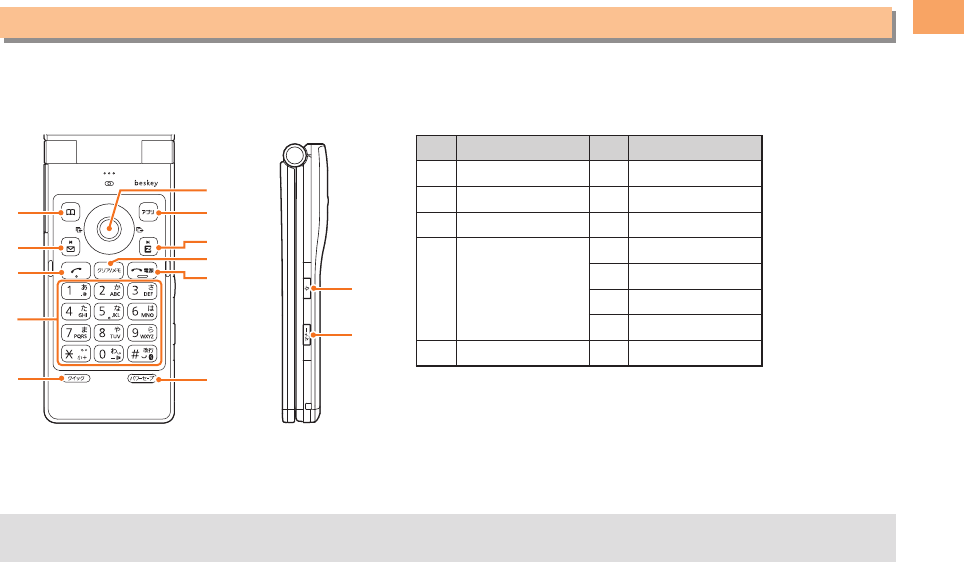
- Names of Parts
- Changing Your Select keypad
- Replacing the Select keypad
- Replacing the Battery Pack
- Charging the Battery Pack
- Learning the Basics
- Turning On Power
- Switching the Display Language to English
- Initial Setup of E-mail and EZweb
- Checking Your Phone Number and E-mail Address
- Display Indicators
- Using Main Menu
- Changing Your E-mail Address
- Security Code and Passwords
- Making and Answering Calls
- Global Function
- Character Input
- Address Book
- Camera
- EZweb
- EZ News EX
- EZ Navi
- TV (1Seg)
- Teens Mode
- In Case of Loss of Your beskey
- Troubleshooting
- Index

BasicManual
Illustrationsand
Screenshots
inThisManual
Noteson
CellPhoneUse
Contents
GettingReady
GlobalFunction
Makingand
AnsweringCalls
CharacterInput
AddressBook
TeensMode
Mail
Camera
EZweb
EZNavi
EZNewsEX
TV(1Seg)
InCaseofLoss
ofYourbeskey
Index
Troubleshooting
Introduction
Thank you for purchasing the beskey. Before using your beskey, be sure to read the beskey Basic Manual (this PDF
manual) to ensure correct usage. After you have finished reading this manual, store this PDF manual and the printed
manuals in safe places so you can retrieve them whenever you need them.
Manuals for the beskey
There are three manuals for the beskey: the Basic Manual, printed Instruction Manual (Japanese) and full Instruction
Manual (Japanese).
● For learning the basics:
Read the beskey Basic Manual (this manual) or printed beskey Instruction Manual (Japanese).
● For learning details of each function:
The full Instruction Manual (Japanese) gives detailed instructions on using each function and can be downloaded from
the au homepage: http://www.au.kddi.com/torisetsu/index.html
To ensure proper usage of the beskey, be sure to read the Safety Precautions “安全上のご注意” in the Instruction
Manual.
To access from EZweb (free of packet communication charge):
R⇒ Top Menu/Search ⇒
auお客さまサポート
(au Customer Support) ⇒
オンラインマニュアル
(Online Manual)
Scan this QR code to access the au Online Manual. ▶
•
1
Illustrations and Screenshots in This Manual
Illustrations and Screenshots in This Manual
Note on Illustrations
The illustrations in this manual may look different from the actual cell phone in shape, color and typeface. The key
illustrations are also simplified as shown below.
Key Illustration Key Illustration
①&⑥cjsa
②L⑦%
③N⑧R
④
123
456
789
*0#
⑨C
⑩F
⑪x
⑫o
⑤i ⑬(
Note on Screenshots
The screenshots in this manual are simplified and may look different from the actual cell phone screens.
The display design themes of the beskey vary by model color. The screenshots for the Starry Navy models are used
in this manual.
■
■
•
①
②
⑦
⑧
③
④
⑤
⑥
⑨
⑩
⑪
⑫
⑬
①
②
⑦
⑧
③
④
⑤
⑥
⑨
⑩
⑪
⑫
⑬
2
Notes on Cell Phone Use
Notes on Cell Phone Use
Cell Phone Etiquette
The cell phone always emits weak radio waves when power
is on.
Use the cell phone in an enjoyable and safe manner without
forgetting to be considerate of others around you.
Use of cell phones is not allowed in some places.
Do not use the cell phone while you are driving. Doing
so is both dangerous and prohibited by law.
Using a cell phone in an aircraft is prohibited by law.
Set Airplane Mode to ON and turn the cell phone
power off.
Radio waves from cell phones may interfere with
medical electrical equipment.
Some people close to you in crowded places such
as packed trains may be using a cardiac pacemaker.
Turn the cell phone off in such places.
Abide by the rules of hospitals and other medical
institutions where it is forbidden to use or carry cell phones.
Be considerate of where you use the cell phone and
how loudly you talk.
Do not make calls in theaters, museums, libraries, and
other similar places. Turn power off or turn on manner
mode not to disturb others around you by ring tones.
Do not use the cell phone on a street where you might
interrupt the flow of pedestrians.
Move to areas where you will not inconvenience others
on trains or in hotel lobbies.
●
•
•
●
•
•
●
•
•
•
Refrain from talking in a loud voice.
Obtain the permission of other people before you take
their photos with the cell phone's camera.
Do not record information with the cell phone's camera
in bookstores and other locations where taking photos
is not permitted.
Do Not Use the Cell Phone While Driving!
Turn off your cell phone or put it in Drive Mode while
driving.
Do not use the cell phone while driving a car/motorcycle
or riding a bicycle. It may result in a traffic accident. Using
a cell phone while driving is prohibited by law. Using a
cell phone while riding a bicycle may also be punishable
by law.
Prohibited!
Looking at a cell phone display
Talking on a cell phone while holding it
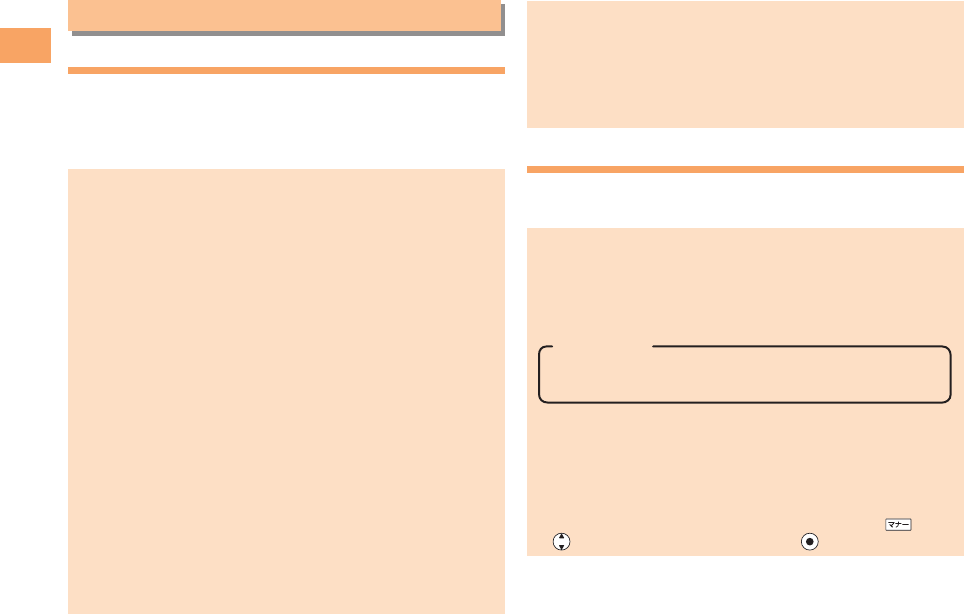
Drive Mode
In Drive Mode, a Japanese message meaning "I'm
driving now, so I can't answer your call." is played
when a call is received, and asks the caller to leave a
message on the answer memo.
When the standby screen is displayed, press , use
to select Drive, and then press (Set).
•
•
•
•
•
3
Notes on Cell Phone Use
Disaster Message Board Service
When a large scale disaster occurs, you can register
your safety information from EZweb. The registered
information can be referred from anywhere in Japan from
EZweb or Internet.
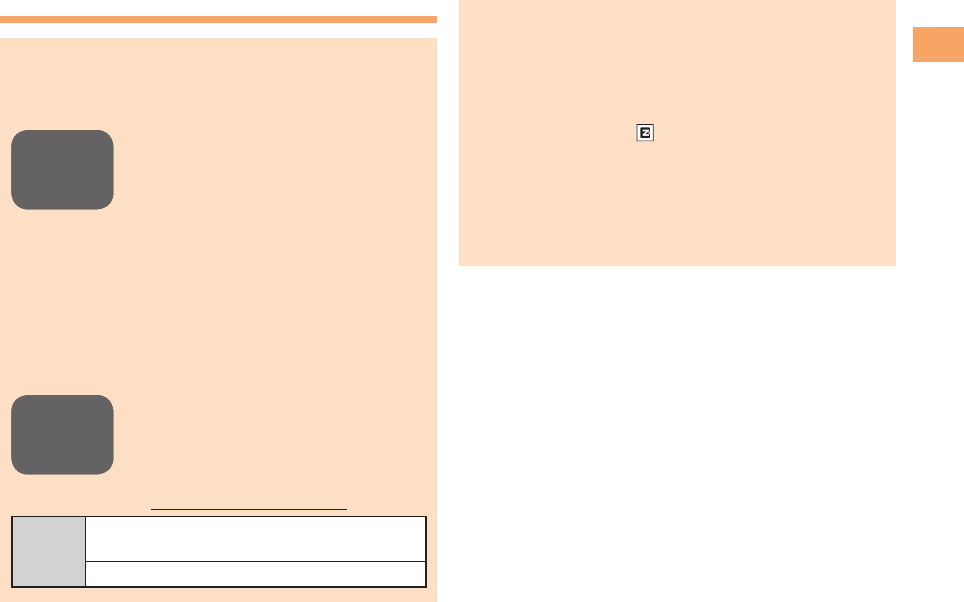
When a large scale disaster occurs,
from an au phone, you can register your
safety information (i.e. your condition
and comments) to the 災害用伝言板
(Disaster Message Board) created on
the EZweb.
After registration of your safety
information, e-mail is sent to your family
or acquaintances you have previously
designated to notify that your safety
information has been uploaded to
the 災害用伝言板 (Disaster Message
Board).
You can inquire for safety information
of a person by entering his/her phone
number from EZweb or Internet.*
* To inquire from other carriers' cell
phone, a PHS or PC, access
"http://dengon.ezweb.ne.jp/".
Access
R ⇒ Top Menu/Search ⇒
災害用伝言板
(Disaster Message Board)
http://dengon.ezweb.ne.jp/
•
•
•
Registered information is stored until the service set
up for the disaster ends.
The maximum available number of registrations is 10
per phone number. When the number of registrations
exceeds 10, the oldest one is overwritten.
The demonstration of this service can be referred to
anytime by pressing ⇒ Top Menu/Search ⇒
auお
客さまサポート
(au Customer Support) ⇒
調べ
る
(Search ) ⇒
災害用伝言板(デモ版)
(Disaster
Message Board (Demo Version)).
To view the Disaster Message Board in English, select
English from the top menu of the Disaster Message
Board.
•
•
•
•
Registering
safety
information
Registering
safety
information
Inquiring
for safety
information
Inquiring
for safety
information
4
Notes on Cell Phone Use
Water Resistance
The beskey complies with IPX5*1 and IPX7*2 water
protection standards (JIS C 0920).
*1 IPX5 compliant means that this cell phone continues
to function as a phone after being subjected to a
water jet (approximately 12.5 liters/min.) discharged
from a nozzle (inner diameter:6.3 mm), from all
directions (approximately three meters from the cell
phone) for three minutes or more.
*2 IPX7 compliant means that this cell phone continues
to function as a phone and no water seeps inside
after being gently lowered into a tank filled with
still tap water (at normal temperature) to the depth
of one meter, and immersed at the bottom for
approximately 30 minutes.
The beskey is resistant to fresh or tap water at normal
temperature (5℃- 35℃) only.
The beskey is resistant to water when the external
connection jack cover and battery pack cover are
closed firmly.
Malfunction resulting from misuse is not covered by
the warranty.
•
•
•
5
Contents
Contents
Introduction
Illustrations and Screenshots in This Manual
1
Notes on Cell Phone Use 2
Cell Phone Etiquette …………………………………… 2
Do Not Use the Cell Phone While Driving! …………… 2
Disaster Message Board Service …………………… 3
Water Resistance ……………………………………… 4
Contents 5
Getting Ready 7
Checking the Contents of the Box …………………… 7
Names of Parts ………………………………………… 8
Changing Your Select keypad ………………………… 9
Replacing the Select keypad ………………………… 10
Replacing the Battery Pack …………………………… 12
Charging the Battery Pack …………………………… 13
Learning the Basics …………………………………… 15
Turning On Power ……………………………………… 16
Switching the Display Language to English ………… 16
Initial Setup of E-mail and EZweb …………………… 16
Checking Your Phone Number and E-mail Address … 16
Display Indicators ……………………………………… 17
Using Main Menu ……………………………………… 18
Changing Your E-mail Address ……………………… 20
Security Code and Passwords ………………………… 21
Making and Answering Calls 22
Making a Call …………………………………………… 22
Making an International Call …………………………… 22
Answering a Call ……………………………………… 23
Returning a Call (Outgoing History/Incoming History)
…23
One-ring Calls …………………………………………… 23
Adjusting the Earpiece Volume during a Call ……… 24
Turning On Manner Mode ……………………………… 24
Changing the Incoming Ring Tone …………………… 24
Adjusting the Incoming Ring Tone Volume …………… 25
Turning On the Answer Memo ………………………… 25
Global Function 27
Setting the Area ………………………………………… 27
Obtaining the Latest PRL (Preferred Roaming List) … 27
Calling Japan from Overseas ………………………… 28
Character Input 29
Character Entry Modes ………………………………… 29
Entering Alphanumeric Characters …………………… 29
Entering E-mail Addresses …………………………… 30
Entering Pictograms/Decoration-Emojis/
Symbols/Face Marks …………………………………… 31
Address Book 32
Saving an Address Book Entry ……………………… 32
Dialing from the Address Book ……………………… 32
Editing Address Book Entries ………………………… 32
Saving a Phone Number from the Incoming
or Outgoing History …………………………………… 33

6
Contents
Mail 34
Using E-mail …………………………………………… 34
Creating and Sending E-mail Messages …………… 34
Reading Received E-mail Messages ………………… 35
Reading an E-mail Message
with an Attached Photo or Movie ……………………… 35
Replying to Received E-mail Messages ……………… 35
Rejecting Spam ………………………………………… 36
Using C-mail …………………………………………… 37
Creating and Sending C-mail Messages …………… 37
Reading Received C-mail Messages ………………… 37
Camera 38
Photo Taking Tips ……………………………………… 38
About Photo Modes …………………………………… 38
Taking a Photo ………………………………………… 39
Viewing Photos ………………………………………… 39
EZweb 40
Accessing Sites ………………………………………… 41
Bookmarking Frequently Accessed Pages ………… 42
Viewing Bookmarked Pages …………………………… 42
Checking Charges ……………………………………… 43
Downloading Chaku-Uta-Full-Plus™/
Chaku-Uta-Full®/Chaku-Uta® ………………………… 43
EZ News EX 44
Basic Operations ……………………………………… 44
Setting EZ News EX …………………………………… 44
EZ Navi 46
Passenger Seat Navi for People
in the Passenger Seat to Check the Route ………… 46
Security Navi to Check Where Your Kids Are ……… 46
EZ Navi Walk for When You Go Out ………………… 47
Evacuate Navi to Guide You Home or to Nearby
Evacuation Areas during Disasters …………………… 48
TV (1Seg) 49
Initial Setup of au Media Tuner ………………………… 49
Watching TV (1Seg) …………………………………… 50
Basic Operations ……………………………………… 50
Exiting the au Media Tuner …………………………… 50
Teens Mode 51
Setting Teens Mode …………………………………… 51
In Case of Loss of Your beskey 52
Setting Conditions for Activating the Remote
Ctrl Lock ………………………………………………… 52
Remotely Activating the Remote Ctrl Lock
on Your beskey ………………………………………… 52
Activating the Remote Ctrl Lock
by the Security Lock Service ………………………… 53
Troubleshooting 54
Index 56
7
Getting Ready
Getting Ready
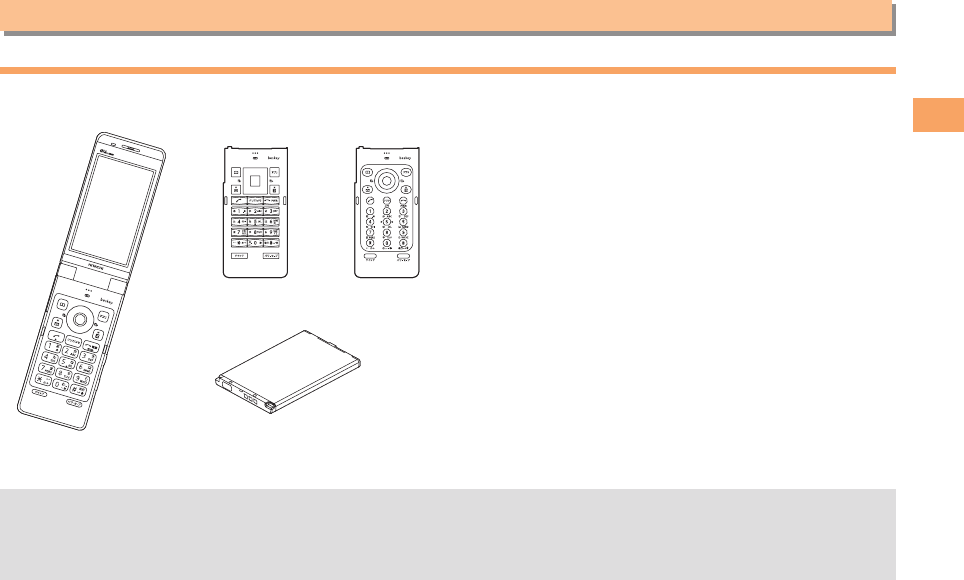
Checking the Contents of the Box
The box contains the cell phone and accessories.
Cell phone• Select keypad
- Wave key - Waterdrop key
• Instruction Manual (Japanese)
Warranty (Japanese)
Safety Precautions (Japanese)
Global Passport CDMA Owner's Guide (Japanese)
Osaifu-Keitai® Guide (Japanese)
JIBUN BANK Launcher Operation Guide (Japanese)
•
•
•
•
•
•
Battery pack•
The following accessories are not included.
- microSD memory card - Desktop holder - AC adapter
- USB cable - Earphone jack conversion adapter - Stereo earphone
Purchase a specified AC adapter (sold separately) and a commercially available microSD memory card.
•
* The Float key is
attached at the
time of purchase.
8
Getting Ready
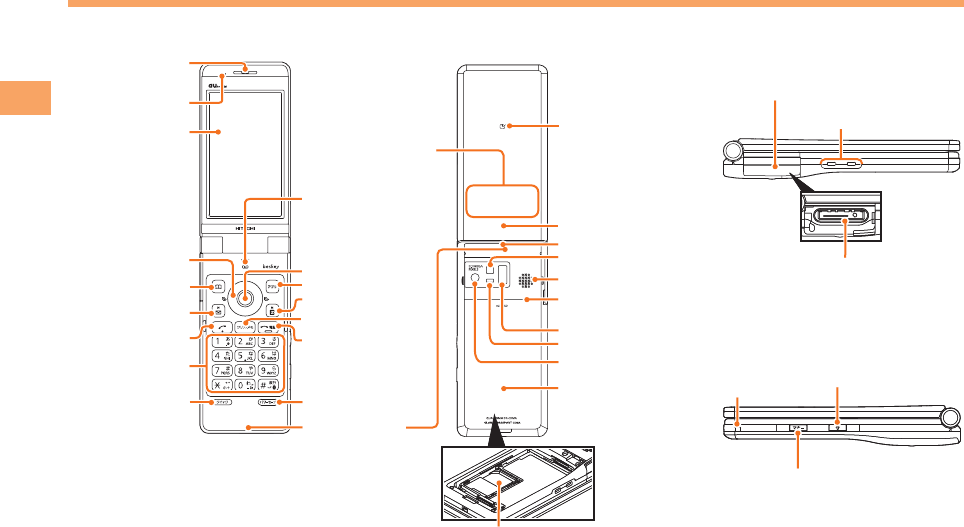
Names of Parts
From the Front■
Earpiece
Address book key
End/Power key
Microphone
Application key
EZ key
Clear/Memo key
Mail key
Quick key
Answer key
Number keys
Display
Cursor key Center key
LED indicator
Built-in antenna
Power save key
Battery
pack/cover
Photo light/Pocket light
Infrared port
Built-in TV antenna
FeliCa mark
Camera start indicator
Camera lens
Speaker
Manner key
Charging terminals
microSD memory card slot
External connection jack cover
External connection jack
Light key
Strap eyelet
Optical sensor
LED Display
au IC-Card* * Do not remove this card unnecessarily
as your phone number is recorded on it.
Earpiece
Address book key
End/Power key
Microphone
Application key
EZ key
Clear/Memo key
Mail key
Quick key
Answer key
Number keys
Display
Cursor key Center key
LED indicator
Built-in antenna
Power save key
Battery
pack/cover
Photo light/Pocket light
Infrared port
Built-in TV antenna
FeliCa mark
Camera start indicator
Camera lens
Speaker
Manner key
Charging terminals
microSD memory card slot
External connection jack cover
External connection jack
Light key
Strap eyelet
Optical sensor
LED Display
au IC-Card* * Do not remove this card unnecessarily
as your phone number is recorded on it.
From the Back■From the Sides■
9
Getting Ready
Changing Your Select keypad
You can change the Select keypad as you like.
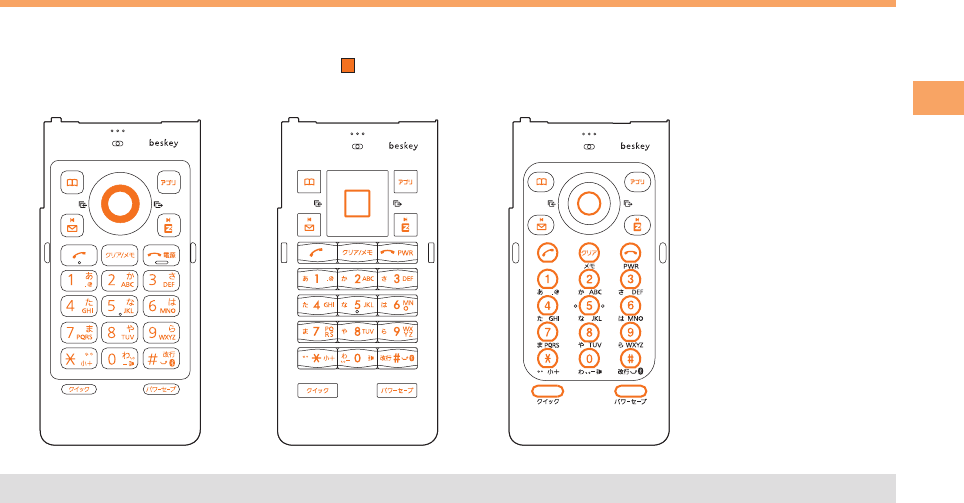
With the M332 Key Light set to ON, when you use the cell phone in the dark environment, the optical sensor detects the
light level there and turns the key light on. (the portions shown below only illuminated.)
Float key Wave key Waterdrop key
The M332 Key Light is set to ON at the time of purchase.•
10
Getting Ready
Replacing the Select keypad
Removing the Select keypad
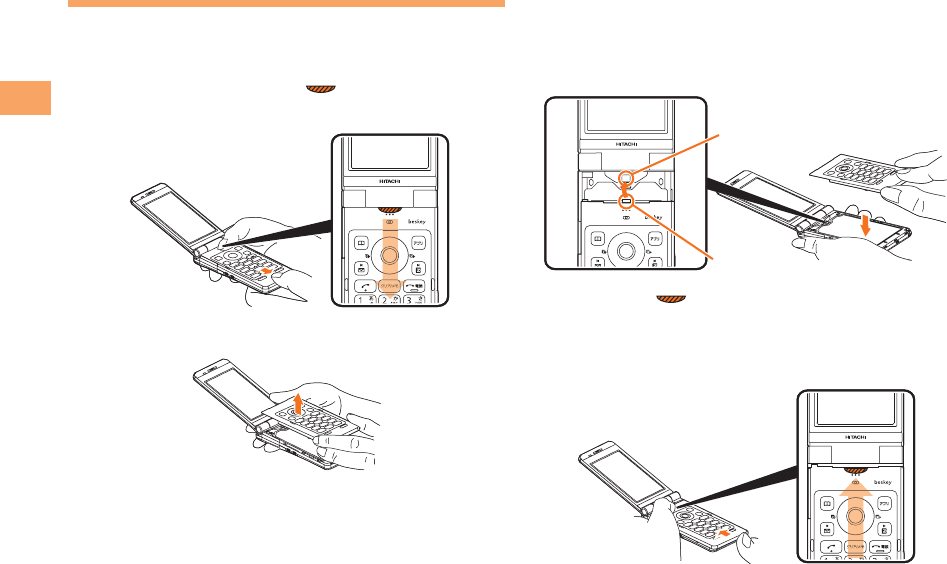
Slide the select keypad in the direction of the
arrow while pushing the portion on the
illustration below.
Remove the select keypad lifting it vertically.
■
➡
➡
Attaching the Select keypad
Place the select keypad horizontally adjoining
the convex portion of the select keypad to the
concaved portion of the cell phone.
Holding the portion on the illustration
below with the finger, slide the select keypad
from the bottom edge in the direction of the
arrow and fit it completely.
■
➡
➡
Convex portion
Concave portion
Convex portion
Concave portion
11
Getting Ready
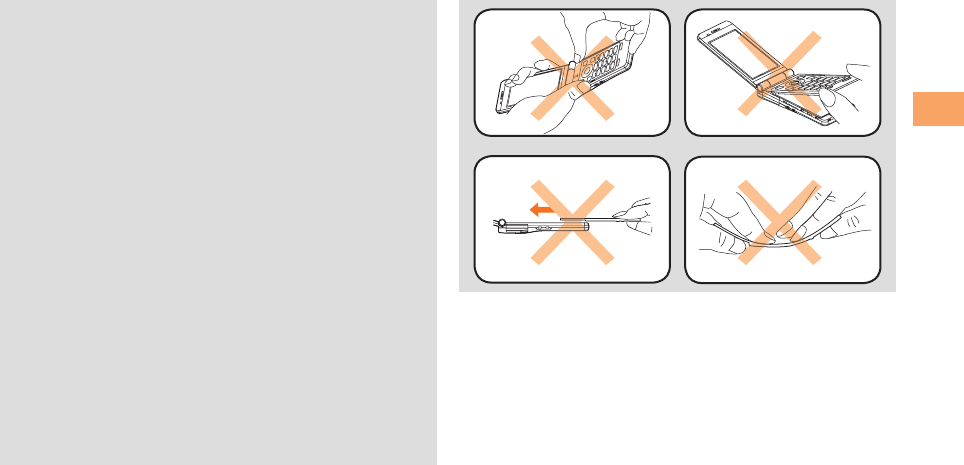
Use the select keypad properly. Improper use may
damage the select keypad and/or cause injury.
Be sure to use beskey with the select keypad
attached.
Do not touch the microphone portion or the vinyl sheet
contact with the select keypad when the select keypad
is not attached yet.
Keep the select keypads away from the dust. If a stain
or a dust applied to the select keypad, wipe it with the
soft dry cloth.
Attach the select keypad properly. Improper
attachment may cause the malfunctions, such as poor
key operation or low microphone level, etc. Further, it
may damage the select keypad itself.
When removing the select keypad, do not detach it
from the bottom side first.
When attaching the select keypad, do not insert the
projection on the top of the select keypad in advance.
When attaching the select keypad, slide the select
keypad after confirming the claws on the select
keypad catch perfectly the concave portions of the
cell phone.
Do not bend the select keypad forcibly.
•
•
•
•
•
•
•
•
•
12
Getting Ready
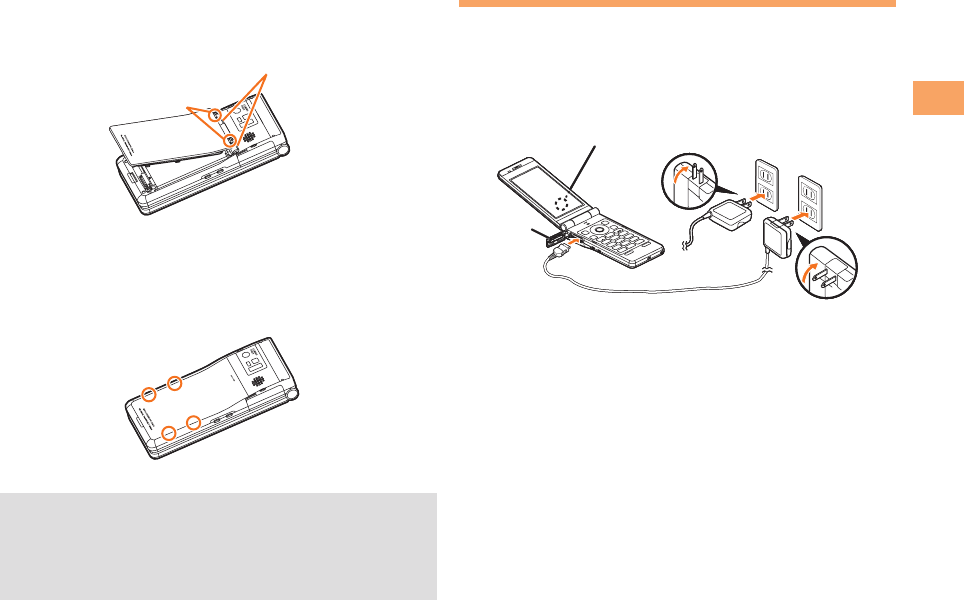
Replacing the Battery Pack
Use only the battery pack for beskey, and be sure to install it
correctly.
Removing the Battery Pack
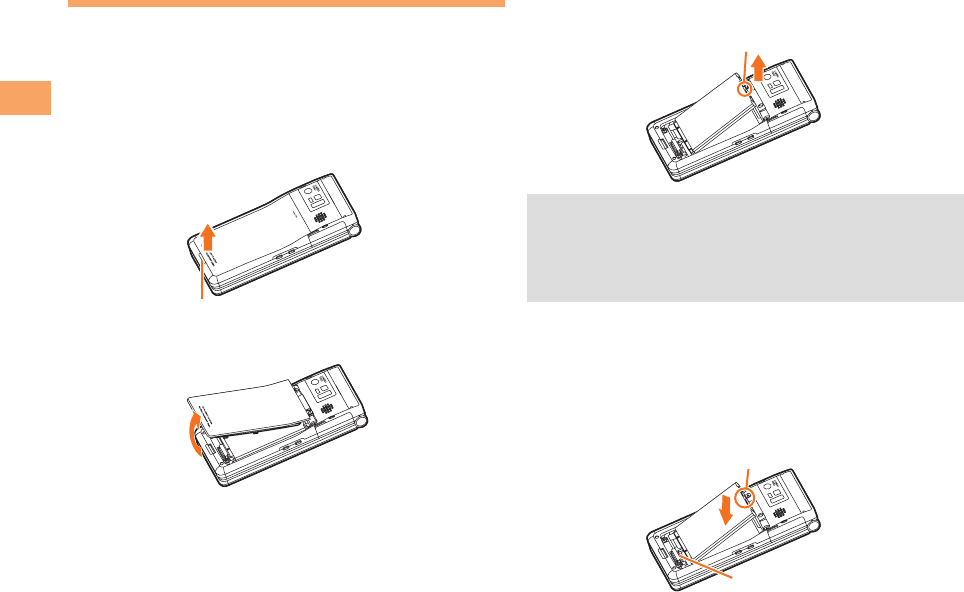
Pull the battery pack cover upward in the
direction of the arrow releasing from the
concave portion.
Lift the battery pack cover to remove.
■
➡
➡
Concave portionConcave portion
Lift the battery pack with the Pull tab located
on the top of the battery pack and remove it.
Before removing the battery pack, turn the cell phone
power off.
When removing the battery pack, use the projection
and pull it upward. Doing otherwise may result in
damage to the contacts.
Attaching the Battery Pack
With the Pull tab of the battery pack facing up,
align the contacts on the battery pack with
those of the cell phone, and insert the battery
pack securely.
➡
•
•
■
➡
Pull tabPull tab
Pull tab
Contacts
Pull tab
Contacts
13
Getting Ready
Insert two claws on the battery pack cover into
the concave portions on the cell phone and
close the battery pack cover.
Push 4 locations on the battery pack cover
marked with circles in the figure securely and
confirm whether there is no loosen portions
around the battery pack cover.
Before attaching the battery pack, make sure that the
au IC-Card is inserted securely.
Failure to follow the correct procedures when attaching
the battery pack may result in damage to the battery
pack or battery pack cover.
➡
➡
•
•
Concave portions
Convex portion
Concave portions
Convex portion
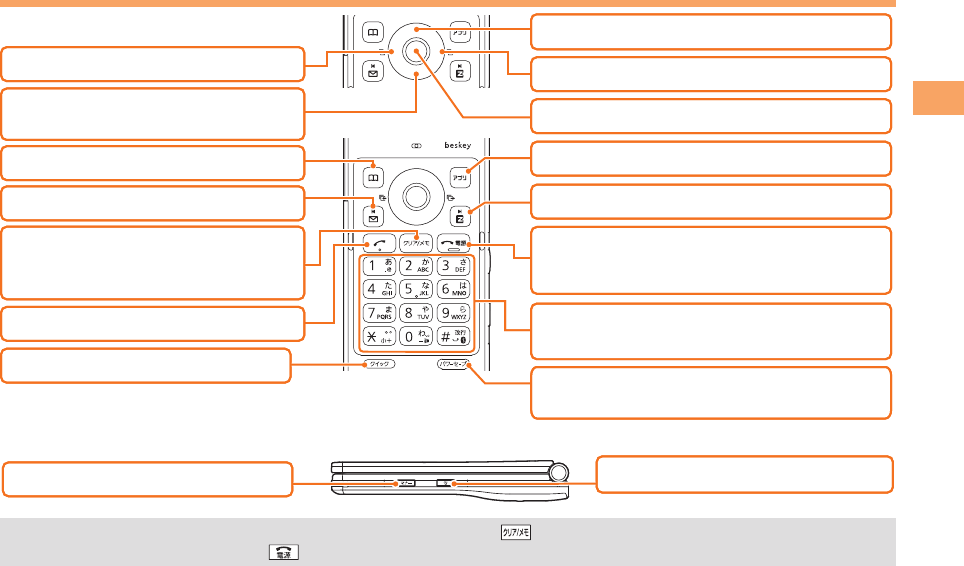
Charging the Battery Pack
The battery pack is not fully charged at the time of purchase.
Be sure to charge the battery pack before using the cell
phone for the first time.
An AC adapter is not included. Purchase a specified AC
adapter (sold separately).
Connect a specified AC adapter to the cell
phone with the battery pack attached.
Open the external connection jack cover. Check the
shape of the connector of the AC adapter, and plug it
straight into the external connection jack.
Unfold the power plug of the AC adapter and
plug it into a 100 V AC power outlet.
Confirm that the LED indicator lights.
Charging: A charge beginning sounds and the LED
indicator lights.
Charging finished: A charge completion sounds and
the LED indicator goes out.
•
➡
•
➡
➡
•
•
1
2
3ޓLED indicator
1
2
3ޓLED indicator

14
Getting Ready
Be sure to close the external connection jack cover
when charging is finished.
Do not pull or twist the external connection jack cover
forcibly.
Be sure to use the common AC adapter 02 (sold
separately) when charging overseas.
•
•
•
15
Getting Ready
Learning the Basics
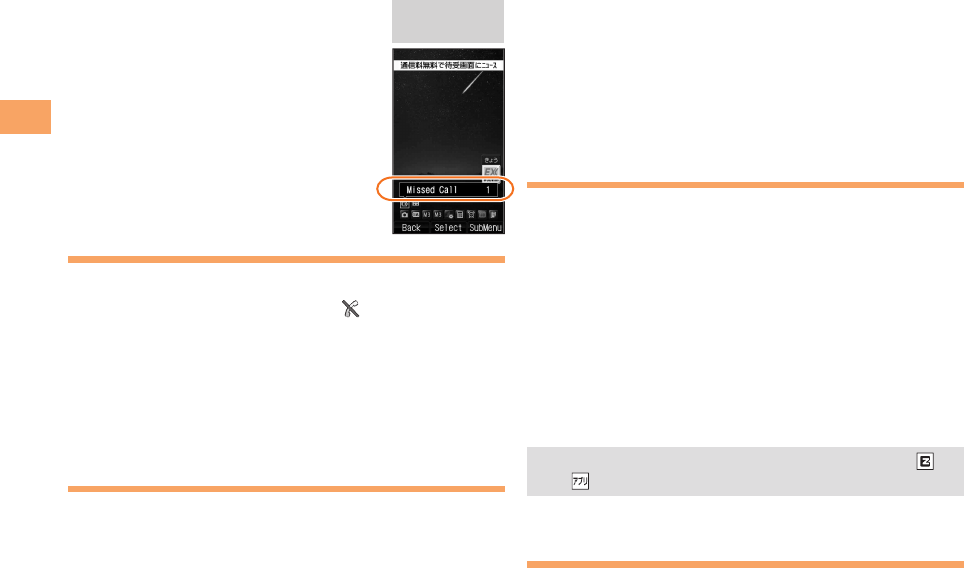
Key Assignments
Side Key Assignments
If you lose track of where you are or if you make a mistake, press to return to the previous screen. Return to the
standby screen by holding down for at least one second.
■
■
•
&
l
C
N0〜9*#:
u
c
%
r
d
F
: Display Notification window/
Shortcut menu.
: Make/answer calls.
: Set/cancel Answer memo.
Delete characters.
Cancel operation.
: Display Incoming History.
: Display the ticker field and info pane.
: Display Main menu.
R: Display EZ Service menu.
: Turn power on/off.
End call/communication.
Cancel operation.
Input phone numbers and characters.
: Display Outgoing History.
: Display EZapps menu.
x: Set/cancel Power save mode.
(hold down for at least one second)
: Use Address Book.
L: Display E-mail/C-mail menu.
i:
Display QuickAccess menu.
&
l
C
N0〜9*#:
u
c
%
r
d
F
: Display Notification window/
Shortcut menu.
: Make/answer calls.
: Set/cancel Answer memo.
Delete characters.
Cancel operation.
: Display Incoming History.
: Display the ticker field and info pane.
: Display Main menu.
R: Display EZ Service menu.
: Turn power on/off.
End call/communication.
Cancel operation.
Input phone numbers and characters.
: Display Outgoing History.
: Display EZapps menu.
x: Set/cancel Power save mode.
(hold down for at least one second)
: Use Address Book.
L: Display E-mail/C-mail menu.
i:
Display QuickAccess menu.
(:
Set/cancel Manner Mode.
o: Activate Pocket light.
(:
Set/cancel Manner Mode.
o: Activate Pocket light.
16
Getting Ready
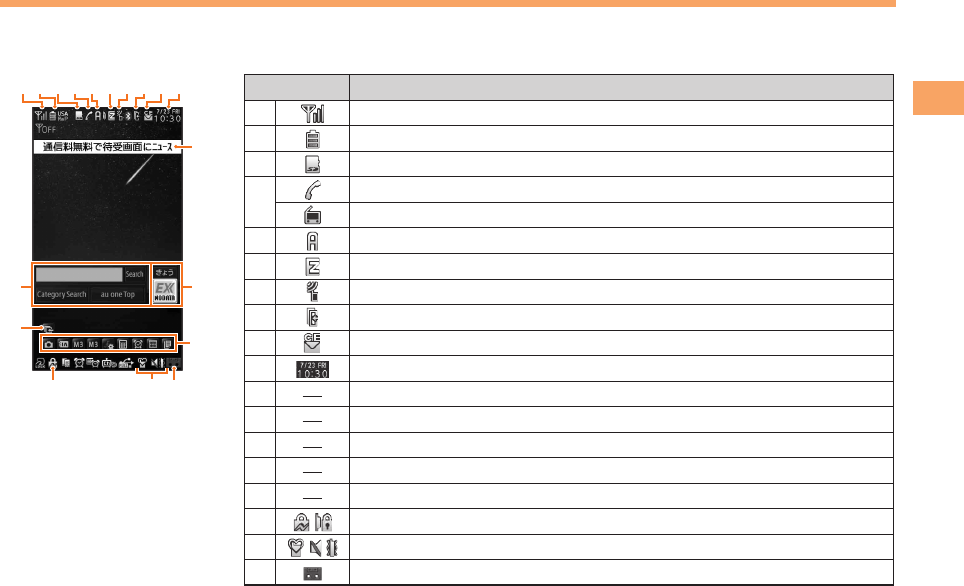
Hiding/Redisplaying the
Notification Window
When the Notification window is
displayed on the standby screen, you
can temporarily hide it by pressing &
(Back) and then display the Main menu
by pressing c.
To redisplay the hidden Notification
window, press d when the standby
screen is displayed.
Turning On Power
Hold down F for at least a few seconds.
You cannot receive or make calls if (out of range
indicator) is displayed.
Turning Off Power
When the standby screen is displayed, hold down F for
at least one second.
Switching the Display Language
to English
You can switch the display language for function names
and other items to English.
When the standby screen is displayed, press c.
Use a to select
機能
(Function) and then
press c (選択 [Select]).
■
•
■
➡
Use j to select
画面表示
(Screen Display) and
then press c (選択 [Select]).
Use j to select Set Language and then press
c (選択 [Select]).
Use j to select English and then press
c (Set).
Initial Setup of E-mail and EZweb
To use e-mail and EZweb, you need to apply for an EZweb
subscription. If you did not apply for an EZweb subscription
at the time of purchase, contact an au shop or the au
Customer Service Center.
Also, before use, you need to configure initial settings. Your
e-mail address is assigned automatically in the initial setup.
When the standby screen is displayed, press L.
Press c (OK).
After a short while, your e-mail address is displayed.
Press c (OK).
The initial settings are complete.
You can also configure initial settings by pressing
or .
Checking Your Phone Number
and E-mail Address
When the standby screen is displayed, press c
and then 0.
➡
➡
➡
➡
➡
•
Notification
window
Notification
window
17
Getting Ready
Display Indicators
Display indicators inform you of mail arrival, current settings, etc.
Display
Indicator Description
①Signal strength
②Battery level
③A microSD memory card (commercially available) inserted
④During a call
au Media Tuner activated
⑤EZapps activated
⑥Connecting to EZweb
⑦Receiving EZ News EX information
⑧Missed calls
⑨New or unread e-mail/C-mail
⑩Current date and time
⑪Ticker field
⑫Search window
⑬Info pane
⑭Notification icon
⑮Shortcut menu
⑯Auto Lock activated/Side key disable feature on
⑰ Manner mode set
⑱Answer memo or manner mode set
■
①
⑱
⑰⑯
②④⑤⑦
⑬
⑮
⑪
⑭
⑫
③ ⑩⑨⑧⑥①
⑱
⑰⑯
②④⑤⑦
⑬
⑮
⑪
⑭
⑫
③ ⑩⑨⑧⑥
18
Getting Ready
Using Main Menu
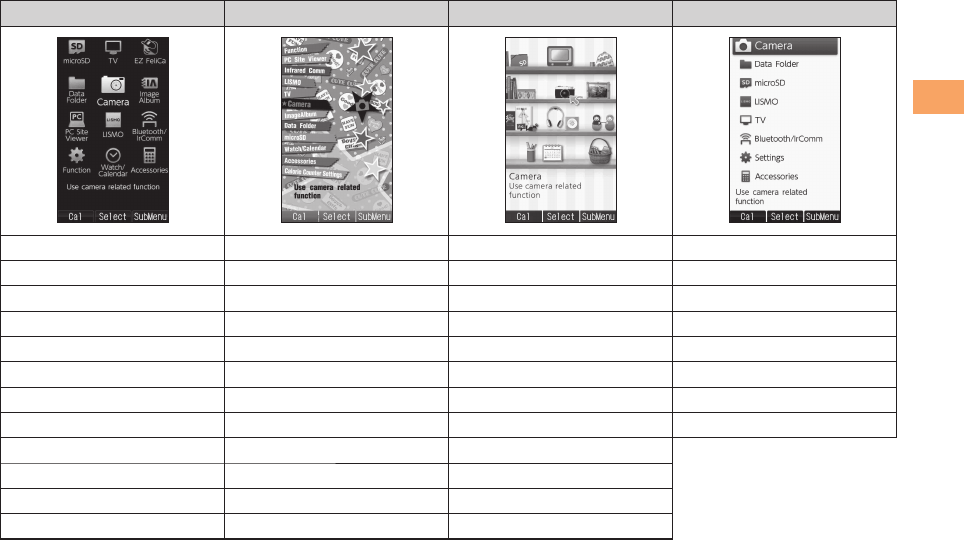
You can access various functions from the Main menu.
The Main menu patterns vary by model color. The
screenshots for the Starry Navy models are used in this
manual.
Model Color Main Menu Pattern
Starry Navy Standard
Prism Pink Pop
Twinkle White Shelf
19
Getting Ready
Each Main menu pattern has a different set of items.
Standard Pop Shelf Simple
microSD Function microSD Camera
Data Folder PC Site Viewer Data Folder Data Folder
PC Site Viewer
Infrared Comm
PC Site Viewer
microSD
Function LISMO Function LISMO
TV TV TV TV
Camera Camera Camera Bluetooth/IrComm
LISMO ImageAlbum LISMO Settings
Watch/Calendar Data Folder Watch/Calendar Accessories
EZ FeliCa microSD EZ FeliCa
ImageAlbum Watch/Calendar ImageAlbum
Bluetooth/IrComm
Accessories
Bluetooth/IrComm
Accessories Calorie Counter Settings Accessories
20
Getting Ready
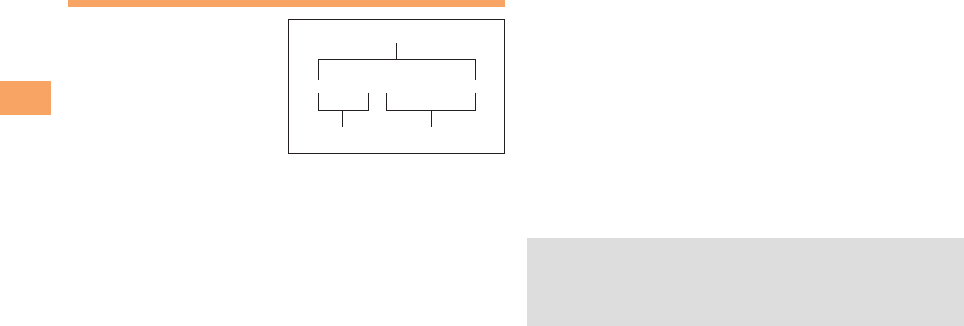
Changing Your E-mail Address
You can change the account
name of your e-mail address.
When the standby screen is displayed, press L.
Use a to select E-mail Setup and then press
c (Select).
Use j to select Change adrs/Other and then
press c (Select).
The cell phone connects to the server.
Use j to select
Eメールアドレスの変更
(Change
E-mail Address) and then press c (Select).
Use j to select the entry box, press c (Input),
enter your security code, and then press c (OK).
Your security code is the four-digit number you wrote
on your subscription form.
If the security code is incorrectly entered three times
consecutively during a single day, the e-mail address
change operation will be disabled until the next day.
Use j to select
送信
(Send) and then press
c (Select).
Use j to select
承諾する
(Accept) and then
press c (Select).
➡
➡
➡
➡
•
•
➡
➡
△△△@ezweb.ne.jp
Account name Domain name
E-mail address
△△△@ezweb.ne.jp
Account name Domain name
E-mail address
Use j to select the entry box, press c (Input),
enter an e-mail address using single-byte
alphanumeric characters, and then press
c (OK).
For details on entering e-mail addresses, see page 30.
Use j to select
送信
(Send) and then press
c (Select).
Use j to select OK, press c (Select) and then
c (OK).
Check that the e-mail address has been updated
before pressing c (OK).
Your e-mail address cannot be changed if the new
address you enter in the above procedure is already
being used. In this case, enter a different e-mail
address.
➡
•
➡
➡
•
•
21
Getting Ready
Security Code and Passwords
You can use a security code and other passwords
described below.
Take care not to forget your security code and passwords,
because they are required for performing various
operations and using subscription services.
Security Code
Usage
Example
①Using the Answering Service (Voice
Mail) and Call Transfer remotely from a
fixed-line phone
②Making inquiries, applications, and
changes while using au Customer
Service Center voice guidance, au web
pages, and EZweb
③Changing the settings of Spam Filter or
Change adrs/Other under E-mail Setup
Initial Setting The four-digit number you wrote on your
subscription form
Lock No.
Usage
Example
Changing various settings of the cell
phone
Initial Setting 1234
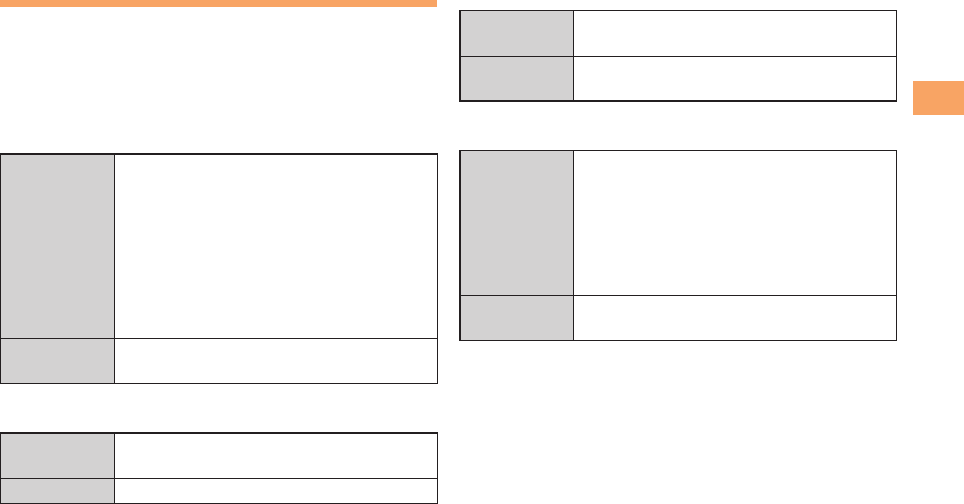
■
■
EZ Password
Usage
Example
Subscribing or canceling subscriptions to
EZweb fee-based contents
Initial Setting The four-digit number you wrote on your
subscription form
Premium EZ Password
Usage
Example
①Subscribing or canceling subscriptions
to EZweb fee-based contents paid
by
まとめて
au
支払い
(au Collective
Payment Service)
②Purchasing products from EZweb sites
using
まとめて
au
支払い
(au Collective
Payment Service)
Initial Setting The four-digit number you wrote on your
subscription form
■
■
22
Making and Answering Calls
Making and Answering Calls
Making a Call
When the standby screen is displayed, use 0
to 9 to enter a phone number.
When calling to a fixed-line phone, you also need to enter
the area code.
Press N.
To end the call, press F.
After you enter a phone number, you can add 184 or
186 to the phone number as follows:
Press (Call).
Use to select Add Special No. and then press
(OK).
Use to select 184 or 186 and then press (Add).
184: When you do not want to inform the other party of
your phone number.
186: When you want to inform the other party of your
phone number.
•
➡
•
•
➡
➡
➡
Making an International Call
001 International Call Service
Available without any additional application
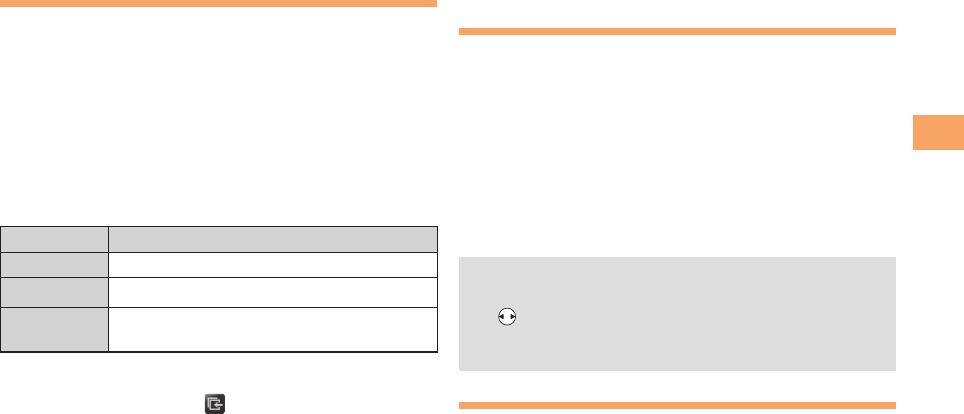
Example: To call 212-123-△△△△ in the USA
Enter the access code, a country code, area code
and phone number, and then press N.
International call charges are billed together with
monthly local call charges.
For more information on 001 International Call Service,
dial either of the following numbers:
From au cell phones (toll-free):
157 (area code not required)
From fixed-line phones (toll-free):
0077-7-111
(Open 9:00 to 20:00 everyday)
■
•
•
001
↑
KDDIInternational
accesscode
↑
Country
code
(USA)
↑
Areacode
↑
Phonenumber
010 212 123
-
XXXX1001
↑
KDDIInternational
accesscode
↑
Country
code
(USA)
↑
Areacode
↑
Phonenumber
010 212 123
-
XXXX1
23
Making and Answering Calls
Answering a Call
To answer a call, press N.
To end the call, press F.
Display When a Call is Received
The phone number of the caller appears.
If the caller's phone number and name are in the address
book, the name is also displayed.
When the phone number of the caller is not displayed, one
of the following indicators may appear.
Indicator Meaning
ID Unsent The caller did not send a Caller ID.
Payphone The call is from a pay phone.
Not Support The call is from a phone that does not
support Caller ID.
Missed Call Notification
If you did not answer a call, and Missed Call are
displayed to let you know that you missed a call.
To check the caller's phone number, use s to select
Missed Call and then press c (Select). You can then return
the call (see the procedure on the right).
•
■
■
Returning a Call (Outgoing History/
Incoming History)
Example: Returning a call to a phone number in the
incoming history
When the standby screen is displayed, press l.
Press r while the standby screen is displayed to display
the Outgoing History screen.
Use j to select the phone number you want
to call and then press c (Detail).
Press r to display the Outgoing History screen.
Press N.
The cell phone can store up to 50 phone numbers in
each of the incoming and outgoing history.
If is pressed on the Incoming or Outgoing History
screen, a list of Frequency of Call is displayed. You
can call by selecting from this list.
One-ring Calls
What is a One-ring Call?
A one-ring call is a call from an unknown caller that only
rings once, causing it to be stored in the incoming history.
One-ring calls are often used to get you to return the call,
which will connect you to a dating service or some other
service that charges you at high rates.
•
➡
•
➡
•
•
■
24
Making and Answering Calls
One-ring Indicator
(red) indicator on the Incoming History screen indicates
you have received a one-ring call (a call rang for three
seconds or shorter). Be careful when you return a call to an
unknown caller.
Adjusting the Earpiece Volume
during a Call
During a call, use j.
u: Increases the volume.
d: Decreases the volume.
Press c (OK).
Turning On Manner Mode
When the standby screen is displayed, hold down
( for at least one second.
This turns on manner mode, and displays , and
on the standby screen. This also turns on Answer memo,
which is indicated by on the standby screen.
Turning Off Manner Mode
When the standby screen is displayed, hold down ( for
at least one second.
Turning off manner mode causes , and to disappear
from the standby screen. Answer memo is also turned off,
which is indicated by disappearing from the standby
screen.
■
•
•
➡
■
Even in manner mode, the cell phone still emits a
sound when autofocusing, a shutter sound when you
take a photo.
Changing the Incoming Ring Tone
When the standby screen is displayed, press c.
Use a to select Function and then press
c (Select).
Use j to select Sound/Vib/Lamp and then
press c (Select).
Use j to select Incoming Setup and then press
c (Select).
Use j to select Incoming Call and then press
c (Select).
Use j to select (Ringtone) and then press
c (Select).
Use j to select Original and then press
c (Select).
Use j to select a ring tone and then press
c (Set).
The incoming ring tone is set.
If you press & (Play), the tone plays.
Press % (OK).
•
➡
➡
➡
➡
➡
➡
➡
•
➡
25
Making and Answering Calls
Adjusting the Incoming Ring
Tone Volume
When the standby screen is displayed, press c.
Use a to select Function and then press
c (Select).
Use j to select Sound/Vib/Lamp and then
press c (Select).
Use j to select Incoming Setup and then press
c (Select).
Use j to select Incoming Call and then press
c (Select).
Use j to select (Ringtone Volume) and
then press c (Select).
Use j to adjust the volume and then press
c (Set).
Each press of j changes the volume one step.
STEP ↑The ring tone volume gradually increases.
STEP↓ The ring tone volume gradually decreases.
Level5
Level1
The ring tone sounds at the set volume.
OFF The ring tone does not sound.
Press % (OK).
➡
➡
➡
➡
➡
➡
•
➡
Turning On the Answer Memo
When the standby screen is displayed, hold down
C for at least one second.
is displayed on the standby screen.
Turning Off the Answer Memo
When the standby screen is displayed, hold down C for
at least one second. The answer memo is turned off and
disappears from the standby screen.
The cell phone can record a maximum of ten
messages, each up to 60 seconds long.
Answer memo is a function that automatically answers
calls and allows callers to record messages. Use the
Answering Service (Voice Mail) when your phone is
turned off or when you are in a location where a signal
cannot be received.
Playing a Message
If a message is recorded, Answer Memo appears
on the standby screen.
Use s to select Answer Memo and then press
c (Select).
Use j to select the message you want to play
and then press c (Play).
To stop playing the message, press c (Stop).
■
•
•
■
➡
➡
•

26
Making and Answering Calls
Deleting a Message
When the standby screen is displayed, press C.
Use j to select Answer Memo and then press
c (Select).
Use j to select Answer Memo List and then
press c (Select).
Use j to select the message you want to
delete and then press % (SubMenu).
Use j to select Delete and then press
c (OK).
Use j to select Delete One and then press
c (OK).
Use j to select YES and then press c (OK).
■
➡
➡
➡
➡
➡
➡
27
Global Function
Global Function
The beskey supports Global Passport CDMA services.
You can use your beskey overseas without any additional
application.
Setting the Area
When the standby screen is displayed, press c.
Use a to select Accessories and then press
c (Select).
Use j to select GLOBAL Function and then
press c (Select).
Precautions are displayed.
Check the precautions and then press c (OK).
Use j to select Area Setting and then press
c (Select).
Use j to select Overseas and then press
c (Select).
Use j to select YES and then press c (OK).
Some functions are not available when Area Setting is
not set to Japan.
➡
➡
➡
➡
➡
➡
•
Obtaining the Latest PRL
(Preferred Roaming List)
Manually update and set the PRL (preferred roaming list)
before traveling abroad.
When the standby screen is displayed, press c.
Use a to select Accessories and then press
c (Select).
Use j to select GLOBAL Function and then
press c (Select).
Precautions are displayed.
Check the precautions and then press c (OK).
Use j to select PRL Setting and then press
c (Select).
Use j to select PRL Manual Update and then
press c (Select).
Use j to select OK and then press c(OK).
The cell phone connects to the server.
Use j to select PRL
ダウンロード
(Download
PRL) and then press c (ダウンロード
[Download]).
The latest PRL is downloaded.
➡
➡
➡
➡
➡
➡
➡

28
Global Function
The PRL (preferred roaming list) is the area information
of overseas carriers offering international roaming
service in partnership with KDDI (au).
To obtain (download) the PRL, you need to subscribe
to EZweb and make initial settings (see page 16) while
in Japan.
Calling Japan from Overseas
When the standby screen is displayed, use 0
to 9 to enter a phone number.
Press c (Call).
Use j to select Voice Call and then press
c (OK).
Use j to select Call to Japan and then press
c (OK).
Press N or c (Call).
When you make an international call from Japan to a
Global Passport CDMA-compatible cell phone, you
can do it in the same way as making domestic calls
within Japan.
•
•
➡
➡
➡
➡
•
29
Character Input
Character Input
Character Entry Modes
When a character entry screen is displayed, you can select
a character entry mode if you press & (Char.Type).
Menu Items
: Kanji conversion mode
: Double-byte katakana mode
: Single-byte katakana mode
: Double-byte alphanumeric mode
: Single-byte alphanumeric mode
: Double-byte number mode
: Single-byte number mode
Use a to select a character entry mode and then
press c (OK).
The character entry mode that you can select is
different depending on the current character entry
screen.
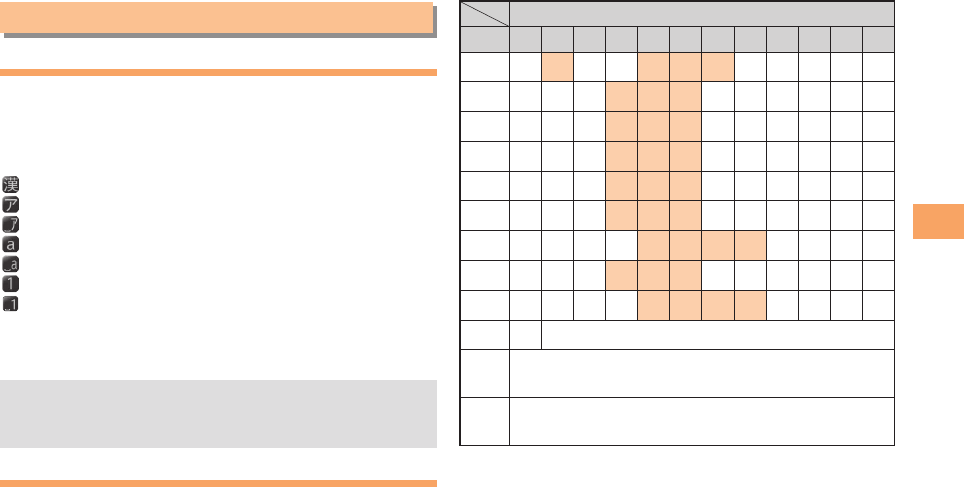
Entering Alphanumeric Characters
You can use the keys 1 to 0 to enter characters.
More than one character is assigned to each key.
The following table shows the key assignment for entering
characters.
■
•
Number of Times to Press the Key
Key123456789101112
1.@−_/:〜1
2abcA B C 2
3defD E F 3
4ghiG H I 4
5jklJKL5
6mnoM N O 6
7pqrsP Q R S 7
8tuv T U V 8
9wxyzWXYZ9
00Inputs symbols
*Inputs symbols (switches an unconfirmed
character between uppercase and lowercase).
#Adds a line break and displays characters in the
opposite order.
When you change your e-mail address, you cannot use
the characters in
■
for the account name (part of the
address to the left of @).

30
Character Input
Entering Two or More Characters
Assigned to the Same Key
After you enter the first character, press r and then enter
the next character.
Deleting Characters
To delete one character at a time, move the cursor to the
character you want to delete and then press C. To
delete all characters to the right of the cursor, hold down
C for at least one second. If there are no characters to
the right of the cursor, holding down C will delete all the
characters.
Starting a New Line
Press #.
Certain functions such as C-mail do not support
entering new lines.
■
■
■
•
Entering E-mail Addresses
E-mail Address Compatible Characters
Before you enter an e-mail address, switch to the
lowercase alphanumeric (single-byte) mode.
When changing your e-mail address, you can enter up
to 30 single-byte alphanumeric and symbol characters
for the account name (part to the left of @). Note the
following:
- Uppercase characters cannot be used.
- Period (.) or zero (0) cannot be used as the first
character.
How to Enter E-mail Addresses
Example: Entering "taro.23@kddi.co.jp"
Enter "taro.23".
t : Press 8 once.
a : Press 2 once.
r : Press 7 three times.
o : Press 6 three times.
. : Press 1 once.
2 : Press 2 once and then #.
3 : Press 3 once and then #.
Enter "@".
@: Press 1 twice.
Enter "kddi".
k : Press 5 twice.
d : Press 3 once and then r.
d : Press 3 once.
i : Press 4 three times.
■
•
•
■
➡
➡
31
Character Input
Press % (SubMenu).
Use j to select Phrase and then press
c (OK).
Use % (Category) to select Internet.
Use j to select .co.jp and then press
c (Select).
".co.jp" is entered.
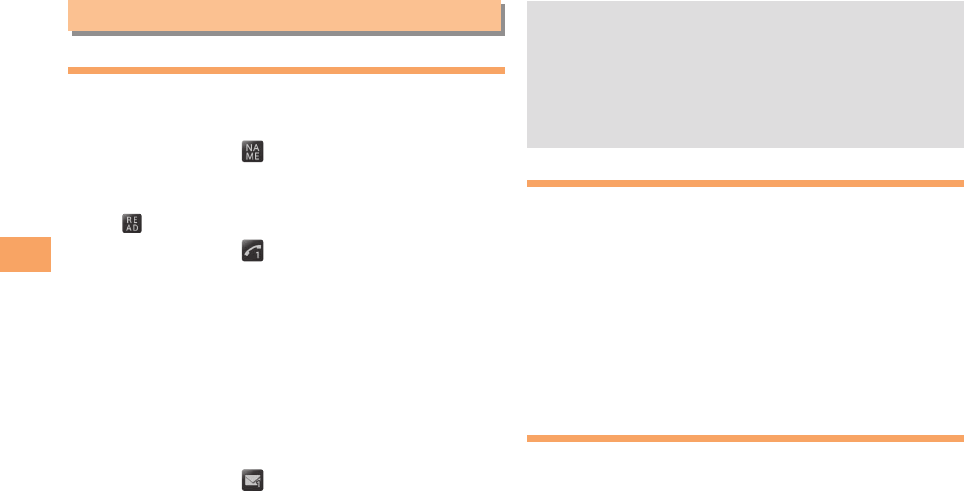
Entering Pictograms/Decoration-
Emojis/Symbols/Face Marks
Example: Entering pictograms
When a character entry screen is displayed, press
R.
Use a to select the pictogram you want to
enter and then press c (Select).
You can enter pictograms consecutively if you press
& (Repeat) instead of c (Select).
Each time you press in the character entry screen,
the character entry mode changes in following order:
Pictograms → Decoration-Emojis (e-mail only) →
Symbols → Face Marks...
You can switch categories of pictograms, Decoration-
Emojis or face marks by pressing / on each
selection screen.
➡
➡
➡
➡
➡
•
•
•
32
Address Book
Address Book
Saving an Address Book Entry
When the standby screen is displayed, hold down
& for at least one second.
Use j to select [Name] and then press
c (Select).
Enter a name and then press c (OK).
The [Reading] for the name is entered automatically.
Use j to select [Phone No.1] and then
press c (Select).
Enter a phone number and then press c (OK).
If the phone number is for a fixed-line phone, enter the
phone number starting with the area code.
Use j to select a phone number type and
then press c (Select).
Follow the next step to enter an e-mail address. If
you do not want to enter an e-mail address, press
% (Reg).
Use j to select [E-mail Address1] and then
press c (Select).
Enter an e-mail address and then press
c (OK).
Use j to select an e-mail address type and
then press c (Select).
Press % (Reg).
➡
➡
➡
➡
•
➡
•
➡
➡
➡
➡
The address book can store up to 1,000 entries.
The cell phone automatically saves an entry to the
lowest available memory number from 000 to 999.
You can save three phone numbers and three e-mail
addresses for each address book entry.
You can also assign a group No., and enter birthday,
address, and other information.
Dialing from the Address Book
When the standby screen is displayed, press &.
Use a to select the entry containing the
phone number you want to dial and then press
c (Detail).
Use j to select the phone number and then
press c (Select).
Use j to select Voice Call and then press
c (OK).
Editing Address Book Entries
When the standby screen is displayed, press &.
Select an entry and press c (Detail).
Press & (Edit).
Edit the contents and then press % (Reg).
Use j to select Overwrite and then press
c (OK).
•
•
•
•
➡
➡
➡
➡
➡
➡
➡

33
Address Book
Saving a Phone Number from the
Incoming or Outgoing History
Example: Saving a phone number from the incoming history
to the address book
When the standby screen is displayed, press l
and use j to select the phone number you want
to save.
Press % (SubMenu).
Use j to select Reg to Adrs Book and then
press c (OK).
Use j to select Register New and then press
c (Select).
Use j to select a phone number type and
then press c (Select).
For details on saving an address book entry, see page
32.
➡
➡
➡
➡
•
34
Mail
Mail
Using E-mail
To use e-mail, you need to apply for an EZweb subscription.
If you did not apply for an EZweb subscription at the time of
purchase, contact an au shop or the au Customer Service
Center. Also, before use, you need to configure initial
settings.
You can send and receive e-mail with other cell phones
that support e-mail, and with PCs. In addition to text
messages of up to 5,000 double-byte (or 10,000 single-
byte) characters, you can also send photos and movies by
e-mail.
The packet communication charge for sending and
receiving e-mail applies to the amount of data sent
and received.
You can send an e-mail message to up to 30 different
addresses at one time.
You can send up to 1,000 e-mail messages per day (a
message with multiple recipients is counted as more
than one message).
Sending and receiving e-mail messages that include
attachment data may take a while.
•
•
•
•
Creating and Sending E-mail Messages
When the standby screen is displayed, press L.
Use a to select Create New and then press
c (Select).
Use j to select Address and then press
c (Select).
Use j to select Quote Adrs Book and then
press c (Select).
Use a to select an address book entry and
then press c (Select).
Use j to select an address and then press
c (Select).
This step is not necessary if the number of mail
addresses registered in the selected address book entry
is only one.
Use j to select Subject and then press
c (Select).
Enter a subject and then press c (OK).
You cannot enter single-byte katakana characters or a
new line in a subject.
Use j to select Text and then press
c (Select).
Enter text and then press c (OK).
You cannot enter single-byte katakana characters.
Press & ( Send).
➡
➡
➡
➡
➡
➡
➡
•
➡
➡
•
➡
35
Mail
Reading Received E-mail Messages
When you receive an e-mail message, E-mail
appears on the standby screen.
Use s to select E-mail and then press
c (Select).
The message screen of received mail is displayed.
When you receive multiple e-mail messages,
E-mail appears on the standby screen.
Use s to select E-mail and then press
c (Select).
Use j to select the folder that has a new
message you want to read and then press
c (Select).
: Indicates a read message.
: Indicates an unread message.
Use j to select the new message and then
press c (Select).
Reading an E-mail Message from the E-mail Menu
When the standby screen is displayed, press L to display
the E-mail menu, use a to select Inbox and then press
c (Select).
For subsequent operations, see "Reading Received E-mail
Messages" above.
➡
➡
➡
•
•
➡
■
Reading an E-mail Message with
an Attached Photo or Movie
Example: Viewing an attached photo
Display the e-mail message that has an attached
photo (above).
Use j to select the file name and then press
c (Select).
Use j to select the file name and then press
c (Receive).
Press c (Play).
Selecting the file name or pressing (Receive)
may be unnecessary for some files to be displayed,
depending on the file size.
Replying to Received E-mail Messages
When the standby screen is displayed, press L.
Use a to select Inbox and then press
c (Select).
Use j to select a folder and then press
c (Select).
Use j to select the message you want to
reply to and then press c (Select).
➡
➡
➡
•
➡
➡
➡
36
Mail
Press & (Reply).
"Re:" is prefixed to the subject, and the text of the
message is quoted.
Refer to "Creating and Sending E-mail
Messages" (page 34) for subsequent
operations.
Rejecting Spam
Setting mail filters to reject spam is recommended.
The
サポート設定
(Supportive Settings) helps you to set
mail filters easily by answering questions that appear on the
screen.
Setting Mail Filters
Example: Connecting to
サポート設定
(Supportive Settings)
When the standby screen is displayed, press L.
Use a to select Spam Filter and then press
c (Select).
Use j to select
次へ
(Next) and then press
c (Select).
Use j to select the entry box and then press
c (Input).
Enter your security code and then press
c (OK).
Use j to select
送信
(Send) and then press
c (Select).
➡
➡
■
➡
➡
➡
➡
➡
Use j to select
サポート設定
(Supportive
Settings) and then press c (Select).
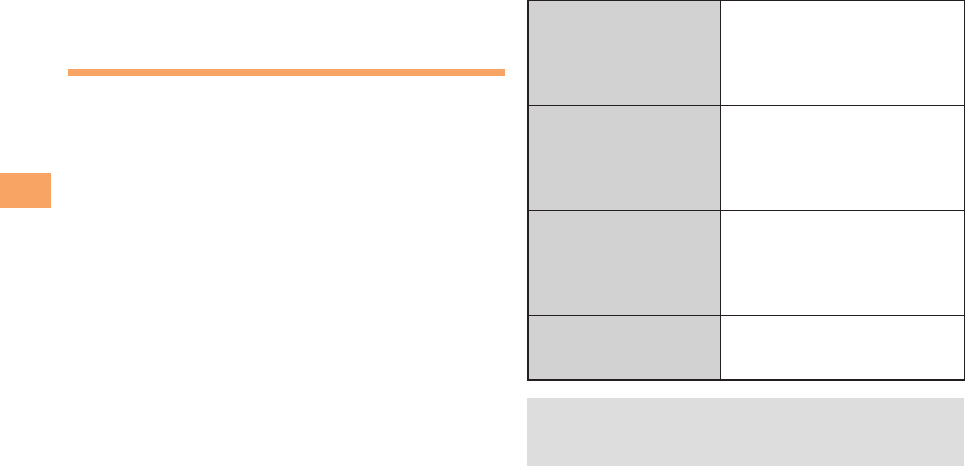
カンタン設定 (Simple Settings)
サポート設定
(Supportive Settings)
Set the filter by answering
questions
This is recommended for users
who want to configure settings
while confirming conditions.
フィルターレベル(高)
Filter Level (High)
Shut out all mail from PCs
This is recommended for users
who only want to send mail
to and receive mail from cell
phones.
フィルターレベル(中)
Filter Level (Medium)
Block spoof e-mail and mail
from specific addresses
This is recommended for users
bothered by certain senders or
spam mail.
フィルターレベル(低)
Filter Level (Low)
Block spoof e-mail
This is the minimum level
recommended for all users.
You can also prevent spam by changing your e-mail
address. For details on changing your e-mail address,
see page 20.
➡
■
•
37
Mail
Using C-mail
C-mail is a service that uses phone numbers as addresses
to exchange messages between au cell phones that
support C-mail. A C-mail message can contain up to 50
double-byte (or 100 single-byte) characters.
The C-mail send charge applies when sending C-mail.
C-mail Safety Block
C-mail safety block is a function that allows you to reject
C-mails that include URLs (http://△△△, https://△△△) or
phone numbers in the C-mail message text.
C-mail safety block is valid by default. Cancel the setting if
you want to receive C-mails that include URLs and phone
numbers in the message text.
Creating and Sending C-mail Messages
When the standby screen is displayed, hold down
L for at least one second.
Use a to select Create New and then press
c (Select).
Enter text and then press c (OK).
Use j to select [Address] and then press
c (Edit).
Use j to select Quote Adrs Book and then
press c (OK).
•
■
➡
➡
➡
➡
Use a to select an address book entry and
then press c (Detail).
Use j to select a phone number and then
press c (Select).
Press & (Send).
Reading Received C-mail Messages
When you receive a C-mail message, C-mail
appears on the standby screen.
Use s to select C-mail and then press
c (Select).
Use j to select the folder that has a new
message you want to read and then press
c (Select).
: Indicates a read message.
: Indicates an unread message.
Use j to select the new message and then
press c (View).
Reading a C-mail Message from the C-mail Menu
When the standby screen is displayed, hold down L for
at least one second to display the C-mail menu, use a to
select Inbox and then press c (Select).
For subsequent operations, see "Reading Received C-mail
Messages" above.
➡
➡
➡
➡
➡
•
•
➡
■
38
Camera
Camera
Your cell phone has a CMOS camera with 8.08 effective
megapixels for shooting photos and movies. You can use
the self-timer and autofocus.
Shot images can be used for the standby screen, and
attached to e-mail messages.
Photo Taking Tips
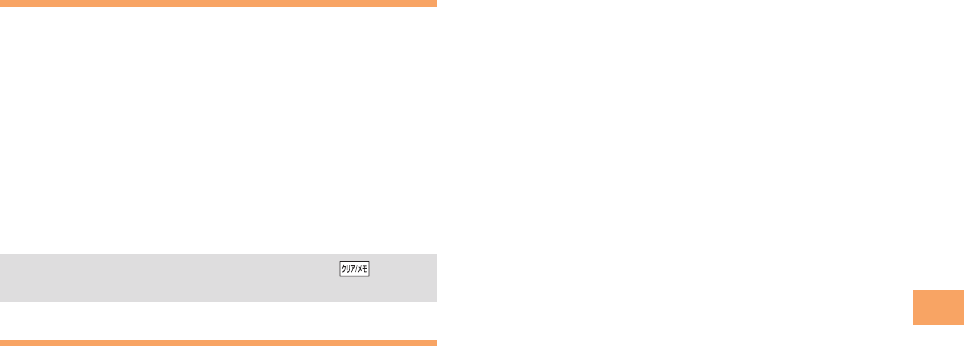
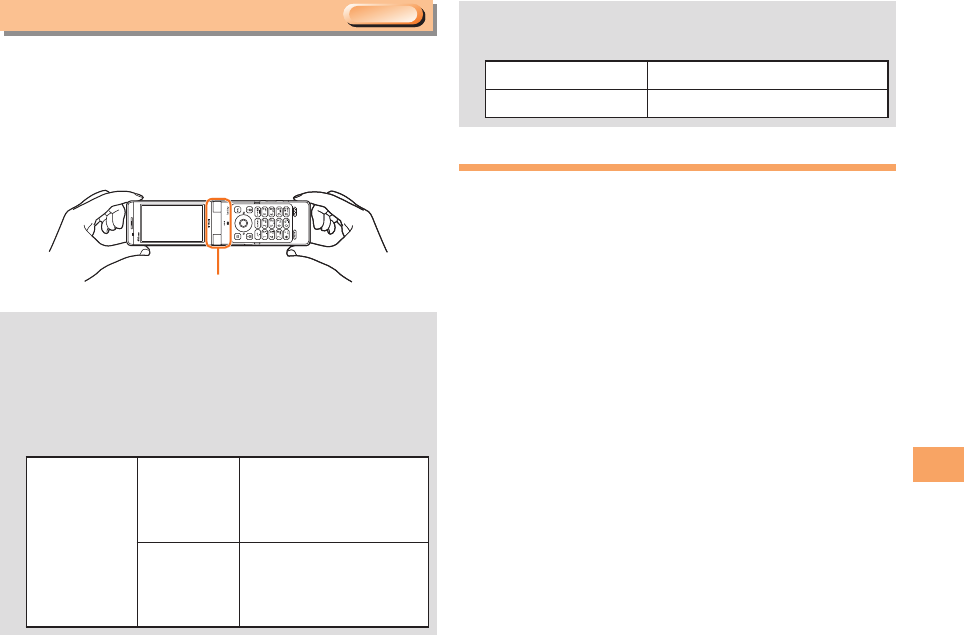
When taking photos, frame the subject within the display
and hold the cell phone steady with both hands to avoid
shaking.
Regular Open Position■
About Photo Modes
The following modes are available for taking photos.
W.paper (F.Wide) is set for W.paper mode and 8M is set for
DSC mode at the time of purchase.
Mode Shot Size Storage Location
W.paper
Mode
W.paper (Normal) The Photo Folder in the Data
Folder of the cell phone
W.paper (F.Wide)
DSC
Mode
0.3M
The DSC folder in the Data
Folder of a microSD
memory card*
2M
5M
6M (Full Wide)
8M
* When a microSD memory card (commercially available) is
not inserted, the files are saved to the Data Folder of the
cell phone.
Take care not to cover the lens and optical sensor with
a strap or finger.
•
Camera lens
Camera start indicator
Photo light
Camera lens
Camera start indicator
Photo light
39
Camera
Taking a Photo
When the standby screen is displayed, press c.
Use a to select Camera and then c (Select).
Use j to select Photo (DSC Mode)/
Photo (W.paper Mode).
The monitor screen appears.
Press c (Shoot).
The preview screen is displayed.
Saving a Photo
Press c (Save) on the preview screen.
If you do not want to save the photo, press in the
preview screen.
Viewing Photos
When the standby screen is displayed, press c.
Use a to select Data Folder and then press
c (Select).
Use j to select Photo Folder and then press
c (Select).
Use j to select a folder and then press
c (Select).
Use j to select the photo you want to view
and then press c (Select).
➡
➡
➡
■
•
➡
➡
➡
➡
40
EZweb
EZweb
EZweb is an information service that allows you to enjoy
browsing the Internet on your cell phone. You can also
download Chaku-Uta-Full-Plus™, Chaku-Uta-Full®, Chaku-
Uta®, news, and other contents from web pages.
To use EZweb, you need to apply for an EZweb
subscription. If you did not apply for an EZweb subscription
at the time of purchase, contact an au shop or the au
Customer Service Center. Also, before use, you need to
configure initial settings.
The packet communication charge for EZweb
connection applies to the amount of data sent and
received, not to the length of time connected.
In addition to communication charges, some sites
charge for providing information.
•
•
EZweb Subscription RequiredEZweb Subscription Required
41
EZweb
Accessing Sites
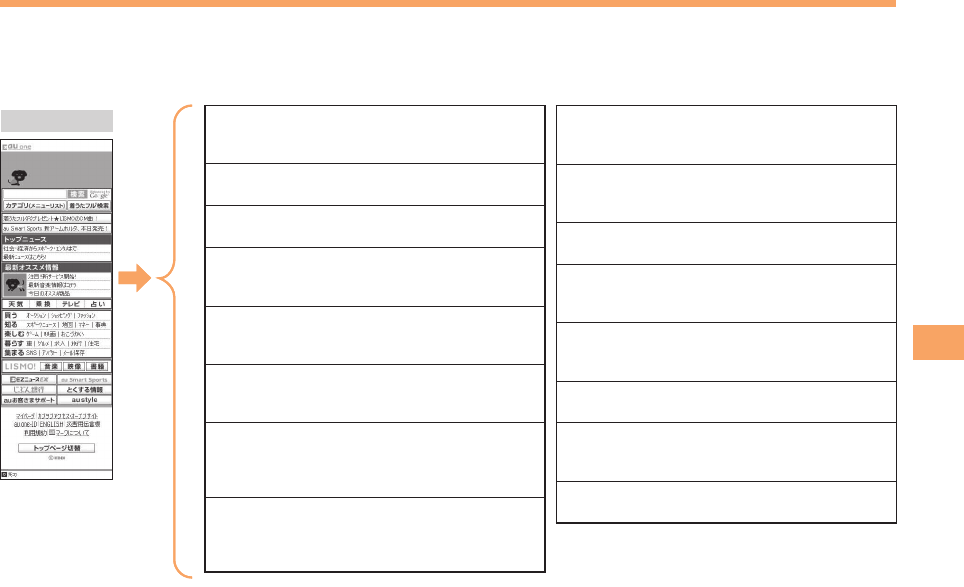
Viewing the au one Top
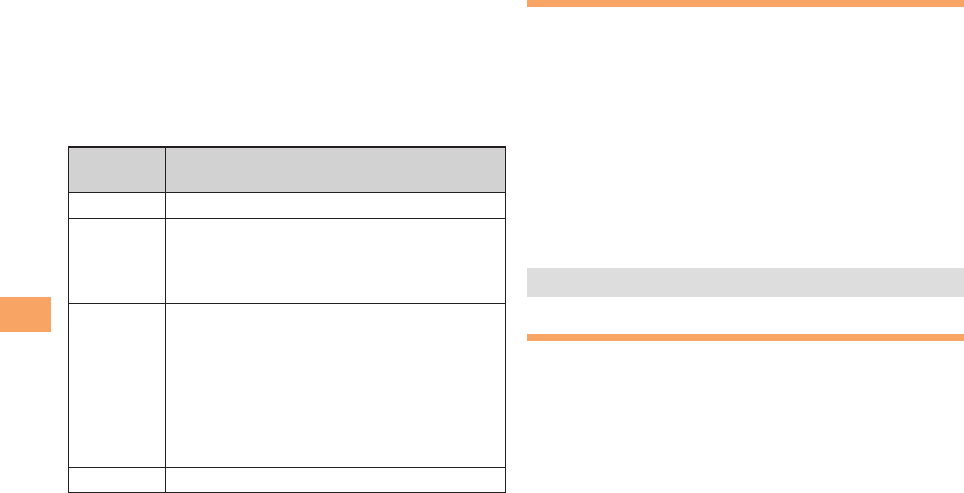
You can access EZweb from the au one Top. A variety of useful and fun sites are available on EZweb.
When the standby screen is displayed, press R, use j to select Top Menu/Search and then press c (Select).
■
au one Topau one Top キーワード検索機能 (Search by Keyword)
Provides a search function for searching for
information by keyword.
カテゴリ(メニューリスト) (Category (Menu List))
Provides a list of various content provider sites.
トップニュース (Top News)
Provides automatic updates of the latest news.
最新オススメ情報 (Latest News)
Introduces up-to-date information
concerning entertainment, daily life, etc.
天気・乗換・占い・テレビ・銀行 (Weather,
Transportation, Horoscope, TV & Bank)
Provides direct access to these au one services.
買う (Shopping & Auctions)
Provides a list of shopping and auction sites
available from your cell phone.
知る (Tips & Tools)
Provides information on sports and stock
prices, as well as useful tools such as maps
and dictionaries.
楽しむ (Hobbies & Culture)
Provides the latest information, such
as games, music, books, hobbies and
entertainment.
暮らす (Lifestyle)
Provides travel, restaurant and other
lifestyle-oriented information.
集まる (Community)
Provides interesting and useful information
that you can use for SNS or blogs.
austyle
Introduces information and sites that au recommends.
とくする情報 (Valuable Information)
Presents gifts and push information to the
EZweb subscriber for free.
auお客さまサポート (au Customer Support)
Provides information about charges, various
applications, au online manual and notices from au.
カンタンアクセス・オープンサイト (Simple Access & Open Site)
Provides easy access and introduces open sites.
災害用伝言板 (Disaster Message Board)
Register and confirm safety information in
time of disaster.
ENGLISH
Introduces English sites.
42
EZweb
Basic Operations
Use j to select the site you want to access and then
press c (OK).
Press L or C to return to the previous screen. Hold
down either key for at least one second to return to the au
one Top.
The following describes the basic operations that are
available while accessing sites.
Key
Operation Description
FExits EZweb.
j
Moves the cursor up and down.
When there is data available above or below
the current screen, scrolls up and down the
screen one line at a time.
s
When there is data available above or below
the current screen, scrolls the screen page
by page.
l:Scrolls one page up.
r:Scrolls one page down.
On pages that contain certain types of
content, such as Flash content, scrolling
page by page may not be possible.
L,CReturns to the previous screen.
■Bookmarking Frequently
Accessed Pages
When the page you want to bookmark is
displayed, press % (BrowserMenu).
Use j to select Favorites and then press
c (OK).
Use j to select Add Bookmark and then press
c (OK).
Some pages cannot be bookmarked.
Press % (Reg).
The displayed page is bookmarked, and its title and
URL are added to the Bookmark.
The Bookmark can contain up to 100 titles and URLs.
Viewing Bookmarked Pages
When the standby screen is displayed, press R
and then use s to select EZweb.
Use j to select Bookmark(s) and then press
c (Select).
Use j to select the bookmark for the page
you want to view and then press c (Connect).
The cell phone connects to the site.
➡
➡
•
➡
•
➡
➡

43
EZweb
Checking Charges
When the standby screen is displayed, press c.
Use a to select Function and then press
c (Select).
Use j to select Time/Toll/Sub and then press
c (Select).
Use j to select Inquire Toll and then press
c (Select).
Use j to select OK.
Select the item you want to check and then follow the
on-screen instructions.
Downloading Chaku-Uta-Full-
Plus™/Chaku-Uta-Full®/Chaku-
Uta®
When the standby screen is displayed, press R
and then use s to select EZweb.
Use j to select Top Menu/Search and then
press c (Select).
Use j to select
カテゴリ(メニューリスト)
(Category (Menu List)) and then press c (OK).
➡
➡
➡
➡
•
➡
➡
Use j to select
着うたフルプラス
(Chaku-Uta-
Full-Plus™),
着うたフル・ビデオクリップ
(Chaku-Uta-Full® ・Video Clip) or
着うた
(Chaku-Uta®) and then press c (Select).
Use j to select the site you want to access
and then press c (Select).
The download instructions appear.
Fee-based information sites require entry of EZ
password or Premium EZ password. Follow the on-
screen instructions to enter either password. See page
21 for details.
Follow the on-screen instructions.
Download is completed.
Downloaded data is saved automatically to the Data Folder.
Press & (Play).
The downloaded Chaku-Uta-Full-Plus™, Chaku-Uta-Full®
or Chaku-Uta® plays.
This procedure is only an example for the purpose of
explanation and may differ from actual procedures.
Follow the instructions on the site from which you want
to download the data.
➡
➡
•
➡
•
➡
•
44
EZ News EX
EZ News EX
Use the EZ News EX to display on the standby screen the
latest news, weather forecast, horoscope and others that are
delivered free of packet communication charges. You can
view detailed information on a news item or weather forecast
by selecting the ticker field or info pane.
To make all the EZ News EX services available to you,
you need to fill out a separate application form (and pay
information charges).
You can use the EZ News EX by making a few simple settings
following the EZweb initial setup.
Basic Operations
When the standby screen is displayed, press
u to select the ticker field.
You can view detailed information on a news item or
weather forecast.
You can also select the info pane.
The EZ News EX information is automatically
received at no charge. Note, however, that packet
communication charges may be incurred for manual
updates and connecting to EZweb sites. In this case,
a confirmation screen for network connection is
displayed.
The EZ News EX information is updated at regular time
intervals. appears while receiving information.
•
•
•
Setting EZ News EX
The EZ News EX is available free of charge. You have only
to make a few simple settings. After following the procedure
in "Initial Setup of E-mail and EZweb" on page 16, configure
EZ News EX settings. If you did not configure the EZ News
EX settings at the time of the initial setup, follow the steps
below.
When the standby screen is displayed, select the
ticker field and then press c (OK).
Follow the on-screen instructions.
The setup procedure is completed.
When the standby screen returns, a message asking
you to wait for a while until the next update takes place
appears in the ticker field.
Canceling EZ News EX
When the standby screen is displayed, select the
ticker field and then press c (News).
Press % (サブメニュー[Submenu]), use j
to select
サービス利用設定変更・解除
(Service
Settings/Cancellation) and then press c (選択
[Select]).
Use j to select
サービス利用解除
(Service
Cancellation) and then press c (選択[Select]).
Follow the on-screen instructions.
➡
•
■
➡
➡
➡
EZweb Subscription RequiredEZweb Subscription Required

45
EZ News EX
Changing the Reception Settings for
EZ News EX Information
You can change the ring tone, vibrator and LED settings
under M216 NewsFlash Receive for reception of EZ News EX
information.
If you do not want the ring tone to sound when receiving EZ
News EX information, set the volume to OFF.
■
46
EZ Navi
EZ Navi
Using GPS (Global Positioning System), EZ Navi provides
useful positional information services.
When the standby screen is displayed, press R
and then use s to select the EZnavi.
The packet communication charges for using EZ Navi
services apply to the amount of data sent and
received. Some services may require a separate
information fee.
Before using EZ Navi, you must configure initial
settings of EZweb (page 16).
Passenger Seat Navi for People in the
Passenger Seat to Check the Route
Passenger Seat Navi guides the passengers to the
destination with the best route using voice and map.
Drivers are not allowed to use Passenger Seat Navi.
•
•
Security Navi to Check Where
Your Kids Are
The Security Navi application is made up of the following
three functions:
いつでも位置確認 (Auto Position Search [monthly charge]),
エリア通知 (Area Message [no monthly charge]),
位置確認メール (Position Search Mail [no monthly charge])
Using these functions, you can check the position of an au
cell phone that supports Security Navi; and automatically
receive a notification from the specified au cell phones
when your kids enter (or are in) or leave (or are no longer
in) the set area within a predetermined period of time.
EZweb Subscription RequiredEZweb Subscription Required
47
EZ Navi
EZ Navi Walk for When You Go Out
Displays various useful menu items for when you are out.
There are two menu modes: the Full Mode menu for those
who want to use all the convenient functions including the
latest features, and the Simple Mode menu with limited
functions allowing you to use the service with simple
operation.
The following table describes the Full Mode menu.
フリーワード
(Free Word)
Search for information by entering
keywords such as store names,
addresses, and station names.
トータルナビ/地図
(Total Navigation/Map)
Find the most preferable
combination of transportation
(trains, airplanes, buses and taxis),
and check out maps of your current
location and places you like to go.
乗換/時刻表
(Connection/Timetable)
Search for train connections,
timetables and other public
transportation information.
お店/施設/イベント
(Shop/Facility/Event)
Search for local stores, facilities
or events.
ドライブ/渋滞情報
(Road/Traffic Information)
Check out road traffic information
in real time.
オススメ便利メニュー
(Useful Menu)
View information on services that
are available on PCs, and use
advanced functions of EZ Navi
Walk that you can enjoy.
設定/会員登録/インフォ
(Setting/Membership
Registration/Information)
Configure various settings, sign
up as a member or check out
various useful information.
Some of the menu options require a monthly charge.
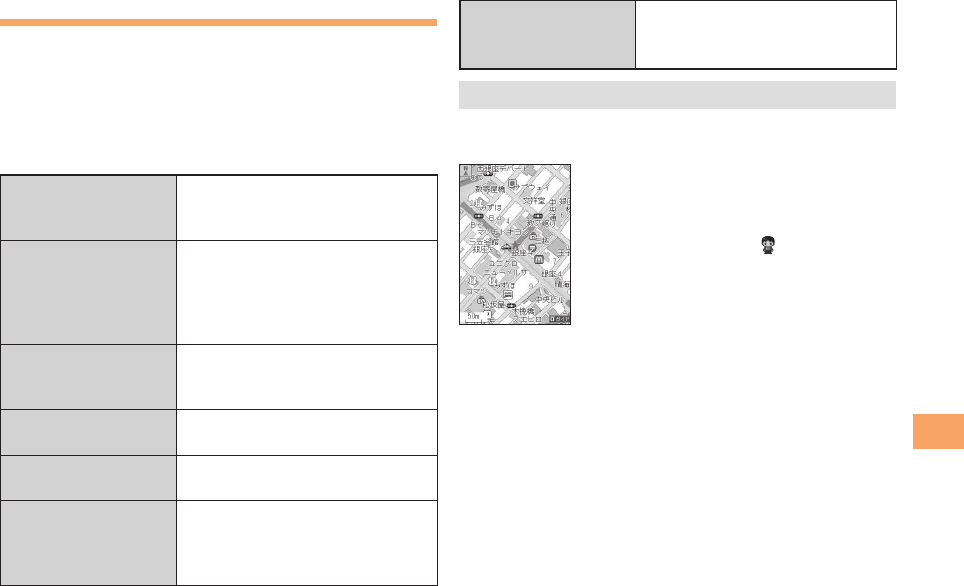
The Map of Your Current Location
★ represents your initial location. As you
start moving, changes of your location are
tracked by continuous positioning and
indicated in real time by .
The
現在地の地図
(Map of Your Current Location) option
displays the current map in real time.
3D Navi
Shows a 3D view at guidance points and around the
destination area.
•
■
■

48
EZ Navi
Evacuate Navi to Guide You Home or to
Nearby Evacuation Areas during Disasters
Nearby public evacuation areas or the direction to your
home can be determined using the map data pre-installed
on the beskey (
避難所マップ
[Evacuate Area Map] ).
Other useful contents can be downloaded from the
災害時
ナビ
(Evacuate Navi) section of the EZweb site.
Some contents require a monthly charge.
Use the information on the screen as a reference and
always follow the instructions of police, fire and other
municipal authorities.
When using Evacuate Navi, checking your current
position may take more time than usual depending on
the status of the GPS satellites.
•
•
•
49
TV (1Seg)
TV (1Seg)
"1Seg", a mobile terrestrial digital television service in
Japan, is available on the beskey.
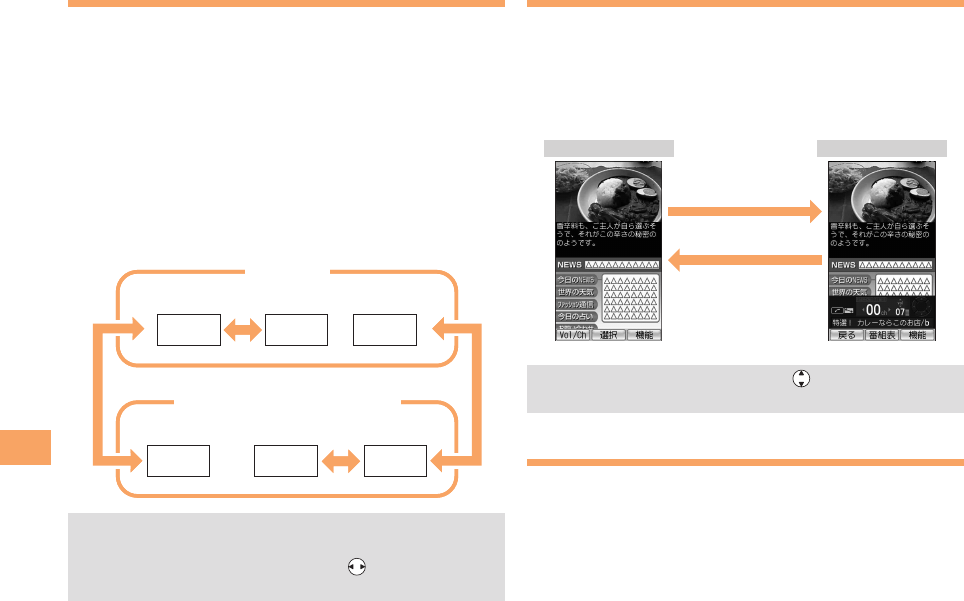
Using the Built-in TV Antenna
When watching TV (1Seg), take care to avoid covering the
built-in TV antenna with your hand in order to ensure proper
reception.
Before using TV, you must configure initial settings of
EZweb (page 16).
If you are watching TV indoors, you may be able to
improve the reception by moving closer to a window.
The continuous viewing times of TV (1Seg) are as
follows. The figures vary according to the usage of
data broadcasts.
Continuous
viewing time
Using
earphones
DBEX ON:
Approx. 3 hrs 20 min.
DBEX OFF:
Approx. 3 hrs 30 min.
Using
the speaker
DBEX ON:
Approx. 3 hrs 20 min.
DBEX OFF:
Approx. 3 hrs 20 min.
■
•
•
•
For information about the "1Seg" service, refer to the
following homepage.
The Association for Promotion of Digital Broadcasting
From a PC http://www.dpa.or.jp/
From a cell phone http://www.dpa.or.jp/1seg/k/
Initial Setup of au Media Tuner
To watch TV (1Seg) using the au Media Tuner, you need to
configure initial settings.
When the standby screen is displayed, press c.
Use a to select TV and then pressc (Select).
Use j to select TV (1Seg) and then press
c (Select).
Disclaimer notes are displayed.
Use j to check the disclaimer notes, use j
to select OK, and then press c (選択 [Select]).
The initial setting screen for using the au Media Tuner is
displayed.
Follow the on-screen instructions to configure each
setting. Then, the screen for setting TV (1Seg)
channels appears.
Use j to select
オート設定(放送波)
(Auto
(Broadcasting wave)) and then press c (選択
[Select]).
Automatic channel scanning begins. When receivable
channels are found, the channel setup is completed.
Select
マニュアル設定
(Manual) to set the channel
manually.
•
➡
➡
➡
•
➡
•
EZweb Subscription RequiredEZweb Subscription Required
Built-inTVantennaBuilt-inTVantenna
50
TV (1Seg)
Watching TV (1Seg)
When the standby screen is displayed, press c.
Use a to select TV and then press
c (Select).
Use j to select TV (1Seg) and then press
c (Select).
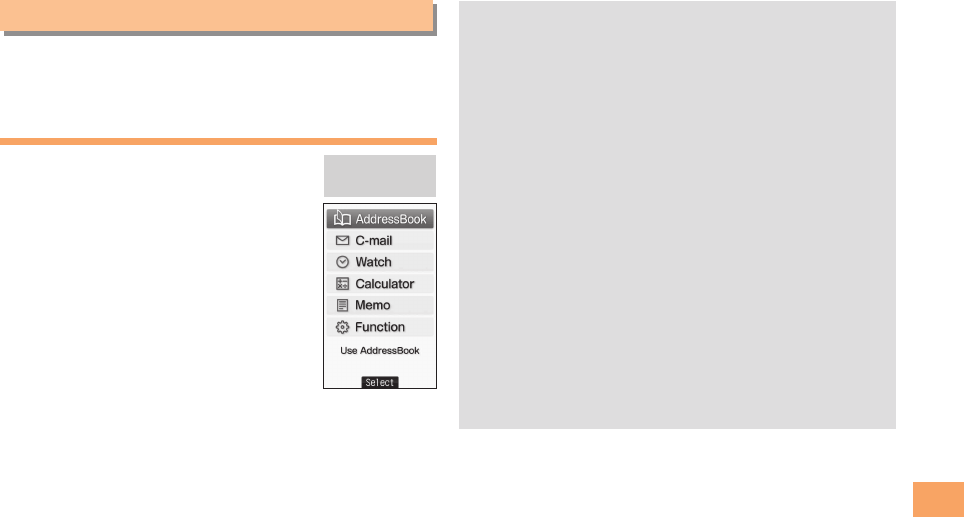
To Change Channels
Use s/LR to change channels.
You can select TV (1Seg) and EZ Channel-Plus/EZ Channel
programs.
Before using this feature, you must configure au Media
Tuner initial settings (see the procedure on page 49).
Channels cannot be changed with when the data
operation screen is displayed.
➡
➡
■
•
•
Basic Operations
Launch TV (1Seg) to start receiving data broadcasts.
The data operation screen appears when a data broadcast
is received. Press & (Vol/Ch) on the data operation screen
to switch to the TV operation screen.
On the TV operation screen, pressing N switches the
display.
On the TV operation screen, use to adjust the
volume.
Exiting the au Media Tuner
Press F, use j to select
はい
(YES) and then
press c (OK).
•
EZ Channel-Plus/EZ Channel
1ch 2ch …12ch
TV (1Seg)
Change channels one by one.
Program 16 Program 2 Program 1
…
EZ Channel-Plus/EZ Channel
1ch 2ch …12ch
TV (1Seg)
Change channels one by one.
Program 16 Program 2 Program 1
…
TV operation screen
Data operation screen
& (Vol/Ch)
& (戻る[Return])
TV operation screen
Data operation screen
& (Vol/Ch)
& (戻る[Return])
51
Teens Mode
Teens Mode
This "Teens Mode" limits the available functions. It is
convenient for parents to control the use of cell phone by
their children, for example.
Setting Teens Mode
When the standby screen is
displayed, press c.
Use a to select Function and
then press c (Select).
Use j to select Mode Setup
and then press c (Select).
Select Teens Mode and then
press c (Select).
Use j to select ON and then
press c (Set).
Input the Lock No. and then press c (OK).
A confirmation screen is displayed. If you select "YES",
the Outgoing/Incoming History and Mail Sent/Received
History are deleted, and Teens Mode is activated.
➡
➡
➡
➡
➡
In Teens Mode, only certain functions, such as Teens
Mode Menu described below and Safety Buzzer and
Security Navi, are enabled.
Making and answering calls, and sending and
receiving C-mail
Making and answering calls and sending and
receiving C-mail only to the addresses listed in the
Address Book are enabled. It is possible to make
calls to some numbers, such as 110 (Police), 119 (Fire
Department), 118 (Coast Guard Headquarters), even if
they are not registered in the Address Book.
Watch
Calculator
Address Book
Only addresses registered in the Address Book in
advance can be used. Registering new addresses
and editing registered addresses are disabled.
Memo
Functions related to memo are enabled.
Function
Some of the functions can be changed.
•
•
•
•
•
•
Teens Mode
menu
Teens Mode
menu
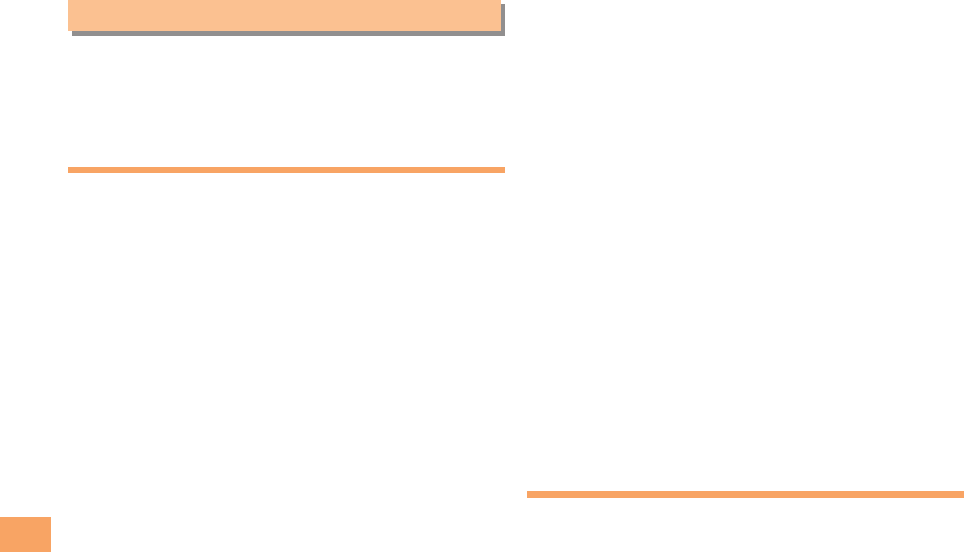
52
In Case of Loss of Your beskey
In Case of Loss of Your beskey
The Remote Ctrl Lock allows you to remotely activate
the Auto Lock, FeliCa Lock, and Address Book Lock,
preventing others from using your cell phone.
Setting Conditions for Activating
the Remote Ctrl Lock
You can activate the Remote Ctrl Lock by calling your
beskey a set number of times from a registered phone
number within a specified period of time.
When the standby screen is displayed, press c.
Use a to select Function and then press
c (Select).
Use j to select Privacy/Rstr and then press
c (Select).
Use j to select Security Lock and then press
c (Select).
Use j to select Rem. Ctrl Lock and then press
c (Select).
Enter Lock No., and then press c (OK).
Use j to select Valid No. and then press
c (Select).
Use j to select [Register New] and then press
c (Select).
➡
➡
➡
➡
➡
➡
➡
Use j to select Direct Input, press c (OK),
enter a phone number, and then press c (OK).
Press % (Comp).
Use j to select Duration (min) and then press
c (Select).
Enter a time and then press c (Set).
This sets the time limit for receiving the set number of
calls after the first call is received.
You can set a time from one to ten minutes.
Use j to select No. of Incm, and then press
c (Select).
Enter a number of calls, and then press
c (Set).
This sets the number of calls to receive to activate the
Remote Ctrl Lock.
You can set a number of calls from three to ten.
Press % (Save).
Use j to select YES and then press c (OK).
Remotely Activating the Remote
Ctrl Lock on Your beskey
Call the beskey from the registered phone
number repeatedly within the set time limit.
When the specified number of calls are received, the
Remote Ctrl Lock is activated and a message plays
telling you that the cell phone is locked.
➡
➡
➡
➡
•
•
➡
➡
•
•
➡
➡
•

53
In Case of Loss of Your beskey
Activating the Remote Ctrl Lock
by the Security Lock Service
Even if the Remote Ctrl Lock is not set in advance, the
Remote Ctrl Lock can be activated by calling au Customer
Service Center or completing the application process on au
Customer Support from a PC.
The Security Lock Service is available free of charge.
Calling au Customer Service Center for
Activating/Canceling the Remote Ctrl
Lock
From an au cell phone: 113 without a prefix (toll free)
From any other cell phone or fixed-line phone:
0077-7-113 (toll free)
Open 24 hours
Follow the voice guidance to complete the application
process.
Activating/Canceling the Remote Ctrl
Lock from a PC
Login to au Customer Support (https://cs.kddi.com/) and
complete the application process by following the on-
screen instructions.
The Remote Ctrl Lock cannot be activated when the
beskey is turned off or out of the service area, or
Emission OFF is set to ON.
■
■
•
You must fill out an application to use au Customer
Support (the application can be filled out even after
your cell phone is lost).
•
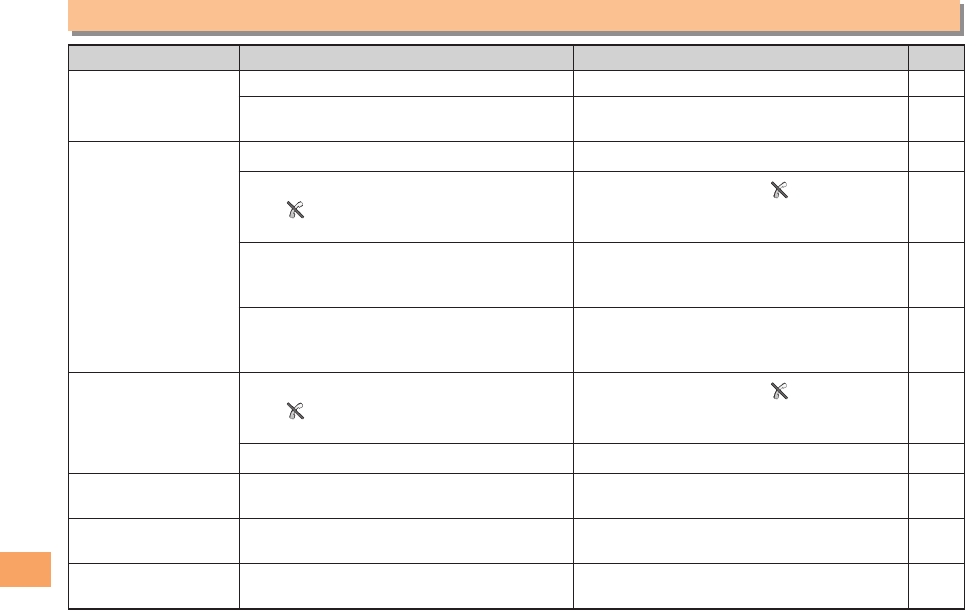
54
Troubleshooting
Troubleshooting
Symptom Possible Cause Remedy Page
Cannot turn on
power.
●Is the battery pack charged? Charge the battery pack. 13
●Did you hold down F for at least a
few seconds? Hold down F for at least a few seconds. 16
Cannot make calls.
●Is power turned on? Hold down F for at least a few seconds. 16
●Is (out of range indicator) displayed?
Move to a location where (out of range
indicator) is no longer displayed, and try
again. Also check the Area Setting.
16, 27
●Is your hand or a metal object covering
the area around the built-in antenna?
Make sure your hand or any other metal
object is not covering the area around the
built-in antenna.
8
● Did you enter the phone number starting
with the area code?
When making a call to a phone other than
a cell phone, you need to enter the area
code even if you are inside the same area.
22
Cannot receive calls. ●Is (out of range indicator) displayed?
Move to a location where (out of range
indicator) is no longer displayed. Also
check the Area Setting.
16, 27
●Is power turned on? Hold down F for at least a few seconds. 16
No response when a
key is pressed. ●Is power turned on? Hold down F for at least a few seconds. 16
A warning tone sounds
and power turns off.
●Is there enough power left in the battery
pack? Charge the battery pack. 13
Calls are answered
automatically.●Is Answer memo turned on? Hold down C for at least one second to
turn off Answer memo. 25
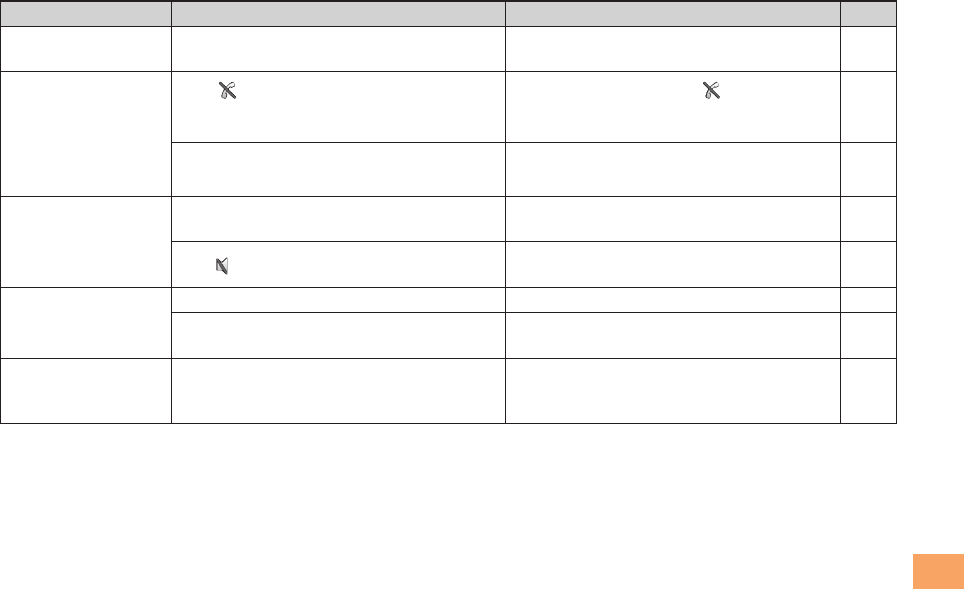
55
Troubleshooting
Symptom Possible Cause Remedy Page
Cannot hear the
other party. ●Is the earpiece volume too low? Press u during a call to increase the
earpiece volume. 24
When making a call,
a beeping sound
is heard from the
earpiece and a
connection cannot be
established.
●Is (out of range indicator) displayed?
Or are you in a location where the signal
is too weak?
Move to a location where (out of range
indicator) is no longer displayed. Also
check the Area Setting.
16, 27
●Is the wireless line busy or is the phone
you are calling on another line? End the call and try again later. 22
The LED indicator
flashes but the ring
tone does not play.
●Is manner mode turned on? Hold down ( for at least one second to
turn off manner mode. 24
●Is (ring tone off indicator) displayed? Increase the volume of the incoming call
ring tone. 25
Cannot charge the
battery pack.
●Is the battery pack attached properly? Attach the battery pack properly. 12
●Are the plug and connector of the AC
adapter inserted properly? Insert the plug and connector firmly. 13
When the camera is
activated, no subject
is displayed.
●Is a finger or other object covering the
camera lens?
Check the position of the camera lens and
remove the obstacle. 38
For more detailed information, visit the following au troubleshooting sites:
- From an au cell phone: R ⇒ Top Menu/Search ⇒
auお客さまサポート
(au Customer Support) ⇒
オンラインマニュアル
(Online Manual) ⇒
故障診断Q&A
(Troubleshooting FAQ)
- From a PC: http://www.kddi.com/customer/service/au/trouble/kosho/index.html
•
56
Index
Index
Numeric
1Seg ………………………………………………………… 49
A
Accessories …………………………………………………… 7
Address book ……………………………………………… 32
Dialing……………………………………………………… 32
Editing……………………………………………………… 32
Saving……………………………………………………… 32
Saving a phone number from the incoming or outgoing history
… 33
Answer memo ……………………………………………… 25
Playback…………………………………………………… 25
Turning off ………………………………………………… 25
Turning on ………………………………………………… 25
B
Battery level ………………………………………………… 17
Battery pack……………………………………………… 7,12
Battery pack/cover …………………………………………… 8
C
Camera……………………………………………………… 38
Photo taking tips ………………………………………… 38
Taking a photo …………………………………………… 39
Cell phone etiquette…………………………………………… 2
Changing Your Select keypad………………………………… 9
Character input……………………………………………… 29
Character entry modes…………………………………… 29
Deleting characters ……………………………………… 30
Entering characters from the same key………………… 30
Starting a new line………………………………………… 30
Charging the battery pack ………………………………… 13
Checking charges…………………………………………… 43
C-mail………………………………………………………… 37
C-mail safety block ……………………………………… 37
Creating and sending …………………………………… 37
Reading received mail…………………………………… 37
Contents………………………………………………………… 5
D
Disaster Message Board Service…………………………… 3
Display …………………………………………………… 8,17
Domain ……………………………………………………… 20
Downloading Chaku-Uta
® ………………………………… 43
Downloading Chaku-Uta-Full
® …………………………… 43
Downloading Chaku-Uta-Full-Plus™ …………………… 43
E
Earpiece volume …………………………………………… 24
E-mail………………………………………………………… 34
Creating and sending …………………………………… 34
Initial settings……………………………………………… 16
Reading received mail…………………………………… 35
Replying…………………………………………………… 35
Viewing attached images………………………………… 35
E-mail address……………………………………………… 16
Available characters……………………………………… 29
Changing ………………………………………………… 20
57
Index
Entering …………………………………………………… 30
Entering pictograms/Decoration-Emojis/symbols/face marks
… 31
Evacuate Navi ……………………………………………… 48
EZ Navi ……………………………………………………… 46
EZ Navi Walk………………………………………………… 47
EZ News EX………………………………………………… 44
Canceling ………………………………………………… 44
Changing the Reception Settings ……………………… 45
Info pane…………………………………………………… 17
Setting……………………………………………………… 44
Ticker field………………………………………………… 17
EZ password………………………………………………… 21
EZweb ……………………………………………………… 40
Accessing sites…………………………………………… 41
au one Top………………………………………………… 41
Basic operations ………………………………………… 42
Initial settings……………………………………………… 16
G
Global Function……………………………………………… 27
Calling Japan from Overseas…………………………… 28
Obtaining the Latest PRL (Preferred Roaming List)…27
Setting the Area…………………………………………… 27
I
Incoming history …………………………………………… 23
Indicators …………………………………………………… 17
Initial settings …………………………………………… 16,49
au Media Tuner…………………………………………… 49
E-mail・EZweb…………………………………………… 16
TV (1Seg) ………………………………………………… 49
International Call …………………………………………… 22
Internet ……………………………………………………… 40
Sites……………………………………………………… 41,42
K
Key assignments…………………………………………… 15
L
Language …………………………………………………… 16
Learning the basics………………………………………… 15
Lock No.……………………………………………………… 21
M
Mail…………………………………………………………… 34
C-mail……………………………………………………… 37
E-mail ……………………………………………………… 34
Mail filters …………………………………………………… 36
Simple settings …………………………………………… 36
Main menu…………………………………………………… 18
Manner mode ……………………………………………… 24
N
Names of parts………………………………………………… 8
Notification window………………………………………… 16
O
One-ring calls ……………………………………………… 23
Outgoing history …………………………………………… 23

58
Index
P
Passenger Seat Navi ……………………………………… 46
Passwords…………………………………………………… 21
Phone (call) ………………………………………………… 22
184/186 …………………………………………………… 22
Answering ………………………………………………… 23
International Call ………………………………………… 22
Making……………………………………………………… 22
Returning ………………………………………………… 23
Phone number……………………………………………… 16
Photos ……………………………………………………… 38
Photo modes……………………………………………… 38
Taking……………………………………………………… 39
Viewing …………………………………………………… 39
Playback
Answer memo …………………………………………… 25
Premium EZ password …………………………………… 21
R
Remote Ctrl Lock…………………………………………… 52
Replacing the Battery Pack ……………………………… 12
Replacing the Select keypad……………………………… 10
Ring tones
Changing the type………………………………………… 24
Changing the volume …………………………………… 25
S
Security code ……………………………………………… 21
Security Lock Service……………………………………… 53
Security Navi………………………………………………… 46
Signal strength……………………………………………… 17
Simple menu………………………………………………… 19
Sites ………………………………………………………… 41
Bookmarking……………………………………………… 42
Viewing from bookmarks………………………………… 42
Spam………………………………………………………… 36
T
Teens Mode ………………………………………………… 51
Troubleshooting …………………………………………… 54
Turning on/off power ……………………………………… 16
TV (1Seg)…………………………………………………… 49
Antenna …………………………………………………… 49
Basic operations ………………………………………… 50
Changing channels ……………………………………… 50
Exiting……………………………………………………… 50
Initial settings……………………………………………… 49
V
Viewing
Photos……………………………………………………… 39
W
Water resistance ……………………………………………… 4
Forinquiries,call:auCustomerServiceCenter
Forgeneralinformationandcharges(tollfree)
Forloss,theftordamageandoperationinformation
(tollfree)
Fromfixed-linephones:
PRESSINGZEROWILLCONNECTYOUTOANOPERATOR
AFTERCALLING157ONYOURauCELLPHONE
Fromaucellphones:
Fromfixed-linephones: Fromaucellphones:
areacodenotrequired
areacodenotrequired
Incaseabovenumbersarenotavailable,
FromEZweb:
AccessMethod EZ▶TopMenu/Search▶auお客さまサポート(auCustomer
Support)▶お問い合わせ(Inquiries)
・Menusaresubjecttochangewithoutpriornotice.
AccessMethod EZ▶TopMenu/Search▶auお客さまサポート(auCustomer
Support)▶みんなでQ&A「なるほど!au」(auUsersForum)
Readthiscodeforaneasy
accesstoなるほど!au
(auUsersForum).
・Thepacketcommunication
chargeapplies.
なるほど!au
みんなでつくる、auQ&Aサイト
▶
0120-977-033
0120-977-699
(exceptOkinawa)
(Okinawa)
DownloadingLISMOPort
LISMOPortandUSBdriver,whicharesoftware
requiredforusingLISMOonaPC,canbedownloaded
fromtheauhomepage.
FromPC:http://www.au.kddi.com/music/dl3
Sales:KDDICORPORATION•
OKINAWACELLULARTELEPHONECOMPANY
Manufacturedby:HitachiConsumerElectronicsCo.,Ltd.
CellphoneandPHSoperatorscollectandrecycleunused
telephones,batteriesandbatterychargersatstores
bearingthelogoregardlessofbrandandmanufacturer
toprotecttheenvironmentandreusevaluableresources.
BMN6590YAA-1
May2010,1stEdition
EZwebversionoftheauOnline
Manualcanbeusedwithno
communicationcharge.
(Packetcommunicationchargesdonotapply.)
Readthiscodeforaneasy
accesstoauOnlineManual.
