Moto 360 Motorola Gen 2 User Manual
User Manual: Manual Smart Watch Manuals - Schematics & Service Manuals PDF
Open the PDF directly: View PDF  .
.
Page Count: 20
Back Next
MoreMenu
At a glance
First look
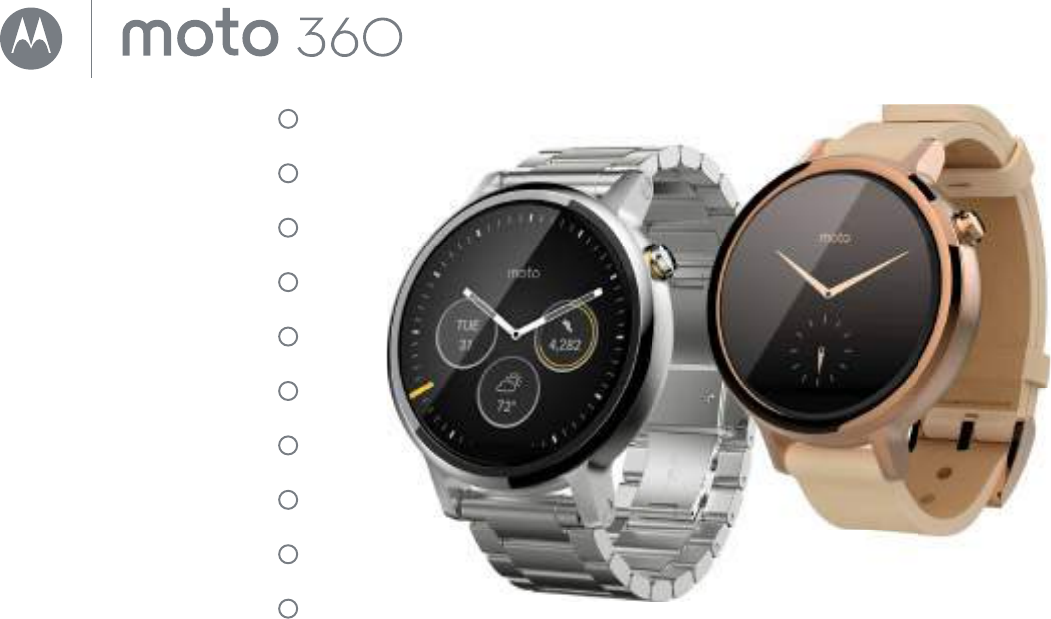
Your new Moto 360 (2nd Gen.) watch keeps you up to date
without taking you out of the moment. Glance at your wrist to
see updates. Say “OK Google” to ask a question or start a voice
command. At night, place your watch on the charging dock
that doubles as a desk clock.
Note: your watch may look different than the images shown in
this guide.
This product meets the applicable national or
international RF exposure guidance (SAR guideline)
when used normally as worn on the body. The SAR
guideline includes a considerable safety margin designed to
ensure the safety of all persons, regardless of age and health.
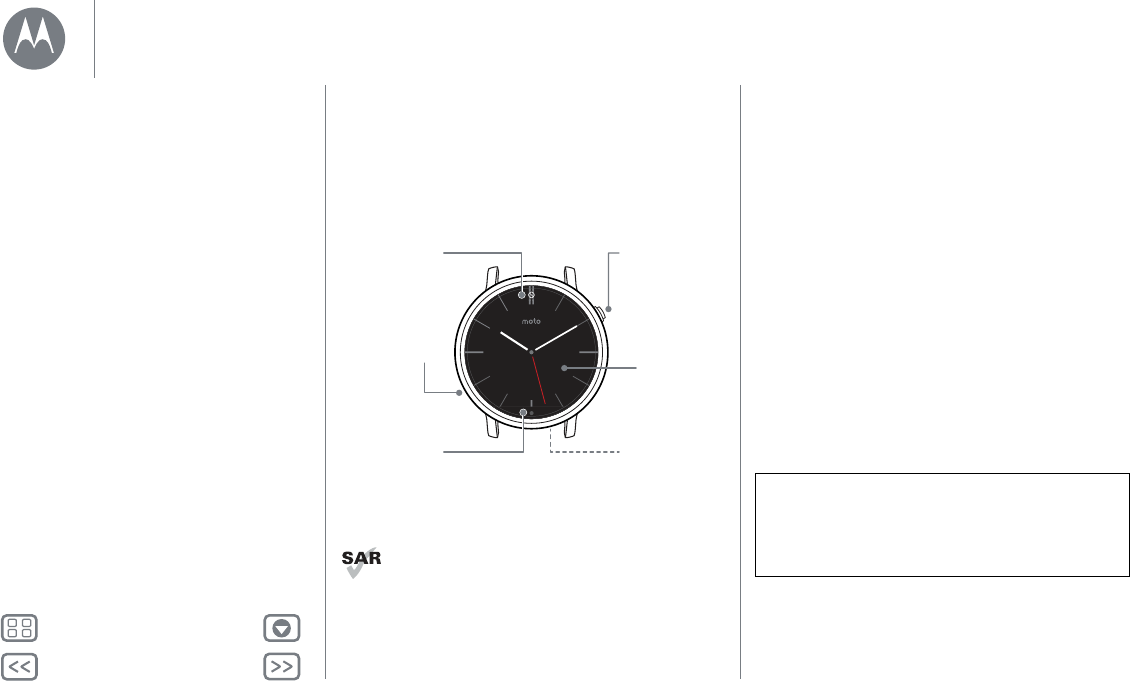
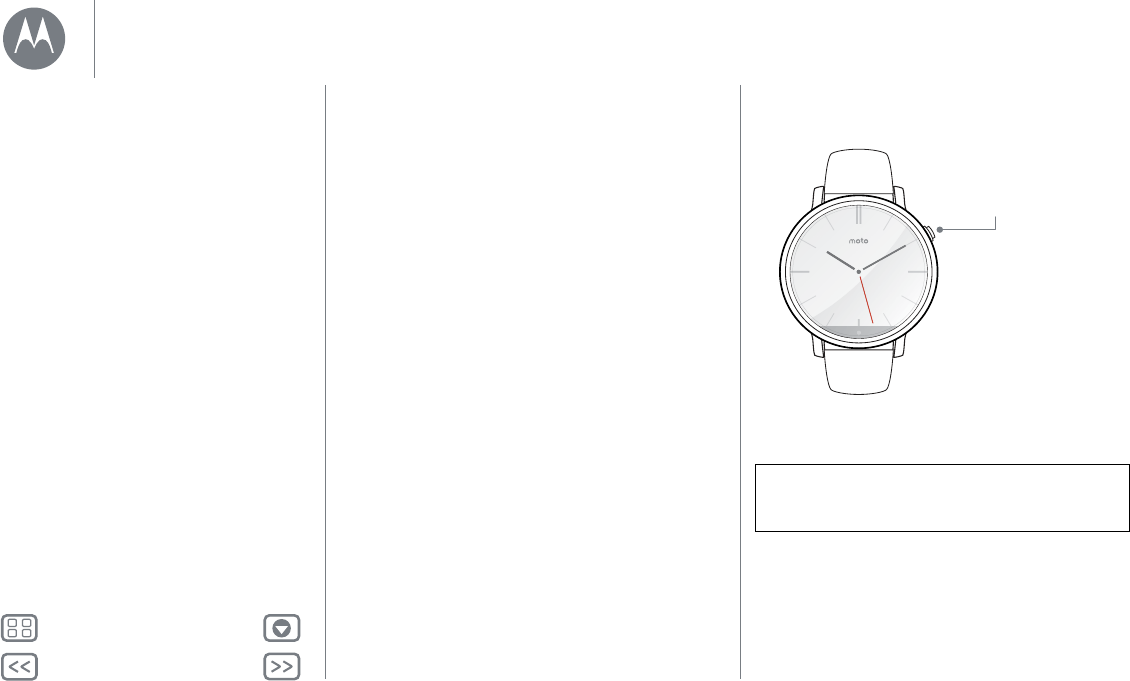
Power button
Microphone
Watch face
Touch and
hold to
change it.
Status
indicators
appear here.
Ambient light
sensor
Heart rate
sensor
(on back)
Quick start
When you’re up and running, make sure you explore what your
watch can do.
• One watch, many faces: change the entire look of your
watch with a few screen touches. See “Change watch
faces”.
• Notifications: see information you need to know, when you
need it. See “Notifications”.
• Directions on your wrist: let your watch guide you safely
and discreetly to your destination. See “Navigation”.
• Voice commands: just tell your watch what you need. You
may be surprised by how many things Google™ can do to
help you manage your busy day. See “Voice commands”.
• Stay fit: check your activity and heart rate. See “Moto
Body”.
Water resistance note: this device is IP67 dust and water
resistant—not waterproof. Not for use while swimming,
diving or engaging in other underwater activities. Avoid
prolonged exposure to water, and/or exposure of leather
band to water.
At a glance
First look
Quick start
https://www.mobile-manuals.com/
Back Next
MoreMenu
Start
Charge up
Before using your Moto 360 (2nd Gen.) for the first time,
remove the plastic film from the back of the watch and charge
it for two hours or until the charge level indicator on the watch
screen shows 100%.
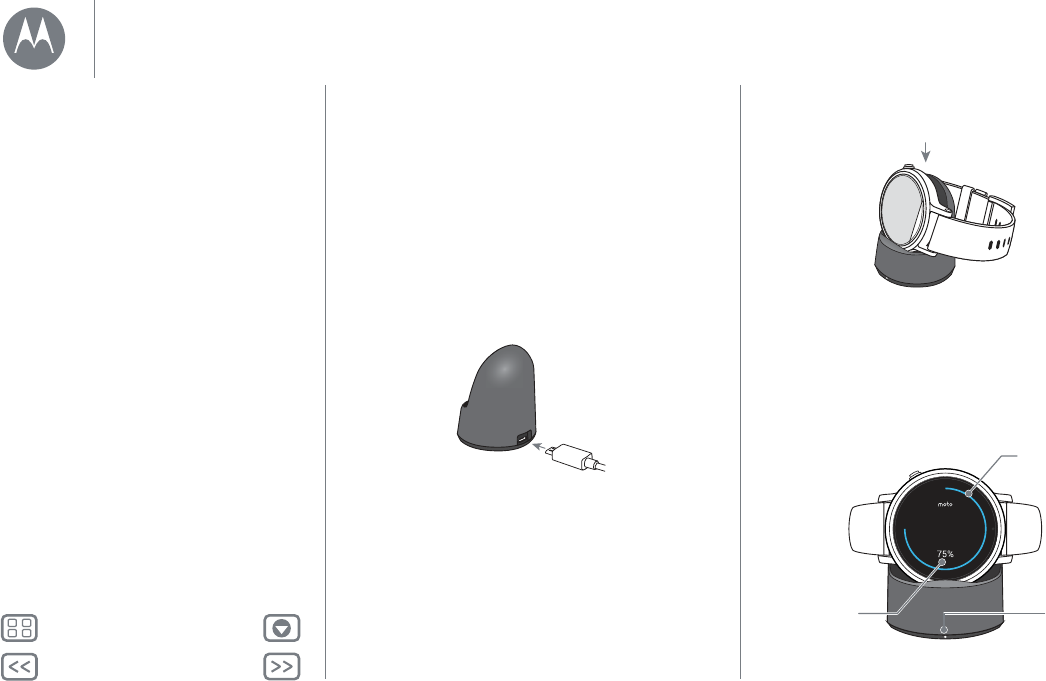
1 Insert the micro USB connector cable in the charging
dock and plug the cable into a power outlet. Your watch
works best with the Motorola Wireless Charging Dock
(2nd Gen.). Always use the cable and wall charger that
came with your watch.
2 Place your watch on the charging dock.
3 Use the charge level indicator to determine when your
watch is fully charged.
10:10
Charge level
indicator
Visual
charge level
indicator
Charging
light
Swipe down on the
watch face to change
the charging display
screen colour.
Start
Charge up
Download & pair
Power on & off
Tips and tricks
https://www.mobile-manuals.com/
Back Next
MoreMenu
Start
Download & pair*
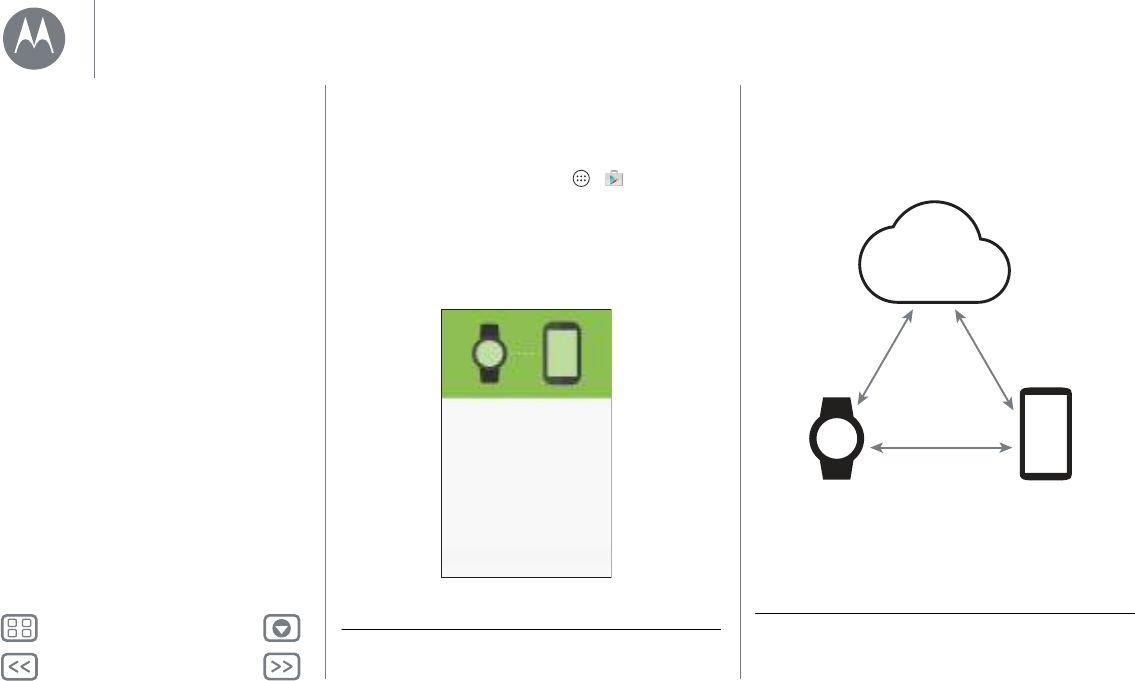
Pairing your watch with your phone is quick and easy.
1If you have an Android phone, download the Android Wear
app from Google Play™ (tap Apps >
Play Store
). If
you have an Apple iPhone device, download the Android
Wear app from the Apple App Store.
2Open the Android Wear app on your phone and follow the
prompts to pair your phone and watch over a Bluetooth®
connection.
* Requires a phone running Android 4.3+ or IOS 8.2+.
Pairing with
Moto 360 XXXX
PAIRING HELP
Accept the prompts that appear
on your phone to continue.
3You can also stay connected over Wi-Fi** when you leave
your phone in another room or at work. To turn Wi-Fi on or
off, swipe left on the watch face, then scroll down to
Settings
>
Wi-Fi settings
.
** Does not support Wi-Fi networks that require access through a
captive portal. Not available for Apple iPhone.
Bluetooth
Cloud
Wi-Fi
Mobile
or
Wi-Fi
Start
Charge up
Download & pair
Power on & off
Tips and tricks
https://www.mobile-manuals.com/
Back Next
MoreMenu
Start
4Turn on watch notifications so your phone can send updates
to your watch. You can turn Android Wear notifications on or
off at any time on the phone’s
Settings
menu.
Tip : to learn more about the Android Wear app, see
“Android Wear”.
Power on & off
Caution: before using your device, please read the
safety, regulatory and legal information at
www.motorola.com/moto360legal
To turn on, press and
hold the power button
until your watch vibrates.
To turn o, swipe left on
the watch face, then scroll
down and tap Settings >
Power o.
Start
Charge up
Download & pair
Power on & off
Tips and tricks
https://www.mobile-manuals.com/
Back Next
MoreMenu
Start
Tips and tricks
• Trusted device: when you pair your watch with your phone
for the first time, the phone may ask if you want to set your
watch as a trusted device. If you agree, your phone will
remain unlocked when the watch is within range and
connected with the phone.
Note: to use this feature, you need to set a screen lock on
your phone and set your watch as a trusted device.
Corporate security policies installed on your phone may
prevent you from using this feature.
Tip: to manually set your watch as a trusted device, on your
phone tap Apps >
Settings
>
Security
>
Smart Lock
>
Trusted Devices
.
• Quickly dim the watch screen: press the power button or
press your palm onto the screen until it vibrates. To turn on
the screen, press the power button or tap the screen.
• Battery charge level: to see the battery charge level, drag
down from the top to the middle of the watch screen.
• Status indicators: status indicators on the watch screen
show when watch notifications are turned off , when the
connection to your phone is lost , or when the watch is in
airplane mode .
• Voice commands: say “OK Google” to start using voice
commands. You’ll see a white screen with a red icon. Say
a voice command.
Tip: on the voice command screen, you can scroll down to
see a list of suggested voice commands, which you can also
tap to activate.
• Adjust notifications: to adjust notification settings, swipe
down from the top of the watch face. From there, swipe left
to activate
Theatre mode
(screen and notifications off).
Keep swiping left to boost screen brightness or open the
Settings
menu.
• Screen brightness: to change the screen brightness, swipe
left on the watch face, then scroll down and tap
Settings
>
Adjust brightness
.
•Text size: to increase or decrease the size of the text you
see on your watch, swipe left on the watch face, then scroll
down and tap
Settings
>
Font size
.
• Hands-free scrolling: to turn on/off hands-free scrolling for
watch notifications, swipe left on the watch face, then scroll
down and tap
Settings
>
Wrist gestures
. (For more, see
“Hands-free scrolling”.)
•Wi-Fi: to turn on/off Wi-Fi on your watch, swipe left on the
watch face, then scroll down and tap
Settings
>
Wi-Fi
settings
. (For more, see “Download & pair”.)
Start
Charge up
Download & pair
Power on & off
Tips and tricks
https://www.mobile-manuals.com/
Back Next
MoreMenu
Start
• Bluetooth devices: to link your watch with another
Bluetooth device, swipe left on the watch face, then scroll
down and tap
Settings
>
Bluetooth devices
.
• Always-on screen: this feature keeps the watch screen
dimly illuminated when not in use. It also keeps always-on
apps (like maps and fitness) running in ambient mode to
optimise battery life. To turn on, swipe left on the watch
face, then scroll down and tap
Settings
>
Always-on screen
.
Note: to conserve battery life between charges, switch off
this feature when you don’t need it.
• Aeroplane mode: swipe left on the watch face, then scroll
down and tap
Settings
>
Aeroplane mode
.
• Accessibility: to adjust accessibility settings on your watch,
swipe left on the watch face, then scroll down and tap
Settings
>
Accessibility
.
• Restart: swipe left on the watch face, then scroll down and
tap
Settings
>
Restart
.
• Factory reset: swipe left on the watch face, then scroll
down and tap
Settings
>
Factory reset
.
Use this feature to clear all settings and information about
the current paired phone, so you can pair your watch with a
different phone.
Warning: when you reset your watch to its factory settings,
all your user data and downloaded apps stored on the watch
will be deleted. Resetting your watch will not factory reset
your phone or tablet.
• Screen lock: set your watch to automatically lock the screen
when you remove the watch. Swipe left on the watch face,
then scroll down and tap
Settings
>
Screen lock
. Follow the
instructions to draw a pattern you’ll use to unlock the screen.
•Watch info: to see information about your watch (software
version, connection status, system updates, legal notices
and more), swipe left on the watch face, then scroll down
and tap
Settings
>
About
.
Start
Charge up
Download & pair
Power on & off
Tips and tricks
https://www.mobile-manuals.com/
Back Next
MoreMenu
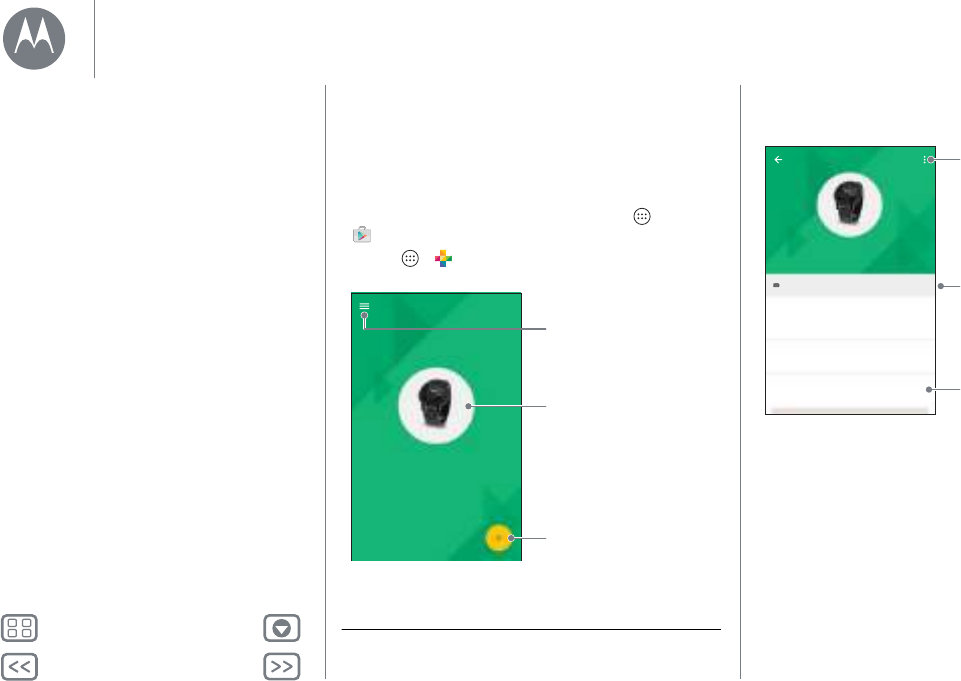
Android Wear
Quick start: Android Wear
After you’ve paired your phone and watch (see “Download &
pair”), use the Android Wear app on your phone to adjust
general watch settings.
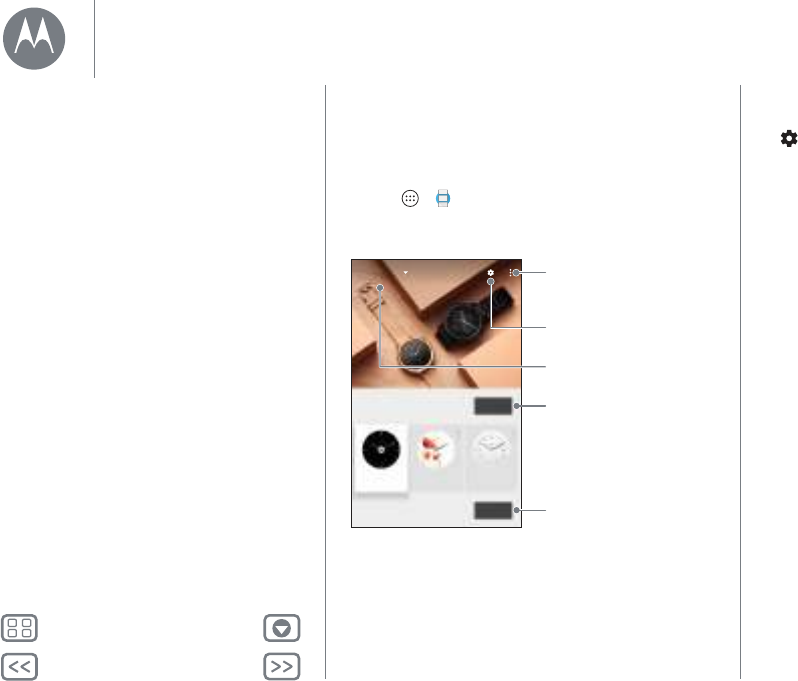
Tap App s >
Android Wear
to open the app.
Watch faces MORE
Essential watch apps MORE
Minimal ClassicBlossoms
Moto 360
Connected
Disconnect your watch
from your phone, try out
watch notications, nd
help and more.
Adjust watch settings.
Change your watch face.
Scroll down to get apps, see a
list of voice actions and more.
Pair with a new watch.
Adjust general settings
Tap on the Android Wear screen to adjust general settings.
• Calendar settings: show or hide notifications from your
phone’s Calendar app and/or the Calendar associated with
your Google™ account.
• Block app notifications: stop specific apps from sending
notifications to your watch.
• Mute phone alerts & calls: mute calls and notification alerts
on your phone when it’s connected to your watch. (Your
watch may vibrate for notifications, based on the app
settings on your phone.)
• Cloud sync: when you turn on cloud sync, your watch will
use a Wi-Fi connection to stay in sync when you are out of
Bluetooth® range of your phone.
• Together: pair your watch face with a friend’s watch face to
share photos and emojis and to share your activities (like if
you’re working out, on the phone or stuck in traffic).
Android Wear
Quick start: Android Wear
Adjust general settings
Adjust device settings
Assign apps to voice actions
https://www.mobile-manuals.com/
Back Next
MoreMenu
Android Wear
Adjust device settings
Tap at the top of the Android Wear screen, then
tap
Moto 360
to adjust Moto 360 device settings.
• Connected: tap the switch to disconnect your Moto 360
watch from your phone. Tap the switch again to reconnect
the watch and phone.
• Always-on screen: you can keep the watch screen dimly
illuminated when not in use. To turn on, tap the switch.
Tip: to conserve battery life between charges, turn this
setting off when you don’t need it.
• Tilt to wake screen: show the watch screen when you tilt
your wrist to look at the watch.
• Card previews: preview some sample notification cards on
your watch.
• Actions: you can use Google apps or other apps to perform
specific voice actions on your watch. Select an action in the
list, then select the app you want to use to perform the
action.
• Watch battery: see your watch's current battery charge.
• Watch storage: see how much memory storage space is
available on your watch and how much memory is being
used by your watch apps.
• Re-sync apps: sync all of the apps on your watch.
• Forget watch: delete all information about your Moto 360
watch from the Android Wear app.
Tip: this feature is handy when you want to use a different
watch with your phone.
Assign apps to voice actions
You can use Google apps or other apps to perform specific
voice actions on your watch.
Scroll down on the Android Wear screen to the section named
Jump into action with watch apps. Select an action in the list,
then select the app you want to use to perform the action.
Android Wear
Quick start: Android Wear
Adjust general settings
Adjust device settings
Assign apps to voice actions
https://www.mobile-manuals.com/
Back Next
MoreMenu
Motorola Connect
Quick start: Motorola Connect*
Use the Motorola Connect app on your phone to set up and
manage your Moto 360 watch and other Motorola smart
devices.
Tip : if you don’t have the Motorola Connect app on your
Android phone, get it on Google Play (tap Apps
>
Play Store
).
Tap A p p s >
Connect
to open the app.
* Not available for Apple iPhone.
Ethan's Moto 360
Connected
My devices
Adjust Motorola Connect
settings, nd help and more.
Add a device.
Tap to manage your
Moto 360.
Then tap the Moto 360 illustration to manage your watch.
100% Last reported
Watch faces
Customise Motorola watch faces – change colours
and more
Dock Mode
Pick from five colours for the charging display
Location
Just now
Ethan's Moto 360
Connected
Rename your watch or
remove it from the device list.
See the charge level
for your watch.
Scroll down to locate your
watch, get help and more.
Motorola Connect
Quick start: Motorola Connect
Customise watch faces
More watch options
https://www.mobile-manuals.com/
Back Next
MoreMenu
Motorola Connect
Customise watch faces
Use Connect to customise watch faces that have the
Moto
logo
on them. You can change background colours, accent colours
and more.
1Tap A pp s >
Connect
, tap the Moto 360 illustration,
then tap
Watch faces
.
2Swipe left or right on the watch faces to select the one you
want, then tap
CUSTOMISE
.
3Changes settings, then tap
APPLY
.
Design your own watch face: Select the
My Design
watch
face and tap
CUSTOMISE
. Choose whether you want to create
an analogue or digital watch face, select design elements and
colours, then insert a background image or your own photo.
When you’ve finished, tap to share your design with your
friends.
More watch options
Dock Mode
Tap A p p s >
Connect
, tap the Moto 360 illustration, then
scroll down and tap
Dock Mode
to pick from five colours for
the watch charging display.
Locate your watch
Tap A p p s >
Connect
, tap the Moto 360 illustration, then
scroll down to
Location
to view the last known location of your
watch.
Help
Tap A p p s >
Connect
, tap the Moto 360 illustration, then
scroll down and tap Need help? To learn more about your
watch and the Motorola Connect app.
Related apps
Tap A p p s >
Connect
, tap the Moto 360 illustration, then
scroll down to Related apps to open Android Wear or Moto
Body. Or, tap
Browse apps in Play Store
to find new apps for
your watch.
Motorola Connect
Quick start: Motorola Connect
Customise watch faces
More watch options
https://www.mobile-manuals.com/
Back Next
MoreMenu
Features
Change watch faces
Define your style.
Tip : you can customise watch faces, even design your own
watch face with the Motorola Connect app. For more info, see
“Motorola Connect”.
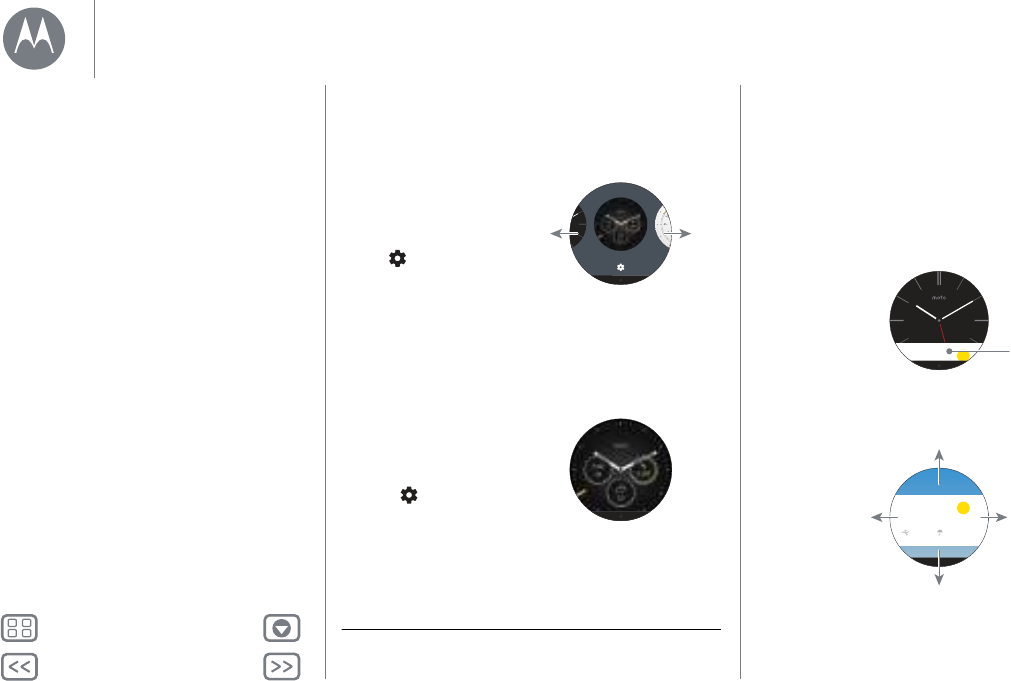
Live dials
Some watch faces feature Live
Dials, which provide important info
like weather and your daily steps at
a glance. To customise the Live
Dials, tap when you select the
watch face.
You can also customise Live Dials
with your favourite apps*, like MyFord Mobile and Shazam.
(The app needs to be installed on your phone). Tap the Live
Dial to launch the app.
* Not available for Apple iPhone.
Dials
Touch and hold the screen to
see all your watch faces.
Swipe left or right to nd the
watch face you want.
Tap to customise the new
watch face or just tap the new
watch face to select it.
1
2
3
Notifications
Notifications give you the information you need, when you
need it. A slight vibration notifies you of incoming calls,
messages and more. A quick glance shows who’s trying to get
in touch with you.
You can perform actions on some notifications. Swipe left on a
notification to see if any actions are available.
2
Swipe right to dismiss
the notication from
your watch and
phone.
Swipe left for
more details
and options.
Swipe up to see more
notications.
Swipe down to minimise
the notication and return
to the home screen.
73°
Chicago
14 20%
1
Drag up to view a
notication card.
73°
Chicago
Features
Change watch faces
Notifications
Swipe from apps, to contacts, to take actions
Voice commands
Navigation
Moto Body
https://www.mobile-manuals.com/
Back Next
MoreMenu
Features
Hands-free scrolling
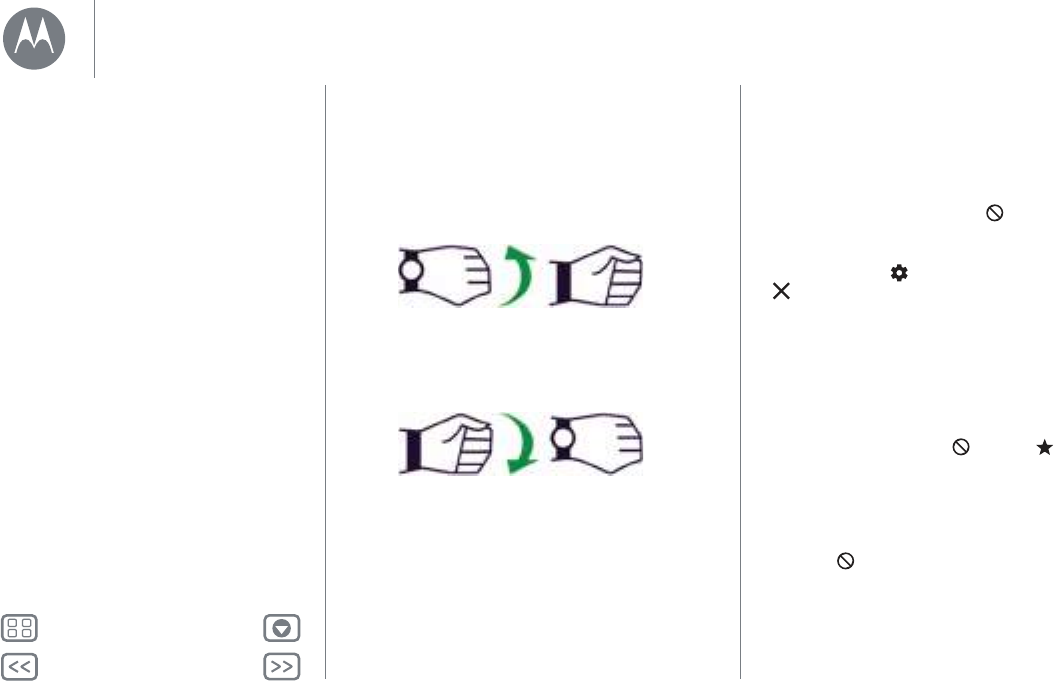
Flip through watch notifications with a flick of your wrist. To
activate/deactivate wrist gestures, swipe left on the watch
face, then scroll down and tap
Settings
>
Wrist Gestures
.
To see the next notification: twist your wrist quickly forwards,
then slowly back towards you.
To return to the previous notification: twist your wrist slowly
forwards, then quickly back towards you.
Fast
Fast
Manage watch notifications
Most notifications on your phone also appear on your watch.
You can manage the notifications that show on your watch.
• Block notifications from a specific app: open a
notification card on your watch, then swipe left on the
notification until you see
Block app
. Tap
Block app
, then
tap the tick to confirm.
To unblock notifications from the app, launch Android Wear
on your phone, tap >
Block app notifications
, then tap
by the app name to unblock it.
Tip: if you don’t want to see Google Now cards, turn off
Google Now on your phone.
•
Select notification types (phones running Android 5.0):
to change the types of notifications that show on your
watch, swipe down from the top of the watch screen. Tap an
icon on the screen to select
None
,
Priority
or
All
, then swipe
up from the bottom of the screen. An icon appears on the
screen when you select none or priority notifications.
• Mute your watch (phones running Android 4.3 and 4.4):
to prevent new notifications from lighting the screen or
vibrating your watch, swipe down from the top of the watch
screen to see the
Mute
option. Tap the screen to turn mute
On
or
Off
, then swipe up from the bottom of the screen. The
mute icon appears on the screen when mute is
turned on.
Features
Change watch faces
Notifications
Swipe from apps, to contacts, to take actions
Voice commands
Navigation
Moto Body
https://www.mobile-manuals.com/
Back Next
MoreMenu
Features
• Turn off notifications temporarily (theatre mode): to turn
off your watch’s screen so the display doesn’t light up and
notifications don’t appear, press the power button twice
quickly. to turn on your screen again (and turn off theatre
mode), press the power button twice quickly.
While your watch is in theatre mode, you can temporarily
turn on the screen by pressing the power button.
Tip: to turn on/off theatre mode from the watch menu,
swipe down from the top of the watch screen, then swipe
left from the right side of the screen until you see
Theatre
mode
. Tap the screen to select
On
or
Off
.
Swipe from apps, to contacts, to take actions
Swipe left from the right side of the screen to access your apps.
Recently used apps appear at the top of the list.
Swipe left again to see a list of your contacts. Tap a contact to
quickly call, text or email.
Swipe left again to execute voice commands. Scroll down to
see a list of voice actions you can perform.
Voice commands
Say “OK Google” to start using voice commands. You’ll see a
white screen with a red icon.
Tip: on the voice command screen, you can scroll down to see
a list of suggested voice commands, which you can also tap to
activate.
Try a few commands like these:
• “Remind me to buy flowers for Ana.”
• “What is my agenda for today?”
• “How tall is the Eiffel Tower?”
• “Will it rain today?”
• “Wake me up in 30 minutes.”
• “Show me my steps.”
Navigation*
Turn-by-turn navigation instructions on your wrist—what could
be easier?
Tell your watch where you want to go. Then follow the
step-by-step navigation instructions on your watch screen.
Tip: navigation instructions that you set up on your phone will
also appear on your watch screen.
* Not available for Apple iPhone.
Features
Change watch faces
Notifications
Swipe from apps, to contacts, to take actions
Voice commands
Navigation
Moto Body
https://www.mobile-manuals.com/
Back Next
MoreMenu
Features
Moto Body
The Moto Body app on your watch helps you track your fitness
and activity levels and offers coaching advice to help you meet
your goals and maintain a healthier lifestyle.
You can track your steps, calories burned, heart activity and
heart rate. Your data won’t be shared with any third parties
without your consent.
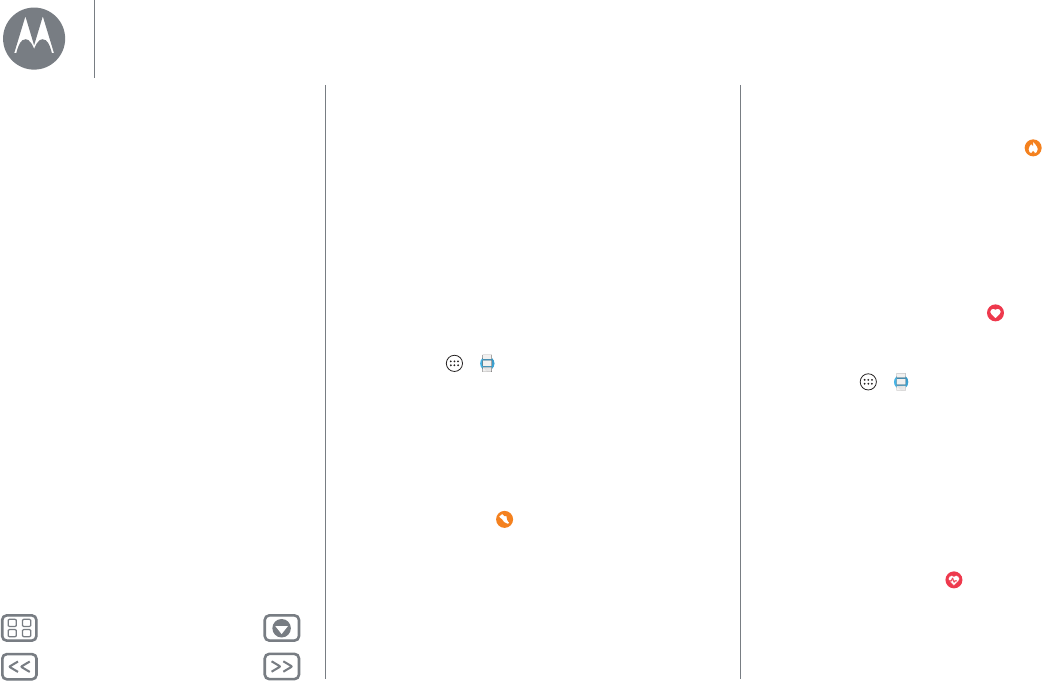
See your steps
A notification card on your watch shows how many steps
you’ve taken each day. To dismiss the card, swipe it right on
your watch screen.
Select the Moto Body app to count your steps: on your
phone, tap Apps >
Android Wear
, then scroll down to
Jump into action with watch apps and tap
More actions
>
Show me my steps
>
Moto Body steps
.
Speak to see your steps: say “OK Google” to activate voice
commands, then say “Show me my steps”. Your watch shows
the estimated number of steps you’ve taken today.
Use the menu to see your steps: swipe left on the watch face,
then scroll down and tap
Moto Body
. Scroll down on the Moto
Body app screen and tap
Steps
.
See calories burnt
A notification card shows how many calories you’ve burnt each
day, and how far you are from reaching your goal. To dismiss
the card, swipe it right on your watch screen.
Use the menu to see the calories you’ve burned: swipe left
on the watch face, then scroll down and tap
Moto Body
. Scroll
down on the Moto Body app screen and tap
Calories
.
See your heart activity
Moto Body encourages you to get at least 30 minutes of activity
a day, five times a week. A notification card shows your heart
activity, and how far you are from reaching your goal. To
dismiss the card, swipe it right on your watch screen.
Use the menu to see your heart activity: swipe left on the
watch face, then scroll down and tap
Moto Body
. Scroll down
on the Moto Body app screen and tap
Heart min
.
Check your heart rate
Select the Moto Body app to see your heart rate: on your
phone, tap Apps >
Android Wear
, then scroll down to
Jump into action with watch apps and tap
More actions
>
Show me my heart rate
>
Moto Body heart rate
.
Tip: make sure your watch fits snugly on your wrist to get an
accurate heart rate measurement.
Speak to see your heart rate: say “OK, Google” to activate
voice commands, then say “Show me my heart rate”. Your
watch shows your current heart rate.
Use the menu to see your heart rate: swipe left on the watch
face, then scroll down and tap
Moto Body
. Scroll down on the
Moto Body app screen and tap
Heart rate
.
Features
Change watch faces
Notifications
Swipe from apps, to contacts, to take actions
Voice commands
Navigation
Moto Body
https://www.mobile-manuals.com/
Back Next
MoreMenu
Features
Turn off Moto Body notifications on your watch
To prevent Moto Body cards from automatically appearing on
your watch throughout the day, swipe left on the watch face,
then scroll down and tap
Moto Body
to open the app. Swipe
left to open the settings screen, then scroll down and tap
Moto
Body: Notifications enabled
to turn it off.
Moto Body phone app*
For a richer experience, get the Moto Body phone app for your
Android phone on Google Play (tap Apps >
Play Store
).
The app’s intuitive dashboards and charts help you visualise
and track your activities on a daily, weekly and monthly basis.
You can also choose to receive a weekly email summary of your
activities and trends, with personalised insights and
suggestions. And the Moto Body phone app lets you securely
save your wellness data to the cloud to back it up.
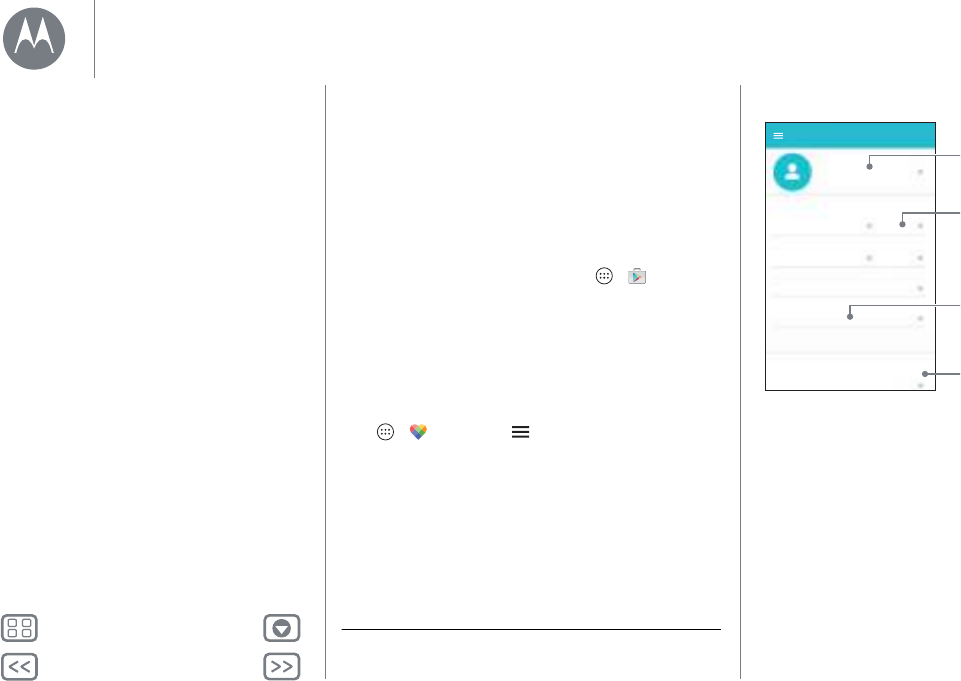
To set up your user profile on the Moto Body phone app, tap
Apps >
Moto Body
> >
Settings
.
Enter your personal details (height, weight, birthdate, gender).
When you’ve finished, tap
Done
. Your user profile information
is listed on the Settings page.
* Not available for Apple iPhone.
Motorola will use your personal demographic information to
provide you with more accurate wellness tracking and will not
share your profile information without your consent.
Settings
Hello!
Set up your Motorola ID
m
g
Profile
Preferences
Height
Gender
Weight
Birthdate
Steps
Tap a eld to enter
your information.
Select or set up
your Motorola ID.
Select US or metric
measurements.
Scroll down to
adjust settings.
Features
Change watch faces
Notifications
Swipe from apps, to contacts, to take actions
Voice commands
Navigation
Moto Body
https://www.mobile-manuals.com/
Back Next
MoreMenu
Watch bands
Remove/replace your watch band
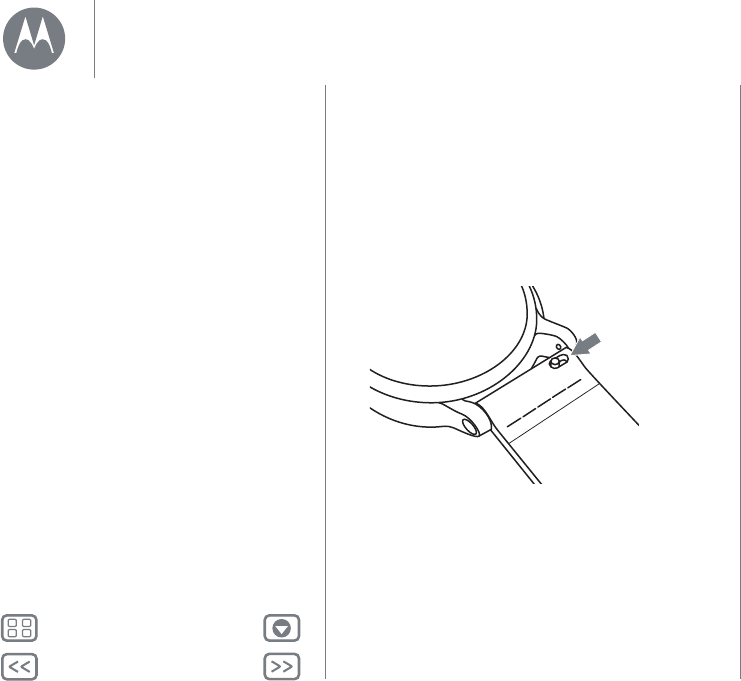
Quick-release bands for your Moto 360 (2nd Gen.) watch are
designed to be swapped easily.
To remove the watch band: place your Moto 360 face down
on a soft cloth. Slide the metal latch on one band towards the
centre of the band to release its pin from the watch. Then
gently angle the band away from the watch to remove it.
Repeat with the other band.
To attach the watch band: take one band and insert the pin on
the side opposite the latch into the hole in the watch. Slide the
latch towards the centre of the band and insert its pin into the
other hole. Tug gently to ensure the band is secure. Repeat
with the other band.
Tip : for leather watch bands, make sure the band with the
buckle is on the top side of the watch.
Slide the latch
towards the centre
of the band.
Watch band warning
Your Moto 360 watch uses custom designed watch bands.
Using standard off-the-shelf watch bands, especially metal
bands, may cause significant damage to your watch. Damage
caused by using a non-Motorola watch band, or by its improper
replacement, is not covered by the warranty.
Care for the leather watch band
If your watch has a leather watch band, please note that the
leather watch band has been hand treated with several stain
coats to give a rich finish. Some wear and transfer of colour
may be possible. As with many leathers, please use discretion
when wearing lighter coloured garments.
To clean, wipe with a soft, damp cloth. Do not use any polishes
or creams. Like most leather products, the watch band must be
treated with care. Direct exposure to water is not
recommended.
Resize your metal watch band
Do you need to resize your metal band? We recommend
taking your Moto 360 to a jeweller or watch repair shop for
assistance.
Want a new band?
Order new watch bands at www.motorola.com/mymoto360.
Watch bands
Remove/replace your watch band
Watch band warning
Care for the leather watch band
https://www.mobile-manuals.com/
Back Next
MoreMenu
Want more?
Get help
There's more help, updates and information right here:
• Help: for more info and help with your watch: on your
phone, tap Apps >
Android Wear
>Menu
>
Help & Feedback
.
• Tutorials and updates: get walk-through tutorials, help,
guides, software updates and more at
www.motorola.com/mymoto360.
• Join the conversation: talk, learn and share with other
Moto 360 users in our Google+™ community at
moto360community.com.
•News: get the latest news, apps, tips and tricks, videos and
so much more—join us on:
YouTube™ www.youtube.com/motorola
Facebook® www.facebook.com/motorola
Twitter www.twitter.com/motorola
Want more?
Get help
https://www.mobile-manuals.com/
Back Next
MoreMenu
Troubleshooting
Unresponsive watch
In the unlikely event that your watch becomes unresponsive,
press and hold the power button for 25 seconds to force a
power down. Then switch the watch back on as usual (see
“Power on & off”).
Factory reset
Swipe left on the watch face, then scroll down and tap
Settings
>
Factory reset
.
Use this feature to clear all settings and information about the
current paired phone, so you can pair your watch with a
different phone.
Warning: when you reset your watch to its factory settings, all
your user data and downloaded apps stored on the watch will
be deleted. Resetting your watch will not factory reset your
phone or tablet.
Updates
When a software update for your watch is available, your watch
will notify you that an update is ready to install. Follow the
instructions to update your watch software.
Troubleshooting
Unresponsive watch
Factory reset
Updates
https://www.mobile-manuals.com/
Back Next
MoreMenu
Legal
Copyright & trademarks
Copyright & trademarks
Motorola Mobility LLC
222 W. Merchandise Mart Plaza
16th Floor
Chicago, IL 60654
USA
www.motorola.com
Certain features, services and applications are network-dependent and may not be available
in all areas; additional terms, conditions and/or charges may apply. Contact your service
provider for details.
All features, functionality and other product specifications, as well as the information
contained in this guide, are based upon the latest available information and believed to be
accurate at the time of printing. Motorola reserves the right to change or modify any
information or specifications without notice or obligation.
Note:
the images in this guide are examples only.
MOTOROLA and the Stylised M Logo are trademarks or registered trademarks of Motorola
Trademark Holdings, LLC. Android, Google and other trademarks are owned by Google Inc.
The Android robot is reproduced or modified from work created and shared by Google and
used according to terms described in the Creative Commons 3.0 Attribution Licence. All
other product or service names are the property of their respective owners.
© 2015 Motorola Mobility LLC. All rights reserved.
Caution:
Motorola does not take responsibility for changes/modification to the transceiver.
Product ID: Moto 360 (2nd Gen.)
Manual number: 68017961003-A
Legal
Copyright & trademarks
https://www.mobile-manuals.com/
