Pdf Gtb Uhd Hbt Manual User
2017-07-11
User Manual: Manual Pdf Gtb-Uhd-Hbt Manual pdf_GTB-UHD-HBT_Manual GTB-UHD-HBT products
Open the PDF directly: View PDF  .
.
Page Count: 46
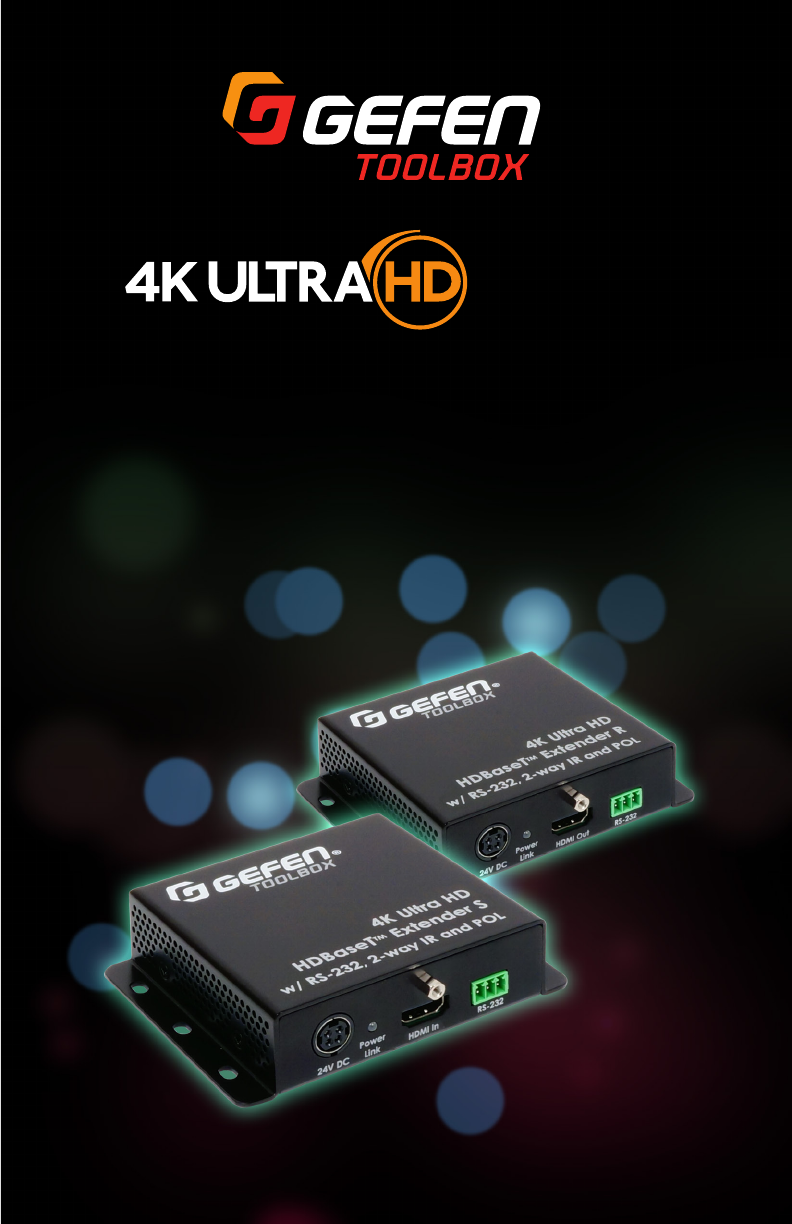
GTB-UHD-HBT
User Manual
Release A0.6
HDBaseT Extender
w/ RS-232, 2-way IR and POH
™
60Hz, 4:2:0

ii
1. Read these instructions.
2. Keep these instructions.
3. Heed all warnings.
4. Follow all instructions.
5. Do not use this product near water.
6. Clean only with a dry cloth.
7. Do not block any ventilation openings. Install in accordance with the manufacturer’s
instructions.
8. Do not install or place this product near any heat sources such as radiators, heat
registers, stoves, or other apparatus (including ampliers) that produce heat.
9. Do not defeat the safety purpose of the polarized or grounding-type plug. A polarized
plug has two blades with one wider than the other. A grounding type plug has two
blades and a third grounding prong. The wide blade or the third prong are provided for
your safety. If the provided plug does not t into your outlet, consult an electrician for
replacement of the obsolete outlet.
10. Protect the power cord from being walked on or pinched particularly at plugs,
convenience receptacles, and the point where they exit from the apparatus.
11. Only use attachments/accessories specied by the manufacturer.
12. To reduce the risk of electric shock and/or damage to this product, never handle or
touch this unit or power cord if your hands are wet or damp. Do not expose this
product to rain or moisture.
13. Unplug this apparatus during lightning storms or when unused for long periods of time.
14. Refer all servicing to qualied service personnel. Servicing is required when the
apparatus has been damaged in any way, such as power-supply cord or plug is
damaged, liquid has been spilled or objects have fallen into the apparatus,
the apparatus has been exposed to rain or moisture, does not operate normally,
or has been dropped.
15. Batteries that may be included with this product and/or accessories should never be
exposed to open ame or excessive heat. Always dispose of used batteries
according to the instructions.
Important Safety Instructions

iii
Warranty Information
Gefen/Core Brands, LLC warrants the equipment it manufactures to be free from defects
in material and workmanship. If equipment fails because of such defects and Gefen LLC
is notied within the specied warranty period* from the documented** date of purchase,
Gefen will, at its option, repair or replace the equipment, provided that the equipment
has not been subjected to mechanical, electrical, or other abuse or modications. This
warranty is in lieu of all other warranties expressed or implied, including without limitation,
any implied warranty or merchantability or tness for any particular purpose, all of which
are expressly disclaimed. Warranty period begins on the date of purchase by the original
end-purchaser, as indicated on the proof of purchase document**. This Limited Warranty
extends to the original end-user purchaser of the product, and is not transferrable to any
subsequent purchaser(s) or owner(s). Customers outside the continental United States of
America are responsible for shipping charges to and from Gefen.
* Warranty period:
Passive Copper Cables without any electronic circuitry: 30 days. Cables must be in their
original condition.
Electronics:
•2 years unless specied otherwise.
•3 years if specically noted as such on Gefen web-page of a product.
Documented** purchases made on or after March 29, 2017 only.
** Proof of purchase must be a written document, as deemed acceptable by Gefen/Core
Brands, LLC.

iviv
Contacting Gefen Technical Support
Technical Support
(707) 283-5900 (800) 472-5555
8:00 AM to 5:00 PM Monday - Friday, Pacic Time
Email
support@gefen.com
Web
http://www.gefen.com
Mailing Address
Gefen
Core Brands, LLC
c/o Customer Service
1800 S McDowell Blvd
Petaluma, CA 94954 USA
Product Registration
Register your product here: http://www.gefen.com/kvm/Registry/Registration.jsp

vv
Operating Notes
•Gefen recommends using CAT-5e (or better) cables.
• Resolution will affect extension distance. 1080p Full HD can be extended up to 495
feet (150 meters) and is limited to 8-bit color depth. 4K resolutions can be extended
up to 330 feet (100 meters). See HDBT (HDBaseT™) Mode (page 17) for details.
•Power Over Line (POL) is a Gefen proprietary technology that provides power over a
single CAT-5e (or better) cable. A power supply (1 pc included) can be connected to
either the Sender or Receiver unit.
• This product passes through the display’s EDID to the source. If the display is capable
of accepting Deep Color, the source must be manually congured to output 8-bit color.
This is only applicable when using 4K x 2K resolutions and “long-run” modes.
See HDBT (HDBaseT™) Mode (page 17) for more information.
•This product supports sources up to 4K 300 MHz (60 Hz 4:2:0 or 30 Hz 4:4:4). It is not
compatible with sources that are capable of HDR or 4K 600 MHz (60 Hz 4:4:4).
•For Standard Range operation for up to 100m/330ft maximum distance, please make
sure that the DIP Switch # 3 on the bottom of the Sender unit is in “OFF” position.
To enable the Extended Range (up to 150m/495ft) mode, ip the DIP switch to “ON”.
Please see DIP Switch Conguration (page 14) for information on all DIP switches.
• The information in this manual has been carefully checked and is believed to be
accurate. However, Gefen assumes no responsibility for any inaccuracies that may be
contained in this manual. In no event will Gefen be liable for direct, indirect, special,
incidental, or consequential damages resulting from any defect or omission in this
manual, even if advised of the possibility of such damages.
•The technical information contained herein regarding the features and specications is
subject to change without notice.
• For the latest warranty coverage information, refer to the Warranty and Return Policy
under the Support section of the Gefen Web site at www.gefen.com.
© 2017 Gefen, LLC. All Rights Reserved. All trademarks are the property of their respective owners.
Gefen, LLC reserves the right to make changes in the hardware, packaging, and any accompanying documentation
without prior written notice.
This product uses UL-Listed power supplies

vi
Features
• Extends 4K Ultra HD (3840 x 2160 @ 60Hz, 4:2:0 or @ 30Hz, 4:4:4), RS-232, and
Bi-Directional R over a single CAT-5e cable up to 330 feet/100 meters (8-bit color)
• Extends 4K Cinema (DCI) (4096 x 2160 @ 24 or 30Hz 4:4:4), RS-232, and
Bi-Directional IR over a single CAT-5e cable up to 330 feet/100 meters (8-bit color)
• Extends HDMI at 1080p Full HD, RS-232, and Bi-Directional IR over a single CAT-5e
cable up to 330 feet/100 meters (up to 12-bit Deep Color)
• Extends HDMI at 1080p Full HD, RS-232, and Bi-Directional IR over a single CAT-5e
cable up to 495 feet/150 meters (8-bit color)
• HDMI Features Supported:
► HDMI 2.0
►HDCP 2.2 and 1.4
►12-bit Deep Color
► LPCM 7.1 audio, Dolby® TrueHD, and DTS-HD Master Audio™ pass-through
►3DTV pass-through
►CEC pass-through
► Lip Sync pass-through
• RS-232 Extension
• IR extension from Sender to Receiver and from Receiver to Sender
• Gefen Bi-Directional POL feature provides power to the Sender or the Receiver unit
over the link cable - only one side needs external power
• Uses Gefen’s implementation of HDBaseT™ technology
• Advanced EDID Management
• Firmware upgradable via RS-232
• Locking power connector
• Surface mountable
Features and Packing List
1080P
60Hz, 4:2:0
HDCP
2.2
HDCP
2.2
4K
CINEMA
DCI, 4096 x 2160, 30Hz
4K
CINEMA
DCI, 4096 x 2160, 30Hz

vii
Packing List
The following items are shipped with the 4K Ultra HD HDBaseT Extender w/ RS-232,
2-way IR and POL. If any of these items are not present in the box when you rst open it,
immediately contact your dealer or Gefen.
•1 x 4K Ultra HD HDBaseT™ Extender w/ RS-232, 2-way IR and POL - Sender unit
(GTB-UHD-HBT-S)
•1 x 4K Ultra HD HDBaseT™ Extender w/ RS-232, 2-way IR and POL - Receiver unit
(GTB-UHD-HBT-R)
•1 x 6 ft. locking HDMI cable, M-M (CAB-HD-LCK-06MM)
•1 x IR extender (EXT-RMT-EXTIRN)
•1 x IR emitter (EXT-IREMIT)
•1 x Adapter: 3-pin Phoenix-to-DB-9, M-F (ADA-PH-2-DB9-MF-AA or DA-PH-2-DB9-
MF-AB)
•1 x Adapter: 3-pin Phoenix-to-DB-9, M-M (ADA-PH-2-DB9-MM-AA or ADA-PH-2-DB9-
MM-AB)
•1 x 24V DC locking power supply (EXT-PS24U1AIP-6)
•1 x Quick-Start Guide (QSG-GTB-UHD-HBT)
Features and Packing List

viii
Table of Contents
1 Getting Started
Introduction............................................................................................................ 2
Sender Unit ................................................................................................... 2
Receiver Unit ................................................................................................. 4
Installation ............................................................................................................. 6
Connection Instructions ................................................................................. 6
Sample Wiring Diagram ................................................................................ 7
2 Basic Operation
LED Status .......................................................................................................... 10
Bidirectional IR Control.........................................................................................11
Controlling the Source from the Viewing Location ...................................... 11
Controlling the Display from the Source Location ....................................... 12
Controlling the Source / Display from Different Locations ........................... 13
DIP Switch Conguration .................................................................................... 14
EDID Management ...................................................................................... 15
HPD Mode ................................................................................................... 16
HDBT (HDBaseT™) Mode .......................................................................... 17
RS-232 Mode .............................................................................................. 17
3 Advanced Operation
RS-232 Setup ...................................................................................................... 20
Connecting RS-232 Devices ....................................................................... 20
Commands .......................................................................................................... 21
4 Appendix
Updating the Firmware ........................................................................................ 28
Single Update Procedure ............................................................................ 28
Individual Update Procedure ....................................................................... 30
Surface Mounting Instructions ............................................................................. 32
Network Cable Diagram ...................................................................................... 33
Specications ...................................................................................................... 34
Index.................................................................................................................... 35
This page left intentionally blank.
This page left intentionally blank.

1 Getting Started
HDBaseT Extender
w/ RS-232, 2-way IR and POH
™
60Hz, 4:2:0
page | 2
Introduction
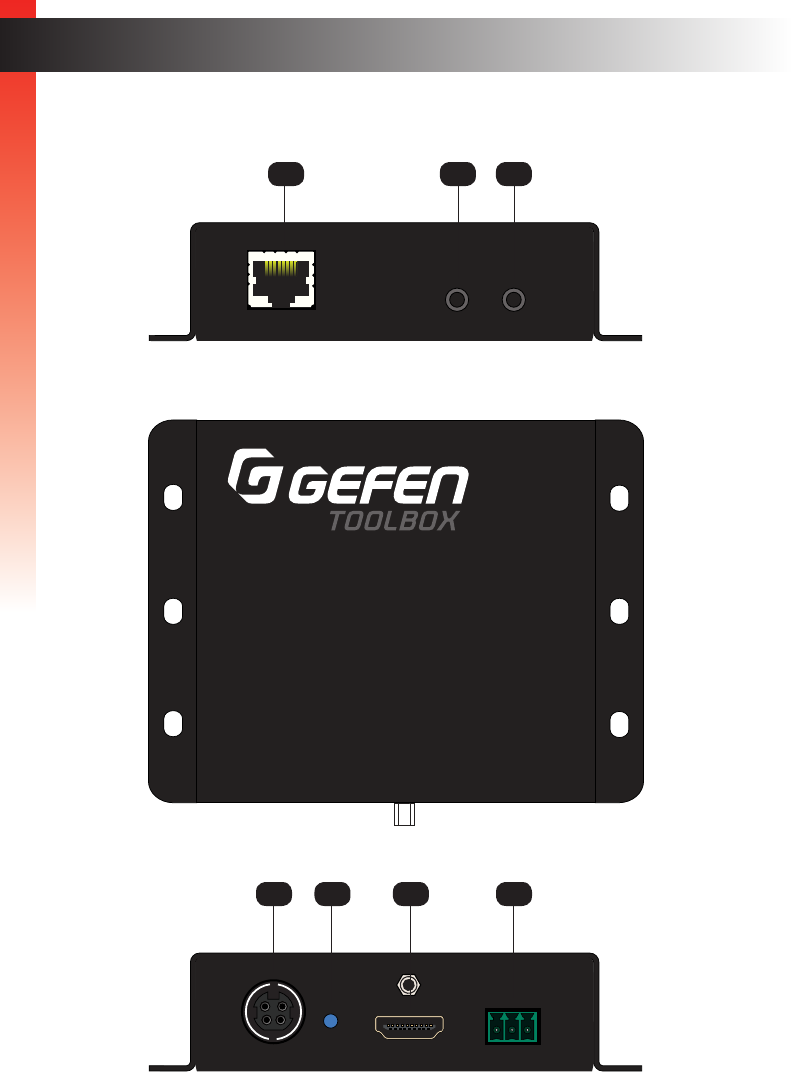
Sender Unit
Power
Link
24V DC
HDMI In
Link
IR In/Ext
IR Out
GTB-UHD-HBT-S
®
w/ RS-232, 2-way IR and POL
4K Ultra HD
HDBaseT Extender S
™
RS-232
Power
Link
24V DC
HDMI In
Link
IR In/Ext
IR Out
GTB-UHD-HBT-S
®
w/ RS-232, 2-way IR and POL
4K Ultra HD
HDBaseT Extender S
™
RS-232
Power
Link
24V DC
HDMI In
Link
IR In/Ext
IR Out
GTB-UHD-HBT-S
®
w/ RS-232, 2-way IR and POL
4K Ultra HD
HDBaseT Extender S
™
RS-232
6 74 5
2 31
Getting Started
Getting Started

page | 3
Introduction
ID Name Description
1 Link Connect a CAT-5e cable (or better), up to
495 feet (150 meters), from this port to the
Link port on the Receiver unit.
2 IR In/Ext 3.5mm mini-stereo jack. Connect an IR
Extender EXT-RMT-EXTIRN (1 pc included)
to this port. Alternatively, connect a 3.5mm
mini-stereo connector from this port to the
output of an automation system with an
electrical IR output.
See Bidirectional IR Control (page 11)
for more information on using IR.
3 IR Out Connect an EXT-IREMIT IR Emitter (1 pc
included) from this port to the IR sensor of
the device to be controlled.
See Bidirectional IR Control (page 11)
for more information on using IR.
4 24V DC This power receptacle can be used to
connect the included 24V DC power supply
(1 pc included). Only one power supply is
required for the extender system to
operate. The power supply can be
connected to either the Sender or Receiver
unit.
5 Power Link This LED indicator displays the current
state of the Sender unit. See LED Status
(page 10) for more information.
6HDMI In Use the included HDMI cable to connect an
Ultra HD source to this HDMI port.
7RS-232 Connect the included RS-232 adapter cable
from this port to the automation device.
Getting Started
page | 4
Introduction
Receiver Unit
Power
Link
24V DC
HDMI Out
Link
IR In/Ext
IR Out
GTB-UHD-HBT-R
®
w/ RS-232, 2-way IR and POL
4K Ultra HD
HDBaseT Extender R
™
RS-232
Power
Link
24V DC
HDMI Out
Link
IR In/Ext
IR Out
GTB-UHD-HBT-R
®
w/ RS-232, 2-way IR and POL
4K Ultra HD
HDBaseT Extender R
™
RS-232
Power
Link
24V DC
HDMI Out
Link
IR In/Ext
IR Out
GTB-UHD-HBT-R
®
w/ RS-232, 2-way IR and POL
4K Ultra HD
HDBaseT Extender R
™
RS-232
6 74 5
2 31
Getting Started
Getting Started

page | 5
Introduction
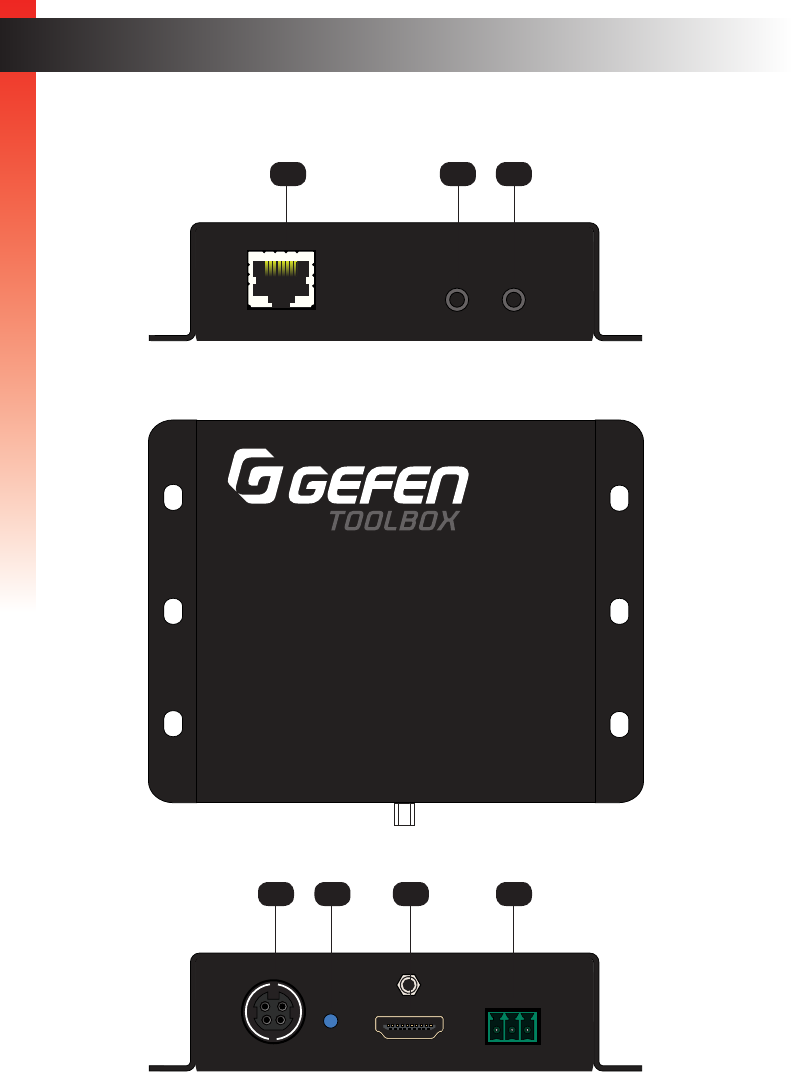
ID Name Description
1 Link Connect a CAT-5e cable (or better), up to
495 feet (150 meters), from this port to the
Link port on the Sender unit.
2 IR In/Ext 3.5mm mini-stereo jack. Connect an EXT-
RMT-EXTIRN IR Extender (1 pc included)
to this port. Alternatively, connect a 3.5mm
mini-stereo connector from this port to the
output of an automation system with an
electrical IR output.
See Bidirectional IR Control (page 11)
for more information on using IR.
3 IR Out Connect an IR emitter EXT-IREMIT (1 pc
included) from this port to the IR sensor of
the device to be controlled.
See Bidirectional IR Control (page 11)
for more information on using IR.
4 24V DC This power receptacle can be used to
connect the included 24V DC power supply
(1 pc included). Only one power supply is
required for the extender system to
operate. The power supply can be
connected to either the Sender or Receiver
unit.
5 Power Link This LED indicator displays the current
state of the Receiver unit. See LED Status
(page 10) for more information.
6HDMI Out Connect an HDMI cable from this port to an
Ultra HD display.
7RS-232 Connect the included RS-232 adapter cable
from this port to the device to be controlled.
Getting Started

page | 6
Installation
Connection Instructions
►Video
1. Connect the included HDMI cable between the Ultra Hi-Def source and the HDMI In
port on the Sender unit.
2. Connect an Ultra HD display to the HDMI Out port on the Receiver unit using another
HDMI cable.
►CAT-5
3. Connect a CAT-5e (or better) cable, up to 495 feet (150 meters) from the Link port on
the Sender unit and the Link port on the Receiver unit.
►IR
4. Refer to Bidirectional IR Control (page 11) for details on connecting IR devices.
►RS-232
5. Connect the included 3-pin Phoenix-to-DB-9 (female) cable between the RS-232
controller and the Sender unit.
6. Connect the included 3-pin Phoenix-to-DB-9 (male) cable between the RS-232 device
and the Receiver unit.
►Power
7. Connect the included 24V DC power supply (1 pc included) to the power
receptacle on either the Sender or Receiver unit.
8. Connect the opposite end of the power supply to an available electrical outlet.
Information
Resolution will affect extension distance. 1080p Full HD can be extended up
to 495 feet (150 meters) and is limited to 8-bit color depth. 4K resolutions can
be extended up to 330 feet (100 meters). Refer to HDBT (HDBaseT™) Mode
(page 17) for details.
Getting Started
Getting Started
page | 7
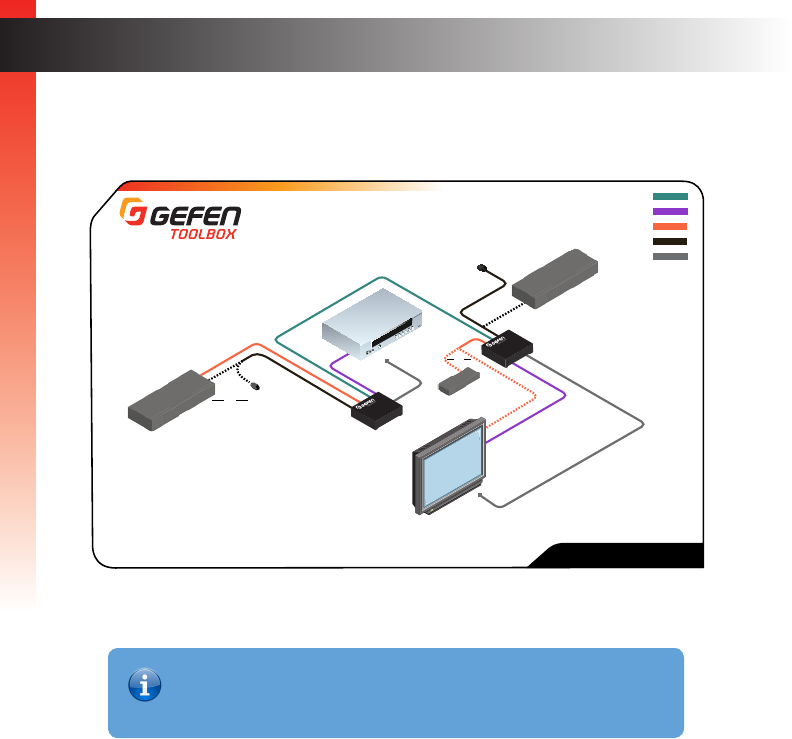
Sample Wiring Diagram
Installation
CAT-5 CABLE
HDMI CABLE
RS-232 CABLE
IR IN
IR Emitter
RS-232 Controlled
Device
IR Emitter
Ultra HD Display
Ultra HD Source
Sender Unit
Receiver Unit
OR
IR OUT
GTB-UHD-HBT
IR Extender
(EXT-RMT-EXTIRN)
OR
OR
Automation
Control Device
Automation
Control Device
IR Extender
(EXT-RMT-EXTIRN)
Getting Started
Information
The wiring diagram, shown above, requires an additional IR emitter (Gefen
part no. EXT-IREMIT) and IR extender (Gefen part no. EXT-RMT-EXTIRN).
This page left intentionally blank.

page | 9
2 Basic Operation
HDBaseT Extender
w/ RS-232, 2-way IR and POH
™
60Hz, 4:2:0
page | 10
LED Status
Basic Operation
Basic Operation
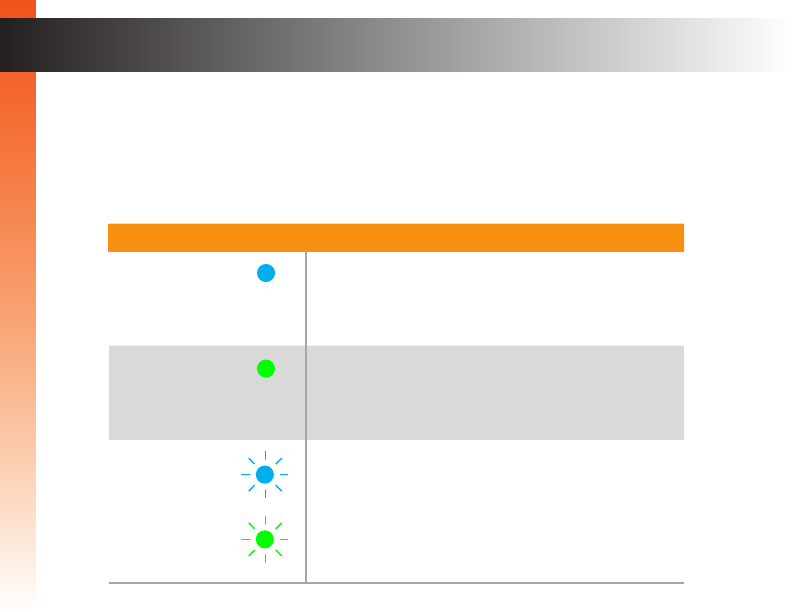
The Power Link LED indicator on the Sender and Receiver unit provides basic information
on the current status of the 4K Ultra HD HDBaseT Extender w/ RS-232, 2-way IR and POL.
The information, in the table below, applies to both the Sender and Receiver unit.
Status Description
Solid blue • The Sender / Receiver unit is powered.
• Link integrity between Sender and Receiver unit
is good.
Solid green • Link integrity is compromised.
• Check the cable between the Link port on the
Sender and Receiver unit.
Flashes
blue / green
• Source device is not connected to the Sender
unit.
• Display (sink) device not connected to the
Receiver unit.
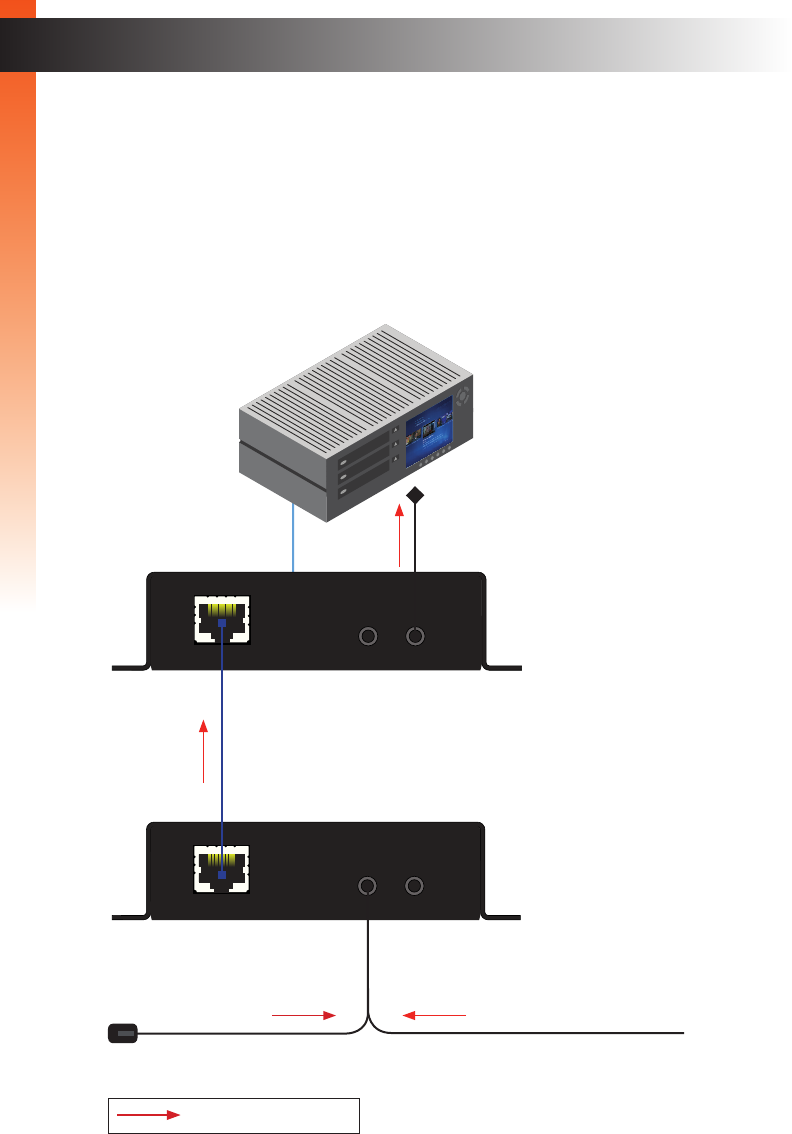
Controlling the Source from the Viewing Location
1. Connect an EXT-RMT-EXTIRN IR Extender (1 pc included) to the IR In/Ext port on the
Receiver unit. If using an automation system, connect the 3.5mm mini-stereo connec-
tor from the IR In/Ext port on the Receiver unit to the automation system. IR signals are
transmited over the Link cable.
2. Connect an EXT-IREMIT IR Emitter (1 pc included) from the IR Out port, on the
Sender unit, to the IR sensor window on the source device.
page | 11
Bidirectional IR Control
Basic Operation
IR signals
Power
Link
24V DC
HDMI In
Link
IR In/Ext
IR Out
GTB-UHD-HBT-S
®
w/ RS-232, 2-way IR and POL
4K Ultra HD
HDBaseT Extender S
™
RS-232
Power
Link
24V DC
HDMI Out
Link
IR In/Ext
IR Out
GTB-UHD-HBT-R
®
w/ RS-232, 2-way IR and POL
4K Ultra HD
HDBaseT Extender R
™
RS-232
IR extender or from Automation
System
to Ultra HD display
Ultra HD source
IR emitter
Sender unit
Receiver unit
to HDMI Out port
to HDMI In port
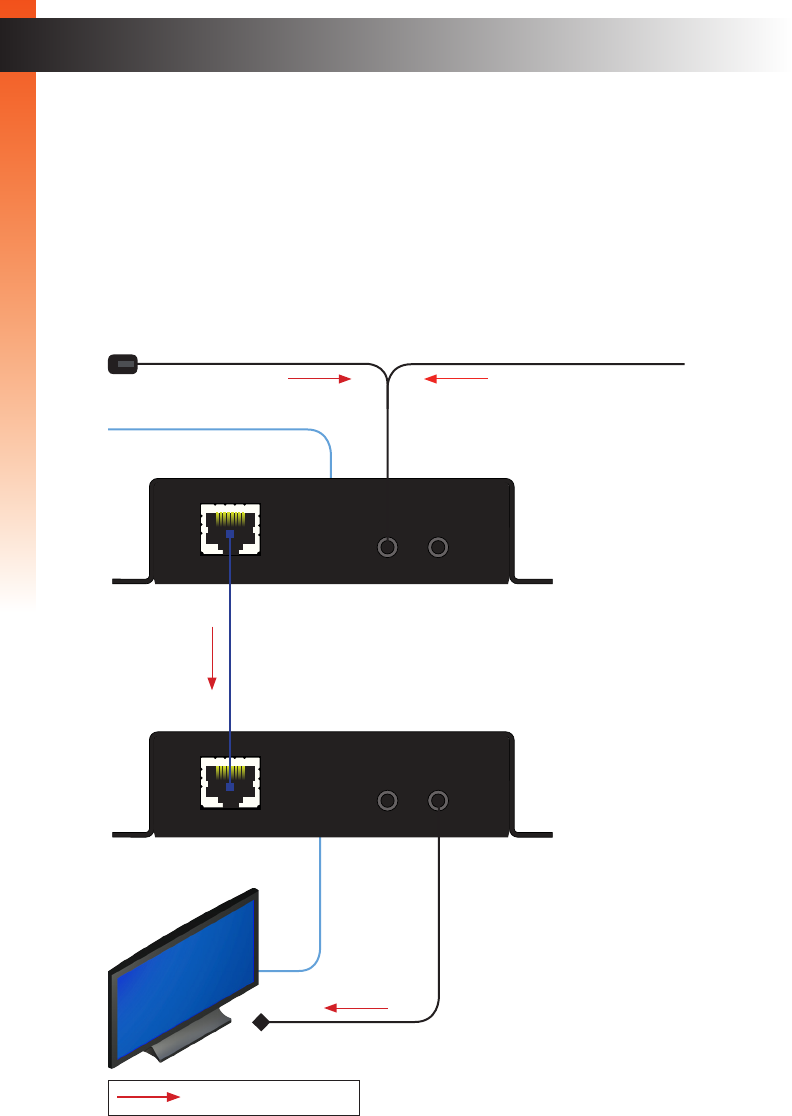
Controlling the Display from the Source Location
1. Connect an EXT-RMT-EXTIRN IR Extender (1 pc included) to the IR In/Ext port on the
Sender unit. If using an automation system, connect the 3.5mm mini-stereo connector
from the IR In/Ext port on the Receiver unit to the automation system. IR signals are
transmited over the Link cable.
2. Connect an EXT-IREMIT IR Emitter (1 pc included) from the IR Out port on the Receiver
unit to the IR sensor on the display.
page | 12
Bidirectional IR Control
Basic Operation
IR signals
Power
Link
24V DC
HDMI Out
Link
IR In/Ext
IR Out
GTB-UHD-HBT-R
®
w/ RS-232, 2-way IR and POL
4K Ultra HD
HDBaseT Extender R
™
RS-232
Power
Link
24V DC
HDMI In
Link
IR In/Ext
IR Out
GTB-UHD-HBT-S
®
w/ RS-232, 2-way IR and POL
4K Ultra HD
HDBaseT Extender S
™
RS-232
IR emitter
Ultra HD display
from Ultra HD source
or
IR extender from Automation
System
Sender unit
Receiver unit
to HDMI Out port
to HDMI In port
Basic Operation
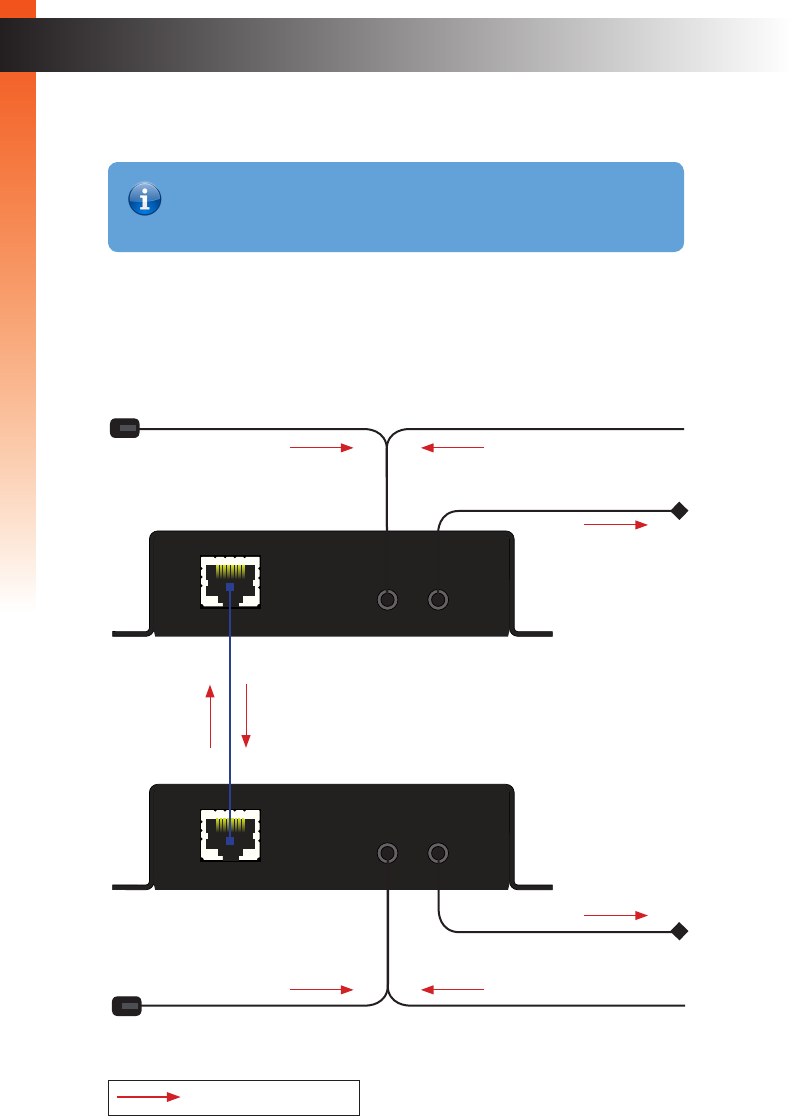
Controlling the Source / Display from Different Locations
Using bidirectional IR, the 4K Ultra HD HDBaseT Extender w/ RS-232, 2-way IR and POL
allows the source and/or display to be controlled from the Sender or Receiver unit.
Refer to the diagram, below, for connection details. The video (HDMI) cables have been
removed for clarity. IR signals are transmited over the Link cable.
page | 13
IR signals
Bidirectional IR Control
Sender unit
Receiver unit
Power
Link
24V DC
HDMI Out
Link
IR In/Ext
IR Out
GTB-UHD-HBT-R
®
w/ RS-232, 2-way IR and POL
4K Ultra HD
HDBaseT Extender R
™
RS-232
Power
Link
24V DC
HDMI In
Link
IR In/Ext
IR Out
GTB-UHD-HBT-S
®
w/ RS-232, 2-way IR and POL
4K Ultra HD
HDBaseT Extender S
™
RS-232
or
or
IR emitter
IR emitter
IR Signals from
Receiver unit
IR extender
IR extender
from Automation
System
from Automation
System
IR Signals from
Sender unit
Information
Additional IR extenders (Gefen part no. EXT-RMT-EXTIRN) and IR emitters
(Gefen part no. EXT-IREMIT) will be required for this conguration.
Basic Operation
page | 14
DIP Switch Conguration
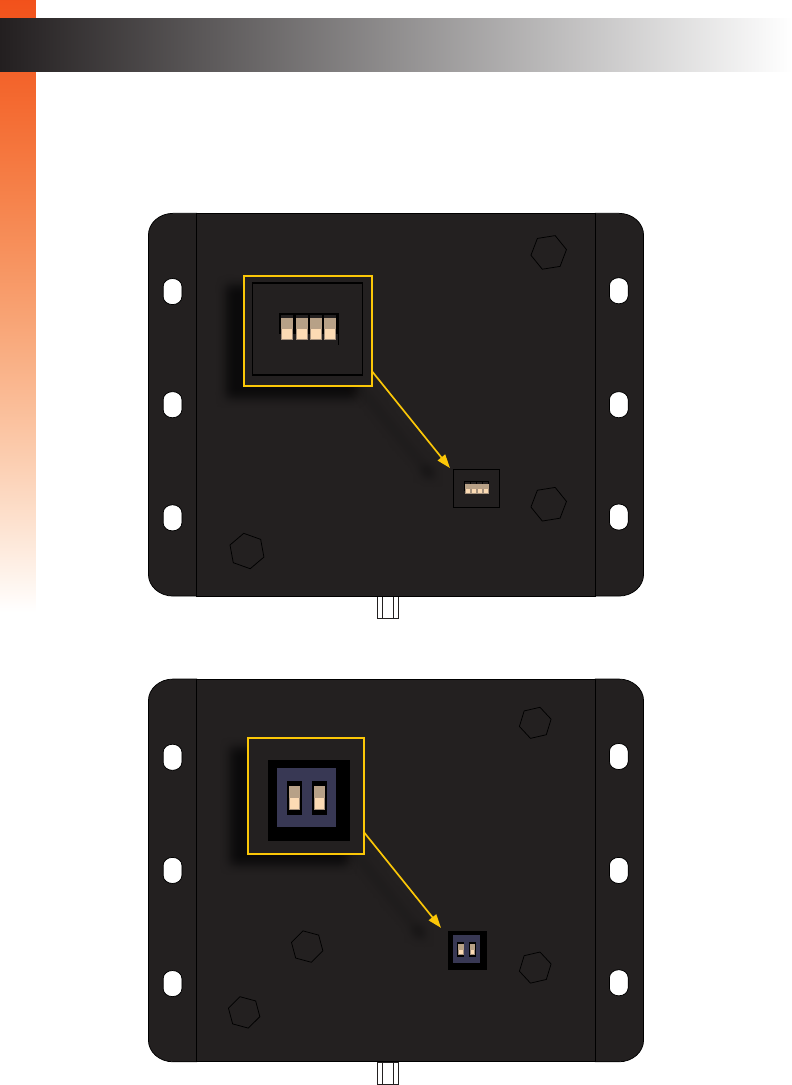
On the bottom of both the Sender and Receiver unit are a set of DIP switches. The Sender
unit has a bank of four DIP switches. The Receiver unit has a bank of two DIP switches.
See the following pages for DIP switch settings.
Basic Operation
Basic Operation
ON RSN
1 2 3 4
Power
Link
24V DC
HDMI In
Link
IR In/Ext
IR Out
GTB-UHD-HBT-S
RS-232
Sender unit
ON
1 2
Power
Link
24V DC
HDMI Out
Link
IR In/Ext
IR Out
GTB-UHD-HBT-R
RS-232
Receiver unit
ON RSN
1 2 3 4
Power
Link
24V DC
HDMI In
Link
IR In/Ext
IR Out
GTB-UHD-HBT-S
RS-232
ON
1 2
Power
Link
24V DC
HDMI Out
Link
IR In/Ext
IR Out
GTB-UHD-HBT-R
RS-232
page | 15
DIP Switch Conguration
Each of the following sections describe the DIP switch settings that control each feature.
DIP switches that are not related to a specic feature have been grayed-out. Note that DIP
switch settings can be used independently or in conjunction with other features, as desired.
EDID Management
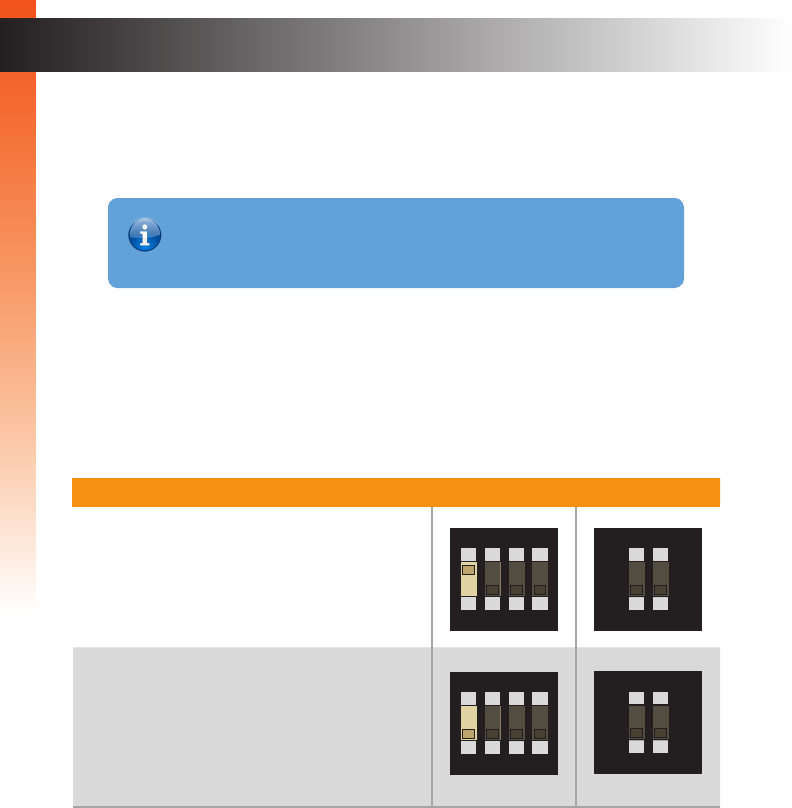
The 4K Ultra HD HDBaseT Extender w/ RS-232, 2-way IR and POL provides EDID
management. The Sender unit can use the EDID from the sink device (downstream EDID)
or modify the EDID, locally.
Description Sender unit Receiver unit
External EDID mode (default)
• Allows all video and audio features of the
connected device to be passed to the
source device.
Internal EDID mode
• Copies the downstream EDID locally for
use with HPD High Mode.
• See HPD Mode (page 16) for more
information.
ON SAB
1 2 3 4
ON SAB
1 2 3 4
ON
1 2
ON
1 2
Information
DIP switch 2, on the Receiver unit, is not used and is reserved for optional
future expansion.
Basic Operation
page | 16
DIP Switch Conguration
HPD Mode
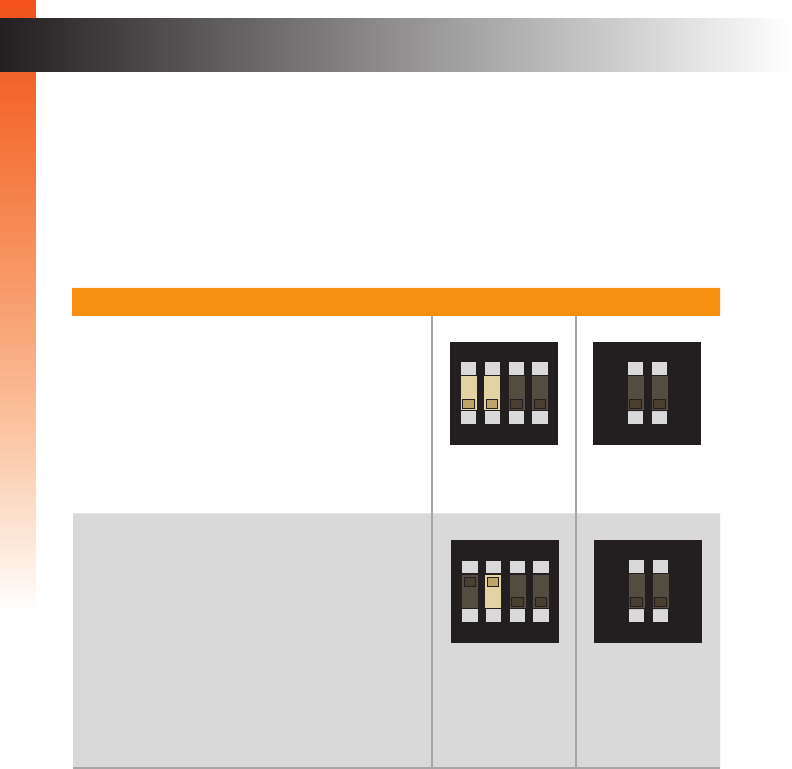
HPD (Hot-Plug Detect) is an HDMI feature that senses if the HDMI cable is disconnected
from the source or sink device. Once this occurs, the HDMI link is re-initialized if
necessary. The 4K Ultra HD HDBaseT Extender w/ RS-232, 2-way IR and POL
allows you to control the way HPD is handled.
Description Sender unit Receiver unit
HPD High
• Both DIP switch 1 and 2 must be in the
down (OFF) position when setting HPD
high.
• HPD is always high, even when the display
is hot-plugged (disconnected from then
reconnected to the source device).
HPD Pass-through
• DIP switch 2 must be in the up (ON)
position when setting HPD pass-through.
• The position of DIP switch 1 is ignored
and can be in the up (ON) or down (OFF)
position.
• HPD will toggle, depending on the HPD
status of the display (sink) or source
device.
ON SAB
1 2 3 4
ON SAB
1 2 3 4
ON
1 2
ON
1 2
Basic Operation
Basic Operation
page | 17
HDBT (HDBaseT™) Mode
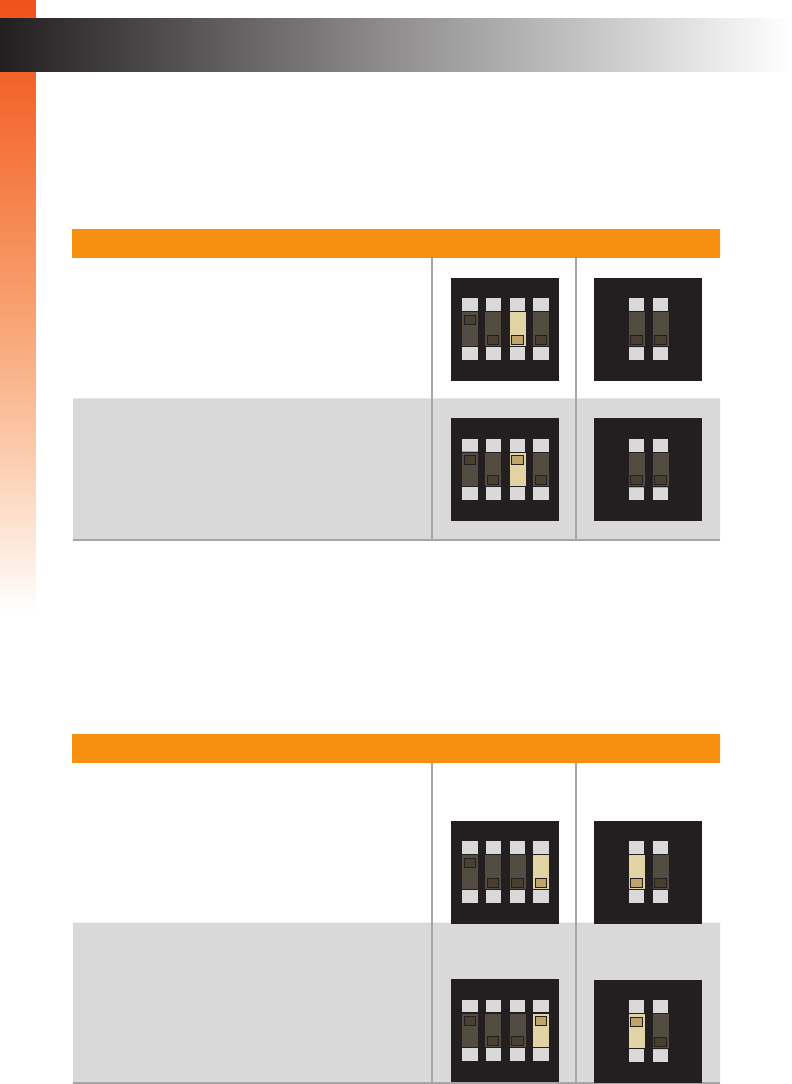
1080p Full HD can be extended up to 495 feet (150 meters) and is limited to 8-bit color
depth. 4K resolutions can be extended up to 330 feet (100 meters) with deep color.
Description Sender unit Receiver unit
Normal mode (default)
• Allows all resolutions, up to 4K x 2K, to be
extended up to 330 feet (100 meters).
Long-reach mode
• Allows resolutions up to 1080p Full HD,
at 8-bit, to be extended to a maximum
distance of 495 feet (150 meters).
RS-232 Mode
Toggles between RS-232 pass-through mode and service mode.
Description Sender unit Receiver unit
Pass-through mode (default)
• RS-232 data is passed between the
Sender and Receiver unit.
Service mode
• Used to upgrade the rmware.
See Updating the Firmware (page 28)
for details.
DIP Switch Conguration
ON SAB
1 2 3 4
ON SAB
1 2 3 4
ON SAB
1 2 3 4
ON SAB
1 2 3 4
ON
1 2
ON
1 2
ON
1 2
ON
1 2
Basic Operation
This page left intentionally blank.

3 Advanced Operation
HDBaseT Extender
w/ RS-232, 2-way IR and POH
™
60Hz, 4:2:0
page | 20
RS-232 Setup
Advanced Operation
Advanced Operation
Connecting RS-232 Devices
The 4K Ultra HD HDBaseT Extender w/ RS-232, 2-way IR and POL supports RS-232
pass-through, allowing the control of RS-232 devices using an automation system.
The RS-232 interface is also used to upgrade the rmware and provides a small set
of RS-232 commands. See Updating the Firmware (page 28) for details.
1. Connect the included 3-pin Phoenix-to-DB-9 (M-F) adapter cable from the Sender unit
to the automation device.
2. Connect the included 3-pin Phoenix-to-DB-9 (M-M) adapter cable from the Receiver
unit to the device to be controlled.
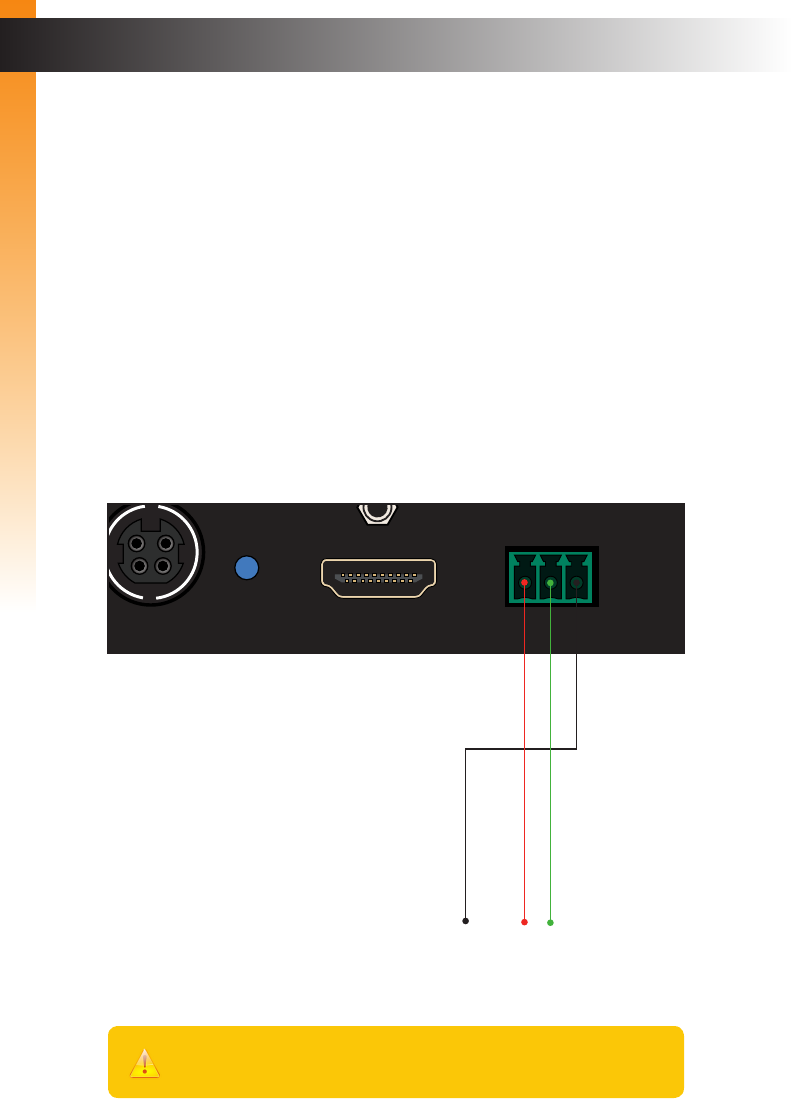
The following diagram shows the pin-out of the RS-232 port on the Sender unit.
Note that only TXD (Transmit Data), RXD (Receive Data), and GND (Signal Ground)
pins are used.
Power
Link
24V DC
HDMI In
Link
IR In/Ext
IR Out
GTB-UHD-HBT-S
®
w/ RS-232, 2-way IR and POL
4K Ultra HD
HDBaseT Extender S
™
RS-232
GND
TXD
RXD
Important
When sending RS-232 commands, a CR (0x0D) must be included.

page | 21
Command Description
#fw_upgrade Used to upgrade the rmware
#hdcp Enables / disables HDCP detection
#help Displays a list of available RS-232 commands
#power_always Enables / disables “power always” mode
#fw_upgrade
Used to upgrade the rmware. See Updating the Firmware (page 28) for information on
using this command.
Syntax
#fw_upgrade param1
Parameters
None
Example
See Updating the Firmware (page 28) for information on using this command.
Commands
Advanced Operation

page | 22
Commands
Advanced Operation
.
#hdcp
Enables / disables HDCP detection on the input. Some computers will enable HDCP if
an HDCP-compliant display is detected. Set param1 = 0 to force the computer to ignore
detection of an HDCP-compliant display.
Syntax
#hdcp param1
Parameters
param1 Integer [0 ... 1]
Value Description
0Disable HDCP
1Enable HDCP
Example
#hdcp 0
Disable HDCP
stop HDCP/EDID detect
Information
Setting param1 = 0 (HDCP disabled) does not decrypt HDCP content.
Advanced Operation

page | 23
Commands
#help
The #help command displays the list of available RS-232 commands. Help on a specic
command can be displayed when using param1.
Syntax
#help param1
Parameters
param1 Command name (optional)
Example
#help
Available cmds:
#help
#fw_upgrade
#hdcp
#power_always
#help #hdcp
Cmd #hdcp: Change HDCP mode
Syntax: #hdcp param1
Param1 = 0(disable hdcp)/1(enable hdcp)
Advanced Operation

page | 24
Commands
#power_always
Sets the power mode. The unit must be rebooted after changing the power mode.
Syntax
#power_always param1
Parameters
param1 Integer [0 ... 1]
Value Description
0Power save
1Power always
Example
#power_always 1
Set Power always mode
To change power mode, Please reboot the unit
Advanced Operation
This page left intentionally blank.
This page left intentionally blank.

4 Appendix
HDBaseT Extender
w/ RS-232, 2-way IR and POH
™
60Hz, 4:2:0

page | 28
There are two methods for updating the 4K Ultra HD HDBaseT Extender w/ RS-232,
2-way IR and POL. The recommended method is to update both units at the same time by
leaving the Sender and Receiver unit connected. Updating the Sender unit will update the
Receiver unit (or vice versa). The second method is to update the Sender and Receiver
unit separately.
Single Update Procedure
This method is recommended and can be used in situations where disconnecting the
system is impractical or difcult. The power supply must be connected to either the Sender
or Receiver unit. The update procedure can take place at the Sender or Receiver location.
1. Download the latest rmware here: http://www.gefen.com/support/download.jsp
2. Extract the contents of the .zip le to the desktop on your computer.
3. Disconnect the power supply from the Sender (or Receiver) unit.
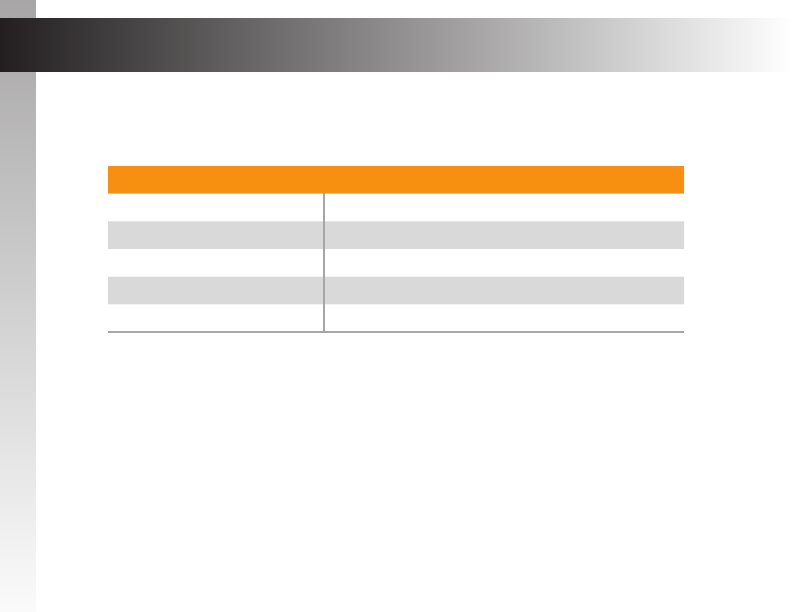
4. Set the following DIP switches on the Sender and Receiver units:
► Sender unit
Set DIP switch 4, on the bottom of the Sender unit, to the ON position:
►Receiver unit
Set DIP switch 1, on the bottom of the Receiver unit, to the ON position:
5. Connect the included RS-232 cable between the Sender (or Receiver) unit and the
computer.
6. Launch a terminal emulation program. In this example, we will be using Windows®
Hyperterminal.
ON SAB
1 2 3 4
ON
1 2
Updating the Firmware
Appendix
Appendix
page | 29
Updating the Firmware
7. Assign the following serial port settings in Hyperterminal:
Description Setting
Baud rate 19200
Data bits 8
Parity None
Stop bits 1
Hardware ow control None
8. Reconnect the power supply to the Sender (or Receiver) unit.
9. Type the following in the terminal application:
#fw_upgrade
10. Press the [ENTER] key.
11. When prompted, press 1 on the computer keyboard.
12. Click Transfer > Send File...
13. Select the rmware le: ELR_BIDIR_[version].bin.
14. Select the YModem protocol and click the Send button.
15. After the upgrade process is complete, the unit will automatically reboot.
16. Both the Sender and Receiver units are now updated.
Appendix
page | 30
Individual Update Procedure
This method requires that the Sender and Receiver unit are updated separately.
Unless there is a specic reason, the Single Update Procedure (page 28) is
recommended.
1. Download the latest rmware here: http://www.gefen.com/support/download.jsp
2. Extract the contents of the .zip le to the desktop on your computer.
3. Disconnect the Sender and Receiver unit from the system. Make sure the power is
disconnected from both the Sender and Receiver unit.
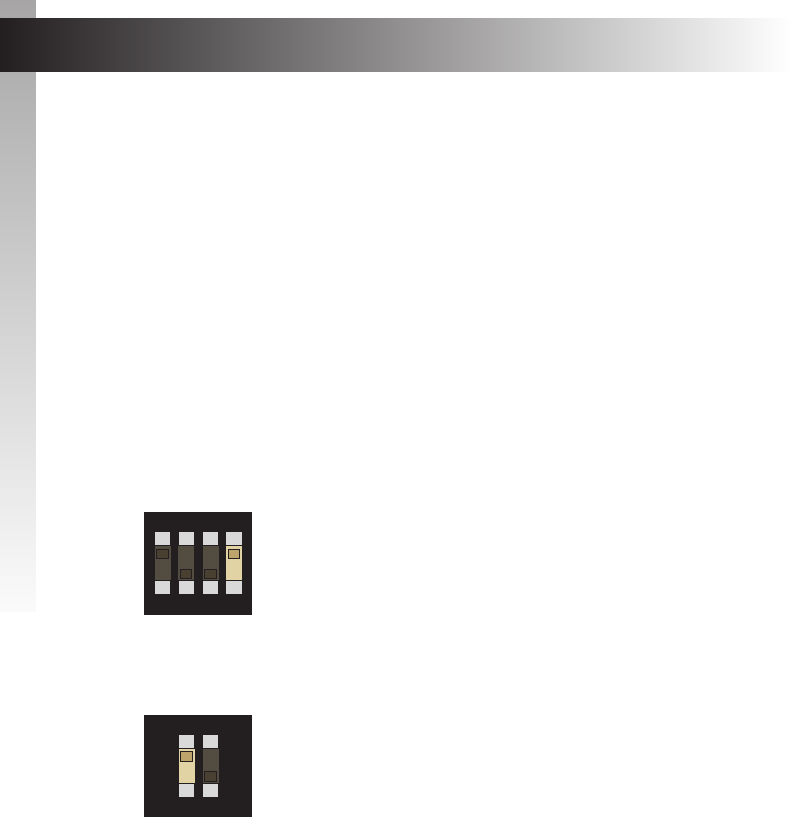
4. Set the following DIP switches on the Sender and Receiver units:
► Sender unit
Set DIP switch 4, on the bottom of the Sender unit, to the ON position:
►Receiver unit
Set DIP switch 1, on the bottom of the Receiver unit, to the ON position:
5. Connect the included RS-232 cable between the unit and the computer.
6. Launch a terminal emulation program. In this example, we will be using Windows®
Hyperterminal.
(continued on next page)
ON SAB
1 2 3 4
ON
1 2
Updating the Firmware
Appendix
Appendix
page | 31
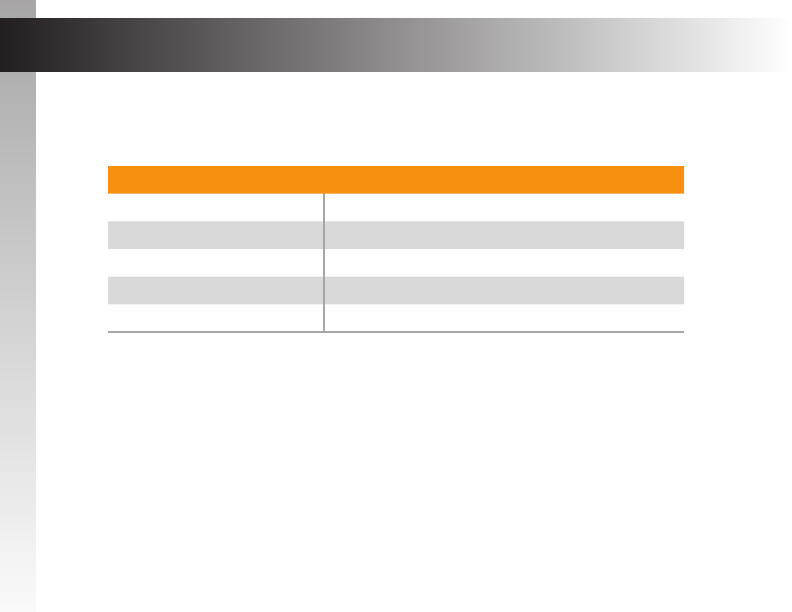
7. Assign the following serial port settings in Hyperterminal:
Description Setting
Baud rate 19200
Data bits 8
Parity None
Stop bits 1
Hardware ow control None
8. Connect the power supply to the unit.
9. Type the following in the terminal application:
#fw_upgrade
10. Press the [ENTER] key.
11. When prompted, press 1 on the computer keyboard.
12. Click Transfer > Send File...
13. Select the rmware le: ELR_BIDIR_[version].bin.
14. Select the YModem protocol and click the Send button.
15. After the upgrade process is complete, the unit will automatically reboot.
16. Connect the RS-232 cable to the other unit and repeat steps 8 - 15.
Updating the Firmware
Appendix
page | 32
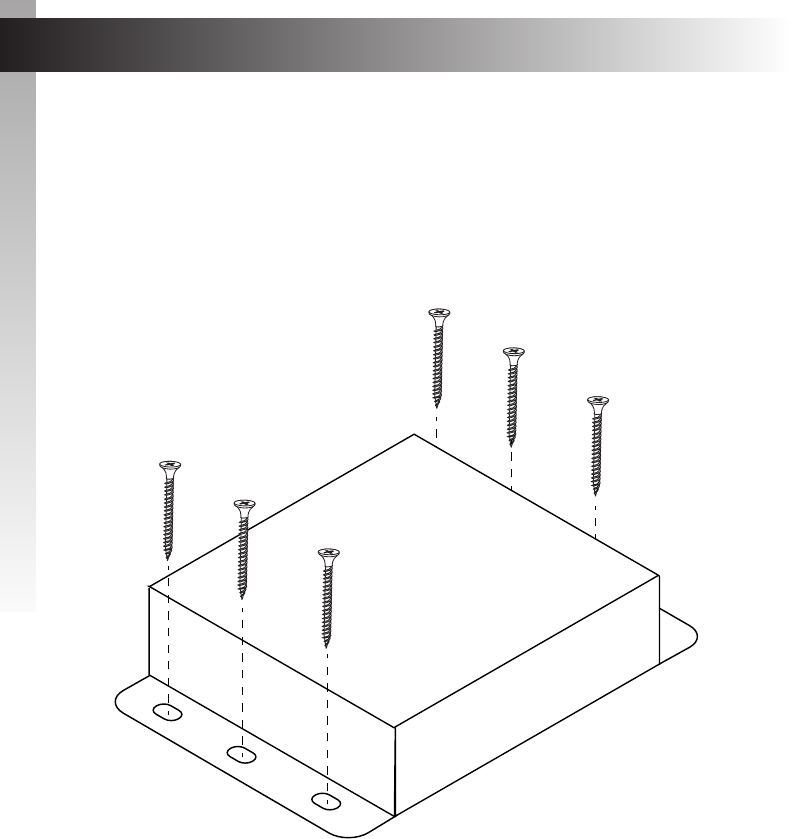
The Sender and Receiver units can be mounted on any at surface, as shown below
(mounting screws are not included). To accommodate for connection and disconnection of
the cables, please leave sufcient clearance between the two edges of the unit that house
the connectors and any walls or vertical surfaces.
For installation on a drywall surface, use a #6 drywall screw. When installing, it is
recommended to use the center hole on a stud.
Surface Mounting Instructions
Appendix
Appendix
page | 33
Network Cable Diagram
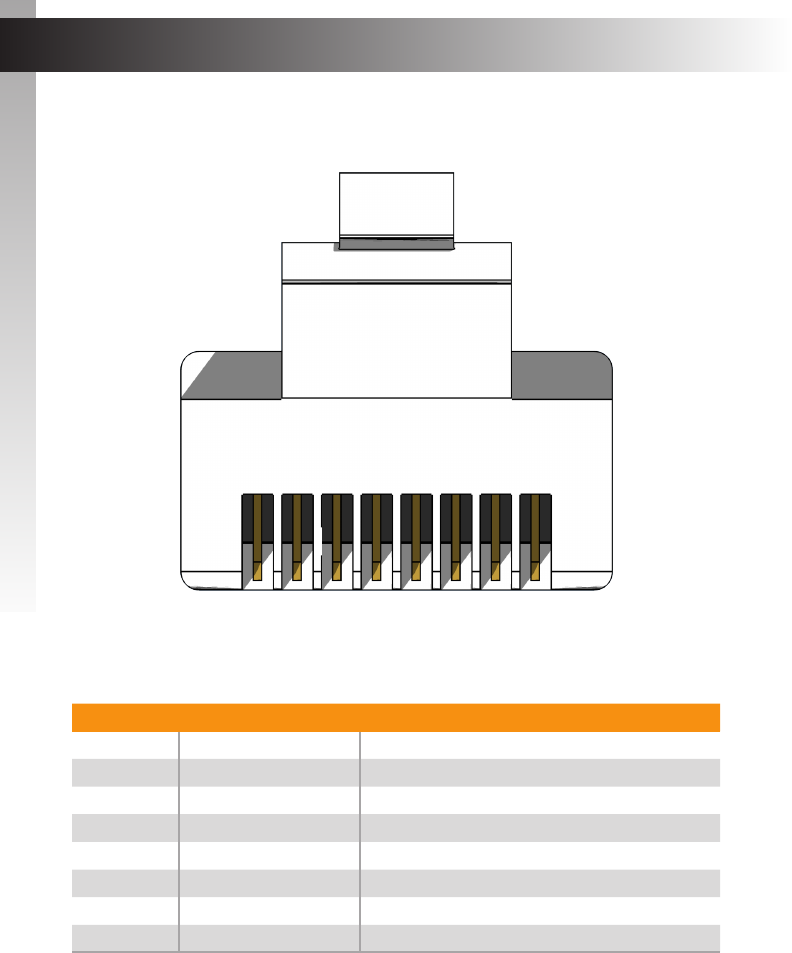
Front of RJ-45 Connector
Gefen recommends the TIA/EIA-568-B wiring option. Use the following table when
terminating cables in the eld.
Pin Color Description
1 Orange / White TD+ (Transmit Data, positive differential signal)
2 Orange TD- (Transmit Data, negative differential signal)
3 Green / White RD+ (Receive Data, positive differential signal)
4 Blue Unused
5 Blue / White Unused
6 Green RD- (Receive Data, negative differential signal)
7 Brown / White Unused
8 Brown / White Unused
Shielded (STP) CAT-5 or CAT-6 is recommended. However, unshielded (UTP)
CAT-5 or CAT-6 is acceptable. CAT-5, CAT-5e, and CAT-6 cabling comes in stranded
and solid core types. Gefen recommends using solid core cabling. CAT-6 cable is also
recommended.
It is recommended to use one continuous run from one end to the other. Patch cable is
not recommended.
1 2 3 4 5 6 7 8
Appendix

page | 34
Supported Formats
Video • 4096 x 2160
• 3840 x 2160
• 1920 x 1200 (WUXGA)
• 1080p Full HD
Audio • Linear PCM (7.1 channels)
• Dolby Atmos® and Dolby® TrueHD
• DTS:X™ and DTS-HD Master Audio™
Connectors & Indicators
HDMI In (Sender) • 1 x HDMI Type A, 19-pin, female
HDMI Out (Receiver) • 1 x HDMI Type A, 19-pin, female
Link (Sender / Receiver) • 1 x RJ-45, shielded, female
IR In/Ext (Sender / Receiver) • 1 x 3.5mm, female
IR Out (Sender / Receiver) • 1 x 3.5mm, female
RS-232 (Sender / Receiver) • 1 x 3-pin Phoenix-type, female
Power (Sender / Receiver) • 1 x 4-pin, locking, female
Power Link (Sender / Receiver) • 1 x LED, bi-color, blue / green
Operational
Maximum Pixel Clock • 300 MHz
Power Input • 24V DC
Power Consumption • 12 Watts (max.)
Operating Temperature • +32 to +113 °F (0 to +45 °C)
Storage Temperature • -4 to +185 °F (-20 to +85 °C)
Storage Humidity (RH) • 0% to 90%, non-condensing
Operating Humidity (RH) • 5% to 90%, non-condensing
MTBF • 50,000 Hours
Physical
Dimensions (W x H x D)
(Sender / Receiver)
• 4.3” x 1” x 3.2”
(110mm x 26mm x 85mm)
Unit Weight (ea.) • 0.4 lb (0.2 kg)
Specications
Appendix
Appendix

page | 35
Index
Appendix
B
Bidirectional IR Control 11
C
Commands 21
#fw_upgrade 21
#hdcp 22
#help 23
#power_always 24
Connection Instructions 6
D
DIP Switch Conguration 14
E
EDID Management 15
F
Features vi
H
HDBT (HDBaseT™) Mode 17
HPD Mode 16
I
Installation 6
L
LED Status 10
Long-reach mode 17
M
Mounting Instructions 32
N
Network Cable Diagram 33
O
Operating Notes v
P
Packing List vii
R
Receiver Unit 4
RS-232
commands 21
mode 17
RS-232 Setup 20
S
Safety Instructions ii
Sender Unit 2
Specications 34
T
Table of Contents viii
Technical Support iv
U
Updating the Firmware
individual update procedure 30
single update procedure 28
W
Warranty Information iii
Wiring Diagram 7

20600 Nordhoff St., Chatsworth CA 91311
1-800-545-6900 818-772-9100 fax: 818-772-9120
www.gefen.com support@gefen.com
Stretch it. Switch it. Split it. Gefen’s got it. ®
*Preferred
1800 S McDowell Blvd. Petaluma CA 94954
(707) 283-5900 (800) 472-5555
