Universal Dragon Installation Guide User Manual
2017-11-21
User Manual: Manual Universal-Dragon-Installation-Guide Universal-Dragon-Installation-Guide Xantech-s
Open the PDF directly: View PDF  .
.
Page Count: 4
Application Advisory
AA-UNDD(Inst Guide)
Page 1 of 4
Universal
Dragon™
Installation Guide:
This guide provides users with step by step instructions on how
to install the Universal Dragon Drop software.
Requirements:
- 1.5GHz or greater processor (CPU)
- Windows 2000, Windows XP, or Windows Vista
- 650 MB Hard Drive space (you will need more as your
libraries and projects expand)
- 512 MB RAM (1 MB preferred)
- Mouse, USB
The new Universal Dragon software requires the latest ‘.NET’
and a Microsoft InstallShield update in order to ensure that the
latest version of the software is installed. These updates
require an internet connection during the installation process,
as well as a licensed installation of Microsoft Windows 2000 or
XP. If an internet connection is not present during installation
you will not be able to install this version of Universal at this
time.
Please note: The Microsoft ‘.NET’ download can be very large
(up to 70MB). If you do not have a fast internet connection this
can take a very long time.
Installation:
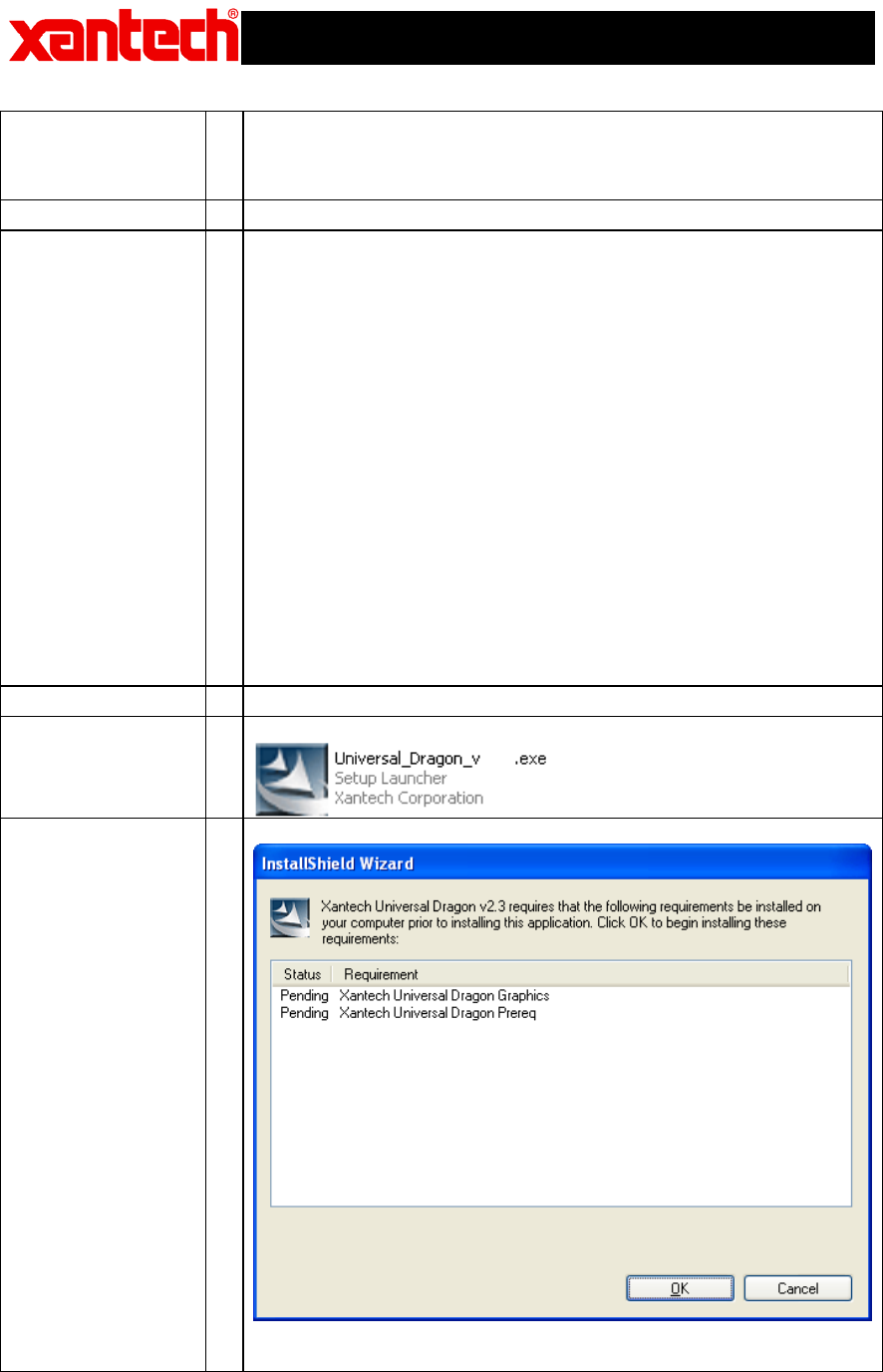
1. Double click on the installation program.
2. The installation process will begin:
Application Advisory
AA-UNDD(Inst Guide)
Page 2 of 4
Note: If you do not have the .NET, Dragon Graphics, or
Dragon Prerequisites on your computer, this will get
installed first.
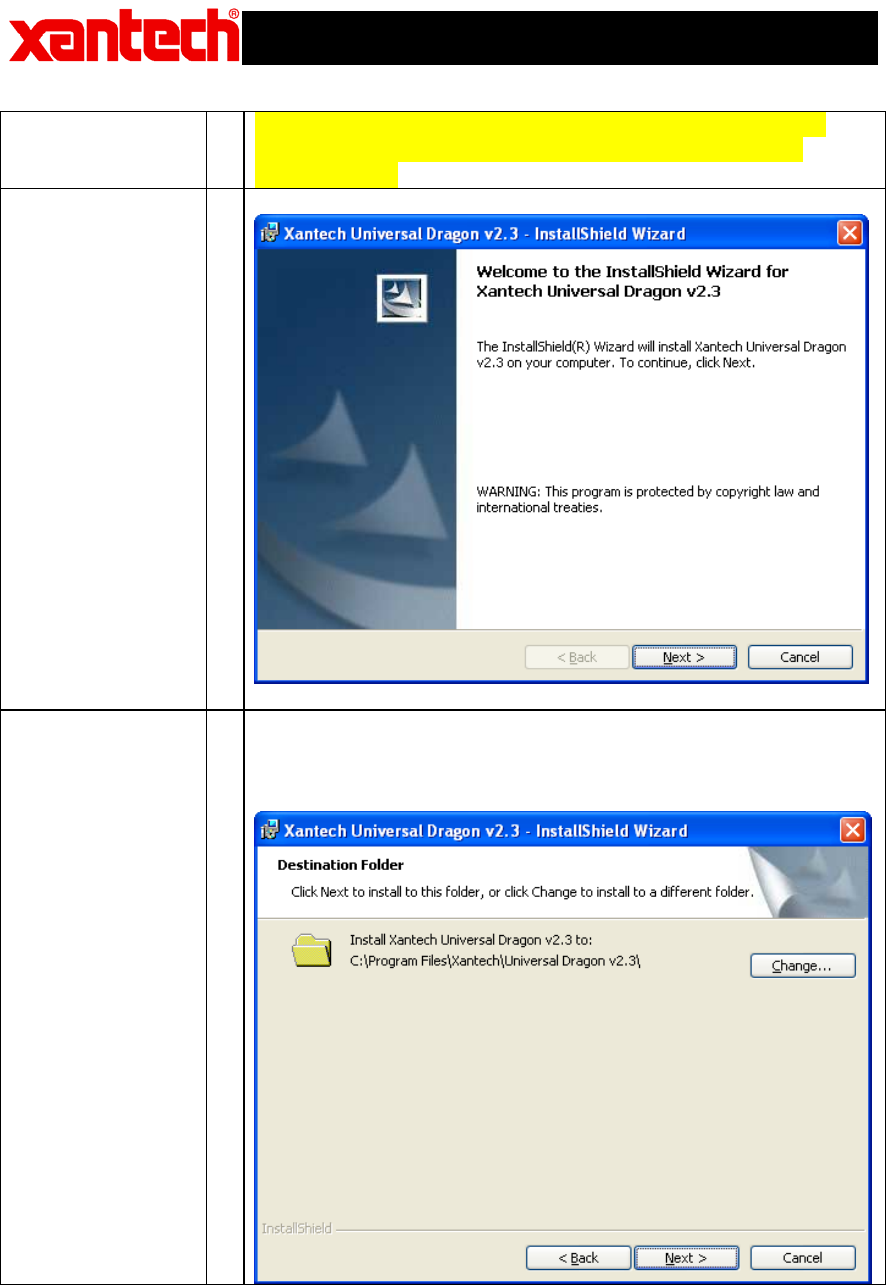
3. Click on the Next button:
4. The default installation path for Universal Dragon is
‘C:\Program Files\Xantech\Universal Dragon v2.3\’, if this is
acceptable click Next. Otherwise click on the Change button
and enter the location you wish to install Universal Dragon:
Application Advisory
AA-UNDD(Inst Guide)
Page 3 of 4
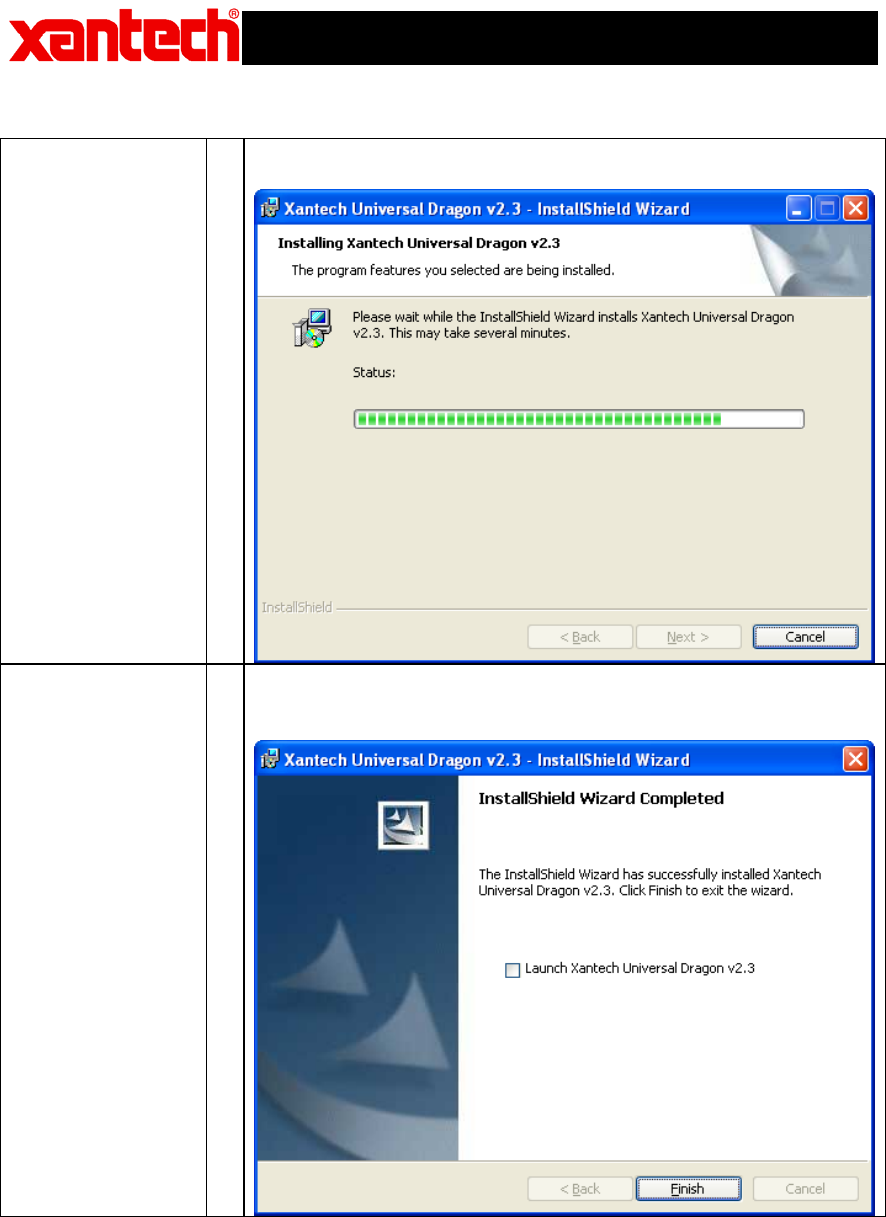
6. The installation will proceed showing the user the current
Status:
7. After installation is complete. Click on the Finish button. (If
you wish to launch Dragon immediately click on the checkbox
labeled “Launch Xantech Universal Dragon v.2.3”:
Application Advisory
AA-UNDD(Inst Guide)
Page 4 of 4
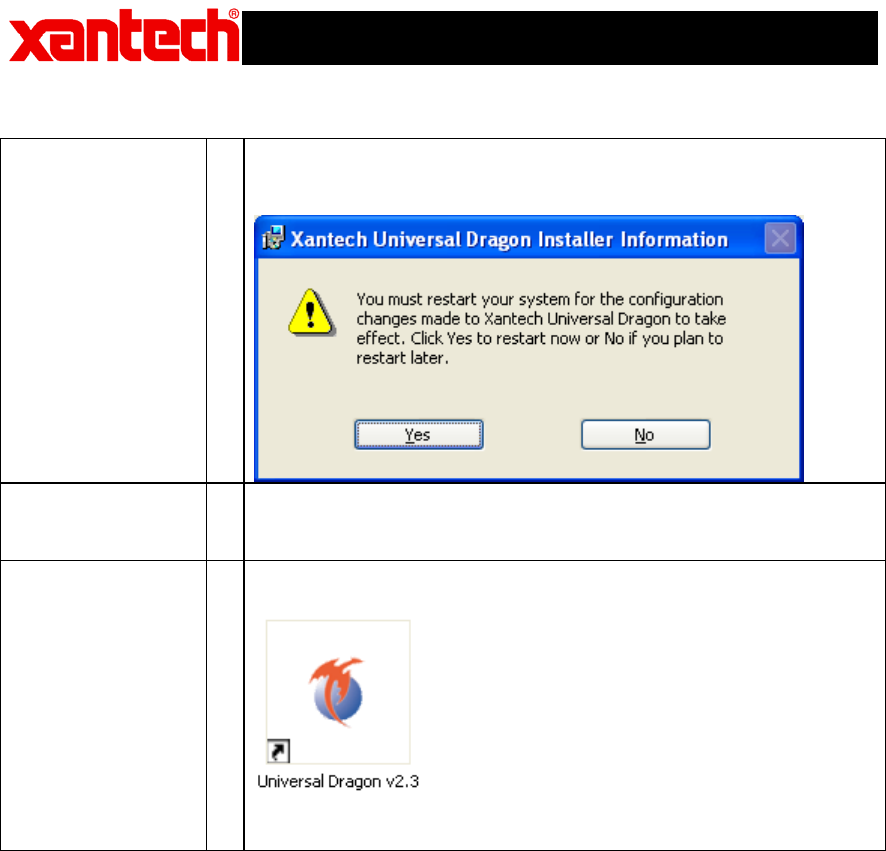
8. The installation package may ask you to reboot your
computer. Click Yes so that the installation process can be
completed:
9. After your computer reboots, the installation package will
check to make sure that you have the latest version of
Universal Dragon on your computer.
10. You can now run the Universal Dragon Drop software by
double clicking the shortcut on your desktop:
Or selecting Universal Dragon from your start menu under the
Xantech start folder.
