OneTouch_Mini Combo_Windows Maxtor Onetouch4 Mini Plus Windows
User Manual: Manual Sitemap Real
Open the PDF directly: View PDF  .
.
Page Count: 136 [warning: Documents this large are best viewed by clicking the View PDF Link!]

Maxtor OneTouch IV i
Contents
Getting Started . . . . . . . . . . . . . . . . . . . . . . . . . . . . . . . . . . . . . . . . . . . . . . . . . . . . .1
Installing the Software . . . . . . . . . . . . . . . . . . . . . . . . . . . . . . . . . . . . . . . . . . .1
Using the Maxtor System Tray Icon . . . . . . . . . . . . . . . . . . . . . . . . . . . . . . . .6
Restoring the System Tray Icon . . . . . . . . . . . . . . . . . . . . . . . . . . . . . .8
Managing Your Drives . . . . . . . . . . . . . . . . . . . . . . . . . . . . . . . . . . . . . . . . . . . . . .9
Customizing the OneTouch Button . . . . . . . . . . . . . . . . . . . . . . . . . . . . . . . .10
Adjusting the Power Setting . . . . . . . . . . . . . . . . . . . . . . . . . . . . . . . . . . . . .14
Testing Your Drive . . . . . . . . . . . . . . . . . . . . . . . . . . . . . . . . . . . . . . . . . . . .17
Using RAID (OneTouch III Users) . . . . . . . . . . . . . . . . . . . . . . . . . . . . . . . .21
Updating Your Software . . . . . . . . . . . . . . . . . . . . . . . . . . . . . . . . . . . . . . . .26
Backing Up & Restoring Folders . . . . . . . . . . . . . . . . . . . . . . . . . . . . . . . . . . .30
Creating a Backup Plan . . . . . . . . . . . . . . . . . . . . . . . . . . . . . . . . . . . . . . . .30
Using Simple Backup . . . . . . . . . . . . . . . . . . . . . . . . . . . . . . . . . . . . .30
Creating a Custom Backup . . . . . . . . . . . . . . . . . . . . . . . . . . . . . . . . .32
Managing Backup Settings . . . . . . . . . . . . . . . . . . . . . . . . . . . . . . . . . . . . . .39
Editing Backup Settings . . . . . . . . . . . . . . . . . . . . . . . . . . . . . . . . . . .39
Deleting a Backup Plan . . . . . . . . . . . . . . . . . . . . . . . . . . . . . . . . . . . .44
Using Automatic Backup . . . . . . . . . . . . . . . . . . . . . . . . . . . . . . . . . . .46
Turning Off Automatic Backup . . . . . . . . . . . . . . . . . . . . . . . . . . 46
Backing Up Manually . . . . . . . . . . . . . . . . . . . . . . . . . . . . . . . . . . . . .47
Viewing the Backup Log . . . . . . . . . . . . . . . . . . . . . . . . . . . . . . . . . . .48
Restoring Files . . . . . . . . . . . . . . . . . . . . . . . . . . . . . . . . . . . . . . . . . . . . . . .50
Restoring an Historical Version . . . . . . . . . . . . . . . . . . . . . . . . . . . . .52
Restoring the Most Recent Version . . . . . . . . . . . . . . . . . . . . . . . . . .53
Synchronizing Folders . . . . . . . . . . . . . . . . . . . . . . . . . . . . . . . . . . . . . . . . . . . . .55
Using Simple Sync . . . . . . . . . . . . . . . . . . . . . . . . . . . . . . . . . . . . . . . . . . . .55
Using Custom Sync . . . . . . . . . . . . . . . . . . . . . . . . . . . . . . . . . . . . . . . . . . . .57
Using Sync Encryption . . . . . . . . . . . . . . . . . . . . . . . . . . . . . . . . . . . .62
Completing the Sync . . . . . . . . . . . . . . . . . . . . . . . . . . . . . . . . . . . . . . . . . . .64
Editing Sync Settings . . . . . . . . . . . . . . . . . . . . . . . . . . . . . . . . . . . . . . . . . .65
Checking Sync Status . . . . . . . . . . . . . . . . . . . . . . . . . . . . . . . . . . . . . . . . . .69

Maxtor OneTouch IV ii
Deleting Sync Settings . . . . . . . . . . . . . . . . . . . . . . . . . . . . . . . . . . . .71
Using Automatic Sync . . . . . . . . . . . . . . . . . . . . . . . . . . . . . . . . . . . . . . . . . .73
Turning Off Automatic Sync . . . . . . . . . . . . . . . . . . . . . . . . . . . . . . . .73
Using the Sync Preview Window . . . . . . . . . . . . . . . . . . . . . . . . . . . . . . . . .75
Using Automatic Overwrite . . . . . . . . . . . . . . . . . . . . . . . . . . . . . . . . .76
Managing Security . . . . . . . . . . . . . . . . . . . . . . . . . . . . . . . . . . . . . . . . . . . . . . . . .78
Setting Up DrivePass . . . . . . . . . . . . . . . . . . . . . . . . . . . . . . . . . . . . . . . . . .78
Enabling DrivePass . . . . . . . . . . . . . . . . . . . . . . . . . . . . . . . . . . . . . . .78
Unlocking Your OneTouch Drive . . . . . . . . . . . . . . . . . . . . . . . . 81
Removing DrivePass . . . . . . . . . . . . . . . . . . . . . . . . . . . . . . . . . . . . . .83
Changing Your DrivePass Password . . . . . . . . . . . . . . . . . . . . . . . . .86
If You Forget Your Password... . . . . . . . . . . . . . . . . . . . . . . . . . . . . . .92
Using Maxtor Encryption . . . . . . . . . . . . . . . . . . . . . . . . . . . . . . . . . . . . . . . .99
Creating an Encrypted Folder . . . . . . . . . . . . . . . . . . . . . . . . . . . . . .100
Managing an Encrypted Folder . . . . . . . . . . . . . . . . . . . . . . . . . . . . .103
Changing Your Encryption Password . . . . . . . . . . . . . . . . . . . 104
Deleting an Encrypted Folder . . . . . . . . . . . . . . . . . . . . . . . . . . 109
Opening an Encrypted Folder . . . . . . . . . . . . . . . . . . . . . . . . . 113
Decrypting Files and Folders . . . . . . . . . . . . . . . . . . . . . . . . . . 115
Deleting Files and Folders from an Encrypted Folder . . . . . . . 116
Restoring Your System With SafetyDrill™ . . . . . . . . . . . . . . . . . . . . . . . .118
Creating SafetyDrill Copies . . . . . . . . . . . . . . . . . . . . . . . . . . . . . . . . . . . . .118
Setting Up SafetyDrill Copy Parameters . . . . . . . . . . . . . . . . . . . . .120
Managing SafetyDrill Copies . . . . . . . . . . . . . . . . . . . . . . . . . . . . . . . . . . .122
Restoring Your System from a SafetyDrill Copy . . . . . . . . . . . . . . . . . . . .123
Frequently Asked Questions . . . . . . . . . . . . . . . . . . . . . . . . . . . . . . . . . . . . . .127
Index . . . . . . . . . . . . . . . . . . . . . . . . . . . . . . . . . . . . . . . . . . . . . . . . . . . . . . . . . . . . . . .i
072407

Maxtor OneTouch IV 1
Getting Started
This User’s Guide is written for both the OneTouch 4 Plus and the OneTouch 4 Mini drives.
The images in the User’s Guide display a OneTouch 4 Plus drive, but all information is
relevant for the OneTouch 4 Mini drive as well.
In addition, the User’s Guide is written for both Windrows XP and Windows Vista users. The
images reflect the Windows XP environment, but all information is relevant for the Windows
Vista environment as well.
The Maxtor OneTouch 4 drive offers these features:
•Backup & Restore to protect your data
•Sync to synchronize one or more folders between two or more computers
•Security settings to password-protect both your drive and your data
•Encryption of multiple files and folders in one location
•A SafetyDrill™ copy of your system you can use to restore it in case your computer
crashes
•A customized OneTouch button to quickly open a frequently-used program
•Power management features to conserve energy when your Maxtor OneTouch 4
isn’t being used
Installing the Software
To install the Maxtor Manager software,
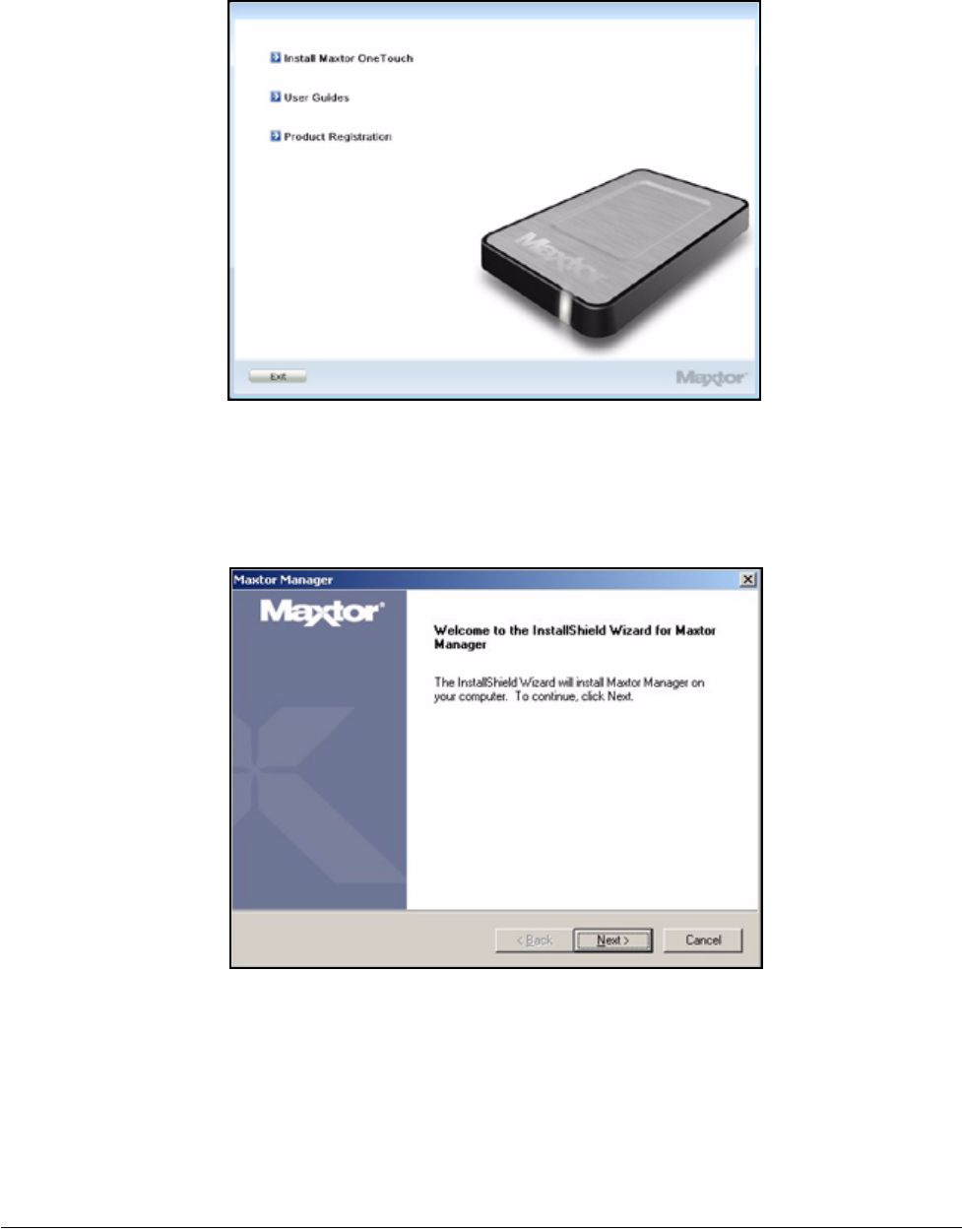
Step 1: Connect your OneTouch 4 drive to your computer.
The Main Menu window opens:
Maxtor OneTouch IV 2
Step 2: Click Install Maxtor One Touch.
The Welcome window opens:
Step 3: Click Next.
The EULA language selection window opens:
Figure 1: Main Menu
Figure 2: Welcome
Maxtor OneTouch IV 3
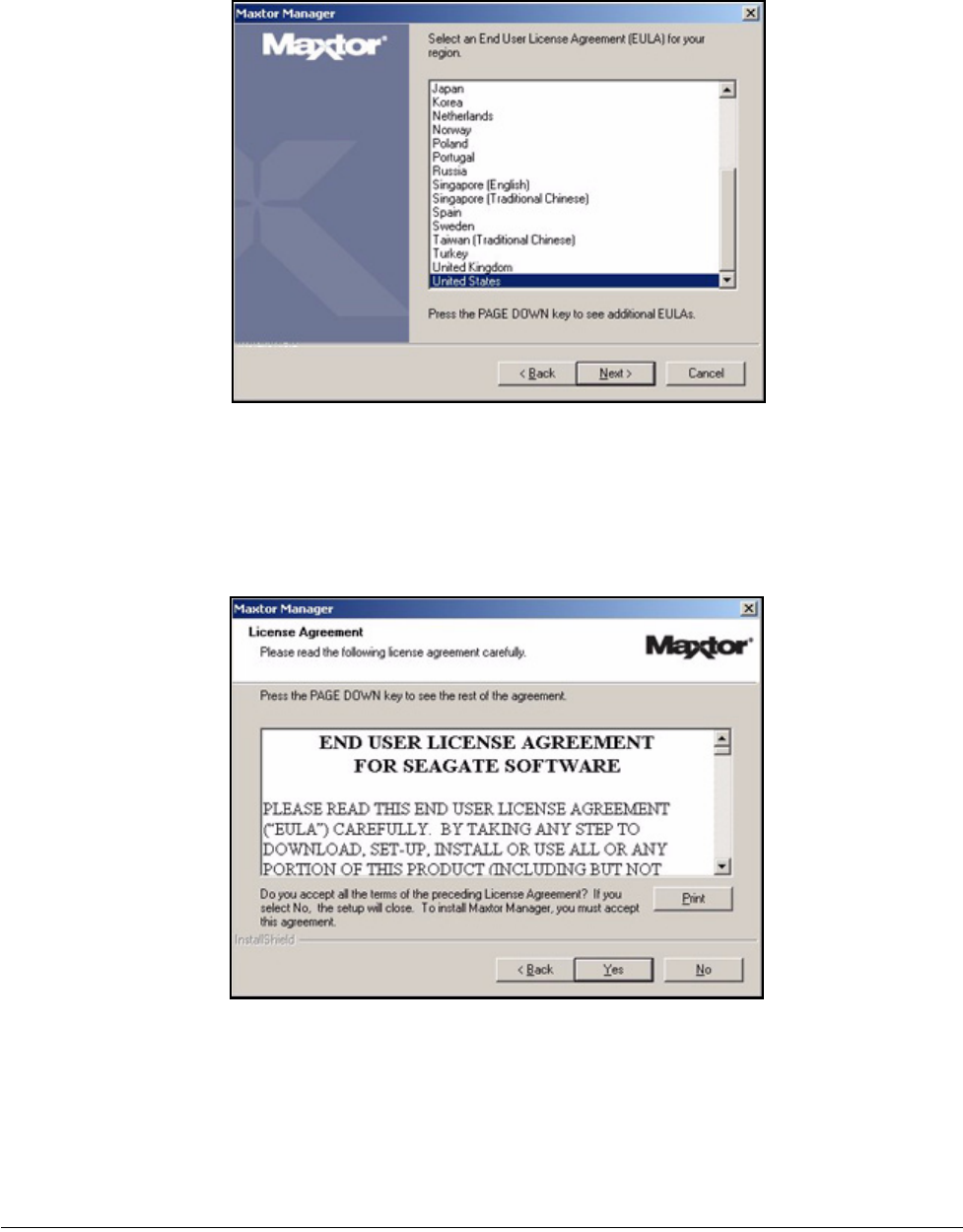
Step 4: Select the language in which you want to read the License Agreement and click
Next.
The License Agreement window opens in the selected language:
Step 5: Click Yes to accept the terms of the License Agreement.
The Choose Destination Location window opens:
Figure 3: EULA Language Selection
Figure 4: License Agreement
Maxtor OneTouch IV 4
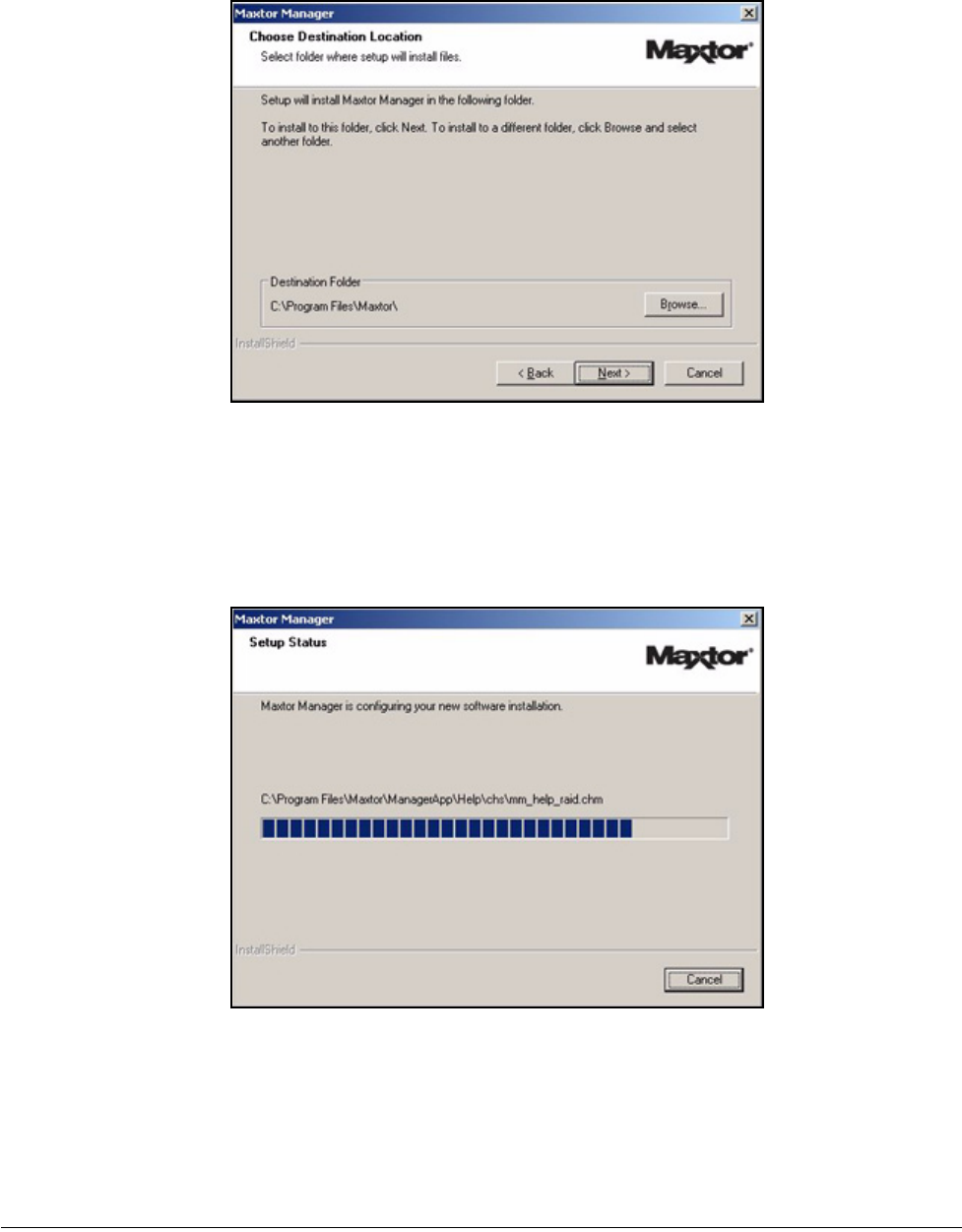
Step 6: Accept the default destination folder or click Browse to select a different folder.
Step 7: Click Next.
A Setup Status window keeps you informed as the installation proceeds:
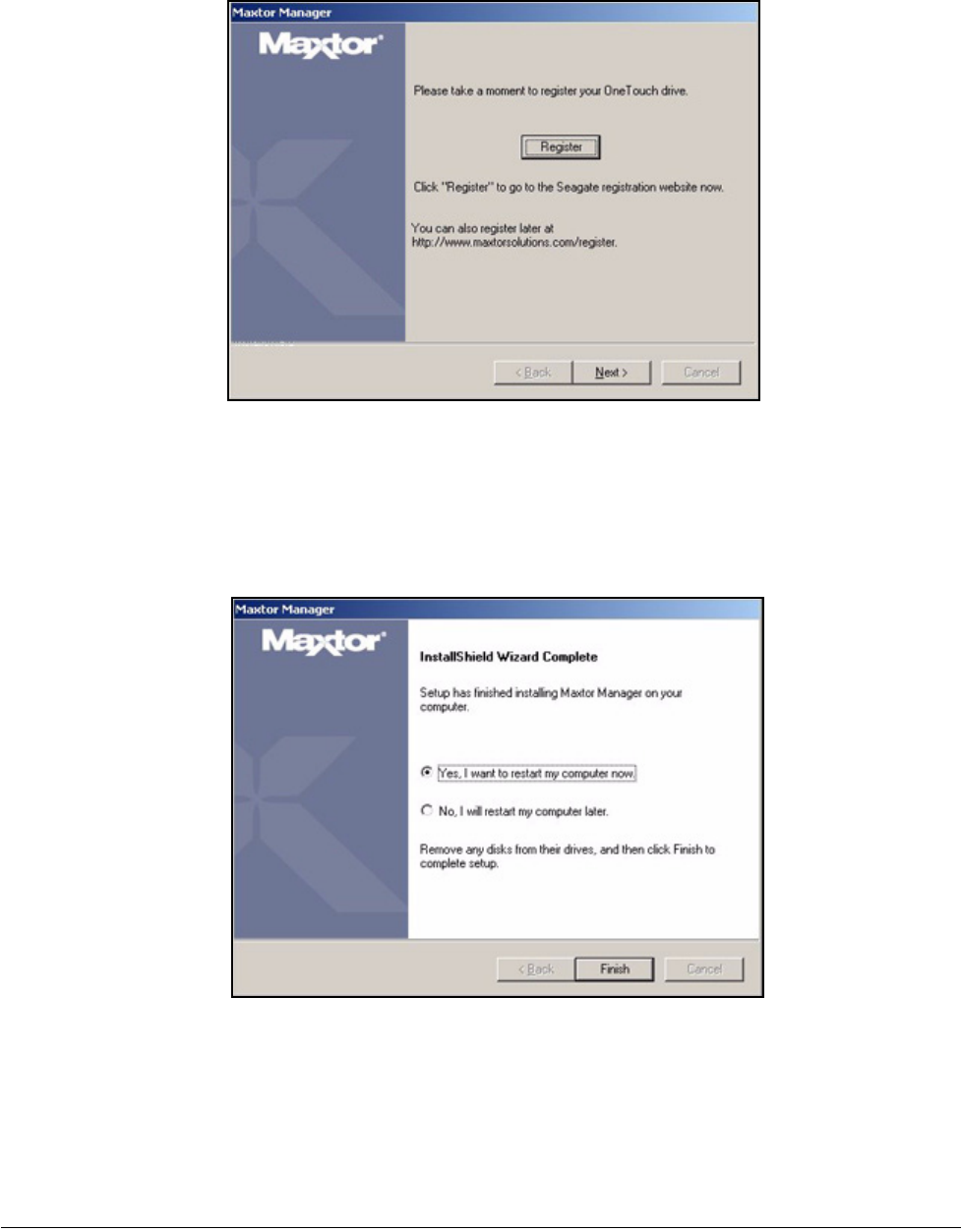
When the installation is complete, a Register window opens:
Figure 5: Select a Destination
Figure 6: Setup Status
Maxtor OneTouch IV 5
Step 8: Click Register to register your OneTouch 4 drive now or click Next to conclude
the installation.
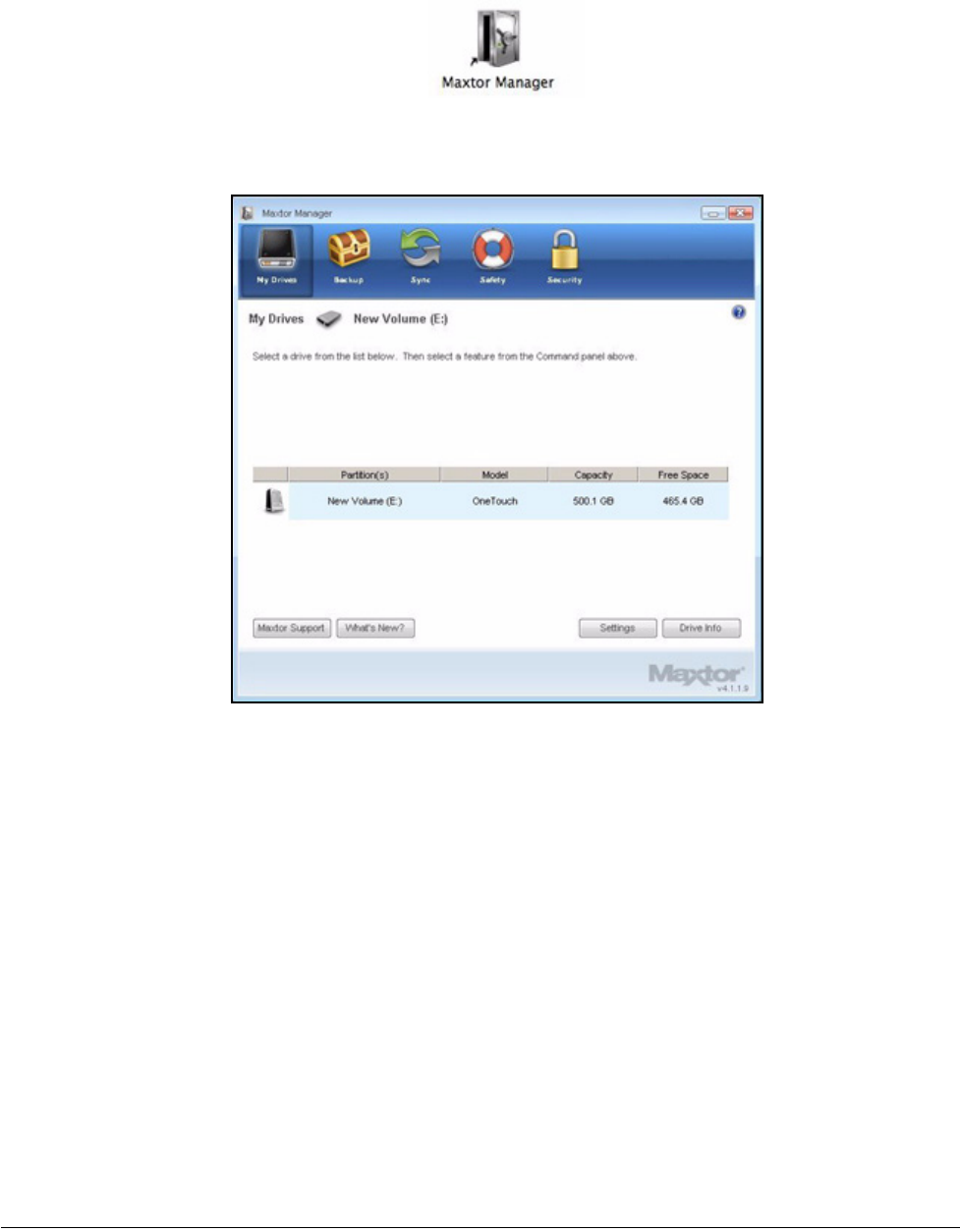
The InstallShield Wizard Complete window opens:
Step 9: Decide whether to restart your computer and complete the installation now and
click Finish.
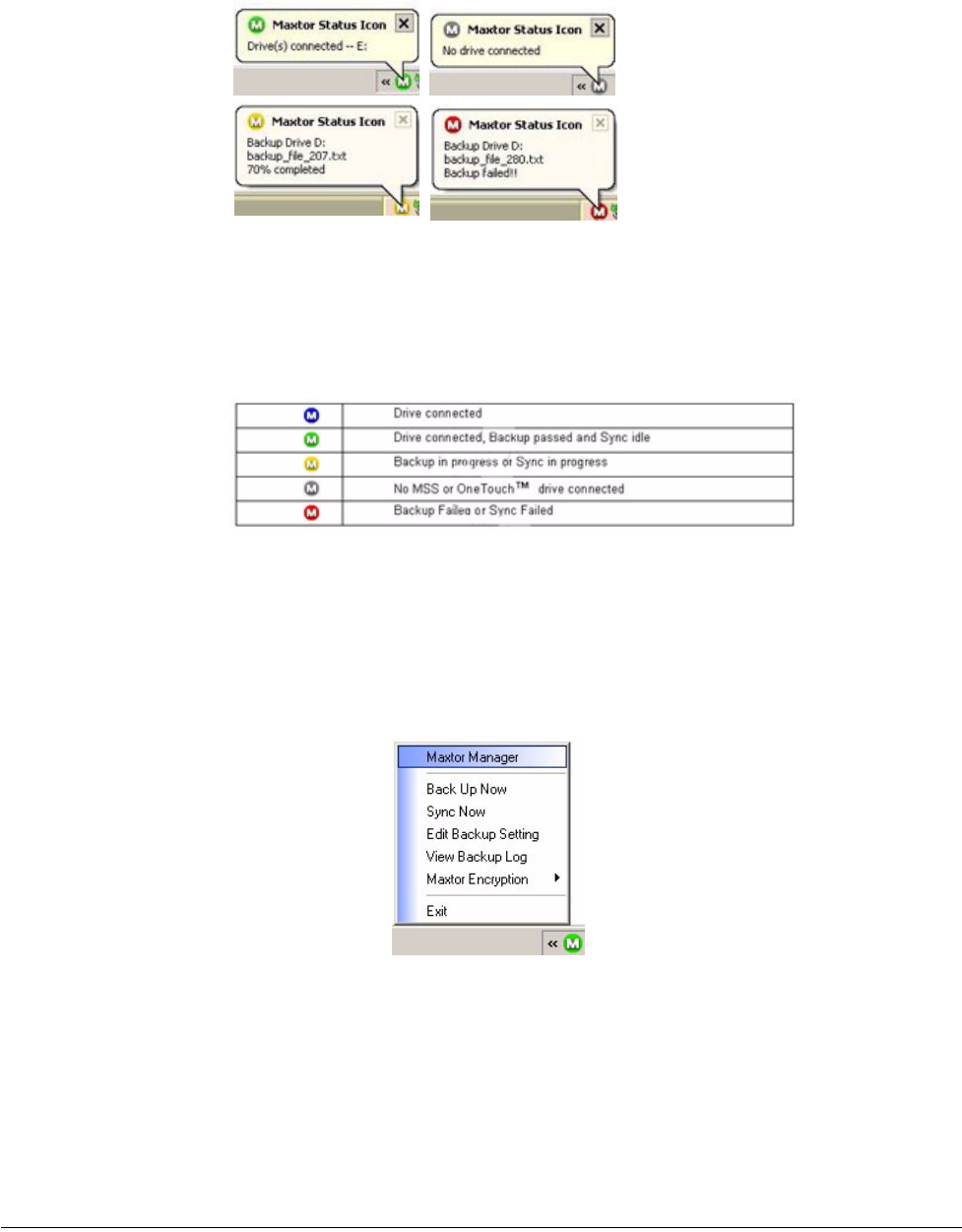
When your computer has restarted, a Maxtor Manager icon appears on your
desktop:
Figure 7: Register
Figure 8: InstallShield Wizard Complete
Maxtor OneTouch IV 6
Step 10: Double-click the Maxtor Manager icon to open the OneTouch application:
You’re ready to use your Maxtor OneTouch 4 drive.
Using the Maxtor System Tray Icon
You can use the Maxtor system tray icon to check the status of your OneTouch drive and
to access the drive features.
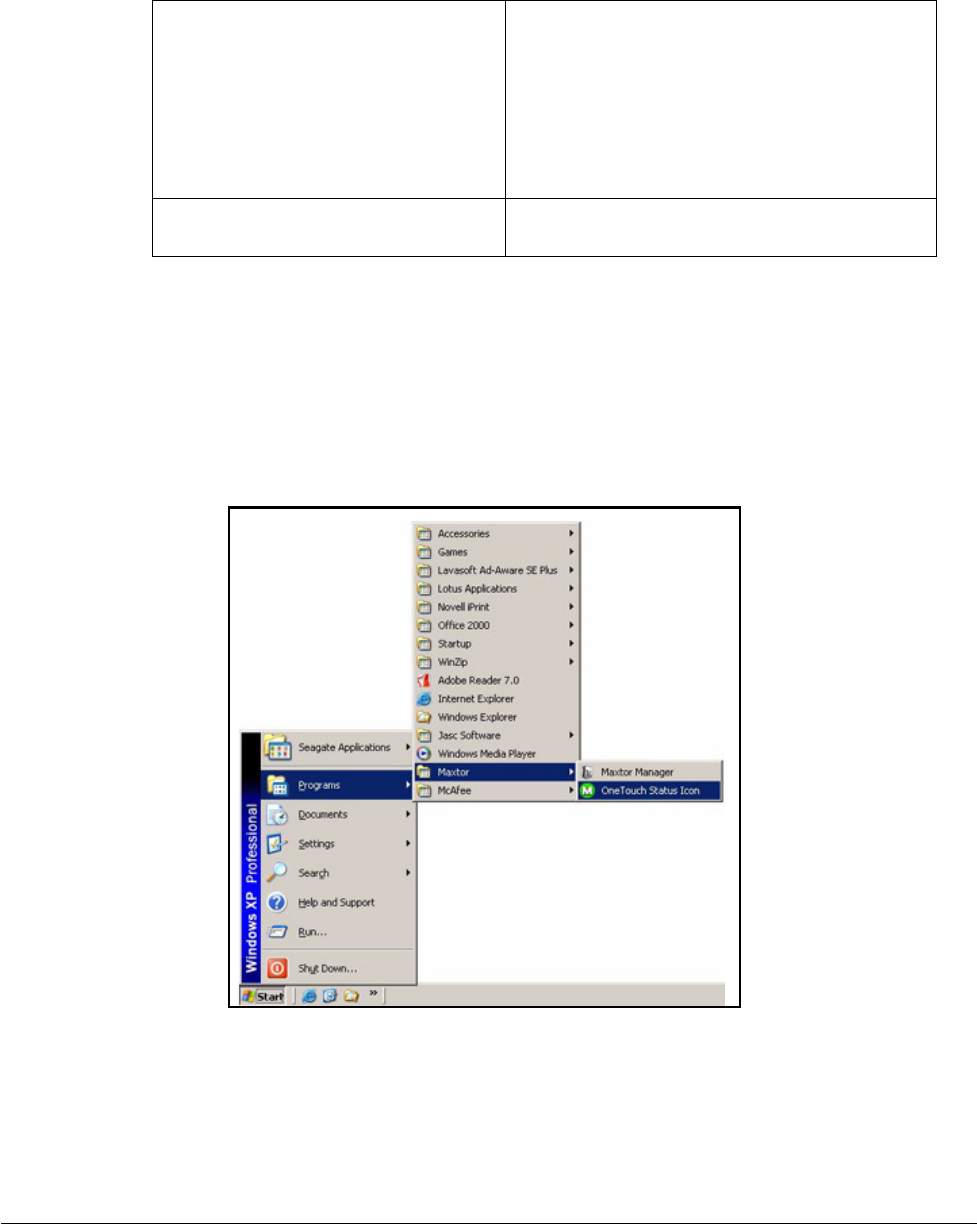
Step 1: To check the status of your drive, roll your mouse over the system tray icon:
Figure 9: OneTouch Application
Maxtor OneTouch IV 7
The information popup confirms the drive’s status and identifies the drive letter.
The color of the system tray icon conveys this information:
Note: When a backup or sync has failed, the red icon continues to display until the next
successful backup or sync.
Step 2: To display the Maxtor Manager menu, click the system tray icon:
Step 3: Select the feature you want to access or select Exit to close the menu (the
OneTouch application remains open).
Figure 10: System Tray Icons
Figure 11: System Tray Icon Information
Figure 12: System Tray Menu
Maxtor OneTouch IV 8
Restoring the System Tray Icon
If you select Exit from the System Tray menu, the Maxtor icon disappears from the System
Tray. To restore the Maxtor icon to the System Tray, go to
Start > Programs > Maxtor > OneTouch Icon
072407
Table 1: Using your Mouse with the Maxtor System Tray Icon
Click the system tray icon to • Launch Maxtor Manager
• Back Up Now
• Sync Now
• Edit Backup Settings
•View Log
• Open Maxtor Encryption
• Exit
Run your mouse over the icon to show • Status Information
• Status for Multiple Events
Figure 13: Restore System Tray Icon
Maxtor OneTouch IV 9
Managing Your Drives
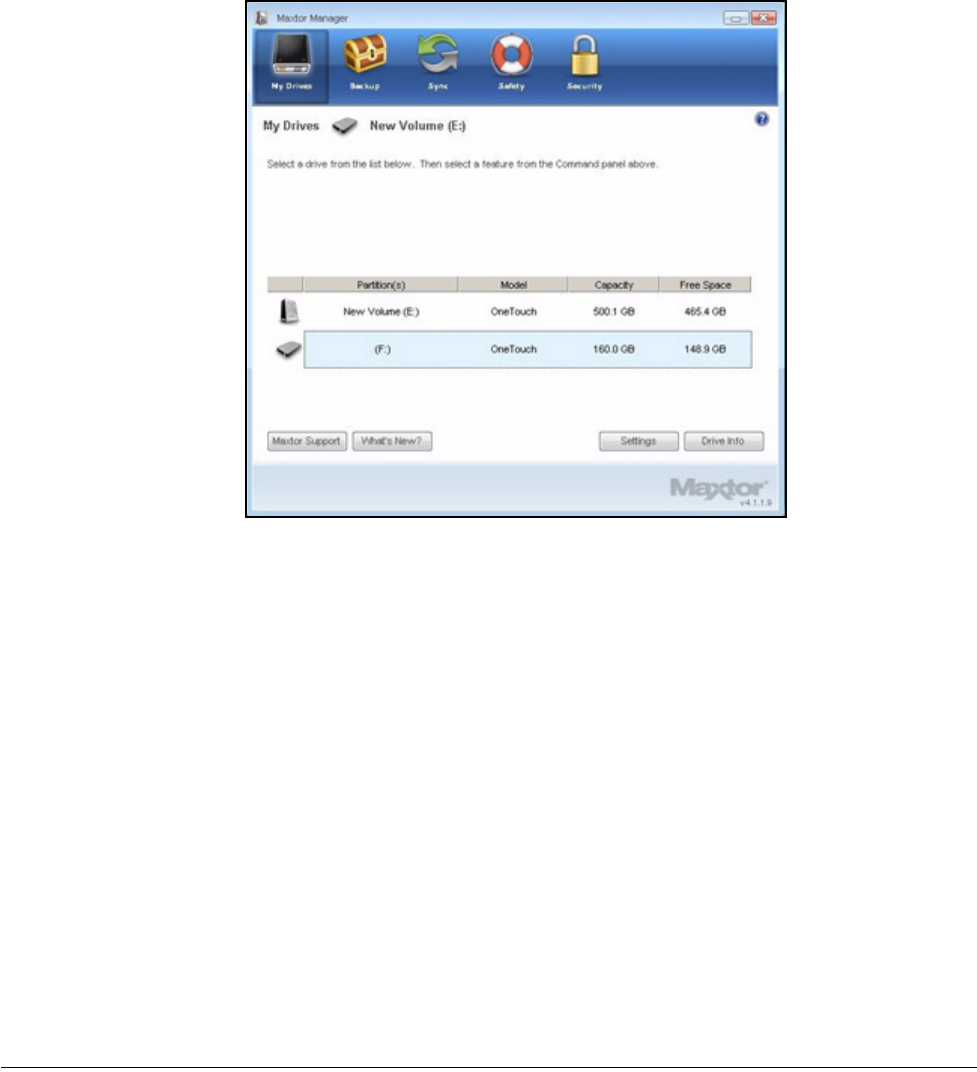
The My Drives window provides a central point from which to manage your Maxtor
OneTouch™ devices. It displays all Maxtor devices connected to your computer:
The Command panel across the top of the window allows you to access your drive features
and manage drive utilities.
In the My Drives window,
Step 1: Select a device.
Step 2: Click an option in the Command panel.
Note: External drives are automatically detected and listed in the My Drives window. It can take a
few seconds for the Maxtor Manager software to detect your device. If your device doesn’t
appear, make sure it’s properly connected and turned on.
Figure 1: My Drives
Maxtor OneTouch IV 10
Customizing the OneTouch Button
You can customize your OneTouch button, located on the front of your drive, so that your
OneTouch drive automatically performs the action of your choice when you click the
OneTouch button.
You can set the OneTouch button to
•Back up now
•Sync folders now
•Open the application of your choice
To customize your OneTouch button,
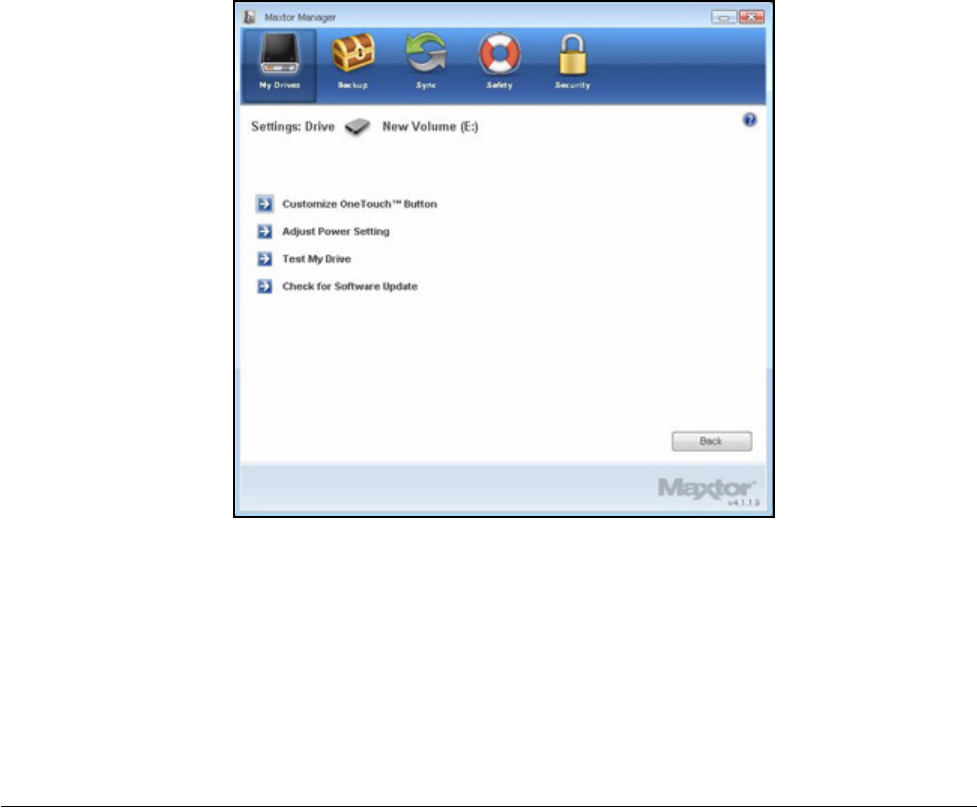
Step 1: In the My Drives window, click Settings.
The Settings window opens:
Step 2: Click Customize OneTouch Button.
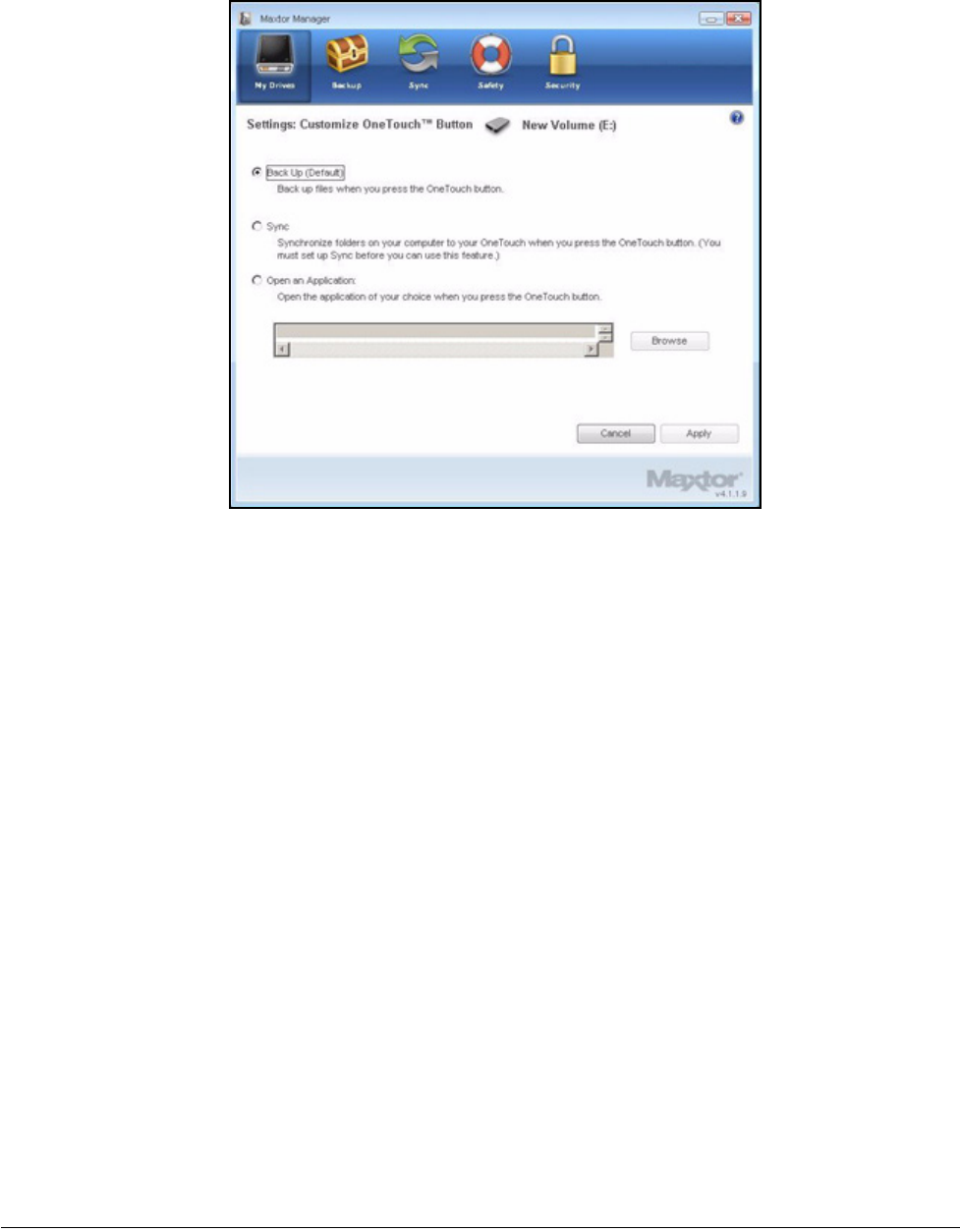
The Customize OneTouch Button window opens:
Figure 2: Settings
Maxtor OneTouch IV 11
Step 3: Select Backup or Sync and click Apply to link that action to the OneTouch button.
— OR —
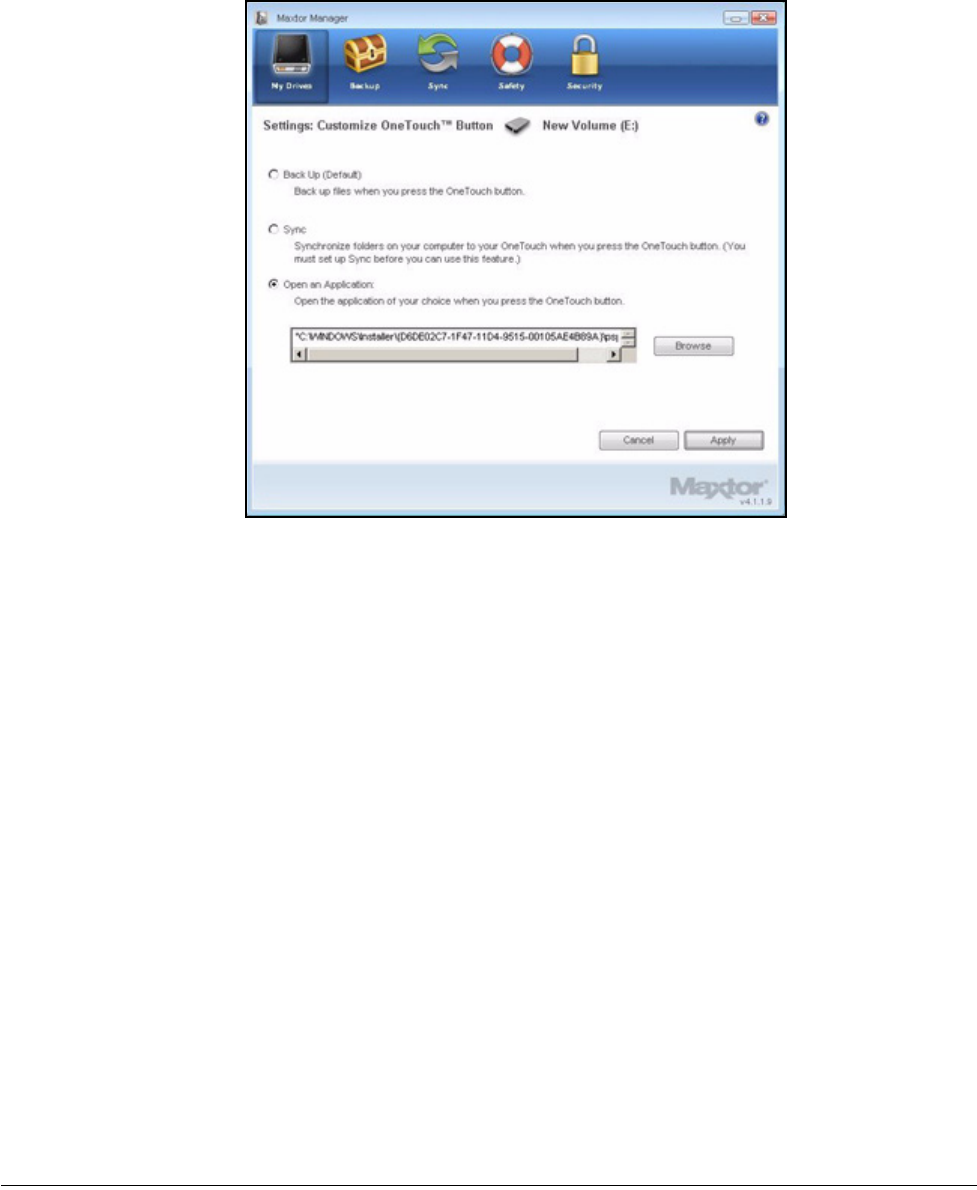
Select Open an Application to choose an application to open when you press the
OneTouch button.
Figure 3: Customize OneTouch Button
Maxtor OneTouch IV 12
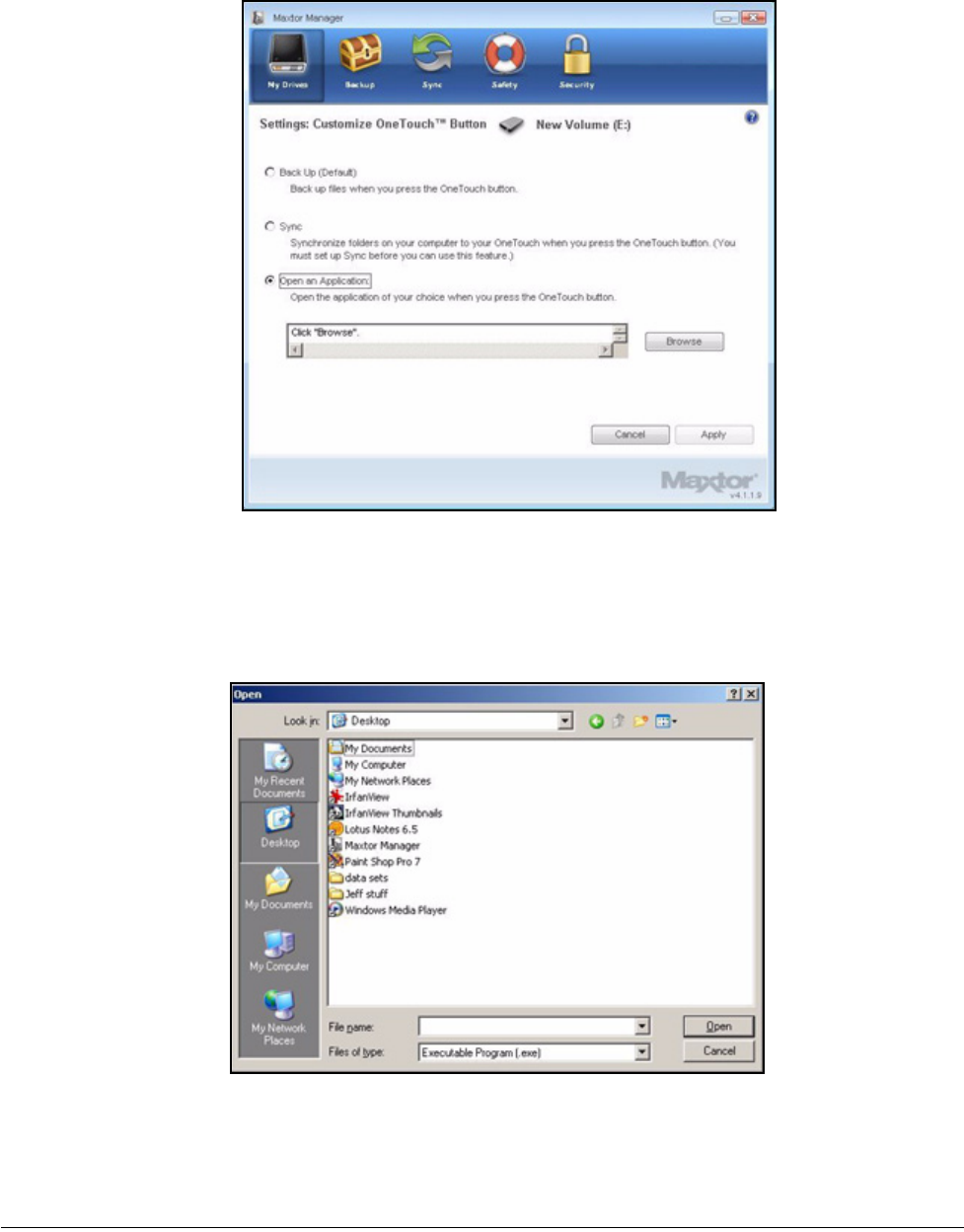
Step 4: Click Browse to select an application.
An Open window appears:
Step 5: Select an application and click Open.
Figure 4: Customize OneTouch Button - Choose Application
Figure 5: Open Application
Maxtor OneTouch IV 13
The application you’ve chosen is displayed in the Customize OneTouch Button
window:
Step 6: Click Apply.
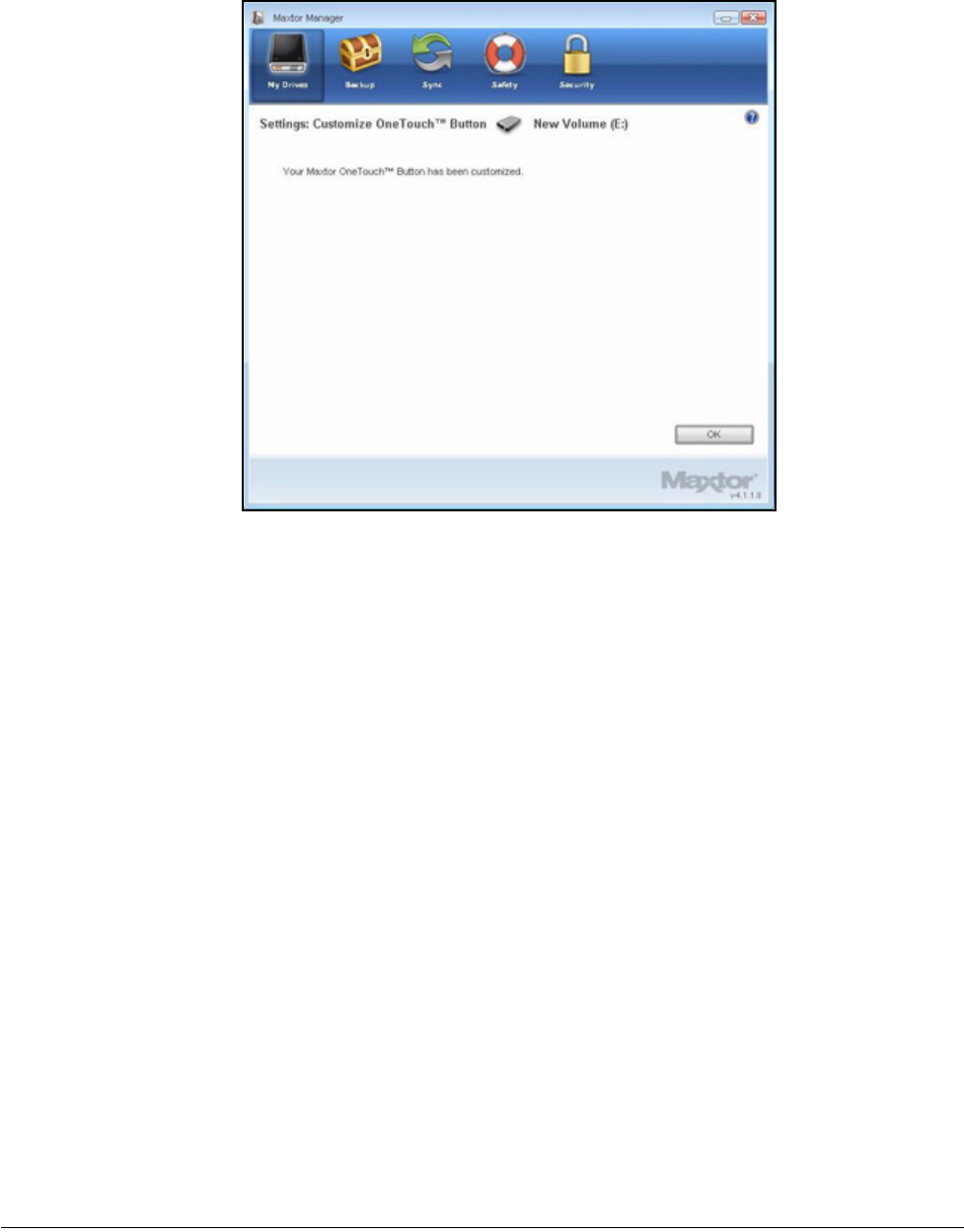
A confirmation window opens:
Figure 6: Customize OneTouch Button - Application Selected
Maxtor OneTouch IV 14
Step 7: Click OK.
You can now open the selected application by pressing your OneTouch button.
Adjusting the Power Setting
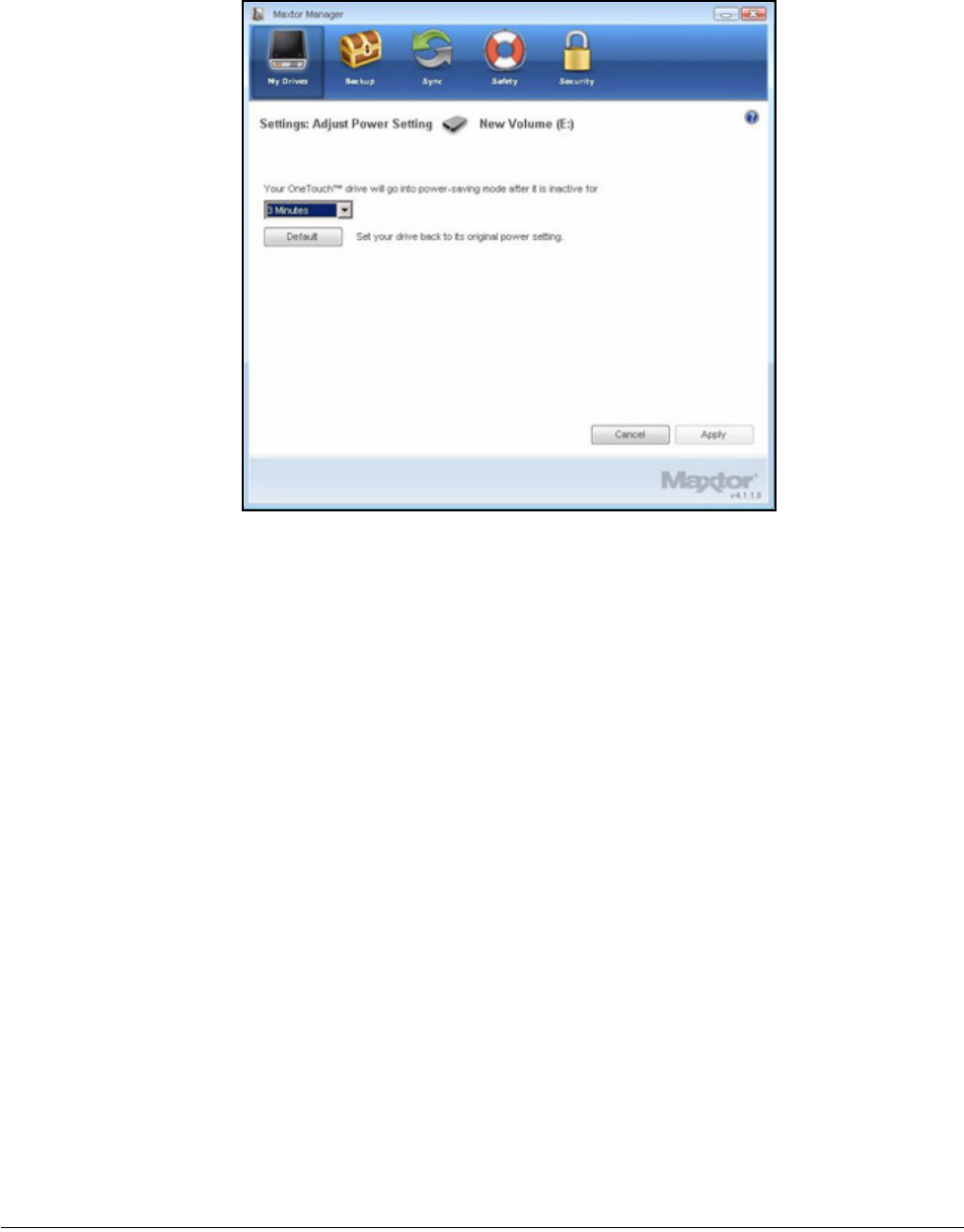
You can choose how long your drive should remain inactive before it goes into power-
saving mode.
To adjust the power setting,
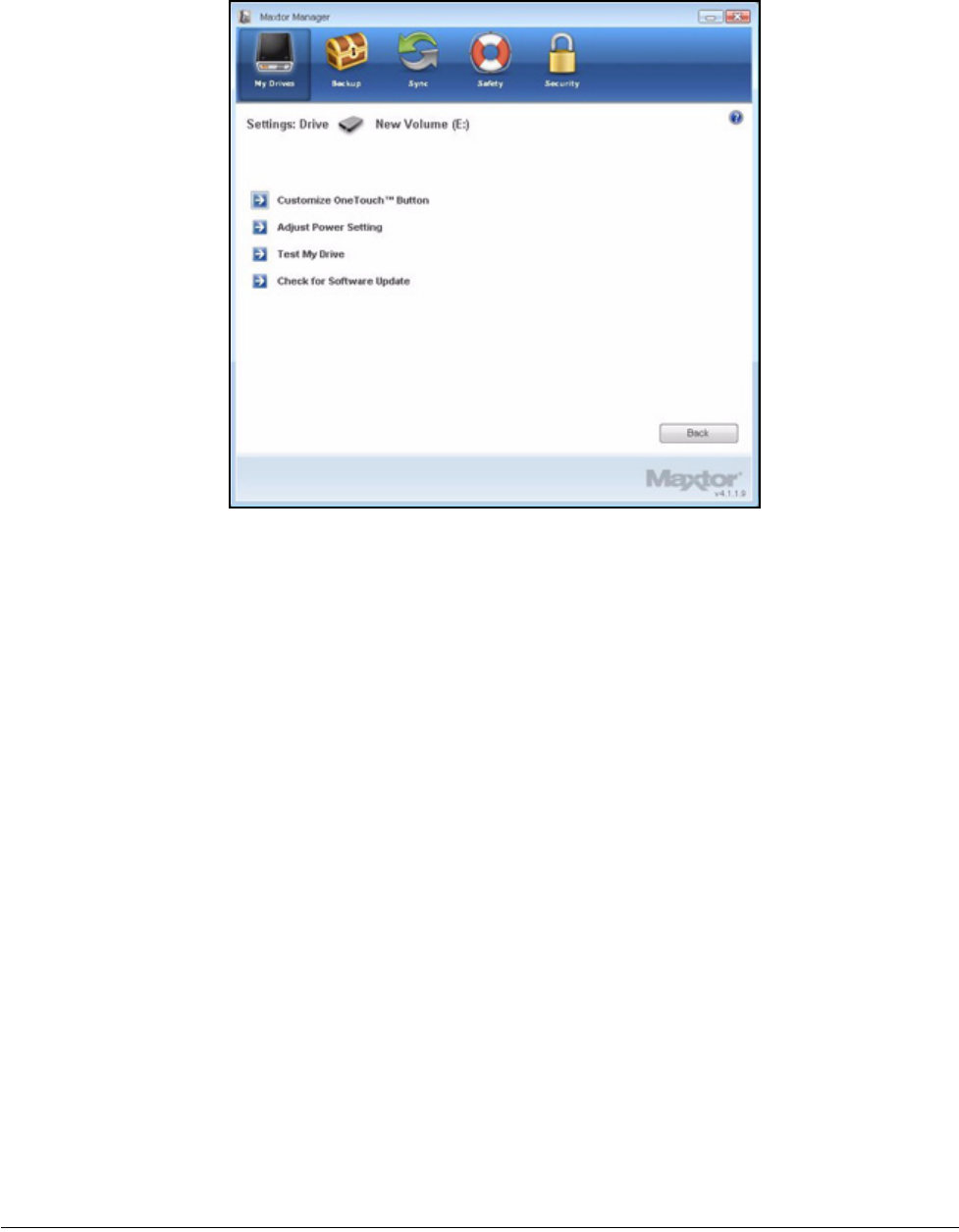
Step 1: In the My Drives window, click Settings.
The Settings window opens:
Figure 7: Customize OneTouch Confirmation
Maxtor OneTouch IV 15
Step 2: Click Adjust Power Setting.
The Adjust Power Setting window opens:
Figure 8: Settings
Maxtor OneTouch IV 16
Step 3: Select an interval from the dropdown menu or click Default to return to the default
power setting.
Step 4: Click Apply to save the power setting.
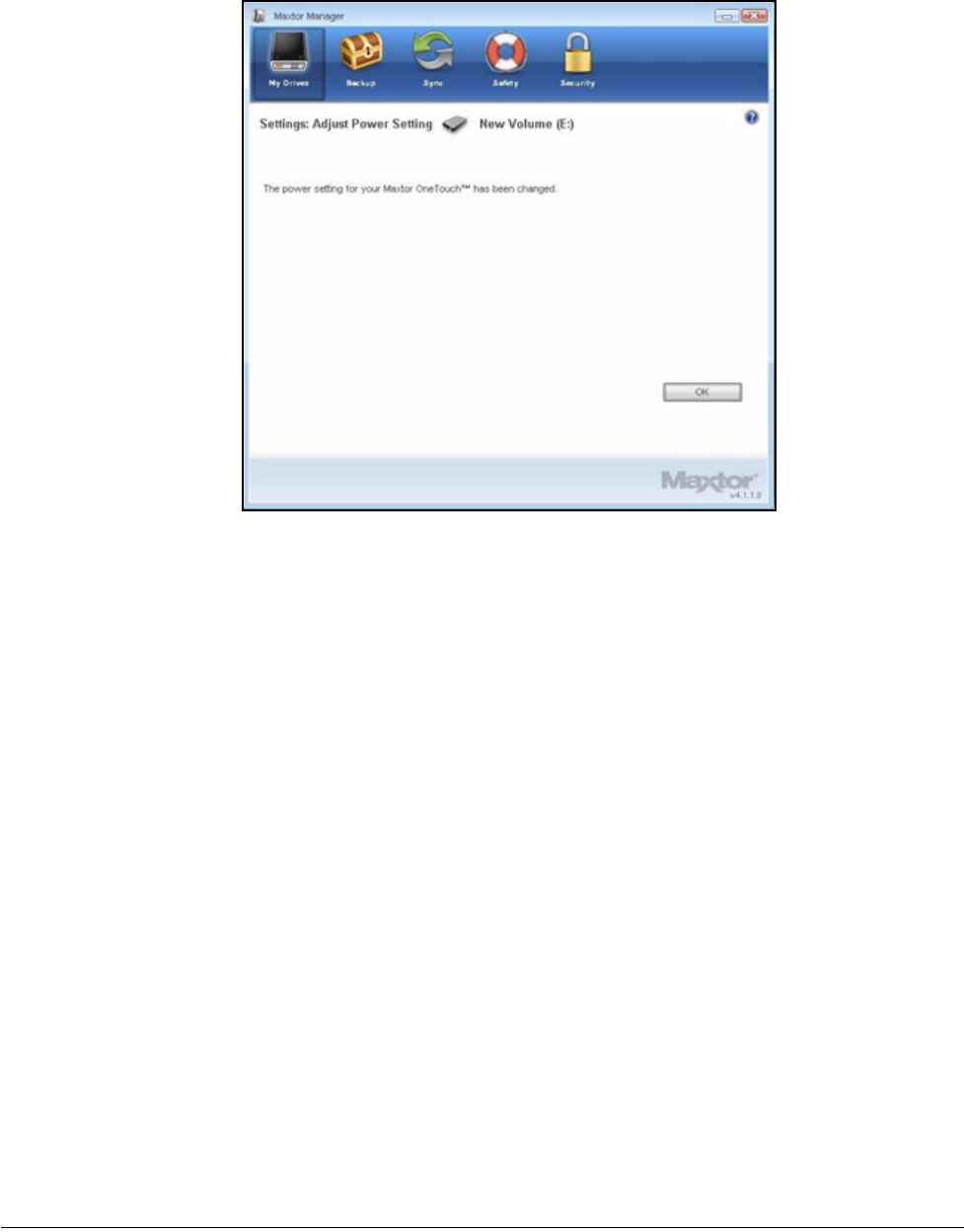
The Adjust Power Setting window confirms that the power setting for your drive
has been changed:
Figure 9: Adjust Power Setting
Maxtor OneTouch IV 17
Step 5: Click OK to return to the My Drives window.
Testing Your Drive
Test your drive to check the health of your OneTouch drive. The diagnostic utility performs
its tests without affecting the data on your drive.
To test your drive,
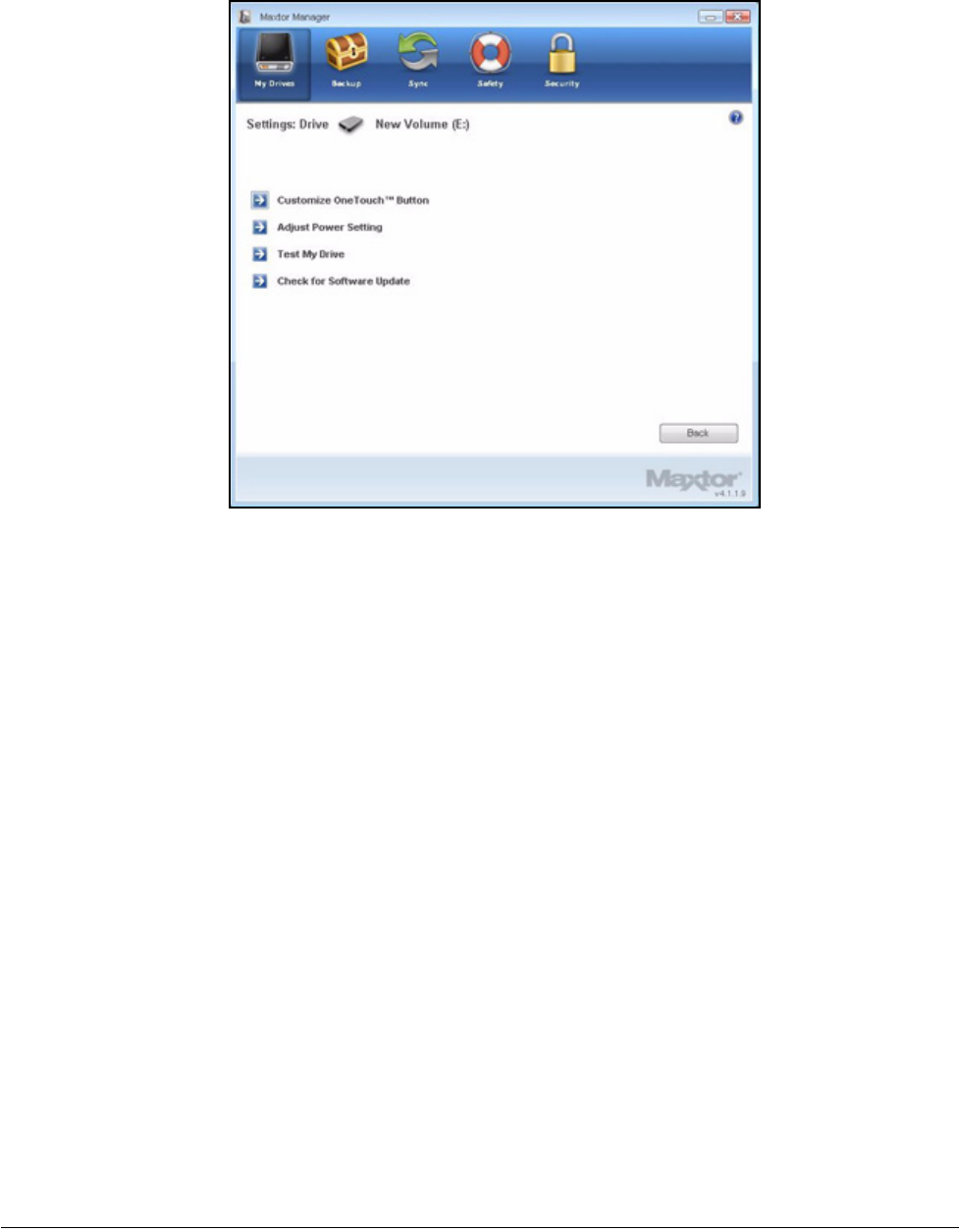
Step 1: In the My Drives window, click Settings.
The Settings window opens:
Figure 10: Adjust Power Setting Confirmation
Maxtor OneTouch IV 18
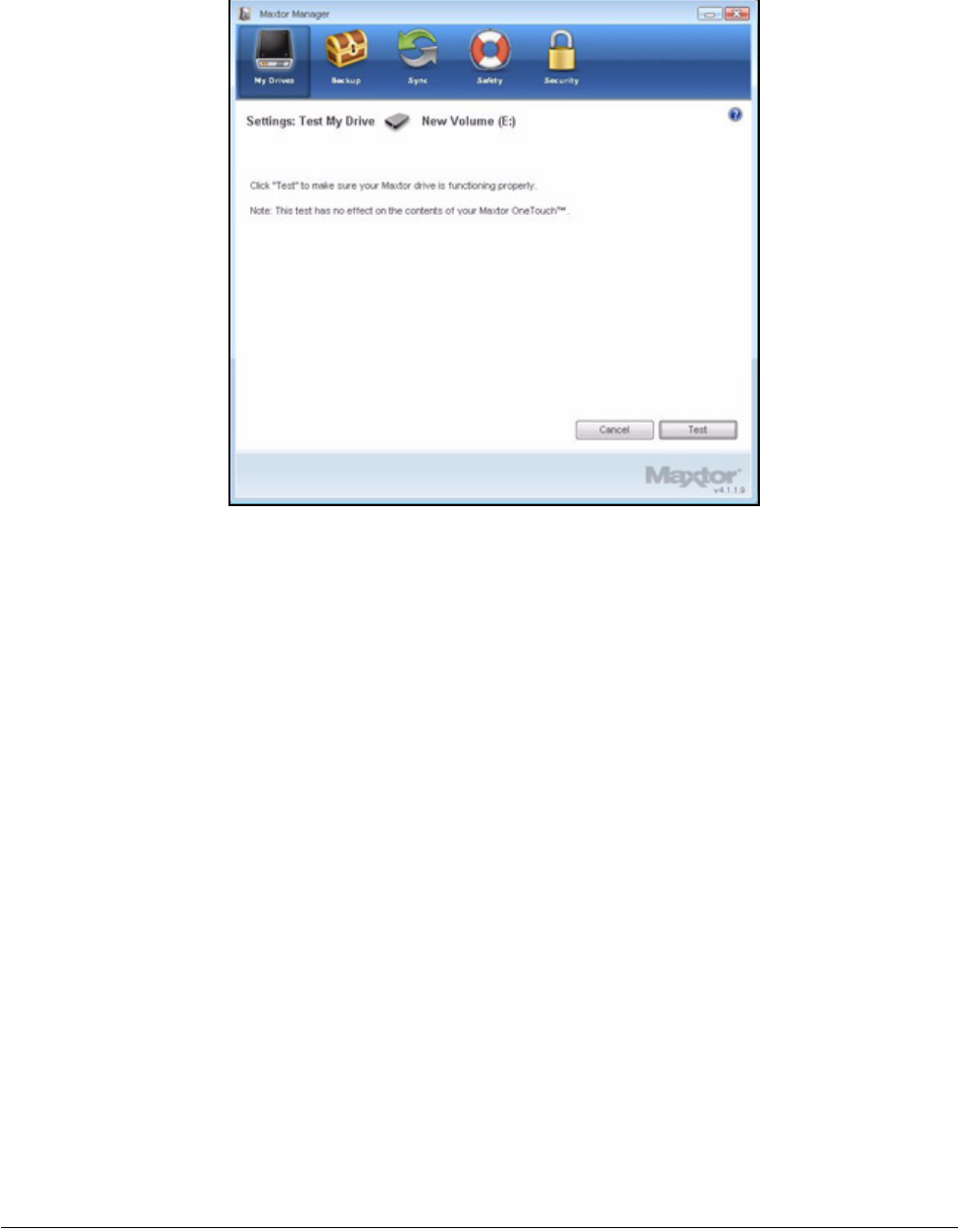
Step 2: Click Test My Drive.
The Test My Drive window opens:
Figure 11: Settings
Maxtor OneTouch IV 19
Step 3: Click Test.
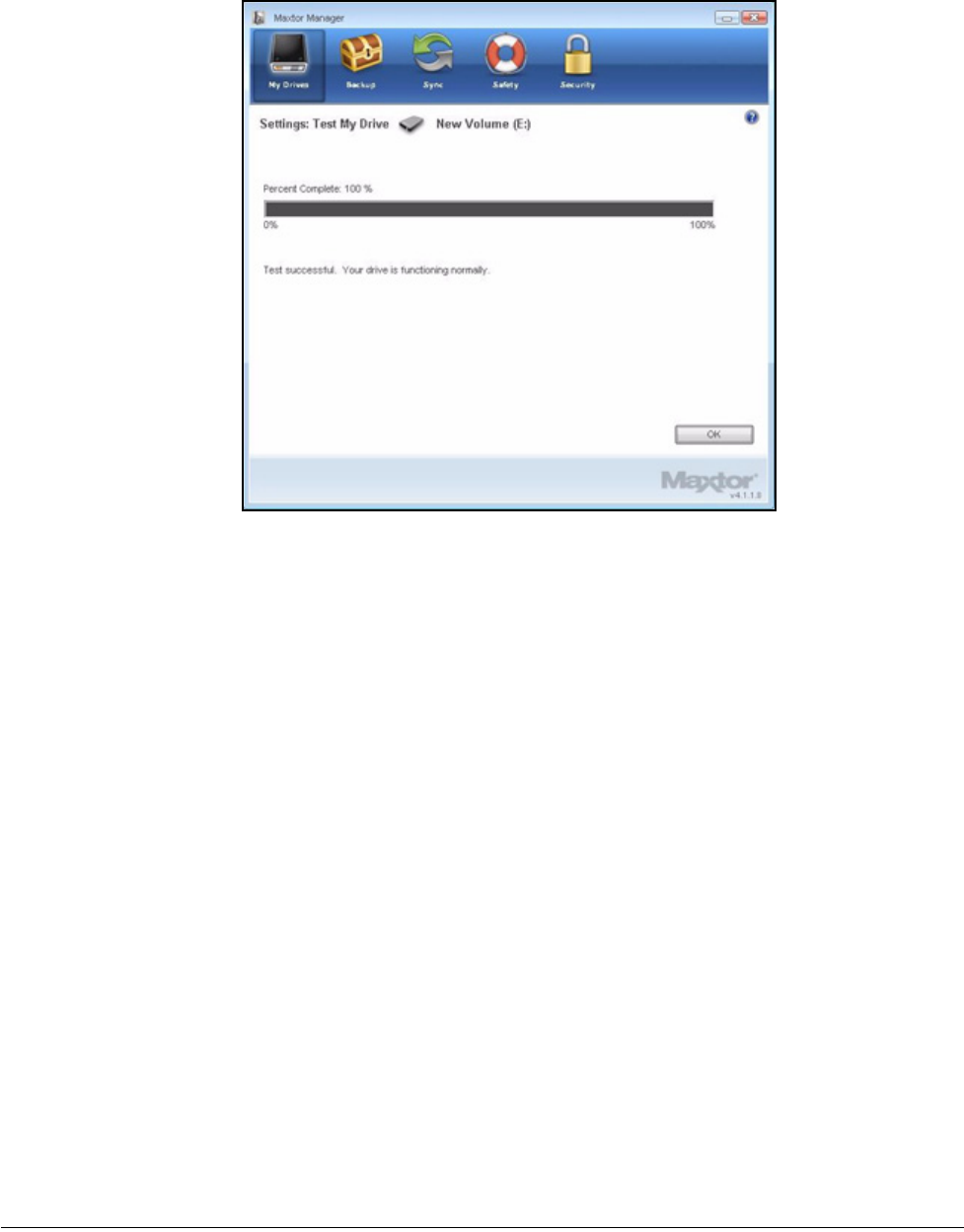
A progress bar indicates the progress of the test. When the test is complete, the
results are displayed:
Figure 12: Run Drive Diagnostics
Maxtor OneTouch IV 20
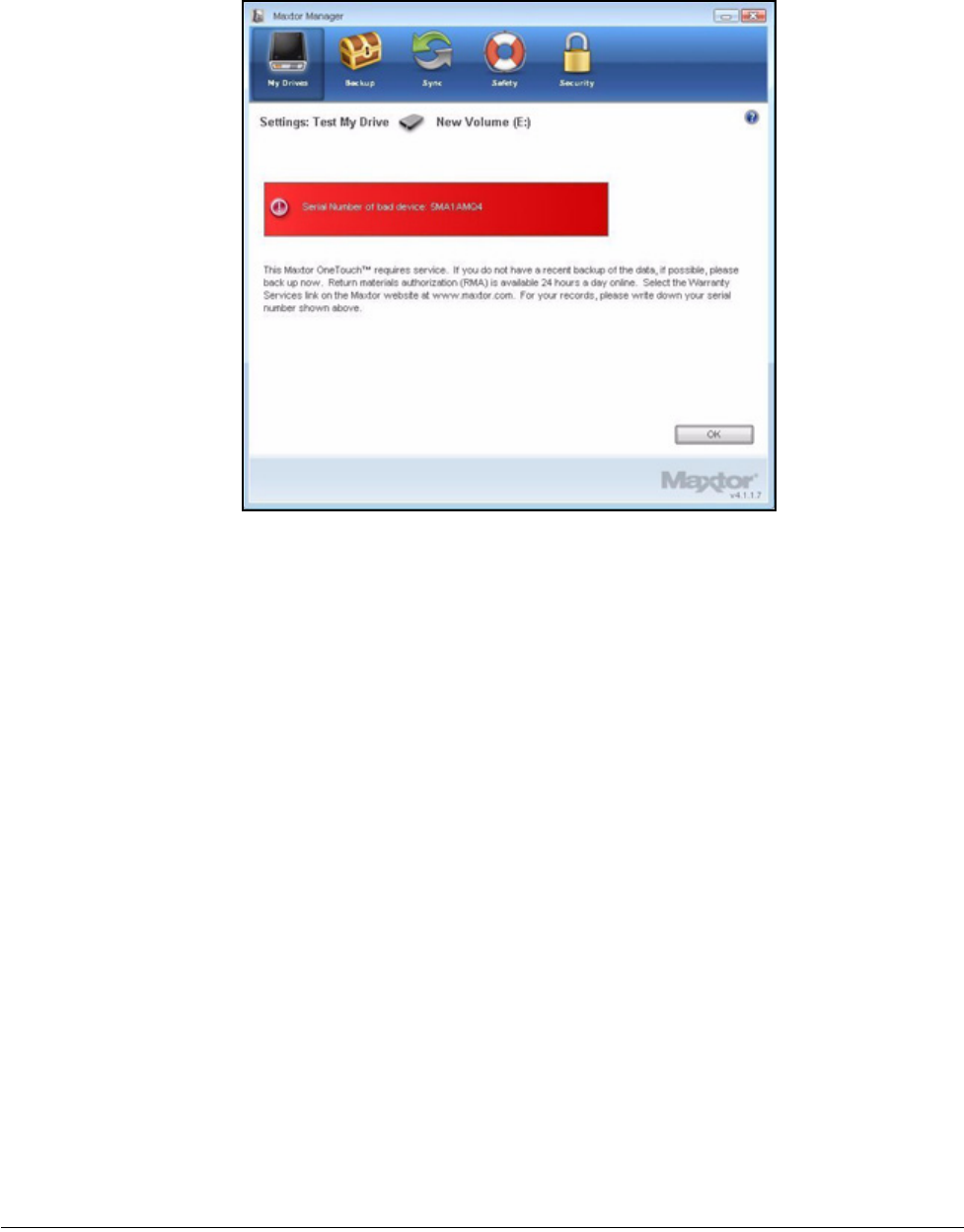
The drive pictured above is functioning normally. If the diagnostic encounters an
error during testing, the serial number of the bad device is displayed with
instructions to contact Seagate for service and support:
Figure 13: Diagnostics Complete
Maxtor OneTouch IV 21
Step 4: Click OK.
Using RAID (OneTouch III Users)
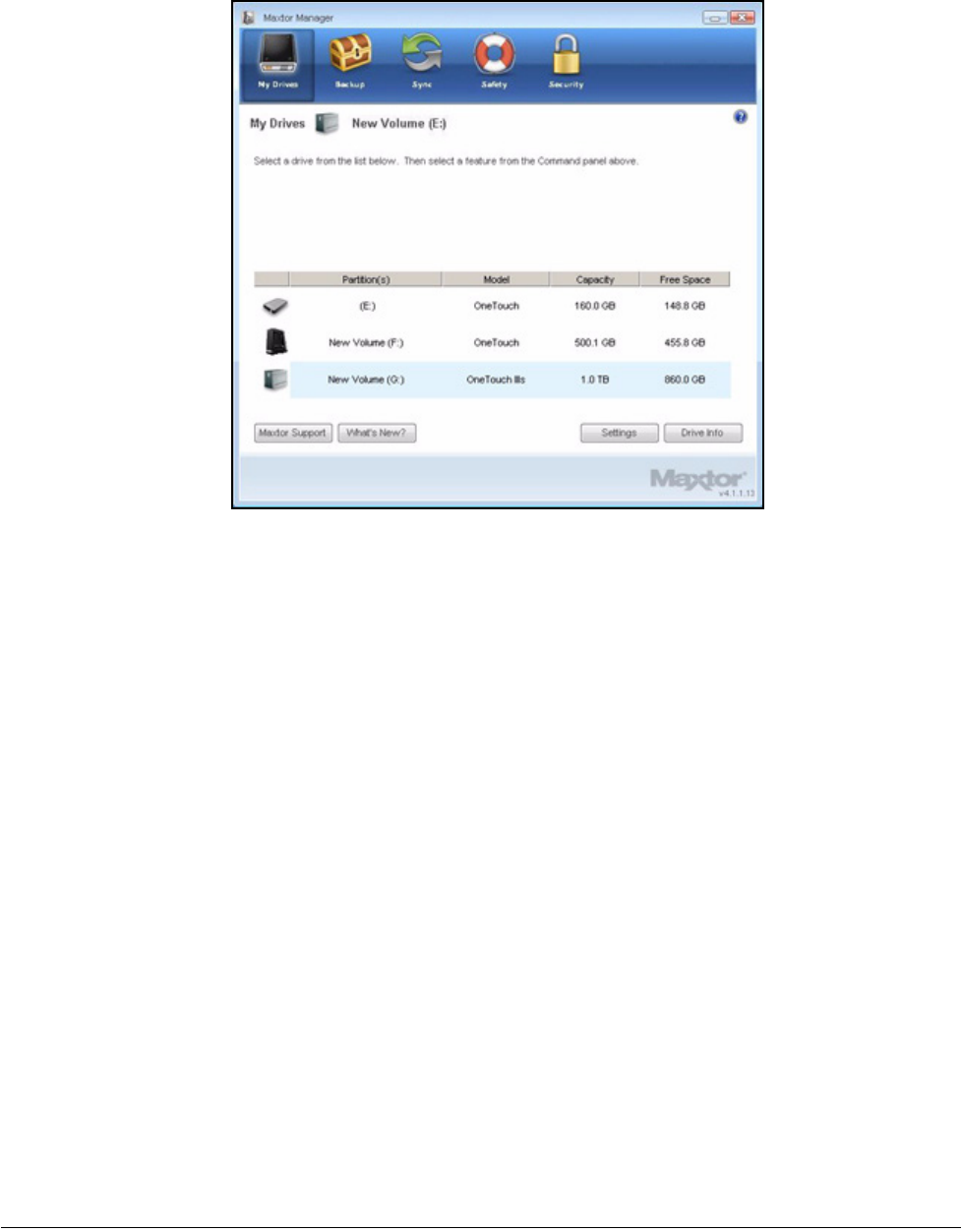
If your OneTouch III drive supports RAID, you can access this feature via the OneTouch 4
My Drives window:
Figure 14: Diagnostics - Bad Drive
Maxtor OneTouch IV 22
To use RAID,
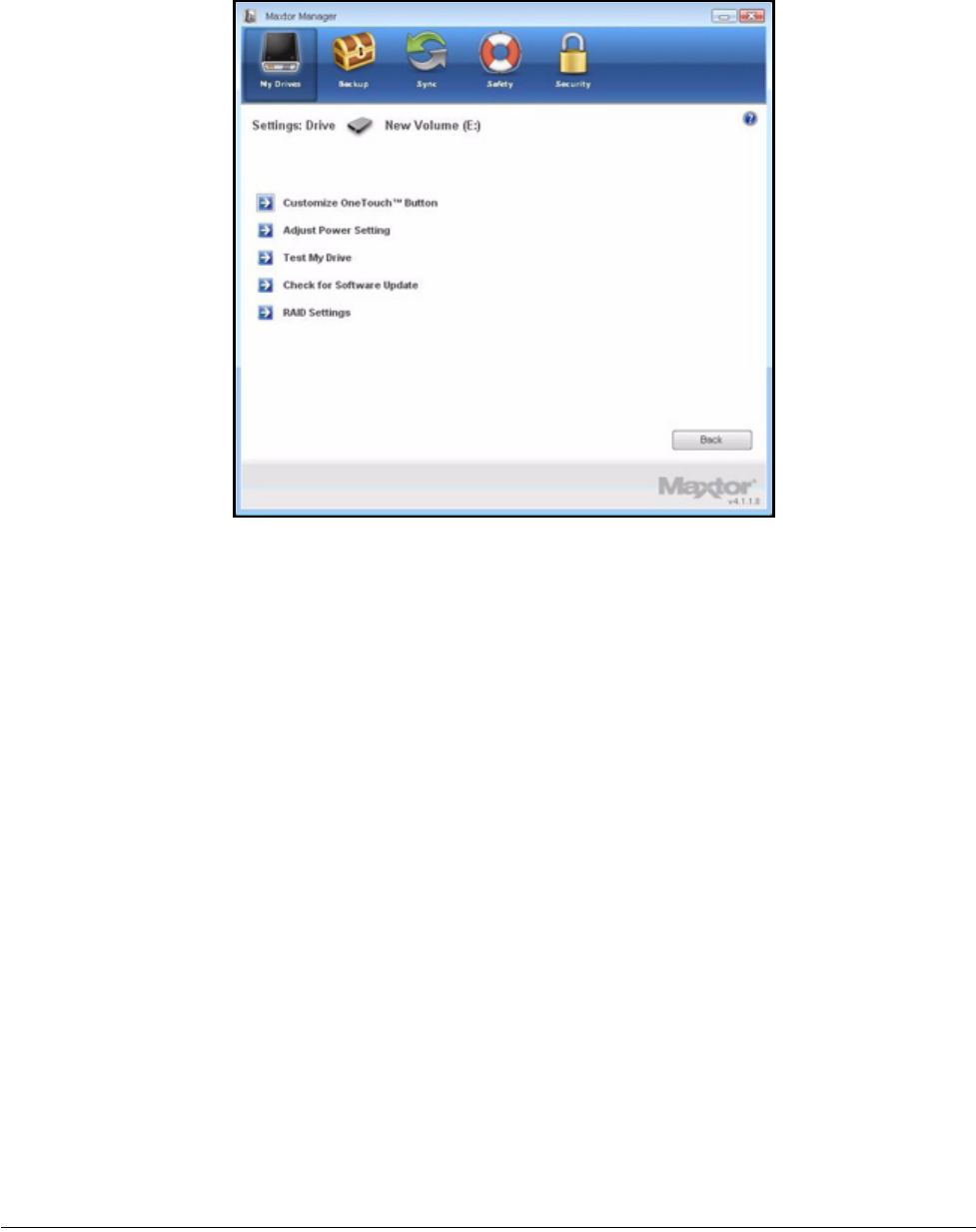
Step 1: In the My Drives window, select your OneTouch III drive and click Settings.
The Settings window opens:
Figure 15: My Drives
Maxtor OneTouch IV 23
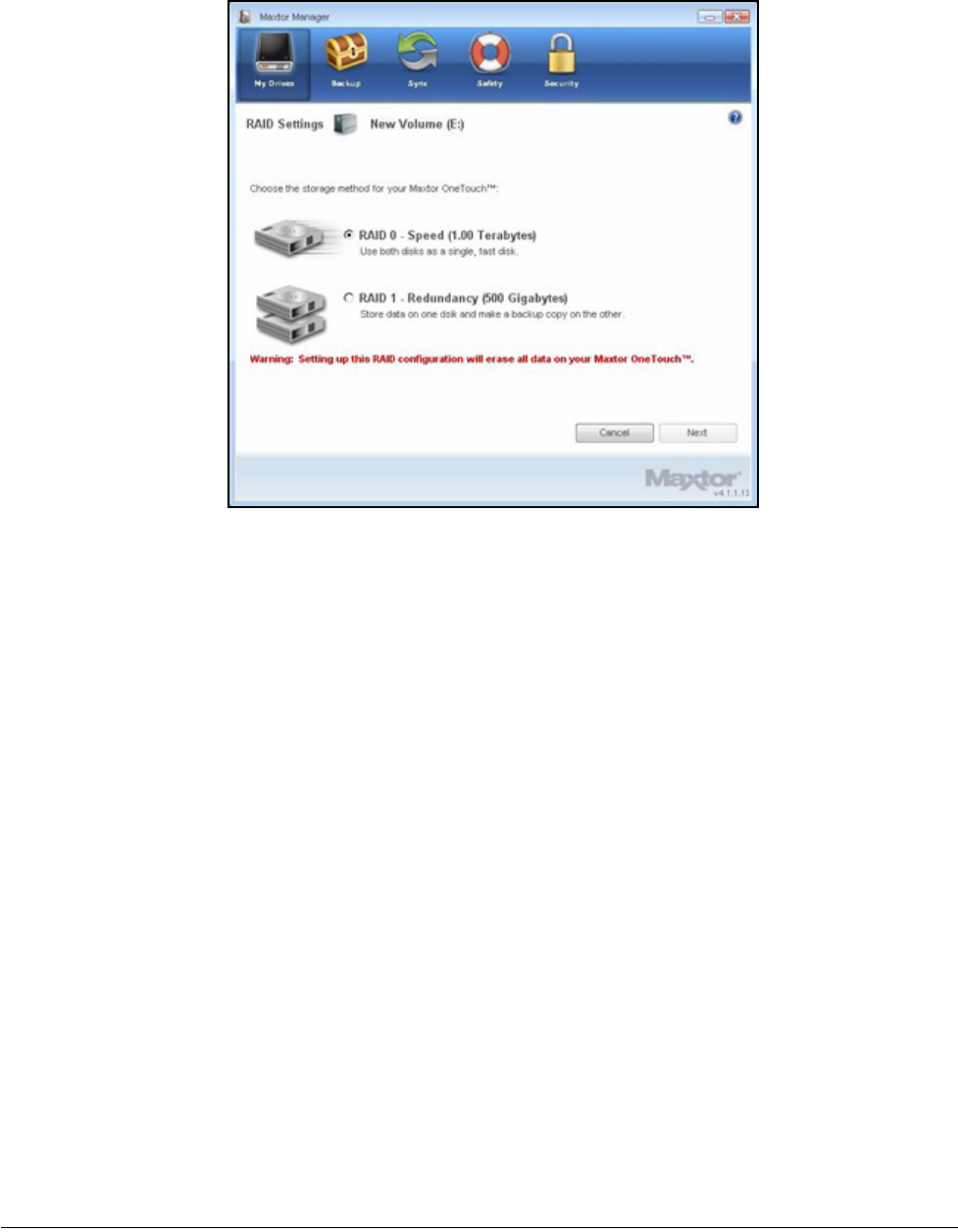
Step 2: Click RAID Settings.
The RAID Settings window opens:
Figure 16: Settings
Maxtor OneTouch IV 24
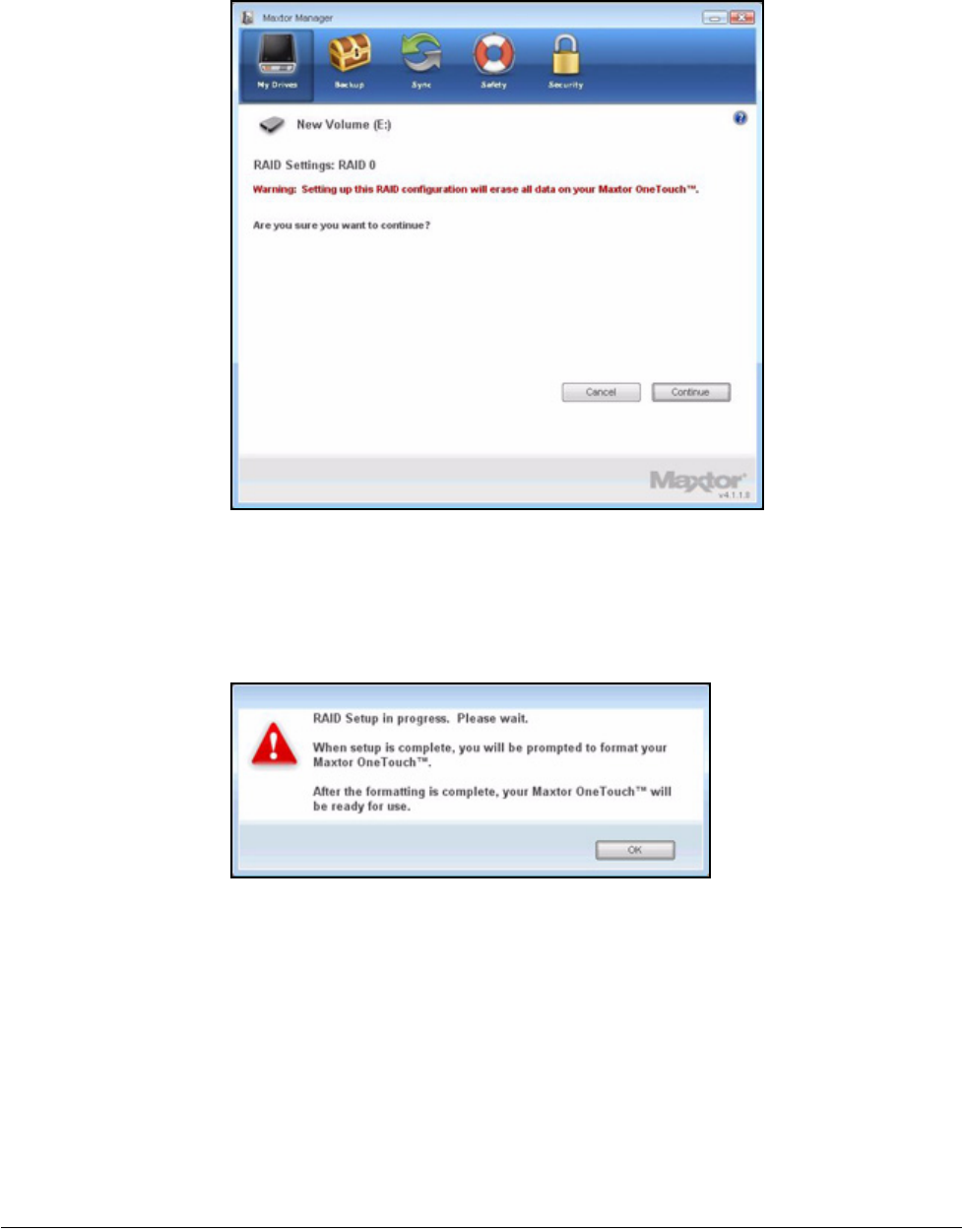
Step 3: Select a RAID setting and click Next.
A RAID warning window cautions you about loss of data:
Figure 17: RAID Settings
Maxtor OneTouch IV 25
Step 4: Click Continue.
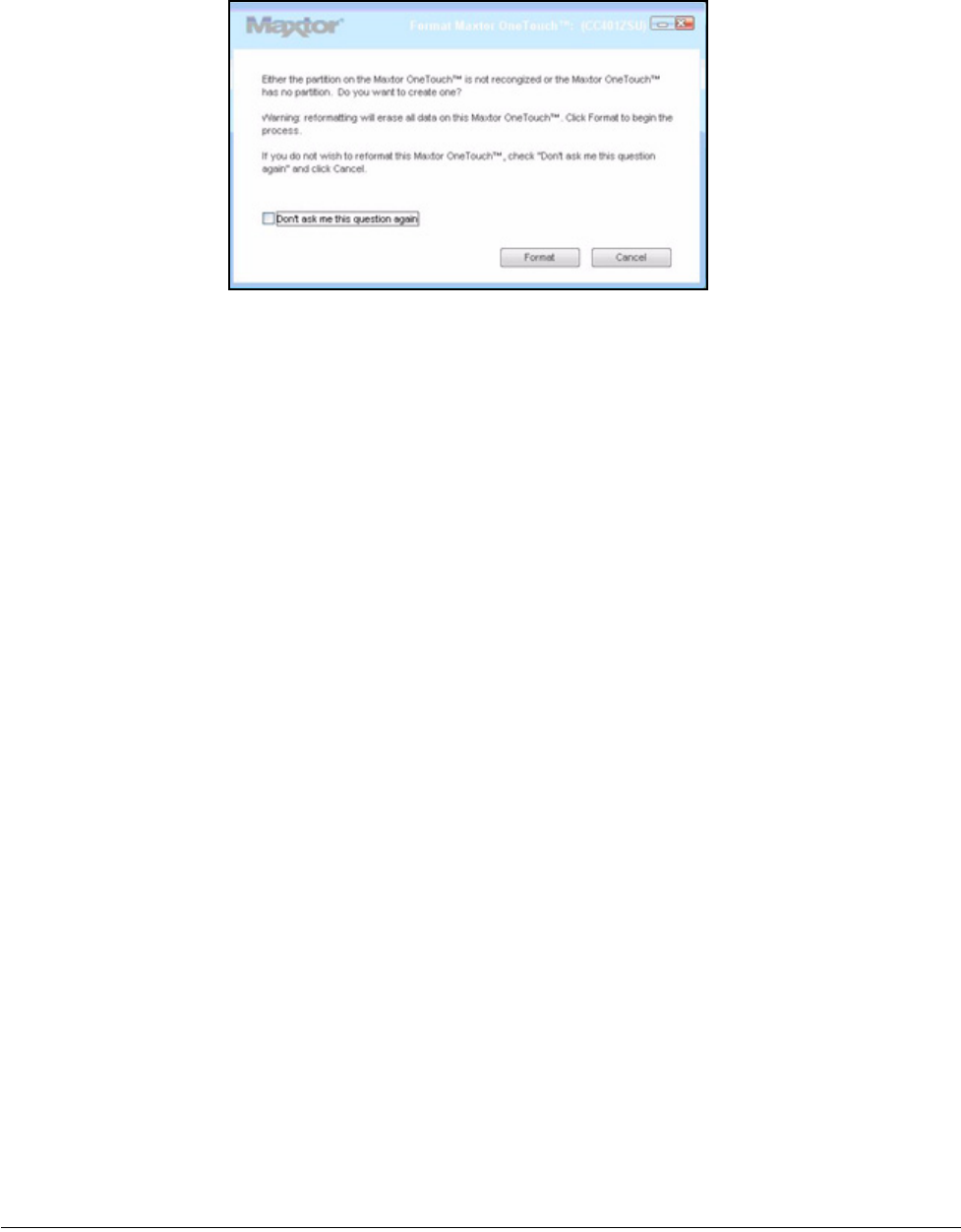
A window informs you that RAID Setup is in progress:
Step 5: Click OK.
When RAID Setup is complete, a window confirms that you want to reformat your
drive:
Figure 18: RAID Warning
Figure 19: Reformat Warning
Maxtor OneTouch IV 26
Step 6: Click Reformat.
When the reformat is complete, your drive is ready for use.
For further information about using RAID, refer to your OneTouch III User Guide.
Updating Your Software
The Software Update feature automatically informs you when an update is available for
your software. However, you can manually check to see if an update is available or you can
turn off the Software Update feature.
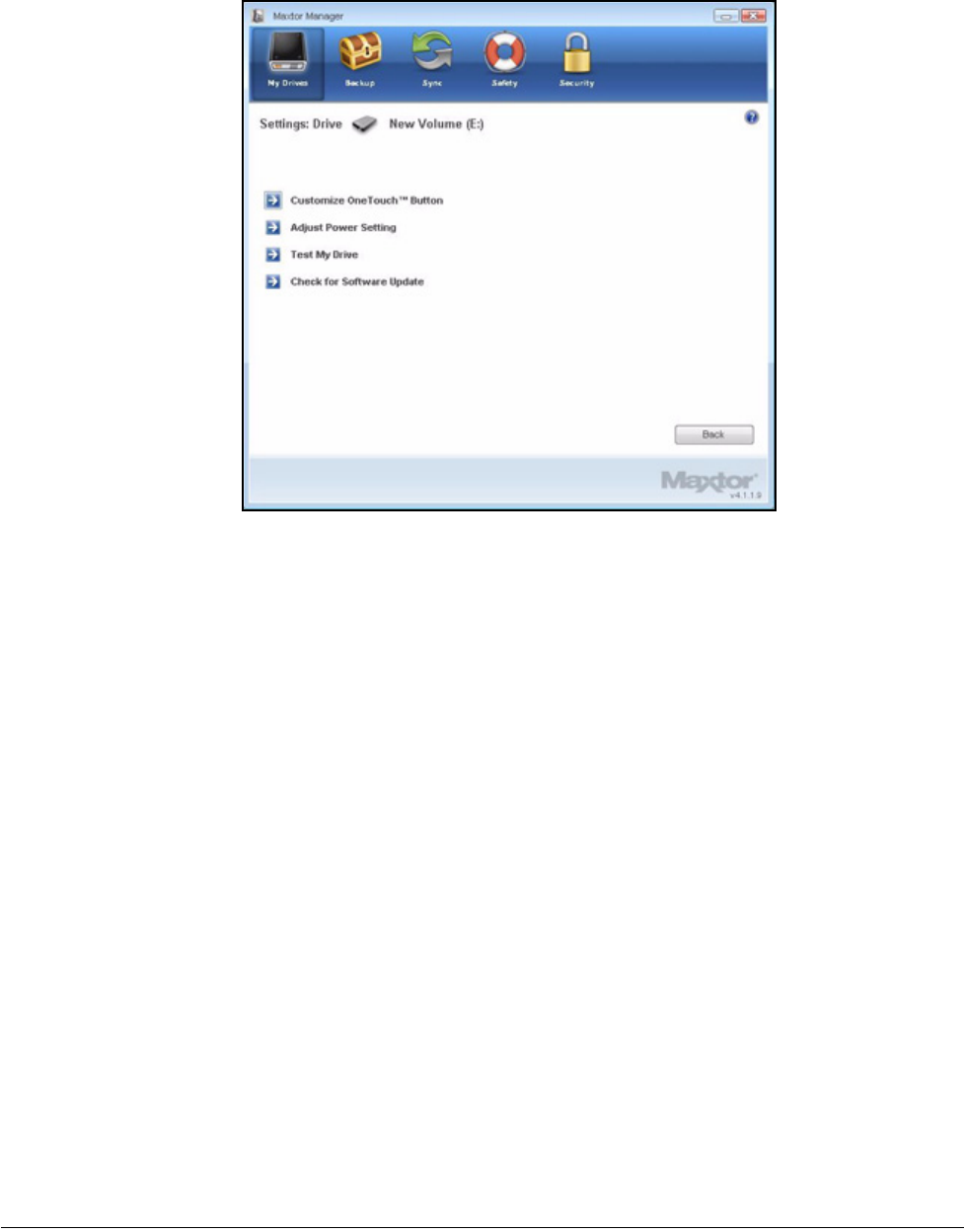
To check for software updates,
Step 1: In the My Drives window, click Settings.
The Settings window opens:
Figure 20: Reformat in Progress
Maxtor OneTouch IV 27
Step 2: Click Check for Software Update.
The Software Update window opens:
Figure 21: Settings
Maxtor OneTouch IV 28
Software Update is selected by default.
Step 3: To turn off Software Update, unselect Check for updates automatically.
Step 4: To check for updates now, click Check Now.
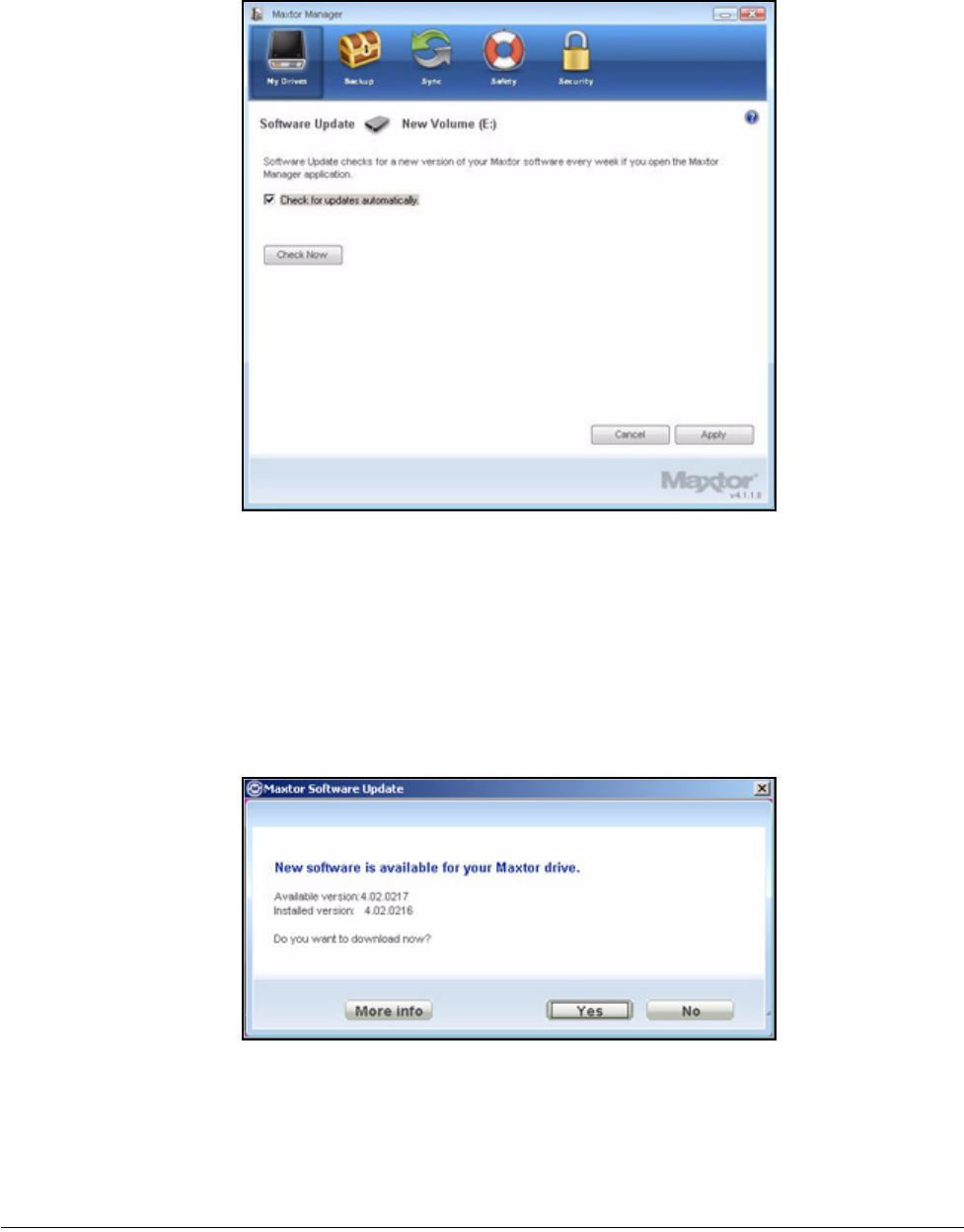
If an update is available for your software, a Software Update window allows you
to download the update:
If your software is up to date, a Software Update window informs you of that:
Figure 22: Software Update
Figure 23: Software Update Available

Maxtor OneTouch IV 29
Figure 24: Software Up to Date

Maxtor OneTouch IV 30
Backing Up & Restoring Folders
The Maxtor OneTouch Backup feature allows you to
•Schedule the backup of selected folders
•Edit backup settings
•Launch an immediate file backup
•Restore backed up files
After the initial backup, the OneTouch software backs up changed files in backed up folders
on a schedule you set or when you click Back Up Now in the Backup window.
You can create one Backup Plan for each OneTouch drive connected to your computer.
You can select either of two Backup Plans:
•Simple Backup: Pre-configured to back up your XP My Documents/Vista
Personal Folder folder daily at 10:00 p.m.
— OR —
•Custom Backup: You select the folders to be backed up and set a backup
destination and schedule.
Creating a Backup Plan
Using Simple Backup
Use Simple Backup to back up your XP My Documents or Vista Personal Folder folder
daily at 10 p.m.
To use Simple Backup,
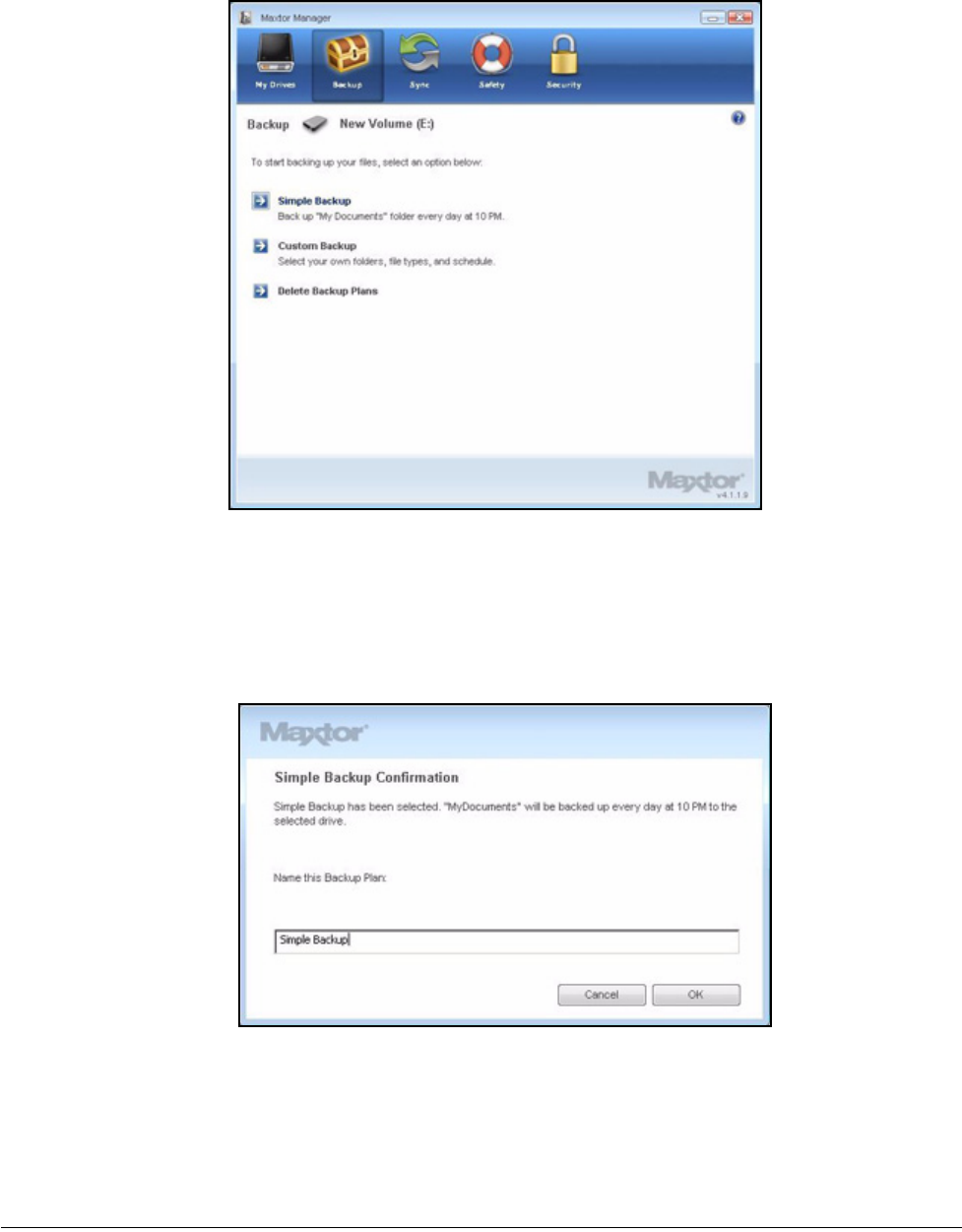
Step 1: Click Backup in the Command panel.
The Backup window opens:
Maxtor OneTouch IV 31
Step 2: In the Backup window, click Simple Backup.
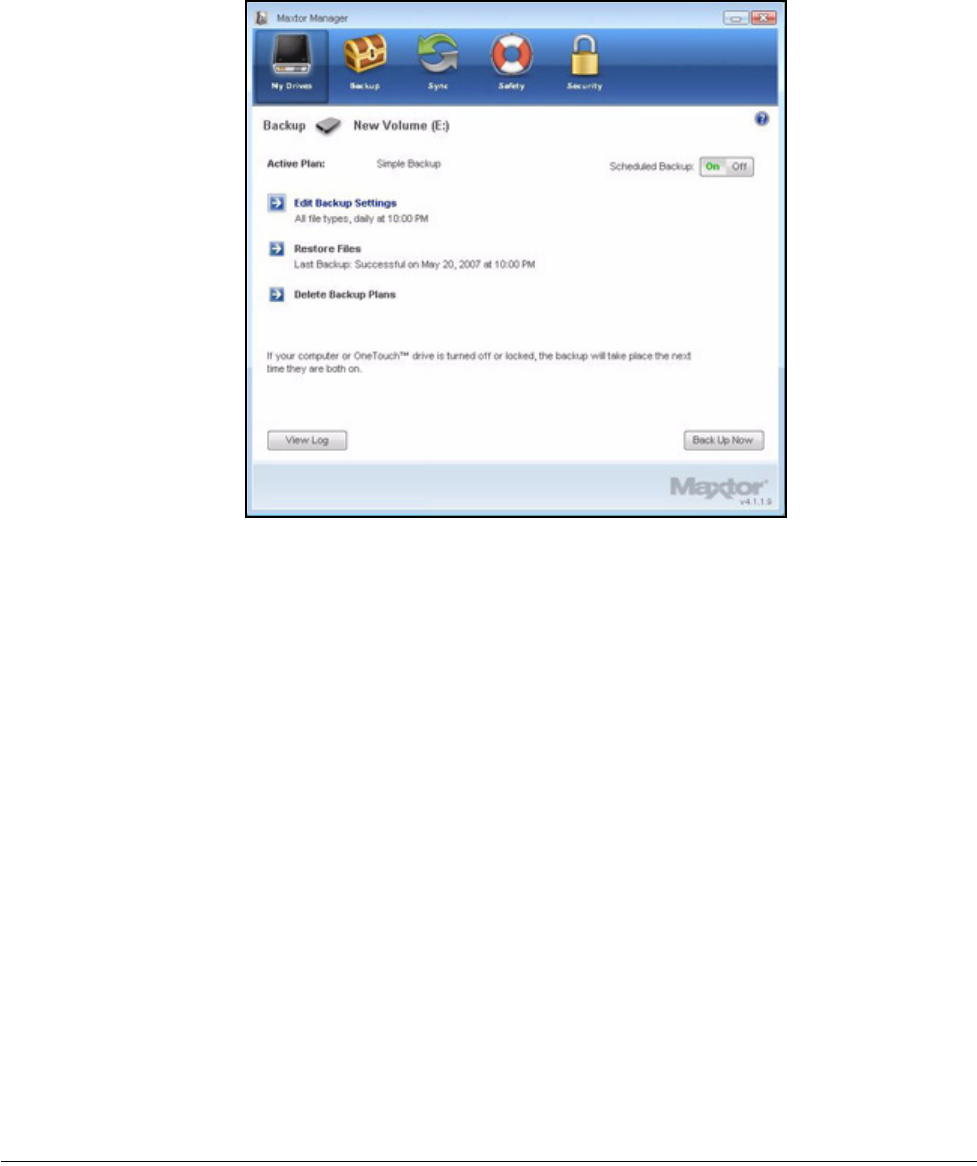
A Simple Backup Confirmation window confirms that you’ve selected Simple
Backup and asks you to name this Backup Plan:
Step 3: Enter a name for your Backup Plan and click OK.
Figure 1: Backup
Figure 2: Simple Backup Confirmation
Maxtor OneTouch IV 32
The Backup window now offers the options of editing your backup settings and
restoring backed up files and describes your Backup Plan and the details of your
last backup.
Creating a Custom Backup
To select specific folders for backup and set up a backup destination and schedule,
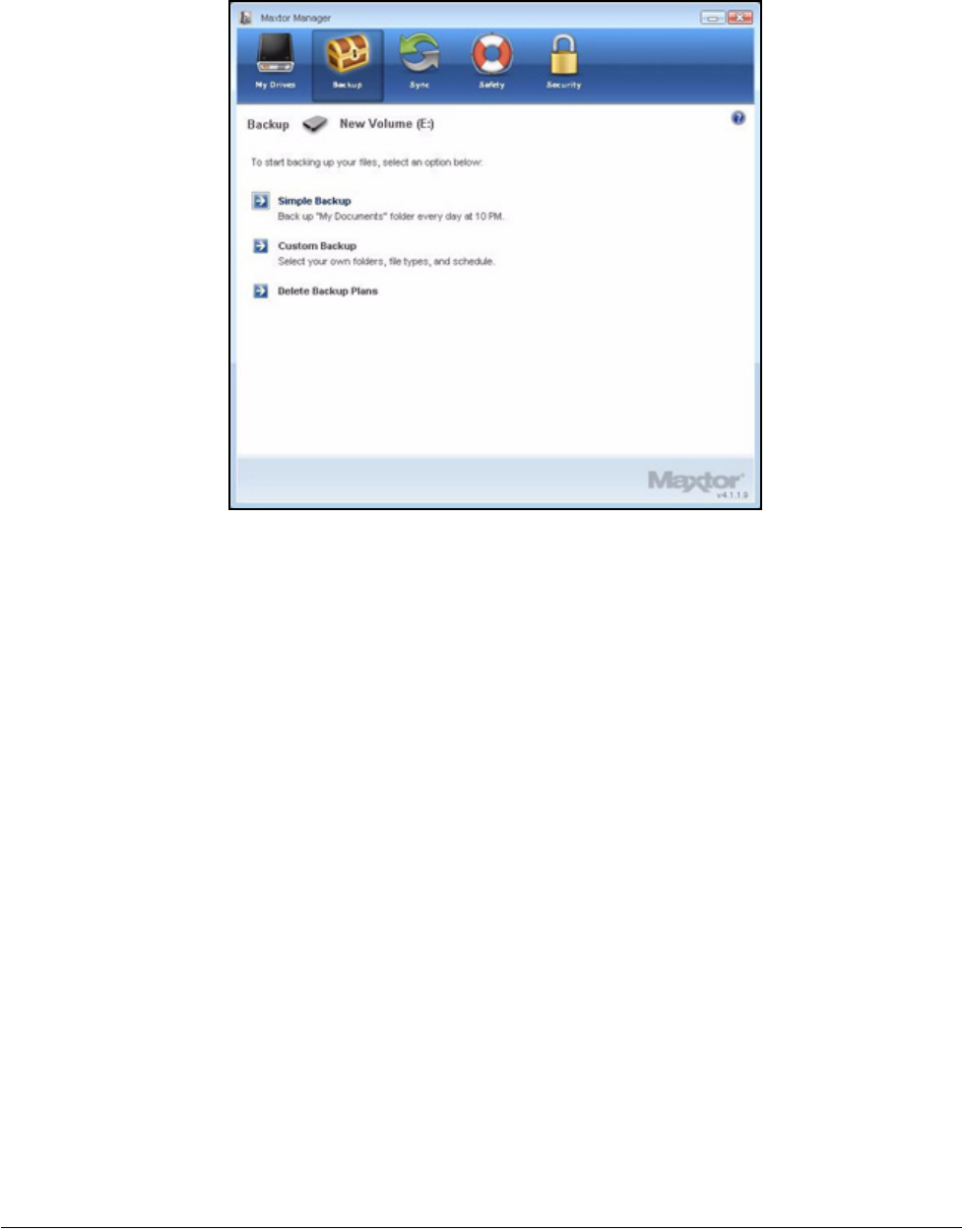
Step 1: Click Backup in the Command panel.
The Backup window opens:
Figure 3: Backup
Maxtor OneTouch IV 33
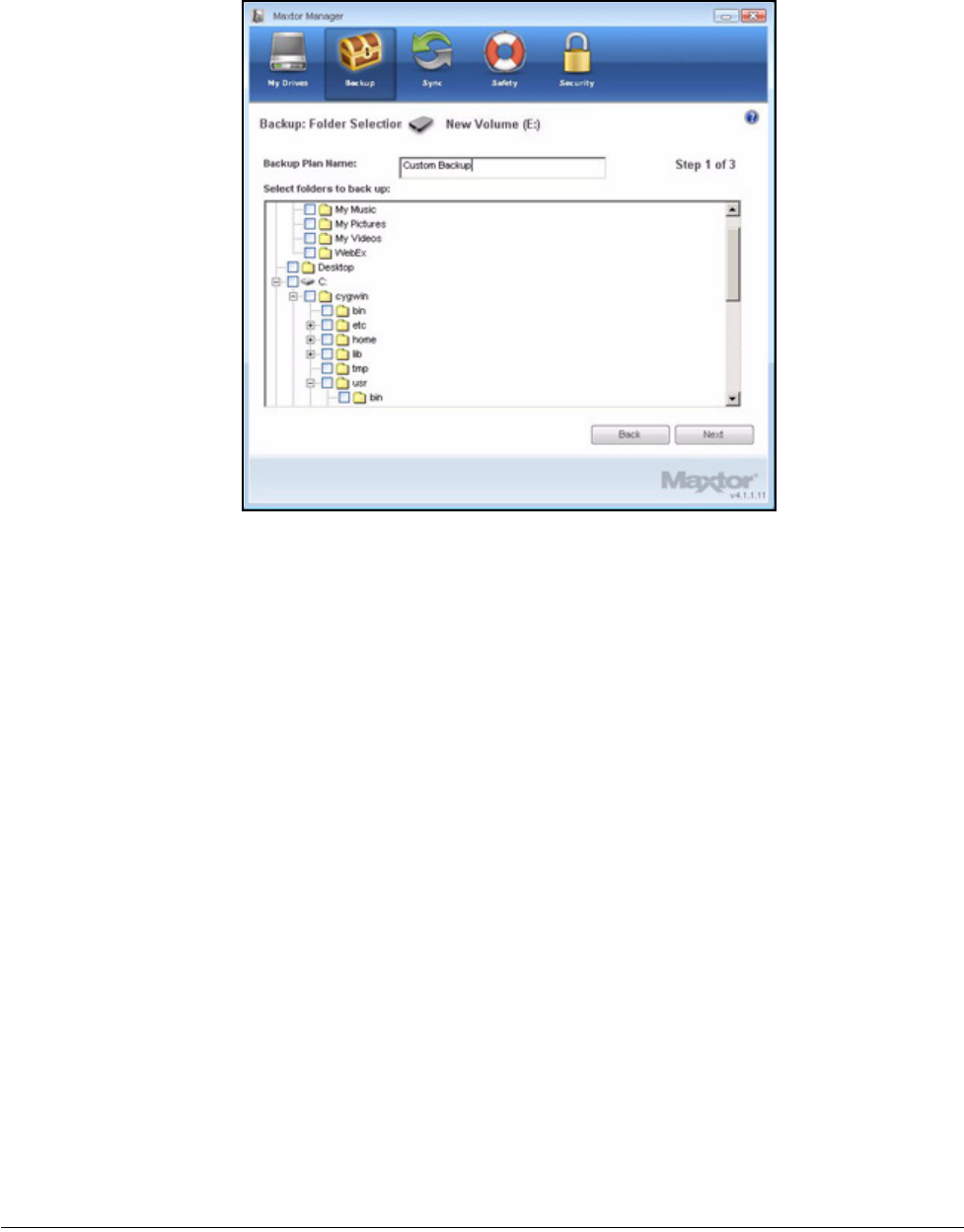
Step 2: In the Backup window, click Custom Backup.
The Backup Folder Selection window opens:
Figure 4: Backup
Maxtor OneTouch IV 34
Step 3: Name your Backup Plan, select the folders to be backed up, and click Next.
The Backup File Types window opens:
Figure 5: Backup Folder Selection
Maxtor OneTouch IV 35
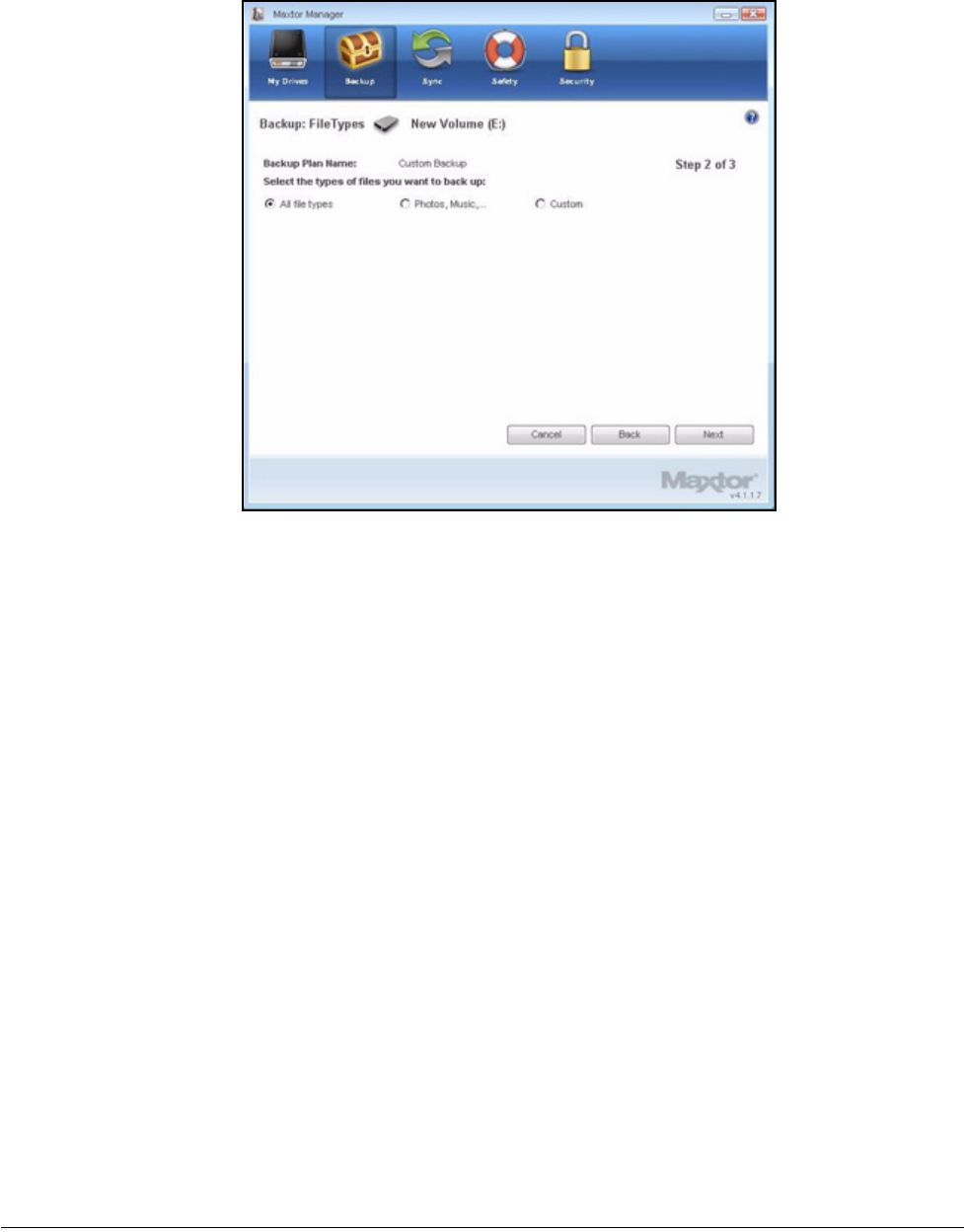
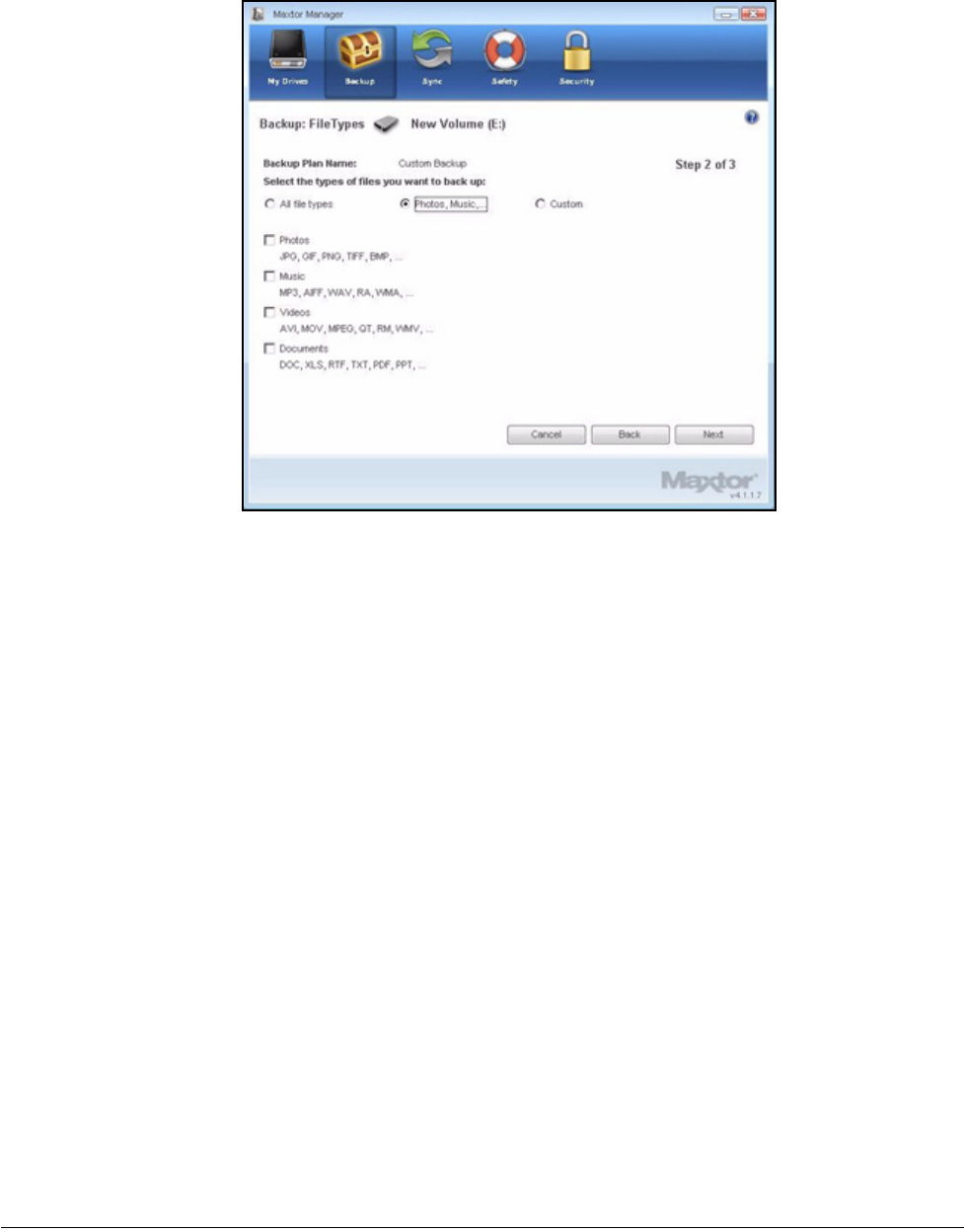
Step 4: Select the types of files you want to back up:
• All File Types
• Photos, Music, Videos, Documents
Back up any or all of these types of files:
Figure 6: File Types: All Types
Maxtor OneTouch IV 36
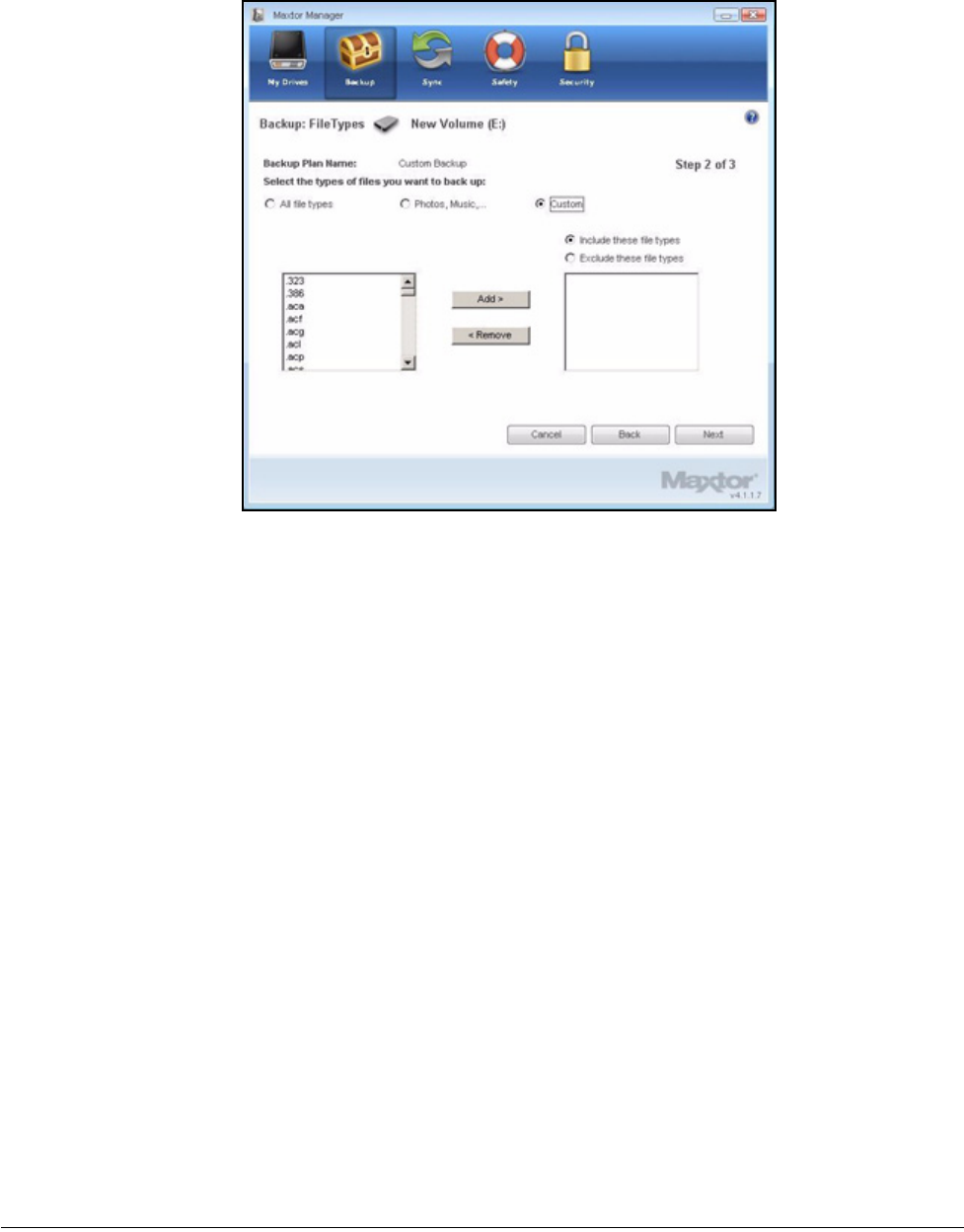
• Custom
Select specific file types to include or exclude for backup:
— To back up only a few of the available file types,
1. Select Include these file types.
2. Select each file type you do want to back up and click Add to move it to
the Include list.
— To back up most of the available file types,
1. Select Exclude these file types.
2. Select each file type you don’t want to back up and click Add to move it
to the Exclude list.
Note: File extensions are the last three characters of a file name that define the file type.
Figure 7: File Types: Photo, Music, Video, Documents
Maxtor OneTouch IV 37
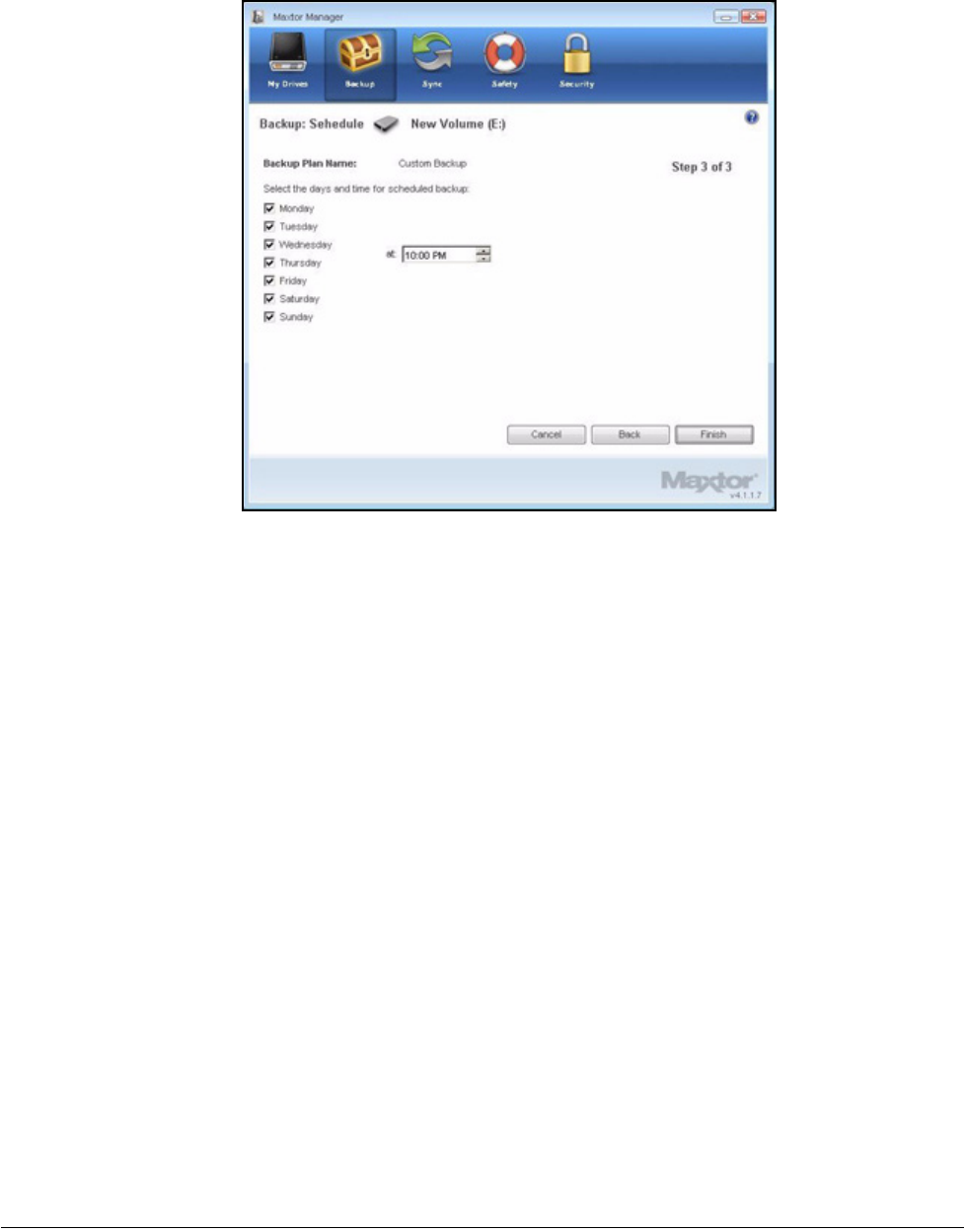
Step 5: Click Next.
The Backup Schedule window opens:
Figure 8: File Types: Custom
Maxtor OneTouch IV 38
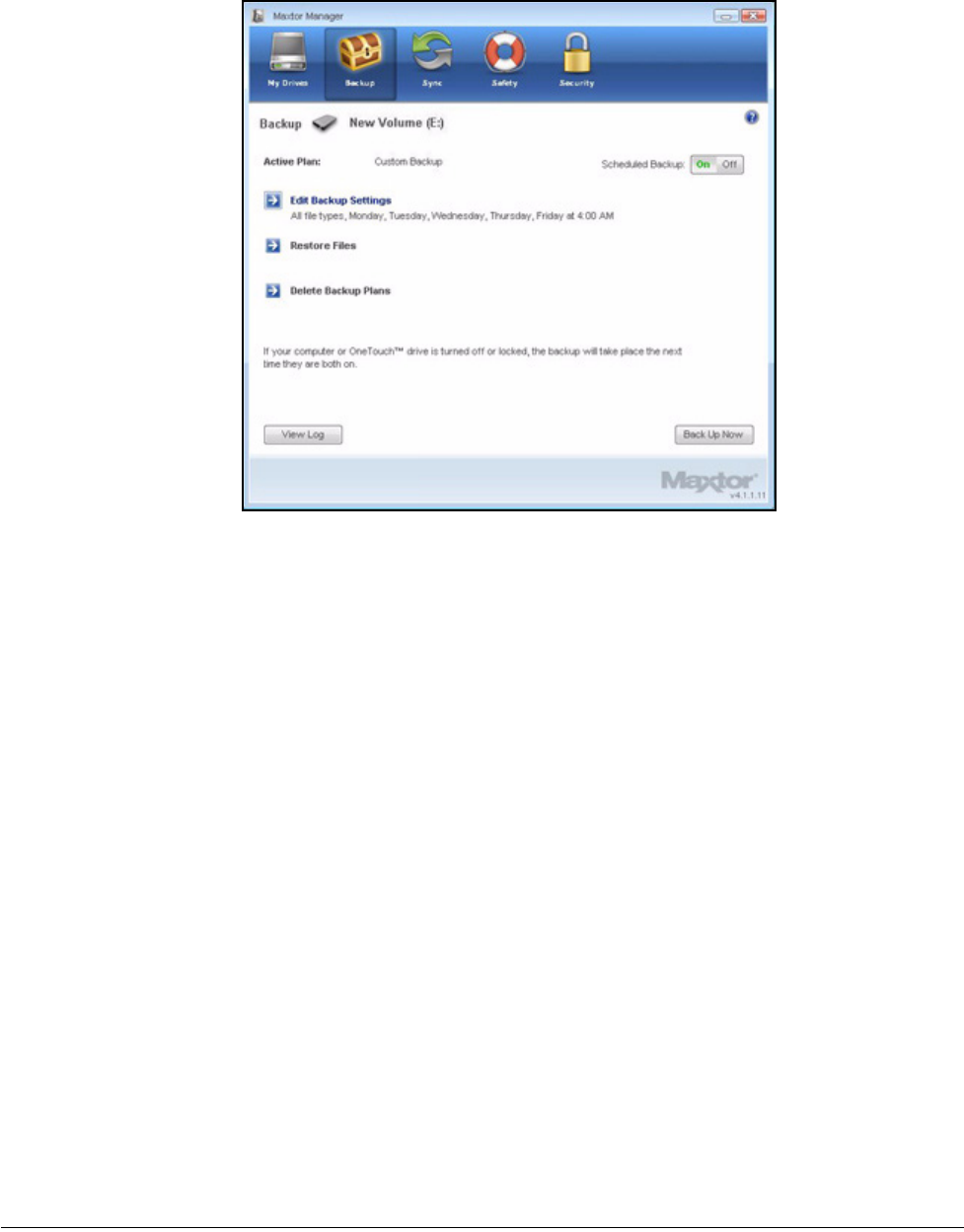
Step 6: Select the days and time you want to back up your folders and click Finish.
The Backup window now offers the options of editing your backup settings and
restoring backed up files and describes your Backup Plan.
Figure 9: Backup Schedule
Maxtor OneTouch IV 39
Managing Backup Settings
Editing Backup Settings
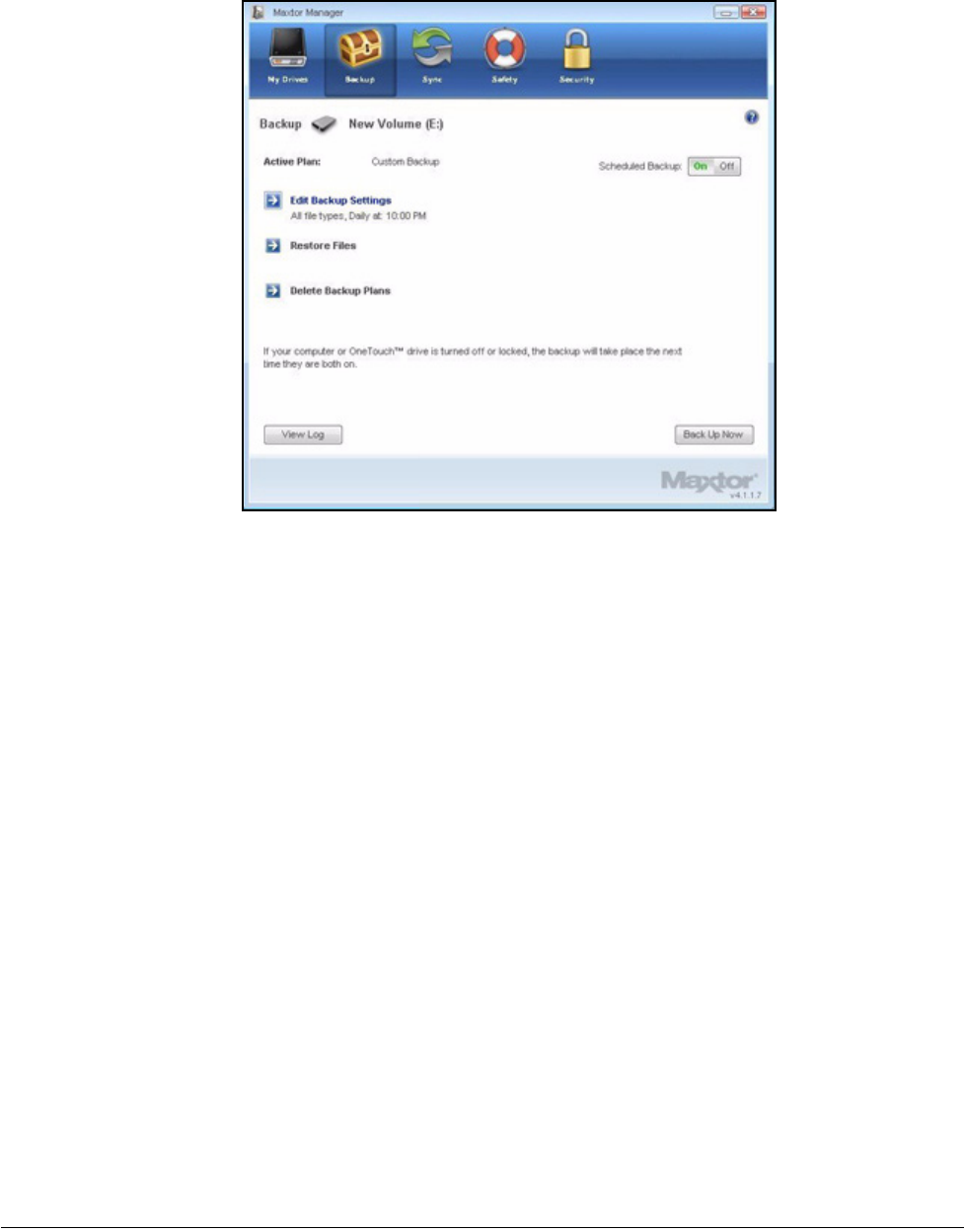
To edit the settings for a Backup Plan,
Step 1: Click Backup in the Command panel.
The Backup window opens:
Figure 10: Backup
Maxtor OneTouch IV 40
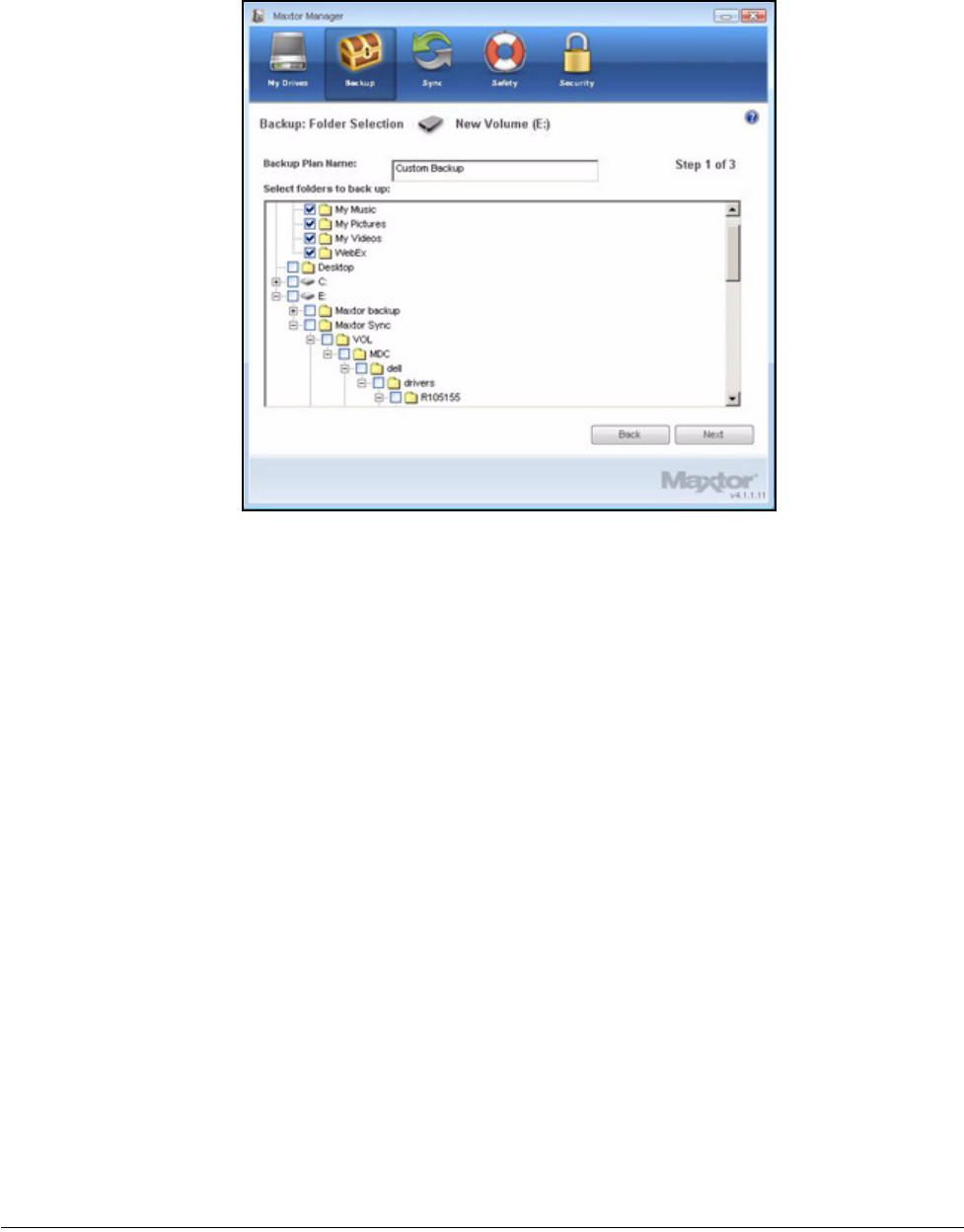
Step 2: In the Backup window, click Edit My Backup Settings.
The Backup Folder Selection window displays your current Backup Plan name
and folder selection:
Figure 11: Backup
Maxtor OneTouch IV 41
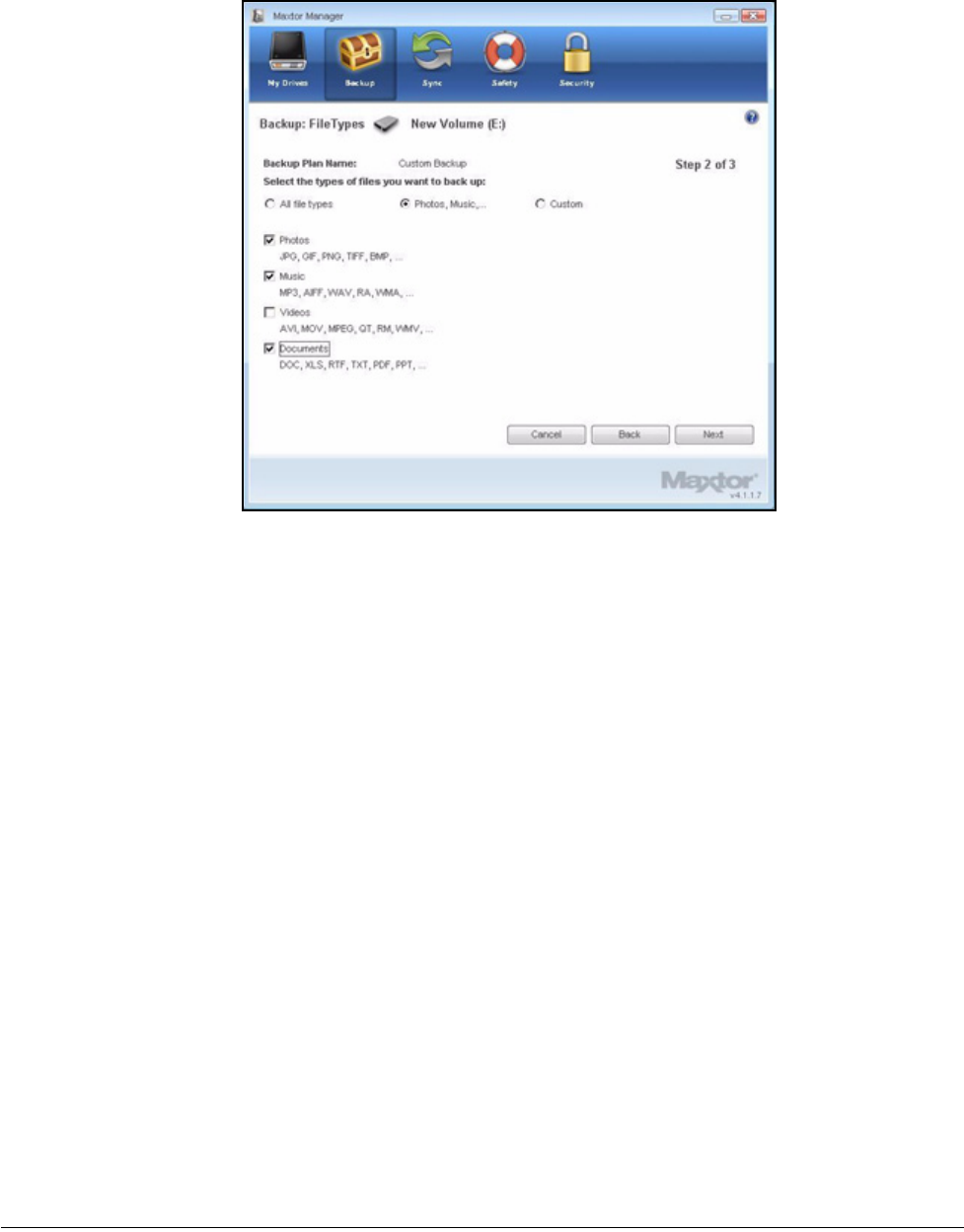
Step 3: Edit the Backup Plan name and/or the folder selection and click Next.
The Backup File Types window displays your current selections:
Figure 12: Backup Folder Selection
Maxtor OneTouch IV 42
Step 4: Edit the types of files to be backed up and click Next.
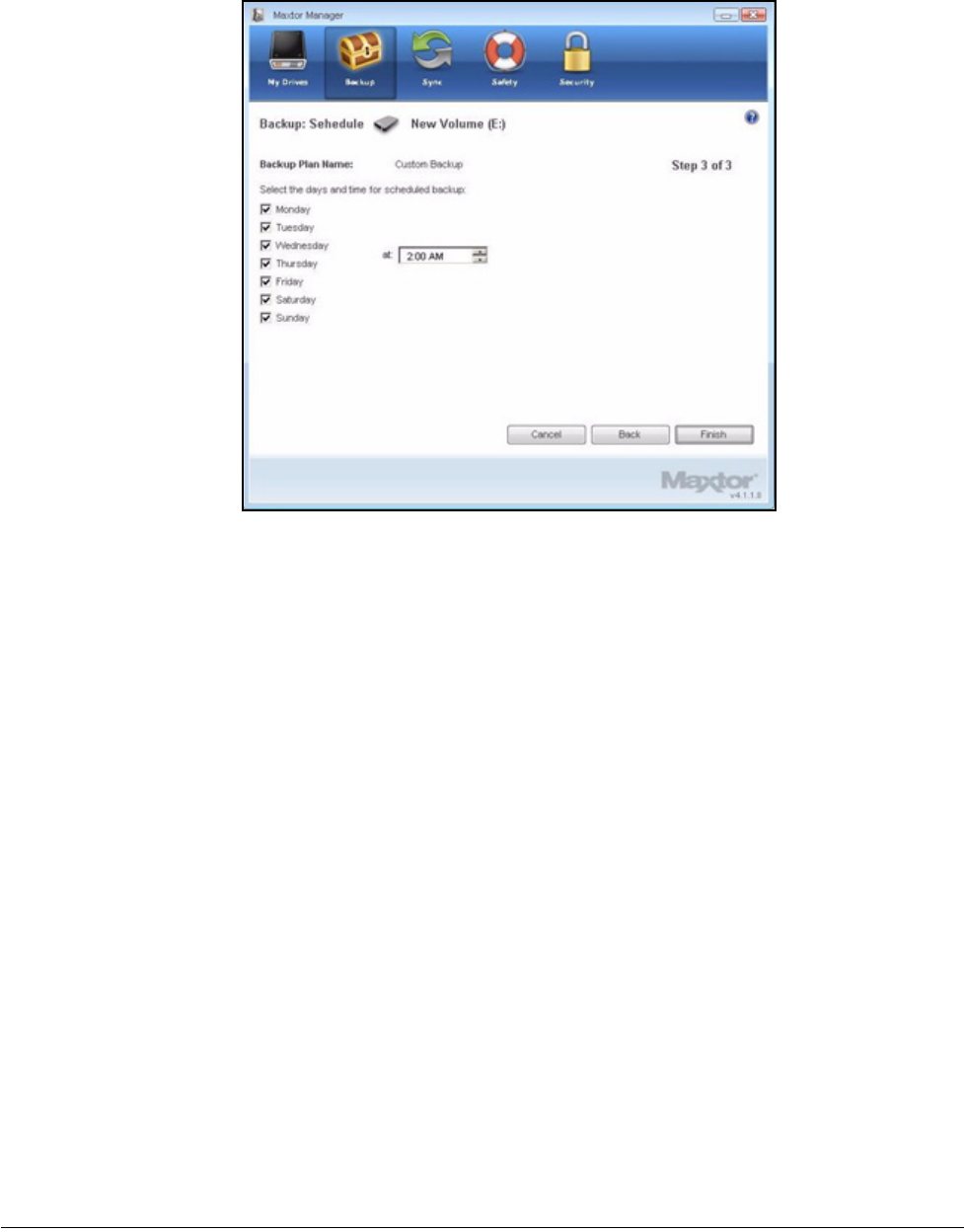
The Backup Schedule window displays your current schedule:
Figure 13: File Types
Maxtor OneTouch IV 43
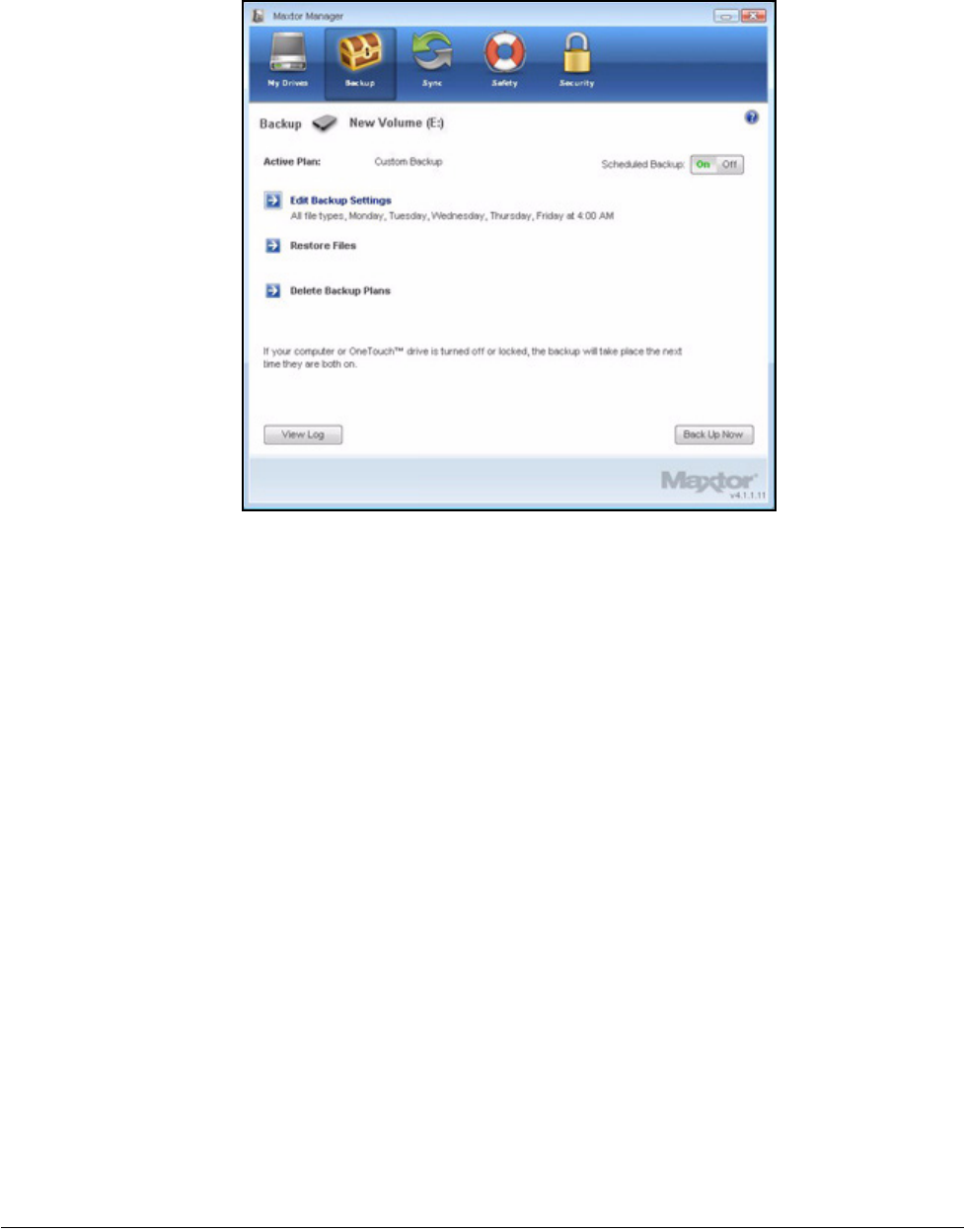
Step 5: Edit the days and/or time you want to back up your folders and click Finish.
The Backup window now displays your edited Backup Plan.
Figure 14: Backup Schedule
Maxtor OneTouch IV 44
Deleting a Backup Plan
You can delete the Backup Plan for any OneTouch drive on which you’ve created one, even
if the drive is not connected to your computer.
To delete a Backup Plan,
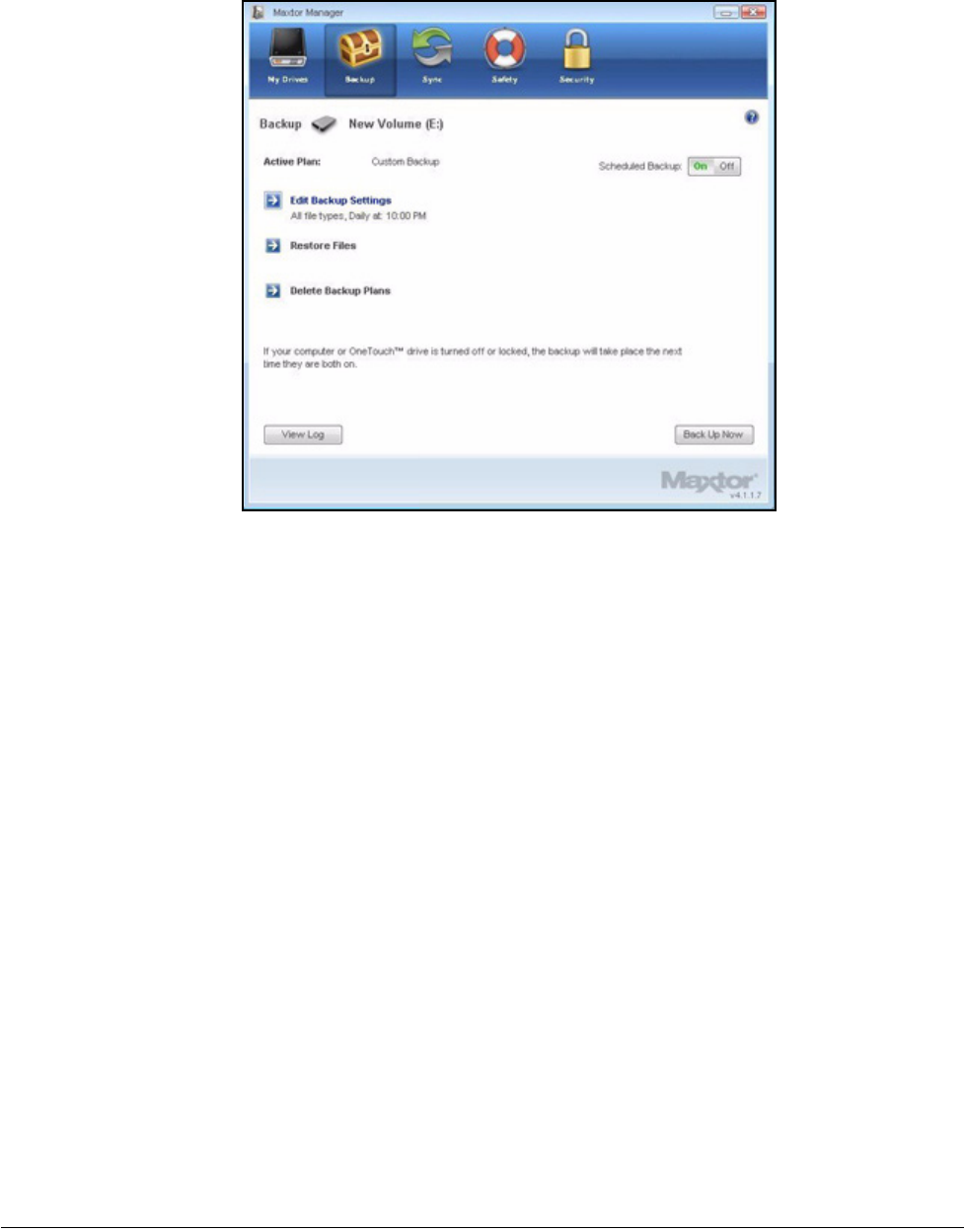
Step 1: Click Backup in the Command panel.
The Backup window opens:
Figure 15: Backup
Maxtor OneTouch IV 45
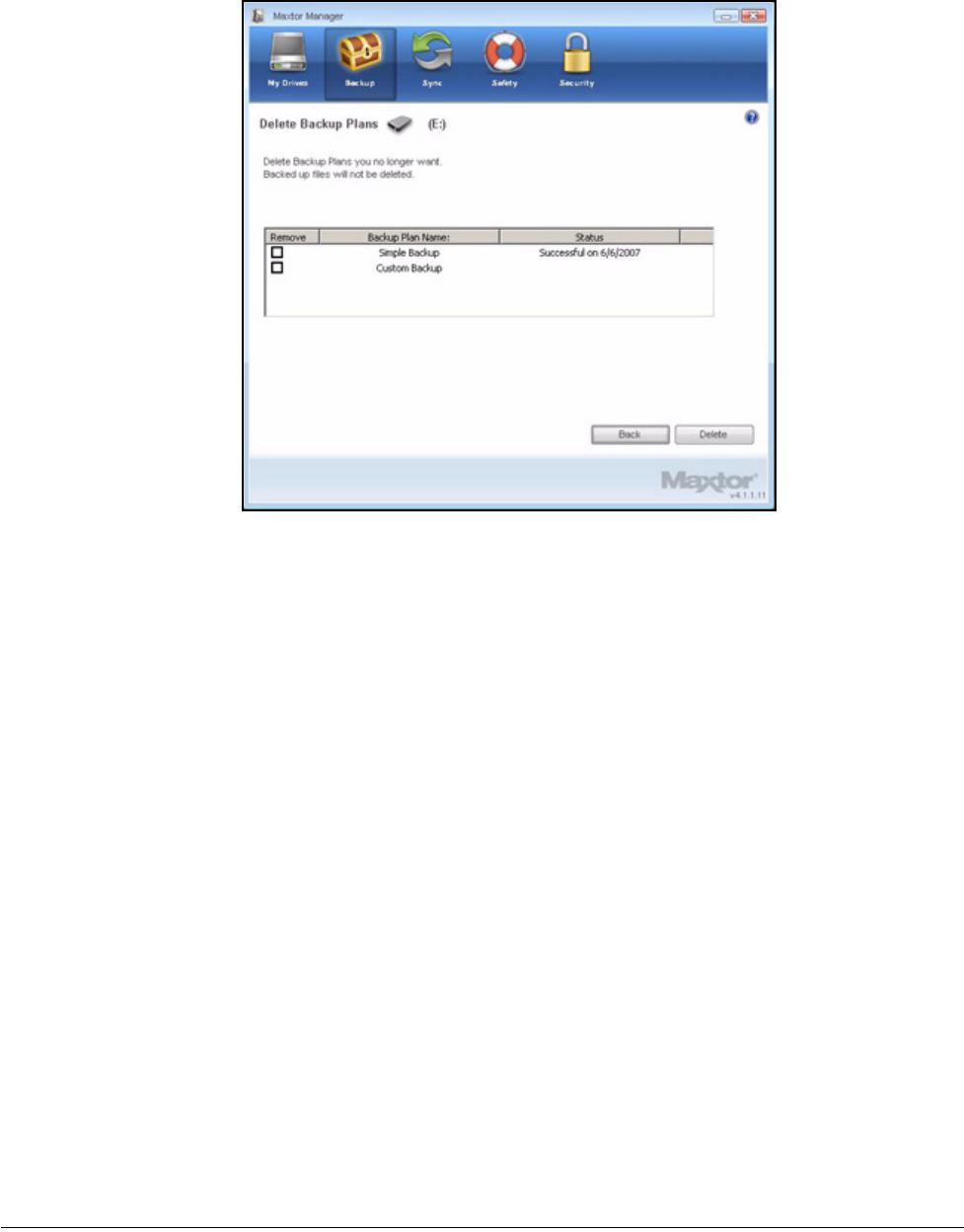
Step 2: In the Backup window, click Delete Backup Plan.
The Delete Backup Plan window opens:
Figure 16: Backup
Maxtor OneTouch IV 46
Listed is the Backup Plan for each OneTouch drive connected to your computer.
Step 3: Select the Backup Plan you want to delete and click Delete.
The Backup Plan is deleted.
Note: Your backed up files are NOT deleted.
Using Automatic Backup
Use Automatic Backup to back up changed files in backed up folders on the days and time
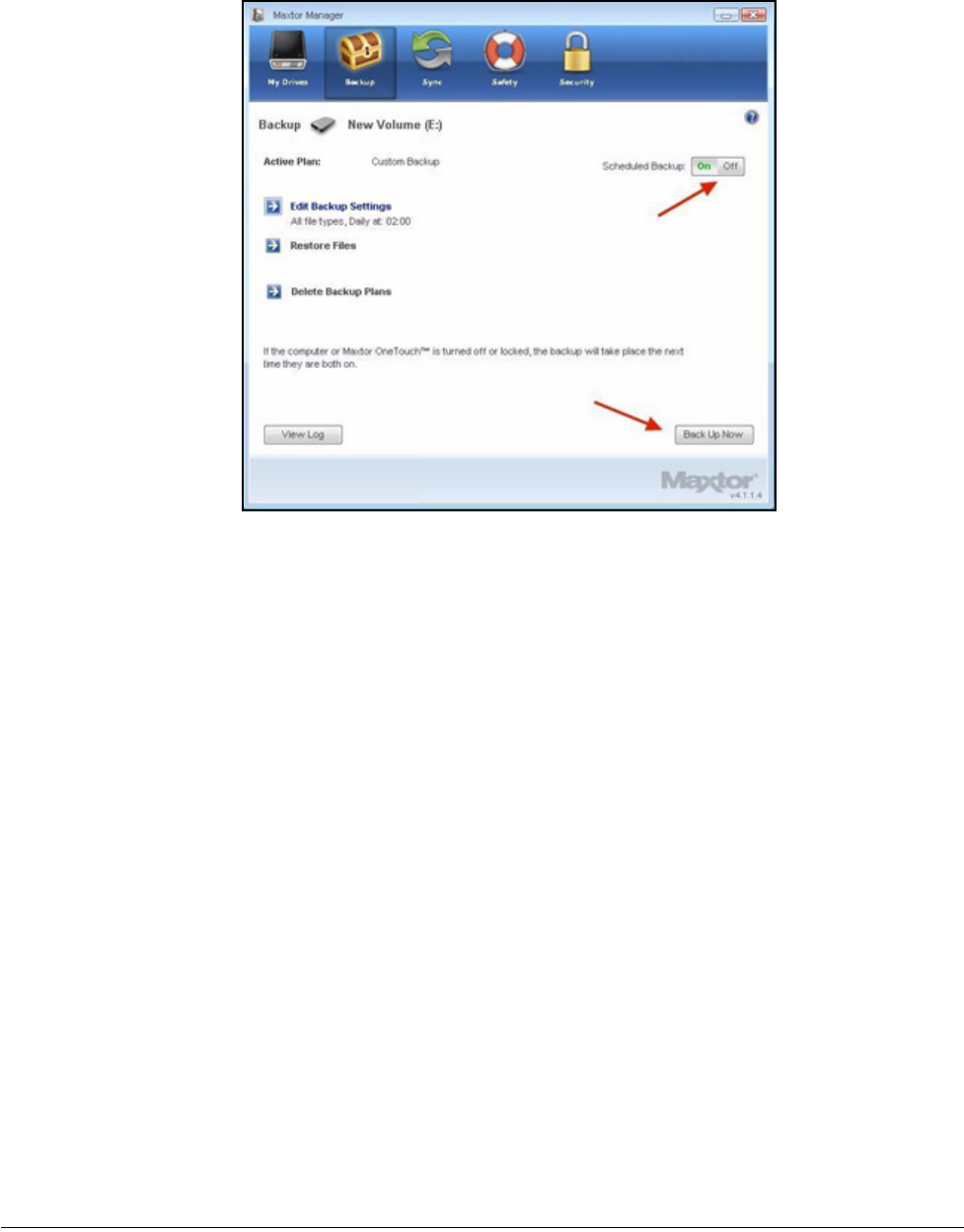
you set. The Automatic Backup On/Off switch enables or disables the Backup schedule.
By default, Automatic Backup is turned on.
Turning Off Automatic Backup
To turn off Automatic Backup,
•In the Backup window, click the Automatic Backup Off button.
Figure 17: Delete Backup Plan
Maxtor OneTouch IV 47
Backing Up Manually
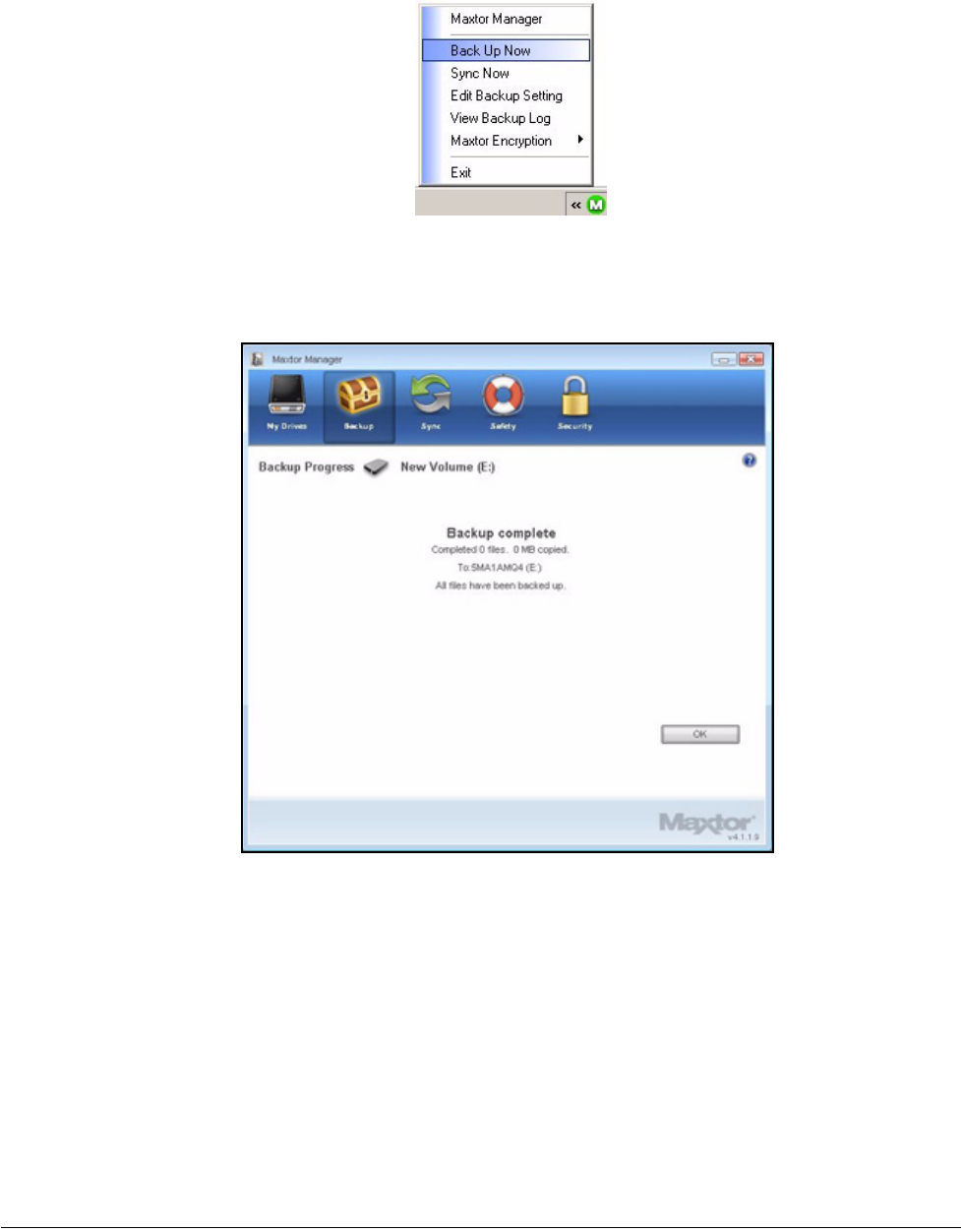
You can back up files manually whenever you like, whether Automatic Backup is on or off.
To launch a backup manually,
•Press the OneTouch button if you’ve customized it to back up files.
— OR —
•Click Back Up Now in the lower right corner of the Backup window.
— OR —
•Select Back Up Now from the System Tray menu:
Figure 18: Automatic Backup Off
Maxtor OneTouch IV 48
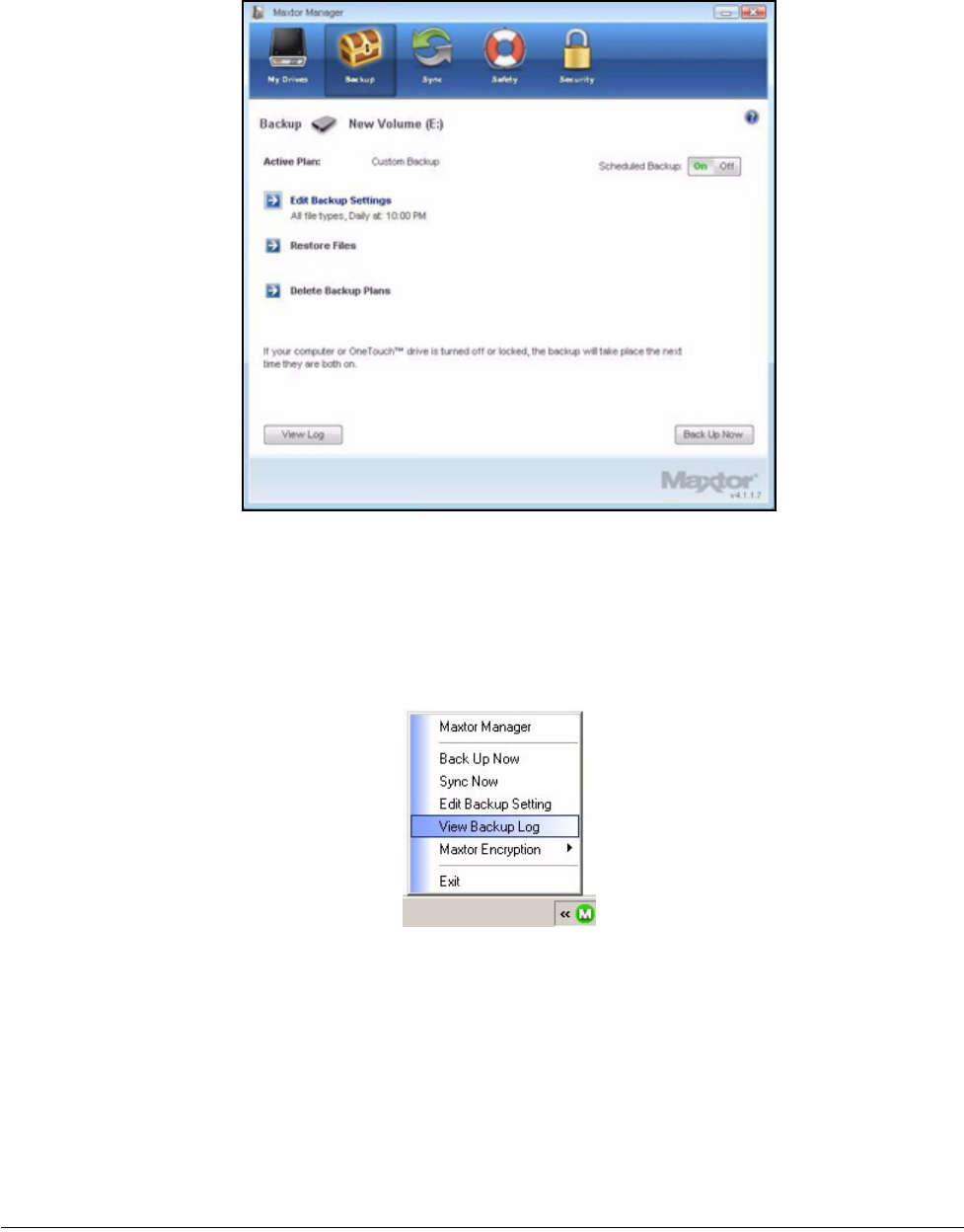
A Backup Progress window informs you of the progress of the manual backup and
lets you know when the backup is complete:
Viewing the Backup Log
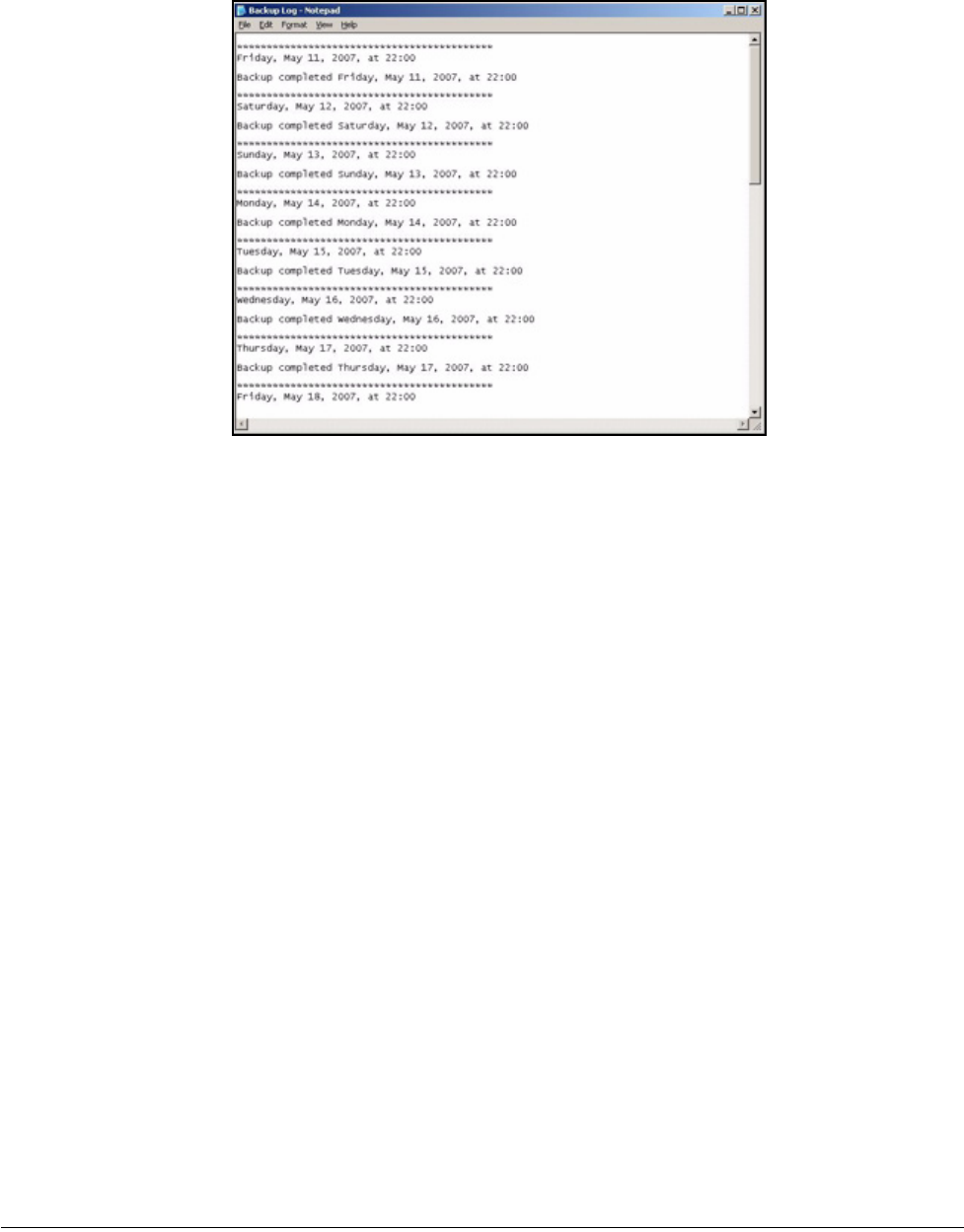
The Backup Log is a text-based report of your backup history.
To view the Backup Log,
Step 1: Click View Log in the Backup window:
Figure 19: Manual Backup Complete
Maxtor OneTouch IV 49
— OR —
Click the OneTouch icon in your System Tray to display the OneTouch popup
menu:
Step 2: Click View Log to open a text file showing the history of your system backups:
Figure 20: Backup
Maxtor OneTouch IV 50
Restoring Files
When you back up the files stored in selected folders, the Maxtor Manager saves ten (10)
previous, or historical, versions of each revised file stored on your OneTouch drive. You
can restore a saved historical version of a backed up file based on the date it was last
modified or you can restore the most recent version of a backed up file.
Note: An encrypted file is restored based on the date it was backed up rather than on the date it
was last modified.
To restore files,
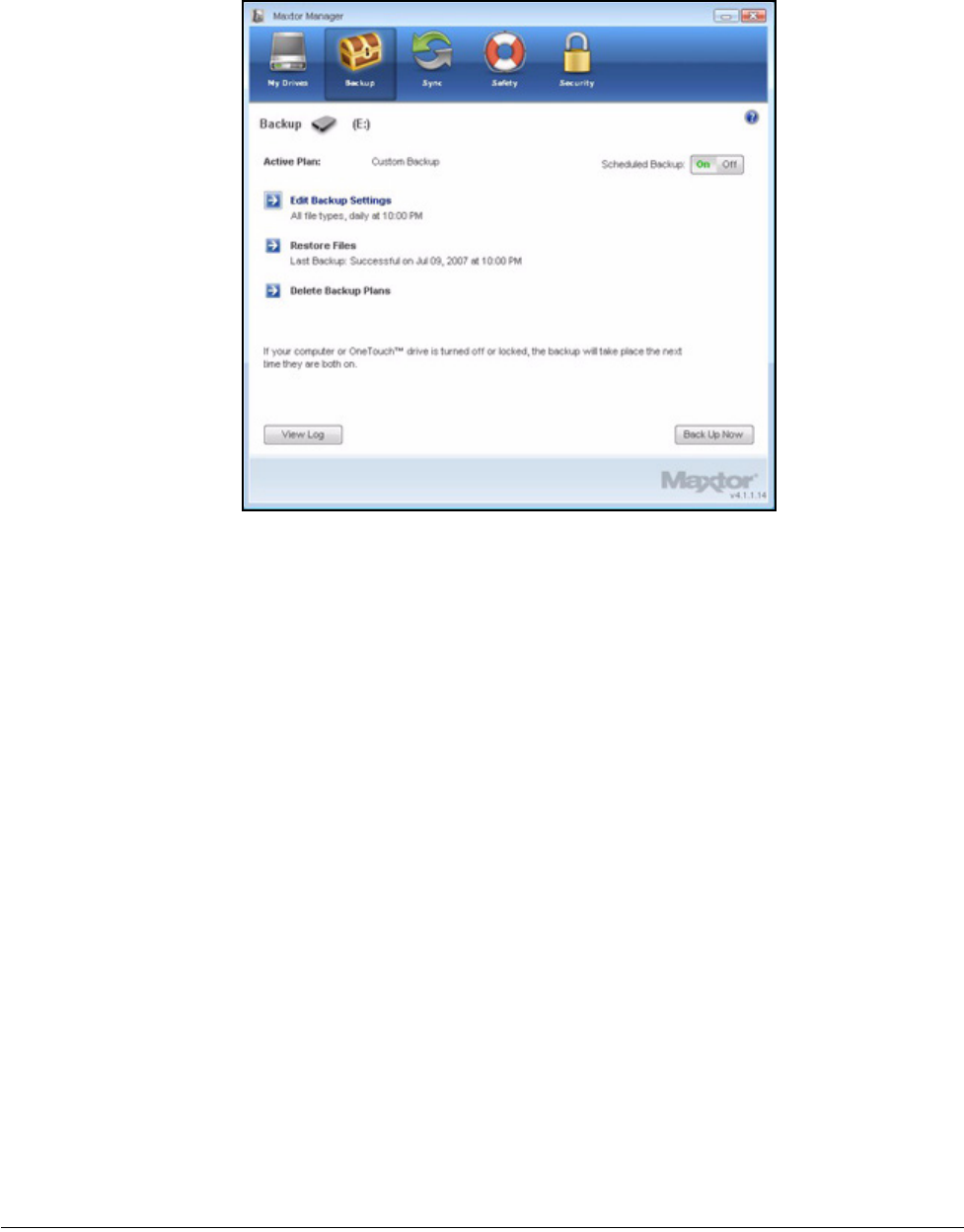
Step 1: Click Backup in the Command panel.
The Backup window opens:
Figure 21: Backup Log
Maxtor OneTouch IV 51
Listed beneath Restore Files are the date and time of your most recent backup.
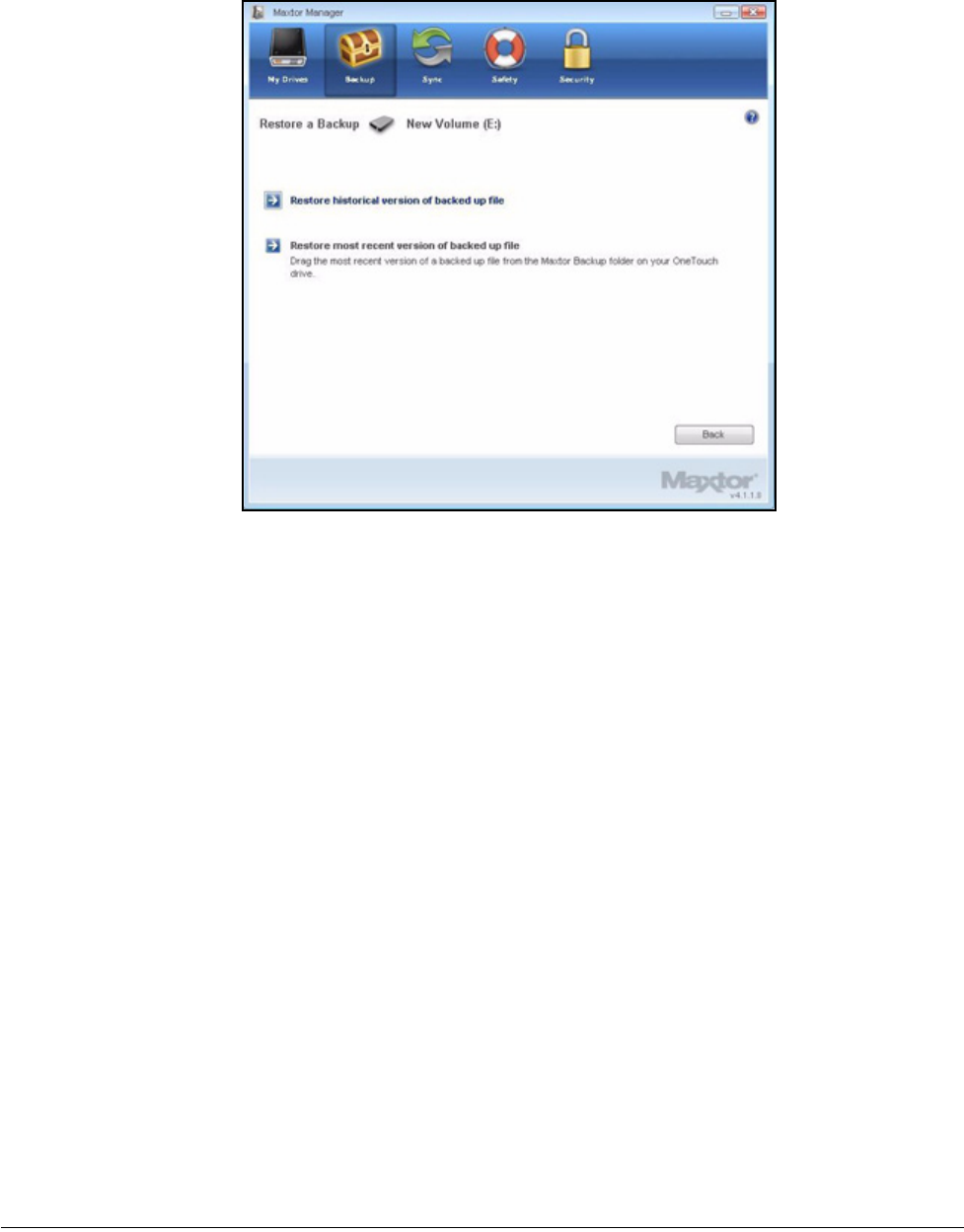
Step 2: In the Backup window, click Restore Files.
The Restore a Backup window opens:
Figure 22: Backup
Maxtor OneTouch IV 52
Restoring an Historical Version
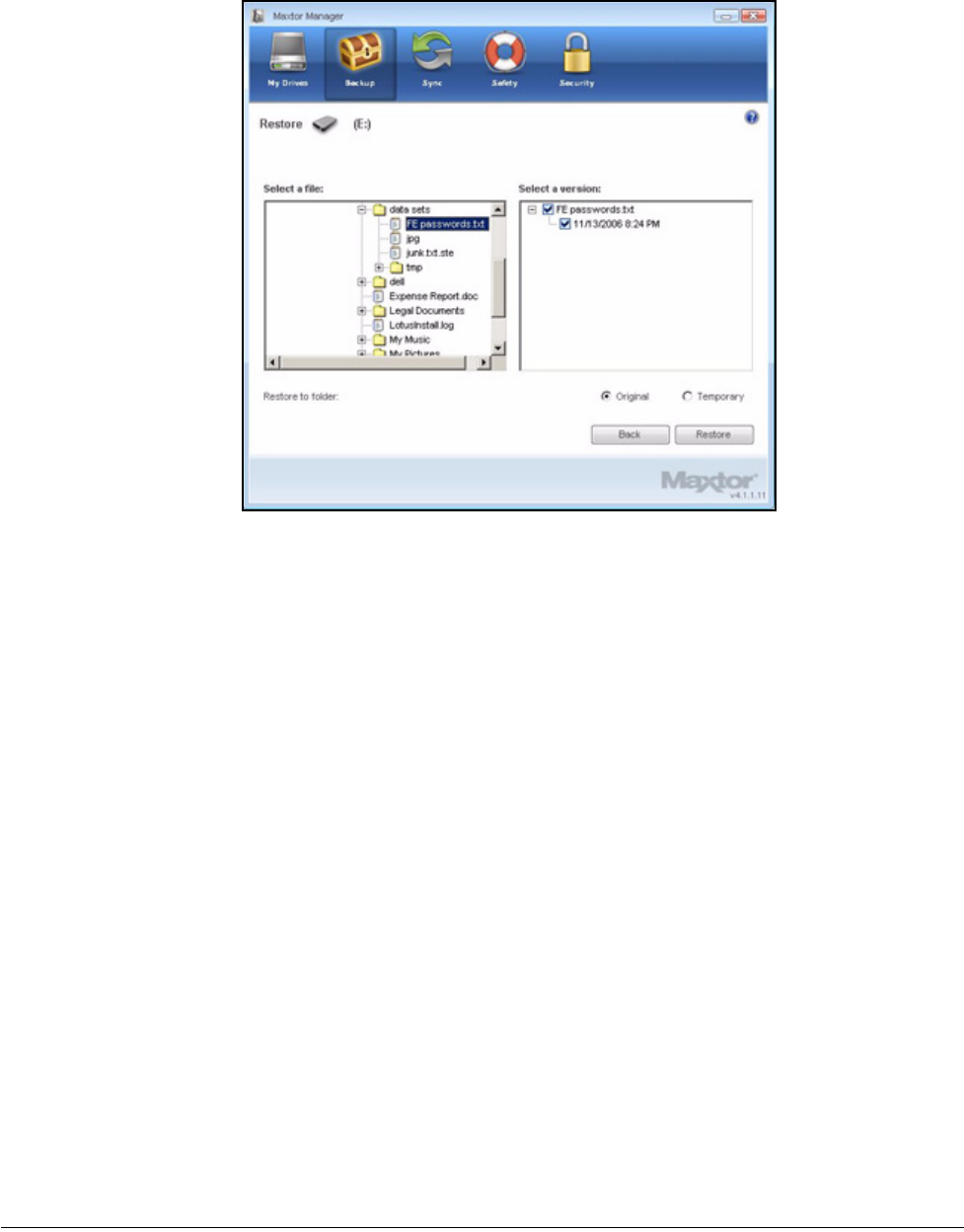
Step 1: Click Restore historical version of backed up file to restore a previous version
of a file.
The Restore Historical Version window opens:
Figure 23: Restore a Backup
Maxtor OneTouch IV 53
Step 2: Select a file and file version to be restored and click Restore.
The selected file version is restored to the location noted in the Restore Historical
Version window.
Restoring the Most Recent Version
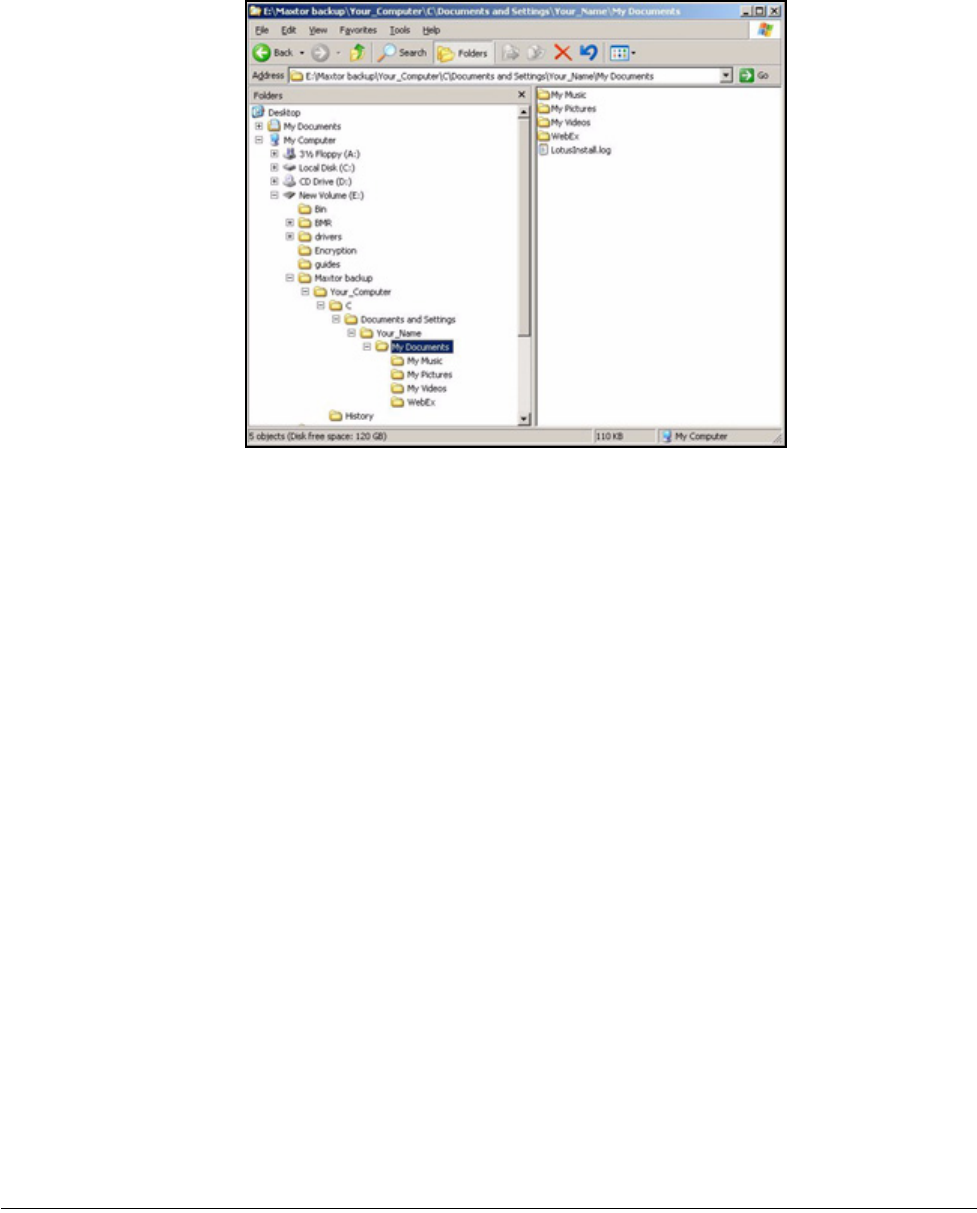
Step 1: Click Restore most recent version to restore the latest version of a file.
Windows Explorer displays the contents of the Maxtor Backup folder:
Figure 24: Restore Historical Version
Maxtor OneTouch IV 54
Step 2: Browse to the desired file and drag it to the location at which you want it restored.
Step 3: Close Windows Explorer.
Figure 25: Maxtor Backup in Windows Explorer

Maxtor OneTouch IV 55
Synchronizing Folders
Sync is designed to synchronize files in one or more folders between two or more
computers. You can sync selected folders from one computer to your OneTouch drive and
then connect the drive to another computer to complete the sync.
Note: Files cannot be synchronized between computers running XP and those running Vista.
You have these Sync options:
Note: Make sure all computers participating in the Sync are set to precisely the same time to
ensure that Sync works properly.
Using Simple Sync
Simple Sync is pre-configured to automatically sync all file types in your XP My Documents
or Vista Personal Folder folder. Newer file versions always overwrite older versions.
To select Simple Sync,
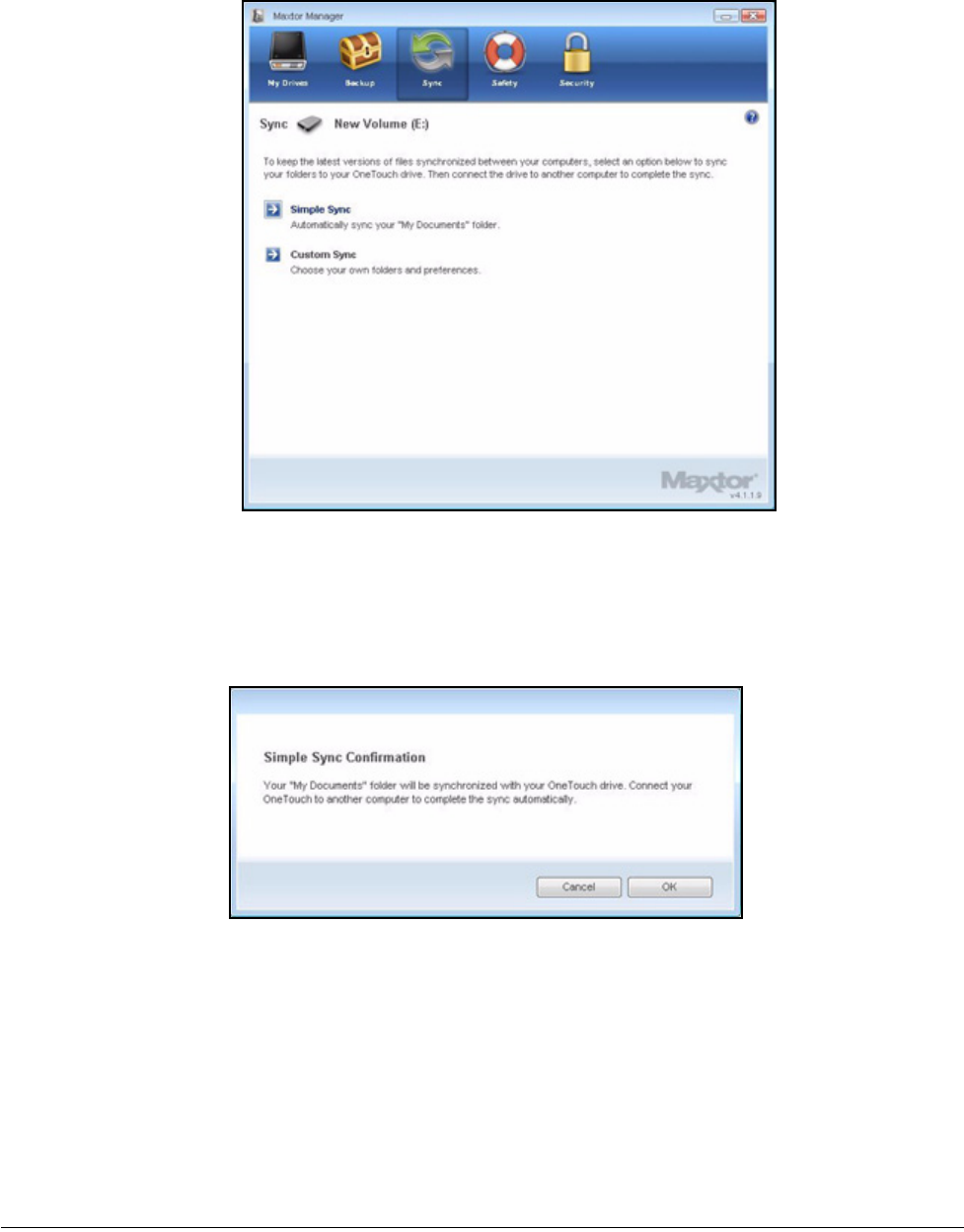
Step 1: Click Sync in the Command panel.
The Sync window opens:
Simple Sync: Custom Sync:
Sync XP My Documents or Vista Personal Folder Select one or more folders to sync
Sync all file types Select file types to include or exclude
Sync automatically Select automatic or manual sync
Always overwrite older file versions Set Sync and Copy & Replace Rules
Encrypt synchronized files
Maxtor OneTouch IV 56
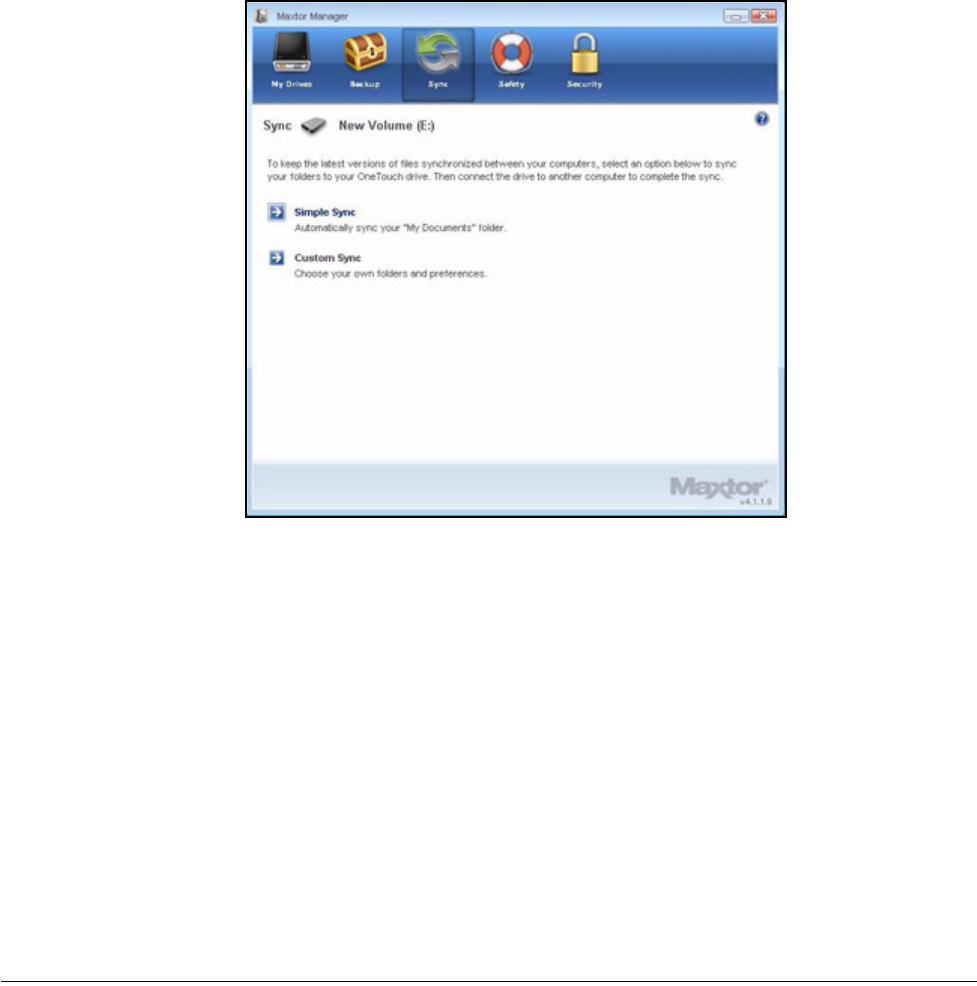
Step 2: Click Simple Sync.
The Simple Sync Confirmation window opens:
Your XP My Documents or Vista Personal Folder folder is now synchronized
with your drive. Connect the drive to other computers to complete the Sync.
Figure 1: Sync
Figure 2: Confirm Simple Sync
Maxtor OneTouch IV 57
Using Custom Sync
Custom Sync allows you to select specific folders and file types for synchronization and to
choose sync and encryption settings.
To configure Custom Sync,
Step 1: Click Sync in the Command panel.
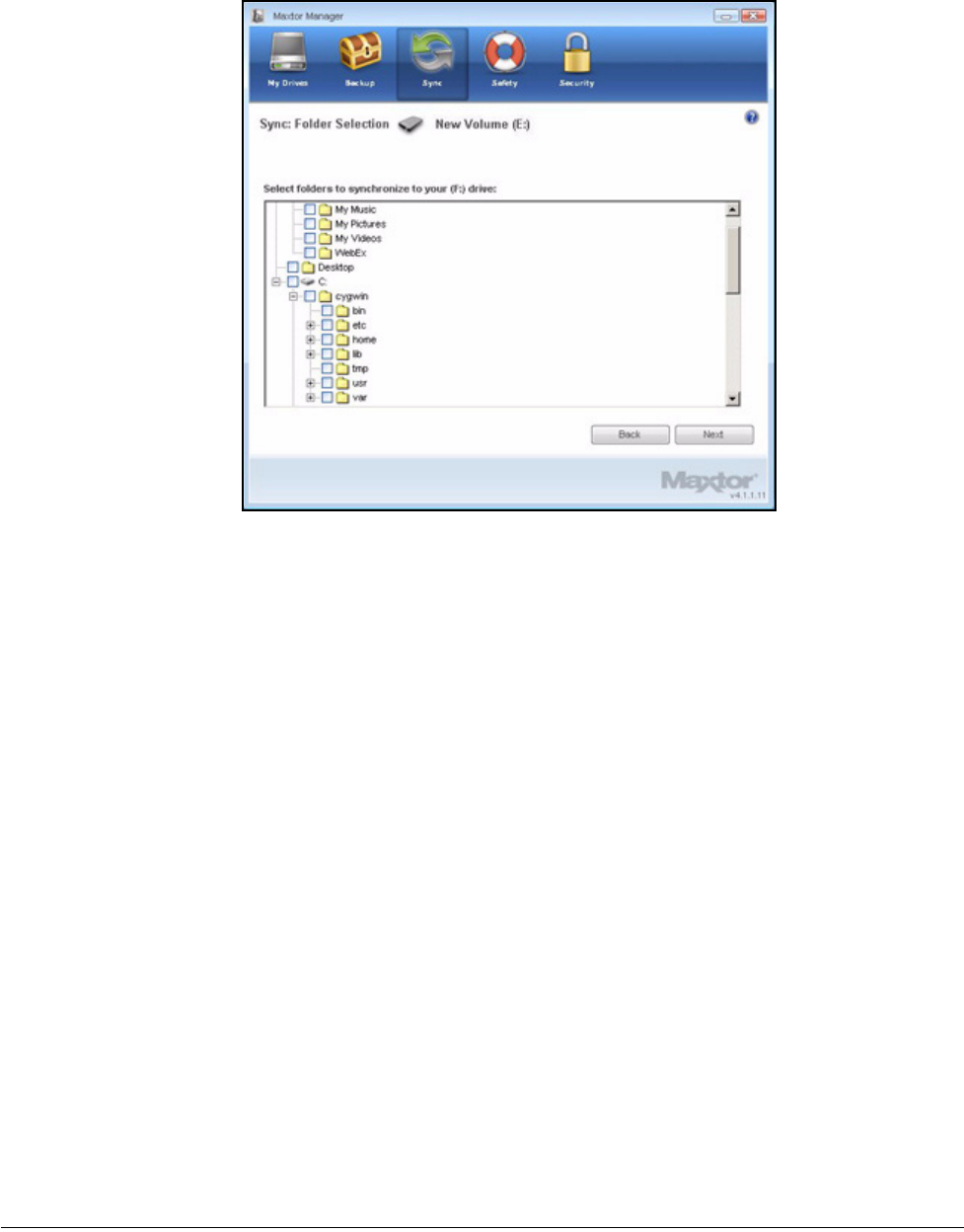
The Sync window opens:
Step 2: Click Custom Sync.
The Folder Selection window opens:
Figure 3: Sync
Maxtor OneTouch IV 58
Step 3: Select the folders to be synchronized.
You can select as many folders as you like, but they must all reside on the same
drive (partition).
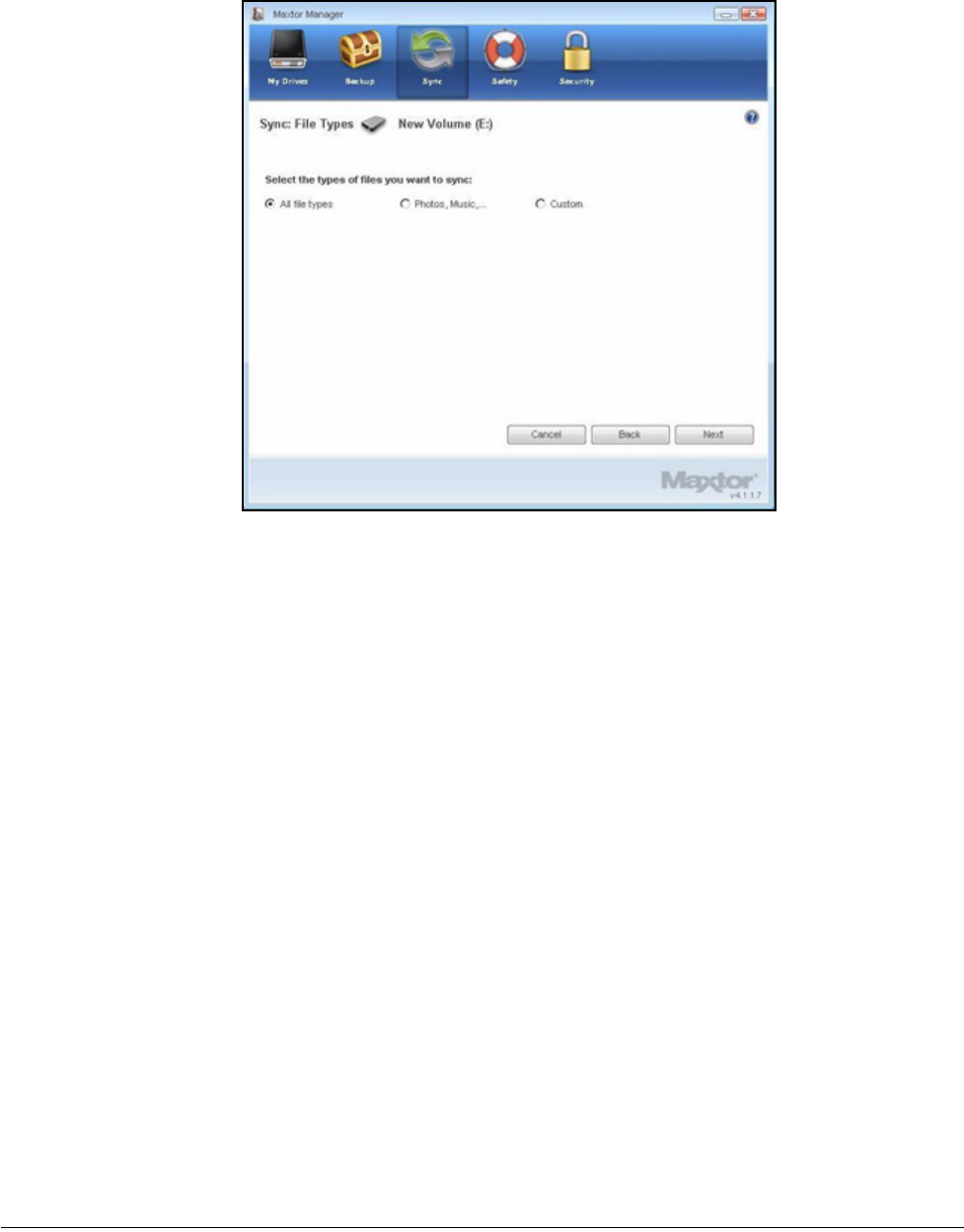
Step 4: Click Next.
The File Types window opens:
Figure 4: Folder Selection
Maxtor OneTouch IV 59
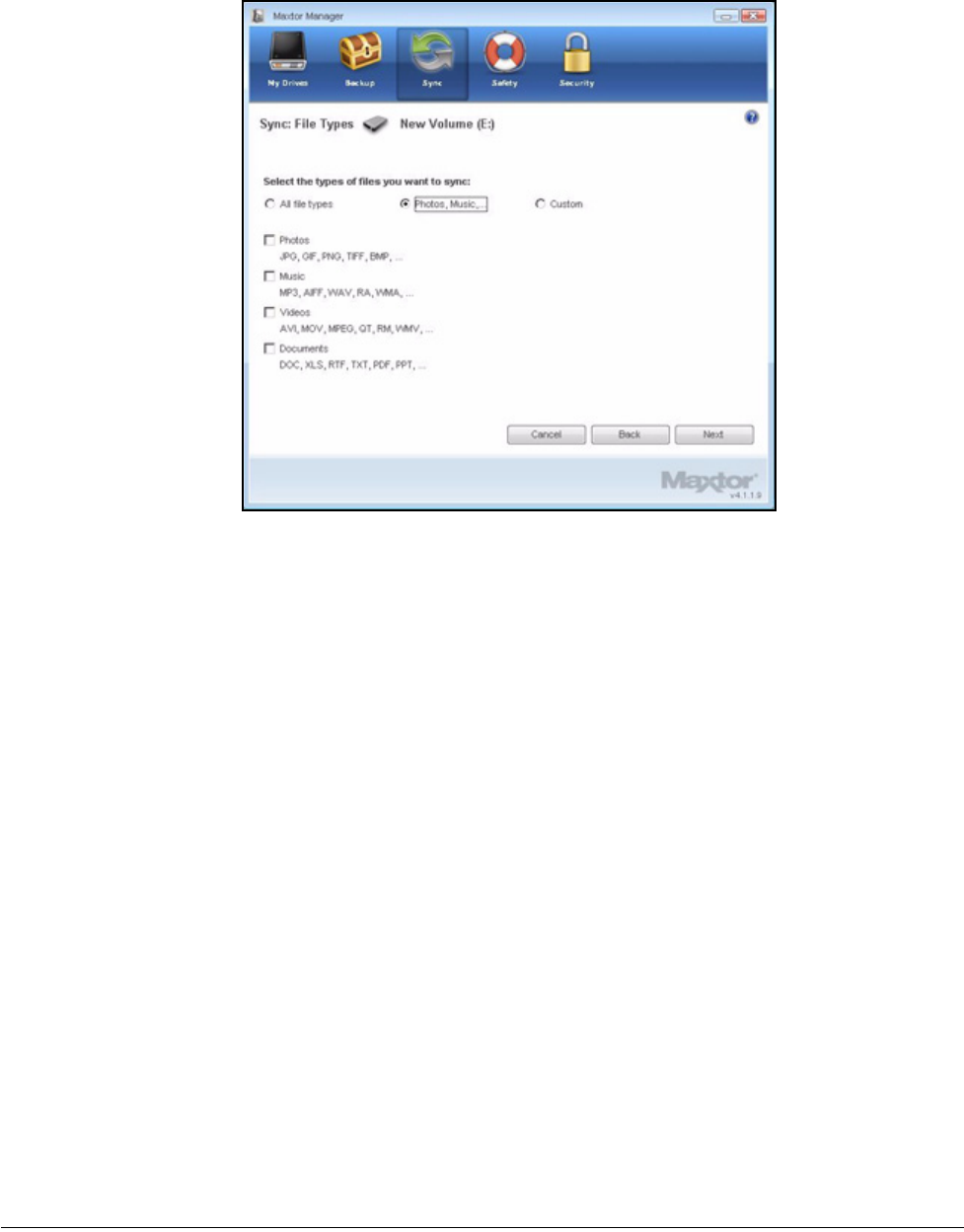
Step 5: Select the types of files you want to sync:
• All File Types
• Photos, Music, Videos, Documents
— You can choose to sync any or all of these:
Figure 5: All File Types
Maxtor OneTouch IV 60
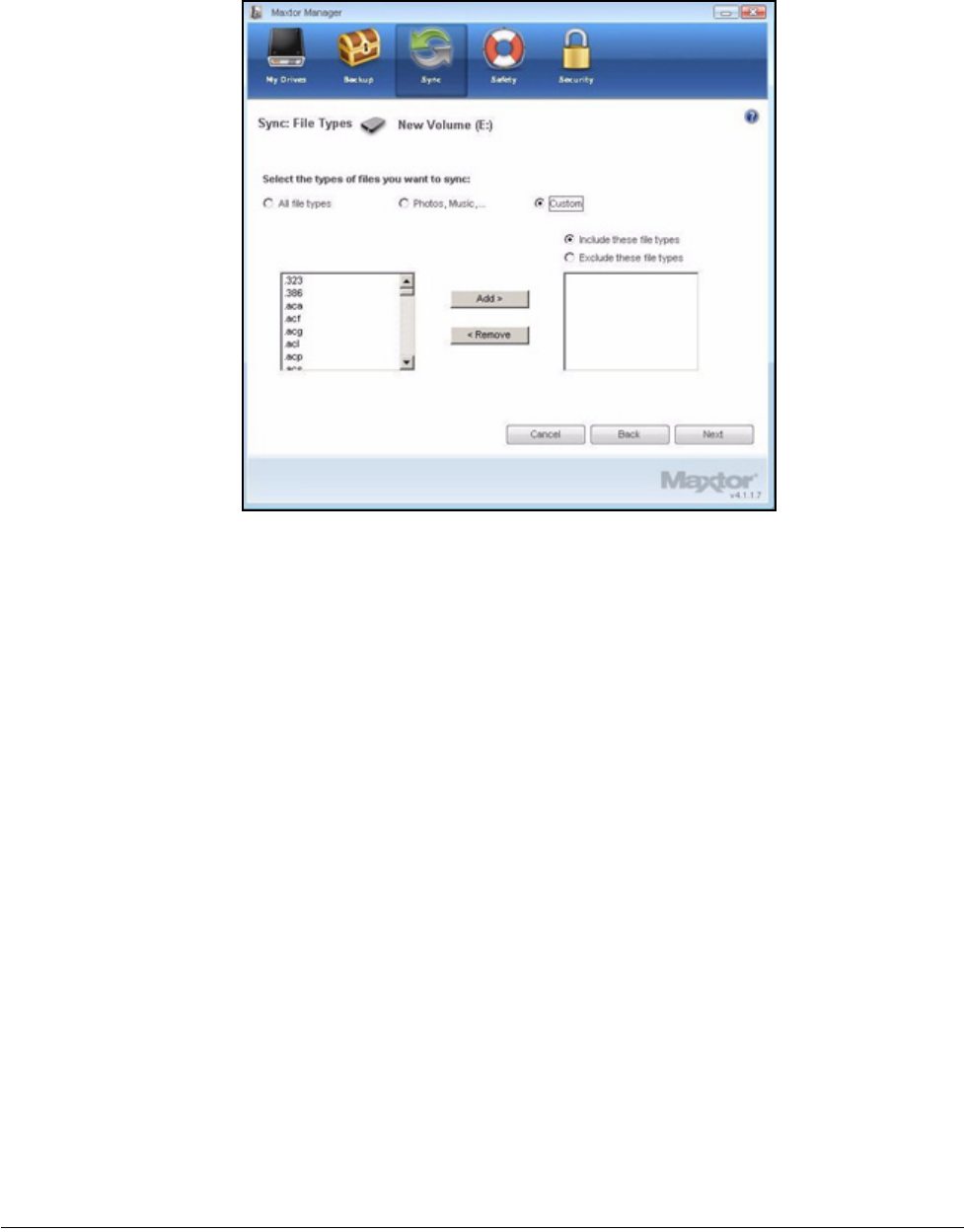
• Custom
Select specific file types to include or exclude for sync:
— To sync only a few of the available file types,
1. Select Include these file types.
2. Select each file type you do want to sync and click Add to move it to the
Include window.
— To sync most of the available file types,
1. Select Exclude these file types.
2. Select each file type you don’t want to sync and click Add to move it to the
Exclude window.
Figure 6: File Types: Photo, Music, Video, Documents
Maxtor OneTouch IV 61
Step 6: After you’ve selected the types of files to sync, click Next.
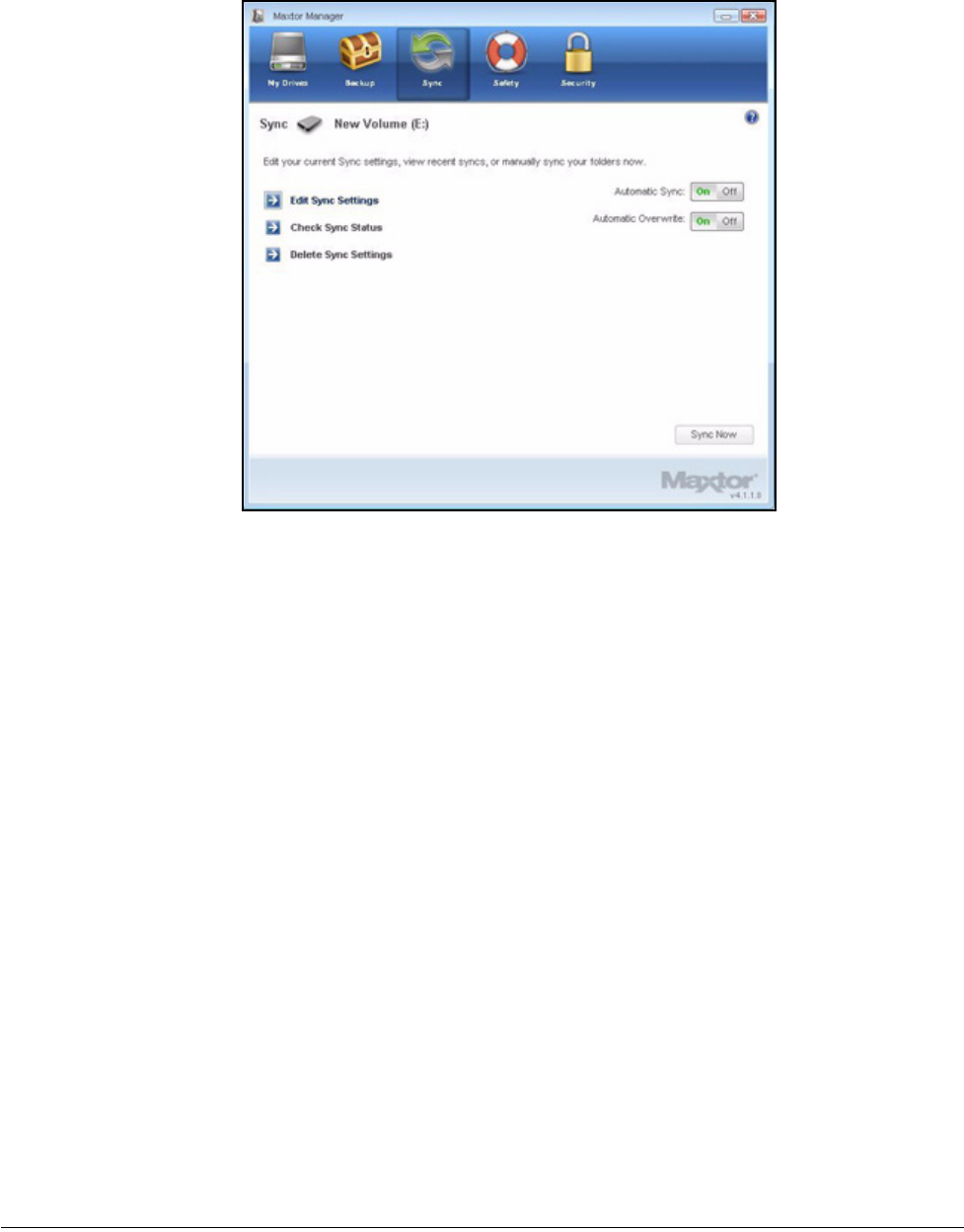
The Sync Options window opens:
Step 7: Select your Sync options:
• Sync Rules:
— Sync automatically each time a file changes
— Sync manually using the Sync Now button in the Sync window
• Copy & Replace Rules
— Always overwrite older file versions with newer versions
— Ask before overwriting a file
• Sync Encryption
— Automatically encrypt synchronized files on the Maxtor drive
You must set up Maxtor Encryption before you can select Sync Encryption. See
Using Sync Encryption for more information.
Note: You can select Sync Encryption only during your initial setup of Sync. If you later decide
you want to encrypt synchronized files, you must delete your current Sync settings and
create new settings.
Step 8: After you’ve set your Sync options, click Finish.
The Sync window opens:
Figure 7: File Types: Custom
Maxtor OneTouch IV 62
Using Sync Encryption
You can automatically encrypt synchronized files to keep them secure as you synchronize
them between computers. Your Sync Encryption password is the same as your Maxtor
Encryption password since all encrypted folders are stored in the same folder, the Maxtor
Encrypted Folder.
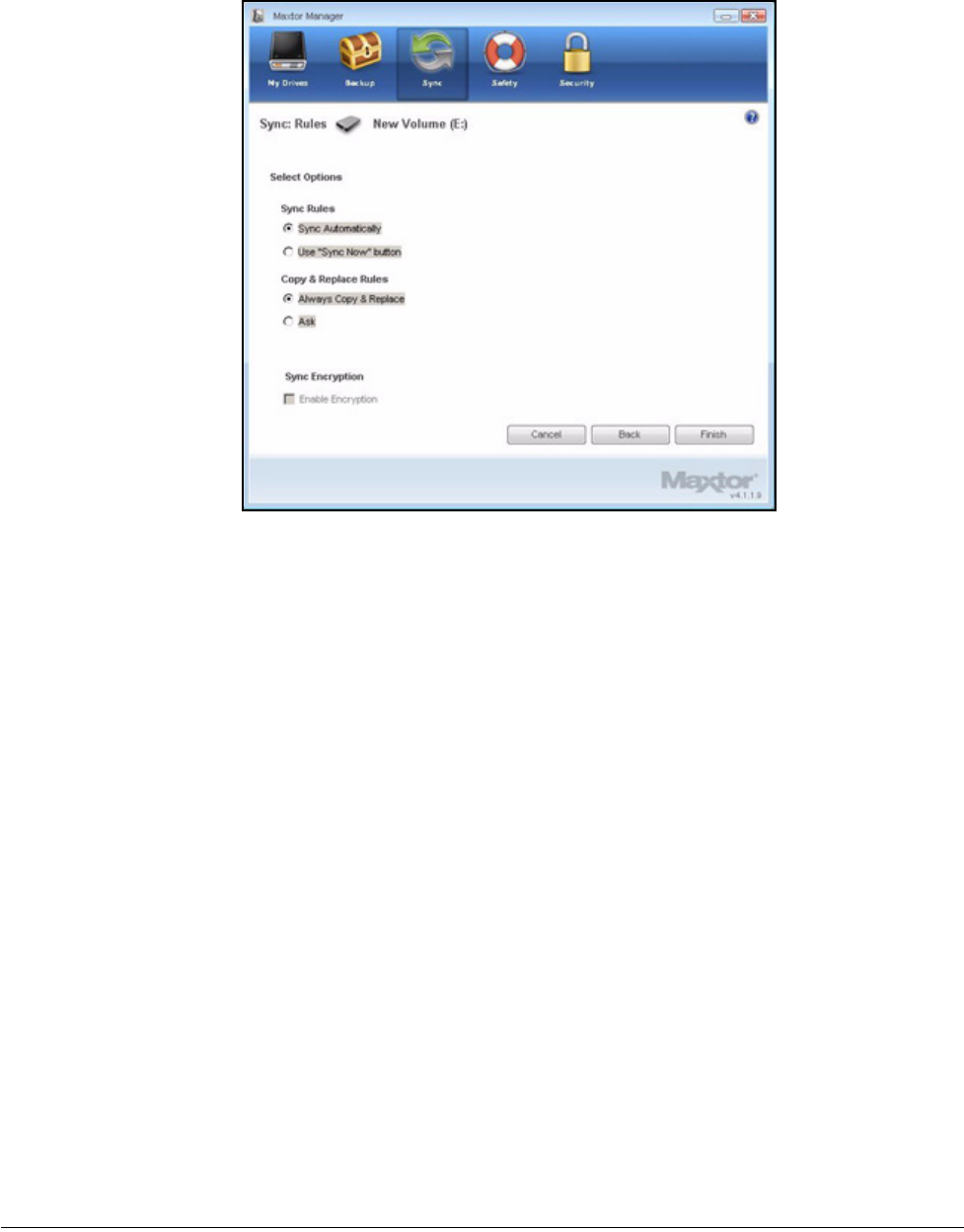
Before you can enable Sync Encryption, you must set up Maxtor Encryption in the Security
window. If you have not yet set up Maxtor Encryption, the Sync Encryption option is
grayed out in the Sync Options window:
Figure 8: Sync
Maxtor OneTouch IV 63
To set up Maxtor Encryption and then enable Sync Encryption,
Step 1: Click Cancel in the Sync Options window.
Step 2: Click Security in the Command panel.
Step 3: Click Maxtor Encryption and follow the steps to set up an encrypted folder.
Step 4: Click Sync in the Command panel.
Step 5: Click Custom Sync and select your Sync folder and file-type settings.
When you reach the Sync Options window, Sync Encryption is no longer grayed
out.
Step 6: Set your Sync Rules and Copy & Replace Rules and select Sync Encryption.
Step 7: Click Finish.
Your synchronized folders will now automatically be encrypted using the same
password you used to set up Maxtor Encryption.
Note: If you select Sync Encryption, all users must have your encryption password in order to
access synchronized folders on their computers.
Figure 9: Sync Options with Encryption Grayed Out
Maxtor OneTouch IV 64
Completing the Sync
To complete the Sync, you must remove your OneTouch drive from the computer on which
the original Sync occurred and connect it to another computer on which you want to sync
the selected folders. You can connect the OneTouch drive to as many computers as you
wish to include in the Sync.
The first time you connect your OneTouch to a second computer to complete a Sync, you’re
asked where to put the synchronized folders on this computer.
To complete the Sync,
Step 1: Safely remove the OneTouch drive from your computer.
Step 2: Connect the OneTouch drive to another computer.
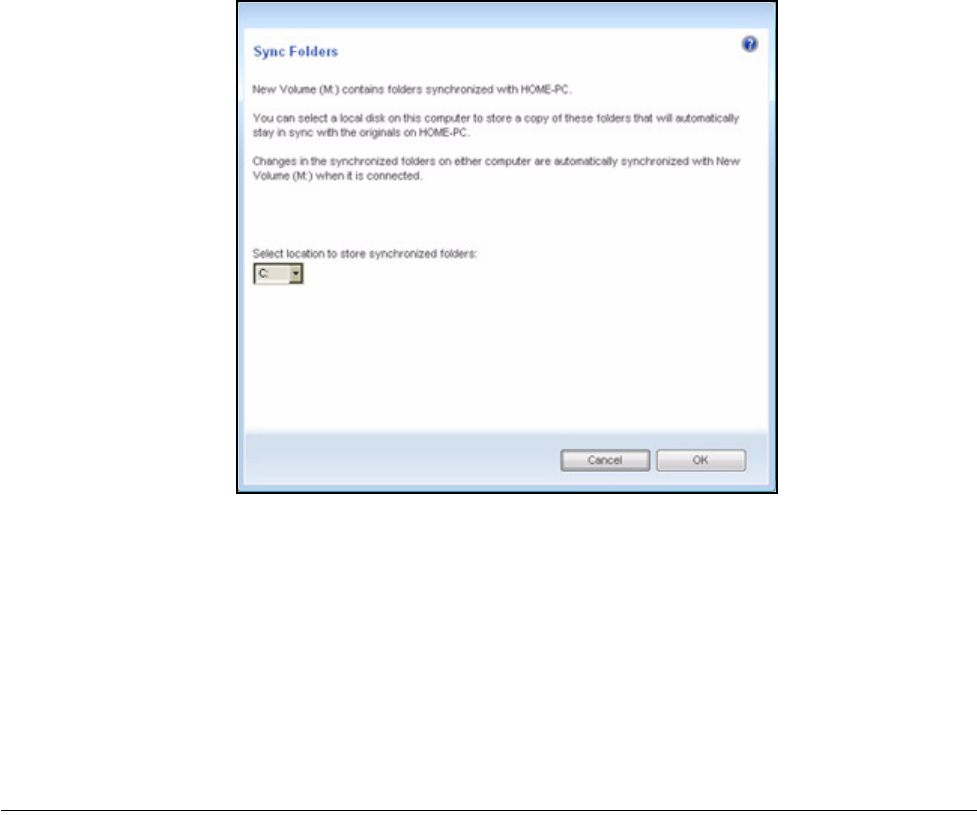
(a) If you’ve synchronized folders other than XP My Documents (or Vista Personal
Folder), the Sync Folders window opens:
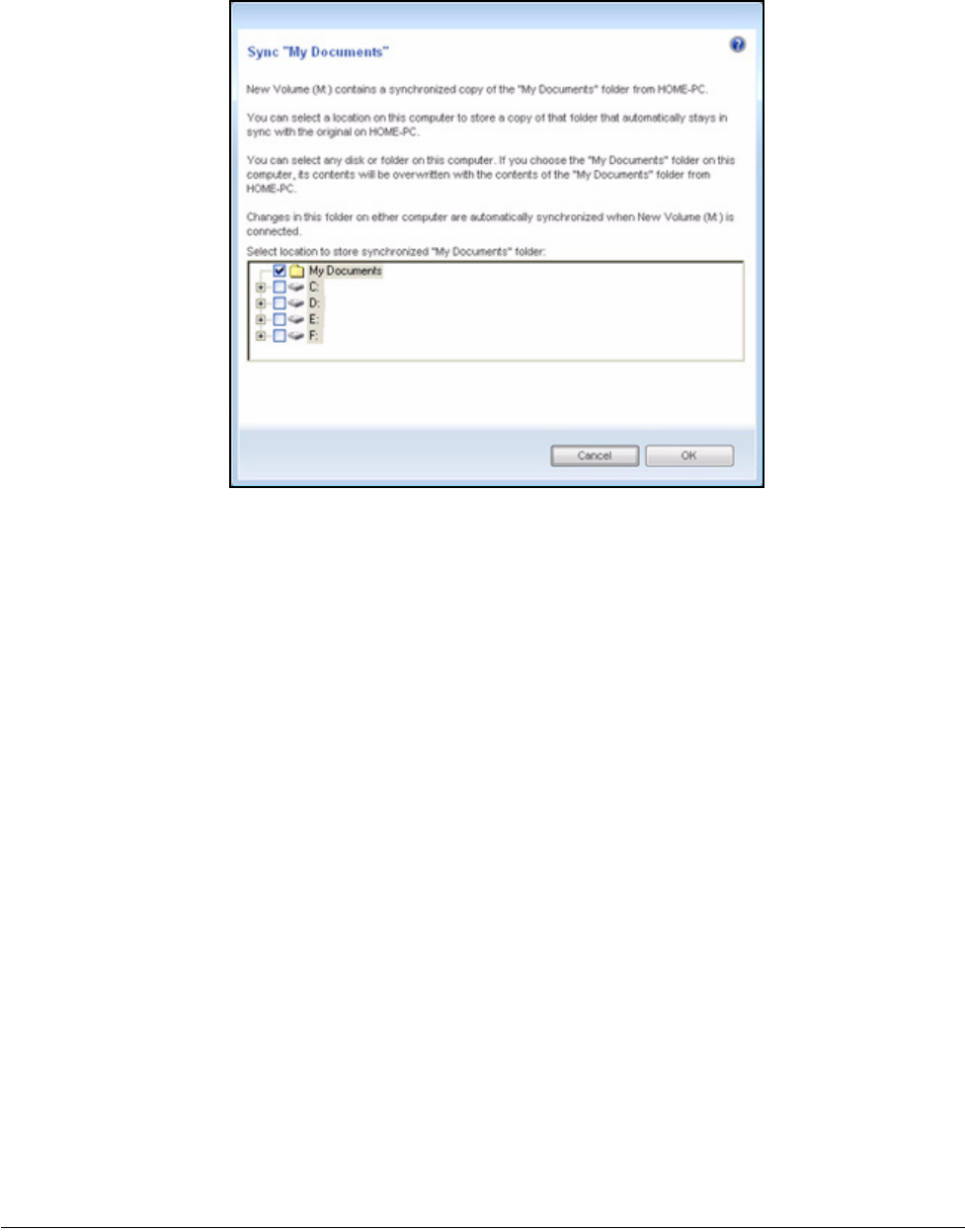
(b) If you’ve synchronized your XP My Documents (or Vista Personal Folder), the
Sync “My Documents” (or Sync ”Personal Folder”) window opens:
Figure 10: Sync Folders
Maxtor OneTouch IV 65
(c) If you’ve synchronized both XP My Documents (or Vista Personal Folder) and
other folders, both windows open.
Step 3: In each window, select the location at which to store the synchronized folders on
this computer and click OK.
From now on, the selected folders will automatically sync with the versions on your
OneTouch drive each time you connect the drive to the computer.
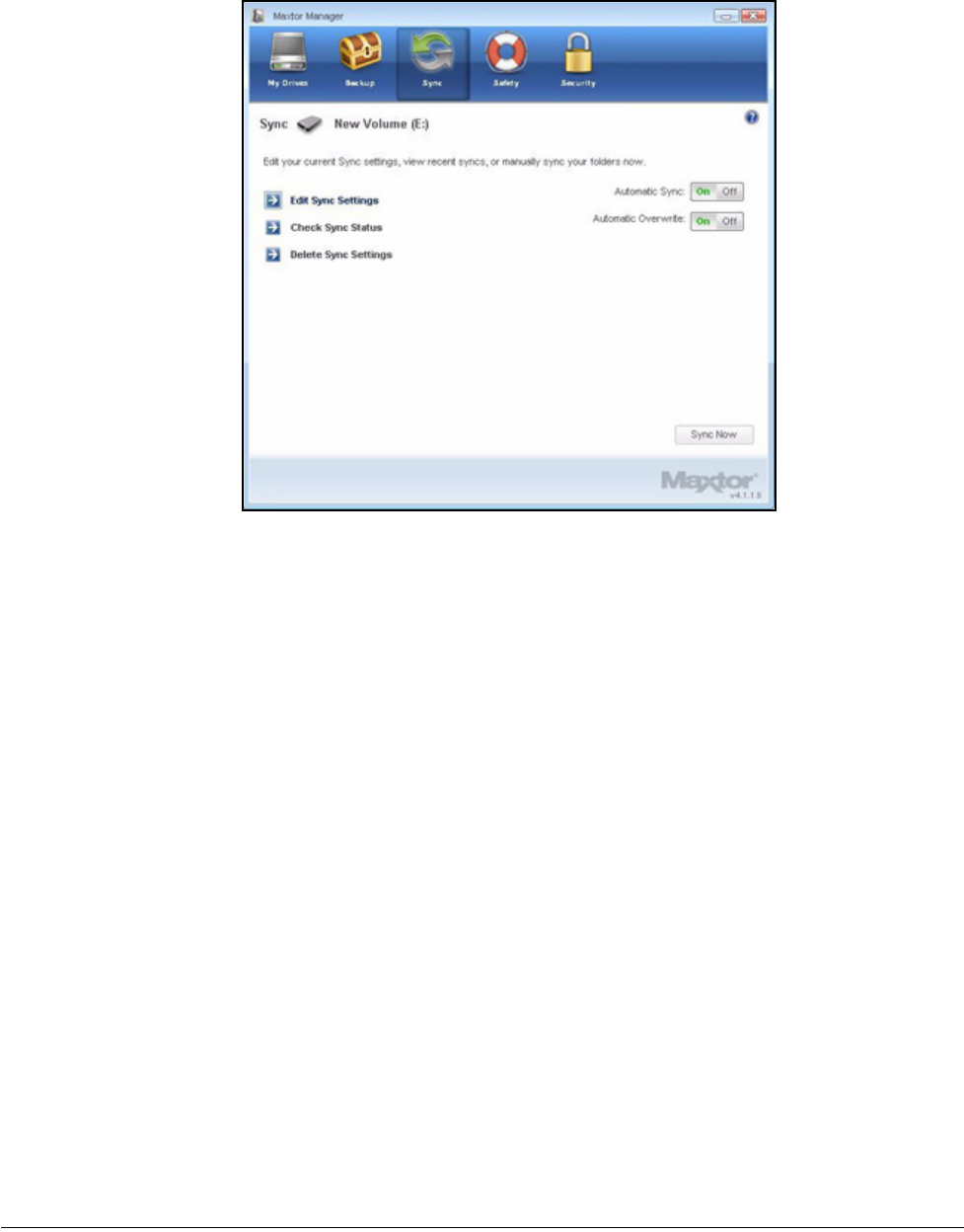
Editing Sync Settings
To change any of your Sync settings,
Step 1: Click Sync in the Command panel.
The Sync window opens:
Figure 11: Sync My Documents or Personal Folder
Maxtor OneTouch IV 66
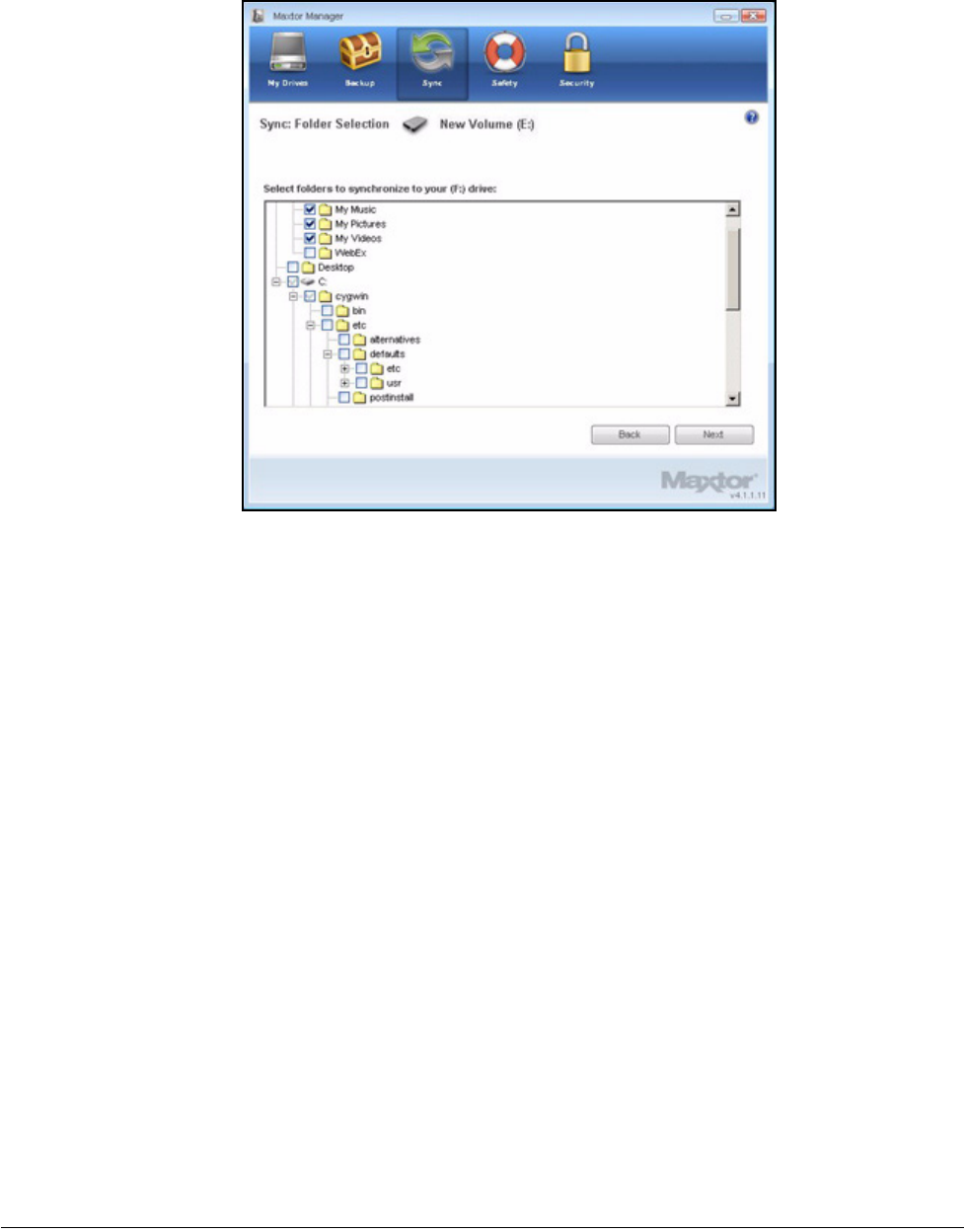
Step 2: Click Edit Sync Settings.
The Folder Selection window displays your current folder settings:
Figure 12: Sync
Maxtor OneTouch IV 67
Step 3: Add and/or remove folders from Sync and click Next.
Folders removed from Sync are deleted from your OneTouch drive.
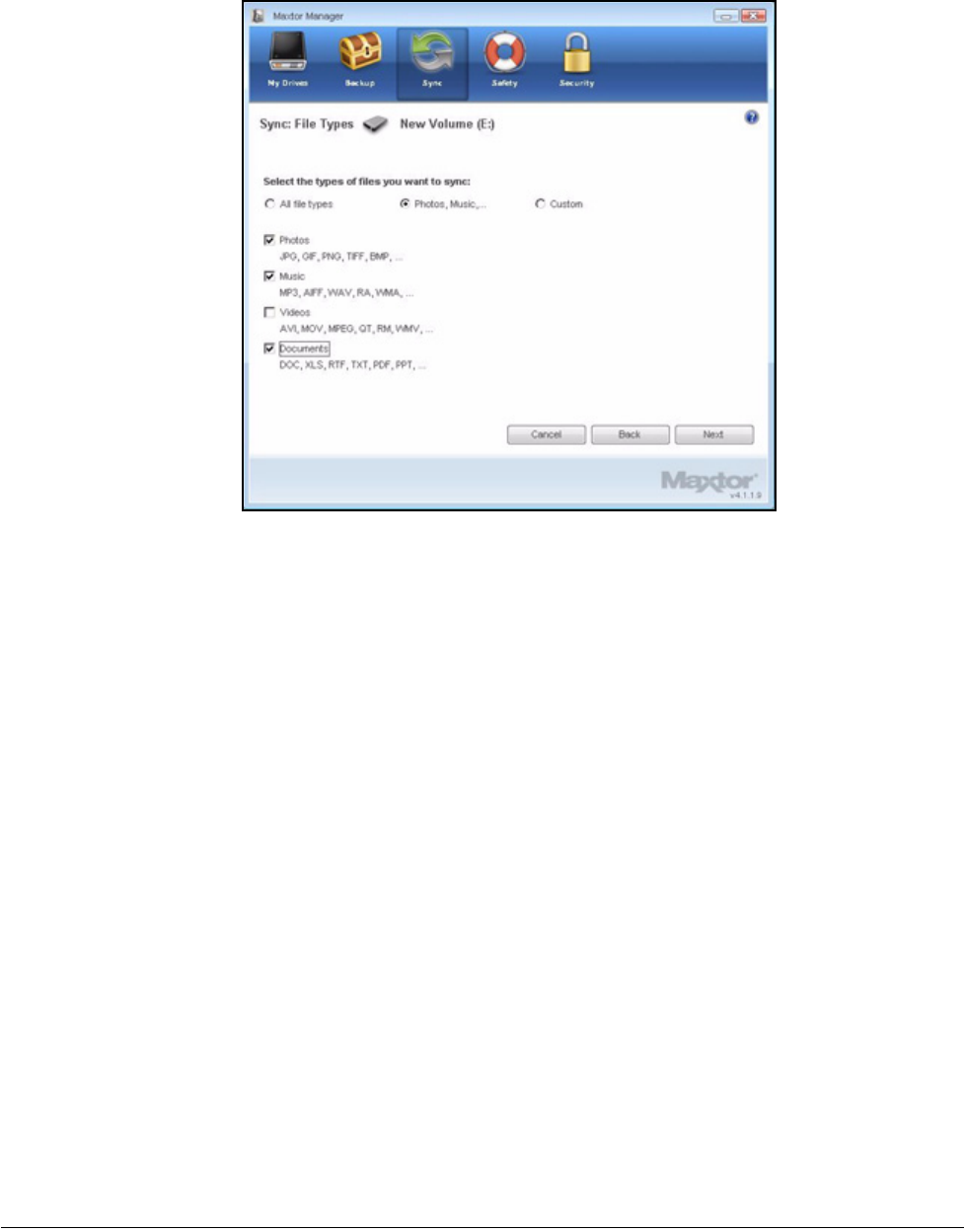
The File Types window displays your current file type settings:
Figure 13: Folder Selection
Maxtor OneTouch IV 68
Step 4: Make the desired changes and click Next.
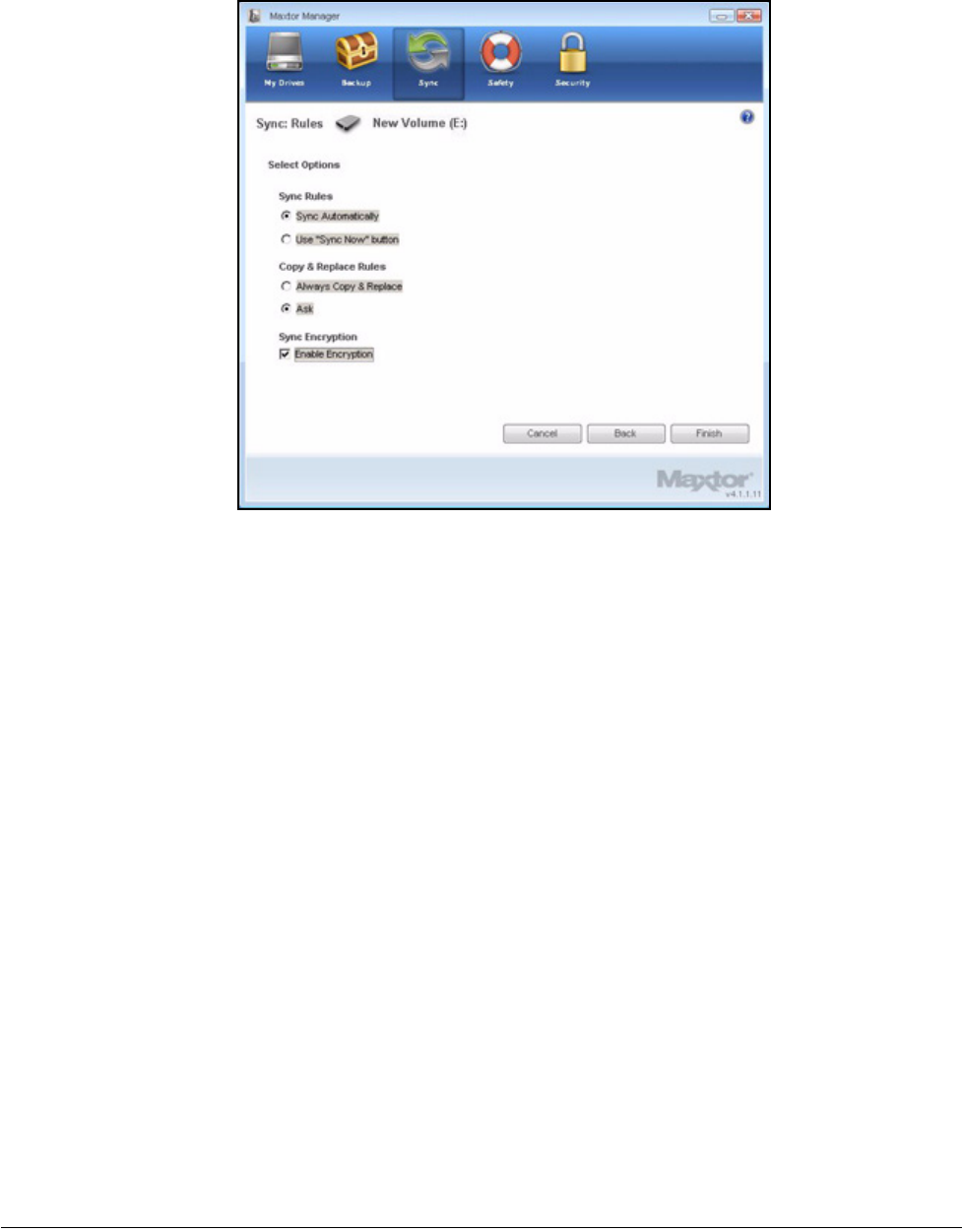
The Sync Options window displays your current Rules settings:
Figure 14: File Types
Maxtor OneTouch IV 69
Step 5: Make the desired changes and click Finish.
Checking Sync Status
To check the status of a Sync,
Step 1: Click Sync in the Command panel.
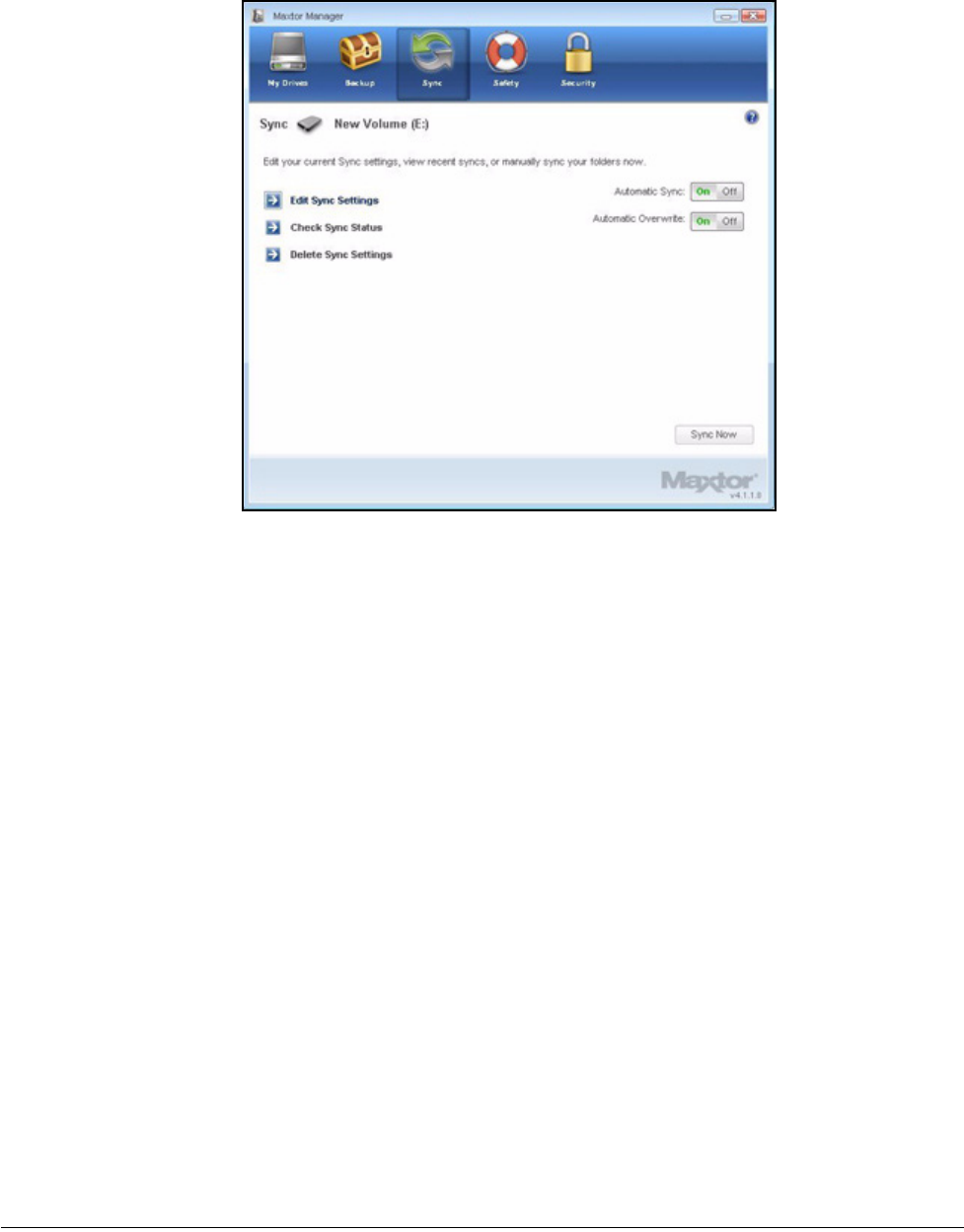
The Sync window opens:
Figure 15: Sync Options
Maxtor OneTouch IV 70
Step 2: Click Check Sync Status.
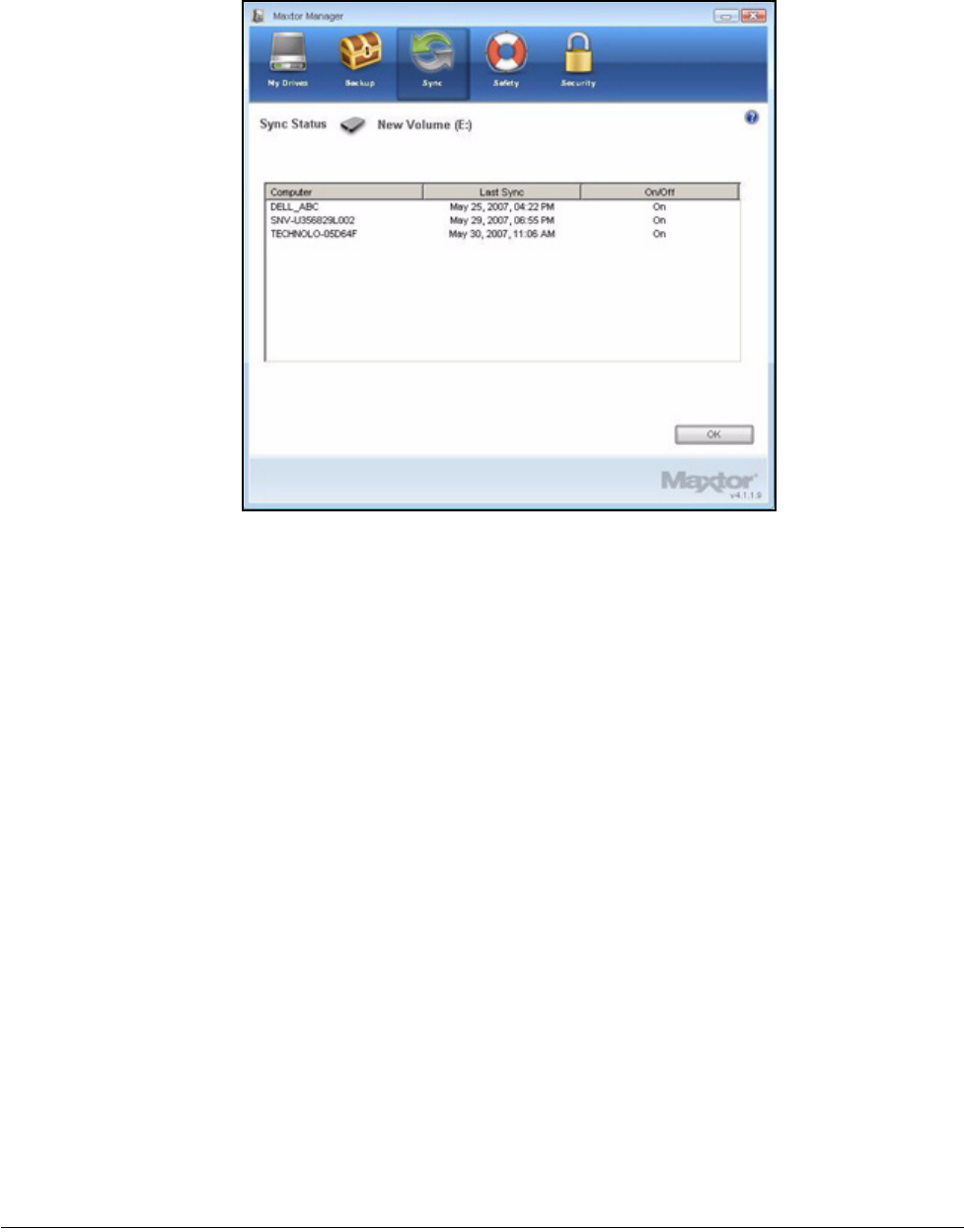
The Sync Status window opens:
Figure 16: Sync
Maxtor OneTouch IV 71
Listed are the names of the computers on which Sync was set up, the date of the
last Sync, and the Automatic Sync setting (On or Off).
Step 3: Click OK to return to the Sync window.
Deleting Sync Settings
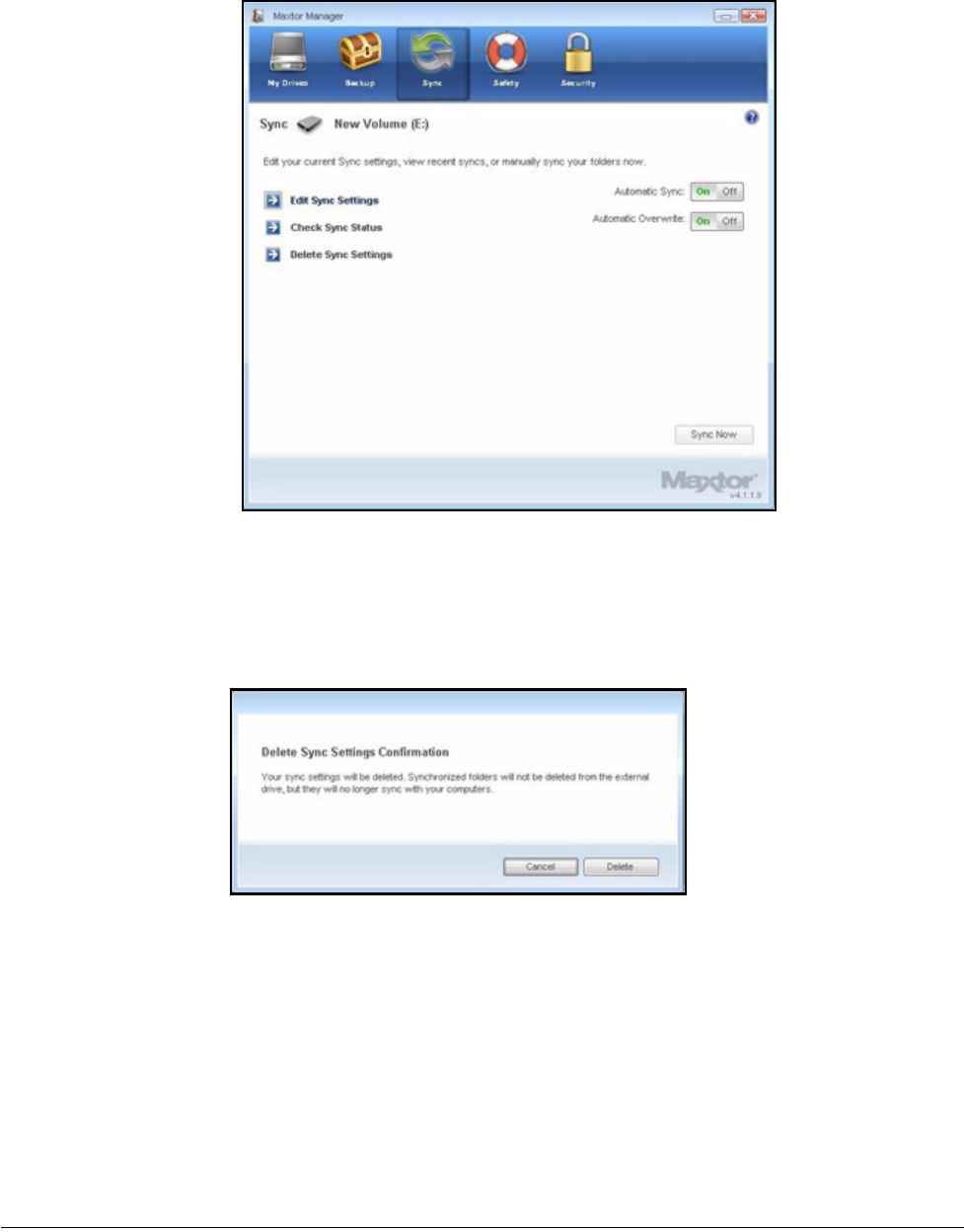
To delete all your Sync settings and create a new set,
Step 1: Click Sync in the Command panel.
The Sync window opens:
Figure 17: Sync Status
Maxtor OneTouch IV 72
Step 2: Click Delete Sync Settings.
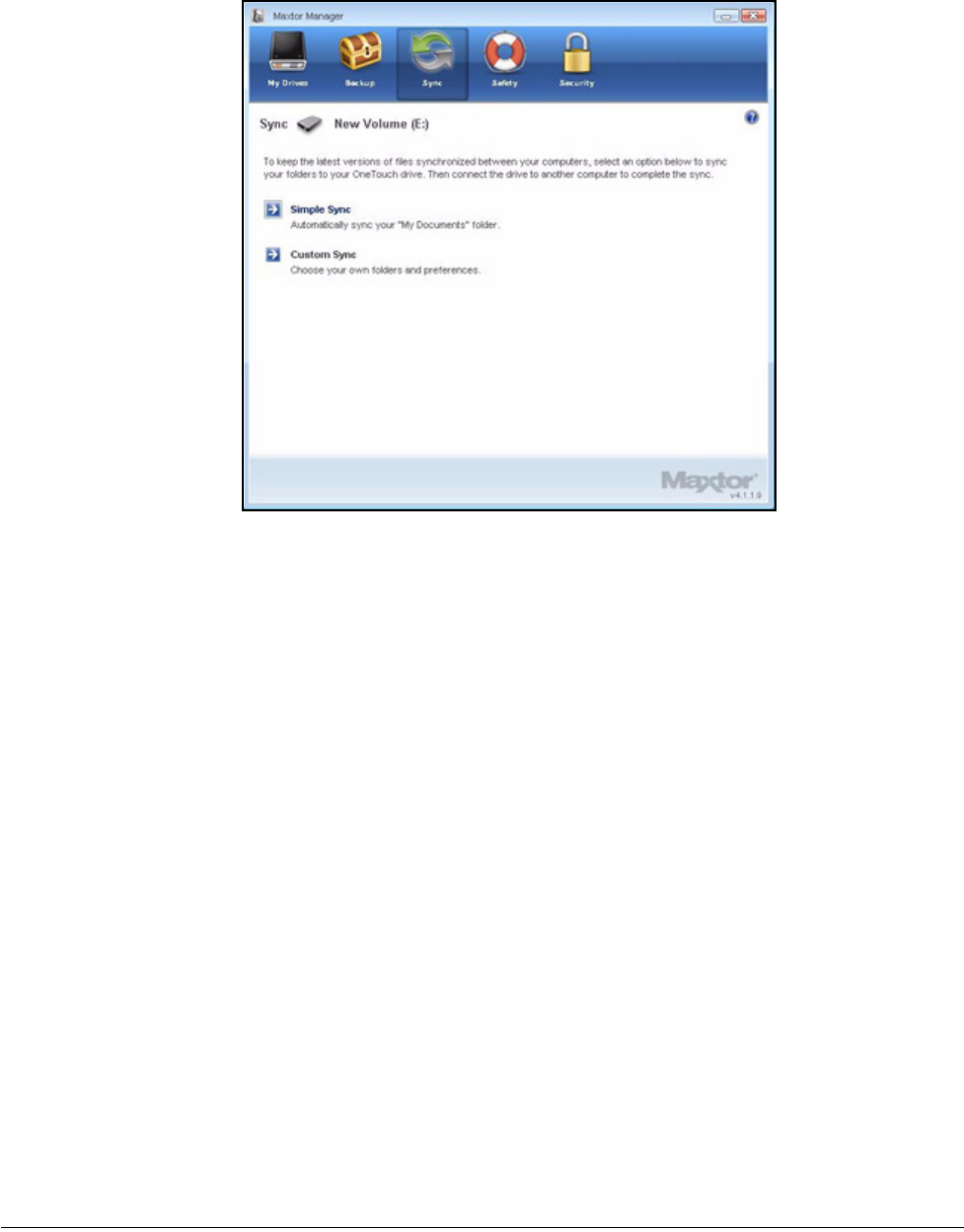
The Delete Sync Settings Confirmation window opens:
Step 3: Click Delete.
The original Sync window opens:
Figure 18: Sync
Figure 19: Delete Sync Settings Confirmation
Maxtor OneTouch IV 73
Step 4: To create new Sync settings, select Simple Sync or Custom Sync.
Using Automatic Sync
The Automatic Sync feature continuously tracks file changes in synchronized folders and
automatically synchronizes revised versions by overwriting older versions with newer
versions. Your OneTouch drive must be connected during Automatic Sync.
By default, Automatic Sync is turned on.
Turning Off Automatic Sync
You can turn off Automatic Sync and control when files are synchronized rather than
synchronizing files automatically.
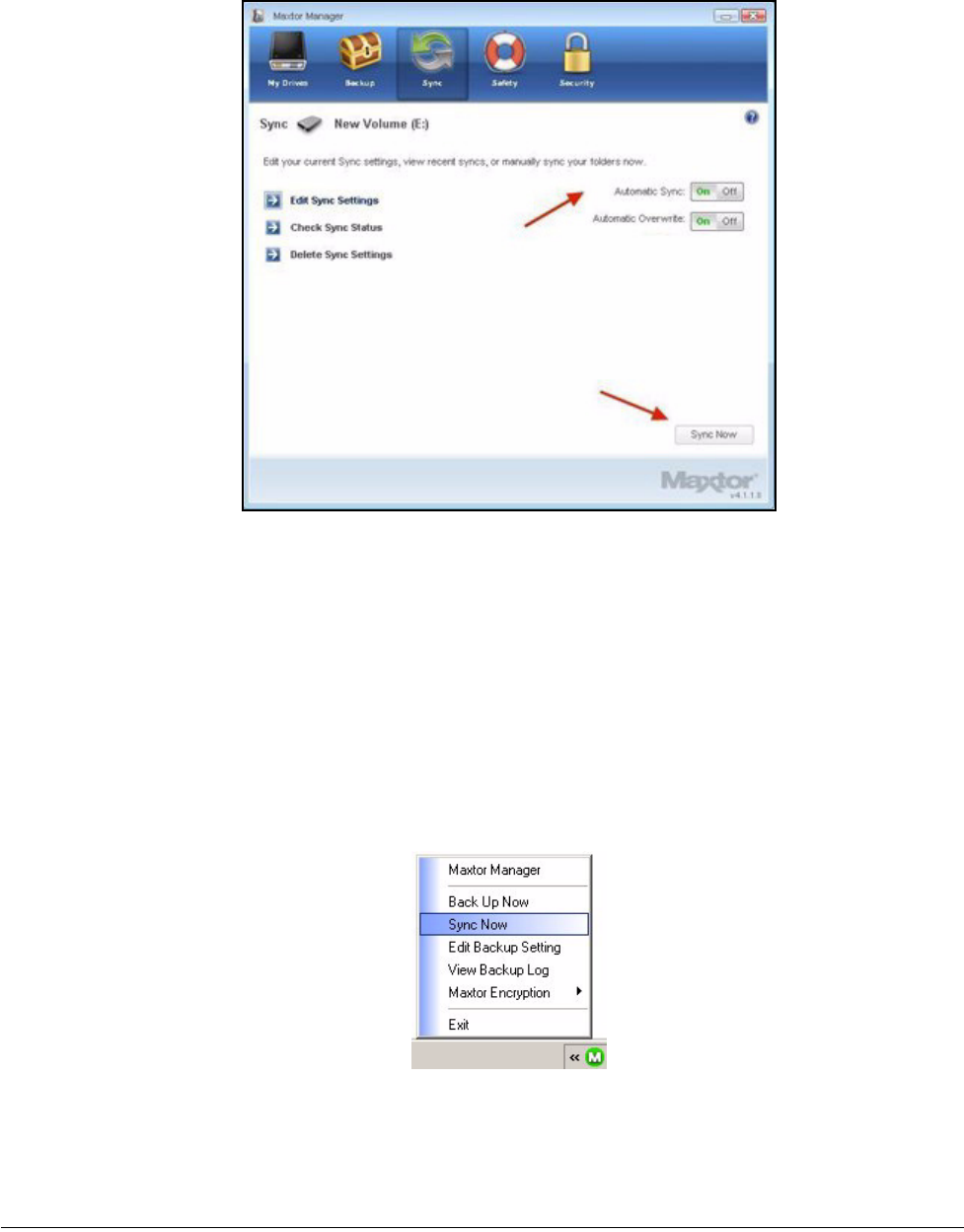
To turn off Automatic Sync,
Step 1: Click Sync in the Command panel.
The Sync window opens:
Figure 20: Sync
Maxtor OneTouch IV 74
Step 2: In the Sync window, click the Automatic Sync Off button.
Step 3: To sync manually when Automatic Sync is off,
• Press the OneTouch button if you’ve customized it to sync files.
— OR —
• Click Sync Now in the lower right corner of the Sync window.
— OR —
• Select Sync Now from the System Tray menu to Sync on ALL connected drives:
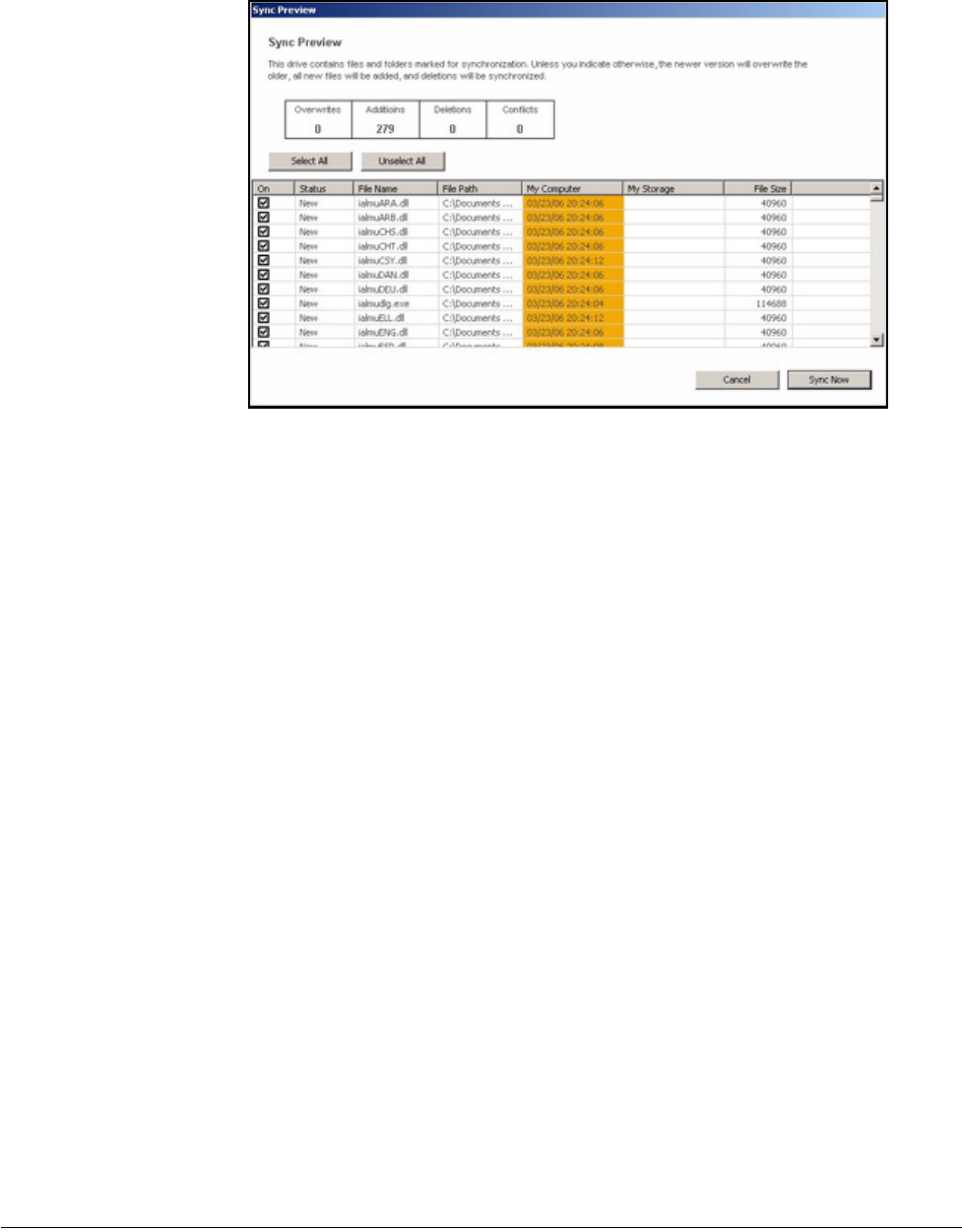
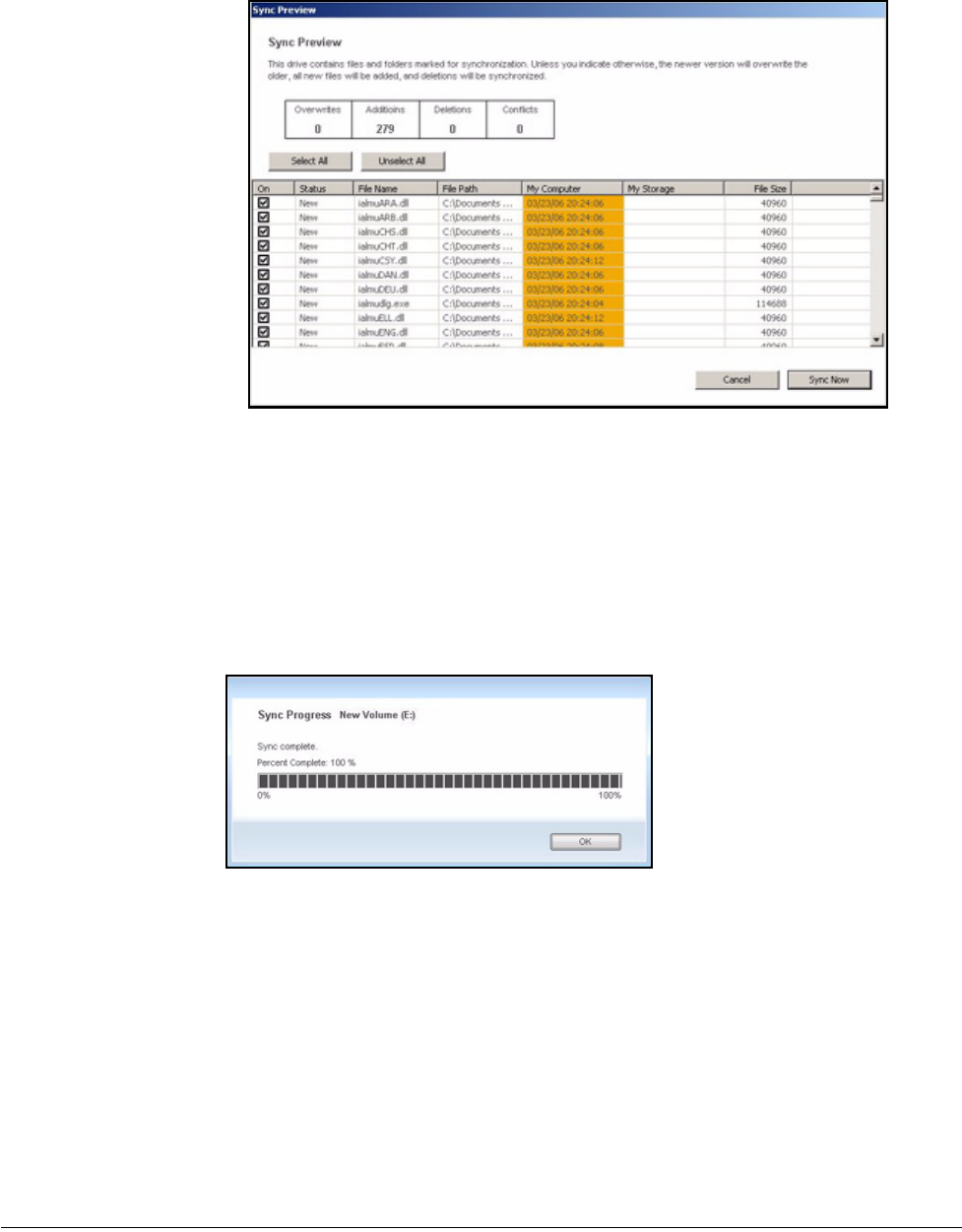
The Sync Preview window opens:
Figure 21: AutoSync
Maxtor OneTouch IV 75
Listed are the files scheduled to be overwritten.
If you do NOT want to overwrite an older file version with a newly-synchronized version,
•Uncheck the file in the On column.
Using the Sync Preview Window
Use the Sync Preview window to manage your synchronized files:
•Add or delete files.
•Decide whether to overwrite existing file versions.
•Resolve conflicts over which version of a synchronized file to save.
If the same file is edited on different computers at the same time, a conflict occurs
over which version of the file to save. When the OneTouch drive containing a
changed version of a file is connected to a computer containing another changed
version of the same file, the Sync Preview window opens:
Figure 22: Sync Preview
Maxtor OneTouch IV 76
To use the Sync Preview window,
Step 4: Use the On checkbox to tell Maxtor Manager which file versions to overwrite, add,
or delete.
Step 5: Click Sync Now to complete the sync.
A Sync Progress window informs you of the progress of the sync:
Step 6: When the sync is complete, click OK to close the window.
Using Automatic Overwrite
When Automatic Overwrite is on, older file versions are always replaced with newer
versions.
Figure 23: Sync Preview
Figure 24: Sync Progress

Maxtor OneTouch IV 77
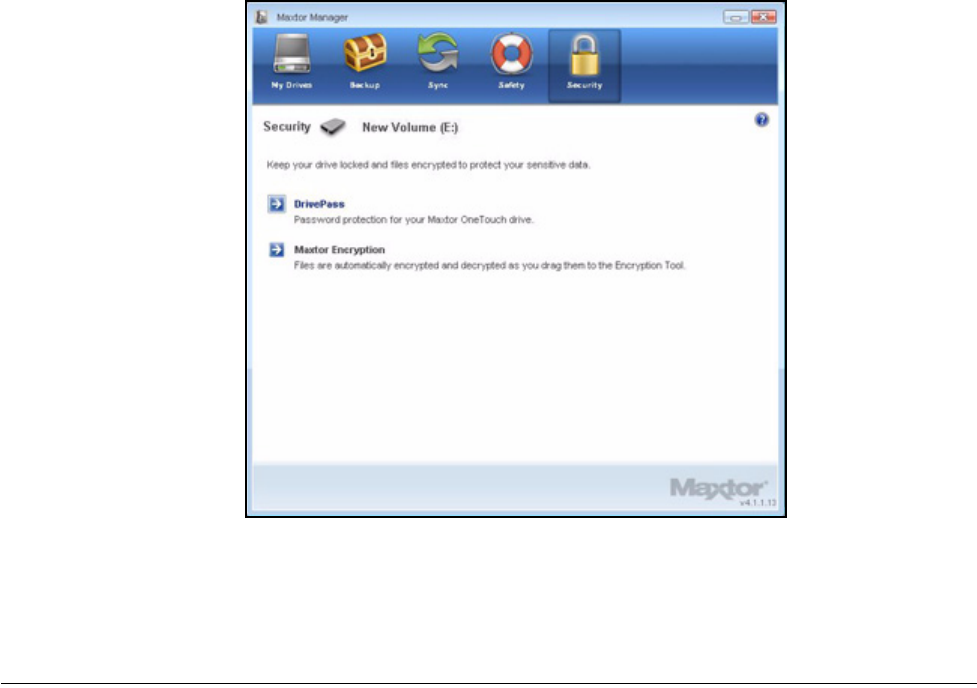
When Automatic Overwrite is off, the Maxtor Manager displays the Sync Preview window
to allow you to decide whether to overwrite an older file version with a new version:
Maxtor OneTouch IV 78
Managing Security
Setting Up DrivePass
DrivePass allows you to password-protect an entire OneTouch drive. You can use
DrivePass on any of the OneTouch drives connected to your computer.
Be sure to use a DrivePass password you can remember easily. If you forget your
password and are unable to unlock your drive, you must reformat the drive in order to
continue to use it. Reformatting erases all data stored on the drive.
Enabling DrivePass
To enable DrivePass,
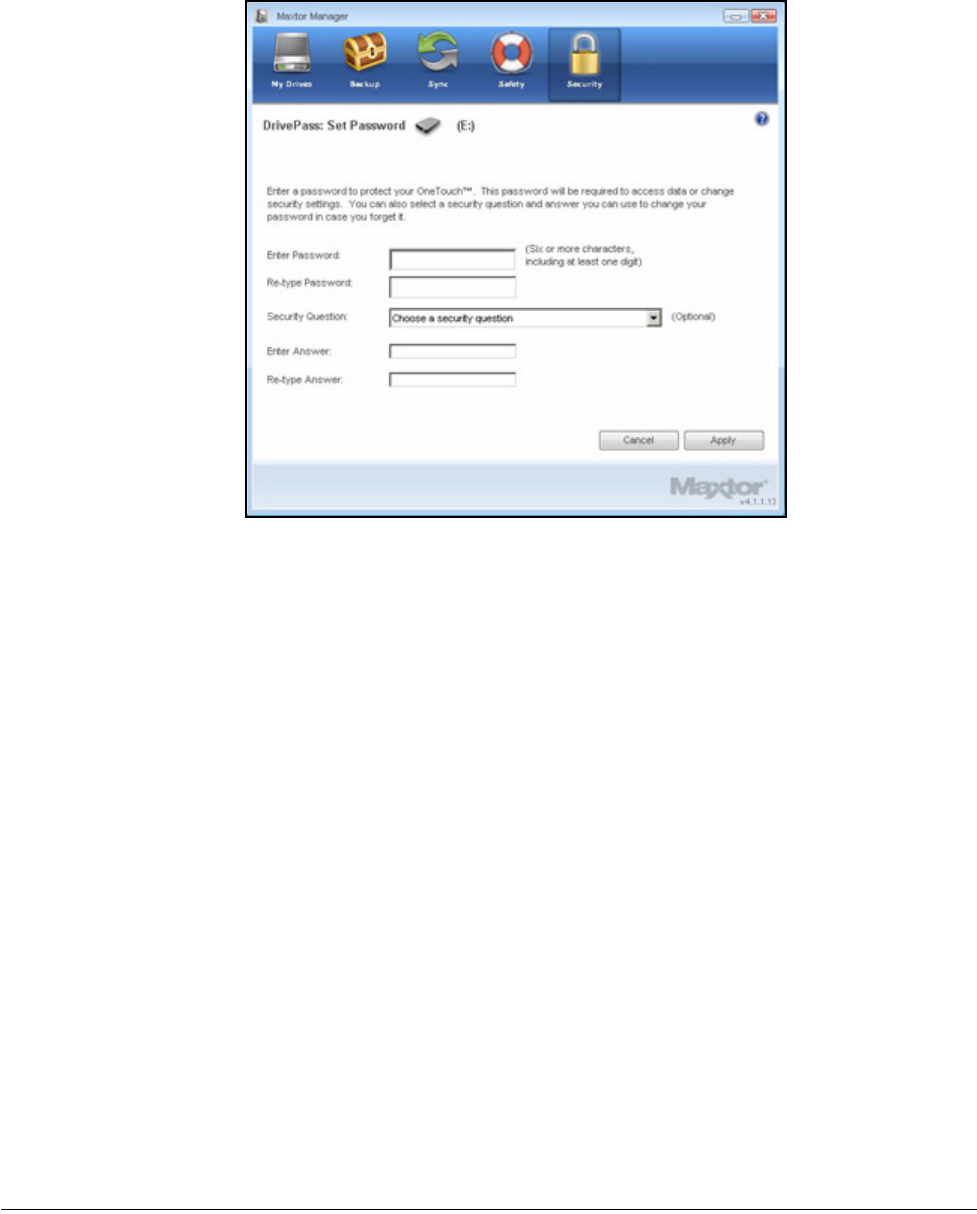
Step 1: Click Security in the Command panel.
The Security window opens:
Step 2: Click DrivePass.
Figure 1: Security
Maxtor OneTouch IV 79
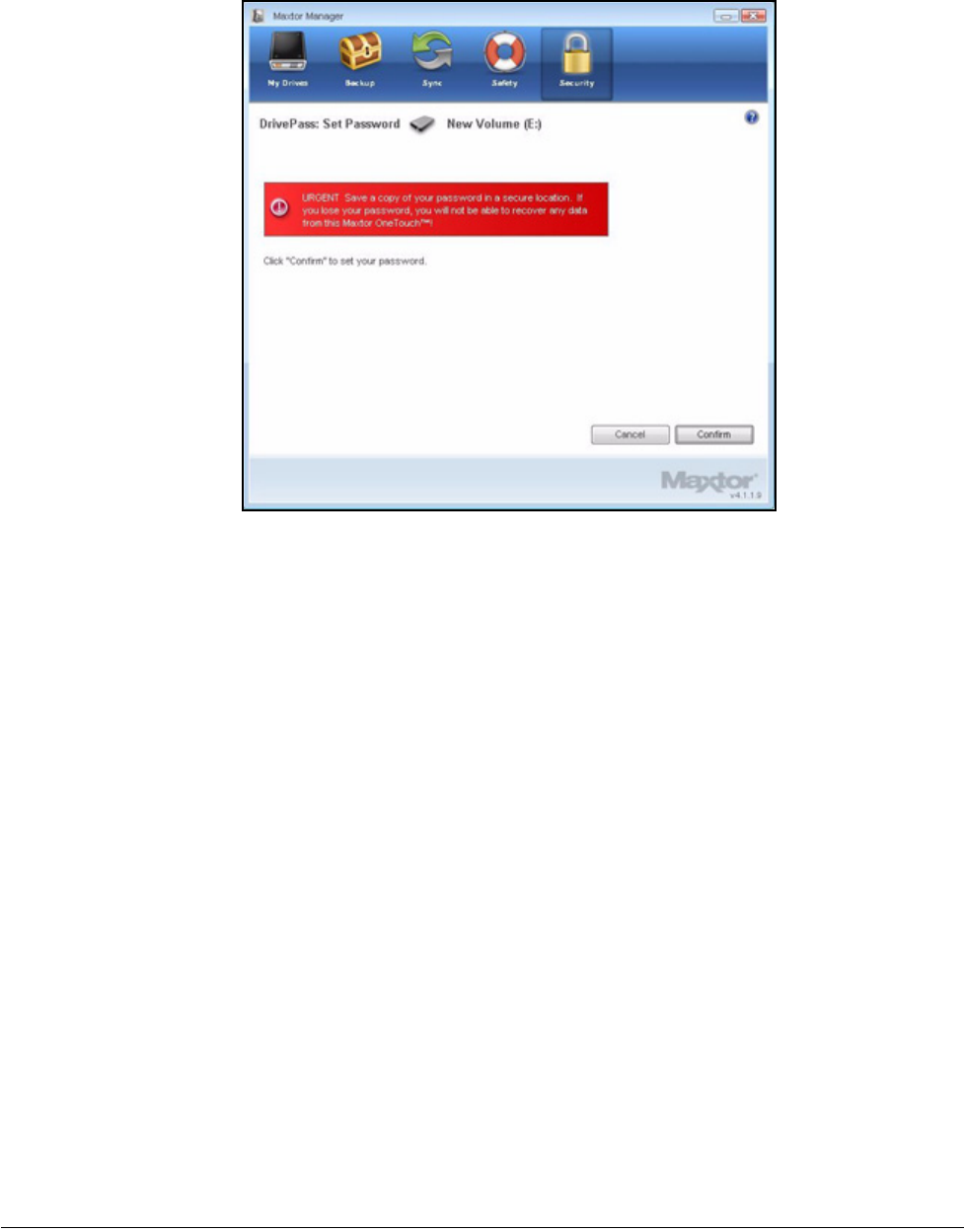
The DrivePass Password window opens:
Step 3: Enter and re-enter a password that will unlock your OneTouch drive.
Your password must contain at least six characters, including one digit.
Step 4: If you wish, select a security question from the dropdown menu and then enter and
re-enter the answer to that question.
You can use the answer to the security question to unlock your drive if you forget
your password.
Step 5: Click Apply.
A warning window reminds you to save a copy of your password in a safe place,
because if you forget it, your drive must be erased in order for you to continue to
use it:
Figure 2: DrivePass Password
Maxtor OneTouch IV 80
Step 6: Click Confirm to set your password.
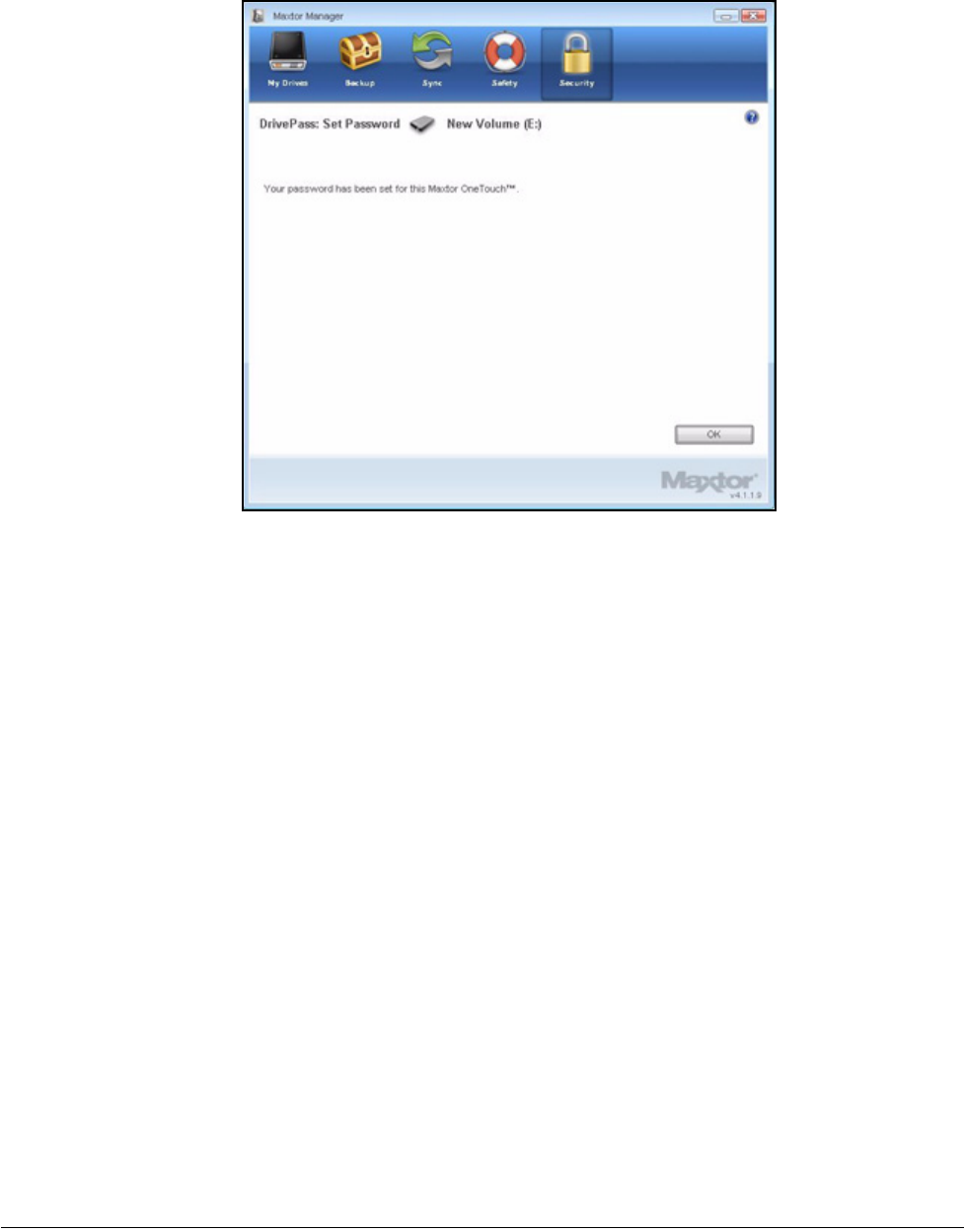
A confirmation window verifies that your password has been set:
Figure 3: Password Warning
Maxtor OneTouch IV 81
Step 7: Click OK.
Unlocking Your OneTouch Drive
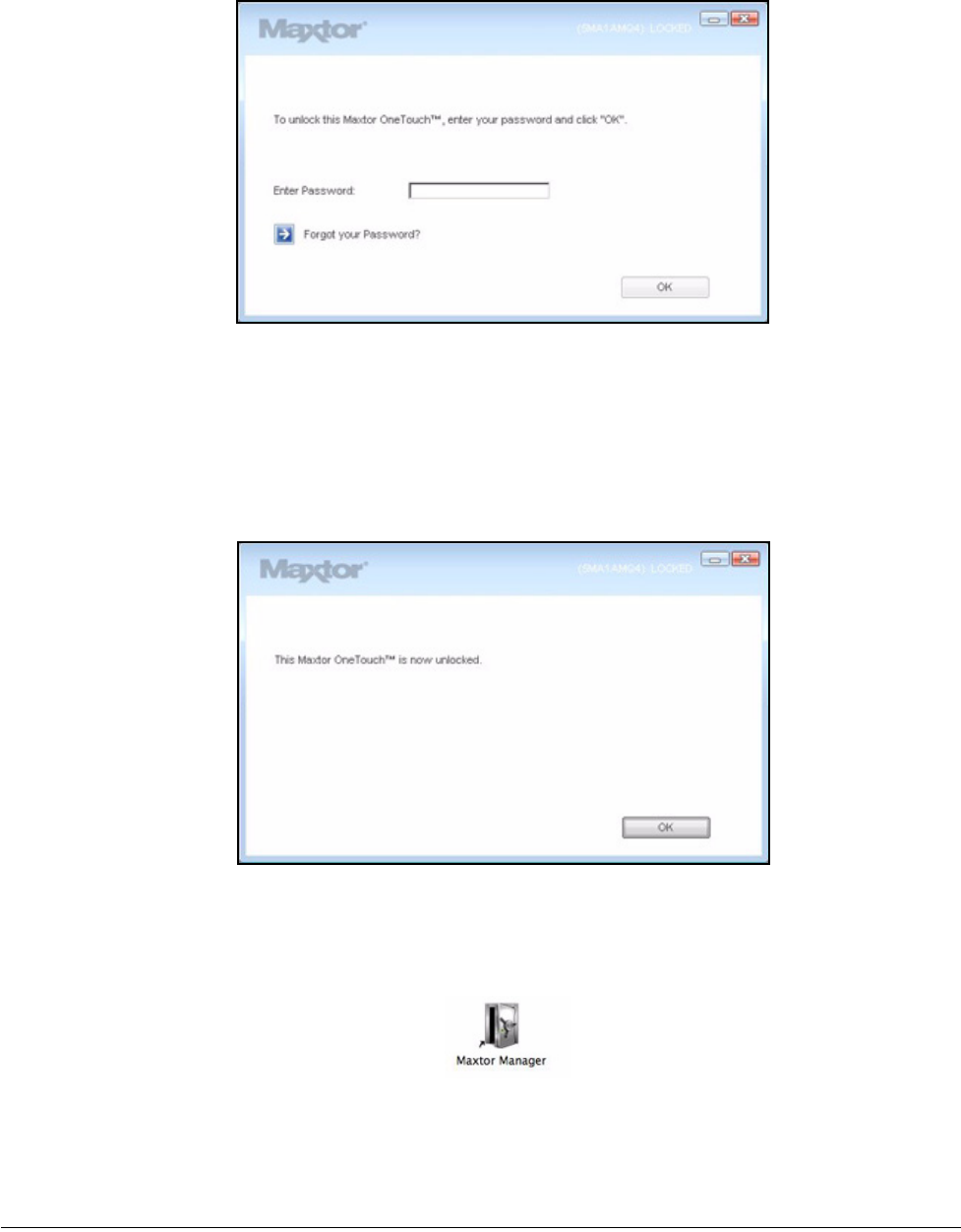
Once you enable DrivePass, your OneTouch drive locks automatically each time you shut
down your computer or remove the OneTouch drive. When you restart your computer or
reconnect your drive, a Maxtor Manager password window opens:
Figure 4: Password Confirmation
Maxtor OneTouch IV 82
To unlock your drive,
Step 1: Enter your password and click OK.
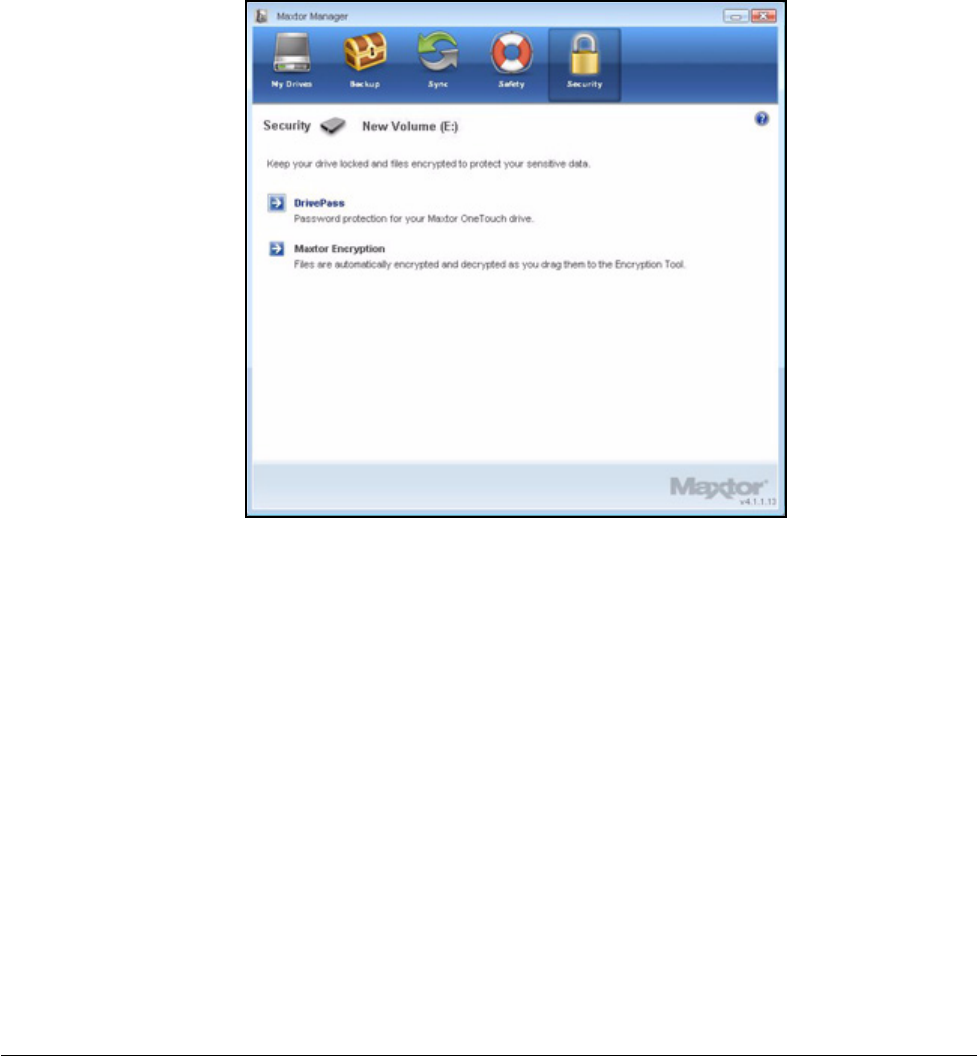
A confirmation verifies that your drive is unlocked.
Step 2: Click the desktop Maxtor Manager icon to open the Maxtor Manager application:
Figure 5: Drive Locked
Figure 6: Drive Unlocked
Maxtor OneTouch IV 83
Removing DrivePass
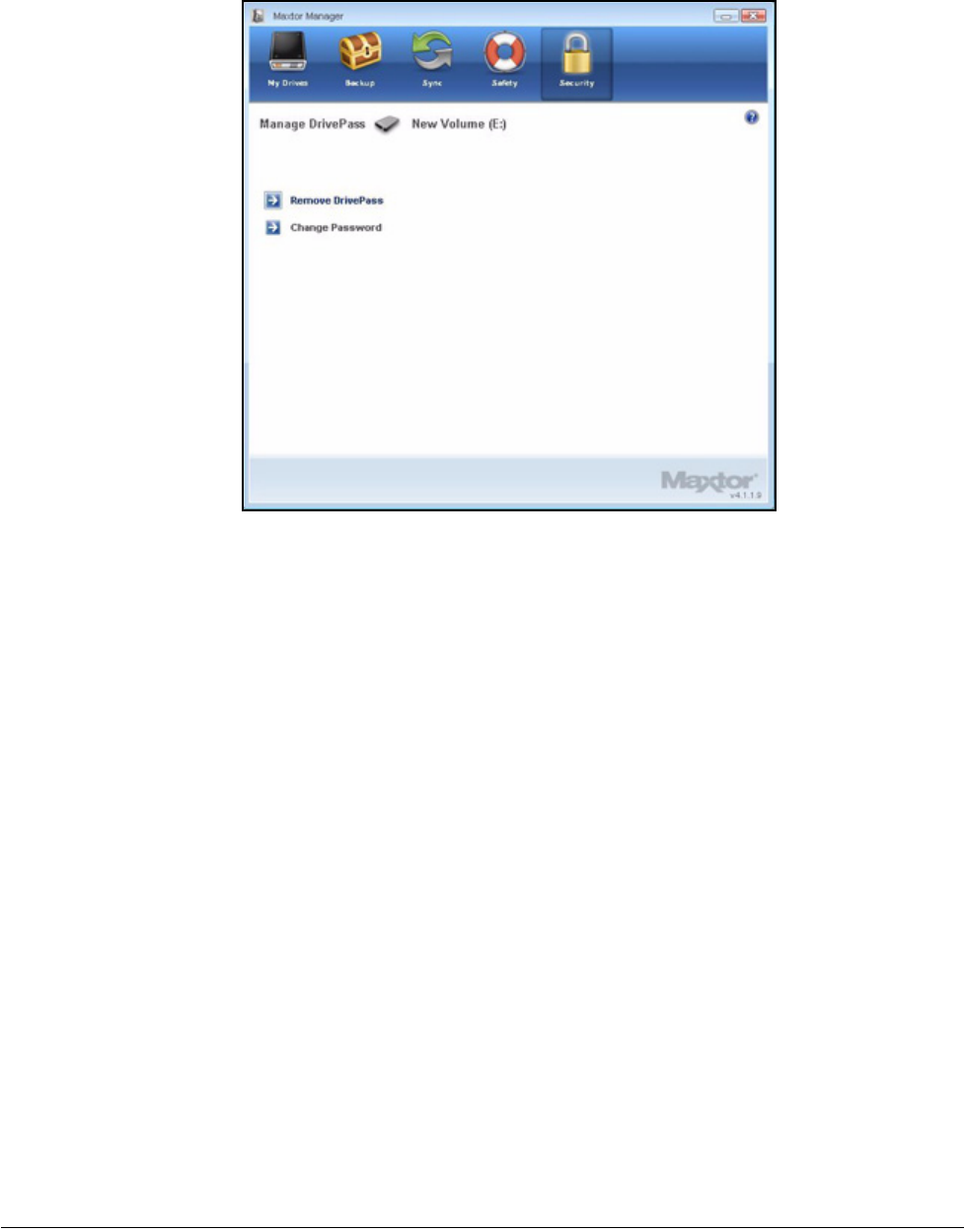
To remove DrivePass from your OneTouch,
Step 1: Click Security in the Command panel.
The Security window opens:
Step 2: Click DrivePass.
The Manage DrivePass window opens:
Figure 7: Security
Maxtor OneTouch IV 84
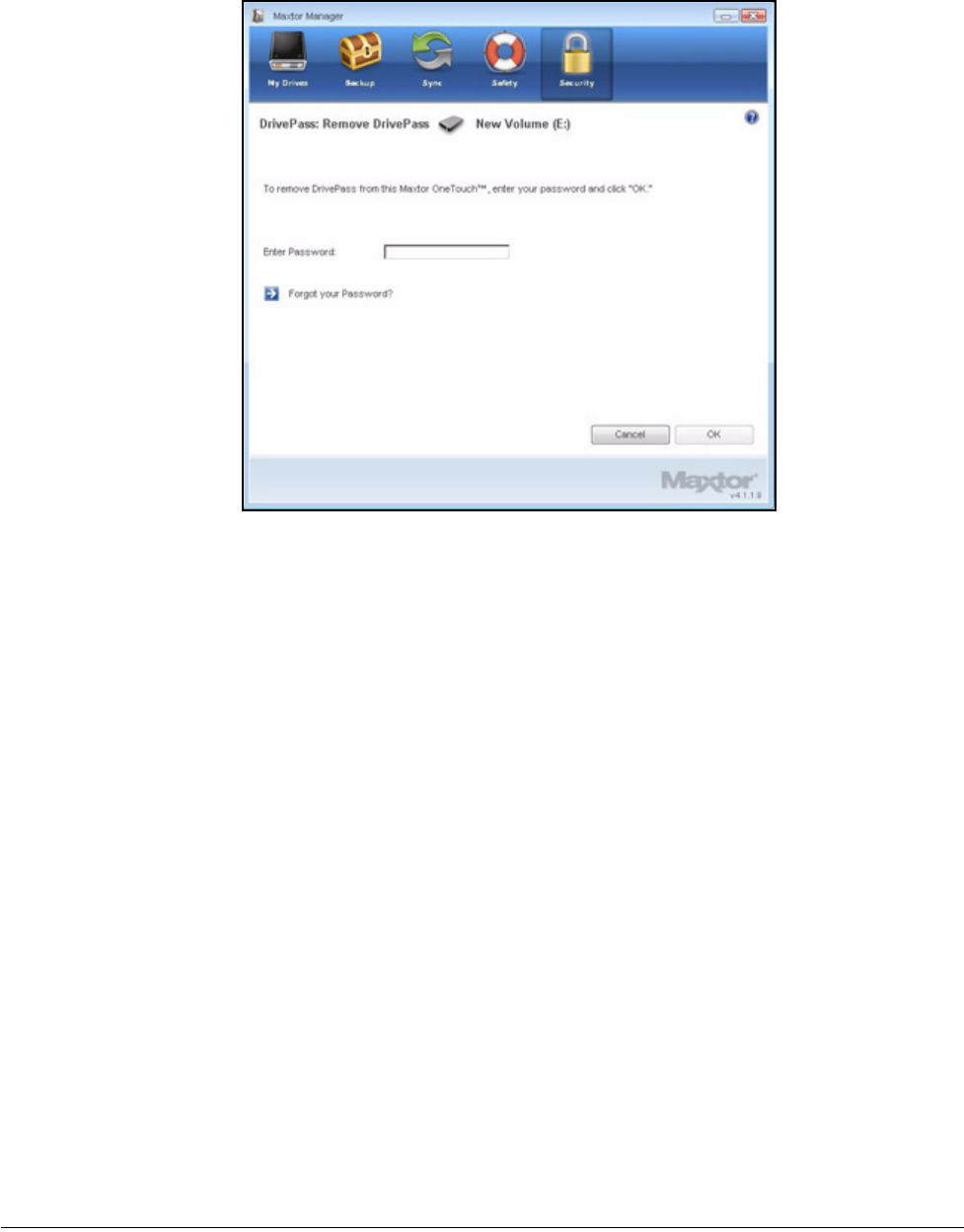
Step 3: Click Remove DrivePass.
The DrivePass Password window opens:
Figure 8: Manage DrivePass
Maxtor OneTouch IV 85
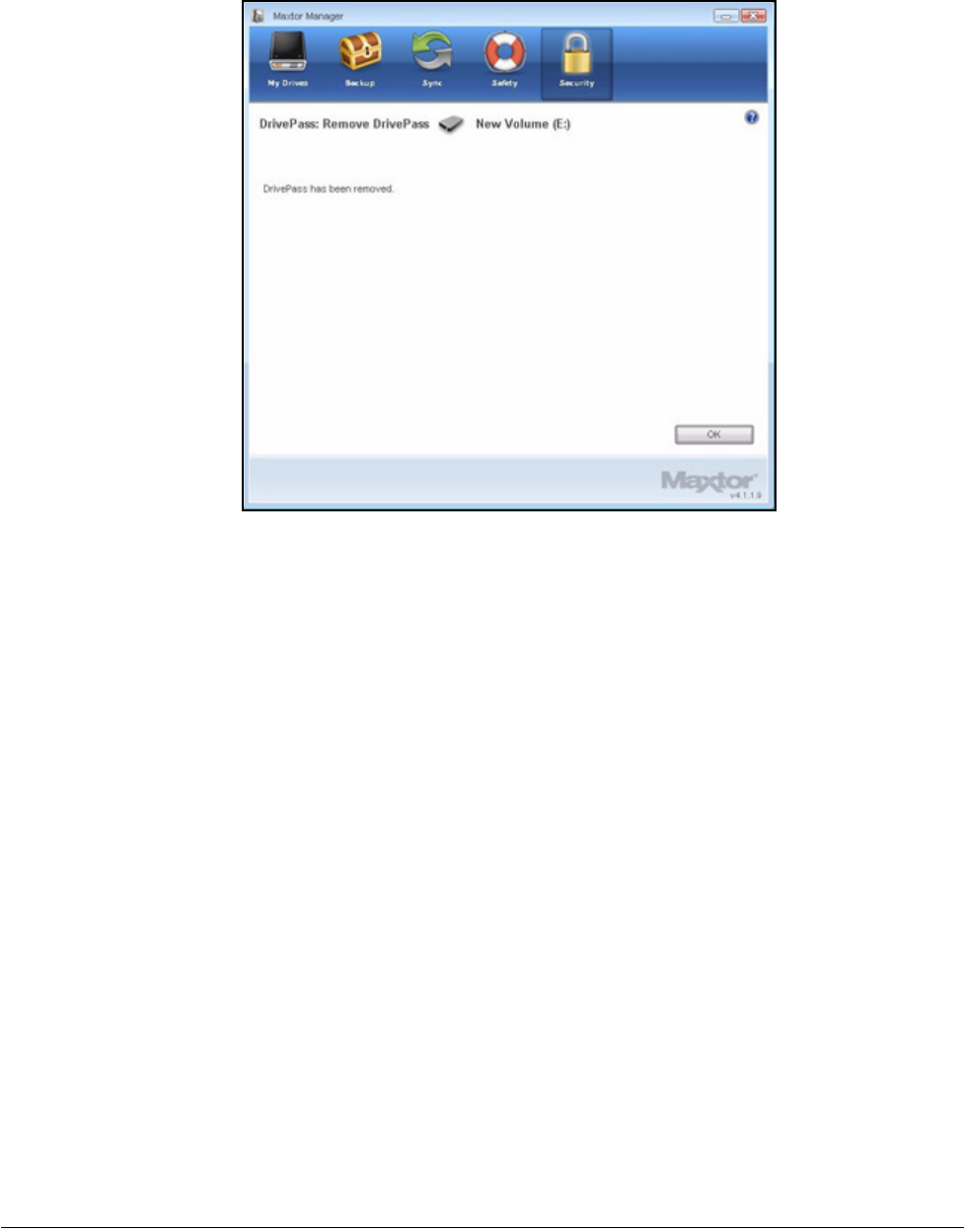
Step 4: Enter your current DrivePass password and click OK.
A confirmation window verifies that DrivePass has been removed:
Figure 9: Remove DrivePass
Maxtor OneTouch IV 86
Step 5: Click OK.
Changing Your DrivePass Password
To change your DrivePass password,
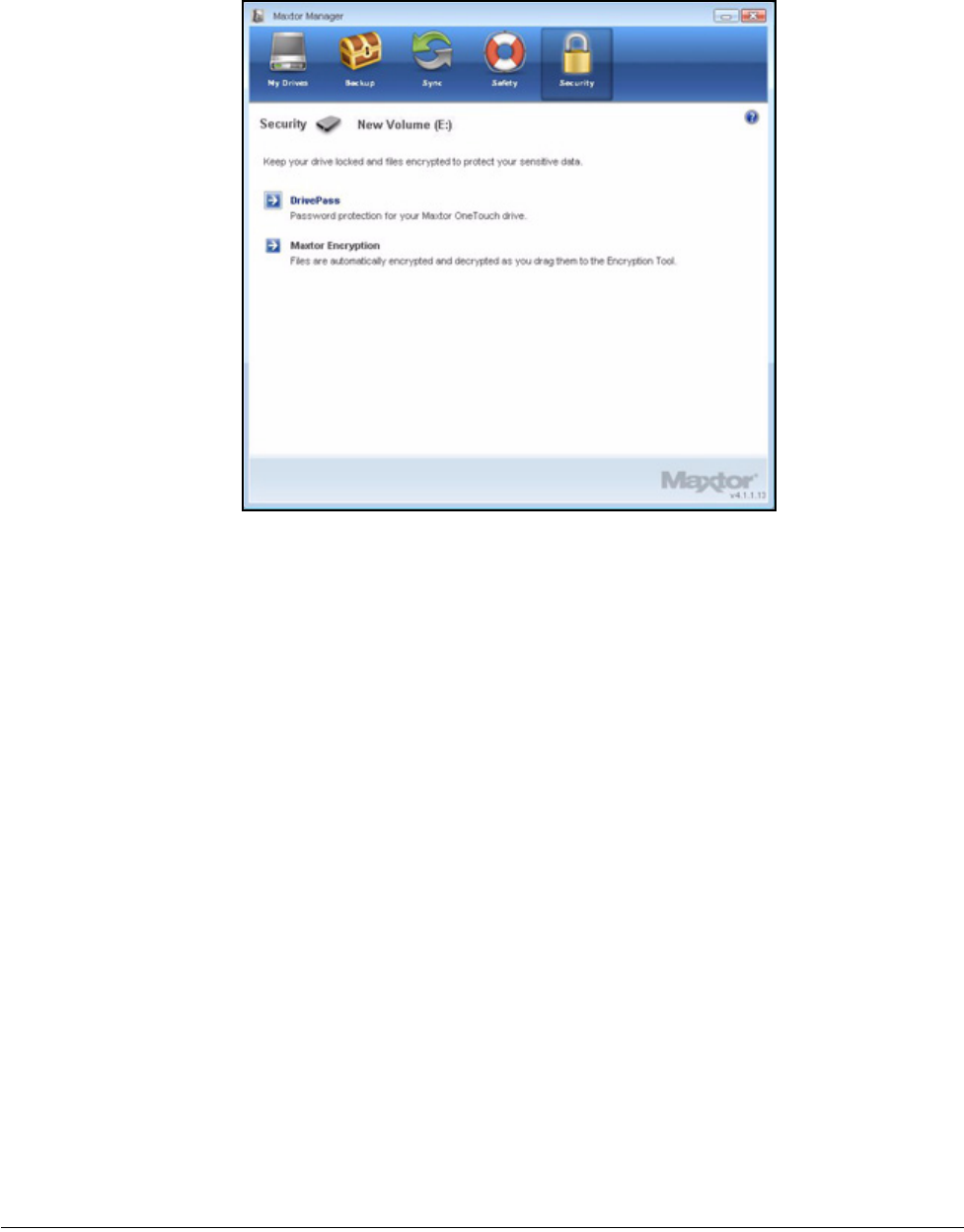
Step 1: Click Security in the Command panel.
The Security window opens:
Figure 10: DrivePass Removed
Maxtor OneTouch IV 87
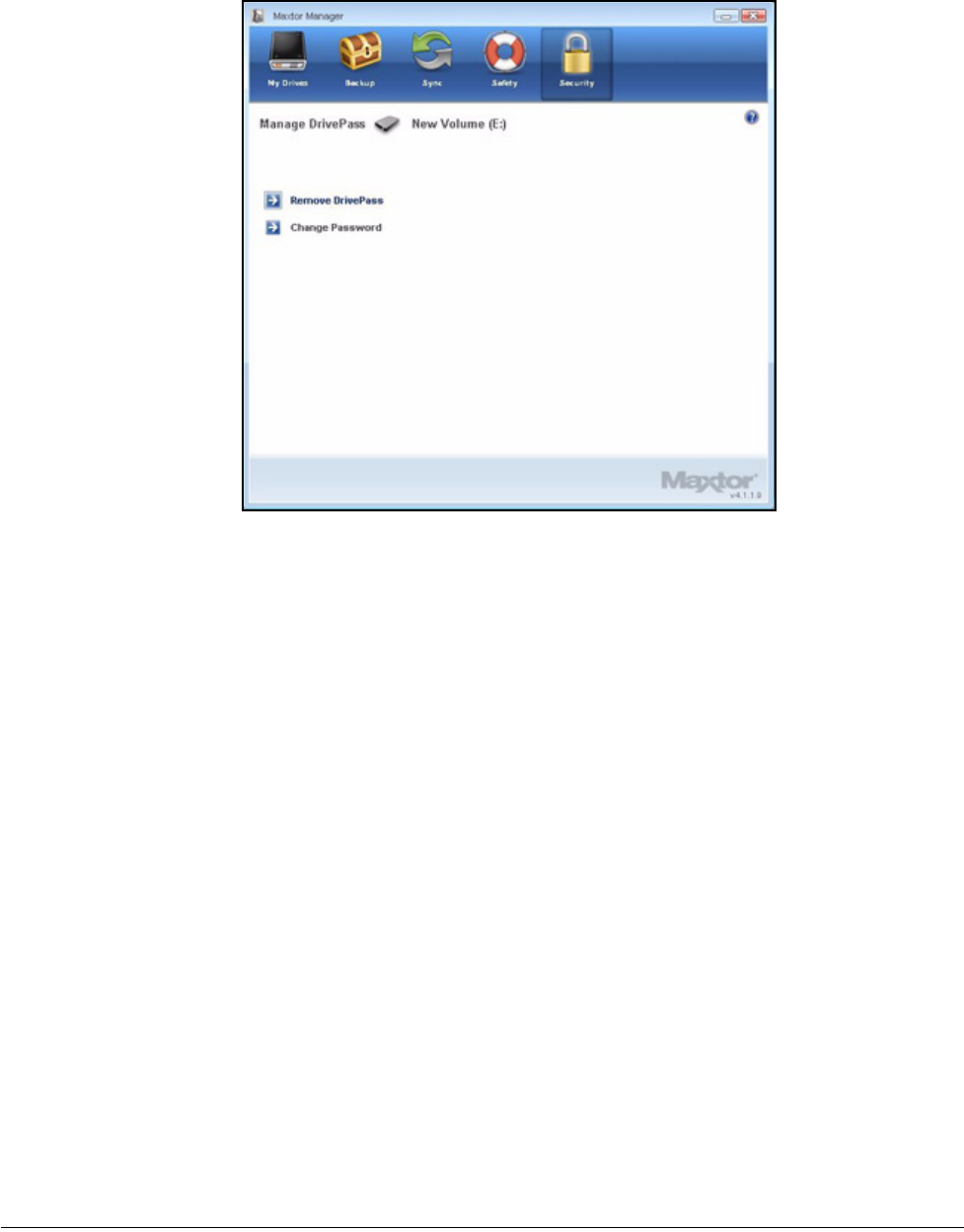
Step 2: Click DrivePass.
The Manage DrivePass window opens:
Figure 11: Security
Maxtor OneTouch IV 88
Step 3: Click Change Password.
The Change Password window opens:
Figure 12: Manage DrivePass
Maxtor OneTouch IV 89
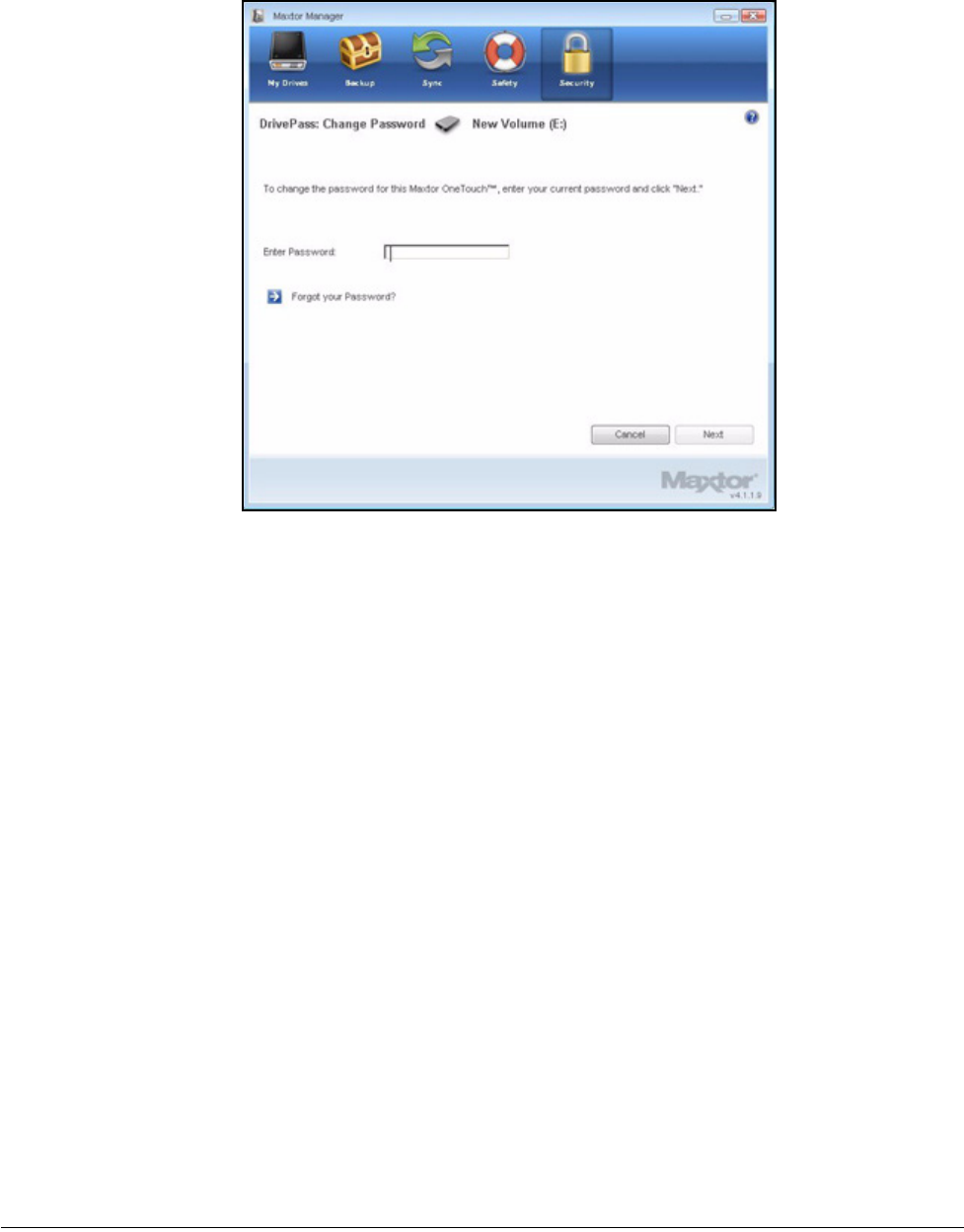
Step 4: Enter your current DrivePass password and click Next.
A Change Password window opens:
Figure 13: Change Password
Maxtor OneTouch IV 90
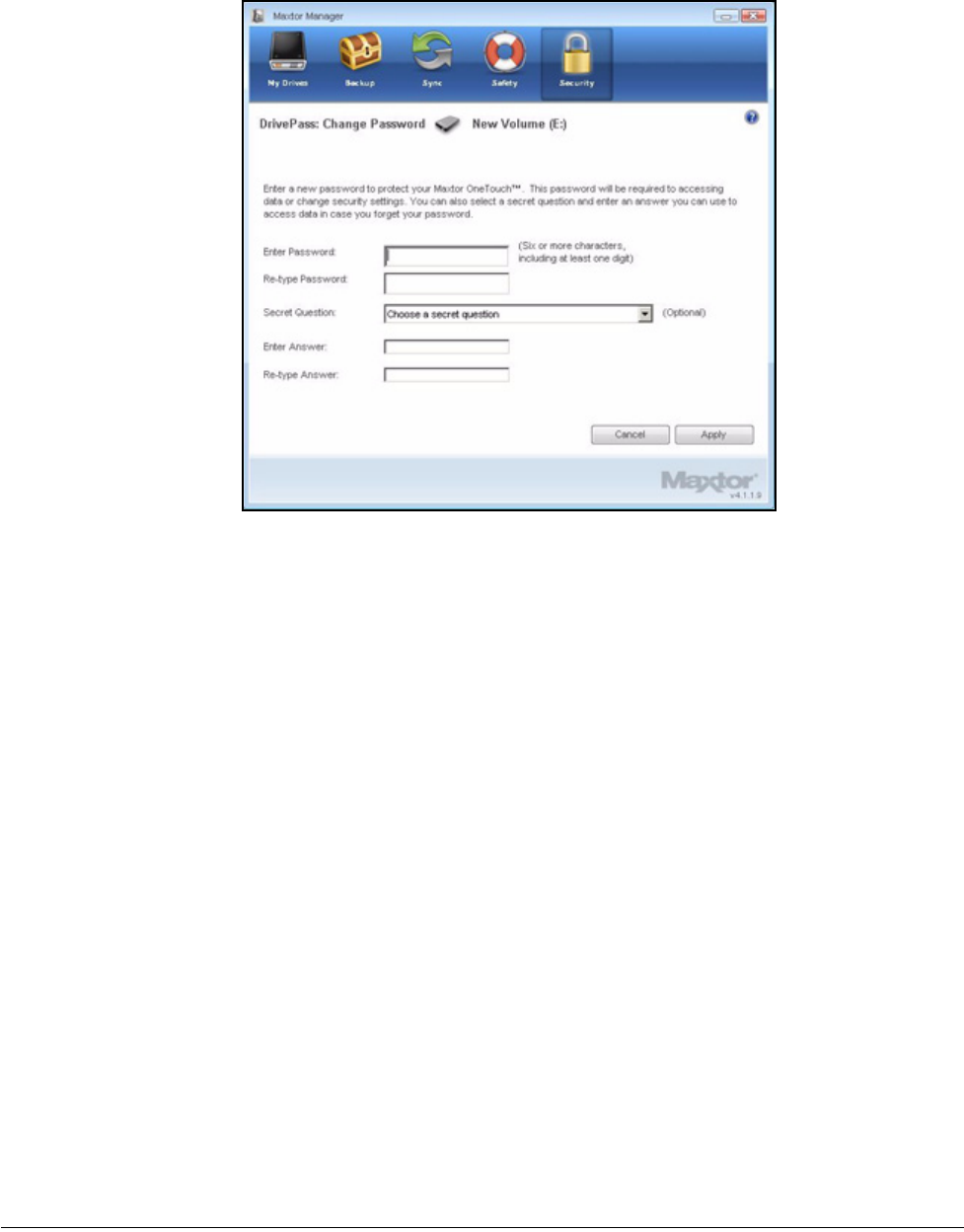
Step 5: Enter and re-enter the new password.
Step 6: If you wish, enter and re-enter the answer to a security question.
Step 7: Click Apply.
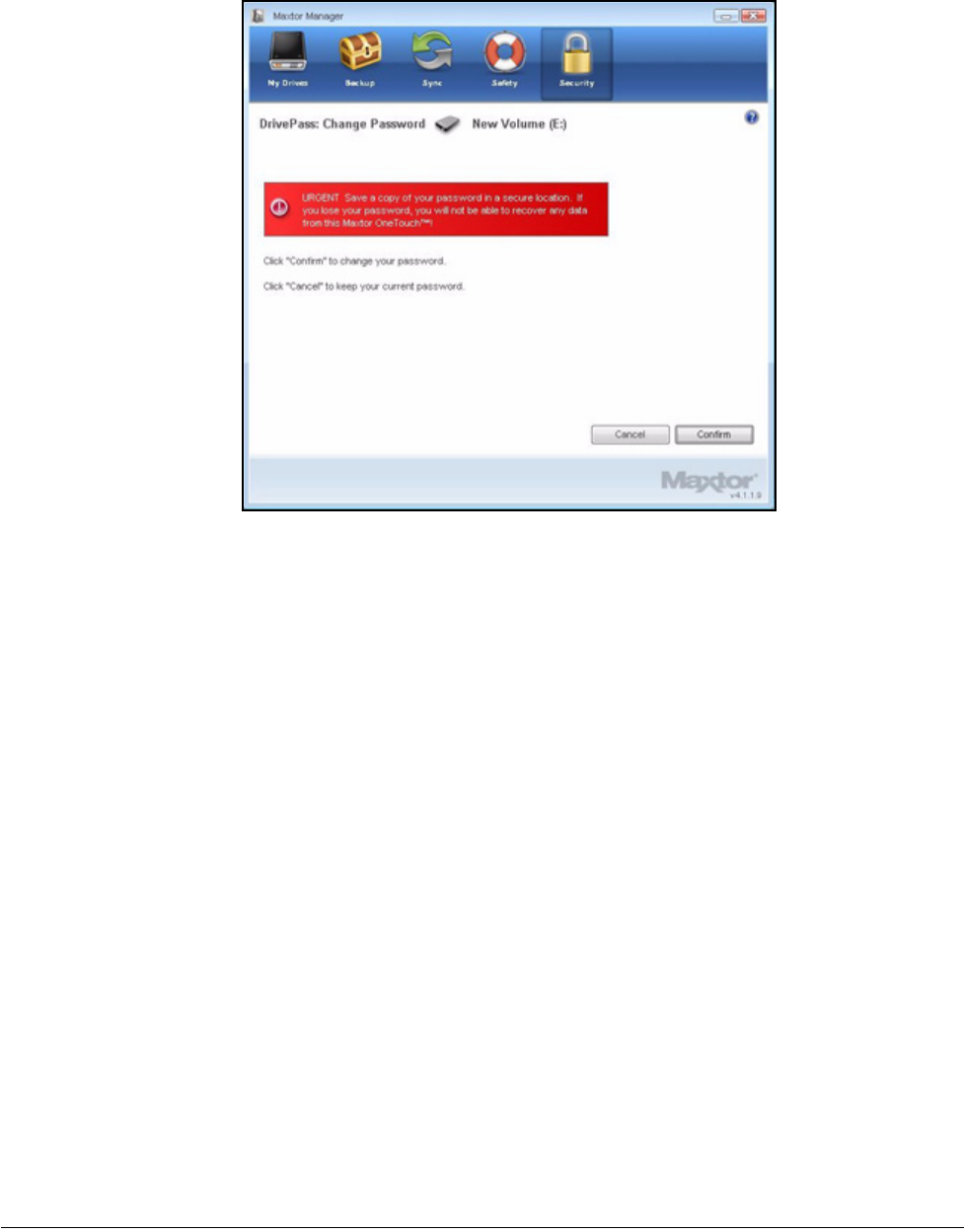
A warning window reminds you to save a copy of your password in a safe place:
Figure 14: Change Password
Maxtor OneTouch IV 91
Step 8: Click Confirm to change your password.
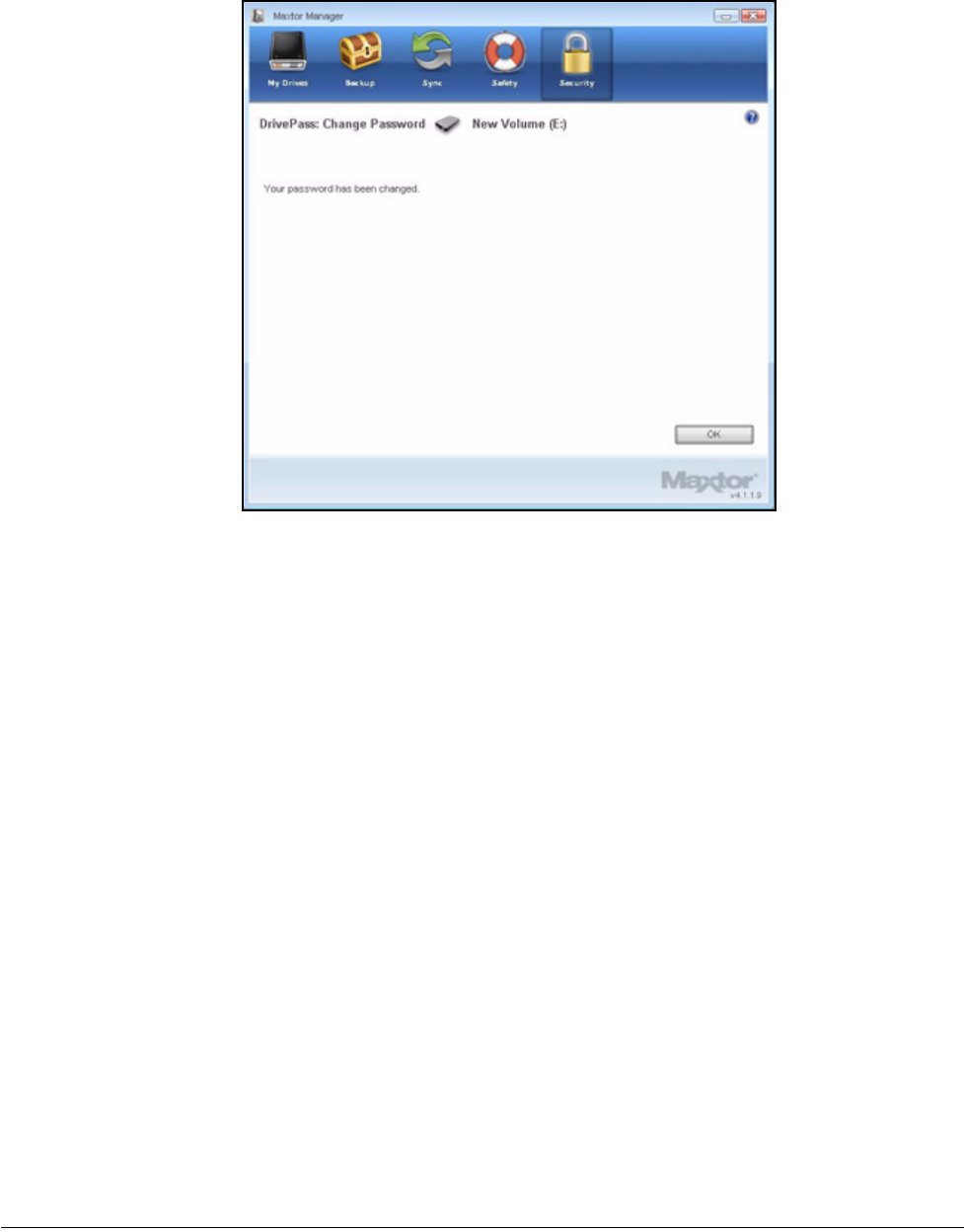
A confirmation window verifies that your password has been changed:
Figure 15: Password Warning
Maxtor OneTouch IV 92
Step 9: Click OK.
If You Forget Your Password...
If you forget your password and are unable to unlock your drive, you must reformat the drive
in order to continue to use it. Reformatting erases all data stored on the drive.
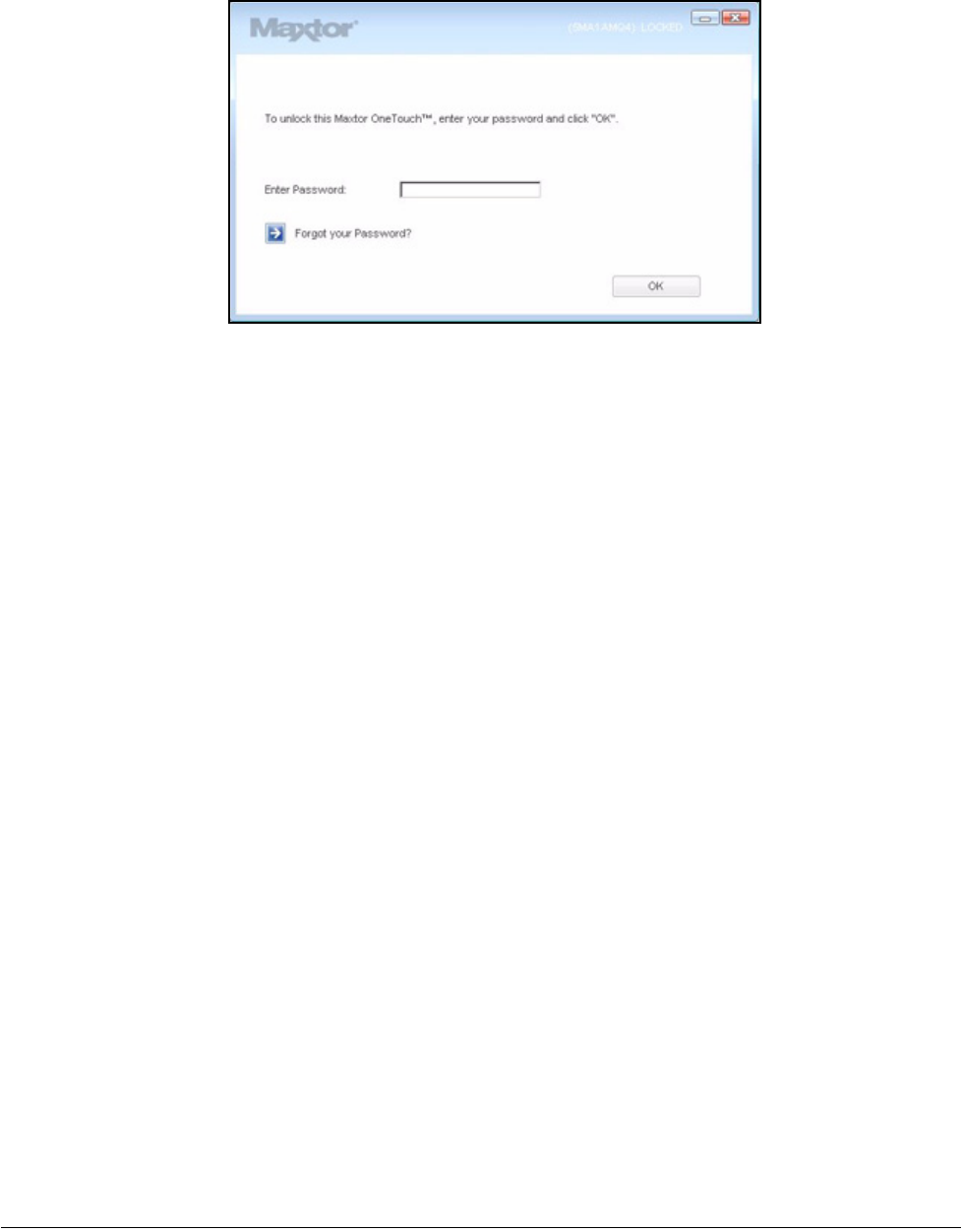
When you disconnect a OneTouch drive for which you’ve set a DrivePass password, the
drive locks automatically. When you re-connect the drive, a password window opens:
Figure 16: Password Changed
Maxtor OneTouch IV 93
If you’ve forgotten both your password and (if you’ve set one) the answer to your security
question, you must erase and reformat your OneTouch drive before you can use it again.
To erase your OneTouch drive,
Step 1: If the DrivePass password window is open, click Forgot your Password?
— OR —
Open Maxtor Manager.
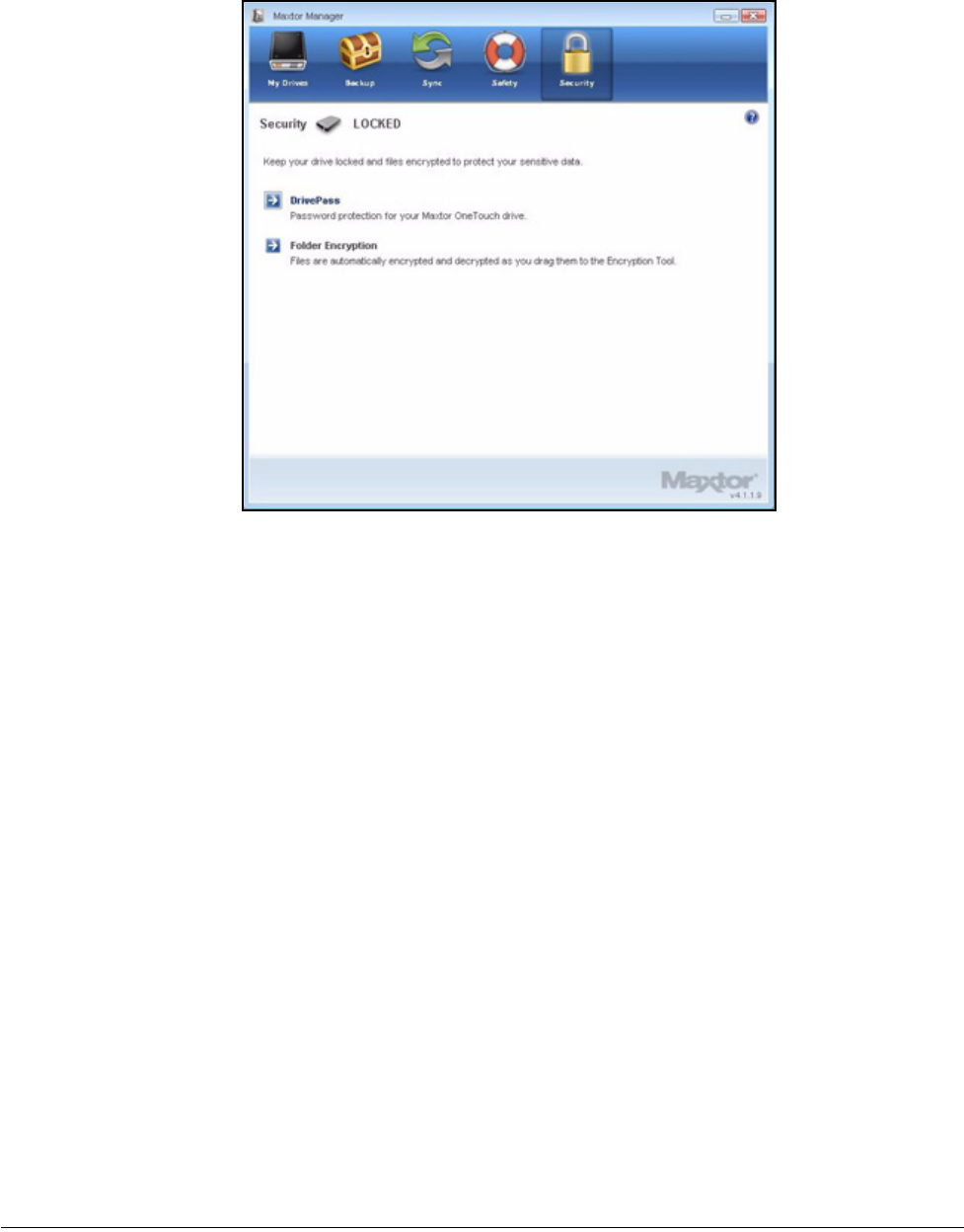
Step 2: Click Security in the Command panel.
The Security window opens:
Figure 17: DrivePass Password Window
Maxtor OneTouch IV 94
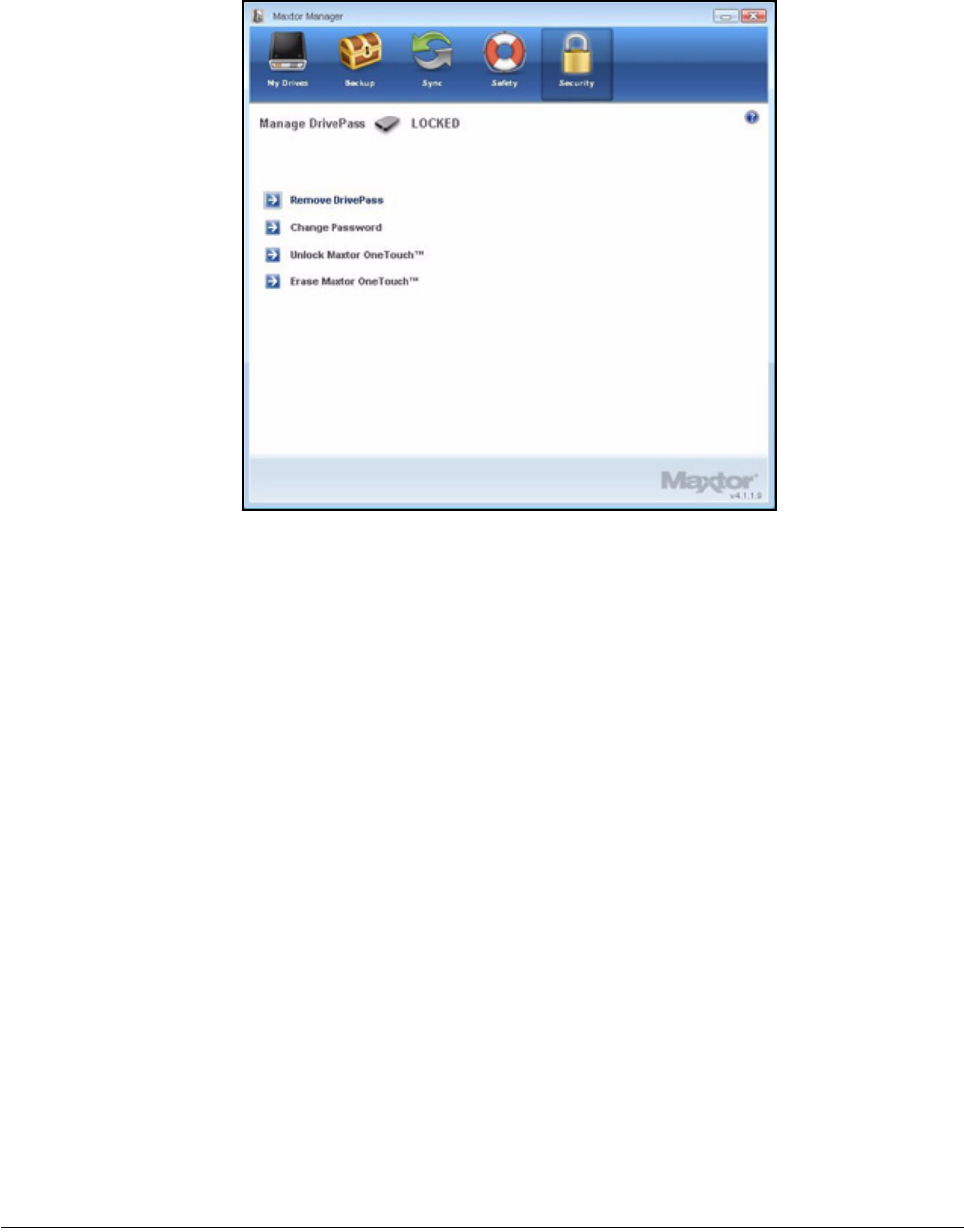
Step 3: Click DrivePass.
The Manage DrivePass window opens:
Figure 18: Security - Drive Locked
Maxtor OneTouch IV 95
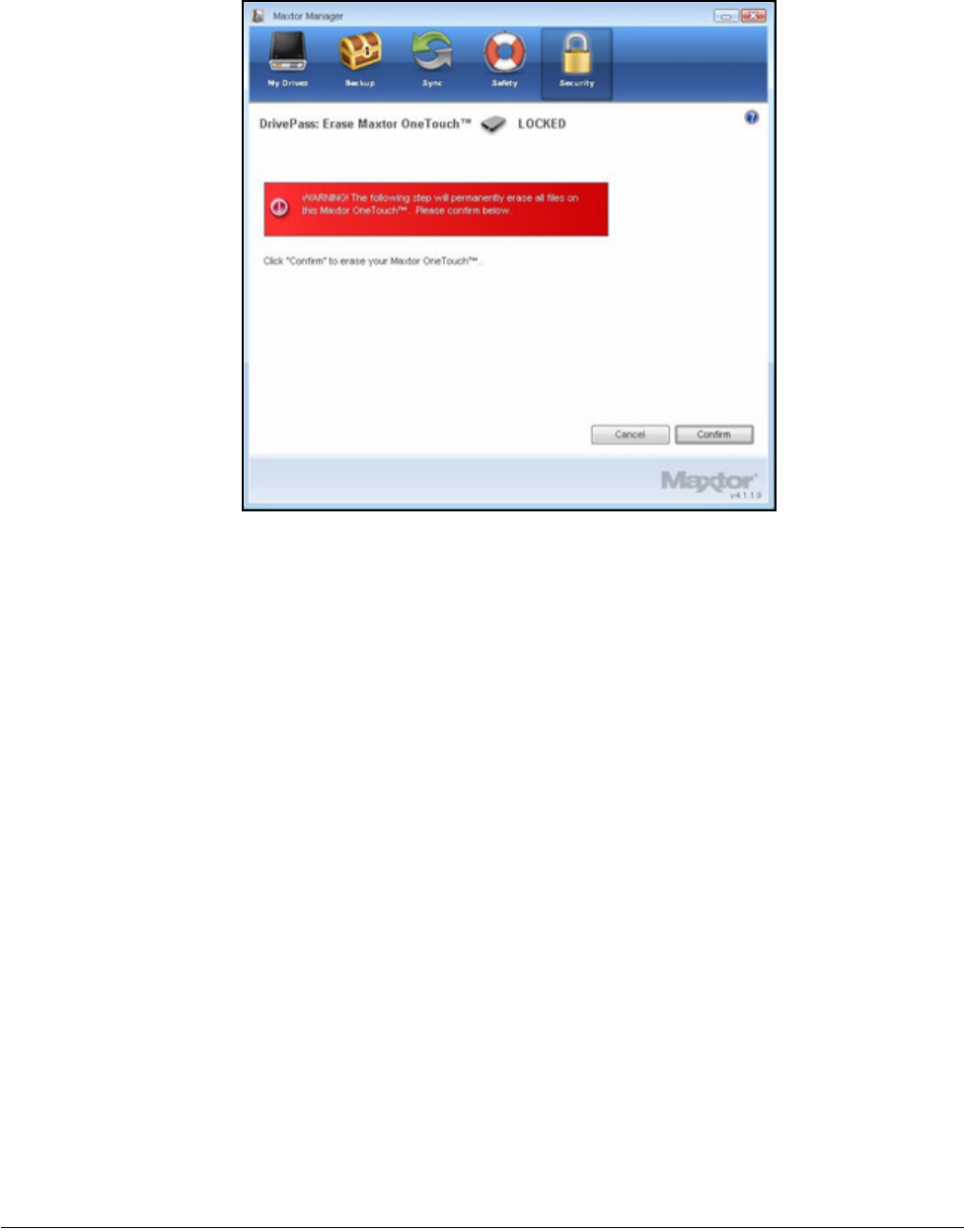
Step 4: Click Erase Maxtor OneTouch.
The Erase Maxtor OneTouch window warns that all data on this OneTouch will
be erased:
Figure 19: Manage DrivePass Locked
Maxtor OneTouch IV 96
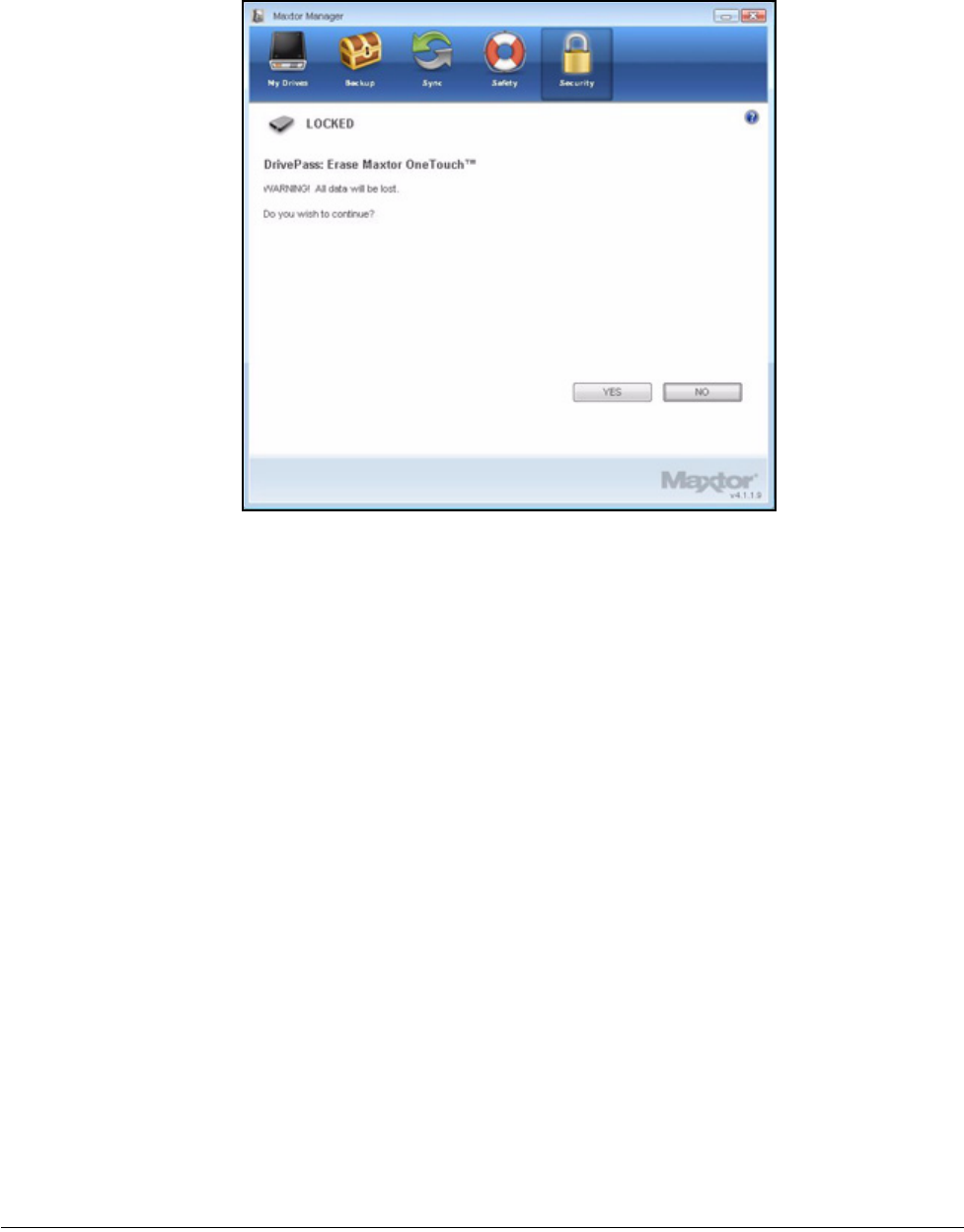
Step 5: Click Confirm to continue with the erasure.
A second Erase Maxtor OneTouch window warns again that all data on this
OneTouch will be erased:
Figure 20: Erase Maxtor OneTouch Warning
Maxtor OneTouch IV 97
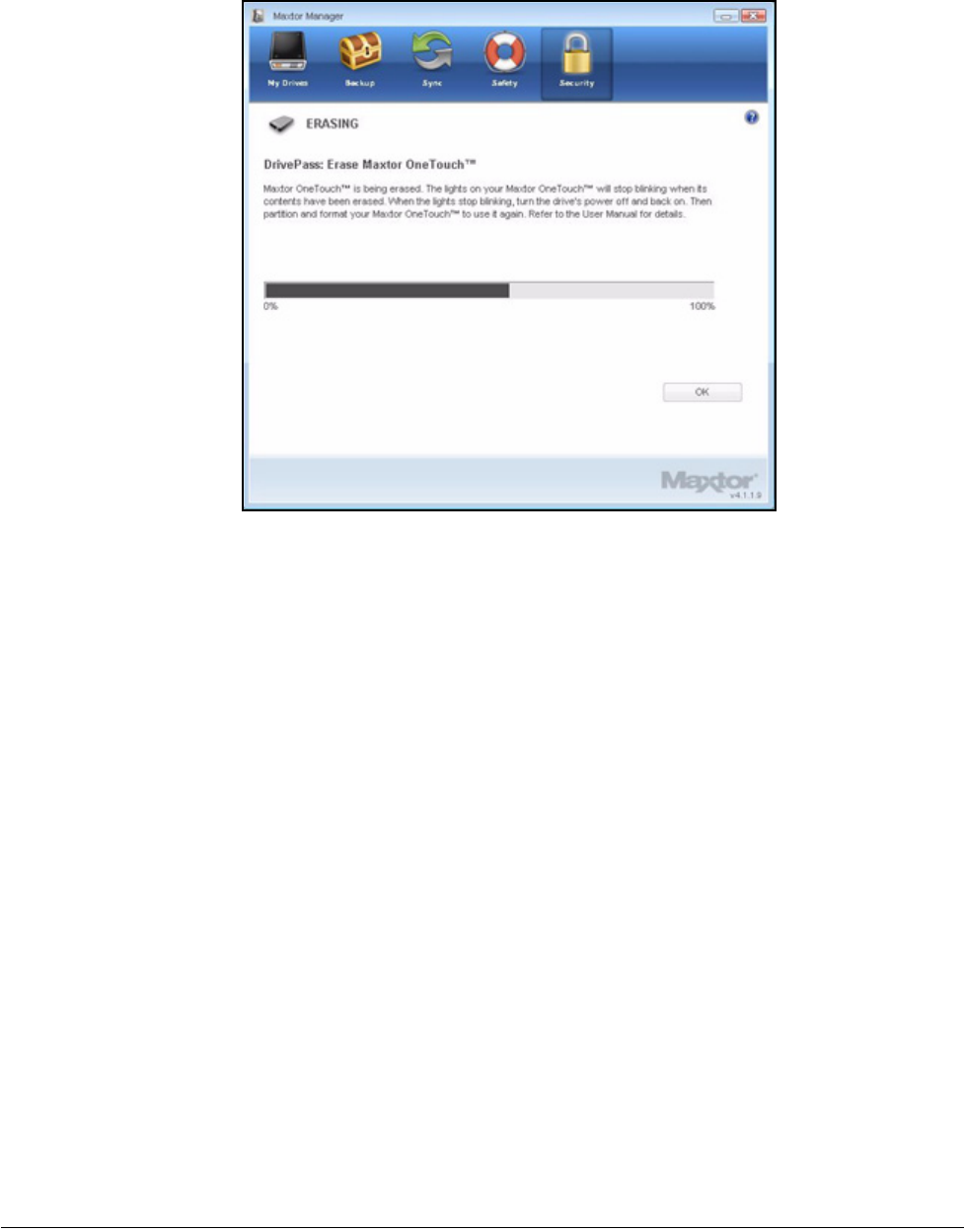
Step 6: Click Yes to proceed with the disk erasure.
The Erasing window informs you of the progress of the erasure.
Figure 21: Erase Maxtor OneTouch Warning
Maxtor OneTouch IV 98
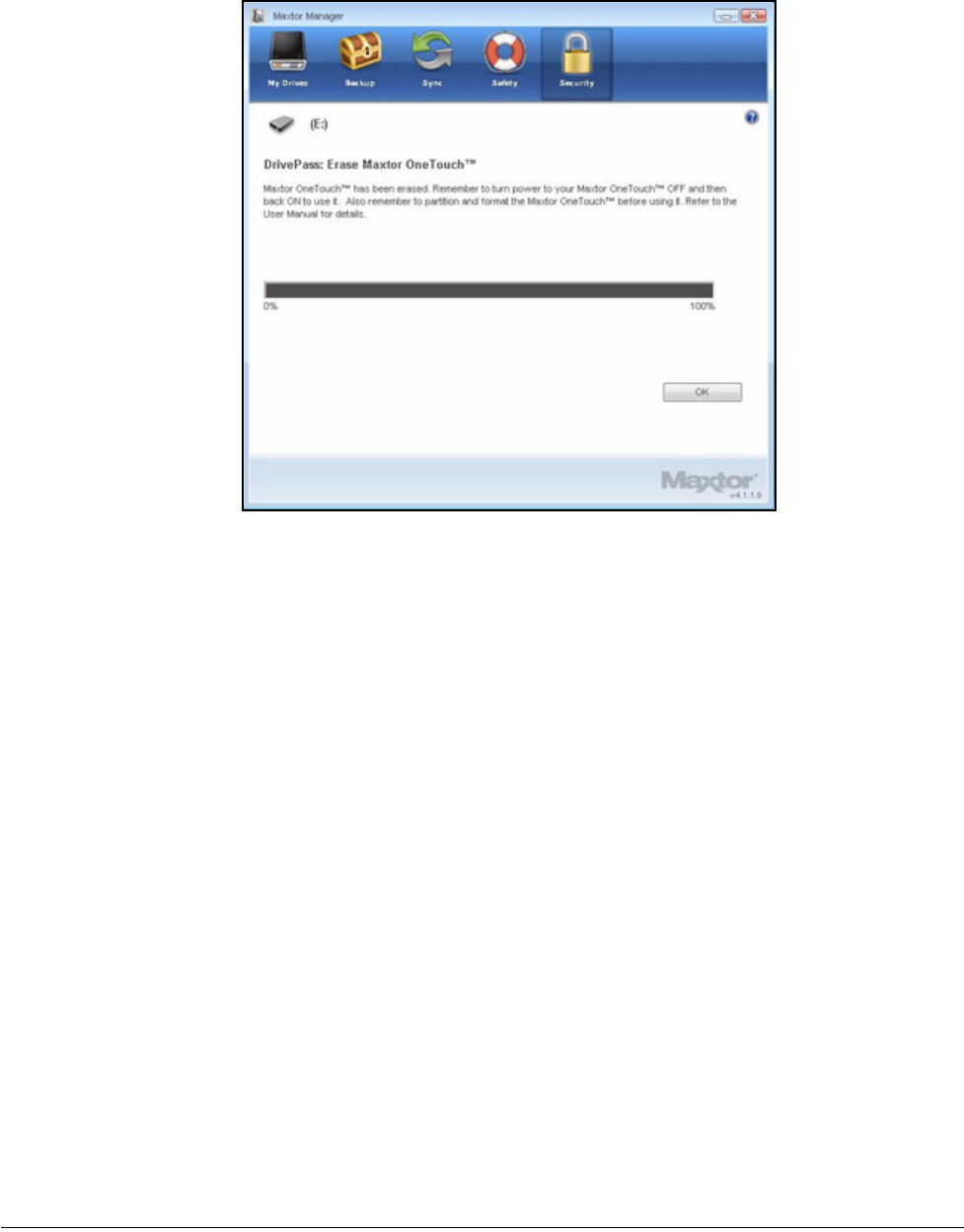
The erasure can take several hours depending upon the size of your drive.
The Erase Maxtor OneTouch window informs you when the OneTouch drive has
been erased:
Figure 22: Erasing
Maxtor OneTouch IV 99
Step 7: Click OK.
Step 8: Turn your OneTouch drive off and back on.
Your OneTouch drive is now ready to be used again.
Using Maxtor Encryption
Maxtor Encryption offers the encryption of multiple files and folders in one location, the
Maxtor Encrypted Folder. After you create and set a password for the Maxtor Encrypted
Folder, you can simply drag and drop files and folders into it to secure them.
These types of files and folders cannot be dragged into your encrypted folder:
•Already-encrypted files
•Installer packages
•SafetyDrill copies
•Applications
•Development Tools
The Encryption operation is Copy only; no files are moved on your computer. Thus the
original, unencrypted version of a file or folder remains on your computer along with the
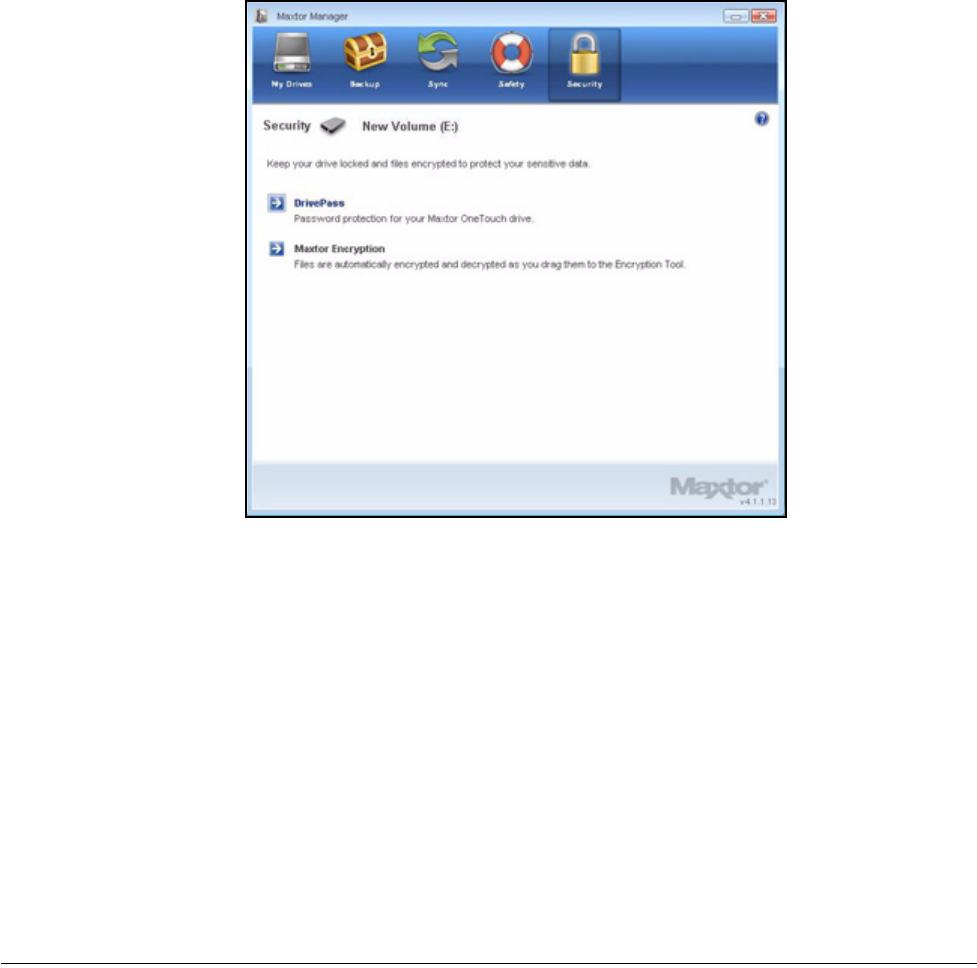
Figure 23: Erasure Complete
Maxtor OneTouch IV 100
newly-encrypted version. For total security, you should delete the unencrypted version from
your computer.
If you leave an unencrypted version of a file or folder on your computer, when you decrypt
the encrypted version, you’re asked permission to overwrite the original unencrypted
version.
Creating an Encrypted Folder
Step 1: Click Security in the Command panel.
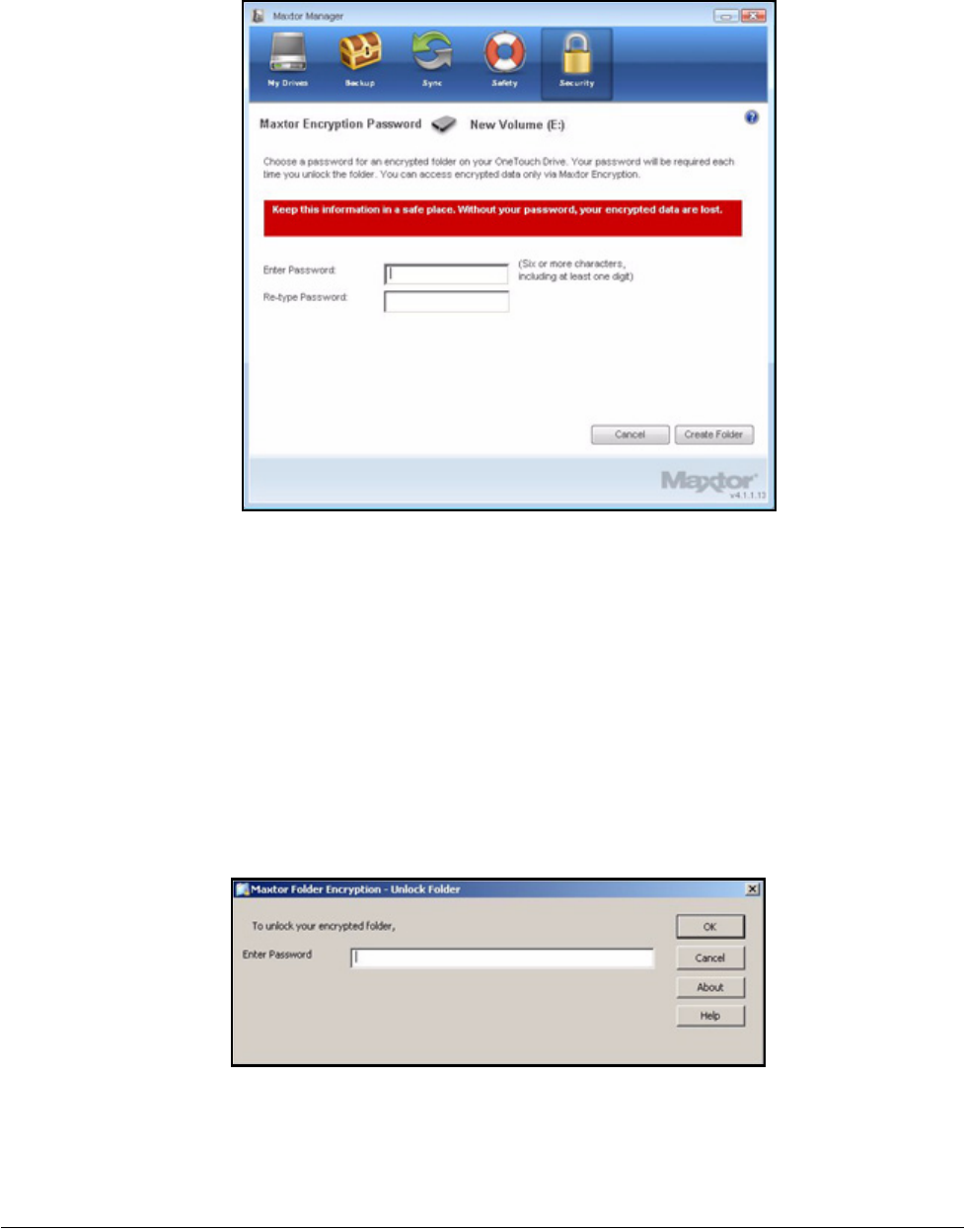
Step 2: Click Maxtor Encryption in the Security window.
The Maxtor Encryption Password window opens:
Figure 24: Security
Maxtor OneTouch IV 101
Step 3: Enter and re-enter a password that will open your encrypted folder.
Your password must contain at least six characters, including one digit. Be sure to
use a password you’ll remember; you’ll need it each time you want to access the
files and folders stored in the encrypted folder.
Note: Your Encryption password is attached to the encrypted folder and not to the files and
folders stored within it.
Step 4: Click Create Folder.
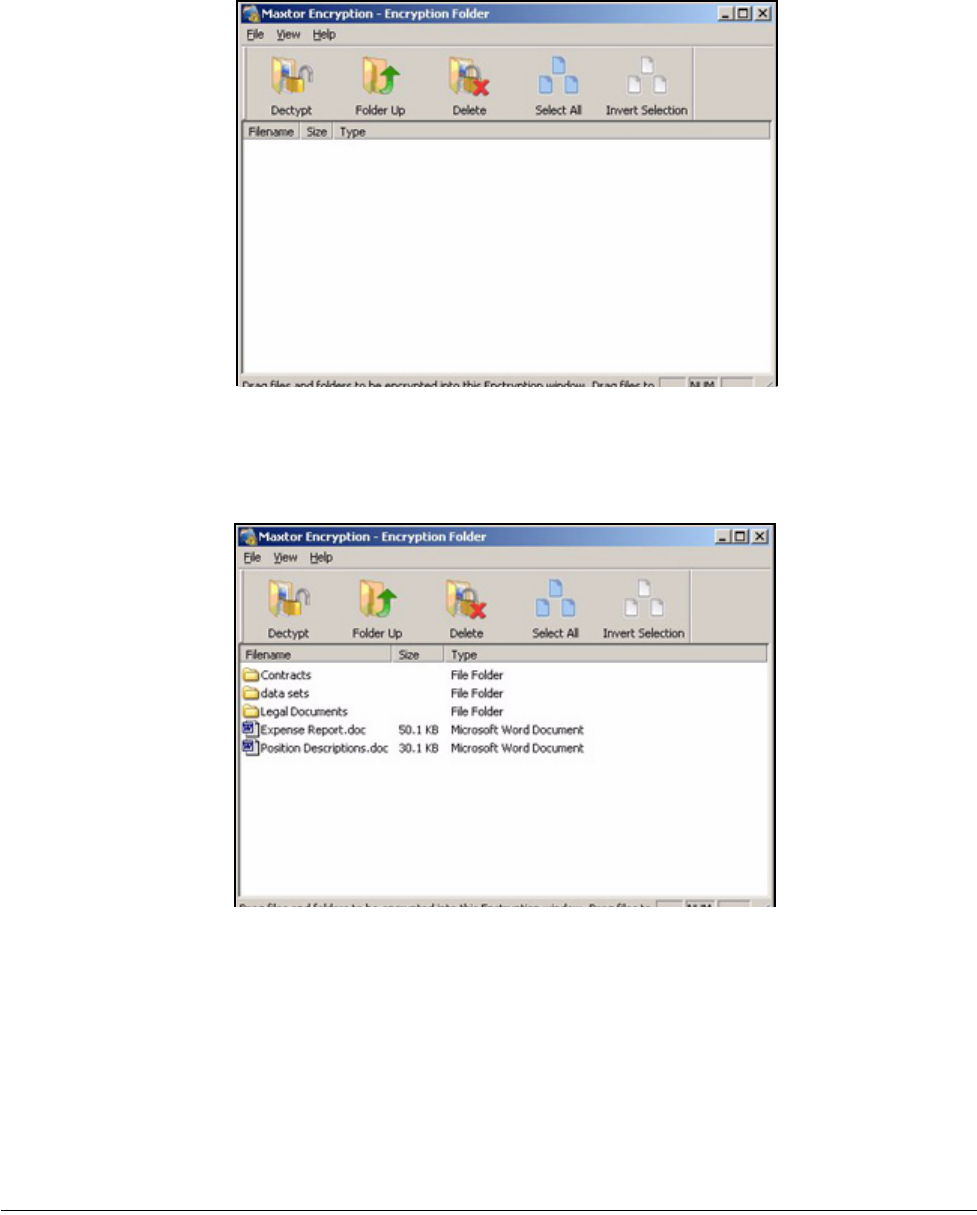
The Unlock Folder window opens:
Step 5: Enter your password and click OK.
Figure 25: Encryption Password
Figure 26: Unlock Folder
Maxtor OneTouch IV 102
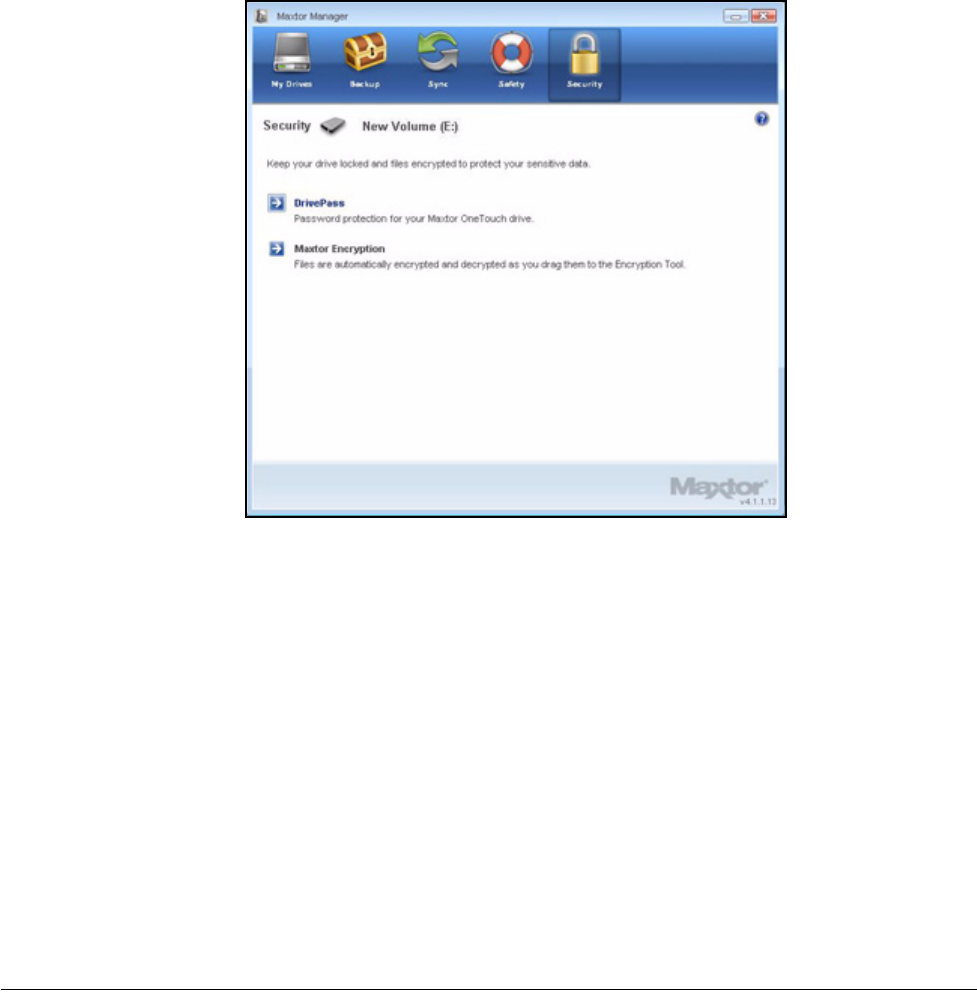
Your encrypted folder opens:
Step 6: Drag files and folders into your encrypted folder as you would into any folder:
Step 7: Delete the original, unencrypted versions of the files and folders from your
computer.
Note: Your encrypted files and folders will not be completely secure unless you delete the
original, unencrypted versions from your computer.
Figure 27: Encrypted Folder
Figure 28: Maxtor Protector Encrypted Folder Populated
Maxtor OneTouch IV 103
Managing an Encrypted Folder
You can move files and folders from your encrypted folder to another location on your
computer or delete them from your encrypted folder.
To manage the files and folders in your encrypted folder,
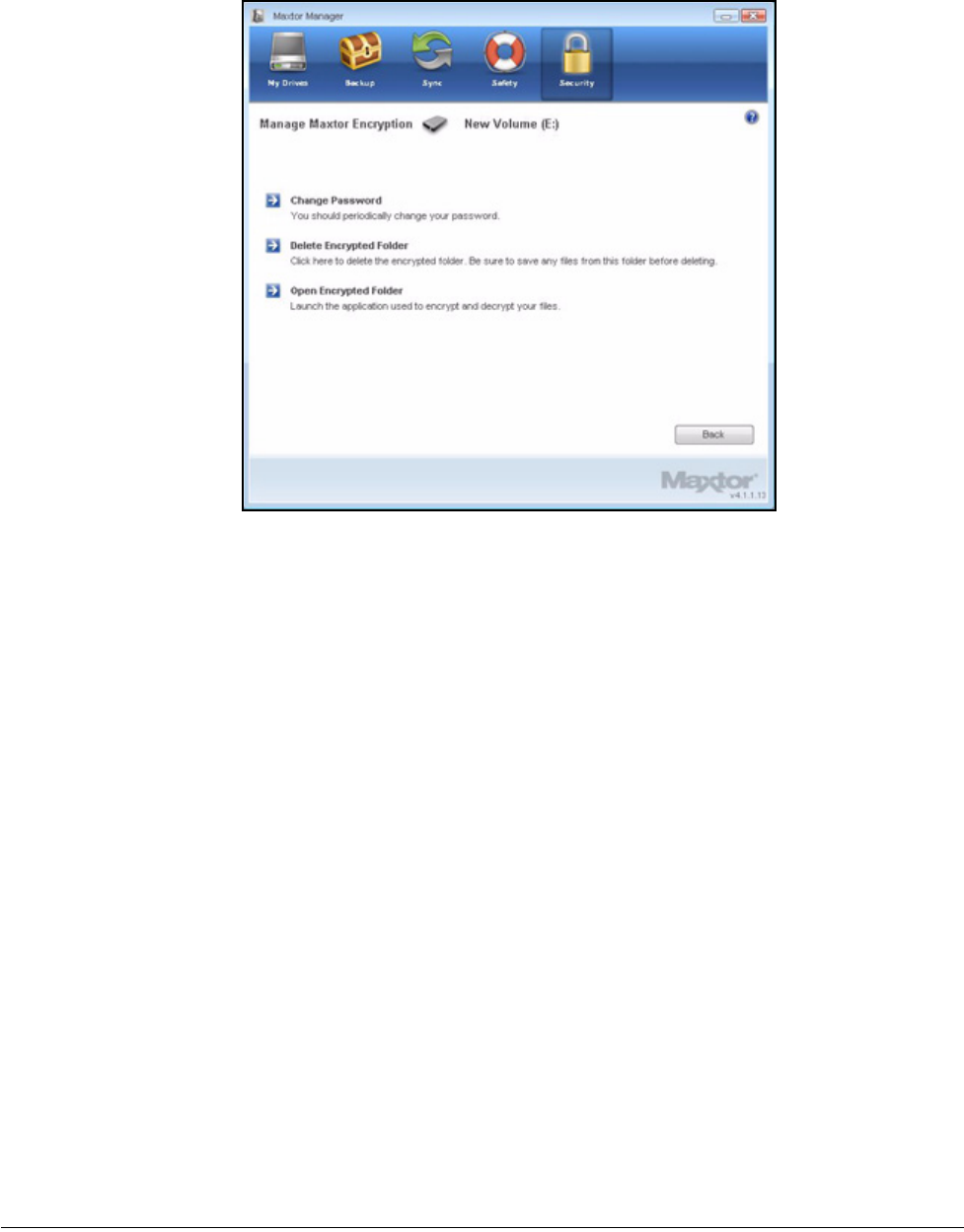
Step 1: Click Security in the Command panel.
The Security window opens:
Step 2: Click Maxtor Encryption.
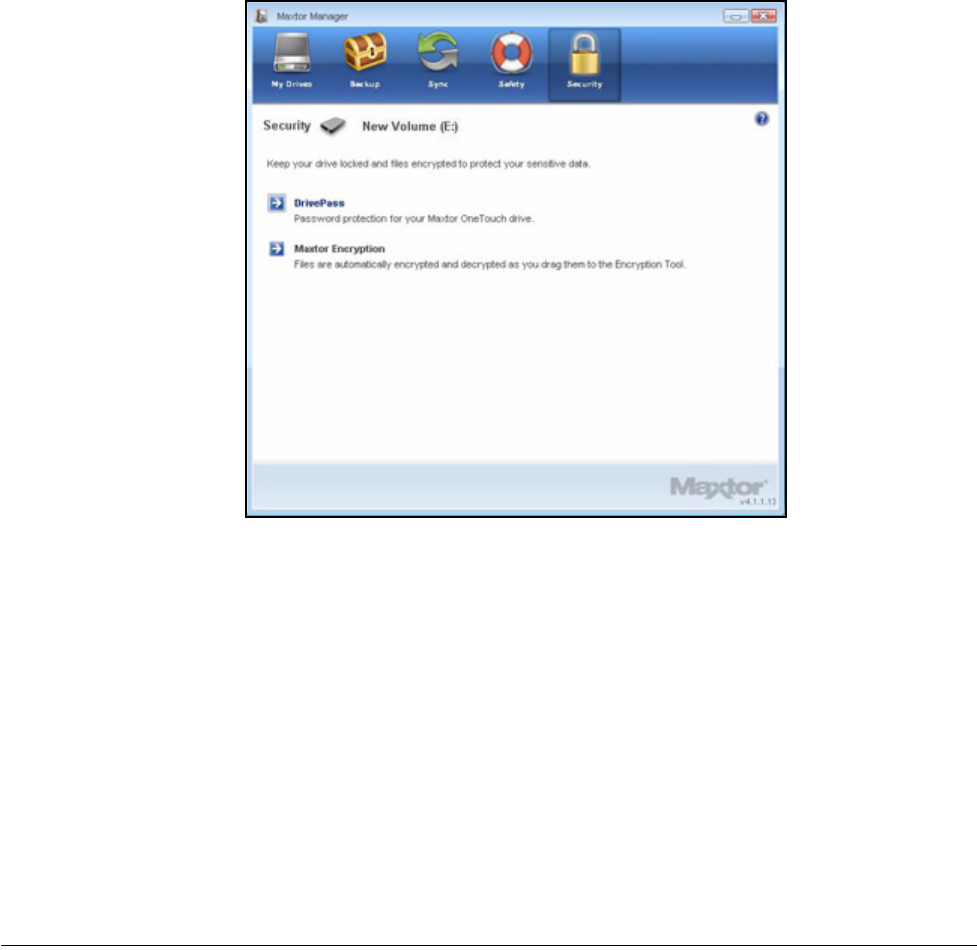
The Manage Maxtor Encryption window opens:
Figure 29: Security
Maxtor OneTouch IV 104
Changing Your Encryption Password
To change your Encryption password,
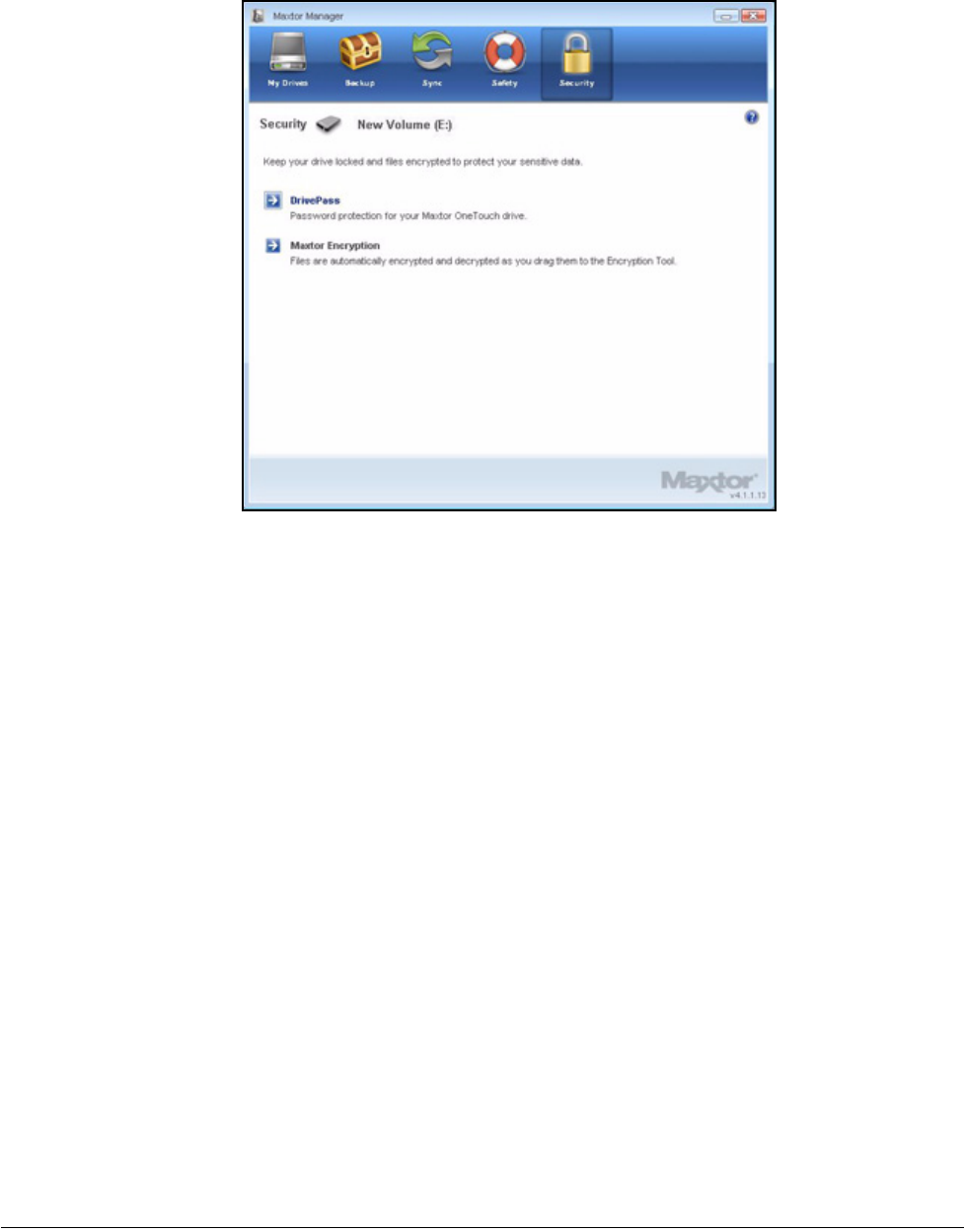
Step 1: Click Security in the Command panel.
The Security window opens:
Figure 30: Manage Maxtor Encryption
Maxtor OneTouch IV 105
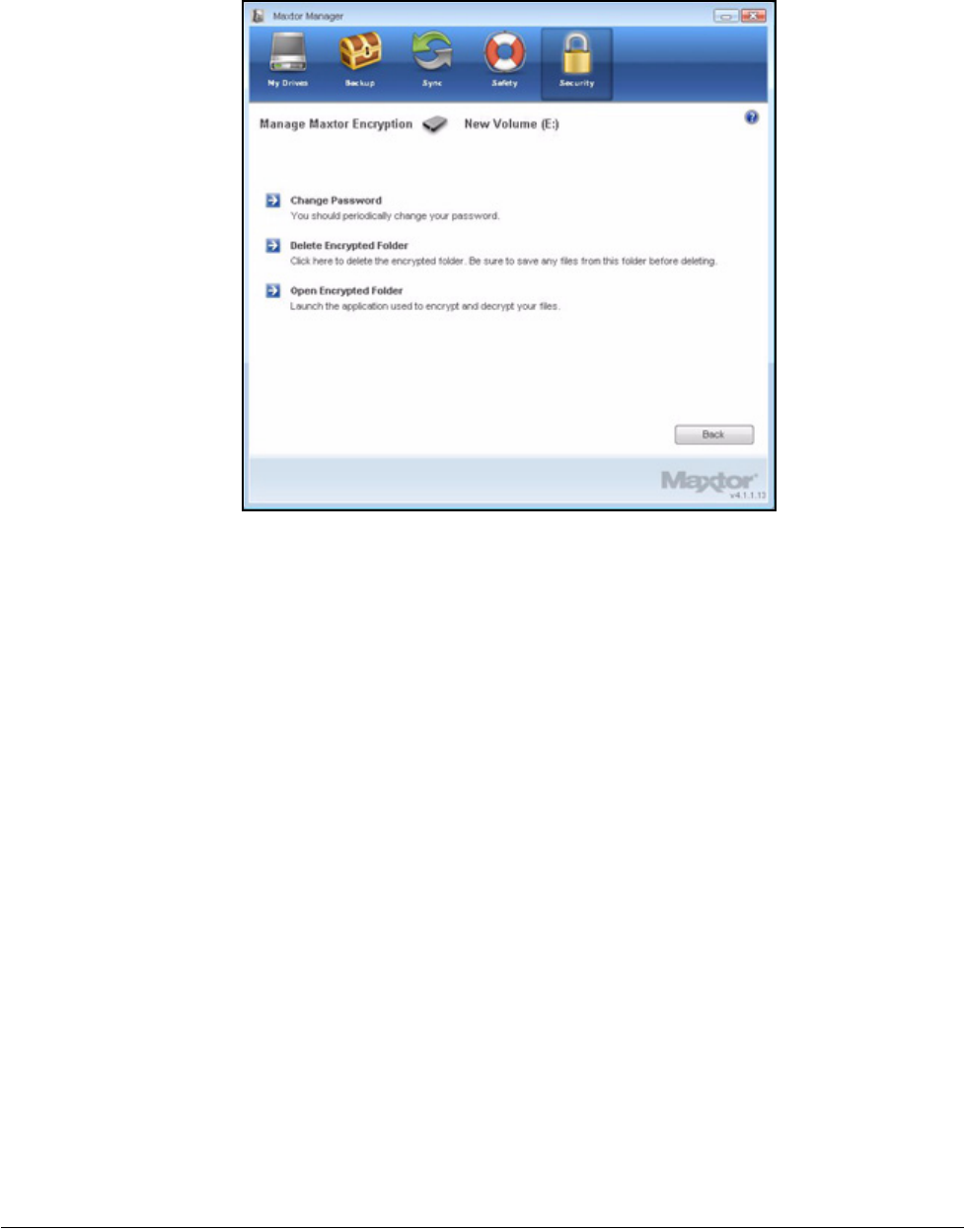
Step 2: Click Maxtor Encryption.
The Manage Maxtor Encryption window opens:
Figure 31: Security
Maxtor OneTouch IV 106
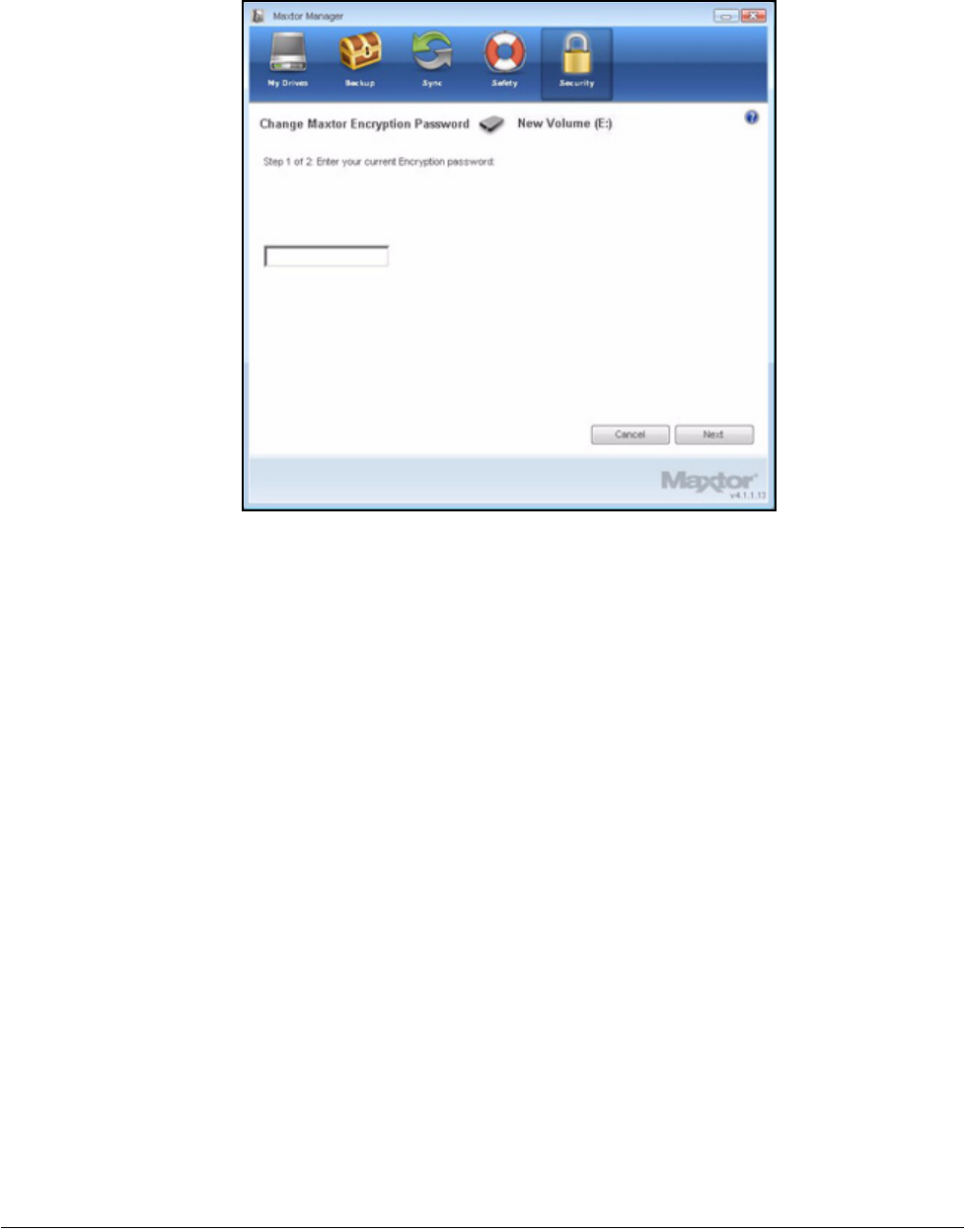
Step 3: Click Change Password.
The first of two Change Maxtor Encryption Password windows opens:
Figure 32: Manage Maxtor Encryption
Maxtor OneTouch IV 107
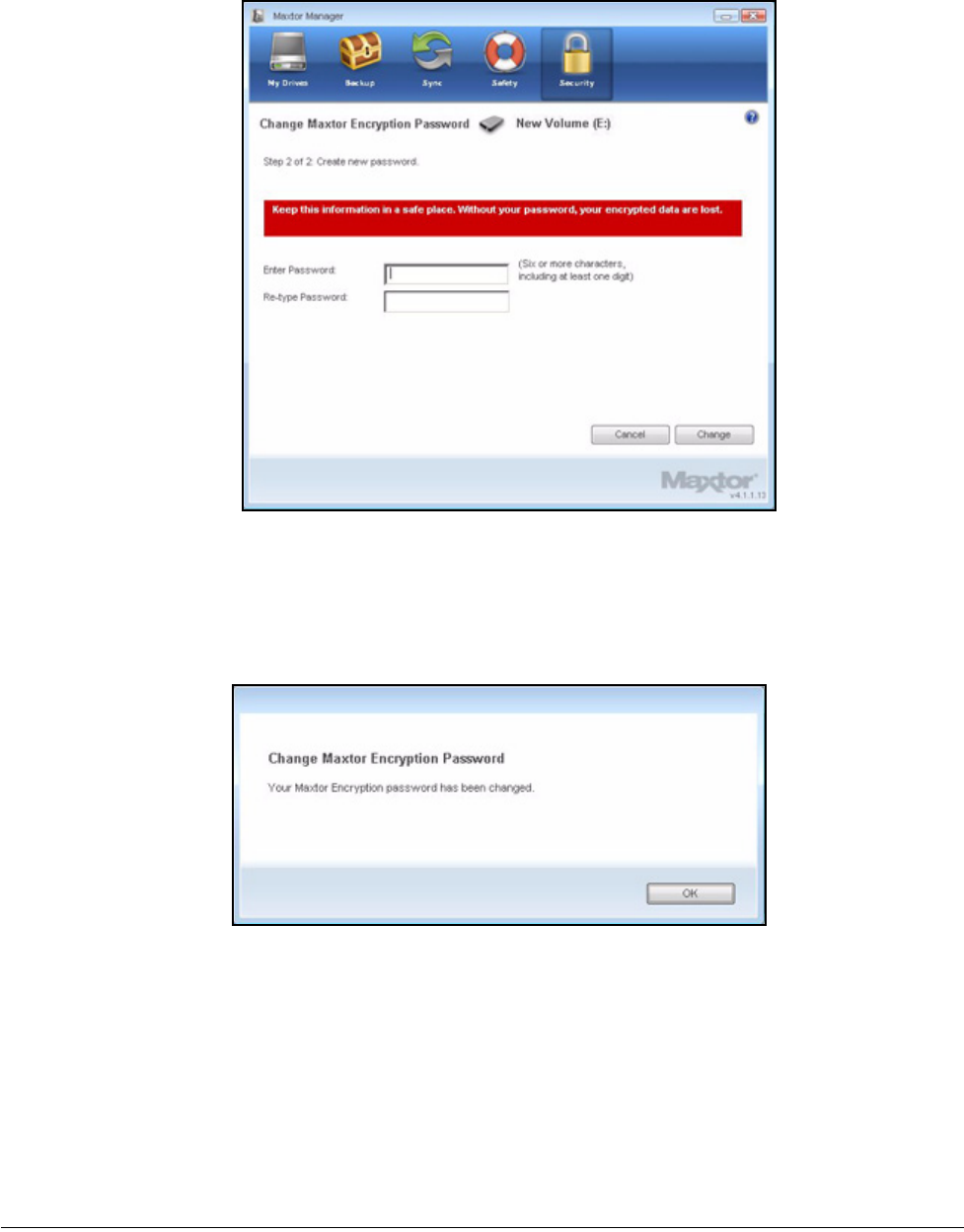
Step 4: Enter your current Encryption password and click Next.
The second Change Maxtor Encryption Password window opens:
Figure 33: Change Maxtor Encryption Password 1
Maxtor OneTouch IV 108
Step 5: Enter and re-enter a new password and click Change.
A Change Maxtor Encryption Password confirmation window opens:
Step 6: Click OK.
Figure 34: Change Maxtor Encryption Password 2
Figure 35: Change Maxtor Encryption Password Confirmation
Maxtor OneTouch IV 109
Deleting an Encrypted Folder
Warning: When you delete an encrypted folder, you also delete the data stored in it. To
retain your data, be sure to remove files and folders from your encrypted folder
before you delete the folder itself.
To delete your encrypted folder,
Step 1: Click Security in the Command panel.
The Security window opens:
Step 2: Click Maxtor Encryption.
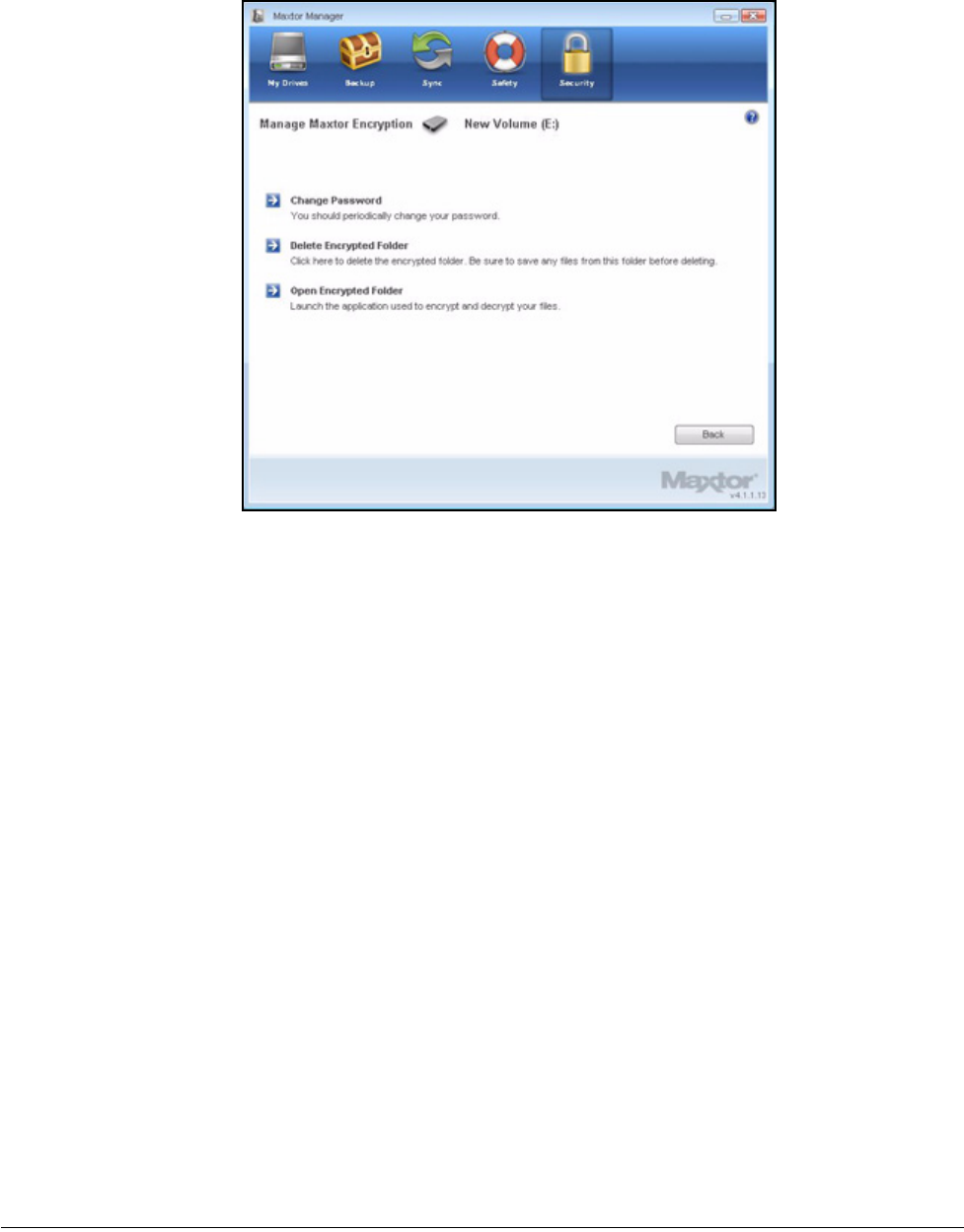
The Manage Maxtor Encryption window opens:
Figure 36: Security
Maxtor OneTouch IV 110
Step 3: Click Delete Encrypted Folder.
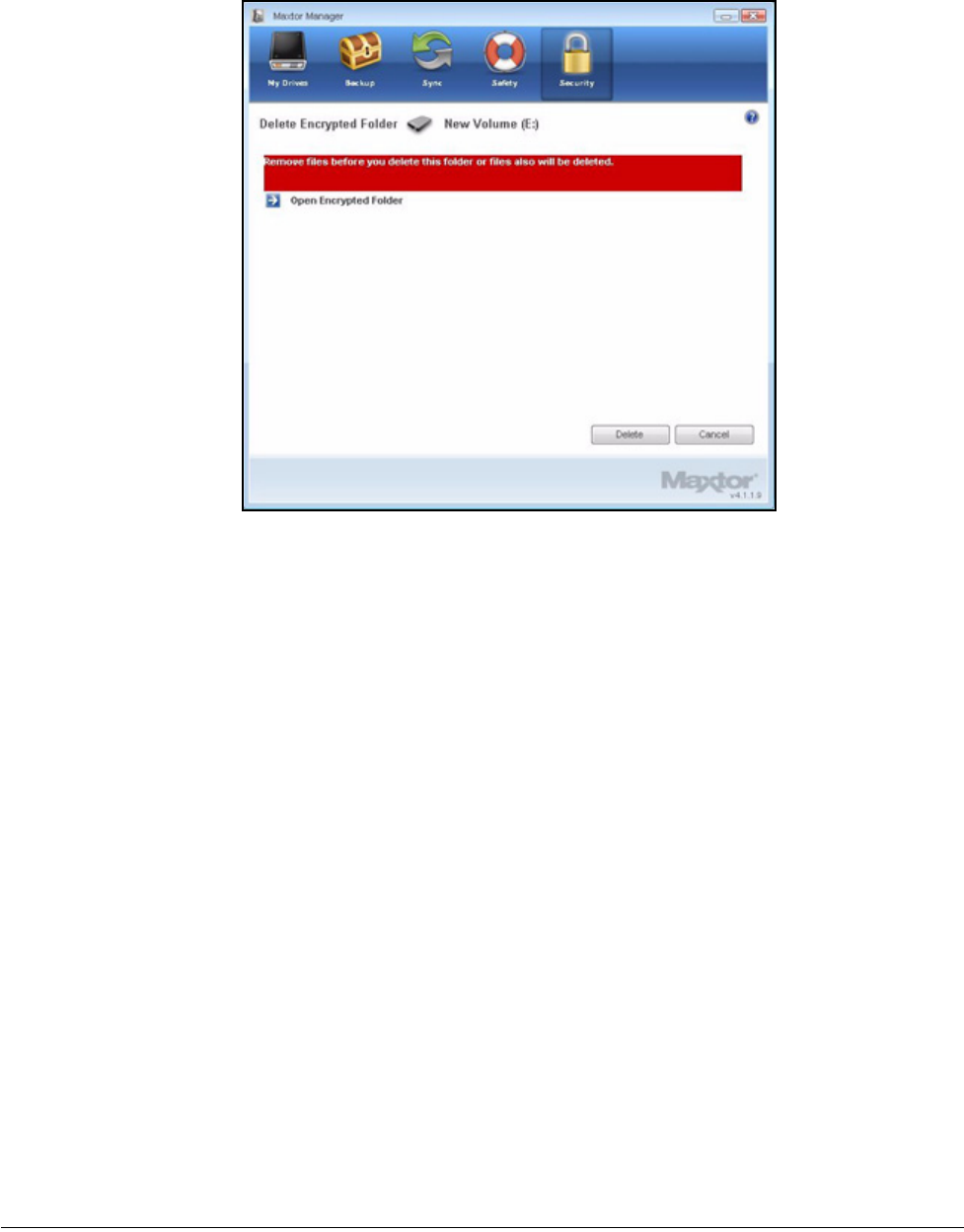
The Delete Encrypted Folder window opens:
Figure 37: Manage Maxtor Encryption
Maxtor OneTouch IV 111
Step 4: Click Open Encrypted Folder, decrypt and save files and folders stored in the
encrypted folder, and close the encrypted folder.
See Decrypting Files and Folders for further information.
Step 5: Click Delete in the Delete Encrypted Folder window.
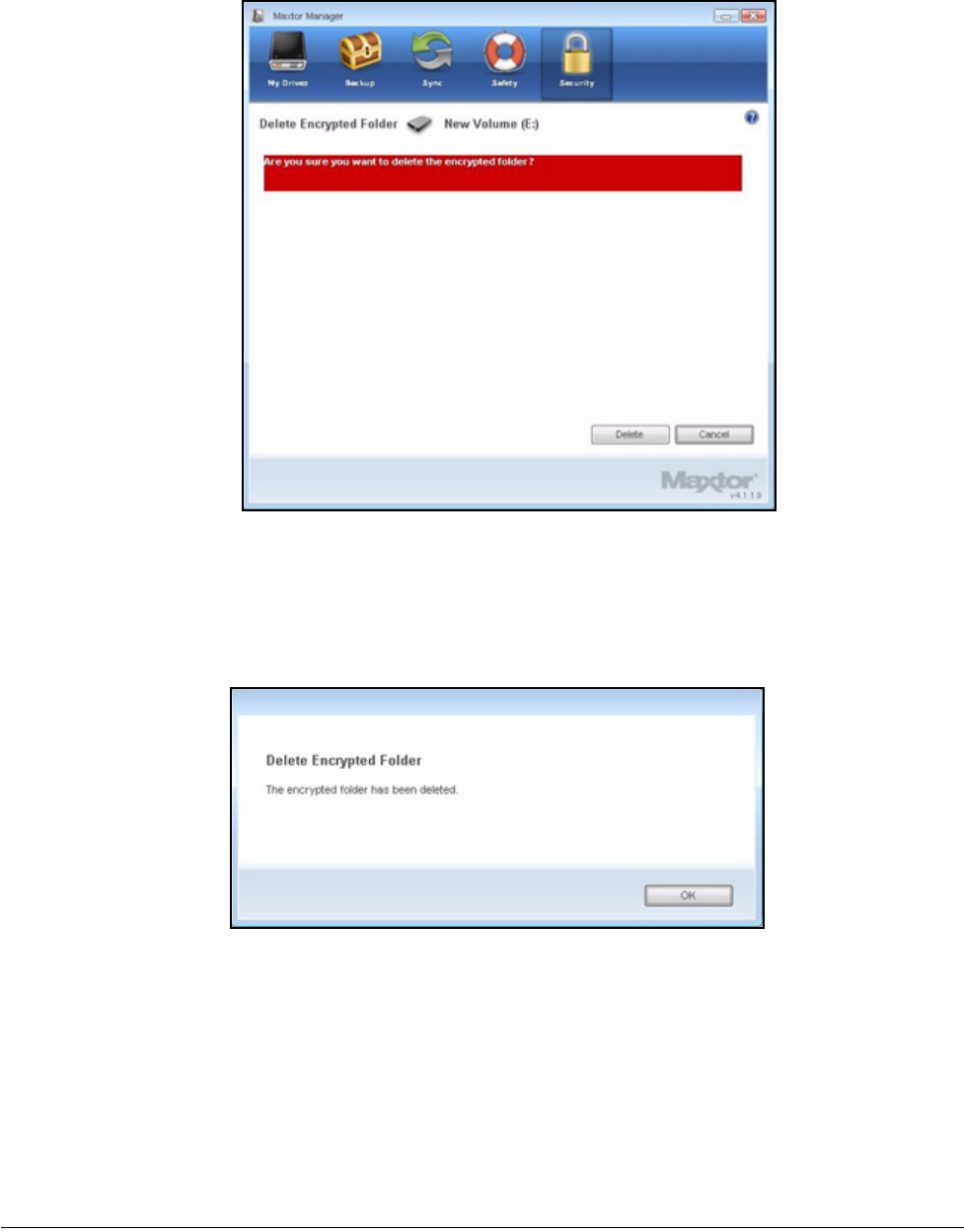
A Delete Encrypted Folder warning window makes certain you want to delete the
encrypted folder:
Figure 38: Delete Encrypted Folder
Maxtor OneTouch IV 112
Step 6: Click Delete.
A Delete Encrypted Folder confirmation window opens:
Step 7: Click OK.
Figure 39: Delete Encrypted Folder Warning
Figure 40: Delete Encrypted Folder Confirmation
Maxtor OneTouch IV 113
Opening an Encrypted Folder
To open an encrypted folder,
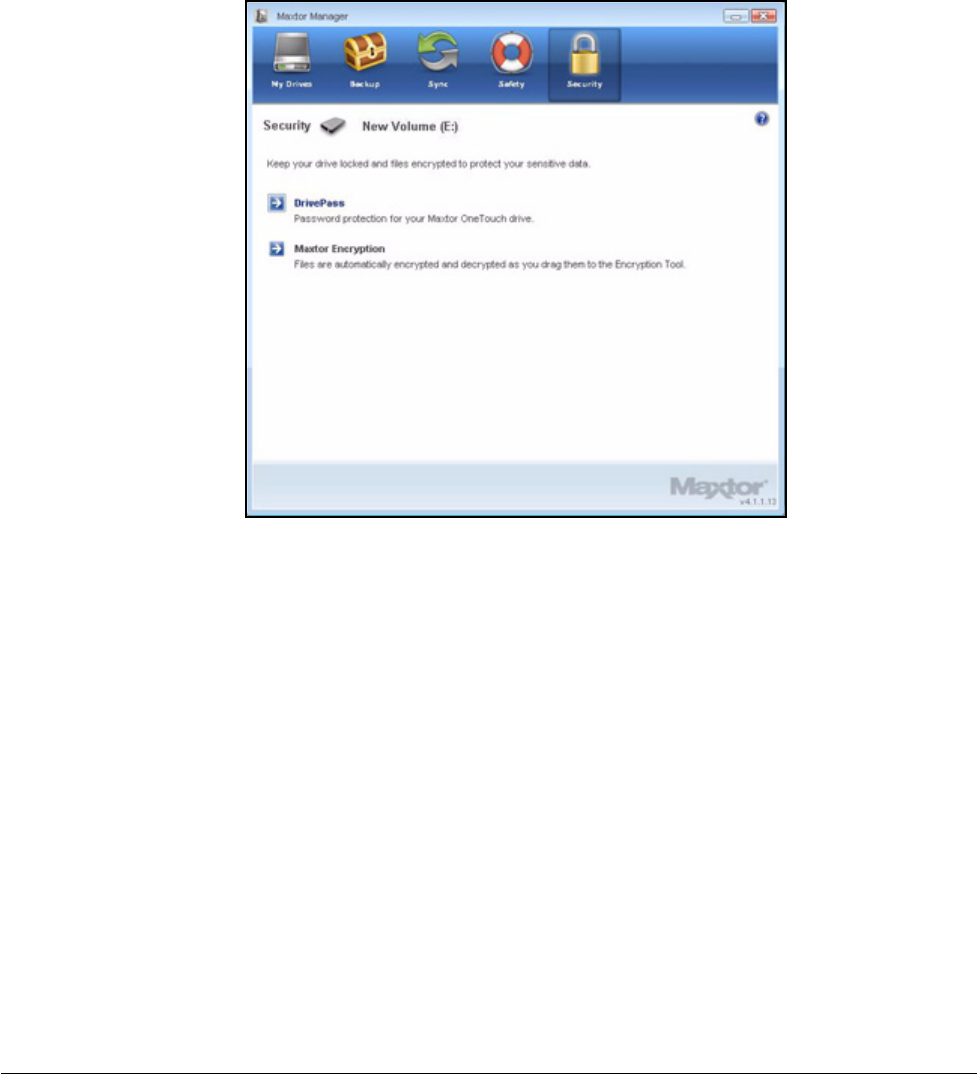
Step 1: Click Security in the Command panel.
The Security window opens:
Step 2: Click Maxtor Encryption in the Security window.
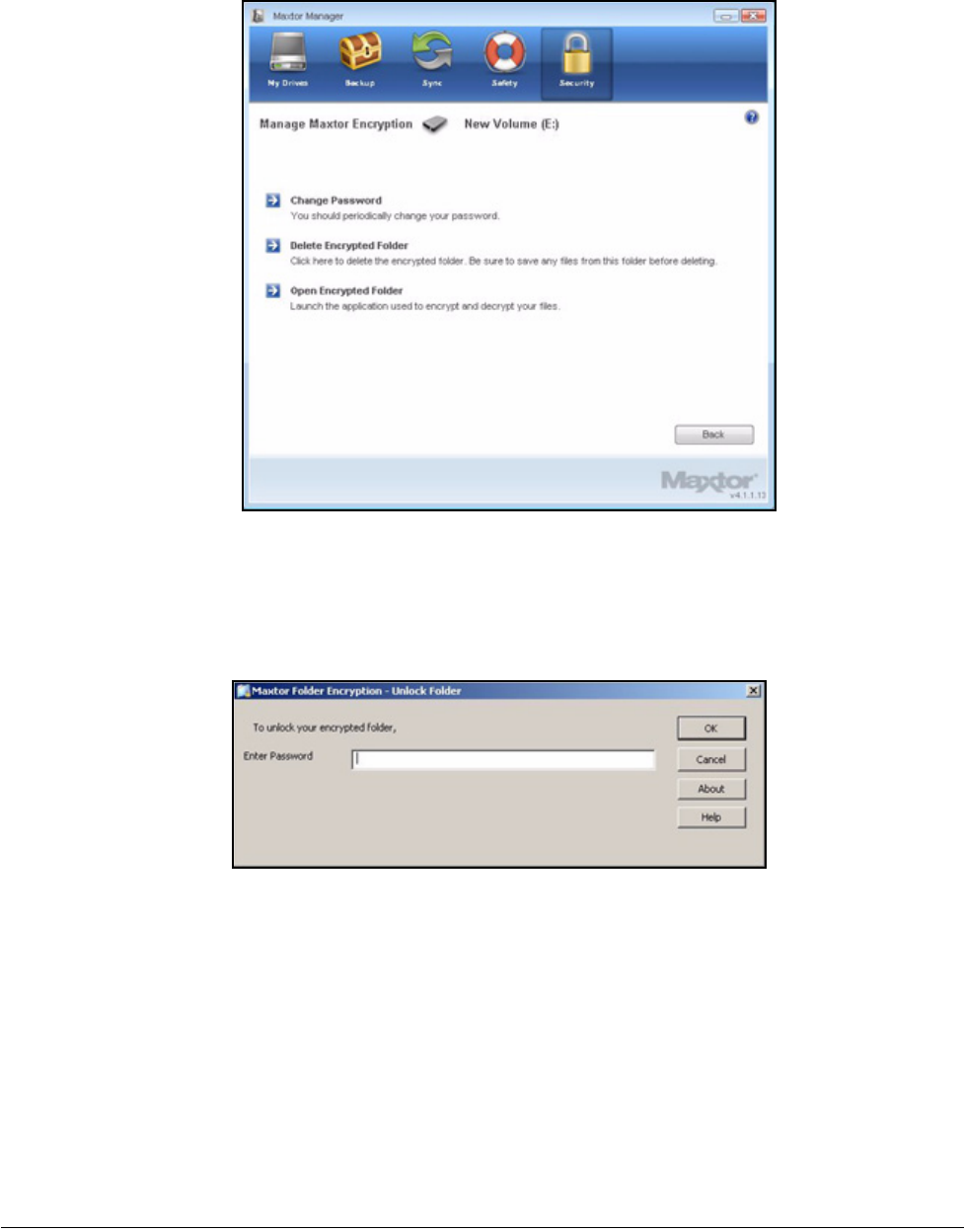
The Manage Maxtor Encryption window opens:
Figure 41: Security
Maxtor OneTouch IV 114
Step 3: Click Open Encrypted Folder.
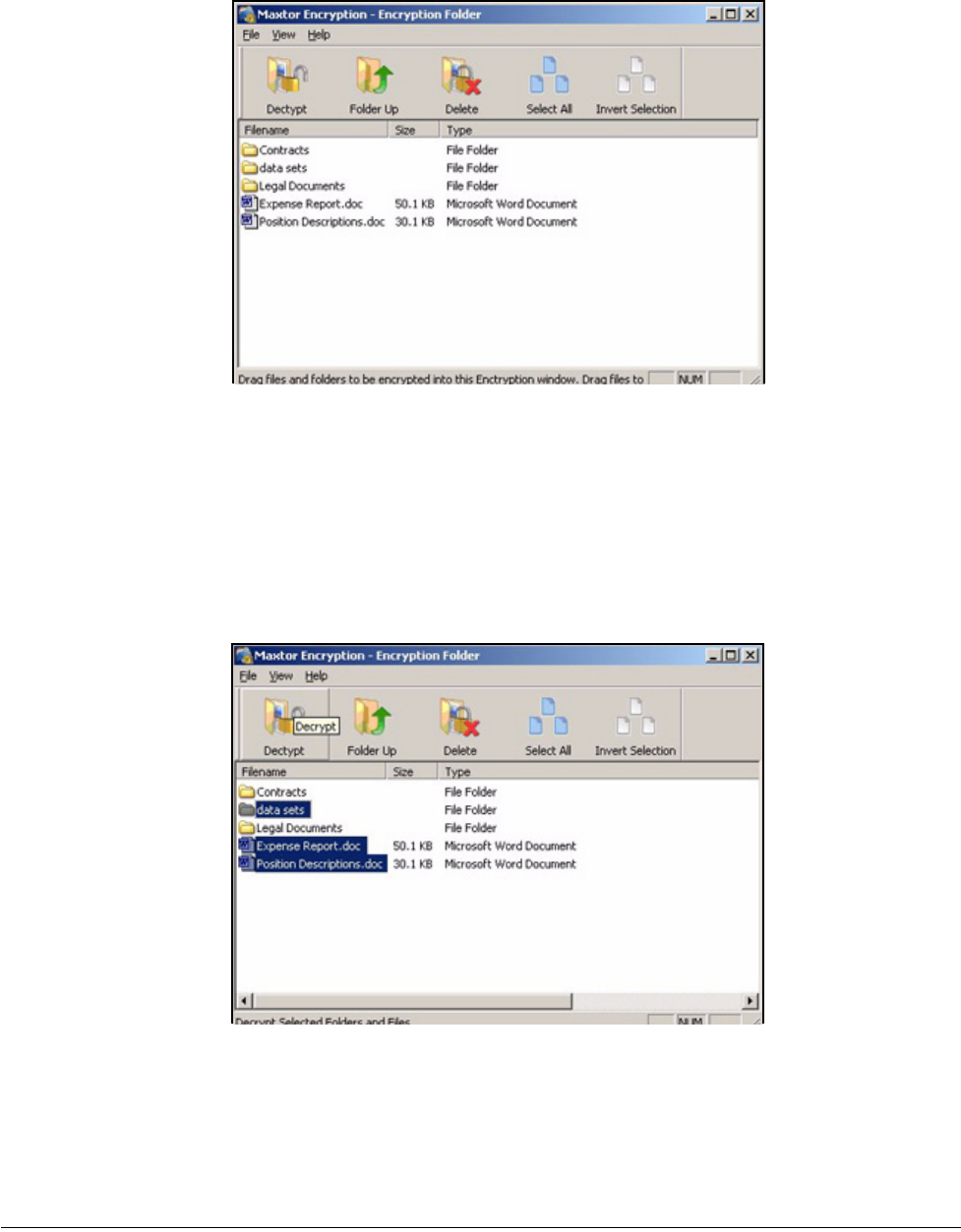
The Unlock Folder window opens:
Step 4: Enter your password and click OK.
Your encrypted folder opens:
Figure 42: Manage Maxtor Encryption
Figure 43: Unlock Folder
Maxtor OneTouch IV 115
Decrypting Files and Folders
To decrypt files or folders and move them out of your encrypted folder,
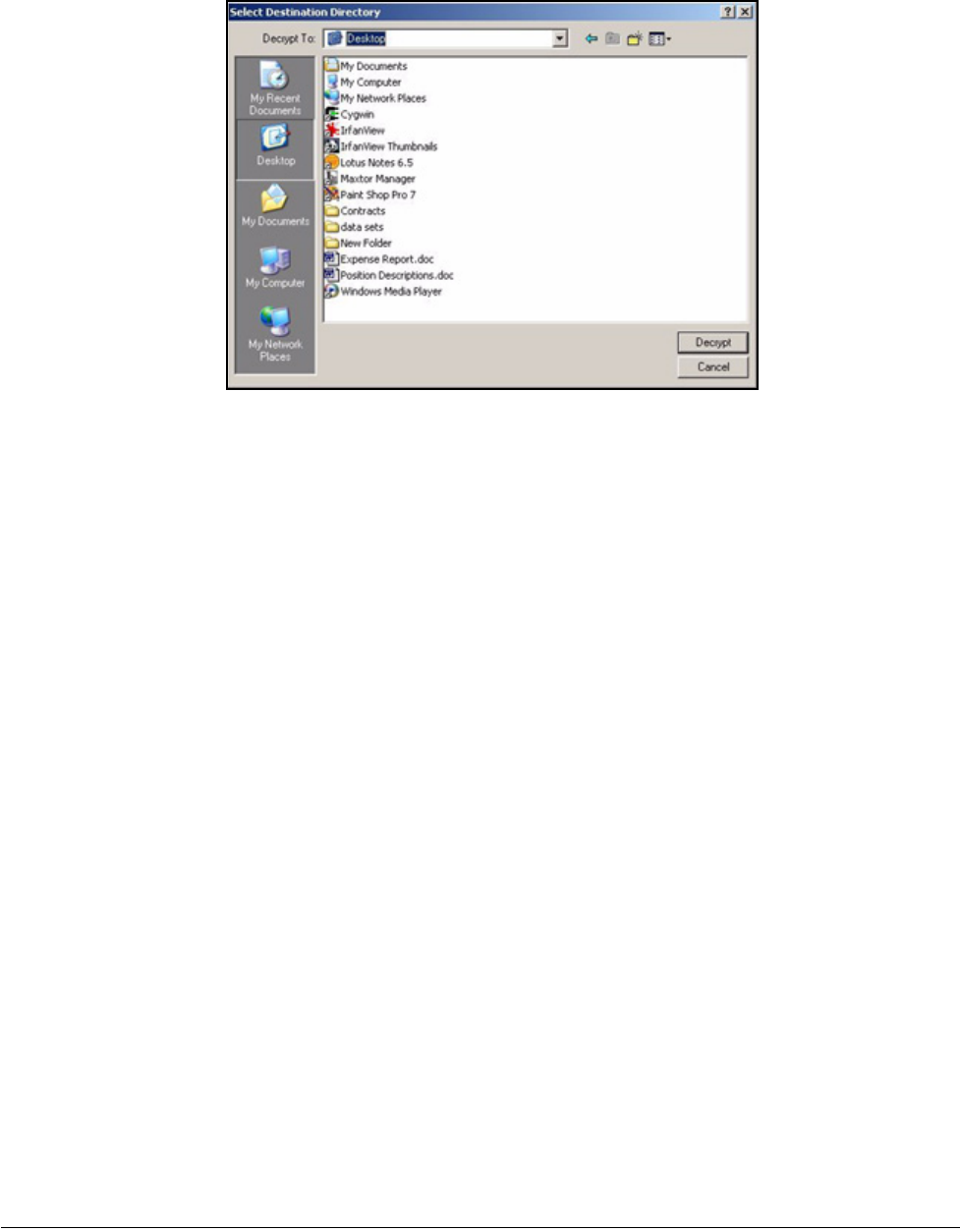
Step 1: Select the items to be decrypted in the encrypted folder and click Decrypt in the
toolbar.
A Select Destination Directory opens:
Figure 44: Encrypted Folder
Figure 45: Encrypted Folder - Decrypt Folder
Maxtor OneTouch IV 116
Step 2: Select a destination and click Decrypt.
Decrypted copies of the items are placed in the selected location.
The encrypted versions remain in the encrypted folder. To remove them from the
encrypted folder, use the Delete option in the encrypted folder toolbar.
Note: Files can also be dragged and dropped at the desired location on your computer. Folders
cannot be dragged and dropped; you must use the Decrypt operation to remove them
from an encrypted folder.
Deleting Files and Folders from an Encrypted Folder
To delete files and folders from your encrypted folder,
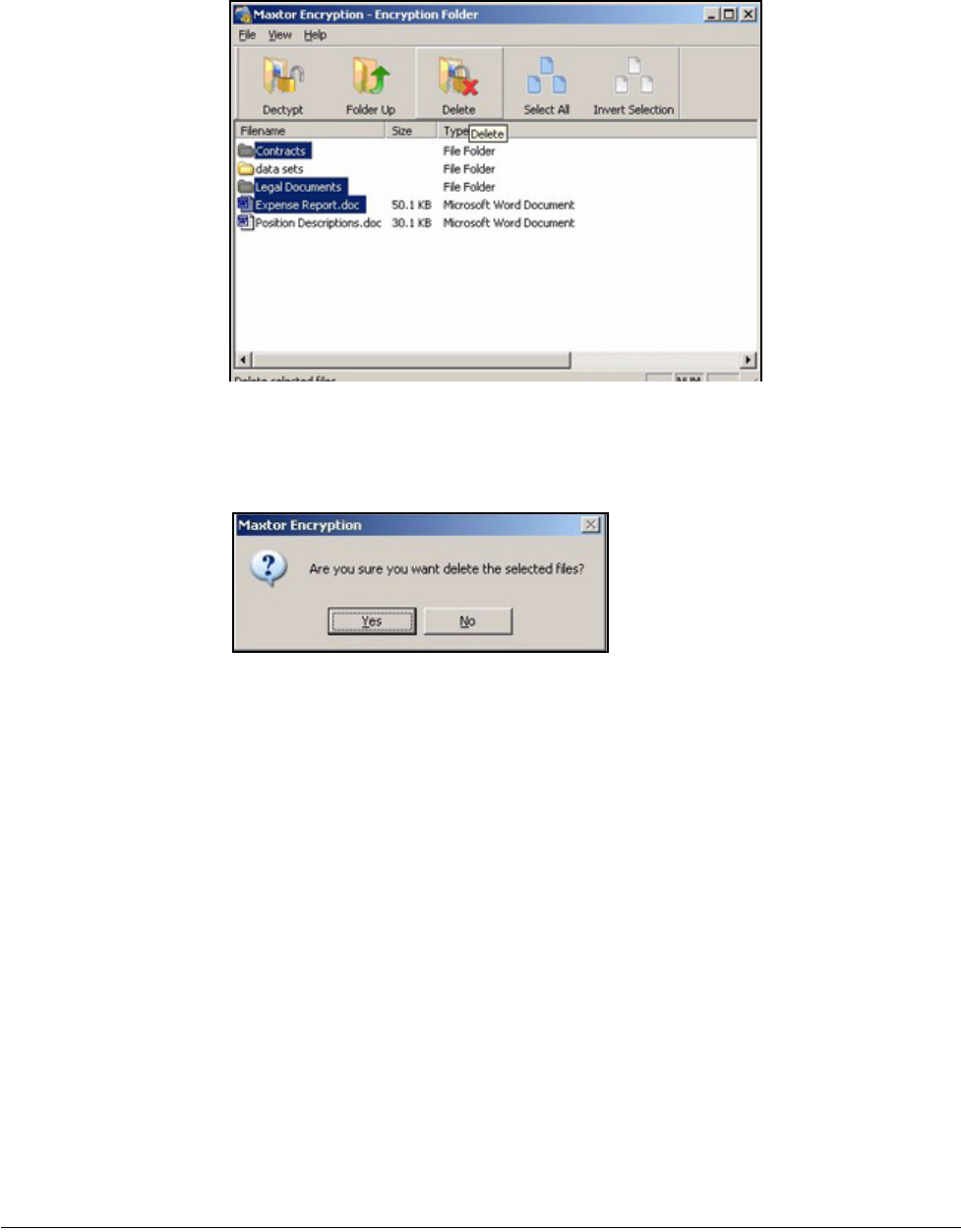
Step 1: Select the items to be deleted in the encrypted folder and click Delete in the
toolbar.
Figure 46: Select Destination Directory
Maxtor OneTouch IV 117
A Delete warning window opens:
Step 2: Click Yes.
The selected items are deleted from the encrypted folder.
Note: Files can also be dragged and dropped into the Recycle Bin. Folders cannot be dragged
and dropped; you must use the Delete operation to delete them from an encrypted folder.
Figure 47: Encrypted Folder - Delete File
Figure 48: Encrypted Folder Delete File Warning

Maxtor OneTouch IV 118
Restoring Your System With
SafetyDrill™
SafetyDrill™ allows you to save copies on your OneTouch drive of all partitions on your PC
system boot drive so that you can restore your system in the event of a system failure. You
can create a SafetyDrill copy whenever you like and save as many copies as will fit in the
space you allocate for them on your OneTouch drive.
SafetyDrill consists of two components:
1. A Maxtor SafetyDrill Recovery CD, which is included with your OneTouch drive. It
contains a system reboot program that enables your system to reboot and access your
OneTouch 4 drive after a system failure. DO NOT LOSE THIS CD.
You should try booting your system with the Maxtor SafetyDrill Recovery CD to make
sure it works properly.
2. A SafetyDrill copy of all partitions on your system boot drive, stored on your OneTouch
drive so that you can use it to restore your system in the event of a system failure.
Note: DrivePass must be disabled in order to restore your system from a SafetyDrill copy.
Creating SafetyDrill Copies
A SafetyDrill copy is a snapshot of your complete PC system boot drive. You can make a
new copy whenever you wish and save multiple copies or overwrite older versions with
newer versions.
Note: Do NOT encrypt SafetyDrill copies in your Encrypted Folder.
To create a SafetyDrill copy now,
Step 1: Click Safety in the Command panel.
The SafetyDrill window opens:
Maxtor OneTouch IV 119
Step 2: Click Create SafetyDrill Copy Now.
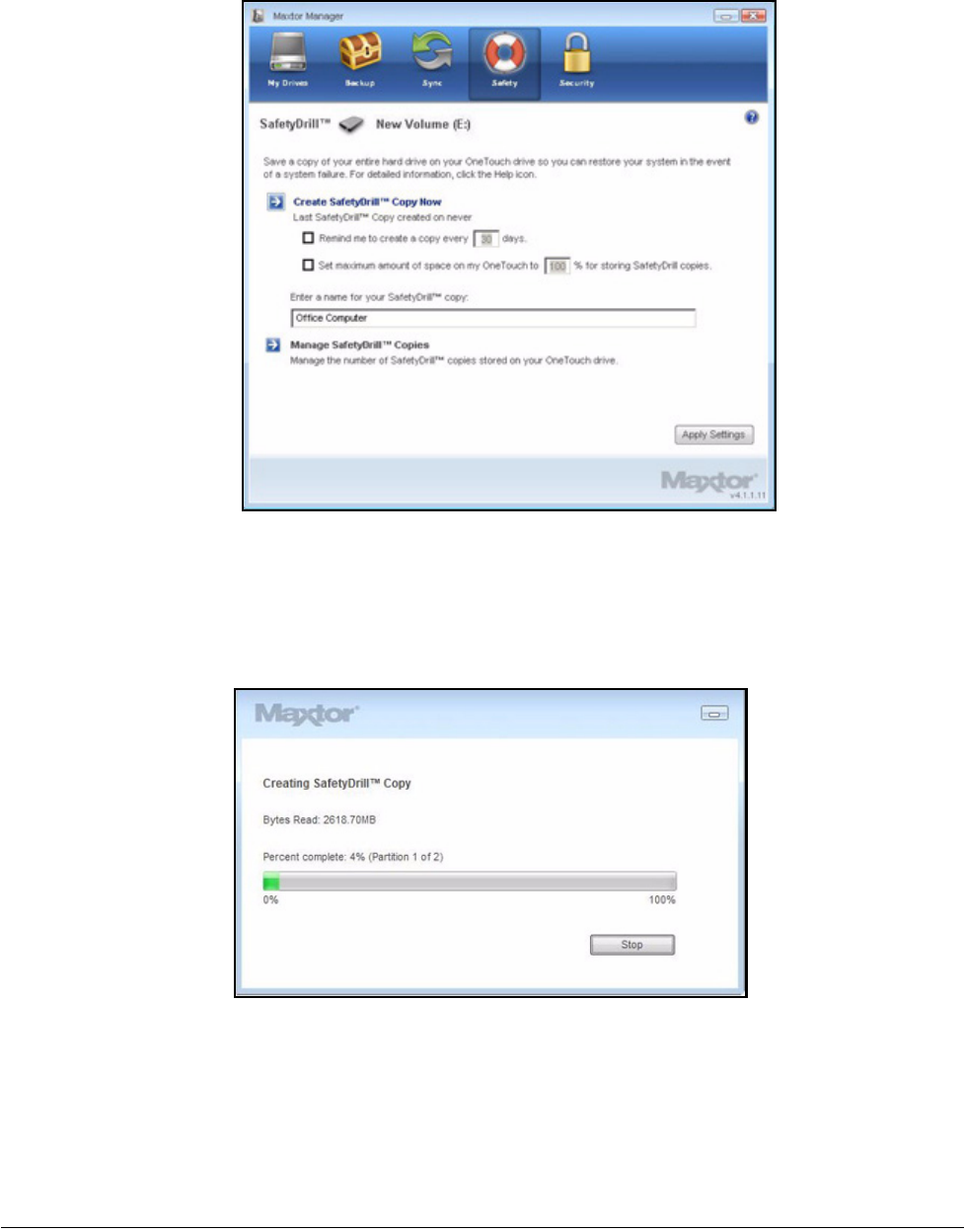
A Creating SafetyDrill Copy window informs you of the progress of the copy:
Step 3: When the SafetyDrill copy is complete, click Done to close the window.
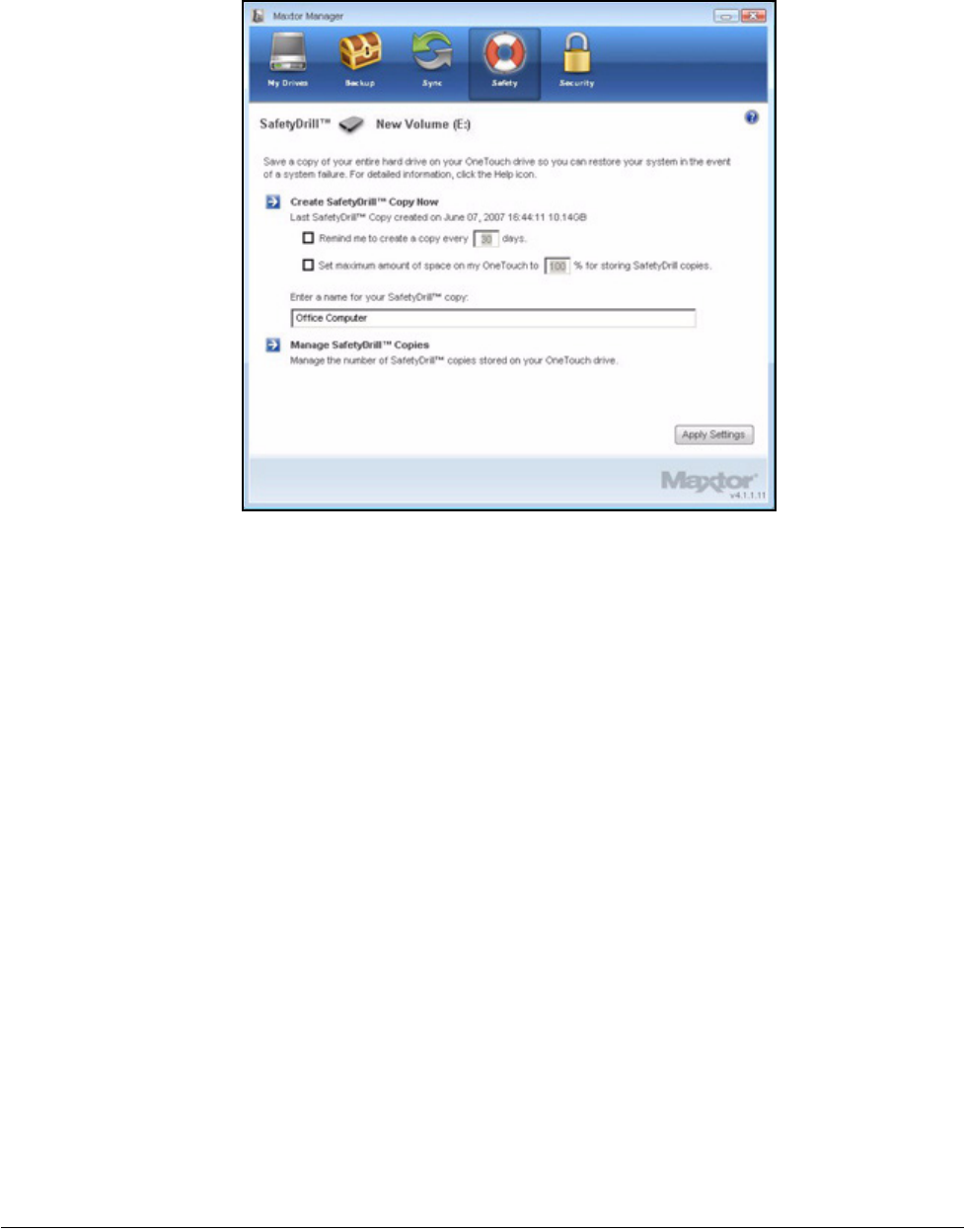
The SafetyDrill screen reflects the date of the most recent SafetyDrill copy:
Figure 1: SafetyDrill
Figure 2: SafetyDrill Copy Progress
Maxtor OneTouch IV 120
Setting Up SafetyDrill Copy Parameters
SafetyDrill copies are not created automatically; you must click Create SafetyDrill Copy
Now in the SafetyDrill window each time you want to create a new copy.
You can schedule the Maxtor Manager to remind you to make copies on a regular basis
and you can specify how much of the space on your OneTouch drive should be allocated
to storing those copies. You can also name your SafetyDrill copies so that you can
distinguish them from SafetyDrill copies of other computer hard drives that might also be
stored on your OneTouch.
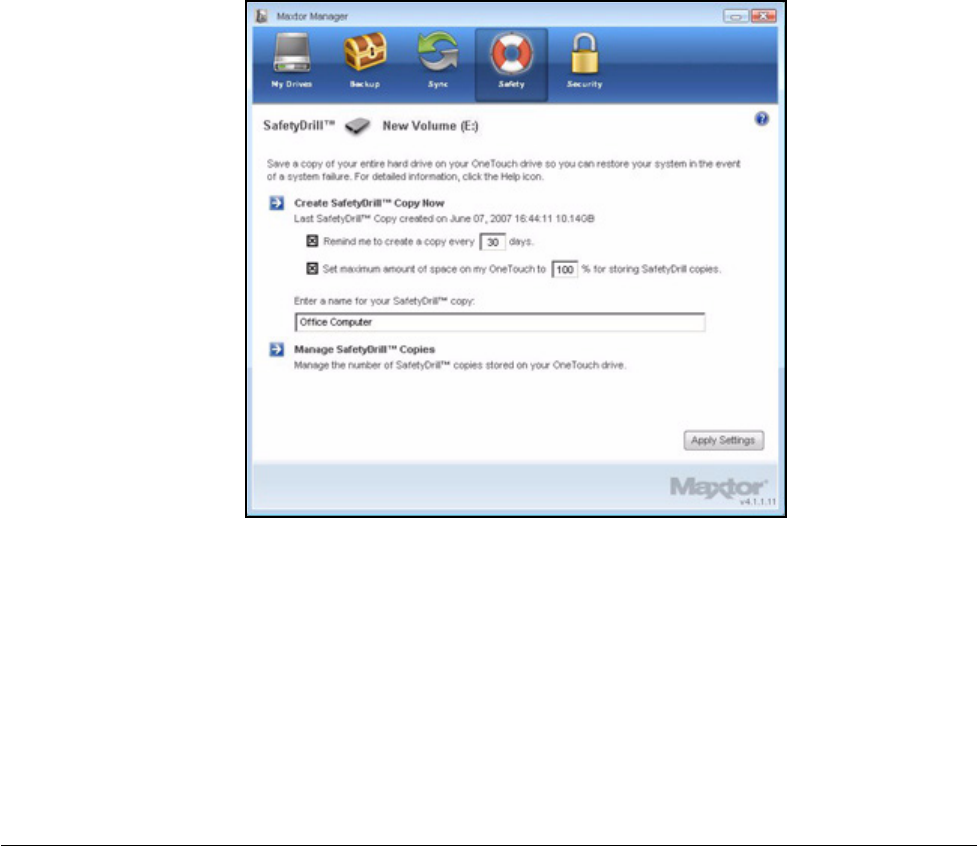
To schedule SafetyDrill reminders, set OneTouch 4 space allocations, and name your
copies,
Step 1: Click Safety in the Command panel.
The SafetyDrill window opens:
Figure 3: SafetyDrill
Maxtor OneTouch IV 121
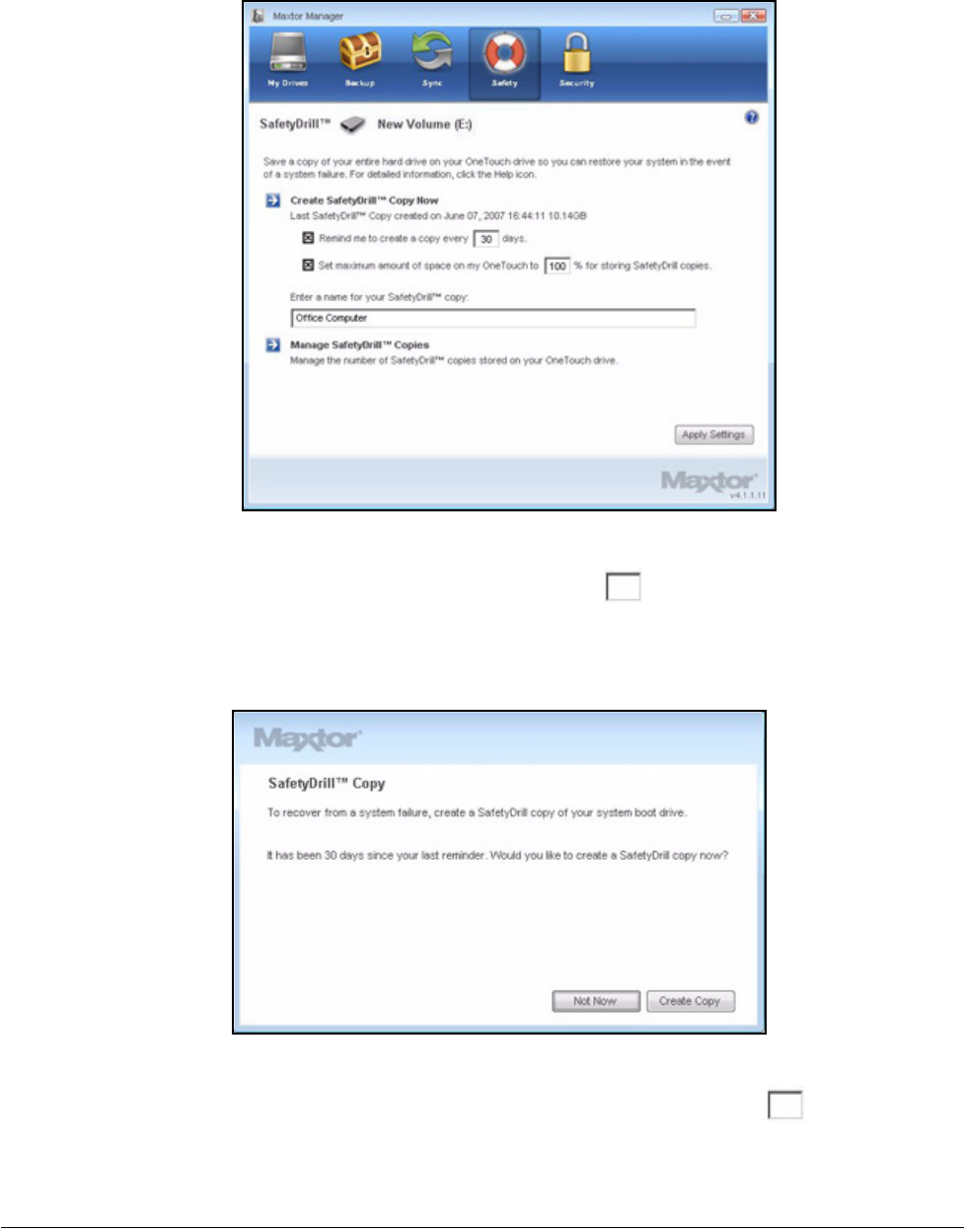
Step 2: Check Remind me to create a copy every days and fill in the number of
days to set up a reminder.
When the allotted number of days passes, the Reminder window opens:
Step 3: Check Set maximum amount of space on my OneTouch to % for
SafetyDrill copies and fill in the percentage of disk space your SafetyDrill copies
can occupy.
Figure 4: SafetyDrill
Figure 5: SafetyDrill Copy Reminder
Maxtor OneTouch IV 122
Step 4: Enter a name for your SafetyDrill copies so you can distinguish them from
SafetyDrill copies of other computer hard drives.
Managing SafetyDrill Copies
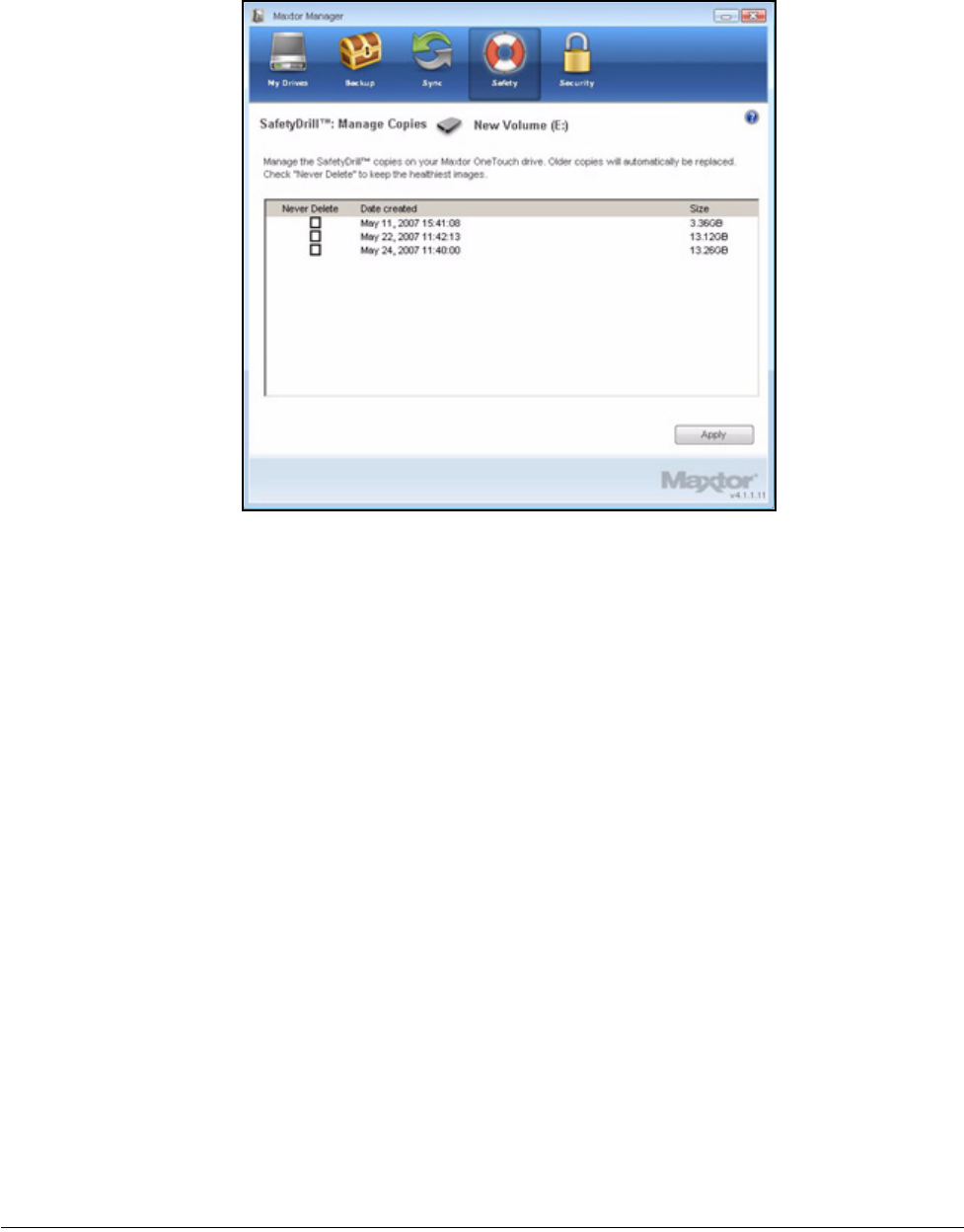
Once you’ve filled the amount of space allocated for SafetyDrill copies on your OneTouch,
older copies will automatically be overwritten by more recent copies. If you wish, you can
manage versions yourself and choose which copies to save. If you want to save only the
most recent copies, you don’t have to do anything.
To manage SafetyDrill copies,
Step 1: Click Safety in the Command panel.
The SafetyDrill window opens:
Step 2: Click Manage SafetyDrill Copies.
The Manage Copies window opens:
Figure 6: SafetyDrill
Maxtor OneTouch IV 123
Step 3: Select Never Delete for copies you don’t want overwritten.
Step 4: Click Apply to save your selections and return to the SafetyDrill window.
Restoring Your System from a SafetyDrill Copy
If your system crashes, use your SafetyDrill System Boot CD to reboot your system. Then
you can use the SafetyDrill copies stored on your OneTouch drive to restore your entire PC
boot drive system.
To restore your system from a SafetyDrill copy,
Step 1: Install a new computer hard drive that is equal to or larger than your old drive.
If your new drive is larger than the original drive from which you made the
SafetyDrill copy, the extra portion of the new drive will not be partitioned during the
system restore from the SafetyDrill copy.
Step 2: Make sure your BIOS Boot Priority is set to Boot from CD. (Refer to your system
manual for detailed instructions.)
Step 3: Connect and turn on your OneTouch 4 drive BEFORE you reboot your
computer.
Step 4: Insert the SafetyDrill Recovery CD and wait for your system to reboot.
Figure 7: Manage SafetyDrill Copies
Maxtor OneTouch IV 124
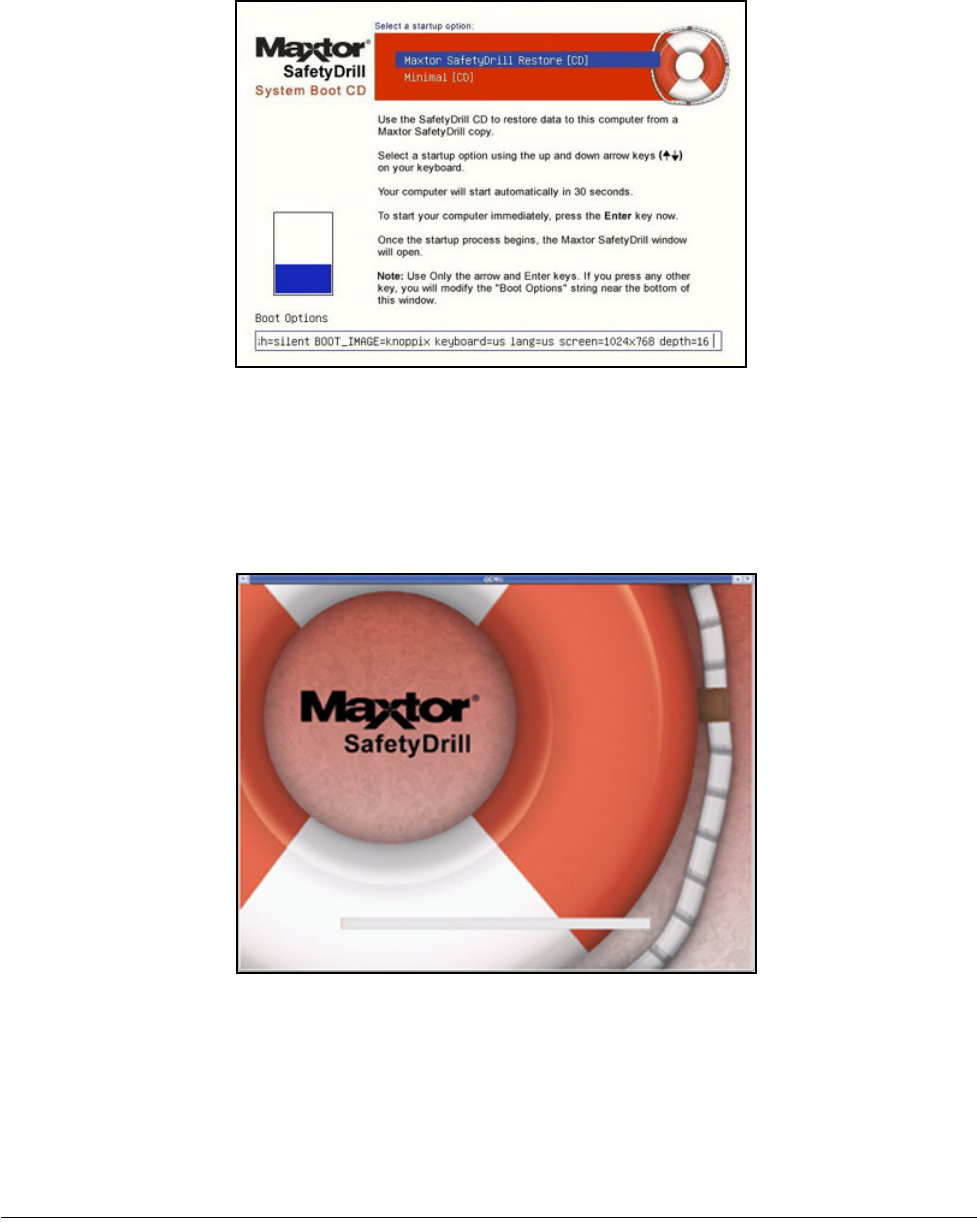
The Maxtor SafetyDrill Startup Options window opens:
Step 5: Use the arrow keys to make sure Maxtor SafetyDrill Recovery [CD] is selected.
Step 6: Wait 30 seconds for your computer to restart or press Enter to restart immediately.
After the restart, the Maxtor SafetyDrill boot screen opens:
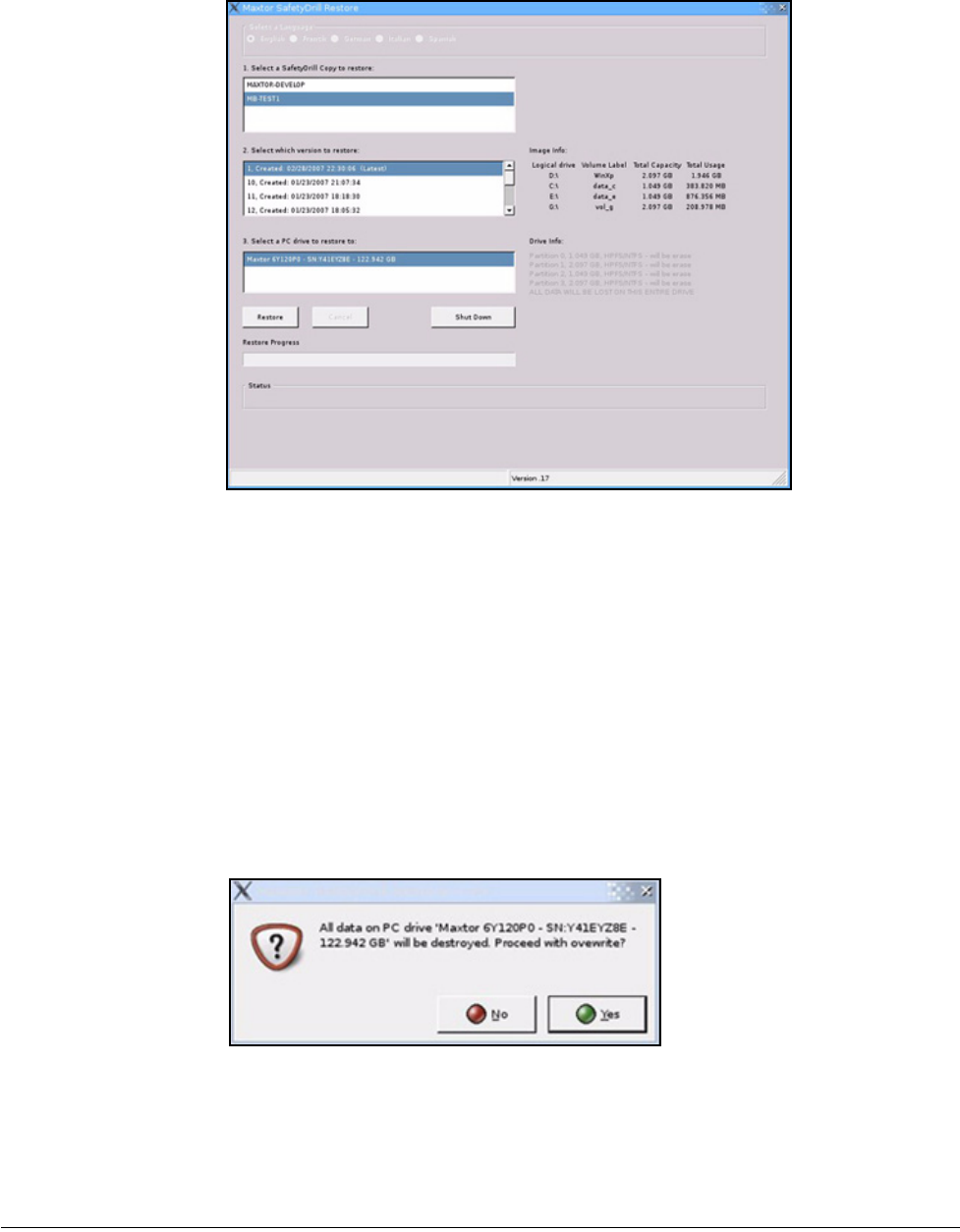
When your system has booted, the Maxtor SafetyDrill Restore window opens:
Figure 8: Maxtor SafetyDrill Startup Options
Figure 9: Maxtor SafetyDrill Boot Screen
Maxtor OneTouch IV 125
Step 7: In the Maxtor SafetyDrill Restore window,
(a) Select a language.
(b) Select a SafetyDrill copy to restore.
(c) Use the date stamp and the image information provided to the right of the
selected copy to select which SafetyDrill copy to restore.
(d) Select a PC drive to restore to.
(e) Click Restore.
A warning window cautions you that all data on your hard drive will be overwritten
if you proceed:
Presumably you’ve just installed a new drive, so nothing is stored on it.
Figure 10: Maxtor SafetyDrill Restore Window
Figure 11: Overwrite Warning
Maxtor OneTouch IV 126
Step 8: Click OK.
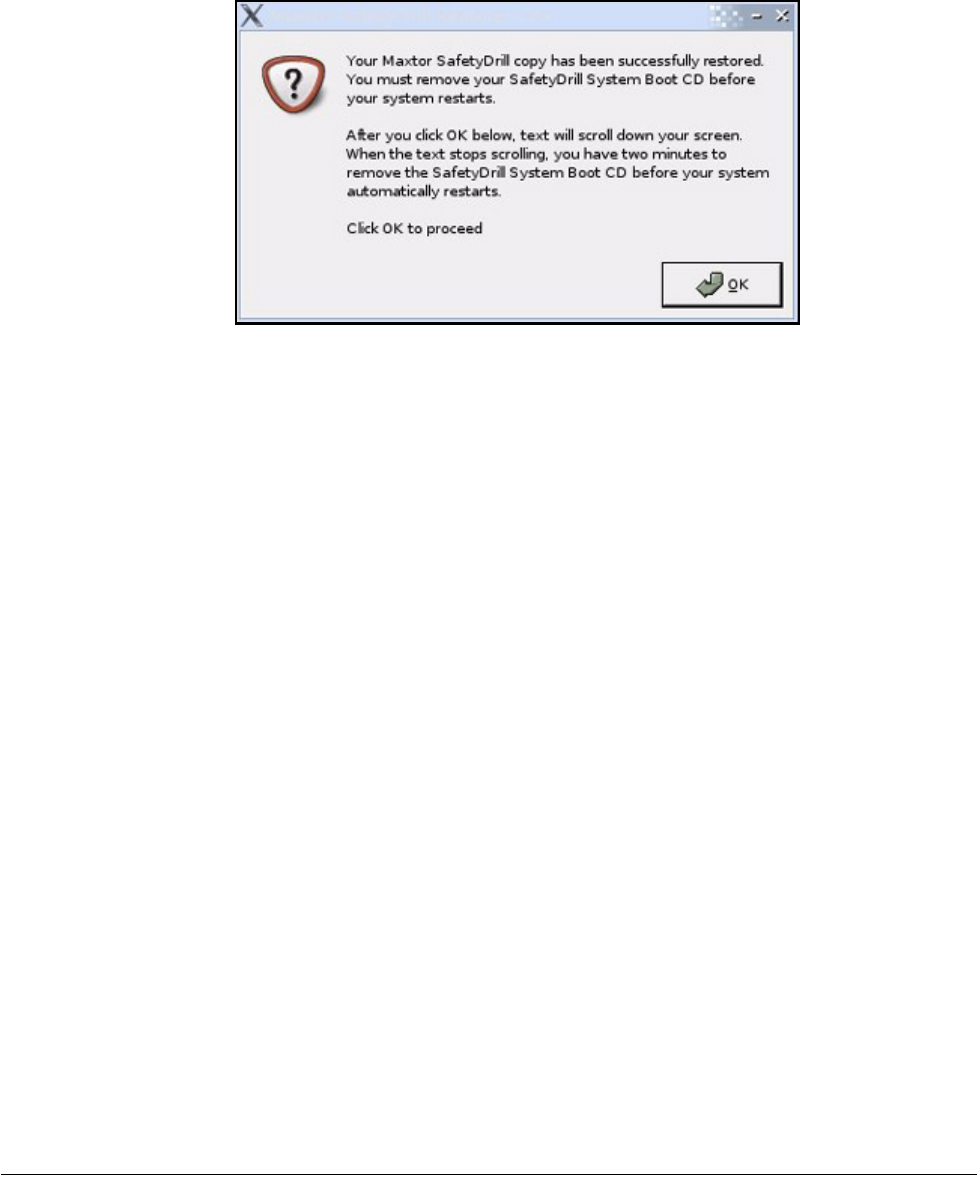
After the system has been restored, a window confirms a successful restore:
Step 9: Click OK.
Your computer shuts down automatically and the CD tray opens.
Step 10: Remove the SafetyDrill Recovery CD before your computer automatically restarts
in two minutes.
Step 11: After your system has been restored, restore your backed up files and folders from
your OneTouch 4 drive. See Backing Up and Restoring Folders for more
information.
Figure 12: SafetyDrill Restore Confirmation

Maxtor OneTouch IV 127
Frequently Asked Questions
These are common, frequently asked questions about the OneTouch 4. For further
information, refer to the Seagate Knowledge Base at support.seagate.com.
1. What are the minimum Operating System requirements for the OneTouch 4?
Microsoft Windows:
• XP Professional, XP Home, XP Media Center Edition*
• Vista Home Basic, Vista Home Premium, Vista Business, Vista Ultimate*
* 32-bit Operating Systems only
Macintosh:
• Mac OSX 10.4.9 and newer
No other Operating System versions are supported. Although other Operating Systems
may recognize the OneTouch 4 as an external storage device, the OneTouch 4 installation
software will not work.
2. What do I do if my computer doesn’t recognize my OneTouch 4?
It can take your computer up to two (2) minutes to recognize a OneTouch 4. If your
computer does not see the drive after several minutes, try the following:
• Verify that power and interface cables are properly connected,
OneTouch 4 Mini Users: Make sure to connect the interface cables in the
following sequence:
1Power + Data
2Power Only
3Type B Interface directly to the OneTouch 4 Mini
•Windows Users: Make sure the OneTouch 4 drive is recognized in My Computer in
XP (Computer in Vista), Disk Management, or Device Manager.
•Macintosh Users: Make sure the OneTouch 4 drive is mounted on the Apple
Desktop and is recognized in the System Profiler.
• If you’re connecting through an USB Hub, make sure it’s a powered USB Hub.
• Did you set a DrivePass password on the OneTouch 4 and then move it to another
computer? If so, the other computer cannot see the locked OneTouch 4. You must
either install the Maxtor Manager on the other computer and unlock the drive or
return the OneTouch 4 to the original system and disable DrivePass through the
Maxtor Manager.
3. Can I back up my entire system using the OneTouch 4's Backup feature?
No. The Backup feature is designed to back up your data (documents, pictures, music,
videos, etc.). The Backup feature cannot back up your entire computer. Windows
OneTouch 4 Plus and OneTouch 4 Mini users can use SafetyDrill to back up their

Maxtor OneTouch IV 128
computers. (SafetyDrill is not available on the Macintosh.) OneTouch 4 users can use a
third-party or Operating System (Vista Business or Vista Ultimate) backup solution.
4. What types of files and folders cannot be backed up or synchronized using the
Maxtor Manager's Backup and Sync features?
The Backup and Sync features cannot back up or sync these file and folder types:
• System Attributed Files/Folders (Operating System and/or Program files), including
hidden files/folders.
• Personal Mail Files created with Outlook, Outlook Express, Windows Mail, and
Macintosh Mail
• Financial Files/Data
• Other user data files/folders
The Maxtor Manager's Backup and Sync utilities are designed to back up or sync a single
user's Windows XP or Mac OS X Documents folder or Vista Personal User folder.
5. Is there any way to recover a lost DrivePass or Maxtor Encryption password?
No. There is no way to recover a lost password.
• If you lose a DrivePass password, you must erase the OneTouch drive in order to use
it again. Erasing the drive will erase all data stored on it.
• If you lose a Maxtor Encryption password, you must delete the encrypted folder. This
will delete all data stored within the encrypted folder.
Seagate strongly recommends that you create passwords that are easily remembered or
record passwords and store them in a secure location.
6. Can I use my OneTouch 4 without installing the software?
Yes. The OneTouch 4 can be used as an add-on, external storage device for storing data.
However, if you wish to use the feature-rich utilities such as Backup, you must install the
Maxtor Manager software included on your OneTouch 4 drive.
7. Can I use my OneTouch 4 with both Macintosh and Windows computers?
No. Windows and Macintosh File System formats do not play well together. Windows XP
and Vista formats use the NTFS File System, while Macintosh uses the HFS+ File System.
Windows cannot see a drive prepared for use with a Mac. While Mac OS X can see a
Windows-formatted drive, it cannot write files to it. So there’s no safe way to use your
OneTouch 4 drive with both Operating System platforms.
8. What’s the simplest way to transfer files to my OneTouch 4?
Transfer files and folders to your OneTouch 4 using standard Windows/Macintosh Copy
and Paste or Drag and Drop methods. Refer to either Windows or Apple Help files or
Knowledge Bases for file transfer procedures.
9. The OneTouch 4 does not have a power switch. How do I disconnect the drive
from my computer?

Maxtor OneTouch IV 129
How you disconnect your OneTouch 4 from your system depends on your Operating
System platform:
Windows:
1Double-click the Safely Remove Hardware icon in the System Tray.
2Select the OneTouch 4 from the list of devices and click Stop in both windows.
3Disconnect your OneTouch 4 from your computer.
Macintosh:
1Click and drag the volume associated with the OneTouch 4 to the Trash to eject the
volume.
2Disconnect your OneTouch 4 from your computer.
You can also disconnect the OneTouch 4 when your computer is shut down.
Note: Never disconnect the OneTouch 4 drive while data is being transferred between the
computer and the drive. Failure to properly disconnect the OneTouch 4 drive may result in
data corruption or loss.
10. What do I do if my OneTouch 4 software is lost or corrupted?
The OneTouch 4 installation software and utilities are pre-loaded on your drive. These files
will be permanently lost if you delete them or reformat the drive. Seagate recommends that
you copy all installation files to your local system before using the drive.
If the OneTouch 4 installation and utilities files are lost or corrupted, you can download new
copies from the Seagate Website at www.seagate.com. On the website, click the
Download Center link for all available downloads for your OneTouch 4.

Maxtor OneTouch IV i
Index
A
Adjusting the Power Setting 14
B
Backing Up & Restoring Folders 30
Creating a Backup Plan 30
Restoring Files 50
Backing Up Manually 47
C
Changing Your DrivePass Password 86
Changing Your Encryption Password 104
Checking Sync Status 69
Completing the Sync 64
Creating a Backup Plan 30
Creating a Custom Backup 32
Using Simple Backup 30
Creating a Custom Backup 32
Creating an Encrypted Folder 100
Creating SafetyDrill Copies 118
Setting Up SafetyDrill Copy Parameters 120
Customizing the OneTouch Button 10
D
Decrypting Files and Folders 11 5
Deleting a Backup Plan 44
Deleting an Encrypted Folder 109
Deleting Files and Folders from an Encrypted Folder 116
Deleting Sync Settings 71
E
Editing Backup Settings 39
Editing Sync Settings 65
Enabling DrivePass 78
F
Frequently Asked Questions 127

Maxtor OneTouch IV ii
G
Getting Started 1
Installing the Software 1
Using the System Tray Icon 6
I
If You Forget Your Password... 92
Installing the Software 1
M
Managing an Encrypted Folder 103
Changing Your Encryption Password 104
Decrypting Files and Folders 11 5
Deleting an Encrypted Folder 109
Deleting Files and Folders from an Encrypted Folder 116
Opening an Encrypted Folder 113
Managing Backup Settings 39
Backing Up Manually 47
Deleting a Backup Plan 44
Editing Backup Settings 39
Using Scheduled Backup 46
Viewing the Backup Log 48
Managing SafetyDrill Copies 122
Managing Security 78
Setting Up DrivePass 78
Using Folder Encryption 99
Managing Your Drives 9
Adjusting Power Setting 14
Customizing the OneTouch Button 10
Testing Your Drive 17
O
Opening an Encrypted Folder 113
R
Removing DrivePass 83
Restoring an Historical Version 52
Restoring Files 50
Restoring an Historical Version 52
Restoring the Most Recent Version 53
Restoring the Most Recent Version 53
Restoring Your System from a SafetyDrill Copy 123
Restoring Your System with SafetyDrill
Creating SafetyDrill Copies 118
Managing SafetyDrill Copies 122

Maxtor OneTouch IV iii
Restoring Your System from a SafetyDrill Copy 123
Restoring your System with SafetyDrill 118
S
Setting Up DrivePass 78
Changing Your DrivePass Password 86
Enabling DrivePass 78
If You Forget Your Password... 92
Removing DrivePass 83
Unlocking Your OneTouch Drive 81
Setting Up SafetyDrill Copy Parameters 120
Synchronizing Folders 55
Checking Sync Status 69
Completing the Sync 64
Editing Sync Settings 65
Using Custom Sync 57
Using Simple Sync 55
T
Testing Your Drive 17
Turning Off Automatic Sync 73
Turning Off Scheduled Backup 46
U
Unlocking Your OneTouch Drive 81
Updating Your Software 26
Using Automatic Overwrite 76
Using Automatic Sync 73
Turning Off Automatic Sync 73
Using Custom Sync 57
Using Sync Encryption 62
Using Folder Encryption 99
Creating an Encrypted Folder 100
Managing an Encrypted Folder 103
Using RAID (OneTouch III Users) 21
Using Scheduled Backup 46
Using Simple Backup 30
Using Simple Sync 55
Using Sync Encryption 62
Using the Sync Preview Window 75
Using Automatic Overwrite 76
Using the System Tray Icon 6

