Marson Technology Co MT300 Mini Wireless Barcode Reader User Manual MT300L QG rev2

Marson Technology Co Ltd Mini Wireless Barcode Reader MT300L QG rev2

User manual

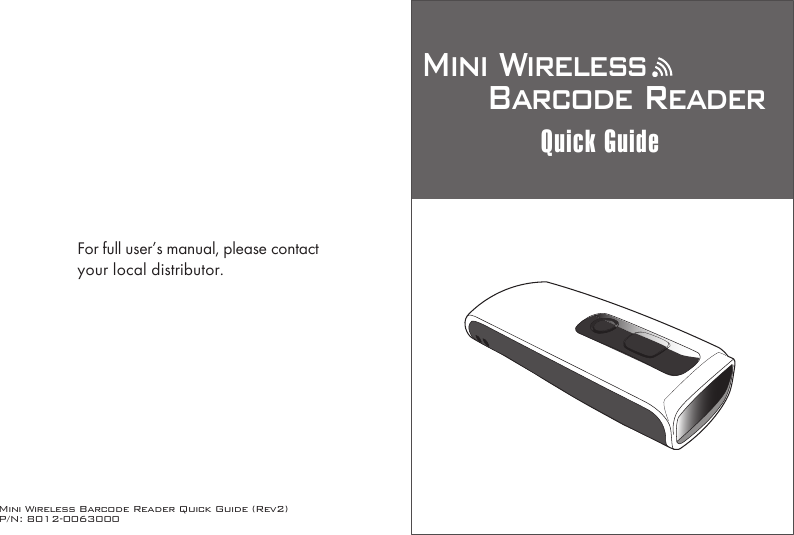
Mini Wireless Barcode Reader Quick Guide (Rev2)P/N: 8012-0063000Mini Wireless      Barcode ReaderQuick GuideFor full user’s manual, please contactyour local distributor.
-1-  -2- This  device  complies  with  Part  15  of  the  FCC  Rules. Operation is subject to the following two conditions: (1) this device may not cause harmful interference, and (2) this device must accept any  interference  received,  including  interference  that  may  cause undesired operation.  This  equipment  has  been  tested  and  found  to  comply  with the limits for a Class B digital device, pursuant to part 15 of the FCC Rules. These limits are designed to  provide reasonable protection against  harmful  interference  in  a  residential  installation.  This equipment generates, uses and can radiate radio frequency energy and,  if not  installed and  used in accordance  with  the  instructions, may cause harmful interference to radio communications. However, there is no guarantee that interference will not occur in a particular installation.  If  this  equipment  does  cause  harmful  interference  to radio  or  television reception,  which  can  be  determined  by turning the equipment off and on, the user is encouraged to try to correct the interference by one or more of the following measures:  Reorient or relocate the receiving antenna. Increase the separation between the equipment and receiver. Connect the equipment into an outlet on a circuit different from that to which the receiver is connected. Consult the dealer or an experienced radio/TV technician for help.  Any changes or modifications not expressly approved by the party responsible for compliance could void the authority to operate equipment.
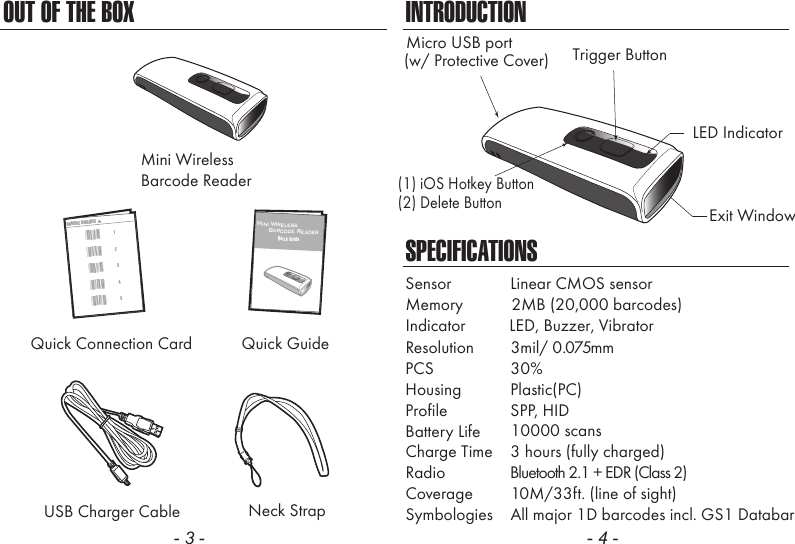
OUT OF THE BOX- 3 -INTRODUCTIONSPECIFICATIONSIndicator          LED, Buzzer, VibratorMemory           2MB (20,000 barcodes)Resolution  3mil/ 0.075mmSensor  Linear CMOS sensorPCS  30%Housing  Plastic(PC)Profile  SPP, HIDBattery Life 10000 scansCharge Time  3 hours (fully charged)Radio               Bluetooth 2.1 + EDR (Class 2)Coverage  10M/33ft. (line of sight)Symbologies  All major 1D barcodes incl. GS1 Databar- 4 -Neck StrapMini WirelessBarcode ReaderUSB Charger CableQuick GuideQuick Connection Card32145NUMERIC BARCODES*1**2**3**4**5*12Mini Wireless      Barcode ReaderQuick GuideLED IndicatorMicro USB portExit WindowTrigger Button(w/ Protective Cover)(1) iOS Hotkey Button(2) Delete Button
CHARGING THE BATTERY1. Flip open the micro USB port on the scanner.2. Insert the micro USB connector into the port on the    scanner and USB A connector into a USB port on    the host PC or smartphone/tablet adapter.- 5 - - 6 -BEEPER INDICATIONLED INDICATIONSingle long beep            Power upSingle beep               Good readSingle short beep           The scanner reads a Code39 of                                      ASCII in configuration procedureTwo beeps             i. Wireless connection                                             ii. The scanner successfully reads                a configuration barcodeThree beeps               Wireless disconnectionThree short beeps         i. The scanner reads a barcodes                while disconnected.                        ii. The scanner reads an unexpected                                        barcode during configuration                                        procedure. (scan [ABORT] to abort                                        and start over)Several short beeps        The scanner switches from one               communication mode to anotherOffFlashing BlueGreen for 2 secFlashing RedSolid RedStandby or Power offDisconnected or DiscoverableGood ReadLow powerChargingScannerMicro USBUSB AHostGETTING STARTEDTo scan a barcode, make sure the aiming beam crossesevery bar and space of the barcode.Four beeps (Hi-Lo-Hi-Lo)    Out of range/Poor connectionFive beeps               Low power
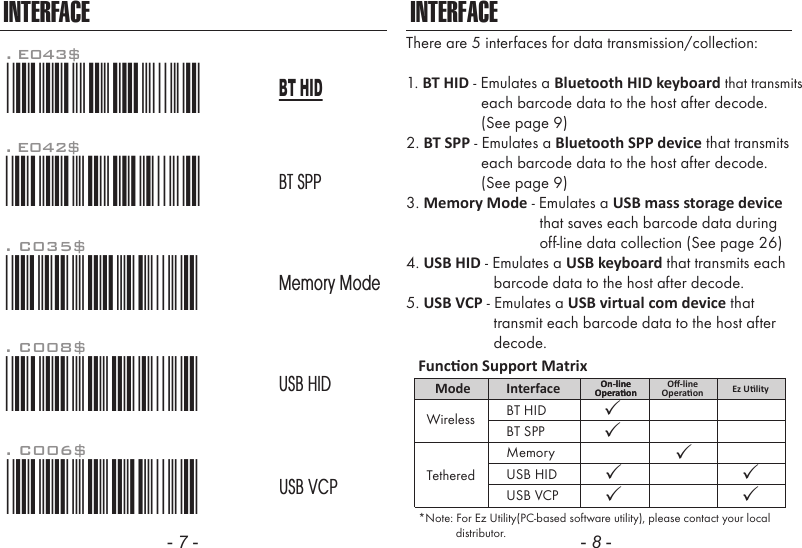
- 7 - - 8 -INTERFACEThere are 5 interfaces for data transmission/collection:1. BT HID - Emulates a Bluetooth HID keyboard that transmits                  each barcode data to the host after decode.                   (See page 9)2. BT SPP - Emulates a Bluetooth SPP device that transmits                  each barcode data to the host after decode.                  (See page 9)3. Memory Mode - Emulates a USB mass storage device                                that saves each barcode data during                                off-line data collection (See page 26)4. USB HID - Emulates a USB keyboard that transmits each                     barcode data to the host after decode.5. USB VCP - Emulates a USB virtual com device that                     transmit each barcode data to the host after                     decode.INTERFACE. C006$*.C006$*USB VCP. C008$*.c008$*USB HIDMemory ModeBT SPP. C035$*.c035$*BT HID*Note: For Ez Utility(PC-based software utility), please contact your local            distributor.Funcon Support MatrixMode Interface On-lineOperaonOn-lineOperaon Ez UlityUSB HIDUSB VCPBT HIDWirelessTetheredBT SPPMemoryOff-lineOperaon. E042$*.E042$*. E043$*.E043$*
GETTING CONNECTED PINCODE SETUP1. Press the trigger for 1 second to activate the scanner.2. Scan [DISCONNECT]3. Scan [BT mode - SPP]; the scanner will emit several beeps.4. Select “Wireless Scanner” from discovered device list.    The default pincode is “1234”.5. Open serial communication software with com port    (see Device Manager) properly set up.6. The scanner will beep twice to verify the connection.There are two modes of wireless communication:. E042$BT mode - SPPPincode Start*.E042$*. E032$*.E032$*. E033$*.E033$*. E043$BT mode - HID*.E043$*Disconnect. E031$*.E031$**$TX*$TX1. Press the trigger for 1 second to activate the scanner.2. Scan [DISCONNECT]3. Scan [BT mode - HID]; the scanner will emit several beeps.4. Select “Wireless Scanner” from discovered device list.5. The Bluetooth application may prompt you to scan    a pincode(see PINCODE SETUP    section) it generated.6. The scanner will beep twice to verify the connection.Scan numeric barcodes (see NUMERIC BARCODES    sectionon the next pages) based on the pincode generatedby the Bluetooth application.STEP 1Pincode StopEnterSTEP 4STEP 3STEP 2[ Recommanded ]- 9 - - 10 -
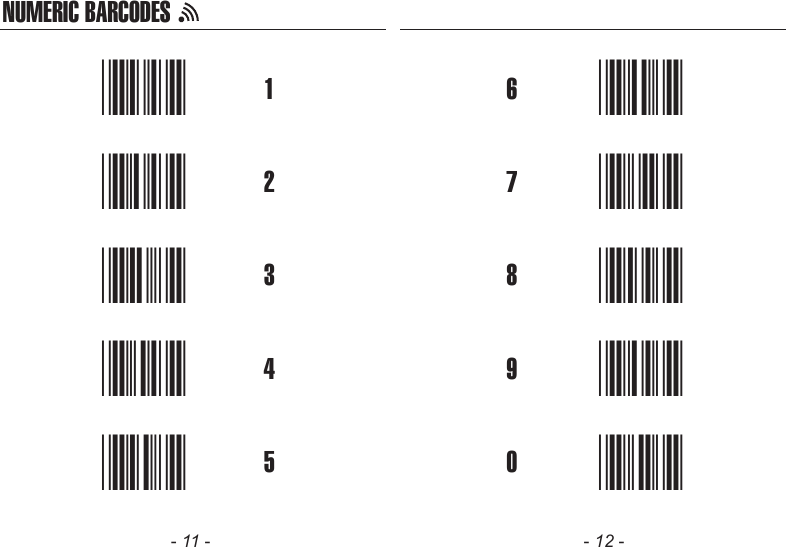
NUMERIC BARCODES1*1*2*2*3*3*4*4*5*5*6*6*7*7*8*8*9*9*0*0*- 11 - - 12 -
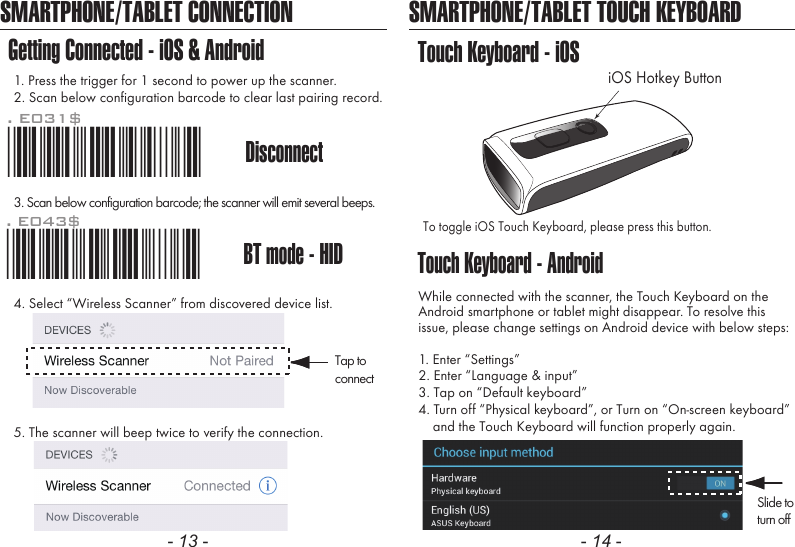
- 13 - - 14 -SMARTPHONE/TABLET CONNECTIONGetting Connected - iOS & Android1. Press the trigger for 1 second to power up the scanner.2. Scan below configuration barcode to clear last pairing record.3. Scan below configuration barcode; the scanner will emit several beeps.SMARTPHONE/TABLET TOUCH KEYBOARDTouch Keyboard - AndroidTouch Keyboard - iOSTo toggle iOS Touch Keyboard, please press this button.While connected with the scanner, the Touch Keyboard on theAndroid smartphone or tablet might disappear. To resolve thisissue, please change settings on Android device with below steps:1. Enter “Settings”2. Enter “Language & input”3. Tap on “Default keyboard”4. Turn off “Physical keyboard”, or Turn on “On-screen keyboard”    and the Touch Keyboard will function properly again.iOS Hotkey Button. E043$BT mode - HID*.E043$*4. Select “Wireless Scanner” from discovered device list.5. The scanner will beep twice to verify the connection.Disconnect. E031$*.E031$*Tap toconnectSlide toturn off
Variable TimeoutNo Timeout (Scanner Always On)POWER OFF TIMEOUT*.B030$*. B030$SET MINUTE*.B029$*. B029$SET SECOND*.B021$*. B021$DISABLETIMEOUTThe default timeout is 3 minutes 0 second.For example, to set the timeout as 5 minutes 30 seconds:1. Scan [Set Minute]2. Scan [0] & [5] on page 11 & 12.(Range: 00 ~ 60)(Range: 00 ~ 60)3. Scan [Set Minute]4. Scan [Set Second]5. Scan [3] & [0] on page 11 & 12.6. Scan [Set Second]The timeout of inactivity before auto power-off.- 15 - - 16 -Once enabled, a checksum will be added to the end of each datato conduct Xor calculation. For Bluetooth SPP & USB-VCP, the BCCis 1 byte. For Bluetooth HID, the BCC are 2 bytes.Example:The barcode data is “TEST” with terminator <CR><LF> 1. Bluetooth SPP & USB-VCP:Data Format = <T> + <E> + <S> + <T> + <CR> + <LF> + <BCC>.BCC = 54h ^ 45h ^ 53h ^ 54h ^ 0Dh ^ 0Ah = 11h2. Bluetooth HID:Data Format = <T> + <E> + <S> + <T> + <Enter> + <BCC>BCC = 54h ^ 45h ^ 53h ^ 54h ^ E7h = F1hHowever, since control character cannot be displayed inBluetooth HID, BCC will be converted into 2 bytes of characters.As a result, the data will be: TEST + <Enter> + F + 1BINARY CHECK CHARACTER. E030$*.e030$*. E029$*.e029$*DISABLEENABLE
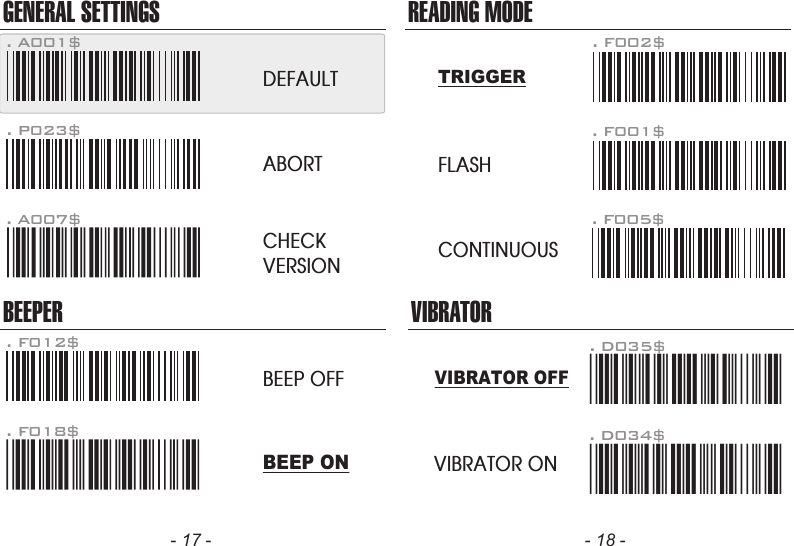
GENERAL SETTINGSBEEPER. P023$. A007$. F012$ABORTCHECKVERSIONBEEP OFF. F018$READING MODE. F002$TRIGGERFLASHCONTINUOUS. F001$. F005$. A001$DEFAULTBEEP ONVIBRATOR. D035$*.D035$*VIBRATOR ON. D034$*.D034$*VIBRATOR OFF- 17 - - 18 -
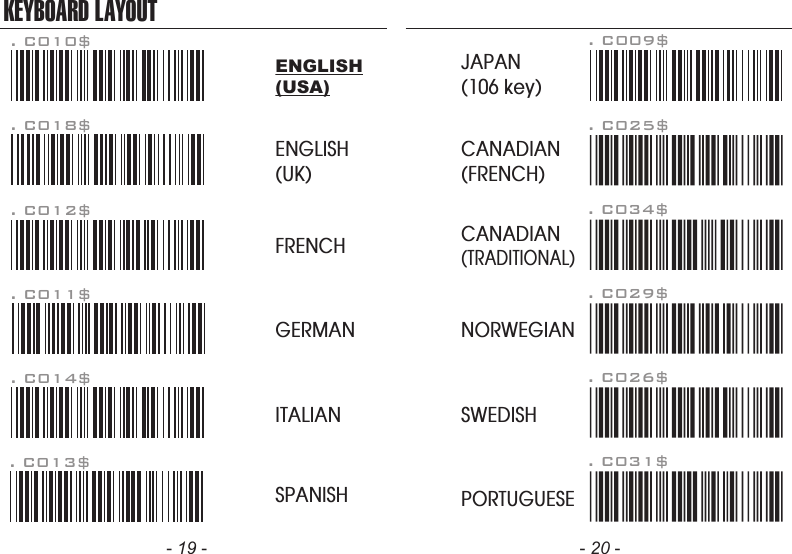
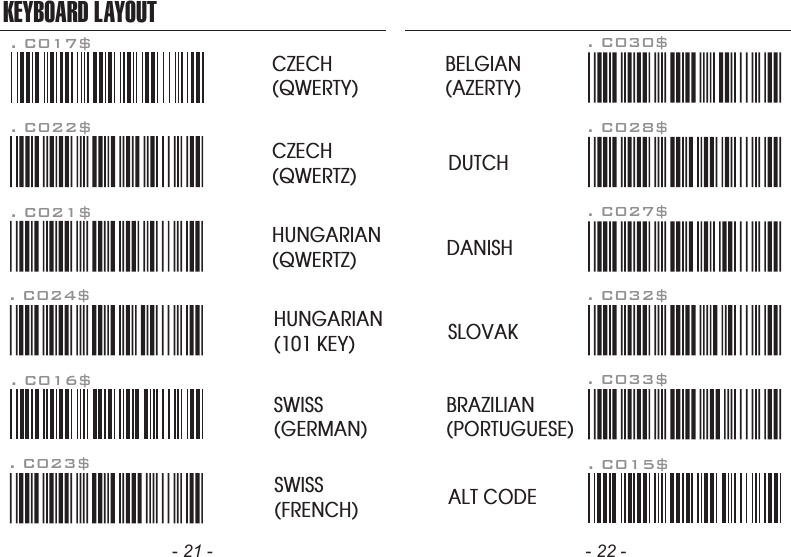
KEYBOARD LAYOUT. C010$ENGLISH(USA). C018$ENGLISH(UK). C011$GERMAN. C012$FRENCH. C013$SPANISH. C014$ITALIAN. C009$JAPAN(106 key)CANADIAN(TRADITIONAL). C034$NORWEGIAN. C029$SWEDISH. C026$PORTUGUESE. C031$CANADIAN(FRENCH). C025$- 19 - - 20 -
HUNGARIAN(101 KEY)BRAZILIAN(PORTUGUESE)SLOVAKSWISS(FRENCH)DUTCHDANISHBELGIAN(AZERTY). C016$SWISS(GERMAN)KEYBOARD LAYOUT. C017$CZECH(QWERTY). C022$CZECH(QWERTZ)HUNGARIAN(QWERTZ). C021$. C015$ALT CODE. C024$. C023$. C033$. C032$. C027$. C028$. C030$- 21 - - 22 -
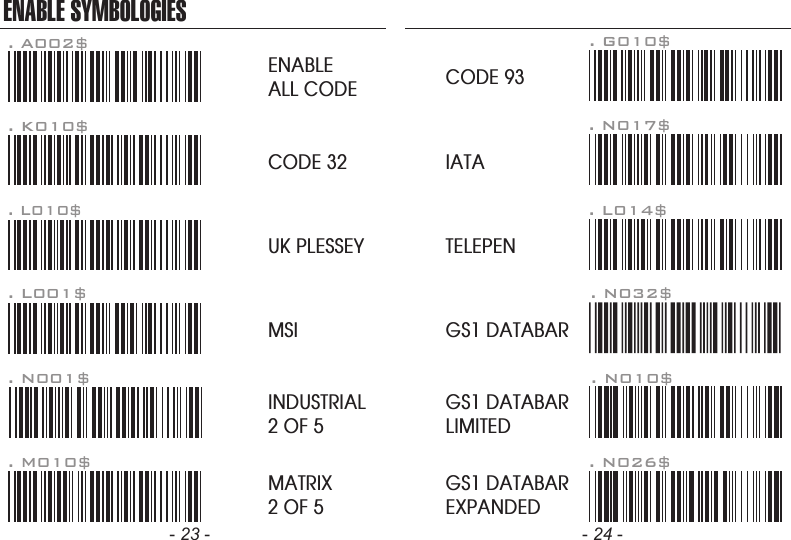
ENABLE SYMBOLOGIESENABLEALL CODE. A002$. K010$CODE 32. L010$. N001$. M010$. L001$UK PLESSEYMSIINDUSTRIAL2 OF 5MATRIX2 OF 5CODE 93. L014$. G010$. N017$. N032$. N010$. N026$IATATELEPENGS1 DATABARGS1 DATABARLIMITEDGS1 DATABAREXPANDED- 23 - - 24 -
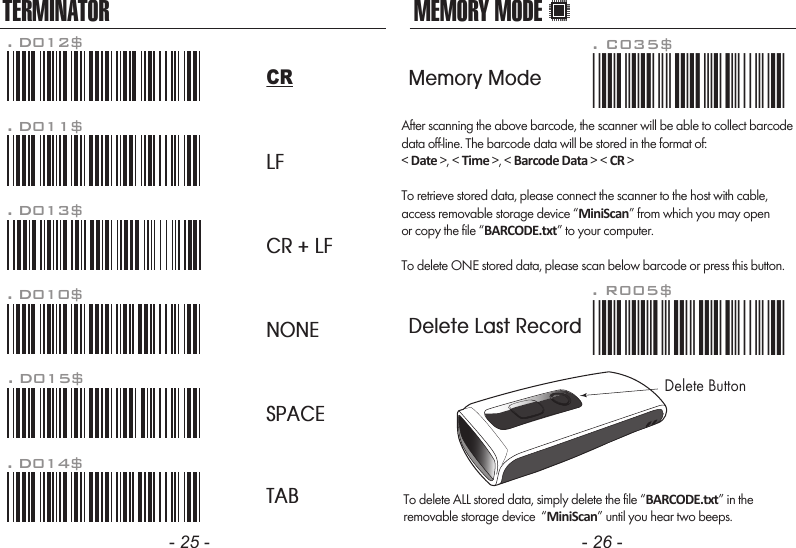
After scanning the above barcode, the scanner will be able to collect barcodedata off-line. The barcode data will be stored in the format of:< Date >, < Time >, < Barcode Data > < CR >To retrieve stored data, please connect the scanner to the host with cable, access removable storage device “MiniScan” from which you may openor copy the file “BARCODE.txt” to your computer.To delete ONE stored data, please scan below barcode or press this button.To delete ALL stored data, simply delete the file “BARCODE.txt” in theremovable storage device  “MiniScan” until you hear two beeps.. R005$*.R005$*MEMORY MODE- 25 - - 26 -TERMINATORLFCR + LFNONESPACETAB. D012$CR. D011$. D013$. D010$. D015$. D014$. C035$*.c035$*Memory ModeDelete Last RecordDelete Button
MEMORY MODEDefault is comma ( , ) . You may replace it with any alphanumericcharacters from the full ASCII table in Full User’s Manual.Example: To change Field Separator to Semicolon ( ; )1. Scan [Field Separator]2. Scan [ ; ] from the full ASCII table.3. Scan [Field Separator]. R010$*.R010$*FIELD SEPARATORExample: To change Data Format to  <Barcode Data>, <Date>, <Time>1. Scan [Data Format]2. Scan [4], [2], [3] on page 11.3. Scan [Data Format]The default Data Format is  <Date>, <Time>, <Barcode Data>below are items and their setup codes: . R011$*.R011$*DATA FORMAT2 DateCode     Item Code     Item34TimeBarcode DataMEMORY MODEExample: To set Date to 2014-08-01 (Year-Month-Day):1. Scan [Set Date]2. Scan [1], [4], [0], [8], [0], [1] on page 11 & 12.3. Scan [Set Date]Example: To set Time to 08:10:30 am (Hr:Min:Sec)1. Scan [Set Time]2. Scan [0], [8], [1], [0], [3], [0] on page 11 & 12.3. Scan [Set Time]. R006$*.R006$*SET DATE. R007$*.R007$*SET TIME* To avoid Time and Date being reset to factory default due   to running out of battery, please fully charge the scanner for   at least 3 hours before use.- 27 - - 28 -
The default Date Format is DD/MM/YYYY (Code = 09), belowis full list of available formats and their setup codes: Example: To set Date Format to  MM/DD/YY (Code =12)1. Scan [Date Format]2. Scan [1], [2] on page 11.3. Scan [Date Format]. R008$*.R008$*DATE FORMATMEMORY MODE0102030405060708DD-MM-YYYYMM-DD-YYYYDD-MM-YYMM-DD-YYYYYY-MM-DDYY-MM-DDDD-MMMM-DDCode     Format Code     Format0910111213141516DD/MM/YYYYMM/DD/YYYYDD/MM/YYMM/DD/YYYYYY/MM/DDYY/MM/DDDD/MMMM/DDThe default Time Format is HH:MM:SS (Code = 01), below are available formats and their setup codes:Example: To set Time Format to HH:MM (Code = 02)1. Scan [Time Format]2. Scan [0], [2] on page 11 & 12.3. Scan [TimeFormat]. R009$*.R009$*TIME FORMATMEMORY MODE01 HH:MM:SSCode     Format Code     Format02 HH:MM- 29 - - 30 -
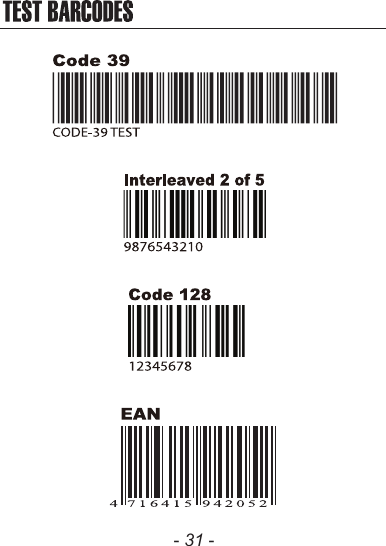
- 31 -

Navigation menu