Marson Technology Co MT7937B Wireless Barcode Scanner User Manual MT7937B QG v1 0

Marson Technology Co Ltd Wireless Barcode Scanner MT7937B QG v1 0

01. MT7937B_User Manual

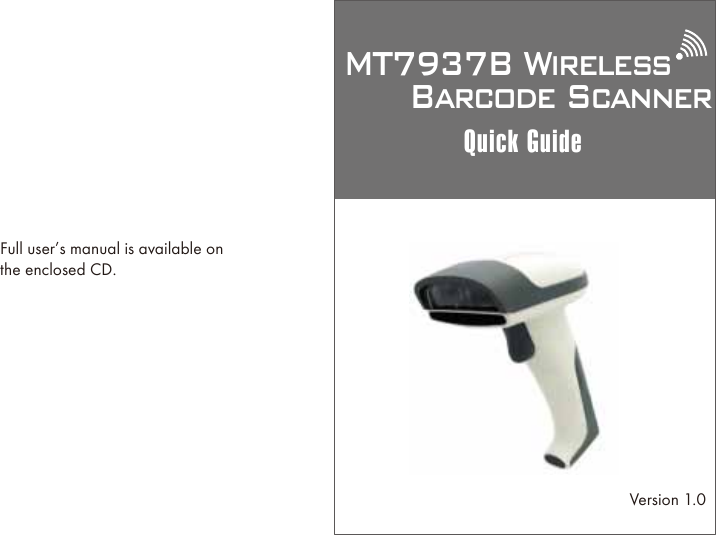
MT7937B Wireless      Barcode ScannerQuick GuideFull user’s manual is available onthe enclosed CD.Version 1.0
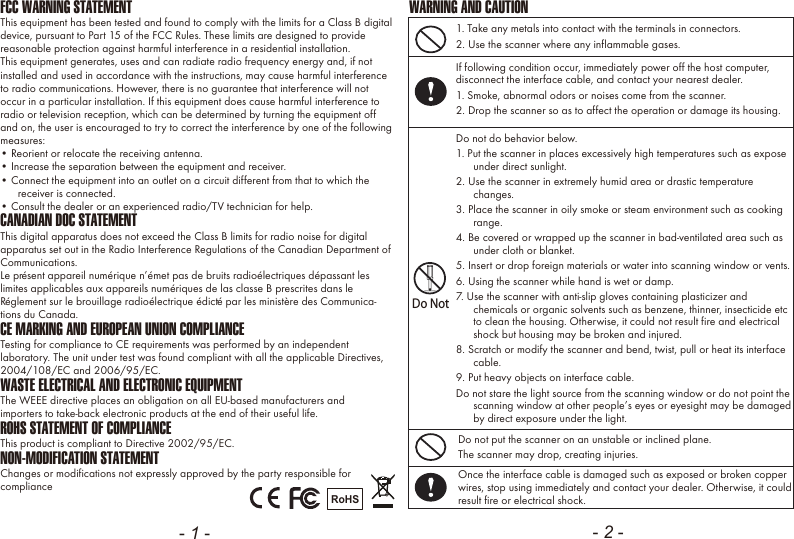
- 1 - - 2 -FCC WARNING STATEMENTThis equipment has been tested and found to comply with the limits for a Class B digital device, pursuant to Part 15 of the FCC Rules. These limits are designed to provide reasonable protection against harmful interference in a residential installation.This equipment generates, uses and can radiate radio frequency energy and, if not installed and used in accordance with the instructions, may cause harmful interference to radio communications. However, there is no guarantee that interference will not occur in a particular installation. If this equipment does cause harmful interference to radio or television reception, which can be determined by turning the equipment off and on, the user is encouraged to try to correct the interference by one of the following measures:• Reorient or relocate the receiving antenna.• Increase the separation between the equipment and receiver.• Connect the equipment into an outlet on a circuit different from that to which the receiver is connected.• Consult the dealer or an experienced radio/TV technician for help.CANADIAN DOC STATEMENTThis digital apparatus does not exceed the Class B limits for radio noise for digital apparatus set out in the Radio Interference Regulations of the Canadian Department of Communications.Le présent appareil numérique n’émet pas de bruits radioélectriques dépassant les limites applicables aux appareils numériques de las classe B prescrites dans le Réglement sur le brouillage radioélectrique édicté par les ministère des Communica-tions du Canada.CE MARKING AND EUROPEAN UNION COMPLIANCE Testing for compliance to CE requirements was performed by an independent laboratory. The unit under test was found compliant with all the applicable Directives, 2004/108/EC and 2006/95/EC.WASTE ELECTRICAL AND ELECTRONIC EQUIPMENTThe WEEE directive places an obligation on all EU-based manufacturers andimporters to take-back electronic products at the end of their useful life. ROHS STATEMENT OF COMPLIANCEThis product is compliant to Directive 2002/95/EC.NON-MODIFICATION STATEMENTChanges or modifications not expressly approved by the party responsible for compliance RoHS1. Take any metals into contact with the terminals in connectors.2. Use the scanner where any inflammable gases.If following condition occur, immediately power off the host computer, disconnect the interface cable, and contact your nearest dealer.1. Smoke, abnormal odors or noises come from the scanner.2. Drop the scanner so as to affect the operation or damage its housing.Do NotDo not do behavior below.1. Put the scanner in places excessively high temperatures such as expose under direct sunlight.2. Use the scanner in extremely humid area or drastic temperature changes.3. Place the scanner in oily smoke or steam environment such as cooking range.4. Be covered or wrapped up the scanner in bad-ventilated area such as under cloth or blanket.5. Insert or drop foreign materials or water into scanning window or vents.6. Using the scanner while hand is wet or damp.7. Use the scanner with anti-slip gloves containing plasticizer and chemicals or organic solvents such as benzene, thinner, insecticide etc to clean the housing. Otherwise, it could not result fire and electrical shock but housing may be broken and injured.8. Scratch or modify the scanner and bend, twist, pull or heat its interface cable.9. Put heavy objects on interface cable.Do not stare the light source from the scanning window or do not point the scanning window at other people’s eyes or eyesight may be damaged by direct exposure under the light.Do not put the scanner on an unstable or inclined plane.The scanner may drop, creating injuries.Once the interface cable is damaged such as exposed or broken copper wires, stop using immediately and contact your dealer. Otherwise, it could result fire or electrical shock.WARNING AND CAUTION
FCC Caution:         1. This device complies with Part 15 of the FCC rules. Operation is subject to the following two conditions:       (1) This device may not cause harmful interference, and       (2) This device must accept any interference received, including interference that may cause undesired operation.         2. This device and its antenna(s) must not be co-located or operating in conjunction with any other antenna or transmitter.           3. Changes or modifications to this unit not expressly approved by the party    responsible for compliance could void the user authority to operate the equipment.       IMPORTANT NOTE :     FCC Radiation Exposure Statement:         This equipment complies with FCC radiation exposure limits set forth for an uncontrolled environment. This equipment should be installed and operated with           minimum distance 20cm between the radiator & your body. 
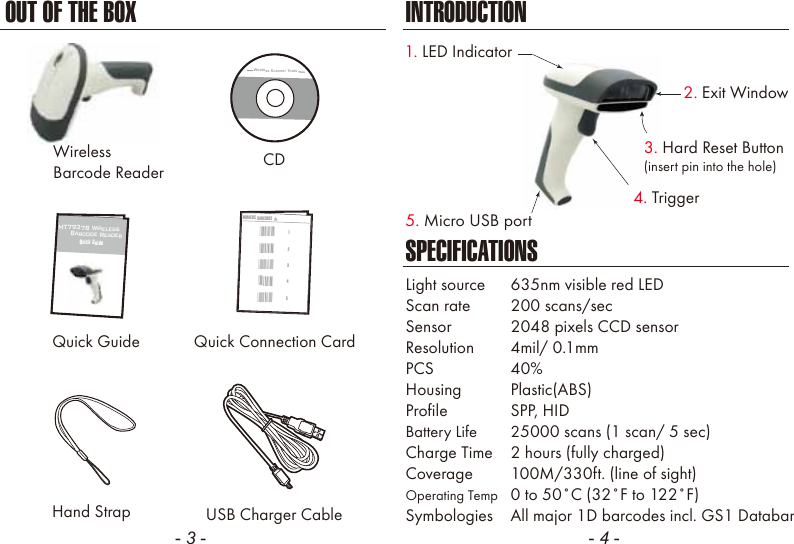
- 3 - - 4 -CDQuick GuideHand StrapSPECIFICATIONSLight source  635nm visible red LEDScan rate  200 scans/secSensor  2048 pixels CCD sensorResolution  4mil/ 0.1mmPCS  40%Housing  Plastic(ABS)Profile  SPP, HIDBattery Life  25000 scans (1 scan/ 5 sec)Charge Time  2 hours (fully charged)Coverage  100M/330ft. (line of sight)Operating Temp  0 to 50˚C (32˚F to 122˚F)Symbologies  All major 1D barcodes incl. GS1 DatabarUSB Charger CableMT7937B Wireless      Barcode ReaderQuick GuideQuick Connection CardNUMERIC BARCODES1*1*2*2*3*3*4*4*5*5*INTRODUCTIONOUT OF THE BOXWireless Scanner Tools2. Exit Window1. LED Indicator5. Micro USB port4. Trigger3. Hard Reset Button(insert pin into the hole)WirelessBarcode Reader
- 5 - - 6 -CHARGING THE BATTERYTo scan a barcode, make sure the aiming beam crossesevery bar and space of the barcode.1. Flip open the micro USB port on the scanner.2. Insert the micro USB connector into the port on the    scanner and USB A connector into a USB port on    the host PC.BEEPER INDICATIONLED INDICATIONSingle long beep          Power upSingle beep              Good readSingle short beep         The scanner reads a Code39 of                                    ASCII in configuration procedureTwo beeps              Wireless connectionTwo short beeps           The scanner successfully reads              a configuration barcodeFive beeps              Low powerThree beeps              Wireless disconnectionThree short beeps      i. The scanner reads a barcodes              while disconnected.                      ii. The scanner reads an unexpected                                    barcode during configuration                                    procedure. (scan [ABORT] to abort                                    and start over)Several short beeps     The scanner switches from one              communication mode to anotherOffFlashing BlueBlue for 2 secFlashing RedSolid RedStandby or Power offDisconnected or DiscoverableGood ReadLow powerChargingScannerMicro USBUSB AHostGETTING STARTED
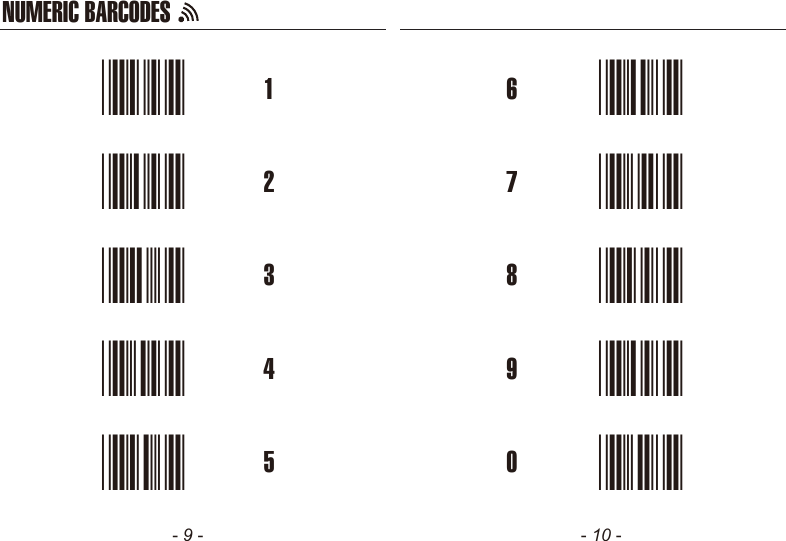
- 7 - - 8 -GETTING CONNECTED PINCODE SETUP1. Press the trigger for 1 second to activate the scanner.2. Scan [DISCONNECT]3. Scan [BT-SPP]; the scanner will emit several short beeps.4. Select “Wireless Scanner” from discovered device list.    The default pincode is “1234”.5. Open serial communication software with com port    (see Device Manager) properly set up.6. The scanner will beep twice to verify the connection.There are two modes of wireless communication:. E042$BT - SPPPincode Start*.E042$*. E032$*.E032$*. E033$*.E033$*. E043$BT - HID*.E043$*Disconnect. E031$*.E031$**$TX*$TX1. Press the trigger for 1 second to activate the scanner.2. Scan [DISCONNECT]3. Scan [BT-HID]; the scanner will emit several short beeps.4. Select “Wireless Scanner” from discovered device list.5. The wireless application may prompt you to scan    a pincode(see PINCODE SETUP    section) it generated.6. The scanner will beep twice to verify the connection.Scan numeric barcodes (see NUMERIC BARCODES    sectionon the next pages) based on the pincode generatedby the wireless application.STEP 1Pincode StopEnterSTEP 4STEP 3STEP 2
- 9 - - 10 -NUMERIC BARCODES1*1*2*2*3*3*4*4*5*5*6*6*7*7*8*8*9*9*0*0*
- 11 - - 12 -POWER OFF TIMEOUT SMARTPHONE CONNECTIONVariable TimeoutNo Timeout (Scanner Always On)*.B030$*. B030$SET MINUTE*.B029$*. B029$SET SECOND*.B021$*. B021$DISABLETIMEOUTThe default timeout is 3 minutes 0 second.For example, to set the timeout as 5 minutes 30 seconds:1. Scan [Set Minute]2. Scan [0] & [5] on page 9 & 10.(Range: 00 ~ 60)(Range: 00 ~ 60)3. Scan [Set Minute]4. Scan [Set Second]5. Scan [3] & [0] on page 9 & 10.6. Scan [Set Second]The timeout of inactivity before auto power-off.Touch Keyboard - iOSTouch Keyboard - AndroidAfter enabling iOS Hotkey(disabled by default), you may simplydouble-click the trigger to toggle the iPhone/iPad Touch Keyboard.Please follow below steps to toggle Android virtual keybaord:1. Enter “Settings”2. Enter “Language & input”3. In Keyboard & input window, tap “Default” to continue.4. Turn off “Hardware - Physical keyboard”, and the Touch    Keyboard will function properly again.. E047$ENABLE iOS HOTKEYGetting Connected - iOS & AndroidSimply follow instruction in 5 can be skipped since iOS & Android will not require pin-codefor connection.,in which step[BT - HID] (page 7)
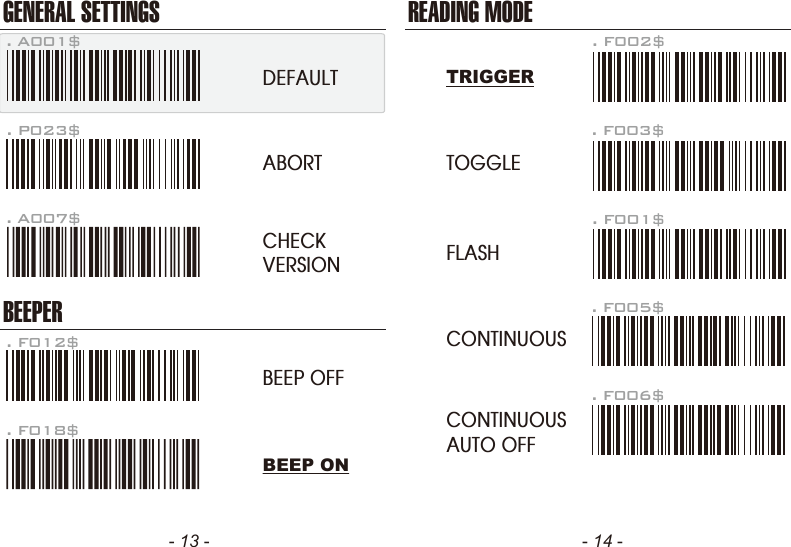
- 13 - - 14 -GENERAL SETTINGSBEEPER. P023$. A007$. F012$ABORTCHECKVERSIONBEEP OFF. F018$READING MODE. F002$TRIGGERTOGGLEFLASHCONTINUOUSCONTINUOUSAUTO OFF. F003$. F001$. F005$. F006$. A001$DEFAULTBEEP ON
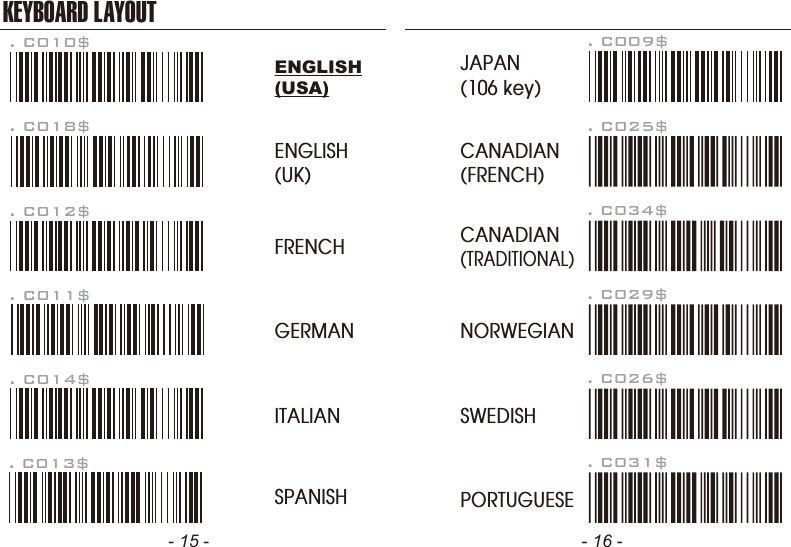
- 15 - - 16 -KEYBOARD LAYOUT. C010$ENGLISH(USA). C018$ENGLISH(UK). C011$GERMAN. C012$FRENCH. C013$SPANISH. C014$ITALIAN. C009$JAPAN(106 key)CANADIAN(TRADITIONAL). C034$NORWEGIAN. C029$SWEDISH. C026$PORTUGUESE. C031$CANADIAN(FRENCH). C025$
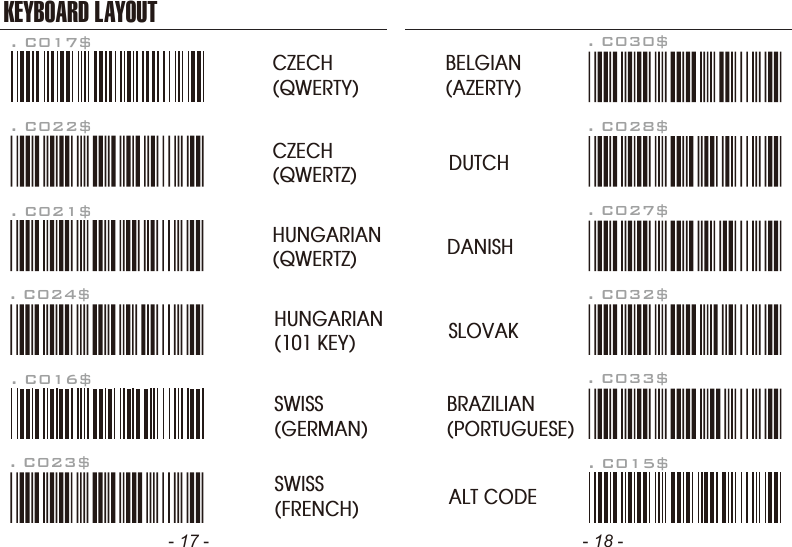
- 17 - - 18 -HUNGARIAN(101 KEY)SWISS(FRENCH). C016$SWISS(GERMAN)KEYBOARD LAYOUT. C017$CZECH(QWERTY). C022$CZECH(QWERTZ)HUNGARIAN(QWERTZ). C021$. C024$. C023$BRAZILIAN(PORTUGUESE)SLOVAKDUTCHDANISHBELGIAN(AZERTY). C015$ALT CODE. C033$. C032$. C027$. C028$. C030$
- 19 -ENABLE SYMBOLOGIESENABLEALL CODE. A002$. K010$CODE 32. L010$. N001$. M010$. L001$UK PLESSEYMSIINDUSTRIAL2 OF 5MATRIX2 OF 5CODE 93. L014$. G010$. N017$. N032$. N010$. N026$IATATELEPENGS1 DATABARGS1 DATABARLIMITEDGS1 DATABAREXPANDED- 20 -
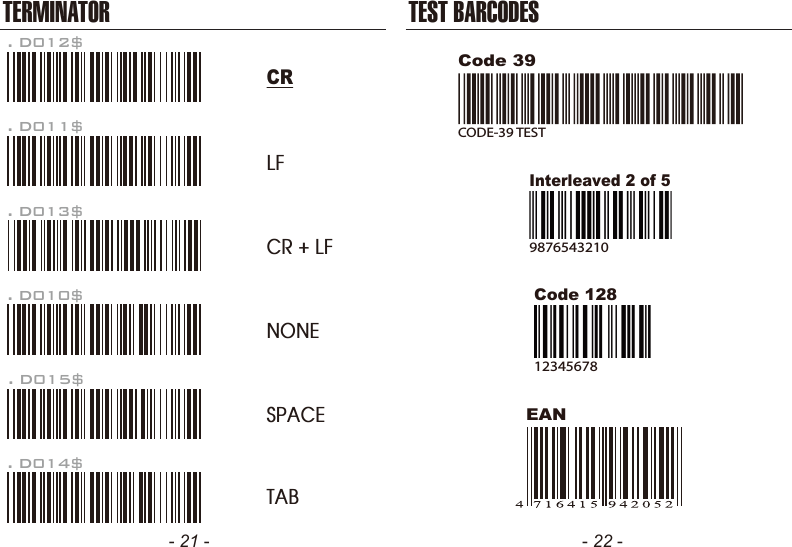
- 21 - - 22 -TERMINATORLFCR + LFNONESPACETAB. D012$CR. D011$. D013$. D010$. D015$. D014$TEST BARCODESEANCode 12812345678Code 39CODE-39 TESTInterleaved 2 of 59876543210

Navigation menu