Marvelmind Robotics 915MHZM Modem 915MHz v4.95 User Manual Marvelmind Indoor Navigation System manual

Marvelmind Robotics Modem 915MHz v4.95 Marvelmind Indoor Navigation System manual

Contents

User Manual

  1                       915 MHz  Operating Manual  v2017_07_25a   www.marvelmind.com          Modem 915MHz v4  . 95
  2                1  Table of contents 2 Executive summary ................................................................................................. 3 3.1 Indoor GPS architecture...................................................................................................................... 5 3.2 Modem description .............................................................................................................................. 6 3.3 Modem - close-up and internal view .................................................................................................... 7 4 Setup software (Dashboard) .................................................................................... 8 4.1 Dashboard menu and parameters ..................................................................................................... 11 4.2 Using the system after the very first setup ........................................................................................ 12 4.3 DFU programming ............................................................................................................................ 13 5 Interfaces .............................................................................................................. 15 5.1 Modem HW v.4.9 external interface pinout ....................................................................................... 16 6 Advanced system settings and optimization .......................................................... 17 7 Frequently Asked Questions ................................................................................. 18 8 Contacts ................................................................................................................ 18
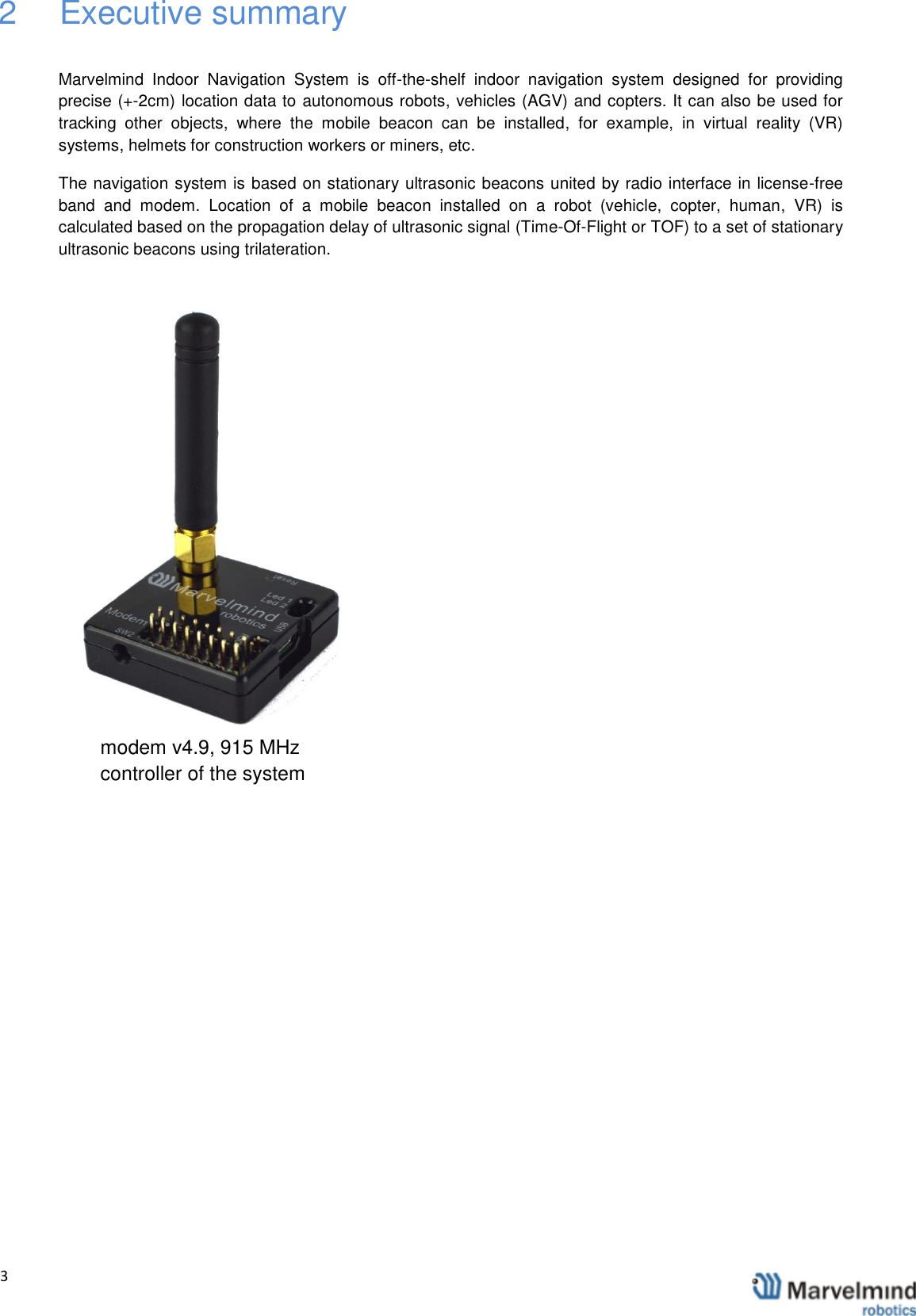
  3                2  Executive summary  Marvelmind  Indoor  Navigation  System  is  off-the-shelf  indoor  navigation  system  designed  for  providing precise (+-2cm) location data to autonomous robots, vehicles (AGV) and copters. It can also be used for tracking  other  objects,  where  the  mobile  beacon  can  be  installed,  for  example,  in  virtual  reality  (VR) systems, helmets for construction workers or miners, etc. The navigation system is based on stationary ultrasonic beacons united by radio interface in license-free band  and  modem.  Location  of  a  mobile  beacon  installed  on  a  robot  (vehicle,  copter,  human,  VR)  is calculated based on the propagation delay of ultrasonic signal (Time-Of-Flight or TOF) to a set of stationary ultrasonic beacons using trilateration.       modem v4.9, 915 MHz  controller of the system
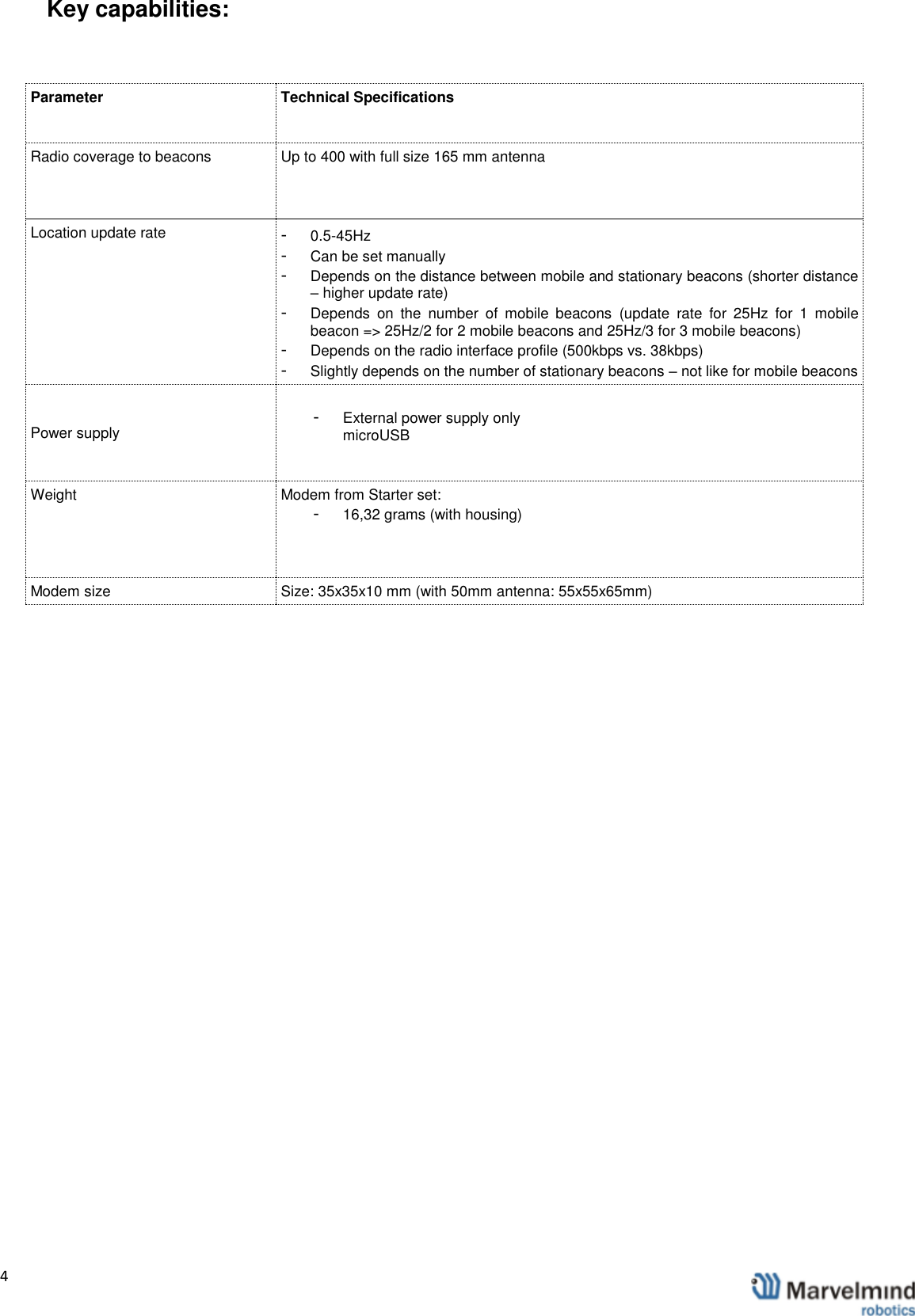
  4                Key capabilities:  Parameter  Technical Specifications Radio coverage to beacons  Up to 400 with full size 165 mm antenna  Location update rate  -  0.5-45Hz -  Can be set manually -  Depends on the distance between mobile and stationary beacons (shorter distance – higher update rate) -  Depends  on  the  number  of  mobile  beacons  (update  rate  for  25Hz  for  1  mobile beacon => 25Hz/2 for 2 mobile beacons and 25Hz/3 for 3 mobile beacons) -  Depends on the radio interface profile (500kbps vs. 38kbps) -  Slightly depends on the number of stationary beacons – not like for mobile beacons Power supply  -  External power supply only microUSB  Weight  Modem from Starter set:  -  16,32 grams (with housing)  Modem size  Size: 35x35x10 mm (with 50mm antenna: 55x55x65mm)
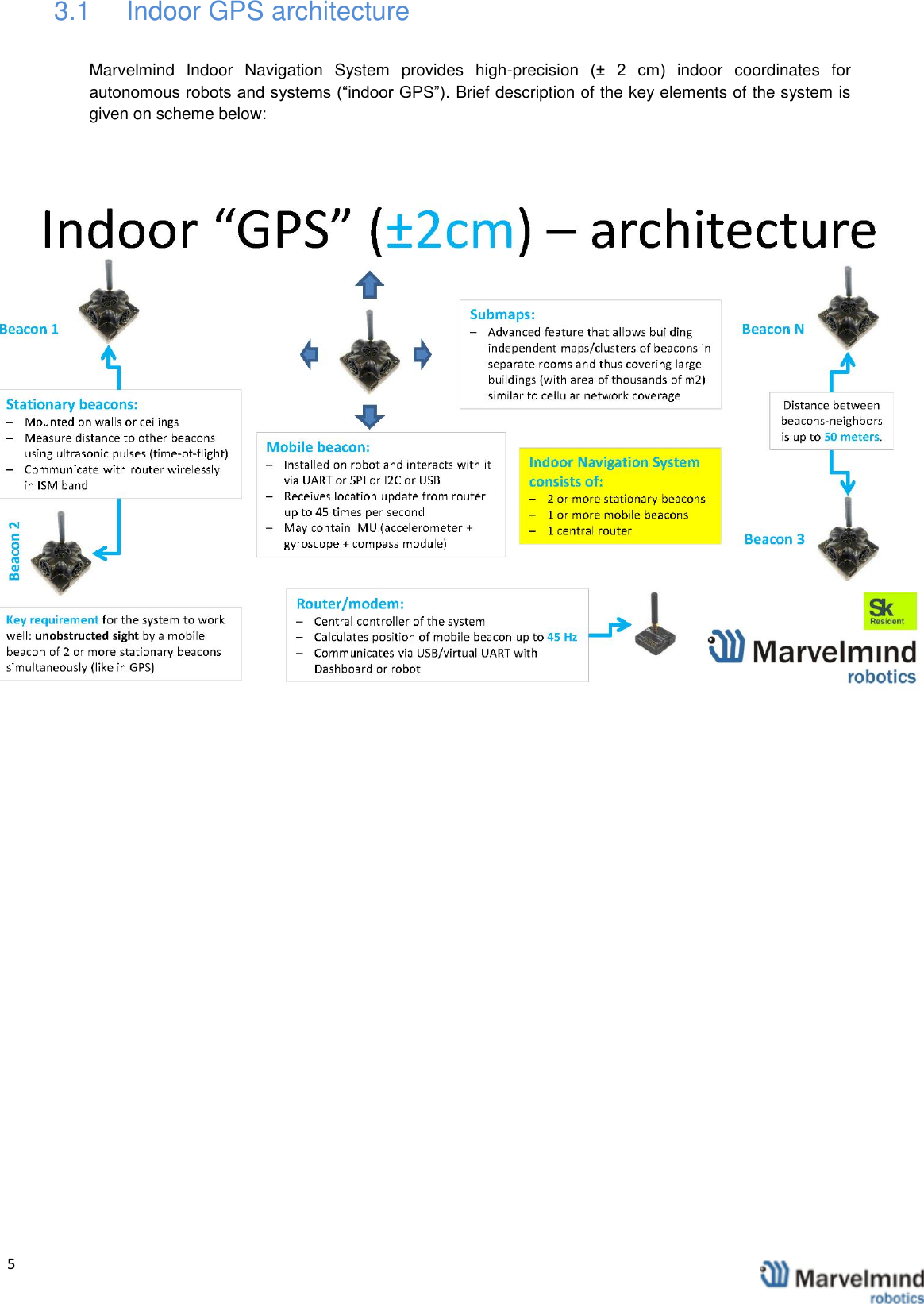
  5                3.1  Indoor GPS architecture Marvelmind  Indoor  Navigation  System  provides  high-precision  (±  2  cm)  indoor  coordinates  for autonomous robots and systems (“indoor GPS”). Brief description of the key elements of the system is given on scheme below:
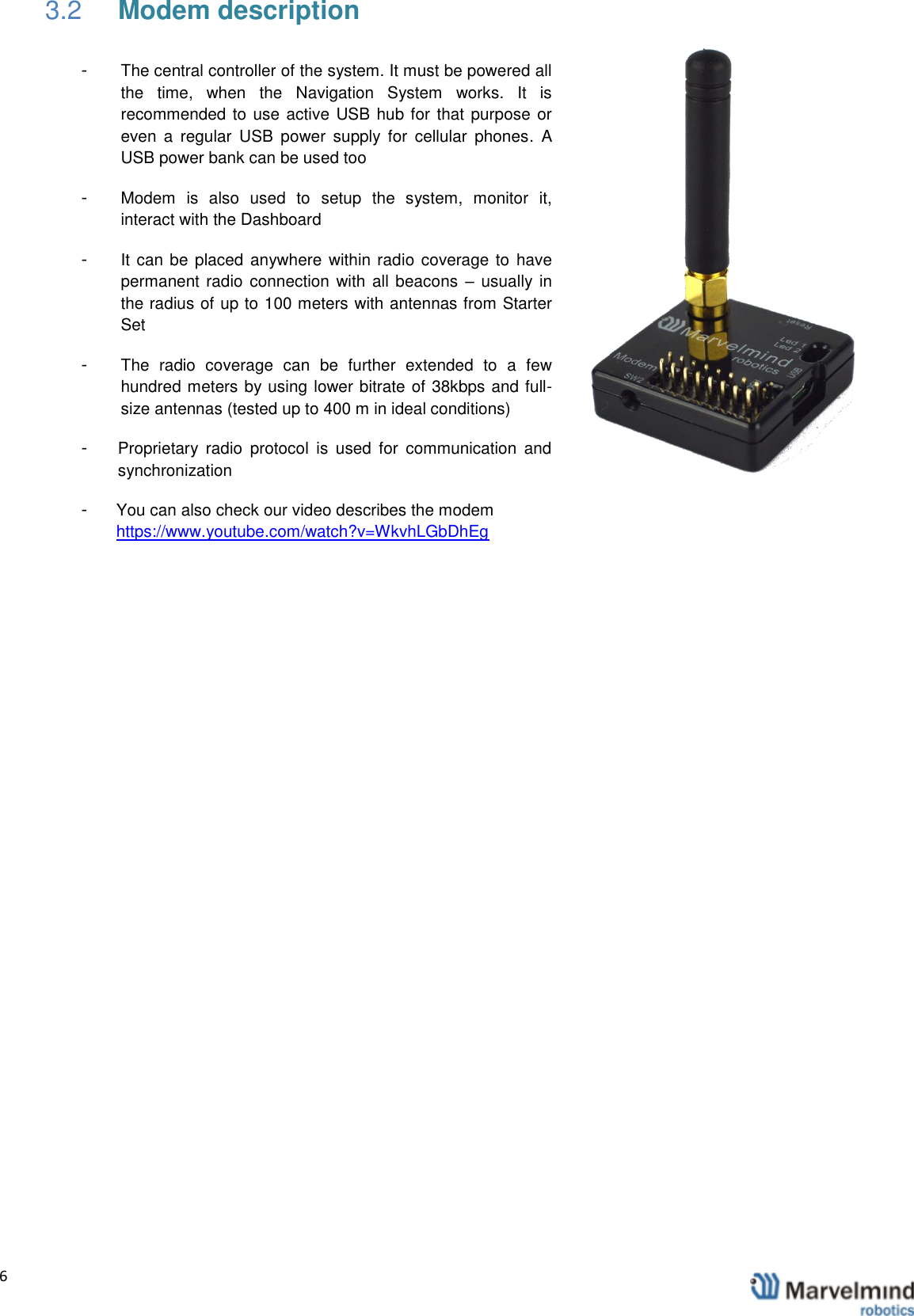
  6                3.2 Modem description -  The central controller of the system. It must be powered all the  time,  when  the  Navigation  System  works.  It  is recommended to use active USB hub for that purpose or even  a  regular  USB  power  supply  for  cellular  phones.  A USB power bank can be used too -  Modem  is  also  used  to  setup  the  system,  monitor  it, interact with the Dashboard -  It can be placed anywhere within radio coverage to  have permanent radio connection with all beacons  – usually in the radius of up to 100 meters with antennas from Starter Set -  The  radio  coverage  can  be  further  extended  to  a  few hundred meters by using lower bitrate of 38kbps and full-size antennas (tested up to 400 m in ideal conditions) -  Proprietary  radio  protocol  is  used  for  communication  and synchronization -  You can also check our video describes the modem https://www.youtube.com/watch?v=WkvhLGbDhEg
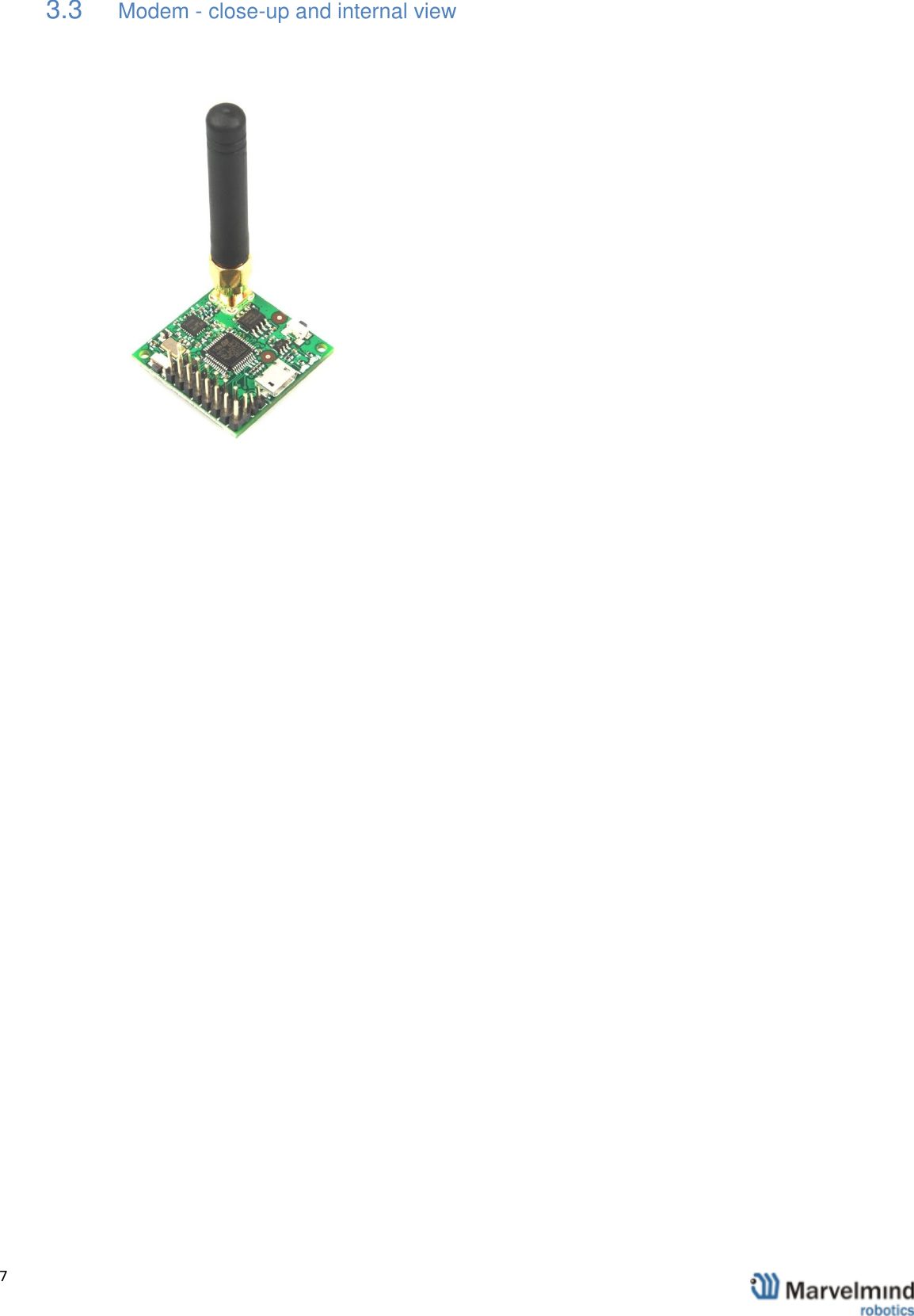
  7                3.3 Modem - close-up and internal view
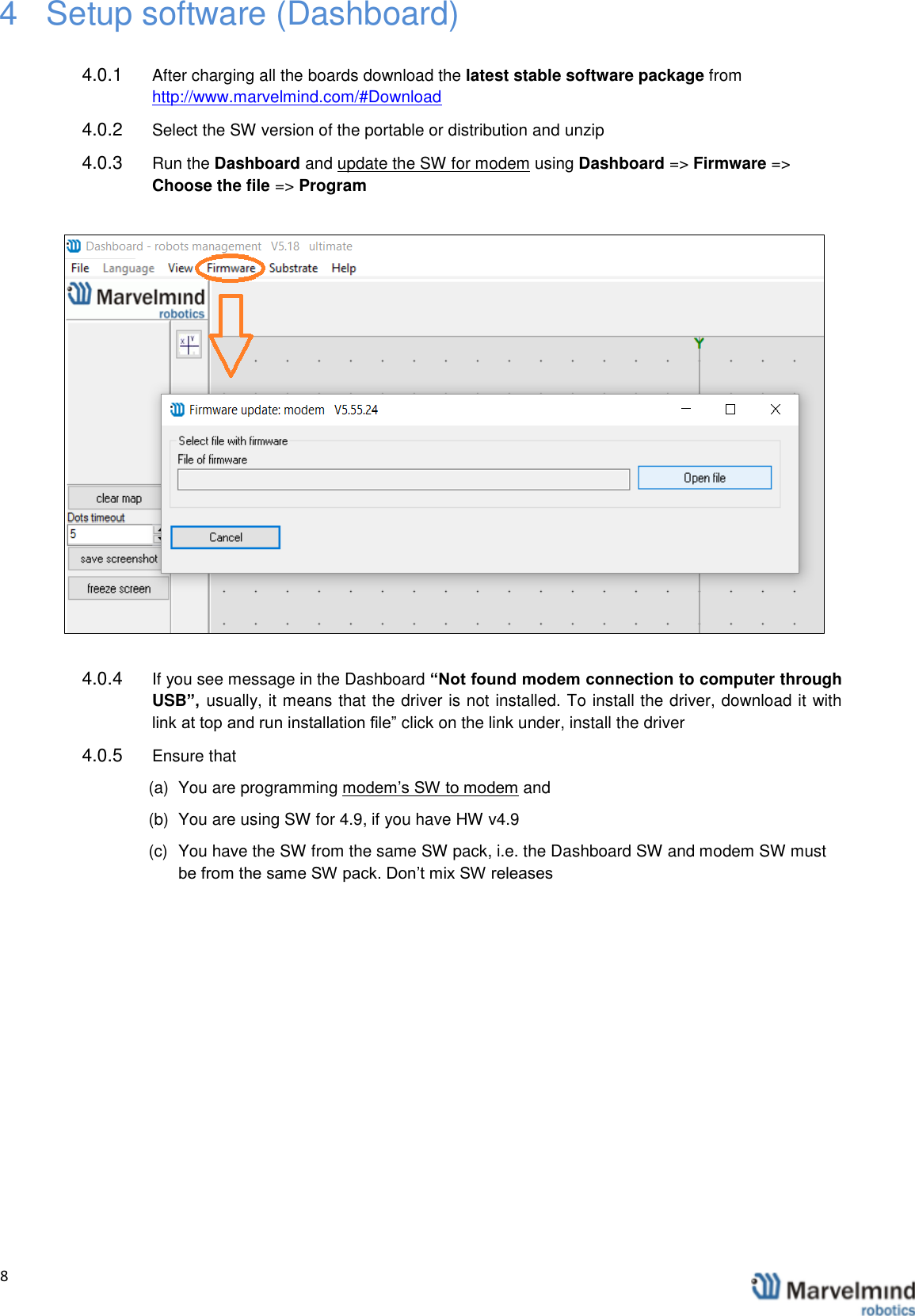
  8                4  Setup software (Dashboard)  4.0.1  After charging all the boards download the latest stable software package from http://www.marvelmind.com/#Download  4.0.2  Select the SW version of the portable or distribution and unzip 4.0.3  Run the Dashboard and update the SW for modem using Dashboard => Firmware => Choose the file => Program   4.0.4  If you see message in the Dashboard “Not found modem connection to computer through USB”,  usually, it means that the driver is not installed. To install the driver, download it with link at top and run installation file” click on the link under, install the driver 4.0.5  Ensure that (a)  You are programming modem’s SW to modem and  (b)  You are using SW for 4.9, if you have HW v4.9 (c)  You have the SW from the same SW pack, i.e. the Dashboard SW and modem SW must be from the same SW pack. Don’t mix SW releases
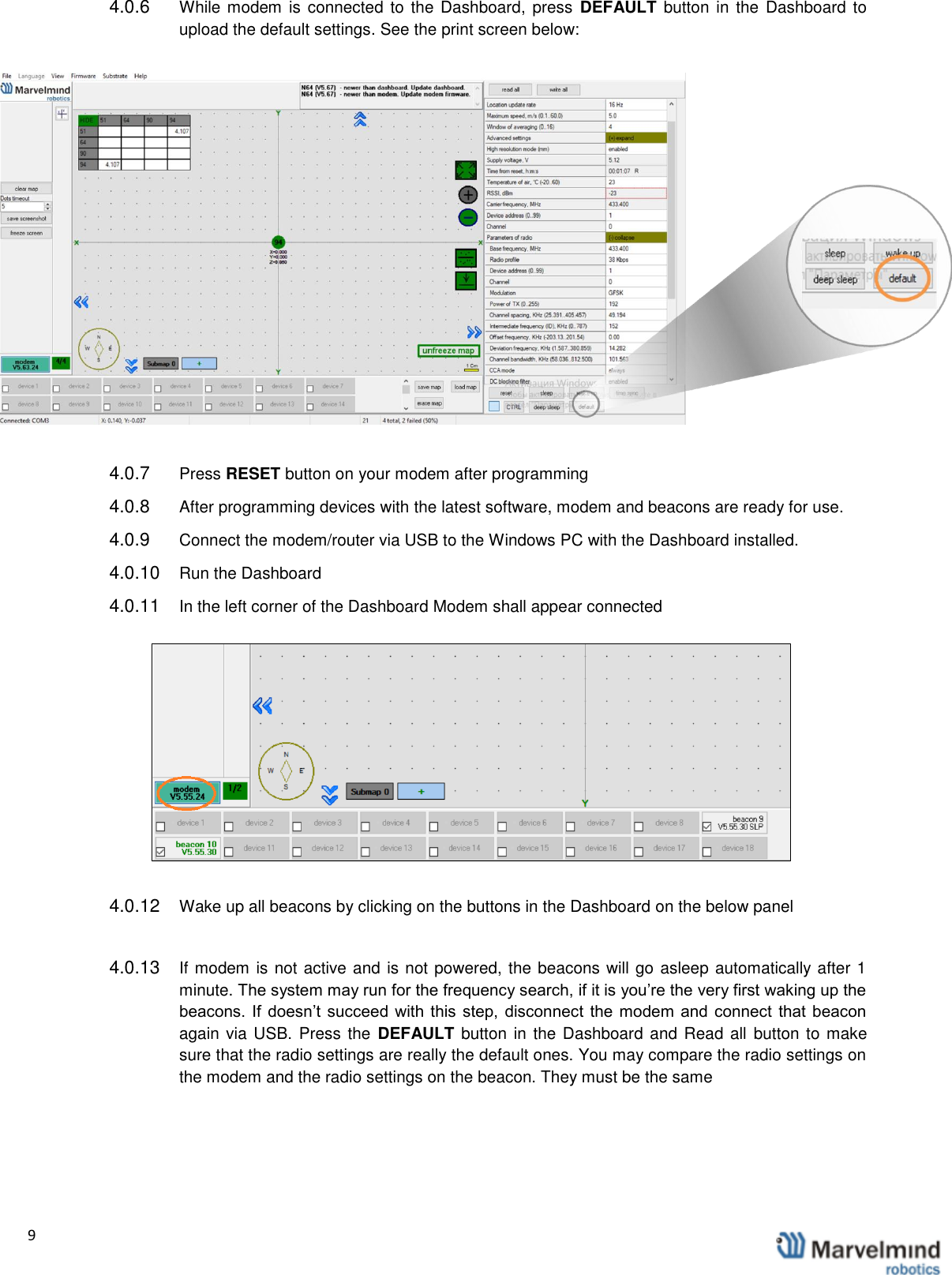
  9                  4.0.6  While modem  is connected to  the  Dashboard,  press  DEFAULT button  in  the Dashboard  to upload the default settings. See the print screen below:  4.0.7  Press RESET button on your modem after programming 4.0.8  After programming devices with the latest software, modem and beacons are ready for use.  4.0.9  Connect the modem/router via USB to the Windows PC with the Dashboard installed. 4.0.10  Run the Dashboard 4.0.11  In the left corner of the Dashboard Modem shall appear connected  4.0.12  Wake up all beacons by clicking on the buttons in the Dashboard on the below panel  4.0.13  If modem is not active and is not powered, the beacons will go asleep automatically after 1 minute. The system may run for the frequency search, if it is you’re the very first waking up the beacons.  If  doesn’t succeed  with this step,  disconnect  the  modem  and  connect  that  beacon again via USB. Press the  DEFAULT button in the Dashboard and Read all  button to make sure that the radio settings are really the default ones. You may compare the radio settings on the modem and the radio settings on the beacon. They must be the same
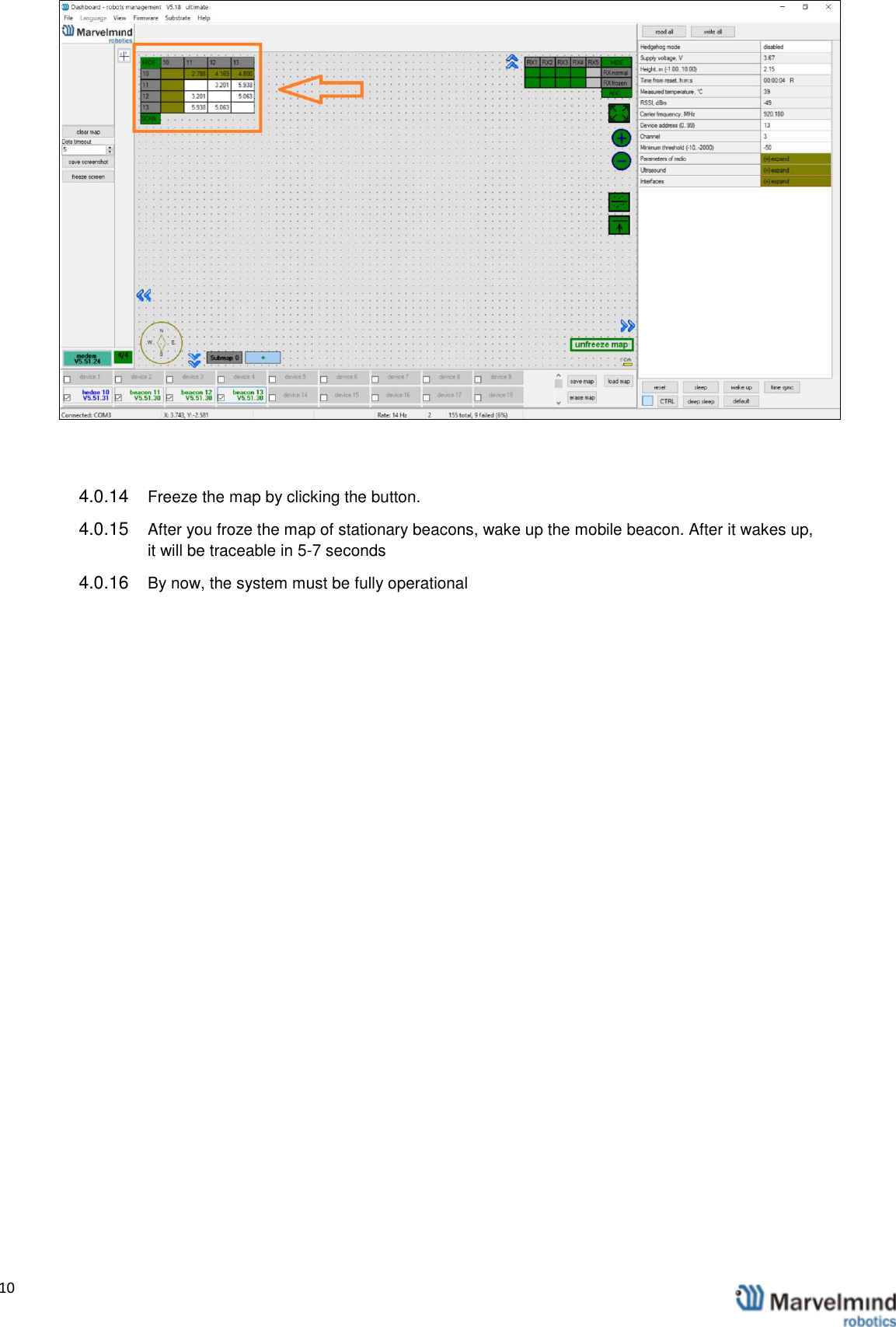
  10                  4.0.14  Freeze the map by clicking the button.  4.0.15  After you froze the map of stationary beacons, wake up the mobile beacon. After it wakes up, it will be traceable in 5-7 seconds 4.0.16  By now, the system must be fully operational
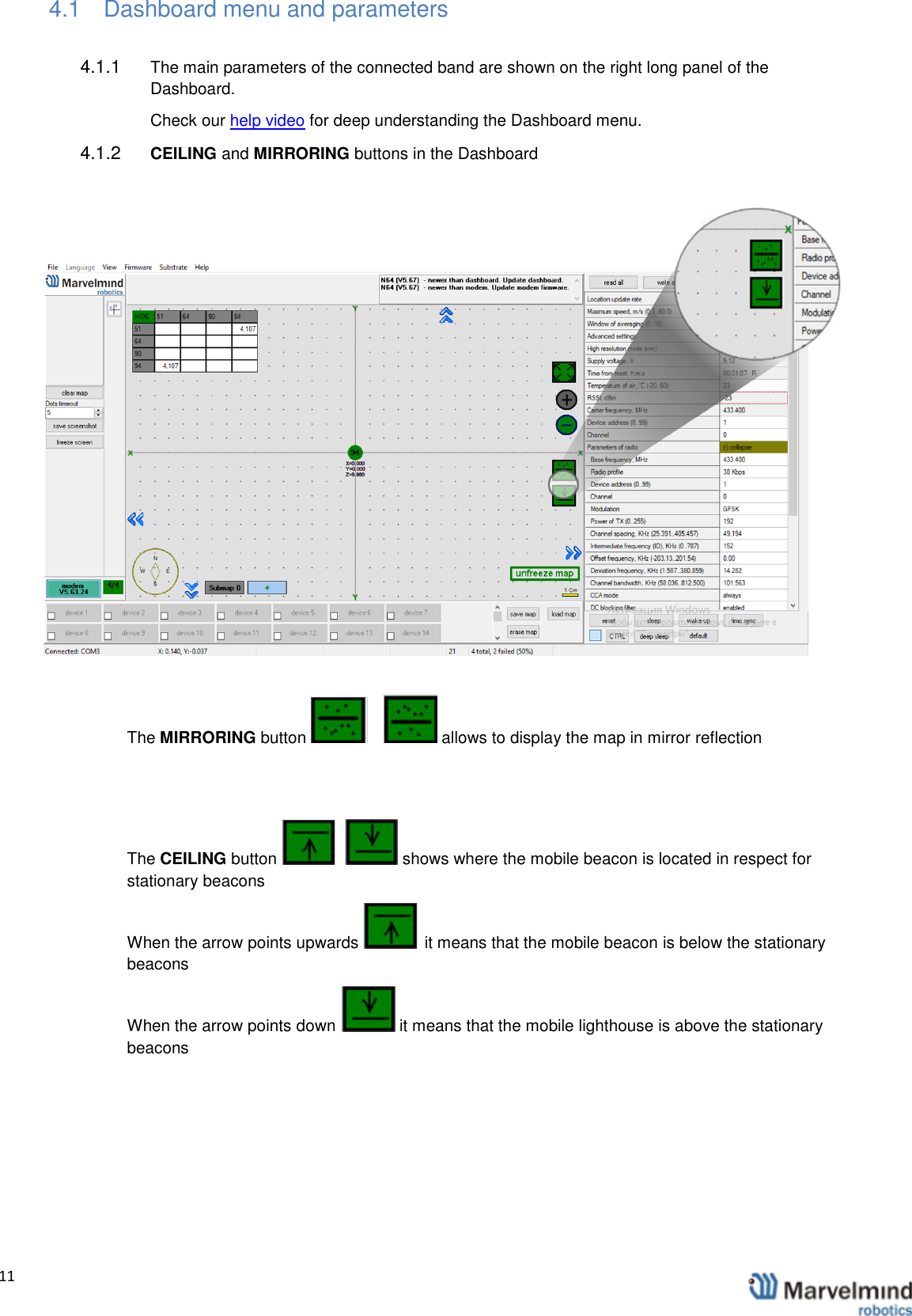
  11                4.1  Dashboard menu and parameters 4.1.1  The main parameters of the connected band are shown on the right long panel of the Dashboard.  Check our help video for deep understanding the Dashboard menu.  4.1.2  CEILING and MIRRORING buttons in the Dashboard  The MIRRORING button   allows to display the map in mirror reflection  The CEILING button   shows where the mobile beacon is located in respect for stationary beacons When the arrow points upwards   it means that the mobile beacon is below the stationary beacons When the arrow points down   it means that the mobile lighthouse is above the stationary beacons
  12                4.2  Using the system after the very first setup  4.2.1  If you had setup the drivers, built and froze the map and hadn’t moved stationary beacons, in order to start using the system again, you simply have to power up the modem. The map is stored inside the modem and the system  will  be ready to handle  your mobile  beacons in  5 seconds after that More help you can find here: https://www.youtube.com/channel/UC4O_kJBQrKC-NCgidS_4N7g/videos
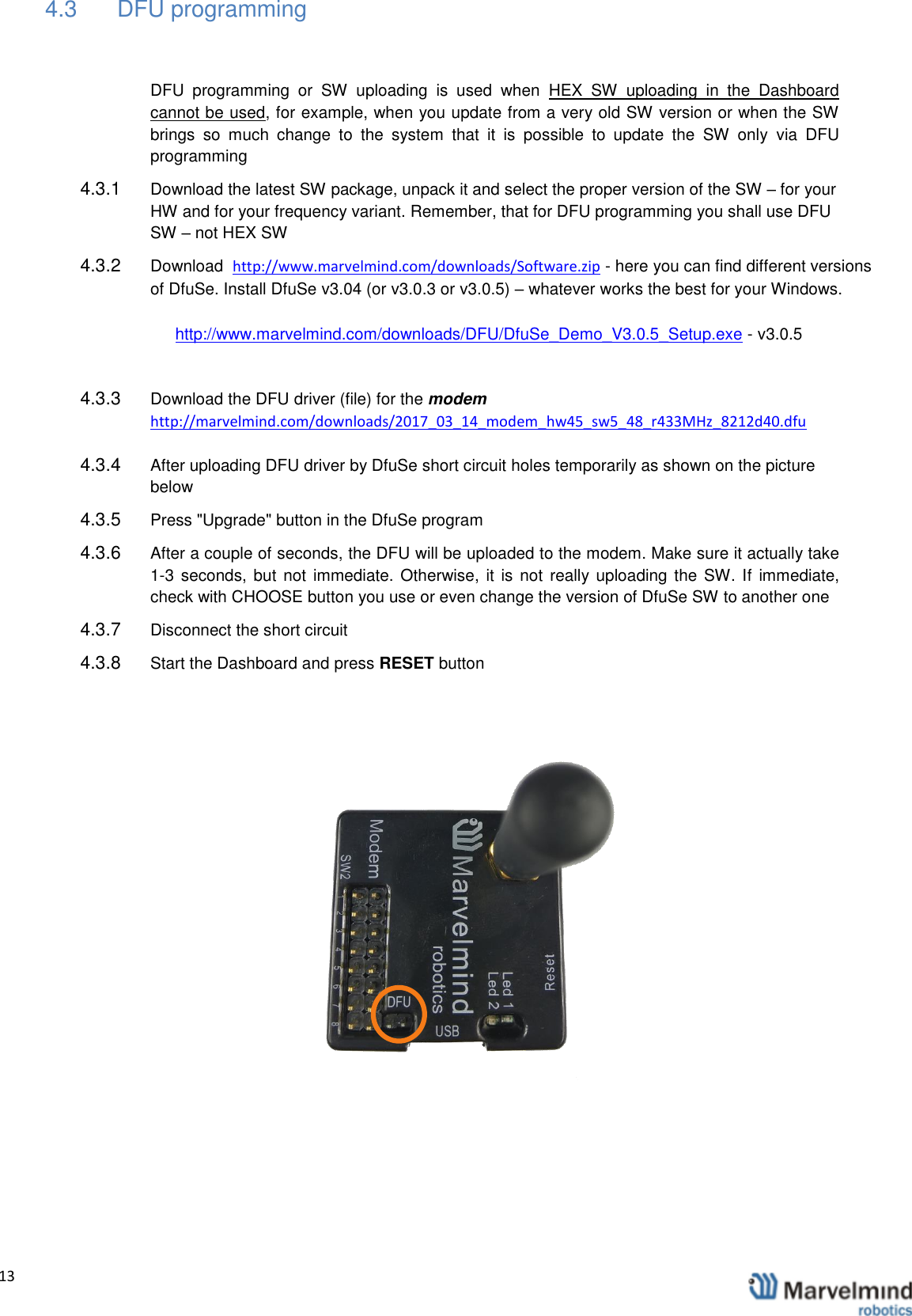
  13                4.3  DFU programming  DFU  programming  or  SW  uploading  is  used  when  HEX  SW  uploading  in  the  Dashboard cannot be used, for example, when you update from a very old SW version or when the SW brings  so  much  change  to  the  system  that  it  is  possible  to  update  the  SW  only  via  DFU programming 4.3.1  Download the latest SW package, unpack it and select the proper version of the SW – for your HW and for your frequency variant. Remember, that for DFU programming you shall use DFU SW – not HEX SW 4.3.2  Download  http://www.marvelmind.com/downloads/Software.zip - here you can find different versions of DfuSe. Install DfuSe v3.04 (or v3.0.3 or v3.0.5) – whatever works the best for your Windows.  http://www.marvelmind.com/downloads/DFU/DfuSe_Demo_V3.0.5_Setup.exe - v3.0.5  4.3.3  Download the DFU driver (file) for the modem http://marvelmind.com/downloads/2017_03_14_modem_hw45_sw5_48_r433MHz_8212d40.dfu 4.3.4  After uploading DFU driver by DfuSe short circuit holes temporarily as shown on the picture below 4.3.5  Press "Upgrade" button in the DfuSe program  4.3.6  After a couple of seconds, the DFU will be uploaded to the modem. Make sure it actually take 1-3 seconds, but  not  immediate. Otherwise,  it is  not  really uploading the SW. If  immediate, check with CHOOSE button you use or even change the version of DfuSe SW to another one  4.3.7  Disconnect the short circuit  4.3.8  Start the Dashboard and press RESET button
  14                 If you have experienced difficulties in DFU programming, please check and do the following: -  Change your operation system (from Windows10 to Windows7 and vice versa) -  Reinstall other DfuSe version (Install DfuSe SW 3.04 (or 3.0.3 or 3.0.5) - whatever works the best for your Windows)
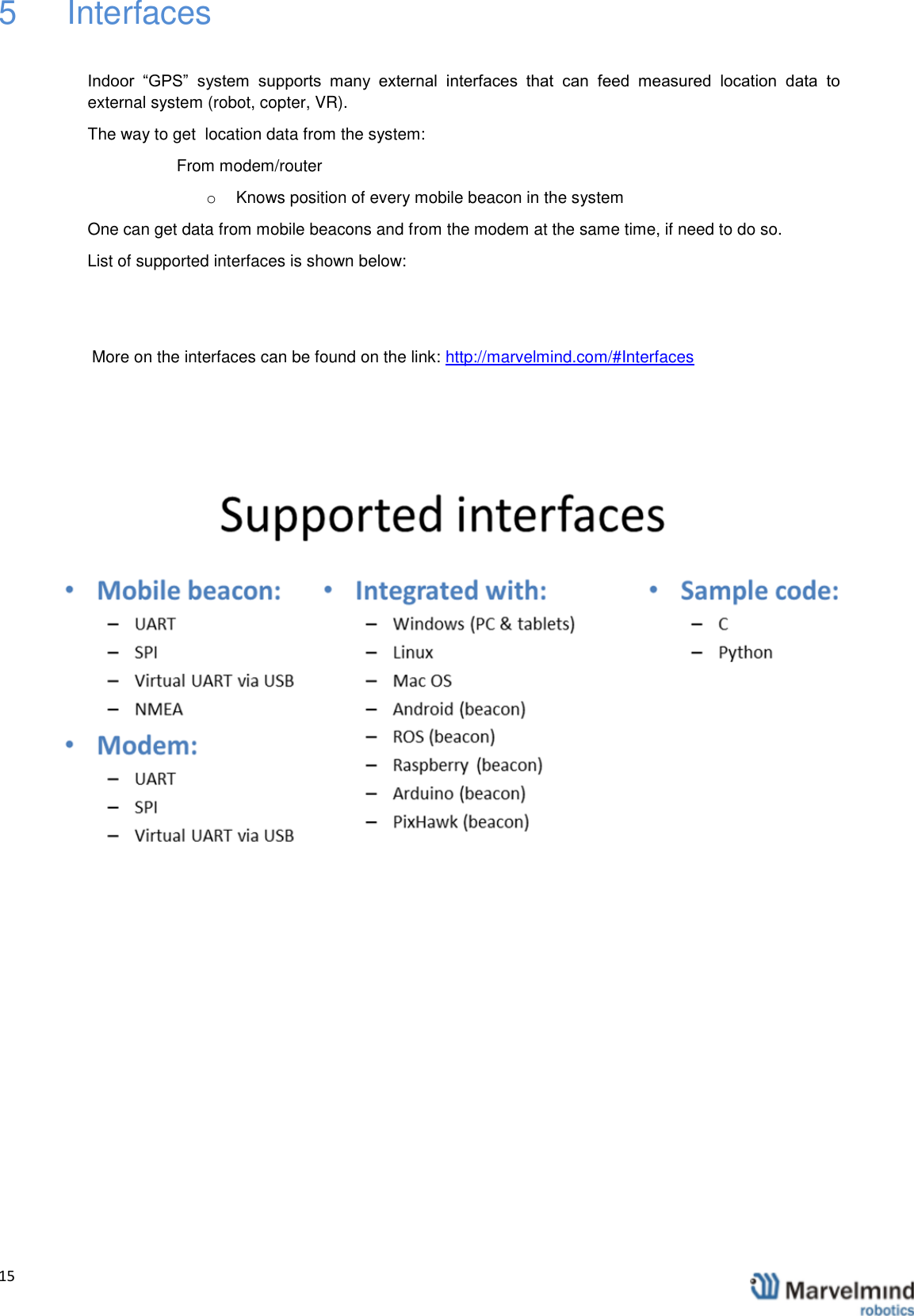
  15                5   Interfaces  Indoor  “GPS”  system  supports  many  external  interfaces  that  can  feed  measured  location  data  to external system (robot, copter, VR). The way to get  location data from the system: From modem/router o  Knows position of every mobile beacon in the system One can get data from mobile beacons and from the modem at the same time, if need to do so.  List of supported interfaces is shown below:   More on the interfaces can be found on the link: http://marvelmind.com/#Interfaces
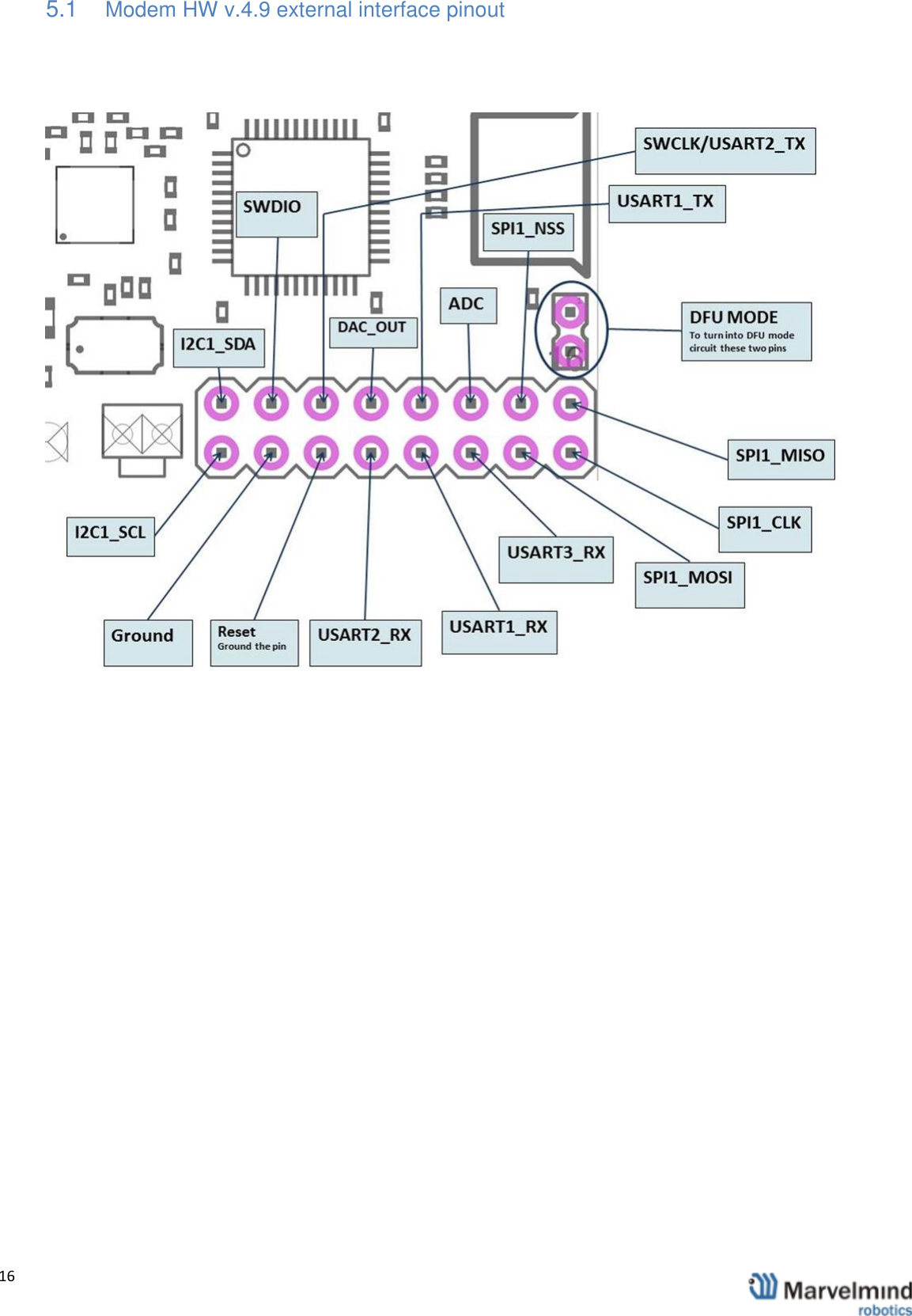
  16                5.1  Modem HW v.4.9 external interface pinout
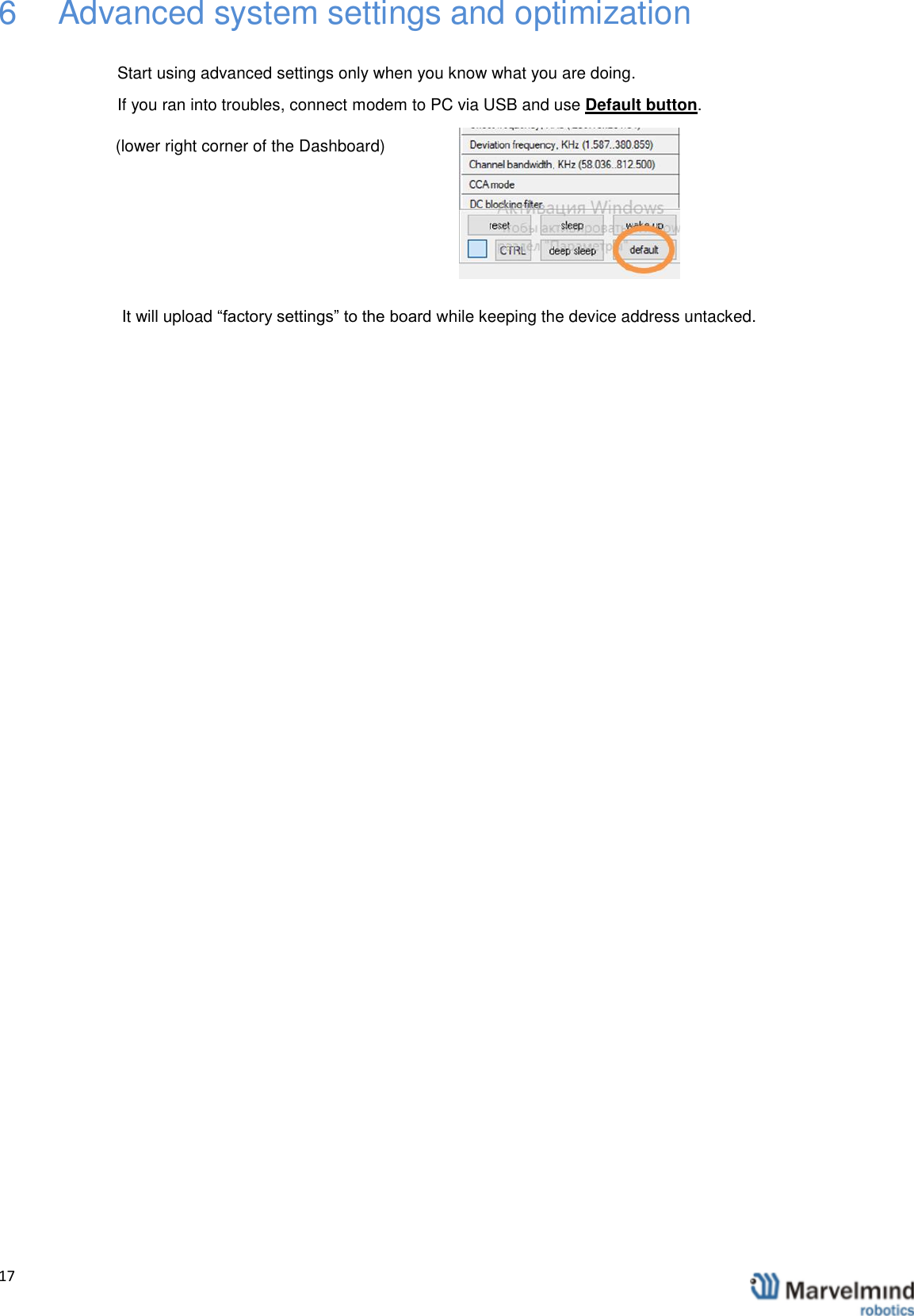
  17                6  Advanced system settings and optimization  Start using advanced settings only when you know what you are doing. If you ran into troubles, connect modem to PC via USB and use Default button. (lower right corner of the Dashboard)   It will upload “factory settings” to the board while keeping the device address untacked.
  18                 7   Frequently Asked Questions  http://www.marvelmind.com/forum/viewforum.php?f=2  8   Contacts   For more support, you may send us your questions to info@marvelmind.com. We will guide and advise you 9   FCC StatementChanges or modifications not expressly approved by the party responsible for compliance could void the user's authority tooperate the equipment.This equipment has been tested and found to comply with the limits for a Class B digital device, pursuant to Part 15 of the FCC Rules. These limits are designed to provide reasonable protection against harmful interference in a residential installation.This equipment generates uses and can radiate radio frequency energy and, if not installed and used in accordance with theinstructions, may cause harmful interference to radio communications. However, there is no guarantee that interference will not occur in a particular installation. If this equipment does cause harmful interference to radio or television reception, which can be determined by turning the equipment off and on, the user is encouraged to try to correct the interference by one or more of the following measures:-- Reorient or relocate the receiving antenna.-- Increase the separation between the equipment and receiver.-- Connect the equipment into an outlet on a circuit different from that to which the receiver is connected.-- Consult the dealer or an experienced radio/TV technician for helpThis device complies with part 15 of the FCC rules. Operation is subject to the following two conditions (1)this device may not cause harmful interference, and (2) this device must accept any interference received, including interference that may cause undesired operation.This product must be installed and operated with a minimum distance of 20cmbetween the radiator and user body.

Navigation menu