Matias FK418BT Wireless Aluminum Keyboard User Manual

Matias Corporation Wireless Aluminum Keyboard

User manual

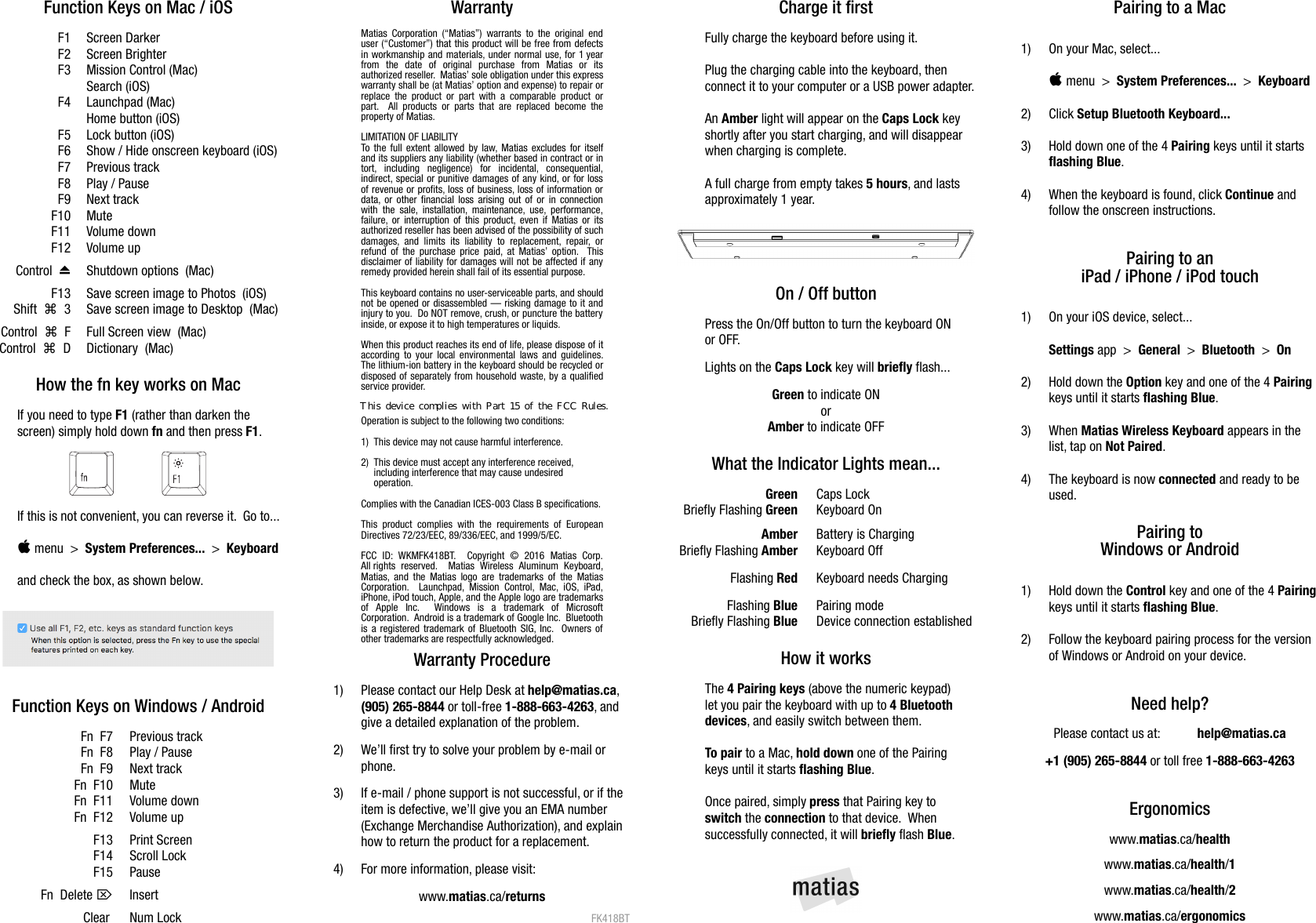
Function Keys on Mac / iOSF1 Screen DarkerF2 Screen BrighterF3 Mission Control (Mac)Search (iOS)F4 Launchpad (Mac)Home button (iOS)F5 Lock button (iOS)F6 Show / Hide onscreen keyboard (iOS)F7 Previous trackF8 Play / PauseF9 Next trackF10 MuteF11 Volume downF12 Volume up⏏Control   Shutdown options  (Mac)F13 Save screen image to Photos  (iOS)⌘Shift     3 Save screen image to Desktop  (Mac)⌘Control     F Full Screen view  (Mac)⌘Control     D Dictionary  (Mac)How the fn key works on MacIf you need to type F1 (rather than darken thescreen) simply hold down fn and then press F1.If this is not convenient, you can reverse it.  Go to... menu  >  System Preferences...  >  Keyboardand check the box, as shown below.Function Keys on Windows / AndroidFn  F7 Previous trackFn  F8 Play / PauseFn  F9 Next trackFn  F10 MuteFn  F11 Volume downFn  F12 Volume upF13 Print ScreenF14 Scroll LockF15 Pause⌦Fn  Delete  InsertClear  Num LockWarrantyMatias Corporation (“Matias”) warrants to the original enduser (“Customer”) that this product will be free from defectsin workmanship and materials, under normal use, for 1 yearfrom   the   date   of   original   purchase   from   Matias   or   itsauthorized reseller.  Matias’ sole obligation under this expresswarranty shall be (at Matias’ option and expense) to repair orreplace the product or part with a comparable product orpart.   All products or parts that  are replaced become theproperty of Matias.LIMITATION OF LIABILITYTo the full extent allowed by law, Matias excludes for itselfand its suppliers any liability (whether based in contract or intort,   including   negligence)   for   incidental,   consequential,indirect, special or punitive damages of any kind, or for lossof revenue or profits, loss of business, loss of information ordata, or other financial loss arising out of or in connectionwith the sale,  installation, maintenance, use, performance,failure, or interruption of this product, even if Matias or itsauthorized reseller has been advised of the possibility of suchdamages, and  limits  its liability  to  replacement, repair,  orrefund of the purchase price paid, at Matias’ option.   Thisdisclaimer of liability for damages will not be affected if anyremedy provided herein shall fail of its essential purpose.This keyboard contains no user-serviceable parts, and shouldnot be opened or disassembled — risking damage to it andinjury to you.  Do NOT remove, crush, or puncture the batteryinside, or expose it to high temperatures or liquids. When this product reaches its end of life, please dispose of itaccording to your local environmental laws and guidelines.The lithium-ion battery in the keyboard should be recycled ordisposed of separately from household waste, by a qualifiedservice provider.Operation is subject to the following two conditions:1)  This device may not cause harmful interference.2)  This device must accept any interference received,      including interference that may cause undesired      operation.Complies with the Canadian ICES-003 Class B specifications.This product  complies  with the  requirements  of EuropeanDirectives 72/23/EEC, 89/336/EEC, and 1999/5/EC.FCC   ID:  WKMFK418BT.    Copyright   ©   2016   Matias   Corp.All rights  reserved.   Matias   Wireless   Aluminum  Keyboard,Matias, and the Matias logo are trademarks of the MatiasCorporation.   Launchpad,  Mission  Control,  Mac,  iOS, iPad,iPhone, iPod touch, Apple, and the Apple logo are trademarksof   Apple   Inc.     Windows   is   a   trademark   of   MicrosoftCorporation.  Android is a trademark of Google Inc.  Bluetoothis a registered trademark of Bluetooth SIG, Inc.   Owners ofother trademarks are respectfully acknowledged.Warranty Procedure1) Please contact our Help Desk at help@matias.ca,(905) 265-8844 or toll-free 1-888-663-4263, and give a detailed explanation of the problem.2) We’ll first try to solve your problem by e-mail orphone.3) If e-mail / phone support is not successful, or if the item is defective, we’ll give you an EMA number(Exchange Merchandise Authorization), and explainhow to return the product for a replacement.4) For more information, please visit:www.matias.ca/returnsFK418BTCharge it firstFully charge the keyboard before using it.Plug the charging cable into the keyboard, then connect it to your computer or a USB power adapter.An Amber light will appear on the Caps Lock keyshortly after you start charging, and will disappearwhen charging is complete.A full charge from empty takes 5 hours, and lasts approximately 1 year.On / Off buttonPress the On/Off button to turn the keyboard ON or OFF.Lights on the Caps Lock key will briefly flash... Green to indicate ONorAmber to indicate OFFWhat the Indicator Lights mean...Green Caps LockBriefly Flashing Green Keyboard OnAmber Battery is ChargingBriefly Flashing Amber Keyboard OffFlashing Red Keyboard needs ChargingFlashing Blue Pairing modeBriefly Flashing Blue Device connection establishedHow it worksThe 4 Pairing keys (above the numeric keypad) let you pair the keyboard with up to 4 Bluetoothdevices, and easily switch between them.To pair to a Mac, hold down one of the Pairing keys until it starts flashing Blue.Once paired, simply press that Pairing key to switch the connection to that device.  Whensuccessfully connected, it will briefly flash Blue. Pairing to a Mac1) On your Mac, select... menu  >  System Preferences...  >  Keyboard2) Click Setup Bluetooth Keyboard...3) Hold down one of the 4 Pairing keys until it startsflashing Blue.4) When the keyboard is found, click Continue andfollow the onscreen instructions.Pairing to aniPad / iPhone / iPod touch1) On your iOS device, select...Settings app  >  General  >  Bluetooth  >  On2) Hold down the Option key and one of the 4 Pairingkeys until it starts flashing Blue.3) When Matias Wireless Keyboard appears in thelist, tap on Not Paired.4) The keyboard is now connected and ready to beused.Pairing toWindows or Android1) Hold down the Control key and one of the 4 Pairingkeys until it starts flashing Blue.2) Follow the keyboard pairing process for the versionof Windows or Android on your device.Need help?Please contact us at:  help@matias.ca+1 (905) 265-8844 or toll free 1-888-663-4263Ergonomicswww.matias.ca/healthwww.matias.ca/health/1www.matias.ca/health/2www.matias.ca/ergonomicsThis  device  complies  with  Part  15  of  the  FCC  Rules.
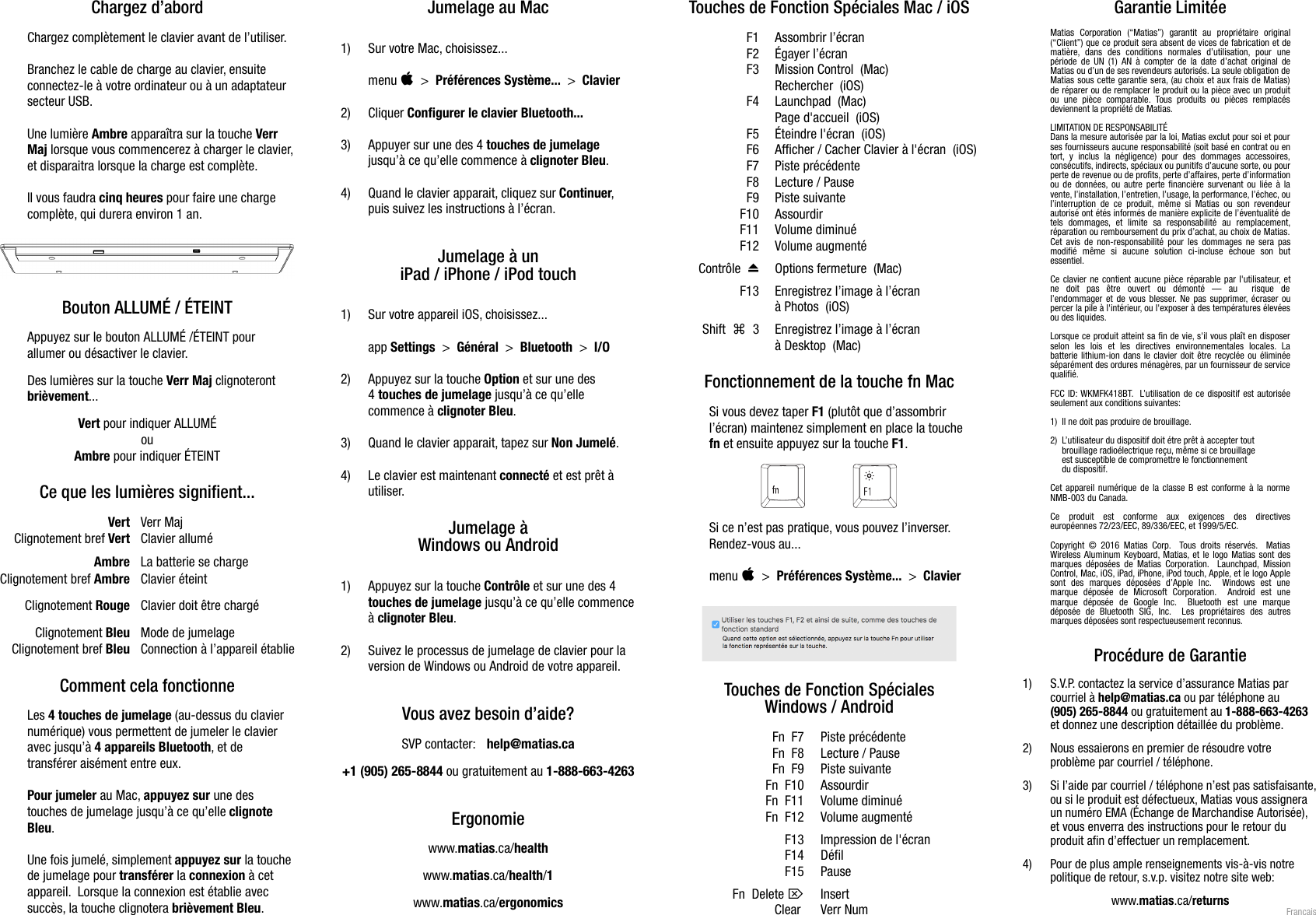
Chargez d’abordChargez complètement le clavier avant de l’utiliser.Branchez le cable de charge au clavier, ensuiteconnectez-le à votre ordinateur ou à un adaptateursecteur USB.Une lumière Ambre apparaîtra sur la touche VerrMaj lorsque vous commencerez à charger le clavier,et disparaitra lorsque la charge est complète.Il vous faudra cinq heures pour faire une chargecomplète, qui durera environ 1 an.Bouton ALLUMÉ / ÉTEINTAppuyez sur le bouton ALLUMÉ /ÉTEINT pourallumer ou désactiver le clavier.Des lumières sur la touche Verr Maj clignoterontbrièvement... Vert pour indiquer ALLUMÉouAmbre pour indiquer ÉTEINTCe que les lumières signifient...Vert Verr MajClignotement bref Vert Clavier alluméAmbre La batterie se chargeClignotement bref Ambre Clavier éteintClignotement Rouge Clavier doit être chargéClignotement Bleu Mode de jumelageClignotement bref Bleu Connection à l’appareil établieComment cela fonctionneLes 4 touches de jumelage (au-dessus du claviernumérique) vous permettent de jumeler le clavieravec jusqu’à 4 appareils Bluetooth, et detransférer aisément entre eux.Pour jumeler au Mac, appuyez sur une destouches de jumelage jusqu’à ce qu’elle clignoteBleu.Une fois jumelé, simplement appuyez sur la touchede jumelage pour transférer la connexion à cetappareil.  Lorsque la connexion est établie avecsuccès, la touche clignotera brièvement Bleu.Jumelage au Mac1) Sur votre Mac, choisissez...menu    >  Préférences Système...  >  Clavier2) Cliquer Configurer le clavier Bluetooth...3) Appuyer sur une des 4 touches de jumelagejusqu’à ce qu’elle commence à clignoter Bleu.4) Quand le clavier apparait, cliquez sur Continuer,puis suivez les instructions à l’écran.Jumelage à uniPad / iPhone / iPod touch1) Sur votre appareil iOS, choisissez...app Settings  >  Général  >  Bluetooth  >  I/O2) Appuyez sur la touche Option et sur une des4 touches de jumelage jusqu’à ce qu’ellecommence à clignoter Bleu.3) Quand le clavier apparait, tapez sur Non Jumelé.4) Le clavier est maintenant connecté et est prêt àutiliser.Jumelage àWindows ou Android1) Appuyez sur la touche Contrôle et sur une des 4touches de jumelage jusqu’à ce qu’elle commenceà clignoter Bleu.2) Suivez le processus de jumelage de clavier pour laversion de Windows ou Android de votre appareil.Vous avez besoin d’aide?SVP contacter:  help@matias.ca+1 (905) 265-8844 ou gratuitement au 1-888-663-4263Ergonomiewww.matias.ca/healthwww.matias.ca/health/1www.matias.ca/ergonomicsTouches de Fonction Spéciales Mac / iOSF1 Assombrir l’écranF2 Égayer l’écranF3 Mission Control  (Mac)Rechercher  (iOS)F4 Launchpad  (Mac)Page d'accueil  (iOS)F5 Éteindre l'écran  (iOS)F6 Afficher / Cacher Clavier à l'écran  (iOS)F7 Piste précédenteF8 Lecture / PauseF9 Piste suivanteF10 AssourdirF11 Volume diminuéF12 Volume augmenté⏏Contrôle   Options fermeture  (Mac)F13 Enregistrez l’image à l’écran à Photos  (iOS)⌘Shift     3 Enregistrez l’image à l’écran à Desktop  (Mac)Fonctionnement de la touche fn MacSi vous devez taper F1 (plutôt que d’assombrirl’écran) maintenez simplement en place la touchefn et ensuite appuyez sur la touche F1.Si ce n’est pas pratique, vous pouvez l’inverser.Rendez-vous au...menu    >  Préférences Système...  >  ClavierTouches de Fonction SpécialesWindows / AndroidFn  F7 Piste précédenteFn  F8 Lecture / PauseFn  F9 Piste suivanteFn  F10 AssourdirFn  F11 Volume diminuéFn  F12 Volume augmentéF13 Impression de l'écranF14 DéfilF15 Pause⌦Fn  Delete  InsertClear  Verr NumGarantie LimitéeMatias   Corporation   (“Matias”)   garantit  au   propriétaire  original(“Client”) que ce produit sera absent de vices de fabrication et dematière,  dans   des   conditions   normales   d’utilisation,  pour   unepériode de UN (1) AN à compter de la date d’achat original deMatias ou d’un de ses revendeurs autorisés. La seule obligation deMatias sous cette garantie sera, (au choix et aux frais de Matias)de réparer ou de remplacer le produit ou la pièce avec un produitou  une  pièce   comparable.  Tous produits  ou  pièces  remplacésdeviennent la propriété de Matias.LIMITATION DE RESPONSABILITÉDans la mesure autorisée par la loi, Matias exclut pour soi et pourses fournisseurs aucune responsabilité (soit basé en contrat ou entort, y   inclus  la  négligence)  pour  des  dommages   accessoires,consécutifs, indirects, spéciaux ou punitifs d’aucune sorte, ou pourperte de revenue ou de profits, perte d’affaires, perte d’informationou de données, ou autre perte financière survenant ou liée à lavente, l’installation, l’entretien, l’usage, la performance, l’échec, oul’interruption de ce produit, même si Matias ou  son   revendeurautorisé ont étés informés de manière explicite de l’éventualité detels   dommages,  et   limite   sa   responsabilité   au   remplacement,réparation ou remboursement du prix d’achat, au choix de Matias.Cet avis de non-responsabilité pour les dommages ne sera pasmodifié   même  si   aucune  solution  ci-incluse   échoue   son   butessentiel.Ce clavier ne contient aucune pièce réparable par l'utilisateur, etne   doit   pas   être   ouvert   ou   démonté   —   au     risque   del’endommager et de vous blesser. Ne pas supprimer, écraser oupercer la pile à l'intérieur, ou l'exposer à des températures élevéesou des liquides. Lorsque ce produit atteint sa fin de vie, s'il vous plaît en disposerselon   les   lois   et   les   directives   environnementales   locales.  Labatterie lithium-ion dans le clavier doit être recyclée ou éliminéeséparément des ordures ménagères, par un fournisseur de servicequalifié.FCC ID: WKMFK418BT.  L’utilisation de ce dispositif est autoriséeseulement aux conditions suivantes:1)  Il ne doit pas produire de brouillage.2)  L’utilisateur du dispositif doit étre prêt à accepter tout     brouillage radioélectrique reçu, même si ce brouillage      est susceptible de compromettre le fonctionnement      du dispositif.Cet appareil numérique de la classe B est conforme à la normeNMB-003 du Canada.Ce   produit   est   conforme   aux   exigences   des   directiveseuropéennes 72/23/EEC, 89/336/EEC, et 1999/5/EC.Copyright © 2016 Matias Corp.   Tous droits réservés.   MatiasWireless Aluminum Keyboard, Matias, et le logo Matias sont desmarques déposées de Matias Corporation.   Launchpad, MissionControl, Mac, iOS, iPad, iPhone, iPod touch, Apple, et le logo Applesont   des   marques   déposées   d’Apple   Inc.    Windows  est   unemarque   déposée   de  Microsoft   Corporation.     Android  est  unemarque   déposée   de  Google   Inc.    Bluetooth   est  une   marquedéposée   de   Bluetooth   SIG,  Inc.    Les   propriétaires   des   autresmarques déposées sont respectueusement reconnus.Procédure de Garantie1) S.V.P. contactez la service d’assurance Matias parcourriel à help@matias.ca ou par téléphone au(905) 265-8844 ou gratuitement au 1-888-663-4263et donnez une description détaillée du problème.2) Nous essaierons en premier de résoudre votreproblème par courriel / téléphone.3) Si l’aide par courriel / téléphone n’est pas satisfaisante,ou si le produit est défectueux, Matias vous assigneraun numéro EMA (Échange de Marchandise Autorisée),et vous enverra des instructions pour le retour duproduit afin d’effectuer un remplacement.4) Pour de plus ample renseignements vis-à-vis notrepolitique de retour, s.v.p. visitez notre site web:www.matias.ca/returns Français
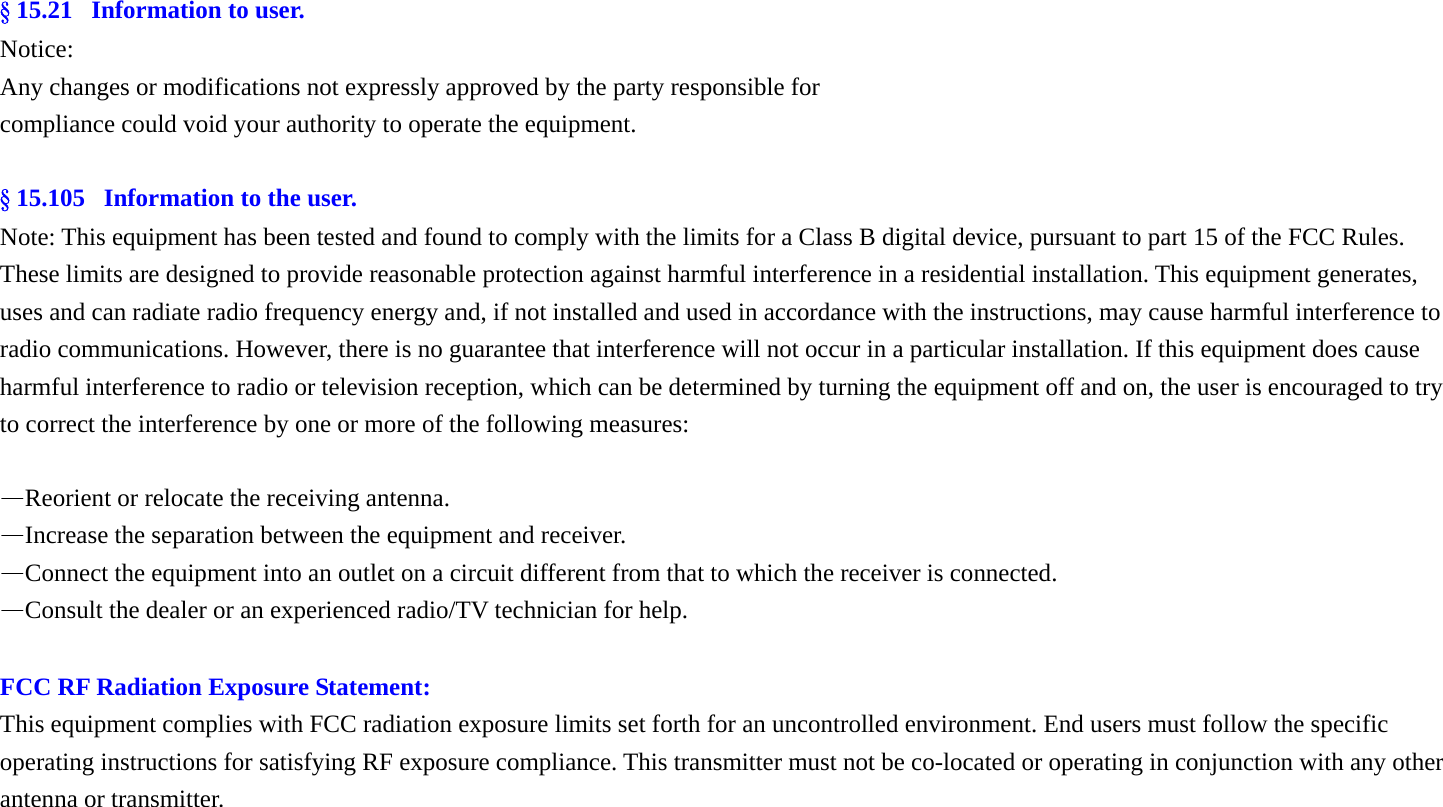
§ 15.21   Information to user. Notice: Any changes or modifications not expressly approved by the party responsible for compliance could void your authority to operate the equipment.  § 15.105   Information to the user. Note: This equipment has been tested and found to comply with the limits for a Class B digital device, pursuant to part 15 of the FCC Rules. These limits are designed to provide reasonable protection against harmful interference in a residential installation. This equipment generates, uses and can radiate radio frequency energy and, if not installed and used in accordance with the instructions, may cause harmful interference to radio communications. However, there is no guarantee that interference will not occur in a particular installation. If this equipment does cause harmful interference to radio or television reception, which can be determined by turning the equipment off and on, the user is encouraged to try to correct the interference by one or more of the following measures:  —Reorient or relocate the receiving antenna. —Increase the separation between the equipment and receiver. —Connect the equipment into an outlet on a circuit different from that to which the receiver is connected. —Consult the dealer or an experienced radio/TV technician for help.  FCC RF Radiation Exposure Statement: This equipment complies with FCC radiation exposure limits set forth for an uncontrolled environment. End users must follow the specific operating instructions for satisfying RF exposure compliance. This transmitter must not be co-located or operating in conjunction with any other antenna or transmitter.

Navigation menu