Mazda 2010 Cx 7 Navigation Manual NAV TVU1E123
Mazda-Cx-7-Navigation-Manual-747030 mazda-cx-7-navigation-manual-747030
2015-10-23
: Mazda Mazda-2010-Mazda-Cx-7-Navigation-Manual-817713 mazda-2010-mazda-cx-7-navigation-manual-817713 mazda pdf
Open the PDF directly: View PDF  .
.
Page Count: 50
©2009 Mazda Motor Corporation
Printed in Japan Mar. 2009(Print1)
Before Use
Getting
Started
Routing
Editing
If
Necessary
Preparation
NAVIGATION
SYSTEM Immediate Use
If Necessary
See page 5 for specific information.
See page 4 for specific information.
See page 4 for specific information.
2%:8:9)FSSO4EKI1SRHE].ERYEV]41
2
Before Use
Navigation
Set Up
RDM-TMC If
necessary
Rear View
Monitor
Before Use
Accessories
Please contact an Authorized Mazda Dealer if you are missing the
following.
lOwner’s Manual
CAUTION:
ALWAYS OPERATE THIS PRODUCT CORRECTLY AS
INSTRUCTED.
DO NOT OPEN COVERS AND DO NOT REPAIR YOURSELF.
REFER SERVICING TO QUALIFIED PERSONNEL.
2%:8:9)FSSO4EKI*VMHE](IGIQFIV41

3
Before Use If
necessary
Rear View
Monitor
MEMO
2%:8:9)FSSO4EKI*VMHE](IGIQFIV41

4
Before Use
Navigation
Set Up
RDM-TMC If
necessary
Rear View
Monitor
Contents
Preparation
nBefore Use
Accessories..................................................................................... 2
Contents.......................................................................................... 4
Safety Information ........................................................................... 6
Introduction ..................................................................................... 8
(Safe Product Use), (Navigation System), (Screens),
(LCD (Liquid Crystal Display))
Names and Functions ..................................................................... 9
Immediate Use
nGetting Started
lActivation....................................................................................... 11
(Activating the Navigation System), (Setting the Language),
(Setting the Clock, Outside Temperature Display and Other Settings),
(Upgrading the Map Information Version)
lMenu ............................................................................................. 14
(Navigation Menu Screen)
lNavigation Set Up ......................................................................... 15
lScreen Names and Functions....................................................... 18
(Screens Before Setting Route), (Screens During Route Guidance),
(Adjusting the Map Scale), (Screen Adjustments)
lCharacter Entry............................................................................. 20
(Street Name, City Name, and Other Input)
lRegister Home .............................................................................. 21
nRouting
lSet Destination.............................................................................. 22
(Search Area), (Input City Name), (Previous), (Home),
(Memory Point), (Point of Interest (POI)), (Intersection), (Map)
lFind Local POI .............................................................................. 32
lCancel/Edit Route ......................................................................... 34
(Cancel Guidance), (Change Route (Delete Destination, Reorder
Destinations, Start from adjacent road)), (Route Preferences)
nEditing
lEdit Memory Point......................................................................... 36
(Add), (Edit), (Delete), (Delete All)
lEdit Home ..................................................................................... 38
(Register), (Delete), (Edit Location)
lBrowse Map & Mark...................................................................... 40
(Browse Map & Mark)
lPOI Icons on Maps ....................................................................... 41
(POI (Point of Interest) Icons)
2%:8:9)FSSO4EKI1SRHE].ERYEV]41
5
Before Use If
necessary
Rear View
Monitor
If Necessary
nIf Necessary
lPrecautions/System Performance ................................................. 43
(Voice Guidance), (Repeating Voice Guidance), (GPS), (Map Matching),
(Positioning Accuracy), (Route Guide), (Route Search), (License)
2%:8:9)FSSO4EKI*VMHE](IGIQFIV41
6
Before Use
Navigation
Set Up
RDM-TMC If
necessary
Rear View
Monitor
Safety Information
nRead this owner’s manual for your Navigation System carefully before using the system.
It contains instructions about how to use the system in a safe and effective manner.
Mazda assumes no responsibility for any problems resulting from failure to observe the instructions
given in this manual.
nThis manual uses pictographs to show you how to use the product safely and to alert you to potential
dangers resulting from improper connections and operation. The meanings of the pictographs are
explained below. It is important that you fully understand the pictographs and explanations in order to
use this manual and the system properly.
Warning
Warning
The presence of this warning symbol in the text is intended to
alert you to the importance of heeding the operation
instructions. Failure to heed the instructions may result in
severe injury or death.
nDo not keep your eyes fixed on the monitor screen or operate the system
while driving.
Do not change the settings and destination locations while driving. Minimize the time
spent viewing the monitor screen and listening to the voice guidance while driving.
Operating the system will distract the driver from looking ahead of the vehicle and can
cause accidents. Always stop the vehicle in a safe location and use the parking brake
before operating the system.
nAlways obey local traffic regulations.
Your guided route may include roads that are not open to vehicles or are closed due to
traffic regulations. Comply with the local traffic regulations and take another route.
nDo not use the unit when it is out of order.
If the unit is out of order (no image, no sound) or in an abnormal state (has foreign matter
in it, is exposed to water, is smoking, or smells), turn it off immediately and consult an
Authorized dealer, we recommend an Authorized Mazda Dealer. Using the unit in an out-
of-order condition may lead to accidents, fires, or electric shocks.
nUse the proper power supply.
This product is designed for operation with a negative grounded 12 V DC battery system.
nDo not disassemble.
Do not disassemble the product or attempt to repair it yourself. If the product needs to be
repaired, take it to an Authorized dealer, we recommend an Authorized Mazda Dealer.
Warnings
2%:8:9)FSSO4EKI*VMHE](IGIQFIV41
7
Before Use If
necessary
Rear View
Monitor
Operation is subject to the following two conditions;
(1) This device may not cause interference, and
(2) This device must accept any interference,
including interference that may cause undesired operation of the device.
Caution
Caution
The presence of this caution symbol in the text is intended to
alert you to the importance of heeding the operation
instructions. Failure to heed the instructions may result in injury
or material damage.
nDo not use the product where it is exposed to water, moisture, or dust.
Exposure to water, moisture, or dust may lead to smoke, fire, or other damage to the unit.
Make especially sure that the unit does not get wet in car washes or on rainy days.
nKeep the voice guidance volume at an appropriate level.
Keep the volume level low enough to be aware of road and traffic conditions while driving.
nProtect the insertion slot for the SD card which contains the navigation map data.
Do not insert any foreign object into the installation slot.
nThis navigation system is designed exclusively for use in automobiles.
This navigation system should only be installed in an automobile. Do not install it in a
ship, aircraft, or any other vehicles except an automobile. Do not use it detached from the
vehicle.
Cautions
2%:8:9)FSSO4EKI*VMHE](IGIQFIV41

8
Before Use
Navigation
Set Up
RDM-TMC If
necessary
Rear View
Monitor
Introduction
nExtremely low or high temperatures may interfere with normal operation.
The inside of the vehicle can become very hot or cold when it is parked for extended
periods in direct sunlight or in cold places with the engine turned off. The navigation system
may not operate normally under such circumstances. Turn off the navigation system until
the inside of the vehicle has cooled down or warmed up. If the system does not operate
thereafter, consult an Authorized Dealer, we recommend an Authorized Mazda Dealer.
This navigation system utilizes GPS* satellite signals, a speed sensor and gyrosensor to track
and display your vehicle’s current position, and to guide you from your starting point to your
destination along a calculated route.
* : GPS (Global Positioning System) is a position detecting system utilizing the signals from GPS satellites
deployed by the U.S. Defense Department.
Screens displayed in this manual may differ from those on the actual display.
Direct sunlight or other outside light sources make it difficult to view the images on the display.
For moonroof-equipped vehicles, close the sunshade to better view the display.
Safe Product Use
Navigation System
Screens
LCD (Liquid Crystal Display)
2%:8:9)FSSO4EKI*VMHE](IGIQFIV41
9
Before Use If
necessary
Rear View
Monitor
Names and Functions
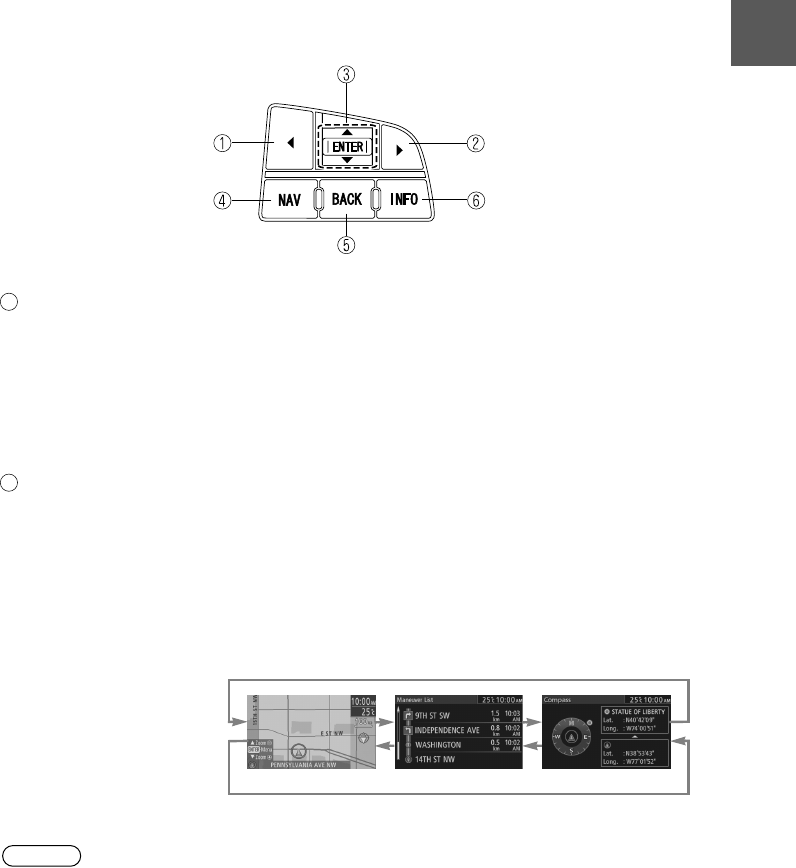
Steering Switch
The navigation system can be operated by pressing the steering switches.
Left switch: Press the switch while the selection cursor is displayed. The
selection cursor can be moved to the left.
Press the switch while the map scroll cursor is displayed. The
Map screen can be scrolled to the left.
Pressing the switch while in map mode switches the screen in
the order of Map, Compass, and Course List screens. To
switch back to the Map screen, press the switch on the Course
List screen.
Right switch: Press the switch while the selection cursor is displayed. The
selection cursor can be moved to the right.
Press the switch while the map scroll cursor is displayed. The
Map screen can be scrolled to the right.
Pressing the switch while in map mode switches the screen in
the order of Map, Course list, and Compass screens. To switch
back to the Map screen, press the switch on the Compass
screen.
Note
The Course List screen is displayed only when the destination is set and the vehicle is on
route.
1
2
Map screen Course list screen Compass screen
2%:8:9)FSSO4EKI*VMHE](IGIQFIV41

10
Before Use
Navigation
Set Up
RDM-TMC If
necessary
Rear View
Monitor
Enter (up/down) switch: Press the Enter (up/down) switch.
Press the Enter (up/down) switch to select the desired item.
The navigation menu is displayed by pressing the Enter (up/
down) switch while the Map screen is displayed.
Press the Enter (up/down) switch up or down.
To move the selection cursor up or down, press the Enter (up/
down) switch up or down while the selection cursor is
displayed.
Press the Enter (up/down) switch up or down while the map
scroll cursor is displayed. The Map screen scrolls up or down.
Press the Enter (up/down) switch up or down while the Map
screen is displayed to zoom in/out of the Map screen.
Navi switch: Used to switch to the navigation mode. Pressing the switch
while the Navigation Menu screen or Map Scroll screen is
displayed switches the display to the Map screen.
Pressing the switch after the voice guidance has finished
repeats the voice guidance. ( page 43)
BACK switch: Used to undo the previous screen operation.
INFO switch: Used to switch to the multi information display.
3
4
5
6
2%:8:9)FSSO4EKI*VMHE](IGIQFIV41
11
Getting Started
Activation
The following operation procedure is for activating the navigation system.
Note
While on the Map screen, press the Enter (up/down) switch up or down to change the map
scale.
Activating the Navigation System
1
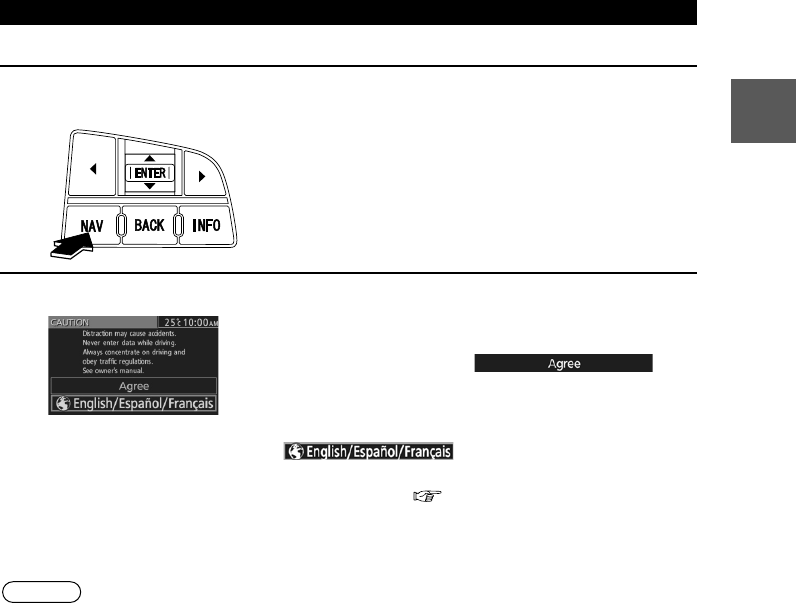
With the ignition switched to ACC or ON, press the Navi switch on the steering
switch.
2
After a moment, the CAUTION screen is displayed.
*1 :Press the Enter (up/down) switch up or down.
*2 :Press the Enter (up/down) switch.
lIf you are in agreement with the CAUTION
statement, press the Enter (up/down) switch up or
down to set the cursor to *1.
Press the Enter (up/down) switch to switch to the
Map screen*2.
lTo change the language, set the cursor to
*1. Press the Enter (up/down)
switch to switch the screen to LANGUAGE
SELECTION*2. ( page 12)
2%:8:9)FSSO4EKI*VMHE](IGIQFIV41
12
Routing Address
Book Getting Started
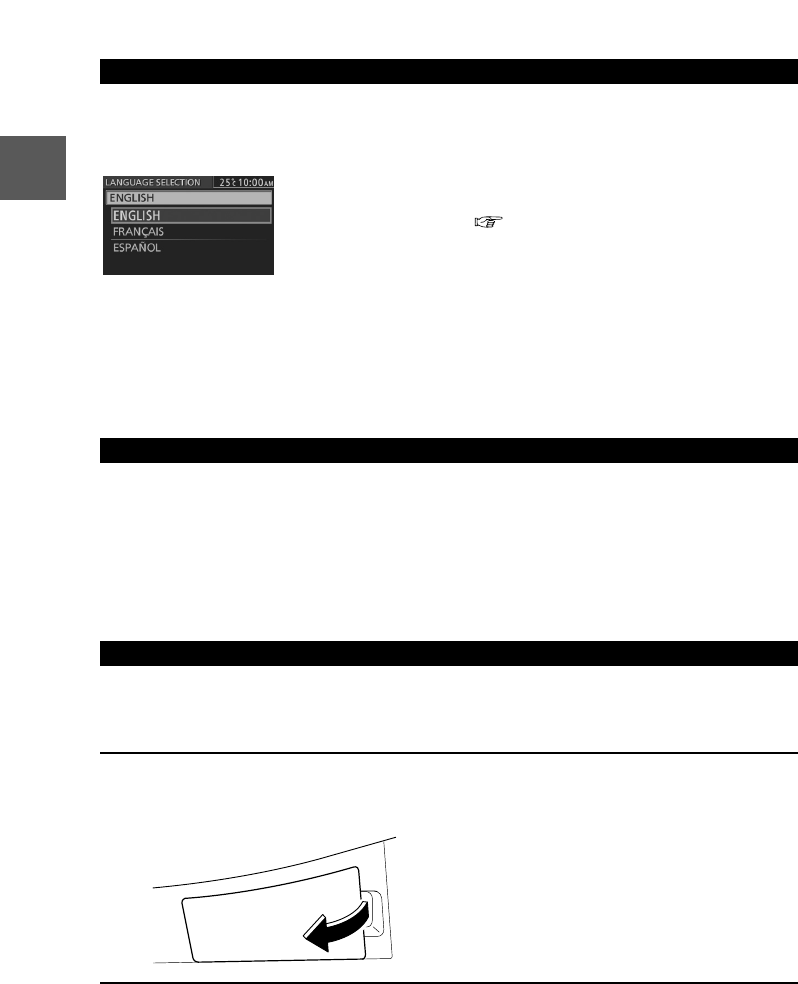
The language can be changed using the Language setting displayed in the upper
part of the screen.
Before activating the navigation system
After activating the navigation system
1. Press the INFO switch to display the SETTINGS screen.
2. Select PREFERENCES and press the Enter (up/down) switch.
3. Select SELECT LANGUAGE and press the Enter (up/down) switch.
4. Select the desired language from the list.
nThe following feature settings are possible, refer to the “Multi Information
Display” in the owner’s manual.
lClock: Constant display of time.
lOutside Temperature Display: Constant display of ambient temperature.
lSettings: Used to change the multi information display settings. (Distance unit, Display
language)
The map information version can be upgraded. If you require the latest SD card of
Navigation Map data, consult an Expert Dealer, we recommend an Authorized
Mazda Dealer.
Setting the Language
Select the desired language from the list.
Press the Enter (up/down) switch to switch the screen to
CAUTION. ( page 11)
Setting the Clock, Outside Temperature Display and Other Settings
Upgrading the Map Information Version
1
With the ignition switched to ACC OFF, insert a finger into the depression
above the lid housing SD card of Navigation Map data (next to the navigation
display), and open it.
2%:8:9)FSSO4EKI*VMHE](IGIQFIV41
13
Getting Started
Notes
lAfter inserting the SD card of Navigation Map data, firmly close all of the lids.
lIf the inner lid is not firmly closed, the navigation system will not function.
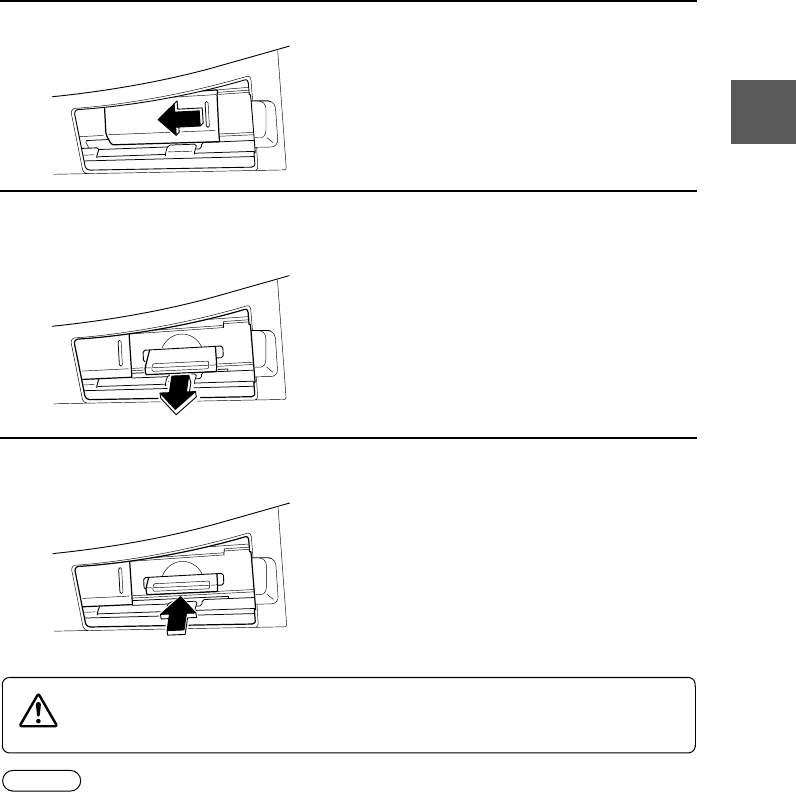
2
Slide the notch of the inner lid sideways with your finger to open the inner lid.
3
The SD card of Navigation Map data will be visible. Press in the currently
inserted SD card of Navigation Map data with a finger. After pressing in the SD
card, it will eject partially. Grab the card with your fingers to pull it out.
4
Insert the new SD card of Navigation Map data all the way in and close all the
lids.
If the inner lid is closed while the SD card of Navigation Map data is not inserted
all the way, the card could be damaged.
Caution
2%:8:9)FSSO4EKI*VMHE](IGIQFIV41
14
Routing Address
Book Getting Started
Menu
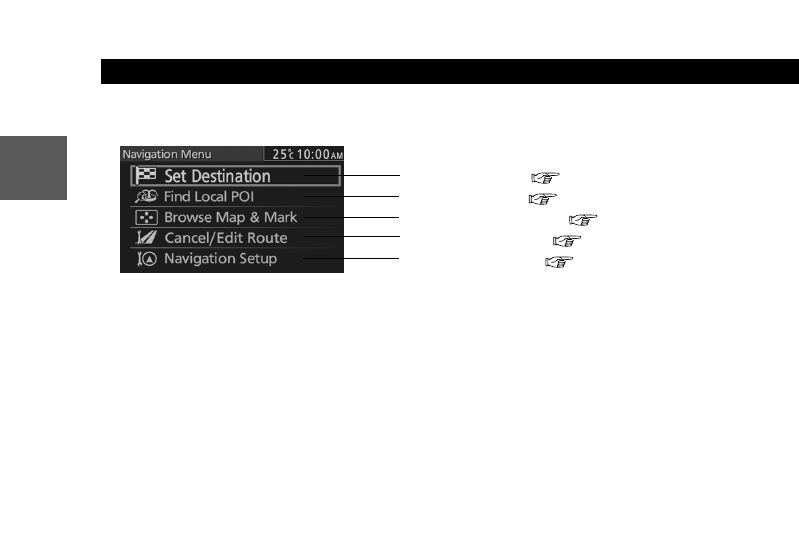
Menu is displayed by pressing the Enter (up/down) switch while the Map
screen is displayed.
Navigation Menu Screen
Set Destination ( page 22)
Find Local POI ( page 32)
Browse Map & Mark ( page 40)
Cancel/Edit Route ( page 34)
Navigation Setup ( page 15)
2%:8:9)FSSO4EKI;IHRIWHE](IGIQFIV41
15
Getting Started
Navigation Set Up
lYou can alter the map display conditions, the route guidance conditions and show the
system information.
nStop your vehicle before performing the following operations.
Do not change the settings and destination locations while driving. Minimize the time
spent viewing the monitor screen and listening to the voice guidance while driving.
Operating the system will distract the driver from looking ahead of the vehicle and may
cause an accident.
Always stop the vehicle in a safe location and set the parking brake before operating the
system.
Before Steps
select
Warning
Open the
[Navigation
Setup]
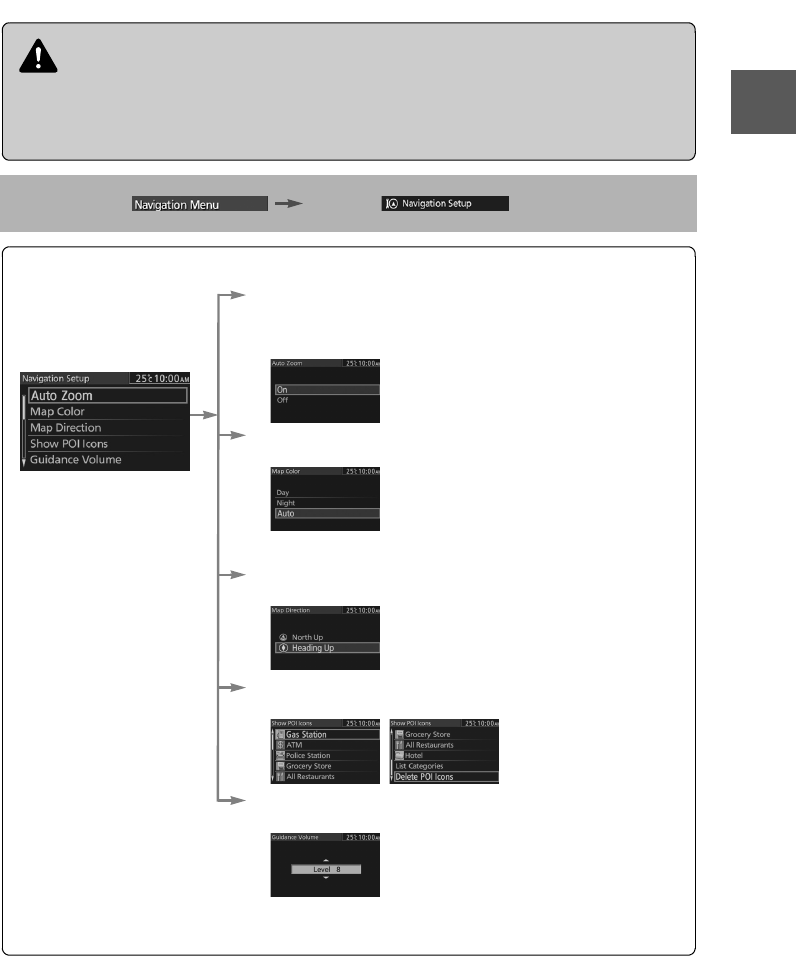
nAuto Zoom
The Auto Zoom function automatically switches the map scale depending
on the distance between the next guidance point and the current position.
Used to switch the Auto Zoom function.
nMap Color
Used to switch the map mode.
nMap Direction
Used to switch the map direction.
nShow POI Icons
Used to display the selected POI icons on the Map screen.
nGuidance Volume
Used to adjust the guidance volume.
Also adjustable using the audio volume knob during
transmission of the voice guidance.
Day: To switch to the daytime screen.
Night: To switch to the nighttime screen.
Auto: The screen switches between
daytime and nighttime displays in
conjunction with the on/off of the
vehicle’s exterior lights.
North Up: Geographic north is up.
Head Up: The direction you are heading is
up.
2%:8:9)FSSO4EKI1SRHE].ERYEV]41
16
Routing Address
Book Getting Started
Navigation Set Up
Open the
[Navigation
Setup]
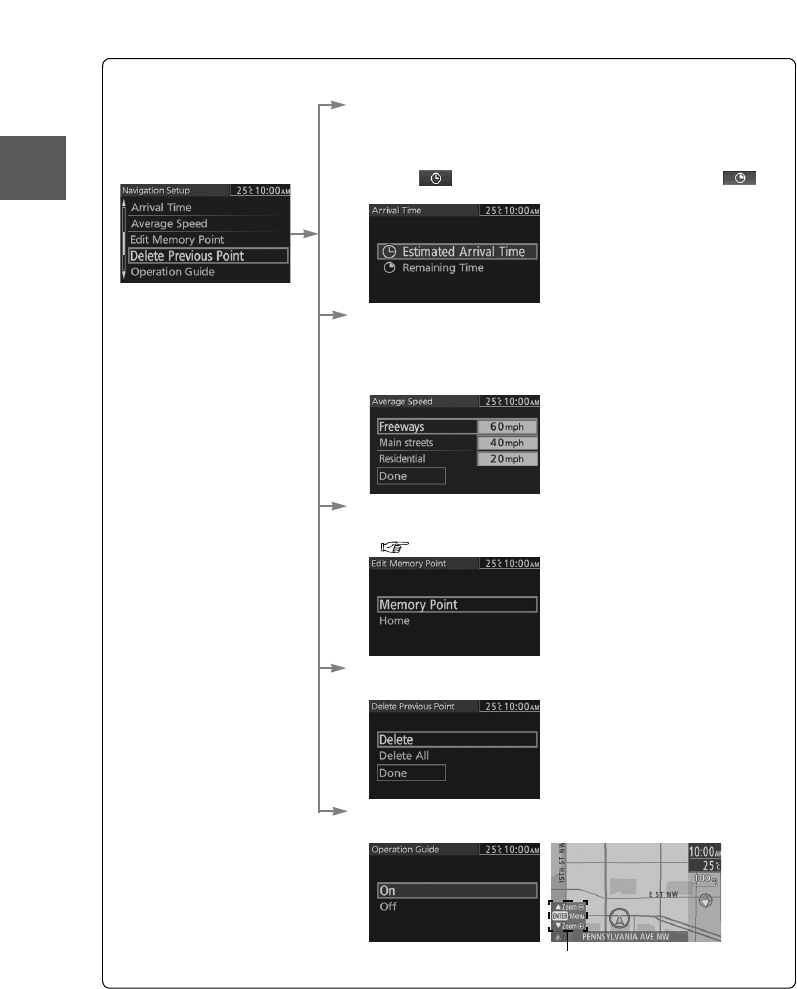
nArrival Time
The time which is displayed until reaching the destination or a
way point can be set as an estimated arrival time or the
remaining time.
Select to display the estimated arrival time, or to
display the remaining time.
nAverage Speed
Set the average speed for each road to be driven.
(This function sets the standard speed (average vehicle speed
for each route) used for calculating the estimated arrival time
when calculating the route time.)
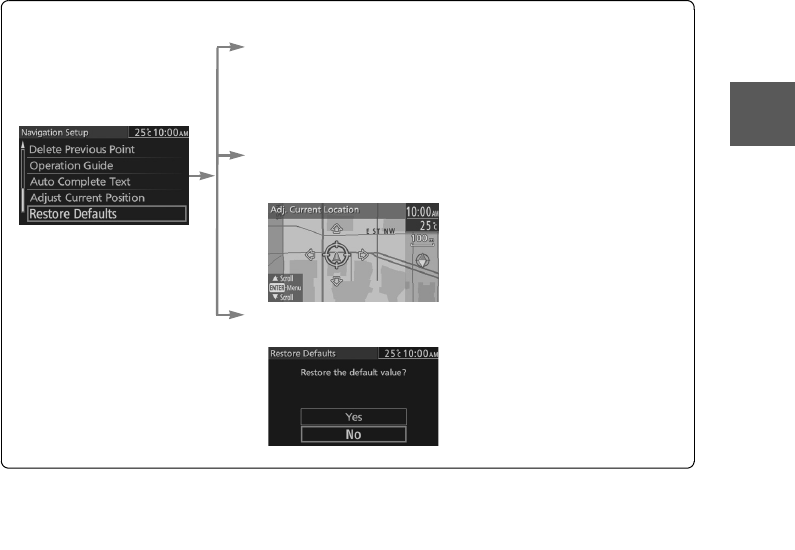
nEdit Memory Point
Used to edit the memory point or Home setting.
( page 36, 38)
nDelete Previous Point
Used to delete the previously set destination.
nOperation Guide
Used to switch the operating guide display.
Operation Guide
2%:8:9)FSSO4EKI1SRHE].ERYEV]41
17
Getting Started
Navigation Set Up
Open the
[Navigation
Setup]
nAuto Complete Text
When entering text, the system displays possible candidates of
words which may match the one you are trying to input. If the
system narrows down the candidate to one, the word is
automatically displayed.
Used to switch the auto complete text.
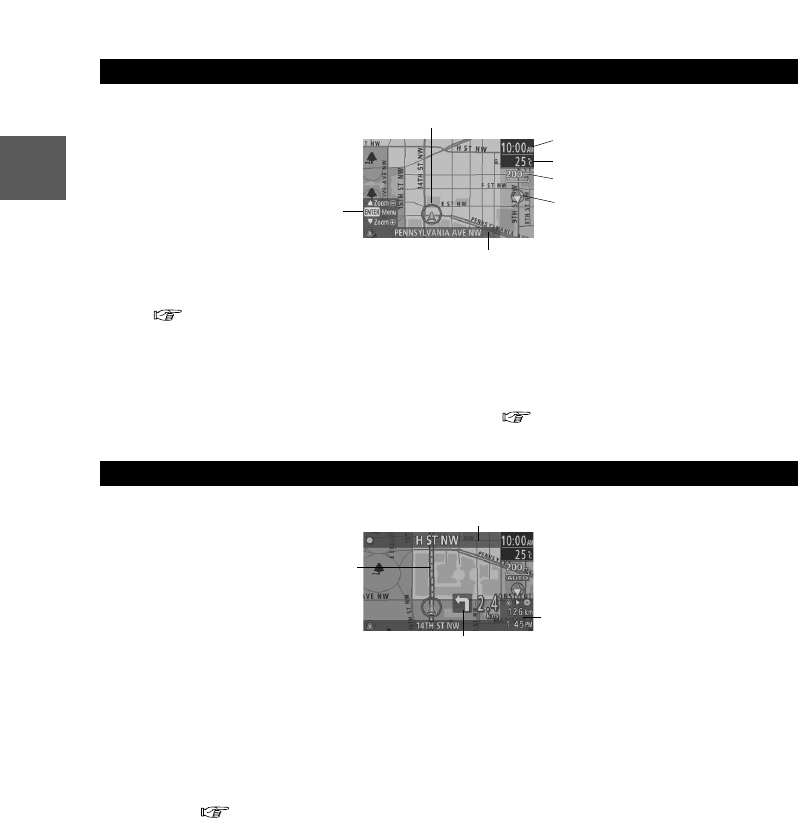
nAdjust Current Position
Used to adjust the vehicle position if it deviates from the Map
screen.
nRestore Defaults
Restores the default settings.
2%:8:9)FSSO4EKI1SRHE].ERYEV]41
18
Routing Address
Book Getting Started
Screen Names and Functions
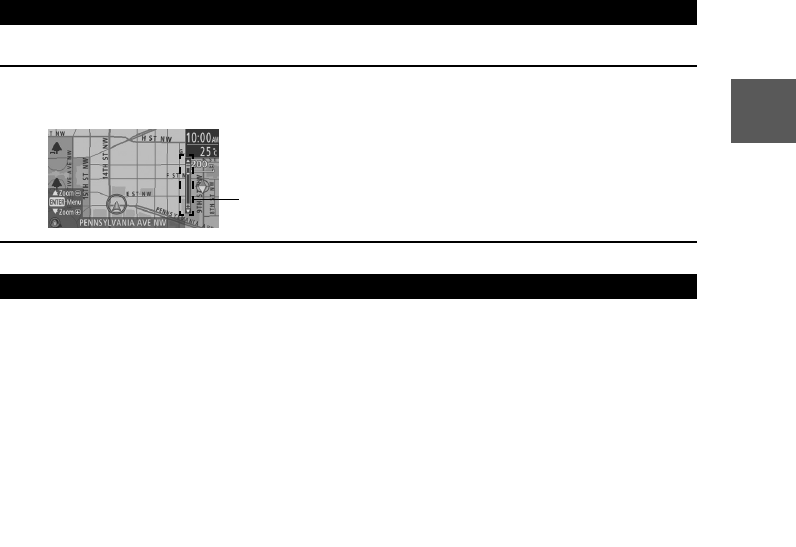
Screens Before Setting Route
(1) Map Orientation
( page 15)
(2) Clock
(3) Temperature
Displays the ambient temperature.
(4) Vehicle marker
Shows the current position and
direction of your vehicle.
(5) Scale display
Displays the scale of the map.
(6) Current Road Name
Shows the name of the road you are
currently driving on.
(7) Operation Guide
Displays the operational guidance.
( page 16)
Screens During Route Guidance
(1) The traveled distance to the
destination and the estimated arrival
time/remaining travel time
Displays the remaining time to the
destination.
Estimated arrival time to the destination
or the estimated remaining driving time
can be displayed by selecting either of
them. ( page 16)
(2) Route display
Shows the provided route as a thick
blue line.
(3) Turn Arrow display
Shows the direction to turn at the next
junction and the distance to the junction.
(4) Next Guided Street Name display
(4)
(2)
(6)
(3)
(5)
(1)
(7)
(3)
(1)
(2)
(4)
2%:8:9)FSSO4EKI*VMHE](IGIQFIV41
19
Getting Started
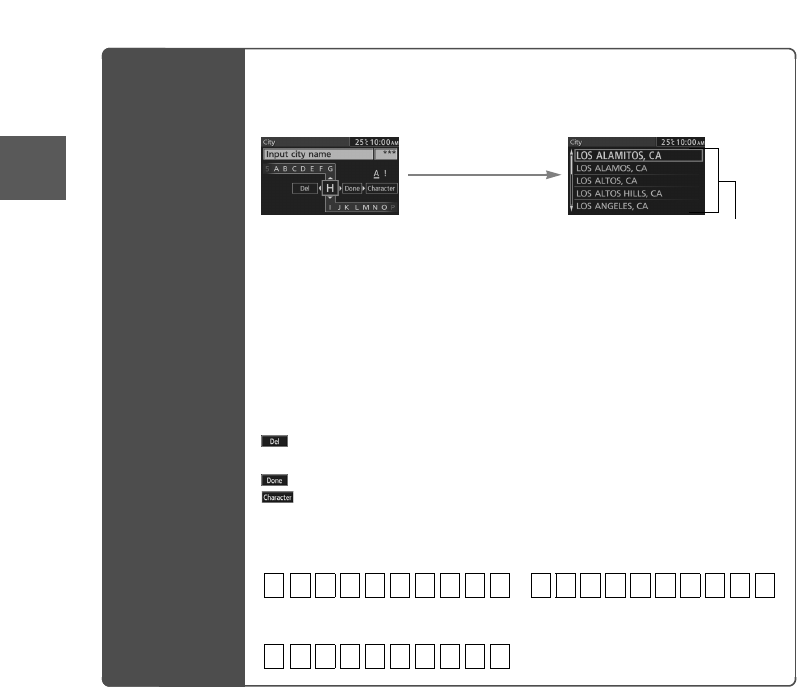
The screen map can be scaled to 14 different sizes.
nBrightness/Contrast
Brightness and contrast of the navigation screen can be adjusted.
1. Press the INFO switch to display the SETTINGS screen.
2. Select PREFERENCES and press the Enter (up/down) switch.
3. Select SCREEN ADJUSTMENT and press the Enter (up/down) switch.
4. Select BRIGHTNESS/CONTRAST and press the Enter (up/down) switch.
5. Select BRIGHTNESS or CONTRAST using the left or right switch.
6. Adjust the tone by operating the Enter (up/down) switch upward/downward.
7. After setting, press the Enter (up/down) switch to finish the setting.
nDaytime/Night screen
When the headlights are on, daytime mode can also be selected (if a brighter screen is
needed at night). This selection can only be done when the headlights are on.
lThe screen can be returned to the daytime screen while the headlights or running lights are
on by pushing the dashboard illumination knob. You will hear a beep sound and the
illumination dimmer will be canceled. With each press of the dashboard illumination knob,
the dashboard illumination will change from dim to full bright and back to dim again.
Adjusting the Map Scale
1
Press the Enter (up/down) switch up or down while the Map screen is
displayed to zoom in/out of the Map screen.
Screen Adjustments
Scale bar
2%:8:9)FSSO4EKI*VMHE](IGIQFIV41
20
Routing Address
Book Getting Started
Character Entry
Street
Name, City
Name, and
Other
Input
Select the first several
characters on the
screen. (Step 1)
Select your target
in the list.
(Step 2)
1.Press the Enter (up/down)
switch up or down, select the
letter, and press the Enter (up/
down) switch.
Pressing the Enter (up/down)
switch with the cursor set to Del
erases one letter.
2.Set the cursor to Done and press
the Enter (up/down) switch. The
area names, Point names, city
names, or Street names which
include the letters currently
being input are displayed.
lIf a desired name is not in the
list, go back to Step 1, and try
fewer characters.
: The input character can be
deleted.
: The list appears.
: You can change the type of text.
lExamples
Street: CANAL Street: 52ND
Enter by selecting characters: Enter by selecting characters:
The name list including the
input spelling is displayed.
S
treet: MAIN STREET
Enter by selecting characters:
CA 52
MA
2%:8:9)FSSO4EKI*VMHE](IGIQFIV41
21
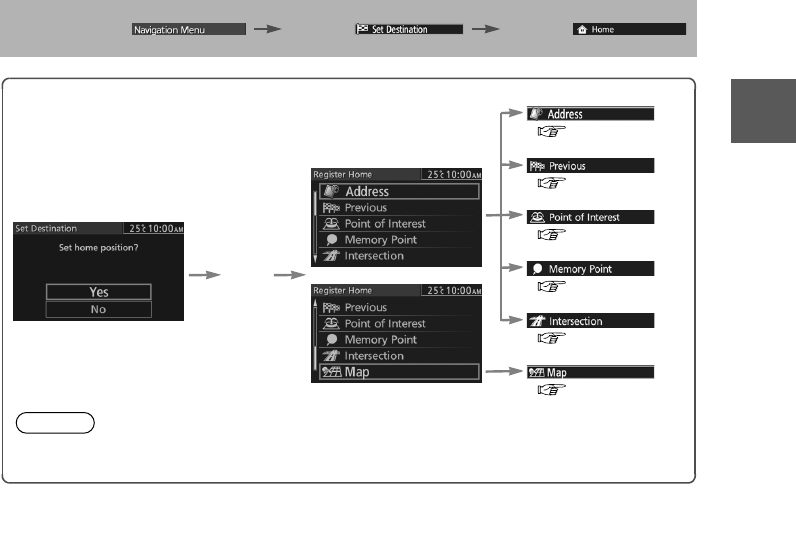
Getting Started
Register Home
Before Steps
select select
(
page 22
)
(
page 26
)
(
page 28
)
(
page 26
)
(
page 30
)
(
page 30
)
Open the
[Home] Menu
Yes
Note
The Home registration screen is not displayed if home registration is already finished.
2%:8:9)FSSO4EKI*VMHE](IGIQFIV41
22
Before
Use
Getting
started Routing
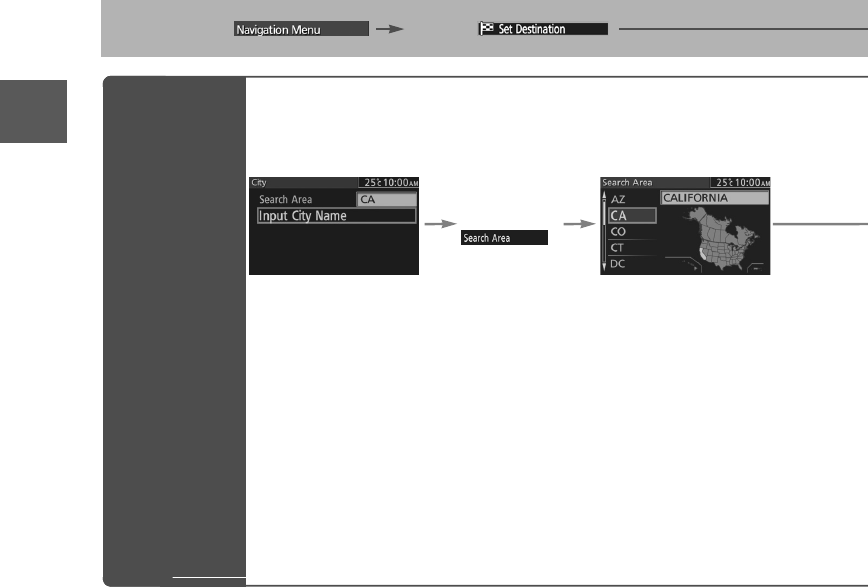
Set Destination
lYou can set the destination using various methods provided by the system.
Before Steps
select se
Search
Area
Open the
[Address]
Menu
Select
2%:8:9)FSSO4EKI;IHRIWHE](IGIQFIV41
23
Before
Use
Getting
started Routing
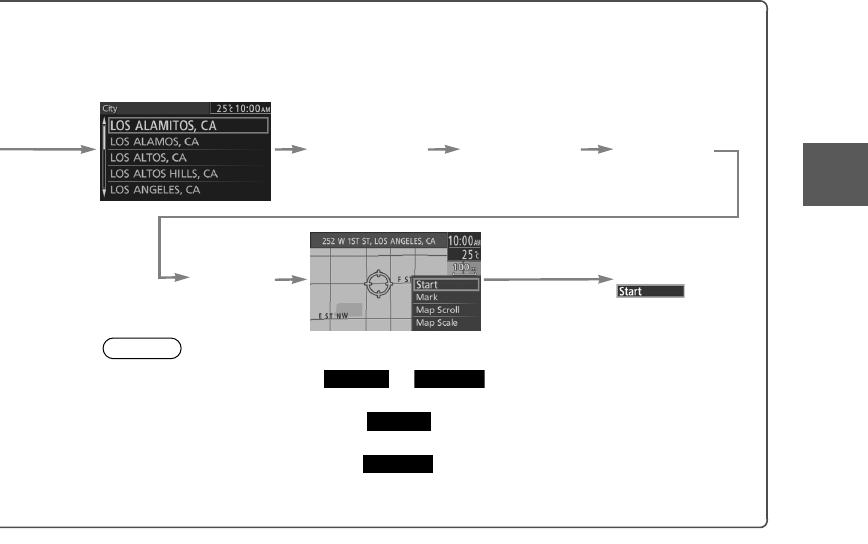
lFor Character Entry, please refer to page 20.
select
l
Do not keep your eyes fixed on the monitor screen or operate the system while driving.
Do not change the settings and destination locations while driving. Minimize the time spent
viewing the monitor screen and listening to the voice guidance while driving. Operating the system
will distract the driver from looking ahead of the vehicle and may cause an accident. Always stop
the vehicle in a safe location before operating the system.
l
Route searches with the navigation system can include roads that you cannot drive on and roads that you
are prohibited from driving on due to traffic regulations. Please comply with the traffic regulations.
Warnings
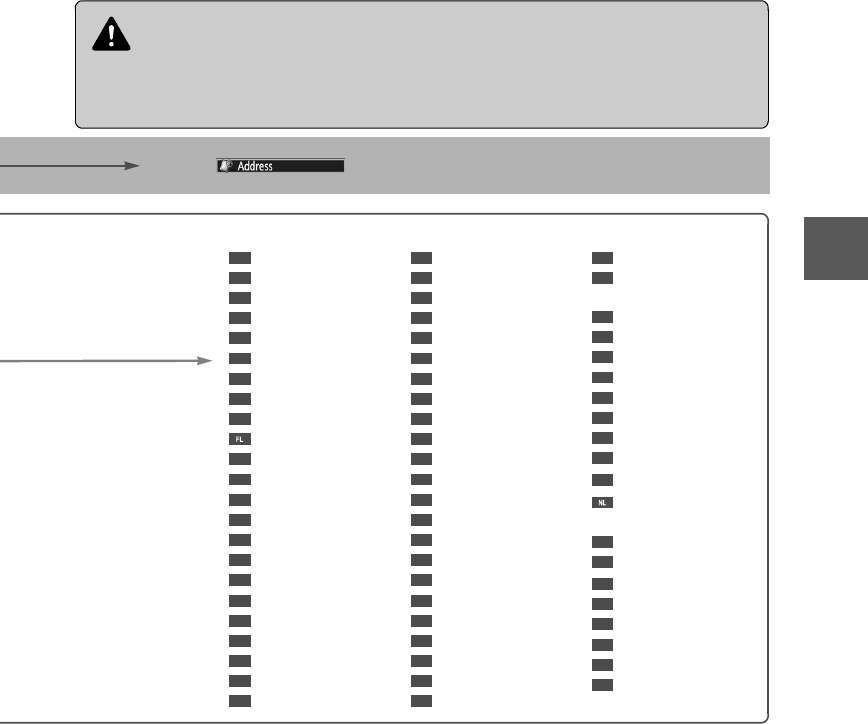
Select the desired Search Area
: ALASKA
: ALABAMA
: ARKANSAS
: ARIZONA
: CALIFORNIA
: COLORADO
: CONNECTICUT
:
WASHINGTON, D.C.
: DELAWARE
: FLORIDA
: GEORGIA
: HAWAII
: IOWA
: IDAHO
: ILLINOIS
: INDIANA
: KANSAS
: KENTUCKY
: LOUISIANA
:
MASSACHUSETTS
: MARYLAND
: MAINE
: MICHIGAN
: MINNESOTA
: MISSOURI
: MISSISSIPPI
: MONTANA
:
NORTH CAROLINA
: NORTH DAKOTA
: NEBRASKA
: NEW HAMPSHIRE
: NEW JERSEY
: NEW MEXICO
: NEVADA
: NEW YORK
: OHIO
: OKLAHOMA
: OREGON
: PENNSYLVANIA
: PUERTO RICO
: RHODE ISLAND
:
SOUTH CAROLINA
: SOUTH DAKOTA
: TENNESSEE
: TEXAS
: UTAH
: VIRGINIA
: VIRGIN ISLANDS
OF THE U.S
: VERMONT
: WASHINGTON
: WISCONSIN
: WEST VIRGINIA
: WYOMING
: ALBERTA
:
BRITISH COLUMBIA
: MANITOBA
:
NEW BRUNSWICK
:
NEWFOUNDLAND
AND LABRADOR
: NOVA SCOTIA
:
NORTHWEST TERRITORIES
: NUNAVUT
: ONTARIO
:
PRINCE EDWARD ISLAND
: QUEBEC
:
SASKATCHEWAN
: YUKON
AK
AL
AR
AZ
CA
CO
CT
DC
DE
GA
HI
IA
ID
IL
IN
KS
KY
LA
MA
MD
ME
MI
MN
MO
MS
MT
NC
ND
NE
NH
NJ
NM
NV
NY
OH
OK
OR
PA
PR
RI
SC
SD
TN
TX
UT
VA
VI
VT
WA
WI
WV
WY
AB
BC
MB
NB
NS
NT
NU
ON
PE
QC
SK
YT
2%:8:9)FSSO4EKI;IHRIWHE](IGIQFIV41
24
Before
Use
Getting
started Routing
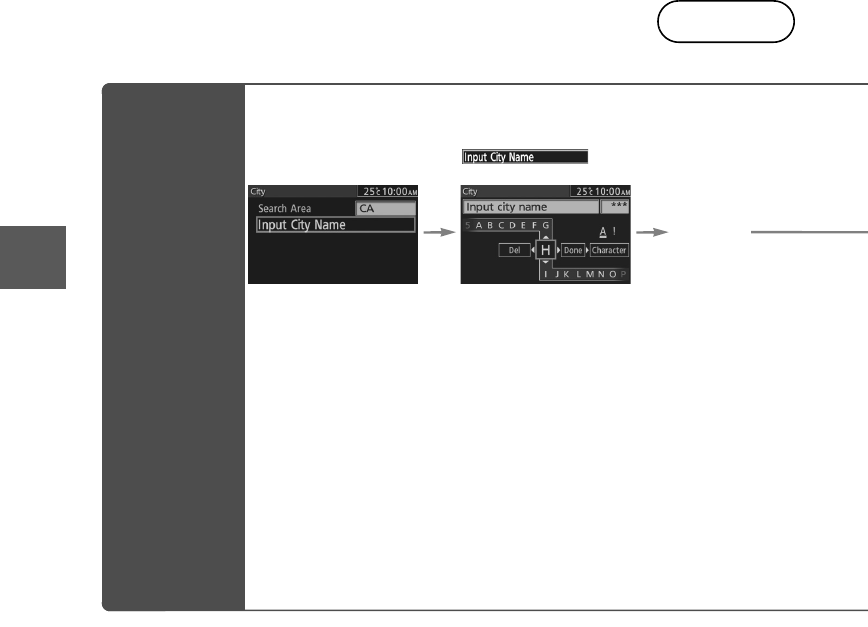
Set Destination
Input City
Name
Address
Open the
[Address]
Menu
Select
Input the
city name.
Notes
lOnce the
d
destinatio
n
lTo add to
t
of the first
lTo re-set t
of the first
lThe numb
2%:8:9)FSSO4EKI*VMHE](IGIQFIV41
25
Before
Use
Getting
started Routing
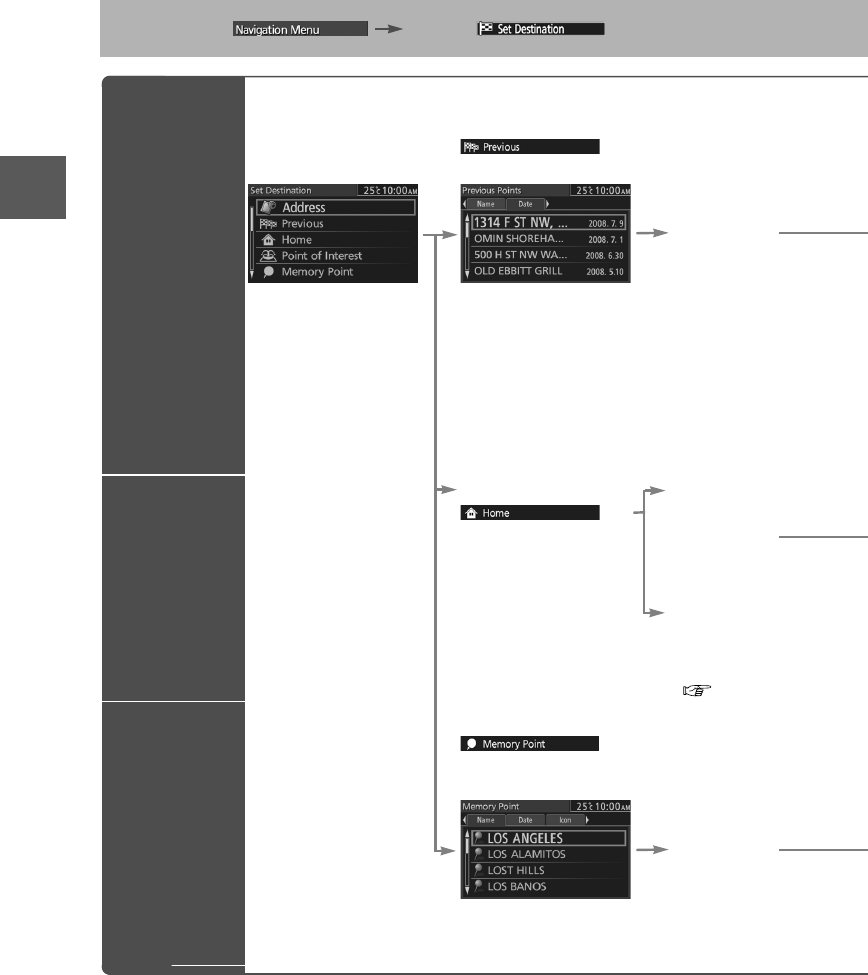
lFor Character Entry, please refer to page 20.
n
put the
c
ity name.
Select the city
name from the
list.
Input the
street name.
Select the
street name
from the list.
Input the
House
Number.
Select
Notes
lOnce the destination is set, or is displayed for the following
destination settings.
lTo add to the destinations, select and follow the same procedure as that
of the first destination setting.
lTo re-set the destinations, select and follow the same procedure as that
of the first destination setting.
lThe number of points which can be set as destinations are limited to two.
Add to Replace
Add to
Replace
2%:8:9)FSSO4EKI*VMHE](IGIQFIV41
26
Before
Use
Getting
started Routing
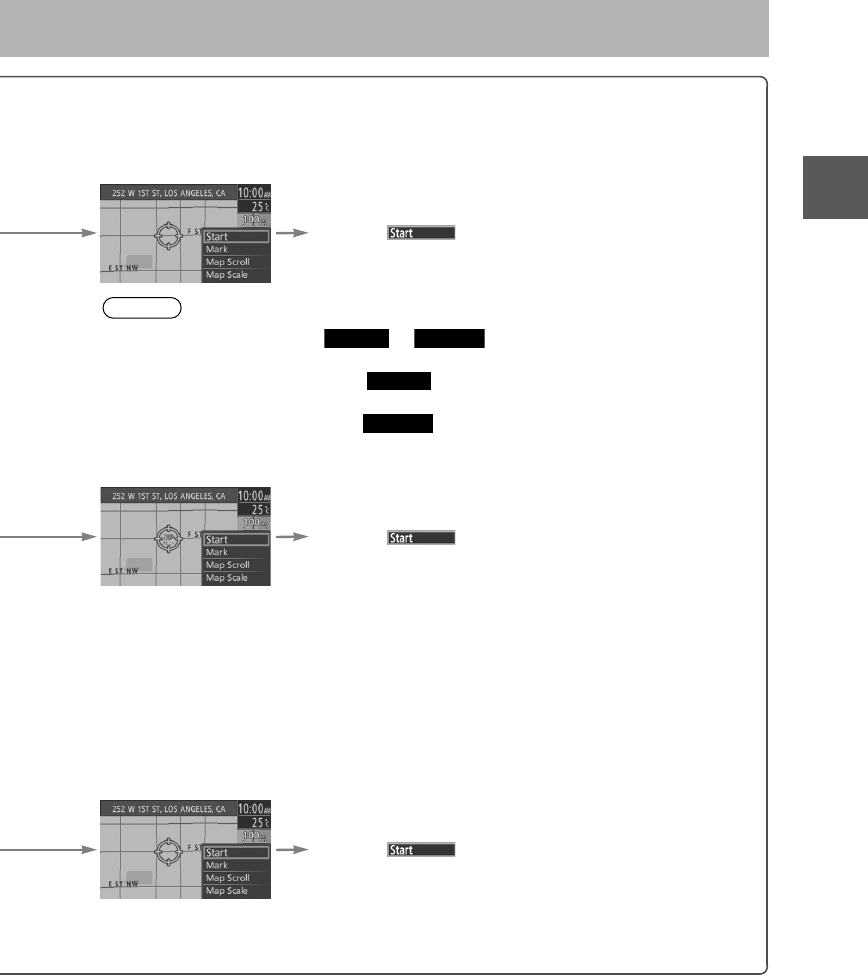
Set Destination
Before Steps
select
Previous
Home
Memory
Point
O
pen
th
e
[S
e
t
Destination]
Menu
Select
The previously set destinations are displayed.
Select the
desired
Memory
Point.
Name:Displays the list in alphabetical
order.
Date:Displays the list in registration/edit
date order.
Notes
lOnce the
d
destinatio
n
lTo add to
t
the first d
e
lTo re-set t
the first d
e
lThe numb
Select
A home
address is
already
registered in
the Destination
setting.
A home address
is not registered
in the Destination
setting yet.
( page 21)
Select
Registered memory points and registered
Home can be set in the Destination setting.
Select the
desired
Memory
Point.
Name:Displays the list in alphabetical order.
Date: Displays the list in registration/edit date order.
Icon:
Displays the list of the registered location icons.
2%:8:9)FSSO4EKI1SRHE].ERYEV]41
27
Before
Use
Getting
started Routing
lFor Character Entry, please refer to page 20.
n
s are displayed.
S
elect the
d
esired
M
emory
P
oint.
Select
h
abetical
t
ration/edit
Notes
lOnce the destination is set, or is displayed for the following
destination settings.
lTo add to the destinations, select and follow the same procedure as that of
the first destination setting.
lTo re-set the destinations, select and follow the same procedure as that of
the first destination setting.
lThe number of points which can be set as destinations are limited to two.
A
home
a
ddress is
a
lready
e
gistered in
h
e Destination
s
etting.
Select
A
home address
s
not registered
n
the Destination
etting yet.
page 21)
registered
a
tion setting.
S
elect the
d
esired
M
emory
P
oint.
Select
a
l order.
/edit date order.
e
d location icons.
Add to Replace
Add to
Replace
2%:8:9)FSSO4EKI1SRHE].ERYEV]41
28
Before
Use
Getting
started Routing
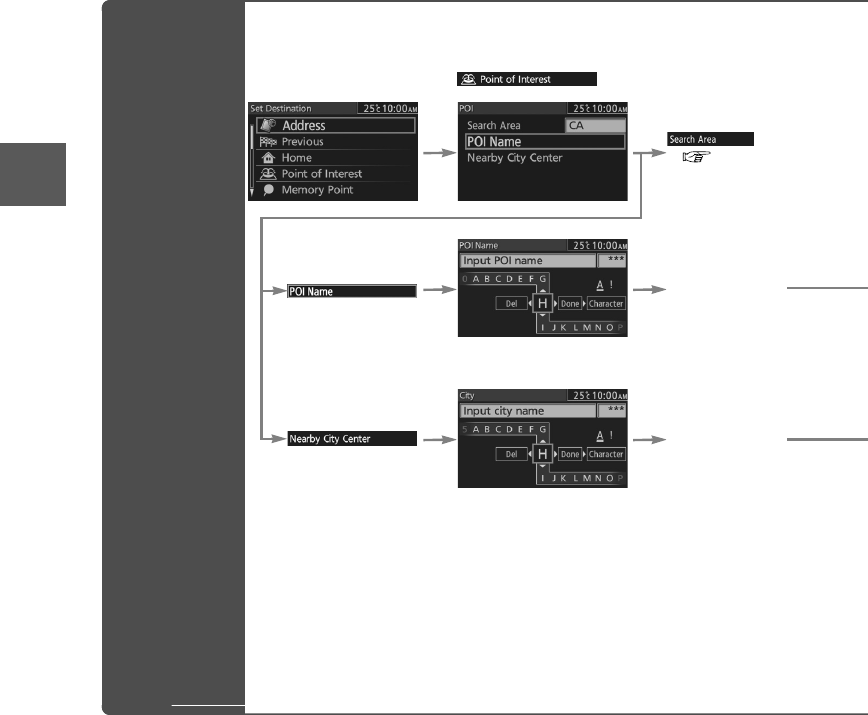
Set Destination
Point of
Interest (POI)
Open the [Set
Destination]
Menu
Select
(
page 22
)
Input the POI
name.
Input the City
name.
2%:8:9)FSSO4EKI*VMHE](IGIQFIV41
29
Before
Use
Getting
started Routing
lFor Character Entry, please refer to page 20.
page 22
)
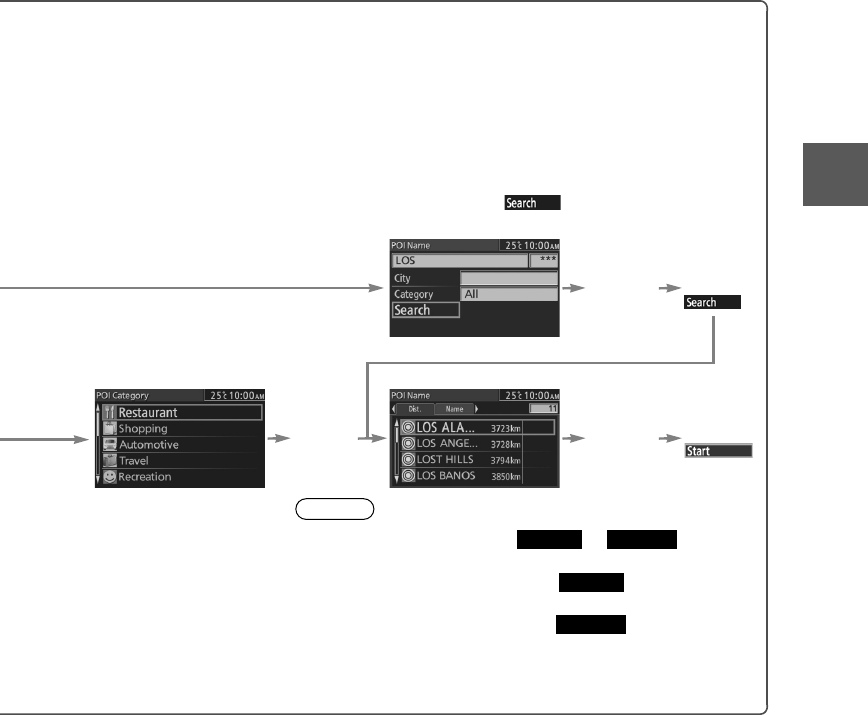
The desired POI can be searched by inputting the information.
Input city name and Category to narrow down the range
of the scope. Selection of can start search even
with the city name or Category name not input.
n
put the POI
a
me.
Input the
city
name
and
category
name.
Select
n
put the City
a
me.
Select
the
category
from the
list.
Select
the POI
from the
list.
Select
Notes
lOnce the destination is set, or is
displayed for the following destination settings.
lTo add to the destinations, select and follow the
same procedure as that of the first destination setting.
lTo re-set the destinations, select and follow the
same procedure as that of the first destination setting.
lWhen entering the POI name, the list can be displayed if the
applicable places total five or less.
Add to Replace
Add to
Replace
2%:8:9)FSSO4EKI*VMHE](IGIQFIV41
30
Before
Use
Getting
started Routing
Set Destination
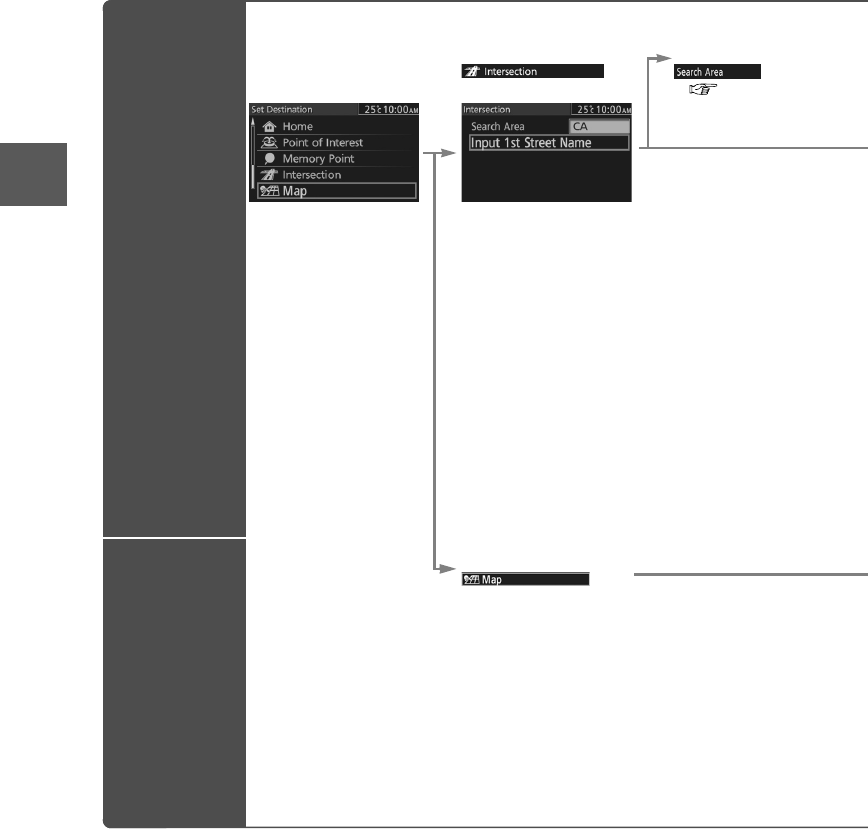
Intersection
Map
Open the [Set
Destination]
Menu
Select Select
(
page 22
)
Input t
h
2nd Str
e
name.
Notes
lOnce the
d
following
d
lTo add to
t
procedure
lTo re-set t
procedure
lThe numb
two.
Select
Notes
lOnce the
d
following
d
lTo add to
t
procedure
lTo re-set t
procedure
lThe numb
two.
2%:8:9)FSSO4EKI;IHRIWHE](IGIQFIV41
31
Before
Use
Getting
started Routing
lFor Character Entry, please refer to page 20.
S
elect
(
page 22
)
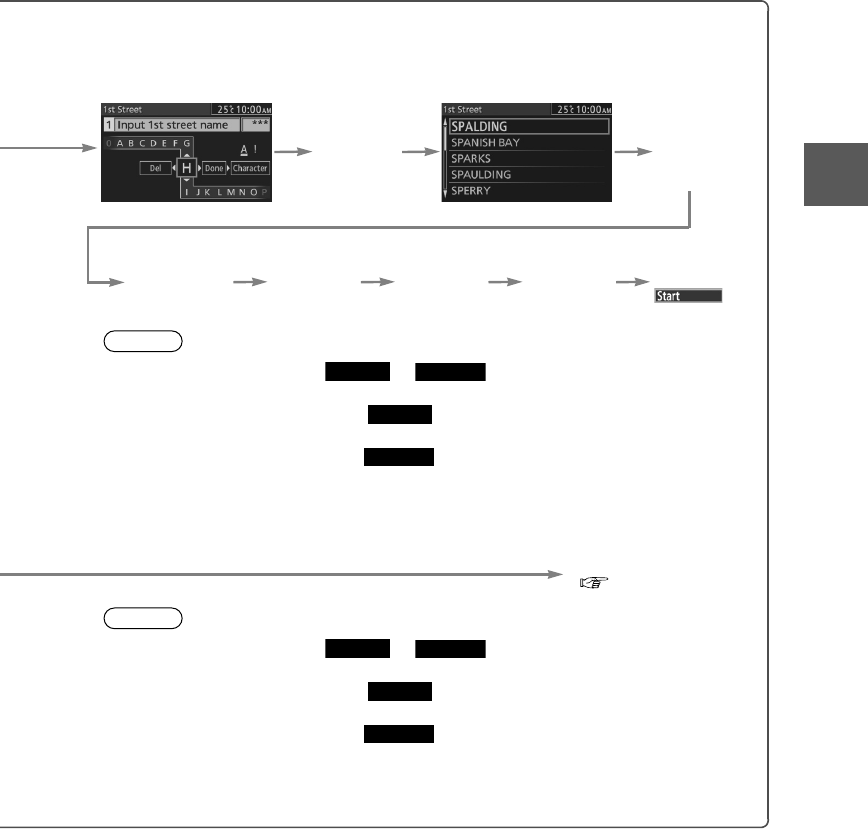
Input the
1st Street
name.
Select the
Street
from the
list.
Input the
2nd Street
name.
Select the
Street
from the
list.
Input the
City
name.
Select the
city from
the list.
Select
Notes
lOnce the destination is set, or is displayed for the
following destination settings.
lTo add to the destinations, select and follow the same
procedure as that of the first destination setting.
lTo re-set the destinations, select and follow the same
procedure as that of the first destination setting.
lThe number of points which can be set as destinations are limited to
two.
Browse Map & Mark
(
page 40
)
Notes
lOnce the destination is set, or is displayed for the
following destination settings.
lTo add to the destinations, select and follow the same
procedure as that of the first destination setting.
lTo re-set the destinations, select and follow the same
procedure as that of the first destination setting.
lThe number of points which can be set as destinations are limited to
two.
Add to Replace
Add to
Replace
Add to Replace
Add to
Replace
2%:8:9)FSSO4EKI;IHRIWHE](IGIQFIV41
32
Before
Use
Getting
started Routing
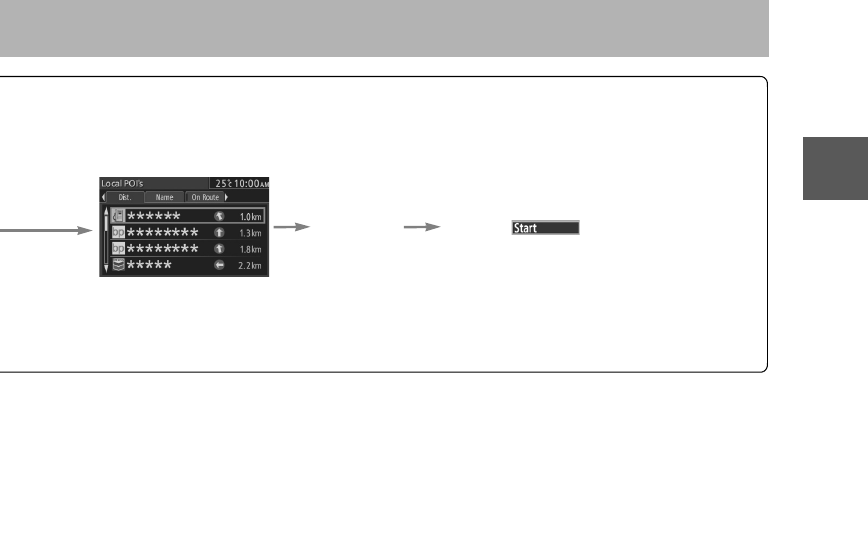
Find Local POI
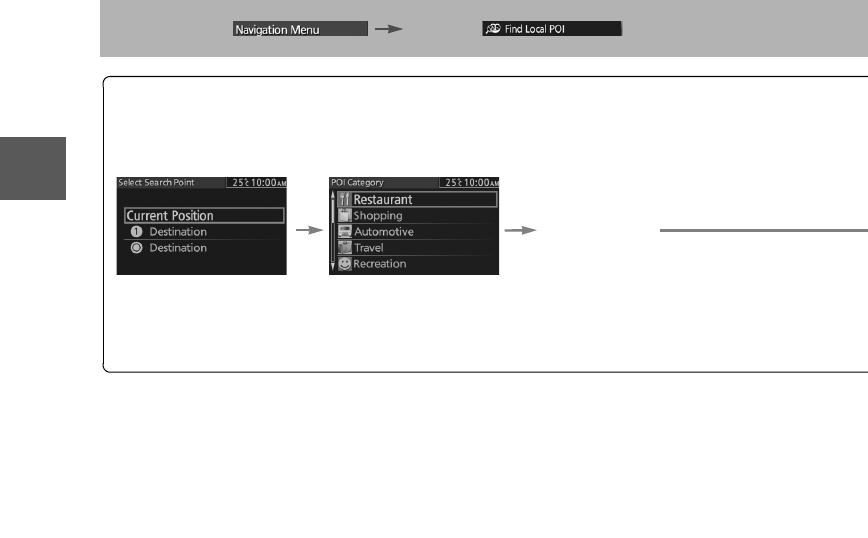
lThe POI around current location or destination can be searched.
Before Steps
select
Open the [Find
Local POI]
Menu
Select the
search point. Pressing t
h
the POI for
Select the
category from
the list.
Dist.: P
t
h
Name: P
On Route:D
2%:8:9)FSSO4EKI*VMHE](IGIQFIV41
33
Before
Use
Getting
started Routing
lFor Character Entry, please refer to page 20.
Pressing the left or right switch changes the order of
the POI for each category.
Select the
POI from
the list.
Select
Dist.: POIs around the current location and destination are displayed in order from
the POI closest to the current location.
Name: POI are displayed in alphabetical order.
On Route:Displays the list of the icons along the route to the destination.
2%:8:9)FSSO4EKI*VMHE](IGIQFIV41
34
Before
Use
Getting
started Routing
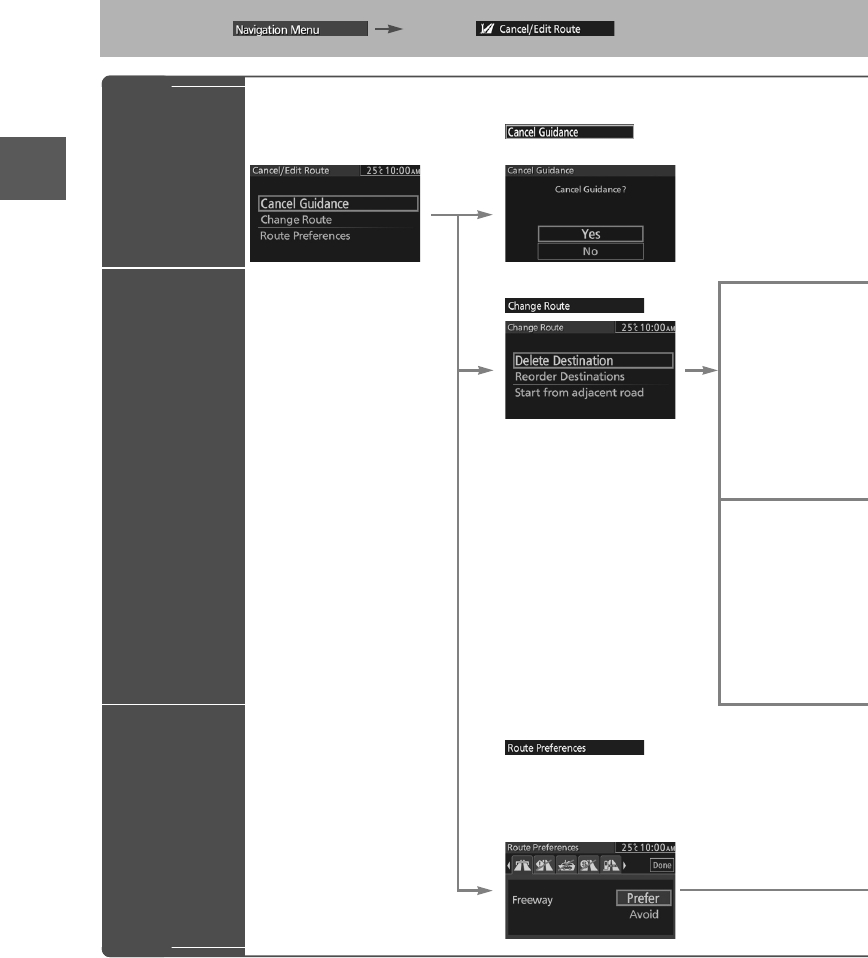
Cancel/Edit Route
lYou can cancel the guidance to the destination, and for editing the destination setting.
Before Steps
select
Cancel
Guidance
Change
Route
(Delete
Destination,
Reorder
Destinations,
Start from
adjacent
road)
Route
Preferences
Open the [Cancel/
Edit Route] Menu
Select
Used to cancel guidance.
Select Select
Used to d
e
Note
Not displ
a
Select
Used to c
h
Note
Not displ
a
Select
Preferential parameters used for route
estimation can be set.
Parameters to be set: Freeway, Restricted Road,
Ferry, Toll Road, Int’l Border Crossing.
Select th
e
using the
right swi
t
2%:8:9)FSSO4EKI*VMHE](IGIQFIV41
35
Before
Use
Getting
started Routing
lFor Character Entry, please refer to page 20.
c
e.
Select
the
deletion
point.
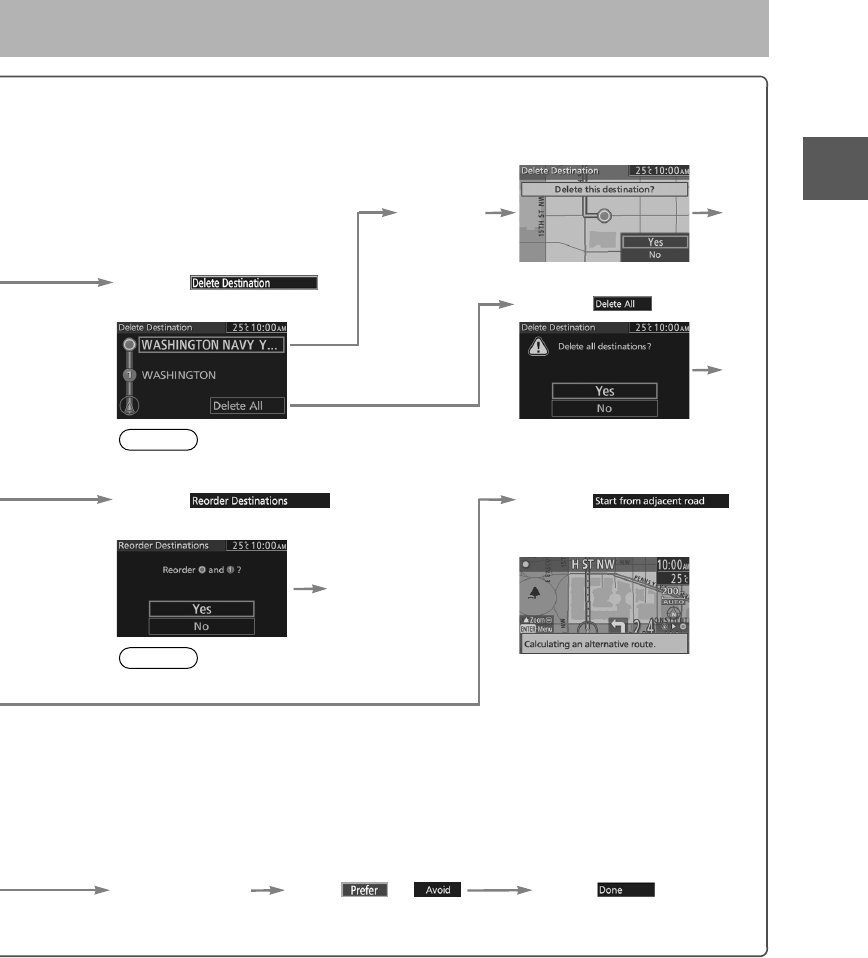
Yes
Select
Used to delete the destination. Select
Yes
Note
Not displayed if there is only one destination.
Select
Used to change the destination
Select
A separate route to the
destination can be searched.
Yes
Note
Not displayed if there is only one destination.
for route
a
y, Restricted Road,
C
rossing.
Select the item
using the left or
right switch.
Select or Select
2%:8:9)FSSO4EKI1SRHE].ERYEV]41
36
Before
Use
Getting
started
Getting
started Editing
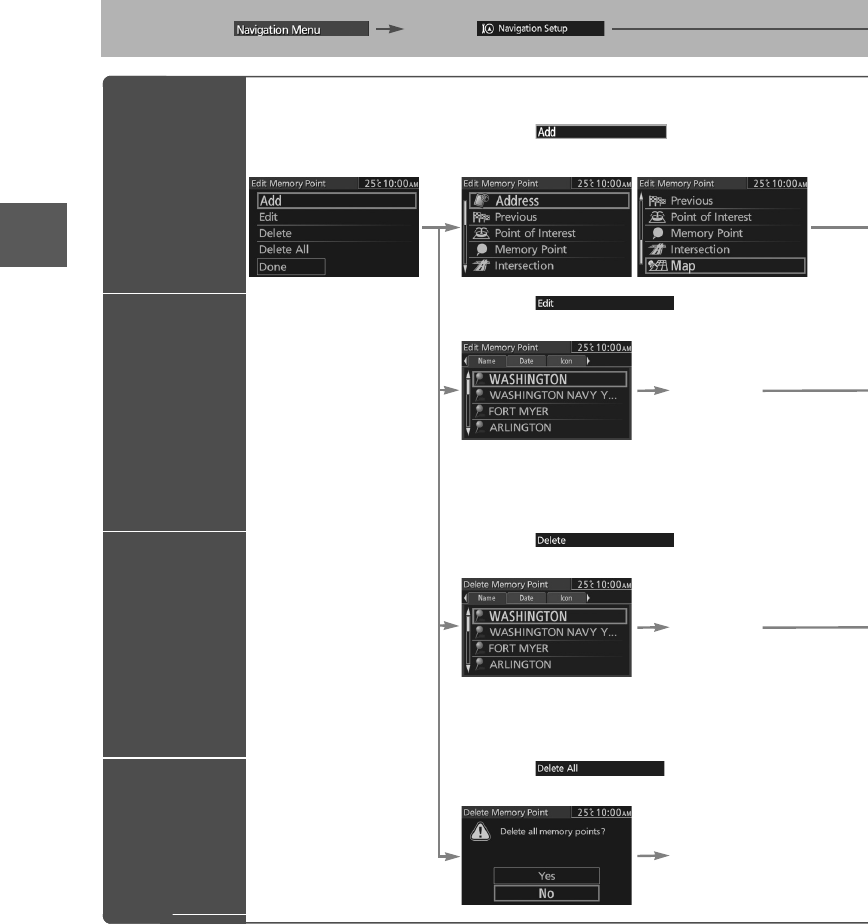
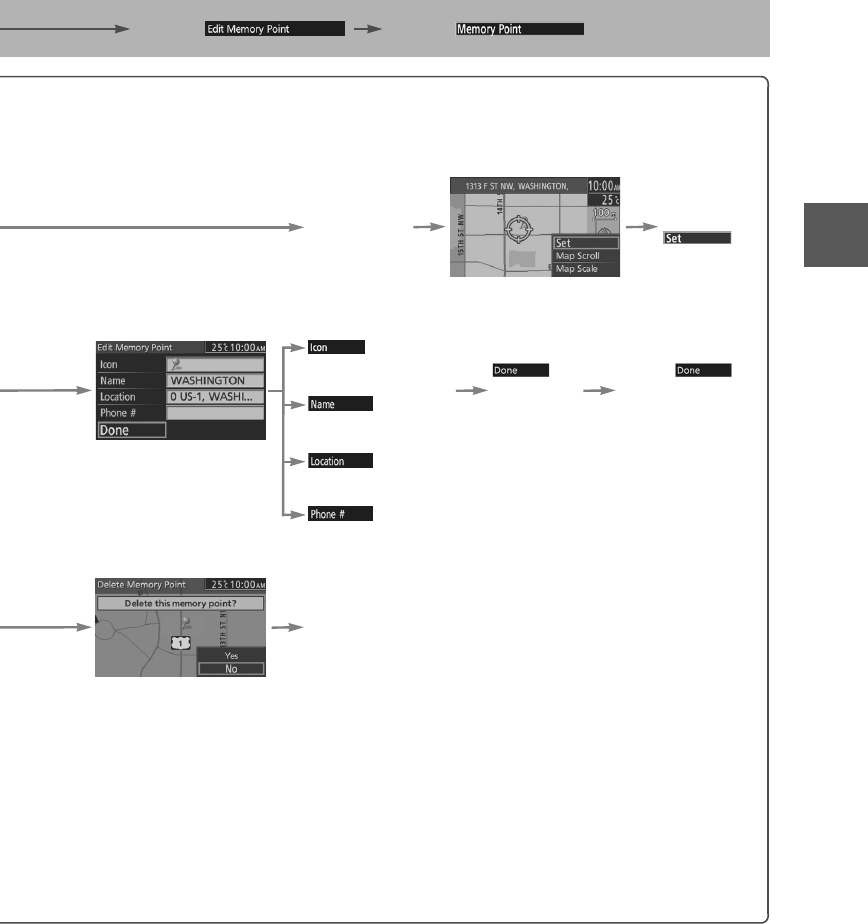
Edit Memory Point
lRegisters, edits and deletes the Memory Point.
Before Steps
select sel
e
Add
Edit
Delete
Delete All
Open the
[Memory Point]
Menu
Select
The memory point can be added.
Select
The memory point can be edited.
Select the
point from
the list.
Name:Displays the list in alphabetical order.
Date: Displays the list in registration/edit date order.
Icon:
Displays the list of the registered location icons.
Select
The memory point can be deleted.
Select the
point from
the list.
Name:Displays the list in alphabetical order.
Date: Displays the list in registration/edit date order.
Icon:
Displays the list of the registered location icons.
Select
The memory point can be deleted completely.
Yes
2%:8:9)FSSO4EKI;IHRIWHE](IGIQFIV41
37
Before
Use
Getting
started
Getting
started Editing
lFor Character Entry, please refer to page 20.
select select
d
ed.
Select the
point.
Select
i
ted.
Select the item to be edited.
S
elect the
p
oint from
he list.
The icon of memory
point can be edited.
The name of memory
point can be edited.
The location of memory
point can be edited.
The phone number of
memory point can be
edited.
Press
when
editing is
finished.
Select
to switch to the
Map screen.
a
l order.
/edit date order.
location icons.
l
eted.
S
elect the
p
oint from
he list.
Yes
a
l order.
/edit date order.
location icons.
completely.
Y
es
2%:8:9)FSSO4EKI;IHRIWHE](IGIQFIV41
38
Before
Use
Getting
started
Getting
started Editing
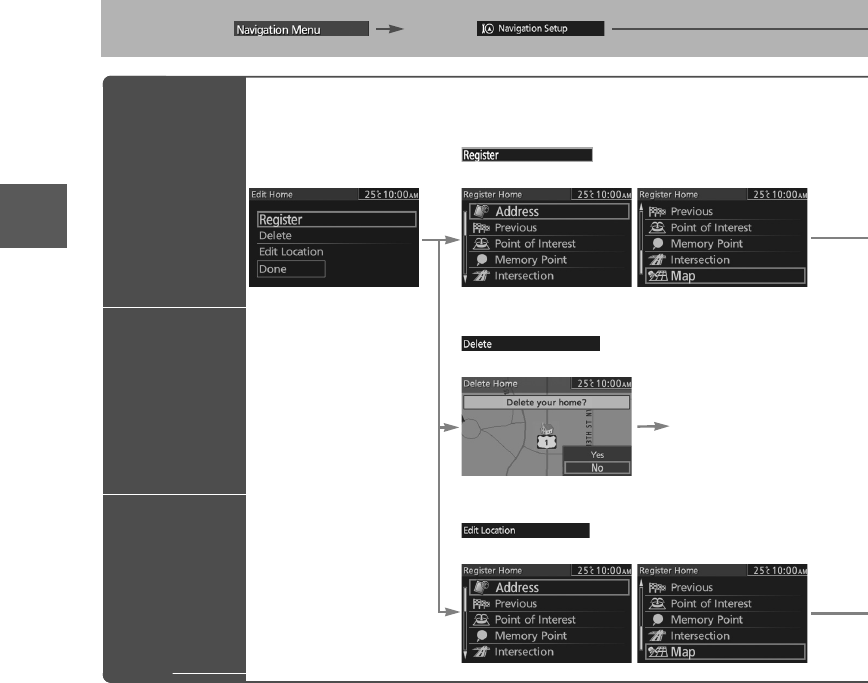
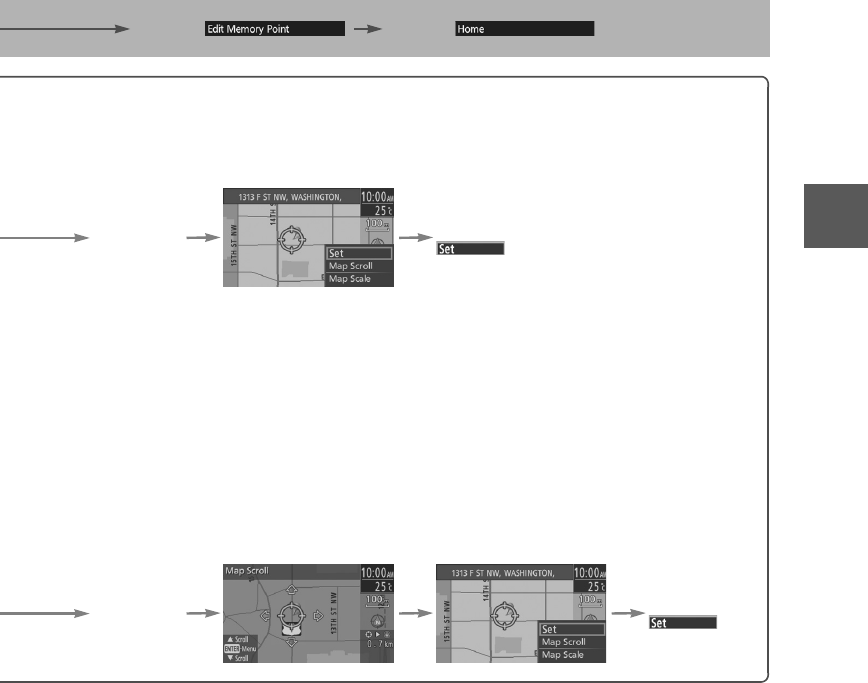
Edit Home
lRegisters, edits and deletes the Home. (Deletion or editing of the home location can be
done only when the home location is registered.)
Before Steps
select sel
e
Register
Delete
Edit
Location
Open the
[Home] Menu
Select
The home location can be registered.
Select the
point.
Select
The registered home location can be deleted.
Yes
Select
The registered home location can be edited.
Select the
point.
2%:8:9)FSSO4EKI;IHRIWHE](IGIQFIV41
39
Before
Use
Getting
started
Getting
started Editing
lFor Character Entry, please refer to page 20.
select select
g
istered.
Select the
point.
Select
n be deleted.
Y
es
n be edited.
Select the desired place
using the cursor and press
the Enter (up/down) switch.
Select the
point.
Select
2%:8:9)FSSO4EKI;IHRIWHE](IGIQFIV41
40
Before
Use
Getting
started
Getting
started Editing
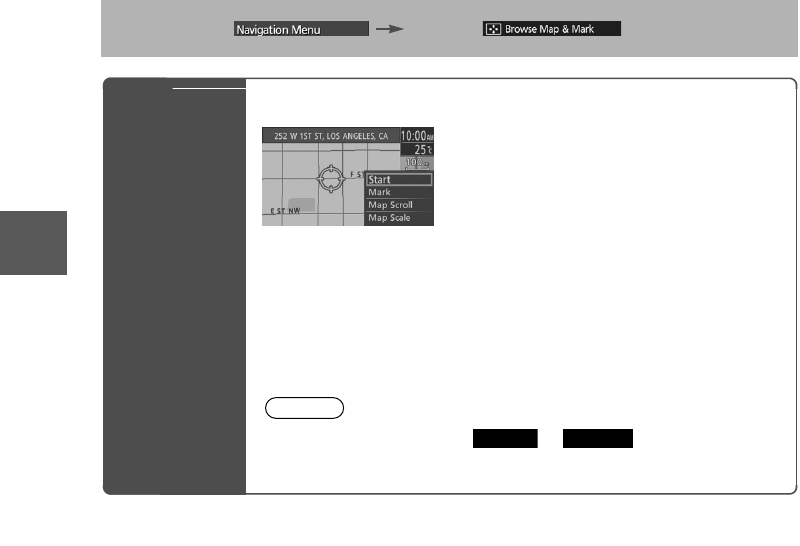
Browse Map & Mark
l
You can set the destination browsing around the current position, and memory point registration.
Before Steps
select
Browse
Map &
Mark
Open the [Browse Map & Mark] Menu
Select the desired place using the cursor and press the Enter (up/
down) switch.
Start: Sets the destination and starts the guidance.
Mark: Registers the center position of the Map screen to the memory
point while in the browse map mode or the Map scroll mode.
Map Scroll: Switches to the map scroll screen.
Map Scale: Switches to the map scale screen.
Note
Once the destination is set, or is displayed for the
following destination settings.
Add to Replace
2%:8:9)FSSO4EKI;IHRIWHE](IGIQFIV41
41
Before
Use
Getting
started
Getting
started Editing
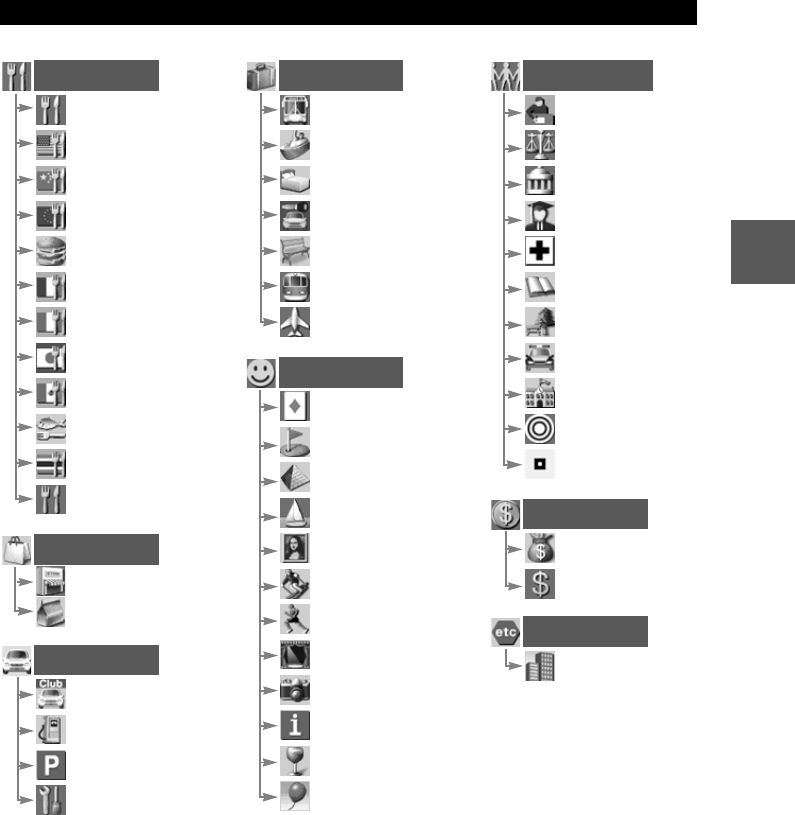
POI Icons on Maps
The following are POI icons shown on maps.
POI (Point of Interest) Icons
Restaurant
All Restaurant
American
Chinese
Continental
Fast Food
French
Italian
Japanese
Mexican
Seafood
Thai
Other Restaurant
Shopping
Grocery Store
Shopping Mall
Automotive
Automobile Club
Gas Station
Parking
Auto Service &
maintenance
Travel
Bus Station
Ferry Terminal
Hotel
Rental Car Agency
Rest Area
Train Station
Airport
Recreation
Casino
Golf Course
Historical
Monument
Marina
Museum
Ski Resort
Sports Complex
Performing Arts
Tourist Attraction
Tourist Information
Winery
Amusement Park
Community
Convention Center
Court House
Government Office
Higher Education
Hospital
Library
Park & Recreation
Police Station
School
City Center
Hamlet
Banking
Bank
AT M
Other
Bussiness Facility
2%:8:9)FSSO4EKI;IHRIWHE](IGIQFIV41

42
Before
Use
Getting
started
Getting
started Editing
MEMO
2%:8:9)FSSO4EKI*VMHE](IGIQFIV41
43
Before
Use
Getting
started Routing Routing If Necessary
Precautions/System Performance
Voice guidance has the following functions:
nIntersection guidance.
lThe system voice announces the distance to an upcoming turn and the turning direction.
This guidance function is automatic. Therefore, you do not have to set it, and it cannot be
disabled.
lThe system vocally announces the distance to an upcoming highway branching point or
junction.
Pressing the Navi switch in the steering switches repeats the guidance if the voice
guidance has been missed.
Voice Guidance
lThe navigation system is just a support system for the driver. The driver should
always pay attention to the traffic situation to safely make decisions. You may
be unable at times to arrive at your destination due to out-of-date information
on a map disc. You should be especially careful when selecting an urgent
destination such as a hospital or a police station.
lYour route may sometimes include roads that are not open to vehicles or are
closed due to traffic regulations. Please comply with the local traffic
regulations.
lDo not change the settings and destination locations while driving. Minimize
the time spent viewing the monitor screen and listening to the voice guidance
while driving. Operating the system will distract the driver from looking ahead
of the vehicle and may cause an accident. Always stop the vehicle in a safe
location and use the parking brake before operating the system.
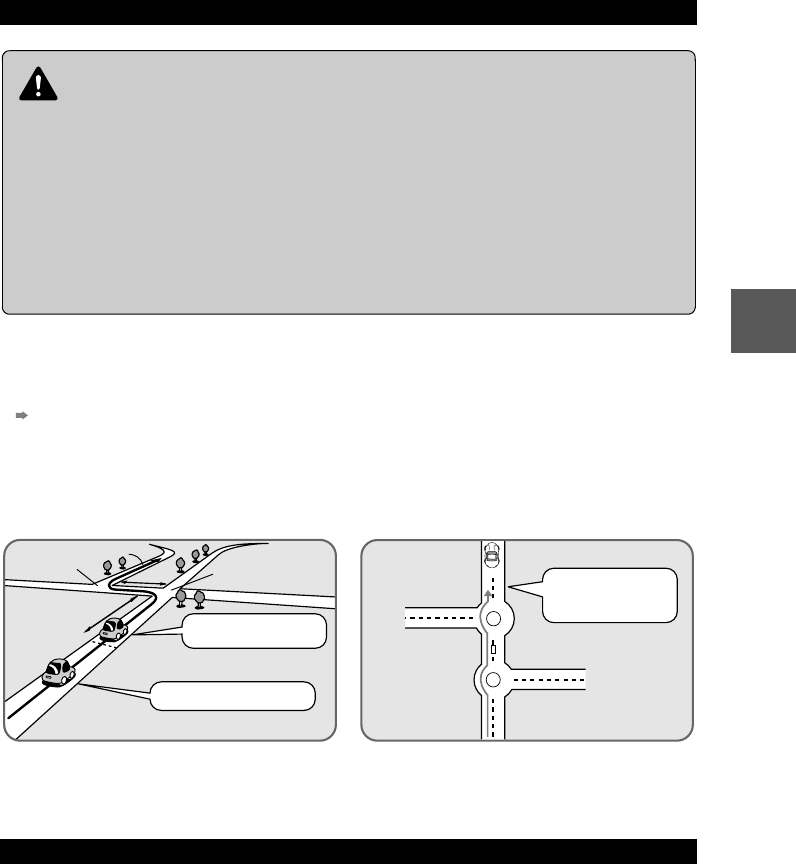
When two intersections are close together, the
voice guidance may be late.
When two roundabouts are close together, the
voice guidance for the second one may be late.
Repeating Voice Guidance
Warnings
Second branching point
First branching point
150m
100m
Route
In 700m left turn.
Left turn ahead,
then right turn.
Roundabout.
Take the second
exit.
2%:8:9)FSSO4EKI*VMHE](IGIQFIV41
44
Before
Use
Getting
started Routing Routing If Necessary
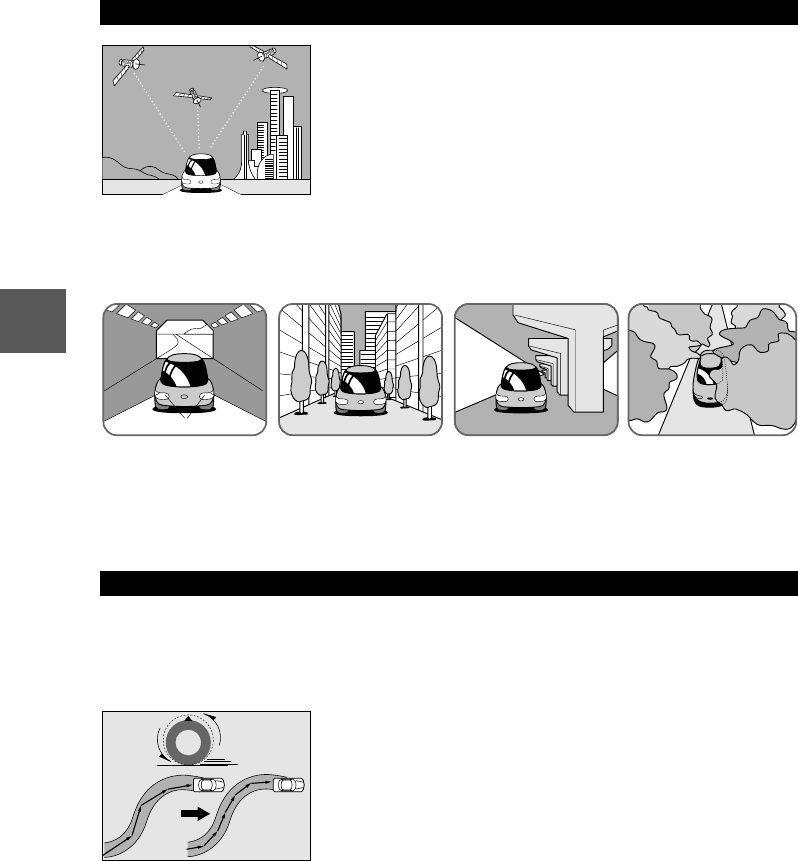
GPS is a position detecting system utilizing the signals
from GPS satellites deployed by the U.S. Department of
Defense. The Mobile Navigation System uses input from
three or more satellites and calculates the vehicle position
based on the principle of triangulation.
The positioning accuracy of the system corresponds to the
error display of the GPS which is from about 30 to 200 meters
.
lIf you are using the system for the first time, or if you have not used it for some time, it takes
about 5 minutes (or about 2 minutes in open areas) to calculate your vehicle’s position.
nGPS signal reception is poor in the following places.
lThe GPS satellites are controlled by the U.S. Defense Department, which may intentionally
lower positioning accuracy. In such cases, there may be vehicle position deviations.
lThere may be vehicle position deviations for some time until GPS signals are received after
switching on the ignition.
This function compares your vehicle’s tracking data with the road data on the map
disc, applies dead reckoning to determine the road you are driving on, and displays
your vehicle on that road on the map.
lIntelligent map matching addresses the following problems to achieve high accuracy in
vehicle positioning.
Position Correction for Elevated Roads.
Position accuracy is improved by detecting if the vehicle is
running on or under an elevated road.
Position Correction for Parking Garages.
Position accuracy is improved by detecting if the vehicle is
driving in an elevated or underground parking garage.
High-precision Gyrosensor.
A gyro detects turns with an accuracy of 0.05° per second.
Combined with a speed sensor, it enables the system to
display the current vehicle position even where GPS signals
may be blocked.
lUsing a spare tire in place of the regular one may cause vehicle position deviations.
lAny difference between the direction which your vehicle actually travels and that shown on
the map is automatically eliminated by azimuth correction.
GPS
In tunnels.
Among high-rise buildings.
Under elevated roads. In wooded areas.
Map Matching
2%:8:9)FSSO4EKI*VMHE](IGIQFIV41
45
Before
Use
Getting
started Routing Routing If Necessary
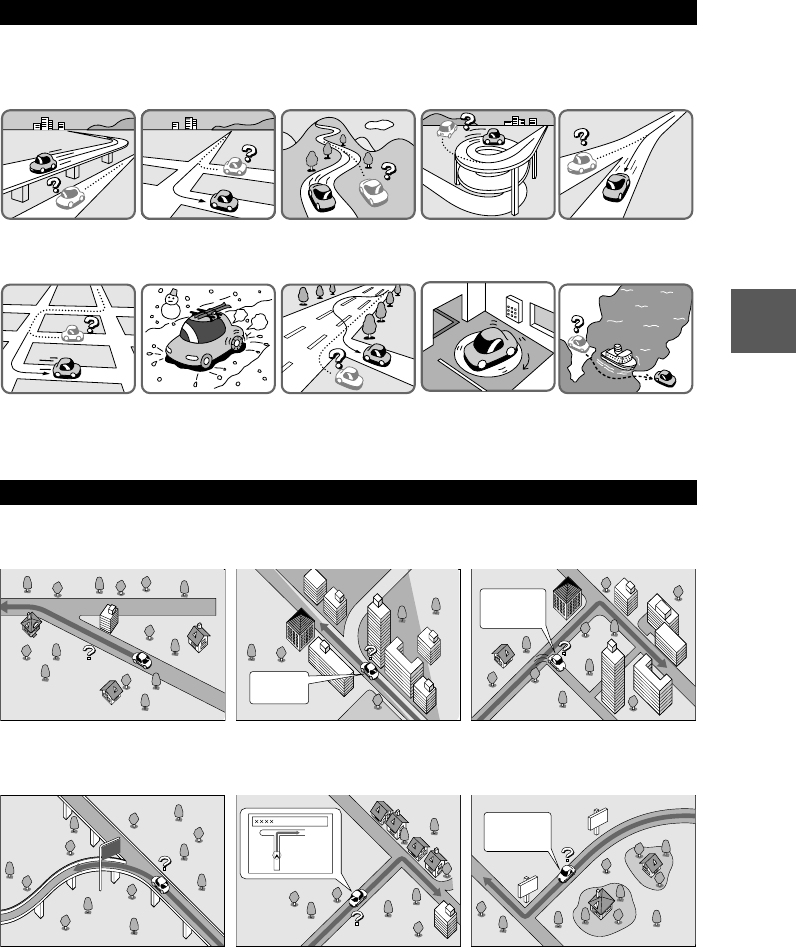
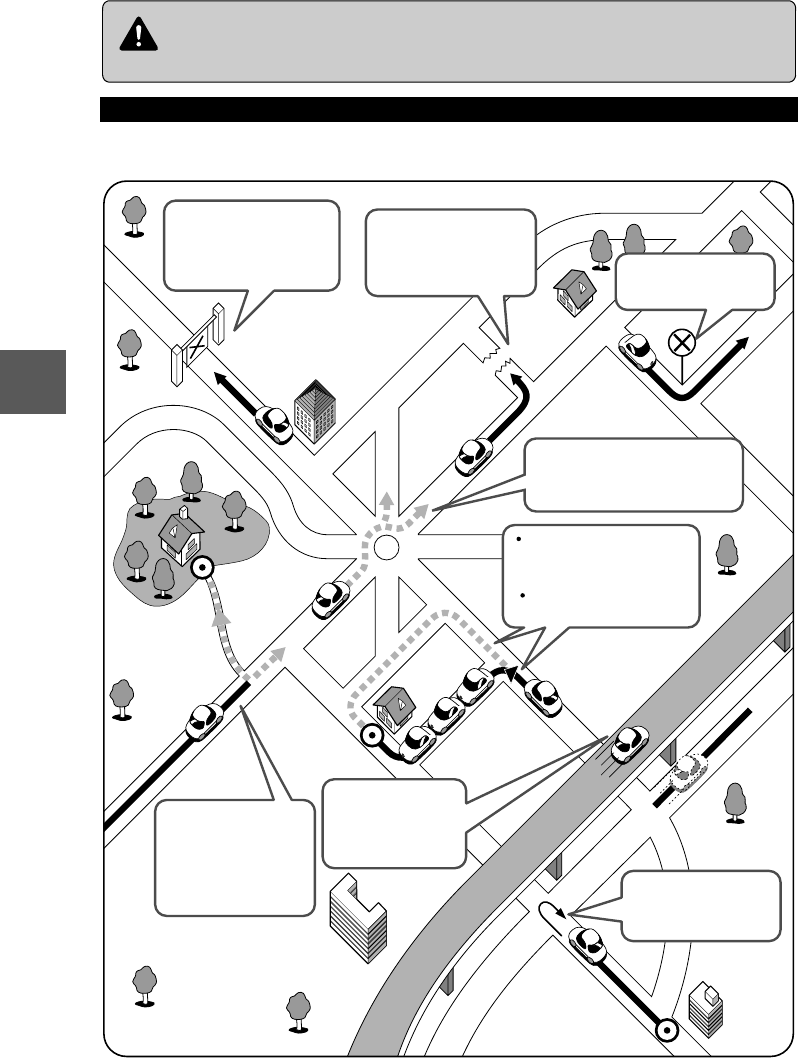
In the following situations, your vehicle position may not be displayed correctly on the
map. But, as you keep driving, your vehicle position will be automatically corrected
utilizing map matching and GPS data.
Although you may encounter the following problems in route guide, there is nothing
wrong with the system.
Positioning Accuracy
Running on an
elevated road.
Making a turn after
driving on a long
straight road.
Running on a steep
mountain road.
Running on a spiral
road.
Entering an intersection
where a road branches
off at a small angle.
Running on gridiron
layout of roads.
Running on a
slippery road with
tire chains.
Snaking on a wide
road.
When your vehicle
is on a turntable
with the ignition
switched off.
After getting off a
ferryboat or vehicle
train.
Route Guide
For certain intersection shapes,
the upcoming turn or the name of
the intersection may not be
announced.
For certain intersection shapes,
you may be prompted to turn right
or left when you should actually
stay on the same road.
Voice guidance for the planned
route may continue even after you
have deviated from that route
such as having turned too early.
Some points where the road
divides on highways or toll roads
may not be displayed or
announced.
The Intersection Zoom Map may
not always agree with the actual
shape of the intersection.
The announced distance to an
upcoming turn may differ slightly
from reality.
STOP
CAR FERRY
Left turn
ahead
In 300 m
right turn
300m
0m
In 300 m
right turn
2%:8:9)FSSO4EKI*VMHE](IGIQFIV41
46
Before
Use
Getting
started Routing Routing If Necessary
Although you may encounter the following problems in a route search, there is nothing
wrong with the system.
The navigation system is just a support system for the driver. The driver should always pay
attention to the traffic situation to safely make decisions. You may be unable to arrive at your
destination due to out-of-date information on a map disc. You should be especially careful
when selecting an urgent destination such as a hospital or a police station.
Route Search
Warning
?
?
?
?
?
?
??
It may also show roads
that are out of use due
to the opening of a new
road or for other
reasons.
The route shown only
reaches a point near
your destination if your
destination has no
direct access road or
the road is too narrow. It may show a route
where you'll have to
make a U-turn.
The guide map may
show roads that are not
passable due to closure
in winter or for other
reasons.
It may show a
common road under
or over an elevated
road.
Destination
Road
out of
use
which
exit?
Destination
Destination
Destination
Depending upon the shape of
roundabout (rotary), the guide
map may show a wrong exit.
where the route remains
unchanged after another
search.
• There may be cases
• A congested route may
be shown.
It may also show
roads that only permit
one-way traffic.
2%:8:9)FSSO4EKI*VMHE](IGIQFIV41

47
Before
Use
Getting
started Routing Routing If Necessary
nSource Code
This Product uses the Source Code of T-Kernel under T-License granted by the T-Engine
Forum (www.t-engine.org).
License
2%:8:9)FSSO4EKI*VMHE](IGIQFIV41

48
Before
Use
Getting
started Routing Routing If Necessary
END-USER TERMS
The data (“Data”) is provided for your personal, internal use only and not for resale. It is protected by copyright,
and is subject to the following terms and conditions which are agreed to by you, on the one hand, and DENSO
CORPORATION (“DENSO”) and its licensors (including their licensors and suppliers) on the other hand.
© 2007 NAVTEQ. All rights reserved.
The Data for areas of Canada includes information taken with permission from Canadian authorities, including:
© Her Majesty the Queen in Right of Canada, © Queen’s Printer for Ontario, © Canada Post Corporation,
GeoBase®
NAVTEQ holds a non-exclusive license from the United States Postal Service® to publish and sell ZIP+4®
information.
©United States Postal Service® 2007. Prices are not established, controlled or approved by the United States
Postal Service®. The following trademarks and registrations are owned by the USPS: United States Postal
Service, USPS, and ZIP+4.
TERMS AND CONDITIONS
Personal Use Only. You agree to use this Data together with vehicle navigation system for the solely personal,
non-commercial purposes for which you were licensed, and not for service bureau, time-sharing or other similar
purposes. Accordingly, but subject to the restrictions set forth in the following paragraphs, you may copy this Data
only as necessary for your personal use to (i) view it, and (ii) save it, provided that you do not remove any
copyright notices that appear and do not modify the Data in any way. You agree not to otherwise reproduce, copy,
modify, decompile, disassemble or reverse engineer any portion of this Data, and may not transfer or distribute it
in any form, for any purpose, except to the extent permitted by mandatory laws. Multi-disc sets may only be
transferred or sold as a complete set as provided by DENSO and not as a subset thereof.
Restrictions. Except where you have been specifically licensed to do so by DENSO, and without limiting the
preceding paragraph, you may not (a) use this Data with any products, systems, or applications installed or
otherwise connected to or in communication with vehicles, capable of vehicle navigation, positioning, dispatch,
real time route guidance, fleet management or similar applications; or (b) with or in communication with any
positioning devices or any mobile or wireless-connected electronic or computer devices, including without
limitation cellular phones, palmtop and handheld computers, pagers, and personal digital assistants or PDAs.
Warning. The Data may contain inaccurate or incomplete information due to the passage of time, changing
circumstances, sources used and the nature of collecting comprehensive geographic data, any of which may lead
to incorrect results.
No Warranty. This Data is provided to you “as is,” and you agree to use it at your own risk. DENSO and its
licensors (and their licensors and suppliers) make no guarantees, representations or warranties of any kind,
express or implied, arising by law or otherwise, including but not limited to, content, quality, accuracy,
completeness, effectiveness, reliability, fitness for a particular purpose, usefulness, use or results to be obtained
from this Data, or that the Data or server will be uninterrupted or error-free.
Disclaimer of Warranty: DENSO AND ITS LICENSORS (INCLUDING THEIR LICENSORS AND SUPPLIERS)
DISCLAIM ANY WARRANTIES, EXPRESS OR IMPLIED, OF QUALITY, PERFORMANCE, MERCHANTABILITY,
FITNESS FOR A PARTICULAR PURPOSE OR NON-INFRINGEMENT. Some States, Territories and Countries
do not allow certain warranty exclusions, so to that extent the above exclusion may not apply to you.
Disclaimer of Liability: DENSO AND ITS LICENSORS (INCLUDING THEIR LICENSORS AND SUPPLIERS)
SHALL NOT BE LIABLE TO YOU: IN RESPECT OF ANY CLAIM, DEMAND OR ACTION, IRRESPECTIVE OF
THE NATURE OF THE CAUSE OF THE CLAIM, DEMAND OR ACTION ALLEGING ANY LOSS, INJURY OR
DAMAGES, DIRECT OR INDIRECT, WHICH MAY RESULT FROM THE USE OR POSSESSION OF THE
INFORMATION; OR FOR ANY LOSS OF PROFIT, REVENUE, CONTRACTS OR SAVINGS, OR ANY OTHER
DIRECT, INDIRECT, INCIDENTAL, SPECIAL OR CONSEQUENTIAL DAMAGES ARISING OUT OF YOUR USE
OF OR INABILITY TO USE THIS INFORMATION, ANY DEFECT IN THE INFORMATION, OR THE BREACH OF
THESE TERMS OR CONDITIONS, WHETHER IN AN ACTION IN CONTRACT OR TORT OR BASED ON A
WARRANTY, EVEN IF DENSO OR ITS LICENSORS HAVE BEEN ADVISED OF THE POSSIBILITY OF SUCH
DAMAGES. Some States, Territories and Countries do not allow certain liability exclusions or damages
limitations, so to that extent the above may not apply to you.
2%:8:9)FSSO4EKI*VMHE](IGIQFIV41
49
Before
Use
Getting
started Routing Routing If Necessary
Export Control. You agree not to export from anywhere any part of the Data provided to you or any direct product
thereof except in compliance with, and with all licenses and approvals required under, applicable export laws,
rules and regulations.
Entire Agreement. These terms and conditions constitute the entire agreement between DENSO (and its
licensors, including their licensors and suppliers) and you pertaining to the subject matter hereof, and supersedes
in their entirety any and all written or oral agreements previously existing between us with respect to such subject
matter.
Governing Law. The above terms and conditions shall be governed by the laws of the State of Illinois, without
giving effect to (i) its conflict of laws provisions, or (ii) the United Nations Convention for Contracts for the
International Sale of Goods, which is explicitly excluded. You agree to submit to the jurisdiction of the State of
Illinois for any and all disputes, claims and actions arising from or in connection with the Data provided to you
hereunder.
Government End Users. If the Data is being acquired by or on behalf of the United States government or any
other entity seeking or applying rights similar to those customarily claimed by the United States government, this
Data is a “commercial item” as that term is defined at 48 C.F.R. (“FAR”) 2.101, is licensed in accordance with
these End-User Terms, and each copy of Data delivered or otherwise furnished shall be marked and embedded
as appropriate with the following “Notice of Use,” and shall be treated in accordance with such Notice:
If the Contracting Officer, federal government agency, or any federal official refuses to use the legend provided
herein, the Contracting Officer, federal government agency, or any federal official must notify NAVTEQ prior to
seeking additional or alternative rights in the Data.
End-User of Canada Data
The Data may include or reflect data of licensors, including Her Majesty and Canada Post. Such data is licensed
on an “as is” basis. The licensors, including Her Majesty and Canada Post, make no guarantees, representations
or warranties respecting such data, either express or implied, arising by law or otherwise, including but not limited
to, effectiveness, completeness, accuracy or fitness for a particular purpose.
The licensors, including Her Majesty and Canada Post, shall not be liable in respect of any claim, demand or
action, irrespective of the nature of the cause of the claim, demand or action alleging any loss, injury or damages,
direct or indirect, which may result from the use or possession of the data or the Data. The licensors, including
Her Majesty and Canada Post, shall not be liable in any way for loss of revenues or contracts, or any other
consequential loss of any kind resulting from any defect in the data or the Data.
End User shall indemnify and save harmless the licensors, including Her Majesty the Queen, the Minister of
Natural Resources of Canada and Canada Post, and their officers, employees and agents from and against any
claim, demand or action, irrespective of the nature of the cause of the claim, demand or action, alleging loss,
costs, expenses, damages or injuries (including injuries resulting in death) arising out of the use or possession of
the data or the Data.
NOTICE OF USE
CONTRACTOR (MANUFACTURER/ SUPPLIER) NAME: NAVTEQ
CONTRACTOR (MANUFACTURER/SUPPLIER) ADDRESS: 425 West Randolph Street,
Chicago, Illinois 60606
This Data is a commercial item as defined in FAR 2.101 and is subject to these End-User Terms
under which this data was provided.
© 2007 NAVTEQ – All rights reserved.
2%:8:9)FSSO4EKI*VMHE](IGIQFIV41
2%:8:9)FSSO4EKI*VMHE](IGIQFIV41
