Measy Electronics A5A Android TV Box User Manual

Measy Electronics Co., Ltd. Android TV Box

user manual

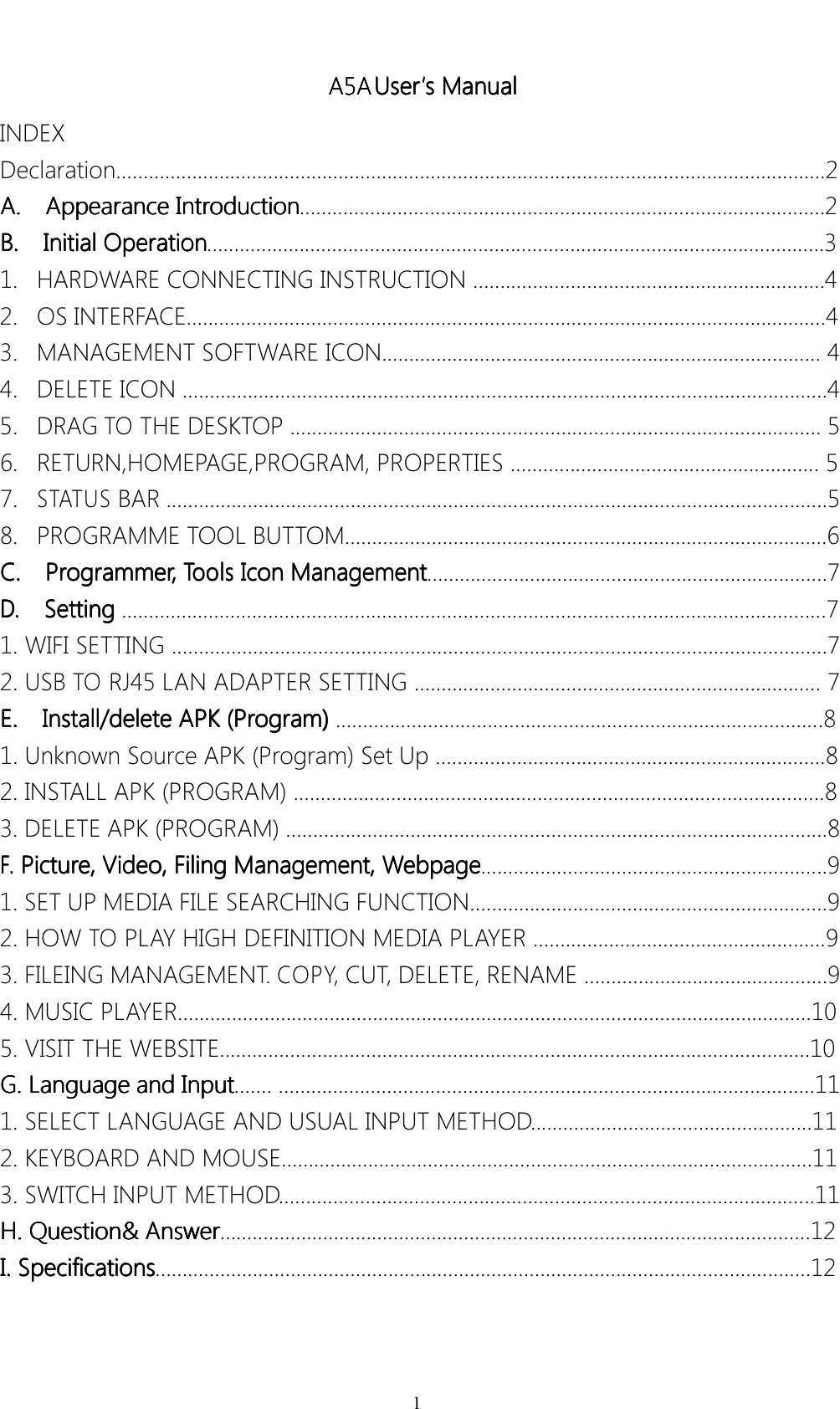
1A5AUser User User User’’’’ssssManual Manual Manual ManualINDEXDeclaration……………………………………………………………………………………………………………….....2A. A. A. A.Appearance Appearance Appearance AppearanceIntroduction Introduction Introduction Introduction…………….………………………………………………………………………2B. B. B. B.Initial Initial Initial InitialOperation Operation Operation Operation……...……………………………………………………………………………………….…..31.HARDWARECONNECTINGINSTRUCTION……..………………………………………..….......42.OSINTERFACE......................................................................................................................43.MANAGEMENTSOFTWAREICON.................................................................................44.DELETEICON.......................................................................................................................45.DRAGTOTHEDESKTOP..................................................................................................56.RETURN,HOMEP AGE,PROGRAM,PROPERTIES………………………………………………...57.STATUSBAR..........................................................................................................................58.PROGRAMMETOOLBUTTOM.........................................................................................6C. C. C. C.Programmer, Programmer , Programmer , Programmer,Tools T ools Tools ToolsIcon Icon Icon IconManagement Management Management Management………………………………………………………...........7D. D. D. D.Setting Setting Setting Setting..................................................................................................................................71.WIFISETTING................................................................................................................…...…72.USBTORJ45LANADAPTERSETTING...........................................................................7E. E. E. E.Install/delete Install/delete Install/delete Install/deleteAPK APK APK APK(Program) (Program) (Program) (Program)..........................................................................................81.UnknownSourceAPK(Program)SetUp…………………...................................................82.INSTALLAPK(PROGRAM)..................................................................................................83.DELETEAPK(PROGRAM)……………………………...................................................................8F. F. F. F.Picture, Picture, Picture, Picture,Video, Video, Video, Video,Filing Filing Filing FilingManagement, Management, Management, Management,Webpage Webpage Webpage Webpage................................................................91.SETUPMEDIAFILESEARCHINGFUNCTION…………......................................................92.HOWTOPLAYHIGHDEFINITIONMEDIAPLAYER......................................................93.FILEINGMANAGEMENT .COPY,CUT,DELETE,RENAME………………………………......…94.MUSICPLAYER.........……………………….……….......................................................................105.VISITTHEWEBSITE......................................................……………………………………………….10G. G. G. G.Language Language Language Languageand and and andInput Input Input Input…….……………....................................................................................111.SELECTLANGUAGEANDUSUALINPUTMETHOD....................................................112.KEYBOARDANDMOUSE..................................................................................................113.SWITCHINPUTMETHOD……………………………..….............................................................11H. H. H. H.Question& Question& Question& Question&Answer Answer Answer Answer…..........................................................................................................12I. I. I. I.Specifications Specifications Specifications Specifications……...................................................................................................................12A5A A5A A5A A5A
   2Declaration z  The user manual includes all the information of safe and correct operation instruction. To avoid accident and product damaged, please make sure go through all the content carefully before using the product. z  Please keep the product away from high temperature, humid and dusty environment. z  Do not drop or crash the product. z  Do not cut off power of the device when it is formatting or upgrading. Otherwise it will cause operation system error. z  Do not dismantle the device. Do not clean it by alcohol, thinner and Benzene. 1.  We keep the right to upgrade and modify the product. 2.  Disclaimer: We only take the responsibility to provide the product warranty and after service. The users have to take care of their data in the device by themselves. We do not responsible for any data lost or related lost. 3.  The product is not water-proof. 4.  All the pictures in the instruction are just for reference. A. Appearance Introduction
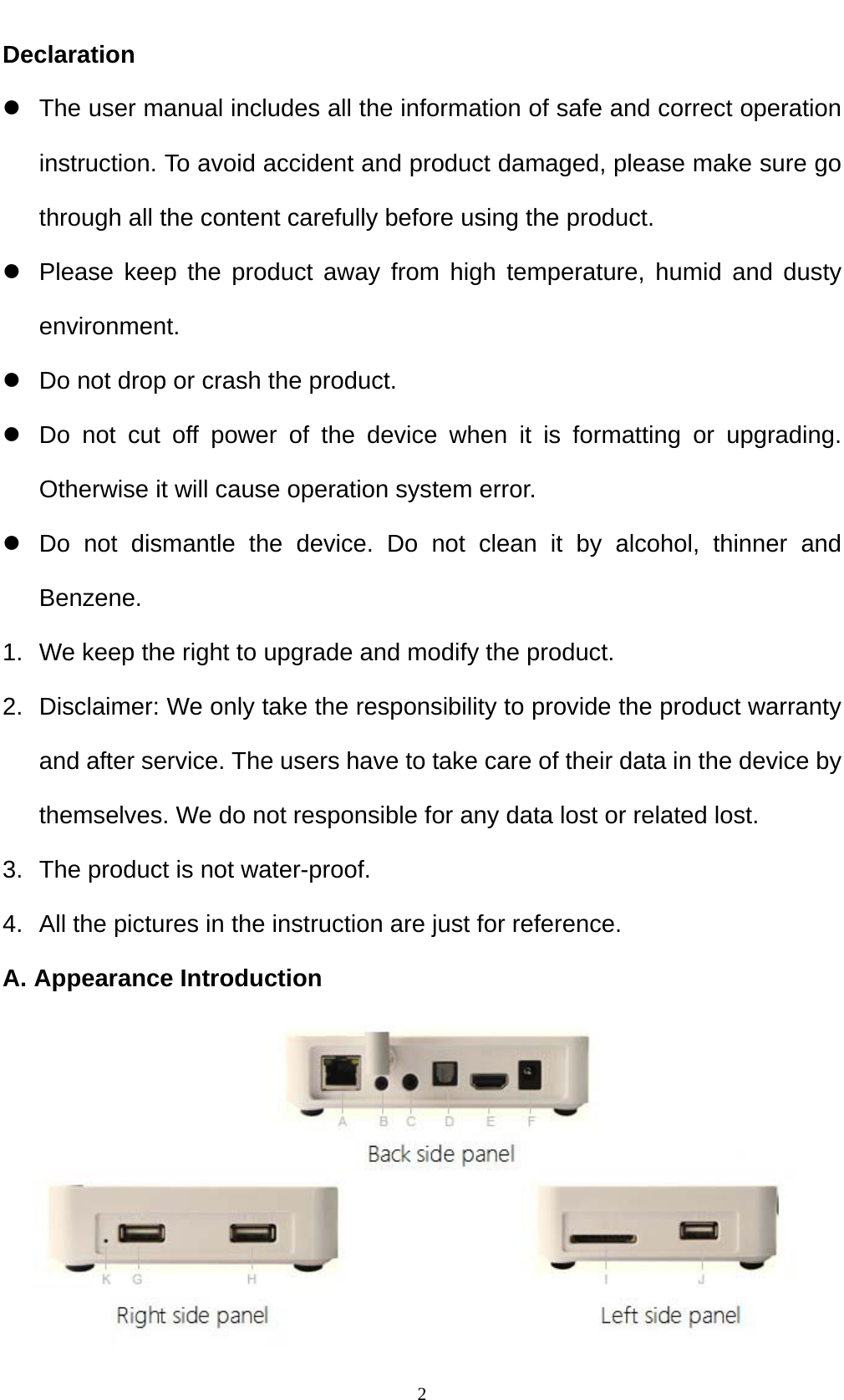
   3Back side panel: From left to right:      A: LAN Network Port.                 B: External IR Jack C: AV Output D: Optical SPDIF E: HDMI 1.4 output F: DC-IN: 12V Right side Panel: K: Reset Key: Factory default setting, When power on, press it for 10 seconds. G/H: 2 X USB Host: play movies, pictures and music in USB Disk and USB portable HD, connect Air Mouse; Right side Panel: A: SD Card Slot: Play Media file in micro SD   B: USB Host B. Initial operation Connection instruction for Hardware 1. Connect to the TV set or LCD monitor .Set up the TV data receive mode to HDMI port , (Refer to TV set user manual) 2. Suggest using Air mouse or 2.4G wireless mouse and keyboard. Plug 2.4G receiver on USB Host connector. Or Plug on USB OTG port by port converter. If only mouse plugged, the device will provide soft keyboard in operation system. If the device detected the physical keyboard, the soft keyboard will be hiding by OS automatically.
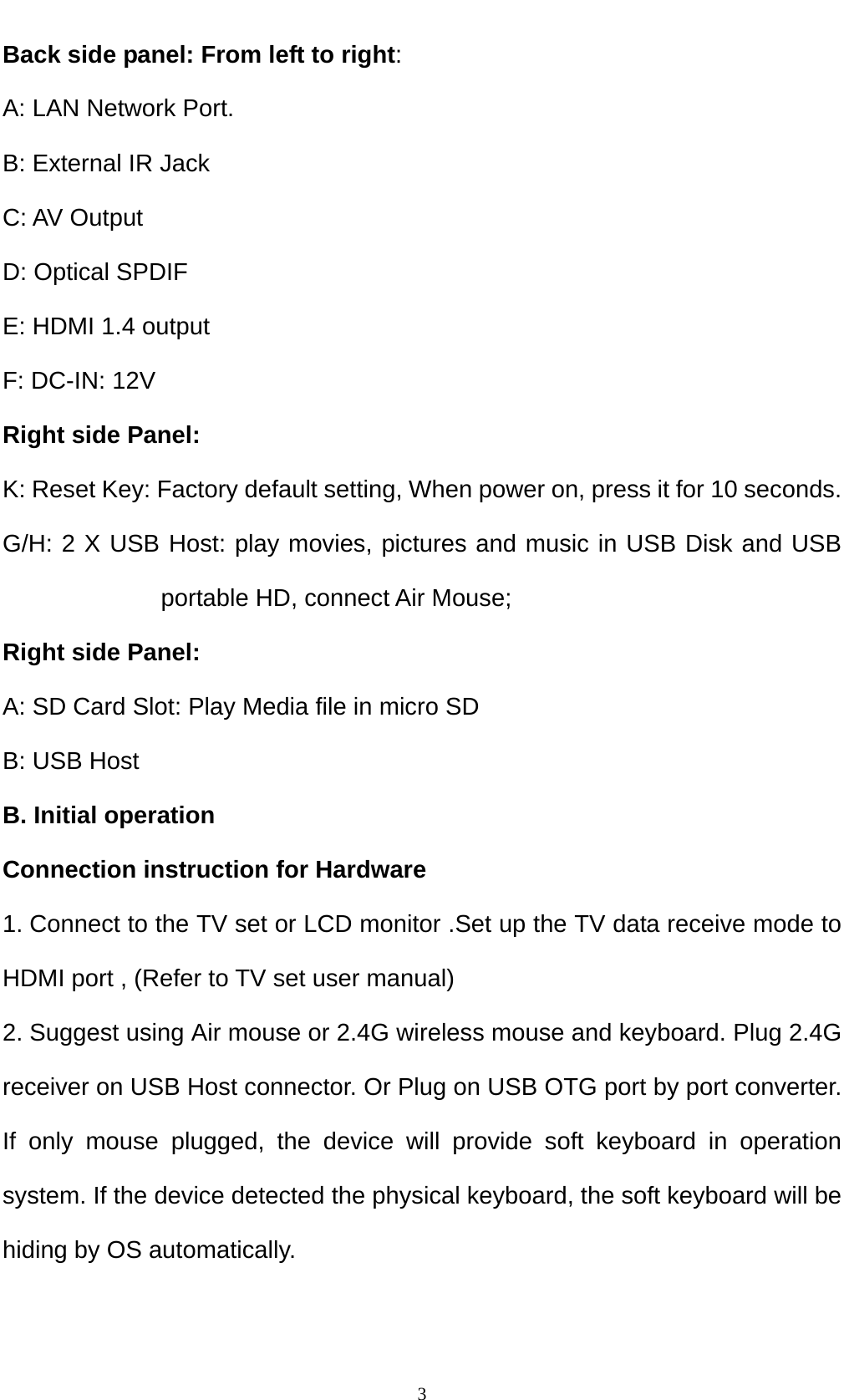
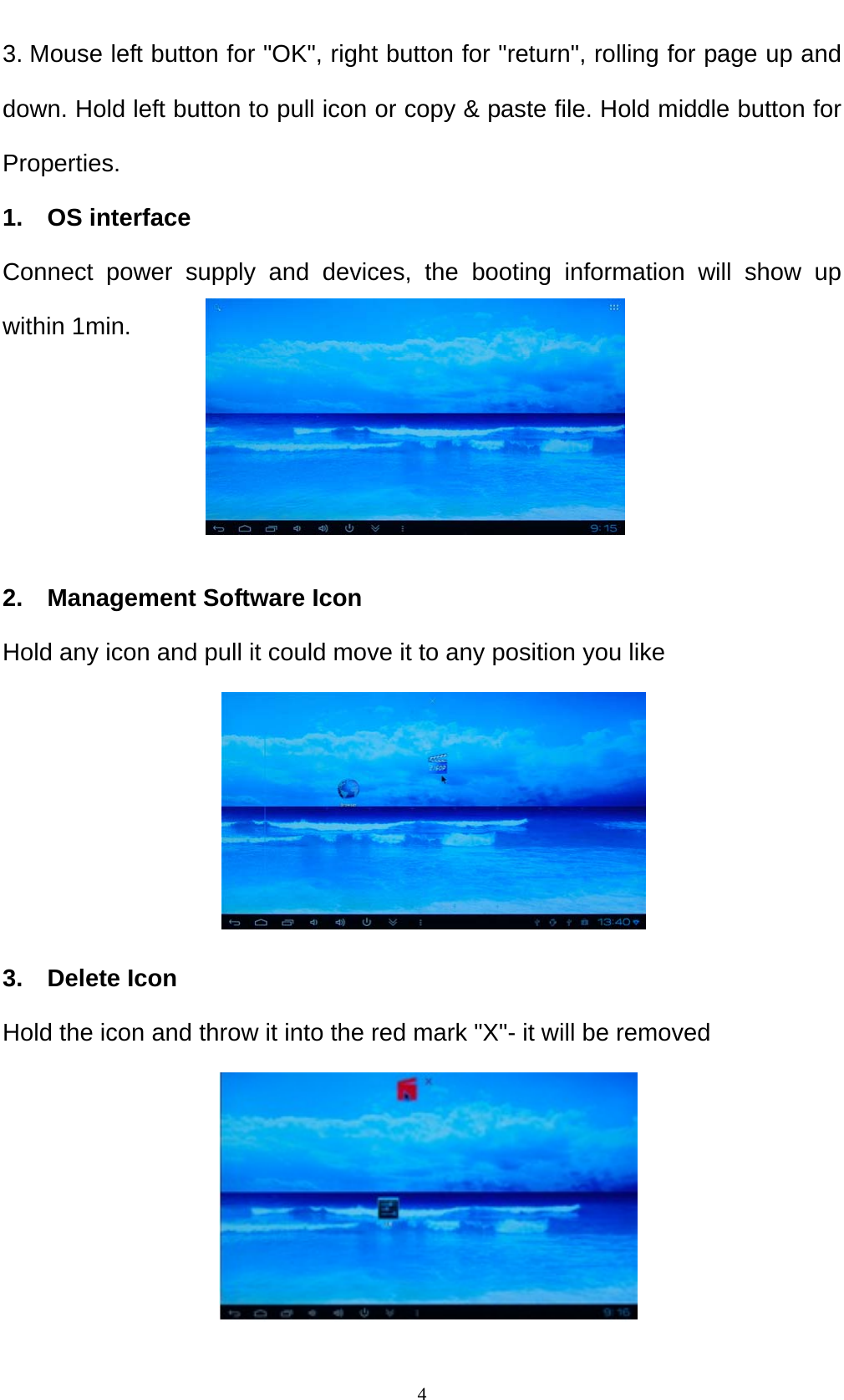
   43. Mouse left button for "OK", right button for "return", rolling for page up and down. Hold left button to pull icon or copy & paste file. Hold middle button for Properties. 1.  OS interface Connect power supply and devices, the booting information will show up within 1min.     2.  Management Software Icon Hold any icon and pull it could move it to any position you like      3.  Delete Icon Hold the icon and throw it into the red mark "X"- it will be removed
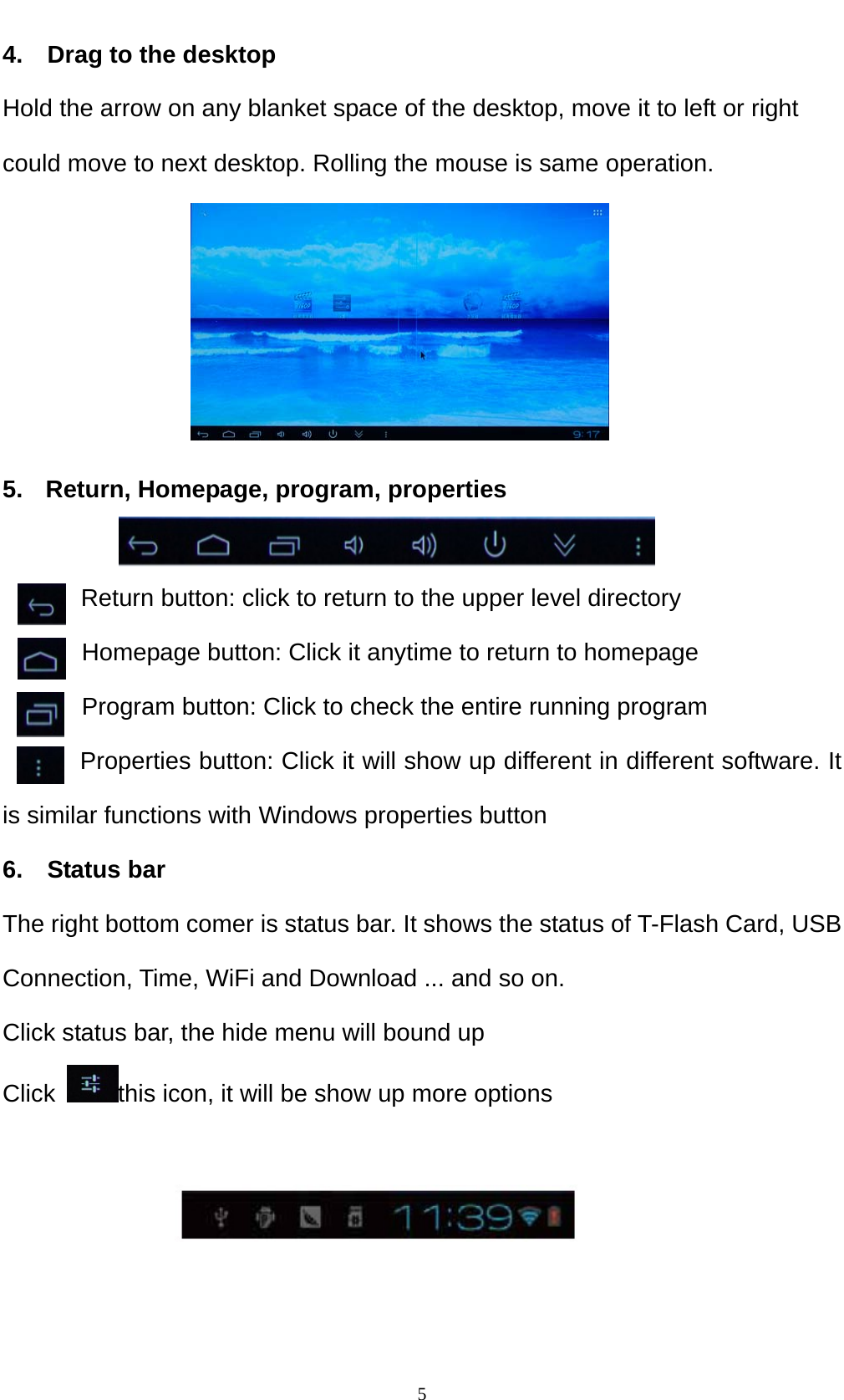
   54.    Drag to the desktop Hold the arrow on any blanket space of the desktop, move it to left or right could move to next desktop. Rolling the mouse is same operation.      5.  Return, Homepage, program, properties          Return button: click to return to the upper level directory   Homepage button: Click it anytime to return to homepage Program button: Click to check the entire running program Properties button: Click it will show up different in different software. It is similar functions with Windows properties button 6.  Status bar The right bottom comer is status bar. It shows the status of T-Flash Card, USB Connection, Time, WiFi and Download ... and so on. Click status bar, the hide menu will bound up Click  this icon, it will be show up more options
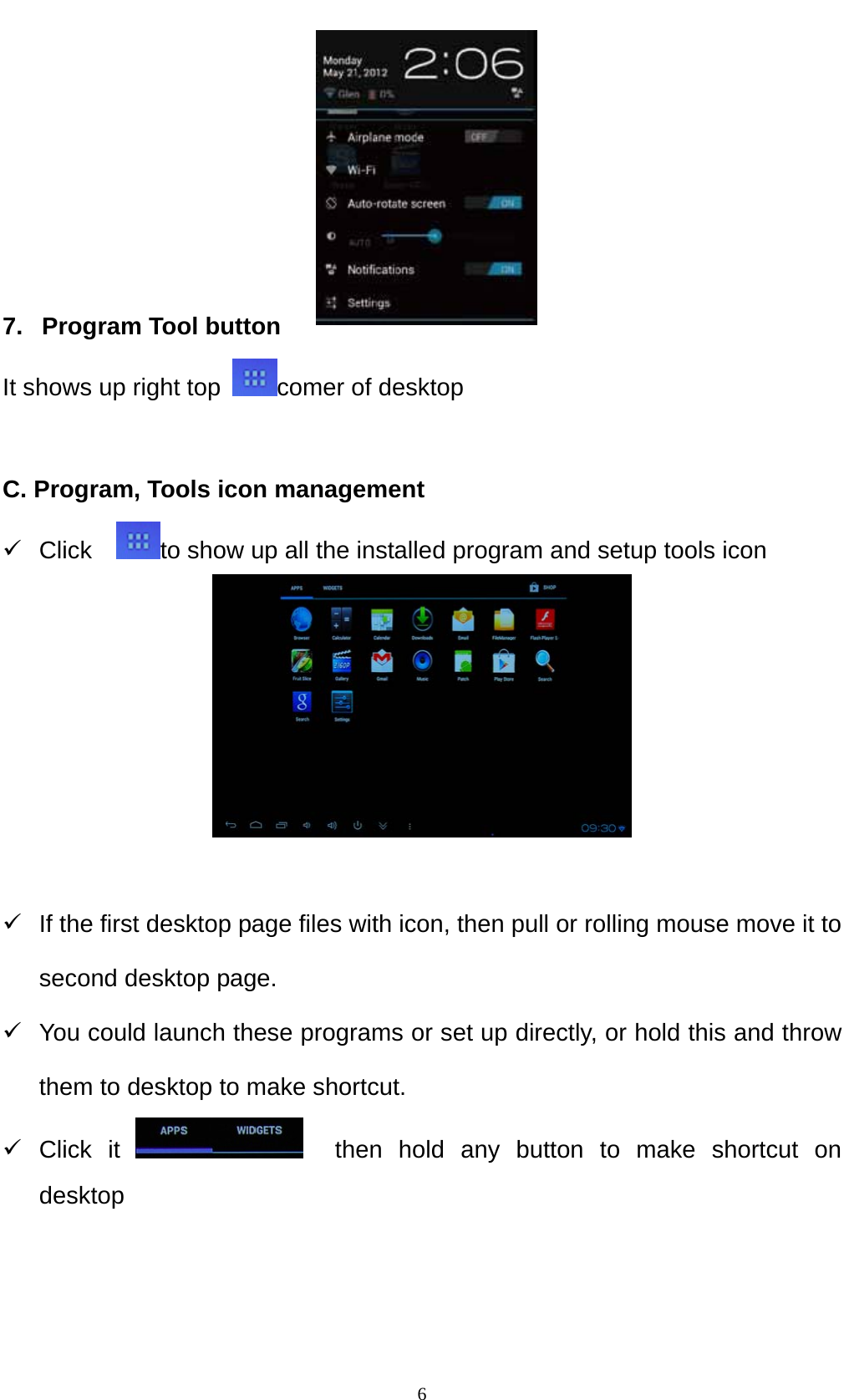
   6     7.   Program Tool button It shows up right top  comer of desktop  C. Program, Tools icon management 9 Click   to show up all the installed program and setup tools icon   9  If the first desktop page files with icon, then pull or rolling mouse move it to second desktop page. 9  You could launch these programs or set up directly, or hold this and throw them to desktop to make shortcut. 9 Click it    then hold any button to make shortcut on desktop
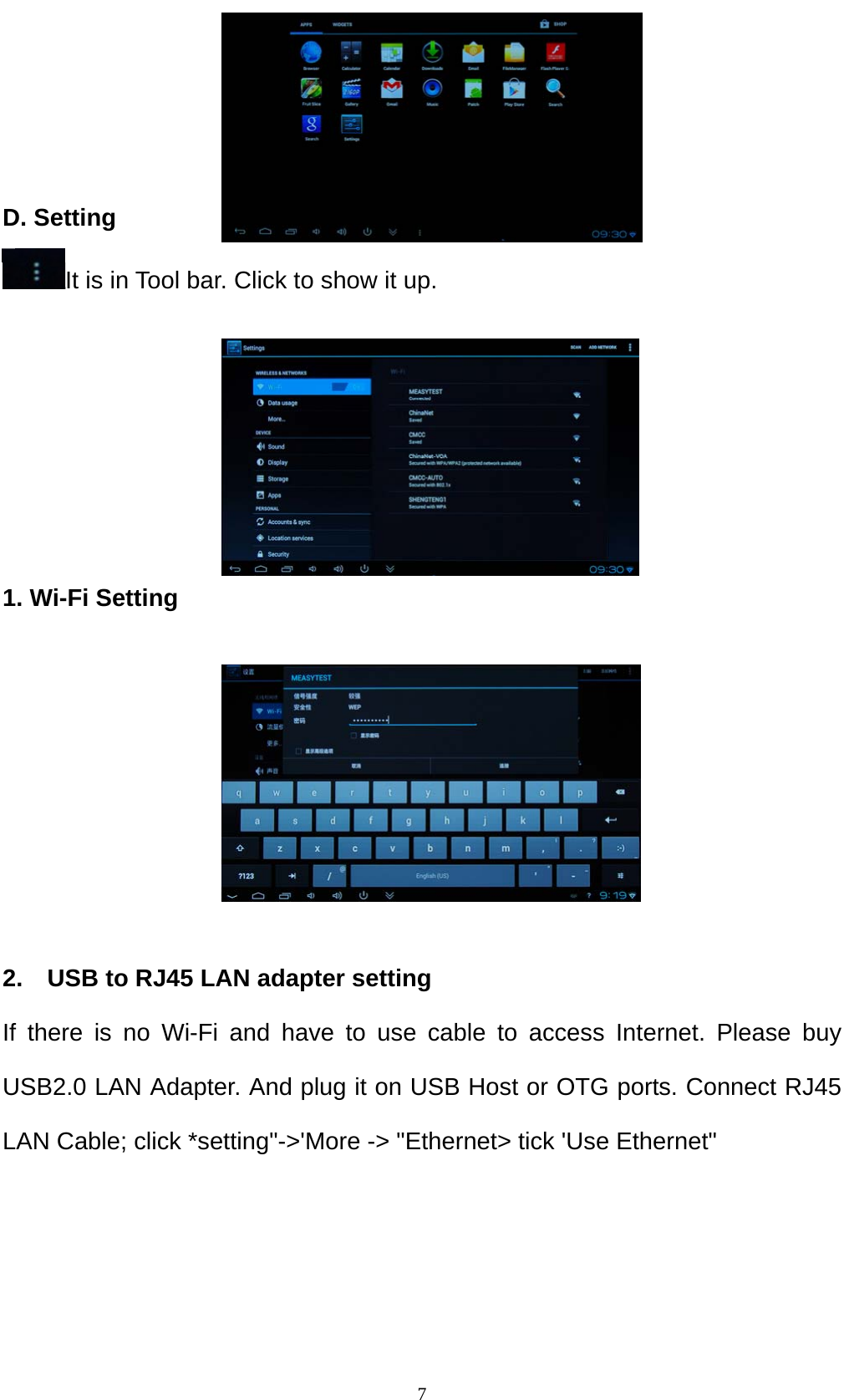
   7   D. Setting It is in Tool bar. Click to show it up.      1. Wi-Fi Setting                      2.    USB to RJ45 LAN adapter setting If there is no Wi-Fi and have to use cable to access Internet. Please buy USB2.0 LAN Adapter. And plug it on USB Host or OTG ports. Connect RJ45 LAN Cable; click *setting"->'More -> "Ethernet> tick 'Use Ethernet"
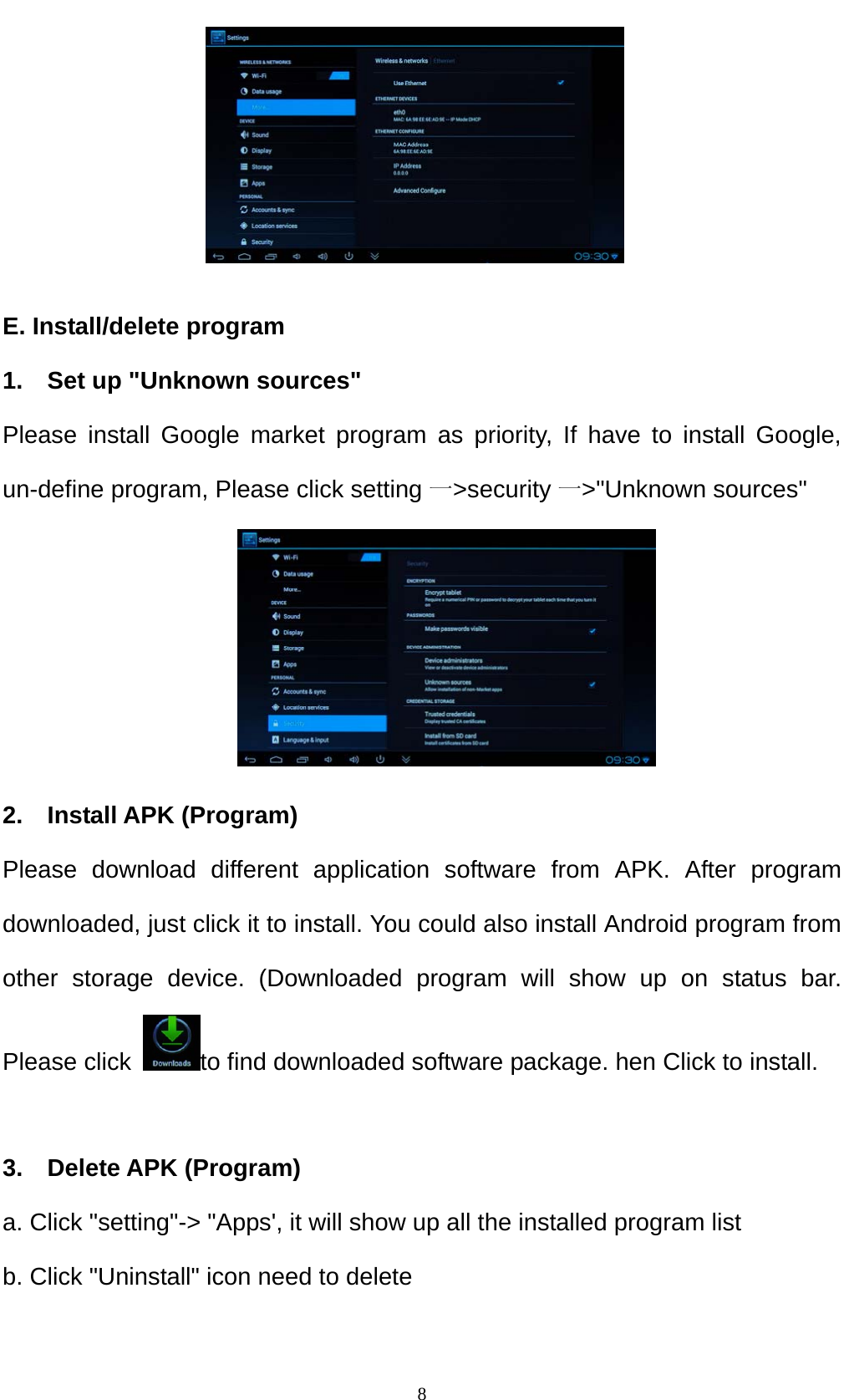
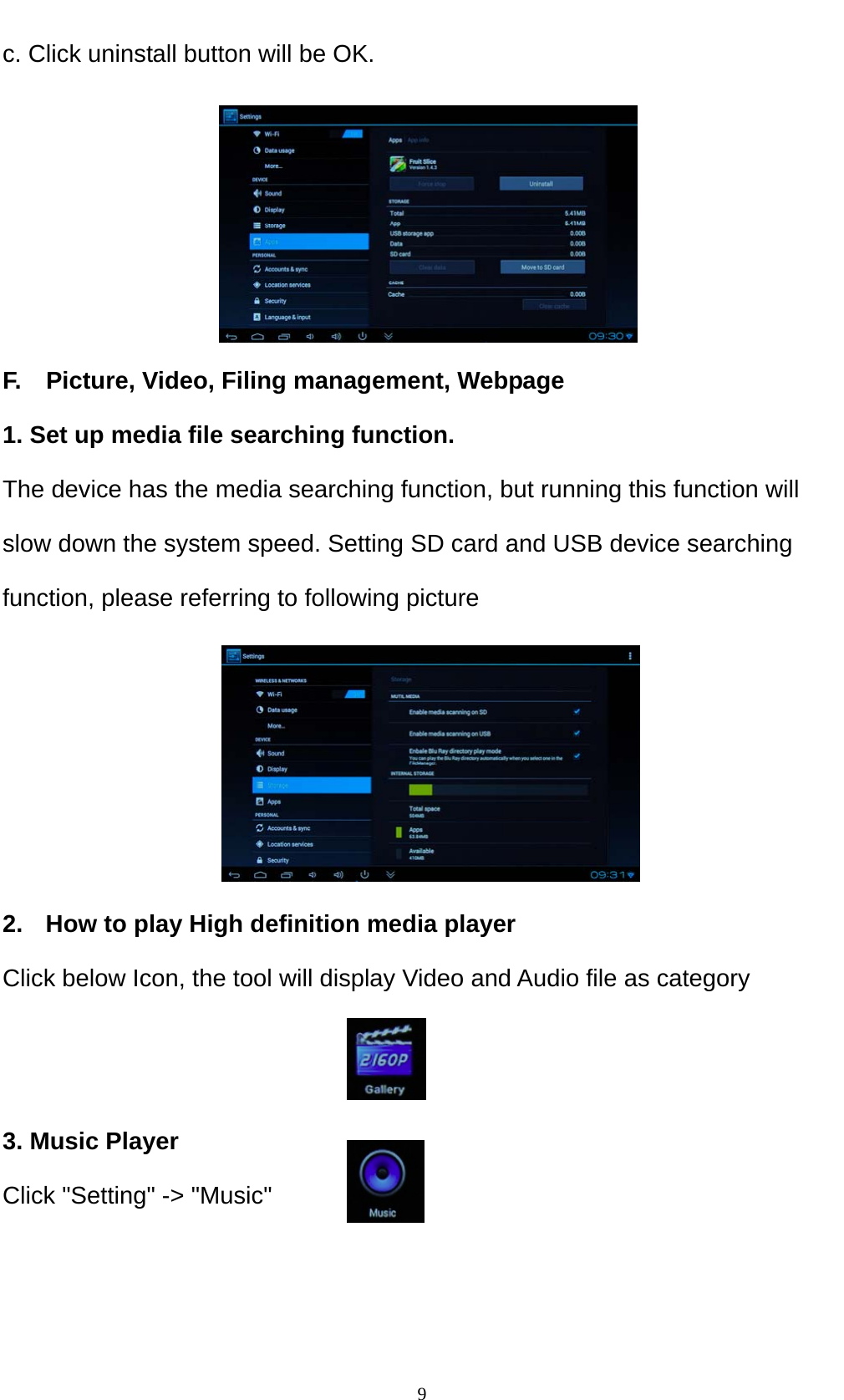
   8     E. Install/delete program 1.    Set up "Unknown sources" Please install Google market program as priority, If have to install Google, un-define program, Please click setting 一>security 一>"Unknown sources"      2.  Install APK (Program) Please download different application software from APK. After program downloaded, just click it to install. You could also install Android program from other storage device. (Downloaded program will show up on status bar. Please click  to find downloaded software package. hen Click to install.  3.  Delete APK (Program) a. Click "setting"-> "Apps', it will show up all the installed program list b. Click "Uninstall" icon need to delete
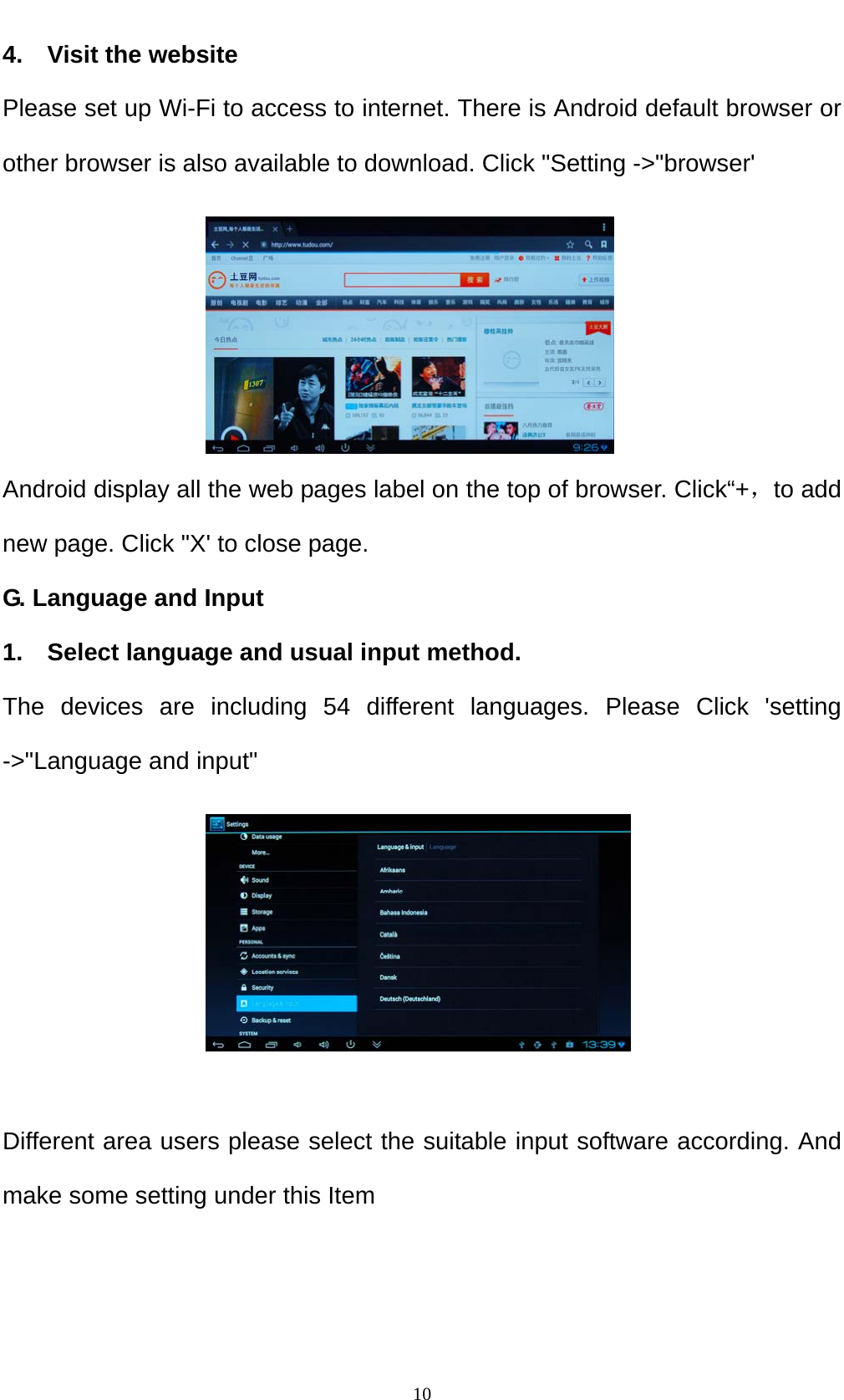
   9c. Click uninstall button will be OK.      F.    Picture, Video, Filing management, Webpage 1. Set up media file searching function. The device has the media searching function, but running this function will slow down the system speed. Setting SD card and USB device searching function, please referring to following picture      2.  How to play High definition media player Click below Icon, the tool will display Video and Audio file as category   3. Music Player Click "Setting" -> "Music"
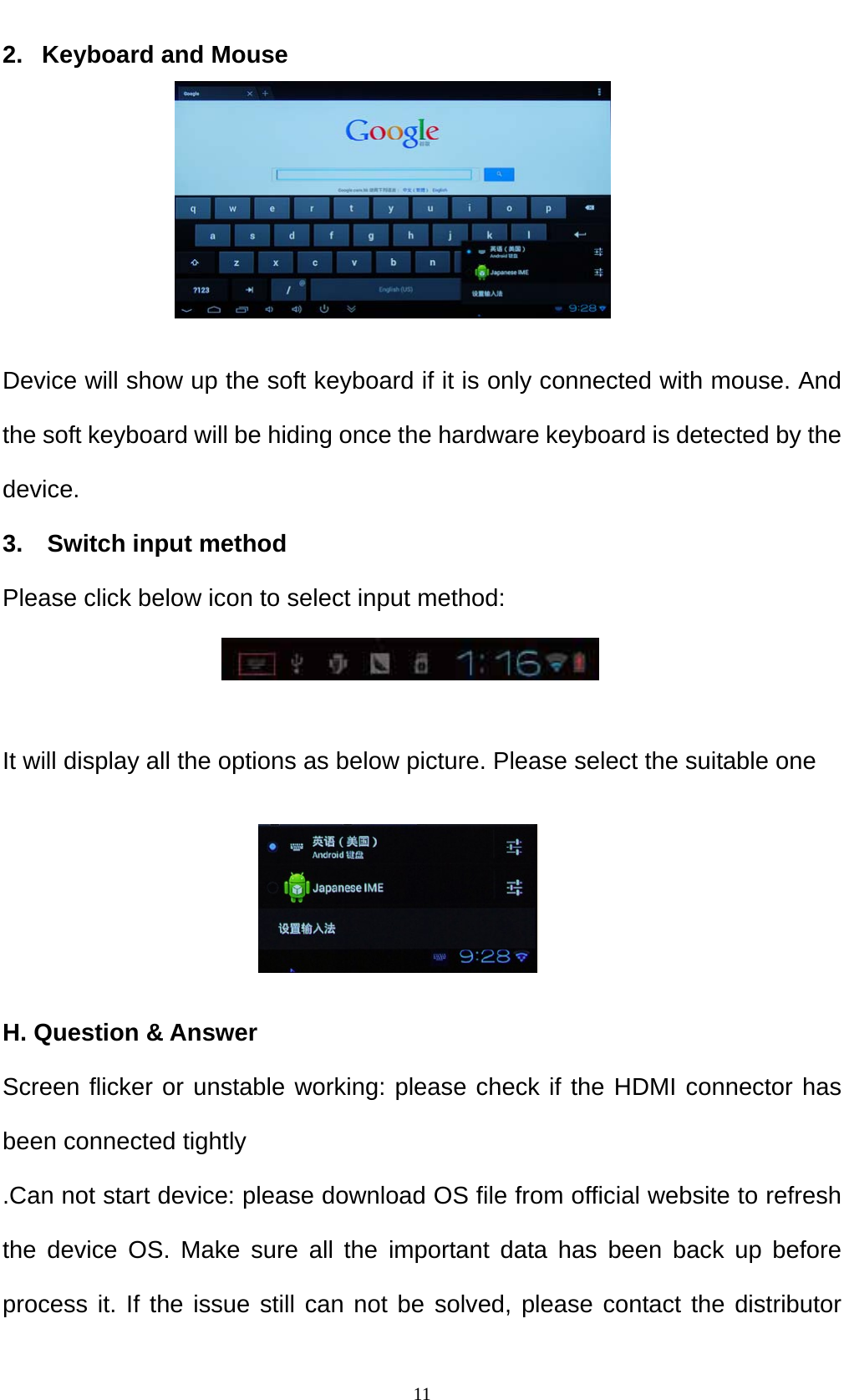
   104.  Visit the website Please set up Wi-Fi to access to internet. There is Android default browser or other browser is also available to download. Click "Setting ->"browser'      Android display all the web pages label on the top of browser. Click“+,to add new page. Click "X' to close page. G. Language and Input 1.  Select language and usual input method. The devices are including 54 different languages. Please Click 'setting ->"Language and input"       Different area users please select the suitable input software according. And make some setting under this Item
   112.   Keyboard and Mouse      Device will show up the soft keyboard if it is only connected with mouse. And the soft keyboard will be hiding once the hardware keyboard is detected by the device. 3.  Switch input method Please click below icon to select input method:   It will display all the options as below picture. Please select the suitable one     H. Question & Answer Screen flicker or unstable working: please check if the HDMI connector has been connected tightly .Can not start device: please download OS file from official website to refresh the device OS. Make sure all the important data has been back up before process it. If the issue still can not be solved, please contact the distributor
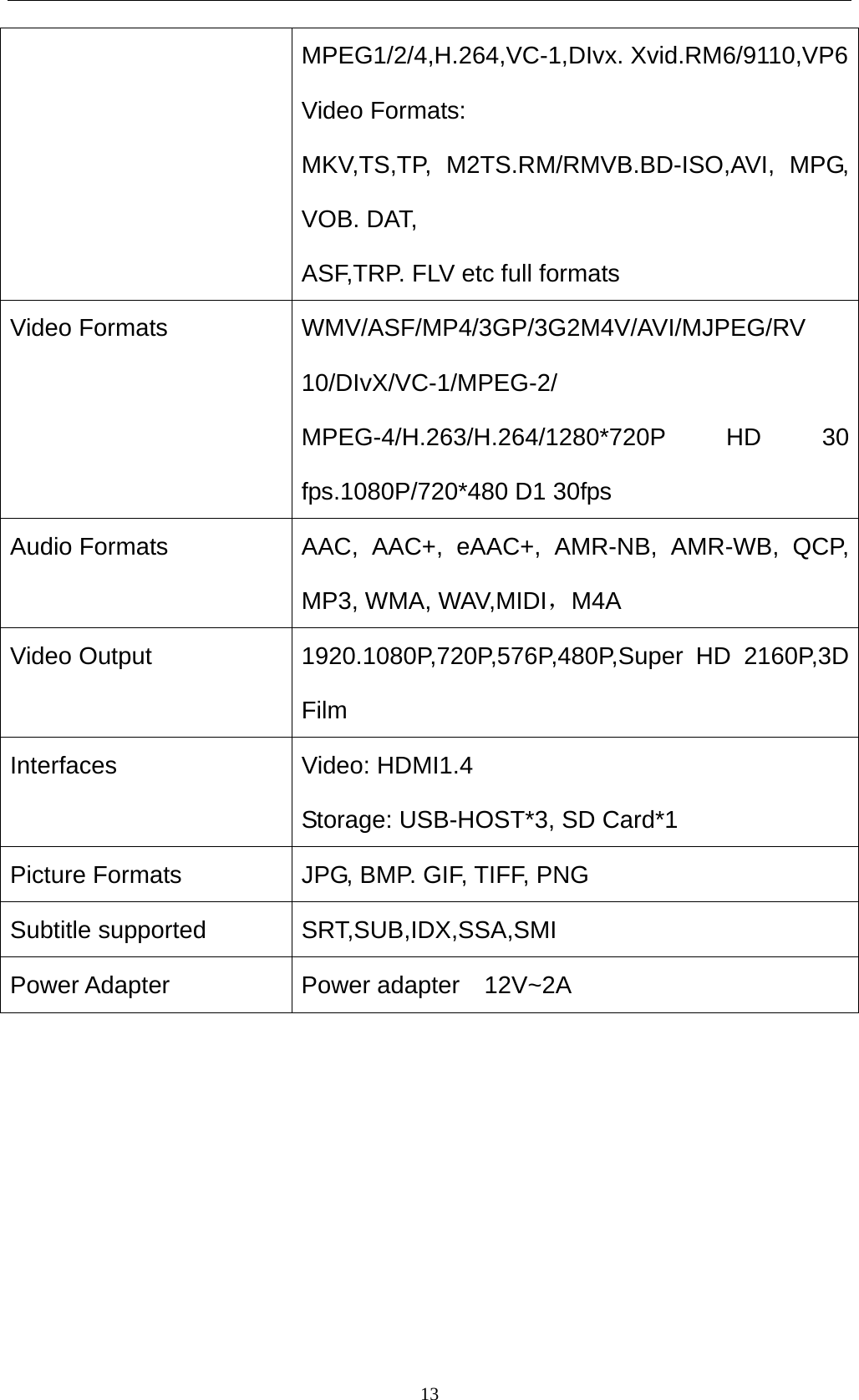
   12which you bought from .Keep restarting system automatically: Please check if the device gets enough shortage supply. Sometimes, external HDD cause power. Please plug additional power supply for external HDD or other external devices .Can not find file in SD card or pen drive: Please check all the connection of the device. And make sure you have tick the item of SD and USB Host in "Setting' Refer to 6.1 I. Specifications: Model No.  A5A CPU  Allwinner  A10 1.2GHz Cortex-A8 GPU  2D/ 3D/ OpenGL ES2.0(AMD Z430)/OpenVG1.1(AMD Z160)@27M TRI/sec Operation system  Android 4.0 DDR RAM  1GB Nand Flash  4GB( 8GB/16GB optional) Network device  Wireless 802.11 b/g/n, 10/100M LAN( RJ45) Storage device  Support External storage via USB host /Support External storage via SD card Android APP  YouTube, Twitter, Angry Bird, Office, Gmail, Browser, Skype, Youku, Tudou, QQ..…… Language Multi-languages USB Interface  USB 2.0 host*3 Video Video Decoding:
   13MPEG1/2/4,H.264,VC-1,DIvx. Xvid.RM6/9110,VP6Video Formats: MKV,TS,TP, M2TS.RM/RMVB.BD-ISO,AVI, MPG, VOB. DAT, ASF,TRP. FLV etc full formats Video Formats  WMV/ASF/MP4/3GP/3G2M4V/AVI/MJPEG/RV 10/DIvX/VC-1/MPEG-2/ MPEG-4/H.263/H.264/1280*720P HD 30 fps.1080P/720*480 D1 30fps Audio Formats  AAC, AAC+, eAAC+, AMR-NB, AMR-WB, QCP, MP3, WMA, WAV,MIDI,M4A Video Output  1920.1080P,720P,576P,480P,Super  HD  2160P,3D Film Interfaces Video: HDMI1.4 Storage: USB-HOST*3, SD Card*1 Picture Formats  JPG, BMP. GIF, TIFF, PNG Subtitle supported  SRT,SUB,IDX,SSA,SMI Power Adapter  Power adapter  12V~2A
   14《 Warranty Card 》 Dear users, first of all, thank you very much for choosing Measy products. In order to give you more satisfaction, please read this warranty card, fill out and keep the card after you purchase our products.   User Name   Address ZIP Code   Contact TEL   Product Item   Purchasing Date   Dealer Name   Dealer Address   Sales Department(Stamp):                                   《Warranty Instruction  》 Consumers purchase our products lawful, If you find some performance fault which caused by non-artificial damage, can enjoy the following commitments which provided by our company   1.  The warranty products must include warranty card, the purchasing invoice labeled the product model and other documents. 2. The warranty card only can be effective after made seal by the sales. Warranty cards are kept by the user, we will not make up if lost. The altered card and expired card are not invalid. 3.  From the purchasing date, if you find any performance fault which caused by non-artificial damage, you can enjoy free warranty service. The following circumstances can not enjoy free warranty services; 1.  Damage caused by negligence or accident. 2. Damage caused by failing to note the requirements, proper use, maintenance of the manual. 3.  Damage cause by using, such as shell breakage. 4. The machine barcode torn up or destroyed, then we hard to recognize the goods. 5. Damage caused by force majeure, such as dismantling the machine without agreement. 6.  Burn the software from third part secretly. 7.  Our company or our authorized centers will get more materials cost and maintenance costs from you if your device can not meet the conditions of the warranty card.
   15FCC Statement This device complies with Part 15 of the FCC Rules. Operation is subject to the following two conditions: (1) this device may not cause harmful interference, and (2) this device must accept any interference received, including interference that may cause undesired operation.   Note: This equipment has been tested and found to comply with the limits for a Class B digital device, pursuant to Part 15 of the FCC Rules. These limits are designed to provide reasonable protection against harmful interference in a residential installation. This equipment generates, uses and can radiate radio frequency energy and, if not installed and used in accordance with the instructions, may cause harmful interference to radio communications.  However, there is no guarantee that interference will not occur in a particular installation. If this equipment does cause harmful interference to radio or television reception, which can be determined by turning the equipment off and on, the user is encouraged to try to correct the interference by one or more of the following measures: Reorient or relocate the receiving antenna. Increase the separation between the equipment and receiver. Connect the equipment into an outlet on a circuit different from that to which the receiver is connected. Consult the dealer or an experienced radio/TV technician for help.   Warning: Changes or modifications to this unit not expressly approved by the part responsible for compliance could void the user’s authority to operate the equipment.   FCC Exposure Statement:  This equipment complies with fcc radiation exposure limits set forth for an uncontrolled environment. This equipment should be installed and operated with minimum distance 20cm between the radiator & your body.

Navigation menu