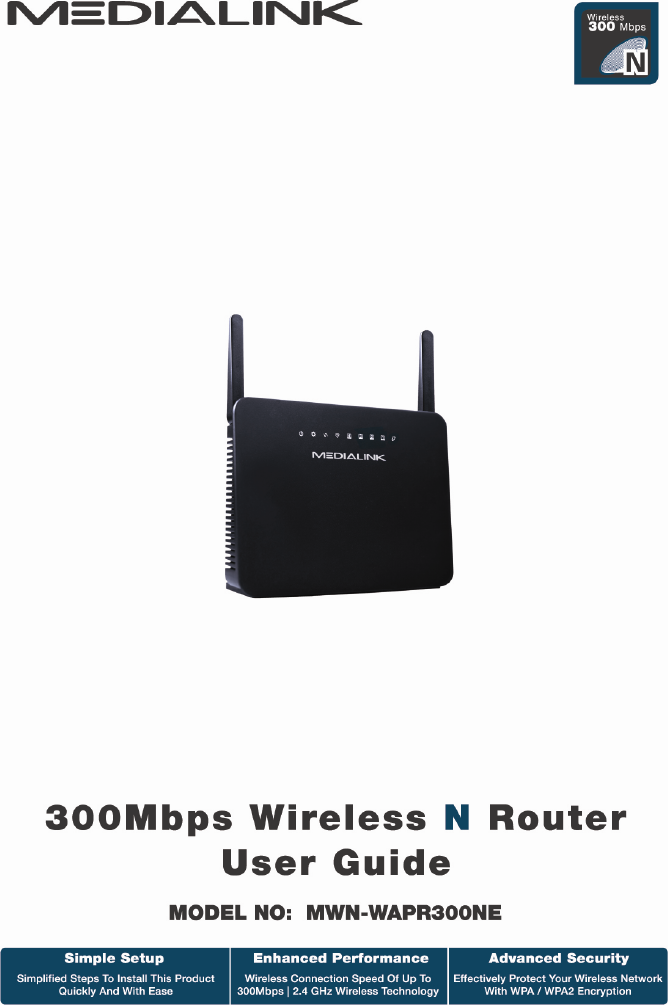
Medialink MWN-WAPR300NE WIRELESS-N BROADBAND ROUTER User Manual

Medialink Products, LLC WIRELESS-N BROADBAND ROUTER

User Manual.pdf

                                MWN-WAPR300NE  1
                                MWN-WAPR300NE  2 Copyright Statement   is  the  registered  trademark  of  Medialink Products, LLC. All the products and product names mentioned herein are the trademarks or registered trademarks of their respective holders. Copyright of the  whole  product  as  integration,  including  its  accessories  and  software, belongs  to  Medialink  Products,  LLC.  Without  the  permission  of  Medialink Products,  LLC.  any  individual  or  party  is  not  allowed  to  copy,  plagiarize, reproduce or translate it into other languages. All the photos  and product specifications mentioned in this manual are for references only. Upgrades of software and hardware may occur, and if there are  changes,  Medialink  is  not  responsible  for  notifying  in  advance.  If  you would  like  to  know  more  about  our  product  information,  please  visit  our website at www.medialinkproducts.com.
                                MWN-WAPR300NE  3 Contents  CHAPTER 1 PRODUCT INTRODUCTION ...................... 1 1.1 PACKAGE CONTENTS ................................................. 1 1.2 LED INDICATORS AND PORT DESCRIPTION ................. 1 CHAPTER 2 PRODUCT INSTALLATION ........................ 4 2.1 MODEM TO ROUTER INSTALLATION (MOST COMMON).. 4 2.2 ROUTER TO ROUTER (ACCESS POINT SETUP) ............ 4 CHAPTER 3 HOW TO CONFIGURE YOUR COMPUTER’S ETHERNET (LAN) CONNECTION. ....... 7 3.1 HOW TO SET THE NETWORK CONFIGURATIONS ........... 7 3.2 LOG IN TO THE ROUTER ........................................... 12 3.3 FAST INTERNET ACCESS .......................................... 13 3.4 DEFAULT WIRELESS SETTINGS ................................ 14 CHAPTER 4 ADVANCED SETTINGS .............................. 14 4.1 SYSTEM STATUS ..................................................... 14 4.2 WAN SETTINGS ...................................................... 16 4.3 LAN SETTINGS ....................................................... 19 4.4 MAC CLONE ........................................................... 20 4.5 DNS SETTINGS ....................................................... 21 4.6 WAN SPEED ........................................................... 22 4.7 BANDWIDTH CONTROL ............................................. 22 4.8 TRAFFIC STATISTICS ................................................ 25 4.9 FIREWALL ............................................................... 26 4.10 RANGE EXTENDER SETUP ..................................... 27 CHAPTER 5 WIRELESS SETTINGS ............................... 31
                                MWN-WAPR300NE  4 5.1 WIRELESS BASIC SETTINGS ..................................... 31 5.2 WIRELESS SECURITY SETTINGS ............................... 35 5.2.1 WPS SETTINGS (NOT RECOMMENDED) ................. 35 5.2.2 WPA-PSK (WPA-PERSONAL) .............................. 36 5.2.3 WPA2-PSK (WPA2-PERSONAL) .......................... 37 5.2.4 WEP ................................................................... 38 5.3 MAC FILTER ........................................................... 38 5.4 CONNECTION STATUS .............................................. 39 CHAPTER 6 DHCP SERVER ............................................. 40 6.1 DHCP SERVER ....................................................... 40 6.2 DHCP CLIENT LIST ................................................. 40 CHAPTER 7 VIRTUAL SERVER ...................................... 42 7.1 PORT RANGE FORWARDING ..................................... 42 7.2 DMZ SETTINGS ....................................................... 44 7.3 UPNP SETTINGS .................................................... 44 CHAPTER 8 SECURITY SETTINGS ............................... 45 8.1 CLIENT FILTER SETTINGS ........................................ 45 8.2 MAC ADDRESS FILTER ............................................ 47 8.3 URL FILTER SETTINGS ............................................ 48 8.4 REMOTE WEB MANAGEMENT ................................... 49 CHAPTER 9 ROUTING SETTINGS ................................. 50 9.1 ROUTING TABLE ...................................................... 50 9.2 STATIC ROUTING ..................................................... 51 10.1 TIME SETTINGS ..................................................... 52 10.2 DDNS .................................................................. 52 10.3 BACKUP/RESTORE ................................................ 53
                                MWN-WAPR300NE  5 10.4 RESTORE TO FACTORY DEFAULT ........................... 55 10.5 FIRMWARE ............................................................ 55 10.6 REBOOT THE ROUTER ........................................... 56 10.7 CHANGE USERNAME/PASSWORD ........................... 57 10.8 SYSLOG ................................................................ 57 APPENDIX 1 GLOSSARY .................................................. 59 APPENDIX 2 PRODUCT FEATURES .............................. 59 APPENDIX 3 FAQ ............................................................... 60 APPENDIX 4 CLEAR WIRELESS CONFIGURATION . 61 APPENDIX 5 REGULATORY INFORMATION .............. 64
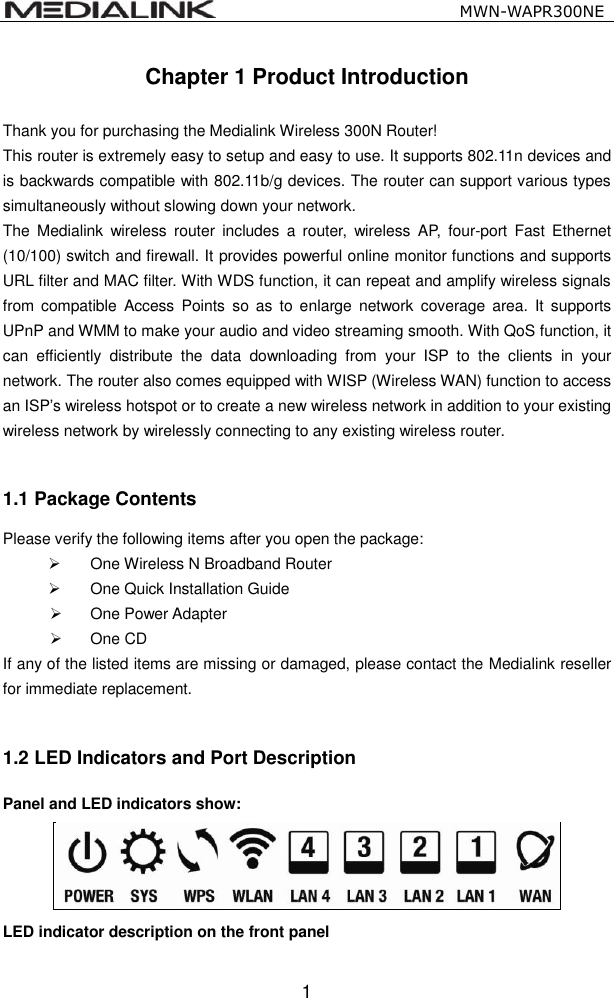
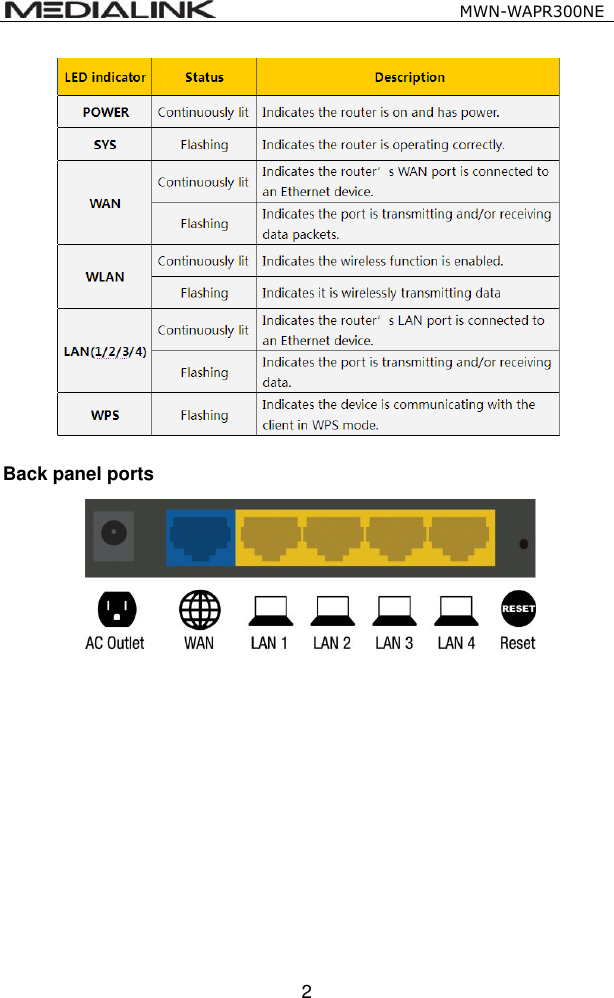
                                                  MWN-WAPR300NE  1 Chapter 1 Product Introduction  Thank you for purchasing the Medialink Wireless 300N Router! This router is extremely easy to setup and easy to use. It supports 802.11n devices and is backwards compatible with 802.11b/g devices. The router can support various types simultaneously without slowing down your network.   The  Medialink  wireless  router  includes  a  router,  wireless  AP,  four-port  Fast  Ethernet (10/100) switch and firewall. It provides powerful online monitor functions and supports URL filter and MAC filter. With WDS function, it can repeat and amplify wireless signals from  compatible  Access  Points  so as  to  enlarge  network  coverage area.  It supports UPnP and WMM to make your audio and video streaming smooth. With QoS function, it can  efficiently  distribute  the  data  downloading  from  your  ISP  to  the  clients  in  your network. The router also comes equipped with WISP (Wireless WAN) function to access an ISP’s wireless hotspot or to create a new wireless network in addition to your existing wireless network by wirelessly connecting to any existing wireless router.  1.1 Package Contents Please verify the following items after you open the package:  One Wireless N Broadband Router   One Quick Installation Guide     One Power Adapter  One CD If any of the listed items are missing or damaged, please contact the Medialink reseller for immediate replacement.  1.2 LED Indicators and Port Description Panel and LED indicators show:  LED indicator description on the front panel
                                                  MWN-WAPR300NE  2   Back panel ports
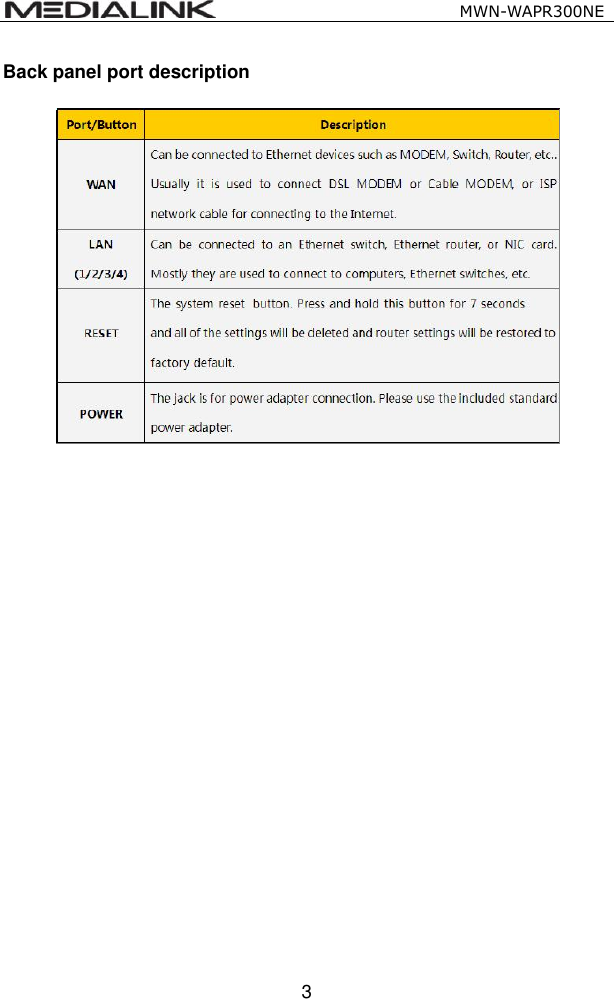
                                                  MWN-WAPR300NE  3 Back panel port description
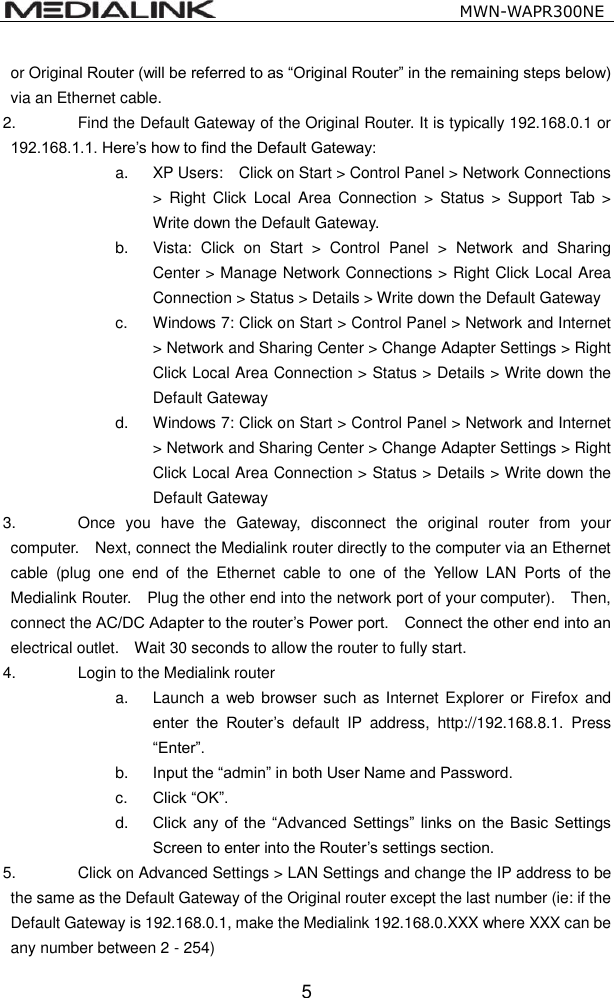
                                                  MWN-WAPR300NE  4 Chapter 2 Product Installation  2.1 Modem to Router Installation (Most Common)  1.  Please use only the included power adapter to power your router. (NOTE: Use of an unmatched power adapter could cause damage to this product).  2. Please connect the router’s  LAN  port  to  your computer with an Ethernet cable and connect your broadband line provided by your ISP to the router’s WAN port.   3. By default the Medialink router is set to use a Dynamic (DHCP) connection through the WAN port so unless you have a DSL Modem that requires the router to use a PPPoE type setup, then you will immediately have Internet access through the Medialink router. If you have a PPPoE setup that requires a DSL Username and Password to be entered into the router proceed to Step 4.    4. PPPoE Setup   a. Open any Internet browser such as Internet Explorer or Firefox.   b. In the address bar, type http://192.168.8.1 , then hit “Enter” on your keyboard.   c. At the prompt enter the default Username (admin) and Password (admin).  d. Select “PPPoE”, enter your DSL Username and DSL Password provided by  your ISP and hit “Apply”  2.2 Router to Router (Access Point Setup) 1. Connect your computer directly to the Residential Gateway, Wireless Modem
                                                  MWN-WAPR300NE  5 or Original Router (will be referred to as “Original Router” in the remaining steps below) via an Ethernet cable. 2.  Find the Default Gateway of the Original Router. It is typically 192.168.0.1 or 192.168.1.1. Here’s how to find the Default Gateway: a.  XP Users:    Click on Start > Control Panel > Network Connections >  Right  Click  Local  Area  Connection  >  Status  >  Support  Tab  > Write down the Default Gateway. b.  Vista:  Click  on  Start  >  Control  Panel  >  Network  and  Sharing Center > Manage Network Connections > Right Click Local Area Connection > Status > Details > Write down the Default Gateway c.  Windows 7: Click on Start > Control Panel > Network and Internet > Network and Sharing Center > Change Adapter Settings > Right Click Local Area Connection > Status > Details > Write down the Default Gateway d.  Windows 7: Click on Start > Control Panel > Network and Internet > Network and Sharing Center > Change Adapter Settings > Right Click Local Area Connection > Status > Details > Write down the Default Gateway 3.  Once  you  have  the  Gateway,  disconnect  the  original  router  from  your computer.  Next, connect the Medialink router directly to the computer via an Ethernet cable  (plug  one  end  of  the  Ethernet  cable  to  one  of  the  Yellow  LAN  Ports  of  the Medialink Router.    Plug the other end into the network port of your computer).    Then, connect the AC/DC Adapter to the router’s Power port.    Connect the other end into an electrical outlet.    Wait 30 seconds to allow the router to fully start. 4.  Login to the Medialink router a.  Launch a  web browser such as Internet Explorer or Firefox and enter  the  Router’s  default  IP  address,  http://192.168.8.1.  Press “Enter”. b. Input the “admin” in both User Name and Password. c. Click “OK”. d. Click any  of the  “Advanced  Settings”  links on  the Basic  Settings Screen to enter into the Router’s settings section. 5.  Click on Advanced Settings > LAN Settings and change the IP address to be the same as the Default Gateway of the Original router except the last number (ie: if the Default Gateway is 192.168.0.1, make the Medialink 192.168.0.XXX where XXX can be any number between 2 - 254)
                                                  MWN-WAPR300NE  6 6.  Click Apply, and then OK, and the Medialink router will reboot. 7.  After rebooting, enter the Username and Password (default: admin for both) then click any of the “Advanced Settings” links on the Basic Settings Screen to enter into the Router’s settings section. If the connection is lost, change the Yellow Port that you are plugged into. Disconnect the Ethernet from the Yellow LAN Port it is plugged into and plug it into a different Yellow LAN Port.   8.  Once  you  are  logged  back  into  the  Medialink  router,  name  your  wireless network:    Click Wireless Settings then click Basic Settings.    Change the SSID name to a name that will identify your wireless network (For example:    Smith or MyWireless.)   Then, Click Apply. Click Ok. 9.  Setup security for your wireless network: Click Wireless Settings, then click Wireless Security Settings. Here you can change your wireless password. Click Apply when finished. Record this case sensitive password for your records. 10.  Disable the  DHCP  Server by clicking DHCP Server, uncheck Enable, click Apply.   11.  Power down the Medialink router, and your original router by unplugging the power cord from the power outlet. 12.  Connect an Ethernet cable from the Original Router to any of the YELLOW LAN ports (Not the Blue WAN port) of the Medialink router. (At this point the Medialink router will have 2 x yellow ports occupied – one to the computer and one to the original router) 13.  Power up the Original Router, wait 30 seconds for it to fully restart, Power up the Medialink Router, wait 30 seconds for it to fully restart. 14.  Test the internet connection through the computer that is currently hardwired to the Medialink Router: a.  If you do not have internet through the wired connection, you may need  to  power  cycle  all  devices  in  the  network  and  start  them again slowly starting with the device closest to the ISP connection. 15.  Test the internet connection to the Medialink router via a wireless device.  If  you  still  cannot  connect  to  the  internet,  please  download  the  latest  FAQ  at medialinkproducts.com/support or please call technical support at 856-216-8222
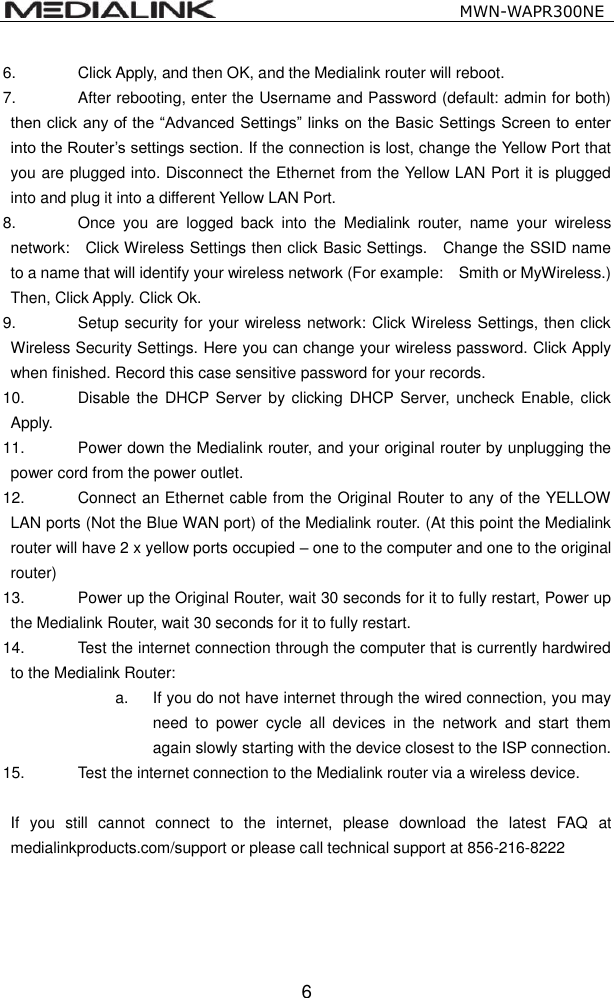
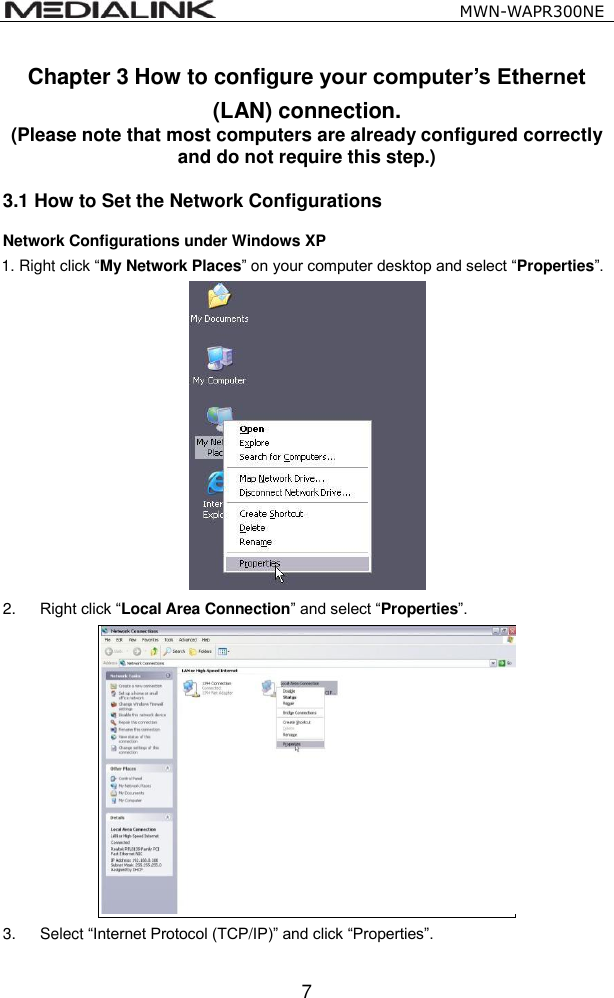
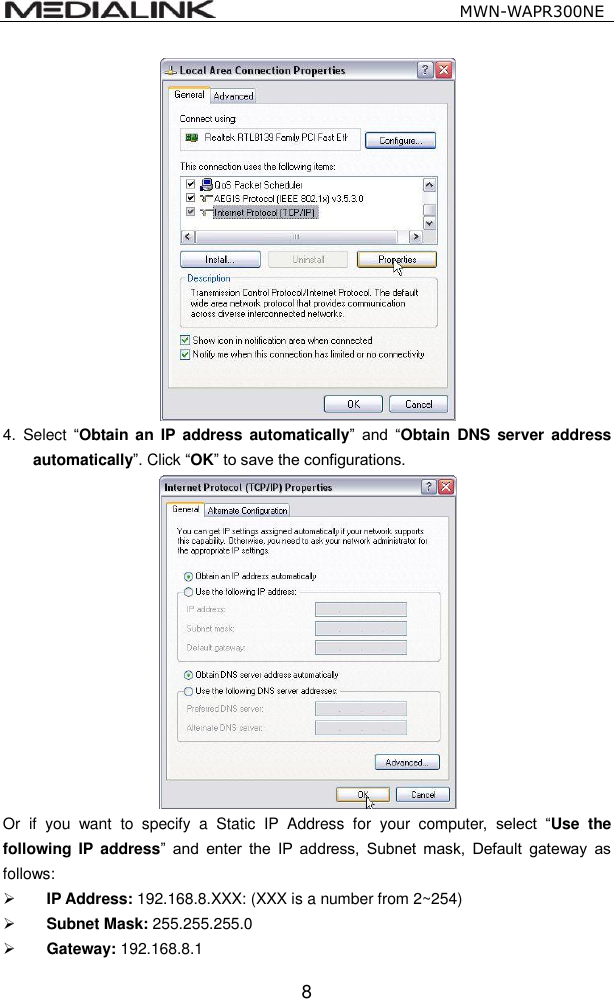
                                                  MWN-WAPR300NE  7 Chapter 3 How to configure your computer’s Ethernet (LAN) connection. (Please note that most computers are already configured correctly and do not require this step.) 3.1 How to Set the Network Configurations Network Configurations under Windows XP 1. Right click “My Network Places” on your computer desktop and select “Properties”.      2. Right click “Local Area Connection” and select “Properties”.  3.  Select “Internet Protocol (TCP/IP)” and click “Properties”.
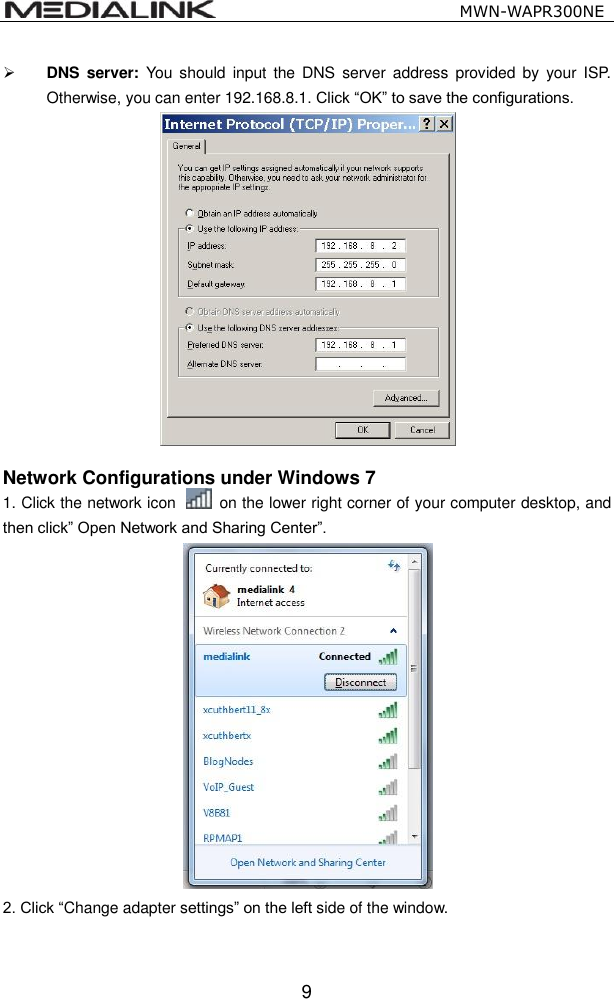
                                                  MWN-WAPR300NE  8  4.  Select “Obtain an  IP  address  automatically”  and  “Obtain  DNS  server address automatically”. Click “OK” to save the configurations.  Or  if  you  want  to  specify  a  Static  IP  Address  for  your  computer,  select  “Use  the following  IP  address”  and  enter  the  IP  address,  Subnet  mask,  Default  gateway  as follows:    IP Address: 192.168.8.XXX: (XXX is a number from 2~254)  Subnet Mask: 255.255.255.0  Gateway: 192.168.8.1
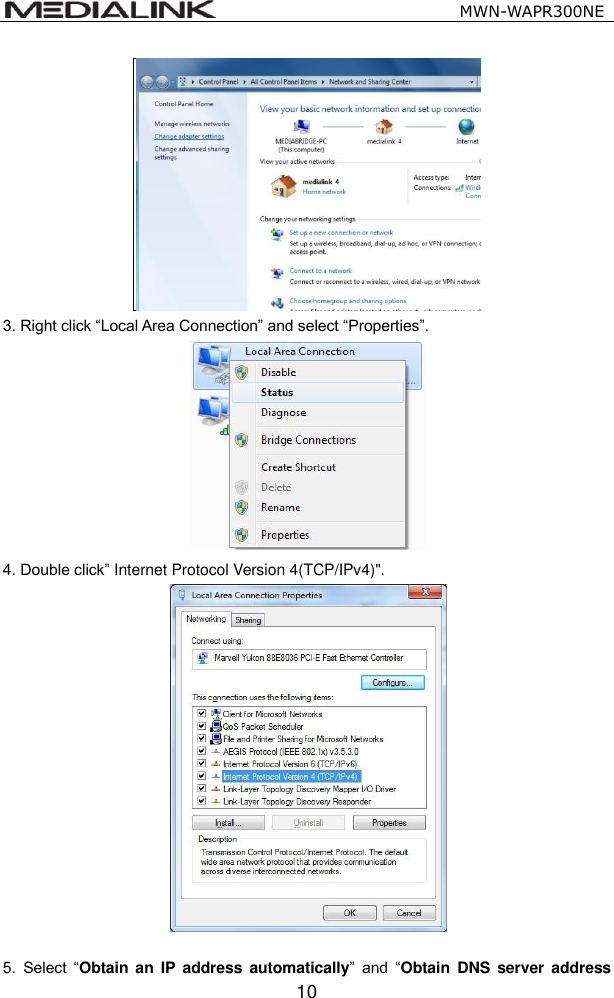
                                                  MWN-WAPR300NE  9  DNS  server:  You should  input  the DNS  server  address provided  by  your ISP. Otherwise, you can enter 192.168.8.1. Click “OK” to save the configurations.   Network Configurations under Windows 7 1. Click the network icon    on the lower right corner of your computer desktop, and then click” Open Network and Sharing Center”.  2. Click “Change adapter settings” on the left side of the window.
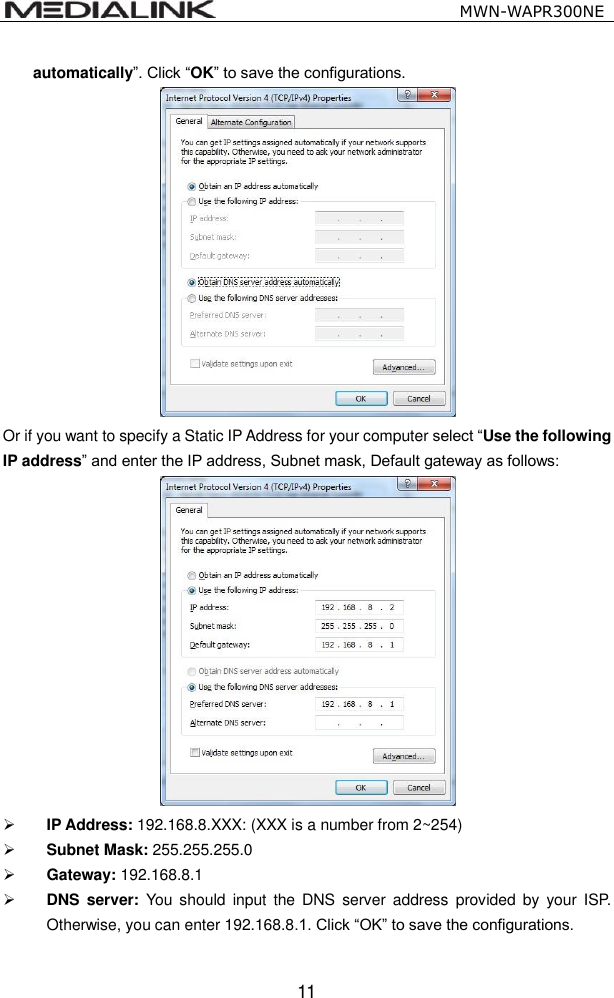
                                                  MWN-WAPR300NE  10  3. Right click “Local Area Connection” and select “Properties”.  4. Double click” Internet Protocol Version 4(TCP/IPv4)".   5. Select  “Obtain  an  IP  address  automatically”  and  “Obtain  DNS  server address
                                                  MWN-WAPR300NE  11 automatically”. Click “OK” to save the configurations.  Or if you want to specify a Static IP Address for your computer select “Use the following IP address” and enter the IP address, Subnet mask, Default gateway as follows:     IP Address: 192.168.8.XXX: (XXX is a number from 2~254)  Subnet Mask: 255.255.255.0  Gateway: 192.168.8.1  DNS  server:  You should  input  the DNS  server  address  provided  by  your  ISP. Otherwise, you can enter 192.168.8.1. Click “OK” to save the configurations.
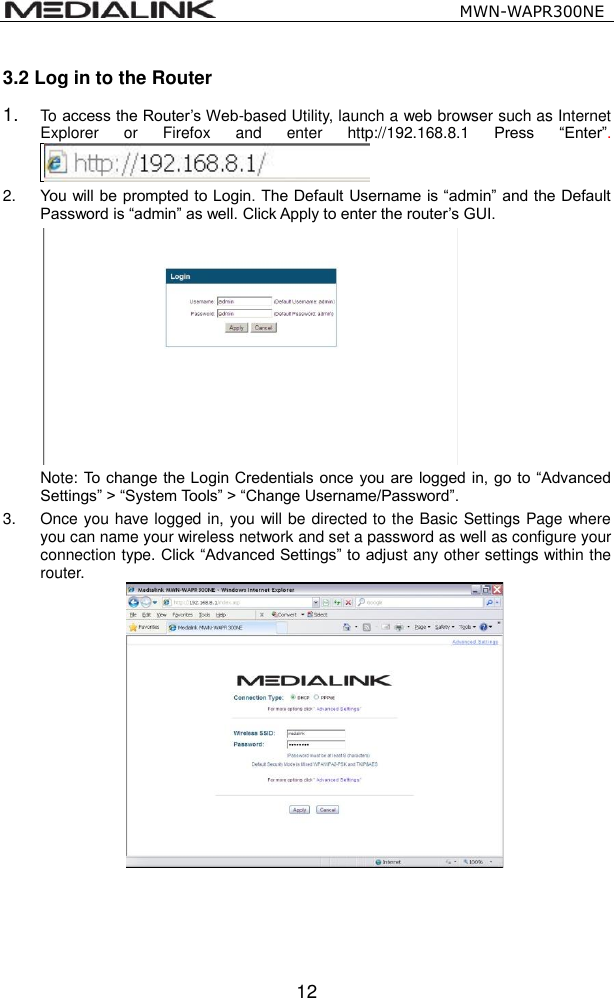
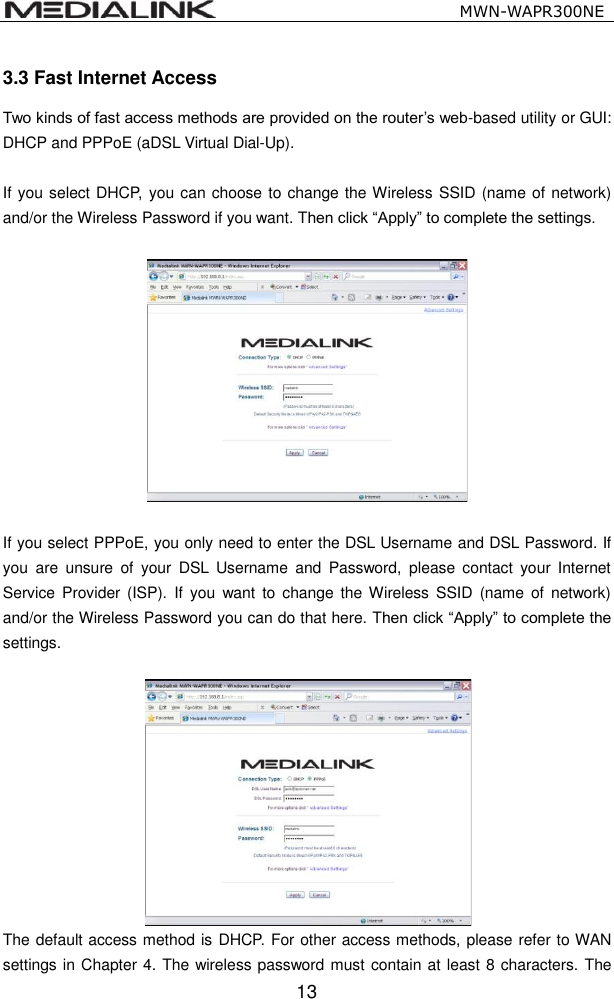
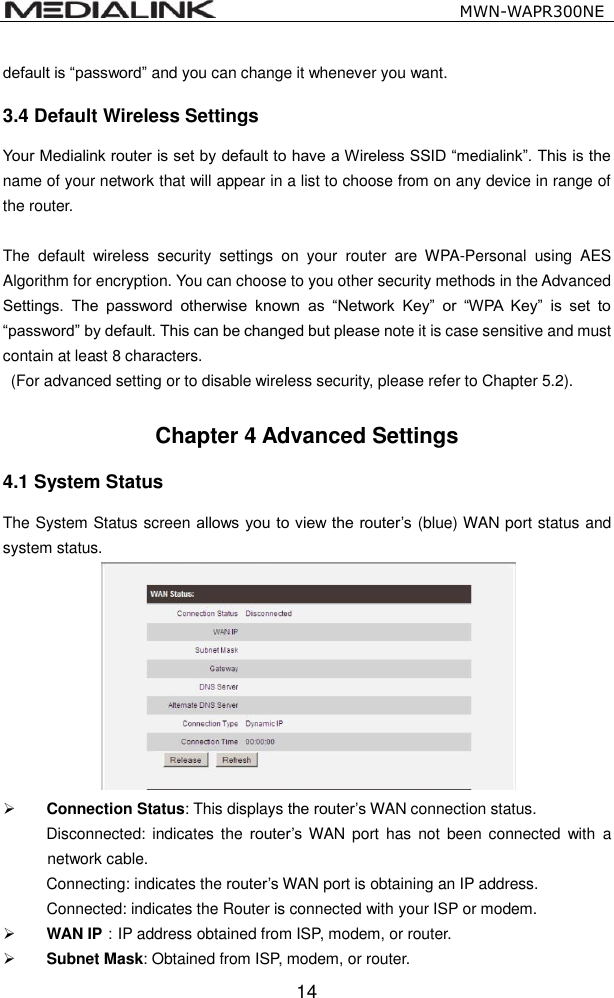
                                                  MWN-WAPR300NE  12 3.2 Log in to the Router 1. To access the Router’s Web-based Utility, launch a web browser such as Internet Explorer  or  Firefox  and  enter  http://192.168.8.1 Press  “Enter”.  2. You will be prompted to Login. The Default Username is “admin” and the Default Password is “admin” as well. Click Apply to enter the router’s GUI.    Note: To change the Login Credentials once  you are logged in, go to “Advanced Settings” > “System Tools” > “Change Username/Password”. 3.  Once you have logged in, you will be directed to the Basic Settings Page where you can name your wireless network and set a password as well as configure your connection type. Click “Advanced Settings” to adjust any other settings within the router.
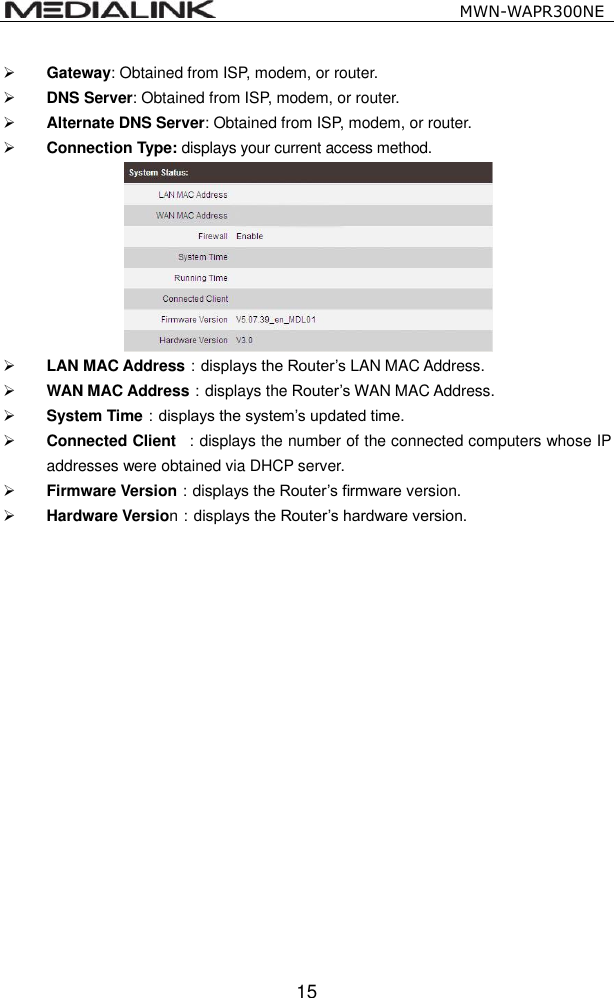
                                                  MWN-WAPR300NE  13 3.3 Fast Internet Access Two kinds of fast access methods are provided on the router’s web-based utility or GUI: DHCP and PPPoE (aDSL Virtual Dial-Up).  If you select DHCP, you can choose to change the Wireless SSID (name of network) and/or the Wireless Password if you want. Then click “Apply” to complete the settings.   If you select PPPoE, you only need to enter the DSL Username and DSL Password. If you  are  unsure  of  your  DSL  Username  and  Password,  please  contact  your  Internet Service Provider (ISP).  If  you  want  to  change  the Wireless  SSID  (name  of  network) and/or the Wireless Password you can do that here. Then click “Apply” to complete the settings.   The default access method is DHCP. For other access methods, please refer to WAN settings in Chapter 4. The wireless password must contain at least 8 characters. The
                                                  MWN-WAPR300NE  14 default is “password” and you can change it whenever you want. 3.4 Default Wireless Settings Your Medialink router is set by default to have a Wireless SSID “medialink”. This is the name of your network that will appear in a list to choose from on any device in range of the router.    The  default  wireless  security  settings  on  your  router  are  WPA-Personal  using  AES Algorithm for encryption. You can choose to you other security methods in the Advanced Settings.  The  password  otherwise  known  as  “Network  Key”  or  “WPA  Key”  is  set  to “password” by default. This can be changed but please note it is case sensitive and must contain at least 8 characters.     (For advanced setting or to disable wireless security, please refer to Chapter 5.2).  Chapter 4 Advanced Settings 4.1 System Status   The System Status screen allows you to view the router’s (blue) WAN port status and system status.   Connection Status: This displays the router’s WAN connection status. Disconnected:  indicates  the router’s WAN port  has  not  been  connected  with  a network cable. Connecting: indicates the router’s WAN port is obtaining an IP address. Connected: indicates the Router is connected with your ISP or modem.  WAN IP:IP address obtained from ISP, modem, or router.  Subnet Mask: Obtained from ISP, modem, or router.
                                                  MWN-WAPR300NE  15  Gateway: Obtained from ISP, modem, or router.  DNS Server: Obtained from ISP, modem, or router.  Alternate DNS Server: Obtained from ISP, modem, or router.  Connection Type: displays your current access method.   LAN MAC Address:displays the Router’s LAN MAC Address.  WAN MAC Address:displays the Router’s WAN MAC Address.  System Time:displays the system’s updated time.  Connected Client  :displays the number of the connected computers whose IP addresses were obtained via DHCP server.  Firmware Version:displays the Router’s firmware version.  Hardware Version:displays the Router’s hardware version.
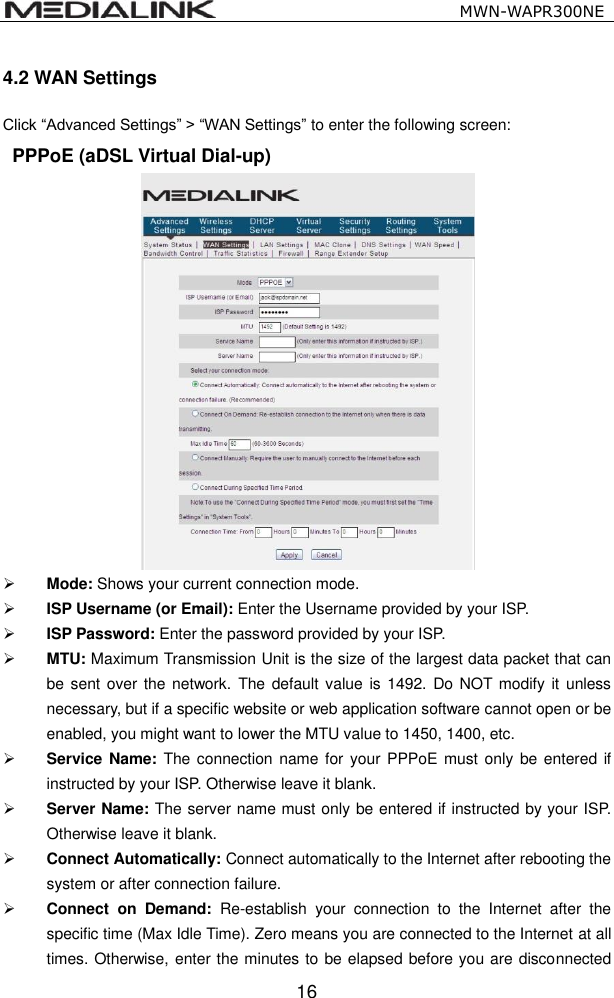
                                                  MWN-WAPR300NE  16 4.2 WAN Settings Click “Advanced Settings” > “WAN Settings” to enter the following screen:   PPPoE (aDSL Virtual Dial-up)   Mode: Shows your current connection mode.  ISP Username (or Email): Enter the Username provided by your ISP.    ISP Password: Enter the password provided by your ISP.  MTU: Maximum Transmission Unit is the size of the largest data packet that can be sent over the network.  The default value  is 1492.  Do NOT modify it  unless necessary, but if a specific website or web application software cannot open or be enabled, you might want to lower the MTU value to 1450, 1400, etc.  Service Name: The connection name for your PPPoE  must  only  be entered if instructed by your ISP. Otherwise leave it blank.  Server Name: The server name must only be entered if instructed by your ISP. Otherwise leave it blank.  Connect Automatically: Connect automatically to the Internet after rebooting the system or after connection failure.  Connect  on  Demand: Re-establish  your  connection  to  the  Internet  after  the specific time (Max Idle Time). Zero means you are connected to the Internet at all times. Otherwise, enter the minutes to be elapsed before you are disconnected
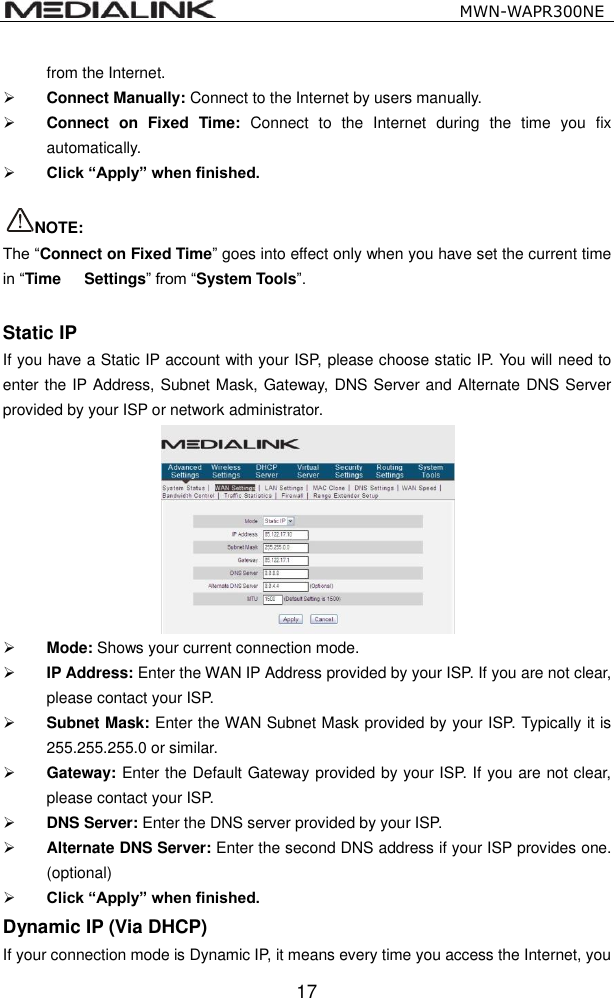
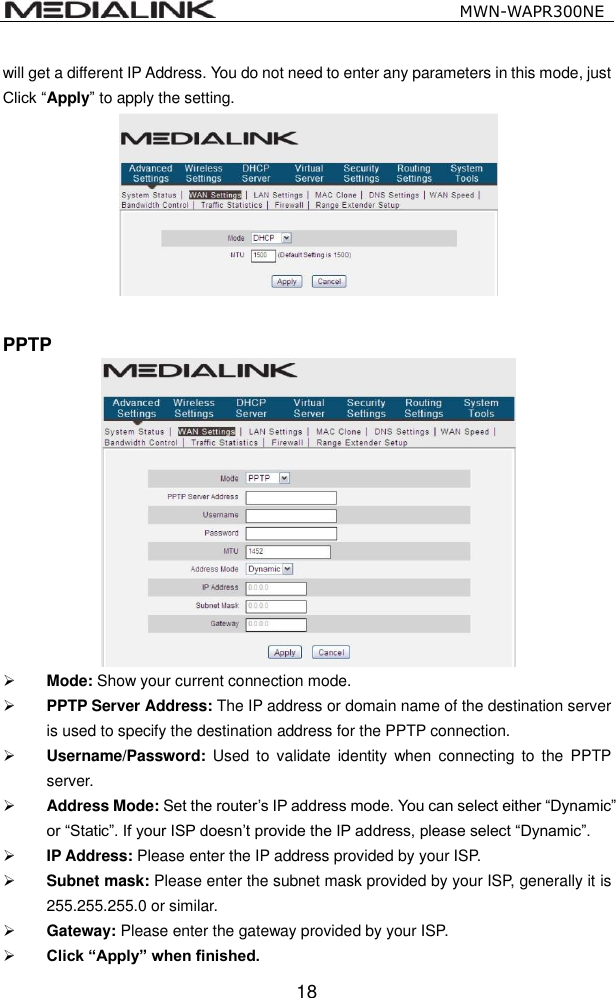
                                                  MWN-WAPR300NE  17 from the Internet.   Connect Manually: Connect to the Internet by users manually.  Connect  on  Fixed  Time:  Connect  to  the  Internet  during  the  time  you  fix automatically.  Click “Apply” when finished.      NOTE: The “Connect on Fixed Time” goes into effect only when you have set the current time in “Time    Settings” from “System Tools”.  Static IP If you have a Static IP account with your ISP, please choose static IP. You will need to enter the IP Address, Subnet Mask, Gateway, DNS Server and Alternate DNS Server provided by your ISP or network administrator.   Mode: Shows your current connection mode.  IP Address: Enter the WAN IP Address provided by your ISP. If you are not clear, please contact your ISP.  Subnet Mask: Enter the WAN Subnet Mask provided by your ISP. Typically it is 255.255.255.0 or similar.  Gateway: Enter the Default Gateway provided by your ISP. If you are not clear, please contact your ISP.  DNS Server: Enter the DNS server provided by your ISP.  Alternate DNS Server: Enter the second DNS address if your ISP provides one. (optional)  Click “Apply” when finished. Dynamic IP (Via DHCP) If your connection mode is Dynamic IP, it means every time you access the Internet, you
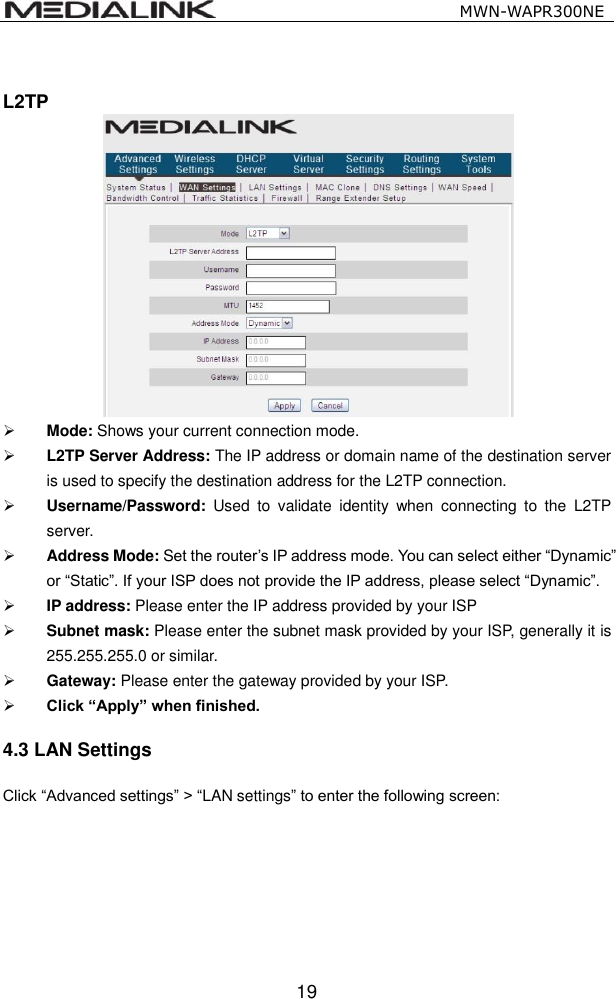
                                                  MWN-WAPR300NE  18 will get a different IP Address. You do not need to enter any parameters in this mode, just Click “Apply” to apply the setting.   PPTP   Mode: Show your current connection mode.  PPTP Server Address: The IP address or domain name of the destination server is used to specify the destination address for the PPTP connection.  Username/Password:  Used  to  validate  identity  when  connecting  to the  PPTP server.  Address Mode: Set the router’s IP address mode. You can select either “Dynamic” or “Static”. If your ISP doesn’t provide the IP address, please select “Dynamic”.  IP Address: Please enter the IP address provided by your ISP.  Subnet mask: Please enter the subnet mask provided by your ISP, generally it is 255.255.255.0 or similar.  Gateway: Please enter the gateway provided by your ISP.  Click “Apply” when finished.
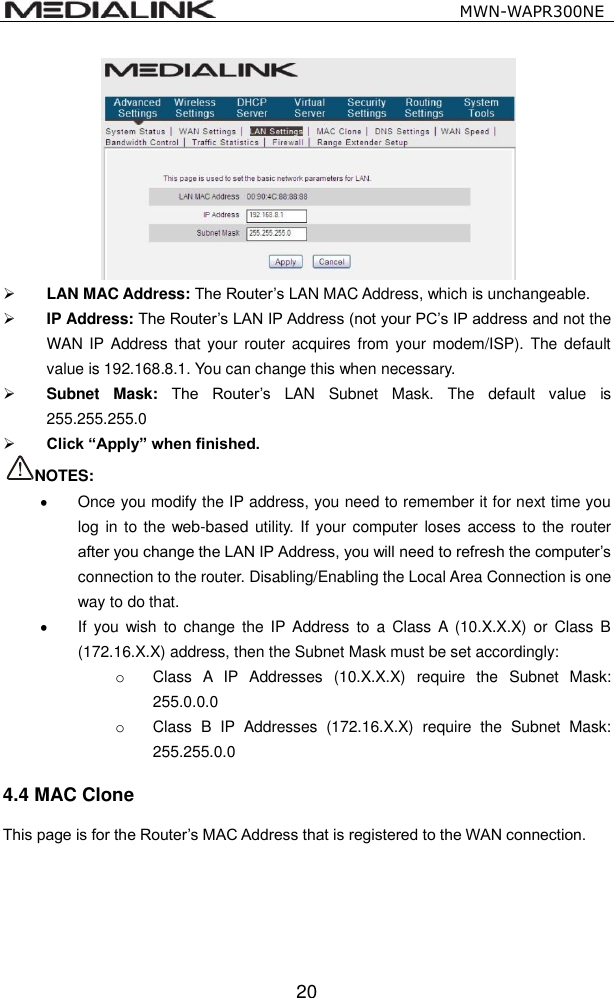
                                                  MWN-WAPR300NE  19  L2TP   Mode: Shows your current connection mode.  L2TP Server Address: The IP address or domain name of the destination server is used to specify the destination address for the L2TP connection.  Username/Password:  Used  to  validate  identity  when  connecting  to  the  L2TP server.  Address Mode: Set the router’s IP address mode. You can select either “Dynamic” or “Static”. If your ISP does not provide the IP address, please select “Dynamic”.  IP address: Please enter the IP address provided by your ISP  Subnet mask: Please enter the subnet mask provided by your ISP, generally it is 255.255.255.0 or similar.  Gateway: Please enter the gateway provided by your ISP.  Click “Apply” when finished. 4.3 LAN Settings Click “Advanced settings” > “LAN settings” to enter the following screen:
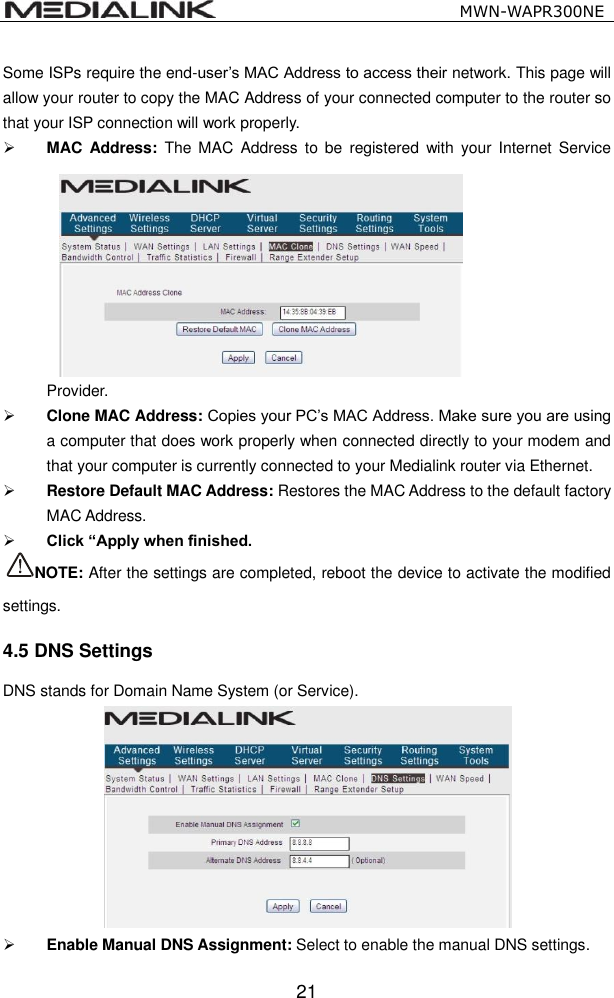
                                                  MWN-WAPR300NE  20   LAN MAC Address: The Router’s LAN MAC Address, which is unchangeable.  IP Address: The Router’s LAN IP Address (not your PC’s IP address and not the WAN IP Address  that your  router  acquires from your modem/ISP).  The default value is 192.168.8.1. You can change this when necessary.  Subnet  Mask: The  Router’s  LAN  Subnet  Mask.  The  default  value  is 255.255.255.0    Click “Apply” when finished. NOTES:   Once you modify the IP address, you need to remember it for next time you log in to the web-based utility.  If  your computer loses  access to the router after you change the LAN IP Address, you will need to refresh the computer’s connection to the router. Disabling/Enabling the Local Area Connection is one way to do that.   If  you  wish  to change  the  IP  Address  to a  Class  A  (10.X.X.X)  or  Class B (172.16.X.X) address, then the Subnet Mask must be set accordingly: o  Class  A  IP  Addresses  (10.X.X.X)  require  the  Subnet  Mask: 255.0.0.0 o  Class  B  IP  Addresses  (172.16.X.X)  require  the  Subnet  Mask: 255.255.0.0 4.4 MAC Clone This page is for the Router’s MAC Address that is registered to the WAN connection.
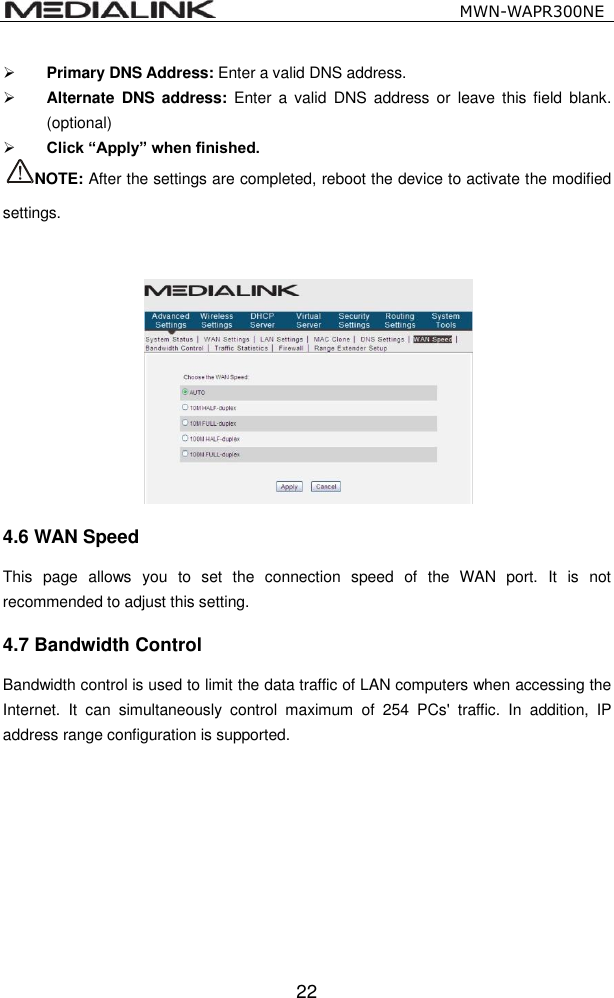
                                                  MWN-WAPR300NE  21 Some ISPs require the end-user’s MAC Address to access their network. This page will allow your router to copy the MAC Address of your connected computer to the router so that your ISP connection will work properly.  MAC  Address:  The MAC  Address  to  be  registered  with  your  Internet  Service Provider.    Clone MAC Address: Copies your PC’s MAC Address. Make sure you are using a computer that does work properly when connected directly to your modem and that your computer is currently connected to your Medialink router via Ethernet.  Restore Default MAC Address: Restores the MAC Address to the default factory MAC Address.    Click “Apply when finished. NOTE: After the settings are completed, reboot the device to activate the modified settings. 4.5 DNS Settings DNS stands for Domain Name System (or Service).     Enable Manual DNS Assignment: Select to enable the manual DNS settings.
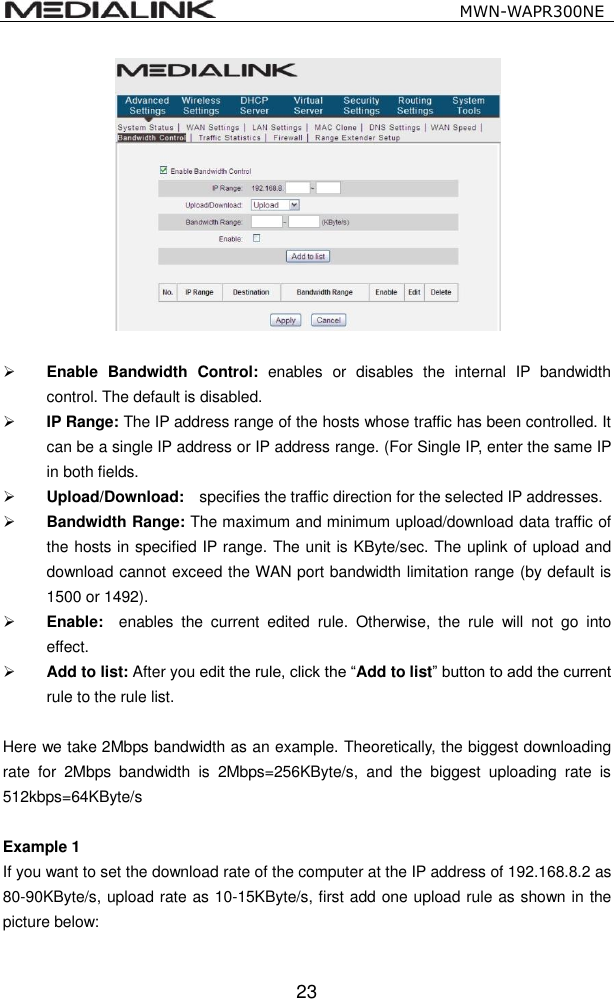
                                                  MWN-WAPR300NE  22  Primary DNS Address: Enter a valid DNS address.    Alternate  DNS  address: Enter  a  valid  DNS address  or  leave  this  field  blank. (optional)  Click “Apply” when finished. NOTE: After the settings are completed, reboot the device to activate the modified settings. 4.6 WAN Speed This  page  allows  you  to  set  the  connection  speed  of  the  WAN  port.  It  is  not recommended to adjust this setting.   4.7 Bandwidth Control Bandwidth control is used to limit the data traffic of LAN computers when accessing the Internet.  It  can  simultaneously  control  maximum  of  254  PCs'  traffic.  In  addition,  IP address range configuration is supported.
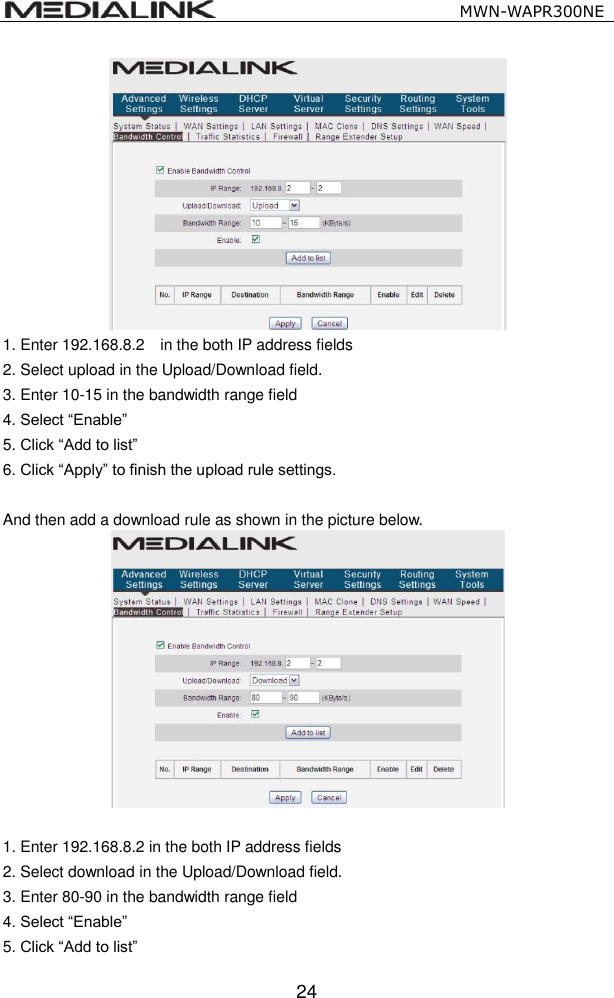
                                                  MWN-WAPR300NE  23    Enable  Bandwidth  Control:  enables  or  disables  the  internal  IP  bandwidth control. The default is disabled.  IP Range: The IP address range of the hosts whose traffic has been controlled. It can be a single IP address or IP address range. (For Single IP, enter the same IP in both fields.  Upload/Download:    specifies the traffic direction for the selected IP addresses.  Bandwidth Range: The maximum and minimum upload/download data traffic of the hosts in specified IP range. The unit is KByte/sec. The uplink of upload and download cannot exceed the WAN port bandwidth limitation range (by default is 1500 or 1492).  Enable:    enables  the  current  edited  rule.  Otherwise,  the  rule  will  not  go  into effect.  Add to list: After you edit the rule, click the “Add to list” button to add the current rule to the rule list.  Here we take 2Mbps bandwidth as an example. Theoretically, the biggest downloading rate  for  2Mbps  bandwidth  is  2Mbps=256KByte/s,  and  the  biggest  uploading  rate  is 512kbps=64KByte/s  Example 1   If you want to set the download rate of the computer at the IP address of 192.168.8.2 as 80-90KByte/s, upload rate as 10-15KByte/s, first add one upload rule as shown in the picture below:
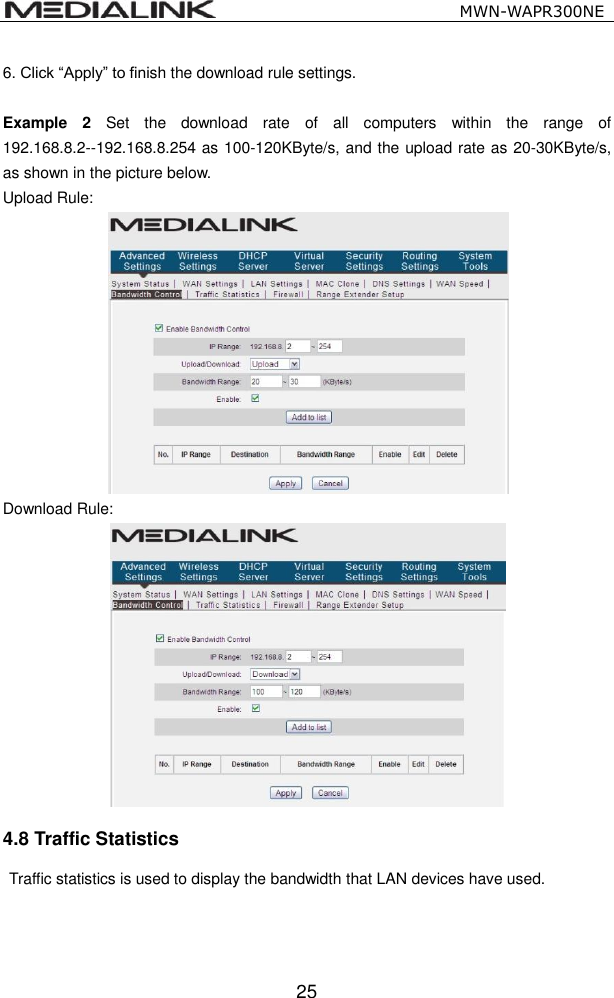
                                                  MWN-WAPR300NE  24  1. Enter 192.168.8.2    in the both IP address fields   2. Select upload in the Upload/Download field. 3. Enter 10-15 in the bandwidth range field 4. Select “Enable” 5. Click “Add to list” 6. Click “Apply” to finish the upload rule settings.  And then add a download rule as shown in the picture below.   1. Enter 192.168.8.2 in the both IP address fields   2. Select download in the Upload/Download field. 3. Enter 80-90 in the bandwidth range field 4. Select “Enable” 5. Click “Add to list”
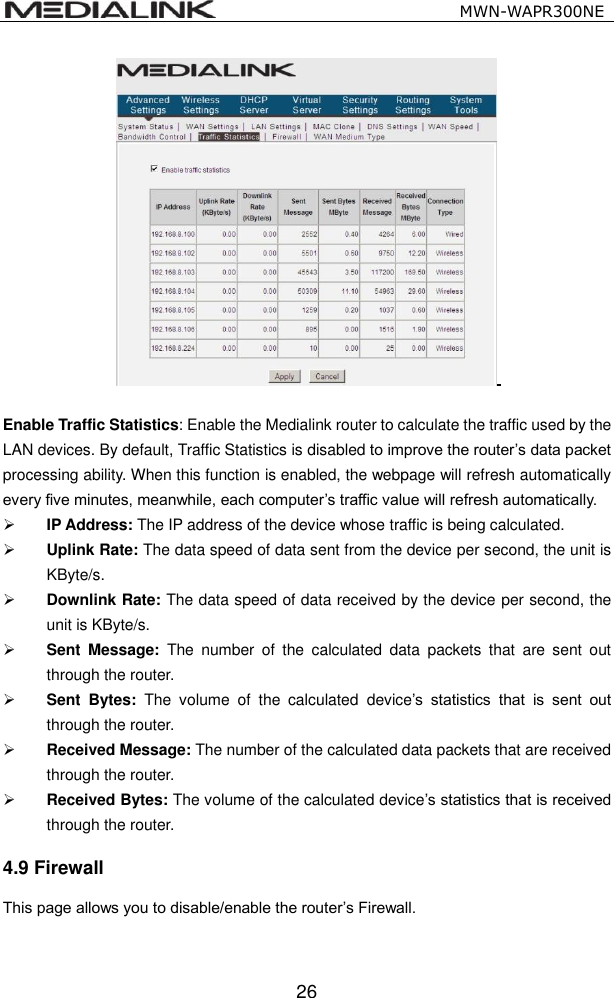
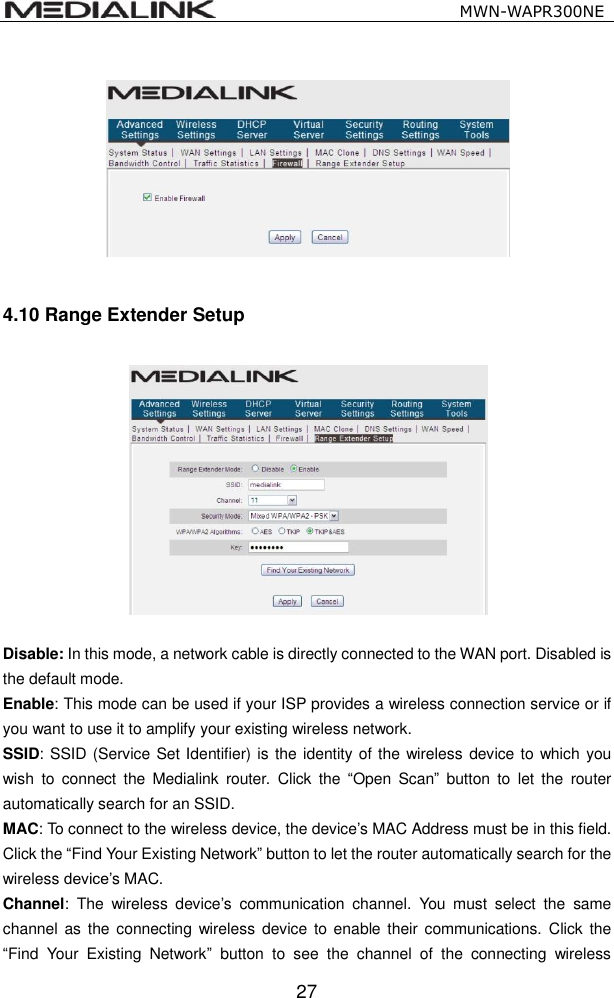
                                                  MWN-WAPR300NE  25 6. Click “Apply” to finish the download rule settings.  Example  2  Set  the  download  rate  of  all  computers  within  the  range  of 192.168.8.2--192.168.8.254 as 100-120KByte/s, and the upload rate as 20-30KByte/s, as shown in the picture below. Upload Rule:  Download Rule:  4.8 Traffic Statistics   Traffic statistics is used to display the bandwidth that LAN devices have used.
                                                  MWN-WAPR300NE  26   Enable Traffic Statistics: Enable the Medialink router to calculate the traffic used by the LAN devices. By default, Traffic Statistics is disabled to improve the router’s data packet processing ability. When this function is enabled, the webpage will refresh automatically every five minutes, meanwhile, each computer’s traffic value will refresh automatically.  IP Address: The IP address of the device whose traffic is being calculated.  Uplink Rate: The data speed of data sent from the device per second, the unit is KByte/s.  Downlink Rate: The data speed of data received by the device per second, the unit is KByte/s.  Sent  Message:  The  number  of  the  calculated  data  packets  that  are  sent  out through the router.  Sent  Bytes:  The  volume  of  the  calculated  device’s  statistics  that  is  sent  out through the router.  Received Message: The number of the calculated data packets that are received through the router.  Received Bytes: The volume of the calculated device’s statistics that is received through the router. 4.9 Firewall This page allows you to disable/enable the router’s Firewall.
                                                  MWN-WAPR300NE  27  4.10 Range Extender Setup    Disable: In this mode, a network cable is directly connected to the WAN port. Disabled is the default mode. Enable: This mode can be used if your ISP provides a wireless connection service or if you want to use it to amplify your existing wireless network. SSID: SSID (Service Set Identifier) is the identity of the wireless device to which you wish  to  connect  the  Medialink  router.  Click  the  “Open  Scan”  button  to  let  the  router automatically search for an SSID.   MAC: To connect to the wireless device, the device’s MAC Address must be in this field. Click the “Find Your Existing Network” button to let the router automatically search for the wireless device’s MAC. Channel:  The  wireless  device’s  communication  channel.  You  must  select  the  same channel as the  connecting wireless device to enable their communications.  Click  the “Find  Your  Existing  Network”  button  to  see  the  channel  of  the  connecting  wireless
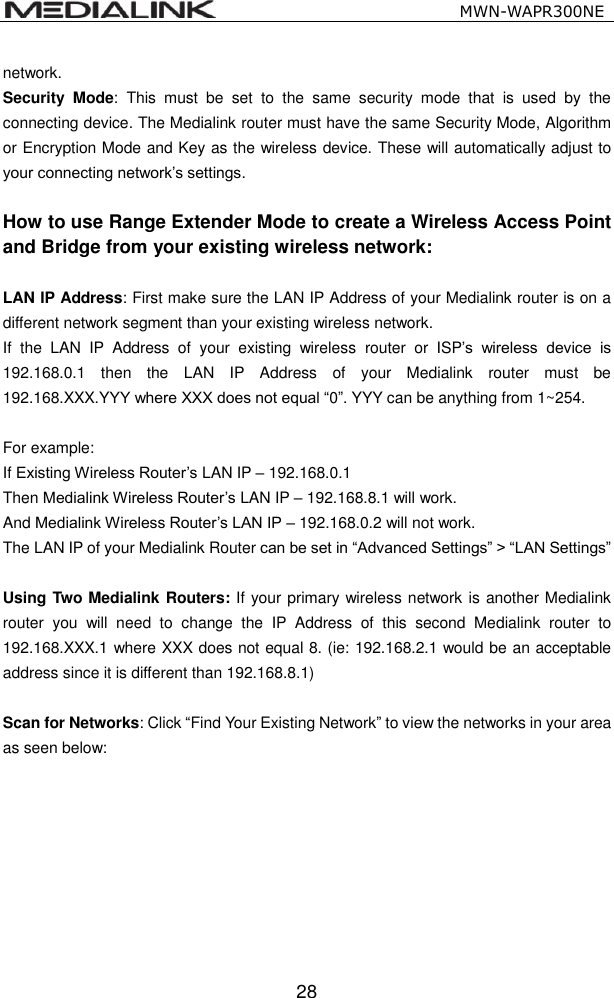
                                                  MWN-WAPR300NE  28 network. Security  Mode:  This  must  be  set  to  the  same  security  mode  that  is  used  by  the connecting device. The Medialink router must have the same Security Mode, Algorithm or Encryption Mode and Key as the wireless device. These will automatically adjust to your connecting network’s settings.    How to use Range Extender Mode to create a Wireless Access Point and Bridge from your existing wireless network:  LAN IP Address: First make sure the LAN IP Address of your Medialink router is on a different network segment than your existing wireless network.   If  the  LAN  IP  Address  of  your  existing  wireless  router  or  ISP’s  wireless  device  is 192.168.0.1  then  the  LAN  IP  Address  of  your  Medialink  router  must  be 192.168.XXX.YYY where XXX does not equal “0”. YYY can be anything from 1~254.    For example:   If Existing Wireless Router’s LAN IP – 192.168.0.1 Then Medialink Wireless Router’s LAN IP – 192.168.8.1 will work. And Medialink Wireless Router’s LAN IP – 192.168.0.2 will not work. The LAN IP of your Medialink Router can be set in “Advanced Settings” > “LAN Settings”  Using Two Medialink Routers: If your primary wireless network is another Medialink router  you  will  need  to  change  the  IP  Address  of  this  second  Medialink  router  to 192.168.XXX.1 where XXX does not equal 8. (ie: 192.168.2.1 would be an acceptable address since it is different than 192.168.8.1)  Scan for Networks: Click “Find Your Existing Network” to view the networks in your area as seen below:
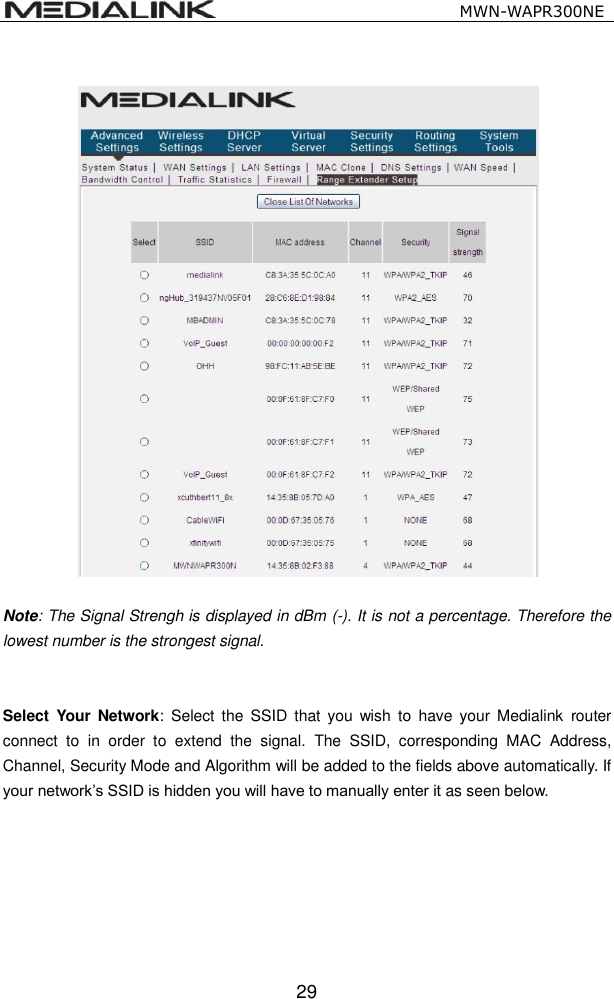
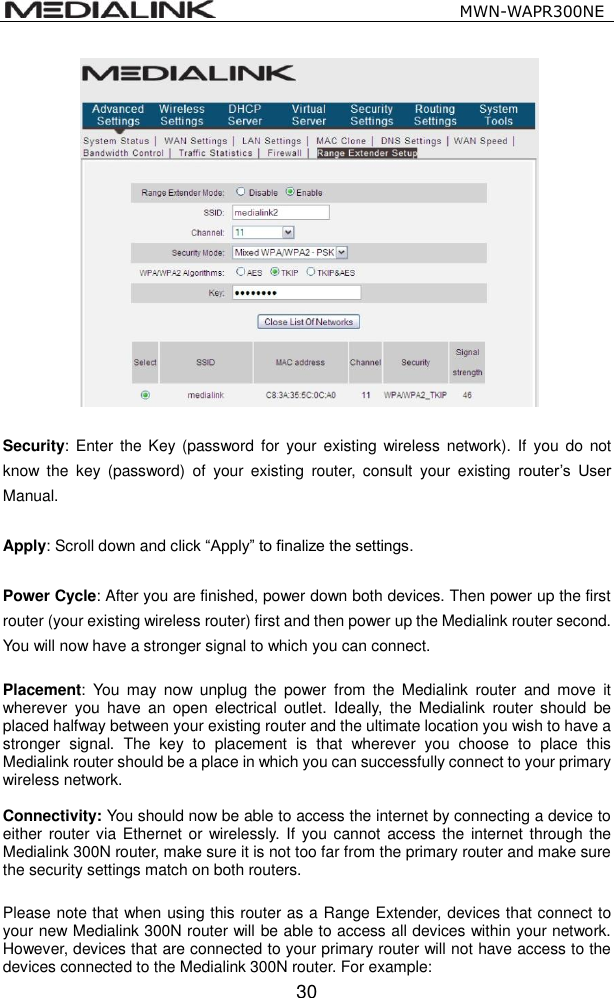
                                                  MWN-WAPR300NE  29   Note: The Signal Strengh is displayed in dBm (-). It is not a percentage. Therefore the lowest number is the strongest signal.   Select  Your  Network:  Select the  SSID  that  you  wish  to  have  your  Medialink  router connect  to  in  order  to  extend  the  signal.  The  SSID,  corresponding  MAC  Address, Channel, Security Mode and Algorithm will be added to the fields above automatically. If your network’s SSID is hidden you will have to manually enter it as seen below.
                                                  MWN-WAPR300NE  30   Security: Enter  the  Key  (password  for  your existing wireless  network).  If you do  not know  the  key  (password)  of  your  existing  router,  consult  your  existing  router’s  User Manual.    Apply: Scroll down and click “Apply” to finalize the settings.    Power Cycle: After you are finished, power down both devices. Then power up the first router (your existing wireless router) first and then power up the Medialink router second. You will now have a stronger signal to which you can connect.    Placement:  You  may  now  unplug  the  power  from  the  Medialink  router  and  move  it wherever  you have  an  open  electrical  outlet.  Ideally,  the  Medialink  router should  be placed halfway between your existing router and the ultimate location you wish to have a stronger  signal.  The  key  to  placement  is  that  wherever  you  choose  to  place  this Medialink router should be a place in which you can successfully connect to your primary wireless network.  Connectivity: You should now be able to access the internet by connecting a device to either router via Ethernet or  wirelessly. If you cannot access the  internet through the Medialink 300N router, make sure it is not too far from the primary router and make sure the security settings match on both routers.  Please note that when using this router as a Range Extender, devices that connect to your new Medialink 300N router will be able to access all devices within your network. However, devices that are connected to your primary router will not have access to the devices connected to the Medialink 300N router. For example:
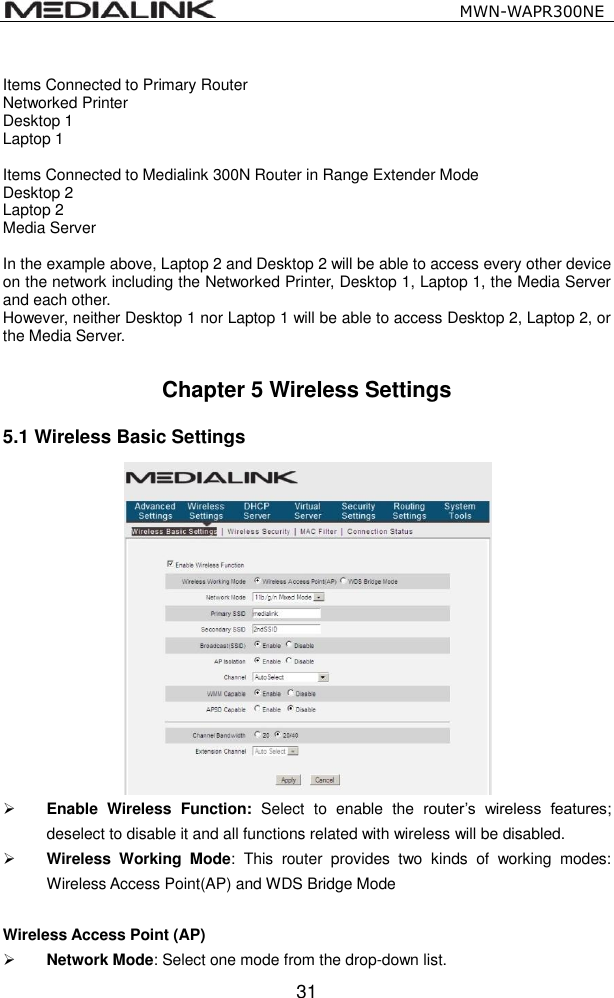
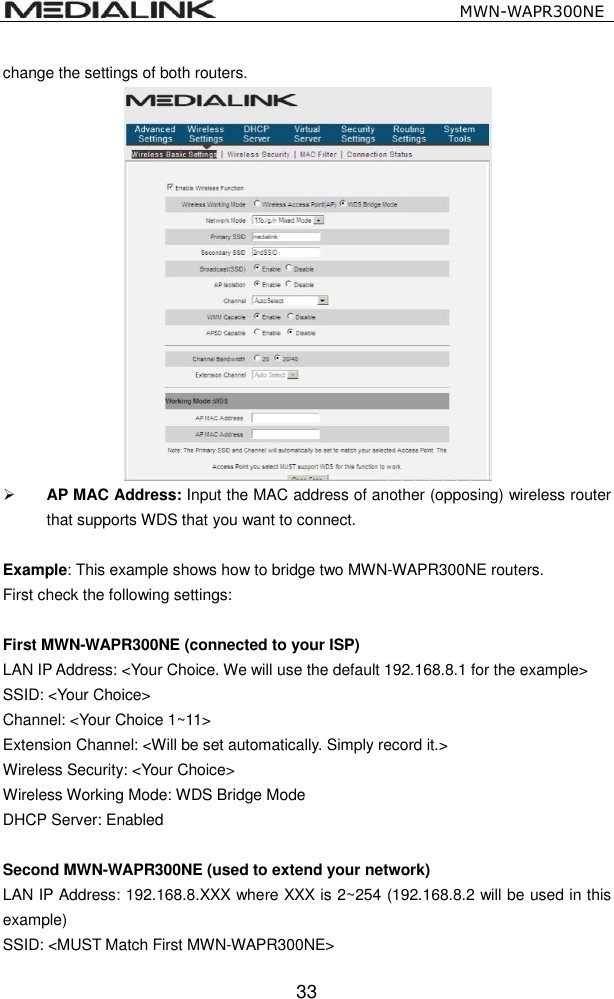
                                                  MWN-WAPR300NE  31  Items Connected to Primary Router Networked Printer Desktop 1 Laptop 1  Items Connected to Medialink 300N Router in Range Extender Mode Desktop 2 Laptop 2 Media Server  In the example above, Laptop 2 and Desktop 2 will be able to access every other device on the network including the Networked Printer, Desktop 1, Laptop 1, the Media Server and each other. However, neither Desktop 1 nor Laptop 1 will be able to access Desktop 2, Laptop 2, or the Media Server.  Chapter 5 Wireless Settings   5.1 Wireless Basic Settings   Enable  Wireless  Function:  Select  to  enable  the  router’s  wireless  features; deselect to disable it and all functions related with wireless will be disabled.    Wireless  Working  Mode:  This  router  provides  two  kinds  of  working  modes: Wireless Access Point(AP) and WDS Bridge Mode  Wireless Access Point (AP)  Network Mode: Select one mode from the drop-down list.
                                                  MWN-WAPR300NE  32 11b mode:Select it if you have only Wireless-B clients in your network. 11g mode:Select it if you have only Wireless-G clients in your network. 11b/g mixed mode:  Select  it  if you  have  only  Wireless-B  and Wireless-G clients in your network. 11b/g/n  mixed  mode:  Select  it  if  you  have  Wireless-B,  Wireless-G  and Wireless-N  clients  in  your  network.  This  mode  is  default  is recommended  since  b/g/n  clients  will  each  connect  at  their respective top speeds.  Primary SSID: The unique name of the wireless network which can be modified at any time.    Secondary SSID (Optional): You may choose to enter a Secondary name of your network. This SSID can have unique security settings.  AP Isolation: When enabled, devices that connect wirelessly to the Secondary SSID will be isolated from other devices that wirelessly connect to the Secondary SSID. AP Isolation is enabled by default.  Broadcast (SSID): Select “Enable” to enable the router’s SSID to be detected by wireless devices.  The default is enabled.  If  you  disable it, the wireless  devices must know the SSID for communication for it will be hidden.  Channel: The channel currently used by the router. Select an effective channel (from 1 to 11 or AutoSelect) of the wireless network. The best channel is the least used channel by your neighbors.  WMM Capable: Enables the router to enhance the transfer performance of the wirelessly transferred multimedia data (such as video or gaming). We recommend enabling this option at all times.  APSD Capable: Used for auto power-saved service. The default is disabled.  Channel Bandwidth: Select an  appropriate channel bandwidth to enhance the wireless  performance.  Select  20/40M  when  the  network  has  11b/g  and  11n wireless clients. Select 20M when the network has only non-11n wireless clients. Select 20/40M to promote its throughput when the wireless network is in 11b/g/n mode.  Extension  Channel:  This  allows devices  to connect  at n speeds  using  a  40M bandwidth.  WDS Bridge Mode Settings WDS (Wireless Distribution System) is used to expand wireless coverage area. This can only be used with some wireless routers that support WDS and you must have ability to
                                                  MWN-WAPR300NE  33 change the settings of both routers.       AP MAC Address: Input the MAC address of another (opposing) wireless router that supports WDS that you want to connect.  Example: This example shows how to bridge two MWN-WAPR300NE routers. First check the following settings:  First MWN-WAPR300NE (connected to your ISP) LAN IP Address: <Your Choice. We will use the default 192.168.8.1 for the example> SSID: <Your Choice> Channel: <Your Choice 1~11> Extension Channel: <Will be set automatically. Simply record it.> Wireless Security: <Your Choice> Wireless Working Mode: WDS Bridge Mode DHCP Server: Enabled  Second MWN-WAPR300NE (used to extend your network) LAN IP Address: 192.168.8.XXX where XXX is 2~254 (192.168.8.2 will be used in this example) SSID: <MUST Match First MWN-WAPR300NE>
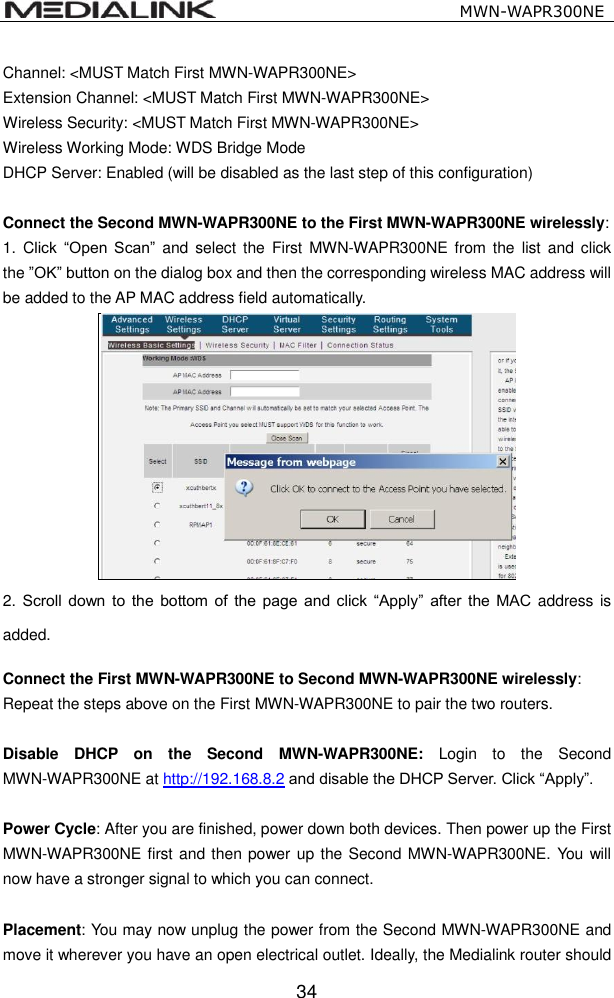
                                                  MWN-WAPR300NE  34 Channel: <MUST Match First MWN-WAPR300NE> Extension Channel: <MUST Match First MWN-WAPR300NE> Wireless Security: <MUST Match First MWN-WAPR300NE> Wireless Working Mode: WDS Bridge Mode DHCP Server: Enabled (will be disabled as the last step of this configuration)  Connect the Second MWN-WAPR300NE to the First MWN-WAPR300NE wirelessly: 1.  Click  “Open  Scan”  and  select the  First  MWN-WAPR300NE  from  the  list  and click the ”OK” button on the dialog box and then the corresponding wireless MAC address will be added to the AP MAC address field automatically.  2. Scroll  down  to  the  bottom  of  the  page  and  click  “Apply”  after  the  MAC  address  is added.  Connect the First MWN-WAPR300NE to Second MWN-WAPR300NE wirelessly: Repeat the steps above on the First MWN-WAPR300NE to pair the two routers.  Disable  DHCP  on  the  Second  MWN-WAPR300NE:  Login  to  the  Second MWN-WAPR300NE at http://192.168.8.2 and disable the DHCP Server. Click “Apply”.  Power Cycle: After you are finished, power down both devices. Then power up the First MWN-WAPR300NE first and then power up the Second MWN-WAPR300NE. You will now have a stronger signal to which you can connect.    Placement: You may now unplug the power from the Second MWN-WAPR300NE and move it wherever you have an open electrical outlet. Ideally, the Medialink router should
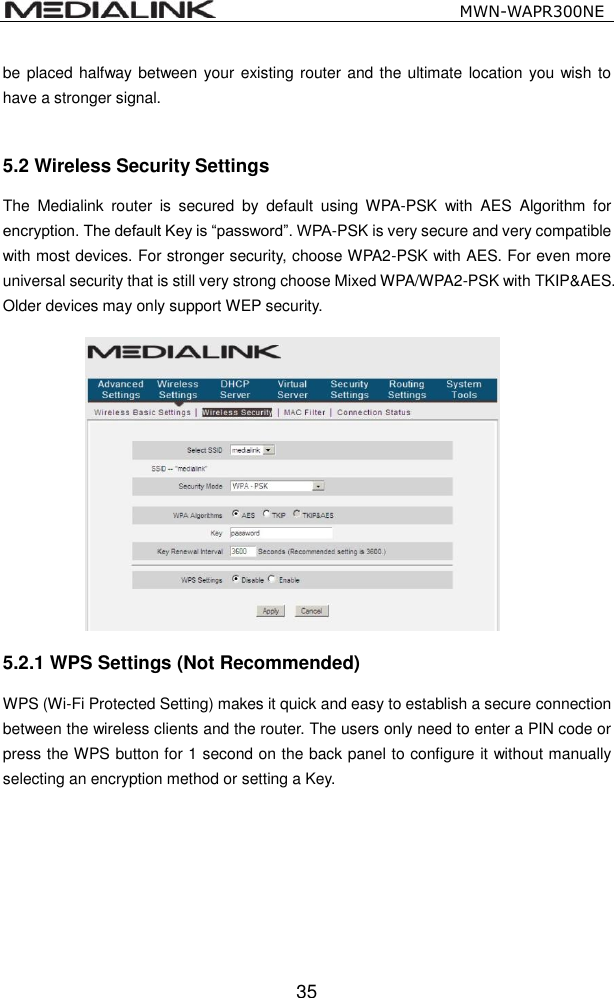
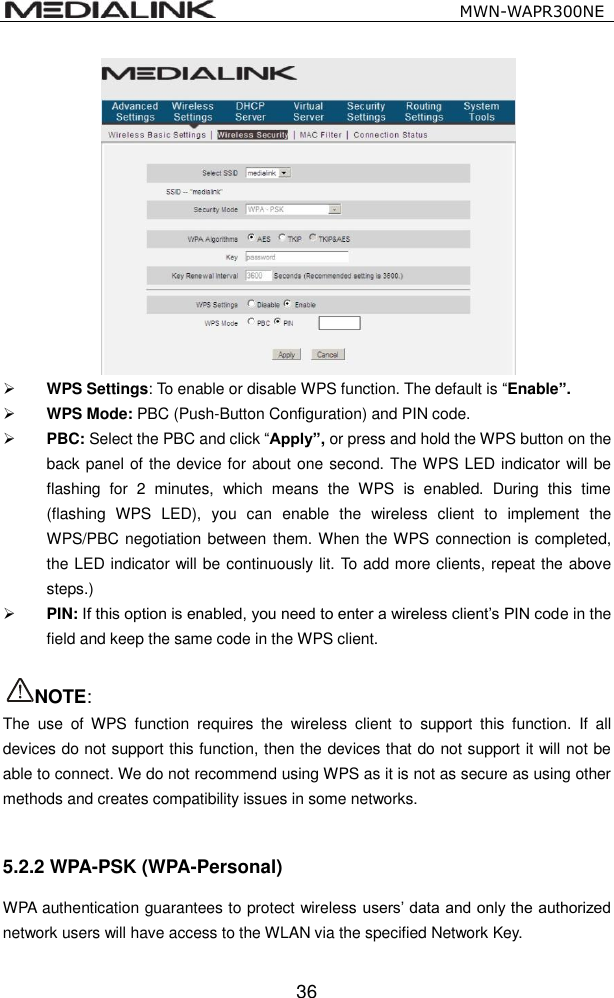
                                                  MWN-WAPR300NE  35 be placed halfway between your existing router and the ultimate location you wish  to have a stronger signal.      5.2 Wireless Security Settings The  Medialink  router  is  secured  by  default  using  WPA-PSK  with  AES  Algorithm  for encryption. The default Key is “password”. WPA-PSK is very secure and very compatible with most devices. For stronger security, choose WPA2-PSK with AES. For even more universal security that is still very strong choose Mixed WPA/WPA2-PSK with TKIP&AES. Older devices may only support WEP security. 5.2.1 WPS Settings (Not Recommended) WPS (Wi-Fi Protected Setting) makes it quick and easy to establish a secure connection between the wireless clients and the router. The users only need to enter a PIN code or press the WPS button for 1 second on the back panel to configure it without manually selecting an encryption method or setting a Key.
                                                  MWN-WAPR300NE  36   WPS Settings: To enable or disable WPS function. The default is “Enable”.  WPS Mode: PBC (Push-Button Configuration) and PIN code.  PBC: Select the PBC and click “Apply”, or press and hold the WPS button on the back panel of the device for about one second. The WPS LED indicator will be flashing  for  2  minutes,  which  means  the  WPS  is  enabled.  During  this  time (flashing  WPS  LED),  you  can  enable  the  wireless  client  to  implement  the WPS/PBC negotiation between them. When the WPS connection is completed, the LED indicator will be continuously lit. To add more clients, repeat the above steps.)  PIN: If this option is enabled, you need to enter a wireless client’s PIN code in the field and keep the same code in the WPS client.    NOTE:   The  use  of  WPS  function  requires  the  wireless  client  to  support  this  function.  If  all devices do not support this function, then the devices that do not support it will not be able to connect. We do not recommend using WPS as it is not as secure as using other methods and creates compatibility issues in some networks.  5.2.2 WPA-PSK (WPA-Personal) WPA authentication guarantees to protect wireless users’ data and only the authorized network users will have access to the WLAN via the specified Network Key.
                                                  MWN-WAPR300NE  37   WPA  Algorithms:  Provides  TKIP  [Temporal  Key  Integrity  Protocol]  or  AES [Advanced Encryption Standard].    Key:  Enter  the  pass  phrase  that  consists  of  8-63  ASCII  characters  excluding these five characters \ , ' ; "  Key Renewal Interval: Set the key’s renewal period, which tells the device how often it should change the dynamic keys. It is not recommended to change this setting.  5.2.3 WPA2-PSK (WPA2-Personal) WPA2 (Wi-Fi Protected Access version 2) provides higher security than and WPA (Wi-Fi Protected Access).     WPA  Algorithms:  Provides  TKIP  [Temporal  Key  Integrity  Protocol]  or  AES
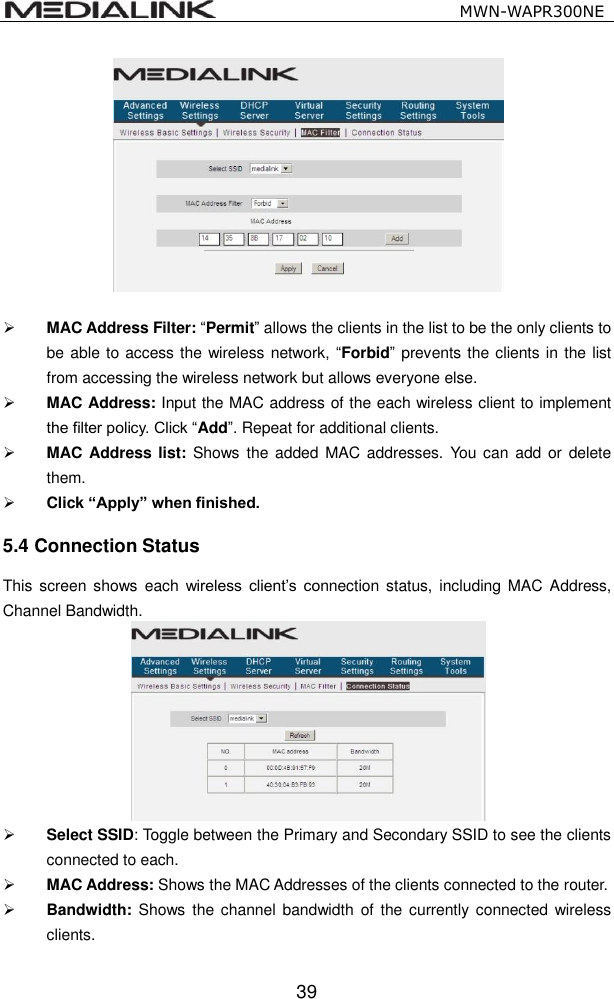
                                                  MWN-WAPR300NE  38 [Advanced Encryption Standard].    Key:  Enter  the  pass  phrase  that  consists  of  8-63  ASCII  characters  excluding these five characters \ , ' ; "  Key Renewal Interval: Set the key’s renewal period, which tells the device how often it should change the dynamic keys. It is not recommended to change this setting. 5.2.4 WEP WEP (Wired Equivalent Privacy) provides 40-bit or 128-bit encryption to your wireless network.   Default Key: Determines which Key will allow wireless clients to be accepted into the network.  WEP Key1~4: These are keys that you can choose to make active. Only one key is used at a time.    ASCII/HEX:  Each  Key  can  be  entered  as  5  OR  13  case  sensitive  ASCII characters excluding these five characters \ , ' ; " OR 10 OR 26 HEX characters including 0~9 and A~F only. 5.3 MAC Filter MAC Filter is based on the client’s  wireless MAC address to permit or forbid specific clients access to the wireless network.
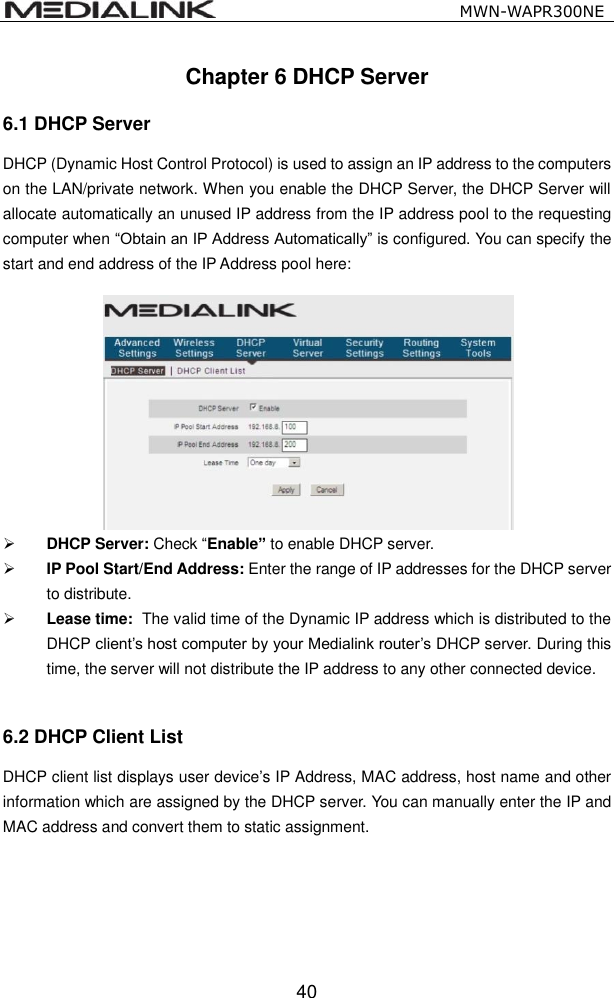
                                                  MWN-WAPR300NE  39    MAC Address Filter: “Permit” allows the clients in the list to be the only clients to be able to access the wireless network,  “Forbid”  prevents the clients in the list from accessing the wireless network but allows everyone else.  MAC Address: Input the MAC address of the each wireless client to implement the filter policy. Click “Add”. Repeat for additional clients.  MAC Address list: Shows  the added MAC addresses.  You  can add  or delete them.  Click “Apply” when finished. 5.4 Connection Status This screen  shows  each  wireless  client’s  connection status,  including MAC  Address, Channel Bandwidth.     Select SSID: Toggle between the Primary and Secondary SSID to see the clients connected to each.  MAC Address: Shows the MAC Addresses of the clients connected to the router.  Bandwidth:  Shows  the channel  bandwidth  of  the currently connected wireless clients.
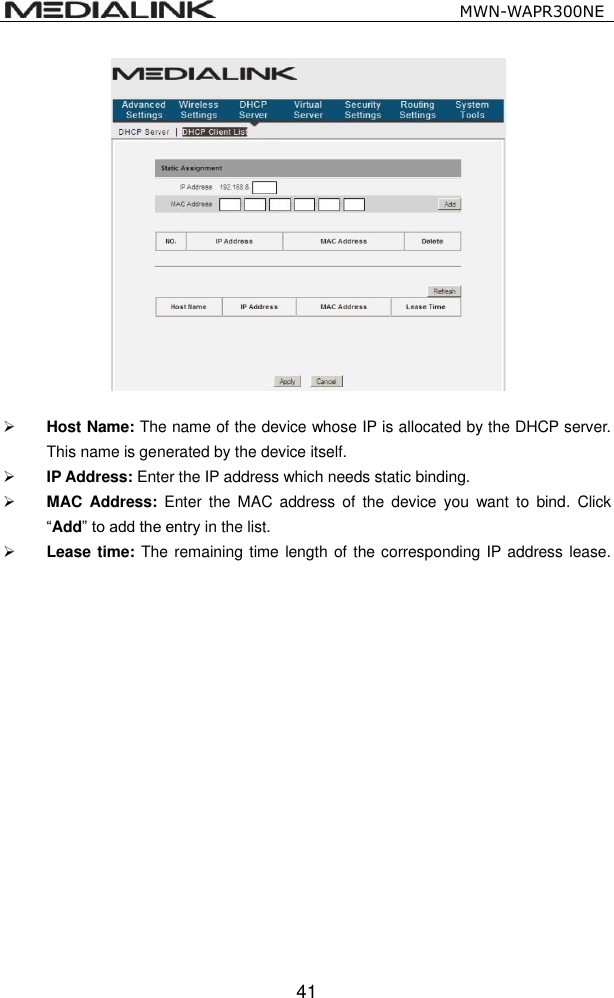
                                                  MWN-WAPR300NE  40 Chapter 6 DHCP Server 6.1 DHCP Server   DHCP (Dynamic Host Control Protocol) is used to assign an IP address to the computers on the LAN/private network. When you enable the DHCP Server, the DHCP Server will allocate automatically an unused IP address from the IP address pool to the requesting computer when “Obtain an IP Address Automatically” is configured. You can specify the start and end address of the IP Address pool here:    DHCP Server: Check “Enable” to enable DHCP server.   IP Pool Start/End Address: Enter the range of IP addresses for the DHCP server to distribute.  Lease time:   The valid time of the Dynamic IP address which is distributed to the DHCP client’s host computer by your Medialink router’s DHCP server. During this time, the server will not distribute the IP address to any other connected device.  6.2 DHCP Client List DHCP client list displays user device’s IP Address, MAC address, host name and other information which are assigned by the DHCP server. You can manually enter the IP and MAC address and convert them to static assignment.
                                                  MWN-WAPR300NE  41    Host Name: The name of the device whose IP is allocated by the DHCP server. This name is generated by the device itself.  IP Address: Enter the IP address which needs static binding.    MAC  Address:  Enter the  MAC address  of  the  device  you  want to  bind.  Click “Add” to add the entry in the list.    Lease time: The remaining time length of the corresponding IP address lease.
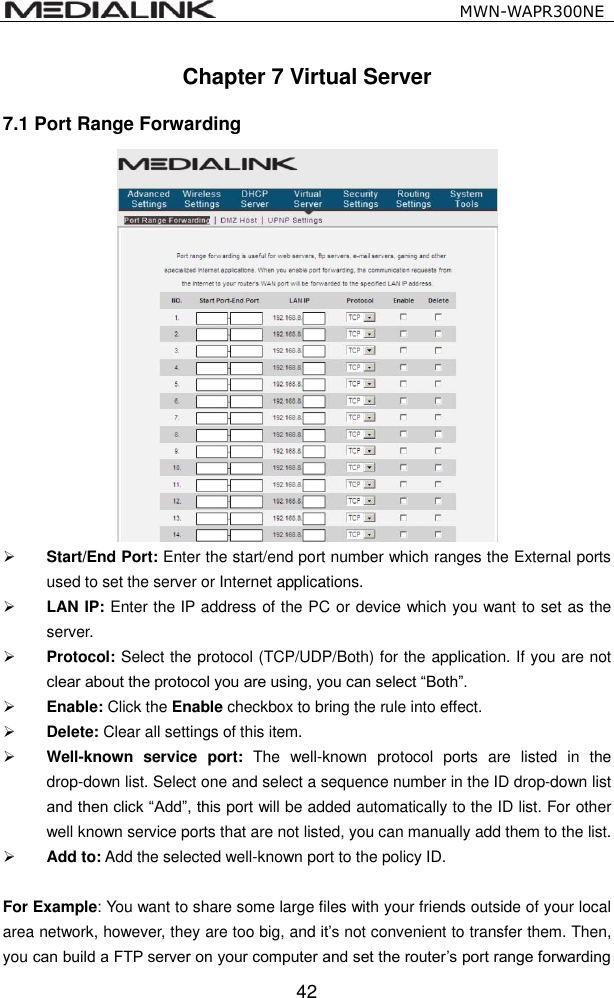
                                                  MWN-WAPR300NE  42 Chapter 7 Virtual Server 7.1 Port Range Forwarding   Start/End Port: Enter the start/end port number which ranges the External ports used to set the server or Internet applications.  LAN IP: Enter the IP address of the PC or device which you want to set as the server.  Protocol: Select the protocol (TCP/UDP/Both) for the application. If you are not clear about the protocol you are using, you can select “Both”.  Enable: Click the Enable checkbox to bring the rule into effect.    Delete: Clear all settings of this item.  Well-known  service  port:  The  well-known  protocol  ports  are  listed  in  the drop-down list. Select one and select a sequence number in the ID drop-down list and then click “Add”, this port will be added automatically to the ID list. For other well known service ports that are not listed, you can manually add them to the list.  Add to: Add the selected well-known port to the policy ID.  For Example: You want to share some large files with your friends outside of your local area network, however, they are too big, and it’s not convenient to transfer them. Then, you can build a FTP server on your computer and set the router’s port range forwarding
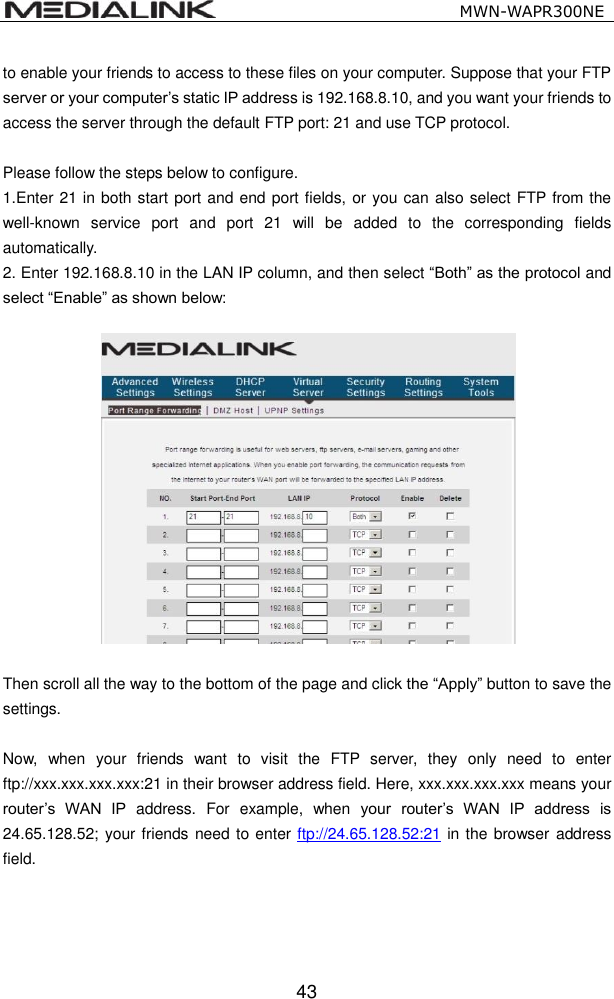
                                                  MWN-WAPR300NE  43 to enable your friends to access to these files on your computer. Suppose that your FTP server or your computer’s static IP address is 192.168.8.10, and you want your friends to access the server through the default FTP port: 21 and use TCP protocol.    Please follow the steps below to configure. 1.Enter 21 in both start port and end port fields, or you can also select FTP from the well-known  service  port  and  port  21  will  be  added  to  the  corresponding  fields automatically. 2. Enter 192.168.8.10 in the LAN IP column, and then select “Both” as the protocol and select “Enable” as shown below:    Then scroll all the way to the bottom of the page and click the “Apply” button to save the settings.  Now,  when  your  friends  want  to  visit  the  FTP  server,  they  only  need  to  enter ftp://xxx.xxx.xxx.xxx:21 in their browser address field. Here, xxx.xxx.xxx.xxx means your router’s  WAN  IP  address.  For  example,  when  your  router’s  WAN  IP  address  is 24.65.128.52; your friends need to enter ftp://24.65.128.52:21 in the browser address field.
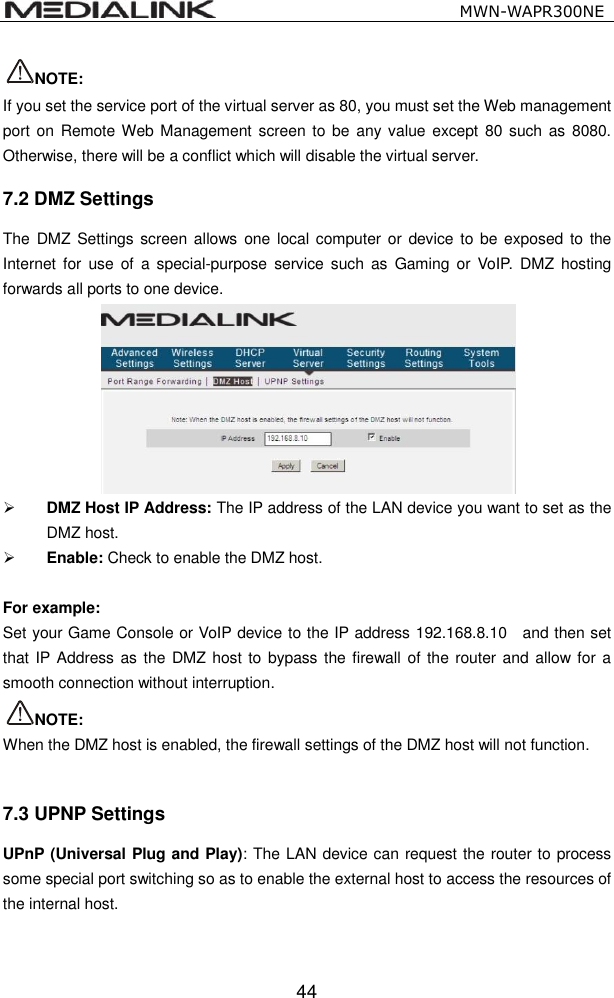
                                                  MWN-WAPR300NE  44 NOTE:   If you set the service port of the virtual server as 80, you must set the Web management port on  Remote Web Management screen to be  any value except 80 such as  8080. Otherwise, there will be a conflict which will disable the virtual server. 7.2 DMZ Settings The  DMZ Settings screen  allows  one  local  computer  or  device  to  be  exposed  to  the Internet for  use  of  a  special-purpose  service  such  as  Gaming or  VoIP.  DMZ  hosting forwards all ports to one device.     DMZ Host IP Address: The IP address of the LAN device you want to set as the DMZ host.  Enable: Check to enable the DMZ host.  For example:   Set your Game Console or VoIP device to the IP address 192.168.8.10    and then set that IP Address as  the DMZ host to bypass the firewall of the router and allow  for a smooth connection without interruption. NOTE:   When the DMZ host is enabled, the firewall settings of the DMZ host will not function.  7.3 UPNP Settings UPnP (Universal Plug and Play): The LAN device can request the router to process some special port switching so as to enable the external host to access the resources of the internal host.
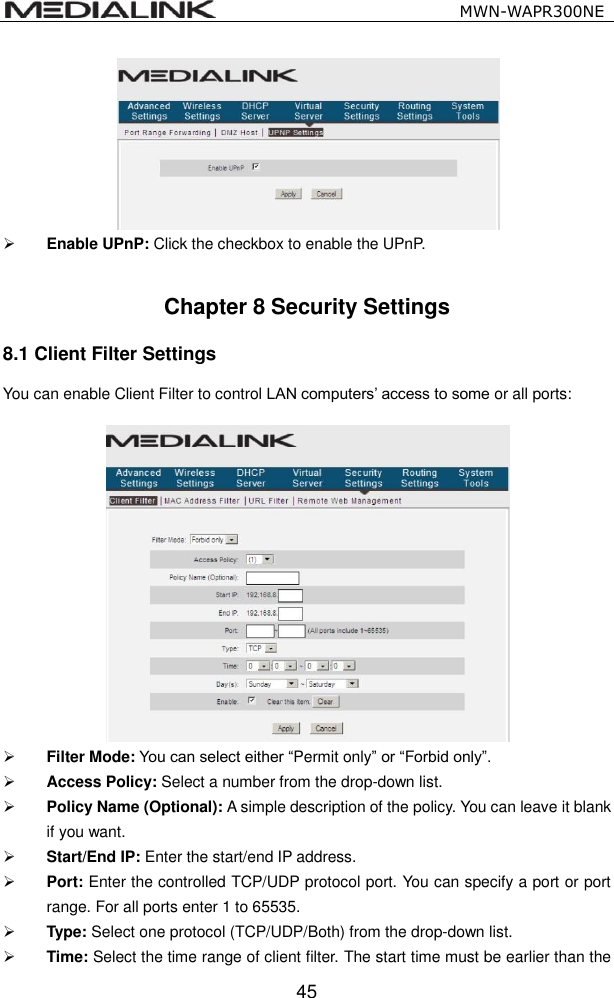
                                                  MWN-WAPR300NE  45   Enable UPnP: Click the checkbox to enable the UPnP.  Chapter 8 Security Settings 8.1 Client Filter Settings You can enable Client Filter to control LAN computers’ access to some or all ports:      Filter Mode: You can select either “Permit only” or “Forbid only”.  Access Policy: Select a number from the drop-down list.  Policy Name (Optional): A simple description of the policy. You can leave it blank if you want.  Start/End IP: Enter the start/end IP address.  Port: Enter the controlled TCP/UDP protocol port. You can specify a port or port range. For all ports enter 1 to 65535.  Type: Select one protocol (TCP/UDP/Both) from the drop-down list.    Time: Select the time range of client filter. The start time must be earlier than the
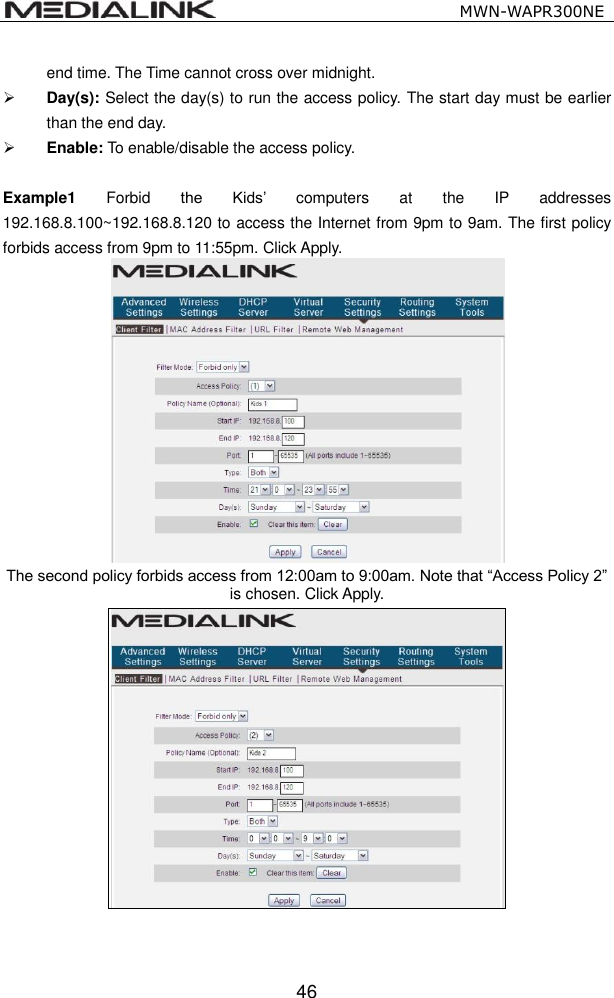
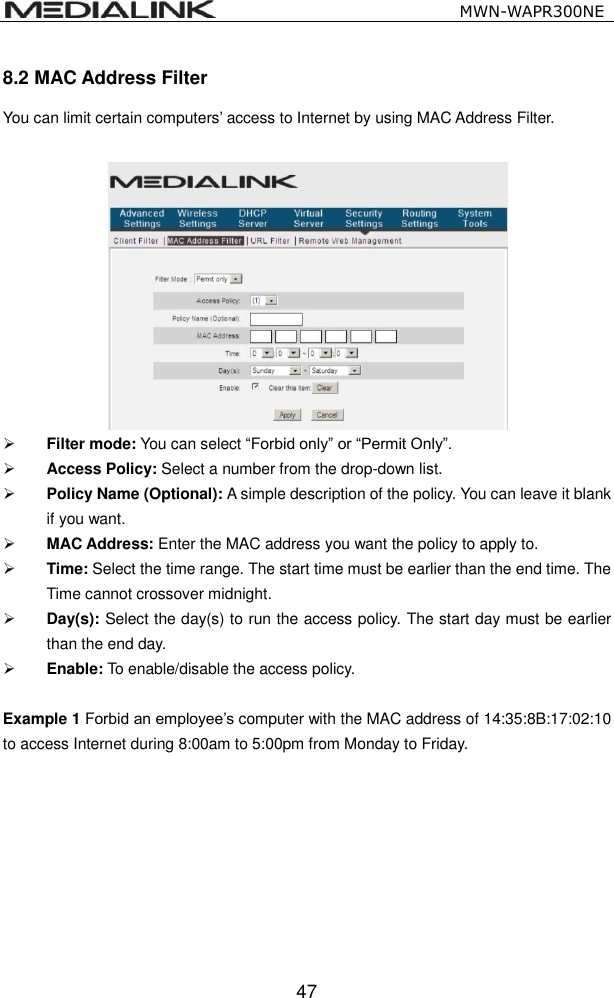
                                                  MWN-WAPR300NE  46 end time. The Time cannot cross over midnight.    Day(s): Select the day(s) to run the access policy. The start day must be earlier than the end day.  Enable: To enable/disable the access policy.  Example1  Forbid  the  Kids’  computers  at  the  IP  addresses 192.168.8.100~192.168.8.120 to access the Internet from 9pm to 9am. The first policy forbids access from 9pm to 11:55pm. Click Apply.  The second policy forbids access from 12:00am to 9:00am. Note that “Access Policy 2” is chosen. Click Apply.
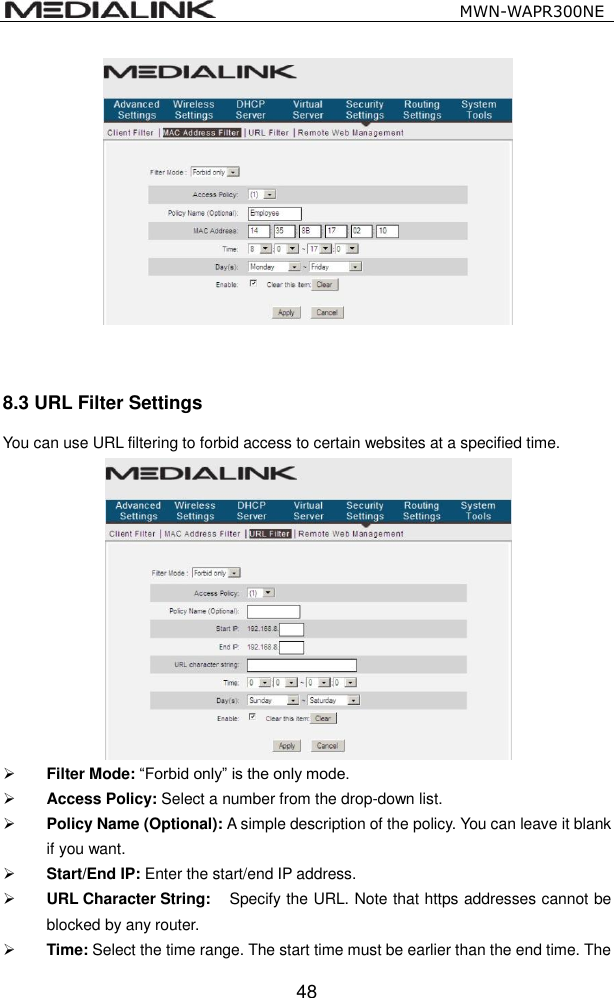
                                                  MWN-WAPR300NE  47 8.2 MAC Address Filter You can limit certain computers’ access to Internet by using MAC Address Filter.      Filter mode: You can select “Forbid only” or “Permit Only”.  Access Policy: Select a number from the drop-down list.  Policy Name (Optional): A simple description of the policy. You can leave it blank if you want.  MAC Address: Enter the MAC address you want the policy to apply to.  Time: Select the time range. The start time must be earlier than the end time. The Time cannot crossover midnight.  Day(s): Select the day(s) to run the access policy. The start day must be earlier than the end day.  Enable: To enable/disable the access policy.   Example 1 Forbid an employee’s computer with the MAC address of 14:35:8B:17:02:10 to access Internet during 8:00am to 5:00pm from Monday to Friday.
                                                  MWN-WAPR300NE  48    8.3 URL Filter Settings You can use URL filtering to forbid access to certain websites at a specified time.   Filter Mode: “Forbid only” is the only mode.  Access Policy: Select a number from the drop-down list.  Policy Name (Optional): A simple description of the policy. You can leave it blank if you want.  Start/End IP: Enter the start/end IP address.  URL Character String:    Specify the URL. Note that https addresses cannot be blocked by any router.  Time: Select the time range. The start time must be earlier than the end time. The
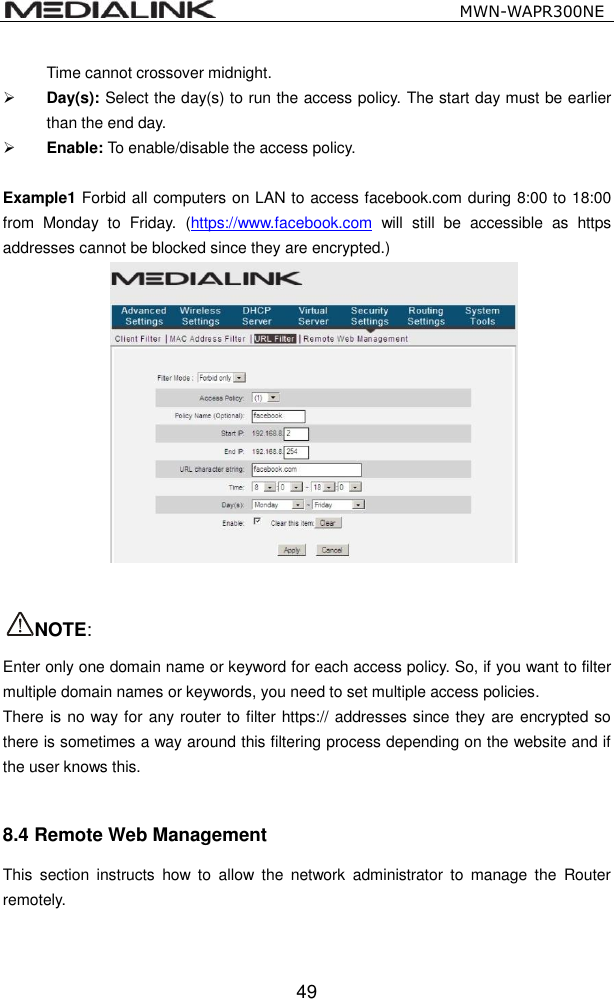
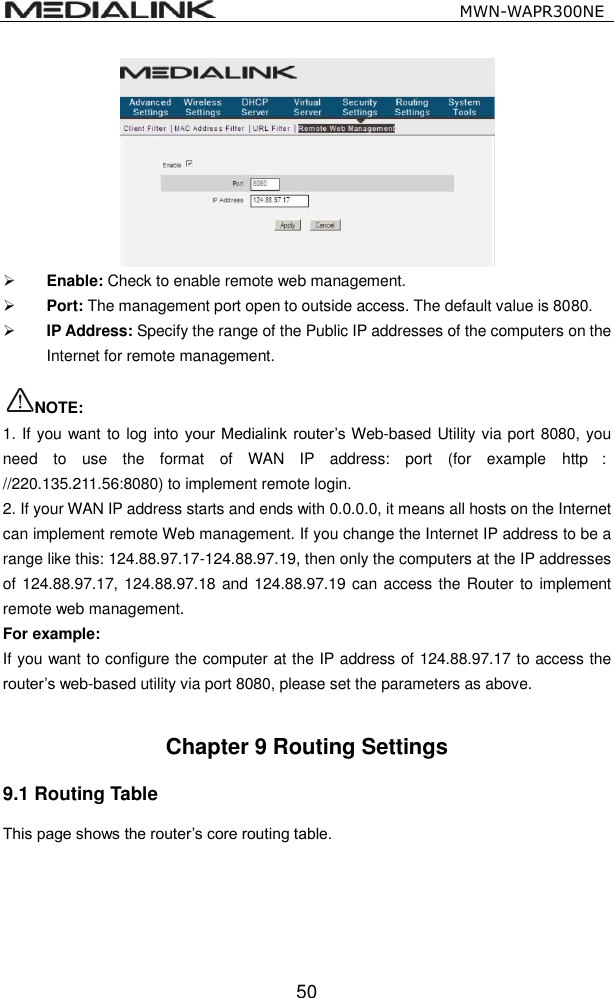
                                                  MWN-WAPR300NE  49 Time cannot crossover midnight.  Day(s): Select the day(s) to run the access policy. The start day must be earlier than the end day.  Enable: To enable/disable the access policy.    Example1 Forbid all computers on LAN to access facebook.com during 8:00 to 18:00 from  Monday  to  Friday.  (https://www.facebook.com  will  still  be  accessible  as  https addresses cannot be blocked since they are encrypted.)    NOTE:   Enter only one domain name or keyword for each access policy. So, if you want to filter multiple domain names or keywords, you need to set multiple access policies. There is no way for any router to filter https:// addresses since they are encrypted so there is sometimes a way around this filtering process depending on the website and if the user knows this.  8.4 Remote Web Management This  section  instructs  how  to  allow  the  network  administrator  to  manage the  Router remotely.
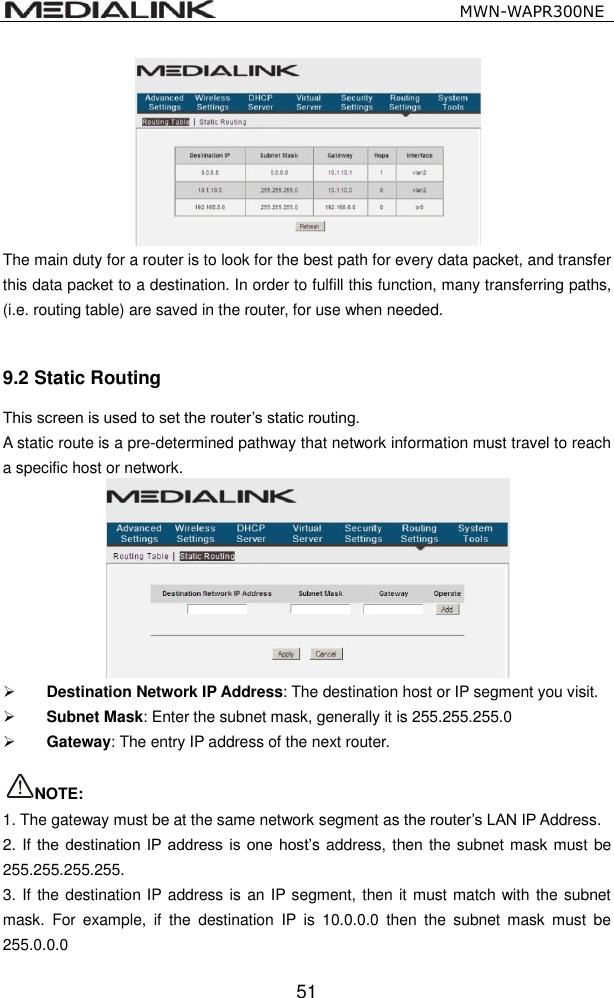
                                                  MWN-WAPR300NE  50   Enable: Check to enable remote web management.  Port: The management port open to outside access. The default value is 8080.  IP Address: Specify the range of the Public IP addresses of the computers on the Internet for remote management.  NOTE: 1. If you want to log into your Medialink router’s Web-based Utility via port 8080, you need  to  use  the  format  of  WAN  IP  address:  port  (for  example  http ://220.135.211.56:8080) to implement remote login.   2. If your WAN IP address starts and ends with 0.0.0.0, it means all hosts on the Internet can implement remote Web management. If you change the Internet IP address to be a range like this: 124.88.97.17-124.88.97.19, then only the computers at the IP addresses of 124.88.97.17, 124.88.97.18 and 124.88.97.19 can access the Router to implement remote web management. For example:   If you want to configure the computer at the IP address of 124.88.97.17 to access the router’s web-based utility via port 8080, please set the parameters as above.  Chapter 9 Routing Settings 9.1 Routing Table This page shows the router’s core routing table.
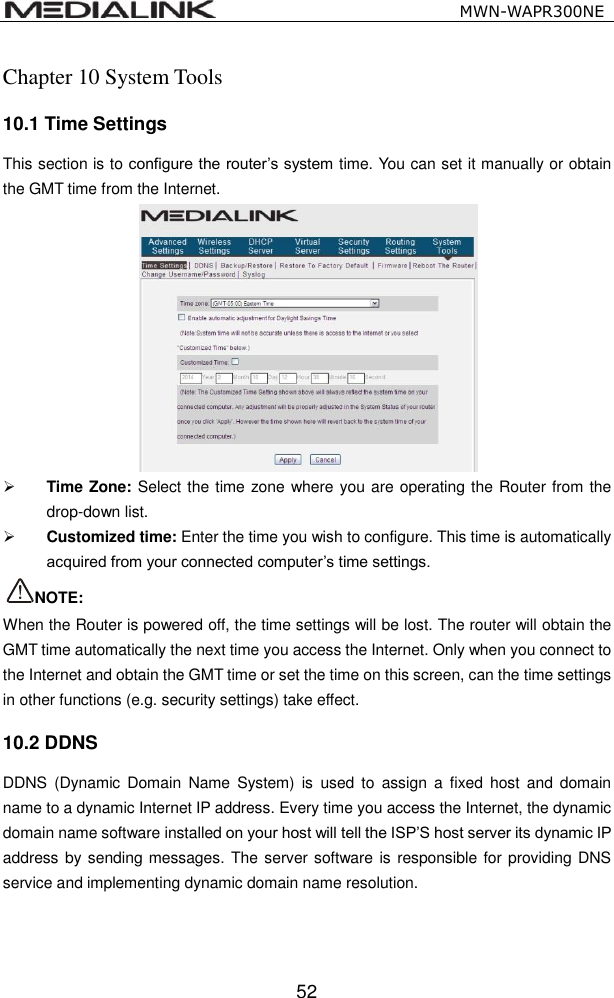
                                                  MWN-WAPR300NE  51  The main duty for a router is to look for the best path for every data packet, and transfer this data packet to a destination. In order to fulfill this function, many transferring paths, (i.e. routing table) are saved in the router, for use when needed.  9.2 Static Routing This screen is used to set the router’s static routing. A static route is a pre-determined pathway that network information must travel to reach a specific host or network.   Destination Network IP Address: The destination host or IP segment you visit.  Subnet Mask: Enter the subnet mask, generally it is 255.255.255.0  Gateway: The entry IP address of the next router.  NOTE: 1. The gateway must be at the same network segment as the router’s LAN IP Address. 2. If the destination  IP address is  one host’s address, then the subnet mask must be 255.255.255.255. 3. If the destination IP address is an IP segment, then it must match with the subnet mask.  For  example,  if  the  destination  IP  is  10.0.0.0  then  the  subnet  mask  must  be 255.0.0.0
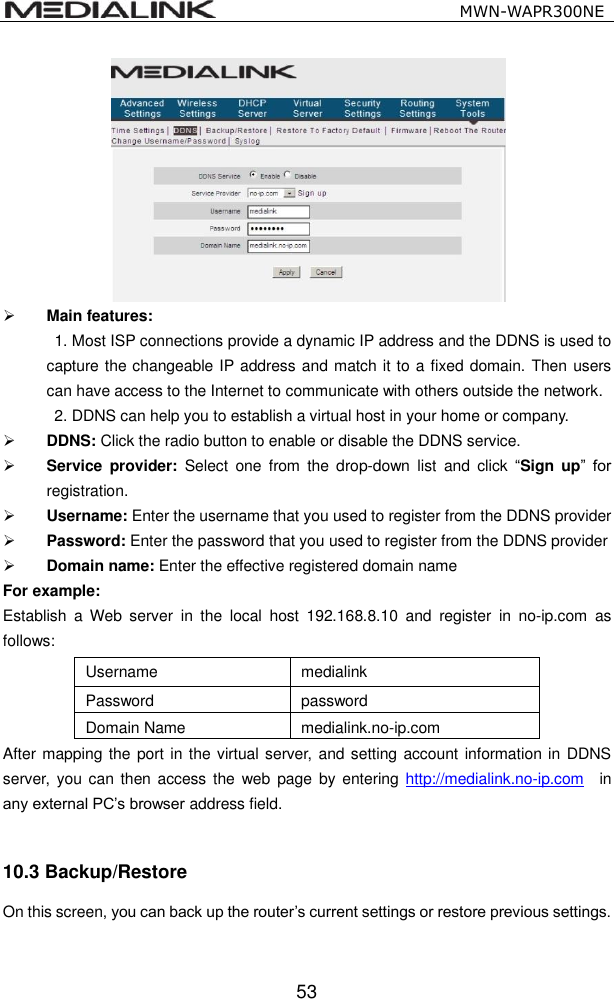
                                                  MWN-WAPR300NE  52 Chapter 10 System Tools 10.1 Time Settings This section is to configure the router’s system time. You can set it manually or obtain the GMT time from the Internet.   Time Zone: Select the time zone where you are operating the Router from the drop-down list.  Customized time: Enter the time you wish to configure. This time is automatically acquired from your connected computer’s time settings.   NOTE: When the Router is powered off, the time settings will be lost. The router will obtain the GMT time automatically the next time you access the Internet. Only when you connect to the Internet and obtain the GMT time or set the time on this screen, can the time settings in other functions (e.g. security settings) take effect. 10.2 DDNS DDNS  (Dynamic  Domain  Name  System)  is  used  to  assign  a  fixed host  and  domain name to a dynamic Internet IP address. Every time you access the Internet, the dynamic domain name software installed on your host will tell the ISP’S host server its dynamic IP address by sending messages. The server software is responsible for providing DNS service and implementing dynamic domain name resolution.
                                                  MWN-WAPR300NE  53   Main features:     1. Most ISP connections provide a dynamic IP address and the DDNS is used to capture the changeable IP address and match it to a fixed domain. Then users can have access to the Internet to communicate with others outside the network.   2. DDNS can help you to establish a virtual host in your home or company.  DDNS: Click the radio button to enable or disable the DDNS service.  Service  provider:  Select  one  from  the  drop-down  list  and  click  “Sign  up”  for registration.   Username: Enter the username that you used to register from the DDNS provider    Password: Enter the password that you used to register from the DDNS provider    Domain name: Enter the effective registered domain name For example: Establish  a  Web  server  in  the  local  host  192.168.8.10  and  register  in  no-ip.com  as follows: Username medialink Password password Domain Name medialink.no-ip.com After mapping the port in the virtual server, and setting account information in DDNS server,  you can then access the  web  page  by entering  http://medialink.no-ip.com    in any external PC’s browser address field.  10.3 Backup/Restore   On this screen, you can back up the router’s current settings or restore previous settings.
                                                  MWN-WAPR300NE  54   Backup Settings: Click the Backup button to back up the router’s settings and select a path to save them.  Click the “Save” button to save the configuration files.  Restore Setting: Click the “Browse” button to select the backup files.
                                                  MWN-WAPR300NE  55 Click the “Restore” button to restore previous settings.   10.4 Restore to Factory Default   This screen allows you to restore all settings to the factory default values.     Restore to factory default: Click this button to restore to default settings.    Factory default settings: Username: admin Password: admin Wireless SSID: medialink Wireless Password: password Wireless Security: WPA/WPA2-PSK and TKIP&AES IP Address: 192.168.8.1 Subnet Mask: 255.255.255.0 10.5 Firmware Here  you can  upgrade  or  rollback the  router’s  Firmware. The latest Firmware can be downloaded at www.medialinkproducts.com/support.
                                                  MWN-WAPR300NE  56 WARNING:  BE  SURE  TO  USE  A  COMPUTER  THAT  IS  CONNECTED  TO  THE ROUTER VIA ETHERNET TO ADJUST THE FIRMWARE.    Backup your settings: First  Backup  a copy  of  your  router’s  settings using  the Backup/Restore section.  Browse: Then in the Firmware screen, click Browse to select the upgrade file that you  have  downloaded  and  saved  to  your  computer  from www.medialinkproducts.com/support  Upgrade: Click this button to start the upgrading process. After  the upgrade is complete, the router will reboot automatically.    Empty your Internet Browser’s Cache: In order for the new Firmware to display properly,  you  must  empty  the  Browser’s  Cache  (Temporary Internet  Files). For Internet  Explorer:  Tools  >  Delete  Browser  History  >  Check  Temporary  Internet Files > Click Delete. Once finished, hit F5 to refresh the screen.  Reset the Router to Factory Settings: After changing the Firmware, you must reset the router to factory settings for the changes to take effect. After the reset, you  can  restore  your  router’s  settings  using  a  file  that  you  backed  up  prior  to upgrading. 10.6 Reboot the Router Reboot the router to make any configuration changes effective. The router will cut its WAN connection automatically after rebooting and then reestablish the WAN connection.
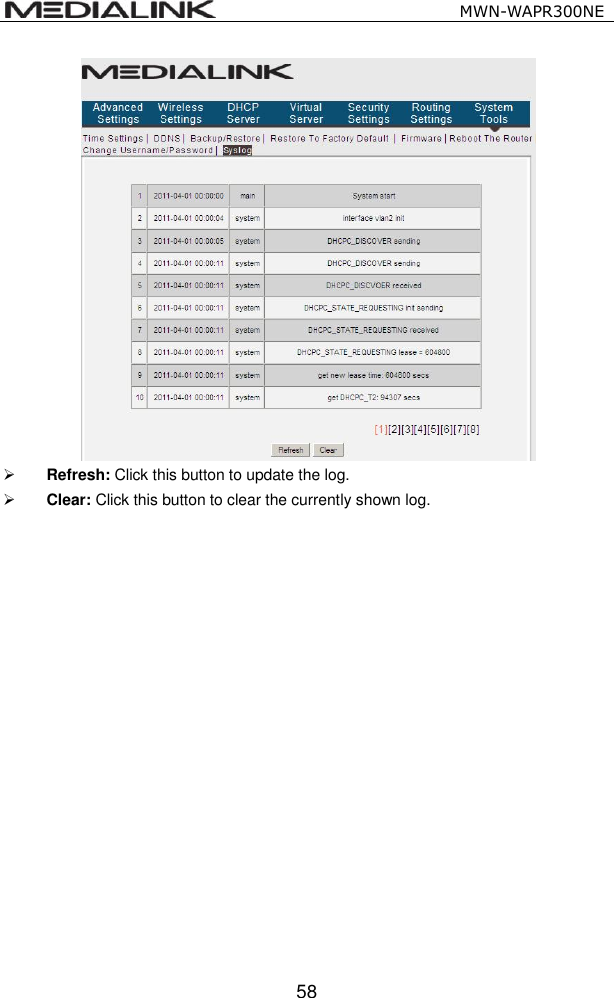
                                                  MWN-WAPR300NE  57   Reboot the router: Click this button to reboot the router.  10.7 Change Username/Password This section is to set a new password to better secure your router and network.   Old Username: Enter the old username.  New Username: Enter the new username.  Old password: Enter the old password.  New password: Enter a new password.  Confirm new password: Re-enter to confirm the new password.   NOTE:   The default username and password is admin. To secure the router and your network, it is highly recommended that you change the initial password.   10.8 Syslog This section is to view the system log. You can view various conditions appearing after system start, and also  check  whether  there’s  an  attack  on the network.  The  log can record at most 150 entries.
                                                  MWN-WAPR300NE  58   Refresh: Click this button to update the log.  Clear: Click this button to clear the currently shown log.
                                                  MWN-WAPR300NE  59 Appendix 1 Glossary Channel:      A  distinct  frequency  range  within  the  2.4  GHz  wavelength.  There  are  11  available channels in North America ranging from 2412 MHz to 2462MHz. SSID:         SSID (Service Set Identifier) is the network name shared by all devices in a wireless network. Your  network’s  SSID  should  be  unique  to  your  network  and  identical  for  all devices  within  the  network.  It  is  case-sensitive  and  must  not  exceed  20  characters. Make sure this setting is the same for all devices in your wireless network. WPA/WPA2 Encryption:   A security protocol for wireless networks that builds on the basic foundations of WEP. It secures  wireless  data  transmission  by  using  a  key  similar  to  WEP,  but  the  added strength of WPA is that the key changes dynamically. The changing key makes it much more difficult for a hacker to learn the key and gain access to the network. WPA2 is the second  generation  of  WPA  security  and  provides  a  stronger  encryption  mechanism through  Advanced  Encryption  Standard  (AES),  which  is  a  requirement  for  some government users.  Appendix 2 Product Features    Supports  IEEE  802.11n,  IEEE  802.11g,  IEEE  802.11b,  IEEE  802.3  and  IEEE 802.3u standards.   High  gain  omni-directional  antenna,  with  strong  signals  and  long  transmission distance.   Wireless transmission rate up to 150Mbps or 300 Mbps   Provides one 10/100Mbps auto-negotiation Ethernet WAN port to connect to the Wide Area Network   Provides four 10/100Mbps auto-negotiation Ethernet LAN ports to connect to the Local Area Network   Supports Auto MDI/MDIX     Supports xDSL/Cable MODEM, static and dynamic IP in community broadband networking as well as PPTP and L2TP.     Includes router, wireless access point, four-port switch and firewall all in one   SupportsWPA-PSK,WPA2-PSK,andWPA-PSK&WPA2-PSK mixed security modes   Supports WPS button
                                                  MWN-WAPR300NE  60  Supports hidden SSID function and MAC Address-based access control   Supports WMM to make your audio and video smoother   Supports SNTP   Supports UPnP and DDNS   Supports WDS to extend wireless network     Supports Wireless WAN and  allows access  to ISP’s wireless hotspots to share Internet  access  with  multiple  computers  or  the  ability  to  extend  an  existing wireless network via a Wireless Bridge.   Supports Virtual Server functions such as Port Forwarding and DMZ host.   Provides Syslog to record the running status of the router  Appendix 3 FAQ  This  section  provides  some  solutions  to  the  problems  which  may  occur  during  the router’s  installation  or  usage.  The  instructions  below  may  help  you  deal  with  the problems.  If  your  problem  is  not  in  the  list,  please  visit  our  website www.medialinkproducts.com    or send an E-mail to support@medialinkproducts.com.  1.  Cannot  log  in  to  the  Web-based  Utility  of  the  router  after  you  enter  the  IP address in the address field?  Step 1: Check if the router is working correctly, after the device is powered on for a few seconds, the SYS indicator on the front panel should light up. If it is not, please contact us.   Step 2: Check that the network cables are connected correctly and the corresponding LED indicator lights up. Sometimes, the indicator lights up,  but it does not mean it is functioning.   Step 3:  Run “Ping”  command  and  check  if  it  can  ping  the  Router’s  LAN  IP  address 192.168.8.1 (open “Command Prompt” and type “Ping 192.168.8.1” and then enter). If it is OK, please make sure your browser does not access the Internet by proxy server. If the  ping  fails,  you  can  press  the  “RESET”  button  for  7  seconds  to  restore  to default settings. And then repeat the ping operation. If it still does not work, please contact us.  2. I forgot the login password and cannot enter the Web-based Utility.   Press the “RESET” button for 7 seconds to restore the Router to default settings.   (UN: admin PW: admin)
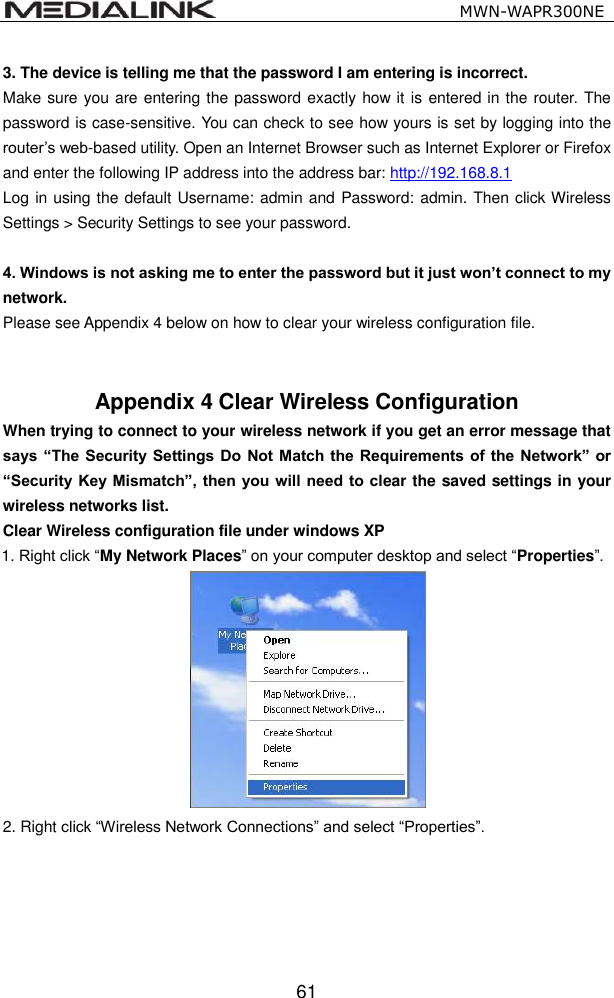
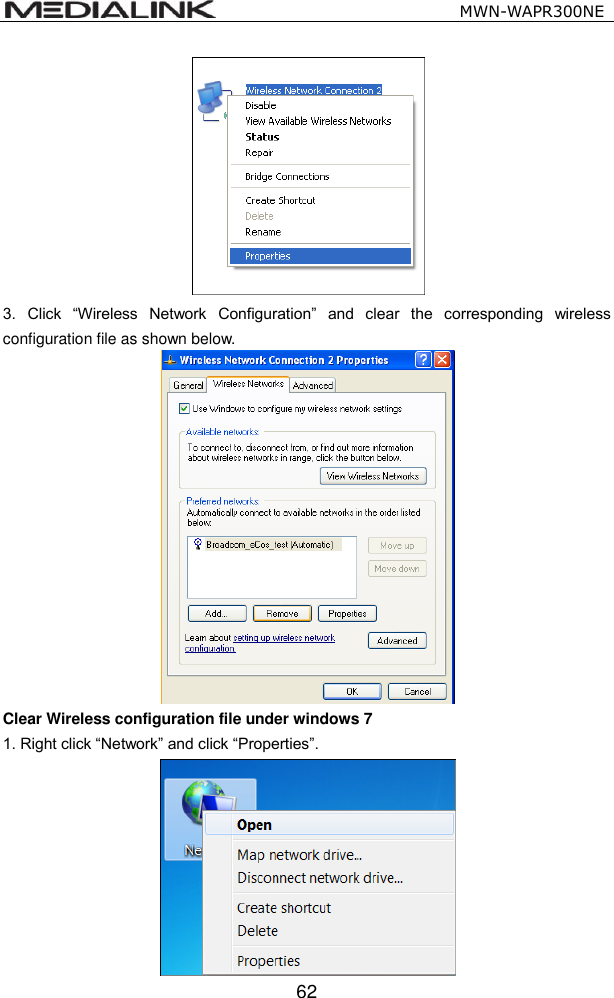
                                                  MWN-WAPR300NE  61 3. The device is telling me that the password I am entering is incorrect. Make sure you are entering the password exactly how it is entered in the router. The password is case-sensitive. You can check to see how yours is set by logging into the router’s web-based utility. Open an Internet Browser such as Internet Explorer or Firefox and enter the following IP address into the address bar: http://192.168.8.1 Log in using the default Username: admin and Password: admin. Then click Wireless Settings > Security Settings to see your password.    4. Windows is not asking me to enter the password but it just won’t connect to my network.   Please see Appendix 4 below on how to clear your wireless configuration file.   Appendix 4 Clear Wireless Configuration   When trying to connect to your wireless network if you get an error message that says “The Security  Settings Do Not Match the Requirements of the  Network” or “Security  Key Mismatch”, then you will need to clear the saved settings in your wireless networks list.   Clear Wireless configuration file under windows XP 1. Right click “My Network Places” on your computer desktop and select “Properties”.      2. Right click “Wireless Network Connections” and select “Properties”.
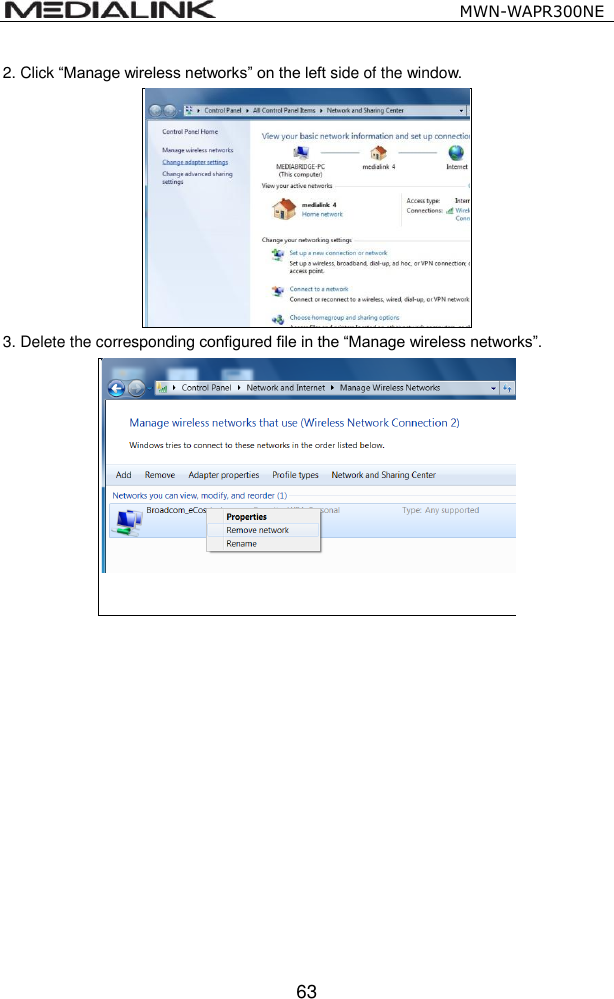
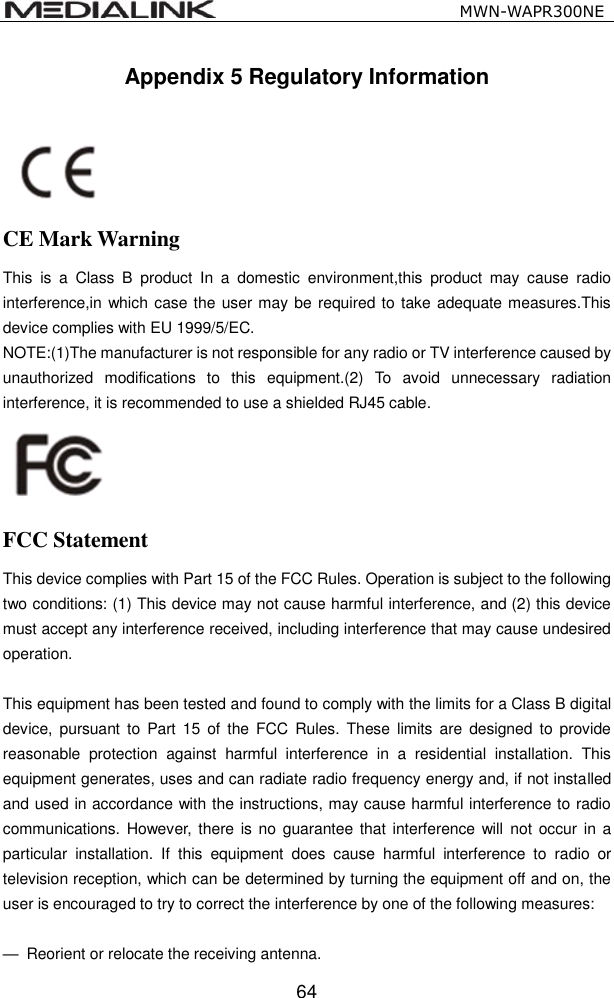
                                                  MWN-WAPR300NE  62  3.  Click  “Wireless  Network  Configuration”  and  clear  the  corresponding  wireless configuration file as shown below.  Clear Wireless configuration file under windows 7 1. Right click “Network” and click “Properties”.
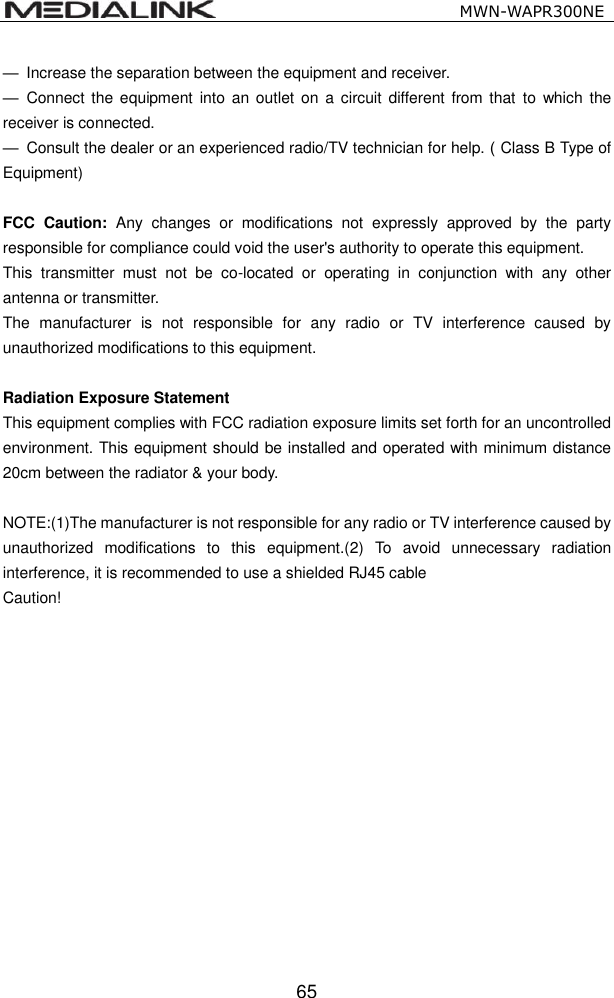
                                                  MWN-WAPR300NE  63 2. Click “Manage wireless networks” on the left side of the window.  3. Delete the corresponding configured file in the “Manage wireless networks”.
                                                  MWN-WAPR300NE  64 Appendix 5 Regulatory Information     CE Mark Warning This  is  a  Class  B  product  In  a  domestic  environment,this  product  may  cause  radio interference,in which case the user may be required to take adequate measures.This device complies with EU 1999/5/EC. NOTE:(1)The manufacturer is not responsible for any radio or TV interference caused by unauthorized  modifications  to  this  equipment.(2)  To  avoid  unnecessary  radiation interference, it is recommended to use a shielded RJ45 cable.    FCC Statement This device complies with Part 15 of the FCC Rules. Operation is subject to the following two conditions: (1) This device may not cause harmful interference, and (2) this device must accept any interference received, including interference that may cause undesired operation.  This equipment has been tested and found to comply with the limits for a Class B digital device, pursuant to  Part 15  of the  FCC  Rules. These  limits  are designed  to  provide reasonable  protection  against  harmful  interference  in  a  residential  installation.  This equipment generates, uses and can radiate radio frequency energy and, if not installed and used in accordance with the instructions, may cause harmful interference to radio communications. However, there  is no  guarantee that interference  will  not occur in a particular  installation.  If  this  equipment  does  cause  harmful  interference  to  radio  or television reception, which can be determined by turning the equipment off and on, the user is encouraged to try to correct the interference by one of the following measures:  —  Reorient or relocate the receiving antenna.
                                                  MWN-WAPR300NE  65 —  Increase the separation between the equipment and receiver. —  Connect the  equipment  into  an  outlet  on a  circuit  different from that  to  which the receiver is connected. —  Consult the dealer or an experienced radio/TV technician for help.(Class B Type of Equipment)  FCC  Caution:  Any  changes  or  modifications  not  expressly  approved  by  the  party responsible for compliance could void the user's authority to operate this equipment. This  transmitter  must  not  be  co-located  or  operating  in  conjunction  with  any  other antenna or transmitter. The  manufacturer  is  not  responsible  for  any  radio  or  TV  interference  caused  by unauthorized modifications to this equipment.  Radiation Exposure Statement This equipment complies with FCC radiation exposure limits set forth for an uncontrolled environment. This equipment should be installed and operated with minimum distance 20cm between the radiator & your body.  NOTE:(1)The manufacturer is not responsible for any radio or TV interference caused by unauthorized  modifications  to  this  equipment.(2)  To  avoid  unnecessary  radiation interference, it is recommended to use a shielded RJ45 cable Caution!

Navigation menu