Metrologic Instruments Ms7600 Users Manual MS7620 Series
MS7600 to the manual 86515919-93fb-4525-971f-983b79f86817
2015-02-02
: Metrologic-Instruments Metrologic-Instruments-Ms7600-Users-Manual-437013 metrologic-instruments-ms7600-users-manual-437013 metrologic-instruments pdf
Open the PDF directly: View PDF  .
.
Page Count: 60
- MS7600 Horizon Series
- Locations
- Table of Contents
- Introduction
- Scanner and Accessories
- Before Installing Your MS7600
- Mounting the MS7600 Series
- Installation
- Scanner Parts
- Maintenance
- EAS Deactivation Antenna
- Scanner Labels
- Indicators
- Failure Modes
- Changing the Beeper Tone & Volume
- Power Save Modes and IR Detection
- Scan Volume Specifications
- Depth of Field by Minimum Bar Code Element Width
- Troubleshooting Guide
- Design Specifications
- RS232 Demonstration Program
- Applications and Protocols
- Default Settings
- Scanner and Cable Terminations
- Limited Warranty
- Notices
- Patents
- Index
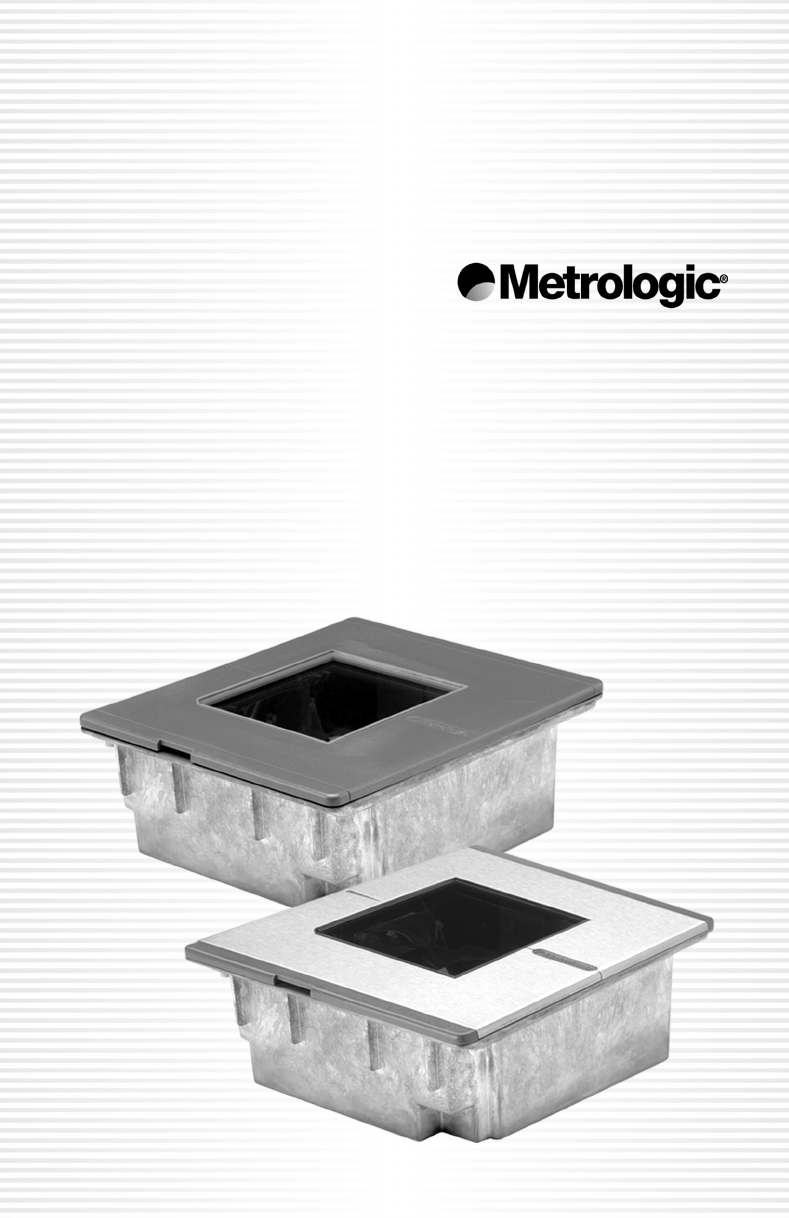
METROLOGIC INSTRUMENTS, INC.
MS7600 Horizon™ Series
Installation and User’s Guide
ii
LOCATIONS
CORPORATE HEADQUARTERS
North America Metrologic Instruments, Inc. Customer Service: 1-800-ID-METRO
90 Coles Road Tel: 856-228-8100
Blackwood, NJ 08012-4683 Fax: 856-228-6673
Email: info@metrologic.com
Internet: www.metrologic.com
EUROPEAN HEADQUARTERS
Germany, Metrologic Instruments GmbH Tel: +49 89 89019 0
Middle East and Africa Dornierstrasse 2 Fax: +49 89 89019 200
82178 Puchheim b. Email: info@europe.metrologic.com
Munich, Germany Germany Email: info@de.metrologic.com
Spain Metrologic Eria lbérica SL Tel: +34 913 272 400
Julián Camarillo 29, D-1 Fax: +34 913 273 829
Edificio Diapasón Email: info@es.metrologic.com
28037 Madrid
Italy Metrologic Instruments Italia srl Tel: +39 0 51 6511978
Via Emilia 70 Fax: +39 0 51 6521337
40064 Ozzano dell’Emilia (BO) Email: info@it.metrologic.com
France Metrologic Eria France SA Tel: +33 (0) 1 48.63.78.78
69 Rue de la Belle Etoile Fax: +33 (0) 1 48.63.24.94
ZI Paris Nord II, BP 50057 Email: info@fr.metrologic.com
95947 – ROISSY CDG CEDEX
United Kingdom Metrologic Instruments UK Limited Tel: +44 (0) 1256 365900
58 Tempus Business Centre Fax: +44 (0) 1256 365955
Kingsclere Road, Basingstoke Email: info@uk.metrologic.com
Hampshire RG21 6XG
ASIA
Singapore Metrologic Asia (Pte) Ltd Tel: 65-6842-7155
No. 8 Kaki Bukit Place Fax: 65-6842-7166
4th Floor Email: info@sg.metrologic.com
Singapore 416186
China Metro (Suzhou) Technologies Co., Ltd. Tel: 86-512-62572511
221 Xing Hai Street Fax: 86-512-62571517
Suzhou Industrial Park Email: info@cn.metrologic.com
Suzhou, China
215021
Japan Metrologic Japan Co., Ltd. Tel: 81-03-3839-8511
Matsunoya Building, 6 Floor Fax: 81-03-3839-8519
3-14-8 Higashiueno Email: info@jp.metrologic.com
Taitou-Ku, Tokyo 110-0015 Japan
SOUTH AMERICA
Brazil Metrologic do Brasil Ltda. Tel: 55-11-5182-8226
Rua da Paz 2059 Fax: 55-11-5182-8315
CEP 04713-002 Email: info@br.metrologic.com
Chácara Santo Antônio
São Paulo, SP, Brasil
Outside Brazil Metrologic South America Tel: 55-11-5182-7273
Rua da Paz 2059 Fax: 55-11-5182-7198
CEP 04713-002 Email: info@sa.metrologic.com
Chácara Santo Antônio
São Paulo, SP, Brasil
Copyright
© 2002 by Metrologic Instruments, Inc. All rights reserved. No part of this work may be reproduced, transmitted, or stored
in any form or by any means without prior written consent, except by reviewer, who may quote brief passages in a review,
or provided for in the Copyright Act of 1976.
Products and brand names mentioned in this document are trademarks of their respective companies.

iii
TABLE OF CONTENTS
Introduction........................................................................................................... 1
Scanner and Accessories..................................................................................... 2
Before Installing Your MS7600............................................................................. 4
Mounting the MS7600 Series
Option A: Shelf Support .................................................................................... 5
Option B: Free Hanging Support....................................................................... 6
Option C: Trim Ring.......................................................................................... 7
Installation
For Keyboard Wedge Interface......................................................................... 8
For Stand-Alone Keyboard Interface ................................................................ 9
For USB Interface........................................................................................... 10
For RS232 or Light Pen Interfaces ................................................................. 12
For IBM 46xx Interface ................................................................................... 14
For OCIA Interface.......................................................................................... 15
Of a Secondary Scanner ................................................................................ 16
Scanner Parts..................................................................................................... 19
Maintenance....................................................................................................... 20
EAS Deactivation Antenna ................................................................................. 20
Scanner Labels .................................................................................................. 21
Audible Indicators............................................................................................... 22
Visual Indicators ................................................................................................. 23
Failure Modes..................................................................................................... 24
Changing the Beeper Tone & Volume................................................................ 25
Power Save Modes and IR Detection................................................................. 26
Scan Volume Specifications ............................................................................... 28
Depth of Field by Minimum Bar Code Element Width ........................................ 29
Troubleshooting Guide ....................................................................................... 30
Design Specifications ......................................................................................... 35
RS232 Demonstration Program ......................................................................... 37
Applications and Protocols ................................................................................. 38
Default Settings .................................................................................................. 39
Scanner and Cable Terminations ....................................................................... 45
Limited Warranty ................................................................................................ 49
Notices ............................................................................................................... 50
Patents ............................................................................................................... 52
Index................................................................................................................... 53

1
INTRODUCTION
The MS7600 Horizon™ series is Metrologic’s next generation in-counter laser bar
code scanner. This compact, hands-free scanner is designed with a dense
20-line omnidirectional scan pattern that helps provide fast, efficient throughput
with a high first pass read rate.
The MS7600 is equipped with a multitude of standard features including:
• Durable die-cast construction
• Available with either a stainless steel (MS7625) or a high-impact plastic
(MS7620) top plate
• Firmware updates via Flash ROM
• Field replaceable window
• EAS deactivation antenna is standard
• Supports commonly used interfaces including USB and Keyboard Wedge
• Custom Edit bar code data
• PowerLink, user replaceable cables
• RS232 auxiliary port for adding peripherals
• Programmable depth of field
• OPOS and JPOS system compatible
SCANNER INTERFACE
MS7620-13 RS232, IBM 46xx, OCIA, Aux
High Impact
Plastic Top
MS7620-37 RS232, Light Pen, Keyboard Wedge, Stand-
Alone Keyboard, USB, Aux
MS7625-13 RS232, IBM 4680, OCIA
Stainless
Steel Top
MS7625-37 RS232, Light Pen, Keyboard Wedge, Stand-
Alone Keyboard, USB, Aux
2
SCANNER AND ACCESSORIES
BASIC KIT
Part # Description
MS7600 Horizon™ Series Scanner
00-02407B MetroSelect® Programming Guide
00-02870B MS7600 Horizon Series Installation and User’s Guide
52-52511A 24” EAS cable
Guides also available for download at www.metrologic.com.
OPTIONAL ACCESSORIES
Part # Description
46-46640 Point of Sale (POS) USB Plug
54-54xxx* Straight PowerLink Cable with built in power jack.
2.1 m (7') cord with short strain relief
xxx* specifies connection to the host.
Contact a customer service representative for additional information.
54-54002 Keyboard Wedge PowerLink Cable with Adapter Cable
MVC** Metrologic Voltage Converter Cable,
+12VDC to +5.2VDC or -12VDC to +5.2VDC
** Contact a Metrologic Customer Service representative for additional
information on Metrologic’s MVC cable series and the host connections
available.
54-54020 Stand Alone Keyboard Wedge PowerLink Cable
54-54667 RS232 AUX PowerLink Cable
Other items may be ordered for the specific protocol being used. To order additional
items, contact the dealer, distributor or call Metrologic’s Customer Service Department at
1-800-ID-METRO or 1-800-436-3876.
3
SCANNER AND ACCESSORIES (CONTINUED)
OPTIONAL ACCESSORIES
Part # Description
AC to DC Power Transformer - Regulated 5.2V@650 mA output
45-45593 120V United States
45-45591 220V – 240V Continental European
45-45592 220V – 240V United Kingdom
46-46641 Stainless Steel Trim Ring
REPLACEMENT PARTS
Part # Description
Caution
Window types (Sapphire, Everscan, and Standard) are not
interchangeable due to laser safety and/or scanner
performance differences.
To change window type, the scanner must be returned to the
manufacturer for additional configuration.
46-46602 Stainless Steel Top with Sapphire Window
46-46603 Stainless Steel Top with Everscan Window
46-46604 Stainless Steel Top with Standard Window
46-46605 High Impact Plastic Top with Sapphire Window
46-46606 High Impact Plastic Top with Everscan Window
46-46607 High Impact Plastic Top with Standard Window
46-46640 Point of Sale (POS) USB Plug
Other items may be ordered for the specific protocol being used. To order additional
items, contact the dealer, distributor or call Metrologic’s Customer Service Department at
1-800-ID-METRO or 1-800-436-3876.
4
BEFORE INSTALLING YOUR MS7600
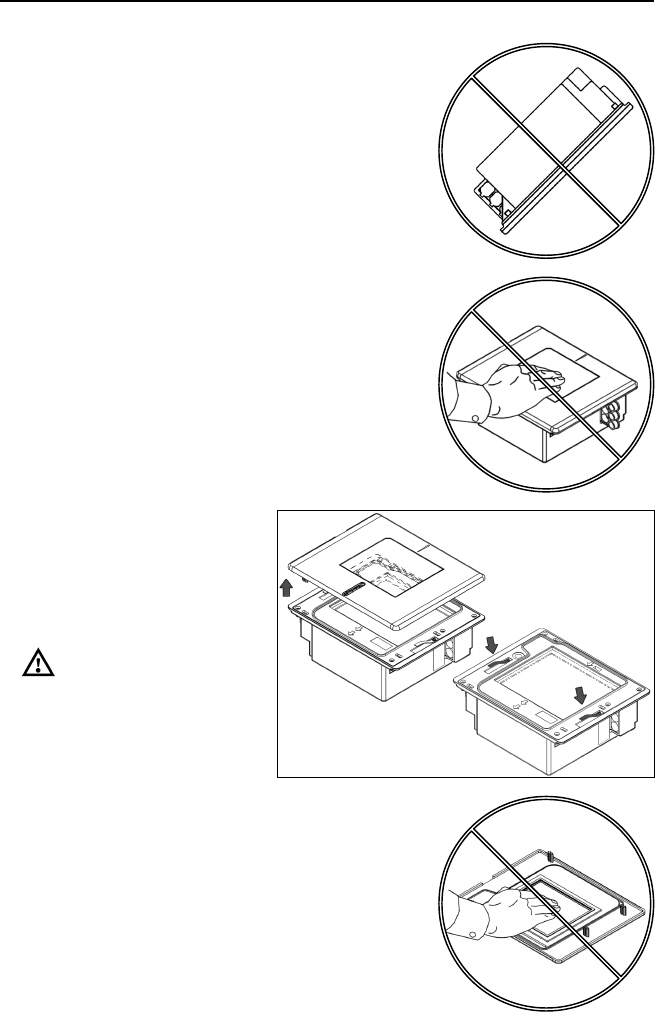
When mounting the MS7600 or replacing
the Top Plate:
DO NOT Press
on the window. Figure 2
Lift the Top plate straight up to
remove.
There is no hardware required
to remove or replace the top
cover.
See caution on page 3.
There are two installation tabs
under the top cover that can
be used to place the unit into
the counter top mounting hole. Figure 3
DO NOT PRESS
on the window in the
replacement Top plate. Figure 4
DO NOT Turn
the unit upside down. Figure 1
5
MOUNTING THE MS7600 SERIES
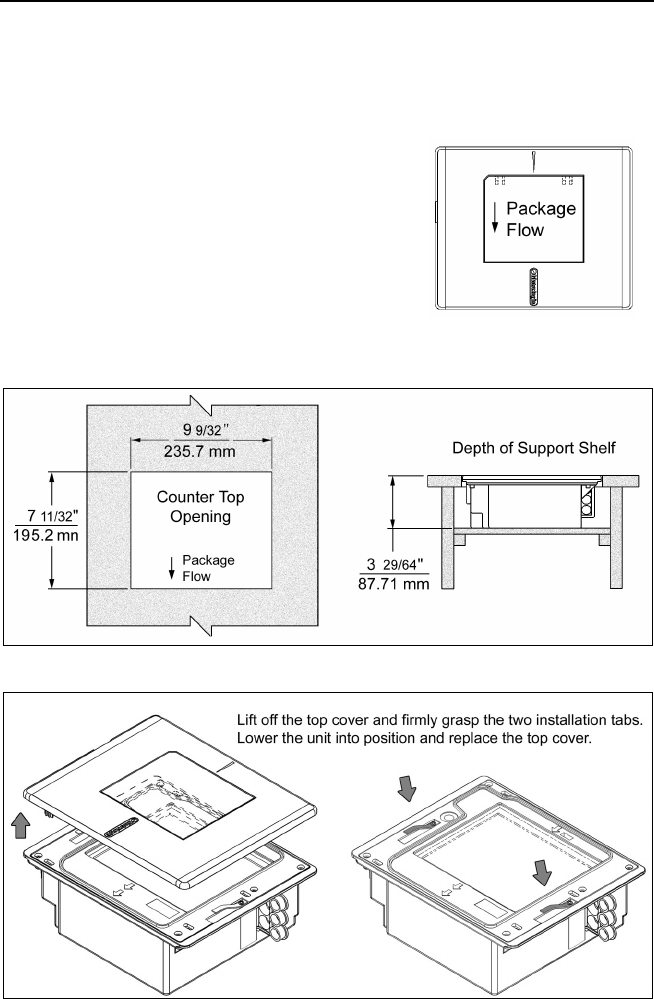
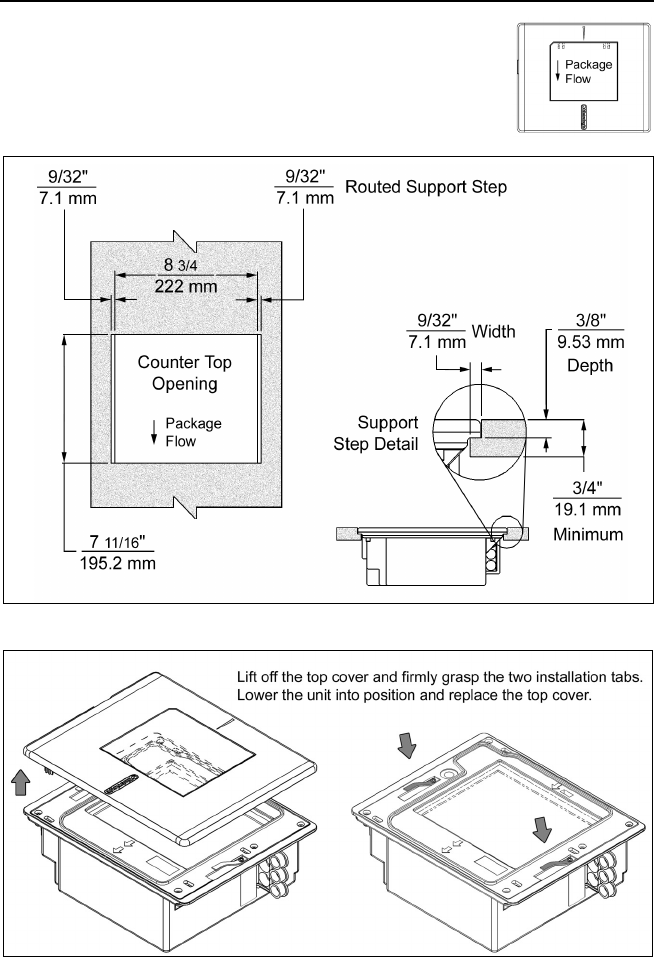
There are three options for mounting your MS7600. Option “A” uses a shelf to
support the unit. Option B lets the unit hang free in the counter top. Option C
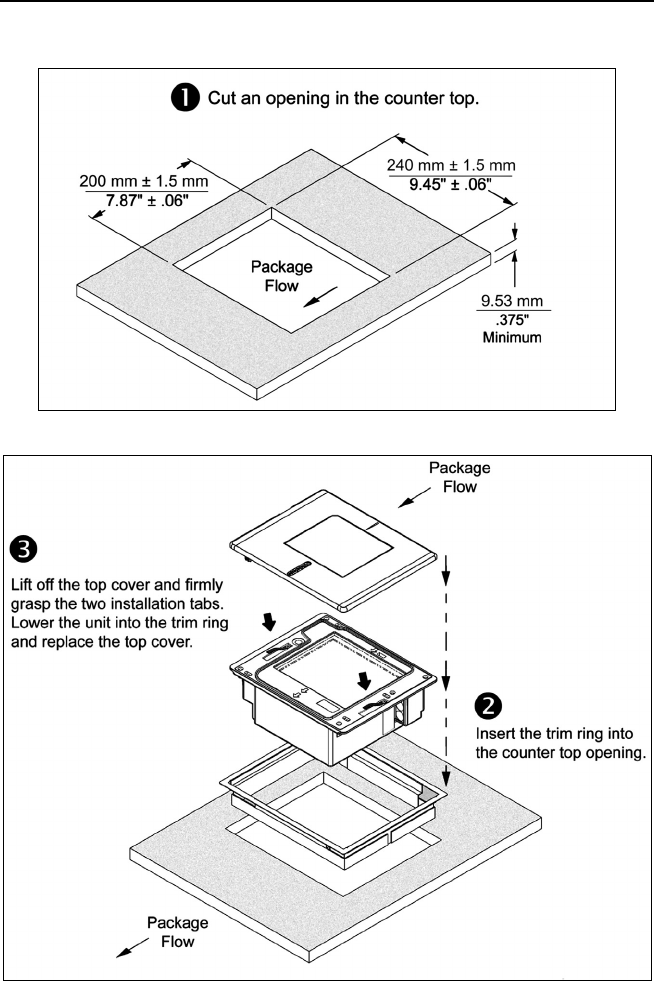
lets the unit hang free in the counter top with the use of a stainless steel trim ring
for support. The trim ring (MLPN 46-46641) is an optional purchase. Contact a
Metrologic customer service representative for details at 1-800-ID-METRO.
Before starting to mount the MS7600, determine
the direction of package flow for your application.
The unit must be mounted in the countertop with
the small arrowhead on the top of the unit
pointing in same direction as the package flow.
Figure 5: Package Flow
OPTION A: Shelf Support
Figure 6: Specifications for shelf support.
Figure 7: Installation Tabs
6
MOUNTING THE MS7600 SERIES
OPTION B: Free Hanging Support
Figure 8: Package Flow (right)
Figure 9: Specifications for free hanging support.
Figure 10: Installation Tabs
7
MOUNTING THE MS7600 SERIES
OPTION C: Trim Ring (MLPN 46-46641, Additional Purchase)
Figure 11: Counter Top Opening for Trim Ring (MLPN 46-46641)
Figure 12: Trim Ring (MLPN 46-46641) Installation
8
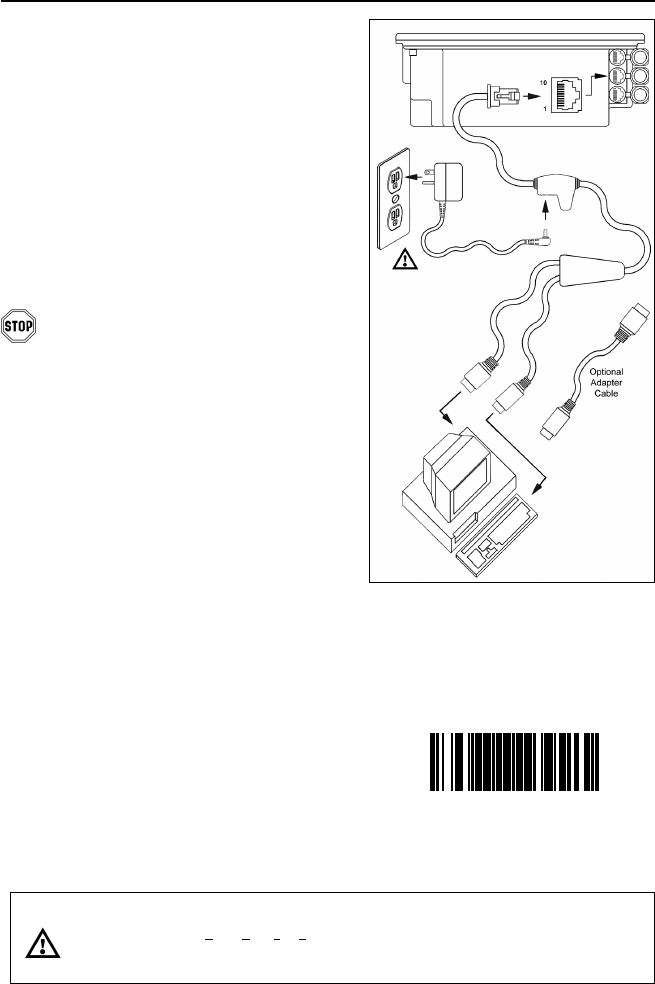
Figure 14: Keyboard Wedge
Interfaces
INSTALLATION FOR KEYBOARD WEDGE INTERFACE
1. Turn off the host system.
2. Disconnect the keyboard from the host.
3. Connect the PowerLink cable to the
2nd jack from the top of the MS7600.
4. Connect the “Y” end of the
PowerLink cable to the keyboard
and the keyboard port on the host.
If necessary use the male/female
adapter cable supplied with the
scanner for proper connections.
Before continuing verify that the
PowerLink cable is connected to the
appropriate interface jack on the
scanner. An incorrect cable connection
can cause communication problems or
potential damage to the scanner.
5. Connect the external power supply
to the power jack on the PowerLink
cable.
6. Check the AC input requirements
of the power supply to make sure
the voltage matches the AC outlet.
7. Connect AC power to the transformer.
The outlet should be near the equipment
and easily accessible.
8. Scan the Load Keyboard Wedge
Defaults bar code to configure the
MS7600 for Keyboard Wedge
communication.
9. Turn on the host system.
Caution:
To maintain compliance with applicable standards, all circuits connected to the scanner must meet the
requirements for SELV (Safety Extra Low Voltage) according to EN 60950.
To maintain compliance with standard CSA C22.2 No. 60950-00/UL 60950 and norm EN 60950, the power
source should meet applicable performance requirements for a limited power source.
³999994
Load Keyboard
Wedge Defaults
9
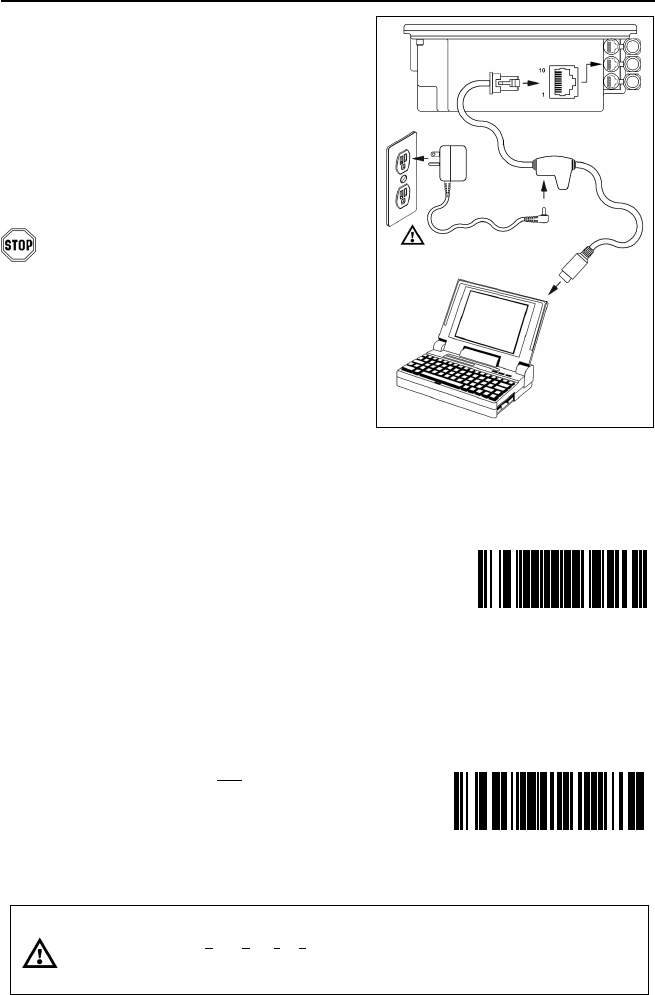
Figure 15: Stand-Alone
Keyboard Interface
INSTALLATION FOR STAND-ALONE KEYBOARD INTERFACE
1. Turn off the host system.
2. Disconnect the keyboard from the host.
3. Connect the PowerLink cable to the 2nd
jack from the top of the MS7600.
4. Connect the other end of the PowerLink
cable to the keyboard port on the host.
Before continuing verify that the
PowerLink cable is connected to the
appropriate interface jack on the
scanner. An incorrect cable connection
can cause communication problems or
potential damage to the scanner.
5. Connect the external power supply
to the power jack on the PowerLink
cable.
6. Check the AC input requirements
of the power supply to make sure
the voltage matches the AC outlet.
7. Connect AC power to the transformer.
The outlet should be near the equipment
and easily accessible.
8. Scan the Load Keyboard Wedge
Defaults bar code then the
Enable Stand Alone Keyboard bar code
to configure the MS7600 for Stand-Alone
Keyboard communication.
Note: When scanning the bar codes,
cover the code not being scanned
to ensure the codes are read in
the proper sequence.
9. Turn on the host system.
Caution:
To maintain compliance with applicable standards, all circuits connected to the scanner must meet the
requirements for SELV (Safety Extra Low Voltage) according to EN 60950.
To maintain compliance with standard CSA C22.2 No. 60950-00/UL 60950 and norm EN 60950, the power
source should meet applicable performance requirements for a limited power source.
³999994
Scan 1
St
Load Keyboard
Wedge Defaults
³5155153
Scan 2n
d
Enable Stand-Alone
Keyboard
10
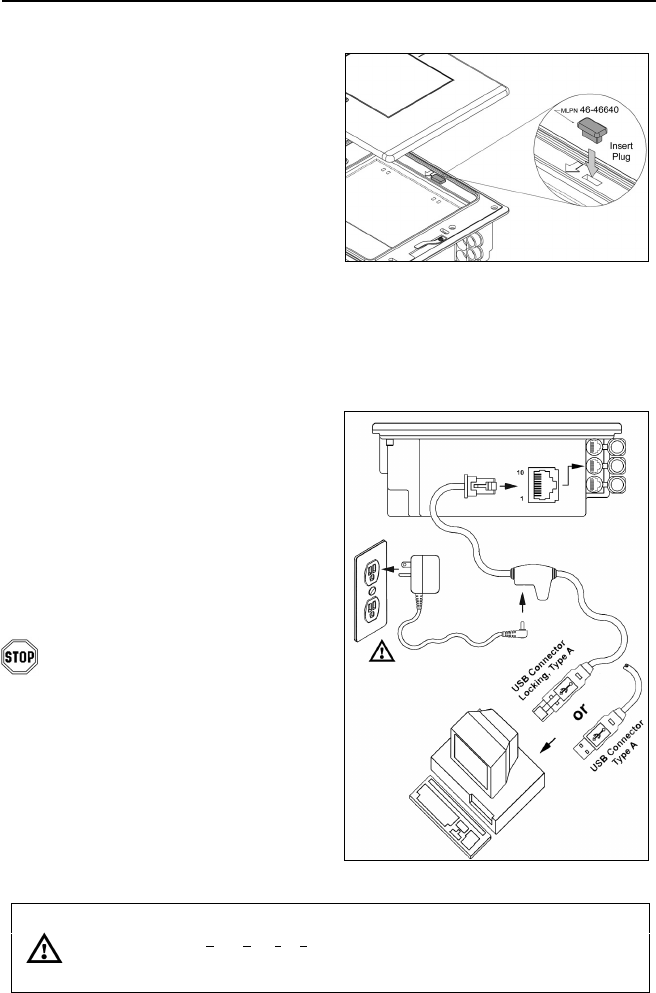
Figure 17: USB, Interface
INSTALLATION FOR USB INTERFACE
1. Turn off the host system.
2. Determine if your application
requires USB Keyboard
communication protocols or USB
Point of Sale communication
protocols.
3. If you require USB Keyboard
communication protocols, skip to
step 4.
If you require USB Point of Sale
communication protocols:
• Remove the MS7600 top cover.
• Insert the POS plug
(MLPN 46-46640) into the slot
indicated in Figure 16.
• Replace the top cover.
4. Connect the PowerLink USB cable to
the 2nd jack down from the top of the
MS7600.
5. Connect the other end of the USB
cable to the host.
Before continuing verify that the
USB PowerLink cable is connected
to the appropriate interface jack on
the scanner. An incorrect cable
connection can cause
communication problems or
potential damage to the scanner.
Continued on next page.
Caution:
To maintain compliance with applicable standards, all circuits connected to the scanner must meet the
requirements for SELV (Safety Extra Low Voltage) according to EN 60950.
To maintain compliance with standard CSA C22.2 No. 60950-00/UL 60950 and norm EN 60950, the power
source should meet applicable performance requirements for a limited power source.
Figure 16: POS Plug Installation
11
INSTALLATION FOR USB INTERFACE
Manufacturers Note:
Plugging the scanner into the USB port of the PC does not guarantee that
scanned information will appear at the PC. A software driver and correct
configuration setting are also required for proper communication to occur.
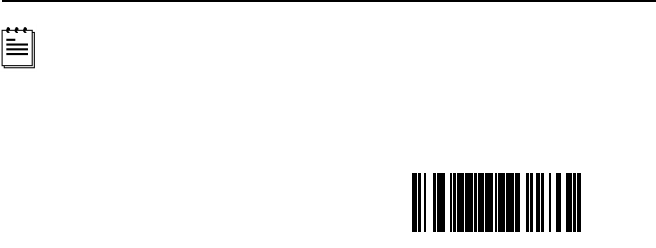
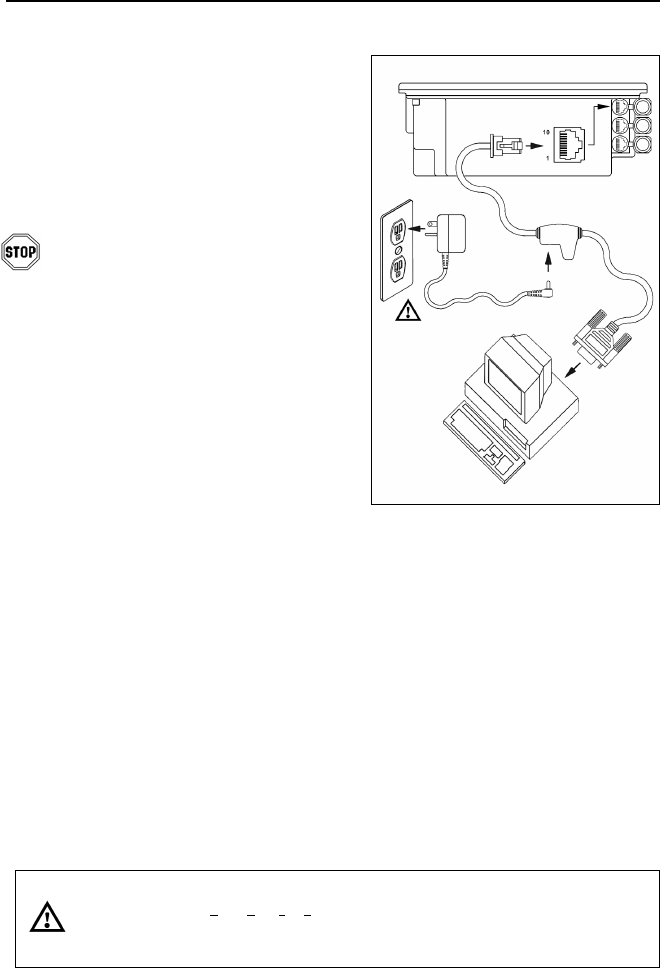
6. Scan the Enable USB Defaults bar
code to configure the MS7600 for
USB communication.
7. Turn on the host system.
³999978
Enable USB Defaults
12
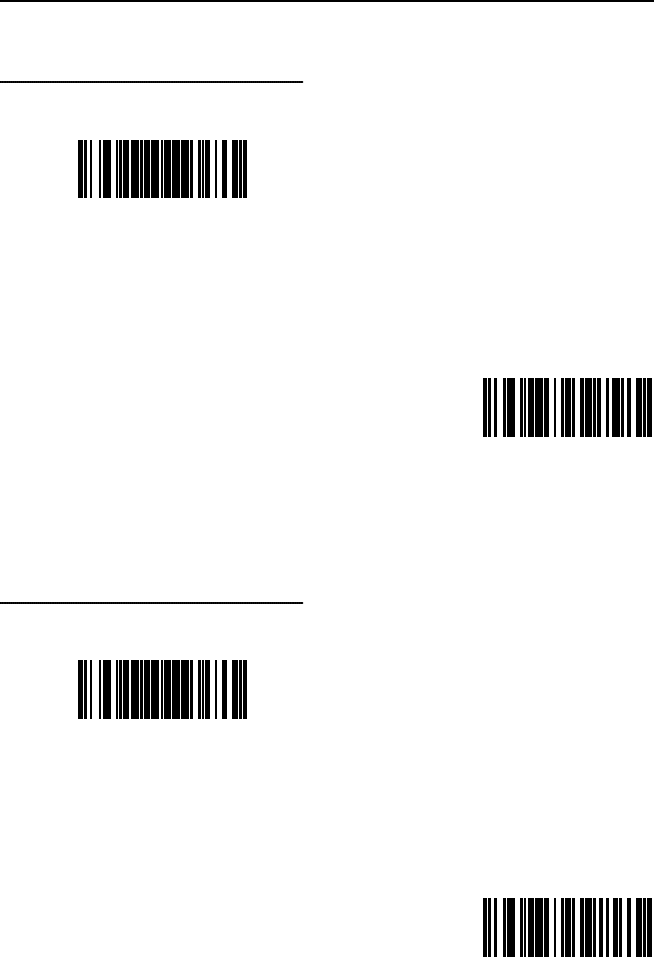
Figure 18: RS232 or Light Pen
Interface
INSTALLATION FOR RS232 OR LIGHT PEN INTERFACES
1. Turn off the host system.
2. Connect the PowerLink cable into
the 1st jack down from the top of the
MS7600.
3. Connect the other end of the
PowerLink cable to the host.
Before continuing verify that the
PowerLink cable is connected to the
appropriate interface jack on the
scanner. An incorrect cable
connection can cause
communication problems or potential
damage to the scanner.
4. Connect the external power supply
to the power jack on the Power Link
Cable.
5. Check the AC input requirements of
the power supply to make sure the
voltage matches the AC outlet.
6. Connect AC power to the
transformer. The outlet should be
near the equipment and easily
accessible.
7. Scan the appropriate bar codes
on page 14 to configure the MS7600
for RS-232 or Light Pen
communication.
8. Turn on the host system.
Caution:
To maintain compliance with applicable standards, all circuits connected to the scanner must meet the
requirements for SELV (Safety Extra Low Voltage) according to EN 60950.
To maintain compliance with standard CSA C22.2 No. 60950-00/UL 60950 and norm EN 60950, the power
source should meet applicable performance requirements for a limited power source.
13
INSTALLATION FOR RS232 OR LIGHT PEN INTERFACES
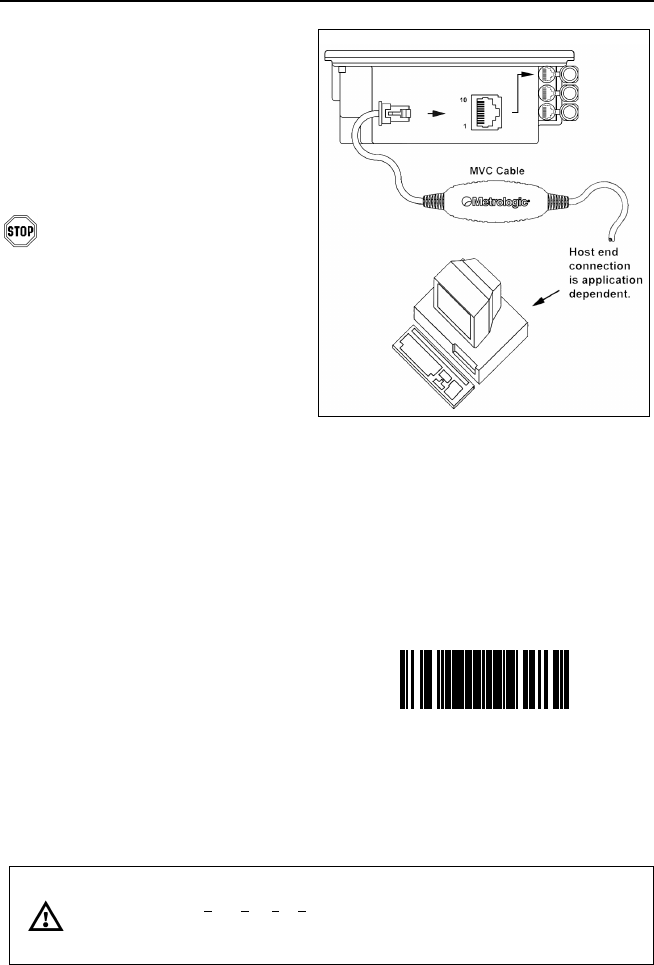
Step 7, page 12 continued.
For RS232 Communication:
Scan 1st ³999998
Recall Defaults
Scan 2nd ³415554
Enable RS-232
For Light Pen Communication:
Scan 1st ³999998
Recall Defaults
Scan 2nd ³415524
Enable Light Pen/Wand
14
Figure 19: RS232/IBM, Interface
INSTALLATION FOR IBM 46XX INTERFACE
1. Turn off the host system.
2. Connect the MVC cable to the
1st jack down from the top of
the MS7600.
3. Connect the other end of the
MVC cable to the host.
Before continuing verify that the
MVC cable is connected to the
appropriate interface jack on the
scanner. An incorrect cable
connection can cause
communication problems or
potential damage to the scanner.
Manufacturers Note:
Plugging the scanner into the
serial port of the PC does not
guarantee that scanned
information will appear at the PC.
A software driver and correct
configuration setting are also
required for proper
communication to occur.
4. Turn on the host system.
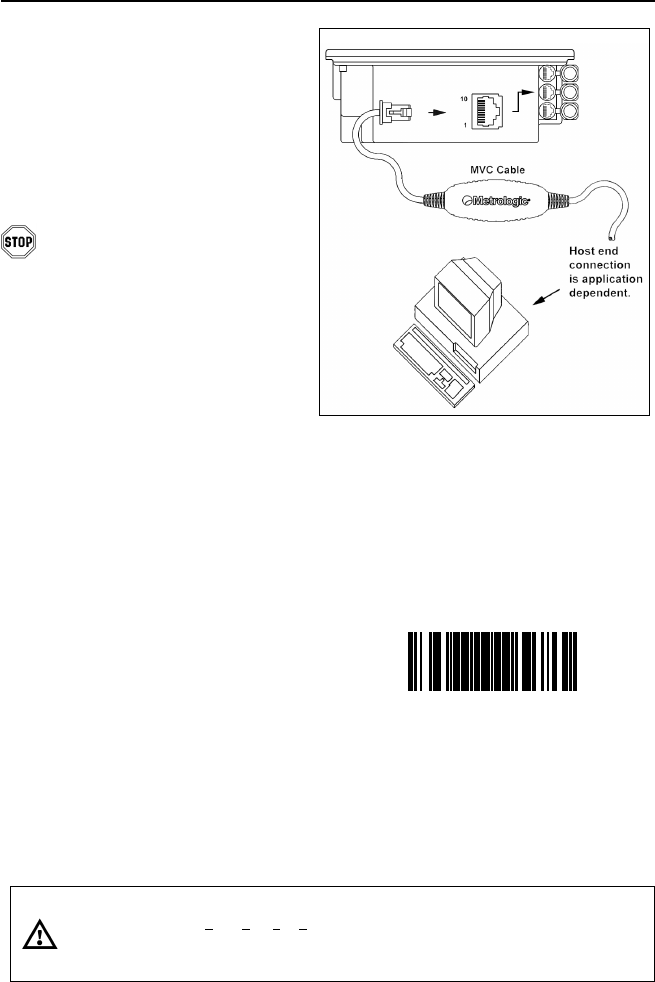
5. Scan the Load 46xx IBM Defaults
bar code to configure the
MS7600 for IBM 46xx
communication.
For additional communication options for IBM interfaces refer to the MetroSelect
Programming Guide (MLPN 00-02407B).
Caution:
To maintain compliance with applicable standards, all circuits connected to the scanner must meet the
requirements for SELV (Safety Extra Low Voltage) according to EN 60950.
To maintain compliance with standard CSA C22.2 No. 60950-00/UL 60950 and norm EN 60950, the power
source should meet applicable performance requirements for a limited power source.
³999995
Load 46xx IBM Defaults
15
Figure 13: OCIA, Interface
INSTALLATION FOR OCIA INTERFACE
1. Turn off the host system.
2. Connect the MVC cable to the
2nd jack down from the top of
the MS7600.
3. Connect the other end of the MVC
cable to the host.
Before continuing verify that the
MVC cable is connected to the
appropriate interface jack on the
scanner. An incorrect cable
connection can cause
communication problems or
potential damage to the scanner.
Manufacturers Note:
Plugging the scanner into the
serial port of the PC does not
guarantee that scanned
information will appear at the PC.
A software driver and correct
configuration setting are also
required for proper communication
to occur.
4. Turn on the host system.
5. Scan the Load OCIA Defaults bar
code to configure the MS7600 for
OCIA communication.
For additional communication options for OCIA interfaces refer to the
MetroSelect Programming Guide (MLPN 00-02407B).
Caution:
To maintain compliance with applicable standards, all circuits connected to the scanner must meet the
requirements for SELV (Safety Extra Low Voltage) according to EN 60950.
To maintain compliance with standard CSA C22.2 No. 60950-00/UL 60950 and norm EN 60950, the power
source should meet applicable performance requirements for a limited power source.
³999993
Load OCIA Defaults
16
INSTALLATION OF A SECONDARY SCANNER
1. Turn off the host system.
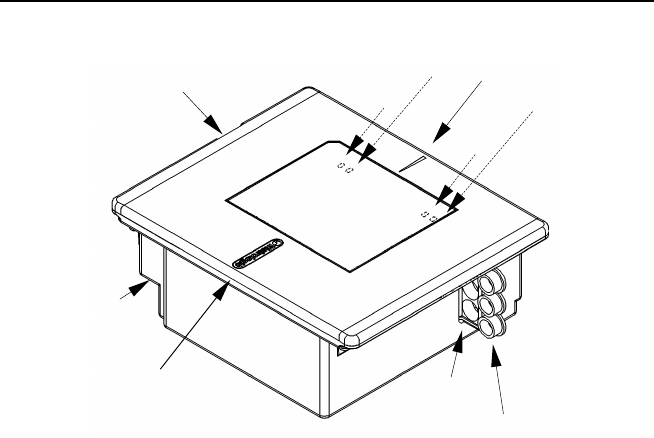
2. Connect the round end of the PowerLink RS232 AUX cable [MLPN 54-54667A]
to the RS232 jack of the secondary scanner (see figure 20).
3. Connect the other end of the PowerLink RS232 AUX cable into the 3rd jack
down from the top of the MS7600.
The following Metrologic scanners can be used in the “Aux” input of the
MS7600: the MS9520, MS9540, MS7220, MS7120, MS6720, MS6220,
MS6520, MS5145 or another MS7600.
Important: The MS7600 aux port requires the signals: transmit, receive,
RTS & CTS from the secondary scanner.
4. Connect the MS7600/Host PowerLink* cable to the appropriate interface
jack on the back of the MS7600.
5. Connect the other end of the MS7600/Host PowerLink cable to the host.
6. Connect the external power supplies for the secondary scanner and the
MS7600 to the power jacks on the two PowerLink cables.
Before continuing verify that the PowerLink cables are connected to the
appropriate interface jacks on the scanner. An incorrect cable connection
can cause communication problems or potential damage to the scanner.
7. Insert the attached rubber plug into the remaining jack not being used on the
MS7600.
8. Check the AC input requirements of both power supplies to make sure the
voltage matches the AC outlets.
9. Connect AC power to the transformers. The outlets should be near the
equipment and easily accessible.
10. Configure the MS7600 for the appropriate interface configuration settings*.
Continued on page 17.
* The MS7600/host cable connection is interface dependent. Refer to the
installation steps provided for the type of interface (RS232, IBM 46xx, etc.)
required for your application.
Caution:
To maintain compliance with applicable standards, all circuits connected to the scanner must meet the
requirements for SELV (Safety Extra Low Voltage) according to EN 60950.
To maintain compliance with standard CSA C22.2 No. 60950-00/UL 60950 and norm EN 60950, the power
source should meet applicable performance requirements for a limited power source.
17
INSTALLATION OF A SECONDARY SCANNER
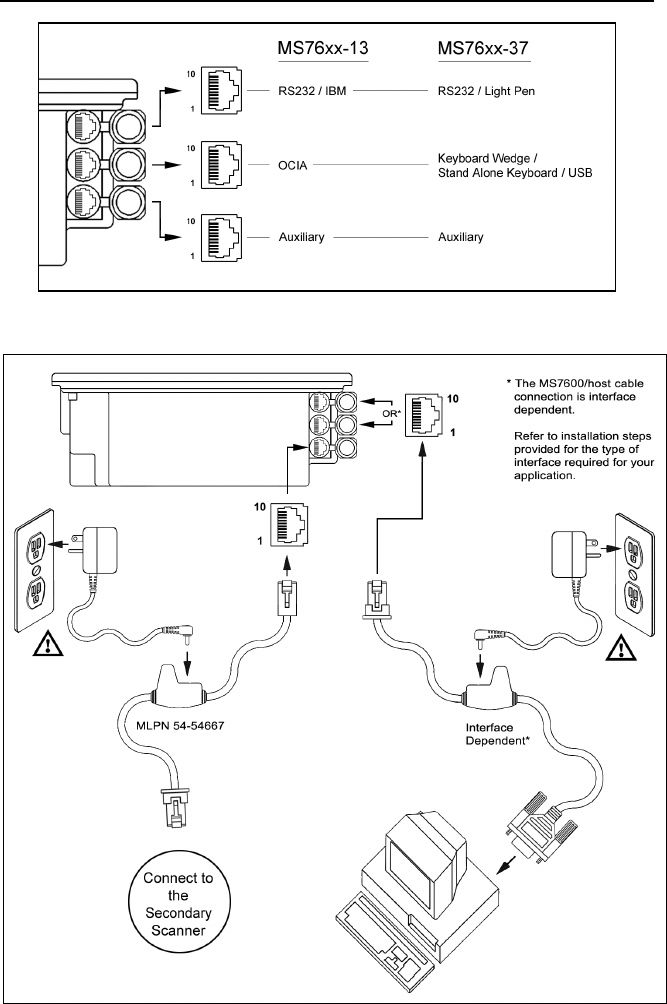
11. Scan the following bar code to configure the auxiliary port on the MS7600 to
accept a Metrologic scanner as the secondary scanner.
The following bar codes do not apply when using an MS6720 as a
secondary scanner. Contact a Metrologic representative for
additional information on the MS6720. If the secondary scanner is
not a Metrologic scanner refer to Section O of the MetroSelect
Configuration Guide.
³437330
Enable Aux Port
The auxiliary input port’s data format must match the main output
format of the secondary scanner.
12. Scan the following bar codes, in order, to configure the secondary scanner
to match the auxiliary port’s data format.
1st
Enable AUX Output
2nd
Secondary Scanner
Data Format
³124817 ³437530
3rd
Enable Comm Timeouts
4th (Optional)
Turn OFF Secondary
Scanner’s Beeper
³118412 ³318505
13. Turn on the host system.
18
INSTALLATION OF A SECONDARY SCANNER
Figure 20: Connector Orientation (Top)
Secondary Scanner Setup (Bottom)
19
SCANNER PARTS
Figure 21: Scanner Parts
nOutput Window (Laser Aperture)
oAmber LED (Located Under Window)
pRed LED (Located Under Window)
qSpeaker
rCable Connection Area
sStainless Steel Top (MS7625 units only)
tPackage Flow Indicator Arrow Head
uRubber Connector Plug
vEAS Deactivation Antenna Connector
n
s
qpo
r
o
p
t
u
v
20
MAINTENANCE
Smudges and dirt can interfere with the proper scanning of a bar code.
Therefore, the output window will need occasional cleaning.
For the MS7600 glass window:
1. Spray glass cleaner onto lint free, non-abrasive cleaning cloth.
2. Gently wipe the scanner window.
For the MS7600 red window:
1. Use mild soap and water with lint free, non-abrasive cleaning cloth.
2. Gently wipe the scanner window.
EAS DEACTIVATION ANTENNA
SW1 and SW2 are the switch banks inside the Checkpoint Device that set the
deactivation range. Metrologic recommends end users program the MS7600 to
the Fixed Low-Density depth of field, so that the unit does not scan out beyond
the deactivation range.
Unit # CheckPoint Recommended
Switch Bank Settings
MS7600 Depth of Field
Settings
MS7620 1, 2, 3, 4, 5, on SW1 & SW2 Fixed Low Density*
MS7625 1, 2, 3, 4, 5, on SW1 & SW2 Fixed Low Density*
*Note: Minimum element width changes to 6.8 mil when in this mode.
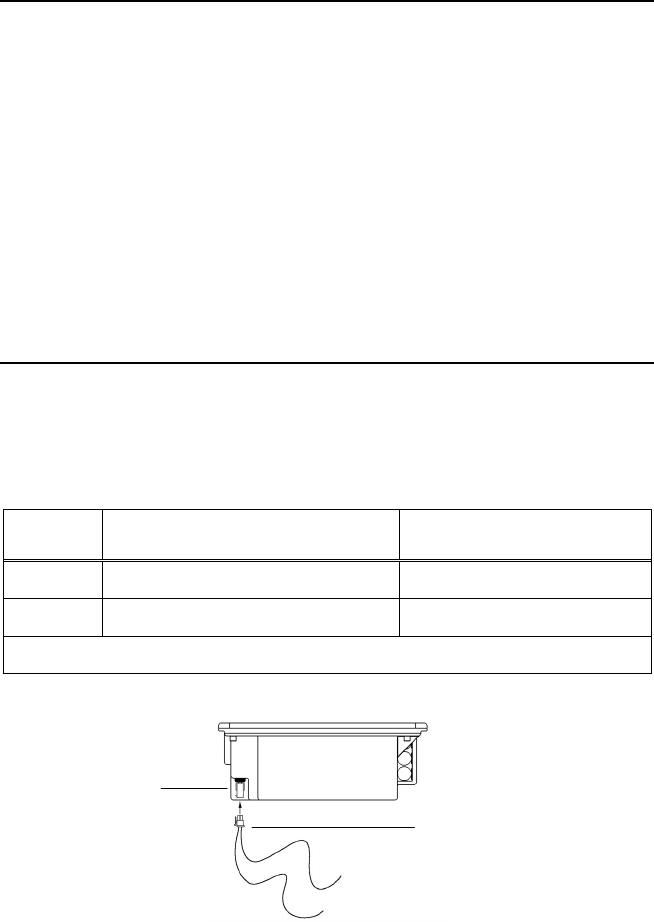
Figure 22: EAS Cable and Connector
Contact Checkpoint Systems directly for additional EAS support.
EAS Cable
Connector EAS Cable
MLPN 49-00298
21
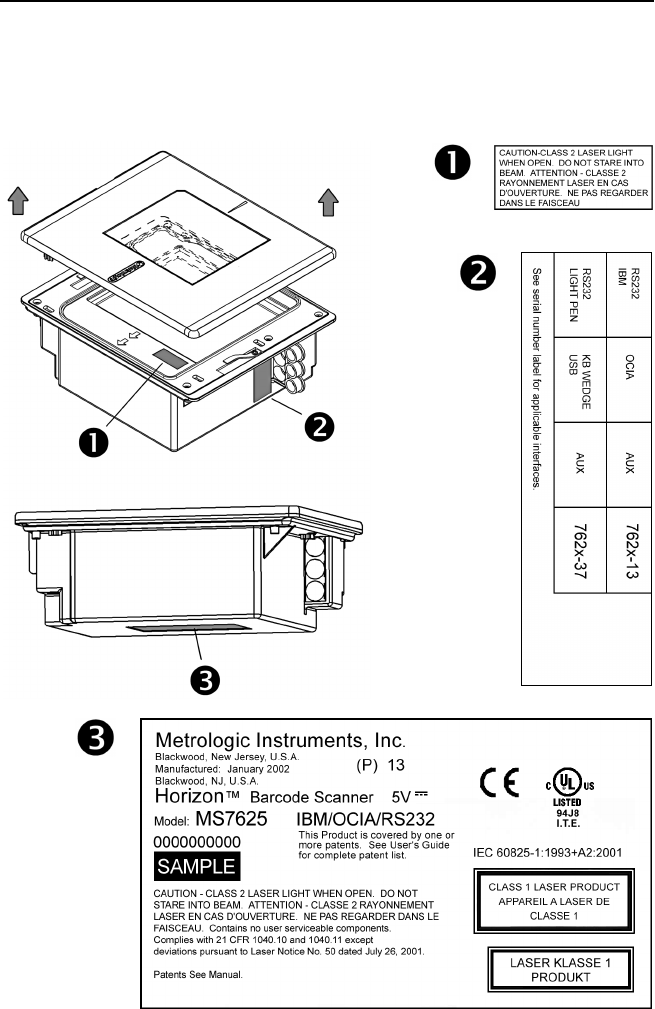
SCANNER LABELS
Each scanner has a label on the bottom of the unit. The label contains
information such as the model number, date of manufacture, serial number, and
caution information. An additional caution label is located under the top plate.
The following are examples of these labels.
Figure 23: Label Locations
22
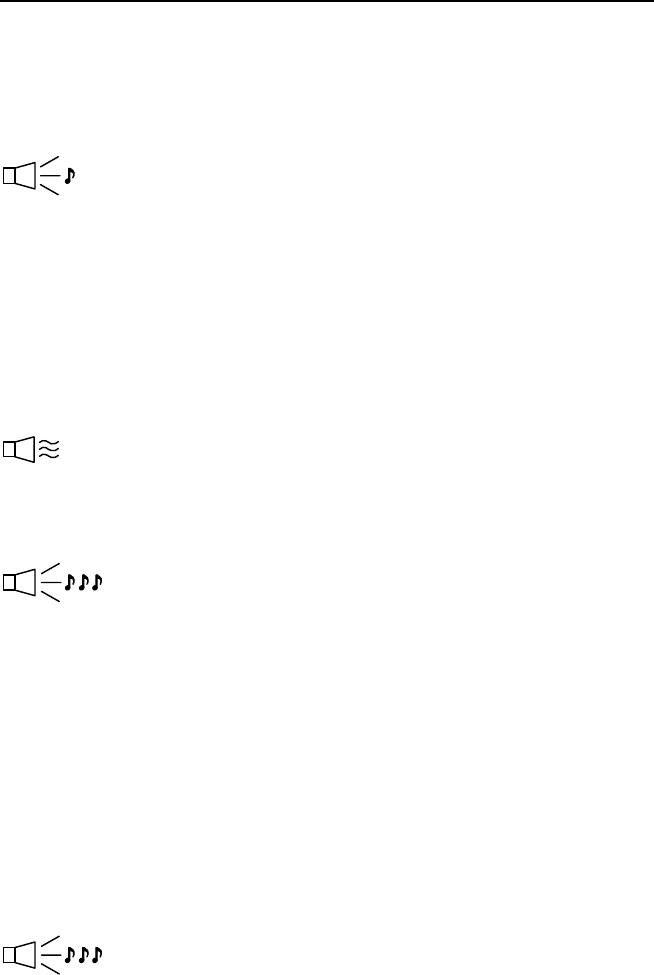
AUDIBLE INDICATORS
When the MS7600 scanner is in operation, it provides audible feedback. These
sounds indicate the status of the scanner. Eight settings are available for the
tone of the beep (normal, 6 alternate tones and no tone) plus three volume
settings. To change the tone or volume, refer to the Changing the Beeper Tone
& Volume section of this manual.
One Beep
When the scanner first receives power, the amber LED will turn on,
the red LED will flash and the scanner will beep once. (The red
LED will remain on for the duration of the beep.) The scanner is
now ready to scan.
When the scanner successfully reads a bar code, the red LED will
flash and the scanner beeps once (if programmed to do so). If the
scanner does not beep once and the red light does not flash, then
the bar code has not been successfully read.
Razzberry Tone
This is a failure indicator. Refer to failure modes page 24.
Three Beeps - during operation
When placing the scanner in program mode, the red LED will flash
while the scanner simultaneously beeps three times. The red and
amber LEDs will continue to flash until the unit exits program mode.
Upon exiting program mode, the scanner will beep three times and
the red LED will stop flashing.
When configured, 3 beeps can also indicate a communications
timeout during normal scanning mode.
When using one-code-programming, the scanner will beep three
times (the current selected tone), followed by a short pause, a high
tone and a low tone. This tells the user that the single configuration
bar code has successfully configured the scanner.
Three Beeps - on power up
This is a failure indicator. Refer to failure modes page 24.
23
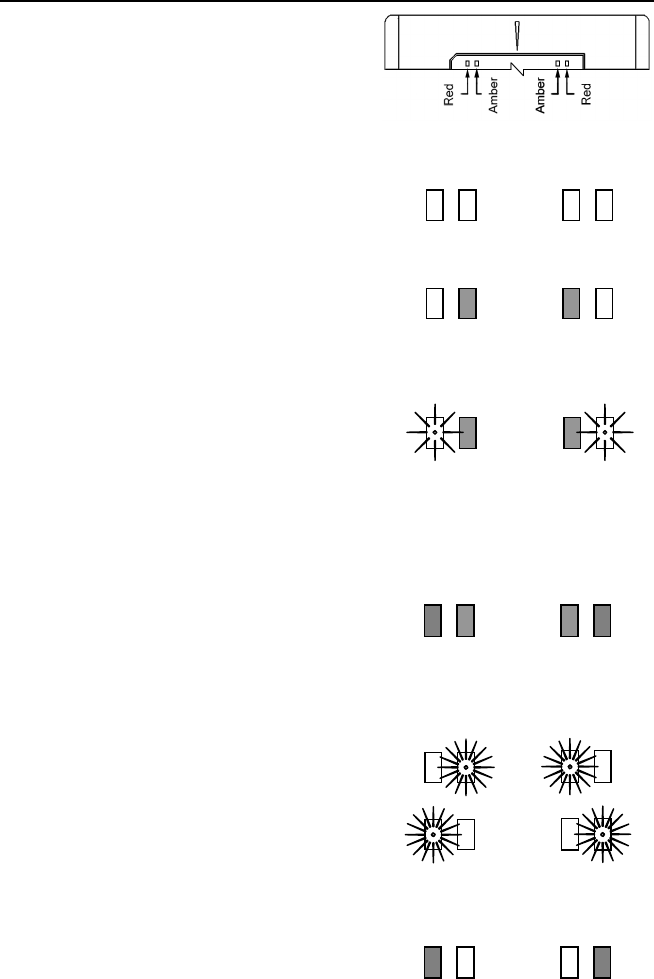
VISUAL INDICATORS
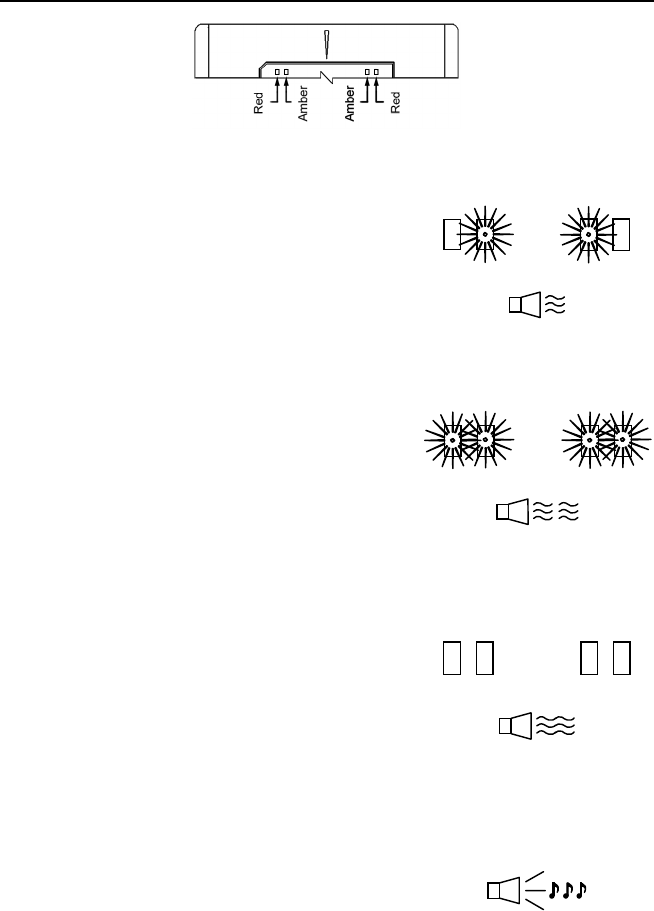
There is a red LED and amber LED on
the front of the MS7600. When the scanner is
on, the flashing or constant illumination of the
LEDs indicates the status of the current scan
and the scanner.
Figure 24: LEDs
No Red or Amber LED
The LEDs will not be illuminated if the scanner is
not receiving power from the host or transformer.
Steady Amber
When the laser is active, the amber LED is
illuminated. The amber LED will remain
illuminated until the laser is deactivated.
Steady Amber and Single Red Flash
When the scanner successfully reads a bar code,
the red LED will flash and the scanner will beep
once. If the red LED does not flash or the
scanner does not beep once, then the bar code
has not been successfully read.
Steady Amber and Steady Red
After a successful scan, the scanner transmits
the data to the host device. Some
communication modes require that the host
inform the scanner when data is ready to be
received. If the host is not ready to accept the
information, the scanner’s red LED will remain on
until the data can be transmitted.
Flashing Amber then Flashing Red
This indicates the scanner is in program mode. A
razzberry tone indicates that an invalid bar code
has been scanned in this mode.
or
If the unit is in sleep mode, each LED will flash
once every 15 seconds.
Steady Red, Amber off
This indicates the scanner may be waiting for
communication from the host.
24
FAILURE MODES
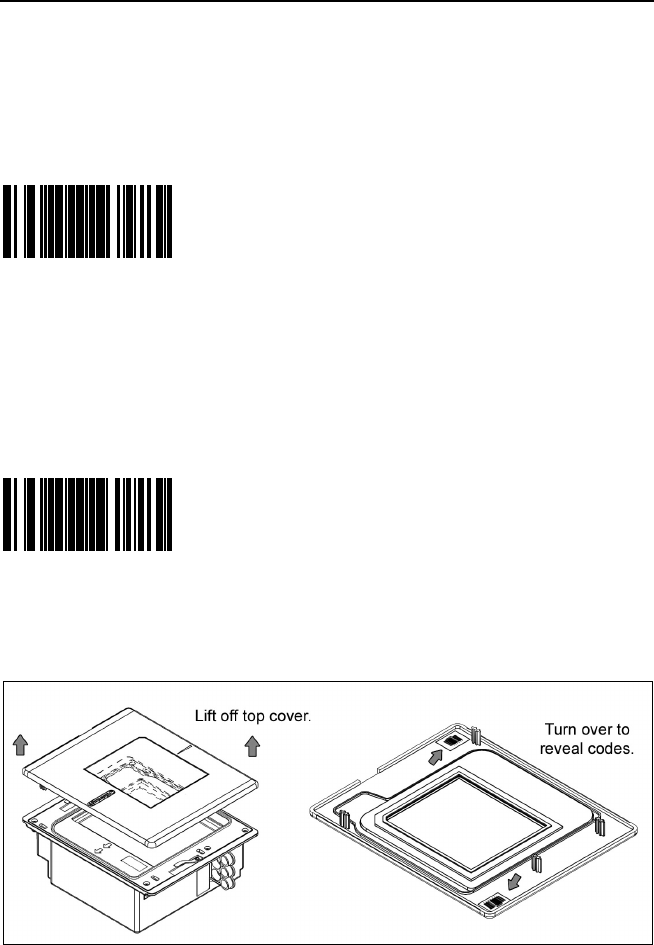
Figure 25: LEDs
Flashing Amber and One Razzberry Tone
This indicates the scanner has experienced a
laser subsystem failure. Return the unit for repair
at an authorized service center.
Flashing Red and Amber and
Two Razzberry Tones
This indicates the scanner has experienced a
motor failure. Return the unit for repair at an
authorized service center.
Continuous Razzberry Tone with
both LEDs off
If, upon power up, the scanner emits a
continuous razzberry tone, then the scanner has
an electronic failure. Return the unit for repair at
an authorized service center.
Three Beeps - on power up
If the scanner beeps 3 times on power up then,
the nonvolatile memory that holds the scanner
configuration has failed. Return the unit for repair
at an authorized service center.
25
CHANGING THE BEEPER TONE & VOLUME
Changing the Beeper Tone
Beeper tones may be programmed directly or incrementally using the following
bar code. The new tone will be heard followed by a short pause. Two more new
tones will be heard signifying the new setting has been stored in memory. The
silent (no beep) tone is also selectable.
³999975
Next Beep Tone
Changing the Beeper Volume
Volume levels may be programmed directly or incrementally using the following
bar code. The new volume will be heard followed by a short pause. Two more
tones will be heard signifying the new setting has been saved in memory. The
silent (no volume) tone is also selectable.
³999974
Next Volume
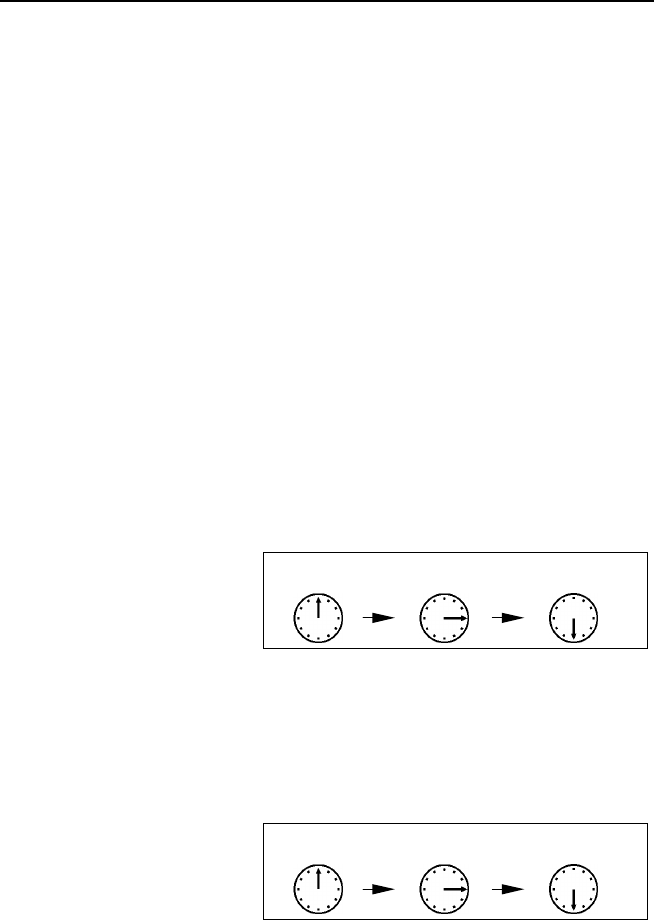
These volume control and beeper tone bar codes can also be found under the
Top plate of the scanner and in the MetroSelect Programming Guide.
Figure 26: Additional Beeper Tone and Volume Control Bar Codes.
26
POWER SAVE MODES AND IR DETECTION
The MS7600 has five programmable power save modes. Refer to the
MetroSelect Programming Guide for additional information on Power Save
Modes.
1. Blink Power Save Mode:
Blinks the laser OFF & ON after a programmed period of non-use.
When the scanner recognizes a bar code it will exit the Blink mode.
2. Laser Off Power Save Mode:
Turns the laser OFF after a programmed period of non-use. The motor
continues to spin allowing for a faster “wake” up time.
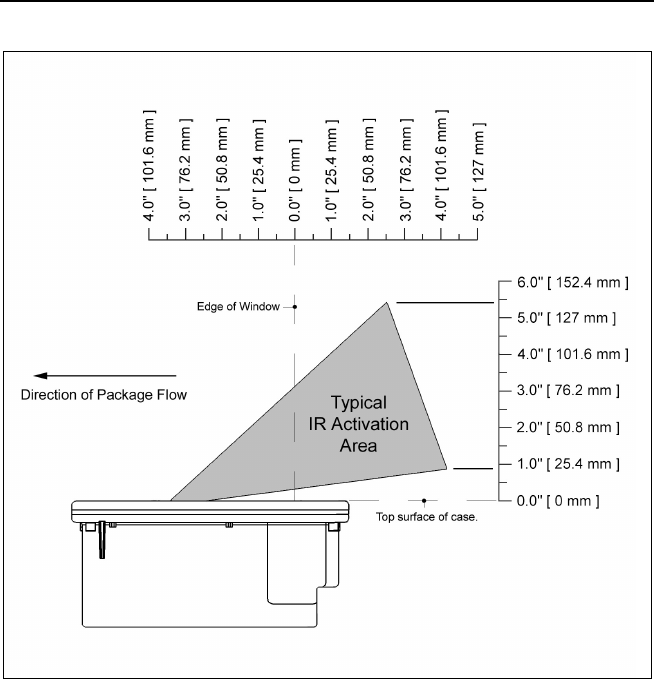
Any movement detected by the IR will “wake” the scanner from the Laser Off
power save mode (see figure 27).
3. Laser & Motor Off Power Save Mode:
Turns the laser and motor OFF after a programmed period of non-use.
Any movement detected by the IR will “wake” the scanner from the power
save mode (see figure 27). This mode’s “wake” time is slightly longer due to
the motor’s need to restart.
4. Dual Action Power Save Mode #1:
“Blinks” the laser OFF & ON after a programmed period of non-use turns the
laser and motor OFF at thirty-minute intervals.
Example:
If the power save timeout
is set to 15 minutes.
Any movement detected by the IR will “wake” the scanner from the power
save mode (see figure 27).
5. Dual Action Power Save Mode #2 (Default):
Turns the laser OFF after a programmed period of non-use then turns the
motor OFF after thirty-minute intervals.
Example:
If the power save timeout
is set to 15 minutes.
Any movement detected by the IR will “wake” the scanner from the power
save mode (see figure 27).
Laser starts
“Blinking”
Laser & Motor
turns OFF
Last
Scan
Laser turns
OFF
Motor turns
OFF
Last
Scan
27
POWER SAVE MODES AND IR DETECTION
Figure 27: IR Activation Area Parallel to Package Flow
Specifications are subject to change without notice.
28
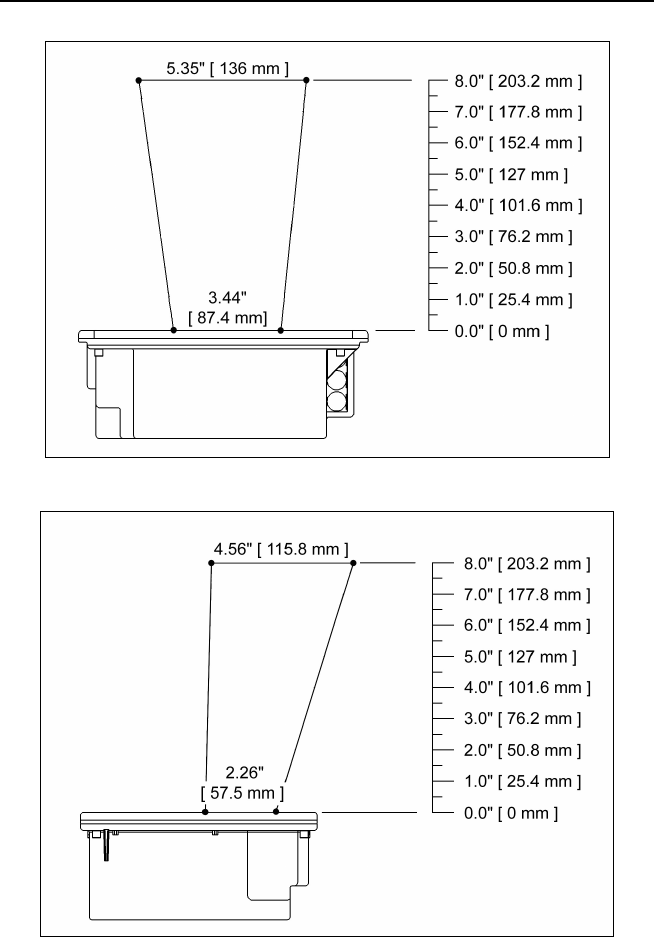
SCAN VOLUME SPECIFICATIONS
(BASED ON 100% UPC BAR CODES)
Figure 28: Scan Volume in Plane Perpendicular to Flow
Figure 29: Scan Volume in Plane Parallel to Flow
Specifications subject to change without notice.
29
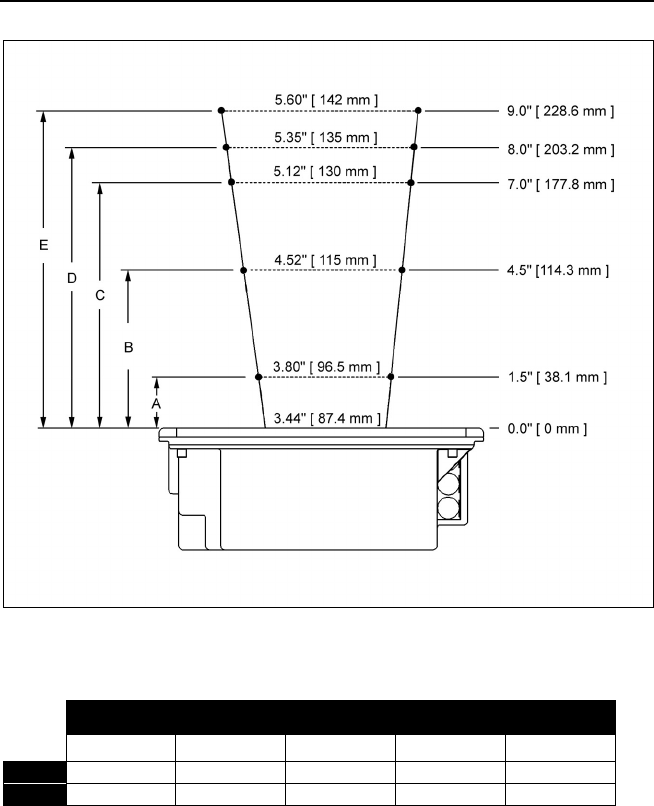
DEPTH OF FIELD BY MINIMUM BAR CODE ELEMENT WIDTH
(BASED ON 100% UPC BAR CODES)
Figure 30: Depth of Field Perpendicular to Flow
Minimum Bar Code Element Width
ABCDE
mm .13 .19 .26 .33 .48
mils 5.2 7.5 10.4 13 19
Specifications subject to change without notice.

30
TROUBLESHOOTING GUIDE
The following guide is for reference purposes only. Contact a Metrologic
representative at 1-800-ID-METRO or 1-800-436-3876 to preserve the limited
warranty terms.
MS7600 SERIES TROUBLESHOOTING GUIDE
SYMPTOMS POSSIBLE CAUSE(S) SOLUTION
All Interfaces
No LEDs, beep
or motor spin.
No power is being
supplied to the
scanner.
Check transformer, outlet and
power strip. Make sure the
cable is plugged into the
scanner.
No LEDs, beep.
No power is being
supplied to the
scanner from host.
Some host systems cannot
supply enough current to power
MS7600 series scanner. Use
the power supply included with
the scanner.
3 beeps on
power up.
Non-volatile RAM
failure.
Contact a Metrologic
Representative, if the unit will
not hold the programmed
configuration.
Continuous
razz tone on
power up.
RAM or ROM failure.
Contact a Metrologic
Representative, if the unit will
not function.
Razz tone and
amber LED flash
at power up.
VLD failure. Contact a Metrologic
Representative.
Razz tone and
both LEDs flash
at power up.
Scanner motor failure. Contact a Metrologic
Representative.
Multiple scans
upon
presentation of
code.
Same symbol timeout
set too short.
Adjust same symbol timeout for
a longer time.
The unit powers
up, but does
not beep.
Beeper disabled
No volume is selected
No tone is selected.
Enable beeper
Select volume
Select tone.

31
TROUBLESHOOTING GUIDE (CONTINUED)
SYMPTOMS POSSIBLE CAUSE(S) SOLUTION
Scanning a particular
symbology that is not
enabled.
UPC/EAN, Code 39, interleaved
2 of 5, Code 93, Code 128 and
Codabar are enabled by default.
Verify that the type of bar code
being read has been selected.
The unit powers
up, but does
not scan and/or
beep.
The scanner has been
programmed for a
character length lock,
or a minimum length
and bar code being
scanned does not
satisfy the
programmed criteria.
Verify that the bar code that is
being scanned falls into the
criteria.
(Typical of Non-UPC/EAN
codes. The scanner defaults to
a minimum of 4 character bar
code.)
The unit scans
a bar code, but
locks up after
the first scan
(red LED stays
on).
The scanner is
configured to support
some form of host
handshaking but is not
receiving the signal.
If the scanner is setup to support
ACK/NAK, RTS/CTS,
XON/XOFF or D/E, verify that
the host cable and host are
supporting the handshaking
properly.
The unit scans,
but the data
transmitted to
the host is
incorrect.
The scanner’s data
format does not match
the host system
requirements.
Verify that the scanner’s data
format matches that required by
the host. Make sure that the
scanner is connected to the
proper host port.
The print quality of the
bar code is suspect.
Also check character
length lock.
Scanner beeps
at some bar
codes and NOT
for others of the
same bar code
symbology. The aspect ratio of the
bar code is out of
tolerance.
Check print mode. The type of
printer could be the problem.
Change print settings. For
example change to econo mode
or high speed.

32
TROUBLESHOOTING GUIDE (CONTINUED)
SYMPTOMS POSSIBLE CAUSE(S) SOLUTION
The bar code may
have been printed
incorrectly.
Check if it is a check
digit/character/or border
problem.
The scanner is not
configured correctly
for this type of bar
code.
Check if check digits are set
properly.
Scanner beeps
at some bar
codes and NOT
for others of the
same bar code
symbology. The minimum symbol
length setting does not
work with the bar
code.
Check if the correct minimum
symbol length is set.
Keyboard Wedge Only
The unit scans
the bar code
but there is no
data
Configuration is not
correct
Make sure the scanner is
configured for the appropriate
mode.
The unit scans
but the data is
not correct.
Configuration is not
correct.
Make sure that the proper PC
type AT, PS2 or XT is selected.
Verify correct country code and
data formatting are selected.
Adjust intercharacter delay
SYMPTOM.
The unit is
transmitting
each character.
Configuration is not
correct.
Increase the interscan code
delay setting. Adjust whether the
F0 break is transmitted. It may
be necessary to try this in both
settings.
Alpha characters
show as lower
case.
Computer is in Caps
Lock mode.
Enable Caps Lock detect setting
of the scanner to detect whether
the PC is operating in Caps
Lock.

33
TROUBLESHOOTING GUIDE (CONTINUED)
SYMPTOMS POSSIBLE CAUSE(S) SOLUTION
Everything
works except
for a couple of
characters.
These characters may
not be supported by
that country’s key look
up table.
Try operating the scanner in Alt
mode.
RS-232 Only
The unit is
transmitting
each character.
Configuration is not
correct.
Increase the interscan code
delay setting. Adjust whether the
F0 break is transmitted. It may
be necessary to try this in both
settings.
Alpha
characters
show as lower
case.
Computer is in Caps
Lock mode.
Enable Caps Lock detect setting
of the scanner to detect whether
the PC is operating in Caps
Lock.
Everything
works except
for a couple of
characters.
These characters may
not be supported by
that country’s key look
up table.
Try operating the scanner in Alt
mode.
Com port at the host is
not working or
configured properly.
Cable not connected to
the proper com port.
Power-up OK
and scans OK
but does not
communicate
properly to the
host. Com port not
operating properly.
Check to make sure that the
baud rate and parity of the
scanner and the communication
port match and the program is
looking for “RS-232" data.
The host is
receiving data but
the data does not
look correct.
The scanner and host
may not be configured
for the same interface.
Check that the scanner and the
host are configured for the same
interface.
34
TROUBLESHOOTING GUIDE (CONTINUED)
SYMPTOMS POSSIBLE CAUSE(S) SOLUTION
Characters are
being dropped.
Intercharacter delay
needs to be added to
the transmitted output.
Add some intercharacter delay
to the transmitted output by
using the MetroSelect®
Programming Guide
(MLPN 00-02407A-1 & -2).
Aux port operation with any interface
Trouble with the
Secondary
Scanner.
Refer to the user guide provided
with the secondary scanner.
Cable [MLPN 54-54667]
may not be connected
to the proper port.
Ensure Secondary scanner is
connected to the MS7600 com
port marked “Aux” port.
* The MS7600 must be
programmed to enable the
“Aux” port.
Secondary
Scanner
powers up but
data is not
relayed to the
host.
The “Aux” com port
may not be operating
properly. The auxiliary input port’s data
format must match the main
output format of the secondary
scanner.
* Use MetroSet®.
For the Auxiliary interface, choose “HoloTrak Decode”.
All remaining parameters will be automatically chosen.
USB Only
Check that the scanner is
programmed for USB operation.
The scanner
Powers up ok,
scans ok but
does not
communicate.
The USB Port is not
operating correctly. Check that the host’s USB port
is enabled.
Unplug & plug USB cable at host
end.
When configured
as USB scanner
razz tone & 3
LED flashes.
USB port is not
operating correctly. Contact a Metrologic
representative if error continues.
35
DESIGN SPECIFICATIONS
MS7600 SERIES DESIGN SPECIFICATIONS
OPERATIONAL
Light Source: VLD 650 ± 10 nm
Laser Power: 1.1 mW maximum
Depth of Field: 0 mm to 203.2 mm (0”- 8.0”) for
0.33 mm (13 mil) bar code
Width of Scan Field: 85 mm (3.3”) @ 0 mm (0.0”);
142 mm (5.6”) @ 124 mm (4.9”)
Scan Speed: 2000 scans/second
Scan Pattern: 5 fields of 4 parallel lines (omnidirectional)
Scan Lines: 20
Min Bar Width: 0.127 mm (5.0 mil)
Decode Capability: Autodiscriminates all standard bar codes; for other
symbologies call Metrologic
System Interfaces: PC Keyboard Wedge, RS-232, OCIA, Light Pen,
Stand Alone PC Keyboard, USB, IBM 46xx
Print Contrast: 35% minimum reflectance difference
No. Characters Read: up to 80 data characters(Maximum number will vary
based on symbology and density)
Roll, Pitch, Yaw: 360°, 60°, 60°
Beeper Operation: 7 tones or no beep
Indicators (LED): amber = laser on, ready to scan
red = good read, decoding
MECHANICAL
Dimensions: 193 mm (7.6") H, 88 mm (3.5") D,
229 mm (9.0") W
Weight: 2.88 Kg (6.35 lbs)
Termination: Three 10-pin modular RJ45 jacks
Cable: Standard 2.1m (7’) straight; for other cables call
Metrologic
Specifications subject to change without notice.
36
DESIGN SPECIFICATIONS (CONTINUED)
MS7600 SERIES DESIGN SPECIFICATIONS
ELECTRICAL
Input Voltage: 5.2VDC ± 0.25V
Power: 2.6 W
Operating Current: 500 mA
Laser Off Power Save Mode = < 350 mA
Standby Current:
Laser/Motor Off Power Save Mode = <165 mA
DC Transformers: Class II; 5.2 V @ 650 mA
Laser Class: IEC 60825-1:1993+A1:1997+A2:2001 Class 1
EMC: FCC, ICES-003 & EN 55022 Class B
ENVIRONMENTAL
Operating Temperature: 0°C to 40°C (32°F to 104°F)
Storage Temperature: -40°C to 60°C (-40°F to 140°F)
Humidity: 5% to 95% relative humidity, non-condensing
Light Levels: 4842 LUX (450 foot candles)
Contaminants: Sealed to resist airborne particulate contaminants
Ventilation: None required
Specifications subject to change without notice.

37
RS232 DEMONSTRATION PROGRAM
If an RS232 scanner is not communicating with your IBM compatible PC, key
in the following BASIC program to test that the communication port and
scanner are working. This program is for demonstration purposes only. It is
only intended to prove that cabling is correct, the com port is working, and the
scanner is working. If the bar code data displays on the screen while using
this program, it only demonstrates that the hardware interface and scanner
are working. At this point, investigate whether the application software and
the scanner configuration match. If the application does not support RS-232
scanners, a software wedge program that will take RS-232 data and place it
into a keyboard buffer may be needed. This program tells the PC to ignore
RTS-CTS, Data Set Ready (DSR) and Data Carrier Detect (DCD) signals. If
the demonstration program works and yours still does not, jumper RTS to
CTS and Data Terminal Reading (DTR) to DCD and DSR on the back of your
PC.
10 CLS
20 ON ERROR GOTO 100
30 OPEN “COM1:9600,S,7,1,CS0,DS0,CD0,LF” AS #1
35 PRINT “SCAN A FEW BAR CODES”
40 LINE INPUT #1, BARCODE$
50 PRINT BARCODE$
60 K$ = INKEY$: IF K$ = CHR$(27) THEN GOTO 32766
70 GOTO 40
100 PRINT “ERROR NO.”; ERR; “ PRESS ANY KEY TO TERMINATE.”
110 K$ = INKEY$: IF K$ = “” THEN GOTO 110
32766 CLOSE: SYSTEM
32767 END
38
APPLICATIONS AND PROTOCOLS
The model number on each scanner includes the scanner number and factory
default communications protocol.
SCANNER VERSION
IDENTIFIER COMMUNICATION PROTOCOL(S)
7620
7625 13 RS232, IBM 46xx, OCIA, Aux
7620
7625 37 RS232, Light Pen, Keyboard Wedge,
Stand-Alone Keyboard, USB, Aux
The MS7600 with Built-in PC Keyboard Wedge Interface is designed to be used
for keyboard emulation only. Many RS-232 programmable functions available in
other Metrologic scanners are also available as keyboard wedge functions.
The following are the most important selectable options specific to the keyboard
wedge.
Keyboard Type
• ** AT (includes IBM® PS2 models 50, 55, 60, 80)
• XT
• IBM PS2 (includes models 30, 70, 8556)
Keyboard Country Type
• ** USA • German • Spanish
• Belgium • Italian • Swiss
• French • Japan • United Kingdom
** Refer to pages 39-44 for complete information on the factory default
settings. Refer to the MetroSelect® Programming Guide
(MLPN 00-02407B) or MetroSet 2’s help files for information on how to
change the default settings.
39
DEFAULT SETTINGS
Many functions of the scanner can be "programmed" - that is, enabled or
disabled. The scanner is shipped from the factory programmed to a set of
default conditions. The default parameter of the scanner has an asterisk
( * ) in the charts on the following pages. If an asterisk is not in the default
column then the default setting is Off or Disabled. Every communication does
not support every parameter. If the communication supports a parameter listed
in the charts on the following pages, a check mark will appear.
PARAMETER DEFAULT OCI A RS-232 LIGHT
PEN
IBM
46XX KBW USB
UPC/EAN *999999
Code 128 *999999
Code 93 *999999
Codabar *999999
Interleaved 2 of 5 (ITF) *999999
MOD 10 Check on ITF 999999
Code 11 999999
Code 39 *999999
Full ASCII Code 39 999999
MOD 43 Check on
Code 39 999999
MSI-Plessey 999999
Airline (15 digit) 2 of 5 999999
Airline (13 digit) 2 of 5 999999
Matrix 2 of 5 999999
Telepen 999999
UK Plessey 999999
STD 2 of 5 999999
MSI-Plessey 10/10 Check
Digit 999999
MSI-Plessey MOD 10 Check
Digit *999999
Paraf Support 999999
ITF Symbol Lengths Variable 999999
Minimum Symbol Length 4 999999
Symbol Length Lock None 999999
Bars High as Code 39 *9
Spaces High as Code 39 9
40
DEFAULT SETTINGS (CONTINUED)
PARAMETER DEFAULT OCIA RS-232 LIGHT
PEN
IBM
46XX KBW USB
Bars High as Scanned 9
Spaces High as Scanned 9
DTS/SIEMENS 9
DTS/NIXDORF *9
NCR F 9
NCR S 9
Poll Light Pen Source 9
Beeper Tone Normal 99999 9
Beep/Transmit Sequence Before
Transmit 99999 9
Beeper Volume Loudest 99999 9
Communication Timeout None 99999 9
Razzberry Tone on Timeout 99999 9
Three Beeps on Timeout 99999 9
No Beeps on Timeout *99999 9
Enter Power Save Mode 10 mins. 99999 9
Blink Power Save Mode 99999 9
Laser OFF Power Save Mode 99999 9
Laser & Motor OFF
Power Save Mode 99999 9
Dual Action Power Save
Mode #1 99999 9
Dual Action Power Save
Mode #2 *99999 9
Same Symbol Rescan
Timeout: 200 msecs 99999 9
Same Symbol Rescan
Timeout: 500 msecs
Programmable in 50 msec
steps (MAX 6.35 seconds)
*99999 9
Same Symbol Rescan
Timeout: 1250 msecs 99999 9
Same Symbol Rescan
Timeout: 2000 msecs 99999 9
Intercharacter Delay
Programmable in 1 msec
steps (MAX 255 msecs)
1 msecs
10 msecs in
KBW
99 99

41
DEFAULT SETTINGS (CONTINUED)
PARAMETER DEFAULT OCIA RS-232 LIGHT
PEN
IBM
46XX KBW USB
Number of Scan Buffers 1 999999
Transmit EAN-8 Check Digit *99 99 9
Transmit EAN-13 Check Digit *99 99 9
Transmit UPC-A Check Digit *99999 9
Transmit UPC-E Check Digit 99999
Expand UPC-E 99999 9
Convert UPC-A to
EAN-13 99 99 9
UPC GTIN-14 Format 99 99 9
Transmit Lead Zero on UPC-E 999999
Convert EAN-8 to
EAN-13 aa aa a
Transmit UPC-A Number
System *99999 9
Transmit UPC-A
Manufacturer ID# *999999
Transmit UPC-A Item ID# *999999
Transmit Codabar
Start/Stop Characters 99 99 9
CLSI Editing (Enable) 99 99 9
Transmit Mod 43 Check Digit
on Code 39 99 99 9
Transmit Code 39
Stop/Start Characters 99 99 9
Transmit Mod 10/ITF 99 99 9
Transmit MSI-Plessey Check
Characters 99 99 9
Parity Space 9
Baud Rate 9600 9
8 Data Bits 9
7 Data Bits *9
Transmit Sanyo ID
Characters 999
Nixdorf ID 999
LRC Enabled 999
UPC Prefix 999

42
DEFAULT SETTINGS (CONTINUED)
PARAMETER DEFAULT OCIA RS-232 LIGHT
PEN
IBM
46XX KBW USB
UPC Suffix 999
Transmit AIM ID Characters 999
STX Prefix 999
ETX Suffix 999
Carriage Return *999
Line Feed - disabled by
default in KBW *999
Tab Prefix 999
Tab Suffix 999
"DE" Disable Command 99
"FL" Laser Enable Command 99
DTR Handshaking Support 9
RTS/CTS Handshaking 9
Character RTS/CTS *9
Message RTS/CTS 9
XON/XOFF Handshaking 9
ACK/NAK 9
Two Digit Supplements 99
as code
39 999
Five Digit Supplements 99
as code
39 999
Bookland 978 99
as code
39 999
Bookland 977 (2 digit)
Supplemental Requirement 999999
Supplements are not
Required *999999
Two Digit Redundancy *999999
Five Digit Redundancy 999999
100 msec to Find Supplement
Programmable in 100 msec
steps (MAX 800 msec) *999999

43
DEFAULT SETTINGS (CONTINUED)
PARAMETER DEFAULT OCIA RS-232 LIGHT
PEN
IBM
46XX KBW USB
Coupon Code 128 99
as code
39 999
Programmable Code Lengths 7 avail. 999999
Programmable Prefix
Characters 10 avail. 999
Suffix Characters 999
Prefixes for individual Code
Types 999
Editing 999999
Inter Scan-Code Delay
Programmable (100 µsec
steps)
800 µsec 99
Function/Control Key Support 99
Minimum Element Width
Programmable in 5.6 µsec
steps
1 msec 9
Depth of Field
Variable Depth of Field *999999
Normal Depth of Field *999999
Extended Depth of Field 999999
Long Depth of Field *999999
Ultra Close Depth of Field 999999

44
DEFAULT SETTINGS (CONTINUED)
Default settings for “Aux” interface
The secondary scanner and the MS7600 always communicate via RS232. Data
is relayed to the host via various primary interfaces.
PARAMETER DEFAULT OCIA RS-232 LIGHT
PEN
IBM
46XX KBW USB
Aux Baud Rate 38400 999999
Aux parity space 999999
Aux data bits 7 999999
Aux stop bits 2 999999
Aux character RTS *999999
Aux message RTS 999999
Aux Ack/Nak *999999
Aux Xon/Xoff *999999
Aux D/E commands 999999
Aux M/O commands 999999
Aux F/L commands 999999
Aux Intercharacter Delay 1 msec 999999
Aux Port Data Format None
(Disabled) 999999
45
SCANNER AND CABLE TERMINATIONS
Scanner Pinout Connections
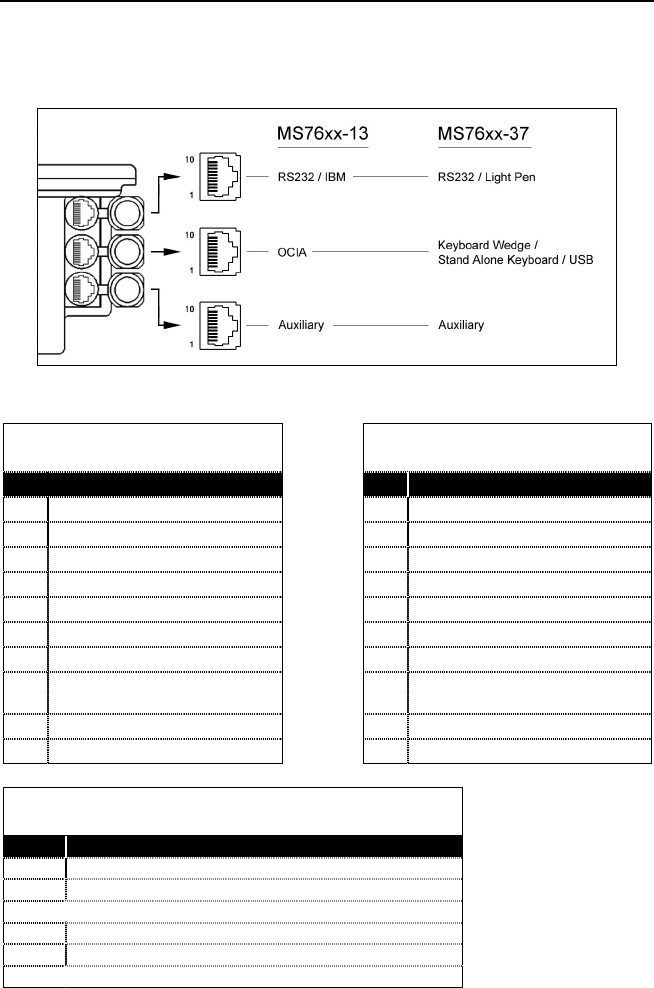
The MS7600 scanner interfaces terminate to 10-pin modular jacks located on the
back of the unit. The serial # label indicates the model number of the scanner.
Figure 31: Scanner Interface Ports
MS762x-13 OCIA MS762x-13 IBM 46xx
Pin Function Pin Function
1 Ground 1 Ground
2 NC 2 RS-232 Transmit Output
3 NC 3 RS-232 Receive Input
4 RDATA 4 RTS Output
5 RDATA Return 5 CTS Input
6 Clock in 6 DTR
7Clock out 7IBM B- (D-)
8Clock in Return/
Clock out Rtrn 8 IBM A+ (D+)
9+5VDC 9+5V IN
10 Shield Ground 10 NC
MS762x-13/-37 Auxilary Port RS232 IN Only
Pin Function
1 Ground
2 RS-232 Receive Input
3 RS-232 Transmit Output
4 RTS In
5CTS Out
6-10 NC
Continued on next page
46
SCANNER AND CABLE TERMINATIONS (CONTINUED)
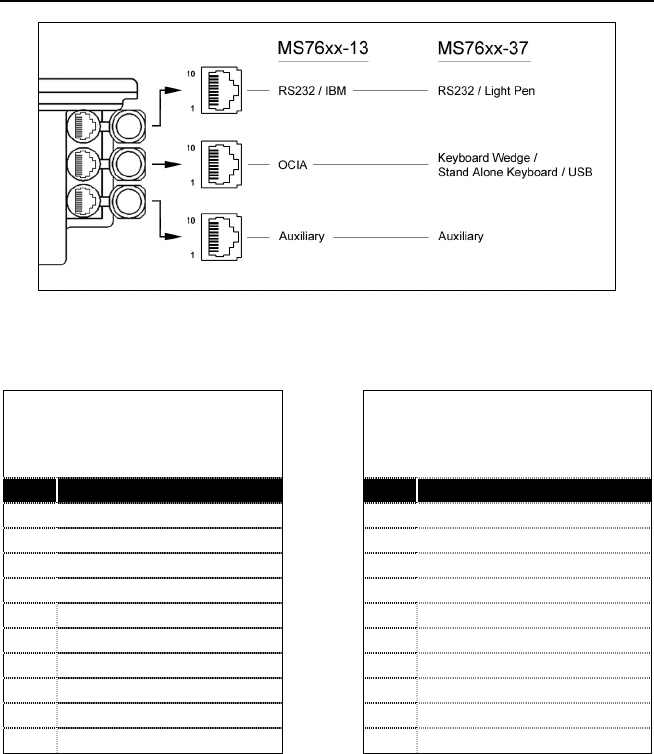
Figure 32: Scanner Interface Ports
MS762x-37
Keyboard Wedge,
Stand-Keyboard or USB
MS762x-37
RS-232 or Light Pen
Pin Function Pin Function
1 Ground 1 Ground
2 USB D- 2 RS-232 Transmit Output
3 USB D+ 3 RS-232 Receive Input
4 PC Data 4 RTS Output
5 PC Clock 5 CTS Input
6 KB Clock 6 DTR Input/LTPN Source
7 PC +5V, V-USB 7 N/C
8 KB Data 8 LTPN Data
9+5VDC 9+5VDC
10 Shield Ground 10 Shield Ground
47
SCANNER AND CABLE TERMINATIONS (CONTINUED)
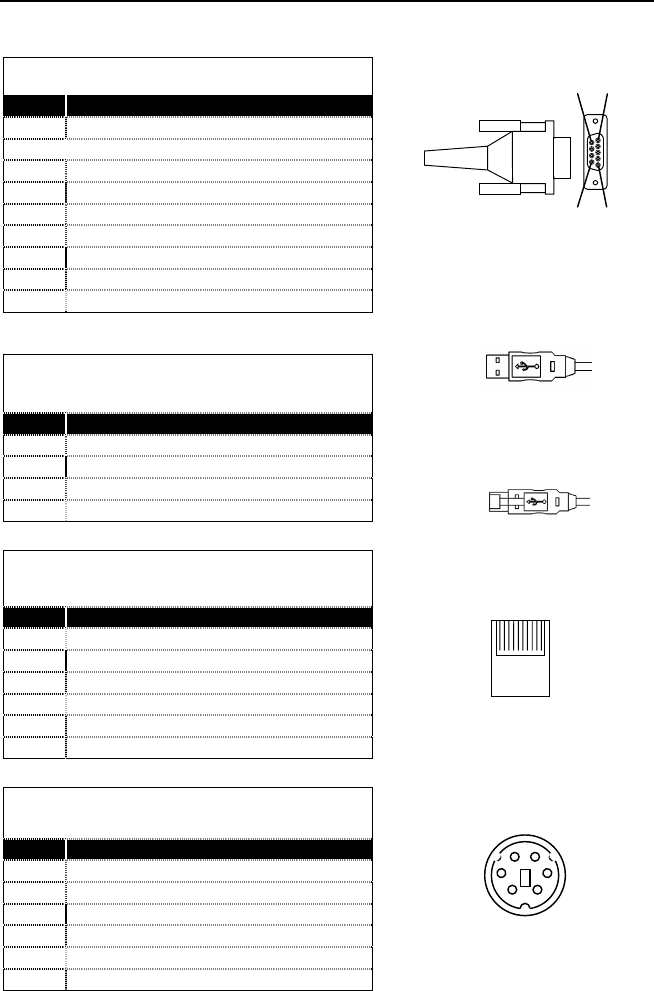
Cable Connector Configurations (Host End)
PowerLink Cable MLPN 54-54xxx*
Pin Function
1 Shield Ground
2 RS-232 Transmit Output
3 RS-232 Receive Input
4 DTR Input
5 Power/Signal Ground
6 Reserved
7 CTS Input
8 RTS Output
9+5VDC
xxx* specifies connection to the host
USB PowerLink Cable
(MLPN 54-54165, Type A)
Pin Function
1N/C
2D-
3D+
4 Ground
PowerLink, RS232 LSO/AUX Cable
MLPN 54-54667
Pin Function
1 Ground
2 RS-232 Transmit Output
3 RS-232 Receive Input
4 RTS Output
5 CTS Input
6-10 N/C
Stand Alone Keyboard Cable
MLPN 54-54020
Pin Function
1 PC Data
2NC
3 Power Ground
4 +5VDC PC Power to KB
5 PC Clock
6NC
9-Pin D-Type Conn.
95
61
110
10-pin Modular Plug
USB Type A (Top)
Locking Type A (Bottom)
1
4
1
4
4
21
3
65
6-Pin Male Mini-DIN Conn.
48
SCANNER AND CABLE TERMINATIONS (CONTINUED)
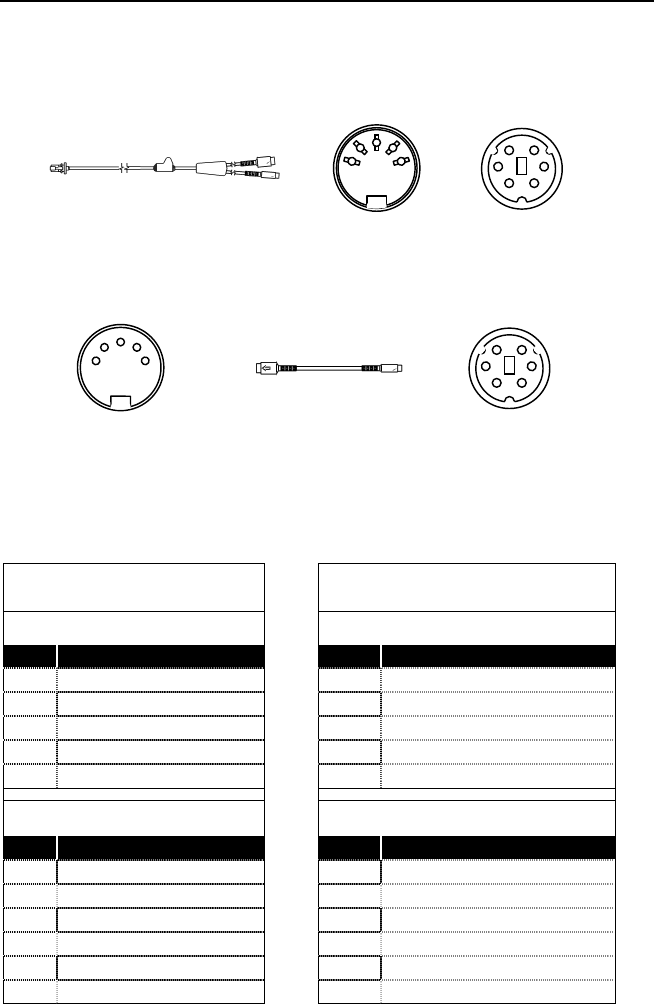
Cable Connector Configuration
The PowerLink cable is terminated with a 5-pin DIN female connector on
one end, and a 6-pin mini DIN male on the other.
Metrologic will supply an adapter cable with a 5-pin DIN male connector
on one end and a 6-pin mini DIN female connector on the other.
According to the termination required, connect the appropriate end of the
adapter cable to the PowerLink cable, leaving the necessary termination
exposed for connecting to the keyboard and the keyboard port on the
PC. The pin assignments are as follows:
PowerLink Cable Adapter Cable
5-pin Female DIN 5-pin Male DIN
Pin Function Pin Function
1 Keyboard Clock 1 PC Clock
2 Keyboard Data 2 PC Data
3 No Connect 3 No Connect
4 Power Ground 4 Power Ground
5 +5 Volts DC 5 +5 Volts DC
6-pin Male Mini-DIN 6-pin Female Mini-DIN
Pin Function Pin Function
1 Keyboard Data 1 Keyboard Data
2 No Connect 2 No Connect
3 Power Ground 3 Power Ground
4 +5 Volts DC 4 +5 Volts DC
5 PC Clock 5 Keyboard Clock
6 No Connect 6 No Connect
4
21
3
65
6-Pin DIN, Male
2
1
45
3
5-Pin DIN, Female
PowerLink Cable
6-pin Mini Din, Female
Adapter Cable
3
12
4
56
2
3
54
1
5-Pin Din, Male

49
LIMITED WARRANTY
The MS7600 Series scanners are manufactured by Metrologic at its Blackwood, New
Jersey, U.S.A. facility. The MS7600 Series scanners have a two (2) year limited warranty
from the date of manufacture. Metrologic warrants and represents that all MS7600 Series
scanners are free of all defects in material, workmanship and design, and have been
produced and labeled in compliance with all applicable U.S. Federal, state and local laws,
regulations and ordinances pertaining to their production and labeling.
This warranty is limited to repair, replacement of Product or refund of Product price at the
sole discretion of Metrologic. Faulty equipment must be returned to the Metrologic facility
in Blackwood, New Jersey, U.S.A. or Puchheim, Germany. To do this, contact Metrologic’s
Customer Service/Repair Department to obtain a Returned Material Authorization (RMA)
number.
In the event that it is determined the equipment failure is covered under this warranty,
Metrologic shall, at its sole option, repair the Product or replace the Product with a
functionally equivalent unit and return such repaired or replaced Product without charge
for service or return freight, whether distributor, dealer/reseller, or retail consumer, or
refund an amount equal to the original purchase price.
This limited warranty does not extend to any Product which, in the sole judgement of
Metrologic, has been subjected to abuse, misuse, neglect, improper installation, or
accident, nor any damage due to use or misuse produced from integration of the Product
into any mechanical, electrical or computer system. The warranty is void if the case of
Product is opened by anyone other than Metrologic’s repair department or authorized
repair centers.
THIS LIMITED WARRANTY, EXCEPT AS TO TITLE, IS IN LIEU OF ALL OTHER
WARRANTIES OR GUARANTEES, EITHER EXPRESS OR IMPLIED, AND
SPECIFICALLY EXCLUDES, WITHOUT LIMITATION, WARRANTIES OF
MERCHANTABILITY AND FITNESS FOR A PARTICULAR PURPOSE UNDER THE
UNIFORM COMMERCIAL CODE, OR ARISING OUT OF CUSTOM OR CONDUCT.
THE RIGHTS AND REMEDIES PROVIDED HEREIN ARE EXCLUSIVE AND IN LIEU
OF ANY OTHER RIGHTS OR REMEDIES. IN NO EVENT SHALL METROLOGIC BE
LIABLE FOR ANY INDIRECT OR CONSEQUENTIAL DAMAGES, INCIDENTAL
DAMAGES, DAMAGES TO PERSON OR PROPERTY, OR EFFECT ON BUSINESS
OR PROPERTY, OR OTHER DAMAGES OR EXPENSES DUE DIRECTLY OR
INDIRECTLY TO THE PRODUCT, EXCEPT AS STATED IN THIS WARRANTY. IN NO
EVENT SHALL ANY LIABILITY OF METROLOGIC EXCEED THE ACTUAL AMOUNT
PAID TO METROLOGIC FOR THE PRODUCT. METROLOGIC RESERVES THE
RIGHT TO MAKE ANY CHANGES TO THE PRODUCT DESCRIBED HEREIN.
Corporate Headquarters
Metrologic Instruments, Inc. Customer Service: 1-800-ID-METRO
90 Coles Road Tel: 856-228-8100
Blackwood, NJ 08012-4683 Fax: 856-228-6673
Email: info@metrologic.com
Website: www.metrologic.com
Germany
Metrologic Instruments GmbH Tel: 49-89-89019-0
Dornierstrasse 2 Fax: 49-89-89019-200
82178 Puchheim b. Email: info@europe.metrologic.com
Munich, Germany

50
NOTICES
This device complies with Part 15 of the FCC Rules. Operation is subject to the
following two conditions: (1) This device may not cause harmful interference, and
(2) this device must accept any interference received, including interference that
may cause undesired operation.
This equipment has been tested and found to comply with the limits for a Class B
digital device, pursuant to Part 15 of the FCC rules. These limits are designed to
provide reasonable protection against harmful interference in a residential
installation. This equipment generates, uses and can radiate radio frequency
energy and, if not installed and used in accordance with the instructions, may
cause harmful interference to radio communications. However, there is no
guarantee that interference will not occur in a particular installation. If this
equipment does cause harmful interference to radio or television reception, which
can be determined by turning the equipment off and on, the user is encouraged
to try to correct the interference by one or more of the following measures:
• Reorient or relocate the receiving antenna
• Increase the separation between the equipment and receiver
• Connect the equipment into an outlet on a circuit different from that to which
the receiver is connected
• Consult the dealer or an experienced radio/TV technician for help
Notice
This Class B digital apparatus complies with Canadian ICES-003.
Avertissement
Cet appareil numérique de la class B est conforme à la norme NMB-003.
Caution
Use of controls or adjustments or performance of procedures other than those
specified herein may result in hazardous laser light exposure. Under no
circumstances should the customer attempt to service the laser scanner. Never
attempt to look at the laser beam, even if the scanner appears to be nonfunctional.
Never open the scanner in an attempt to look into the device. Doing so could
result in hazardous laser light exposure. The use of optical instruments with the
laser equipment will increase eye hazard.
Atención
La modificación de los procedimientos, o la utilización de controles o ajustes
distintos de los especificados aquí, pueden provocar una luz de láser peligrosa.
Bajo ninguna circunstancia el usuario deberá realizar el mantenimiento del láser
del escáner. Ni intentar mirar al haz del láser incluso cuando este no esté
operativo. Tampoco deberá abrir el escáner para examinar el aparato. El hacerlo
puede conllevar una exposición peligrosa a la luz de láser. El uso de
instrumentos ópticos con el equipo láser puede incrementar el riesgo para la
vista.

51
NOTICES (CONTINUED)
Attention
L'emploi de commandes, réglages ou procédés autres que ceux décrits ici peut
entraîner de graves irradiations. Le client ne doit en aucun cas essayer
d'entretenir lui-même le scanner ou le laser. Ne regardez jamais directement le
rayon laser, même si vous croyez que le scanner est inactif. N'ouvrez jamais le
scanner pour regarder dans l'appareil. Ce faisant, vous vous exposez à une
rayonnement laser qú êst hazardous. L'emploi d'appareils optiques avec cet
équipement laser augmente le risque d'endommagement de la vision.
Achtung
Die Verwendung anderer als der hier beschriebenen Steuerungen, Einstellungen
oder Verfahren kann eine gefährliche Laserstrahlung hervorrufen. Der Kunde
sollte unter keinen Umständen versuchen, den Laser-Scanner selbst zu warten.
Sehen Sie niemals in den Laserstrahl, selbst wenn Sie glauben, daß der Scanner
nicht aktiv ist. Öffnen Sie niemals den Scanner, um in das Gerät hineinzusehen.
Wenn Sie dies tun, können Sie sich einer gefährlichen Laserstrahlung aussetzen.
Der Einsatz optischer Geräte mit dieser Laserausrüstung erhöht das Risiko einer
Sehschädigung.
Attenzione
L’utilizzo di sistemi di controllo, di regolazioni o di procedimenti diversi da quelli
descritti nel presente Manuale può provocare delle esposizioni a raggi laser
rischiose. Il cliente non deve assolutamente tentare di riparare egli stesso lo
scanner laser. Non guardate mai il raggio laser, anche se credete che lo
scanner non sia attivo. Non aprite mai lo scanner per guardare dentro
l’apparecchio. Facendolo potete esporVi ad una esposizione laser rischiosa.
L’uso di apparecchi ottici, equipaggiati con raggi laser, aumenta il rischio di
danni alla vista.

52
PATENTS
“Patent Information
This METROLOGIC product may be covered by one or more of the following
U.S. Patents:
U.S. Patent No.;
4,960,985; 5,081,342; 5,216,232; 5,557,093; 5,627,359; 5,637,852;
5,661,292; 5,777,315; 5,789,731; 6,029,894; 6,209,789;
4,360,798; 4,369,361; 4,387,297; 4,460,120; 4,496,831; 4,593,186;
4,607,156; 4,673,805; 4,736,095; 4,758,717; 4,816,660; 4,845,350;
4,896,026; 4,923,281; 4,933,538; 4,992,717; 5,081,342; 5,015,833;
5,017,765; 5,059,779; 5,117,098; 5,124,539; 5,130,520; 5,132,525;
5,140,144; 5,149,950; 5,180,904; 5,200,599; 5,229,591; 5,247,162;
5,250,790; 5,250,791; 5,250,792; 5,260,553; 5,262,628; 5,280,162;
5,280,164; 5,304,788; 5,321,246; 5,324,924; 5,340,973; 5,396,053;
5,396,055; 5,408,081; 5,410,139; 5,424,525; 5,436,440; 5,449,891;
5,468,949; 5,468,951; 5,479,000; 5,484,992; 5,525,789; 5,528,024;
5,532,469; 5,545,889; 5,591,953; 5,616,908; 5,627,359
No license right or sublicense is granted, either expressly or by implication,
estoppel, or otherwise, under any METROLOGIC or third party intellectual
property rights (whether or not such third party rights are licensed to
METROLOGIC), including any third party patent listed above, except for an
implied license only for the normal intended use of the specific equipment,
circuits, and devices represented by or contained in the METROLOGIC products
that are physically transferred to the user, and only to the extent of
METROLOGIC’S license rights and subject to any conditions, covenants and
restrictions therein.”
Other worldwide patents pending.

53
INDEX
A
Accessories .................................. 2
Adapter ....................................... 48
Audible........................................ 22
Autodiscriminates ....................... 35
B
Bar Code .............................. 28, 29
Beep ..................................... 22, 40
C
Cable .......... 2, 12, 19, 33-35, 45-48
Caution ................... 8-10, 12, 14-16
Ce ......................................... 50, 51
Communication..................... 38, 40
Connector ............................. 47, 48
Customer Service ............... 2, 3, 49
D
Decode Capability....................... 35
Default Settings ..................... 39-44
Design Specifications ........... 35, 36
E
EAS ............................................ 20
Electrical ..................................... 36
Extended Depth of Field ............. 43
F
Failure Modes............................. 24
Function........................... 43, 45-48
G
Ground................................... 45-48
H
Host ............................................ 16
I
Indicators ........................ 22, 23, 35
Input Voltage............................... 36
Installation ................... 8, 10, 12-18
Interfaces............... 9, 10, 12-15, 30
IR Detection................................ 26
K
Keyboard Type ........................... 38
Keyboard Wedge.1, 2, 8, 35, 38, 46
L
Labels..........................................21
LED ............... 19, 22, 23, 30, 31, 35
Light Levels .................................36
Light Pen.....1, 12-14, 35, 38-44, 46
Light Source ................................35
M
Maintenance................................20
Mechanical ..................................35
Min Bar Width..............................35
Modes .........................................26
N
Normal Depth of Field .................43
Notices ..................................50, 51
O
OCIA ..........................15, 35, 39-45
Operating Current........................36
Operation ..............................35, 50
Operational..................................35
Output Window............................19
P
Parts............................................19
Patents ........................................52
Port........................................44, 45
Power Save.................................26
Programming Guide ..............34, 38
Protocols .....................................38
R
Razzberry Tone...............22, 24, 40
RDATA ........................................45
Repair..........................................49
S
Scan Lines ..................................35
Scan Pattern ...............................35
Scan Speed.................................35
Specifications .............27-29, 35, 36
Stand...........................................35
Storage........................................36
System Interfaces........................35

54
INDEX
T
Termination................................. 35
Transformers .............................. 36
Troubleshooting...30, 31, 32, 33, 34
U
USB ............................................ 10
V
Ventilation ...................................36
Visual ..........................................23
Voltage .....................................8-16
W
Warranty......................................49
Weight .........................................35

August 2002
Printed in the USA
00-02870B
