Miccus BBRTX-1 BLUBRIDGE HOME User Manual

Miccus Inc. BLUBRIDGE HOME Users Manual

Users Manual

Music Transmitter and ReceiverHome
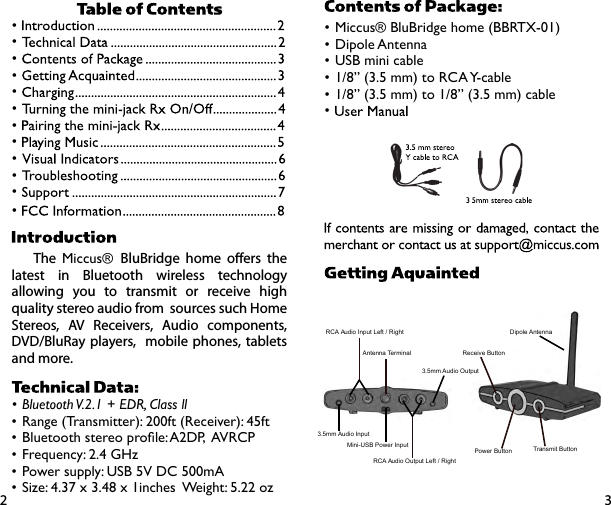
32•Miccus®BluBridgehome(BBRTX-01)•DipoleAntenna•USBminicable•1/8”(3.5mm)toRCAY-cable•1/8”(3.5mm)to1/8”(3.5mm)cable•   ••••••••••••    The Miccus® BluBridge home oers the latest in Bluetooth wireless technology allowing you to transmit or receive high quality stereo audio from  sources such Home Stereos, AV Receivers, Audio components, DVD/BluRay players,  mobile phones, tablets and more.               •BluetoothV.2.1+EDR,Classll•Range(Transmitter):200ft(Receiver):45ft•Bluetoothstereoprole:A2DP,AVRCP•Frequency:2.4GHz•Powersupply:USB5VDC500mA•Size:4.37x3.48x1inchesWeight:5.22ozDipole AntennaPower Button Transmit ButtonReceive ButtonAntenna Terminal3.5mm Audio OutputRCA Audio Output Left / RightMini-USB Power InputRCA Audio Input Left / Right3.5mm Audio Input
54Get started Attach the supplied antenna to the antenna terminal of the BluBridge home. For optimum performance position the antenna so it is upright (pointing toward the ceiling) and in an area that is not obstructed by objects, walls or near Wi-Fi equipment such as a wireless router. Connect the mini-USB cable to the BluBridge home and a USB power supply.Receiving mode (RX): Use this if intending to use the BluBridge home as a Bluetooth® wireless music receiver (i.e. receive music from your mobile phone or laptop or other transmitter). Using one of the included audio cables connect one end into the ports labelled “Audio Out” and connect the other end to your stereo receiver or other audio input.Transmitting mode (TX): Use this if intending to use the BluBridge home as a Bluetooth wireless music transmitter (i.e. transmit music from your Stereo receiver, MP3 player or other audio source). Using one of the included audio cables connect one end into the rear ports labelled “Audio Input” and connect the other end to your stereo receiver or other source audio output.Pairing the BluBridge home “Pairing” means making a wireless connection. In order for music streaming to begin the BluBridge home must pair with another device that supports the Bluetooth® wireless (A2DP) protocol. This is a two part process; one part is carried out on the BluBridge home and the other is carried out on the other device. Once the pairing process is complete the devices do not need to be paired again. To reconnect simply power them both on and they will remember each other and automatically connect .Note: Only one device at a time can be paired with the BluBridge home.Using the BluBridge home as a Receiver (RX Mode):1. Press and hold the center power button for 3 seconds or until the Blue LED ashes. 2. Shortly press the RX button for 2 seconds and release. The blue and red LEDs will ash alternately (indicating pair mode).3. Search for the BluBridge home on your mobile phone, laptop or compatible transmitting device. To complete the pairing connection some devices may require a passkey or code, use “0000”. Transmitters such
76as the BluBridge mini-jack and BluBridge home do not require pairing codes and will connect automatically. 4. Once the devices are paired correctly, the indicator LED will be constant (solid blue).5. To power o the BluBridge home press and hold the center button for 3 seconds.6. Once the devices have been paired you do not need to repeat the pairing process, simply power them on and they will remember and automatically connect with each other.Using the BluBridge home as a Transmitter (TX Mode):1. Power on and enter pairing mode with your compatible receiving device such as Bluetooth® headphones or the BluBridge mini-jack RX (refer to receiver’s documentation for exact process).2. Press and hold the center power button of the BluBridge home for 3 seconds or until the Blue LED ashes. 3. Shortly press the TX button for 2 seconds and release. The blue and red LEDs will ash alternately (indicating pairing mode).4. Place the receiver and the BluBridge home next to each other. Some devices may require a passkey or code, use “0000”. Receivers such as the BluBridge mini-jack and BluBridge home do not require pairing codes and will connect automatically. 5. Once the devices are paired correctly, the indicator LED will be constant (solid red).6. To power o the BluBridge home press and hold the center button for 3 seconds.7. Once the devices have been paired you do not need to repeat the pairing process, simply power them on and they will remember and automatically connect with each other.Note:To reset the BluBridge home disconnect it the USB cable for 3 seconds and re-insert it again. Status LED Pairing Mode  Red and Blue ashing alternatelyRx Mode Connecting  Blue LED ashingRX Mode Connected  Blue LED is solidTx Mode Connecting Red LED ashingTx Mode Connected  Red LED is solid
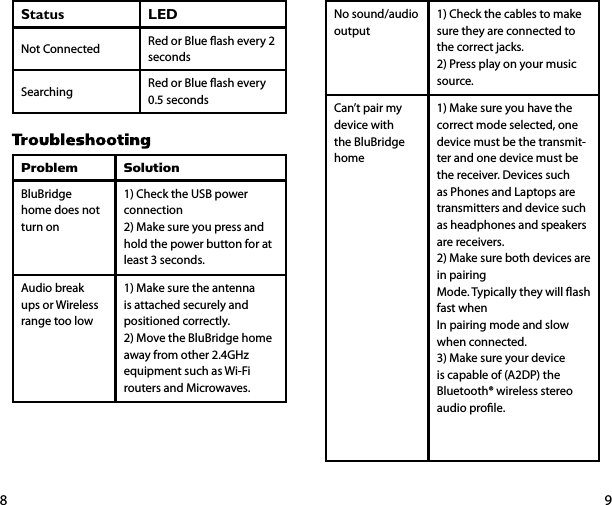
98No sound/audio output1) Check the cables to make sure they are connected to the correct jacks.2) Press play on your music source.Can’t pair my device with the BluBridge home1) Make sure you have the correct mode selected, one device must be the transmit-ter and one device must be the receiver. Devices such as Phones and Laptops are transmitters and device such as headphones and speakers are receivers.2) Make sure both devices are in pairing Mode. Typically they will ash fast when In pairing mode and slow when connected.3) Make sure your device is capable of (A2DP) the Bluetooth® wireless stereo audio prole.Status LEDNot Connected Red or Blue ash every 2 secondsSearching Red or Blue ash every 0.5 seconds        Problem SolutionBluBridge home does not turn on1) Check the USB power connection2) Make sure you press and hold the power button for at least 3 seconds. Audio break ups or Wireless range too low1) Make sure the antenna is attached securely and positioned correctly.2) Move the BluBridge home away from other 2.4GHz equipment such as Wi-Fi routers and Microwaves.
1110Further details and answers to common questions are found at www.miccus.com/support.If your question is not answered feel free to email us at support@miccus.com. Please include a the product name in your email subject line. For live technical assistance please call 1(616) 604-4449 on Monday thru Friday, 11am-4pm EST.        This device complies with Part 15 of the FCC rules. Operation is subject to the following two conditions:(1) this device may not cause harmful interference, and (2) this device must accept any interference received; including interference that may cause undesired operation. Federal Communications Commission (FCC) Statement: This Equipment has been tested and found to comply with the limits for a Class B digital device, pursuant to Part 15 of the FCC rules. These limits are designed to provide reasonable protection against harmful interference in a residential installation. This equipment generates, uses and can radiate radio frequency energy and, if not installed and used in accordance with the instructions, may cause harmful interference to radio communications. However, there is no guarantee that interference will not occur in a particular installation. If this equipment
1312does cause harmful interference to radio or television reception, which can be determined by turning the equipment o and on, the user is encouraged to try to correct the interference by one or more of the following measures:- Reorient or relocate the receiving antenna.- Increase the separation between the equip-ment and receiver.- Connect the equipment into an outlet on a circuit dierent from that to which the receiver is connected.- Consult the dealer or an experienced radio/TV technician for help.Warning :Changes or modications to this unit not ex-pressly approved by the party responsible for compliance could void the user authority to operate the equipment.Tested to comply with FCC standard. FOR HOME OR OFFICE USE.This equipment complies with FCC RF radia-tion exposure limits set forth for an uncon-trolled environment. & This device and its antenna(s) must not be co-located or conjunc-tion with any other antenna or transmitter.

Navigation menu