Getting Started With CloudLink™ Cloudlinkgettingstartedguide
Cloudlinkgettingstartedguide cloudlinkgettingstartedguide cloudlinkgettingstartedguide AutoVISION30 LaunchCentral PartnerSite microscan :
2015-06-25
: Microscan Cloudlinkgettingstartedguide cloudlinkgettingstartedguide InternetofThings LaunchCentral PartnerSite
Open the PDF directly: View PDF  .
.
Page Count: 74

Getting Started with CloudLink™
84-9111021-02 Rev A
v7.0.0, March 2014
Copyright ©2014
Microscan Systems, Inc.
Tel: +1.425.226.5700 / 800.762.1149
Fax: +1.425.226.8250
ISO 9001 Certified
Issued by TüV USA
All rights reserved. The information contained herein is proprietary and is provided solely for the purpose of
allowing customers to operate and/or service Microscan manufactured equipment and is not to be released,
reproduced, or used for any other purpose without written permission of Microscan.
Throughout this manual, trademarked names might be used. We state herein that we are using the names to the
benefit of the trademark owner, with no intention of infringement.
Disclaimer
The information and specifications described in this manual are subject to change without notice.
Latest Manual Version
For the latest version of this manual, see the Download Center on our web site at:
www.microscan.com.
Technical Support
For technical support, e-mail: helpdesk@microscan.com.
Warranty
For current warranty information, see: www.microscan.com/warranty.
Microscan Systems, Inc.
United States Corporate Headquarters
+1.425.226.5700 / 800.762.1149
United States Northeast Technology Center
+1.603.598.8400 / 800.468.9503
European Headquarters
+31.172.423360
Asia Pacific Headquarters
+65.6846.1214

Getting Started with CloudLink iii
Contents
PREFACE Welcome v
Purpose of this Guide v
CHAPTER 1 CloudLink Overview 1-1
Introduction 1-2
Requirements 1-2
Connecting 1-3
Application Overview 1-4
Application Bar 1-5
Pages, Panels, and Widgets 1-6
Data Event Identifiers 1-9
Live and Review Modes 1-10
CloudLink Web HMI Storage Limits 1-11
CHAPTER 2 Layout Editing 2-1
Layout Edit Mode 2-2
Creating, Editing, and Removing Pages 2-3
Inserting and Configuring a Widget 2-4
The Widget Settings Panel 2-7
CHAPTER 3 Tags 3-1
CloudLink Tags 3-2

Contents
iv Getting Started with CloudLink
CHAPTER 4 Widgets 4-1
Single Data Value Widget 4-2
Counters Widget 4-6
Log Widget 4-7
Chart Widget 4-8
Image Widget 4-9
Filmstrip Widget 4-11
Header Widget 4-14
Customization 4-15
CHAPTER 5 REST APIs 5-1
REST APIs 5-2
command 5-5
data 5-6
stats 5-7
config 5-9
record 5-11
filters 5-14
image 5-15
svg 5-16
file 5-17
CHAPTER 6 Installing and Updating CloudLink on a Smart
Camera 6-1
Installing CloudLink on a Smart Camera 6-2
Updating CloudLink on a Smart Camera 6-5
Getting Started with CloudLink v
Preface
PREFACE Welcome
Purpose of this Guide
This guide describes how to use Microscan’s CloudLink to visualize
Microscan Link values and images from compatible Microscan smart
cameras and vision systems. CloudLink runs on the web browser of your
choice, including those found on tablets and smart phones.

Preface
vi Getting Started with CloudLink

Getting Started with CloudLink 1-1
1
CloudLink Overview
1
CHAPTER 1 CloudLink Overview
This section provides a general description of the CloudLink interface.

Chapter 1CloudLink Overview
1-2 Getting Started with CloudLink
Introduction
CloudLink allows you to visualize Microscan Link values and images from compatible
Microscan smart cameras and vision systems. CloudLink runs on the web browser of your
choice, including those found on tablets and smart phones.
Requirements
CloudLink requires an HTML5-compatible browser.
• Internet Explorer 9 or later
• Google Chrome
•Safari
• Firefox
• Mobile Safari (iPhone / iPad)
• Mobile Chrome on Android devices
Connecting
CloudLink Overview
1
Getting Started with CloudLink 1-3
Connecting
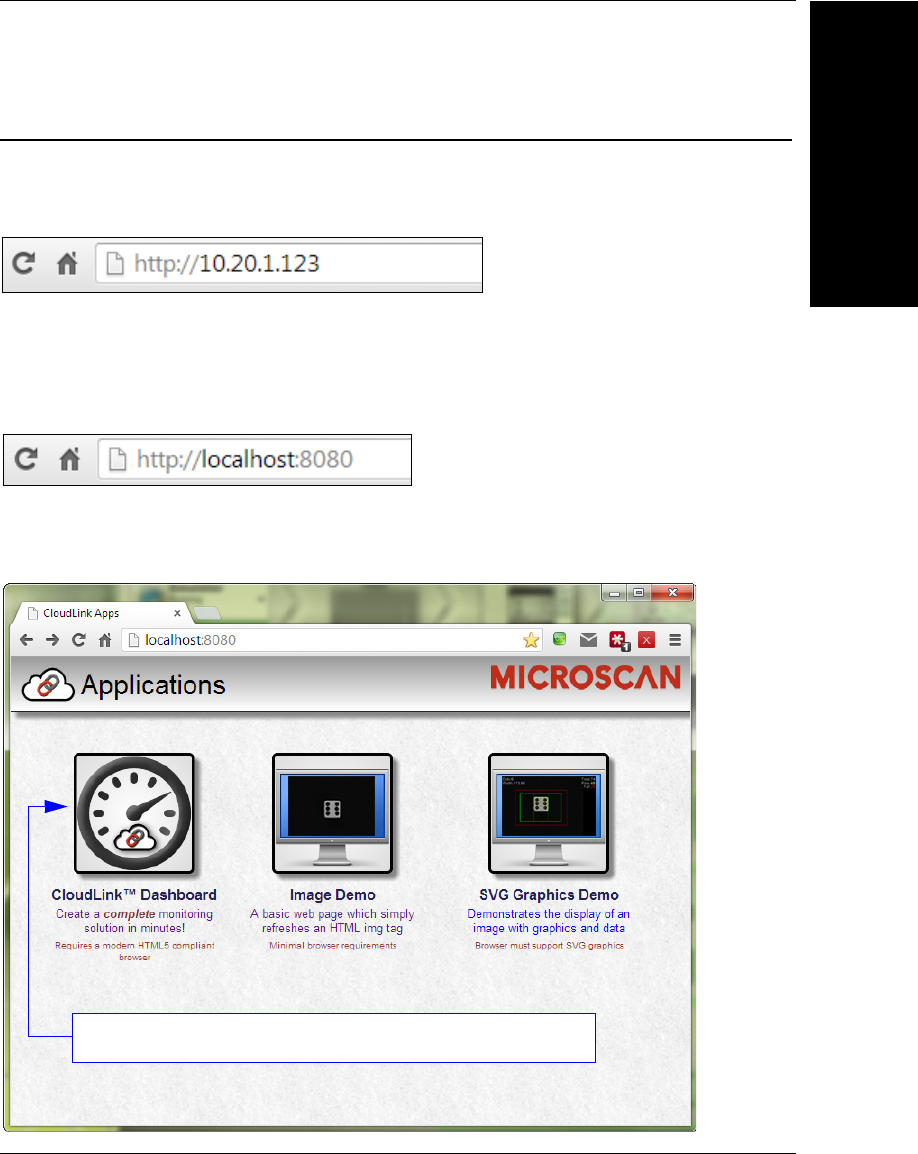
To launch CloudLink, use your favorite web browser and enter the address of your device
in the browser’s address bar. For example, if you have a Microscan smart camera on your
network at address 10.20.1.123, you would enter:
CloudLink also works with Visionscape Software and with AutoVISION’s Emulator.
To connect to a software-based job running in FrontRunner or AutoVISION:
First, be sure the job is running, and then type the following into your browser’s address bar:
Note: You must specify port 8080 for a PC-based connection.
Once you press the Enter key, you should see the following home page:
Click the CloudLink Dashboard icon to launch the application.
Chapter 1CloudLink Overview
1-4 Getting Started with CloudLink
Application Overview
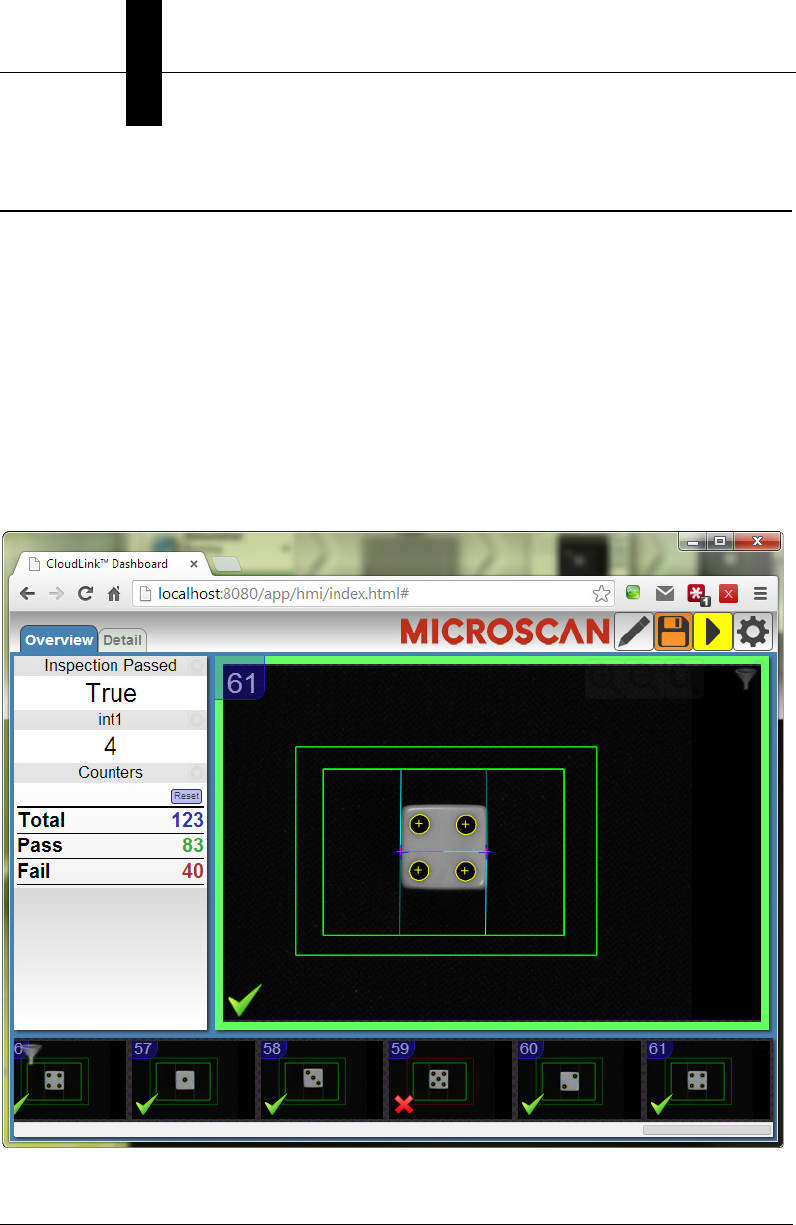
The CloudLink Dashboard user interface is a single page web app-style application. Most
web pages show information that can typically extend beyond the bottom of the browser
window, requiring the user to scroll to see it. They typically contain links to other pages,
which is how the user navigates around a web site.
In contrast, CloudLink behaves more like an application, expanding to fill the browser
window, and automatically adapting to any changes in the dimensions of the window.
Although CloudLink allows you to define and use multiple display pages, they are all
contained within a single web page.
The browser stores a maximum of 50 images. The camera stores images, image
thumbnails, and data records that can be requested via the web page or API. When
memory is full, the camera will first delete full-size images, then thumbnails, and ultimately
the data records on a first in-first out basis.
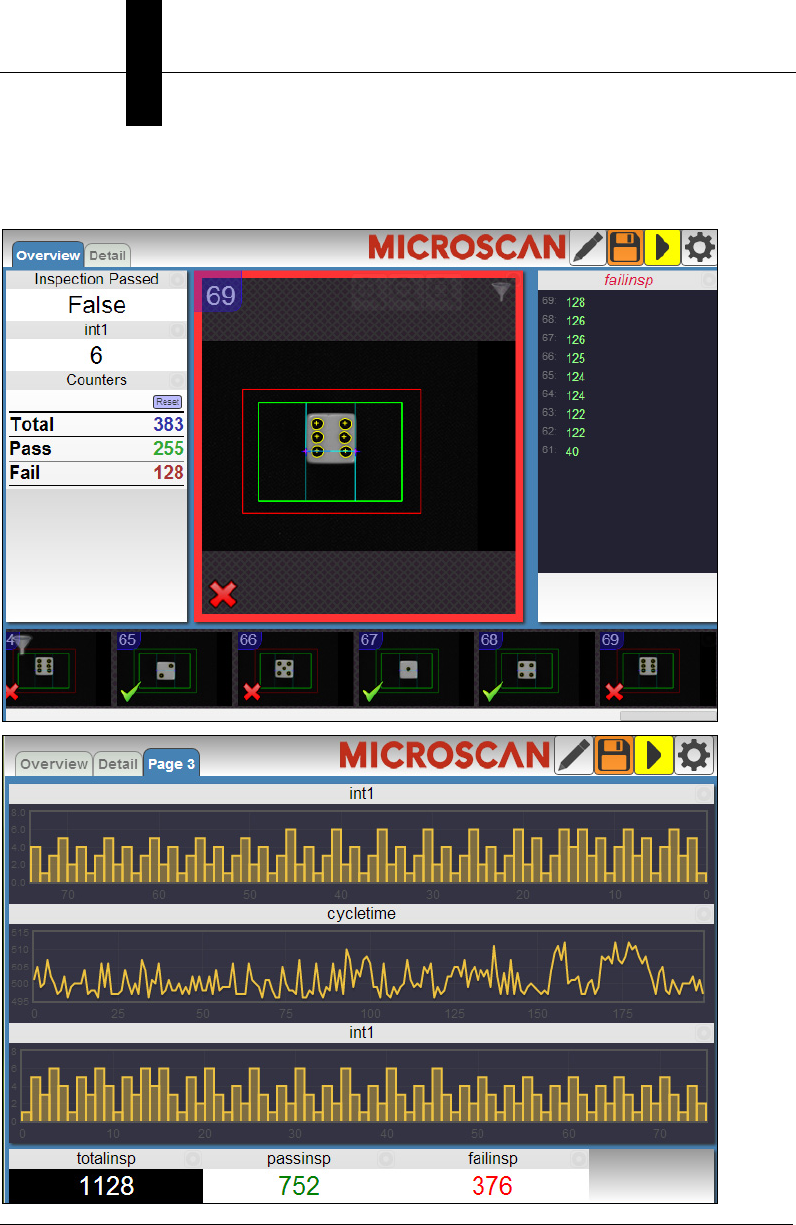
This is a typical view of a CloudLink page.
Note: CloudLink does not currently support display of color images from color cameras.
Application Bar
CloudLink Overview
1
Getting Started with CloudLink 1-5
Application Bar
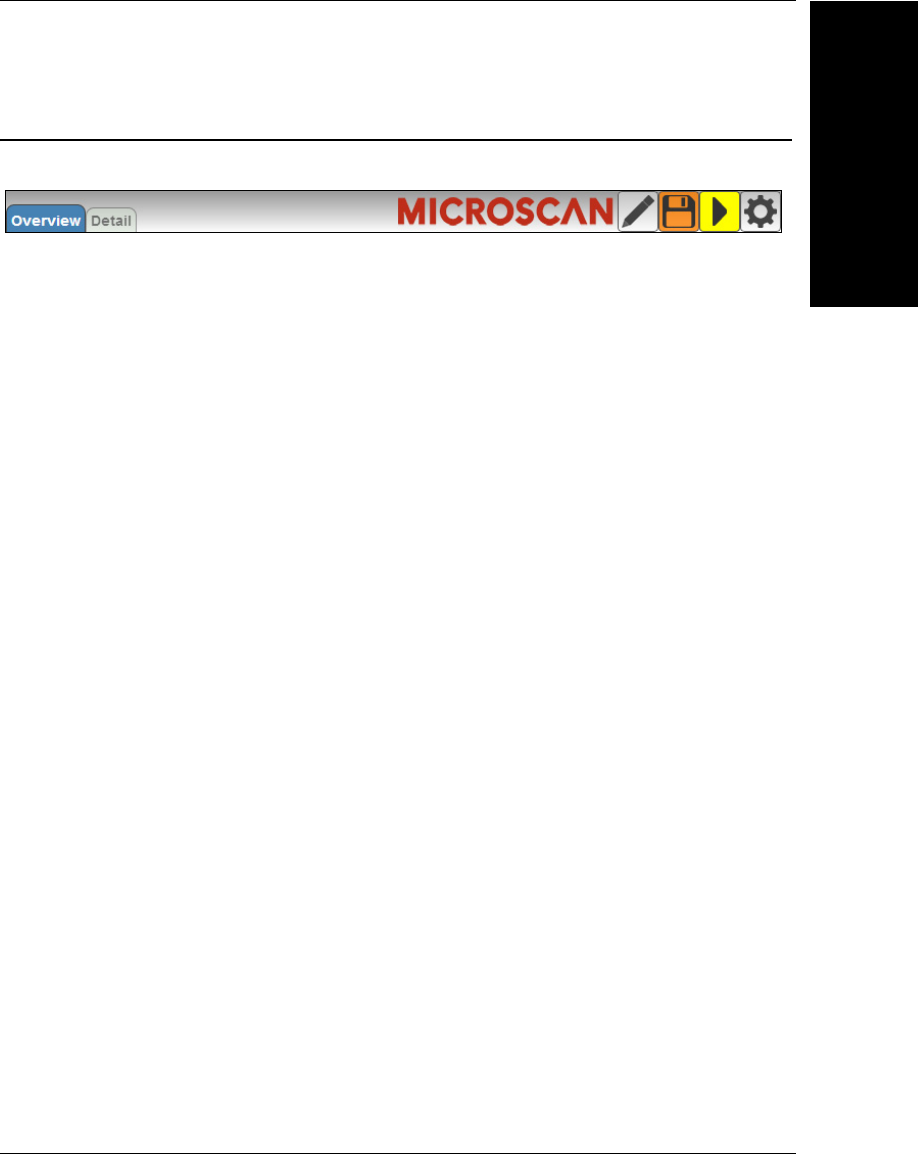
The Application Bar is located at the top of the CloudLink interface.
There are three components to the Appplication Bar:
•A set of page selection buttons. In the example above they appear as tabs, but the
style can be customized if necessary.
•A logo. The position and contents of the logo can be customized.
•A toolbar. The toolbar provides access to various CloudLink settings and modes. The
position and size of the toolbar can be customized.
Chapter 1CloudLink Overview
1-6 Getting Started with CloudLink
Pages, Panels, and Widgets
The main area of CloudLink displays one of a number of pages. If there is more than one
page defined, you can switch between them by using the page selection buttons on the
application bar, or by using the arrow keys on your keyboard.
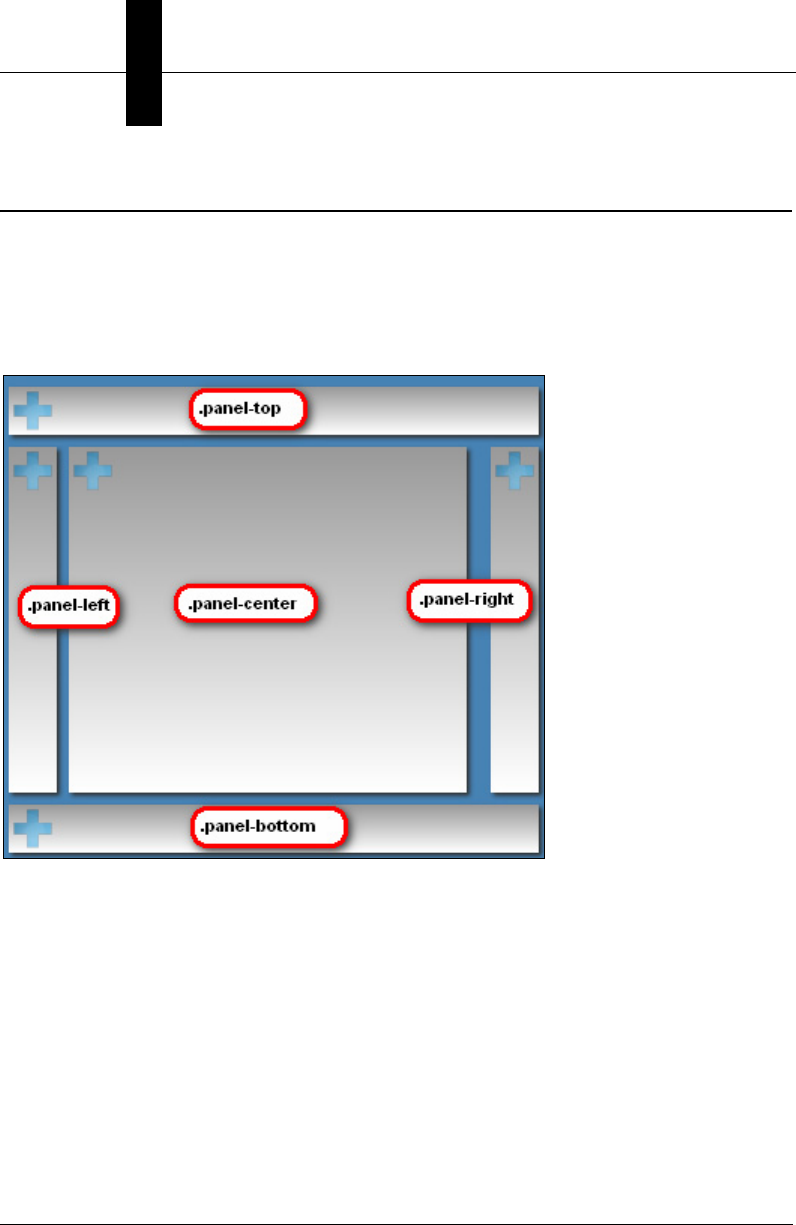
Each page is organized into a set of regions called panels. The following image shows an
empty page to demonstrate the arrangement of the panels on a page.
Note the names, which start with .panel-. It is not necessary to know these names to use
CloudLink; however they do have significance if there should be need for customization.
Customizing CloudLink requires the modification of CSS (Cascading Style Sheets). The
names shown correspond to the CSS class selector for that panel.
The purpose of the panels is to act as containers for a number of widgets. Each widget
has the ability to visualize and interact with one or more items of inspection data such as
Microscan Link values, inspection counters, timing information, or images.
Pages, Panels, and Widgets
CloudLink Overview
1
Getting Started with CloudLink 1-7
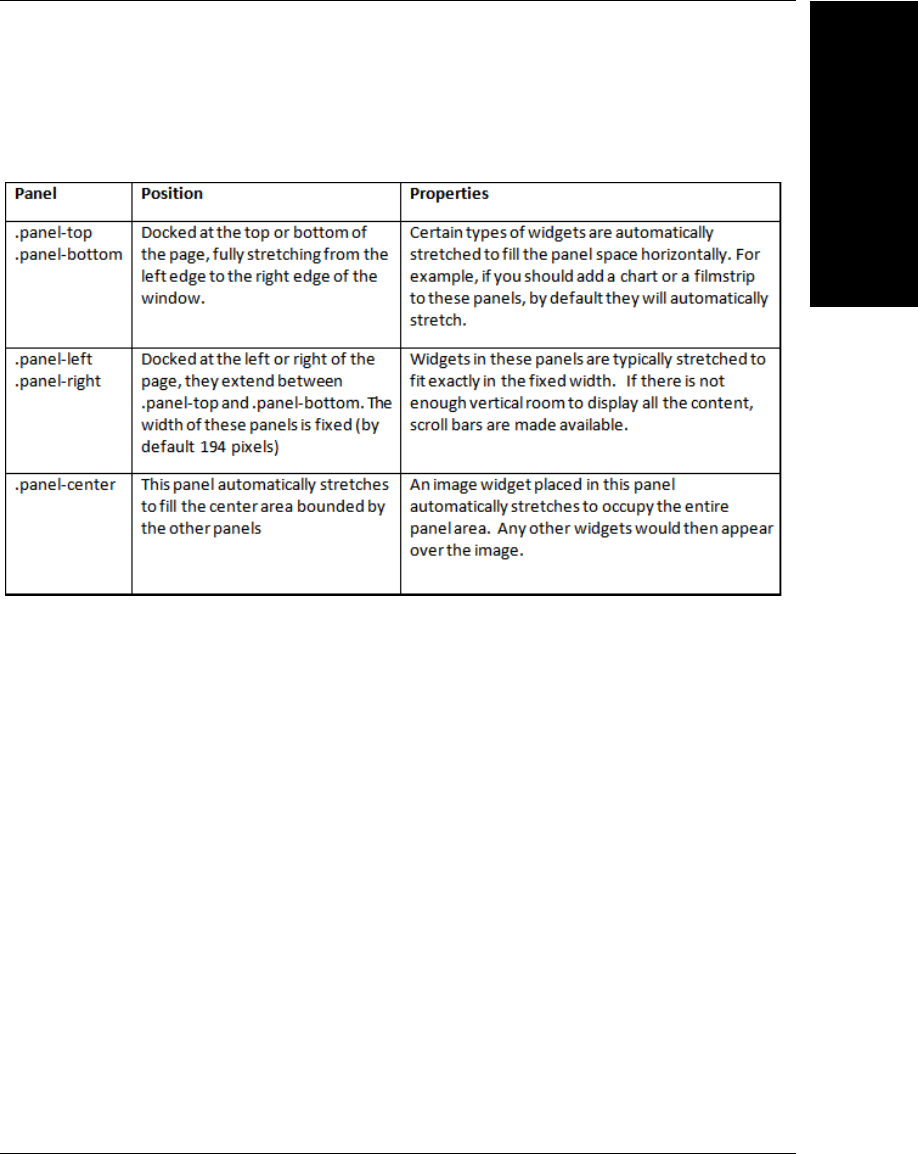
Each panel has special layout and behavior properties that can be exploited to create a
wide variety of different layouts. The following table summarizes the position and
properties of each panel:
Chapter 1CloudLink Overview
1-8 Getting Started with CloudLink
If a panel does not have content (i.e. no widgets are placed in it), it is hidden from view, with
the other panels adjusted to occupy the available space. Examples of possible page layouts:

Data Event Identifiers
CloudLink Overview
1
Getting Started with CloudLink 1-9
Data Event Identifiers
At the end of each inspection cycle, the relevant result data is collected into a record. This
data is coherent, meaning that all the values are part of the same result, and therefore
represent a snapshot of information as it was at that particular point in time. When CloudLink
fetches this data, it associates each of the data records with a unique Data Event Identifier.
This identifier is visible in various CloudLink widgets, and can help when making correlations
between various pieces of data. It is also used internally, for example to highlight all items
related to the same event when hovering over a displayed value or image.

Chapter 1CloudLink Overview
1-10 Getting Started with CloudLink
Live and Review Modes
CloudLink has the following two fundamental modes of operation:
•Live Mode: In this mode, CloudLink is continuously fetching new data from the
connected device. The amount and frequency of data received is balanced by
bandwidth and performance constraints.
•Review Mode: In this mode, CloudLink is not receiving new data. Instead, you can
view and analyze already captured historical data.
To switch between Live Mode and Review Mode, use the appropriate toolbar button in
the Application Bar, or press CTRL-R on the keyboard.
When in review mode, clicking on one of the items in a historical widget (for example, a
filmstrip, log, or chart) will automatically load all the other widgets with data with the same
Data Event Identifier. Clicking on Filmstrip Entry will load the image into the image
widget, and display the inspection counts, Microscan Link values, and other elements as
they were at that time. Likewise, you can click on a log entry with similar results.

CloudLink Web HMI Storage Limits
CloudLink Overview
1
Getting Started with CloudLink 1-11
CloudLink Web HMI Storage Limits
Up to the last 100 records are stored on the camera, including at least one failure record.
If the last failure record is older than the most recent 100 records, that record plus the
latest 99 passing records are stored for a total of 100 records.
Up to 100 of the latest SVG records are stored on the Vision HAWK or PC-based system
and up to 10 of the latest SVG records on the Vision MINI Xi.
The number of images stored on the system is dependent on the camera configuration’s
buffer count. At most this will be the buffer count as defined in the system’s Camera
Definition and Buffer Counts setting. This count is reduced by buffers being processed or
waiting for triggers in a pipeline mode. For example, a camera with 16 buffers in pipeline
triggering mode with one image in process would have a maximum of 14 of the most
recent image records saved for retrieval.

Chapter 1CloudLink Overview
1-12 Getting Started with CloudLink

Getting Started with CloudLink 2-1
2
Layout Editing
2
CHAPTER 2 Layout Editing
This section describes how to optimize the layout of the CloudLink
interface for your application.
Chapter 2Layout Editing
2-2 Getting Started with CloudLink
Layout Edit Mode
Layout Edit Mode can be toggled at any time by pressing this toolbar button:
or by pressing F10 on the keyboard.
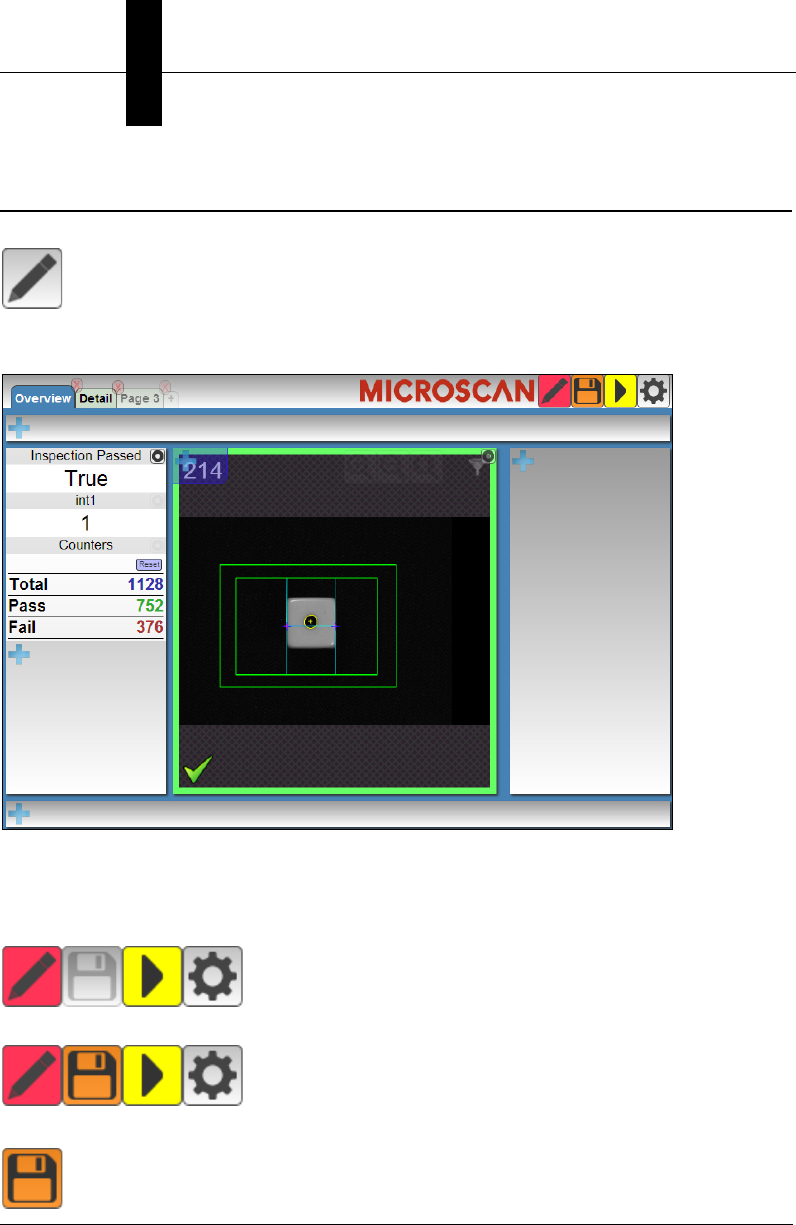
In Layout Edit Mode, all panels are visible even if they are empty of widgets:
Notice that the top, right, and bottom panels can now be seen even though they are empty
of widgets.
When a change is made to the layout, the Save icon in the toolbar will be highlighted.
Before Change:
After Change:
Clicking the Save button will save the layout changes to the camera.
Creating, Editing, and Removing Pages
Layout Editing
2
Getting Started with CloudLink 2-3
Creating, Editing, and Removing Pages
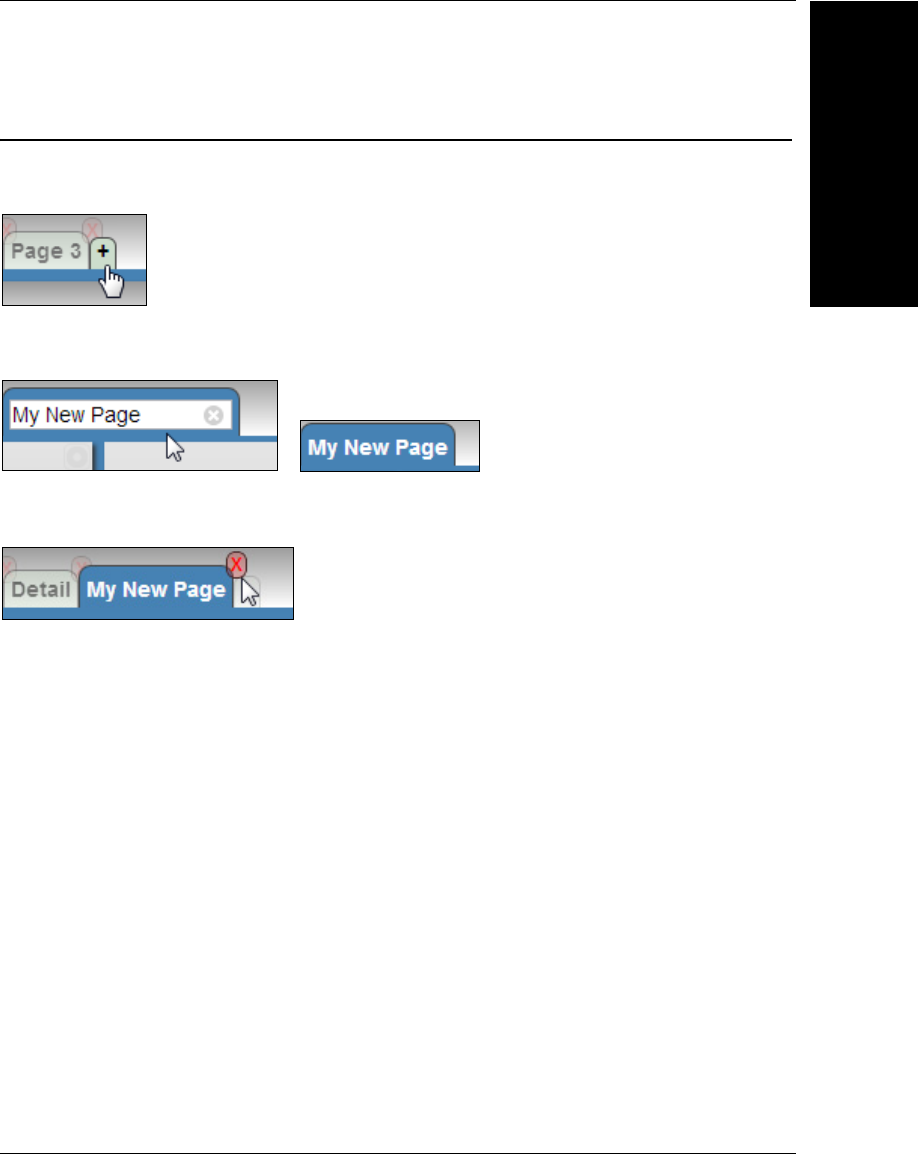
When in Layout Edit Mode, an extra button appears to the right of any existing page
selector buttons. Pressing this button will create a new empty page.
To change the title of a page, double-click the title (or long-press on a touchscreen
device). Type a new title and press Enter to accept or Esc to cancel.
To delete a page, click on the X that appears in the upper right corner of the page selector
button. Note that this is only available when in Layout Edit Mode.
Chapter 2Layout Editing
2-4 Getting Started with CloudLink
Inserting and Configuring a Widget
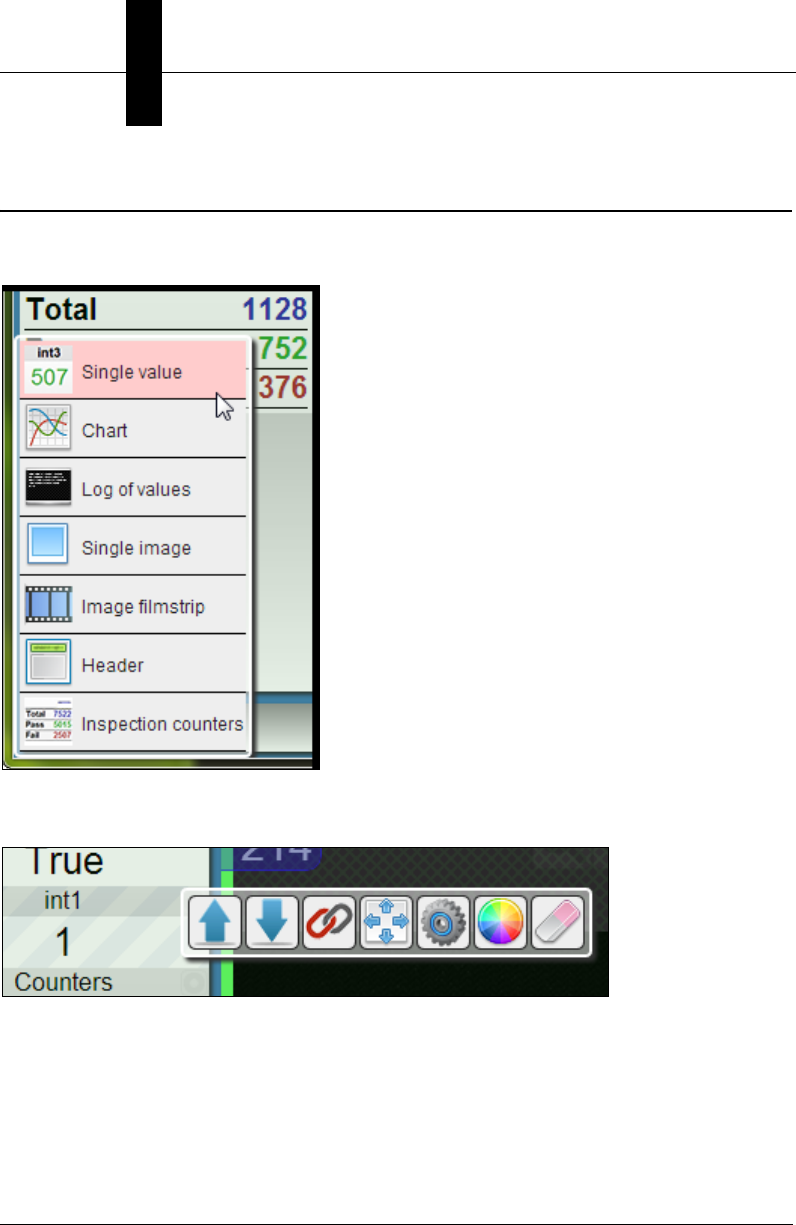
When in Layout Edit Mode, note the + buttons in each panel. Pressing one of these
buttons will bring up a menu of available widgets to insert.
Clicking Single Value, for example, will insert a widget that displays one Microscan Link
value. The settings panel for the newly inserted widget is shown automatically:
Inserting and Configuring a Widget
Layout Editing
2
Getting Started with CloudLink 2-5
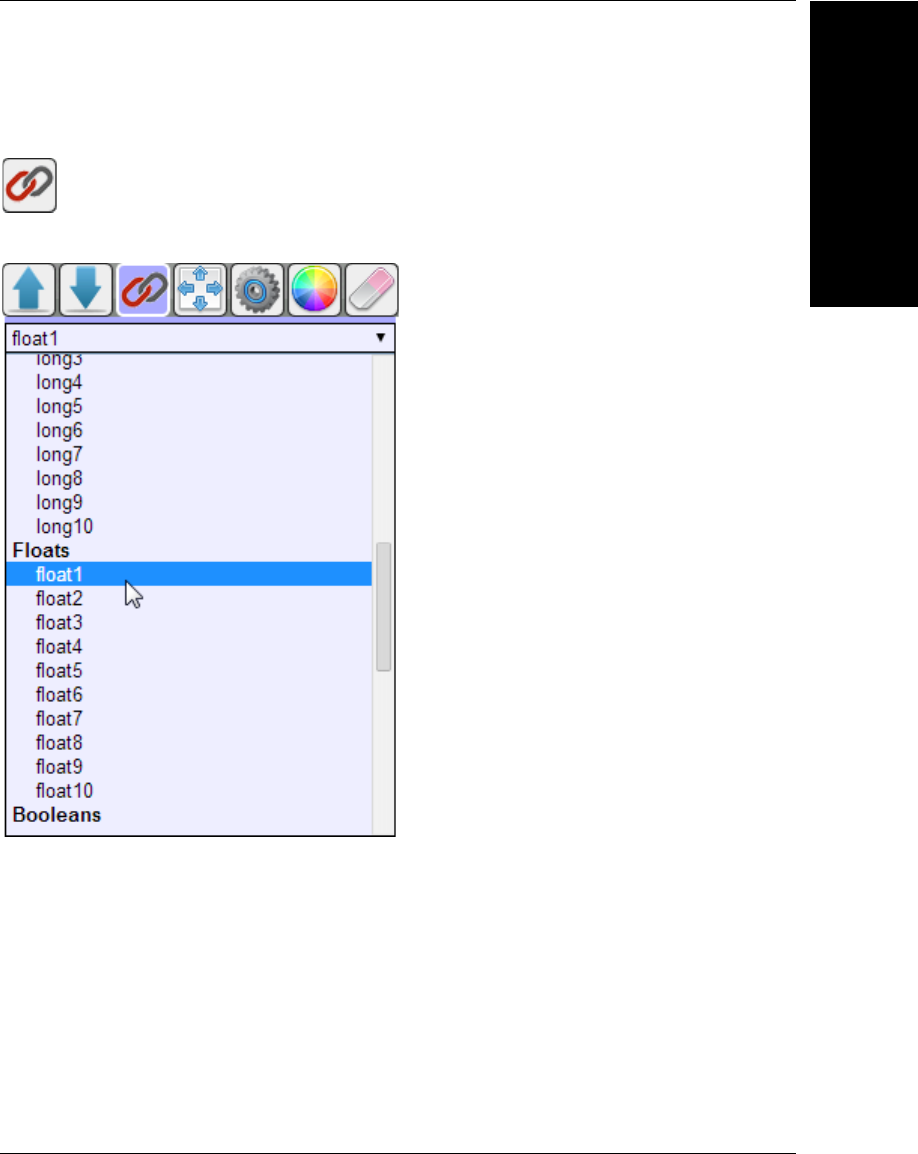
Buttons on the settings panel may vary from widget to widget. Clicking on the Microscan
Link icon:
will show a combo box selector allowing a choice of Microscan Link tags to monitor in the widget.
Chapter 2Layout Editing
2-6 Getting Started with CloudLink
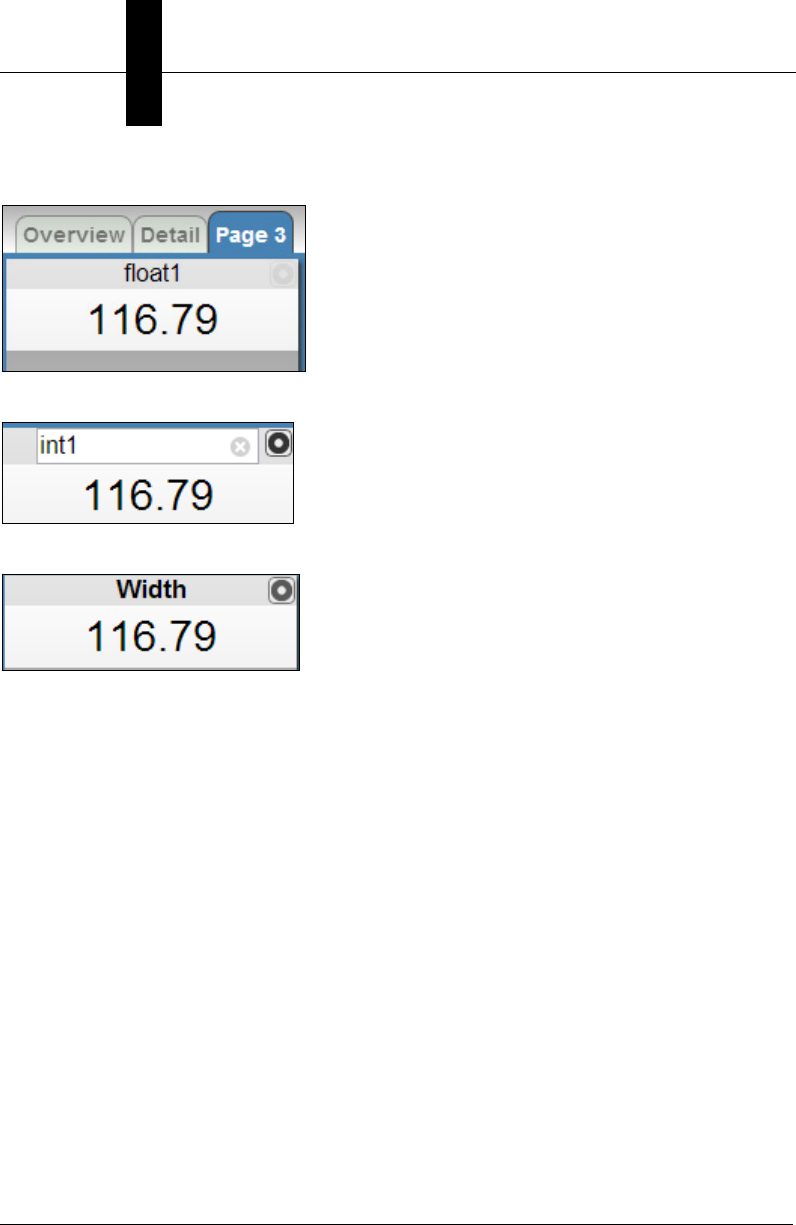
Selecting float1 in this example will “link” the widget to the Microscan Link tag float1:
To change the title of the widget, double-click the header (or long-press on a touchscreen device).
Type a new title and press Enter to accept or Esc to cancel.
The Widget Settings Panel
Layout Editing
2
Getting Started with CloudLink 2-7
The Widget Settings Panel
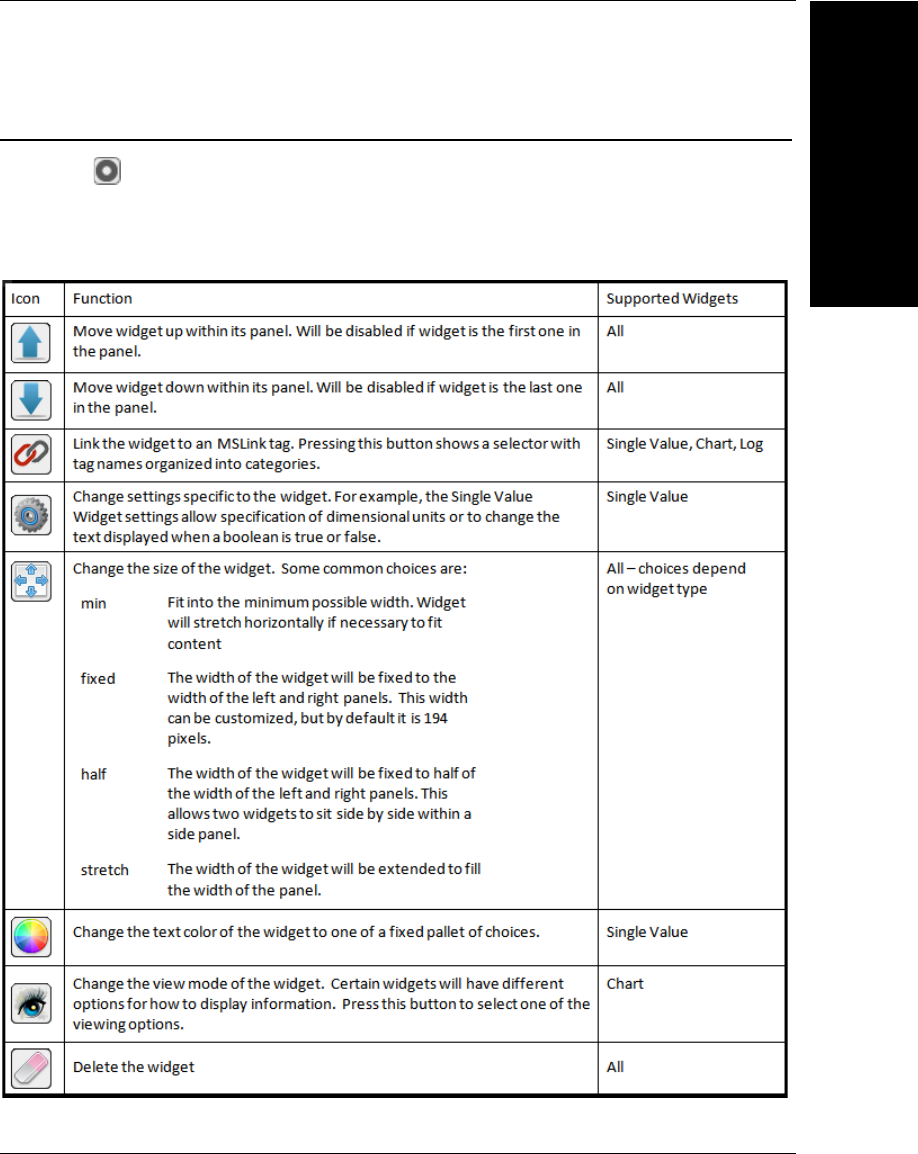
Notice the button in the upper right corner of the widget. This button appears on all
widgets (but is nearly invisible unless you hover over the widget). Pressing the button will
show the settings panel for that widget.
The buttons you will see on the settings panel include the following:

Chapter 2Layout Editing
2-8 Getting Started with CloudLink

Getting Started with CloudLink 3-1
3
Tags
3
CHAPTER 3 Tags
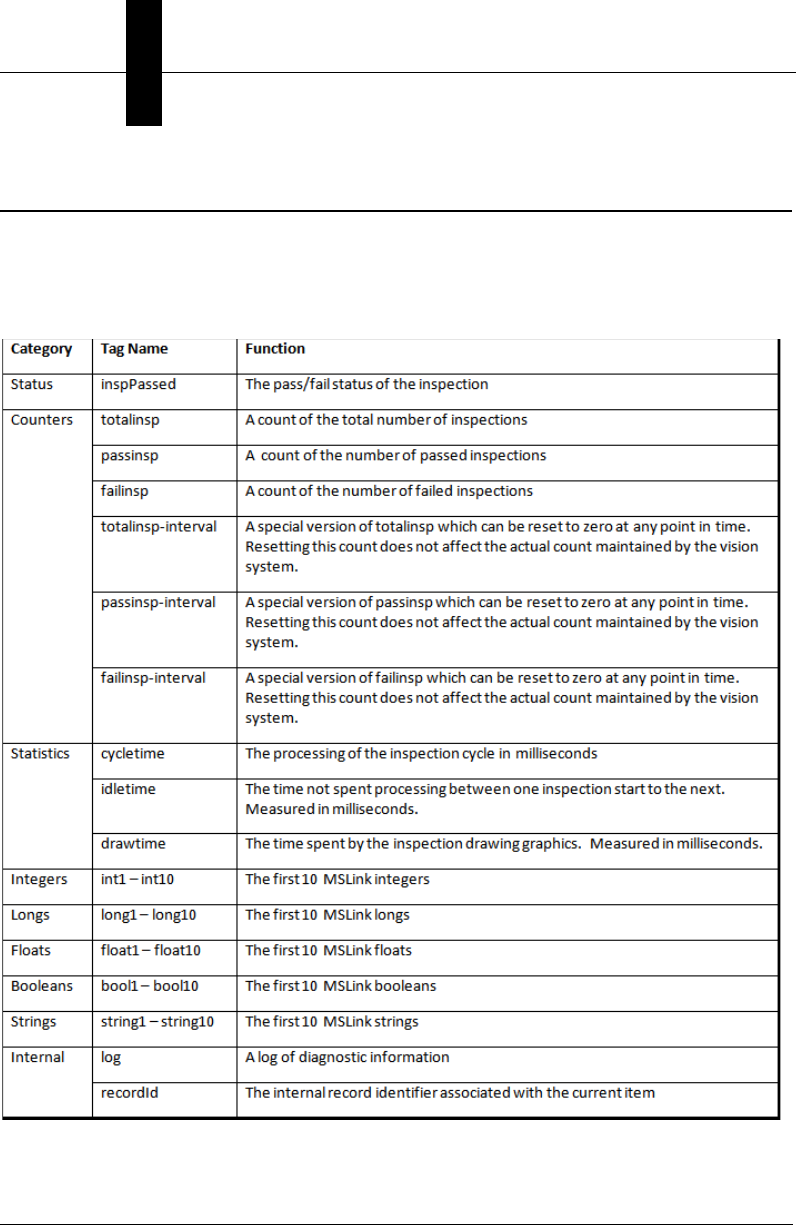
This section provides a list of tags and describes their functions.
Chapter 3Tags
3-2 Getting Started with CloudLink
CloudLink Tags
CloudLink widgets can be “linked” or associated with a number of data sources. These
mostly correspond to Microscan Link tags, but CloudLink offers additional items that are
not strictly Microscan Link tags. This document will refer to all of these items as tags. The
tags available are:

Getting Started with CloudLink 4-1
4
Widgets
4
CHAPTER 4 Widgets
This section gives a detailed description of each widget available in the
CloudLink interface.
Chapter 4Widgets
4-2 Getting Started with CloudLink
Single Data Value Widget
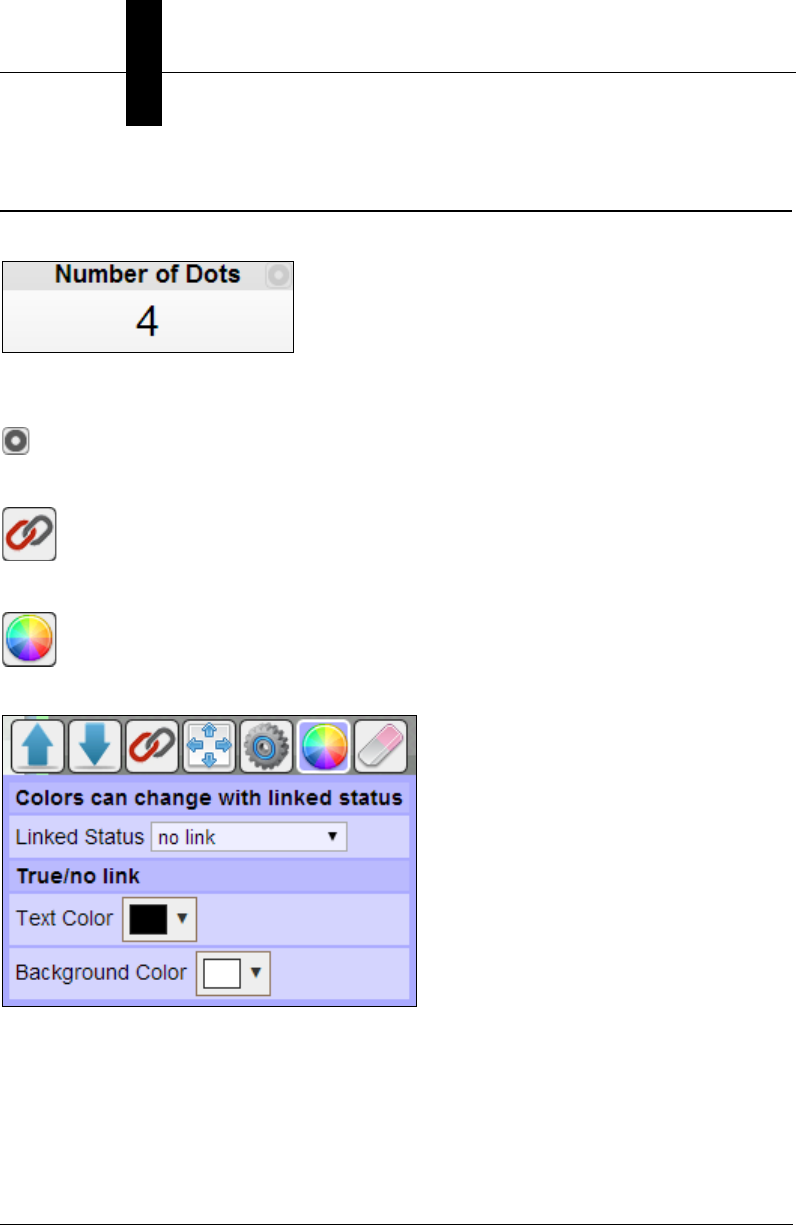
The Single Data Value widget shows one value and a title.
The title can be edited by double-clicking on it (or long-pressing on a touchscreen device).
To link the displayed value to a tag, use the settings button:
and select the Microscan Link tag selector:
from the settings panel. Select the color selector:
to select a different text color for the displayed value.
Single Data Value Widget
Widgets
4
Getting Started with CloudLink 4-3
With the Linked Status option set to no link, you can use the Text Color and
Background Color color options to change the colors of the Single Value Widget.
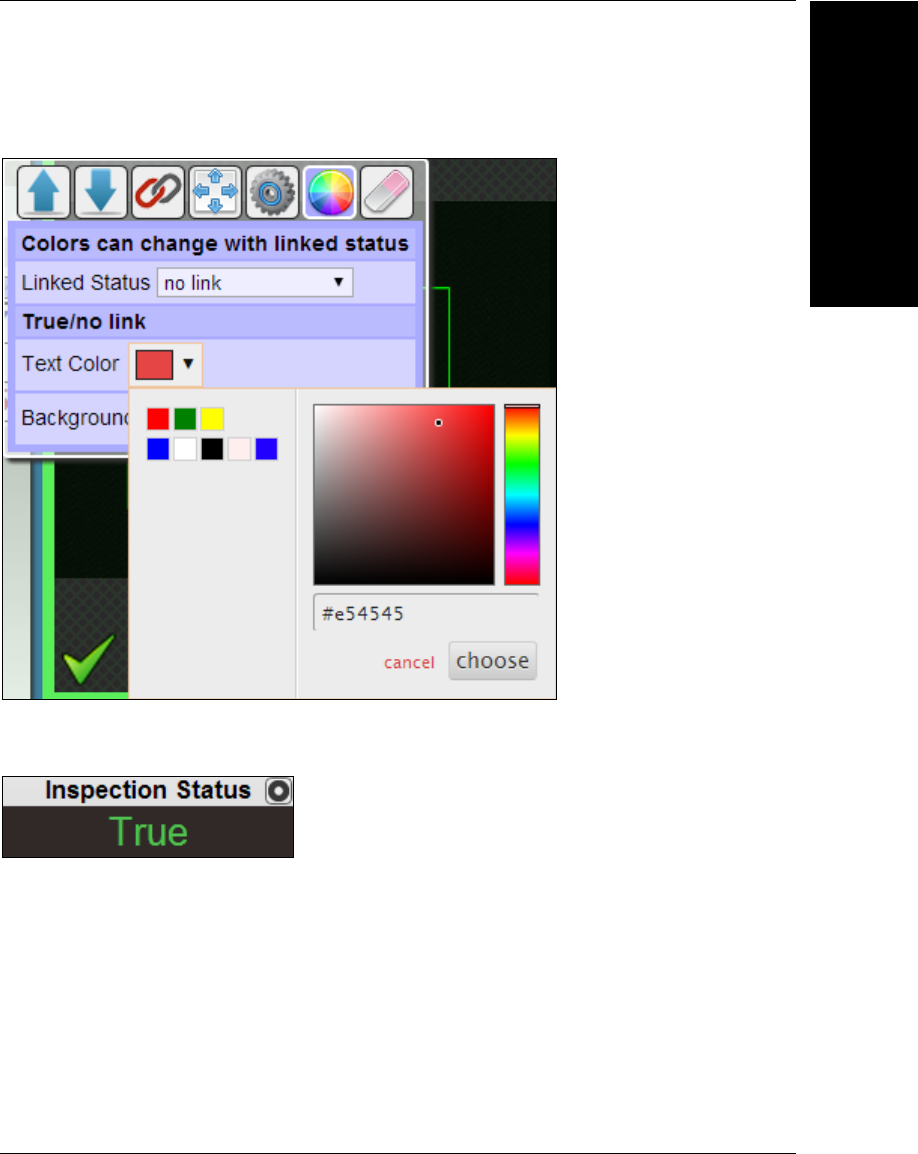
The color picker allows you to select colors in several different ways. You can click on the
spectrum or specify a hex color value. Previous color choices are also available as a palette.
Chapter 4Widgets
4-4 Getting Started with CloudLink
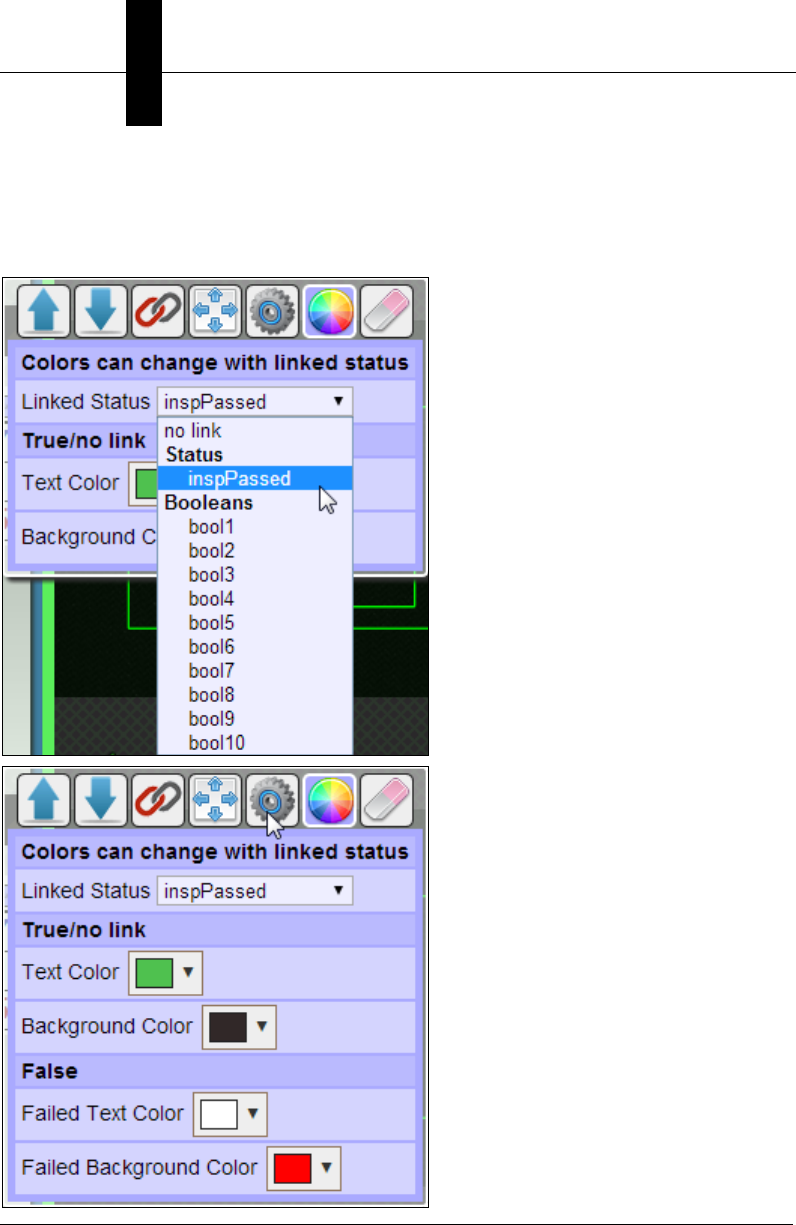
It is also possible to change the colors based on the true / false value of an additional
linked status item. For example, you can change the look of a displayed measurement
based on whether the inspection has passed or failed. Selecting inspPassed for a Linked
Status will show additional color options.
Single Data Value Widget
Widgets
4
Getting Started with CloudLink 4-5
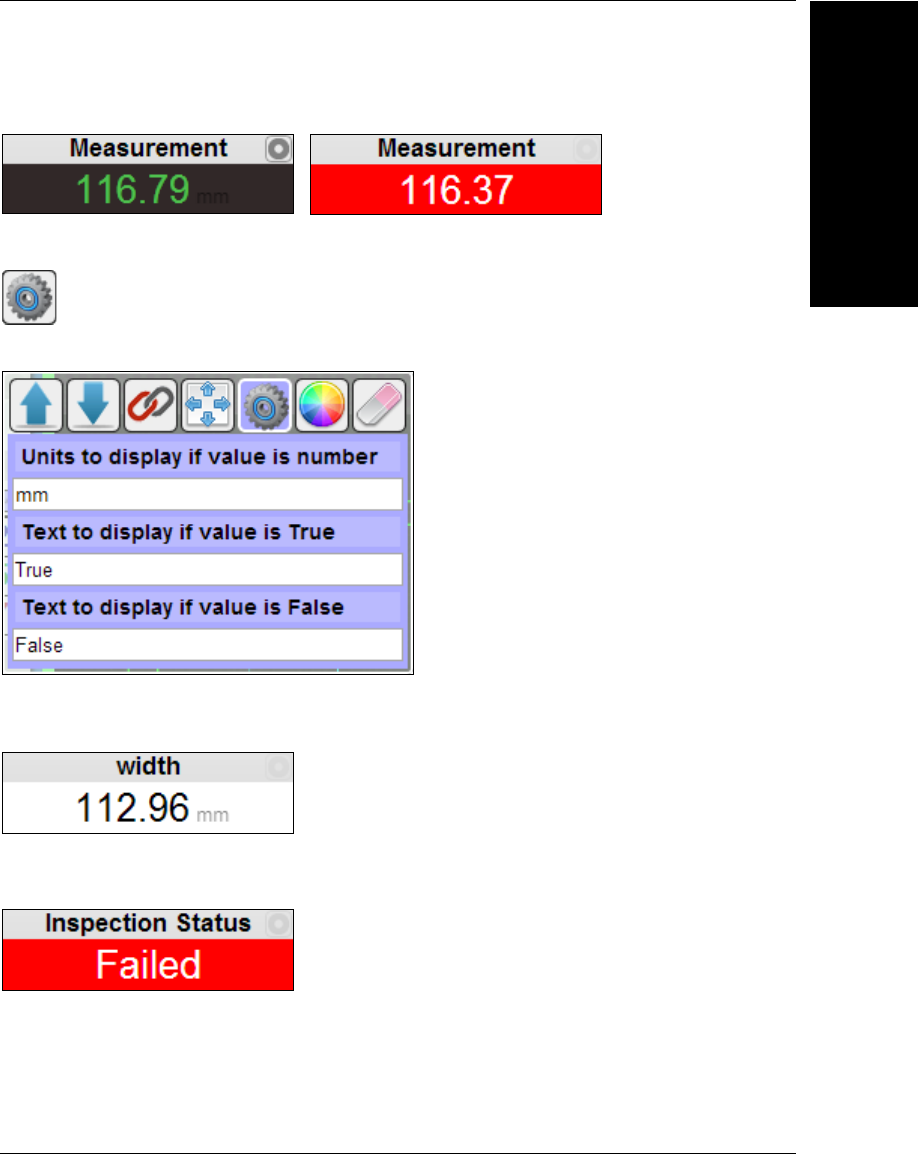
The specified colors will now be used depending on the value of inspPassed.
Selecting the widget options button:
will display additional setup options.
If desired, text representing the units to display can be specified. This will only apply if the
value displayed is a number.
If the value displayed is boolean, the text to display for True / False can be changed. For
example you may want to change this to Passed / Failed.
Chapter 4Widgets
4-6 Getting Started with CloudLink
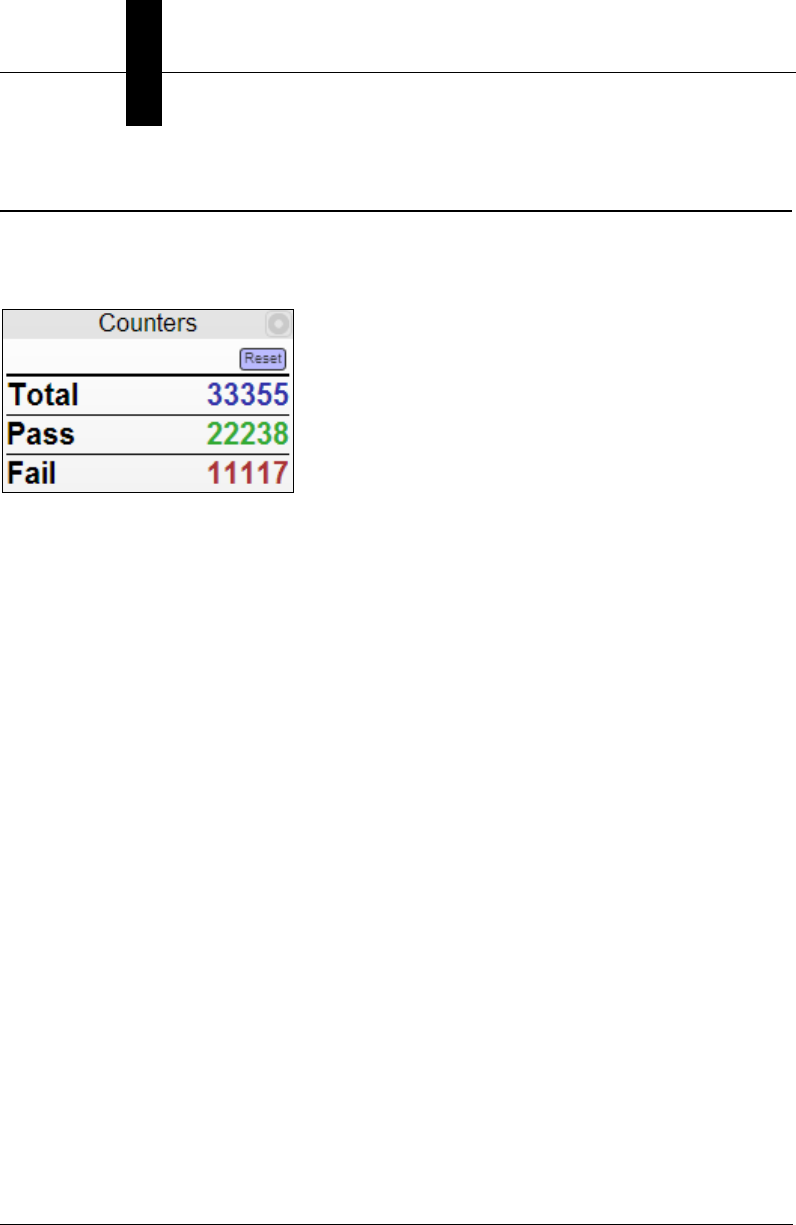
Counters Widget
The Counters widget displays the values of the interval version of the inspection counts
(totalinsp-interval, passinsp-interval, failinsp-interval). This allows the counters to be
reset to zero without affecting the actual counts on the vision system.
The title can be edited by double-clicking on it (or long-pressing on a touchscreen device).
Log Widget
Widgets
4
Getting Started with CloudLink 4-7
Log Widget
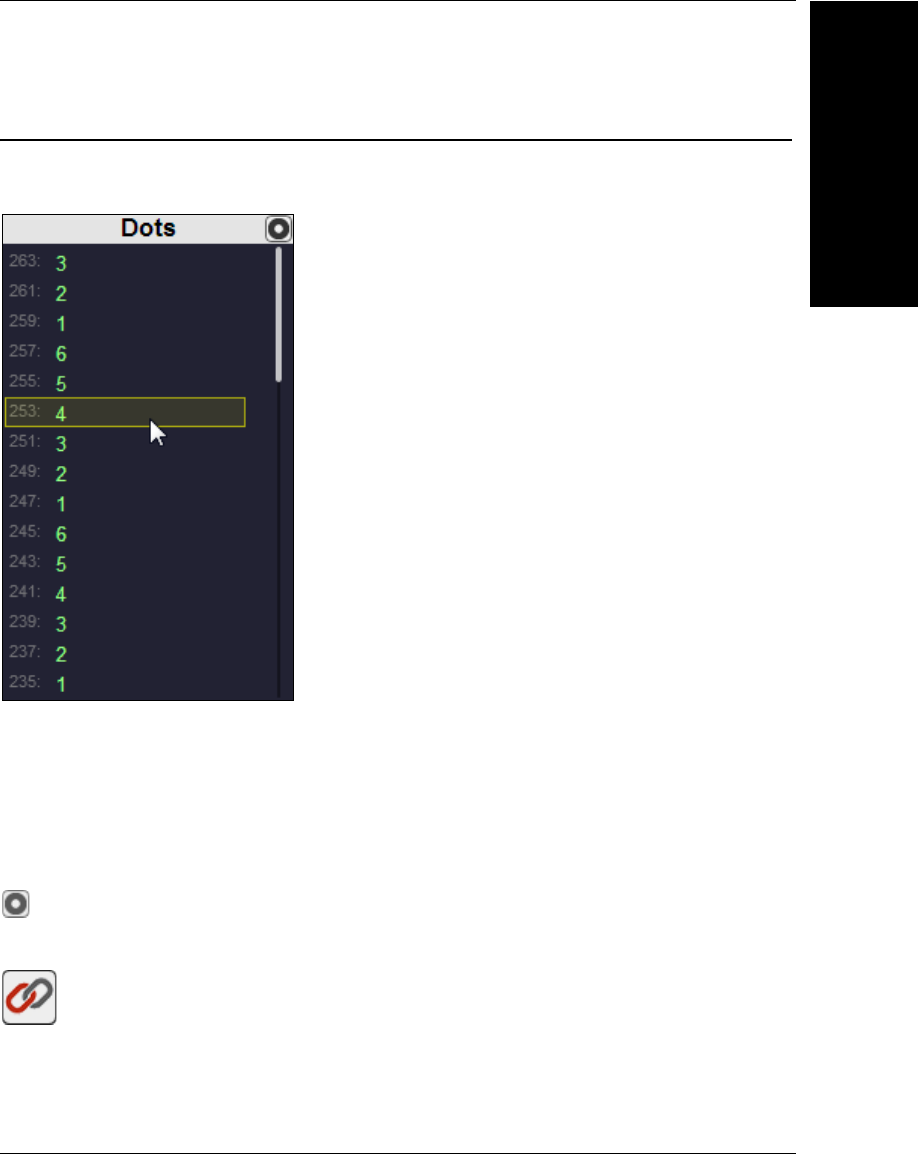
The Log widget shows the values of the linked tag as a historical list. The most recent
value is at the top, and older values are listed in descending order below.
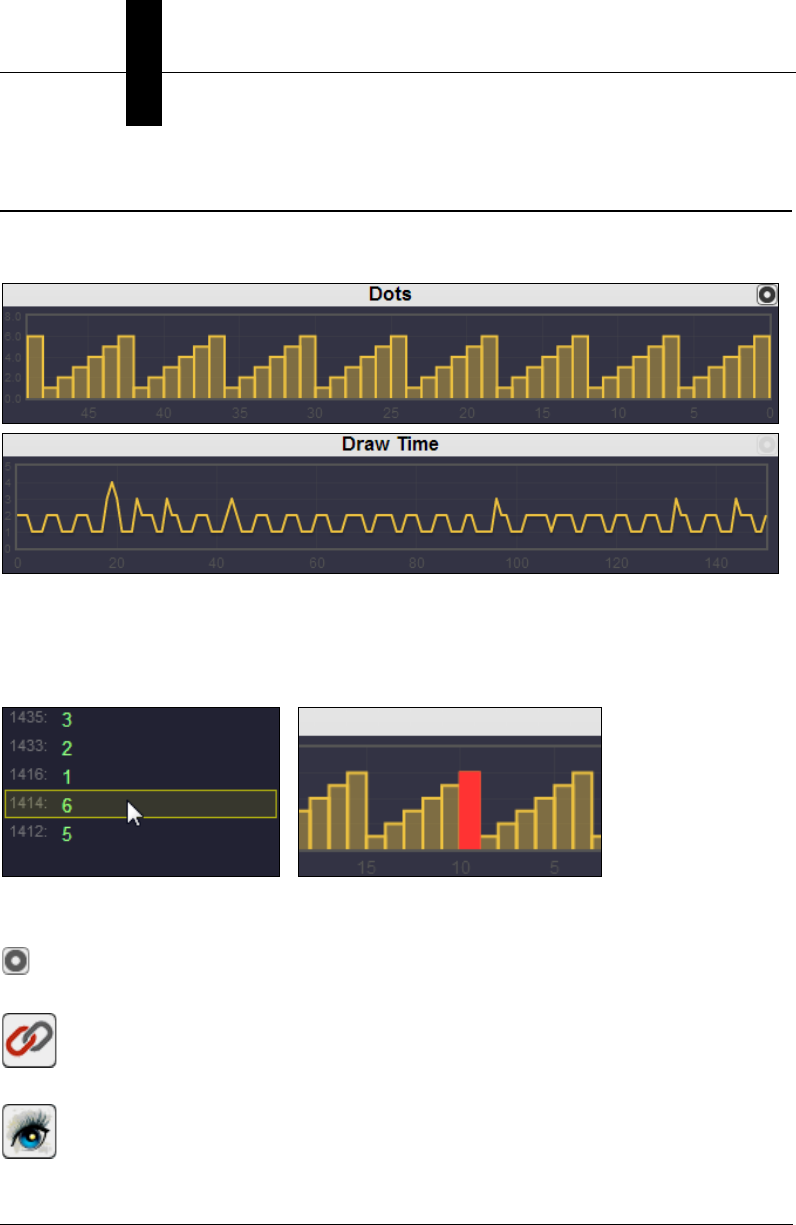
To the left of each displayed value is a number representing the corresponding Data Event
Identifier. This will correspond to similar values seen in other widgets. Hovering over one of
the values higlights all values that correspond to the same event. For example, if a filmstrip
is displayed, the image that corresponds to the highlighted value will also be highlighted.
The title can be edited by double-clicking on it (or long-pressing on a touchscreen device).
To link the log values to a tag, use the settings button:
and select the Microscan Link tag selector:
from the settings panel.
Chapter 4Widgets
4-8 Getting Started with CloudLink
Chart Widget
The Chart widget shows a chart of tag values over time. There are two types available:
Bar and Line.
The chart is automatically scaled so that the minimum and maximum values are contained
on the chart, and the amount of data shown corresponds to the available history depth.
Data on the chart widget reads from right to left, with the most recent values on the right.
When a data event is hovered over, the corresponding chart value is highlighted.
The chart title can be edited by double-clicking on it (or long-pressing on a touchscreen
device). To link the chart to a tag, use the settings button:
and select the Microscan Link tag selector:
from the settings panel. To select a different chart type, select the View Mode button:
from the settings panel.
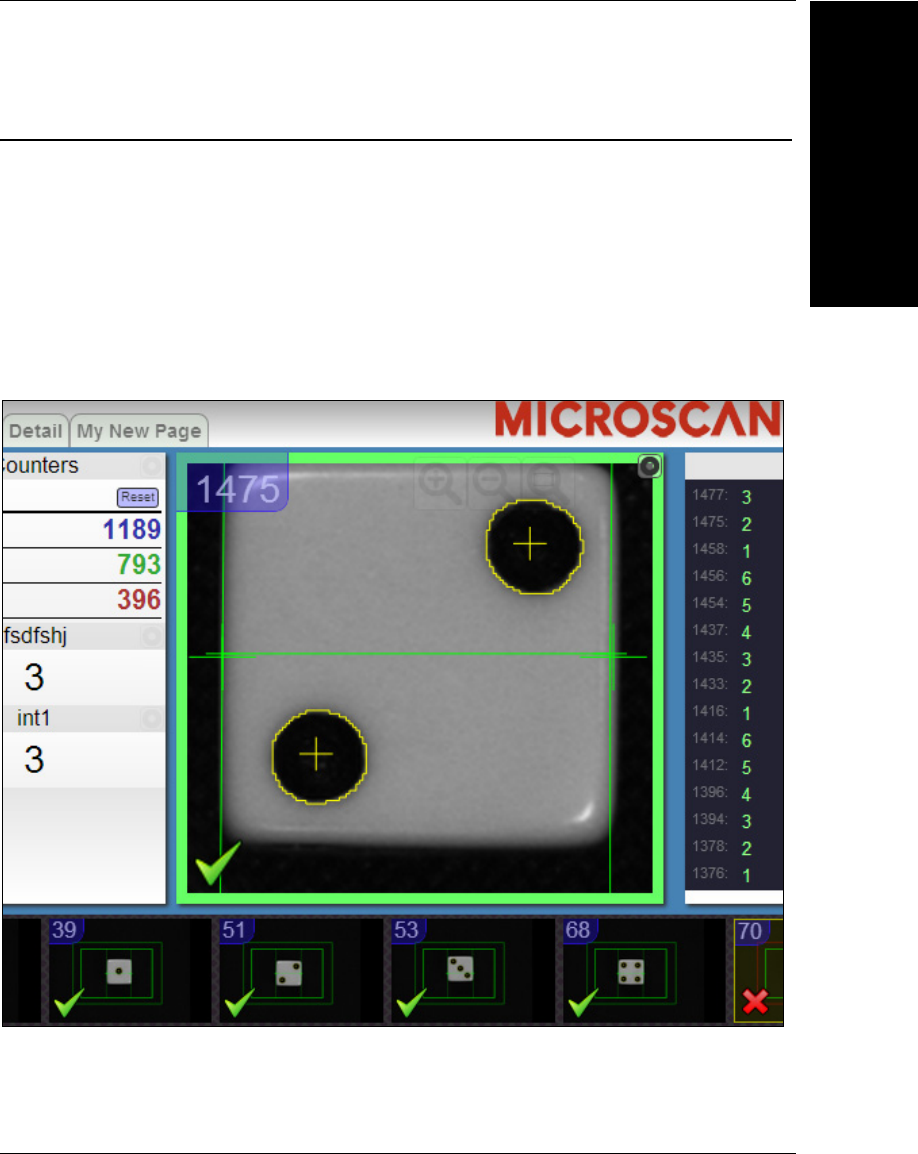
Image Widget
Widgets
4
Getting Started with CloudLink 4-9
Image Widget
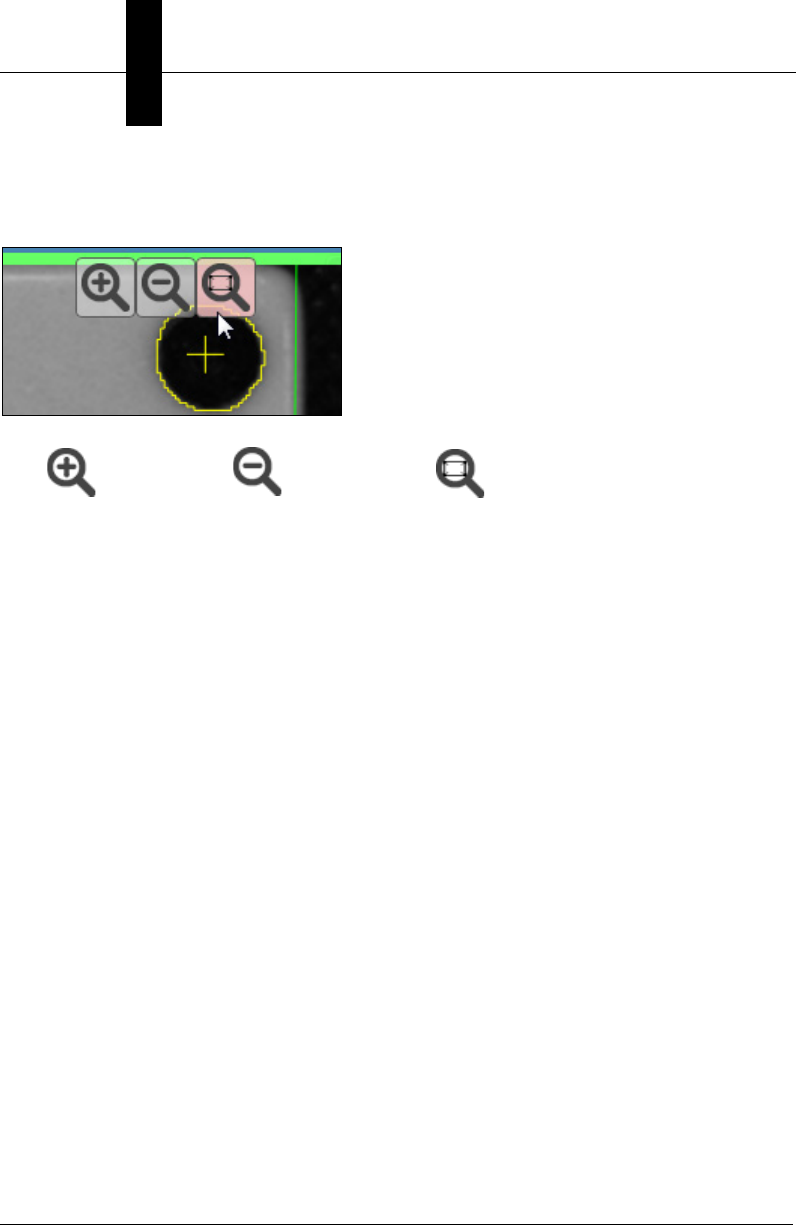
The Image widget represents the most central function of CloudLink. It can show an
image and its associated graphics.
Note: CloudLink does not currently support display of color images from color cameras.
The image widget also permits zooming and panning, supporting pinch gestures on
touchscreen devices. The graphics are rendered as vector graphics, so zooming in shows
more detail instead of making the lines thicker.
Note: There is currently a known Internet Explorer issue with displaying scalable zoomed-in
vector graphics. When using Internet Explorer, the lines will appear thicker as you zoom in.
When added to the center panel, the image widget automatically expands to fully occupy
the area. Any other widgets added will appear over the image.
The image widget also displays a thick colored border representing the inspection status
(green = pass, red = fail). In the bottom left corner either a green check or red X is
displayed, corresponding to the inspection status indicators within the filmstrip widget.
Chapter 4Widgets
4-10 Getting Started with CloudLink
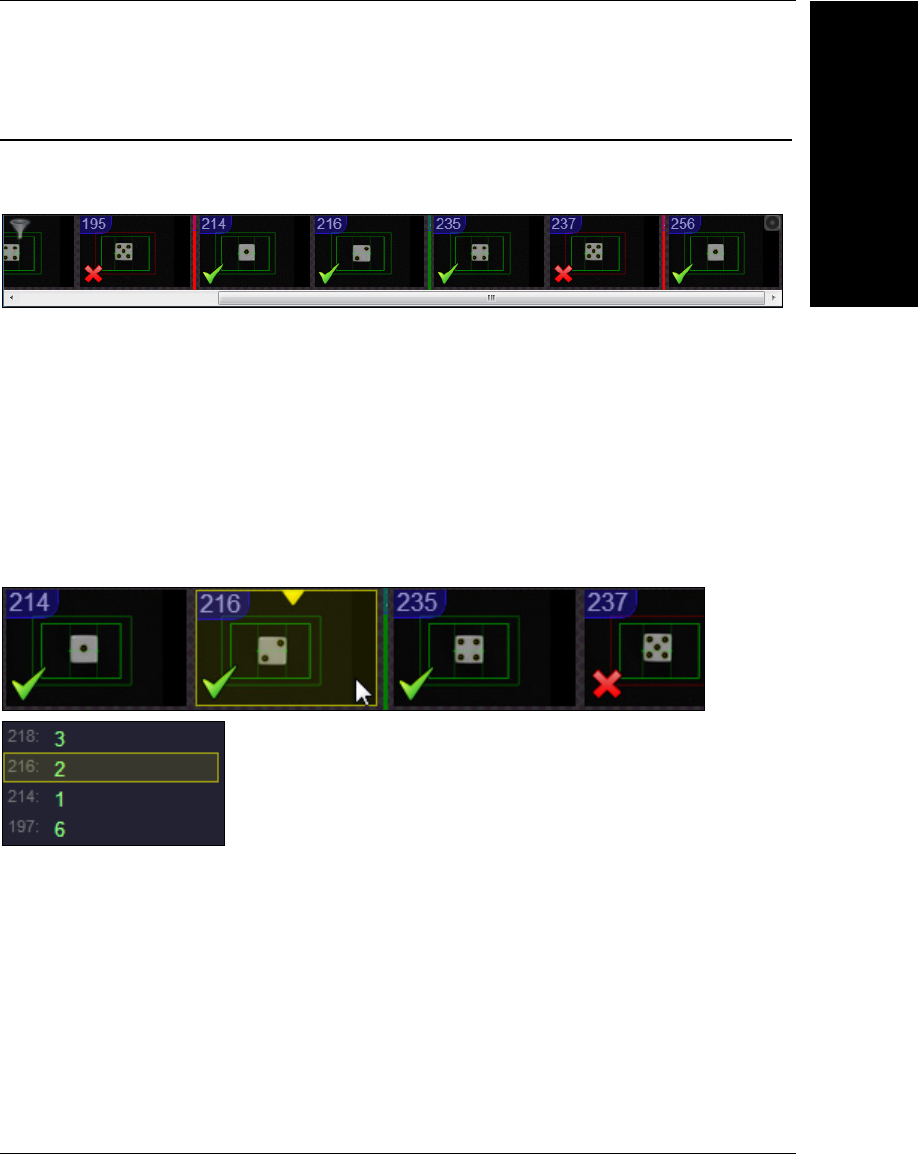
The Data Event Identifier is displayed in the upper left corner.
A zoom toolbar appears when hovered over.
Click to zoom in and to zoom out. The button zooms and centers the
image to be contained completely within the widget. If using a mouse, the scroll wheel can
be used to zoom in and out. If using a touchscreen device, pinch gestures can be used.
Filmstrip Widget
Widgets
4
Getting Started with CloudLink 4-11
Filmstrip Widget
The Filmstrip widget shows a history of images. The images are displayed from right to
left, with the most recent images appearing on the right side.
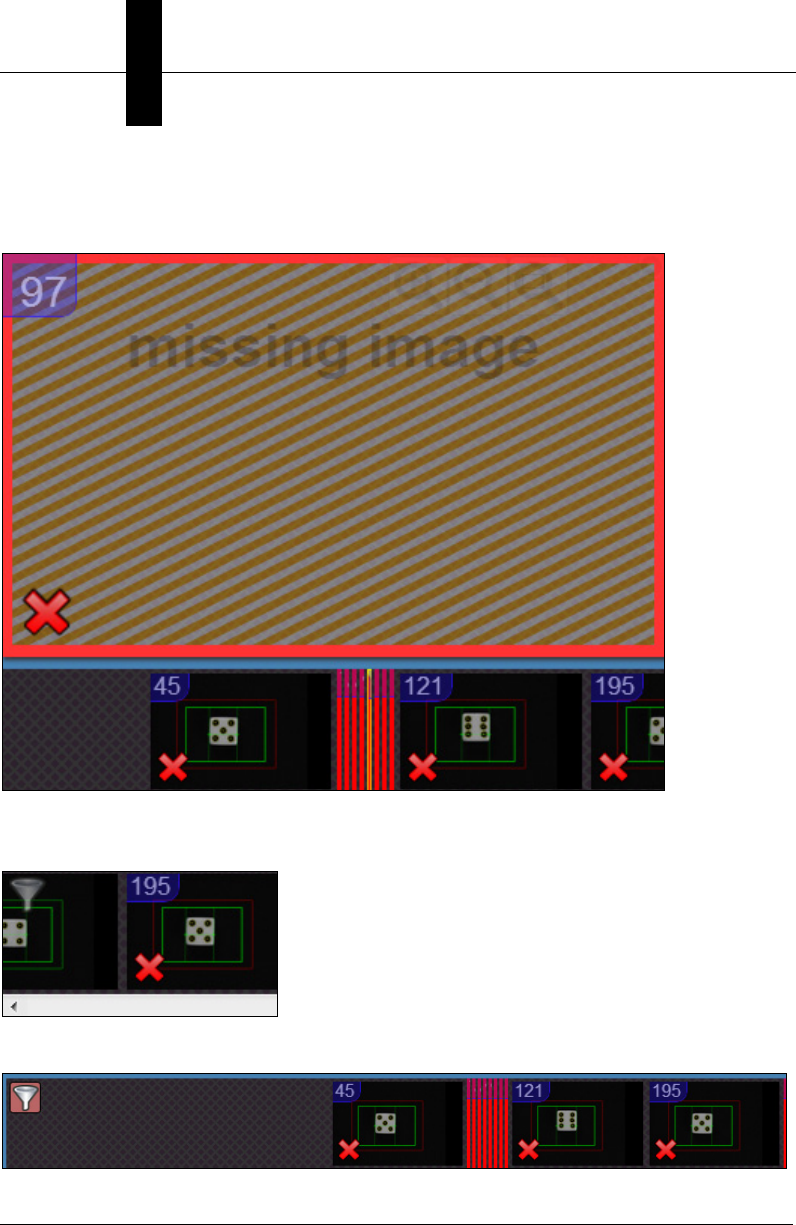
Each filmstrip entry shows the inspection status by displaying either a green check or red
X in the lower right corner. The data event ID is shown in the upper left corner.
It is important to note that not every image can be captured by CloudLink. The number of
images available depends on bandwidth and timing considerations. Therefore, it is likely
that some images will be missing (even though the rest of the data for that inspection is
available). Any missing images are represented in the filmstrip by vertical bars colored red
for failed inspections or green for passed inspections.
Hovering over an item in the filmstrip will highlight all data corresponding to the same data
event. You can also hover over the missing image bars.
Chapter 4Widgets
4-12 Getting Started with CloudLink
Clicking the filmstrip entry will select that item for review. This will load the widgets with the
data as it was at the time the event was recorded. If the image is missing, any image
widgets will display a missing image placeholder.
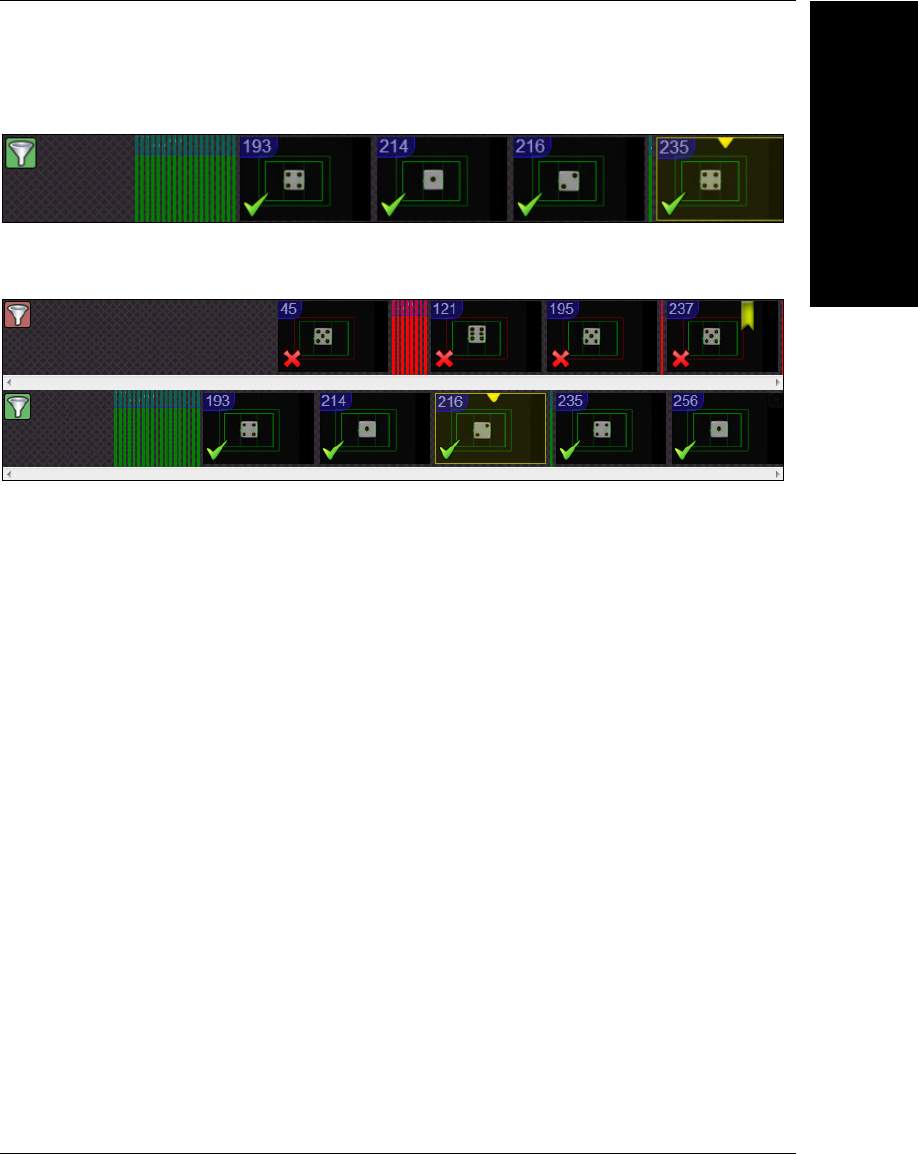
In the upper left corner of the filmstrip widget is a filter button. Clicking this button will
filter what is shown in the filmstrip.
When the filter button is first clicked, only failed items will be displayed.
Filmstrip Widget
Widgets
4
Getting Started with CloudLink 4-13
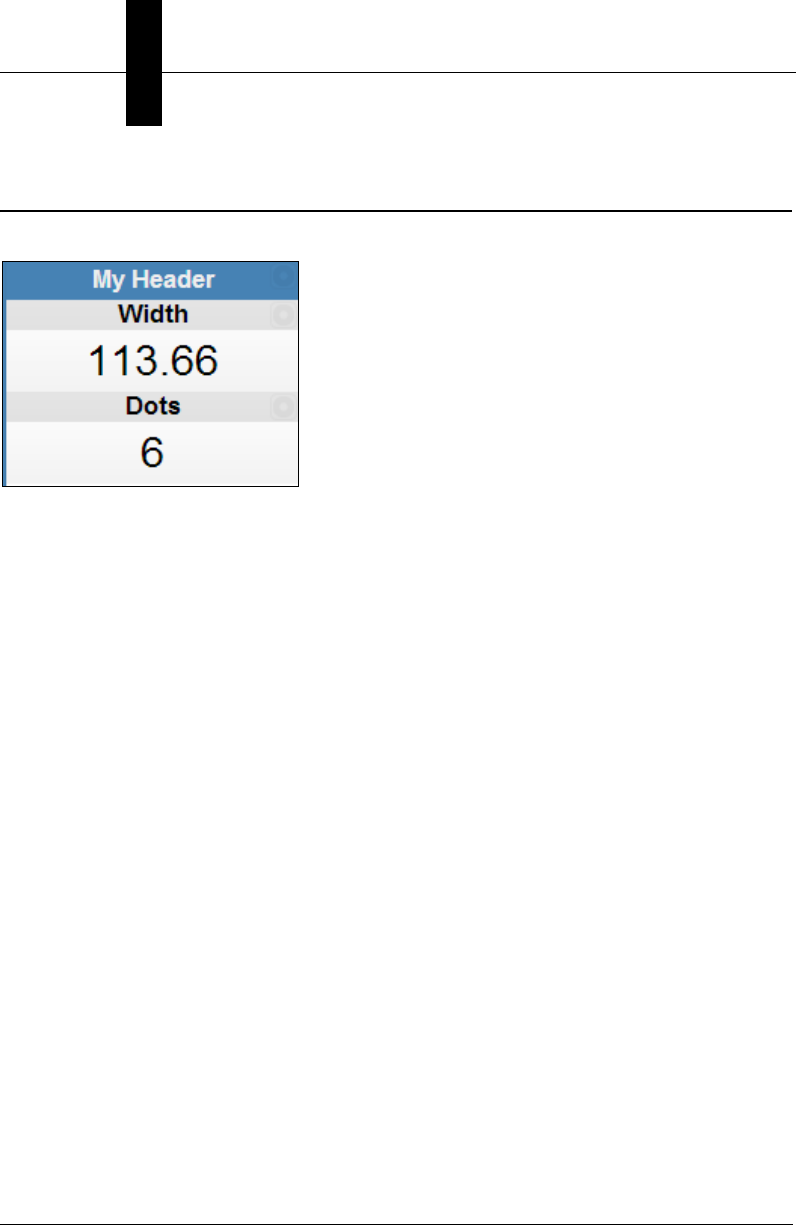
Clicking the filter button again will change the filter so that only passed items are displayed.
Since it is permitted to have multiple instances of widgets, you can sort pass and fail
images into two groups.
Chapter 4Widgets
4-14 Getting Started with CloudLink
Header Widget
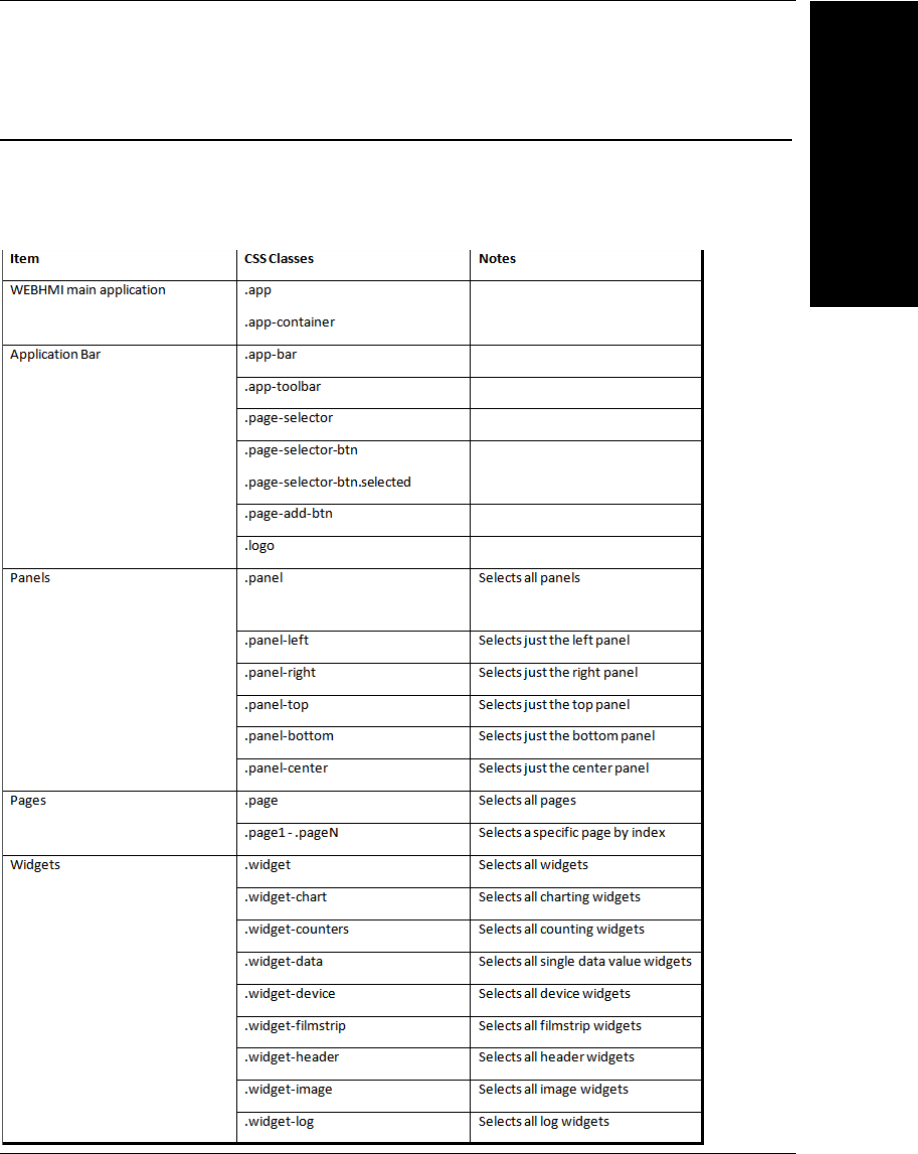
The header widget displays a header. This can be used to identify a group of widgets if necessary.
The title can be edited by double-clicking it (or long-pressing on a touchscreen device).
Customization
Widgets
4
Getting Started with CloudLink 4-15
Customization
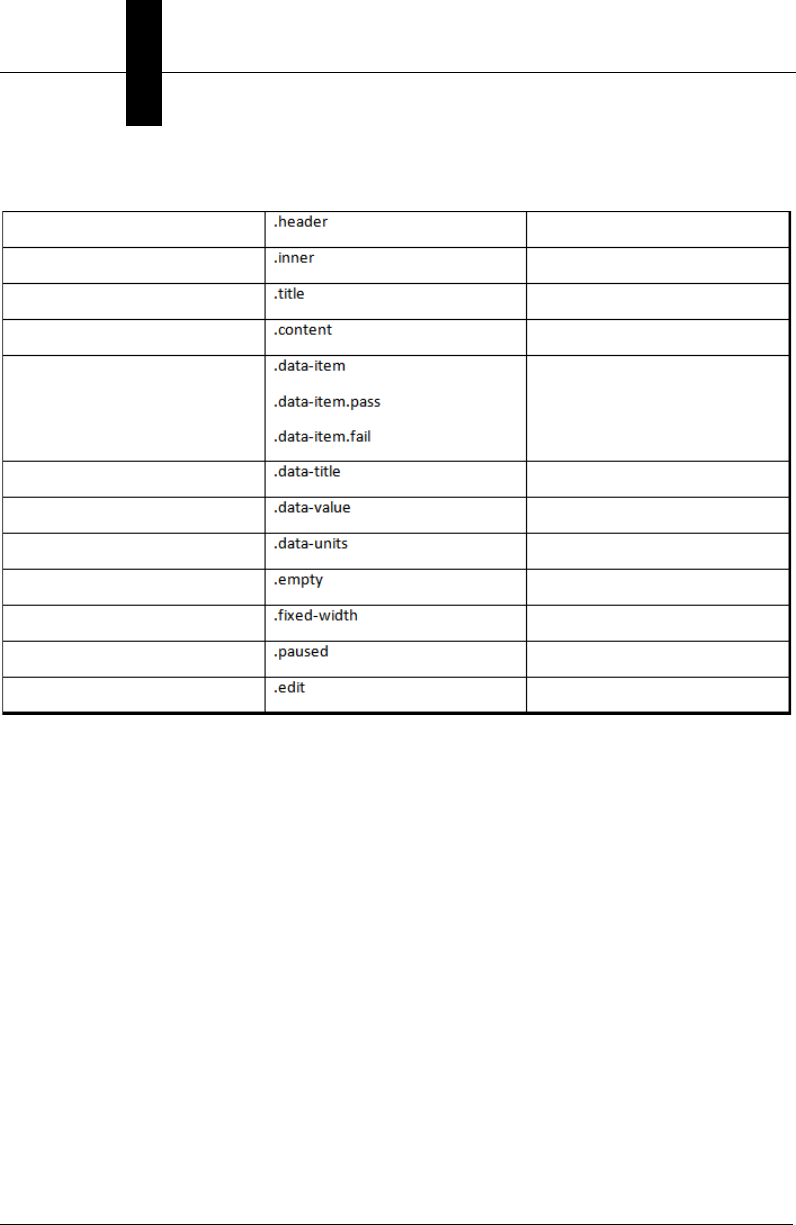
CSS Classes
This table identifies the main CSS classes that can be used when customizing CloudLink
via the OEM.css file.
Chapter 4Widgets
4-16 Getting Started with CloudLink
Secondary CSS Selectors

Customization
Widgets
4
Getting Started with CloudLink 4-17
Example Theme:
/* general settings for the application */
.app, .app-container {
background : #aaa;
font-family: Arial, Helvetica, sans-serif;
font-size : 17px;
}
/* set the format of the application bar */
.app-bar {
background-image:url("di-soric-header.png");
background-repeat:no-repeat;
background-size : cover;
}
/* set the format for the page selector button area */
.page-selector {
position : absolute;
bottom : 0;
left : 330px;
}
/* set the format for a single page selector button */
.page-selector-btn {
margin-right : 20px;
color : #eee;
opacity : 0.7;
}
/* highlight a page selector button when hovering */
.page-selector-btn:hover {
opacity : 1;
}
/* set the format for a selected page selector button */
.page-selector-btn.selected {
color : #fff;
opacity : 1;
}

Chapter 4Widgets
4-18 Getting Started with CloudLink
/* set the contents and position of the logo */
.logo {
width : 276px;
height : 42px;
margin-left : 20px;
margin-top : 10px;
background-image:url("di-soric-logo.png");
background-repeat:no-repeat;
margin-bottom : 4px;
}
/* set the size and position of the toolbar */
.app-toolbar {
zoom : 0.7;
position : absolute;
top : 0;
right : 0;
margin : 0;
}
/* set the format of all data values */
.widget .value {
font-size : 30px;
line-height: 30px;
}
.widget > .header {
display : block;
height : 28px;
width : 100%;
color : #fff;
background-image:url("di-soric-header.png");
background-size : cover
}
/* set the formatting for the text within a widget header */
.widget > .header > .title {
height : 100%;
padding-top : 5px;
margin-left : 10px;
display : inline-block;
vertical-align: bottom;
}

Customization
Widgets
4
Getting Started with CloudLink 4-19
/* set the background for the data widget (excluding the header) */
.widget-data > .content {
background : #eef;
}
/* set background for the chart widget (excluding the header) */
.widget-chart > .content {
background : #035;
}

Chapter 4Widgets
4-20 Getting Started with CloudLink

Getting Started with CloudLink 5-1
5
REST APIs
5
CHAPTER 5 REST APIs
This section describes how to use REST (Representational State
Transfer) APIs to access data from the camera.
Chapter 5REST APIs
5-2 Getting Started with CloudLink
REST APIs
REST APIs allow you to access data from the camera over the web standard HTTP
protocol.
Using a web browser, requests to the camera are made using the IP address of the
camera as the URL root. Version 1 of the APIs are accessed using the path prefix of
/api/v1/.
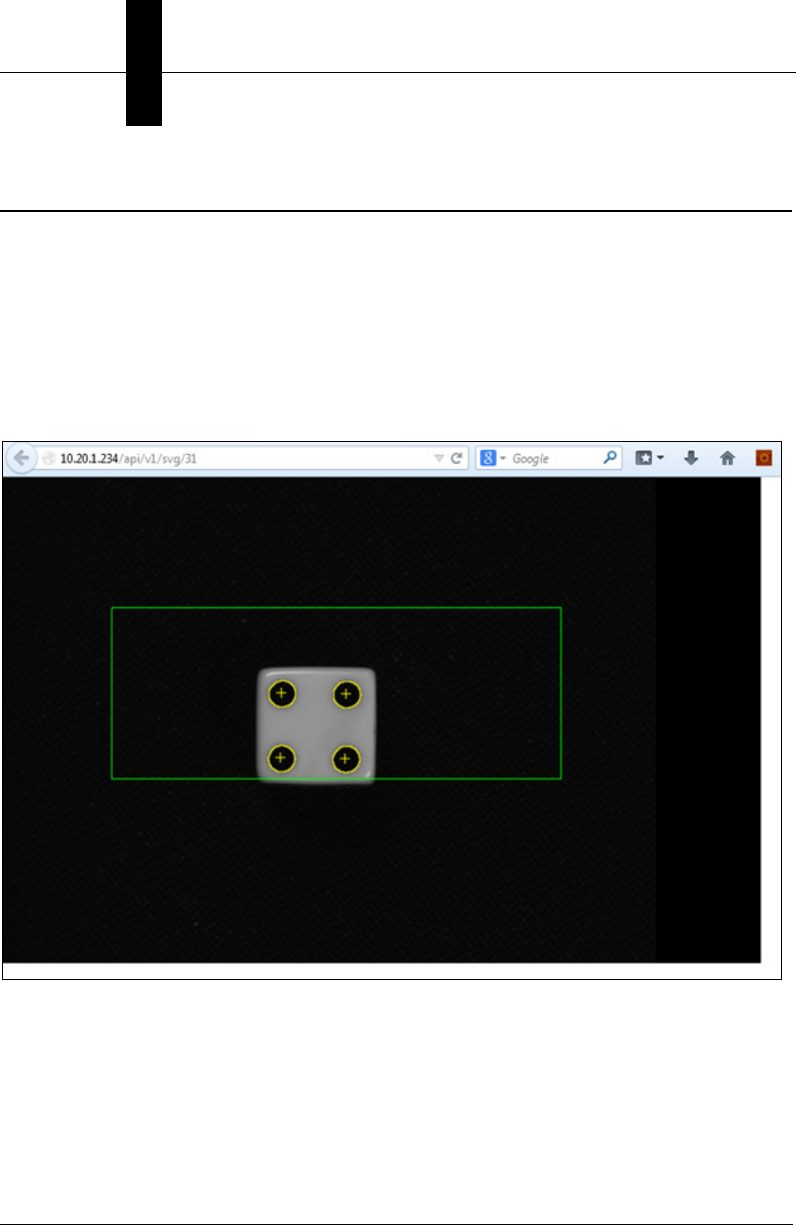
For example, to access the SVG API of a camera at IP address 10.20.1.234, the URL to
the REST service would be: http://10.20.1.234/api/v1/svg.
REST APIs
REST APIs
5
Getting Started with CloudLink 5-3
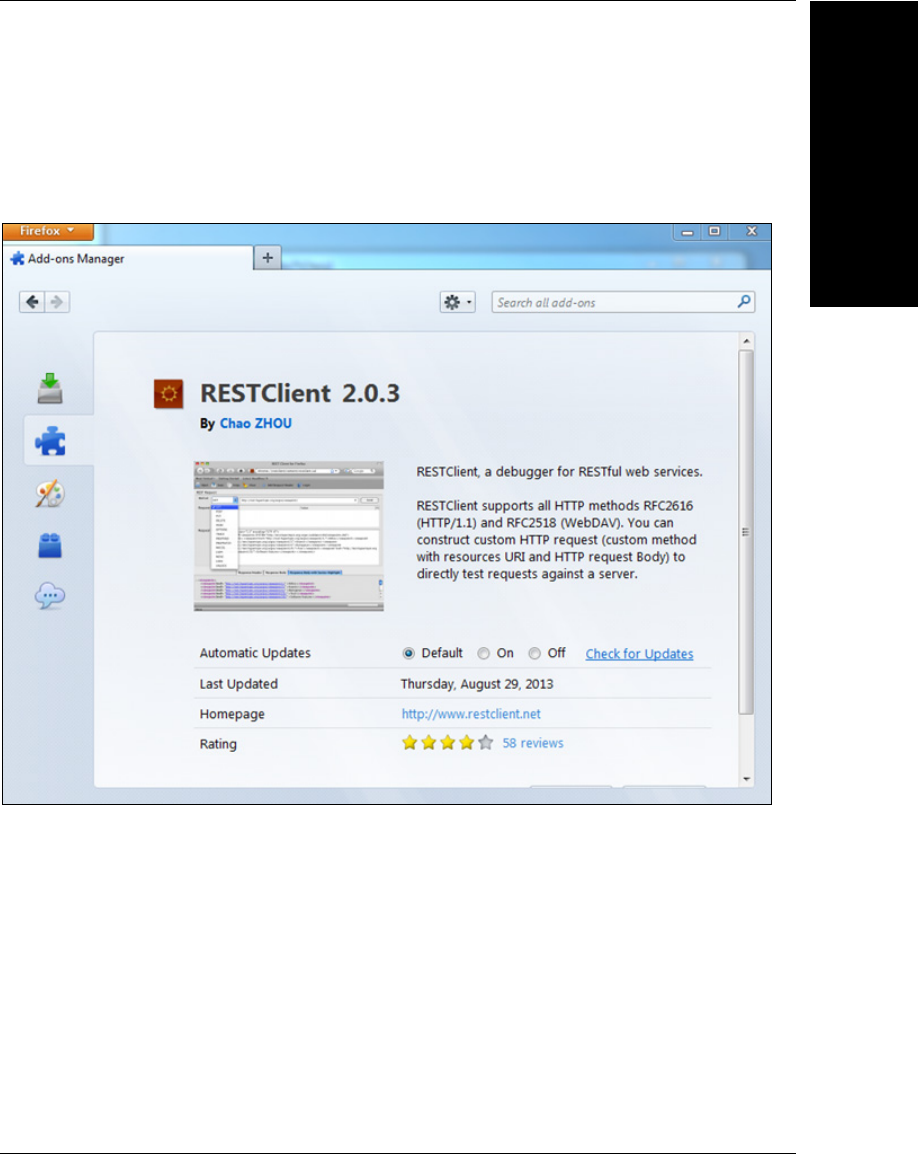
REST APIs are also used to exchange data with the camera. To interact with the camera’s
APIs using a standard web browser, a REST client browser add-on can be used. There
are a variety of REST clients available for most browsers.
The following example shows RESTClient for the Firefox browser.
Chapter 5REST APIs
5-4 Getting Started with CloudLink
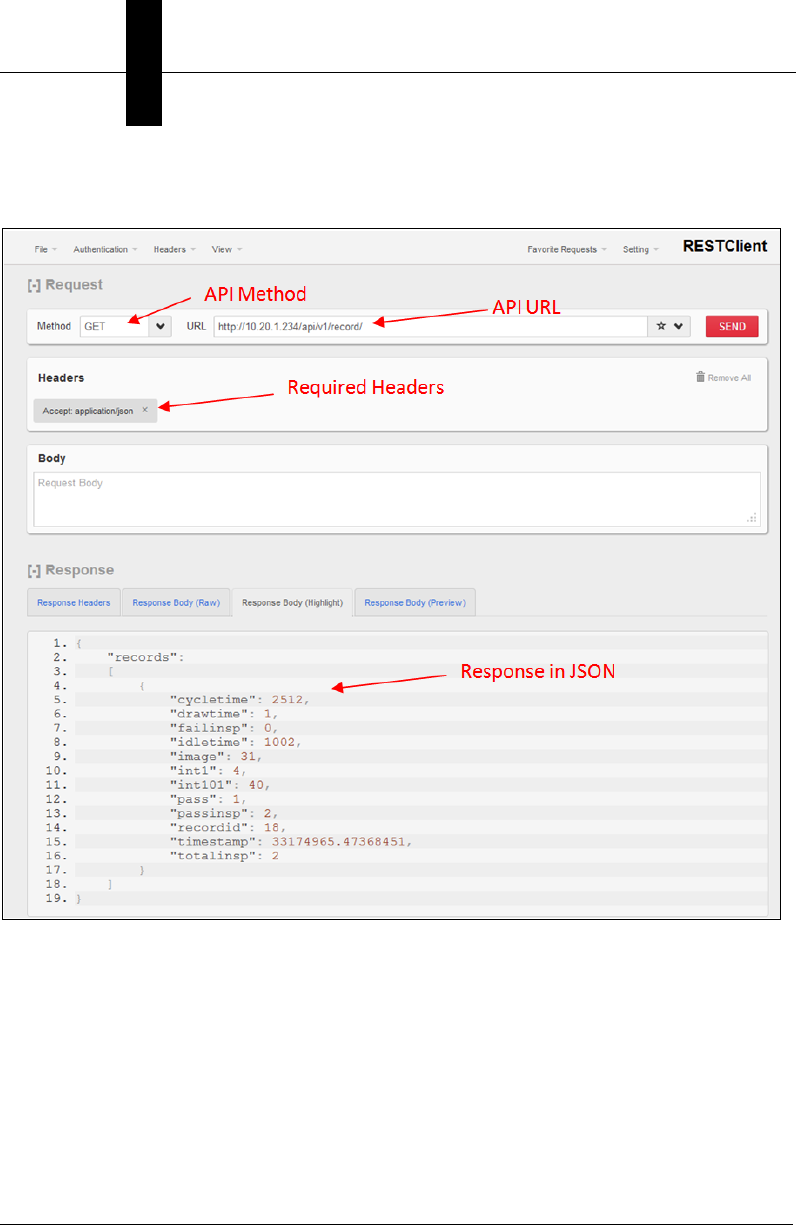
Using a REST client, a request to receive data in JSON format can be made to the
camera and viewed in the browser.

command
REST APIs
5
Getting Started with CloudLink 5-5
command
This API passes the body of the message to the serial command
processor. The result string from the serial command processor is
returned as the body of the response message.
The body of the message is a command string just as it would be typed
into a serial terminal to the camera, with no extra quotes or delimiters. A
terminating CR or LF is not necessary.
Resource URL
PUT /api/v1/command
Content-Type: text/plain
Accept: text/plain
Body: “command text”
Response Body
Command response as text
Example
PUT /api/v1/command
Content-Type: text/plain
Accept: text/plain
jobinfo
Response Body
slot4=EIP_demo.avp?
Chapter 5REST APIs
5-6 Getting Started with CloudLink
data
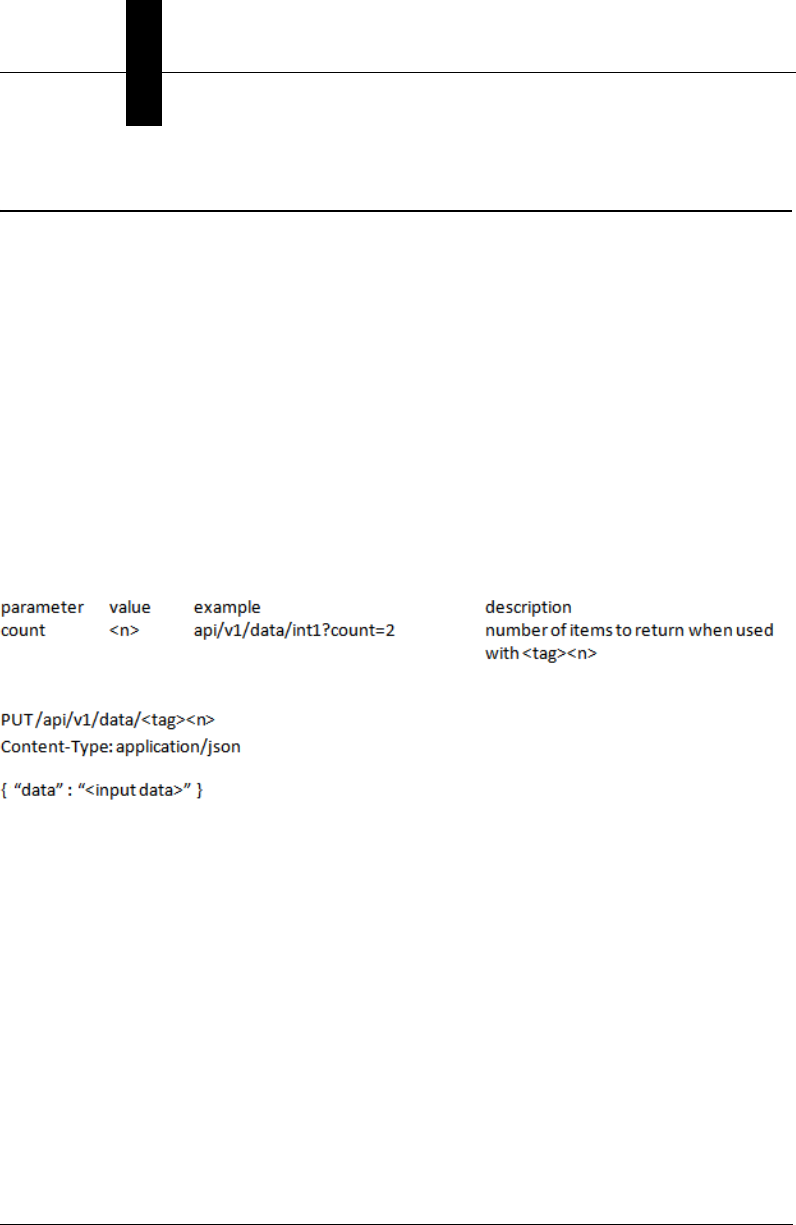
This API sets or retrieves the value of a tag, tag array or all tags in a service. The
response is in JSON and the header must declare it is accepted. When setting data, the
body must be in JSON with a top level element named “data” with the values to be set.
Resource URL
GET /api/v1/data/<service>
Accept: application/json
GET /api/v1/data/<tag>
Accept: application/json
GET /api/v1/data/<tag><n>
Accept: application/json
Examples
URL
GET /api/v1/data/float1?count=2
Response Body
{ “data” : [1.234, 5.678] }
URL
PUT /api/v1/data/int5
Body
{ “data” : “123” }

stats
REST APIs
5
Getting Started with CloudLink 5-7
stats
This API retrieves the inspection statistics for up to 10 inspections or
resets the counters. The response is in JSON.
Resource URL
GET /api/v1/stats
Accept: application/json
PUT /api/v1/stats
A PUT clears the inspection counters. No other arguments are needed.
Examples
URL
GET /api/v1/stats
Response Body
{
"totalinsp" : [ 19, 0, 0, 0, 0, 0, 0, 0, 0, 0] ,
"passinsp" : [ 19, 0, 0, 0, 0, 0, 0, 0, 0, 0] ,
"failinsp" : [ 0, 0, 0, 0, 0, 0, 0, 0, 0, 0] ,
"trigover" : [ 0, 0, 0, 0, 0, 0, 0, 0, 0, 0] ,
"procover" : [ 0, 0, 0, 0, 0, 0, 0, 0, 0, 0] ,
"fifoover" : [ 0, 0, 0, 0, 0, 0, 0, 0, 0, 0] ,
"timeout" : [ 0, 0, 0, 0, 0, 0, 0, 0, 0, 0]
}
totalinsp: Total inspections
passinsp: Passed inspections

Chapter 5REST APIs
5-8 Getting Started with CloudLink
failinsp: Failed inspections
trigover: Trigger overruns
procover: Process overruns
fifoover: FIFO overruns
timeout: Inspection Timeouts
URL
PUT /api/v1/stats

config
REST APIs
5
Getting Started with CloudLink 5-9
config
This API sets, retrieves or deletes values from persistent storage on the
device. The data is passed as JSON.
Resource URL
GET /api/v1/config/<table>/<key>
Accept: application/json
Retrieves the key as a key value pair { “key” : “value” }
GET /api/v1/config/<table>
Accept: application/json
Retrieves all the keys in a table as key value pairs {
“key” : “value” }
PUT /api/v1/config/<table>/<key>
Content-Type: application/json
DELETE /api/v1/ config/<table>/<key>
Chapter 5REST APIs
5-10 Getting Started with CloudLink
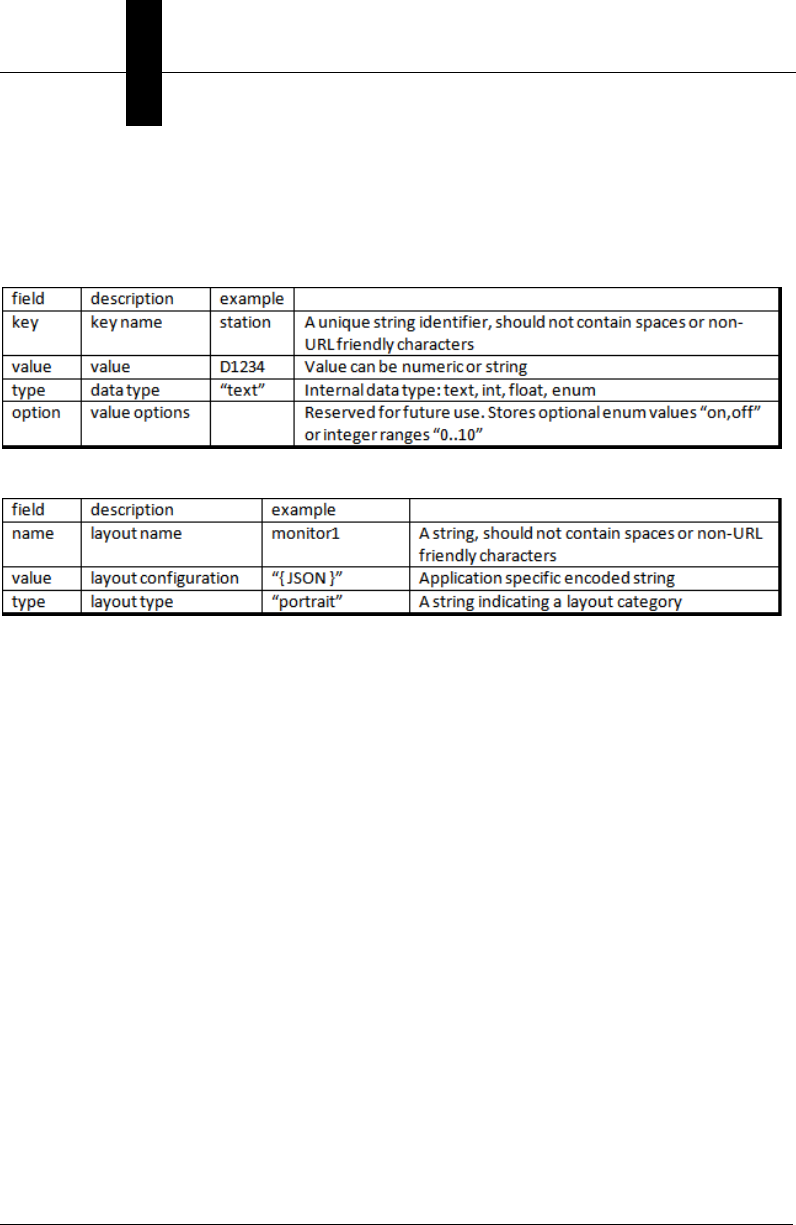
Available Tables:
param, layout
The param table stores key/value pairs:
The layout table stores HMI layout configurations:
Examples
URL
PUT /api/v1/config/param
Body
{ "key" : "mysetting" , "value" : "stored value" }
URL
GET /api/v1/config/param/mysetting
Response Body
{ "mysetting": "stored value" }
URL
GET /api/v1/config/param/
Response Body
{ "mysetting": "stored value", "second": "another value" }
URL
DELETE /api/v1/config/param/mysetting
record
REST APIs
5
Getting Started with CloudLink 5-11
record
This API retrieves an inspection record result. With no report index, the
latest report is returned. A specific inspection record can be retrieved by
appending the index to the URI. Arguments can be added in the form of
argument=value to filter the return set of records that match the filter
requirements.
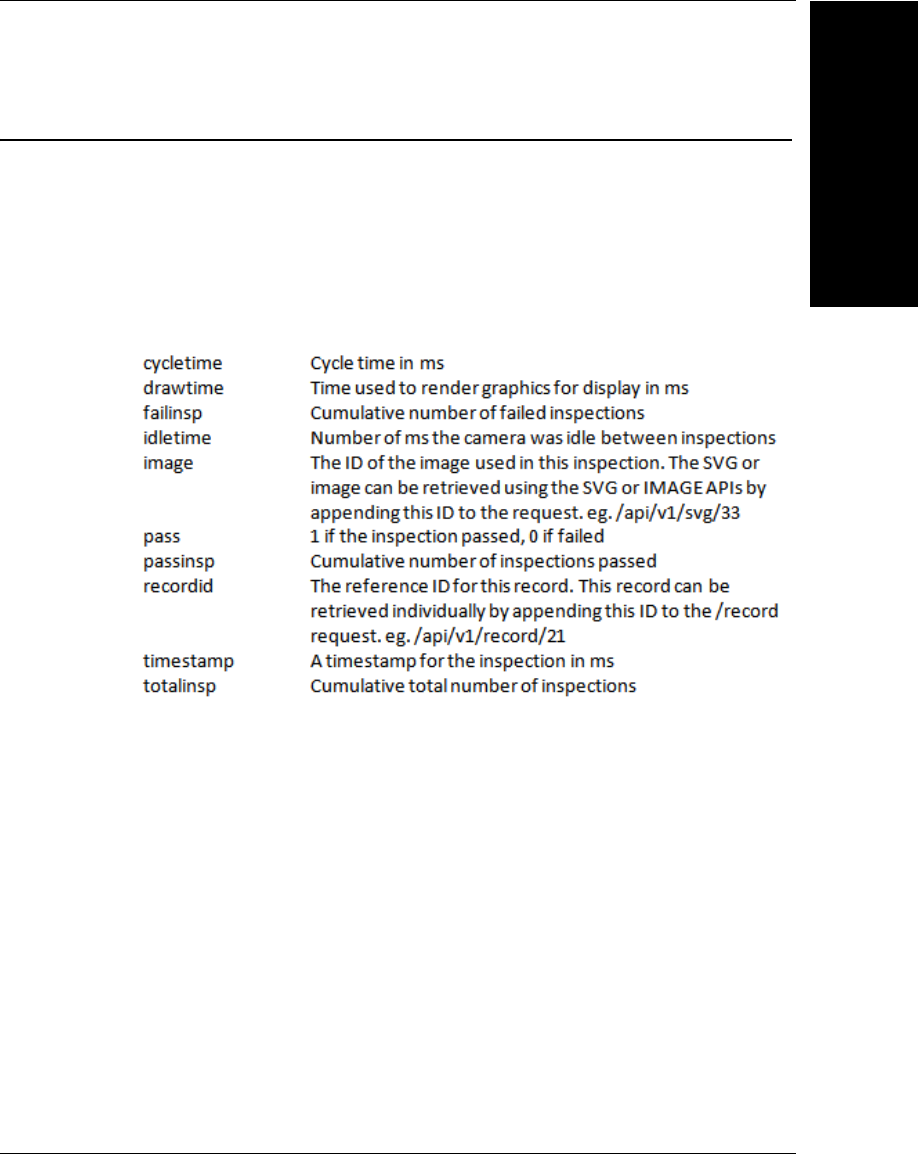
Inspection records will contain the following data in addition to any global
data values in use by Microscan Link within that inspection.
Resource URL to Get Last Record
GET /api/v1/record
Accept: application/json
Response Body
The last completed record in a json array called “records”
Example
GET /api/v1/record
Accept: application/json

Chapter 5REST APIs
5-12 Getting Started with CloudLink
Response Body
{
"records":
[
{
"cycletime": 475,
"drawtime": 1,
"failinsp": 2,
"idletime": 1084,
"image": 0x00011eed000a1e1f,
"int1": 1,
"int101": 40,
"pass": 1,
"passinsp": 3,
"recordid": 21,
"timestamp": 8895730.13184849,
"totalinsp": 5
}
]
}

record
REST APIs
5
Getting Started with CloudLink 5-13
Resource URL to Get a Specific Record
GET /api/v1/record/<recordid>
Accept: application/json
Response Body
A single record with the matching record I.D. if it
exists; an empty array if it does not.

Chapter 5REST APIs
5-14 Getting Started with CloudLink
filters
Records can be filtered by the contents of the record by appending the
filter requirements as arguments to the request. A specific value can be
specified (eg. int1=4). The symbols (a,b) [a,b] can be used to specify a
range of values to include () for a non-inclusive range, [] for inclusive. (
and [ can be used independently on either end of the range (eg. (4,10] or
[5,11) for values 5,6,7,8,9,10 )
For example, to include all inspections from record I.D. 5 to 10:
GET /api/v1/record?recordid=[5,10]
To include recordids from 5 to 10, not including 5:
GET /api/v1/record?recordid=(5,10]
To include all record I.D.s following record I.D. 5 to an unbounded limit,
omit the second argument.
GET /api/v1/record?recordid=(5,]
Filters can be combined to further limit the returned results. To get all the
records between 100 and 200 inclusive that failed only:
GET /api/v1/record?recordid=[100,200]&pass=0
Special filters to limit the number of returned results start with ‘!’ include
!count and !last. When used with a filter range request !count=<x> can
limit the number of results returned to x. To return up to the first 5 records
starting at record 100:
GET /api/v1/record?recordid=[100,]&!count=5
Instead of returning the first 5 records matching the filter conditions
!last=1 can be used to return the last set of matching records. To return
the last failed record only from all records:
GET /api/v1/record?recordid=[1,]&!count=1&!last=1
image
REST APIs
5
Getting Started with CloudLink 5-15
image
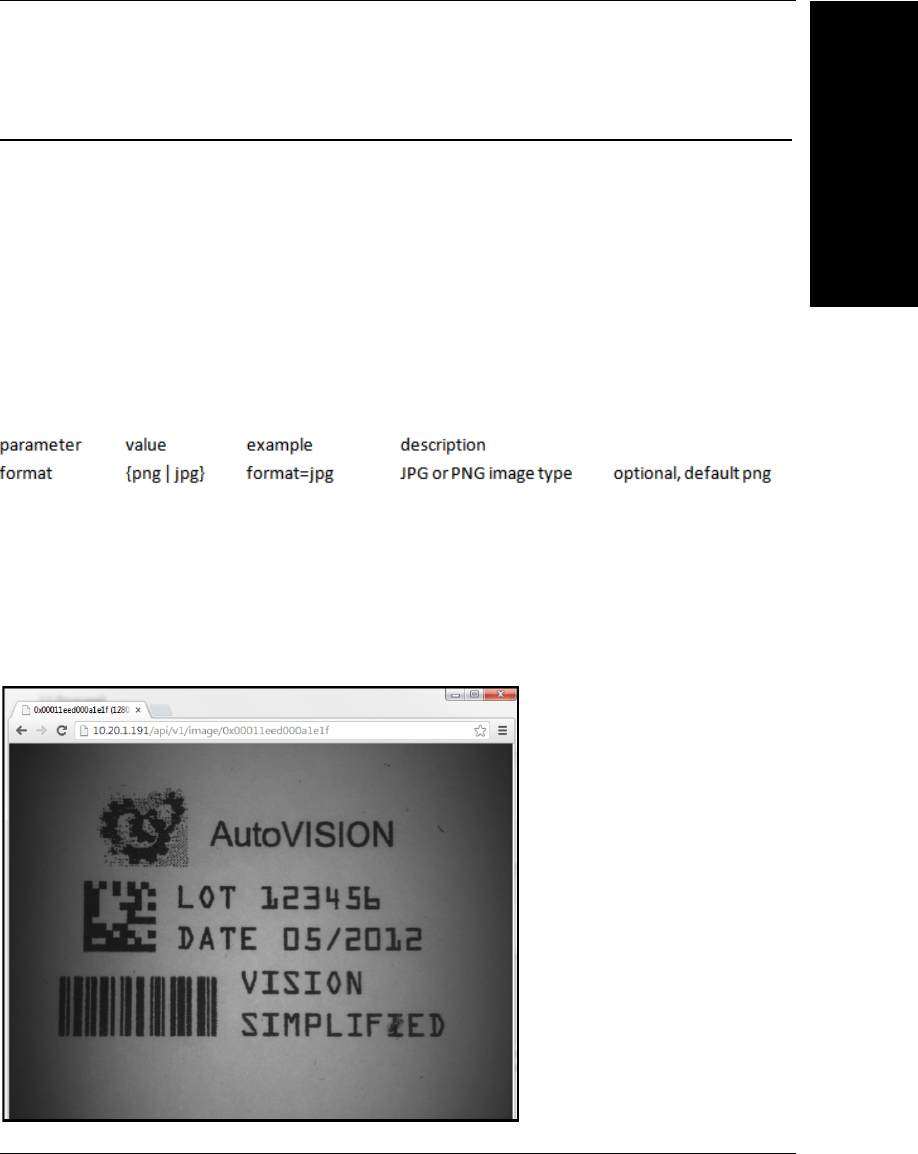
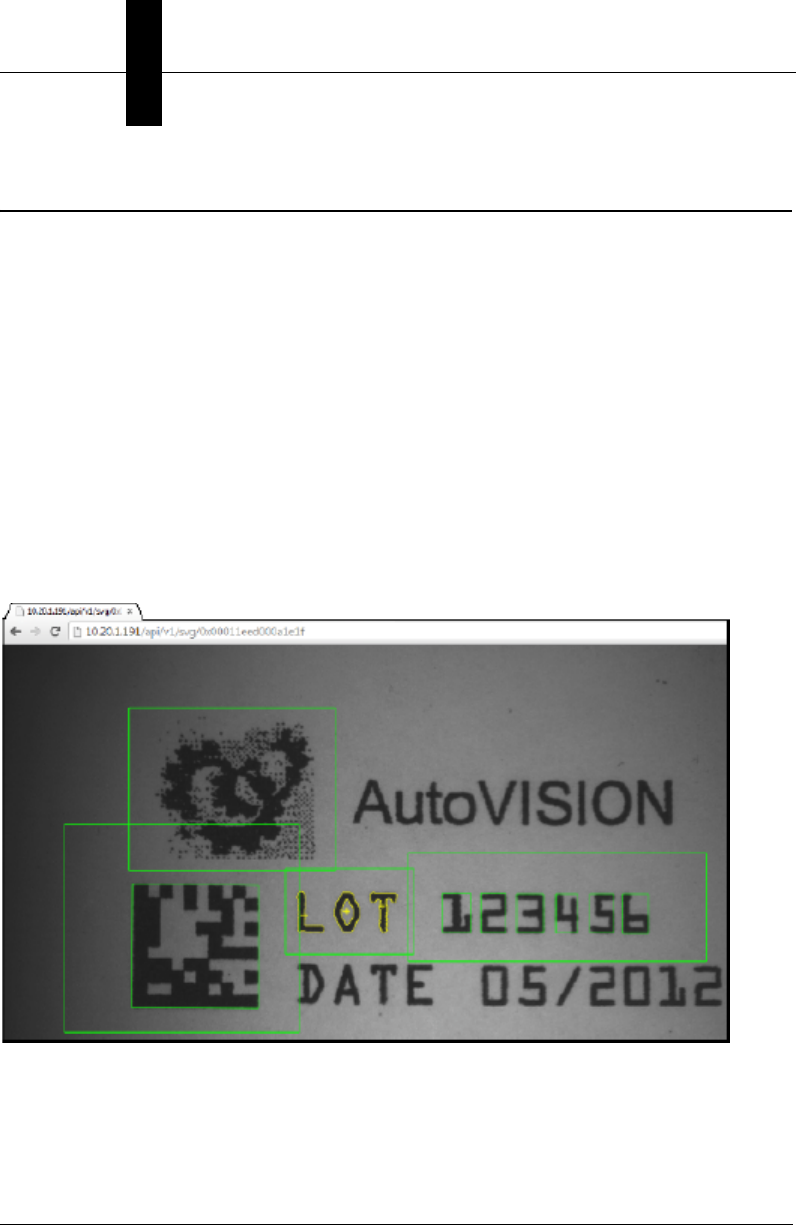
This API retrieves an image with a default type of PNG. Buffer can be either from an index
or most recent.
Note: Image ID is found via the record command.
Resource URL
camera URL /api/v1/image
retrieves the most recent acquired image.
camera URL /api/v1/image/<id>
retrieves image for the buffer id.
returns an image object of type PNG by default.
Examples
URL
10.20.1.191 /api/v1/image/0x00011eed000a1e1f
Response Image

file
REST APIs
5
Getting Started with CloudLink 5-17
file
This API retrieves a directory listing for the web server directory or sub
directory of the web server using a GET request. It also allows for
uploading of files via a POST request. If the file uploaded ends with the
extension .zip the file will be unzipped in the specified folder.
Resource URL
GET /api/v1/file
Accept: application/json
retrieves the root file directory of the web server.
GET /api/v1/file/<path>
Accept: application/json
retrieves image for the sub directory <path>.
Returned Data Values
name Directory or file name
dir True if a directory, false if a file
size File size if object is a file, in bytes
POST /api/v1/file
Content-Type: multipart/form-data
uploads a file to the root folder of the web server.
POST /api/v1/file/<path>
Content-Type: multipart/form-data
uploads the attached file to the sub directory <path>.

Chapter 5REST APIs
5-18 Getting Started with CloudLink
GET Example
URL
GET /api/v1/file/app
Reply
{
"data": [
{
"name": "hmi",
"dir": true,
"size": 0
},
{
"name": "img_demo",
"dir": true,
"size": 0
},
{
"name": "svg_demo",
"dir": true,
"size": 0
}
]
}

file
REST APIs
5
Getting Started with CloudLink 5-19
POST Example HTML Form File Selector
<form method="POST" action="/api/v1/file/app/myapp"
enctype="multipart/form-data">
<input type="file" name="file" />
<input type="submit" value="Upload" />
</form>
POST Example jQuery Ajax Call Using FormData from an
HTML Form File Selector
<form id="target" enctype="multipart/form-data">
<input id="file" type="file" name="file" />
<input type="submit" value="Upload" /> <br/>
</form>
var fdata = new FormData($('form')[0]);
$.ajax({
url: '/api/v1/file/app/myapp',
type: 'POST',
data: fdata,
cache: false,
contentType: false,
processData: false,
success: function(data, textStatus, jqXHR){
}
});

Chapter 5REST APIs
5-20 Getting Started with CloudLink

Getting Started with CloudLink 6-1
6
Installing and
Updating CloudLink
6
CHAPTER 6
Installing and Updating
CloudLink on a Smart Camera
This section describes how to install and update CloudLink on a smart
camera for use with AutoVISION and Visionscape.

Chapter 6Installing and Updating CloudLink on a Smart Camera
6-2 Getting Started with CloudLink
Installing CloudLink on a Smart Camera
The CloudLink web interface can be installed on Microscan smart cameras using the
Smart Camera Firmware Update Tool.
A .zip file containing CloudLink files is placed on the PC during AutoVISION installation,
and that .zip file is pushed to the camera during a firmware upgrade using the Smart
Camera Firmware Update Tool.
The Smart Camera Firmware Update Tool sends the. zip file by FTP along with the other
firmware files. The camera extracts the files from the .zip file as part of the upgrade process.
Note: The CloudLink .zip file is sent by FTP only when the smart camera is being
upgraded to AutoVISION 3.0.0 / Visionscape 7.0.0 or greater. CloudLink installation files
are not included with pre-3.0.0 / 7.0.0 firmware.
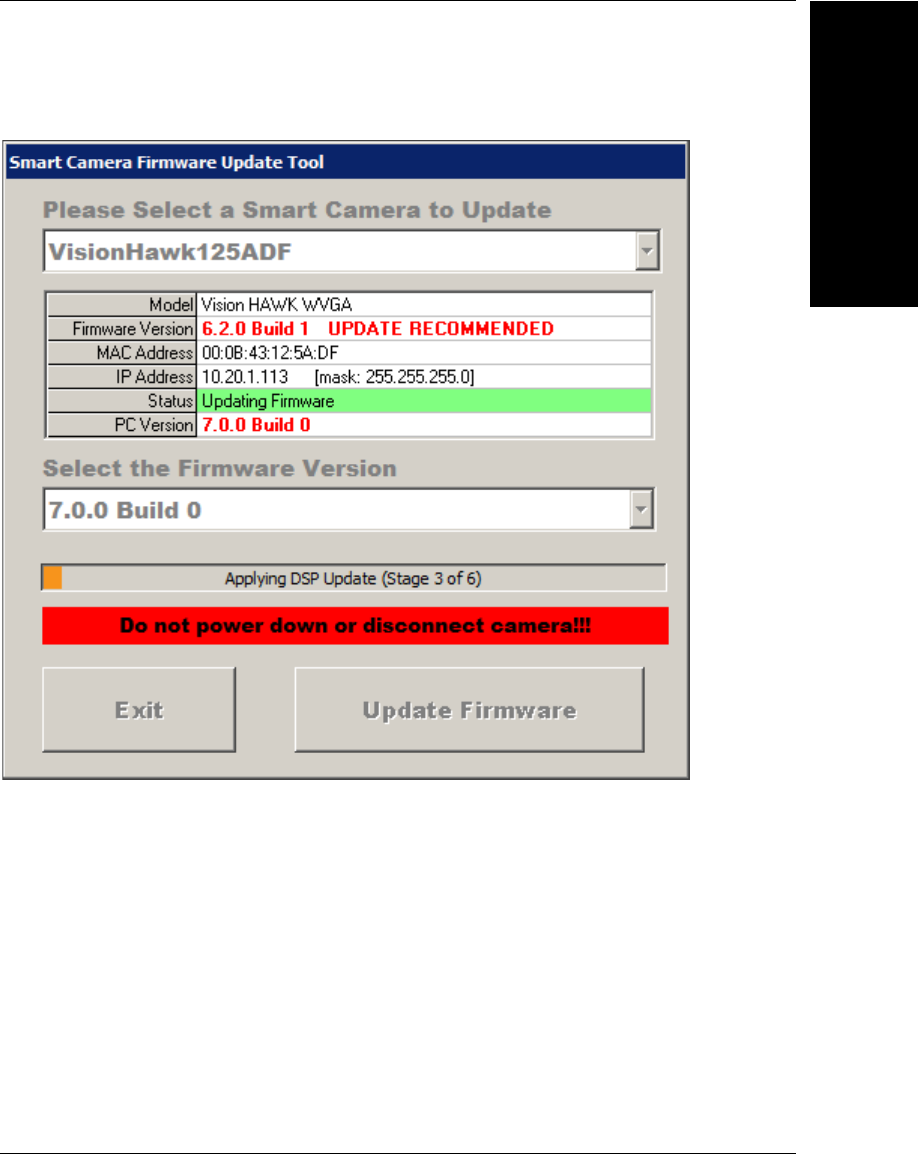
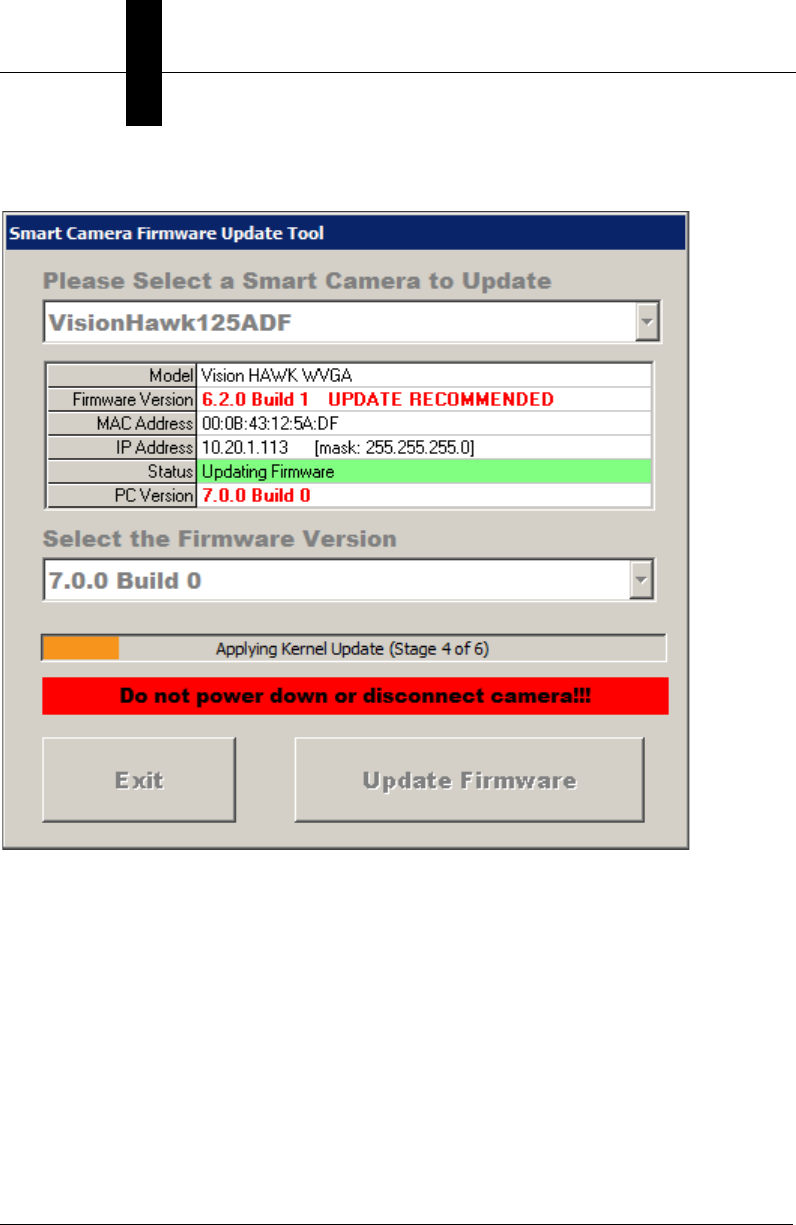
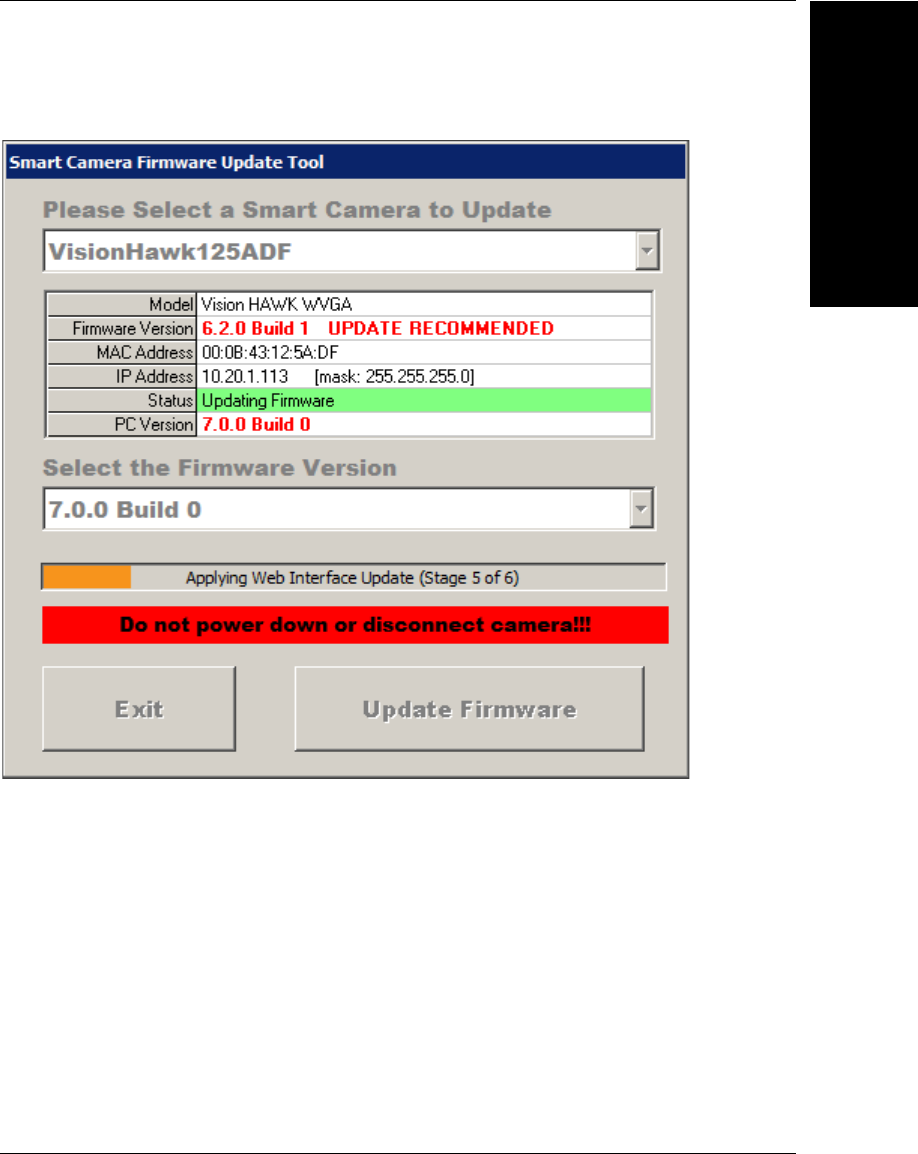
Vision HAWK firmware and CloudLink install in six stages:
• Transfer;
• Prepare;
• Apply DSP Update;
• Apply Kernel Update;
• Apply Web Interface Update (CloudLink Update);
• Reboot.
Vision MINI Xi firmware and CloudLink install in five stages:
• Transfer;
• Prepare;
• Apply Kernel Update;
• Apply Web Interface Update (CloudLink Update);
• Reboot (there is no Apply DSP Update stage for the Vision MINI Xi).
The images on the following pages show examples of a Vision HAWK’s simultaneous
CloudLink and firmware installation process.
Installing CloudLink on a Smart Camera
Installing and
Updating CloudLink
6
Getting Started with CloudLink 6-3
Stage 3 of 6: Apply DSP Update
Chapter 6Installing and Updating CloudLink on a Smart Camera
6-4 Getting Started with CloudLink
Stage 4 of 6: Apply Kernel Update
Installing CloudLink on a Smart Camera
Installing and
Updating CloudLink
6
Getting Started with CloudLink 6-5
Stage 5 of 6: Apply Web Interface Update (CloudLink Update)
Chapter 6Installing and Updating CloudLink on a Smart Camera
6-6 Getting Started with CloudLink
Updating CloudLink on a Smart Camera
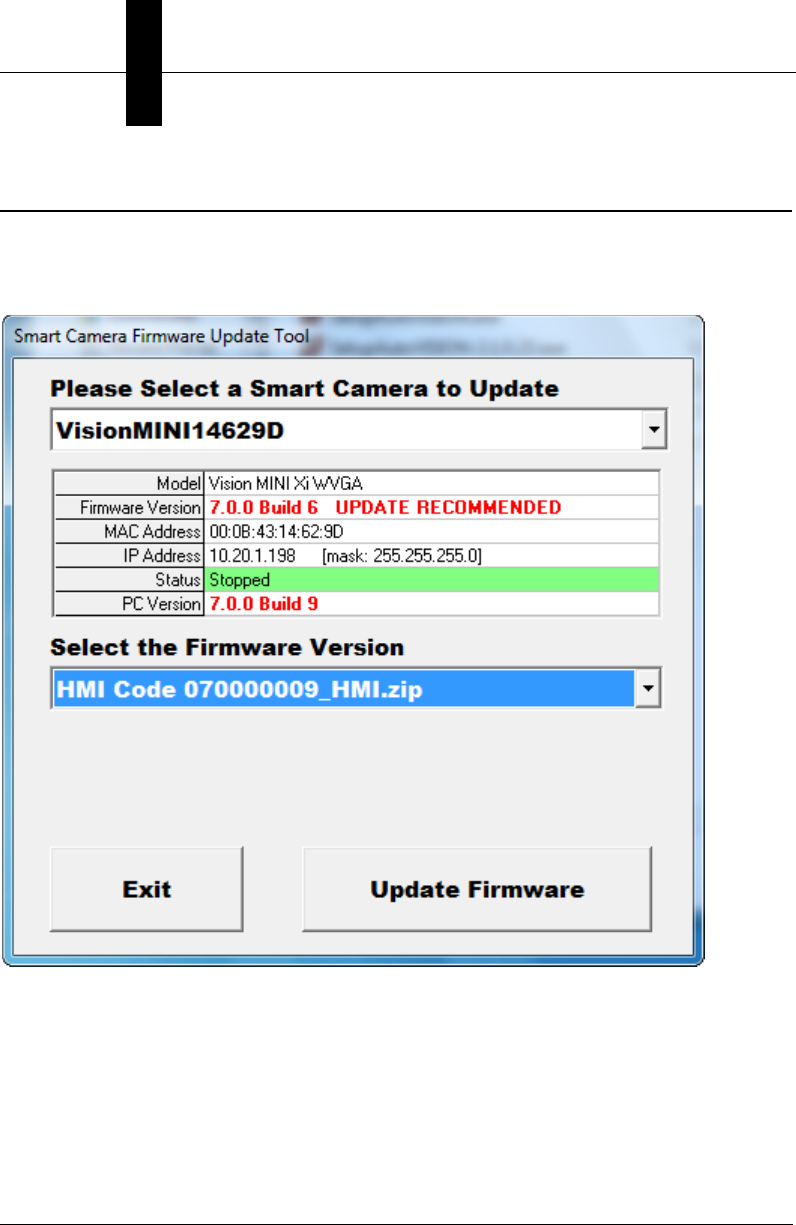
CloudLink is automatically updated as part of any camera firmware upgrade of 7.0.0 or
greater. It is also possible to update CloudLink by itself without updating other camera
firmware on any camera currently running 7.0.0 or greater. This is done by pressing the
Control-W key combination while selecting the camera to update from the dropdown list.
Once the camera has been selected, choose the desired version of CloudLink in the
Select the Firmware Version dropdown menu and then click the Update Firmware
button. A camera reboot is not necessary after the update and the unpacked CloudLink
files are immediately ready for use.
