Vision HAWK Smart Camera Quick Start Guide Visionhawkconfigquickstart
Visionhawkconfigquickstart visionhawkconfigquickstart visionhawkconfigquickstart 823c0244-0ed5-460e-92c3-250fa180c5a0 _att microscan :
Visionhawkconfigquickstart visionhawkconfigquickstart visionhawkconfigquickstart b2ed5f93-64d7-4306-b113-2ffb92eafdac _att microscan :
Visionhawkconfigquickstart visionhawkconfigquickstart visionhawkconfigquickstart d6e82251-9a1f-4c90-b7c5-3abb23308fa9 _att microscan :
2011-09-08
: Microscan Visionhawkconfigquickstart visionhawkconfigquickstart 7bf0bbe9-e573-48a2-a174-296dc84cd196 _att
Open the PDF directly: View PDF  .
.
Page Count: 2

Step 4 — Install AutoVISION
AutoVISION can be found on the Microscan Tools Drive that is packaged with the camera.
1. Follow the prompts to install AutoVISION from the Tools Drive.
2. Click on the AutoVISION icon to run the program.
Note: AutoVISION can also be installed from the Download Center at www.microscan.com.
Minimum System Requirements
• Core2Duo processor
• Windows 7 32-bit or XP operating system
• Internet Explorer 7 or higher
• 2GB RAM/128MB Video RAM (Windows 7); 1GB/128MB Video RAM (XP)
• 750MB to 1GB hard drive space
• 16-bit color display
• 3.0 Windows Experience Index (4.0 preferred)
Step 2 — Connect the System
1. Mount the camera (1) as required by the application.
2. Connect the Ethernet Cordset (7) from “B” on the camera (1) to the network.
3. Connect the power supply (6) to “3” on the QX-1 (2).
4. Connect the trigger (8) to “T” on the QX-1 (2).
5. Connect the “Common” Cordset (3) to “2” on the QX-1 and “A” on the camera.
6. Plug in the power supply (6).
1
3
Ethernet Configuration
8
6
7
2
Step 3 — Mount and Position the Camera
1. Position the camera at a focal distance of one inch or more from a test object.
2. Tip the camera relative to the object to avoid the glare of direct (specular) reflection. The case parting
line should be perpendicular to the plane of the symbol by either pitching the symbol or the camera
as shown. Avoid excessive skew or pitch. Maximum skew is ±30°; maximum pitch is ±30°.
Proper lighting is critical to the success of a machine vision application. The Vision HAWK features
integrated high-output lighting (.564mW, 617nm). Depending on the requirements of your application,
you may also need to add external lighting from Microscan’s NERLITE family of machine vision light-
ing products.
Consider the following:
• Is the surface of the object flat, slightly bumpy, or very bumpy?
• Is the surface matte or shiny?
• Is the object curved or flat?
• What is the color of the object or area being inspected?
• Is the object moving or stationary?
Machine vision lighting should maximize contrast of the areas or features being inspected while
minimizing the contrast of everything else.
Camera / Object Positioning
Step 5 — Connect to the Camera
After you launch AutoVISION, you will see the Select a device to start editing a job view.
Note: If there is a default job on the camera, AutoVISION will automatically skip the Connect step and you
will see the Image view.
1. Select your camera from the Select Device dropdown menu.
2. Click the Modify button beneath the camera settings details to change camera settings.
Important: You will need to enter the camera’s default username: Microscan and password: vision.
3. Choose whether you want to create a new job, load a job (.avp) from your PC, or upload a job from
the camera.
Note: The Vision HAWK’s
default IP address is:
192.168.0.10.
Configuration and Quick Start Guide
Vision HAWK Smart Camera
Copyright ©2011 Microscan Systems, Inc. P/N 83-126800 Rev B
Step 1 — Check Hardware
The list of hardware below can be used in a variety of applications and configurations. Consult with
Microscan for further information about which items are most appropriate for your application.
Item Description Part Number
1Vision HAWK Smart Camera GMV-6800-XXXXG
2QX-1 Interface Device 98-000103-02
3Cordset, Common, M12 12-pin Plug to M12 12-pin Socket, 1 m 61-000162-01
4Cordset, Host, Serial, M12 12-pin Plug to DB9, 1 m 61-000152-01
5Cordset, Host, Serial, M12 12-pin Socket to DB9, 1 m 61-000153-01
6Power Supply, M12 12-pin Socket, 1.3 m 97-000003-01
7Cordset, Host, Ethernet, M12 8-pin Plug to RJ45, 1 m 61-000160-01
8Trigger, M12 4-pin Plug, NPN, Dark On, 2 m 99-000020-02
Note: Additional cordsets available in the Microscan Product Pricing Catalog.
Step 6 — Evaluate a Captured Image and Auto Calibrate
You will see the Image view after selecting your device. This view allows you to evaluate your first image
capture, providing information such as image size and a histogram. Click the Auto Calibration button to
set optimal camera parameters automatically. You can also adjust Exposure, Gain, and Focus as needed,
and set the desired Lighting Mode.
Step 7 — Create Your First Job with AutoVISION
After you have evaluated a captured image and Auto Calibrated the camera in the Image view, you will
move to the Create view. This interface allows you to set camera parameters, add machine vision tools to
captured images, set tool parameters, and configure I/O inspection outputs.
Step 8 — Explore the Interface
The Create view features a large image area with tool icons above and tool parameters below. When a tool
is selected, its parameters appear below the image area.
Tools that have been added are shown in the job list to the left of the image area, below the Camera box.
Image settings can be controlled using the icons in the corners of the image area.
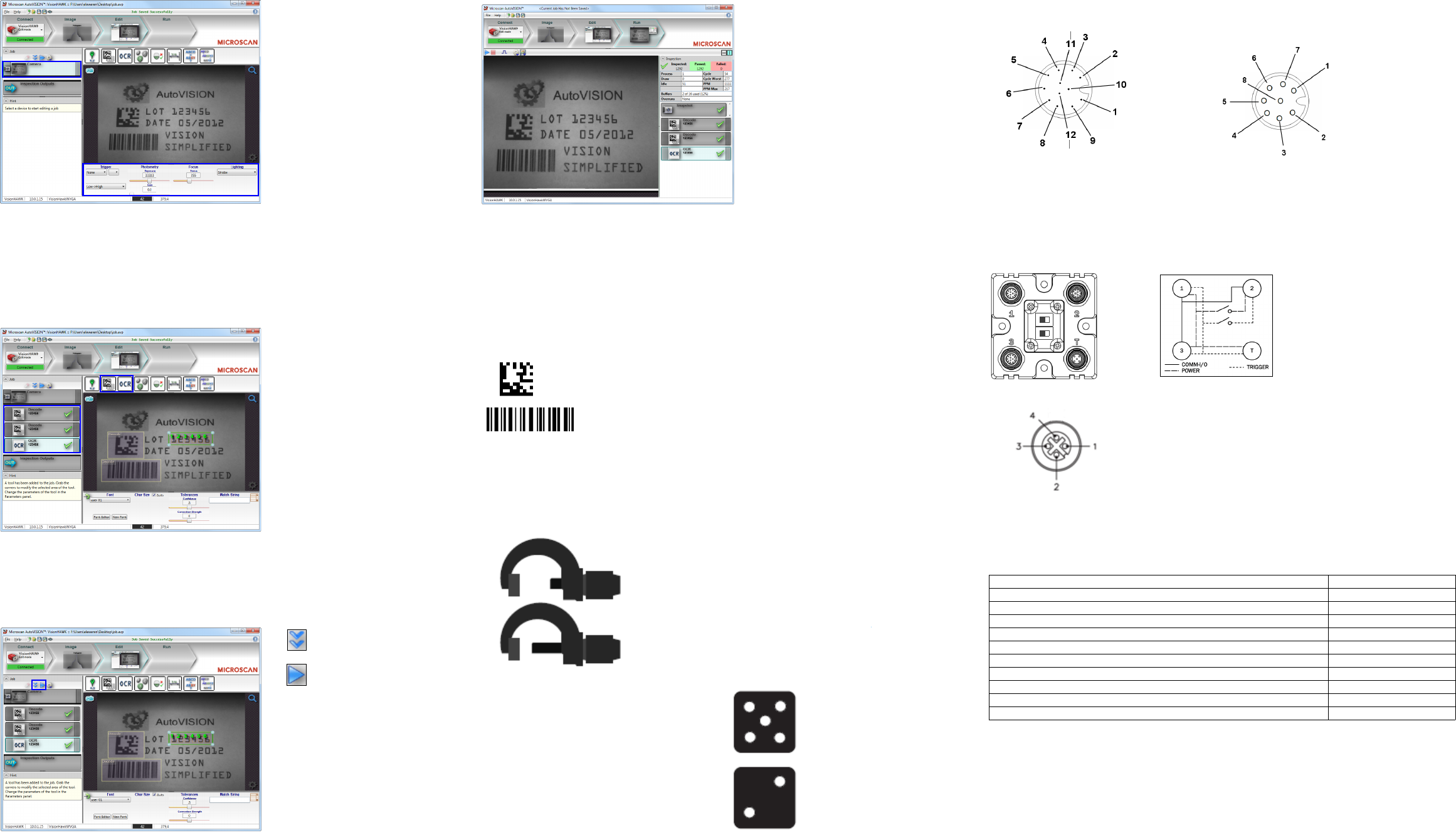
QX-1 Interface Device
+10-28V
Trigger
Ground
Trigger/New Master /
Input 1 Common
QX-1 Trigger Connector
4-pin Socket
Connector T on the QX-1 Interface Device is the trigger connector.
Connectors 1 and 3 are 12-pin plugs, and Connector 2 is a 12-pin socket. All three connectors can be
assigned to bus power and data as required by the application.
The two switches at the center of the device allow the user to route signals as needed.
P
T
This simple diagram (shown on the
base of the QX-1) illustrates how
power, communications, I/O, and
trigger signal can be routed through
the QX-1 device depending on the
needs of the application. The
switches greatly increase signal
routing flexibility.
QX-1 Communications -
I/O - Power - Trigger
QX-1 Interface Device
Power Requirements and Pin Assignments
Connector A on the back of the camera is a serial M12 12-pin plug.
Connector B on the back of the camera is an Ethernet M12 8-pin socket.
Ground
Output 3
Output 1
Output 2
Input 1 Default
Power
Input Common
Output Common
Host RxD
Trigger
Host
TxD
A (Serial) M12 12-pin Plug
TX (+)
RX (–)
RX (+)
TX (–)
Terminated
Te r m i n at e d
B (Ethernet) M12 8-pin Socket
Te r m i n at e d
Terminated
CCD Power Requirements: 5-28VDC, 200mV p-p max ripple, 170mA at 24VDC (typ.), 15.5 watts (max.)
CMOS Power Requirements: 5-28VDC, 200mV p-p max ripple, 135mA at 24VDC (typ.), 13 watts (max.)
Step 12 — Run the Job
When all job parameters are set, click on the
Run
step at the top of the interface. The software will download the
vision job just created to the camera and will begin the inspection
. Inspection results and the list of active tools
are shown at the right of the image view. That information can also be moved below the image area by
clicking the orientation buttons above the inspection results area.
Test Jobs
Note: For descriptions of more advanced functionality, such as setting Inspection Outputs or using the
Locate Tool and Decode Tool’s Dynamic Locate functionality to track multiple tools from image to image,
see the help documentation in AutoVISION software or the AutoVISION User’s Manual.
Decode Tool, OCR Tool, Match Strings Tool,
String Format Tool
Measure Tool,
Count Tool
LOT 123456
DATE 05/2012
VISION
SIMPLIFIED
Measure:
Measure the distance between
the jaws of the caliper gauges at left.
Count:
Count the circles on the dice shown
at right.
Step 9 — Set Camera Parameters
1. Click on the Camera box to the left of the image area.
2. In the camera parameters below the image area, select the desired type of Trigger, Trigger Polarity,
Photometry (Exposure and Gain), Focus, and Lighting.
Step 10 — Add Tools to the Job
1. Click on the Decode Tool or drag it onto the image area.
2. Use the anchor points at the corners of the region of interest to form a box around the Data Matrix
symbol. Leave plenty of space on each side of the symbol.
3. Now add a second Decode Tool and do the same for the 1D symbol below the Data Matrix symbol.
4. Finally, add an OCR Tool and drag the region of interest around the area of the image where “123456”
is printed.
Step 11 — Try Out the Job
Once you have configured the tools as desired, use the arrow icons in the Job area to try the job you have
just created.
Note: Most jobs will inspect multiple captured images. If only one image is being inspected, the effect of the
arrow icons will not be evident.
Try Out Job
Once
Try Out Job
in Loop
Copyright ©2011 Microscan Systems, Inc.
Vision HAWK Accessories
Vision HAWK Part Numbers
Adapter Plate Kit 98-000143-01
Right Angle Mirror Kit 98-000144-01
Window Replacement 98-000146-01
15° Lens Kit 98-000147-01
30° Lens Kit 98-000147-02
45° Lens Kit 98-000147-03
L-Bracket Kit 98-000148-01
Infrared (IR) Filter 98-000205-01
Glass Window Kit 98-000206-01
Demo Kit 98-000215-01
Microscan Tools Drive 37-000010-01
Note: Additional accessories are available in the Microscan Product Pricing Catalog.
Vision HAWK part numbers follow the format GMV-6800-CLSYG:
Comm = 1 for Ethernet;
Lens = 1 for 15°, 2 for 30°, 3 for 45°;
Sensor = 0 for CCD, 1 for CMOS;
Y (Options) = 0 for AutoVISION, 1 for Custom, 2 for Licensed (Visionscape), 3 for Custom + Visionscape
G = RoHS-Compliant
