Mine Site Technologies MP10 MP10 MINE PHONE User Manual MP10 Configuration Guide111

Mine Site Technologies Pty Ltd MP10 MINE PHONE MP10 Configuration Guide111

USERS MANUAL

               ......................................................................................................................................               MP10 Configuration Guide v. 1.1-SNAPSHOT Ref: MP10_CG_1.1-SNAPSHOT                        ...................................................................................................................................... Mine Site Technologies 2012-04-22
                                                            i        Table of Contents   ....................................................................................................................................... 1  Table  of  Contents  . . . . . . . . . . . . . . . . . . . . . . . . . . . . . . . . . . . . . . . . . . . . . . . . . . . . . . . . . . .   i 2  Introduction   . . . . . . . . . . . . . . . . . . . . . . . . . . . . . . . . . . . . . . . . . . . . . . . . . . . . . . . . . . . . . . . . .   1 3  Charger Installation . . . . . . . . . . . . . . . . . . . . . . . . . . . . . . . . . . . . . . . . . . . . . . . . . . . . . . . . .   2 4  Phone Configuration . . . . . . . . . . . . . . . . . . . . . . . . . . . . . . . . . . . . . . . . . . . . . . . . . . . . . . . .  5 5  Maintenance   . . . . . . . . . . . . . . . . . . . . . . . . . . . . . . . . . . . . . . . . . . . . . . . . . . . . . . . . . . . . . . . .   14
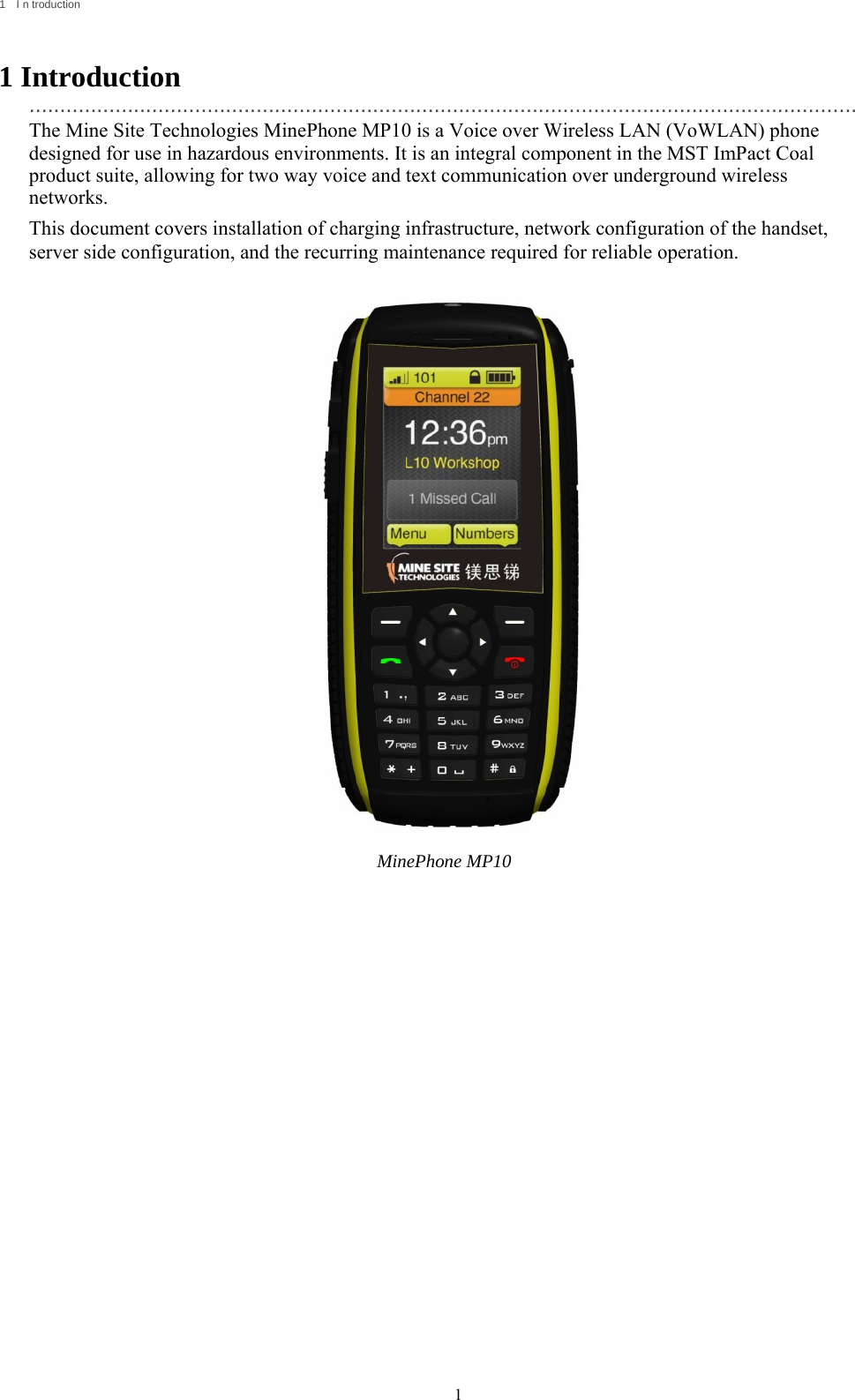
                                                            1        1  I n troduction   1 Introduction  ....................................................................................................................................... The Mine Site Technologies MinePhone MP10 is a Voice over Wireless LAN (VoWLAN) phone designed for use in hazardous environments. It is an integral component in the MST ImPact Coal product suite, allowing for two way voice and text communication over underground wireless networks. This document covers installation of charging infrastructure, network configuration of the handset, server side configuration, and the recurring maintenance required for reliable operation.                               MinePhone MP10
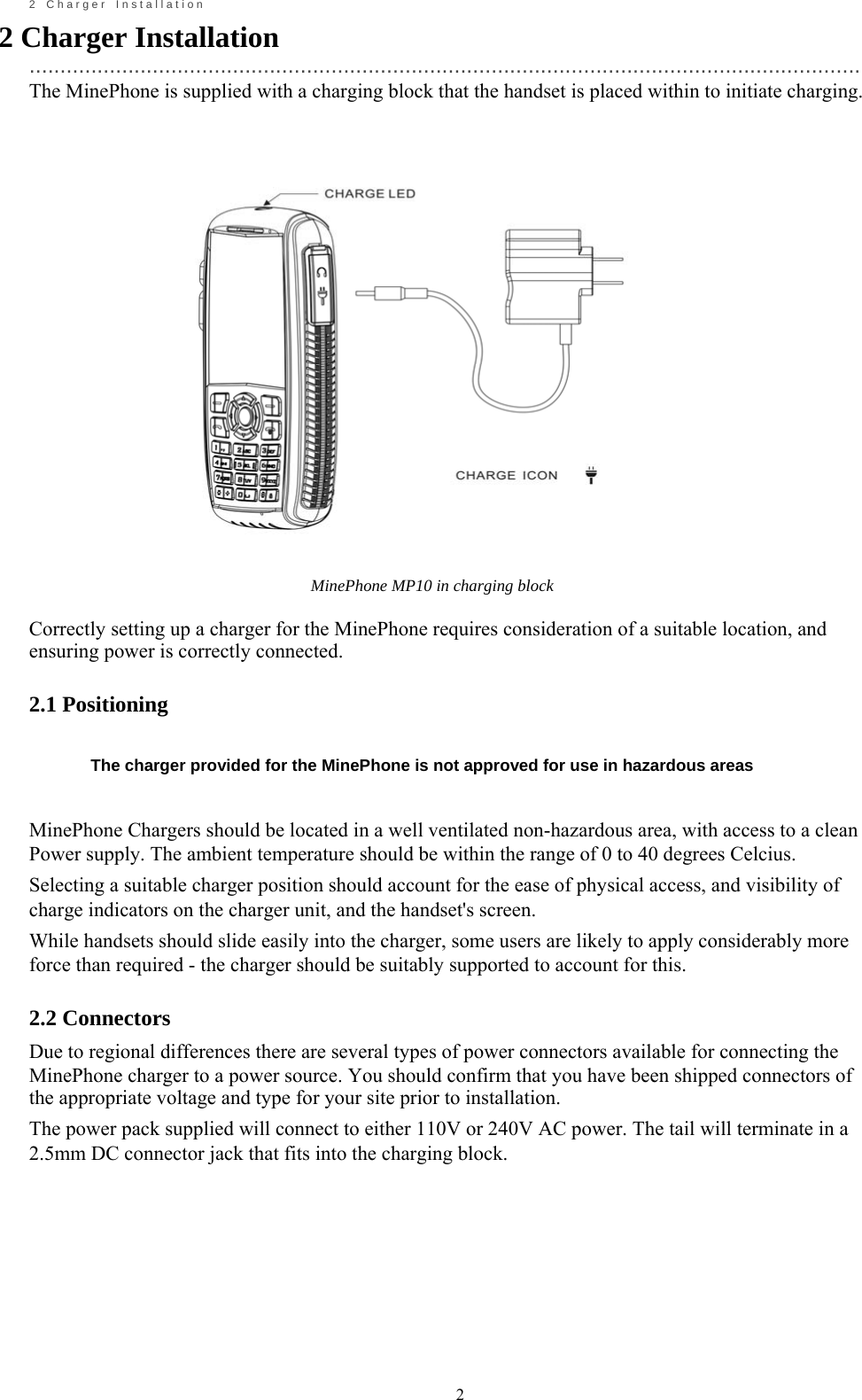
                                                            2       2    C h a r g e r    I n s t a l l a t i o n 2 Charger Installation   ....................................................................................................................................... The MinePhone is supplied with a charging block that the handset is placed within to initiate charging.                                                MinePhone MP10 in charging block  Correctly setting up a charger for the MinePhone requires consideration of a suitable location, and ensuring power is correctly connected.  2.1 Positioning   The charger provided for the MinePhone is not approved for use in hazardous areas   MinePhone Chargers should be located in a well ventilated non-hazardous area, with access to a clean Power supply. The ambient temperature should be within the range of 0 to 40 degrees Celcius. Selecting a suitable charger position should account for the ease of physical access, and visibility of charge indicators on the charger unit, and the handset's screen. While handsets should slide easily into the charger, some users are likely to apply considerably more force than required - the charger should be suitably supported to account for this.  2.2 Connectors Due to regional differences there are several types of power connectors available for connecting the MinePhone charger to a power source. You should confirm that you have been shipped connectors of the appropriate voltage and type for your site prior to installation. The power pack supplied will connect to either 110V or 240V AC power. The tail will terminate in a 2.5mm DC connector jack that fits into the charging block.
                                                            3
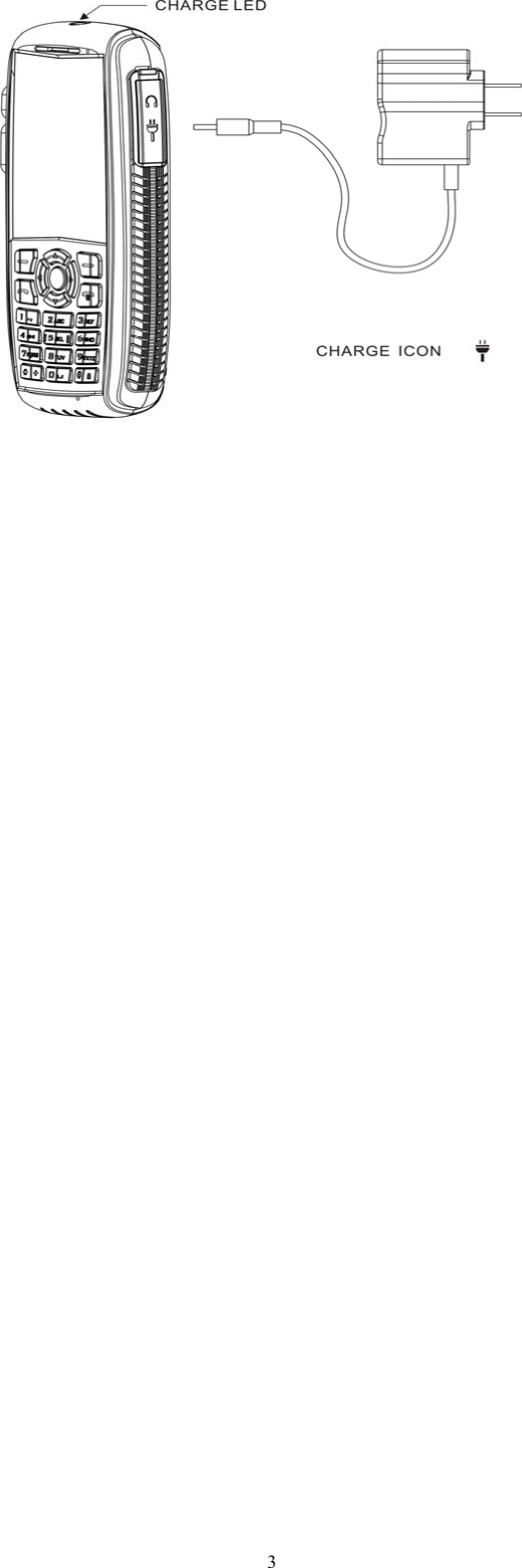
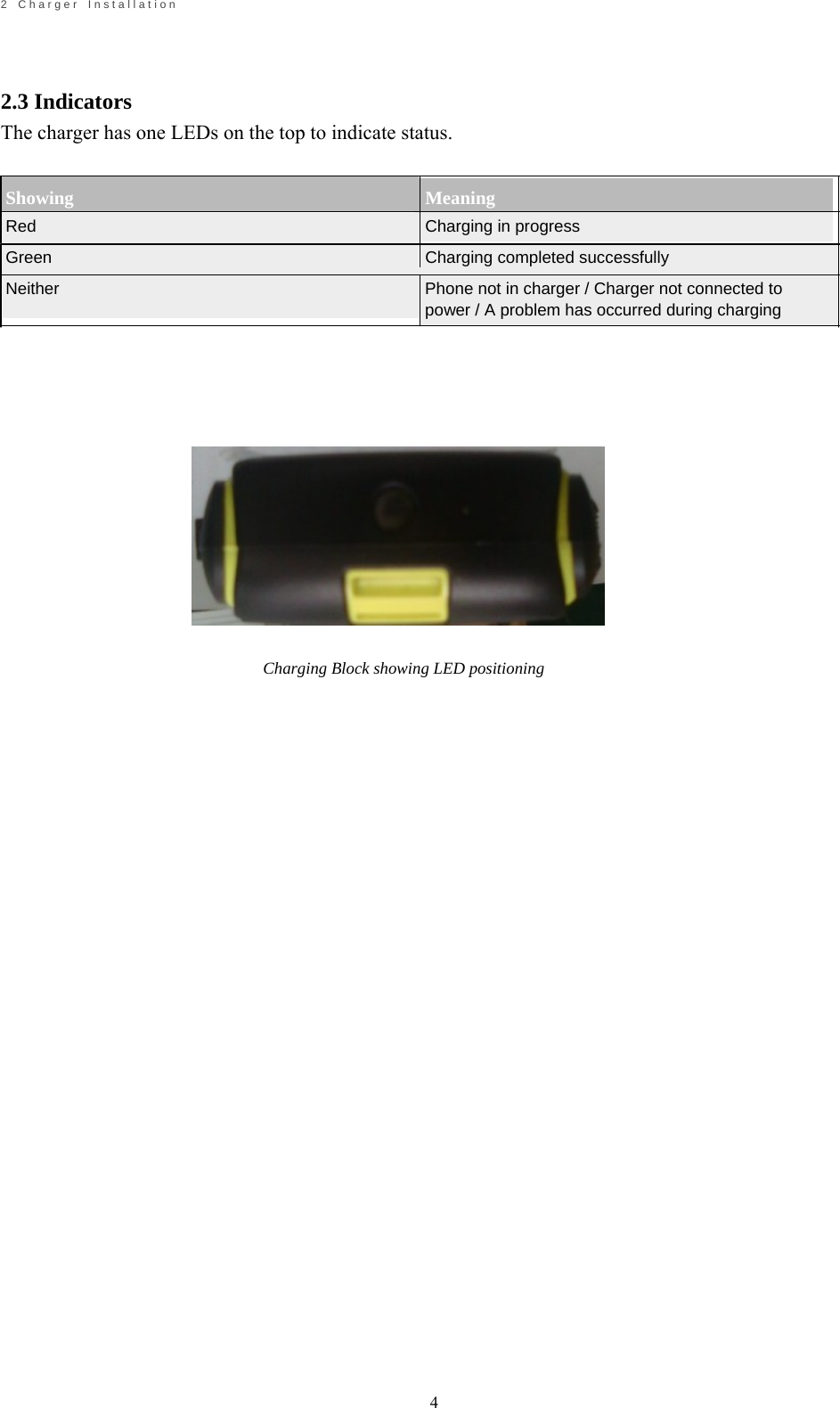
                                                            4       2    C h a r g e r    I n s t a l l a t i o n     2.3 Indicators The charger has one LEDs on the top to indicate status.   Showing Meaning Red    Charging in progress Green    Charging completed successfully Neither    Phone not in charger / Charger not connected to power / A problem has occurred during charging                   Charging Block showing LED positioning
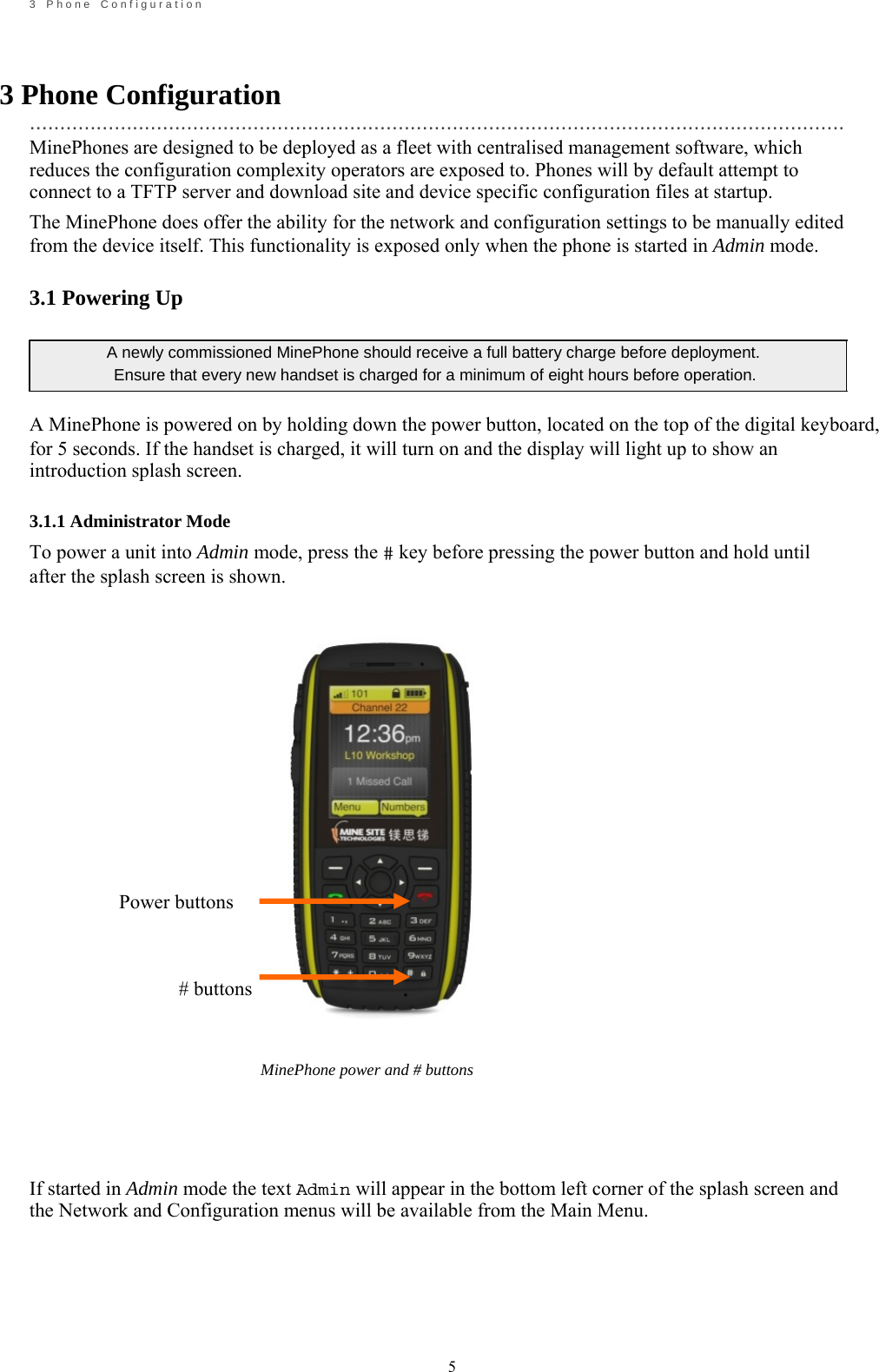
                                                            5       3    P h o n e    C o n f i g u r a t i o n    3 Phone Configuration  ....................................................................................................................................... MinePhones are designed to be deployed as a fleet with centralised management software, which reduces the configuration complexity operators are exposed to. Phones will by default attempt to connect to a TFTP server and download site and device specific configuration files at startup. The MinePhone does offer the ability for the network and configuration settings to be manually edited from the device itself. This functionality is exposed only when the phone is started in Admin mode.  3.1 Powering Up  A newly commissioned MinePhone should receive a full battery charge before deployment.   Ensure that every new handset is charged for a minimum of eight hours before operation.  A MinePhone is powered on by holding down the power button, located on the top of the digital keyboard, for 5 seconds. If the handset is charged, it will turn on and the display will light up to show an introduction splash screen.  3.1.1 Administrator Mode To power a unit into Admin mode, press the # key before pressing the power button and hold until after the splash screen is shown.                                                             Power buttons                                                     # buttons           MinePhone power and # buttons     If started in Admin mode the text Admin will appear in the bottom left corner of the splash screen and the Network and Configuration menus will be available from the Main Menu.
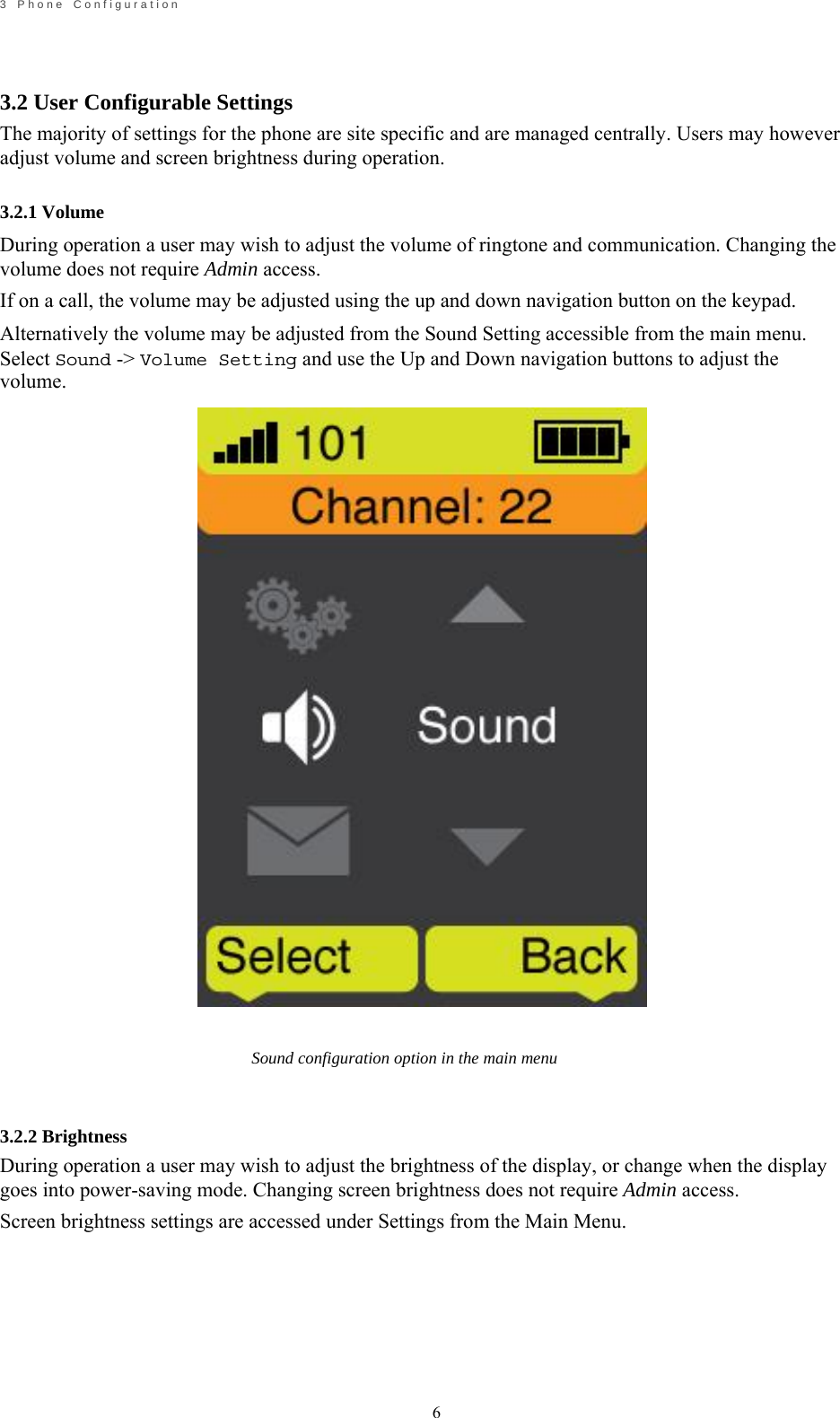
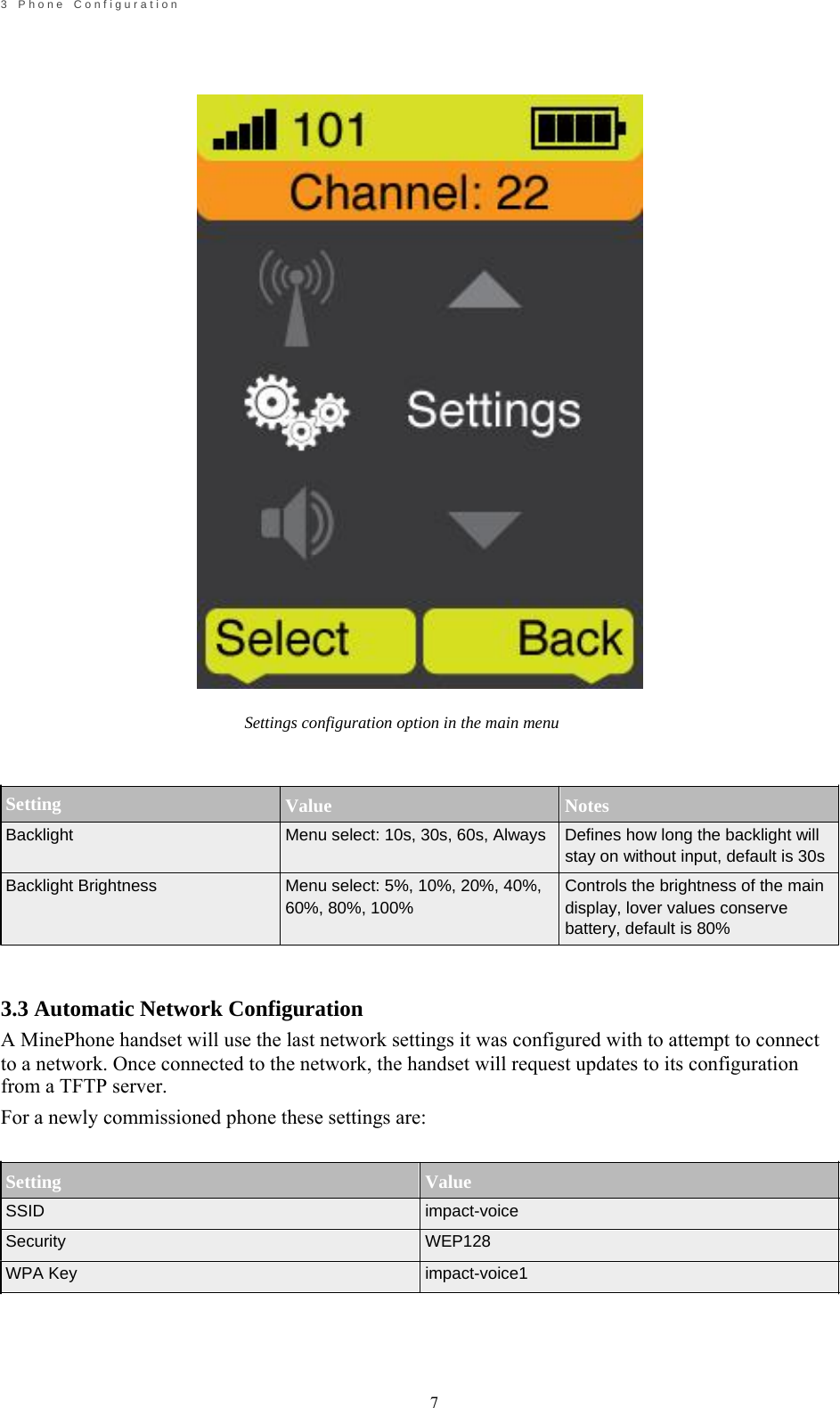
                                                            6       3    P h o n e    C o n f i g u r a t i o n     3.2 User Configurable Settings  The majority of settings for the phone are site specific and are managed centrally. Users may however adjust volume and screen brightness during operation.  3.2.1 Volume During operation a user may wish to adjust the volume of ringtone and communication. Changing the volume does not require Admin access. If on a call, the volume may be adjusted using the up and down navigation button on the keypad. Alternatively the volume may be adjusted from the Sound Setting accessible from the main menu. Select Sound -> Volume Setting and use the Up and Down navigation buttons to adjust the volume.                                   Sound configuration option in the main menu    3.2.2 Brightness During operation a user may wish to adjust the brightness of the display, or change when the display goes into power-saving mode. Changing screen brightness does not require Admin access. Screen brightness settings are accessed under Settings from the Main Menu.
                                                            7       3    P h o n e    C o n f i g u r a t i o n                                        Setting Backlight                                      Settings configuration option in the main menu    Value Notes Menu select: 10s, 30s, 60s, Always  Defines how long the backlight will   Backlight Brightness  Menu select: 5%, 10%, 20%, 40%, 60%, 80%, 100% stay on without input, default is 30s Controls the brightness of the main display, lover values conserve battery, default is 80%    3.3 Automatic Network Configuration A MinePhone handset will use the last network settings it was configured with to attempt to connect to a network. Once connected to the network, the handset will request updates to its configuration from a TFTP server. For a newly commissioned phone these settings are:   Setting SSID Security WPA Key   Value impact-voice WEP128 impact-voice1
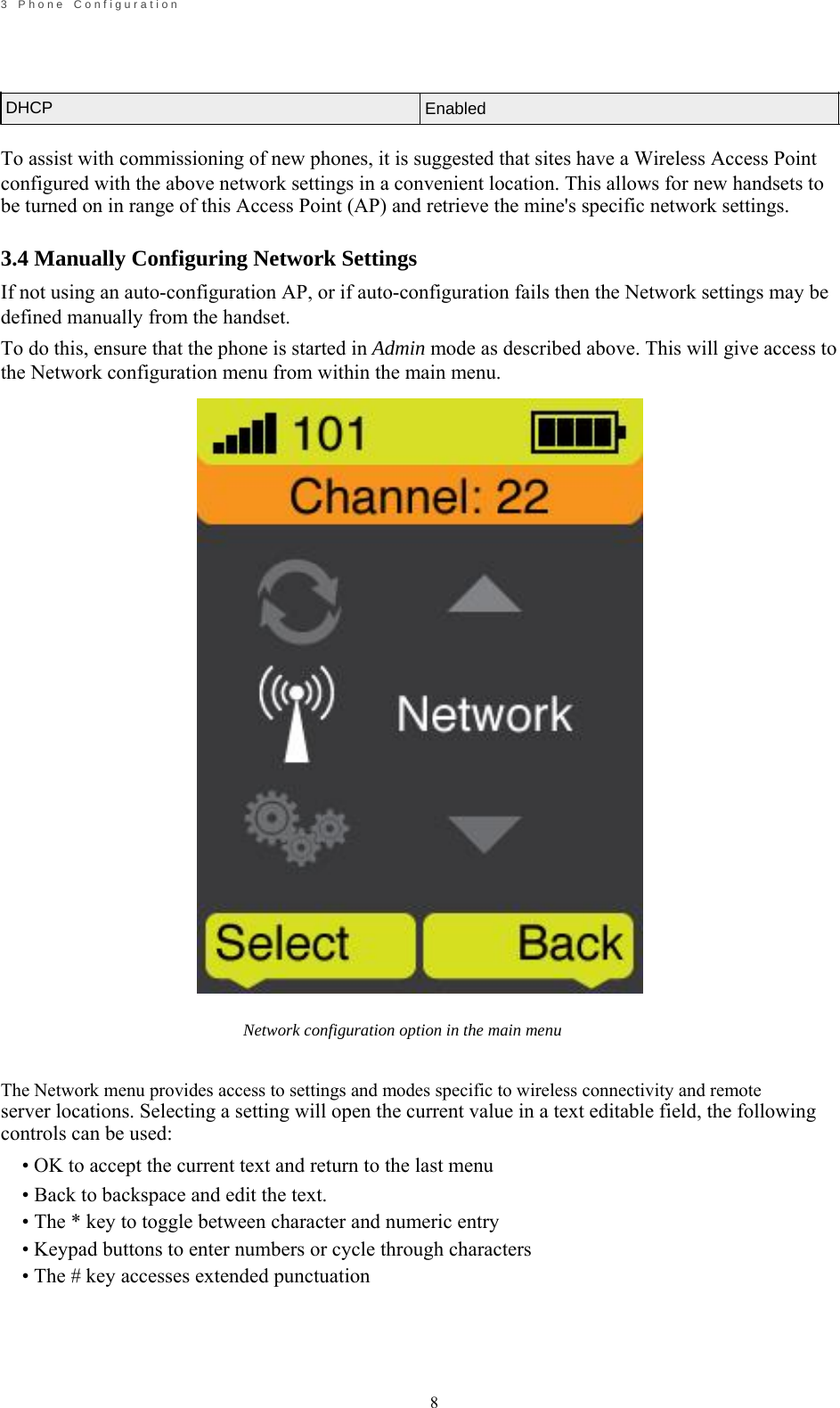
                                                            8       3    P h o n e    C o n f i g u r a t i o n     DHCP       Enabled   To assist with commissioning of new phones, it is suggested that sites have a Wireless Access Point configured with the above network settings in a convenient location. This allows for new handsets to be turned on in range of this Access Point (AP) and retrieve the mine's specific network settings.  3.4 Manually Configuring Network Settings If not using an auto-configuration AP, or if auto-configuration fails then the Network settings may be defined manually from the handset. To do this, ensure that the phone is started in Admin mode as described above. This will give access to the Network configuration menu from within the main menu.                                 Network configuration option in the main menu   The Network menu provides access to settings and modes specific to wireless connectivity and remote server locations. Selecting a setting will open the current value in a text editable field, the following controls can be used: • OK to accept the current text and return to the last menu • Back to backspace and edit the text. • The * key to toggle between character and numeric entry • Keypad buttons to enter numbers or cycle through characters • The # key accesses extended punctuation
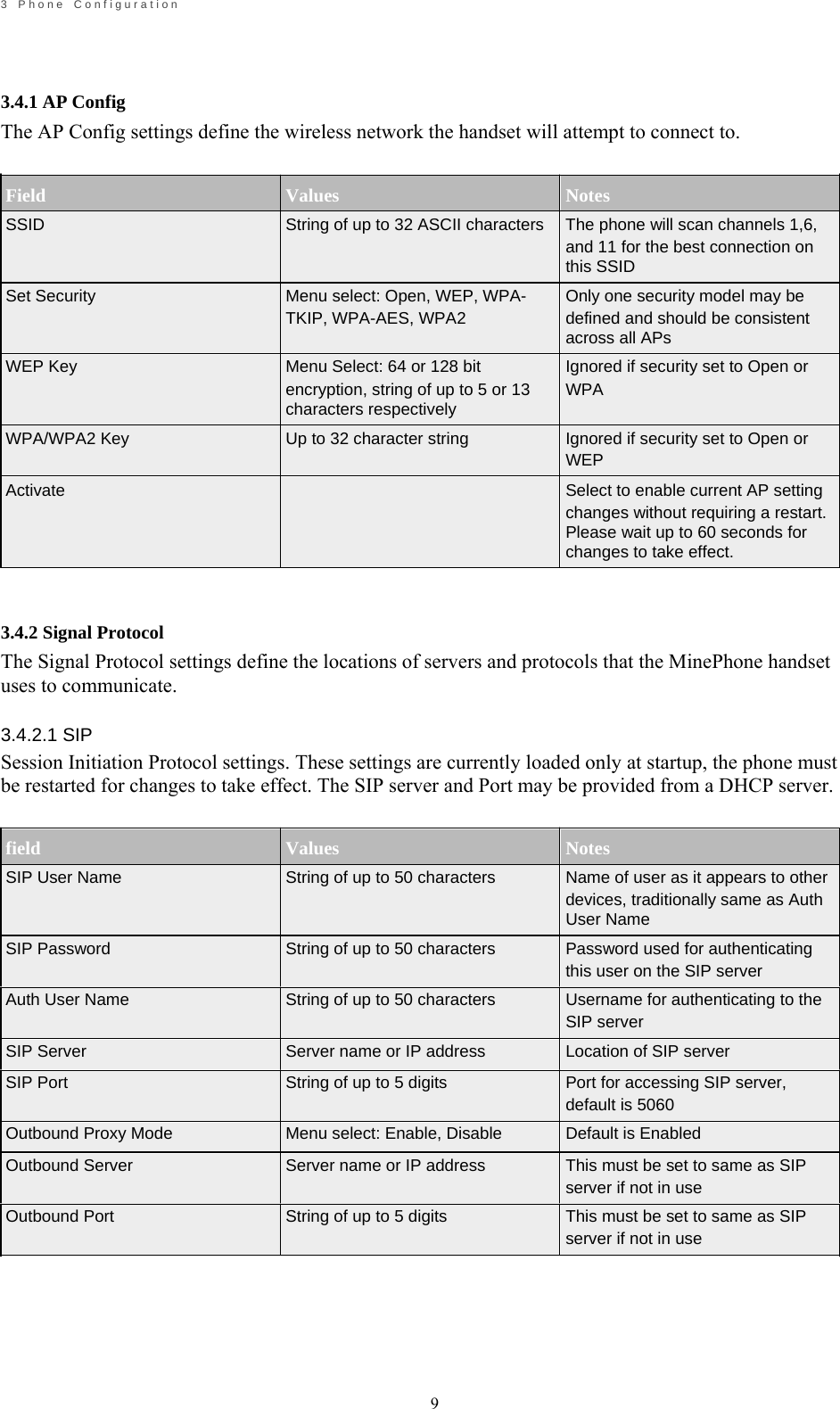
                                                            9       3    P h o n e    C o n f i g u r a t i o n     3.4.1 AP Config The AP Config settings define the wireless network the handset will attempt to connect to.     Field   Values   Notes SSID  String of up to 32 ASCII characters  The phone will scan channels 1,6, and 11 for the best connection on this SSID Set Security   WEP Key   WPA/WPA2 Key  Activate       3.4.2 Signal Protocol Menu select: Open, WEP, WPA- TKIP, WPA-AES, WPA2  Menu Select: 64 or 128 bit encryption, string of up to 5 or 13 characters respectively Up to 32 character string Only one security model may be defined and should be consistent across all APs Ignored if security set to Open or WPA  Ignored if security set to Open or WEP Select to enable current AP setting changes without requiring a restart. Please wait up to 60 seconds for changes to take effect. The Signal Protocol settings define the locations of servers and protocols that the MinePhone handset uses to communicate.  3.4.2.1 SIP Session Initiation Protocol settings. These settings are currently loaded only at startup, the phone must be restarted for changes to take effect. The SIP server and Port may be provided from a DHCP server.   field SIP User Name   SIP Password  Auth User Name  SIP Server SIP Port  Outbound Proxy Mode Outbound Server  Outbound Port   Values String of up to 50 characters   String of up to 50 characters  String of up to 50 characters  Server name or IP address String of up to 5 digits  Menu select: Enable, Disable Server name or IP address  String of up to 5 digits   Notes Name of user as it appears to other devices, traditionally same as Auth User Name Password used for authenticating this user on the SIP server Username for authenticating to the SIP server Location of SIP server Port for accessing SIP server, default is 5060 Default is Enabled This must be set to same as SIP server if not in use This must be set to same as SIP server if not in use
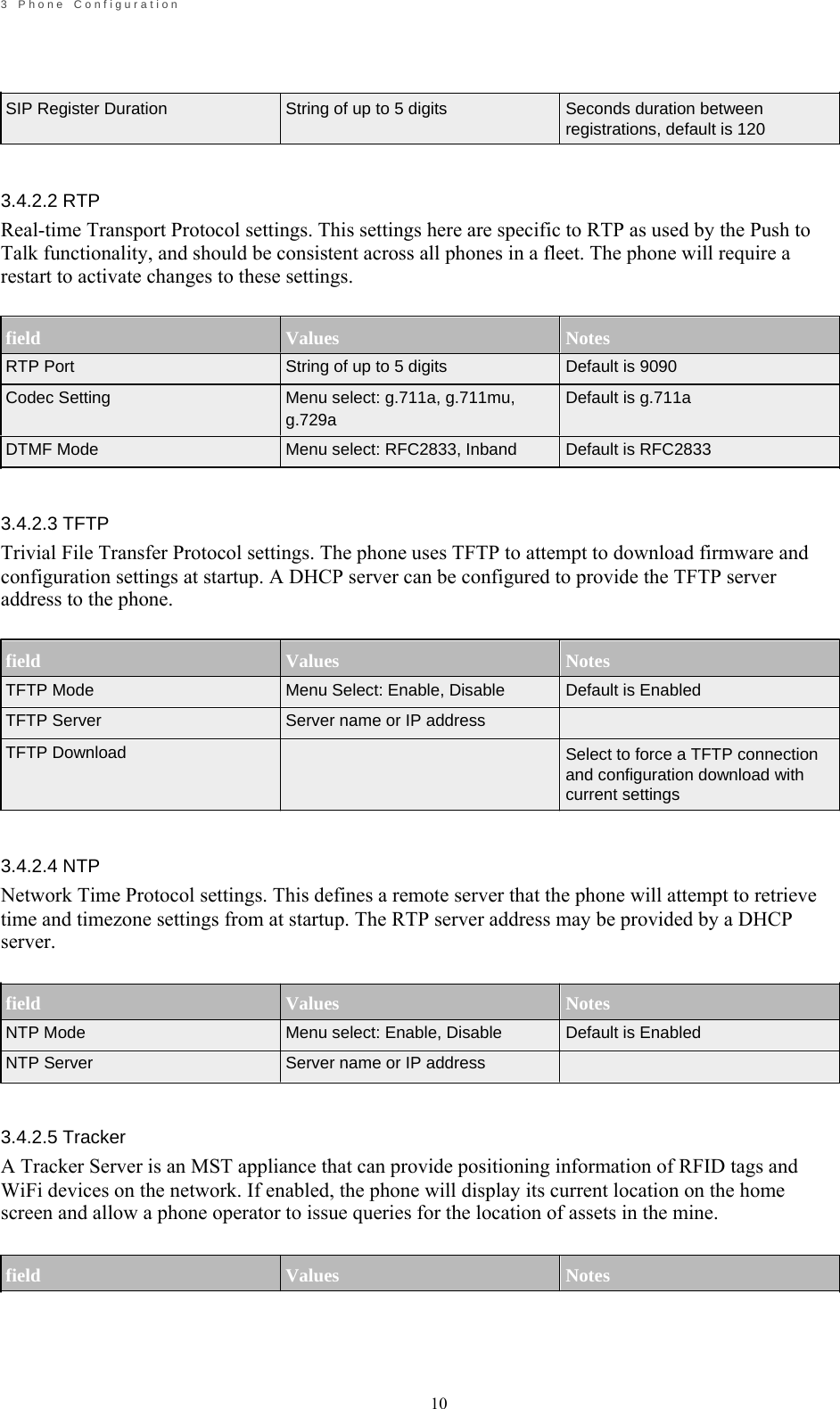
                                                            10       3    P h o n e    C o n f i g u r a t i o n        SIP Register Duration    3.4.2.2 RTP     String of up to 5 digits     Seconds duration between registrations, default is 120 Real-time Transport Protocol settings. This settings here are specific to RTP as used by the Push to Talk functionality, and should be consistent across all phones in a fleet. The phone will require a restart to activate changes to these settings.   field RTP Port Codec Setting  DTMF Mode   3.4.2.3 TFTP   Values String of up to 5 digits Menu select: g.711a, g.711mu, g.729a Menu select: RFC2833, Inband   Notes Default is 9090 Default is g.711a  Default is RFC2833 Trivial File Transfer Protocol settings. The phone uses TFTP to attempt to download firmware and configuration settings at startup. A DHCP server can be configured to provide the TFTP server address to the phone.   field TFTP Mode TFTP Server TFTP Download     3.4.2.4 NTP   Values Menu Select: Enable, Disable Server name or IP address   Notes Default is Enabled   Select to force a TFTP connection and configuration download with current settings Network Time Protocol settings. This defines a remote server that the phone will attempt to retrieve time and timezone settings from at startup. The RTP server address may be provided by a DHCP server.   field NTP Mode NTP Server   3.4.2.5 Tracker   Values Menu select: Enable, Disable Server name or IP address   Notes Default is Enabled A Tracker Server is an MST appliance that can provide positioning information of RFID tags and WiFi devices on the network. If enabled, the phone will display its current location on the home screen and allow a phone operator to issue queries for the location of assets in the mine.   field   Values   Notes
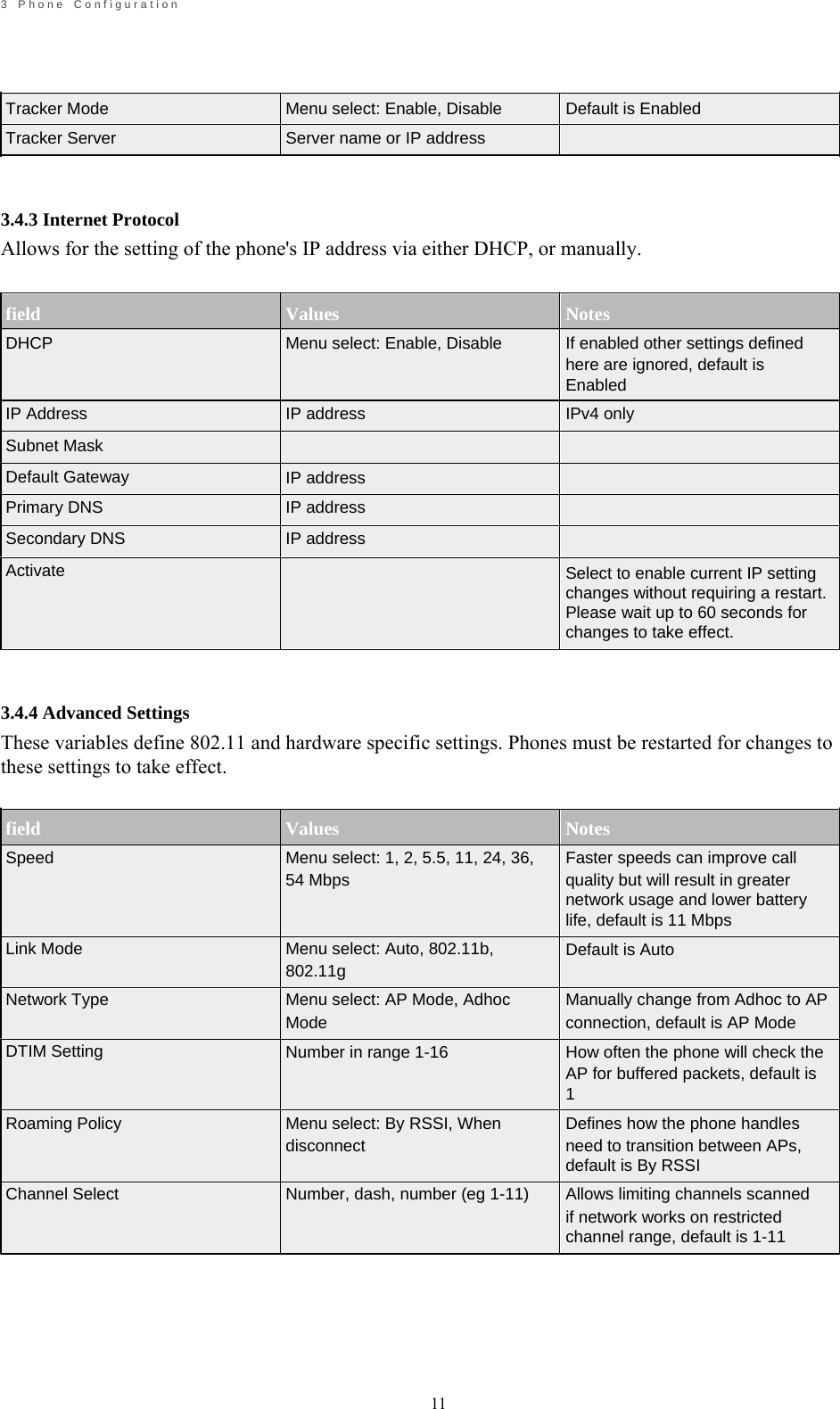
                                                            11       3    P h o n e    C o n f i g u r a t i o n        Tracker Mode Tracker Server    3.4.3 Internet Protocol     Menu select: Enable, Disable Server name or IP address     Default is Enabled Allows for the setting of the phone's IP address via either DHCP, or manually.   field DHCP   IP Address Subnet Mask Default Gateway Primary DNS Secondary DNS Activate       3.4.4 Advanced Settings   Values Menu select: Enable, Disable   IP address   IP address IP address IP address   Notes If enabled other settings defined here are ignored, default is Enabled IPv4 only        Select to enable current IP setting changes without requiring a restart. Please wait up to 60 seconds for changes to take effect. These variables define 802.11 and hardware specific settings. Phones must be restarted for changes to these settings to take effect.   field Speed    Link Mode  Network Type  DTIM Setting   Roaming Policy   Values Menu select: 1, 2, 5.5, 11, 24, 36, 54 Mbps   Menu select: Auto, 802.11b, 802.11g Menu select: AP Mode, Adhoc Mode Number in range 1-16   Menu select: By RSSI, When disconnect   Notes Faster speeds can improve call quality but will result in greater network usage and lower battery life, default is 11 Mbps Default is Auto  Manually change from Adhoc to AP connection, default is AP Mode How often the phone will check the AP for buffered packets, default is 1 Defines how the phone handles need to transition between APs, default is By RSSI Channel Select  Number, dash, number (eg 1-11)  Allows limiting channels scanned if network works on restricted channel range, default is 1-11
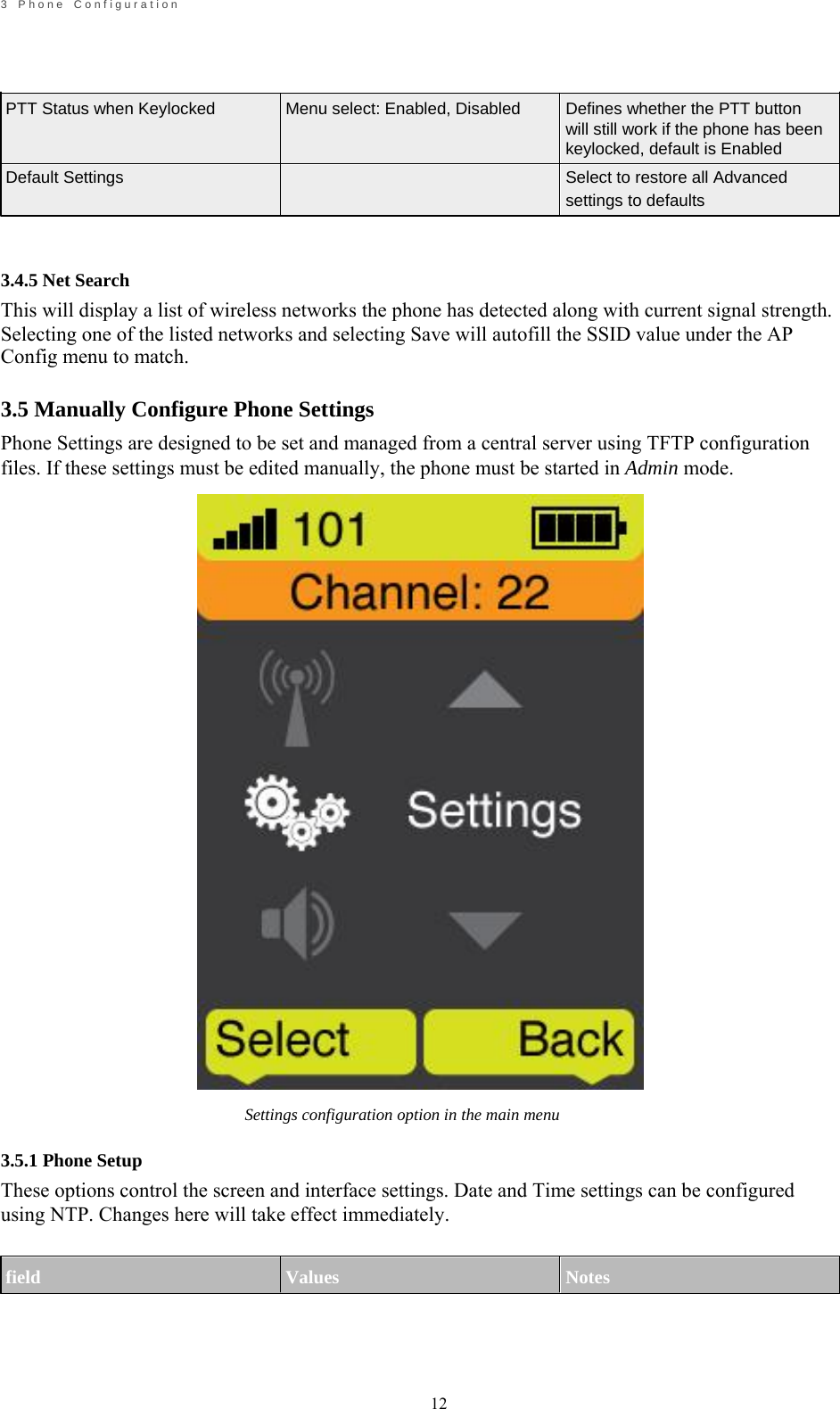
                                                            12       3    P h o n e    C o n f i g u r a t i o n        PTT Status when Keylocked   Default Settings     3.4.5 Net Search     Menu select: Enabled, Disabled     Defines whether the PTT button will still work if the phone has been keylocked, default is Enabled Select to restore all Advanced settings to defaults This will display a list of wireless networks the phone has detected along with current signal strength. Selecting one of the listed networks and selecting Save will autofill the SSID value under the AP Config menu to match.  3.5 Manually Configure Phone Settings Phone Settings are designed to be set and managed from a central server using TFTP configuration files. If these settings must be edited manually, the phone must be started in Admin mode.                                Settings configuration option in the main menu  3.5.1 Phone Setup These options control the screen and interface settings. Date and Time settings can be configured using NTP. Changes here will take effect immediately.   field   Values   Notes
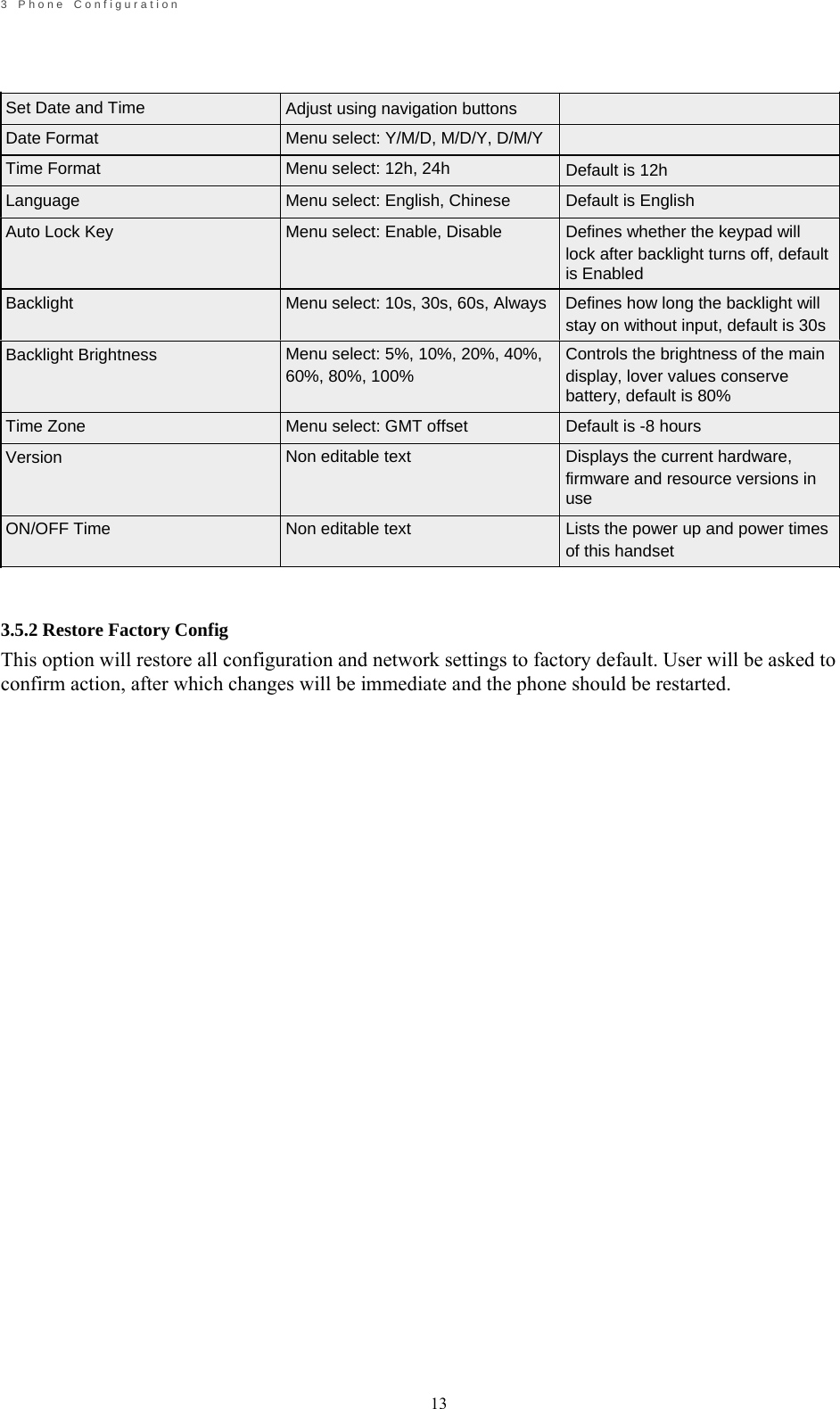
                                                            13       3    P h o n e    C o n f i g u r a t i o n     Set Date and Time Date Format Time Format Language Auto Lock Key       Adjust using navigation buttons Menu select: Y/M/D, M/D/Y, D/M/Y Menu select: 12h, 24h Menu select: English, Chinese Menu select: Enable, Disable          Default is 12h Default is English Defines whether the keypad will    Backlight lock after backlight turns off, default is Enabled Menu select: 10s, 30s, 60s, Always  Defines how long the backlight will stay on without input, default is 30s Backlight Brightness   Time Zone Version   ON/OFF Time     3.5.2 Restore Factory Config Menu select: 5%, 10%, 20%, 40%, 60%, 80%, 100%  Menu select: GMT offset Non editable text   Non editable text Controls the brightness of the main display, lover values conserve battery, default is 80% Default is -8 hours Displays the current hardware, firmware and resource versions in use Lists the power up and power times of this handset This option will restore all configuration and network settings to factory default. User will be asked to confirm action, after which changes will be immediate and the phone should be restarted.
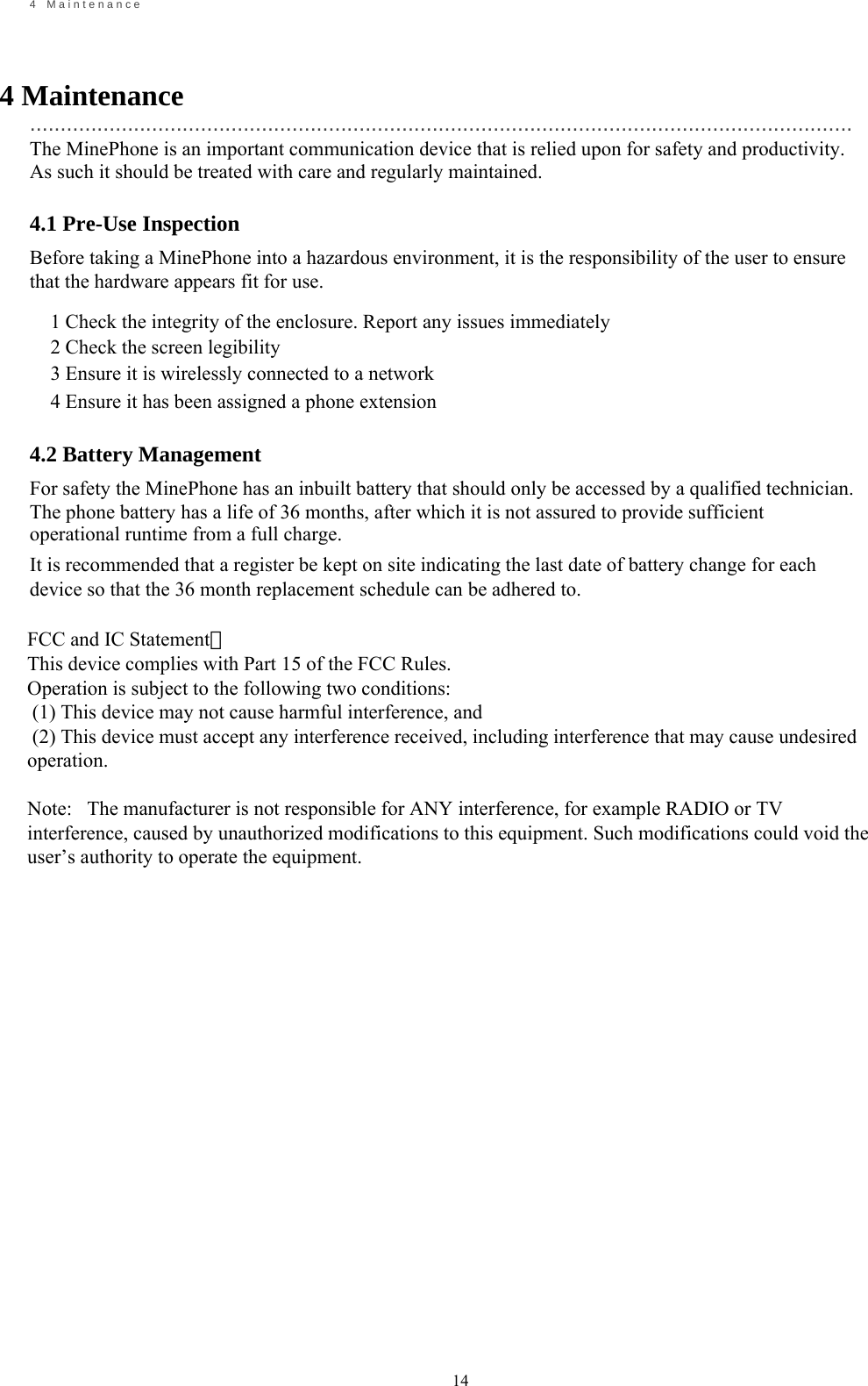
                                                            14       4    M a i n t e n a n c e    4 Maintenance   ....................................................................................................................................... The MinePhone is an important communication device that is relied upon for safety and productivity. As such it should be treated with care and regularly maintained.  4.1 Pre-Use Inspection Before taking a MinePhone into a hazardous environment, it is the responsibility of the user to ensure that the hardware appears fit for use.  1 Check the integrity of the enclosure. Report any issues immediately 2 Check the screen legibility 3 Ensure it is wirelessly connected to a network 4 Ensure it has been assigned a phone extension  4.2 Battery Management For safety the MinePhone has an inbuilt battery that should only be accessed by a qualified technician. The phone battery has a life of 36 months, after which it is not assured to provide sufficient operational runtime from a full charge. It is recommended that a register be kept on site indicating the last date of battery change for each device so that the 36 month replacement schedule can be adhered to.                                          FCC and IC Statement:This device complies with Part 15 of the FCC Rules.Operation is subject to the following two conditions: (1) This device may not cause harmful interference, and (2) This device must accept any interference received, including interference that may cause undesiredoperation.Note:   The manufacturer is not responsible for ANY interference, for example RADIO or TVinterference, caused by unauthorized modifications to this equipment. Such modifications could void theuser’s authority to operate the equipment.

Navigation menu