Minelab Electronics 7000 Metal Detector for recreational use User Manual
Minelab Electronics Pty Ltd Metal Detector for recreational use Users Manual
Contents
- 1. Users Manual
- 2. ST Confidentiality for User Manual
Users Manual

Instruction Manual

ii
WARNING
THIS DOCUMENT CONTAINS INTELLECTUAL PROPERTY, TECHNICAL AND PROPRIETARY DATA AND INFORMATION AND OTHER MATERIAL OWNED SOLELY BY MINELAB
ELECTRONICS PTY LIMITED.
THIS MATERIAL MUST NOT BE USED WITHOUT THE PRIOR WRITTEN PERMISSION OF MINELAB ELECTRONICS PTY LTD.
© MINELAB ELECTRONICS PTY LTD. ALL RIGHTS RESERVED
This document is protected by copyright. Apart from any use permitted under the Australian Copyright Act 1968 (Cth) or other applicable laws, any unauthorised use,
appropriation or reproduction of this document or any part of it is strictly prohibited. No part of this document may be used or reproduced by any means or by any process,
in any form, without the prior written permission of the copyright owner Minelab Electronics Pty Ltd of 118 Hayward Avenue, Torrensville, SA 5031, Australia.
COMPLIANCE
Information to the User (FCC Part 15.105)
NOTE: Class B Devices
This equipment has been tested and found to comply with the limits for a Class B digital device, pursuant to part 15 of the FCC Rules. These limits are designed to provide
reasonable protection against harmful interference in a residential installation.
This equipment generates, uses and can radiate radio frequency energy and, if not installed and used in accordance with the instructions, may cause harmful interference to
radio communications. However, there is no guarantee that interference will not occur in a particular installation. If this equipment does cause harmful interference to radio or
television reception, which can be determined by turning the equipment of and on, the user is encouraged to try to correct the interference by one or more of the following
measures:
• Reorient or relocate the receiving antenna
• Increase the separation between the equipment and receiver
• Connect the equipment into an outlet on a circuit different from that to which the receiver is connected
• Consult the dealer or an experienced radio/TV technician for help
DISCLAIMER
The Minelab metal detector discussed in this instruction manual has been
expressly designed and manufactured as a quality hobbyist metal detector
and is recommended for use in coin, treasure and general metal detection in
nonhazardous environments. This metal detector has not been designed for use as
a mine detector or as a live munitions detection tool.
PLEASE NOTE
Since there may be a variety of options available for this detector, equipment
may vary according to the Model or items ordered with your detector. Certain
descriptions and illustrations may also differ (in this manual) from the exact Model
that you purchased. In addition, Minelab reserves the right to respond to ongoing
technical progress by introducing changes in design, equipment and technical
features at any time.
Minelab®, Smartfind™ 2, Wi-Stream™, GPSi™, FindPoint®, GeoHunt™, GeoTrail™, XChange Your Detecting Connection™, Target Trace™ are trademarks of Minelab Electronics Pty.
Ltd. Google Maps is a trademark of Google Inc. u-blox is a trademark of u-blox Holding AG.
CAUTION
Before assembling, charging, or using your detector for the first time, please read the important
legal and safety information in this manual.
This appliance can be used by children aged from 8 years and above and persons with reduced
physical, sensory or mental capabilities or lack of experience and knowledge if they have been
given supervision or instruction concerning use of the appliance in a safe way and understand the
hazards involved. Children shall not play with the appliance.
Cleaning and user maintenance shall not be made by children without supervision.

Contents
iii
Detector Parts 1
Assembly 3
Assembling the Detector 3
Connecting Headphones 5
WM 12 Audio 5
Detector Audio 5
Changing Coils 6
Swing Arm 6
Harness and Extras 6
Charging Batteries 7
BC 10 Battery Charger 7
Battery LED 7
Power LED 7
GPZ 7000 Battery 7
Recharge the Lithium-Ion Battery Pack 8
WM 12 Battery 8
Recharge the WM 12 8
Control Panel 9
GPZ7000 User Interface 10
Typical Screen Elements 10
Status Bar Elements 10
Summary of Status Bar icons 10
Types of Selection Screens 11
Menu Navigation 12
Navigating the Detector Settings Pages 12
Navigating the Map Pages 12
Map 13
Map 13
GPS 14
Map Elements 14
Zoom Levels 15
Start Trail 15
Current Position 15
FindPoints and WayPoints 15
GeoTrail 15
GeoHunts 15
North Marker 15
Coordinates 16
Navigation Tool 16
Detector Settings Menu 17
Detector Settings Menu Structure 17
Detect Page Overview 17
Detect Plus Page Overview 17
Settings Page Overview 17
Preferences Page Overview 17
User Button Page Overview 17
Reset Page Overview 17
Detect 18
Quick Start 18
Target Type 18
Small Nuggets 18
General 18
Deep Only 18
Ground Type 18
Difficult 18
Normal 18
Noise Cancel 19
Auto Noise Cancel 19
Manual Noise Cancel 19
Sensitivity 19
Adjust Sensitivity Settings 19
Volume 19
Detect Plus 20
Threshold Level 20
Volume Limit 20
Threshold Pitch 21
Ground-Balance Mode 21
Auto 21
Manual 21
Settings 22
GPS 22
Backlight 22
Backlight Brightness 22
Wireless Enable 22
Connect WM 12 22
Connect Additional WM 12 22
Pairing an Additional WM 12 22
Removing Additional WM 12’s 22
Preferences 23
Time Zone 23
Time Format 23
Coordinates Format 23
Length Units 23
Weight Units 23
Wizards 23
User Button 24
Assign a Function to the User Button 24
User Button Functions 24
Backlight 24
View Coordinates 24
View Navigation Tool 24
Threshold Level 24
Ground Balance Mode 24
Other 24
Reset 25
Reset GeoStore 25
Reset Settings 25
Reset All 25

Contents
iv
Language 25
Change the Language 25
Product Verification Code 25
Version Information 25
Map Menu 26
Map Menu Structure 26
Map Overview 26
GeoStore Page Overview 26
Display Page Overview 26
Create GeoData Page Overview 26
GeoStore 27
Open the GeoStore Menu 27
Map Zoom 27
Sort FindPoints/WayPoints 27
Go to a FindPoint or WayPoint 27
Go to Start/End of a GeoHunt 28
Delete a GeoStore Item 28
Display 29
Open the Display Page 29
Show or Hide Map Screen Elements 29
Recentre 29
Clear Trail 29
View Trail 29
View Navigation Tool 29
View Names 29
View Coordinates 29
Create GeoData 30
Create and Store FindPoints and WayPoints 30
Control a GeoHunt 30
Record a GeoHunt: 30
Pause a GeoHunt: 30
Stop a GeoHunt: 30
Loss of Power during a GeoHunt 30
Loss of GPS Position Fix during a GeoHunt 30
Wireless Audio Module 31
Connect the WM 12 31
Reset the WM 12 31
Minelab XChange2 32
Communicating between GPZ 7000 and your PC 32
System Requirements 32
Install XChange 2 on your PC 32
Start the XChange 2 Application 32
Connect GPZ 7000 to your PC 32
Detecting Basics 33
Holding the Detector 33
Adjust the Length of the Shafts 33
Adjust the Angle of the Coil 33
Sweeping the Coil 33
Types of Targets 33
Detector Sounds 34
Detecting Tips and Techniques 34
Simple Detecting Exercise 35
Pinpointing 36
Locating the target. 36
Target Recovery 37
Recovering the Target 37
Detector Care and Safety 38
Battery Care and Safety 39
GPZ7000 Accessories 40
Factory Presets 41
Detect Presets 41
Detect Plus Presets 41
Settings Presets 41
Preferences Presets 41
User Button Presets 41
Display Presets 41
Technical Specications 42
GPZ 7000 Technical Specifications 42
Battery Technical Specifications 42
BC 10 Battery Charger Technical Specifications 42
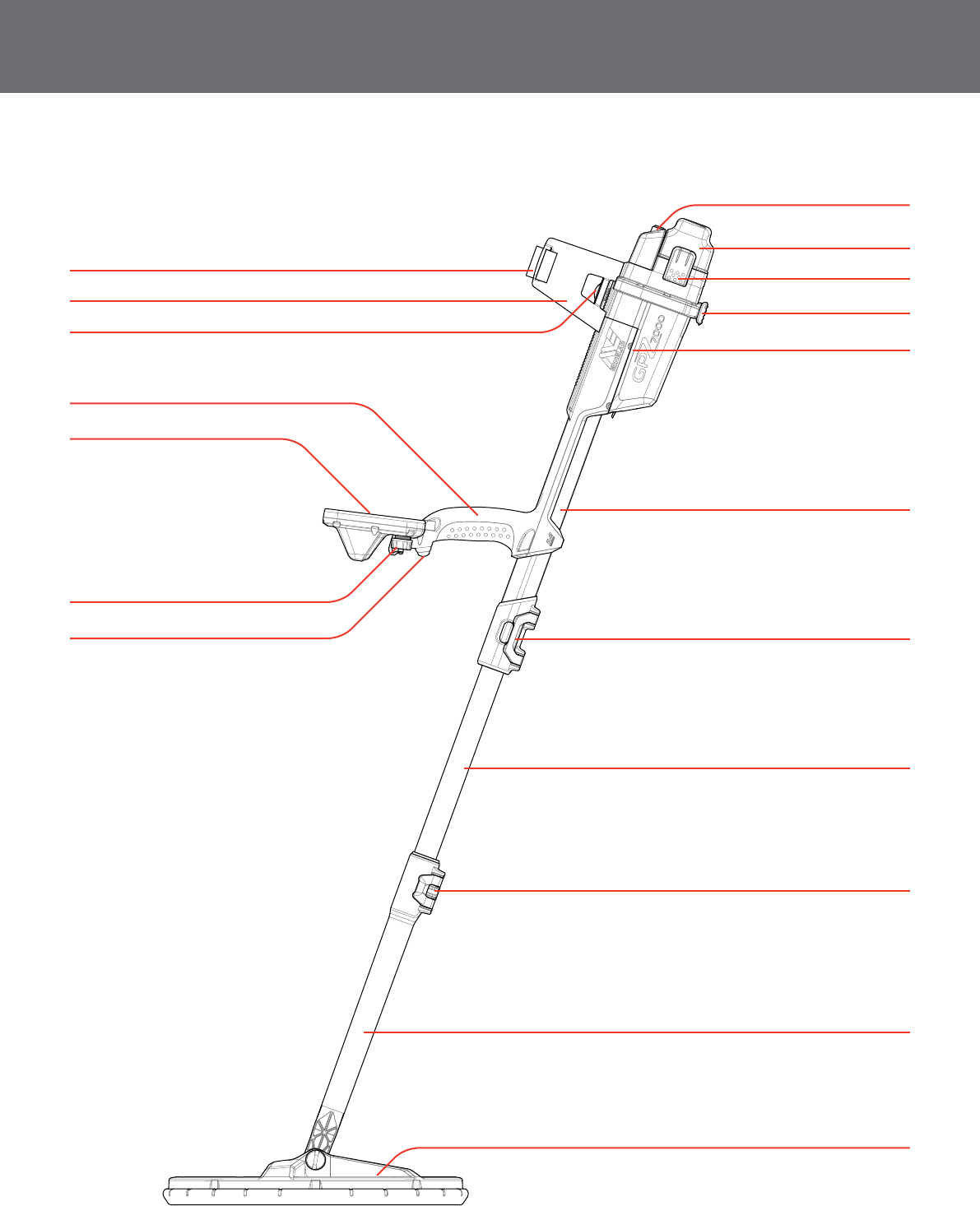
Detector Parts
1
* Coil is waterproof to 1m
Battery Pack
Battery Latches
Stand
Control Box
Trigger Upper Cam Lock
Lower Cam Lock
Lower Shaft
Coil*
Headphone Module
Control Panel
Handle
Armrest
Armrest Strap
Armrest Lock
USB Connector
Mid Shaft
Upper Shaft
Detector Parts
GPZ 7000 is not waterproof
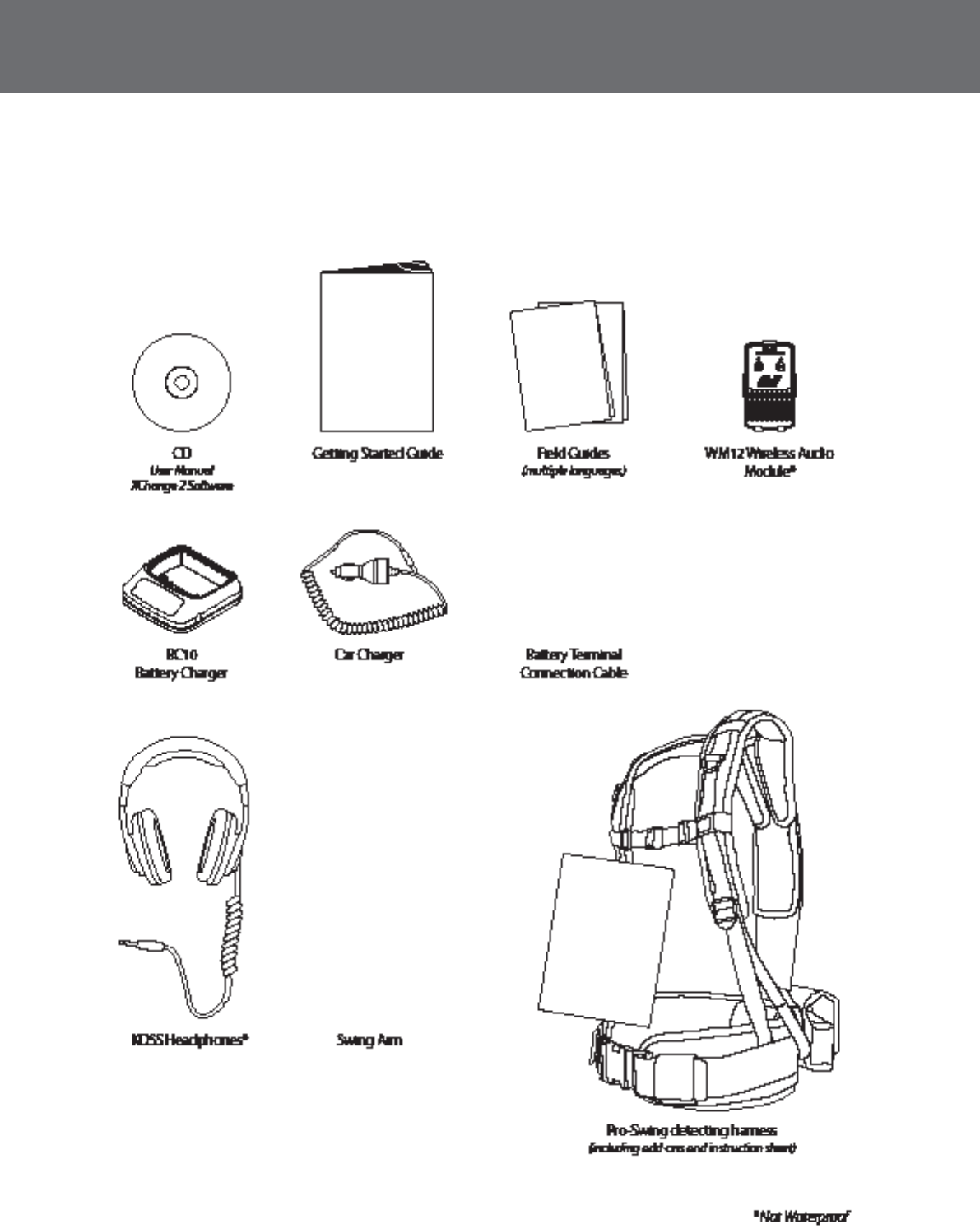
Detector Parts
2
See page 39 for the list of accessories available for use
with the GPZ 7000.
Items may vary from those shown.
Assembly
3
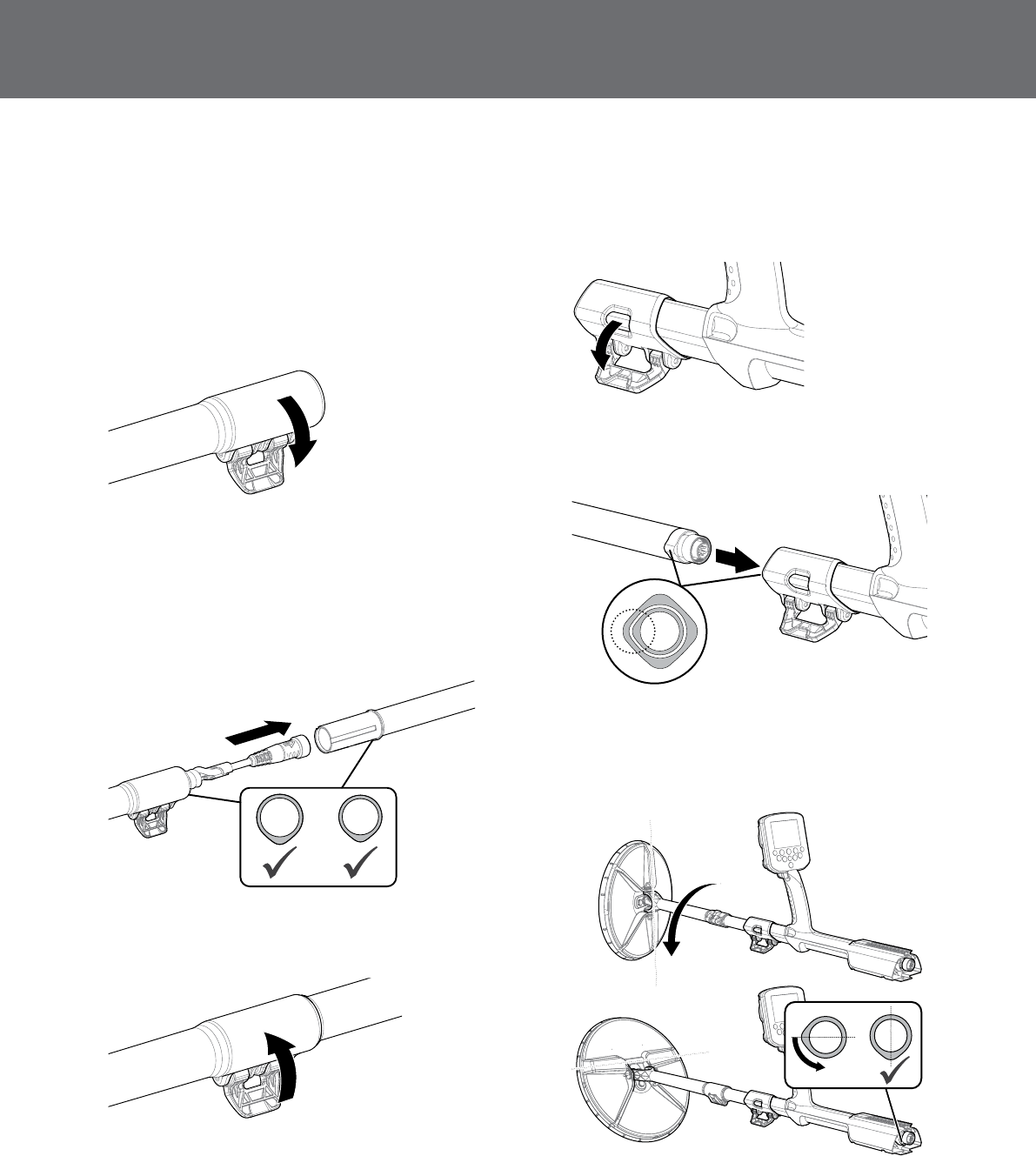
Assembly
Assembling the Detector
Attach coil and lower shaft to mid shaft
1. Release the camlock on the lower shaft by pulling
the lever away from the lower shaft
2. Thread the coil cable up the centre of the mid shaft.
3. Insert the mid shaft into the lower shaft. The lower
shaft can only be inserted into the mid shaft in one
orientation. Ensure that the key stop on the mid shaft
is aligned to the upper shaft.
4. Lock the camlock by pushing the lever towards the
shaft.
Attach mid shaft to upper shaft
1. Release the cam lock on the upper shaft by pulling
the lever away from the shaft.
2. The mid shaft can only be inserted into the upper
shaft in one orientation. Ensure that the key stop on
the mid shaft is aligned to the upper shaft.
3. Slide the mid shaft into the upper shaft until the coil
cable and key stop appear at the top.
4. Rotate lower shaft and coil 90° so that the coil is
oriented as shown.
Assembly
4
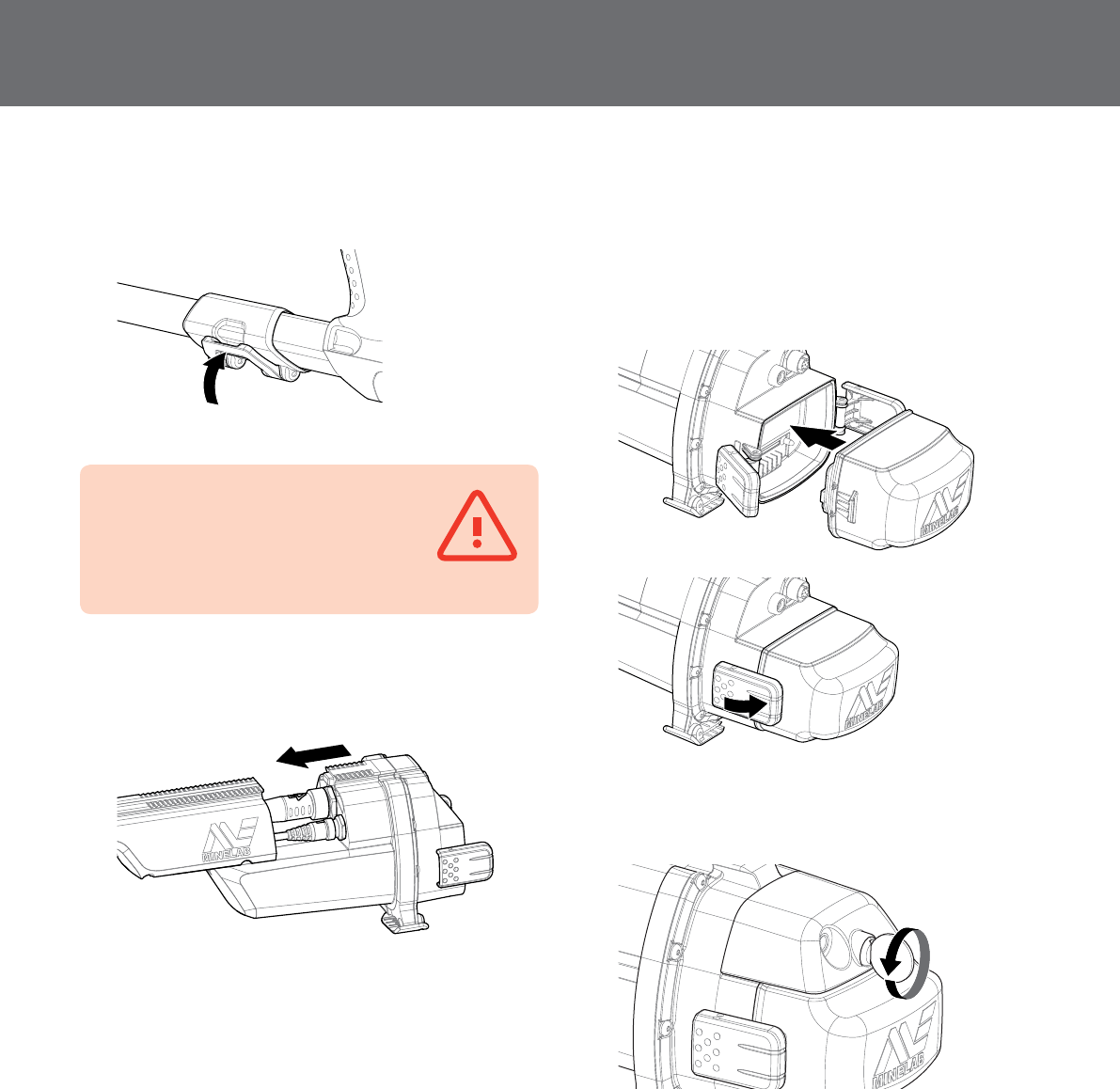
5. Lock the cam lock by pushing the lever towards the
shaft
Attach control box
WARNING
PINCH POINTS - CONTROL BOX
Take care when sliding the control box onto
the chassis and when operating the control box latch.
1. Slide the control box partly onto the upper shaft.
When it reaches half way it will click into place to
prevent the control box from sliding while the
connectors are fitted.
1. Attach the coil and control panel cables to their
respective connectors, and firmly tighten the
retaining rings.
2. Slide the control box further along the upper shaft
until it locks into place.
Attach battery and headphone module
It is a good idea to go detecting with a fully charged battery.
See page 6 for information on how to recharge the
GPZ 7000 battery.
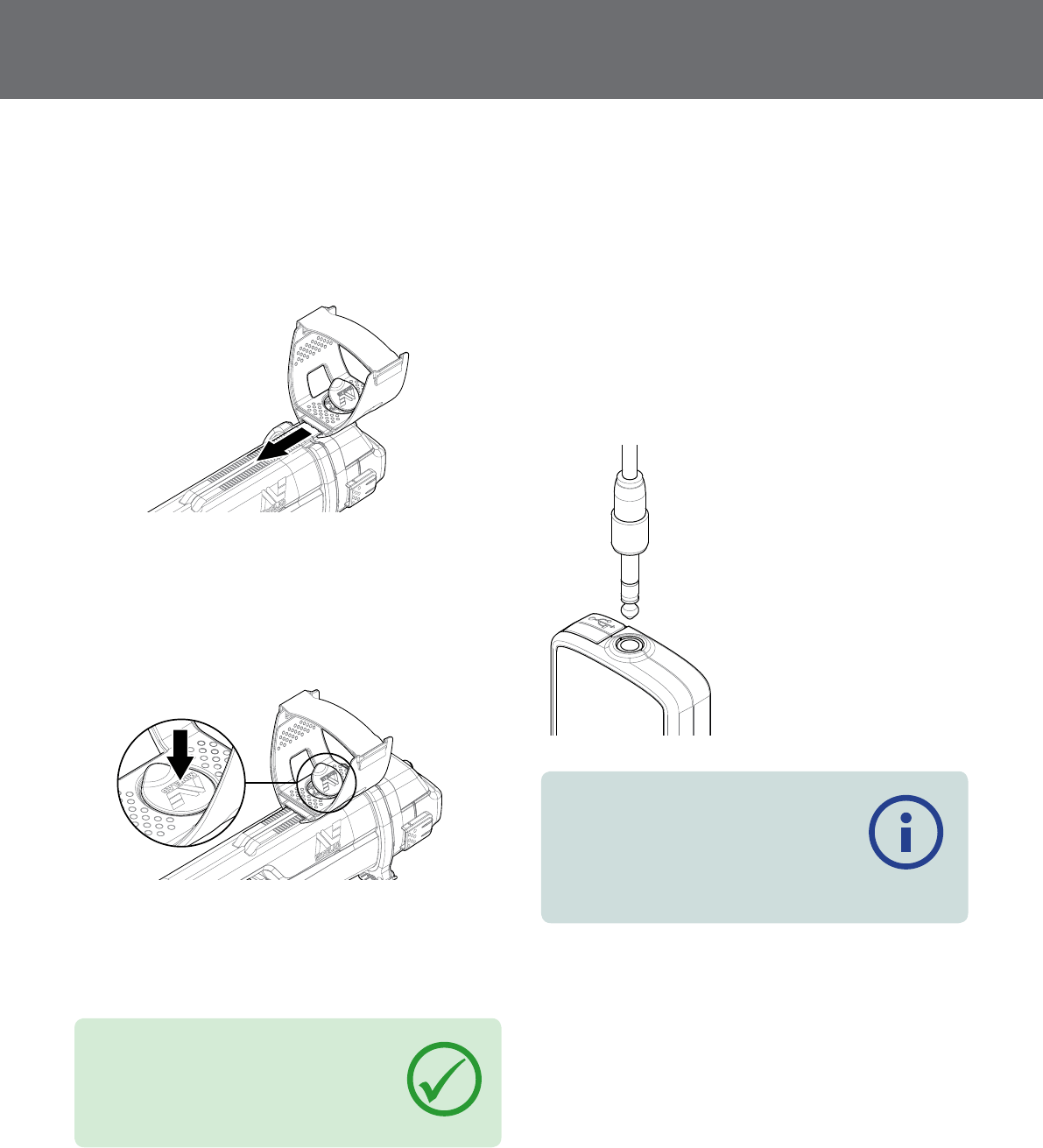
1. Fit the battery pack onto the control box and close
the latches to secure it in place.
2. Fit the headphone module onto the control box. Use
a screwdriver or coin to gently tighten the bolt taking
care not to damage the thread by over-tightening.
Assembly
5
Attach Armrest
1. Lift the armrest lock until it is fully open. Slide the
armrest onto the rail on top of the chassis. Ensure
that the sloping sides of the armrest face toward the
control panel.
2. Hold the detector as if detecting and slide
the armrest along the rail until it is positioned
comfortably just below your elbow.
3. Remove your arm from the armrest and push down
the armrest lock to secure the armrest in position.
Adjust Armrest Strap
1. Undo the hook and loop armrest strap.
2. Tighten the strap until your arm is secure in the
armrest, and fasten.
TIP
To fit a smaller arm, the strap can be fitted
upside down and passed through the
armrest three times.
Connecting Headphones
The headphones can be connected directly to the
detector or to the WM 12.
It is recommended that the WM 12 is used to generate audio.
WM12 Audio
To generate audio via the WM 12, Plug the headphone
connector into the WM 12 headphone socket. The WM 12
must be paired with the detector to hear audio
(page 21).
NOTE
The WM 12 can be used without
headphones, as it has an in-built speaker.
More information on the WM 12 on
page 30.
Detector Audio
Alternatively, you can connect headphones directly to the
detector. To do this, plug the headphone connector into
the socket on the headphone module at the rear of the
detector.
If using waterproof accessory headphones, you will need
to remove the headphone module from the control box
and connect the headphones to the exposed headphone
socket, remembering to tighten the retaining rings

Charging Batteries
6
Changing Coils
A range of accessory coils are available for your GPZ 7000.
To change a coil, follow the ‘Assembling the detector’
steps with the alternative coil.
Always check that the coil connector is dry and free of grit
and dust before connecting to the detector.
NOTE
All Minelab GPZ 7000 coils come with
the lower shaft pre-assembled to the coil.
Disassembling a coil from its lower shaft is
not recommended.
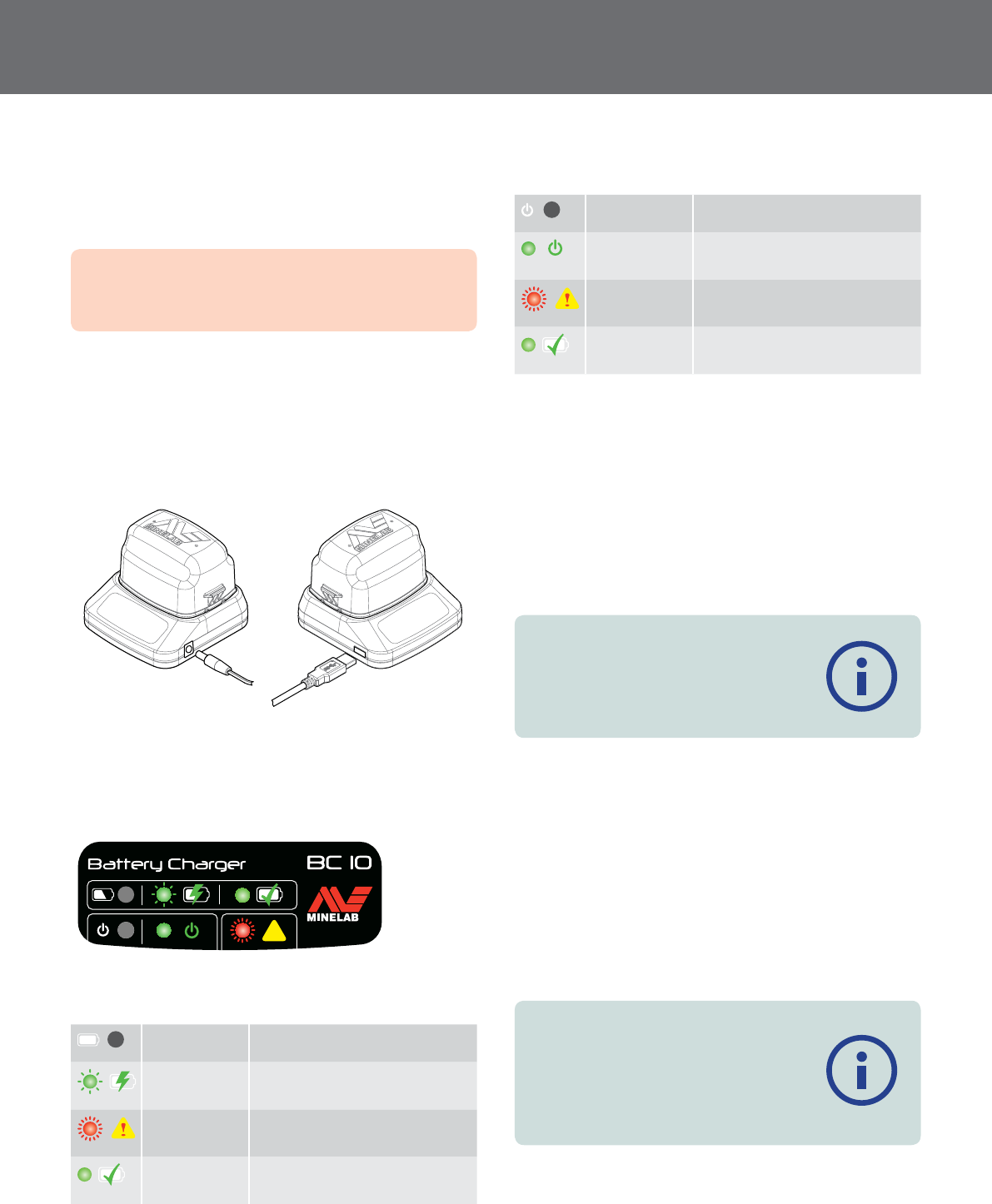
Swing Arm
Harness and Extras
Charging Batteries
7
Charging Batteries
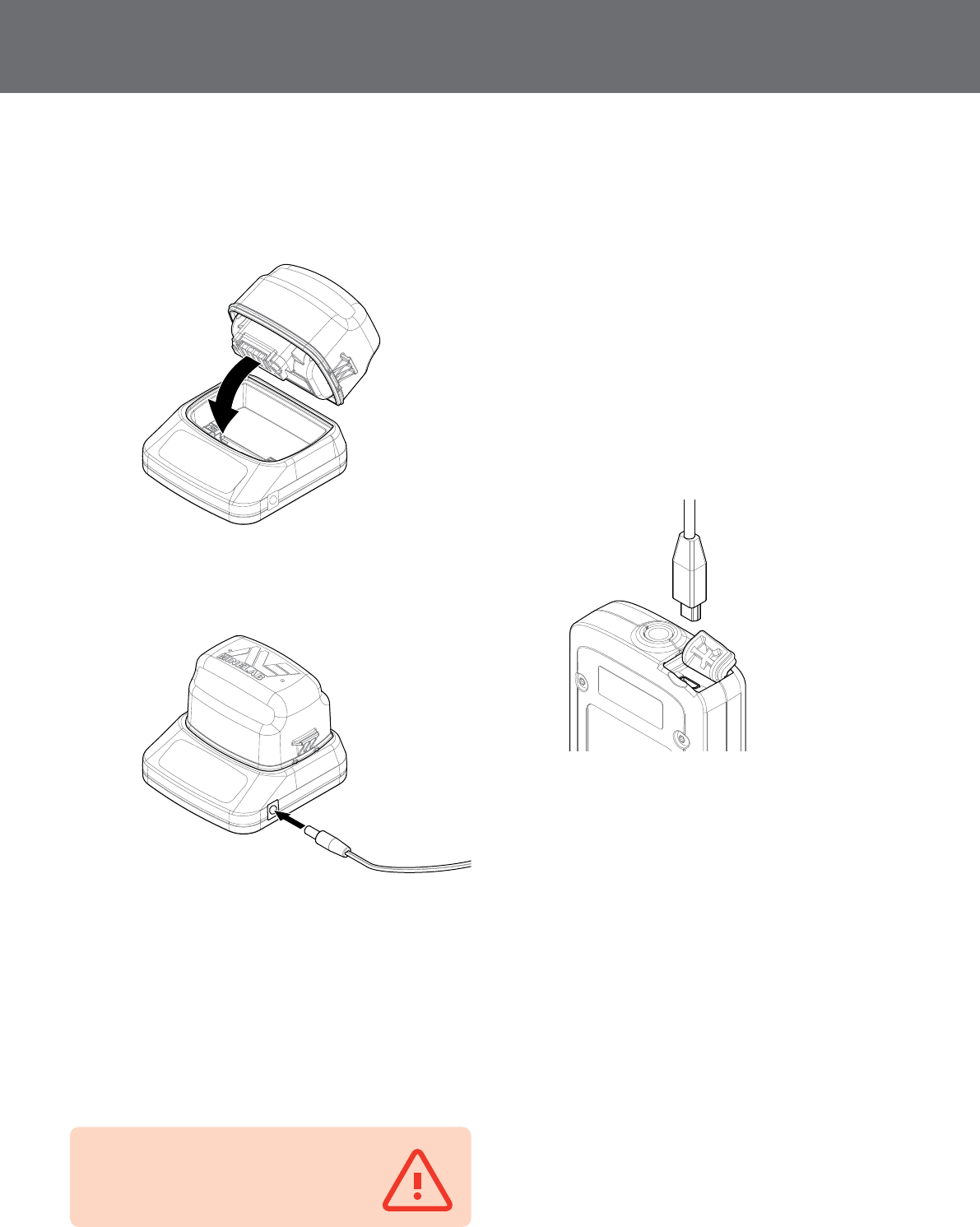
BC 10 Battery Charger
WARNING: Do not immerse the BC 10
charger in any liquid or allow water ingress.
The BC 10 Battery Charger is supplied with your detector
and is used to recharge the Li-Ion battery pack. The BC 10
can be powered by the AC plug pack (100-240V AC), and
from typical car (12V) or truck systems (24V), using the
cigarette lighter plug cable or direct battery connection
cable provided. A USB connection is provided for charging
the WM 12 (page 8).
Plug pack/car charger/12/24V
battery terminal connection
USB connection
Two bi-colour LED indicators located on the front panel
provide battery charge and power status information.
!
BC 10 front panel
Battery LED
OFF No battery plugged into charger
Slow flashing
green
Battery is charging, normal
operation
Fast flashing
red
Charger error detected
Steady on
green
Battery is fully charged
Power LED
OFF No input power, charger is OFF
Steady on
green
Correct input voltage, charger is
ON, normal operation
Fast flashing
red
Incorrect input voltage, charger
may not operate†
Steady on
green
Battery is fully charged
† For input voltages between 11 and 12 V DC, the charger will still operate
however the battery will take longer to charge if the battery LED is
flashing green.
GPZ7000 Battery
The GPZ 7000 standard pack is supplied with a sealed
rechargeable Lithium-Ion (Li-Ion) smart battery. This
battery pack is supplied partially charged and should be
charged for up to eight hours to maximise your first use.
The detector will operate for up to eight hours using the
Li-Ion battery pack.
NOTE
For best results, the battery pack must be
recharged whenever the detector has been
unused for a long period of time.
A battery icon displayed on the Control Panel Status
Bar (page 10) indicates the present charge level, and
provides advanced warning of the need to recharge or
replace the battery. The battery charge level is displayed
in five segments, which will gradually decrease during
operation relative to the voltage left in the battery. When
the last segment disappears, the ‘empty battery’ icon
will begin to flash and the battery low sound will emit
every 20 seconds. If the detector is still operating at this
time the voltage will drop to a point when a ‘low battery’
message will appear and the detector will turn itself off.
NOTE
The detector regulates the output voltage
so that its performance remains constant
regardless of the charge remaining in the
batteries.
Charging Batteries
8
Recharge the Lithium-Ion Battery Pack
1. Remove the battery pack from the detector and
place it into the charger unit, ensuring that the
connector pins line up.
2. Insert the plug pack, cigarette lighter or direct
connection battery cable connector into the socket
on the right hand side of the charger unit.
3. Plug the other end of the cable into the wall socket
or car cigarette lighter socket and turn on the switch.
If using the direct battery connection cable first
attach the black negative (-) clip to the negative (-)
battery terminal, and then the red positive (+) clip to
the positive (+) battery terminal.
Leave the unit to fully recharge.
The green indicator light will stop flashing and
remain static when the battery is fully charged (up to
four hours).
WARNING
The direct battery connection cable must
only be used with 12V/24V vehicle batteries.
WM12 Battery
The WM 12 contains a rechargeable Li-Ion battery,
which can be charged by the Li-Ion battery charger or a
standard USB port.
Taking a fully charged WM 12 with you each time you go
detecting is recommended.
For information on checking the charge status of the
WM 12 battery see page 10.
Recharge the WM12
1. Connect the supplied USB cable to the WM 12.
2. Connect the other end of the USB cable to the BC 10
battery charger or directly to a USB port on your PC.
Control Panel
9
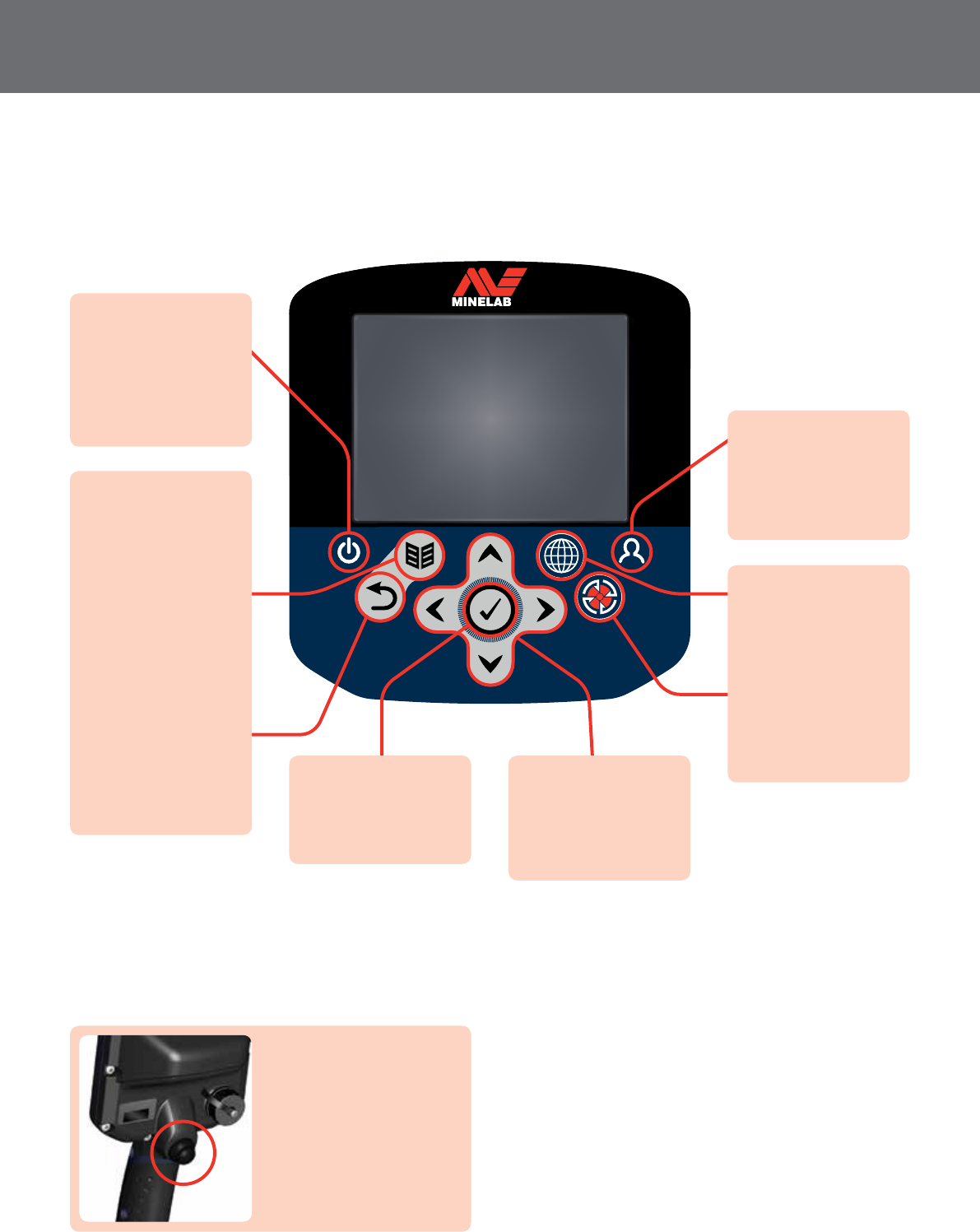
Control Panel
Power Button
Press to turn the
GPZ 7000 On/Off
Press and hold from
Off to access the Reset
menu (page 24)
GPZ7000 Page and
Back Button
Page
Press to access the
Detector Settings Pages
to change the settings
of your detector
(page 11)
Back
Press to return to the
previous screen
Press and hold to
return to the first page
in the menu.
Map
Press to access the Map
screen and GPS pages
Store
Press to display the
Create GeoData page
(page 29)
Arrow Buttons
Use the arrow buttons
to navigate up, down,
left, and right around
the Menu Pages
Select
Press from within the
menu screen to select
a menu option
User Button
Press to activate your
selected function
(default Backlight)
(page 22)
Trigger
Press to activate the
Quick-Trak function.
In Manual Mode, press
to activate the Ground
Balance function.
GPZ 7000 User Interface
10
GPZ7000 User Interface
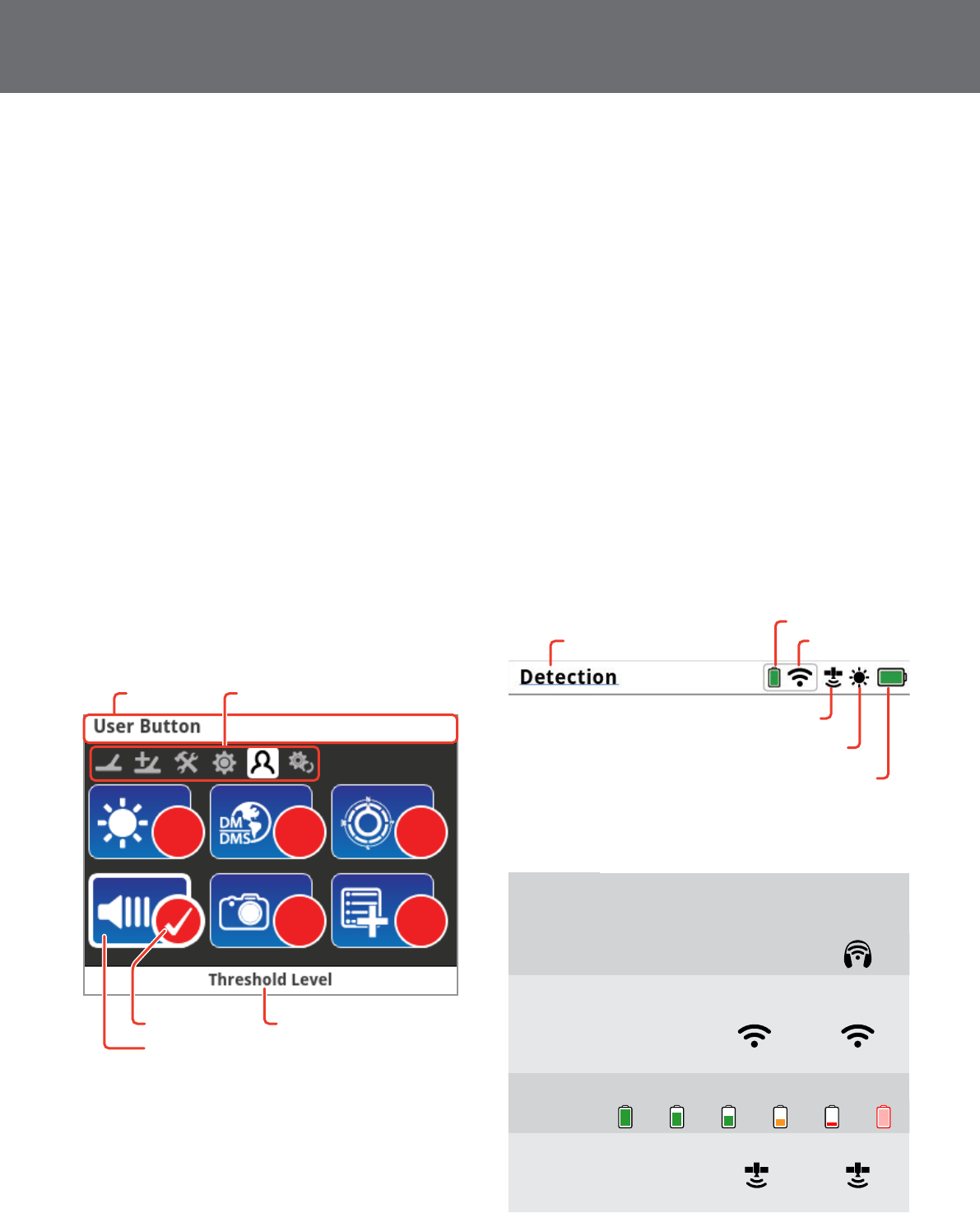
Typical Screen Elements
The GPZ 7000 graphical user interface (GUI) displays all
detection information and detector settings options via
the control panel.
A typical screen contains the following:
•Status Bar – See “Status Bar Elements” on page 10 for
detailed information.
•Page Icons – A row of icons directly below the Status
Bar represent pages within a menu. A white box
appears around the current Page.
•Items – A blue rectangle containing a white icon.
Each Item represents a detector function that can be
modified.
•Items Status – A red circle containing a white icon
displays the current setting/selection for the Item it
represents.
•Item Description – A text description of the current
highlighted Item.
Items
Page Icons
Status Bar
Item Status Item Description
The parts of a typical GPZ 7000 page screen.
Status Bar Elements
The Status Bar is displayed at the top of all screens and
provides status information for the following functions:
•WM 12 Headphone connection*
•WM 12 connectivity*
•WM 12 battery level*
•GPS
•GeoHunt status
•Backlight
•Detector battery level
* The Status Bar will only display information about the Master WM 12.
Each function is represented by an icon. The icon can vary
or may disappear as the state of each function changes.
For further details on the status bar icons and their various
states refer to the summary table.
WM 12 battery
Wireless
GPS
Backlight
GPZ 7000 battery
Current page title
Status Bar elements
Summary of Status Bar icons
Headphones
Not Connected
Detector
Headphones
Connected
WM 12
Headphones
Connected
No icon No icon
Wireless
Off On, Not
Connected
On and
Connected
No icon
(flashing)
WM 12
Battery
100% 80% 60% 40% 20% Empty
GPS
Off On, No Fix On and Fixed
No icon
(flashing)
Charging Batteries
11
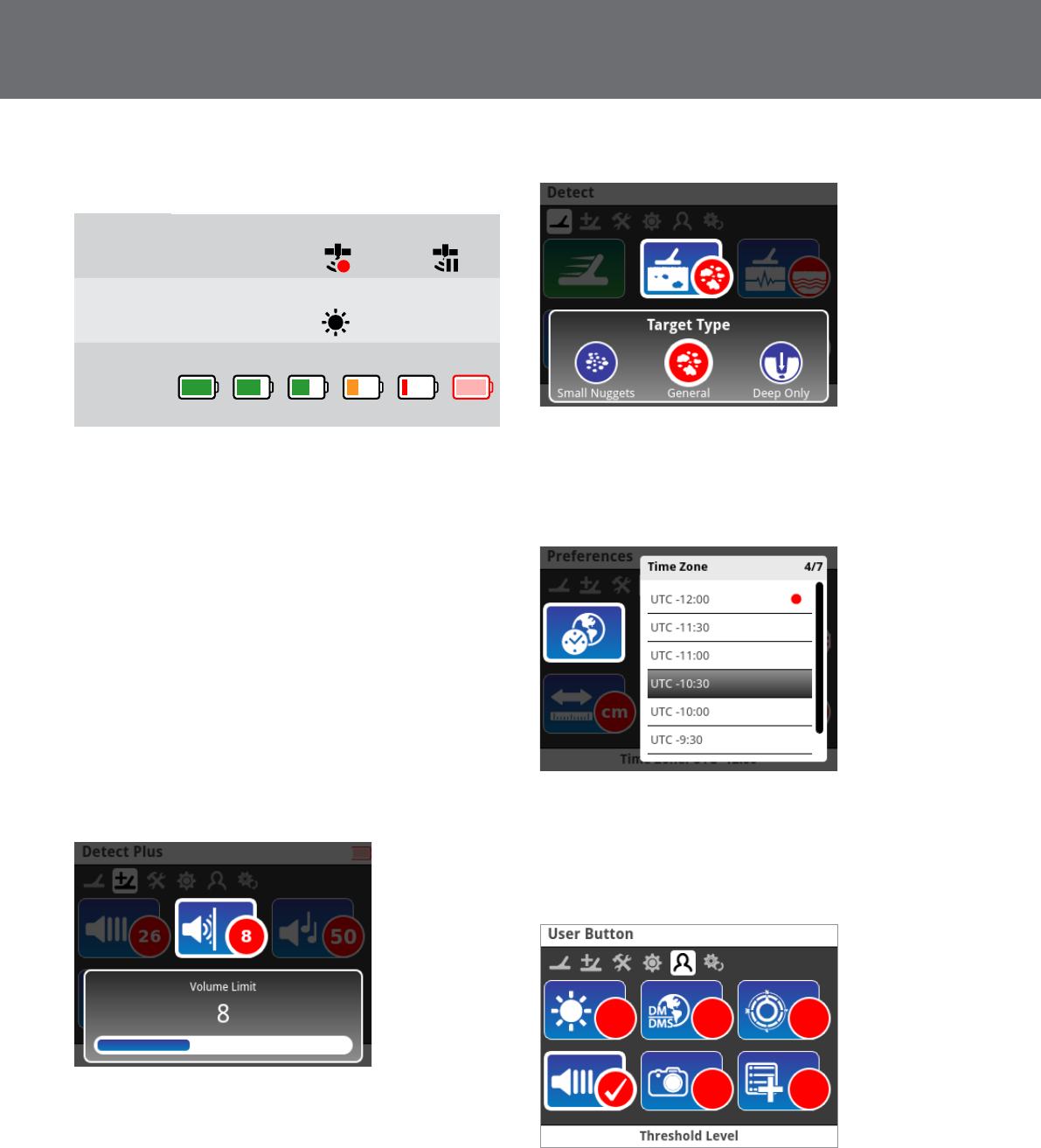
Summary of Status Bar icons
GeoHunt
Off Record Pause
No Icon
Backlight
Off On
No Icon
Jupiter
Battery
100% 80% 60% 40% 20% Empty
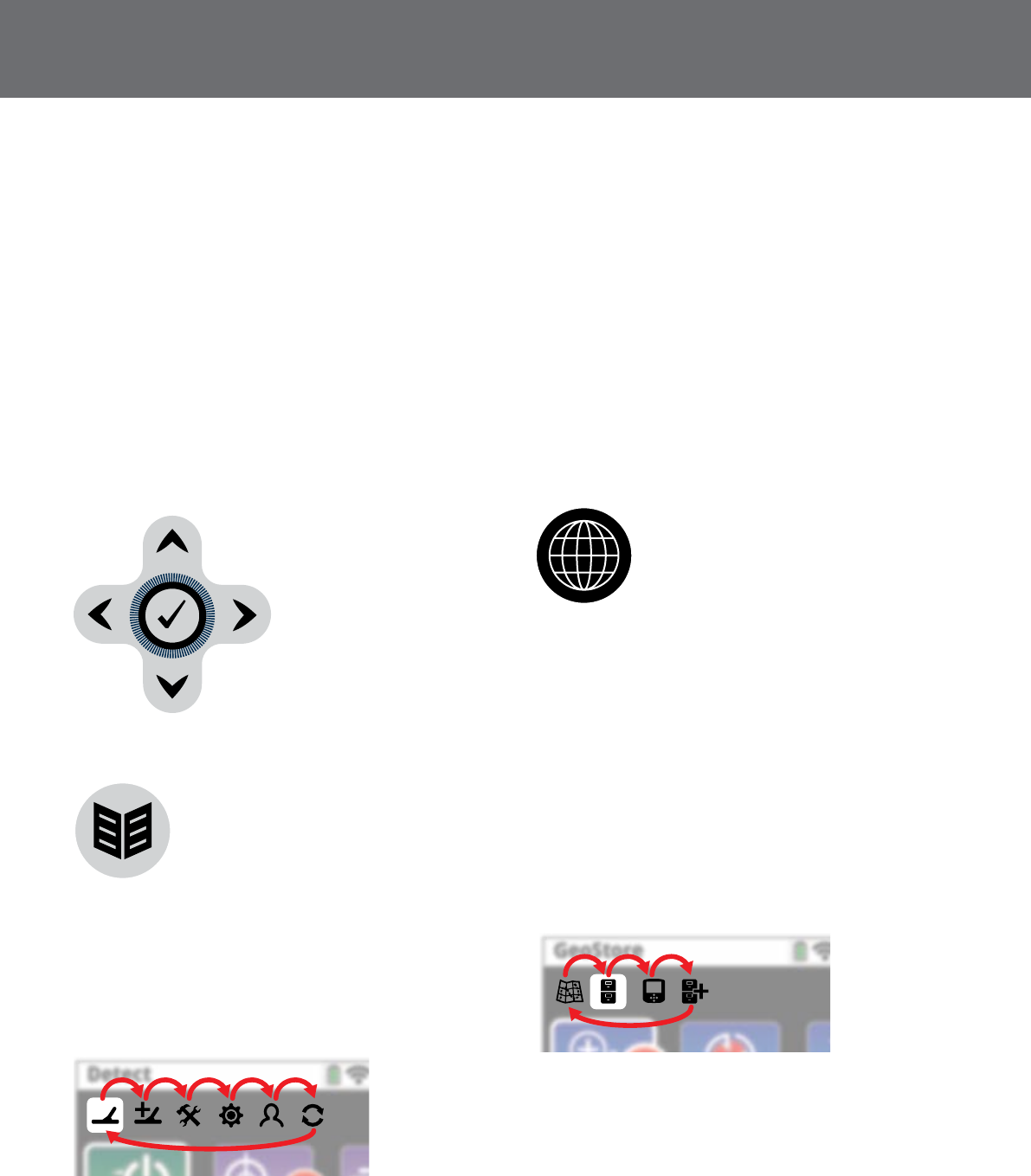
Types of Selection Screens
When you select an Item on a page, the options relating
to that Item will appear. These options will be adjustable
via one of the following selection screens:
•Adjustment bar
•Selection box
•Selection list
•Selection check-box
Adjustment Bar
A bar with incremental steps that can be increased (right
arrow button) or decreased (left arrow button). Increases
and decreases occur in real-time and any changes take
immediate effect.
Example of an adjustment bar
Selection Box
Select one of the available options. The selected option
will take effect once the Select button is pressed. The red
status dot on the item updates to display information
about the selected option
Example of a selection box
Selection List
Select an option from a list. Your selected option will take
effect once the Select button is pressed.
Example of a selection list
Selection Check-box
Allows only one item to be selected. A check mark will
appear in the Item Status circle to show which Item is
currently assigned.
Example of a selection check-box
(Flashing)
Charging Batteries
12
Menu Navigation
The GPZ 7000 GUI has two main menus:
•Detector Settings Menu – where you can access all
Detector Settings Pages
•Map Menu– where you can access all Map Pages
Each menu can be directly accessed from any other menu
by pressing the appropriate control button.
The Detector Settings and Map menus provide you with
access to all GPZ 7000 functions and settings.
In each menu, use the up, down, left and right arrow
buttons to move between the pages and page Items.
Press the Select button to activate the highlighted Item.
The up, down, left, and
right arrow buttons.
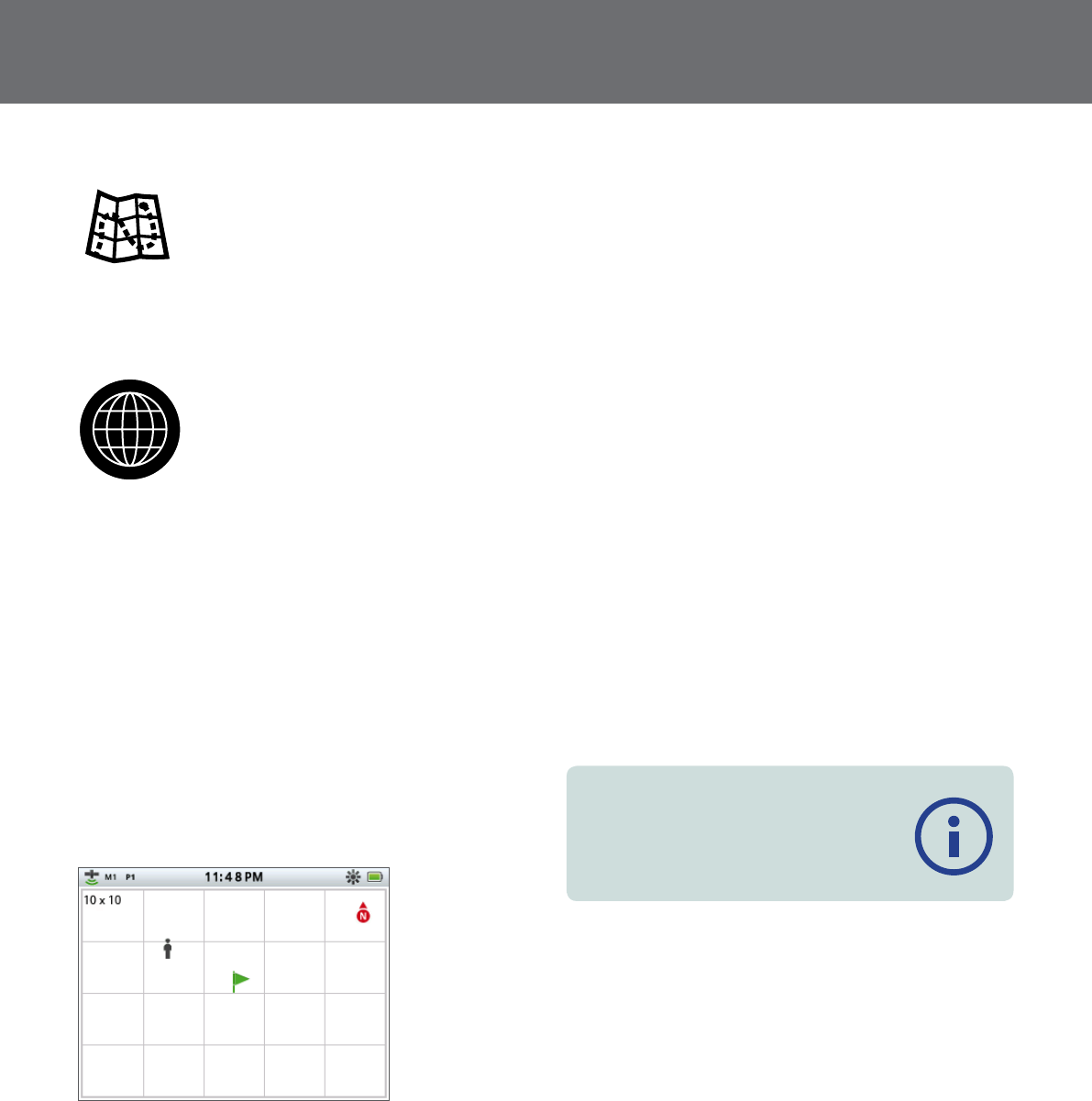
Navigating the Detector Settings Pages
The Page button
Access the Detector Settings Pages at any time by
pressing the Page button. This will take you to the first
Detector Settings page (Detect).
Pressing the Page button will cycle through the Detector
Settings Pages. Pressing the Page button when you are on
the last page will return you to the first page.
Cycling through Detector Settings Pages.
You can also return to the first Detector Settings page
(Detect) by pressing and holding the Back button.
Use the Page button to access the detector Settings
Pages. The detector settings are grouped into six pages:
•Detect
•Detect Plus
•Settings
•Preferences
•User Button
•Reset
For further information on the Detector Settings Menu,
see page 16.
Navigating the Map Pages
The Map button
Access the Map Pages at any time by pressing the Map
button. This will take you to the first page in the Map
Menu, (Map). The Map functions are grouped into four
pages:
•Map
•GeoStore
•Display
•Create GeoData
Pressing the Map button will cycle through the Map
Pages. Pressing the Map button when you are on the last
page will return you to the first page.
Cycling through Map Pages.
You can also return to the first Map page (Map) by
pressing and holding the Back button.
For further information on the Map Menu, see page 25.
Map
13
Map
Map
Access the Map at any time by pressing the Map button.
The Map button
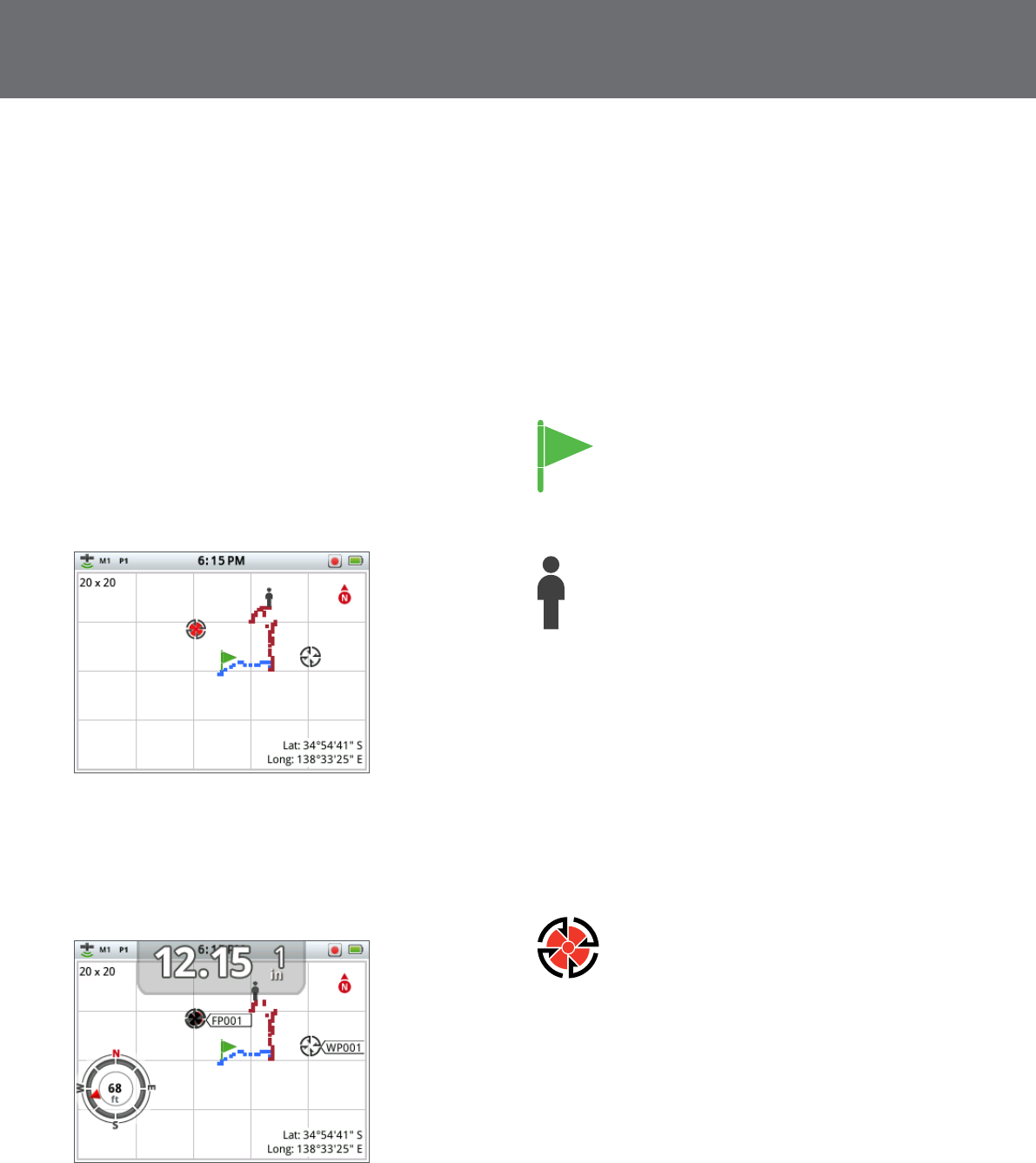
The Map displays FindPoints, WayPoints, GeoHunts
and GeoTrails in their relative geographic locations. It
represents a default map dimension of 100 yards (or
metres) in the east-west horizontal direction and 80 yards
(or metres) in the north-south vertical direction.
The map displays north-south and east-west grid lines,
centred on your current location. The distance between
the grid lines will depend on your current zoom level
(page 14). The upper horizontal edge of the screen
display will represent north irrespective of the detector
orientation.
At the top of the Map is the Status Bar, which displays
information about the current detector settings
(page 10).
Example Map screen
Use the Map to:
•View your current location and GPS coordinates
•View your GeoTrail, WayPoints, FindPoints and GeoHunts
•Navigate to a location
•View the status of the detector
For further information on the Map, see page 13.
GPS
The Global Positioning System (GPS) is a space-based
satellite navigation system that provides location and
time information from any location where there is an
unobstructed line of sight to four or more GPS satellites.
The location and navigational elements of the Map work
in conjunction with the Global Positioning System (GPS).
By default the GPS receiver is turned off and must be
turned on through the Setting page (page 21). Once
GPS is turned on a flashing GPS icon will appear on
the Status Bar. When an absolute position fix has been
established (which may take several minutes), the GPS
icon on the Status Bar will stop flashing and remain static.
On entering the Map a marker will be displayed at the
centre of the screen to represent your initial start location.
If there is a valid GPS position fix, movement will be
displayed on the Map as a series of dots that form a
GeoTrail.
On the GPZ 7000, GPS provides the capability to store
location data relating to FindPoints and WayPoints, and to
record GeoHunts. By default GPS is turned off and must
be turned on through via Settings page (page 21).
NOTE
If there is no WayPoint, FindPoint or GeoHunt
near the current location, the Map may be
blank.
Map
14
Map Elements
The content of the Map will vary according to its current
state and your user preferences. The Map can display the
following elements:
•Zoom Level
•Start Trail
•Current Position
•FindPoints and WayPoints
•GeoTrail
•GeoHunt
•North Marker
•Coordinates
Map showing all content elements
The following Map elements are optional and can be
controlled via the Display page:
•Navigation Tool (page 15)
•Names of GeoStore items (FindPoints, WayPoints)
Map showing optional elements
For information on how to show and hide optional screen
elements, see (page 28).
Zoom Levels
The zoom level indicator is displayed at the top left of
the Map. It indicates the current size of the grid square in
yards or metres (10 x 10, 20 x 20 or 100 x 100).
To adjust the zoom level, press the Map button to
navigate to the GeoStore page, then select Map Zoom.
Select your preferred zoom level from the selection box
(10, 20 or 100), then press Select.
Start Trail
On entering the map a marker will be displayed
at the centre of the screen to represent your
initial start location.
Current Position
The current position marker displays your location
on the Map.
FindPoints and WayPoints
FindPoints and WayPoints are displayed on the Map to
indicate find locations and points of interest. They will
be displayed at a consistent size regardless of the zoom
level, but those in close proximity will be overlapped. By
default FindPoints and WayPoints are displayed with their
names, but if space is limited the names can be hidden
(page 28).
FindPoint
A FindPoint stores the location and details of a
target. When you choose to store a FindPoint
(page 29), the GPZ 7000 stores the following
information:
•Location (Latitude/Longitude)
•Time and date
•Detector settings and coil information
•Depth (Entered by user)
•Weight (Entered by user)
Your FindPoint information can be used for future
reference within the detector and with the XChange 2 PC
application (page 31).
Map
15
WayPoint
A WayPoint is similar to a FindPoint with the
exception that no detector related information
is stored. The WayPoint is used to record a point
of interest or location to which you may choose
to return in the future. When you choose to store a
WayPoint the GPZ 7000 stores the following information:
•Location
•Time and date
You can also create a WayPoint as a navigation point
on Google Maps using the XChange 2 PC application
(page 31).
GeoTrail
GeoTrail position information is recorded every second
and can be represented on the screen by a series of dots
that form a trail. If a GeoTrail is being recorded as part of
a GeoHunt, the trail will be maroon, otherwise it will be
blue.
GeoHunts
When the GeoHunt function is active, the GPZ 7000
stores your position information while you are detecting.
It allows you to see a map view of the ground you have
covered, and records the location, time and detector
settings used. FindPoints and WayPoints stored while
a GeoHunt is active are displayed and stored with the
GeoHunt.
When you activate the GeoHunt function, the GPZ 7000
stores the following information:
•Periodic location (GeoTrail)
•Time
•Detector settings and coil information
•FindPoints and WayPoints
You can upload your GeoHunts to your PC and view
them on Google maps using the XChange 2 application
(page 31).
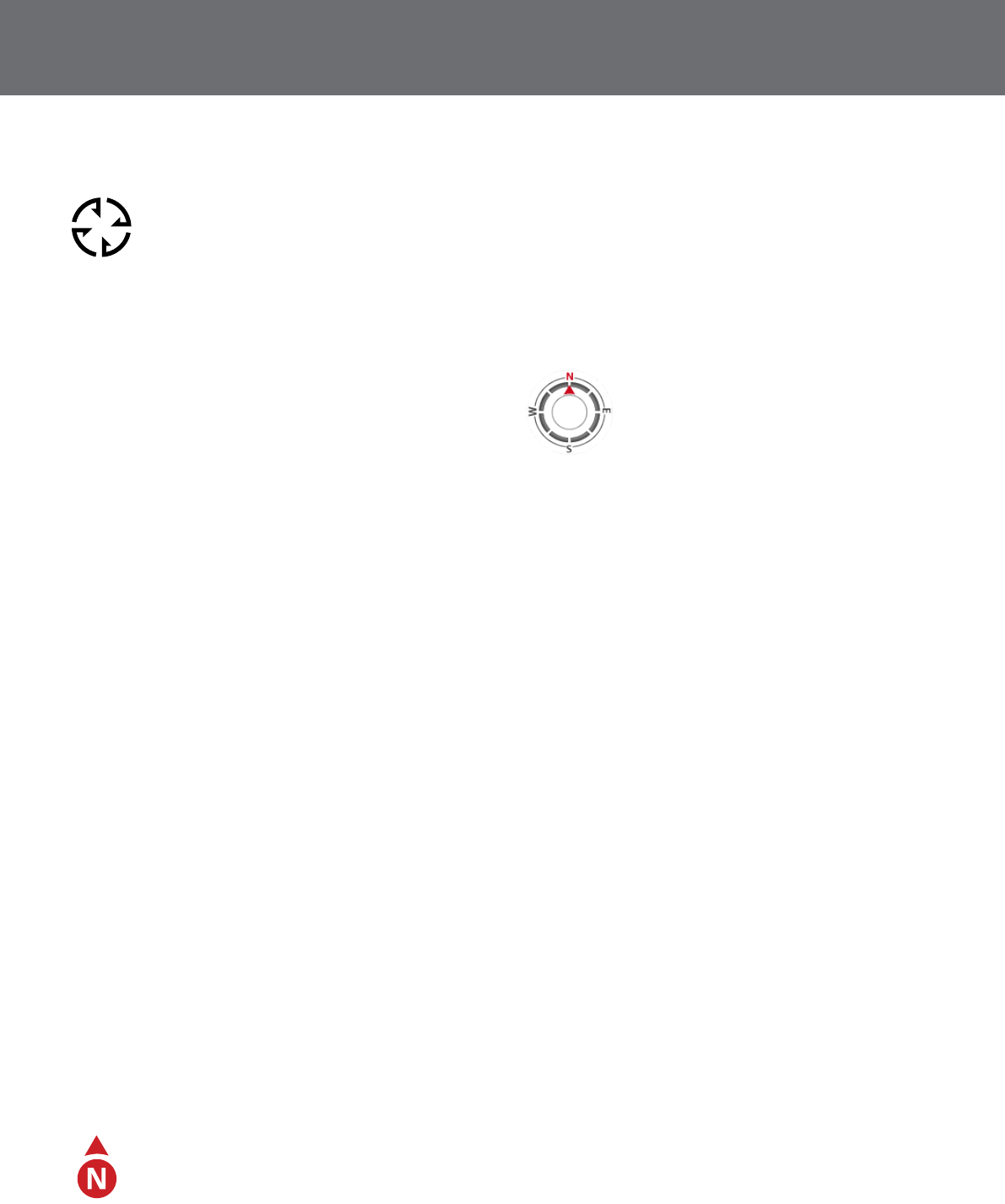
North Marker
The North Marker is displayed at the top right of
the screen. It indicates a northerly direction in
relation to the detecting trail.
Coordinates
Lat: __.__ deg.
Long: __.__ deg.
Latitude/Longitude information for
the target is optionally displayed at
the bottom right of the Map. The
format of the display can be configured via the
Preferences page (page 22).
Navigation Tool
The Navigation Tool allows you to
navigate to a WayPoint, FindPoint or the
start or end point of a GeoHunt.
With the Navigation Tool turned on
(page 28), select an object to be
navigated to from the GeoStore (page 26) and a
Destination icon will appear on the Map. The Navigation
Tool will help you navigate by displaying the distance and
direction to your destination.
The Destination icon will only appear when the
Navigation Tool is turned on. To turn off the Destination
icon you need to turn off the Navigation Tool.

Detector Settings Menu
16
Detector Settings Menu
Detector Settings Menu Structure
All functions and settings are grouped into six pages:
•Detect
•Detect Plus
•Settings
•Preferences
•User Button
•Reset
The following overviews provide a quick reference guide
to each page. More detailed information is provided from
page 17 to page 24.
Detect Page Overview
Options Actions
Quick Start Launches wizard
Target Type
Small Nuggets
General
Deep Only
Ground Type Difficult
Normal
Noise Cancel Auto
Manual 1 to 256
Sensitivity 1 to 20
Volume 1 to 20
Detect Plus Page Overview
Options Actions
Threshold Level 1 to 50
Volume Limit 1 to 20
Threshold Pitch 1 to 100
Ground Balance
Mode
Auto
Manual
Settings Page Overview
Options Actions
GPS
Off
On
Enhanced
Backlight
Off
On
Auto (20 sec)
Backlight Brightness 1 to 10
Wireless Enable Off
On
Settings Page Overview
Connect WM 12 Wizard
Connect Additional
WM 12 Wizard
Preferences Page Overview
Options Actions
Time Zone -12:00 to +12:00
(30 minute increments)
Time Format 12 hour
24 hour
Location Format DMS
DM
Length Units cm / m
inches / yards
Weight Units
Troy Ounces
Grams
Grains
Wizards On
Off
User Button Page Overview
Options Actions
Backlight
View Navigational
Tool
View Coordinates
Snapshot
Other
Reset Page Overview
Options Actions
Reset GeoStore
Reset Settings
Reset All
Language
English
Spanish
Portuguese
French
Russian
Arabic
Product Verification
Code
Version Information

Detect
17
Detect
The Detect page contains all of the primary detecting
functions:
•Quick Start
•Target Type
•Ground Type
•Noise Cancel
•Sensitivity
•Volume
Quick Start
Quick Start offers minimal setting adjustment, ideal for
beginner users. When Quick Start is selected, the Quick
Start wizard is launched. This will guide you through the
Quick Start process to get you detecting quickly and
easily.
Target Type
The Target Type function allows you to optimise your
detector to search for specific target types.
The available options are:
•Small Nuggets (Default)
•General
•Deep Only
Small Nuggets
This setting is ideal for searching for nuggets between
0.1 and 10 grams and also has good performance for
detecting larger nuggets in shallow ground. This setting
utilises new technology in the GPZ 7000 which provides
a substantial performance increase over existing metal
detectors in detecting smaller nuggets that others have
missed.
General
This setting provides good all round performance in
detecting nuggets of all sizes and at all depths.
Deep Only
This setting is specifically designed for searching for
deeply buried targets. Deep targets produce complex and
subtle audio responses, and as such this setting should
only be used by highly skilled operators. Shallow targets
will not present well on this setting when compared to
the ‘Small Nuggets’ or ‘General’ settings. This setting is not
recommended for general use.
When changing the Target Type setting, the threshold
tone will become silent for approximately one second
once a new setting is selected.
Ground Type
When detecting in ground with high levels of iron
mineralisation, movement of the detector over the
ground can produce false target signals. These unwanted
target signals are known as ground noise. The GPZ 7000
detector has been designed to remove unwanted ground
noise. The Ground Type setting controls the amount of
unwanted ground noise that the detector will remove
from the audio.
The available options are:
•Difficult (Default)
•Normal
Dicult
This setting is recommended as gold is usually found in
areas with high levels of iron mineralisation.
Normal
This setting should only be used in areas where the
ground is known to be ‘quiet’ ground. If unwanted ground
noise is heard while operating in the ‘Normal’ setting, the
operator should change to the ‘Difficult’ setting.
When changing the Ground Type setting, the threshold
tone will become silent for approximately one second
once a new setting is selected.
Detect
18
Noise Cancel
The Noise Cancel function allows you to eliminate
electromagnetic interference (EMI) or ‘noise’ from the
detector.
The GPZ 7000 may become noisy due to electrical
interference from power lines, electrical equipment or
other detectors operating close by. The detector interprets
this interference as inconsistent, erratic detections.
The available options are:
•Auto (Default)
•Manual
Auto Noise Cancel
Auto Noise Cancel automatically scans and listens to every
channel, and selects the one with least interference. Auto
is the recommended setting.
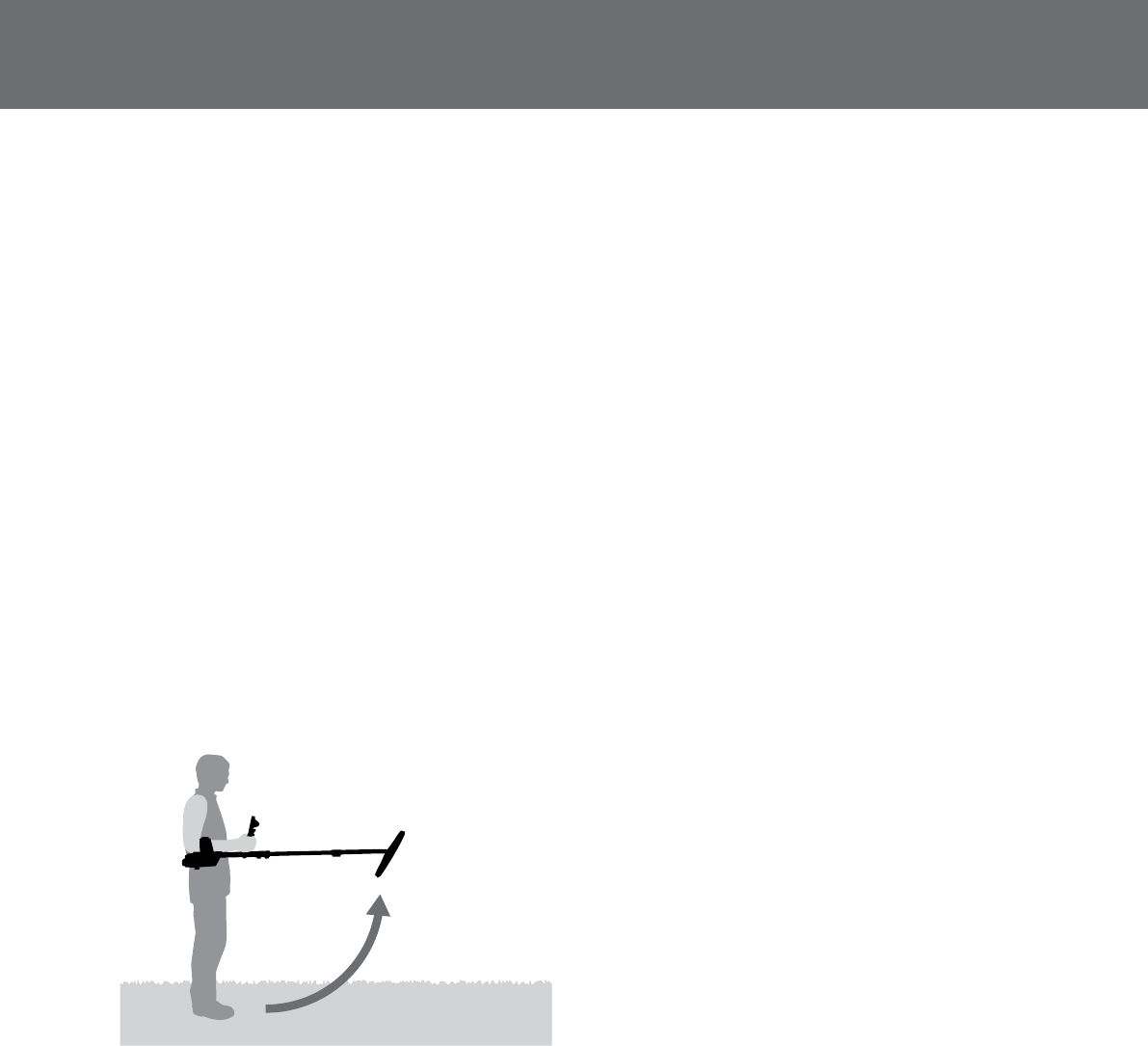
1. Make sure there are no large targets or obvious
sources of EMI close by, then raise the detector coil
until the detector shafts are horizontal to the ground.
2. Select the Noise Cancel icon then Auto to initiate
Auto Noise Cancel.
3. Automatic channel selection will commence. Keep
the detector still during the selection process, which
may take up to 55 seconds. Press the back button to
terminate Noise Cancel at any time.
The screen will indicate when the Noise Cancel is
complete.
Manual Noise Cancel
The Manual setting allows you to manually select and
listen to each channel for the least interference.
To manually adjust Noise Cancel:
1. Make sure there are no large targets or obvious
sources of EMI close by, then raise the detector coil
until the detector shafts are horizontal to the ground.
2. Select the Noise Cancel icon, then select Manual.
3. Press the left or right arrow buttons to select a
channel. Pause and listen to the interference coming
from the detector. Keep the detector still during this
process.
Once the channel with the least interference has
been found, press the Select button exit the menu.
Sensitivity
Sensitivity controls the detector’s response to received
signals. These signals can include desirable signals
from nearby metal, as well as undesirable signals from
electronic noise, and noise due to ground response.
Increasing the sensitivity level may make targets more
detectable but may also increase detector noise due to
these noise influences.
You can adjust the sensitivity setting to your desired level.
Adjust Sensitivity Settings
Select Sensitivity on the Detect page. An adjustment
range from 1 to 20 will appear. Use the left and right
arrow buttons to increase or decrease the Sensitivity; the
threshold tone will become silent for approximately one
second with each press. Press Select when done.
Volume
Range: 1–20
Factory Preset: 8
Volume controls the amplification of a target’s audio
response, relative to the target signal strength. This audio
setting is most similar to volume adjustments in other
devices (e.g. radio or television volume controls).
With a setting of 1 the target signal will not be amplified.
Weak target signals will sound quiet, medium target
signals will sound mid-range and strong target signals will
sound loud. There will be greater differentiation between
target signal strengths; however, weak signals will be
harder to hear.
With a setting of 20, all target signals will be amplified to
a loud audio response. At this setting there will be less
differentiation between medium and strong signals, but
weak target signals will be easier to hear.
Detect Plus
19
Detect Plus
The Detect Plus page contains settings for the detector’s
headphones, wireless speaker, wireless headphones, and
Ground Balance functions.
The available Items are:
•Threshold Level
•Volume Limit
•Threshold Pitch
•Ground Balance Mode
Threshold Level
Range: 1–50
Factory Preset: 30
The constant background ‘hum’ produced by the detector
is called the Threshold. Variations in the Threshold help
you to hear very small and deep targets.
The Threshold is controlled by Threshold Level and
Threshold Pitch. The correct adjustment of both Threshold
settings will depend on your hearing and environmental
noise such as wind, waves and machinery.
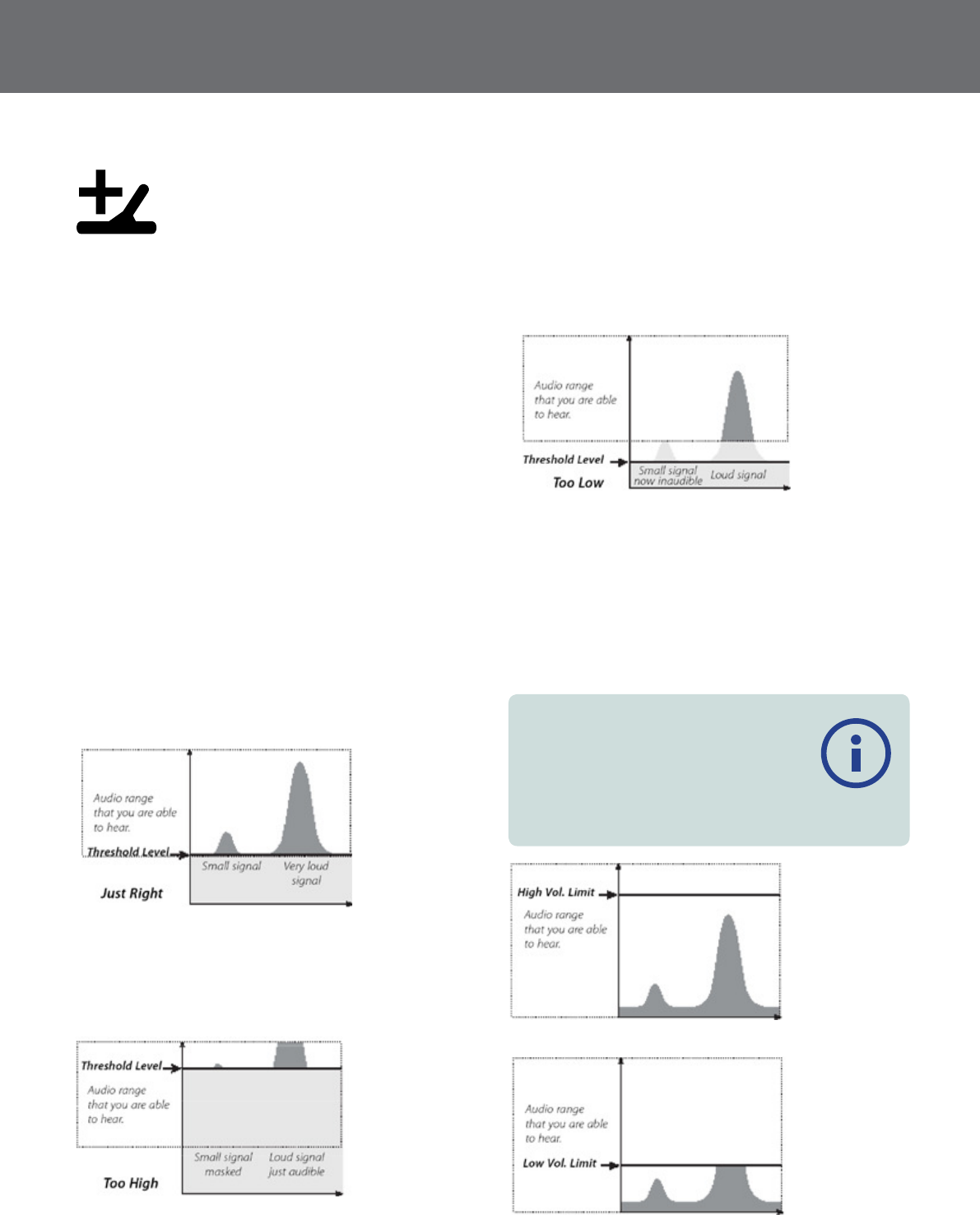
Adjust the Threshold Level to a faint, audible hum. This
will highlight variations in signal response which may
indicate the presence of a target. If the soil conditions
change the Threshold Level may need adjustment.
If the Threshold Level is too high, faint targets will be
harder to hear above the Threshold ‘hum’.
If the Threshold Level is too low, the slight variation
caused by a small or deep target may not be sufficient
to hear. Adjusting the level to below an audible level
will ensure silent operation but could mask the audio
response from small or deep targets.
Volume Limit
Range: 1–20
Factory Preset: 12
The Volume Limit sets the maximum volume for target
signals. When detecting, the sound produced by a target
can be very loud. Adjust the Volume Limit to ensure that
loud targets do not hurt your ears.
NOTE
A high Volume Limit will allow a greater
difference between a small and large target.
A low Volume Limit will reduce the volume
difference between small and large targets.

Detect Plus
20
Threshold Pitch
Range: 1–100
Factory Preset: 50
Threshold Pitch allows you to adjust the pitch of the
Threshold tone. Hearing will vary between individuals, so
adjust the Threshold Pitch to a level that is comfortable
for your hearing.
Ground-Balance Mode
The Ground Balance Mode setting allows you to select the
method for balancing out unwanted ground noise.
The available options are:
•Auto (recommended)
•Manual
Auto
Auto is the recommended setting for Ground Balance
Mode. Auto ground balance automatically measures the
ground mineralisation levels and adjusts the ground
balance as necessary to maintain stability and detection
depth.
In Auto mode the ground balance will automatically
stabilise, after power on or a settings change, within 10 to
15 seconds of normal detecting. Optionally, the Quick-Trak
function can be used to speed up the automatic
balancing process.
Performing a Quick-Trak
1. Find a metal free location, near to the area being
detected, where the detector can be swung back and
forth repeatedly over the same ground.
2. While swinging the detector back and forth over the
same ground, press and hold the trigger button.
3. A wizard animation will appear on the screen to
demonstrate the required action. The wizard can be
turned off via Wizards on the Preferences Page.
4. Audio will provide feedback during the Quick-Trak
process. The audio response from moving the coil
over the ground should quickly reduce. Once the
audio response has stabilised, release the trigger to
complete the Quick-Trak operation.
The Quick-Trak operation can be repeated as required.
Manual
When set to Manual Ground Balance Mode, the detector
will not automatically maintain ground balance. When
using manual mode you must regularly perform a
Quick-Trak to maintain an accurate ground balance.
NOTE
For best Quick-Trak results, swing at a
steady rate, keeping the coil as close to the
ground as possible without touching the
ground.
Settings
21
Settings
The Settings page is where you can select and edit the
following detector settings:
•GPS
•Backlight
•Wireless Connectivity
GPS
GPS has the following options:
•Off
•On
•Enhanced
GPS must be ‘On’ before GPS features can be used.
The Enhanced setting turns on the Satellite Based
Augmentation System (SBAS), which improves GPS
accuracy. This setting must only be selected in locations
where SBAS (or Wide Area Augmentation System) is
available.
NOTE
Once GPS is enabled, it may take several
minutes before good fix quality is achieved.
Backlight
The Backlight settings are only available when the
Backlight is not controlled by the User Button.
The options are:
•Off – Backlight is always off (Default)
•On – Backlight is always on
•20 Seconds – Backlight turns on when any button is
pressed and automatically turns off after 20 seconds
Backlight Brightness
Backlight brightness canv be set in single increments
ranging from 1 to 10.
Wireless Enable
Wireless Enable turns the wireless audio on and off.
Wireless Enable must be ‘On’ in order to use your
GPZ 7000 with a WM 12.
Connect WM12
To pair a WM 12, Select Connect WM 12 and then follow
the instructions displayed by the wizard.
The Connect WM 12 wizard will be displayed even if wizards
have been turned ‘Off’.
Connect Additional WM12
The Connect Additional WM 12 function is used to pair
additional WM 12’s that receive audio from the GPZ 7000.
This allows you to use more than one WM 12 with your
detector.
Pairing an Additional WM12
To pair an additional WM 12, select Connect Additional
WM 12 and then follow the instructions displayed by the
wizard.
Note: The Connect Additional WM 12 wizard will be displayed
even if wizards have been turned ‘Off’.
Removing Additional WM12’s
To remove all additional WM 12’s, re-pair the primary
WM 12 using the Connect WM 12 function.
NOTE
Additional connected WM 12’s will not
generate audio if the primary WM 12 is not
connected.

Preferences
22
Preferences
The Preferences page displays the following Items:
•Time Zone
•Time Format
•Coordinates Format
•Length Units
•Weight Units
•Wizards
Time Zone
Time Zone is based on Universal Coordinated Time (UTC),
and options range from UTC - 12:00 to UTC + 14:00,
increasing in 30 minute increments.
Time Format
Time can be displayed in either 12 hour or 24 hour format.
Coordinates Format
The Coordinates Format provides the conversion of
latitude and longitude coordinates. There are two available
options:
•DMS – Degrees°minute’seconds”
(e.g. 40° 45´ 3.6” N 73° 59´ 0.24” W)
•DM – Degrees°minute.decimal’
(e.g. 40° 45.06 , -73° 59.004’)
Length Units
Length Units can be configured to inches and yards or
centimetres and metres (default) and represent units of
measure for depth, the map and navigation.
Weight Units
Weight Units can be configured to troy ounce (default),
gram and grain, and can represent units of measure for
weight of stored FindPoints.
Wizards
Wizards Allows you to turn on or off the Start-up and
Ground Balance Wizards. The Connect WM 12 and
Connect Additional WM 12 wizards remain at all times.

User Button
23
User Button
This page allows you to assign the function of the User
Button.
The User Button
The purpose of the User button is to provide easy access
to your favorite functions. There are a wide choice of
functions that can be assigned to the User button, and
once a function has been assigned, it will be activated
each time the button is pressed. By default, pressing the
User button will activate the Backlight.
The available User button functions are:
•Backlight (default)
•View Coordinates
•View Navigation Tool
•Threshold Level
•Ground Balance Mode
•Other
Assign a Function to the User Button
1. Navigate to the User Button page in the Detector
Settings menu.
2. Use the arrow buttons to highlight the desired item
and press Select. A check mark will appear in the
item status circle of the selected item.
The selected function will be assigned to the User Button.
That function will be activated each time the User Button
is pressed.
User Button Functions
Backlight
Backlight is the default function assigned to the User
Button; press to toggle the backlight on and off.
If the backlight is not controlled by the User Button, it will
automatically activate on pressing a button as determined
by backlight settings on the Preferences page (page 21).
View Coordinates
Press the User Button to toggle the Latitude/Longitude
coordinates on and off.
View Navigation Tool
Press the User Button to toggle the Navigation Tool on
and off.
Threshold Level
Press the User Button to display the Threshold Level
adjustment range screen. The Threshold can then be
increased or decreased using the left and right arrow
buttons.
Ground Balance Mode
Press the User button to display the Ground Balance
Mode settings.
Other
Select Other to display a broader choice of functions to
assign to the User Button. A selection list will appear with
the following options:
•Target Size
•Threshold Level
•Noise Cancel
•Sensitivity
•Wireless Enable
•Connect WM 12
•Connect Additional
WM 12
•Navigation Tool
•Ground Type
•Volume Limit
•Map Zoom
•View Names
•Noise Cancel
•Threshold Pitch
•List FindPoints
•View Coordinates
•Noise Cancel Auto
•GPS
•List WayPoints
•Create FindPoint
•Backlight Brightness
•List GeoHunts
•Create WayPoint
•Backlight Brightness
•Recentre
•Start GeoHunt
•Clear GeoTrail
•View GeoTrail
•Stop GeoHunt
•Volume Gain
•Pause GeoHunt

Reset
24
Reset
The GPZ 7000 is delivered in its factory preset state
and any changes made to the detector’s settings are
saved automatically. These settings will remain until you
manually change or reset them via the Reset page. The
Reset page also contains information about your detectors’
current software version, and product authentication.
Access the Reset page via the Detector Settings menu,
or by pressing and holding the On/Off button when the
detector is turned off.
The Reset page will be displayed with the following Items:
•Reset GeoStore
•Reset Settings
•Reset All
•Language
•Product Authentication Code
•Version Information
Reset GeoStore
Select the Reset GeoStore option to clear the contents
from the GeoStore. All FindPoints, WayPoints and
GeoHunts will be deleted.
When the GeoStore has been cleared a confirmation
message will be displayed.
Reset Settings
Select the Reset Settings option to clear all user settings
and delete user search modes. Information in the
GeoStore (FindPoints, WayPoints, GeoHunts) will not be
affected.
When the settings have been cleared a confirmation
message will be displayed.
Reset All
Select the Reset All option to return all settings to their
factory preset levels, delete all search modes and empty
the GeoStore.
When Reset All has been completed the detector will
reboot. When start-up is complete the detector will
prompt you to select your language, weight units, length
units, and time zone before displaying the Detect screen.
Language
The GPZ 7000 Graphical User Interface (GUI) can be
displayed in one of six different languages (default
English). You will be prompted to select the detector
language on initial startup, and when the detector
reboots following a Reset All. The language can also be
changed at any time.
Change the Language
To change the language, select the Language icon on
the Reset page then choose from one of the following
languages:
•English
•Spanish
•Portuguese
•French
•Russian
•Arabic
Product Verication Code
Generates an authentication code to verify your detector
is a genuine Minelab product.
Version Information
Displays the detectors’ current software version and
hardware information.

Map Menu
25
Map Menu
Map Menu Structure
All functions and settings are grouped into four pages:
•Map
•GeoStore
•Display
•Create GeoData
The following overviews provide a quick reference guide
to each page. more detailed information is provided from
page 26 to page 28.
Map Overview
Displays detecting activity and information on a map via GPS.
See detailed information about the Map and its elements on
page 13
GeoStore Page Overview
Options Sort Options Actions
Map Zoom
10
20
100
FindPoints
Proximity
Time
Alphabetical
Go to
View/Edit
Delete
GeoHunts
Proximity
Time
Alphabetical
Go to start
Go to end
Delete
WayPoints
Proximity
Time
Alphabetical
Go to
View
Delete
Display Page Overview
Options Actions
Recentre
Clear Trail
View Trail Off
On
Navigation Tool Off
On
View Names Off
On
Coordinate View Off
On
Create GeoData Page Overview
Options:
Create FindPoint
Create WayPoint
Start GeoHunt
Stop GeoHunt
Pause GeoHunt
GeoStore
26
GeoStore
The GeoStore page allows you to adjust the zoom
levels of the Map, and to store, sort and view up to 100
FindPoints, 100 WayPoints and 10 GeoHunts. Each time
you save a FindPoint, WayPoint or GeoHunt, a name is
automatically assigned to each item using the following
naming convention:
•FindPoint – FP001, FP002 to FP100
•WayPoint – WP001, WP002 to WP100
•GeoHunt – GH01, GH02 to GH10
Names assigned by the detector can be changed using
the XChange 2 application. FindPoints and WayPoints can
be deleted on the detector, but cannot be edited, except
for FindPoint Weight and Depth.
Open the GeoStore Menu
NOTE
GPS must be enabled and a valid GPS
position fix established before using the
GeoStore menu.
1. Navigate to the GeoStore page in the Map menu.
2. The GeoStore page will be displayed with the
following options:
•Map Zoom
•FindPoints
•GeoHunts
•WayPoints
Map Zoom
Three zoom levels are available for viewing the Map:
•10 (10 x 10 yards/metres per cell)
•20 (20 x 20 yards/metres per cell (default))
•100 (100 x 100 yards/metres per cell)
Sort FindPoints/WayPoints
1. From the GeoStore page, use the arrow buttons to
highlight FindPoints or WayPoints and press Select.
2. To sort the list, select the first option in the list ‘Sort’.
3. The Sort selection box will be displayed with the
following options:
•Proximity (from your current location)
•Time
•Name (alphabetically)
4. Use the arrow buttons to navigate to your preferred
sort mode and press Select.
The sorted list will be displayed.
Go to a FindPoint or WayPoint
1. Display the sorted list for your preferred option
(FindPoints or WayPoints).
2. Use the arrow buttons to highlight the name of the
item you want to ‘go to’ and press Select.
The FindPoints or WayPoints selection box will be
displayed with the following options:
•Go to
•View/Edit (Edit FindPoint only)
•Delete
3. By default the ‘Go to’ option will be highlighted.
4. Press Select.
5. Turn on the Navigation Tool (page 28)
The Map will be displayed showing a Destination icon,
which represents your selected FindPoint or WayPoint. The
Navigation Tool will indicate the direction and distance to
your destination.
NOTE
The Destination Icon only appears when the
Navigation Tool is turned on.

GeoStore
27
Go to Start/End of a GeoHunt
1. From the GeoStore page, select GeoHunts.
The selection box will be displayed with the
following options:
•Go to start
•Go to end
•Delete
2. Use the arrow buttons to highlight your required
option and press Select.
Delete a GeoStore Item
Individual FindPoints, WayPoints and GeoHunts can be
deleted from the GeoStore. To delete a GeoStore item:
1. From the GeoStore page, use the arrow buttons to
highlight your preferred option and press Select
2. The selection box will be displayed with the
following options:
•Go to
•View
•Delete
3. Use the arrow buttons to highlight the Delete option
and press Select.
Your item will be deleted and a confirmation
message will be displayed.

Display
28
Display
The Display page is where you control which elements
you want to appear on the Map.
The Display page will be shown with the following Items:
•Recentre
•Clear Trail
•View Trail
•View Navigation Tool
•View Names
•View Coordinates
Open the Display Page
To open the Display page from the Map, press the Map
button three times.
Show or Hide Map Screen Elements
1. Open the display page.
2. Use the arrow buttons to navigate through the Items
and press Select on the items you want to show/
hide.
3. Select on/off from the selection box.
4. Press the Map button two times to return to the Map.
Map elements will now be visible or hidden
according to your settings.
Recentre
Recentre will place your current position at the centre of
the Map.
Clear Trail
Clear Trail will remove the current GeoTrail from the Map.
View Trail
View GeoTrail will show or hide the current GeoTrail on
the Map.
View Navigation Tool
View Navigation Tool will show or hide the Navigation
Tool on the Map.
View Names
View Names will show or hide the names of all FindPoints
and WayPoints displayed on the Map. By default, View
Names is ‘On’, but names can be hidden to save space
when many items are displayed on the Map at once.
View Coordinates
View Coordinates will show or hide the Coordinates label
on the Map.
Create GeoData
29
Create GeoData
Press the Store button to create and store FindPoints,
WayPoints and to control a GeoHunt.
The available Items are:
•Create FindPoint
•Create WayPoint
•Start GeoHunt
•Stop GeoHunt
•Pause GeoHunt
NOTE
A valid GPS position fix is required to use the
Store button functions.
Create and Store FindPoints and
WayPoints
1. Press the Store button to display the Create GeoData
page.
2. Use the arrow buttons to highlight Create FindPoint
or Create WayPoint and press Select to display the
following:
•Name of item
•Option to Save
•Depth Entry
•Weight Entry
•Lat-Long coordinates of item
3. Press the Select button to save. A confirmation
message will be displayed providing the name of
the saved item. After a few seconds the message will
disappear and you will be returned to the Map.
Control a GeoHunt
Record a GeoHunt:
1. Press the Store button to display the GeoData page.
2. Use the arrow buttons to highlight Start GeoHunt
and press Select.
3. The detector will record your detecting activities until
you pause or stop the GeoHunt. The Record GeoHunt
icon will replace the GPS icon in the Status Bar and
your movements will be displayed on the Map as a
maroon coloured GeoTrail.
Pause a GeoHunt:
1. Press the Store button to display the GeoData page.
2. Use the arrow buttons to highlight Pause GeoHunt
and press Select.
3. The GPZ 7000 will temporarily cease recording your
detecting activities and the Pause GeoHunt icon will
be displayed in the Status Bar.
Stop a GeoHunt:
1. Press the Store button to display the GeoHunt page.
2. Use the arrow buttons to highlight Stop GeoHunt
and press Select.
3. The GPZ 7000 will cease recording your detecting
activities and the GPS icon will be displayed in the
Status Bar. The stored GeoHunt can be transferred to
the XChange 2 PC application for display, editing and
storage, or to help plan your next hunt.
Loss of Power during a GeoHunt
In the event of the detector powering down or being
plugged into a PC while you are recording or have paused
a GeoHunt, the GeoHunt will stop and the logging of data
will cease.
Loss of GPS Position Fix during a GeoHunt
In the event of a GPS position fix not being available, the
GeoHunt status bar icon will flash. The GeoTrail location
dots will not be displayed, and the logging of data will
cease temporarily (it will continue automatically once a
position fix becomes available).
If the detector’s internal memory becomes full, the
GPZ 7000 will stop recording and an alert message will be
displayed.
Wireless Audio Module
30
Wireless Audio Module
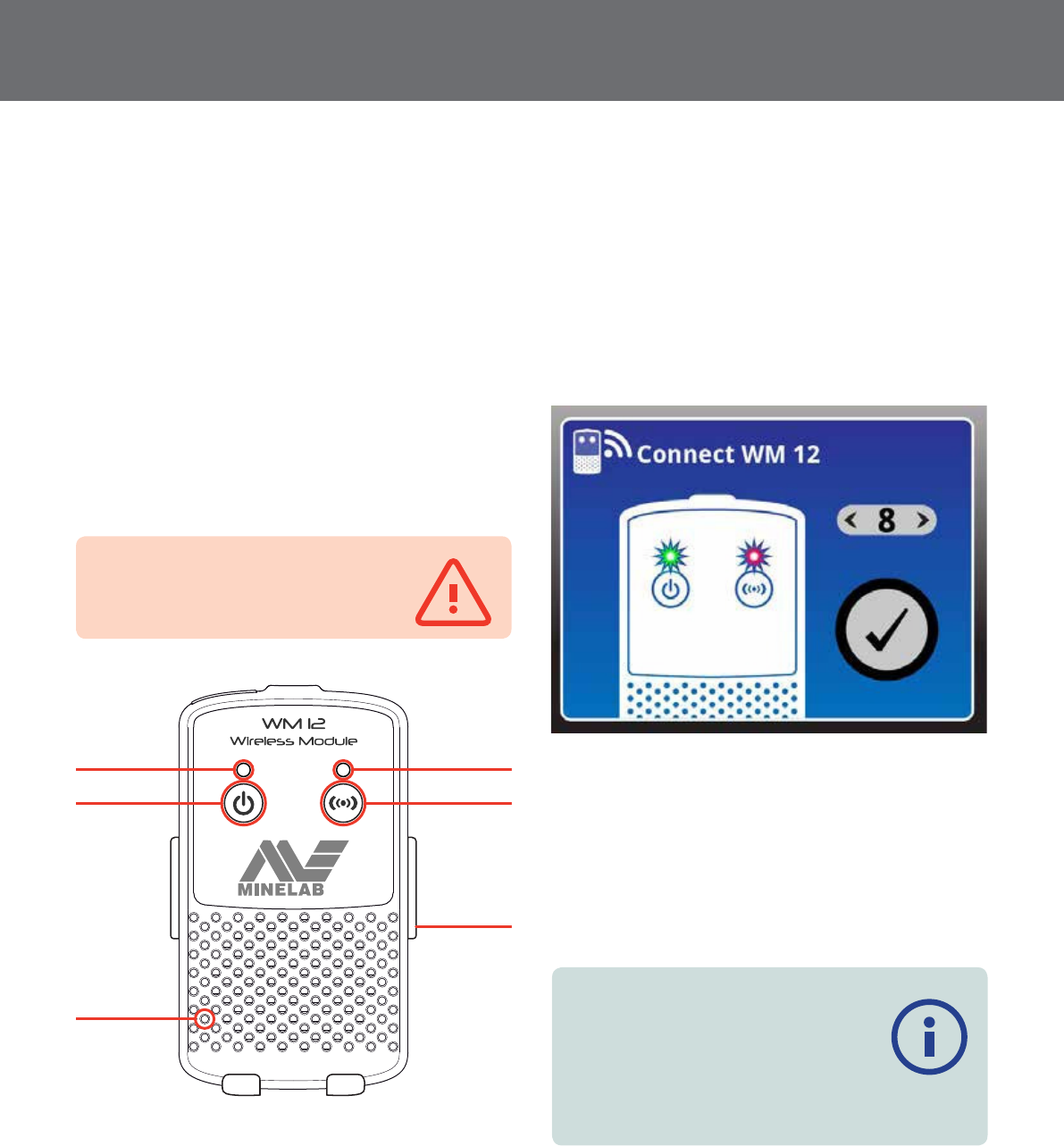
The Wireless Audio Module (WM 12) facilitates the use of
wireless audio, using advanced WiStream technology to
achieve clear sound with no perceivable time delay.
It contains an internal loudspeaker and ¼" headphone
socket for use with your choice of headphones. It can be
used with the attached belt clip or simply dropped into
your pocket.
The WM 12 operates on a single selectable RF channel in
a global license-free location of the radio spectrum. The
WM 12 has 14 channels, which allows multiple detectors
to be used within the same vicinity without degraded
performance.
WARNING
WM 12 is NOT waterproof.
Power LED
Power Button
Pairing LED
Pairing Button
Belt Clip
Reset Button*
* If you experience
difficulties with
your WM 12,
insert a paperclip
here to reset.
Connect the WM12
Ensure that your WM 12 battery is fully charged before
you go detecting. For instructions on how to charge your
WM 12, see “Recharge the WM 12” on page 8.
It is only necessary to perform the connection procedure
once. After initial connection the detector and WM 12 will
connect automatically when the WM 12 is turned on.
To connect the WM 12 to your detector, navigate to
‘Connect WM 12’ in the Settings menu and select it
to launch a wizard that will guide you through the
connection process.
During the wizard, a channel will be automatically chosen
and displayed. To adjust the channel, press the left or right
arrow keys to decrease or increase the channel, which
is displayed on the screen. Press the Select button to
confirm the channel.
Connect WM 12 wizard showing channel selection function
Once wireless is enabled and the WM 12 is connected, all
audio is expected to be generated by the WM 12 even
if it is turned off. Disable wireless to return audio to the
detector.
Use the Wireless Enable function on the Settings page on
your detector to enable or disable the Wireless function
(page 21).
NOTES
The WM 12 Pairing LED may blink red
occasionally when the WM 12 appears
to be working correctly. This indicates a
deterioration in radio communications and
is for information only.
Reset the WM12
If you experience any difficulties with your WM 12, reset
the device by using a paper clip to press the reset button.
Minelab XChange 2
31
Minelab XChange2
Communicating between GPZ7000 and
your PC
The GPZ 7000 includes a USB connection facility, located
on the rear of the control panel. This allows you to
connect your GPZ 7000 to a PC and download/upload
GPS data and settings.
Using the XChange 2 application you can plot your
GPS location data on Google Maps, add photos and
comments, rename search modes and GPS data.
System Requirements
•Windows 2000, Windows XP, Windows Vista, Windows 7,
or Windows 8
•Minimum recommended display resolution of 1366 x
768
•USB port
Install XChange2 on your PC
1. Insert the CD (included with your GPZ 7000) into the
CD/DVD drive of your PC.
2. The CD will auto-run once inserted into your PC and
the program installation will start.
3. Follow the install prompts to install XChange 2 onto
your PC.
4. Once you have installed XChange 2 on your PC you
can start the application from either the Start menu
or the shortcut on your desktop
XChange2 Desktop icon
Start the XChange2 Application
Double click the XChange 2 application icon on your
desktop, or open your Start Menu and navigate to: All
Programs > Minelab > XChange 2.
Connect GPZ7000 to your PC
1. Insert one end of the USB cable into your GPZ 7000
and the other end into your PC.
2. Start XChange 2 on your PC.
3. Although GPZ 7000’s transmitter is switched off while
connected to a PC, make sure the coil is not located
next to any large metal objects.
4. Turn on your GPZ 7000.
A confirmation message will be displayed to
indicate that the USB is connected. You can now
use XChange 2. Refer to the XChange 2 User Manual
supplied on the CD for further information.
NOTES
When modifying settings via XChange 2,
the modified settings are only applied to the
detector when the USB is removed. At this
point, the detector checks for changes in the
database and applies them. If you turn off the detector
instead of unplugging the USB, these settings will not be
applied correctly.
Refer to the Help menu in XChange 2 for more
information on how to use the application to download,
upload and modify your GPZ 7000’s settings.
Detecting Basics
32
Detecting Basics
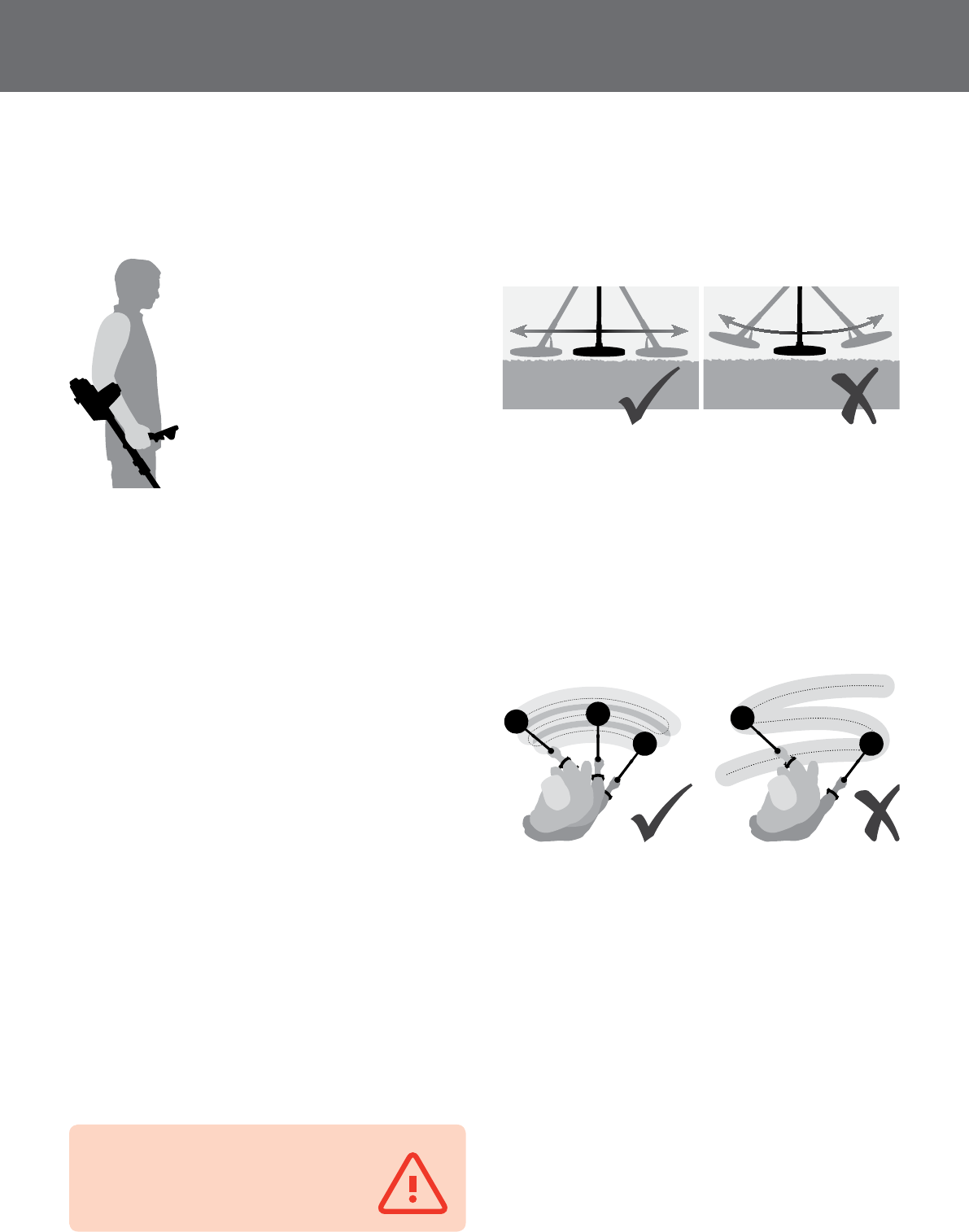
Holding the Detector
Thread your arm through the
armrest and strap. Grasp the handle
of the detector and rest your
forearm in the armrest.
The correct position of the armrest
should allow you to comfortably
grip the handle. Your elbow should
sit just above the back of the
armrest and the detector should
feel like an extension of your
forearm.
Adjust the Length of the Shafts
The mid shaft can be adjusted to any length between
fully extended and fully retracted. Adjust the mid shaft to
the correct length and secure the cam lock on the upper
shaft to lock the shaft position.
A correct shaft length will allow you to swing the coil over
the ground without uncomfortably stretching or stooping.
If the coil is too far from your body it will be difficult to
balance and manoeuvre while detecting. If the coil is too
close to your body it may detect your digging tools or
any other metal which you are carrying, causing confusing
sounds.
Adjust the Angle of the Coil
Loosen the bolts that connect the lower shaft to the coil.
Note that these bolts are retained and are not designed
to be disassembled by the user. The bolts should be loose
enough to allow the coil to be moved for adjustment, but
tight enough that the coil can hold its position.
While holding the detector as if detecting, lightly press
the coil to the ground until it sits flat/parallel with the
ground. The coil should remain parallel when lifting to the
sweep height, approximately one inch (25 mm) above the
ground.
Tighten the bolts just enough to hold its position.
Sweeping the Coil
CAUTION
Sweeping the coil incorrectly can miss targets
or generate false signals.
You will obtain the best performance when the coil is
swept close and parallel to the ground at all times. This
will increase detection depth and improve the response
to small objects. Avoid excessive brushing of the coil on
the ground.
Though the coil assembly is rigid and durable, sudden
jolts or bangs can cause random signals, as well as
excessive wear and tear. Careful sweeping will ensure the
coil performs to an optimum level at all times.
Practice sweeping the coil over the ground in a side-to-
side motion while slowly walking forward at the end of
each sweep. Slightly overlap the previous sweep to ensure
full ground coverage. An average sweep speed is four
seconds from left to right to left.
If you are getting signals from a visibly clear patch of
ground, there could be buried metal objects. Try finding
another area to practice.
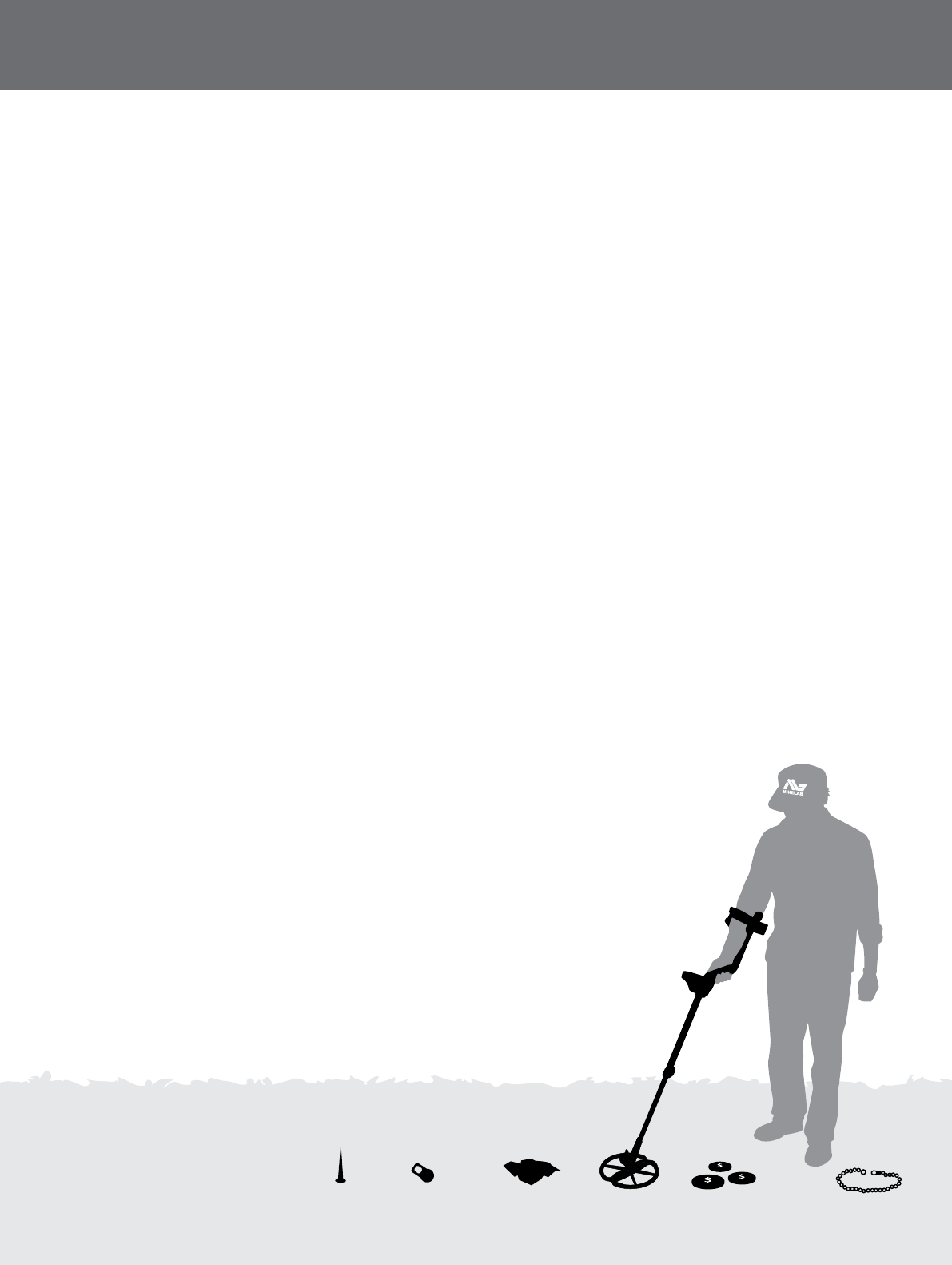
Types of Targets
Metal objects are referred to as targets. Targets are
comprised of ferrous and nonferrous metals. Ferrous
metals are those containing iron; such as steel, nails and
some types of coins. Nonferrous metals are those which
are not magnetic, such as gold, silver, copper, bronze and
aluminum.
You may wish to find a range of both ferrous and
nonferrous targets.
Examples of common targets:
•Desired high ferrous target – war relic

Detecting Basics
33
•Undesired high ferrous target – iron nail
•Desired nonferrous target – gold coin
•Undesired nonferrous target – pull-tab
•Desired target – gold nugget
Detector Sounds
Turn the detector on. The constant background ‘hum’
produced by the detector is called the Threshold.
Variations in the Threshold allow you to hear very small
and deep targets. It is also used to help distinguish
between desired and undesired targets.
The detector may also produce false signals (Noise) when
not over the ground or with the coil held motionless.
These may not be target signals, but surrounding
electromagnetic interference (EMI). You can minimise
false signals by performing a Noise Cancel (page 17),
performing a Ground Balance (page 20), or by reducing
the Sensitivity of the detector (page 18). It is generally
better to try to reduce false signals by adjusting Noise
Cancel and Ground Balance before resorting to reducing
the Sensitivity.
Sweep the coil across the targets one at a time. Observe
the Detect screen and listen to the sounds of the detector
as it passes over each object. The audio response will give
you detailed information about the Target.
An audio signal is the sound produced by the detector
when a target is detected. Large targets or targets close to
the ground surface emit louder signals.
Very large objects close to the coil may overload the
detector electronics. When this happens, the detector
displays an overload message and emits a fading sound,
which repeats until the coil is moved away from the
source of the overload. Overloading is not harmful to the
electronics of the detector.
It is best to operate the detector only when outdoors and
away from sources of electromagnetic interference (EMI)
such as power lines and phone towers. These sources
may cause the detector to perform erratically, giving
false signals. There are also many metallic objects inside
a house, such as nails in the floor, reinforcing in the walls,
televisions and other household appliances, that might
interfere with or overload the electronics of the detector.
It is important to understand the sounds produced when
you make a valid or invalid button press. You will usually
encounter these sounds while adjusting settings via the
main menu. A valid button press makes a ‘bip’ sound; an
invalid button press makes a ‘ba-dump’ sound.
Each time you turn the detector on, the last screen used
before shutting down will appear. For example, if the
GPZ 7000 was operating in the Menu screen when turned
off, this screen will appear when the detector is turned
back on.
Detecting Tips and Techniques
Follow these hints and techniques to help you to utilise
the power of your GPZ 7000 detector, to ensure that every
trip is a success.
•Metallic targets will usually give a ‘solid’ sounding signal
when the coil is swept across the object from any
direction. A metallic target generally produces a short,
sharp and mostly symmetrical signal. Ground noises
usually give a broad uneven signal when the coil is
swept from different directions, and often may only give
a signal from one direction and no signal on the return
sweep.
•If you are not sure if the sound is ground noise or a
target signal you should always investigate. Scrape a
shallow hole about 30mm (1”) deep over the suspected
target. Sweep the coil over the hole at the original
ground level. Do not dip the coil into the hole. If the
signal has decreased in volume or is less defined it is
probably ground noise. If the signal remains the same,
or becomes louder, it is likely a metallic target. If you are
still not sure make the hole deeper and repeat
the process.
•A ‘halo effect’, which may be built up around a buried
metal object, makes the object appear to be larger to
the detector than it actually is. This will be reduced
once the target is disturbed from its position in the
ground (e.g. a small object, detected at a substantial
depth, may be more difficult to detect once disturbed
from the ground and lying in the loose dirt. If the object
is re-buried the ‘halo effect’ will not be present).
•Do not try to eliminate what might appear to be a
faint, isolated ground noise by balancing the detector
over the target; you may be ‘balancing out’ the target
response from a deeply buried metallic target. It is
better to Ground Balance around the target, without
going across it, then switch to Fixed and try Pinpointing.
•Dig all target signals, even in previously detected areas.
The GPZ 7000 has superior ground balancing and depth
so it is possible to find new targets in well-worked areas
where other detectors have been unable to cope with
Detecting Basics
34
the high degree of mineralisation and/or salt.
•In some mineralised soils a response may be received
from a concentration of orange/reddish dyke material
or clay. Remember, a metal target will get louder by
moving the coil even centimetres closer.
•If detecting areas of extremely variable mineralisation
detect along the ground contours rather than across
them. This will often stabilise the effect.
•In heavily mineralised areas the operator may need to
sweep the coil 10–20 mm (½”–1”) above the ground.
This should give a more stable Threshold and less
ground noise.
•Very sudden or large changes in the mineralisation of
an area may produce a signal from the detector. Usually
this signal is very broad and often only present in one
direction.
Simple Detecting Exercise
Before attempting to recover real targets, it is important to
understand how to interpret the audio and visual signals
of the detector.
1. Gather a collection of different metal objects, e.g.
various coins, gold and silver jewellery, a nail, pull-tab,
brass button and aluminum foil.
2. Take the detector outdoors, away from known
sources of electromagnetic interferences (EMI) and
metal objects.
3. Lay objects in a line, sufficiently spaced apart to allow
the coil to pass between them. Pay close attention to
the audio signals each different target produces.
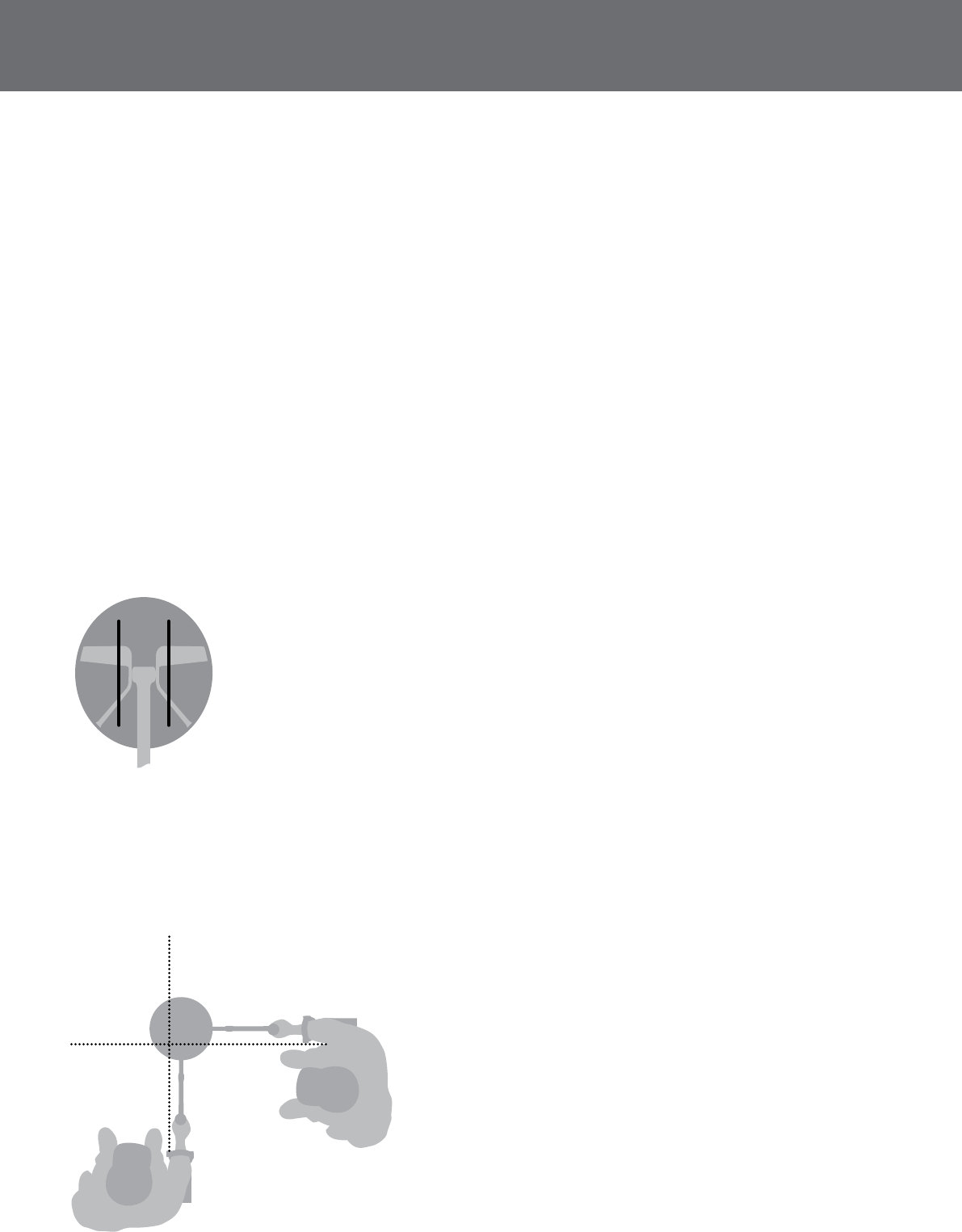
Pinpointing
35
Pinpointing
Locating the target.
Pinpointing narrows down the location of a buried target,
allowing you to determine its exact location before
digging.
Accurate pinpointing is important to prevent damage to
the buried object, which can significantly reduce it’s value.
To find a target, and reduce the size of the hole required
to remove it from the ground, it is necessary to pinpoint
the exact location of the target.
To pinpoint a detected target sweep the general area
with the coil taking note of where the strongest signal is
received.
It is important to know that GPZ series coils have two
zones where the target signal is strongest. These are
marked on the coil as two parrallel lines running from the
front of the coil to the back of the coil.
Lines show the strongest signal zones.
By shortening the length of the sweep it should be
possible to draw an imaginary line in the ground where
the strongest signal is located.
Line up the target at 90° from the initial direction and
repeat the process. The object is located where the two
imaginary lines cross.
Target Recovery
36
Target Recovery
Once you have pinpointed the target, it is time to recover
it. During target recovery, it is important to dig carefully
to prevent damage to the buried object, which can
significantly reduce it’s value.
It is essential that you carry at least one of the
following digging tools with you while detecting:
•A pick with broad scraping blade (essential)
•A crowbar (for very deep objects in hard ground)
•A small, strong digging spade or shovel (for soft soils,
sand, etc.)
Recovering the Target
1. Clear the area of loose surface material and check
that the target signal is still there. If it is not, the
target should be amongst the moved surface
material.
2. Remember if there are other signals close to your
target.
This is important so when you come to dig your hole
you do not heap the loose dirt on top of another
target already in the ground.
3. If the target signal is still present use your pick to dig
to a depth of approximately 50mm (2”).
Note: When digging, avoid sharp edges to the hole as they
can produce false signals, potentially masking the target.
Slope the edges of the hole to avoid any problems.
4. Sweep the coil over the hole to determine if the
target has been removed. If the target signal is not
heard then the target should be in the pile just dug.
Otherwise dig a little deeper and check again.
5. Start digging approximately 100mm (4”) in front
of the target to reduce the chance of damaging it.
Damaging a coin, relic or gold nugget may reduce its
value.
6. If the target signal disappears from the hole sweep
the coil over the loose dirt and pinpoint its exact
position.
7. Take a handful of the dirt and pass it over the coil.
Note: Your hands and wrists must be free of any metallic
jewellery and watches when passing dirt over the coil.
8. If there is no signal, place the handful carefully in a
new pile, pinpoint the position of the target again,
and repeat with another handful of soil.
9. Once the target is in your hand, transfer half of the
dirt to the other hand. Test each handful of dirt
across the coil.
10. If the target is too small to see drop the dirt onto
the top of the coil and with your finger move any
suspect objects. A target signal will only be given
when the target is moved.
Note: The GPZ 7000 is a ‘motion’ detector. This means the
coil must be moving over the target, or the target moving
over the coil, in order for the detector to ‘see’ it.
TIP
The GPZ 7000 is very sensitive and recovering
a small target from loose, dry soil takes skill
and patience. A plastic scoop allows you to
pass small amounts of soil over the top of the
coil to check if your target is in it. Carrying a plastic scoop
is a great way to speed up the recovery process.
CAUTION
Back Fill Every Hole You Dig
Always refill any holes, and scatter leaves
and surface debris, before leaving the area.
Help restore the area to its original condition to help give
detectorists a good reputation, and also disguise your
secret hot-spot! Any rubbish you recover should be taken
away with you and disposed of properly.
Refilling holes and removing rubbish will help detector
users maintain a good reputation. This should lead to
more areas being readily accessible for prospecting.

Detector Care and Safety
37
Detector Care and Safety
The GPZ 7000 is a high-quality electronic instrument, finely engineered and packaged in a durable housing. Taking proper
care of your detector is vital to ensure its ongoing reliability.
WARNING
Please note the following:
•Not all parts of the GPZ 7000 are waterproof.
•Minelab recommends that prior to use, care is taken
to ensure the battery seal (o-ring), the seal seating
groove and the mating face of the battery are
undamaged and kept clean. See “Battery Care and
Safety” on page 38 for instructions on maintaining
you battery.
•O-ring lubricant or grease is not required on
waterproof seals.
•Do not use a petroleum based o-ring grease as it is
likely to damage the waterproof seals.
•Do not leave the detector in excessive cold or heat
longer than necessary. Covering it when not in use
will help protect it. Avoid leaving it in a closed car
trunk or in a car exposed to sunlight.
•Never allow the detector to come into contact with
gasoline or other petroleum-based liquids.
•Avoid getting sand and grit into the shafts or
fastenings (e.g. yoke bolt and cam lock). Do not use
solvents to clean the detector. Use a damp cloth with
mild soap detergent. Wash connectors with distilled
water.
•Hose the detector with clean water after use on the
beach (wading).
•If, through extensive use, the carbon-fibre upper, mid,
or lower shafts become noticeably scored, wipe these
thoroughly with a damp cloth.
•Ensure the coil cable is in good condition and not
subject to undue stress.
•Do not dispose of the battery pack in fire (contact
local authorities for disposal/recycling). Do not
attempt to disassemble or short circuit the battery
pack.
•Take precautions when transporting or storing the
detector. Although the detector is constructed from
the highest quality materials and has undergone
rigorous durability tests, the display screen could be
prone to scratching or serious damage if not treated
with due care.

Battery Care and Safety
38
Battery Care and Safety
To extend battery life:
•Turn off the control panel backlight; the backlight increases the power consumption by approximately 8%.
•Turn the detector off when not in use.
•Turn GPS off when not in use.
•Turn Wireless off when not in use.
•When using the WM 12, use headphones rather than the speaker; the speaker uses more power than headphones. This
will extend the WM 12 battery life.
WARNING
Please note the following:
•The Lithium-Ion battery is specifically designed for
the GPZ 7000. Attempting to use the Lithium-Ion
battery pack with other detectors may damage the
detector or the battery pack.
•VERY IMPORTANT: Ensure the battery seal (o-ring),
the o-ring seating groove and the mating face of the
battery are undamaged and kept clean of sand, grit
and other contaminants. To do this:
1. Remove the battery seal with a soft tool. (The
removable seal is in the control box battery
seal groove)
2. Gently brush or wipe out the battery seal
groove and battery mating face avoiding
damage to the surfaces.
3. Wipe over the battery seal using a clean,
moistened cloth.
4. Visually inspect the areas to ensure all sand, grit
or other contaminants have been removed.
5. Refit the battery seal ensuring that it is seated
at the bottom of the groove, is not twisted,
and the corners are aligned.
6. Fit the battery to the detector- take care to
check that the battery sand seal is also free of
dust, grit, and moisture. The sand seal is not
removable.
7. Ensure the battery clips are fully closed.
•Damaged seals or batteries must be replaced.
•Do not try to adapt this battery to other models as it
will very likely cause damage.
•Do not charge the battery at temperatures above
113° F (45° C) or below 32° F (0° C).
•Do not immerse the battery pack in any liquid or
allow water ingress. Battery packs are not waterproof
until connected to the detector.
•Ensure both the battery pack and control box are
completely dry before connection.
•Remove the battery pack from the detector during air
travel or long term storage.
•Do not immerse the BC 10 charger in any liquid or
allow water ingress.
•Do not leave the battery in hot conditions (e.g. on
the dashboard or rear parcel shelf of your car).
•Do not damage the battery in any way.
•Do not short-circuit the battery.
•Do not use the battery if it is damaged or deformed.
•Do not attempt to disassemble the Li-Ion battery
pack.
•Do not incinerate the battery. Contact your local
authorities to enquire about disposal or recycling
facilities.
•In the event of a fault, return the battery to a Minelab
authorised service centre for repair. The use of
unapproved components will VOID YOUR WARRANTY.
There are no user serviceable parts within this battery
pack.

GPZ 7000 Accessories
39
GPZ7000 Accessories
Parts and accessories available for GPZ 7000:
Coils and Coil Accessories:
•11” DOD Coil with Lower Shaft
•14” DOD Coil with Lower Shaft
•20” DOD Coil with Lower Shaft
•Skidplate - 11” DOD
•Skidplate - 14” DOD
•Skidplate - 20” DOD
•Coil Bolts and Washers Kit
Shaft Accessories:
•Mid Shaft
•Armrest and Stand Kit
Audio Accessories:
•WM 12 with Belt Clip
•KOSS Headphones
•Waterproof KOSS headphones
Battery Accessories:
•Battery Charger BC 10 Station
•Battery Charger Cable Kit
•Battery Pack - Li-Ion Rechargeable
Other Accessories
•USB Cable - Detector to PC
•PRO-SWING 45 detecting harness
•PRO-FIND 25 Pinpointer
If you would like to purchase any accessories for your
GPZ 7000 or any other Minelab product, please feel free
to contact us directly or via your local Authorised Minelab
dealer.

Factory Presets
40
Factory Presets
Detect Presets
Quick Start -
Target Size Small Nuggets
Ground Type Normal
Noise Cancel Auto
Sensitivity 20
Volume 8
Detect Plus Presets
Threshold Level 30
Volume Limit 12
Threshold Pitch 50
Ground Balance Mode Auto
Settings Presets
GPS Off
Backlight Off
Backlight Brightness 10
Wireless Enable Off
Connect WM 12 -
Connect Additional WM 12 -
Preferences Presets
Time Zone -09.30
Time Format 12 Hour
Location Format DM
Units Length cm/m
Units Weight Troy Ounces
Start-up Wizard On
User Button Presets
Backlight Selected
Navigation Tool Unselected
Coordinate View Unselected
Snapshot Unselected
Other Unselected
Display Presets
View Trail On
View Navigation Tool On
View Names On
View Coordinates On
Technical Specifications
41
Technical Specications
WARNING
Any changes or modifications not expressively approved by Minelab Electronics Pty Ltd could void the user’s
authority to operate this equipment.
GPZ7000 Technical Specications
Transmission Full Band Spectrum 2 (FBS 2)
Simultaneous Frequency Transmission ranging from 1.5–100 kHz
Coil 14” DOD - Standard (accessory coils available)
Audio Output Headphones, WiStream Wireless Audio
Liquid Crystal Display (LCD) Full colour, 320 x 240 pixels, 2.83” x 2.12” (72 mm x 54 mm)
GPS Engine u-blox Neo-6
FindPoints Up to 100 (FP001 - FP100)
WayPoints Up to 100 (WP001 - WP100)
GeoHunts Up to 10 (GH001 - GH010)
Length Collapsed: 36.77” (934 mm) Laid flat, packed position: 40.66” (1033 mm)
Extended: 55.15” (1401 mm) Laid flat, packed position: 59.05” (1500 mm)
Detector Weight 5.2 lb (2.36 kg) (with Li-Ion battery installed)
Coil Weight (including Skid
plate)
1.4 lb (641 g)
Operating Temperature Range 32°F to 113°F (0°C to 45°C)
Operating Humidity Range Up to 95% non-condensing
Storage Temperature Range 23°F to 150°F (–5°C to 70°C)
Storage Humidity Range Up to 98% Relative Humidity
Operating Time (Li-Ion Battery) 8 hours (GPS, backlight, speaker enabled)
Battery Technical Specications
Type Li-Ion Rechargeable Battery Pack
Output Voltage Li-Ion: 7.2 V Nominal
Capacity Li-Ion: 34 Wh
Charge Time Up to 4 hours
Weight Li-Ion pack: 0.56 lb (255 g)
Battery Operating Temperature 32°F to 113°F (0°C to 45°C)
Battery Storage Temperature 23°F to 176°F (–5°C to 70°C)
BC 10 Battery Charger Technical Specications
BC 10 Operating Temperature 14°F to 113° F (-10°C to 45°C)
BC 10 Storage Temperature -22°F to 176°F (-30°C to 80°C)
BC 10 Input Voltage 11 to 30 VDC
BC 10 USB Output Current 500 mA

Detector Parts
42