Minolta Di2010 Use And Maintenance Manual
DI2510 to the manual 563d45a7-c686-4939-b134-9ea81f4671fd
2015-01-05
: Minolta Minolta-Di2010-Use-And-Maintenance-Manual-166959 minolta-di2010-use-and-maintenance-manual-166959 minolta pdf
Open the PDF directly: View PDF  .
.
Page Count: 210 [warning: Documents this large are best viewed by clicking the View PDF Link!]
- Contents
- Ch.1 Introduction
- Ch.2 Available Features
- Ch.3 Before Making Copies
- 3.1 Names of Control Panel Parts and Their Functions
- 3.2 Checking the Settings
- 3.3 User Accessibility Operations
- To change the screen display setting (“Screen Mode” function)
- To change the key settings (“Key Speed Settings” function)
- To change the auto panel reset time (“Confirming Screen” function)
- To change the display time for the “The job is accepted.” screen (“Notification Screen” function)
- To change the volume of touch panel beeps and alarms (“Sound Setting” function)
- 3.4 Enlarging the Touch Panel Screens
- 3.5 Turning the Copier On and Off
- 3.6 Adjusting the Angle of the Control Panel
- 3.7 Using the Touch Panel
- Ch.4 Basic Copy Operations
- Ch.5 Copy Paper
- 5.1 Paper Specifications
- 5.2 Unsuitable Paper
- 5.3 Print Area
- 5.4 Paper Storage
- 5.5 Automatically Selecting the Paper Source
- 5.6 Loading Paper
- Loading Paper Into the 1st/2nd/3rd/4th Paper Drawer
- Loading Paper Into the Large Capacity Cabinet
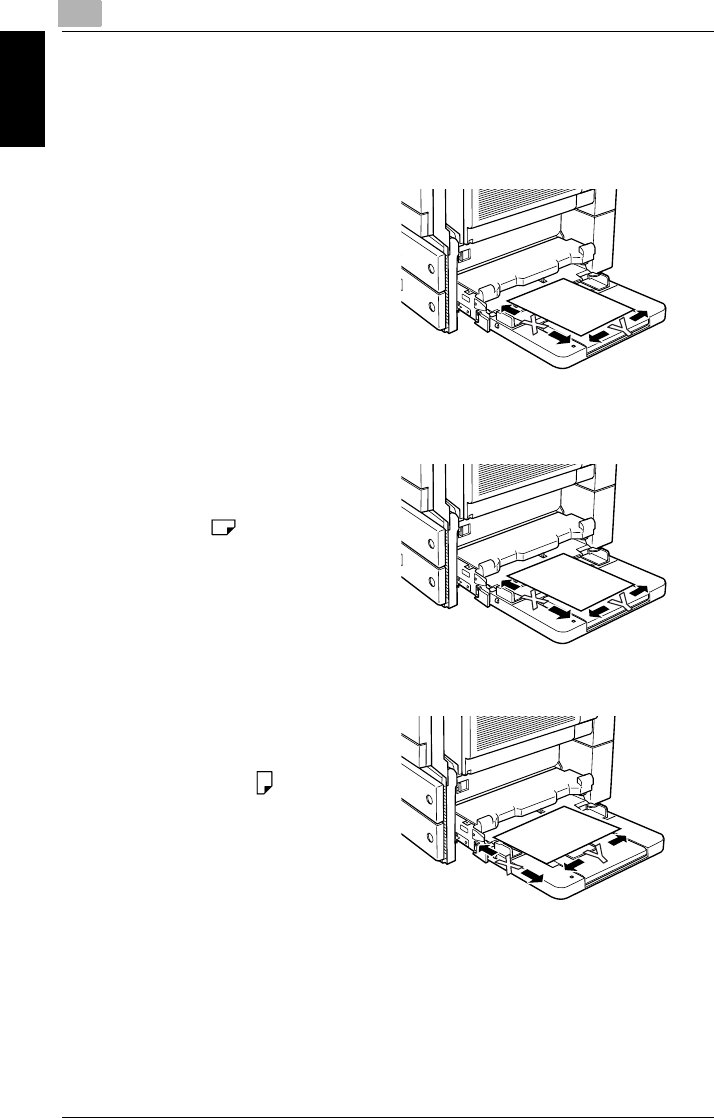
- Loading Paper Into the Multiple Bypass Tray
- To load plain paper
- To load postcards
- To load envelopes
- To load overhead projector transparencies
- To load label sheets
- To set a non-standard (custom) paper size
- To store a non-standard (custom) paper size
- To select a stored non-standard (custom) paper size
- 5.7 Selecting the Paper Setting
- Ch.6 Original Documents
- Ch.7 Specifying Copy Settings
- 7.1 Specifying Finishing Settings
- Available Finishing Settings
- Notes on Using the “Sort” and “Group” Settings
- Shift Sorting
- Crisscross Sorting
- Shift Grouping
- Crisscross Grouping
- To make copies using a stapling setting
- To make copies using the “Hole Punch” setting
- Creasing and Folding
- Notes on the Staple Position
- Notes on the Number of Possible Stapled Sets
- Notes on the Hole Punch Position
- 7.2 Specifying a Zoom Setting
- 7.3 Selecting the Orig. > Copy Settings
- 7.4 Specifying a Copy Density
- 7.1 Specifying Finishing Settings
- Ch.8 Touch Panel Messages
- 8.1 When the Message “Ready to copy Please add toner.” Appears
- 8.2 When the Message “Please add toner.” Appears
- 8.3 When the Message “Stapler empty.” Appears
- 8.4 When a Paper Misfeed Occurs
- Locations of Paper Misfeeds
- To clear a paper misfeed in the duplexing document feeder
- To clear a paper misfeed in the fusing section
- To clear a paper misfeed in the duplex unit
- To clear a paper misfeed in the multiple bypass tray
- To clear a paper misfeed in the 1st or 2nd paper drawer
- To clear a paper misfeed in the 3rd or 4th paper drawer
- To clear a paper misfeed in the large capacity cabinet
- To clear a paper misfeed in the built in finisher
- To clear a paper misfeed in the mail bin kit
- To clear a paper misfeed in the saddle kit
- 8.5 When the Message “Cannot Staple.” Appears
- 8.6 When the Message “Hole Punch collection box is full.” Appears
- Ch.9 Troubleshooting
- Ch.10 Index
2
Introduction
Available Features
Before Making Copies
Basic Copy Operations
Copy Paper
Original Documents
Specifying Copy Settings
Touch Panel Messages
Troubleshooting
Di2010/Di2510/Di3010/Di3510
User Manual
[Basic Operations]

Contents
Di2010/Di2510/Di3010/Di3510 i
Contents
The following items are written under “Basic Operations”. Read “Advanced Opera-
tions” for all other items.
1 Introduction
1.1 Introduction ...................................................................................1-2
Structure of the Manual...................................................................1-2
1.2 Explanation of Manual Conventions ...........................................1-3
1.3 Explanation of Basic Concepts and Symbols ............................1-4
“Width” and “Length” .......................................................................1-4
Lengthwise......................................................................................1-4
Crosswise........................................................................................1-4
Portrait and Landscape...................................................................1-5
Display Icons...................................................................................1-5
Paper Supply Icons.........................................................................1-5
1.4 Components and Their Functions...............................................1-6
1.5 Part Names and Their Functions.................................................1-9
Copier..............................................................................................1-9
Options..........................................................................................1-12
2 Available Features
2.1 Useful Operations .........................................................................2-2
Copying a Book or Magazine..........................................................2-2
Copying to Form a Booklet..............................................................2-5
Automatically Stapling Pages While Copying .................................2-7
Printing Multiple Copies of Tickets..................................................2-9
Copying While Erasing an Area Around the Document ...............2-13
Reducing Paper Usage.................................................................2-15
Reducing Electricity Usage ...........................................................2-17
3 Before Making Copies
3.1 Names of Control Panel Parts and Their Functions ..................3-2
3.2 Checking the Settings ..................................................................3-4
To check the settings ......................................................................3-4
To change the settings....................................................................3-4
3.3 User Accessibility Operations .....................................................3-5
To change the screen display setting (“Screen Mode” function).....3-5
To change the key settings (“Key Speed Settings” function) ..........3-6

Contents
ii Di2010/Di2510/Di3010/Di3510
To change the auto panel reset time
(“Confirming Screen” function) ....................................................... 3-7
To change the display time for the “The job is accepted.” screen
(“Notification Screen” function) ....................................................... 3-8
To change the volume of touch panel beeps and alarms
(“Sound Setting” function)............................................................... 3-8
3.4 Enlarging the Touch Panel Screens ........................................... 3-9
3.5 Turning the Copier On and Off.................................................. 3-10
To turn on the copier .................................................................... 3-10
When the copier is turned on........................................................ 3-11
To turn off the copier .................................................................... 3-11
When the copier is turned off........................................................ 3-11
Auto Panel Reset.......................................................................... 3-12
Energy Save Mode....................................................................... 3-12
Sleep Mode .................................................................................. 3-13
3.6 Adjusting the Angle of the Control Panel ................................ 3-13
3.7 Using the Touch Panel............................................................... 3-14
Description of the Touch Panel .................................................... 3-14
Default Settings ............................................................................ 3-14
Operating the Touch Panel........................................................... 3-15
Description of the Screens ........................................................... 3-16
Job List Screen............................................................................. 3-17
To check the status of a job.......................................................... 3-18
To check the printing order........................................................... 3-19
To check/delete listed items from the Print screen....................... 3-20
Memory Recall.............................................................................. 3-21
To use the memory recall feature................................................. 3-21
4 Basic Copy Operations
4.1 Making Basic Copies.................................................................... 4-2
4.2 Stopping Copying......................................................................... 4-4
To stop/restart/delete a copy job .................................................... 4-4
4.3 Interrupting a Copy Job ............................................................... 4-5
To interrupt copying........................................................................ 4-5
4.4 Making Copies Using Accounts.................................................. 4-6
Using the “Copy Track Mode” Parameter....................................... 4-6
To make copies when accounts are specified................................ 4-6

Contents
Di2010/Di2510/Di3010/Di3510 iii
5 Copy Paper
5.1 Paper Specifications.....................................................................5-2
Paper Types....................................................................................5-2
Paper Sizes.....................................................................................5-3
Paper Capacity................................................................................5-4
5.2 Unsuitable Paper...........................................................................5-5
5.3 Print Area.......................................................................................5-6
5.4 Paper Storage................................................................................5-7
5.5 Automatically Selecting the Paper Source .................................5-8
Operating conditions .......................................................................5-8
Order for Selecting Another Paper Drawer .....................................5-8
5.6 Loading Paper ...............................................................................5-9
Loading Paper Into the 1st/2nd/3rd/4th Paper Drawer..................5-10
Loading Paper Into the Large Capacity Cabinet ...........................5-11
Loading Paper Into the Multiple Bypass Tray ...............................5-12
To load plain paper .......................................................................5-12
To load postcards..........................................................................5-13
To load envelopes.........................................................................5-14
To load overhead projector transparencies...................................5-15
To load label sheets......................................................................5-15
To set a non-standard (custom) paper size ..................................5-16
To store a non-standard (custom) paper size ...............................5-18
To select a stored non-standard (custom) paper size...................5-20
5.7 Selecting the Paper Setting........................................................5-22
To select paper loaded into a paper drawer..................................5-22
To select paper loaded into the multiple bypass tray....................5-22
6 Original Documents
6.1 Feeding the Document .................................................................6-2
Using the Duplexing Document Feeder ..........................................6-2
Document Types.............................................................................6-2
Documents of Uniform Sizes...........................................................6-2
Documents of Mixed Original Detection mode................................6-2
Mixed Width Document Sizes .........................................................6-3
Precautions Concerning the Documents.........................................6-3
6.2 Feeding the Document Through the
Duplexing Document Feeder .......................................................6-4
Loading the Document....................................................................6-4
To load a document of mixed sizes
(“Mixed Orig Detection” function) ....................................................6-5

Contents
iv Di2010/Di2510/Di3010/Di3510
6.3 Positioning Documents on the Original Glass .......................... 6-7
To position sheet documents.......................................................... 6-7
To position transparent or translucent documents ......................... 6-8
To position books or magazines..................................................... 6-9
6.4 Loading Documents for Specific Applications........................ 6-10
Description of the Table................................................................ 6-10
Single-Sided Documents.............................................................. 6-11
Left-Bound Double-Sided Documents .......................................... 6-17
Top-Bound Double-Sided Documents.......................................... 6-23
6.5 Large Documents ....................................................................... 6-29
Precautions for 11 × 17 L/Legal L Copies .................................... 6-29
7 Specifying Copy Settings
7.1 Specifying Finishing Settings ..................................................... 7-2
Available Finishing Settings............................................................ 7-2
Notes on Using the “Sort” and “Group” Settings............................. 7-5
Shift Sorting .................................................................................... 7-6
Crisscross Sorting .......................................................................... 7-6
Shift Grouping................................................................................. 7-6
Crisscross Grouping ....................................................................... 7-7
To make copies using a stapling setting......................................... 7-7
To make copies using the “Hole Punch” setting ............................. 7-9
Creasing and Folding ................................................................... 7-10
Notes on the Staple Position ........................................................ 7-11
Notes on the Number of Possible Stapled Sets ........................... 7-13
Notes on the Hole Punch Position................................................ 7-13
7.2 Specifying a Zoom Setting ........................................................ 7-14
To select a Zoom setting .............................................................. 7-15
Specifying a “Custom Zoom” Setting............................................ 7-15
To enter a custom zoom ratio....................................................... 7-15
To store Custom Zoom and Minimal zoom ratios......................... 7-16
To recall a stored custom zoom ratio ........................................... 7-16
To specify different vertical and horizontal scaling proportions
(“X/Y Zoom” setting) ..................................................................... 7-17
7.3 Selecting the Orig. > Copy Settings.......................................... 7-18
Orig. Ö Copy Settings.................................................................... 7-18
To specify Orig. Ö Copy settings................................................... 7-21
Copying a Bound Document......................................................... 7-24
Copying a Book ............................................................................ 7-27
Copying Book Pages onto Separate Double-Sided Pages .......... 7-30
Quickly Selecting Default Settings................................................ 7-32
7.4 Specifying a Copy Density ........................................................ 7-33
Selecting a Density Setting........................................................... 7-33

Contents
Di2010/Di2510/Di3010/Di3510 v
Selecting the “Text” Setting...........................................................7-33
Selecting the “Photo” Setting ........................................................7-34
Selecting the “Text/Photo” Setting ................................................7-34
8 Touch Panel Messages
8.1 When the Message “Ready to copy Please add toner.”
Appears..........................................................................................8-2
8.2 When the Message “Please add toner.” Appears......................8-3
To replace the toner bottle ..............................................................8-3
8.3 When the Message “Stapler empty.” Appears...........................8-7
To replace the staple cartridge for finisher......................................8-7
To replace the staple cartridge for the saddle kit ..........................8-10
8.4 When a Paper Misfeed Occurs...................................................8-13
Locations of Paper Misfeeds.........................................................8-13
To clear a paper misfeed in the duplexing document feeder ........8-14
To clear a paper misfeed in the fusing section..............................8-15
To clear a paper misfeed in the duplex unit ..................................8-18
To clear a paper misfeed in the multiple bypass tray....................8-19
To clear a paper misfeed in the 1st or 2nd paper drawer .............8-20
To clear a paper misfeed in the 3rd or 4th paper drawer..............8-21
To clear a paper misfeed in the large capacity cabinet.................8-22
To clear a paper misfeed in the built in finisher.............................8-23
To clear a paper misfeed in the mail bin kit...................................8-26
To clear a paper misfeed in the saddle kit ....................................8-28
8.5 When the Message “Cannot Staple.” Appears.........................8-30
To clear jammed staples...............................................................8-30
8.6 When the Message “Hole Punch collection box is full.”
Appears........................................................................................8-35
To empty the punch box................................................................8-35
9 Troubleshooting
9.1 Main Messages and Their Remedies...........................................9-2
9.2 When Incorrect Copies Are Printed.............................................9-3
9.3 When the Copier Is Not Operating Correctly..............................9-6
10 Index
10.1 Index.............................................................................................10-2

Contents
vi Di2010/Di2510/Di3010/Di3510
Advanced Operations
Read the User Manual: Advanced Operations for the following items.
1 Introduction
2 Safety Information
3 Precautions
4 Auxiliary Functions
5 Utility Mode Operations
6 Administrator Management Operations
7 Appendix
8Index

Introduction Chapter 1
1
1Introduction

11.1 Introduction
1-2 Di2010/Di2510/Di3010/Di3510
Introduction Chapter 1
1.1 Introduction
Structure of the Manual
This User Manual is divided into two parts: the Advanced Operations volume and
the Basic Operations volume.
The Advanced Operations volume of this User Manual contains precautions on the
use of this copier. Be sure to read this volume before using the machine.
The Basic Operations volume of the User Manual contains information on the many
functions available. After reading the User Manual, be sure to store it in a safe place
for future reference.
GAdvanced Operations volume of the User Manual
This volume provides precautions for using the machine, descriptions on the
Auxiliary functions and the functions for use by the administrator (Utility Mode
and Administrator Management operations) and machine specifications.
GBasic Operations volume of the User Manual
This volume contains precautions for using the machine and descriptions of the
procedures for basic operations, replacing parts and supplies, and trouble-
shooting. The Basic Operations volume is a quick reference for immediate use
of the copier.

1.2 Explanation of Manual Conventions 1
Di2010/Di2510/Di3010/Di3510 1-3
Introduction Chapter 1
1.2 Explanation of Manual Conventions
The marks and text formats used in this manual are described below.
WARNING
Failure to observe instructions highlighted in this manner may result in fatal
or critical injuries.
➜Observe all warnings in order to ensure safe use of the copier.
CAUTION
Failure to observe instructions highlighted in this manner may result in
serious injuries or property damage.
➜Observe all cautions in order to ensure safe use of the copier.
✎
Note*
(*May also appear as “Important” or “Tip”)
Text highlighted in this manner contains useful information and tips to ensure
safe use of the copier.
1The number 1 as formatted here indicates the
first step of a sequence of actions.
2Subsequent numbers as formatted here
indicate subsequent steps of a sequence of
actions.
?Text formatted in this style provides
additional assistance.
➜Text formatted in this style describes the
action that will ensure the desired results are achieved.
[Copy] key
The names of keys on the control panel are written as shown above.
An illustration inserted here shows
what operations must be performed.
11.3 Explanation of Basic Concepts and Symbols
1-4 Di2010/Di2510/Di3010/Di3510
Introduction Chapter 1
1.3 Explanation of Basic Concepts and Symbols
The use of words and symbols in this manual are explained below.
“Width” and “Length”
Whenever paper dimensions are
mentioned in this manual, the first val-
ue always refers to the width of the pa-
per (shown as “Y” in the illustration)
and the second to the length (shown
as “X”).
Lengthwise
If the width (Y) of the paper is shorter
than the length (X), the paper has a
vertical or portrait orientation, indicat-
ed by either “L” or .
Crosswise
If the width (Y) of the paper is longer
than the length (X), the paper has a
horizontal or landscape orientation, in-
dicated by either “C” or .
1.3 Explanation of Basic Concepts and Symbols 1
Di2010/Di2510/Di3010/Di3510 1-5
Introduction Chapter 1
Portrait and Landscape
Portrait
With the “portrait” orientation, the paper is vertical, like a portrait.
Landscape
With the “landscape” orientation, the paper is horizontal, like a land-
scape.
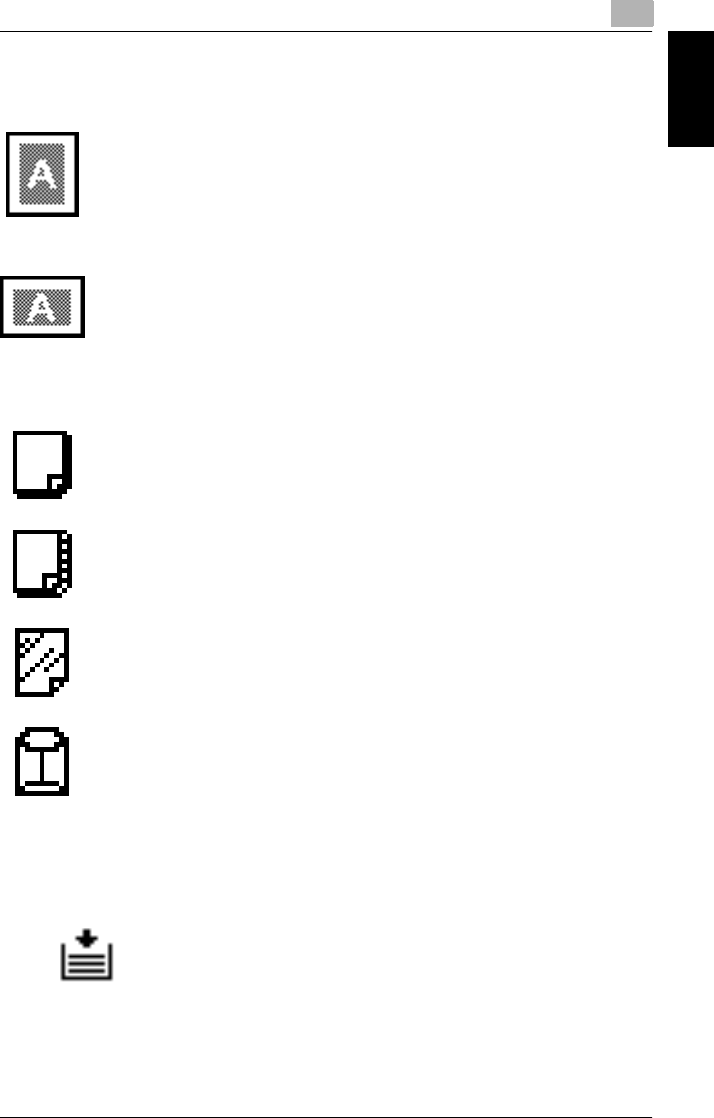
Display Icons
Plain paper
Thick paper
Overhead projector transparencies
Envelope
Paper Supply Icons
The icons shown below may appear, indicating that no more paper remains.
The paper is empty.

11.4 Components and Their Functions
1-6 Di2010/Di2510/Di3010/Di3510
Introduction Chapter 1
1.4 Components and Their Functions
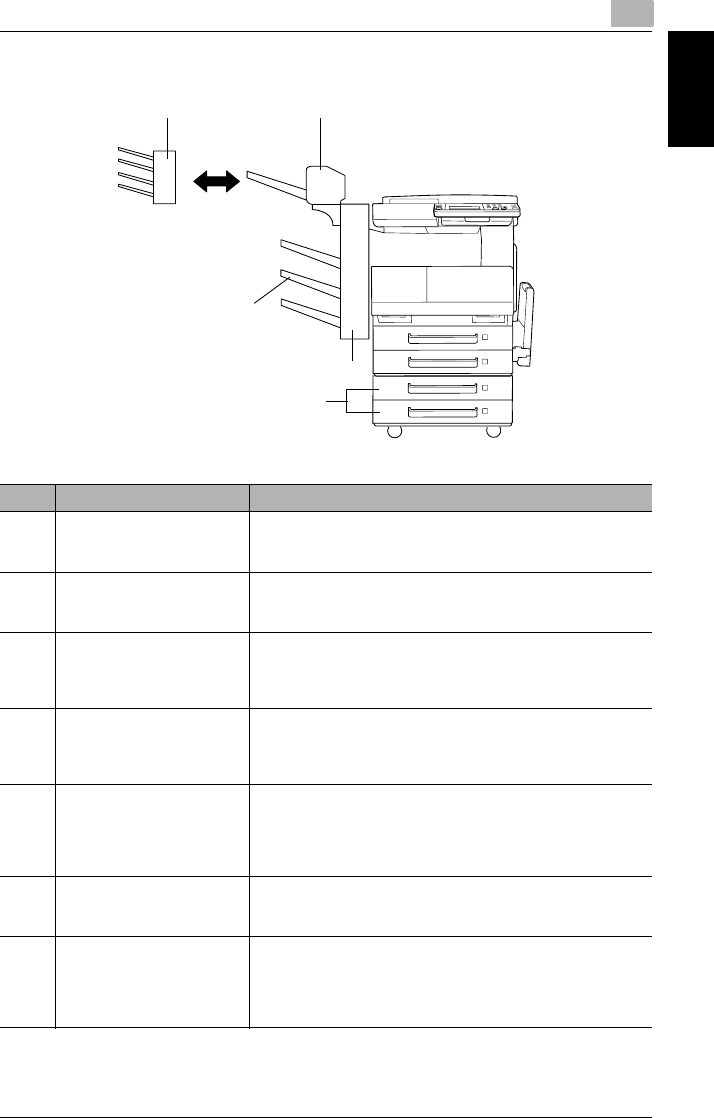
No. Part Name Description
1 Duplexing Document Feeder
AFR-19 (optional)
Automatically feeds one document sheet at a time for scanning,
and automatically turns over double-sided documents for
scanning.
Referred to as the “duplexing document feeder” throughout the
manual.
2 Original Cover Kit OC-6
(optional)
Presses down on the loaded document to keep it in place
Referred to as the “original cover” throughout the manual.
3 Copy Desk CD-4M
(optional)
The copier can be placed on the copy desk.
Using the copy desk allows the copier to be set up on the floor.
Referred to as the “copy desk” throughout the manual.
4 Large Capacity Cabinet
PF-122 (optional)
A large-capacity paper supply cassette that can supply 2,500
sheets of paper.
•Can only be used with the Di2510/Di3010/Di3510.
Referred to as the “large capacity cabinet” throughout the
manual.
5 2 Way Paper Feed Cabinet
PF-210 (optional)
A two-level paper supply tray. Each paper supply tray can hold
up to 500 sheets of paper.
Referred to as the “paper feed cabinet” throughout the manual.
6 Job Separator JS-203
(optional)
Allows printed pages to be separated.
Pull the lever when taking out the paper.
•In order to use the job separator, the switchback unit must be
installed.
7 Duplex Unit AD-16
(Option for the Di2010 only)
Automatically turns the pages over, and prints on both sides.
Referred to as the “duplex unit” throughout the manual. When
using the duplex unit, the switchback unit is required.
8 Switchback Unit SB-1
(Option for the Di2010 only)
When copying to both sides of a page, this turns over the paper.
Required when using the duplex unit.
21
3 4
6
5
8
7
1.4 Components and Their Functions 1
Di2010/Di2510/Di3010/Di3510 1-7
Introduction Chapter 1
No. Part Name Description
9 Paper Feed Cabinet PF-124
(optional)
Equipped with a paper drawer that can supply 500 sheets of
paper, for upper paper feed unit only.
Referred to as the “paper feed cabinet” throughout the manual.
10 Built in Finisher FN-117
(optional)
Finishes printed pages according to the selected finishing mode
(sorting or stapling), then feeds out the pages.
Referred to as the “finisher” throughout the manual.
11 Additional Bin Kit AK-1
(optional)
If this option is attached to the finisher, the bins for separating
printed pages increases.
Referred to as the “3rd paper output tray” throughout the
manual.
12 Saddle Kit SK-1 (optional) If this option is attached to the finisher, stapling, hole-punching,
creasing and booklet-printing are available as Finishing
settings.
Referred to as the “saddle kit” throughout the manual.
13 Mail Bin Kit MK-1 (optional) If this option is attached to the finisher, the printed pages can be
divided and fed into the appropriate bin assigned to a specific
individual or group.
•This option can only be used with computer printouts.
Referred to as the “mail bin kit” throughout the manual.
14 Punch Kit PK-6
(optional)*
If this option is attached to the finisher, hole-punching is
possible.
Referred to as the “punch kit” throughout the manual.
15 32 MB/64 MB/128 MB
Memory
M32-4/M64-2/M128-3
(optional)*
Increases the memory of the copier to as much as 192 MB.
(64 MB standard memory + 32/64/128 MB expanded memory)
By expanding the memory, the number of pages that can be
stored in the memory can be increased.
Referred to as the “expansion memory” throughout the manual.
11
10
9
1213
11.4 Components and Their Functions
1-8 Di2010/Di2510/Di3010/Di3510
Introduction Chapter 1
* The internal options are not shown.
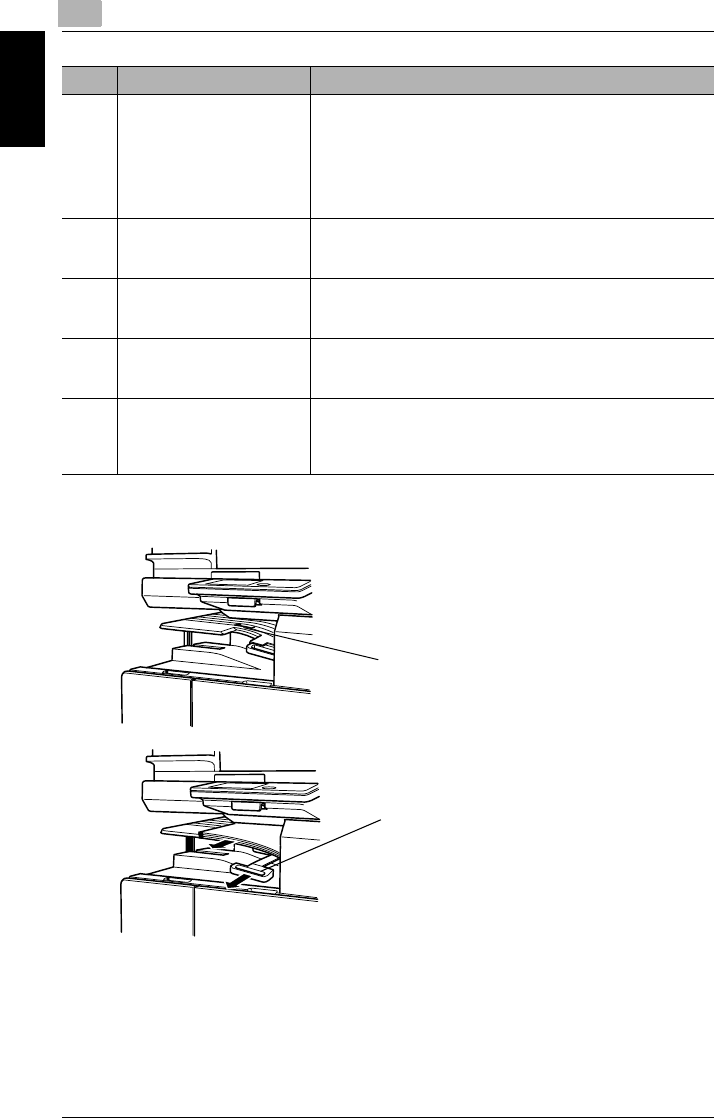
How to use the Job Separator (JS-203)?
16 Hard Disk Drive Kit HDD-6
(optional)*
Allows more pages to be stored.
Increases the number of pages that can be scanned.
Additionally, can scan multiple jobs.
•To install the function expansion Hard Disk Drive Kit HDD-6,
optional printer controllers Pi3505e or Pi3505e/PS are
required.
Referred to as the “hard disk” through out the manual.
17 Printer Controller Pi3505e,
Pi3505e/PS
(optional)*
An internal printer controller. This allows this copier to be used
as a computer printer.
For more details, refer to the manual of the printer controller.
18 Internet Fax & Network Scan
Kit SU-3 (optional)*
An internal Internet Fax & Network Scan Kit. You can use this
copier as a network scanner or as an Internet fax machine. For
more details, refer to the Scanner Mode User Manual.
19 Network Scan Kit SU-2
(optional)*
An internal Network Scan Kit. You can use this copier as a
network scanner.
For more details, refer to the Scanner Mode User Manual.
20 Network Interface Card NC-4
(optional)*
Required when using this copier as a printer, scanner, or as an
Internet fax machine.
For more details, refer to the Scanner Mode User Manual or the
Printer Controller Manual.
No. Part Name Description
Allows printed pages to be
separated.
Pull the lever when taking
out the paper.
1.5 Part Names and Their Functions 1
Di2010/Di2510/Di3010/Di3510 1-9
Introduction Chapter 1
1.5 Part Names and Their Functions
Copier
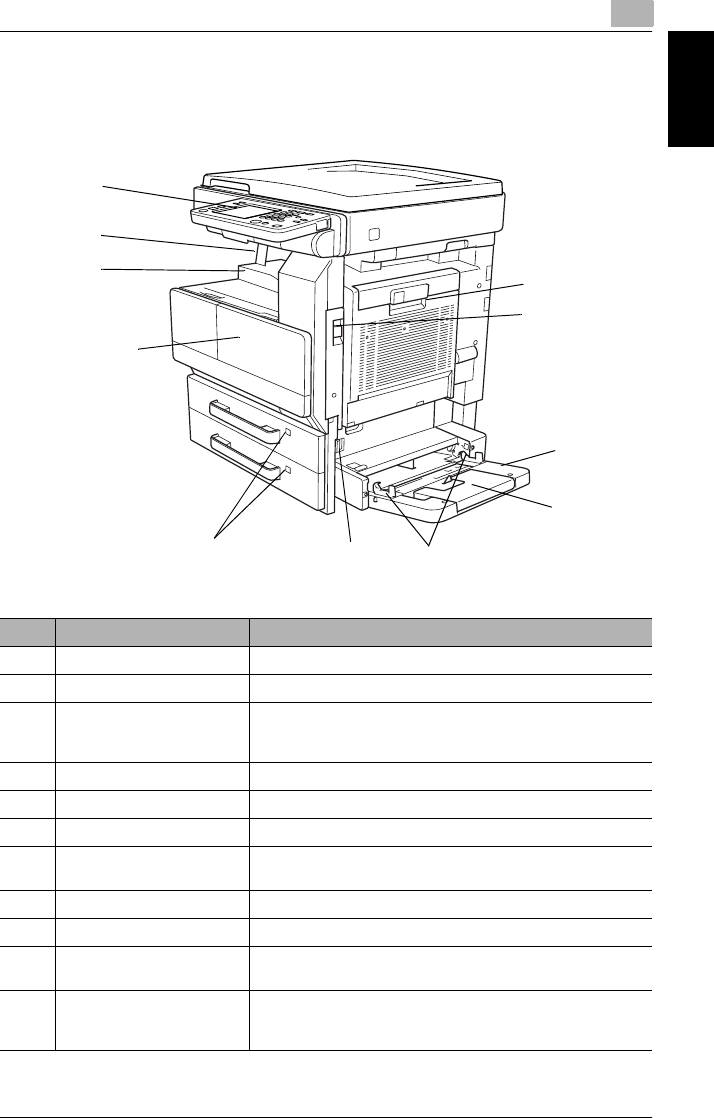
No. Part Name Description
1 Right-side door Opened when clearing paper misfeeds.
2 Right-side door release lever Used to open the right-side door.
3 Multiple bypass tray Used for manual feeding paper for making copies and printouts.
Can be loaded with 150 sheets of paper.
Can be loaded with special paper. → page 5-12
4 Tray extension Open the tray extension when loading large-sized paper.
5 Paper guide Adjust to the width of the paper.
6 Release lever Opened when clearing paper misfeeds.
7 Paper supply indicator As the amount of paper in the paper drawer decreases, the area
that appears in red increases.
8 Front door Opened when replacing the toner bottle. → page 8-3
9 Paper output tray Collects printed pages fed out of the copier facing down.
10 Paper stopper Prevents printed pages from falling out of the paper output tray.
Used when the optional sorter is installed.
11 Touch panel Liquid crystal display in the control panel.
Used to specify various copy settings and program or change
functions.
9
8
6
3
1
2
4
10
5
11
7

11.5 Part Names and Their Functions
1-10 Di2010/Di2510/Di3010/Di3510
Introduction Chapter 1
* The internal options are not shown.
No. Part Name Description
12 Document pad Presses down on the document positioned on the original glass.
13 Original glass When manually feeding the document, place it on the glass so
the document can be scanned.
Place the document face down on the glass.
14 Switchback unit *
(Option for the Di2010 only)
Built into the printer to turn over the paper when printing double-
sided pages.
15 Duplex unit
(Option for the Di2010 only)
Turns over printed pages, allowing double-sided pages to be
printed automatically.
When using the duplex unit, the switchback unit is required.
Referred to as the “duplex unit” throughout the manual.
16 Duplex unit door Opened when clearing a paper misfeed within the duplex unit.
17 1st paper drawer Holds up to 500 sheets of paper.
The paper size can be adjusted freely. → page 5-10
18 2nd paper drawer Holds up to 500 sheets of paper.
The paper size can be adjusted freely. → page 5-10
19 Control panel Used to start copying or to specify various settings.
20 Document scales Used to align the document.
20
19
18
17
12
13
16
15
1.5 Part Names and Their Functions 1
Di2010/Di2510/Di3010/Di3510 1-11
Introduction Chapter 1
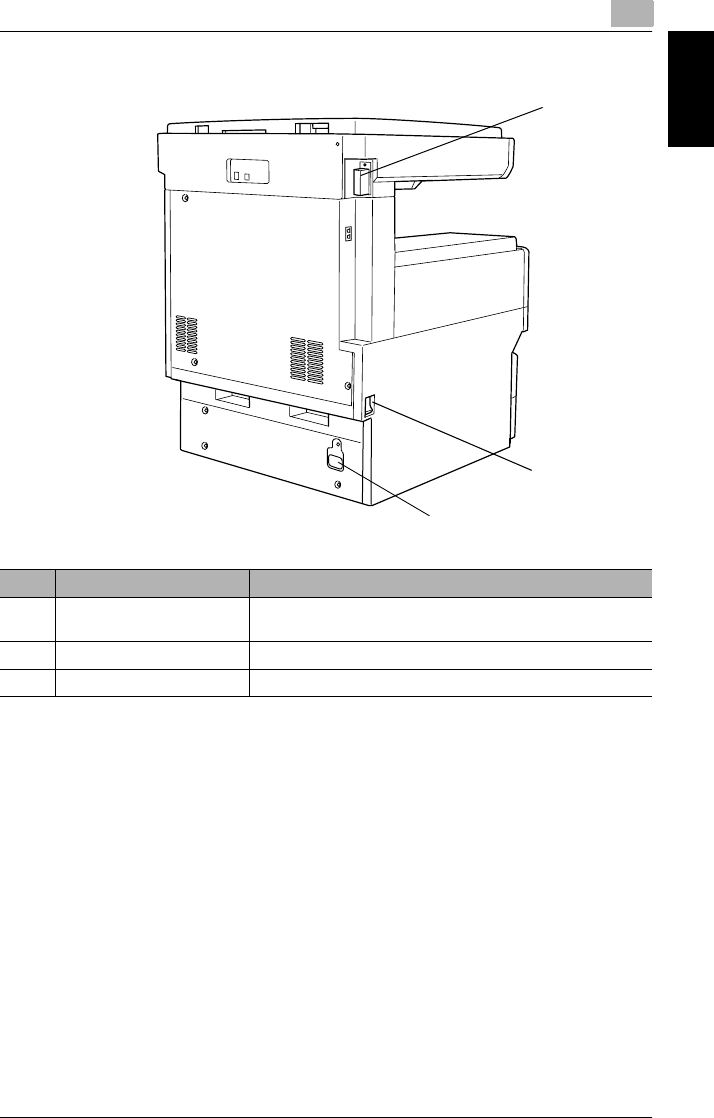
No. Part Name Description
21 Duplexing Document Feeder
connector
Used for connecting the duplexing document feeder hookup
cord.
22 Power switch Used to turn the copier on and off. → page 3-10
23 Power cord socket Used for connecting the printer’s power cord.
21
22
23

11.5 Part Names and Their Functions
1-12 Di2010/Di2510/Di3010/Di3510
Introduction Chapter 1
Options
Duplexing Document Feeder
Paper Feed Cabinet (PF-124/PF-210)*
* PF-210: Equipped with a paper drawer that can supply 500 sheets of paper, for upper paper feed unit
only.
No. Part Name Description
1 Document guides Adjust to the width of the document.
2 Document feed tray Load the documents to be copied face up.
3 Document output tray Collects documents that have been copied.
4 Print indicator Lights up or flashes to indicate the status of the copier.
5 Paper stopper Prevents the documents from falling out of the document output
tray.
No. Part Name Description
6 Lower-right door release
lever
Used to open the lower-right door.
7 3rd paper drawer Each drawer can hold up to 500 sheets of paper
The paper size can be adjusted freely.
8 4th paper drawer
2
5
1
6
8
9
10
11
13
3
4
12
7

1.5 Part Names and Their Functions 1
Di2010/Di2510/Di3010/Di3510 1-13
Introduction Chapter 1
Built in Finisher (FN-117)
Mail Bin Kit (MK-1)
Precautions for using the finisher, saddle kit and mail bin kit
GDo not place objects on top of the saddle kit or mail bin kit.
GDo not place objects under the paper output trays of the finisher.
No. Part Name Description
9 2nd paper output tray
(sorted copy tray)
Collects printed pages that are sorted.
10 1st paper output tray
(non-sorted copy tray)
Collects printed pages that are not sorted (made with the “Non-
Sort” setting).
No. Part Name Description
11 Mail Bin Collects copies that are sorted.
12 Output tray cover Opened when clearing paper misfeeds.
13 Misfeed-clearing door Opened when clearing paper misfeeds.
11.5 Part Names and Their Functions
1-14 Di2010/Di2510/Di3010/Di3510
Introduction Chapter 1
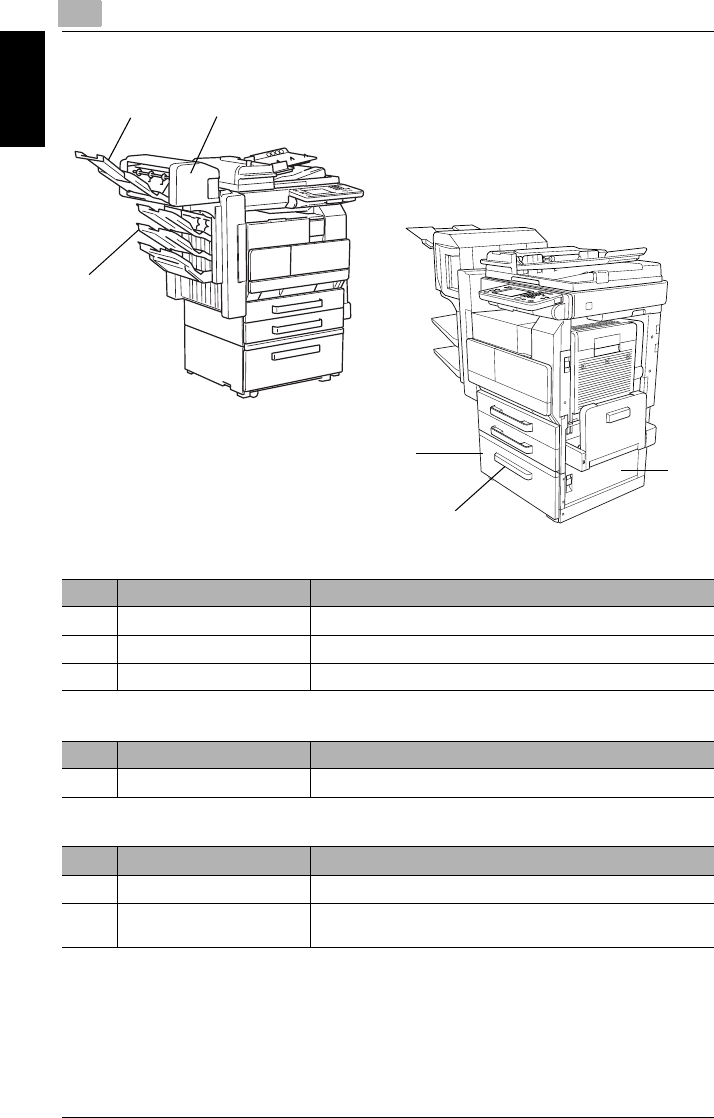
Large Capacity Cabinet (PF-122)
Additional Bin Kit (AK-1)
Saddle Kit (SK-1)
No. Part Name Description
14 3rd paper drawer (LCC) Holds up to 2,500 sheets of paper.
15 Lower-right door Opened when clearing paper misfeeds.
16 Drawer release button Pressed when loading paper.
No. Part Name Description
17 3rd paper output tray Collects printed pages.
No. Part Name Description
18 Paper output tray Collects printed pages.
19 Misfeed-clearing door Opened when clearing paper misfeeds that occurred in the
finisher.
15
18
14
16
17
19

Available Features Chapter 2
2
2Available
Features

22.1 Useful Operations
2-2 Di2010/Di2510/Di3010/Di3510
Available Features Chapter 2
2.1 Useful Operations
Installing the optional accessories expands the functionality of this copier.
Copying a Book or Magazine
The individual pages of a book or magazine can be duplicated onto double-sided
copies (one page per side) in the original page order.
✎
Note
In order to perform the following procedure, the optional duplex unit and switch-
back unit must be installed (for Di2010).
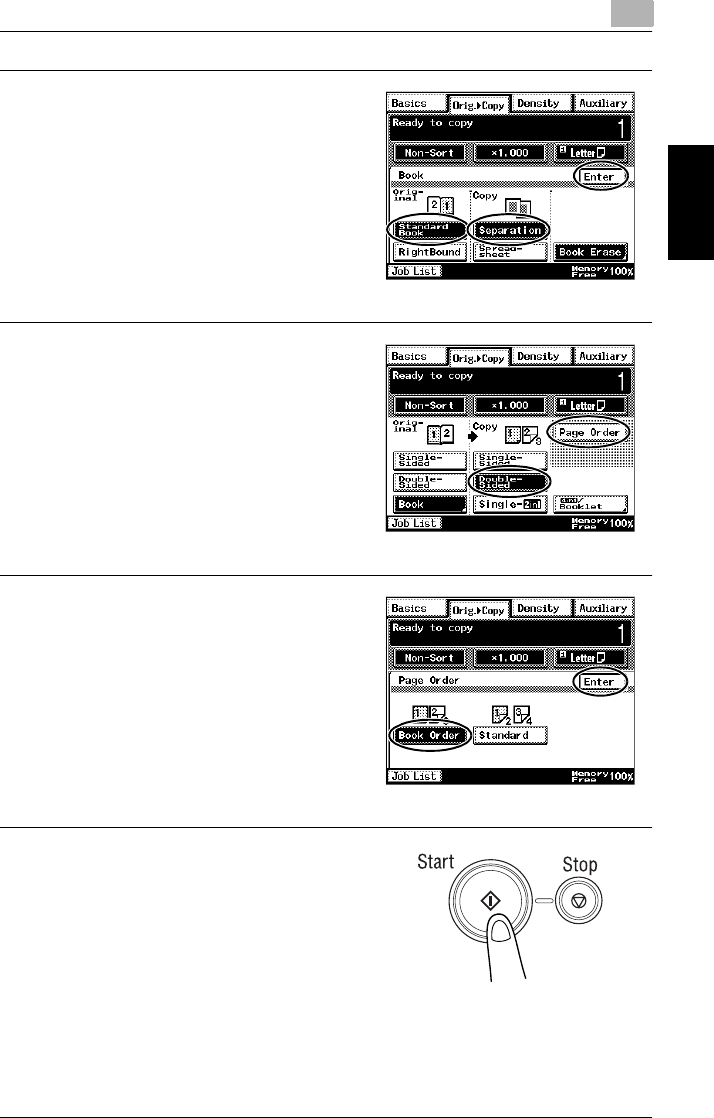
1Position the document on the
original glass with the center
aligned with the book mark on the
document scale.
❍Start copying from the lower
numbered pages.
2Touch [Orig. Ö Copy], and then
touch [Book].
CopyOriginal Document
2.1 Useful Operations 2
Di2010/Di2510/Di3010/Di3510 2-3
Available Features Chapter 2
3For book-binding, touch [Standard
Book] or [RightBound], and then
touch [Separation].
Next, touch [Enter].
4Touch [Double-Sided], and then
touch [Page Order].
5Touch [Book Order], and then touch
[Enter].
6Press the [Start] key.

22.1 Useful Operations
2-4 Di2010/Di2510/Di3010/Di3510
Available Features Chapter 2
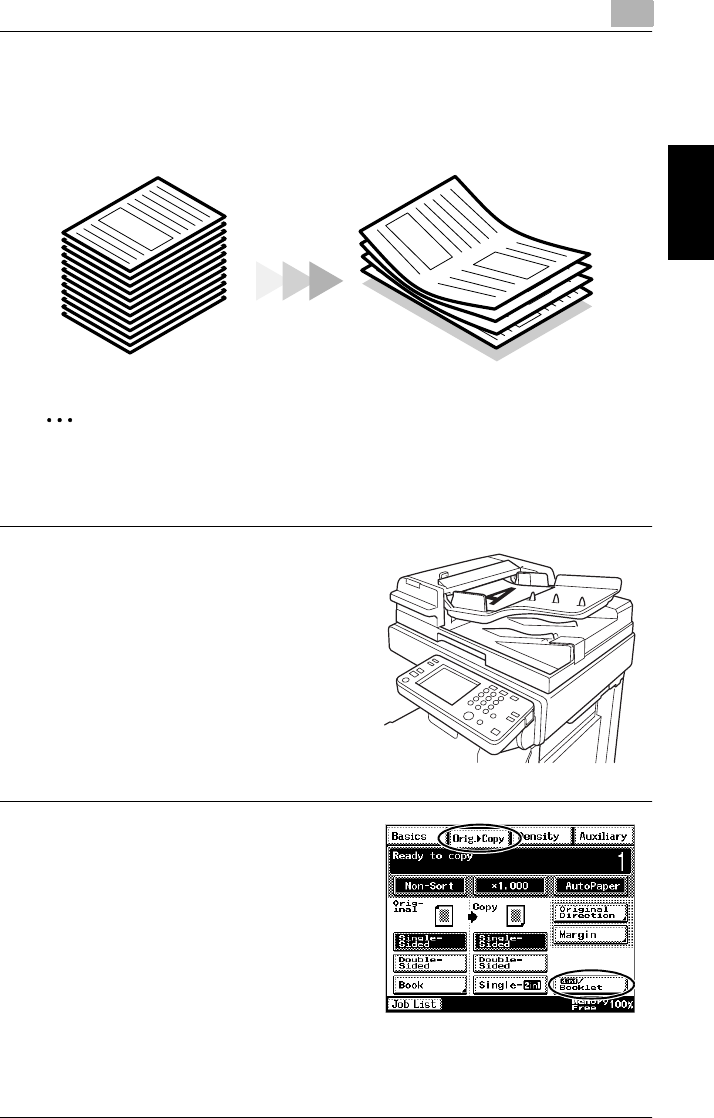
7After the message shown at the
right appears, turn the page of the
book or magazine, re-position the
document on the original glass, and
then press the [Start] key.
8Repeat step 7, and when the last
page has been scanned, touch
[Finish].
Next, press the [Start] key.
2.1 Useful Operations 2
Di2010/Di2510/Di3010/Di3510 2-5
Available Features Chapter 2
Copying to Form a Booklet
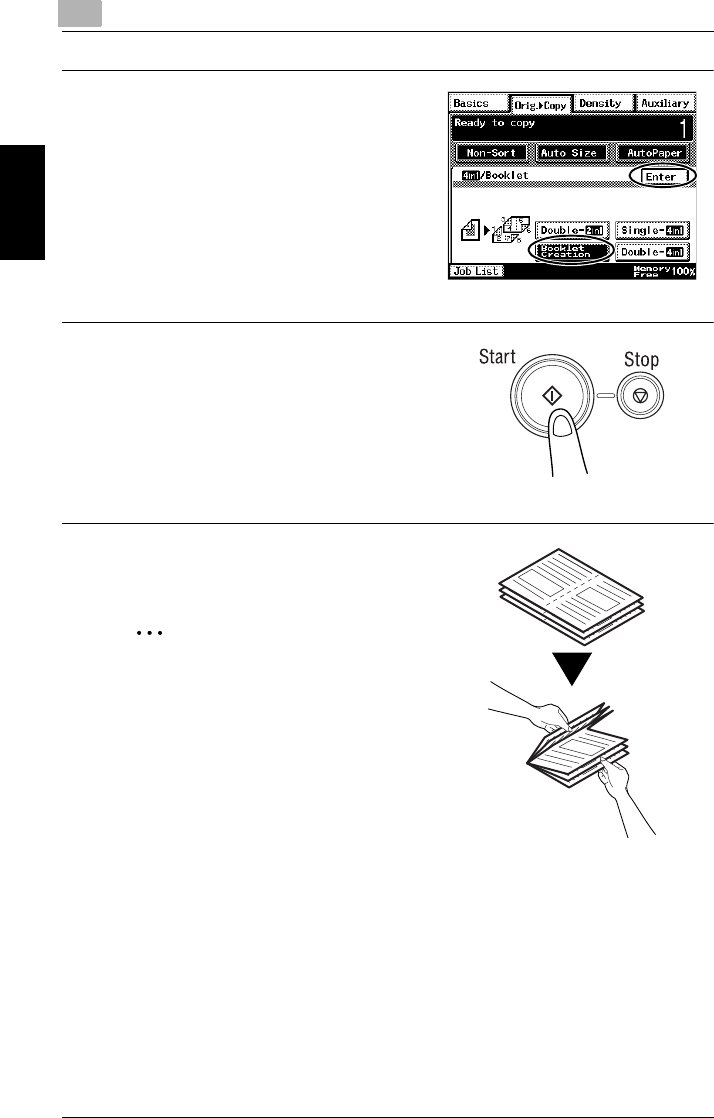
A document can be copied like a book so the pages can easily be put together to
form a booklet.
✎
Note
In order to perform the following procedure, the optional duplexing document
feeder, duplex unit and switchback unit (for Di2010) must be installed.
1Load the document into the
duplexing document feeder.
❍The document can also be
positioned on the original glass.
2Touch [Orig. Ö Copy], and then
touch [4in1/Booklet].
CopyOriginal Document
22.1 Useful Operations
2-6 Di2010/Di2510/Di3010/Di3510
Available Features Chapter 2
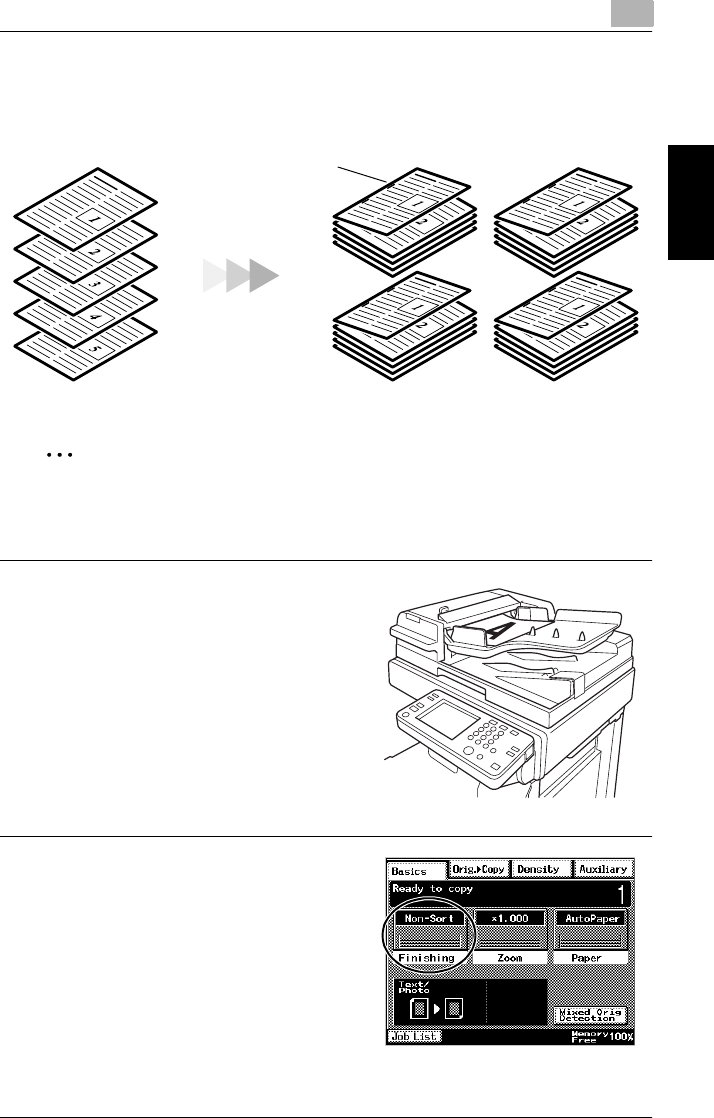
3Touch [Booklet Creation], and then
touch [Enter].
4Press the [Start] key.
5After all copies are printed, fold the
pages in half to form a booklet.
✎
Tip
If the optional saddle kit is installed,
creasing or folding can be set. For de-
tails, refer to “Creasing and Folding”
on page 7-10.
2.1 Useful Operations 2
Di2010/Di2510/Di3010/Di3510 2-7
Available Features Chapter 2
Automatically Stapling Pages While Copying
Each set of copies can easily be stapled together.
✎
Note
In order to perform the following procedure, the optional duplexing document
feeder, finisher must be installed.
1Load the document into the
duplexing document feeder.
❍The document can also be
positioned on the original glass.
2Touch [Finishing].
CopyOriginal Document
Staple

22.1 Useful Operations
2-8 Di2010/Di2510/Di3010/Di3510
Available Features Chapter 2
3Touch [Sort].
4Touch [2-Point Staple].
5Press the [Start] key.

2.1 Useful Operations 2
Di2010/Di2510/Di3010/Di3510 2-9
Available Features Chapter 2
Printing Multiple Copies of Tickets
Tickets for a concert or some other event can easily be made.
As an example, the procedure for reducing an 8 in. × 2-3/4 in. document by 50%
and copying it onto thick Letter-size paper is described below.
✎
Important
Copying certain type of documents is prohibited by law. Making copies of these
documents may be punishable as a crime. (For more details, refer to Legal Re-
strictions on Copying of “Precautions” in the Advanced Operations volume.)
✎
Note
If the document is placed directly on the original glass and the size is detected
automatically, the document will be scanned with a standard size.
If the document has a non-standard size, first measure the size of the docu-
ment.
1Position the document to be copied.
CopyOriginal Document
22.1 Useful Operations
2-10 Di2010/Di2510/Di3010/Di3510
Available Features Chapter 2
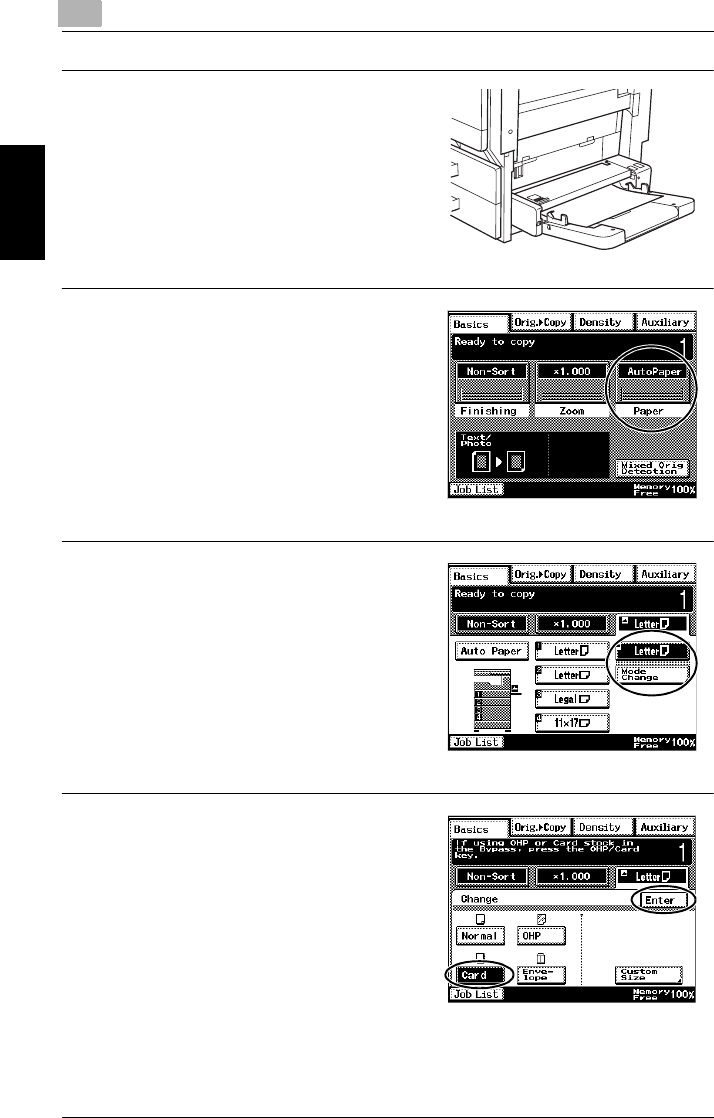
2Open the multiple bypass tray and
load it with paper.
❍A maximum of 50 sheets of thick
paper can be loaded.
3Touch [Paper].
4Touch the button for the multiple
bypass tray, and then touch [Mode
Change].
5Touch [Card], and then touch
[Enter].
❍If paper with a non-standard size is
loaded, touch [Custom Size], and
then specify the paper size. (For
details, refer to page 5-16.)
2.1 Useful Operations 2
Di2010/Di2510/Di3010/Di3510 2-11
Available Features Chapter 2
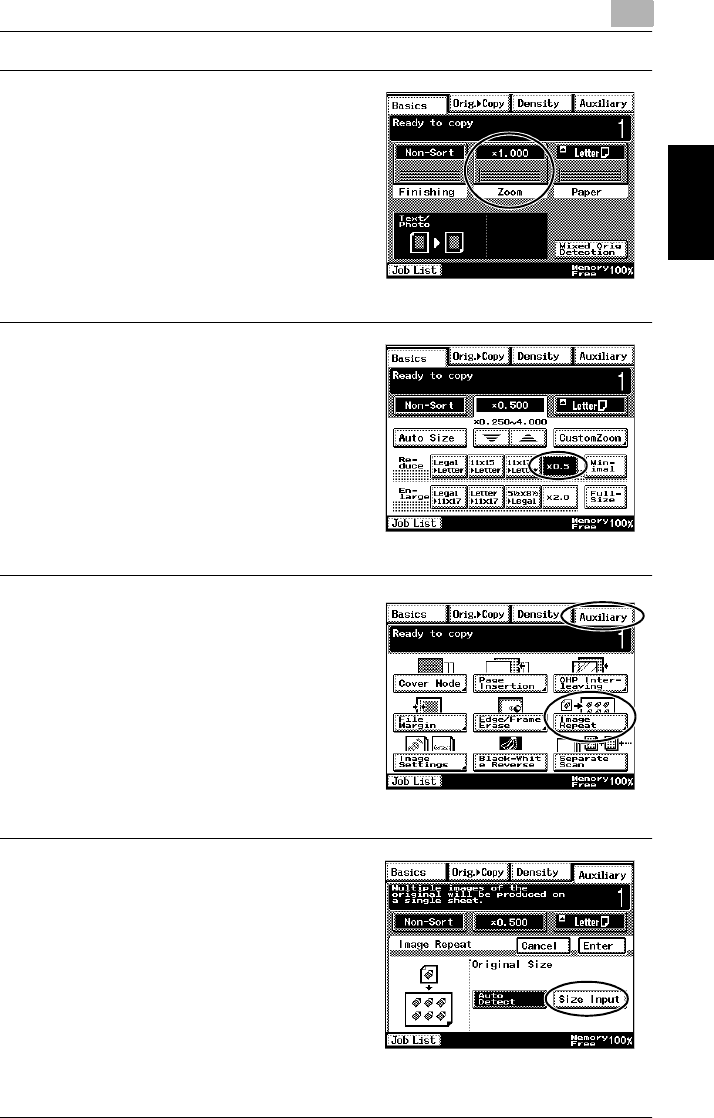
6Touch [Zoom].
7Touch [× 0.5].
8Touch [Auxiliary], and then touch
[Image Repeat].
9Touch [Size Input].
22.1 Useful Operations
2-12 Di2010/Di2510/Di3010/Di3510
Available Features Chapter 2
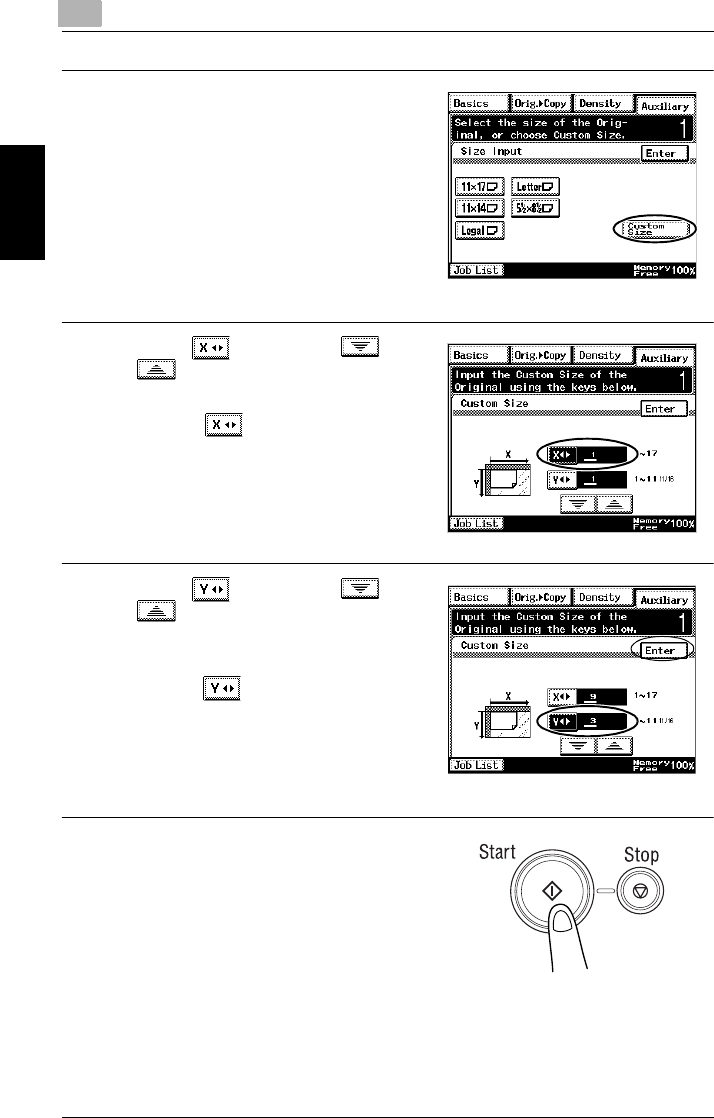
10 Touch [Custom Size].
11 Touch . Then, touch and
to select the length of side X
for the document.
❍Touch so that the cursor
moves below the fraction that you
wish to change.
❍For this example, set the length of
side X to “8”.
12 Touch . Then, touch and
to select the length of side Y
for the document, and then touch
[Enter].
❍Touch until the cursor moves
below the fraction that you wish to
change.
❍For this example, set the length of
side Y to “2 3/4”.
13 Press the [Start] key.
Sixteen 4 in. × 1-3/8 in. tickets are
copied onto one sheet of paper.
2.1 Useful Operations 2
Di2010/Di2510/Di3010/Di3510 2-13
Available Features Chapter 2
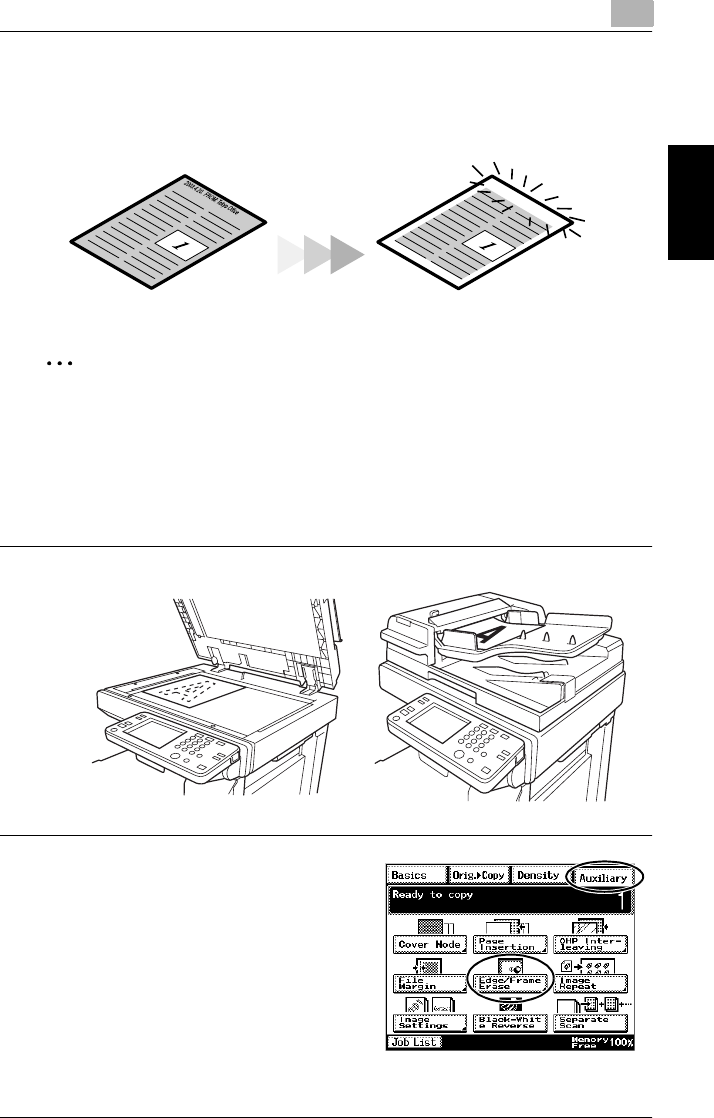
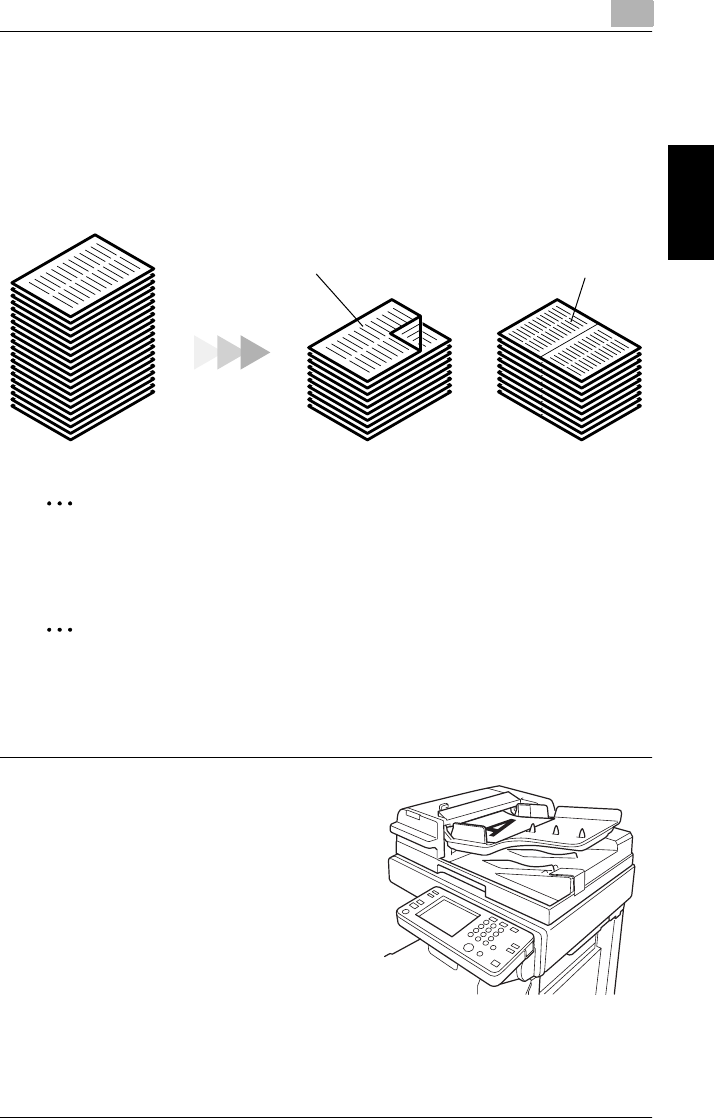
Copying While Erasing an Area Around the Document
When copying documents with unwanted markings, headers or punch holes, the
pages can be printed with a frame or one side of the document erased.
✎
Note
The position and width of the area to be erased can be set so that it is appropri-
ate for the document being copied.
The width of the erased area refers to how much of the document will be erased.
If enlarged or reduced copies are made, the same width is erased and an en-
larged or reduced copy is printed.
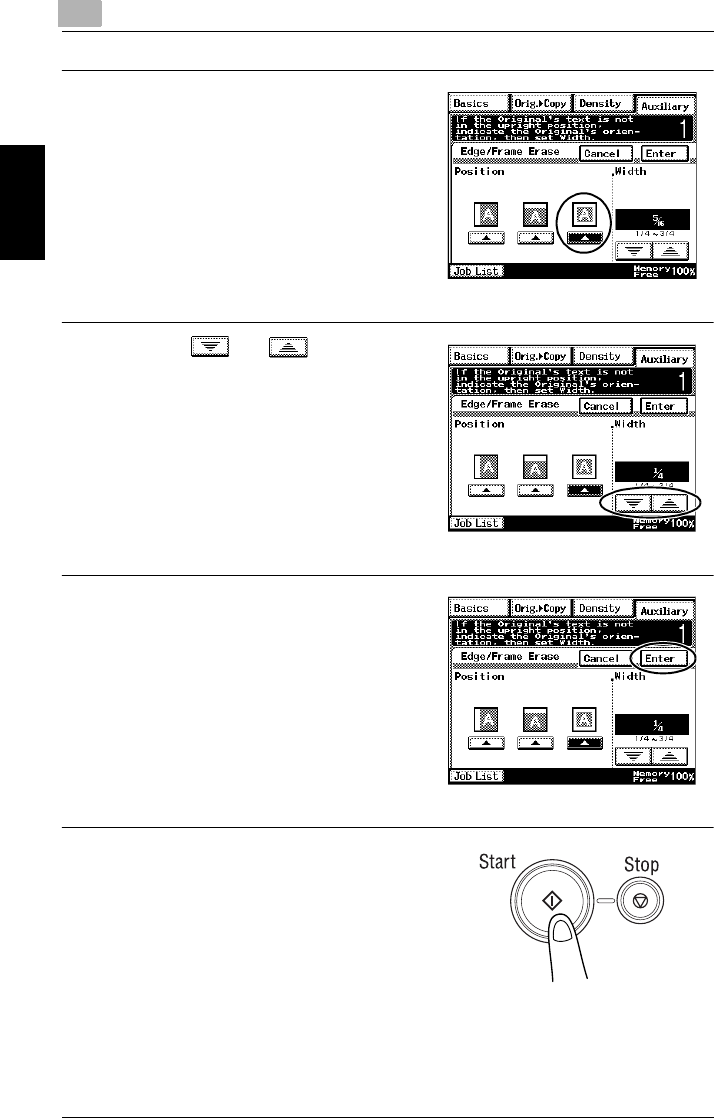
1Position the document to be copied.
2Touch [Auxiliary], and then touch
[Edge/Frame Erase].
CopyOriginal Document
22.1 Useful Operations
2-14 Di2010/Di2510/Di3010/Di3510
Available Features Chapter 2
3Select the desired position of the
erased area.
(Example: Erasing a frame)
4Touch and to specify the
width of the erased area.
5Touch [Enter].
6Press the [Start] key.
2.1 Useful Operations 2
Di2010/Di2510/Di3010/Di3510 2-15
Available Features Chapter 2
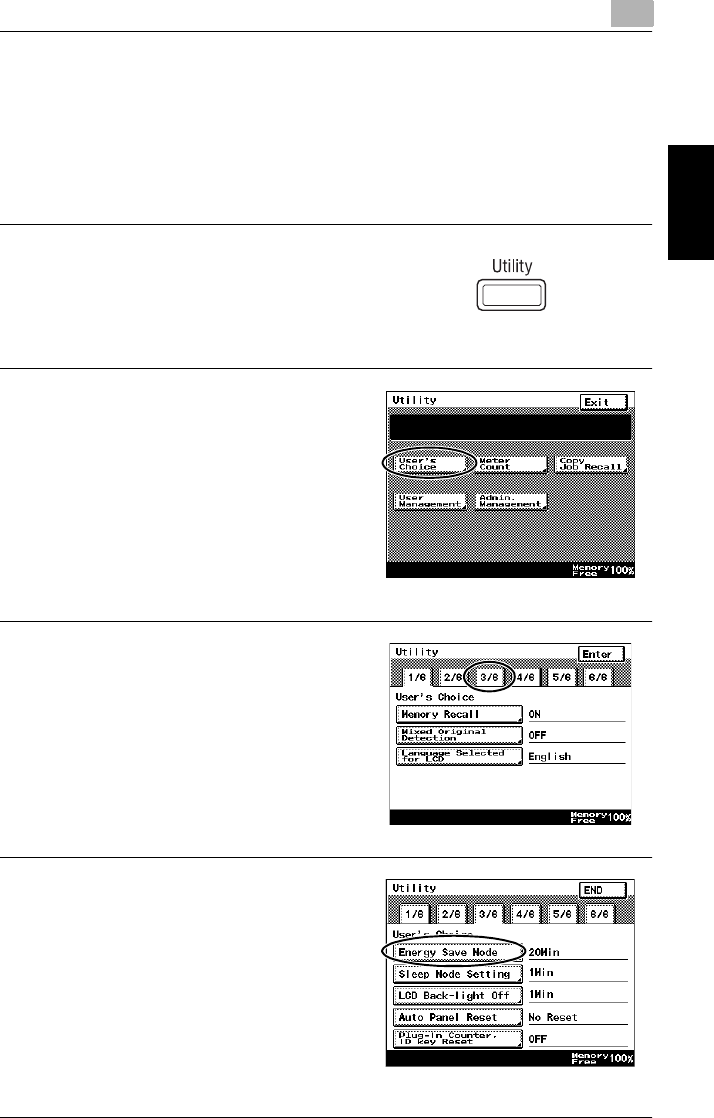
Reducing Paper Usage
Double-sided copying and 2in1 copying are useful in economizing on printed pages
or reducing the size of a thick document.
As an example, the procedure for combining two single-sided document pages into
a double-sided copy is described below.
✎
Note
In order to perform the following procedure, the optional duplexing document
feeder, duplex unit and switchback unit (for Di2010) must be installed.
✎
Tip
Double-sided 2in1 copying and single-sided 4in1 copying reduce the paper us-
age by one fourth, and double-sided 4in1 copying reduces paper usage by one
eighth.
1Load the document into the
duplexing document feeder.
❍The document can also be
positioned on the original glass.
CopyOriginal Document
2in1 copying
Double-sided copying

22.1 Useful Operations
2-16 Di2010/Di2510/Di3010/Di3510
Available Features Chapter 2
2Touch [Orig. Ö Copy], and then
touch [4in1/Booklet].
3Touch [Double-2in1].
4Press the [Start] key.
2.1 Useful Operations 2
Di2010/Di2510/Di3010/Di3510 2-17
Available Features Chapter 2
Reducing Electricity Usage
The copier can be set to a low power mode to conserve energy.
In order to perform these operations, the Energy Save mode and the Sleep mode
can be used to automatically set the copier to an energy-saving mode when the
copier is not used for a specified length of time.
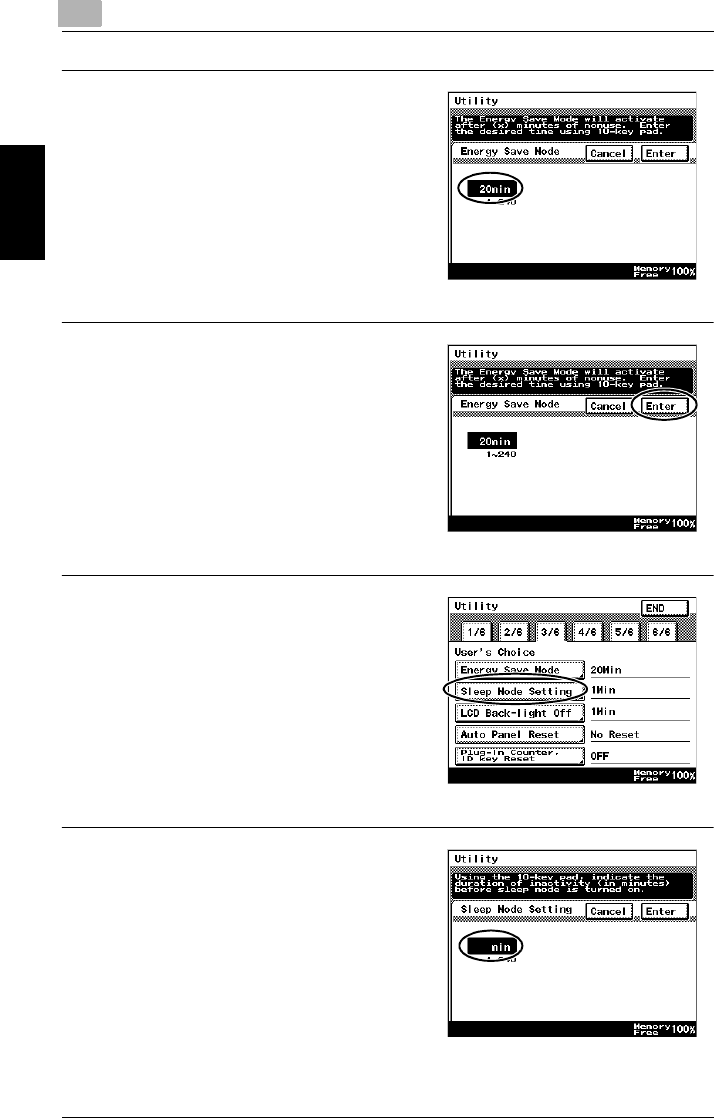
1Press the [Utility] key.
2Touch [User’s Choice].
3Touch [3/6].
❍To specify settings for the Energy
Save mode, continue with step 4.
❍To specify settings for the Sleep
mode, skip to step 7.
4Touch [Energy Save Mode].
22.1 Useful Operations
2-18 Di2010/Di2510/Di3010/Di3510
Available Features Chapter 2
5Press the [C] key to erase the
current value, and then use the 10-
Key Pad to specify the desired
length of time until the copier enters
Energy Save mode.
6Touch [Enter].
7Touch [Sleep Mode Setting].
8Use the 10-Key Pad to specify the
desired length of time until the
copier enters Sleep mode.

2.1 Useful Operations 2
Di2010/Di2510/Di3010/Di3510 2-19
Available Features Chapter 2
9Touch [Enter].

22.1 Useful Operations
2-20 Di2010/Di2510/Di3010/Di3510
Available Features Chapter 2

Before Making Copies Chapter 3
3
3Before Making
Copies
33.1 Names of Control Panel Parts and Their Functions
3-2 Di2010/Di2510/Di3010/Di3510
Before Making Copies Chapter 3
3.1 Names of Control Panel Parts and Their Functions
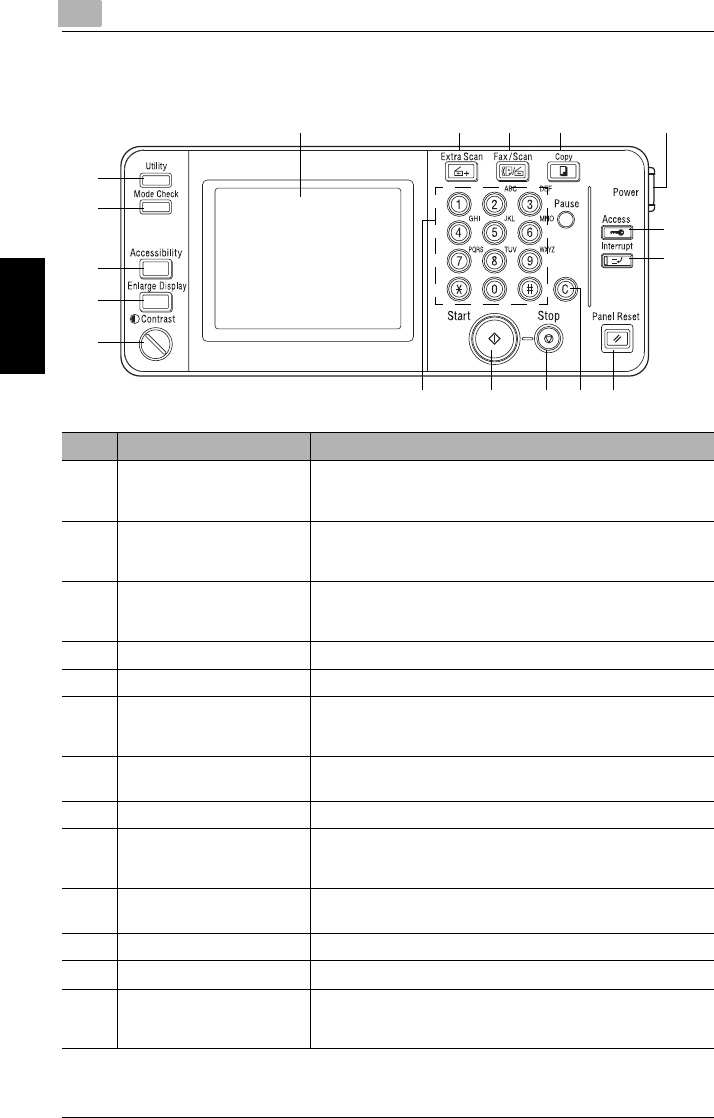
123 4 5
6
7
89101112
17
16
15
14
13
No. Part Name Function
1 Touch panel Displays various screens and messages.
Touch items in the touch panel to select screens and specify
settings.
2 [Extra Scan] key Press to use the IP Scanner functions.
(Internet Fax & Network Scan Kit and Network Interface Card
must be installed.)
3 [Scan] key Press to enter Scan mode.
(Network Interface Card, and either Network Scan Kit or
Internet Fax & Network Scan Kit must be installed.)
4 [Copy] key Press to enter Copy mode.
5 Sub power switch Use to turn the copier on and off.
6 [Access] key Press when an access code must be entered.
•If the “Copy Track Mode” parameter is set to “OFF”, nothing
happens when this key is pressed.
7 [Interrupt] key •Press to enter Interrupt mode.
•To cancel Interrupt mode, press the [Interrupt] key again.
8 [Panel Reset] key Press to reset all modes and functions to their default settings.
9 [C] (clear) key •Press to reset the number of copies to “1”.
•Press to erase a setting (such as the zoom ratio or size)
selected using the 10-Key Pad.
10 [Stop] key •Press to stop a copy operation.
•Press to stop the scanning of a document.
11 [Start] key Press to start a scanning or copy operation.
12 10-Key Pad Use to enter a number, such as the number of copies.
13 [Utility] key Used to display the Utility screen.
For more details, refer to “Utility Mode Operations” in the
Advanced Operations volume of the User Manual.

3.1 Names of Control Panel Parts and Their Functions 3
Di2010/Di2510/Di3010/Di3510 3-3
Before Making Copies Chapter 3
14 [Mode Check] key •Press to display a list of all specified settings. From this list,
the screen to specify each setting can be displayed and the
setting can be changed.
•From this screen, the current settings can also be stored as
a copy program.
15 [Accessibility] key Press to activate or deactivate the user accessibility functions.
16 [Enlarge Display] key Press to enlarge the screens that appear in the touch panel.
17 [Contrast] dial Use to adjust the contrast of the touch panel.
No. Part Name Function
33.2 Checking the Settings
3-4 Di2010/Di2510/Di3010/Di3510
Before Making Copies Chapter 3
3.2 Checking the Settings
The currently selected settings can be reviewed. In addition, the specified settings
can be changed or stored for later use.
There are two screens that allow you to check the settings.
To check the settings
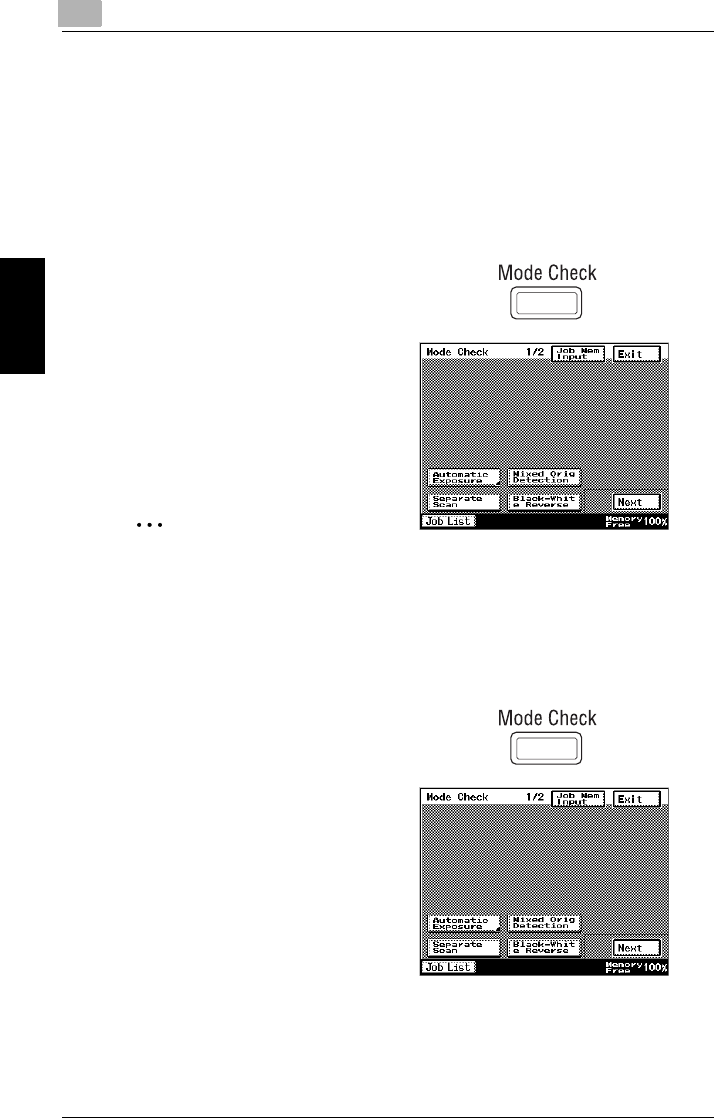
1Press the [Mode Check] key in the
control panel.
The first screen showing the
current settings appears.
2Touch [Next] to display the second
screen of settings.
3Touch [Exit] to return to the Basics
screen.
✎
Tip
To change a setting, touch the button for the function that you wish to
change. The screen to change the setting for the selected function appears.
In the screen that appeared, change the setting as desired.
To change the settings
1Press the [Mode Check] key in the
control panel.
The first screen showing the
current settings appears.
2Touch [Next] or [Back] until the
screen containing the setting that
you wish to change is displayed.
3Touch the button for the setting
that you wish to change.
The screen for specifying the
setting appears.
4Change the setting according to the corresponding procedure.
3.3 User Accessibility Operations 3
Di2010/Di2510/Di3010/Di3510 3-5
Before Making Copies Chapter 3
3.3 User Accessibility Operations
Various functions, such as the screen mode and the volume of alarms, can be spec-
ified, allowing the copier to be used more easily.
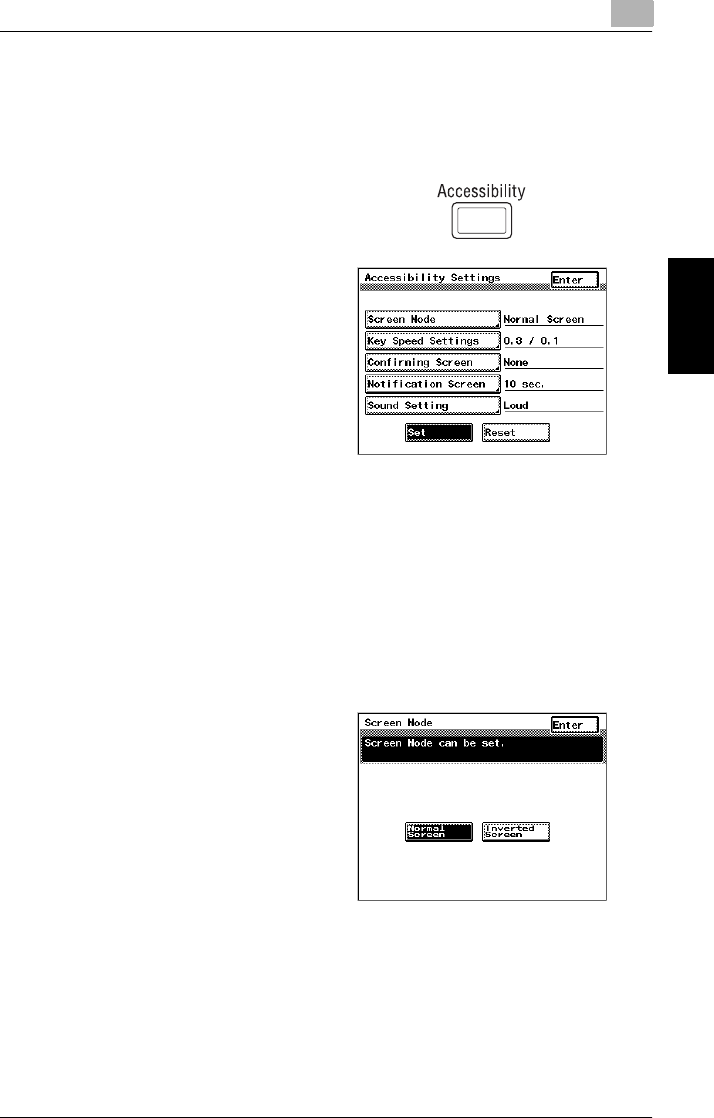
1Press the [Accessibility] key in the
control panel.
2Touch either [Set] or [Reset].
❍The user accessibility
functions can be enabled or
disabled.
❍When the user accessibility
functions are enabled, the
[Accessibility] key lights up in
green. When the user
accessibility functions are
disabled, the [Accessibility]
key is not lit.
To change the screen display setting (“Screen Mode” function)
Select whether the screens appear in the touch panel in black on white or in white
on black.
1Press the [Accessibility] key in the control panel.
2Touch [Screen Mode].
3Touch [Inverted Screen] to display
the screens in white on black.
To return the screens to the
normal display, touch [Normal
Screen].
4Touch [Enter].

33.3 User Accessibility Operations
3-6 Di2010/Di2510/Di3010/Di3510
Before Making Copies Chapter 3
To change the key settings (“Key Speed Settings” function)
If the same key is held down, characters and number can be repeatedly entered.
1Press the [Accessibility] key in the control panel.
2Touch [Key Speed Settings].
3Touch and to adjust
the time periods.
❍Delay Time:
Time until the repeat feature
for a key begins after the key is
held down
❍Interval Time:
Length of time (in seconds)
that a key must be held down
before repeatedly entering
characters and numbers
Example) When the [1] key is held down:
✎
Tip
Touch [CHECK] to check the specified settings.
4Touch [Enter].
Normal Screen Inverted Screen
1 1 1 1 ...
Interval Time
Delay Time
3.3 User Accessibility Operations 3
Di2010/Di2510/Di3010/Di3510 3-7
Before Making Copies Chapter 3
To change the auto panel reset time (“Confirming Screen” function)
If no operation is performed for a specified length of time, the touch panel display
returns to the Basics screen. For details on specifying the default auto panel reset
time, refer to “Auto Panel” of Utility Mode Operations in the Advanced Operations
volume of the User Manual.
On the “Confirming Screen”, you can set whether or not to extend the display time
of the Auto Panel extension confirmation screen that is displayed immediately
before it is automatically cleared.
✎
Note
The Energy Save, Sleep, and LCD Back-light Off functions are still operable
even when the Auto Panel Reset function is configured. When setting Auto Pan-
el Reset, please set it to a shorter period than the Energy Save, Sleep, and LCD
Back-light Off functions.
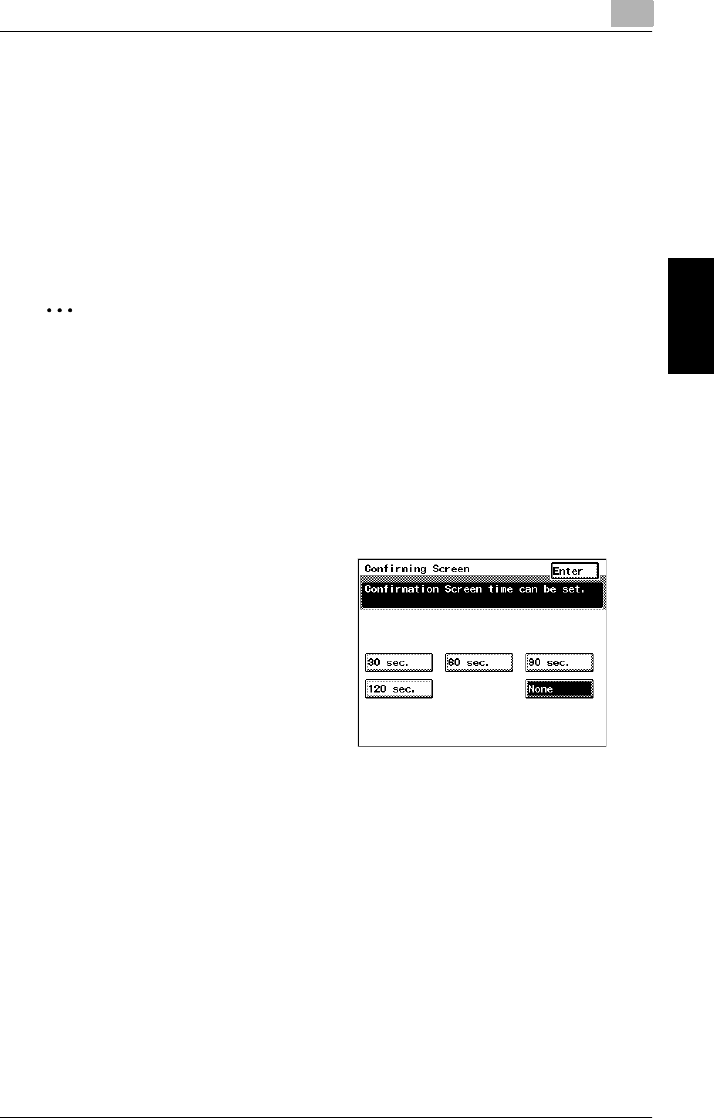
1Press the [Accessibility] key in the control panel.
2Touch [Confirming Screen].
3Select the desired length of time
for displaying the screen
requesting confirmation to reset
the copier.
❍Touch [30 sec.], [60 sec.], [90
sec.] or [120 sec.].
❍To immediately display the
Basics screen without
displaying a screen requesting
confirmation to reset the
copier, touch [None].
4Touch [Enter].
33.3 User Accessibility Operations
3-8 Di2010/Di2510/Di3010/Di3510
Before Making Copies Chapter 3
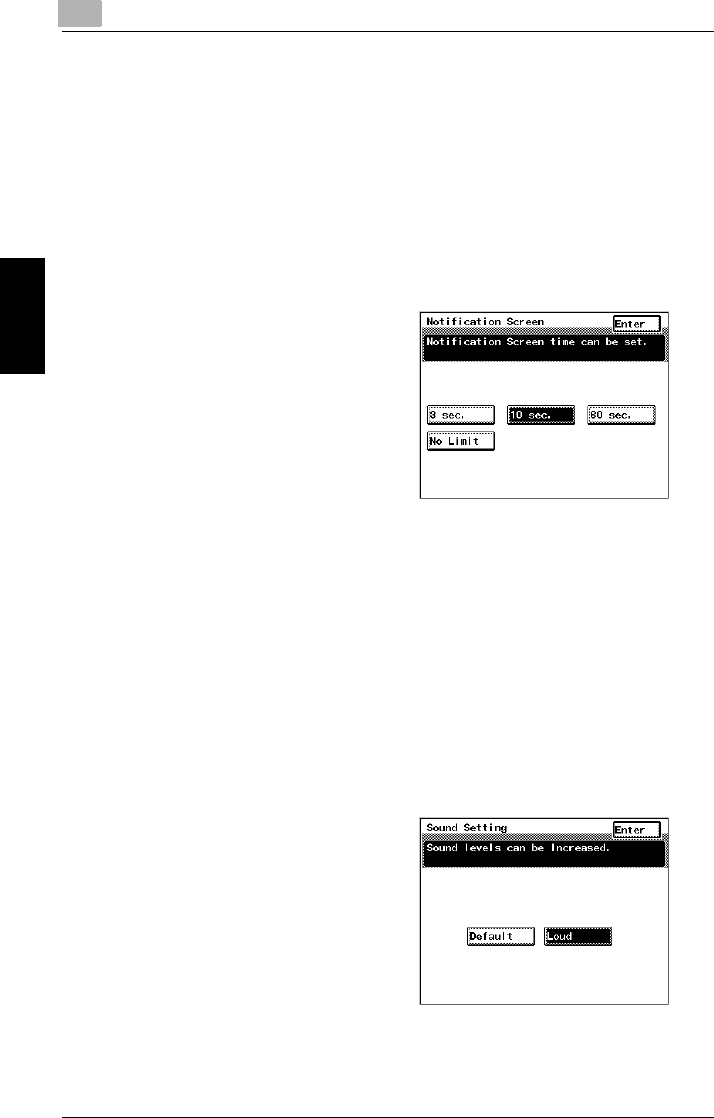
To change the display time for the “The job is accepted.” screen
(“Notification Screen” function)
The length of time that the “The job is accepted.” screen, which requests
confirmation of a reception number or job No. after copying is finished, can be
specified.
1Press the [Accessibility] key in the control panel.
2Touch [Notification Screen].
3Select the desired time setting.
❍Touch [3 sec.], [10 sec.] or [60
sec.].
❍To leave the “The job is
accepted.” screen displayed
until [Enter] is touched, touch
[No Limit].
4Touch [Enter].
To change the volume of touch panel beeps and alarms (“Sound Setting”
function)
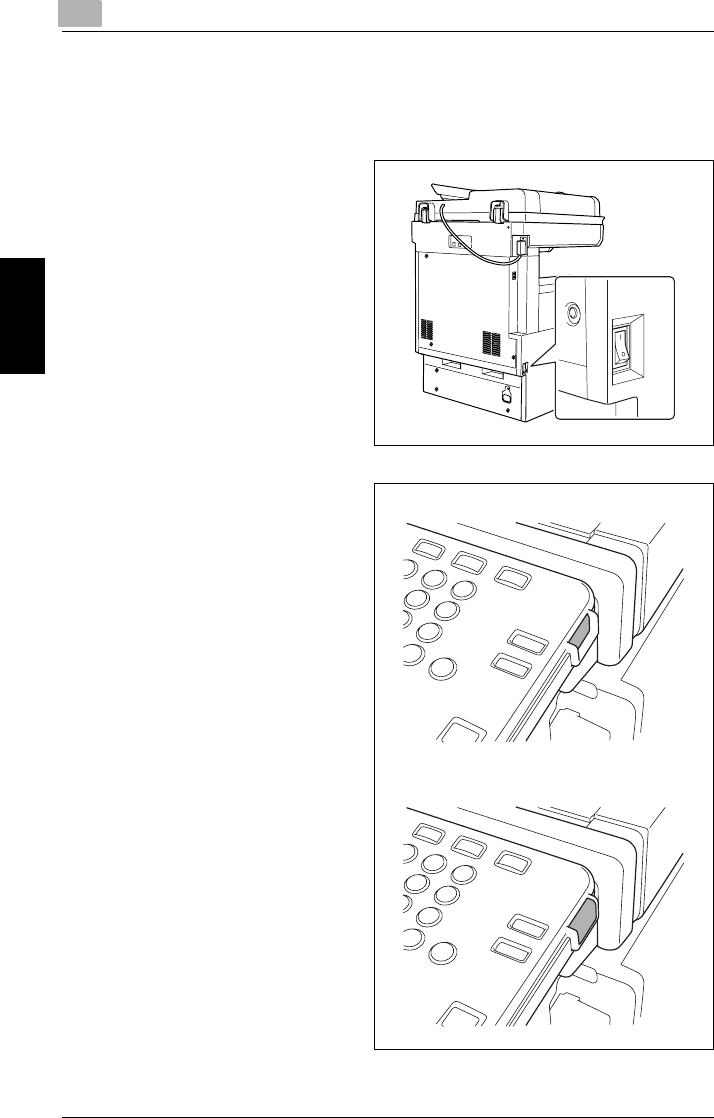
The volumes of the beep that is sounded when a touch panel button is touched and
of the alarm that is sounded when a malfunction occurs can be specified. During
normal usage, a low volume is specified, however this function is convenient when
a temporary increase in volume is desired. Basic volume setting can be set in User
Management. For details, refer to Utilities in the Advanced Operations volume.
1Press the [Accessibility] key in the control panel.
2Touch [Sound Setting].
3Select the desired volume setting.
4Touch [Enter].

3.4 Enlarging the Touch Panel Screens 3
Di2010/Di2510/Di3010/Di3510 3-9
Before Making Copies Chapter 3
3.4 Enlarging the Touch Panel Screens
Press the [Enlarge Display] key to enlarge the screens that appear in the touch pan-
el. Press the [Enlarge Display] key again to return the screens to the standard size.
The usual touch panel operations can be performed even when the screens are en-
larged.
Touch in this area to
scroll toward the upper-
left corner of the screen.
Touch this arrow to scroll up through the screen. Touch in this area to
scroll toward the upper-
right corner of the
screen.
Touch this arrow to
scroll left through the
screen.
When the left edge of
the screen is reached,
the screen is scrolled up
one line and the right
edge is displayed.
Touch this arrow to
scroll right through the
screen.
When the right edge of
the screen is reached,
the screen is scrolled up
one line and the left
edge is displayed.
Touch in this area to
scroll toward the lower-
left corner of the screen.
Touch this arrow to scroll down through the
screen.
Touch in this area to
scroll toward the lower-
right corner of the
screen.
33.5 Turning the Copier On and Off
3-10 Di2010/Di2510/Di3010/Di3510
Before Making Copies Chapter 3
3.5 Turning the Copier On and Off
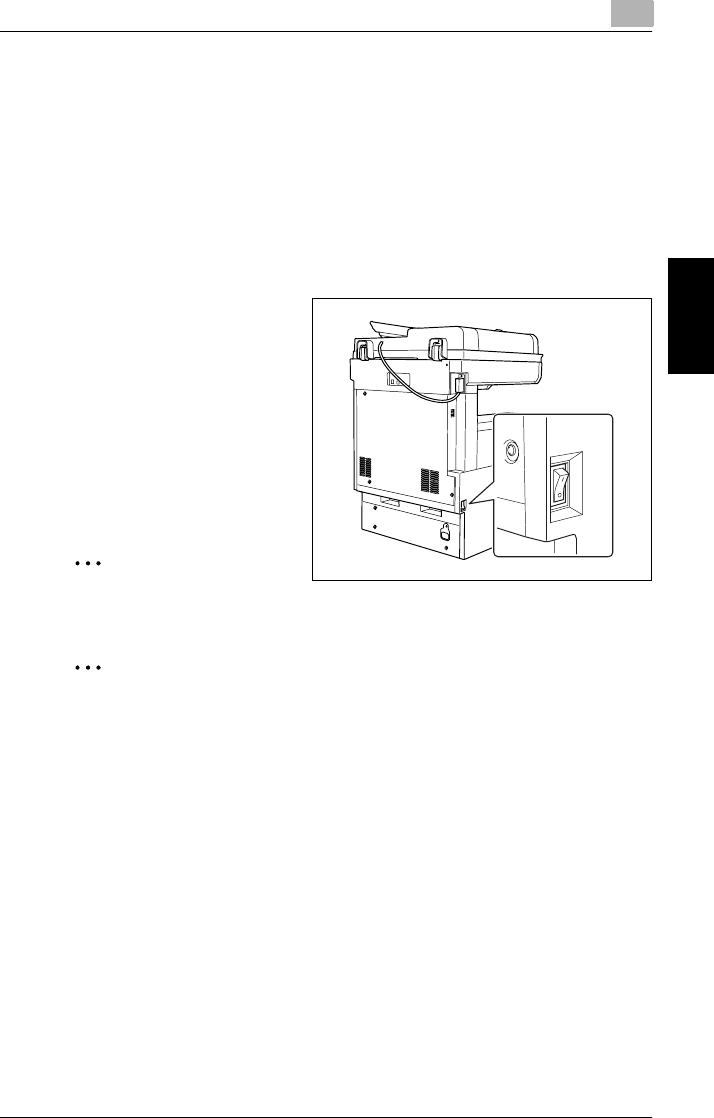
To turn on the copier
1Set the power switch to “I”.
2Make sure that the sub power
switch has been pressed in. ON
OFF
3.5 Turning the Copier On and Off 3
Di2010/Di2510/Di3010/Di3510 3-11
Before Making Copies Chapter 3
When the copier is turned on
➜A few seconds after the copier is turned on, the message “Now warming-up.
Ready to scan.” appears in the touch panel and the indicator on the [Start] lights
up in green. When the indicator on the [Start] key lights up in green, a job can
be queued.
When the power switch is on, and the sub power switch is in the off position, copies
can not be taken.
To turn off the copier
1Touch [Activity List] to check that
no jobs are queued.
2If any printed pages remain in the
paper output tray, remove them.
3Press the sub power switch to turn
off the copier.
4Set the power switch to “O”.
✎
Tip
Normally, it is not necessary to set the power switch to “O”.
✎
Note
When turning the copier off, then on again, wait five seconds after turning it
off before turning it on again. If no time passes between turning the copier
off until turning on again, the copier may not operate correctly.
Do not turn off the copier while it is making copies or printing, otherwise a
paper misfeed may occur.
Do not turn off the copier while it is scanning or sending or receiving data,
otherwise all scanned data or transmission data will be deleted.
Do not turn off the copier while a queued job or stored data is waiting to be
printed, otherwise the jobs will be deleted.
When the copier is turned off
GSettings that have not been programmed will be cleared.
GJobs that are queued to be printed are deleted.
GData scanned using the “Scan to Memory” function is deleted.
GScanned data that could be printed using the “Memory Recall” function is deleted.

33.5 Turning the Copier On and Off
3-12 Di2010/Di2510/Di3010/Di3510
Before Making Copies Chapter 3
Auto Panel Reset
When a specified period has passed, these will reset to the default settings.
<Conditions for auto panel resetting>
G1 minute, or a specified period after the copier is last used (factory default set-
tings are 1 minute).
GThe magnetic card is removed from the data controller or the key counter is re-
moved.
✎
Note
The settings specifying whether or not and the time until the auto panel reset
operation is performed can be changed. For details, refer to “Changing Default
Settings” of “Utility Mode Operations” in the Advanced Operations volume of the
User Manual.
Energy Save Mode
In order to conserve energy, the copier will automatically enter a stand-by mode
(Energy Save mode) if no operation is performed for a specified length of time.
When the copier enters Energy Save mode, the indicator on the [Start] key remains
lit in green, but the touch panel goes off.
At this time, the copier reduces the heat of the fusing section, and goes into Energy
Save Mode.
<Conditions for entering Energy Save mode>
G15 minute, or a specified period after the copier is last used (factory default set-
tings are 15 minute).
✎
Note
To recover from Energy Save mode, press any key in the control panel or touch
the touch panel.
The copier will not enter Energy Save Mode while printing is paused.
The settings specifying whether or not and the time until the copier enters En-
ergy Save mode can be changed. For details, refer to “Changing Default Set-
tings” of “Utility Mode Operations” in the Advanced Operations volume of the
User Manual.
3.6 Adjusting the Angle of the Control Panel 3
Di2010/Di2510/Di3010/Di3510 3-13
Before Making Copies Chapter 3
Sleep Mode
In order to conserve energy, the copier’s heater goes off and the copier automati-
cally enters Sleep mode if no operation is performed for a specified length of time.
<Conditions for entering Sleep mode>
GNo copier operation is performed for 1 minute.
✎
Note
To recover from Sleep mode, press any key in the control panel or touch the
touch panel.
The settings specifying whether or not and the time until the copier enters Sleep
mode can be changed. For details, refer to “Changing Default Settings” of “Util-
ity Mode Operations” in the Advanced Operations volume of the User Manual.
3.6 Adjusting the Angle of the Control Panel
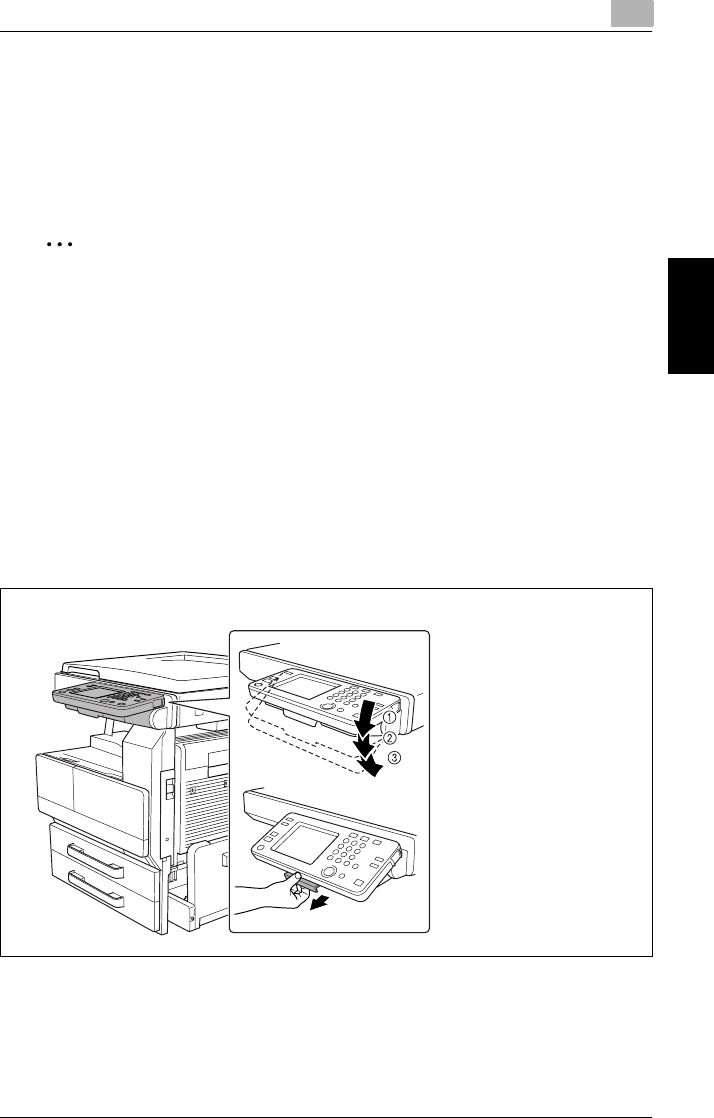
The control panel can be adjusted to any of three angles.
Adjust the control panel to the angle that allows for easy operation.
➜Pull the control panel release lever, and then adjust the angle of the control
panel.
➀Upper position
(base position)
➁Middle position
➂Lower position
33.7 Using the Touch Panel
3-14 Di2010/Di2510/Di3010/Di3510
Before Making Copies Chapter 3
3.7 Using the Touch Panel
Description of the Touch Panel
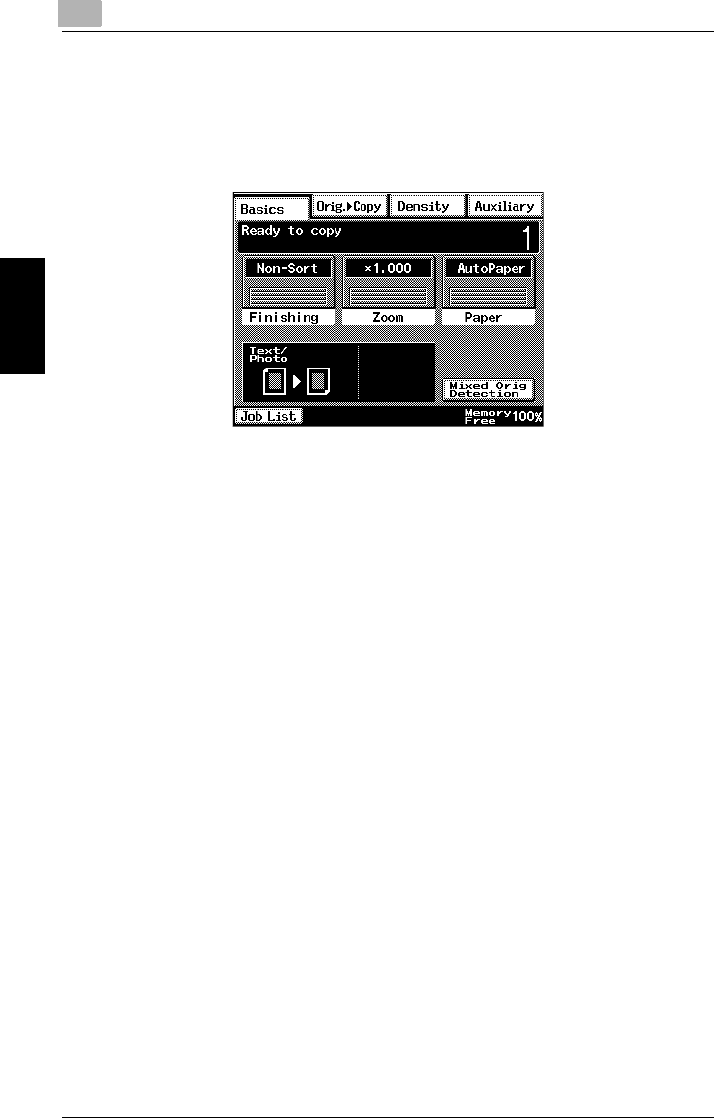
When the copier is turned on, the screen shown below appears in the touch panel.
This screen is the Basics screen.
The screen shows, with messages and graphics, the currently selected settings, the
settings that are available, and the copier status.
Default Settings
The settings selected when the copier is turned on are called the default settings.
The default settings serve as a reference for all settings that are to be specified.
To change the default settings, refer to “Changing Default Settings” in the Ad-
vanced Operations volume of the User Manual.
GNumber of copies: 1
GFinishing: Non-Sort
GZoom: 1.000 (Full Size)
GPaper: AutoPaper
GDensity: Auto Exposure (Text/Photo mode)
GOrig. Ö Copy: Single-Sided Ö Single-Sided

3.7 Using the Touch Panel 3
Di2010/Di2510/Di3010/Di3510 3-15
Before Making Copies Chapter 3
Operating the Touch Panel
To activate a function or to select a setting, lightly touch the desired function or set-
ting shown on the touch panel.
CAUTION
Be careful not to damage the touch panel.
➜Never push down on the touch panel with force, and never use a hard or pointed
object to make a selection in the touch panel.
✎
Tip
The language of the displays in the touch panel can be changed using the “Lan-
guage Selected for LCD” function on the User’s Choice screen. For details, refer
to “Changing Default Settings” of “Utility Mode Operations” in the Advanced Op-
erations volume of the User Manual.
The default settings can be changed using the various functions on the User’s
Choice screen. For details, refer to “Changing Default Settings” of “Utility Mode
Operations” in the Advanced Operations volume of the User Manual.

33.7 Using the Touch Panel
3-16 Di2010/Di2510/Di3010/Di3510
Before Making Copies Chapter 3
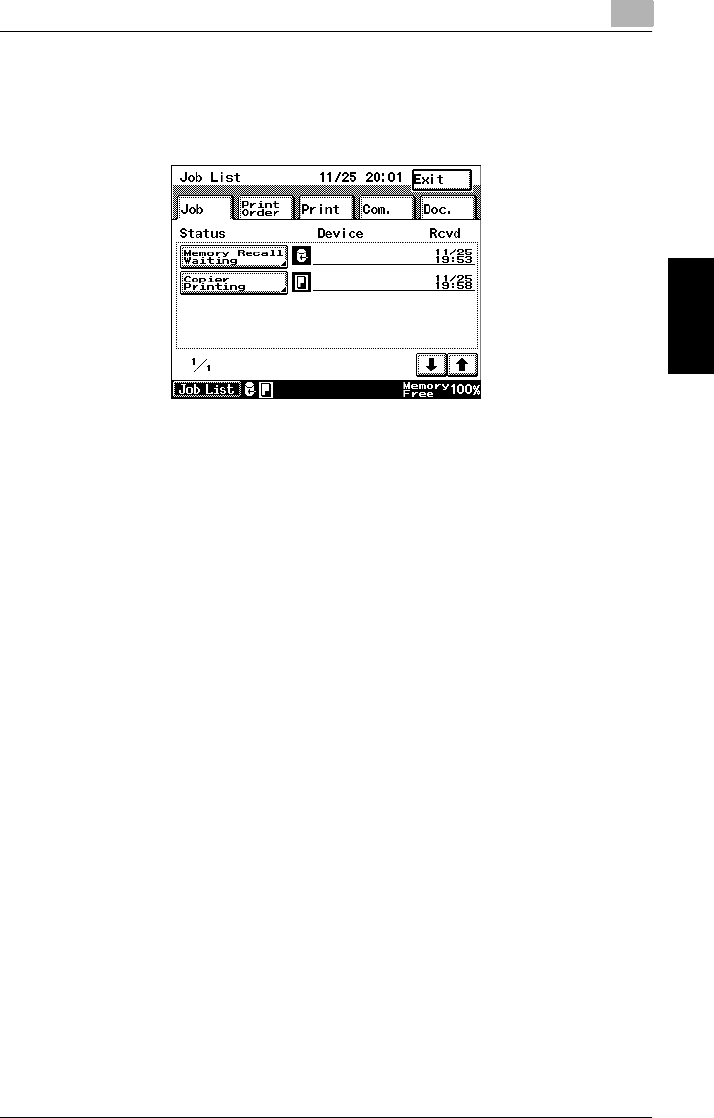
Description of the Screens
Settings screen
1. Screen tabs
2. Message display
3. Available functions and settings
4. Selected settings
5. Additional message display
No. Item Name Description
1 Screen tabs Each screen contains various functions that can be specified.
Touch a tab to display the corresponding screen.
2 Message display The current copier status, operating instructions, warnings/
precautions, and other data including the number of copies
selected are displayed here.
3 Available functions and
settings
Selecting a screen displays various functions that can be
specified. Touch the button for a function to display the
corresponding settings.
4 Selected settings The current settings are shown with graphics.
5 Additional message display •The status of the job is shown with graphics.
•The remaining amount of memory and graphics warning
about empty toner or an empty paper drawer are displayed
here.
3.7 Using the Touch Panel 3
Di2010/Di2510/Di3010/Di3510 3-17
Before Making Copies Chapter 3
Job List Screen
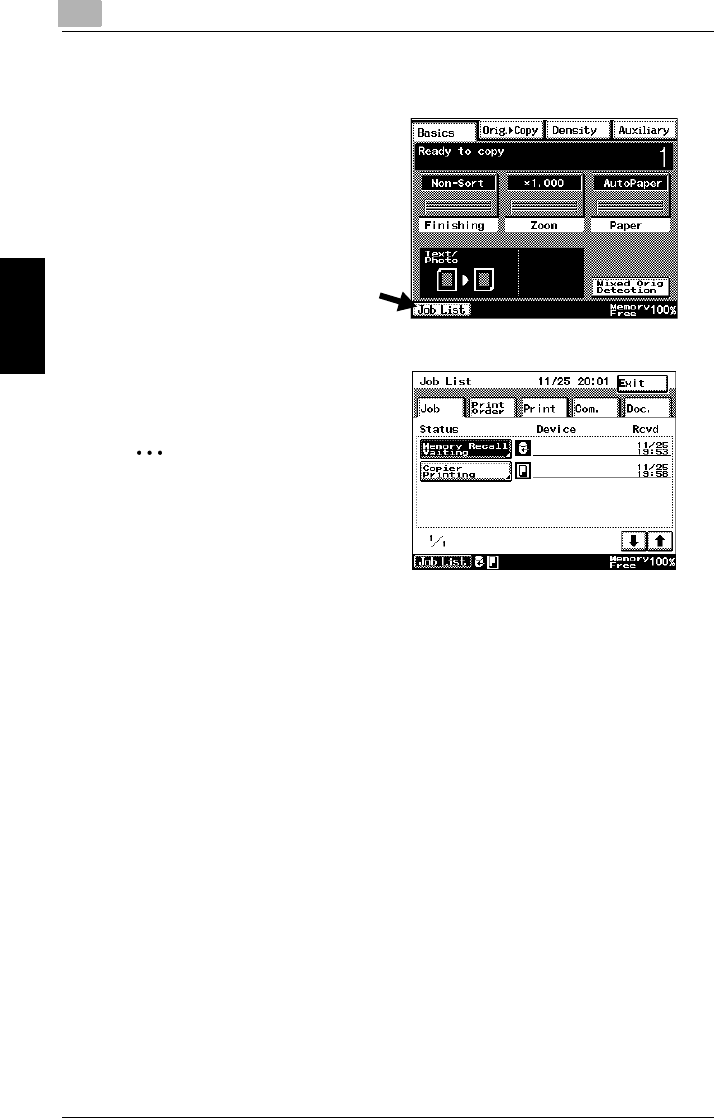
The operating status of the copier and the printing order of queued jobs can be
viewed from this screen.
There are five tabs in the Job List screen.
GJob:
Displays a list of operations that are being performed
GPrint Order:
Displays the order of documents that are being copied or printed or waiting to
be copied or printed
GPrint:
Displays the print status of documents being copied or printed
GCom.:
Not used
GDoc.:
Not used
33.7 Using the Touch Panel
3-18 Di2010/Di2510/Di3010/Di3510
Before Making Copies Chapter 3
To check the status of a job
1Touch [Job List].
2Select the job whose status you
wish to check.
✎
Tip
The statuses of up to four jobs
are displayed. Touch [↓] and
[↑] to view the status of a job
that is not displayed.
3Check the details, and then touch [Enter].
❍To delete the currently selected job, select that job and touch [Delete].

3.7 Using the Touch Panel 3
Di2010/Di2510/Di3010/Di3510 3-19
Before Making Copies Chapter 3
To check the printing order
1Touch [Job List].
2Touch [Print Order].
3Check the printing order.
❍Touch [↓] and [↑] to view other
parts of the list. Up to 8 items in
the printing order can be
displayed.
4After checking the necessary
information, touch [Enter].

33.7 Using the Touch Panel
3-20 Di2010/Di2510/Di3010/Di3510
Before Making Copies Chapter 3
To check/delete listed items from the Print screen
1Touch [Job List].
2Touch [Print].
3Select the job whose status you
wish to check.
❍Touch [↓] and [↑] to view other
parts of the list.
4After checking the necessary
information, touch [Enter].
✎
Note
To delete the job, select that job and touch [Delete].

3.7 Using the Touch Panel 3
Di2010/Di2510/Di3010/Di3510 3-21
Before Making Copies Chapter 3
Memory Recall
After printing of a copy job is finished, the image that was just copied can be printed
again without the document being loaded.
✎
Note
The memory recall feature is only available if the “Memory Recall” function (a
User’s Choice function in the Utility mode) is set to “ON”. For details, refer to
“Utility Mode Operations” in the Advanced Operations volume of the User Man-
ual.
✎
Tip
The memory recall feature cannot be used if any of the following have occurred.
- A new document has been scanned. (The [Start] key has been pressed.)
- The copier has been turned off.
- The [Panel Reset] key was pressed while printing was stopped.
To use the memory recall feature
1After copying is finished, touch
[Job List].
2Touch [Memory Recall Waiting].
The information for the job still
saved in the memory is displayed.

33.7 Using the Touch Panel
3-22 Di2010/Di2510/Di3010/Di3510
Before Making Copies Chapter 3
3Touch [Memory Recall]
❍To delete the job still saved in
the memory, touch [Delete].
✎
Tip
At this time, the Finishing set-
ting and the number of copies
can be changed.
4Press the [Start] key.
The copies are printed.
✎
Tip
After copying confidential documents, press the [Delete] key to erase the
data from the memory.

Basic Copy Operations Chapter 4
4
4Basic Copy
Operations

44.1 Making Basic Copies
4-2 Di2010/Di2510/Di3010/Di3510
Basic Copy Operations Chapter 4
4.1 Making Basic Copies
The procedure for making basic copies is described below.
1Position the document(s) to be copied.
❍For details, refer to “6 Original Documents”.
2Check that the [Copy] key
indicator is lit in green and that the
copier is in Copy mode.
❍The Basics screen appears in
the touch panel.
3Specify any necessary copy settings.
❍To change the paper size (paper drawer), touch [Paper].
For details, refer to “Selecting the Paper Setting” (page 5-22).
❍To change the zoom ratio, touch [Zoom].
For details, refer to “Specifying a Zoom Setting” (page 7-14).
❍To sort, staple or punch holes in the copies, touch [Finishing].
For details, refer to “Specifying Finishing Settings” (page 7-2).
❍To copy a book or copy while using less paper, touch [Orig. Ö Copy].
For details, refer to “Selecting the Orig. Ö Copy Settings” (page 7-18).
❍To change the density of the copy, touch [Density].
For details, refer to “Selecting a Copy Density” (page 7-33).

4.1 Making Basic Copies 4
Di2010/Di2510/Di3010/Di3510 4-3
Basic Copy Operations Chapter 4
❍To erase a margin in the copy, to insert interleave while copying onto
overhead projector transparencies, or to perform any other special
operation, touch [Auxiliary].
For details, refer to “Auxiliary Functions” in the Advanced Operations
volume of the User Manual.
4Use the 10-Key Pad to enter the
desired number of copies.
❍On the Di3510, up to 999
copies can be printed. On the
Di3010, Di2510 or Di2010 up
to 99 copies can be printed.
❍To change the setting, press
the [C] key, and then enter the
correct setting.
✎
Tip
A limit on the number of copies can be specified from the Administrator Man-
agement screen of the Utility mode.
For details, refer to “Administrator Management Operations” in the Ad-
vanced Operations volume of the User Manual.
5Press the [Start] key.
The copies are printed.
44.2 Stopping Copying
4-4 Di2010/Di2510/Di3010/Di3510
Basic Copy Operations Chapter 4
4.2 Stopping Copying
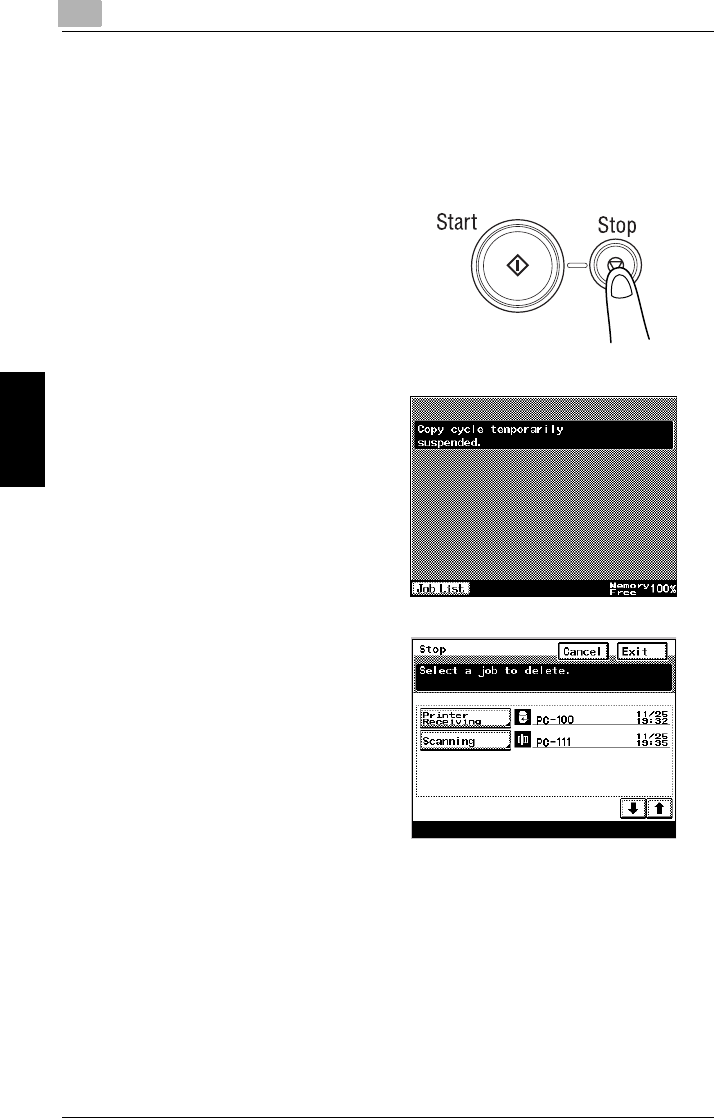
Follow the procedure described below to cancel a copy job.
To stop/restart/delete a copy job
1Press the [Stop] key while the job
is being printed.
Copying stops.
2The message “Copy cycle
temporarily suspended.” appears.
3To restart a job that has been
stopped, press the [Start] key.
Copying continues.
4To delete the stopped copy job,
select the button for the job that
you wish to delete.
The job is deleted.

4.3 Interrupting a Copy Job 4
Di2010/Di2510/Di3010/Di3510 4-5
Basic Copy Operations Chapter 4
4.3 Interrupting a Copy Job
The current copy job can be paused so that a copy of a different document can be
made.
This is convenient if you wish to quickly make copies of a short document while a
large job is being printed.
✎
Note
If certain functions are specified, it may not be possible to interrupt the copy job.
In addition, some functions are not available while a copy job is interrupted.
The copier will not enter Interrupt mode (pause copying by pressing the [Inter-
rupt] key) while a document is being scanned.
For details, refer to the “Function Combination Table” of “Appendix” in the Ad-
vanced Operations volume of the User Manual.
To interrupt copying
1Press the [Interrupt] key while a
job is being printed.
❍The indicator on the [Interrupt]
key lights up.
❍The message “Now in the interrupt mode.” appears.
❍The copy settings return to their defaults.
(The copy settings of the job before the interruption and the remaining
number of copies are recorded.)
❍If no operation is performed for one minute after the [Interrupt] key is
pressed, the Interrupt mode is automatically cancelled.
2Position the document(s) to be copied.
3Select the desired copy settings.
4Press the [Start] key.
❍Scanning of the document begins.
5When the interrupt mode copy has completed, press the [Interrupt] key.
The indicator on the [Interrupt] key goes off and the Interrupt mode is cancelled.
The copy settings for the job before copying was interrupted appear, and
copying of the job that was interrupted automatically continues.

44.4 Making Copies Using Accounts
4-6 Di2010/Di2510/Di3010/Di3510
Basic Copy Operations Chapter 4
4.4 Making Copies Using Accounts
Using the “Copy Track Mode” Parameter
The number of copies allowed for each registered account can be restricted.
The accounts can be managed by touching [Account management] on the Admin.
1 screen (displayed by touching [Admin. Management] on the Utility screen). The
Administrator Management settings should be specified by the administrator.
✎
Note
The Administrator Management parameters cannot be set by anyone without
knowledge of the administrator access code.
For details on the administrator access code, contact your service representa-
tive.
To make copies when accounts are specified
When managing using [100 Account 1] and [100 Account 2].
1If [100 Account 1] has been
specified, the screen shown at
right is displayed.
❍If [100 Account 2] has been
specified, pressing the
[Access] key will display the
screen shown at right.
2Enter the 6-digit access code using the 10-Key Pad.

4.4 Making Copies Using Accounts 4
Di2010/Di2510/Di3010/Di3510 4-7
Basic Copy Operations Chapter 4
3Press the [Access] key.
The Basics screen appears.
4Make copies using the desired
copy settings.
5When you are finished making
copies, press the [Access] key.
The access code input screen
appears again.
When managing using [1000 Account].
1Where [1000 Account] is selected,
the Account Number input screen
is displayed.
2Input the account number used (1
to 999) in the Account Number
Input Screen, and press the
[Access] key.
The Basics screen is displayed.
3Copying will take place using the desired copy mode.
4When copying has finished, press the [Access] key again.
The Settings Screen is displayed on the Account Number Input Screen.

44.4 Making Copies Using Accounts
4-8 Di2010/Di2510/Di3010/Di3510
Basic Copy Operations Chapter 4

Copy Paper Chapter 5
5
5Copy Paper
55.1 Paper Specifications
5-2 Di2010/Di2510/Di3010/Di3510
Copy Paper Chapter 5
5.1 Paper Specifications
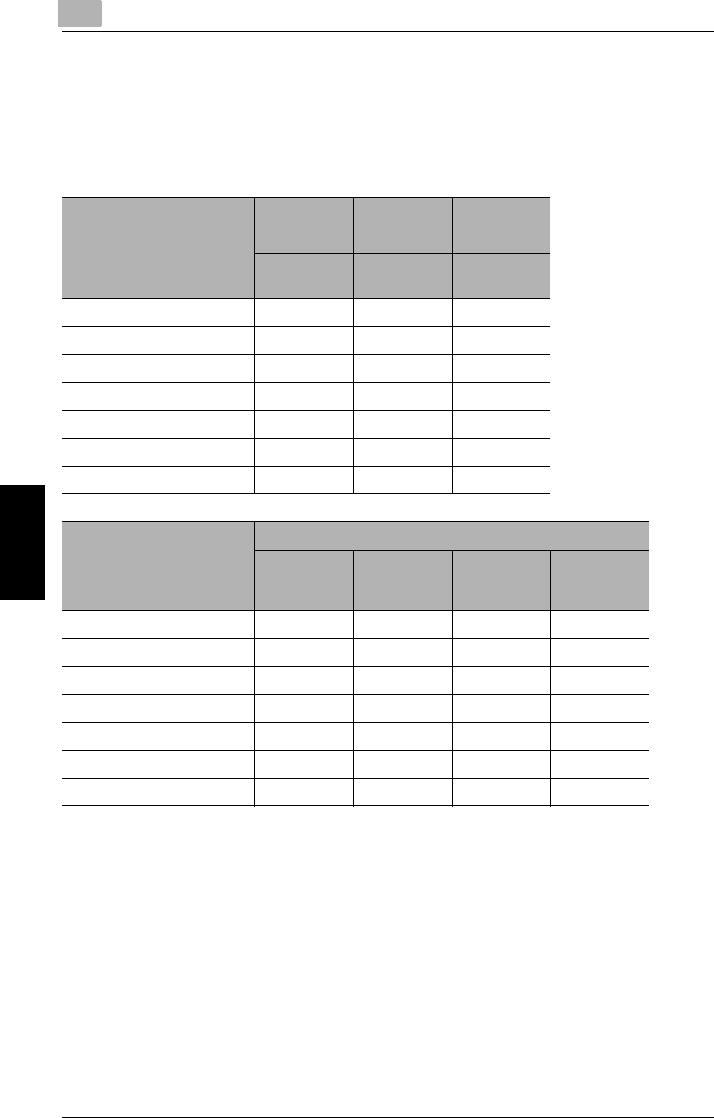
Use paper that meets the following specifications.
Paper Types
* LCC: Large capacity cabinet
2: Available —: Not available
Paper Type Plain Paper Special
Media
Recycled
Paper
Weight (lbs.)
Paper Source, Etc.
15 lbs. to 24
lbs.
24-1/4 lbs. to
55-3/4 lbs.
16 lbs. to 24
lbs.
Multiple bypass tray 222
1st paper drawer 2—2
2nd paper drawer 2—2
3rd paper drawer (LCC*) 2—2
3rd paper drawer 2—2
4th paper drawer 2—2
Double-sided copies 2—2
Paper Type Special Media
Overhead
Projector
Transparencies
Postcards Label Sheets Envelopes
Paper Source, Etc.
Multiple bypass tray 2222
1st paper drawer ————
2nd paper drawer ————
3rd paper drawer (LCC*) ————
3rd paper drawer ————
4th paper drawer ————
Double-sided copies ————

5.1 Paper Specifications 5
Di2010/Di2510/Di3010/Di3510 5-3
Copy Paper Chapter 5
Paper Sizes
Non-standard-sized paper
* LCC: Large capacity cabinet
—: Not available
Standard-sized paper
* LCC: Large capacity cabinet
2: Available —: Not available
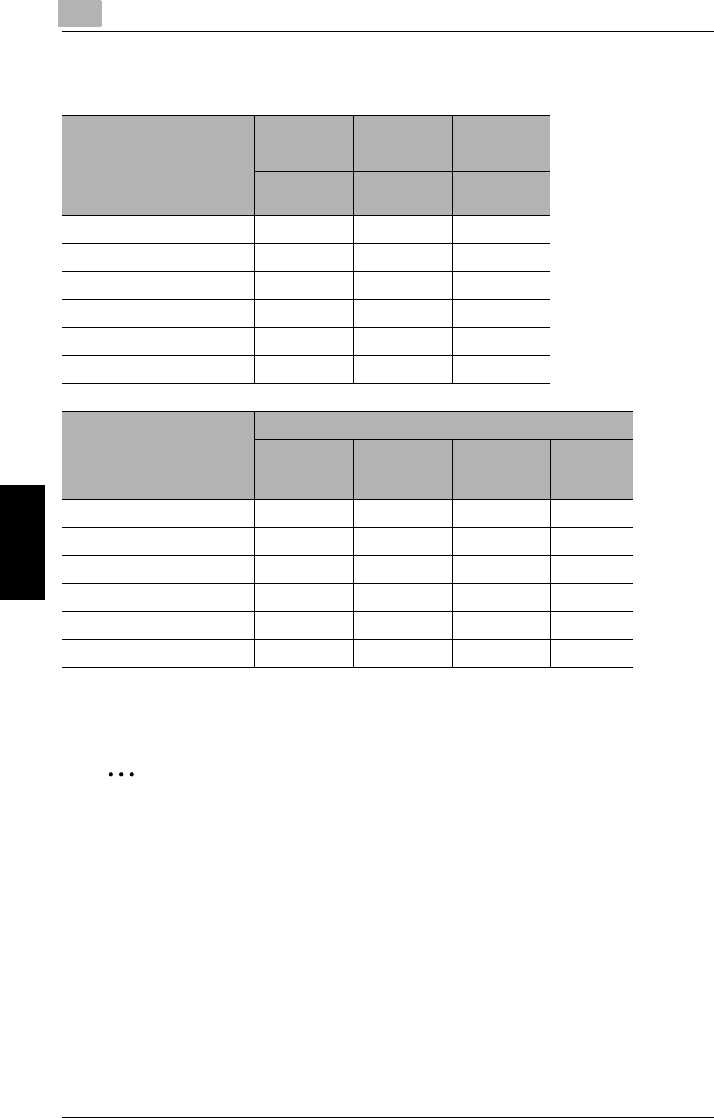
Paper Source Paper Width Paper Length
Multiple bypass tray 3-1/2 in. to 11-3/4 in. 5-1/2 in. to 17 in.
1st paper drawer ——
2nd paper drawer ——
3rd paper drawer (LCC*) ——
3rd paper drawer ——
4th paper drawer ——
Paper Size Ledger
L (11 in.
× 17 in.
L)
11×14
L
Legal L Letter C Letter L 8 × 10-
1/2 L
Invoice
C (5-1/2
in. × 8-
1/2 in.
C)
Invoice
L (5-1/2
in. × 8-
1/2 in.
L)
Paper Source, Etc.
Multiple bypass tray 22222222
1st paper drawer 222222—2
2nd paper drawer 222222—2
3rd paper drawer (LCC*) ———2————
3rd paper drawer 222222—2
4th paper drawer 222222—2
Double-sided copies 222222—2
Paper Size 10 × 8
C
10 × 8 L Executi
ve C
Executi
ve L
Paper Source, Etc.
Multiple bypass tray 2222
1st paper drawer ————
2nd paper drawer ————
3rd paper drawer (LCC*) ————
3rd paper drawer ————
4th paper drawer ————
Double-sided copies ————
55.1 Paper Specifications
5-4 Di2010/Di2510/Di3010/Di3510
Copy Paper Chapter 5
Paper Capacity
* LCC: Large capacity cabinet
—: Not available
✎
Note
The 3rd paper drawer (large capacity cabinet), the 3rd paper drawer and the 4th
paper drawer are optional.
If the optional duplex unit is used to make double-sided copies, only plain and
recycled paper can be used.
If the optional finisher is used to sort/group, punch holes and staple, only plain
paper can be used.
The paper size setting for the 3rd paper drawer (large capacity cabinet) can be
changed in order to load A4-size paper. Contact your service representative to
change the paper size setting.
Paper Type Plain Paper Special
Media
Recycled
Paper
Weight (lbs.)
Paper Source, Etc.
15 lbs. to 24
lbs.
24-1/4 lbs. to
55-3/4 lbs.
16 lbs. to 24
lbs.
Multiple bypass tray 150 sheets 100 sheets 150 sheets
1st paper drawer 500 sheets —500 sheets
2nd paper drawer 500 sheets —500 sheets
3rd paper drawer (LCC*) 2,500 sheets —2,500 sheets
3rd paper drawer 500 sheets —500 sheets
4th paper drawer 500 sheets —500 sheets
Paper Type Special Media
Paper Source, Etc.
Overhead
Projector
Transparencies
Postcards Label Sheets Envelopes
Multiple bypass tray 50 sheets 50 sheets 50 sheets 10 sheets
1st paper drawer ————
2nd paper drawer ————
3rd paper drawer (LCC*) ————
3rd paper drawer ————
4th paper drawer ————

5.2 Unsuitable Paper 5
Di2010/Di2510/Di3010/Di3510 5-5
Copy Paper Chapter 5
5.2 Unsuitable Paper
The following types of paper should not be used, otherwise decreased print quality,
paper misfeeds or damage to the machine may occur.
GOverhead projector transparencies that have already been fed through the ma-
chine
Even if the transparency is still blank, do not reuse it.
GPaper that has been printed on by a heat-transfer printer or an inkjet printer
GPaper that is either extremely thick or extremely thin
GFolded, curled, wrinkled, or torn paper
GPaper that has been left unwrapped for a long period of time
GDamp paper
GPerforated paper or paper with punched holes
GExtremely smooth or extremely rough paper, or paper with an uneven surface
GPaper that has been treated, such as carbon-backed, heat-sensitive or pres-
sure-sensitive paper
GPaper that has been decorated with foil or embossing
GPaper of various sizes
GPaper of a non-standard shape (not rectangular)
GPaper that is bound with glue, staples or paper clips
GPaper with labels attached
GPaper with ribbons, hooks, buttons, etc. attached
GCurled or wrinkled paper
GArt paper, coated paper or inkjet printer paper
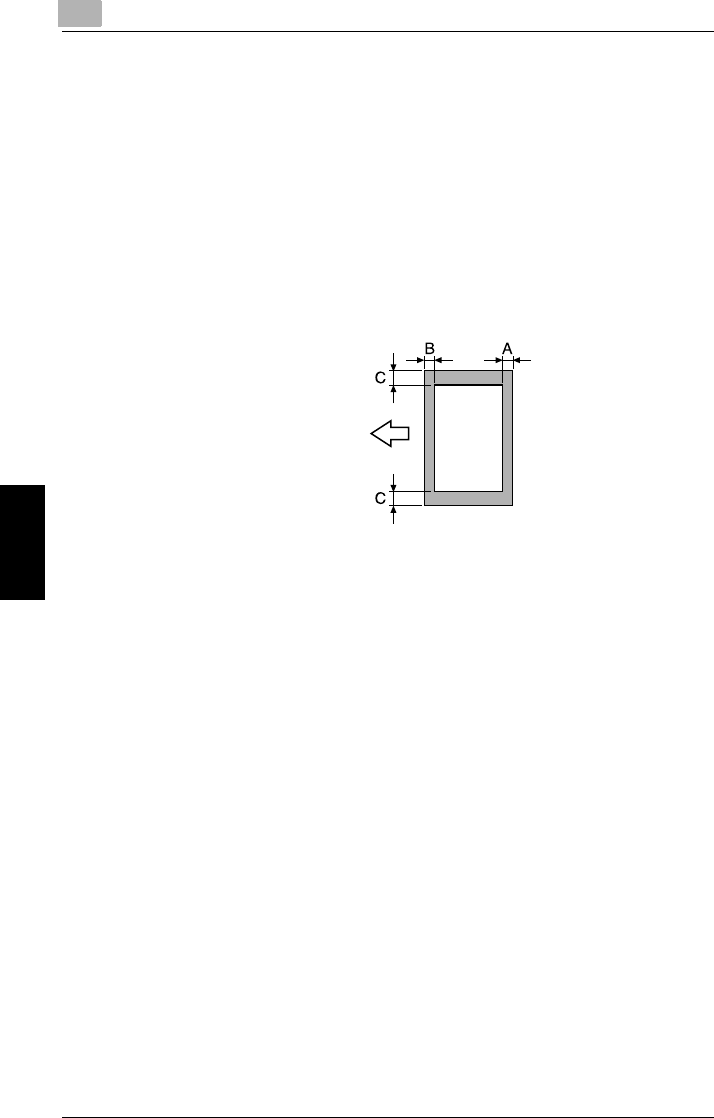
55.3 Print Area
5-6 Di2010/Di2510/Di3010/Di3510
Copy Paper Chapter 5
5.3 Print Area
Any part of the image within the area indicated below is not copied.
GA margin 0.16 ± 0.08 in. (4 ± 2 mm) (at full size) from the leading edge of the
paper (A)
GA margin 0.16 ± 0.08 in. (4 ± 2 mm) (at full size) from the trailing edge of the
paper (B)
GA margin 0.16 ± 0.08 in. (4 ± 2 mm) (at full size) on both sides of the paper (C)
For details on using the copier to print from a computer when the printer controller
is installed, refer to User Manual for the printer controller.
A: 0.16 ± 0.08 in. (4 ± 2 mm) (at full size)
B: 0.16 ± 0.08 in. (4 ± 2 mm) (at full size)
C: 0.16 ± 0.08 in. (4 ± 2 mm) (at full size)
Paper output direction

5.4 Paper Storage 5
Di2010/Di2510/Di3010/Di3510 5-7
Copy Paper Chapter 5
5.4 Paper Storage
Observe the following precautions when storing the paper.
GStore the paper in a location that meets the following requirements.
❍Not exposed to direct sunlight
❍Not exposed to a flame
❍Not exposed to high humidity
❍Not extremely dusty
GUnwrapped paper should be placed in a plastic bag and stored in a cool, dark
location.
GKeep paper out of the reach of children.

55.5 Automatically Selecting the Paper Source
5-8 Di2010/Di2510/Di3010/Di3510
Copy Paper Chapter 5
5.5 Automatically Selecting the Paper Source
If the selected paper drawer runs out of paper while a copy job is being printed and
a different paper drawer is loaded with paper meeting the following conditions, the
other paper drawer is automatically selected so printing can continue.
If the optional large capacity cabinet (LCC) is installed, a maximum of 3,650 copies
(with Letter C paper) can be made continuously.
This feature is convenient when printing a large number of pages or making a large
number of copies continuously.
Operating conditions
GThe paper is the same size.
GThe paper is the same type.
GThe paper is positioned in the same orientation.
When making a large number of copies continuously, load all paper drawers with
paper meeting the conditions listed above.
Order for Selecting Another Paper Drawer
When a different paper drawer is automatically selected, the next paper drawer in
the following list is chosen.
1st paper drawer → 2nd paper drawer → 3rd paper drawer → 4th paper drawer
→ Multiple bypass tray
✎
Note
When setting special media such as overhead projector transparencies or label
sheets into the Multiple Bypass Tray, the auto tray change function may be
started, and may supply the wrong paper.
We recommend that you make selections for special media in the User’s Choice
Special Settings. For details, refer to User’s Choice Settings in the Advanced
Operations volume of the User Manual.
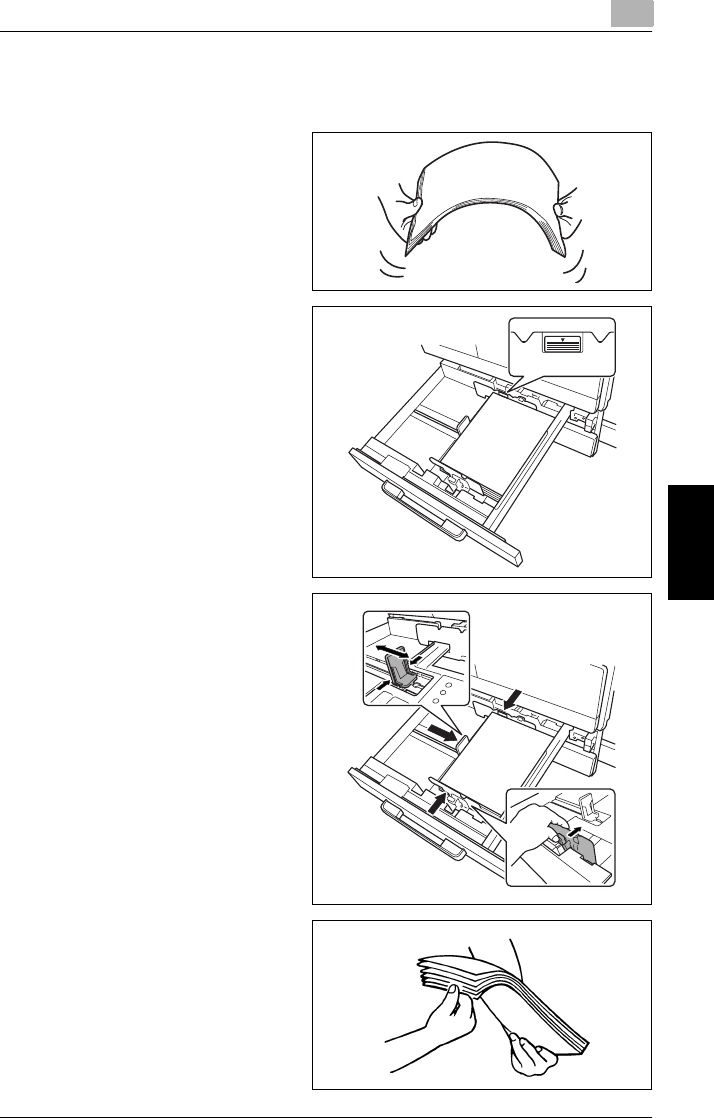
5.6 Loading Paper 5
Di2010/Di2510/Di3010/Di3510 5-9
Copy Paper Chapter 5
5.6 Loading Paper
While loading paper, be sure to observe the following precautions.
GIf the paper is curled, flatten it be-
fore loading it.
GDo not load so much paper that
the top of the stack is higher than
the Ä mark or exceeds the speci-
fied number of sheets.
GMake sure that the paper guides
are pushed up against the edges
of the paper.
GWhen loading additional paper, re-
move any paper remaining in the
drawer, place it on top of the new
paper, and then align the paper in
the stack well before loading it into
the drawer.

55.6 Loading Paper
5-10 Di2010/Di2510/Di3010/Di3510
Copy Paper Chapter 5
✎
Tip
We recommend replenishing the paper only after all of the paper in the drawer
has been used.
Loading Paper Into the 1st/2nd/3rd/4th Paper Drawer
Load paper into the 1st or 2nd paper drawer or the optional 2 way paper feed
cabinet and paper feed cabinet, (3rd or 4th paper drawer) as described below.
1Pull out the paper drawer to be
loaded with the paper.
2Slide the paper guides to fit the
size of the paper to be loaded.
✎
Note
Make sure that the paper
guides fit firmly in their slots.
3Load the paper into the drawer so
that the front side of the paper (the
side facing up when the package
was unwrapped) faces up.
✎
Note
Be careful not to touch the my-
lar.
Mylar
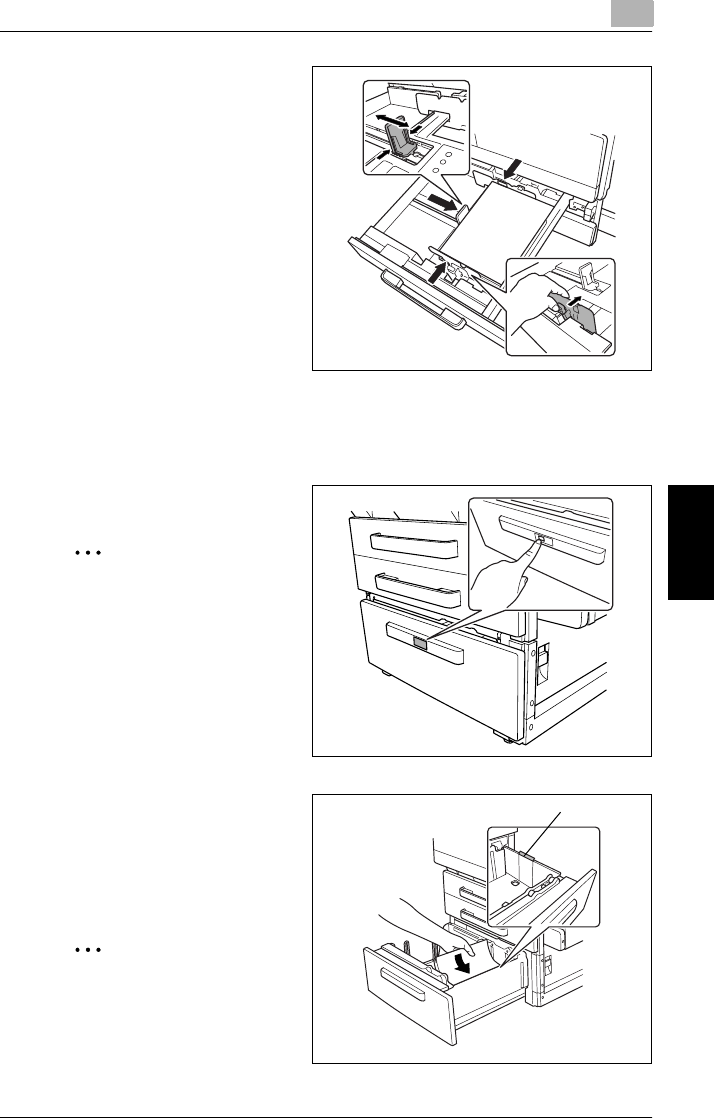
5.6 Loading Paper 5
Di2010/Di2510/Di3010/Di3510 5-11
Copy Paper Chapter 5
4Re-adjust the paper guides to fit
the size of the paper.
5Close the paper drawer.
Loading Paper Into the Large Capacity Cabinet
Load paper into the large capacity cabinet as described below.
1Press the drawer release button.
✎
Note
When the power is turned off,
the paper supply cassette can
not be released, even by push-
ing the drawer release button.
2Load the paper into the right side
of the drawer so that the front side
of the paper (the side facing up
when the package was
unwrapped) faces up.
✎
Note
Be careful not to touch the my-
lar.
Mylar

55.6 Loading Paper
5-12 Di2010/Di2510/Di3010/Di3510
Copy Paper Chapter 5
3Load the paper into the left side of
the drawer so that the front side of
the paper (the side facing up when
the package was unwrapped)
faces up.
Loading Paper Into the Multiple Bypass Tray
Use the multiple bypass tray when printing on plain paper, postcards, envelopes,
overhead projector transparencies and label sheets.
Copying onto the lower side of the set paper.
✎
Note
To set paper other than plain paper, settings must be made in the panel.
To load plain paper
1Open the multiple bypass tray.
When loading large-sized paper,
open the tray extension.
Tray extension
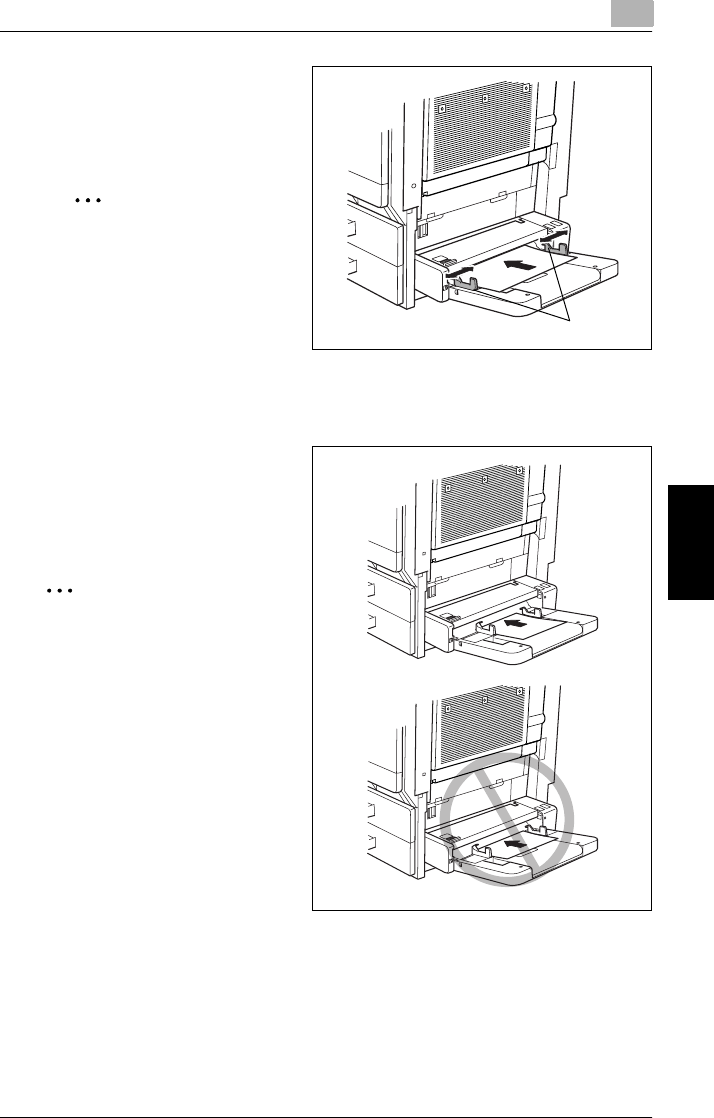
5.6 Loading Paper 5
Di2010/Di2510/Di3010/Di3510 5-13
Copy Paper Chapter 5
2Adjust the paper guides to fit the
size of the paper, and then insert
the paper as much as possible into
the feed slot.
✎
Note
Do not load so much paper
that the top of the stack is high-
er than the
M
mark.
Make sure that the paper
guides are pushed up against
the edges of the paper.
To load postcards
➜When loading postcards, load
them with the shorter side as the
leading edge, as shown in the
illustration, and with the side to be
printed on facing down.
✎
Note
Do not load more than 50 post-
cards.
Do not load postcards crosswise.
After you have loaded the paper,
set the paper type for the Multiple
Bypass Tray in the touch panel.
Paper guides
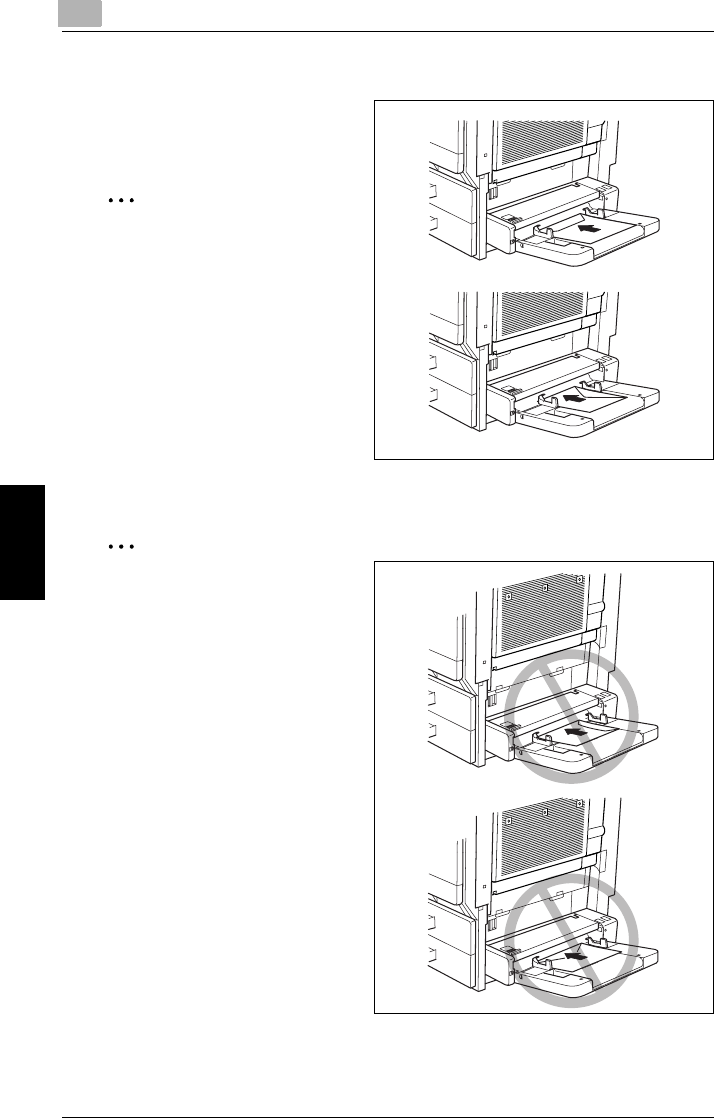
55.6 Loading Paper
5-14 Di2010/Di2510/Di3010/Di3510
Copy Paper Chapter 5
To load envelopes
➜When loading envelopes, load
them with the flap facing up, as
shown in the illustration.
✎
Note
Before loading envelopes, press
them down to make sure that all air
is removed, and make sure that
the folds of the flaps are firmly
pressed, otherwise the envelopes
may become wrinkled or a paper
misfeed may occur.
Do not load more than 10 enve-
lopes.
After you have loaded the paper,
set the paper type for the Multiple Bypass Tray in the touch panel.
✎
Note
Do not load envelopes crosswise.
Do not place the flap of envelopes
facing down.
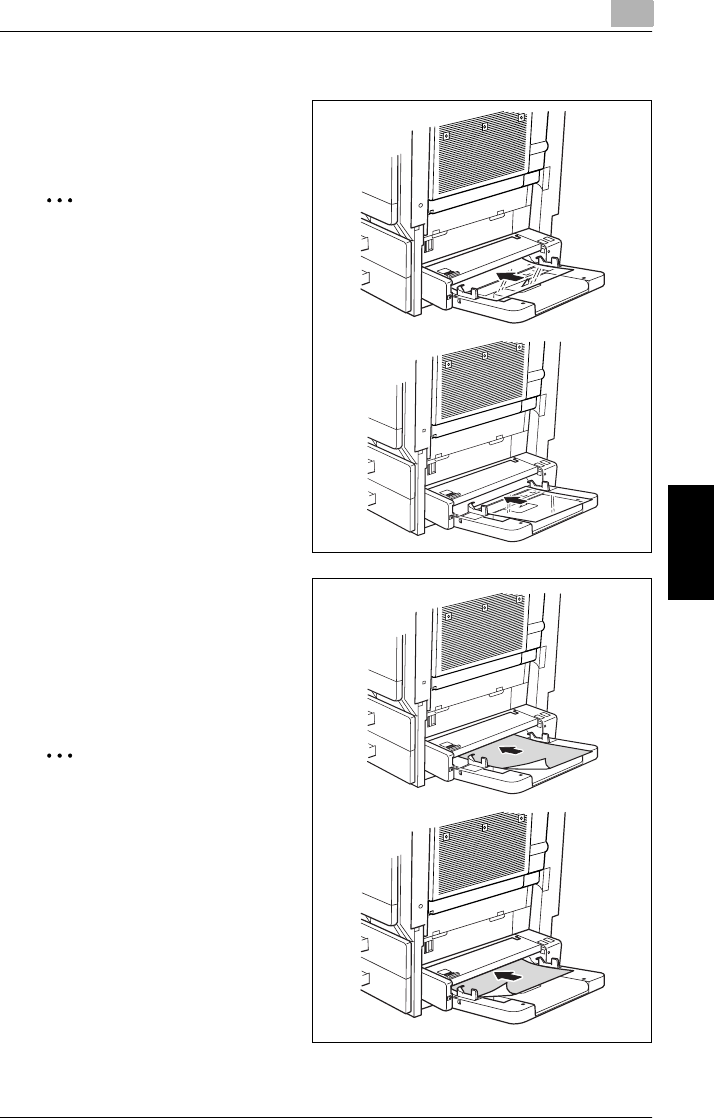
5.6 Loading Paper 5
Di2010/Di2510/Di3010/Di3510 5-15
Copy Paper Chapter 5
To load overhead projector transparencies
➜When loading overhead projector
transparencies, load them in the
same orientation as the document.
✎
Note
Do not load more than 50 trans-
parencies.
After you have loaded the paper,
set the paper type for the Multiple
Bypass Tray in the touch panel.
To load label sheets
1When loading label sheets, load
them in the same orientation as
the document.
2Place documents with the side to
be printed facing down.
✎
Note
Do not load more than 50 label
sheets.
After you have loaded the paper,
set the paper type for the Multiple
Bypass Tray in the touch panel.
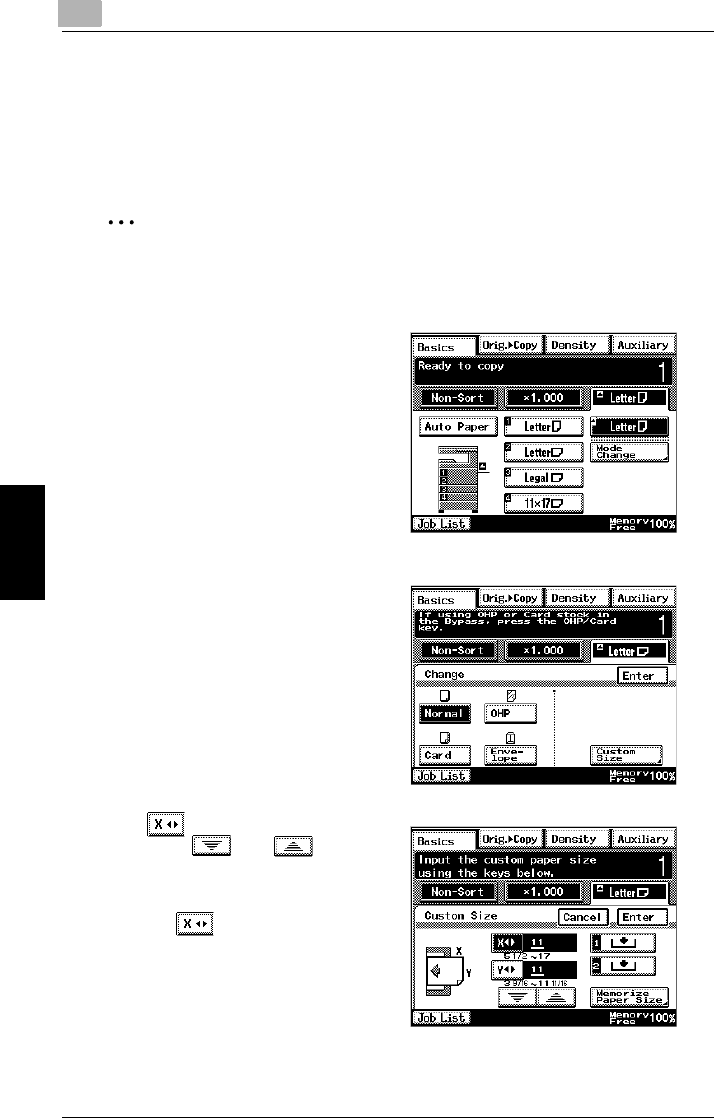
55.6 Loading Paper
5-16 Di2010/Di2510/Di3010/Di3510
Copy Paper Chapter 5
To set a non-standard (custom) paper size
If non-standard-sized paper is loaded, it will be necessary to enter the paper size.
Two non-standard paper sizes can be stored for easy selection. For details, refer to
the next section.
✎
Note
Where you do not wish to set the custom size, press the [Panel Reset] key, or
exceed the auto panel reset time, and this will reset to the default settings.
1Touch [Paper].
2Touch the button for the multiple
bypass tray, and then touch [Mode
Change].
3Touch [Custom Size].
The Custom Size screen appears.
4Touch and press the [C] key.
Then, touch and to
select the length of side X for the
paper that is loaded.
❍Touch so that the cursor
moves below the digit that you
wish to change.
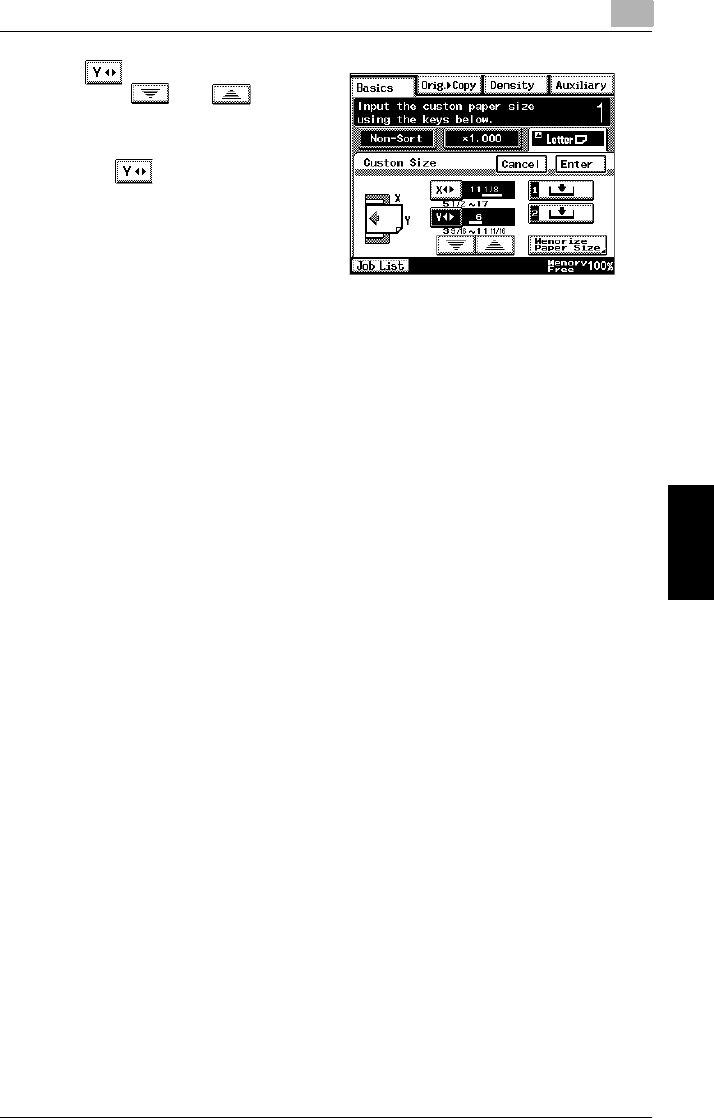
5.6 Loading Paper 5
Di2010/Di2510/Di3010/Di3510 5-17
Copy Paper Chapter 5
5Touch and press the [C] key.
Then, touch and to
select the length of side Y for the
paper that is loaded.
❍Touch until the cursor
moves below the digit that you
wish to change.
6Touch [Enter].
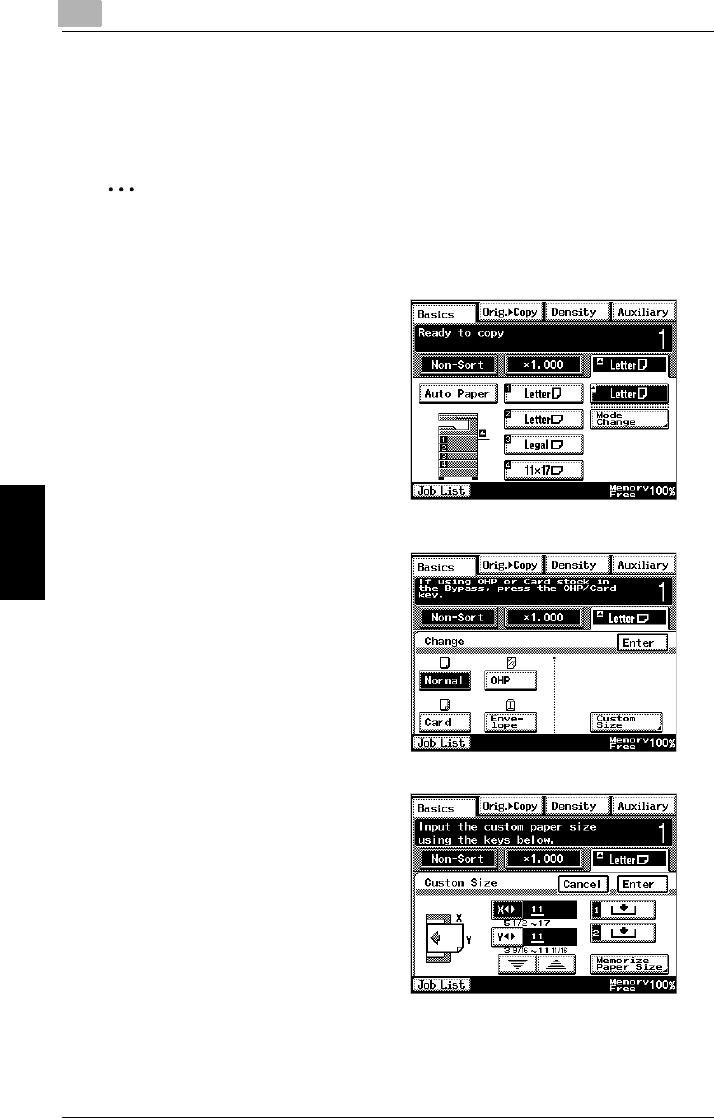
55.6 Loading Paper
5-18 Di2010/Di2510/Di3010/Di3510
Copy Paper Chapter 5
To store a non-standard (custom) paper size
Two non-standard paper sizes can be stored. Storing paper sizes that are used
often enables the paper size to be selected quickly.
✎
Note
Where you do not wish to set the custom size, press the [Panel Reset] key, or
exceed the auto panel reset time, and this will reset to the default settings.
1Touch the button for the multiple
bypass tray, and then touch [Mode
Change].
2Touch [Custom Size].
The Custom Size screen appears.
3Touch [Memorize Paper Size].
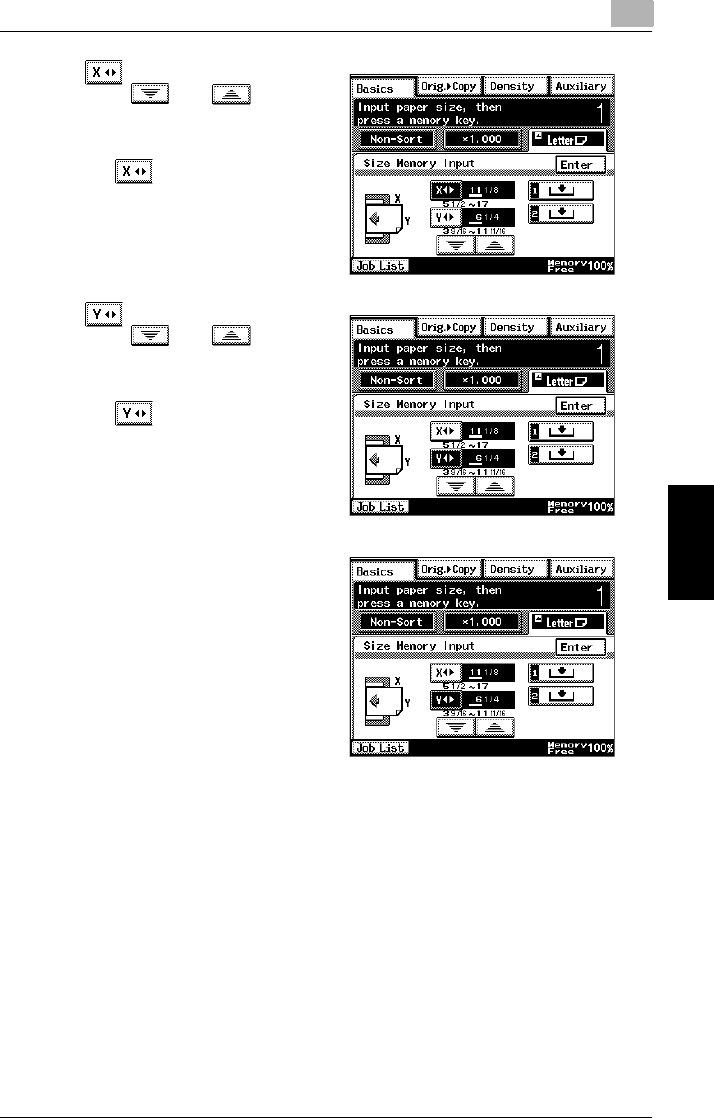
5.6 Loading Paper 5
Di2010/Di2510/Di3010/Di3510 5-19
Copy Paper Chapter 5
4Touch and press the [C] key.
Then, touch and to
select the length of side X for the
paper that is loaded.
❍Touch until the cursor
moves below the digit that you
wish to change.
5Touch and press the [C] key.
Then, touch and to
select the length of side Y for the
paper that is loaded.
❍Touch until the cursor
moves below the digit that you
wish to change.
6Touch [1] or [2].
❍If a paper size has already
been stored at the selected
button, the previously
assigned paper size is deleted
and the new paper size is
stored.
❍To store another custom paper
size, repeat steps 4, 5 and 6.
7Touch [Enter].
This completes the storing of custom paper sizes.
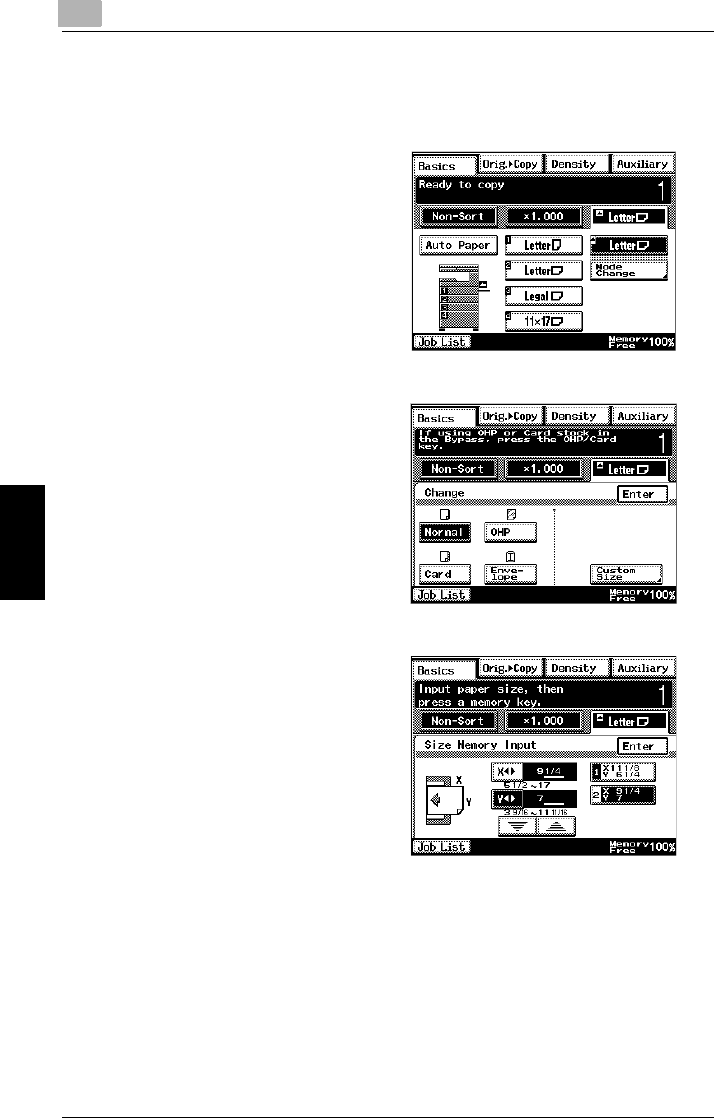
55.6 Loading Paper
5-20 Di2010/Di2510/Di3010/Di3510
Copy Paper Chapter 5
To select a stored non-standard (custom) paper size
Copies can be made using the stored custom paper size.
1Position the document(s) to be
copied.
2Touch [Paper].
3Touch the button for the multiple
bypass tray, and then touch [Mode
Change].
4Touch [Custom Size].
5Touch either [1] or [2] to select the
stored custom paper size, and
then touch [Enter].
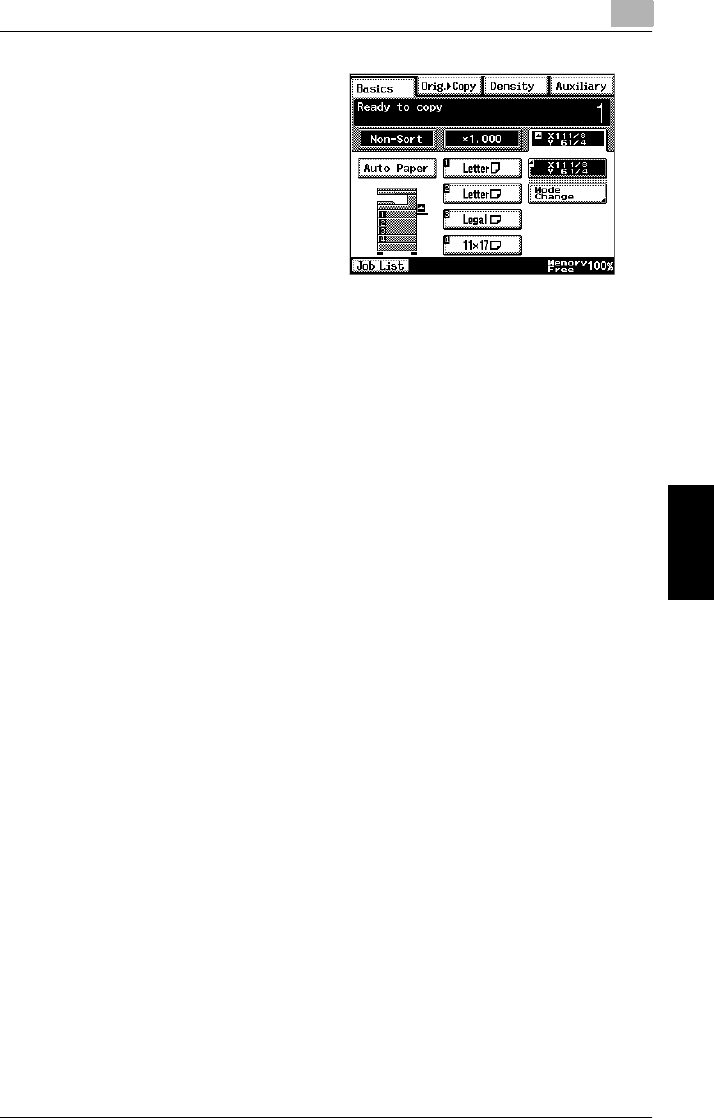
5.6 Loading Paper 5
Di2010/Di2510/Di3010/Di3510 5-21
Copy Paper Chapter 5
6Press the [Start] key.
The copies are printed.
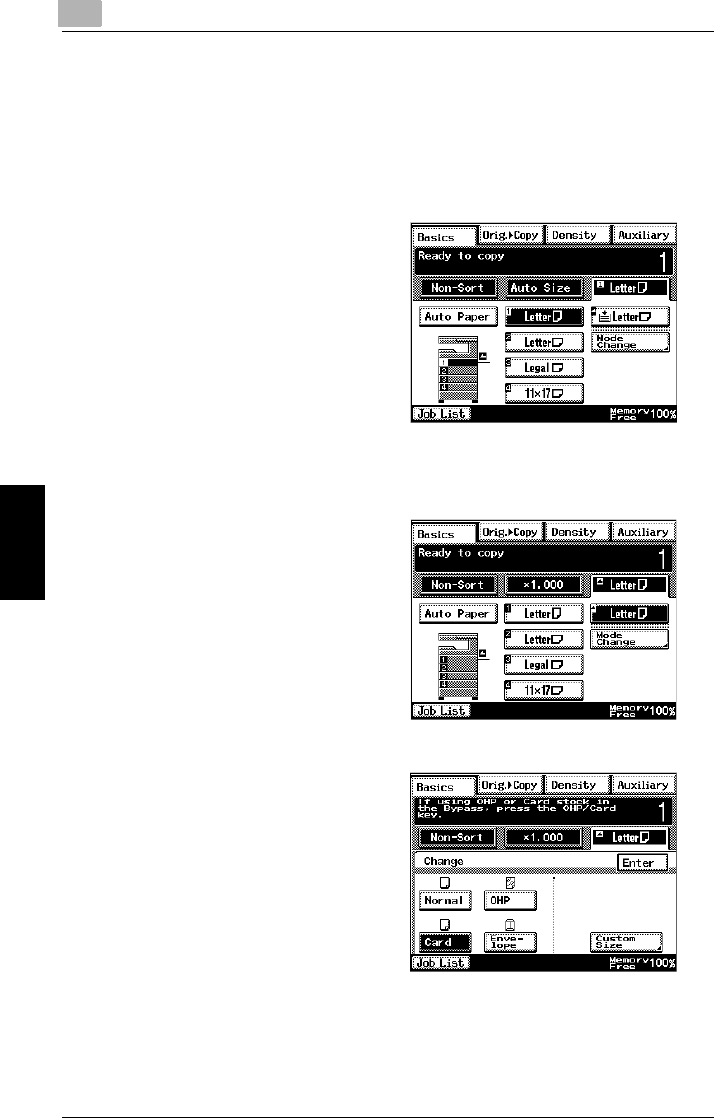
55.7 Selecting the Paper Setting
5-22 Di2010/Di2510/Di3010/Di3510
Copy Paper Chapter 5
5.7 Selecting the Paper Setting
The paper loaded into a paper drawer or the multiple bypass tray can be selected
for making copies.
To select paper loaded into a paper drawer
1Position the document(s) to be
copied.
2Touch [Paper].
3Touch the button for the paper
drawer loaded with the desired
size of paper, and then press the
[Start] key.
The copies are printed.
To select paper loaded into the multiple bypass tray
1Position the document(s) to be
copied.
2Touch [Paper].
3Touch the button for the multiple
bypass tray, and then touch [Mode
Change].
4Touch the button for the type of
paper loaded into the multiple
bypass tray, and then touch
[Enter].
5Press the [Start] key.
The copies are printed.

Original Documents Chapter 6
6
6Original
Documents
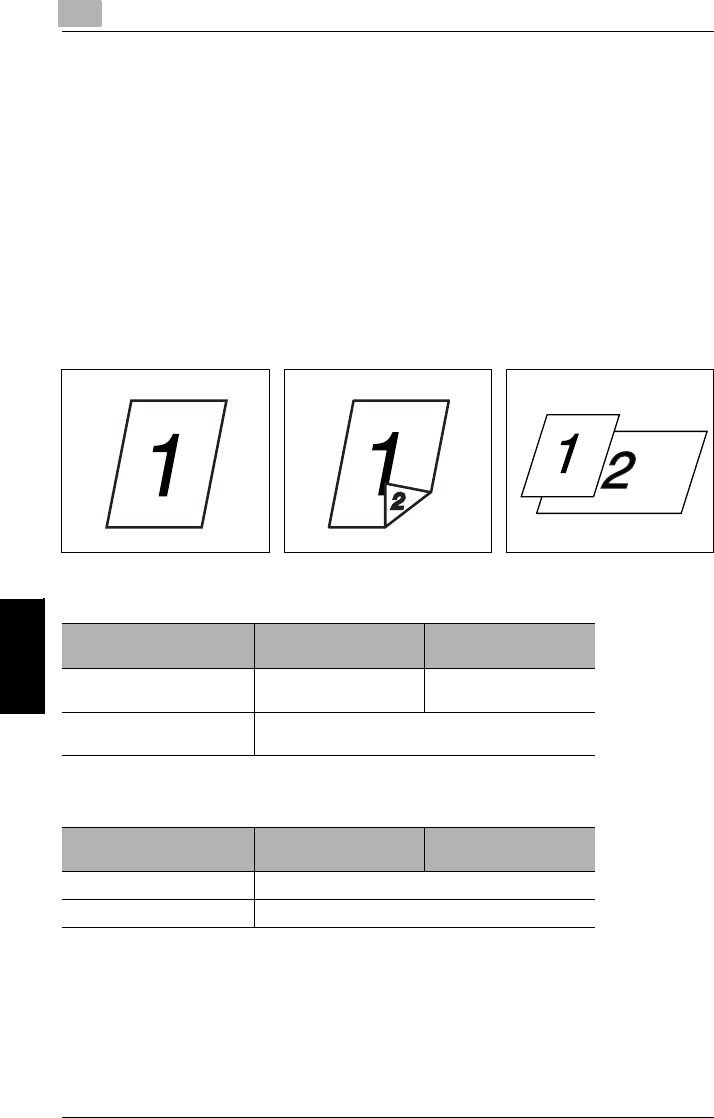
66.1 Feeding the Document
6-2 Di2010/Di2510/Di3010/Di3510
Original Documents Chapter 6
6.1 Feeding the Document
Using the Duplexing Document Feeder
The duplexing document feeder automatically feeds in, scans, then feeds out each
page of a multi-page document, one page at a time. The correct type of document
must be loaded in order for the duplexing document feeder to function properly.
If the correct type of document is not used, this may cause in a misfeed or damage
to the copier.
Document Types
Documents of Uniform Sizes
Documents of Mixed Original Detection mode
Single-sided documents Double-sided documents Documents of mixed sizes
Single-Sided Documents Double-Sided
Documents
Paper Type Plain Paper (9-1/4 lbs. to
34 lbs.)
Plain Paper (13-1/4 lbs.
to 34 lbs.)
Document Size 11 × 17 L, Legal L, Letter L, Letter C, Invoice L (5-1/
2 in. × 8-1/2 in. L), Invoice C (5-1/2 in. × 8-1/2 in. C)
Single-Sided Documents Double-Sided
Documents
Paper Type Plain Paper (13-1/4 lbs. to 34 lbs.)
Document Size Refer to "Mixed Width Document Sizes".

6.1 Feeding the Document 6
Di2010/Di2510/Di3010/Di3510 6-3
Original Documents Chapter 6
Mixed Width Document Sizes
2: Copying possible
—: Copying not possible
Precautions Concerning the Documents
The following types of documents should not be loaded into the duplexing docu-
ment feeder, otherwise paper misfeeds or damage to the document may occur. In-
stead, these types of documents should be positioned on the original glass.
Documents on special paper
GFolded documents (folded in half or fanned)
GHighly translucent or transparent documents, such as diazo photosensitive pa-
per
GDocuments with binder holes
GDocuments with many binder holes, such as loose-leaf paper
GCoated documents, such as heat-sensitive or carbon-backed paper
GInkjet printer paper
GDocuments that have just been printed with this copier
Documents on paper that cannot be fed
GCurled documents
GWrinkled or torn documents
GOverhead transparencies
If non-standard-sized paper is determined to be close to a standard size, copying
with the “Auto Paper” or “Auto Size” settings is possible.
Maximum Document
Width 11 in. 8-1/2 in. 5-1/2 in.
Mixed Width Document
Detection
11 ×17 L Letter C Legal L Letter L 8-1/2 × 5-
1/2 C
8-1/2 × 5-
1/2 L
11 in. 11 ×17 L 22————
Letter C 22————
8-1/2 in. Legal L 22222—
Letter L 22222—
8-1/2 × 5-
1/2 C
——222—
5-1/2 in. 8-1/2 × 5-
1/2 L
—————2
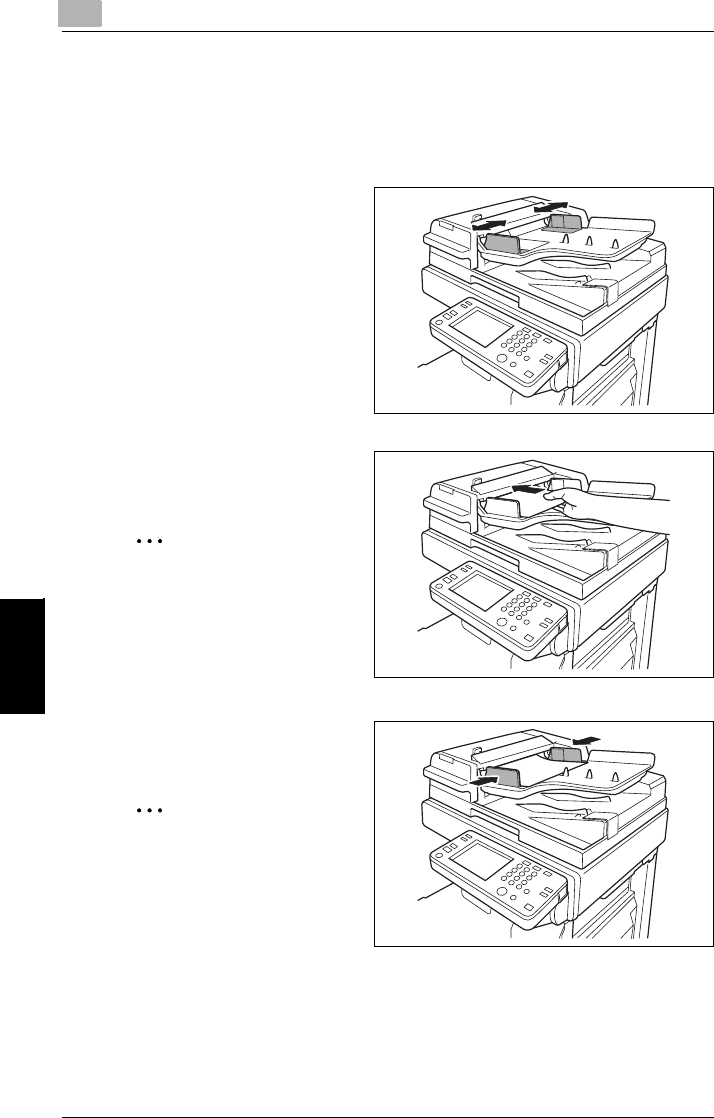
66.2 Feeding the Document Through the Duplexing Document Feeder
6-4 Di2010/Di2510/Di3010/Di3510
Original Documents Chapter 6
6.2 Feeding the Document Through the Duplexing Doc-
ument Feeder
Loading the Document
1Slide the adjustable document
guides to fit the size of the
document.
2Load the documents to be faxed or
copied face up.
✎
Note
A document consisting of up to
80 pages can be loaded. Do
not load so many pages that
the top of the stack is higher
than the
Ä
mark.
3Adjust the document guides to the
size of the document.
✎
Note
Be sure to load the document
correctly, otherwise the pages
may not be fed in straight.
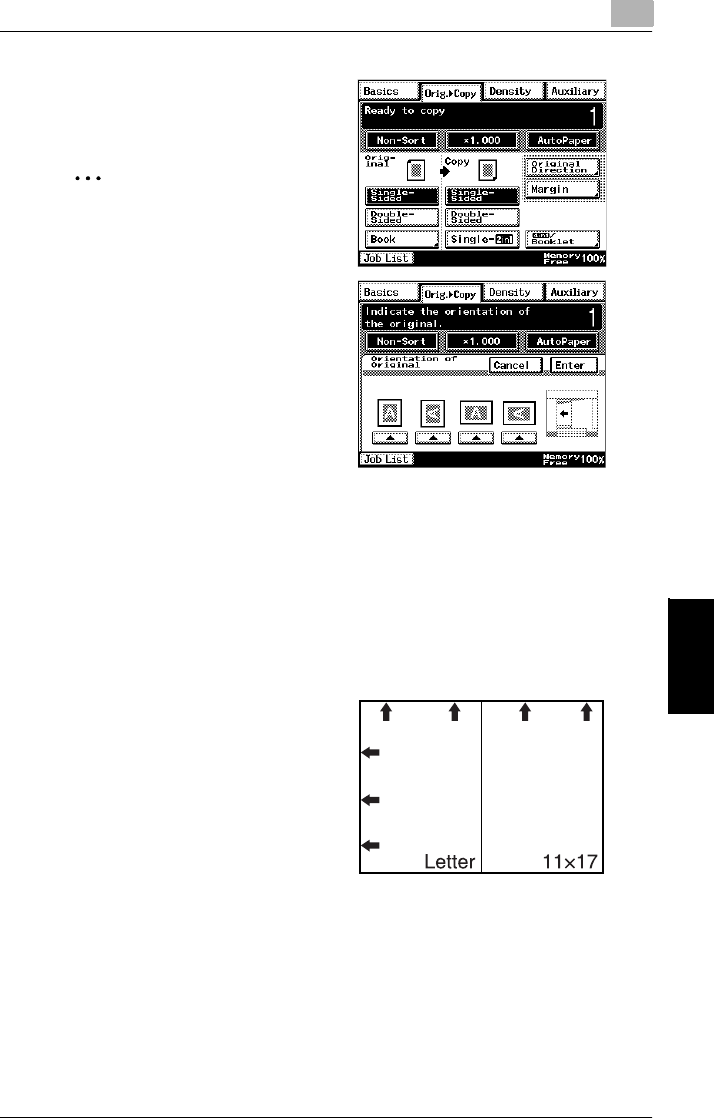
6.2 Feeding the Document Through the Duplexing Document Feeder 6
Di2010/Di2510/Di3010/Di3510 6-5
Original Documents Chapter 6
4Touch [Original Direction], and
then select the setting appropriate
for your document.
✎
Note
If the orientation of the docu-
ment is different from that of
the selected Original Direction
setting, certain copy opera-
tions, such as 2in1 or 4in1
copying, will not be printed cor-
rectly.
5Press the [Start] key.
The pages of the document are fed in, starting with the topmost page.
To load a document of mixed sizes (“Mixed Orig Detection” function)
With mixed width document detection, documents of various standard-sized pages
can be scanned and copied as a set using the duplexing document feeder.
1Stack the pages of the document
face up as shown, making sure
that all pages are aligned at the
top edge and on the left side.
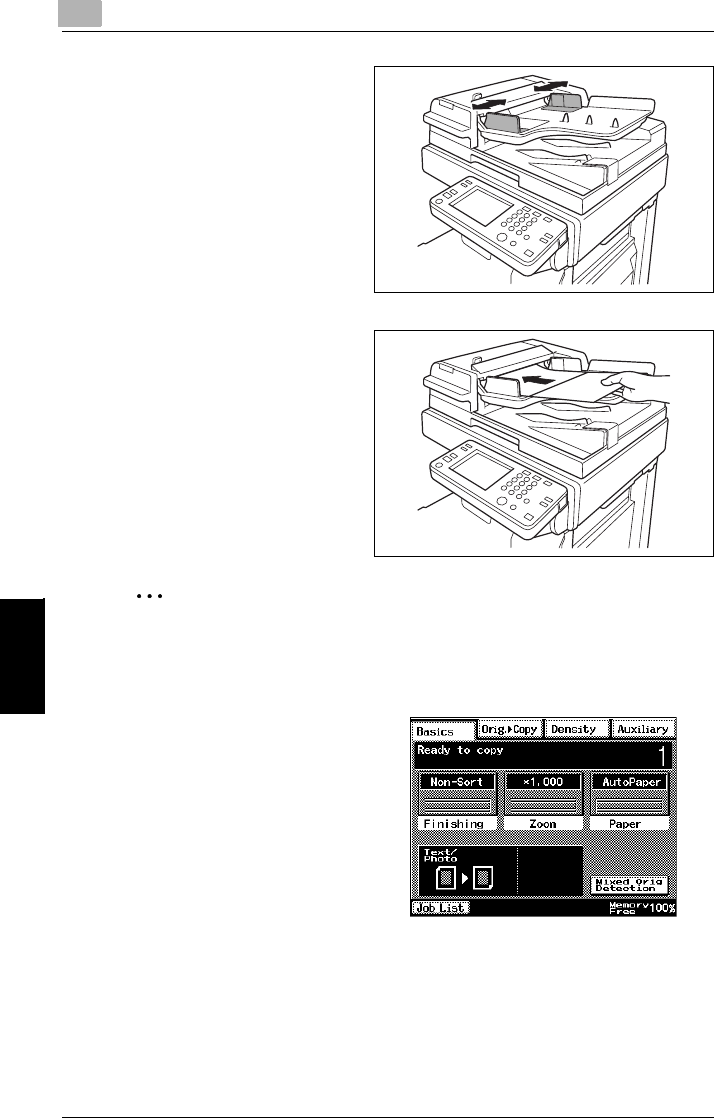
66.2 Feeding the Document Through the Duplexing Document Feeder
6-6 Di2010/Di2510/Di3010/Di3510
Original Documents Chapter 6
2Slide the adjustable document
guides to fit the size of the largest
page.
3Load the document so that all
pages are aligned along the
document guide toward the rear of
the copier.
4Adjust the document guides to the
size of the document.
❍Be sure to load the document
correctly, otherwise the pages
may not be fed in straight.
✎
Note
Certain document size combinations are not possible with the “Mixed Orig
Detection” function. For details, refer to page 6-3.
5In the Basics screen, touch [Mixed
Orig Detection].
6Select the desired copy settings,
and then press the [Start] key.
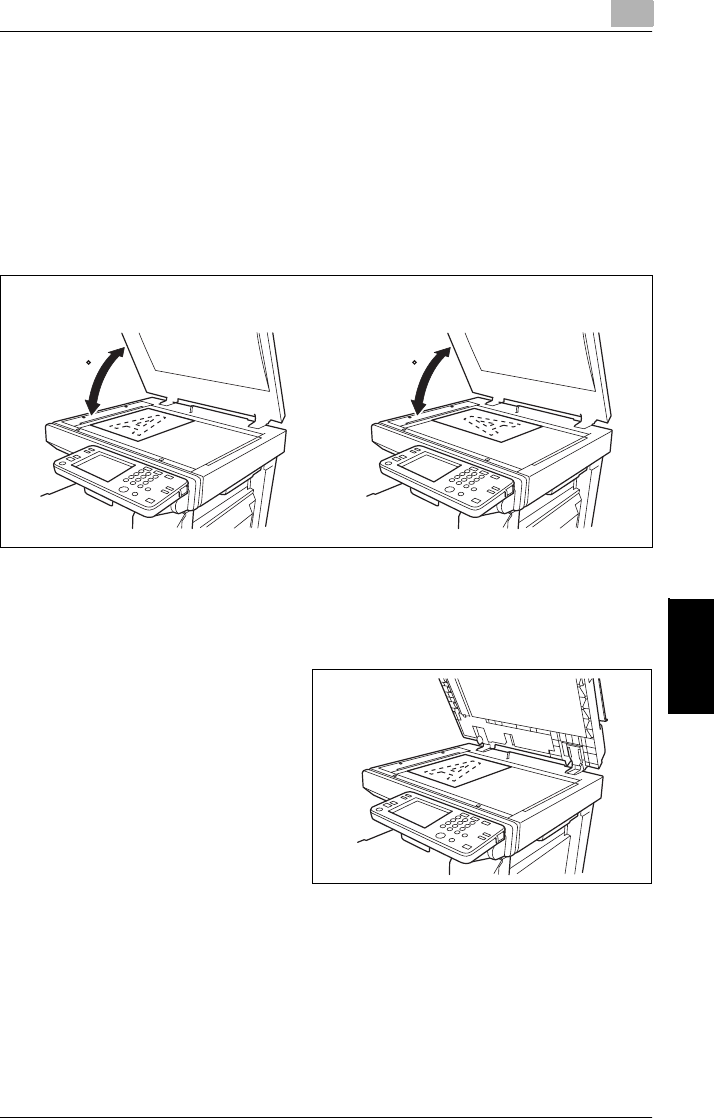
6.3 Positioning Documents on the Original Glass 6
Di2010/Di2510/Di3010/Di3510 6-7
Original Documents Chapter 6
6.3 Positioning Documents on the Original Glass
The procedure for positioning the document differs depending on the type of docu-
ment being copied, therefore be sure the document is positioned correctly. For in-
formation on using the duplexing document feeder, refer to “Feeding the Document
Through the Duplexing Document Feeder” (page 6-4).
When placing the document directly on the original glass, position it after lifting the
original cover or the duplexing document feeder 15° or more, as shown below.
To position sheet documents
Follow the procedure described below when copying plain paper or documents that
cannot be fed through the duplexing document feeder.
1Lift open the original cover, or the
duplexing document feeder if it is
installed, and then position the
document face down on the
original glass.
When loaded horizontally When loaded vertically
15 15

66.3 Positioning Documents on the Original Glass
6-8 Di2010/Di2510/Di3010/Di3510
Original Documents Chapter 6
2Position the document so that it
aligns with the arrow in the upper-
left corner of the document scales.
3Carefully close the original cover, or the duplexing document feeder if it is
installed.
To position transparent or translucent documents
Follow the procedure described below when copying documents, such as overhead
transparencies, tracing paper or diazo photosensitive paper.
1Lift open the original cover, or the
duplexing document feeder if it is
installed, and then position the
document face down on the
original glass.
2Position the document so that it
aligns with the arrow in the upper-
left corner of the document scales.
3Place a blank sheet of paper of the
same size over the document.
4Carefully close the original cover,
or the duplexing document feeder
if it is installed.
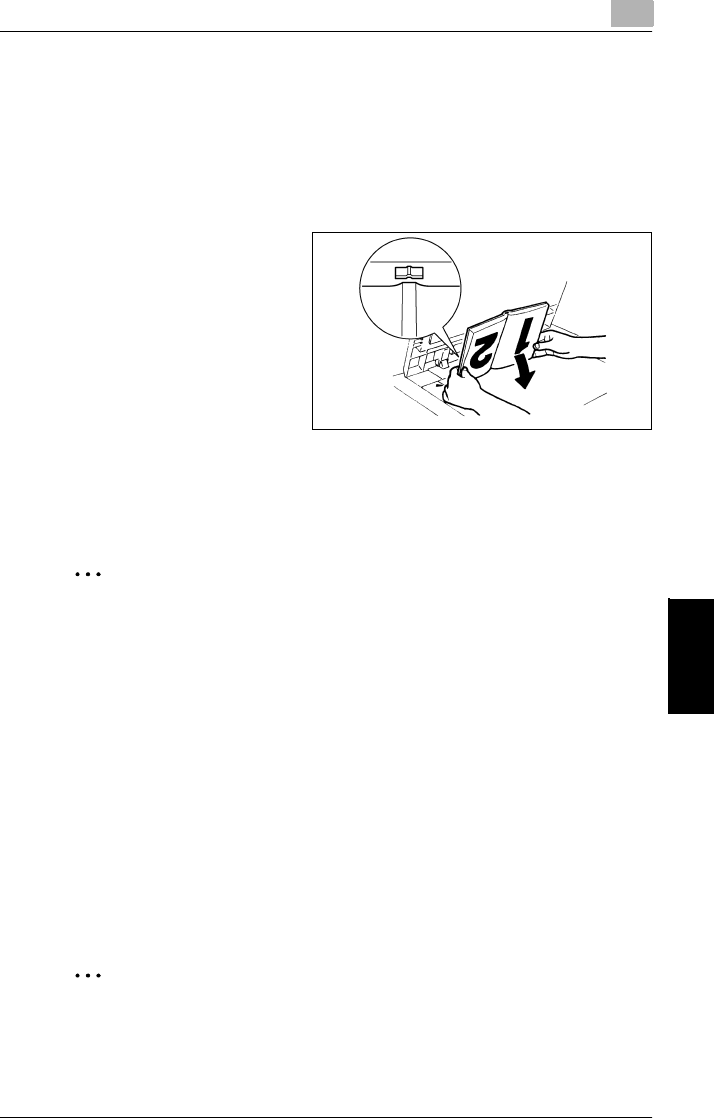
6.3 Positioning Documents on the Original Glass 6
Di2010/Di2510/Di3010/Di3510 6-9
Original Documents Chapter 6
To position books or magazines
Follow the procedure described below when copying bound documents, such as
books and magazines.
1In the Basics screen, touch [Orig. Ö Copy], and touch [Back]. Then, make other
settings.
2Lift open the original cover, or the
duplexing document feeder if it is
installed.
3Position the document face down
on the original glass, with the top
of the book toward the rear of the
copier and with the center of the
book aligned with the book mark in
the document scale.
4Carefully close the original cover, or the duplexing document feeder if it is
installed.
✎
Note
For thick documents, make the copy without closing the original cover or du-
plexing document feeder.
While the document is being scanned with the original cover or duplexing
document feeder open, do not look directly at the bright light that may shine
through the original glass.
If the document is not positioned correctly, the copies will not be printed in
the correct sequence.
Lift open the original cover, or the duplexing document feeder if it is installed,
15° or more.
Do not place objects exceeding 6-1/2 lbs. on the original glass.
If a book is placed on the original glass, do not press it down with extreme
force, otherwise the original glass may be damaged.
✎
Tip
For details, refer to “Copying a Book” on page 7-27.
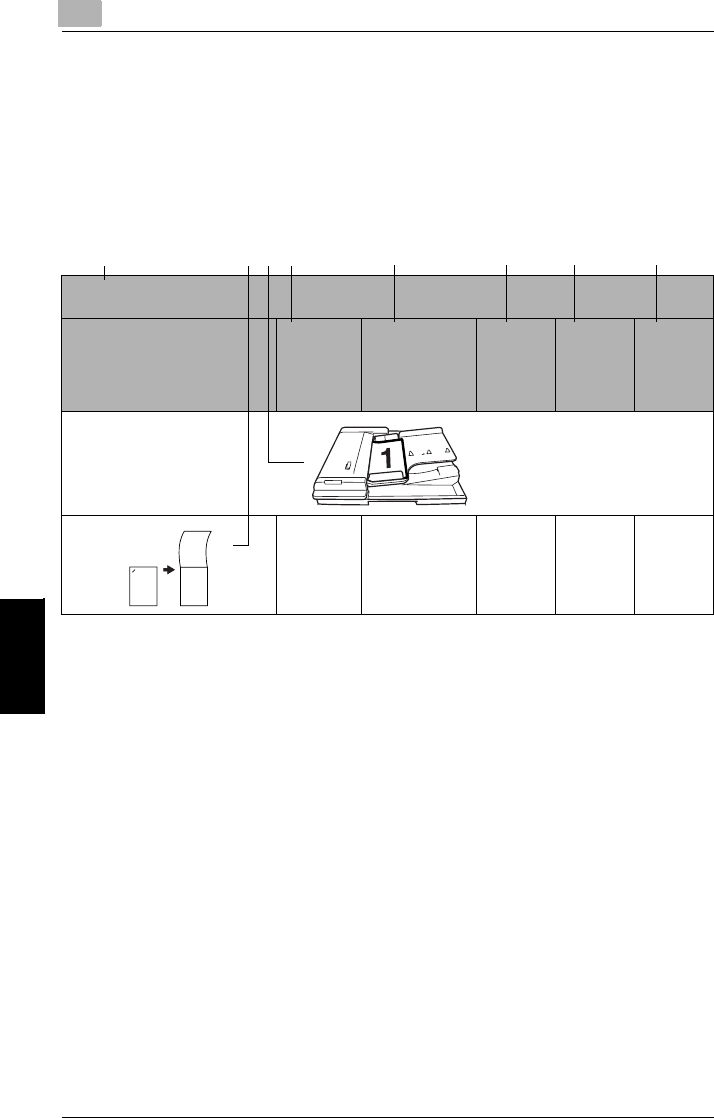
66.4 Loading Documents for Specific Applications
6-10 Di2010/Di2510/Di3010/Di3510
Original Documents Chapter 6
6.4 Loading Documents for Specific Applications
The most appropriate document feed method and copy settings for specific appli-
cations are described below.
For details on specifying the various copy settings, refer to “7 Specifying Copy Set-
tings”.
Description of the Table
1. Shows whether the original document and the desired copy are single-sided or
double-sided.
2. Shows how the copy will appear.
3. Shows how the document should be positioned. (page 6-4)
4. Shows the selected Copy setting. (Single-Sided, Double-Sided, 2in1 or 4in1) on
the Orig. Ö Copy screen (page 7-18)
5. Shows the selected Finishing setting. (Corner Staple, 2-Point Staple or Hole
Punch) (page 7-2)
6. Shows the selected Margin setting from the Orig. Ö Copy screen if a margin is
specified for the document. (page 7-24)
7. Shows the selected File Margin setting from the Auxiliary screen if a binding
margin is specified for the copy. (Advanced Operations volume)
8. Shows the stapling or hole-punching position that must be selected. (page 7-7
and page 7-9)
* A dash (—) indicates that no setting should be selected.
Single-Sided Document Ö
Single-Sided Copy
Desired Copy Copy
Setting
Finishing
Setting
Margin
Setting
(Orig. Ö
Copy
Screen)
File
Margin
Setting
(Auxiliary
Screen)
Binding
Position
Single-
Sided
Corner Staple ———
1234 5678
1
2
3
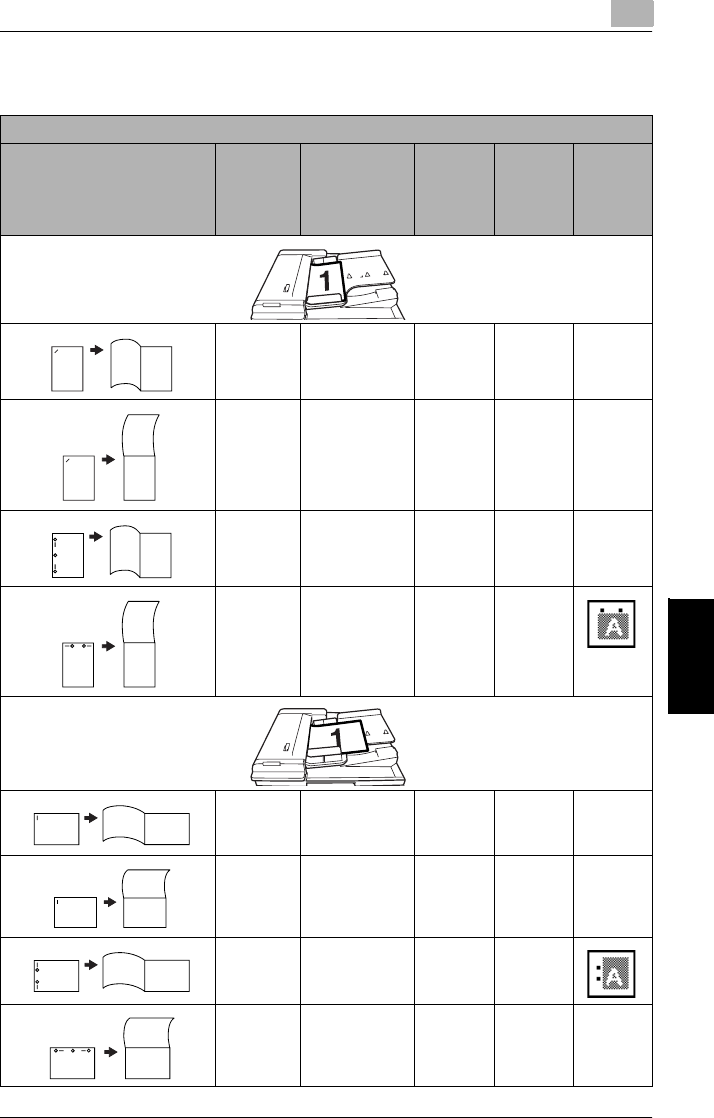
6.4 Loading Documents for Specific Applications 6
Di2010/Di2510/Di3010/Di3510 6-11
Original Documents Chapter 6
Single-Sided Documents
Single-Sided Document Ö Single-Sided Copy
Desired Copy Copy
Setting
Finishing
Setting
Margin
Setting
(Orig. Ö
Copy
Screen)
File
Margin
Setting
(Auxiliary
Screen)
Binding
Position
Single-
Sided
Corner Staple ———
Single-
Sided
Corner Staple ———
Single-
Sided
Hole Punch
2-Point Staple
———
Single-
Sided
Hole Punch
2-Point Staple
——
Single-
Sided
Corner Staple ———
Single-
Sided
Corner Staple ———
Single-
Sided
Hole Punch
2-Point Staple
——
Single-
Sided
Hole Punch
2-Point Staple
———
Document: Horizontal Paper
21
12
2
1
2
1
Document: Vertical Paper
12
12
2
1
2
1
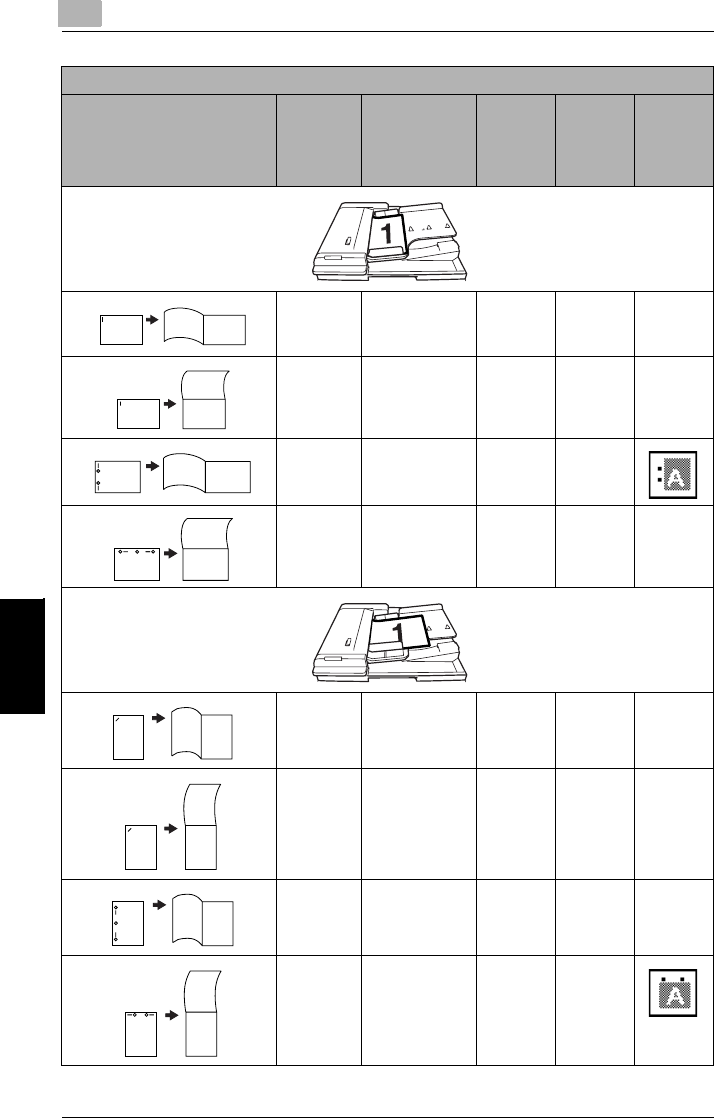
66.4 Loading Documents for Specific Applications
6-12 Di2010/Di2510/Di3010/Di3510
Original Documents Chapter 6
Single-
2in1
Corner Staple ———
Single-
2in1
Corner Staple ———
Single-
2in1
Hole Punch
2-Point Staple
——
Single-
2in1
Hole Punch
2-Point Staple
———
Single-
2in1
Corner Staple ———
Single-
2in1
Corner Staple ———
Single-
2in1
Hole Punch
2-Point Staple
———
Single-
2in1
Hole Punch
2-Point Staple
——
Single-Sided Document Ö Single-Sided Copy
Desired Copy Copy
Setting
Finishing
Setting
Margin
Setting
(Orig. Ö
Copy
Screen)
File
Margin
Setting
(Auxiliary
Screen)
Binding
Position
Document: Horizontal Paper
12 34
12 34
34
12
12 34
Document: Vertical Paper
1
2
3
4
1
2
3
4
3
4
1
2
1
2
3
4

6.4 Loading Documents for Specific Applications 6
Di2010/Di2510/Di3010/Di3510 6-13
Original Documents Chapter 6
Single-
4in1
Corner Staple ———
Single-
4in1
Corner Staple ———
Single-
4in1
Hole Punch
2-Point Staple
———
Single-
4in1
Hole Punch
2-Point Staple
——
Single-
4in1
Corner Staple ———
Single-
4in1
Corner Staple ———
Single-
4in1
Hole Punch
2-Point Staple
——
Single-
4in1
Hole Punch
2-Point Staple
———
Single-Sided Document Ö Single-Sided Copy
Desired Copy Copy
Setting
Finishing
Setting
Margin
Setting
(Orig. Ö
Copy
Screen)
File
Margin
Setting
(Auxiliary
Screen)
Binding
Position
Document: Horizontal Paper
12
34
56
78
12
34
56
78
56
78
12
34
56
78
12
34
Document: Vertical Paper
12
34
56
78
12
34
56
78
56
78
12
34
56
78
12
34
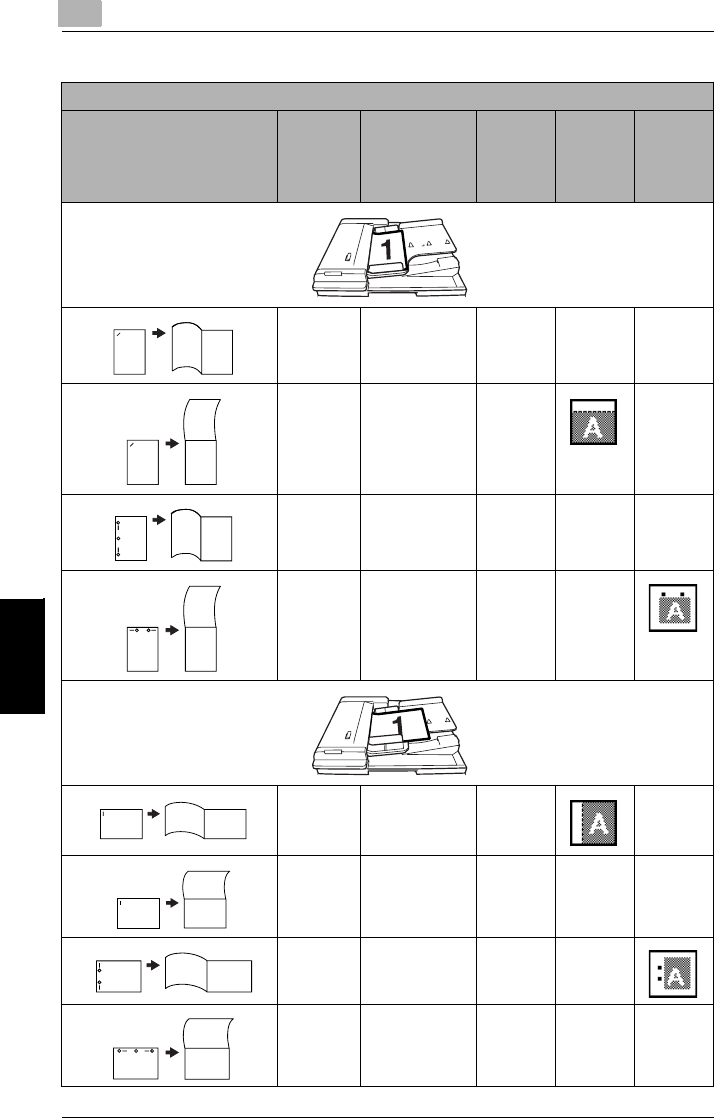
66.4 Loading Documents for Specific Applications
6-14 Di2010/Di2510/Di3010/Di3510
Original Documents Chapter 6
Single-Sided Document Ö Double-Sided Copy
Desired Copy Copy
Setting
Finishing
Setting
Margin
Setting
(Orig. Ö
Copy
Screen)
File
Margin
Setting
(Auxiliary
Screen)
Binding
Position
Double-
Sided
Corner Staple ———
Double-
Sided
Corner Staple ——
Double-
Sided
Hole Punch
2-Point Staple
———
Double-
Sided
Hole Punch
2-Point Staple
——
Double-
Sided
Corner Staple ——
Double-
Sided
Corner Staple ———
Double-
Sided
Hole Punch
2-Point Staple
——
Double-
Sided
Hole Punch
2-Point Staple
———
Document: Horizontal Paper
1
23
1
2
3
123
2
3
1
Document: Vertical Paper
123
1
2
3
23
1
2
3
1

6.4 Loading Documents for Specific Applications 6
Di2010/Di2510/Di3010/Di3510 6-15
Original Documents Chapter 6
Double-
2in1
Corner Staple ——
Double-
2in1
Corner Staple ———
Double-
2in1
Hole Punch
2-Point Staple
——
Double-
2in1
Hole Punch
2-Point Staple
———
Double-
2in1
Corner Staple ———
Double-
2in1
Corner Staple ——
Double-
2in1
Hole Punch
2-Point Staple
———
Double-
2in1
Hole Punch
2-Point Staple
——
Single-Sided Document Ö Double-Sided Copy
Desired Copy Copy
Setting
Finishing
Setting
Margin
Setting
(Orig. Ö
Copy
Screen)
File
Margin
Setting
(Auxiliary
Screen)
Binding
Position
Document: Horizontal Paper
12
34 56
12
3
5
4
6
12
34 56
12
3
5
4
6
Document: Vertical Paper
1
2
35
46
1
2
3
4
5
6
1
2
35
46
1
2
3
4
5
6
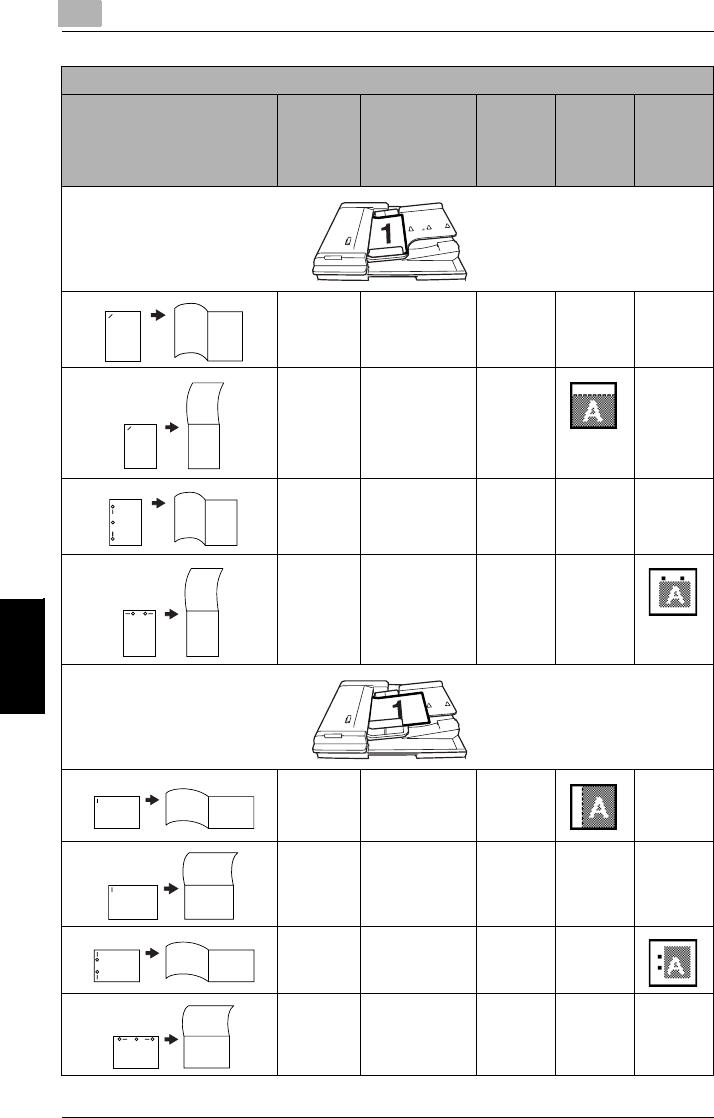
66.4 Loading Documents for Specific Applications
6-16 Di2010/Di2510/Di3010/Di3510
Original Documents Chapter 6
Double-
4in1
Corner Staple ———
Double-
4in1
Corner Staple ——
Double-
4in1
Hole Punch
2-Point Staple
———
Double-
4in1
Hole Punch
2-Point Staple
——
Double-
4in1
Corner Staple ——
Double-
4in1
Corner Staple ———
Double-
4in1
Hole Punch
2-Point Staple
——
Double-
4in1
Hole Punch
2-Point Staple
———
Single-Sided Document Ö Double-Sided Copy
Desired Copy Copy
Setting
Finishing
Setting
Margin
Setting
(Orig. Ö
Copy
Screen)
File
Margin
Setting
(Auxiliary
Screen)
Binding
Position
Document: Horizontal Paper
12
34
59
6
10
7
11
8
12
12
34
56
78
9
10
11 12
12
34
59
6
10
7
11
8
12
12
34
56
78
9
10
11 12
Document: Vertical Paper
12
34
56
789
10
11 12
12
34
56
78
9
10
11 12
56
789
10
11 12
12
34
56
78
9
10
11 12
12
34
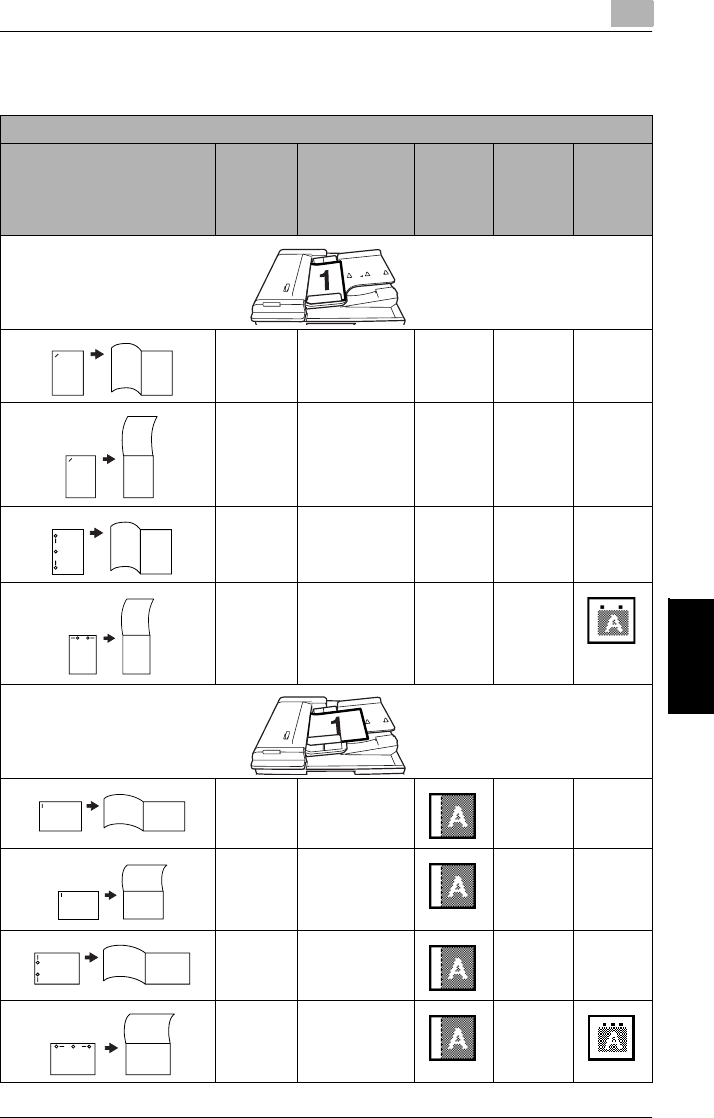
6.4 Loading Documents for Specific Applications 6
Di2010/Di2510/Di3010/Di3510 6-17
Original Documents Chapter 6
Left-Bound Double-Sided Documents
Left-Bound Double-Sided Document Ö Single-Sided Copy
Desired Copy Copy
Setting
Finishing
Setting
Margin
Setting
(Orig. Ö
Copy
Screen)
File
Margin
Setting
(Auxiliary
Screen)
Binding
Position
Single-
Sided
Corner Staple ———
Single-
Sided
Corner Staple ———
Single-
Sided
Hole Punch
2-Point Staple
———
Single-
Sided
Hole Punch
2-Point Staple
——
Single-
Sided
Corner Staple ——
Single-
Sided
Corner Staple ——
Single-
Sided
Hole Punch
2-Point Staple
——
Single-
Sided
Hole Punch
2-Point Staple
—
Document: Horizontal Paper
21
12
2
1
2
1
Document: Vertical Paper
12
1
2
2
1
2
1
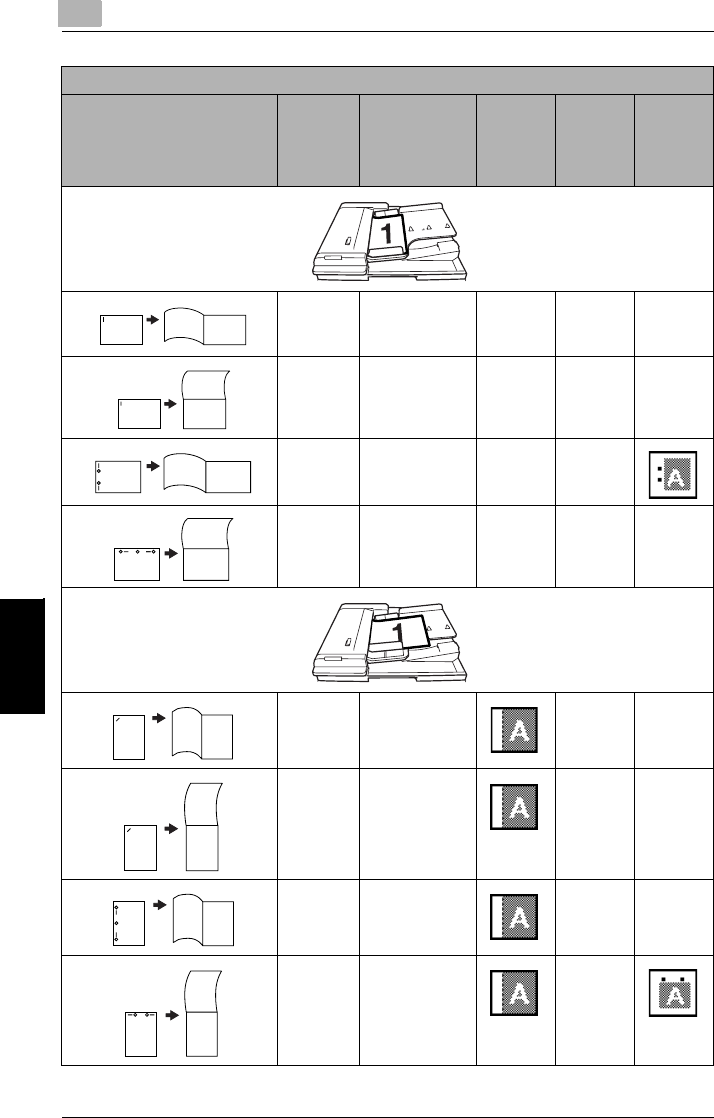
66.4 Loading Documents for Specific Applications
6-18 Di2010/Di2510/Di3010/Di3510
Original Documents Chapter 6
Single-
2in1
Corner Staple ———
Single-
2in1
Corner Staple ———
Single-
2in1
Hole Punch
2-Point Staple
——
Single-
2in1
Hole Punch
2-Point Staple
———
Single-
2in1
Corner Staple ——
Single-
2in1
Corner Staple ——
Single-
2in1
Hole Punch
2-Point Staple
——
Single-
2in1
Hole Punch
2-Point Staple
—
Left-Bound Double-Sided Document Ö Single-Sided Copy
Desired Copy Copy
Setting
Finishing
Setting
Margin
Setting
(Orig. Ö
Copy
Screen)
File
Margin
Setting
(Auxiliary
Screen)
Binding
Position
Document: Horizontal Paper
12 34
12 34
34
12
12 34
Document: Vertical Paper
1
2
3
4
1
2
3
4
3
4
1
2
1
2
3
4
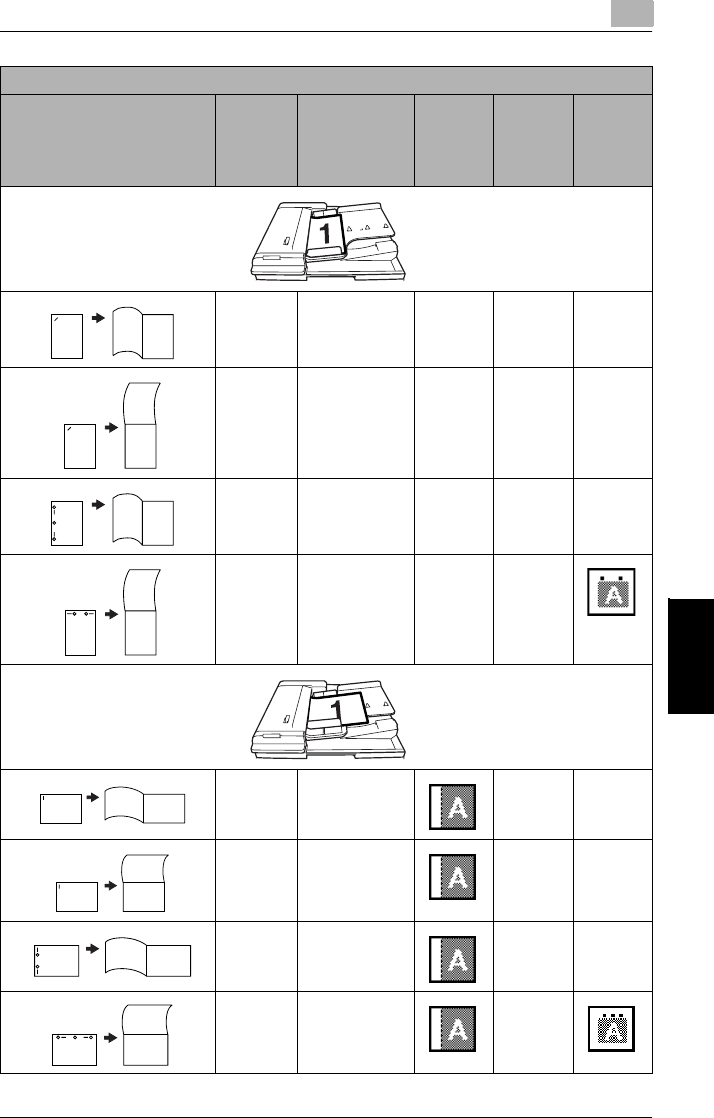
6.4 Loading Documents for Specific Applications 6
Di2010/Di2510/Di3010/Di3510 6-19
Original Documents Chapter 6
Single-
4in1
Corner Staple ———
Single-
4in1
Corner Staple ———
Single-
4in1
Hole Punch
2-Point Staple
———
Single-
4in1
Hole Punch
2-Point Staple
——
Single-
4in1
Corner Staple ——
Single-
4in1
Corner Staple ——
Single-
4in1
Hole Punch
2-Point Staple
——
Single-
4in1
Hole Punch
2-Point Staple
—
Left-Bound Double-Sided Document Ö Single-Sided Copy
Desired Copy Copy
Setting
Finishing
Setting
Margin
Setting
(Orig. Ö
Copy
Screen)
File
Margin
Setting
(Auxiliary
Screen)
Binding
Position
Document: Horizontal Paper
12
34
56
78
12
34
56
78
56
78
12
34
56
78
12
34
Document: Vertical Paper
12
34
56
78
12
34
56
78
56
78
12
34
56
78
12
34
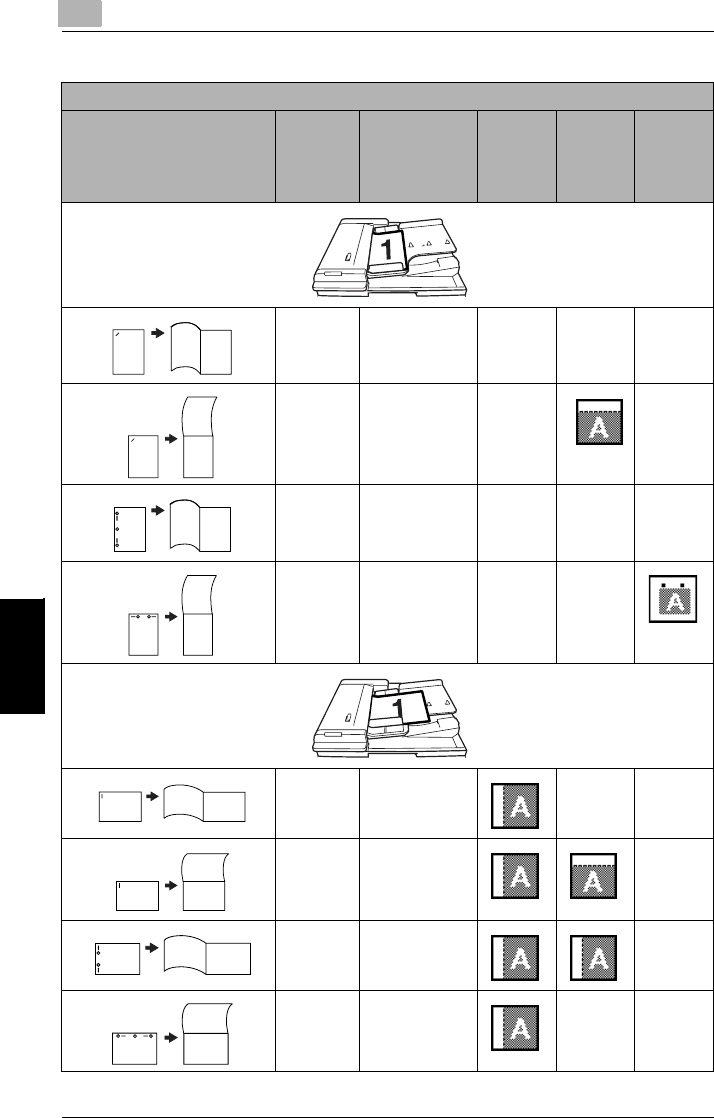
66.4 Loading Documents for Specific Applications
6-20 Di2010/Di2510/Di3010/Di3510
Original Documents Chapter 6
Left-Bound Double-Sided Document Ö Double-Sided Copy
Desired Copy Copy
Setting
Finishing Setting Margin
Setting
(Orig. Ö
Copy
Screen)
File
Margin
Setting
(Auxiliary
Screen)
Binding
Position
Double-
Sided
Corner Staple ———
Double-
Sided
Corner Staple ——
Double-
Sided
Hole Punch
2-Point Staple
———
Double-
Sided
Hole Punch
2-Point Staple
——
Double-
Sided
Corner Staple ——
Double-
Sided
Corner Staple —
Double-
Sided
Hole Punch
2-Point Staple
—
Double-
Sided
Hole Punch
2-Point Staple
——
Document: Horizontal Paper
1
23
1
2
3
123
2
3
1
Document: Vertical Paper
123
1
2
3
23
1
2
3
1
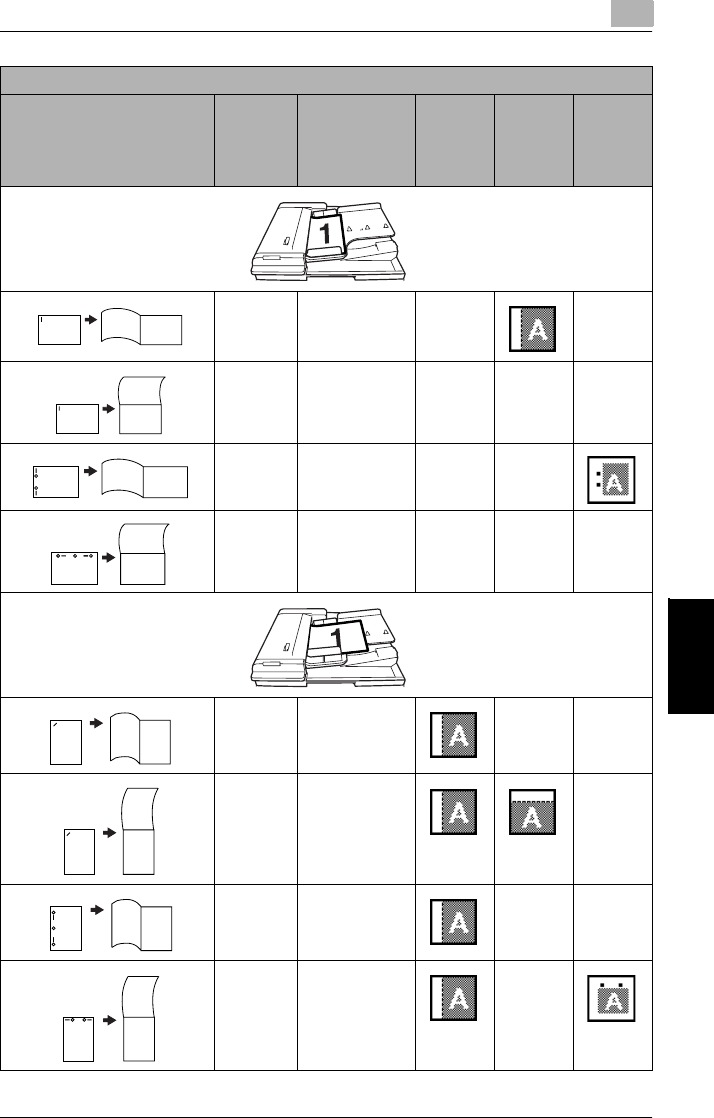
6.4 Loading Documents for Specific Applications 6
Di2010/Di2510/Di3010/Di3510 6-21
Original Documents Chapter 6
Double-
2in1
Corner Staple ——
Double-
2in1
Corner Staple ———
Double-
2in1
Hole Punch
2-Point Staple
——
Double-
2in1
Hole Punch
2-Point Staple
———
Double-
2in1
Corner Staple ——
Double-
2in1
Corner Staple —
Double-
2in1
Hole Punch
2-Point Staple
——
Double-
2in1
Hole Punch
2-Point Staple
—
Left-Bound Double-Sided Document Ö Double-Sided Copy
Desired Copy Copy
Setting
Finishing Setting Margin
Setting
(Orig. Ö
Copy
Screen)
File
Margin
Setting
(Auxiliary
Screen)
Binding
Position
Document: Horizontal Paper
12
34 56
12
3
5
4
6
12
34 56
12
3
5
4
6
Document: Vertical Paper
1
2
35
46
1
2
3
4
5
6
1
2
35
46
1
2
3
4
5
6

66.4 Loading Documents for Specific Applications
6-22 Di2010/Di2510/Di3010/Di3510
Original Documents Chapter 6
Double-
4in1
Corner Staple ———
Double-
4in1
Corner Staple ——
Double-
4in1
Hole Punch
2-Point Staple
———
Double-
4in1
Hole Punch
2-Point Staple
——
Double-
4in1
Corner Staple ——
Double-
4in1
Corner Staple —
Double-
4in1
Hole Punch
2-Point Staple
—
Double-
4in1
Hole Punch
2-Point Staple
——
Left-Bound Double-Sided Document Ö Double-Sided Copy
Desired Copy Copy
Setting
Finishing Setting Margin
Setting
(Orig. Ö
Copy
Screen)
File
Margin
Setting
(Auxiliary
Screen)
Binding
Position
Document: Horizontal Paper
12
34
59
6
10
7
11
8
12
12
34
56
78
9
10
11 12
12
34
59
6
10
7
11
8
12
12
34
56
78
9
10
11 12
Document: Vertical Paper
12
34
56
789
10
11 12
12
34
56
78
9
10
11 12
56
789
10
11 12
12
34
56
78
9
10
11 12
12
34
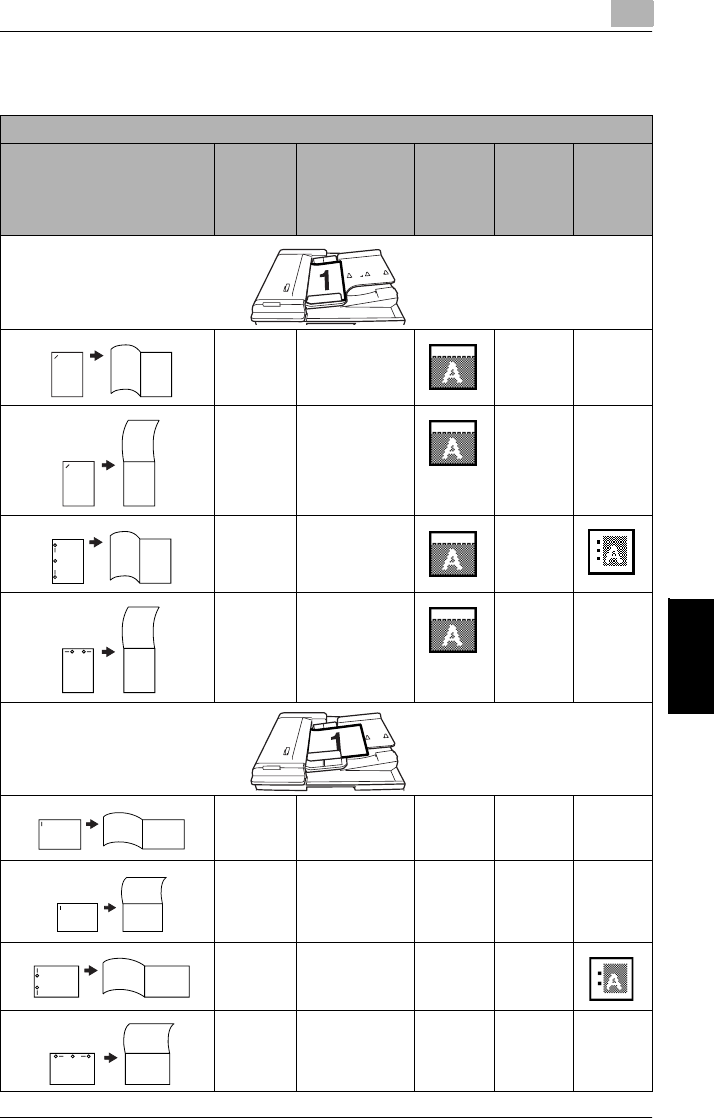
6.4 Loading Documents for Specific Applications 6
Di2010/Di2510/Di3010/Di3510 6-23
Original Documents Chapter 6
Top-Bound Double-Sided Documents
Top-Bound Double-Sided Document Ö Single-Sided Copy
Desired Copy Copy
Setting
Finishing Setting Margin
Setting
(Orig. Ö
Copy
Screen)
File
Margin
Setting
(Auxiliary
Screen)
Binding
Position
Single-
Sided
Corner Staple ——
Single-
Sided
Corner Staple ——
Single-
Sided
Hole Punch
2-Point Staple
—
Single-
Sided
Hole Punch
2-Point Staple
——
Single-
Sided
Corner Staple ———
Single-
Sided
Corner Staple ———
Single-
Sided
Hole Punch
2-Point Staple
——
Single-
Sided
Hole Punch
2-Point Staple
———
Document: Horizontal Paper
21
12
2
1
2
1
Document: Vertical Paper
12
1
2
2
1
2
1
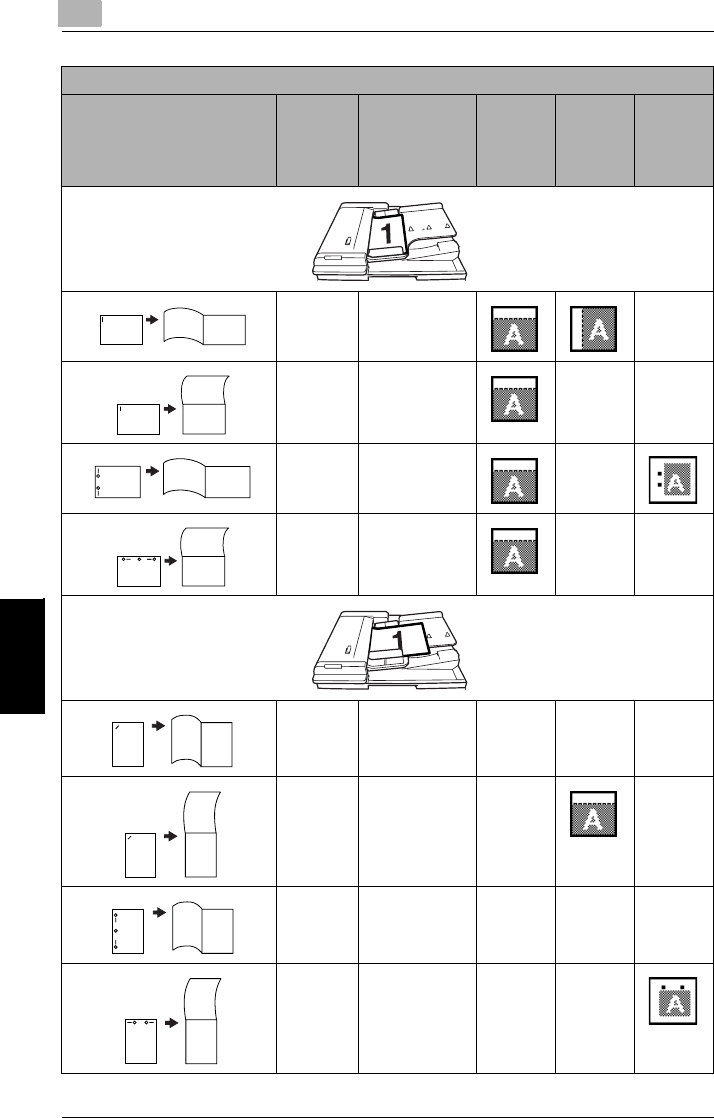
66.4 Loading Documents for Specific Applications
6-24 Di2010/Di2510/Di3010/Di3510
Original Documents Chapter 6
Single-
2in1
Corner Staple —
Single-
2in1
Corner Staple ——
Single-
2in1
Hole Punch
2-Point Staple
—
Single-
2in1
Hole Punch
2-Point Staple
——
Single-
2in1
Corner Staple ———
Single-
2in1
Corner Staple ——
Single-
2in1
Hole Punch
2-Point Staple
———
Single-
2in1
Hole Punch
2-Point Staple
——
Top-Bound Double-Sided Document Ö Single-Sided Copy
Desired Copy Copy
Setting
Finishing Setting Margin
Setting
(Orig. Ö
Copy
Screen)
File
Margin
Setting
(Auxiliary
Screen)
Binding
Position
Document: Horizontal Paper
12 34
12 34
34
12
12 34
Document: Vertical Paper
1
2
3
4
1
2
3
4
3
4
1
2
1
2
3
4
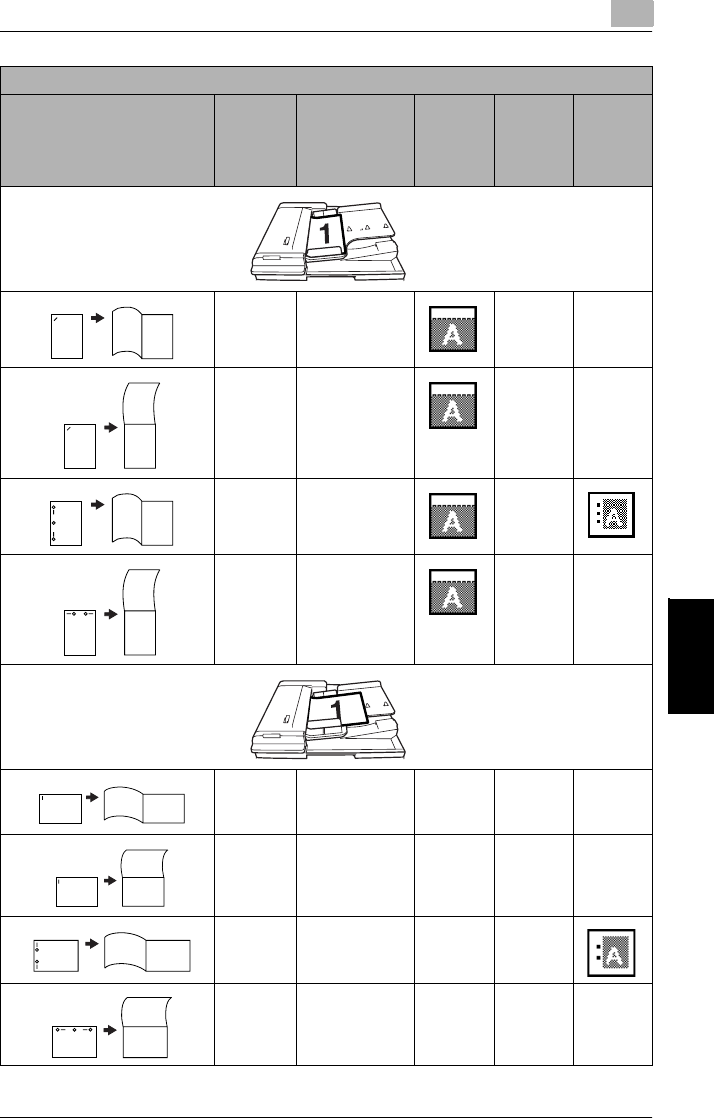
6.4 Loading Documents for Specific Applications 6
Di2010/Di2510/Di3010/Di3510 6-25
Original Documents Chapter 6
Single-
4in1
Corner Staple ——
Single-
4in1
Corner Staple ——
Single-
4in1
Hole Punch
2-Point Staple
—
Single-
4in1
Hole Punch
2-Point Staple
——
Single-
4in1
Corner Staple ———
Single-
4in1
Corner Staple ———
Single-
4in1
Hole Punch
2-Point Staple
——
Single-
4in1
Hole Punch
2-Point Staple
———
Top-Bound Double-Sided Document Ö Single-Sided Copy
Desired Copy Copy
Setting
Finishing Setting Margin
Setting
(Orig. Ö
Copy
Screen)
File
Margin
Setting
(Auxiliary
Screen)
Binding
Position
Document: Horizontal Paper
12
34
56
78
12
34
56
78
56
78
12
34
56
78
12
34
Document: Vertical Paper
12
34
56
78
12
34
56
78
56
78
12
34
56
78
12
34
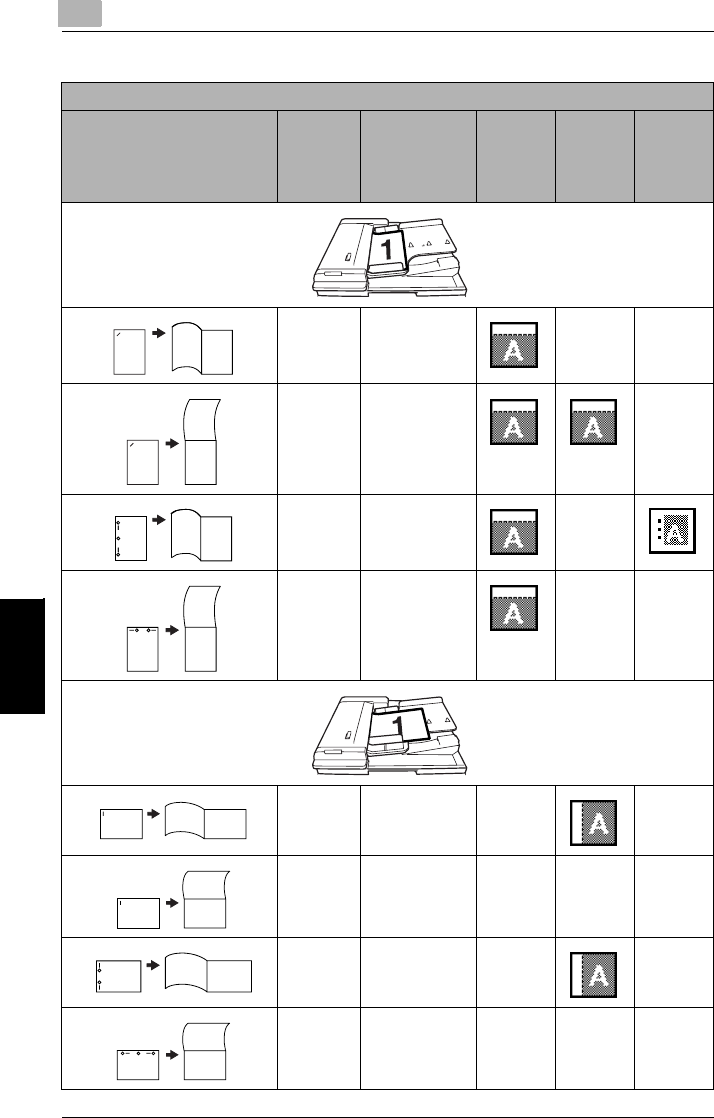
66.4 Loading Documents for Specific Applications
6-26 Di2010/Di2510/Di3010/Di3510
Original Documents Chapter 6
Top-Bound Double-Sided Document Ö Double-Sided Copy
Desired Copy Copy
Setting
Finishing
Setting
Margin
Setting
(Orig. Ö
Copy
Screen)
File
Margin
Setting
(Auxiliary
Screen)
Binding
Position
Double-
Sided
Corner Staple ——
Double-
Sided
Corner Staple —
Double-
Sided
Hole Punch
2-Point Staple
—
Double-
Sided
Hole Punch
2-Point Staple
——
Double-
Sided
Corner Staple ——
Double-
Sided
Corner Staple ———
Double-
Sided
Hole Punch
2-Point Staple
——
Double-
Sided
Hole Punch
2-Point Staple
———
Document: Horizontal Paper
1
23
1
2
3
123
2
3
1
Document: Vertical Paper
123
1
2
3
23
1
2
3
1

6.4 Loading Documents for Specific Applications 6
Di2010/Di2510/Di3010/Di3510 6-27
Original Documents Chapter 6
Double-
2in1
Corner Staple —
Double-
2in1
Corner Staple ——
Double-
2in1
Hole Punch
2-Point Staple
—
Double-
2in1
Hole Punch
2-Point Staple
——
Double-
2in1
Corner Staple ———
Double-
2in1
Corner Staple ——
Double-
2in1
Hole Punch
2-Point Staple
———
Double-
2in1
Hole Punch
2-Point Staple
——
Top-Bound Double-Sided Document Ö Double-Sided Copy
Desired Copy Copy
Setting
Finishing
Setting
Margin
Setting
(Orig. Ö
Copy
Screen)
File
Margin
Setting
(Auxiliary
Screen)
Binding
Position
Document: Horizontal Paper
12
34 56
12
3
5
4
6
12
34 56
12
3
5
4
6
Document: Vertical Paper
1
2
35
46
1
2
3
4
5
6
1
2
35
46
1
2
3
4
5
6

66.4 Loading Documents for Specific Applications
6-28 Di2010/Di2510/Di3010/Di3510
Original Documents Chapter 6
Double-
4in1
Corner Staple —
Double-
4in1
Corner Staple ——
Double-
4in1
Hole Punch
2-Point Staple
—
Double-
4in1
Hole Punch
2-Point Staple
——
Double-
4in1
Corner Staple ——
Double-
4in1
Corner Staple ———
Double-
4in1
Hole Punch
2-Point Staple
——
Double-
4in1
Hole Punch
2-Point Staple
———
Top-Bound Double-Sided Document Ö Double-Sided Copy
Desired Copy Copy
Setting
Finishing
Setting
Margin
Setting
(Orig. Ö
Copy
Screen)
File
Margin
Setting
(Auxiliary
Screen)
Binding
Position
Document: Horizontal Paper
12
34
59
6
10
7
11
8
12
12
34
56
78
9
10
11 12
12
34
59
6
10
7
11
8
12
12
34
56
78
9
10
11 12
Document: Vertical Paper
12
34
56
789
10
11 12
12
34
56
78
9
10
11 12
56
789
10
11 12
12
34
56
78
9
10
11 12
12
34
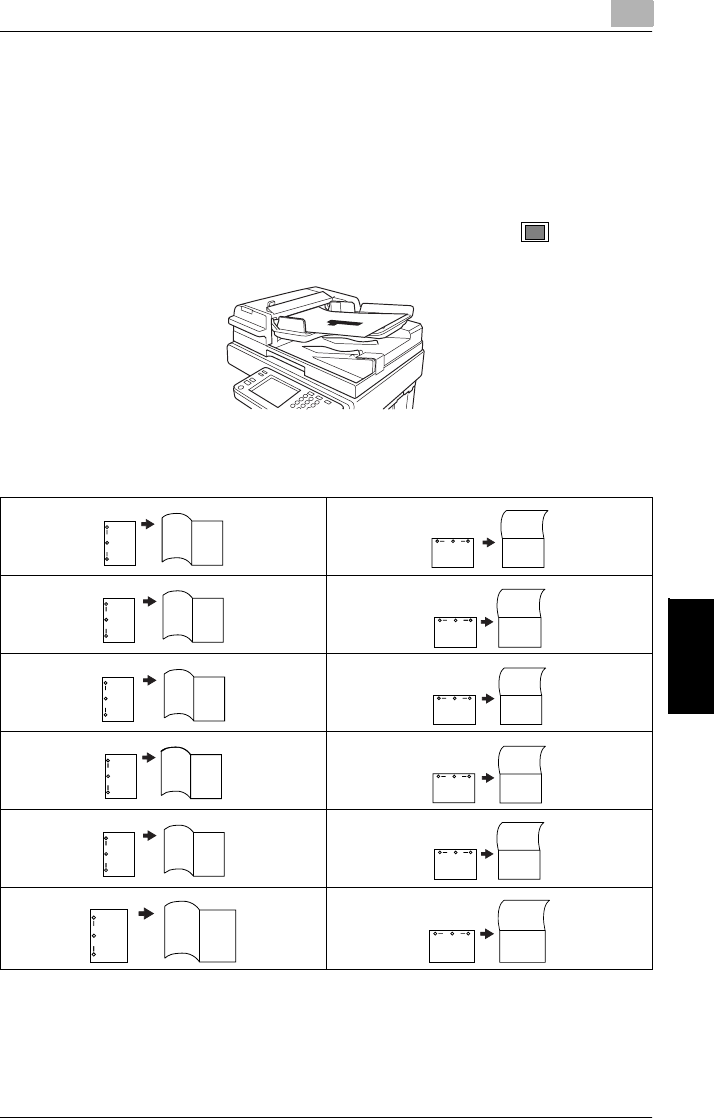
6.5 Large Documents 6
Di2010/Di2510/Di3010/Di3510 6-29
Original Documents Chapter 6
6.5 Large Documents
Precautions for 11 × 17 L/Legal L Copies
When making 11 × 17 L or Legal L copies, observe the following precautions con-
cerning the orientation of the document and the positions of 2-point stapling or hole-
punching.
If any of the following types of documents are loaded, select the Original Di-
rection setting from the Orig. Ö Copy screen. → page 7-21
When making 11 × 17 L or Legal L copies, the “2-Point Staple” and “Hole Punch”
settings are not available with the following positions.
A
2
12
1
3
4
1
212 34
56
78
12
34 56
78
12
34
1232
3
1
1
2
35
4612
3
5
4
6
12
34
59
6
10
7
11
8
12
56
78
9
10
11 12
12
34

66.5 Large Documents
6-30 Di2010/Di2510/Di3010/Di3510
Original Documents Chapter 6

Specifying Copy Settings Chapter 7
7
7Specifying
Copy Settings
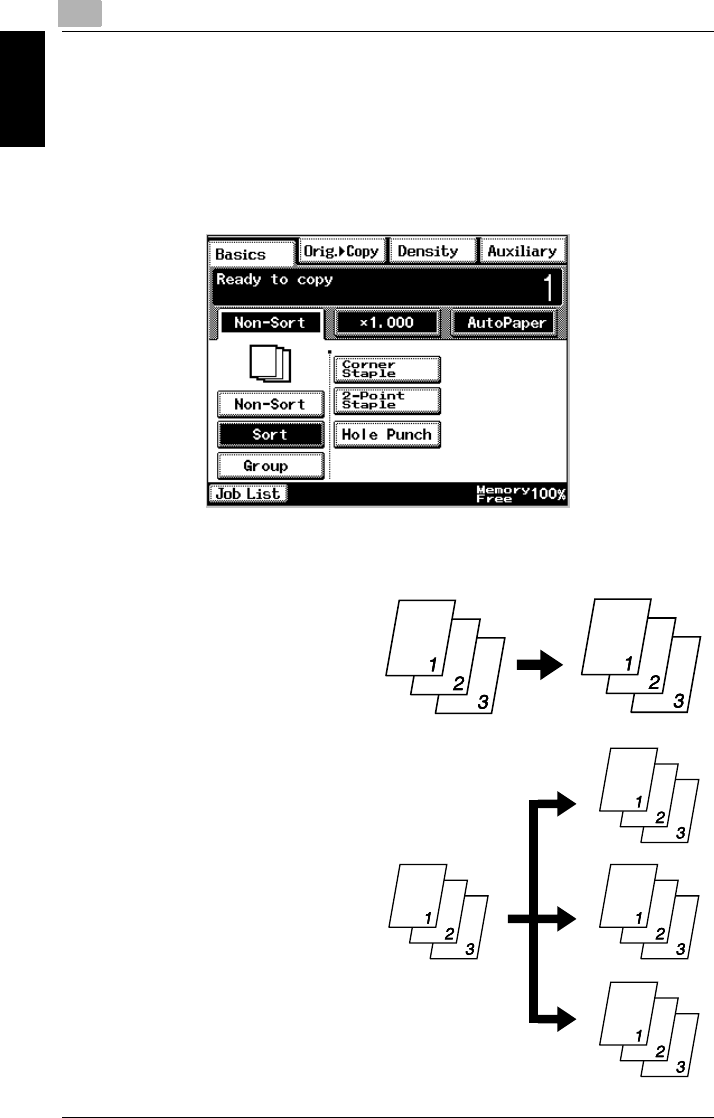
77.1 Specifying Finishing Settings
7-2 Di2010/Di2510/Di3010/Di3510
Specifying Copy Settings Chapter 7
7.1 Specifying Finishing Settings
Various finishing settings for sorting or grouping, stapling or punching holes in cop-
ies are available.
In the touch panel, touch [Basics], and then touch [Finishing]. A screen appears,
showing the available Finishing settings.
Available Finishing Settings
GNon-Sort
The copies are fed out and
stacked on top of each other as
they are printed.
GSort
The copies are automatically di-
vided into the specified number of
sets with each set containing a
copy of each page.
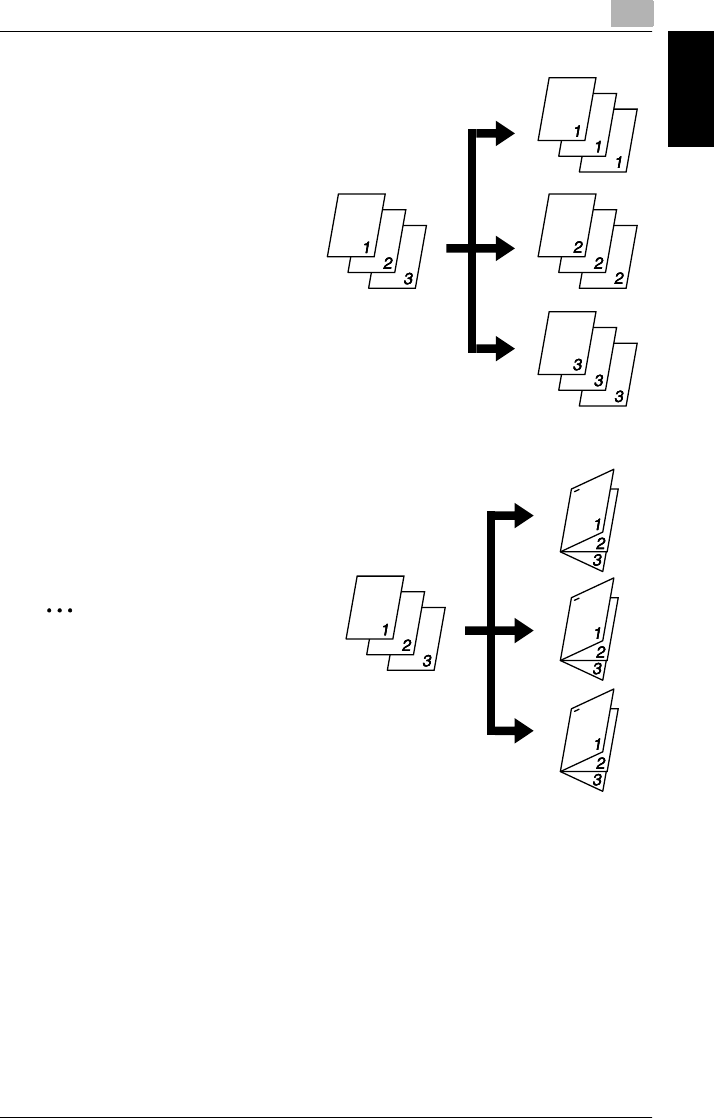
7.1 Specifying Finishing Settings 7
Di2010/Di2510/Di3010/Di3510 7-3
Specifying Copy Settings Chapter 7
GGroup
The copies are automatically di-
vided into stacks containing cop-
ies of the same page.
<Only when the finisher is installed>
GCorner Staple
Copies printed with the “Sort” or
“Group” setting are automatically
stapled together in the upper-left
corner.
✎
Note
Thick paper, envelopes and over-
head projector transparencies
cannot be stapled.

77.1 Specifying Finishing Settings
7-4 Di2010/Di2510/Di3010/Di3510
Specifying Copy Settings Chapter 7
<Only when the finisher is installed>
G2-Point Staple
Copies printed with the “Sort” or
“Group” setting are automatically
stapled together at two points on
the left edge.
✎
Note
Thick paper, envelopes and over-
head projector transparencies
cannot be stapled.
<Only when the finisher is installed>
GHole Punch
Holes are punched in the copies
so they can be filed.
This setting can be combined with
the “Non-Sort”, “Sort”, “Group” or a
staple setting.
✎
Note
Holes cannot be punched in enve-
lopes and overhead projector
transparencies.
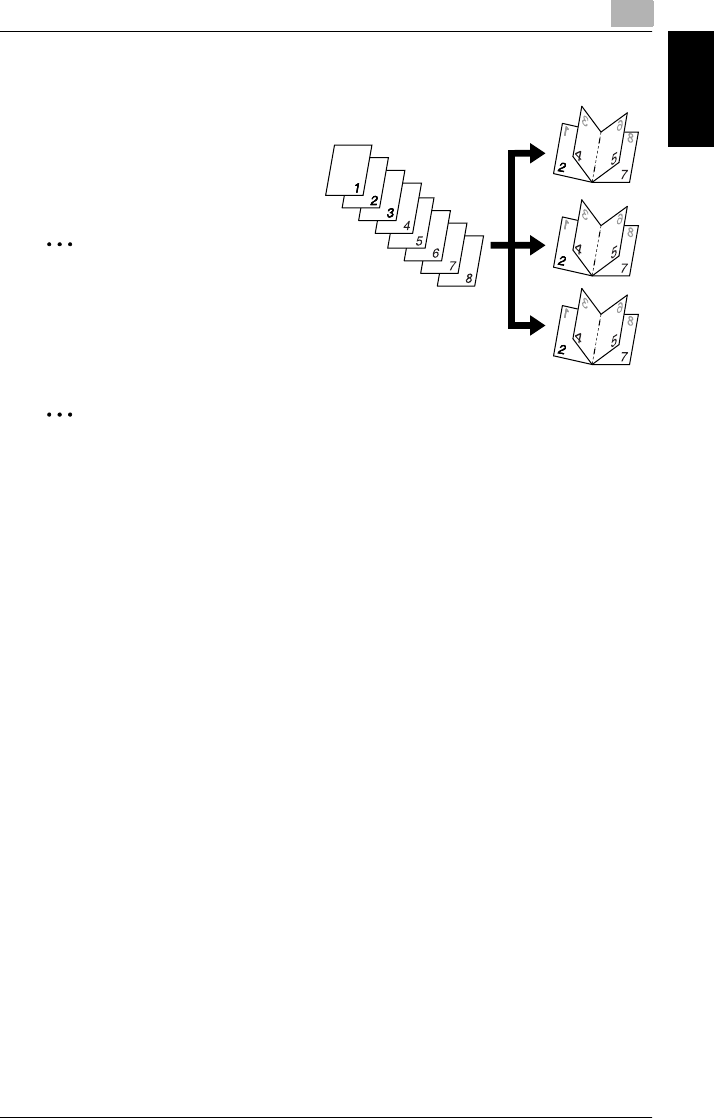
7.1 Specifying Finishing Settings 7
Di2010/Di2510/Di3010/Di3510 7-5
Specifying Copy Settings Chapter 7
<Only when the finisher and the saddle kit are installed>
GCreased and 2-Point Staple
Automatically crease paper copied
in booklet-printing mode, and sta-
pled together at two points in the
center.
✎
Note
Thick paper, envelopes and over-
head projector transparencies
cannot be creased and 2-point
stapled.
✎
Tip
As a default, “Non-Sort” or “Sort” are automatically selected depending on the
number of pages in the document. The default setting is “Non-Sort”. The default
setting can be changed using a function on the User’s Choice screen. For de-
tails, refer to “Changing Default Settings” of “Utility Mode Operations” in the Ad-
vanced Operations volume of the User Manual.
Notes on Using the “Sort” and “Group” Settings
GIf a document positioned on the original glass is copied using the “Sort” setting,
copying is automatically performed using the “Separate Scan” function.
For details, refer to “Auxiliary Functions” in the Advanced Operations volume of
the User Manual.
GIf the finisher or the mail bin kit is installed, each set of copies is fed out shifted
to alternating sides.
GIf the job tray is installed, but the finisher or the mail bin kit is not, each set of
copies is fed out in an alternating crisscross pattern.
<Conditions for crisscross sorting>
GPaper of the same type must be loaded horizontally in one paper drawer and
vertically in another drawer.
GThe “Mixed Orig Detection” function must not be selected.
GNone of the following can be selected: a stapling or the “Hole Punch” setting and
the “Page Insertion”, the “Cover Mode” and the “Image Repeat” functions.
GA paper drawer cannot be selected.
GLetter sized paper is set horizontally or vertically.
GIf a finisher is installed, crisscross sorting can not be carried out.
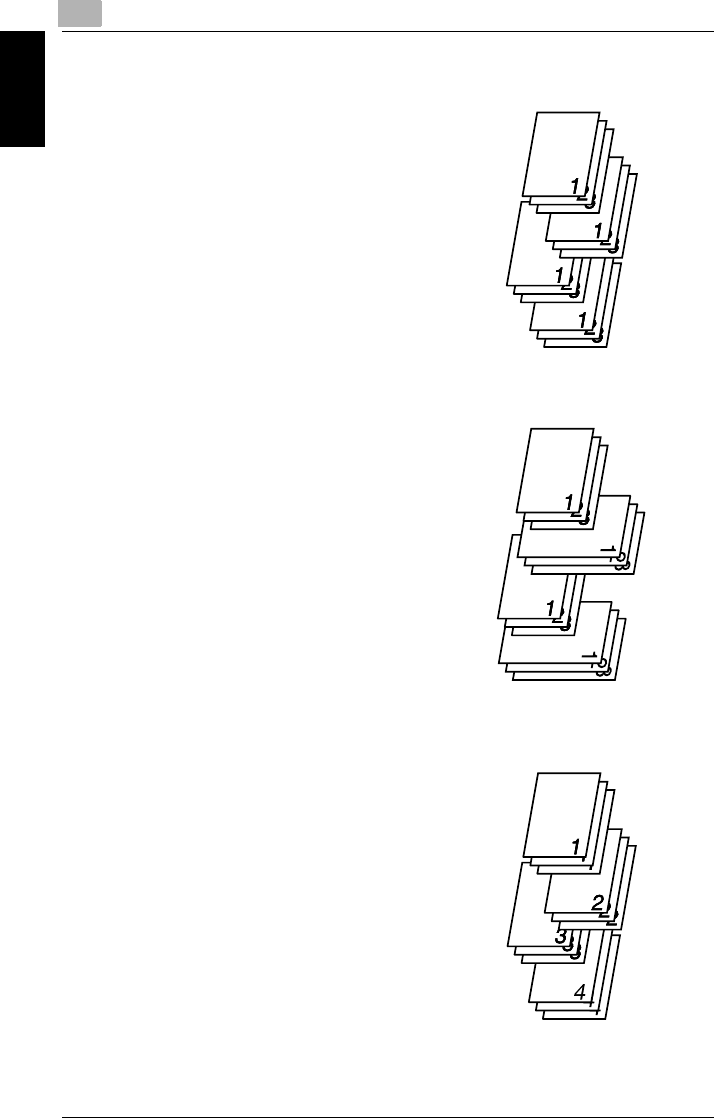
77.1 Specifying Finishing Settings
7-6 Di2010/Di2510/Di3010/Di3510
Specifying Copy Settings Chapter 7
Shift Sorting
Each copy set is fed out shifted to alternating
sides.
Crisscross Sorting
Each copy set is fed out in an alternating
crisscross pattern.
Shift Grouping
Each page set is fed out shifted to alternating
sides.

7.1 Specifying Finishing Settings 7
Di2010/Di2510/Di3010/Di3510 7-7
Specifying Copy Settings Chapter 7
Crisscross Grouping
Each page set is fed out in an alternating
crisscross pattern.
To make copies using a stapling setting
1Position the document(s) to be copied.
❍For details, refer to “6 Original
Documents”.
2Touch [Sort], and after selecting your
desired sorting mode, touch staple mode.
❍If “Corner Staple” was selected, skip
to step 6.
❍If “2-Point Staple” was selected,
continue with step 3.
3Touch [Select Position].
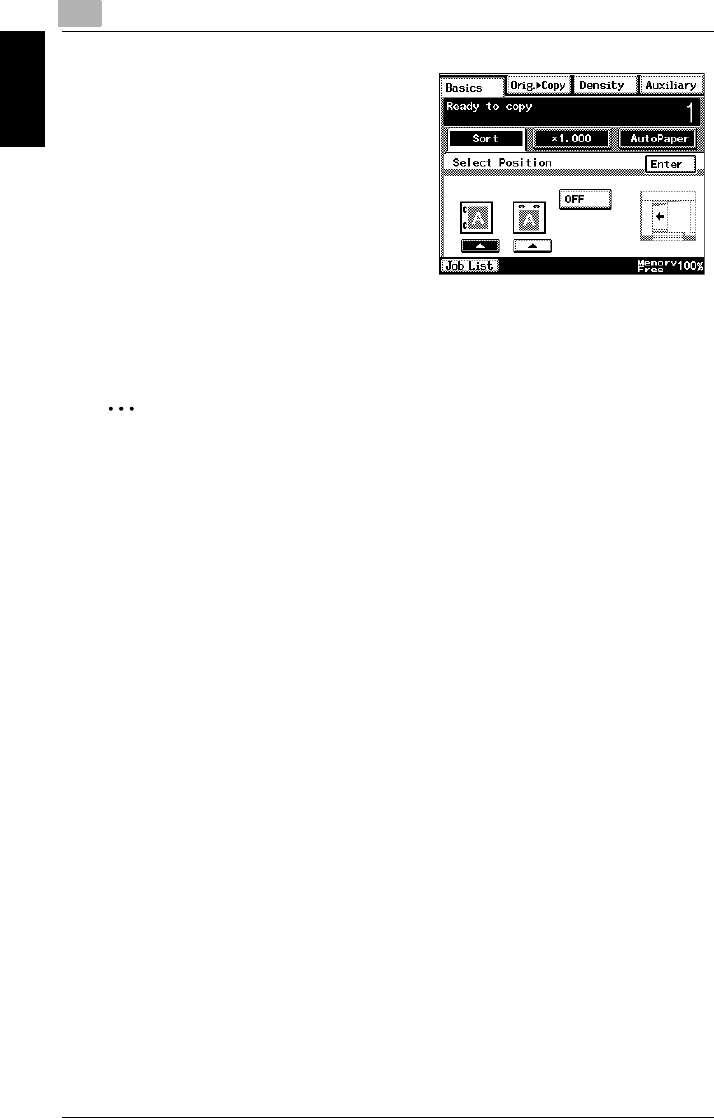
77.1 Specifying Finishing Settings
7-8 Di2010/Di2510/Di3010/Di3510
Specifying Copy Settings Chapter 7
4Touch the button for the desired stapling
position.
5Touch [Enter].
6Press the [Start] key.
The copies are printed.
✎
Note
A stapling setting cannot be selected if another job has been interrupted.
When making copies while using a staple setting, be careful of the selected sta-
pling position.
For details, refer to page 7-11.
If “Corner Staple” was selected, the stapling position cannot be specified. How-
ever, if the “Corner Staple” setting is used together with the “Hole Punch” set-
ting, the stapling position can be specified.
If a document positioned on the original glass is copied using a stapling setting,
copying is automatically performed using the “Separate Scan” function.
For details, refer to “Auxiliary Functions” in the Advanced Operations volume of
the User Manual.
When copying while using a stapling setting, be sure that the maximum number
of pages that can be stapled together is not exceeded.
Where you do not set the position, the stapling position is automatically speci-
fied.
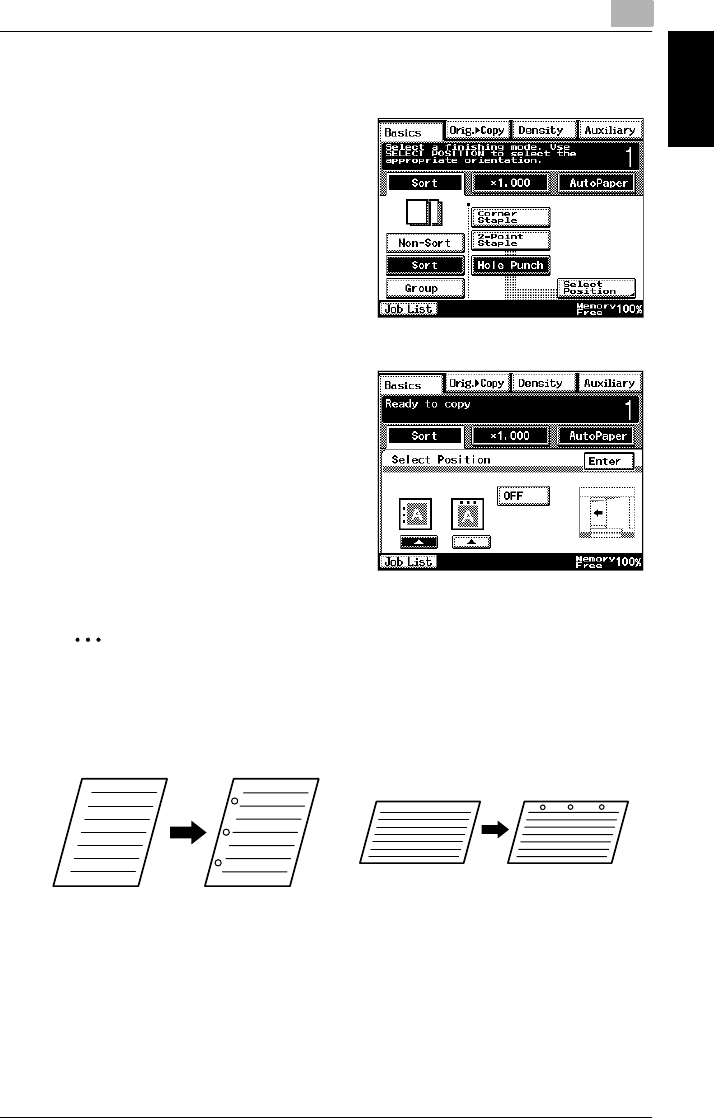
7.1 Specifying Finishing Settings 7
Di2010/Di2510/Di3010/Di3510 7-9
Specifying Copy Settings Chapter 7
To make copies using the “Hole Punch” setting
1Position the document(s) to be copied.
❍For details, refer to “6 Original
Documents”.
2Select “Non-Sort”, “Sort” or “Group”, and
then touch [Hole Punch].
3Touch [Select Position].
4Touch the button for the desired hole
punch positions.
❍To allow the hole punch position to
automatically be specified, touch
[OFF].
5Touch [Enter].
6Press the [Start] key.
The copies are printed.
✎
Tip
If copying is started without the hole punch position specified or if "OFF"
was selected, the hole punch position is automatically specified according
to the document orientation, as shown below.
To adjust the position of the punched holes, contact your service represen-
tative.
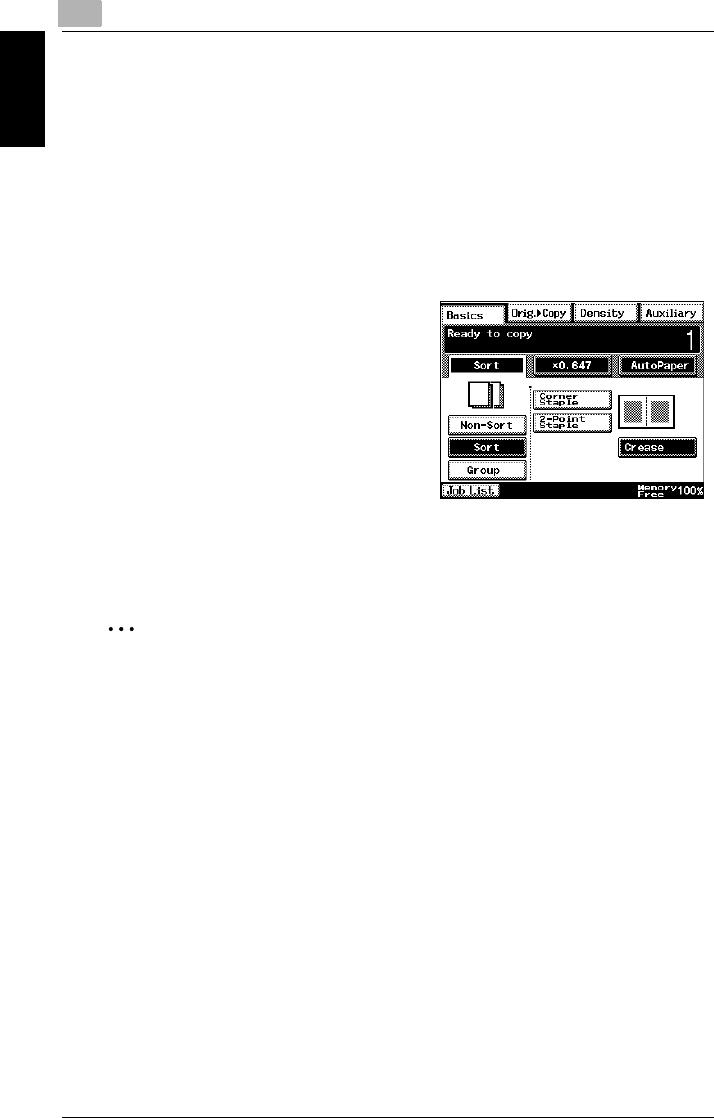
77.1 Specifying Finishing Settings
7-10 Di2010/Di2510/Di3010/Di3510
Specifying Copy Settings Chapter 7
Creasing and Folding
When the optional finisher or saddle kits are installed, you can set a crease to fold
paper in two. Additionally, you can add two staples in the middle of the paper
(center stapling).
Before selecting the “Crease” setting, be sure to select the “Booklet Creation”
setting from the Orig. Ö Copy screen. (Refer to page 7-21.)
1Position the document(s) to be copied.
2Select “Non-Sort”, “Sort” or “Group”, and
then touch [Crease].
❍When using Center staple, (folding),
select the [2-Point Staple] key.
3Press the [Start] key.
The copies are printed.
✎
Note
Creased and 2-point staple can be applied to Letter to 11
×
17 L sized paper.
2 to 15 sheets of paper can be stabled.
Only plain and recycled paper can be creased or 2-Point Stapled.
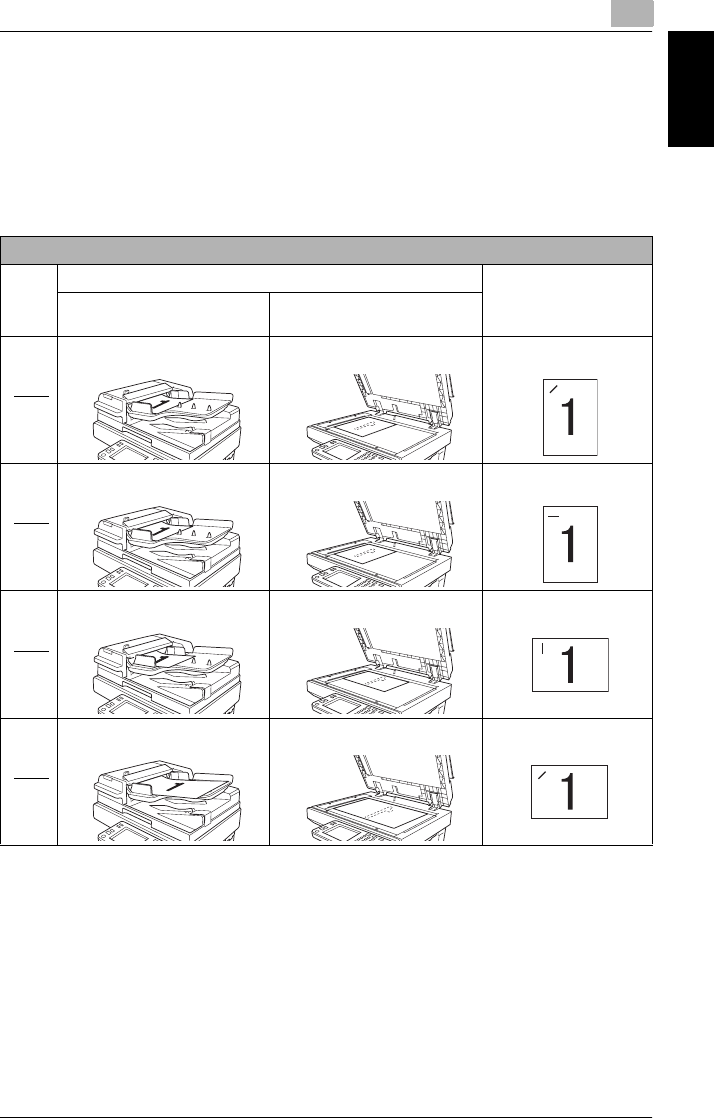
7.1 Specifying Finishing Settings 7
Di2010/Di2510/Di3010/Di3510 7-11
Specifying Copy Settings Chapter 7
Notes on the Staple Position
The location that can be stapled differs depending on the paper size and the paper
orientation.
Refer to the following table when selecting the paper for copying.
<When the “Corner Staple” setting is selected>
When the finisher is installed
Screen
Icon
Document Orientation Staple Position
Feeding From the Duplexing
Document Feeder
Scanning From the Original
Glass
Document size: Letter C Document size: Letter C Paper size: Letter C
Document size: 5-1/2 × 8-1/2C Document size: 5-1/2 × 8-1/2C Paper size: 5-1/2 × 8-1/2C
Document size: Letter or Legal L Document size: Letter or Legal L
Paper size: Letter or Legal L
Document size: 11 × 17 L Document size: 11 × 17 L Paper size: 11 × 17 L
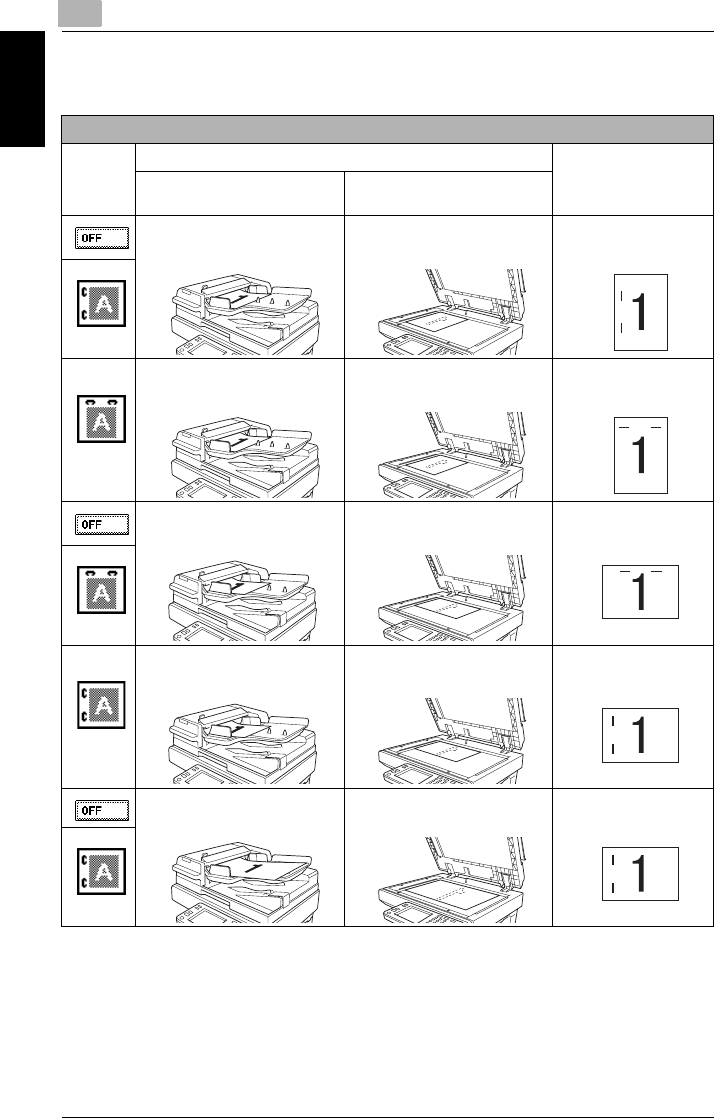
77.1 Specifying Finishing Settings
7-12 Di2010/Di2510/Di3010/Di3510
Specifying Copy Settings Chapter 7
<When the “2-Point Staple” setting is selected>
When the finisher is installed
Screen
Icon
Document Orientation Staple Position
Feeding From the Duplexing
Document Feeder
Scanning From the Original
Glass
Document size: Letter C or 5-1/
2 × 8-1/2C
Document size: Letter C or 5-1/
2 × 8-1/2C
Paper size: Letter C or
5-1/2 × 8-1/2C
Document size: Letter C or
Legal C
Document size: Letter C or
Legal C
Paper size: Letter L or
Legal L
Document size: Letter L or 5-1/
2 × 8-1/2C
Document size: Letter L or 5-1/
2 × 8-1/2C
Paper size: Letter C or
5-1/2 × 8-1/2C
Document size: Letter L or
Legal L
Document size: Letter L or
Legal L
Paper size: Letter L or
Legal L
Document size: 11 × 17 L Document size: 11 × 17 L Paper size: 11 × 17 L

7.1 Specifying Finishing Settings 7
Di2010/Di2510/Di3010/Di3510 7-13
Specifying Copy Settings Chapter 7
Notes on the Number of Possible Stapled Sets
While copying with a stapling setting, pages may become misaligned or fall. We
recommend that no more than the number of sets listed below be stapled.
Notes on the Hole Punch Position
When copying with the "Hole Punch" setting selected, be careful of the orientation
of the document.
Maximum number of sets
Number of bound pages Finisher (11 × 17 L to 5.5 × 8.5 C)
2 sheets 100 sets
3 to 5 sheets 80 sets
6 to 10 sheets 60 sets
11 to 20 sheets 40 sets
21 to 30 sheets 33 sets
31 to 40 sheets 25 sets
41 to 50 sheets 20 sets
When the finisher and punch kit are installed
Screen
Icon
Document Orientation
Feeding From the Duplexing
Document Feeder
Scanning From the Original
Glass

77.2 Specifying a Zoom Setting
7-14 Di2010/Di2510/Di3010/Di3510
Specifying Copy Settings Chapter 7
7.2 Specifying a Zoom Setting
Copies of documents can be enlarged or reduced.
In the touch panel, touch [Basics], and then touch [Zoom]. A screen appears, show-
ing the available Zoom settings.
There are eight ways to change the zoom ratio.
GAuto Size
The most appropriate zoom ratio based on the size of the document loaded and
the specified paper size is automatically selected.
GFull-Size
A copy that is the same size as the document (× 1.000) is selected.
GEnlarge
Various zoom settings for making enlarged copies from common standard doc-
ument sizes to standard paper sizes are available.
For example:
❍A Letter-size document can be copied onto the larger 11 × 17-size paper.
❍A Legal-size document can be copied onto the larger 11 × 17-size paper.
GReduce
Various zoom settings for making reduced copies from common standard doc-
ument sizes to standard paper sizes are available.
For example:
❍An 11 × 17-size document can be copied onto the smaller Letter-size paper.
❍A Legal-size document can be copied onto the smaller Letter-size paper.
GMinimal
The copy is slightly reduced (× 0.930).
❍Selecting the “Minimal” setting ensures that any part of the original positioned
at the edge of the page will not be cut off in the copy.
❍The zoom ratio of the “Minimal” setting can be changed to any ratio between
× 0.900 and × 0.999.

7.2 Specifying a Zoom Setting 7
Di2010/Di2510/Di3010/Di3510 7-15
Specifying Copy Settings Chapter 7
GZooming
Any zoom ratio (between × 0.250 and × 4.000) can be specified.
❍Touch and to select the desired zoom ratio. Each time or
is touched, the zoom ratio is increased or decreased by an increment
of 0.001.
GCustomZoom
Any zoom ratio (between × 0.250 and × 4.000) can be specified.
❍Use the 10-Key Pad to enter the desired zoom ratio.
❍Up to two zoom ratios entered using the 10-Key Pad can be stored.
GX/Y Zoom
The copy size can be changed by specifying different scaling proportions (be-
tween × 0.250 and × 4.000) for the vertical and the horizontal dimensions.
To select a Zoom setting
1Touch [Zoom].
A screen appears, showing the available
Zoom settings.
2Select the desired Zoom setting.
Specifying a “Custom Zoom” Setting
To enter a custom zoom ratio
1Touch [Zoom].
A screen appears, showing the available Zoom settings.
2Touch [CustomZoom].
3Use the 10-Key Pad to type in the desired
zoom ratio (between × 0.250 and
×4.000).
4Touch [Enter].
The entered zoom ratio is displayed and
is specified as the custom Zoom setting.

77.2 Specifying a Zoom Setting
7-16 Di2010/Di2510/Di3010/Di3510
Specifying Copy Settings Chapter 7
To store Custom Zoom and Minimal zoom ratios
1Touch [Zoom].
A screen appears, showing the available Zoom settings.
2Touch [CustomZoom].
3Touch [Memorize Zoom].
4Use the 10-Key Pad to type in the desired
zoom ratio (between × 0.250 and
×4.000).
❍To store a Minimal zoom ratio, type in
the desired zoom ratio between
×0.900 and × 0.999. The entered
zoom ratio is displayed.
5Touch [1], [2] or [Minimal].
6Touch [Enter].
The entered zoom ratio is stored.
To recall a stored custom zoom ratio
1Touch [Zoom].
A screen appears, showing the available Zoom settings.
2Touch [CustomZoom].
3Touch [1], [2] or [Minimal].
4Touch [Enter].
The entered zoom ratio is recalled.
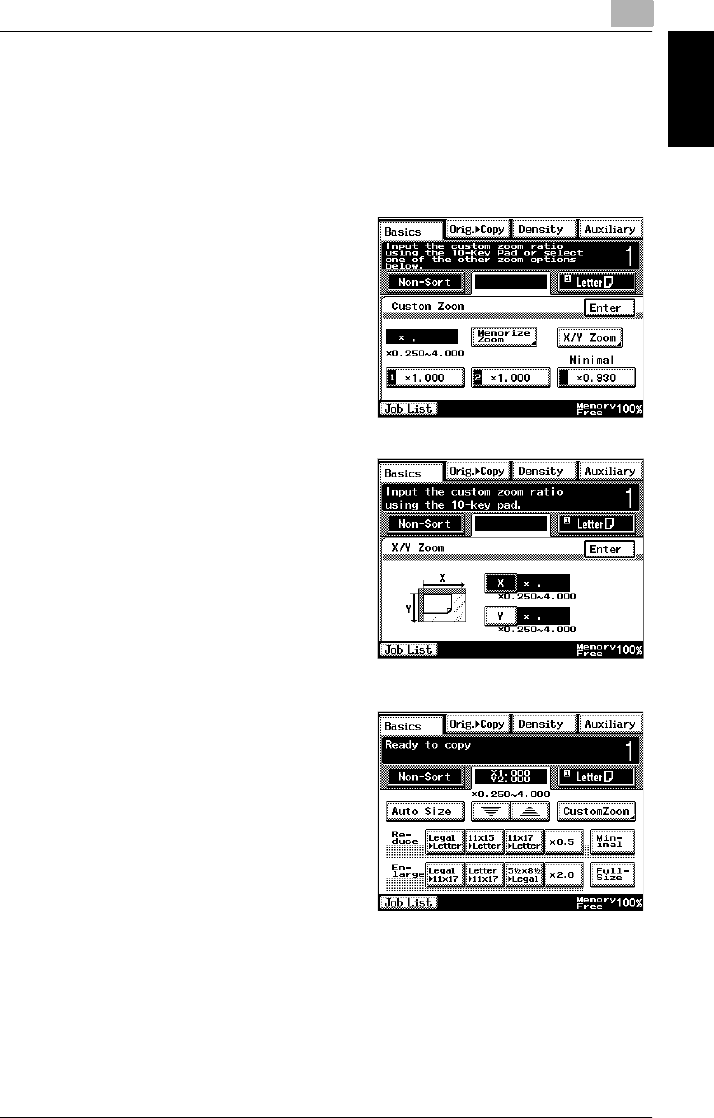
7.2 Specifying a Zoom Setting 7
Di2010/Di2510/Di3010/Di3510 7-17
Specifying Copy Settings Chapter 7
To specify different vertical and horizontal scaling proportions (“X/Y Zoom”
setting)
1Touch [Zoom].
A screen appears, showing the available Zoom settings.
2Touch [CustomZoom].
3Touch [X/Y Zoom].
The X/Y Zoom screen appears.
4Use the 10-Key Pad to type in the desired
length of side X (between × 0.250 and
×4.000).
5Use the 10-Key Pad to type in the desired
length of side Y (between × 0.250 and
×4.000).
6Touch [Enter].
The entered zoom ratio is applied.

77.3 Selecting the Orig. > Copy Settings
7-18 Di2010/Di2510/Di3010/Di3510
Specifying Copy Settings Chapter 7
7.3 Selecting the Orig. > Copy Settings
In the touch panel, touch [Orig. Ö Copy]. A screen appears, showing the available
document and copy settings.
Orig. Ö Copy Settings
GSingle-Sided Ö Single-Sided
A single-sided copy is produced
from a single-sided document.
GSingle-Sided Ö Double-Sided
<For the Di2010, the duplex unit
and switchback unit are required>
A double-sided copy is produced
from two single-sided documents.
GSingle-Sided Ö Single-2in1
A single-sided copy is produced
from two single-sided documents.
GSingle-Sided Ö Double-2in1
<For the Di2010, the duplex unit
and switchback unit are required>
A double-sided copy is produced
from four single-sided documents.
GDouble-Sided Ö Single-Sided
<Only if the duplexing document
feeder is installed>
Two single-sided copies are pro-
duced from a double-sided docu-
ment.
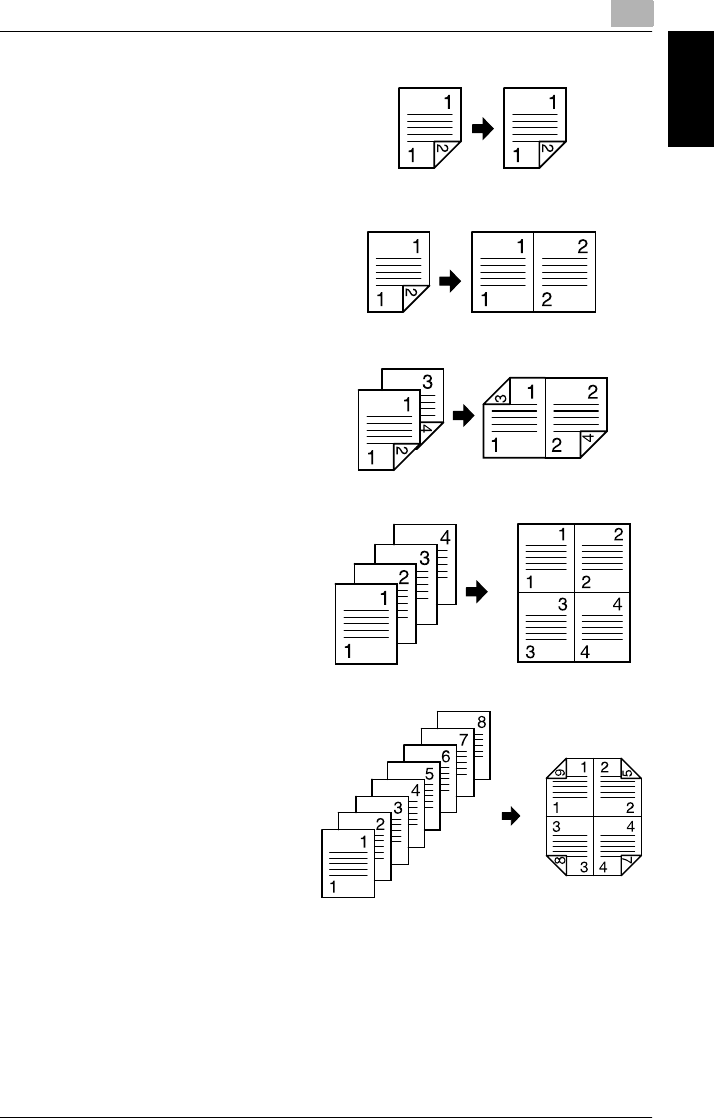
7.3 Selecting the Orig. > Copy Settings 7
Di2010/Di2510/Di3010/Di3510 7-19
Specifying Copy Settings Chapter 7
GDouble-Sided Ö Double-Sided
<Only if the duplexing document
feeder, duplex unit and switchback
unit (for Di2010) is installed>
A double-sided copy is produced
from a double-sided document.
GDouble-Sided Ö Single-2in1
<Only if the duplexing document
feeder is installed>
A single-sided copy is produced
from a double-sided document.
GDouble-Sided Ö Double-2in1
<Only if the duplexing document
feeder, duplex unit and switchback
unit (for Di2010) is installed>
A double-sided copy is produced
from two double-sided documents.
GSingle-Sided Ö Single-4in1
A single-sided copy is produced
from four single-sided documents.
GSingle-Sided Ö Double-4in1
<For the Di2010, the duplex unit
and switchback unit are required>
A double-sided copy is produced
from eight single-sided docu-
ments.
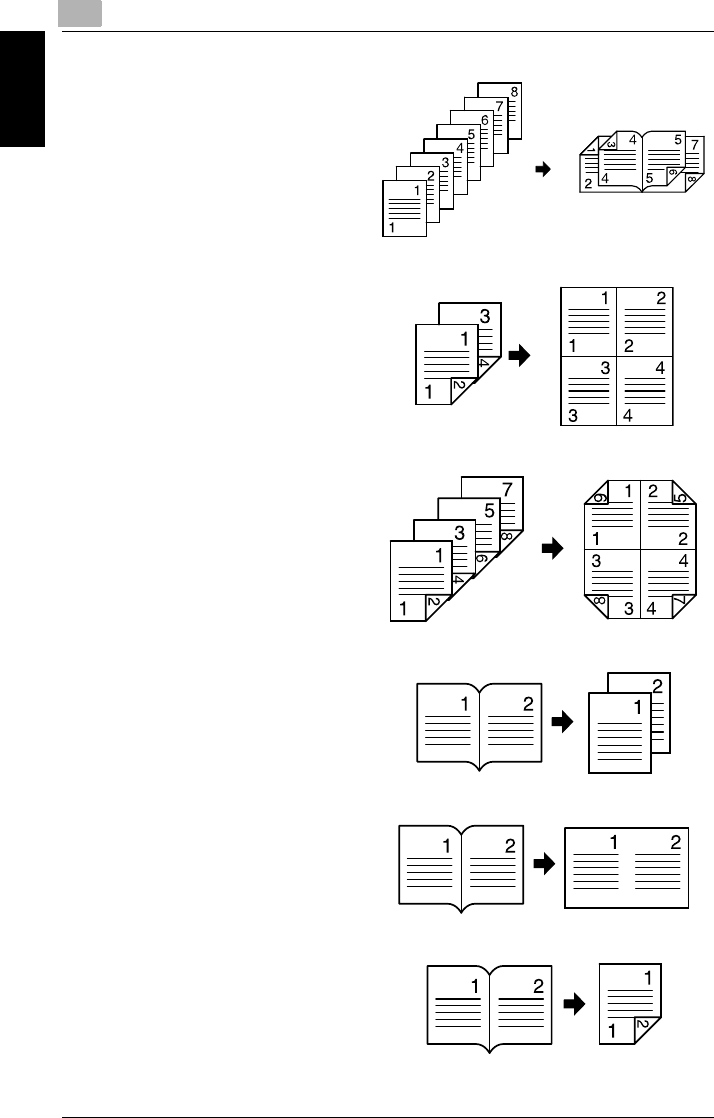
77.3 Selecting the Orig. > Copy Settings
7-20 Di2010/Di2510/Di3010/Di3510
Specifying Copy Settings Chapter 7
GSingle-Sided Ö Booklet Creation
<For the Di2010, the duplex unit
and switchback unit are required>
A double-sided copy is produced
from four single-sided documents.
GDouble-Sided Ö Single-4in1
<Only if the duplexing document
feeder is installed>
A single-sided copy is produced
from two double-sided documents.
GDouble-Sided Ö Double-4in1
<Only if the duplexing document
feeder, duplex unit and switchback
unit (for Di2010) is installed>
A double-sided copy is produced
from four double-sided docu-
ments.
GBook (Separation) Ö Single-Sided
Two single-sided copies are pro-
duced from a bound document.
GBook (Spreadsheet) Ö Single-Sid-
ed
A single-sided copy is produced
from a bound document.
GBook (Separation) Ö Double-Sided
<For the Di2010, the duplex unit
and switchback unit are required>
A double-sided copy is produced
from a bound document.

7.3 Selecting the Orig. > Copy Settings 7
Di2010/Di2510/Di3010/Di3510 7-21
Specifying Copy Settings Chapter 7
GBook (Spreadsheet) Ö Double-Sid-
ed
<For the Di2010, the duplex unit
and switchback unit are required>
A double-sided copy is produced
from a bound document.
To specify Orig. Ö Copy settings
1Position the document(s) to be copied.
❍For details, refer to “6 Original Documents”.
2Touch [Orig. Ö Copy].
3Select the setting for the type of
document to be copied.
(For the example at the right,
touch [Single-Sided].)
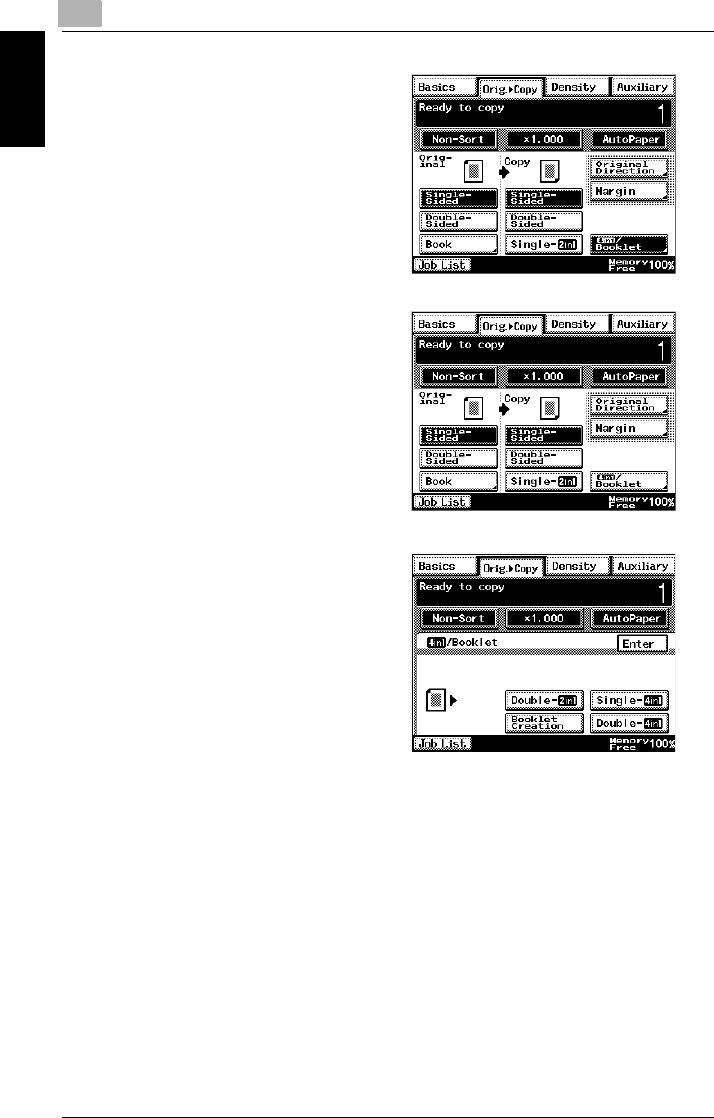
77.3 Selecting the Orig. > Copy Settings
7-22 Di2010/Di2510/Di3010/Di3510
Specifying Copy Settings Chapter 7
4Select the setting for the desired
type of copy.
(For the example at the right,
touch [Double-Sided].)
❍To select the “Double-2in1”,
“Booklet Creation”, “Single-4in1”
or “Double-4in1” settings, touch
[4in1/Booklet].
❍Select the desired type of
copy, and touch [Enter].
5Touch [Original Direction].
❍Select an Original Direction setting if the document is loaded in an
orientation other than the standard.

7.3 Selecting the Orig. > Copy Settings 7
Di2010/Di2510/Di3010/Di3510 7-23
Specifying Copy Settings Chapter 7
6Select the appropriate document
orientation setting.
7Touch [Enter].
8Press the [Start] key.
The copies are printed.

77.3 Selecting the Orig. > Copy Settings
7-24 Di2010/Di2510/Di3010/Di3510
Specifying Copy Settings Chapter 7
Copying a Bound Document
The scanning position for bound documents can be adjusted.
The binding width can be seen by making copies with the “Single-Sided Ö Double-
Sided” or the “Double-Sided Ö Single-Sided” settings selected.
1Position the document(s) to be copied.
❍For details, refer to “6 Original Documents”.
2Touch [Orig. Ö Copy].
3Touch [Margin].
Original Document Copy

7.3 Selecting the Orig. > Copy Settings 7
Di2010/Di2510/Di3010/Di3510 7-25
Specifying Copy Settings Chapter 7
4Select the appropriate binding
margin position.
❍There are two locations for the
binding position, as shown in
the illustrations at the right.
5Touch and to select
the desired binding margin width.
❍The binding margin can be set
between 0 in. and 3/4 in., in 1/
16 in. increments.
6Touch [Enter].
7Press the [Start] key.
The copies are printed.
Left binding position
Top binding position
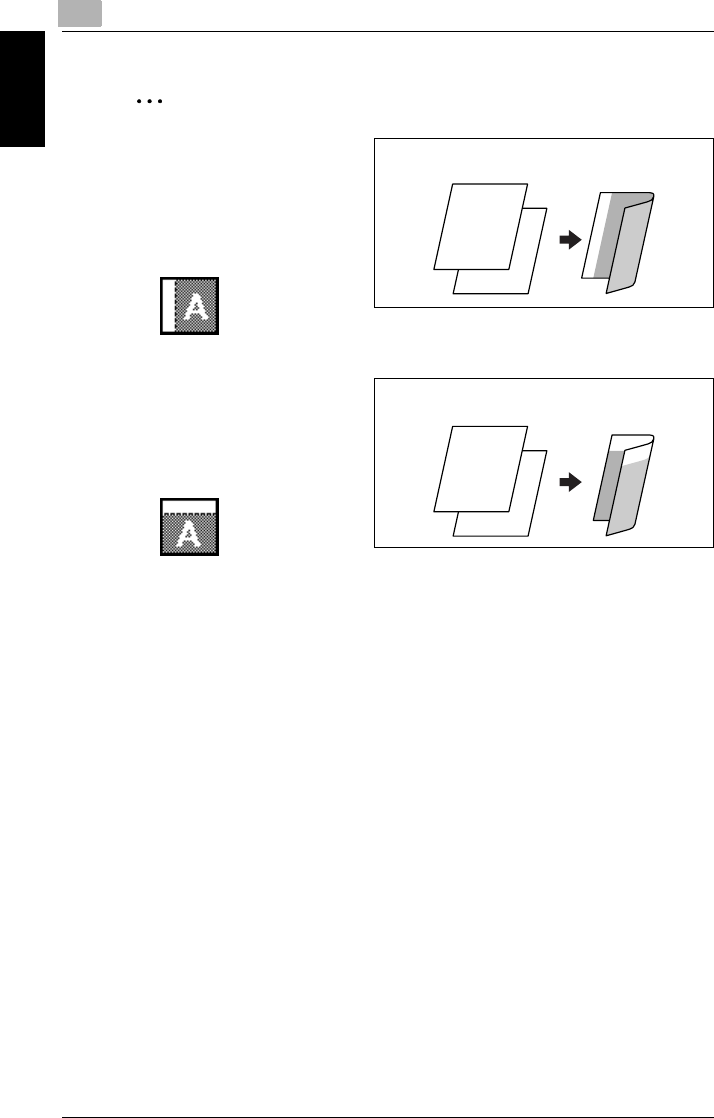
77.3 Selecting the Orig. > Copy Settings
7-26 Di2010/Di2510/Di3010/Di3510
Specifying Copy Settings Chapter 7
✎
Tip
If the setting for the left binding
position is selected for double-
sided copying, the front and
back sides of the page will be
printed with the same orienta-
tion.
If the setting for the top binding
position is selected for double-
sided copying, the back side of
the page is printed upside
down.
To adjust the width of the area erased from the bottom of the back side of
the page, contact your service representative.
Original Document Copy
12
12
Original Document Copy
12
1
2
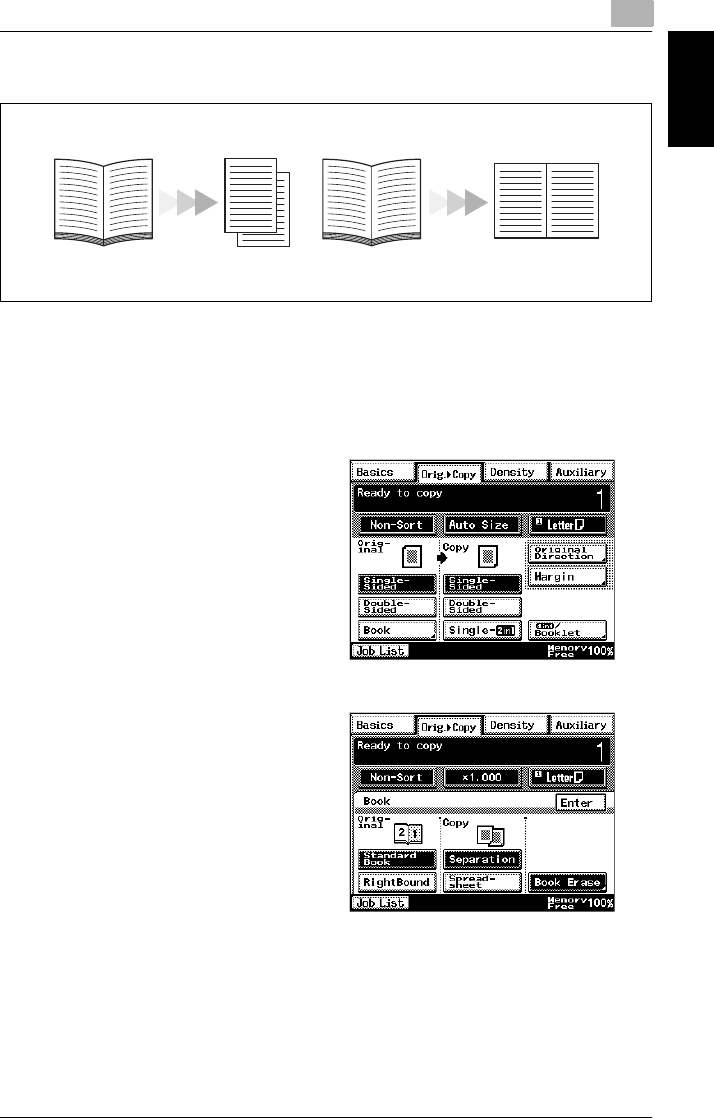
7.3 Selecting the Orig. > Copy Settings 7
Di2010/Di2510/Di3010/Di3510 7-27
Specifying Copy Settings Chapter 7
Copying a Book
1Position the document(s) to be copied.
❍For details, refer to “6 Original Documents”.
2Touch [Orig. Ö Copy].
3Touch [Book].
4Select the appropriate setting for
the binding position of the book
(“Standard Book” or
“RightBound”).
5Select whether to copy both pages
of the book onto one sheet
(“Spreadsheet”) or onto two
separate sheets (“Separation”).
6To erase around the text or along
the binding, touch [Book Erase].
Separate Spread-sheet
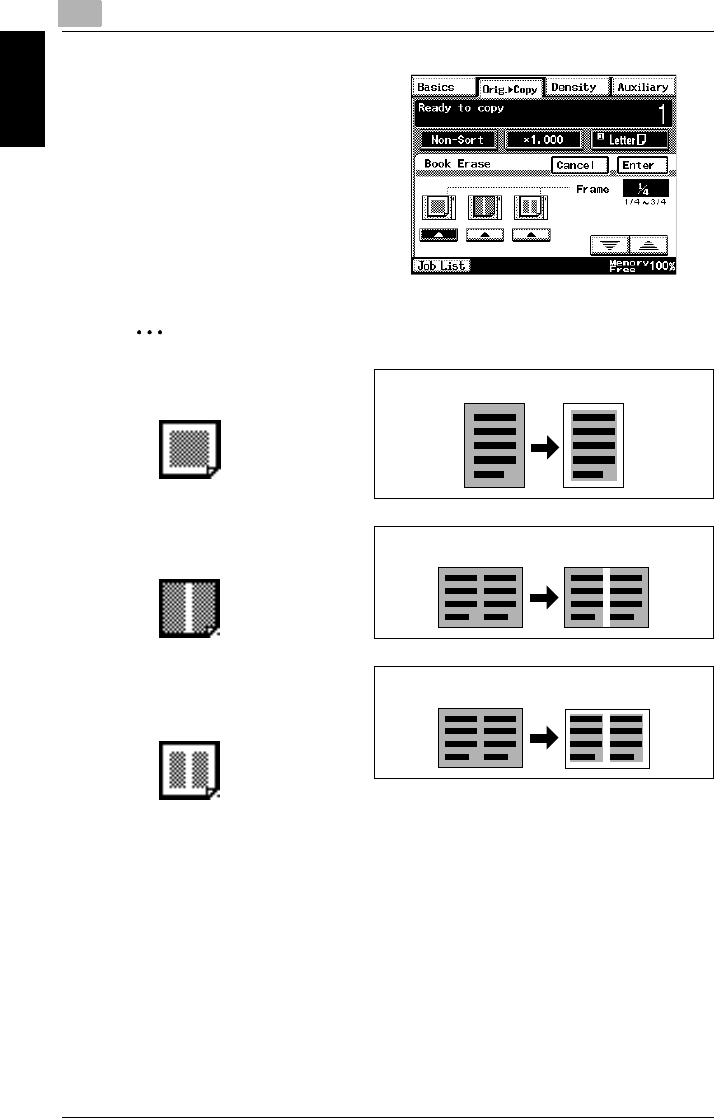
77.3 Selecting the Orig. > Copy Settings
7-28 Di2010/Di2510/Di3010/Di3510
Specifying Copy Settings Chapter 7
7Select the desired Book Erase
setting.
✎
Tip
The pages can be copied with
a blank area framing the text.
The pages can be copied with
a blank area along the binding.
The pages can be copied with
a blank area framing the text
and along the binding.
Frame-erasing
Center-erasing
Center- & frame-erasing
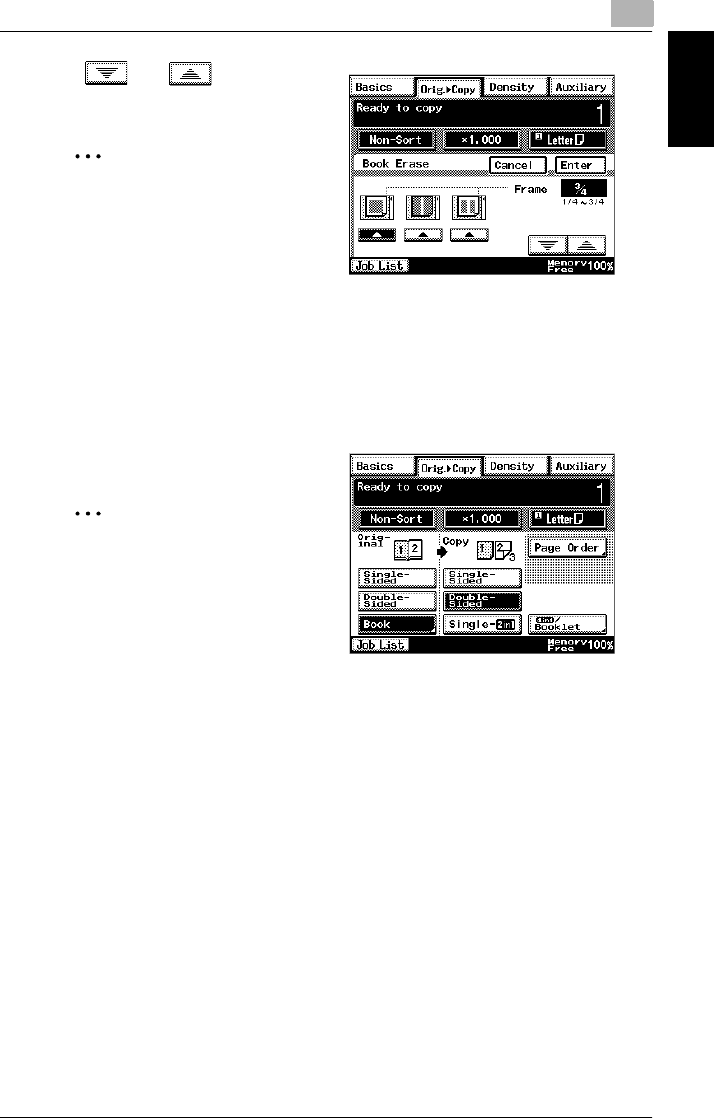
7.3 Selecting the Orig. > Copy Settings 7
Di2010/Di2510/Di3010/Di3510 7-29
Specifying Copy Settings Chapter 7
8Touch and to specify
the width of the erased area.
✎
Tip
The erased area can be set
between 1/4 in. and 3/4 in., in
1/16 in. increments.
As a default, the width of the
area erased along the binding
is 1/2 in. To change this default
setting, consult your service
representative.
9Touch [Enter].
10 Select the desired copy settings.
✎
Note
If you touch [Book], you can
not select [Single-2in1] or [4in1
/ Booklet].
11 Press the [Start] key.
The copies are printed.

77.3 Selecting the Orig. > Copy Settings
7-30 Di2010/Di2510/Di3010/Di3510
Specifying Copy Settings Chapter 7
Copying Book Pages onto Separate Double-Sided Pages
1In the Basics screen, touch [Orig. Ö
Copy], and then touch [Book].
2Select the appropriate setting for
the binding position of the book
(“Standard Book” or
“RightBound”).
3Touch [Separation], and then touch [Enter].
4Touch [Double-Sided].
5Touch [Page Order].
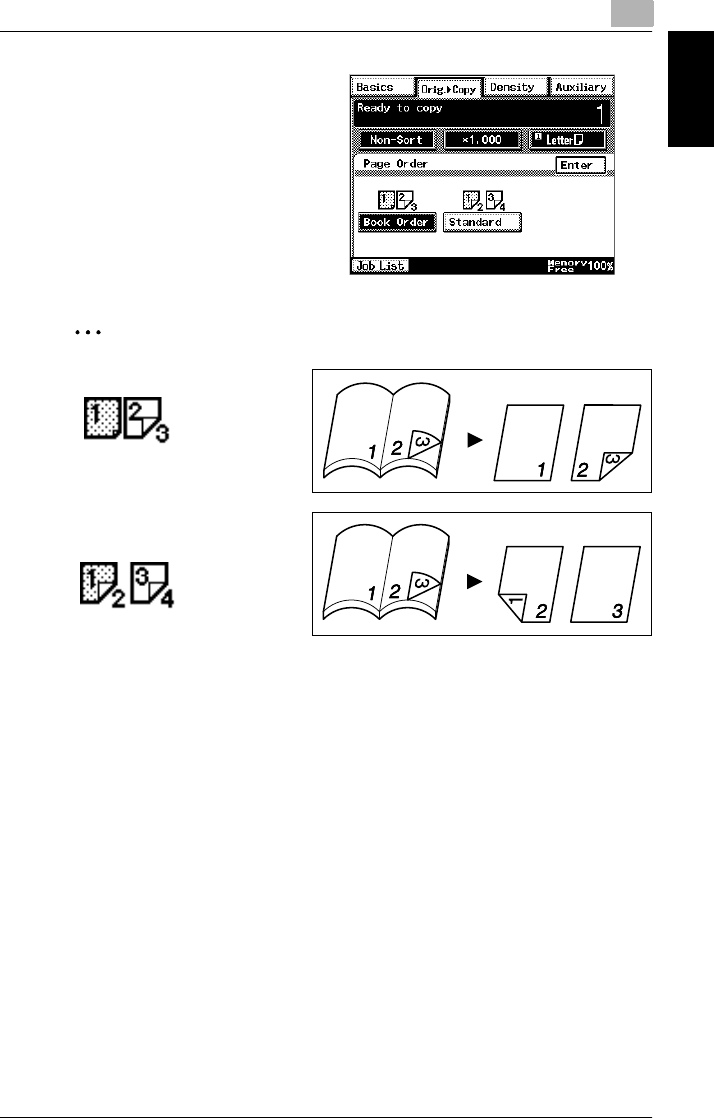
7.3 Selecting the Orig. > Copy Settings 7
Di2010/Di2510/Di3010/Di3510 7-31
Specifying Copy Settings Chapter 7
6Select the setting for the desired
page order, and then touch
[Enter].
✎
Tip
Book page order.
Both the left and the right sides
are double-sided.
7Press the [Start] key.
The copies are printed.
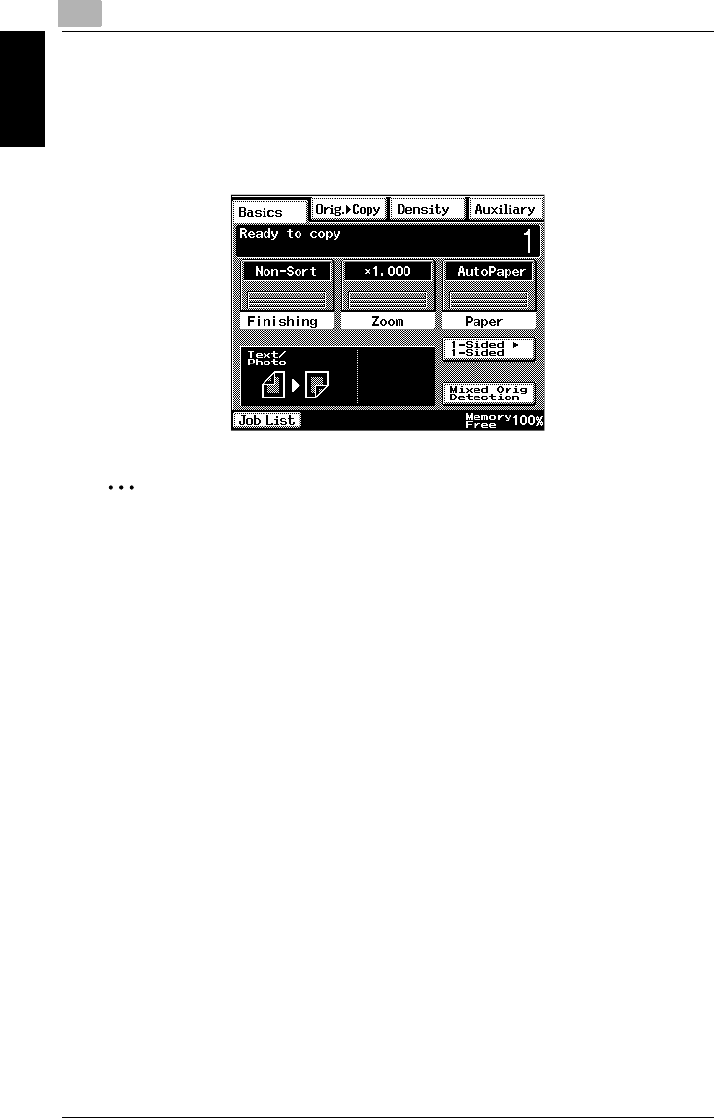
77.3 Selecting the Orig. > Copy Settings
7-32 Di2010/Di2510/Di3010/Di3510
Specifying Copy Settings Chapter 7
Quickly Selecting Default Settings
The default Orig. Ö Copy setting is “Single-Sided Ö Single-Sided”. The default set-
ting can be changed to “Single-Sided Ö Double-Sided” or “Double-Sided Ö Double-
Sided”.
✎
Tip
The default settings can be changed using the various functions on the User’s
Choice screen. For details, refer to “Changing Default Settings” of “Utility Mode
Operations” in the Advanced Operations volume of the User Manual.
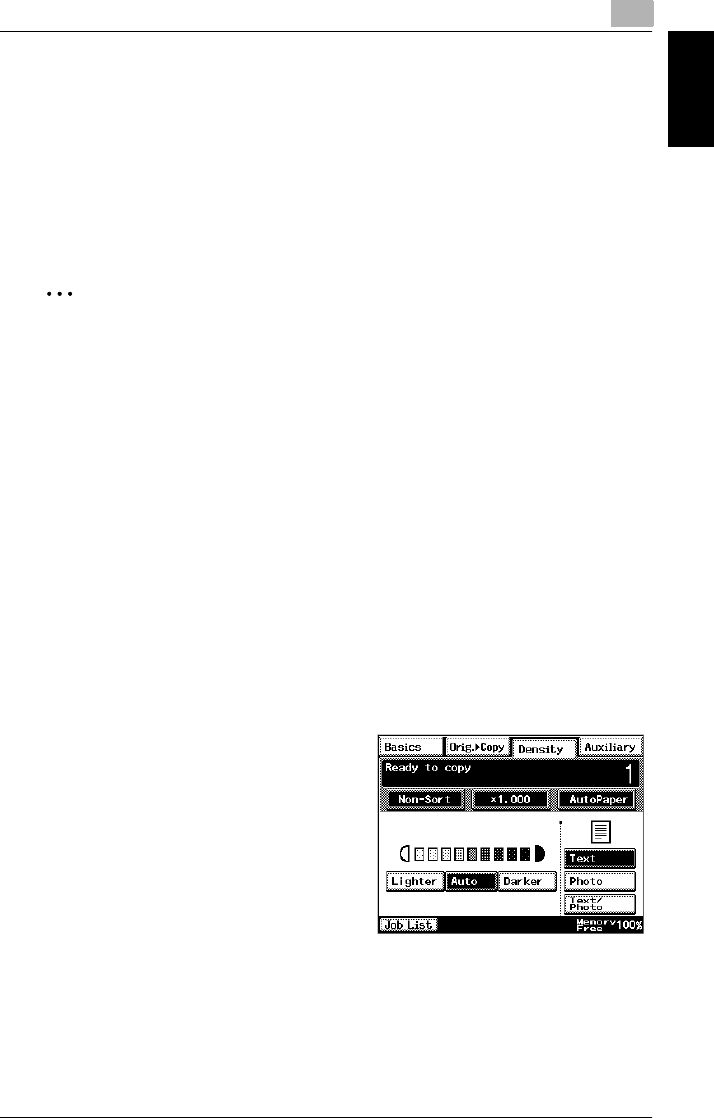
7.4 Specifying a Copy Density 7
Di2010/Di2510/Di3010/Di3510 7-33
Specifying Copy Settings Chapter 7
7.4 Specifying a Copy Density
Selecting a Density Setting
In the touch panel, touch [Density]. A screen appears, showing the available Den-
sity settings.
Select the appropriate setting for the document to be copied (“Text”, “Photo” or
“Text/Photo”). Then, adjust the density as necessary.
✎
Tip
The Density setting “Auto” is the default setting. The default Density setting can
be changed using a function on the User’s Choice screen. For details, refer to
“Changing Default Settings” of “Utility Mode Operations” in the Advanced Oper-
ations volume of the User Manual.
Selecting the “Text” Setting
Select the “Text” setting to emphasize contours and reproduce text documents with
sharpness.
<“Auto” Density>
The density is automatically adjusted for the document.
1Position the document(s) to be copied.
❍For details, refer to “6 Original Documents”.
2Touch [Density].
3Touch [Text].
4Touch [Auto], or touch [Lighter] and
[Darker] to select the desired Density
setting.
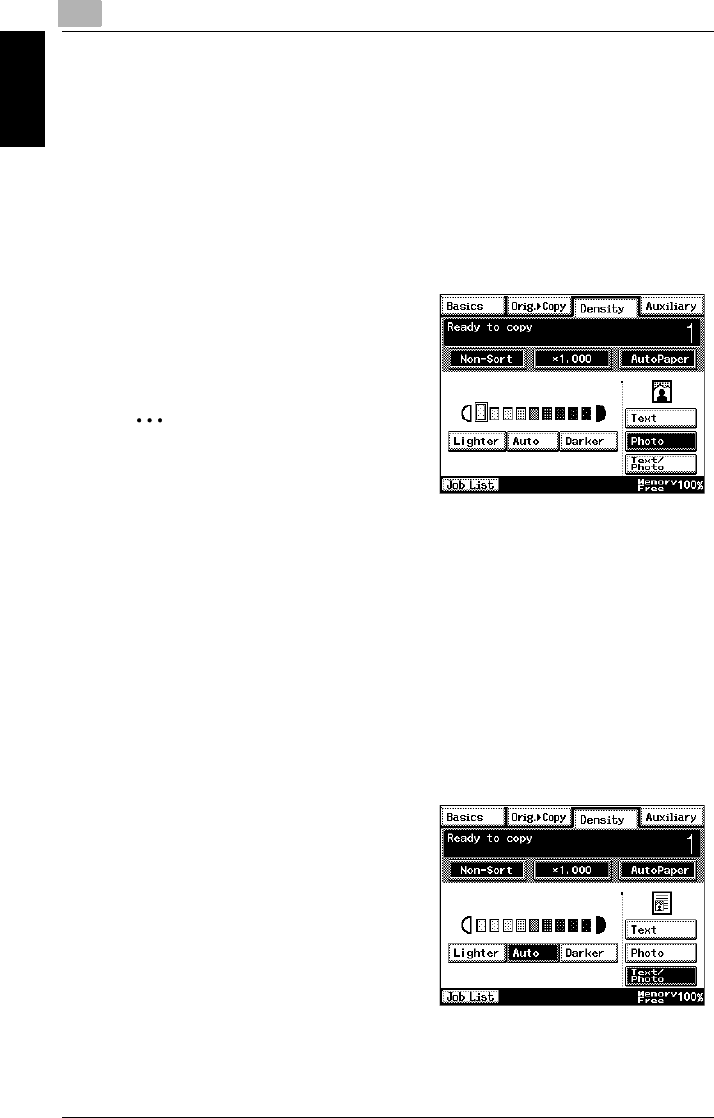
77.4 Specifying a Copy Density
7-34 Di2010/Di2510/Di3010/Di3510
Specifying Copy Settings Chapter 7
Selecting the “Photo” Setting
Select the “Photo” setting when copying documents with halftones such as photo-
graphs.
1Position the document(s) to be copied.
❍For details, refer to “6 Original Documents”.
2Touch [Density].
3Touch [Photo].
4Touch [Lighter] and [Darker] to select the
desired Density setting.
✎
Note
The “Auto” Density setting cannot be
selected if the “Photo” setting is se-
lected. Selecting the “Auto” setting au-
tomatically selects the “Text” setting.
Selecting the “Text/Photo” Setting
Select the “Text/Photo” setting when copying documents containing both text and
photos.
1Position the document(s) to be copied.
❍For details, refer to “6 Original Documents”.
2Touch [Density].
3Touch [Text/Photo].
4Touch [Auto], or touch [Lighter] and
[Darker] to select the desired Density
setting.

7.4 Specifying a Copy Density 7
Di2010/Di2510/Di3010/Di3510 7-35
Specifying Copy Settings Chapter 7
✎
Tip
If the “Auto” Density setting is selected, the density of the copy is adjusted
as necessary. However, the density can be made lighter or darker using a
function on the User’s Choice screen. For details, refer to “Changing Default
Settings” of “Utility Mode Operations” in the Advanced Operations volume of
the User Manual.

77.4 Specifying a Copy Density
7-36 Di2010/Di2510/Di3010/Di3510
Specifying Copy Settings Chapter 7

Touch Panel Messages Chapter 8
8
8Touch Panel
Messages
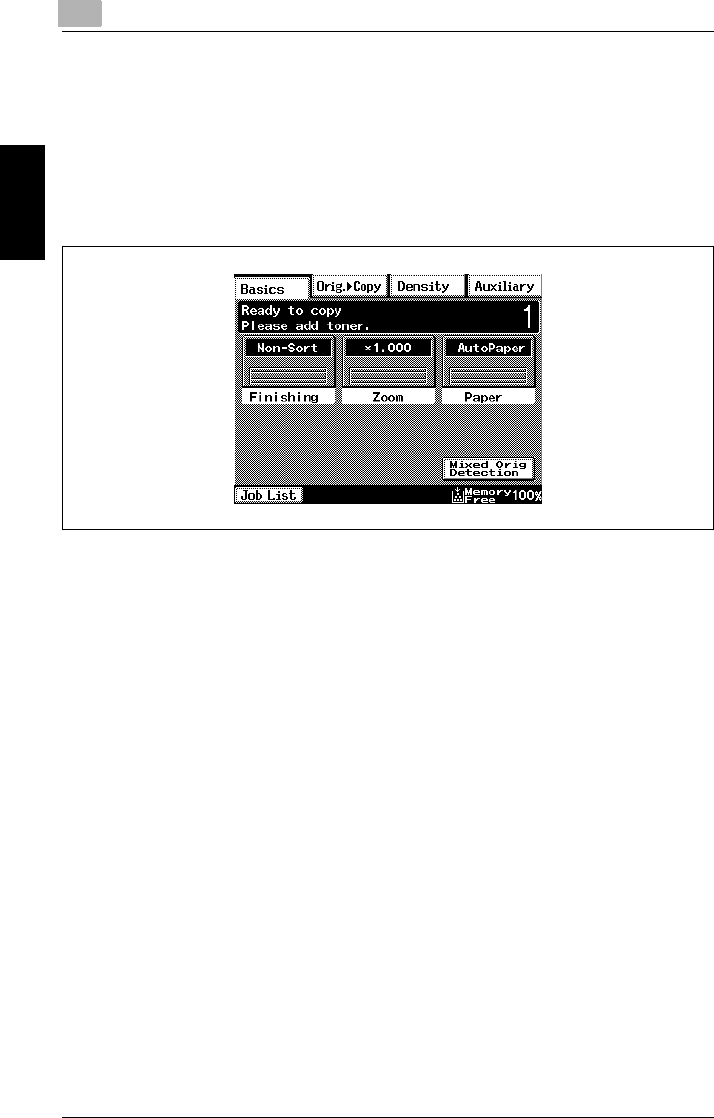
88.1 When the Message “Ready to copy Please add toner.” Appears
8-2 Di2010/Di2510/Di3010/Di3510
Touch Panel Messages Chapter 8
8.1 When the Message “Ready to copy Please add ton-
er.” Appears
When the toner is nearly empty, the “Please add toner” message is displayed. After
it is displayed, you can still print approximately 1000 pages, however please re-
place the bottle as soon as possible.
For details, refer to “To replace the toner bottle” on page 8-3.
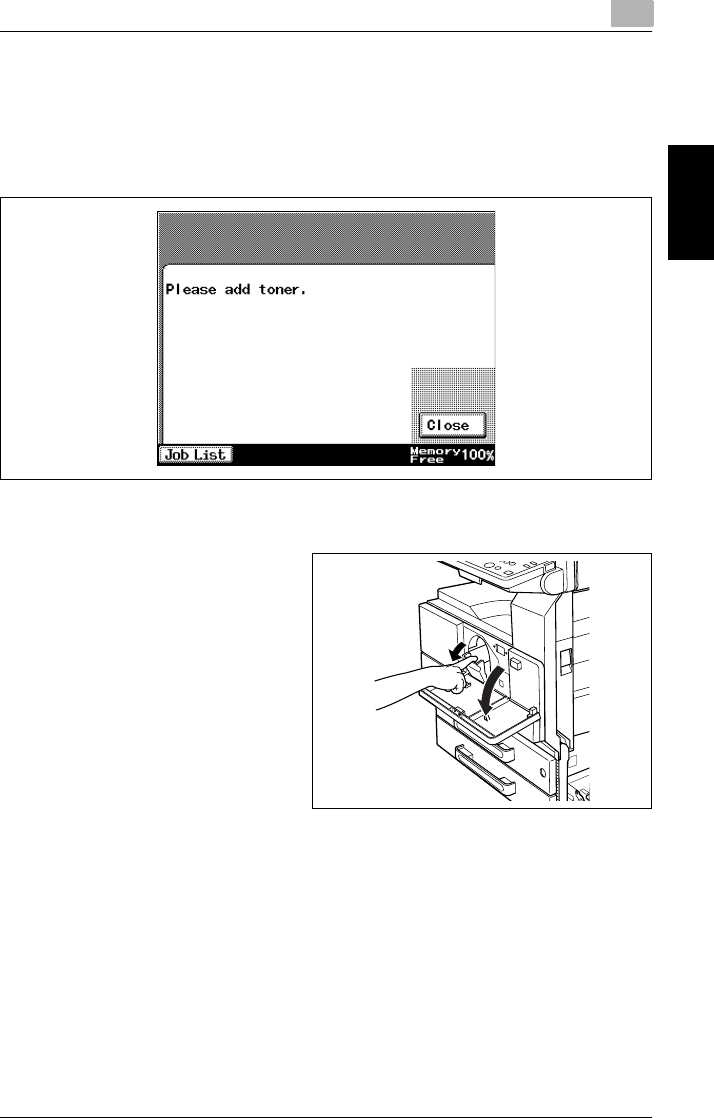
8.2 When the Message “Please add toner.” Appears 8
Di2010/Di2510/Di3010/Di3510 8-3
Touch Panel Messages Chapter 8
8.2 When the Message “Please add toner.” Appears
When the toner is empty, the message shown below appears and printing can no
longer be performed.
Follow the procedure described below to replace the toner bottle.
To replace the toner bottle
1Open the front door.
2Pull the toner hopper out as far as
possible.

88.2 When the Message “Please add toner.” Appears
8-4 Di2010/Di2510/Di3010/Di3510
Touch Panel Messages Chapter 8
3Flip up the toner bottle holder.
4Carefully pull out the empty toner
bottle.
❍Do not throw away the empty
toner bottle. Instead, keep it so
that it can be collected by your
service representative.
5Hit one end of the new toner bottle
against a hard surface, such as a
desk or table, 4 or 5 times, and
then hit the other end 4 or 5 times.
❍Since the toner within the
bottle may have become
compacted, be sure to break it
up by performing this step.
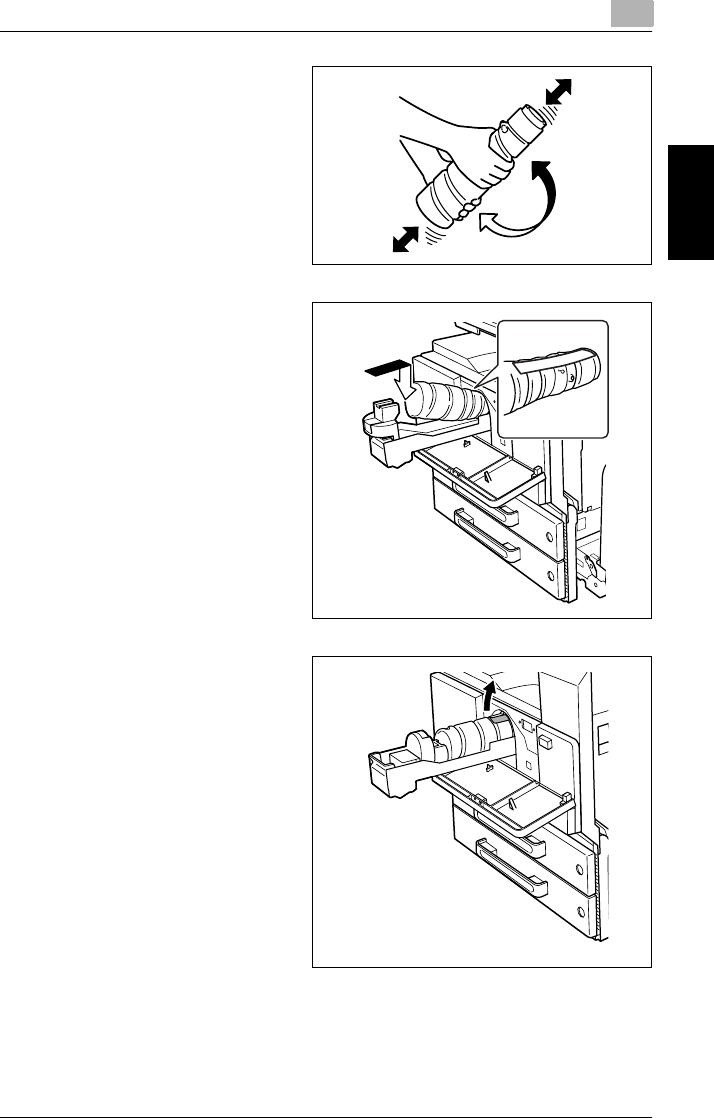
8.2 When the Message “Please add toner.” Appears 8
Di2010/Di2510/Di3010/Di3510 8-5
Touch Panel Messages Chapter 8
6Shake the new toner bottle up and
down about 5 times.
7With the seal on the toner bottle
facing upward, insert the bottle.
8Flip down on the toner bottle
holder until it locks into place.
Grab the seal on the toner bottler,
and then slowly pull it off toward
you.
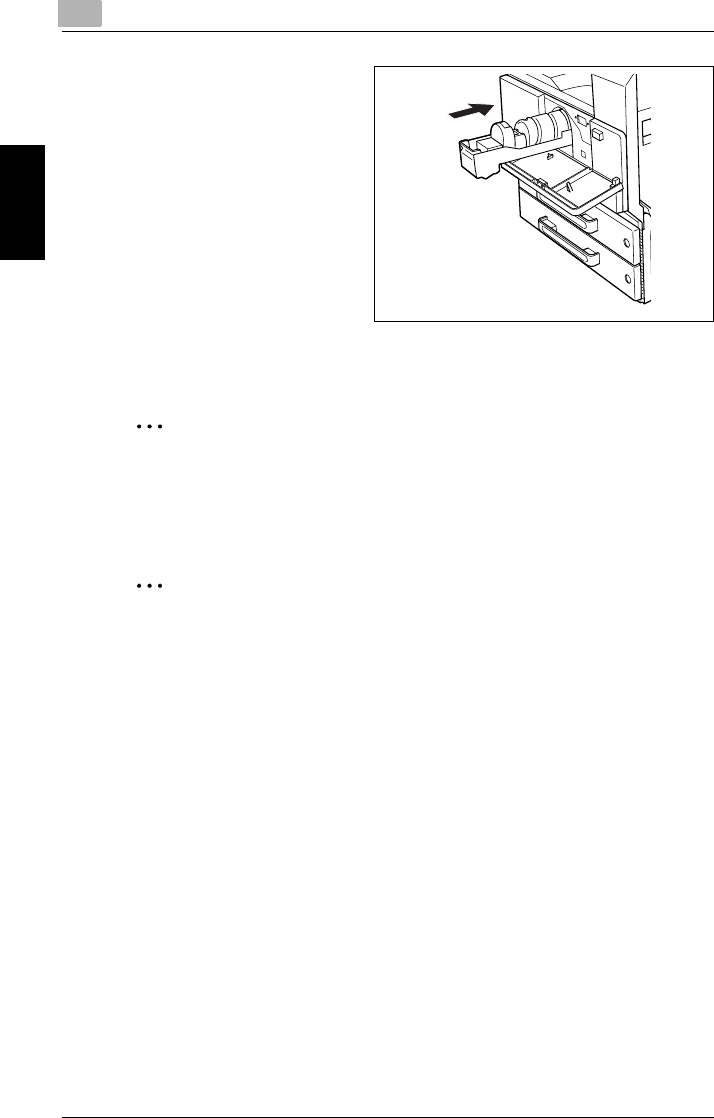
88.2 When the Message “Please add toner.” Appears
8-6 Di2010/Di2510/Di3010/Di3510
Touch Panel Messages Chapter 8
9Fold down the toner bottle holder,
and then push in the toner hopper.
10 Close the front door.
✎
Note
When the front door is closed, the toner automatically begins refilling.
While toner is being refilled, do not turn off the copier or open any other
doors.
✎
Tip
If the print is faint immediately after the toner bottle is replaced, replenish the
toner. (For more details, refer to User Management Functions of “Utility
Mode Operations” in the Advanced Operations volume.)
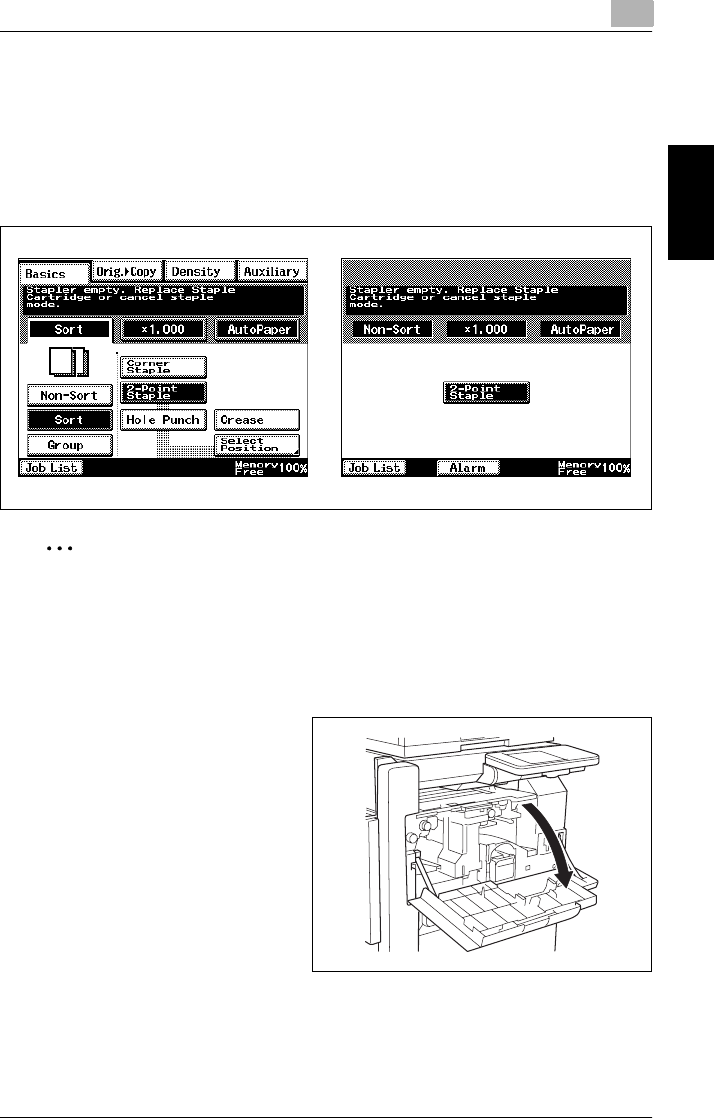
8.3 When the Message “Stapler empty.” Appears 8
Di2010/Di2510/Di3010/Di3510 8-7
Touch Panel Messages Chapter 8
8.3 When the Message “Stapler empty.” Appears
When the staple cartridge is empty, the message shown below appears and sta-
pling can no longer be performed.
Follow the procedure described below to replace the staple cartridge.
✎
Note
Be sure to replace the staple cartridge only after the message appears. The ma-
chine may be damaged if the staple cartridge is removed before the message
appears.
To replace the staple cartridge for finisher
1Open the front door.

88.3 When the Message “Stapler empty.” Appears
8-8 Di2010/Di2510/Di3010/Di3510
Touch Panel Messages Chapter 8
2Pull the staple cartridge holder out
toward you.
3Press in the area marked “PUSH”
to unlock the staple holder.
4Remove the empty staple
cartridge from the staple cartridge
holder.
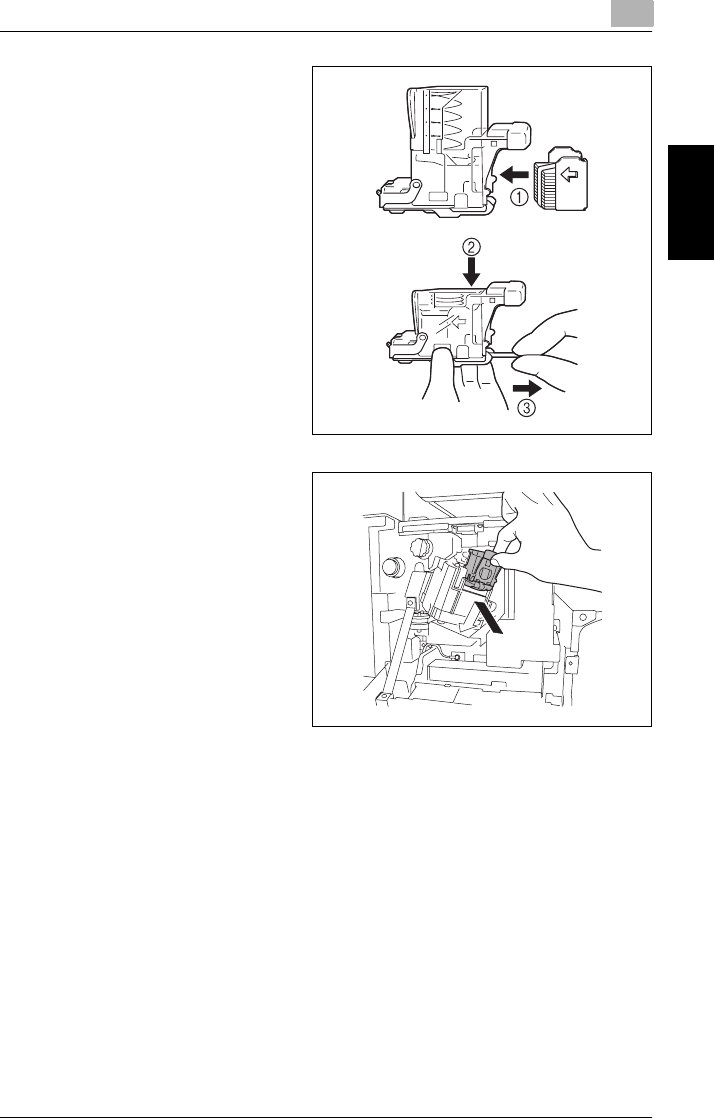
8.3 When the Message “Stapler empty.” Appears 8
Di2010/Di2510/Di3010/Di3510 8-9
Touch Panel Messages Chapter 8
5Insert the new staple cartridge into
the staple cartridge holder, and
then carefully remove the stopper.
6Insert the refilled staple cartridge
holder until it locks into place.
7Close the front door.
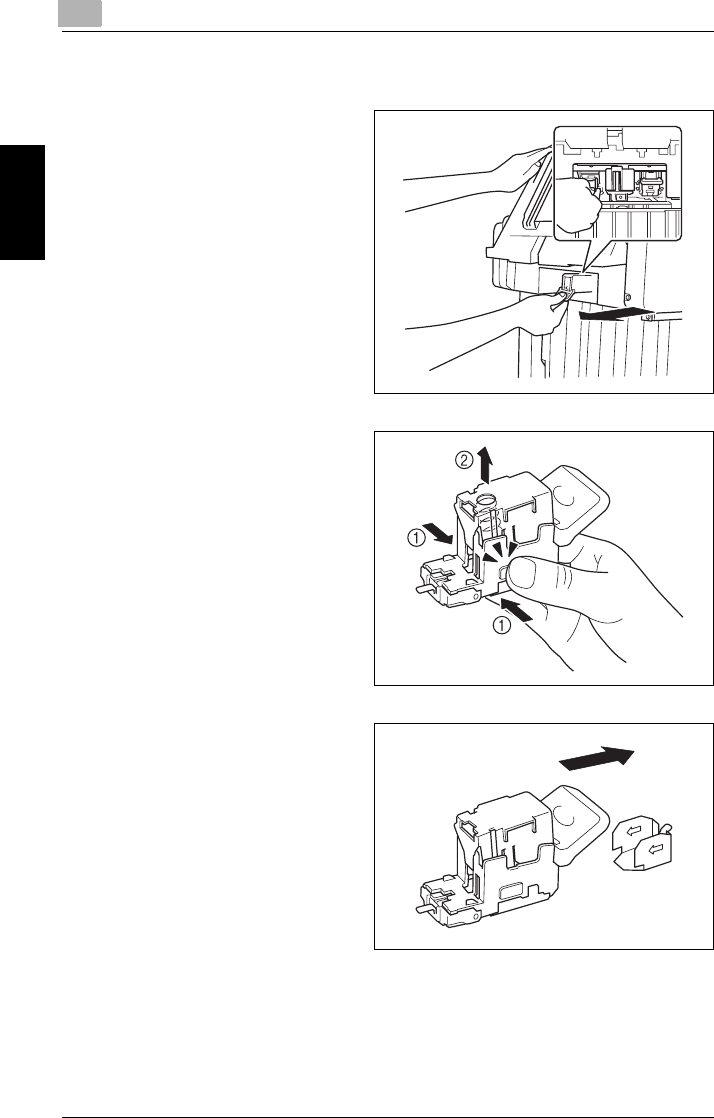
88.3 When the Message “Stapler empty.” Appears
8-10 Di2010/Di2510/Di3010/Di3510
Touch Panel Messages Chapter 8
To replace the staple cartridge for the saddle kit
1While holding up the paper output
tray, remove the staple cartridge.
2Press in the area marked “PUSH”
to unlock the staple holder.
3Remove the empty staple
cartridge from the staple cartridge
holder.
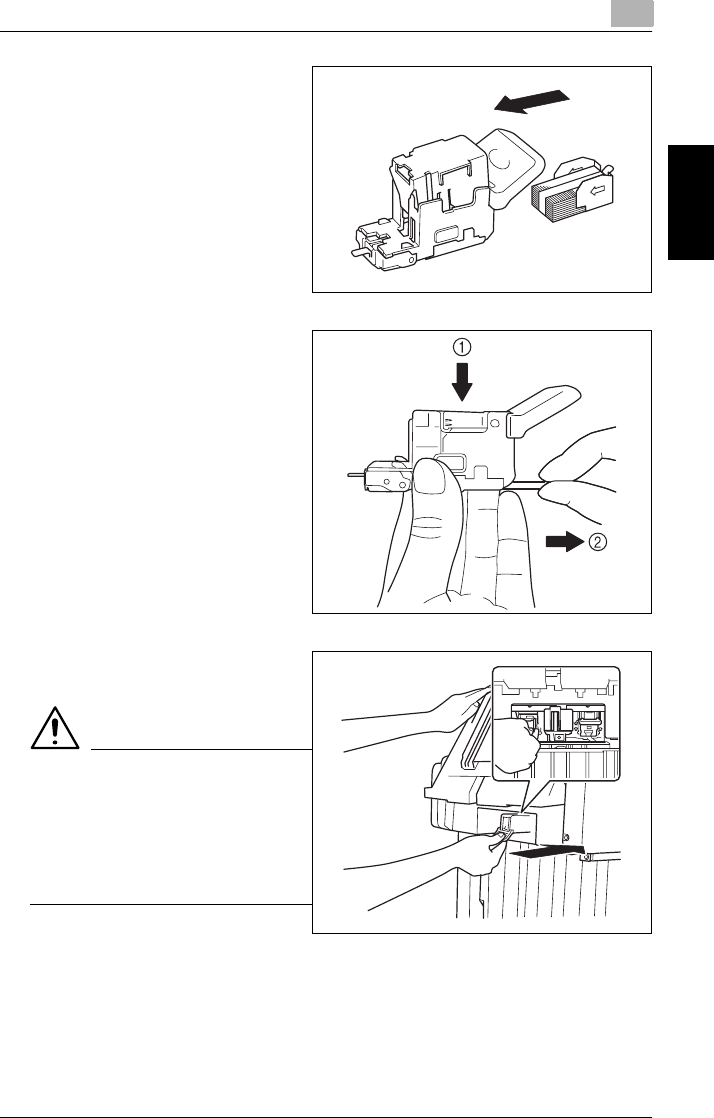
8.3 When the Message “Stapler empty.” Appears 8
Di2010/Di2510/Di3010/Di3510 8-11
Touch Panel Messages Chapter 8
4Insert the new staple cartridge into
the staple cartridge holder.
5Carefully remove the stopper.
6Insert the refilled staple cartridge
holder until it locks into place.
CAUTION
Be careful when installing the
staple cartridge holder.
➜Be sure that the staple
cartridge holder is inserted
facing the correct direction.
7Lower the paper output tray.

88.3 When the Message “Stapler empty.” Appears
8-12 Di2010/Di2510/Di3010/Di3510
Touch Panel Messages Chapter 8
8Open then shut the misfeed-
clearing door.
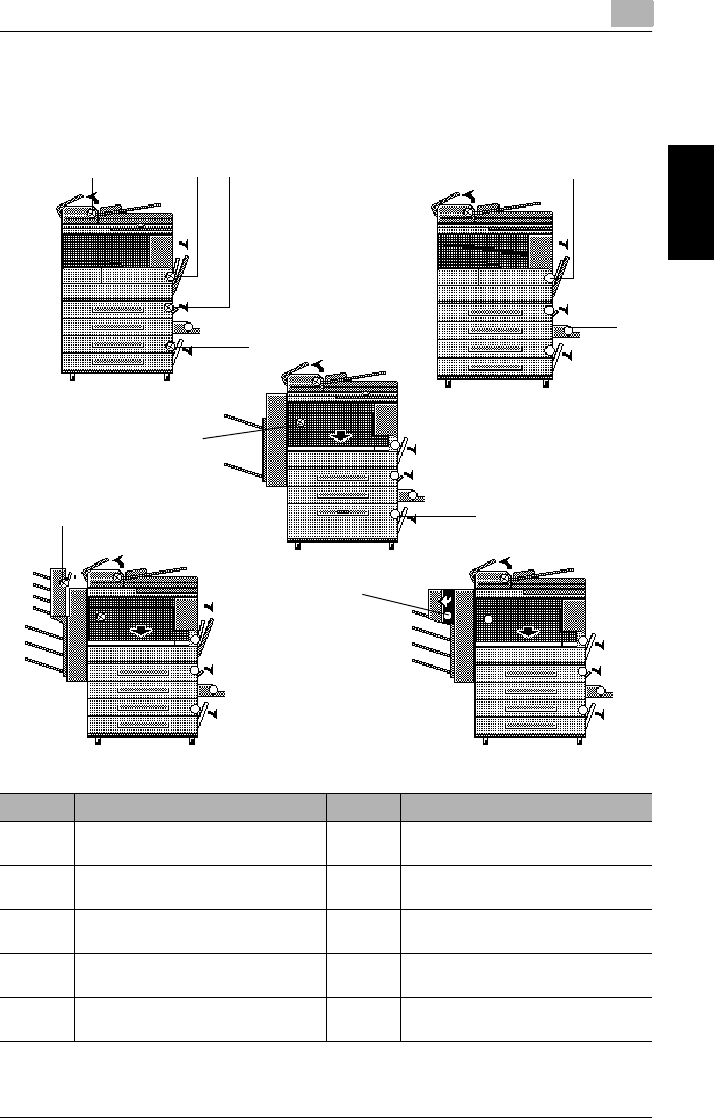
8.4 When a Paper Misfeed Occurs 8
Di2010/Di2510/Di3010/Di3510 8-13
Touch Panel Messages Chapter 8
8.4 When a Paper Misfeed Occurs
Locations of Paper Misfeeds
Message Description Message Description
1 A paper misfeed in the duplexing
document feeder (page 8-14)
6 A paper misfeed in the 3rd or 4th paper
drawer (page 8-21)
2 A paper misfeed in the fusing section
(page 8-15)
7 A paper misfeed in the large capacity
cabinet (page 8-22)
3 A paper misfeed in the duplex unit
(page 8-18)
8 A paper misfeed in the built in finisher
(page 8-23)
4 A paper misfeed in the multiple bypass
tray (page 8-19)
9 A paper misfeed in the mail bin kit
(page 8-26)
5 A paper misfeed in the 1st or 2nd
paper drawer (page 8-20)
10 A paper misfeed in the saddle kit
(page 8-28)
1 2 5
6
8
9
10
7
3
4
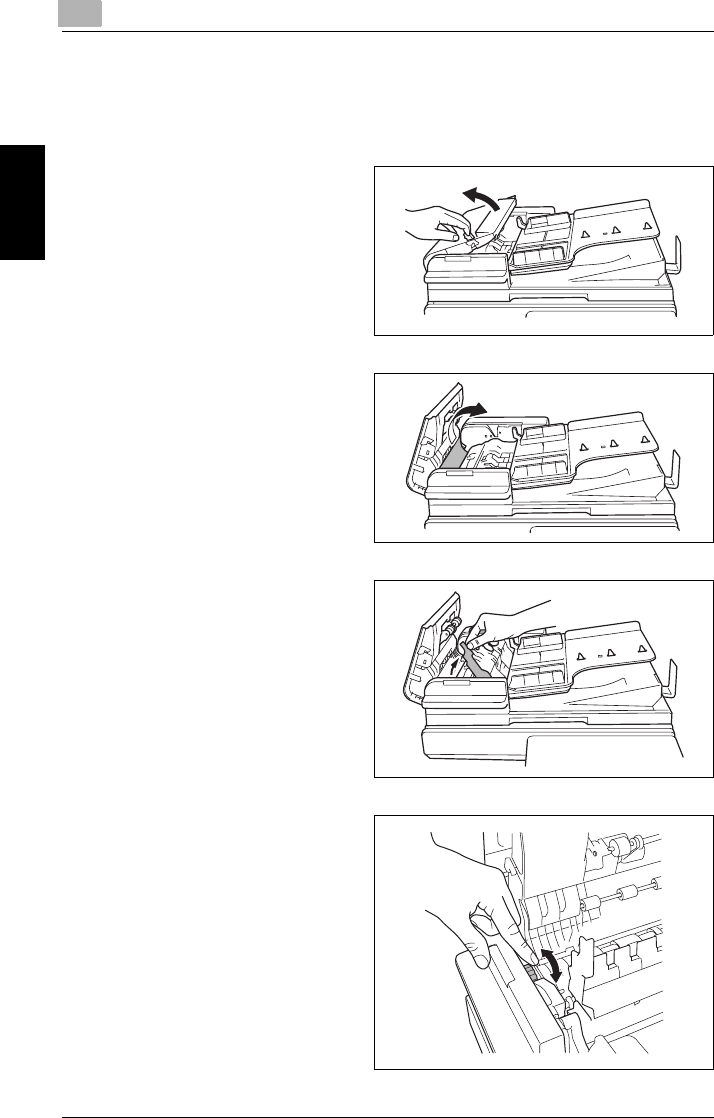
88.4 When a Paper Misfeed Occurs
8-14 Di2010/Di2510/Di3010/Di3510
Touch Panel Messages Chapter 8
To clear a paper misfeed in the duplexing document feeder
Follow the instructions that appear in the touch panel to open the document guide
and remove any misfed paper.
1Pull up the lever for the misfeed-
clearing cover, and then open the
cover.
2Carefully pull out any misfed
documents.
3Swing up the document guide
lever.
4Turn the dial to feed out any
misfed documents.

8.4 When a Paper Misfeed Occurs 8
Di2010/Di2510/Di3010/Di3510 8-15
Touch Panel Messages Chapter 8
5While supporting the document
feed tray with your right hand,
carefully pull out any misfed
paper.
6Return the document guide to its original position, and then close the misfeed-
clearing cover.
To clear a paper misfeed in the fusing section
CAUTION
The area around the fusing unit is extremely hot.
➜Touching any part other those
indicated may result in burns. If
you get burnt, immediately cool
the skin under cold water, and
then seek professional medical
attention.
1Pull up the right-side door release
lever, and then open the right-side
door.

88.4 When a Paper Misfeed Occurs
8-16 Di2010/Di2510/Di3010/Di3510
Touch Panel Messages Chapter 8
CAUTION
Decreased copy quality may result if the surface of the image transfer
roller is touched.
➜Be careful not to touch the
surface of the image transfer
roller.
2Carefully pull out any misfed
paper.
3Open the fusing unit guide.
Image transfer roller
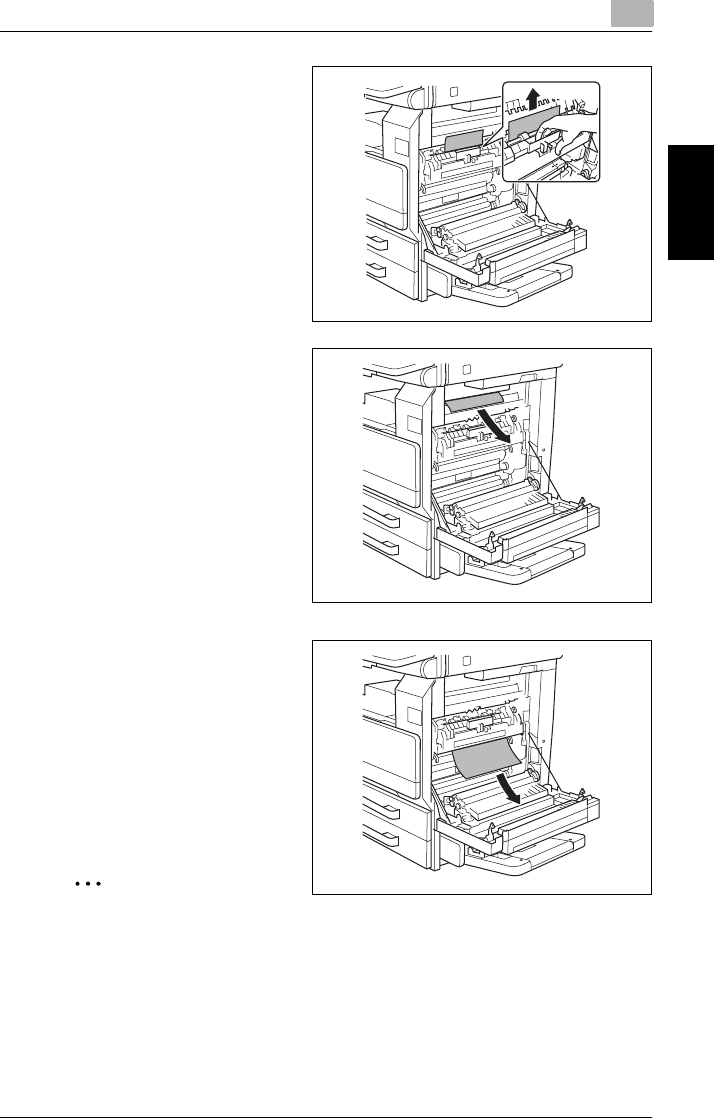
8.4 When a Paper Misfeed Occurs 8
Di2010/Di2510/Di3010/Di3510 8-17
Touch Panel Messages Chapter 8
4Carefully pull out any misfed
paper.
❍Only when the duplex unit or
switchback unit are installed.
5Open the switching guide, and
then carefully pull out any misfed
paper in the switchback unit.
6Carefully pull out any misfed paper
in the fusing section.
✎
Note
If the paper is misfed as described below, contact your service representa-
tive.
- The paper is wrapped around the image transfer roller.
- The paper is folded or shredded by the image transfer roller.
- The paper that was removed tore and partly remains in the fusing unit.
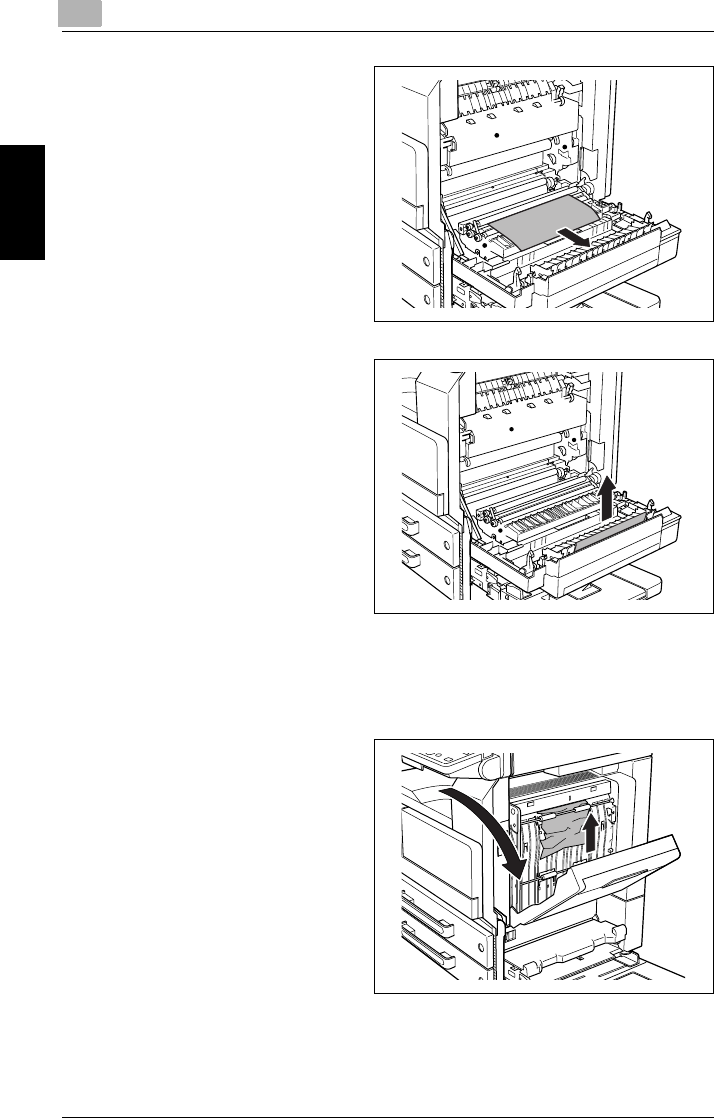
88.4 When a Paper Misfeed Occurs
8-18 Di2010/Di2510/Di3010/Di3510
Touch Panel Messages Chapter 8
7Carefully pull out any misfed paper
around the image transfer roller.
8Carefully pull out any misfed
paper.
9Close the right-side door.
To clear a paper misfeed in the duplex unit
1Open the duplex unit door.
2Carefully pull out any misfed
paper.
3Close the duplex unit door.
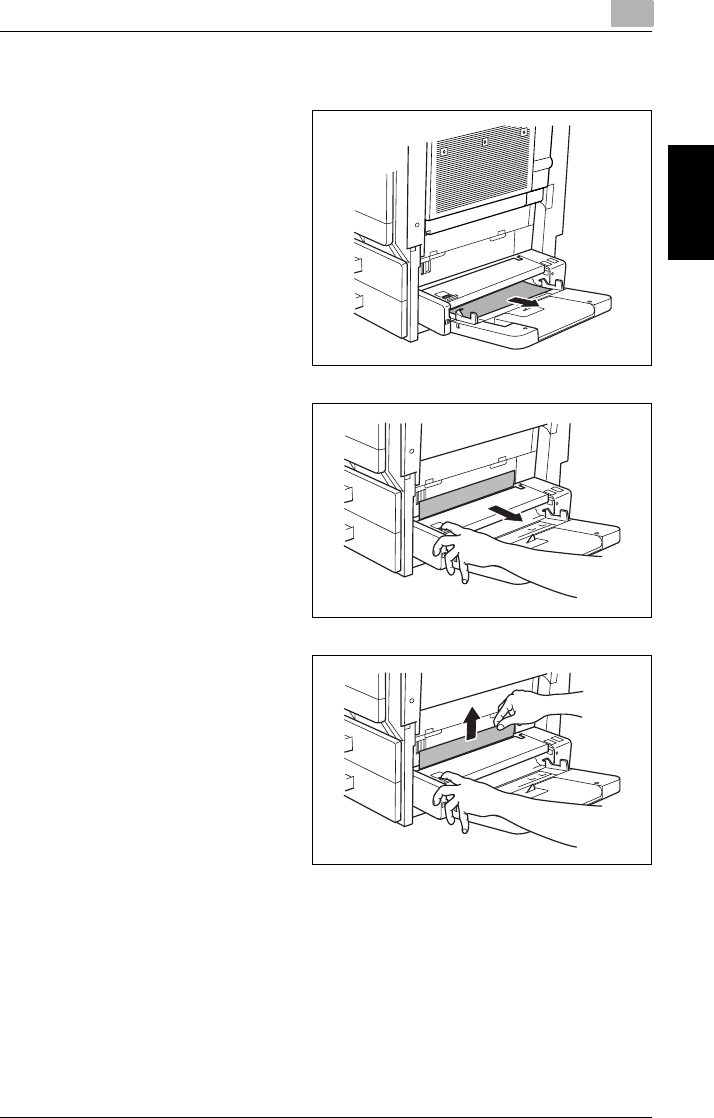
8.4 When a Paper Misfeed Occurs 8
Di2010/Di2510/Di3010/Di3510 8-19
Touch Panel Messages Chapter 8
To clear a paper misfeed in the multiple bypass tray
1Pull out any misfed paper from the
multiple bypass tray.
2If the misfed paper cannot be
pulled out, pull the lever for the
sliding plate of the multiple bypass
tray, and then pull the sliding plate
toward you.
3Press down on the sliding plate
with your left hand and carefully
pull out any misfed paper.
4Return the multiple bypass tray to its original position.
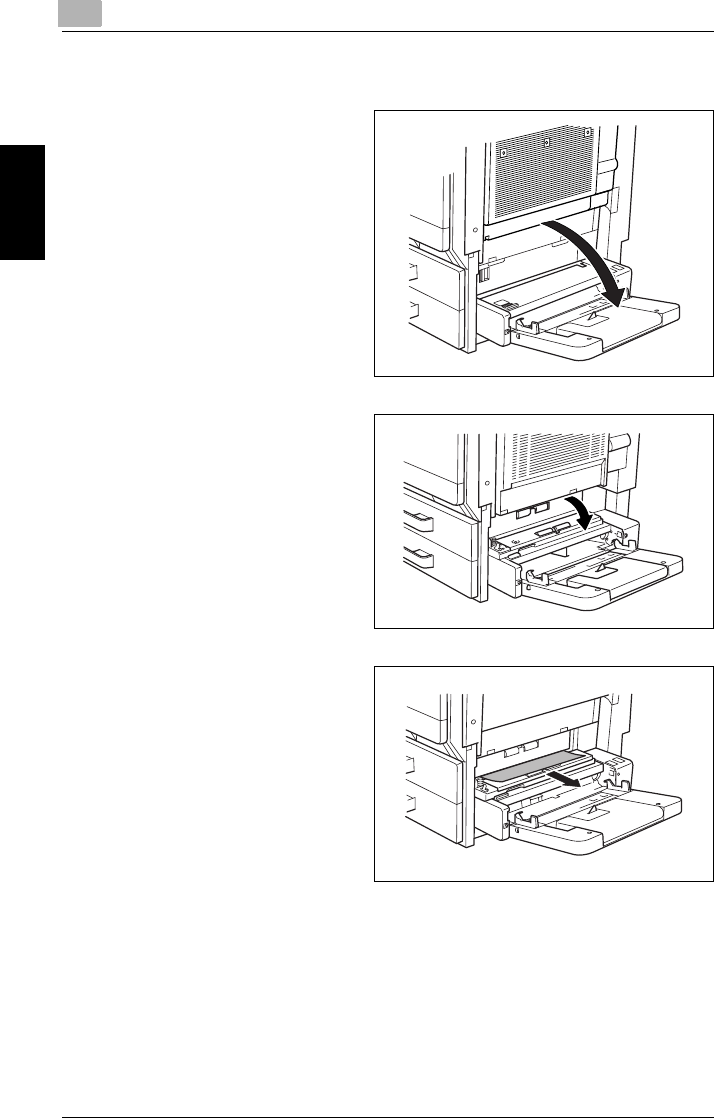
88.4 When a Paper Misfeed Occurs
8-20 Di2010/Di2510/Di3010/Di3510
Touch Panel Messages Chapter 8
To clear a paper misfeed in the 1st or 2nd paper drawer
1Open the multiple bypass tray.
2Pull up the lower-right door
release lever to open the lower-
right door of the paper feed unit
indicated in the touch panel
message.
3Carefully pull out any misfed
paper.
4Close the lower-right door.
5Close the multiple bypass tray.
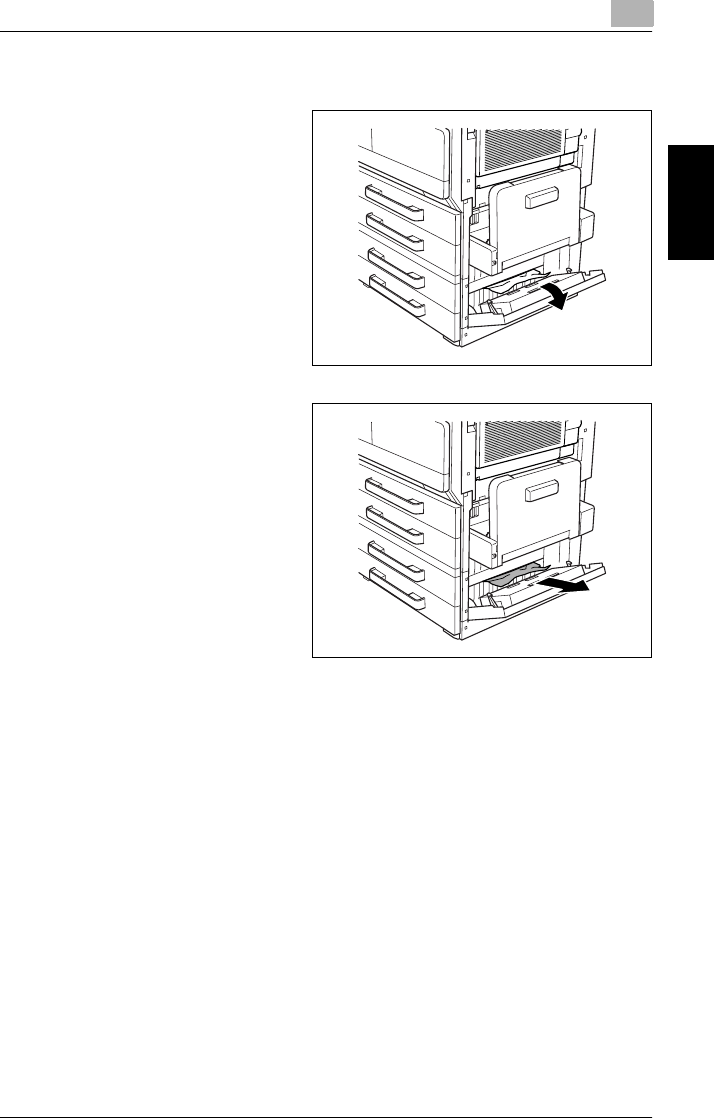
8.4 When a Paper Misfeed Occurs 8
Di2010/Di2510/Di3010/Di3510 8-21
Touch Panel Messages Chapter 8
To clear a paper misfeed in the 3rd or 4th paper drawer
1Pull up the lower-right door
release lever to open the lower-
right door of the paper feed unit
indicated in the touch panel
message.
2Carefully pull out any misfed
paper.
3Close the lower-right door.
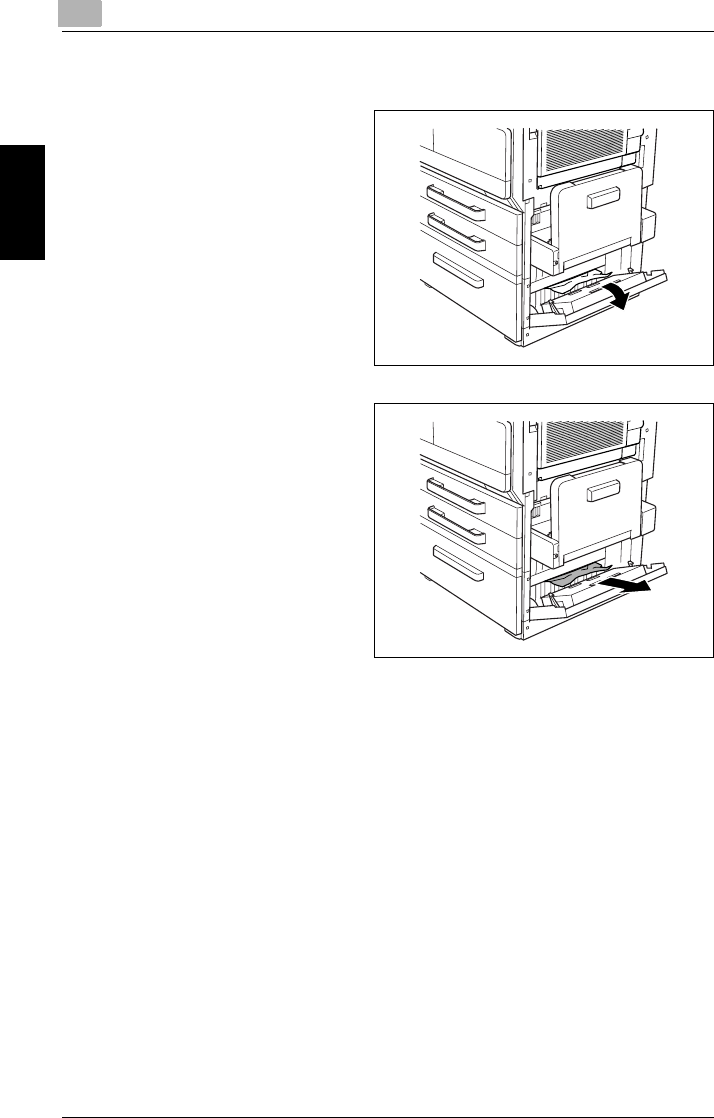
88.4 When a Paper Misfeed Occurs
8-22 Di2010/Di2510/Di3010/Di3510
Touch Panel Messages Chapter 8
To clear a paper misfeed in the large capacity cabinet
1Pull up the lower-right door
release lever to open the lower-
right door of the paper feed unit
indicated in the touch panel
message.
2Carefully pull out any misfed
paper.
3Close the lower-right door.
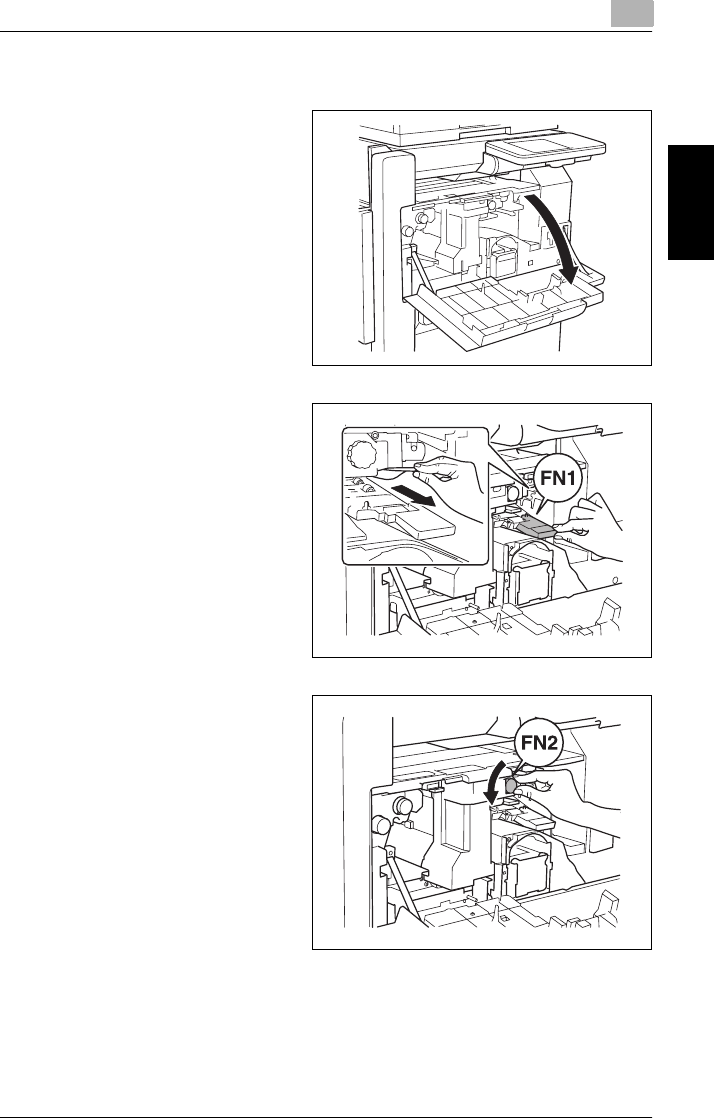
8.4 When a Paper Misfeed Occurs 8
Di2010/Di2510/Di3010/Di3510 8-23
Touch Panel Messages Chapter 8
To clear a paper misfeed in the built in finisher
1Open the front door.
2Lower lever “FN1”, and then pull
out any misfed paper.
3Turn knob “FN2”.

88.4 When a Paper Misfeed Occurs
8-24 Di2010/Di2510/Di3010/Di3510
Touch Panel Messages Chapter 8
4<If the punch kit is installed>
Pull out the punch box.
5Lower lever “FN3”, and then pull
out any misfed paper.
6Return lever “FN1” and lever “FN3” to their original position.
7<If the punch kit is installed>
Insert the punch box into its original position.
8Lower lever “FN4”.
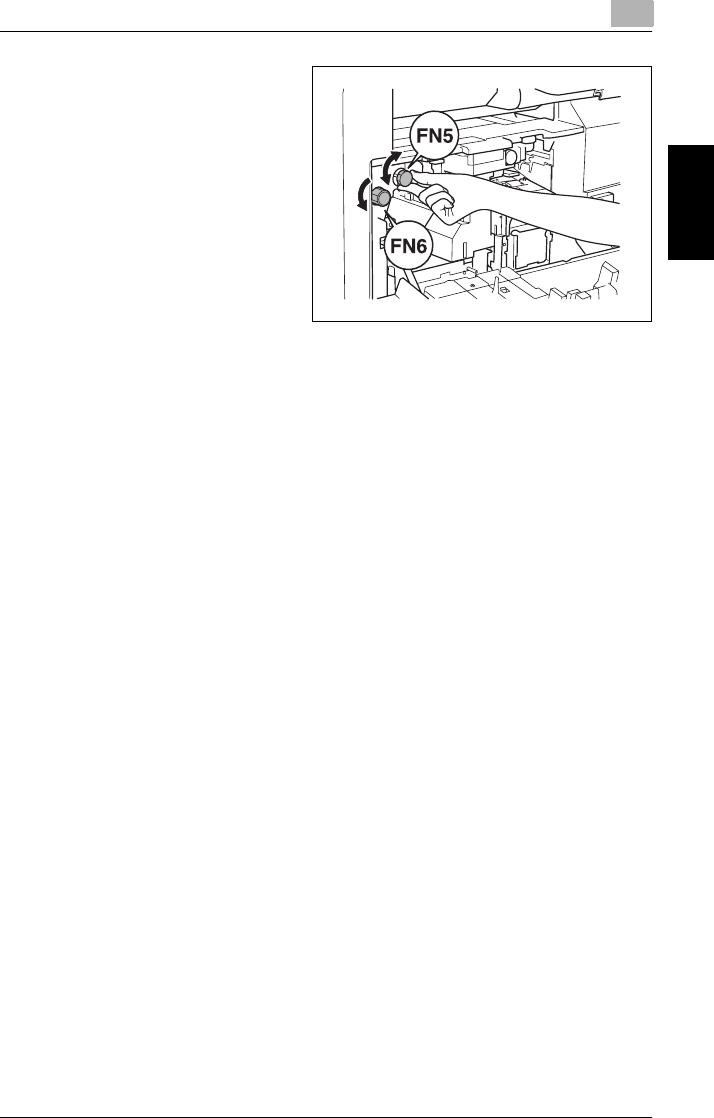
8.4 When a Paper Misfeed Occurs 8
Di2010/Di2510/Di3010/Di3510 8-25
Touch Panel Messages Chapter 8
9Turn dial “FN5” or dial “FN6”, and
then pull out any misfed paper.
10 Return lever “FN4” to its original
position.
11 Close the front door.
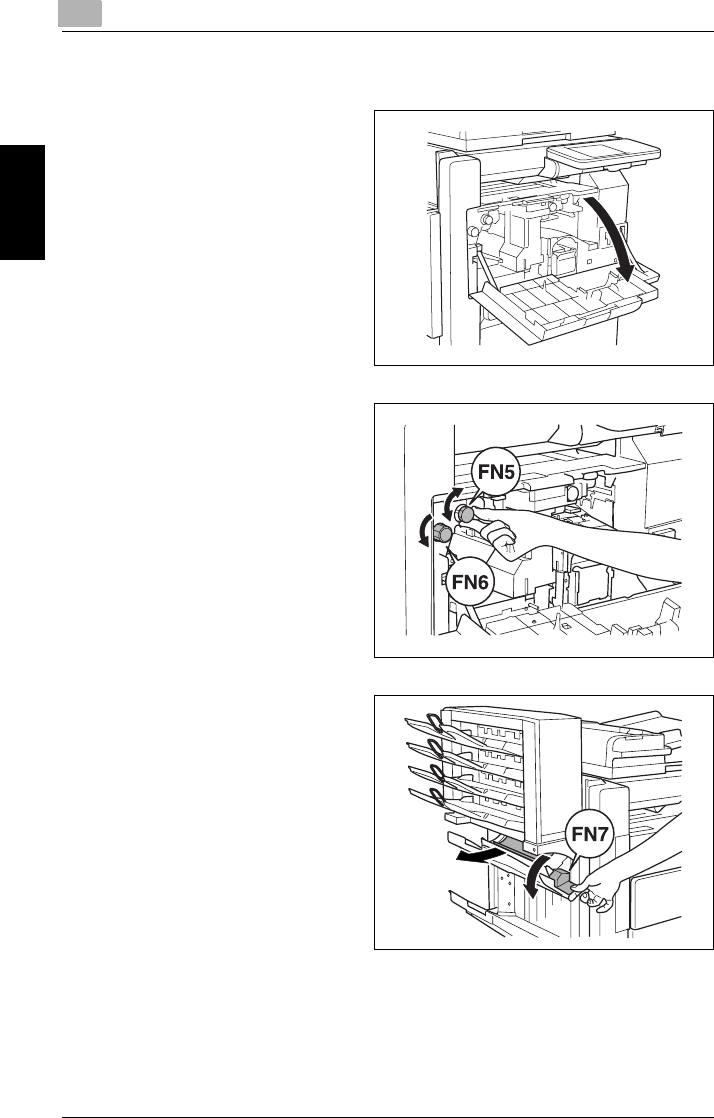
88.4 When a Paper Misfeed Occurs
8-26 Di2010/Di2510/Di3010/Di3510
Touch Panel Messages Chapter 8
To clear a paper misfeed in the mail bin kit
1Open the front door.
2Turn dial “FN5” or dial “FN6”, and
then pull out any misfed paper.
3While pressing down lever “FN7”,
pull out any misfed paper.

8.4 When a Paper Misfeed Occurs 8
Di2010/Di2510/Di3010/Di3510 8-27
Touch Panel Messages Chapter 8
4Pull handle “FN8” to open the
misfeed-clearing door.
5Pull out any misfed paper in the
mail bin.
6Close the misfeed-clearing door.
7Close the front door.
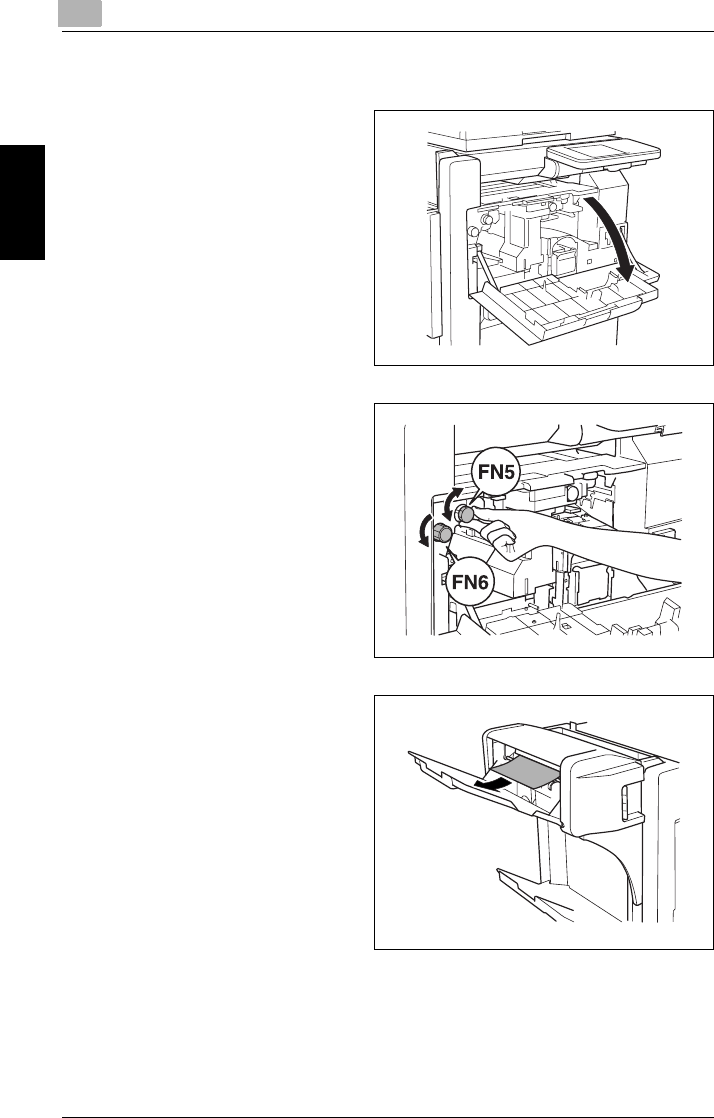
88.4 When a Paper Misfeed Occurs
8-28 Di2010/Di2510/Di3010/Di3510
Touch Panel Messages Chapter 8
To clear a paper misfeed in the saddle kit
1Open the front door.
2Turn dial “FN5” or dial “FN6”, and
then pull out any misfed paper.
3Remove all paper from the paper
output tray.
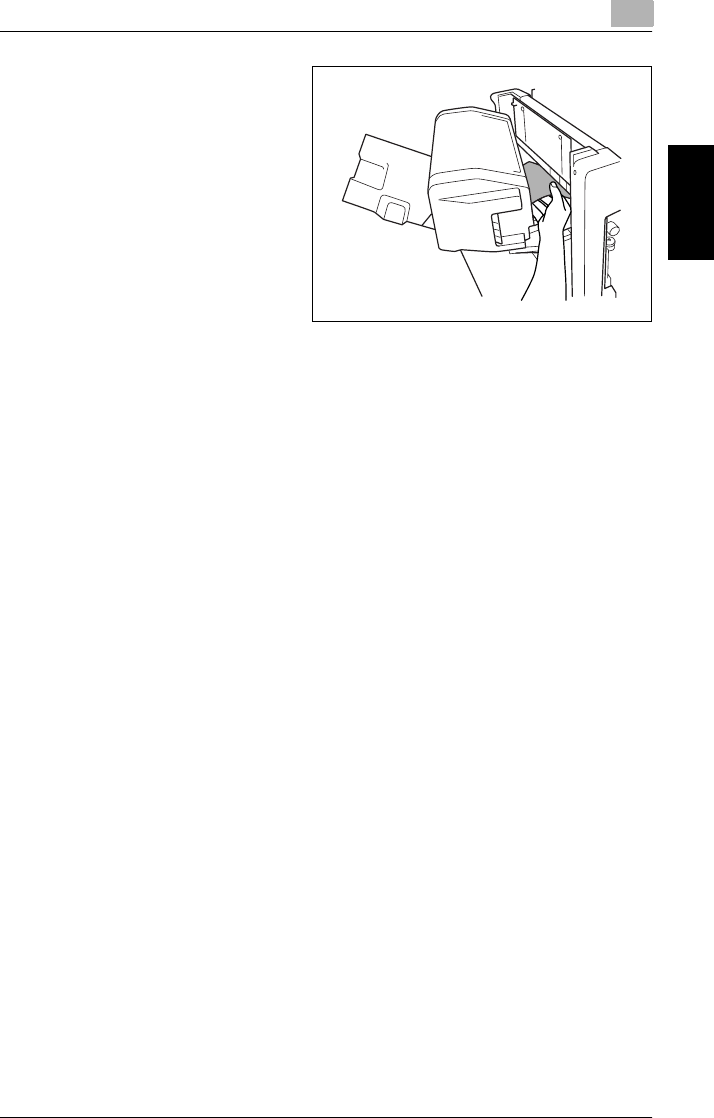
8.4 When a Paper Misfeed Occurs 8
Di2010/Di2510/Di3010/Di3510 8-29
Touch Panel Messages Chapter 8
4Open the misfeed-clearing door,
and then pull out any misfed
paper.
5Close the misfeed-clearing door.
6Close the front door.
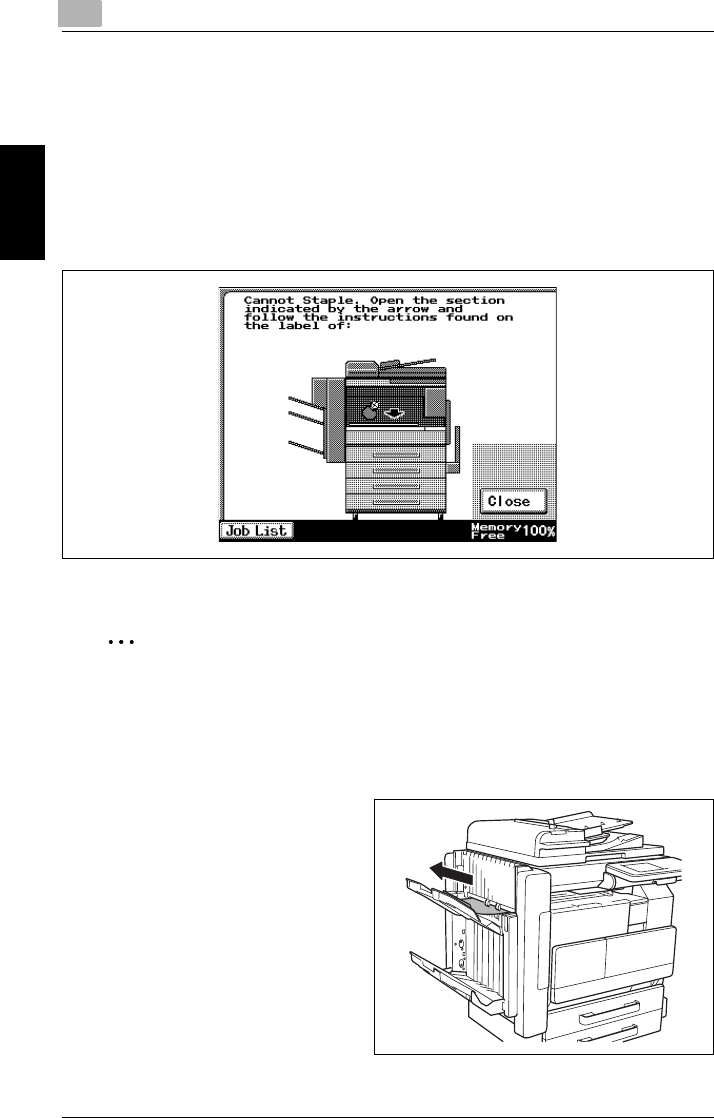
88.5 When the Message “Cannot Staple.” Appears
8-30 Di2010/Di2510/Di3010/Di3510
Touch Panel Messages Chapter 8
8.5 When the Message “Cannot Staple.” Appears
To clear jammed staples
When a finisher is installed and the staples are jammed, the message shown below
appears.
Follow the procedure described below to clear the jammed staples.
Follow the procedure described below to remove the paper and staples.
✎
Note
When the message “Cannot Staple.” appears, clear the jammed staples as de-
scribed below.
Not following the following procedure and forcefully pulling out the paper may
result in damage to the “Stapler Unit”.
1Remove all paper from the
finisher.
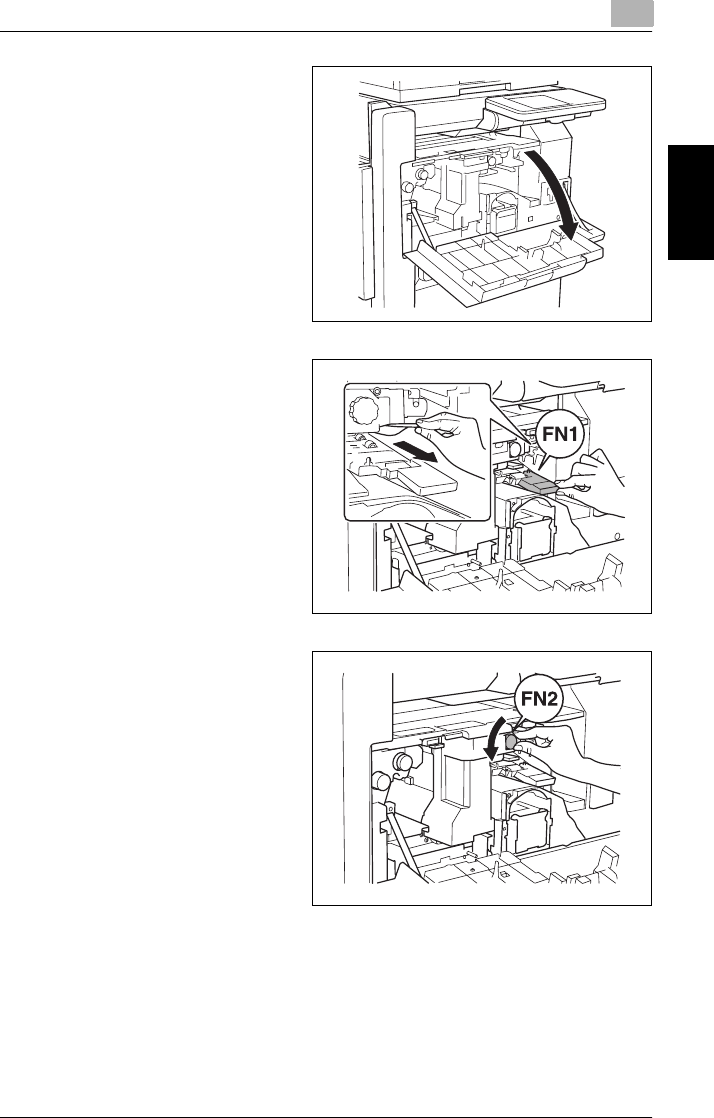
8.5 When the Message “Cannot Staple.” Appears 8
Di2010/Di2510/Di3010/Di3510 8-31
Touch Panel Messages Chapter 8
2Open the front door.
3Lower lever “FN1”, and then pull
out any misfed paper.
4Turn dial “FN2”.
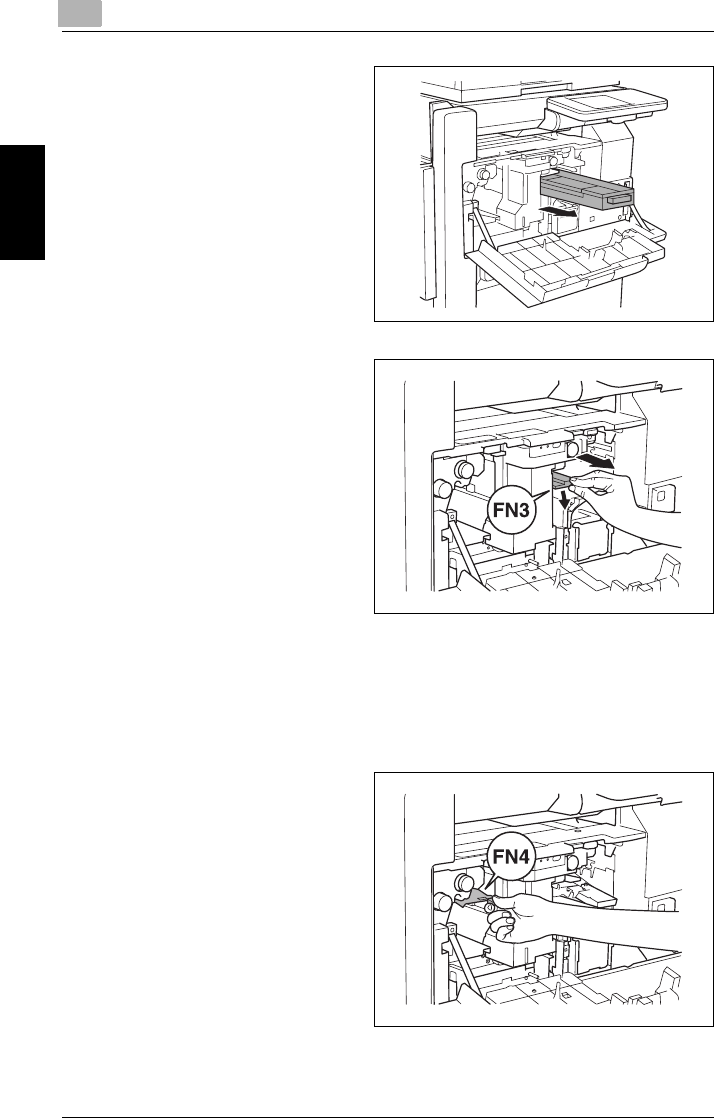
88.5 When the Message “Cannot Staple.” Appears
8-32 Di2010/Di2510/Di3010/Di3510
Touch Panel Messages Chapter 8
5<If the punch kit is installed>
Pull out the punch box.
6Lower lever “FN3”, and then pull
out any misfed paper.
7Return lever “FN1” and lever “FN3” to their original position.
8<If the punch kit is installed>
Insert the punch box into its original position.
9Lower lever “FN4”.
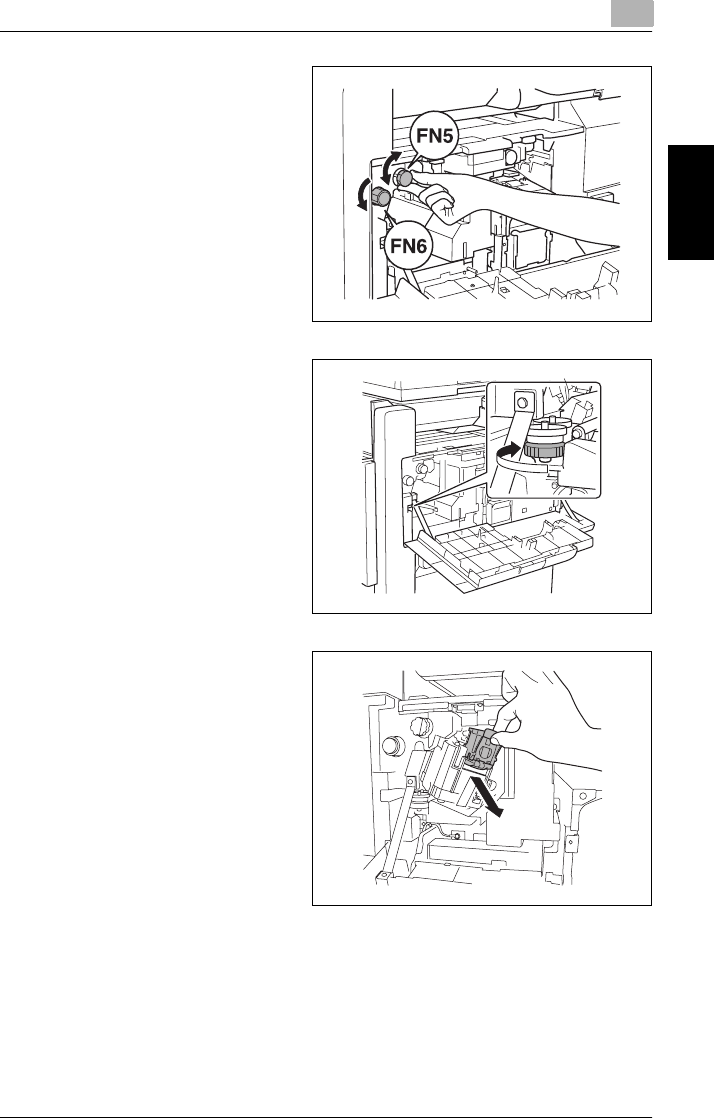
8.5 When the Message “Cannot Staple.” Appears 8
Di2010/Di2510/Di3010/Di3510 8-33
Touch Panel Messages Chapter 8
10 Turn dial “FN5” or dial “FN6”, and
then pull out any misfed paper.
11 Return lever “FN4” to its original
position.
12 Turn the dial to the left to move the
stapler toward the front.
13 Pull the staple cartridge holder out
toward you.
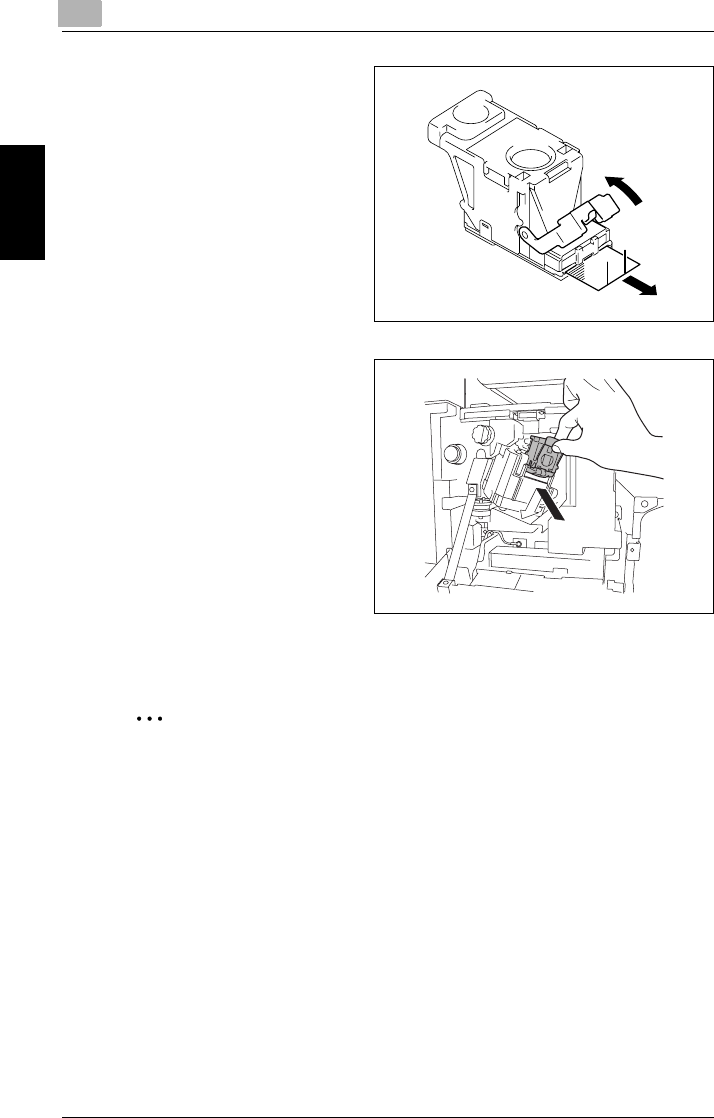
88.5 When the Message “Cannot Staple.” Appears
8-34 Di2010/Di2510/Di3010/Di3510
Touch Panel Messages Chapter 8
14 Push the staple holder guide up,
and then pull out one sheet of
staples.
15 Return the guide to its original
position.
16 Insert the staple cartridge holder
until it locks into place.
17 Close the front door.
✎
Note
If stapling still cannot be performed, even after performing the above proce-
dure, contact your service representative.
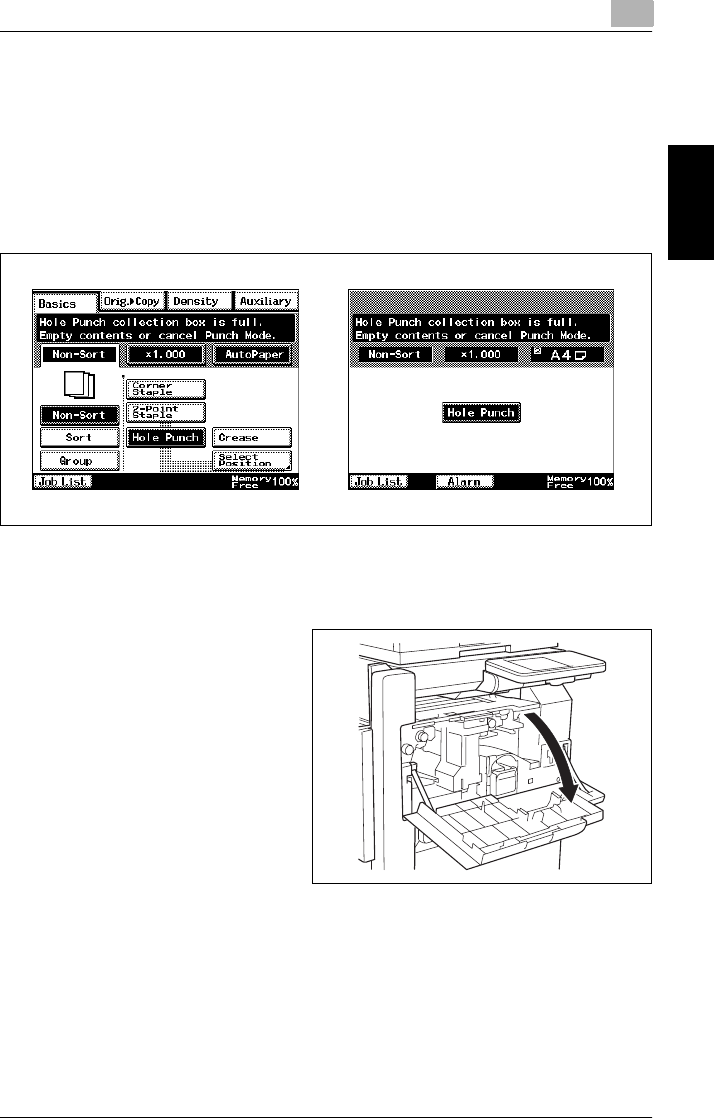
8.6 When the Message “Hole Punch collection box is full.” Appears 8
Di2010/Di2510/Di3010/Di3510 8-35
Touch Panel Messages Chapter 8
8.6 When the Message “Hole Punch collection box is
full.” Appears
If the punch kit is attached to the finisher, the following message will appear when
the punch box is full.
Follow the procedure described below to empty the punch box.
To empty the punch box
Empty and re-install the punch box as described below.
1Open the front door.
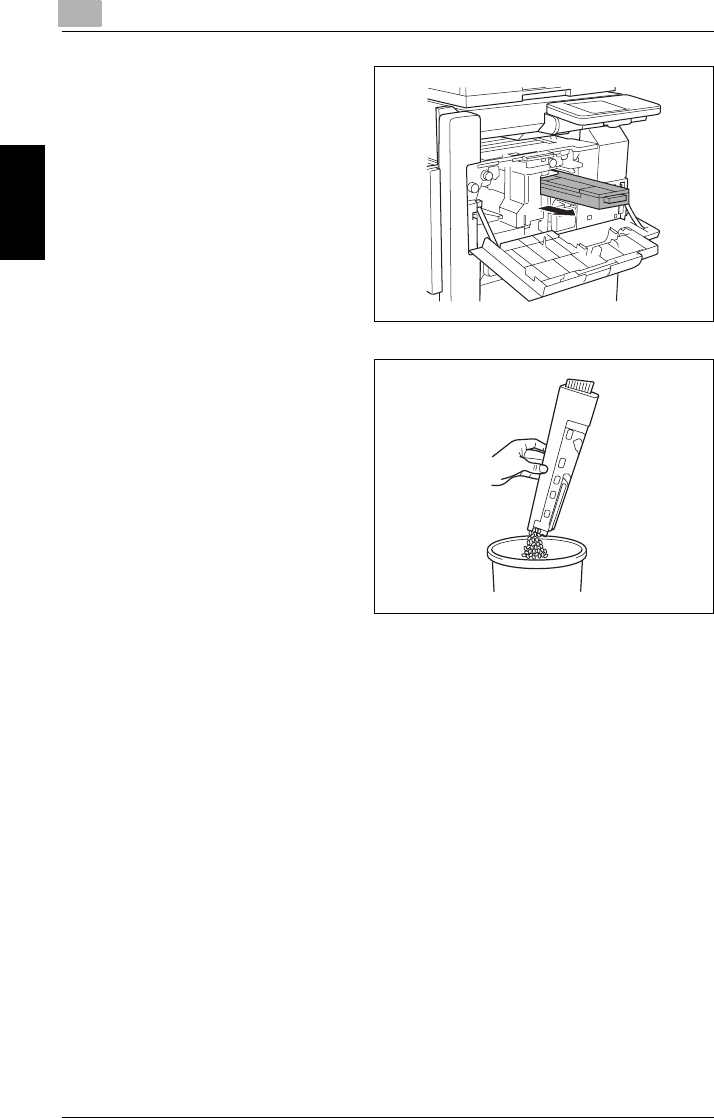
88.6 When the Message “Hole Punch collection box is full.” Appears
8-36 Di2010/Di2510/Di3010/Di3510
Touch Panel Messages Chapter 8
2Pull out the punch box.
3Empty the punch box.
4Insert the punch box into its original position.
5Close the front door.

Troubleshooting Chapter 9
9
9Troubleshoot-
ing
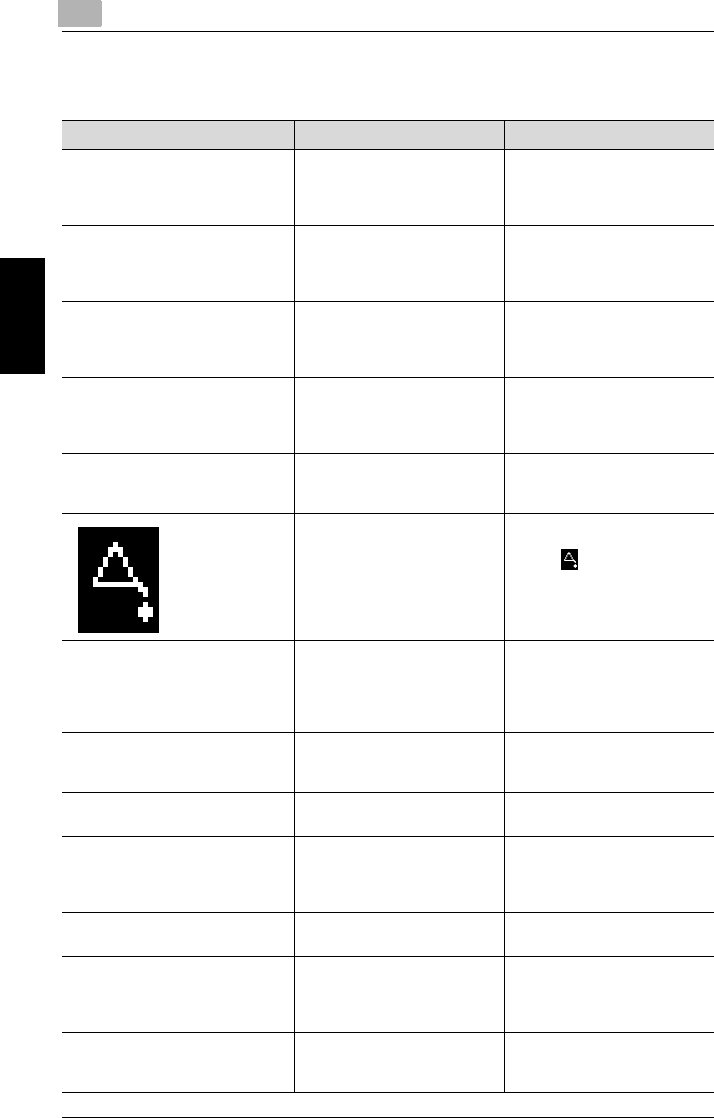
99.1 Main Messages and Their Remedies
9-2 Di2010/Di2510/Di3010/Di3510
Troubleshooting Chapter 9
9.1 Main Messages and Their Remedies
Message Cause Remedy
A malfunction was detected.
Please call your technical
representative and provide the
code listed below:
The copier malfunctioned and is
unable to print.
Inform your service
representative of the code
displayed on the touch panel.
Please add toner. Since the toner has run out, the
copier is unable to make
copies.
Replace the toner bottle.
(“When the Message “Please
add toner.” Appears” →
page 8-3)
The PC Drum needs to be
replaced.
Call your technical representative.
Since the drum unit has
reached the end of its service
life, the copier is unable to
make copies.
Contact your service
representative.
The Imaging Unit needs to be
replaced.
Call your technical representative.
Since the imaging unit has
reached the end of its service
life, the copier is unable to
make copies.
Contact your service
representative.
Stapler empty.
Replace Staple Cartridge.
The staples ran out. Replace the staple cartridge.
(“When the Message “Stapler
empty.” Appears” → page 8-7)
The time to perform a periodic
inspection on the copier has
arrived.
Contact your service
representative.
Touch to display the code.
When contacting the service
representative, inform them of
the code.
Re-insert the following number of
document pages: OO
After clearing a paper misfeed,
it is necessary to reload certain
pages of the document that
have already been fed through
the duplexing document feeder.
Load the indicated document
pages into the duplexing
document feeder.
Cannot XXXXXXXX (not enough
free memory). Press Start to
resume.
Since the memory is full, no
more pages can be scanned.
Print pages or delete queued
jobs to clear some of the
memory.
This mode cannot be selected with
XXXXXXXX.
Functions that cannot be used
together are selected.
Make copies using only one of
the functions.
Pause. When making 2in1 copies, the
second document page could
not be scanned while scanning
manually.
Position the second document
page or touch [Finish].
Properly close the section(s)
indicated by the arrow(s).
The door or cover indicated by
the arrow is open.
Make sure that all doors and
covers are properly closed.
The maximum number of copies
allowed for this registered account
has been reached. Please contact
the administrator.
The total amount of copies as
set by the administrator has
been reached.
Ask the administrator to clear
the number of copies.
The maximum number of jobs to be
printed has been reached. Please
contact the administrator.
The total amount of jobs to be
printed as set by the
administrator has been reached.
Ask the administrator to clear
the number of jobs to be
printed.
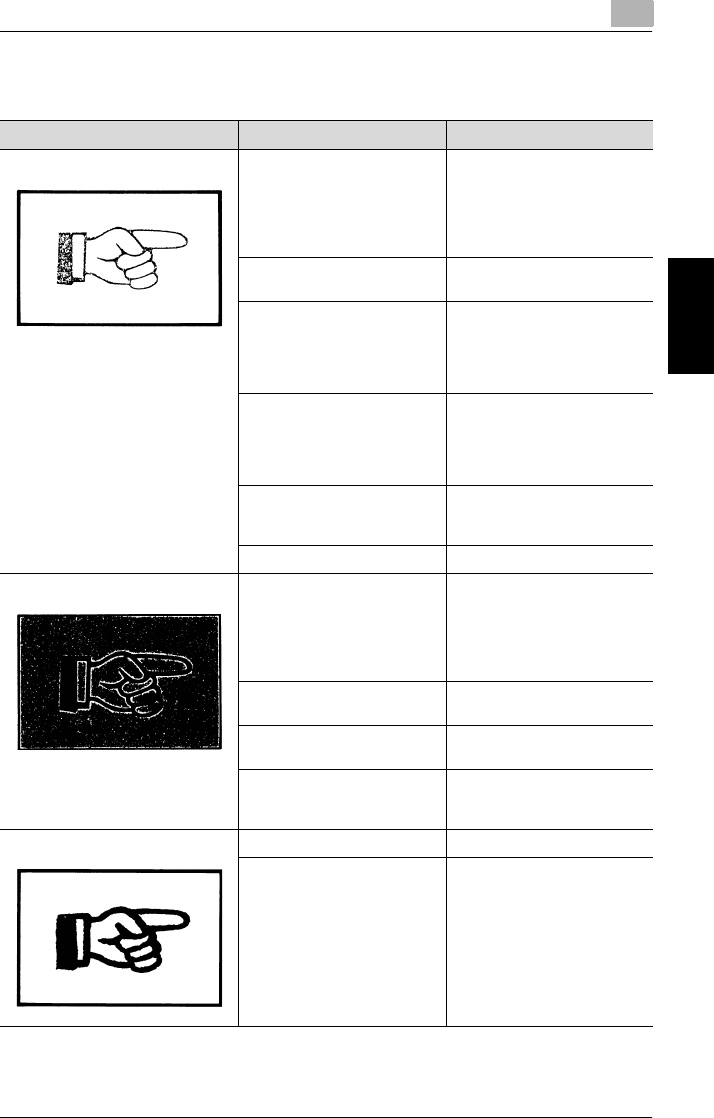
9.2 When Incorrect Copies Are Printed 9
Di2010/Di2510/Di3010/Di3510 9-3
Troubleshooting Chapter 9
9.2 When Incorrect Copies Are Printed
Symptom Possible Cause Remedy
The printed output is too light. The “Auto” Density setting is
set too light.
Adjust the “Default Copy
Output Levels” function on the
User's Choice screen.
Otherwise, cancel the “Auto”
Density setting, and then select
the desired setting.
A Density setting that is too
light is selected.
Touch [Density], and then
select a darker Density setting.
Many documents containing
photos or large printed areas
were printed.
The print density was dark and
reduced the toner supply.
Use the “Toner Replenisher”
function in the Utility mode to
replenish the toner.
The toner bottle was just
replaced.
The toner supply was reduced.
Use the “Toner Replenisher”
function in the Utility mode to
replenish the toner until the
copy density is darker.
The toner is empty and the
message “Please add toner.”
appears in the touch panel.
Replace the toner bottle with a
new one.
The paper is damp. Replace the paper.
The printed output is too dark. The “Auto” Density setting is
set too dark.
Adjust the “Default Copy
Output Levels” function on the
User’s Choice screen.
Otherwise, cancel the “Auto”
Density setting, and then select
the desired setting.
A Density setting that is too
dark is selected.
Touch [Density], and then
select a lighter Density setting.
The original glass is dirty. Wipe the glass with a dry soft
cloth.
The document was not pressed
close enough against the
original glass.
Position the document so that it
is pressed closely against the
original glass.
The printed output is blurry. The paper is damp. Replace the paper.
The document was not pressed
close enough against the
original glass.
Position the document so that it
is pressed closely against the
original glass.
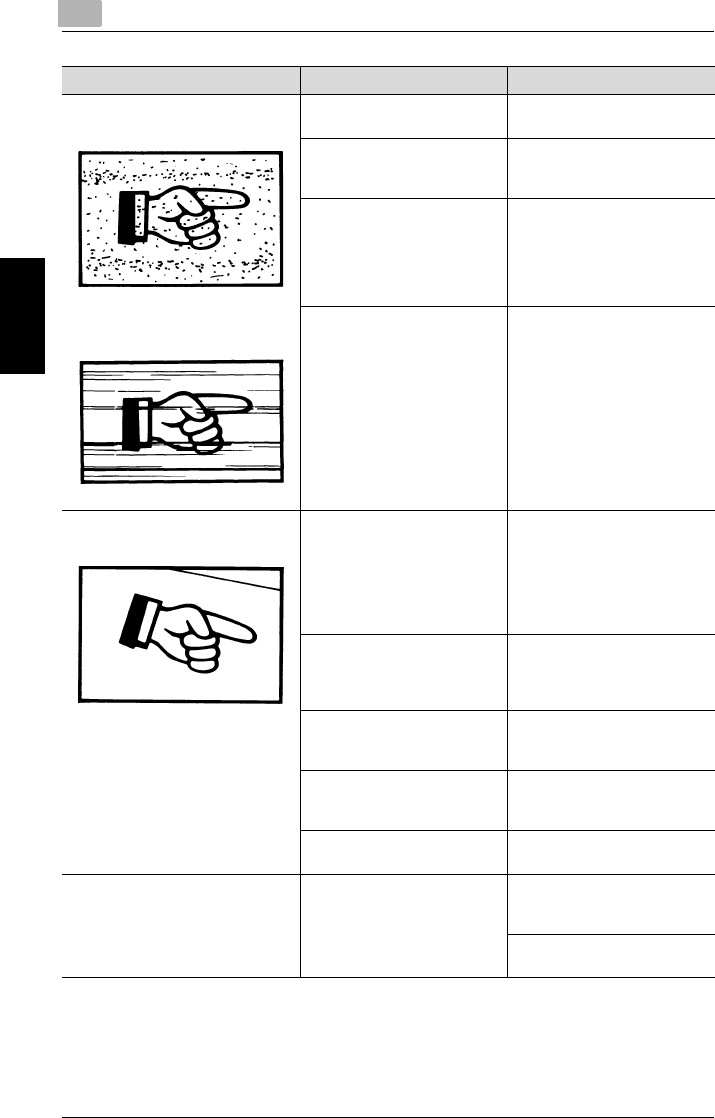
99.2 When Incorrect Copies Are Printed
9-4 Di2010/Di2510/Di3010/Di3510
Troubleshooting Chapter 9
There are dark specks or spots
throughout the printed output.
There are streaks in the printed
output.
The original glass is dirty. Wipe the glass with a dry soft
cloth.
Either the document pad is
dirty.
Clean the document pad with a
soft cloth dampened with a mild
detergent.
The original document is
printed on highly translucent
material, such as diazo
photosensitive paper or
overhead projector
transparencies.
Place a blank sheet of paper on
top of the document.
A double-sided document is
being copied.
If a thin double-sided document
is being copied, the information
on the back side may be
reproduced in the copy. Touch
[Density], and then select a
lighter density for the
background.
The image is not aligned properly on
the paper.
The document is not positioned
correctly.
Correctly position the
document against the
document scales.
If the duplexing document
feeder is installed, correctly
adjust the document guides for
the size of the document.
The document is not positioned
correctly in the duplexing
document feeder.
Lift open the duplexing
document feeder, and correctly
position the document against
the document scales.
The original glass is dirty (while
using the duplexing document
feeder).
Wipe the glass with a dry soft
cloth.
The document guides are not
slid up against the edges of the
document.
Slide the document guides
against the edges of the
document.
Curled paper was loaded into
the paper drawer.
Flatten the paper before
loading it.
The printed page is curled. The paper that was used (as
with recycled paper) curls
easily.
Remove the paper from the
paper drawer, turn it over, and
then load it again.
Replace the paper with paper
that is not damp.
Symptom Possible Cause Remedy
9.2 When Incorrect Copies Are Printed 9
Di2010/Di2510/Di3010/Di3510 9-5
Troubleshooting Chapter 9
* If the problem is not corrected even after the operations described above are performed, contact your
service representative.
The edge of the printed output is
dirty.
The document pad is dirty. Clean the document pad with a
soft cloth dampened with a mild
detergent.
The selected paper size is
larger than the document (with
Zoom set to “×1.000”).
Select a paper size that is the
same size as the document.
Otherwise, set Zoom to “Auto
Size” to enlarge the copy to the
selected paper size.
The orientation of the
document is different from the
orientation of the copy (with
Zoom set to “×1.000”).
Select a paper size that is the
same size as the document.
Otherwise, select a paper
orientation that is the same as
the that of the document.
The copy was reduced to a size
smaller than the paper (a
Custom Zoom setting was
selected).
Select a zoom ratio that adjusts
the document size to the
selected paper size.
Otherwise, set Zoom to “Auto
Size” to reduce the copy to the
selected paper size.
Symptom Possible Cause Remedy

99.3 When the Copier Is Not Operating Correctly
9-6 Di2010/Di2510/Di3010/Di3510
Troubleshooting Chapter 9
9.3 When the Copier Is Not Operating Correctly
* If the problem is not corrected even after the operations described are performed, turn off the
copier,unplug its power supply cord, and the contact your service representative.
Symptom Possible Cause Remedy
Nothing appears in the touch panel. If only the indicator on the
[Start] key is lit, the copier is in
Energy Saver mode or Sleep
mode.
Press any key in the operation
panel to cancel Energy Saver
mode.
The copier has not been turned
on.
Check that the copier’s power
switch has been set to “I” and
that the sub power switch has
been pressed in.
The contrast control knob for
the touch panel has been set
either too light or too dark.
While looking at the touch
panel, adjust the contrast
control knob.
Has the LCD back-light being
set to off?
Please press a key on the
control panel or touch panel.
Please change the LCD back-
light off settings.
Refer to “LCD Back-light Off” in
the Advanced Operations
volume of the User Manual.
The indicator on the [Start] key
does not light up in green.
An access code has not been
entered.
Enter the access code
according to the procedure
described in “Making Copies
Using Accounts”.
Even though the [Start] key is
pressed, no copies are made.
The copy/print job is queued
and waiting to be printed.
Touch [Job List] to check the
jobs that are queued. Wait until
printing begins.
The copier is still warming up
after just being turned on.
The copier takes about 17
seconds to warm up after it is
turned on.
Wait until the copier has
finished warming up.
The copier is malfunctioning. Follow any messages that
appear on the touch panel.
The machine cannot be set to Copy
mode.
The copier is in Interrupt mode
(the “Interrupt” indicator is lit).
Press the [Interrupt] key to
cancel Interrupt mode.
The machine cannot be turned on. The power supply cord has
been unplugged from the
electrical outlet.
Plug the power supply cord into
the electrical outlet.
The breaker for the electrical
circuit has been tripped.
Close the breaker for the
electrical circuit.

Index Chapter 10
10
10Index

10 10.1 Index
10-2 Di2010/Di2510/Di3010/Di3510
Index Chapter 10
10.1 Index
Numerics
1st paper drawer ............................................................................... 1-10
1st paper output tray ......................................................................... 1-13
2 Way paper feed cabinet ................................................................... 1-6
2nd paper drawer .............................................................................. 1-10
2nd paper output tray ........................................................................ 1-13
2-point staple ...................................................................................... 7-4
3rd paper drawer ......................................................................1-12, 1-14
3rd paper output tray ......................................................................... 1-14
4th paper drawer ............................................................................... 1-12
A
Accessibility ........................................................................................ 3-5
Additional bin kit .........................................................................1-7, 1-14
Additional message display .............................................................. 3-16
Auto panel reset ................................................................................ 3-12
Automatically selecting the paper source ........................................... 5-8
Available functions and settings ........................................................ 3-16
B
Basic copy operations ......................................................................... 4-2
Book .........................................................................................7-20, 7-27
Bound document ............................................................................... 7-24
Built in finisher ..................................................................................... 1-7
C
Checking the settings .......................................................................... 3-4
Clearing jammed staples .................................................................. 8-30
Control panel ..............................................................................1-10, 3-2
10-Key Pad .................................................................................... 3-2
Access key .................................................................................... 3-2
Accessibility key ............................................................................ 3-3
Clear key ....................................................................................... 3-2
Contrast dial .................................................................................. 3-3
Copy key ....................................................................................... 3-2

10.1 Index 10
Di2010/Di2510/Di3010/Di3510 10-3
Index Chapter 10
Enlarge Display key .......................................................................3-3
Extra Scan key ...............................................................................3-2
Interrupt key ...................................................................................3-2
Mode Check key ............................................................................3-3
Panel Reset key .............................................................................3-2
Scan key ........................................................................................3-2
Start key .........................................................................................3-2
Stop key .........................................................................................3-2
sub power switch ...........................................................................3-2
touch panel ....................................................................................3-2
Utility key ........................................................................................3-2
Copy density ......................................................................................7-33
Copy desk ............................................................................................1-6
Copy track mode .................................................................................4-6
Corner staple .......................................................................................7-3
Crisscross grouping .............................................................................7-7
Custom paper size .............................................................................5-16
D
Default settings ..................................................................................3-14
Document feed tray ...........................................................................1-12
Document guides ...............................................................................1-12
Document output tray ........................................................................1-12
Document pad ...................................................................................1-10
Document scales ...............................................................................1-10
Double-2in1 .......................................................................................7-18
Double-4in1 .......................................................................................7-19
Double-sided .....................................................................................7-18
Drawer release button .......................................................................1-14
Duplex unit .........................................................................................1-10
Duplex unit door ................................................................................1-10
Duplexing document feeder .................................................................1-6
Duplexing document feeder connector ..............................................1-11
E
Empty the punch box .........................................................................8-35
Energy save mode .............................................................................3-12
Enlarging the touch panel screens ......................................................3-9

10 10.1 Index
10-4 Di2010/Di2510/Di3010/Di3510
Index Chapter 10
F
Feeding the document ........................................................................ 6-2
duplexing document feeder ........................................................... 6-4
Finisher ............................................................................................... 1-7
Front door ........................................................................................... 1-9
G
Group .................................................................................................. 7-3
H
Hard disk drive .................................................................................... 1-8
Hole punch .......................................................................................... 7-4
Hole punch setting .............................................................................. 7-9
I
Interrupting a copy job ........................................................................ 4-5
J
Job list screen ................................................................................... 3-17
Job separator ...................................................................................... 1-6
L
Landscape .......................................................................................... 1-5
Large capacity cabinet ...............................................................1-6, 1-14
Loading documents for specific applications .................................... 6-10
Loading paper ..................................................................................... 5-9
large capacity cabinet .................................................................. 5-11
multiple bypass tray ..................................................................... 5-12
paper drawer ............................................................................... 5-10
Lower-right door ................................................................................ 1-14
Lower-right door release lever .......................................................... 1-12
M
Mail bin .............................................................................................. 1-13
Mail bin kit ........................................................................................... 1-7
Making copies using accounts ............................................................ 4-6

10.1 Index 10
Di2010/Di2510/Di3010/Di3510 10-5
Index Chapter 10
Memory ................................................................................................1-7
Memory recall ....................................................................................3-21
Message display ................................................................................3-16
Messages ............................................................................................9-2
Misfeed-clearing door .............................................................. 1-13, 1-14
Mixed original detection .......................................................................6-5
Mixed width document sizes ................................................................6-3
Multiple bypass tray .............................................................................1-9
N
Non-sort ...............................................................................................7-2
Non-standard paper size ...................................................................5-16
O
Orig. > Copy settings .........................................................................7-18
specifying .....................................................................................7-21
Original cover kit ..................................................................................1-6
Original glass .....................................................................................1-10
Output tray cover ...............................................................................1-13
Overhead projector transparencies ........................................... 5-2, 5-15
P
Paper feed cabinet ..............................................................................1-7
Paper guide .........................................................................................1-9
Paper misfeed
1st or 2nd paper drawer ...............................................................8-20
3rd or 4th paper drawer ...............................................................8-21
duplex unit ....................................................................................8-18
duplexing document feeder ..........................................................8-14
finisher .........................................................................................8-23
fusing section ...............................................................................8-15
large capacity cabinet ..................................................................8-22
mail bin kit ....................................................................................8-26
multiple bypass tray .....................................................................8-19
saddle kit ......................................................................................8-28
Paper misfeeds
locations .......................................................................................8-13
Paper orientation .................................................................................1-4
Paper output tray ....................................................................... 1-9, 1-14

10 10.1 Index
10-6 Di2010/Di2510/Di3010/Di3510
Index Chapter 10
Paper setting ..................................................................................... 5-22
Paper specifications ............................................................................ 5-2
Paper stopper ............................................................................1-9, 1-12
Paper storage ..................................................................................... 5-7
Paper supply indicator ........................................................................ 1-9
Portrait ................................................................................................ 1-5
Positioning documents
original glass ................................................................................. 6-7
Power cord socket ............................................................................ 1-11
Power switch ..................................................................................... 1-11
Print area ............................................................................................ 5-6
Print indicator .................................................................................... 1-12
Printer controller .................................................................................. 1-8
Punch kit ............................................................................................. 1-7
R
Replacing the staple cartridge
finisher ........................................................................................... 8-7
saddle kit ..................................................................................... 8-10
Replacing the toner bottle ................................................................... 8-3
Right-side door .................................................................................... 1-9
Right-side door release lever .............................................................. 1-9
S
Saddle Kit .......................................................................................... 1-14
Saddle kit ............................................................................................ 1-7
Screen tabs ....................................................................................... 3-16
Selected settings ............................................................................... 3-16
Shift grouping ...................................................................................... 7-6
Shift sorting ......................................................................................... 7-6
Single-2in1 ........................................................................................ 7-18
Single-4in1 ........................................................................................ 7-19
Single-sided ...................................................................................... 7-18
Sleep mode ....................................................................................... 3-13
Sort ..................................................................................................... 7-2
Stapling setting ................................................................................... 7-7
Stopping copying ................................................................................ 4-4

10.1 Index 10
Di2010/Di2510/Di3010/Di3510 10-7
Index Chapter 10
Switchback unit ..................................................................................1-10
T
Touch panel ............................................................................... 1-9, 3-14
Tray extension .....................................................................................1-9
Turning the copier on and off .............................................................3-10
U
Useful operations .................................................................................2-2
X
X/Y zoom setting ...............................................................................7-17
Z
Zoom setting ......................................................................................7-14

10 10.1 Index
10-8 Di2010/Di2510/Di3010/Di3510
Index Chapter 10

2003. 06 4030770502
Copyright
2003 MINOLTA CO., LTD.
Printed in Japan
MINOLTA CO., LTD.
3-13, 2-chome, Azuchi-Machi, Chuo-ku, Osaka. 541-8556, Japan
The information contained in this manual
is subject to change without notice to
incorporate improvements made on the
product or products the manual covers.
