Mitsubishi Electronics G 50A Users Manual
G-50A to the manual 1510b22b-2cae-4156-83e2-409c38f6986f
2015-02-09
: Mitsubishi-Electronics Mitsubishi-Electronics-G-50A-Users-Manual-556392 mitsubishi-electronics-g-50a-users-manual-556392 mitsubishi-electronics pdf
Open the PDF directly: View PDF  .
.
Page Count: 46
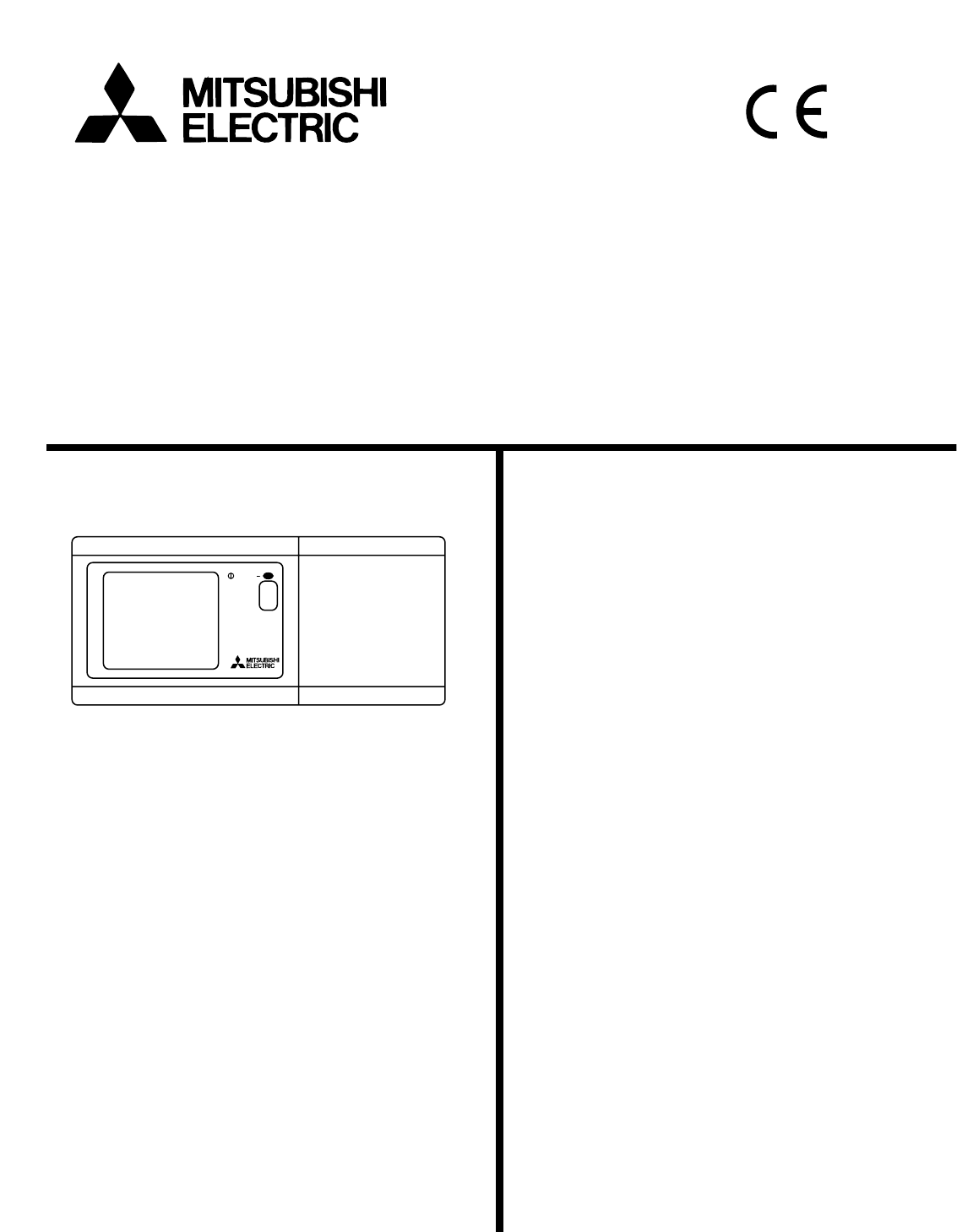
Central Controller
Model: G-50A
Mitsubishi Electric Air-conditioner Network System
Instruction Book
Contents
1. Safety ……………………………………………
…………………………………………
……………………………
…………………………………
……………………………………
……………………
…………………
…………………
…………
…………
………………………
………………
……………………………………
……………
……………
…………………
…………………………
……………………………
…………………………
………………………………
…………………………
……………………
………………………
……………
…………
………
…………………………
…………………………………
1
2.
Product feature
3.
Function
4.
User operation
5.
Initial setting
6.
Maintenance
7.
External input / output
3-1
Specification
3-2
Display screen
4-1
Operation condition monitor
4-2
Operation setting
4-4
Malfunction
…………
4-5
Current time setting
5-2
M-NET address setting
5-3
Function setting
5-4
Group configuration setting
5-5
Interlocked operation setting
6-1
Refrigerant system monitor
6-2
Malfunction log monitor
7-2
External output function
Before using the controller, please read this Instruction Book carefully to ensure
correct operation. Store this Instruction Book in a location that is easy to find.
7-1
External input function
5-6
Group name setting
5-7
User setting
5-8
IP address setting
5-9
Initial setting tools connection function
4-3
Timer operation
4-2-1
Group operation setting
4-2-2
Collective operation setting
2
4
4
8
10
11
12
12
16
19
23
24
25
25
25
26
27
29
31
34
35
35
36
36
37
38
38
39
…………………
…………………
Appendix 2 :
User operation(adridged)
Appendix 1 : Initial setting(adridged)
40
42
5-1
Shifting to initial setting menu
G-50A
ON/OFF
CENTRAL CONTROLLER

-1-
1. SAFETY
Please take a moment to review these safety precautions. They are provided for your protection and to prevent
damage to the controller.
This safety information applies to all operators and service personnal.
After you have read this manual, always observe the procedures described in the explanations and store it with
the installation manual in a location that is easy to find. If the controller is going to be operated by another per-
son, make sure that this manual is given to them.
Symbols and Terms
Specific Precautions
WARNING
CAUTION
Statements identify condition or practices that could result in personal injury or loss of life.
Statements identify condition or practices that could result in damage to the controller or other property.
• Do not install the controller in a place where inflam-
mable gas could leak.
If gas leaks and collects around the controller, it may cause
a fire or explosion.
• Do not wash the controller with water.
It may cause an electric shock or malfunction.
• Do not touch the switch with wet hands.
It may cause an electric shock.
• Do not use the controller for special applications.
This product is designed for use with the MITSUBISHI
ELECTRIC BUILDING AIR CONDITIONING CONTROL
SYSTEM. Do not use the system for other air condition man-
agement operation or applications. It may cause malfunc-
tions.
• Do not apply insecticide or flammable sprays to the
controller.
Do not place flammable spray near the controller and make
sure it does not blow directly on the controller as this may
cause in fire.
• Do not use the controller in special environments.
The performance may be reduce or parts may be damaged
if the controller is used in locations subject to large quanti-
ties of oil (including machine oil), steam, sulfide gas.
• Do not touch the switches with sharp objects.
It may cause an electric shock or malfunction.
• Operate the controller within the specified temperature
range.
Observe the specified temperature range when operating
the controller. If the controller is used outside the specified
temperature range, it may cause serious damage. Be sure to
check the operation temperature range in the operation
manual.
WARNING
• Ask your dealer or technical representative to install.
If incorrect inatallation is done by a customer, it may cause
an electric shock, fire, etc.
• Make sure that the controller is connected to a rated
power supply.
If the controller is not connected to a rated power supply, it
may cause a fire or damage to the controller.
• Never remove the cover during operation.
Touching the charged parts of the controller may cause
severe burns or other personal injury.
• Stop the operation if any malfunction occurs.
If malfunction occurs (burning smell, etc.) stop the operation
and turn off the power supply. Contact your dealer or techni-
cal representative immediately. If the controller continues to
operate after a malfunction occurs, this may cause damage,
electric shock or fire.
• Do not remodel or repair by yourself.
If the controller is redesigned or repair is not correct, it may
cause an electric shock, fire, etc.
Consult your dealer if repair is necessary.
• Stop the operation immediately and notify the your deal-
er if an error code is displayed or malfunction occurs.
Fire or damage may be caused if the controller is operated
in this condition .
CAUTION
• Do not move and re-install the controller by yourself.
If installation is incorrect, it may cause an electric shock,
fire,etc. Ask your dealer or technical representative.
• Contact your dealer if the controller will not be used any
more or will be scrapped.
• Securely install in a place which can withstand the
weight of the controller.
If it is not enough, the controller may fall and cause an
injury.

-2-
2 . Product Features
[ 1 ] User operating function
The central controller is capable of controlling up to 50 air conditioner units. It supports the following operating
1. Virtually almost functions operated by local remote controller are supported.
2. Local remote control operation can be prohibited for specific functions.
3. Collectively setting
1. The weekly schedule enables four different schedule patterns to be set weekly per group. (P1-P4)
1. ON/OFF/MALFUNCTION status can be monitored by group or by unit.
1. The unit address where the malfunction occurred, the error code and address of the unit that detected
2. Pressing the reset key stops all the units connected to the same group, refrigerant system or linked group to the
the malfunction are displayed on the malfunction monitor screen.
unit where the malfunction occurred, all of these are reset.
2. The groups managed by the central controller may be displayed all together by group number or group name
3. When displaying all groups at once, individual groups can be turned ON or OFF by designating them by the
indicator .
(first three characters). Collective display of all unit address is also supported.
2. The respective daily patterns enable the setting of three different ON times (three prohibition times) and three
3. Easy setting
The central controller can be used to control the indoor units in specific group ON or OFF, select the operating
ventilation unit), select the fan speed, select the air direction (4 direction and swing operation), select the ventil-
ation mode (OFF, LOW speed, or HIGH speed), select TIMER MODE and select the temperature setting.
In addition, room temperature can be displayed at the unit of each group upon request.
Access to specific control functions, such as ON/OFF operation, mode selection ,temperature setting and filter
sign reset operation can be prohibited for the local remote controls collectively or per group.
Operation setting can be performs collectively or per group.
Of these, three patterns are to set ON/OFF schedule and remaining one pattern is to set the pattern to prohibit op-
eration of the local remote controller.
different OFF times (three permission times).
In addition, it is possible to set ON time only (prohibition time only) and OFF time only (permission time only).
Daily operation patterns and weekly schedules for one group can easily be copied to the other groups.
4. Timer automatic recovery operation when recovering from a power down is supported.
Four patterns (daily patterns) mentioned above enable the setting of individual schedule times for every group.
(See 5-5 "User setting")
mode (COOL, DRY, FAN, AUTO and HEAT) for the indoor unit or HEAT RECOVERY, BY-PASS, AUTO for the
(1) Operation
(2) Weekly Schedule
(3) Operating status monitor
(4) Malfunction monitor
function.

-3-
The central controller is supplied power from the PAC-SC50KUA Power Supply Unit via the M-NET transmission line and
DC power line. The DC power between the PAC-SC50KUA Power Supply Unit and the central controller should be 10m
or less. The central controller allows to be connected to M-NET transmission line at any position. (M-NET transmission
line is the central control line which connects TB7 terminal of the outdoor unit)
[ 2 ] System configuration setup and maintenance function
[ 3 ] Other
1. Registration can be made for the indoor units, local remote controllers and slave system controllers in the same
2. Group name may be specified. ( Names may include alphanumeric characters.)
3. Group name may be copied.
4. Setting of group configuration and specifying the group name may be performed as long as power is being supplied
5. System configuration data setting in the central controller can be deleted at once if necessary when replacing cir-
to the central controller. This mean that setting can be performed before the central controller is installed at
the site, before installation of individual units is completed or while the power supply to some units is cut off.
cuits wired board, etc.
All unit address (indoor, outdoor, etc.) can be displayed for individual refrigerant system on the refrigerant system
monitor screen. This information is useful for checking the installation, such as address setting, transmission line
connection and power supply connection.
Setting can be performed for indoor units interlocked with a ventilation unit.
If even one of the indoor units interlocked with ventilation have started to operate, the ventilation will be activated.
1. A log of the last 64 malfunction massage, in the order in which they occurred, can be monitored.
2. The data and time the malfunction occurred, the address of unit where it occurred, the error code and the ad-
3. All malfunction logged in the memory of the central controller and indoor unit can be reset at once.
dress of unit that detected the malfunction are displayed.
Displays normal operation/all OFF/malfunction status for the entire system.
This switch allows turning all of the unit in the system ON or OFF at once.
The combined maximum distance between the outdoor units and the central controller, and between the outdoor units
and farthest indoor units connected to the same refrigerant system or their remote controller, may be extended up
500 meters.
Therefore, even if the total distance is made longer by installing the outdoor units all in row, there will be no problem
so long as the above maximum total distance limitation is not exceeded.
(Normal operation/all OFF/malfunction status is indicated by the lamp being lit, not lit or blinking respectively)
group.
And also registration can be made for the ventilation such as OA processing unit.
(1) Setup for system configuration
(2) Refrigerant system monitor
(3) Interlocked group setting
(4) Malfunction log monitor
(1) Overall statues display lamp
(2) Collective ON/OFF switch
(3) Power supply wiring
(4) M-NET transmission line
-4-
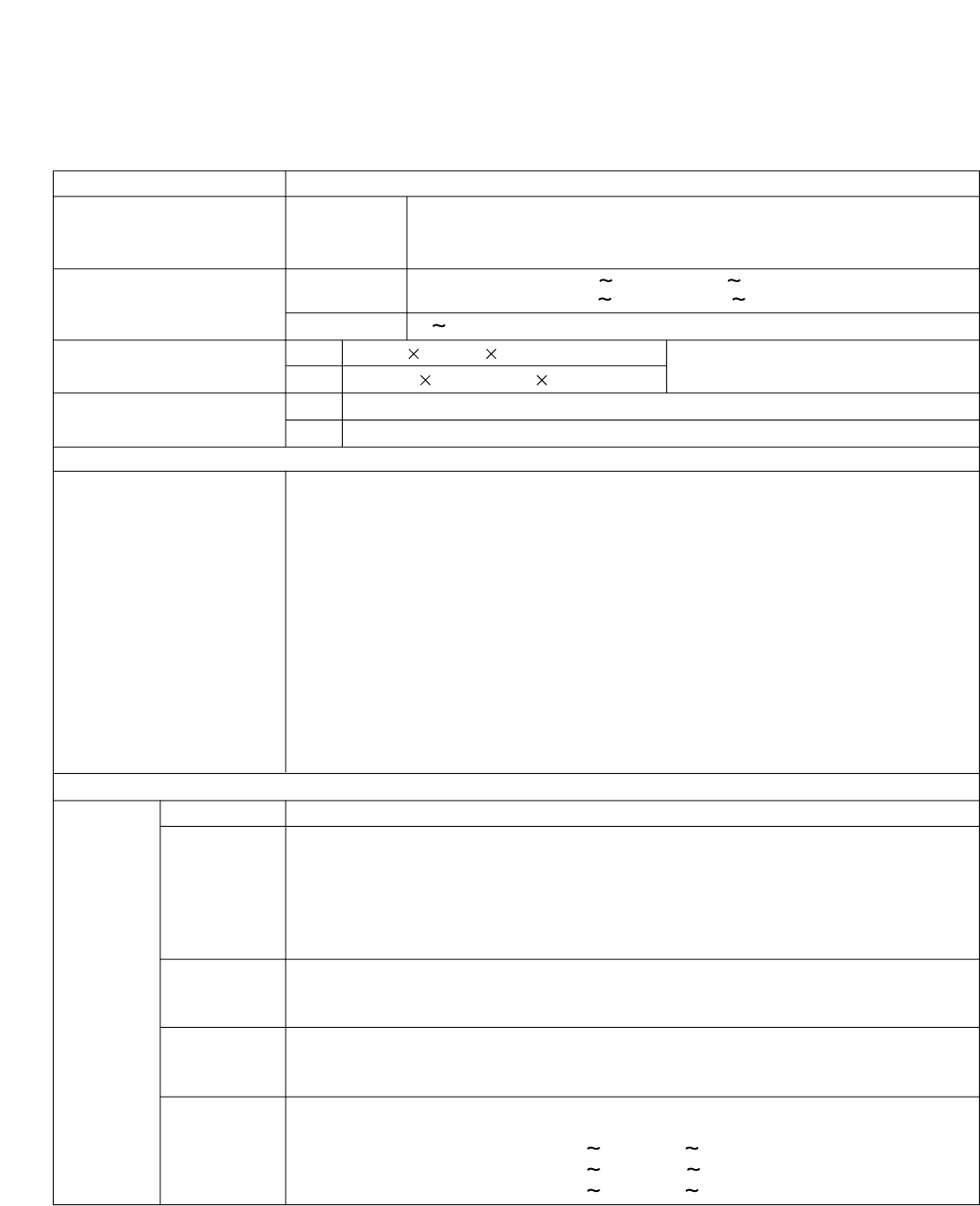
Cool (Dry) operation : 19 30 ˚C / 67 87 ˚F
Heat operation : 17 28 ˚C / 63 83 ˚F
Auto operation : 19 28 ˚C / 67 83 ˚F
DC24V,0.02A(Maximum loading)
Power received from PAC-SC50KUA Power Supply Unit via M-NET transmission line.
DC12V,0.2A(Maximum loading)
Power is received from the PAC-SC50KUA Power Supply Unit via the DC power line.
Indoor unit or independent OA processing unit or LOSSNAY
: 50 units maximum (50 groups maximum)
Number of units (indoor or independent OA processing unit or LOSSNAY) in one group
: 1-16 units
*Note
register to the same group.
Indoor unit, independent OA processing unit and LOSSNAY can not
Number of remote controllers in one group
Number of system controllers in one group
Number of indoor units interlocked with one OA processing unit or LOSSNAY
: 1-2
: 0-4 (including the number of remote controller in one group)
: 0-3 for groups which have one remote controller.
: 0-16 (some types of OA processing unit can only be operated when inter-
locked to a maximum of 9 units)
3 . Functions
3-1 Specifications
Item
Source power requirement
Environmental condition Temperature
Humidity
120(H) 300(W) 80[*19](D)
4-3/4(H) 11-13/16(W) 3-1/8[*3/4](D)
1.0
2-1/4
Kg
lb
mm
in
Dimensions
Weight
System condition
Number of control unit
User operating function
Operation Fan speed
Air direction
and swing
operation
Temperature
setting
ON/OFF
Operation
mode *1
*3
*1
*1
The ON/OFF operation can be performed as a collective or per group.
The switch operation for the operation mode setting can be performed as a collective
or per group.
[ Selectable operation mode for the indoor unit ]
[ Selectable operation mode for the independent ventilation ]
Cool/Dry/Fan/Auto/Heat
Heat recovery/By-pass/Auto
The switch operation to set the High and Low speed can be performed as a collective
or per group.
( The 4 fan speed setting is available to the indoor that has 4 levels )
The air flow direction can be switched to 4 directions and swing operation as a collec-
tive or per group
Temperature setting can be performed collectively or per group.
[Setting temperature range]
Operating
Non operating
0 ˚C +40 ˚C / 32 ˚F +104 ˚F
-20 ˚C +60 ˚C / – 4 ˚F +140 ˚F
30 90%RH (No condensation)
Input voltage
Specification
*[ ] : indicate the thickness from the
wall.
-5-
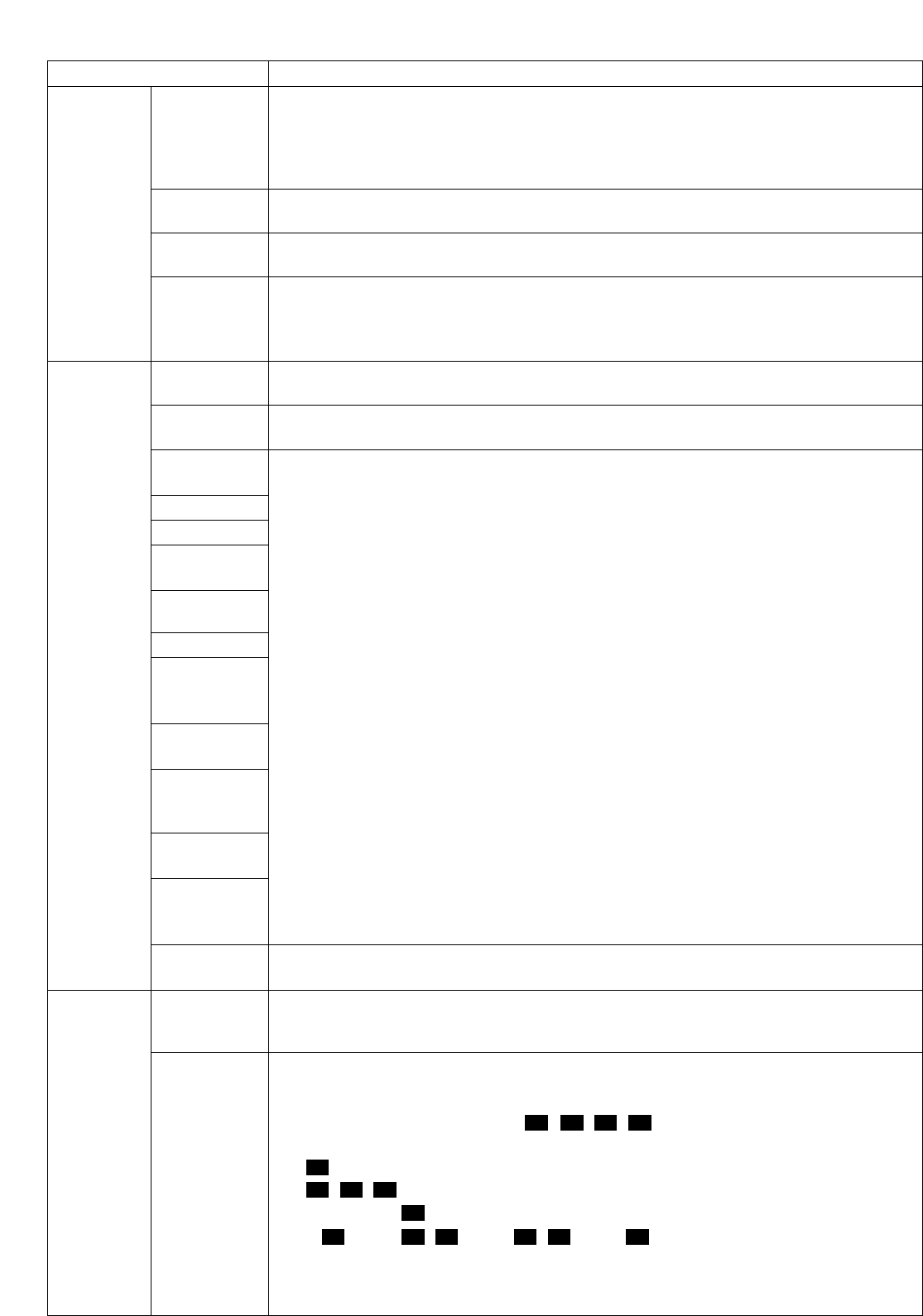
ective or per group.
[Ventilation operation]
Low speed/High speed/Ventilation OFF
The overall status lamp displays conditions of the collective statues.
Item
Operation
Monitor
Prohibit local
remote
control
Specification
The specific functions of a local remote controller can be prohibited as a collective or
per group.
[Prohibit function]
ON/OFF operation, Operation mode setting, Temperature setting and Filter sign
reset operation.
The set schedule operations can be switched to ON/OFF (local remote controller
operation prohibition/permission) for each group.
The filter sign reset operation after the air filters are cleaned can be performed as a
collective or per group.
The ventilation operation of the interlocked OA processing unit or LOSSNAY can be coll-
Timer operation
Filter sign
Ventilation
operation
Collective
operation
Each group operation is displayed on the operation setting screen (group) or operation
monitor screen.
Each group
operation
Operation
mode
Fan speed
Air direction
Temperature
setting
Timer
operation
Filter sign
Local remote
control Displayed on the operation setting screen (group).
prohibition
Ventilation
operation
Room
temperature
display
Central control
prohibition
External
input signal
condition
Malfunction
Current time
back-up
Timer setting
The unit address and error code are displayed on the malfunction monitor screen when
a malfunction occurs.
When the power is cut off, the current time is backed up for approximately one week.
(When the controller is fully charged. The controller is fully charged by twenty-four
hours after power feed.)
Operation pattern setting can be performed.
• Operation interval : Minimum 10 minutes
• The daily operation pattern and weekly schedule for each group can be set.
• "The reference temperature and set-back value" or "Setting temperature" which are
* ON/OFF setting up to three times a day are possible for P1/P2/P3.
* P4 enables to set operation prohibition of 3 times per day for the remote controller.
* P1 / P2 / P3 implement the schedule which has combined P1/P2/P3 of ON/OFF
* - is a day without timer operation.
linked with timer operation can be set.
pattern and P4 of remote controller operation prohibition pattern together.
( P1 = P1 + P4 / P2 = P2 + P4 / P3 = P3 + P4 is displayed.)
Other
*1
*3
*3
reset
• A pattern of one day : P1/P2/P3/ P1 / P2 / P3 / P4 / -
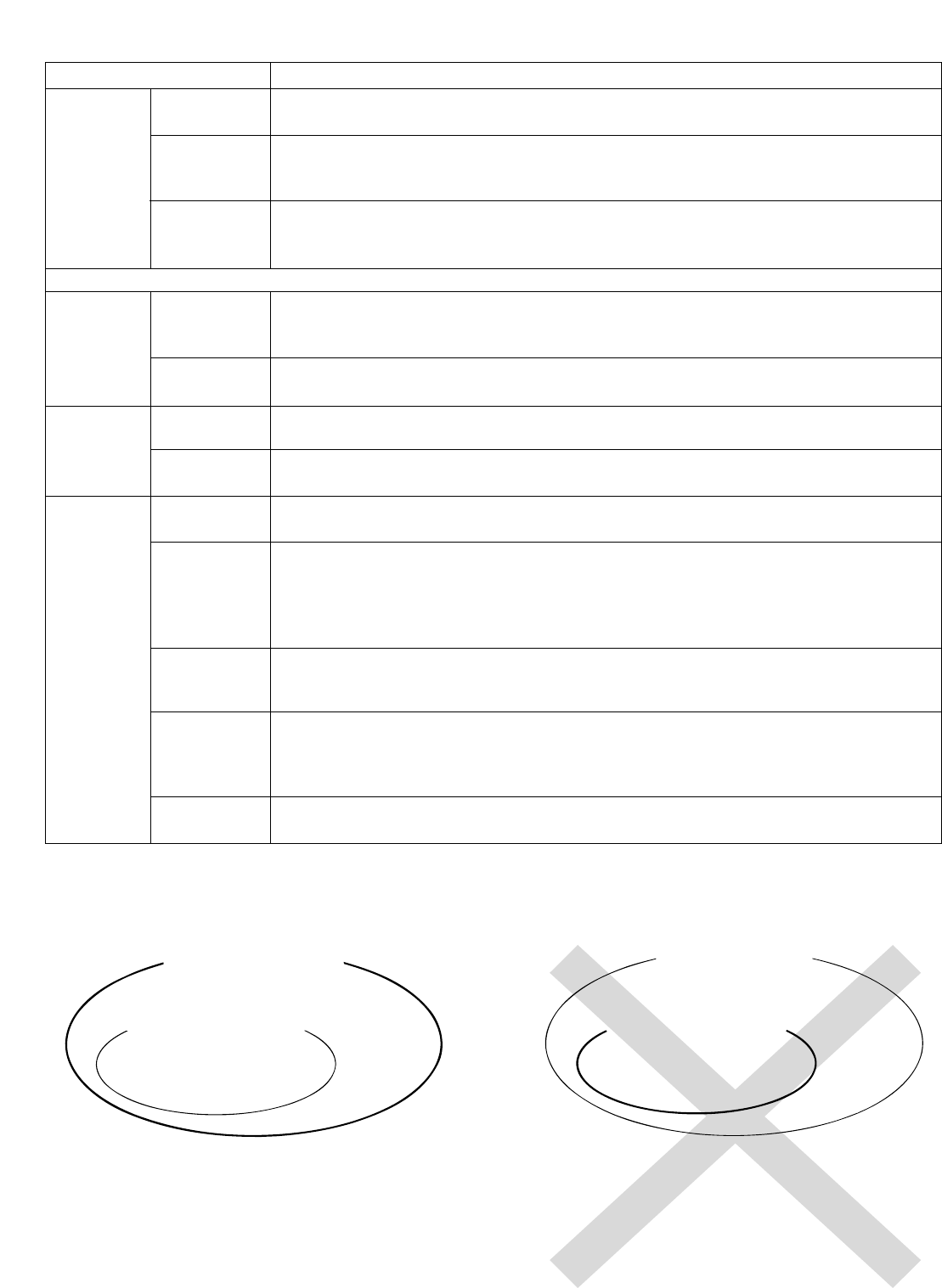
-6-
G-50A
management range
Unit
Unit
Another system controller
management range of G-50A
Management range
M-NET Gateway
management range
Unit
Unit
ent OA processing unit, LOSSNAY and slave system controllers) are performed on
the group setting screen.
The interlocked setting for the ventilation equipment as the OA processing unit or
LOSSNAY , etc to indoor unit is performed on the interlocked setting screen.
A maximum of the 64 most recent malfunction are displayed on the malfunction log
monitor.
The connected unit address are displayed on the refrigerant monitor screen.
Some of the indication and function that appear on the each screen can be specified to
Master/Slave setting of the system controller.
match the needs of the user.
The setting of a system controller which the local remote control is prohibition enable or
disable.
Selecting of the prohibited controller which is only local remote controller or both
local remote controller and the other system controller.
The system composed of K-control type air conditioner equipment can be controlled
using the K transmission converter (PAC-SC25KAA)
Item
Group name
designation
External
signal input
interface
External
signal output
interface
Other
Initial setting (for installation and maintenance)
Interlocked
setting
Malfunction
history
Refrigerant
system monitor
User setting
Master system
controller/
Slave system
controller
setting
Prohibition
setting enable
/disable
The prohibited
controller
range setting
K-control
type
*2
*3
Group setting
Connecting
information
setting
Monitor
Other
*1 Each operation is available in accordance with the function of unit.
*2 Master system controller and slave system controller.
When G-50A controls another system controller or when
the system contains only G-50A :
G-50A is set as the master system controller.
* G-50A performs the group setting in this configuration.
When G-50A is controlled by another system controller :
(Example: MJ-300Gateway)
G-50A is set as the slave system controller.
* The group setting is performed by Master system
* G-50A does not
support slaves.
* G-50A does not support slaves.
controller.
Specification
Group name can be specified and display on the operation setting screen.
* Group name setting is need at the initial setting.
Emergency stop/normal, ON/OFF, prohibit/permit for local remote operation can be
controlled for units being controlled with a non-voltage contact signal input from an
external source.
When one or more units being controlled are operating, the "ON" signal will be out-
put, and if a malfunction occurs in one or more units, the "malfunction" signal will
be output.
The group setting operation for units (indoor units local remote controllers, independ-
*3 OA processing unit (LOSSNAY) and the K transmission converter (PAC-SC25KAA) are not included in systems
shipped to North America (USA & Canada).
*3
*3
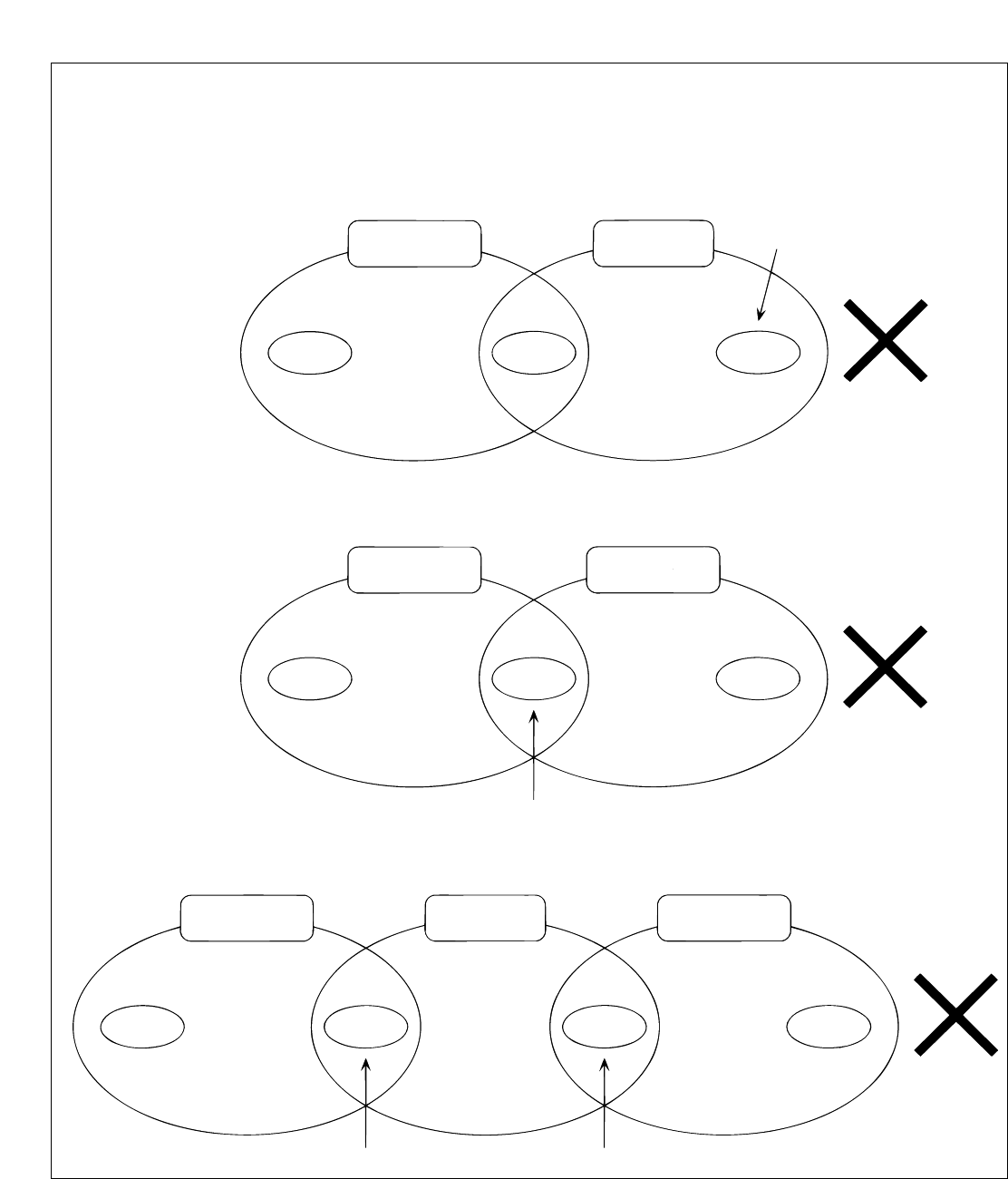
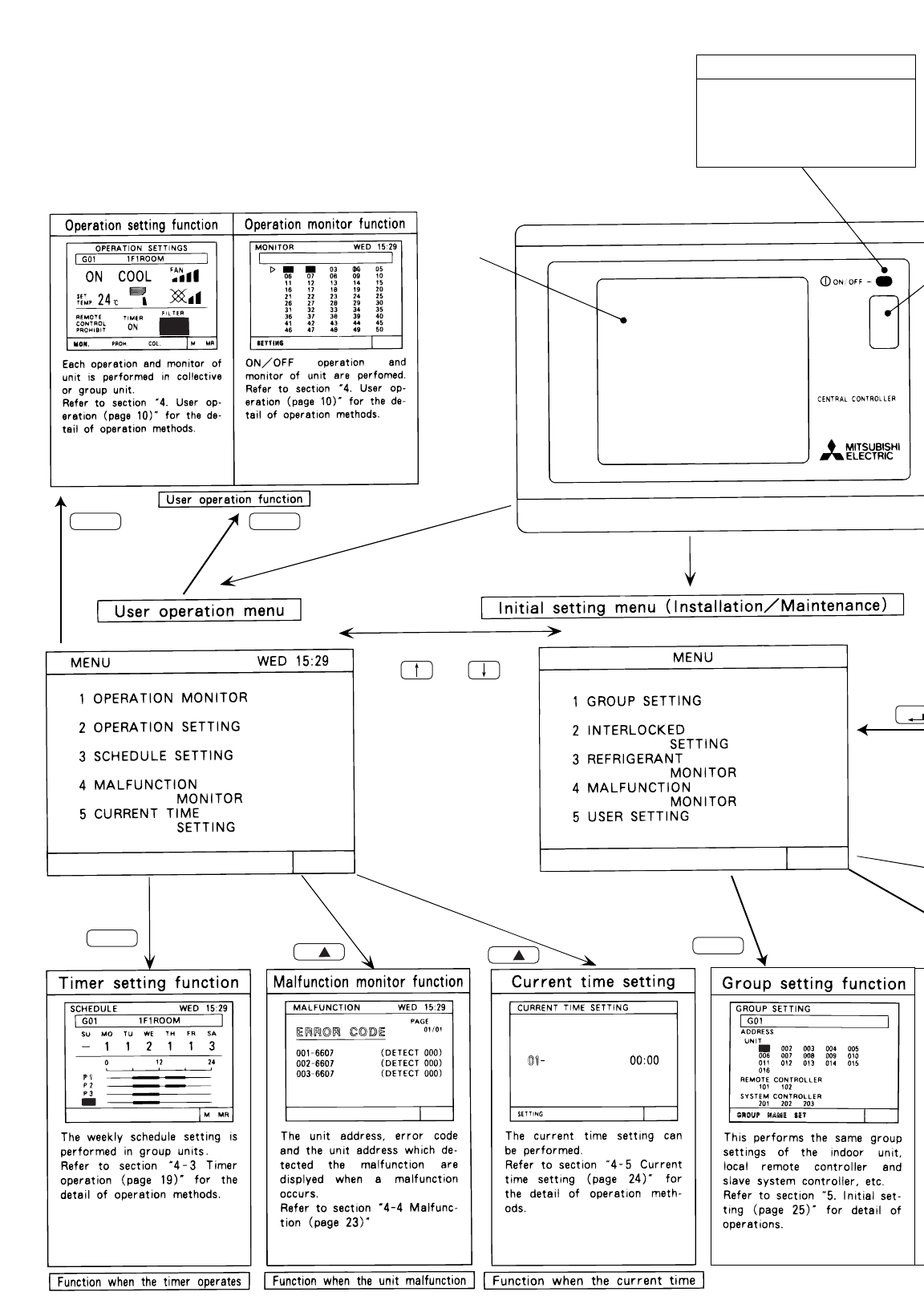
-7-
Master system
Group Group Group
controller Slave system
controller
Group Group Group
Master system
controller 1 Master system
controller 2
Group
Group
Group
Group
Master system
controller 1 Master system
controller 2
Slave system
controller
NOTE :
The following group setting cannot be performed.
• Unit groups which are not under the management of the master controller and are managed by the slave
system controller.
• A common group is managed by more than two master controllers.
• A slave system controller which exceeds the management range of the master system controller of two or
more.
-8-
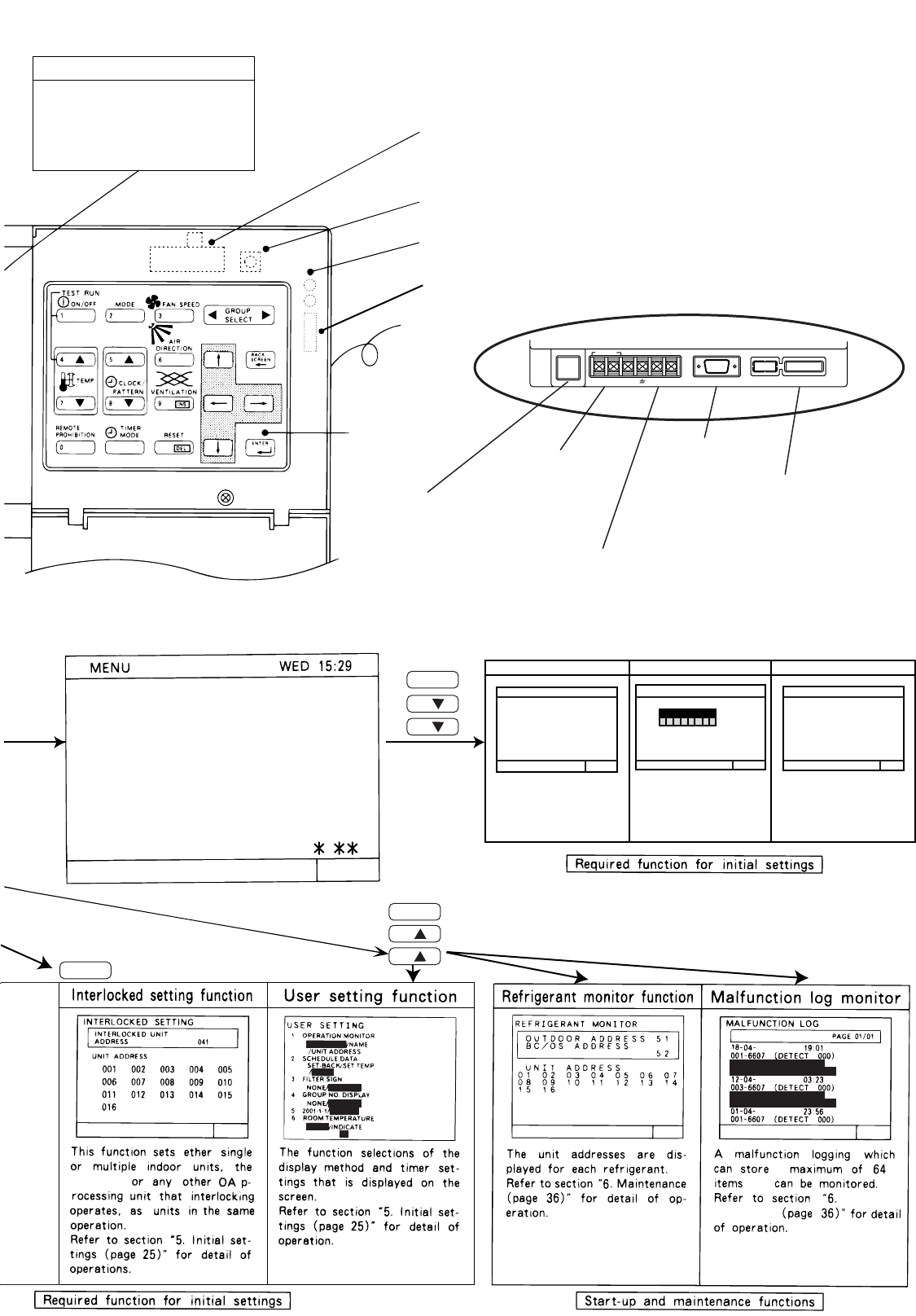
Display
P 4
NEXT
Continuously press
04-2002 MON
and
(2 seconds or longer)
G-50A
001
PROHI
BITED
01
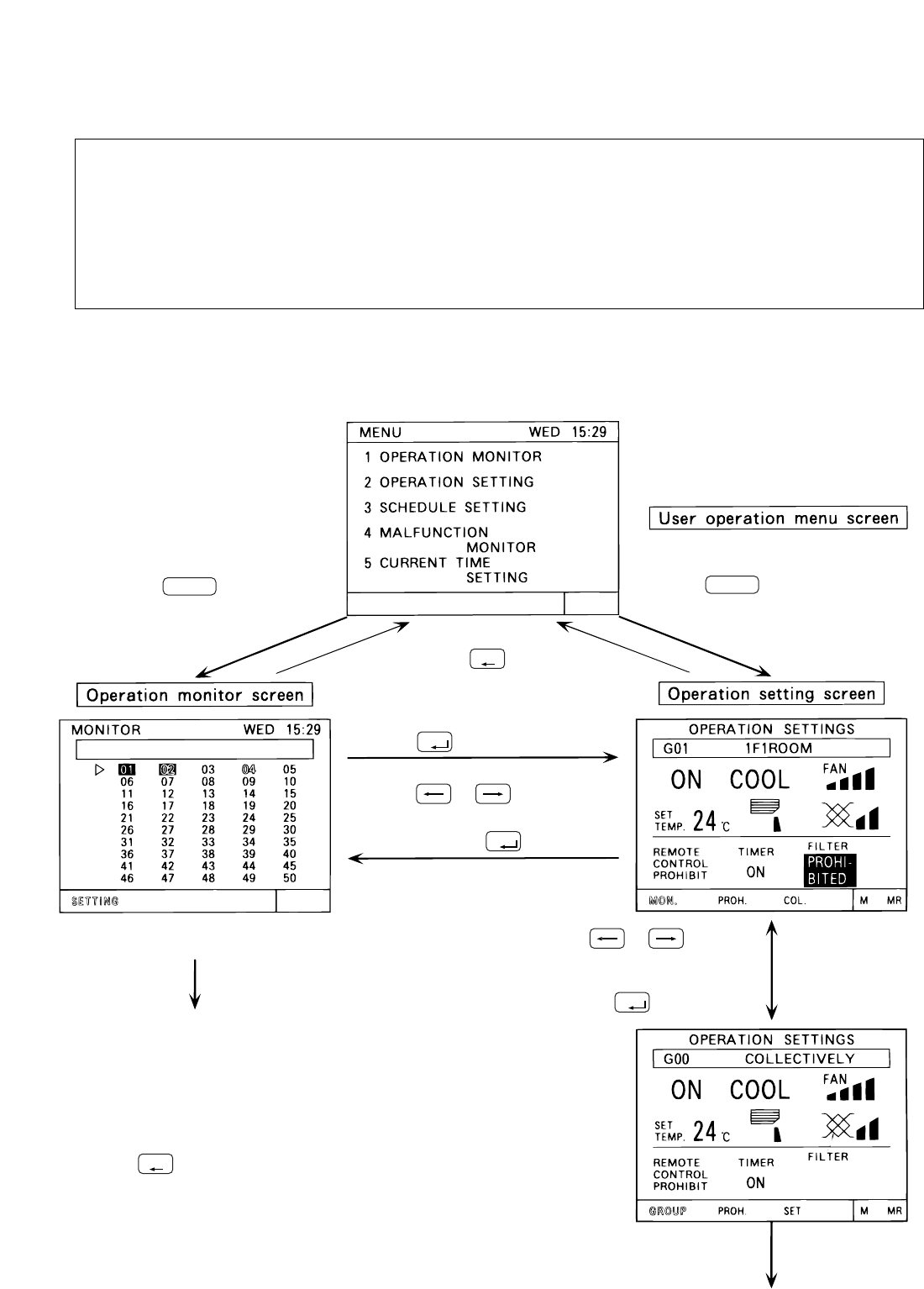
3 - 2 Display Screen The lamp indicates the unit op-
eration condition.
ON During operation
OFF All group are stopping
BLINKING Malfunction
Overall status lamp
……
……
……
02
02
1
3
12
5
4
ENTER
NOTE: The temperature setting includes
a function to switch the display
between Celsius (
˚
C) or
Fahrenheit (
˚
F) (page 34).
-9-
POWER
GND
12VDC
91 CN2
51 CN1RS232C
Ethernet
ABS
M-NET
BACK
6 ADDRESS SETTING
7 FUNCTION SETTING
8 IP ADDRESS SETTING
VER.
LAN changeover switch
Refer to section "5. Initial setting ( page 25 ) " for
explanation of the operation of these switches.
LCD contrast adjustment knob
Rear side
Operation
panel
The collective operation switch can be per-
formed in the user setting mode for any screen.
( Excluding menu screen )
If this switch is pressed during
the operation, a whole group stop
is performed.
Collective operation switch
LAN status lamp
Orange LED indicates action and green LED indicates link.
Service LAN connector
Refer to section "5. Initial setting " for an explanation of this connector.
DC power supply terminator
External input / output interface connecter
Refer to section "7. External input / out-
put function ( page 38 )" for the detail
of operation of these connectors.
RS-232C connector
LAN(Ethernet)connector
M-NET Transmission
line terminal
M-NET address setting
Displays, or sets, the controller
M-NET address.
Refer to section "5. Initial setting
(page 25)" for a detailed explan-
ation of operation.
Sets the function of the controll-
er.Refer to section "5. Initial set-
ting(page 25)" for a detailed ex-
planation of operation.
Sets the LAN IP address.
Refer to section "5. Initial setti-
ng(page 25)" for a detailed ex-
planation of operation.
Maintenance
that
a
ADDRESS SETTING FUNCTION SELECTS IP ADDRESS SETTING
IP ADDRESS :
MASK ADDRESS:
192.168.001.001
255.255.255.000
ON
12345678
OFF
M-NET ADDRESS: 000
Function select setting IP address setting
LOSSNAY
16-04-2002
014 6602
12 : 45
(DETECT 014)
05-04-2002
2002
2002
2002
012 6607
09 : 12
(DETECT 012)
.
GROUP NO
NONE
INDICATE
INDICATE
1-1-2001
NONE
7 TEMP. UNIT ˚C / ˚F
6
3
2
5
4
8
7
NEXT
02
-10-
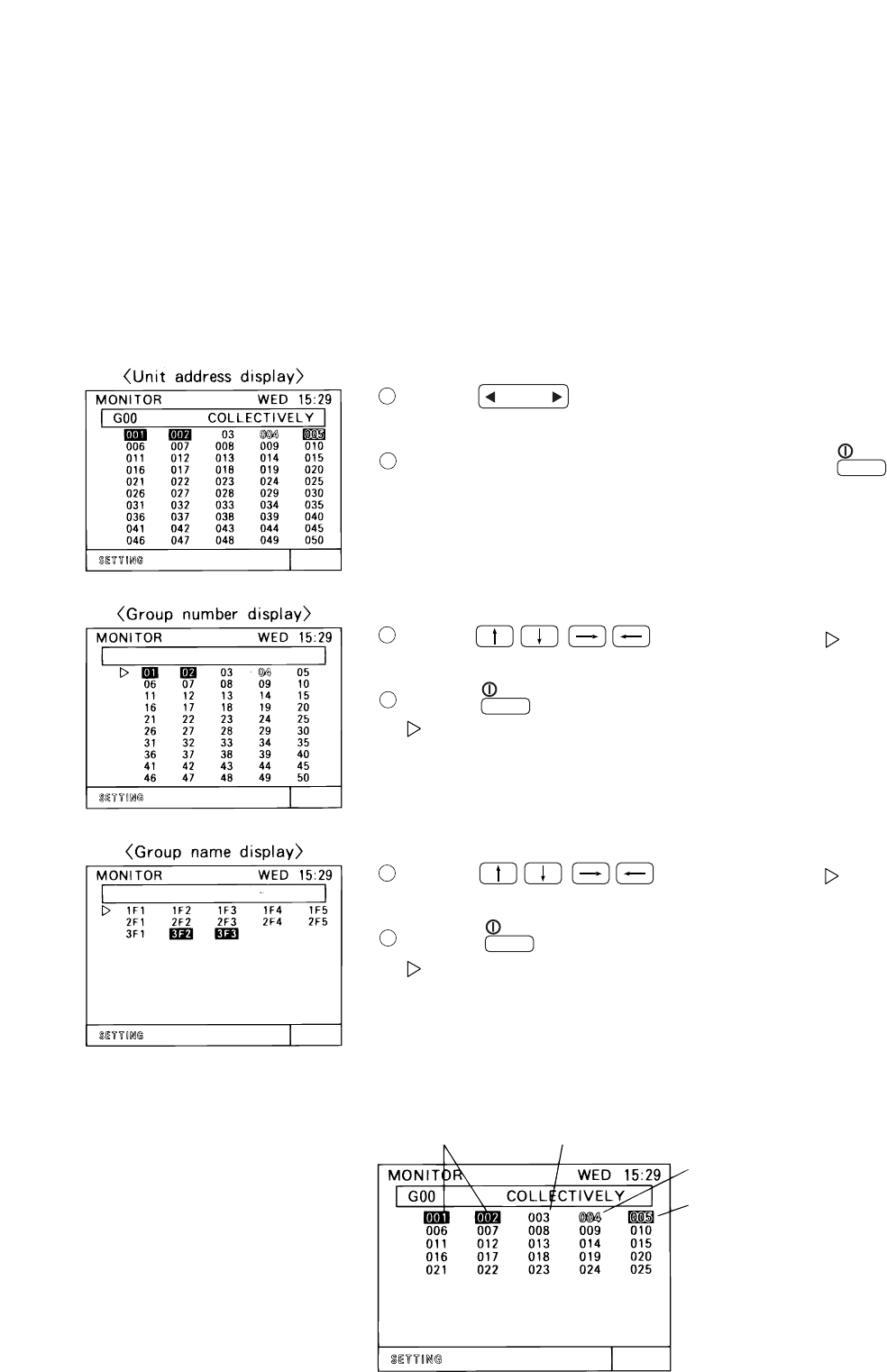
4 . User operation
Used the following two screens when user operation is performed.
Operation monitor screen This screen displays ON/OFF and malfunction condition of unit.
Operation setting screen The unit operations can be performed by individual group or collective
G-50A normally displays this screen.
operation. These operation include the ON/OFF, operation mode, fan speed,
temperature setting, air direction, ventilation setting, timer operation
ON/OFF, local remote controller prohibition and filter sign reset are
performed by group or collectively. In addition, this screen can also displays
the room temperature of each group.
Press the switch and
Press the switch.
Press the switch.
The unit operation can be verified in
Refer to section "4-1 Operation
condition monitor".
Press the (back screen) switch.
Press the or switch
(Individual group
operation setting
screen)
Each unit operation (Collective
operation
setting screen)
setting is performed.
Refer to section "4-2 Operation setting".
to set "COL. (COLLECTIVE)" or
"GROUP" on the blinking display
and press the switch.
a single glance.
Press the or switch to set
"MON. (MONITOR)" on the blinking
display and press the switch.
Press the switch and
select "1. OPERATION MONITOR" select "2. OPERATION SETTING"
• The collective operation can be performed on any screen (except for the menu screen) in the user operation
<Shifting to the operation monitor screen and operation setting screen>
<Returning to the user operation menu screen>
mode
.......
........
1
2
BACK
SCREEN
BACK
SCREEN
ENTER
ENTER
ENTER
-11-
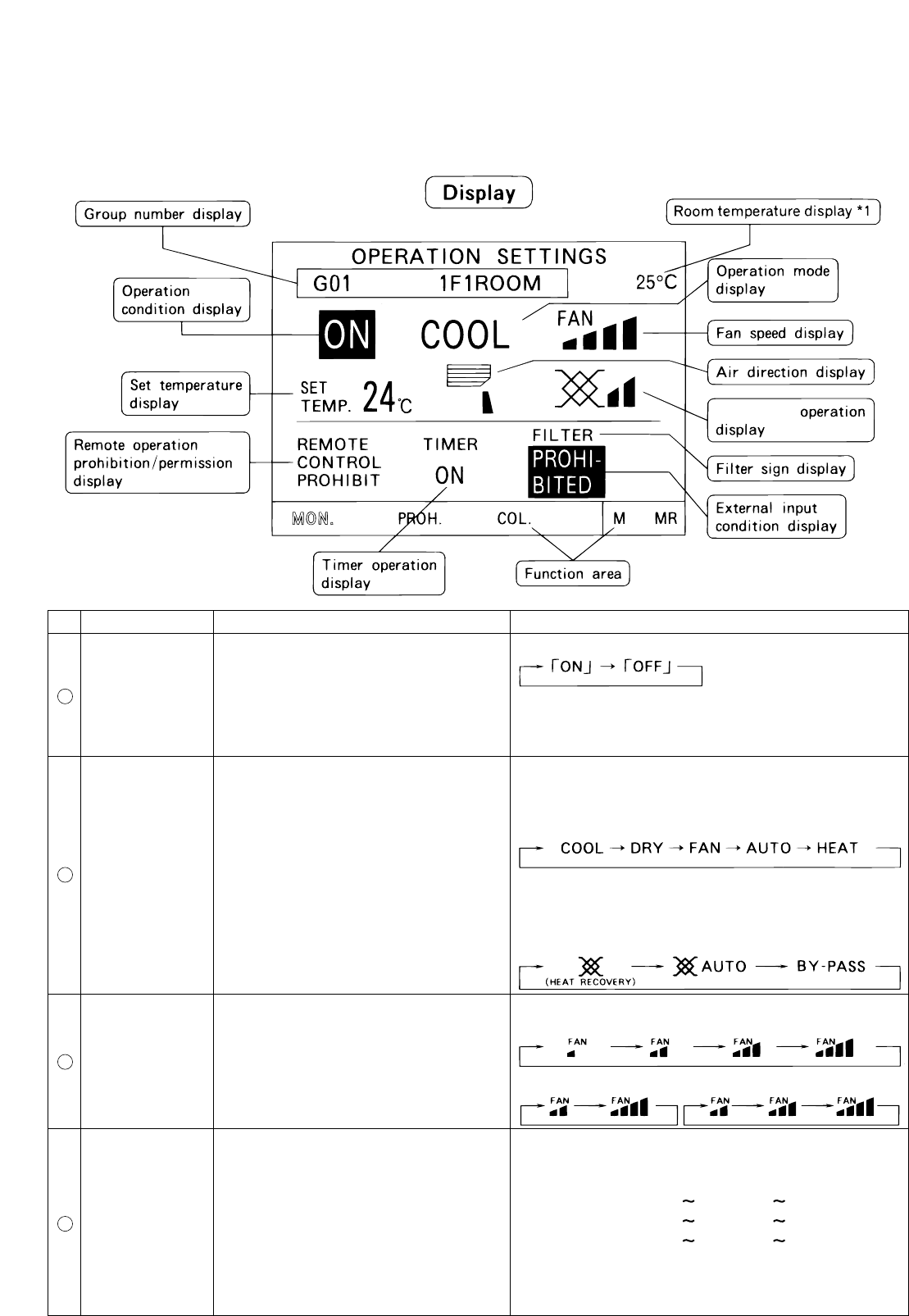
• Note that operation is different for each of the following display methods.
Press the switch to change the display group in desired opera-
Press the switch to move the " " select the group
number to be operated.
Press the switch to set the displayed group unit is indicated by the
" " symbol to the on/off mode.
" " symbol to the on/off mode.
Press the switch to move the " " symbol. Select
Press the switch to set the displayed group unit is indicated by the
the group name to be operated.
tion and monitor.
When displaying the units in a given group, press the switch turn
all the units in that group ON or OFF.
*Displays up to the first 3 characters of the set group name.
Reverse:ON
Blinking: Malfunction during
units is off
Blinking and Reverse:
Malfunction during
unit is on.
*When a malfunction occurs, refer to section "4-4 Malfunction (page 23) ".
Normal:OFF
4 - 1 Operation condition monitor
• This function displays the ON/OFF/Malfunction status of specific units or group.
• ON/OFF/Malfunction status is shown by the indication corresponding to the unit or group appearing in inverse,
• The user may select display items by unit address, group number or group name.
• During the user operation mode, this screen returns from any screen if there is no operation for approximately
Refer to section "5-7 User setting (page 34)" for detail of user setting.
10 minutes.
(1) Operation Method
(2) Display contents
normal or blinking display.
1
2
1
2
1
2
1
ON/OFF
1
ON/OFF
1
ON/OFF
GROUP
SELECT
-12-
19 30 ˚C / 67 87 ˚F
17 28 ˚C / 63 83 ˚F
19 28 ˚C / 67 83 ˚F
4 - 2 Operation setting
4 - 2 - 1 Group operation setting
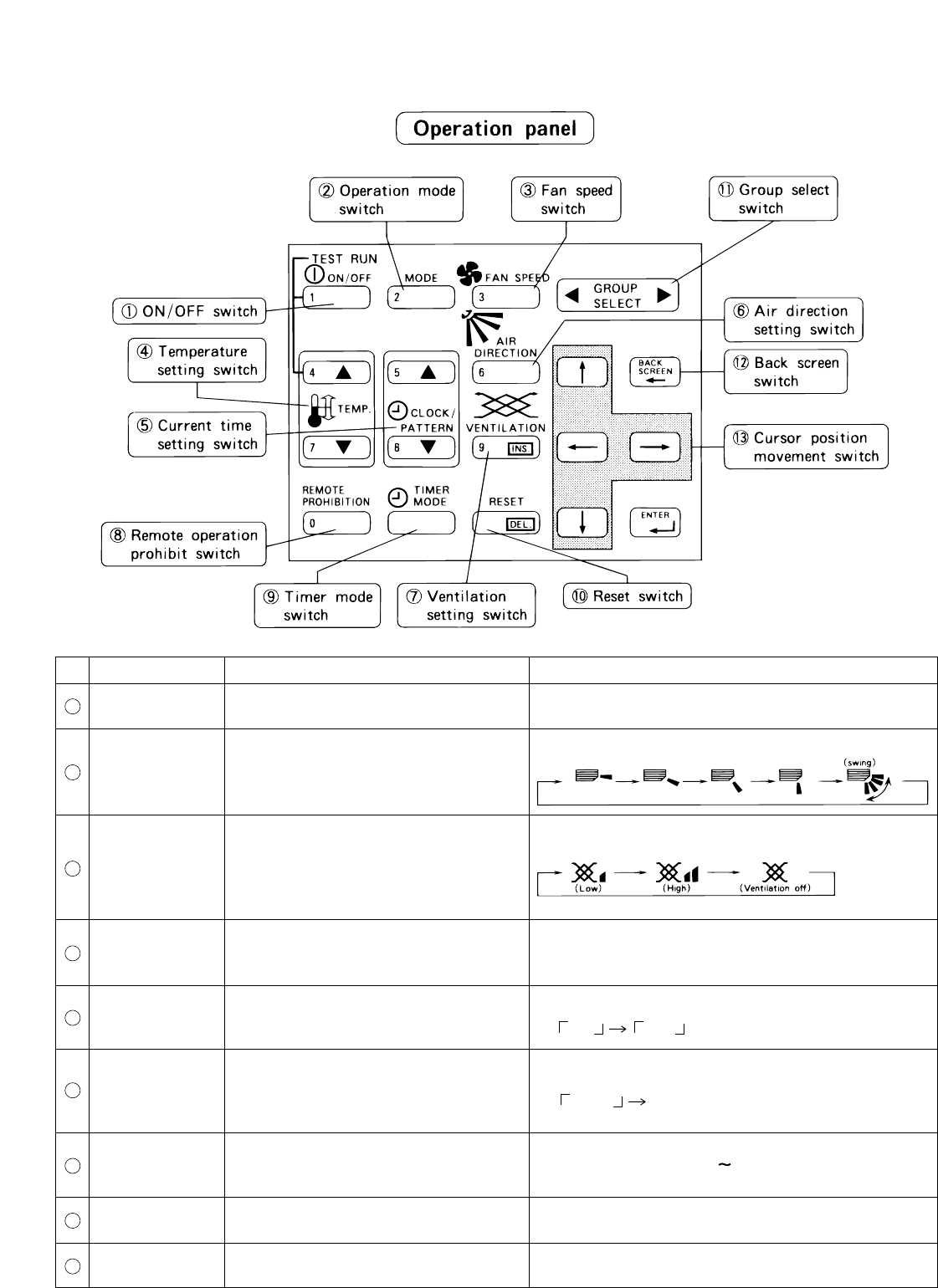
• There are two methods for the operation, performing the operation classified by groups or collective operation.
No.
Name of switches
Function Display
Ventilation
Operation status display
*When there is an interlocked OA processing unit
ON/OFF switch The ON/OFF condition of the dis-
played group is switched.
Operation mode
switch
Fan speed
switch
Temperature
setting switch
or LOSSNAY , turning this switch ON starts
operation in a [High] ventilated state.
Each time to push the switch, a mode is selected in
Used to the type of the operation
mode selection.
Note:
Operation mode can be selected ac-
cording to the function of unit.
If the unit is only cooling type.
HEAT/AUTO mode may not appear
on the display.
Refer to the instruction manual of
the air conditioner for more detail.
The fan speed can be switched to four
On the group composed of independent LOSSNAY ,
operation mode is selected in a sequence that goes
from HEAT RECOVERY,AUTO, BY-PASS and back
to HEAT RECOVERY.
4 levels
2 levels
The setting temperature display.
The setting range change according to the operation
mode.
COOL/DRY
HEAT
AUTO
Fan speed display
a sequence that goes from COOL, DRY, FUN,
AUTO, HEAT and beck to AUTO for air conditioner
group.
levels. Switching may be 3 levels or 2
levels, depending on the model.
The setting temperature change is per-
formed.
3 levels
NOTE: The temperature setting includes a function
to switch the display between Celsius (°C)
or Fahrenheit (°F) (page 34).
1
2
3
4
-13-
No. Name of switches
Current time
setting switch
Air direction
setting switch
Ventilation Ventilation volume setting display
The operation mode of the interlocked
setting switch
Remote
operation
prohibit switch
Timer more
switch
Reset switch
Group select
switch
Back screen
switch
Cursor position
switch
*1: Room temperature can be displayed by selecting the room temperature display function per "5-7User
Setting".( but limited to indoor unit group)
These switches are used when the cur-
rent time is set.
The Air flow direction can be selected.
The air flow direction can be selected
to four directions and swing operation
(auto vane).
Refer to section "4-5 Current time setting" .
Air flow direction
Function Display
ventilation can be performed.
*Where there is no interlocked ventilation,
the operation of this switch is invalid.
*
"Ventilation" is OA processing unit or LOSSNAY
Used to prohibit for the local remote PROHIBIT : Local remote control specified on the
PERMIT : Local remote control is possible.
prohibit setting screen is not possible.
control.
The timer operation can be performed
according to a previously set operation
pattern.
The filter sign display reset is per-
formed.The reset processing is com-
pleted by pressing this switch two
times.
The display group is changed.
Use to back to the user menu screen.
The position of a cursor can be moved
when a cursor is appear.
The menu screen will be returned.
The cursor position (blinking) moves.
Group number display
This switch displays 1 50 group numbers.
The switch can also display group names.
Filter display
No display
Timer operation display
ON OFF
5
6
7
8
9
10
11
12
13
Filter
-14-
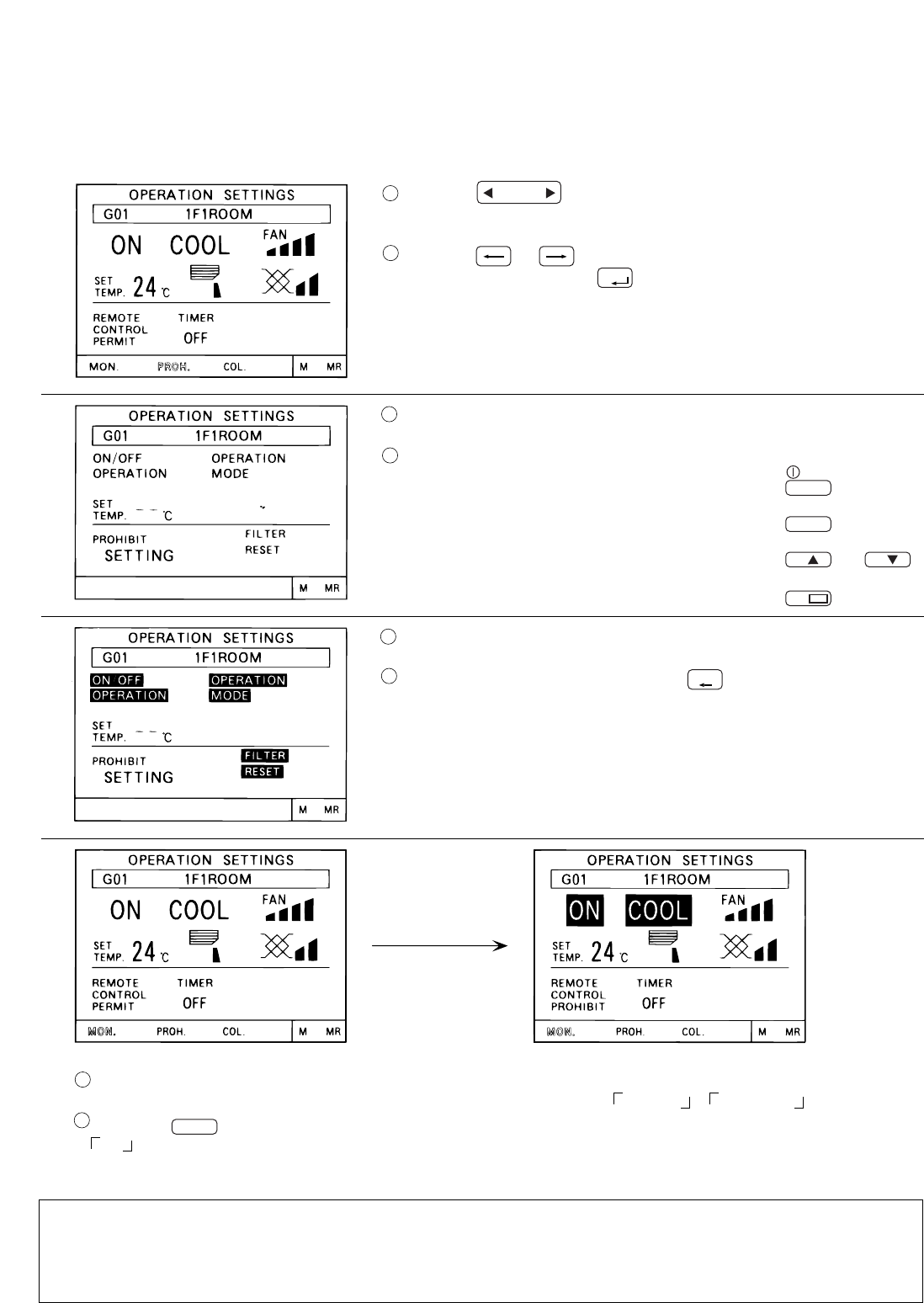
(1) Local remote control operation prohibition setting.
• G-50A can prohibit the operation of item such as connected local remote controller or slave system controller
for each group. The prohibit items are ON/OFF operation, operation mode, temperature setting and filter sign
Press the switch to display the group that the operation
prohibition setting will be performed.
Press the or switch to set "PROH. (PROHIBIT)" on the
blinking display and press switch.
The prohibit setting screen is displayed.
Press the operation switch for the items to be prohibited.
• When the ON/OFF operation is to be prohibited
• When the operation mode is to be prohibited
• When the setting temperature is to be prohibited
• When the filter sign reset is to be prohibited
The items selected for prohibition are shown in reverse display.
After setting of prohibit item, press the switch to go back to the
operation setting screen.
The operation setting screen is displayed. Remote operation prohibition/permission display will
be change PERMIT to PROHIBIT and the pro-
hibited item set on the prohibit setting screen are
shown in reverse display.
The prohibit setting is completed.
• The system controller that performed the local remote control operation prohibition setting can
operate the prohibited items.
• When the No.4 function select is set ON, the prohibit setting of the local remote control operating
cannot be made. For details, refer to "5-3 Function setting."
NOTE:
Press the switch to set "PROHIBIT
ON " .
reset operation.
:
:
:or
:
0
REMOTE
PROHIBITION
1
ON/OFF
2
MODE
DEL.
RESET
4
7
GROUP
SELECT
BACK
SCREEN
ENTER
1
2
1
2
1
2
1
2
-15-
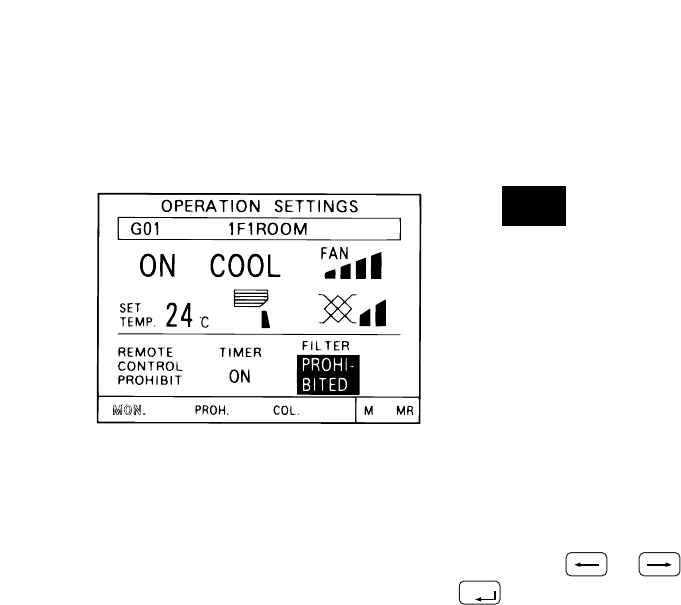
(2) G-50A operation prohibition
(3) Using the function area
• The operation of this controller is prohibited when an operation prohibition setting for this controller is received
from a system controller other than this controller or when an external input signal is used.
The is displayed and the prohibition operation is display in re-
verse display when operation of this controller is prohibited by another
system controller or an external input signal used.
The prohibition operation which is displayed in reverse display is not
possible to operate in this condition.
To select the function from the function area, use the or switch to move the cursor to the blinking to
the function of your choice and press the switch. The current cursor position appears as a blinking indication
on screen.
• MON. (MONITOR) : Shift to the operation monitor screen
• PROH. (PROHIBIT) : Shift to the prohibit setting screen
• COL. (COLLECTIVE) : Shift to the collective operation setting screen
• M (memory) : Stores the setting currently shown on the screen in memory.
• MR (memory read) : Reads the setting stored in memory and activates them for the currently dis-
played group.
ENTER
PROHI-
BITED
-16-
4 - 2 - 2 Collective operation setting
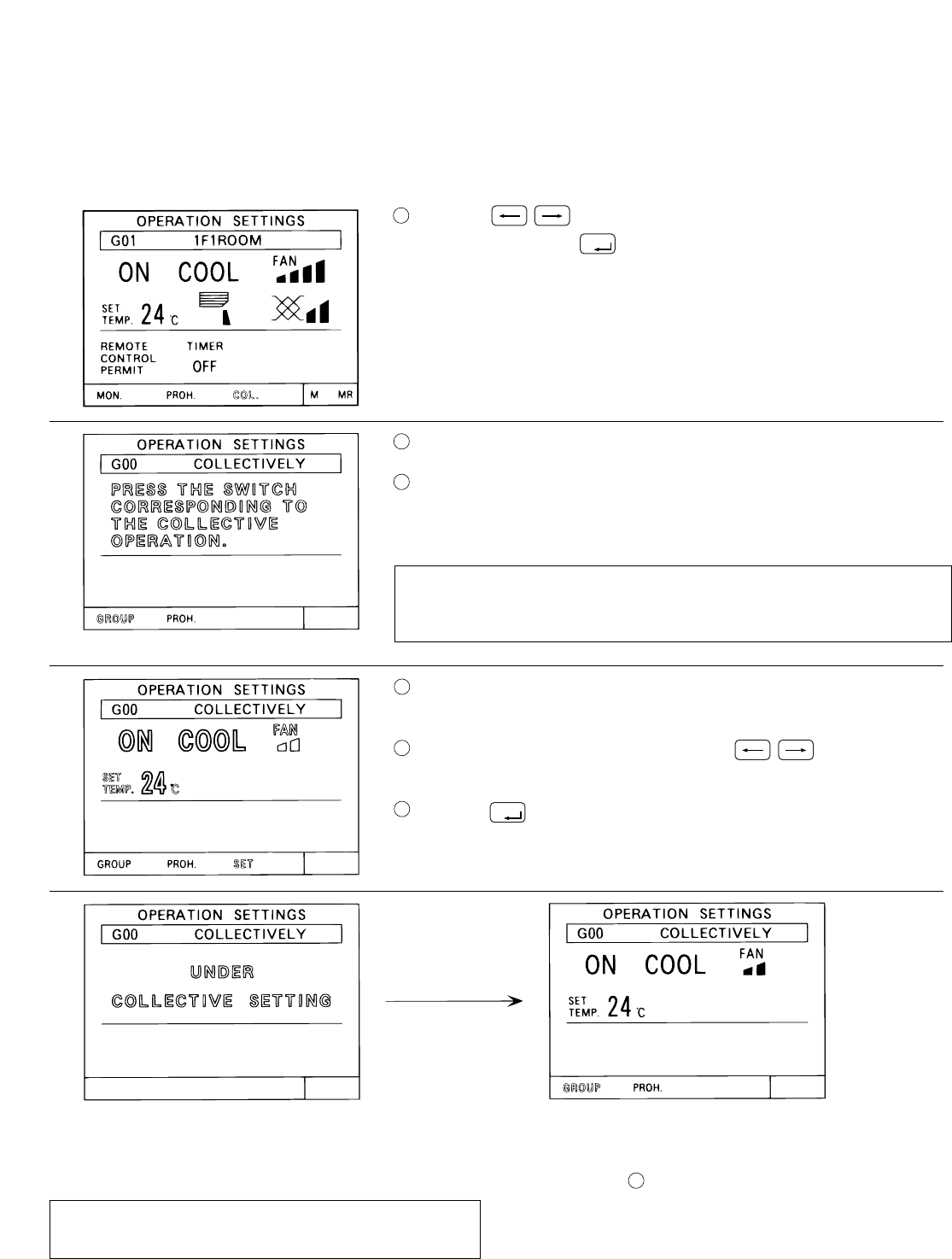
(1) Collective operation setting
• A collective operation setting and a collective prohibit setting can be performed for all the group managed by
this controller at one time.
Press the switch to set "COL. (COLLECTIVE)" in blinking
display and press the switch on the group operation setting
screen.
The collective operation setting initial screen is displayed.
Select the items for operation setting on the collective operation setting
initial screen.
The operation method is same as described in section "4-2-1 Group
operation setting" (Page 12).
The items which were not set, remain set to the same
condition that were set before the collective operation was
performed.
The items selected for the operation blink on the collective operation
setting screen.
When all setting are completed, press the switch to display
the "SET" in blinking display for the indicated function area.
Press the switch one time to complete this setting.
The collective setting is executed.
The collective setting takes approximately 20
seconds.
The display of setting contents is erased
when shift to another screen.
The collective setting is completed when the previous
items light. (After the setting are completed, start
from step to perform operation again if change
operation are required.)
NOTE:
NOTE:
ENTER
ENTER
1
2
3
3
4
5
6
-17-
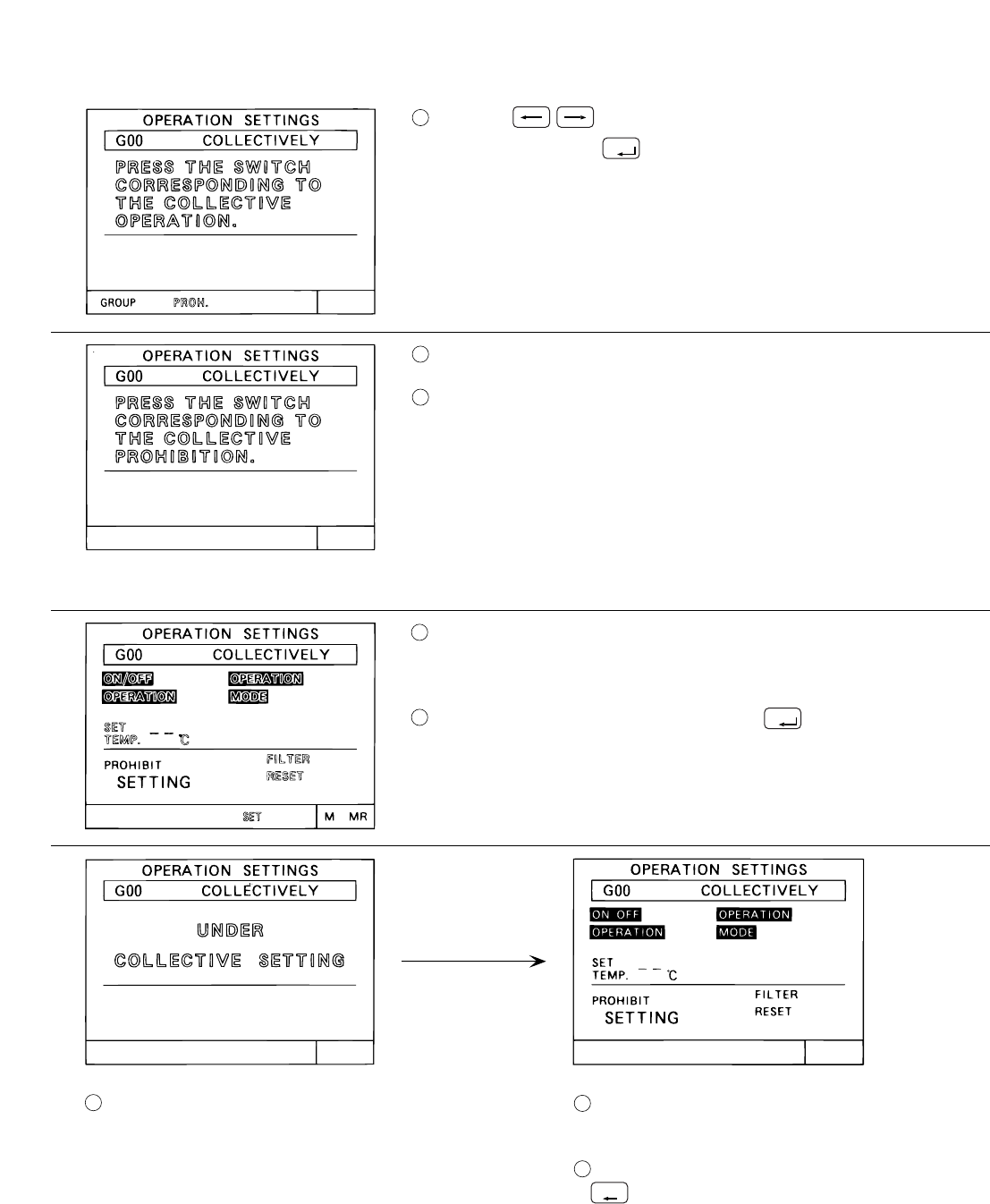
(2) Collective prohibit setting
Press the switch to set "PROH. (PROHIBIT)" in blinking
display and press the switch on the collective operation setting
initial screen.
The collective prohibit setting initial screen is displayed.
Select the items to be prohibited or permitted on the collective prohibit
setting initial screen.
Each time to press the switch corresponding to the prohibition item,
the prohibition or permission is selected.
Prohibition setting : The prohibited item is displayed in reverse with
Permission setting : The permitted item is displayed with blinking.
The selection method concerning to prohibit/ permit item is same as de-
scribed in section "4-2-1 (1) Local remote control operation prohibit
setting". ( page 14 )
The items selected for the prohibition or permission are displayed with
blinking.
And the "SET" is displayed with blinking in the function area.
When all setting are completed, press the switch one time to com-
plete this settings.
The collective prohibit setting is excused. The collective setting prohibition/permission item
setting is completed when the previous item light.
After setting of prohibit/permit items, press the
switch to back to the collective operation
setting initial screen.
The collective prohibit setting takes approximately
20 seconds.
blinking.
ENTER
ENTER
1
2
3
4
5
67
8
BACK
SCREEN
-18-
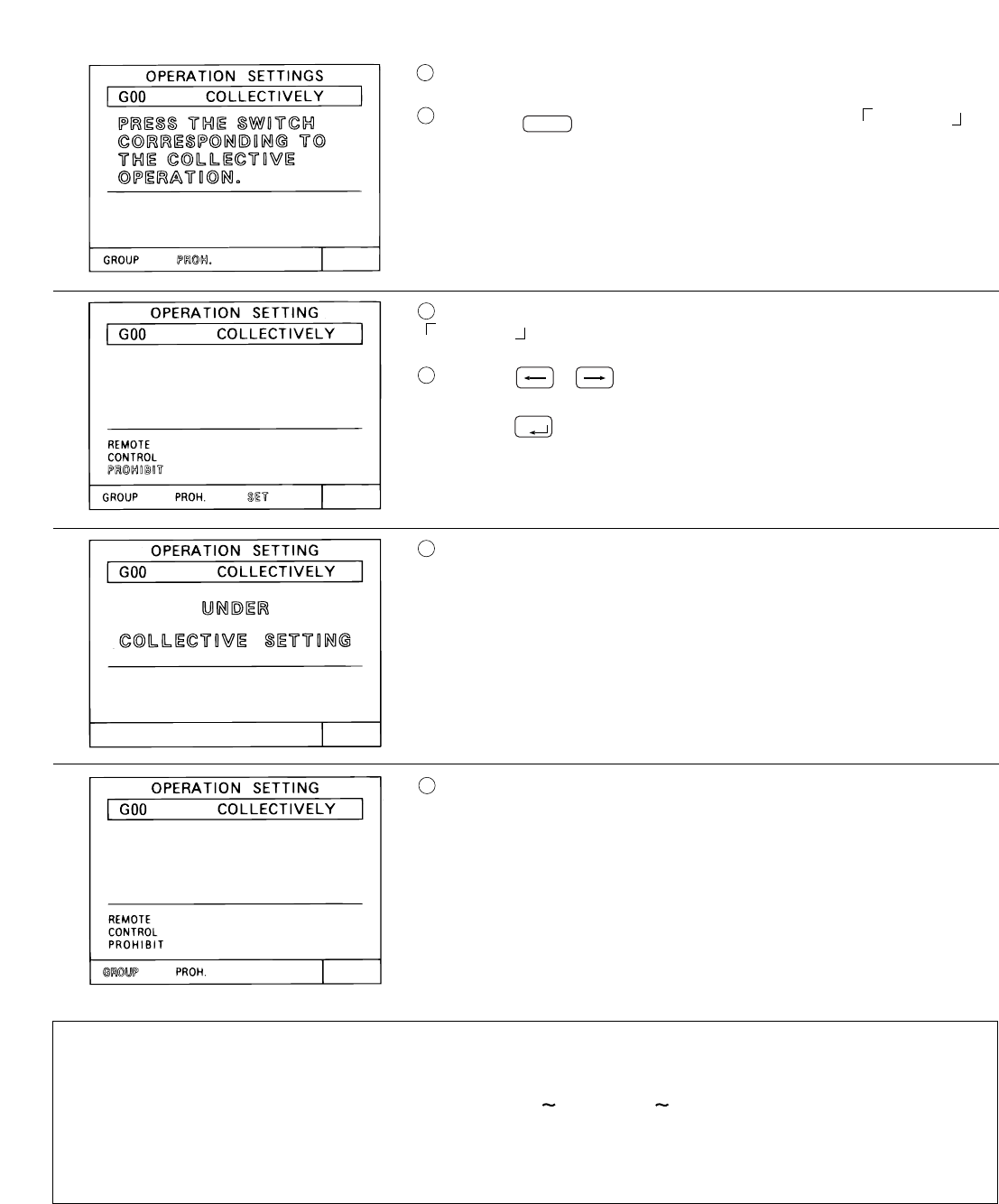
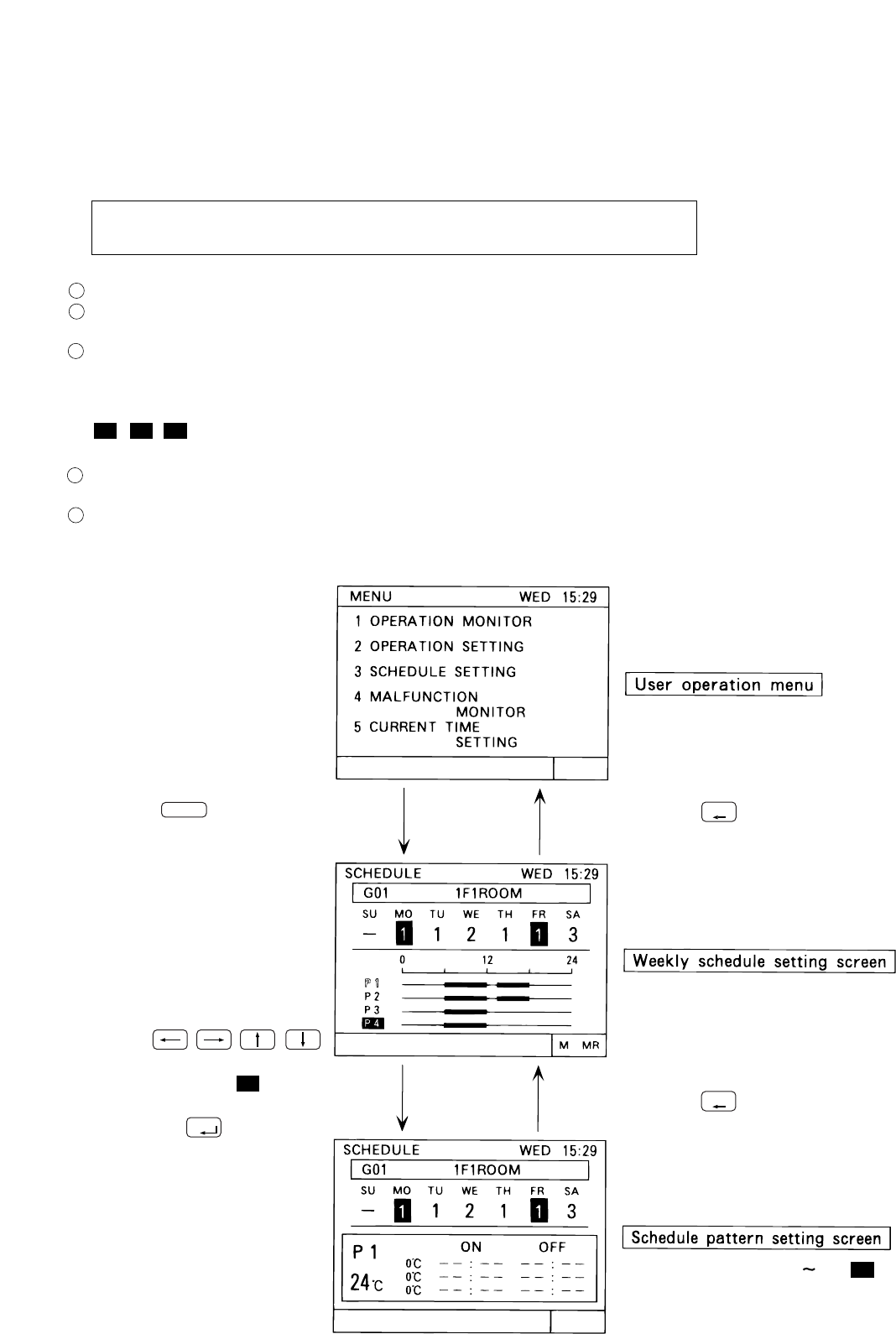
The collective operation setting initial screen is displayed.
Press the switch to set "REMOTE CONTROL PROHIBIT ".
Remote operation prohibition/permission display ("REMOTE CONTROL
PROHIBIT " ) is displayed with blinking.
Press the or switch to display the "SET" in blinking display
for the indicated function area.
Press the switch one time to complete the collective prohibit set-
ting.
The collective prohibit setting is executed.
It takes approximately 20 seconds.
The collective prohibit setting is completed when the remote operation
prohibition/permission display is change to be light.
• The display of setting contents is erased when shift to another screen.
• The following restrictions in the collective operation settings.
1. Temperature setting
The range that can be set falls within 19˚C 28˚C /67˚F 83˚F regardless of the operation mode.
2. Operation mode selection, fan speed selection, air direction, etc.,can be collectively set regardless
of the functions of the unit. However, actual setting to a unit without functions cannot be performed.
To obtain the correct setting contents, refer to the respective group operation setting screens.
NOTE:
ENTER
9
10
11
12
13
14
0
REMOTE
PROHIBITION
-19-
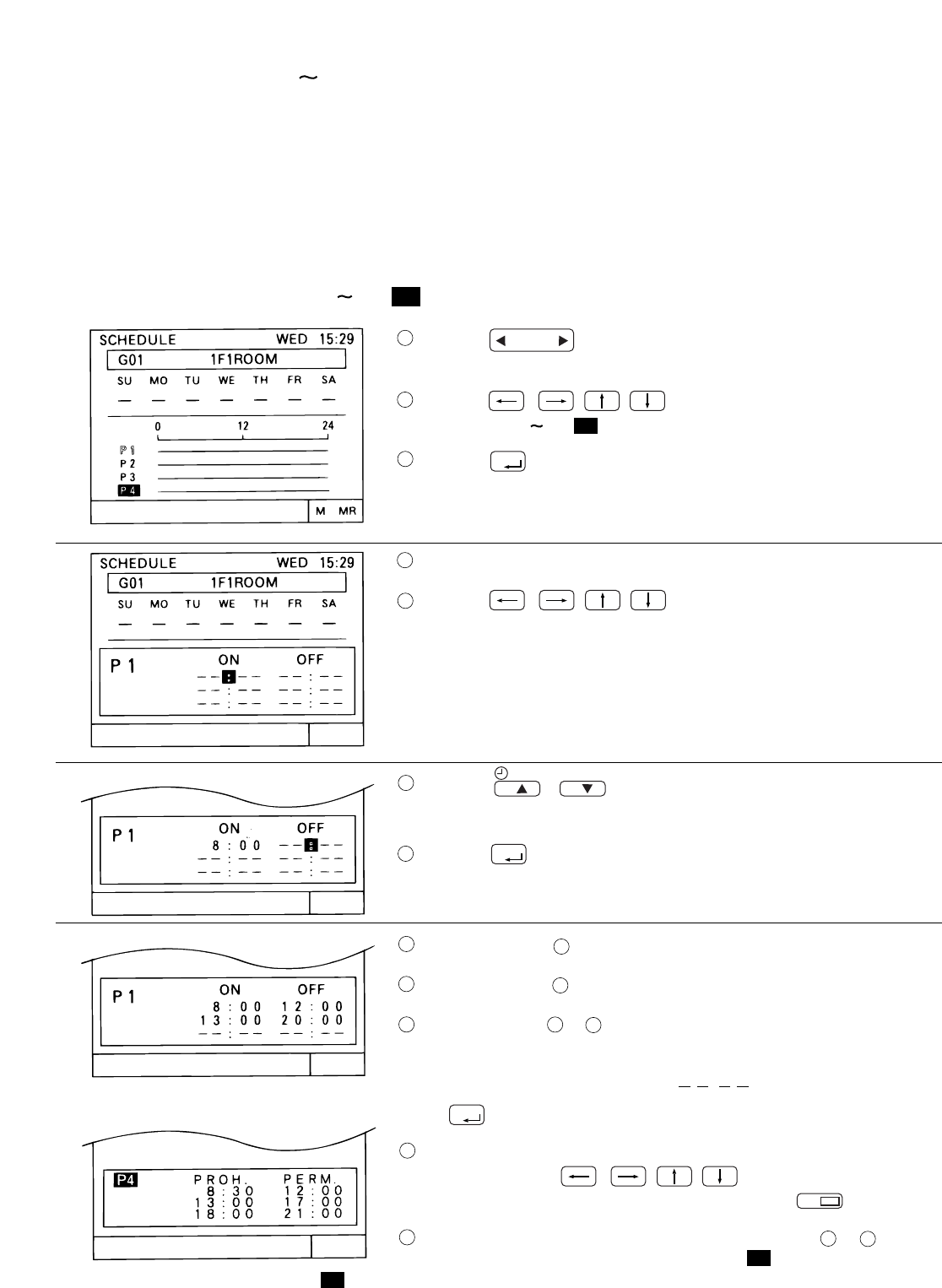
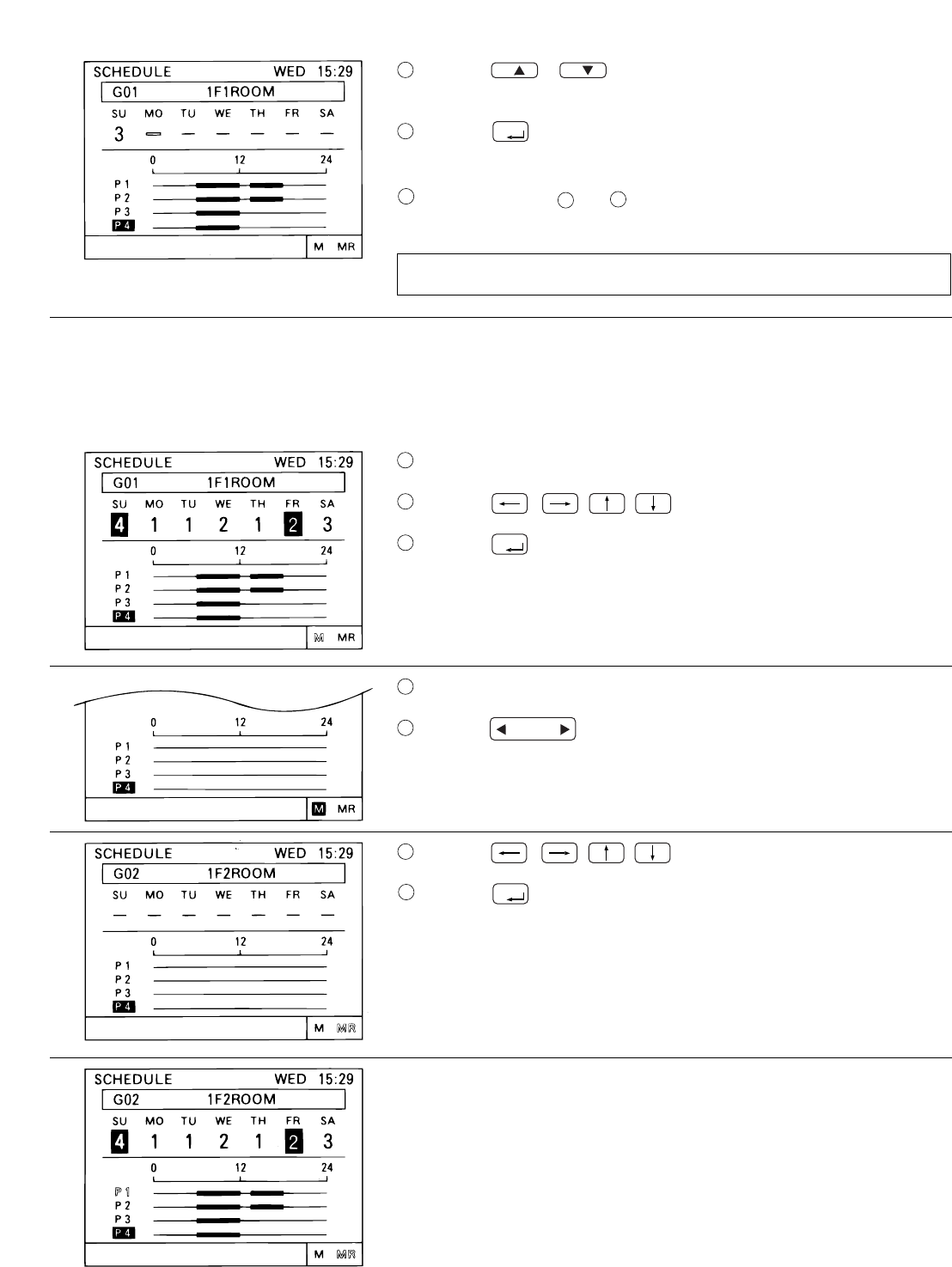
• A weekly schedule setting can be specified for each group.
• Possible to set on the timer the schedule to prohibit operation of the local remote controller in addition to ON/OFF
• Always set to current time on the current time setting screen when the schedule setting is performed.
The ON and OFF (PROHIBITION and PERMISSION) times can set in 10-minute units.
The daily operation schedule can include up to three ON (PROHIBITION) time settings and three OFF (PERMISSION)
time settings.
Three types (P1-P3) of daily ON/OFF pattern and one type (P4) of prohibition/permission pattern are available
respectively, each of which can be set every to each group.
Week day which is not set in timer pattern is displayed with (-).
In addition, it is also possible to set the schedule which has combined P1 -P3 and P4 together .
( P1 / P2 / P3 ) In this case, both of ON/OFF pattern and prohibition/permission pattern are daily executed.
Any one of these options may be selected for each separate day of the week.
The schedule patterns can be copied easy to other group by the memory and memory read functions because the
schedule contents can be recorded in the memory.
The setting temperature or set-back value setting can also be supported during timer operation.
Press the switch to select Press the switch to go back to
the user operation menu screen.
• The schedule contents of each
group can be monitor.
• Weekly schedule pattern setting
can be performed.
Press the switch.
• Schedule pattern (P1 P3 , P4 )
setting can be performed.
switch to move the cursor position
to P1 (or P2 or P3 or P4 ).
(The "P1" indication blinking.)
And press the switch to the
P1 (Pattern 1) Schedule pattern
setting screen.
Press the
"3 SCHEDULE SETTING".
Refer to section "4-5 Current time setting".
<Schedule setting function summary>
<Shifting to the schedule setting screen>
schedule.
4-3 Timer operation
When browser monitoring, or schedule setting from central monitoring
PC, was performed, the timer screen of this function cannot be used.
"This function is set from a higher level." is displayed on this screen.
NOTE:
3
BACK
SCREEN
BACK
SCREEN
ENTER
1
2
3
4
5
-20-
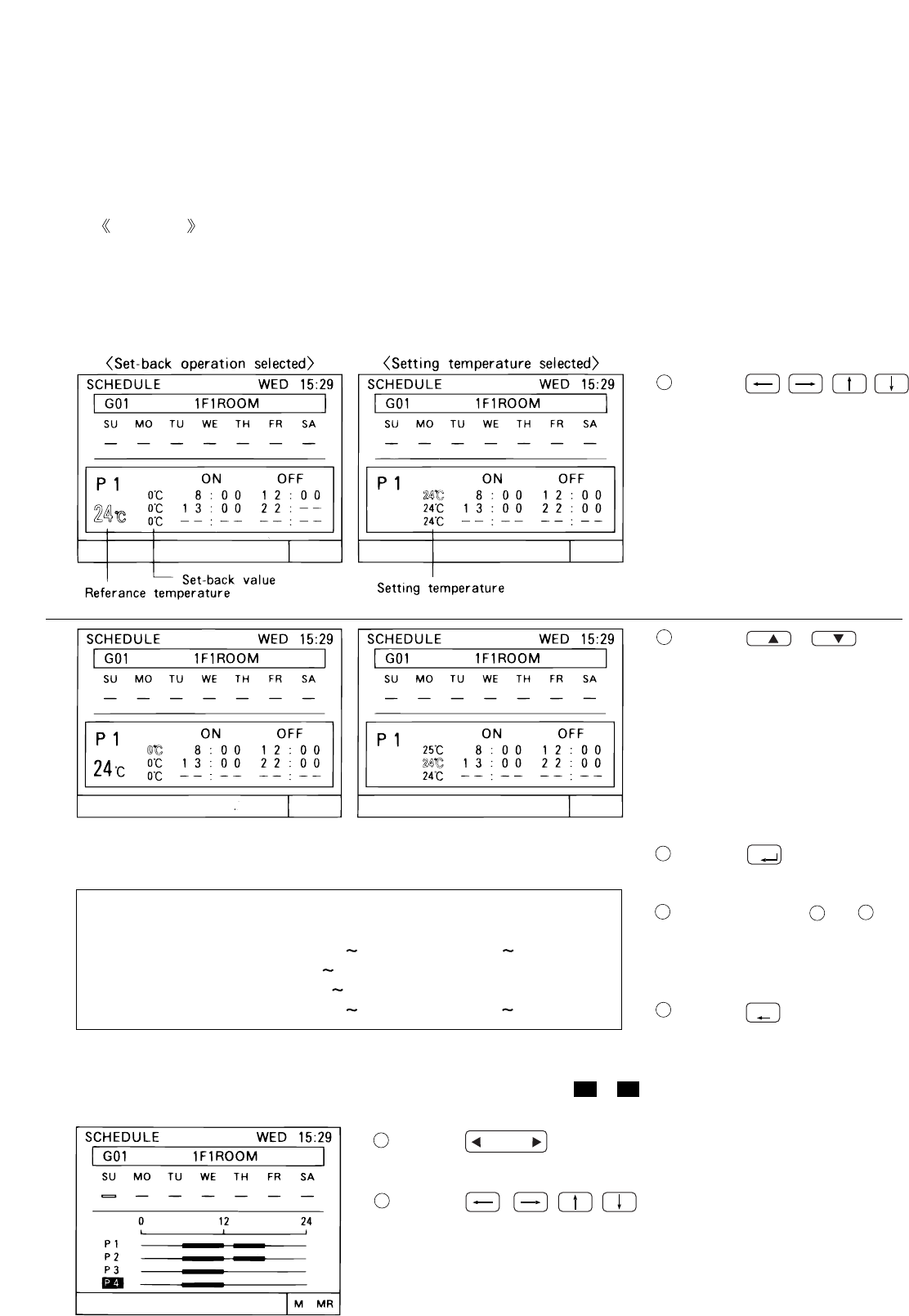
• Follow the procedures described below to set each daily schedule pattern for each group.
• The setting temperature or set-back values setting are also performed in the schedule setting operation. To enter
the setting temperature or set-back value setting select SET-BACK or SET TEMP. Accordance with section "5-7
user setting (page 34)" in advance.
• The setting temperature or set-back value selected in this way take effect only during timer operation.Also set-
back operation is cancelled if the setting temperature is changed using this central controller or a local remote
controller.
( The set-back operation resumes at the next timer-ON time )
Press the switch to display the group in desired a timer
Press the switch to move the cursor position to
the pattern ( P1 P3, P4 ) to be setting.
Press the switch one time.
The schedule pattern setting screen is displayed.
Press the switch to move the cursor position to
the first ON (PROHIBITION) time.
Press the switch to select the ON (PROHIBITION)
/
time. (time is changed by 10 minutes unit.)
Press the switch one time to set ON (PROHIBITION) schedule.
(The cursor moves to the next setting position.)
Perform operation to select OFF (PERMISSION) time.
Perform operation to set the OFF (PERMISSION) time.
Repeat operation to to set the second and third ON/OFF (PRO-
HIBITION/PERMISSION) schedules in the same manner.
When the second or third ON/OFF (PROHIBITION/PERMISSION) sch-
edule is not used, the characters " " remain display and press
:
the switch one time.
To cancel the ON/OFF (PROHIBITION/PERMISSION) time that was set
previously, use the switch to move the cursor
to the time position to be cancelled and press the switch.
When the P1 setting are completed,perform operation to as nec-
essary to perform the setting for P2 or P3 or P4 .
Setting example in case of P4
setting.
(1) Schedule pattern (P1 P3) setting
<Schedule pattern setting( P1 P3, P4 ) >
5
CLOCK / PATTERN
8
GROUP
SELECT
ENTER
ENTER
ENTER
1
2
2
3
4
5
6
6
6
7
7
8
9
9
10
11
11
12
DEL.
RESET
-21-
Press the switch to display the group in desired weekly
Press the switch to move the cursor to the pat-
tern position to be set.
schedule setting.
• Setting the set-back values and setting temperature can be performed only when selecting either "SET BACK"
• Set-back operation
• Cooling operation : 24˚C+2˚C=26˚C / 75˚F+4˚F=79˚F
• Heating operation : 24˚C-2˚C=22˚C / 75˚F-4˚F=71˚F
• Setting temperature operation
This operation sets the temperature when timer ON is set to a predesignated temperature regardless of the op-
eration mode.
Press the
Press the /
(CLOCK/PATTERN) switch to
select the following items.
• Set-back value;
The reference temperature and
• Setting temperature:
The setting temperature for
each ON time period is selected.
Press the switch to make
setting.
Repeat operations and to
set the set-back value or setting
temperature for each ON/OFF
schedule.
Press the switch, when finis-
* The selecting range:
• The reference temperature for set-back operation
• The set-back value
• The setting temperature
The schedule pattern P1 to P3, local remote control prohibition (P4), P1 to P3 of a composite pattern composed of
P1 to P3 and P4, and non-timer operation(-) are set for each day.
: 19˚C 28˚C (1˚C unit) / 67˚F 83˚F (2˚F unit)
: 19˚C 28˚C (1˚C unit) / 67˚F 83˚F (2˚F unit)
: 0 9 degree (1 degree unit)
/ 0 18 degree (2 degree unit)
set-back value for each ON time
period are selected.
switch to move the cursor posi-
tion to the set-back reference
temperature or setting tempera-
ture.
Set-back operation is a method which reduces the air conditioner running cost by controlling the operation with
specified time band for lowered load. In other words the unit operates at a few degrees higher for cooling and
a few degrees lower for heating in the specified time band.
When the reference temperature is 24˚C / 75˚F and the set-back value is set to 2˚C / 4˚F.
EXAMPLE
or "SET TEMP" on the user setting screen in the initial setting mode.
(2) Set-back values and setting temperature setting
(3) Weekly schedule setting
hed.
NOTE: The temperature display
can be switched between
Celsius (°C) or Fahrenheit
(°F) (page 34).
5
8
GROUP
SELECT
BACK
SCREEN
ENTER
1
2
23
3
4
5
1
2
-22-
Press the (CLOCK/PATTERN) switch to select P1 to
P4 or ( - ).
Press the switch one time to complete the setting.(The cursor
will move to the next setting position. )
Repeat operations and to assign the schedule pattern to each
day.
When the No.4 function setting is set ON, P4 cannot be set.
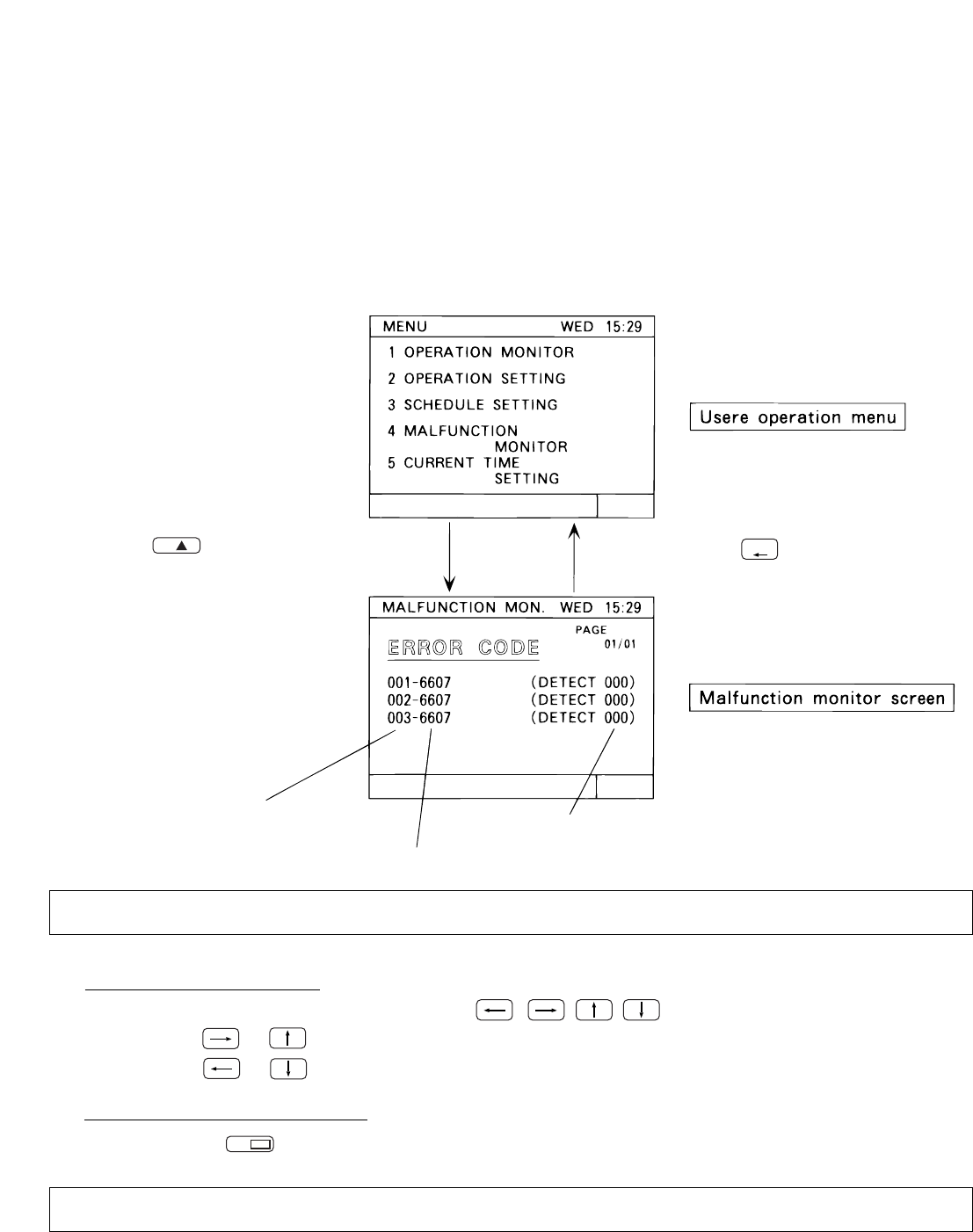
• The schedule pattern P1 to P3, weekly schedule pattern, set-back value or setting temperature of one group
• Correction and modification can be easily performed after the copy operation is completed.
Display the original group on the weekly schedule setting screen.
Press the switch to move the cursor to "M" .
Press the switch one time to record the setting date in memory.
*To erase date from the memory, return to the user operation menu
screen.
"M" is displayed in reverse with blinking.
Press the switch to select the group to which the data is
to be copied.
Press the switch to move the cursor to "MR" .
Press the switch to set the contents which will be the same as the
setting data in memory.
The same contents are displayed.
The contents stored in memory can be copied to other groups any number
of times because these contents will not be erased even if the memory read
operation is used.
can be recorded and copied to memory or to another desired group.
(4) Copying schedule content to other groups (memory,memory read)
NOTE:
GROUP
SELECT
ENTER
ENTER
ENTER
1
2
3
3
3
4
4
4
5
5
6
7
/
5
8
-23-
4 - 4 Malfunction
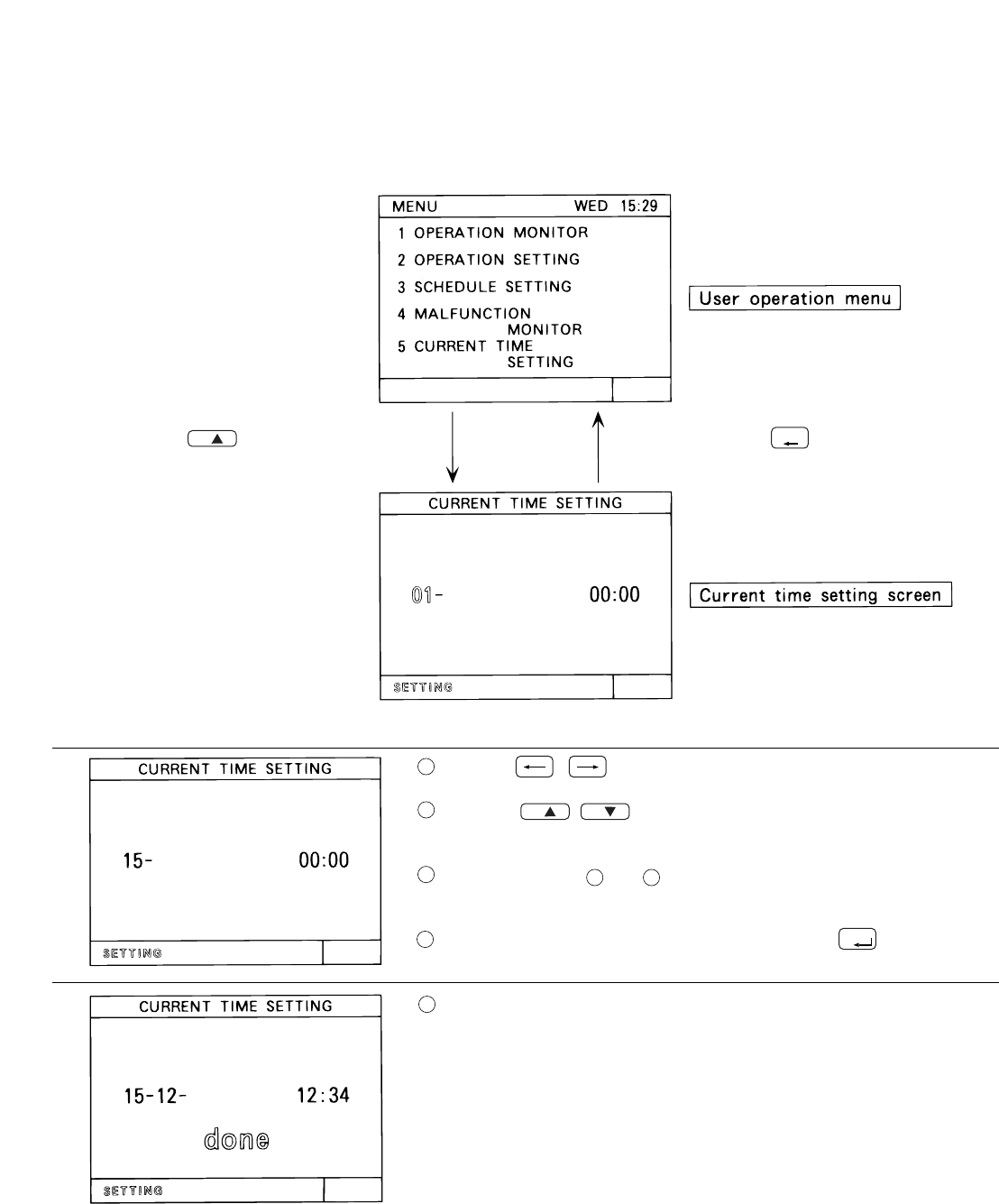
• The malfunction monitor function is used for conforming to the details of the malfunction condition when a
malfunction is displayed on the operation monitor screen.
• The malfunction monitor function can display data describing up to nine malfunctions in the address number se-
• After checking the unit address where the malfunction occurred and the error code, please contact your dealer
or technical representative as soon as possible.
Press the switch to Press the switch to go back
to the user operation menu screen.
The unit address
Error code
Page change operation
Malfunction reset operation
When there is no malfunction taking place, [ NO ERROR ] lights up instead of [ ERROR CODE ].
The page change operation is performed by the switch.
Pressing the or switch shows the current display page +1.
Pressing the or switch shows the current display page -1.
Press the reset switch to reset all malfunctions.
The reset operation can be performed on any page.
The unit address
where the malfunction occurred
NOTE :
When operation of the G-50A is prohibited, reset operation is invalid.
NOTE :
where the malfunction was detected
select "4 MALFUNCTION MONITOR".
< Shifting to the malfunction monitor screen >
quence on one page. This data contains the unit address where the malfunction occured, the error code and the
unit address where the malfunction was detected.
4
BACK
SCREEN
DEL.
RESET
-24-
4 - 5 Current time setting
< Sifting to the current time setting screen >
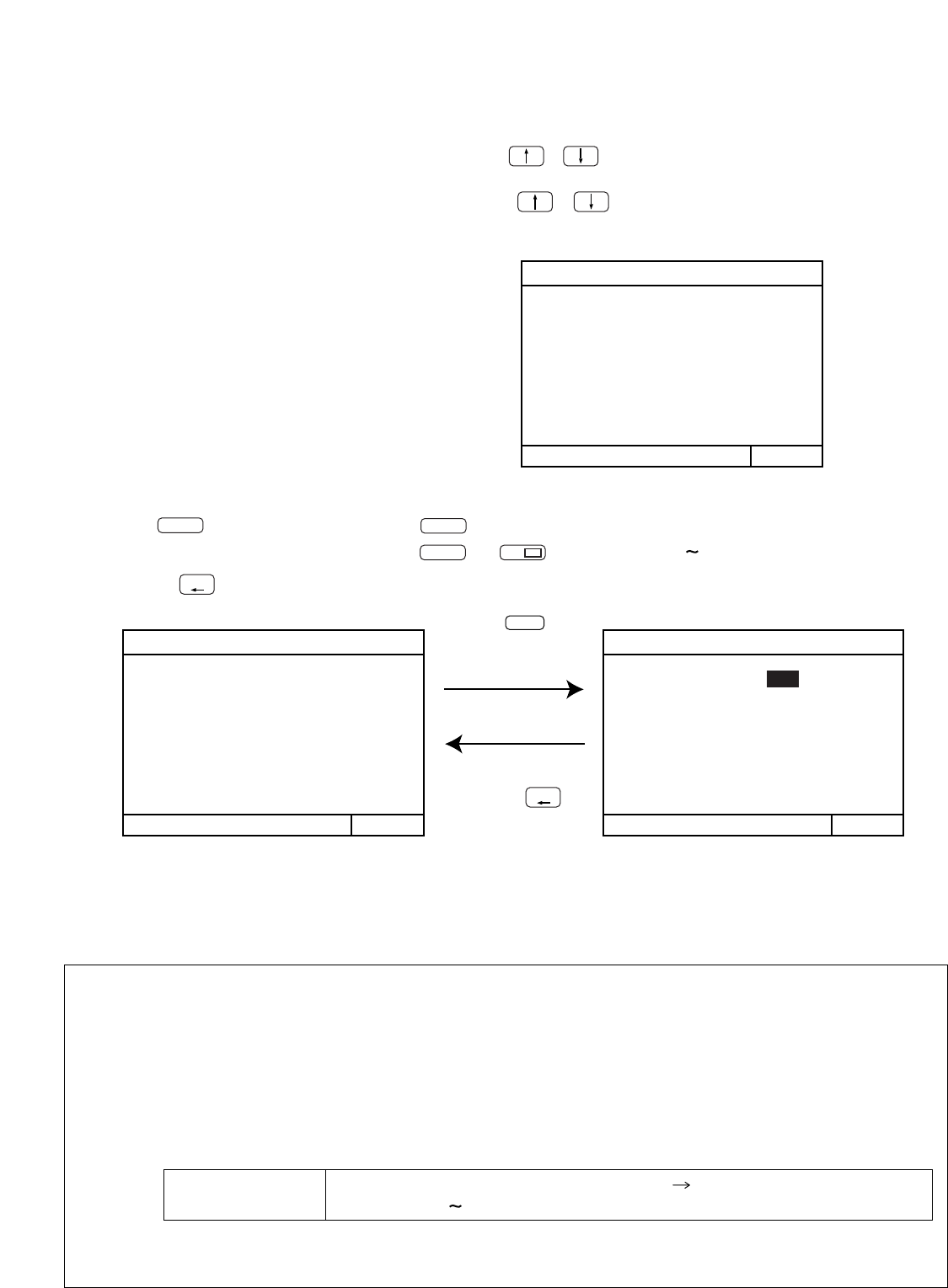
The current time, day, month and year are set on the current time setting screen.
Press the switch to select
"5 CURRENT TIME SETTING".
Press the switch to back to
Press the switch to move the cursor position to be set.
Press the (CLOCK/PATTERN) switch to set the num-
ber or day that is displayed.
Repeat operations and to set the date day, month, year and
time.
Where all setting have been completed, press the switch.
The current time setting is executed and "done" is displayed with
blinking for two seconds to indicate the current time setting completed
and the clock count will start with the second reset to 0.
the user operation menu.
04-2002 MON
04-2002 MON
2002 SUN
5
BACK
SCREEN
ENTER
1
1
2
2
3
4
5
5
8
-25-
MENU WED 15:29
1
ADDRESS
SETTING
2
FUNCTION
SELECT
4
GROUP
SETTING
PLEASE
SET
INITIAL
SETTING
3
IP
ADDRESS
SETTING
MENU WED 15:29
6
ADDRESS
SETTING
M-NET ADDRESS
7
FUNCTION
SETTING
BACK
8
IP
ADDRESS SETTING
6
M-NET ADDRESS: 000
5 - 1 Shifting to initial setting menu
5 . Initial setting
5 - 2 M-NET address setting
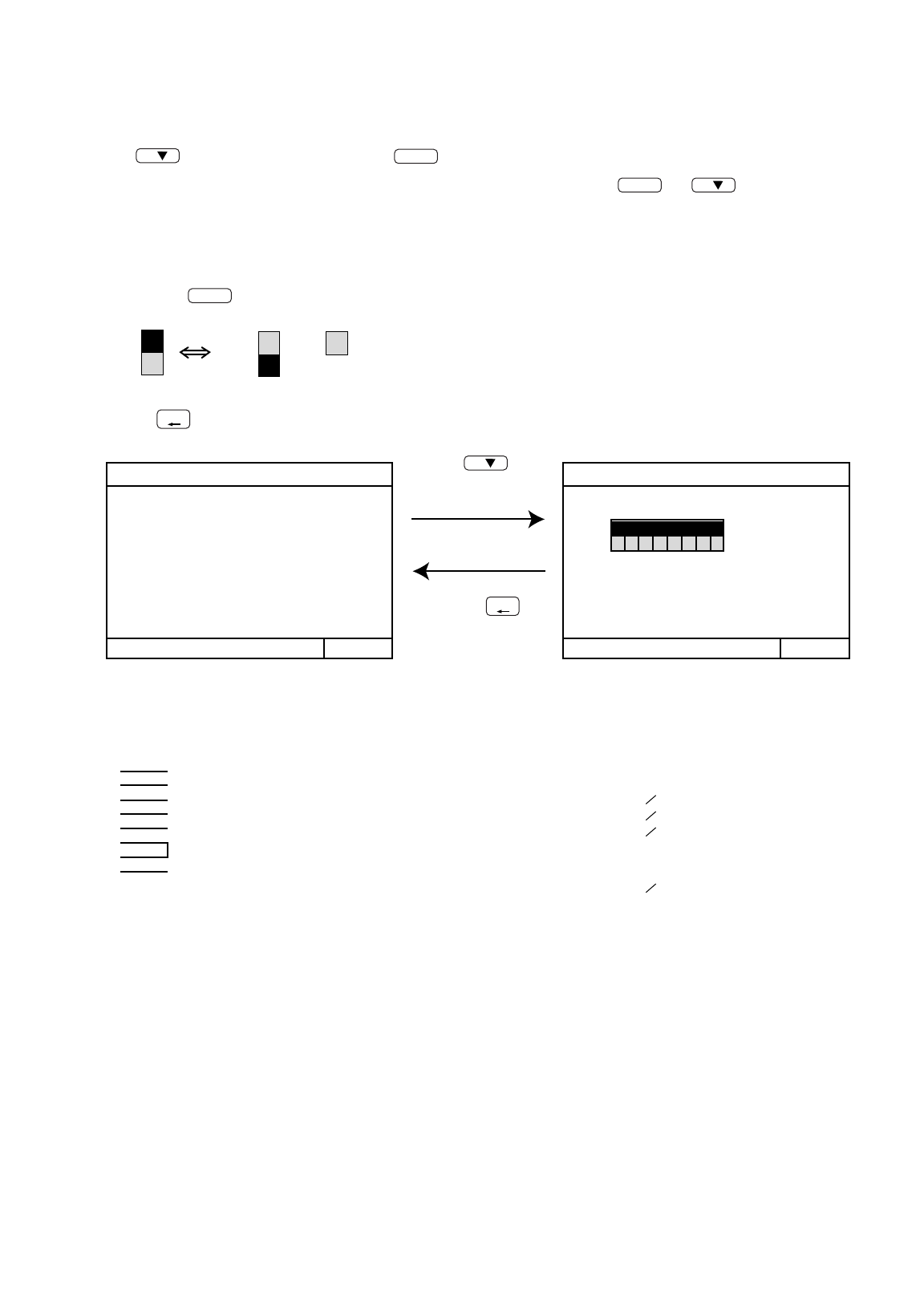
• Function select setting of this controller
• Indoor unit address
Set all the M-NET models of indoor units from 001, next, set the address of the K control indoor unit.
Indoor unit address 001 M-NET indoor unit maximum address K control indoor unit mini-
mum address 050
• Shift to the initial setting menu by continuously pressing + (2seconds or longer) on the user operation menu
screen.(Refer to section "3-2".)
• When group information is not saved, the following initial setting screen is displayed when power is turned on at this
controller.
Shift to the user operation menu by continuously pressing + (2seconds or longer) on the initial setting screen
(Refer to section "3-2".)
(1) Select "6.ADDRESS SETTING"(or "1.ADDRESS SETTING).
(2) Set the controller address by pressing the to switches.(000,201 250).
(3) When the switch is pressed after setting, the screen returns.
• When the controller is shipped from the factory, the address is set to "000".
(Always set the address to "000" When the K transmission converter is managed.)
Observe the following precautions when this controller manages the M-NET models and K control mod-
els by using the K transmission converter (PAC-SC25KAA).
Refer to the K transmission converter instruction manual for further details.
• Address of this controller
Always set the address of this controller to "000" .
Always set the No.3 function setting to ON.
NOTE :
Press the
Press the switch
to select"6ADDRESS
SETTING"
switch to back
to the initial
setting menu.
* The K transmission converter (PAC-SC25KAA) is not included in systems shipped to North America
(USA & Canada).
1
0
6
9
INS.
BACK
SCREEN
BACK
SCREEN
-26-
MENU WED 15:29
6
ADDRESS
SETTING
7
FUNCTION
SETTING
BACK
8
IP
ADDRESS SETTING
OFF
ON
3
No. 1
No. 2
No. 3
No. 4
No. 5
No. 6
No. 7
No. 8
<Function selects>
FUNCTION SETTING
OFF
ON : Active
3
5 - 3 Function setting
Reserved for future use (Leave this switch set to OFF)
Reserved for future use (Leave this switch set to OFF)
OFF : No K transmission converter installed
OFF : Operation prohibit setting valid
External input changeover (refer to section "7 External input/output function")
The range of a controller which the operation is prohibited
OFF : Both of the system controller and the local remote controller
ON :
Operation prohibit setting invalid
OFF : Emergency stop broadcast enabled (Be sure to use) ON :
Emergency stop broadcast disabled
ON :
K transmission converter installed
ON :
Only the local remote controller
ON
123 45678
OFF
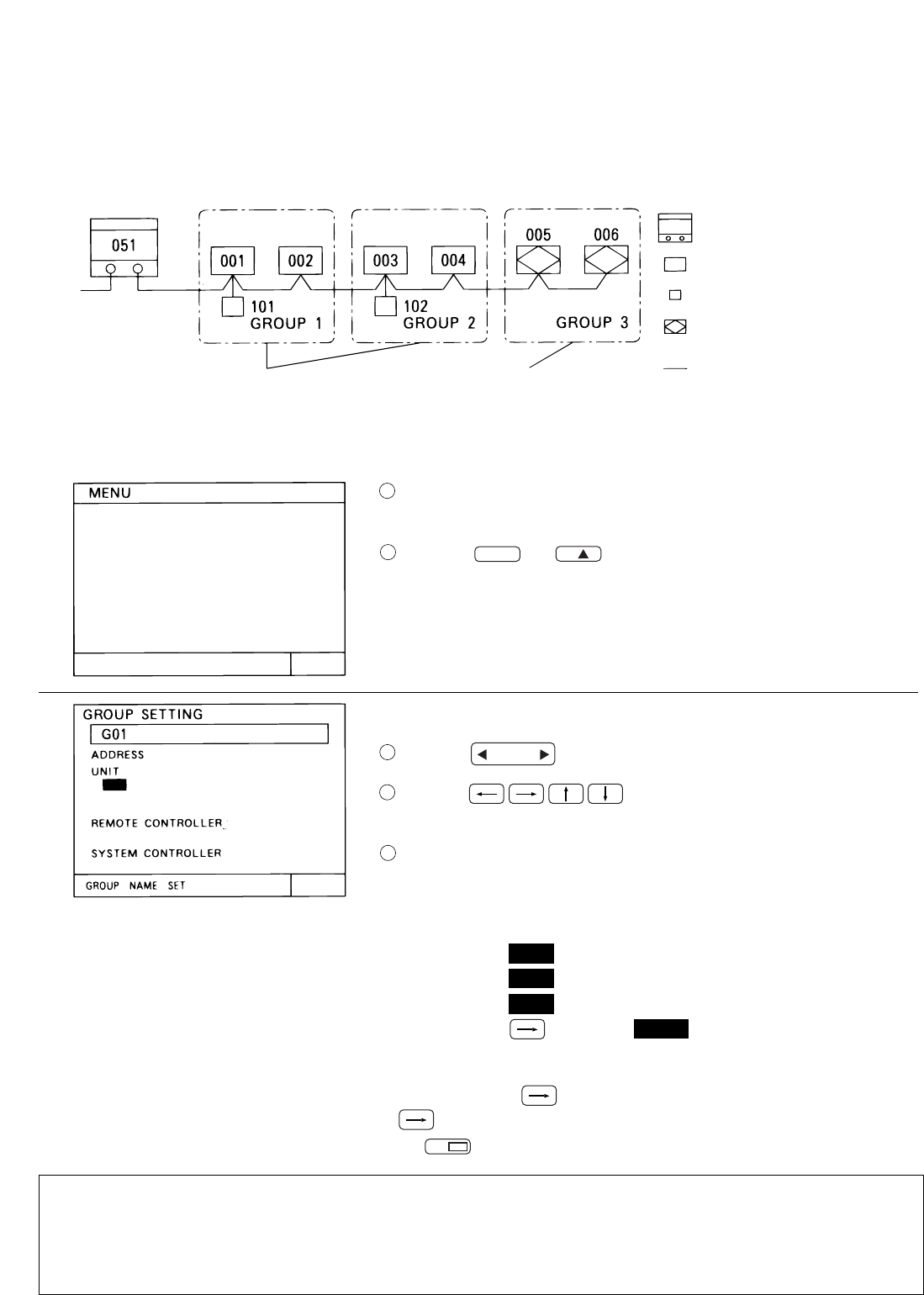
• The functions of this controller are set according to the function settings.
• The functions selects are set to OFF when the controller is shipped from the factory.
(1) Select "7.FUNCTION SETTING"(or "2. FUNCTION SETTING").
(2) Switch the function by pressing the function No. you want to change, or the to switch
of the same number.
Each time the switch is pressed, the ON/OFF state of that No. is switched. (NO. 1 and NO. 2 cannot be changed.)
1)When Input switch was pressed.
(3) When the switch is pressed at the end of function switching, the screen returns.
<Operation example>
Press the
Press the switch
to select"7FUNCTION
SELECT"
switch to go back
to the initial
setting menu.
1
2
3
8
7
7
BACK
SCREEN
BACK
SCREEN
-27-
1 ADDRESS SETTING
2 FUNCTION SETTING
3 IP ADDRESS SETTING
4 GROUP SETTING
PLEASE SET
INITIAL SETTING
WED 15:29
5 - 4 Group configuration setting
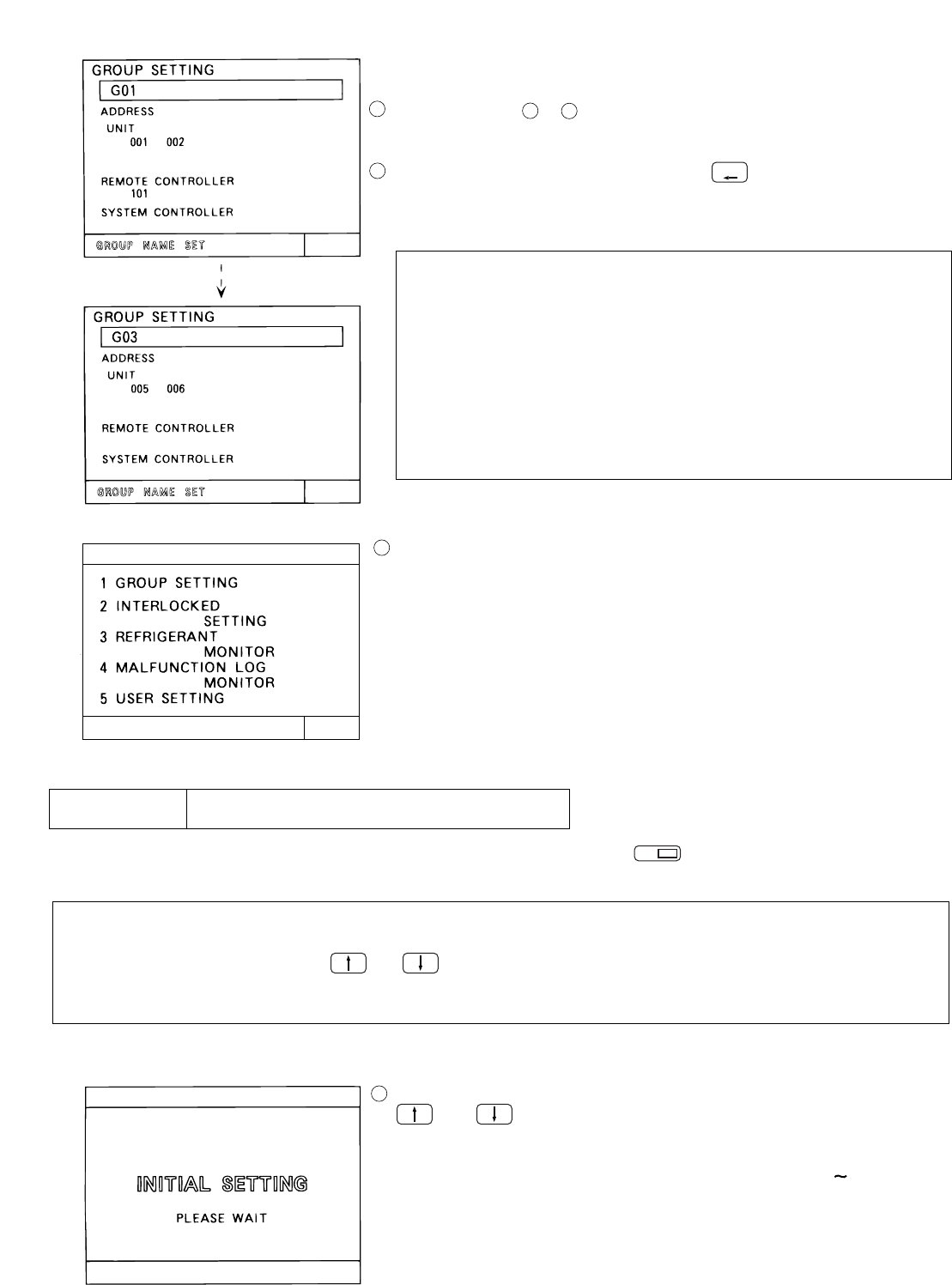
• Registration can be made for the indoor units, local remote controllers and slave system controllers in the same
• Registration can be also performed for the group which is composed of only OA processing unit or LOSSNAY.
group.
( Independent ventilation group )
< Example for the group configuration >
M-NET local remote controller
Outdoor unit
Indoor unit
Independent ventilation group
OA processing unit or LOSSNAY
M- NET
Transmission line
Air conditioner group
• Supply the power from the power supply unit (PAC-SC50KUA) through the M-NET transmission line and DC line.
• Perform the following procedures to set the group configuration because the interlocked operation setting will
not be performed if the group configuration settings have not been performed.
When the power is supplied to the controller, the screen shown on the
left is displayed.
Press the (or ) switch to select "1 GROUP SETTING" .
(or "4 GROUP SETTING")
The group configuration setting screen is displayed.
Press the switch to display the group number to be set.
Press the switch to move to move the cursor to the
address display position to be set.
Used the numeric keypad switch to set the address of the indoor
unit, local remote controller, slave system controller in the display
group number.
< Operation example >
< When the input is incorrect >
Before pressing switch, continue to input the data. After pressing
switch, move the cursor to the addresses to be deleted and press
the switch to delete these addresses.
• Do not set interlocked ventilation unit such as OA processing unit or LOSSNAY.
• Even if the addresses are input any order, it is switched to a sequence starting with low-order ad-
dress.
• The independent ventilation unit can not set to the indoor unit group and it can not be set to as an
interlocked ventilation unit.
NOTE:
When the indoor unit which address is 012.
1) Input "0" 0
01
012
2) Input "1"
3) Input "2"
4) Press the switch 012
* It is also possible just enter "1" "2" .
1
GROUP
SELECT
1
2
3
4
5
DEL.
RESET
4
WED 15:29MENU
NEXT
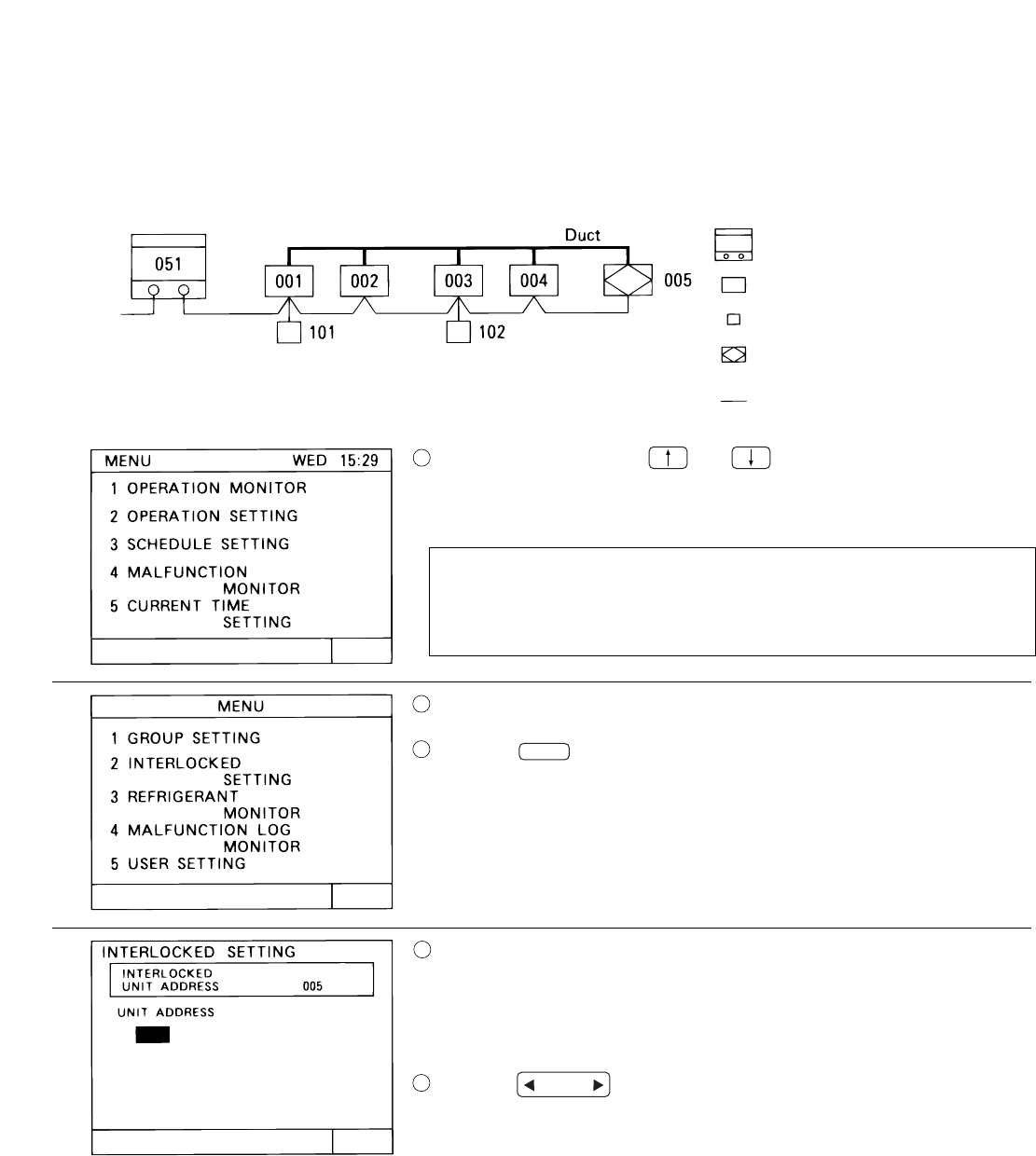
Set all the units and controllers to be registered in the displayed group
number.
Repeat operation to to set all groups managed by this control-
When all setting are completed, press the switch.
ler.
• When there are M-NET local remote controllers in the
• If there is a K transmission converter is a component
in the system, do not perform the group configurations
setting of this controller for the K transmission converter.
The following initial setting screen is displayed.
When the interlocked operation settings are performed, refer to section
"5-5 Interlocked operation setting".
When the group name settings are performed, refer to section
When the user settings are performed, refer to section "5-7 User setting".
Group configuration date collective deletion
• Display "G00" in the group configuration setting screen and press the switch two times continuously to
• When this unit is set to the slave system controller by the function select , group registration can not be
menu screen, wait for the group setting screen to appear, and change the setting.
made. However confirmation of the contents of group registration is possible.
delete the all group configuration data and all interlocked operation data.
"5-6 Group name setting".
system,always be sure to set the local remote controller
address. The local remote controller will not operate if
the address setting is not performed.
However, when the local remote controller is an MA remote
controller (PAR-20MAA) or K-control type remote controller,
setting is not performed.
•
Simultaneously press the and keys on the user operation menu screen for 2 seconds to perform group
configuration setting. The initial setting menu screen is displayed. Select "1. GROUP SETTING" on the setting
When the necessary initial settings are complete, simultaneously press the
and keys on the user operation menu screen for 2 seconds.
When returned to the user operation screen, register processing for the group
configuration information and initial set up processing for each unit and each
controller is executed.(This process takes approximately 5 7 minutes.)
NOTE:
Additions
NOTE:
DEL.
BACK
SCREEN
35
6
7
8
9
-28-
-29-
5 - 5 Interlocked operation setting
• Registration of interlocked operation of Ventilation unit (OA processing unit and LOSSNAY) with single or multiple
indoor unit is performed. All indoor units to be interlocked with ventilation unit for operation should be registered
for the interlocking with ventilation unit.
<Example for the interlocked group configuration>
M-NET local remote controller
Outdoor unit
Indoor unit
OA processing unit or LOSSNAY
M-NET
Transmission line
Initial setting menu screen is displayed.
Press the switch to select "2 INTERLOCKED SETTING" .
The interlocked setting screen is displayed.
Minimum address of the interlocked OA processing unit or LOSSNAY unit
which can be set to interlock with indoor unit is displayed on the "INTERL-
OCKED UNIT ADDRESS" display position. And the cursor is displayed in
the unit address display position.
Press the switch to display the address number of the in-
terlocked OA processor unit or LOSSNAY that the setting will be perf-
NOTE:
Simultaneously press the and keys on the user operation menu
screen for 2 seconds.
Always perform the mode change operation from the user oper-
ation menu.
Mode change operation from other screens is ineffective even if
performed.
omed on.
NEXT
2
GROUP
SELECT
1
2
3
4
5
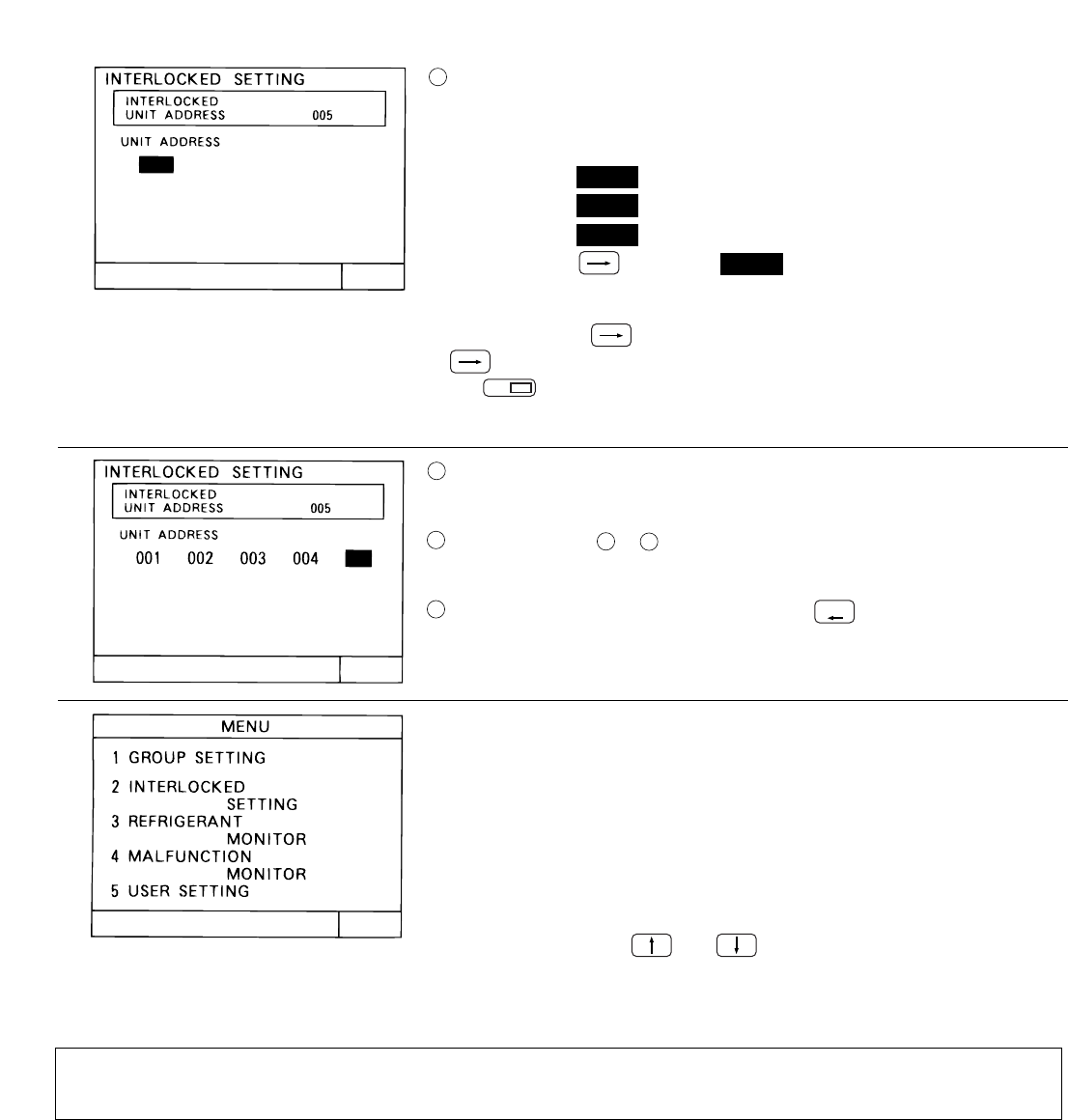
Used the numeric keypad switch to set the address of the indoor unit
that operates with displayed interlocked OA processing unit or LOSSNAY.
NOTE:
When the indoor unit which address is 012.
1) Input "0"
2) Input "1"
3) Input "2"
4) Press the switch 012
*It is also possible just enter "1" "2" .
<Operation example>
<When the input is incorrect>
Before pressing switch, continue to input the data. After pressing
switch, move the cursor to the address to be deleted and press
the switch to delete these addresses.
Set all the indoor units that operate with displayed interlocked OA
processing unit or LOSSNAY.
Repeat operation to to set the indoor units of all interlocked op-
eration units managed by this controller.
When all settings are completed, press the switch.
Initial setting screen is displayed.
This ends the interlocked operation setting.
When the interlocked operation settings are performed, refer to section
When the group name settings are performed, refer to section "5-6 group
When the user setting are performed, refer to section "5-7 user setting" .
name setting" .
"5-5 Interlocked operation setting" .
Simultaneously press the and keys on the initial setting menu screen
for 2 seconds to complete user operation.After the initial setting processing
is completed (The initial setting screen will be displayed), refer to section
"4 User operation ( page 10 )" and perform user operation.
When this unit is set to slave system controller by No.2 function select, interlocked operation settings can-
not be adjusted. However monitoring of the contents of the interlocked operation settings is possible.
NEXT
0
01
012
DEL.
BACK
SCREEN
5
6
7
7
8
9
-30-
-31-
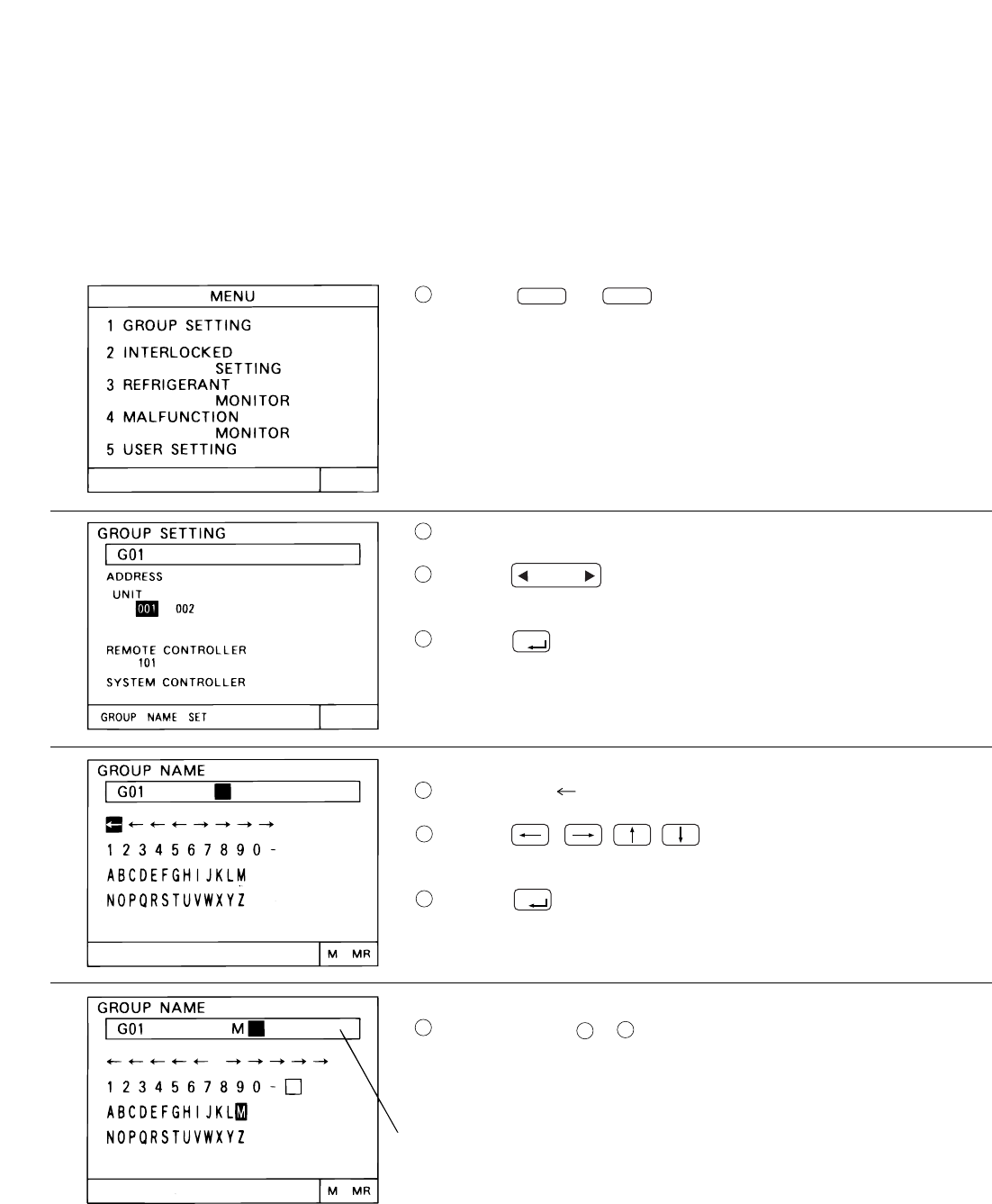
5 - 6 Group name setting
• Specify new group name.
• Either alphabet, numeric characters, hyphens or spaces can be used for name setting.
• Maximum of ten characters can be set.
are displayed.
The group configuration setting screen is displayed.
Press the switch to display the group number which will
be set in the group name setting.
Press the switch one time.
The group name setting screen is displayed.
The character " " is displayed in reverse.
Press the switch to move the cursor to the de-
sired character.
Press the switch.
The selected character is displayed in the group name display area.
Repeat operation or and set the group name.
When incorrect character is set, refer to section "Group name correc-
tion method (page 32)" .
Group name display area
• When the group name is displayed on the operation monitor screen, the first three characters of the group name
( 1 ) Setting method
Press the (or )switch to select"1. GROUP SETTING"
(or"4. GROUP SETTING") of the initial setting menu.
NEXT
1
4
GROUP
SELECT
ENTER
ENTER
1
2
3
4
5
6
6
7
7
8
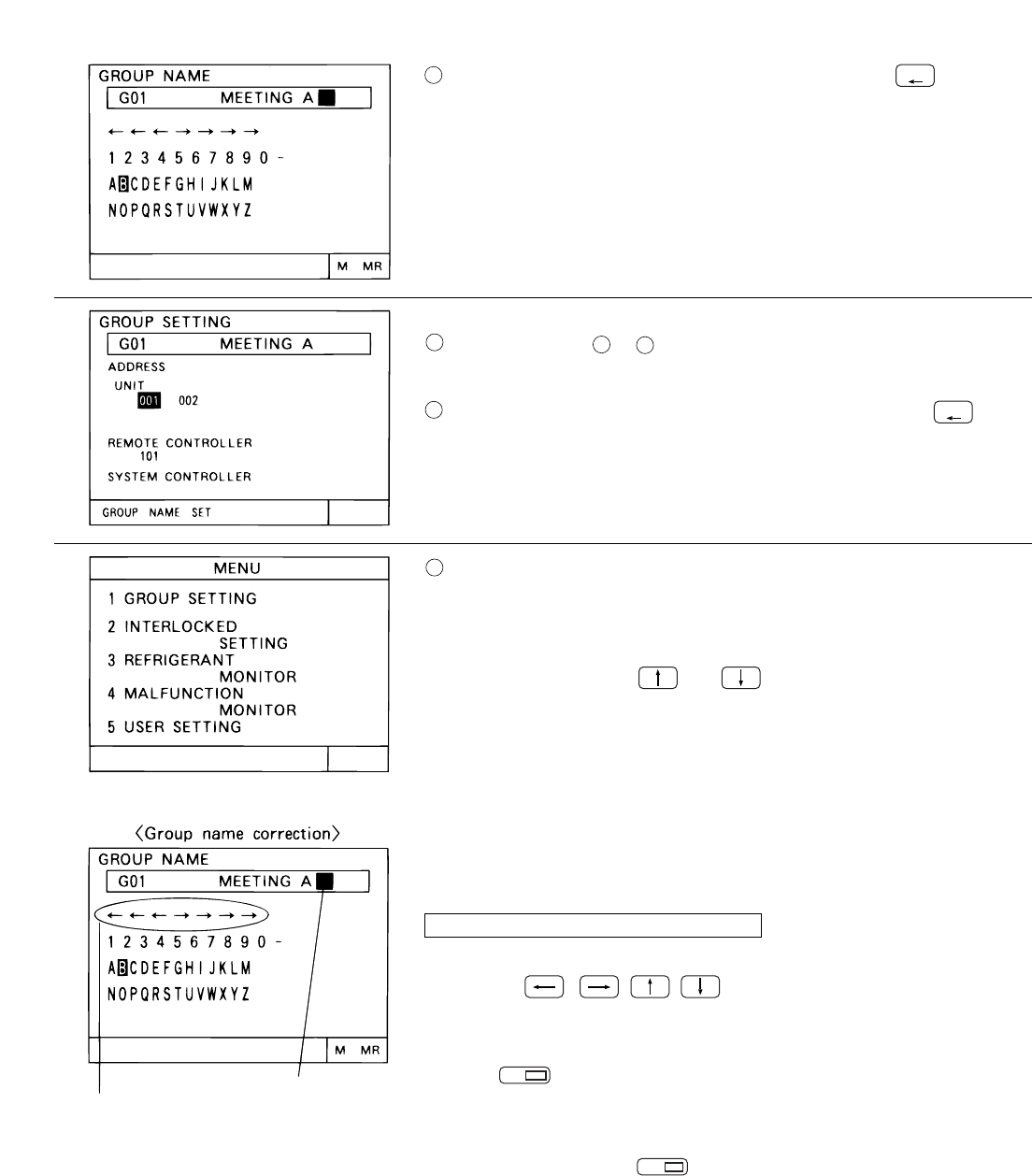
Simultaneously press the and keys on the initial setting menu
screen for 2 seconds to complete user operation.
When the group name setting is completed, press the switch.
The group configuration setting screen is displayed.
Repeat operation to and perform the group name setting for
each group.
When all the group name settings are complete, press the switch.
The initial setting menu screen is displayed.
When performing corrections to the group name, move the group name
cursor to the character to be correct.
Group name cursor movement method
Move the cursor to one of the group name cursor movement mark
using the switch.
Move the group name cursor to the character to deleted and press
the switch to delete the character.
• Deletion methods
• Insertion methods
Group name cursor
Group name cursor movement mark
Move the group name cursor to the location where character is to be
insert and press the switch to enter desired space.
To perform the setting, refer to section "5-6 User setting (page
Next refer to section " 4 User operation " and perform user operation.
34)".
NEXT
9
INS.
DEL.
BACK
SCREEN
BACK
SCREEN
39
9
10
11
12
-32-
-33-
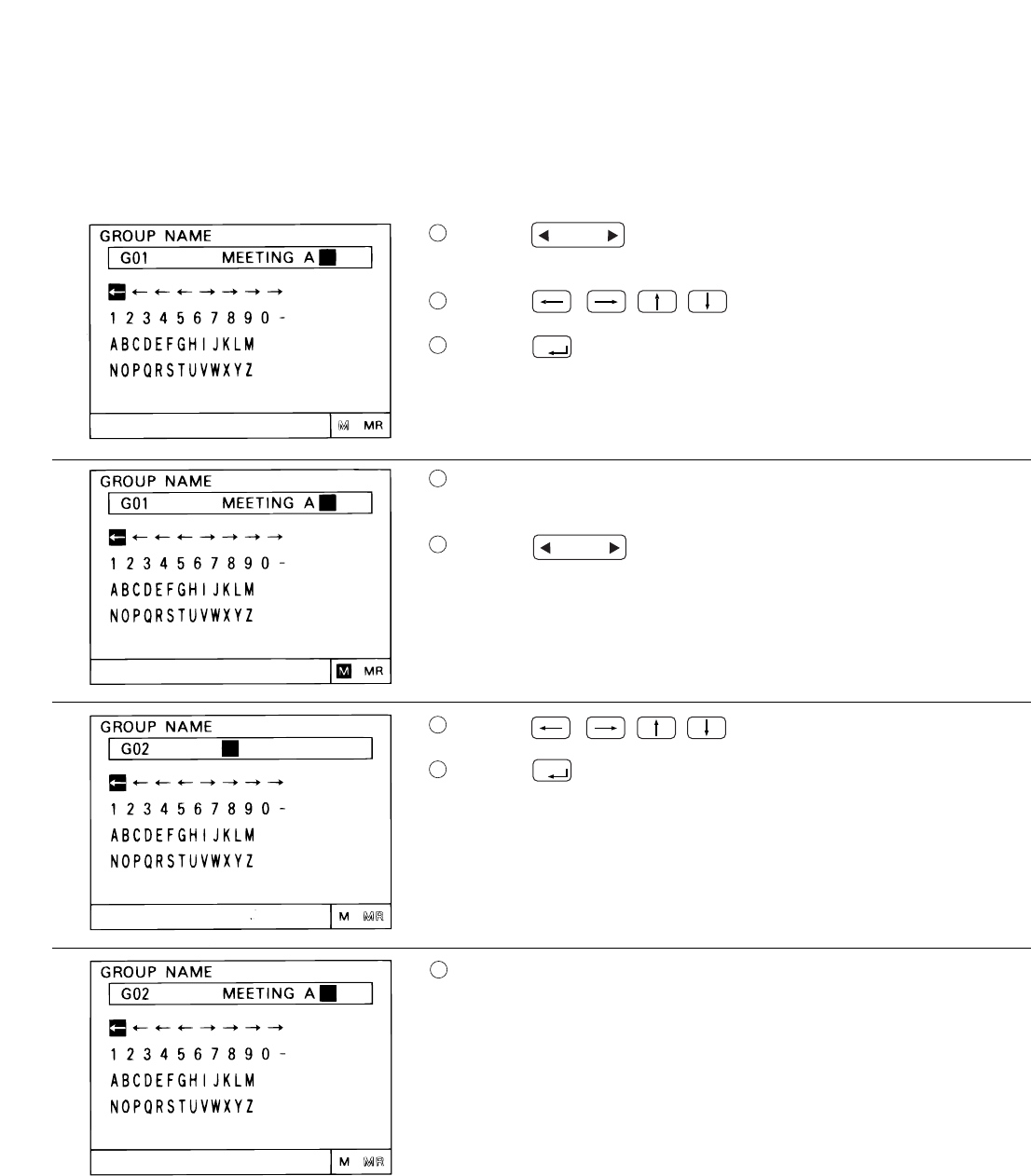
• A certain group name can be copied to another group.
• It is convenient to use a group name for other groups because a group name that was copied can also be cor-
rected.
Press the switch to display the original group on the group
name setting screen.
Press the switch to move the cursor to "M" .
Press the switch one time to record the setting name in memory.
"M" is displayed in reverse with blinking.
Recording the setting name to memory is completed.
Press the switch to select the copy destination group.
Press the switch to move the cursor "MR" .
Press the switch to read in memory.
Preformed the memory read for the group name.
Refer to section " (1) setting method (page 31)" and perform the cor-
rection of the group name.
( This method use the "M" (memory) and "MR" (memory read) functions.)
( 2 ) Group name copy
GROUP
SELECT
GROUP
SELECT
ENTER
ENTER
1
2
3
4
5
6
7
8
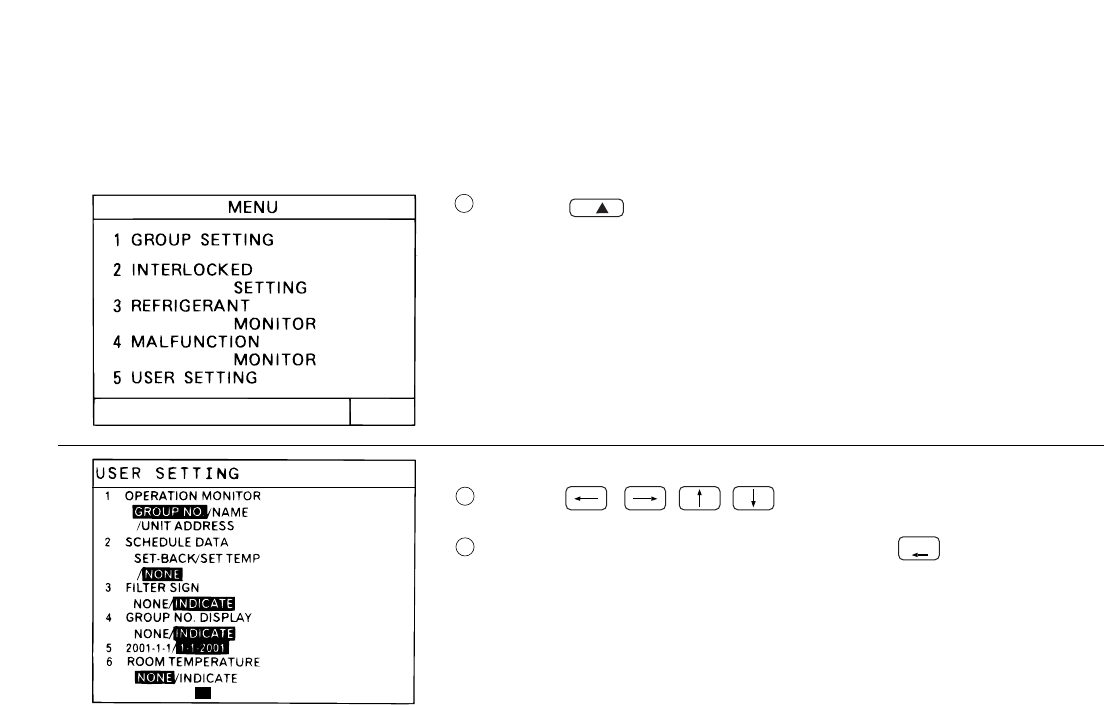
5-7 User setting
To match the needs for the user this menu is to specify some of the indications and functions that appear on
the user operating screen.
Press the switch to select "5 USER SETTING" on the initial
setting menu screen.
The user setting screen is displayed.
Press the switch to select the items to be set.
When all the selection are completed,press the switch to return
to the initial setting menu screen.
Setup condition before delivery from the shop
Item 1. Operation monitor screen display settings
Item 2. Setting the set-back value and the setting temperature used in conjunction with schedule operation.
Item 3. Setting filter sign indication
The set-back value or the setting temperature setting are possible when operation is linked with the
schedule operation.
"GROUP NO."
"NAME"
"UNIT ADDRESS"
: Groups are indicated by group number on the operation monitor screen.
: Groups are indicated by their first three characters of the group name on the
operation monitor screen.
: Individual units are indicated by their unit address on the operation monitor
screen.
"SET-BACK"
"SET TEMP"
"NONE"
: Allows setting set-back value used in conjunction with ON/OFF patterns during
schedule operation.
: Allows setting of the setting temperature used in conjunction with ON/OFF pat-
terns during schedule operation.
: The schedule operation is only performs normal ON/OFF patterns.
"INDICATE"
"NONE"
: Allows the indication of filter sign.
: Filter sign is not indicated.
Item 4. Group number display
Item 5. Change to the sequence of current time
Item 6. Room temperature indication
"INDICATE"
"NONE"
: Enable display of group number on the operation setting screen and the schedule
setting screen.
: Group number is not indicated.
"2001-1-1"
"1-1-2001"
: Current time indicate in a sequence of year,month and date on the current time
setting screen.
: Current time indicate in a sequence of date,month and year on the current time
setting screen.
"INDICATE"
"NONE"
: Indicated every each group
: Not indicated every each group
Item 7. Temperature unit
"
˚
C"
"
˚
F"
: Setting Centigrade
: Setting Fahrenheit
•
•
NEXT
7
TEMP. UNIT ˚C / ˚F
5
BACK
SCREEN
1
2
3
-34-
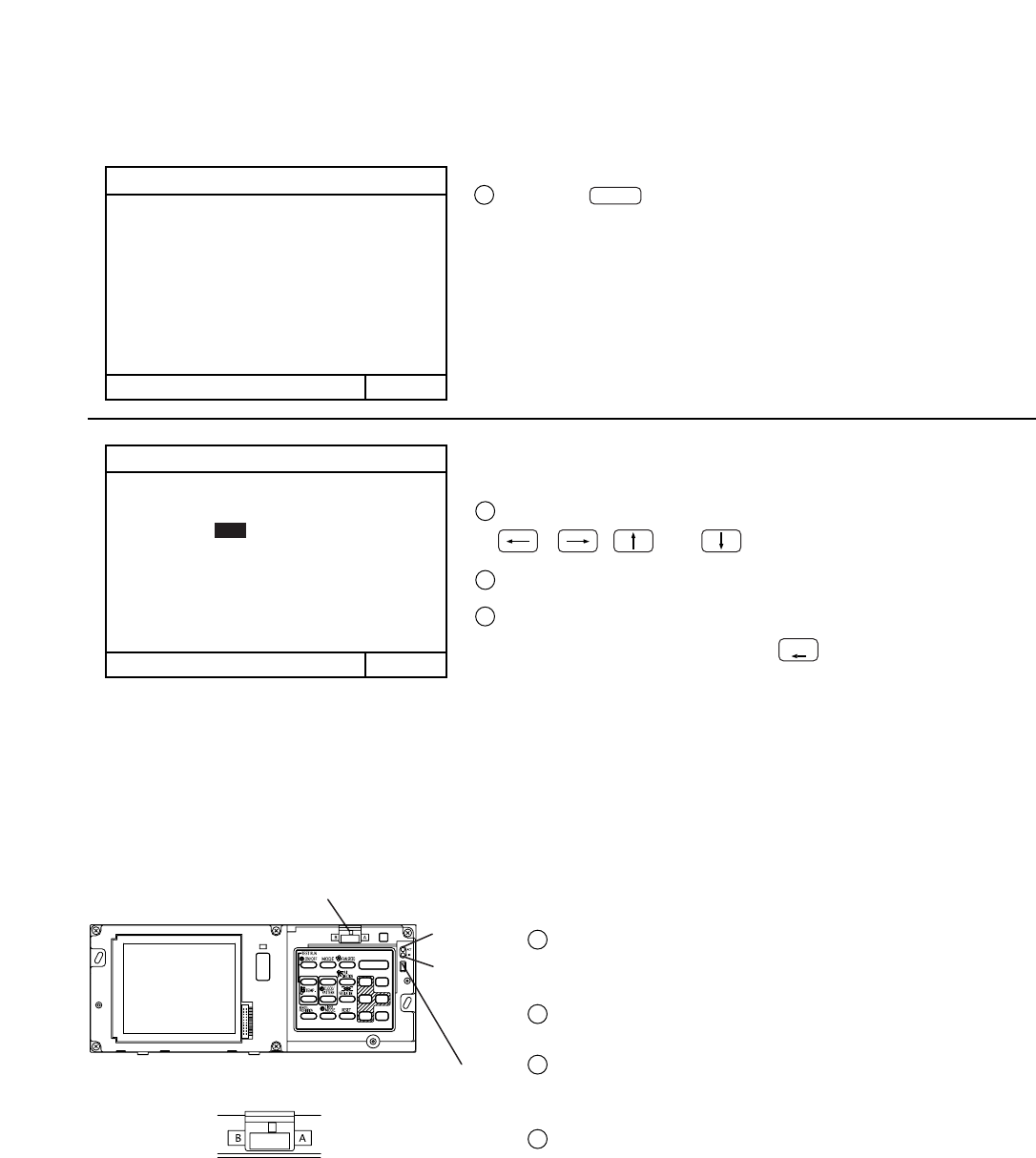
-35-
5-8 IP address setting
5-9 Initial setting tool connection function
MENU WED 15:29
6
ADDRESS
SETTING
7
FUNCTION
SETTING
BACK
8
IP
ADDRESS SETTING
IP ADDRESS SETTING
IP ADDRESS :
MASK ADDRESS :
192.168.001.001
255.255.255.000
• This function allows setting of the IP address and mask address needed at LAN connection.
• This function connects the initial setting tool PC by LAN.
• Group setting, interlocked setting, and other information can be downloaded to this unit by using the initial setting tool
Refer to the initial setting tool manual for an explanation of the initial setting tool functions and operating procedures.
The IP address setting screen appears.
Move the cursor to the address setting position by pressing the
Set the address with the 0 to 9 numeric switches.
When all address setting are complete, return to the initial
setting menu screen by pressing switch.
Remove the cover from the controller by inserting a flat blade
, , and keys.
screwdriver into the gap between the cover and body and twi-
sting the screwdriver.
1
Select the switch select "8. IP ADDRESS SETTING"
on the initial setting menu screen.
1
Use the dedicated cable (sold separately) to connect the initial
setting tool PC to the service LAN connector.
2
When setting with the initial setting tool is complete, return the
LAN changeover switch to the REAR position.
*When a service LAN connector is used, the option Model
PAC-YG00FA-E is necessary.
4
When changed to FRONT with the LAN changeover switch,
the initial setting tool PC is connected to the service LAN
connector.
3
2
3
4
LAN changeover switch
ACT
LINK
FRONT REAR
Service LAN connector
6
BACK
SCREEN
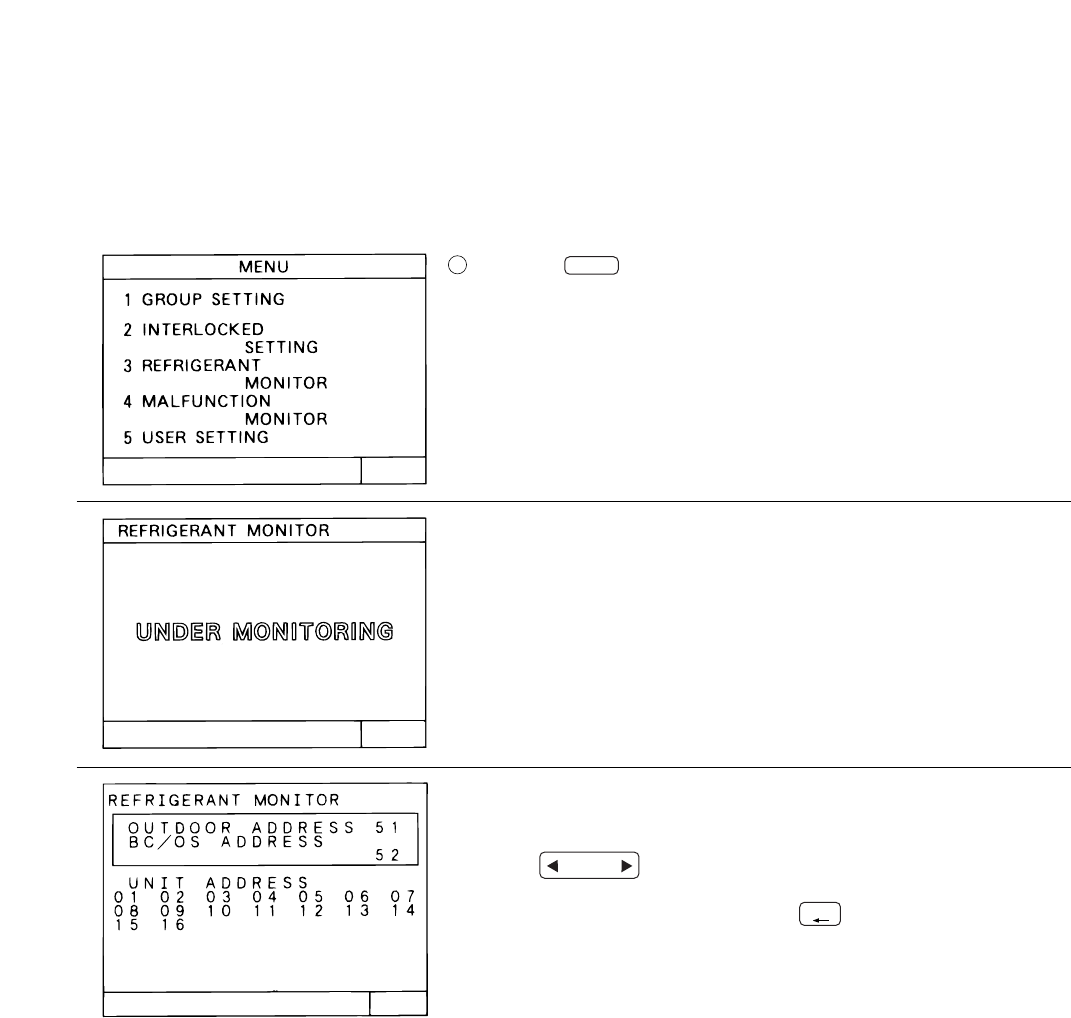
-36-
6. Maintenance
6-1 Refrigerant system monitor
• This function allows monitoring of the address of the outdoor units, and BC controller connected to the refrig-
erant system. It is useful for checking address settings, transmission line connection during installation.
Press the switch to select "3 REFRIGERANT MONITOR" on
the initial setting menu screen.
The process for monitoring of the refrigerant system is executed.
Please wait.
Press the switch to change the displayed refrigerant system.
When the monitoring is end, press the switch to back to the initial
setting menu screen.
The refrigerant system monitor screen of the lowest outdoor unit address
is displayed.
NEXT
3
GROUP
SELECT
BACK
SCREEN
1
-37-
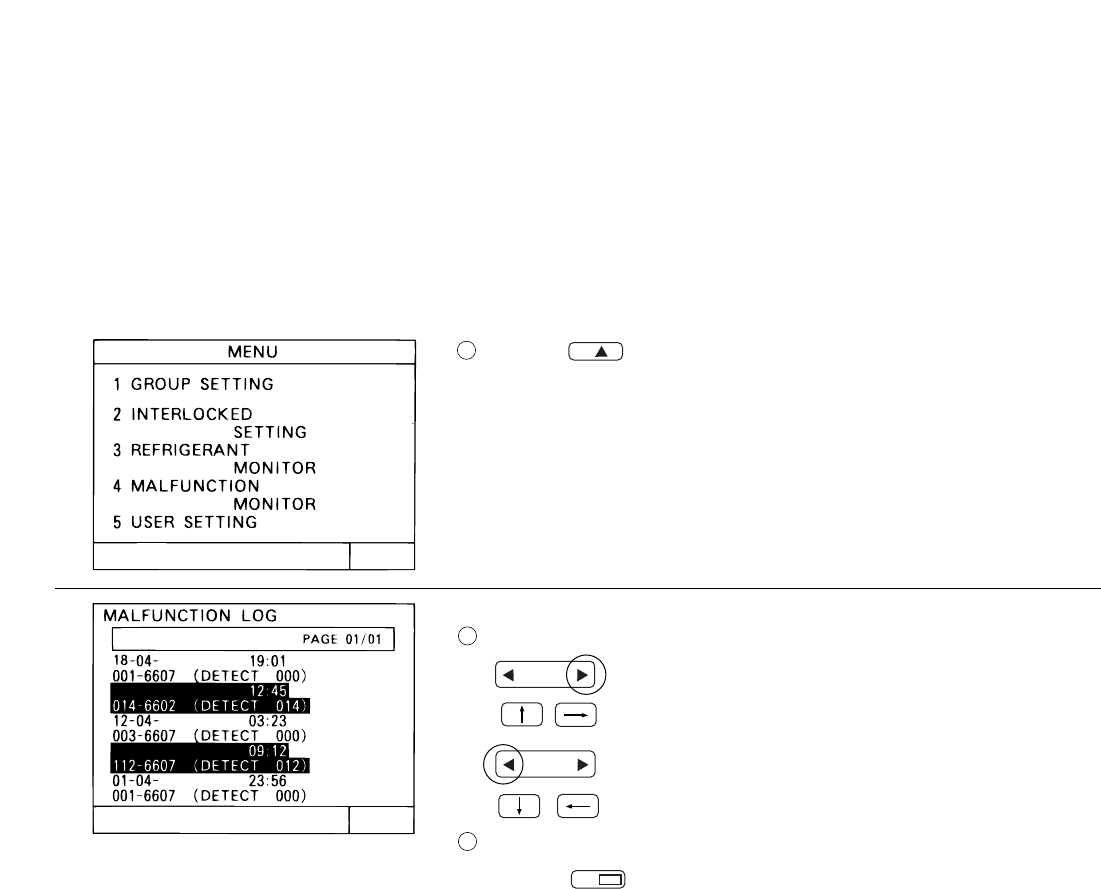
6-2 Malfunction log monitor
• This function allows monitoring of a log of the last 64 malfunctions.
• The contents of malfunction and time the malfunction occurred is displayed. The contents of malfunction
is the address of the unit where it occurred, the error code and the address of the unit that detected the
malfunction.
• This data are remains in the memory even if supplied power is cut off.
• The malfunction log data can be deleted using the malfunction log reset operation. If the malfunction log data
is reset after the system is serviced, the log will provide a convenient record of the malfunction that have
occurred after that time when the system is next serviced.
Press the switch to select "4 MALFUNCTION MONITOR" on
the initial setting menu screen.
Changing pages on the malfunction log monitor screen.
Malfunction log reset operation
Press the switch to clear the malfunction log.
The malfunction log monitor screen is displayed.
Each time this switch is pressed, the current page
+1 is displayed.
Each time this switch is pressed, the current page
-1 is displayed.
()
()
,
,
NEXT
16-04-2002
05-04-2002
2002
2002
2002
4
GROUP
SELECT
1
2
3
DEL.
RESET
GROUP
SELECT
-38-
7.External input/output function
(1) The function of external input
(A) Level signal
(2) Level signal and pulse signal
(3) Specification of external input interface
7-1 External input function
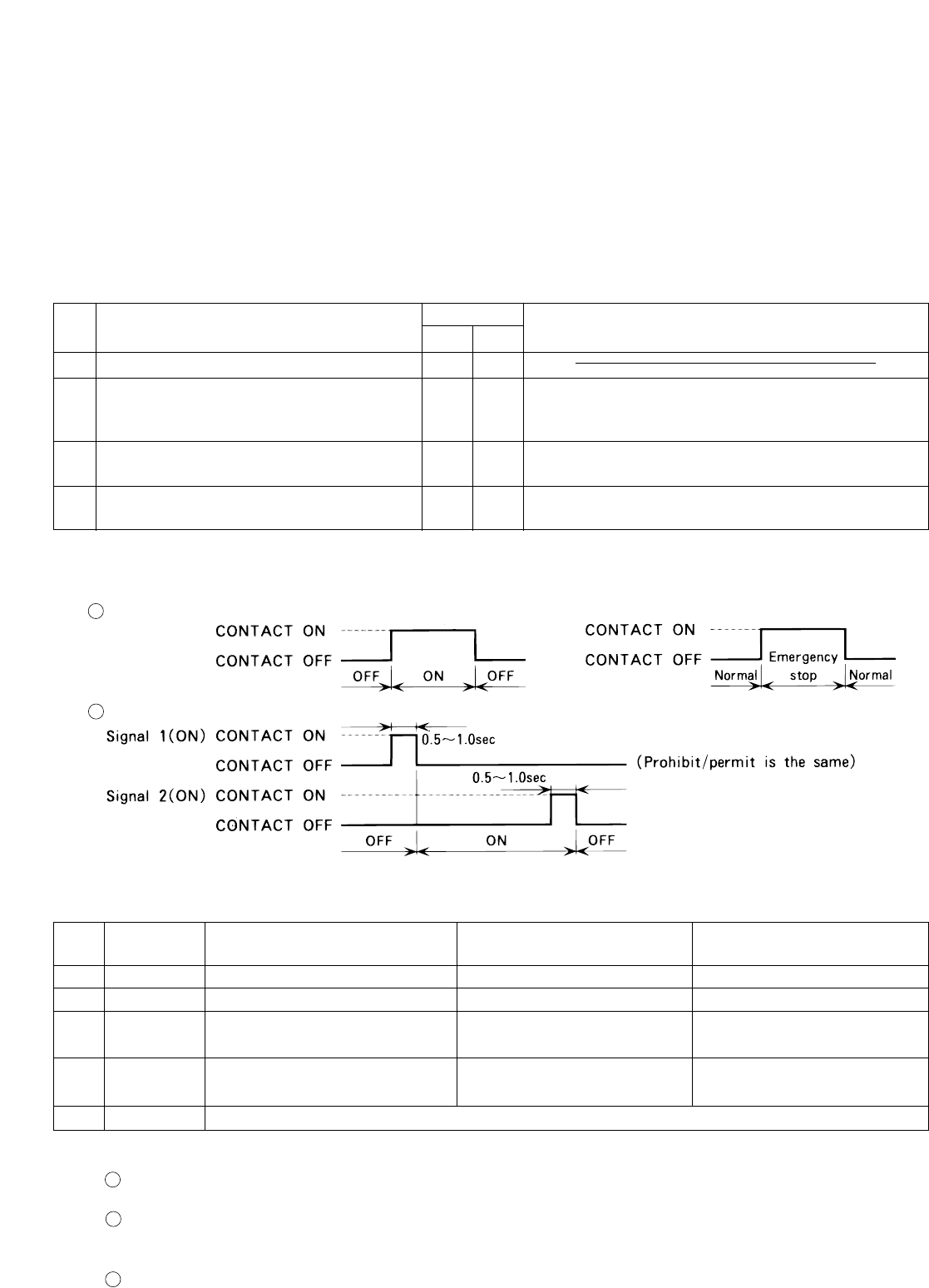
• Emergency stop/normal operation, ON/OFF, local remote control prohibit/permit can be controlled for all air
conditioners being controlled with a non-voltage contact signal input from an external input source. (Select with
the dip switches)
• The condition of external input signal is displayed on the operation setting screen for each group.
* External signal input requires the external I/O adapter (Model : PAC-YG10HA-E) sold separately.
No. Function of external input signal Function
No.6 No.7 Remarks
1
2
3
4
External input signal not used
Perform emergency stop with level signal
Perform ON/OFF operation with level sig-
nal
Perform ON/OFF operation,prohibit/per-
mit operation with pulse signal
OFF
OFF
OFF
OFF
ON
ON
ON ON
During emergency stop, only ON/OFF of the central
controller and local remote controller's operation
will be prohibit.
Only the ON/OFF operation of the central controller
and the local remote controller will be prohibit.
Set the pulse width while the contact is ON to 0.5
to 1.0 second.
Level signal
Pulse signal
When the level signal is selected, the operation (only ON/OFF operation) for the central controller and the
local remote controller are prohibited (except during normal operation).
When the emergency stop/normal operation signal is selected, the status will be changed from normal oper-
ation to emergency stop when the external input signal contact turns OFF to ON, and will be changed from
emergency stop to normal operation when external input signal contact turns ON to OFF.
When ON/OFF input signal is selected, the status will be changed from OFF to ON when the external input
signal contact turns OFF to ON, and will be changed from ON to OFF when the external input signal contact
turns ON to OFF.
CN2
No.9
No.5
No.6
No.7
No.8
Lead wire
Red
Orange
Yellow
Blue
Gray
ON/OFF level signal
ON/OFF input
Not used
Not used
Not used
ON/OFF , prohibit/premit
pulse signal
ON input
OFF input
Local remote controller
prohibit input
Local remote controller
permit input
Emergency stop/normal
level signal
Common(DC12V or DC24V)
Emergency stop/normal input
Not used
Not used
Not used
1
1
2
2
3
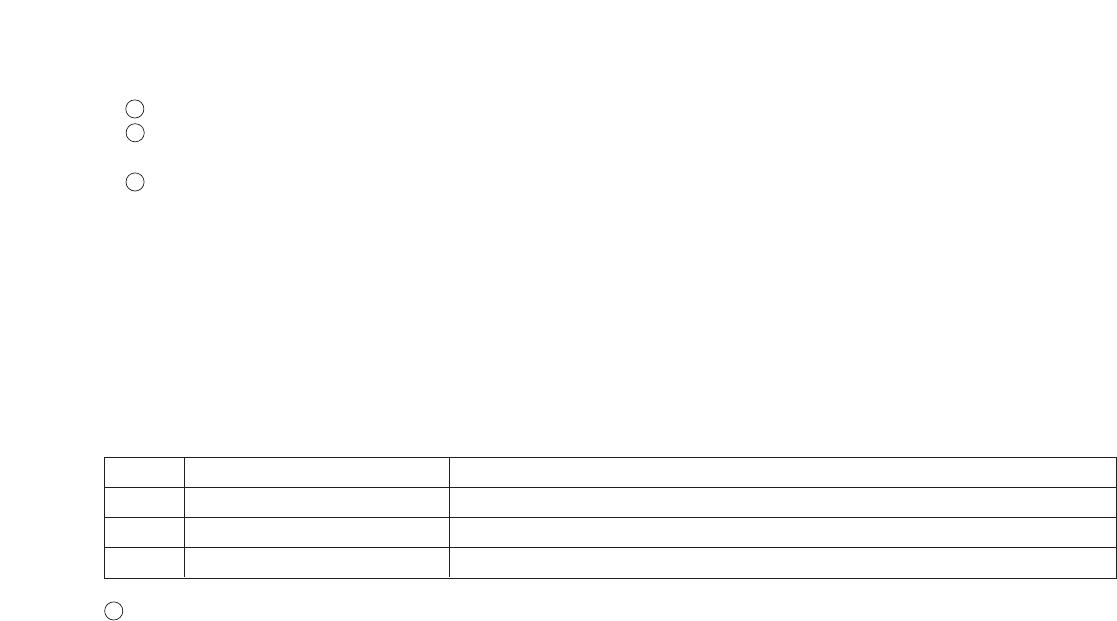
-39-
1
1
2
3
(B) Pulse signal
Even if the ON signal is input during ON, the status will remain at the ON status.
When the local remote controller is prohibited, the ON/OFF operation, operation mode selection and
temperature setting from the local remote controller is prohibited.
Set the pulse width (contact ON time) to 0.5 to 1.0 second.
"ON" signal and "Malfunction" signal will both be output.
7-2 External output function
(1)The function of external output
(2)Specification of external output interface
•The "ON" signal is output when one or more air conditioner are in the ON operation.
•The "Malfunction" signal is output when one or more air conditioner malfunctions.
CN2
No.1
No.2
No.3
Lead wire
Green
Black
Brown
Description of each terminal
Common (0V)
ON/OFF
Malfunction/Normal
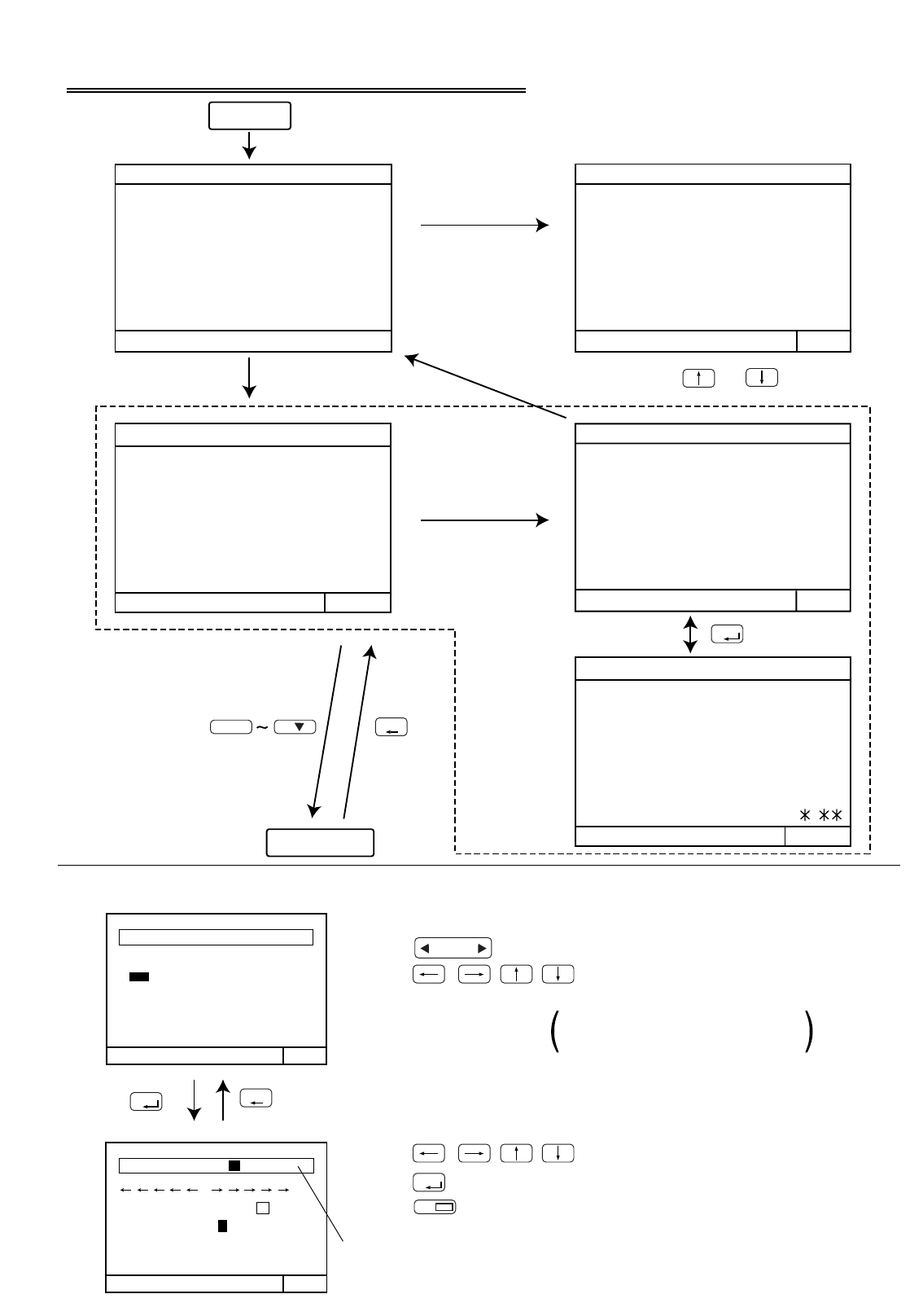
-40-
MENU WED 15:29
1
ADDRESS
SETTING
2
FUNCTION
SELECT
4
GROUP
SETTING
PLEASE
SET
INITIAL
SETTING
3
IP
ADDRESS
SETTING
GROUP NAME
G01 M
MMR
1
ABCDEFGH I JKL
NOPQRSTUV
W
X
Y
Z
M
234567890 -
GROUP NAME SET
GROUP SETTING
ADDRESS
UNIT
REMOTE CONTROLLER
SYSTEM CONTROLLER
GROUP NAME SET
G01
PLEASE WAIT
INITIAL SETTING
MENU
1 OPERATION MONITOR
2 OPERATION SETTING
3 SCHEDULE SETTING
4 MALFUNCTION
MONITOR
5 CURRENT TIME
SETTING
WED
15:29
1 GROUP SETTING
5 USER SETTING
2 INTERLOCKED
SETTING
3 REFRIGIERANT
MONITOR
4 MALFUNCTUON
MONITOR
MENU
MENU WED 15:29
6
ADDRESS
SETTING
7
FUNCTION
SETTING
BACK
8
IP
ADDRESS SETTING
… This performs the same group setting.
* User operation
Power on
There is group
information.
There is no group
information.
Setting end
Group information
modification and
settings modification
Setting items
Displaying for a maximum of 7 minutes.
• : Select the group number.
• : Move the cursor to address display position.
• : Move the cursor to the desired character.
• : Select the charactor.
• : Delete the charactor.
• Numeric keypayed : Set the address.
indoor unit, local remote controller
slave system controller
Group name display area
Group configuration setting
Continously press
and
(2 seconds or longer)
Appendix 1 : Initial setting (abridged)
Initial setting list
Menu items screen
DEL.
GROUP
SELECT
BACK
SCREEN
BACK
SCREEN
1
8
ENTER
ENTER
ENTER
VER. .
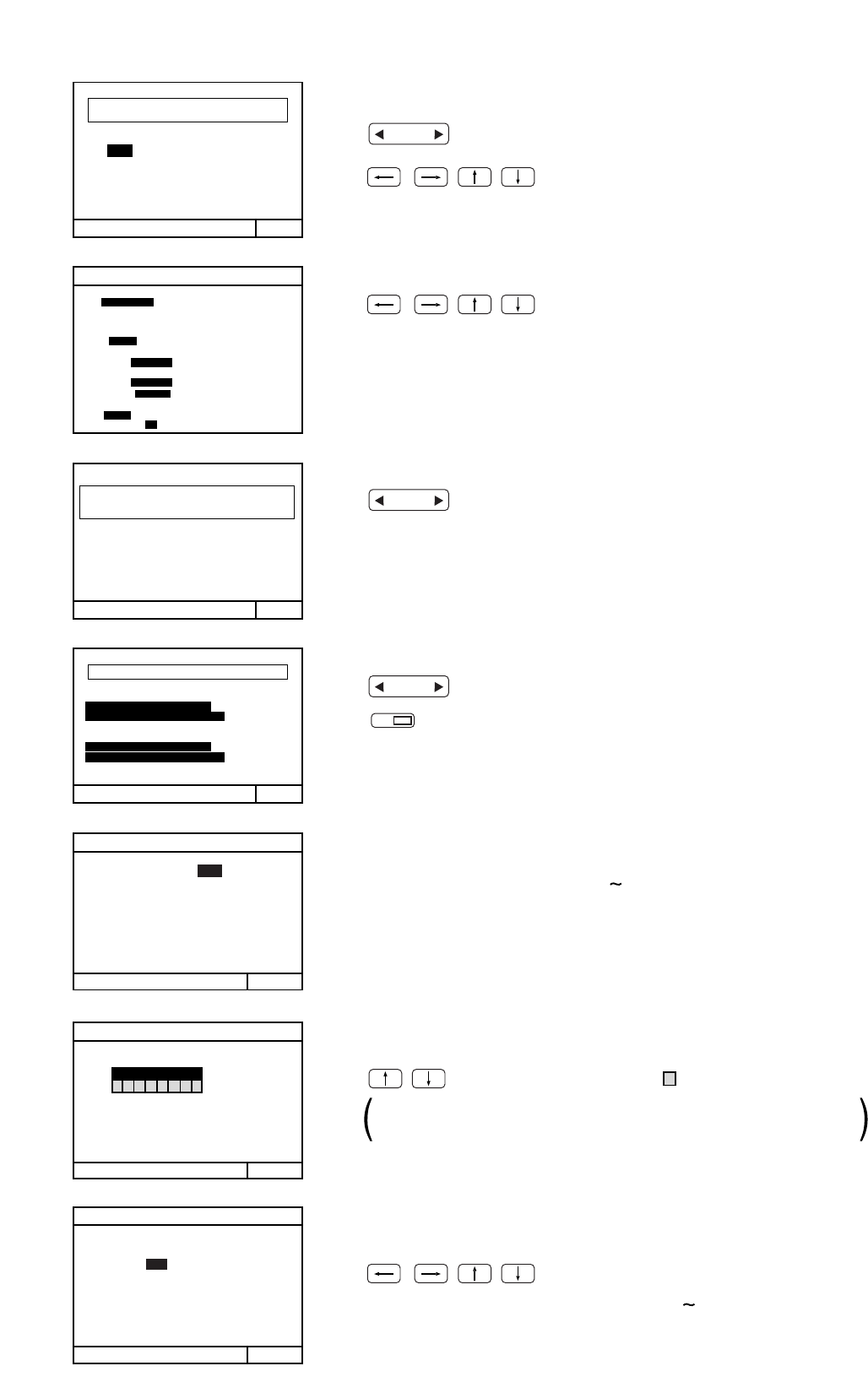
M-NET ADDRESS: 000
M-NET ADDRESS
FUNCTION SETTING
ON
12345678
OFF
IP ADDRESS SETTING
IP ADDRESS :
MASK ADDRESS :
192.168.001.001
255.255.255.000
INTERLOCKED SETTING
INTERLOCKED
UNIT ADDRESS
UNIT ADDRESS
005
USER SETTING
GROUP NO. /NAME
1 OPERATION MONITOR
2 SCHEDULE DATA
3 FILTER SIGN
4 GROUP NO. DISPLAY
SET- BACK/SET TEMP
NONE/INDICATE
NONE/INDICATE
NONE/INDICATE
/UNIT ADDRESS
/ NONE
5 2001-1-1/1-1-2001
6 ROOM TEMPERATURE
REFRIGERANT
OUTDOOR ADDRESS
ADDRESS
ADDRESSUNIT
01 02 03 04 05 06 07
08 09
15 16 10 11 12 13 14
BC/OS 51
52
MONITOR
MALFUNCTION LOG
18-04-2002
12-04-2002
001-6607 (DETECT 000)
003-6607 (DETECT 000)
19:01
001-6607 (DETECT 000)
01-04-2002 23:56
03:23
PAGE 01/01
014-6602
16-04-2002 (DETECT 014)
12:45
112-6607
15-04-2002 (DETECT 012)
09:12
7
TEMP. UNIT ˚C / ˚F
… Registration of interlocked operation of ventilation unit with single or
multiple indoor unit is performed.
… Displays, or sets, the controller M-NET address.
… Sets the function of the controller.
… Sets the LAN IP address.
… Select the display method and timer settings.
… The unit address are displayed for each refrigerant system.
… The function allows monitoring of a log of the last 64 malfunction.
• : Select the address number of the interlocked
OA processor unit or LOSSNAY.
• : Move the cursor to address display position.
• Numeric keypayed : Set the address of the indoor unit.
• Numeric keypayed : Set the controller address.
*Initial value is 000.
*Setting is unnecessary when a LAN is used.
• Numeric keypayed : Set ON/OFF
• Numeric keypayed : Set the address (0 255)
Numeric keypayed : Set the address of the K transmission conveter.
When No.3 is set to ON, the KA address input field is displayed.
• : Move the cursor. : Active
• : Move the cursor to the address setting position.
• : Select the items.
• : Change the displayed refrigerant system.
• : Changing pages.
• : Clear the malfunction log.
(000,201 250)
Interlocked setting
M-NET address setting
Function setting
IP address setting
User setting
Refrigerant monitor
Malfunction log
DEL.
GROUP
SELECT
GROUP
SELECT
GROUP
SELECT
-41-
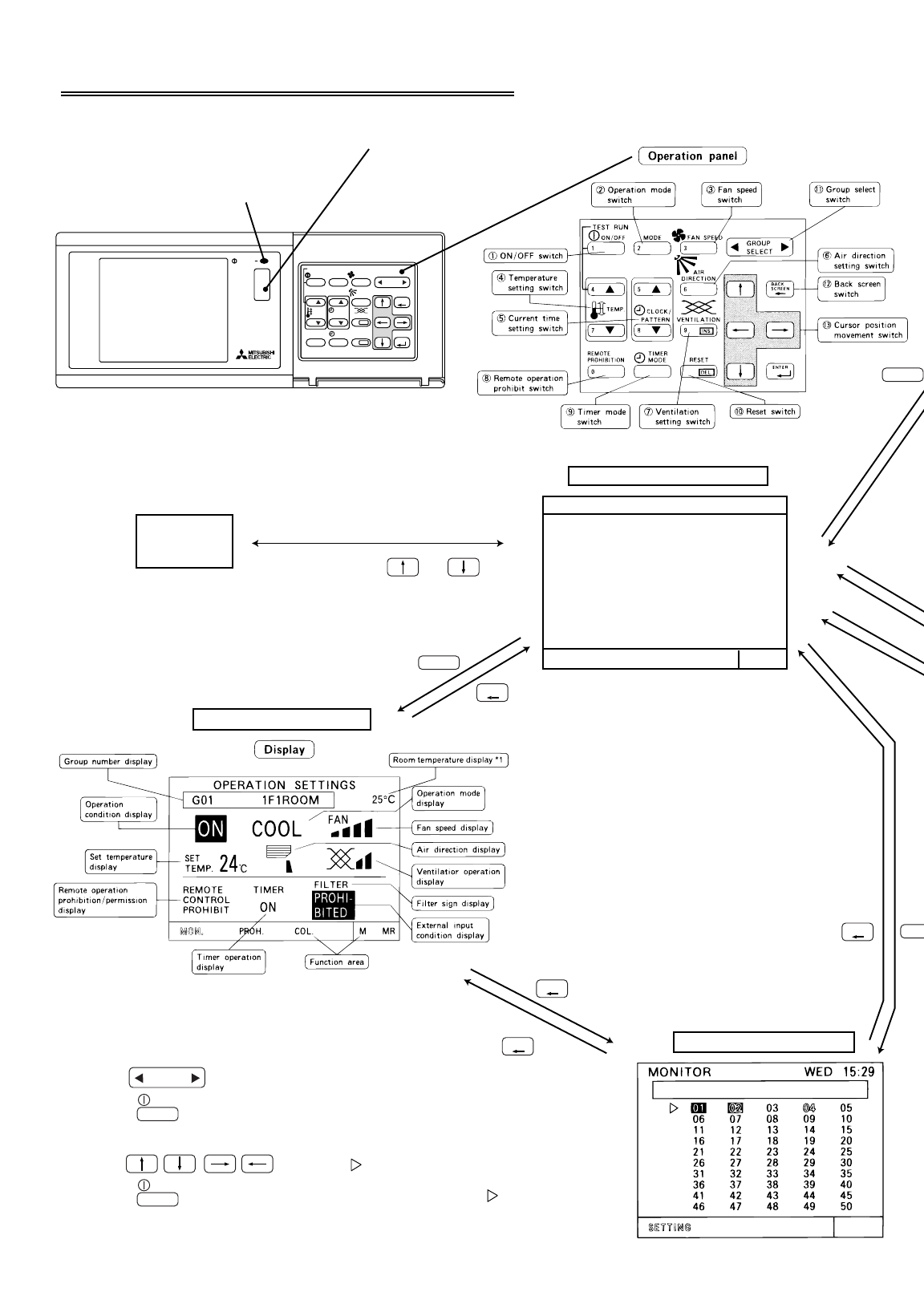
-42-
Overall status lamp
Shows the operation panel, screen, etc. for user operation.
ON …During operation
Collective operation switch
OFF …All group are stopping
BLINKING…Malfunction
Appendix 2 : User operation (abridged)
Initial setting
menu
User operation menu screen
Operation setting screen
Operation monitor screen
* To initial setting
• Local remote control operation prohibition setting
• Start/Stop, mode, set temperature, etc.
*The following settings are possible using the
Operation Panel switches
Reverse : ON
Blinking : Malfunction during unit off
Blinking and Reverse : Malfunction during unit is on
<Unit address display>
<Group number display, Group name display>
<Group number display>
• : Change the display group
• : Turn all the units in that group ON or OFF
• : Set the displayed group unit in indicated by the " " symbol
to the ON/OFF mode.
• : Move the " " symbol.
Normal : OFF
+
Blinking "MON."
Function area
MON. : MONITOR
PROH. : PROHIBIT
COL. : COLLECTIVE
M. : MEMORY
MR. : MEMORY READ
Continously press and
( 2 seconds or longer )
1
2
GROUP
SELECT
BACK
SCREEN
BACK
SCREEN
BACK
SCREEN
BACK
SCREEN
1
ON/OFF
1
ON/OFF
3
G-50A
ON/OFF
CENTRAL CONTROLLER
TEST RUN
PATTERN
CLOCK/
VENTILATION
DIRECTION
AIR
TIMER
MODE
REMOTE
PROHIBITION
RESET
FAN SPEED
MODE
ON/OFF
TEMP.
ENTER
BACK
SCREEN
SELECT
GROUP
INS.
DEL.
0
987
654
321
MENU
1 OPERATION MONITOR
2 OPERATION SETTING
3 SCHEDULE SETTING
4 MALFUNCTION
MONITOR
5 CURRENT TIME
SETTING
WED
15:29
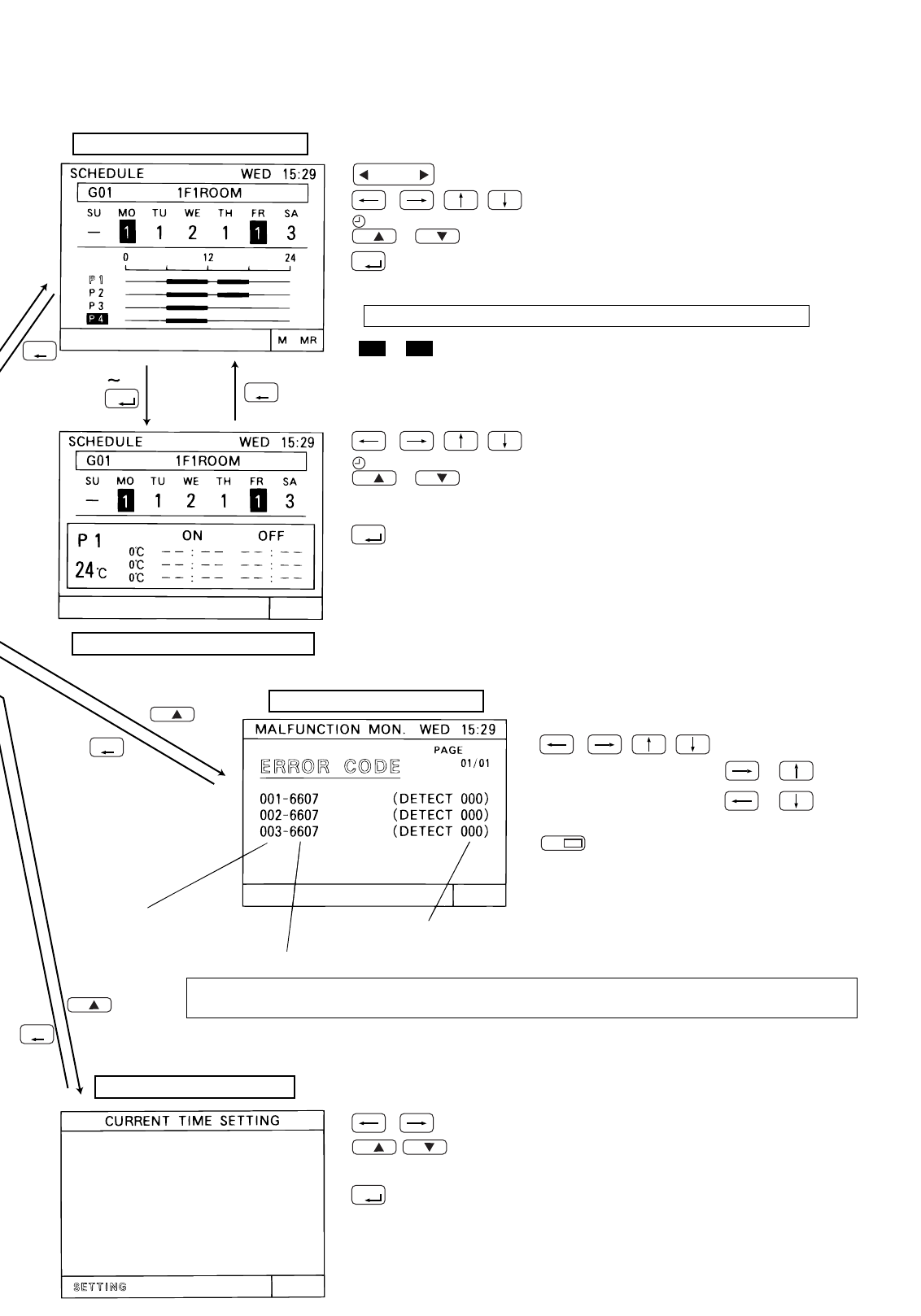
-43-
* P1 to P3 of a composite pattern composed of P1 to P3 and P4.
• : Change the display group.
• : Move the cursor to the pattern position.
• : Select P1 to P4 or ( - )
• : Complete the setting.
The cursor will move to the next setting position.
* Repeat assign the schedule pattern to each day (and each group)
Weekly schedule setting screen
Schedule parttern setting screen
Malfunction monitor screen
Current time setting screen
When the No.4 function select is set ON, P4 connot be set.
NOTE :
• : Move the cursor position.
• : Change the pages
or = page + 1
or = page - 1
• : Select the ON(PROHIBITION) time or OFF
(PERMISSION) time.
(Time is changed by 10 minutes unit.)
• : Complete the setting. The cursor moves to the next setting p
• : Press this switch, where all setting have been completed.
• : Reset all malfunctions
* Repeat set schedules.
P1 P4
+
* The clock count will start with the second reset to 0.
* Set the date day, month, year and time.
* Three types (P1-P3) of daily ON/OFF pattern and one type (P4) of prohibition/
permission pattern are available respectively, each of which can be set for each
group.
When there is no malfunction taking place,[NO ERROR] lights up instead of [ERROR CODE].
When operation of the G-50A is prohibited,reset operation is invalid.
NOTE :
/
/
• : Move the cursor position
• : Set the number or day
5
4
GROUP
SELECT
BACK
SCREEN
BACK
SCREEN
BACK
SCREEN
BACK
SCREEN
ENTER
ENTER
DEL.
RESET
5
CLOCK / PATTERN
8
ENTER
ENTER
5
CLOCK / PATTERN
8
5
8
The unit address
Error code
The unit address
where the malfunction occurred where the malfunction was detected
22-09-2002 00:00SUN
WT03945X01
Printed in Japan
Recycled Paper
NOTE:
This equipment has been tested and found to comply with the limits for a Class B digital device, pursuant to
Part 15 of the FCC Rules. These limits are designed to provide resonable protection against harmful
interference in a residential installation. This equipment generates, uses and can radiate radio frequency
energy and, if not installed and used in accordance with the instructions, may cause harmful interference to
radio communications.
However, there is no quarantee that interference will not occur in a particular installation.
If this equipment does cause harmful interference to radio or television reception, which can be determined
by turning the equipment off and on, the user is encouraged to try to correct the interference by one or more
of the following measures:
- Reorient or relocate the receiving antenna.
- Increase the separation between the equipment and receiver.
- Connect the equipment into an outlet on a circuit different from that to which the receiver is connected.
- Consult the dealer or an experienced radio / TV technician for help.
MITSUBISHI ELECTRIC CORPORATION
HEAD OFFICE: MITSUBISHI DENKI BLDG. , 2-2-3, MARUNOUCHI, CHIYODA-KU, TOKYO 100-8310, JAPAN
This product is designed and intended for use in the residential,
commercial and light -industrial environment.
The product at hand is
based on the following
EU regulations:
• Low Voltage Directive 73/23/EEC
• Electromagnetic Compatibility Directive 89/
336/EEC
