Mitsumi Electronic Wd 57733 Users Manual
WD-Y657 WD-Y657
WD-73733 WD-73733
WD-57733 WD-57733
WD-65733 WD-65734
WD-73734 WD-73734
2015-02-09
: Mitsumi-Electronic Mitsumi-Electronic-Wd-57733-Users-Manual-557196 mitsumi-electronic-wd-57733-users-manual-557196 mitsumi-electronic pdf
Open the PDF directly: View PDF  .
.
Page Count: 84

DLP® HIGH-DEFINITION TELEVISION
MODELS
C Series
WD-C657
Y Series
WD-Y577, WD-Y6 57
733 Series
WD-57733, WD-65733, WD-73733
734 Series
WD-57734, WD-65734, WD-73734
OWNER’S GUIDE
• Forquestions:
- Visitourwebsiteatwww.mitsubishi-tv.com.
- E-mailusatMDEAservice@mdea.com.
- CallConsumerRelationsat800-332-2119.
• ForinformationonSystem Reset,pleaseseethebackcover.
• Toorderreplacementoradditionalremotecontrols,lampcartridges,orOwner’sGuides,
visitourwebsiteatwww.mitsuparts.comorcall800-553-7278.
• GuidelinesforsettingupandusingyournewwidescreenTVstartonpage11.
x.v.Color
For Your Records
Recordthemodelnumber,serialnumber,and
purchasedateofyourTV.Themodelandserial
numbersareonthebackoftheTV.Refertothis
pagewhenrequestingassistancewiththeTV.
MODEL NUMBER
SERIAL NUMBER
PURCHASE DATE
RETAILER NAME
LOCATION
FCC Declaration of Conformity
Product: ProjectionTelevisionReceiver
Models: WD-C657
WD-57733, WD-65733, WD-73733
WD-Y577, WD-Y657
WD-57734, WD-65734, WD-73734
Responsible
Party:
MitsubishiDigitalElectronicsAmerica,
Inc.
9351JeronimoRoad
Irvine,CA92618-1904
Telephone: (800) 332-2119
ThisdevicecomplieswithPart15oftheFCCRules.
Operationissubjecttothefollowingtwoconditions:
(1)
Thisdevicemaynotcauseharmfulinterference,
and
(2) thisdevicemustacceptanyinterference
received,includinginterferencethatmaycause
undesiredoperation.
Note:Thisequipmenthasbeentestedandfound
tocomplywiththelimitsforaClassBdigitaldevice,
pursuanttopart15oftheFCCRules.Theselimits
aredesignedtoprovidereasonableprotection
againstharmfulinterferenceinaresidentialinstal-
lation.Thisequipmentgenerates,usesandcan
radiateradiofrequencyenergyand,ifnotinstalled
andusedinaccordancewiththeinstructions,may
causeharmfulinterferencetoradiocommunica-
tions.However,thereisnoguaranteethatinterfer-
encewillnotoccurinaparticularinstallation.Ifthis
equipmentdoescauseharmfulinterferencetoradio
ortelevisionreception,whichcanbedetermined
byturningtheequipmentoffandon,theuseris
encouragedtotrytocorrecttheinterferencebyone
ormoreofthefollowingmeasures:
• Reorientorrelocatethereceivingantenna.
• Increasetheseparationbetweentheequip-
mentandthereceiver.
• Connecttheequipmentintoanoutleton
acircuitdifferentfromthattowhichthe
receiverisconnected.
• Consultthedealeroranexperiencedradio/
TVtechnicianforhelp.
Changes or modifications not expressly
approved by Mitsubishi could cause harmful
interference and would void the user’s authority
to operate this equipment.
CAUTION
RISK OF ELECTRIC SHOCK
DO NOT OPEN
CAUTION:TOREDUCETHERISKOFELECTRIC
SHOCK,DONOTREMOVECOVER(ORBACK).
NOUSERSERVICEABLEPARTSINSIDE.
REFERSERVICINGTOQUALIFIEDSERVICE
PERSONNEL.
Thelightningflashwitharrowhead
symbolwithinanequilateraltriangleis
intendedtoalerttheuserofthepres-
enceofuninsulated“dangerousvoltage”
withintheproduct’senclosurethatmay
beofsufficientmagnitudetoconstitute
ariskofelectricshocktopersons.
Theexclamationpointwithinanequilateral
triangleisintendedtoalerttheuserto
thepresenceofimportantoperatingand
maintenance(servicing)instructionsinthe
literatureaccompanyingtheproduct.
WARNING: TO REDUCE THE RISK OF FIRE
OR ELECTRIC SHOCK, DO NOT EXPOSE THIS
APPLIANCE TO RAIN OR MOISTURE.
TV WEIGHT:ThisTVisheavy!Exerciseextremecare
whenliftingormovingit.LiftormovetheTVwitha
minimumoftwoadults.TopreventdamagetotheTV,
avoidjarringormovingitwhileitisturnedon.Always
poweroffyourTV,unplugthepowercord,anddiscon-
nectallcablesbeforemovingit.
WARNING:Thisproductcontainschemicalsknown
totheStateofCaliforniatocausecancerand/orbirth
defectsorotherreproductiveharm.

Contents
Important Information About Your TV
GeneralWarningsandCautions,Noteson
InstallationandOperation................. 4
ImportantSafeguards..................... 5
1 Television Overview
PackageContents....................... 6
SpecialFeaturesofYourTV................. 6
TVFrontPanel.......................... 7
TVBackPanel.......................... 9
2 TV Setup
GuidelinesforSettingUpandUsingYourNew
WidescreenTV........................ 11
InstallingtheRemoteControlBatteries........ 12
WhenYouFirstPowerOntheTV............ 12
InitialTVSetup......................... 12
SettingUpTVInputs..................... 13
ControllingA/VReceiverSoundVolume....... 14
UsingtheTVwithaPersonalComputer....... 15
3 TV Connections
BeforeyouBegin....................... 17
HDTVCableBoxorSatelliteReceiverwith
ComponentVideo..................... 17
StandardCableBox,SatelliteReceiver,orOther
DevicewithS-Video.................... 18
H
DMIDevice(CableBox,SatelliteReceiver,
DVDPlayer,orOtherDevice
)............... 18
WallOutletCable(nocablebox)............ 19
AntennawithaSingleLead................ 19
AntennaswithSeparateUHFandVHFLeads... 19
DVDPlayerwithComponentVideo.......... 20
DVIVideoDevice(CableBox,SatelliteReceiver,
DVDPlayer,orOtherDevice).............. 20
VCRtoanAntennaorWallOutletCable....... 21
VCRtoaCableBox(Audio&Video).......... 22
A/VReceiver(SoundSystem).............. 23
OlderCableBox........................ 23
Camcorder........................... 24
4 TV Operation and Features
ChoosingaViewingSource................ 25
SleepTimer........................... 25
RemoteControl........................ 26
ChannelView™ChannelListings............ 27
StatusDisplay......................... 28
FAV(FavoriteChannels)................... 29
TVSignalsandDisplayFormats............. 30
ViewingCameraFiles.................... 32
JPEGPhotosandtheUSBPhotoPort..... 32
PhotosandMovingVideoasComposite
Video............................ 33
5 TV Menu Settings
RemoteControlKeysfortheTVMenuSystem. . 34
MainMenu............................ 34
AVMenu............................. 35
VideoMenu........................ 36
AudioMenu........................ 37
CaptionsMenu......................... 38
SetupMenu........................... 39
InputsMenu........................... 43
LockMenu............................ 44
SettingorResettingaPassCode......... 44
ParentMenu....................... 44
OtherMenu(AlternateRatingSystem)..... 44
BypassingTVLocks.................. 44
6 NetCommand
AboutNetCommand..................... 47
IREmitterPlacement(NetCommand®)........ 48
InitialNetCommandSetupforMostDevices.... 49
AddorRemoveDeviceKeysfromNetCommand
Control............................. 49
NetCommandSpecializedDeviceKeys....... 50
OperatingNetCommand-ControlledDevices... 51
SetUpNetCommandControlofanA/VReceiver 53
Appendices
AppendixA:Specifications................ 58
AppendixB:BypassingtheParentalLock..... 59
AppendixC:Lamp-CartridgeReplacementand
Cleaning............................ 61
AppendixD:ProgrammingtheRemoteControl. 63
AppendixE:Troubleshooting.............. 71
Trademark and License Information.......... 77
Mitsubishi TV Software.................... 78
Mitsubishi DLP™ Projection Television Limited
Warranty............................. 79
Index................................. 81

Operating Notes
Internal Fans
Internalcoolingfansmaintainproperoperatingtempera-
turesinsidetheTV.Itisnormaltohearthefanswhenyou
firstturnontheTV,duringquietsceneswhileviewingthe
TV,andforashorttimeafterturningofftheTV.
TV Software
DonotattempttoupdatethesoftwareofthisTVwith
softwareorUSBdrivesnotprovidedbyorauthorized
byMitsubishiDigitalElectronicsAmerica,Inc.Non-
authorizedsoftwaremaydamagetheTVandwillnotbe
coveredbythewarranty.
Cleaning Recommendations
Normally,lightdustingwithadry,non-scratchingduster
willkeepyourTVclean.Ifcleaningbeyondthisis
needed,pleaseusethefollowingguidelines:
First,turnofftheTVandunplugthepowercordfrom
thepoweroutlet.
Top and Sides of the TV
• Occasionallycleandustbuild-upfromtheair-intake
grillesonthebackandsidesoftheTV.Cleanusing
avacuumcleanerwithabrushattachment.
• GentlywipedownyourTVwithasoft,non-abrasive
clothsuchascottonflanneloracleanclothdiaper,
lightlymoistenedwithwater.Drywithaseconddry,
soft,non-abrasivecloth.
• Foroilydirt,addafewdropsofmildliquiddeter-
gent,suchasdishwashingdetergent,tothewater
usedtomoistenthecloth.Rinsewithasecond
clothmoistenedonlywithwater.Drywithathird
dry,soft,non-abrasivecloth.
Screen
• Followtheinstructionsforthetopandsides,wiping
gentlyinanupanddownmotion.
• Cleantheentirescreenevenly,notjustsectionsof
thescreen.
• Donotallowliquidtodripdownthescreen,as
someliquidmayentertheTVthroughthegap
betweenthescreenandscreenframe.
• YoumaypurchaseMitsubishiScreenCleaner,part
numberCLEANER-VSS,bycalling(800)553-7278.
General Cleaning Precautions
• DONOTallowliquidtoentertheTVthroughthe
ventilationslotsoranycrevice.
• DONOTuseanystrongorabrasivecleaners,as
thesecanscratchthesurfaces.
• DONOTuseanycleanerscontainingammonia,
bleach,alcohol,benzene,orthinners,asthesecan
dullthesurfaces.
• DONOTsprayliquidsorcleanersdirectlyonthe
TV’ssurfaces.
• DONOTscruborrubtheTVharshly.Wipeitgently.
IMPORTANT
DO NOT use any kind of abrasive cleaner on the
surface of the TV screen.
Lamp Replacement
Forlamp-replacementinstructions,seeAppendixC.
To Order a Replacement Lamp Under Warranty
Call(800)553-7278.Pleasehavemodelnumber,serial
number,andTVpurchasedateavailable.
Important:Alllampsreplacedunderwarrantymustbe
returnedtoMitsubishiwheretheywillbeinspectedfor
defectverification.
To Purchase a Replacement Lamp After Warranty
Visitourwebsiteatwww.mitsuparts.comorcall
(800)553-7278.Ordernewlamppartnumber
915P061010.
Important Information About Your TV
Installation Notes
Stand Requirement
CAUTION:UsetheseMitsubishiTVmodelsonlywith
theMitsubishistandmodelsshownhere.Otherstands
canresultininstabilityandpossiblycauseinjury.
TV Model Stand Model
WD-57733
WD-Y577
WD-57734
MB-57PB
WD-65733
WD-Y657
WD-65734
MB-65PB
WD-C657 MB-65G
WD-73733
WD-73734 MB-73PB
Custom cabinet installation must allow for proper
air circulation around the television.
NOTE TO CATV SYSTEM INSTALLER: THIS
REMINDERISPROVIDEDTOCALLTHECATVSYSTEM
INSTALLER’SATTENTIONTOARTICLE820-40OFTHE
NECTHATPROVIDESGUIDELINESFORTHEPROPER
GROUNDINGAND,INPARTICULAR,SPECIFIESTHAT
THECABLEGROUNDSHALLBECONNECTEDTO
THEGROUNDINGSYSTEMOFTHEBUILDING,AS
CLOSETOTHEPOINTOFCABLEENTRYASPRACTI-
CAL.
Important Safeguards
PleasereadthefollowingsafeguardsforyourTVandretainforfuturereference.Alwaysfollowallwarningsandinstructions
markedonthetelevision.
1. Read, Retain and Follow All Instructions.ReadallsafetyandoperatinginstructionsbeforeoperatingtheTV.Retainthesafetyandoperating
instructionsforfuturereference.Followalloperatinganduseinstructions.
2. Heed Warnings. Adheretoallwarningsontheapplianceandintheoperatinginstructions.
3. Cleaning. UnplugtheTVfromthewalloutletbeforecleaning.Donotuseliquid,abrasiveoraerosolcleaners.Cleanerscanpermanently
damagethecabinetandscreen.Usealightlydampenedclothforcleaning.
4. Attachments and Equipment. Neveraddanyattachmentsand/orequipmentwithoutapprovalofthemanufacturerassuchadditionsmay
resultintheriskoffire,electricshockorotherpersonalinjury.
5. Water and Moisture. DonotusetheTVwherecontactwithorimmersioninwaterispossible.Donotusenearbathtubs,washbowls,kitchen
sinks,laundrytubs,inawetbasement,swimmingpools,etc.
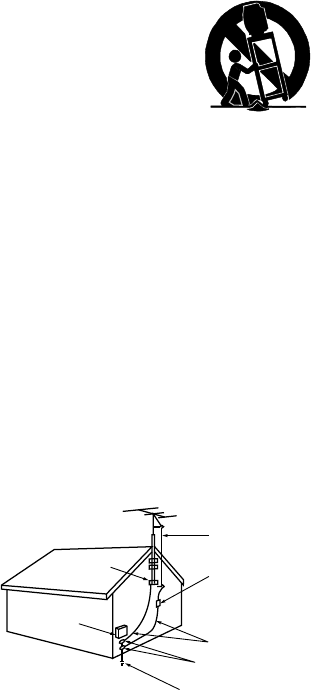
6. Accessories. DonotplacetheTVonanunstablecart,stand,tripod,ortable.TheTVmayfall,causingseriousinjurytoa
child,adultorpetandseriousdamagetotheTV.Useonlywithacart,stand,tripod,bracketortablerecommendedbythe
manufacturer,orsoldwiththeTV.AnymountingoftheTVshouldfollowthemanufacturer’sinstructions,andshoulduse
mountingaccessoriesrecommendedbythemanufacturer.
Anapplianceandcartcombinationshouldbemovedwithcare.Quickstops,excessiveforce,andunevensurfacesmaycause
theapplianceandcartcombinationtooverturn.
7. Ventilation. SlotsandopeningsinthecabinetareprovidedforventilationandtoensurereliableoperationoftheTVandtoprotectitfrom
overheating.DonotblocktheseopeningsorallowthemtobeobstructedbyplacingtheTVonabed,sofa,rug,orothersimilarsurface.Nor
shoulditbeplacedoveraradiatororheatregister.IftheTVistobeplacedinarackorbookcase,ensurethatthereisadequateventilationand
thatthemanufacturer’sinstructionshavebeenadheredto.
8. Power Source. ThisTVshouldbeoperatedonlyfromthetypeofpowersourceindicatedonthemarkinglabel.Ifyouarenotsureofthetypeof
powersuppliedtoyourhome,consultyourappliancedealerorlocalpowercompany.
9. Grounding or Polarization. ThisTVisequippedwithapolarizedalternatingcurrentlineplughavingonebladewiderthantheother.Thisplug
willfitintothepoweroutletonlyoneway.Thisisasafetyfeature.Ifyouareunabletoinserttheplugfullyintotheoutlet,tryreversingtheplug.If
theplugshouldstillfailtofit,contactyourelectriciantoreplaceyourobsoleteoutlet.Donotdefeatthesafetypurposeofthepolarizedplug.
10. Power-Cord Protection. Power-supplycordsshouldberoutedsothattheyarenotlikelytobewalkedonorpinchedbyitemsplaceduponor
againstthem,payingparticularattentiontocordsatplugs,conveniencereceptacles,andthepointwheretheyexitfromtheTV.
11. Lightning. ForaddedprotectionforthisTVduringalightningstorm,orwhenitisleftunattendedandunusedforlongperiodoftime,unplugit
fromthewalloutletanddisconnecttheantennaorcablesystem.ThiswillpreventdamagetotheTVduetolightningandpower-linesurges.
12. Power Lines.Anoutsideantennasystemshouldnotbelocatedinthevicinityofoverheadpowerlinesorotherelectriclightorpowercircuits,
orwhereitcanfallintosuchpowerlinesorcircuits.Wheninstallinganoutsideantennasystem,extremecareshouldbetakentokeepfrom
touchingsuchpowerlinesorcircuitsascontactwiththemmightbefatal.
13. Overloading. Donotoverloadwalloutletsandextensioncordsasthiscanresultinariskoffireor
electricshock.
14. Object and Liquid Entry. NeverpushobjectsofanykindintothisTVthroughopeningsasthey
maytouchdangerousvoltagepointsorshort-outpartsthatcouldresultinfireorelectricshock.
NeverspillliquidofanykindonorintotheTV.
15. Outdoor Antenna Grounding. IfanoutsideantennaorcablesystemisconnectedtotheTV,be
suretheantennaorcablesystemisgroundedsoastoprovidesomeprotectionagainstvoltage
surgesandbuilt-upstaticcharges.
Article810oftheNationalElectricCode,ANSI/NFPANo.70-2002,providesinformationwith
respecttopropergroundingofthemastandsupportingstructure,groundingoftheleadinwireto
anantennadischargeunit,sizeofgroundingconductors,locationofantennadischargeunit,con-
nectiontogroundingelectrodes,andrequirementsforthegroundingelectrode.
16. Servicing. DonotattempttoservicethisTVyourselfasopeningorremovingcoversmayexposeyoutodangerousvoltageorotherhazards.
Referallservicingtoqualifiedservicepersonnel.
17. Damage Requiring Service. UnplugtheTVfromthewalloutletandreferservicingtoqualifiedservicepersonnelunderthefollowing
conditions:
(a) Whenthepower-supplycordorplugisdamaged.
(b) Ifliquidhasbeenspilled,orobjectshavefallenintotheTV.
(c) IftheTVhasbeenexposedtorainorwater.
(d) IftheTVdoesnotoperatenormallybyfollowingtheoperatinginstructions,adjustonlythosecontrolsthatarecoveredbytheoperating
instructionsasanimproperadjustmentofothercontrolsmayresultindamageandwilloftenrequireextensiveworkbyaqualifiedtechni-
ciantorestoretheTVtoitsnormaloperation.
(e) IftheTVhasbeendroppedorthecabinethasbeendamaged.
(f) WhentheTVexhibitsadistinctchangeinperformance-thisindicatesaneedforservice.
18. Replacement Parts. Whenreplacementpartsarerequired,besuretheservicetechnicianhasusedreplacementpartsspecifiedbythe
manufacturerorhavethesamecharacteristicsastheoriginalpart.Unauthorizedsubstitutionsmayresultinfire,electricshockorotherhazards.
19. Safety Check. UponcompletionofanyserviceorrepairtotheTV,asktheservicetechniciantoperformsafetycheckstodeterminethattheTV
isinsafeoperatingcondition.
20. Heat. Theproductshouldbesituatedawayfromheatsourcessuchasradiators,heatregisters,stovesorotherproducts(includingamplifiers)
thatproduceheat.
AN T E N NA
LE AD IN W IR E
AN T E N NA
DIS C HAR G E UNIT
(N E C A R T IC LE 810-20)
G R O U NDIN G
C O NDUC T OR S
(N E C A R T IC LE 810-21)
G R OUND C LAMP S
P OW E R S E R VIC E G R OU N DING
E LE C TR ODE S Y S TE M
(N E C A R T 250, P AR T H )
G R OUND C LAMP
E LE C TR IC
S E R V I C E
E QUIP ME NT
NE C — NAT IONAL E LE CT R IC AL C OD E
E XAMP LE O F AN TE NNA G R OU NDIN G
6
Package Contents
Pleasetakeamomenttoreviewthefollowinglistof
itemstoensurethatyouhavereceivedeverything.
Special Features of Your TV
Yournewhigh-definitionwidescreentelevisionhas
manyspecialfeaturesthatmakeittheperfectcenterof
yourhomeentertainmentsystem,including:
1080p High-Definition DLP™ Display
System
YourMitsubishiHDTVusesTexasInstrumentsDigital
LightProcessing™technologyforrear-projectionTVs
tocreatethepictureyouseeonscreen.Allimages
aredisplayedat1080p.TheTVusesPlush1080pto
convertlower-resolutionsignalsto1080pfordisplay.
TheTVcanalsoaccept1080poriginalsignalsand
maintainthemat1080pthroughallprocessinguntil
displayed.
16:9 Widescreen Picture Format
Enjoyafulltheatricalexperienceinthecomfortofyour
home.Viewpicturesasfilmdirectorsintendedthem.
DigitalTVbroadcasts,DVDsandnewervideogame
consolessupportthiswidescreenformat.
Integrated HDTV Tuner
YourwidescreenMitsubishiHDTVhasaninternalHDTV
tunerabletoreceivebothover-the-airHDTVbroad-
casts(receivedviaanantenna)andnon-scrambled
digitalcablebroadcasts,includingnon-scrambled
HDTVcableprogramming.
High-Definition Video Inputs
Component Video Inputs.AlsocalledY/Pb/Pr
inputs,theseinputsreceivestandardanalogvideo
formatsof480i,480p,720p,and1080ihigh-defini-
tionsignals.Thisprovidesahighlevelofflexibility
whenconnectingDVDplayers/recorders,cable
boxes,andsatellitereceivers.
HDMI 1.3 Inputs.Theseinputsacceptdigital480i,
480p,720p,1080i,and1080pvideosignalsplus
PCMdigitalstereosignals.TheHDMIinputscan
alsoacceptavarietyofPCsignalsandresolutions.
ManycomputersignalsarecompatiblewithDeep
Colorandx.v.Color.
Usedwithanadapter,theseinputsalsoaccept
compatibledigitalDVIvideosignals.HDMI
inputsprovideadditionalhigh-performance,
high-definitionconnectionsformaximumflexibility
inyourchoiceofhometheaterproducts.TheHDMI
inputsareHDCPcopy-protectioncompatible.
Easy Connect Auto Input Sensing
EasyConnect®automaticallyrecognizeswhenyou
pluginaninputandpromptsyoutoassignanametoit.
TheTVignoresanyunusedinputs,sotheresultisan
unclutteredInput Selectionmenuwhereyoucaneasily
findandselectconnecteddevicesbyname.
Home Theater Control
NetCommand with IR Learning (Y series and 734
series models only)
SelectedMitsubishiHDTVsofferanewlevelofnet-
workingthatseamlesslyintegratesselectedolder
A/Vproductswithnewandfuturedigitalproducts.
NetCommand®supportsIR(infrared)controlofprod-
uctssuchasVCRs,DVDplayers,cableboxes,and
satellitereceivers.NetCommandcan“learn”remote
controlsignalsdirectlyfrommanydevices,allowingyou
tocreateacustomizedNetCommand-controlledhome-
theatersystem.
NetCommand for HDMI Devices (all models)
SomenewerHDMIdevicesmaybecompatiblewith
theTV’sNetCommandforHDMIfeature.Compatible
devicescanreceivecontrolsignalsthroughtheHDMI
connection.TheTV’sremotecontrolmaybeableto
operatesomefunctionsofthesedeviceswithoutany
furthersetup.
Television Overview
1
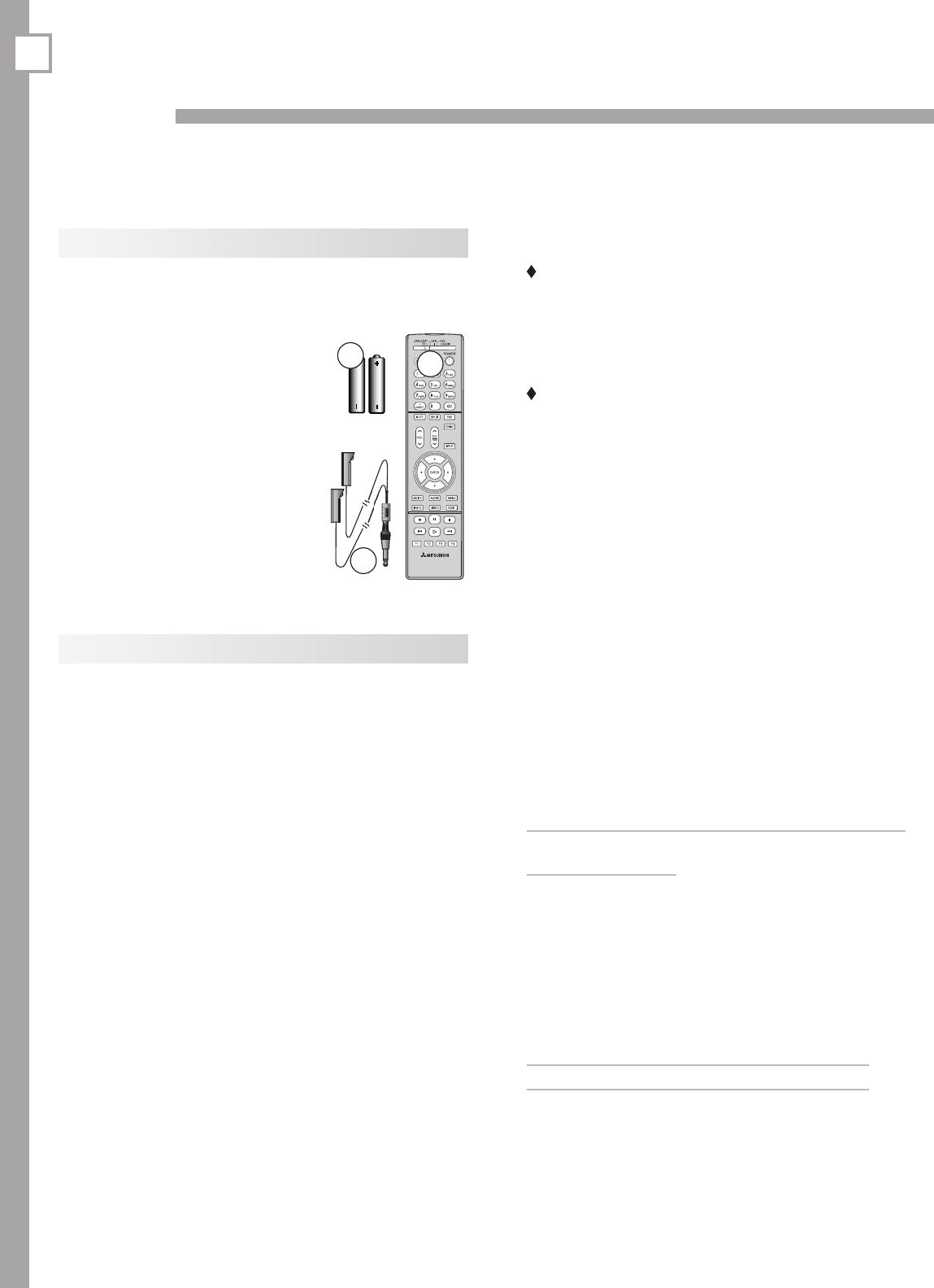
1. Remote Control
2. Two AA Batteries
3. Owner’s Guide
4. Quick Reference Guide
5. Quick Connect Guide
6. Product Registration Card
7. Two-Ended IR Emitter
(included with Y series and
734 models only)
1
AA
AA
2
7
1. Television Overview 7
TV Front Panel
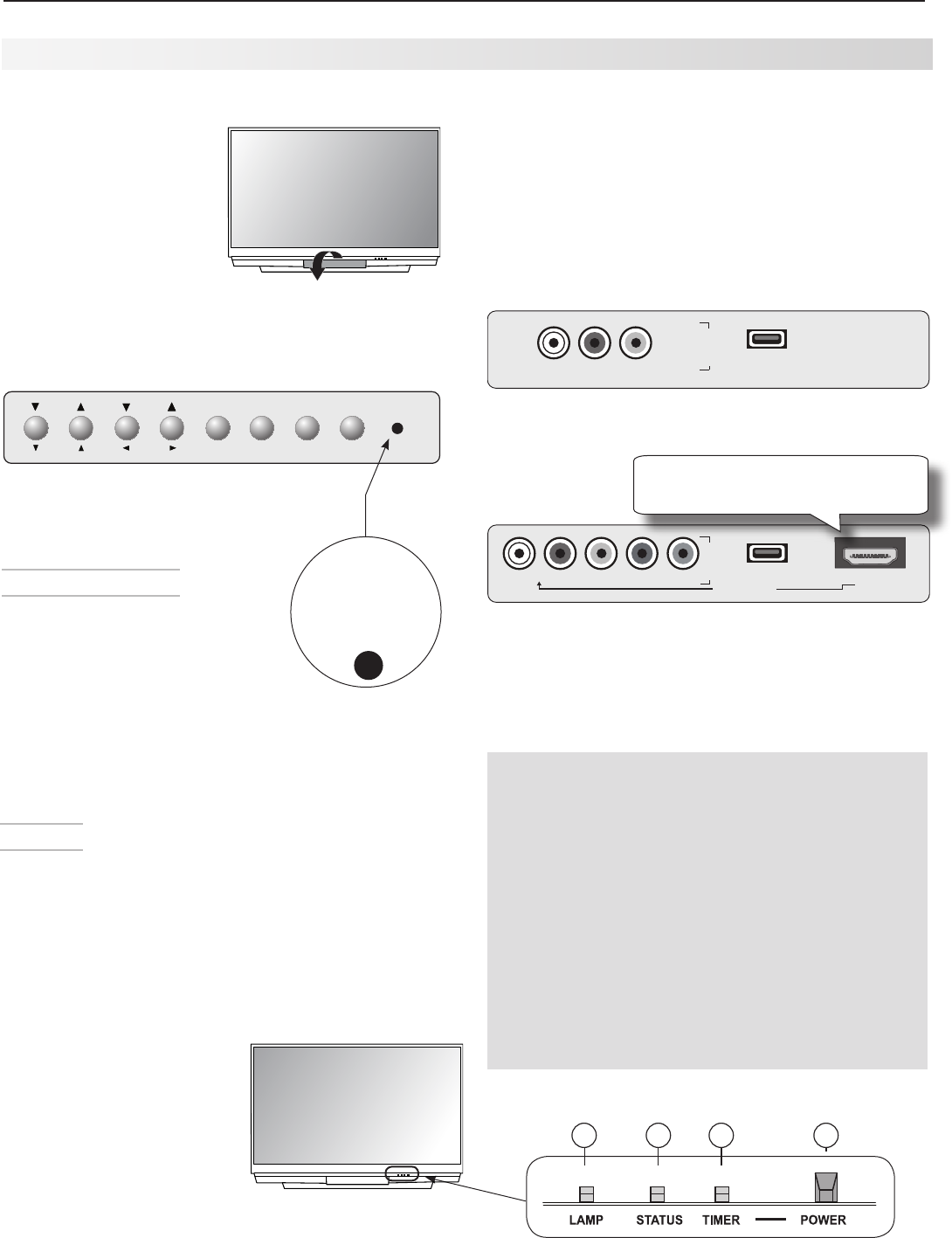
A/V Reset
IfyouwishtoresettheA/V(Audio/Video)settingsback
tothefactorydefaults:
• Toresetallsettingsatonce,press
GUIDE
and
FORMAT
onthefrontpanelatthesametime.
• Toresetthedefaultsforindividualinputs,usethe
ResetselectionontheAVmenu.
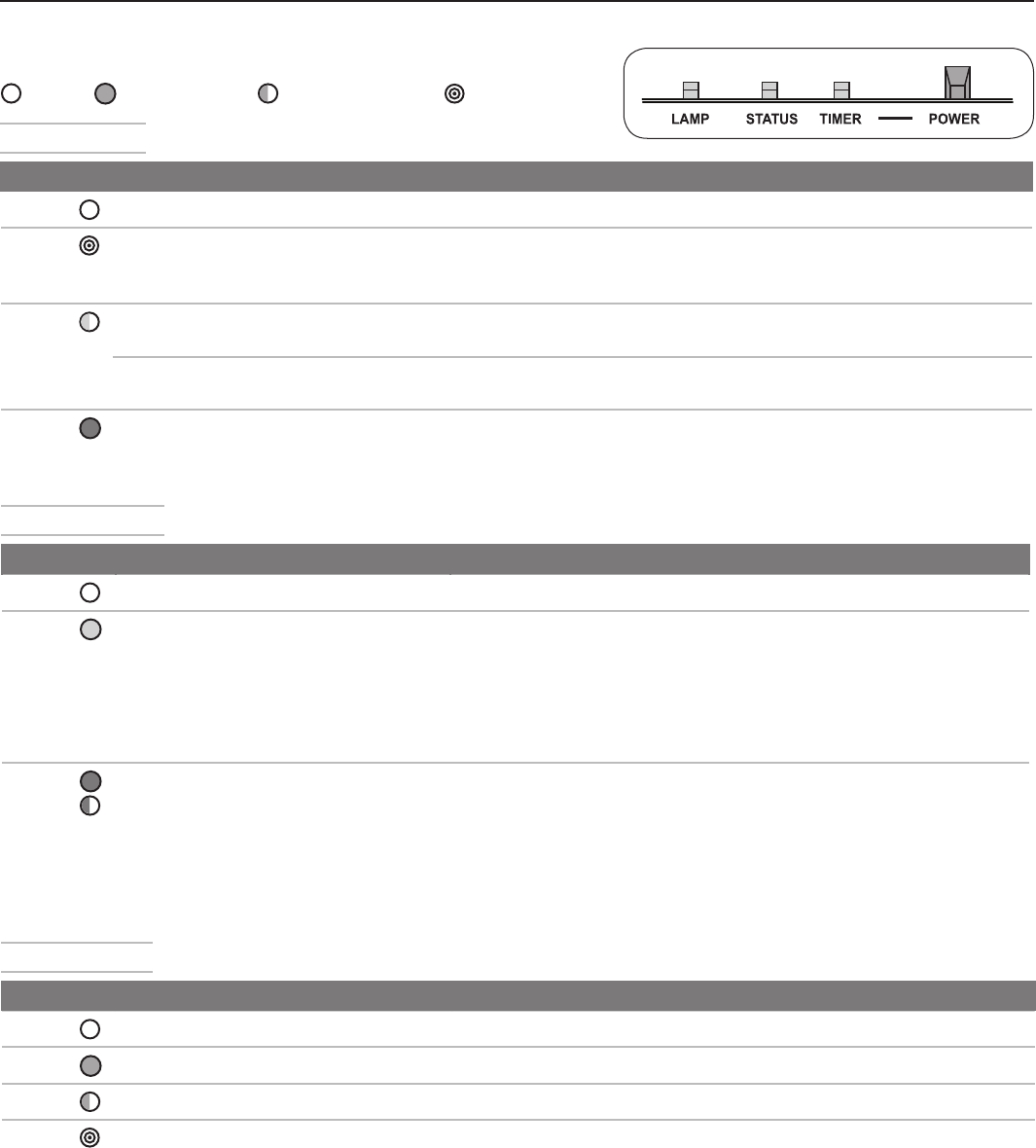
Front Panel Indicators and Power Button
1. POWERbutton.TurnsTVonandoff;worksthe
sameasthe
POWER
keyontheremotecontrol.
2. POWER/TIMERindicator.LitwhenTVis
poweredon;flasheswhenTVispoweredoffand
theauto-onTVTimerisset.
3. STATUS
indicator(offduringnormalTVoperation);
blinksrapidlywhenTVisfirstpluggedintoanAC
outlet.
4. LAMPindicatorshowslampcondition(usuallyoff
duringnormalTVoperation).
Seethenextpageformoreonfront-panelindicators.
Control Panel
Buttonsonthefront
controlpanelduplicate
commonlyusedkeyson
theremotecontrol.The
upperlabelsshowcontrol
functionswhennoTV
menusaredisplayed;the
lowerlabelsindicatefunc-
tionswhenTVmenusaredisplayedorwhenaspecial
functionhasbeenactivated.Seechapter4,“TVOpera-
tionandFeatures,”forthefunctionsofthesebuttons.
Front Inputs
• INPUT3
providesaneasilyaccessiblesetofinput
jacksforacamcorder,game,orotheraudio/video
device.
• AUSBphotoportisincludedforviewingJPEG
images.
• AfourthHDMIinputisalsoprovidedonYand734
seriesmodels.
I
N
P
U
T
L-AUDIO-R VIDEO 3USB
Front inputs on C series model WD-C657
I
N
P
U
T
L-AUDIO-R VIDEO/Y Pb Pr 3USB
HDMI 4
DVI AUDIO
HDMI4inputavailableonYand
734seriesmodelsonly.
Component video inputs are offered on the front panel of
Y series, 733 series, and 734 series models. When using
a standard video device, connect the single (yellow) video
cable to the
VIDEO/Y
jack.
Flip down cover to
use buttons and
inputs on the front
panel.
System Reset Button
IftheTVdoesnotrespondtothe
remotecontrol,frontpanelcontrols,
orwillnotpoweron/off,pressthe
SYSTEM RESET
buttononthefrontpanel.
Thegreen
STATUS
LEDwillflashquicklyforaboutone
minute.Whenthegreen
STATUS
LEDstopsflashing,you
mayturnontheTV.Recentsettingchangesyoumade
beforeusing
SYSTEM RESET
maybelost.
Front Control Panel. Buttons on the
front panel duplicate some keys on
the remote control.
VOL
ADJ ADJ
CH FORMAT MENU GUIDE INPUT SYSTEM
RESET
ENTER MENU CANCEL
VOL
ADJ ADJ
CH FORMAT MENU GUIDE INPUT SYSTEM
RESET
ENTER MENU CANCEL
4:45&.
3&4&5
Indicator lights and
POWER
button
13
4 2
8 1. Television Overview
Front-Panel Indicators
LAMP Indicator
LED Color TV Condition Additional Information
None NormalTVonorstandbycondition. Normaloperation.
Green TVjustpoweredoffandlampis
cooling.
Startstoblink30secondsafterturningoffTV.TVcanbeturned
onbeforeblinkingstartsorafterblinkingstops,butnotwhilethe
indicatorisblinking.Normaloperation.
Yellow 1. Lampaccessdoorisopenor
notsecure.
TVwillnotoperateuntillampaccessdoorissecure.See
AppendixCforinstallationinformation.
2. Nolampinstalled. TVwillnotoperatewithoutalamp.SeeAppendixCforinstalla-
tioninformation.
Red Lampnolongerilluminatesandhas
reachedtheendofthelamplife.
Replacethelamp.TheTVwillnotoperatewhenthelampno
longerilluminates.SeeAppendixCforinstallationinformation.
Off SteadyOn SlowBlinking FastBlinking
STATUS Indicator
LED Color TV Condition Additional Information
None NormalTVonorstandbycondition. Normaloperation.
Yellow TVistoohot.
TheTVwilldisplayawarningmessageandshutoffifitoverheats.
• Ambientroomtemperaturemaybetoohigh.TurnofftheTV
andwaituntiltheroomtemperaturedrops.
• Clearblockedairvents.Ensureatleastafour-inchclear-
anceonallsidesoftheTV.
• Cleanthelamp-cartridgeairfilter.SeeAppendixC.
Red
TVmayrequireservice.
TurnofftheTVandunplugthesetfromtheACpowersource.
Waitoneminuteandthenplugthesetbackin.SeeAppendixE.
IftheLEDisstillon,contactyourdealeroraMitsubishi
AuthorizedServiceCenter.Gotowww.mitsubishi-tv.comorcall
1-800-332-2119toreceiveAuthorizedServiceCenterinformation.
TIMER Indicator
LED Color TV Condition Additional Information
None TVispoweredoff. Normaloperation.
Green TVispoweredon. Normaloperation.
Green TVpoweredoff,auto-ontimerisset. Normaloperation.TVcanbeturnedonatanytime.
Green 1. TVjustpluggedintoACoutlet. Waitapproximatelyoneminuteforblinkingtostopbeforeturning
on.Normaloperation.
2.
ACjustrestoredafterpowerfailure.
3. TVrebootingafterSystemReset
used.
4. TVrebootingafterpowerfluc-
tuationorreceivingabnormal
digitalsignalsfromadigital
channelordigitaldevice.
5. Youhavebeguntheprocedure
toupdatesoftwarefroman
authorizedflashmemorydevice.
1. Television Overview 9
TV Back Panel
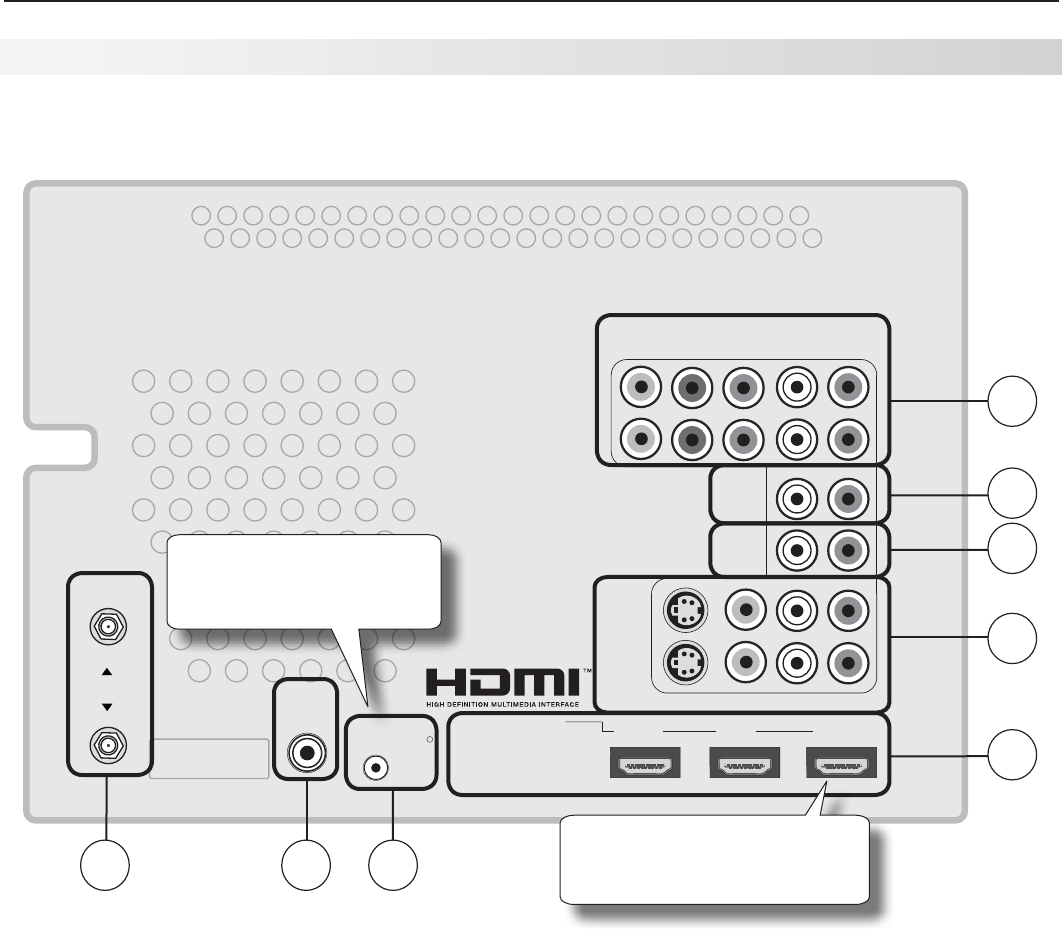
1. ANT 1/MAIN, ANT 2/AUX (Antenna)
Ifyouareconnectinganantennaordirectcablewithout
acablebox,connectthemainantennaorcablesource
to
ANT 1/MAIN
.
ANT 1/MAIN
and
ANT 2/AUX
caneachreceivedigital
andanalogover-the-airchannelsfromaVHF/UHF
antennaornon-scrambleddigital/analogcablesource.
2. COMPONENT Inputs (Audio and Video)
Y Pb Pr (480i/480p/720p/1080i)
Usethesejackstoconnectdeviceswithcomponent
videooutputs,suchasDVDplayers,externalHDTV
receivers,orcompatiblevideogamesystems.See
AppendixAspecificationsforsignalcompatibility.
3. PC/DVI AUDIO INPUT
Usethe
PC/DVI AUDIO INPUT
whenconnectingaDVI
devicetooneoftheTV’sHDMIinputsusingaDVI-to-
HDMIcable.Thesejacksallowyoutosendleftand
rightanalogaudiofromyourcomputerorotherDVI
devicetotheTV.
4. AVR AUDIO OUTPUT
Use
AVR AUDIO OUTPUT
tosendanalogaudioofthe
programcurrentlyshownonthescreentoanA/Vsur-
roundsoundreceiverorstereosystem.Digitalaudio
fromdigitalchannelsandHDMIdevicesisconvertedto
analogaudiobytheTV.IfusingananalogA/Vreceiver
orstereosystem,thisistheonlyaudioconnection
neededbetweenitandtheTV.
ANT 2 / AUX
ANT 1 / MAIN
ANT 2/ AUX
ANT 1 / MAIN
ANT 2 / AUX
ANT 1 / MAIN
INPUT 1
INPUT 2
L (MONO) R
AUDIO
DIGITAL
AUDIO
OUT HDMI 12
YPb Pr
AV R
AUDIO
OUTPUT
S-VIDEO VIDEO
3
L (MONO) - AUDI O - R
Y Pb Pr (480i/480p/720p/1080i)
VIDEO: 480i /480p /720p /1080i /1080p
AUDIO: PCM STEREO
PC: VGA / W-VGA / SVGA / W-SVGA /
XGA / W-XGA / SXGA / 720p /1080p
IR EMITTER
NetCommand R
PC/DVI
AUDIO
INPUT
COMPONENT 1
COMPONENT 2
ANT 2 / AUX
ANT 1 / MAIN
1
2
3
4
5
6
7 8
IREmitterJackincluded
onYseriesand734series
modelsonly.
ThirdHDMIinputavailableon
Y,733,and734seriesmodels.

10 1. Television Overview
5. INPUT 1, 2 (Audio and Video)
INPUT 1
and
2
canbeusedtoconnectaVCR,Super
VHS (S-VHS) VCR,DVDplayer,standardsatellite
receiver,orotherA/VdevicetotheTV.EachTV
INPUT
groupconsistsofjacksforcompositevideo,S-Video,
andanalogstereoaudio.Notethatwhenyouconnect
totheS-videojack,thecompositevideojackisauto-
maticallydisabled.
INPUT 3
isathirdsetofcomposite
videoandstereoaudiojackslocatedonthefrontofthe
TVforconvenience.
6. HDMI™ Inputs
TheHDMI1.3(HighDefinitionMultimediaInterface)sup-
portsuncompressedstandardandhigh-definitiondigital
videoformatsandPCMdigitalstereoaudioformat.
UsetheHDMIinputstoconnecttoEIA/CEA-861HDMI
compliantdevicessuchasahigh-definitionreceiver
orDVDplayer.Theseinputssupport480i,480p,720p,
1080i,and1080pvideoformats.
Mitsubishirecommendsyouusecategory2HDMIcables
toconnectHDMI1.3sourcedevices.High-speedcat-
egory2cablesbringyouthefullbenefitsofDeepColor
andx.v.Color.
TheseinputscanalsoacceptdigitalDVIvideoinputs.
ToconnectaDVIinput,useanHDMI-to-DVIadapteror
cableplusanalogaudiocables.Connecttheanalog
audiocablestothe
PC/DVI AUDIO INPUT
ontheTVto
receiveleftandrightstereoaudiofromyourDVIdevice.
TheTV’sHDMIinputsarecompatiblewithmanyDVI-D
andHDMIcomputervideosignals.Seechapter2,“TV
Setup”andAppendixAforadditionalinformationonPC
compatibility.
TheseinputsareHDCP(High-BandwidthDigitalCopy
Protection)compliant.
Theseinputsare certifiedforproperinterop-
erabilitywithotherproductscertifiedbySimplay™.
TV Back Panel, continued
HDMI Cable Categories
HDMIcablesareavailableasCategory1and
Category2versions.
• Category 2 Cables.Newer,HDMI1.3-com-
pliantDVDplayers,videogames,andset-top
boxesrequireCategory2cables.Usecategory
2cablesforthesehigh-speedHDsignalscar-
ryingextendedcolorencodings(i.e.,30ormore
bits,alsocalledDeepColor).Category2cables
arealsosuitableforstandardHDTVsignals.
• Category 1 Cables.Unmarkedcablesare
category1cablesandaresuitableforstandard
HDTVsignals.
7. DIGITAL AUDIO OUT
ThisoutputsendsDolbyDigitalorPCMdigitalaudioto
yourdigitalA/Vsurroundsoundreceiver.Analogaudio
fromanalogchannelsanddevicesisconvertedbytheTV
toPCMdigitalaudio.IfyouhaveadigitalA/Vreceiver,
inmostcasesthisistheonlyaudioconnectionneeded
betweentheTVandyourA/Vreceiver.
8. IR Emitter NetCommand®
Y series and 734 series models only
IREmittersconnectedtothisjackareusedbytheTV’s
NetCommandsystemtocontrolexternalIRremote
controlledanalogdevicessuchascableboxes,VCRs,
DVDs,satellitereceiversandaudioreceivers.

11
TV Set-Up
Getting Started
1. Reviewtheimportantsafety,installation,andoper-
atinginformationatthebeginningofthisbook.
2. ChoosealocationforyourTV.
• Allowatleastfourinchesofspaceonallsides
oftheTVtohelppreventoverheating.Over-
heatingmaycauseprematurefailureoftheTV
aswellasshortenedlamplife.
• Avoidlocationswherelightmayreflectoffthe
screen.
• Seethestandrequirementsunder“Important
Information About Your TV.”
3. Installthebatteriesintheremotecontrol.Seethe
followingpage.Seechapter4,“TVOperationand
Features”formoreonuseoftheremotecontrol.
4. PlugyourTVintoapoweroutlet.The
TIMER
indica-
toronthefrontoftheTVwillstartblinkingrapidly.
Afterthe
TIMER
indicatorstopsblinking,pressthe
POWER
keytopowerontheTV.
5. WhentheWelcomescreenappearsthefirsttime
youpowerontheTV,selectalanguageforTV
menus.Youcanlaterchangethelanguagethrough
theSetupmenu.
6. Connectyouraudio/video(A/V)devicestotheTV
andperforminitialsetup.
• Seechapter3,“TVConnections”forconnec-
tiondiagrams.
• SeethefollowingpagesforinitialTVsetupand
useoftheAutoInputSensingfeature.
• Seechapter6,“NetCommand,”toperform
NetCommandIR“learning”forcontrolofyour
hometheater(availableonYseriesand734
seriesmodels).
7. Mitsubishirecommendsyouperformachannel
scan.See“InitialTVSetup”onthefollowingpages.
8.
YoucannowstartwatchingTVoryoucanperform
additionalsetupandcustomizationthroughtheTV
menus.
Guidelines for Setting Up and Using Your New Widescreen TV
TV Operation
1. Reviewchapter4,“TVOperationandFeatures,”for
TVfeaturesincluding:
• Input Selection (viewing source).Selecta
connectedprogramsourcetowatch,suchasa
VCR,DVDplayer,orantenna.Press
INPUT
onthe
remotecontroltoselectfromiconsfortheTV
inputs.See“ChoosingaViewingSource.”
• ChannelView.Press
GUIDE
toseechannellist-
ingsforprogramson
ANT 1
and
ANT 2
.
• Picture Formats.Press
FORMAT
tocyclethrough
picturesizesandshapestofindtheonebest
suitedtothecurrentprogram.See“TVSignals
andDisplayFormats.”
2. TounderstanduseoftheInput Selectionmenu
withNetCommand-controlleddevices,see“Using
NetCommand”(Yand734seriesmodels).
3. ToviewJPEGphotofilesontheTV,see“Viewing
JPEGPictureFiles.”
Additional TV Setup
1. Reviewchapter5,“TVMenuSettings,”tocustom-
izeTVoperation.Pressthe
MENU
keytoenterthe
menusystem.Someexamplesofsettingsyoumay
wishtochangeinclude:
• FAV.Useanon-screenmenutocreatecustom
listsofyourfavoritechannels.SeeSetup >
Edit.
• Order.RearrangethedeviceiconsintheInput
Selectionmenutoputfrequentlyusedicons
nearthefront.SeetheInputsmenuOrder
options.
• Name.Changethedevicenamesthatappear
intheInput Selectionmenu.SeetheInputs
menuNameoptions.
• Parental Locks.RestrictTVviewingby
programrating,bychannel,orbytimeofday.
Youcanalsodisablethefront-panelbuttons
ifyouhavesmallchildren.SeetheLock >
2
12 2. TV Setup
Parentmenu,theLock > Front Panelmenu,
andSetup > Edit > Lock.
• Video Settings.Changevideoadjustmentsto
getthebestpictureforyourviewingconditions.
See“AVMenu.”
Note: YoumaywishtochangethePictureModefrom
thedefaultBrillianttoeitherBrightorNatural,
whicharesuitableformosthomeviewingenvi-
ronments.
2. ToprogramtheremotecontroltooperateA/V
devicesnotunderNetCommandcontrol,see
AppendixD,“ProgrammingtheRemoteControl.”
TV Care
• Lamp Cartridge.Whenthelampcartridge
needsreplacement,replace the lamp yourself
and save the cost of a service call.See
Appendix Cforinstructions.
• General Cleaning.Seethecleaningrecom-
mendationsunder“Important Information
About Your TV.”
Assistance
• Fortroubleshooting,service,andproduct
support,seeAppendix E.
• Forwarrantyinformation,seetheTVwarranty
inthebackofthisbook.
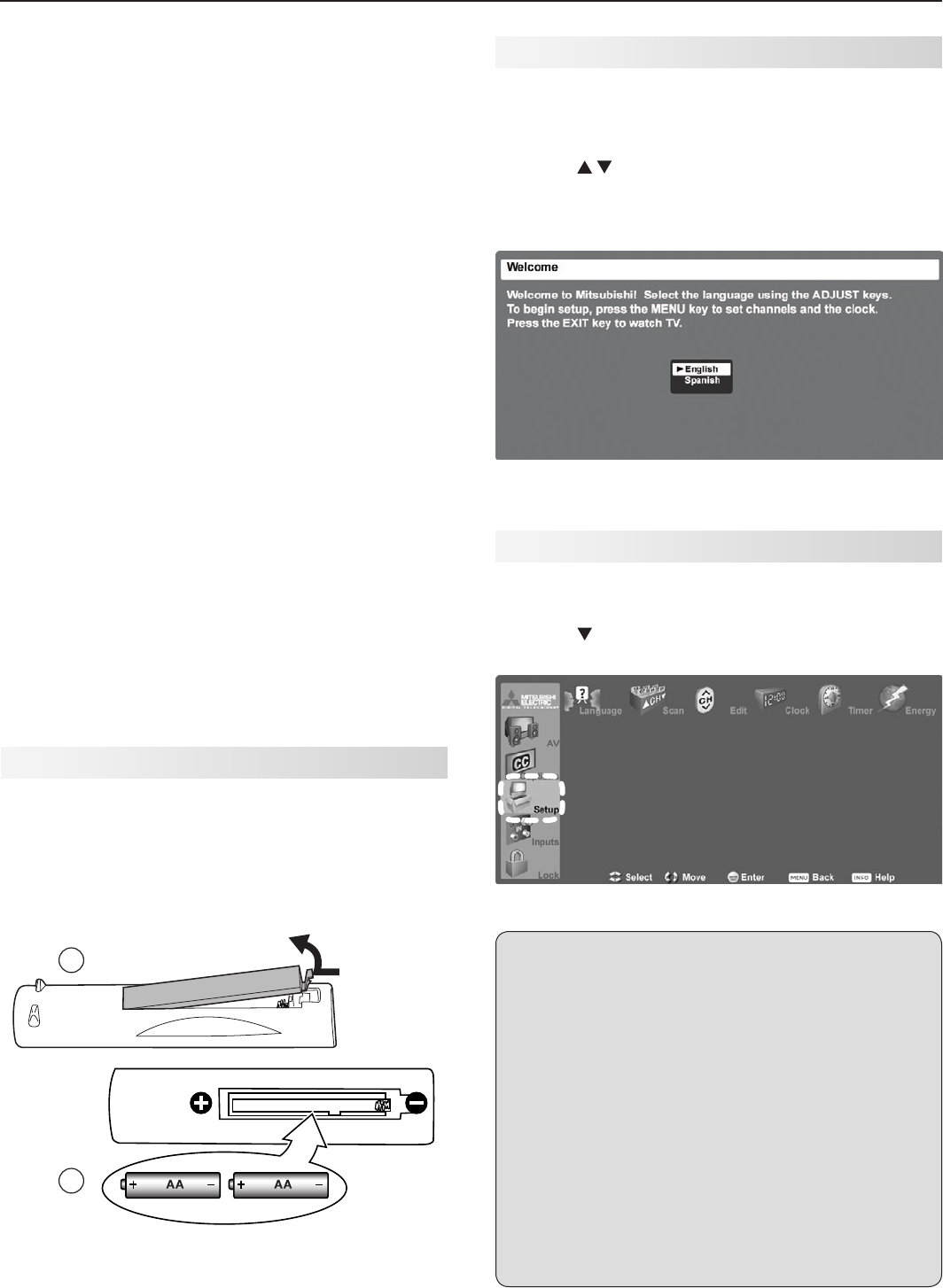
Installing the Remote Control Batteries
1. Removetheremotecontrol’sbackcoverbygently
pressinginthetabandliftingoffthecover.
2. Loadthebatteries,makingsurethepolarities(+)
and(-)arecorrect.Forbestresults,insertthe
negative(-)endfirst.
3. Snapthecoverbackinplace.
2
1
The remote control requires two AA alkaline batteries.
Turning the TV On or Off
ToturntheTVonoroff,pointtheremotecontrol
atthefrontoftheTVandpressthe
POWER
button.
Alternatively,pressthe
POWER
buttononthefront
paneloftheTV.
If You Turn Off the TV by Mistake
1. Press
POWER
againwithinabout30seconds,
whilethelampisstillhot,tohavetheTVcome
backonimmediately.
2. Ifthe
LAMP
indicatorstartsblinking(about30
secondsafteryoushutoffpower),wait about
one minute for the
LAMP
indicator to stop
blinking and press
POWER
to turn the TV on
again.
When You First Power On the TV
Choosing a Language for Menus
1. PowerontheTVforthefirsttime.
2. Press toselecteitherEnglishorSpanish
forallmenus.Youcanlaterchangethelanguage
selectionthroughtheSetupmenuLanguage
option.
When you first power on the TV, the Welcome screen lets
you change the menu language.
Initial TV Setup
UsetheSetupmenuforbasicTVsetupoptions.
1. Press
MENU
toopentheMainmenu.
2. Press tohighlighttheSetupiconanddisplaythe
Setupmenu.
Setup menu highlighted in TV Main menu
2. TV Setup 13
Change the Menu Language
Choosetodisplayon-screenmenusineitherEnglishor
Spanish(Español).
Select a menu language in the Setup menu.
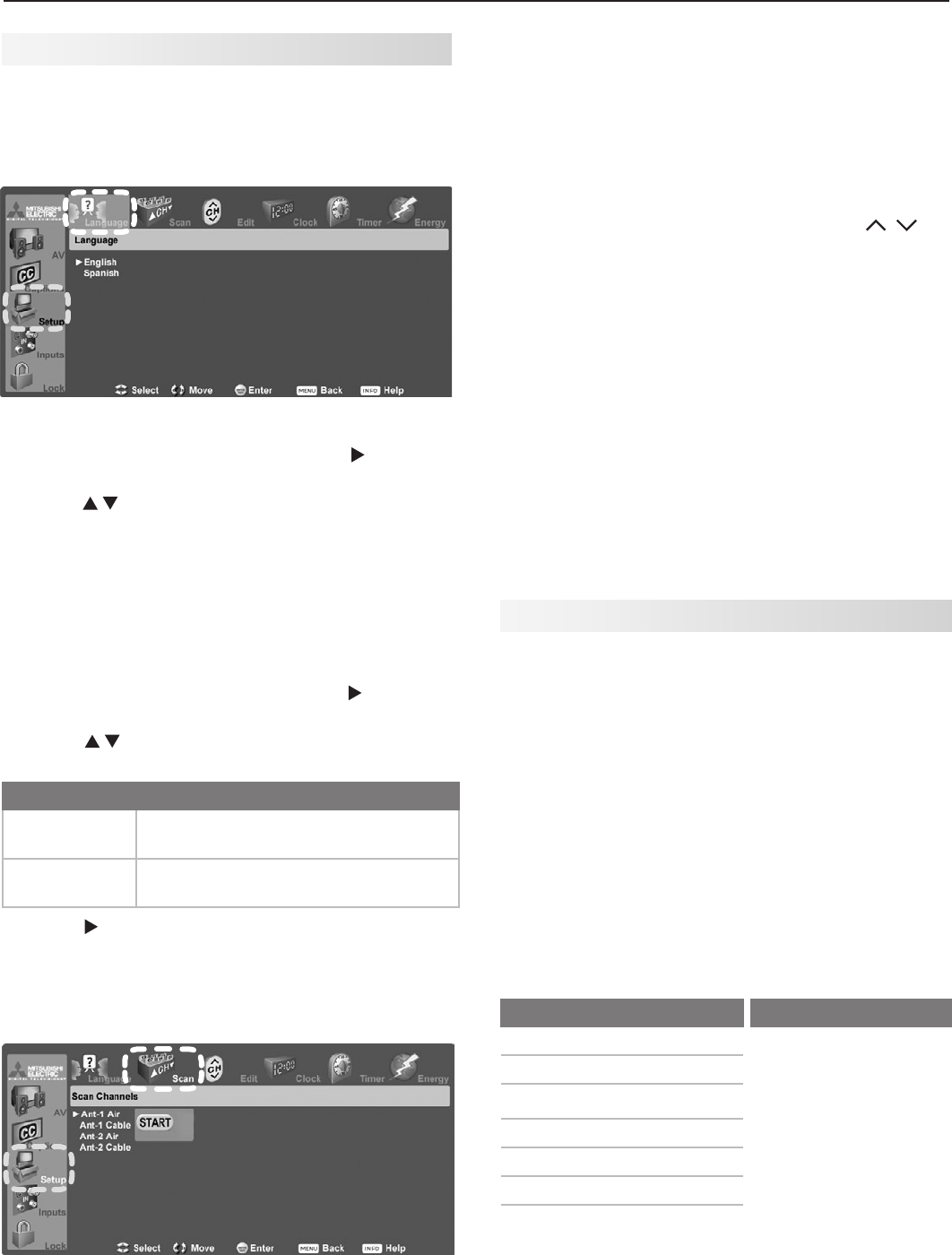
1. WiththeSetupmenudisplayed,press tohigh-
lighttheLanguageicon.
2. Press tohighlighteitherEnglishorSpanish.
3. Press
MENU
toreturnthehighlighttothetoprowof
icons.
Memorize Channels
For ANT 1/MAIN and ANT 2/AUX
To start channel memorization
1. WiththeSetupmenudisplayed,press tohigh-
lighttheScanicon.
2. Press tohighlightaninputselectionbasedon
yourconnections:
Input Condition
Ant 1 Air
Ant 2 Air
Whenconnectedtoanindooror
outdoorantenna
Ant 1 Cable
Ant 2 Cable
Whenconnectedtodirectcable(no
cablebox)
3. Press tohighlighttheon-screenSTARTbutton.
4. Press
ENTER
tostartautomaticchannelmemoriza-
tion.
To stop channel memorization before
completion, press
CANCEL
.
Start channel memorization from the Setup menu.
Additional TV Setup Using the Setup Menu
Seechapter5,“TVMenuSettings,”to:
• Editchanneloptions
• SettheTVclock
• SettheTVTimer
• SelectanEnergyModetomanagepowerusewhile
theTVisoff.
Initial TV Setup, continued
5. Whenmemorizationiscompleteyoucan:
• Press
MENU
oncetoreturntothetoprowoficons.
• Press
MENU
againtoreturntotheMainmenu.
• Press
EXIT
towatchTV.
Afterchannelshavebeenmemorized:
• Totunetomemorizedchannels,press
CH
/
whilewatchingTVonthe
ANT 1
or
ANT 2
inputs.
• UsetheSetup > Editmenuforadditionalchannel
options,suchasaddingordeletingchannelsfrom
memory,namingchannels,andsavingfavorite
channelsincustommemorybanks.
Setting Up TV Inputs
When You First Connect a Device
ThisTV’sEasyConnect®AutoInputSensingfeature
detectsmostconnectionsautomatically.Whenyoufirst
connectadevice,theTVwill:
a. detecttheconnecteddevice
b. promptyoutoidentifythedevicetype
c. promptyoutoperformNetCommandset-upfor
thedevice,ifavailable(Yseriesand734series
only)
d. repeatthesestepsforanyadditionalnewly
detecteddevices
ThetablesbelowclarifywhichconnectionstriggerAuto
InputSensing.
Auto Detection Active No Auto Detection
INPUT 1
,
2
,
3
videojacks
ANT 1
and
ANT 2
COMPONENT
videojacks
HDMI
*
DIGITAL AUDIO OUT
AVR AUDIO OUTPUT
(analog)
USB
(USBphotoportonfront)
*
Ifthedeviceispoweredoffwhenconnected,detec-
tionoccurswhenthedeviceisnextpoweredon.
14 2. TV Setup
Note: Forconnectionandsetupofapersonalcom-
puter,seetheinformationlaterinthischapter.
1. Seechapter3,“TVConnections,”forrecommen-
dationsonconnectingyourdevices.
2. ConnectyourdevicestotheTV,makingnoteof
whichTVinputisusedforeachdevice.
TheTVandthedevicescanbeeitheronoroff
whenconnecting.
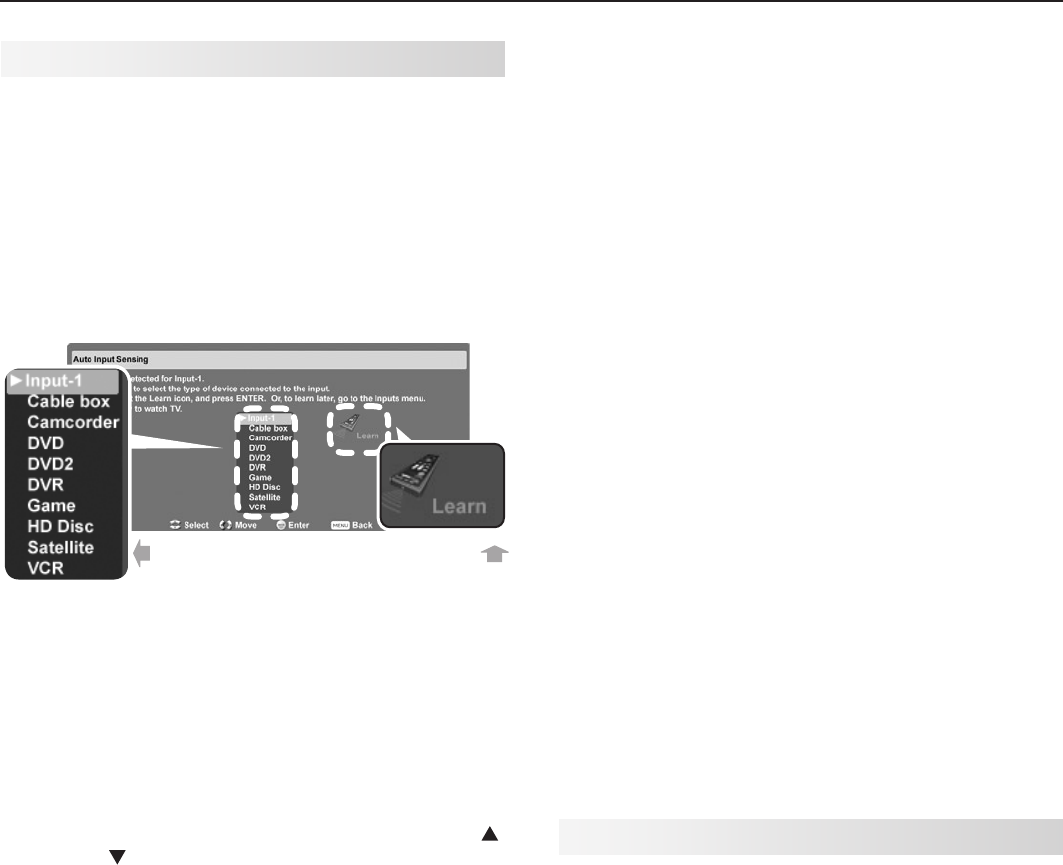
First select a
device type.
Next perform
IR “learning.”
Auto Input Sensing screen for most device types. The
Learn icon appears only on models with NetCommand.
3. PowerontheTVifnotalreadyon.WhentheTV
detectsaconnection,theAuto Input Sensing
screenopens.
• MostDeviceTypes:Specifythedevice
typeandthen,ifdesired,proceeddirectlyto
NetCommandsetupifavailable.
a. IntheAuto Input Sensingscreen,press
tomovethroughthedevicelisttoselect
thedevicetypeconnectedtotheinput.
Thedevicetypeyouselectherewillappear
intheInput Selectionmenu.
b. IfNetCommandIR“learning”isavailableon
yourTVmodel,youcanperform“learning”
noworatalatertime.Toperformnow,
highlighttheLearniconandpress
ENTER
.
Seechapter6,“NetCommand”formore.
• A/V Receiver:TheTVcandetectaudiocon-
nectionsonthe
DIGITAL AUDIO OUT
jackand
theright(red)analog
AVR AUDIO OUTPUT
jack.
Note for Analog A/V Receivers:Whenyou
disconnectananalogA/Vreceiver,manually
changetheSpeakerssettingtoTVtohear
soundfromtheTVspeakers.
IfNetCommandIR“learning”isavailableforyour
TVmodel,perform“learning”noworatalater
time.Toperformnow,highlightth
eLearnicon
intheAuto Output Sensingscreenandpress
ENTER
.Seechapter6,“NetCommand”formore.
• HDMI Devices Compatible with the TV’s
NetCommand for HDMI Feature:Compatible
Setting Up TV Inputs, continued HDMIdevicesareoftenrecognizedautomati-
callybytheTV.TheTV’sremotecontrolmay
operatesomedevicefunctionswithoutfurther
setup.Youcanaddmorecontrolfunctionsif
desired.ProgramtheTV’sremotecontrolor,
inthecaseofaYor734seriesTV,perform
NetCommandIR“learning”toaddfunctions.
4 Press
EXIT
toclosetheAuto Input Sensingscreen.
TheTVwillthendisplaytheAuto Input Sensing
screenforthenextconnectionitfinds.
More About Auto Input Sensing
• Chooseadifferentnameforeachinput.
• Antennainputs(
ANT 1/ANT 2
)areneverdetected,
althoughyoucanturnoffunusedantennainputsin
theInputs > Namemenu.
• Youcanchangethedevicetypeatalatertime
usingtheInputs > Namemenu.Any“learned”
NetCommandIRcodeswillbeerased,however.
• IfyouwishtochangedevicesonanHDMIinput:
1. DisconnecttheHDMIdevice.
2. TurnofftheHDMIinputintheInputs > Name
menu.
3. ConnectthenewdeviceandtheAuto Input
Sensingscreenwilldisplay.Ifyouwantthe
deviceunderNetCommandIRcontrol,perform
NetCommand“learning”forthenewdevice.
Controlling A/V Receiver Sound Volume
AlthoughtheTVdetectswhenyouconnectanA/V
receiver,youmustuseoneofthemethodsbelowto
controlsoundvolumefromtheA/Vreceiver.
With a Standard TV Setup
• RecommendedMethod:ProgramtheTV’sremote
controlforyourA/VreceiverandenabletheAudio
Lockfeature.SeeAppendixD,“Programmingthe
RemoteControl.”
• ProgramtheTV’sremotecontrolforyourA/V
receiverandsettheTVremote’sslideswitchto
the
AUDIO
positiontocontrolvolume.Settheswitch
backtothe
TV
positiontocontroltheTV.
• UsetheremotecontrolthatcamewiththeA/V
receiver.
With NetCommand Control of an A/V Receiver (Y
and 734 series only)
• SetupNetCommandcontroloftheA/Vreceiver’s
volumefunctionsintheInputs > AVRmenu.The
TV’sremotewillthenautomaticallycontrolA/V
receivervolume.Seechapter6,“NetCommand.”
• Useanyofthemethodsdescribedforthestandard
TVsetup.
2. TV Setup 15
Connecting a Computer to the TV
Useoneoftheconnectionmethodslistedbelowbased
onyourcomputer’svideooutput.
Computer
Video Output
Video Connection Audio
Connection
Digital DVI DVI-to-HDMIcable
oranHDMIcable
withanHDMI-to-
DVIadapter
Stereoaudio
cables
Note: Ifthecomputer’saudiooutput
isasingleminijack,aminiaudio-to-
RCA-male“Y”adaptercableisalso
required.
HDMI HDMI-to-HDMI
cable
Noadditional
audioconnec-
tionisrequired.
IMPORTANT
This TV accepts digital computer signals only.
1. SeetheTVspecificationsinAppendixAtoconfirm
thatyourcomputersignaliscompatiblewiththeTV.
2. Connectthecomputer’sdigitalsignaloutputtoone
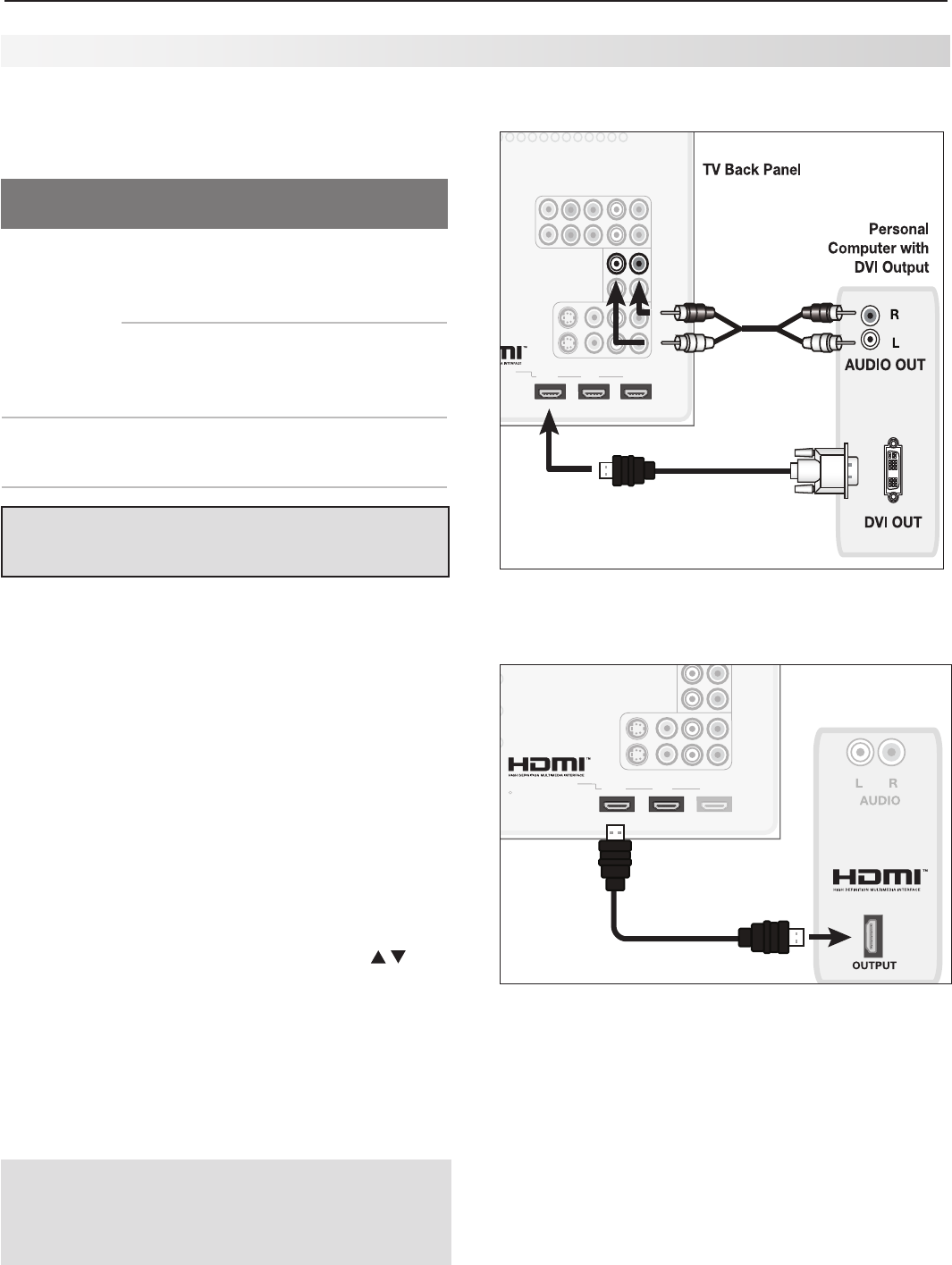
oftheTV’s
HDMI
jacks.Seetheconnectiondia-
gramsforthemethodsuitedtoyourequipment.
3. Connectthecomputer’saudiooutputusingoneof
theseoptions:
• FordigitalDVIsignals,connectanalogleft/right
audiototheTV’s
PC/DVI AUDIO INPUT
jack.
• ForHDMIsignals,noadditionalaudioconnec-
tionisrequired.
4. PowerontheTVandcomputer.TheTVwilldetect
theconnectionanddisplaytheAuto Input Sensing
screen.
5. IntheAuto Input Sensingscreen,press to
highlightPCinthelistofdevicetypes.Youcan
changethetypeatalatertimeusingtheInputs >
Namemenu.
6. Press
EXIT
toclosetheAuto Input Sensingscreen.
)%.*UP%7*$BCMF
INPUT 1
INPUT 2
L
(
MONO) R
AUDIO
ANT 2/ AUX
ANT 1 / MAIN
DIGITAL
AUDIO
OUT HDMI 12
YPb Pr
AVR
AUDIO
OUTPUT
S-VIDEO VIDEO
3
L (MONO) - AUDIO - R
Y Pb Pr
(480i/480p/720p/1080i)
VIDEO: 480i /480p /720p /1080i /1080p
AUDIO: PCM STEREO
PC: VGA / W-VGA / SVGA / W-SVGA /
XGA / W-XGA / SXGA / 720p /1080p
IR EMITTER
NetCommand
R
PC/DVI
AUDIO
INPUT
COMPONENT 1
COMPONENT 2
PC/DVI
AUDIO
INPUT
4UFSFP"VEJP$BCMF
A DVI connection from a personal computer requires a
separate audio connection.
1FSTPOBM
$PNQVUFSXJUI
)%.*0VUQVU
INPUT 1
INPUT 2
L (MONO) R
AUDIO
ANT 2/ AUX
ANT 1 / MAIN
DIGITAL
AUDIO
OUT HDMI 12
YPb Pr
AVR
AUDIO
OUTPUT
S-VIDEO VIDEO
3
L (MONO) - AUDIO - R
Y Pb Pr (480i/480p/720p/1080i)
VIDEO: 480i /480p /720p /1080i /1080p
AUDIO: PCM STEREO
PC: VGA / W-VGA / SVGA / W-SVGA /
XGA / W-XGA / SXGA / 720p /1080p
IR EMITTER
NetCommand R
PC/DVI
AUDIO
INPUT
COMPONENT 1
COMPONENT 2
)%.*UP)%.*$BCMF
57#BDL1BOFM
An HDMI-to-HDMI connection carries all video and
audio on a single cable.
Note: Ifyourcomputerprovidesdigitalaudio
output(coaxialordigital),youcanconnectit
directlytoadigitalA/Vreceiverandbypass
theTV.
Using the TV with a Personal Computer
16 2. TV Setup
Tip:
Setthecomputer’sscreensavertodisplayapattern
afterseveralminutesofinactivity.Thisactsasa
reminderthattheTVispoweredonandthelamp
isinuse.ThelampisinusewhenevertheTVis
poweredon,evenifthescreenappearsdark.
Computer Video Adjustments
1. Poweronthecomputerifitisnotalreadyon.
2. SelectPCfromtheInput Selectionmenu.Todo
this,press
INPUT
toopentheInput Selectionmenu,
movethehighlighttothePCicon,andpress
ENTER.
3. Workingfromthecomputer,changetheresolution
ofthecomputerimage.Viewthecomputerimage
ontheTVandmaximizethecomputerresolution
whilemaintainingasuitableaspectratioforthe
image.
4. PerformTVvideoadjustments.Press
VIDEO
repeatedlytoaccessvideo-
adjustmentoptions.Thefollowing
additionaladjustmentsareavailable
forcomputervideo:
Horiz Position(HorizontalPosition).
Manuallyadjustthehorizontal
position.
Vert Position(VerticalPosition).
Manuallyadjusttheverticalposition.
5. Press
FORMAT
repeatedlytofindthe
pictureformatbestsuitedtothe
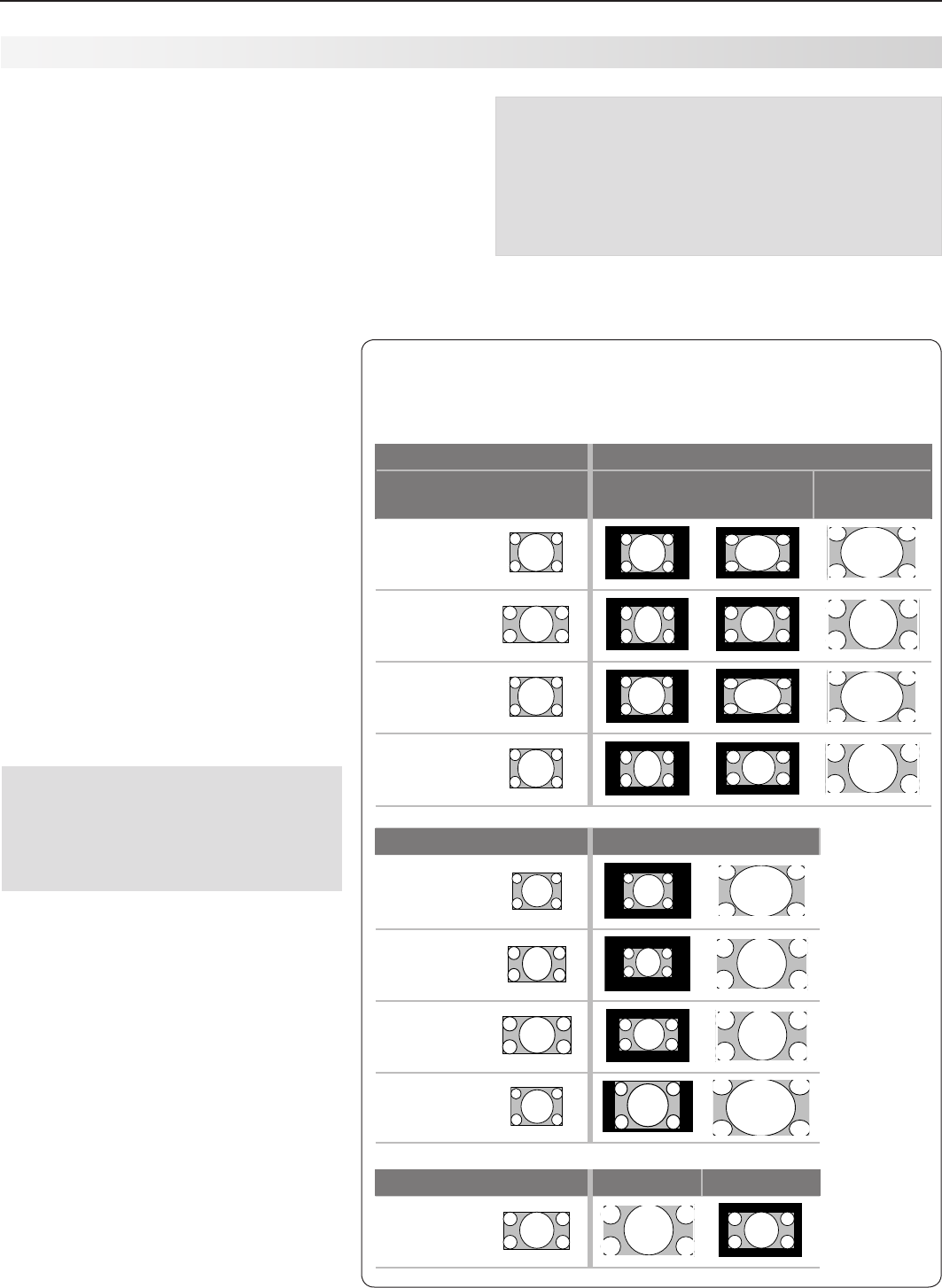
image.Seethechartonthispage
showinghowdifferentcomputerreso-
lutionsaredisplayedontheTV.
Image Resolution
YourMitsubishiTVcandisplayresolutions
fromstandardVGA(640x480)through
1920x1080signalsatarefreshrateof60
Hz.Theresolutionof1920x1080issup-
portedatrefreshratesof24,30,and60
Hz.SeeAppendixAinthisbookformore
oncompatiblescreenresolutions.
Inmostcases,thecomputerwillselectthe
bestresolutionmatchtodisplayontheTV.
Youcanoverridethissettingifyouwish.
Refertoyourcomputeroperatingsystem’s
instructionsforinformationonchanging
thescreenresolution.
Youmayneedtorestartthecomputerfor
changestotakeeffect.
Using the TV with a Personal Computer
Computer Display Formats
Pressthe
FORMAT
keyrepeatedlytocyclethroughtheTVdisplays
availableforyourcomputer’svideosignal.
Computer Signal
As Displayed on TV Screen
Format 4 X 3
Standard
16 X 9
Standard Zoom
VGA
640 X 480
WVGA
848 X 480
SVGA
800 X 600
WSVGA
1064 X 600
Format Standard Zoom
XGA
1024 X 768
PC 720p
1280 X 720
WXGA
1360 X 768
SXGA
1280 X 1024
Format Standard Reduce
PC 1080p
1920 X 1080
Distortion in Computer Images
Computerimagesmayshowdistortion
whenviewedontheTV,e.g.,linesthat
shouldbestraightmayappearslightly
curved.
17
3TV Connections
INPUT 1
INPUT 2
L
(
MONO) R
AUDIO
ANT 2/ AUX
ANT 1 / MAIN
DIGITAL
AUDIO
OUT HDMI 12
YPb Pr
AVR
AUDIO
OUTPUT
S-VIDEO VIDEO
3
L (MONO) - AUDIO - R
Y Pb Pr (480i/480p/720p/1080i)
VIDEO: 480i /480p /720p /1080i /1080p
AUDIO: PCM STEREO
PC: VGA / W-VGA / SVGA / W-SVGA /
XGA / W-XGA / SXGA / 720p /1080p
IR EMITTER
NetCommand
R
PC/DVI
AUDIO
INPUT
AUDIO
YPb Pr L
(
MONO) R
Y Pb Pr (480i/480p/720p/1080i)
-
"6%*0
3
: 1C 1S
$"#-&*/PS
4"5&--*5&*/
*ODPNJOHGSPN
$BCMF4FSWJDFPS
4BUFMMJUF%JTI
57
$BCMF#PY
PS4BUFMMJUF
3FDFJWFS
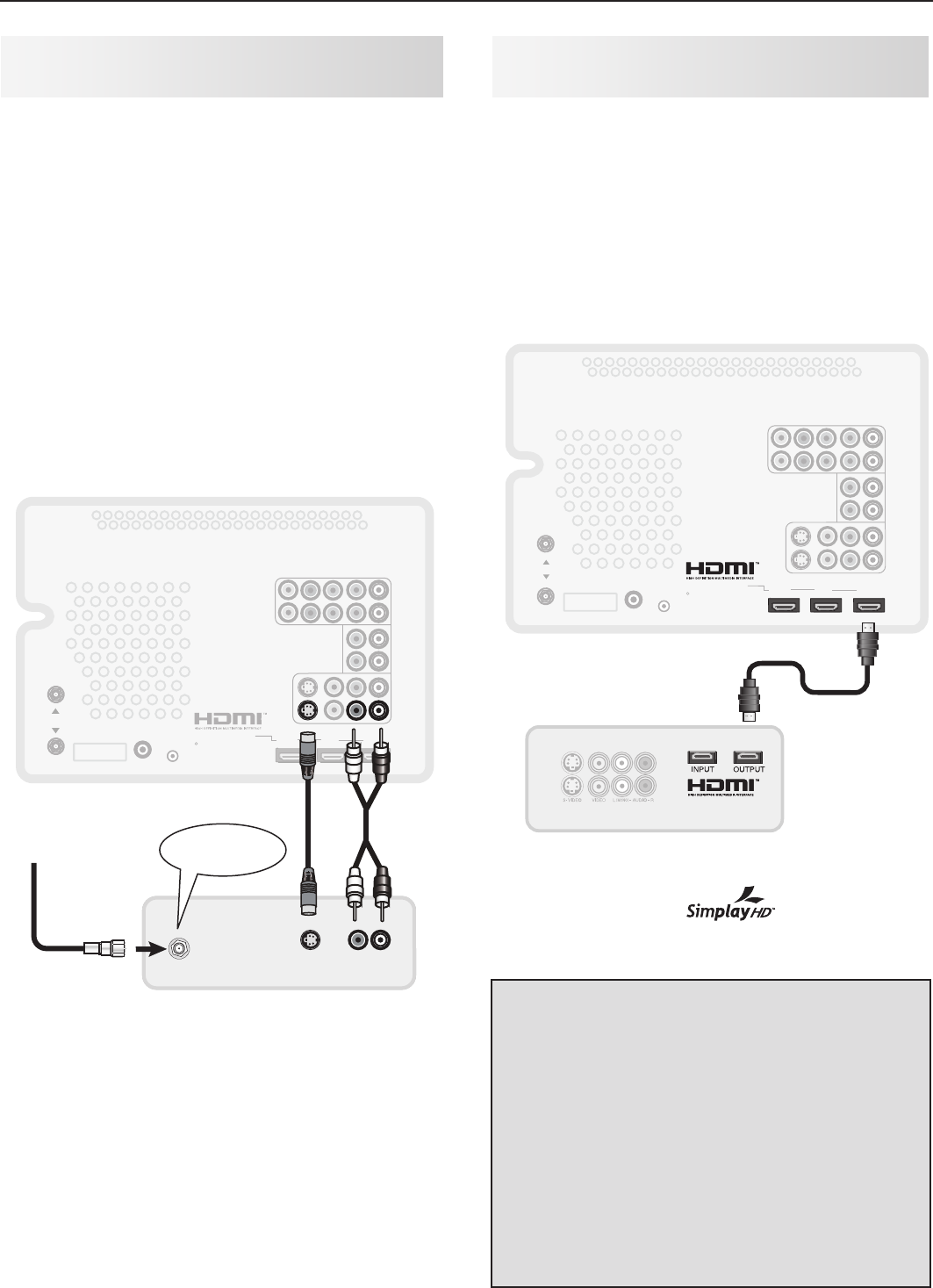
Figure 1. Connecting an external HDTV receiver with
component video connections
Auto Input Sensing
TheTV’sAutoInputSensingfeatureautomaticallyrec-
ognizesmostconnectionsandpromptsyoutoidentify
thetypeofdeviceconnected.Seechapter2,“TV
Setup,”formoreonAutoInputSensing.
Connection Types
Reviewtheconnectiontypesavailableonyourinput
devicesanduseinputsthatwillgivethebestvideo
quality.Forexample,chooseHDMIovercomponent
video,andchoosecomponentvideooverS-videoor
compositevideo.
Picture Quality
Forbestpicturequality,routesignalsdirectlyfrom
theinputdevicetotheTV;avoidroutingvideosignals
throughanA/Vreceiver,forexample.
IfyourcableboxorsatellitereceiverhasanHDMI
output,usetheconnectionsforHDMIdevices
describedlaterinthischapter.
Required:RCAcomponentvideocables,left/right
analogstereoaudiocables.
1. Connectthecablefromtheoutsidecableorsatel-
liteserviceto
CABLE IN
or
SATELLITE IN
onthe
cableboxorsatellitereceiver.Seeyourdevice’s
owner’sguideforinstructionsandcablecompatibil-
ity.
2. ConnectRCA-typecablesfromthe
Y PB PR
outputs
ontheHDTVcableboxorsatellitereceiverto
COMPONENT
ontheTVbackpanel,matchingthe
coloredgreen,blue,andredconnections.
3. Connectleft(white)andright(red)audiocables
fromtheHDTVcableboxorsatellitereceiverto
COMPONENT
AUDIO L (MONO)
and
R
ontheTV
backpanel.
Note:
Toheardigitalsurroundsound,connectthedigital
audiooutputfromyourcableboxorsatellitere-
ceiverdirectlytoyourdigitalA/Vreceiver.
Sound Quality
Forbestaudioquality,routeaudiosignalsfromthe
inputdevicedirectlytoyourA/Vreceiverorsound
systemwheneverpossible.
IMPORTANT
Accessory items such as cables, adapters,
splitters, or combiners required for TV
connections are not supplied with the TV.
These items are available at many electronics
stores.
Before you Begin
HDTV Cable Box or Satellite Receiver with Component Video
18 3. TV Connections
H
DMI Device (Cable Box, Satellite
Receiver, DVD Player, or Other Device
)
Required:HDMI-to-HDMIcable.
ConnectanHDMIcablefromtheTVbackpaneltothe
HDMIdeviceoutput.HDMIdevicesprovidevideoand
audiothroughthesinglecable.
Mitsubishirecommendsyouusecategory2HDMI
cablestoconnectHDMI1.3sourcedevices.High-
speedcategory2cablesbringyouthefullbenefitsof
DeepColorandx.v.Color.Seechapter1,“TVOver-
view,”formoreonHDMIcabletypes.
INPUT 1
INPUT 2
L
(
MONO) R
AUDIO
DIGITAL
AUDIO
OUT HDMI 12
YPb Pr
AVR
AUDIO
OUTPUT
S-VIDEO VIDEO
3
L (MONO) - AU DIO - R
Y Pb Pr
(480i/480p/720p/1080i)
VIDEO: 480i /480p /720p /1080i /1080p
AUDIO: PCM STEREO
PC: VGA / W-VGA / SVGA / W-SVGA /
XGA / W-XGA / SXGA / 720p /1080p
IR EMITTER
NetCommand
R
PC/DVI
AUDIO
INPUT
ANT 2 / AUX
ANT 1 / MAIN
)%.*%FWJDF
57#BDL1BOFM
Figure 3. Connecting an HDMI device.
Note:
HDMIinputsare certiedforproper
interoperabilitywithotherproductscertiedby
Simplay™.
IMPORTANT
HDMI and Audio Signals
• DigitalSurroundSound:TheTV’sHDMI
inputs can receive digital stereo audio
signals only. To hear digital surround
sound from an HDMI device, connect the
device’s digital audio output directly to your
A/V receiver. See the Owner’s Guides for
those devices for instructions.
• A/VReceiverwithHDMI.IfyourA/V
receiver has an HDMI input, use the audio
connections described in “A/V Receiver
(Sound System)” instead.
Standard Cable Box, Satellite Receiver,
or Other Device with S-Video
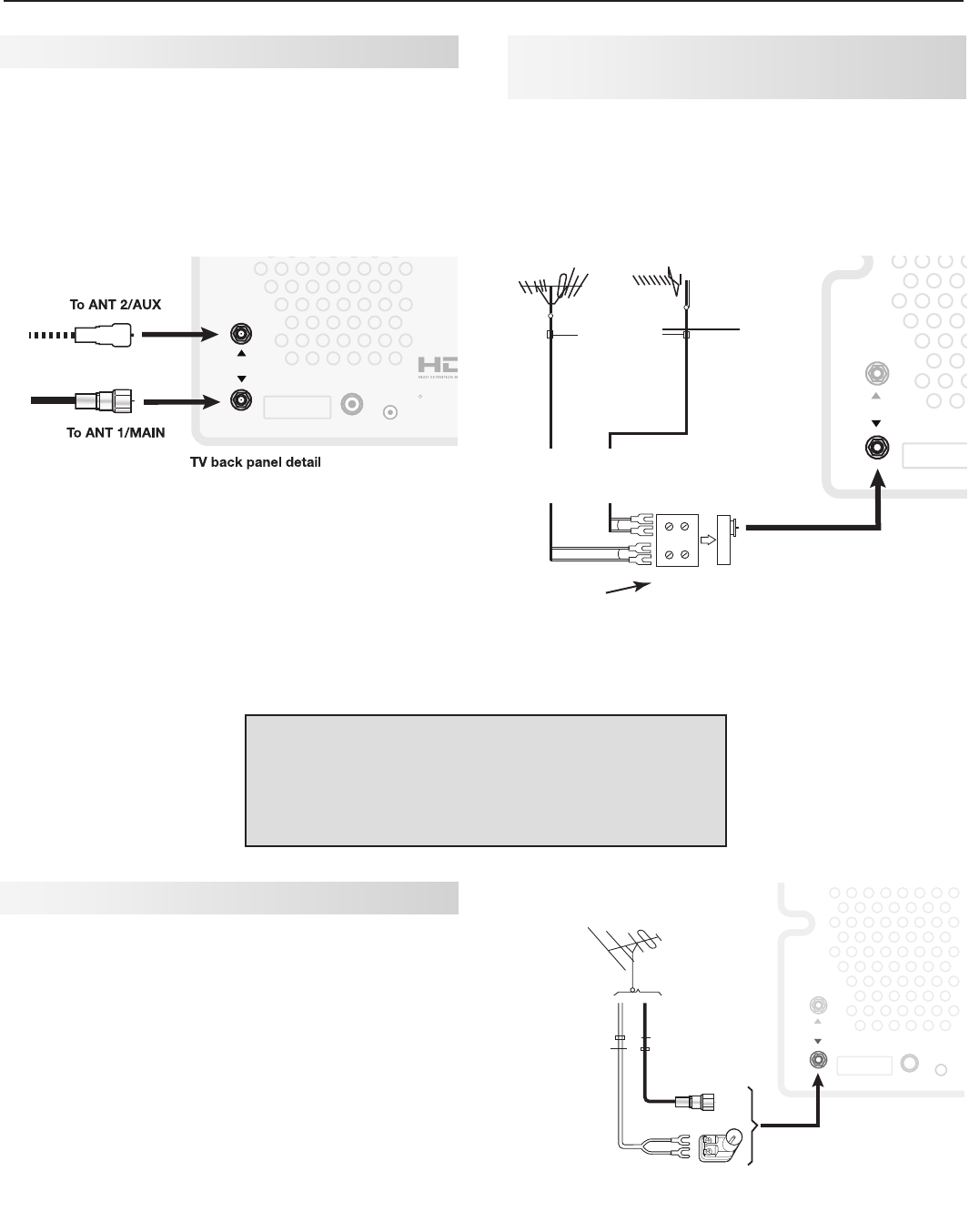
Required:S-Videocableandleft/rightanalogstereo
audiocables.
1. Connectthecablefromtheoutsidecableorsatel-
liteserviceto
CABLE IN
or
SATELLITE IN
onthe
cableboxorsatellitereceiver.
2. ConnectanS-Videocablefrom
S-VIDEO OUT
on
thecableboxorsatellitereceiverbackpanelto
INPUT S-VIDEO
ontheTVbackpanel.
3. Connectleft(white)andright(red)audiocables
from
AUDIO OUT
onthecableboxorsatellite
receiverto
INPUT AUDIO L (MONO)
and
R
ontheTV
backpanel.
Note: Refertothecableboxorsatellitereceiver
Owner’sGuideforcableordishantennacon-
nectionstothereceiver.
"6%*0065
7*%&0065
INPUT 1
INPUT 2
L
(
MONO) R
AUDIO
DIGITAL
AUDIO
OUT HDMI 12
YPb Pr
AVR
AUDIO
OUTPUT
S-VIDEO VIDEO
3
L (MONO) - AUDIO - R
Y Pb Pr
(480i/480p/720p/1080i)
VIDEO: 480i /480p /720p /1080i /1080p
AUDIO: PCM STEREO
PC: VGA / W-VGA / SVGA / W-SVGA /
XGA / W-XGA / SXGA / 720p /1080p
IR EMITTER
NetCommand
R
PC/DVI
AUDIO
INPUT
ANT 2 / AUX
ANT 1 / MAIN
INPUT 2
$"#-&*/PS
4"5&--*5&*/
"OZ47JEFP%FWJDF
57#BDL1BOFM
*ODPNJOH
$BCMFGSPN
8BMM
Figure 2. Connecting a device with S-Video
3. TV Connections 19
Wall Outlet Cable (no cable box)
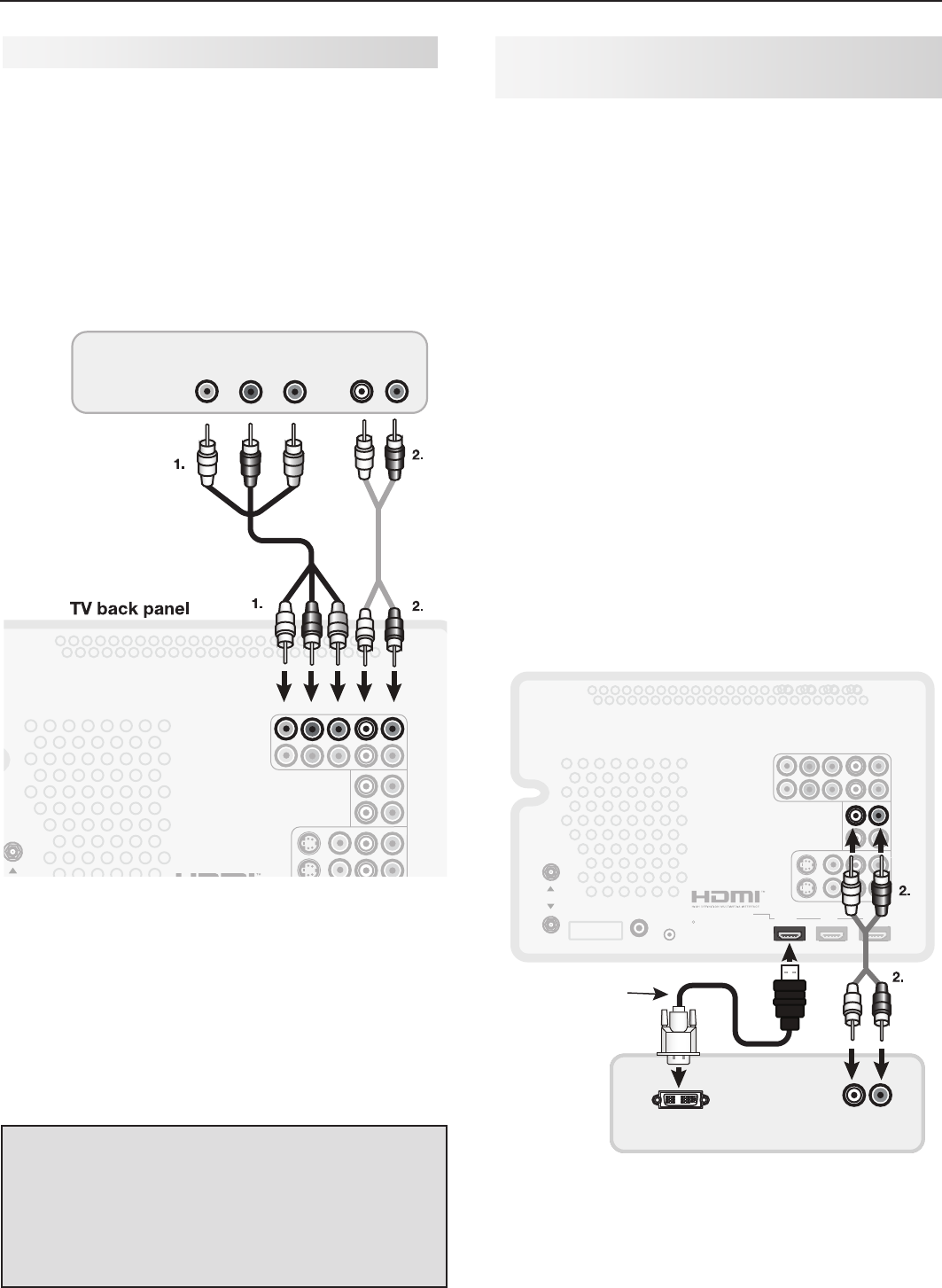
Itisveryimportanttoconnecttheincomingcablefor
yourprimaryviewingsourceto
ANT 1/MAIN
.
1. Connecttheprimaryincomingcoaxialleadcableto
ANT 1/MAIN
ontheTVbackpanel.
2. Foranoptionalsecondaryantennasource,connect
anantenna(orcable)to
ANT 2/AUX
.
INPUT 1
INPUT 2
L
(
MONO) R
AUDIO
DIGITAL
AUDIO
OUT HDMI 12
YPb Pr
AVR
AUDIO
OUTPUT
S-VIDEO VIDEO
3
L (MONO) - AUDIO - R
Y Pb Pr
(480i/480p/720p/1080i)
VIDEO: 480i /480p /720p /1080i /1080p
AUDIO: PCM STEREO
PC: VGA / W-VGA / SVGA / W-SVGA /
XGA / W-XGA / SXGA / 720p /1080p
IR EMITTER
NetCommand
R
PC/DVI
AUDIO
INPUT
ANT 2 / AUX
ANT 1 / MAIN
ANT 2 / AUX
ANT 1 / MAIN
Figure 4. Wall Outlet Cable
Antenna with a Single Lead
A. For an antenna with flat twin leads
Required:300-ohm-to-75-ohmtransformer.
A1. Foranantennawithflattwinleads,connectthe
300-ohmtwinleadstothe300-ohm-to-75-ohm
transformer.
A2.Pushthe75-ohmsideofthetransformeronto
ANT 1
ontheTVbackpanel.
B. For cable or antenna with coaxial lead
Connectthecoaxialleaddirectlyto
ANT 1
onthe
TVbackpanel.
Antennas with Separate UHF and
VHF Leads
Required:UHF/VHFcombiner
1. ConnecttheUHFandVHFantennaleadstothe
UHF/VHFcombiner.
2. Pushthecombineronto
ANT 1/MAIN
ontheTV
backpanel.
INPUT 1
INPUT 2
L (MONO) R
AUDIO
DIGITAL
AUDIO
OUT HDMI 12
YPb Pr
AVR
AUDIO
OUTPUT
S-VIDEO VIDEO
3
L (MONO) - AUDIO - R
Y Pb Pr (480i/480p/720p/1080i)
VIDEO: 480i /480p /720p /1080i /1080p
AUDIO: PCM STEREO
PC: VGA / W-VGA / SVGA / W-SVGA /
XGA / W-XGA / SXGA / 720p /1080p
IR EMITTER
NetCommand R
PC/DVI
AUDIO
INPUT
ANT 2 / AUX
ANT 1 / MAIN
ANT 1 / MAIN
#BDL
7JFX 4JEF
7JFX
6)'"OUFOOB
$IBOOFMT
7)'"OUFOOB
$IBOOFMT
0INUP
0IN
$PNCJOFS
'MBU5XJO-FBE
6)'
7)'
5P"/5."*/
57
CBDL
QBOFM
&YUFSOBM
"OUFOOB
PS$BCMF
Figure 5. Connecting separate UHF and VHF Antennas
INPUT 1
INPUT 2
L (MONO) R
AUDIO
DIGITAL
AUDIO
OUT HDMI 12
YPb Pr
AV R
AUDIO
OUTPUT
S-VIDEO VIDEO
3
L ( MONO ) - AUDI O - R
Y Pb Pr (480i/480p/720p/1080i)
VIDEO: 480i /480p /720p /1080i /1080p
AUDIO: PCM STEREO
PC: VGA / W-VGA / SVGA / W-SV GA /
XGA / W-XGA / SXGA / 720p /1080p
IR EMITTER
NetCommand R
PC/DVI
AUDIO
INPUT
ANT 2 / AUX
ANT 1 / MAIN
ANT 1 / MAIN
0IN
'MBU5XJO
-FBE
0QUJPOBM0IN
UP0IN
.BUDIJOH5SBOTGPSNFS
0IN
$PBYJBM
$BCMF
#
"
"
57
#BDL
1BOFM
Figure 6. Connecting a Single Antenna Lead
Mitsubishi strongly recommends you avoid using
antennas with flat twin leads. Flat twin lead
antenna wires are subject to interference which
may adversely affect the performance of the TV.
We recommend using coaxial antenna cable.
20 3. TV Connections
DVI Video Device (Cable Box, Satellite
Receiver, DVD Player, or Other Device)
ConnectDVIdevices(digitalonly)totheTV’sHDMI
inputjacks.
AnalogstereoaudiocablesandaDVI-to-HDMIcableor
DVI/HDMIadapterandHDMIcablearerequired.
1. ConnecttheDVI-to-HDMIcable(recommended)or
HDMIcablewithDVI/HDMIadapterfromtheDVI
device’sbackpaneltotheTV’sHDMIjack.
Note: IfyouareusingaDVI/HDMIadapter,itisimpor-
tanttoconnecttheadaptertotheDVIdevicefor
bestperformance.
2. Connectasetofaudiocablesfrom
AUDIO OUT
ontheDVIdevicebackpaneltothe
PC/DVI AUDIO
INPUT
ontheTVbackpanel.Connectthered
cabletothe
R
jackandthewhitecabletothe
L
(MONO)
jack.
Note: TheHDMIconnectionsupportscopyprotection
(HDCP).
Somedevicesrequireconnectingtoananalog
inputrst,inordertoviewon-screenmenus
andtoselectDVIastheouput.Pleasereview
yourequipmentinstructionsforDVIconnectivity
andcompatibility.
3
-
"6%*0065
%7*065
INPUT 1
INPUT 2
L (MONO) R
AUDIO
DIGITAL
AUDIO
OUT HDMI 12
YPb Pr
AVR
AUDIO
OUTPUT
S-VIDEO VIDEO
3
L (MONO) - AUDIO - R
Y Pb Pr (480i/480p/720p/1080i)
VIDEO: 480i /480p /720p /1080i /1080p
AUDIO: PCM STEREO
PC: VGA / W-VGA / SVGA / W-SVGA /
XGA / W-XGA / SXGA / 720p /1080p
IR EMITTER
NetCommand
R
PC/DVI
AUDIO
INPUT
ANT 2 / AUX
ANT 1 / MAIN
%7*UP)%.*
$BCMF
%7*%FWJDF
57#BDL1BOFM
Figure 8. Connecting a digital DVI device
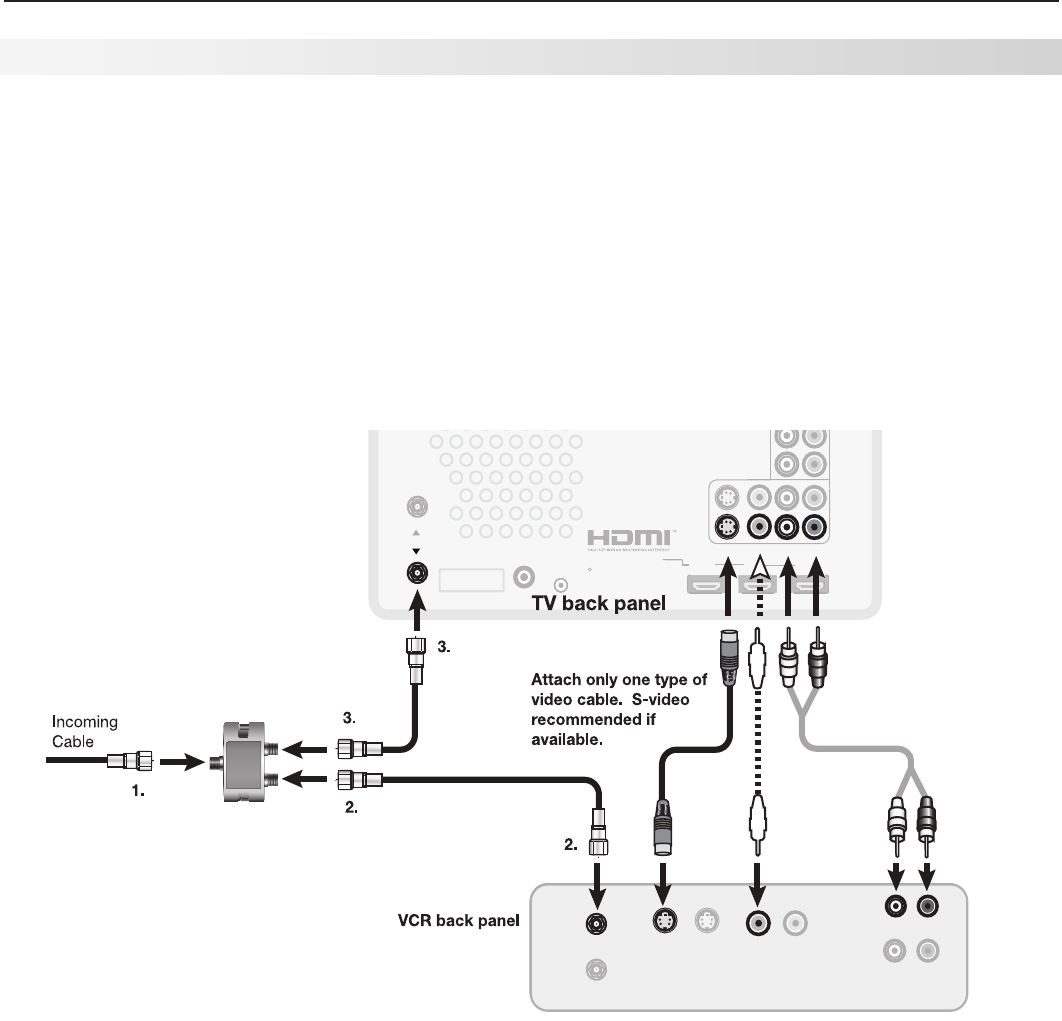
DVD Player with Component Video
Componentvideocablesandanalogaudiocablesare
required.
1. Connectthecomponentvideocablesfrom
Y Pb Pr
VIDEO OUT
onthebackoftheDVDplayertothe
COMPONENT
jacksontheTVbackpanel,match-
ingthegreen,blue,andredcoloredconnections.
2. Connectleft(white)andright(red)stereoaudio
cablesfrom
AUDIO OUT
onthebackoftheDVD
playerto
COMPONENT AUDIO L (MONO)
and
AUDIO
R
ontheTVbackpanel.
$0.10/&/57*%&0 "6%*0065
- 3
INPUT 1
INPUT 2
L
(MONO) R
AUDIO
DIGITAL
AUDIO
OUT HDMI 12
YPb Pr
:1C 1S
AVR
AUDIO
OUTPUT
S-VIDEO VIDEO
3
L (MONO) - AUDIO - R
Y Pb Pr (480i/480p/720p/1080i)
VIDEO: 480i /480p /720p /1080i /1080p
AUDIO: PCM STEREO
PC: VGA / W-VGA / SVGA / W-SVGA /
XGA / W-XGA / SXGA / 720p /1080p
IR EMITTER
NetCommand
R
PC/DVI
AUDIO
INPUT
ANT 2 / AUX
ANT 1 / MAIN
L
(MONO) R
YPb Pr
%7%1MBZFS
Figure 7. Connecting a DVD player with component
video
IMPORTANT
See Appendix A for component video signal
compatibility information.
For digital audio connections to your A/V
receiver, see your DVD player and A/V receiver
Owner’s Guides.
3. TV Connections 21
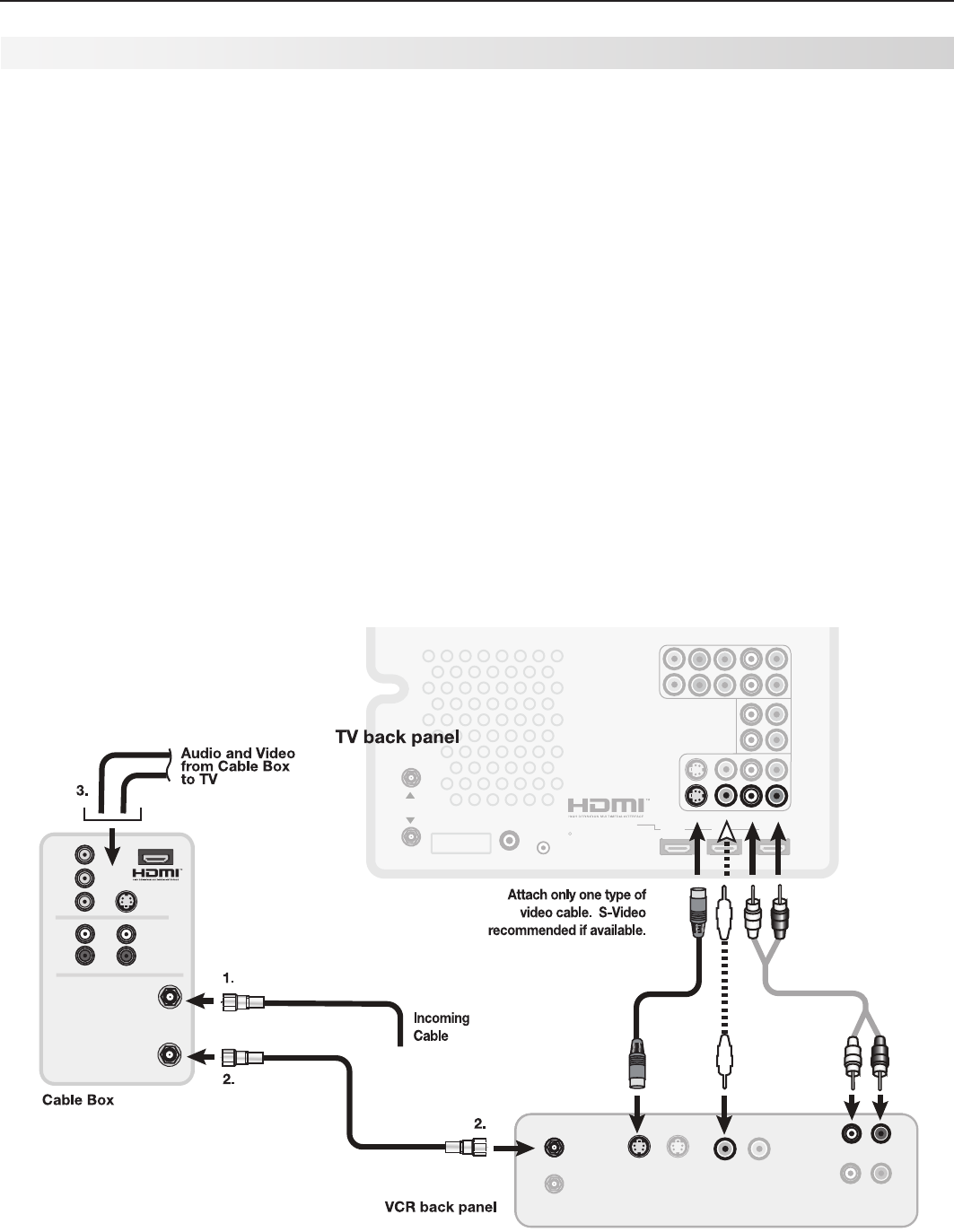
Required:Two-wayRFsplitter,3coaxialcables,right
andleftanalogaudiocables,eitherS-videoorvideo
cable.
1. Connecttheincomingcableorantennato
IN
onthe
RFsplitter.
2. Connectonecoaxialcablefrom
OUT
ontheRF
splitterto
ANTENNA IN
ontheVCRbackpanel.
3. Connectonecoaxialcablefrom
OUT
ontheRF
splitterto
ANT 1/MAIN
ontheTVbackpanel.
Figure 9. Connecting a VCR to an Antenna or Wall Outlet Cable
4. TousetheTVspeakerswiththeVCR,connectleft
(white)andright(red)audiocablesfrom
AUDIO
OUT
ontheVCRto
INPUT AUDIO L (MONO)
and
AUDIO R
ontheTVbackpanel.IfyourVCRis
mono(non-stereo),connectonlythewhite(left)
cable.
5. ConnecteitheranS-Videoorcompositevideo
cablefrom
VIDEO OUT
ontheVCRbackpanelto
INPUT VIDEO
or
S-VIDEO
ontheTVbackpanel.
Connectonlyonetypeofvideocable;S-Videois
recommended,ifavailable.
065
*/ */
*/ 3
-.0/0
"6%*0
065
*/
3
-
065
47*%&0
"/5&//"
065
7*%&0
"6%*0
*/
"/5&//"
065
47*%&0
065
- 3
INPUT 1
INPUT 2
L
(
MONO) R
AUDIO
DIGITAL
AUDIO
OUT HDMI 12
YPb Pr
AVR
AUDIO
OUTPUT
S-VIDEO VIDEO
3
L (MONO) - AUDIO - R
Y Pb Pr
(480i/480p/720p/1080i)
VIDEO: 480i /480p /720p /1080i /1080p
AUDIO: PCM STEREO
PC: VGA / W-VGA / SVGA / W-SVGA /
XGA / W-XGA / SXGA / 720p /1080p
IR EMITTER
NetCommand
R
PC/DVI
AUDIO
INPUT
ANT 2 / AUX
ANT 1 / MAIN
INPUT 2
S-VIDEO VIDEO
ANT 1 / MAIN
*/
065 065
VCR to an Antenna or Wall Outlet Cable
22 3. TV Connections
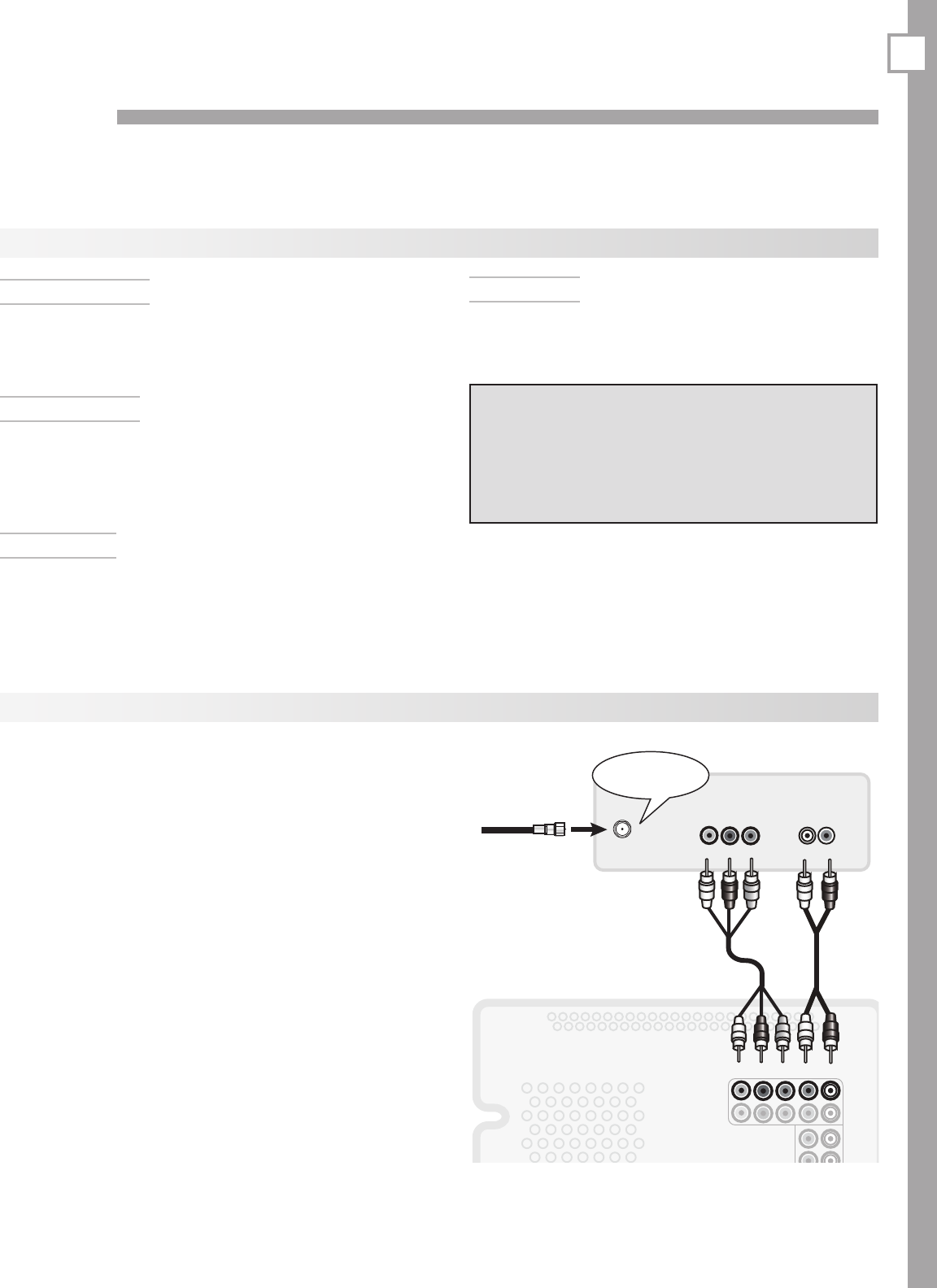
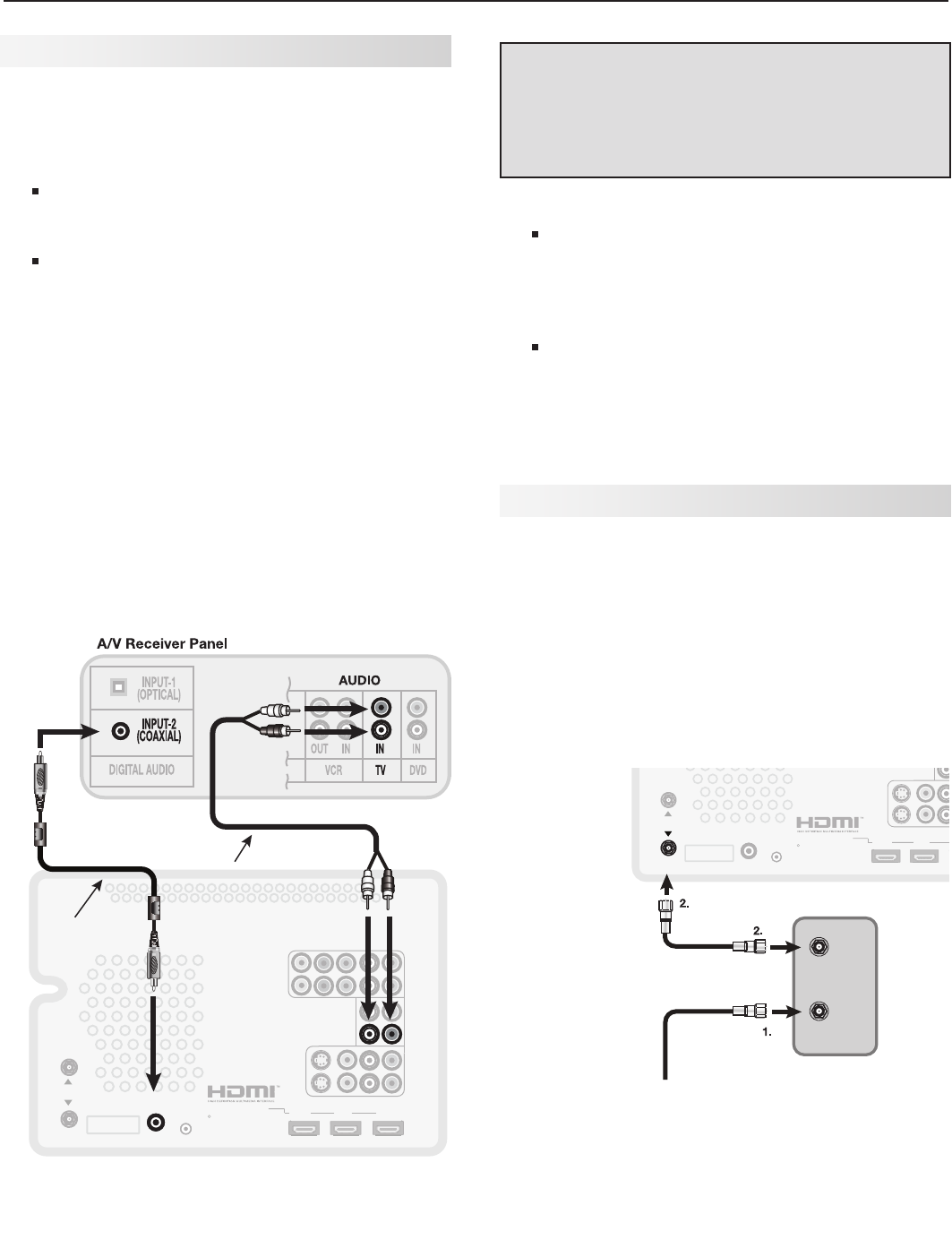
Required:Twocoaxialcables,rightandleftaudio
cables,S-Videoorcompositevideocable,pluscables
requiredtoconnecttheTVtothecablebox.
1. Connecttheincomingcoaxialcableto
IN
onthe
cablebox.
2. Connectonecoaxialcablefrom
OUT
onthecable
boxto
ANTENNA IN
ontheVCRbackpanel.
3. ConnectthecableboxoutputstotheTVasshown
inoneoftheoptionslistedbelow.Thisconnection
allowstheTVtoreceivethebestavailablesignal
directlyfromthecablebox.Seethereferenced
figuresinthischapter,“TVConnections.”
Figure 1:ComponentvideooutputtotheTV’s
COMPONENT Y Pb Pr
jacks;analogstereoaudioto
theassociated
AUDIO
jacks.
OR
Figure 2:S-VideooutputtotheTV’s
INPUT S-VIDEO
jack;analogstereoaudiotothe
associated
AUDIO
jacks.
OR
Figure 3:HDMIoutputtotheTV’s
HDMI
jack.
Figure 10. Connecting a VCR to a cable box
065 */ */
3
-.0/0
"6%*0
065
*/
3
-
065
47*%&0
"/5&//"
065
7*%&0
"UUBDIPOMZPOFUZQFPG
WJEFPDBCMF4WJEFP
SFDPNNFOEFEJGBWBJMBCMF
*ODPNJOH
$BCMF
"6%*0
*/
"/5&//"
065
47*%&0
065
- 3
:
1C
1S
3
-"6%*0
47*%&0
$"#-&
065
*/
:
1C
1S
3
-"6%*0
47*%&0
INPUT 1
INPUT 2
L
(
MONO) R
AUDIO
DIGITAL
AUDIO
OUT HDMI 12
YPb Pr
AVR
AUDIO
OUTPUT
S-VIDEO VIDEO
3
L (MONO) - AUDIO - R
Y Pb Pr
(480i/480p/720p/1080i)
VIDEO: 480i /480p /720p /1080i /1080p
AUDIO: PCM STEREO
PC: VGA / W-VGA / SVGA / W-SVGA /
XGA / W-XGA / SXGA / 720p /1080p
IR EMITTER
NetCommand
R
PC/DVI
AUDIO
INPUT
ANT 2 / AUX
ANT 1 / MAIN
INPUT 2
S-VIDEO VIDEO
4. TousetheTVspeakerswiththeVCR,connectleft
(white)andright(red)audiocablesfrom
AUDIO
OUT
ontheVCRto
INPUT AUDIO L (MONO)
and
AUDIO R
ontheTVbackpanel.IfyourVCRis
mono(non-stereo),connectonlythewhite(left)
cable.
5. ConnecteitheranS-Videoorcompositevideo
cablefrom
VIDEO OUT
ontheVCRbackpanelto
INPUT VIDEO
or
INPUT S-VIDEO
ontheTVback
panel.Connectonlyonetypeofvideocable.
S-Videoisrecommended,ifavailable.
Note: Whenusingthisconnectioncongurationwith
theconnectionsusedinstep3,itispossibleto
viewlivecableprogramsthroughtheVCRDe-
vice.Forbestpicturequality,however,always
viewlivecableprogramsdirectlyfromthecable
boxdevice.
VCR to a Cable Box (Audio & Video)
3. TV Connections 23
Older Cable Box
Required:Onecoaxialcable
Note: Thisconnectionisnotrecommended.The
otherconnectionsdescribedinthischapter
providebetterqualityaudioandvideototheTV
andallowNetCommandtoworkwiththecable
box.
1. Connecttheincomingcableto
IN
oncablebox.
2. Connectonecoaxialcablefrom
OUT
onthecable
boxto
ANT 1/MAIN
ontheTVbackpanel.
INPUT 1
INPUT 2
L
(
MONO) R
AUDIO
DIGITAL
AUDIO
OUT HDMI 12
YPb Pr
AVR
AUDIO
OUTPUT
S-VIDEO VIDEO
3
L (MO NO) - A UDIO - R
Y Pb Pr
(480i/480p/720p/1080i )
VIDEO: 480i /480p /720p /1080i /1080p
AUDIO: PCM ST EREO
PC: VGA / W-VGA / SVGA / W-SVGA /
XGA / W-XGA / SXGA / 720 p /1080p
IR EMITTER
NetCommand
R
PC/DVI
AUDIO
INPUT
ANT 2 / AUX
ANT 1 / MAIN
ANT 1 / MAIN
065
*/
$BCMF#PY
*ODPNJOH
$BCMF
5P"/5."*/
57#BDL1BOFM
Figure 12. Connecting an older cable box
A/V Receiver (Sound System)
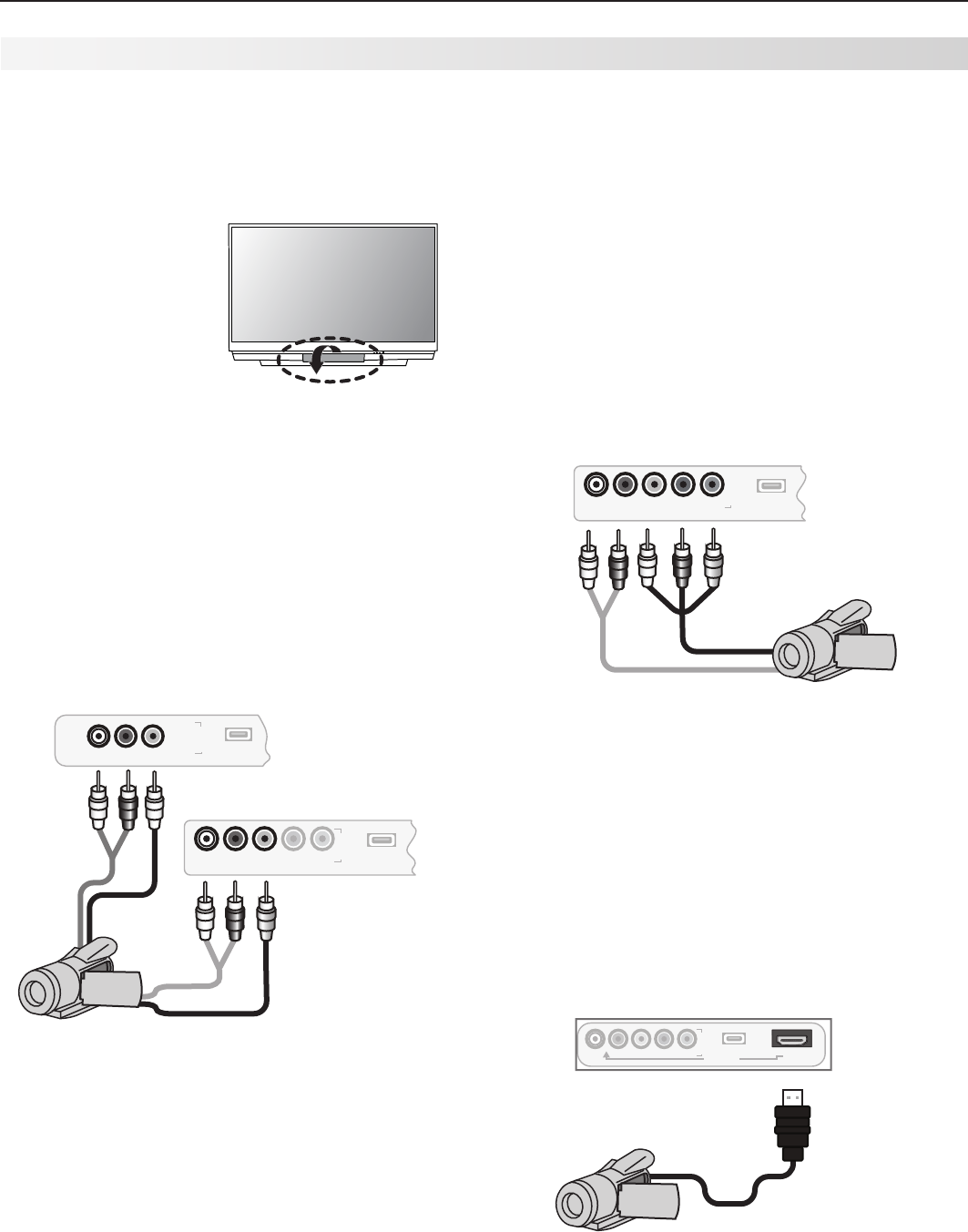
Mostsetupsrequireeitheradigitalaudiocableor
analogstereoaudiocables.
TheTVmakesallaudioavailableindigitalandanalog
formats:
AnalogaudiocomingintotheTVisavailableas
outputindigitalformatonthe
DIGITAL AUDIO
OUT
jack.
Digitalincomingaudioisavailableasanalog
outputonthe
AVR AUDIO OUTPUT
/
AUDIO L
(MONO)
and
AUDIO R
jacks.
Usually,onlyoneofthefollowingconnectionsis
required:
• ToconnectananalogA/Vreceiver
Connectleft(white)andright(red)audiocables
from
AVR AUDIO OUTPUT
/
AUDIO L (MONO)
and
AUDIO R
ontheTVbackpaneltothe
TV AUDIO
INPUT
ontheA/Vreceiver.
• ToconnectadigitalA/VreceiverwithDolby
Digital surround sound and PCM audio support:
Connectoneendofthedigitalaudiocable
to
DIGITAL AUDIO OUT
onthebackoftheTV.
Connecttheotherendtothe
COAXIAL DIGITAL
INPUT
onthebackoftheA/Vreceiver.
INPUT 1
INPUT 2
L (MONO) R
AUDIO
DIGITAL
AUDIO
OUT HDMI 12
YPb Pr
AVR
AUDIO
OUTPUT
S-VIDEO VIDEO
3
L (MONO) - AUDIO - R
Y Pb Pr (480i/480p/720p/1080i)
VIDEO: 480i /480p /720p /1080i /1080p
AUDIO: PCM STEREO
PC: VGA / W-VGA / SVGA / W-SVGA /
XGA / W-XGA / SXGA / 720p /1080p
IR EMITTER
NetCommand
R
PC/DVI
AUDIO
INPUT
ANT 2 / AUX
ANT 1 / MAIN
DIGITAL
AUDIO
OUT
AVR
AUDIO
OUTPUT
%JHJUBM$PBYJBM$BCMF
6TFUPDPOOFDUB
EJHJUBM"7SFDFJWFS
4UFSFP"OBMPH$BCMFT
6TFUPDPOOFDUBO
BOBMPH"7SFDFJWFS
Figure 11. Connecting the TV to an A/V receiver
Important
A/V Receivers with HDMI Inputs
If your A/V receiver has an HDMI input, use
one of the audio connections described here
instead of an HDMI connection.
Note:
Onrareoccasions,anHDMIsignalmaybe
copy-restrictedandcannotbeoutputfrom
theTVasadigitalsignal.Tohearthesecopy-
protectedsignalsthroughtheA/Vreceiver,use
connectionsforanalogA/Vreceivers.
ChecktheA/Vreceiver’sOwner’sGuidefor
informationconcerninguseofthedigitalinput
andswitchingbetweendigitalsoundand
analogstereosoundfromtheTV.
24 3. TV Connections
Composite Video Connection
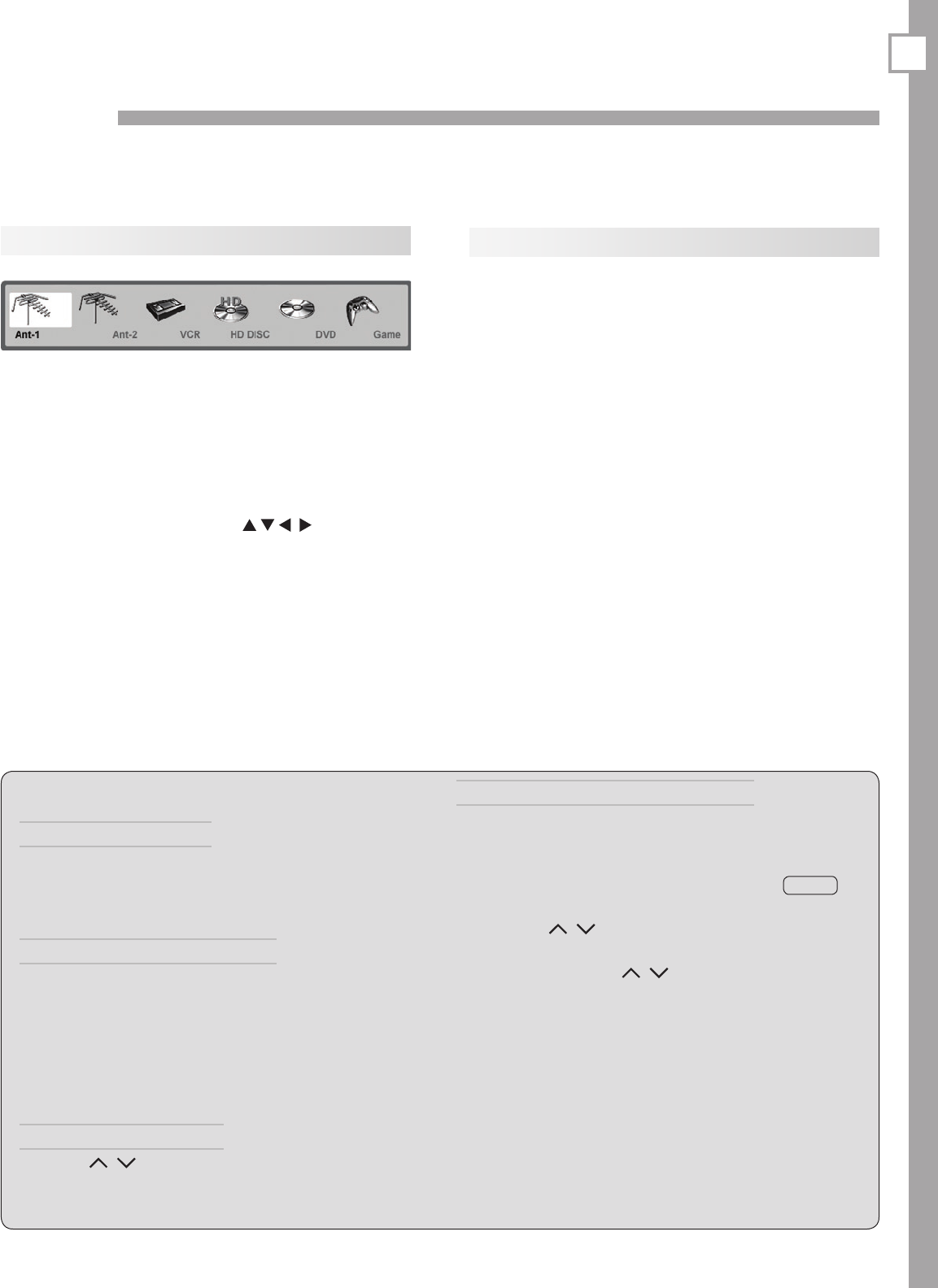
Required:Analogstereoaudioandcompositevideo
cablessuppliedwiththecamcorder.
1. Connectacompositevideocablefrom
VIDEO OUT
onthecamcorderto
INPUT 3/VIDEO
or
VIDEO/Y
on
theTV.
2. Connectleft(white)andright(red)audiocables
from
AUDIO OUT
onthecamcorderto
INPUT 3/
AUDIO L
and
AUDIO R
ontheTV.
I
N
P
U
T
L-AUDIO-R VIDEO/Y Pb Pr 3USB
I
N
P
U
T
L-AUDIO-R VIDEO 3USB
L-AUDIO-R VIDEO
L-AUDIO-R VIDEO/Y
$4FSJFT'SPOU1BOFM
:BOE4FSJFT
'SPOU1BOFM
PS
Figure 13. Composite video connections for a camcorder
HDMI Connection
Required:HDMIcablesuppliedwiththecamcorder.
ConnectthecamcordertotheTV’sHDMIjack.
Note: YourmodelmayhaveanHDMIinputonthe
frontoftheTVasshowninthediagrambelow.
Otherwise,useanHDMIjacksonthebackof
theTV.
:BOE4FSJFT'SPOU1BOFM
I
N
P
U
T
L-AUDIO-R VIDEO/Y Pb Pr 3USB
HDMI 4
DVI AUDIO HDMI 4
Figure 15. HDMI connection for a camcorder.
Component Y Pb Pr Video Connection
Required:Analogstereoaudioandcomponentvideo
cablessuppliedwiththecamcorder.
Note: Yourmodelmayhavecomponentvideoinputs
onthefrontoftheTVasshowninthediagram
below.Otherwise,useasetofcomponent
videoandaudiojacksonthebackoftheTV.
1. Connectcomponentvideocablesfrom
VIDEO OUT
onthecamcordertooneoftheTV’ssetsof
COM-
PONENT
jacks.
2. Connectleft(white)andright(red)audiocables
from
AUDIO OUT
onthecamcorderto
AUDIO L
and
AUDIO R
ontheTV.
I
N
P
U
T
L-AUDIO-R VIDEO/Y Pb Pr 3USB
L-AUDIO-R VIDEO/Y Pb Pr
L-AUDIO-R VIDEO/Y
:BOE4FSJFT'SPOU1BOFM
Figure 14. Component video connections for a camcorder
Camcorder
InputsonthefrontoftheTVofferthemostconve-
nientwaytoconnectacamcorder.IfyourTVmodel
doesnothaveafrontinputmatchingthecamcorder’s
output,useoneofthematchingjacksonthebackof
theTV.
Jacks on the TV front
panel offer the most
convenient way to
connect a camcorder
25
TV Operation and Features
4
Choosing a Viewing Source
Input Selection menu
ChooseaviewingsourcefromtheInput Selection
menu.ThecurrentTVinputappearsasafull-coloricon
inthismenu.
1. Press
INPUT
todisplaytheInput Selectionmenu.If
thereareonlytwoinputstotheTV,
INPUT
switches
betweenthemwithoutdisplayingthemenu.
2. Highlightaninputiconusing .
3. Press
ENTER
toswitchtotheinputandclosethe
menu.
More About the Input Selection Menu
• Toassignmeaningfulnamestotheicons,seethe
Inputs > Namemenuinchapter5,“TVMenuSet-
tings.”
• Torearrangetheicons,seetheInputs > Order
menuinchapter5,“TVMenuSettings.”
Sleep Timer
TheSleepTimerturnstheTVoffafterthelengthoftime
youset.
Setting the Sleep Timer
1. Press
SLEEP
ontheremotecontrol.
2. Press
SLEEP
additionaltimestoincreasethetimein
30-minuteincrementsuptothemaximumof120
minutes.
3. Press
EXIT
orwaitfivesecondswithoutpressingany
buttonsforthemessagetodisappear.
4. Press
SLEEP
toviewthetimeremainingbeforethe
sleeptimerturnsofftheTV.
Cancelling the Sleep Timer
1. Press
SLEEP
todisplaytheon-screenmessage.
2. Press
SLEEP
repeatedlyuntilOFF isdisplayed.
Note: Aftervesecondsofinactivity,themessagebox
willdisappear.
TV Tips
Turning the TV On or Off
ToturntheTVonoroff,pointtheremotecontrolatthe
frontoftheTVandpressthe
POWER
button.Alterna-
tively,pressthe
POWER
buttononthefrontpanelofthe
TV.
If You Turn Off the TV by Mistake
1. Press
POWER
againwithinabout30seconds,while
thelampisstillhot,tohavetheTVcomebackon
immediately.
2. Ifthe
LAMP
indicatorstartsblinking(about30
secondsafteryoushutoffpower),wait about one
minute for the
LAMP
indicator to stop blinking
and press
POWER
to turn the TV on again.
Controlling Sound Volume
Press
VOL
/ toadjustthesoundlevel.
Seealso
“ControllingA/VReceiverSoundVolume”inchapter2,
“TVSetup.”
Changing Channels (antenna sources)
Tochangechannels:
• Enterthechannelnumberusingthenumberkeys
ontheremotecontrolandpress
ENTER
.Foratwo-
partdigitalchannel,suchas3-1,press
3
—
CANCEL
1
toenteradash(separator).
• Press
CH
/ tochangechannelsonechannelat
atime.
• Pressandhold
CH
/ tomovequicklythrough
channels.
• Press
QV
(QuickView)toswitchbacktotheprevi-
ouslytunedchannel.
• Press
GUIDE
todisplayChannelViewchannellistings,
highlightachannel,andpress
ENTER
.
• UsetheFAV(Favorites)featuretosetuplistsof
favoritechannelsandtunetothemwiththe
FAV
key.
See“SetupMenu”inchapter5.
NOTE: Memorizechannelstomakendingchannels
easier.SeetheSetup > Scanmenu.
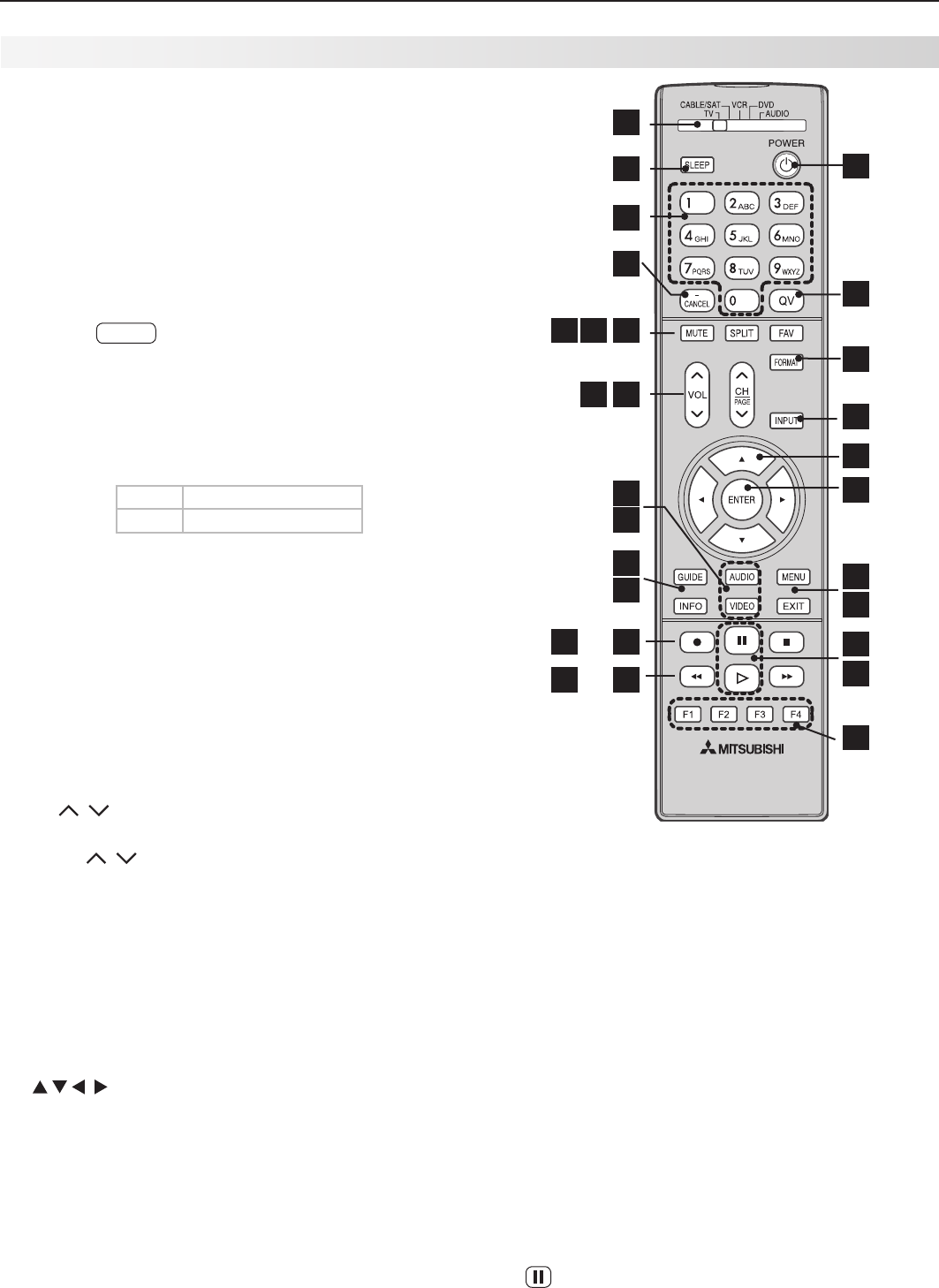
26 4. TV Operation and Features
1.
POWER
:TurnsTVpoweronandoff.
2. Slide Switch:SelectstheA/Vdevicetobecon-
trolledbytheremotecontrol.Settheslideswitch
to
TV
foroperationoftheTVandNetCommand-
controlleddevices.Controlofadditionaldevices
requiresprograming(seeAppendixD,“Program-
mingtheRemoteControl.”
3.
SLEEP
:SetstheTVtoturnoffwithin2hours.
4. Digits/Letters:Pressdigitsforchannelnumbers,
thenpress
ENTER
forfastertuning.Usenumbers
andthe
—
CANCEL
keytoenterdigitalsub-channel
numbers.Usealsoforenteringlettersornames
intomenus.
Toselectletterswhennamingchannels,repeatedly
presstheassociatednumberkey.Press
ENTER
toset
theletter.Specialcharactersareavailablewiththe1
and0keys:
1
!&blankspace
0
/ * -
5.
—/CANCEL (SUB-CHANNEL/CANCEL)
:Whenenteringdigital
channelnumbers,addsaseparatorbetweenmain
andsub-channelnumbers.ClearsFAVandsome
menuentries.
6.
QV
(QuickView™):Switchesbetweenthecurrent
channelandthelastchannelviewed.
7.
MUTE
:TurnsTVsoundonandoff.
8.
SPLIT
:Notusedonthismodel.
9.
FAV
(Favorites):Scansthroughmemorizedlistsof
favoritechannels.See“SetupMenu”inchapter5,
“TVMenuSettings,”formoreinformation.
10.
VOL
/ (Volume Up/Down):Changessound
level.
11.
CH/PAGE
/ (Channel or Page Up/Down):Scans
upordownthroughmemorizedchannels.Pages
upanddownthroughscreenswhenusedwith
ChannelView™.
12.
FORMAT
:ChangestheshapeandsizeoftheTV
picture.
13.
INPUT
:DisplaystheInput Selectionmenufrom
whichyoucanselectaninputsourcetoview,such
asanantennainput(
ANT 1
/
2
)oraconnected
device.
14. (Adjust Up/Down/Left/Right):Navigate
menusandchangesettings.
15.
ENTER
:Selectsachannelnumberormenuitem.
16.
AUDIO
:Selectsindividualaudiosettingstoadjust.
17.
VIDEO
:Selectsindividualvideosettingstoadjust.
18.
GUIDE
:
DisplaysorremovesChannelView™channel
listingfor
ANT 1
and
ANT 2
.
DisplaysDVDdiscor
topmenuforaNetCommand-controlledDVDplayer.
22
1
23
12
13
14
15
6
20
21
24
28
10
2
3
4
7 8 9
26
27
25
16
17
11
5
18
19
Remote Control
19.
INFO
:Displaysanon-screensummaryofthecurrent
deviceinuseandanybroadcastinformationavail-
able,includingcurrentV-Chipratingsinformation.
Seechapter4,“TVOperationandFeatures,”for
details.
20.
MENU
:DisplaysthemainTVmenuusingtheon-
screenmenusystem.Whenasub-menuisopen,
backsuponemenulevel.
21.
EXIT:
ClosesTVon-screenmenus/displays.
22.
F1–F4
For devices under NetCommand control:
PerformNetCommand“Learning”toassignyour
choiceoffunctionstothe
F1
–
F4
keys.
For devices operating independently of
NetCommand:The
F1
–
F4
keysworkliketheA,
B,C,Dbuttonsonsomecableboxes,satellite
receivers,andDVDplayers.Programtheremote
controlforyourequipmentandtestthekeys.See
AppendixD,“ProgrammingtheRemoteControl.”
23. (
PAUSE
): FreezesabroadcastTVpicture.See
belowforusewithrecordablemedia.
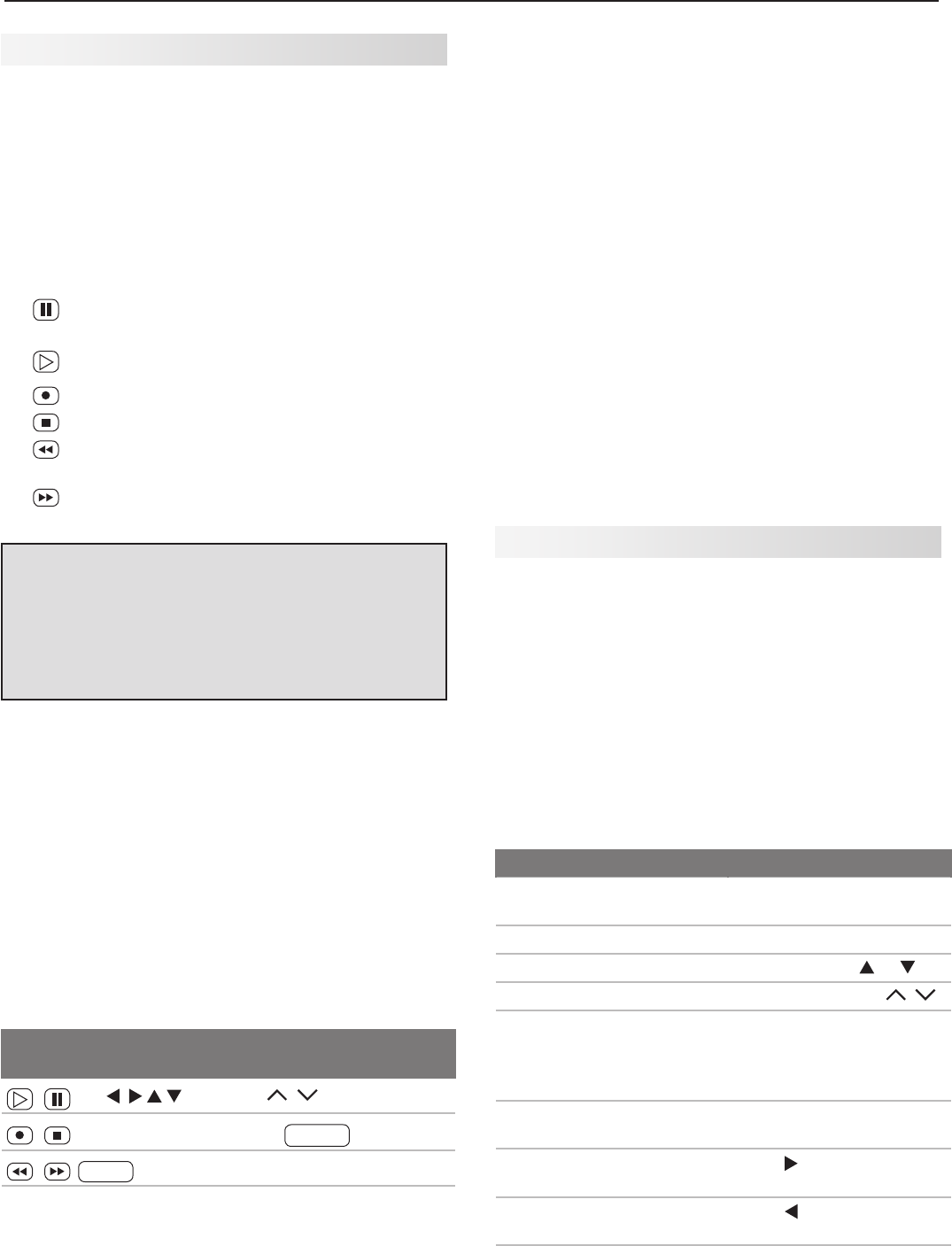
4. TV Operation and Features 27
Note: Tooperateotheraudio/videodevices:
• SeeAppendixD,“ProgrammingtheRemote
Control.”
• Seechapter6,“NetCommand,”forNetCommand
IR“Learning”ofdevicekeys.
• ForHDMIdevicescompatiblewiththeTV’s
NetCommandforHDMIfeature,seebelow.
ChannelView™ Channel Listings
ChannelViewshowsmemorizedchannelson
ANT 1
and
ANT 2
.Itdisplayschannelnamesandprogram
informationassentbybroadcastersoryourlocalcable
serviceproviderandmaybeincomplete
.
Noprogram
informationisdisplayedforanalogchannels.Ananalog
channelnameisdisplayedonlyifyouassignedaname
intheSetup > Editmenu.
T
oreceiveChannelViewupdates,settheEnergyMode
toFast Power OnandleavetheTVpoweredofffora
whileeachday.
Using ChannelView
Feature Press Key
SeeChannelViewlistings
fromANT 1orANT 2.
Press
GUIDE.
CloseChannelView Press
GUIDE
or
EXIT.
Scanchannelsonebyone. Pressandhold or .
Scanchannelsquickly.
Pressandhold
PAGE
/
.
Jumptolistingsforaspe-
cificchannel.
1. Enterthechannel
number(seenumbers
inupperleft.
2. Press
ENTER
.
Seemoreoftheprogram
description.
Press
INFO
.
Movenavigationtothe
programguide.
Press .
Movenavigationtothe
channelguide.
Press .
Tunetothehighlighted
channel.
Press
ENTER
.
Record/Playback Keys
Useanyofthesemethodstoenabletherecordingand
playbackcommands:
• ProgramtheremotecontrolforyourDVR,VCR,or
DVDplayer/recorderandsettheslideswitchto
VCR
,
DVD
,
CABLE
,or
SAT
.
• Yand734seriesTVs:PerformNetCommandIR
“learning”forthedevice.
• CheckHDMIdevicesforcompatibilitywiththeTV’s
NetCommandforHDMIfeature(seebelow).
23. (
PAUSE
): PausesaVCR,DVR,orDVD.See
aboveforuseduringTVviewing.
24. (
PLAY
):PlaysaVCR, DVR, orDVD.
25. (
RECORD
):
RecordswithaVCRorDVR.
26. (
STOP
):StopsplayofaVCR, DVR, orDVD.
27. (
REVERSE
): RewindsaVCR.Reversescansa
DVRorDVD.
28. (
FORWARD
):FastforwardsaVCR.Forwardscans
aDVRorDVD.
Remote Control, continued
Care of the Remote Control
• Useonlyalkalinebatteries.
• Bewithin20feetoftheequipment.
• Donotpresstwoormorebuttonsatthesametime
unlessinstructedtodoso.
• Donotallowunittogetwetorbecomeheated.
• Avoiddroppingonhardsurfaces.
• Donotuseharshchemicalstoclean.Useonlya
soft,lightlymoistenedcloth.
• Donotmixoldandnewbatteries.
Resetting the Remote Control
Iftheslideswitchissetto
TV
andtheTVdoesnot
respondproperly,resettheremotecontrol.
1. Pressandhold
POWER
forseveralsecondsuntilthe
buttonblinkstwiceandgoesoff.
2. Releasethe
POWER
button.
3. Presskeys
0 0 9 3 5
andthe
POWER
buttonwillblink
twicewhenyoufinishenteringthecode.While
enteringthecode,pauseforamomentbetween
eachkeypresstoensureitisrecognized.
Low-Battery Indicator
Ifyoupressakeyandthe
POWER
keyblinksfivetimes,
replacetheremotecontrol’sbatteries.
NetCommand for HDMI Devices
TheTV’sremotemayoperatesomefunctionsof
compatibleHDMIdevicesabletoreceivecommands
throughtheHDMIcable.Testyourequipmentwiththe
TV’sremotetofindoutwhichcommandsaresup-
ported.Seebelowforcommandsthatmaybeavail-
able,dependingontheindividualdevice.
Press
PLAY
onthedeviceitselfto:
• TurnontheTVifnotalreadyon
• Switchtothedevice(noneedtodisplaytheInput
Selectionmenu)
• Beginplayofthedevice
VCR,DVD,andDVRfunctionsthatmaybeavailable:
Record/
Playback
Menu
Navigation Channel Tuning Other
CH
/
GUIDE
ENTER
Digits
0–9
,
—
CANCEL F1
(content)
—
CANCEL
(tocancel)
ENTER MENU
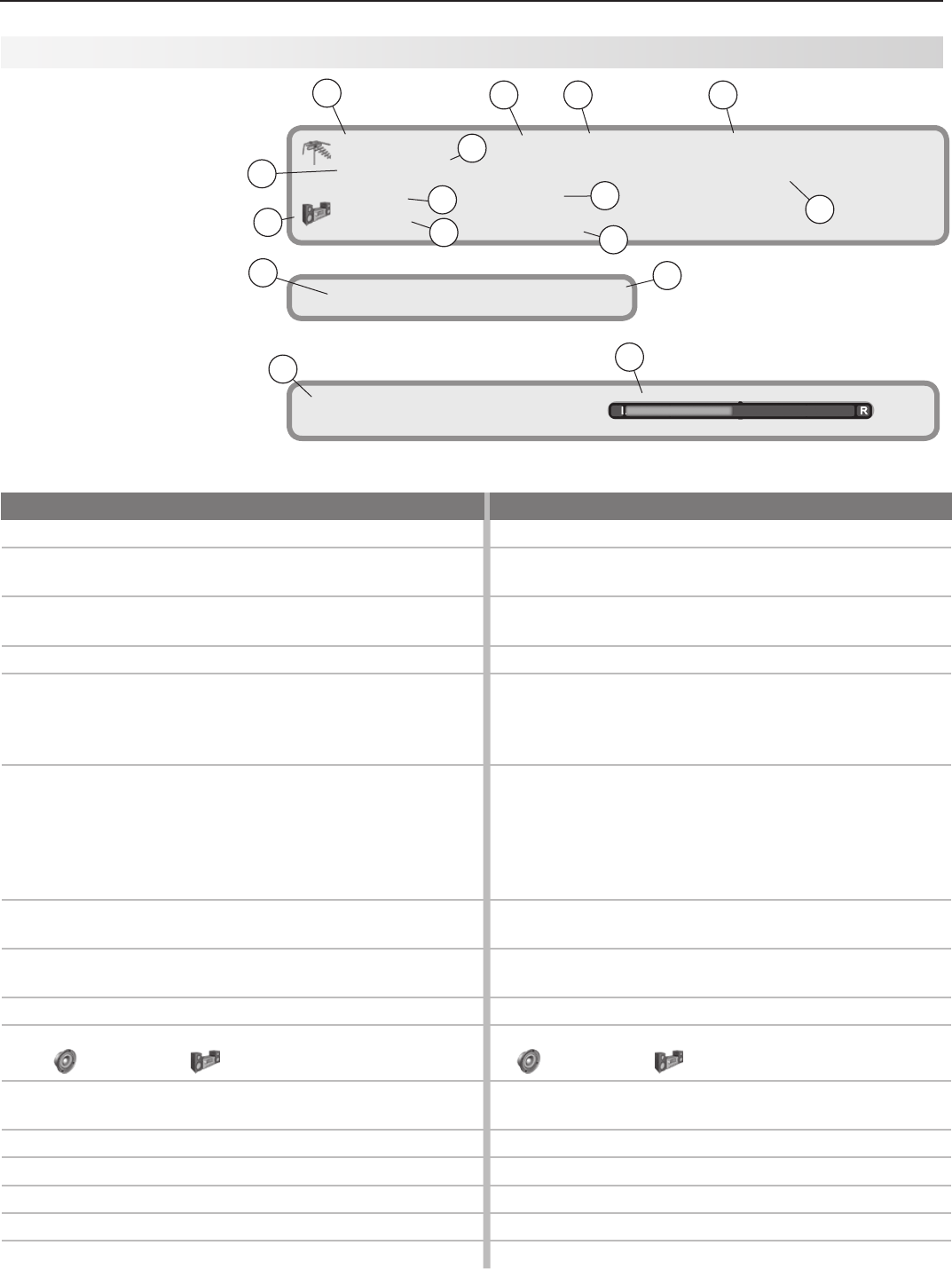
28 4. TV Operation and Features
8
Pressthe
INFO
keytoseethe
on-screenstatusdisplay.
Themostcommondisplays
areshownhere.Seldomor
neverdoallthestatusindi-
catorsappearatthesame
time.
Status Display
Ant 1 7-1 KABC-HD Monday Night Football
HD 16:9 Standard St. Louis vs. Tampa Bay
TV-PG FAV1
Stereo English
Tuesday 9:10 PM Sleep 30 min
MUTE Signal Strength
6
9
12
13 42
14
11
5
16
78
10
13
15
On-screen status display.
Sample information shown
for a digital program source.
Analog Sources Digital Sources
1. Sourceantennaorinput Sourceantennaorinput
2.
Analogchannelbeingreceived(antennasourcesonly)
Digitalmajorandsub-channelnumbers
(antenna
sourcesonly)
3. Analogchannelname(ifnamedintheSetup > Edit
menu);antennasourcesonly.
DigitalChannelName(ifbroadcastorifnamedinthe
Setupmenu>Editoptions;antennasourcesonly)
4. (Doesnotapply) Programname(ifbroadcast;antennasourcesonly)
5. SignalTypeBeingReceived.Possible:
Onantennasourcesor
INPUT 1/2
:480i
Oncomponentjacks:480i,480p,720p,1080i
SignalTypeBeingReceived.Possible:
Onantennasources:SD4:3,SD16:9,HD
OnHDMI:480i,480p,720p,1080i,1080p,allPC
resolutions
6. ScreenFormatinuse.Possible:
Analog480i/480psignals:Standard,Expand,
Zoom,Stretch,StretchPlus,Narrow
720p/1080isignals:Standard,WideExpand
ScreenFormatinUse.Possible:
SD4:3,480i,or480p:Standard,Expand,Zoom,
Stretch,StretchPlus,Narrow
SD16:9orHD16:9,720p,or1080i:Standard,
WideExpand
1080p:Standard
7. CurrentFAVbanknumberofchannel(antenna
sourcesonly)
CurrentFAVbanknumberofchannel(antenna
sourcesonly)
8. (Doesnotapply) Programdescription(ifbroadcast;antennasources
only))
9. V-Chiprating(antennasourcesor
INPUT 1/2
only) V-Chiprating(antennasources
or
INPUT 1/2
only)
10. AudioSource.Possible:
TVspeakers, externalsoundsystem
AudioSource.Possible:
TVspeakers, externalsoundsystem
11. ListenToindicator:Stereo,StereoSAP,SAP
(antennasourcesonly))
Stereo,Surround,DualMono(antennasourcesonly)
12. (Doesnotapply) Currentlanguage(antennasourcesonly)
13. Dayandtime Dayandtime
14. SleepTimerremainingtime SleepTimerremainingtime
15. Muteindicator Muteindicator
16. (Doesnotapply) Signalstrengthindicator(antennasourcesonly)
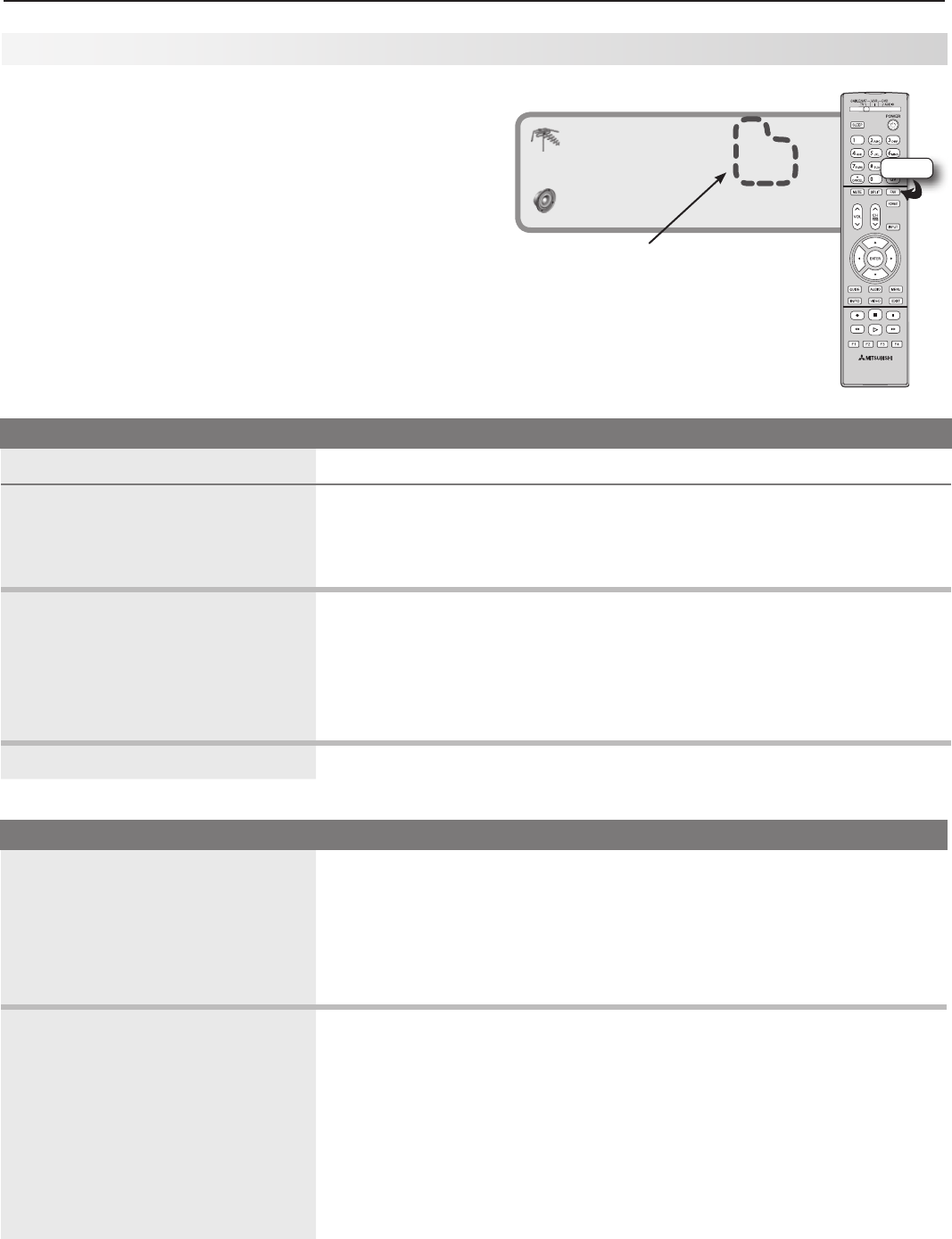
4. TV Operation and Features 29
Using FAV Channels
See the current FAV bank number Press
INFO
.
View FAV banks
1. Pressthe
FAV
key.WaitfortheTVtotunetoachannelinthecurrentFAV
bank.
2. Pressth
e
FAV
keyrepeatedlytocyclethroughthechannelsavailableinthe
currentFAVbank.
Change FAV banks
1. Pressthe
FAV
key.WaitfortheTVtotunetoachannelinthecurrentFAV
bank.
2. WhentuningiscompleteandwhiletheTVstatusdisplayisstillvisibleon
screen,pressthenumberkeyforthedesiredbank.
Note: Waitforthechannelchangetonishbeforepressingthenumberkey.
Otherwise,theTVmayignoretheFAVnumber.
If no FAV banks are set up The
FAV
keyswitchestothepreviouslytunedchannel;workslikethe
QV
key.
FAV Setup Using Only the Remote Control
Add FAV channels 1. WhilewatchingTV,tunetothechannelyouwanttoaddtothecurrent
FAVmemorybank.Seetheinstructionsaboveifyouneedtochangeto
adifferentFAVbank.
2. Pressandholdthe
FAV
keyforabout2seconds.WhenFAVandthe
memorybanknumberappearunderthechannelnumber,thechannel
hasbeensuccessfullyadded.
Remove FAV channels
Thisprocedureremovesthechannel
onlyfromtheselectedbankand
leavestheotherbanksunchanged.
1. WhilewatchingTV,pressthe
FAV
key.
2. WhiletheTVstatusdisplayisstillvisibleonscreen,pressthenumber
keyforthememorybank.
3. Pressthe
FAV
keyrepeatedlyuntilyouseethedesiredchannelintheon-
screenstatusdisplay..
4. WhilethechannelnumberandFAVindicator(withcorrectbanknumber)
arestilldisplayedonthescreen,press
CANCEL
.Youmustpress
CANCEL
whiletheindicatorisdisplayed.WhentheFAVindicatordisappears
afterpressing
CANCEL
,thechannelhasbeensuccessfullyremoved.
UsethesixFavchannelbankstostoregroupsofyour
favoritechannelsfrom
ANT 1
and
ANT 2
.Youcanset
upaFavchannelbankforeachofyourfavoriteprogram
typesorsetupabankforeachTVuser.
YoumayprefertoperformFAVchannelsetupfroma
menu.Seechapter5,“TVMenuSettings,”andthe
Setup > Editoptions.
FAV (Favorite Channels)
ANT-1 4
480i Stretch FAV2
TV-PG
Stereo SAP
FAV
Channel and FAV numbers in the
on-screen status display

30 4. TV Operation and Features
ThisisawidescreenTV,alsoknownasa16:9TV.This
shapereflectsthenewtypesofimagesavailablefrom
HDTVandmanyDVDs.Therearestillmanyolderstyle
narrow-screenimages(called4:3aspectratio)you
willencounter.Whilethereisnoperfectsolutionfor
displayingasquarish,narrowerimageonawidescreen,
Mitsubishioffersseveraldisplayformatsfromwhich
youcanchoose.
Press
FORMAT
ontheTVremotecontroltocyclethrough
theavailabledisplayformats.Thelast-usedformatfor
eachdeviceisusedwhenyoureturntothatdevice.
Signal Definitions
480i Signals:Traditionalanaloginterlacedsignalsfrom
orthrough
ANT-1
and
2
,
INPUT 1
–
3
,
COMPONENT
and
HDMI
jacks.
480p Signals:Progressive-scanDVDsignalson
COM-
PONENT
and
HDMI
jacks.
720p and 1080i Signals:High-definitionsignals
receivedthrough
COMPONENT
and
HDMI
jacks.These
signalsarealways16:9(widescreen).
SD 4:3:Standard-definitionsquarish-screenformat
signalsfromdigitalchannelson
ANT 1
and
ANT 2
.
SD 16:9: Standard-definitionwidescreenformatsignals
fromdigitalchannelson
ANT 1
and
ANT 2
.
HD: High-definitionwide-screenformatsignalsfrom
digitalchannelson
ANT 1
and
ANT 2
.Thesesignalsare
always16:9(widescreen).
DVD Definitions
Anamorphic (or Enhanced for WideScreen TV)
TheseDVDsarerecordedinaspecialwaytoprop-
erlyshowwidescreenimageson16:9TVsetsusing
theStandardformatmode.Thisistherecommended
viewingchoice.
Non-Anamorphic (or 4:3, 1:33:1, Letter Box, or Full
Screen)
TheseDVDsarerecordedforusewithtraditionally
shaped,squarishTVs.Theymaybefullscreen(4:3or
1:33:1)whichcropsmoviestofitthenarrowTV,orletter
box,whichaddsblacktopandbottombars.
ThisinformationmaybelistedontheDVDcase.Some
DVDssupportbothtypesofrecordings.
TV Display Format Definitions
Standard: Thisisthefull-screenformat.HDTVsignals
usethisformat.Thisformatisusefulfordisplaying
AnamorphicDVDsthathave1.78:1or1.85:1aspect
ratios.AnamorphicDVDsthathavea2.35:1aspect
ratioaredisplayedwithblackbarsatthetopand
bottom,butshowtheentireimagecorrectly.Narrow
(4:3)imagesarestretchedevenlyfromsidetoside.
Availableforallsignals.
Expand:Thisenlargesthepicturetofillthescreen,
croppingoffsomeoftheimageatthetopandbottom.
Thisisusefulforreducingtheletterboxtopandbottom
barsofnon-anamorphicDVDimages.Availablefor
480i,480p,anddigitalSD4:3signalsonly.
Zoom: Thisenlargesthepicture,croppingoffsome
oftheimageateachsideandtopandbottom.This
isusefulforremovingorreducingtheblacktopand
bottombarsonanamorphicDVDswitha2.35:1aspect
ratio.Availablefor480i,480p,andSD4:3signalsonly.
Stretch:Thisformatstretchesanarrow(4:3)image
acrossthescreen;thereislessstretchinthecenter
thanatthesides,however.Thisallowstheentire
narrowimagetobedisplayedacrossthescreenwith
lessdistortionthanisseenintheStandardformat.
Availablefor480i,480p,andSD4:3signalsonly.
Stretch Plus: Similartostretchmode,buttominimize
distortionsontheside,thepictureisexpandedtocrop
offportionsofthetopandbottom.Exceptwhendis-
playingmenus,press toadjustthepositionofthe
picturevertically.Availablefor480i,480p,andSD4:3
signalsonly.
Narrow: Thisformatdisplaysnarrow(4:3)imagesin
theiroriginalshape,andaddsstationaryblackside
barstofillthescreen.Availablefor480i,480p,andSD
4:3signalsonly.
Wide Expand: Enlargesthepicture,croppingsomeof
theimageonbothsides.ThisExpandformatisuseful
toremoveorreduceblacksidebarsaddedtonarrow
imagesthatareconvertedto16:9signalsfordigital
broadcast.Availablefor1080i,720p,digitalSD16:9
anddigitalHDsignals.
Note: Allhigh-denitionchannelssendwidescreen
(16:9)signals,butnotallprogrammingsenton
thesechannelswascreatedforthisformat.The
broadcastermaystretchtheimageoraddside
barstollthewidescreenarea.
TV Signals and Display Formats
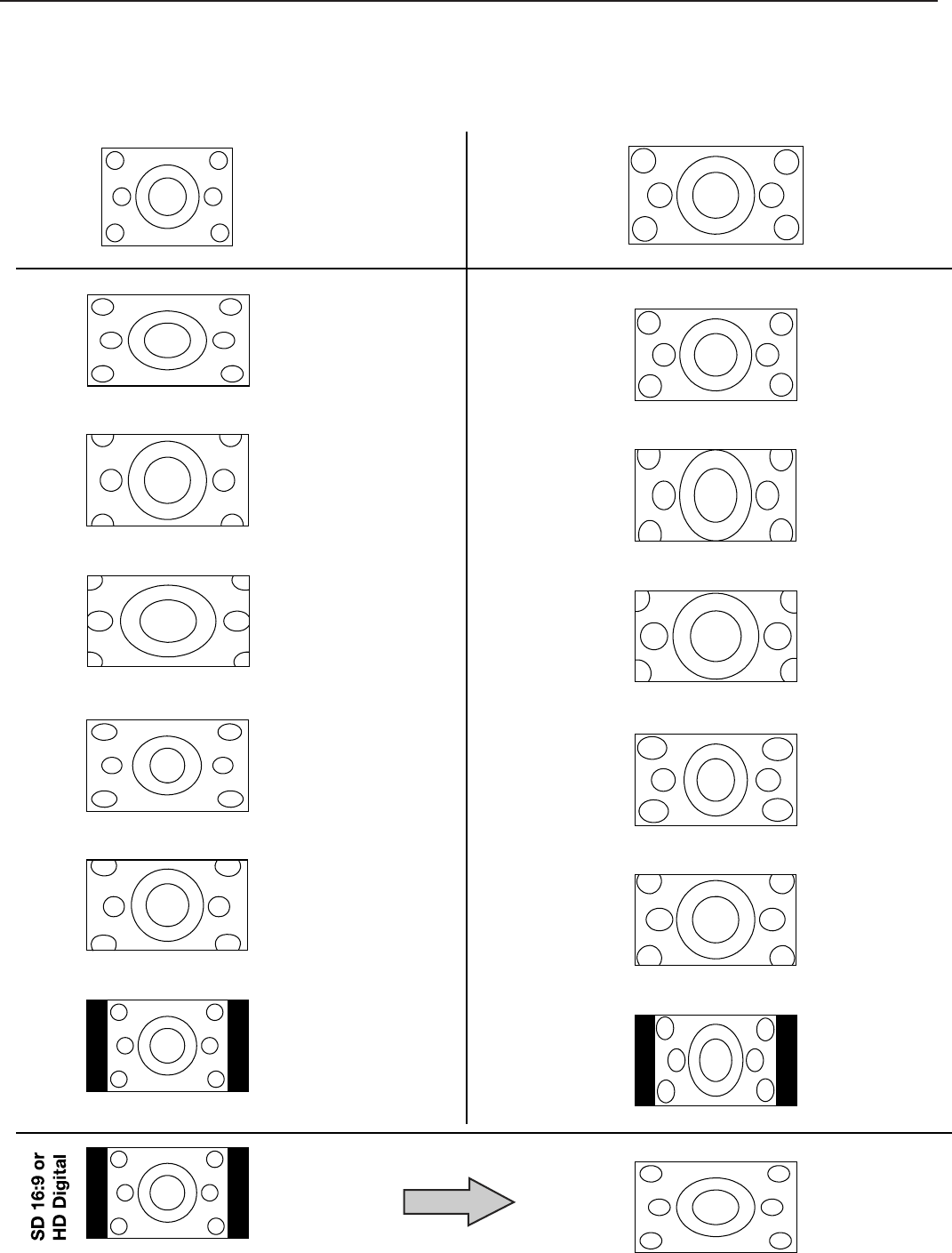
4. TV Operation and Features 31
03*(*/"-4*(/"-
/POBOBNPSQIJDPS4%
03*(*/"-4*(/"-
"OBNPSQIJD%7%
57%JTQMBZ
4UBOEBSE
OPUSFDPNNFOEFEEJTUPSUFE
4USFUDI
OPUBWBJMBCMFGPS
)%4%PS
BOBMPHQJ
SFDPNNFOEFEGPSTUBOEBSECSPBEDBTU
4UBOEBSE
SFDPNNFOEFE
57%JTQMBZ
/BSSPX
4USFUDI1MVT
OPUBWBJMBCMFGPS
)%4%PS
BOBMPHQJ
SFDPNNFOEFEGPSTUBOEBSECSPBEDBTU
4UBOEBSE
0SJHJOBM)%PS4%
QPSJ
XJUITJEFCBSTJOCSPBEDBTU
&YQBOE OPUBWBJMBCMFGPS
)%4%PS
BOBMPHQJ
;PPN
OPUBWBJMBCMFGPS
)%4%PS
BOBMPHQJ
OPUSFDPNNFOEFEEJTUPSUFE
&YQBOE
OPUBWBJMBCMFGPS
)%4%PS
BOBMPHQJ
OPUSFDPNNFOEFEEJTUPSUFE
;PPN
OPUBWBJMBCMFGPS
)%4%PS
BOBMPHQJ
SFDPNNFOEFEGPSBOBNPSQIJD
4USFUDI
OPUBWBJMBCMFGPS
)%4%PS
BOBMPHQJ
OPUSFDPNNFOEFEEJTUPSUFE
4USFUDI1MVT
OPUBWBJMBCMFGPS
)%4%PS
BOBMPHQJ
OPUSFDPNNFOEFEEJTUPSUFE
/BSSPX
OPUBWBJMBCMFGPS
)%4%PS
BOBMPHQJ
OPUSFDPNNFOEFEEJTUPSUFE
8JEF&YQBOE
BWBJMBCMFPOMZGPS
EJHJUBM4%)%
BOBMPHJPSQ
SFDPNNFOEFEUPSFNPWFTJEFCBST
SFDPNNFOEFEGPSMFUUFSCPYFE
TV Display Formats
Seedescriptionsontheprecedingpage.
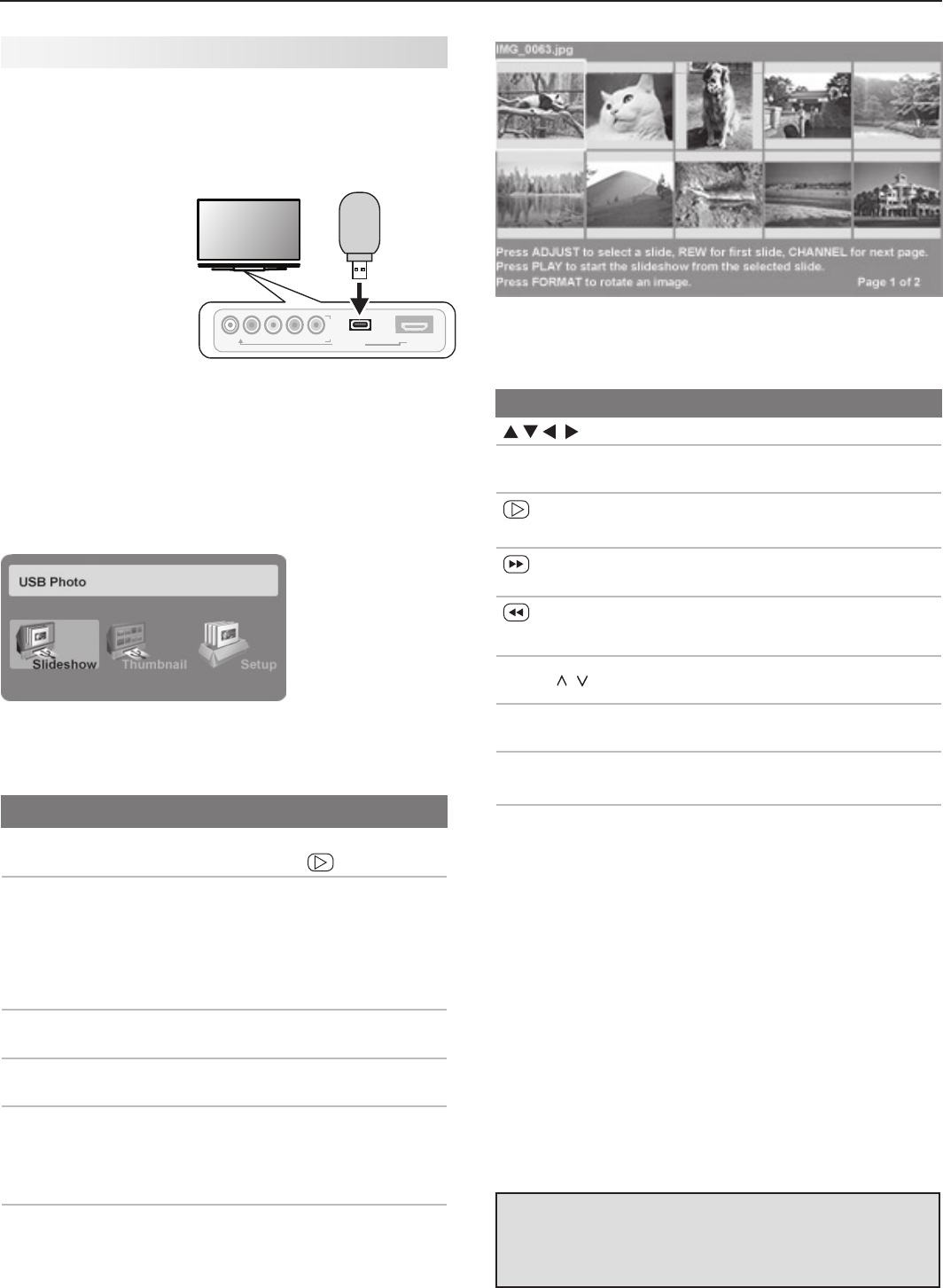
32 4. TV Operation and Features
JPEG Thumbnail Menu
UsethesekeyswhileviewingJPEGthumbnailimages:
Keys for the JPEG Thumbnail Menu
Movethehighlightfromimagetoimage.
F
ORMA
TRotatethethumbnailclockwisein90˚
increments
or
ENTER
Playtheslideshowstartingwiththehigh-
lightedthumbnail.
Highlightthelastthumbnailonthecurrent
page.
Highlightthefirstthumbnailonthecurrent
page.
CH/PAGE
/ Displaythenextorpreviouspageof
thumbnails.
EXIT
ClosetheThumbnailmenuanddisplay
theUSB Photomenu.
MENU
ClosetheThumbnailmenuanddisplay
theMainmenu.
INPUT
ClosetheThumbnailmenuanddisplay
theInput Selectionmenu.
Notes on Viewing JPEG Files
• Largefilesorhigh-capacitystoragedevicesmaytakea
longtimetodisplay.Thescreenwillbeblankwhilefiles
areread.
• Useonlyonesourcedeviceatatime.
IMPORTANT
Stop playback or change to a different TV input
before disconnecting from the USB photo port.
USB Photo Menu Options
Startslideshow. WiththeSlideshowiconhigh-
lighted,press or
ENTER
.
Activatemenuoptions.
Highlightaniconandpress
ENTER
to:
• starttheslideshow
• displaypicturethumbnails
• opentheMedia Setup
submenu.
Displayorclosethe
Mainmenu.
Press
MENU.
Displaystatusforthe
filesource.
Press
INFO.
Selectadifferentcon-
necteddevice
1. Press
INPUT
.
2. Highlighttheiconforadif-
ferentdevice.
3. Press
ENTER
.
Clearstatusdisplay
ormenutoshowthe
USB Photomenu
Press
EXIT
.
Viewing JPEG Picture Files
JPEG Photos and the USB Photo Port
1. ConnectyourUSBcardreaderorUSBdrivetothe
USBPhotoportonthefrontoftheTV.
TheUSB Photo
menudisplays
whilefilesare
beingread.Wait
untilyousee
thecompletion
messageon
screenbefore
continuing.
Note:
Somemanufacturers’devicesmaybeincompat-
iblewiththeTV.IftheTVisunabletodisplayyour
photos,youcan:
• Transfer
filestoadifferentUSBdevice.
• Usethecamera’scompositevideooutput
asdescribedlaterinthischapter.
USB Photo menu
2. RefertothetablebelowforuseoftheUSB Photo
menuafterfileshavebeenread.
I
N
P
U
T
L-AUDIO-R VIDEO/Y Pb Pr
3
USB
HDMI 4
DVI AUDIO
USB
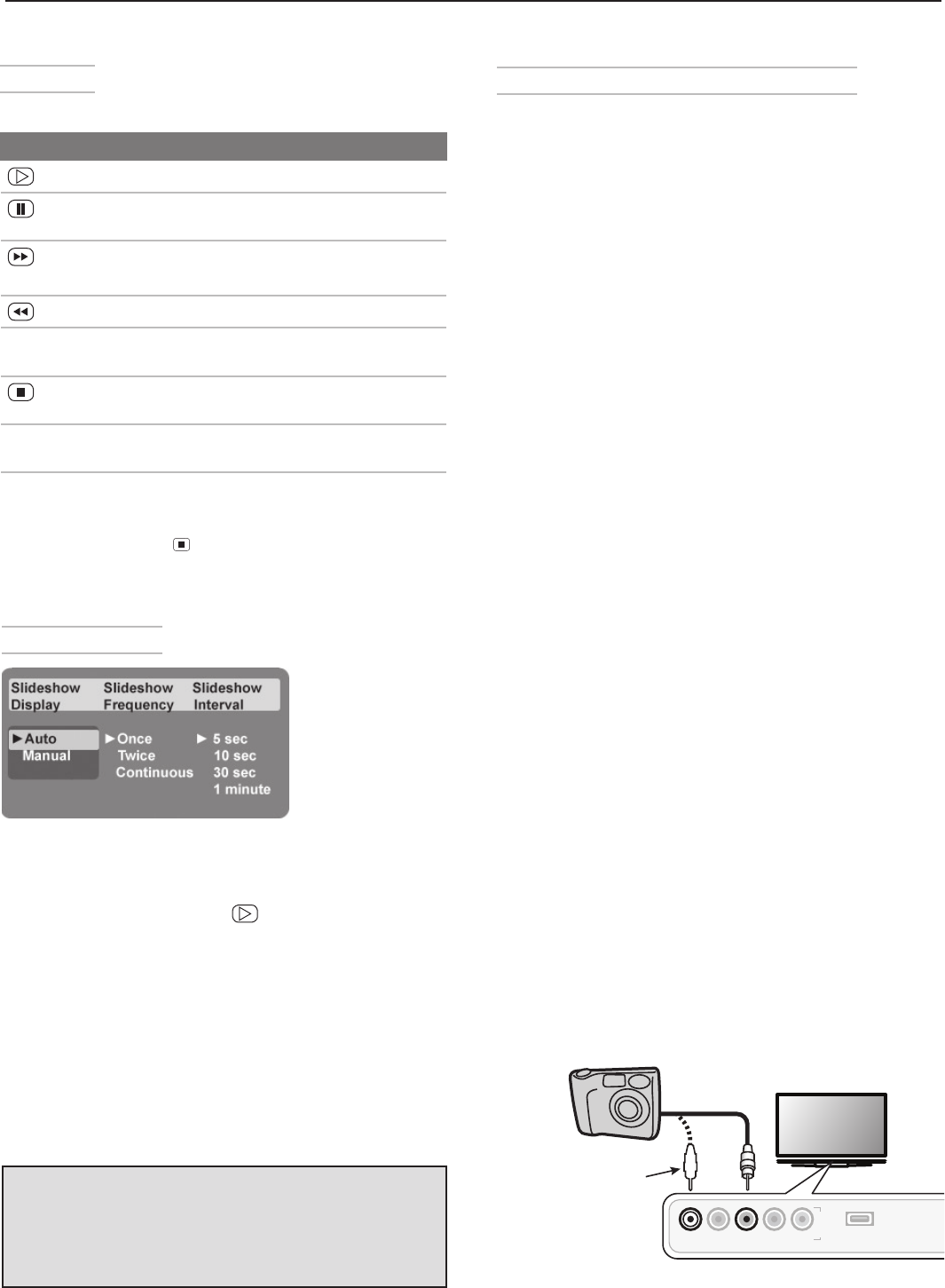
4. TV Operation and Features 33
Media Setup Menu
Media Setup menu
IntheMedia Setupmenuyoucanadjusttheslideshow
display,numberofrepetitions,ordisplayinterval.
• SelecteitherAutoorManualadvance.During
manualoperation,press or
ENTER
toadvanceto
thenextslide.
• Forautomaticadvance,selectthenumberoftimes
(frequency)toplaythecompleteslideshow:Once,
Twice,orContinuous.
• Forautomaticadvance,selectthetimeintervalfor
displayofeachslide.Theintervalyouselecthereis
theminimumtimebetweenslides;actualtimemay
belongerforlargerfiles.
• Press
EXIT
toclosetheMedia Setupmenuand
returntotheUSB Photomenu.
USB Photo Menu Compatible Picture Files
• Stillimagesrecordedondigitalcamerasusingthe
ExchangeableImageFileFormat,version2.1(EXIF
2.1)standardfordigitalstillcamerasandDesign
RulesforCameraFileSystemsversion1.0(DCF1.0)
• Someimagesopenedandresavedonacomputer
maynotplaybackormaynotdisplayinthethumb-
naillist.Thishappensifthefileswereresavedinan
incompatibleformat.
• Fullpathfilenamescanbenolongerthan50char-
actersandmustendina.jpgextension.Notall50
characterswilldisplay.
• Imagesonstoragedeviceswithacapacityofover
256MBcantakealongerinitialtimetodisplay.
Slide Show
Usethesekeysduringtheslideshow:
Keys for JPEG Picture Slide Show
Beginorresumeslideshowplayback
Pauseorresumeplaybackwhileinauto-
maticadvancemode.
or
ENTER
Advancetothenextslide.
Gotothepreviousslide.
F
ORMA
TRotatetheslideclockwisein90˚incre-
ments.
StopslideshowanddisplaytheUSB Photo
menu.
INFO
Displaystatusfortheviewingdeviceand
currentimage.
INPUT
DisplaytheInput Selectionmenu.
MENU
DisplayorremovetheTVMainmenu.
Note: Alwayspress (
STOP
)tostopslideshowplay-
backbeforedisconnectingfromtheUSBPhoto
port.
Photos and Moving Video as Composite
Video
ConnectthecameratotheTVusingacompositevideo
cableif:
• YouareunabletoseeimagesusingtheUSBphoto
port.
•
Youwishtoviewmovingvideofromthecamera.
TheTV’sUSB Photomenuwillbeunavailableand
youmustcontroltheslideshowthroughthecamera.
Displayresolutionisstandard-definition(480i).
1. Refertotheowner’smanualsuppliedwiththe
cameraforinstructionsneededforthissetup.
2. Setthecamera’soutputsignaltypetoNTSCand
putthecameraintoplaybackmode.
3. Withthecamerastillturnedon,connectyourdigital
camera’scompositevideocable(usuallyyellow)
tothe
INPUT 3
VIDEO/Y
jackonthefrontoftheTV.
Tohearaudio,connectthecamera’saudiooutput
cabletothe
INPUT 3
L-AUDIO
jack.
4. WhentheAuto Input Sensingscreendisplays,
press
EXIT
orassignthenameCamcorder.
5. Press
INPUT
todisplaytheInput Selectionmenu.
6. HighlighttheInput 3iconandpress
ENTER
.
7.
Ifviewingphotos,advancethroughtheimagesmanu-
allyorsetthecameratoadvanceautomatically.
I
N
P
U
T
L-AUDIO-R VIDEO/Y Pb Pr 3USB
L-AUDIO-R VIDEO/Y
$PNQPTJUF
7JEFP$BCMF
0QUJPOBM
"VEJP$BCMF
Camera connection using a composite video cable
IMPORTANT
The TV can read JPEG files as created by the
camera. If you edit a picture file on a computer
and resave the image, the TV may be unable to
read the resaved file.
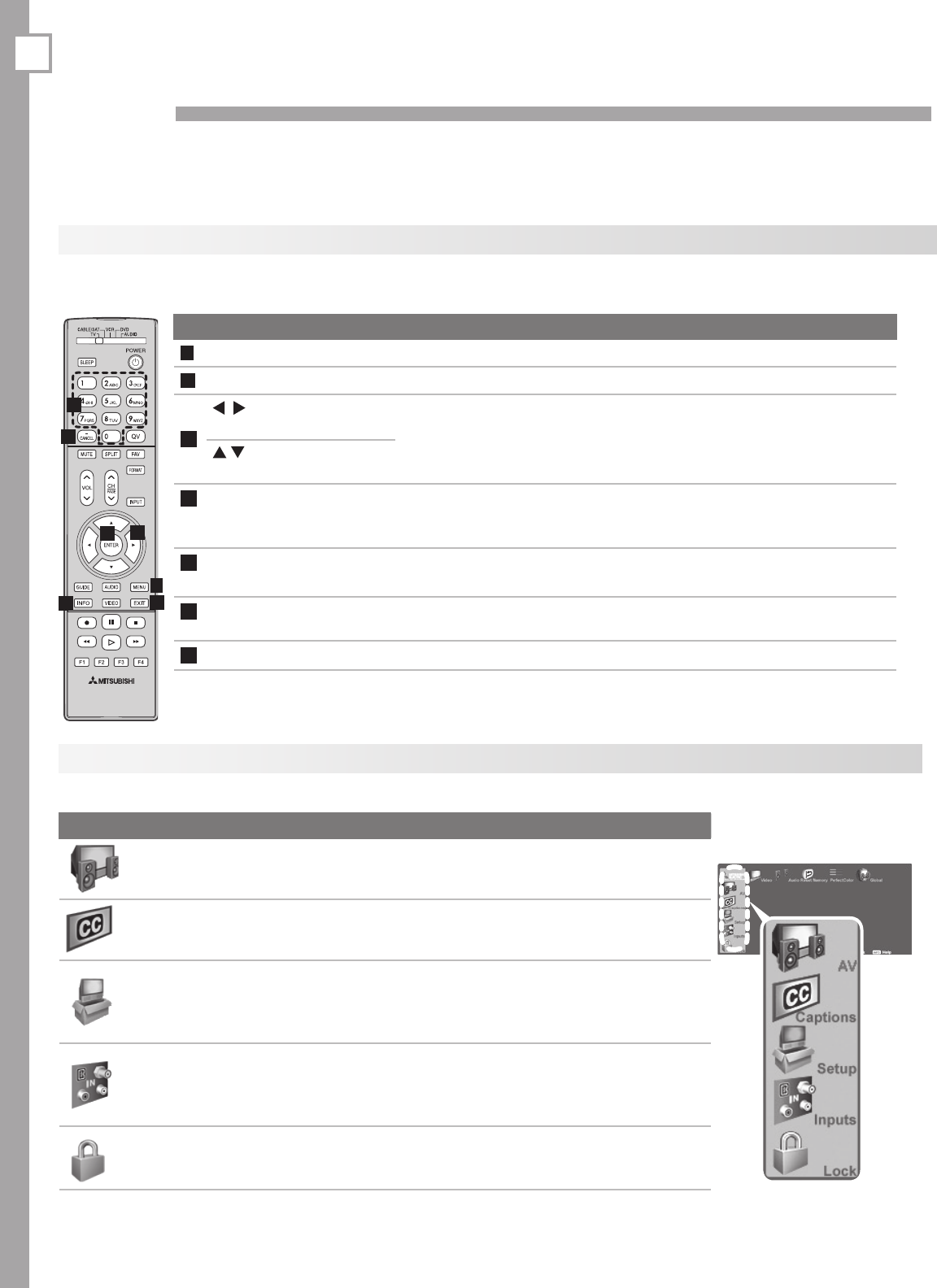
34
5TV Menu Settings
Main Menu
Press
MENU
ontheremotecontroltoopentheMainmenu.
Icon Menu Name and Description
AV Menu Customizepictureandsoundsettings. 35
Captions Menu Turnclosedcaptionsonandoff;customize
captiondisplays. 38
Setup Menu
PerformbasicTVsetup.Setlanguage,scan
(memorize)channels,settheTVclock,edit
channeloptions,lockTVusebychannel,set
theEnergyMode,settheauto-onTVTimer.
39
Inputs Menu
AssignnamestoTVinputs,changeiconorder
intheInput Selectionmenu.ForYand734
seriesmodels,performNetCommandIR“learn-
ing.”
43
Lock Menu
RestrictTVusebyprogramratingsandbytime
ofday.Disablethefront-panelcontrolbuttons.
Setapasscode.
44
Remote Control Keys for the TV Menu System
Thefollowingkeyshelpyouusethemenusystem.SomekeysareduplicatedontheTV’sfrontpanel.
Key Function
1
MENU
DisplayorclosetheMainmenuormovebackonemenulevel.
2
EXIT
CloseallmenusandreturntoTVviewing.
3
(AdjustLeft/RightKeys) • Movethroughscreenstoselectmenuoptions.
• Changesettings.
• Scrollthroughlists.
(AdjustUp/DownKeys)
4
ENTER
Startanautomaticfunctionorselectacheckbox.Whensetting
time,movefromhourdigitstominutesdigitsandfrommonthto
daytoyeardigits.
5 Numbers
Letters
Enterchannelnumbers.
Entercustomnamesinsometextboxes.
6
CANCEL
• Clearasettingorstopanautomaticfunction.
• Addaseparatorinadigitalchannelnumber.
7
INFO
Getcontext-sensitivehelp.
1
2
4
6
3
7
5
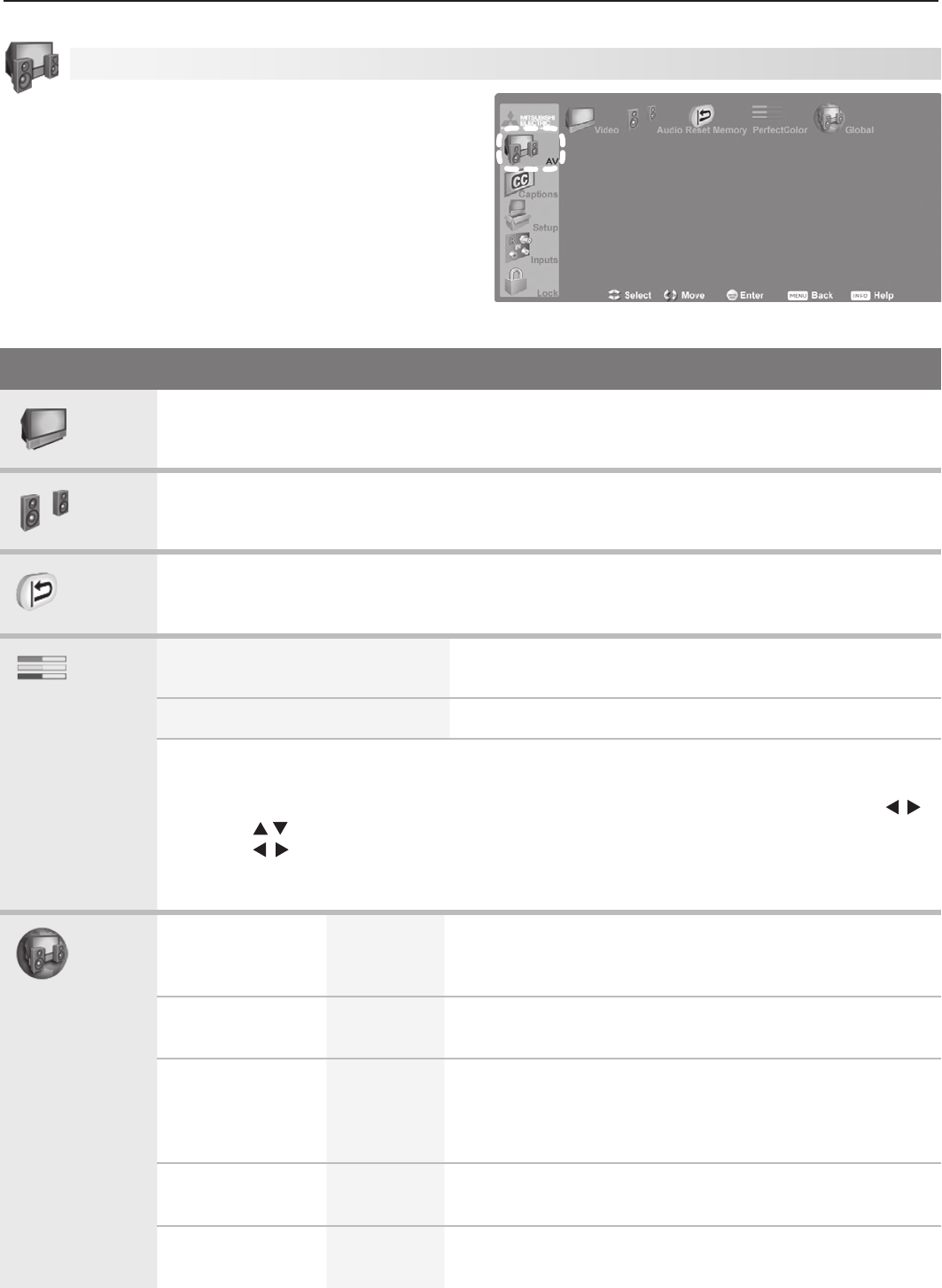
5. TV Menu Settings 35
AV Menu Options
Video Seethedescriptionofvideoadjustmentslaterinthissection.
Audio Seethedescriptionofaudioadjustmentslaterinthissection.
Reset
• Toresetaudioandvideoadjustmentsforthecurrentinput,highlighttheReseticonand
press
ENTER
.
• ResethasnoeffectonsettingsforBalance, Listen To, Language,andFilm Mode.
PerfectColor
PerfectColor Sliders
Adjustthesaturation(intensity)ofsixcolorsforthe
currentimagesource.
PerfectTint Sliders §
Adjustsixhuesforthecurrentimagesource
HighlightthePerfectColoriconandpress
ENTER
todisplaythePerfectColormenu.Settings
areretainedinmemoryindependentlyforeachTVinput.
•
ToswitchbetweenPerfectColorandPerfecTintadjustments,highlightAdjust Modeandpress .
• Press tomovefromonecolorbartothenext.
• Press tochangesettings.
• Press
CANCEL
torestoredefaultsettings.
• Press
MENU
toreturntotheMainmenu.
Global
Video Noise
High,
Medium,
Low, Off
Reduceminornoise(graininess)inthepicture.UseLowwith
good-qualitysignals.UseHighwithpoor-qualitysignals.
UseOfftoleavethepictureunaltered.Savedbyinput
Video Mute On, Off On
displaysabluebackgroundwhennosignalisbeing
receivedonthecurrent
INPUT
,
COMPONENT,
or
HDMI
jack
.
Film Mode
(for480iand
1080isignals
only)
Auto, Off
In
Auto
,theTVautomaticallydetectsandappliesfilm-
decodingcorrection.Trythe
Off
settingifimagesshowtoo
manyjaggededges.Savedbyinput.
SharpEdge § On, Off Addspecialedgeenhancementstomaketheimage
appearsharper.Savedbyinput.
Lamp Mode Standard,
Bright
Standardisformostviewingconditionsandmayextendlamp
lifebyusinglowerwattage.UseBrightinbrightlylitrooms.
AV Menu
Anon-screensliderdisplayswhenmakingsomeaudio
andvideoadjustments.Numericvaluesrepresentedon
thesliderrangefrom0(minimum)to63(maximum),with
31asthemid-point.
Note: ThePerfecTint,SharpEdge,andDeepFieldIm-
agervideoadjustments(marked§) areoffered
on734seriesmodelsonly.
AV menu for audio and video adjustments
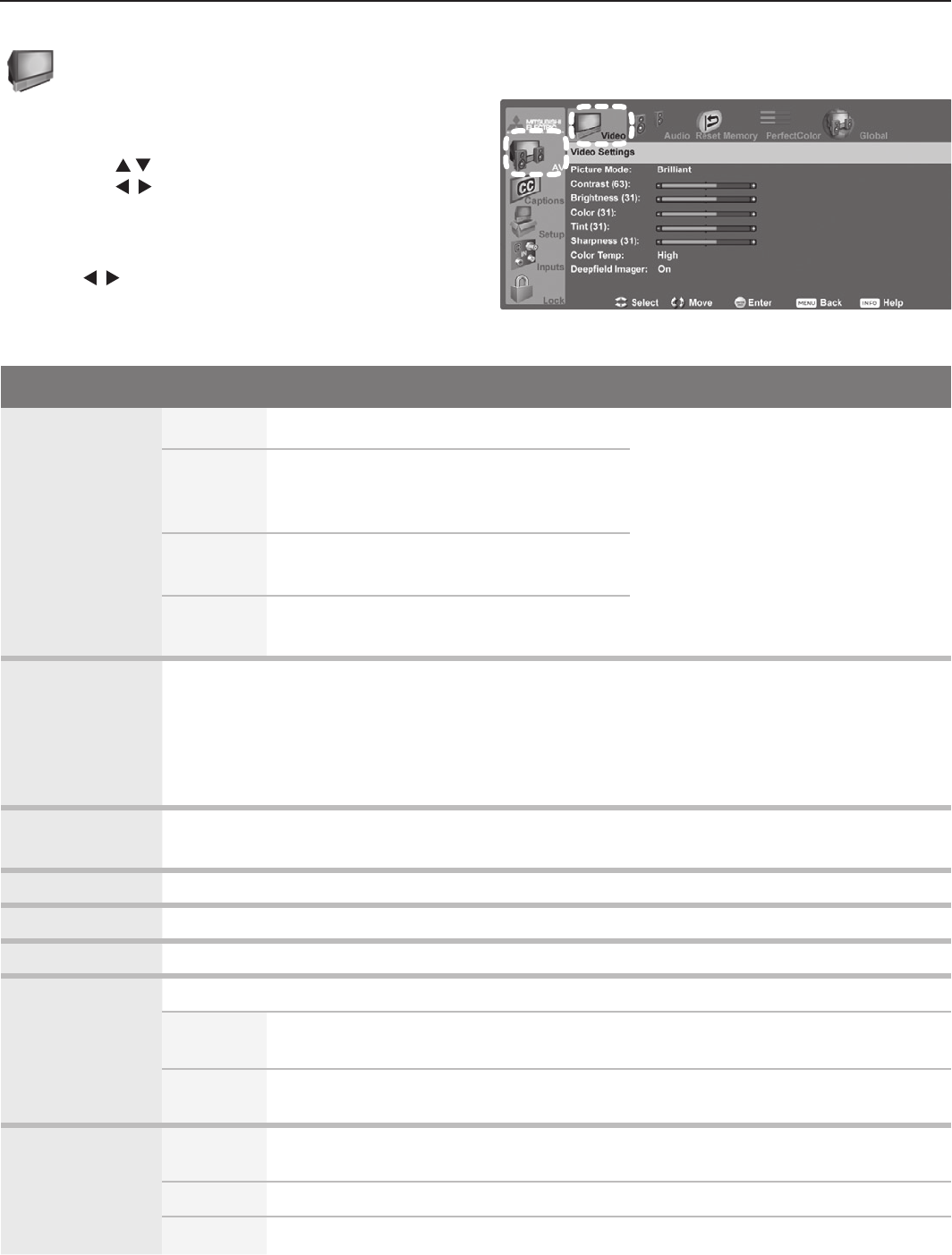
36 5. TV Menu Settings
Video Menu
Tomakevideoadjustments:
• From the Video menu:
1. Press tohighlightanoption.
2. Press tomakeanadjustment
3.
Press
MENU
toreturntotheAVmenu.
• While watching TV:Pressthe
VIDEO
keyrepeatedly
todisplaythevideooptionyouwanttochange.
Press tochangesettings.
Note: Seechapter2,“TVSetup,”foradditionaladjust-
mentsavailableforimagesfromacomputer.
Video Menu Options
Picture Mode Brilliant
Foruseunderstronglight
SetthePictureModefirstbefore
changingothervideosettings,as
somearestoredindependentlyfor
eachPictureMode.UsePicture
Modestooptimizetheimagefordif-
ferentconditions.
Game Optimizepictureandvideoprocessing
forgamingconsoles.Availablewhenthe
nameoftheinputisGame.
Bright Formostdaytimeviewingandx.v.Color
sources
Natural Formostnighttimeviewingandx.v.Color
sources
Contrast • Adjustthewhite-to-blacklevel
• Lowcontrastshowsavarietyofshadesindarkerimages
• Inmosthomelightingsituations,mediumcontrastlooksbest.
• Highcontrastshowsdarkerimagesmoreuniformlyblackandmakescolorsappearmore
vibrant.Highcontrastisgoodforbrightlylitenvironments.
• SettingsarestoredindependentlyforeachPictureMode.
Brightness • Adjustoverallpicturebrightness
• SettingsarestoredindependentlyforeachPictureMode.
Color Adjustoverallcolorintensity
Tint Adjustthered-to-greenratio.
Sharpness Adjustpicturedetailandclarity.
Color Temp Adjustthewhitebalance.SettingsarestoredindependentlyforeachPictureMode.
High Givewhiteimagesacoolcast.Mayprovidethemostrealisticpictureunder
brightlighting.
Low Givewhiteimagesawarmcast.Natural/ColorTempatthelowsettingdisplays
videoatapproximatelythe6500KindustrystandardforNTSCpictures.
Deep Field
Imager §
On Blacklevelsaredynamicallyenhancedinportionsofthescreentoprovidestrong
contrastwithdetailovermixedscreencontent.
Off Contrastisadjusteduniformlyacrosstheentirescreen.
Demo Displayasplitpicturetoshowon(rightside)oroff(leftside).
AV menu, Video options
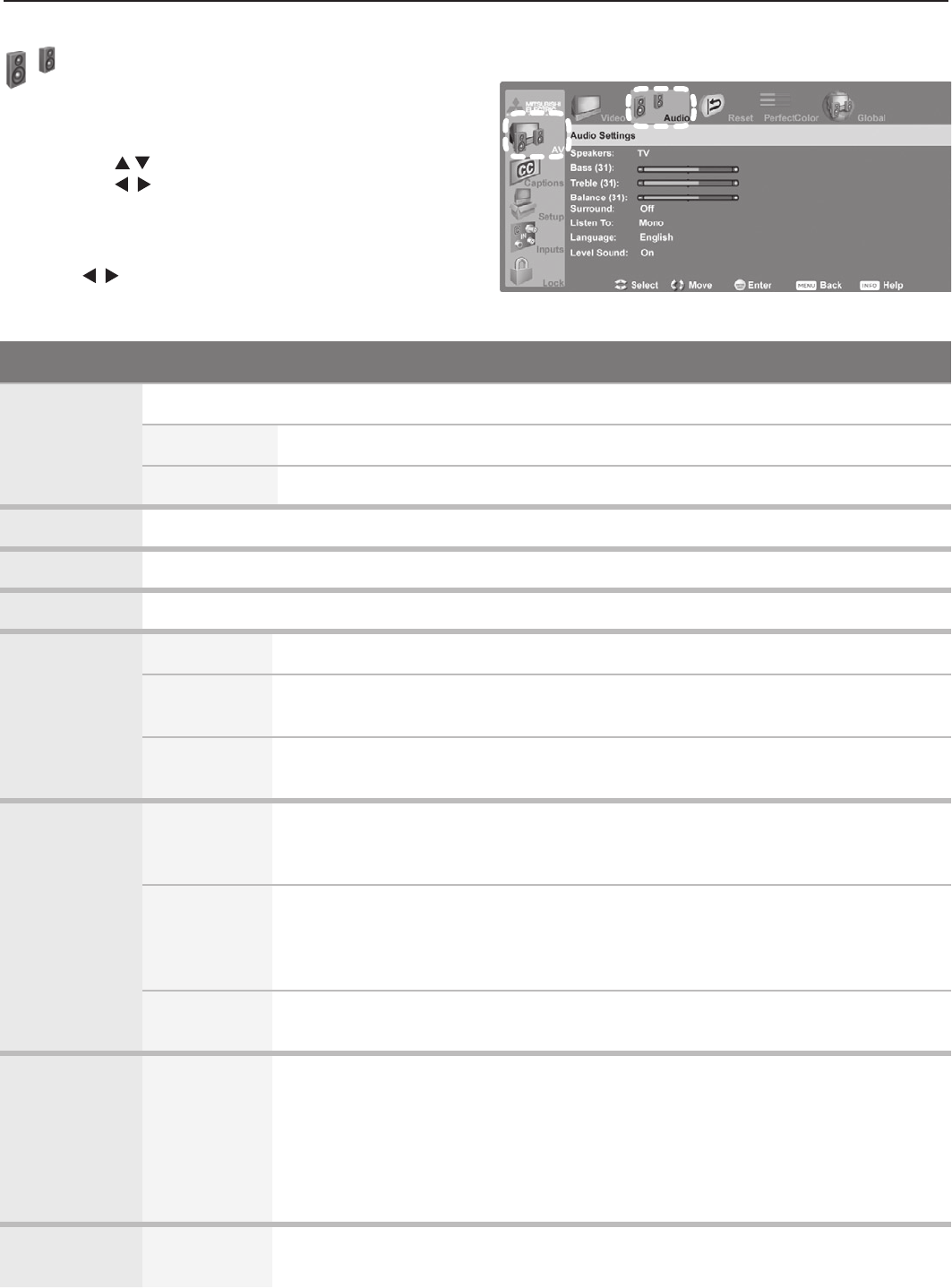
5. TV Menu Settings 37
Audio Menu
Tomakeaudioadjustments:
• From the Audio menu:
1. Press tohighlightanoption
2. Press tomakeanadjustment
3. Press
MENU
toreturntotheAVmenu.
• While watching TV:Pressthe
AUDIO
keyrepeatedly
todisplaytheaudiooptionyouwanttochange.
Press tochangesettings.
Audio Menu Options
Speakers TheSpeakersoptiondisplaysifanA/Vreceiverconnectionhasbeendetected.
TV TurnontheinternalTVspeakers.
AV Receiver TurnofftheTVspeakersandhearsoundonlyfromaconnectedA/Vreceiver.
Bass Controlvolumeleveloflow-pitchedsoundfromtheTVspeakers.
Treble Controlvolumelevelofhigh-pitchedsoundfromtheTVspeakers.
Balance ControlaudiobalancebetweentherightandleftTVspeakers
Surround Off NosurroundeffectsfromtheTVspeakers(default)
Simulated
Stereo
CreateasimulatedstereoeffectthroughtheTVspeakerswhenwatchingamon-
aural(non-stereo)program.
Surround
Sound
CreateasimulatedsurroundeffectthroughtheTVspeakerswhenwatchinga
stereoprogram.
Listen To
(analogchan-
nelsfrom
ANT1/ANT2
only)
Stereo Defaultsetting.TheTVplaysstereobroadcastsinstereoandmonobroadcasts
inmono.ThewordStereoisdisplayedwhenyoutunetoachannelbroadcast-
inginstereo.
SAP
(Second
Audio
Program)
SelectanadditionalmonauralsoundtracknotaudibleduringnormalTVviewing.
TheSAPsignalmightberelatedtotheprogram(suchasasoundtrackina
foreignlanguage),oritmightbeunrelated(suchasaweatherreport).IfanSAP
signalisbroadcast,thelettersSAParedisplayedwhenyoutunetothechannel
Mono Reducebackgroundnoise.Usewhenreceivingaweakstereoaudiosignal.All
audioisplayedasmonowiththissetting.
Language
(digitalchan-
nelsfrom
ANT1/ANT2
only)
English
French
German
Italian
Portuguese
Spanish
Other
Selectthecurrentlanguageforadigitalprogramfroman
ANT
input.Eachdigital
programmayincludeuptosevenlanguagechoicesornoneatall.
Level Sound On, Off Reducedifferencesinsoundvolumebetweenprogrammingsegments,suchas
thedifferencebetweenregularbroadcastprogramsandcommercialsegments.
AV menu, Audio options
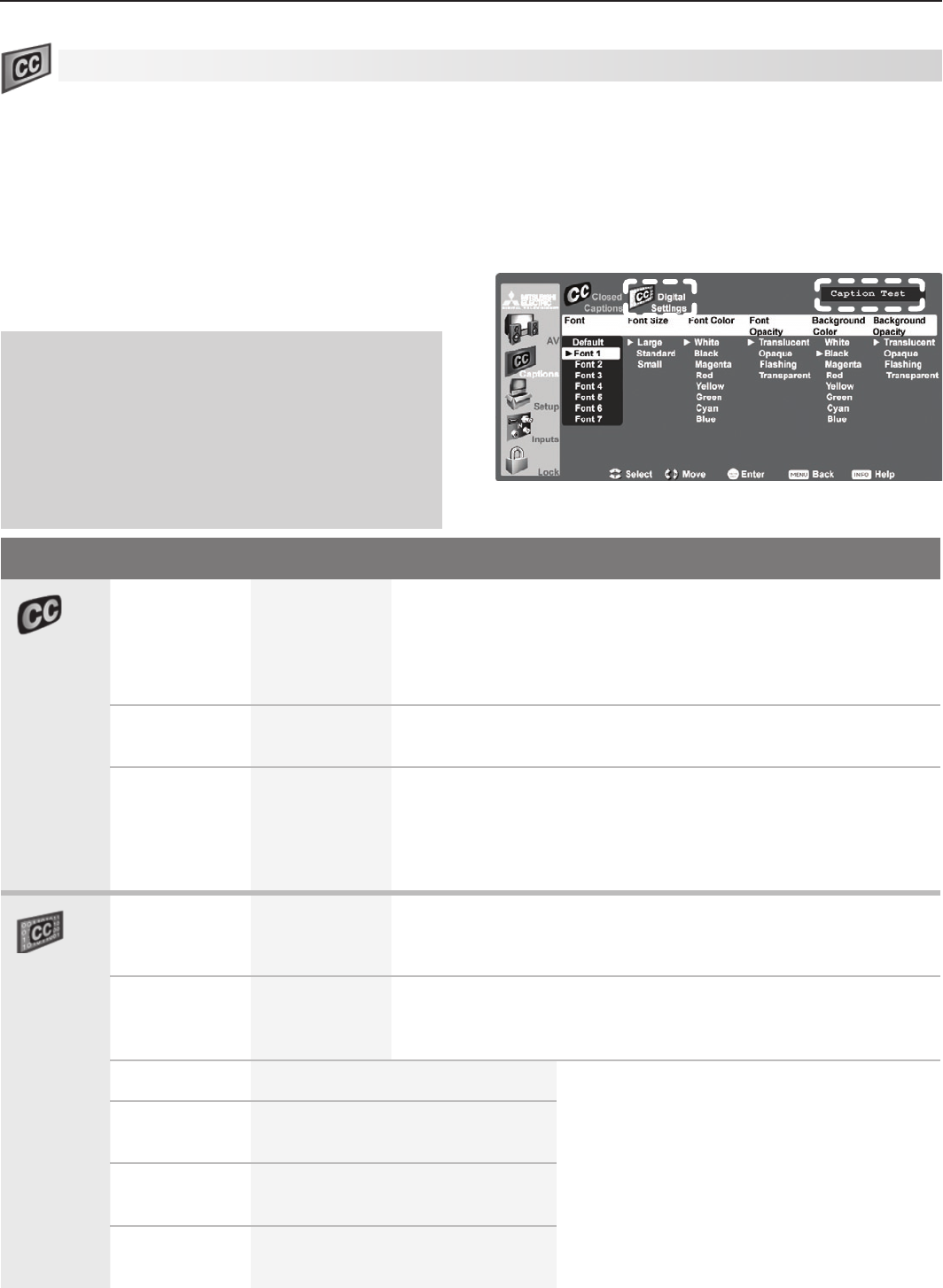
38 5. TV Menu Settings
Captions Menu
Captions on Analog Channels
TheTVcandecodecaptionsfrom
ANT 1
/
ANT 2
and
INPUT 1
/
INPUT 2
.Broadcasterscansendeitherstan-
dardclosedcaptionsortextservice.Standardclosed
captionsfollowthedialogueoftheprogramanddisplay
inasmallsectionofthescreen.Text-serviceclosed
captionsoftencontaininformationsuchasweatheror
newsandcoveralargeportionofthescreen.
IMPORTANT
• Analog text-service options display a large
black or gray box on the screen when no
signal is being broadcast.
• Thecontentofcaptionsisdeterminedby
the broadcaster. If captions show strange
characters, misspellings, or odd grammar,
it is not a malfunction of the TV.
Captions Menu Options
Closed
Captions
Analog
Captions
On if Mute
CC 1–CC 4
Text 1–Text 4
Off
• OnifMute:DisplayanalogclosedcaptionssignalCC1
whenaudiofromtheTVspeakersismuted.Whenwatching
TV,press
MUTE
toturncaptionson/off.
• CC1–CC4:Standardclosed-captionsignals
• Text1–Text4:Text-servicesignals
Analog
Background
Gray, Black Selecteitheragrayorblacktextbackgroundtomakeanalog
closedcaptionseasiertoread.
Digital
Captions
On if Mute
Caption 1–
Caption 6
Off
• OnifMute:DisplaydigitalclosedcaptionsignalCaption1
whenaudiofromtheTVspeakersismuted.Whenwatching
TV,press
MUTE
toturnclosedcaptionson/off.
• Caption1–Caption6:Captionsignalssentbythebroad-
caster
Digital
Settings
Font
Default
Font 1–Font 7
Defaultreferstothesettingsselectedbytheclosed-captions
provider.UseFonts1through7togivecaptionsacustom
appearance.
Font Size
Large
Standard
Small
Largeistherecommendedsize.
Font Color White, Black, Magenta, etc. Guidelinesforsettingdigitalcaptions:
• Usecontrastingcolorsforcaptionsand
background.
• Checkreadabilityofcaptionsusingthe
sampletextintheupperrightcornerof
themenu.
• A white font on a black translucent
background makes an easy-to-read
combination.
Font Opacity Translucent, Opaque, Flashing,
Transparent
Background
Color
White, Black, Magenta, etc.
Background
Opacity
Translucent, Opaque, Flashing,
Transparent
Captions on Digital Channels
TheTVcandecodecaptionsfrom
ANT 1
/
ANT 2
only.
Broadcasterscansenduptosixdifferentcaptioning
selectionsorcansendanalogcaptionsthatmatchthose
sentbytheanalogstation.ATVstationmaybroadcast
onlyoneortwotypesofcaptionsornoneatall.
Digital Settings menu. Check the caption test area
(upper right) to see how custom settings will look.
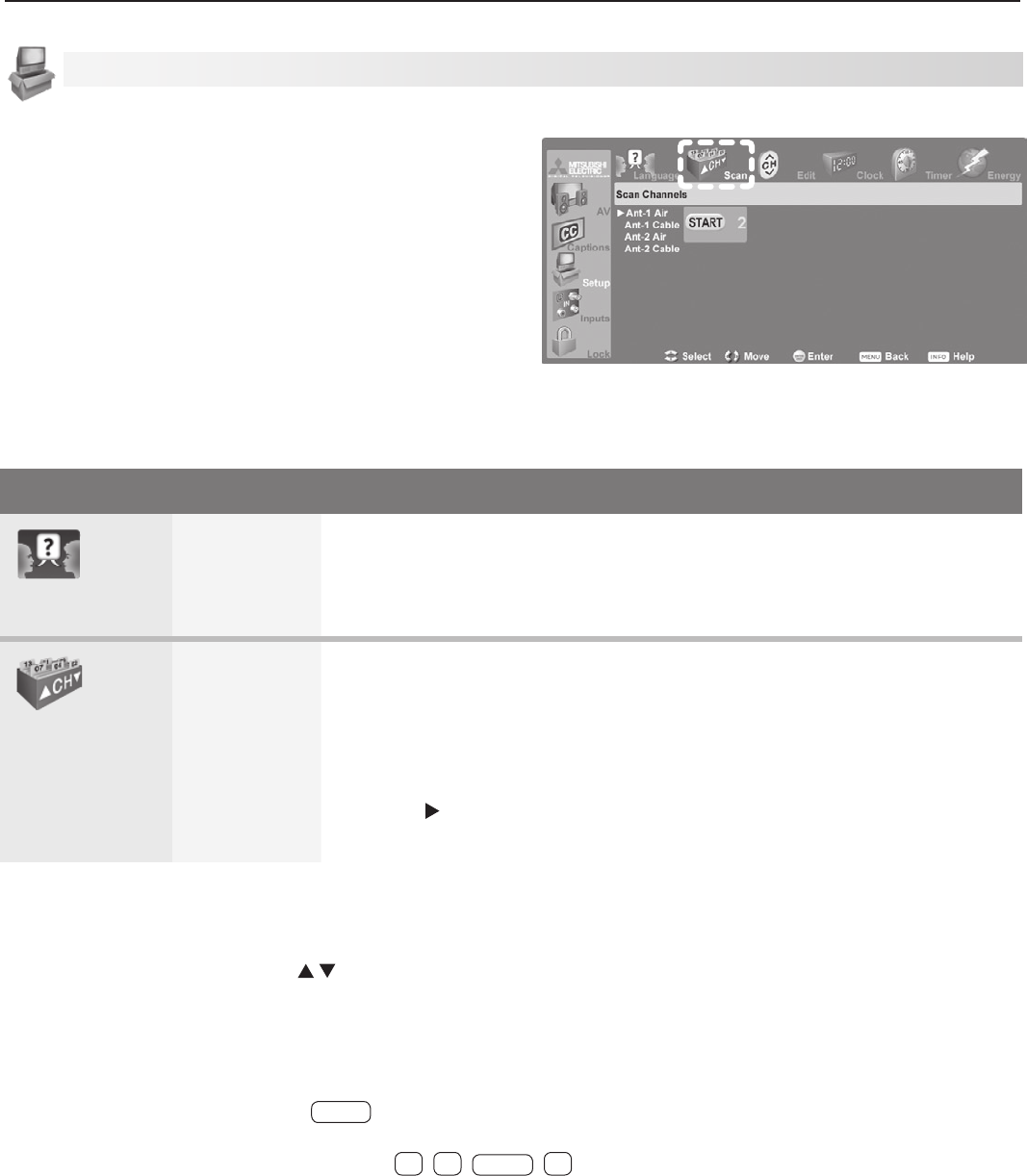
5. TV Menu Settings 39
Setup Menu Options
Language
English
Spanish
Displayon-screenmenusineitherEnglishorSpanish.
Note:Tolistentoaudioinotherlanguages(whenavailable),seethesection
ontheAVmenu,Audiosubmenu,andrefertoeitherListenTo>SAP(analog
signal)orLanguage(digitalsignal).
Scan
Ant-1 Air
Ant-1 Cable
Ant-2 Air
Ant-2 Cable
Scanmemorizesbroadcastchannelstomakethemeasiertofind.Tostart
channelmemorization:
1.
Highlightoneoftheinputselectionsbasedonyourconnectionto
ANT 1
or
ANT 2
:
• Airwhenconnectedtoanindoororoutdoorantenna.
• Cablewhenconnectedtodirectcable(nocablebox)
2. Press tohighlightSTART.
3. Press
ENTER
tostartchannelmemorizationfortheselectedinput.
Notes on Scan and channel memorization:
• Channelmemorizationmaytakeupto15minutestocomplete.
• Tostopchannelmemorizationbeforecompletion,press
CANCEL
.
• WhenwatchingTV,press
CH
tomovethroughmemorizedchannels.
• ToaddadigitalchannelthatdoesnotappearintheEditmenuwithoutrepeatingchannelmemorization:
1. Lookupthephysicalchannelnumberforthenewdigitalchannel.www.antennaweb.orgcanhelpyoufind
thephysicalchannelnumber.
2. Tunetoanychannelonthe
ANT 1
or
ANT 2
inputyourantennaisconnectedto.
3. Usethenumberkeysand
—
CANCEL
toenterthephysicalchannelnumberfollowedby“-1”and
ENTER
.For
example,forphysicalchannel36,press
3 6
—
CANCEL
1
ENTER
.
TheTVwillsearchforadigitalchannelonthechannel36frequency.Whenitfindsthechannel,itwill:
a. Addthechanneltomemory.
b. Changethechannelnumbertothevirtualchannelnumbersentbythebroadcaster.
c. Addtomemoryanyassociatedsub-channels.
Setup Menu
Setup menu, Scan option
UsetheSetupmenuto:
• SelectEnglishorSpanishformenusandon-screen
text.
•
Scanthechannelsavailablefortheantennaorcable
serviceconnectedtoth
e
ANT 1
or
ANT 2
jacks.
• Editchanneloptions,includingchannellocking.
• SettheTV’sinternalclock.
• SettheTVTimertoturnontheTVautomaticallyat
adesignatedtime.
• Settheenergymodeforpowerconsumptionwhen
theTVispoweredoff.
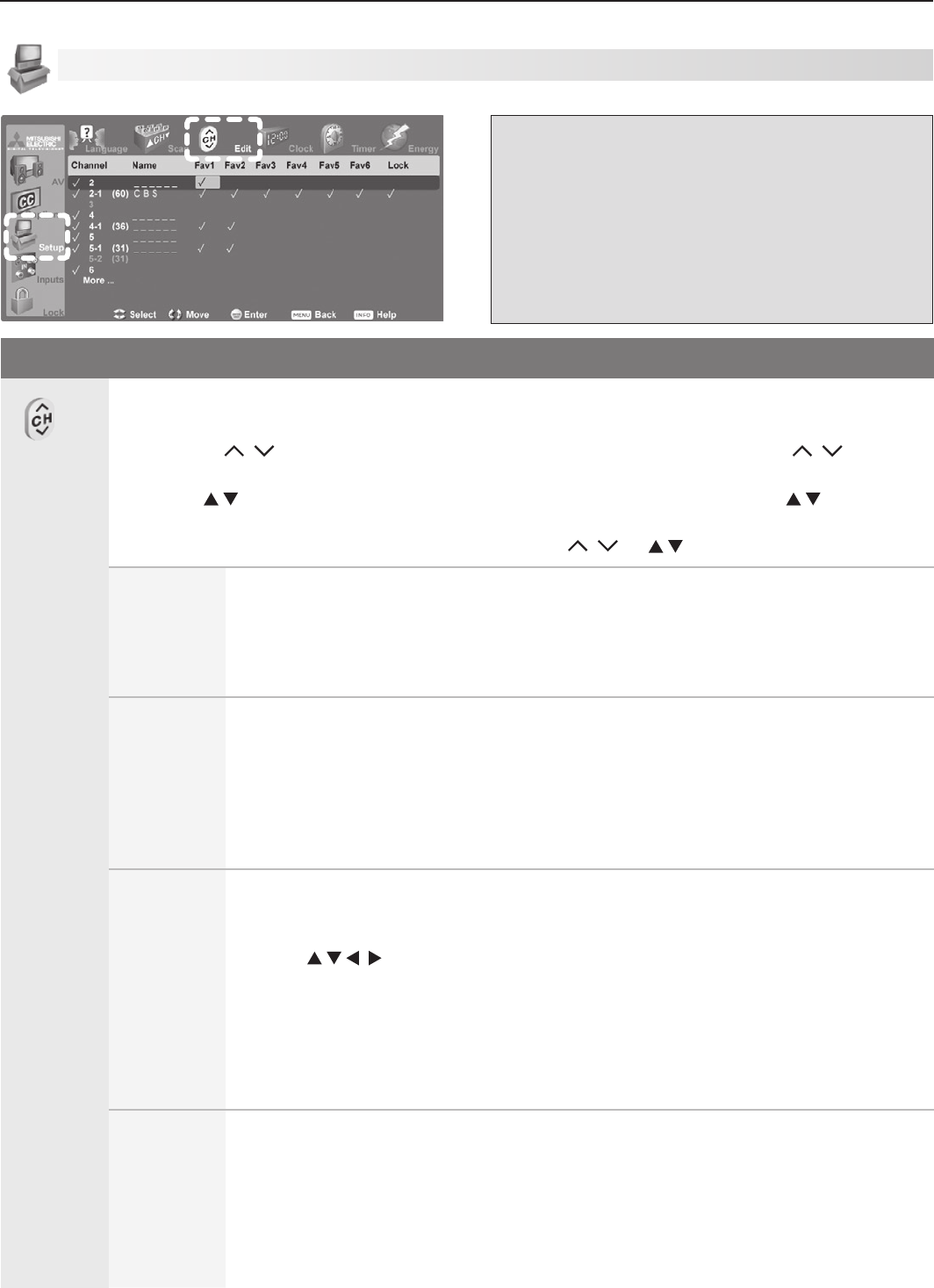
40 5. TV Menu Settings
Setup Menu Options
Edit
UsetheEditmenutoeditchanneloptionswhen
ANT 1
or
ANT 2
isthecurrentsource,
Tohighlightachannelnumbertoedit:
• Press
CH
/ tojumptothenextpageofchannelnumbers.Pressandhold
CH
/ tospeed
throughpages.
• Press tomovethroughallchannelnumbers,oneatatime.Pressandhold tospeed
throughchannelnumbers.
TheTVtunestothehighlightedchannelonreleaseof
CH
/ or .
Channel Channelsmarkedwithacheckareinmemory.Toaddordeleteachannelfrom
memory,highlightthechannelnumberandpress
ENTER
.Toaddasingledigital
channelnotinthelist,seethenotesunderScan.
Digitalchannelsarelistedbyvirtualchannelnumberwiththephysicalchannel
numbershowninparentheses.
Name Letsyouassignacustomnameuptosixcharacterslongtomemorizedchannels.
Youcannameanalogchannelsandalsonamedigitalchannelsifbroadcastwithout
pre-assignednames.
1. WiththecursorintheNamefield,pressanumberkeyrepeatedlytocyclethrough
thecharactersassociatedwiththekey.
2. Press
ENTER
tosettheletterandmovetothenextletterposition.Todeletethe
currentcharacterandmovebackoneposition,press
CANCEL
.
Fav1–Fav6 UsethesixFavchannelbankstostoregroupsofyourfavoritechannels.Forexample,
youcansetupaFavchannelbankforeachofyourfavoriteprogramtypes(e.g.,
sports,news,children’sprograms)orsetupabankforeachTVuser.
• Use tomovethehighlightthroughtheFavareaofthescreen.
• Press
ENTER
toinsertacheckmarktoaddthehighlightedchanneltooneoftheFav
banks.
• ThesamechannelcanbeaddedtomultipleFAVbanks
•
ToremoveachannelfromaFavbank,highlightthecheckmarkandpress
ENTER
.
Note: TosetupFavchannelbankswithoutusingthismenu,seechapter4,“TV
OperationandFeatures.”
Lock Lockchannelssothatapasscodeisrequiredtoviewthem.Whenyourememorize
channels,thelocksettingsarecleared.
HighlighttheLockcolumnandenterapasscodewhenprompted.Ifyoupreviously
setapasscodetoopenthemainLockmenu,usethesamepasscode.Seethe
descriptionoftheMainmenu>Lockformoreonpasscodes.
• Press
ENTER
toinsertacheckmarktolockthehighlightedchannel.
• Tounlockachannel,highlightthecheckmarkandpress
ENTER.
Setup Menu, continued
Virtual Channel Number (digitalchannelsonly)
Achannelnumbersentbyalocalbroadcastertohelp
identifytheirdigitalchannel.Usuallythevirtualnumber
isassociatedwiththecorrespondinganalogchannel
number.Forexample,abroadcastermaybeassociat-
ingdigitalchannel2-1withtheiranalogchannel2.
Physical Digital Channel Number
Thechannelnumberofficiallyassignedtotheactual
broadcastfrequency;shownonscreeninparentheses.
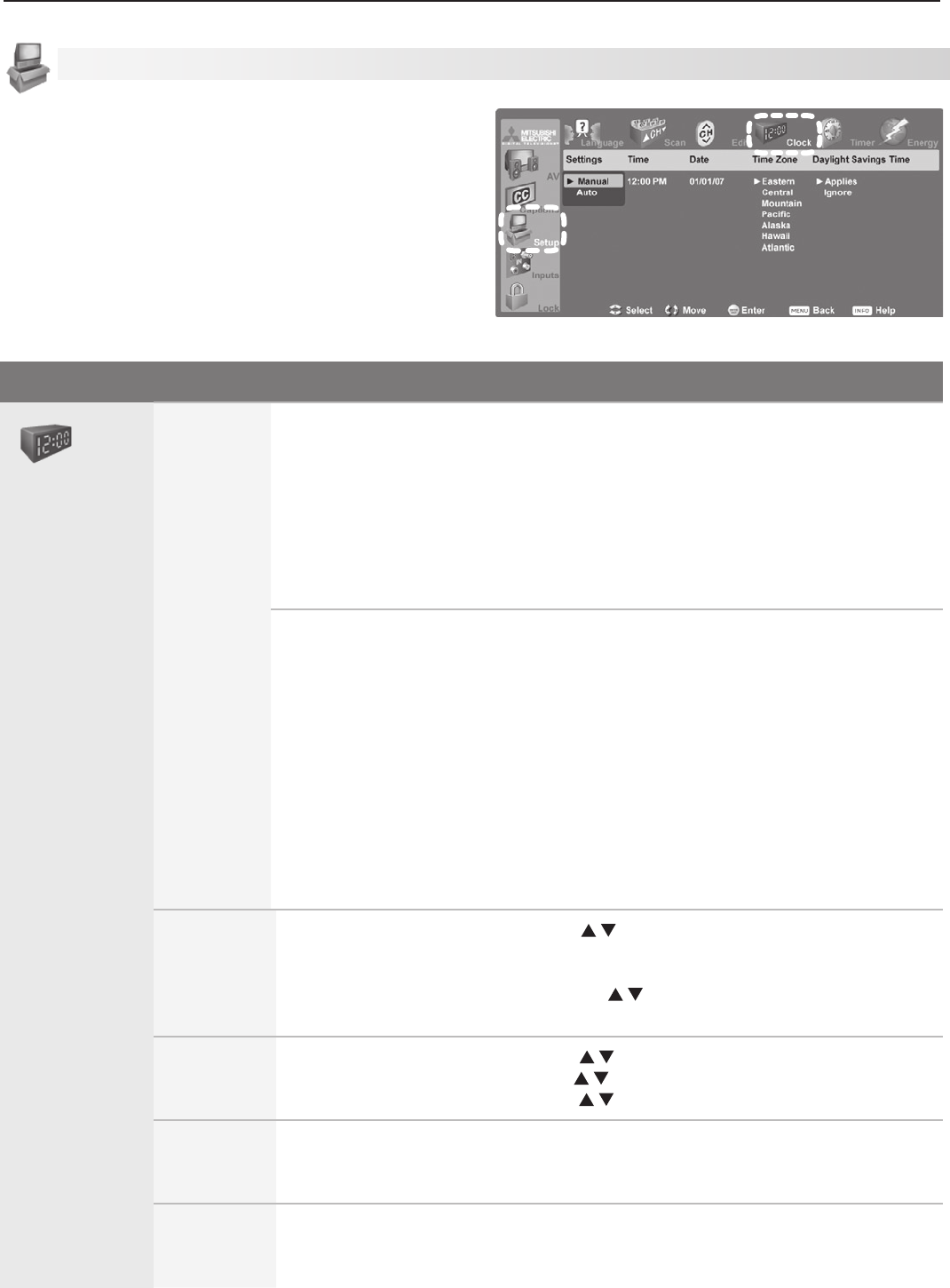
5. TV Menu Settings 41
Setup Menu, continued
Useeitherthemanualorautomethodtosettheclock.
Settheclockifyouwishto:
• UsetheTV’sTimerfunction.
• MaintainaccurateChannelViewlistings.
Setup Menu Options
Clock
Settings Manual. Tosettheclockmanually:
1. SelectManual.
2 Setthetimeofday.
3. Setthedate.
4. Selectyourtimezone.
5. SelecteitherAppliesorIgnoreforDaylight Savings Time.
Note:IfusingManual,eachtimethetimechangeoccurs,youmustopenthis
menuandsettheTV’sclockaheadorback.
Auto. Tosettheclockautomatically:
1. SelectAuto.
2. Selectyourtimezone.
3. SelecteitherAppliesorIgnoreforDaylightSavingsTime.
4. Afterexitingthemenus,tunetheTVtoastationcarryingXDSdata,typically
aPBSstation.
Note:
•
WiththeAutosetting,theTV’sclockadjustsautomaticallytodaylightsavingstime.
• TheTV’sclockwillberesetifyoutunetoachannelsendingincorrecttime
data.Topreventunwantedclockresets,firstusetheAutomethodtoset
theclockfromachannelsendingthecorrecttime,thenchangethemethod
toManual.
Time
(Manual
optiononly)
1. Withthehourhighlighted,press repeatedlytochangethehourandthe
AM/PMindicator.Pressandholdtochangethehourdisplayquickly.
2. Press
ENTER
tosetthehour.
3. Withtheminuteshighlighted,press tochangetheminutes.Pressand
holdtochangetheminutesdisplayquickly.
Date
(Manual
optiononly)
1
Withthemonthhighlighted,press toselect.Press
ENTER
toset.
2. Withthedayhighlighted,press toselect.Press
ENTER
toset.
3. Withtheyearhighlighted,press toselectthecurrentyear.
Time Zone
Eastern, Central,
Mountain,
Pacific,etc.
RequiredforboththeManualandAutomethods.
Daylight
Savings
Time
Applies
Ignore
RequiredforboththeManualandAutomethods.Select
theoptionforyourarea.
Setup menu, Clock options
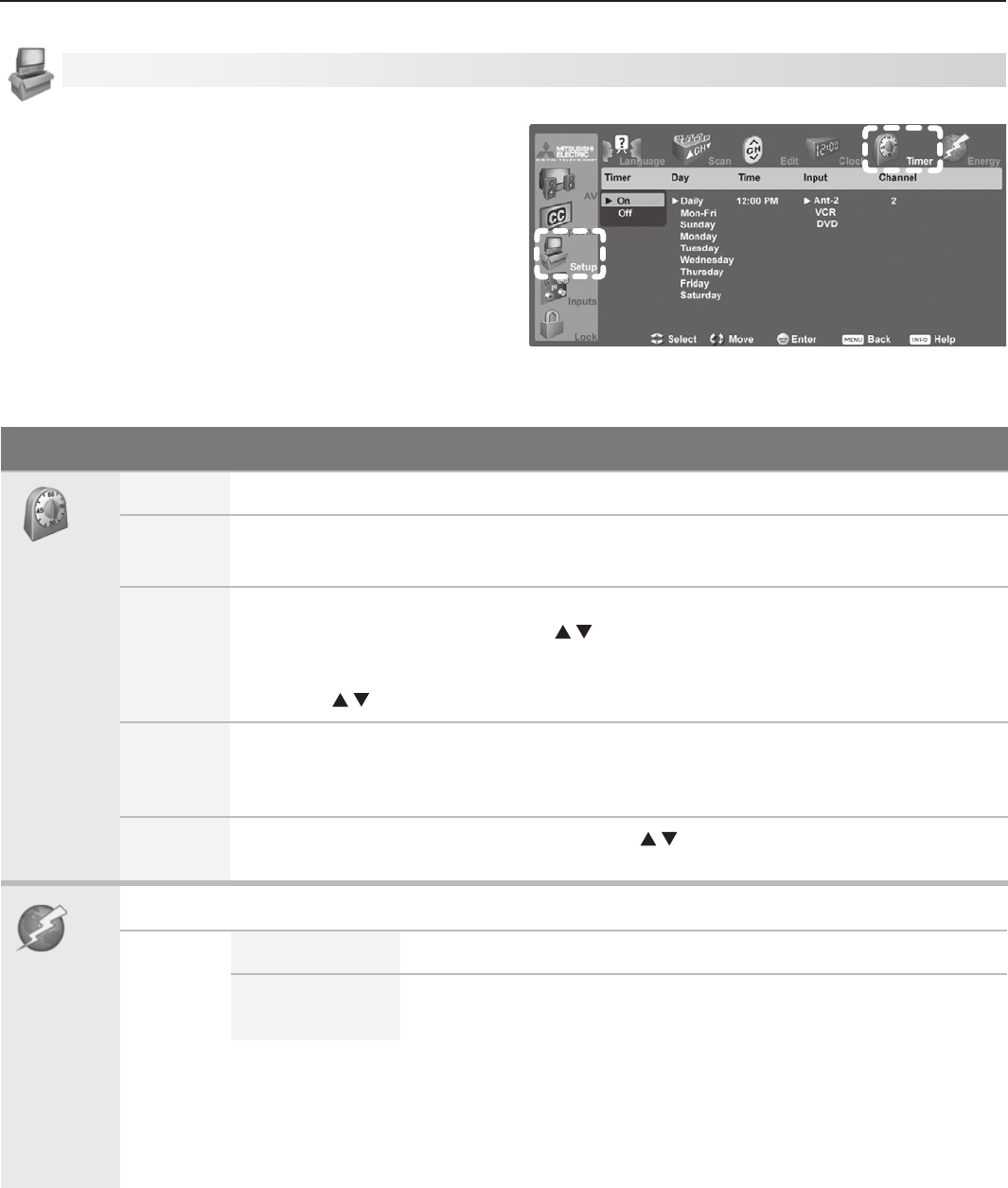
42 5. TV Menu Settings
Setup Menu, continued
Setup Menu Options
Timer
Timer On, Off
Day Daily, Mon-Fri, (every) Sunday, (every) Monday, (every) Tuesday,etc.
SelectthedayordaysoftheweekfortheTimertoturnontheTV.
Time TosetthetimefortheTVtocomeon:
1. Withthehourhighlighted,press repeatedlytochangethehourandtheAM/
PM indicator.Pressandholdtochangethehourdisplayquickly.
2. Press
ENTER
tohighlighttheminutes.
3. Press t
ochangetheminutes.Pressandholdtochangetheminutesdisplayquickly.
Input Ant-1, Ant-2, DVD, VCR,etc.
SelecttheinputyouwantdisplayedwhentheTVcomeson.Choosefromthedefined
andenabledinputsthatappearintheInput Selectionmenu.
Channel Iftheinputisanantenna(
ANT 1
,
ANT 2
),press repeatedlyorpressandholdto
scrollquicklythroughtheavailablechannelnumbers.
Energy
UsetheEnergyModeoptiontoselectthelevelofpowerconsumptionwhiletheTVisturnedoff.
Energy
Mode
Fast Power On Thedefaultsetting.
Low Power Useslessenergy,butTVpower-ontakeslongerandsomeTVfea-
turesmaybeunavailable.
KeepthissettingatFast Power Onifyouneedto:
• Havefasterpoweron.
• ReceiveupdatestoChannelViewchannellistings.
• KeeptheTVClockaccuratefortheTVTimerWiththeLow Powersetting,youmustresetthe
TVClockiftheTVisleftturnedoffforover48hours.
UsetheTimertosetatimefortheTVtoturnonauto-
matically.Usethismenutosetaday,time,input,and
channelfortheTimer.IftheTVisalreadyonatthe
requestedtime,theTVwillautomaticallytunetothe
designatedchannel.
• TheTVclockmustbesetbeforeyoucanusethe
Timerfeature.
• WhentheTimerturnsontheTV,pressanykeyon
theremotecontroltokeepiton.Otherwise,theTV
willturnoffafterfiveminutes.
• The
POWER/TIMER
indicatorflashesgreenwhentheTV
isofftoindicatetheTVTimerhasbeenset.
Setup menu, Timer options
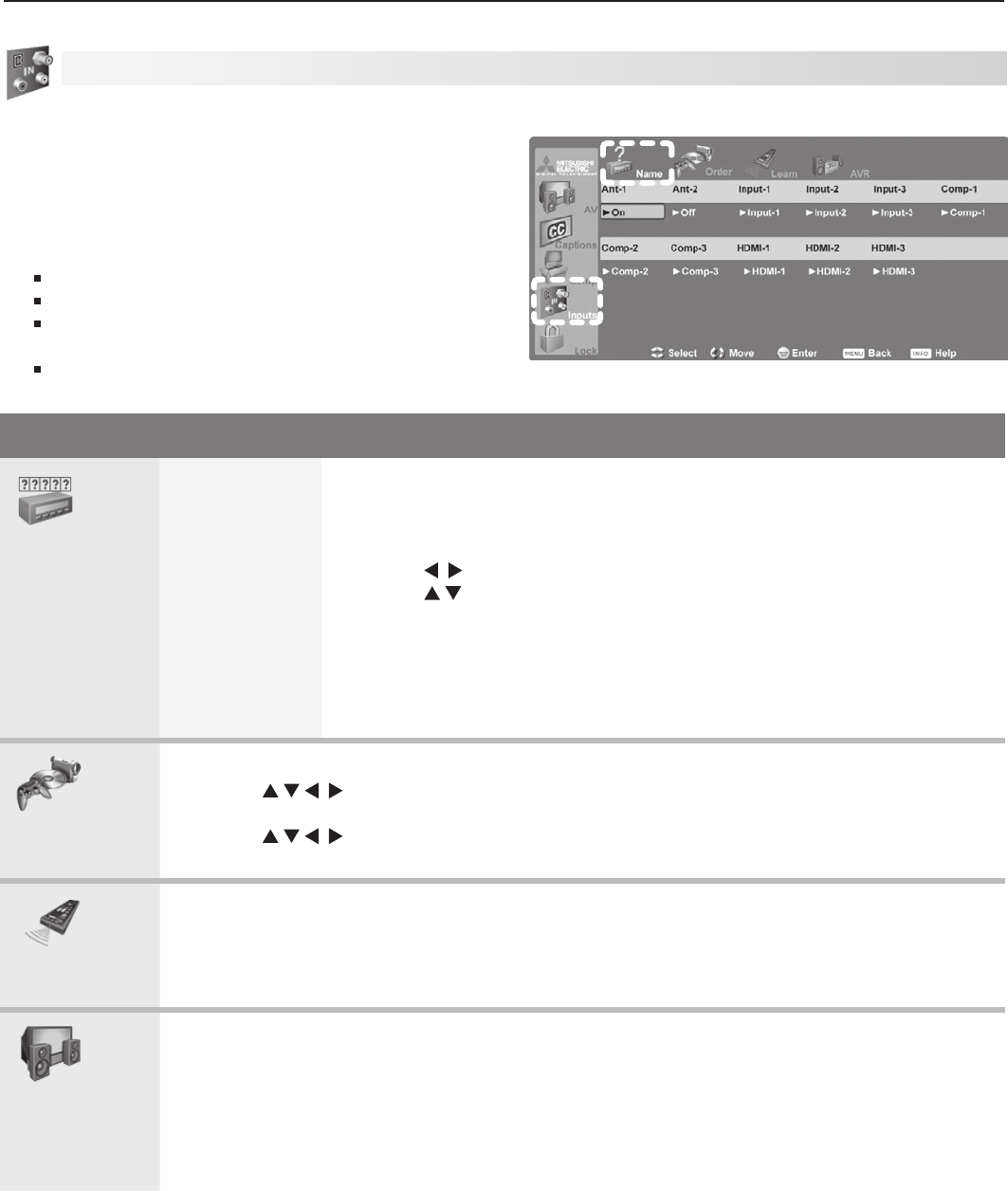
5. TV Menu Settings 43
Inputs Menu Options
Name
Cable Box,
Camcorder,
DVD, DVD2,
DVR, Game,
HD Disc,
Satellite, VCR,
PC,
On/Off
(ANT1and
ANT2only)
Off (HDMIonly)
• AssignorchangenamesofinputsappearingintheInput Selection
menu.
• TurnAnt-1andAnt-2 OnorOff.
• TurnunusedHDMIinputsOff.
• Press tomovebetweeninputs.
• Press toselectaname.
• IfyouchangethenameofaninputafterperformingNetCommand
“learning,”theIRcodesyou“learned”areerased.
Note:
WhenyoudisconnectanHDMIdevice,theiconremainsintheInput
Selectionmenuuntilyouremoveit.ToremoveanunwantedHDMIicon,
selectOfffortheHDMIinput.
Order
PutfrequentlyusediconsatthestartoftheInput Selectionmenu.
1. Press tohighlighttheicontomove.
2. Press
ENTER
toconfirmtheselection.
3. Press todragtheicontothedesiredposition.
4. Press
ENTER
tosetthenewposition.
Learn
Y series and 734 series only
• Performinitialset-upofNetCommandcontrolofadevice.
• AddorremoveindividualkeysfromNetCommandcontrolofadevice.
Seedetailedinstructionsinchapter6,“NetCommand.”
AVR
Y series and 734 series only
SetupNetCommandcontrolofanA/Vreceiver.Thisset-upallowsyouto:
• OperatetheA/Vreceiver’spowerandvolumefunctionswiththeTV’sremotecontrol.
• MaketheA/Vreceiverswitchautomaticallytothecorrectaudioinputwhenyouselecta
deviceintheTV’sInput Selectionmenu.
Seedetailedinstructionsinchapter6,“NetCommand.”
Inputs Menu
Change input names using the Inputs > Name menu.
Note:
• NetCommandIRcontrolofhome-theaterdevicesis
availableonYseriesand734seriesmodelsonly.
• WhenyouchangeaninputnameintheNamemenu
andthenexittheNamemenu:
Thenameischanged
TheiconintheInput Selectionmenuischanged
Settingsarechangedtothedefaultsforthe
newdevicetype.
OnmodelsofferingNetCommandcontrol,all
“learning”fortheinputisalsoerased.
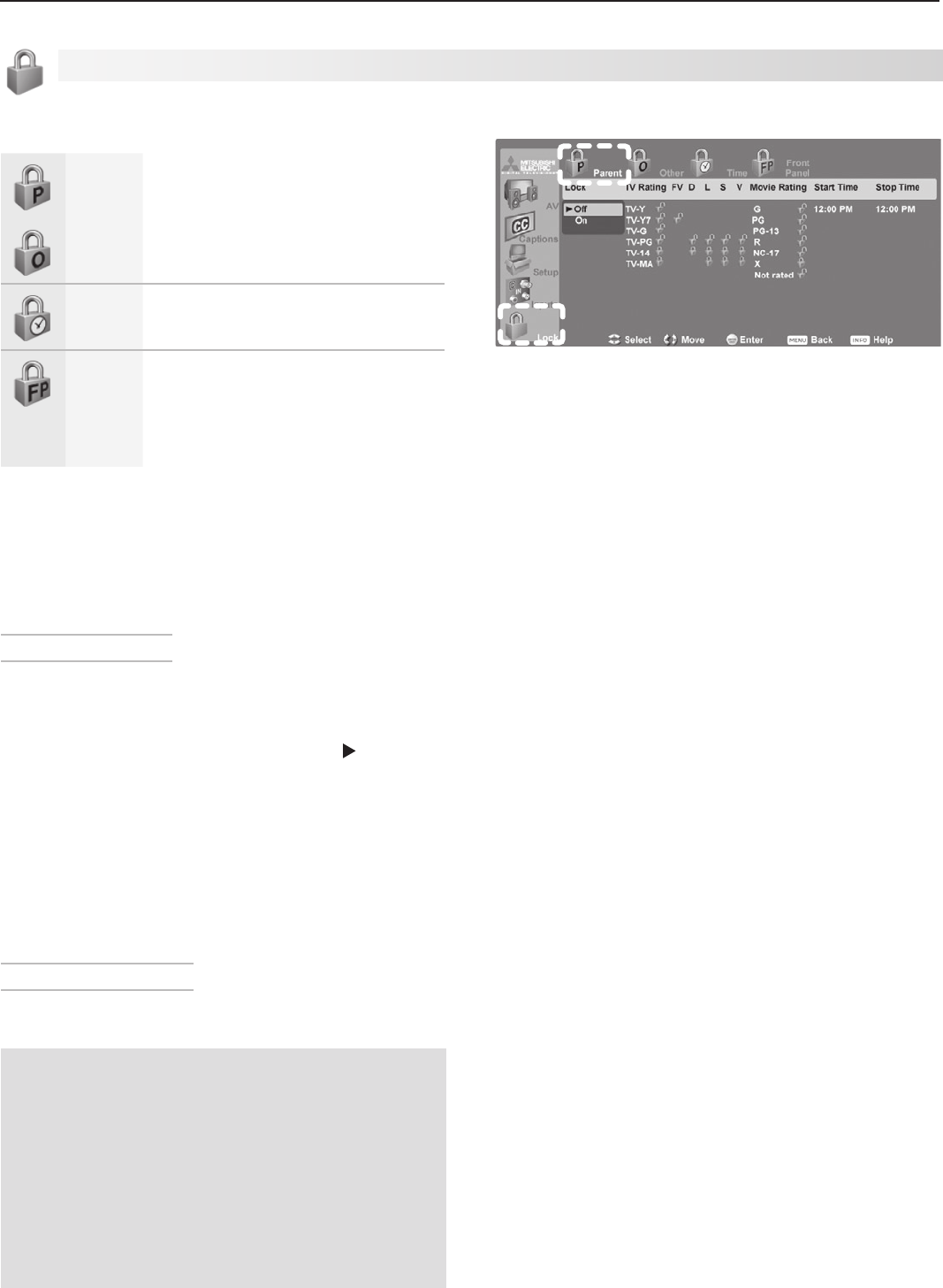
44 5. TV Menu Settings
TVlocksavailablefromtheLockmenuare:
Parent
Lock by Ratings
Restrictaccesstoprogramming
basedonV-Chipratingsignalssent
bythebroadcaster.
Other
Time
Lock by Time
RestrictTVusebytimeofday.
Front
Panel
Lock Front Panel
Disablethecontrolsonthefront
oftheTV.Usethisoptionifsmall
childreninthehometrytopress
front-panelbuttons.
Note: Channel Lockisanadditionallockthatblocks
accesstospecicchannels.ChannelLockis
availableundertheSetupmenu(Setup > Edit
> Lock).
Setting or Resetting a Pass Code
Setting a Pass Code
Youarepromptedtoenterapasscodewheneveryou
selectLockontheMainmenu.Tosetapasscodefor
thefirsttime:
1. Press
MENU
,highlightLock,thenpress .Ascreen
promptingyouforapasscodewilldisplay.
2. Inputafour-digitpasscodeusingthenumberkeys
ontheremotecontrol.
• Press
CANCEL
todeleteanumberandmoveback
onespace.
• Press
MENU
or
EXIT
toclosethemenuwithout
settingapasscode.
3. Press
ENTER
tosetthepasscode.
Resetting a Pass Code
SeetheprocedureinAppendixB.
Bypassing TV Locks
Ifyoutrytowatchablockedprogramorchannelor
trytousetheTVwhileitislockedbytime,anotice
appearspromptingyouforapasscode.TousetheTV:
• Inputyourfour-digitpasscodeandpress
ENTER
.
• Changetoachannelairinganallowedprogramor
changetoanotherdevice.
ToreactivatetheparentratingslockorTVLockbyTime
afterusingthepasscode:
• PowertheTVoffandthenontoreactivateboth
locks.
• Changetoadifferentchannelordevicetoreacti-
vateonlytheparentratingslock.
Parent Menu
TheTVcomesfromthefactorywiththeratinglocks
turnedoffandwithpre-setU.S.ratingsTV-PGand
movieratingPG.TurnonblockingforU.S.ratings
toactivatetheseratingrestrictions.UsetheLock >
ParentmenutochangethelevelofblockingwithU.S.
ratings.
Anytimeyouchangethechannelordevice,itmaytake
uptofivesecondsfortheratingrestrictionstotake
effect.
Other Menu (Alternate Rating System)
ThisTVcanrecognizenewratingsystemsthatmay
comeintoeffectinthefuture.TheOthermenuallows
youtoblockdigitalprogrammingwhensuchsystems
comeintoeffect.
Thefirsttimeyoutunetoachannelbroadcastingan
alternateratingsystem,theTVdefaultstothemost
restrictivesettingiftheLockmenu>Other Lock
optionissettoOn.Usethismenutochangethe
allowedratingifyouareunabletowatchaprogram
broadcastwithanalternatesystem.
The Lock > Parent menu lets you set parental controls
based on V-Chip technology.
Lock Menu
Important Notes on Rating Locks
• Parentmenuratinglocksapplyonlytochan-
nelsandsignalsreceivedon
ANT 1
,
ANT 2
,
INPUT 1
,and
INPUT
2.
• Othermenuratinglocksapplyonlytodigital
channelsreceivedon
ANT 1
or
ANT 2
.
• Whenviewingacablebox,satellitereceiver,or
otherdeviceconnectedtothe
COMPONENT
or
HDMI
inputs,checkthedevice’smenuforrating
locks.
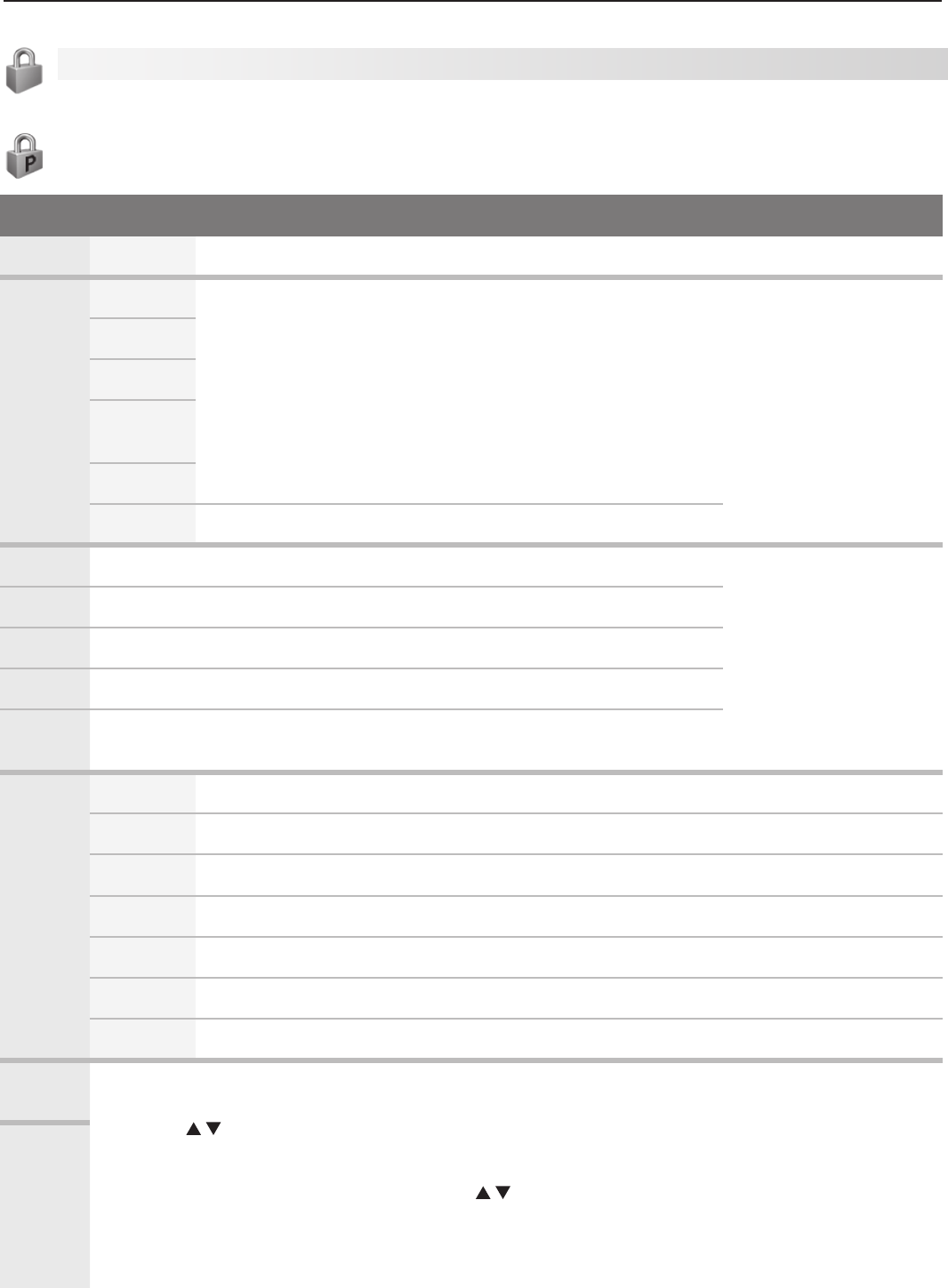
5. TV Menu Settings 45
Lock Menu, continued
Parent Menu Options (U.S.-based rating system)
Option Name and Description
Lock Off, On
DisablesorenablesprogramblockingbasedonV-ChipsignalsandtheU.S.ratingsystem.
TV
Rating
TV-Y Youth.Forchildrenunder7. Highlighttheitemyou
wishtochangeand
press
ENTER
toactivate
ordeactivateit.
Youcanapplysupple-
mentalcontentblock-
ingtotheage-based
ratingsbyusingthe
TVcontentcategories
listedbelow.
TV-Y 7 Youth 7andolder.
TV-G General Audience.Fortheentirefamily.
TV-PG Parental Guidance.ParentalGuidancerecommended;may
notbesuitableforsomechildren.
TV-14
Adolescent 14 and older.Notrecommendedforchildrenunder14.
TV-MA Mature Audience.Foradultsonly.
FV Fantasy Violence.AppliestoTV-Y7only.
TV Content
Categories
D Sexual Dialog.AppliesindifferingdegreestoTV-PGandTV-14.
L
Adult Language.A
ppliesindifferingdegreestoTV-PG,TV-14,andTV-MA.
S
Sexual Situations.AppliesindifferingdegreestoTV-PG,TV-14,andTV-MA.
VViolence(graphicorrealistic).AppliesindifferingdegreestoTV-PG,
TV-14,andTV-MA.
Movie
Rating
G General Audience.Designedfortheentirefamilytoview.
PG
Parental Guidance.ParentalGuidanceisrecommended,maynotbesuitableforsomechildren.
PG-13 Parental Guidance, 13 and Older.Notrecommendedforchildrenundertheageof13.
R
Restricted.Restrictedintheatersto17yearsoldandolderunlessaccompaniedbyanadult.
NC-17 No Children 17 or Under.Restrictedintheatersto18yearsoldandolder.
XAdult.Designedforandrestrictedintheaterstoadultaudiencesonly.
Not Rated TheprogramhasnotbeenassignedanMPAArating.
Start
Time
Allowsyoutosetthetimeofdayforenforcementofratingrestrictions.
1. HighlightthehourdigitsforStart Time.
2. Press repeatedlytochangethehourandassociatedAM/PMindicator.Youcanalsojust
pressandholdtomovequicklythroughthenumbers.
3. Press
ENTER
tohighlighttheminutes.
4. Withtheminutesdigitshighlighted,press repeatedlytochangetheminutes.Youcanalso
justpressandholdtomovequicklythroughthenumbers.
5. HighlighttheStop Timedigitsandsetthetimeasdescribedabove.
Note: Tomakeratingrestrictionsactive24hoursaday,makeStart TimeandStop Timethesame.
Stop
Time
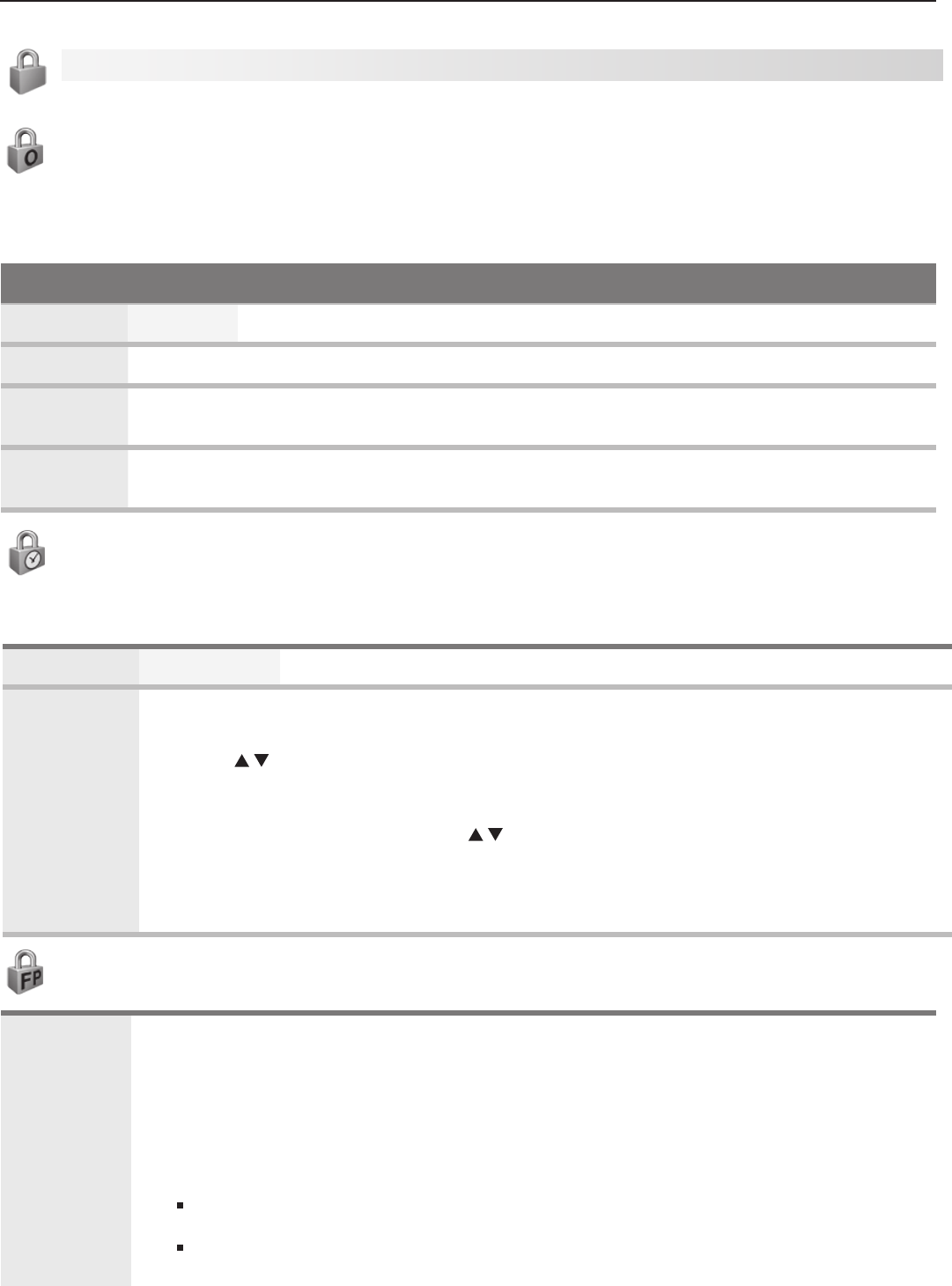
46 5. TV Menu Settings
Lock Menu, continued
Time
BlockalluseoftheTVduringthetimeperiodyouspecify.YoumustenterapasscodetousetheTVwhenthetime
lockisineffect.
Lock by Time
On, Off EnableordisableLockbyTime.
Lock Time,
Unlock Time
Tosetthelockandunlocktimes:
1. HighlightthehourdigitsfortheLock Time.
2. Press repeatedlytochangethehourandassociatedAM/PMindicator.Tomovequickly
throughthenumbers,justpressandhold.
3. Press
ENTER
tosetthehourandhighlighttheminutes.
4. Withtheminuteshighlighted,press repeatedlytochangetheminutes.Tomovequickly
throughthenumbers,justpressandhold.
5. HighlighttheUnlock Timedigitsandsetthetimeasdescribedabove.
Note: T
omakeLockbyTimeactive24hoursaday,makeStart TimeandStop Timethesame.
Other Menu Options (alternate rating system)
ThisTVcanrecognizenewratingsystemsthatmaycomeintoeffectinthefuture.TheOtheroptionremainsgrayed
outuntiltheTVreceivesasignalusinganalternateratingsystem.Suchalternateratingsystemswillapplytodigital
programmingonly.
Option Name and Description
Lock On, Off Enableordisableprogramblocking.
System Name
Theratingsystemavailableforthechannel
Group Ratinggroupsavailableintheratingsystemshownonthescreen.Ratinggroupsaredefinedby
theratingsystemineffect.
Rating Ratingrestrictionsavailableintheselectedratingsystemandgroup.Highlighttheratingand
press
ENTER
tocheck(block)oruncheck(allow)ratedcontent.
Front Panel
On, Off OnlocksandOffunlocksthecontrolsonthefrontoftheTV.Usethisoptionifsmallchildrenmay
trytopressTVbuttons.
Iftheremotecontrolisunavailable,usethefront-panelbuttonstoreleasethefrontpanellockby
doingoneofthefollowing:
• IftheTVison,pressandholdthe
MENU
buttonforovereightseconds.Amessagewilldisplay
toconfirmreleaseoftheFrontPanelLock.
• IftheTVisoff:
InFastPowerOnEnergyMode,pressandholdthe
MENU
buttononthefrontpanelforover
eightseconds.TheTVwillpoweronandreleasethelock.
InLowPowerEnergyMode,press
POWER
onthefrontpaneltoturnontheTV.WiththeTV
on,pressandhold
MENU
onthefrontpanelforovereightseconds.

47
6NetCommand
About NetCommand
• NetCommandhome-theatercontrolisavailableon
thefollowingmodels:
YseriesWD-Y577,WD-Y657
734seriesWD-57734,WD-65734,WD-73734.
Thischapterappliesonlytothesemodels.
• NetCommandsetupisoptional.
• YoucanperformNetCommandsetupwhentheTV
firstrecognizesadeviceduringAutoInputSensing
oratanyconvenienttimeafterward.
• NetCommandoperatesbysendingremotecontrol
signalsfromtheTVtoyourotherdevicesviatheIR
emitters,tellingthedevicestoplay,record,change
inputs,adjustvolume,changechannelsandmany
morefunctions.Allthisisaccomplishedwiththe
TV’sremotecontrolandtheslideswitchleftinthe
TV
position.
• TheIR“Learning”featureofNetCommandallows
theTVtolearntheremotecontrolsignalsforyour
A/Vdevices.
• YoucanchoosethelevelofNetCommandcontrol
foryourhometheater.
Standard Setup. Performastandardsetupif
youwantNetCommandtocontrolonlyafew
devices,suchastheTV,aplaybackdevice(like
aDVDplayer),andacablebox.Withthissetup,
youcanusetheTV’sremotecontroltooperate
thesedevices.
A/V Receiver Setup. PerformA/Vreceiver
setupifyouwantNetCommandto:
ControlasurroundsoundA/Vreceiver.
Automaticallychangeaudioinputselections
onanA/Vreceiverwhenyouchangeinputs
ontheTV.
Important Note on NetCommand
Be sure to connect the IR emitter cable to the
TV and properly place the emitters so that
Netcommand can control your devices. See the
explanation on the following page.
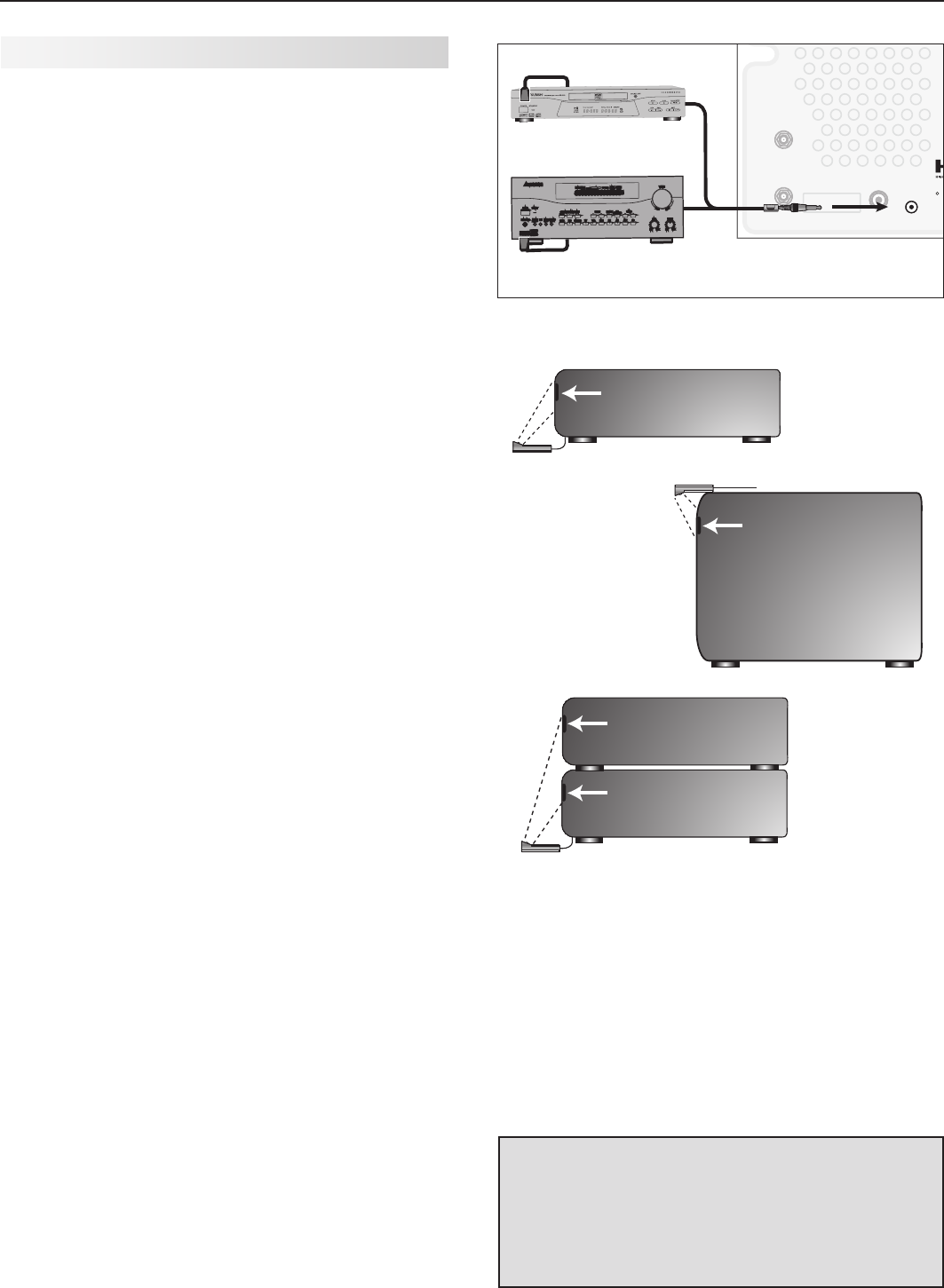
48 6. NetCommand
IR Emitter Placement (NetCommand®)
An IR emitter cable is included with the TV.
TheNetCommandsystemusesemittersconnectedto
the
IR EMITTER
jacktocontrolotherdevicessuchas
DVDplayers,cableboxes,satellitereceivers,andVCRs.
1. ConnecttheplugendofthesuppliedIRemitter
cabletothe
IR EMITTER NetCommand®
jackonthe
TVbackpanel.
2. Runthecableforeachoftheemitterendsunder,
alongside,orovereachdevicetobecontrolledso
thattheemitterendisinfrontoftheareawherethe
remotecontrolsensorislocated.
3. Positiontheemitterendwiththeemitterbulbfacing
theremotecontrolsensor.Thebulbemitsinfrared
lightinacone-shapedpattern.Placethebulbfar
enoughfromthesensortoallowtheconepattern
toreachthesensor.
TheIRsensorisusuallybehindtheplasticwindow
ofthefrontdisplaypanel.Itissometimesvisible
withtheaidofaflashlightandisnormallyaround
orsquarecutoutbehindtheplastic.Ifyoucannot
seethesensorandthedevice’sOwner’sGuide
doesnotspecifythelocation,youcanfinditby
followingthesestepsusingthedevice’sremote
control:
a. Holdthedevice’sremoteaboutone-halfinch
fromthefrontofthedevice.Startingfromone
endofthedisplaywindowplastic,pressthe
POWER
button.
b. Ifthedevicedoesnotrespond,movethe
remotecontroloneinchtowardthecenterand
tryagain.
c. Repeatthisuntilthedeviceresponds.
d. Notethislocationandthenstartoverfromthe
otherendofthedisplaywindowplastic,repeat-
inguntilthedevicerespondsagain.
Theremotecontrolsensorissomewhere
betweenthesetwopositions.Thisisusually
enoughaccuracyforplacementoftheIRemit-
ters.
Withsomedevices,theemitterworksbetter
facingdownwardfromthetopofthedevice.
Experimenttofindwhatworksbest.
4. Securetheemitterendsinplaceusingdouble-
sidedtape.
5. Placeanyunusedendsbehindthedevicesto
preventstraysignalsfromreachingtheIRsensors.
INPUT 1
INPUT 2
L (MONO) R
AUDIO
ANT 2/ AUX
ANT 1 / MAIN
DIGITAL
AUDIO
OUT HDMI 12
YPb Pr
AVR
AUDIO
OUTPUT
S-VIDEO VIDEO
3
L (MONO) - AUDIO - R
Y Pb Pr (480i/480p/720p/1080i)
VIDEO: 480i /480p /720p /1080i /1080p
AUDIO: PCM STEREO
PC: VGA / W-VGA / SVGA / W-SVGA /
XGA / W-XGA / SXGA / 720p /1080p
IR EMITTER
NetCommand R
PC/DVI
AUDIO
INPUT
COMPONENT 1
COMPONENT 2
IR EMITTER
NetCommand R
57#BDL1BOFM
%*(*5"-
463306/%
4
$)
"73FDFJWFS
0UIFS"7EFWJDF
Connecting IR Emitter NetCommand
*OGSPOUPGB
TJOHMFBWFSBHF
TJ[FEEFWJDF
0OUPQPGBTJOHMF
UBMMEFWJDF
*OGSPOUTIBSFE
CZUXPBWFSBHF
TJ[FEEFWJDFT
*3TFOTPS
*3TFOTPS
*3TFOTPS
*3TFOTPS
Place IR emitters so the signal can be “seen” by the IR
sensor on each device.
IMPORTANT
Position IR emitters so that each device’s
sensor “sees” the signal from only one emitter.
Otherwise, a device receiving signals from
multiple sources (remote controls, IR emitters)
may not respond at all.
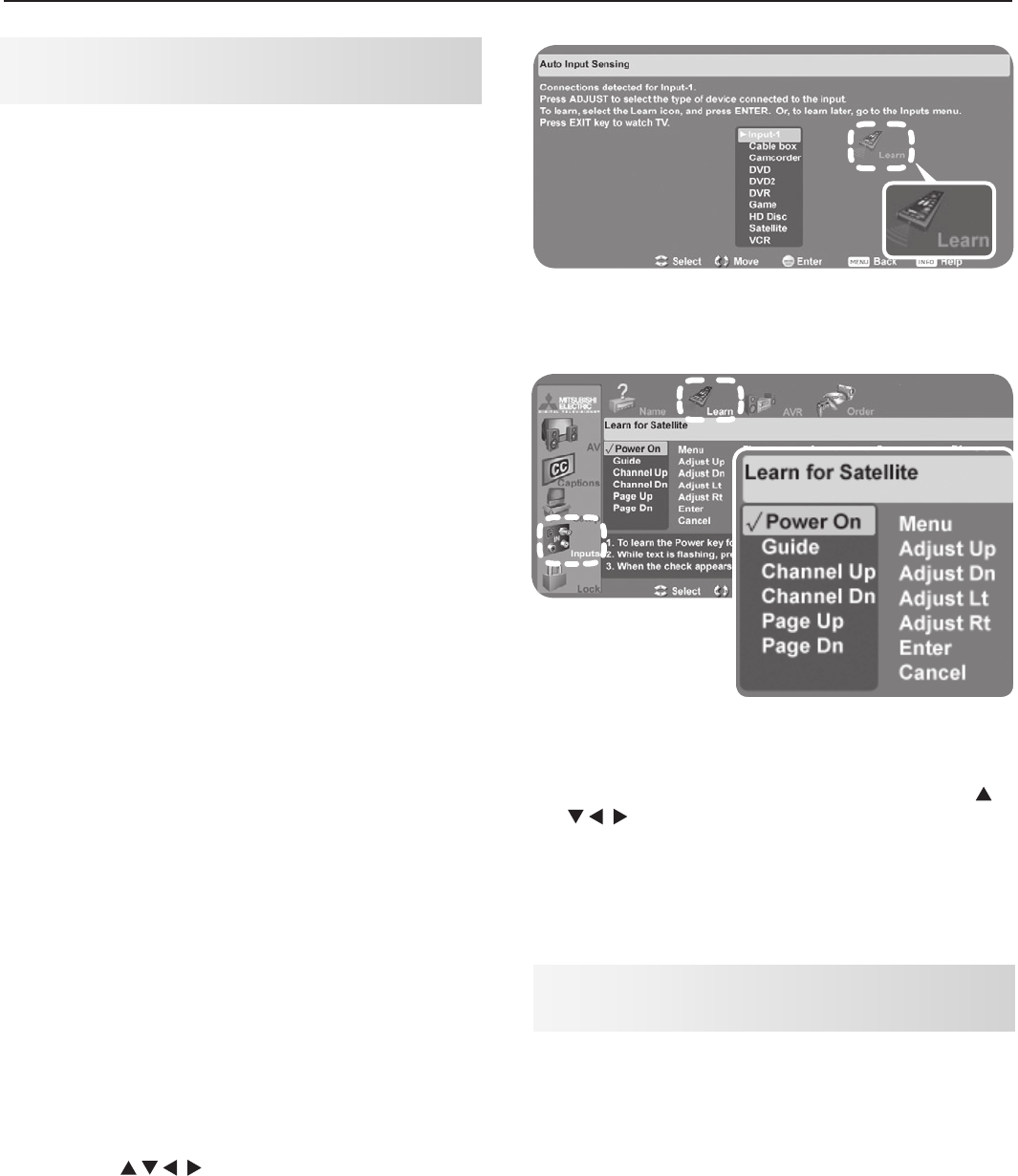
6. NetCommand 49
Initial NetCommand Setup for Most
Devices
Toperformthisprocedure,youneed:
• TheremotecontrolsforboththeTVandthe
deviceyouwanttocontrol.
• TheIRemittercablesuppliedwiththeTV.
Note: TosetupanA/Vreceiver,see“SetUp
NetCommandControlofanA/VReceiver”later
inthischapter.
1. ConnectandpositiontheIRemittersforthe
devicesyouwishtocontrol.See“IREmitterPlace-
ment”inthischapter.
2. SettheTV’sremotecontrolslideswitchtothe
TV
position.
3. OpentheNetCommandLearnscreeninoneoftwo
ways:
• IfworkingfromtheAuto Input Sensingscreen
forthedevice,highlighttheLearniconand
press
ENTER
toopentheLearnscreenforthe
device.
• IfperformingNetCommandsetupatanytime
afterthedevicehasbeenrecognizedthrough
AutoInputSensing:
a. Press
INPUT
toopentheInput Selection
menu.
b. Highlightthedesiredinputiconandpress
ENTER
toswitchtothatinput.
c. Press
MENU
,highlightInputs,andhighlight
LearntoopentheLearnscreenforthe
device.
4. ThefirstfunctionhighlightedintheLearnscreen
isalwaysPower On.AimtheTV’sremotecontrol
attheTVandpress
ENTER
tobeginlearningforthat
function.
5. WhenthePower Ontextstartsflashing,aimthe
device’sremotecontrolattheTVandpressand
holdthe
POWER
keyuntilacheckmarkappearsnext
toPower On.
• Ifthetextstopsflashingbeforethecheckmark
appears,repeatthisstep.
• ToremovethekeyfromNetCommandcontrol,
pressthe
CANCEL
keywhilethekeynameis
highlighted.
6. Pressthe keysontheTV’sremotecontrol
tohighlightotherkeysonthelist.Repeatsteps
4and5foreachadditionalfunctionyouwishto
controlthroughNetCommand.
7. Ifthedevice’sremotecontrolhaskeysthatarenot
inthelist,youcanassociateuptoanyfourkeys
withthe
F1
through
F4
keys.
Forexample,foraDVDplayer,assignthe
F1
and
F2
keystotheDVDplayer’s
CHAPTER SKIP FORWARD
and
CHAPTER SKIP BACK
keys.PerformNetCommandsetup
forthe
F
keysthesameasyoudidforthenamed
keys
.
8. Ifthedevicehasaseparate
POWER OFF
key,press
ontheTV’sremotetohighlightPower Off.
Repeattheearlierstepsto“learn”the
POWER OFF
key.
If the device has no
POWER OFF
key, skip this step.
9.
Press
EXIT
tofinishNetCommand“learning”forthe
currentdevice.
From the Auto Input Sensing screen, highlight the Learn
icon and press ENTER to open the NetCommand Learn
screen.
Inputs > Learn screen
Add or Remove Device Keys from
NetCommand Control
1. Press
INPUT
toopentheInput Selectionmenuand
selecttheaffecteddevice.
2.
OpentheInputsmenuandhighlighttheLearnicon.
3. WhentheLearnscreendisplays:
• Toaddkeys:Continueasdescribedearlier
under“InitialNetCommandSetupforMost
DeviceTypes.”
• Todeletekeys:Highlightthenameofthekey
youwishtodeleteandpress
CANCEL
ontheTV‘s
remotecontroltoclearthecheckmark.
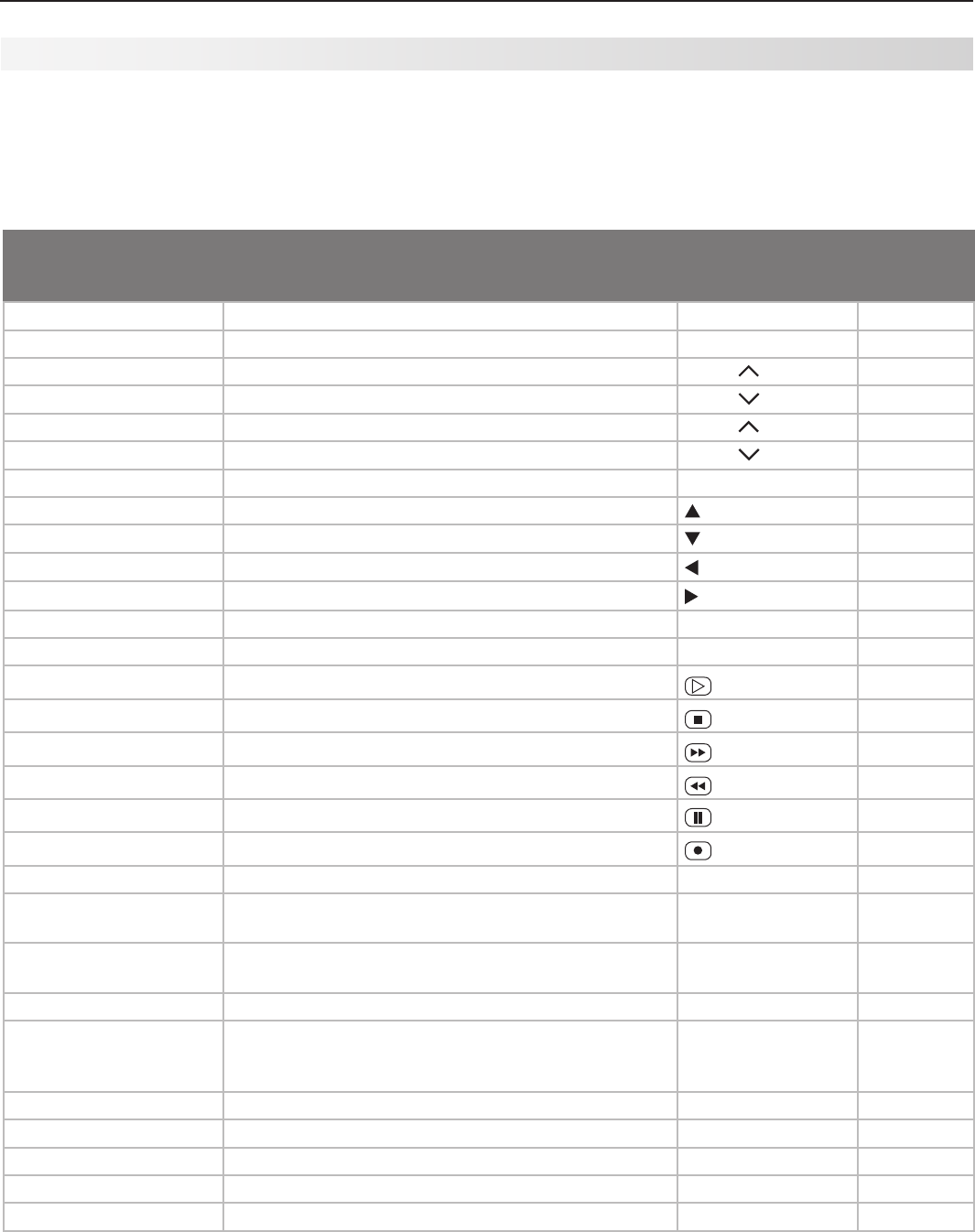
50 6. NetCommand
Refertothischartwhen“learning”devicekeys.“Learn”
some,all,ornoneofthekeysusedforeachdevice
type.Thecharthasspaceforyoutowriteinfunctions
youassigntothe
F1
–
F4
keys.
Key Name in
Learning Screen Function Name on TV
Remote Control
See Special
Operation
Method
Power On PowerOnorPowerON/OFF(toggle)
POWER
*
Guide OnScreenProgramGuideorDiscMenus
GUIDE
*
Channel Up NextChannelHigher
CH/PAGE
Channel Dn NextChannelLower
CH/PAGE
Page Up PageUpinGuides
CH/PAGE
*
Page Dn PageDowninGuides
CH/PAGE
*
Menu Setupmenufordevice
MENU
*
Adjust Up Adjustorarrowup
Adjust Dn Adjustorarrowdown
Adjust Lt Adjustorarrowleft
Adjust Rt Adjustorarrowright
Enter EnterorSelect(menus)
ENTER
*
Cancel Cancelorerase(menus)
—/CANCEL
*
Play Startplayback
Stop Stopplayback
Forward FastForward
Rewind Rewind/FastReverse
Pause Pauseplayback
Record StartRecording
1, 2, 3, 4, 5, 6, 7, 8, 9, 0 Digitfunctions
1, 2, 3, 4, 5, 6, 7, 8, 9, 0
Enter (digits) Useafterdigitstodirectlyaccesschannelsby
number
ENTER
*
- (separator) Adddigitalchannelseparatorbetweenmainchannel
numberandsub-channelnumber
—/CANCEL
*
Recall (QV) LastChannelRecall
QV
Info On-screenstatusdisplayorinformationdisplay
INFO
Mayrequire
twokey-
presses
F1
F1
F2
F2
F3
F3
F4
F4
Power Off PowerOff
POWER
ASSIGN YOUR
CHOICE OF
SPECIALIZED
FUNCTIONS
NetCommand Specialized Device Keys
Seethefollowingpageformoreonkeysmarkedinthe
“SpecialOperationMethod”column.
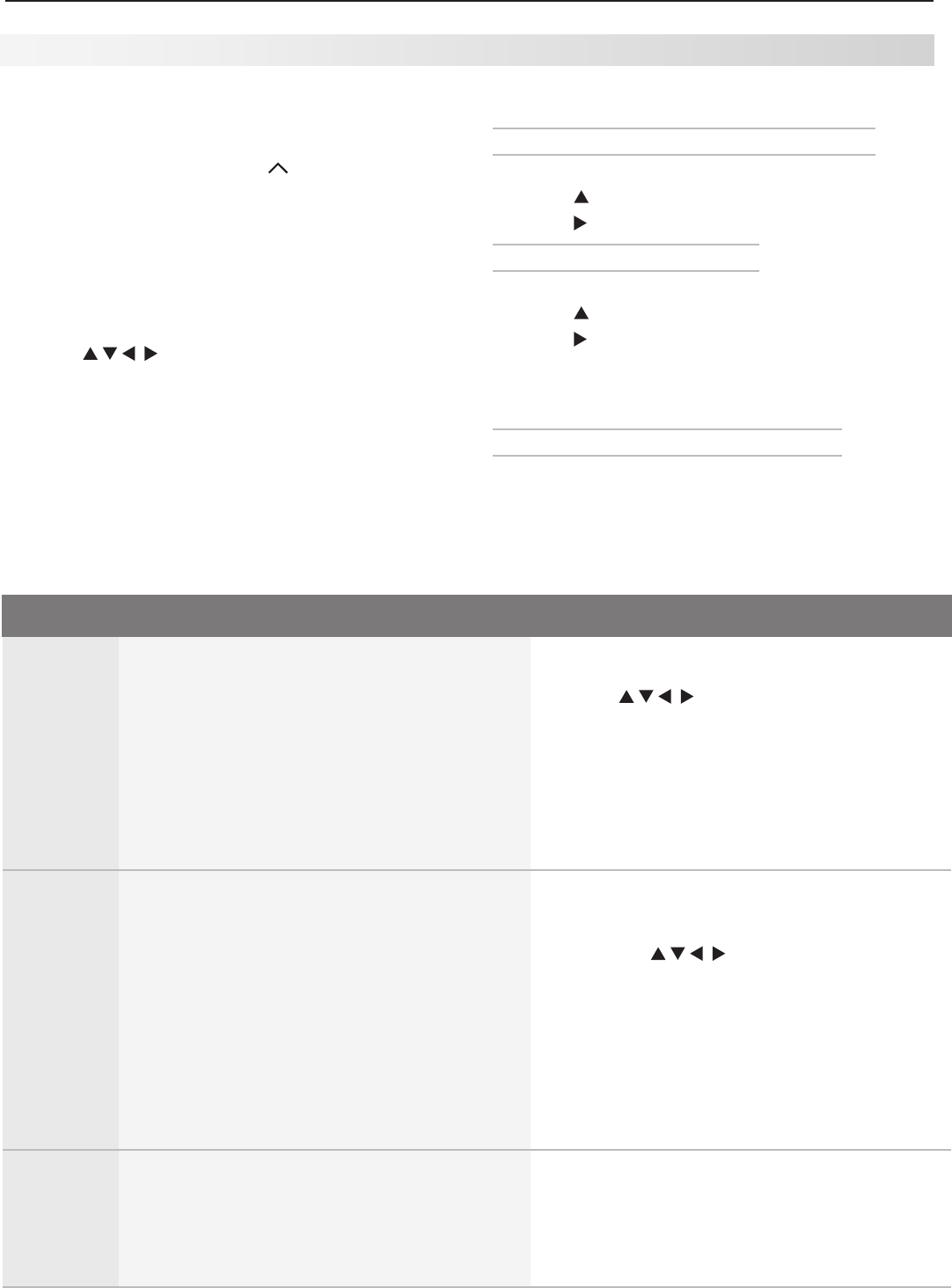
6. NetCommand 51
Key Name in
Learning Screen
Special Operation Description and Setup How to Use
Power On Manual Power On/Off
Usefordevicesthathaveonlyone
POWER
key.
1. Press
INPUT
todisplaytheInput Selection
menu.
2. Press tohighlighttheiconforthe
devicetobepoweredonoroff.
3. WiththeInput Selectionmenustilldisplayed,
press
POWER
tosendthepowersignal;youmay
needtopress
POWER
twice.
Note:Ifyoupress
POWER
withouttheInput
Selectiondisplayed,theTVwillturnoff.
4. Press
ENTER
toswitchtheTVtothedevice.
Power On
Power Off
Automatic Power On/Off
Thisfeatureisonlyfordevicesthathaveseparate
POWER ON
and
POWER OFF
keysontheiroriginalremote
controls.Ifyourdevicedoesnothaveaseparate
POWER OFF
key,donotusethePower Offlearn-
ingposition;useonlytheManualPowerON/OFF
methoddescribedabove.
IntheNetCommandLearnscreen:
a. “Learn”thePower OncommandinthePower
Onlearningposition.
b. “Learn”thePower Offcommandinthe
Power Offlearningposition.
• To Power On the Device
1. Press
INPUT
todisplaytheInput Selection
menu.
2. Press tohighlighttheiconforthe
devicetobepoweredonoroff.
3. Press
ENTER
toswitchtheTVtothedevice
andNetCommandwillsendthePower On
commandtothedevice.
• To Power Off the Device
WhenyouturntheTVoff,theTVsendsall
learnedPower Offcommandstoalldevices.
Menu Displaying Device Setup Menus 1. Whilewatchingadevice,press
INPUT
todisplay
theInput Selectionmenuwiththedeviceicon
highlighted.
2. Press
MENU
tosendthemenusignaltothe
device.TheInput Selectionmenuwillauto-
maticallyclearfromthescreen.
Special Operation Methods
Operating NetCommand-Controlled Devices
To Control an A/V Receiver
Switching Audio to and from the A/V Receiver
1. Press
AUDIO.
2. Press toshowtheSpeakersoption.
3. Press toselecteitherAV ReceiverorTV.
Controlling A/V Receiver Power
1. Press
AUDIO.
2. Press toshowtheSpeakersoption.
3. Press toselectAV Receiver.
4. PointtheremotecontrolattheTV(nottheA/V
receiver)andpress
POWER
topowertheA/Vreceiver
onoroff.
Controlling Other A/V Receiver Functions
WiththeA/Vreceiverpoweredonandselected,the
TV’sremoteoperatesthevolumeandmutefunctions.
Also,whenyouswitchtoadeviceintheInput Selec-
tionmenu,theA/Vreceiverautomaticallyswitchesto
thecorrectaudioinputforthedevice.
To Control Most Device Types
AsanexampleofNetCommandcontrol,ifyouare
watchingyourcableboxandyouwishtotunetothe
nextchannelhigher,press
CH/PAGE
.NetCommand
thensendsthe“learned”channel-upcontrolsignalto
thecablebox.
1. WithanIRemitterproperlypositionedinfrontofthe
device,usetheInputs > Learnscreentoperform
NetCommandsetupforthedevice.
2. Whenyouwishtousethedevice,press
INPUT
to
displaytheInput Selectionmenu.
3. Press tohighlighttheiconforthedevice.
4. Press
ENTER
toswitchtheTVtothedevice.
Note:
ifyouhavesetupautomaticinputswitching
fortheA/Vreceiver,theA/Vreceiverwillautomatically
switchtothecorrectinputforthedevice.
5. TooperatethedeviceusingtheTV’sremote
control,settheslideswitchtothe
TV
position.
6. PointtheremotecontrolattheTV(notthedevice)
andpressthekeyforthedesiredfunction.
52 6. NetCommand
Key Name in
Learning Screen
Special Operation Description and Setup How to Use
Guide Displaying the Disc Menu (DVD or high-defini-
tion disc format)
“Learn”the
DISC MENU
,
TOP MENU,
orotherkeyas
namedontheoriginalremoteintheGuide
learningposition.
Whilewatchingthedevice,press
GUIDE
todisplaythe
discmenu.
Displaying the On-Screen Program Guide
(cable box or satellite receiver)
1. “Learn”the
GUIDE
keyontheoriginalremotein
theGuidelearningposition.
2. Learnthe
PAGE
and
PAGE
keysofthe
originalremoteinthePage UpandPage Dn
learningpositions.
1. Whilewatchingthedevice,press
GUIDE
to
displaytheguide.
2. Press
CH/PAGE
/ tosendthePage Up/Dn
commandsfortheguide.
Page Up
Page Dn
Using Page Up/Down
Ifthedevice’soriginalremotecontrolhasseparate
keysforChannel Up/DnandPage Up/Dn,theTV
remotecontrol’s
CH/PAGE
/ keycanworklike
thetwoseparatekeys.
1. “Learn”
CHANNEL
/ intheChannel Up/Dn
positions.
2. “Learn”
PAGE
/ inthePage Up/Dnposi-
tions.
Inside the Guide
Press
CH/PAGE
/ tosendthePage Up/Dncom-
mands.
Outside the Guide
Press
CH/PAGE
/ tosendtheChannel Up/Dn
signal.
Enter Enter Functions (cable boxes, satellite receivers, etc)
Somedeviceshavetwokeysthathave“enter”functions.Onekeyisformenusandisoftenlabelled
SELECT
or
OK
.Asecondkeyisforusewithnumberkeysfordirectchannelselection.NetCommanduses
thesame
ENTER
keyforbothoperations.
When
ENTER
hasamenuorguidefunctionorwhen
theoriginalremotecontrolusesthesamekeyfor
menusandchannelselection:
Learnthe
ENTER
,
SELECT,
or
OK
keyinthe
NetCommandEnterlearningposition.
1. Press
MENU
or
GUIDE
todisplaythedevice’smenu
orguide.
2. Press
ENTER
withinthemenuandNetCommand
willsendtheEntersignalformenus.
Enter (digits)
When
ENTER
isforchannelchanges,i.e.,theoriginal
remotecontrolhasaseparate
ENTER
keyforthis
function):
Learnthe
ENTER
keyforchannelselectioninthe
NetCommandEnter (digits)learningposition.
Usethislearningpositiononlyiftheoriginal
remotecontrolhasseparatekeysforEnter in
menusandEnterforchannelselection.
Pressdigitkey(s)andthenpress
ENTER
.
NetCommandwillsendtheEntersignalforchannel
selection.
Cancel CANCEL as the Cancel or Exit Function
“Learn”theCancelorExitfunctioninthe
NetCommandCancellearningposition
1. Press
MENU
or
GUIDE
todisplaythemenuorguide.
2. Press
—
CANCEL
andNetCommandwillsendthe
CancelorExitsignal.
— (separa-
tor)
Thesymbol“—”canserveastheseparator
betweenadigitalchannel’smainandsub-
channeldigits,e.g.,digitalchannel12-1(main
channelis12,sub-channelis1).
“Learn”thechannelseparatorfunctioninthe
NetCommand– (separator)learningposition.
Pressdigitkey(s)andpress
—
CANCEL
.NetCommand
willsendthechannel-separatorsignal.
Operating NetCommand-Controlled Devices, continued
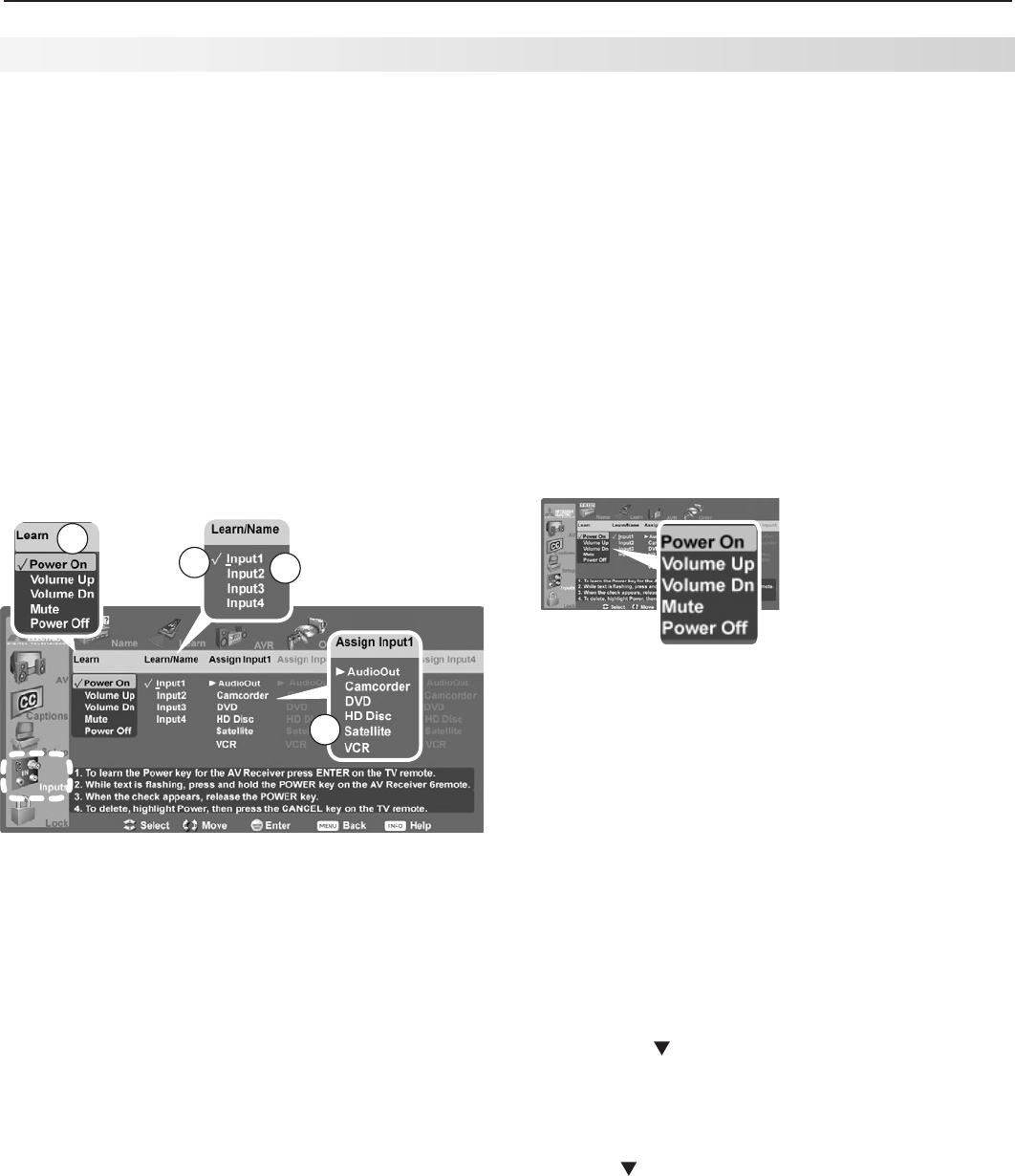
6. NetCommand 53
Performthissetupto:
• OperatetheA/Vreceiver’spowerandvolume
functionswiththeTV’sremotecontrol.
• EnabletheA/Vreceivertoswitchautomatically
tothecorrectaudioinputwhenyouselecta
deviceintheTV’sInput Selectionmenu.
TosetupcontrolofanA/Vreceiveryouneed:
• TheremotecontrolsforboththeTVandthe
A/Vreceiver.
• TheIRemittercablesuppliedwiththeTV.
Note: Tosetupcontrolofotherdevicetypes,see
“InitialNetCommandSetupforMostDevices”
earlierinthischapter.
PerformthissetupusingtheInputs > AVRscreen,
shownbelow.
1
3
4
2
AVR screen overview
1. Powerandvolume
commands the TV can send to the
A/V receiver when “learned”
2.
A check under
Learn/Name
means the TV has
“learned” the command to switch the A/V receiver to the
input.
3.
Input1 through Input4 are placeholder names for A/V
receiver inputs. Use this screen to assign meaningful
names , e.g., the name of the A/V receiver input.
4. Match up devices connected to the TV inputs with
audio inputs on the A/V receiver.
3. SettheTV’sremotecontrolslideswitchtothe
TV
position.
4. OpentheAVRscreeninoneoftwoways:
• IfusingtheAuto Output Sensingscreenfor
theA/Vreceiver,highlighttheLearniconand
press
ENTER
toopentheAVRscreen.
• IfperformingNetCommandsetupatanytime
aftertheA/Vreceiverhasbeenrecognized
throughAutoInputSensing:
Press
MENU
,highlightInputs,andhighlightAVR
toopentheAVRscreen.
5. ThefirstfunctionhighlightedintheAVRscreenis
alwaysPower On.AimtheTV’sremotecontrolat
theTVandpress
ENTER
tobeginlearningforPower
On.
A/V Receiver (AVR)
screen. Perform
NetCommand IR
“learning” for A/V
receiver power and
volume keys.
6. WhenthePower Ontextstartsflashing,aimthe
A/V receiver’sremotecontrolattheTVandpress
andholdthe
POWER
or
POWER ON
keyuntilacheckmark
appearsnexttoPower On.
• Ifthetextstopsflashingbeforethecheckmark
appears,repeatthisstep.
• ToremovethekeyfromNetCommandcontrol,
pressthe
CANCEL
keywhilethekeynameis
highlighted.
By completing “learning” for the power key,
NetCommand now operates the power function for
the A/V receiver.
Point the TV’s remote control at the TV to control
the A/V receiver.
7. Pressthe keyontheTV’sremotecontroltohigh-
lightotherkeysinthelist.Repeatsteps5and6for
eachadditionalfunctionyouwishtocontrolthrough
NetCommand.
8. IftheA/Vreceiverhasaseparate
POWER OFF
key,
press ontheTV’sremotetohighlightPower Off.
Repeatsteps5and6to“learn”the
POWER OFF
key.
9. Whenfinished“learning”thepowerandvolume
keys,eitherpress
EXIT
towatchTVorproceedtothe
nextsectiontocontinueNetCommandsetupofthe
A/Vreceiver.
Setup to Control the A/V Receiver’s Power
and Volume Functions
1. ConnectyourA/VreceivertotheTVandanyaddi-
tionaldevices.Seechapter2,“TVConnections,”
forsuggestions.
2. ConnecttheIRemittercabletotheTVandposition
theIRemitterwhereitcansendsignalstotheA/V
receiver.
Set Up NetCommand Control of an A/V Receiver
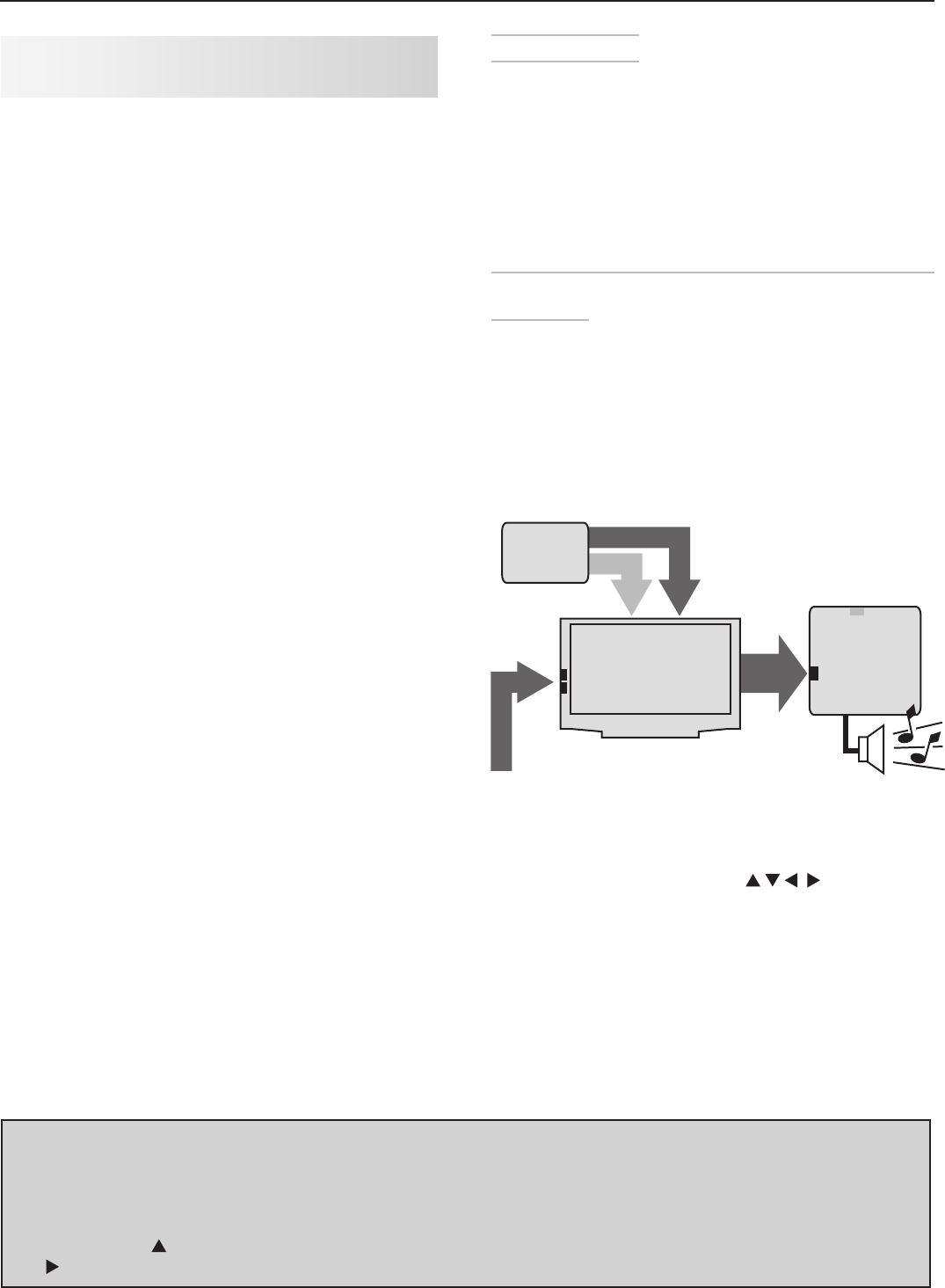
54 6. NetCommand
Before You Begin
1. ConnectyourA/VdevicestotheTVandconnect
yourA/VreceivertotheTVandtheDVDplayer.
Seechapter2,“TVConnections,”forsuggestions.
2. Openthe Inputs > AVRmenu.
Note: ThetermsInput 1–Input 4usedintheAVR
screenaretemporaryplaceholdernames.They
refertotheA/VreceiverinputsforwhichtheTV
canlearnIRcodes.
Setup 1: Automatic A/V Receiver Switching to Its TV
Audio Input
MostdevicesaresetupliketheVCRinthisexample,in
whichanalogaudiofromthedeviceissentthroughthe
TV.
Usethissetupfor:
• Sourcesprovidingonlyanalogstereooutput,such
asaVCR
• Audiofrom
ANT 1
and
ANT 2
57
"/5
"/5
BVEJPWJEFP
*ODPNJOH
$PBYJBM
$BCMF
"73FDFJWFS
%7%BVEJP
JOQVU
57BVEJP
JOQVU
57BVEJP
PVU
EJHJUBMPS
BOBMPHBVEJP
GSPN57
BOBMPHBVEJP
WJEFP
WJEFP
BOBMPHBVEJP
7$3XJUI
"OBMPH
"VEJP
Setup 1: A/V receiver audio from the TV’s digital or
analog audio output (
DIGITAL AUDIO OUT
or
AVR AUDIO
OUTPUT
)
1. UnderLearn/Name,press tohighlight
theareanexttoInput 1.
Inthisexample,theIRcodefortheA/Vreceiver’s
TV Audio
inputwillbe“learned”asInput 1.
2. Press
ENTER
ontheTV’sremotecontrol.
3. WhilethetextInput1isflashing,pressandholdthe
TV INPUT
keyontheA/V receiver’sremotecontrol.
4. WhenacheckappearsnexttoInput 1,releasethe
TV INPUT
key.
Setup to Control Automatic Switching of
A/V Receiver Audio Inputs
Twodifferentsetupsaredescribedhere:
Setup 1:AutomaticA/VReceiverSwitchingtoTV
AudioInput
Setup 2:AutomaticA/VReceiverSwitchingfora
devicesendingaudiodirectlytotheA/Vreceiver
• AudioAvailablefromTVonly:UseSetup1.
Audiofrom
ANT 1
and
ANT 2
mustbesenttothe
A/VreceiverfromtheTV’sDIGITAL AUDIO OUTor
analog
AVR AUDIO OUTPUT
.
UseSetup1tomaketheA/Vreceiverswitchto
itsdesignatedTVaudioinputwhenviewingthese
sources.
• HDMIDigitalStereoAudio:UseSetup1
DigitalstereoaudiofromanHDMIconnection
isavailablebothindigitalformat(fromtheTV’s
DIGITAL AUDIO OUT)jackandinanalogformat
(fromtheTV’s
AVR AUDIO OUTPUT
jack).
• AnalogStereoAudio:UseSetup1.
Audiofromsourceswithonlyanalogstereooutput
(suchasaVCR)canbesenteitherdirectlytothe
A/VreceiverorthroughtotheTVandthenontothe
A/Vreceiver.
Mitsubishirecommendsyousendaudiothrough
theTVasshownintheexample.Setup1causes
theA/Vreceivertoswitchtoitsinputdesignatedfor
TVaudio.
IfyouhaveadigitalA/Vreceiver,theTVmakesthe
audioavailablebyconvertinganalogaudiotoa
digitaloutput.
• DigitalSurroundSound:UseSetup2.
Adevicecansenddigitalsurroundsoundsuchas
DolbyDigitalorDTSdirectlytotheA/Vreceiver,
bypassingtheTVentirely.Thedevicemightbe
aDVDplayer,cablebox,orsatellitereceiver,and
couldhaveHDMIoutput.ADVDplayerisusedin
thisexample.
Yoursetupmayincludeadditionaldeviceswith
digitalsurroundsoundconnecteddirectlytothe
A/Vreceiver.ThesedevicesmightbeaDVDplayer
plusacableboxorsatellitereceiver.
Set Up NetCommand Control of an
A/V Receiver, continued
IMPORTANT
To hear audio sent from the TV to the A/V receiver,
you must have:
•
physically connected the TV to the A/V receiver
•
selected the A/V receiver for audio.
Press
AUDIO, then to show the Speakers option, then
to select the A/V Receiver.
• “
learned” the IR codes for the A/V receiver
inputs
• chosenthecorrectinputintheNetCommand
A/V Receiver Learn screen
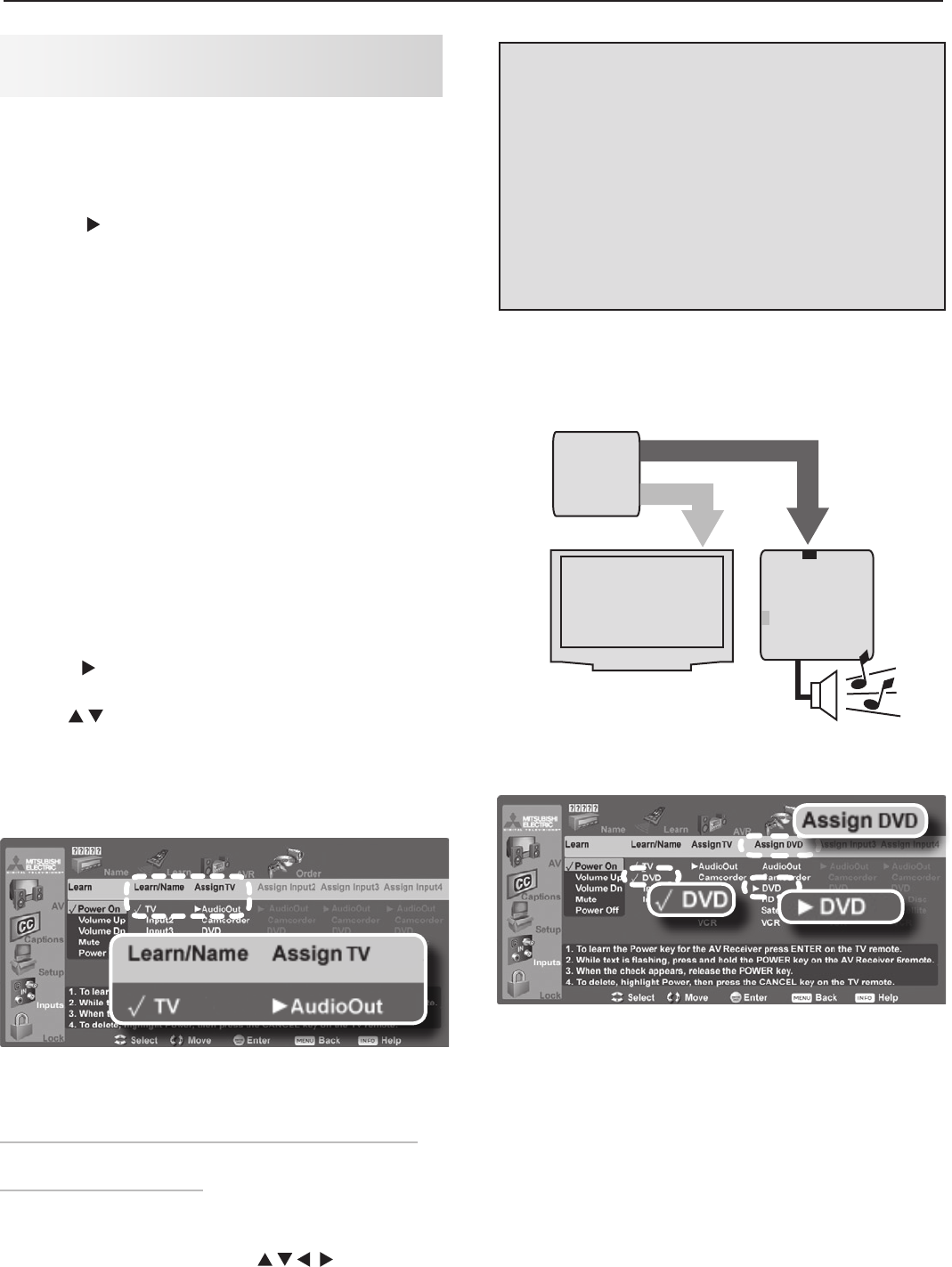
6. NetCommand 55
• Ifthetextstopsflashingbeforethecheckmark
appears,repeatthisstep.
• ToerasetheIRcodejust“learned,”press
CANCEL
whilethenameishighlighted.
5. Press tohighlightthenameInput1.Youcan
enteracustomnameusingtheletters/numberson
theremotecontrol.Itisbesttoassignnamesto
“learned”inputsthatmatchtheinputnamesdis-
playedontheA/Vreceiver.Forthisexample,enter
thecustomnameTVusingtheseguidelines:
• Toselectacharacter,repeatedlypressa
numberkeyontheremotecontroltocycle
throughthecharactersassociatedwiththekey.
Thefollowingspecialcharactersareavailable
byusingthe
1
and
0
keys:
1: !&blankspace
0:
/*-
• Press
ENTER
tosetthecharacterandmovethe
highlighttothenextcharacter.
• Todeleteacharacter,highlightthecharacter
andpress
CANCEL.
• Tohighlightthefirstcharacter,repeatedlypress
CANCEL
.
6. Press tomovethehighlighttotheAssign
column.
7. Use tohighlightAudioOut(TVaudiooutput).
Thetriangularmarkerisalwaysnexttotheassigned
soundsource.
8. Press
EXIT
iffinishedorcontinuewithsetupfor
anotherTVsource.
Completed NetCommand setup described for
controlling A/V receiver switching to the A/V receiver’s
audio input labelled “TV.”
Setup 2: Automatic A/V Receiver Switching for a
Surround Sound Device
Usethissetuptosenddigitalsurroundsounddirectly
fromadevicetoanA/Vreceiver.
1. UnderLearn/Name,press tohighlight
theareanexttoInput2.
Inthisexample,theIRcodefortheA/Vreceiver’s
DVD Audio
inputwillbe“learned”asInput 2.
2. Press
ENTER
ontheTV’sremotecontrol.
57
BVEJPWJEFP
*ODPNJOH
$PBYJBM
$BCMF
"73FDFJWFS
%7%BVEJP
JOQVU
57BVEJP
JOQVU
%7%1MBZFSXJUI
%JHJUBM4VSSPVOE4PVOE
%7%1MBZFS
XJUI
%JHJUBM
4VSSPVOE
4PVOE
WJEFP
EJHJUBMTVSSPVOETPVOE
Setup 2: A/V receiver audio from a device providing
surround sound directly to the A/V receiver
Completed NetCommand setup described for
controlling A/V receiver switching to an A/V receiver
input labelled “DVD.”
3. WhilethetextInput2isflashing,pressandholdthe
DVD INPUT
keyontheA/V receiver’sremotecontrol.
4. WhenacheckappearsnexttoInput 2,releasethe
DVD INPUT
key.
• Ifthetextstopsflashingbeforethecheckmark
appears,repeatthisstep.
• ToerasetheIRcodejust“learned,”press
CANCEL
whilethenameishighlighted.
Set Up NetCommand Control of an
A/V Receiver, continued
IMPORTANT
All audio from what you are watching on the
TV is always available as an output on both the
TV’s AVR AUDIO OUTPUT and DIGITAL AUDIO
OUT jacks.
To use the digital surround sound capabili-
ties of your A/V receiver however, you must
connect your DVD player, satellite receiver, or
cable box directly to the A/V receiver, as sur-
round sound may not be available from the TV’s
audio output.

56 6. NetCommand
5. Press tohighlightthenameInput2.Assigna
customnamethatmatchestheinputnamedis-
playedontheA/Vreceiver.Forthisexample,enter
thecustomnameDVDusingtheguidelinesgiven
earlier.
6. Press tomovethehighlighttothesecondAssign
column.
7. Use tohighlightDVDinthelistofdevices
recognizedbytheTV.Thetriangularmarkeralways
showstheassignedsoundsource.
8. Press
EXIT
iffinishedorcontinueforadditionalTV
sources.
Set Up NetCommand Control of an
A/V Receiver, continued

57
Appendix A: Specifications ....................... 58
Appendix B: Bypassing the Parental Lock .............. 59
Appendix C: Lamp Cartridge Replacement and Cleaning ..... 61
Appendix D: Programming the Remote Control ........... 63
Appendix E: Troubleshooting ...................... 71
Appendices
58 Appendices
Appendix A: Specifications
Outputs
Description Qty. Output Specifications
Audio Speakers 25.5"x2.2"
Analog Audio
(Signal)
1
pair
RCAPinPlug,500mVrms+200mV
(fullscale)foranalogsources,1.5
Vrms+0.5Vrms(fullscale)fordigital
sources.
Digital Audio
Output 1RCAPinPlug,SignalTypeDolby
Digital,PCMstereo
Image Technology Lamp
DLP,0.65”chip,1920x1080pixelswithSmooth
Picture™
180-wattVIPtype
Channel
Frequency
Reception
Over-the-Air:VHF2–13,UHF14–69
AnalogCable:1–125
DigitalCable:1–135
Channel
Type*
OvertheAir: AnalogNTSC,DigitalATSCwith
sub-channels(all18videoformats)
Cable:
AnalogNTSC(non-scrambled)
DigitalQAM64and256withsub-
channels(non-scrambled)
*NoteforDigitalChannels:Thechannelnumbersdisplayedonscreenare
determinedbythebroadcasterorcablecompanyandcanvaryfromthestandard
frequencynumber.Ifthereisnochannel-numberinformationprovidedbythe
broadcasterorcablecompany,theTVcreatesachannelnumber.Thecreated
channelnumberusesthefrequencynumberasthemainchannelnumberandthe
programnumberasthesub-channelnumber.
Size, Weight, and Power Consumption
Model
Dimensions (inches) Weight
(lbs.) Power
Height Width Depth
WD-C657 39.5 58.2 15.3 76 275w
WD-57733 35 51.2 13.9 62 275w
WD-65733 39.5 58.2 15.3 76 275w
WD-73733 43.6 65.2 17. 5 108 275w
WD-Y577 35 51.2 13.9 62 280w
WD-Y657 39.5 58.2 15.3 76 280w
WD-57734 35 51.2 13.9 62 280w
WD-65734 39.5 58.2 15.3 76 280w
WD-73734 43.6 65.2 17. 5 108 280w
Inputs
Type Qty. Input Specifications
Antenna/Cable
input 2RF
Fconnector,75-ohm
HDMI (digital
video/audio)
EIA-861D standard for digital audio
and video via HDMI
HDMIstandardconnector
Video: 60Hz:480i,480p,720p,1080i
24Hz,30Hz,60Hz:1080p
Audio:PCMstereo
PC(digitalsignalsonly):
VGA(640x480,60Hz)
W-VGA(848x480,60Hz)
SVGA(800x600,60Hz)
W-SVGA(1064x600,60Hz)
XGA(1024x768,60Hz)
1280x720,60Hz
SXGA(1280x1024,60Hz)
1920x1080(60Hz)
WXGA(1360x768,60Hz))
WD-C657 2
WD-57733
WD-65733
WD-73733
3
WD-Y577
WD-Y657
WD-57734
WD-65734
WD-73734
4
Composite
Video
3NTSC 480i only
Video: RCAPinPlug,1.0Vp-p,
75ohm
S-Video 2Four-PinDINPlug
Y:1.0Vp-p75-ohm
C:0.286Vp-p(burstsignal),75-ohm
Component
Video (Y/Pr/Pb) EIA-770.1 & EIA 770.2 480i, 480p,
EIA 770.3 720p and 1080i (TV analog
component video standards)
RCAPinPlug
Y: 1.0Vp-p(includessync),
75-ohm
Pr: 700mVp-p,75-ohm
Pb: 700mVp-p,75-ohm
WD-C657 2
WD-57733
WD-65733
WD-73733
WD-Y577
WD-Y657
WD-57734
WD-65734
WD-73734
3
USB Photo Port 1CanbeusedonlyforreadingJPEG
files.
Audio Inputs 6
pairs
Analog left and right audio
RCAPinPlug500mV(fullscale),43-k
ohm
HDMI
TheHDMIinputsarecompliantwithEIA-861Dstandardsforstan-
dard,extended,andhigh-definitionvideo;digitalaudio,andHDCP
copyprotection.
Appendices 59
Bypassing the Parental Lock
Afteryousetthelock,youmustuseyourpasscode
toviewalockedprogram,viewthelockedTV,view
alockedchannel,cancelthelock,orentertheLock
menus.
Ifyouforgetyourpasscode,youcanviewthelocked
TVwithoutenteringyourpasscode.Whenyouare
promptedforyourpasscode,pressthenumber
9
and
QV
keysontheTVremotecontrolatthesametime.This
processtemporarilyunlockstheTV.
WhenenteringtheLockmenu,thisprocessdeletes
youroldpasscodeandpromptsyoutoenteranew
passcode.
• Youcaneitherenteranewpasscodetoopenthe
Lockmenuandmakechangesorpress
EXIT
toclose
themenu.
• Ifanyofthelocksareturnedonandyouexitthe
menuswhenpromptedforanewcode,theold
codeandalllocksettingsareretained.
• Ifalllocksareturnedoffandyouexitthemenus
whenpromptedforanewcode,thentheprevious
codeiserased.
Lock Bypass Instructions Have Been Filed for
Future Reference
IMPORTANT
Cut along the dotted line and file bypass
instructions in a safe place for future
reference.
IMPORTANT
When changing or deleting your pass code,
you must use the remote control included
with this TV. You cannot use a Mitsubishi
remote control from another component or a
“universal” remote.
Appendix B: Bypassing the Parental
Lock

60 Appendices
This page intentionally left blank
Appendices 61
CAUTION
BURN DANGER! HOT SURFACES INSIDE!
Touch lamp cartridge handle only. Do not touch lamp or lamp cartridge
housing. Keep lamp cartridge horizontal during removal. Do not tilt as
glass may come out and cause injury. Only replace lamp cartridge with
the same part number 915P061010.
CAUTION: If the television is on, press POWER to turn it off. Unplug the television and
allow it to cool for at least one hour before attempting to replace the lamp cartridge.
Lamp
Thelightsourceforthistelevisionisalamp,whichispartofalampcartridgeassembly.Thelifeofthelampcanvary,
basedonthelampitself,theairtemperaturearoundtheTVwhileitisoperating,andyourviewingpatterns.Warmerair
orpoorventilationshortenthelamplife,asdoesturningthetelevisiononandofffrequently.Mitsubishiwarrantsthe
lampforone(1)yearfromthedateoforiginalTVpurchaseatretail.
To Order a New Lamp
To Receive a Replacement Lamp Under Warranty
Call(800)553-7278.Pleasehavemodelnumber,serialnumber,andTVpurchasedateavailable.
Important:AlllampsreplacedunderwarrantymustbereturnedtoMitsubishiwheretheywillbeinspectedfordefect
verification.
To Purchase a Replacement Lamp After Warranty
Visitourwebsiteatwww.mitsuparts.comorcall(800)553-7278.Orderthefollowing:
Lamp Part Number 915P061010
Appendix C: Lamp-Cartridge Replacement and Cleaning
WARNING
• Donotremovethelampcartridgeimmediatelyafterturningoffthetelevision.Youmaygetburnedbecausethe
lampisveryhot.Allowthetelevisiontocoolforatleastonehourbeforereplacingthelampcartridge.
• Donotremovethelampcartridgeexceptwhenreplacingit.Carelesstreatmentcanresultininjuryorfire.
• Donottouchthelampglasselement.Itmaybeveryhotandbreak,causinginjuriesorburns.
• Besurenottoinsertanymetalorflammableobjectintothelampcartridgeopening,asitmaycausefireorelectri-
calshock.Ifaforeignobjectisinsertedintotheopening,unplugtheACcordoftheTVandcontactyourdealerfor
service.
• Installthelampcartridgesecurely.Failuretodosomaycauseafire.
• Donottouchthelampglasselements.Oilsfromyourfingersmaycauseprematurelampfailure.
Hg =MERCURY
THELAMPINSIDETHISPRODUCTCONTAINSMERCURYANDMUSTBERECYCLEDOR
DISPOSEDOFACCORDINGTOLOCAL,STATEORFEDERALLAWS.Fordisposalorrecy-
clinginformation,pleasecontactyourlocalauthoritiesortheElectronicIndustriesAllianceat
www.eiae.org
WARNING
THEACCESSPANELISPROVIDEDWITH
ANINTERLOCKTOREDUCETHERISKOF
EXCESSIVEULTRAVIOLETRADIATION.DONOT
DEFEATITSPURPOSEORATTEMPTTOSERVICE
WITHOUTREMOVINGPANELCOMPLETELY.
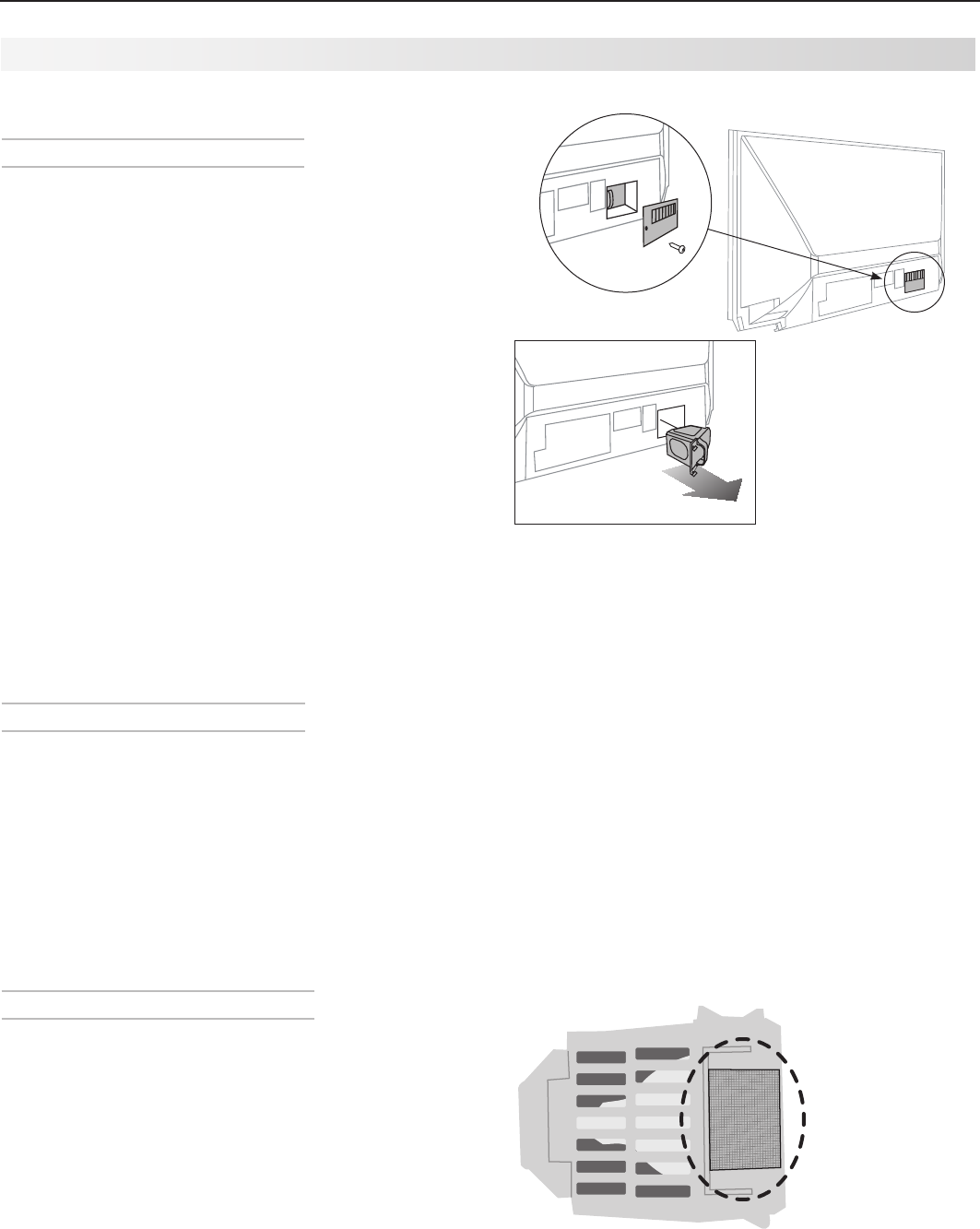
62 Appendices
Appendix C: Lamp-Cartridge Replacement and Cleaning, continued
Lamp-Cartridge Replacement
Removing the Old Lamp Cartridge
1. TurnoffTVpowerandallowthelamptocoolforat
leastonehourbeforeproceeding.
2. Afterthelamphascooled,removethecoverofthe
lampcompartment,locatedonthebackoftheTV.
Refertofigures1and2.Usea#2(large)Phillips
screwdrivertoloosenthescrewsecuringthecover.
Keepthescrewandcoverforre-installation
3.
WithalargePhillipsorflat-bladescrewdriver,loosen
thetwoshinyscrewssecuringthelampcartridge
untiltheydisengagefromthematingthreads.These
arecaptivescrewsandcannotbeseparatedfromthe
lampcartridge.
4. Fullyopenthebagsuppliedwiththereplacement
lampandsettheopenedbagaside.
5. Gentlygraspthehandleofthelampcartridgeand
pulltheoldcartridgestraightout.Seefigure3.
CAUTION: Donottiltorrotatethecartridge,as
smallglassfragmentsmayfallout.
6. Withouttiltingorputtingdownthelampcartridge,
insertitintotheopenedbag.Closethebagwhile
beingcarefulnottoletanyglassparticlesfallout.
Installing the New Lamp Cartridge
1. Donottouchtheglasspartsofthenewlampcar-
tridge.InsertthenewcartridgeintotheTVinthe
sameorientationastheoldcartridge.Pushonthe
cartridgehousinguntilitisfullyseated.
2. Witheitheryourfingersorthescrewdriver,gently
tightenthetwoshinyscrews.Ifusingascrewdriver,
AVOIDOVERTIGHTENING!
3. Replacetheplasticcoverandretainingscrews.
4. WASHYOURHANDSTHOROUGHLY,ASTHIS
LAMPCONTAINSMERCURY.
Disposal of the Old Lamp Cartridge
Lamp under warranty:Alllampsreplacedunderwar-
rantymustbereturnedtoMitsubishi.Usethereturn
shippinglabelprovidedandsendtoMitsubishiDigital
Electronics,America,1001CherryDrive,Suite2,Brasel-
ton,GA30517.
IMPORTANT: Lamps found to be without defect will
be returned and charged back to the sender.
Lamp no longer under warranty:
Contactyour
localauthoritiesortheElectronicIndustriesAllianceat
www.eiae.orgforlamp-disposalorrecyclinginstructions.
Donotdisposeoftheoldlampwithcommontrash.
Figure 3
Use only replacement
lamp part number
915P061010.
Figure 4
Keep lamp
cartridge horizontal
and remove dust
from the mesh filter
using a soft dry
brush or vacuum
cleaner.
Figure 2
Figure 1
Lamp-Cartridge Filter Cleaning
IftheTVshutsoffafterdisplayingthemessage“TVwill
shutdowninafewseconds.Pleasecheckiftheair
flowisblocked”and/orthe
STATUS
LEDisyellow,theair
filtermayneedcleaning.Theairfilterispartofthe
lampcartridge.Usethefollowingproceduretoclean
thefilter.
1. RemovethelampcartridgefromtheTVas
describedunder“RemovingtheOldLampCar-
tridge.”Donottiltorrotatethecartridge.Donot
touchtheglasspartsofthelampcartridge.
2. Holdingthelampcartridgehorizontal(donottiltor
rotate),useasoftdrybrushorvacuumcleanerto
removeanydustthatmaybepresentonthemesh
filter.Donotuseliquids.Seefigure4.
3. Reinstallthelampcartridgeasdescribedunder
“InstallingtheNewLampCartridge.”
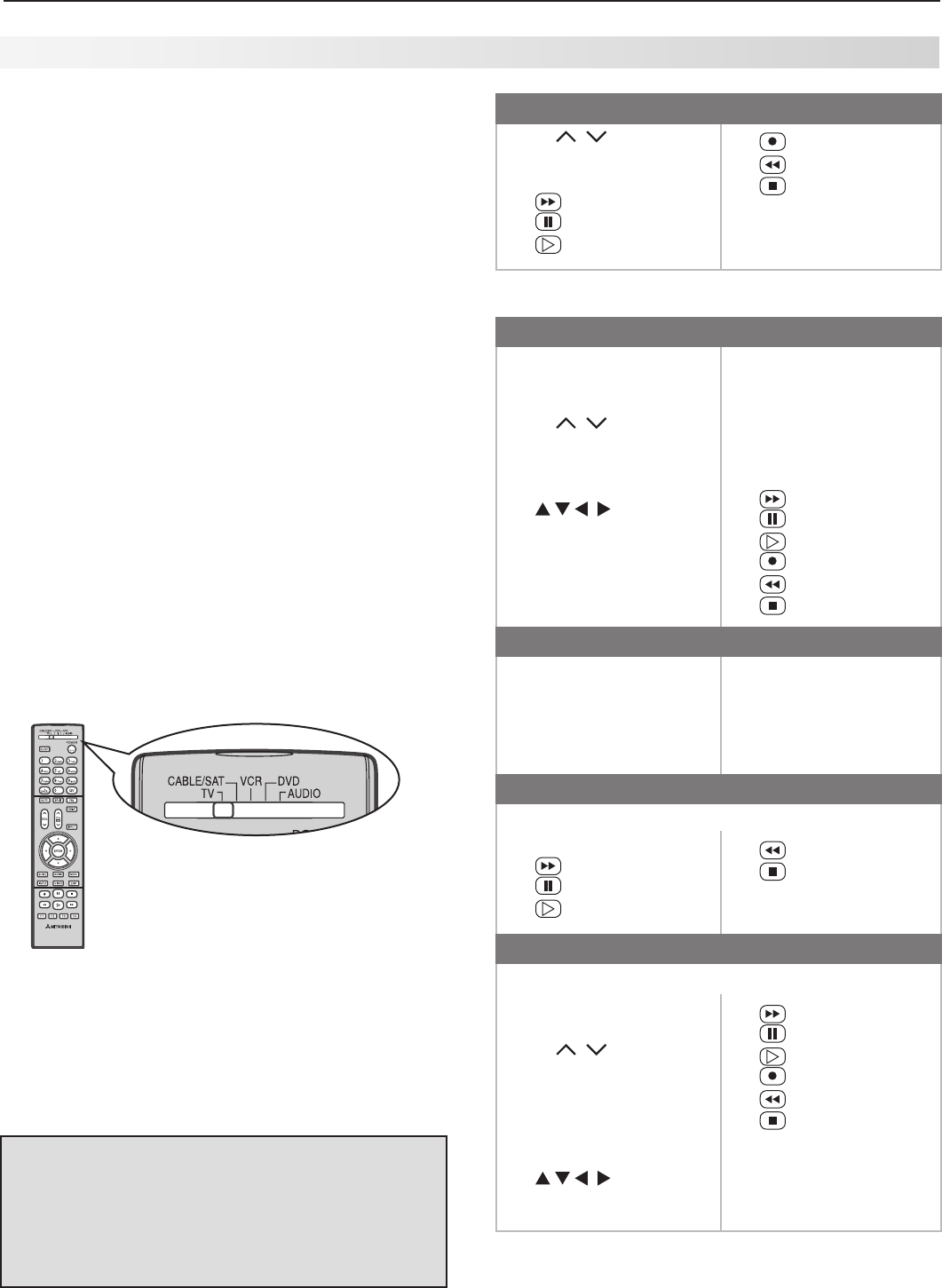
Appendices 63
ThisappendixexplainsprogrammingtheTV’sremote
controltooperateotherA/Vdevices.Thisisdistinct
fromNetCommandcontrol.TheTV’sremotecontrol
canoperateotherdevicesbythreedifferentmethods:
• RemoteControlProgramming:Youmustmove
theslideswitchtothepositionspecifictothe
typeofdevice.
• NetCommand®IR“learning”(Yand734series
only):Youcanoperateotherdeviceswiththe
slideswitchinthe
TV
position.
• NetCommandforHDMIdevices(allTVmodels):
YoumaybeabletooperatecompatibleHDMI
deviceswiththeslideswitchinthe
TV
position.
Seethedevice’sOwner’sGuideandthe
descriptioninchapter4,“TVOperationand
Features.”
Functions Available for Other A/V Devices
TheTV’sremotecontrolcanbeprogrammedtooperate
othertypesandbrandsofA/Vproducts.Tousethe
remotewhenprogrammed,set the slide switch to the
position labelled for the product type.Thefunctions
performedineachswitchpositioncanvarydepending
ontheproduct.Notallfunctionsworkforallmodels.
Themostcommonfunctionsavailablearelistedonthis
page.
Set the remote control’s slide
switch to the type of device you
wish to program for or control.
VCRs and DVRs
•
CH
/
•
POWER
•
SLEEP
• (
FAST FORWARD
)
• (
PAUSE
)
• (
PLAY
)
• (
RECORD
)
• (
REVERSE
)
• (
STOP
)
•
GUIDE
(DVRonly)
•
MENU
(DVRonly)
•
0–9
NumberButtons
MitsubishiVCRsarecompatiblewithsomeadditional
buttons.
Cable Boxes and Satellite Receivers
•
AUDIO (PAGE UP)
•
CANCEL
(onsome
models)
•
CH
/
•
ENTER
(onsomemodels)
•
GUIDE
(onsomemodels)
•
POWER
• (onsome
models)
•
VIDEO (PAGE DOWN)
•
QV
(
ENTER
;forchannels
onsomemodels)
•
0–9
NumberButtons
(onsomemodels)
•
F1–F4
(A,B,C,Dkeys
onsomemodels)
Therecord/playbackkeys
(onsomemodels):
• (
FAST FORWARD
)
• (
PAUSE
)
• (
PLAY
)
• (
RECORD
)
• (
REVERSE
)
• (
STOP
)
A/V Receivers
•
MUTE
•
POWER
•
SLEEP
•
VOLUME
•
0–9
NumberButtons
• DirectInputSelection
buttons:numbers,
FAV
and
QV
(onsome
Mitsubishimodels)
CD Players
(notallfunctionsforallmodels)
•
SLEEP
• (
FAST FORWARD
)
• (
PAUSE
)
• (
PLAY
)
• (
REVERSE
)
• (
STOP
)
•
0–9
NumberButtons
DVD and Laser Disc Players
(notallfunctionsforallmodels)
•
CANCEL
(onsome
models)
•
CH
/ (fortrack
skiponsomemodels)
•
ENTER
•
MENU
•
POWER
•
SLEEP
• (onsome
models)
• (
FAST FORWARD
)
• (
PAUSE
)
• (
PLAY
)
• (
RECORD
)
• (
REVERSE
)
• (
STOP
)
•
0-9
NumberButtons
(onsomemodels)
Appendix D: Programming the Remote Control
IMPORTANT
Some manufacturers may change their
products or they may use more than one
remote control system. The TV’s remote
control may be unable to operate your A/V
equipment in these cases.
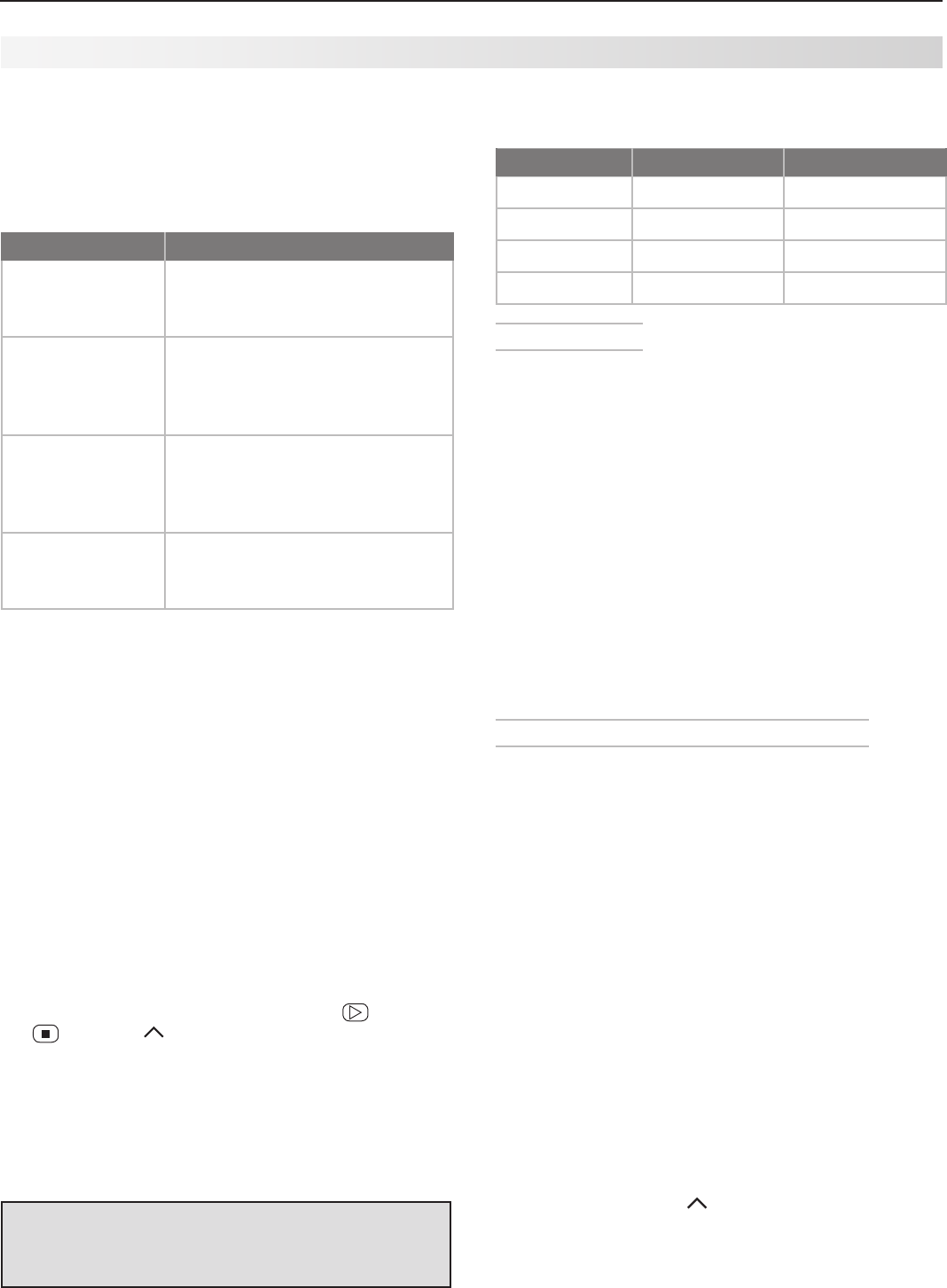
64 Appendices
IMPORTANT
You may need to reprogram the remote
control after changing the batteries.
Programming the Remote Control
1. Movetheslideswitchatthetopoftheremotetothe
positionfortheproductyouwanttocontrol.Refer
tothetablebelow.Onlyoneofeachdevicetype
canbecontrolledineachslide-switchposition.
Switch Position Affected Device
CABLE/SAT
CableBox
DTVReceiver
SatelliteReceiver
VCR
VCR
DVR
LaserDiscPlayer
DVDPlayer/Recorder
DVD
DVDPlayer/Recorder
DVR
LaserDiscPlayer
VCR
AUDIO
A/VReceiver
AudioAmplifier
CDPlayer
2. Pressandhold
POWER
ontheremotecontrolfor
severalsecondsuntilthebuttonblinkstwiceand
goesoff.
3. Releasethe
POWER
button.
4. Enterthefirstfive-digitcodelistedforyourequip-
ment.
• The
POWER
buttonblinkstwicewhenyoustartto
enterthecodeandthenonceforeachaddi-
tionalkeypress.
• The
POWER
buttonblinkstwicewhenyoufinish
enteringavalidcode.
• Movetheslideswitchtoanotherpositionifyou
needtostartoverorwishtoexitprogramming
mode.
5. Pointtheremotecontrolattheequipmentand
press
POWER
.Iftheproducthasnopoweron/off
function,pressadifferentkey,suchas (
PLAY
),
(
STOP
),
VOL
,or
MUTE.
• Iftheequipmentresponds,theremotecontrol
isproperlyprogrammedtooperatetheequip-
ment.
• Iftheequipmentdoesnotrespond,repeat
steps2–4withthenextfive-digitcodelistedfor
yourequipment.
6. Onceyouhavefoundthecorrectcode,writeitin
thespacebelowforfuturereference.
Switch Position
Device Type Code
CABLE/SAT
VCR
DVD
AUDIO
Code Verification
Todeterminethecodeprogrammedforanypositionof
theslideswitch:
1. Movetheslideswitchtothepositionyouwishto
verify.
2. Pressandhold
POWER
ontheremotecontrolfor
severalsecondsuntilthebuttonblinkstwiceand
goesoff.
3. Presskeys
9 9 0
4. Press
1
andcounttheblinksofthepowerbutton.
Writedownthenumberofblinksasthefirstdigitof
thecode.
5. Repeatstep4forthesecond,third,fourth,andfifth
digitsofthecode.
Appendix D: Programming the Remote Control, continued
Audio Lock: Universal A/V Receiver Control
WithAudioLockactive,theremotecontroloperates
thevolumeandmutefunctionsoftheA/Vreceiverinall
positionsoftheslideswitch.ActivateAudioLockifyou
normallyuseanA/VreceiverwithyourTVandother
A/Vequipment.
1. Programthe
AUDIO
positionforyourA/Vreceiveras
describedearlierinthissection.
2. Movetheslideswitchtothe
AUDIO
position.
3. Pressandhold
POWER
ontheremotecontrolfor
severalsecondsuntilthebuttonblinkstwiceand
goesoff.
4. Presskeys
9 9 3 ENTER
The
POWER
buttonwillblinktwicetoindicateAudio
Lockisactive.
To Reset the Remote Control to Operate Volume
and Mute for the TV Speakers
1. Pressandhold
POWER
forseveralsecondsuntilthe
buttonblinkstwiceandgoesoff.
2. Presskeys
9 9 3 VOL
.
The
POWER
buttonwillblinkfourtimestoindicate
AudioLockhascleared.
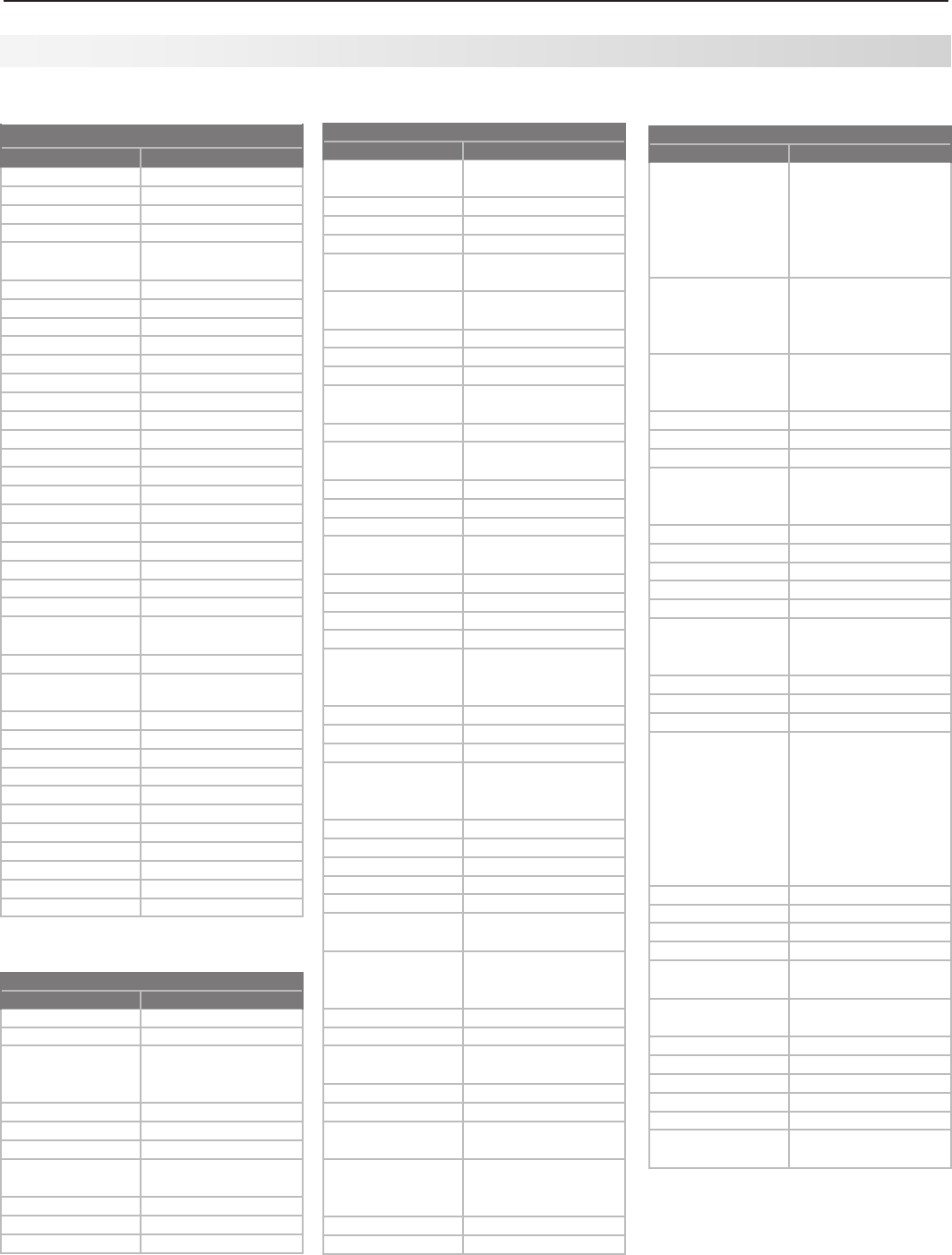
Appendices 65
Audio Amplifiers
Brand
Code
Acurus
30765
Adcom
31100, 30577
AltecLansing
31742
Aragon
30765
BelCanto
Design
31583
Bose
30 674
Carver
30892
Classe
31462, 31461
CurtisMathes
30300
Durabrand
31561
Elan
30647
GE
30078
Harman/Kardon
30892
JVC
30331
Klipsch
30765
LeftCoast
30892
Lenoxx
31561
Lexicon
31802
Logitech
31408
Marantz
30892
MarkLevinson
31483
McIntosh
30251
Mondial
30765
Optimus
30823, 30395,
30300
Philips
30892
Pioneer
30823, 30300,
30257, 30013
PolkAudio
30892
RCA
30823, 30300
Realistic
30395
Sharp
30226
Sony
30815
Soundesign
30078
Technics
30374, 30372
Toshiba
30353
Victor
30331
Wards
30078, 30013
Yamaha
30354
A/V Receivers
Brand Code
ADC
30531
Adcom
31617, 31616
Aiwa
31641, 31405,
31388, 31347, 31321,
31243, 30189, 30121
Akai
31255
Alco
31390
AMC
31077
AmplifierTech-
nologies
31584
Anam
31609, 31074
ApexDigital
31774, 31430, 31257
Arcam
31189
Programming Codes
Appendix D: Programming the Remote Control, continued
A/V Receivers
Brand Code
AtlanticTechnol-
ogy
31487
Audiophase
31387
Audiotronic
31189
Audiovox
31627, 31390
B&K
30840, 30820,
30701
BelCanto
Design
31584
BK
30702
Bose
31253, 31229, 30639
Brix
31602
Cambridge
Soundworks
31477
Capetronic
30531
Carver
31289, 31189,
30189, 30121
Coby
31263
Curtis
30797
Delphi
31414
Denon
31360, 31311, 31142,
30121,
Fisher
31801, 31409
Fosgate
31487
GloryHorse
31263
GPX
31299
Harman/Kardon
31306, 31304,
31289, 30891,
30189, 30110
Hitachi
31801, 31273
Integra
31320, 31298, 30135
JBL
31306, 30110
JVC
31811, 31643,
31495, 31374,
31282, 31263, 31058
Kenwood
31570, 31569, 31313
KLH
31428, 31390
Koss
31497, 31366
Linn
30189
LiquidVideo
31497
Magnavox
31514, 31269, 31189,
30531, 30189
Marantz
31289, 31269,
31189, 30200,
30189,
McIntosh
31289
Micromega
31189
Mitsubishi
31957, 31922, 31921,
31920, 31393, 30176
Myryad
31189
Nakamichi
31555, 31313, 30097
Onkyo
31320, 31298,
30842, 30135
Optimus
31074, 31023,
30849, 30797,
30670, 30531
Oritron
31497, 31366
Outlaw
31487
A/V Receivers
Brand Code
Panasonic
31764, 31763,
31633, 31548,
31518, 31509,
31363, 31350,
31316, 31308,
31288, 30309
Philips
31368, 31365,
31283, 31269,
31268, 31266,
31189, 30189
Pioneer
31384, 31343,
31023, 30630,
30531, 30150, 30014
PolkAudio
31414, 31289, 30189
Proscan
31254
RadioShack
31263
RCA
31609, 31511,
31390, 31254,
31074, 31023, 30531
Rio
31869
Samsung
31500, 31295
Sansui
31189, 30189
Sanyo
31801
Sharp
31386, 31361
SharperImage
31416, 31411, 31410,
31409, 31385,
31263, 30797
Sherwood
31077
Sirius
31811, 31627, 31602
SonicBlue
31869
Sony
31858, 31759,
31758, 31658,
31622, 31558,
31529, 31503,
31458, 31441,
31406, 31382,
31371, 31367, 31258,
31131, 31058
Soundesign
30670
Stereophonics
31023
Sunfire
31313
Sylvania
30797
Teac
31528, 31390,
31267, 31074
Technics
31633, 31518,
31308, 30309
Thorens
31189
Toshiba
30135
Venturer
31390, 30849
Wards
30189, 30014
XM
31414, 31406
Yamaha
31375, 31331, 31276,
31176, 30176

66 Appendices
Cable Boxes
Brand
Code
ABC
10017, 10014, 10013,
10011, 10008,
10007, 10003, 10001
Allegro
10315, 10153
Americast
10899
Antronix
10207, 10022
Archer
10797, 10207, 10153,
10022
BBT
10267
Belcor
10056
Bell&Howell
10014
BellSouth
10899
CableStar
10056
Cabletenna
10022
Cableview
10022
Century
10153
Citizen
10315, 10153
Clearmaster
10883
ClearMax
10883
ColourVoice
10031, 10025
Comtronics
10040
Contec
10019
Coolmax
10883
Digeo
11187
Digi
10637
Director
10476
Dumont
10637
Eastern
10002
Emerson
10797
Everquest
10040, 10015
Focus
10400
Garrard
10153
GCElectronics
10207, 10056
Gemini
10797, 10015
GeneralInstru-
ment
10810, 10476,
10276, 10011, 10003
GoldStar
10144, 10040
Goodmind
10797
Hamlin
10273, 10259,
10034, 10020,
10009
Hitachi
10 011
Hytex
10007
i3Micro
116 02
Jasco
10315, 10153, 10015
Jerrold
10810, 10476,10276,
10024, 10015,
10014, 10012, 10011,
10003
Linsay
10440
Magnavox
10027
Memorex
10000
Motorola
11376, 11254, 11187,
11106, 10810, 10476,
10276, 10014
MovieTime
10156, 10063
Multitech
10883
Myrio
116 02
Novaplex
10618
NSC
10156, 10063
Oak
10019, 10007
CD Players
Brand Code
Aiwa
30157
Akai
30156
Arcam
30157
Audio-Technica
30170
Burmester
30420
CaliforniaAudio
Labs
30303, 30029
Carver
30437, 30299,
30179, 30157
Classic
31297
Denon
30873, 30034,
30003
DKK
30000
DMXElectronics
30157
Emerson
30305
Fisher
31325, 30179, 30174
Garrard
30420, 30393
Gemini
30625
Genexxa
30305, 30032
GPX
31296
Harman/Kardon
31202, 30173, 30157,
30083
Hitachi
30032
Integra
30101
JVC
31294, 30072
Kenwood
30826, 30681,
30626, 30190,
30037, 30028,
KLH
31711, 31373, 31372,
31318
Koss
31317
Krell
30157
LG
31208
Linn
30157
LXI
30305
Magnavox
30305, 30157,
30038
Marantz
30626, 30435,
30180, 30157,
30038, 30029
MarkLevinson
31484
McIntosh
30660, 30290,
30256
MCS
30029
MGA
30083
Miro
30000
Mission
30157
Mitsubishi
30098, 30083
MTC
30625, 30420
NAD
30299, 30019
Nikko
30625, 30174, 30170
NSM
30157
Onkyo
31327, 30868,
30102, 30101
Programming Codes, continued
Appendix D: Programming the Remote Control, continued
CD Players
Brand Code
Optimus
31075, 31063,
30468, 30437,
30420, 30305,
30179, 30145,
30087, 30037,
30032, 30000
Panasonic
30752, 30388,
30303, 30029
Parasound
30420
Philips
30626, 30274, 30157
Pioneer
31087, 31063,
31062, 30551,
30468, 30305,
30032
PolkAudio
30157
Proceed
30420
Proton
30157
QED
30157
Quad
30157
Quasar
30029
RadioShack
31075
RCA
31062, 30764,
30468, 30420,
30305, 30179,
30053, 30032
Realistic
30420, 30180, 30179
Rotel
30420, 30157
SAE
30157
Sansui
30305, 30157
Sanyo
30179, 30087
Scott
30305
Sears
30305
Sharp
30861, 30265,
30180, 30037
Sherwood
31067, 30180
SonicFrontiers
30157
Sony
31364, 30673,
30605, 30604,
30490, 30185,
30100, 30000
Soundesign
30145
Sugden
30157
Symphonic
30305
TAGMcLaren
30157
Tascam
30420
TDK
31208
Teac
30420, 30393,
30378, 30180, 30174
Technics
30303, 30029
TivoliAudio
31553
Toshiba
30299, 30019
Victor
30072
Wards
30157, 30053
Yamaha
31292, 30888,
30490, 30261,
30187, 30170,
30036,
YBA
30625
Yorx
30461

Appendices 67
Cable Boxes
Brand
Code
Optimus
10021
Pace
11877, 10237, 10008
Panasonic
10107, 10021, 10000
Panther
10637
Paragon
10000
Philips
11305, 10317, 10153,
10031, 10027, 10025
Pioneer
11877, 10877, 10533,
10144, 10023
Popular
Mechanics
10400
Pulsar
10000
Quasar
10000
RadioShack
10883, 10797,
10315, 10015
RCA
11256, 10021
Realistic
10207
Recoton
10400
Regal
10279, 10273,
10259, 10020
Regency
10002
Rembrandt
10 011
Runco
10000
Samsung
10144, 10040
ScientificAtlanta
11877, 10877, 10477,
10017, 10008,
Seam
10510
Sejin
116 02
Signal
10040, 10015
Signature
10 011
SLMarx
10040
Sony
110 0 6
Sprucer
10021
Starcom
10015, 10003
Stargate
10797, 10040, 10015
Starquest
10015
StarSight
10422
Supercable
10276
Supermax
10883
Sylvania
10001
Tandy
10258
TeleCaption
10221
Teleview
10040
Texscan
10001
TFC
10310
Thomson
11256
Timeless
10418, 10040
Tocom
10013, 10012
Torx
10003
Toshiba
10000
Tristar
10883
Tusa
10015
TV86
10063
Unika
10207, 10153, 10022
UnitedArtists
10007
Universal
10207, 10191, 10153,
10056, 10022,
V2
10883
Viewmaster
10883
Viewstar
10258, 10063,
10027
DVD Players/Recorders
Brand Code
Adcom
21094
Aiwa
20641
Akai
21089, 20770
Alco
20790
Allegro
20869
AmphionMedia
Works
20872
AMW
20872
ApexDigital
21100, 21061,
21056, 21020,
21004, 20797,
20796, 20794,
20755, 20717, 20672
AspireDigital
21407, 21168
Audiologic
20736
Audiovox
21072, 21041, 20790
Axion
21072
B&K
20662, 20655
BelCanto
Design
21571
Blaupunkt
20717
BlueParade
20571
Broksonic
20695
CaliforniaAudio
Labs
20490
CAVS
21057
Cinea
20831
CineVision
20876, 20869,
20833
Citizen
21277
Coby
21351, 21177, 21165,
21107, 21086,
20852, 20778
Craig
20831
CurtisMathes
21087
CyberHome
21129, 21117, 21024,
21023, 20874, 20816
Daewoo
21242, 21234,
21172, 21169,
20869, 20833,
20784, 20705
Daytek
20872
Denon
20634, 20490
Desay
21407
Disney
21270, 20675
Dual
21085, 21068
Durabrand
21127
DVD2000
20521
Emerson
21268, 20675,
20591
Enterprise
20591
Fisher
20670
DVD Players/Recorders
Brand Code
Funai
21334, 21268,
20675
Gateway
21158, 21077, 21073
GE
20815, 20717, 20522
GoVideo
21730, 21304,
21158, 21144,
21099, 21075,21044,
20869, 20833,
20783, 20744,
20741, 20715
GoVision
21072
GoldStar
20741
GPX
20769, 20699
Gradiente
20490
Greenhill
20717
Grundig
20539
Harman/Kardon
20702, 20582
Hitachi
20664, 20573
Hiteker
20672
iLo
21348
Initial
20717
Integra
20627, 20571
Jaton
21078
JBL
20702
JSI
21423
JVC
21275, 21164,
20867, 20623,
20558
jWin
21051, 21049
Kawasaki
20790
Kenwood
20737, 20682,
20534, 20490
KLH
21149, 21020,
20790, 20717
Konka
20721, 20711
Koss
21423, 20896,
20651
Landel
20826
Lasonic
21173, 20798
Lecson
21533
Lenoxx
21127
LG
20869, 20801,
20741, 20591
LiteOn
21440, 21416,
21158, 21058
Loewe
20511
Magnavox
20675, 20646,
20539, 20503
Malata
21159, 20782
Marantz
20539
McIntosh
21533, 21273
Memorex
21270, 20831,
20695
Microsoft
20522
Mintek
20839, 20717
Mitsubishi
21521, 20521
Momitsu
21082
Myryad
20894
NAD
20741, 20692, 20591
Nakamichi
21222
Programming Codes, continued
Appendix D: Programming the Remote Control, continued
Cable Boxes
Brand
Code
Vision
10883
VortexView
10883
Zenith
10899, 10525,
10054, 10000
Zentek
10400
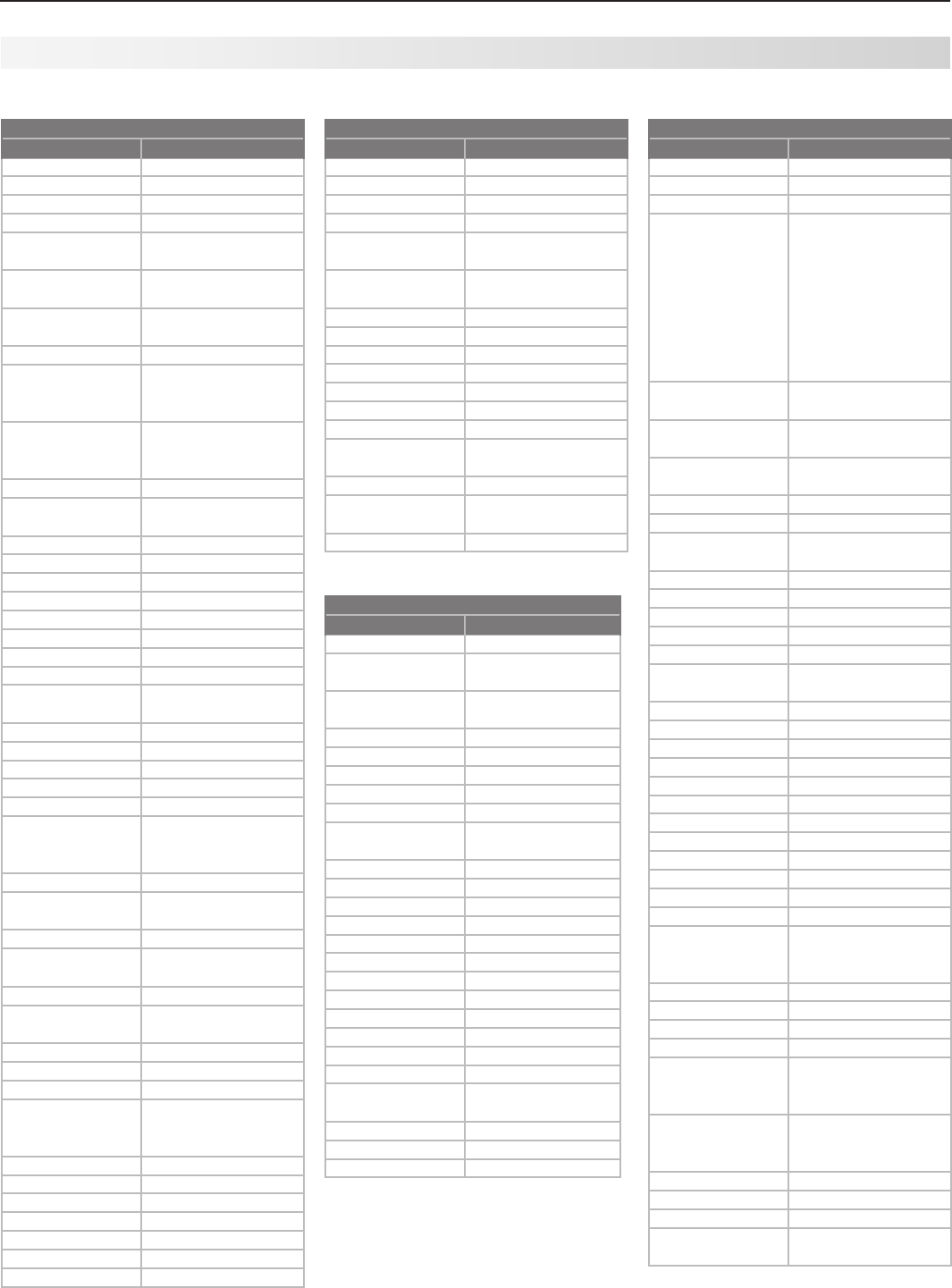
68 Appendices
DVD Players/Recorders
Brand Code
NEC
20785
Nesa
20717
NextBase
20826
NexxTech
21402
Norcent
21265, 21107,
21003, 20872
Onkyo
20792, 20627,
20503
OptoMediaElec-
tronics
20896
Oritron
20651
Panasonic
21762, 20703,
20632, 20503,
20490
Philips
21354, 21267,
20675, 20646,
20539, 20503,
PianoDisc
21024
Pioneer
21571, 20632,
20631, 20571, 20525
Polaroid
21086, 21061, 21020
PolkAudio
20539
Portland
20770
Princeton
20674
Proceed
20672
Proscan
20522
ProVision
20778
Qwestar
20651
RCA
20822, 20790,
20717, 20571, 20522
Rio
20869
RJTech
21360
Rotel
21178, 20623
Rowa
20823
Sampo
20752, 20698
Samsung
21075, 21044,
20820, 20744,
20573, 20490
Sansui
20695
Sanyo
20873, 20695,
20670
SensoryScience
21158
Sharp
21256, 20752,
20675, 20630
SharperImage
21117
Sherwood
21077, 21043,
20770, 20633
Shinsonic
20839, 20533
SigmaDesigns
20674
SonicBlue
21099, 20869
Sony
21533, 21431,
21033, 20864,
20533
Sungale
21074
SVA
21105, 20860
Sylvania
21268, 20675
Symphonic
21268, 20675
TAGMcLaren
20894
Teac
20809, 20790
Technics
20703, 20490
Laser Disc Players
Brand
Code
Aiwa
20203
Carver
20323, 20194,
20064
Denon
20243, 20241,
20172, 20059
DiscoVision
20023
Funai
20203
Harman/Kardon
20194
Hitachi
20023
Kenwood
20258
Magnavox
20243, 20241,
20217, 20194
Marantz
20194, 20064
Mitsubishi
20059
NAD
20059
Optimus
20059
Panasonic
20204
Philips
20194,20064
Pioneer
20059, 20023
PolkAudio
20194
Quasar
20204
Realistic
20203
Samsung
20323
Sega
20023
Sony
20270, 20201,
20193
Technics
20204
ThetaDigital
20194
Yamaha
20451, 20217
Satellite Receivers
Brand Code
AlphaStar
10772
Chaparral
10216
Crossdigital
1110 9
DirecTV
11856, 11749, 11640,
11639, 11609, 11444,
11443, 11442, 11414,
11392, 11377, 11142,
1110 9, 11108, 11076,
10819, 10749, 10724,
10639, 10566,
10392, 10247, 10099
DishNetwork
System
11775, 11505, 11170,
11005, 10775,
Dishpro
11775, 11505, 11005,
10775
Echostar
11775, 11505, 11170,
11005, 10775
Expressvu
11775, 10775
GE
10566, 10392
GeneralInstru-
ment
10869
GOI
11775, 10775
Goodmans
11246
Hisense
11535
Hitachi
11250, 10819
HTS
11775, 10775
HughesNetwork
Systems
11749, 11444, 11443,
11442, 11142, 10749
iLo
11535
Jerrold
10869
JVC
11775, 11170, 10775
LG
11414, 11226
Magnavox
10724, 10722
Memorex
10724
Mitsubishi
10749
Motorola
10869, 10856
NEC
11270
NextLevel
10869
Panasonic
10701, 10247
Paysat
10724
Philips
11749, 11442, 11142,
11076, 10819, 10749,
10724, 10722, 10099
Pioneer
11442
Proscan
10566, 10392
Proton
11535
RadioShack
10869
RCA
11392, 10855,
10566, 10392,
10143,
Samsung
11609, 11442, 11377,
11276, 11142, 11109,
1110 8
Sanyo
11219
Sony
11640, 11639, 10639
StarChoice
10869
Tivo
11444, 11443, 11442,
11142
Programming Codes, continued
Appendix D: Programming the Remote Control, continued
DVD Players/Recorders
Brand Code
Technosonic
20730
Techwood
20692
Terapin
21031
ThetaDigital
20571
Toshiba
21154, 20695,
20503
Tredex
20804, 20803,
20800, 20799
UrbanConcepts
20503
USLogic
20839
Venturer
20790
Vizio
21226, 21064
Vocopro
21027
Xbox
20522
Xwave
21001
Yamaha
20545, 20539,
20490
Yamakawa
20872
Zenith
20869, 20741,
20591, 20503
Zoece
21265
Appendices 69
VCRs and DVRs
Brand Code
ABS
21972
Admiral
20479, 20209,
20048
Adventura
20000
Aiko
20278
Aiwa
20307, 20124,
20037, 20000
Akai
20242, 20175,
20106, 20061, 20041
Alienware
21972
AmericaAction
20278
AmericanHigh
20035
Asha
20240
Audiovox
20278, 20037
Beaumark
20240
Bell&Howell
20104
Broksonic
20479, 20295,
20209, 20184,
20121, 20002
Calix
20037
Canon
20035
Capehart
20020
Carver
20081
CCE
20278, 20072
Citizen
20278, 20037
Colt
20072
Craig
20271, 20240,
20072, 20047, 20037
CurtisMathes
20760, 20162,
20060, 20041,
20035
Cybernex
20240
CyberPower
21972
Daewoo
20637, 20561,
20278, 20045,
20020
Daytron
20020
Dell
21972
Denon
20042
DirecTV
20739
Durabrand
20039, 20038
Dynatech
20000
Electrohome
20043, 20037
Electrophonic
20037
Emerex
20032
VCRs and DVRs
Brand Code
Emerson
21593, 20637,
20593, 20561,
20479, 20295,
20278, 20212,
20209, 20208,
20184, 20121,
20068, 20061,
20043, 20037,
20036, 20002,
20000
Fisher
20104, 20066,
20054, 20047
Fuji
20035, 20033
Funai
21593, 20593,
20000
Garrard
20000
Gateway
21972
GE
20761, 20760,
20240, 20202,
20060, 20035
GoVideo
20643, 20526,
20432, 20240
GoldStar
20038, 20037
Gradiente
20000
HarleyDavidson
20000
Harman/Kardon
20081, 20075,
20038
Harwood
20072, 20068
Headquarter
20046
HewlettPackard
21972
HI-Q
20047
Hitachi
20105, 20089,
20042, 20041,
20000
HowardCom-
puters
21972
HP
21972
HughesNetwork
Systems
20739, 20042
Humax
20739
Hush
21972
iBUYPOWER
21972
Jensen
20041
JVC
21162, 20067, 20041,
20008
KEC
20278, 20037
Kenwood
20067, 20041, 20038
KLH
20072
Kodak
20037, 20035
LG
21037
Linksys
21972
Lloyd’s
20208, 20000
Logik
20072
LXI
20037
Magnasonic
20593
Magnavox
20593, 20563,
20149, 20110,
20081, 20039,
20035, 20000
Magnin
20240
Marantz
20081, 20035
VCRs and DVRs
Brand Code
Marta
20037
Matsushita
21162, 20162, 20035
MediaCenterPC
21972
MEI
20035
Memorex
21262, 21162, 21037,
20479, 20307,
20240, 20209,
20162, 20104,
20048, 20047,
20046, 20039,
20037, 20035,
20000
MGA
20240, 20061,
20043
MGNTechnol-
ogy
20240
Microsoft
21972
Mind
21972
Minolta
20105, 20042
Mitsubishi
20443, 20242,
20214, 20173,
20075, 20067,
20061, 20043
Motorola
20048, 20035
MTC
20240, 20000
Multitech
20072, 20000
NEC
20104, 20067,
20041, 20040,
20038
Nikko
20037
Nikon
20034
NiveusMedia
21972
Noblex
20240
Northgate
21972
Olympus
20035
Onkyo
20222
Optimus
21262, 21162,
21062, 21048,
20593, 20432,
20162, 20104,
20048, 20037
Optonica
20062
Orion
20479, 20295,
20209, 20184,
20002
Panasonic
21262, 21162, 21062,
20616, 20225,
20162, 20077, 20035
Penney
20240, 20054,
20042, 20040,
20038, 20037,
20035
Pentax
20105, 20042
Philco
20035
Philips
21181, 21081, 20739,
20618, 20110,
20081, 20062,
20035
Pilot
20037
Pioneer
20067
Programming Codes, continued
Appendix D: Programming the Remote Control, continued
Satellite Receivers
Brand Code
Toshiba
11749, 11285, 10819,
10790, 10749
UltimateTV
116 40, 113 92
Uniden
10724, 10722
USDigital
11535
USDTV
11535
Voom
10869
Zenith
11856
70 Appendices
VCRs and DVRs
Brand Code
PolkAudio
20081
Portland
20020
Profitronic
20240
Proscan
20761, 20760,
20202, 20060
Protec
20072
Pulsar
20039
Quarter
20046
Quartz
20046
Quasar
21162, 20162, 20077,
20035
RadioShack
21037, 20000
Radix
20037
Randex
20037
RCA
20880, 20761,
20760, 20240,
20202, 20149,
20106, 20105,
20077, 20060,
20042
Realistic
20104, 20066,
20062, 20048,
20047, 20046,
20037, 20035,
20000
ReplayTV
20616, 20614
Ricavision
21972
Ricoh
20034
Runco
20039
Salora
20075
Samsung
20739, 20240,
20045
Samtron
20643
Sanky
20048, 20039
Sansui
20479, 20271,
20209, 20067,
20041, 20000
Sanyo
20240, 20159,
20104, 20047, 20046
Scott
20212, 20210,
20184, 20121,
20045, 20043
Sears
20105, 20104,
20066, 20054,
20047, 20046,
20042, 20037,
20035, 20000
Sharp
20848, 20062,
20048
Shintom
20072
Shogun
20240
Singer
20072
SonicBlue
20616, 20614
Sony
21972, 21032,
20636, 20035,
20034, 20033,
20032, 20000
Stack9
21972
STS
20042
Programming Codes, continued
Appendix D: Programming the Remote Control, continued
VCRs and DVRs
Brand Code
Sylvania
21593, 20593,
20110, 20081,
20043, 20035,
20000
Symphonic
21593, 20593,
20000
Systemax
21972
TagarSystems
21972
Tatung
20041
Teac
20041, 20000
Technics
20162, 20035
Teknika
20037, 20035,
20000
Thomas
20000
Tivo
21503, 20739,
20636, 20618
TMK
20240, 20208,
20036
Toshiba
21972, 21503,
21008, 20212,
20210, 20209,
20066, 20045,
20043
Totevision
20240, 20037
Touch
21972
Unitech
20240
Vector
20045
VectorResearch
20040, 20038
VideoConcepts
20061, 20045,
20040
Videomagic
20037
Videosonic
20240
Viewsonic
21972
Villain
20000
Voodoo
21972
Wards
20760, 20240,
20212, 20149,
20081, 20072,
20062, 20060,
20048, 20047,
20042, 20035,
20000
White
Westinghouse
20637, 20209, 20072
XR-1000
20072, 20035,
20000
Yamaha
20038
Zenith
21139, 20637,
20479, 20209,
20039, 20034,
20033, 20000
ZTGroup
21972
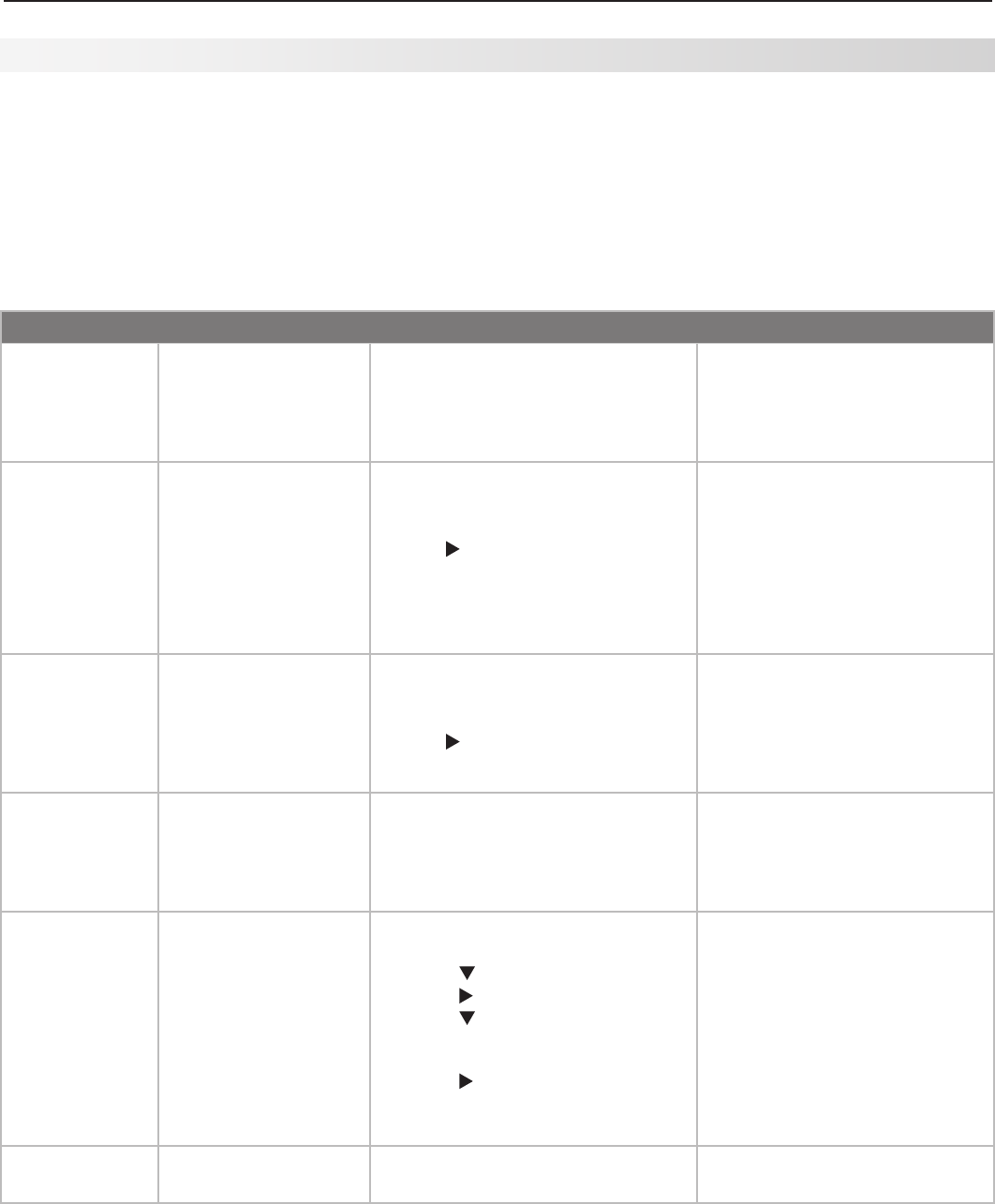
Appendices 71
Appendix E: Troubleshooting
Reset Name When to Use How to Use Resulting Action
Format Whenthepictureshape
seemsincorrect,use
FORMAT
tochangethe
shapeofthepicture.
Pressthe
FORMAT
keytocyclethroughthe
availableformatstofindthebestformat
forthecurrentpicture.
Thelast-usedformatforasignal
typeismemorizedforeachinput.
Thenexttimethesameinputand
thesamesignaltypeisviewed,the
last-usedformatwillberecalled.
PerfectColor™
and PerfecTint™
Reset
(forthesingle
inputcurrently
beingwatched)
Whenthecolorintensities
seemoutofbalance,
usethePerfectColor/
PerfecTintresettoreset
thecolorbalancestothe
originalfactorysettings.
BothPerfectColorand
PerfecTintandarereset
atthesametime.
1. Whileviewingtheinputtobereset,
press
MENU
todisplaytheMain
menuwiththeA/Viconhighlighted.
2. Use tohighlightPerfectColor
andpress
ENTER
todisplaythe
PerfectColoradjustmentscreen.
3. Press
CANCEL
toresetthecolors.
AllPerfectColor/PerfecTintsliders
areresettotheoriginalcenter
position.ThePefectColor/PerfecTint
settingsforotherinputsremain
unchanged.
Note:PerfecTintslidersareavail-
ableonlyon734seriesmodels.
A/V Memory
Reset
(forthesingle
inputcurrently
beingwatched)
Whenaudioand/orvideo
settingsforasingleinput
seemincorrect,useA/V
MemoryResettoreturn
theinputtotheoriginal
factorysettings.
1. Whileviewingtheinputtobereset,
press
MENU
todisplaytheMain
menuwiththeA/Viconhighlighted.
2. Use tohighlighttheReseticon
andpress
ENTER
toreset.
AllAudioandVideosettingsforthe
individualinputareresetexcept
fortheListenTo,Language,audio
Balance,andClosedCaption
settings.
A/V Reset
(forallinputs)
Toresetaudioandvideo
adjustmentsforallinputs
totheoriginalfactory
settings.
WhileviewingtheTV,pressthefront
panelbuttons
GUIDE
and
FORMAT
atthe
sametime.
AllAudioandVideosettingsare
returnedtotheoriginalfactory
settings,includingListenToand
Language,plusClosedCaptions
settingsandFormatsettings.
Channel
Memorization
Toeraseand
re-memorizechannelson
ANT 1
or
ANT 2
.
1. WhileviewingtheTV,press
MENU
to
displaytheMainmenu.
2. Press tohighlighttheSetupicon.
3. Press tohighlighttheScanicon.
4. Press tohighlighttheantenna
inputandreceptionmode,e.g.Ant
1 Air.
5. Press tohighlighttheStart
buttoniconandpress
ENTER
tostart
thememorization.
Allpreviouslymemorizedchan-
nelsfortheselectedantenna
inputareerasedandanewsetof
memorizedchannelsiscreated.
AllcustomsettingsforFAV,
channelnames,andchannel
locksaredeleted.Toaddor
deleteindividualchannels,see
Editmenuinstructionsinchapter
5,“TVMenuSettings.”
Lock Menu Pass
Code
TochangeyourLock
menupasscode
Seethe
cutoutpageinAppendixB.
Allowsanewcodetobeestablished.
TV Reset Comparison Guide
YoucanresolvemanycommonTVproblemsusingthe
resetfunctionsdescribedinthefollowingtable.See
alsotheadditionaltroubleshootingsuggestionslaterin
thisappendix.
IMPORTANT
Before you change sound or picture settings: If
pictureorsoundsettingsseemwrongforabroadcast
channel(achannelfrom
ANT 1
,
ANT 2
,acablebox,or
satellitereceiver),firstcheckotherchannelsfromthe
sameinputbeforechangingsettings.Ifmostother
channelsfromthesameinputseemcorrect,thereis
likelyaproblemwiththebroadcastratherthanwiththe
TV.Usecareinthiscase,aschangesyoumaketofix
problemsonindividualchannelsalsoaffectallother
channelsonthesameinput.

72 Appendices
Reset Name When to Use How to Use Resulting Action
Front-Panel Lock
Release
Tore-enablethefront-
panelcontrolsafter
activationoftheFront-
PanelLock
• WhenEnergyModeissettoFast
Power On,pressandholdthe
MENU
buttononthefrontpanelforover
eightseconds.
• WhenEnergyModeissettoLow
Power,press
POWER
onthefront
paneltoturnontheTV.Pressand
holdthe
MENU
buttononthefront
panelforovereightseconds.
Allowsthefrontpaneltobeunlocked
iftheremotecontrolismisplaced.
System Reset IftheTVdoesnotturnon
oroff,doesnotrespond
totheremotecontrolor
frontpanelbuttons,or
hasaudiobutnovideo.
Pressthe
SYSTEM RESET
buttononthefront
panelwithapointedobjectsuchasthe
pointofpencilorendtipofapaperclip.
TheTVwillturnoffandthegreenLED
willflashquicklyforaboutoneminute.
WhenthegreenLEDstopsflashing,
youmayturnontheTV.Thechanges
youmademostrecently,beforeusing
SYSTEM RESET
,maybelost.Changes
youmadepreviously,however,are
notlost.
TV Reset
IMPORTANT:
Usethisreset
onlyifallother
resetshavebeen
unsuccessful.
Toresetallconsumer-
accessiblesettings
andallmemoriestothe
originalfactorydefaults.
CAUTION:Allowner-
performedsetupsand
adjustmentswillbe
erased.
1. WhileviewingtheTV,press
MENU
to
displaytheTVMainmenu.
2. WiththeMainmenudisplayed,
pressnumberkeys1 2 3todisplay
theResetmenu.
3. READ THE ON-SCREEN
WARNING AND INSTRUCTIONS.
• Ifyoudonotwishtousethis
reset,press
EXIT
or
MENU
toback
out.
• Ifyoudowishtousethereset,
press
ENTER
toeraseallmemo-
riesandsettings.
TheTVwillstarttheinitialization
process.TheTVwillthenturnoff
andthefrontgreenLEDwillstart
flashing.WhentheLEDstops
flashing,youcanturntheTVon
again.TheParentalLockPasscode
willremainunaffected,butallother
memoriesandsettingsoutlinedin
thisOwner’sGuidewillneedtobe
setagain.
Appendix E: Troubleshooting, continued
Service and Support
Service
IfyouareunabletocorrectaproblemwithyourTV,
consultyourMitsubishidealerorMitsubishiCon-
sumerRelationsat(800)332-2119.
• DONOTadjustanycontrolsotherthanthose
describedinthisOwner’sGuide.
• DONOTremovetheprotectivebackcoverof
yourTV.
Support
• Toorderreplacementoradditionalremotecon-
trols,lampcart
ridges,orOwner’sGuides,
visitour
websiteatwww.mitsuparts.comorcall
(800)553-7278.
• Forquestions:
CallConsumerRelationsat800-332-2119.
E-mail:MDEAservice@mdea.com
Website:www.mitsubishi-tv.com
Important
Alllampsreplacedunderwarrantymustbereturned
toMitsubishiwheretheywillbeinspectedfordefect
verification.
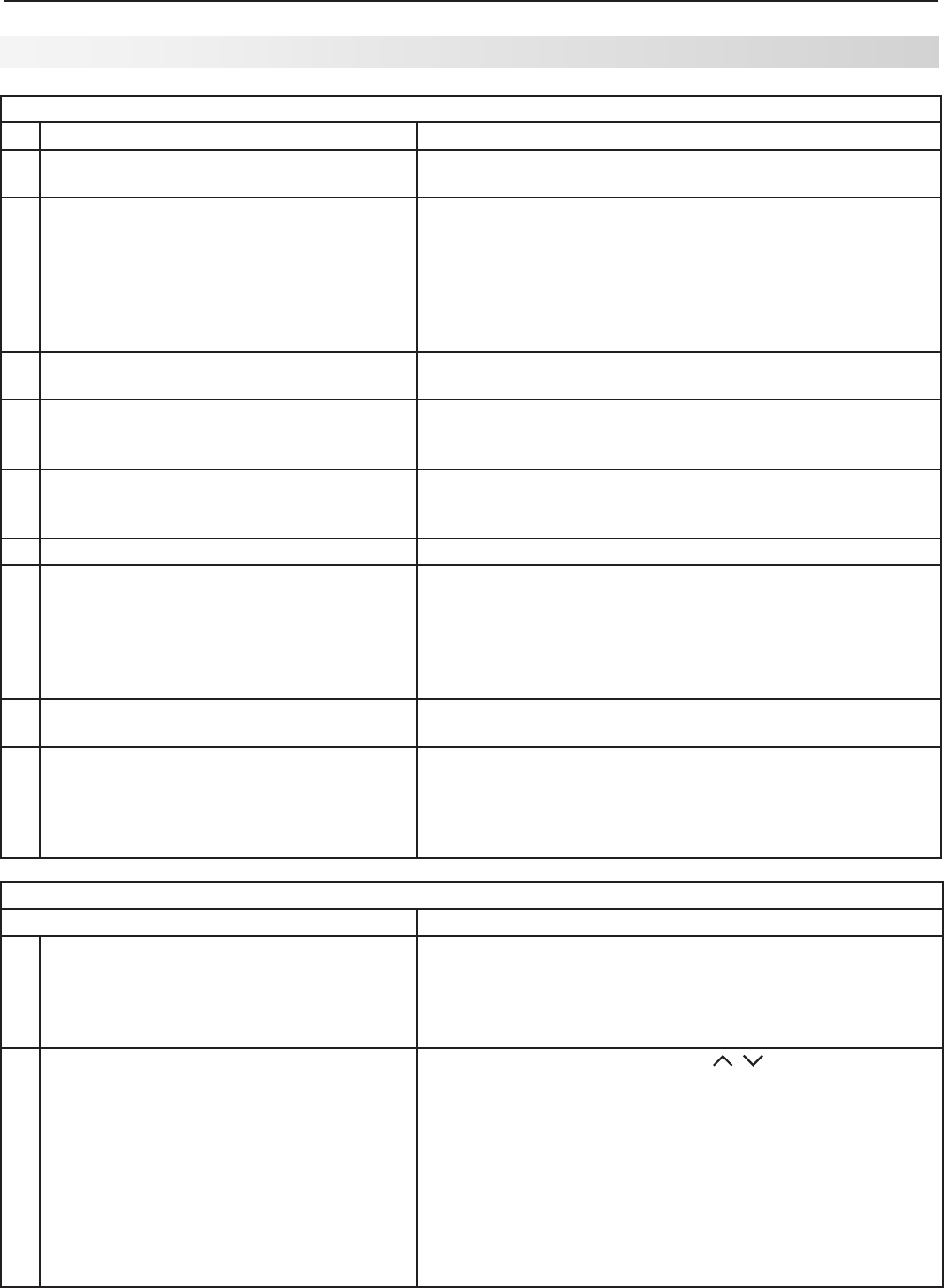
Appendices 73
Appendix E: Troubleshooting, continued
TV Channels
Symptom Remarks
1. TheTVtakesseveralsecondstorespondto
channelchanges.
• Itisnormalfordigitalchannelstotakelongertotunein.
•
PressENTERafteraenteringchannelnumbertoavoiddelays.
• Usea4-digitnumberforanover-the-airdigitalchannel.
• Usea6-digitnumberfordigitalcablechannelsifyourcable
serviceisabletorecognize6-digitchannelnumbers.
2. Youcannotaccessachannel. • UsenumberkeysinsteadofCH / .
• Besurethechannelyouwanttoviewisinmemory.See
Setup>Scaninchapter5,“TVMenuSettings.”
• CheckthattheTVisswitchedtothecorrectdeviceor
antennaforthatchannelbypressingtheINPUTbutton.
• MakesureChannelLockisoff.
• MakesuretheLock>Parentmenulockissettooff.
• Ifyoucannottunetoavirtualdigitalchanneleventhough
theTVhasalreadymemorizeddigitalchannels,tunetothe
physicalchannelnumberusedbythebroadcaster.The
virtualchannelwillthenbeautomaticallyaddedtomemory.
General TV Operation
Symptom Remarks
1. AfanisrunningevenwhiletheTVispowered
off.
Theroomistoowarm.WhentheTVisoff,internalcomponents
continuetodrawpowerandmustbecooledbythefan.
2. TheTVremotecontroldoesnotwork. • Checkthatthebatteriesarefreshandinstalledcorrectly.
• CheckthattheslideswitchontheremoteissettoTV.
•
Benomorethan20feetfromtheTVwhenusingtheremote
control.
• ProgramtheremotecontroltooperatetheTVorother
device.
• Resettheremotecontrol.
3. WhenItrytousetheremotecontrol,the
POWERkeyblinksfivetimes.
Replacethebatteries.
4. TVdoesnotrespondtotheremotecontrolor
tofrontpanelcontrolandTVwillnotpower
onoroff.
UsetheSystemResetbutton.
5. WhenadeviceisselectedfromtheInput
Selectionmenu,thescreenisblue(nosignal
source).
• Makesuretheselecteddeviceisturnedon.
• BeginplayoftheVCR.
6.
YouhaveforgottenyourLockmenupasscode.
SeeAppendixB,BypassingtheParentalLock.
7. Ratingrestrictionsarenotworking. OpentheParentalLockmenuand:
• VerifythattheU.S.RatingsorOtherRatingssettingisOn.
• ChecktheLockTime/UnlockTimetocheckifratingrestric-
tionsaredisabled.
• RatingrestrictionsapplyonlytocontentonANT1andANT
2,INPUT1–3.
8. On-screendisplaysappeareachtimeyou
changeafunction.
NormalTVoperation.
9. Awarningmessageappearedonscreen
stating,“TVwillshutdowninafewseconds.
Pleasecheckiftheairflowisblocked.”
• Roomtemperaturehasexceededproperlevels.Coolthe
room.
• TheTVhasoverheated.Clearblockedairventsandensure
atleastfourinchesofclearanceonallsidesoftheTV.
• Cleantheairfilteronthelampcartridge.
74 Appendices
Picture
Symptom Remarks
1. Picturedoesnotlooklikeahigh-definition
picture.
Notallsignalsarehigh-definitionsignals.Toreceivehigh-defini-
tionprogrammingfromyourcableorsatelliteprovider,youmust
subscribetotheprovider’shigh-definitionservice.Someover-
the-airbroadcastsareinhigh-denitionandcanbereceivedwith
ahigh-qualityantennasuitedtoyourlocation.
2. Picturehasbecomedimmer. • Thelampisnearingtheendofitslife.Orderanewlamp.
SeeAppendixCfororderinginformationandreplacement
instructions.
• Adjustpicturebrightnessandcontrasttomaximumlevels.
• ChangeLampModefromStandardtoBright.
3. Thereisalargeblackorgrayrectangleon
thescreen.
TheTV’sanalogclosedcaptioninghasbeensetto“text”mode
intheCaptionsmenu.Turnoffbecausethereisnotextinfor-
mationbeingbroadcast.
4. Youcannotviewapicturewhenplayinga
VHStape.
CheckyourVCR’sowner’sguideforfurthertroubleshooting.
Appendix E: Troubleshooting, continued
TV Power On/Off
Symptom Remarks
1. TVtakesanexcessivelylongtimetopower
on.
• Whenswitchedon,theTVneedstimetobootup,just
asacomputerdoes.Also,theTV’slamprequiresafew
momentstoheatuptofullbrightness.
• TVEnergyModeissettoLowPower.ChangeTVEnergy
ModetoFastPowerOnintheSetupmenu.
2. YoucannotprogramtheTVtoturnonauto-
matically(Timerfunction)
• TheTVmaybelocked.
• Theclockmaynotbeset.
• TVEnergyModeissettoLowPower.ChangetoFast
PowerOninSetupmenu.
3. TheTVwillnotturnonafterbeingpluggedin. Iflightonfrontpanelisblinking,waitforatleastoneminutefor
thelighttoturnoff,thenpressPOWERagain.
4. TVturneditselfoffandthelightonthefront
panelstartedtoblink.
• MomentarypowerfluctuationcausedtheTVtoturnoffto
preventdamage.Waitforthegreenlighttostopflashing
andturntheTVonagain.
• IftheTVdoesnotstayon,usetheSystemResetbuttonon
thefrontpanel.Ifthishappensfrequently,obtainanACline
powerconditioner/surgeprotector.
•
Anunusualdigitalsignalmayhavebeenreceived,triggeringa
protectioncircuit.WaitforthelighttostopflashingandturnTV
on.
5. TVturneditselfoffandtheSTATUSisa
steadyyellow.
• TheTVhasoverheated.Clearblockedairventsandensure
atleastfourinchesofclearanceonallsidesoftheTV.
• Cleanthelamp-cartridgeairfilter.SeeAppendixC.
6. TVwillnotpoweroff. UsetheSystemResetbutton.
TV Channels
Symptom Remarks
3. Nameoptionsarenotavailableforsome
channels.
Youcannameonlymemorizedanalogchannelsandmemorized
digitalchannelsnotnamedbythebroadcaster.
4. WhenChannelView™listisdisplayed,infor-
mationappearsincomplete
• Availableinformationissentfromthebroadcasterorcable
provider.Nootherdataisavailable.
• MakesuretheTVclockissetcorrectly.
Appendices 75
Appendix E: Troubleshooting, continued
Sound (see also NetCommand troubleshooting for A/V receiver setup)
Symptom Remarks
1. Thereisnosoundevenwhenthe
volumeisturnedup.
• CheckiftheMUTEbuttonison.
• TheTV’s“Listento:”settingmaybesettoSAP.
• CheckthattheSpeakersoptionissettoTVtohearsoundfromthe
TVspeakers.
• IfusinganA/Vreceiver,checkthattheSpeakersoptionissettoAV
ReceivertohearsoundfromtheA/Vreceiverspeakers.
• PerformaSystemReset.
2. Thesounddoesnotmatchthescreen
picture.
• TheTV’sListento:settingmaybesettoSAP.
•
IfusingstereoorA/Vreceiverspeakers,checktheirinputselec-
tionintheInputs>AVRmenu.
• IfusingstereoorA/Vreceiver,checkthatDIGITALAUDIOOUT
and/orAVRAUDIOOUTPUTonTV’sbackpanelisconnectedto
theA/Vreceiver.
• NetCommand®issetupincorrectlyfortheA/Vreceiver.
Indicators
Symptom Remarks
1. LAMPindicatorlightisaconstantred. TurntheTVoffforatleast2minutes.Turnitbackon.Iflightis
stillred,thelamphasfailed.Replaceit.SeeAppendixCforlamp
replacementinformation.Forquestions,pleasecallMitsubishiCon-
sumerrelationsat(800)332-2119.
2. LAMPindicatorlightisaflashingyellow. Lampcoverdoorisopenorlampcartridgeisnotsecure.See
AppendixCforlampreplacementinformation.
3. STATUSindicatorlightisasteady
yellow.
• Roomtemperaturehasexceededproperlevels.Cooltheroom.
• TheTVhasoverheated.Clearblockedairventsandensureat
leastfourinchesofclearanceonallsidesoftheTV.
• Cleantheairfilteronthelampcartridge.SeeAppendixC.
Picture
Symptom Remarks
5. VCRorDVDplayer’son-screenmenusjitter
upanddown.
Possiblecause:ManyVCRsandDVDplayersprovideon-
screenmenusatonlyhalf-resolution.Theselower-resolution
graphicsmayappeartojitterupanddownwhentheTVcon-
vertsthemtohigh-definitiongraphics.
6. WhenviewingastoppedVCR,whitelines
arerollingonthescreen.
• TurnoffvideomutefortheVCR.
• Beginplayingthetape.
• ChangetheVCRinputtotheantennainput.
7. Screenisblack. ThePerfectColor™colorbalancehasbeenincorrectlyset.
ResetthePerfectColorbalance.
8. PicturefromanHDMIinputisnoisy(poor
quality).
UpgradeaCategory1(unmarked)HDMIcabletoaCategory2
HDMIcable.
9. Theimagefromacomputerappearsdis-
tortedwhenviewedontheTV.
NormalTVoperation.TheTVdoesnotcorrectdistortioninthe
picturefromacomputerbecausethecorrectionprocessmay
causetheedgesoftheimagetobecutoff.

76 Appendices
Appendix E: Troubleshooting, continued
NetCommand (Y and 734 series only)
Symptom Remarks
1. CannotseethemenufromtheA/VReceiver.
TheA/VReceiverisnotconnectedtoanyvideoinputoftheTV.
TochecktheA/VReceivermenu,temporarilyplugintoanunused
inputoftheTV,suchasInput3.ExittheAutoInputSensingscreen
andselectInput3fromtheInputSelectionmenu.PressMENU.
2. NetCommandunabletolearnspecificdevice
keys.
• DevicedoesnotuseIRformatforremotecontrolsignal.ITT
andRFformatscannotbelearned.
• Roomlightingmayaffectthesignal.Havetheremotesvery
close(6inchesorless)totheTVduringLearning.
• IflearningaMitsubishiremotecontrol,makesureslide
switchisnotsettoTVposition.
• Some,butnotall,devicekeyfunctionscanbelearnedby
NetCommand.Forexample,POWERandPLAYmaybe
learned,butotherfunctionsmaynot.
• Thesignalfromtheremotecontrolmaynotbestrong
enough.InsertfreshbatteriesandtryLearningagain.
3. TheA/VReceiveristheselectedaudio
sourcebutthereisnosound.
• ChecktoseeiftheA/VReceiverpoweristurnedon.
• Withthepowerturnedon,redisplaytheInputSelection
menuandpressENTERtoallowNetCommandtocorrectly
selecttheA/VReceiverinput.
• IncorrectsetupintheInputs>AVRmenu.Checkthe
deviceconnectionassignedintheAVRmenu.
4. ThereisnosoundwhenIswitchtotheA/V
receiverusingtheSpeakersettinginthe
AVmenu,eventhoughIhavephysically
connectedtheTVtotheA/Vreceiverand
learnedIRcodesforthereceiverinputs.
WronginputornoinputwasassignedintheAVReceiverLearn
screen.AllaudioshouldgototheA/Vreceiverasaudiooutput
fromtheTVunlessthedevice’saudioisconnecteddirectlyto
theA/Vreceiver.Seechapter6,“NetCommand,”andperform
theproceduretoselectthecorrectA/Vreceiverinput.
5. ThereisnosoundfromtheA/Vreceiver
formyDVDplayerorothersurroundsound
deviceeventhoughIlearnedtheIRcodefor
theA/Vreceiver’sDVDinputorotherinput.
NetCommandA/VreceiversetupfortheDVDplayerordigital
surroundsounddeviceorotherdeviceisnotswitchingprop-
erly.Seechapter6,“NetCommand,”andperformA/Vreceiver
setupforadigitalsurroundsounddevice.
6. I’veselectedmyDVDplayerorothersur-
roundsounddeviceincombinationwiththe
TVspeakersbuthearnosoundfromtheTV
speakers.
IfyouhaveonlyanaudioconnectionfromthedevicetotheA/V
receiver,aphysicalaudioconnectionfromthedevicetotheTVis
alsorequired.
• Connecttheleftandrightaudiooutputfromthedevicetothe
appropriateTVaudioinput.Nowyoucanhearaudiofrom
thedevicethrougheithertheTVspeakersortheA/Vreceiver.
• Toswitchaudiosources,pressAUDIO,press toshowthe
Speakersoption,thenpress toselectAVReceiverorTV.
7. I“learned”theRECORDkeyformyVCR/DVR
butwhenIpressedtheRECORDkey,the
VCR/DVRdidnotrecordanything.
CheckthattheVCRorDVRisreceivingasignaldirectlyfrom
yourcableboxorsatellitereceiver.
Indicators
Symptom Remarks
4. STATUSindicatorlightisasteady/flash-
ingred.
• UnplugsetfromACpower.Plugbackinanwaitoneminutefor
blinkingtostop.
• PressSYSTEMRESETbuttonandwaitforblinkingtostop.
• Ifblinkingcontinues,serviceisrequired.Contactyourdealeror
aMitsubishiAuthorizedServiceCentertoarrangeforaservice
evaluation.ListingsofMitsubishiAuthorizedServicelocations
canbeobtainedfromourwebsite,www.mitsubishi-tv.comor
bycalling1-800-332-2119.

Trademark and License Information 77
LICENSOR’SSUPPLIERSDONOTMAKEORPASSONTOENDUSERORANYOTHERTHIRDPARTY,ANY
EXPRESS,IMPLIEDORSTATUTORYWARRANTYORREPRESENTATIONONBEHALFOFSUCHSUPPLIERS,
INCLUDING,BUTNOTLIMITEDTOTHEIMPLIEDWARRANTIESOFNON-INFRINGEMENT,TITLE,MERCHANTABIL-
ITYORFITNESSFORAPARTICULARPURPOSE.
DigitalLightProcessing™andDLP™areregisteredtrademarksofTexasInstruments.
ManufacturedunderlicensefromDolbyLaboratories.DolbyisatrademarkofDolbyLaboratories.
HDMI™theHDMIlogoandHigh-DefinitionMultimediaInterfacearetrademarksorregisteredtrademarksofHDMI
LicensingLLC.
ThisproductincorporatescopyrightprotectiontechnologythatisprotectedbyU.S.patentsandotherintellectual
propertyrights.UseofthiscopyrightprotectiontechnologymustbeauthorizedbyMacrovision,andisintendedfor
homeandotherlimitedpay-per-viewusesonlyunlessotherwiseauthorizedbyMacrovision.Reverseengineeringor
disassemblyprohibited.
ThisproductincludestechnologyownedbyMicrosoftCorporationandcannotbeusedordistributedwithouta
licensefromMicrosoftLicensing,Inc.
The logoandthewords“Simplay™”and“SimplayHD™”arethetrademarksofSiliconImage,Inc.
ChannelView™,ClearThought®,NetCommand®,PerfectColor™,PerfecTint™,QuickView™aretrademarksof
MitsubishiDigitalElectronicsAmerica,Inc.
x.v.Colorandthex.v.ColorlogoaretrademarksofSonyCorporation.
Trademark and License Information

78 Trademark and License Information
Mitsubishi TV Software
END-USER LICENSE AGREEMENT FOR EMBEDDED SOFTWARE
IMPORTANT – READ CAREFULLY:ThisLicenseAgreementisalegalagreementbetweenyou(eitheranindividualoranentity)and
MitsubishiDigitalElectronicsAmerica,Inc.(MDEA)forallsoftwarepreinstalledand/orprovidedalongwiththistelevision(“Software”).
ByutilizingthistelevisionandSoftware,youagreetobeboundbythetermsofthisLicenseAgreement.
TheSoftwareisprotectedbyUnitedStatescopyrightlawsandinternationaltreatyprovisions,aswellasotherintellectualpropertylaws
andtreaties.TheSoftwareislicensed,notsold.
1. LICENSE GRANT. MDEAgrantsyouanon-exclusive,non-transferable,limitedrightandlicensetouseonecopyoftheSoftware
onlywiththeMitsubishitelevisionmodelthatincludedthisowner’sguideandownedbyyou.
2. RIGHTS AND LIMITATIONS.
SoftwareNotforResale.YoumaynotresellorotherwisetransferforvaluetheSoftware,exceptinconjunctionwithasaleoftheTVthat
Softwarehasbeenpreinstalled.
ProhibitiononReverseEngineering,DecompilationandDisassembly.TheSoftwarecontainstradesecretsorotherproprietarymaterial
initshumanperceivableformandtoprotectthem,youmaynotreverseengineer,decompile,ordisassemble,orotherwisereducethe
Softwaretoanyhumanperceivableform,excepttotheextentthattheforegoingrestrictionisexpresslyprohibitedbyapplicablelaw.
SeparationofComponents.TheSoftwareislicensedasasingleproduct.Itscomponentpartsmaynotbeseparatedforuseonmore
thanoneTV.
NoRental.Youmaynotrent,lease,lend,orsublicensetheSoftware.
Trademarks.ThisLicenseAgreementdoesnotgrantyouanyrightstoanytrademarksofMDEA.
3. VIOLATIONS.Youunderstandthatanyuse,copyingortransferoftheSoftware,exceptaspermittedpursuanttothisLicense,
maysubjectyoutoseriouscriminalandcivilpenaltiesincludingdamagesandanawardtoMDEAofattorneys’feesinconnectionwith
anyviolationofthisLicense.Youfurtherunderstandthatyoumaybeheldlegallyresponsibleforanycopyrightinfringementorother
violationofintellectualpropertyrightsthatiscaused,encouraged,orinducedbyyourfailuretoabidebythetermsoftheLicense.This
licenseiseffectiveuntilterminated,andwillterminateimmediatelywithoutnoticefromMDEAorjudicialresolutionifyoufailtocomply
withanyprovisionofthisLicense.
4. COPYRIGHT. AlltitleandintellectualpropertyrightsinandtotheSoftware(includingbutnotlimitedtoanyimages,photographs,
animations,video,audio,music,text,and“applets”incorporatedintotheSoftware),andanyaccompanyingprintedmaterialsare
ownedbyorlicensedtoMDEA.Alltitleandintellectualpropertyrightsinandtothecontentwhichmaybeaccessedthroughuseofthe
Softwareisthepropertyoftherespectivecontentownerandmaybeprotectedbyapplicablecopyrightorotherintellectualproperty
lawsandtreaties.ThisLicenseAgreementgrantsyounorightstousesuchcontent,exceptthatyouownthemediaonwhichthe
Softwareisrecorded,butMDEAanditslicensorsretainownershipoftheSoftwareitself.Allrightsnotexpresslygrantedarereserved
byMDEA.
5. EXPORT RESTRICTIONS. MDEAislicensingtheSoftwareforusewithintheUnitedStates.Youagreethatyouwillnotexport
orre-exporttheSoftware.Youspecificallyagreenottoexportorre-exporttheSoftware:(i)toanycountrytowhichtheU.S.has
embargoedorrestrictedtheexportofgoodsorservices,whichcurrentlyinclude,butarenotnecessarilylimitedtoCuba,Iran,Iraq,
Libya,NorthKorea,Sudan,andSyria,ortoanynationalofanysuchcountry,whereverlocated,whointendstotransmitortransportthe
Softwarebacktosuchcountry;(ii)toanypersonorentitywhoyouknoworhavereasontoknowwillutilizetheSoftwareinthedesign,
development,orproductionofnuclear,chemical,orbiologicalweapons;or(iii)toanypersonorentitywhohasbeenprohibitedfrom
participatinginU.S.exporttransactionsbyanyfederalagencyoftheU.S.government.YouwarrantandrepresentthatneithertheBXA
noranyotherU.S.federalagencyhassuspended,revoked,ordeniedyourexportprivileges.
6. DISCLAIMER OF WARRANTY. EXCEPT AS OTHERWISE PROVIDED IN THIS LICENSE OR IN THE LIMITED WARRANTY
APPLICABLE TO THE TV, MDEA MAKES NO OTHER WARRANTIES OF ANY KIND WHATSOEVER REGARDING THE SOFTWARE
AND HEREBY EXPRESSLY DISCLAIMS ALL WARRANTIES OF ANY KIND WHATSOEVER, EXPRESS OR IMPLIED, WITH
RESPECT TO THE SOFTWARE. ALL IMPLIED WARRANTIES, INCLUDING, WITHOUT LIMITATION, THE IMPLIED WARRANTIES
OF MERCHANTABILITY AND FITNESS FOR A PARTICULAR PURPOSE ARE HEREBY EXPRESSLY DISCLAIMED BY MDEA. IN
NO EVENT SHALL MDEA BE LIABLE TO YOU OR ANY THIRD PARTIES, IN CONTRACT, IN TORT OR OTHERWISE, FOR ANY
DIRECT, INDIRECT, SPECIAL, INCIDENTAL OR CONSEQUENTIAL DAMAGES OF ANY KIND OR NATURE. BECAUSE SOME
JURISDICTIONS DO NOT ALLOW THE EXCLUSION OR LIMITATION OF IMPLIED WARRANTIES, THE ABOVE LIMITATION MAY
NOT APPLY TO YOU.
7. LIMITATION OF LIABILITY. MDEA SHALL NOT, UNDER ANY CIRCUMSTANCES BE LIABLE TO YOU OR ANY THIRD
PARTIES FOR ANY DAMAGES OF ANY NATURE, WHETHER INDIRECT, SPECIAL, INCIDENTAL, CONSEQUENTIAL
OR OTHERWISE, INCLUDING, BUT NOT LIMITED TO, ANY CLAIMS FOR LOST PROFITS, LOSS OF GOOD WILL OR
EXPENDITURES MADE OR COMMITTED FOR IN RELIANCE ON THE CONTINUATION OF THIS LICENSE. YOU AGREE THAT
NEITHER MDEA’S BREACH OF THIS LICENSE NOR ITS FAILURE TO REPAIR A DEFECT, ERROR OR BUG SHALL CONSTITUTE
A FAILURE OF THE ESSENTIAL PURPOSE OF THIS LICENSE. BECAUSE SOME JURISDICTIONS DO NOT ALLOW THE
EXCLUSION OR LIMITATION OF LIABILITY FOR CONSEQUENTIAL OR INCIDENTAL DAMAGES, THE ABOVE LIMITATIONS MAY
NOT APPLY TO YOU. MDEA’s liability to you for direct damages for any cause whatsoever and regardless of the form of the
action, will be limited to the money paid by you for the TV (based on fair market value of the TV) that caused the damages.
8. GENERAL.ThisLicenseAgreementwillbegovernedbythelawsoftheStateofCalifornia.
WARNING:ThisproductcontainschemicalsknowntotheStateofCaliforniatocausecancerand/orbirthdefects
orotherreproductiveharm.

79
Mitsubishi DLP™ Projection Television Limited Warranty
MITSUBISHIDIGITALELECTRONICSAMERICA,INC.(“MDEA”)warrantsasfollowstotheoriginalpurchaserofthis
televisionfromanauthorizedMITSUBISHIAudio/VideoDealer,shoulditprovedefectivebyreasonofagainstdefects
arisingfromimproperworkmanshipand/ormaterial:
a. Parts.Thelenticular(i.e.frontpicture)screeniswarrantedagainstdefectsinmaterialsandworkmanshipfora
periodofthirty(30)daysfromthedateoftheoriginalpurchaseatretail.Thelampandallotherparts(exceptanysoft-
wareincorporatedintothistelevision)arewarrantedforaperiodofone(1)yearfromthedateoftheoriginalpurchase
atretail.Wewillrepairorreplace,atouroption,anydefectivepartwithoutchargeforthepart.Partsusedforreplace-
mentmaybereplacedwiththoseoflikekindandqualityandmaybeneworremanufactured.Partsusedforreplace-
mentarewarrantedfortheremainderoftheoriginalwarrantyperiod.
b. Embedded Software.MDEAwarrantsthatallsoftwareincorporatedintothistelevisionset(the“EmbeddedSoft-
ware”)willperforminaccordancewiththefunctionaldescriptionofEmbeddedSoftwareinallmaterialrespects,but
MDEAdoesnotwarrantthattheEmbeddedSoftwareiserror-free.MDEAalsodoesnotwarrantthattheEmbedded
SoftwarewillbecompatibleunderIEEE1394AV/CandHAVisoftwarestandardswithproductsproducedbyanyother
manufacturer.Thelimitedwarrantycontainedinthissectionshallcontinueforaperiodofone(1)yearfromthedate
oftheoriginalpurchaseatretail.If,afterpromptnoticewithinthewarrantyperiod,MDEAdeterminesthattheEmbed-
dedSoftwarehasfailedtoperforminaccordancewithsuchfunctionaldescriptioninallmaterialrespectsandifsuch
failureisnotduetoaccident,misuse,modificationormisapplicationoftheEmbeddedSoftware,thenMDEAshall
modifyorreplacethenonconformingEmbeddedSoftwareatnochargetoyou,whichatMDEA’ssolediscretionmay
befulfilledbymeansofmodificationorreplacementsoftwarecontainedonareplacementmemorycardforCustomer
installation.TheforegoingshallbeMDEA’ssoleobligationtoyouunderthislimitedwarranty.Allrightsunderthis
limitedwarrantyontheEmbeddedSoftwarealsosubjecttoyouracceptanceofandcompliancewiththetermsofthe
SoftwareLicenseAgreementapplicabletothistelevision,andthislimitedwarrantyontheEmbeddedSoftwareshall
benullandvoidiftheEmbeddedSoftwareismodifiedorchangedinanymannerexceptasspecificallyauthorizedby
MDEA.
c. Labor.Forthirty(30)daysaftertheoriginalpurchaseatretail,wewillrepairorreplace,atouroption,thelenticu-
larscreenifitprovesdefective.Forcertainitemsthataredesignedtobereplacedbytheconsumer,including(but
notlimitedto)someEmbeddedSoftware,theconsumerissolelyresponsibleforanyreplacementlabor.Forallother
parts,wewillprovidethelaborforawarrantyrepairbyanauthorizedMITSUBISHIservicecenterwithoutchargefor
one(1)yearfromtheoriginaldateofpurchaseatretail.
d. Notice.Toobtainwarrantyservice,youmustnotifyanauthorizedMITSUBISHIservicecenterofanydefectwithin
theapplicablewarrantytimeperiod.
e.ThisDLPProjectionTelevisionusesasingleDLPchiptocreatethescreenimage.Thistechnologycreatesthe
imageusingsmalldots,orpictureelements(pixels).YourDLPProjectionTVismanufacturedtoahighlevelofperfor-
manceandquality,infact,99.99%perfectinthenumberofproperlyfunctioningpixels.Asinotherdisplaytechnol-
ogy,sometimesapixeliscontinuouslyactive,inactiveortheincorrectcolor.Ourstandardisclear;MDEAwarrants
onlythatthepercentageofproperlyfunctioningpixelswillbenotlessthan99.99%ofallpixels.
BEFORE REQUESTING SERVICE, please review the instruction booklet to insure proper installation and
correct customer control adjustment. If the problem persists please arrange for warranty service.
1.TOOBTAINWARRANTYSERVICE:
a.ContactyournearestauthorizedMITSUBISHIservicecenter,whosenameandaddresscanbeobtainedfromyour
MITSUBISHIdealer,bywritingattheaddressprovidedbelow,callingMDEAatthe800-332-2119,orbyusingthe
supportfeatureofourwebsiteatwww.Mitsubishi-tv.com.
b.Warrantyservicewillbeprovidedinyourhomeor,ifrequired,atanauthorizedserviceshop,providedthatyour
televisionislocatedwithinthegeographicterritorycustomarilycoveredbyanauthorizedMITSUBISHIservicecenter.
Ifnot,youmusteitherdeliveryourtelevisiontoanauthorizedservicelocationatyourownexpense,orpayforany
traveland/ortransportationcoststheservicecentermaychargetoandfromyourhome.Actualservicelaborwillbe
providedwithoutcharge.

80
c.ProofofpurchasedatefromanauthorizedMITSUBISHIdealerisrequiredwhenrequestingwarrantyservice.
Presentyoursalesreceiptorotherdocumentwhichestablishesproofanddateofpurchase.THERETURNOF
THEOWNERREGISTRATIONCARDISNOTACONDITIONOFCOVERAGEUNDERTHISLIMITEDWARRANTY.
However,pleasereturntheOwnerRegistrationCardsothatwecancontactyoushouldaquestionofsafetyarise
whichcouldaffectyou.
d.Toobtainareplacementlamp,orderthelampdirectlyfromtheMDEAPartsDepartmentat(800)553-7278.
2.THISLIMITEDWARRANTYDOESNOTCOVER:
a.Upto.01%pixeloutages(smalldotpictureelementsthataredarkorincorrectlyilluminated).
b.DamagetothelenticularscreenorFresnellens,screenframe,cosmeticdamageortoanyotherdamagewhere
suchdamageiscausedbyunauthorizedmodification,alteration,repairstoorserviceoftheproductbyanyone
otherthananauthorizedMITSUBISHIservicecenter;physicalabusetoormisuseoftheproduct(includingany
failuretocarryoutanymaintenanceasdescribedintheOwner’sGuideincludingairventcleaningoranyproduct
damagedbyexcessivephysicalorelectricalstress);anyproductsthathavehadaserialnumberoranypartthereof
altered,defacedorremoved;productuseinanymannercontrarytotheOwner’sGuide;freightdamage;orany
damagecausedbyactsofGodorotherfactorsbeyondthereasonablecontrolofMDEA,suchaspowersurge
damagecausedbyelectricalsystemorlightning.Thislimitedwarrantyalsoexcludesservicecallswherenodefect
intheproductcoveredunderthiswarrantyisfound,servicecallsrelatedtounsatisfactoryaudioorvisualreception
orsignalunlesscausedbyadefectintheproductthatiscoveredunderthislimitedwarranty,allcosts,expensesor
anyotherdamagesarisingfromproductinstallation,orset-ups,anyadjustmentsofusercontrols(includingcon-
trast,brightness,color,tint,finetuning,sharpness),otheradjustmentnecessarytopreparetheunitfordisplayor
use,connectionwithanyexternalaudioreceiver,antenna,cableorsatellitesystems,orserviceofproductspur-
chasedorservicedoutsidetheU.S.A.PleaseconsulttheoperatinginstructionscontainedintheOwner’sGuide
furnishedwiththeproductforinformationregardingusercontrols.
3.ANYEXPRESSWARRANTYNOTPROVIDEDHEREIN,ANDANYREMEDYWHICH,BUTFORTHISPROVI-
SION,MIGHTARISEBYIMPLICATIONOROPERATIONOFLAW,ISHEREBYEXCLUDEDANDDISCLAIMED.
THEIMPLIEDWARRANTIESOFMERCHANTABILITYANDOFFITNESSFORANYPARTICULARPURPOSEARE
EXPRESSLYLIMITEDTOATERMOFONEYEAR.
4.UNDERNOCIRCUMSTANCESSHALLMDEABELIABLETOPURCHASERORANYOTHERPERSONFORANY
INCIDENTAL,SPECIALORCONSEQUENTIALDAMAGES,WHETHERARISINGOUTOFBREACHOFWARRANTY,
BREACHOFCONTRACT,OROTHERWISE.
5.Somestatesdonotallowlimitationsonhowlonganimpliedwarrantylasts,ortheexclusionorlimitationofinci-
dental,special,orconsequentialdamages,sotheabovelimitationsorexclusionsmaynotapplytoyou.
6.Thislimitedwarrantygivesyouspecificlegalrights,andyoumayalsohaveotherrightswhichvaryfromstateto
state.
7.Intheeventofanydisputeunderthislimitedwarranty,jurisdictionandvenueforresolvingthatdisputewillbein
thestatewherethetelevisionwaspurchasedandthelawsofsuchstatewillgovern.
MITSUBISHIDIGITALELECTRONICSAMERICA,INC.
9351JeronimoRoad
Irvine,CA92618-1904

Index 81
Index
A
A/VMemoryReset71
A/VReceiver
AddingNetCommandControl
53, 54, 55, 56
andtheTVSpeakers37
andTV’sRemoteControl53, 63
AudioLock64
Codes65
Connecting9, 10, 23, 54
ControllingSoundVolume14
A/VReset7, 71
AdjustKeys(Up/Down/Left/Right)
26, 34
AirFilter62
AnamorphicPictureFormat30
Antenna
Connecting19
AntennaInputs(ANT1/MAIN,ANT2/
AUX)9
AudioLock64
AudioMenu37
Auto-off.
See
SleepTimer
Auto-on.
See
Timer
AutoInputSensing
Description6
TVSetup13
B
BackPanel(described)9, 10
Batteries12
Bright(LampMode)35
C
CableBox
andTV’sRemoteControl26, 63
Codes66
Connecting17, 18, 22, 23
Camcorder
Connecting(Analog)24
CameraFiles32
CaptionsMenu38
Channels.
See also
FAV
Changing25
ChannelView™Listings27
ChannelLock40
DigitalChannelNumbers58
Memorizing13
Naming40
Physical/VirtualChannelNum-
bers40
Scan(description)39
StatusDisplay28
Troubleshooting73
Cleaning4
Clock,SetDateandTime41
ClosedCaptions38
ColorAdjustments35, 36
ResetColor35, 71
ComponentInputs(YPbPr)9
Computer
andDisplayFormats16, 58
Connecting15
D
Date.
See
Clock
Defaults,Resetting71
DigitalAudioOut10
DisplayFormatDenitions30
DolbyDigital10, 23, 54, 58
DVDPlayer
andTV’sRemoteControl27, 63
Codes67
Connecting20
DVIDevice,Connecting20
E
EnergyMode42
F
F1–F4Keys26, 49
FanNoise4
FastPowerOn42
FAV(FavoriteChannels)29, 40
FORMATKey30, 31
FrontPanelLock46
G
GUIDEKey26, 63
ChannelView27
H
HDMI
ChangingOutanHDMIDevice
14
ConnectinganHDMIDevice18
DisconnectingandtheInput
SelectionMenu43
HDMICableCategories10
HDMIJack10
NetCommandforHDMIDevices
6, 27, 63
HDTVCableBoxorSatelliteReceiver
withComponentVideo,Connect-
ing17
HD(High-Denition)Signal)30
I
INFOKey
ChannelView27
inTVMenus34
USBPhotoMenu32
InputJacks(StandardAudio/Video)
10
InputSelectionMenu
ChooseViewingSource25
IconOrder43
INPUTKey26
IR(infrared)EmitterPlacement
48
J
JPEGPhotoFiles32
L
LampCartridgeReplacement61
LAMPIndicator.
See
LEDIndicator
Lights
LampMode35
Language
inDigitalPrograms37
SAP(SecondAudioProgram)37
LanguageMenu39
Learn.
See
NetCommand®
LEDIndicatorLights8
Troubleshooting75
LockMenu.
See
LockTV
LockTV
BypassingtheLock59
LockbyChannel40
LockbyRatings45
LockbyTime46
LockFrontPanel46
PresetV-ChipBlocking44
LowPower(EnergyMode)42
M
MediaSetupMenu33
MemorizingChannels13
AddSingleChanneltoMemory
39, 40
Mute
MUTEkey26
VideoMute35
N
NetCommand®
A/VReceiverControl53
ComparedtoProgrammingthe
RemoteControl63
Description47
InitialSetupforMostDevices49
NetCommandforHDMIDevices
6, 27, 63
Operating51, 52
SpecializedDeviceKeys50
Troubleshooting76
Noise,Video35

82 Index
P
ParentMenu45
PassCode
Resetting59
Setting44
PAUSEKey26
PerfectColor35
PerfectTint35
PhotoViewing33
Picture
AVMenuControls35
FormatDisplays31
PictureQualityandFilmMode
35
Troubleshooting74
PictureMode36
PowerConsumption
EnergyMode42
Specications58
PowerOn/Off12, 25
Troubleshooting74
Q
QVKey(QuickView™)26
andFAVKey29
R
RemoteControl
KeysandFunctions26, 27
ProgrammingCodes(reference
chart)65
ProgrammingInstructions64
Programmingvs.NetCommand
“Learning”63
Reset27
Reset
A/VReset(allsettings)7
AVMenuReset(byinput)35
Color71
PassCode59
RemoteControl27
RemoteControlAudioLock64
SystemReset7
TVResetComparisonGuide71
S
S-Video10
ConnectinganS-VideoDevice
18
Safeguards5
SAP(secondaudioprogram)28, 37
SatelliteReceiver
andtheRemoteControl63
Connecting17, 18
SD(Standard-DenitionSignal)30
ServiceandSupport72
SignalDenitions30
SleepTimer25
Sound
AudioSettings37
ControllingA/VReceiverVolume
14, 53
SimulatedStereo37
Troubleshooting75
TurnTVSpeakersOn/Off37
SpeakersOption
AutoInputSensing14
InAudioMenu37
Specications,TV58
Standard-DenitionSignal30
Standard(LampMode)35
StandPartNumbers4
StatusDisplay28
STATUSIndicator.
See
LEDIndicator
Lights
StereoSystem.
See
A/VReceiver
SurroundSound9, 10, 23, 55
Simulated37
SystemReset7, 72
T
Time.
See
Clock
Timer
SleepTimer(auto-off)25
TVTimer(auto-on)42
TimeZone.
See
Clock
Troubleshooting71
V
V-ChipRatings
ApplyingRestrictions44
Denitions45
InStatusDisplay28
VCR
Connecting10, 21, 22
Troubleshooting75
VideofromaDigitalCamera33
VideoMenu36
ViewingDevice.
See
InputSelection
Menu
W
WallOutletCable19
X
x.v.Color10, 18, 36

Website:
www.mitsubishi-tv.com
E-mail:
MDEAservice@mdea.com
For questions, call Consumer Relations at
800-332-2119
To order replacement or additional
remote controls, lamp cartridges, or Owner’s Guides
Visit our website www.mitsuparts.com
or call
800-553-7278
SYSTEM RESET
IftheTVdoesnotrespondtotheremotecontrol,
frontpanelcontrols,orwillnotpoweron/off,press
the
SYSTEM RESET
buttononthefrontpanel.
ThegreenLEDwillflashquicklyforaboutone
minute.WhenthegreenLEDstopsflashing,you
mayturnontheTV.Settingschangesyoumade
mostrecently,beforeusing
SYSTEM RESET
,maybelost.
©2007MitsubishiDigitalElectronicsAmerica,Inc. WrittenandPrintedinU.S.A.
853B542D20 V36,V36L,V37,V37L
