Motic China Group MT-1001 Tablet PC User Manual
Motic China Group Co.,Ltd Tablet PC
User Manual
1
Tablet PC
Model: MT-1001
2
Contents
1 Safety Precautions ................................ 3
2 Overview .................................................. 8
3 Charging .................................................. 9
4 Inserting a Memory Card ................... 10
5 Power on / Power off .......................... 10
6 Android Home Screen Guides ......... 11
7 Changing Language & Time ............. 12
8 Connecting to Wi-Fi ............................ 13
9 Transferring Contents from PC ....... 13
10 Troubleshooting ................................ 14
11 Technical Specifications ................. 15
12 CE Mark ............................................... 16
Notice
The device’ pictures, as well as data on the device’
appearance, color and design features found in the
manual are for reference only. We reserve the right to
change the appearance and technical parameters of
the product without prior notice.
3
Hereby, Motic china group Co.,LTD declares that this
Tablet (MT-1001) is in compliance with the essential
requirements and other relevant provisions of Directive
1999/5/EC.
1 Safety Precautions
Keep the device away from extreme heat, cold,
moisture and dust.
Do not spill any liquids on the device as it may
damage the device or cause a fire.
Do not use liquids and chemical cleaners for
cleaning the device.
Do not insert any objects into the device, it may
result in short circuit or it might damage the circuit.
Do not keep the device near magnetic sources,
heaters, microwave ovens, heating up kitchen
appliances, or in high pressure containers, as it may
cause the battery leaking, the device overheating
and inflammation.
Power off the device if you want to install or remove
some external devices which do not support hot-plug.
Do not disassemble the device. Only a certified
service technician should perform repairs on your
device.
Use only the AC adapters, power cords and batteries
that are approved for using with this device. Use of
4
another type of battery or AC adapter may cause fire
or explosion.
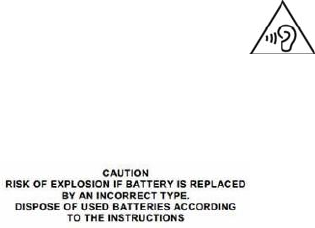
To prevent possible hearing damage,
do not listen at high volume levels for
long periods.
If an equipment is provided with a replaceable
battery, and if replacement by an incorrect type could
result in an explosion (for example, with some lithium
batteries).
FCC RF Exposure Information and
Statement
This device meets the government's requirements
for exposure to radio waves. The guidelines are based
on standards that were developed by independent
scientific organizations through periodic and thorough
evaluation of scientific studies. The standards include a
substantial safety margin designed to assure the safety
of all persons regardless of age or health. The SAR
5
limit of USA (FCC) is 1.6 W/kg averaged. Device types:
Tablet PC (FCC ID: PVEMT-1001) has also been tested
against this SAR limit. SAR information on this and
other pad can be viewed on ‐line
at http://www.fcc.gov/oet/ea/fccid/. Please use the
device FCC ID number for search. This device was
tested simulation typical 0mm to body. The use of belt
clips, holsters and similar accessories should not
contain metallic components in its assembly, the use of
accessories that do not satisfy these requirements may
not comply with FCC RF exposure requirements, and
should be avoided.
FCC Warning
This device complies with Part 15 of the FCC Rules.
Operation is subject to the following two conditions:
(1) This device may not cause harmful interference,
and (2) this device must accept any interference
received, including interference that may cause
6
undesired operation.
NOTE 1: This equipment has been tested and found to
comply with the limits for a Class B digital device,
pursuant to part 15 of the FCC Rules. These limits are
designed to provide reasonable protection against
harmful interference in a residential installation. This
equipment generates, uses and can radiate radio
frequency energy and, if not installed and used in
accordance with the instructions, may cause harmful
interference to radio communications. However, there
is no guarantee that interference will not occur in a
particular installation. If this equipment does cause
harmful interference to radio or television reception,
which can be determined by turning the equipment off
and on, the user is encouraged to try to correct the
interference by one or more of the following measures:
- Reorient or relocate the receiving antenna.
- Increase the separation between the equipment and
receiver.
7
-Connect the equipment into an outlet on a circuit
different from that to which the receiver is connected.
-Consult the dealer or an experienced radio/TV
technician for help.
NOTE 2: Any changes or modifications to this unit not
expressly approved by the party responsible for
compliance could void the user's authority to operate
the equipment.
8
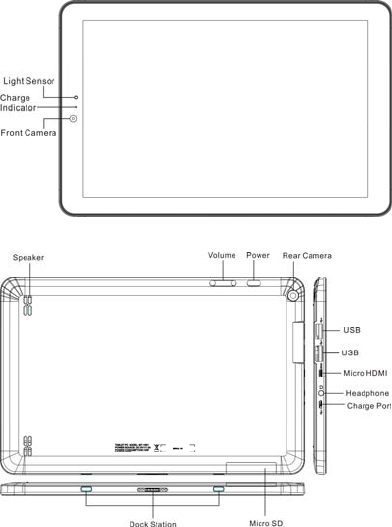
2 Overview
Front Panel
Back Panel
9
3 Charging
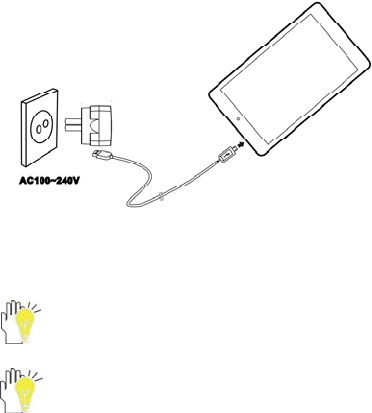
The tablet PC comes with a universal AC-DC adapter
and the allowable input voltage of adapter is from 100V
to 240V.
Plug the DC end of the adapter to the micro USB port
and plug the AC end to the wall socket for charging.
Normally it takes approximately 5 hours to fully charge
the device. Operating the device during charging with
the AC adapter may extend the time of full charging.
The connection to USB interfaces has to be
limited to USB 2.0 version.
Use only the AC adapters, power cords and
batteries that are approved for using with this
device. Use of another type of battery or AC
adapter may cause fire or explosion.
10
4 Inserting a Memory Card
The device supports micro SD/SDHC cards.
To insert a micro SD card, place the card connector
towards the front side of the device and the printing
side of the card towards the rear side of the device.
To remove the micro SD card, gently press the edge
of the card to release the safety lock and pull the
card out of the slot.
Notice
Don’t remove the micro SD card while you are viewing the
file inside, or the device could fail to operate correctly.
5 Power on / Power off
1) To turn on the device, press and hold the Power
button until you see the start-up screen then release,
it will automatically enter the Home screen.
If it is the first time to use it, it will enter set-up guide
menu. Please follow the on-screen instructions.
2) Press the Power button once to enter sleep mode.
Press it again and swipe up the screen to unlock.
11
3) Press and hold the Power button. Tap Power off to
power off the device.
Notice
If the system halts, press and hold the Power button until it
is turned off completely.
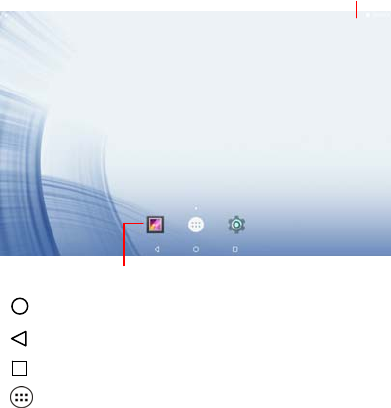
6 Android Home Screen Guides
: tap to enter Home screen.
: tap to return to the previous page.
: tap to open recent APPs list menu.
: tap to enter APPs Menu.
Status Bar: Slide down to open quick settings menu and notification.
Shortcuts: touch to open; touch & hold to move.

12
Home Screen
Your Home screen is the starting point to access all of
the tablet's features.
Add an app icon to home screen
On the Home screen, tap to open APPs list menu,
tap and hold an application icon, and the shortcut of the
application will appear on the home screen. Then, you
drag it to a desired position.
Set wallpaper
Tap and hold the blank area on the Home screen.
Then, tap WALLPAPERS and select one picture from
Gallery, Live Wallpapers, or Wallpaper.
Last, tap Set wallpapers to complete the setting.
7 Changing Language & Time
On the home screen tap and select Settings to
access the list of options.
Select Settings---Language & input---Language to
change OSD language.

13
Select Settings---Date & time to change system
time.
8 Connecting to Wi-Fi
On the home screen tap and select Settings
icon to access the list of options. Select Wi-Fi.
If the Wi-Fi is off, tap on the Wi-Fi line to turn it on.
The device will scan for available Wi-Fi networks and
display them on the screen.
Tap on the network you want to connect to. Then tap
on the wireless password field to enter the required
network information and tap Connect.
Your device will now attempt to establish a
connection to the Wi-Fi access point with the network
parameters you entered.
9 Transferring Contents from PC
Connect the device to your PC/Notebook via USB
cable.
Select the contents you want to transfer from your
PC/Notebook.
Drag the contents from the PC/Notebook to the
device.
Please do not disconnect the USB cable during
loading. It may cause malfunction of the device and
14
files. After copying, you can directly disconnect the
USB cable.
10 Troubleshooting
Q1: What if water enters the device?
A:
1) DO NOT turn on the device.
2) Disconnect the outlet cable in order to turn it off
instead of pressing the power button. Disconnect
all external devices and then send to the service
center for advice.
3) DO NOT place the device into the dirty carrying
case to again.
Q2: How to check the device if it won’t turn on?
A:
If the power is low, connect to the electric outlets.
Make sure the indicator of the adapter turns on
and the adapter works well.
Remove the micro-SD card and any other
external device.
Q3: How to restore the factory default settings?
A:Go to Settings---Backup & reset---Factory data
reset---RESET TABLET---ERASE EVERYTHING to
recover the system to the default status.
Q4: How to prolong the usage time of the battery?
A:
15
Adjust the brightness of the touch screen to
proper level on Settings---Display---Brightness
level menu.
Turn down the volume.
Set the sleep time to proper level on Settings---
Display---Sleep menu.
Q5: What to do if the SD card can’t be read?
A: Please turn off the device and re-insert the card.
Q6: The image isn’t clear.
A: Check that the lens is clear or not, if not, clean it with
the soft cloth.
Q7: Why are the Bluetooth and 3G disabled?
A:Check if the “Airplane mode” is enabled, if it is then
the Bluetooth and 3G can’t be activated.
11 Technical Specifications
Processor Intel Z8350
RAM (#) 2GB DDR3L
Storage capacity(#) 16GB eMMC
Display 10.1'' IPS
Capacitive Multi-touch panel
Resolution 800x1280 pixels
Interfaces
USB 2.0, USB 3.0, Micro SD,
Micro HDMI, Micro USB (only for
charge)
16
Descriptions Front: 2M pixel;
Rear: 5M pixel
Communications Wi-Fi (802.11 ac/b/g/n),
Bluetooth(V4.1)
Operating
Temperature 5-35℃
Operating Humidity 35%-85%
Storage Temperature -20-55℃
Storage Humidity 20%-93%
Adapter AC 100~240V; DC 5V/2A
Output Power
(maximum)
≤10W
Battery 7000mAh/3.7V Li-Poly battery
Weight About 630g
Dimension 255mm x 165mm x 10.2mm
12 CE Mark