Motorola Droid Razr M Verizon Instruction Manual User Guide (Online)
Motorola-Xt907-Manual motorola-xt907-manual motorola-xt907-manual manuals phones s.theinformr.com 3:
User Guide (v4.1) Motorola_DROID_RAZR_M_UG-[Verizon]-JB Motorola User Guides
User Guide Motorola_DROID_RAZR_M_UG-[Verizon] Motorola User Guides
Droid RAZR M (Verizon Wireless) - Instruction Manual RAZR_M_UG_Vzw Free User Guide for Motorola Mobile Phone, Manual - page1
2015-08-19
: Motorola Motorola-Droid-Razr-M-Verizon-Instruction-Manual-790713 motorola-droid-razr-m-verizon-instruction-manual-790713 motorola pdf
Open the PDF directly: View PDF  .
.
Page Count: 73
- DROID RAZR M Interactive User's Guide
- At a glance
- Start
- Home screen & apps
- Control & customize
- Calls
- Contacts
- Messages
- Type
- Socialize
- Browse
- Photos & videos
- Music
- Books
- Locate & navigate
- Work
- Connect & transfer
- Protect
- Want more?
- Troubleshooting
- Product Safety & Legal
- Battery Use & Safety
- Battery Charging
- Third Party Accessories
- Driving Precautions
- Seizures, Blackouts & Eyestrain
- Caution About High Volume Usage
- Repetitive Motion
- Children
- Glass Parts
- Operational Warnings
- Radio Frequency (RF) Energy
- Regulatory Information
- Location Services
- Navigation
- Privacy & Data Security
- Use & Care
- Recycling
- California Perchlorate Label
- Hearing Aid Compatibility with Mobile Phones
- Software Copyright
- Content Copyright
- Open Source Software Information
- Export Law Assurances
- Product Registration
- Service & Repairs
- Motorola Mobility LLC Limited Global Warranty Mobile Phones
- Copyright & Trademarks
Socialize Browse Photos & videos
Calls
-
Contacts
- Top topics Search topics
Control & customize
Start Home screen & apps
Safety
Type
qwe r t y
456123
Locate & NAVIGATE
44 West Street
www.
Messages
Protect
At a glance
Want More?
Work Connect & transfer
Music
Troubleshoot
Books
PLAYLISTS
#1
DROID RAZR M
pick a topic, get what you need
BackNext
Menu More
At a glance
a quick look
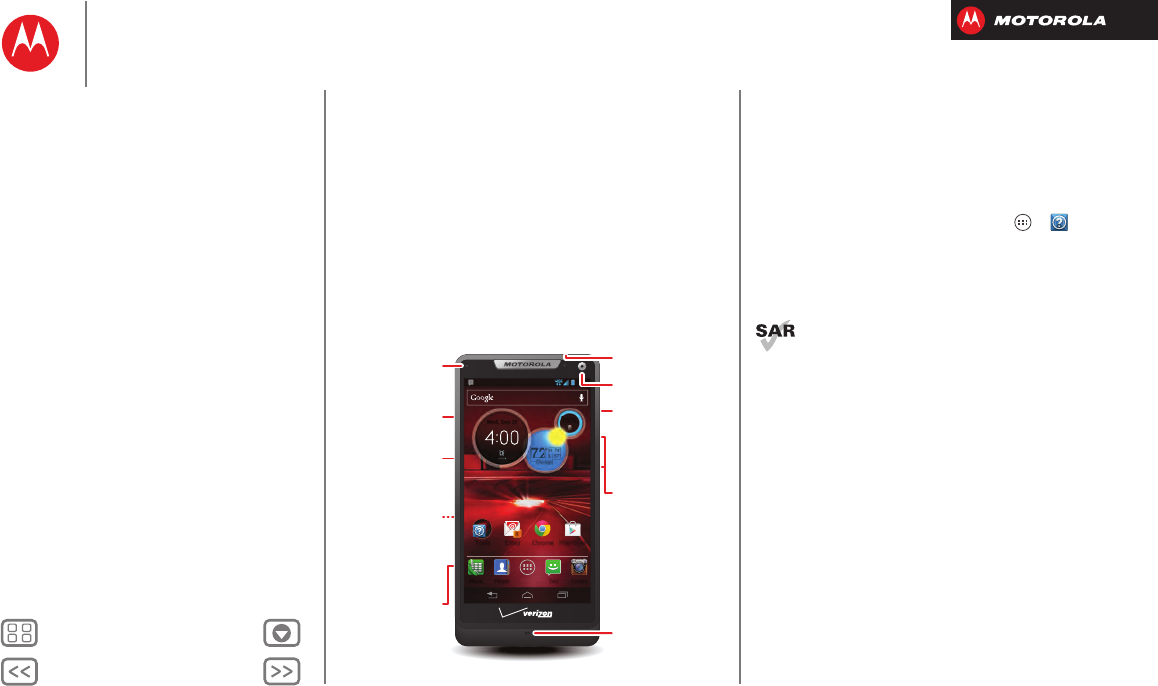
Your smartphone
Yo ur DROID RAZR M—surfs faster, bigger display, in a
super compact 4G LTE smartphone.
•Speed: 4G LTE speeds and Chrome browser.
•Design: Premium protective materials—DuPont™
Kevlar® fiber, Corning® Gorilla® Glass, and a water
repellent nano-coating.
• Best of Google™: Google Maps™ Navigation Beta,
Google Play™, Voice Actions.
4:00
57°L
74°H
72
2
°
Chicago
100%
Wed, Sep 26
PeoplePhone Text Camera
Email
8
Play StoreChromeTools
Notification
Light
Micro USB/
Charger
8MP Photo/
1080p V ideo
Camera
(on back)
3.5mm Headset
Front Camera
Volume Keys
Microphone
Power Key
Press = Screen
On/Off
Hold = Phone
On/Off
microSD
Card Slot
micro SIM
Card Slot
Tips & tricks
•Start: SIM in, charge up, register. See “Start”.
• Top topics: Just want a quick hit of what your
smartphone can do? See “Top topics”.
•More: All the topics in this guide and so much more,
right on your smartphone. Tap Apps >
Help
>
TUTORIALS
or
HELP TOPICS
. Want more? See “Get
more!”
Note: Certain apps and features may not be available in
all countries.
This product meets the applicable limit for
exposure to radio waves (known as SAR) of
1.6 W/kg (FCC & IC). The limits and guidelines
include a substantial safety margin designed to assure
the safety of all persons, regardless of age and health.
The highest SAR values measured for this device are
listed in the regulatory information packaged with your
product.
At a glance
Your smartphone
Top topics
BackNext
Menu More
At a glance
Top topics
Check out what your smartphone can do.
•Personalize your home screen: see “Redecorate your
home”.
•Get fast access to main settings: see “Quick settings”.
•Go online: see “Browse”.
•Learn about Google Play™: see “The best of Google™”.
•Get an app: see “Download apps”.
•Be social: see “Socialize”.
•Find a place: see “Locate & navigate”.
•Take a photo: see “Take photos”.
•Connect to Wi-Fi: see “Wi-Fi Networks”.
•Watch a movie: see “Movies”.
•Protect your smartphone: see “Screen lock”.
•Get all the help you need: see “Get more!”.
Tips & tricks
•Intuitive: To get started quickly, tap Apps
>
Help
for interactive tutorials.
• Helpful: To quickly change common smartphone
settings, swipe the home screen right to go to
Quick
settings
. To learn more about each setting, tap in
the upper right.
At a glance
Your smartphone
Top topics
BackNext
Menu More
Start
let’s get up & running
Charge up
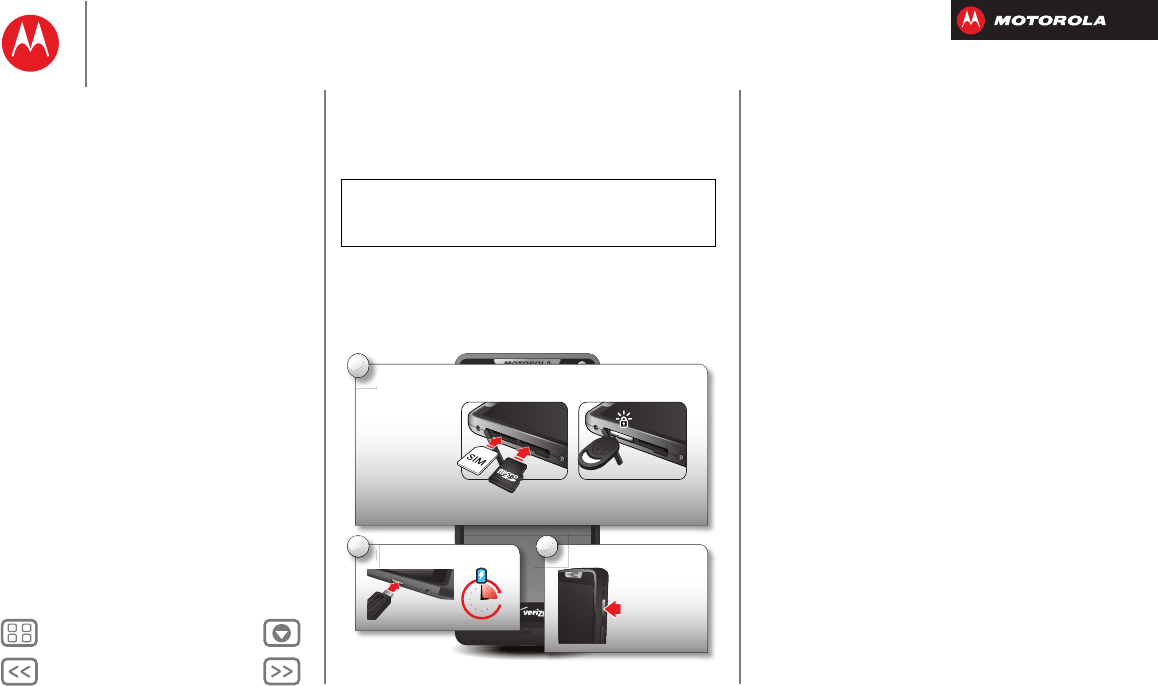
SIM in, memory card in (optional), charge up, then power
up.
Caution: Before using your smartphone, please read
the safety, regulatory and legal information provided
with your product.
Charge up fully.
C
2
3 H
Turn on.
T
3
Press & hold
Power Key.
Insert micro SIM & optional microSD using the
Card Insertion/Removal Tool.
I
n
C
1
Place the SIM or
microSD card with
the gold contacts
facing down. Gently
push until it clicks.
Note: If your SIM or microSD card doesn’t click in, position the tip of the Card
Insertion/Removal Tool on the edge of the card, and gently push until it clicks.
Tips & tricks
• Power/Sleep: To turn your smartphone on or off,
press and hold the Power key. To make the screen
sleep or wake up, just press the Power key.
• Notification Light: The notification light blinks when
you have a new message or notification, and turns on
when you start charging a dead battery.
• Battery: Squeeze every bit of juice out of your battery.
See “Battery life”.
Note: This product uses a non-removable battery. The
battery should only be replaced by a Motorola-approved
service facility. Any attempt to remove or replace your
battery, unless performed by a service representative,
may damage the product and void your warranty.
Start
Charge up
Battery life
Register
The best of Google™
Old phone to new phone
BackNext
Menu More
Start
Battery life
Your smartphone is like a small computer, giving you tons
of information and apps, at 4G LTE speed. Depending on
what you use, that can take a lot of power.
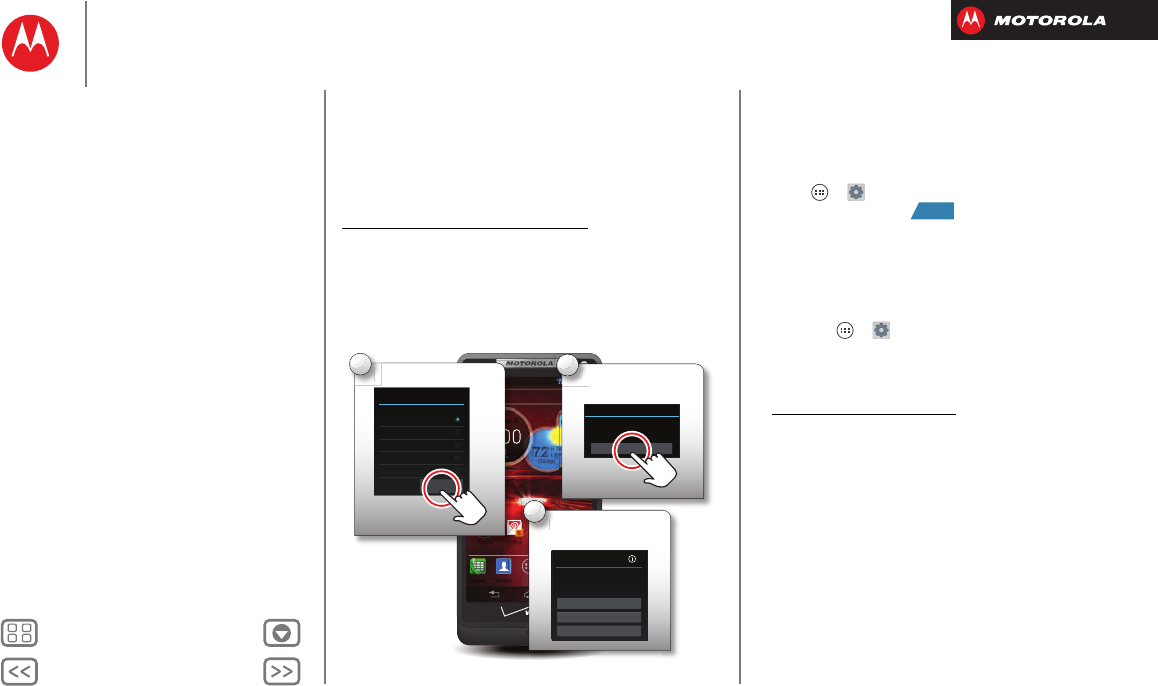
To see what’s using up battery power, tap Apps
>
Settings
>
Battery
.
To set automatic rules to save power, tap Apps
>
Smart Actions
(see “SMARTACTIONS™”).
Battery Saver
SAVE CANCEL
TRIGGERS
ACTIONS
Charging status
Not charging
Brightness
Smart brightness
Background data
Keep apps synced only...
Battery
1h 23m 45s on battery
99% - Discharging
Screen
Android OS
Android System
Homescreen
75%
12%
4%
3%
Tap a feature to see
details & adjust power
settings (if available).
Add Triggers (like events, times, or
places) that start the action.
Add an Action (like silencing
the ringer) to make it happen
when the triggers happen.
Tips & tricks
To save even more battery life between charges, you
could reduce:
•recording or watching videos, listening to music, or
taking pictures.
•widgets that stream information to your home screen,
like news or weather.
•unused online accounts that you registered: Tap
Apps >
Settings
>
Accounts & sync
.
•Wi-Fi and Bluetooth® use: Tap Apps >
Settings
,
then tap the switch next to
Wi-Fi
or
Bluetooth
to turn
them when you don’t need them.
•GPS use: Tap Apps >
Settings
>
Location
services
, and uncheck
GPS satellites
.
•display brightness: Tap Apps >
Settings
>
Display
>
Brightness
>
Display power saver
.
•display timeout delay: Tap Apps >
Settings
>
Display
>
Sleep
> (shorter setting).
OFF
Start
Charge up
Battery life
Register
The best of Google™
Old phone to new phone
BackNext
Menu More
Start
Register
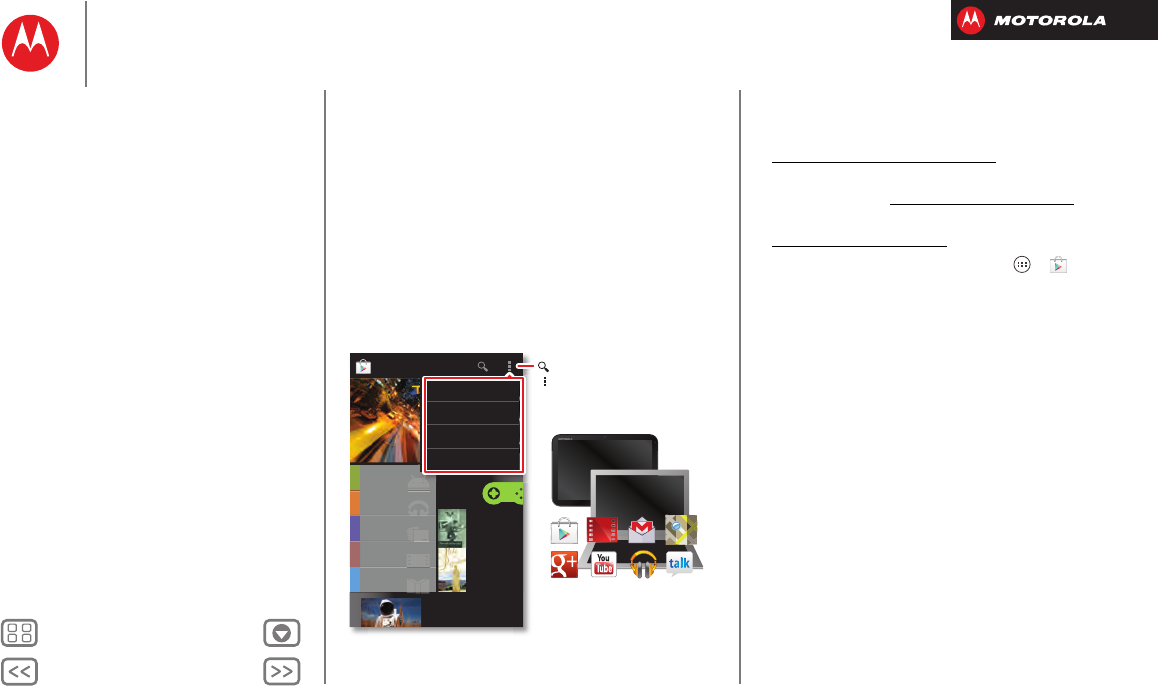
After you power up, create or log into a Google™ account
to access all of your Google Mobile™ services.
Registration is secure and only takes a few minutes.
Tip: To get your contacts, visit
www.motorola.com/transfercontacts.
Note: This smartphone supports apps and services that
use a lot of data, so make sure your data plan meets your
needs. Contact Verizon Wireless for details.
4:00
57°L
74°H
72
2
°
Chicago
100%
Wed, Sep 26
PeoplePhone Text Camera
Email
8
Play StoreChromeTools
e
e
e
p
p
p
p
p
2
E
E
Em
Em
T
To
To
To
To
To
l
ol
ol
ol
ol
ol
s
s
s
s
Select your language.
S
1
Welcome
Select your language:
English (United States)
Français (France)
Español (España)
Français (Canada)
Start
Español (Estados Unidos)
Set up Google™
account.
S
3
Make it Google
Got Gmail? Sign in now.
Never lose your stuff again. A Google
Account keeps everything safe.
Sign in
Not now
Get an account
7
°
4
°
Perform initial
setup steps.
P
e
2
Welcome to the Setup Wizard
This setup wizard will help you customize your
phone in a few steps. It will allow you to get
the most out of your Verizon Wireless phone.
Next
Tips & tricks
• Wi-Fi network: Conserve your monthly data
allowance by switching from the Verizon network to a
Wi-Fi network for your internet connections. Tap
Apps >
Settings
>
Wi-Fi
, then tap the switch at
the top to turn Wi-Fi and search for networks.
There’s more in “Wi-Fi Networks”.
• Reboot: If your smartphone becomes unresponsive,
try a forced reboot—press and hold both the Power
key and the Volume Down key for about 10 seconds.
• Accounts: To add, edit, or delete accounts anytime,
tap Apps >
Settings
>
Accounts & sync
. For
more, see “Add or delete accounts”. To set up email
accounts, see “Email”.
For help with your Google™ account, visit
www.google.com/accounts.
ON
Start
Charge up
Battery life
Register
The best of Google™
Old phone to new phone
BackNext
Menu More
Start
The best of Google™
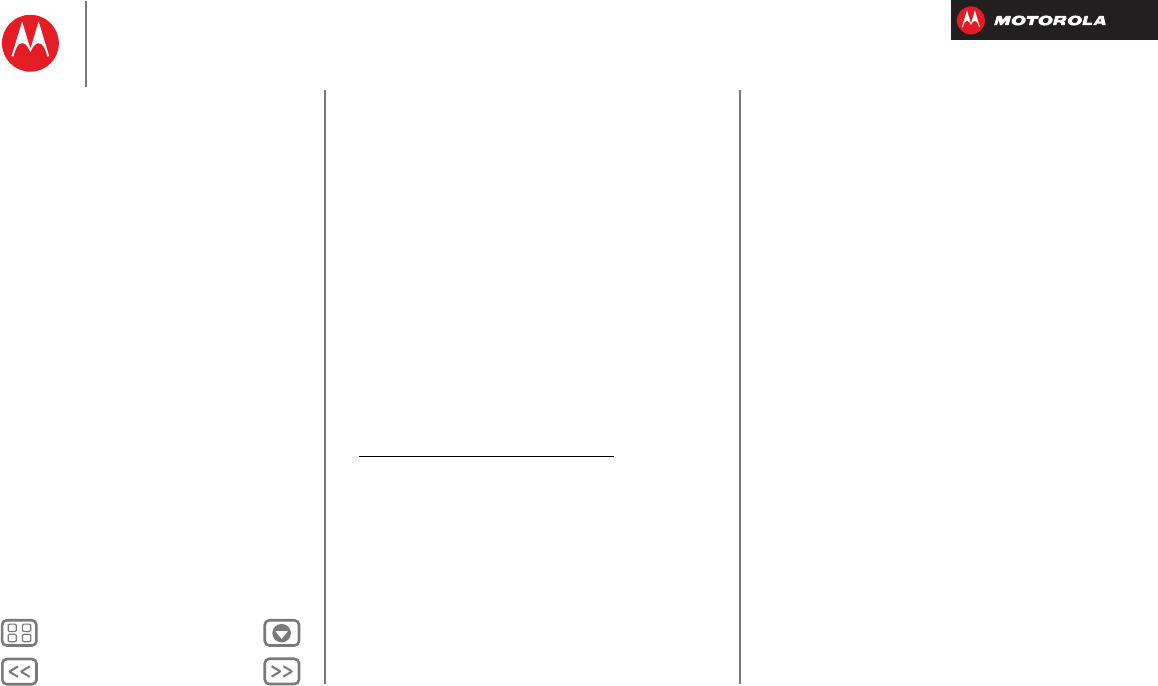
Your whole world, organized and accessible. Browse,
locate, watch, shop, play, work... Google has you
covered. One account, access everywhere—
smartphone, tablet, and computer.
Music
Magazines
Books
Apps
Movies & TV
Call of the
Wild
Jack London
Pride and
Prejudice
Jane Austen
Google Play
Games
NEW
MUSIC
G
G
G
G
G
a
a
a
a
a
m
m
m
m
m
e
e
e
e
e
s
s
s
s
s
My Apps
Accounts
Settings
Help
Search for apps.
Choose your account and
settings.
On your computer and Android
tablet, sign into your Google
Account for all your Google Play
content, Gmail, Google Calendar
events, and more.
Tips & tricks
• Find out more about Google products: See
www.google.com/about/products.
• Log into or open a Google account: See the Google
accounts page at www.google.com/accounts.
• Find answers about Google products: See
www.google.com/support.
• Download Google apps: Tap Ap ps >
Play
Store
.
• All in the cloud: See “Your cloud”.
Start
Charge up
Battery life
Register
The best of Google™
Old phone to new phone
BackNext
Menu More
Start
Old phone to new phone
Are you switching from an Apple™ or Blackberry phone?
Get all your important information set up on your new
Motorola smartphone in a few easy steps. The Welcome
Home To Motorola application transfers contacts, email
addresses, calendar meetings, events, tasks, music,
playlists, photos, and videos from your old phone to your
new Motorola smartphone.
Note: If you are switching from another Android™
phone, your Google™ account’s contacts, events,
Gmail™ and other settings start downloading as soon as
you log into your Google account. If you are switching
from another type of device, contact your service
provider for assistance.
To move information from an Apple or Blackberry phone
to your Motorola smartphone:
1Use your computer browser to navigate to
www.markspace.com/welcomehome/, and download
the free Microsoft™ Windows™ or Apple™
Macintosh™ version of the Welcome Home To
Motorola application to your computer.
2Install and run the application on your computer. Yo u
can skip registration.
3Follow the instructions to transfer information from
your old phone to your Motorola smartphone.
The Welcome Home To Motorola application prompts
you to connect your old phone to the computer with a
USB cable, and backup the data you want to transfer.
Next, install the Welcome Home To Motorola app on your
Motorola smartphone, connect the smartphone to your
computer with a USB cable, then transfer the data onto
your Motorola smartphone.
Start
Charge up
Battery life
Register
The best of Google™
Old phone to new phone
BackNext
Menu More
Home screen & apps
you have quick access
Quick start: Home screen & apps
Start from the home screen, to explore apps and more.
• Home screen: You’ll see the home screen when you
turn on your smartphone or tap Home .
• App & widget list: To show all of your apps and
widgets, tap Apps .
•More: To download more apps and widgets, tap
Apps >
Play Store
.
4:00
57°L
74°H
72°
Chicago
100%
Wed, Sep 26
PeoplePhone Text Camera
Email
8
Play StoreChromeTools
Status & Notifications
Drag down for details.
Shortcuts
Tap to open.
Favorites Tray
Tap Apps to see all your
apps & widgets.
Circles Widget
Flick up/down to see more.
Tap to open.
Tips & tricks
•Pages: To show other pages of shortcuts and widgets,
swipe the home screen left. To delete pages from your
home screen, tap Home , tap and hold a page,
then drag it up to
Remove
.
• Uninstall: To uninstall apps, tap Apps , tap and hold
an app, then drag it to
More options
and choose
Uninstall
(if available).
• Quick settings: To quickly change common
smartphone settings, swipe the home screen right to
go to
Quick settings
. To learn more about each setting,
tap in the upper right.
Redecorate your home
Customize the way your home screen looks, and give
yourself quick access to your favorite things:
• Change wallpaper: Tap and hold an empty spot on
your home screen to choose your wallpaper.
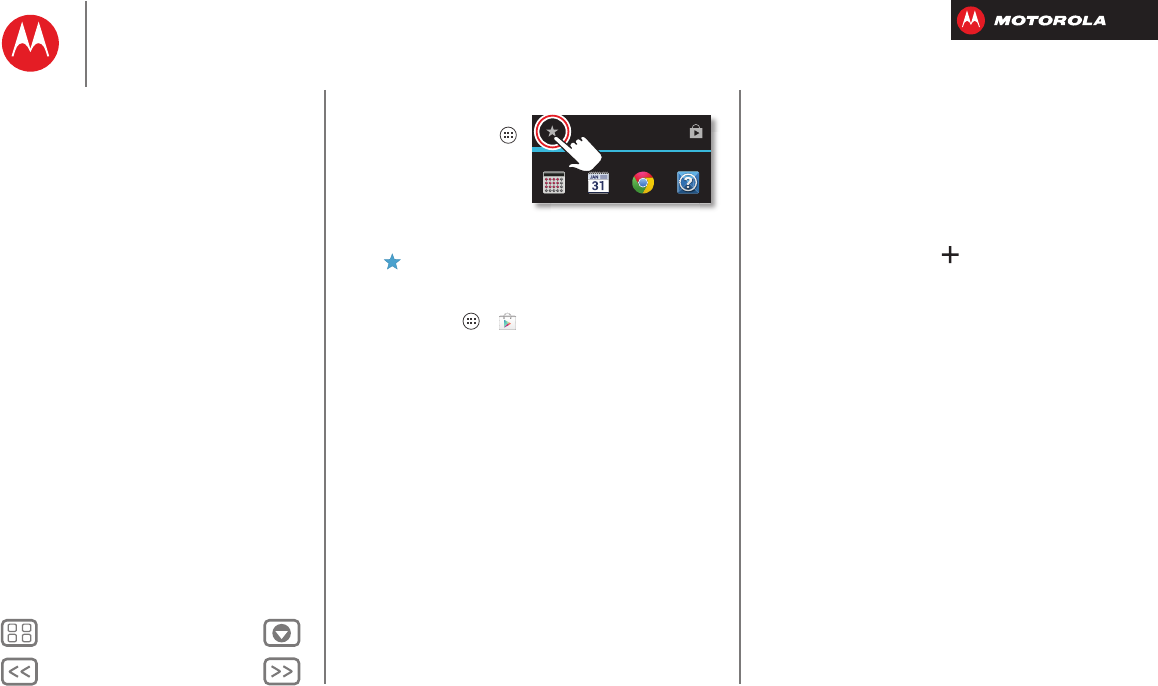
• Create shortcut folders: To create a
folder of shortcuts on your home
screen, tap and hold a shortcut, then
drop it on top of another shortcut.
You can create a folder of apps to use
when you have spare time, when you
want music, or when you need to
contact people—whatever goes
together for you.
Play Music Play Books
Play Music Play Bookks
Home screen & apps
Quick start: Home screen & apps
Redecorate your home
Help
Search
Status & notifications
Download apps
Take Care of your apps
Update your smartphone
BackNext
Menu More
Home screen & apps
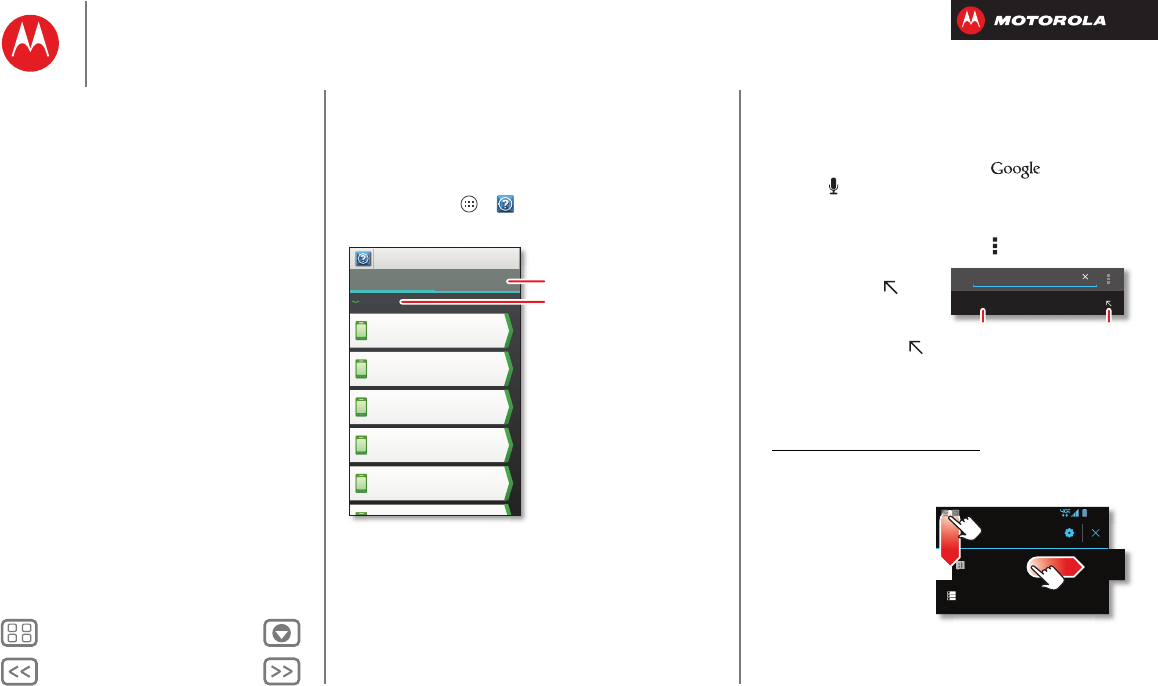
• Add widgets &
shortcuts: Tap Apps ,
tap and hold the app or
widget, then drag it to
one of your home screen
pages. To see all your
apps and widgets, swipe the app screen to the left, or
tap
APPS
or
WIDGETS
at the top. To see your
Favorites
tap , then tap
ADD/REMOVE
to edit your favorite
apps.
Tip: Some apps include special widgets. To download
apps, tap Apps >
Play Store
.
•Resize widgets: You can resize some widgets—tap
and hold a widget until you feel a vibration, then
release. Drag the blue diamonds at the edges to
resize.
• Move or delete widgets & shortcuts: Tap and hold a
widget or shortcut until you feel a vibration, then drag
it to another spot, another page, or
Remove
at the top
of the screen.
12345
APPS WIDGETS
Favorites ADD/REMOVE
• Add, rearrange, or delete pages: To show other
pages of shortcuts and widgets, swipe the home
screen left.
To add, reorder, or delete pages, from your home
screen, swipe left to show
Add a page
. Then, tap
Blank page
or
Start with a template
.
Ta p
Manage pages
, then tap and hold a page to
rearrange or remove. Tap to add, or tap and hold an
existing page and drag it to left or right to reorder, or
drag it up to
Remove
.
• Ringtones and more: For more about customizing,
see “Control & customize”.
Home screen & apps
Quick start: Home screen & apps
Redecorate your home
Help
Search
Status & notifications
Download apps
Take Care of your apps
Update your smartphone
BackNext
Menu More
Home screen & apps
Help
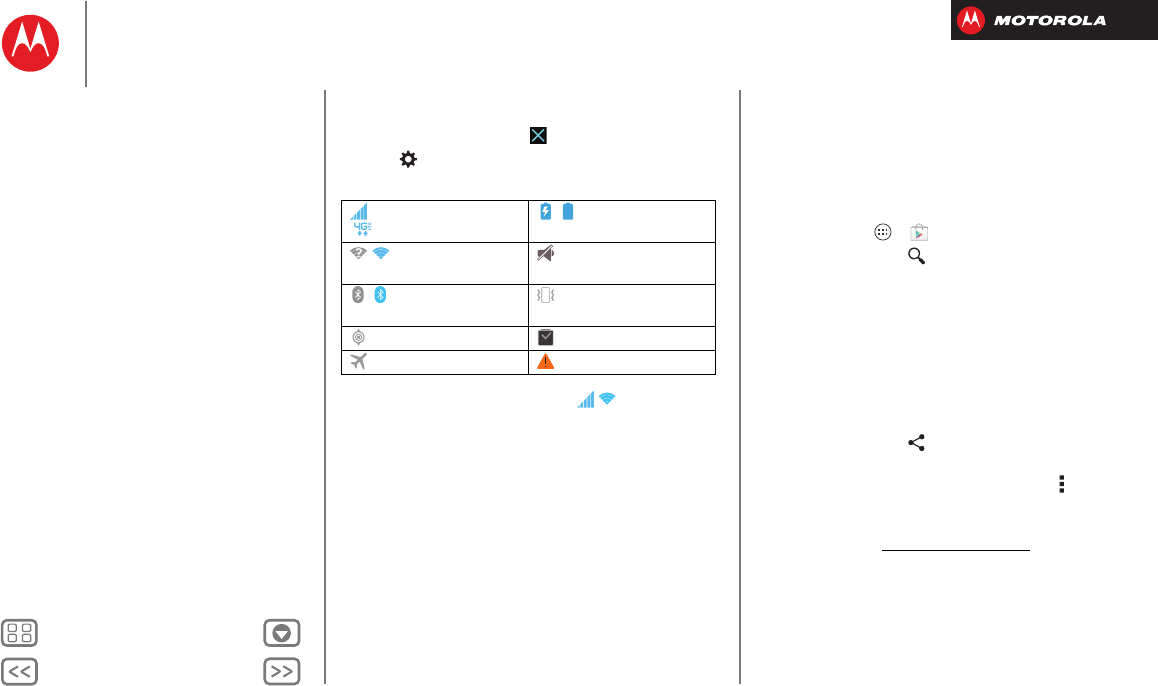
Help takes you through features on your smartphone, and
makes things easy for you. To choose the quest you want
to go on, just tap it.
Find it: Tap Apps >
Help
>
TUTORIALS
or
HELP
TOPICS
Help
General
TUTORIALS HELP TOPICS
Show me how to turn my
screen on and off.
Show me how to use my
touchscreen.
Explain the buttons on my
phone.
Show me how to turn off my
phone.
Show me where to find
notifications such as missed
calls and new messages.
Sh h t th i t l
Tap to close this category.
Select tutorials or help topics.
Search
Search your apps, contacts, files, places, and the web:
At the top of the home screen, tap for a text
search, or for voice search.
•To choose what your search covers (like apps and the
web) or to change search location and history settings:
In the search window, tap Menu >
Settings
.
•To add a suggestion to
your search, tap .
For instance, to find
Motorola headsets, you
can enter moto, tap ,
then enter he and tap
the suggested phrase.
•To become a super
searcher, visit
www.google.com/insidesearch.
Status & notifications
At the top of the screen,
icons on the left notify
you about new
messages or events.
Drag the bar down for
details.
moto
motorola
Choose
motorola and
enter a second
word.
Search on
just
motorola.
December 21, 2012
Active Smart Actions
Meeting
8:00 AM
Abe Baudo
1 new message
8:00 AM
4:00
2
1
Home screen & apps
Quick start: Home screen & apps
Redecorate your home
Help
Search
Status & notifications
Download apps
Take Care of your apps
Update your smartphone
BackNext
Menu More
Home screen & apps
To remove a notification from the list, flick it left or right.
To clear all notifications, tap .
Tip: Ta p to s how
Settings
.
Icons on the right tell you about smartphone status:
Network and Wi-Fi icons turn blue ( ) when your
smartphone exchanges data with your Google™ account.
Note: Apps you download from the Google Play™ Store
app might show other icons in the status bar to alert you
to specific events.
network strength
(=4G LTE network)
/battery
charging/full
/Wi-Fi
in range/connected
silent
/Bluetooth®
on/connected
vibrate
GPS active alarm set
airplane mode warning
Download apps
Google Play™
Google Play™ is a new entertainment hub full of music,
movies, books, apps, and games. You can instantly
access your content from all your Android devices.
Find it: Tap Apps >
Play Store
• Find: To search, tap in the top right.
•Review: To show details and reviews for an app you
found, just tap it.
Tip: For the full list of reviews, tap
See all
below the
third review—then tap
Most helpful first
or
Options
to
customize the list.
• Download: To download an app you found, tap it to
open details and then tap
Download
, or the price.
•Share: To share an app you found, tap it to open
details and then tap .
• Reinstall: To show or reinstall apps you downloaded
from the Google Play Store app, tap Menu >
My
Apps
.
• On a computer: To find and manage apps from any
computer, go to http://play.google.com using your
Google™ account and password.
There, you can browse apps on the big screen,
manage your apps across multiple devices (like a
smartphone and tablet), and even set new apps to
download to your devices.
Home screen & apps
Quick start: Home screen & apps
Redecorate your home
Help
Search
Status & notifications
Download apps
Take Care of your apps
Update your smartphone
BackNext
Menu More
Home screen & apps
• Music, Books & Movies: You can also use the Google
Play Store app to download “Music”, “Books”, and
“Movies”.
•Help: To get help and more, tap Menu in the top
right.
Apps from the web
You can get apps from online app stores using your
browser.
Tip: Choose your apps and updates carefully, as some
may impact your smartphone’s performance—see
“Choose carefully”.
To let your smartphone install apps that are not from
Google Play, tap Apps >
Settings
>
Security &
Screen Lock
and check
Unknown sources
.
To download files from your browser, see “Downloads”.
Choose carefully
Apps are great. There's something for everyone. Play,
communicate, work, or have fun. But remember, choose
your apps carefully. Here are a few tips:
•To help prevent spyware, phishing, or viruses from
affecting your smartphone or privacy, use apps from
trusted sites, like the Google Play™ Store.
•In the Google Play Store, check the app’s ratings and
comments before installing.
•If you doubt the safety of an app, don’t install it.
•Like all apps, downloaded apps will use up memory,
data, battery, and processing power—some more than
others. For example, a simple battery level widget will
use less than a streaming music player app. After
installing an app, if you’re not happy with how much
memory, data, battery or processing power it’s using,
uninstall it. You can always install it again later.
•Just like web browsing, you may want to monitor
children’s access to apps to help prevent exposure to
inappropriate content.
•Certain apps may not provide completely accurate
information. Take care, especially when it comes to
personal health.
Take Care of your apps
To show the app screen, from your home screen tap
Apps , then swipe left to scroll through apps. To close
the apps screen, tap Home or Back .
•Favorites: To show your favorite apps, tap at the
top of the screen. Then tap
ADD/REMOVE
to edit your
favorite apps.
Tip: Apps you download are added to your favorites.
Home screen & apps
Quick start: Home screen & apps
Redecorate your home
Help
Search
Status & notifications
Download apps
Take Care of your apps
Update your smartphone
BackNext
Menu More
Home screen & apps
• Uninstall apps: Tap Apps >
Settings
>
Apps
>
ALL
, tap an app, then tap
Disable
or
Uninstall
in the
top right (if available).
Disable
removes the app from your menu—to
Enable
it,
reopen this window and tap
Enable
(disabled apps are
at the bottom of the list).
If an app locks up your smartphone as soon as you turn
it on, restart in Safe Mode: Turn off your smartphone,
then turn it back on—when you see the “Motorola”
logo during power-up, press and hold both volume
keys until you see the home screen, with
Safe Mode
in
the lower left. Then, try removing the app.
• Reinstall apps: To reinstall apps from the Google
Play™ Store, tap Apps >
Play Store
>
My apps
.
The apps you downloaded are listed and available for
download.
• Share, show, or clear app details: Tap Apps
>
Settings
>
Apps
. A bar at the bottom tells you
how much app storage space you have left. At the top,
tap the list of
DOWNLOADED
,
RUNNING
, or
ALL
apps,
then tap an app in the list to show its details and
storage usage. You can tap
Share
,
Clear data
or other
options.
Tip: To quickly show these app details from your app
screen: Just tap and hold an app, drag it to Menu at
the top of your screen, then choose
App info
.
• Show app data usage: To show which apps are using
the most data, tap Apps >
Settings
>
Data
usage
. For more, see “Data use”.
Update your smartphone
Use your smartphone or computer to check, download,
and install smartphone software updates:
•Using your smartphone:
If your smartphone notifies you about an update,
follow the instructions to download and install it.
To manually check for updates, tap Apps
>
Settings
>
About phone
>
System updates
.
Your smartphone downloads updates over your Wi-Fi
connection (if available) or mobile network. It is
recommended that you download updates when you
have a Wi-Fi connection. Remember, these updates
can be quite large (25MB or more) and may not be
available in all countries. If the mobile network updates
are not available in your country, update using a
computer.
•Using your computer:
On your computer, go to www.motorola.com/support
and check the “Software” links. If an update is
available, just follow the installation instructions.
Home screen & apps
Quick start: Home screen & apps
Redecorate your home
Help
Search
Status & notifications
Download apps
Take Care of your apps
Update your smartphone
BackNext
Menu More
Control & customize
how it acts & looks
Quick start: Control & customize
Take control of your smartphone:
•Touch: It’s all in the touch. Use simple gestures to
move about and navigate your smartphone.
•Speak: Tell your smartphone what you want—tap
Apps >
Voice Commands
.
•Customize: Change notifications, or show
settings—drag the status bar down and tap .
4:00
57°L
74°H
72°
Chicago
100%
Wed, Sep 26
PeoplePhone Text Camera
Email
8
Play StoreChromeTools
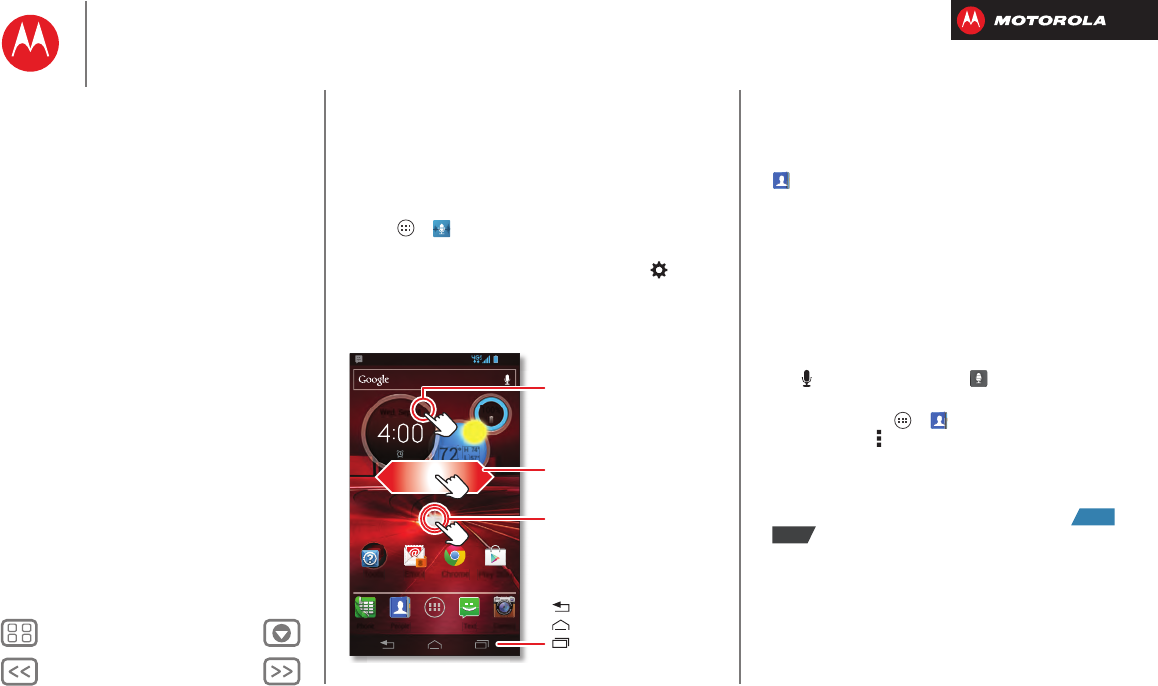
Tap & hold an empty
spot to change wallpaper.
Recent Apps
Home (home screen)
Back (one screen)
Tap a widget to open.
Tap & hold to move, delete,
or open options.
Swipe screen left to open or
create pages. Swipe right to
open Quick settings.
Tips & tricks
•Tap: Choose an icon or option.
•Tap & hold: Open options for items in lists (like
People
).
•Drag: Move items on the home screen.
•Flick: Quickly open or delete items.
•Swipe: Scroll through lists or between screens.
• Pinch or double-tap: Zoom in and out on websites,
photos, and maps.
•Twist: Twist a map with two fingers to rotate it, and
pull two fingers down to tilt it.
•Speak: As well as
Voice Commands
, you can also
tap in a search window or in a keypad.
• Ringtone for a contact: To set a ringtone for a
contact, tap Apps >
People
, tap the contact,
then tap Menu >
Set ringtone
.
• Quick settings: To cha n ge
Phone ringtone
,
Wi-Fi
,
Bluetooth
,
GPS
,
Mobile data
,
Airplane mode
, and
Phone lock
settings, swipe the home screen right to go
to
Quick settings
. Then, tap the switch to turn or
.
•Home screen: For more about changing your home
screen, see “Redecorate your home”.
ON
OFF
Control & customize
Quick start: Control & customize
On, off, lock & unlock
Touch
Press
Speak
Customize
Quick settings
SMARTACTIONS™
Accessibility
BackNext
Menu More
Control & customize
On, off, lock & unlock
Your touchscreen is on when you need it, and off when
you don’t:
• Screen off & on: Press the Power key to turn the
screen off & on.
Note: During a call, your
touchscreen might stay
dark if the sensor just
above it is covered. Don't use covers or screen
protectors (even clear ones) that cover this sensor.
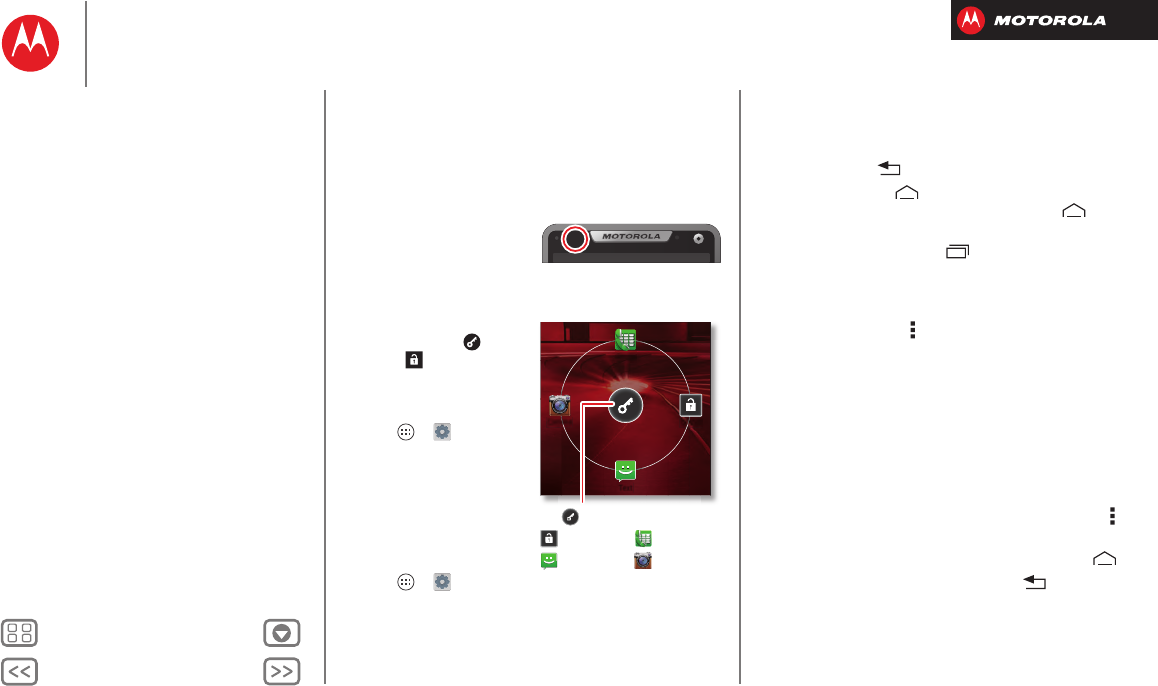
•Screen lock: To un l o ck
the screen, tap and
flick to
Unlock
. To add
a password or facial
recognition security to
your unlock screen, tap
Apps >
Settings
>
Security & Screen Lock
>
Screen lock
(see
“Screen lock”).
• Screen timeout: To
change your timeout
(screen locks
automatically), tap
Apps >
Settings
>
Display
>
Sleep
.
Phone
Unlock
Text
Camera
Tap and flick to:
Unlock Phone
Text
Camera
Touch
Find your way around:
• Back: Tap Back to go to the previous screen.
•Home: Tap Home to return to the home screen.
On your first home screen page, tap Home to
show all the pages.
• Recent apps: Tap Recent to show your recent
apps, and tap an app to reopen it. To remove an app
from the list, flick it left or right. To scroll the list, swipe
up or down.
•Menu: When Menu appears in the corner of the
screen, you can tap it to open options for the current
screen.
Lost or stuck? If you’re not sure what to do next, try one
of these:
•To open a text message, see contact details, or open
items in a list, tap the message, contact, or item.
•To show options for a list item (if available), tap and
hold the item.
•To show a menu for the current screen, tap Menu in
the corner of the screen (if available).
•To return home to the home screen, tap Home .
•To go back just one screen, tap Back .
Control & customize
Quick start: Control & customize
On, off, lock & unlock
Touch
Press
Speak
Customize
Quick settings
SMARTACTIONS™
Accessibility
BackNext
Menu More
Control & customize
•To reopen an app you closed, tap Recent and tap
the app in the list.
•To reboot an unresponsive smartphone, press and
hold both the Power key and the Volume Down key for
about 10 seconds.
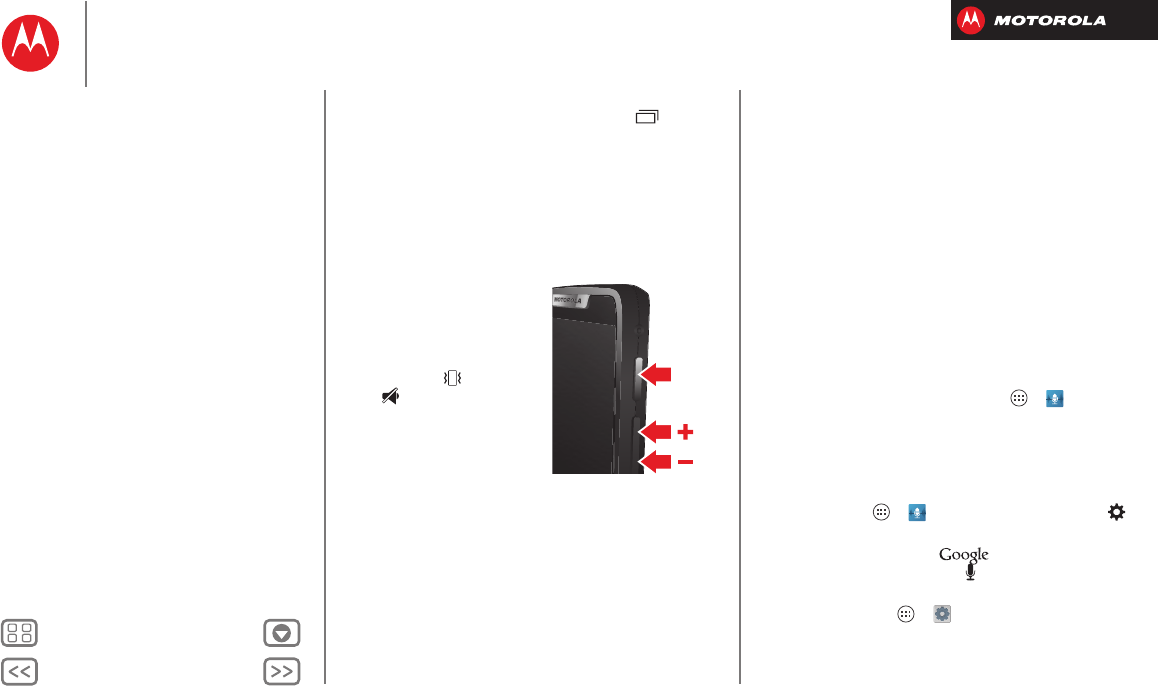
Press
Power key
Press and hold the Power key
to choose
Power off
,
Sleep
(low power mode),
Airplane
mode
(no wireless
connections—see “Airplane
mode”), vibrate , or
silent .
To conserve battery power,
prevent accidental touches,
or when you want to wipe
smudges off your
touchscreen, put the
touchscreen to sleep by pressing the Power key. To wake
up the touchscreen, just press the Power key again.
Tip: To make the screen lock when it goes to sleep, see
“Protect”.
Power
Key
Volume keys
Your volume keys help in a few ways:
• Ringer volume: Press the keys in the home screen to
change ring volume. Press them when your
smartphone is ringing to silence it.
• Earpiece volume: Press the keys during a call.
• Music/video volume: Press the keys during a song or
video.
Speak
Just tell your smartphone what you’d like.
Tip: Speak naturally but clearly, like using a
speakerphone.
• Dialing and commands: Tap Apps >
Voice
Commands
. To dial, say “Call” and then a contact name
or phone number. Or, say a command like “Send Text,”
“Go to” and app, or “Help” for voice command help.
For more, see “Voice dial”.
To choose the confirmations and prompts you want to
hear, tap Apps >
Voice Commands
, then tap
at the top right.
•Search: Enter text in the search box at the top
of your home screen, or tap to search by voice.
To change your voice search and text-to-speech
settings, tap Apps >
Settings
>
Language
& input
.
Control & customize
Quick start: Control & customize
On, off, lock & unlock
Touch
Press
Speak
Customize
Quick settings
SMARTACTIONS™
Accessibility
BackNext
Menu More
Control & customize
• Text entry: On a touchscreen keyboard, tap to use
voice entry.
Tip: To make your smartphone read menu items and text
out loud, see “TalkBack”.
Customize
Customize your smartphone’s sounds and appearance:
• Ringtone and notifications: To choose ringtones or
notifications, tap Apps >
Settings
>
Sound
.
• Vibrate or silent: To choose whether your
smartphone vibrates for incoming calls, tap Apps
>
Settings
>
Sound
. Choose
Silent mode
to set
whether it vibrates when you set the lock screen slider
to silent. Check
Vibrate and ring
to make it vibrate
when the ringer is not silent.
• Ringtone for a contact: To set a ringtone for a
contact, tap Apps >
People
, tap the contact,
then tap Menu >
Set ringtone
.
• Volume: To set volume, just press the volume keys in
the home screen (ringtone volume), during a call
(earpiece volume), or while playing music or a video
(media volume).
• Message alert: To change your new message
notification settings, tap Apps >
Text Messaging
>Menu >
Settings
, then go to the
NOTIFICATION
SETTINGS
section.
• Display settings: To change brightness, animation,
and other display settings, tap Apps >
Settings
>
Display
.
•Rotate: In many apps, the touchscreen switches from
portrait to landscape when you rotate your
smartphone. To turn this on or off, tap Apps
>
Settings
>
Display
>
Auto-rotate screen
.
•Home screen: To change your wallpaper, tap and hold
an empty spot on your home screen. For more, see
“Redecorate your home”.
• Language and region: To set your menu language and
region, tap Apps >
Settings
>
Language & input
>
Locale
.
Quick settings
To change
Phone ringtone
,
Wi-Fi
,
Bluetooth
,
GPS
,
Mobile
data
,
Airplane mode
, and
Phone lock
settings, swipe the
Control & customize
Quick start: Control & customize
On, off, lock & unlock
Touch
Press
Speak
Customize
Quick settings
SMARTACTIONS™
Accessibility
BackNext
Menu More
Control & customize
home screen right to go to
Quick settings
. Then, tap the
switch to turn or .
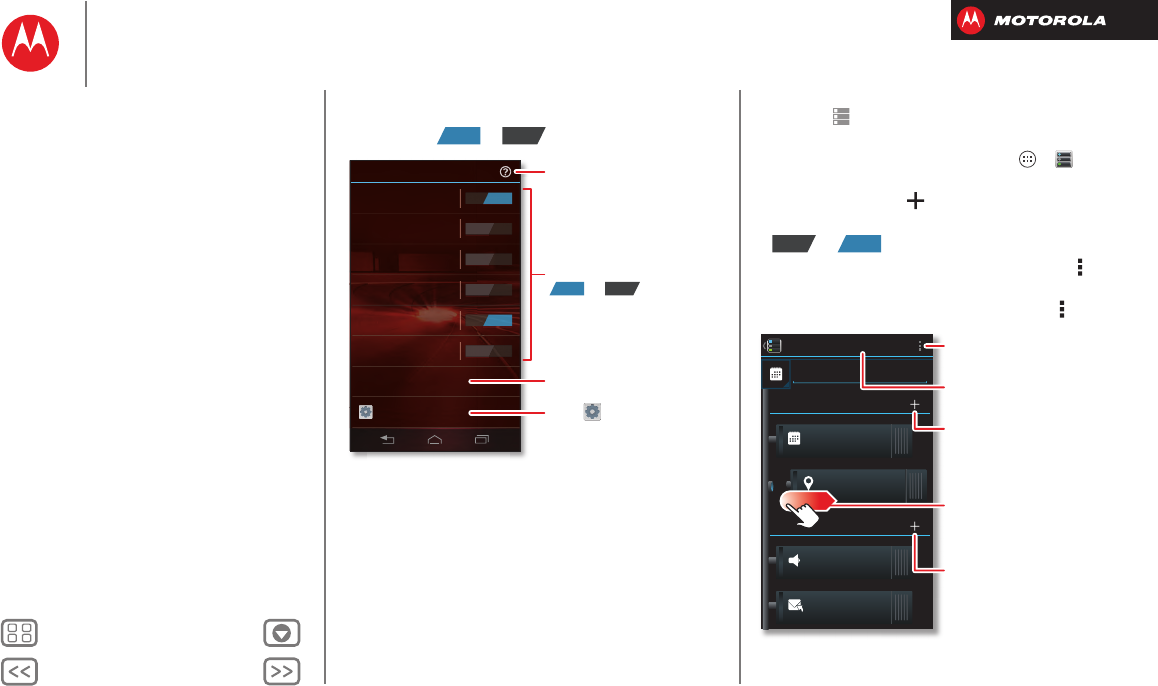
SMARTACTIONS™
Wish your smartphone could automatically reply to texts
when you’re driving, silence your ringer during meetings,
and conserve your battery when it runs low? It can. The
SmartActions app can automate actions you take on your
smartphone.
The SmartActions app suggests actions to automate,
based on how you use your smartphone. When you see a
ON OFF
Quick settings
Phone ringtone
DROID Rollin ON
Mobile data
Data plan is in use ON
Phone lock
Default selected (unsecured)
OFF
Wi-Fi
Connect to available networks
OFF
Bluetooth
Connect to available devices
OFF
GPS
Turn on to navigate & map
OFF
Airplane mode
Turn on when in-flight
Go to all settings
Learn more about
each quick setting.
Open Settings.
Change Security settings.
Turn quick settings
or .
ON OFF
suggestion in the status bar, drag the bar down to
accept it or remove it from the list.
To use the SmartActions app, tap Apps >
Smart
Actions
.
•To create a rule, tap .
•To turn a SmartActions rule off or on, open it and tap
or at the top.
•To stop SmartActions suggestions, tap Menu
>
Settings
and uncheck
Suggestion notifications
.
•For help with SmartActions app, tap Menu >
Help
.
OFF ON
SAVE CANCEL
Meeting Rule
TRIGGERS
ACTIONS
Calendar events
from all calendars
Location
Select a location
Ringer volume
Silent - Vibrate
Touch here to add
Auto reply text
“Auto-reply: In a mtg, I’ll...
Change the icon or name.
Save your changes.
Add Triggers (like events, times,
or places) that start the action.
Deactivate triggers or actions by
dragging them to the right.
Add an Action (like silencing the
ringer) to make it happen when
the triggers happen.
Control & customize
Quick start: Control & customize
On, off, lock & unlock
Touch
Press
Speak
Customize
Quick settings
SMARTACTIONS™
Accessibility
BackNext
Menu More
Control & customize
Accessibility
See, hear, speak, feel, and use. Accessibility features are
there for everyone, helping to make things easier.
Note: For general information, accessories, and more,
visit www.motorola.com/accessibility.
Voice recognition
Just tell your smartphone what you’d like to do—dial,
browse, search, send a message, and a whole range of
other actions and commands. Check it out—tap Apps
>
Voice Commands
and see “Speak”.
TalkBack
Use
TalkBack
to read out loud—your navigation, your
selections, even your books.
To tu r n on
TalkBack
, tap Apps >
Settings
>
Accessibility
>
TalkBack
, then tap at the top to
turn it to .
Note: You might need to download text-to-speech
software (data charges may apply).
To use
TalkBack
:
• Menus and screens: Tap an item in a menu or
screen—your smartphone speaks the name.
• Dialer & text entry: Start typing—your smartphone
speaks each number or letter.
OFF
ON
• Notifications: Drag the status bar down—your
smartphone speaks all of the notifications.
•Books & more: Open a book, file, message, and
more—it’s read out loud (app dependent).
Tip: Navigate through your apps and menus to hear how
voice readouts work on your smartphone.
Take
TalkBack
to the next level—see “Explore by touch”.
Explore by touch
Use
Explore by touch
to expand
TalkBack
, and have your
touches read out loud as you move your finger around the
screen.
To turn on
Explore by touch
, turn on
TalkBack
, tap Apps
>
Settings
>
Accessibility
>
Explore by touch
, then tap
at the top to turn it to .
Explore by touch
changes some touch gestures slightly so
that the location of your touches can be read out loud.
Just follow the handy tutorial to learn more.
Caller ID
When you want to hear who’s calling:
• Read out loud: Have your caller announced—tap
Apps >
Settings
>
Accessibility
>
Caller ID
Readout
.
• Ringtones: Assign a unique ringtone to a contact—tap
Apps >
People
, tap the contact, then tap
Menu >
Set ringtone
.
OFF
ON
Control & customize
Quick start: Control & customize
On, off, lock & unlock
Touch
Press
Speak
Customize
Quick settings
SMARTACTIONS™
Accessibility
BackNext
Menu More
Control & customize
Volume & vibrate
Find it: Tap Apps >
Settings
>
Sound
>
Volumes
or
Vibrate and ring
•
Volumes
opens sliders that let you set different
volumes for your music or videos, ringtone, text or
email notifications, and alarms.
•
Vibrate and ring
determines whether your smartphone
vibrates for incoming calls (even if the ringer is silent).
Zoom
Get a closer look.
• Pinch to zoom: Pinch to zoom on maps, web pages,
and photos: To zoom in, touch the screen with two
fingers and then drag them apart. To zoom out, drag
your fingers together.
Tip: To zoom in, you can also double-tap.
•Big text: Show bigger text throughout your
smartphone: tap Apps >
Settings
>
Accessibility
>
Large text
.
•Browser: Choose zoom, text size and other
accessibility settings for your browser: tap Apps
>
Chrome
>Menu >
Settings
>
Accessibility
.
Tip: Use
Force enable zoom
to allow zooming on all
webpages.
Display brightness
Your smartphone automatically adjusts the screen
brightness when you’re in bright or dark places. But you
can set your own brightness level instead:
Find it: Tap A pp s >
Settings
>
Display
>
Brightness
Uncheck
Automatic brightness
to set your own level.
Touchscreen & keys
To hear or feel when you touch the screen, tap Apps
>
Settings
>
Sound
:
•Touchscreen: To hear screen touches (clicks), select
Touch sounds
.
•Keys: To feel screen keyboard touches (vibrate), select
Vibrate on touch
.
•Screen lock: To hear when you lock or unlock the
screen (click), select
Screen lock sound
.
Messages
To make text entry even easier, use features like
auto-complete, auto-correct, and auto-punctuate—tap
Apps >
Settings
>
Language & input
, then tap
next to a keyboard type. Of course if you don’t want to
type at all, then use your voice—tap on the
touchscreen keyboard.
Control & customize
Quick start: Control & customize
On, off, lock & unlock
Touch
Press
Speak
Customize
Quick settings
SMARTACTIONS™
Accessibility
BackNext
Menu More
Control & customize
Hearing aids
To help get a clear sound when using a hearing aid or
cochlear implant, your smartphone may have been rated
for use with hearing aids. If your smartphone’s box has
“Rated for Hearing Aids” printed on it, then please read
the following guidance.
Note: Ratings are not a guarantee of compatibility (see
“Hearing Aid Compatibility with Mobile Phones” in your
legal and safety information). You may also want to
consult your hearing health professional, who should be
able to help you get the best results.
•Settings: Tap Ap ps >
Phone
> Menu
>
Settings
>
HAC mode settings
.
•Call volume: During a call, press the side volume keys
to set a call volume that works for you.
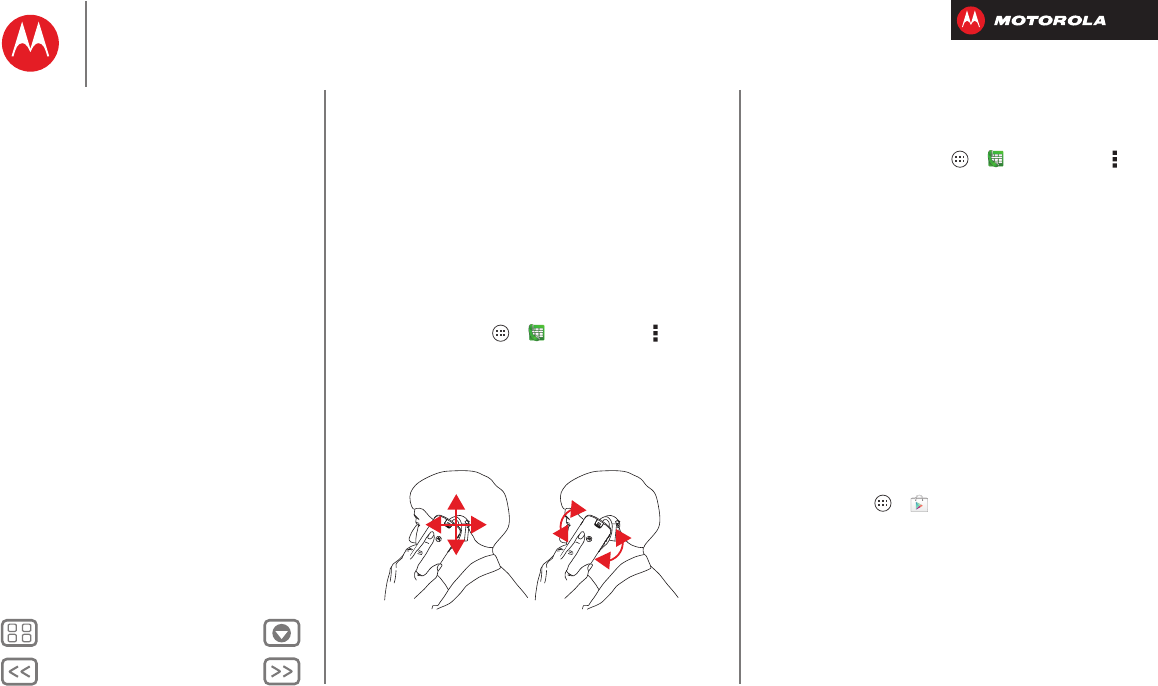
• Position: During a call, hold the smartphone to your
ear as normal, and then rotate/move it to get the best
position for speaking and listening.
TTY
You can use your smartphone in TTY mode with standard
teletype machines. Tap Apps >
Phone
>Menu
>
Settings
>
TTY mode
and select the mode you need:
•
TTY Full
: Type and read text on your TTY device.
•
TTY HCO
: Hearing-Carry-Over—type text on your TTY
device and listen to voice replies on your smartphone’s
speaker.
•
TTY VCO
: Voice-Carry-Over—speak into your
smartphone and read text replies on your TTY device.
Note: You’ll need a cable/adapter to connect your TTY
device to the headset jack on your smartphone.
Refer to your TTY device guide for mode and usage
information.
Apps
Want more? No problem. The Google Play™ Store app
provides access to thousands of apps, and many provide
useful accessibility features.
Find it: Tap Apps >
Play Store
Control & customize
Quick start: Control & customize
On, off, lock & unlock
Touch
Press
Speak
Customize
Quick settings
SMARTACTIONS™
Accessibility
BackNext
Menu More
Calls
when you need to talk
Quick start: Calls
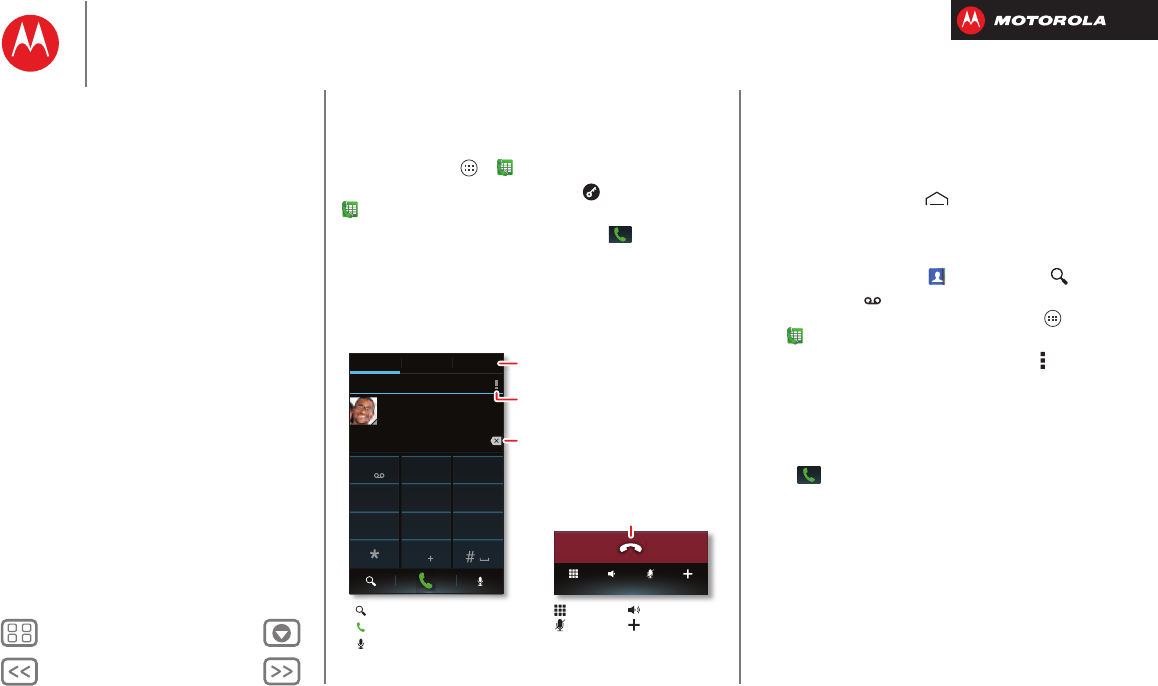
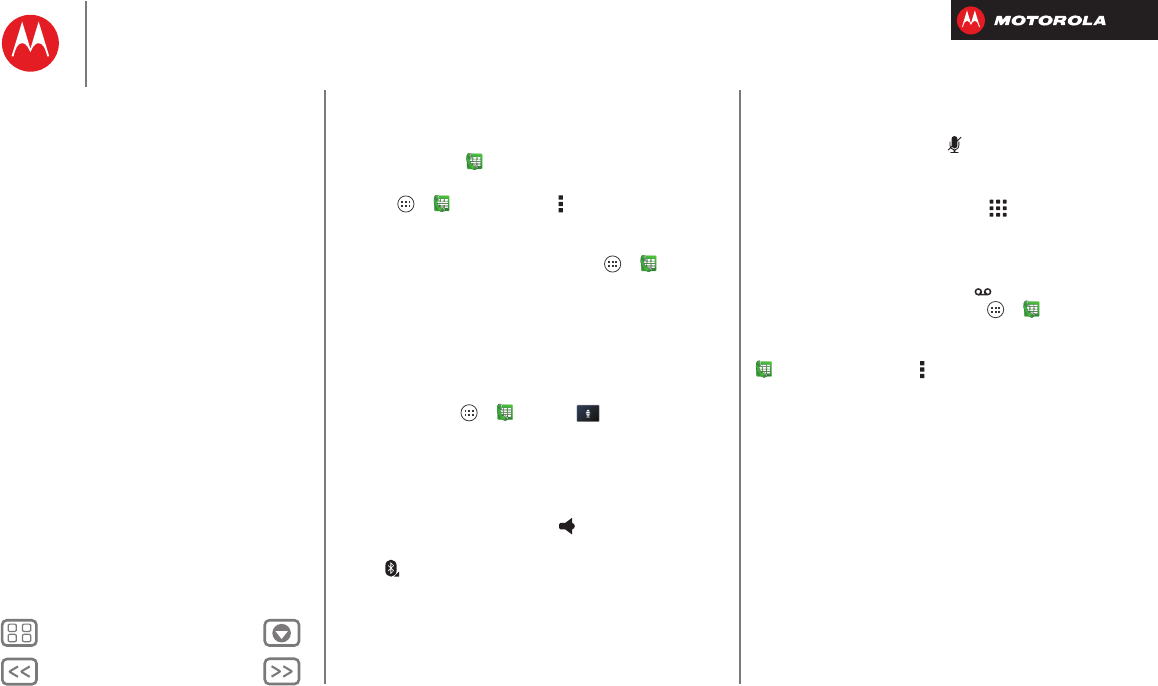
Dial numbers, recent calls, or contacts, all from one app.
Find it: Tap Apps >
Phone
Tip: When the screen is locked, tap and flick to
Phone
.
To make a call, enter a number then tap in the
DIALER
, or swipe to the
RECENT
and
FAVORITES
tabs for
quick access to your calls and contacts.
Most recent
DIALER FAVORITESRECENT
1 2ABC 3DEF
4GHI 5JKL 6MNO
7PQRS 8TUV 9WXYZ
0
Victor Harp
28 mins ago
Mobile 555-555-4570
Mute Add callDial pad Speaker
Recent & Favorite Contacts
Delete numbers you entered.
Call Settings
Search People
Call
Voice Dial
During a call:
Hang Up
Dialpad
Speaker
Mute
Conference
Call
Tips & tricks
• During a call: Your touchscreen goes dark to avoid
accidental touches. To wake it up, move it away from
your face or press the Power key.
•Multi-task: Tap Home to hide the call screen and
look up a phone number, address, or open other apps
during a call. To reopen the call screen, drag down the
status bar and tap
Current call
.
• People: To search your
People
list, tap ,
•Voicemail: A shows in the status bar when you
have new voicemail. To hear it, tap Apps
>
Phone
then tap and hold
1
.
• Pause dialing: When dialing, tap Menu to add a
pause (pauses two seconds), or wait (waits for your
confirmation).
Tip: To call a conference call or other number that
requires a passcode, you can enter the number, one or
two pauses, then the passcode and # before you
tap to call. To store the number and pauses you
entered, tap and hold the call in
RECENT
calls.
Calls
Quick start: Calls
Make, answer & end calls
Recent calls
Phonebook
Speed dial
Voice dial
Handsfree
Mute
Enter numbers during a call
Voicemail
Video chat
Multiple calls & conference calls
Your number
Restrict outgoing calls
Cool down
Emergency calls
BackNext
Menu More
Calls
Make, answer & end calls
When you make or answer a call, you have options:
• Make a call: Ta p App s >
Phone
, enter a number,
then tap .
To enter the international dialing code (+), tap and
hold . To add a pause or wait after numbers, tap
Menu .
Tip: Use “Video chat”.
•Answer a call: Tap and flick to .
With call waiting on, tap and flick to to answer
the new call, then tap
Hold current call + Answer
or
End
current call + Answer
.
• Ignore a call: Tap and flick to . You can also
press the Power key to ignore the call, or press a
volume key to silence the ring.
• End a call: Tap .
• During a call: Ta p th e
Mute
icon at the bottom of the
call screen to mute the call. To hide the call screen,
tap Home . To reopen it, drag down the status bar
and tap
Current call
.
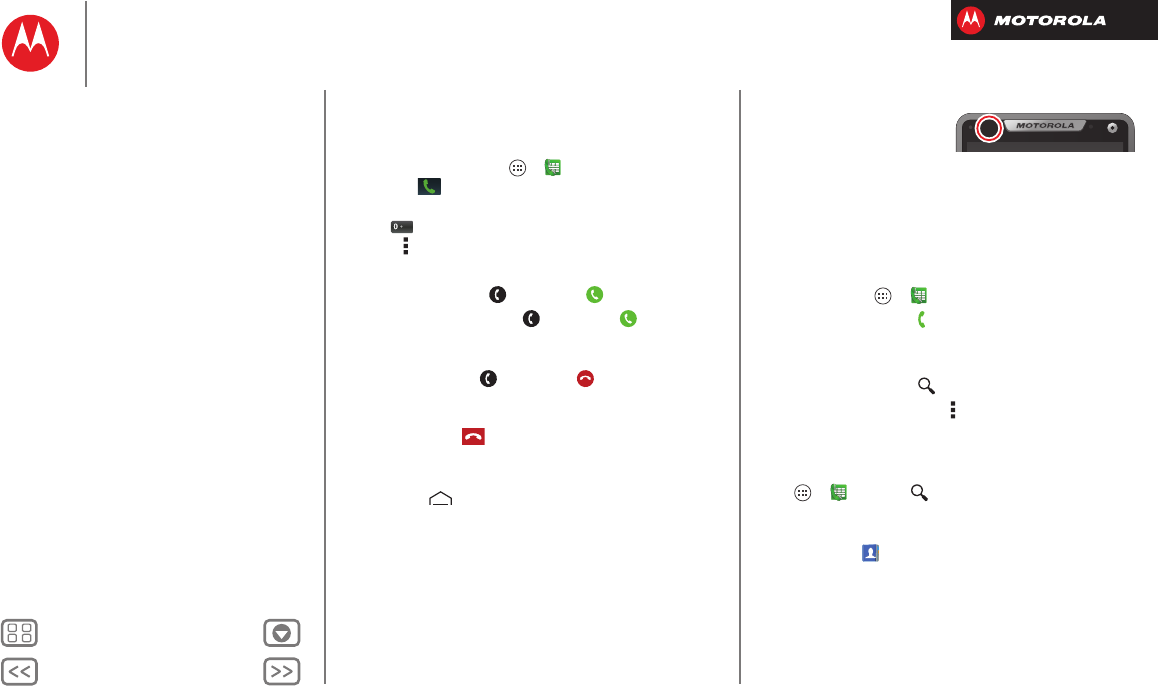
Note: When you hold your smartphone to your ear, the
touchscreen goes dark to avoid accidental touches.
When you move your smartphone away from your ear,
the screen lights up again.
During a call, your
touchscreen might stay
dark if the sensor just
above it is covered. Don't use covers or screen
protectors (even clear ones) that cover this sensor.
Recent calls
Show your calls (with newest first), to call, text, or store
them:
Find it: Tap Apps >
Phone
>
RECENT
•To call a number, tap on the right.
•To send a text message, store the number, or other
options, tap and hold an entry.
•To search the list, tap at the bottom.
•To clear the list, tap Menu >
Clear List
.
Phonebook
To show the phone numbers from your
People
list, tap
Apps >
Phone
> . Tap and hold a contact to
open option icons at the bottom of your screen (tap and
hold an icon to show what it does).
For more about
People
, see “Contacts”.
Calls
Quick start: Calls
Make, answer & end calls
Recent calls
Phonebook
Speed dial
Voice dial
Handsfree
Mute
Enter numbers during a call
Voicemail
Video chat
Multiple calls & conference calls
Your number
Restrict outgoing calls
Cool down
Emergency calls
BackNext
Menu More
Calls
Speed dial
Call your eight most important
People
by just tapping and
holding one key in
Phone
:
•To choose the numbers for your speed dial list, tap
Apps >
Phone
> Menu >
Speed dial setup
.
Your voicemail is set as 1, and you can choose 2
through 9.
•To call a number in the list, tap Apps >
Phone
,
then tap and hold the list number (like
1
for voicemail).
Tip: To call a number even faster, add a
Direct dial
widget
to your home screen.
Voice dial
Dial by just saying a number, or a name from your
People
:
Find it: Tap Apps >
Phone
>
Say “Call,” followed by the number or name.
Handsfree
Switch to handsfree calling during a call:
•To use the speakerphone, tap .
•To use (or stop using) a connected Bluetooth® device,
tap in the call screen.
Note: Using a mobile device or accessory while driving
may cause distraction and may be illegal. Always obey
the laws and drive safely.
Mute
To mute the current call, tap .
Enter numbers during a call
To enter numbers during a call, tap , then tap the
numbers.
Voicemail
When you have a new voicemail, shows in your status
bar. To access voicemail, tap Apps >
Phone
then
tap and hold
1
.
If you need to change your voicemail number, in the
Phone
app tap Menu >
Settings
>
Voicemail settings
.
Video chat
Video chat with your friends. All you need is Google
Talk™ and your smartphone’s front camera. For more,
see “Chat”.
Tip: You can also download a video conferencing app
from Google Play™.
Calls
Quick start: Calls
Make, answer & end calls
Recent calls
Phonebook
Speed dial
Voice dial
Handsfree
Mute
Enter numbers during a call
Voicemail
Video chat
Multiple calls & conference calls
Your number
Restrict outgoing calls
Cool down
Emergency calls
BackNext
Menu More
Calls
Multiple calls & conference calls
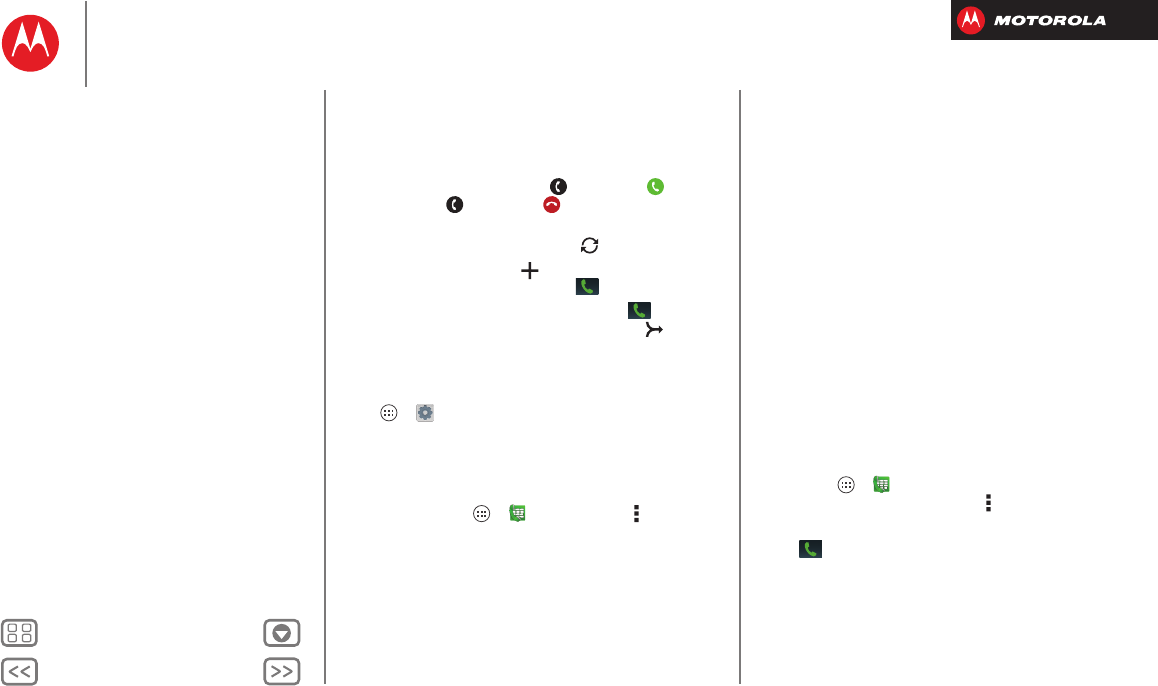
During a call, you can start other calls, switch between
them, or join them in a conference call:
•To answer a second call, tap and flick to . To
ignore it, tap and flick to .
The first call goes on hold if you answer the second
call. To switch between calls, tap .
•To dial a second call, tap , enter a number in
DIALER
,
RECENT
, or
FAVORITES
, then tap .
The first call goes on hold when you tap . To join
the calls after the second call answers, tap .
Your number
To see the phone number on your smartphone, tap
Apps >
Settings
>
About phone
>
Status
>
My
phone number
.
Restrict outgoing calls
To restrict your smartphone so that it can only dial a few
numbers, tap Apps >
Phone
>Menu >
Settings
>
Fixed Dialing Numbers
.
•To turn fixed dialing on, tap
Enable FDN
.
•To add or delete the allowed numbers, tap
FDN list
.
Cool down
In very limited circumstances, such as where your
smartphone has been exposed to extreme heat, you may
see “Cool Down” messages. To avoid possible damage
to your battery and smartphone, you should follow these
instructions until the smartphone is within its
recommended temperature range. When your
smartphone is in “Cool Down” mode, only emergency
calls can be made.
Emergency calls
Note: Verizon Wireless programs one or more
emergency phone numbers that you can call under any
circumstances, even when your smartphone is locked.
Emergency numbers vary by country. Your
pre-programmed emergency number(s) may not work in
all locations, and sometimes an emergency call cannot
be placed due to network, environmental, or interference
issues.
1Ta p A p p s >
Phone
(if your smartphone is locked,
tap
Emergency Call
or tap Menu >
Emergency call
).
2Enter the emergency number.
3Tap to call the emergency number.
Note: Your smartphone can use location based services
(GPS and AGPS) to help emergency services find you.
See “Location Services” in your legal and safety
information.
Calls
Quick start: Calls
Make, answer & end calls
Recent calls
Phonebook
Speed dial
Voice dial
Handsfree
Mute
Enter numbers during a call
Voicemail
Video chat
Multiple calls & conference calls
Your number
Restrict outgoing calls
Cool down
Emergency calls
BackNext
Menu More
Contacts
you can be a people person
Quick start: Contacts
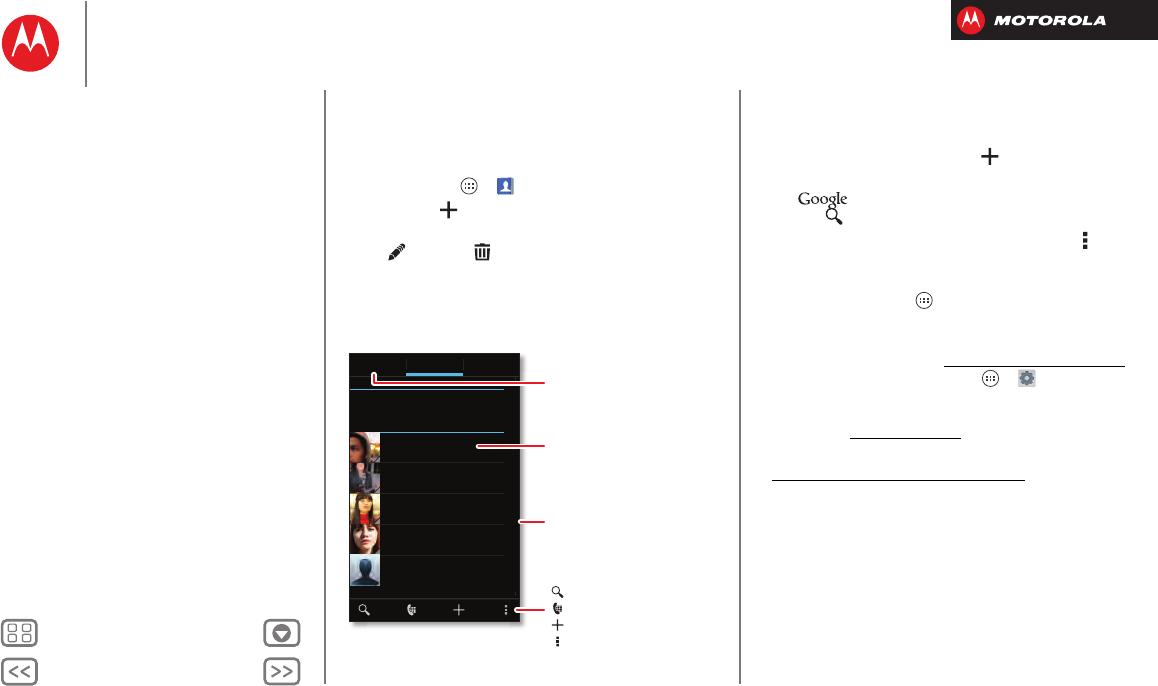
Combine information from your Google™ contacts and
social networks for quick access to everyone.
Find it: Tap Apps >
People
• Create: Tap below the
People
list.
• Edit or delete: Tap and hold a contact, then tap
edit or delete .
• Call, text, or email: Tap a contact, then tap an option.
ME
A
B
Set up my profile
297 contacts A
B
C
D
E
F
G
H
I
J
K
L
M
N
O
P
Q
R
S
T
U
V
W
X
Y
Z
Abe Baudo
Allie Smyth
Anna Medina
Avery Durning
Astrid Fanning
GROUPS FAVORITESPEOPLE
Create & view
groups of contacts.
Tap to view contact info,
call, send a text message,
& more.
Tap a letter to jump to
contact names that start
with that letter.
Search Your People.
Switch to dialer.
See more options.
Add a contact.
Tips & tricks
• Groups: To show or create a group of contacts, tap
GROUPS
, then tap the group or .
• Search contacts: From the home screen, just
tap and enter a contact’s name. In the
People
list, tap .
• Send contacts: Tap a contact, then tap Menu
>
Share
to send a contact’s details in a message or
over a Bluetooth® connection.
•Shortcuts: Tap Apps , tap
WIDGETS
at the top, then
tap and hold a
Contact
widget.
• Synchronize: On your computer, upload contacts to
your Google™ account at www.google.com/contacts.
On your smartphone, tap Apps >
Settings
>
Accounts & sync
, choose your Google™ account,
then check
Sync Contacts
. You can also see these
contacts at www.gmail.com.
For help with transferring contacts, go to
www.motorola.com/TransferContacts.
Contacts
Quick start: Contacts
Create contacts
Call, text, or email contacts
Favorite contacts
Edit, delete, or hide contacts
Get contacts
Link contacts
Share contacts
Groups
My details
BackNext
Menu More
Contacts
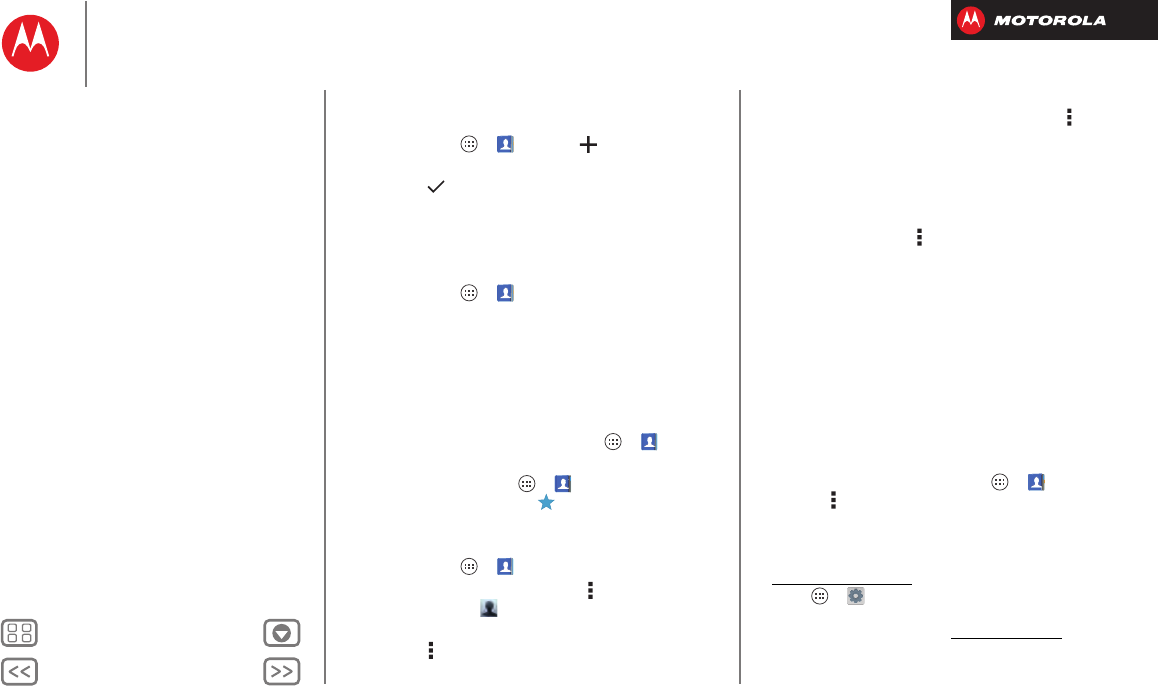
Create contacts
Find it: Tap Apps >
People
>
Tap a text box to type the name and details. When you’re
finished, tap
SAVE
at the top.
Note: To import contacts or change where they’re stored,
see “Get contacts”.
Call, text, or email contacts
Find it: Tap Apps >
People
Tap and hold the contact to open option icons at the
bottom of your screen (tap and hold an icon to show
what it does).
You can also use “Voice dial”.
Favorite contacts
To see your favorite contacts, tap Apps >
People
>
FAVORITES
.
To tag a favorite, tap Apps >
People
>
PEOPLE
, tap
a contact to open it, then tap next to their name.
Edit, delete, or hide contacts
Find it: Tap Apps >
People
•To edit a contact, tap it, tap Menu >
Edit
, then tap a
field to edit or tap to choose the contact’s picture.
•To set a special ringtone for the contact, tap it, then
tap Menu >
Set ringtone
.
•To delete the contact, tap it, then tap Menu >
Delete
.
Contacts from social networks (like Facebook®) will
become hidden if you select
Delete
. To view these
contacts, or delete them permanently, use the social
network's app or website.
•To hide the contacts from an account or group in your
People
list, tap Menu >
Contacts to display
. Tap a
group name to show it, or tap
Customize
to uncheck
groups you always want to hide.
Get contacts
•To add your social networking contacts, add your
account in “Add or delete accounts”.
•To add your email contacts, see “Email”.
Tip: If you add a
Corporate Sync
account, you can send
messages to your coworkers, even if you don’t have
them stored in your contacts.
•To import contacts from your SIM card (if that didn’t
happen automatically): Tap Apps >
People
> Menu >
Import/Export
>
Import contacts
from SIM card
. Tap
OK
to confirm.
•To import contacts from your computer, upload the
contacts to your Google™ account at
contacts.google.com. On your smartphone, tap
Apps >
Settings
>
Accounts & sync
, choose your
Google™ account, then choose
Sync Contacts
. You can
also see these contacts at www.gmail.com.
Contacts
Quick start: Contacts
Create contacts
Call, text, or email contacts
Favorite contacts
Edit, delete, or hide contacts
Get contacts
Link contacts
Share contacts
Groups
My details
BackNext
Menu More
Contacts
Where are contacts stored? Your smartphone can store
contacts in its memory or your Google™ account: To
choose where contacts are stored, tap Apps
>
People
>Menu >
Settings
>
Contact storage
>
Contact storage account
. If you don’t see your Google
account listed, make sure you’re syncing contacts with it:
Tap A pps >
Settings
>
Accounts & sync
, tap the
account, and check
Sync Contacts
. Contacts are not
stored on your SIM card.
For help with transferring contacts, go to
www.motorola.com/TransferContacts.
Link contacts
You might have two
Contacts
for the same person; maybe
a Facebook® friend who is also stored on your SIM card,
or one friend with two email addresses. To combine
these two contacts:
Find it: Tap Apps >
People
Tap a contact to open it, then tap Menu >
Link contact
and tap the second entry. Your smartphone remembers
this connection.
Share contacts
Send a contact with a Bluetooth® connection, text
message, or email:
Find it: Tap Apps >
People
To send a contact, tap it, then tap Menu >
Share
and
choose how you want to send it.
Note: You can’t send your social network contacts.
Groups
Create groups of
Contacts
(like “friends,” “family,” or
“work”), then find contacts faster by showing one group.
To create or show a group in your
Contacts
, tap
Contacts:
All contacts
at the top of your screen and choose the
group name.
My details
Find it: Tap Apps >
People
The
ME
entry appears at the top of your list. If you haven’t
set it up, tap
Set up my profile
.
Contacts
Quick start: Contacts
Create contacts
Call, text, or email contacts
Favorite contacts
Edit, delete, or hide contacts
Get contacts
Link contacts
Share contacts
Groups
My details
BackNext
Menu More
Messages
say it & go
Quick start: Messages
Stay in touch with messages and pictures.
Find it: Tap Apps >
Text Messaging
Tip: When the screen is locked, tap and flick
to
Text
.
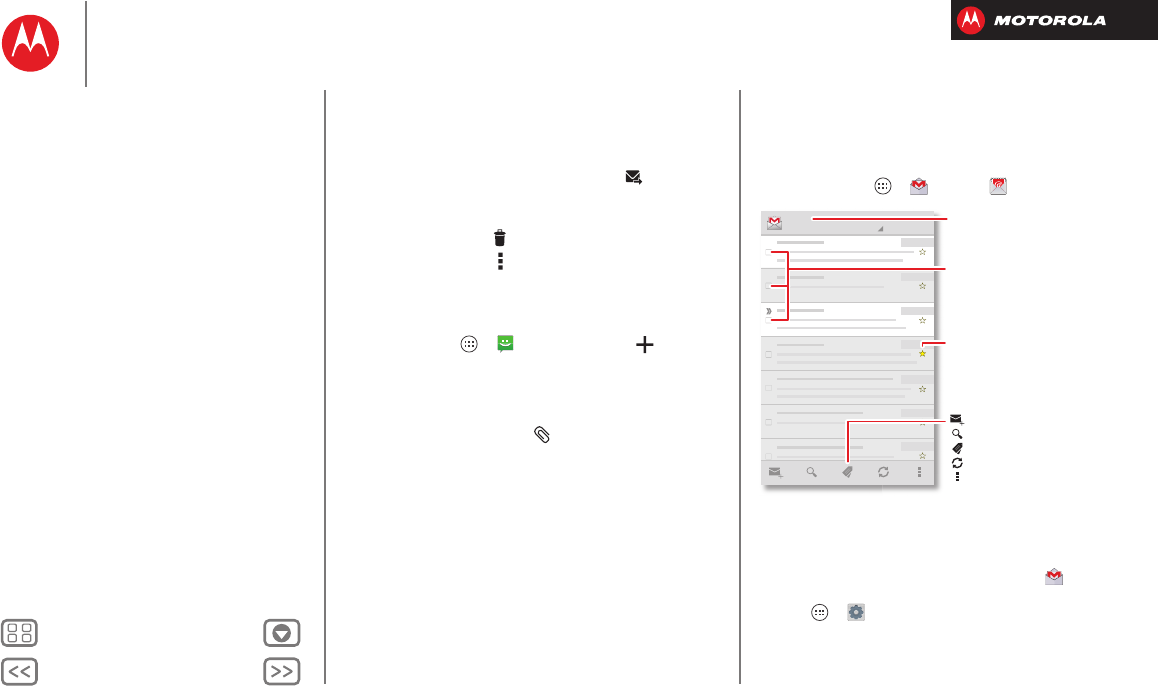
• Create: Tap above the inbox list.
•Attach: When you’re typing a message, tap to
attach a picture, video, or other file.
Text Messagi... Change notifications
& other options.
Create a message.
Swipe up for more.
Tap a conversation to open it,
or tap & hold for options.
Tap a sender to add them to
People, or open options for
contacting them.
Tips & tricks
• Forward, or save
attachments: Open a
conversation, tap and hold a
message, then tap to
forward. Tap and hold a picture to save it.
•Voice entry: Just tap a text box, then tap on the
touchscreen keyboard.
• Reply to all in text messages: When you send a text
message to multiple people, you can let everyone see
the other recipients and reply to all, or hide the other
recipients so that replies only go to you. To change
this, tap Apps >
Text Messaging
>Menu
>
Settings
>
Group message type
.
• Text your best friend: Use a widget to text your
favorite contact quickly: Tap Apps , tap
WIDGETS
at
the top, tap and hold
Direct message
to drag it to your
home screen, then choose a contact.
Read, reply, forward & delete text
messages
Find it: Tap Apps >
Text Messaging
Tip: When the screen is locked, tap and flick
to
Text
.
• Open: Tap a conversation to open it.
•Attachments: When you open a message with an
attachment, tap the attachment to open it, or tap and
hold it to save it.
Sent: February 13, 4:00 PM
Messages
Quick start: Messages
Read, reply, forward & delete text messages
Create text messages
Email
Chat
Wireless Emergency Alerts
BackNext
Menu More
Messages
•Reply: Open a conversation, then enter your response
in the text box at the bottom.
•Forward: Open a conversation, tap and hold the
message you want to forward, then tap at the top.
• Delete: Tap and hold a conversation you want to delete
(or open the conversation and tap and hold just one
message), then tap at the top.
•Settings: Tap Menu >
Settings
to change your
signature and other options.
Create text messages
Find it: Tap Apps >
Text Messaging
>
1Enter the recipients at the top.
2Tap the text box at the bottom to enter the message.
For text entry details, see “Type”.
To add an attachment, tap . To send and receive
large attachments faster, use “Wi-Fi Networks”.
Email
Check email accounts, and send responses, photos,
websites, and more.
Find it: Tap Apps >
Gmail
or
Email
• Add Gmail™ accounts: The first time you turned on
your smartphone, you probably set up or logged in to
your Google™ account—that sets up the
Gmail
app
for one account, but you can add more by tapping
Apps >
Settings
>
Accounts & sync
.
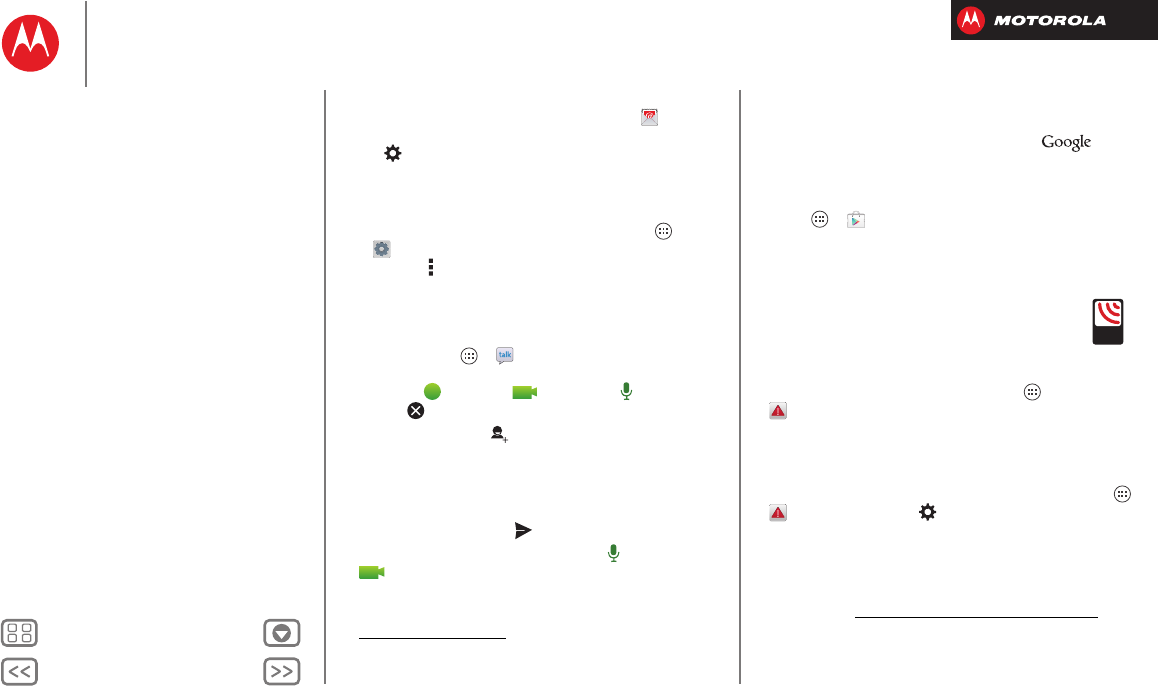
you@gmail.com
Inbox
2
“Star” a message to add it to the
Starred Gmail label.
Choose accounts or folders.
Tap & hold icons to show labels.
Choose multiple messages, then
choose an action at the bottom.
Create an email.
Search Gmail.
Show Gmail labels.
Check Gmail.
Open settings & options.
Messages
Quick start: Messages
Read, reply, forward & delete text messages
Create text messages
Email
Chat
Wireless Emergency Alerts
BackNext
Menu More
Messages
• Add email accounts: To add accounts for
Email
,
follow the prompts when you first open the app or
tap >
ADD ACCOUNT
, then enter details. For
Microsoft™ Exchange server work email accounts,
enter details from your IT administrator.
• Change or delete accounts: To change an account’s
sync and notifications, or delete it, tap Apps
>
Settings
>
Accounts & sync
, tap an account, then
tap Menu >
Settings
or
Remove account
.
Chat
Sign in and try a quick chat.
Find it: Tap Apps >
Talk
and select your Google™
account. Your friends list opens, and icons tell you who is
available for text chat, video chat, voice chat,
or who is offline.
•Invite a friend: Tap in the top right, then enter the
email address for a friend’s Google account. They’ll
receive the invitation when they sign into Google
Tal k™.
• Start a text chat: Tap a name in your list of friends,
then enter text and tap .
• Start a voice or video chat: Tap the voice or
video icon next to a friend’s name.
• Chat from a computer: You can chat from a
computer, too. Find out more at
www.google.com/talk.
For other chat options, use:
•Web browser: In your home screen, tap and
enter your IM provider’s web site. Once you’re there,
follow the link to sign in.
•Apps: To search for an instant messaging app, tap
Apps >
Play Store
. Your IM options will depend
on your IM provider.
Wireless Emergency Alerts
Wireless Emergency Alerts, also
known as CMAS or PLAN, is a U.S.
national emergency alert system.
Emergency alerts can pop up to tell
you about a national or local crisis. After you close an
alert, you can reopen it by tapping Apps
>
Emergency Alerts
.
Tip: Emergency alerts have a special sound and vibration
that is two seconds long, followed by one second, then
another one second.
To choose which types of alerts you receive, tap Apps
>
Emergency Alerts
> . The U.S. and local
governments send these alerts through your service
provider. So you will always receive alerts for the area
where you are, and you won’t receive alerts if you’re
outside of the U.S.
For more, visit www.ctia.org/consumer_info/safety/.
A
LERTS
WIRELESS
CAPABLE
EMERGENCY
TM
Messages
Quick start: Messages
Read, reply, forward & delete text messages
Create text messages
Email
Chat
Wireless Emergency Alerts
BackNext
Menu More
Type
keypad when you need it
Quick start: Type
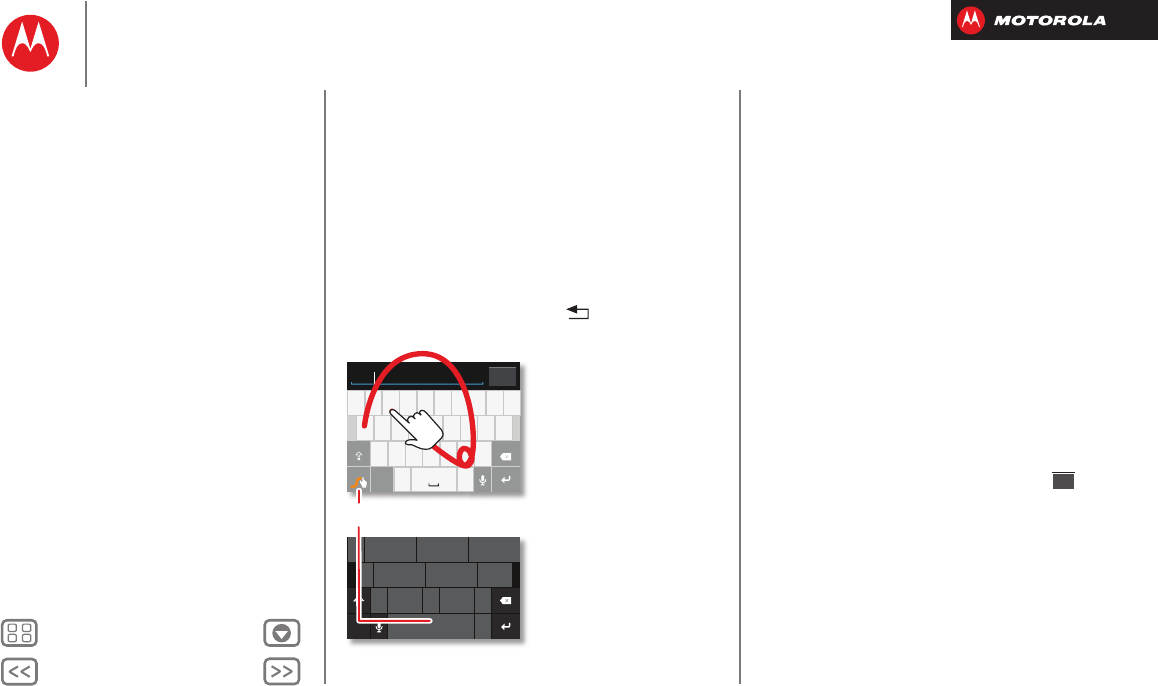
When you tap a text box, like in a message or search, you
have keyboard options.
• Choose a keyboard: In a text box, drag down the
status bar and tap
Select input method
.
Swype™: Drag your finger over the letters of a word, in
one continuous motion.
Motorola Input: Enter letters by touching them one at a
time.
• Close the keyboard: Ta p Ba ck .
asd fgh j kl
qwe r t y u i o p
1234567890
zxcvbnm
.
?123
... ... ...
Send
Anne
asd fgh j kl
qwe r t y u i o p
1234567890
@$& _ ( ) : ; “
EN ! # = / +
-’
?
zxcvbnm
,.
+!=
123
To switch keyboards, tap & hold.
Swype Keyboard:
To enter a word, just trace
a path through the letters.
To capitalize, go above
the keypad.
For double letters, circle
the letter.
Motorola Keyboard:
Tap a key for each letter, then
tap predicted words to enter
them.
a
e
n
a
e
n
Tips & tricks
• Keyboard adaptation: Your touchscreen keyboard
changes, depending on whether you’re entering a text
message, email, or other text.
• Move the cursor: Tap a spot in the text to place the
cursor, then drag the arrow under the cursor to move
it.
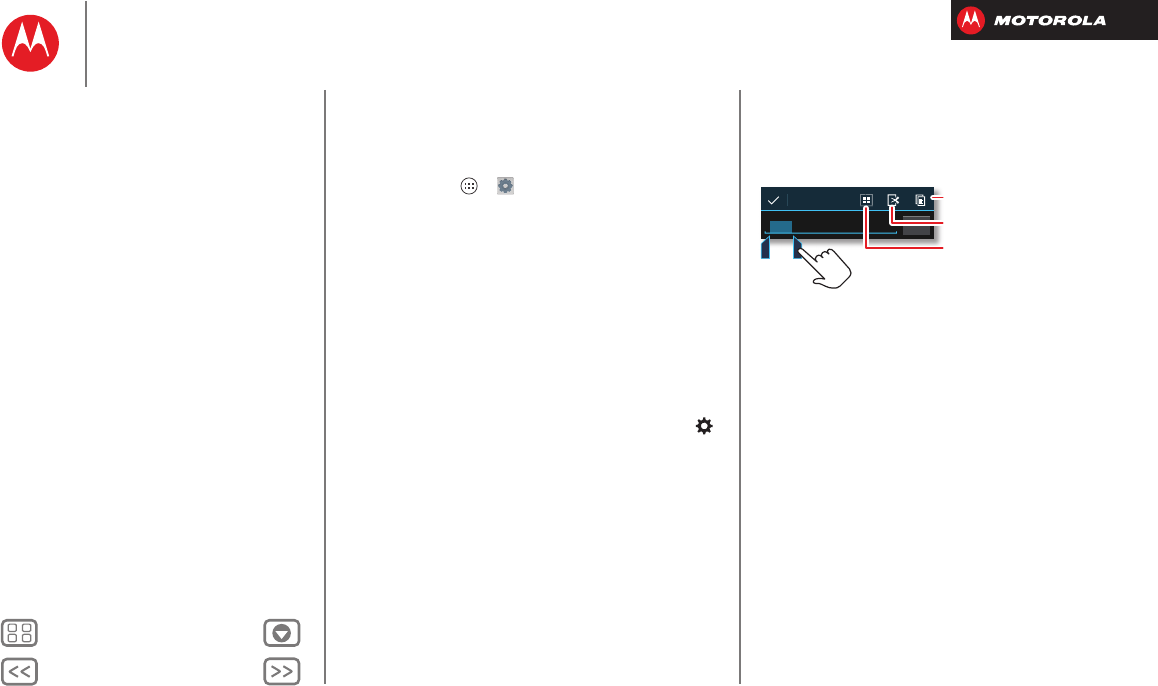
• Copy & paste: Double-tap a word to highlight it (if
needed, drag the ends of the highlight). Tap icons at
the top to select all, cut, copy, or paste (tap and hold
the icons to show labels).
• Your dictionary: To add a word you enter often, enter
it, tap the word in the word list below the text box,
then tap there again to add it to your dictionary.
If Swype doesn’t know a word, tap individual letters to
enter it.
• Symbols: Tap and hold a key to enter the small
number or symbol at the top of it.
To enter several numbers or symbols, tap .
?123?123
Type
Quick start: Type
Text entry settings & dictionary
Cut, copy & paste
BackNext
Menu More
Type
Text entry settings & dictionary
Choose your keyboard style and edit the dictionary of
words your smartphone suggests:
Find it: Tap Apps >
Settings
>
Language & input
•To choose your display keyboard, tap
Default
.
Motorola input lets you enter text one letter at a time.
As you type, your smartphone suggests words. If you
enter a word that wasn’t one of the suggestions, tap
the completed word in the suggestion bar twice to add
it to your dictionary for next time.
Swype™ lets you enter words with one continuous
motion. Just drag your finger over the letters in the
word. If Swype doesn’t know a word, you can tap
letters to enter it—then, tap the word in the
suggestion bar, and tap
Add to dictionary
for next time.
•To change the preferences for your keyboards, tap
next to a keyboard type. You can change the language,
automatic punctuation, and more.
•To add or edit the words that your smartphone
suggests and recognizes, tap
Personal dictionary
.
Cut, copy & paste
Cut, copy, and past names, phone numbers, addresses,
quotes, or anything else in a text box.
1To highlight a word, double-tap it.
To highlight more words, drag the selector arrow at the
edge of the highlight.
2Tap the icons for cut or copy.
Tip: Tap and hold icons to show labels.
3Open the text box where you want to paste the text
(even if it’s in a different app).
4Tap in the text box, then tap and hold to show the
PASTE
option. Tap
PASTE
to paste the text.
Send
Anne Hotel
To highlight a word, double-tap it.
To highlight more, drag the arrows.
Copy
Cut
Select All
Type
Quick start: Type
Text entry settings & dictionary
Cut, copy & paste
BackNext
Menu More
Socialize
your life & your friends
Quick start: Socialize
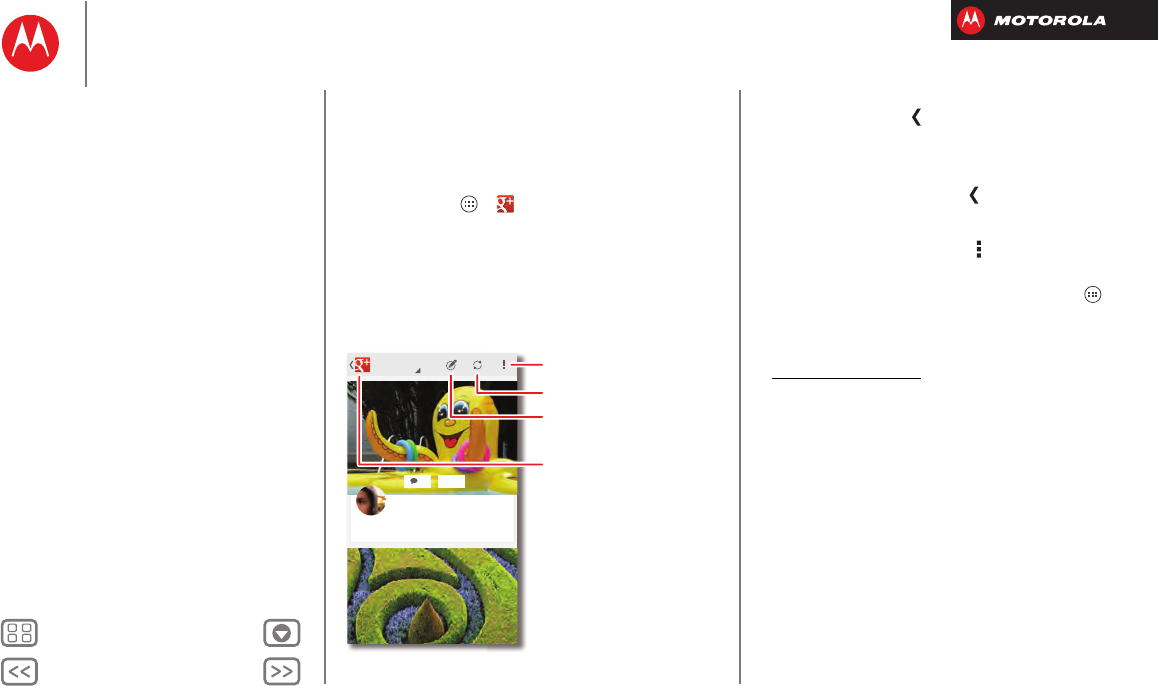
Google+™ makes connecting on the web more like
connecting in the real world. Share your thoughts, links
and photos with the right circles.
Find it: Tap Apps >
Google+
+20
All circles
Abe Baudo 2 MINS AGO
Relaxing by the pool today...
Open options.
Post.
Open your stream,
profile, messenger,
hangouts, & more.
Refresh your news stream.
• Create a circle: Tap in the top left and choose
Circles
, then tap a circle (like
Acquaintances
) or
CREATE
NEW CIRCLE
at the bottom. With the circle open, tap
ADD PEOPLE
at the bottom, select people, and tap
OK
.
• Show or delete circles: Tap in the top left and
choose
Circles
, then tap a circle name. Drag left and
right to see the circle’s
PEOPLE
,
POSTS
, and
PHOTOS
.
To delete the circle, tap Menu >
Delete circle
.
Tips & tricks
•Add a widget: In your home screen, tap Apps , tap
WIDGETS
at the top, then tap and hold
Google+ Posts
to
drag it to your home screen.
•Help: For more about Google+, visit
http://plus.google.com.
• Other social networks: You can also use Facebook®
and more. Use the Google Play™ Store app to find the
latest apps and widgets.
Socialize
Quick start: Socialize
Add or delete accounts
BackNext
Menu More
Socialize
Add or delete accounts
The first time you turned on your smartphone, you
probably set up or logged in to your Google™
account—that sets up the
Google+
app for social
networking.
To add your account for the
Facebook
app:
1Tap A pps >
Settings
>
Accounts & sync
>
ADD
ACCOUNT
>
Facebook
.
2Sign into your account with the user name or email
and password that you set up at www.facebook.com.
Your Facebook® friends will appear in your
People
list.
If you don’t see your Facebook friends in
People
,
choose your account in the
Accounts & sync
list and
make sure
Contacts
is checked. In your
People
list, tap
Menu >
Contacts to display
>
Customize
and make
sure your Facebook account has
All contacts
checked.
To delete an account (along with its contacts and
messages on your smartphone), tap Apps
>
Settings
>
Accounts & sync
, tap the account, then
tap Menu >
Remove account
.
Socialize
Quick start: Socialize
Add or delete accounts
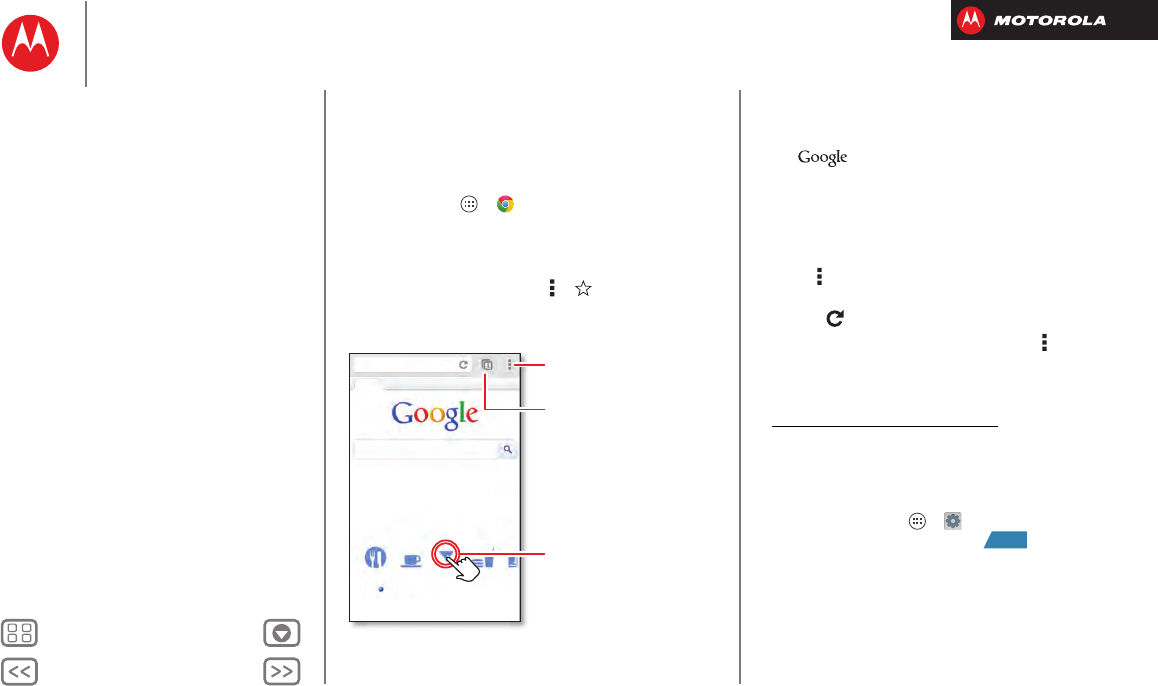
BackNext
Menu More
Browse
explore & find
Quick start: Chrome
Use a browser that combines minimal design with
sophisticated technology to make the web faster, safer,
and easier:
Find it: Tap Apps >
Chrome
• Go to a webpage: Tap the address bar at the top of a
page and enter an address.
• Create or open bookmarks: Open the address bar
(drag down), then tap Menu > or
Bookmarks
.
www.google.com
Web Images News morePlaces
Restaurants ShoFast FoodBarsCoffee
Chicago, IL - Update precise location
Sign in
See open browser tabs,
or open a new tab.
Touch a link to open it. Touch &
hold for more options.
Open options for the
browser and page.
Tips & tricks
•Go to a webpage: In your home screen, just
tap at the top and enter a webpage address.
Note: If you can’t connect, contact your service
provider.
• Mobile sites: Some websites automatically show you
a “mobile” version of their page—if you want to see
the standard computer versions of all websites, tap
Menu >
Request desktop site
.
• Reload: If a page doesn’t load correctly, try
tapping .
• Clear history: In the browser, tap Menu >
Settings
>
Privacy
>
Clear browsing data
. Then choose history,
cache, cookies, and other options.
•Help: For more about Google Chrome, visit
www.supportgoogle.com/chrome.
Web connection
Conserve your monthly data allowance by switching from
the Verizon network to a Wi-Fi network for your internet
connections. Tap Apps >
Settings
>
Wi-Fi
, then tap
the switch at the top to turn Wi-Fi and search for
networks. There’s more in “Wi-Fi Networks”.
ON
Browse
Quick start: Chrome
Web connection
Bookmarks
Downloads
Browser options
Safe surfing & searching
BackNext
Menu More
Browse
Bookmarks
To bookmark a page in your browser, tap Menu > .
To go to a bookmark, tap Menu >
Bookmarks
, then tap
the bookmark.
Downloads
Warning: Apps downloaded from the web can be from
unknown sources. To protect your smartphone and
personal data, only download apps from sources you
trust, like “Google Play™”.
To download a file, picture, or webpage, tap Apps
>
Chrome
and go to the website:
•Files: Tap the download link. To show the file or app,
tap Apps >
Downloads
.
• Pictures: Tap and hold it to choose
Save image
. To
show the picture, tap Apps >
Gallery
>
Download
To download apps or smartphone updates, see
“Download apps” or “Update your smartphone”.
Browser options
To change your browser homepage, security settings,
text size, and other options, tap Menu >
Settings
.
Safe surfing & searching
Keep track of what your browser and searches show:
• Browse incognito: To open a tab that won’t appear in
your browser or search history, tap Apps
>
Chrome
>Menu >
New Incognito tab
.
• Browser history, cache, and passwords: To c l e a r
your browser history and other saved information, tap
Apps >
Chrome
>Menu >
Settings
>
Privacy
>
CLEAR BROWSING DATA
.
• Automatic form completion: When you enter your
name in an online form, your browser can
automatically enter your address information. If you
don’t want that, tap Apps >
Chrome
>Menu
>
Settings
>
Autofill forms
, then tap the switch at the
top to turn it .
• Browser pop-ups: To stop pop-up windows from
opening, tap Apps >
Chrome
> Menu
>
Settings
>
Content settings
>
Block pop-ups
.
• Search history and location: In your home screen,
tap to open the search window, tap Menu
>
Settings
>
Google Search
, then uncheck the options
you don’t want.
• Voice search: Tap , then tap to open options
that let you filter explicit images and offensive words.
OFF
Browse
Quick start: Chrome
Web connection
Bookmarks
Downloads
Browser options
Safe surfing & searching
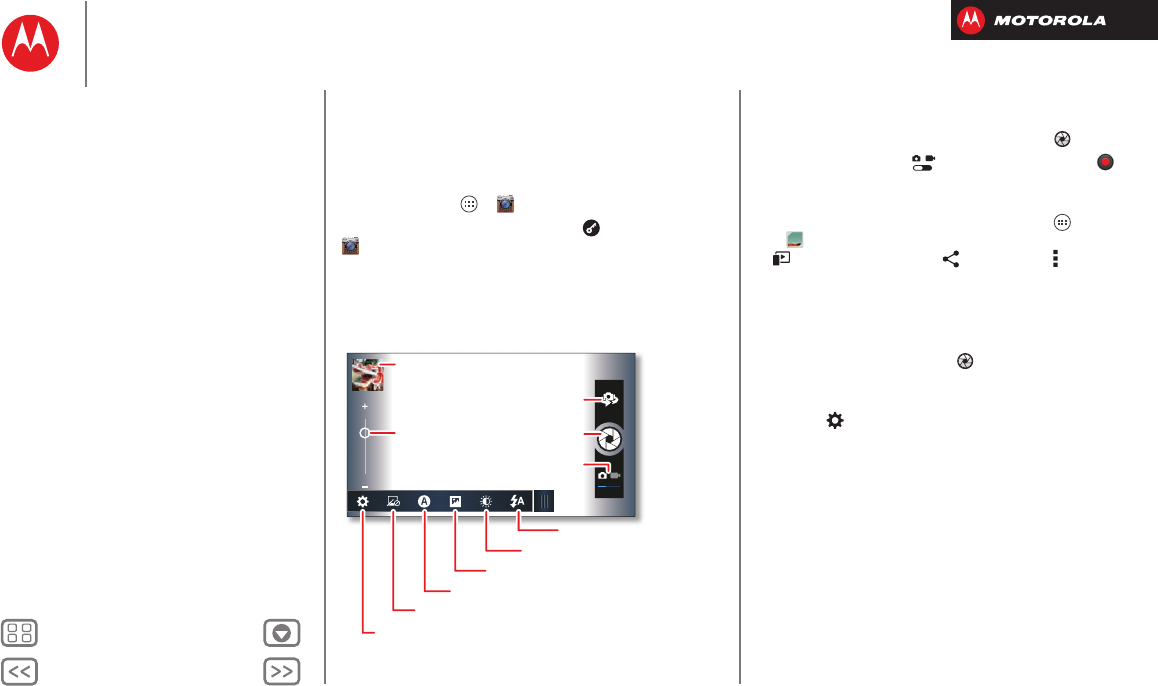
BackNext
Menu More
Photos & videos
see it, capture it, share it!
Quick start: Photos & Videos
Capture super clear photos and HD videos to savor that
“Wow!” moment. Send them to friends or save them for
later.
Find it: Tap Apps >
Camera
Tip: When the screen is locked, tap and flick to
Camera
.
Last photo or video
Zoom
Front or back camera
Capture
Camera or camcorder
Flash
Brightness
Panorama or multi-shot
Scene lighting
Effects (like black and white)
Resolution & more
Tips & tricks
• Take a photo: Open the camera, then tap .
• Record a video: Tap in the camera, then tap to
start or stop recording.
• View, share, or delete: Tap your last photo/video in
the corner of your viewfinder, or tap Apps
>
Gallery
and tap a photo or video. You can choose
play on media device, share, Menu , and more.
• Zoom: Press the volume keys.
• Focus and flash: To choose an off-center focus point
and test the automatic flash, tap a spot in the
viewfinder before you take the picture. A green square
marks the focus point—tap to take the picture.
•Memory card: Photos and videos are stored in your
smartphone memory unless you open the viewfinder
and tap >
Storage
>
SD card
.
•Clarify: For the clearest photos and videos, clean the
lens with a soft, dry cloth.
Photos & videos
Quick start: Photos & Videos
Take photos
Record videos
The perfect shot
Edit, share, or delete photos & videos
Capture your screen
Movies
YouTube™
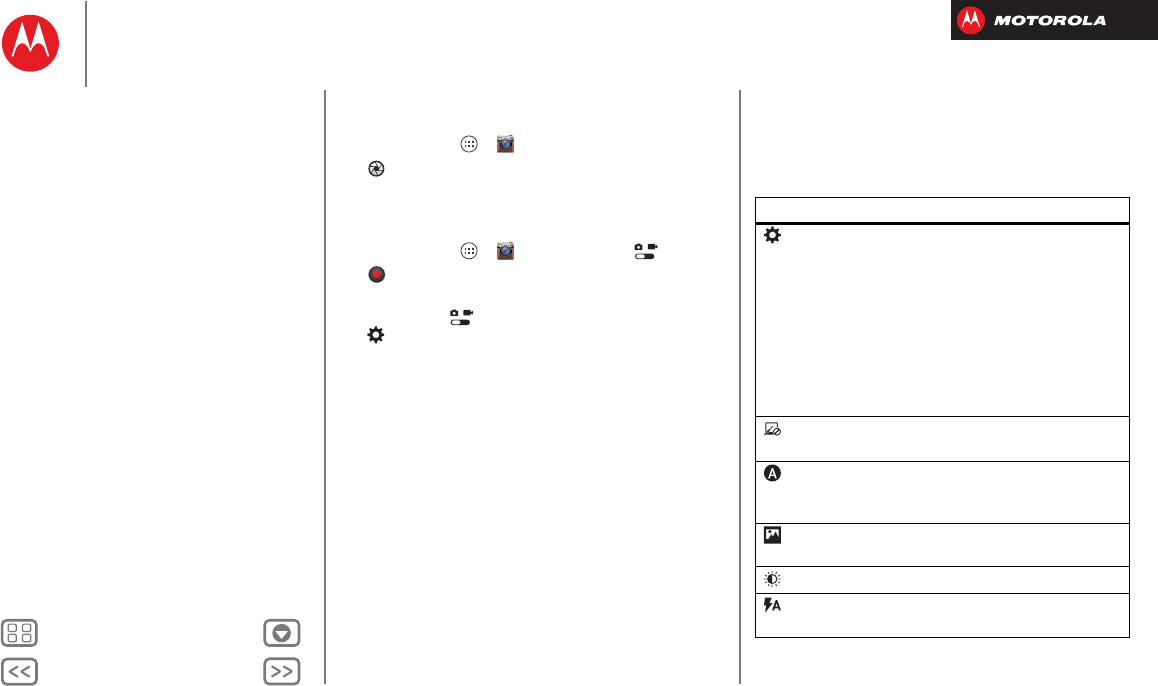
BackNext
Menu More
Photos & videos
Take photos
Find it: Tap Apps >
Camera
Tap to take a photo (or tap and hold to focus, then
release to take).
Record videos
Find it: Tap Apps >
Camera
, then tap
Tap to start or stop recording.
Tip: To send a video in a text message, set the video
quality first: Tap to switch to the camcorder, then,
tap >
Video Resolution
>
QVGA
. After you record the
video, tap its thumbnail, then tap it for sharing options.
The perfect shot
Point and click—done. But when you want the perfect
shot or something a little different, play with these
camera options:
Options
Settings
•
Widescreen
(6MP or 8MP photo
resolution)
•
Volume Key Function
(use
volume keys to zoom)
•
Geo-tag
(auto location
information)
•
Storage Location
(smartphone or
microSD memory card)
•
Shutter Tone
Effects
Set a photo effect:
Normal
,
Black &
White
,
Negative
, and more.
Scenes
Set the type of photo you want to
take:
Auto
,
Portrait
,
Landscape
, and
more.
Modes
Set to
Single shot
,
Panorama
,
Multi-shot
, or
Timer
.
Exposure
Select an exposure setting.
Flash
Set
Flash On
,
Flash Off
, or
Auto
Flash
.
Photos & videos
Quick start: Photos & Videos
Take photos
Record videos
The perfect shot
Edit, share, or delete photos & videos
Capture your screen
Movies
YouTube™
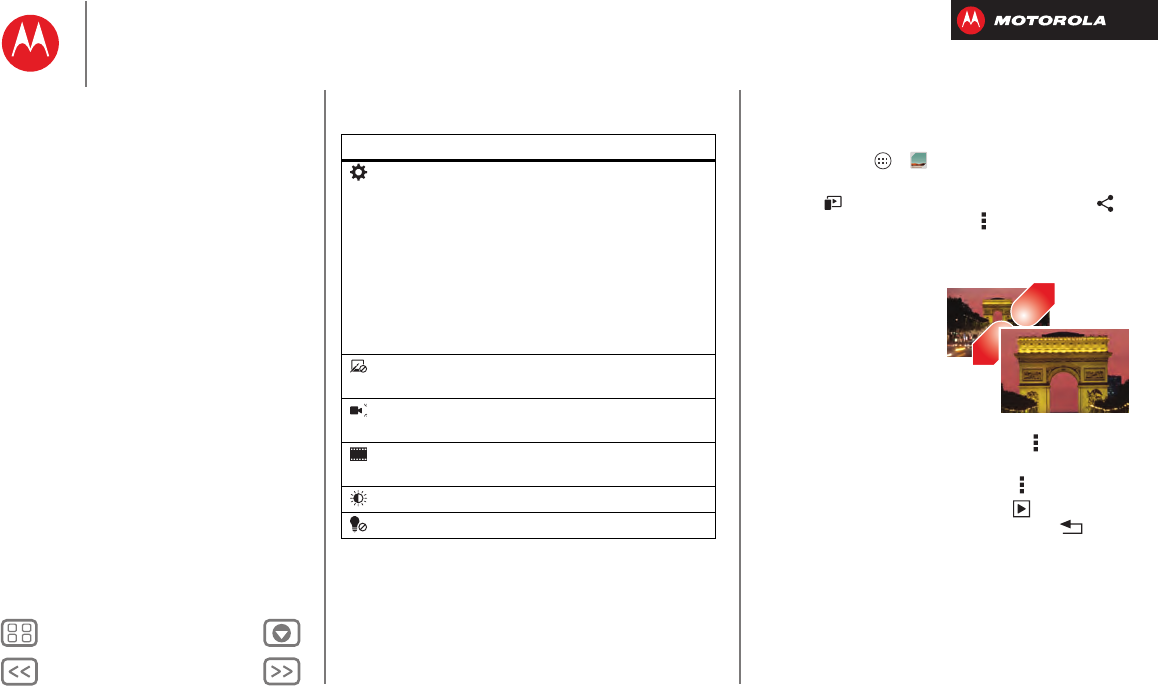
BackNext
Menu More
Photos & videos
Or these video options:
Options
Settings
•
Video Resolution
(1080p, 720p,
DVD, VGA, or QVGA)
•
Volume Key Function
(use
volume keys to zoom)
•
Geo-tag
(auto location
information)
•
Storage Location
(smartphone or
microSD memory card)
•
Shutter Tone
Effects
Set a video effect:
Normal
,
Black &
White
,
Negative
, and more.
Audio Scenes
Set sound recording options:
Stereo
,
Wind Reduction
, or
Concert
.
Modes
Set to
Normal Video
,
Video MMS
,
Slow Motion
, or
Time Lapse
.
Exposure
Select an exposure setting.
Light
Set
Light On
or
Light Off
.
Edit, share, or delete photos &
videos
Find it: Tap Apps >
Gallery
•Play, share, or delete: Tap a thumbnail to open it, then
choose to play it on a DLNA media device, or to
share it. To delete it, tap Menu
Delete
.
Tip: To select multiple files, open a folder, tap and hold
a photo, then tap others.
• Zoom: Open a photo,
then drag two fingers
apart or together on the
screen.
Tip: Turn the
smartphone sideways
for a widescreen view.
• Wallpaper or contact
photo: Open a picture, then tap Menu >
Set picture
as
.
• Edit: Open a picture, then tap Menu >
Edit
.
•Slideshow: Open a folder, then tap at the top. To
stop the slideshow, tap the screen or Back .
Tip: To show the slideshow on a television or other
device, see “Connect & transfer”.
To copy photos to/from a computer, go to “Memory card &
file management”.
Photos & videos
Quick start: Photos & Videos
Take photos
Record videos
The perfect shot
Edit, share, or delete photos & videos
Capture your screen
Movies
YouTube™
BackNext
Menu More
Photos & videos
Capture your screen
Sometimes a picture speaks louder than words. Share a
screen capture of your favorite playlist, your new high
score, or a friend’s contact information. If you can show it
on your smartphone, you can share it with your friends.
To capture your smartphone’s screen, press and hold the
Power and Volume Down keys at the same time.
To see the screen capture, tap Apps >
Gallery
>
Screenshots
.
Movies
Find and rent movies to watch on your smartphone,
tablet, or computer:
Find it: Tap Apps >
Play Movies
.
To shop, rent, or watch on a computer, go to
www.google.com/play and choose “Movies.”
YouTube™
Watch videos from YouTube users everywhere—or log
into your account to share your own.
Find it: Tap Apps >
YouTube
•Watch: Tap
BROWSE
or search to find a video, then
tap the image to play it.
• Upload: Tap
ACCOUNT
, choose your Google™
account, then tap .
Photos & videos
Quick start: Photos & Videos
Take photos
Record videos
The perfect shot
Edit, share, or delete photos & videos
Capture your screen
Movies
YouTube™
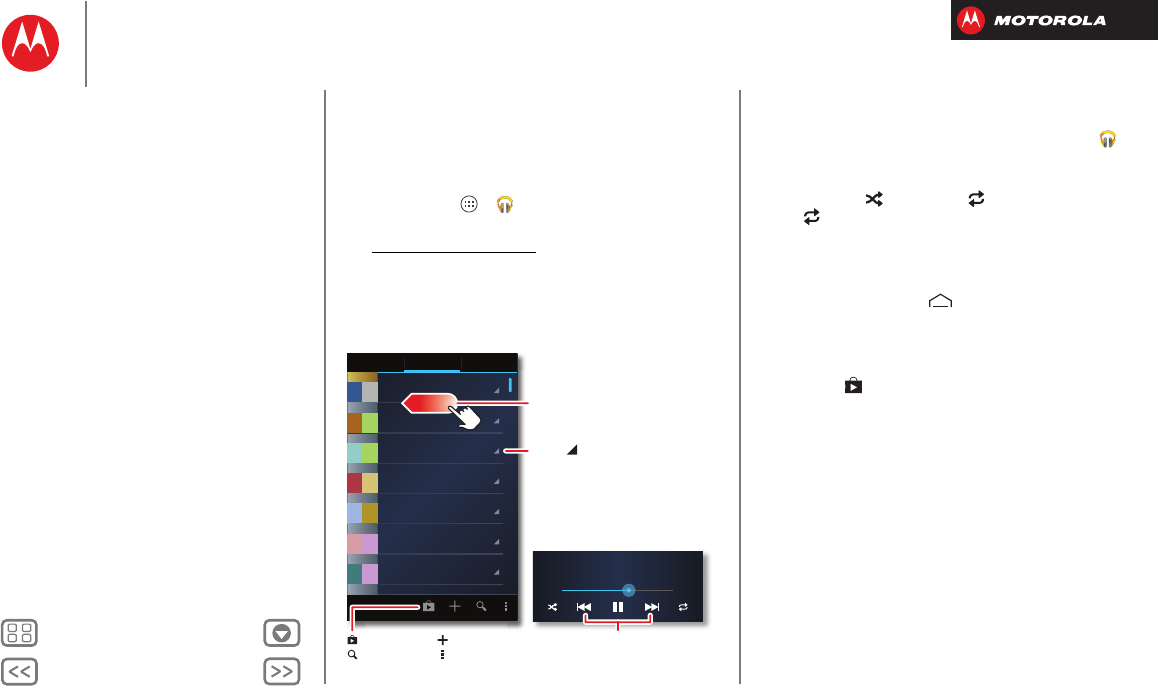
BackNext
Menu More
Music
when life needs a soundtrack
Quick start: Music
Music everywhere, literally—stream it, buy it, save it,
play it. Listen and create playlists anytime, with music on
your smartphone.
Find it: Tap Apps >
Play Music
To access your Google Play™ Music with a computer,
visit www.google.com/music.
SONGS GENRESPLAYLISTS
Last added
Allie live shows
Portland
road trip
summer songs
workout 1
Allie’s mix
Song Title
Artist
1:31
Flick left or right for songs,
playlists & more.
Shop
Search
Playlist
Settings
During a song:
Touch to skip or hold to scan.
Touch for options.
Tips & tricks
• Go back: When you open a song or artist list, tap in
the top left to go back.
• Shuffle or repeat: During a song, tap the screen to
show shuffle and repeat at the bottom.
Tap once to repeat the current song list, or twice
to repeat only the current song.
• Volume: Press the volume keys.
• Hide the music player: To use another app while your
music plays, tap Home . To return to the music
player, drag down the status bar and tap the song title.
•Home screen: Control music playback from the home
screen by adding the
Google Play Music
widget.
• Shop: Tap to shop for more music.
• Playlists: Tap and hold a song in your library to add it
to a playlist or show other options. To edit, delete and
rename a playlist, tap and hold its name in the music
library.
• During a flight: Press and hold the Power key
>
Airplane mode
to turn off all your network and
wireless connections and listen to music during a
flight.
•File types: Your smartphone can play MP3, M4A, AAC,
ACC+, MIDI, and WAV files.
Music
Quick start: Music
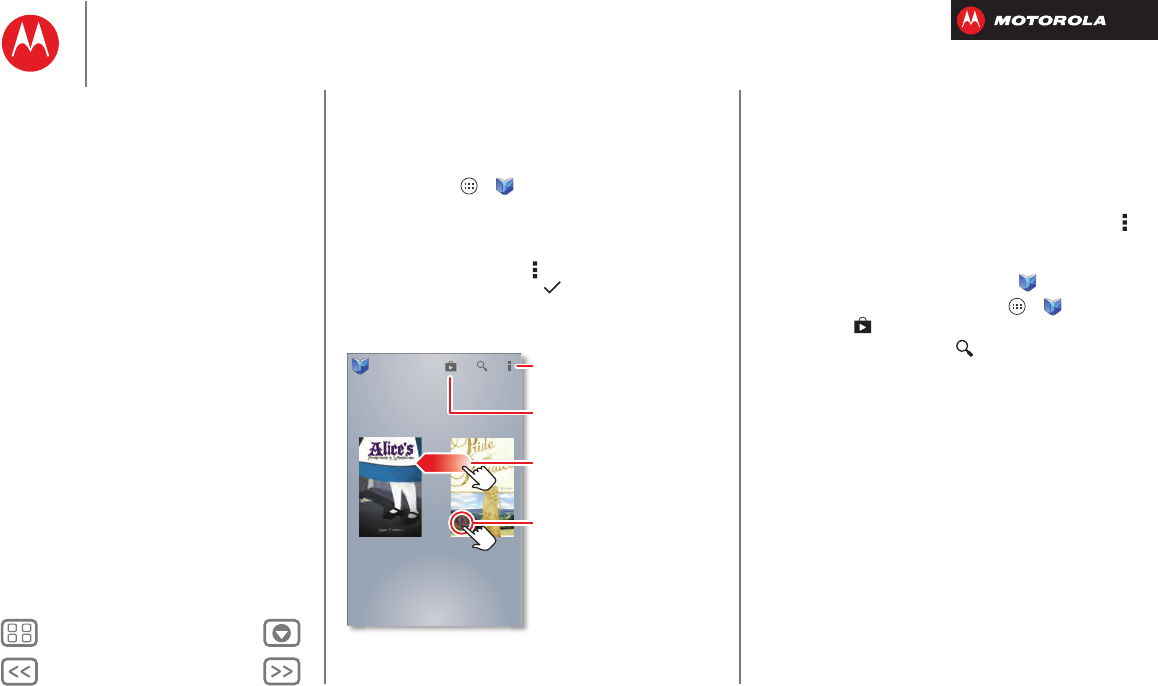
BackNext
Menu More
Books
even thick books fit
Quick start: Books
Read your favorite books, magazines, and newspapers
when and where you want.
Find it: Tap Apps >
Play Books
• Open: Swipe left and right to see more books in your
library. To open a book, tap it.
• Read offline: To store books for reading when you’re
not connected, tap Menu >
Make available offline
,
choose the books, then tap .
Pride and Prejudice
Jane Austen
Alice’s Adventures in
Wonderland
Lewis Carroll
Google Play
Download books.
Choose Make available offline
or other options.
Tap a book to open & read it.
Swipe left to show all your
books.
Tips & tricks
• Turn pages: While reading the book, turn the pages by
swiping them.
• Recent page: When you open a book, it shows the
last page you were reading.
• Table of contents: Tap a book page, then tap Menu
to open its table of contents or your book display
options.
•Close: To return to your book list, tap in the top left.
• Shop: To shop for books, tap Apps >
Play
Books
, then in the top right.
Browse by category, or tap and search for a title or
author. Tap a book to show details. Then, tap the
book’s price to buy it (or tap
OPEN
to open a free book).
After you confirm a purchase, the book is added to
your library.
Books
Quick start: Books
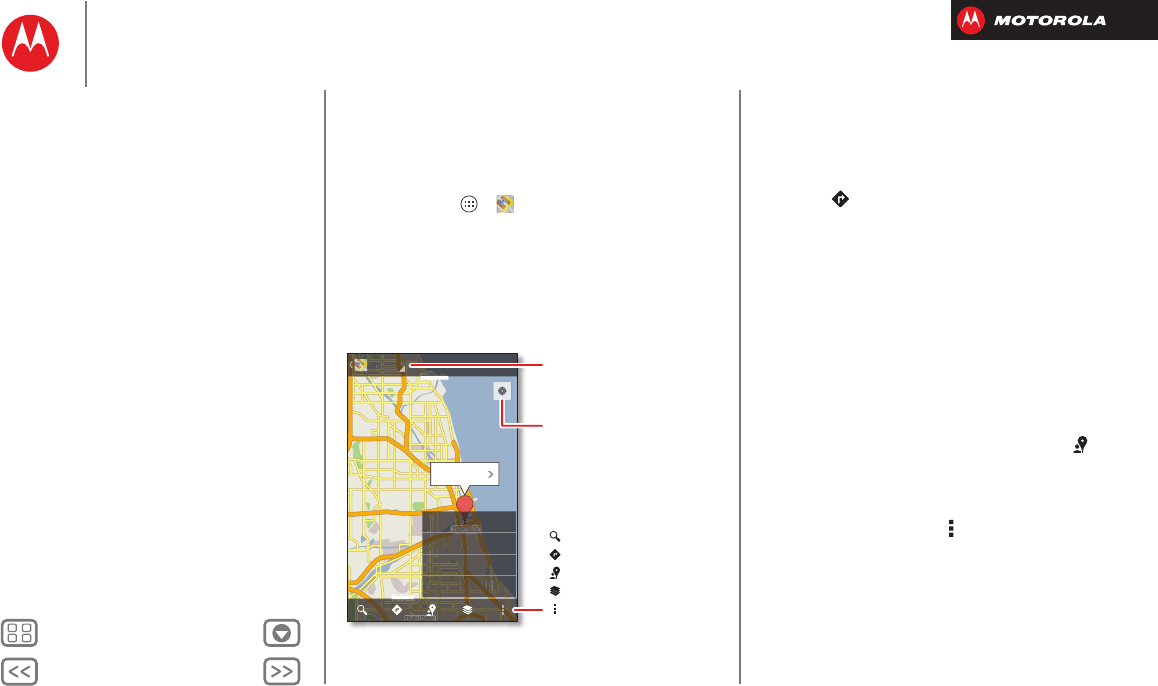
BackNext
Menu More
Locate & navigate
where you are, where you’re going
Quick start: Locate & navigate
Find an address, find a place, see what’s close by, get
directions or full navigation, and so much more—all with
the Google Maps™ you know and love.
Find it: Tap Apps >
Maps
Chicago
Oak Park
Oak Park
Cicero
Cicero
Oak Lawn
Evanston
Evanston
La Grange
La Grange
Wilmette
Burbank
Lincolnwood
Lincolnwood
Chicago
Oak Park
Cicero
Oak Lawn
Evanston
La Grange
Wilmette
Burbank
Lincolnwood
Chicago, IL
A
ette
ette
me
W
W
Wilmette
Maps
Oak Lawn
a
Oak Lawnak Law
a
O
Oak Lawn
nk
n
Burbank
Burbank
go
o
Chicag
Chic
Chic
cac
o
C
C
C
ag
cago
cago
cago
C
C
Chicago
Clear Map
Make Available Offline
Settings
Help
Open Navigation, Latitude,
history, and more.
Center the map on my
location.
Layers
Directions
Search
Menu
Local
Tips & tricks
• Find an address: Enter the address in the search box
at the top. The map moves to show the address.
• Get directions: Find an address on the map, tap it,
then tap .
• Save an address: Tap the address, then tap the star
by its name. To show your starred places, tap
Maps
and choose
My Places
. To remove a starred place, tap
and hold the address, then tap
Delete
.
• Zoom: To zoom in or out, drag two fingers together or
apart on the screen.
• Turn and tilt: Rotate two fingers on map to turn it or
drag down/up to tilt.
• Send your location: To tell others where you are, tap
your location on the map, tap the
My Location
bubble,
then choose
Send location to others
.
• Find nearby businesses or attractions: Tap at the
bottom.
• Identify address: Tap and hold a spot on the map to
show the nearest address.
•Get map help: Tap M enu >
Help
.
Locate & navigate
Quick start: Locate & navigate
Google Local™
Google Maps™ Navigation beta
Google Latitude™
BackNext
Menu More
Locate & navigate
Google Local™
Google Local lets you find the restaurants, cafes, bars,
and attractions that are close to you:
Find it: Tap Apps >
Local
Tip: In
Maps
, just tap at the bottom.
Google Maps™ Navigation beta
Get spoken turn-by-turn directions to the destination you
specify.
Find it: Tap Apps >
Navigation
Speak, type, or select your destination.
Navigation
shows
a map and starts telling you directions.
Tip: To add to your
STARRED
places, open Google Maps,
find an address, then tap the next to it.
To choo se
Exit navigation
or other options, tap at the
bottom. Tap to show gas stations and other points
along the way.
Note: Using a mobile device or accessory while driving
may cause distraction and may be illegal. Always obey
the laws and drive safely.
For more, go to www.google.com/mobile/navigation.
Google Latitude™
Google Latitude lets you see where your friends and
family are on Google Maps™. Plan to meet up, check that
they got home safely, or just stay in touch. Don’t worry,
your location is not shared unless you agree to it. After
you join Google Latitude, you can invite your friends to
view your location, or accept their invitations.
To join Google Latitude, tap Apps >
Maps
, tap
Maps
at the top, then choose
Join Latitude
.
To use Google Latitude after you join, tap Apps
>
Latitude
:
•To add friends, tap .
Ta p
Select from Contacts
or
Add via email address
. Your
friend will receive an email notice.
•To remove friends, tap next to their name.
•To share your location when you receive a request,
you can choose
Accept and share back
(show your
location and see theirs),
Accept, but hide my location
(hide your location, but see theirs), or
Don’t accept
(hide both locations).
•To hide your location, tap Menu >
Location Settings
>
Location reporting
>
Do not update your location
.
•To sign out, tap Menu >
Location Settings
>
Sign out
of Latitude
.
Locate & navigate
Quick start: Locate & navigate
Google Local™
Google Maps™ Navigation beta
Google Latitude™
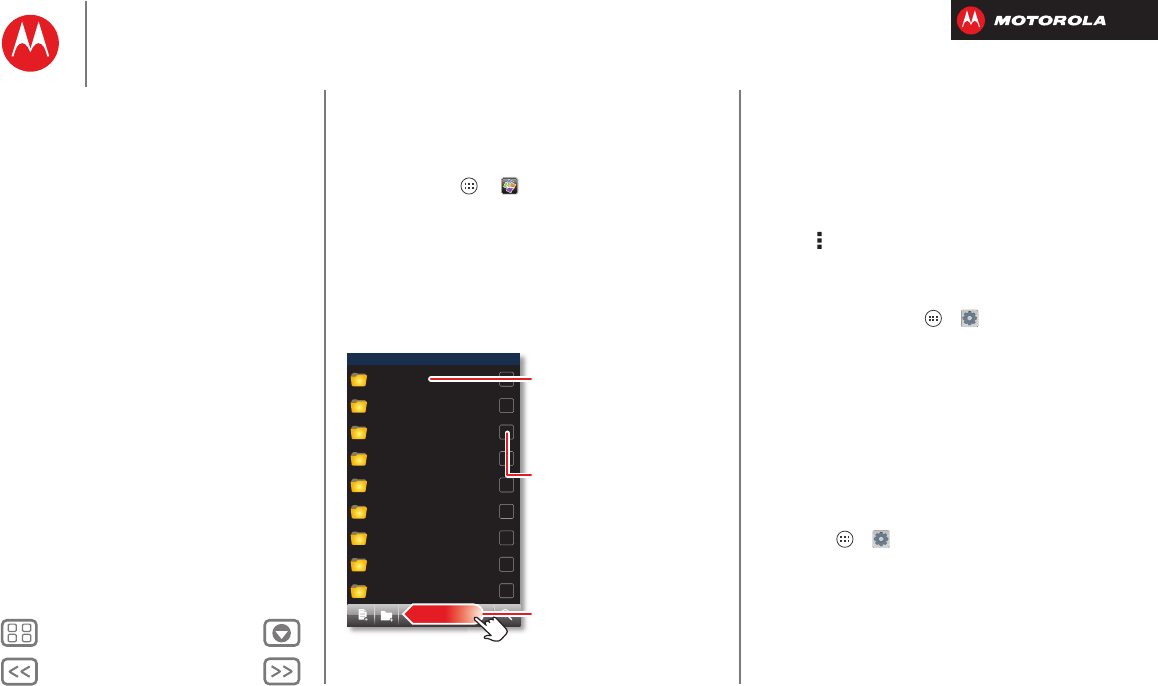
BackNext
Menu More
Work
get it done anytime
Quick start: Work
With Quickoffice™, you can open and edit files online, or
download them to your smartphone.
Find it: Tap Apps >
Quickoffice
Internal Storage
Alarms
Date last modified
Android
Date last modified
DCIM
Date last modified
Download
Date last modified
Movies
Date last modified
Music
Date last modified
Notifications
Date last modified
Pictures
Date last modified
Podcasts
Date last modified
Open a folder or file.
Select a file for options like Cut.
Create files, folders, search &
more—touch and hold an icon to
show its label. Flick left for more
options.
Tips & tricks
• Open files: Tap a file or folder to open it, or tap and
hold a file for options. You can edit most text or
spreadsheet files.
• Select text: Double-tap text to select it.
• Open options: To sort or choose other options, tap
Menu .
• Work faster: Use a dock or Bluetooth® keyboard and
mouse when you want to make your smartphone
more like a laptop computer. To connect them, turn
them on and tap Apps >
Settings
>
Bluetooth
.
To disconnect them, turn them off. For more, see
“Bluetooth® wireless”.
Corporate sync
If you use Microsoft™ Office Outlook on your work
computer, your smartphone can synchronize emails,
events, and contacts with your Microsoft Exchange
server.
•To add your
Corporate
account, see “Email”.
•To choose what to sync from your
Corporate
account,
tap Apps >
Settings
>
Accounts & sync
, tap your
account, then choose options like
Calendar
,
Contacts
,
or
Email
.
Work
Quick start: Work
Corporate sync
Office network
Alarm
Calendar
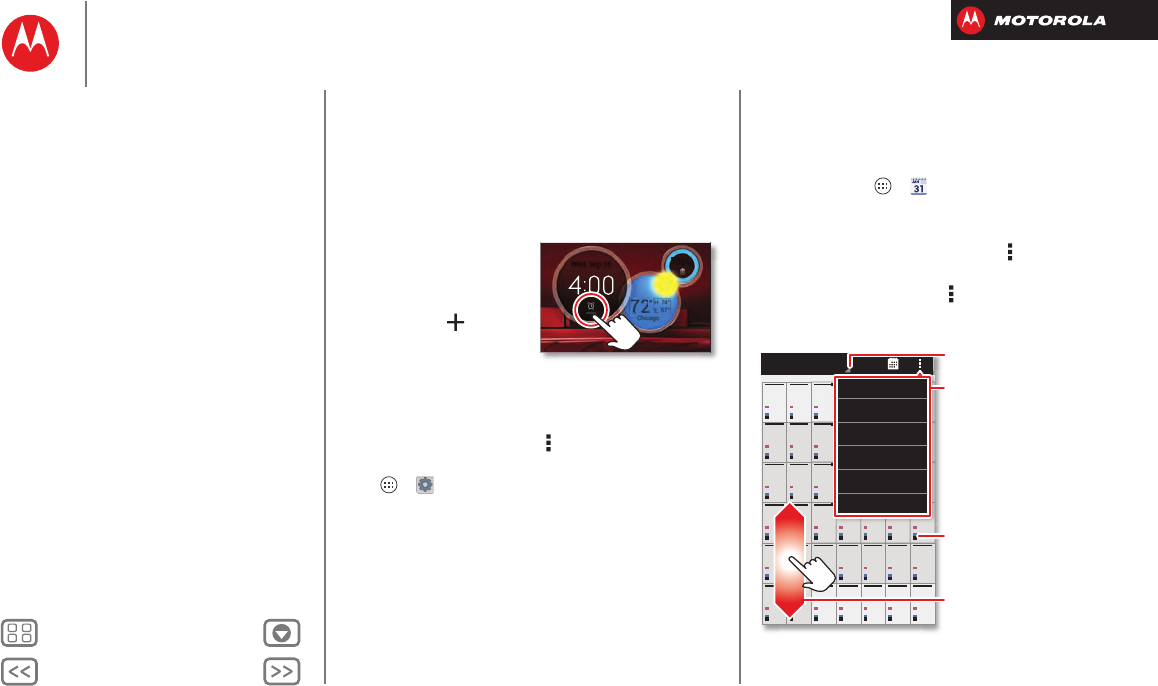
BackNext
Menu More
Work
Office network
To connect your office network with a Virtual Private
Network connection, see “Virtual Private Networks
(VPN)”.
Alarm
To set an alarm, tap the alarm
icon in the Circles widget on
the home screen.
•Alarm: Tap an alarm to
edit it, or tap to add a
new alarm.
When an alarm sounds,
tap
Dismiss
to turn it off or
Snooze
to delay for ten
minutes.
•Settings: To change your alarm sound, snooze delay,
or other settings, tap Menu >
Settings
.
Tip: To set your date, time, time zone, and formats, tap
Apps >
Settings
>
Date & time
.
57°L
74°H
72°
Chicago
100%
Wed, Sep 26
Calendar
Show events stored on your smartphone and in your
online calendars, all together in one place.
Find it: Tap Apps >
Calendar
• Change the view: Tap the date at the top left to
choose
Day
,
Week
,
Month
, or
Agenda
.
To set your default view, tap Menu >
Settings
>
General settings
>
Default view
.
To go to a date, tap Menu >
Go to date
.
30 31 12345
23 24 25 26 27 28 29
16 17 18 19 20 21 22
910 11 12 13 14 15
2345678
25 26 27 28 29 30 1
Sun Mon Tue Wed Thu Fri Sat
December 2012
8
19 20 2
1
22
1
12 1
3
14 1
5
4
5
6
7
8
7
28
29
30
1
e
We
d
Th
u
Fr
i
Sa
t
New event
Go to date
Refresh
Search
Calendars to display
Settings
Scroll
Event colors indicate different
calendars.
View Options
Menu
Work
Quick start: Work
Corporate sync
Office network
Alarm
Calendar
BackNext
Menu More
Work
• Add events: From any view, tap Menu >
New event
,
enter event details, then tap
SAVE
.
• Show, edit, or delete events: Tap an event to open it,
then tap edit or delete .
• Show, hide, or add calendars: Tap M en u
>
Calendars to display
to show or hide calendars from
your Google™ account. You can use a computer to add
or remove calendars on your Google account at
www.google.com/calendar.
Where are events stored and changed? Your
smartphone can store your events in your Google
account or on your smartphone: Tap Menu >
Settings
>
General settings
>
Default calendar
.
Tip: Add a
Calendar
widget to your home screen. Tap
Apps >
WIDGETS
, then tap and hold the
Calendar
widget to add it to you home screen.
Work
Quick start: Work
Corporate sync
Office network
Alarm
Calendar
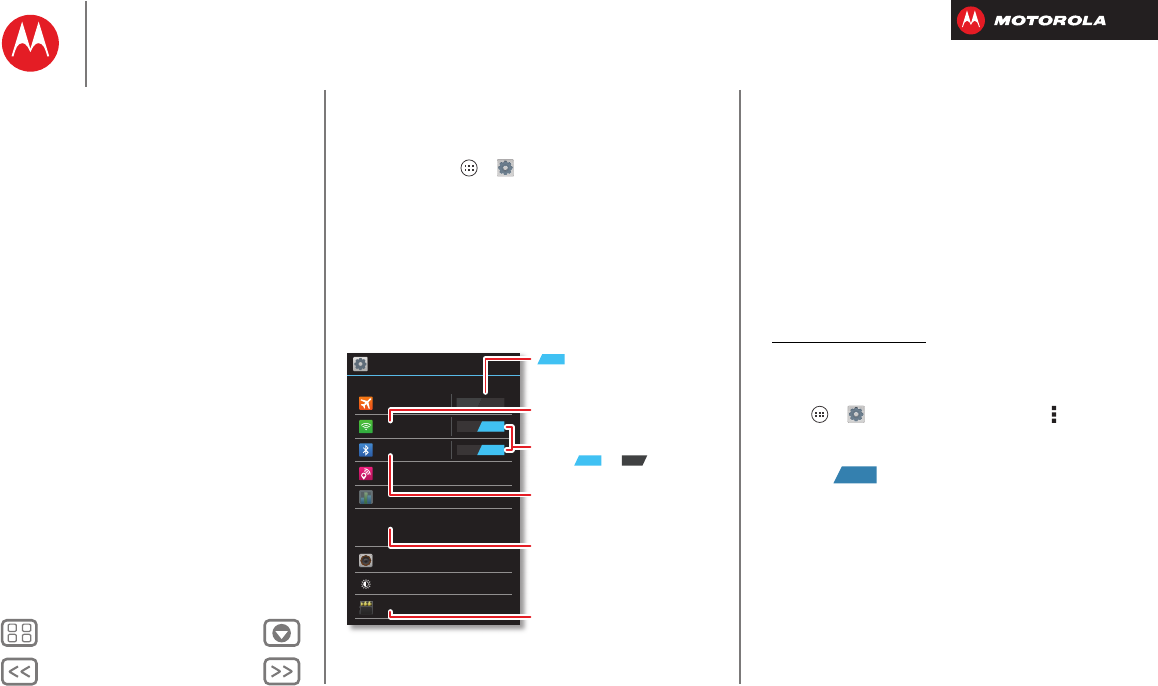
BackNext
Menu More
Connect & transfer
wired up or wireless
Quick start: Connect & transfer
Connect accessories, computers, networks, and more.
Find it: Tap Apps >
Settings
Wi-Fi
WIRELESS & NETWORKS
DEVICE
Bluetooth
Tethering & Mobile Hotspot
Data usage
More...
Sound
Display
Storage
ON
OFF
ON
Settings
Airplane mode
Change Wi-Fi settings.
disables all wireless
connections.
ON
Turn Wi-Fi or Bluetooth
power or .
Change Bluetooth settings.
Change connection & sharing
settings.
Move pictures, music, & other
media to an optional microSD
memory card.
ONOFF
Tips & tricks
• Bluetooth® devices: To connect a Bluetooth headset,
keypad, or other device, tap
Bluetooth
.
• Wi-Fi networks: To connect, tap
Wi-Fi
.
• Wi-Fi hotspot: To make your smartphone a hotspot,
tap
Tethering & Mobile Hotspot
, then check
Mobile
Hotspot
. You can change hotspot security.
• Google Drive™: Upload files to the web, so that you
can access them from the browser in
Microsoft™ Windows™ or Apple™ Macintosh™
computers, as well as other Android™ devices. Visit
http://drive.google.com.
•USB cable: Your smartphone’s micro USB port lets
you exchange media and other files with a connected
computer. To change the type of USB connection, tap
Apps >
Settings
>
Storage
>Menu >
USB
computer connection
.
• Automatic connections: When Bluetooth® or Wi-Fi
power is , your smartphone automatically
reconnects to available devices or networks it has
used before.
ON
Connect & transfer
Quick start: Connect & transfer
Bluetooth® wireless
Wi-Fi Networks
USB cables
Memory card & file management
Share your data connection
Data use
Share with NFC
Your cloud
Smartphone & tablet
DLNA™ media devices
Virtual Private Networks (VPN)
Mobile network
Airplane mode
BackNext
Menu More
Connect & transfer
Bluetooth® wireless
Turn Bluetooth power on/off
Find it: Tap Apps >
Settings
, then tap the
Bluetooth
switch to turn it
Tip: To extend battery life or stop connections, turn the
Bluetooth switch when you’re not using it.
Connect devices
The first time you connect a Bluetooth device, follow
these steps:
1Make sure the device you are pairing with is in
discoverable mode (for details, refer to the guide that
came with the device).
2Tap A pps >
Settings
>
Bluetooth
.
3Make sure the switch at the top is , then tap
SEARCH FOR DEVICES
.
4Tap a found device to connect it (if necessary, tap
Pair
or enter a passkey like
0000
).
Tip: Tap next to a device to rename it.
When the device connects, the Bluetooth status
indicator turns blue .
To automatically disconnect or reconnect a device
anytime, just turn it off or on.
Note: Using a mobile device or accessory while driving
may cause distraction and may be illegal. Always obey
the laws and drive safely.
ON
OFF
ON
Manage devices
To manually reconnect your smartphone with a paired
device, tap the device name in the
AVAILABLE DEVICES
list.
To manually disconnect your smartphone from a paired
device, tap the device name in the devices list, then
tap
OK
.
To remove a paired device, tap next to the device
name in the
PAIRED DEVICES
list, then tap
Unpair
.
Tap Ap ps >
Settings
>
Bluetooth
, turn Bluetooth
power on, then tap Menu >
Rename phone
. Enter a
name and tap
OK
.
Let devices find your smartphone
To let a Bluetooth device discover your smartphone:
1Ta p App s >
Settings
>
Bluetooth
.
2Tap your smartphone’s name to make it visible to all
devices for two minutes.
Transfer files
• Photos or videos: Open the photo or video, then
tap >
Bluetooth
.
• People: Tap Apps >
People
>Menu >
Share
contacts
, check what you want to share (you can
choose
Unselect all
), then tap
OK
>
Bluetooth
.
Connect & transfer
Quick start: Connect & transfer
Bluetooth® wireless
Wi-Fi Networks
USB cables
Memory card & file management
Share your data connection
Data use
Share with NFC
Your cloud
Smartphone & tablet
DLNA™ media devices
Virtual Private Networks (VPN)
Mobile network
Airplane mode
BackNext
Menu More
Connect & transfer
Wi-Fi Networks
Wi-Fi enhanced connectivity
Turn Wi-Fi power on/off
Find it: Tap Apps >
Settings
, then tap the
Wi-Fi
switch to turn it .
Note: To extend battery life, turn the Wi-Fi switch
when you’re not using it.
Connect to networks
Tip: If you have a monthly data allowance on your phone
network, you can save your allowance by using a Wi-Fi
connection for data.
To find networks in your range:
1Tap A pps >
Settings
>
Wi-Fi
.
Tip: To see your smartphone’s MAC address and Wi-Fi
settings, tap Menu >
Advanced
.
2Make sure the switch at the top is , then tap
SCAN
.
3Tap a found network to connect it (if necessary,
enter
Network SSID
,
Security
, and
Wireless password
,
and tap
Connect
).
When your smartphone connects, the Wi-Fi status
indicator appears in the status bar.
Note: If you see a question mark in the Wi-Fi status
indicator , drag down the status bar, tap the
network, and enter the network’s password.
ON
OFF
ON
Tip: When Wi-Fi power is on, your smartphone
automatically reconnects to available networks it has
used before
Manage networks
To remove a network, tap it in the list, then tap
Forget
.
To manage your networks, tap Apps >
Settings
>
Wi-Fi
, turn Wi-Fi power on, then tap Menu >
Manage
Networks
.
Wi-Fi hotspot
Your can make your smartphone a Wi-Fi hotspot to
provide portable, convenient internet access to other
Wi-Fi enabled devices.
Note: Keep it secure. To protect your smartphone and
hotspot from unauthorized access, it is strongly
recommended that you set up hotspot
Security
(
WPA2
is
the most secure), including password.
Find it: Tap Apps >
Settings
>
Tethering & Mobile
Hotspot
and check
Mobile Hotspot
.
1Your smartphone turns off
Wi-Fi
power and uses the
mobile network for internet access. Tap
Mobile Hotspot
Settings
>
Configure Mobile Hotspot
to set up security:
•SSID—Enter a unique name for your hotspot.
•Security—Select the type of security you want:
Open
or
WPA2
. For
WPA2
, enter a unique password
that others will need to access your Wi-Fi hotspot.
Note:
WPA2
is recommended by IEEE.
Connect & transfer
Quick start: Connect & transfer
Bluetooth® wireless
Wi-Fi Networks
USB cables
Memory card & file management
Share your data connection
Data use
Share with NFC
Your cloud
Smartphone & tablet
DLNA™ media devices
Virtual Private Networks (VPN)
Mobile network
Airplane mode
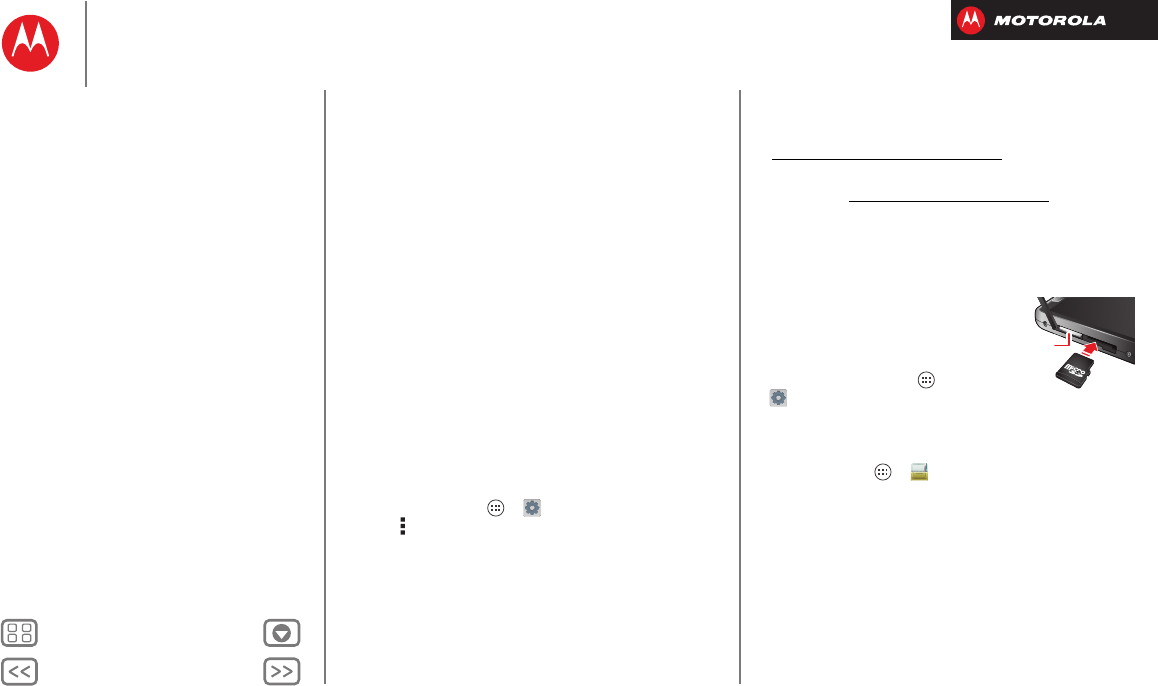
BackNext
Menu More
Connect & transfer
• Channel—If you notice interference after your
hotspot has been active for a while, try different
channels.
2Tap
Save
when the settings are complete.
When
Mobile Hotspot
is active, other Wi-Fi enabled
devices can connect by entering your hotspot’s
SSID
,
selecting a
Security
type, and entering the correct
Wireless password
.
Wi-Fi modes
For those who like to get a bit more technical, your
smartphone supports the following Wi-Fi modes:
802.11a, b, g, n.
USB cables
Note: Copyright—do you have the right? Always follow
the rules. See “Content Copyright”.
To load music, pictures, videos, documents, or other files
from your computer, connect your smartphone to your
computer with a USB cable. To change the type of USB
connection, tap Apps >
Settings
>
Storage
>Menu >
USB computer connection
.
•For Microsoft™ Windows™ XP, Windows Vista, and
Windows 7: On your computer, choose Start, then
select Windows Explorer from your list of programs. In
Windows Explorer, your smartphone will appear as a
connected drive (mass storage device) where you can
drag and drop files, or it will appear as an MTP or PTP
device that lets you use Windows Media Player to
transfer files. For more instructions or driver files, visit
www.motorola.com/mydroidrazrm.
•For Apple™ Macintosh™: Use Android File Transfer,
available at www.android.com/filetransfer.
Memory card & file management
Your photos, videos, and other files are automatically
stored in your smartphone’s internal memory.
Optional microSD memory cards
can help store more files.
Tip: To move media from
internal memory to a
microSD card, tap Apps
>
Settings
>
Storage
>
Manage internal storage
.
Manage files on your smartphone
Find it: Tap Apps >
Files
>
Device storage
or
SD
card
Tap a file or folder to open, then tap and hold a file to
Delete
or
Share
.
micro SIM
microSD
Connect & transfer
Quick start: Connect & transfer
Bluetooth® wireless
Wi-Fi Networks
USB cables
Memory card & file management
Share your data connection
Data use
Share with NFC
Your cloud
Smartphone & tablet
DLNA™ media devices
Virtual Private Networks (VPN)
Mobile network
Airplane mode
BackNext
Menu More
Connect & transfer
Remove or erase a memory card
Note: Do not remove a microSD memory card while your
smartphone is using it or writing files on it.
Before you remove a microSD card you need to unmount
it. Tap Apps >
Settings
>
Storage
>
Unmount SD card
.
To erase a microSD card, tap Apps >
Settings
>
Storage
>
Erase SD card
.
Warning: All data on the microSD card will be deleted.
USB connection
You can connect your smartphone to a computer with a
USB cable.
Note: The first time you use a USB connection, your
computer may indicate that drivers are being installed.
Follow any prompts you see to complete the installation.
This may take a few minutes.
1With the home screen showing, connect a Motorola
micro USB data cable from your smartphone’s micro
USB port to a USB port on your computer. Your
smartphone should show in the status bar.
Note: Make sure to connect the smartphone to a high
power USB port. Typically, these are located directly on
your computer. To change the type of USB connection
if necessary, tap Apps >
Settings
>
Storage
>Menu >
USB computer connection
>
Mass Storage
.
2Your smartphone and microSD memory card appear as
two separate removable disks on your computer.
Drag and drop files between your computer and the
smartphone or microSD card folders. When you’re
done, use “Safely Remove Hardware” before
disconnecting the USB cable.
Note: You can’t use files on the microSD card while your
smartphone is connected to the computer.
Share your data connection
Your computer can access the internet through your
smartphone’s mobile network—you just need a USB
cable.
Tip: To share a Wi-Fi connection, see “Wi-Fi hotspot”.
1Connect your smartphone to your computer using a
USB cable.
Note: If your computer is running something older
than Microsoft™ Windows™ 7 or
Apple™ Macintosh™ OSX, it might require special
configuration.
2On your smartphone, tap Apps >
Settings
, then
make sure the
Wi-Fi
switch is set to .
3In
Settings
, tap
Tethering & Mobile Hotspot
, then check
USB tethering
to start the connection.
To stop the connection, uncheck
USB tethering
, then
disconnect your smartphone from your computer.
OFF
Connect & transfer
Quick start: Connect & transfer
Bluetooth® wireless
Wi-Fi Networks
USB cables
Memory card & file management
Share your data connection
Data use
Share with NFC
Your cloud
Smartphone & tablet
DLNA™ media devices
Virtual Private Networks (VPN)
Mobile network
Airplane mode
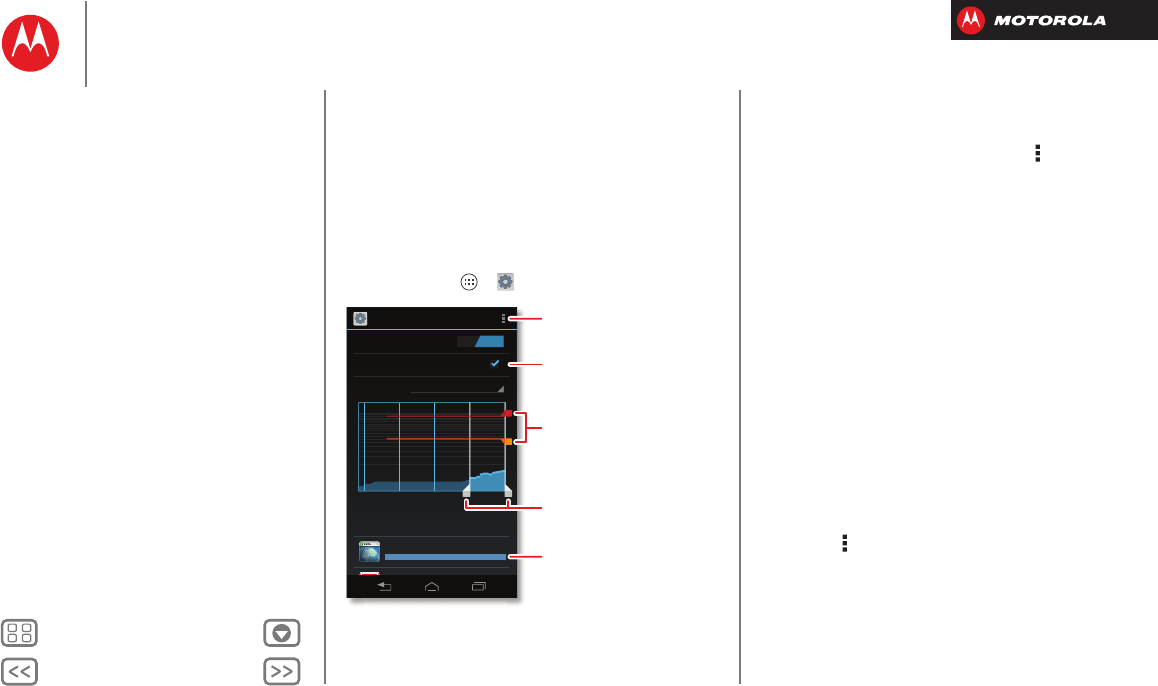
BackNext
Menu More
Connect & transfer
Data use
You can track the amount of data uploaded and
downloaded by your smartphone, and set a limit on your
monthly data use to avoid additional charges.
Note: Usage information is provided to help you manage
your smartphone. This may not match the amounts
charged by your service provider, as they’re not
measured in the same way.
Find it: Tap Apps >
Settings
>
Data usage
Data usage
ON
Mobile data
Set mobile data limit
Jun 26
-
Jul 26
Data usage cycle
Jul 19
-
26: about 38.65MB used
Jun 26 Jul 26
Measured by your phone. Your carrier’s data
usage accounting may differ.
Browser
Email
14.46MB
7.28MB
limit
4.0GB
warning
1.5GB
Set data restrictions,
or show Wi-Fi usage.
Touch an app to show or
restrict background data.
Drag white bars to see data
use for this date range.
Drag bars to change your
warning (orange) or limit (red).
Activate a data limit.
• Mobile & Wi-Fi usage: The main graph shows data
use on your mobile network. To show a tab for data
use over a Wi-Fi connection, tap Menu >
Show Wi-Fi
usage
.
• Data use warning: Drag the right side of the orange
bar up or down to set when your smartphone warns
you about data use.
• Data use limit: Check
Set mobile data limit
, then drag
the right side of the red bar up or down to set the level
when you want mobile data turned off. Your
smartphone will notify you when you reach the limit
(and many of your smartphone’s features will stop
working).
• Restrict app background data: Below the graph,
apps are listed from highest to lowest data use. Some
apps transfer data in the background when you're not
viewing them—to stop an app from doing this, tap it
and then check
Restrict background data
.
Tip: Apps that use a lot of data might also use a lot of
battery power.
• Restrict all background data: After you set a data use
limit, you can also turn off background data use. Just
tap Menu >
Restrict background data
.
Connect & transfer
Quick start: Connect & transfer
Bluetooth® wireless
Wi-Fi Networks
USB cables
Memory card & file management
Share your data connection
Data use
Share with NFC
Your cloud
Smartphone & tablet
DLNA™ media devices
Virtual Private Networks (VPN)
Mobile network
Airplane mode
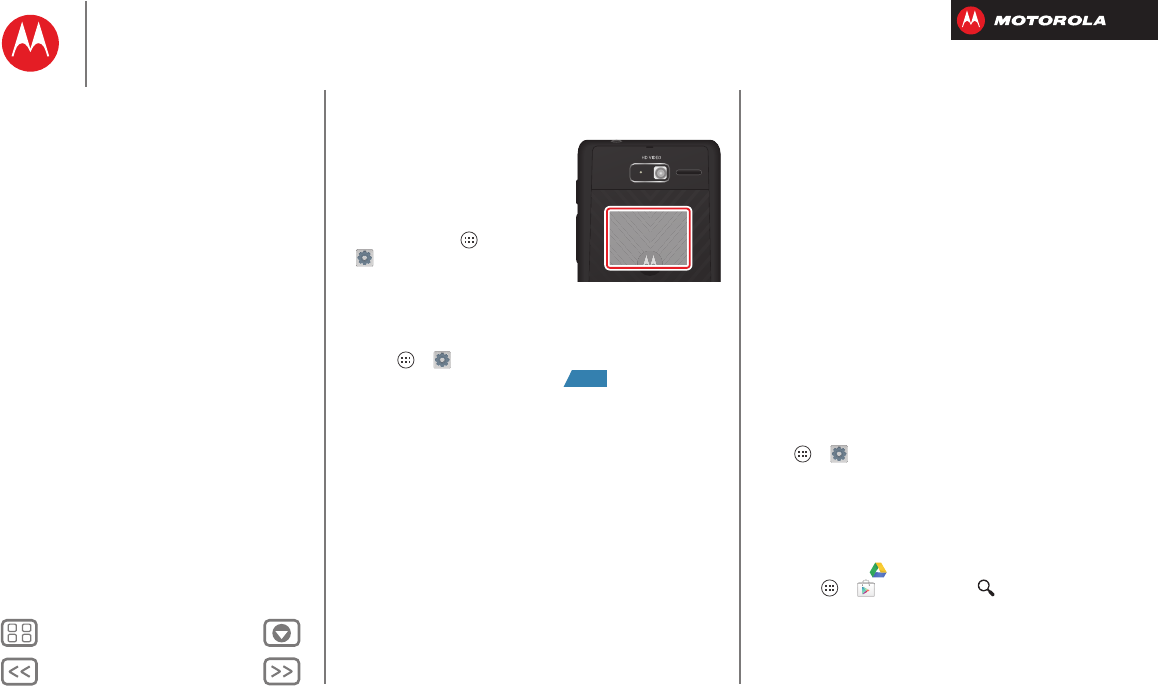
BackNext
Menu More
Connect & transfer
Share with NFC
Near Field Communication (NFC)
lets you share your screen and its
information with other
NFC-enabled devices by
touching, and more.
Find it: Tap Apps
>
Settings
>
More
, then make
sure that
NFC
is checked
You can:
• Share your screen: To share your screen with another
NFC-enabled device, turn on Android Beam: tap
Apps >
Settings
>
More
>
Android Beam
, then
tap the power switch to turn it .
Then, just open the screen you want to share, and
touch the back of your smartphone to the back of the
other device. When your smartphone shows
Touch to
Beam
, just tap your screen.
• Read links, coupons, and information: Look for the
NFC logo on posters, signs, store displays, and other
places—just touch the back of your smartphone to the
logo to receive its tag information.
• Set up Bluetooth® & Wi-Fi connections: Just touch
the back of your smartphone to an NFC-enabled
Bluetooth device or Wi-Fi access point to automatically
pair or connect with the device.
NFC
Antenna
(on back)
ON
For your security: Your smartphone uses the latest
security, encryption, and authentication features to
protect your personal information for content sharing.
NFC only works over a short range (about
4 cm/1.5 inches), so it's unlikely you’ll connect by
mistake—if you do, you’ll still have to accept the
connection to send or receive information.
Your cloud
One account with access to everything,
everywhere—smartphone, tablet, computer.
Sync your Google™ account
When you log in to the same Google account, all devices
can get to all the same apps, movies, books, and music
from “Google Play™”—plus you share the same Google
Drive™, Gmail™, Google Calendar™, and other Google
services. To add accounts to your smartphone, tap
Apps >
Settings
>
Accounts & sync
.
Google Drive™
Google Drive is everywhere you are—on the web, in your
home, at the office, and on the go. Your files are
protected in your Google account.
If you don’t have
Drive
, you can download it for free:
Tap Ap ps >
Play Store
, tap and search on
Google Drive.
Connect & transfer
Quick start: Connect & transfer
Bluetooth® wireless
Wi-Fi Networks
USB cables
Memory card & file management
Share your data connection
Data use
Share with NFC
Your cloud
Smartphone & tablet
DLNA™ media devices
Virtual Private Networks (VPN)
Mobile network
Airplane mode
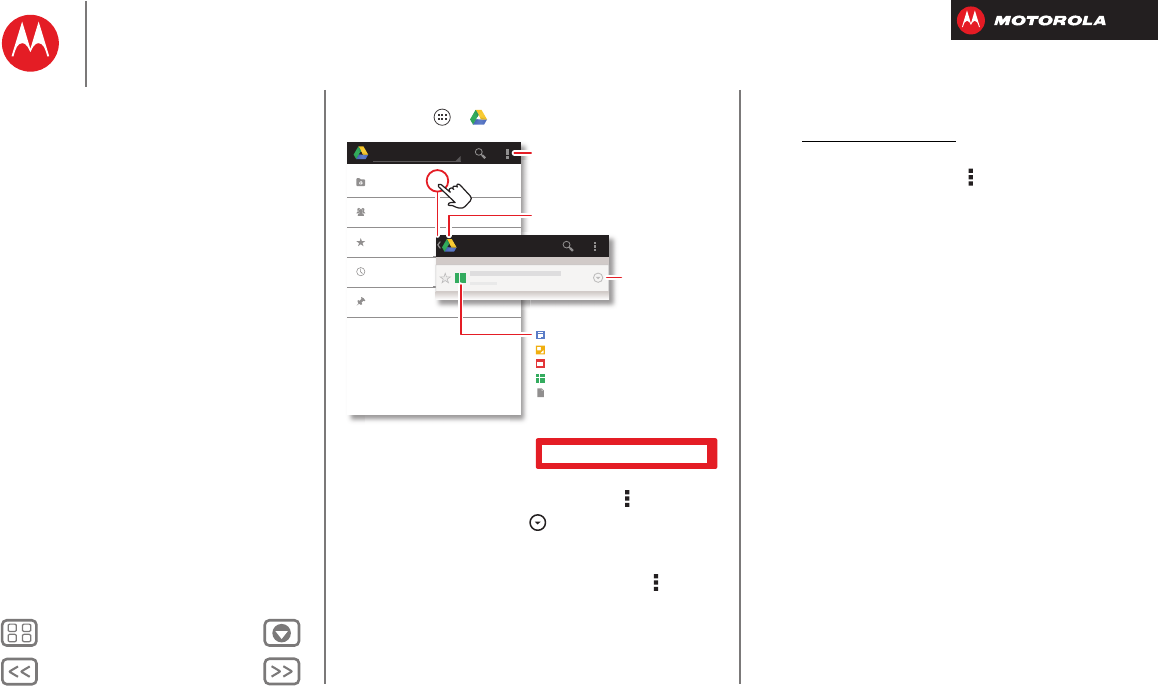
BackNext
Menu More
Connect & transfer
Find it: Apps >
Drive
• Create: To create a new doc, tap Menu >
New
.
• Download or share: Tap next to a file to share it,
make it available offline, and more. Tap
Offline
to show
offline documents on your smartphone.
• Upload from your smartphone: Tap Menu >
New...
>
Upload
to choose a song, file, picture, or other file to
upload.
you@gmail.com
My Drive
Shared with me
Starred
Recent
Offline
My Drive
Create a document, or change
encryption and other settings.
On your computer, go to: http://drive.google.com
Document
Drawing
Presentation
Spreadsheet
Other File Type
Back
Share, send,
rename,
download offline,
and more.
• Upload from your computer: On your computer, log
into http://drive.google.com to create or upload
documents.
• Refresh a file list: Tap Menu >
Refresh
in a file list to
show changes from other users or your computer.
Smartphone & tablet
Your Android™ smartphone and tablet can work together,
to help you get the most out of both:
• Your cloud: Access to all your stuff on both devices.
See “Your cloud”.
• Transfer media and files: Upload files to your “Google
Drive™” from any Android device on your Google
account, or you can copy files to your smartphone’s
memory card and transfer it to other devices with
“Memory card & file management”.
• Smartphone hotspot: If you have a Wi-Fi tablet, turn
your smartphone into a Wi-Fi hotspot to let your tablet
access the internet anywhere—see “Wi-Fi hotspot”,
•Bluetooth® accessories: If you have a Bluetooth
keyboard or other accessories to use with your tablet,
remember you can use them with your smartphone
too. To connect them, see “Bluetooth® wireless”.
Connect & transfer
Quick start: Connect & transfer
Bluetooth® wireless
Wi-Fi Networks
USB cables
Memory card & file management
Share your data connection
Data use
Share with NFC
Your cloud
Smartphone & tablet
DLNA™ media devices
Virtual Private Networks (VPN)
Mobile network
Airplane mode
BackNext
Menu More
Connect & transfer
DLNA™ media devices
Use DLNA Certified computers,
TVs, and other devices to show
the videos and pictures stored on
your smartphone.
1Make sure your smartphone is connected to a Wi-Fi
network that has another DLNA Certified device.
2Tap A pps >
Gallery
, then open the picture or
video you want to show.
3Tap at the top of the screen.
Your smartphone searches for DLNA devices on your
network.
4Choose a device to connect.
For more about DLNA devices, visit www.dlna.org.
Virtual Private Networks (VPN)
A VPN lets you access files on a secured network (like an
office network with a firewall). Contact the network
administrator to ask for VPN settings, and any additional
apps or other requirements.
To enter VPN settings, tap Apps >
Settings
>
More...
>
VPN
. Choose the type of VPN and enter
settings from the network administrator. The network is
stored in the
VPN
list so that you can select it whenever
you need to connect.
Mobile network
You should not need to change any network settings.
Contact Verizon Wireless for help.
Tap Apps >
Settings
>
More...
>
Mobile networks
to
see network settings options.
Airplane mode
Use airplane mode to turn all your wireless connections
off—useful when flying. Press and hold the Power key
>
Airplane mode
.
Note: When you select airplane mode, all wireless
services are disabled. You can then turn Wi-Fi and/or
Bluetooth® power back on, if permitted by your airline.
Other wireless voice and data services (such as calls and
text messages) remain off in airplane mode. Emergency
calls to your region’s emergency number can still be
made.
Connect & transfer
Quick start: Connect & transfer
Bluetooth® wireless
Wi-Fi Networks
USB cables
Memory card & file management
Share your data connection
Data use
Share with NFC
Your cloud
Smartphone & tablet
DLNA™ media devices
Virtual Private Networks (VPN)
Mobile network
Airplane mode
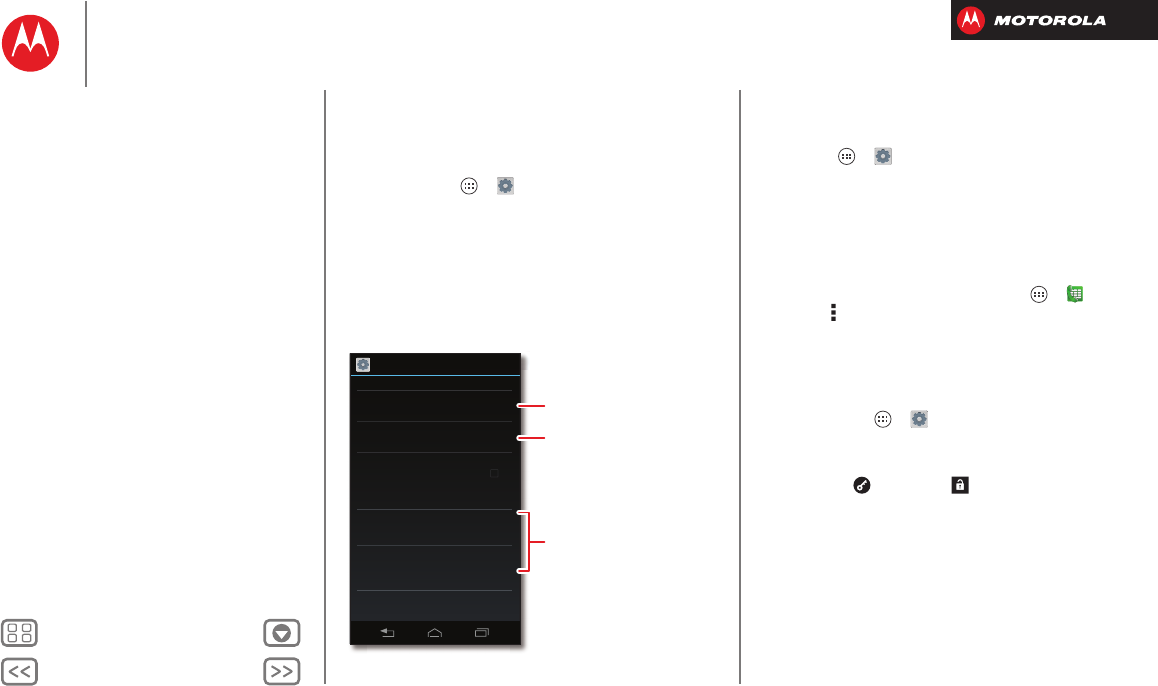
BackNext
Menu More
Protect
help keep it safe
Quick start: Protect
Make sure your information is protected, in case your
smartphone is lost or stolen.
Find it: Tap Apps >
Settings
>
Security & Screen
Lock
The easiest way to protect your smartphone is to use
Screen lock
. You can choose facial recognition, a pattern,
or a PIN to unlock your smartphone.
Security & Screen Lock
Screen lock
Default
Encrypt phone
Require a numeric PIN or password to decrypt
your phone each time you power it on
Encrypt SD card
Protect the data on your memory card
SCREEN SECURITY
ENCRYPTION
SIM CARD LOCK
Owner info
Set up SIM card lock
Allow Bluetooth bypass
Allow voice commands to be launched
via Bluetooth Multi-function button
while device is locked
Your info can show on
the lock screen.
Change your screen lock to
use a slide, facial recognition,
a pattern, PIN, password, or
no lock.
Encrypt the data stored on
your smartphone or microSD
memory card.
Tips & tricks
•Face unlock: Unlock your smartphone by looking at it!
Ta p App s >
Settings
>
Security & Screen Lock
>
Screen lock
>
Face Unlock
and follow the prompts.
• Forgotten pattern, PIN, or password: If you forget
your pattern, PIN, or password, you can enter your
Google™ account email and password to unlock the
smartphone (see “Can’t unlock?”.
• Restrict dialing: To restrict your smartphone so that it
can only dial a few numbers, tap Apps >
Phone
> Menu >
Settings
>
Fixed dialing numbers
.
Screen lock
To keep your smartphone secure, you can make the
touchscreen lock when it goes to sleep.
Find it: Tap Apps >
Settings
>
Security & Screen
Lock
>
Screen lock
, then select the lock type:
•
None
: Turn off the screen lock.
•
Default
: Tap and flick to
Unlock
.
•
Face Unlock
: Look at your smartphone to unlock it.
Follow the prompts to capture your face and enter a
PIN or password (for backup or to change the lock
setting). When the screen is dark, press the
Power key, then frame your face in the square at the
bottom to unlock.
Note: This feature is less secure than a pattern, PIN, or
password.
Protect
Quick start: Protect
Screen lock
SIM lock
Encrypt your smartphone
Backup & restore
Reset
BackNext
Menu More
Protect
•
Pattern
: Draw a pattern to unlock.
•
PIN
: Enter four to sixteen digits to unlock.
•
Password
: enter four to sixteen letters, digits, or
symbols to unlock.
To change when your touchscreen goes to sleep, see
“Power key”.
Note: You can make emergency calls on a locked
smartphone (see “Emergency calls”). A locked
smartphone still rings, but you need to unlock it to
answer.
Can’t unlock?
Face unlock: If your smartphone doesn’t recognize your
face, you’ll be prompted to enter your backup pattern or
PIN code to unlock it.
Pattern, PIN, or password: If you forget your pattern,
PIN, or password, you can enter your Google™ account
email and password to unlock the smartphone.
If you don’t have a Google™ account on your
smartphone, contact Verizon Wireless to have your
device factory reset.
Warning: A factory reset will delete all data on your
smartphone.
SIM lock
Caution: If you enter an incorrect SIM PIN code three
times, your smartphone locks your SIM card and asks for
your PIN unlock code. Contact Verizon Wireless for your
PIN unlock code.
To set a SIM card PIN that you must enter when you turn
on your smartphone:
Find it: Tap Apps >
Settings
>
Security & Screen
Lock
>
Set up SIM card lock
>
Lock SIM card
To set your SIM PIN, enter a 4-digit code. To change your
code, choose
Change SIM PIN
.
Encrypt your smartphone
Caution: If you forget your encryption code, you cannot
recover the data stored on your smartphone or memory
card. Encrypting your files can take an hour or more.
Leave your smartphone plugged in, and be careful not to
interrupt the process.
Encryption protects the accounts, settings, apps, and
files on your smartphone, so that people cannot access
them if your smartphone is stolen.
To encrypt your smartphone and require a PIN or
password whenever you turn on your smartphone:
Find it: Tap Apps >
Settings
>
Security & Screen
Lock
>
Encrypt phone
Protect
Quick start: Protect
Screen lock
SIM lock
Encrypt your smartphone
Backup & restore
Reset
BackNext
Menu More
Protect
Backup & restore
Your Google™ account data is backed up online. So, if
you reset or replace your smartphone, just log into your
Google account to restore the contacts, events, and
other details you synced with the account. To choose
what syncs with the account, tap Apps >
Settings
>
Accounts & sync
, tap your Google™ account, and check
things to sync. Please note that text messages, call logs,
and items stored on your smartphone will not be
restored. To restore your Google Play™ Store apps, see
“Take Care of your apps”.
Reset
To reset your smartphone to factory settings and erase all
the data on your smartphone, tap Apps >
Settings
>
Privacy
>
Factory Data Reset
>
Reset Phone
.
Warning: All downloaded apps and user data on your
smartphone will be deleted. Data on your micro SIM card
and microSD memory card will not be deleted.
Protect
Quick start: Protect
Screen lock
SIM lock
Encrypt your smartphone
Backup & restore
Reset

BackNext
Menu More
Want more?
there’s always more
Get more!
There’s more help, updates, and information right here:
• Tutorials & Help: Get guided tutorials and help
topics—tap Apps >
Help
and select a tab.
• Updates: Get smartphone updates, PC software,
online help, guides, and more at
www.motorola.com/mydroidrazrm
• Accessories: Find accessories for your smartphone at
www.motorola.com/mobility.
• Apps: Tap Apps >
Play Store
.
•News: Get the latest news, apps, tips & tricks, videos
and so much more—join us on:
YouTube™ www.youtube.com/motorola
Facebook® www.facebook.com/motorola
Twitter www.twitter.com/motomobile
Google+ www.google.com/+
Grab a barcode scanner from
Google Play Store, and scan
this code. Enjoy :-)
Tips & tricks
• Google™ help: In Google apps like Gmail, Google
Play™ Store, Google Maps, etc., tap Menu >
Help
.
You can also view the Google help centers online at
www.google.com/support.
Want more?
Get more!
BackNext
Menu More
Troubleshooting
we can help
Crash recovery
In the unlikely event that your smartphone stops
responding to touches and key presses, try a forced
reboot—press and hold both the Power key and the
Volume Down key for about 10 seconds. If necessary,
hold the Power key to turn your smartphone back on.
Service & repairs
If you have questions or need assistance, we’re here to
help.
Go to www.motorola.com/repair (United States) or
www.motorola.com/support (Canada), where you can
select from a number of customer care options. You can
also contact the Motorola Customer Support Center at:
1-800-734-5870 (United States), 1-888-390-6456
(TTY/TDD United States for hearing impaired), or
1-800-461-4575 (Canada).
Troubleshooting
Crash recovery
Service & repairs
BackNext
Menu More
Product Safety & Legal
safe, smart, protected
Battery Use & Safety
Battery Use & Safet y
The following battery use and safety information applies to all Motorola mobile devices.
If
your mobile device uses a non-removable main battery
(as stated in your product
information),
details related to handling and replacing your battery should be
disregarded
—the battery should only be replaced by a Motorola-approved service facility,
and
any attempt to remove or replace your battery, unless performed by a service
representative, may damage the product and void your warranty
.
Important: Handle and store batteries properly to avoid injury or damage.
Most battery
safety issues arise from improper handling of batteries, and particularly from the continued
use of damaged batteries.
DON’Ts
• Don’t disassemble, crush, puncture, shred, or otherwise attempt to change the
form of your battery.
• Don’t use tools, sharp objects, or excessive force to insert or remove the battery
as this can damage the battery.
• Don’t let the mobile device or battery come in contact with liquids.*
Liquids can get
into the mobile device’s circuits, leading to corrosion.
• Don’t allow the battery to touch metal objects.
If metal objects, such as jewelry, stay
in prolonged contact with the battery contact points, the battery could become very hot.
• Don’t place your mobile device or battery near a heat source.*
High temperatures
can cause the battery to swell, leak, or malfunction.
• Don’t dry a wet or damp battery with an appliance or heat source
, such as a hair
dryer or microwave oven.
DOs
• Do avoid leaving your mobile device in your car in high temperatures.*
• Do avoid dropping the mobile device or battery.*
Dropping these items, especially on
a hard surface, can potentially cause damage.*
• Do contact your service provider or Motorola if your mobile device or battery has
been damaged in any of the ways listed here.
* Note:
Always make sure that any battery, connector and compartment covers are closed and
secure to avoid direct exposure of the battery to any of these conditions, even if your product
information states that your
mobile device
can resist damage from these conditions.
Important: Motorola recommends you always use Motorola-branded batteries and
chargers for quality assurance and safeguards.
Motorola’s warranty does not cover
damage to the mobile device caused by non-Motorola batteries and/or chargers. To help you
identify authentic Motorola batteries from non-original or counterfeit batteries (that may not
have adequate safety protection), Motorola provides holograms on its batteries. You should
confirm that any battery you purchase has a “Motorola Original” hologram.
If you see a message on your display such as
Invalid Battery
or
Unable to Charge
, take
the following steps:
•
Remove the battery and inspect it to confirm that it has a “Motorola Original” hologram;
•
If there is no hologram, the battery is not a Motorola battery;
•
If there is a hologram, replace the battery and try charging it again;
•
If the message remains, contact a Motorola authorized service center.
Warning:
Use of a non-Motorola battery or charger may present a risk of fire, explosion,
leakage, or other hazard.
Proper and safe battery disposal and recycling:
Proper battery disposal is not only
important for safety, it benefits the environment. You can recycle your used batteries in many
retail or service provider locations. Additional information on proper disposal and recycling can
be found at
www.motorola.com/recycling
Disposal:
Promptly dispose of used batteries in accordance with local regulations.
Contact your local recycling center or national recycling organizations for more
information on how to dispose of batteries.
Warning:
Never dispose of batteries in a fire because they may explode.
Battery Charging
Batter y Charging
Notes for charging your product’s battery:
•
During charging, keep your battery and charger near room temperature for efficient battery
charging.
•
New batteries are not fully charged.
•
New batteries or batteries stored for a long time may take more time to charge.
•
Motorola batteries and charging systems have circuitry that protects the battery from
damage from overcharging.
Third Party Accessories
Third Part y Ac cessories
Use of third party accessories, including but not limited to batteries, chargers, headsets,
covers, cases, screen protectors and memory cards, may impact your mobile device’s
performance. In some circumstances, third party accessories can be dangerous and may void
your mobile device’s warranty. For a list of Motorola accessories, visit
www.motorola.com/products
Driving Precautions
Drivin g Precauti ons
Responsible and safe driving is your primary responsibility when behind the wheel of a vehicle.
Using a mobile device or accessory for a call or other application while driving may cause
distraction, and may be prohibited or restricted in certain areas—always obey the laws and
regulations on the use of these products.
032375o
Product Safety & Legal
Battery Use & Safety
Battery Charging
Third Party Accessories
Driving Precautions
Seizures, Blackouts & Eyestrain
High Volume
Repetitive Motion
Children
Glass Parts
Operational Warnings
RF Energy
Regulatory Information
Location
Navigation
Privacy & Data Security
Use & Care
Recycling
Perchlorate Label
Hearing Aid Compatibility
Software Copyright
Content Copyright
OSS Information
Export Law
Registration
Service & Repairs
Global Warranty
Copyright & Trademarks
BackNext
Menu More
Product Safety & Legal
While driving, NEVER:
•
Type, read, enter or review texts, emails, or any other written data.
•
Surf the web.
•
Input navigation information.
•
Perform any other functions that divert your attention from driving.
While driving, ALWAYS:
•
Keep your eyes on the road.
•
Use a handsfree device if available or required by law in your area.
•
Enter destination information into a navigation device
before
driving.
•
Use voice activated features (such as voice dial) and speaking features (such as audible
directions), if available.
•
Obey all local laws and regulations for the use of mobile devices and accessories in the
vehicle.
•
End your call or other task if you cannot concentrate on driving.
Remember to follow the “Smart Practices While Driving” at
www.motorola.com/callsmart
(in English only).
Seizures, Blackouts & Eyestrain
Seiz ures, Blackou ts & Eyestr ain
To reduce eyestrain and avoid headaches, it is always a good idea to hold the screen a
comfortable distance from your eyes, use in a well-lit area, and take frequent breaks.
Some people may be susceptible to seizures or blackouts (even if they have never had one
before) when exposed to flashing lights or light patterns, such as when playing video games,
or watching videos with flashing-light effects.
Discontinue use and consult a physician if any of the following symptoms occur: seizures,
blackout, convulsion, eye or muscle twitching, loss of awareness, or disorientation.
If you or someone in your family has experienced seizures or blackouts, please consult with
your physician before using an application that produces flashing-light effects on your mobile
device.
Caution About High Volume Usage
High Volume
Warning:
Exposure to loud noise from any source for extended periods of time
may affect your hearing. The louder the volume sound level, the less time is
required before your hearing could be affected. To protect your hearing:
•
Limit the amount of time you use headsets or headphones at high volume.
•
Avoid turning up the volume to block out noisy surroundings.
•
Turn the volume down if you can’t hear people speaking near you.
If you experience hearing discomfort, including the sensation of pressure or fullness in your
ears, ringing in your ears, or muffled speech, you should stop listening to the device through
your headset or headphones and have your hearing checked.
For more information about hearing, see our website at
http://direct.motorola.com/hellomoto/nss/AcousticSafety.asp
(in English only).
Repetitive Motion
Repetiti ve Motion
When you repetitively perform actions such as pressing keys or entering finger-written
characters, you may experience occasional discomfort in your hands, arms, shoulders, neck, or
other parts of your body. If you continue to have discomfort during or after such use, stop use
and see a physician.
Children
Chil dren
Keep your mobile device and its accessories away from small children.
These
products are not toys and may be hazardous to small children. For example:
•
A choking hazard may exist for small, detachable parts.
•
Improper use could result in loud sounds, possibly causing hearing injury.
•
Improperly handled batteries could overheat and cause a burn.
Supervise access for older children.
Similar to a computer, if an older child does use your
mobile device, you may want to monitor their access to help prevent:
•
Exposure to inappropriate apps or content.
•
Improper use of apps or content.
•
Loss of data.
Glass Parts
Glass Par ts
Some parts of your mobile device may be made of glass. This glass could break if the product
receives a substantial impact. If glass breaks, do not touch or attempt to remove. Stop using
your mobile device until the glass is replaced by a qualified service center.
Operational Warnings
Operati onal Warning s
Obey all posted signs when using mobile devices in public areas.
Potentially Explosive Areas
Potentially explosive areas are often, but not always, posted and can include blasting areas,
fueling stations, fueling areas (such as below decks on boats), fuel or chemical transfer or
storage facilities, or areas where the air contains chemicals or particles, such as grain dust, or
metal powders.
Product Safety & Legal
Battery Use & Safety
Battery Charging
Third Party Accessories
Driving Precautions
Seizures, Blackouts & Eyestrain
High Volume
Repetitive Motion
Children
Glass Parts
Operational Warnings
RF Energy
Regulatory Information
Location
Navigation
Privacy & Data Security
Use & Care
Recycling
Perchlorate Label
Hearing Aid Compatibility
Software Copyright
Content Copyright
OSS Information
Export Law
Registration
Service & Repairs
Global Warranty
Copyright & Trademarks
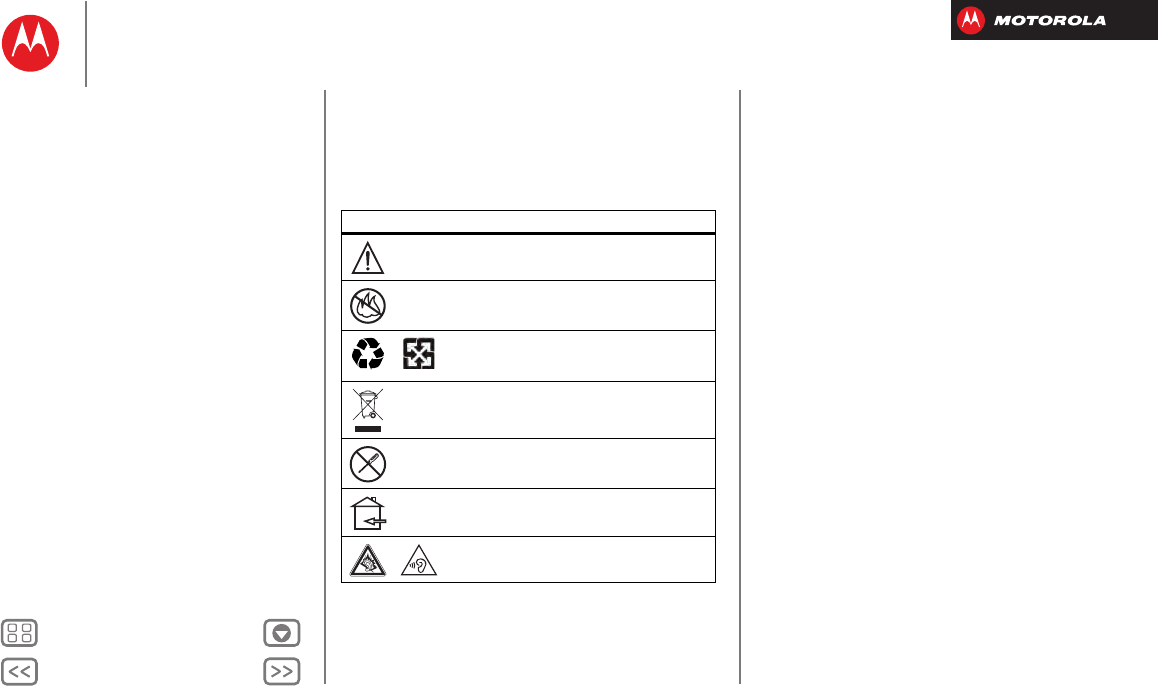
BackNext
Menu More
Product Safety & Legal
When you are in such an area, turn off your mobile device, and do not remove, install, or
charge batteries, unless it is a radio product type especially qualified for use in such areas and
certified as “Intrinsically Safe” (for example, Factory Mutual, CSA, or UL approved). In such
areas, sparks can occur and cause an explosion or fire.
Symbol Key
Your battery, charger, or mobile device may contain symbols, defined as follows:
Symbol Definition
Important safety information follows.
Do not dispose of your battery or mobile device in a fire.
Your battery or mobile device may require recycling in
accordance with local laws. Contact your local regulatory
authorities for more information.
Do not dispose of your battery or mobile device with your
household waste. See “Recycling” for more information.
Do not use tools.
For indoor use only.
Listening at full volume to music or voice through a headset
may damage your hearing.
032374o
032376o
032375o
Radio Frequency (RF) Energy
RF Energy
Exposure to RF Energy
Your mobile device contains a transmitter and receiver. When it is ON, it receives and
transmits RF energy. When you communicate with your mobile device, the system handling
your call controls the power level at which your mobile device transmits.
Your mobile device is designed to comply with local regulatory requirements in your country
concerning exposure of human beings to RF energy.
RF Energy Operational Precautions
For optimal mobile device performance, and to be sure that human exposure to RF energy does
not exceed the guidelines set forth in the relevant standards, always follow these instructions
and precautions:
•
When placing or receiving a phone call, hold your mobile device just like you would a
landline phone.
•
If you wear the mobile device on your body, ensure that the device is positioned at least
2.5 cm (1 inch) away from the body, and if you use an accessory case or holder, ensure it is
free of any metal.
RF Energy Interference/Compatibility
Nearly every electronic device is subject to RF energy interference from external sources if
inadequately shielded, designed, or otherwise configured for RF energy compatibility. In some
circumstances, your mobile device may cause interference with other devices.
Follow Instructions to Avoid Interference Problems
Turn off your mobile device in any location where posted notices instruct you to do so, such as
hospitals or health care facilities.
In an aircraft, turn off your mobile device whenever instructed to do so by airline staff. If your
mobile device offers an airplane mode or similar feature, consult airline staff about using it in
flight.
Medical Devices
If you have a medical device, including an implantable medical device such as a pacemaker or
defibrillator, consult your healthcare provider and the device manufacturer’s directions before
using this mobile device.
Persons with implantable medical devices should observe the following precautions:
•
ALWAYS keep the mobile device more than 20 centimeters (8 inches) from the implantable
medical device when the mobile device is turned ON.
•
DO NOT carry the mobile device in the breast pocket.
Product Safety & Legal
Battery Use & Safety
Battery Charging
Third Party Accessories
Driving Precautions
Seizures, Blackouts & Eyestrain
High Volume
Repetitive Motion
Children
Glass Parts
Operational Warnings
RF Energy
Regulatory Information
Location
Navigation
Privacy & Data Security
Use & Care
Recycling
Perchlorate Label
Hearing Aid Compatibility
Software Copyright
Content Copyright
OSS Information
Export Law
Registration
Service & Repairs
Global Warranty
Copyright & Trademarks
BackNext
Menu More
Product Safety & Legal
•
Use the ear opposite the implantable medical device to minimize the potential for
interference.
•
Turn OFF the mobile device immediately if you have any reason to suspect that interference
is taking place.
Regulatory Information
Regulatory Information
Your Motorola mobile device is designed to comply with national and international regulatory
requirements. For full compliance statements and details, please refer to the regulatory
information in your printed product guide.
Location Services
Locati on
The following information is applicable to Motorola mobile devices that provide location based
functionality. Location sources can include GPS, AGPS and Wi-Fi.
Your mobile device can use Global Positioning System (GPS) signals for location-based
applications. GPS uses satellites controlled by the U.S. government that are subject to
changes implemented in accordance with the Department of Defense policy and the Federal
Radio Navigation Plan. These changes may affect the performance of location technology on
your mobile device.
Your mobile device can also use Assisted Global Positioning System (AGPS), which obtains
information from the cellular network to improve GPS performance. AGPS uses your wireless
service provider's network and therefore airtime, data charges, and/or additional charges may
apply in accordance with your service plan. Contact your wireless service provider for details.
Your mobile device can also use Wi-Fi signals to determine your approximate location, using
information from known and available Wi-Fi networks.
Your Location
Location-based information includes information that can be used to determine the
approximate location of a mobile device. Mobile devices which are connected to a wireless
network transmit location-based information. Devices enabled with location technology also
transmit location-based information. Additionally, if you use applications that require
location-based information (e.g. driving directions), such applications transmit location-based
information. This location-based information may be shared with third parties, including your
wireless service provider, applications providers, Motorola, and other third parties providing
services.
Emergency Calls
When you make an emergency call, the cellular network may activate the AGPS technology in
your mobile device to tell the emergency responders your approximate location.
AGPS has limitations and
might not work in your area
. Therefore:
•
Always tell the emergency responder your location to the best of your ability; and
•
Remain on the phone for as long as the emergency responder instructs you.
Navigation
Navigation
The following information is applicable to Motorola mobile devices that provide navigation
features.
When using navigation features, note that mapping information, directions and other
navigational data may contain inaccurate or incomplete data. In some countries, complete
information may not be available. Therefore, you should visually confirm that the navigational
instructions are consistent with what you see. All drivers should pay attention to road
conditions, closures, traffic, and all other factors that may impact driving. Always obey posted
road signs.
Privacy & Data Security
Privac y & Data Secur ity
Motorola understands that privacy and data security are important to everyone. Because some
features of your mobile device may affect your privacy or data security, please follow these
recommendations to enhance protection of your information:
• Monitor access
—Keep your mobile device with you and do not leave it where others
may have unmonitored access. Use your device’s security and lock features, where
available.
• Keep software up to date
—If Motorola or a software/application vendor releases a
patch or software fix for your mobile device that updates the device’s security, install it as
soon as possible.
• Secure Personal Information
—Your mobile device can store personal information in
various locations including your SIM card, memory card, and phone memory. Be sure to
remove or clear all personal information before you recycle, return, or give away your
device. You can also backup your personal data to transfer to a new device.
Note:
For information on how to backup or wipe data from your mobile device, go to
www.motorola.com/support
• Online accounts
—Some mobile devices provide a Motorola online account (such as
MOTOBLUR). Go to your account for information on how to manage the account, and how
to use security features such as remote wipe and device location (where available).
Product Safety & Legal
Battery Use & Safety
Battery Charging
Third Party Accessories
Driving Precautions
Seizures, Blackouts & Eyestrain
High Volume
Repetitive Motion
Children
Glass Parts
Operational Warnings
RF Energy
Regulatory Information
Location
Navigation
Privacy & Data Security
Use & Care
Recycling
Perchlorate Label
Hearing Aid Compatibility
Software Copyright
Content Copyright
OSS Information
Export Law
Registration
Service & Repairs
Global Warranty
Copyright & Trademarks
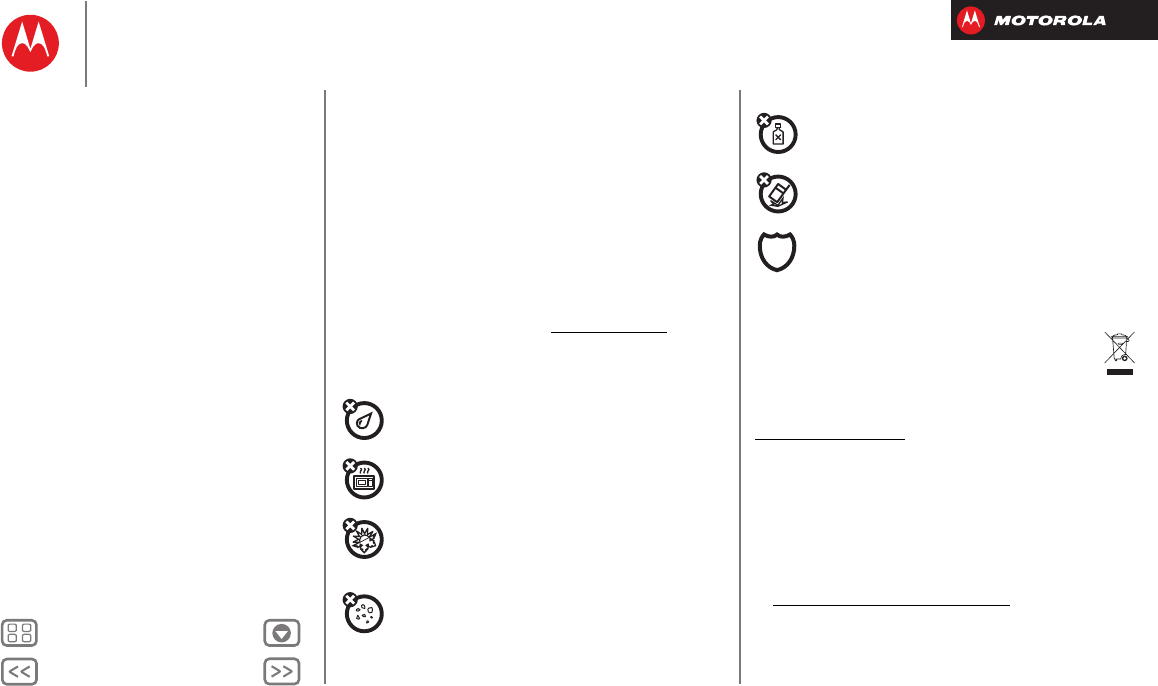
BackNext
Menu More
Product Safety & Legal
• Applications and updates
—Choose your apps and updates carefully, and install from
trusted sources only. Some apps can impact your phone’s performance and/or have access
to private information including account details, call data, location details and network
resources.
•Wireless
—For mobile devices with Wi-Fi features, only connect to trusted Wi-Fi
networks. Also, when using your device as a hotspot (where available) use network
security. These precautions will help prevent unauthorized access to your device.
• Location-based information
—Mobile devices enabled with location based
technologies such as GPS, AGPS or Wi-Fi, can transmit location-based information. See
“Location Services” for more details.
• Other information your device may transmit
—Your device may also transmit testing
and other diagnostic (including location-based) information, and other non-personal
information to Motorola or other third-party servers. This information is used to help
improve products and services offered by Motorola.
If you have further questions regarding how the use of your mobile device may impact your
privacy or data security, please contact Motorola at
privacy@motorola.com
, or contact
your service provider.
Use & Care
Use & Care
To care for your Motorola mobile device, please observe the following:
liquids
Don’t expose your mobile device to water, rain, extreme humidity, sweat, or
other liquids.
drying
Don’t try to dry your mobile device using a microwave oven, conventional oven,
or dryer, as this may damage the mobile device.
extreme heat or cold
Don’t store or use your mobile device in temperatures below -10°C (14°F) or
above 60°C (140°F). Don’t recharge your mobile device in temperatures below
0°C (32°F) or above 45°C (113°F).
dust and dirt
Don’t expose your mobile device to dust, dirt, sand, food, or other inappropriate
materials.
cleaning
To clean your mobile device, use only a dry soft cloth. Don’t use alcohol or other
cleaning solutions.
shock and vibration
Don’t drop your mobile device.
protection
To help protect your mobile device, always make sure that any battery, connector
and compartment covers are closed and secure.
Recycling
Recycli ng
Mobile Devices & Accessories
Please do not dispose of mobile devices or electrical accessories (such as chargers,
headsets, or batteries) with your household waste, or in a fire. These items should
be disposed of in accordance with the national collection and recycling schemes
operated by your local or regional authority. Alternatively, you may return unwanted
mobile devices and electrical accessories to any Motorola Approved Service Center
in your region. Details of Motorola approved national recycling schemes, and further
information on Motorola recycling activities can be found at:
www.motorola.com/recycling
Packaging & Product Guides
Product packaging and product guides should only be disposed of in accordance with national
collection and recycling requirements. Please contact your regional authorities for more
details.
California Perchlorate Label
Perchlorat e Label
Some mobile phones use an internal, permanent backup battery on the printed circuit board
that may contain very small amounts of perchlorate. In such cases, California law requires the
following label:
Perchlorate Material – special handling may apply when the battery is recycled or disposed of.
See
www.dtsc.ca.gov/hazardouswaste/perchlorate
(in English only).
There is no special handling required by consumers.
Product Safety & Legal
Battery Use & Safety
Battery Charging
Third Party Accessories
Driving Precautions
Seizures, Blackouts & Eyestrain
High Volume
Repetitive Motion
Children
Glass Parts
Operational Warnings
RF Energy
Regulatory Information
Location
Navigation
Privacy & Data Security
Use & Care
Recycling
Perchlorate Label
Hearing Aid Compatibility
Software Copyright
Content Copyright
OSS Information
Export Law
Registration
Service & Repairs
Global Warranty
Copyright & Trademarks
BackNext
Menu More
Product Safety & Legal
Hearing Aid Compatibility with Mobile
Phones
Heari ng Aid Compatibil ity
Some Motorola phones are measured for compatibility with hearing aids. If the box for your
particular model has “Rated for Hearing Aids” printed on it, the following explanation applies.
When some mobile phones are used near some hearing devices (hearing aids and cochlear
implants), users may detect a buzzing, humming, or whining noise. Some hearing devices are
more immune than others to this interference noise, and phones also vary in the amount of
interference they generate.
The wireless telephone industry has developed ratings for some of their mobile phones, to
assist hearing device users in finding phones that may be compatible with their hearing
devices. Not all phones have been rated. Phones that are rated have the rating on their box or
a label on the box. To maintain the published Hearing Aid Compatibility (HAC) rating for this
mobile phone, use only the original equipment battery model.
This phone has been tested and rated for use with hearing aids for some of the wireless
technologies that it uses. However, there may be some newer wireless technologies used in
this phone that have not been tested yet for use with hearing aids. It is important to try the
different features of this phone thoroughly and in different locations, using your hearing aid or
cochlear implant, to determine if you hear any interfering noise. Contact your service provider
or Motorola for information on hearing aid compatibility. If you have questions about return or
exchange policies, contact your service provider or phone retailer.
The ratings are not guarantees. Results will vary depending on the user’s hearing device and
hearing loss. If your hearing device happens to be vulnerable to interference, you may not be
able to use a rated phone successfully. Trying out the phone with your hearing device is the
best way to evaluate it for your personal needs.
M-Ratings:
Phones rated M3 or M4 meet FCC requirements and are likely to generate less
interference to hearing devices than phones that are not labeled. M4 is the better/higher of
the two ratings.
T-Ratings:
Phones rated T3 or T4 meet FCC requirements and are likely to be more usable
with a hearing device’s telecoil (“T Switch” or “Telephone Switch”) than unrated phones. T4 is
the better/higher of the two ratings. (Note that not all hearing devices have telecoils in them.)
Hearing devices may also be measured for immunity to this type of interference. Your hearing
device manufacturer or hearing health professional may help you find results for your hearing
device. The more immune your hearing aid is, the less likely you are to experience interference
noise from mobile phones.
Software Copyright
Soft ware Copyright
Motorola products may include copyrighted Motorola and third-party software stored in
semiconductor memories or other media. Laws in the United States and other countries
preserve for Motorola and third-party software providers certain exclusive rights for
copyrighted software, such as the exclusive rights to distribute or reproduce the copyrighted
software. Accordingly, any copyrighted software contained in Motorola products may not be
modified, reverse-engineered, distributed, or reproduced in any manner to the extent allowed
by law. Furthermore, the purchase of Motorola products shall not be deemed to grant either
directly or by implication, estoppel, or otherwise, any license under the copyrights, patents, or
patent applications of Motorola or any third-party software provider, except for the normal,
non-exclusive, royalty-free license to use that arises by operation of law in the sale of a
product.
Content Copyright
Content Copyright
The unauthorized copying of copyrighted materials is contrary to the provisions of the
Copyright Laws of the United States and other countries. This device is intended solely for
copying non-copyrighted materials, materials in which you own the copyright, or materials
which you are authorized or legally permitted to copy. If you are uncertain about your right to
copy any material, please contact your legal advisor.
Open Source Software Information
OSS Information
For instructions on how to obtain a copy of any source code being made publicly available by
Motorola related to software used in this Motorola mobile device, you may send your request
in writing to the address below. Please make sure that the request includes the model number
and the software version number.
MOTOROLA MOBILITY LLC
OSS Management
600 North US Hwy 45
Libertyville, IL 60048
USA
The Motorola website
opensource.motorola.com
(in English only) also contains
information regarding Motorola's use of open source.
Motorola has created the
opensource.motorola.com
website to serve as a portal for
interaction with the software community-at-large.
To view additional information regarding licenses, acknowledgments and required copyright
notices for open source packages used in this Motorola mobile device, please go to
Apps >
Settings
>
About phone
>
Legal information
>
Open source licenses
. In
Product Safety & Legal
Battery Use & Safety
Battery Charging
Third Party Accessories
Driving Precautions
Seizures, Blackouts & Eyestrain
High Volume
Repetitive Motion
Children
Glass Parts
Operational Warnings
RF Energy
Regulatory Information
Location
Navigation
Privacy & Data Security
Use & Care
Recycling
Perchlorate Label
Hearing Aid Compatibility
Software Copyright
Content Copyright
OSS Information
Export Law
Registration
Service & Repairs
Global Warranty
Copyright & Trademarks
BackNext
Menu More
Product Safety & Legal
addition, this Motorola device may include self-contained applications that present
supplemental notices for open source packages used in those applications.
Export Law Assurances
Export Law
This product is controlled under the export regulations of the United States of America and
Canada. The Governments of the United States of America and Canada may restrict the
exportation or re-exportation of this product to certain destinations. For further information
contact the U.S. Department of Commerce or the Canadian Department of Foreign Affairs and
International Trade.
Product Registration
Regist ration
Online Product Registration:
www.motorola.com/us/productregistration
(in English only)
Product registration is an important step toward enjoying your new Motorola product.
Registering permits us to contact you for product or software updates and allows you to
subscribe to updates on new products or special promotions. Registration is not required for
warranty coverage.
Please retain your original dated sales receipt for your records. For warranty service of your
Motorola product you will need to provide a copy of your dated sales receipt to confirm
warranty status.
Thank you for choosing a Motorola product.
Service & Repairs
Serv ice & Repairs
If you have questions or need assistance, we're here to help.
Go to
www.motorola.com/repair
(United States) or
www.motorola.com/support
(Canada), where you can select from a number of customer care options. You can also contact
the Motorola Customer Support Center at 1-800-734-5870 (United States), 1-888-390-6456
(TTY/TDD United States for hearing impaired), or 1-800-461-4575 (Canada).
How to Obtain Service or Other Information
1. Please access and review the online Customer Support section of Motorola's consumer
website prior to requesting warranty service.
2. If the Product is still not functioning properly after making use of this resource, please
contact the Warrantor listed at the Motorola website or the contact information for the
corresponding location.
3. A representative of Motorola, or of a Motorola Authorized Repair Center, will help
determine whether your Product requires service. You may be required to download, or
otherwise obtain and accept software updates from Motorola or a Motorola Authorized
Repair Center. You are responsible for any applicable carrier service fees incurred while
obtaining the required downloads. Complying with the warranty process, repair instructions
and accepting such software updates is required in order to receive additional warranty
support.
4. If the software update does not fix the problem, you will receive instructions on how to ship
the Product to a Motorola Authorized Repair Center or other entity.
5. To obtain warranty service, as permitted by applicable law, you are required to include: (a)
a copy of your receipt, bill of sale or other comparable proof of purchase; (b) a written
description of the problem; (c) the name of your service provider, if applicable; (d) your
address and telephone number. In the event the Product is not covered by the Motorola
Limited Warranty, Motorola will inform the consumer of the availability, price and other
conditions applicable to the repair of the Product.
To obtain service or other information, please access and review the online
Customer Support section of Motorola's consumer website at www.motorola.com.
Motorola Mobility LLC Limited Global
Warranty Mobile Phones
Global War ranty
Note: This Limited Warranty is not applicable in Quebec, Canada.
FOR CONSUMERS WHO ARE COVERED BY CONSUMER PROTECTION LAWS OR
REGULATIONS IN THEIR COUNTRY OF PURCHASE OR, IF DIFFERENT, THEIR
COUNTRY OF RESIDENCE, THE BENEFITS CONFERRED BY THIS LIMITED WARRANTY
ARE IN ADDITION TO ALL RIGHTS AND REMEDIES CONVEYED BY SUCH CONSUMER
PROTECTION LAWS AND REGULATIONS.
Who is Covered?
This Limited Warranty extends only to the first consumer purchaser of the Product, and is not
transferable.
What Does this Limited Warranty Cover?
Motorola Mobility LLC or its subsidiaries' warranty obligations are limited to the terms and
conditions set forth herein. Subject to the exclusions contained below, Motorola Mobility LLC
or its subsidiaries (”Motorola”) warrant this Mobile Phone, and any in-box accessories which
accompany such Mobile Phone (”Product”) against defects in materials and workmanship,
under normal consumer use, for a period of ONE (1) YEAR from the date of retail purchase by
the original end-user purchaser, or the period of time required by the laws of the country where
the Product is purchased, whichever is longer (”Warranty Period”).
Repairs made under this Limited Warranty are covered for the balance of the original Warranty
Period, or 90 days from the date of service, whichever is longer. Any upgrade to the original
product will be covered only for the duration of the original Warranty Period.
Product Safety & Legal
Battery Use & Safety
Battery Charging
Third Party Accessories
Driving Precautions
Seizures, Blackouts & Eyestrain
High Volume
Repetitive Motion
Children
Glass Parts
Operational Warnings
RF Energy
Regulatory Information
Location
Navigation
Privacy & Data Security
Use & Care
Recycling
Perchlorate Label
Hearing Aid Compatibility
Software Copyright
Content Copyright
OSS Information
Export Law
Registration
Service & Repairs
Global Warranty
Copyright & Trademarks
BackNext
Menu More
Product Safety & Legal
This Limited Warranty is only available in the country where the Product was purchased.
Motorola may provide service outside the country of purchase, to the extent that it is possible
and under the terms and conditions of the country of purchase.
This Limited Warranty applies only to new Products which are a) manufactured by or for
Motorola as identified by the ”Motorola” trademark, trade name, or logo legally affixed to
them; b) purchased by consumers from an authorized reseller or distributor of Motorola
Products; and c) accompanied by this written Limited Warranty.
What Will Motorola Do?
If a covered defect or damage arises and a valid warranty claim is received within the
applicable Warranty Period, Motorola, at its sole option, unless otherwise required by
applicable law, will either (1) repair, at no charge, the defect or damage using new, used or
reconditioned/refurbished functionally equivalent replacement parts; or (2) exchange the
Product with a replacement Product that is new or which has been reconditioned/refurbished
or otherwise remanufactured from new or used parts and is functionally equivalent to the
original Product; or (3) refund the purchase price of any Products covered by the terms and
conditions of this Limited Warranty.
Products, parts and supporting documentation provided to Motorola as part of the warranty
process, shall become the property of Motorola, and may not be returned. When a
replacement or refund is given, the Product for which the replacement or refund is provided
must be returned to Motorola and shall become the property of Motorola.
Exclusions (Products and Accessories)
This warranty does not apply to:
(a)
Consumable parts
, such as batteries or protective coatings designed to diminish over
time unless failure has occurred due to a defect in materials or workmanship. As with all
batteries, the maximum capacity of the battery will decrease with time and use; this is not a
defect. Only defective batteries and batteries that leak are covered by this warranty.
(b)
Cosmetic damage
, including but not limited to scratches, dents, cracks or other cosmetic
damage.
(c)
Damage caused by use with non-Motorola products.
Defects or damage that result
from the use of non-Motorola branded or certified Products, accessories or other peripheral
equipment, including without limitation housings, parts, or software, are excluded from
coverage.
(d)
Damage caused by accident, abuse, misuse, liquid contact, fire, earthquake or
other external causes
; including but not limited to: (i) improper usage or operation (e.g.
operating the Product outside their permitted or intended uses as defined by Motorola,
including but not limited to as set forth by Motorola in the Products' User Manual, Quick Start
Guide, Online Tutorials, and other documentation), improper storage (e.g. subjecting the
Product to extreme temperatures), abuse or neglect (e.g. broken/bent/missing
clips/fasteners/connectors); impact damage (e.g. dropping the Product) (ii) contact with
liquids, water, rain, extreme humidity, heavy perspiration or other moisture; sand, food, dirt or
similar substances (except for Products sold as resistant to such substances, but only to the
extent the damage was not caused by incorrectly securing the phone's protective elements or
subjecting the Product to conditions beyond its stated specifications or limits); (iii) use of the
Products for commercial rental purposes; or (iv) external causes or acts which are not the fault
of Motorola, including but not limited to flood, fire, earthquake, tornado or other acts of God,
are excluded from coverage.
(e)
Unauthorized Service or Modification.
Defects or damage resulting from service,
testing, adjustment, installation, maintenance, alteration, or modification in any way, including
but not limited to tampering with or altering the software, by someone other than Motorola, or
its authorized service centers, are excluded from coverage. Notwithstanding the foregoing,
any Product which has had its bootloader unlocked, or whose operating system has been
altered, including any failed attempts to unlock the bootloader or alter such operating system,
is not covered by this warranty, regardless of whether such modifications are authorized,
approved, or otherwise sanctioned by Motorola.
(f)
A product or part that has been modified in any manner without the written
permission of Motorola.
Products that have been altered in any manner so as to prevent
Motorola from determining whether such Products are covered under the terms of this Limited
Warranty are excluded from coverage. The forgoing shall include but not be limited to (i) serial
numbers, date tags or other manufacturer coding that has been removed, altered or
obliterated; (ii) mismatched or duplicated serial numbers; or (iii) broken seals or other evidence
of tampering. Do not open the Product or attempt to repair the Product yourself; such conduct
may cause damage that is not covered by this warranty.
(g)
Normal wear and tear or otherwise due to the normal aging of the Product.
(h)
Defects, damages, or the failure of the Product due to any communication service
or network you subscribe to or use with the Products.
(i)
All software, including operating system software, third-party software,
applications, and all other software of any kind.
Software distributed by Motorola is
provided ”AS-IS” and ”AS AVAILABLE,” ”WITH ALL FAULTS” and without a warranty of any
kind. The Limited Warranty does not apply to any non-Motorola product or any software, even
if packaged or sold with the Motorola hardware, unless otherwise required by applicable local
law.
(j)
Products that have been refurbished, reconditioned, or remanufactured
, except for
Products repaired or replaced pursuant to the terms of this Limited Warranty.
If damage is outside the scope of warranty coverage, repair services may be available, but all
costs associated with such out of warranty repair will be your responsibility.
Product Safety & Legal
Battery Use & Safety
Battery Charging
Third Party Accessories
Driving Precautions
Seizures, Blackouts & Eyestrain
High Volume
Repetitive Motion
Children
Glass Parts
Operational Warnings
RF Energy
Regulatory Information
Location
Navigation
Privacy & Data Security
Use & Care
Recycling
Perchlorate Label
Hearing Aid Compatibility
Software Copyright
Content Copyright
OSS Information
Export Law
Registration
Service & Repairs
Global Warranty
Copyright & Trademarks
BackNext
Menu More
Product Safety & Legal
What Other Limitations are There?
•
TO THE EXTENT PERMITTED BY APPLICABLE LAW, THIS LIMITED WARRANTY AND THE
REMEDIES SET FORTH HEREIN ARE EXCLUSIVE AND IN LIEU OF ALL OTHER WARRANTIES
AND REMEDIES, WHETHER ORAL OR WRITTEN, STATUTORY, EXPRESS OR IMPLIED. NO
ORAL OR WRITTEN REPRESENTATIONS MADE BY MOTOROLA OR ANY SELLER, RESELLER
OR DISTRIBUTOR OF THE PRODUCTS, INCLUDING EMPLOYEES AND AGENTS THEREOF,
SHALL CREATE ANY ADDITIONAL WARRANTY OBLIGATIONS, INCREASE THE SCOPE, OR
OTHERWISE MODIFY IN ANY MANNER THE TERMS OF THIS LIMITED WARRANTY.
•
TO THE EXTENT PERMITTED BY APPLICABLE LAW, MOTOROLA SPECIFICALLY DISCLAIMS
ANY AND ALL STATUTORY OR IMPLIED WARRANTIES, INCLUDING, WITHOUT
LIMITATION, WARRANTIES OF MERCHANTABILITY, FITNESS FOR A PARTICULAR
PURPOSE, NONINFRINGEMENT AND ALL WARRANTIES AGAINST HIDDEN OR LATENT
DEFECTS. WHERE SUCH STATUTORY OR IMPLIED WARRANTIES CANNOT LAWFULLY BE
DISCLAIMED, THEN TO THE EXTENT PERMITTED BY LAW, ALL SUCH WARRANTIES SHALL
BE LIMITED IN DURATION TO THE DURATION OF THE EXPRESS LIMITED WARRANTY
CONTAINED HEREIN AND THE REMEDIES OF REPAIR, REPLACEMENT, OR REFUND AS
DETERMINED BY MOTOROLA IN ITS SOLE DISCRETION SHALL BE THE EXCLUSIVE
REMEDY OF THE CONSUMER.
•
TO THE EXTENT PERMITTED BY APPLICABLE LAW, MOTOROLA DOES NOT WARRANT
THAT THE OPERATION OF ANY PRODUCTS OR SOFTWARE COVERED UNDER THIS LIMITED
WARRANTY WILL MEET YOUR REQUIREMENTS, WORK IN COMBINATION WITH ANY
HARDWARE OR SOFTWARE APPLICATIONS OR THIRD PARTY SERVICES, BE
UNINTERRUPTED, ERROR-FREE, OR WITHOUT RISK TO, OR LOSS OF, ANY INFORMATION,
DATA, SOFTWARE OR APPLICATIONS CONTAINED THEREIN, OR THAT DEFECTS IN THE
PRODUCTS OR SOFTWARE WILL BE CORRECTED.
•
TO THE EXTENT PERMITTED BY APPLICABLE LAW, IN NO EVENT SHALL MOTOROLA BE
LIABLE, WHETHER IN CONTRACT, TORT OR UNDER OTHER LEGAL THEORY (INCLUDING
NEGLIGENCE), FOR DAMAGES IN EXCESS OF THE PURCHASE PRICE OF THE PRODUCTS,
OR FOR ANY INDIRECT, INCIDENTAL, SPECIAL OR CONSEQUENTIAL DAMAGES OF ANY
KIND, OR LOSS OF REVENUE OR PROFITS; LOSS OF BUSINESS; BUSINESS INTERRUPTION;
LOSS OF OPPORTUNITY; LOSS OF GOODWILL; LOSS OF REPUTATION; LOSS OF, DAMAGE
TO, OR CORRUPTION OF INFORMATION, DATA, SOFTWARE OR APPLICATIONS
(INCLUDING ANY COSTS ASSOCIATED WITH RECOVERING, PROGRAMMING, OR
REPRODUCING ANY INFORMATION, DATA, SOFTWARE OR APPLICATIONS STORED ON OR
USED WITH MOTOROLA PRODUCTS, OR ANY FAILURE TO MAINTAIN THE
CONFIDENTIALITY OF ANY INFORMATION OR DATA STORED ON THE PRODUCTS); OR
OTHER FINANCIAL LOSS ARISING OUT OF OR IN CONNECTION WITH THE ABILITY OR
INABILITY TO USE THE PRODUCTS.
•
SOME STATES OR JURISDICTIONS DO NOT ALLOW THE LIMITATION OR EXCLUSION OF
INCIDENTAL OR CONSEQUENTIAL DAMAGES, OR THE EXCLUSION OR LIMITATION ON
THE LENGTH OF AN IMPLIED WARRANTY, OR THE LIMITATION OR EXCLUSION OF
DAMAGES FOR PERSONAL INJURIES CAUSED BY NEGLIGENCE, SO THE ABOVE
LIMITATIONS OR EXCLUSIONS MAY NOT APPLY TO YOU. THIS WARRANTY GIVES YOU
SPECIFIC LEGAL RIGHTS, AND YOU MAY ALSO HAVE OTHER RIGHTS THAT VARY FROM
STATE OR JURISDICTION.
• DATA BACKUP:
ALL INFORMATION, DATA, SOFTWARE OR OTHER APPLICATIONS,
INCLUDING BUT NOT LIMITED TO PERSONAL CONTACTS, ADDRESS BOOKS, PICTURES,
MUSIC AND GAMES WILL BE ERASED DURING THE REPAIR PROCESS, AND CAN NOT BE
REINSTALLED BY MOTOROLA. TO AVOID LOSING SUCH INFORMATION, DATA, SOFTWARE
OR OTHER APPLICATIONS PLEASE CREATE A BACK UP BEFORE YOU DELIVER YOUR
PRODUCT FOR WARRANTY SERVICE, REMOVE ANY CONFIDENTIAL, PROPRIETARY OR
PERSONAL INFORMATION AND DISABLE ANY SECURITY PASSWORDS. YOU WILL BE
RESPONSIBLE FOR REINSTALLING ALL SUCH INFORMATION, DATA, SOFTWARE, OTHER
APPLICATIONS AND PASSWORDS. MOTOROLA AND/OR ITS AUTHORIZED SERVICE
CENTERS ARE NOT RESPONSIBLE FOR THE LOSS OR MISUSE OF ANY DATA, FILES,
CONTENT, APPLICATIONS AND PROGRAMS WHEN THE PRODUCT IS DELIVERED FOR
WARRANTY SERVICE. YOUR PRODUCT OR A REPLACEMENT PRODUCT WILL BE
RETURNED TO YOU AS YOUR PRODUCT WAS CONFIGURED WHEN ORIGINALLY
PURCHASED, SUBJECT TO APPLICABLE SOFTWARE UPDATES. MOTOROLA MAY INSTALL
OPERATING SYSTEM SOFTWARE UPDATES AS PART OF WARRANTY SERVICE THAT MAY
PREVENT THE PRODUCT FROM REVERTING TO AN EARLIER VERSION OF THE OPERATING
SYSTEM SOFTWARE. THIRD PARTY APPLICATIONS INSTALLED ON THE PRODUCT MAY
NOT BE COMPATIBLE OR WORK WITH THE PRODUCT AS A RESULT OF THE OPERATING
SYSTEM SOFTWARE UPDATE. MOTOROLA AND ITS AUTHORIZED SERVICE CENTERS ARE
NOT RESPONSIBLE FOR THE LOSS OF, OR INABILITY TO USE, SUCH INFORMATION, DATA,
SOFTWARE OR OTHER APPLICATIONS.
• WARNING AGAINST UNLOCKING THE BOOTLOADER OR ALTERING A PRODUCT'S
OPERATING SYSTEM SOFTWARE:
MOTOROLA STRONGLY RECOMMENDS AGAINST
ALTERING A PRODUCT'S OPERATING SYSTEM, WHICH INCLUDES UNLOCKING THE
BOOTLOADER, ROOTING A DEVICE OR RUNNING ANY OPERATING SOFTWARE OTHER
THAN THE APPROVED VERSIONS ISSUED BY MOTOROLA AND ITS PARTNERS. SUCH
ALTERATIONS MAY PERMANENTLY DAMAGE YOUR PRODUCT, CAUSE YOUR PRODUCT
TO BE UNSAFE AND/OR CAUSE YOUR PRODUCT TO MALFUNCTION. IN SUCH CASES,
NEITHER THE PRODUCT NOR ANY DAMAGE RESULTING THEREFROM WILL BE COVERED
BY THIS WARRANTY.
Product Safety & Legal
Battery Use & Safety
Battery Charging
Third Party Accessories
Driving Precautions
Seizures, Blackouts & Eyestrain
High Volume
Repetitive Motion
Children
Glass Parts
Operational Warnings
RF Energy
Regulatory Information
Location
Navigation
Privacy & Data Security
Use & Care
Recycling
Perchlorate Label
Hearing Aid Compatibility
Software Copyright
Content Copyright
OSS Information
Export Law
Registration
Service & Repairs
Global Warranty
Copyright & Trademarks
BackNext
Menu More
Product Safety & Legal
• IMPORTANT FCC INFORMATION:
YOU MUST NOT MAKE OR ENABLE ANY CHANGES
TO THE PRODUCT THAT WILL IMPACT ITS FCC GRANT OF EQUIPMENT AUTHORIZATION.
THE FCC GRANT IS BASED ON THE PRODUCT'S EMISSION, MODULATION, AND
TRANSMISSION CHARACTERISTICS, INCLUDING: POWER LEVELS, OPERATING
FREQUENCIES AND BANDWIDTHS, SAR LEVELS, DUTY-CYCLE, TRANSMISSION MODES
(E.G., CDMA, GSM), AND INTENDED METHOD OF USING THE PRODUCT (E.G., HOW THE
PRODUCT IS HELD OR USED IN PROXIMITY TO THE BODY). A CHANGE TO ANY OF THESE
FACTORS WILL INVALIDATE THE FCC GRANT. IT IS ILLEGAL TO OPERATE A
TRANSMITTING PRODUCT WITHOUT A VALID GRANT.
Copyright & Trademarks
Copyri ght & Trademarks
Motorola Mobility LLC
Consumer Advocacy Office
600 N US Hwy 45
Libertyville, IL 60048
www.motorola.com
Note:
Do not ship your product to the above address. If you need to return your product for
repairs, replacement, or warranty service, please contact the Motorola Customer Support
Center at:
1-800-734-5870 (United States)
1-888-390-6456 (TTY/TDD United States for hearing impaired)
1-800-461-4575 (Canada)
Certain features, services and applications are network dependent and may not be available in
all areas; additional terms, conditions and/or charges may apply. Contact your service provider
for details.
All features, functionality, and other product specifications, as well as the information
contained in this guide, are based upon the latest available information and believed to be
accurate at the time of printing. Motorola reserves the right to change or modify any
information or specifications without notice or obligation.
Note:
The images in this guide are examples only.
MOTOROLA and the Stylized M Logo are trademarks or registered trademarks of Motorola
Trademark Holdings, LLC. Android, Google and other trademarks are owned by Google Inc. All
other product or service names are the property of their respective owners.
© 2012 Motorola Mobility LLC. All rights reserved.
Caution:
Motorola does not take responsibility for changes/modification to the transceiver.
Product ID: DROID RAZR M (Model XT907)
Manual Number: 68XXXXX620-A
Product Safety & Legal
Battery Use & Safety
Battery Charging
Third Party Accessories
Driving Precautions
Seizures, Blackouts & Eyestrain
High Volume
Repetitive Motion
Children
Glass Parts
Operational Warnings
RF Energy
Regulatory Information
Location
Navigation
Privacy & Data Security
Use & Care
Recycling
Perchlorate Label
Hearing Aid Compatibility
Software Copyright
Content Copyright
OSS Information
Export Law
Registration
Service & Repairs
Global Warranty
Copyright & Trademarks
