Motorola I290 User Manual To The 95dd686a Fa0e 4aa7 B4a3 B809cadd54be
User Manual: Motorola i290 to the manual
Open the PDF directly: View PDF  .
.
Page Count: 97
Boost Mobile
®
i290 iDEN Handset
User’s Guide

DECLARATION OF CONFORMITY
Per FCC CFR 47 Part 2 Section 2.1077(a)
Responsible Party Name: Motorola, Inc.
Address: 8000 West Sunrise Boulevard
Plantation, FL 33322 USA
Phone Number: 1 (800) 453-0920
Hereby declares that the product:
Product Name: i290
Model Number: H98XAH6JR4AN
FCC-ID: IHDT56HG1
Conforms to the following regulations:
FCC Part 15, subpart B, section 15.107(a), 15.107(d)
and section 15.109(a)
FCC Notice to Users
The following statement applies to all products that
have received FCC approval. Applicable products
bear the FCC logo, and/or an FCC ID in the format
FCC-ID: IHDT56HG1 on the product label.
Motorola has not approved any changes or
modifications to this device by the user. Any changes
or modifications could void the user’s authority to
operate the equipment. See 47 CFR Sec. 15.21.
Class B Digital Device
As a personal computer peripheral, this device
complies with part 15 of the FCC Rules. Operation is
subject to the following two conditions: (1) This
device may not cause harmful interference, and (2)
this device must accept any interference received,
including interference that may cause undesired
operation. See 47 CFR Sec. 15.19(3).
Note: This equipment has been tested and found to
comply with the limits for a Class B digital device,
pursuant to part 15 of the FCC Rules. These limits are
designed to provide reasonable protection against
harmful interference in a residential installation. This
equipment generates, uses and can radiate radio
frequency energy and, if not installed and used in
accordance with the instructions, may cause harmful
interference to radio communications. However, there
is no guarantee that interference will not occur in a
particular installation.
If this equipment does cause harmful interference to
radio or television reception, which can be
determined by turning the equipment off and on, the
user is encouraged to try to correct the interference
by one or more of the following measures:
• Reorient or relocate the receiving antenna.
• Increase the separation between the
equipment and receiver.
• Connect the equipment into an outlet on a
circuit different from that to which the
receiver is connected.
• Consult the dealer or an experienced
radio/TV technician for help.

1
Getting Started
Getting Started
Introduction
Welcome to Boost Mobile
®
With Boost Mobile, you can stay in
control of your monthly costs and get
all the mobile freedom you want. No
hidden fees, no contracts, no credit
checks. Just peace of mind.
Your phone has the latest features
including Nationwide Boost
®
Walkie-Talkie, GPS Technology, Text
and Multi-Media Messaging, Instant
Messaging, and Wireless Web.
Activate
If you haven’t done so already, activate
your phone by going to
boostmobile.com/activate
or by
calling Boost Customer Care at
1-888-BOOST-4U (1-888-266-7848) from
a landline or another phone.
Re-Boost
®
Now that your phone is activated, you’ll
want to add funds to your account so
you can start using your phone and
personalizing it. Boost Mobile makes it
easy to recharge your account by
offering lots of options — whether you
want to add funds with your favorite
credit card or you want to pay cash at
your local retailer.
Pay Anytime With A Credit Card
By registering your credit card with us,
you can instantly recharge your
account by dialing #ADD (#233) from
your Boost mobile phone and press
Send. Or sign up for Auto Re-Boost
online and automatically replenish your
account.
2
Getting Started
Pay With Cash
Simply find a Re-Boost Location using
your Boost Mobile phone’s
Re-Boost
Locator
. Star your phone’s
Main
Menu
, go to
Re-Boost
, then scroll
down to
Re-Boost
Locator
.Punch in a
5-digit zip code to get the names,
addresses and phone numbers of
retailers in that zip code.
Personalize
Boost Mobile
®
offers some of the best
options in wireless entertainment
services such as Boost
®
Call Tones, and
Boost™ Loopt as well as the latest
games, real music ringtones, wallpapers
and more.
Two easy ways to purchase content and
get information on the latest services:
• From your handset:
boostLIVE
from the Main Menu
• On the web: Check out
boostmobile.com
Purchases are deducted from your
Boost Mobile
®
account. No credit card
needed.
Boost Loyalty Program
We appreciate your business and we
want you to know it. Sign up today for
the Boost Loyalty Program and get the
latest and greatest from Boost. You can’t
afford not to sign up. It’s free! Go to
boostmobile.com
to sign up now.
Note:
Program subject to change. Full
access to the Boost Loyalty Program is
exclusively for Boost Mobile
customers. Restrictions apply.
Lost/Stolen Service
We can help if your phone is ever lost or
stolen. Call us immediately at
1-888-BOOST-4U. We will secure your
account balance, account information
and help you keep your phone number.
3
Getting Started
Boost
®
Customer Care
Dial #611 from your handset or
1-888-BOOST-4U to reach Boost
Customer Care. Airtime charges do not
apply.
For more information about your i290
mobile phone, please refer to your
Boost Mobile
®
User's Guide available
on
boostmobile.com
.
Important
:
Before using your phone
please read the "Boost Mobile
®
General Terms & Conditions of
Service", "Driving Tips" and "Safety
and General Information".
4
Check it out
Check it out
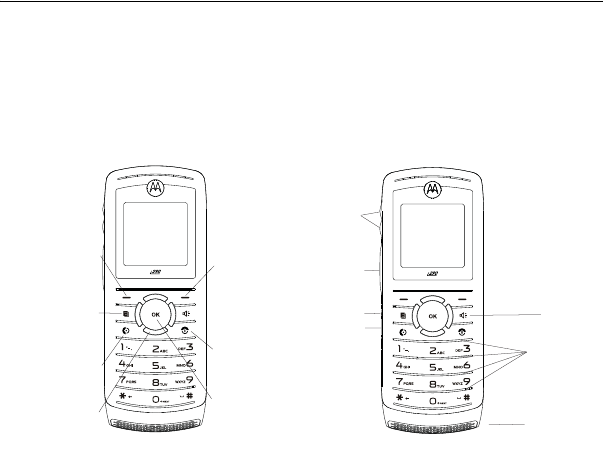
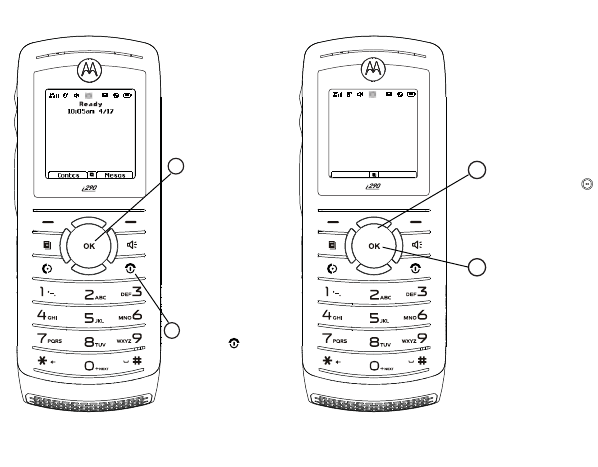
Introducing your Motorola i290 wireless phone. Here is a quick anatomy lesson.
Speaker
On/Off Key
WT Button
Audio Jack
Volume Keys
Speaker and
microphone
beneath keypad
USB Connector
Internal Antenna
located here
Left Soft Key
Perform function
in lower left
display.
Talk Key
Make &
answer calls.
Menu Key
From home screen,
open main menu.
4-Way
Navigation Key
Right Soft Key
Perform function
in lower right
display.
Power/Home/End Key
End calls, exit menu
system.
OK Key
In menus & lists,
press to select
highlighted option.
5
Check it out
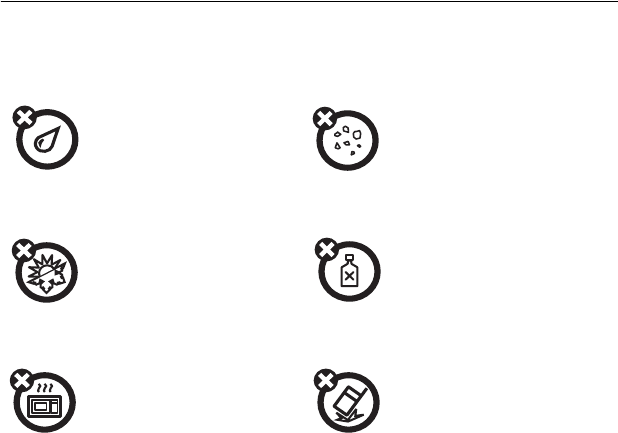
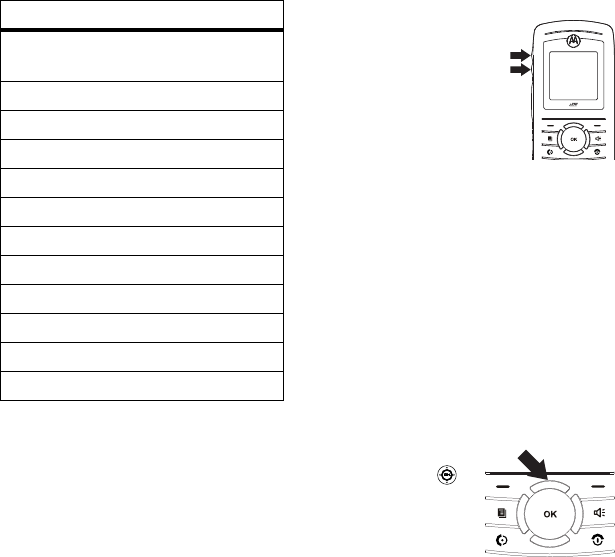
up, down, left or right ( )
1
2
Customizable O
key
that can be used
to open the
Settings
screen
Press and hold the
Power Key
for a
few seconds, or until
the screen lights up,
to turn on your phone.
3
4Press the
O
key
to select.
Press the Navigation Key
to highlight a menu feature.
Home Screen
Main Menu
More Exit
Main Menu
Tu
L
D
q
0g
l
P
6
Check it out

7
Motorola, Inc.
Consumer Advocacy Office
1307 East Algonquin Road
Schaumburg, IL 60196
www.hellomoto.com
Note:
Do not ship your phone to the above address. If
you need to return your phone for repairs,
replacement, or warranty service, please contact the
Motorola Customer Support Center at:
1-800-453-0920 (United States)
1-877-483-2840 (TTY/TDD United States for hearing
impaired)
Certain mobile phone features are dependent on the
capabilities and settings of your service provider’s
network. Additionally, certain features may not be
activated by your service provider, and/or the
provider's network settings may limit the feature’s
functionality. Always contact your service provider
about feature availability and functionality. All
features, functionality, and other product
specifications, as well as the information contained in
this user's guide are based upon the latest available
information and are believed to be accurate at the
time of printing. Motorola reserves the right to change
or modify any information or specifications without
notice or obligation.
MOTOROLA and the Stylized M Logo are registered in
the US Patent & Trademark Office. All other product or
service names are the property of their respective
owners. Java and all other Java-based marks are
trademarks or registered trademarks of Sun
Microsystems, Inc. in the U.S. and other countries.
© Motorola, Inc., 2008.
Manual Number: NNTN7610A

8
Contents
Contents
Getting Started . . . . . . . . . 1
Introduction . . . . . . . . . 1
Activate. . . . . . . . . . . . . 1
Re-Boost® . . . . . . . . . . 1
Boost Loyalty Program 2
Lost/Stolen Service. . . 2
Boost® Customer
Care . . . . . . . . . . . . . . . . 3
Check it out . . . . . . . . . . . . 4
Menu Map . . . . . . . . . . . . 10
Use and Care. . . . . . . . . . 12
Essentials . . . . . . . . . . . . 13
About this guide. . . . . 13
SIM chip . . . . . . . . . . . 14
Battery. . . . . . . . . . . . . 15
Turn it on & off . . . . . . 19
Make a phone call. . . 19
Answer a phone call. 20
Make a Walkie-Talkie
call . . . . . . . . . . . . . . . . 20
Answer a
Walkie-Talkie call . . . 20
Store a phone
number or
Walkie-Talkie ID. . . . . 21
Call a stored phone
number or
Walkie-Talkie ID . . . . 21
Your phone number
and Walkie-Talkie ID 22
Main Attractions . . . . . . 23
boostLIVE. . . . . . . . . . 23
WT Services . . . . . . . 23
One touch WT . . . . . . 27
MMS. . . . . . . . . . . . . . 28
Basics . . . . . . . . . . . . . . . 43
Display . . . . . . . . . . . . 43
Text entry . . . . . . . . . . 44
Volume . . . . . . . . . . . . 46
Navigation key . . . . . 46
Hands-free
Speakerphone. . . . . . 47
Codes & passwords . 47
Lock & unlock phone 47
Transmitters. . . . . . . . 48
Use GPS with map
software. . . . . . . . . . . 48
Boost Mobile
®
Services 51
Accessories. . . . . . . . 51
Wireless local
number portability:
Bringing your phone
number from another
carrier . . . . . . . . . . . . 51
Boost Customer Care 51
Customize. . . . . . . . . . . . 52
Ringtones. . . . . . . . . . 52
Wallpaper . . . . . . . . . 53
Backlight . . . . . . . . . . 54
Time & date. . . . . . . . 54
Hide or show
location information. 54
Calls . . . . . . . . . . . . . . . . 56
Turn off a call alert. . 56
Recent calls . . . . . . . 56
Store an item to
contacts from recent
calls . . . . . . . . . . . . . . 56
Redial . . . . . . . . . . . . . 57
Voice name . . . . . . . . 57
Call forward. . . . . . . . 57
Return a call . . . . . . . 58
Walkie-Talkie calls. . 59
Caller ID. . . . . . . . . . . 59
9
Contents
Emergency calls . . . . 60
International calls . . . 60
Speed dial. . . . . . . . . . 61
Turbo dial . . . . . . . . . . 61
Voice Mail. . . . . . . . . . 61
Receiving a Message 61
Other Features . . . . . . . . 62
Advanced calling. . . . 62
Contacts . . . . . . . . . . . 62
Datebook. . . . . . . . . . . 63
GPS . . . . . . . . . . . . . . . 64
Hands-free . . . . . . . . . 66
Messages . . . . . . . . . . 66
Personalize. . . . . . . . . 67
Security. . . . . . . . . . . . 67
Safety and General
Information . . . . . . . . . . . 70
Motorola Limited
Warranty for the United
States and Canada. . . . . 77
Hearing Aid
Compatibility. . . . . . . . . . 82
Information From the
World Health
Organization . . . . . . . . . . 84
California Perchlorate
Label. . . . . . . . . . . . . . . . . 86
Privacy and Data
Security . . . . . . . . . . . . . . 87
Smart Practices While
Driving . . . . . . . . . . . . . . . 88
Index . . . . . . . . . . . . . . . . . 90
10
Menu Map
Main Menu
l
Re-Boost
Q
WT Service
• Send Picture
• Send Event
• Send My Info
• Send Contact
•Configure
S
Web
Z
Games & Apps.
T
Ringtones
• Buy Ringtones
• Vibrate All: On/Off
•Ringers
•Vibrate
• Silent
c
Recent Calls
R
Settings
• (see next page)
X
My Info
•My Name
•Line 1
• Walkie-Talkie #
•Group ID
• Carrier IP
• IP1 Address
• IP2 Address
•
Circuit Data
b
Datebook
•[New Event]
j
My Pictures
e
Contacts
• [New Contact]
Y
Messages
• [Create Message]
• Voice Mail
• Inbox
•Drafts
•Sent Items
•Net Alert
•SMS
g
Voice Notes
•[New VoiceRec]
f
Profiles
• [New Profile]
• Standard
•Car
• At Work/In Class
• At Concert
•On a Date
• Using Headset
• Rec WT Only
• Rec Cntcs Only
U
boostLIVE
a
Memo
h
Shortcuts
• [New Entry]
• Shortcuts
• Cntcs[New Contact]
• Recent Calls
• Contacts
•Re-Boost
• Messages
• VoiceRecord
•Web
• Ring Tones
V
Call Timers
•Last Call
• Phone Reset
• Phone Lifetime
• WT Reset
• WT Lifetime
• Circuit Reset
• Circuit Lifetime
• Kbytes Reset
i
GPS
• Position
•Privacy
• Interface
W
Call Alert
d
Call Forward
•Forward
• To: On/Off
This is the standard Main
Menu layout. Your phone’s
menu may be a little different.
11
Settings Menu
Display/Info
• Wallpaper
•Text Size
•Theme
• Home Icons
• Backlight
• Backlight
•Java Timer
• Logo Flash: On/Off
• WT Backlight: On/Off
•Clock
• Menu View
• Large Dialing
•Contrast
• Language
Phone Calls
• Any Key Ans
• Auto Redial
• Call Waiting
• Auto Ans
• Minute Beep
• Call Duration
•TTY
• Notifications
• DTMF Dialing
• Prepend
WT Options
• Tkgrp Silent: On/Off
•Tkgrp Area
• One Touch WT
• Alert Type
• On/Off WT Features
•Pictures
•Events
• Store Received Info
• WT Backlight: On/Off
Personalize
• Menu Options
• Up Key
• Down Key
• Left Key
• Right Key
• Center Key
• Left Softkey
• Right Softkey
• Power Up
Volume
•Line 1
•Messages
• Earpiece
• Speaker
•Keypad
• Java Earpiece
• Java Speaker
•Data
Security
• Phone Lock
• Keypad Lock
• SIM PIN
• GPS PIN
• Change Passwords
Advanced
• Alert Timeout
• Headset/Spkr
• Connectivity
• Reset Defaults
• Return to Home
• Transmitters: On/Off
• Baud Rate
12
Use and Care
Use and Care
Use and Care
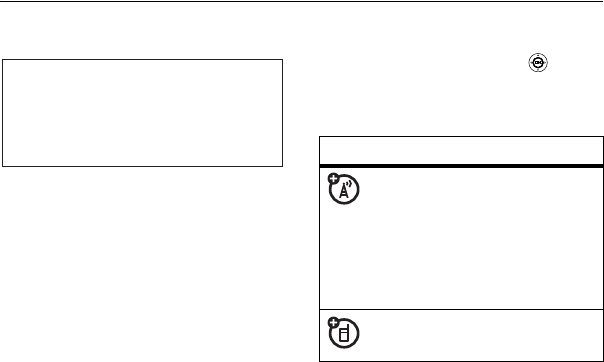
To care for your Motorola phone, please keep it away from:
liquids of any kind dust and dirt
Don’t expose your phone
to water, rain, extreme
humidity, sweat, or other
moisture.
Don’t expose your phone to
dust, dirt, sand, food, or
other inappropriate
materials.
extreme heat or cold cleaning solutions
Avoid temperatures below
-10°C/14°F or
above 45°C/113°F.
To clean your phone, use
only a dry soft cloth. Don’t
use alcohol or other
cleaning solutions.
microwaves the ground
Don’t try to dry your phone
in a microwave oven. Don’t drop your phone.
13
Essentials
Essentials
About this guide
This guide shows how to locate a menu
feature as follows:
Find it:
M
>
Settings.
This means that, from the home screen:
1 Press the Menu Button
M
to open
the Main Menu.
2 Press the navigation key to
scroll to
Settings
, and press the
center key
O
to select it.
CAUTION:
Before using the phone for the
first time, read the Important Safety and
Legal Information included in the
gray-edged pages at the back of this guide.
032257o
symbols
This means a feature is
network/subscription
dependent and may not be
available in all areas. Contact
your service provider for more
information.
This means a feature requires
an optional accessory.
14
Essentials
SIM chip
Your Subscriber Identity Module (SIM)
chip can be found attached to a piece of
plastic about the size of a credit card
inside the “Starter Kit” that came with
your phone. Your SIM chip contains
personal information like your phone
number and phonebook entries.
To activate your phone, you will need the
SIM ID and the Activation Number
located on the back of the plastic.
Pop out the SIM chip from the plastic
card and insert it into the back of your
phone as described next.
Caution: Don’t bend or scratch your SIM
chip. Keep it away from static electricity,
water, and dirt.
Installing the SIM chip
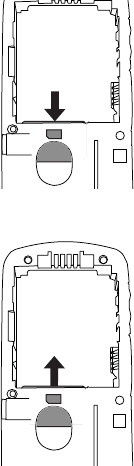
Turn off your phone and remove your
battery before you install or remove a
SIM chip.
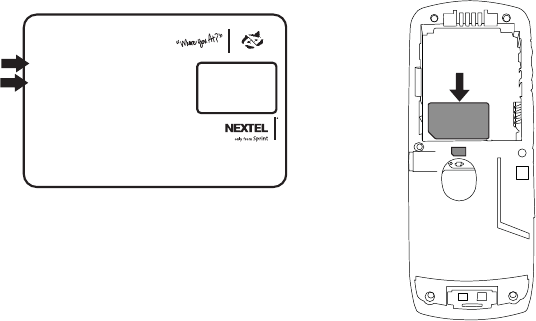
1 Carefully slide the SIM chip into
your phone, until it lies flat in the
SIM chip holder.
SIM ID
000815914837300
000000000000000
Activation Number: 00000000000000
For questions relating to Boost MobileTM Pay-As-You-Go
service while in the United States, call Boost Mobile
Customer Care at 1-888-BOOST-4U (1-800-266-7848) or
611 from your handset.
For more information on Boost Mobile products and
services, or Boost Mobile events and Team Riders, check
our boostmobile.com
Part
000815914837300
SIMGBK005R
asdkfasdlkfasdfaksdj
;alsdkfalkdjfalkdjfalsk
a;ldkjf;alksdj;falsdjflak
;alsdkjf;alkdjf;alksjd;lf
a;dlkjfa;ldkjf;alkdjf;alk
SIM ID 0000000000000000000
15
Essentials
2
Removing the SIM Chip
Warning: To avoid loss or damage, do
not remove your SIM chip from your
phone unless absolutely necessary.
Battery
Battery Use & Battery Safety
• Motorola recommends you
always use Motorola-branded
batteries and chargers. The
warranty does not cover
damage caused by non-
Motorola batteries and/or
chargers. Caution: Use of an
unqualified battery or charger
may present a risk of fire,
explosion, leakage, or other
hazard. Improper battery use, or
use of a damaged battery, may
result in a fire, explosion, or
other hazard.
• Battery usage by children
should be supervised.
• Important: Motorola mobile
devices are designed to work
best with qualified batteries. If
you see a message on your
display such as Invalid Battery
16
Essentials
or
Unable to Charge
, take the
following steps:
• Remove the battery and
inspect it to confirm that it
bears a Motorola “Original
Equipment” hologram;
• If there is no hologram, the
battery is not a qualified
battery;
• If there is a hologram,
replace the battery and retry
charging it;
• If the message remains,
contact a Motorola
Authorized Service Center.
• New batteries or batteries stored
for a long time may take more
time to charge.
•
Charging precautions:
When
charging your battery, keep it
near room temperature. Never
expose batteries to temperatures
below 0°C (32°F) or above 45°C
(113°F) when charging. Always
take your mobile device with you
when you leave your vehicle
• When storing your battery, keep
it in a cool, dry place.
• It is normal over time for battery
life to decrease, and for the
battery to exhibit shorter runtime
between charges or require more
frequent or longer charging
times.
•
Avoid damage to battery and
mobile device.
Do not
disassemble, open, crush, bend,
deform, puncture, shred, or
submerge the battery or mobile
device. Avoid dropping the
battery or mobile device,
especially on a hard surface. If
your battery or mobile device has
been subjected to such
damage, take it to a Motorola
Authorized Service Center before
using.
Do
not
attempt to dry it
17
Essentials
with an appliance or heat
source, such as a hair dryer or
microwave oven.
•
Use care when handling a
charged battery
—
particularly
when placing it inside a pocket,
purse, or other container with
metal objects. Contact with
metal objects (e.g., jewelry,
keys, beaded chains) could
complete an electrical circuit
(short circuit), causing the
battery to become very hot,
which could cause damage
or injury.
Promptly dispose of used
batteries in accordance with
local regulations. Contact your
local recycling center for proper
battery disposal.
Warning: Never dispose of batteries in
a fire because they may explode.
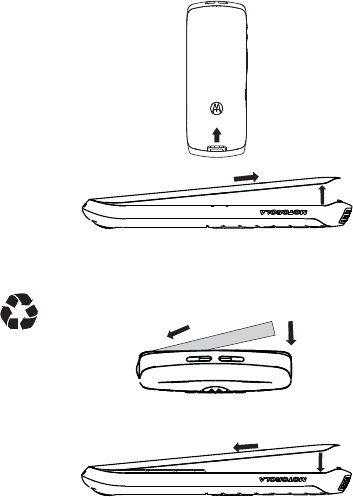
Battery installation
1 Remove battery cover.
2 Insert battery as shown below.
Push the battery down until it
snaps in place.
3 Replace the battery cover.
18
Essentials
Battery charging
New batteries are not fully charged.
Plug the battery charger into your phone
and an electrical outlet. Your phone
might take several seconds to start
charging the battery.
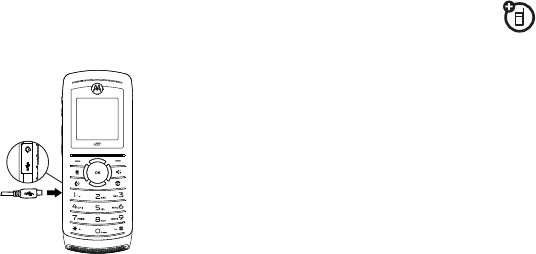
To charge using the charger:
1 Insert the charger into the USB
connector on your phone as
shown.
2
Plug the other end of the charger
into the appropriate electrical
outlet
.
3 When your phone displays
Charge
Complete
, remove the charger.
When you charge the battery, the
battery level indicator at the upper right
of the screen shows charging progress.
At least one segment of the indicator
must be visible to ensure full phone
functionality while charging.
Tip: Motorola batteries have circuitry
that protects the battery from damage
from overcharging. Of course,
unplugging the charger from the wall
will avoid current drain.
To charge from your computer:
You can charge your phone’s
battery by connecting a cable from your
phone’s mini-USB port to a highpower
USB connector on a computer (not a
low-power one, such as the USB
connector on your keyboard or bus-
powered USB hub). Typically, USB high-
power connectors are located directly
on your computer.
Note: The phone will be charged at a
slower rate than it is charged with the
rapid charger.
19
Essentials
Your computer must be turned on, and
you must have correct software drivers
installed on your computer. If the phone
is off when the USB cable is connected
between the computer and the phoen,
the phone will power up in charging
mode. This mode allows the phone to
charge fastest and quickest.
Note: If the battery is very low, the phone
will not turn On, but it will continue to
charge at a low rate.
If the phone is turned on while charging
from a computer, it will not fully charge
the battery. In this case, the battery
charge will be maintained
approximately between 80% and 95%
of the battery’s capacity. Cables and
software drivers are available in
Motorola Original
TM
data kits, sold
separately.
Tip: Motorola batteris have circuitry
that protects the battery from damage
from overcharging.
Turn it on & off
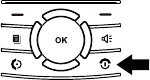
To turn on your
phone, press
and hold
E
for
a few seconds
or until the
display turns on.
To turn off your phone, press and hold
E
for two seconds.
Make a phone call
Enter a phone number and press
S
to
make a call, or use a voice name
command. See “Voice name” on
page 57.
Note: For best quality, avoid covering the
internal antenna with your hand.
To hang up press
E
.
20
Essentials
Answer a phone call
When your phone rings and/or vibrates,
you have the following options to
answer:
1 If you want to answer the call on the
handsfree speaker phone, press the
speaker key
s
.
2 If you want to hear the audio
through the earphone, press
S
.
3 To hang up press
E
.
Make a Walkie-Talkie call
With Walkie-Talkie calls service, you
use your phone as a long-range, digital
Walkie-Talkie using one-to-one WT
calls.
Your Walkie-Talkie ID is the number at
which you recieve one-to-one WT calls.
1 To make a WT call enter the Walkie-
Talkie ID you want to call.
2 Push and hold the PTT button. Begin
talking after your phone emits a
chirping sound.
3 Release the PTT button to listen.
4 To end the call press
-
under
Exit
.
A WT call ends automatically if
there is no activity on the call for a
few seconds.
Tip: To let someone know you want to
talk to them on a WT call, press
-
under
Alert
.
Answer a Walkie-Talkie
call
1 When your phone emits a chriping
sound or vibrates to indicate you are
receiving a WT call, wait for the
caller to finish speaking.
2 Push and hold the PTT button and
begin talking after your phone emits
a chirping sound.
21
Essentials
3 Release the PTT button to listen.
4 To end the call press
-
under
Exit
.
Store a phone number or
Walkie-Talkie ID
You can store a phone number or a
Walkie-Talkie ID in
Contacts
:
Shortcut: From the home screen press
-
under
Contcs
.
or
Find it:
M
>
e
>
[New Contact]
.
1 Enter a name for the new entry and
press
O
. Each entry’s name can
contain up to 20 characters.
2 Select a specific
Ringtone
and
press
O
.
3 Select a type for the entry (
Mobile
,
Walkie-Talkie
,
Work1
,
Work2
,
Home
,
Fax
,
Pager
, or
Other
) and
press
O
.
4 Enter the number for the entry and
press
-
under
Done
to save the
entry.
Tip: You can scroll left or right to store
and view other information for the
entry. You can choose a special ringer,
store an Email address, assign a Group,
and more.
After you have saved the number, the
new Contacts entry is displayed.
Call a stored phone
number or Walkie-Talkie
ID
Shortcut: From the home screen press
-
under
Contcs
.
or
Find it:
M
>
e
1 Scroll to the
Contacts
entry.
Tip: By pressing the first letter of the
name of the contact you want, you
22
Essentials
will be taken to all the contact names
starting with the letter you pressed.
2 If the contacts entry contains more
than one number, scroll left or right
until the type of the number you
want to call is displayed (
Mobile,
Walkie-Talkie, Work 1, Work 2,
Home,
etc.).
3 If you choose a phone number,
press
S
to call the entry.
or
If you choose a Walkie-Talkie number
or Talkgroup ID, press and hold the
Walkie-Talkie button to call the
number.
Tip: If the contact you scrolled to
contains a Walkie-Talkie number, you
can make an instant Walkie-Talkie call
to that Walkie-Talkie ID by pressing and
holding the Walkie-Talkie button, even if
the Walkie-Talkie ID is not the type of
number displayed on the screen.
Your phone number and
Walkie-Talkie ID
Find it:
M
>
e
>
O
Tip: Want to see your phone number
and/or Walkie-Talkie ID while you’re on
a call? Press
M
>
X
>
O
.
23
Main Attractions
Main Attractions
boostLIVE
Your i290 comes with a main menu icon
that takes you directly to the
boostLIVE
web site.
You can download ringtones,
wallpapers and Java applications over
the air.
WT Services
Your phone can send and receive the
following items through Walkie-Talkie
calls with other phones that have this
capability:
• Events from the Datebook
• My Info
• Contacts
•Pictures
*
You can choose to send Events, My
Info, Pictures or Contacts to any
Walkie-Talkie number on the recent
calls list, or Walkie-Talkie numbers
stored in Contacts.
When you make or receive a Walkie-
Talkie call, your phone automatically
determines whether the phone you are
in a Walkie-Talkie call with is able to
receive each of these items. Your
phone saves this information for as
long as the Walkie-Talkie number is on
your recent calls list or is saved in your
Contacts. Your phone updates the
saved information each time you make
or receive a call to or from that
Walkie-Talkie number.
*. Additional charges may apply.
24
Main Attractions
You can turn your phone’s ability to send
and receive events from the datebook or
pictures on and off.
Find it:
M
>
R
> WT Options > On/Off
WT Features.
1 Select
Pictures
and/or
Events
.
2Press
-
under
Done
.
My Info and Contact information are set
to ON by default and they cannot be
turned off.
Send Events
To send an event from the
Datebook
:
Find it:
M
>
b
1 Find the event you want to send.
2Press
M
>
Send via WT
.
3 Select a contact from the
Contacts
list or
Recent Calls
.
4 Press the WT button to send.
The event is sent to the person you
selected.
Send My Info
To send My Info from the
Contacts
list:
1Press
-
under
Contcs.
2 Scroll to any contact and press
M
.
3 Select
WT Send My Info
and press
-
under
Browse
.
4 Select a contact from
Recent Calls
,
Contacts
list or
Memo
.
5 Press the WT button to send.
Your contact information is sent to the
person you selected.
Send Contacts
To send contacts from the
Contacts
list:
1Press
-
under
Contcs.
2 Scroll to any contact and press
M
.
3 Select
Transfer > Send Via PTT
.
4 Select a contact from
Recent Calls
,
Contacts
list or
Memo
.
5 Press the WT button to send.

25
Main Attractions
The contact is sent to the person you
selected.
Send a Picture
When you send a picture, it
appears on the phone you are in a
Walkie-Talkie call with.
If the other user accepts the picture,
their phone saves it. The picture then
appears in that phone’s recent call list
and in My Pictures.
Send a stored picture during a
Walkie-Talkie call
While in a Walkie-Talkie call
1 Press
-
under
Picture
or
Press
M
> Use WT Feature >
Send Picture
.
A list of pictures that can be
included in a WT call appears.
2 Select the picture you want to
send.
3 Press the WT button to send the
picture.
4 Wait while the picture is being
transmitted. The WT call is
temporarily interrupted while a
picture is transmitted.
5 When prompted, press the WT
button to resume the call.
The first time you send a stored picture
after turning the phone on, you will see
the following message:
Picture Fees
May Apply. Continue?
If you answer
Yes
, you will see the
following message:
File Size for PTV Is
Limited. Limit 30KB.
Start a call by sending a picture
You can start a call by choosing a
picture:
From
My Pictures:
26
Main Attractions
1Press
M
> WT Send
.
2 Select
A Contact
or
A Recent Call
.
A list of Contacts that have Walkie-
Talkie numbers and are able to
receive pictures appear in each
case.
3 Select the name of the person you
want to send the picture to.
4 Press the WT button to send the
picture.
5 Wait while the picture is
transmitted. The Walkie-Talkie call
is temporarily interrupted while a
picture is transmitted.
6 When prompted, press the WT
button to resume the Walkie-Talkie
call.
Receive a picture
When someone sends you a picture,
your phone emits a tone or vibrates and
a message appears asking if you want to
accept the picture.
Pictures you receive are saved to your
phone’s memory and they are
accessible through My Pictures.
When you see a message asking if you
want to accept the picture, press
Yes
to
accept or
No
to decline.
Tip: To stop the transmission before it is
finished, press
O
.
Note: The first time you accept a stored
picture after turning the phone on, the
following message appears:
Messaging
Fees May Apply. Continue?
and you are
prompted to respond. Press
Yes
to
accept the picture. Press
No
to decline
the picture.
Clear a picture from the display
If you want to remove a picture from
your phone’s display while still on a call,
press
M
>
Clear Screen
.
The picture will not appear on the
display again the next time you receive a

27
Main Attractions
call from person who sent it. This does
not delete the picture from your phone.
One touch WT
One Touch WT sets your phone to do
any of the following each time you
press the WT button:
• Call the most recent Walkie-
Talkie number or Group on the
recent calls list
• Call a Walkie-Talkie number you
assign
• Go to Quick WT
• Go to WT Manager
• Go to the first screen to send a
message, Picture, My Info, or a
Contact information during a call
Set one touch WT to call recent
calls
Find it:
M
>
R
> WT Options > One
Touch WT > Last Call.
Set one touch WT to call
assigned IDs
Find it:
M
>
R
> WT Options > One
Touch WT > Assigned No.
To enter the Walkie-Talkie number you
want your phone to call every time you
press the WT button:
1 Enter the number using your
keypad or press
Search
>
Contacts
,
Recent Calls
, or
Memo
> select the
number you want to enter.
2 Press
O
.
Turn off one touch WT
Find it:
M
>
R
> WT Options > One
Touch WT > Off.
Set My Info sending option
You can control what portion of
the information in
My Info
is sent and
whether it is sent automatically in every
call or only when you choose to send it.

28
Main Attractions
The information your phone sends
always includes
My Name
and
Walkie-
Talkie
. You may also send
Line 1
,
Carrier
IP
, and
Circuit Data
, depending on your
sending options.
To change the fields you send:
Find it:
M
>
X
>
M
> WT Send Setup
> Info To Send.
1 Add or remove the checkmarks.
2Press
-
under
Done.
Automatic sending
To control whether you send your
information automatically:
Find it:
M
>
X
>
M
> WT Send Setup
> Auto Send.
1 Select
On
or
Off
.
When you make a call in which your
information is sent automatically, the
name you entered in the
My Name
field
of
My Info
appears on the display of the
recipient’s phone, even if your name and
Walkie-Talkie number are not stored in
the recipient’s
Contacts
.
MMS
Multi-Media Messaging Service (MMS)
lets you send and receive messages that
may include text, pictures and audio
recordings.
Create a message
To begin creating a message from the
idle screen press
-
under
Mesg.
or
press
M
>
Y
>
[Create Mesg]
.
To address the message:
1 Select
To
2 Add the phone number or email
address.
or
3 Select from
Contacts
or
Recent
Calls
.
4Press
O
.
29
Main Attractions
Tip: To remove a phone number or email
address from the list of message
recipients, scroll to the phone number
or email address and press
-
under
Remove
.
When you are finished addressing the
message, press
-
under
Back
.
To enter or edit the body of the
message:
1 Select
Message
.
2 Enter text or use a
Quick Note
and
press
O
.
3 Press
-
under
Send
.
More message options
View more message fields in a
message you are creating, select
More
.
To create or edit the subject line, select
Subject
.
1 Enter text and press
O
.
or
2 Select
Quick Note
>
O
.
You can insert a list of replies the
recipient can choose from when
replying to your message by selecting
Auto Replies
and entering several text
choices.
To set the priority of the message,
select
Priority
and select the priority
you need.
To receive a report confirming your
message delivery, select
Report
>
On
Delivery
.
To set a date after which attempts to
deliver the message end, select
Valid
Until
.
1 Select a date by scrolling or
entering numbers.
or
2 Select
No Date
>
O
.
3 Press
-
under
Send
or
M
>
Send
.
30
Main Attractions
Reply to a message
You can reply to a message while you
are viewing it, or while a previously
viewed message is highlighted in the
message center. You cannot reply to
unread messages.
To reply to a message:
1 View the message you want to reply
to.
2 To reply to the sender only, press
-
under
Reply
or if you wish to include
all the people copied in the
message, press
-
under
Reply All
.
3 A list of short phrases appears.
Select any of these phrases to add it
to your messages or select
[Create
Reply]
.
4 Edit any message fields you want to
change.
5 Send the message.
Quick notes
When you are filling in the
Message
and
Subject
message fields, you can add
ready-made words or short phrases
called Quick Notes. After you add these
words or phrases, you can edit them as
you would any other text.
1 While you are creating a message,
scroll to or select
Message
or
Subject
.
2Press
-
under
QNotes
or
M
>
Insert QuickNotes
.
3 Select the Quick Note you want to
insert into the message.
Attach a picture and audio
recording or a ringtone
You can attach one or more pictures
audio recordings or ringtones from your
phone into the body of the message. You
can include text in the body of your
message in addition to these items.
31
Main Attractions
Attach items
While you are filling in the
Attach
field,
press
[New]
>
My Pictures,
VoiceRecord
or
Ringtones
.
A list of available pictures, audio
recordings and ringtones appears.
Select the picture, voice record or
ringtone you want to attach.
Tip: To view or listen to the item before
attaching it, highlight it and press
-
under
View
or
-
under
Play
.
Create a new voice record
You can create a new voice record to
send with a message:
1 Press
M
or select
Attach
>
[New]
.
2 Select
VoiceRecord
>
[New
VoiceRec].
3 Say the message you want to
record into the microphone.
4 When you are finished recording,
press
O
.
5 When you are finished, press
-
under
Back
and
-
under
Done
.
The voice record is attached to the
message and saved to the list of voice
records.
Remove an attachment
To remove an attachment in a message
you are creating:
1 Select
Attach
.
2 Scroll to the attachment you want
to remove.
3 Press
M
>
Unattach
.
Drafts
While you are creating a message, you
can save it in the MMS drafts folder
before you send it.
You can view, edit, send, or delete
saved drafts.
32
Main Attractions
Save a message in the MMS
drafts folder
From the Message center press
M
>
Save.
You can continue to create the message.
The version you saved in the MMS
drafts folder will not change.
Send a draft
Find it:
M
>
Y
> Drafts.
1 Select the draft you want to send.
2Press
M
>
Send.
Edit a draft
Find it:
M
>
Y
> Drafts.
1 Select the draft you want to edit.
2Press
O
.
Delete a draft
When you send a draft, it is removed
from the MMS drafts folder.
To delete a message in the MMS drafts
folder without sending it, scroll to the
message you want to delete and press
-
under
Delete
and
-
under
Yes
.
MMS outbox
MMS messages you have sent or tried
to send are stored in the MMS Outbox.
Forward items from the outbox
Find it:
M
>
Y
> Sent Items.
1 Scroll to the message you want to
forward.
2Press
M
>
Forward
.
3 Edit and send your message.
Resend
If a message was not sent from your
handset, you can resend it.
Find it:
M
>
Y
> Sent Items.
1 Scroll to the message you want to
resend.

33
Main Attractions
2 Press
-
under
Resend
.
Note: If your message was sent
successfully,
Resend
will not appear as
an option.
Check delivery status
If a message was successfully sent and
you set the message to give a report
confirming delivery, you can check the
delivery status:
Find it:
M
>
Y
> Sent Items.
1 Scroll to the message you want to
view.
2 Press
M
>
Delivery Status
.
Delete a message
1 Scroll to the message you want to
delete.
2 Press
-
under
Delete
, or
3Pres
M
>
Delete Multiple
.
4 Select the message or messages
you want to delete
5 Press
-
under
Delete
to confirm.
Receive a message
When you receive an MMS message, a
message notification appears on the
display.
To view the message:
1 Press
O
.
2 If the message fills more than one
screen, use the navigation key
to scroll down and read the
remaining text.
Message Notifications
When you receive a message, your
phone notifies you with text on the
display, a notification tone or vibration,
and by flashing the Boost logo
backlight slowly.
You can access the message or dismiss
the notification.
34
Main Attractions
If you dismiss the notification, the
message is not deleted. It can be
accessed through the message center.
If you are not on a phone call when you
receive a message, your phone sounds
a notification tone every 30 seconds
until you access the message or dismiss
the alert.
If you are on a call when you receive a
message, your phone may sound a
notification tone during the call or after
you end the call, depending on how you
set your notification options.
Setting Notification Options
To control whether your phone sounds
message notification tones while you
are on phone calls:
Find it:
M
>
R
> Phone Calls >
Notifications.
1 Select the option you want:
•
Receive All
— Tones sound
during calls for all types of
messages.
•
Msg Mail Only
— Tones sound
during calls for mail messages;
tones for all other types of
messages are held until you end
calls.
•
Delay All
— Tones for all types of
messages are held until you end
calls.
Note
:
Delay All is the default
setting.
Tip: To set notification options during a
call press
M
>
In Call Setup
>
Notifications
Embedded objects and
attachments
Messages may contain pictures or audio
recordings as part of the body of the
message or as attachments.
35
Main Attractions
If a message contains pictures or audio
recordings in the body of the message,
highlight each picture or audio
recording to view or play it.
If a message contains a picture or
audio recording as an attachment,
open the attachment to view the
picture or play the audio recording.
Open attachments
1 View the message.
2 Highlight the attachment you want
to open. Attachments appear at the
end of a message.
3 Press
O
.
Note: Attachments that are of an
unknown type cannot be opened, but
they can be deleted.
View received messages from
the message center
1 Press
M
>
Y
>
Inbox
.
2 Select the message.
If the message has not yet been
downloaded from the message server,
it is downloaded now.
Delete unread messages
1 Scroll to the message you want to
delete.
2 Press
-
under
Delete
.
3 Press
-
under
Yes
to confirm.
Forward a message
1 Press
M
>
Forward
.
2 Create and send your message.
Embedded objects and
attachments are included when
you forward a message.
Lock and unlock messages
Locked messages cannot be deleted
until you unlock them.
36
Main Attractions
1 View the message you want to lock
or unlock.
2Press
M
.
3 Select
Lock Message
or
Unlock
Message
.
Call a number in a message
If a message you receive contains a
phone number, Walkie-Talkie number, or
Talkgroup ID in the From field, the To
field, the Cc field, the subject line, or the
body of the message, you can call or
send a call alert to that number.
Send a call alert
1 View the message.
2 Highlight the Walkie-Talkie number
or Talkgroup ID you want to alert.
3Press
M
>
Alert
.
4 Press the WT button.
Make a group call
1 View the message.
2Press
M
.
3 Highlight the Talkgroup ID you want
to call.
4 Select
Talkgroup
.
5 Press the WT button.
Store message information to
contacts
If a message you receive contains a
phone number, Walkie-Talkie number,
Talkgroup ID, or an email address in the
From field, the To field, the Cc field, the
subject line, or the body of the message,
you can store this information to
Contacts.
1 View the message.
2 Highlight the number or email
address you want to save.
3Press
M
.
37
Main Attractions
4 Select
Save Number
or
Save Email
.
5 To store the number or email
address as a new entry, select
[New Contact]
.
To store the number or email address to
an existing entry, select the entry.
6 With the Contacts type field
highlighted, scroll left or right to
display the Contacts type you want
to assign the number or email
address.
7 Press
Save
.
Go to a website
If a message contains one or more
website URLs, you can go to that
website.
1 View the message.
2 Highlight the website URL you want
to go to.
3 Press
M
.
4 Select
Go To Website
.
Note: The entire URL must appear in
the message to allow you to open the
website.
Save an embedded picture or
audio recording
To save a picture or audio recording
that is part of the body of a message
you receive:
1 View the message.
2 Highlight the picture or audio
recording you want to save.
3 Press
M
.
4 Select
Save Picture
or
Save Audio
.
The item will save in the default storage
location.
Note: Some types of pictures and audio
recordings can be viewed or played,
but not saved.
38
Main Attractions
Delete an embedded picture or
audio recording
To delete a picture or audio recording
that is part of the body of a message you
receive:
1 View the message.
2 Highlight the picture or audio
recording you want to delete.
3Press
M
.
4 Select
Delete Picture
or
Delete
Audio
.
Note: You may save or delete pictures
and audio recordings from slide shows
individually as you view or listen to
them.
Save attachments
1 View the message.
2 Highlight the attachment you want
to save.
3Press
M
.
4 Select
Save Attachment
.
Selected items save to the default
storage location.
Note: Some types of pictures and audio
recordings can be viewed or played, but
not saved.
Delete attachments
1 View the message.
2 Highlight the attachment you want
to delete.
3Press
M
.
4 Select
Delete Attachment
.
5Press
Yes
to confirm.
Save a picture
1 View the slide show.
2 When the picture you want to save
appears, press
M
.
3 Select
Save Picture
.
39
Main Attractions
Save audio
1 View the slide show.
2 Press
M
.
3 Select
Save Audio
.
4 If the slide show contains more
than one audio recording, a list of
the audio recordings appears.
Select the audio recording you
want to save.
Delete a slide show
1 Highlight the slide show or view the
slide show.
2 Press
M
.
3 Select
Delete Slideshow
.
Message transmission
After you start to send a message you
have created or start to download a
message you have been sent, you can
still stop the message transmission
from being completed by pressing the
soft key
-
.
Customize MMS
The MMS Setup menu lets you
customize MMS for your handset:
Friendly Name —
Enter text here to
create a friendly name. Your friendly
name is the name displayed in the From
field on other iDEN handsets when they
receive messages from you.
Signature —
Enter text here to create a
signature. Your signature is text that is
automatically inserted at the end of all
messages you create. You can edit the
text before sending the message.
Quick Notes —
Lets you create new
Quick Notes and edit or delete Quick
Notes you have created.
Replies —
Lets you create new reply
phrases and edit or delete reply
phrases you have created.
40
Main Attractions
Cleanup —
Controls how long messages
remain in the Inbox and Outbox before
they are deleted.
Downloads —
Controls whether your
phone automatically downloads new
messages when they arrive, or only after
you respond to a prompt or read the
message from the Inbox. Set this option
to
Automatic
if you want your phone to
download new messages automatically;
set the option to
Manual
if you want
your phone to prompt you before
downloading new messages.
Memory Size —
Shows the total amount
of
Used
,
Free
and total
Capacity
of the
phone’s memory.
To access the MMS Setup menu:
Find it:
M
>
Y
>
M
> Setup
Tip: This option is available from many
context-sensitive menus when you are
using MMS.
New quick notes and reply
phrases
To create quick notes:
1 From the MMS Setup menu, select
Quick Notes
or
Replies
.
2 Select
[New Quicknote]
or
[New
Reply].
3 Enter text from the keypad.
4Press
O
.
To edit quick notes:
You can edit only Quick Notes and reply
phrases you have created.
1 From the MMS Setup menu, select
Quick Notes
or
Replies
.
2 Select the Quick Note or reply
phrase you want to edit.
3 Edit the text.
4Press
O
.
To delete only Quick Notes and reply
phrases you have created:
41
Main Attractions
1 From the MMS Setup menu, select
Quick Notes
or
Replies
.
2 Scroll to the Quick Note or reply
phrase you want to delete.
3 Press
Delete
.
4 Press
Yes
to confirm.
To delete all Quick Notes or all reply
phrases you have created:
1 From the MMS Setup menu, select
Quick Notes
or
Replies
.
2 Press
M
.
3 Select
Delete All
.
4 Press
Yes
to confirm.
Set the clean-up option
The clean-up option controls how long
messages remain in the Inbox and
Outbox before they are deleted. You set
the clean-up option for the Inbox and
Outbox separately.
The clean-up option deletes only read,
unlocked messages.
Clean-up options
Off —
Messages are never
automatically deleted.
5 Messages —
If you have more than 5
messages, messages are deleted in the
order they were received, starting with
the oldest, until 5 are left.
10 Messages —
If you have more than
10 messages, messages are deleted in
the order they were received, starting
with the oldest, until 10 are left.
With these options, messages are
deleted in the order they were
received, starting with the oldest, until
the selected number are left.
1 Day —
Messages are deleted if they
are older than 1 day.
3 Days —
Messages are deleted if they
are older than 3 days.
42
Main Attractions
With these options, messages are
deleted when you exit the message
center after setting the option.
Custom —
Lets you create a clean-up
option of up to 99 messages or 99 days.
From the Inbox
1 From the MMS Setup menu, select
Cleanup
>
Inbox
.
2 Choose a clean-up option.
3 To automatically delete messages
now, press
Yes
or press
No
to delete
messages later.
From the Outbox
1 From the MMS Setup menu, select
Cleanup
>
Sent Items
.
2 Choose a clean-up option.
3 To automatically delete messages
now, press
Yes
or
No
to delete
messages later.
Delete all messages
To delete all unlocked messages from
the MMS Inbox, all messages in the
MMS drafts folder, or all successfully
sent messages in the MMS Outbox:
1Press
M
>
Messages
.
2 Go to the MMS Inbox, the MMS
drafts folder, or the MMS outbox.
3Press
M
.
4 Select
Delete All
.
5Press
Yes
to confirm.
43
Basics
Basics
See page 4 for a basic phone diagram.
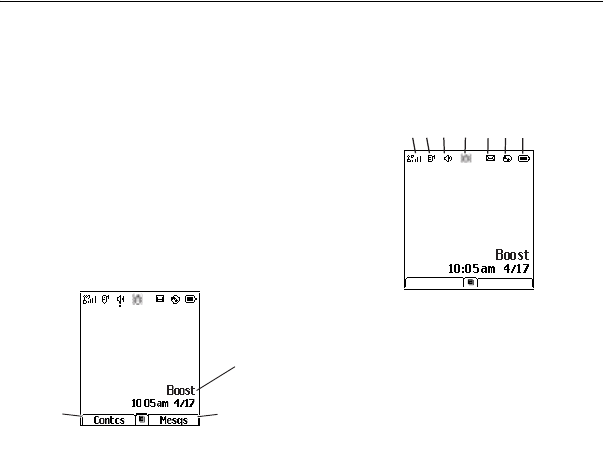
Display
The home screen shows when you turn
on the phone. To dial a number from the
home screen, press number keys
and
S
.
Note: Your home screen may look
different.
Soft key labels show the current soft
key functions. For soft key
-
locations,
see page 4.
Status indicators
Status indicators are shown at the top
of the home screen:
1
Signal Strength Indicator –
Vertical
bars show the strength of the
network connection. You can’t
make or receive calls when
1
or
0
shows.
2
Active Phone Line
–
1 indicates
phone line 1 is ready to make calls.
3
Speaker Off
–
Sounds associated
with Walkie-Talkie calls and group
calls are set to come through the
Time &
Date
Right Soft
Key Label
Left Soft
Key Label
More Exit
1. 2. 3. 4. 5. 6. 7.
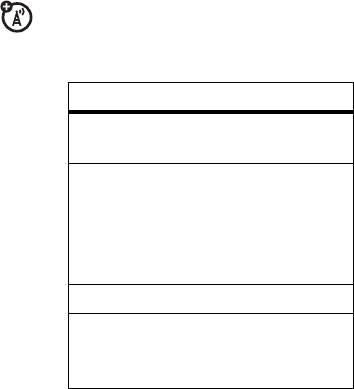
44
Basics
earpiece rather than through the
speaker.
4
Ringer Off –
Your phone is set to not
ring.
5
Message Indicator –
Shows
when you receive a text
message.
6
Packet Data –
Your handset is ready
to transfer or is transferring packet
data.
7
Battery Charge Indicator
–
A fuller
battery indicates a greater charge.
Recharge the battery when your
phone shows
Low Battery
.
Text entry
Some features let you enter text.
Your phone provides convenient ways to
enter words, letters, punctuation, and
numbers whenever you are prompted to
enter text (for example, when adding a
Contacts entry or when SMS text
messaging).
To change the character input mode:
1 When you see a screen where you
can enter text, press
M
to change
the character input mode.
2 Select one of the following options:
Tip: When entering text, press
#
to
change letter capitalization (
Abc
>
ABC
>
abc
).
entry modes
Alpha
Press a key several times
for each character.
Word
Enter words using a
predictive text entering
system that lets you enter
a word with fewer
keypresses.
Symbols
Enter symbols.
Numeric
Enter numbers by
pressing the numbers on
the keypad.

45
Basics
Word mode
Word English Text Input lets you enter
text into your phone by pressing keys
just once per letter.
Word English Text Input analyzes the
letters you enter using an intuitive word
database and creates a suitable word.
(The word may change as you type.)
To enter a word using Word Character
Input:
1 Select the
Word
character input
mode.
2 Press the corresponding keys once
per letter to enter a word (for
example, to enter the word
Jeff
,
press
5333
). (If you make
a mistake, press
*
to erase a
single character. Press and hold
*
to delete an entire entry.)
3 To accept a word and insert a
space, press
#
.
To accept a word completion (such
as Jeffrey when you entered Jeff),
press
right
.
Alpha mode
To enter characters by tapping the
keypad:
1 Select the
Alpha
mode.
2 Press the corresponding keys
repeatedly until the desired letter
appears. (For example, to enter the
word
Jeff
, press
5
once,
3
two
times,
3
three times, and
3
three times again. If you make a
mistake, press
Delete
to erase a
single character. Press and hold
Delete
to erase an entire word.)
By default, the first letter of an entry is
capitalized and the following letters are
lowercased. After a character is
entered, the cursor automatically
advances to the next space after two
seconds or when you enter a character
on a different key.
46
Basics
Characters scroll in the following order:
Volume
Press the volume
keys to:
• turn off an
incoming call
alert
• change the
earpiece volume during calls
• change the ringer volume from
the home screen
Tip: Sometimes silence really is
golden. That’s why you can
quickly set your ringer to
Vibrate
All
by holding the down volume
key in the home screen.
Navigation key
Press the
navigation key
up, down, left, or
right to scroll to
items in the display.
characters
1
. ? ! , @ & : ; “ - ( ) ‘ ¿ ¡ %
£ ¥
2
A B C 2 Á Ã Â À Ç
3
D E F 3 É Ê È
4
G H I 4 Í Ì
5
J K L 5
6
M N O 6 Ó Õ Ô Ò
7
P Q R S 7 ß
8
T U V 8 Ú Ü Û Ù
9
W X Y Z 9
0
+ - 0 * / \ [ ] = > < #
#
Space
*
Back
47
Basics
When you scroll to something,
press
O
.
Hands-free Speakerphone
You can use your phone’s hands-free
speaker to make calls without holding
the phone to your ear.
During a call press the speaker ON/OFF
key
s
to turn the hands-free speaker
on.
The hands-free speaker stays on until
you press thespeaker ON/OFF key
s
or end the call. The next phone call will
redirect the audio back to the earpiece.
Codes & passwords
The Security menu lets you turn
security features on and off and
change passwords:
SIM PIN
— Enables and disables your
phone’s SIM PIN security feature.
GPS PIN
— Enables and disables your
phone’s GPS PIN security feature.
Change Passwords
— Changes your
phone unlock code, security code, SIM
PIN, and GPS PIN.
Lock & unlock phone
Phone Lock
— Turns on a feature that
locks your phone:
Lock Now
takes
effect immediately;
Auto Lock
takes
effect when your phone is powered off
and then on. An unlock code is required
to enable this feature, to unlock the
phone, and to set a new unlock code.
Contact your service provider for your
default unlock code.
Keypad Lock
— Locks the phone’s
keypad, either immediately or
automatically after a set period of
inactivity.
48
Basics
lock keypad
You can lock your phone’s external keys
to prevent accidental key presses.
To lock the external keys automatically
after a specified time:
Find it:
O
> Security > Keypad Lock >
Auto Lock.
Tip: You can lock the keypad inmediately
by pressing
M
and
*
.
Transmitters
Note: Consult airline staff about the use
of the Transmitters feature during flight.
Turn off your phone whenever instructed
to do so by airline staff.
Transmitters turns off your phone’s
calling features in situations where
wireless phone use is prohibited. You
can use the phone’s other non-calling
features when Transmitters is turned off.
Find it:
O
>
Advanced
>
Transmitters
>
Off
.
Use GPS with map
software
Your phone is enabled with a highly-
capable GPS receiver that sends
location information to a USB port on a
PC, laptop, or PDA.
Note: No serial port connectivity is
provided by your phone. Applications on
the host device which are expecting to
receive the GPS location information via
a serial port must instead use a Virtual
Serial Comm Port.
The data sent to the host device is
formatted as prescribed in the National
Marine Electronics Association 0183
V3.0 (NMEA-0183) standard. As such it
supports the following sentences: GGA,
GLL, GSA, GSV, RMC, and VTG.
Note: This handset is not a full NMEA-
0183 compliant device supporting
electrical RS-422/RS-232 connectivity as
dictated by the NMEA-0183 standard.
Consequently it's unsuitable for

49
Basics
conventional marine NMEA-0183
equipment use. Its intended use is for
normal "terrestrial" mobile users who
want to enable their USB hosting
computing devices such as a PC, laptop
or PDA with the phone's highly-capable
GPS functionality.
Get Connected
1 Slide open the phone's
bottom connector and insert a mini-
USB cable into the phone's bottom
connector.
2 Insert the other end of the mini-
USB cable into a vacant USB
receptacle of your host device. A
virtual USB Comm Port will be
created on your host device upon
successful enumeration of the
phone as a USB Communications
Device Class device.
3 Ensure no application in your host
device is using the created COMM
port. You may need to ensure that
the created virtual COMM port
settings are set as follows:
• Bits per second: 4800
• Data bits: 8
• Parity: None
• Stop bits: 1
• Flow control: None.
4 Start the GPS application on your
host device. Set the GPS
application to start accepting
NMEA-0183 formatted data from
the created Virtual COMM port.
5 Set your phone to start sending
NMEA-0183 formatted location
information.
Find it:
M
>
i
>
Interface > NMEA OUT
> USB.
Your phone is now actively sending
location NMEA-0183 formatted GPS
data to your USB host device.
To stop your phone from sending
location data:
50
Basics
Find it:
M
>
i
>
Interface > NMEA OUT >
Off.
Note: Each time you power your phone
Off, NMEA OUT is automatically set to
Off and you need to manually restart it
using the menu selections above.
Note: Your USB host device will
generally provide charging power (5V,
up to 500mA) to your phone via the mini-
USB cable therefore no other charging
power to it will normally be required.
However some laptops may require that
you provide external AC/DC power to the
laptop in order for it to provide full
500mA charging current capability to the
phone.

51
Boost Mobile® Services
Boost Mobile
®
Services
Accessories
Your phone comes with a Lithium Ion
Battery and travel charger.
Various accessories are available for
use with your
i290
phone, cases,
vehicle power charger, data cables,
hands-free accessories and more.
To order additional accessories, go to
boostmobile.com. You can also contact
your Boost Authorized Dealer. For
information on Boost retail store
locations, go to boostmobile.com.
Wireless local number
portability: Bringing your
phone number from
another carrier
Please contact
Boost Customer Care
for information about this service.
Boost Customer Care
1-888-BOOST-4U (1-888-266-7848) or
dial 6-1-1 from your i290 phone.

52
Customize
Customize
Ringtones
To set the ringtone your phone makes
when you receive phone calls, call
alerts, message notifications, pictures
sent using Send via WT or Datebook
reminders:
Note: Only ringtones stored in your
phone’s memory are available in the
ringtones list. Not all audio files can be
assigned as ringtones.
Find it:
M
>
T
.
1Make sure
Vibrate All
is set to
Off
.
2 Scroll through the list of ringtones
and select the one you want to
assign.
Vibrate
sets your phone to
vibrate instead of making a sound;
Silent
sets your phone to neither
vibrate nor make a sound.
Tip: Highlighting a ringtone lets you hear
it.
3 Select the features you want to
assign the ringtone to.
4 When you are finished, press
Done
.
Note: This icon
M
appears on the
display if you set your phone to neither
vibrate nor make a sound for phone
calls.
Setting your phone to vibrate
You can set your phone to vibrate
instead of making a sound when you
receive all phone calls, Walkie-Talkie
calls, group calls, call alerts, messages
notifications, pictures sent using Send
via WT, and Datebook reminders.
Find it:
M
>
T
>
Vibrate All
1 Set this option to
On
or
Locked
.
53
Customize
Setting this option to
On
lets you
turn
Vibrate All
off by pressing the
up volume control. Setting this
option to
Locked
requires you to
press and hold the up volume
control to turn
Vibrate All
off. The
Locked
option helps prevent you
from accidentally turning
Vibrate
All
off.
Tip: To set
Vibrate All
to
On
or
Locked
using the volume controls: Press the
volume controls to turn down the
volume as far as possible to set
Vibrate
All
to
On
. Continue to hold the down
volume control to set
Vibrate All
to
Locked
.
To set your phone to vibrate instead of
making a sound for some features but
not others:
1 From the Main Menu, select
Ringtones
.
2 Make sure
Vibrate All
is set to
Off
.
3 Select
Vibrate
from the list of
ringtones.
4 Select the features you want to set
to make no sound.
5 When you are finished, press
Done
.
Wallpaper
Set a photo or picture as a wallpaper
(background) image in your phone’s
home screen or throughout all menu
screens.
Find it:
O
> Display/Info > Wallpaper.
To select a wallpaper image:
1 Scroll through the list of pictures
and press
O
to select the picture
of your choice.
Note: You can set the wallpaper to
change automatically after a certain
period of time by turning on the
Auto
Cycle
feature located in the Wallpaper
menu.

54
Customize
Backlight
Set the amount of time that the display,
java apps., the Boost logo and the PTT
button backlights remain on, or turn off
backlights to extend battery life.
Find it:
O
> Display/Info > Backlight
Time & date
To access Datebook set up options:
Find it:
M
>
b
>
M
> Setup
.
You can view or change these options:
Start View
— Sets Datebook to start in
day view, week view, or month view
when you access Datebook.
Daily Begin
— Sets the beginning of
your day. This is the earliest time of day
displayed in week view, if you have a 12-
hour day view.
Delete After
— Sets the amount of time
Datebook waits to delete an event after
it occurs.
Time Shift
— Lets you shift the times of
all Datebook events. This is useful if you
are traveling to a different time zone.
Alert Timeout
— Sets the amount of
time a tone continues to sound when
you receive a Datebook reminder.
Clock
— Controls whether the time and
date appear on the home screen; sets
time and date format.
Hide or show location
information
Your phone is equipped with a Location
feature for use in connection with
location-based services that may be
available in the future.
The Location feature allows the network
to detect your position. Turning Location
off will hide your location from everyone
except 911.
Note: Turning Location on will allow the
network to detect your position using
55
Customize
GPS technology, making some
applications and services easier to use.
Turning Location off will disable the
GPS location function for all purposes
except 911, but will not hide your
general location based on the cell site
serving your call. No application or
service may use your location without
your request or permission. GPS-
enhanced 911 is not available in all
areas.
To set your Privacy Options:
Find it:
M
>
i
>
Privacy
.
1 Select
Restricted
,
Unrestricted
, or
Ask Access.

56
Calls
Calls
To make and answer calls, see page 19.
Turn off a call alert
You can press the volume keys to turn
off a call alert before answering the call.
Recent calls
The recent calls list contains information
associated with calls you have made
and received and call alerts you have
received.
When you send or receive Walkie-Talkie
calls, the recent call list contains the
following WT items with those calls:
• Contacts received
• My Info received
• Pictures sent or received
The recent calls list displays up to 20 of
the most recent calls and call alerts.
Find it:
M
>
c
.
Tip: You can also access the Recent
Calls list by pressing the navigation key
down.
1 Scroll through the list.
2 Highlight the item you want to view
or perform some action on.
3 To view more details of the items
press
O
.
Store an item to contacts
from recent calls
Phone calls, Private calls, My Info
received from other phones, or Contacts
entries received from other phones can
57
Calls
be stored to the Contacts list from the
Recent Calls list.
Find it:
M
>
c
.
1 Scroll to or select the item you
want to store.
2 Press
Save
to store the information
as a new entry in the Contacts list.
or
3If
Save
is not one or you options,
press
M
>
Update Contacts
. And
select the contact you want to
update.
4 Press
Done
to save your changes.
Redial
To redial your last outgoing call, press
and hold
N
.
Voice name
You can place calls by speaking
comands to your phone if you have
previously assigned a voice name to
your contacts.
To assign voice names to contacs:
1 Press
-
under
Contcs
and select
[New Contact]
.
2 Assing a name, phone number and
select
[Options]
.
3 Select
Voice Name
and follow the
propmt to record the voice name.
4 Press
-
under
Back
and
-
under
Done
to save the entry.
To place a call using voice command:
1 From the home screen press and
hold the speaker key until you are
prompted to say the voice name.
The handset will automatically place
the call.
Call forward
Call forwarding sends calls to the
phone numbers you specify. You can
58
Calls
forward all calls to one number or
forward missed calls to different
numbers depending on the reason you
missed the call. You can forward phone
lines 1 and 2 independently.
Find it:
M
>
c
.
1 To forward all calls select
All Calls
and select
To:
to enter the phone
number you want all your calls
forwarded to.
or
2 You can specify a forwarding
number for each type of missed call
by selecting
Detailed
and chosing the
following options:
If Busy
: When your handset is on a
call or transferring data.
If No Answer
: When you do not
answer on the first 4 rings.
If Unreachable
: When your
handset is out of coverage or
powered off.
Return a call
When an incoming call is not answered,
the Missed Call log is displayed on your
screen.
To display the Missed Call entry from the
notification screen, highlight the entry
and press
O
.
To dial the phone number, press
-
under
Call
.
To display a Missed Call entry from
standby mode:
1Press
M
>
c
.
2 Scroll to the item containing the
number you want to call.
• If you scroll to a call, you can
make a call to the number that
made the call. If the number is
stored in Contacts, you can make
a call to any of the numbers
stored with it.
• If you scroll to contact
information from another phone,

59
Calls
you can make a call to any of the
numbers in the contact
information.
3 To place the call now press
S
.
Walkie-Talkie calls
With Walkie-Talkie calls, you use your
phone as a long-range, digital walkie-
talkie.
Make Walkie-Talkie calls:
1 From the home screen enter the
Walkie-Talkie number you want to
call, or if you have stored contacts
with Walkie-Talkie numbers,
browse your contacts list.
2 Press and hold the WT button on
the side of your phone. Begin
talking after your phone emits a
chirping sound.
3 Release the WT button to listen.
A Boost Walkie-Talkie call ends
automatically if there is no activity on
the call for a few seconds.
Tip: To let someone know you want to
talk to them on a Walkie-Talkie call,
press the soft key under
Alert.
Caller ID
Caller ID allows people to identify
a caller before answering the
phone by displaying the number of the
incoming call. If you do not want your
number displayed when you make a
call, just follow these easy steps.
To block your phone number from being
displayed for a specific outgoing call:
1 Press
*67
.
2 Enter the number you want to call.
3 Press
S
.
To permanently block your number, call
Boost Customer Care.

60
Calls
Emergency calls
Your service provider programs one or
more emergency phone numbers that
you can call under any circumstances,
even when your phone is locked or the
SIM card is not inserted.
Note: Emergency numbers vary by country.
Your phone’s preprogrammed emergency
number(s) may not work in all locations, and
sometimes an emergency call cannot be
placed due to network, environmental, or
interference issues.
Your phone supports emergency calling.
Emergency phone calls can be made
even when your SIM card is blocked or
not in your phone.
Dial 911 or your local emergency
number to be connected to an
emergency response center. If you are
on an active call, you must end it before
making an emergency call.
When you make an emergency call, your
phone’s GPS Enabled feature can help
emergency service personnel find you, if
you are in a location where your phone's
GPS antenna has established a clear
view of the open sky and your local
emergency response center has the
equipment to process location
information. Because of the limitations
of this feature, always provide your best
knowledge of your location to the
emergency response center when you
make an emergency call.
Note: Emergency calls cannot be placed
while the keypad is locked.
Note: If you have not registered on the
network, emergency calls cannot be placed
while your SIM card is in your phone.
International calls
Call Boost Customer Care to activate
international dialing. Press and hold 0 to
insert your local international access
code (indicated by +). Then, press the
keypad keys to dial the country code
and phone number.

61
Calls
Speed dial
Each phone number stored in Contacts
is assigned a Speed Dial number, which
you can use to call that number.
1 From the idle screen, use the
keypad to enter the Speed Dial
number assigned to the phone
number you want to call.
2 Press
#
.
3 Press
S
.
Turbo dial
From the idle screen, press and hold
the Speed Dial number (1 through 9)
assigned to the phone number you
want to call.
Voice Mail
Note: To receive voice mail
messages, you must first set up a
voice mail account with your service
provider.
Receiving a Message
When you receive a voice mail
message,
New VoiceMail Message
appears on the display.
To call your service provider’s voice
mail system and listen to the message:
Press
-
under
Call
.
To dismiss the message notification:
Press
O
, or
-
under
Back
.
If the caller leaves a message, this icon
y
appears on the display, reminding
you that you have a new message.
62
Other Features
Other Features
Advanced calling Contacts
feature
call waiting
To accept the
second call
and put the active
call on hold:
Press
-
under
Yes
.
To accept the second
call and end the
active call:
Press
S
.
call forward
To forward your
phone calls to
another number:
Press
M
>
d
feature
voice name
command
To make a call
with voice
name command:
Press and hold the
speaker phone key >
wait to see
Say
Name
on the display.
Say the name of the
person you'd like to
call.
63
Other Features
Datebook
feature
edit/delete
contact entry
Display a Contacts
entry:
Press
O
> select
contact >
Edit
>
select content to be
edited >
O
> add
and/or edit the
desired information >
O
set ringer ID
Display a Contacts
entry:
Press
O
> select
contact >
Edit
>
Ringer
>
O
> select
desired ringer >
O
>
Back
>
Save
feature
create
datebook
events
To create a new
Datebook event:
Press
M
>
b
>
[New Event]
.
change
datebook
view
Press
M
>
b
>
M
Month View
,
Week
View
, or
Day View
.
see datebook
event
To see a calendar
event:
Press
M
>
b
>
left or right to day >
up or down to
event >
O
64
Other Features
GPS
To improve GPS performance:
• Move away from other electrical
or electronic devices
• Remain stationary.
• Avoid covering the internal
antenna with your hands.
feature
view
approximate
location
To see where you
currently are:
Press
M
>
i
>
Position
Scroll to view the entire
screen.
To recalculate position:
press
Refresh
. This may
take several minutes.
set GPS
privacy
options
To set the level of
privacy for your GPS
system:
Press
M
>
i
>
Privacy
If your GPS PIN security
feature is enabled,
enter your GPS PIN and
select the privacy
option you want.
feature
65
Other Features
set GPS
PIN
security
Press
M
>
R
>
Security
>
GPS PIN
>
On
or
Off
> Enter the
current GPS PIN.
Note: Your default GPS
PIN is 0000.
To change your GPS
PIN:
Press
M
>
R
>
Security
>
Change
Passwords
>
GPS PIN
.
Enter the current GPS
PIN >
O
> enter the
new 4- to 8-digit GPS
PIN >
O
> re-enter the
new 4- to 8-digit GPS
PIN to confirm >
O
feature
make an
emergency
call
Dial
9-1-1
to be
connected to an
emergency response
center. If you are on an
active call, you must
end it before calling
9-1-1.
feature
66
Other Features
Hands-free Messages
feature
speaker-
phone
When the call
is active, press
-
under
Spkr
auto answer
Automatically
answer calls when
connected to a car
kit or headset:
Press
M
>
R
>
Phone Calls
>
Auto Ans
> select the
amount of rings
before answering
feature
read
messages
When you
receive a text
message, it will
automatically appear
on your phone's main
display screen. To
view the entire
message press
down. If the
messages is urgent,
the message icon
blinks in your display.
reply to
messages
While the
message is
open:
Press
Reply
> type
message >
Send
or
Press
-
under
Reply
>
[Create Reply]
or
quick reply
>
Send

67
Other Features
Personalize Security
feature
language
Set menu language:
Press
O
>
Display/
Info
>
Language
backlight
time length
Select how long the
display screen and
keypad are backlit:
Press
O
>
Display/
Info
>
Backlight
menu style
Show the Main Menu
as graphic icons or a
text-based list:
Press
O
>
Display/
Info
>
Menu View
clock display
Press
O
>
Display/
Info
>
Clock
feature
lock feature
Press
O
>
Security
>
Phone Lock
>
Lock
Now
or
Auto Lock
Tip:
To lock the keypad
press
M
>
*
68
Other Features
69
Important Safety and
Legal Information

70
Safety Information
Safety and General Information
Safety Information
This section contains important information on the
safe and efficient operation of your mobile device.
Read this information before using your integrated
multi-service portable radio.*
Exposure to Radio Frequency
(RF) Energy
Your phone contains a transmiter and receiver.
When it is ON, it receives and transmits RF energy.
When you communicate with your phone, the
system handling your call controls the power level
at which your phone transmits.
Your Motorola phone is designed to comply with
local regulatory requirements in your country
concerning exposure of human beings to RF
energy.
Portable Radio Product
Operation and EME Exposure
Your Motorola radio product is designed to comply
with the following national and international
standards and guidelines regarding exposure of
human beings to radio frequency electromagnetic
energy (EME):
• United States Federal Communications
Commission, Code of Federal Regulations;
47 CFR part 2 sub-part J.
• American National Standards Institute
(ANSI) / Institute of Electrical and
Electronics Engineers (IEEE). C95. 1-1992.
• Institute of Electrical and Electronics
Engineers (IEEE). C95. 1-2005 Edition.*
• International Commission on Non-Ionizing
Radiation Protection (ICNIRP) 1998.
• Ministry of Health (Canada). Safety Code 6.
Limits of Human Exposure to
Radiofrequency Electromagnetic Fields in
the Frequency Range from 3 kHz to 300
GHz, 1999.
• Australian Communications Authority
Radiocommunications (Electromagnetic
Radiation - Human Exposure) Standard
2003.
• ANATEL, Brasil Regulatory Authority,
Resolution 303 (July 2, 2002) "Regulation of
the limitation of exposure to electrical,
magnetic, and electromagnetic fields in the
* The information provided in this document
superseedes the general safety information in
user’s guides published prior to May 1, 2006

Safety Information
71
radio frequency range between 9 kHz and
300 GHz." "Attachment to Resolution 303
from July 2, 2002."
Operational Precautions
To assure optimal radio product performance and
to be sure that human exposure to RF does not
exceed the guidelines set forth in the relevant
standards, always follow these instructions and
precautions :
Two-way radio operation
Your radio product has been designed and tested
to comply with national and international
standards and guidelines regarding human
exposure to RF electromagnetic energy, when
operated in the two-way mode (at the face, or at
the abdomen when using an audio accessory) at
usage factors of up to 50% talk/50% listen.
Transmit no more than the rated duty factor of
50% of the time. To transmit (talk), push the
Walkie-Talkie (WT) button. To receive calls,
release the WT button. Transmitting 50% of the
time or less, is important because this radio
generates measurable RF energy only when
transmitting (in terms of measuring for standards
compliance).
When using your radio product
as a traditional two-way radio,
hold the radio product in a
vertical position with the
microphone one to two inches
(2.5 to 5 cm) away from the lip
s.
Product Operation
When placing or receiving a phone call, hold your
radio product as you would a wireline telephone.
Speak directly into the microphone
.
If you wear a radio product on your body when
transmitting, always place the radio product in a
Motorola approved clip, holder, holster, case or
body harness. If you do not use a body-worn
accessory supplied or approved by Motorola and
are not using the radio product in the intended
use positions along side the head in the phone
mode or in front of the face in the two-way radio
mode—or if you hang your device from a lanyard
around your neck—keep the device at least 2.5
centimeters (1 inch) from your body when
transmitting.

72
Safety Information
ALL MODELS WITH FCC ID IHDT56HG1
MEET THE GOVERNMENT’S
REQUIREMENTS FOR EXPOSURE TO
RADIO WAVES.
Your wireless phone is a radio transmitter and
receiver. It is designed and manufactured not to
exceed the emission limits for exposure to
radiofrequency (RF) energy set by the Federal
Communications Commission of the U.S.
Government. These limits are part of
comprehensive guidelines and establish permitted
levels of RF energy for the general population. The
guidelines are based on standards that were
developed by independent scientific organizations
through periodic and thorough evaluation of
scientific studies. The standards include a
substantial safety margin designed to assure the
safety of all persons, regardless of age and health.
The exposure standard for wireless mobile phones
employs a unit of measurement known as the
Specific Absorption Rate, or SAR. The SAR limit set
by the FCC is 1.6W/kg.
1
Tests for SAR are
conducted using standard operating positions
reviewed by the FCC with the phone transmitting at
its highest certified power level in all tested
frequency bands. Although the SAR is determined
at the highest certified power level, the actual SAR
level of the phone while operating can be well
below the maximum value. This is because the
phone is designed to operate at multiple power
levels so as to use only the power required to
reach the network. In general, the closer you are
to a wireless base station antenna, the lower the
power output.
Before a phone model is available for sale to the
public, it must be tested and certified to the FCC
that is does not exceed the limit established by the
government-adopted requirement for safe
exposure. The tests are performed in positions and
locations (e.g., at the ear and worn on the body) as
required by the FCC for each model. The highest
SAR value for this model phone when tested for
use at the ear is 1.54 W/kg and when tested on the
body, as described in this user guide, is 1.48 W/kg
during packet data transmission. (Body-worn
measurements differ among phone models,
depending upon available accessories and FCC
requirements.)
2
While there may be differences between the SAR
levels of various phones and at various positions,
they all meet the government requirement for safe
exposure.
The FCC has granted an Equipment Authorization
for this model phone with all reported SAR levels
evaluated as in compliance with the FCC RF
exposure guidelines. SAR information on this
model phone is on file with the FCC and can be
found under the Display Grant section of
http://www.fcc.gov/oet/fccid after searching on
FCC ID IHDT56HG1.
Additional information on Specific Absorption
Rates (SAR) can be found on the Cellular
Telecommunications Industry Association (CTIA)
web-site at http://www.wow-com.com.

Safety Information
73
1
In the United States and Canada, the SAR limit
for mobile phones used by the public is 1.6
watts/kg (W/kg) averaged over one gram of
tissue. The standard incorporates a substantial
margin of safety to give additional protection for
the public and to account for any variations in
measurements.
2
The SAR information reported to the FCC
includes the FCC-accepted Motorola testing
protocol, assessment procedure, and
measurement uncertainty range for this product.
Approved Accessories
For a list of approved Motorola accessories call
1-800-453-0920, or visit our website at
www.motorola.com/iden.
RF Energy
Interference/Compatibility
Nearly every electronic device is subject to RF
energy interference from external sources if
inadequately shielded, designed or otherwise
configured for RF energy compatibility. In some
circumstances your handset may cause
interference with other devices.
Follow Instructions to Avoid
Interference Problems
Turn OFF your radio product where posted
notices instruct you to do so.
In an aricraft, turn off your radio product
whenever instructed to do so by airline staff. If
your radio product offers an airplane mode or
similar feature, consult airline staff about using it
in flight.
Implantable Medical Devices
If you have an implantable medical devices, such
as a pacemaker or defibrillator, consult your
physician before using this radio product.
Persons with implantable medical devices should
observe the following precautions:
• ALWAYS keep the phone more than 20
centimeters (8 inches) from the the
implantable medical device when the
phone is turned ON.
• DO NOT carry the phone in a breast
pocket;
• Use the ear opposite the implantable
medical device to minimize the potential
for interference.
• Turn OFF the phone inmediately if you
have any reason to suspect that the
interference is taking place.
Read and follow the directions from the
manufacturer of your implantable medical device.
If you have any questions about using your
wireless phone with your implantable medical
device, consult your health care provider.

74
Safety Information
Hearing Aids
Some mobile devices may interfere with some
hearing aids. In the event of such interference, you
may want to consult your hearing aid
manufacturer or physician to discuss alternatives.
Other Medical Devices and Health Care
Facilities
If you use any other personal medical devices,
consult your physician or the manufacturer or your
device to determine if it is adequately shielded
from RF energy. Turn off your radio product when
instructed to do so in hospitals or health care
facilities that may be using equipment that is
sensitive to external RF energy.
Driving Precautions
Check the laws and regulations on the use of radio
products in the area where you drive. Always obey
them.
When using your radio product while driving,
please:
• Give full attention to driving and to the
road. Using a mobile device may be
distracting. Discontinue a call if you can’t
concentrate on driving.
• Use handsfree operation, if available.
• Pull off the road and park before making or
answering a call if driving conditions so
require.
• Do not place a handset in the airbag
deployment area.
Responsible driving practices can be found in the
“Smart Practices While Driving” section at the end
of this guide and/or at the Motorola Web site:
www.motorola.com/callsmart.
Note: The use of wireless phones while driving
may cause distraction. Discontinue a call if you
can’t concentrate on driving. Additionally, the use
of wireless devices and their accessories may be
prohibited or restricted in certain areas. Always
obey the laws and regulations on the use of these
products.
Operational Warnings
Obey all posted signs when using mobile devices
in public areas.
Potentially Explosive Atmospheres
Areas with potentially explosive atmospheres are
often but not always posted, and can include
fueling areas such as below decks on boats, fuel
or chemical transfer or storage facilities, or areas
where the air contains chemicals or particles,
such as grain, dust or metal powders.
When you are in such area, turn off your hanset,
and do not remove, install, or charge batteries
unless it is a radio product type especially
qualified for use in such areas as “Intrinsically
Safe” (for example, Factory Mutual, CSA, or UL
approved). In such areas, sparks can occur and
cause an explosion or fire.
Safety Information
75
Batteries and Chargers
Caution: Improper treatment or use of batteries
may present a danger of fire, explosion, leakage,
or other hazard. For more information, see the
“Battery Use and Battery Safety” section in this
user’s guide.
Your battery, charger, or portable radio may
contain symbols, defined as follows:
Choking Hazards
Your portable radio or its accessories may
include detachable parts, which may present a
choking hazard to small children. Keep your
device and its accessories away from small
children.
Glass Parts
Some parts of your mobile device may be made of
glass. This glass could break if the product is
dropped on a hard surface or receives a
substantial impact. If glass breaks, do not touch
or attempt to remove. Stop using your mobile
device until the glass is replaced by a qualified
service center.
Seizures/Blackouts
Some people may be susceptible to epileptic
seizures or blackouts when exposed to flashing
lights, such as when playing video games. These
may occur even if a person has never had a
previous seizure or blackout.
Symbol Definition
Important safety
information follows.
Do not dispose of your
battery or mobile device in
a fire.
Your battery or mobile
device may require
recycling in accordance
with local laws. Contact
your local regulatory
authorities for more
information.
Do not throw your battery
or mobile device in the
trash.
Your mobile device
contains an internal lithium
ion battery.
032374o
032376o
032375o
032378o
Li Ion BATT
Do not let your battery,
charger, or mobile device
get wet.
Listening at full volume to
music or voice through a
headset may damage your
hearing.
Symbol Definition

76
Safety Information
If you have experienced seizures or blackouts, or if
you have a family history of such occurrences,
please consult with your physician before playing
video games or enabling a flashing-lights feature
(if available) on your mobile device.
Discontinue use and consult a physician if any of
the following symptoms occur: convulsion, eye or
muscle twitching, loss of awareness, involuntary
movements, or disorientation. It is always a good
idea to hold the screen away from your eyes, leave
the lights on in the room, take a 15-minute break
every hour, and stop use if you are very tired.
Caution About High Volume Usage
Listening at full volume to music or
voice through a headset may damage
your hearing.
Repetitive Motion
When you repetitively perform actions such as
pressing keys or entering finger-written
characters, you may experience occasional
discomfort in your hands, arms, shoulders, neck,
or other parts of your body. If you continue to have
discomfort during or after such use, stop use and
see a physician.
Service & Repairs
If you have questions or need assistance, we’re
here to help.
Go to www.motorola.com/iden/support, where you
can select from a number of customer care
options. You can also contact the Motorola
Customer Support Center at 1-800-453-0920 (United
States), 1-877-483-2840 (TTY/TDD United States for
hearing impaired).
Safety Information
77
Motorola Limited Warranty for the United States
and Canada
What Does this Warranty
Cover?
Note: FOR IDEN SUBSCRIBER PRODUCTS,
ACCESSORIES AND SOFTWARE PURCHASED IN
THE UNITED STATES OR CANADA
What Does this Warranty Cover?
Subject to the exclusions contained below,
Motorola, Inc. warrants its Motorola iDEN Digital
Mobile and Portable Handsets ("Products"),
Motorola-branded or certified accessories sold
for use with these Products ("Accessories") and
Motorola software contained on CD-Roms or
other tangible media and sold for use with these
Products ("Software") to be free from defects in
materials and workmanship under normal
consumer usage for the period(s) outlined below.
This limited warranty is a consumer's exclusive
remedy, and applies as follows to new Products,
Accessories and Software purchased by
consumers in the United States or Canada,
which are accompanied by this written
warranty:
Products Covered Length of Coverage
Products as defined
above.
One (1) year
from the
date of purchase by
the first consumer
purchaser of the
product.
Accessories as
defined above.
One (1) year
from the
date of purchase by
the first consumer
purchaser of the
product.
Products or
Accessories that are
Repaired or Replaced.
The balance of the
original warranty or
for ninety (90) days
from the date
returned to the
consumer, whichever
is longer.

78
Safety Information
What is not covered? (Exclusions)
Normal Wear and Tear
. Periodic maintenance,
repair and replacement of parts due to normal
wear and tear are excluded from coverage.
Ornamental Decorations
.
Ornamental decorations
such as emblems, graphics, rhinestones, jewels,
gemstones and their settings, and other decorative
elements, are excluded from coverage.
Batteries
. Only batteries whose fully charged
capacity falls below 80% of their rated capacity
and batteries that leak are covered by this limited
warranty.
Abuse & Misuse
. Defects or damage that result
from: (a) improper operation, storage, misuse or
abuse, accident or neglect, such as physical
damage (cracks, scratches, etc.) to the surface of
the product resulting from misuse; (b) contact with
liquid, water, rain, extreme humidity or heavy
perspiration, sand, dirt or the like, extreme heat, or
food; (c) use of the Products or Accessories for
commercial purposes or subjecting the Product or
Accessory to abnormal usage or conditions; or (d)
other acts which are not the fault of Motorola, are
excluded from coverage.
Use of Non-Motorola Products and Accessories
.
Defects or damage that result from the use of
Non-Motorola branded or certified Products,
Accessories, Software or other peripheral
equipment are excluded from coverage.
Unauthorized Service or Modification
. Defects or
damages resulting from service, testing,
adjustment, installation, maintenance, alteration,
including without limitation, software changes, or
modification in any way by someone other than
Motorola, or its authorized service centers, are
excluded from coverage.
Altered Products
. Products or Accessories with
(a) serial numbers or date tags that have been
removed, altered or obliterated; (b) broken seals or
that show evidence of tampering; (c) mismatched
board serial numbers; or (d) nonconforming or
non-Motorola housings, antennas, or parts, are
excluded from coverage.
Communication Services
. Defects, damages, or
the failure of Products, Accessories or Software
due to any communication service or signal you
may subscribe to or use with the Products,
Accessories or Software is excluded from
coverage.
Software Embodied in Physical Media.
No
warranty is made that the software will meet your
requirements or will work in combination with any
hardware or software applications provided by
third parties, that the operation of the software
products will be uninterrupted or error free, or that
Software
as defined
above. Applies only to
physical defects in
the media that
embodies the copy of
the software (e.g.
CD-ROM, or floppy
disk).
Ninety (90) days from
the date of purchase.
Products Covered Length of Coverage

Safety Information
79
all defects in the software products will be
corrected.
Software NOT Embodied in Physical Media
.
Software that is not embodied in physical media
(e.g. software that is downloaded from the
internet), is provided "as is" and without warranty.
Who is covered?
This warranty extends only to
the first consumer purchaser, and is not
transferable.
What will Motorola Do?
Motorola, at its option,
will at no charge repair, replace or refund the
purchase price of any Products, Accessories or
Software that does not conform to this warranty.
We may use functionally equivalent
reconditioned/refurbished/pre-owned or new
Products, Accessories or parts. No data,
software or applications added to your Product,
Accessory or Software, including but not limited
to personal contacts, games and ringer tones,
will be reinstalled. To avoid losing such data,
software and applications please create a back
up prior to requesting service.
How to Obtain Warranty Service or Other
Information?
To obtain service or information,
please call:
Motorola iDEN Customer Services 1-800-453-0920
or 954-723-4910
TTY-877-483-2840
Or visit us online at
http://www.motorola.com/iden/support
You will receive instructions on how to ship the
Products, Accessories or Software, at your
expense, to a Motorola Authorized Repair Center.
To obtain service, you must include: (a) a copy of
your receipt, bill of sale or other comparable
proof of purchase; (b) a written description of the
problem; (c) the name of your service provider, if
applicable; (d) the name and location of the
installation facility (if applicable) and, most
importantly; (e) your address and telephone
number.
What Other Limitations Are There?
ANY IMPLIED
WARRANTIES, INCLUDING WITHOUT
LIMITATION THE IMPLIED WARRANTIES OF
MERCHANTABILITY AND FITNESS FOR A
PARTICULAR PURPOSE, SHALL BE LIMITED TO
THE DURATION OF THIS LIMITED WARRANTY,
OTHERWISE THE REPAIR, REPLACEMENT, OR
REFUND AS PROVIDED UNDER THIS EXPRESS
LIMITED WARRANTY IS THE EXCLUSIVE
REMEDY OF THE CONSUMER, AND IS PROVIDED
IN LIEU OF ALL OTHER WARRANTIES, EXPRESS
OF IMPLIED. IN NO EVENT SHALL MOTOROLA BE
LIABLE, WHETHER IN CONTRACT OR TORT
(INCLUDING NEGLIGENCE) FOR DAMAGES IN
EXCESS OF THE PURCHASE PRICE OF THE
PRODUCT, ACCESSORY OR SOFTWARE, OR FOR
ANY INDIRECT, INCIDENTAL, SPECIAL OR
CONSEQUENTIAL DAMAGES OF ANY KIND, OR
LOSS OF REVENUE OR PROFITS, LOSS OF
BUSINESS, LOSS OF INFORMATION OR DATA,
SOFTWARE OR APPLICATIONS OR OTHER
FINANCIAL LOSS ARISING OUT OF OR IN
CONNECTION WITH THE ABILITY OR INABILITY
TO USE THE PRODUCTS, ACCESSORIES OR

80
Safety Information
SOFTWARE TO THE FULL EXTENT THESE
DAMAGES MAY BE DISCLAIMED BY LAW.
Some states and jurisdictions do not allow the
limitation or exclusion of incidental or
consequential damages, or limitation on the length
of an implied warranty, so the above limitations or
exclusions may not apply to you. This warranty
gives you specific legal rights, and you may also
have other rights that vary from state to state or
from one jurisdiction to another.
Laws in the United States and other countries
preserve for Motorola certain exclusive rights for
copyrighted Motorola software such as the
exclusive rights to reproduce and distribute copies
of the Motorola software. Motorola software may
only be copied into, used in, and redistributed with,
the Products associated with such Motorola
software. No other use, including without
limitation disassembly of such Motorola software
or exercise of the exclusive rights reserved for
Motorola, is permitted.
Patent and Software Provisions
MOTOROLA will defend, at its own expense, any
suit brought against the end user purchaser to the
extent that it is based on a claim that the Product
or parts infringe a United States patent, and
Motorola will pay those costs and damages finally
awarded against the end user purchaser in any
such suit which are attributable to any such claim,
but such defense and payments are conditioned
on the following:
a.That MOTOROLA will be notified promptly in
writing by such purchaser of any notice of
such claim;
b.That MOTOROLA will have sole control of the
defense of such suit and all negotiations for its
settlement or compromise; and
c.Should the Product or parts become, or in
MOTOROLA'S opinion be likely to become, the
subject of a claim of infringement of a United
States patent, that such purchaser will permit
MOTOROLA, at its option and expense, either to
procure for such purchaser the right to
continue using the Product or parts or to
replace or modify the same so that it becomes
non-infringing or to grant such purchaser a
credit for the Product or parts as depreciated
and accept its return. The depreciation will be
an equal amount per year over the lifetime of
the Product or parts as established by
MOTOROLA.
MOTOROLA will have no liability with respect to
any claim of patent infringement which is based
upon the combination of the Product or parts
furnished hereunder with software, apparatus or
devices not furnished by MOTOROLA, nor will
MOTOROLA have any liability for the use of
ancillary equipment or software not furnished by
MOTOROLA which is attached to or used in
connection with the Product or any parts thereof.
Laws in the United States and other countries
preserve for MOTOROLA certain exclusive rights
for copyrighted MOTOROLA software, such as the
exclusive rights to reproduce in copies and

Safety Information
81
distribute copies of such MOTOROLA software.
MOTOROLA software may be used in only the
Product in which the software was originally
embodied and such software in such Product
may not be replaced, copied, distributed,
modified in any way, or used to produce any
derivative thereof. No other use including,
without limitation, alteration, modification,
reproduction, distribution, or reverse engineering
of such MOTOROLA software or exercise or
rights in such MOTOROLA software is permitted.
No license is granted by implication, estoppel or
otherwise under MOTOROLA patent rights or
copyrights.

82
Safety Information
Hearing Aid Compatibility
A number of Motorola phones have been tested for
hearing aid compatibility. When some wireless
phones are used with certain hearing aids, users
may detect a noise which can interfere with the
effectiveness of the hearing aid.
Some hearing aids are more “immune” than others
to this interference noise, and phones can also
vary in the amount of interference noise they may
generate. ANSI standard C63.19 was developed to
provide a standardized means of measuring both
mobile phone and hearing aids to determine
usability rating categories for both.
Ratings have been developed for mobile phones to
assist hearing aid users find phones that may be
compatible with their hearing aid. Not all phones
have been rated for compatibility with hearing
aids. Phones that have been rated have a label
with the rating(s) located on the box, and at
www.motorola.com/accessibility.
These ratings are not guarantees of compatibility.
Results will vary depending on the user's hearing
aid and individual type and degree of hearing loss.
If a hearing aid is particularly vulnerable to
interference, even a phone with a higher rating
may still cause unacceptable noise levels in the
hearing aid Trying out the phone with your hearing
aid is the best way to evaluate it for your personal
needs.
“M” Rating
: Phones rated M3 or M4 meet FCC
requirements for hearing aid compatibility and are
likely to generate less interference to hearing aids
than unrated phones. (M4 is the “better” or higher
of the two ratings.) On those models with an
extendable antenna, this rating is determined only
with the antenna extended.
“T” Rating
:
Phones rated T3 or T4 meet FCC
requirements and are likely to be more usable with
a hearing aid's telecoil (“T Switch” or “Telephone
Switch”) than unrated phones. (T4 is the “better”
or higher of the two ratings.) On those models with
a telecoil mode setting, this rating is determined
only with the phone so set. For setting instructions,
see “Features for the Hearing Impaired” in the
section entitled “Advanced Calling Features”.
Note that not all hearing aids have telecoils in
them.
Hearing aids may also be measured for immunity
to interference from wireless phones and may
have ratings similar to wireless phones. Ask your
hearing healthcare professional for the rating of
your hearing aid. Add the rating of your hearing
aid and your phone to determine the estimated
usability:
• Any combined rating equal to or greater
than six offers excellent use.
• Any combined rating equal to five is
considered normal use.
Safety Information
83
• Any combined rating equal to four is
considered usable.
Thus, if you use an M3 phone with a M3 hearing
aid you will have a combined rating of six for
“excellent use.” This methodology applies
equally for T ratings.
More information about hearing aid compatibility
may be found at:
www.motorola.com/accessibility, www.fcc.gov,
www.fda.gov, and
www.hearingloss.org/learn/cellphonetech.asp
84
WHO Information
Information From the World Health Organization
WHO In formation
Present scientific information does not indicate
the need for any special precautions for the use of
mobile phones. If you are concerned, you may
want to limit your own or your children’s RF
exposure by limiting the length of calls or by using
hands-free devices to keep mobile phones away
from your head and body.
Source: WHO Fact Sheet 193
Further information: http://www.who.int./peh-emf
Product Registration
Registration
Online Product Registration:
http://direct.motorola.com/hellomoto/
Motosupport/source/registration.asp
Product registration is an important step toward
enjoying your new Motorola product. Registering
helps us facilitate warranty service, and permits
us to contact you should your product require an
update or other service. Registration is for U.S.
residents only and is not required for warranty
coverage.
Please retain your original dated sales receipt for
your records. For warranty service of your
Motorola Personal Communications Product you
will need to provide a copy of your dated sales
receipt to confirm warranty status.
Thank you for choosing a Motorola product.
Export Law Assurances
Export Law
This product is controlled under the export
regulations of the United States of America and
Canada. The Governments of the United States of
America and Canada may restrict the exportation
or re-exportation of this product to certain
destinations. For further information contact the
U.S. Department of Commerce or the Canadian
Department of Foreign Affairs and International
Trade.
Recycling
85
Wireless: The New Recyclable
Recycling
Your wireless mobile device can be recycled.
Recycling your mobile device reduces the
amount of waste disposed in landfills and allows
recycled materials to be incorporated into new
products.
The Cellular Telecommunications Industry
Association (CTIA) and its members encourage
consumers to recycle their mobile devices and
have taken steps to promote the collection and
environmentally sound recycling of end-of-life
devices.
As a mobile device user, you have an important
role in ensuring that this device is recycled
properly. When it comes time to give this mobile
device up or trade it in for a new one, please
remember that the mobile device, the charger,
and many of its accessories can be recycled. It's
easy. To learn more about CTIA's Recycling
Program for Used Wireless Devices, please visit
us at:
http://recycling.motorola.young-america.com/
index.html
86
Perchlorate Label
California Perchlorate Label
Perchlorate Label
Some mobile phones use an internal, permanent
backup battery on the printed circuit board that
may contain very small amounts of perchlorate. In
such cases, California law requires the following
label:
“Perchlorate Material - special handling may
apply. See
www.dtsc.ca.gov/hazardouswaste/perchlorate.”
There is no special handling required by consumer.
Privacy and Data Security
87
Privacy and Data Security
Privacy and Data Security
Motorola understands that privacy and data
security are important to everyone. Because
some features of your mobile device may affect
your privacy or data security, please follow these
recommendations to enhance protection of your
information:
•
Monitor access
— Keep your mobile
device with you and do not leave it where
others may have unmonitored access.
Lock your device’s keypad where this
feature is available.
•
Keep software up to date
— If Motorola
or a software/application vendor releases
a patch or software fix for your mobile
device which updates the device’s
security, install it as soon as possible.
•
Erase before recycling
— Delete
personal information or data from your
mobile device prior to disposing of it or
turning it in for recycling. For step-by-step
instructions on how to delete all personal
information from your device, please
contact Boost Customer Care.
Note: Note: For information on backing up your
mobile device data before erasing it, go to
www.motorola.com and then navigate to the
“downloads” section of the consumer Web page
for “Motorola Backup” or “Motorola Phone
Tools.”
•
Understanding AGPS
— In order to
comply with emergency caller location
requirements of the FCC, certain Motorola
mobile devices incorporate Assisted
Global Positioning System (AGPS)
technology. AGPS technology also can be
used in non-emergency applications to
track and monitor a user’s location—for
example, to provide driving directions.
Users who prefer not to permit such
tracking and monitoring should avoid
using such applications.
If you have further questions regarding how use
of your mobile device may impact your privacy or
data security, please contact Motorola at
privacy@motorola.com, or contact your service
provider.
88
Driving Safety
Smart Practices While Driving
Driving Safety
Drive Safe, Call Smart
SM
Check the laws and regulations on the use of
mobile devices and their accessories in the areas
where you drive. Always obey them. The use of
these devices may be prohibited or restricted in
certain areas. Go to
www.motorola.com/callsmart
for more information.
Your mobile device lets you communicate by voice
and data—almost anywhere, anytime, wherever
wireless service is available and safe conditions
allow. When driving a car, driving is your first
responsibility. If you choose to use your mobile
device while driving, remember the following tips:
•
Get to know your Motorola mobile device
and its features such as speed dial and
redial.
If available, these features help you
to place your call without taking your
attention off the road.
•
When available, use a
hands-free device.
If
possible, add an additional
layer of convenience to your
mobile device with one of
the many Motorola Original hands-free
accessories available today.
•
Position your mobile device within easy
reach.
Be able to access your mobile
device without removing your eyes from
the road. If you receive an incoming call at
an inconvenient time, if possible, let your
voice mail answer it for you.
•
Let the person you are speaking with
know you are driving; if necessary,
suspend the call in heavy traffic or
hazardous weather conditions.
Rain, sleet,
snow, ice, and even heavy traffic can be
hazardous.
•
Do not take notes or look up phone
numbers while driving.
Jotting down a “to
do” list or going through your address book
takes attention away from your primary
responsibility—driving safely.
•
Dial sensibly and assess the traffic; if
possible, place calls when your car is not
moving or before pulling into traffic.
If you
must make a call while moving, dial only a
few numbers, check the road and your
mirrors, then continue.
•
Do not engage in stressful or emotional
conversations that may be distracting.
Make people you are talking with aware
you are driving and suspend conversations
that can divert your attention away from
the road.
•
Use your mobile device to call for help.
Dial 911 or other local emergency number
in the case of fire, traffic accident, or
medical emergencies.*

89
•
Use your mobile device to help others in
emergencies.
If you see an auto accident,
crime in progress, or other serious
emergency where lives are in danger, call
911 or other local emergency number, as
you would want others to do for you.*
•
Call roadside assistance or a special
non-emergency wireless assistance
number when necessary.
If you see a
broken-down vehicle posing no serious
hazard, a broken traffic signal, a minor
traffic accident where no one appears
injured, or a vehicle you know to be
stolen, call roadside assistance or other
special non-emergency wireless
number.*
* Wherever wireless phone service is available.

90
Index
Index
A
accessories
13, 51, 66
active phone line
43
advanced calling
62
alert
set
46, 52
turn off
46, 56
answer a call
20
B
backlight
54
battery
17, 18
battery indicator
44
battery life, extend
15
boostLIVE
accessing
23
C
call
answer
20
end
19, 20
make
19
call forward
57
call waiting
62
caller ID
59
calls
56
center key
46
center select key
13
codes
47
combined power/end/home key
19, 20
contacts
62
D
datebook
63
dial a phone number
19
dialed calls
56
display
43
E
earpiece volume
46
emergency number
60
end a call
19, 20
91
Index
export regulations
84
F
frequently asked questions
service and repairs
76
G
GPS
64
GPS enabled
emergency calls
60
GPS PIN
47
GPS, see GPS enabled
H
handsfree
66
handsfree speaker
47
Hearing Aid Compatibility
82
home screen
43
I
incoming call message
59
international calls
60
iTAP text entry mode
45
K
keypad
locking
47
L
lock
phone
47
logo backlight
33
low battery message
44
M
make a call
19
message indicator
44
messages
66
missed calls message
58
MMS
28
auto replies
29
priority
29
N
navigation key
13, 46
O
one touch WT
27
92
Index
optional accessory
13, 66
optional feature
13
P
packet data
44
passwords
47
passwords. See codes
personalize
66, 67
phone
locking
47
phone number
22
power on
combined power/end/home key
19
R
radio frequency
70
received calls
56
recent calls
56
recycling
85
redial
57
return a call
58
ring style indicator
44
ring style, setting
46
ring tones
off
52
setting
52
vibrate
52, 53
ringer volume
46
S
safety
radio frequency
70
RF energy interference
73
safety information
70
safety tips
88
security
47, 67
security code
47
send contacts
24
send events
24
send key
19, 20
send my info
24
send pictures
25
send via WT
23
SIM chip
14
SIM PIN
47
soft keys
43
speaker
43
speed dial
61
store your number
22
93
Index
T
tap text entry mode
45
text entry
44
time & date
54
transmitters
48
turn on/off
19
U
unlock
phone
47
unlock code
47
V
voice mail
receiving
61
setting up
61
voice name
57
voicemail
61
voicemail message indicator
61
volume
46
W
Walkie-Talkie calls
59
wallpaper
53
WHO information
84
WT calls
answer
20
make
20
WT Features
23
WT services
23
Y
your phone number
22
