Msi Z77A Gd65 Gaming Owner S Manual
2014-07-06
: Msi Msi-Z77A-Gd65-Gaming-Owner-S-Manual msi-z77a-gd65-gaming-owner-s-manual msi pdf
Open the PDF directly: View PDF  .
.
Page Count: 98
Z77A-GD65 GAMING
seres
MS-7751 (v5.x) Motherboard
G52-77511XS
Preface
Copyrght Notce
The materal n ths document s the ntellectual property of MICRO-STAR INTERNA-
TIONAL. We take every care n the preparaton of ths document, but no guarantee s
gven as to the correctness of ts contents. Our products are under contnual mprove-
ment and we reserve the rght to make changes wthout notce.
Trademarks
All trademarks n ths manual are propertes of ther respectve owners.
MSI® s regstered trademark of Mcro-Star Int’l Co.,Ltd.
NVIDIA® s regstered trademark of NVIDIA Corporaton.
ATI® s regstered trademark of AMD Corporaton.
AMD® s regstered trademarks of AMD Corporaton.
Intel® s regstered trademarks of Intel Corporaton.
Wndows® s regstered trademarks of Mcrosoft Corporaton.
AMI® s regstered trademark of Amercan Megatrends Inc.
Award® s a regstered trademark of Phoenx Technologes Ltd.
Sound Blaster® s regstered trademark of Creatve Technology Ltd.
Realtek® s regstered trademark of Realtek Semconductor Corporaton.
JMcron® s regstered trademark of JMcron Technology Corporaton.
Netware® s regstered trademark of Novell, Inc.
Lucd® s trademark of LucdLogx Technologes, Ltd.
VIA® s regstered trademark of VIA Technologes, Inc.
ASMeda® s regstered trademark of ASMeda Technology Inc.
Pad, Phone, and Pod are trademarks of Apple Inc.
Qualcomm Atheros and Kller are trademarks of Qualcomm Atheros Inc.
Revson Hstory
Revson Revson Hstory Date
V5.0 Frst release 2013/02
■
■
■
■
■
■
■
■
■
■
■
■
■
■
■
■
■

MS-7751
Preface
Techncal Support
If a problem arses wth your system and no soluton can be obtaned from the user’s
manual, please contact your place of purchase or local dstrbutor. Alternatvely, please
try the followng help resources for further gudance.
Vst the MSI webste for techncal gude, BIOS
updates, drver updates, and other nformaton:
http://www.ms.com/servce/download/
Contact our techncal sta at:
http://support.ms.com
Safety Instructons
Always read the safety nstructons carefully.
Keep ths User’s Manual for future reference.
Keep ths equpment away from humdty.
Lay ths equpment on a relable at surface before settng t up.
The openngs on the enclosure are for ar convecton hence protects the equpment
from overheatng. DO NOT COVER THE OPENINGS.
Make sure the voltage of the power source s at 110/220V before connectng the
equpment to the power nlet.
Place the power cord such a way that people can not step on t. Do not place
anythng over the power cord.
Always Unplug the Power Cord before nsertng any add-on card or module.
All cautons and warnngs on the equpment should be noted.
Never pour any lqud nto the openng that can cause damage or cause electrcal
shock.
If any of the followng stuatons arses, get the equpment checked by servce
personnel:
The power cord or plug s damaged.
Lqud has penetrated nto the equpment.
The equpment has been exposed to mosture.
The equpment does not work well or you can not get t work accordng to User’s
Manual.
The equpment has been dropped and damaged.
The equpment has obvous sgn of breakage.
DO NOT LEAVE THIS EQUIPMENT IN AN ENVIRONMENT ABOVE 60oC (140oF),
IT MAY DAMAGE THE EQUIPMENT.
■
■
■
■
■
■
■
■
■
■
■
◯
◯
◯
◯
◯
◯
■
v
Preface
FCC-B Rado Frequency Interference Statement
Ths equpment has been tested and found
to comply wth the lmts for a Class B dg-
tal devce, pursuant to Part 15 of the FCC
Rules. These lmts are desgned to provde
reasonable protecton aganst harmful nter-
ference n a resdental nstallaton. Ths equpment generates, uses and can radate
rado frequency energy and, f not nstalled and used n accordance wth the nstruc-
tons, may cause harmful nterference to rado communcatons. However, there s no
guarantee that nterference wll not occur n a partcular nstallaton. If ths equpment
does cause harmful nterference to rado or televson recepton, whch can be deter-
mned by turnng the equpment o and on, the user s encouraged to try to correct the
nterference by one or more of the measures lsted below.
Reorent or relocate the recevng antenna.
Increase the separaton between the equpment and recever.
Connect the equpment nto an outlet on a crcut derent from that to whch the
recever s connected.
Consult the dealer or an experenced rado/televson techncan for help.
Notce 1
The changes or modcatons not expressly approved by the party responsble for com-
plance could vod the user’s authorty to operate the equpment.
Notce 2
Shelded nterface cables and A.C. power cord, f any, must be used n order to comply
wth the emsson lmts.
VOIR LA NOTICE D’INSTALLATION AVANT DE RACCORDER AU RESEAU.
◯
◯
◯
◯
Ths devce comples wth Part 15 of the FCC Rules. Operaton s subject to the follow-
ng two condtons:
ths devce may not cause harmful nterference, and
ths devce must accept any nterference receved, ncludng nterference that may
cause undesred operaton.
1)
2)
Mcro-Star Internatonal
MS-7751
v
MS-7751
Preface
Calforna, USA:
The button cell battery may contan perchlorate materal and requres specal handlng
when recycled or dsposed of n Calforna.
For further nformaton please vst:
http://www.dtsc.ca.gov/hazardouswaste/perchlorate/
CAUTION: There s a rsk of exploson, f battery s ncorrectly replaced.
Replace only wth the same or equvalent type recommended by the manufacturer.
Tawan:
For better envronmental protecton, waste batteres should be collected
separately for recyclng or specal dsposal.
廢電池請回收
European Unon:
Batteres, battery packs, and accumulators should not be dsposed of as
unsorted household waste. Please use the publc collecton system to
return, recycle, or treat them n complance wth the local regulatons.
Battery Informaton
Chemcal Substances Informaton
In complance wth chemcal substances regulatons, such as the EU REACH Regula-
ton (Regulaton EC No. 1907/2006 of the European Parlament and the Councl), MSI
provdes the nformaton of chemcal substances n products at:
http://www.ms.com/html/popup/csr/evmtprtt_pcm.html
BSMI EMI 聲明
警告使用者:
這是甲類資訊產品,在居住的環境中使用時,可能會造成無線電干擾,在這種情況下,
使用者會被要求採取某些適當的對策。

v
Preface
WEEE (Waste Electrcal and Electronc Equpment) Statement
ENGLISH
To protect the global envronment and as an envronmentalst, MSI must re-
mnd you that...
Under the European Unon (“EU”) Drectve on Waste Electrcal and Electron-
c Equpment, Drectve 2002/96/EC, whch takes eect on August 13, 2005,
products of “electrcal and electronc equpment” cannot be dscarded as mu-
ncpal wastes anymore, and manufacturers of covered electronc equpment
wll be oblgated to take back such products at the end of ther useful lfe. MSI wll com-
ply wth the product take back requrements at the end of lfe of MSI-branded products
that are sold nto the EU. You can return these products to local collecton ponts.
DEUTSCH
Hnwes von MSI zur Erhaltung und Schutz unserer Umwelt
Gemäß der Rchtlne 2002/96/EG über Elektro- und Elektronk-Altgeräte dürfen Elek-
tro- und Elektronk-Altgeräte ncht mehr als kommunale Abfälle entsorgt werden. MSI
hat europawet verschedene Sammel- und Recyclngunternehmen beauftragt, de n
de Europäsche Unon n Verkehr gebrachten Produkte, am Ende senes Lebenszyklus
zurückzunehmen. Btte entsorgen Se deses Produkt zum gegebenen Zetpunkt aus-
schlesslch an ener lokalen Altgerätesammelstelle n Ihrer Nähe.
FRANÇAIS
En tant qu’écologste et an de protéger l’envronnement, MSI tent à rappeler cec...
Au sujet de la drectve européenne (EU) relatve aux déchets des équpement élec-
trques et électronques, drectve 2002/96/EC, prenant eet le 13 août 2005, que les
produts électrques et électronques ne peuvent être déposés dans les décharges ou
tout smplement ms à la poubelle. Les fabrcants de ces équpements seront oblgés de
récupérer certans produts en n de ve. MSI prendra en compte cette exgence relatve
au retour des produts en n de ve au sen de la communauté européenne. Par con-
séquent vous pouvez retourner localement ces matérels dans les ponts de collecte.
РУССКИЙ
Компания MSI предпринимает активные действия по защите окружающей среды,
поэтому напоминаем вам, что....
В соответствии с директивой Европейского Союза (ЕС) по предотвращению
загрязнения окружающей среды использованным электрическим и электронным
оборудованием (директива WEEE 2002/96/EC), вступающей в силу 13
августа 2005 года, изделия, относящиеся к электрическому и электронному
оборудованию, не могут рассматриваться как бытовой мусор, поэтому
производители вышеперечисленного электронного оборудования обязаны
принимать его для переработки по окончании срока службы. MSI обязуется
соблюдать требования по приему продукции, проданной под маркой MSI на
территории EC, в переработку по окончании срока службы. Вы можете вернуть
эти изделия в специализированные пункты приема.

v
MS-7751
Preface
ESPAÑOL
MSI como empresa comprometda con la proteccón del medo ambente, recomenda:
Bajo la drectva 2002/96/EC de la Unón Europea en matera de desechos y/o equ-
pos electróncos, con fecha de rgor desde el 13 de agosto de 2005, los productos
clascados como “eléctrcos y equpos electróncos” no pueden ser depostados en
los contenedores habtuales de su muncpo, los fabrcantes de equpos electróncos,
están oblgados a hacerse cargo de dchos productos al termno de su período de vda.
MSI estará comprometdo con los térmnos de recogda de sus productos venddos en
la Unón Europea al nal de su perodo de vda. Usted debe depostar estos productos
en el punto lmpo establecdo por el ayuntamento de su localdad o entregar a una
empresa autorzada para la recogda de estos resduos.
NEDERLANDS
Om het mleu te beschermen, wl MSI u eraan hernneren dat….
De rchtljn van de Europese Une (EU) met betrekkng tot Vervulng van Electrsche
en Electronsche producten (2002/96/EC), de op 13 Augustus 2005 n zal gaan kun-
nen net meer beschouwd worden als vervulng. Fabrkanten van dt soort producten
worden verplcht om producten retour te nemen aan het end van hun levenscyclus.
MSI zal overeenkomstg de rchtljn handelen voor de producten de de merknaam MSI
dragen en verkocht zjn n de EU. Deze goederen kunnen geretourneerd worden op
lokale nzamelngspunten.
SRPSKI
Da b zašttl prrodnu srednu, kao preduzeće koje vod računa o okoln prrodnoj
sredn, MSI mora da vas podest da…
Po Drektv Evropske unje (“EU”) o odbačenoj ekektronskoj elektrčnoj oprem, D-
rektva 2002/96/EC, koja stupa na snagu od 13. Avgusta 2005, prozvod koj spadaju
pod “elektronsku elektrčnu opremu” ne mogu vše bt odbačen kao občan otpad
prozvođač ove opreme bće prnuđen da uzmu natrag ove prozvode na kraju njhovog
uobčajenog veka trajanja. MSI će poštovat zahtev o preuzmanju ovakvh prozvoda
kojma je stekao vek trajanja, koj maju MSI oznaku koj su prodat u EU. Ove proz-
vode možete vratt na lokalnm mestma za prkupljanje.
POLSKI
Aby chronć nasze środowsko naturalne oraz jako rma dbająca o ekologę, MSI przy-
pomna, że...
Zgodne z Dyrektywą Un Europejskej (“UE”) dotyczącą odpadów produktów elektry-
cznych elektroncznych (Dyrektywa 2002/96/EC), która wchodz w życe 13 serpna
2005, tzw. “produkty oraz wyposażene elektryczne elektronczne “ ne mogą być trak-
towane jako śmec komunalne, tak węc producenc tych produktów będą zobowązan
do odberana ch w momence gdy produkt jest wycofywany z użyca. MSI wypełn
wymagana UE, przyjmując produkty (sprzedawane na terene Un Europejskej) wy-
cofywane z użyca. Produkty MSI będze można zwracać w wyznaczonych punktach
zborczych.
v
Preface
TÜRKÇE
Çevrec özellğyle blnen MSI dünyada çevrey korumak çn hatırlatır:
Avrupa Brlğ (AB) Kararnames Elektrk ve Elektronk Malzeme Atığı, 2002/96/EC
Kararnames altında 13 Ağustos 2005 tarhnden tbaren geçerl olmak üzere, elektrkl
ve elektronk malzemeler dğer atıklar gb çöpe atılamayacak ve bu elektonk chazların
üretcler, chazların kullanım süreler bttkten sonra ürünler ger toplamakla yükümlü
olacaktır. Avrupa Brlğ’ne satılan MSI markalı ürünlern kullanım süreler bttğnde MSI
ürünlern ger alınması steğ le şbrlğ çersnde olacaktır. Ürünlernz yerel toplama
noktalarına bırakablrsnz.
ČESKY
Záleží nám na ochraně žvotního prostředí - společnost MSI upozorňuje...
Podle směrnce Evropské une (“EU”) o lkvdac elektrckých a elektronckých výrobků
2002/96/EC platné od 13. srpna 2005 je zakázáno lkvdovat “elektrcké a elektroncké
výrobky” v běžném komunálním odpadu a výrobc elektronckých výrobků, na které se
tato směrnce vztahuje, budou povnn odebírat takové výrobky zpět po skončení je-
jch žvotnost. Společnost MSI splní požadavky na odebírání výrobků značky MSI,
prodávaných v zemích EU, po skončení jejch žvotnost. Tyto výrobky můžete odevzdat
v místních sběrnách.
MAGYAR
Annak érdekében, hogy környezetünket megvédjük, lletve környezetvédőként fellépve
az MSI emlékeztet Önt, hogy ...
Az Európa Unó („EU”) 2005. augusztus 13-án hatályba lépő, az elektromos és elek-
tronkus berendezések hulladékaról szóló 2002/96/EK rányelve szernt az elektromos
és elektronkus berendezések többé nem kezelhetőek lakosság hulladékként, és az
lyen elektronkus berendezések gyártó kötelessé válnak az lyen termékek vsszavé-
telére azok hasznos élettartama végén. Az MSI betartja a termékvsszavétellel kapc-
solatos követelményeket az MSI márkanév alatt az EU-n belül értékesített termékek
esetében, azok élettartamának végén. Az lyen termékeket a legközelebb gyűjtőhelyre
vhet.
ITALIANO
Per proteggere l’ambente, MSI, da sempre amca della natura, t rcorda che….
In base alla Drettva dell’Unone Europea (EU) sullo Smaltmento de Materal Elettrc
ed Elettronc, Drettva 2002/96/EC n vgore dal 13 Agosto 2005, prodott appartenent
alla categora de Materal Elettrc ed Elettronc non possono pù essere elmnat come
rut muncpal: produttor d dett materal saranno obblgat a rtrare ogn prodotto
alla ne del suo cclo d vta. MSI s adeguerà a tale Drettva rtrando tutt prodott
marchat MSI che sono stat vendut all’nterno dell’Unone Europea alla ne del loro
cclo d vta. È possble portare prodott nel pù vcno punto d raccolta
x
MS-7751
Preface
CONTENTS
▍
Copyrght Notce ............................................................................................
Trademarks ....................................................................................................
Revson Hstory.............................................................................................
Techncal Support..........................................................................................
Safety Instructons .........................................................................................
FCC-B Rado Frequency Interference Statement.......................................... v
Battery Informaton ......................................................................................... v
Chemcal Substances Informaton .................................................................. v
BSMI EMI 聲明 ............................................................................................... v
WEEE (Waste Electrcal and Electronc Equpment) Statement ................... v
Chapter 1 Gettng Started............................................................................1-1
Packng Contents ................................................................................................. 1-2
Optonal Accessores ........................................................................................... 1-2
Assembly Precautons ..........................................................................................1-3
Motherboard Speccatons ..................................................................................1-4
Connectors Quck Gude ...................................................................................... 1-6
Back Panel Quck Gude ...................................................................................... 1-8
CPU (Central Processng Unt) .......................................................................... 1-10
Mountng Screw Holes ....................................................................................... 1-14
Power Supply ..................................................................................................... 1-15
Memory .............................................................................................................. 1-16
Expanson Slots ................................................................................................. 1-18
Vdeo/ Graphcs Cards ...................................................................................... 1-19
Internal Connectors ............................................................................................1-24
Buttons ............................................................................................................... 1-32
Jumpers ............................................................................................................. 1-34
Swtch .................................................................................................................1-35
LED Status Indcators ........................................................................................ 1-36
Chapter 2 BIOS Setup .................................................................................2-1
Enterng ................................................................................................................2-2
Overvew .............................................................................................................. 2-2
Boot devce prorty bar ........................................................................................ 2-3
Operaton ............................................................................................................. 2-4
SETTINGS ........................................................................................................... 2-5
OC ...................................................................................................................... 2-10
ECO ................................................................................................................... 2-17
x
Preface
BROWSER .........................................................................................................2-18
Installng Wnk ................................................................................................... 2-18
UTILITIES .......................................................................................................... 2-19
Updatng the BIOS wth Lve Update ..................................................................2-21
SECURITY ......................................................................................................... 2-22
Appendx A Realtek Audo .......................................................................... A-1
Installng the Realtek HD Audo Drver .................................................................A-2
Software Conguraton .........................................................................................A-3
Hardware Default Settng .....................................................................................A-5
Appendx B Intel RAID ................................................................................ B-1
Introducton ..........................................................................................................B-2
Usng Intel Rapd Storage Technology Opton ROM............................................B-3
Installng Drver ..................................................................................................B-10
Degraded RAID Array ........................................................................................B-12
System Acceleraton (optonal) ..........................................................................B-14
RST Synchronzaton (optonal) .........................................................................B-16
Appendx C Install Wndows XP Notes ....................................................... C-1
Installng Wndows XP wth IDE Mode ................................................................ C-2
Installng Wndows XP wth AHCI Mode .............................................................. C-3
Thank you for choosng the Z77A-GD65 GAMING Seres
(MS-7751 v5.X) ATX motherboard. The Seres moth-
erboards are based on Intel® Z77 chpset for optmal
system ecency. Desgned to t the advanced Intel®
LGA1155 processor, the Z77A-GD65 GAMING Seres
motherboards delver a hgh performance and profes-
sonal desktop platform soluton.
Chapter 1
Gettng Started
1-2
Gettng Started
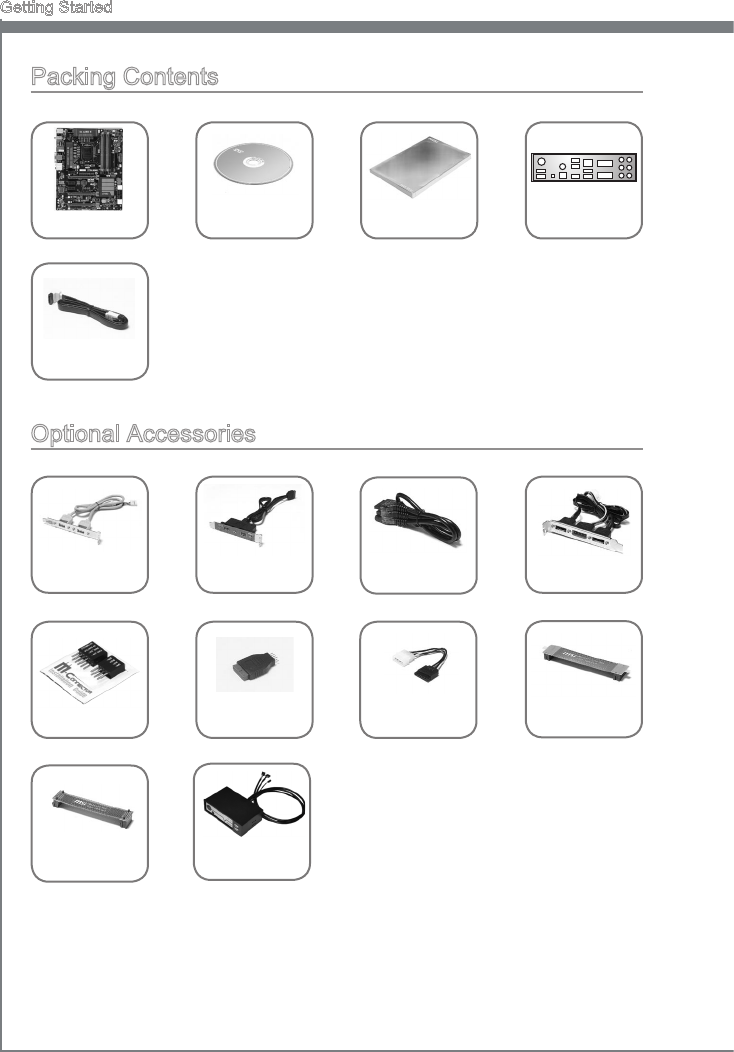
Packng Contents
* These pctures are for reference only and may vary wthout notce.
* The packng contents may vary accordng to the model you purchased.
* If you need to purchase the optonal accessores or request part numbers, please vst
the MSI webste at http://www.ms.com/ndex.php or consult the dealer.
Drvers &
Utltes Dsc User Gude Backplate
SATA Cable
M-Connector USB3 to USB2
Connector
SATA Power
Cable
USB 2.0
Bracket USB 3.0
Bracket
Optonal Accessores
SLI Cable
eSATA Power
Cable
CrossFre
Cable
eSATA
Bracket
MSI
MultConnect
Panel
Motherboard

1-3
MS-7751
Chapter 1
Assembly Precautons
The components ncluded n ths package are prone to damage from electrostatc
dscharge (ESD). Please adhere to the followng nstructons to ensure successful
computer assembly.
Always turn o the power supply and unplug the power cord from the power outlet
before nstallng or removng any computer component.
Ensure that all components are securely connected. Loose connectons may cause
the computer to not recognze a component or fal to start.
Hold the motherboard by the edges to avod touchng senstve components.
It s recommended to wear an electrostatc dscharge (ESD) wrst strap when handlng
the motherboard to prevent electrostatc damage. If an ESD wrst strap s not aval-
able, dscharge yourself of statc electrcty by touchng another metal object before
handlng the motherboard.
Store the motherboard n an electrostatc sheldng contaner or on an antstatc pad
whenever the motherboard s not nstalled.
Before turnng on the computer, ensure that there are no loose screws or metal com-
ponents on the motherboard or anywhere wthn the computer case.
Do not use the computer n a hgh-temperature envronment.
Do not boot the computer before nstallaton s completed. Ths could cause perma-
nent damage to the components as well as njury to the user.
If you need help durng any nstallaton step, please consult a certed computer tech-
ncan.
Important
A screwdrver (not ncluded) may be requred for computer assembly.
■
■
■
■
■
■
■
■
■
■
1-4
Gettng Started
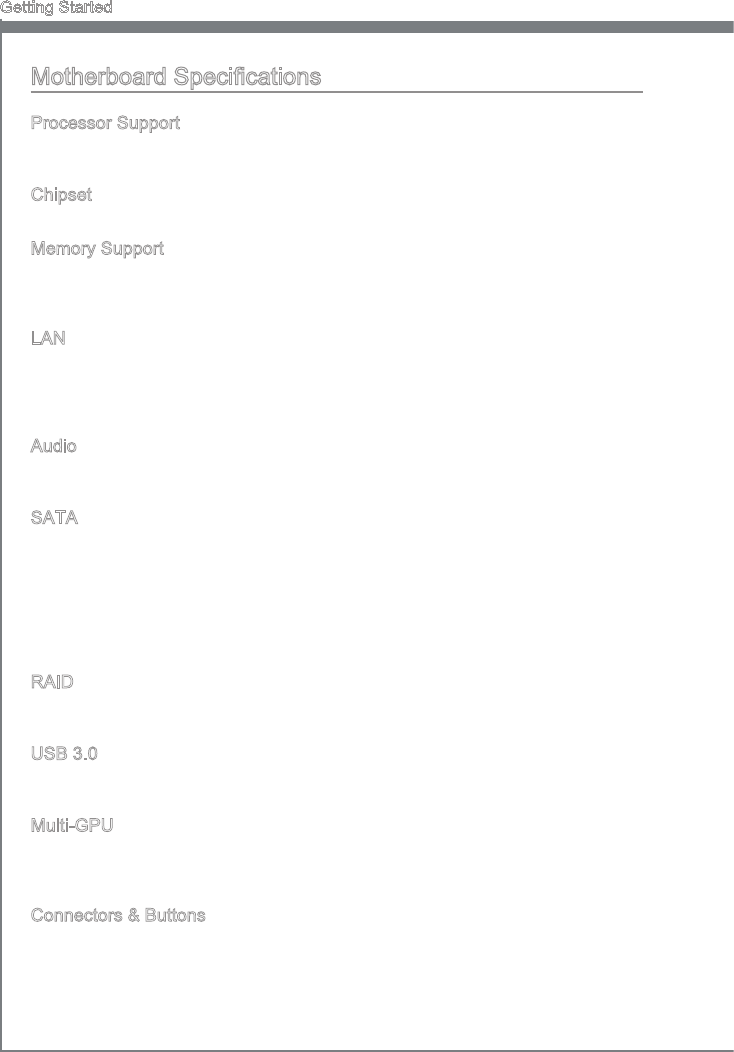
Motherboard Speccatons
Processor Support
3rd Generaton Intel® Core™ 7 / Core™ 5 / Core™ 3 / Pentum® / Celeron® processors
n an LGA 1155 socket
Chpset
Intel® Z77 chpset
Memory Support
4x DDR3 DIMMs support for DDR3-1066/ 1333/ 1600/ 1866/ 2000/ 2133(OC)/ 2200/
2400/ 2600/ 2667/ 2800 (OC, 22nm CPU requred) MHz up to 32GB max
Supports Dual-Channel mode
LAN
Supports LAN 10/100/1000 Fast Ethernet by Kller® E2205 Ggabt*
*The Kller Network Manager s only avalable for Wndows 7 and Wndows 8 cur-
rently. The supported drvers for other operatng systems would be avalable on the
webste f provded by vendor.
Audo
Integrated HD audo codec by Realtek® ALC898
Supports Sound Blaster Cnema
SATA
4x SATA 6Gb/s ports
(SATA1~2) by Intel® Z77
(SATA7~8) by Asmeda® ASM1061**
**If you set external SATA 6Gb/s ports to AHCI mode, we hghly recommend that
you nstall Wndows 7 or Wndows 8.
4x SATA 3Gb/s ports
(SATA3~6) by Intel® Z77
RAID
SATA1~6 support Intel® Rapd Storage Technology enterprse (AHCI/ RAID 0/ 1/ 5/
10) by Intel® Z77
USB 3.0
2x USB 3.0 rear IO ports by Intel® Z77
1x USB 3.0 onboard connector by Intel® Z77
Mult-GPU
Supports ATI® CrossFreTM Technology
Supports NVIDIA® SLITM Technology
Supports Lucd® Vrtu Unversal MVP
Connectors & Buttons
Back panel
1x PS/2 keyboard/ mouse port
1x Clear CMOS button
1x Coaxal S/PDIF-out port
1x Optcal S/PDIF-out port
■
■
■
■
■-
■
■
■-
-
-
■-
■
■
■
■
■
■
■-
-
-
-
1-5
MS-7751
Chapter 1
4x USB 2.0 ports
2x USB 3.0 ports
1x LAN port
6x audo ports
1x HDMI® port***, supportng a maxmum resoluton of 1920x1200
1x DVI-D port***, supportng a maxmum resoluton of 1920x1200
1x VGA port***, supportng a maxmum resoluton of 2048x1536
*** Ths platform supports dual-dsplay functon by any two output ports (HDMI+DVI,
DVI+VGA or VGA+HDMI).
On-Board
3x USB 2.0 connectors
1x USB 3.0 connector
1x IEEE 1394 connector
1x Mult BIOS Swtch
1x TPM Module connector
1x Front Panel Audo connector
1x Chasss Intruson connector
1x Debug LED panel
1x Voce Gene connector (optonal)
1x MultConnect Panel connector (optonal)
1x V-Check Ponts Set
1x OC Gene button
1x Reset button
1x Power button
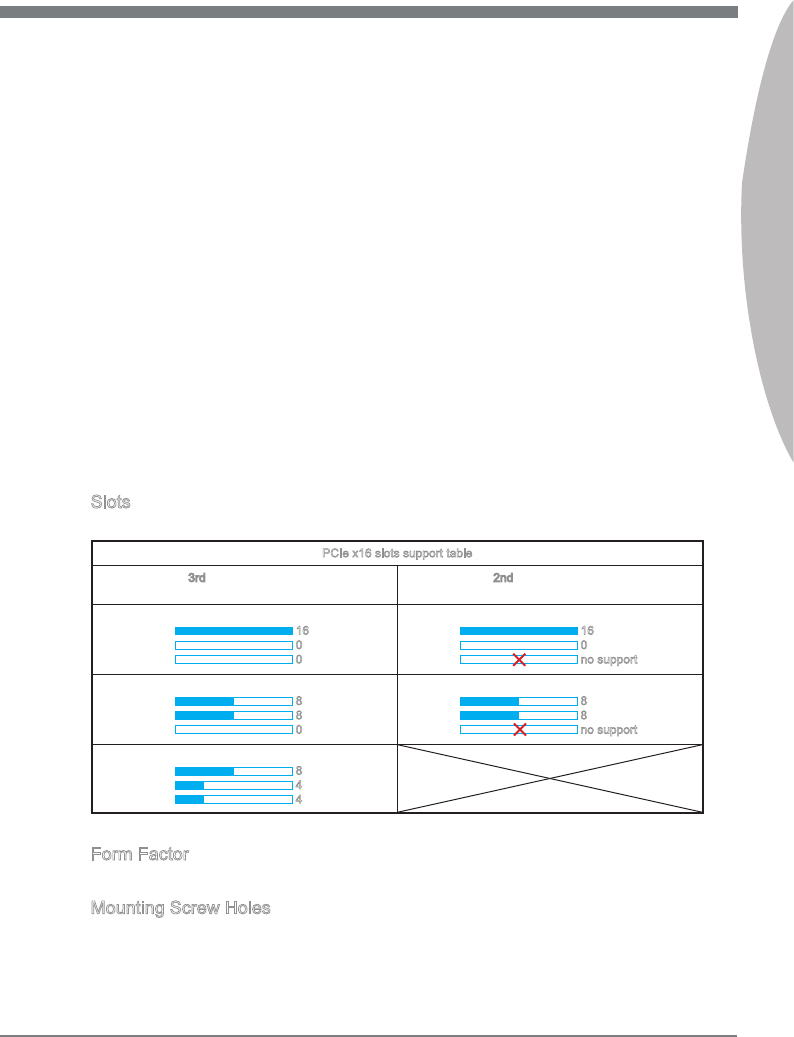
Slots
3x PCIe 3.0 x16 slots
PCIe x16 slots support table
When nstallng 3rd Gen Intel® Core™ 7/ Core™ 5/
Core™ 3/ Pentum®/ Celeron® processors When nstallng 2nd Gen Intel® Core™ 7/ Core™ 5/
Core™ 3/ Pentum®/ Celeron® processors
16/0/0 16
0
0
16/0/X 16
0
no support
8/8/0 8
8
0
8/8/X 8
8
no support
8/4/4 8
4
4
4x PCIe 2.0 x1 slots
Form Factor
ATX (30.5 cm X 24.5 cm)
Mountng Screw Holes
9x mountng holes
-
-
-
-
-
-
-
-
■-
-
-
-
-
-
-
-
-
-
-
-
-
-
■
■
■
■
1-6
Gettng Started
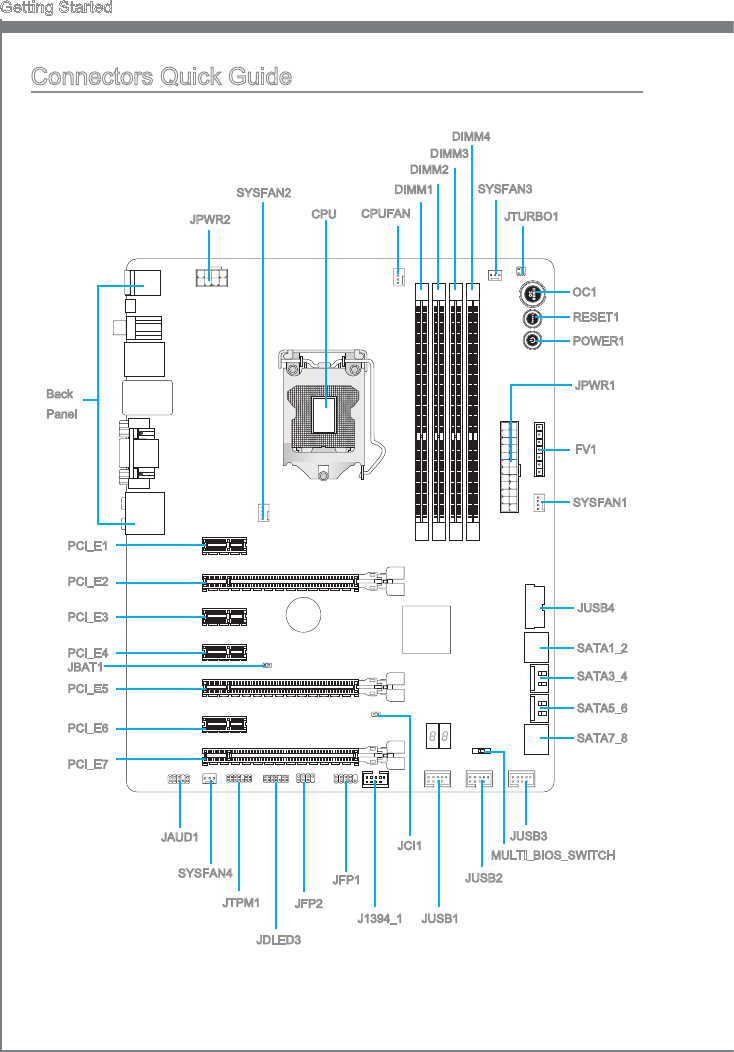
Connectors Quck Gude
Back
Panel
CPU CPUFAN
JPWR2
JFP1
JUSB3
JAUD1 JCI1
PCI_E1
JBAT1
SYSFAN2
SYSFAN4
PCI_E2
PCI_E3
PCI_E4
DIMM2
DIMM1
DIMM3
DIMM4
JTPM1
JDLED3
JUSB2
JUSB1
JFP2
PCI_E5
PCI_E6
PCI_E7
SYSFAN3
JTURBO1
OC1
RESET1
POWER1
JPWR1
FV1
SYSFAN1
JUSB4
SATA1_2
SATA3_4
SATA5_6
SATA7_8
MULTI_BIOS_SWITCH
J1394_1

1-7
MS-7751
Chapter 1
Connectors Reference Gude
Port Name Port Type Page
Back Panel 1-8
CPU LGA1155 CPU Socket 1-10
CPUFAN,SYSFAN1~4 Fan Power Connectors 1-25
DIMM1~4 DDR3 Memory Slots 1-16
FV1 Voltage Checkponts Connector 1-31
J1394_1 IEEE1394 Expanson Connector 1-30
JAUD1 Front Panel Audo Connector 1-26
JBAT1 Clear CMOS Jumper 1-34
JCI1 Chasss Intruson Connector 1-28
JDLED3 Voce Gene Connector 1-29
JFP1, JFP2 Front Panel Connectors 1-26
JPWR1 ATX 24-pn Power Connector 1-15
JPWR2 ATX 8-pn Power Connector 1-15
JTPM1 TPM Module connector 1-29
JTURBO1 MultConnect Panel Connector 1-30
JUSB1~3 USB 2.0 Expanson Connectors 1-27
JUSB4 USB 3.0 Expanson Connector 1-28
MULTI BIOS SWITCH Mult BIOS Swtch 1-35
OC1 OC Gene Button 1-32
PCI_E2, 5, 7 PCIe x16 Expanson Slots 1-18
PCI_E1, 3, 4, 6 PCIe x1 Expanson Slots 1-18
POWER1 Power Button 1-33
RESET1 Reset Button 1-33
SATA1~2, 7~8 SATA 6Gb/s Connectors 1-24
SATA3~6 SATA 3Gb/s Connectors 1-24

1-8
Gettng Started
Back Panel Quck Gude
Mouse/Keyboard
A combnaton PS/2® mouse/keyboard DIN connector for a PS/2® mouse/keyboard.
Clear CMOS Button
There s CMOS RAM present on board that s powered by an external battery to store
system conguraton data. Usng CMOS RAM, the system can automatcally boot nto
the operatng system (OS) every tme t s turned on. If you wsh to clear the system
conguraton, press the button to clear the data.
Coaxal S/PDIF-Out
Ths S/PDIF (Sony & Phlps Dgtal Interconnect Format) connector s provded for
dgtal audo transmsson to external speakers through an coaxal cable.
Optcal S/PDIF-Out
Ths S/PDIF (Sony & Phlps Dgtal Interconnect Format) connector s provded for
dgtal audo transmsson to external speakers through an optcal ber cable.
USB 2.0 Port
The USB 2.0 port s for attachng USB 2.0 devces such as keyboard, mouse, or other
USB 2.0-compatble devces.
USB 3.0 Port
USB 3.0 port s backward-compatble wth USB 2.0 devces. It supports data transfer
rate up to 5 Gbt/s (SuperSpeed).
Important
In order to use USB 3.0 devces, you must connect to a USB 3.0 port. If a USB cable s
used, t must be USB 3.0 complant.
▶
▶
▶
▶
▶
▶
Optcal
S/PDIF-Out
Lne-In
Lne-Out
Mc
RS-Out
CS-Out
SS-Out
USB 2.0 Port
USB 3.0 Port
Clear CMOS Button
LAN
Mouse/Keyboard
USB 2.0 Port
Coaxal
S/PDIF-Out
HDMI Port
VGA Port
DVI-D Port
1-9
MS-7751
Chapter 1
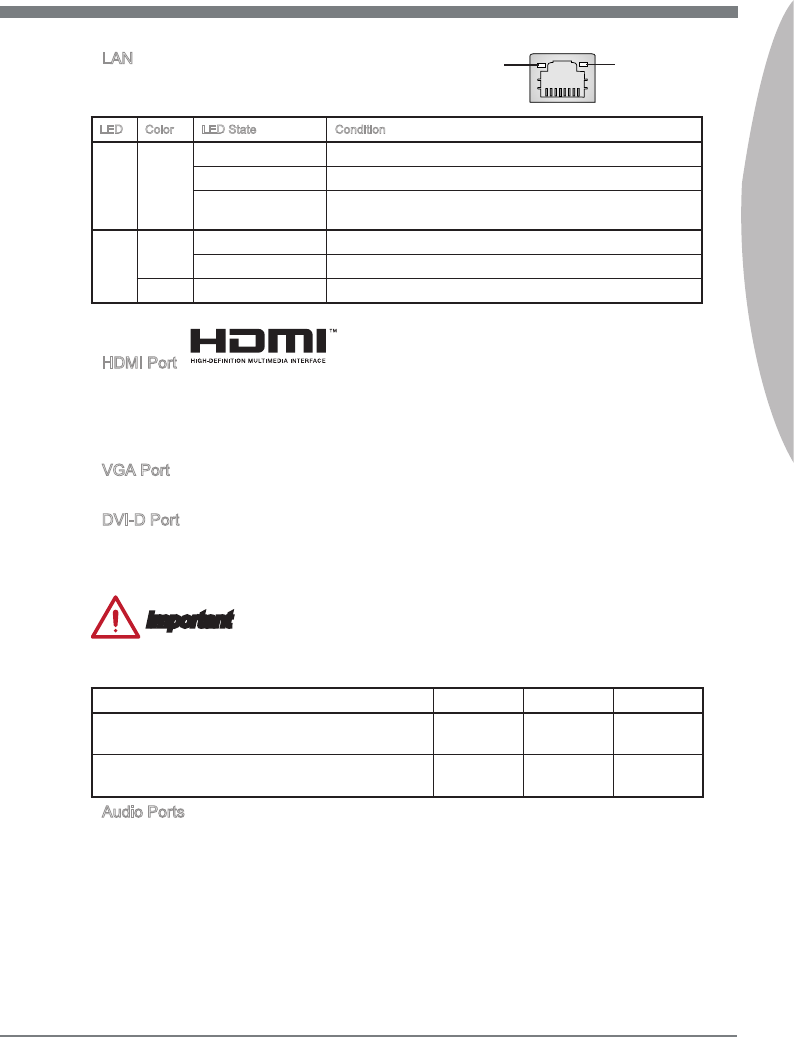
LAN
The standard RJ-45 LAN jack s for connectng to a
Local Area Network (LAN).
LED Color LED State Condton
Left Yellow O LAN lnk s not establshed.
On(Steady) LAN lnk s establshed.
On(ashng) The computer s communcatng wth another computer on the
network.
Rght Green O 10 Mbts/sec data rate
On 100 Mbts/sec data rate
Orange On 1000 Mbts/sec data rate
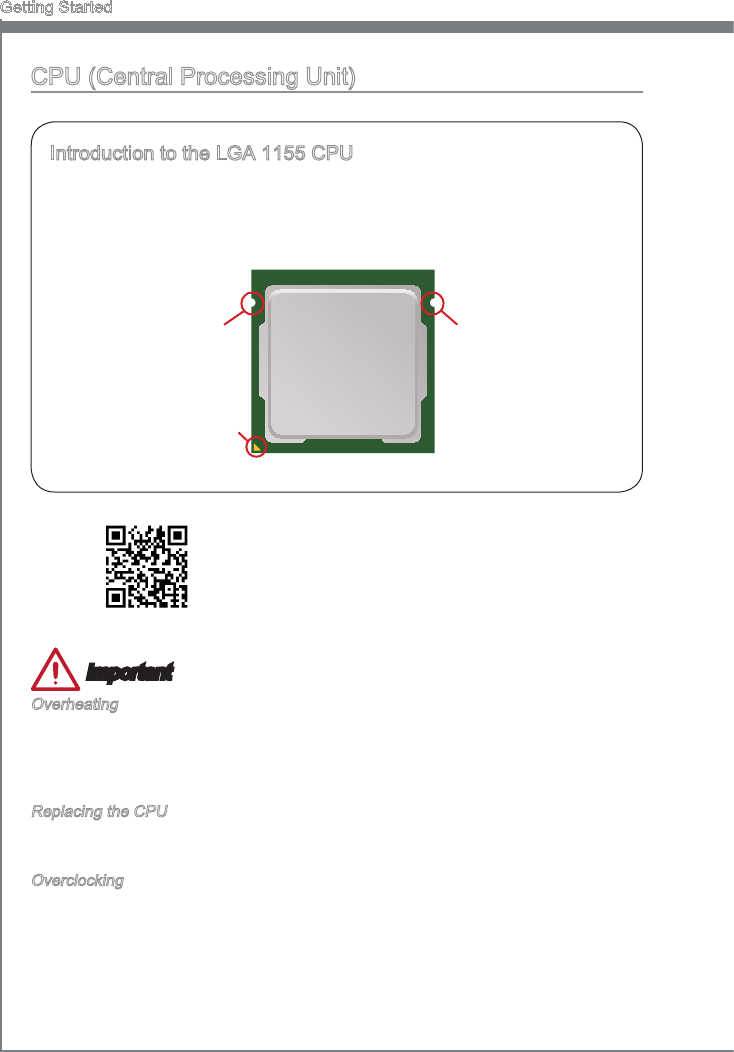
HDMI Port
The Hgh-Denton Multmeda Interface (HDMI) s an all-dgtal audo-vdeo nterface
that s capable of transmttng uncompressed streams. HDMI supports all types of TV
formats, ncludng standard, enhanced, or hgh-denton vdeo, plus mult-channel
dgtal audo on a sngle cable.
VGA Port
The DB15-pn female connector s provded for montor.
DVI-D Port
The DVI-D (Dgtal Vsual Interface- Dgtal) connector can be connected to a LCD
montor, or a CRT montor wth an adapter. To connect a montor, please refer to the
montor’s manual for more nformaton.
Important
Ths platform supports dual-dsplay functon by any two output ports (HDMI+DVI,
DVI+VGA or VGA+HDMI).
HDMI+DVI DVI+VGA VGA+HDMI
Extend mode
(Extend the desktop to the second montor) ◯ ◯ ◯
Clone mode
(Two montors have the same screen) ◯ ◯ ◯
Audo Ports
These connectors are used for audo devces. The color of the jack refers to the functon
of the connector.
Blue-Lne n: Used for connectng external audo outputtng devces.
Green- Lne out: Used as a connector for speakers or headphone.
Pnk- Mc: Used as a connector for a mcrophone.
Black- RS-Out: Rear surround sound lne out n 4/ 5.1/ 7.1 channel mode.
Orange- CS-Out: Center/ subwoofer lne out n 5.1/ 7.1 channel mode.
Gray- SS-Out: Sde surround sound lne out n 7.1 channel mode.
▶
▶
▶
▶
▶
■
■
■
■
■
■
Yellow Green/ Orange
1-10
Gettng Started
CPU (Central Processng Unt)
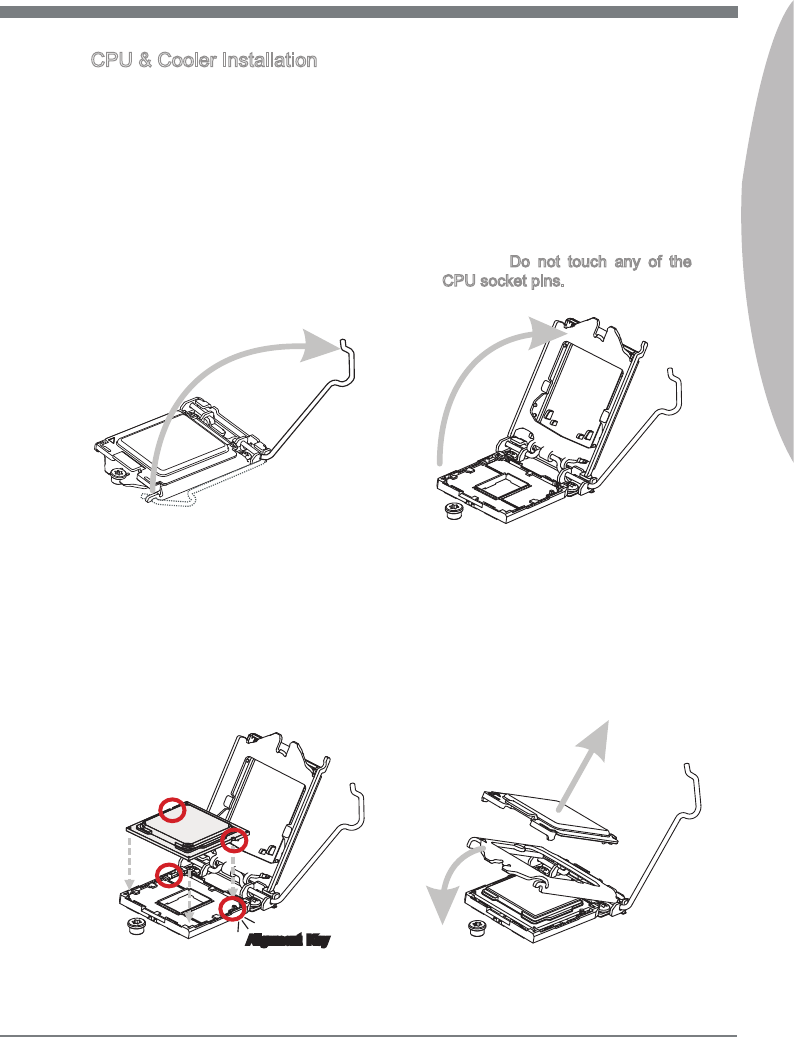
Introducton to the LGA 1155 CPU
The surface of the LGA 1155 CPU has two algnment keys and a yellow trangle
to assst n correctly lnng up the CPU for motherboard placement. The yellow
trangle s the Pn 1 ndcator.
Algnment Key
Yellow trangle s the
Pn 1 ndcator
Algnment Key
Important
Overheatng
Overheatng can serously damage the CPU and motherboard. Always make sure the
coolng fans work properly to protect the CPU from overheatng. Be sure to apply an
even layer of thermal paste (or thermal tape) between the CPU and the heatsnk to
enhance heat dsspaton.
Replacng the CPU
When replacng the CPU, always turn o the system’s power supply and unplug the
power supply’s power cord to ensure the safety of the CPU.
Overclockng
Ths motherboard s desgned to support overclockng. Before attemptng to overclock,
please make sure that all other system components can tolerate overclockng. Any
attempt to operate beyond product speccatons s not recommend. MSI does not
guarantee the damages or rsks caused by nadequate operaton beyond product
speccatons.
For the latest nformaton about processors, please
vst http://www.ms.com/servce/cpu-support/
1-11
MS-7751
Chapter 1
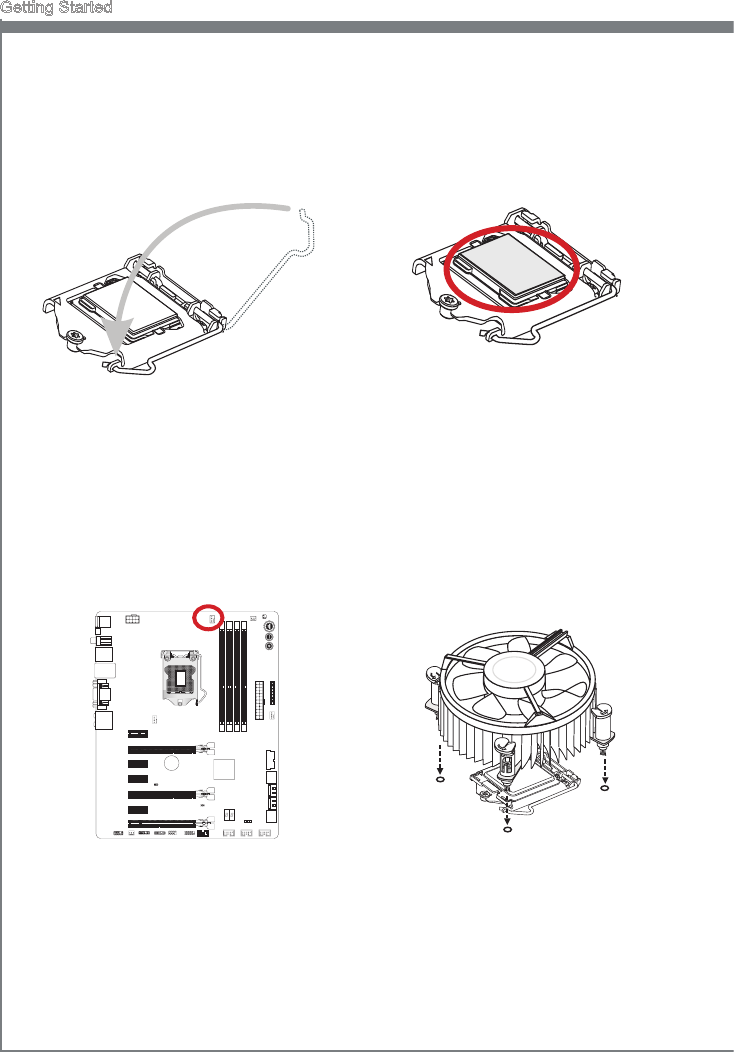
CPU & Cooler Installaton
When nstallng a CPU, always remember to nstall a CPU cooler. A CPU cooler s
necessary to prevent overheatng and mantan system stablty. Follow the steps below
to ensure correct CPU and CPU cooler nstallaton. Wrong nstallaton can damage both
the CPU and the motherboard.
Unhook and lft the loadng lever to
the fully open poston.
1. The loadng plate should
automatcally lft up as the loadng
lever s pushed to the fully open
poston. Do not touch any of the
CPU socket pns.
2.
Lne up the CPU to t the CPU
socket. Be sure to hold the CPU by
the base wth the metal contacts
facng downward. The algnment
keys on the CPU wll lne up wth the
edges of the CPU socket to ensure a
correct t.
3. Close the loadng plate and remove
the plastc protectve cap.
4.
Algnment Key
1-12
Gettng Started
Inspect the CPU to check f t s
properly seated n the socket. Press
the loadng lever down and lock t
under the retenton tab.
5. Evenly spread a thn layer of
thermal paste (or thermal tape) on
the top of the CPU. Ths wll help n
heat dsspaton and prevent CPU
overheatng.
6.
Locate the CPU fan connector on the
motherboard.
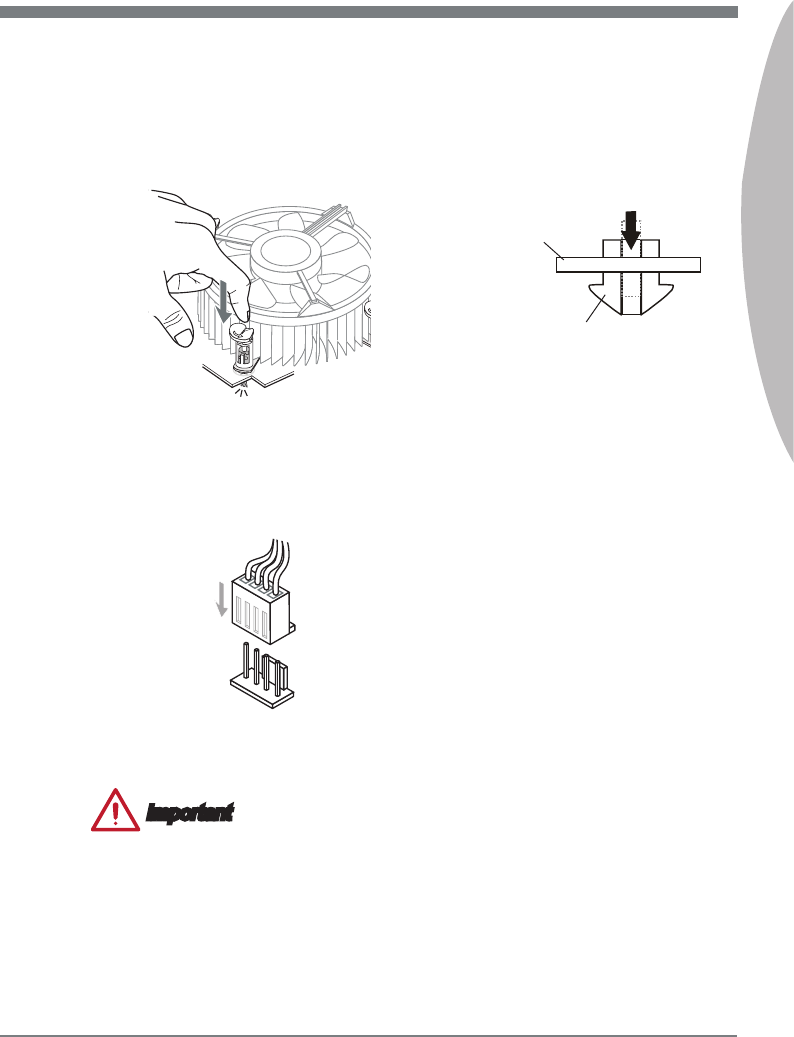
7. Place the heatsnk on the
motherboard wth the fan’s wres
facng towards the fan connector and
the hooks matchng the holes on the
motherboard.
8.
1-13
MS-7751
Chapter 1
Important
Do not touch the CPU socket pns.
Conrm that the CPU cooler has formed a tght seal wth the CPU before bootng
your syste.
Whenever the CPU s not nstalled, always protect the CPU socket pns by coverng
the socket wth the plastc cap.
Please refer to the documentaton n the CPU cooler package for more detals about
CPU cooler nstallaton.
•
•
•
•
Push down on the heatsnk untl the
four clps get wedged nto the holes
on the motherboard. Press the four
hooks down to fasten the cooler. As
each hook locks nto poston a clck
should be heard.
9. Inspect the motherboard to ensure
that the clp-ends have been properly
locked n place.
10.
Fnally, attach the CPU fan cable
to the CPU fan connector on the
motherboard.
11.
Motherboard
Hook
1-14
Gettng Started
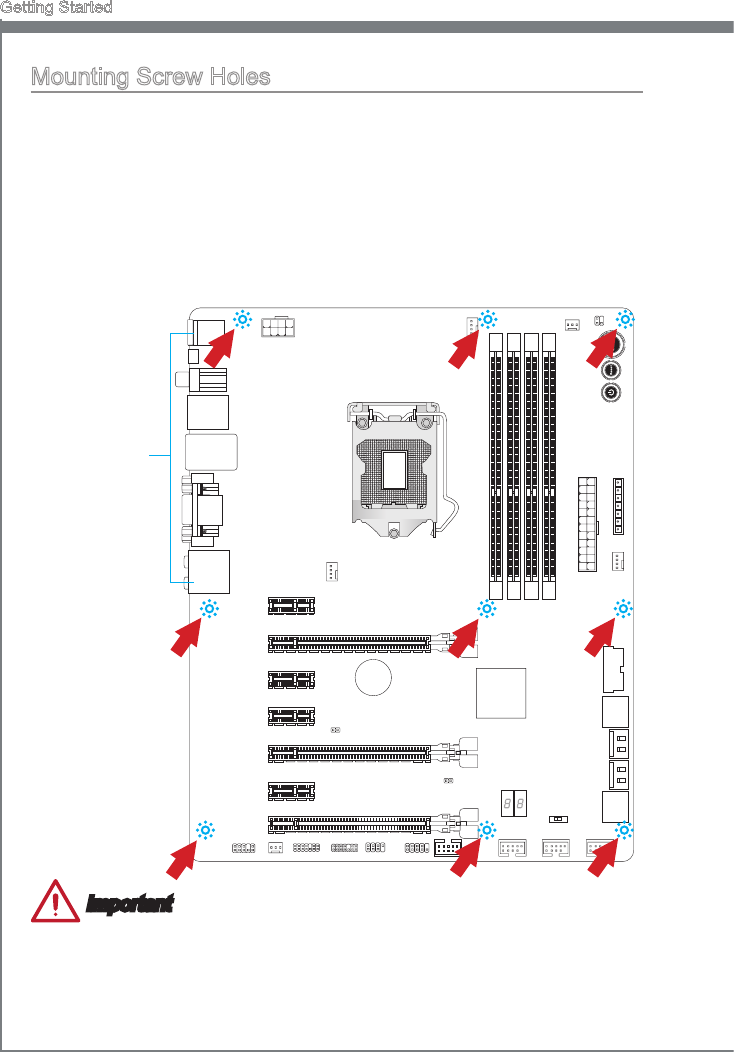
Mountng Screw Holes
When nstallng the motherboard, rst nstall the necessary mountng stands requred
for an motherboard on the mountng plate n your computer case. If there s an I/O back
plate that came wth the computer case, please replace t wth the I/O backplate that
came wth the motherboard package. The I/O backplate should snap easly nto the
computer case wthout the need for any screws. Algn the mountng plate’s mountng
stands wth the screw holes on the motherboard and secure the motherboard wth the
screws provded wth your computer case. The locatons of the screw holes on the
motherboard are shown below. For more nformaton, please refer to the manual that
came wth the computer case.
Important
Install the motherboard on a at surface free from unnecessary debrs.
To prevent damage to the motherboard, any contact between the motherboard cr-
cutry and the computer case, except for the mountng stands, s prohbted.
Please make sure there are no loose metal components on the motherboard or wthn
the computer case that may cause a short crcut of the motherboard.
•
•
•
The I/O ports should be facng toward
the rear of the computer case. They
should lne up wth the holes on the
I/O backplate.
1-15
MS-7751
Chapter 1
Power Supply
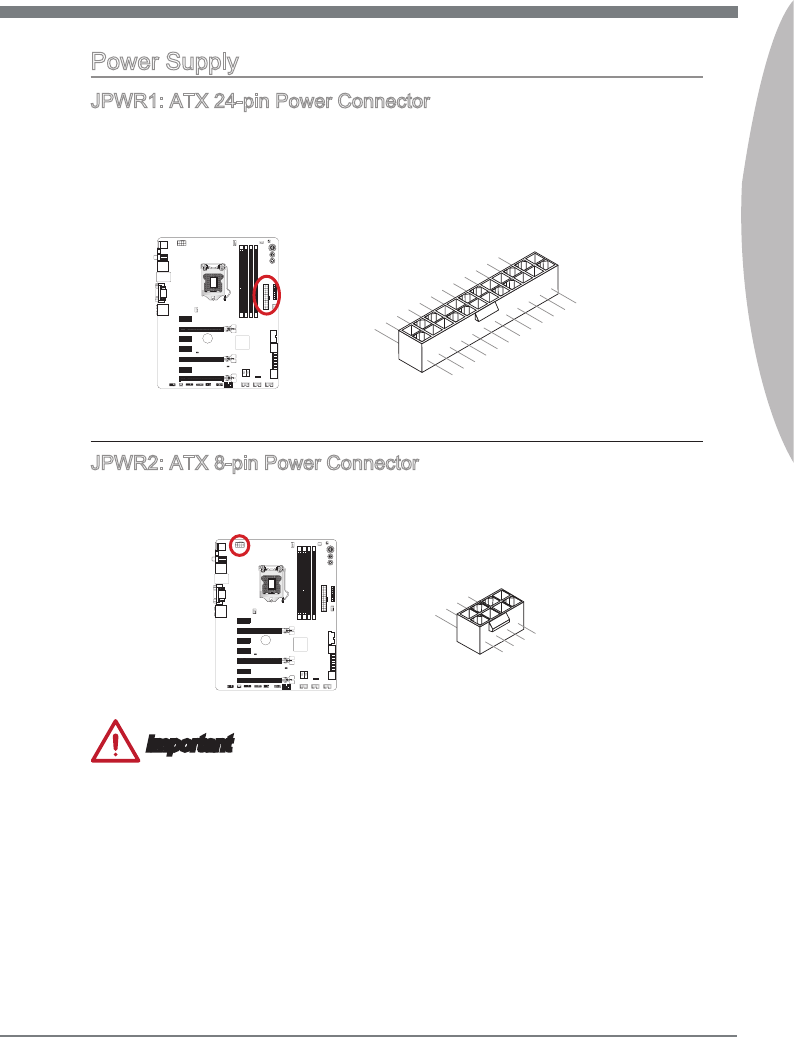
JPWR1: ATX 24-pn Power Connector
Ths connector allows you to connect an ATX 24-pn power supply. To connect the ATX
24-pn power supply, algn the power supply cable wth the connector and rmly press
the cable nto the connector. If done correctly, the clp on the power cable should be
hooked on the motherboard’s power connector.
13.+3.3V
1.+3.3V
14.-12V
2.+3.3V
15.Ground
3.Ground
16.PS-ON#
4.+5V17.Ground
5.Ground
18.Ground
6.+5V
19.Ground
7.Ground
22.+5V
10.+12V
20.Res
8.PWR OK
23.+5V
11.+12V
21.+5V
9.5VSB
24.Ground
12.+3.3V
JPWR2: ATX 8-pn Power Connector
Ths connector provdes 12V power to the CPU.
7.+12V
3.Ground
5.+12V
1.Ground
8.+12V
4.Ground
6.+12V
2.Ground
Important
Make sure that all the power cables are securely connected to a proper ATX power sup-
ply to ensure stable operaton of the motherboard.
1-16
Gettng Started
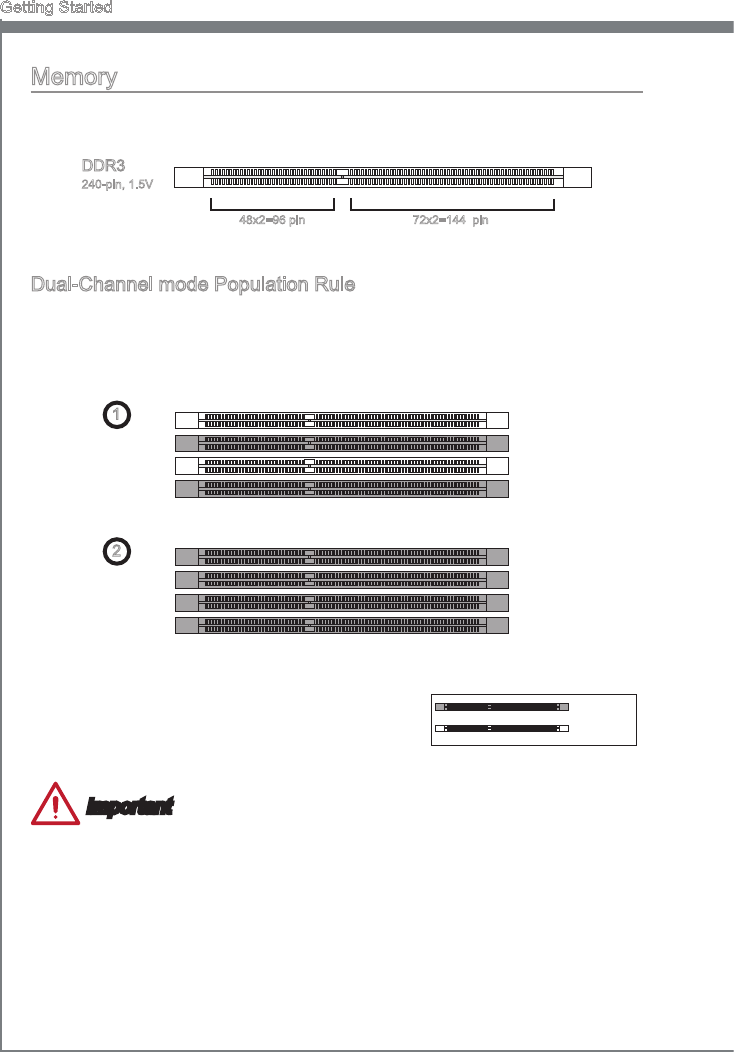
Memory
These DIMM slots are used for nstallng memory modules. For more nformaton on
compatble components, please vst http://www.ms.com/servce/test-report
DDR3
240-pn, 1.5V
48x2=96 pn 72x2=144 pn
Dual-Channel mode Populaton Rule
In Dual-Channel mode, the memory modules can transmt and receve data wth two
data bus channels smultaneously. Enablng Dual-Channel mode can enhance system
performance. The followng llustratons explan the populaton rules for Dual-Channel
mode.
1 DIMM1
DIMM2
DIMM3
DIMM4
2 DIMM1
DIMM2
DIMM3
DIMM4
Important
DDR3 memory modules are not nterchangeable wth DDR2, and the DDR3 standard
s not backward compatble. Always nstall DDR3 memory modules n DDR3 DIMM
slots.
To ensure system stablty, memory modules must be of the same type and densty
n Dual-Channel mode.
Due to chpset resource usage, the system wll only detect up to 31+ GB of memory
(not full 32 GB) when all DIMM slots have 8GB memory modules nstalled.
•
•
•
Installed
Empty
1-17
MS-7751
Chapter 1
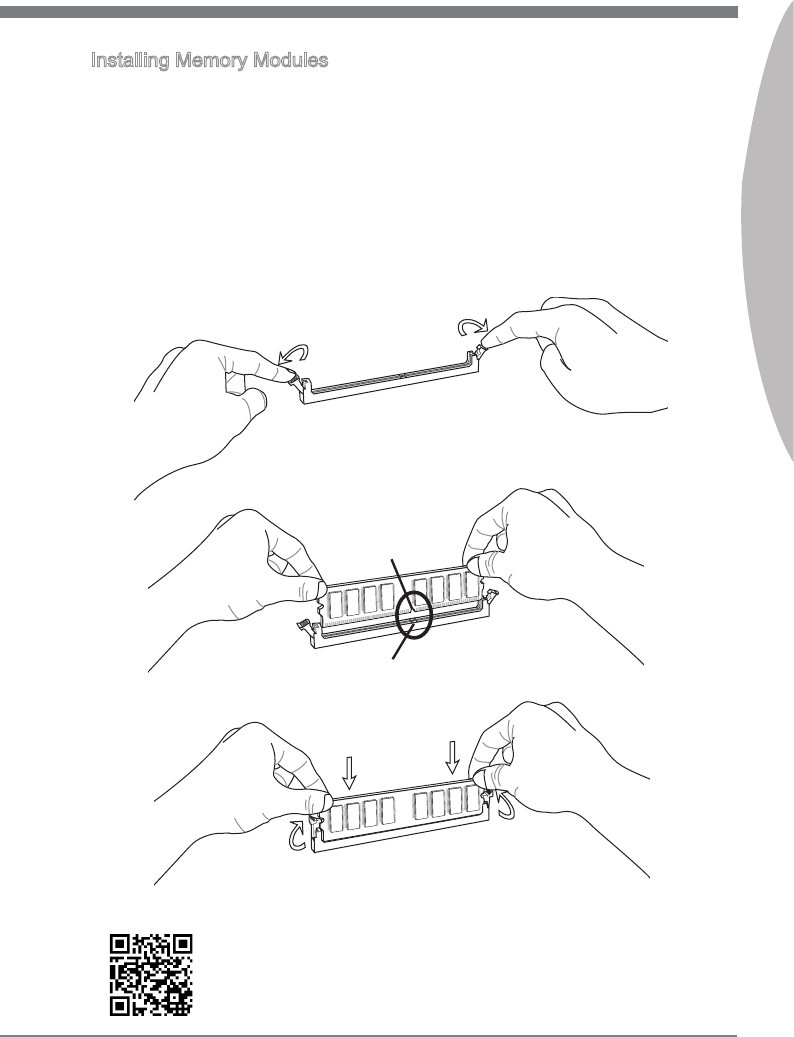
Installng Memory Modules
Unlock the DIMM slot by pushng the mountng clps to the sde. Vertcally nsert the
memory module nto the DIMM slot. The memory module has an o-center notch on
the bottom that wll only allow t to t one way nto the DIMM slot.
Push the memory module deep nto the DIMM slot. The plastc clps at each sde
of the DIMM slot wll automatcally close when the memory module s properly seat
and an audble clck should be heard.
Manually check f the memory module has been locked n place by the DIMM slot’s
sde clps.
Notch
Volt
1.
2.
3.
For more nformaton on compatble components, please vst
http://www.ms.com/servce/test-report/
1-18
Gettng Started
Expanson Slots
Ths motherboard contans numerous ports for expanson cards, such as dscrete
graphcs or audo cards.
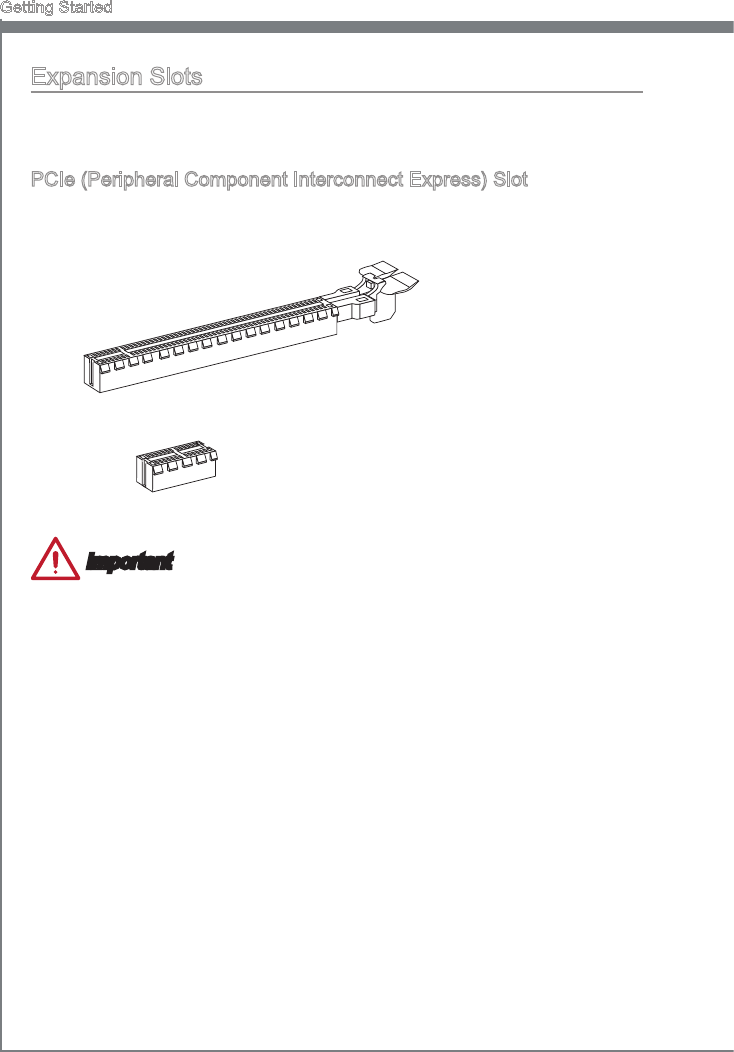
PCIe (Perpheral Component Interconnect Express) Slot
The PCIe slot supports the PCIe nterface expanson card.
PCIe 2.0 x1 Slot
PCIe 3.0 x16 Slot
Important
When addng or removng expanson cards, always turn o the power supply and un-
plug the power supply power cable from the power outlet. Read the expanson card’s
documentaton to check for any necessary addtonal hardware or software changes.
1-19
MS-7751
Chapter 1
Vdeo/ Graphcs Cards
If avalable, ths motherboard takes advantage of the CPU’s ntegrate graphcs processor,
but dscrete vdeo cards can be nstalled by way of the motherboard’s expanson slots.
Addng on one or more dscrete vdeo cards wll sgncantly boost the system’s graphcs
performance. For best compatblty, MSI graphcs cards are recommended.
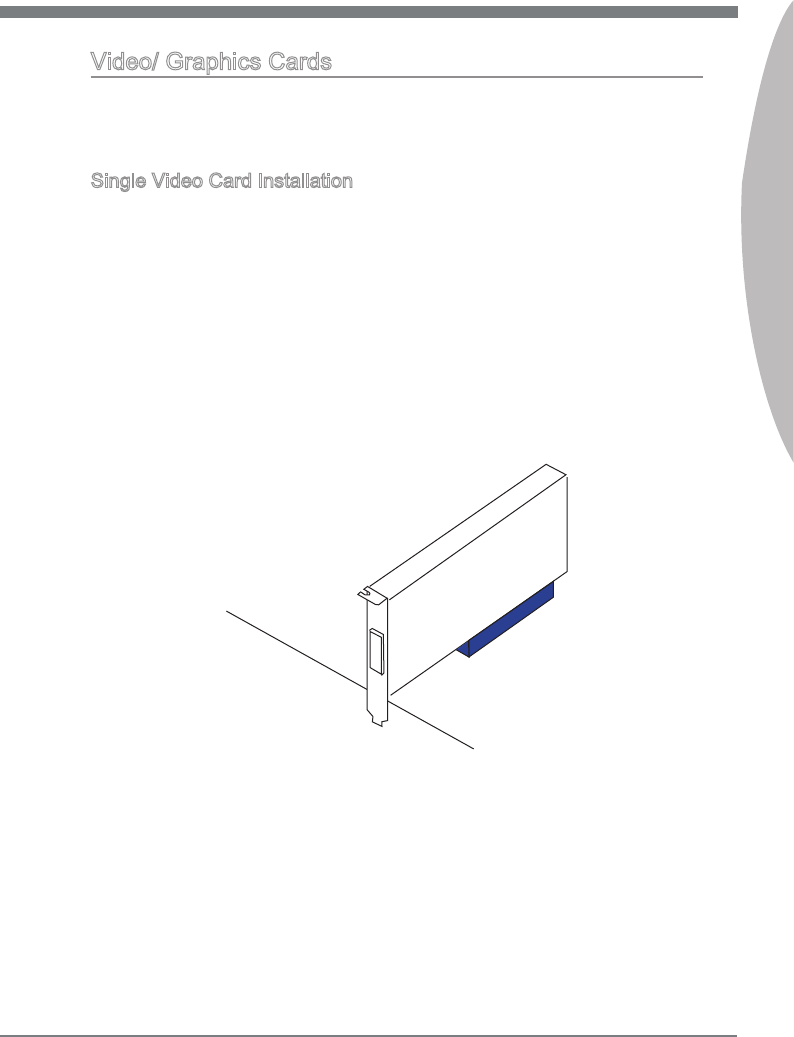
Sngle Vdeo Card Installaton
Determne what type of expanson slot(s) the vdeo card wll use. Locate the
expanson slot(s) on the motherboard. Remove any protectve expanson slot
covers from the computer case.
Lne up the vdeo card on top of the expanson slot(s) wth the dsplay ports facng
out of the computer case. For a sngle vdeo card nstallaton, usng the PCI_E2 slot
s recommended.
Push the vdeo card nto ts expanson slot(s). Dependng on the expanson slot(s)
used, there should be clp(s) on the expanson slot(s) that wll lock n place.
If needed, screw the edge of the graphcs card to the computer case. Some vdeo
cards mght requre a power cable drectly from the power supply.
Please consult your vdeo card’s manual for further nstructons regardng drver
nstallaton or other specal settngs.
1.
2.
3.
4.
5.
1-20
Gettng Started
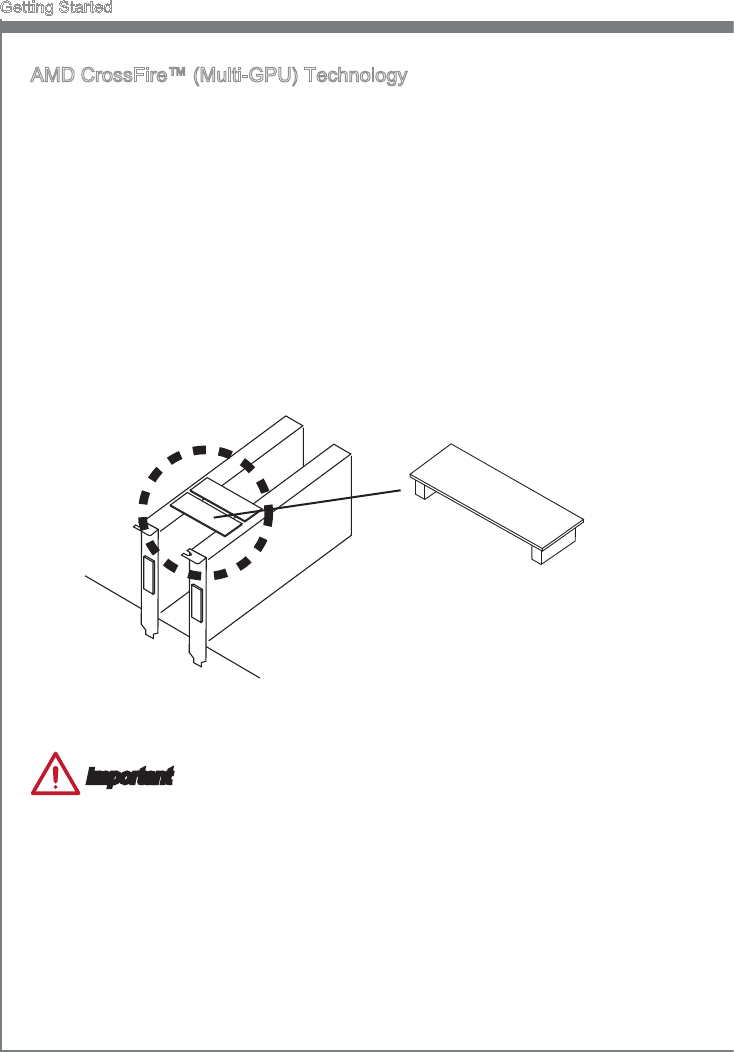
AMD CrossFre™ (Mult-GPU) Technology
AMD CrossFre™ s a mult-GPU performance gamng platform. By lnkng together
two or more dscrete GPUs, CrossFre™ can sgncant mprove system graphcs
performance. It allows the ablty to scale a system’s graphcs power as needed,
makng t the most scalable gamng platform. Ths motherboard wll automatcally
detect CrossFre™ technology and make changes n the BIOS as needed. Follow the
nstructons below to ensure a successful two-way CrossFre™ nstallaton.
Install two AMD Radeon™ HD graphcs cards nto the PCI_E2 & PCI_E5 expanson
slots.
Wth the two cards nstalled, two CrossFre™ Vdeo Lnk cable are requred to
connect the graphcs cards. Attach one sde of the cable on each of the cards
by way of the metal contacts (please refer to the pcture below). Please note that
although two graphcs cards have been nstalled, only the dsplay ports on the
graphcs card nstalled n the rst PCIe x16 slot wll work. All dsplays should be
connected to ths graphcs card.
1.
2.
CrossFreTM Vdeo Lnk cable
Important
Please ensure that all graphcs cards used n CrossFre™ mode are of the same
brand and speccatons. For best compatblty wth the motherboard, MSI graphcs
cards are recommended.
Make sure to connect an adequate power supply to the power connectors on the
graphcs cards to ensure stable operaton.
Only Wndows XP wth Servce Pack 2 (SP2), Wndows XP Professonal x64 Edton,
Wndows Vsta, Wndows 7 & Wndows 8 wll support CrossFre mode.
•
•
•
1-21
MS-7751
Chapter 1
Boot up the computer and nstall the drvers and software ncluded n your vdeo
card package. For more nformaton, please refer to the manual that came wth your
vdeo card.
After all of the hardware and software has been properly nstalled, reboot the
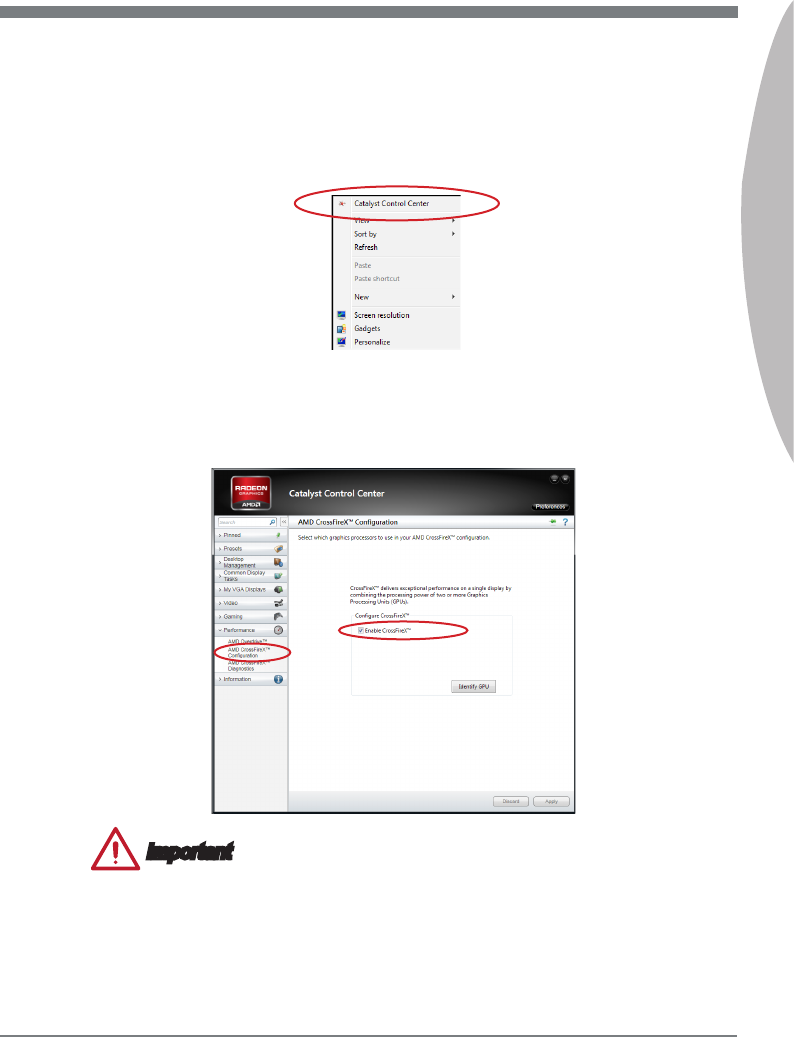
system. After enterng the operatng system (OS), rght clck on the desktop and
choose the “Catalyst Control Center II”.
3.
4.
The CrossFre™ settng must be enabled to allow CrossFre™ mode to operate.
The follow screen appears n the Catalyst Control Center II. Dependng on your
operatng system, the screen may look derent.
5.
Important
A CrossFre
TM
system has four possble dsplay modes:
SuperTlng
Scssor Mode
Alternate Frame Renderng
Super Ant-alasng.
For more detals, please consult the graphcs card manual.
•
•
•
•
1-22
Gettng Started
NVIDIA® SLI Technology
NVIDIA’s SLI (Scalable Lnk Interface) technology allows two or more GPUs to run n
tandem wthn a system to acheve sgncant graphcs performance gans. To utlze
ths technology, the GPU cards must be connected by an SLI Vdeo Lnk.
If you ntend to use SLI mode, please follow the nstructons below to properly set up SLI
mode. The nstructons below are meant for a two vdeo card SLI conguraton.
Install two NVIDIA graphcs cards n the PCI_E2 and the PCI_E5 slots.
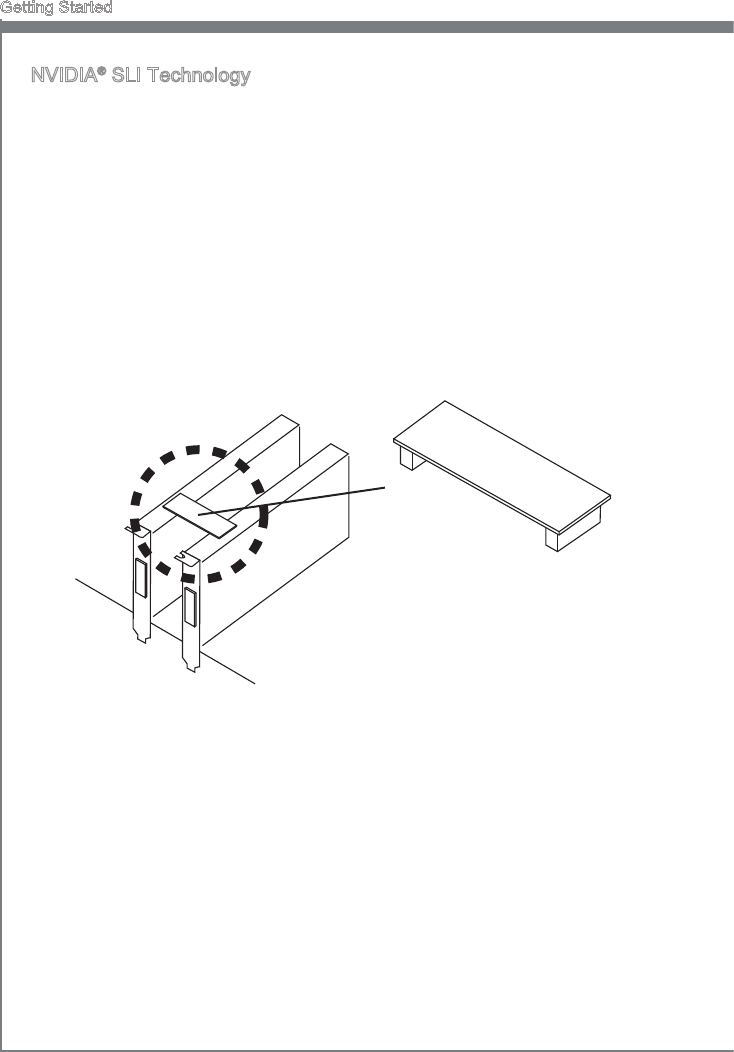
Wth the two cards nstalled, a SLI Vdeo Lnk cable s requred to connect the
graphcs cards. Attach one sde of the cable on each of the cards by way of the
metal contacts (please refer to the pcture below). Please note that although two
graphcs cards have been nstalled, only the dsplay ports on the graphcs card
nstalled n the rst PCIe x16 slot wll work. All dsplays should be connected to ths
graphcs card.
1.
2.
Boot up the computer and nstall the drvers and software ncluded n your vdeo
card package. For more nformaton, please refer to the manual that came wth your
vdeo card.
3.
SLI Vdeo Lnk Card

1-23
MS-7751
Chapter 1
After all of the hardware and software has been properly nstalled, reboot the
system. After enterng the operatng system (OS), rght clck on the desktop and
choose the “NVIDIA Control Panel”.
4.
Enter the NVIDIA Control Panel. Choose the “Maxmze 3D Performance” settng
to enable SLI mode. The conguraton screen s shown below. Dependng on your
operatng system, the screen may look derent.
5.
Important
Please ensure that all graphcs cards used n SLI mode are of the same brand and
speccatons. For best compatblty wth the motherboard, MSI graphcs cards are
recommended.
Make sure to connect an adequate power supply to the power connectors on the
graphcs cards to ensure stable operaton.
If you wsh to remove one graphcs card and qut the SLI functon, make sure the
“Maxmze 3D Performance” functon s dsabled before removng the graphcs card.
•
•
•
Choose ths tem
1-24
Gettng Started
Internal Connectors
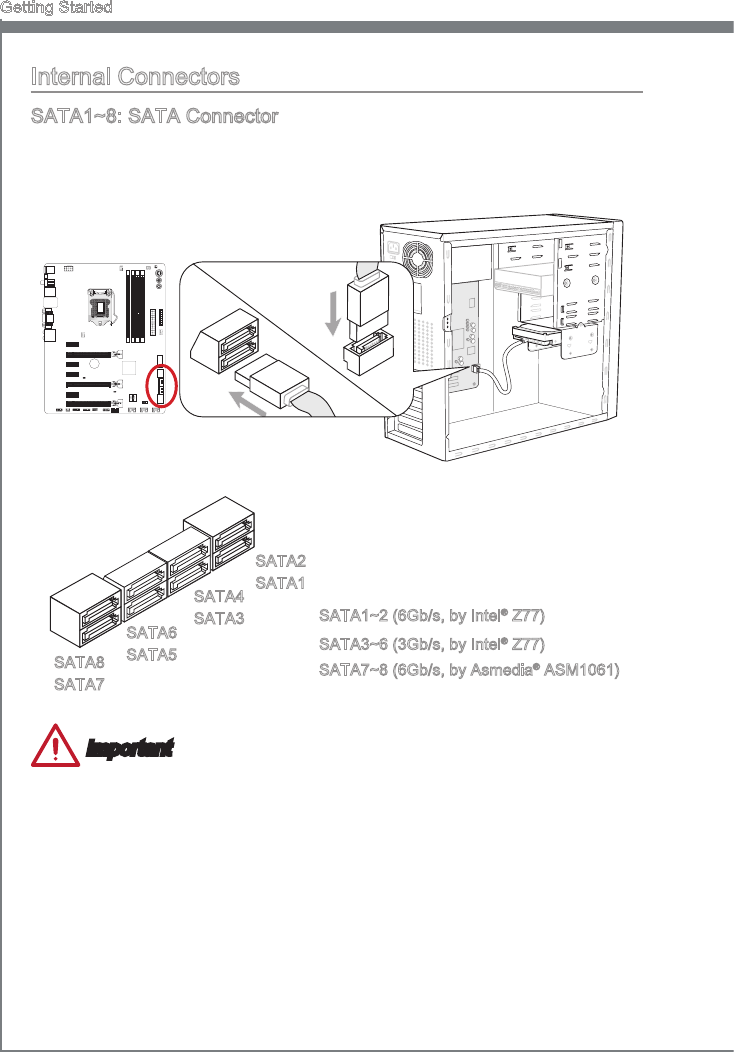
SATA1~8: SATA Connector
Ths connector s a hgh-speed SATA nterface port. Each connector can connect to one
SATA devce. SATA devces nclude dsk drves (HDD), sold state drves (SSD), and
optcal drves (CD/ DVD/ Blu-Ray).
* The MB layout n ths gure s for reference only.
SATA1~2 (6Gb/s, by Intel® Z77)
SATA3~6 (3Gb/s, by Intel® Z77)
SATA2
SATA1
SATA4
SATA3
SATA6
SATA5
SATA8
SATA7 SATA7~8 (6Gb/s, by Asmeda® ASM1061)
Important
Many SATA devces also need a power cable from the power supply. Such devces
nclude dsk drves (HDD), sold state drves (SSD), and optcal drves (CD / DVD /
Blu-Ray). Please refer to the devce’s manual for further nformaton.
Many computer cases also requre that large SATA devces, such as HDDs, SSDs,
and optcal drves, be screwed down nto the case. Refer to the manual that came
wth your computer case or your SATA devce for further nstallaton nstructons.
Please do not fold the SATA cable at a 90-degree angle. Data loss may result durng
transmsson otherwse.
SATA cables have dentcal plugs on ether sdes of the cable. However, t s recom-
mended that the at connector be connected to the motherboard for space savng
purposes.
•
•
•
•

1-25
MS-7751
Chapter 1
CPUFAN,SYSFAN1~4: Fan Power Connectors
The fan power connectors support system coolng fans wth +12V. If the motherboard
has a System Hardware Montor chpset on-board, you must use a specally desgned
fan wth a speed sensor to take advantage of the CPU fan control. Remember to
connect all system fans. Some system fans may not connect to the motherboard and
wll nstead connect to the power supply drectly. A system fan can be plugged nto any
avalable system fan connector.
1.Ground
2.+12V
3.Sensor
4.Control
CPUFAN/ SYSFAN1/
SYSFAN2
1.Ground
2.+12V
3.Sensor/ No Use
SYSFAN3/ SYSFAN4
Important
Please refer to your processor’s ocal webste or consult your vendor to nd
recommended CPU coolng fans.
The CPUFAN, SYSFAN1, SYSFAN2 connectors support Smart Fan Control wth
lner mode. The Control Center II utlty can be nstalled to automatcally control the
fan speeds accordng to the CPU’s and system’s temperature.
If there are not enough ports on the motherboard to connect all system fans, adapters
are avalable to connect a fan drectly to a power supply.
Before rst boot up, ensure that there are no cables mpedng any fan blades.
•
•
•
•
1-26
Gettng Started
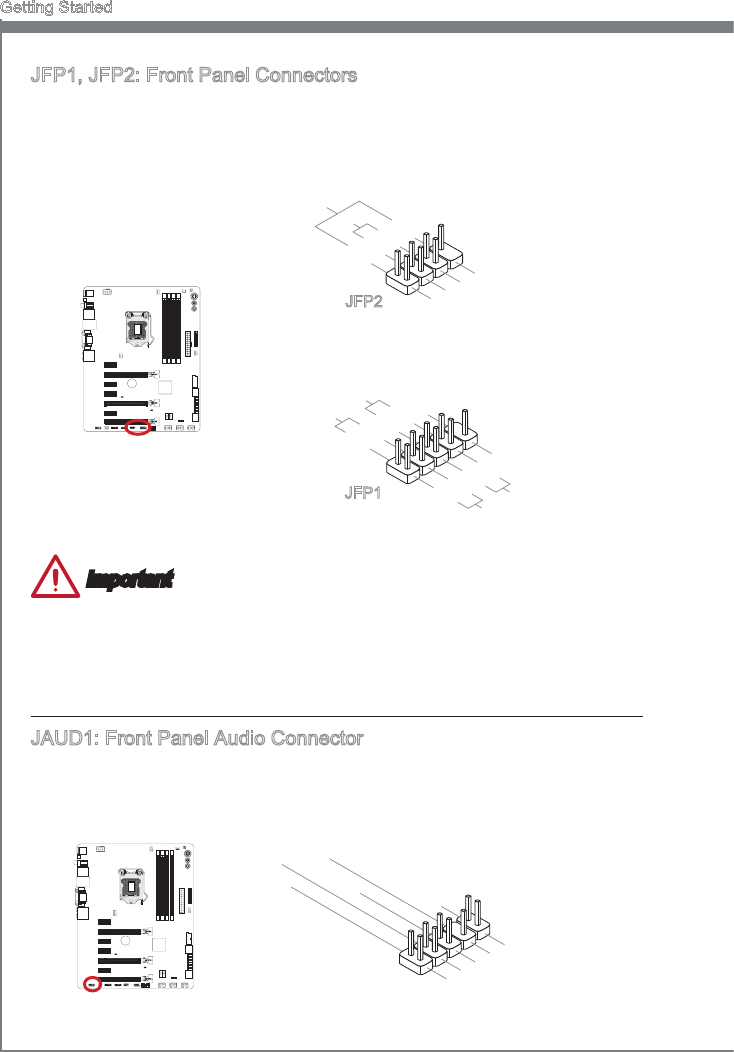
JFP1, JFP2: Front Panel Connectors
These connectors connect to the front panel swtches and LEDs. The JFP1 connector s
complant wth the Intel® Front Panel I/O Connectvty Desgn Gude. When nstallng the
front panel connectors, please use the enclosed mConnectors to smplfy nstallaton.
Plug all the wres from the computer case nto the mConnectors and then plug the
mConnectors nto the motherboard.
1.+
3.-
10.No Pin
5.-Reset Switch
HDD LED
Power Switch
Power LED
7.+
9.Reserved
8.-
6.+
4.-
2.+
JFP1
1.Ground
3.Suspend LED
5.Power LED
7.No Pin
8.+
6.-
4.+
2.-
Buzzer
Speaker
JFP2
Important
On the connectors comng from the case, pns marked by small trangles are postve
wres. Please use the dagrams above and the wrtng on the mConnectors to
determne correct connector orentaton and placement.
The majorty of the computer case’s front panel connectors wll prmarly be plugged
nto JFP1.
JAUD1: Front Panel Audo Connector
Ths connector allows you to connect the front audo panel located on your computer
case. Ths connector s complant wth the Intel® Front Panel I/O Connectvty Desgn
Gude.
1.MIC L
3.MIC R
10.Head Phone Detection
5.Head Phone R
7.SENSE_SEND
9.Head Phone L
8.No Pin
6.MIC Detection
4.NC
2.Ground
•
•
1-27
MS-7751
Chapter 1
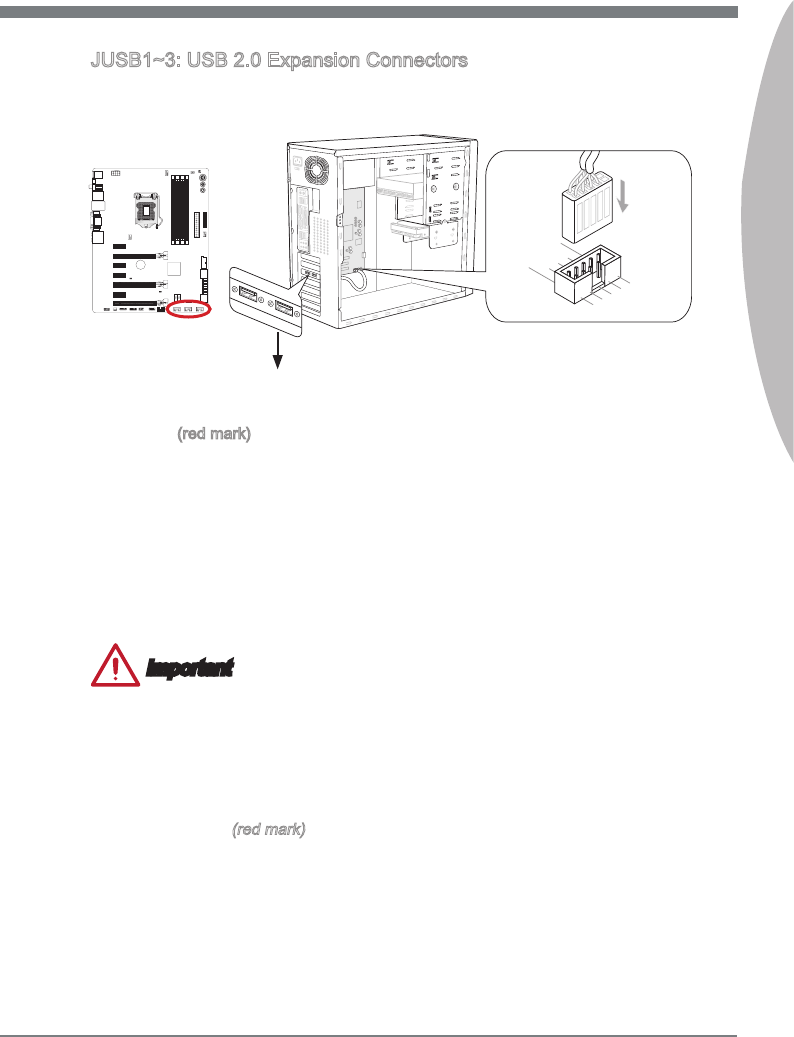
JUSB1~3: USB 2.0 Expanson Connectors
Ths connector s desgned for connectng hgh-speed USB perpherals such as USB
HDDs, dgtal cameras, MP3 players, prnters, modems, and many others.
115V
10.NC
8.Ground
6.USB1+
4.USB1-
2.VCC
1.VCC
3.USB0-
5.USB0+
7.Ground
9.No Pin
* The MB layout n ths gure s for reference only.
USB 2.0 Bracket (optonal)
The JUSB1 (red mark) connector supports MSI’s new SuperCharger technology whch
provdes qucker USB chargng of your cellular phone or other USB-powered devces.
To enable ths feature, please nstall the MSI SuperCharger applcaton on your com-
puter. When the SuperCharger applcaton s turned on, the JUSB1 connector wll con-
vert data channels to extra power channels to quckly charge your connected devce.
Please note that when the SuperCharger applcaton s turned on, data transmsson
and synchronzaton over the JUSB1 connector wll not functon. To enable the JUSB1
connector to functon as a normal USB 2.0 connector, please turn o the SuperCharger
applcaton. When the computer s n stand-by or hbernaton mode (S3/ S4/ S5) Super-
Charger mode wll automatcally be enabled.
Important
Note that the VCC and GND pns must be connected correctly to avod possble
damage.
Please only connect one devce per USB port to ensure stable chargng.
SuperCharger Technology s only avalable on select MSI motherboard models.
Please refer to the MSI webste to check f your motherboard has SuperCharger
technology.
For Pad, JUSB1 (red mark) can stll charge Pad n S3, S4, S5 state.
We recommend that don’t dsconnect the devce when you charge t n S1 state.
•
•
•
•
•
1-28
Gettng Started
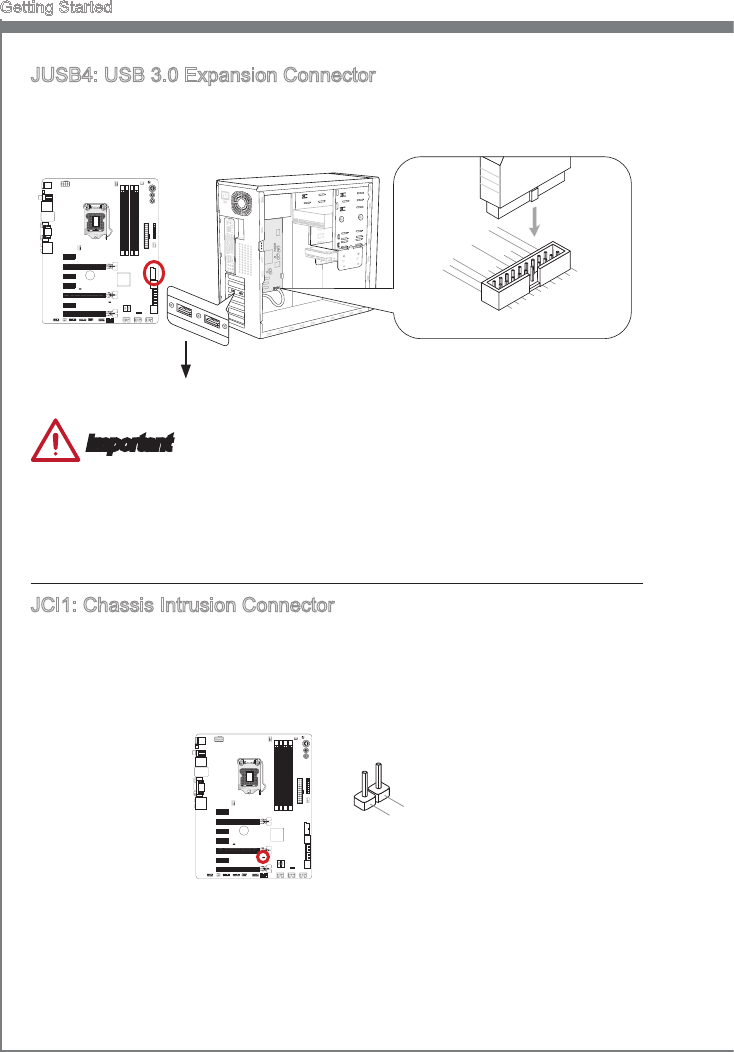
JUSB4: USB 3.0 Expanson Connector
The USB 3.0 port s backwards compatble wth USB 2.0 devces. It supports data trans-
fer rates up to 5Gbts/s (SuperSpeed).
115V
5.
USB3_TX_C_DN
4.Ground
3.USB3_RX_DP
2.USB3_RX_DN
1.Power
10.Ground
9. +
USB2.0
8.-
USB2.0
7.Ground
6.USB3_TX_C_DP
20.No Pin
19.Power
18.USB3_RX_DN
17.USB3_RX_DP
16.Ground
15.USB3_TX_C_DN
14.USB3_TX_C_DP
13.Ground
12.USB2.0-
11. +
USB2.0
* The MB layout n ths gure s for reference only.
USB 3.0 Bracket (optonal)
Important
Note that the VCC and GND pns must be connected correctly to avod possble
damage.
To use a USB 3.0 devce, you must connect the devce to a USB 3.0 port through an
optonal USB 3.0 complant cable.
JCI1: Chasss Intruson Connector
Ths connector connects to the chasss ntruson swtch cable. If the computer case s
opened, the chasss ntruson mechansm wll be actvated. The system wll record ths
ntruson and a warnng message wll ash on screen. To clear the warnng, you must
enter the BIOS utlty and clear the record.
1.CINTRU
2.Ground
•
•
1-29
MS-7751
Chapter 1
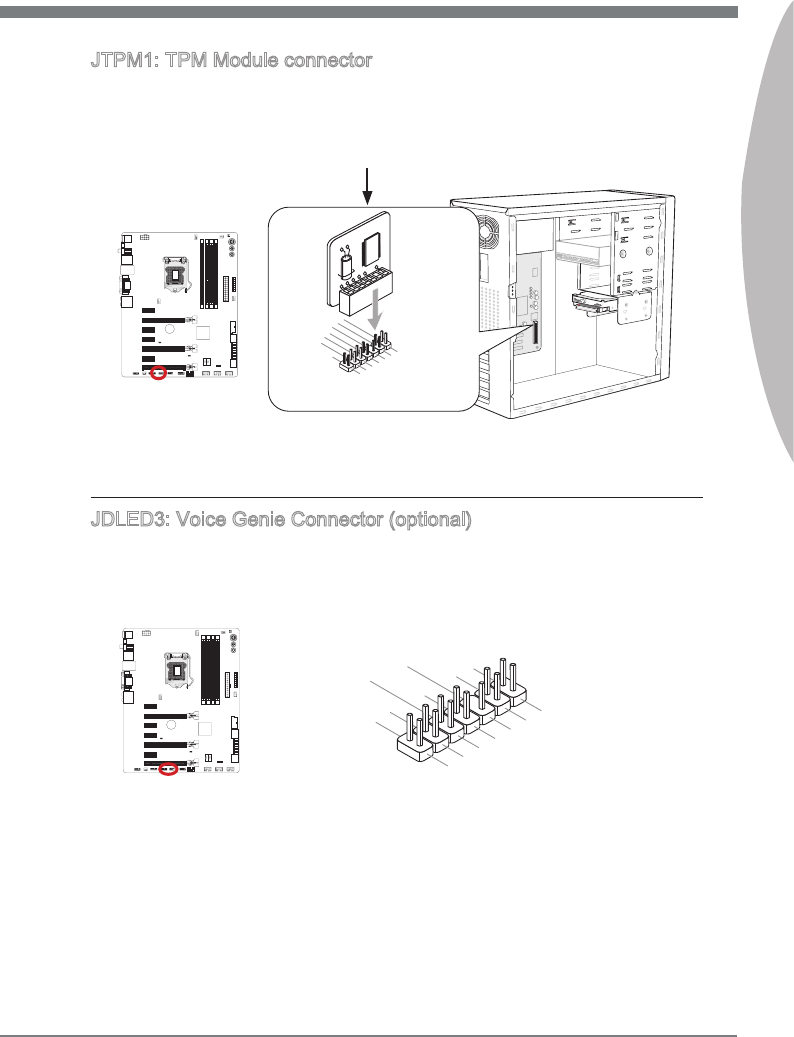
JTPM1: TPM Module connector
Ths connector connects to a TPM (Trusted Platform Module). Please refer to the TPM
securty platform manual for more detals and usages.
* The MB layout n ths gure s for reference only.
115V
10.No Pin
14.Ground
8.5V Power
12.Ground
6.Serial IRQ
4.3.3V Power
2.3V Standby power
1.LPCClock
3.LPCReset
5.LPCaddress&datapin0
7.LPCaddress&datapin1
9.LPCaddress&datapin2
11.LPC address&datapin3
13.LPCFrame
TPM module s optonal
JDLED3: Voce Gene Connector (optonal)
Ths connector s used to lnk to the voce control module (optonal). Please refer to ts
user gude for more detals and usages.
10.No Pin
14.Control pin
8.Control pin
12.Control pin
6.VCC3
4.Control pin
2.Control pin
1.5VSB
3.Control pin
5.Control pin
7.Control pin
9.Ground
11.Reserved pin
13.Ground
1-30
Gettng Started
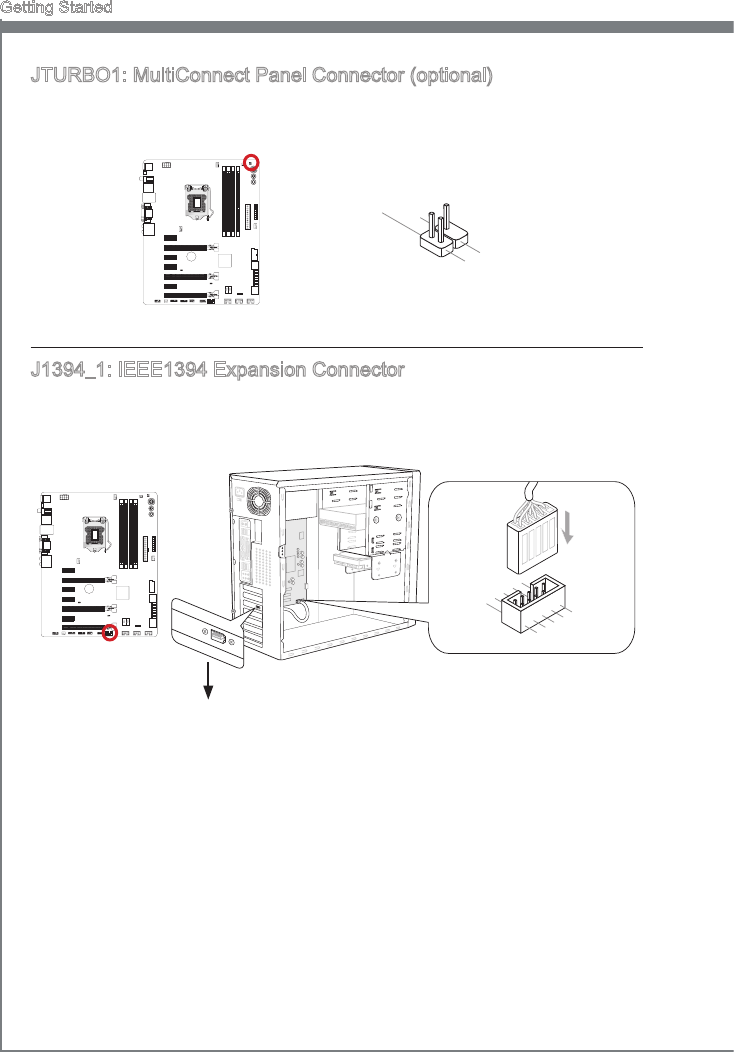
JTURBO1: MultConnect Panel Connector (optonal)
Ths connector s used to connect an optonal front panel for controlng the OC Gene and
some addtonal functons. Please refer to ts user gude for more detals and usages.
3.TURBO
4.No Pin
2.Control Pin
1.TURBO
J1394_1: IEEE1394 Expanson Connector
Ths connector allows you to connect an IEEE 1394 devce va an optonal IEEE 1394
expanson bracket.
115V
10.Ground
8.+12V
6.TPB-
4.Ground
2.TPA-
1.TPA+
3.Ground
5.TPB+
7.+12V
9.No Pi n
* The MB layout n ths gure s for reference only.
1394 Bracket (optonal)
1-31
MS-7751
Chapter 1
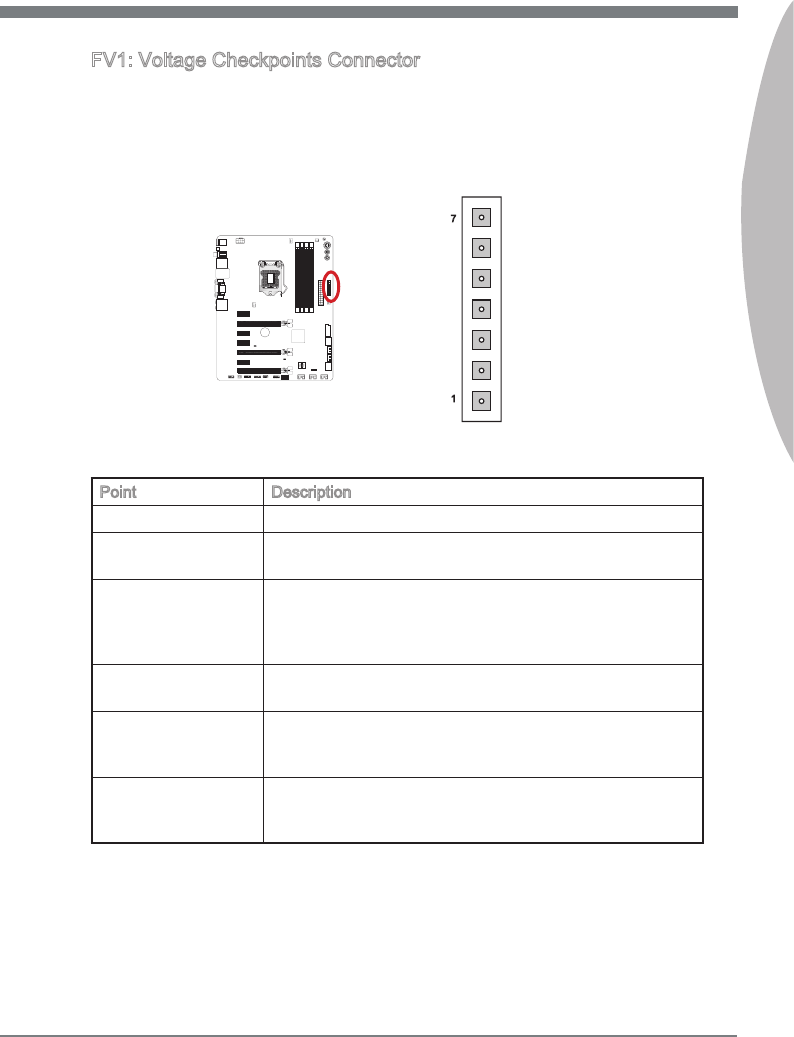
FV1: Voltage Checkponts Connector
These voltage checkpont are used to measure the current system voltages. A multmeter
(not ncluded) wll be requred to check voltages. To check the voltage, please use the
ncluded voltage checkpont cables ncluded n the motherboard package. Attach the
postve lead of the multmeter to the voltage checkpont cable and the negatve lead to
the ground connector.
VCC_DDR
GND
1
7
PCH_1P05
CPU_GFX
CPU_VTT
VCCP
GND
Pont Descrpton
GND (pn 6, pn 7) Ground
PCH_1P05 (pn 5) PCH 1.5 voltage. The PCH voltage s the voltage suppled to
the Platform Controller Hub.
VCC_DDR (pn 4) Memory voltage. The DDR memory voltage s the voltage
suppled to the DDR memory modules on the motherboard.
Lower memory tmngs may requre hgher voltages to
mantan system stablty.
CPU_GFX (pn 3) The CPU_GFX voltage s the voltage suppled to the
ntegrated graphcs processor located on the CPU.
CPU_VTT (pn 2) CPU IO voltage (Uncore). The CPU IO voltage s the voltage
suppled to the Uncore on the CPU. Hgher overclocks may
requre a hgher CPU IO voltage to mantan stablty.
VCCP (pn 1) CPU core voltage. The CPU voltage s the voltage suppoed
to the CPU core. Hgher overclocks may requre hgher CPU
core voltages to mantan stablty.
1-32
Gettng Started
Buttons
The motherboard has numerous on-board buttons to control varous functons. Ths
secton wll explan how to change your motherboard’s functons through the use of
these on-board buttons.
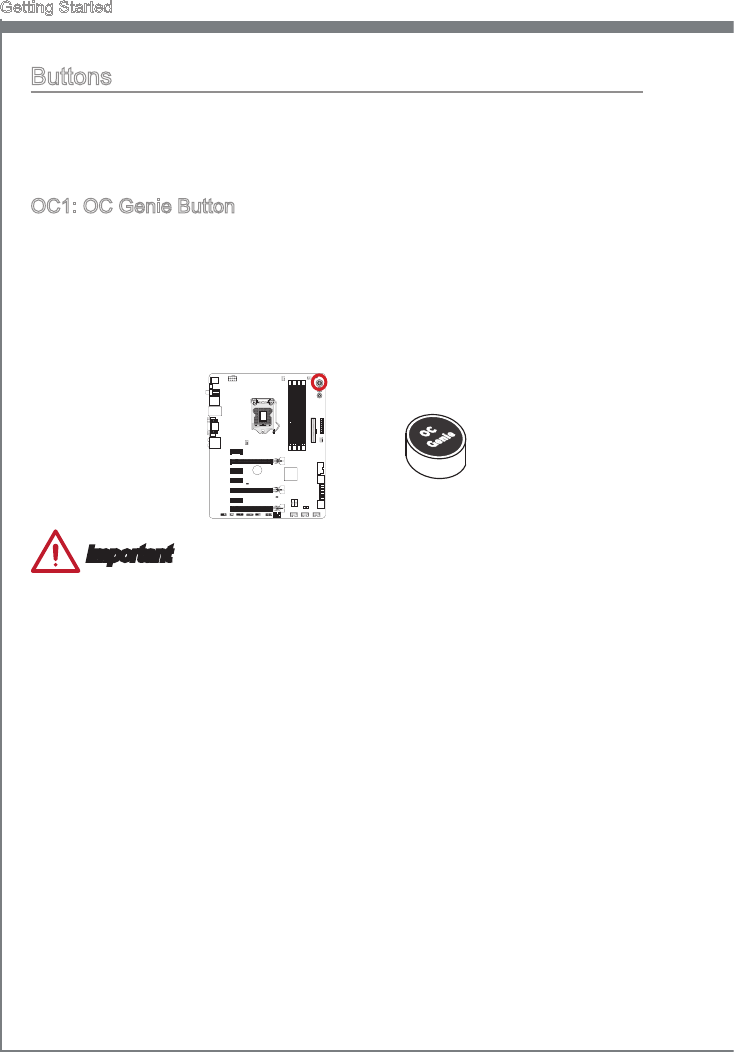
OC1: OC Gene Button
Ths button s used to automatcally overclock the system. Press ths button once
whle the system s o to enable OC Gene. The button wll lock reman depressed
untl t s pushed agan to dsable OC Gene. On the next boot, the OC Gene utlty wll
automatcally overclock the CPU settngs to optmal performance values. To dsable
OC Gene, power o the system and press the OC Gene button agan. The button wll
depress and the CPU conguraton settngs wll return to normal values.
Important
Please nstall DDR3 1333 or faster memory and equp a better heatsnk/cooler to use
the OC Gene functon.
We do not guarantee the OC Gene overclockng range or the damages/rsks caused
by overclockng behavor.
It s possble to dsable the OC Gene functon n the BIOS setup. Please refer to the
BIOS secton of the manual for nstructons on how to turn o OC Gene from the
BIOS.
The usage of OC Gene s at the user’s own rsk. Overclockng s never guaranteed
by MSI.
To ensure successfully OC Gene usage, MSI components are recommended.
•
•
•
•
•
1-33
MS-7751
Chapter 1
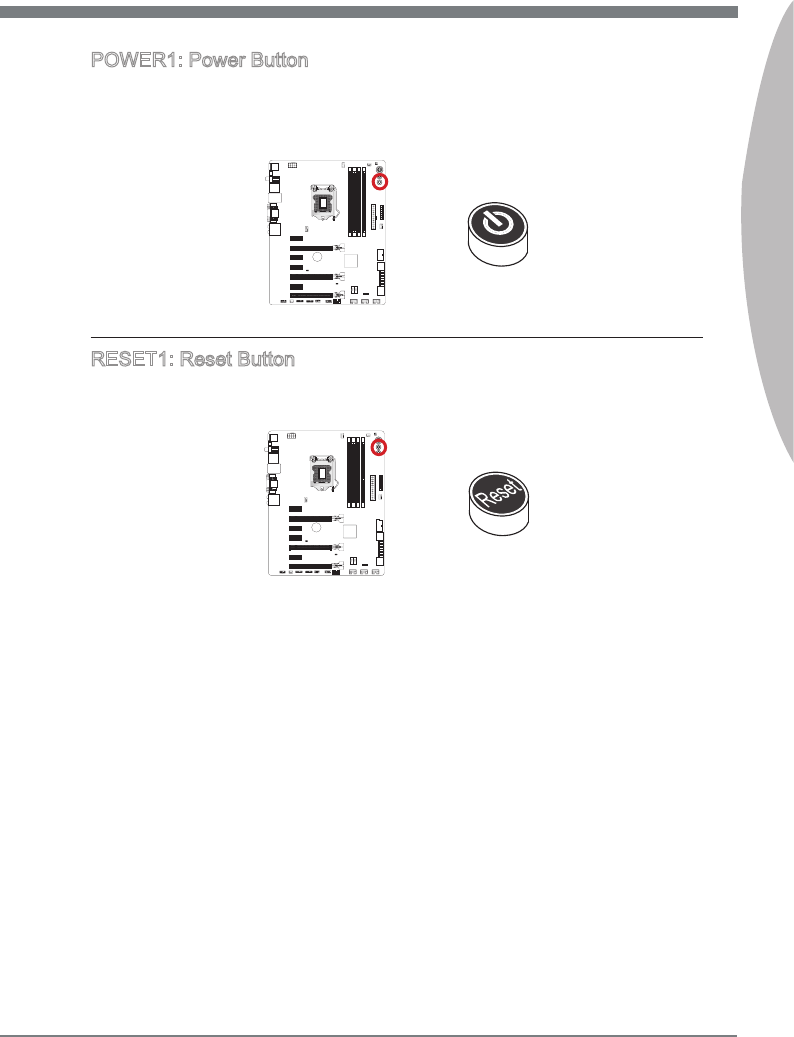
POWER1: Power Button
Ths button s use to turn-on and turn-o the system. Press the button once to turn-on
or turn-o the system.
RESET1: Reset Button
Ths reset button s used to reset the system. Press the button to reset the system.

1-34
Gettng Started
Jumpers
JBAT1: Clear CMOS Jumper
There s CMOS RAM onboard that s external powered from a battery located on the
motherboard to save system conguraton data. Wth the CMOS RAM, the system can
automatcally boot nto the operatng system (OS) every tme t s turned on. If you want
to clear the system conguraton, set the jumpers to clear the CMOS RAM.
Keep Data Clear Data
1 1
Important
You can clear the CMOS RAM by shortng ths jumper whle the system s o. Afterwards,
open the jumper . Do not clear the CMOS RAM whle the system s on because t wll
damage the motherboard.
1-35
MS-7751
Chapter 1
Swtch
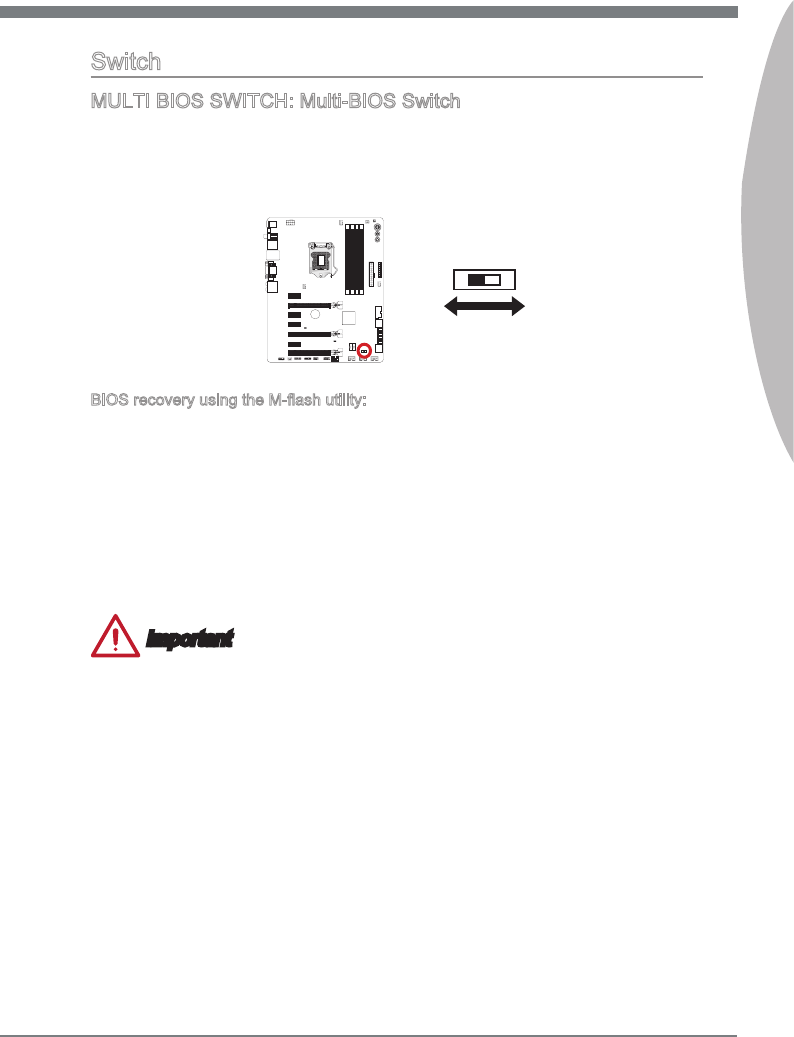
MULTI BIOS SWITCH: Mult-BIOS Swtch
Ths motherboard has two bult-n BIOS ROMs (Labeled A and B, default BIOS ROM
s A). If one s crashed, you can shft to the other for bootng by sldng the swtch. In
addton, these two BIOS ROMs do not have the Auto Recovery feature, you need to
mantan or update the BIOS verson by yourself.
A B
BIOS recovery usng the M-ash utlty:
1. Ensure that the system s swtched o.
2. Boot up the system wth the operatonal BIOS ROM by swtchng the Mult-BIOS
swtch.
3. Enter the BIOS setup → UTILITIES → M-Flash → Save BIOS to storage and then
save the le to a bootable USB pen drve (root folder).
4. Swtch back to the BIOS ROM that needs to be recovered.
5. Choose “Select one le to update BIOS” and recover the BIOS ROM wth the le
saved n the USB pen drve.
Important
Do not use the Mult-BIOS Swtch when the system s powered on.
1-36
Gettng Started
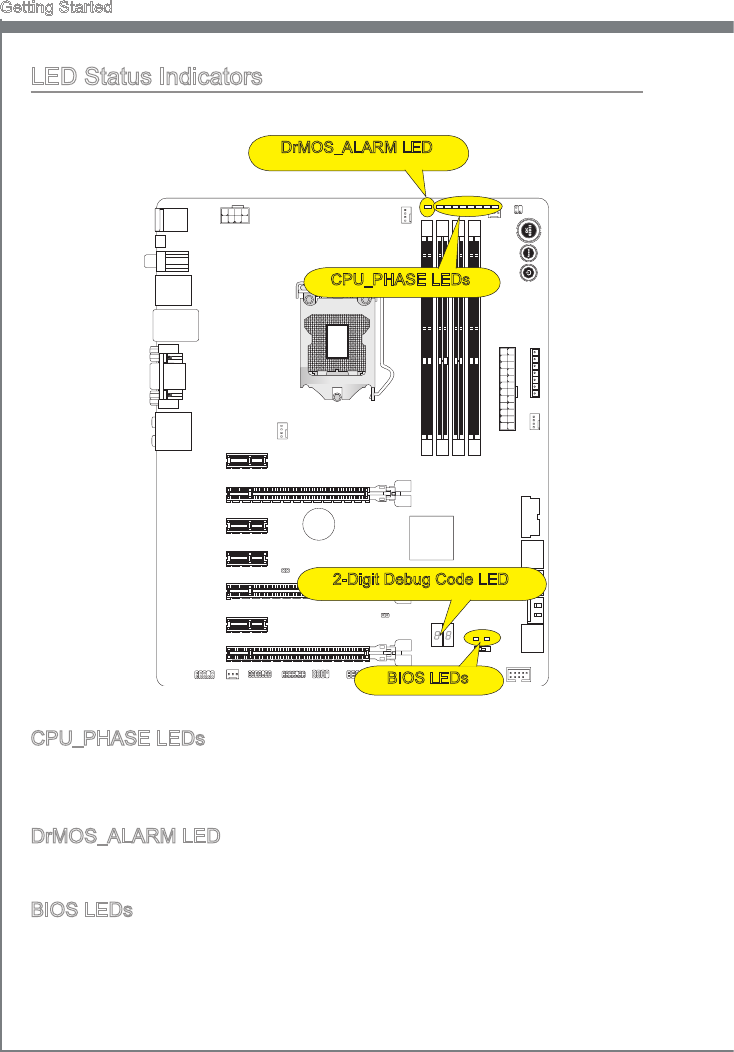
LED Status Indcators
CPU_PHASE LEDs
These LEDs wll change accordng to CPU loadng. The hgher the power phase num-
ber, the more relable the power ow to the processor.
DrMOS_ALARM LED
Ths LED wll lght red when DrMOS overheat.
BIOS LEDs
These LEDs are used to dstngush BIOS A or B s n operaton.
When the left LED lghts blue, the BIOS A s n operaton.
When the rght LED lghts green, the BIOS B s n operaton.
CPU_PHASE LEDs
DrMOS_ALARM LED
2-Dgt Debug Code LED
BIOS LEDs

1-37
MS-7751
Chapter 1
Debug Code LED Table
Please refer to the table below to get more nformaton about the Debug LED
message.
Post Status
02,07 Power on CPU Intalzaton
03,08 Power on North Brdge Intalzaton
04,09 Power on South Brdge Intalzaton
0B Power on Cache Intalzaton
11~14,32~36,56~5A Early CPU Intalzaton
15~18,37~3A Early North Brdge Intalzaton
19~1C,3B~3E Early South Brdge Intalzaton
1D~2F,31,3F~4E,50~55 Early Memory Intalzaton
63~67,D0 Late CPU Intalzaton
69~6F,D1 Late North Brdge Intalzaton
70~77,D2 Late South Brdge Intalzaton
92~96,B5,D4 PCI bus Intalzaton
97,98,99,B2,D5~D7 Console Output/Input devces/Console ntalzaton and
Load Opton ROM (VGA, RAID, parallel ports, seral
ports……)
9A~A7,B4 Onboard devces Intalze and Detect (USB/ SATA/
SCSI……)
A8,A9,AB Start of Setup. BIOS setup f needed/ requested.
AD/AE Ready To Boot event/Legacy Boot event
CPU Temperature Enter OS (Wndows 8, Wndows 7 or Wndows XP)
Drvers and Utltes
After you nstall the operatng system you wll need to nstall drvers to maxmze the
performance of the new computer you just bult. MSI manbaord comes wth a Drver
Dsc. Drvers allow the computer to utlze your motherboard more ecently and take
advantage of any specal features we provde.
You can protect your computer from vruses by nstallng the bundled securty program.
The bundle also ncludes a varety of powerful and creatve utltes.
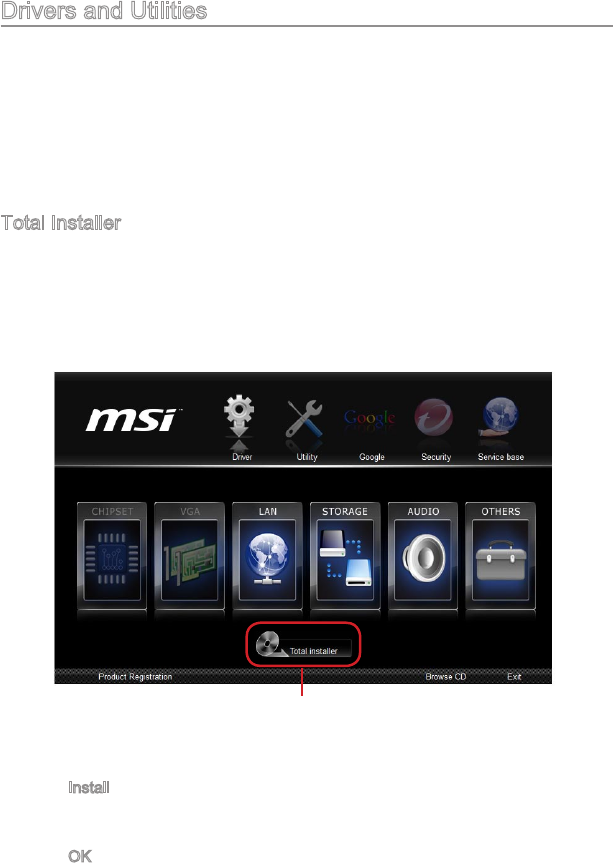
Total Installer
Total Installer s very easy to use and does a great job of ndng necessary drvers.
Please follow the steps below to nstall drvers and utltes for your new computer.
Insert MSI Drver Dsc nto the optcal drve. The setup screen wll automatcally
appear f autorun s enabled n OS.
Clck Total Installer. A popup dalog wll appear lstng all necessary drvers.
1.
2.
Select all checkbox on drver lstng dalogue.
Clck Install button.
The software nstallaton wll then be n progress, after t has nshed t wll prompt
you to restart.
Clck OK button to nsh.
Restart your computer.
You can also use the same method to nstall the utltes.
3.
4.
5.
6.
7.
Clck here
CLICK BIOS II s a revolutonary UEFI nterface that
allows you to setup and congure your system for
optmum use. Usng your mouse and keyboard, users can
change BIOS settngs, montor CPU temperature, select
the boot devce prorty and vew system nformaton
such as the CPU name, DRAM capacty, the OS verson
and the BIOS verson. Users can mport and export
parameter data for backup or for sharng wth frends. By
connectng to the Internet wthn CLICK BIOS II, users
can browse webpages, check mal and use Lve Update
your system.
Chapter 2
BIOS Setup
2-2
BIOS Setup
Enterng
Power on the computer and the system wll start the Power On Self Test (POST) pro-
cess. When the message below appears on the screen, please <DEL> key to enter
CLICK BIOS II:
Press DEL key to enter Setup Menu, F11 to enter Boot Menu
If the message dsappears before you respond and you stll need to enter CLICK BIOS
II, restart the system by turnng the computer OFF then back ON or pressng the RESET
button. You may also restart the system by smultaneously pressng <Ctrl>, <Alt>, and
<Delete> keys.
Important
The tems under each BIOS category descrbed n ths chapter are under contnuous
update for better system performance. Therefore, the descrpton may be slghtly der-
ent from the latest BIOS and should be held for reference only.
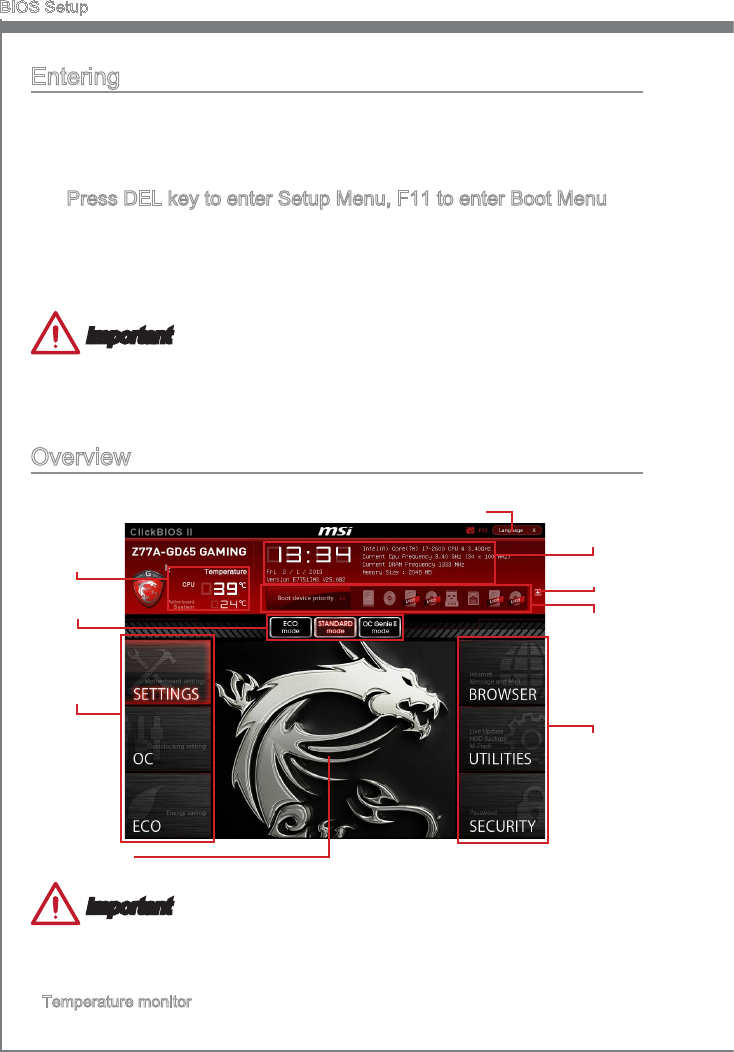
Overvew
After enterng Clck BIOS II, the followng screen s dsplayed.
BIOS menu
selecton
Temperature
montor
System
nformaton
Boot devce
prorty bar
Menu dsplay
Boot menu
BIOS menu
selecton
Mode
selecton
Language
Important
The pctures n ths gude are for reference only and may vary from the product you pur-
chased. Please refer to the actual screens of your system for detaled nformaton.
Temperature montor
Ths block shows the temperature of the processor and the motherboard.
▶

2-3
MS-7751
Chapter 2
System nformaton
Ths block shows the tme, date, CPU name, CPU frequency, DRAM frequency, DRAM
capacty and the BIOS verson.
BIOS menu selecton
The followng optons are avalable:
SETTINGS - Use ths menu to specfy your settngs for chpset features and
boot devces.
OC - Ths menu contans tems of the frequency and voltage adjustments. In-
creasng the frequency can get better performance, however hgh frequency
and heat can cause nstablty, we do not recommend general users to over-
clock.
ECO - Ths menu s related to energy-savng settngs.
BROWSER - Ths feature s used to enter the MSI Wnk web browser.
UTILITIES - Ths menu contans utltes for backup and update.
SECURITY - The securty menu s used to keep unauthorzed people from mak-
ng any changes to the settngs. You can use these securty features to protect
your system.
Boot devce prorty bar
You can move the devce cons to change the boot prorty.
Boot menu
Ths button s used to open a boot menu. Clck the tem to boot the system from the
devce nstantly.
Mode selecton
Ths feature allows you to load presets of energy savng or overclockng.
Menu dsplay
Ths area provdes BIOS settngs and nformaton to be congured.
Language
Ths allows you to select the language of the BIOS settng.
Boot devce prorty bar
Ths bar shows the prorty of the boot devces. The lghted cons ndcate that the de-
vces are avalable.
Hgh prorty Low prorty
Clck and draw the con to left or rght to specfy the boot prorty.
Boot devce con lst
Optcal
dsk
UEFI
USB
oppy
USB hard
dsk drve USB optcal
drve Dsable
BEVLAN
Hard dsk
drve
USB Drve
▶
▶
■
■
■
■
■
■
▶
▶
▶
▶
▶
■
2-4
BIOS Setup
Operaton
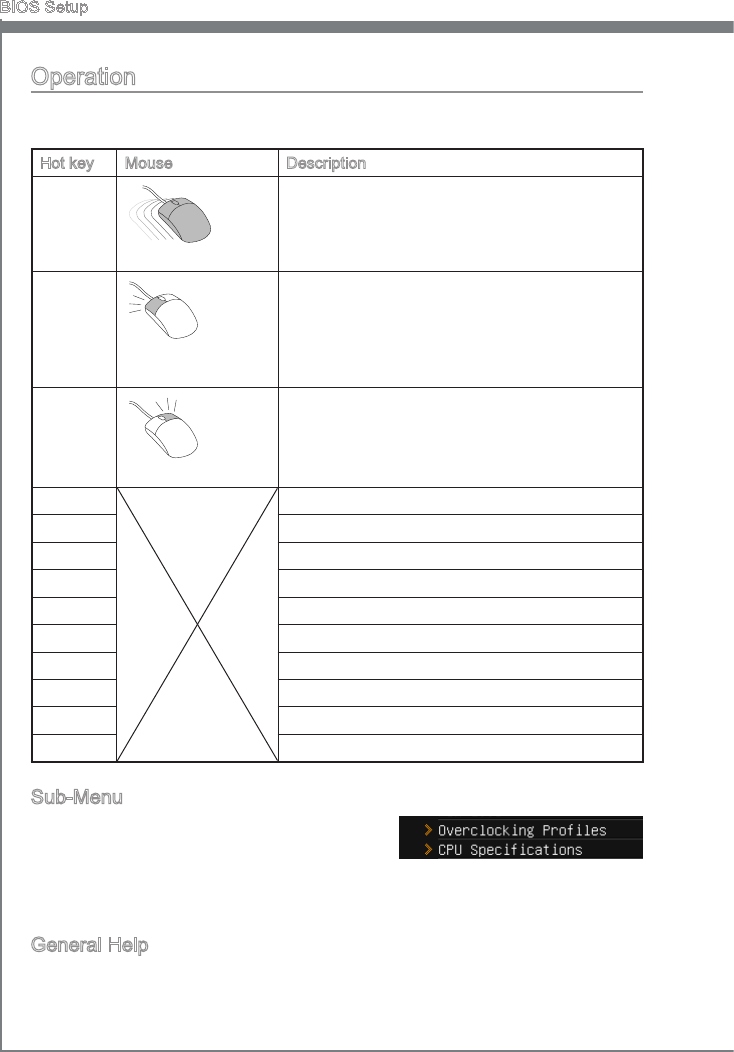
CLICK BIOS II allows you to control BIOS settngs wth the mouse and the keyboard.
The followng table lsts and descrbes the hot keys and the mouse operatons.
Hot key Mouse Descrpton
<↑↓→← >
.
Move the cursor
Select Item
<Enter>
Clck/ Double-clck
the left button
Select Icon/ Feld
<Esc>
Clck the rght button
Jump to the Ext menu or return to the prevous
from a submenu
<+> Increase the numerc value or make changes
<-> Decrease the numerc value or make changes
<F1> General Help
<F4> CPU Speccatons
<F5> Enter Memory-Z
<F6> Load optmzed defaults
<F8> OC Prole Load From USB
<F9> OC Prole Save to USB
<F10> Save Change and Reset
<F12> Save a screenshot to a FAT/FAT32 USB drve
Sub-Menu
If you nd a pont symbol to the left of certan elds,
that means a sub-menu can be launched for ad-
dtonal optons. You can use the arrow keys or
mouse to hghlght the eld and press <Enter> or double-clck the left mouse button to
enter the sub-menu. If you want to return to the prevous menu, just press <Esc> or clck
the rght mouse button.
General Help
The General Help screen lsts the approprate keys to use for navgaton. You can call
up ths screen from any menu by smply pressng <F1>. Press <Esc> to ext the Help
screen.

2-5
MS-7751
Chapter 2
SETTINGS
System Status
System Date
Ths allows you to set the system date that you want (usually the current date).
The format s <day> <month> <date> <year>.
day Day of the week, from Sun to Sat, determned by BIOS.
Read-only.
month The month from Jan. through Dec.
date The date from 1 to 31 can be keyed by numerc functon keys.
year The year can be adjusted by users.
System Tme
Ths allows you to set the system tme that you want (usually the current tme). The tme
format s <hour> <mnute> <second>.
SATA Port1~6
Shows devces connected to specc SATA ports.
Important
If your devce s not dsplayed, turn o computer and re-check SATA cable and power
cable connectons to the devce.
System Informaton
Shows detaled system nformaton, ncludng CPU type, BIOS verson, and Memory
(read only).
▶
▶
▶
▶
2-6
BIOS Setup
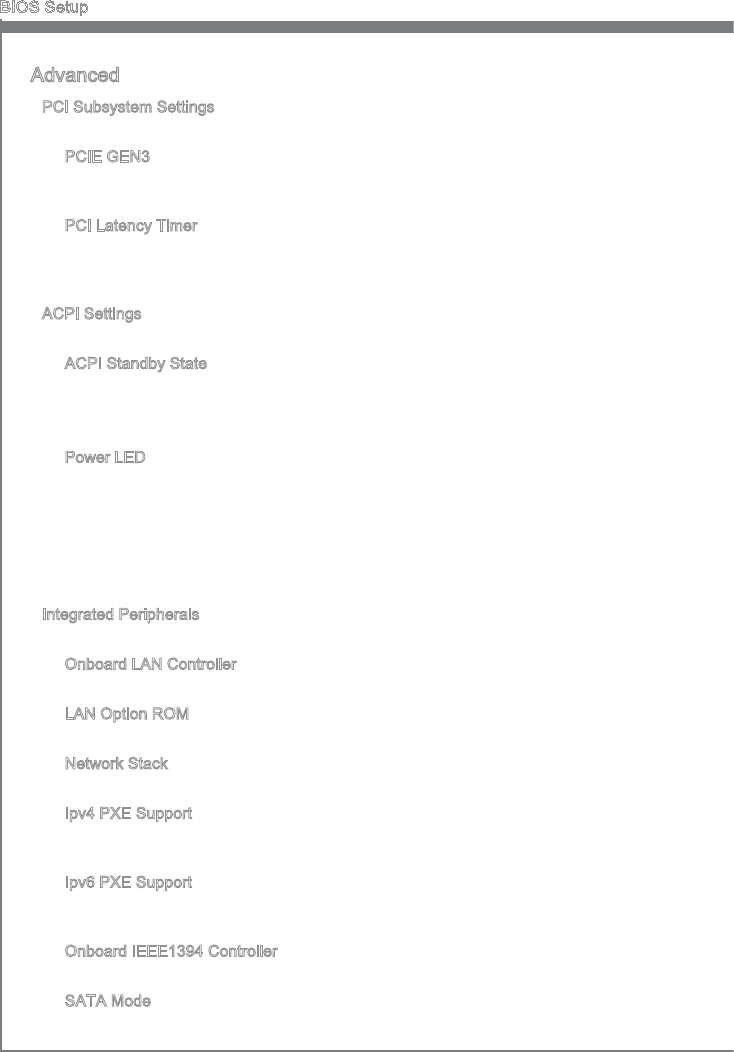
Advanced
PCI Subsystem Settngs
Press <Enter> to enter the sub-menu.
PCIE GEN3
Ths tem s used to enable (Auto)/ dsable (Dsabled) the PCIe generaton 3
support.
PCI Latency Tmer
Controls how long each PCI devce can hold the bus before another takes over.
When set to hgher values, every PCI devce can conduct transactons for a longer
tme and thus mprove the eectve PCI bandwdth.
ACPI Settngs
Press <Enter> to enter the sub-menu.
ACPI Standby State
Speces the power savng mode for ACPI functon
[S1] Sleep Mode. Hardware remans on.
[S3] Suspend to RAM. Turns o hardware. (Recommended)
Power LED
Congures how the system uses power LEDs on the case to ndcate sleep/
suspend state.
[Sngle] The power LED turns o durng the sleep/suspend mode.
[Dual] The power LED changes ts color to ndcate the sleep/suspend
state.
[Blnkng] The power LED blnks to ndcate the sleep/suspend state.
Integrated Perpherals
Press <Enter> to enter the sub-menu.
Onboard LAN Controller
Ths tem allows you to enable/ dsable the onboard LAN controller.
LAN Opton ROM
Ths tem s used to decde whether to nvoke the Boot ROM of the onboard LAN.
Network Stack
Ths tem s used to enable/ dsable UEFI network stack.
Ipv4 PXE Support
Ths tem appears when you set “Enabled” n [Network Stack] eld and s used to
enable/ dsable the Ipv4 PXE boot support.
Ipv6 PXE Support
Ths tem appears when you set “Enabled” n [Network Stack] eld and s used to
enable/ dsable the Ipv6 PXE boot support.
Onboard IEEE1394 Controller
Ths tem allows you to enable/ dsable the onboard IEEE1394 controller.
SATA Mode
Ths tem s used to specfy RAID/ IDE/ AHCI mode for SATA port.
▶
▶
▶
▶
▶
▶
▶
▶
▶
▶
▶
▶
▶
▶
2-7
MS-7751
Chapter 2
Important
You cannot swtch between AHCI and IDE f you already have your operatng system
nstalled. If you have nstalled your OS usng AHCI and you clear your BIOS/reset to
default settngs, you wll need to change ths functon back to AHCI to ensure proper
functonalty.
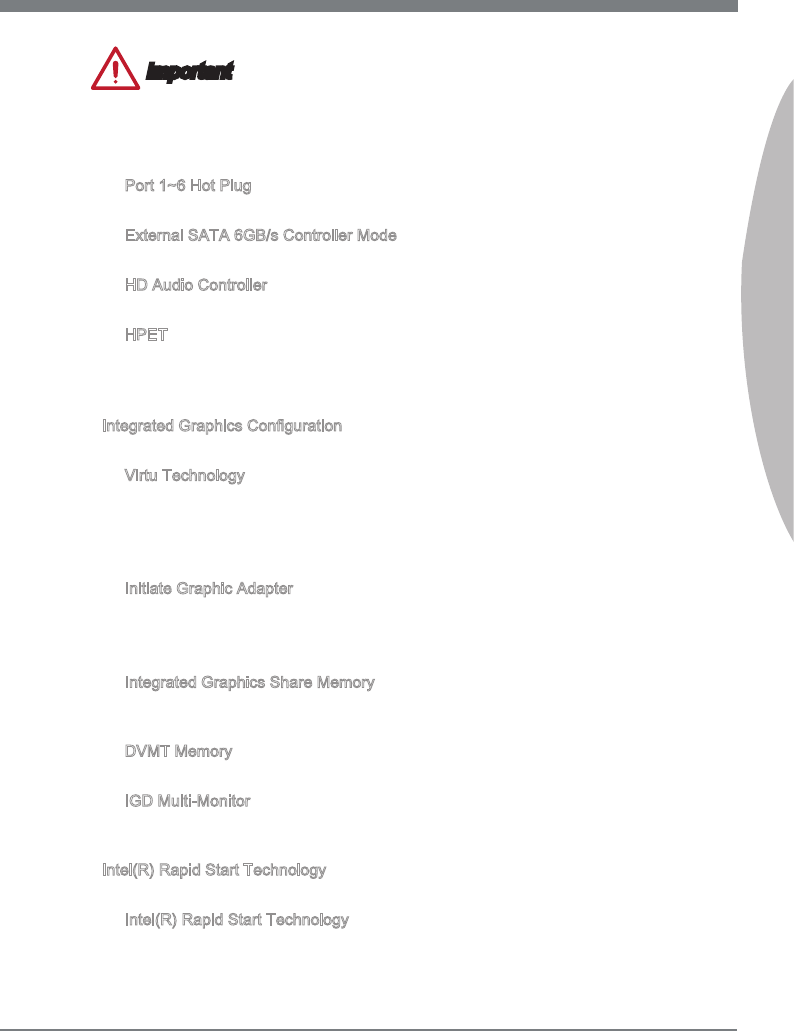
Port 1~6 Hot Plug
These tems are used to enable/ dsable the SATA ports hot plug support.
External SATA 6GB/s Controller Mode
Ths tem s used to specfy IDE/ AHCI mode for external SATA 6GB/s ports.
HD Audo Controller
Ths tem allows you to enable/ dsable the HD audo controller.
HPET
The HPET (Hgh Precson Event Tmers) s a component that s part of the chpset.
You can enable t, and wll provde you wth the means to get to t va the varous
ACPI methods.
Integrated Graphcs Conguraton
Press <Enter> to enter the sub-menu.
Vrtu Technology
Enable or Dsable Vrtu GPU Swtchng Technology (f supported).
[-Mode] Provdes power savng features and specal processor
functonalty
[d-Mode] Uncompromsed 3D performance from the dscrete GPU
Intate Graphc Adapter
Choose whch adapter you wsh to make the prmary opton
[PEG] PCI-Express Graphcs Devce
[IGD] Integrated Graphcs Dsplay
Integrated Graphcs Share Memory
The system shares memory to the ntegrated graphcs. Ths settng controls the
exact memory sze shared to the ntegrated graphcs.
DVMT Memory
Specfy the sze of DVMT memory to allocate for vdeo memory.
IGD Mult-Montor
Enables both ntegrated and dscrete graphcs at the same tme. When dsabled, t
wll default to Intated Graphcs Adapter selecton.
Intel(R) Rapd Start Technology
Press <Enter> to enter the sub-menu.
Intel(R) Rapd Start Technology
Ths feature can make your system fast start up from hbernaton. Ths tem allows
you to enable/ dsable Intel Rapd Start Technology.
▶
▶
▶
▶
▶
▶
▶
▶
▶
▶
▶
▶

2-8
BIOS Setup
USB Conguraton
Press <Enter> to enter the sub-menu.
USB Controller
Ths tem allows you to enable/ dsable the ntegrated USB 2.0 controller.
Legacy USB Support
Enable or dsable support for USB keyboards, mce and oppy drves. You wll be
able to use these devces wth operatng systems that do not support USB.
Hardware Montor
Press <Enter> to enter the sub-menu.
CPU Smart Fan Target
Controls CPU fan speed automatcally dependng on the current temperature and
to keep t wth a specc range. If the current CPU temperature reaches the target
value, the smart fan functon wll be actvated.
SYS Fan1/ 2 Control
These tems allow users to select how percentage of speed for the SYSFAN1/ 2.
CPU/ System Temperature, CPU FAN/ SYS FAN 1/ 2 Speed
These tems show the current status of all of the montored hardware devces/ com-
ponents such as CPU temperature/ system temperature and all fans’ speeds.
Intel(R) Smart Connect Conguraton
Press <Enter> to enter the sub-menu.
Intel(R) Smart Connect Technology
Ths feature can update applcatons (ex. emal and socal networks) by perodcally
wakng your system from sleep mode. And you do not have to wat for the applca-
tons to update when you wake up the system.
[Enabled] Enables Intel smart connect technology.
[Dsabled] Dsables Intel smart connect technology.
Power Management Setup
Press <Enter> to enter the sub-menu.
EuP 2013
Energy Usng Products Lot 6 2013 (EUP) reduces power consumpton when system
s o or n standby mode.
Note: When enabled, the system wll not support RTC wake up event functons.
Restore after AC Power Loss
Ths tem speces whether your system wll reboot after a power falure or nterrupt
occurs. Settngs are:
[Power O] Always leaves the computer n the power o state.
[Power On] Always leaves the computer n the power on state.
[Last State] Restore the system to the status before power falure or nterrupt
occurred.
Wndows 8 Conguraton
Press <Enter> to enter the sub-menu.
▶
▶
▶
▶
▶
▶
▶
▶
▶
▶
▶
▶
▶
2-9
MS-7751
Chapter 2
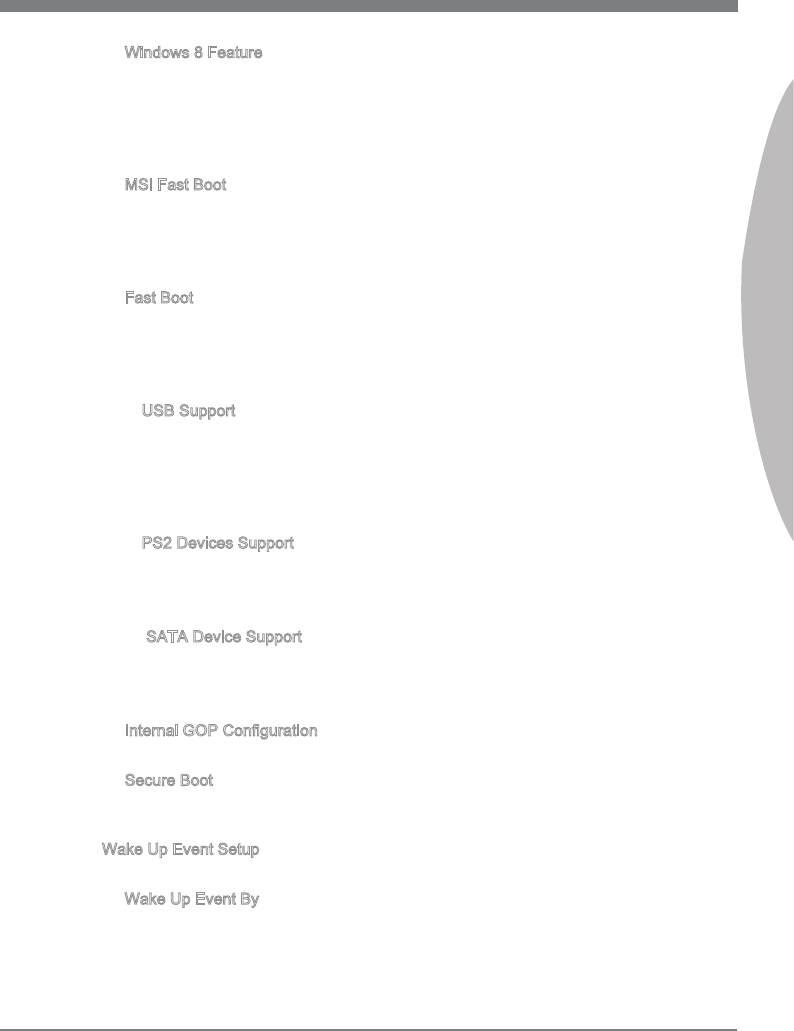
Wndows 8 Feature
When enabled, the system wll swtch to the UEFI mode to meet the Wndows 8 logo
requrement. Before enablng ths tem, please make sure all nstalled devces &
utltes (hardware & software) meet the Wndows 8 system requrements.
[Enabled] Enables the Wndows 8 support.
[Dsabled] Dsables the Wndows 8 support.
MSI Fast Boot
MSI Fast Boot functon provdes the optmal fast boot performance.
[Enabled] Enables the MSI Fast Boot functon. And the followng related "Fast
Boot" tems wll be dsabled and xed.
[Dsabled] Dsables the MSI Fast Boot functon.
Fast Boot
Ths tem wll only be avalable When "MSI Fast Boot" s dsabled.
[Enabled] Enables the Wndows 8 Fast Boot functon and some tems wll be
showed up for users to set the Wndows 8 Fast Boot events.
[Dsabled] Dsables the Wndows 8 Fast Boot functon.
USB Support
Ths tem appears when “Fast Boot” s enabled.
[Dsabled] Dsables all ntalzatons of USB devces durng POST for faster
boot tme.
[Full Intal] Enables all ntalzatons of USB devces durng POST. It wll extend
the boot tme.
PS2 Devces Support
Ths tem appears when “Fast Boot” s enabled.
[Dsabled] Dsables the PS2 devces durng POST for faster boot tme.
[Enabled] Enables the PS2 devces. It wll extend the boot tme.
SATA Devce Support
Ths tem appears when “Fast Boot” s enabled.
[Dsabled] Dsables the SATA devces durng POST for faster boot tme.
[Enabled] Enables the SATA devces. It wll extend the boot tme.
Internal GOP Conguraton
Ths sub-menu shows the related GOP nformaton.
Secure Boot
Press <Enter> to enter the sub-menu. Ths sub-menu allows you to set the related
secure boot settngs and keys of Wndows to prevent the unauthorzed access.
Wake Up Event Setup
Press <Enter> to enter the sub-menu.
Wake Up Event By
Settng to [BIOS] actvates the followng elds, and use the followng elds to set the
wake up events. Settng to [OS], the wake up events wll be dened by OS.
▶
▶
▶
▶
▶
▶
▶
▶
▶
▶
2-10
BIOS Setup
Resume By RTC Alarm
The eld s used to enable or dsable the feature of bootng up the system on a
scheduled tme/date.
Date/ HH:MM:SS
If Resume By RTC Alarm s set to [Enabled], the system wll automatcally resume
(boot up) on a specc date/hour/mnute/second speced n these elds (usng the
<+> and <-> to select the date & tme settngs).
Resume By PCI-E Devce
When set to [Enabled], the feature allows your system to be awakened from the
power savng modes through any event on PCIe devce.
Resume From S3 by USB Devce
The tem allows the actvty of the USB devce to wake up the system from S3 (Sus-
pend to RAM) sleep state.
Resume From S3/S4/S5 by PS/2 Mouse/ Keyboard
These tems determne whether the system wll be awakened from what power sav-
ng modes when nput sgnal of the PS/2 mouse/ keyboard s detected.
Boot
Full Screen Logo Dsplay
Ths tem enables ths system to show the company logo on the boot-up screen.
[Enabled] Shows a stll mage (logo) on the full screen at boot.
[Dsabled] Shows the POST messages at boot.
Boot mode select
Ths tem determnes f the system boot from Legacy or UEFI archtecture rely on the
requrement of OS nstallaton.
== Boot Opton Prortes==
1st~9th Boot
These tems are used to prortze the nstalled boot devces.
Hard Dsk Drve BBS Prortes/ CD/DVD ROM Drve BBS Prortes/ USB HardDsk
Drve BBS Prortes/ UEFI Boot Drve BBS Prortes
1st~8th Boot
These tems are used to prortze the nstalled Hard Dsk Drve/ CD/DVD ROM Drve/
USB HardDsk drves/ UEFI boot drves.
Save & Ext
Dscard Changes and Ext
Use ths tem to abandon all changes and ext setup.
Save Changes and Reboot
Use ths tem to save changes and reset the system.
Save Changes
Use ths tem to save changes.
Dscard Changes
Use ths tem to abandon all changes.
▶
▶
▶
▶
▶
▶
▶
▶
▶
▶
▶
▶
▶
▶

2-11
MS-7751
Chapter 2
Restore Defaults
Use ths tem to load the optmzed default values set by the BIOS vendor.
== Boot Overrde ==
The nstalled storage devces wll appear on ths menu, you can select one of them be
a boot devce.
Bult-n EFI Shell
Use ths tem to enter the EFI Shell.
▶
▶
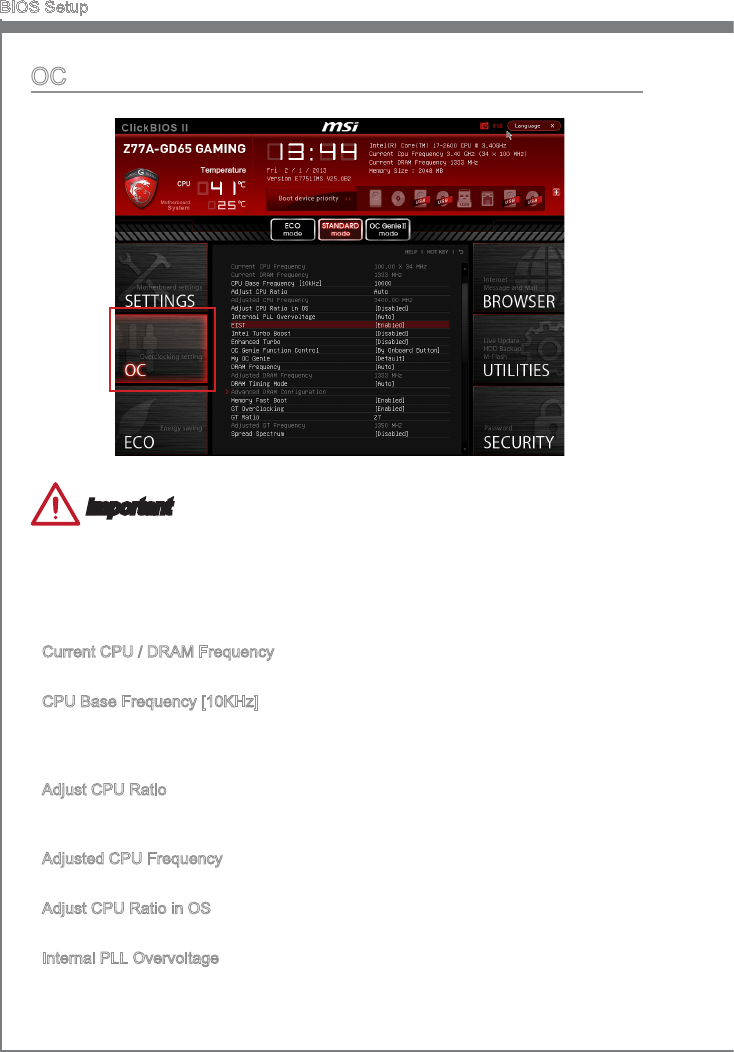
2-12
BIOS Setup
OC
Important
Overclockng your PC manually s only recommended for advanced users.
Overclockng s not guaranteed, and f done mproperly, can vod your warranty or
severely damage your hardware.
If you are unfamlar wth overclockng, we advse you to use OC Gene for easy
overclockng.
Current CPU / DRAM Frequency
These tems show the current clocks of CPU and Memory speed. Read-only.
CPU Base Frequency [10KHz]
Allows you to set the CPU Base clock (n 10KHz ncrements). You may overclock the
CPU by adjustng ths value. Please note that overclockng behavor and stablty s not
guaranteed.
Adjust CPU Rato
Controls the multpler that s used to determne nternal clock speed of the processor.
Ths feature can only be changed f the processor supports ths functon.
Adjusted CPU Frequency
It shows the adjusted CPU frequency. Read-only.
Adjust CPU Rato n OS
Enable ths tem to allow CPU rato changes n the OS by usng MSI Control Center.
Internal PLL Overvoltage
Ths tem s used to adjust the PLL voltage.
•
•
•
▶
▶
▶
▶
▶
▶
2-13
MS-7751
Chapter 2
EIST
Enhanced Intel SpeedStep technology allows you to set the performance level of the
mcroprocessor whether the computer s runnng on battery or AC power. Ths eld only
appears wth nstalled CPUs that support ths technology.
Intel Turbo Boost
Enables or dsables Intel Turbo Boost whch automatcally boosts CPU performance
above rated speccatons (when applcatons requests the hghest performance state
of the processor).
Enhanced Turbo
[Enabled] Frequences of all CPU cores wll be ncreased to the maxmum n Intel
Turbo Boost mode.
[Dsabled] Dsables ths functon.
OC Gene Functon Control
OC Gene functon wll over-clock the CPU settngs to optmal performance
automatcally.
[By BIOS Optons] Determnes whether the OC Gene functon s enabled by
BIOS.
[By Onboard Button] Determnes whether the OC Gene functon s enabled by
onboard OC Gene button.
My OC Gene
Ths tem s used to select whether OC Gene parameters are customzed by user.
Settng to [MSI] OC Gene wll use default OC related parameters to overclock the
system. Selectng [Customze] allows you to congure the followng related “My OC
Gene opton” sub-menu manually for OC Gene.
My OC Gene opton
Press <Enter> to enter the sub-menu.
Customze CPU Rato
Ths tem allows you to specc the CPU rato for OC Gene functon.
My GT Overclock
Ths tem allows you to enable/ dsable the overclockng of ntegrated graphcs for
OC Gene functon.
GT Rato
Ths tem allows you to specc the GT rato for OC Gene functon.
Adjusted my GT Rato
It shows the GPU frequency when OC Gene s started. Read-only.
Customze DRAM Frequency
Ths tem allows you to specc the DRAM frequency for OC Gene functon.
Adjusted My DRAM Frequency
It shows the adjusted DRAM frequency when OC Gene s started. Read-only.
Extreme Memory Prole (X.M.P)
Ths tem s used to enable/dsable the Intel Extreme Memory Prole (XMP) when
OC Gene s started.
▶
▶
▶
▶
▶
▶
▶
▶
▶
▶
▶
▶
▶
2-14
BIOS Setup
My OC Gene Intel C-State
Ths tem s used to enable/dsable the Intel C-State when OC Gene s started.
My OC Gene Package C State lmt
Ths eld allows you to specc the C-state mode for OC Gene functon.
My OC Gene Long duraton power lmt
Ths eld allows you to customze Long duraton power lmt for OC Gene functon.
My OC Gene Long duraton mantaned
Ths eld allows you to customze Long duraton mantaned for OC Gene functon.
My OC Gene Short duraton power lmt
Ths eld allows you to customze Short duraton power mt for OC Gene functon.
My CPU Core Voltage/ My OC Gene CPU I/O Voltage/ My OC Gene DRAM
Voltage/ My OC Gene GPU Voltage
These tems are used to specc the voltage of CPU, Memory, GPU and chpset for
OC Gene functon.
Current CPU Core Voltage/ Current CPU I/O Core Voltage/ Current DRAM Voltage/
Current GPU Voltage
These tems show current CPU/ CPU I/O/ DRAM/ GPU voltage. Read-only.
DRAM Frequency
Ths tem allows you to adjust the DRAM frequency. Please note the overclockng
behavor s not guaranteed.
Adjusted DRAM Frequency
It shows the adjusted DRAM frequency. Read-only.
DRAM Tmng Mode
[Auto] DRAM tmngs wll be determned based on SPD (Seral Presence
Detect) of nstalled memory modules.
[Lnk] Allows user to congure the DRAM tmng manually for all memory
channels.
[UnLnk] Allows user to congure the DRAM tmng manually for respectve
memory channel.
Advanced DRAM Conguraton
Press <Enter> to enter the sub-menu. Ths sub-menu wll be actvated after settng
[Lnk] or [Unlnk] n “DRAM Tmng Mode”. User can set the memory tmng for each
channel of memory. The system may become unstable or unbootable after changng
memory tmng. If t occurs, please clear the CMOS data and restore the default set-
tngs. (Refer to the Clear CMOS jumper/ button secton to clear the CMOS data, and
enter the BIOS to load the default settngs.
Memory Fast Boot
Ths tem s used to enable/dsable Memory Fast Boot.
GT OverClockng
Ths tem allows you to enable/ dsable the overclockng of ntegrated graphcs.
GT Rato
Ths settng controls the rato of ntegrated graphcs frequency to enable the ntegrated
graphcs to run at derent frequency combnatons.
▶
▶
▶
▶
▶
▶
▶
▶
▶
▶
▶
▶
▶
▶
2-15
MS-7751
Chapter 2
Adjusted GT Frequency
It shows the adjusted frequency of ntegrated graphcs. Read-only.
Spread Spectrum
Ths functon reduces the EMI (Electromagnetc Interference) generated by modulatng
clock generator pulses.
Important
If you do not have any EMI problem, leave the settng at [Dsabled] for optmal system
stablty and performance. But f you are plagued by EMI, select the value of Spread
Spectrum for EMI reducton.
The greater the Spread Spectrum value s, the greater the EMI s reduced, and the
system wll become less stable. For the most sutable Spread Spectrum value, please
consult your local EMI regulaton.
Remember to dsable Spread Spectrum f you are overclockng because even a slght
jtter can ntroduce a temporary boost n clock speed whch may just cause your
overclocked processor to lock up.
CPU Core Vdroop Oset Control
Ths tem s used to select the CPU core Vdroop oset control mode.
Dgtal Compensaton Level
Ths tem s used to select the current compensaton speed when the MOS phases be
changed. For overclockng or full-loadng of system, t s recommended ths eld set to
[hgh]. Please note that overclockng behavor and stablty s not guaranteed.
CPU Core OCP Expander
Ths tem s used to expand the lmtaton of CPU Over Current Protecton. The hgher
expandng value ndcates less CPU protecton. So please adjust the CPU voltage
carefully f needed.
CPU Core Swtchng Frequency
Ths tem allows you to specc the CPU core swtchng frequency.
CPU Core Voltage/ CPU I/O Voltage/ DRAM Voltage/ GPU Voltage/ System Agent
Voltage (SA)/ CPU PLL Voltage/ DDR_VREF_CA_A/ DDR_VREF_CA_B/ DDR_VREF_
DA_A/ DDR_VREF_DA_B/ PCH 1.05
These tems are used to adjust the voltage of CPU, Memory, GPU and chpset.
Current CPU Core Voltage/ Current CPU I/O Voltage/ Current DRAM Voltage/ Current
GPU Voltage
These tems show current CPU/ DRAM/ GPU voltage. Read-only.
OC Retry Count
When overclockng has faled, settng ths tem as [1,3] wll allow system to reboot 1/ 3
tmes wth the same overclocked conguraton. If overclockng has faled every tme, the
system wll restore the defaults.
Overclockng Proles
Press <Enter> to enter the sub-menu.
Overclockng Prole 1/ 2/ 3/ 4/ 5/ 6
Press <Enter> to enter the sub-menu.
▶
▶
•
•
•
▶
▶
▶
▶
▶
▶
▶
▶
▶

2-16
BIOS Setup
Set Name for Overclockng Prole 1/ 2/ 3/ 4/ 5/ 6
Gve a name by typng n ths tem.
Save Overclockng Prole 1/ 2/ 3/ 4/ 5/ 6
Save the current overclockng settngs to ROM for selected prole.
Load/ Clear Overclockng Prole 1/ 2/ 3/ 4/ 5/ 6
Load/ Clear the stored prole settngs from ROM.
OC Prole Save to USB
Save the current overclockng settngs to USB drve.
OC Prole Load from USB
Load the stored settngs from USB drve.
CPU Speccatons
Press <Enter> to enter the sub-menu. Ths sub-menu hghlghts all the key features of
your CPU. The nformaton wll vary by model and s read-only. You can also access ths
nformaton at any tme by pressng [F4]. Press <Enter> to enter the sub-menu.
CPU Technology Support
Press <Enter> to enter the sub-menu. The sub-menu shows the nstalled CPU
technologes. Read only.
MEMORY-Z
Press <Enter> to enter the sub-menu. Ths sub-menu hghlghts all the settngs and
tmngs of your DIMMs. Ths nformaton wll vary by model and s read-only. You can
also access ths nformaton at any tme by pressng [F5]. Press <Enter> to enter the
sub-menu.
DIMM1~4 Memory SPD
Press <Enter> to enter the sub-menu. The sub-menu dsplays the nformatons of
nstalled memory.
CPU Features
Press <Enter> to enter the sub-menu.
Hyper-threadng
The processor uses Hyper-threadng technology to ncrease transacton rates and
reduces end-user response tmes. The technology treats the two cores nsde the
processor as two logcal processors that can execute nstructons smultaneously. In
ths way, the system performance s hghly mproved. If you dsable the functon, the
processor wll use only one core to execute the nstructons. Please dsable ths tem
f your operatng system doesn’t support HT Functon, or unrelablty and nstablty
may occur.
Actve Processor Cores
Ths tem allows you to select the number of actve processor cores.
Lmt CPUID Maxmum
It s desgned to lmt the lsted speed of the processor to older operatng systems.
Execute Dsable Bt
Can prevent certan classes of malcous “buer overow” attacks where worms
can try to execute code to damage your system. It s recommended you keep ths
▶
▶
▶
▶
▶
▶
▶
▶
▶
▶
▶
▶
▶
▶
2-17
MS-7751
Chapter 2
enabled always.
Intel Vrtualzaton Tech
Enhances vrtualzaton and allows the system to act as multple vrtual systems. See
Intel’s ocal webste for more nformaton.
Intel VT-D Tech
Ths tem s used to enable/dsable the Intel VT-D technology. For further nformaton
please refer to Intel’s ocal webste.
Power Technology
Ths tem allows you to select the Intel Dynamc Power technology mode.
C1E Support
Enable system to reduce CPU power consumpton whle dle. Not all processors
support Enhanced Halt state (C1E).
OverSpeed Protecton
Montors current CPU draw as well as power consumpton; f t exceeds a certan
level, the processor automatcally reduces ts clock speed. For overclockng, t s
recommended ths feature s dsabled.
Intel C-State
C-state s a power management state that detects when the system s dle and
lowers power consumpton accordngly.
Package C State lmt
Ths eld allows you to select a C-state mode.
▶
▶
▶
▶
▶
▶
▶
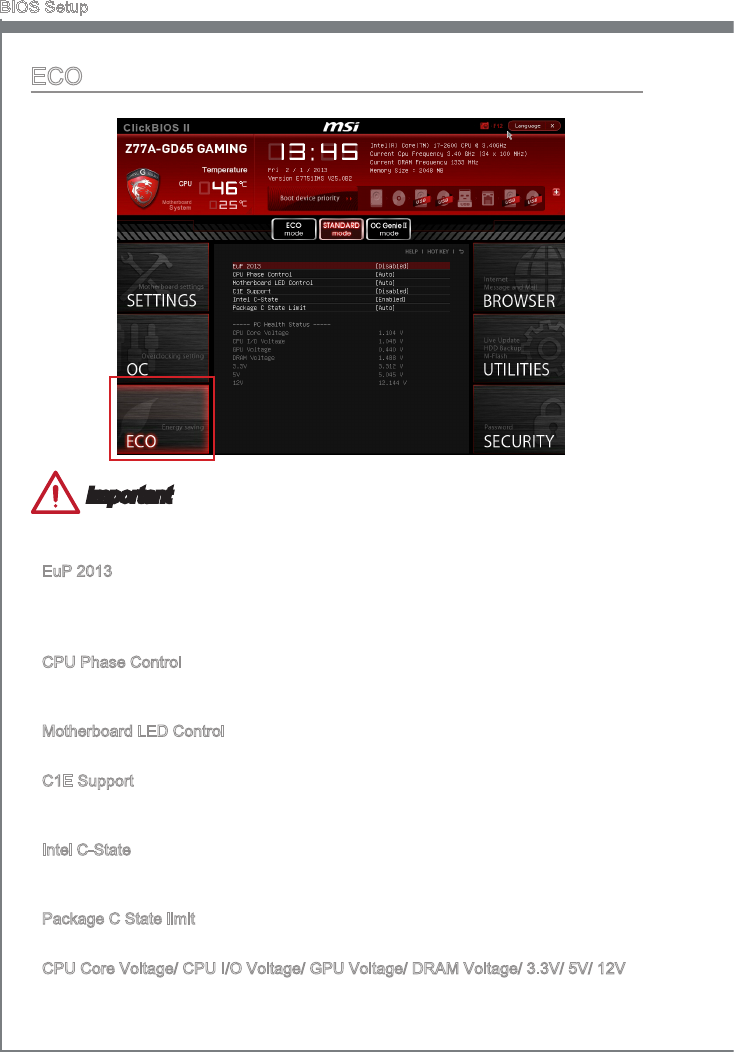
2-18
BIOS Setup
ECO
Important
Once you clck the “ECO” button n the pre-set area, some tems n ECO menu wll be
xed and un-adjustable.
EuP 2013
Energy Usng Products Lot 6 2013 (EUP) reduces power consumpton when system s
o or n standby mode.
Note: When enabled, the system wll not support RTC wake up event functons.
CPU Phase Control
These tems allow you to enable (Auto)/ dsable (dsabled) the CPU power phase swtch
feature to reach the best power savng.
Motherboard LED Control
Ths tem allows you to enable (Auto)/ dsable (dsabled) the motherboard phase LED.
C1E Support
To enable ths tem to reduce the CPU power consumpton whle dle. Not all processors
support Enhanced Halt state (C1E).
Intel C-State
C-state s a power management state that detects when the system s dle and lowers
power consumpton accordngly.
Package C State lmt
Ths eld allows you to select a C-state mode.
CPU Core Voltage/ CPU I/O Voltage/ GPU Voltage/ DRAM Voltage/ 3.3V/ 5V/ 12V
These tems show the amperages. Read only.
▶
▶
▶
▶
▶
▶
▶
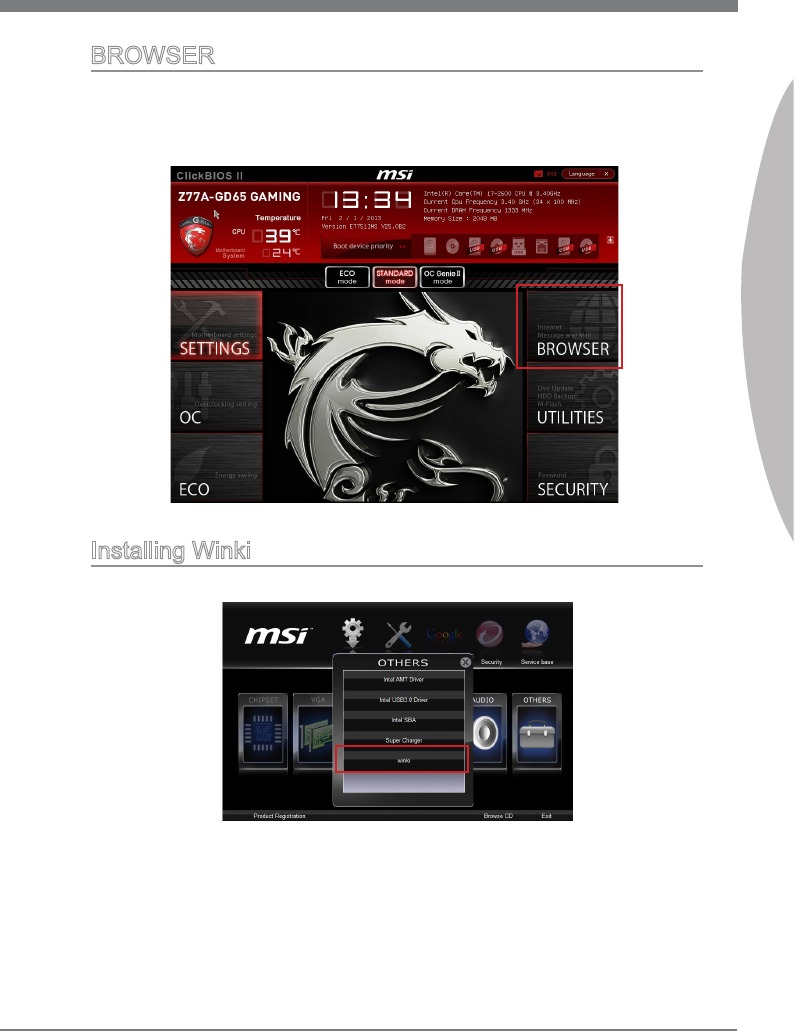
2-19
MS-7751
Chapter 2
BROWSER
Please nstall the MSI "Wnk" applcaton rst n the Wndows operatng system wth the
MSI Drver Dsc before usng the browser. Then you can clck the BROWSER to access
the Internet, e-mal and nstant messagng.
Installng Wnk
To nstall Wnk, follow the steps below:
Power on your computer and enter Wndows operatng system.
Insert MSI Drver Dsc nto the optcal drve. The setup screen wll automatcally
appear.
Clck Drver tab.
Clck OTHERS button.
Select Wnk to start nstallng.
When nshed, restart your computer.
1.
2.
3.
4.
5.
6.
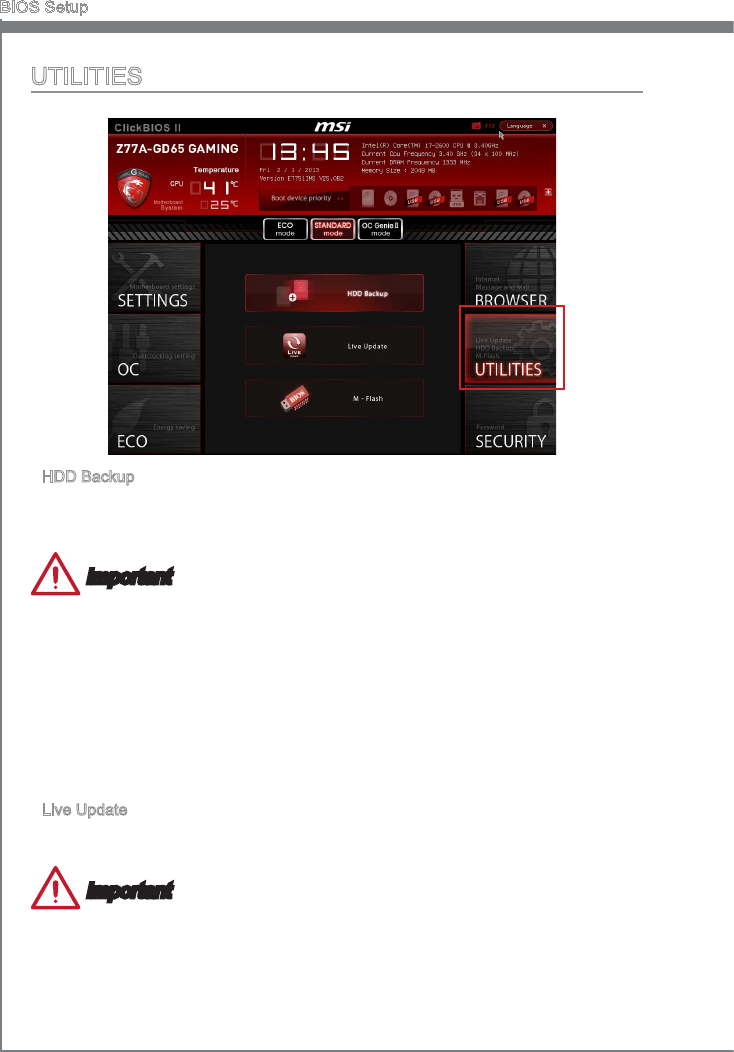
2-20
BIOS Setup
UTILITIES
HDD Backup
Hard dsk storage backups and restorng s one of the most common and mportant
tasks. Use ths utlty to create an mage of your HDD parttons and re-load them when
necessary.
Important
The HDD Backup can’t back up (/restore) mage to (/from) a partton where tself was
nstalled, so t’s strongly recommended to dvde HDD nto 2 parttons at least (1st for
OS; 2nd for data).
For HDD wth sngle partton only, the requrements for HDD Backup are:
An addtonal partton from another HDD (ex. USB HDD) for HDD Backup to back up
(/restore) mage to (/from) t.
Executng Wnk stored n USB ash drve/ MSI Drver Dsc by pressng <F11> to
choose boot devce durng POST.
Lve Update
Ths tool can detect and update your BIOS onlne so that you won’t need to spend tme
searchng manually.
Important
HDD Backup and Lve Update request Wnk, please nstall the "Wnk" software
applcaton from MSI Drver Dsc n Wndows rst. And then you can access these two
utltes by clckng ther respectve buttons.
▶
1.
2.
▶
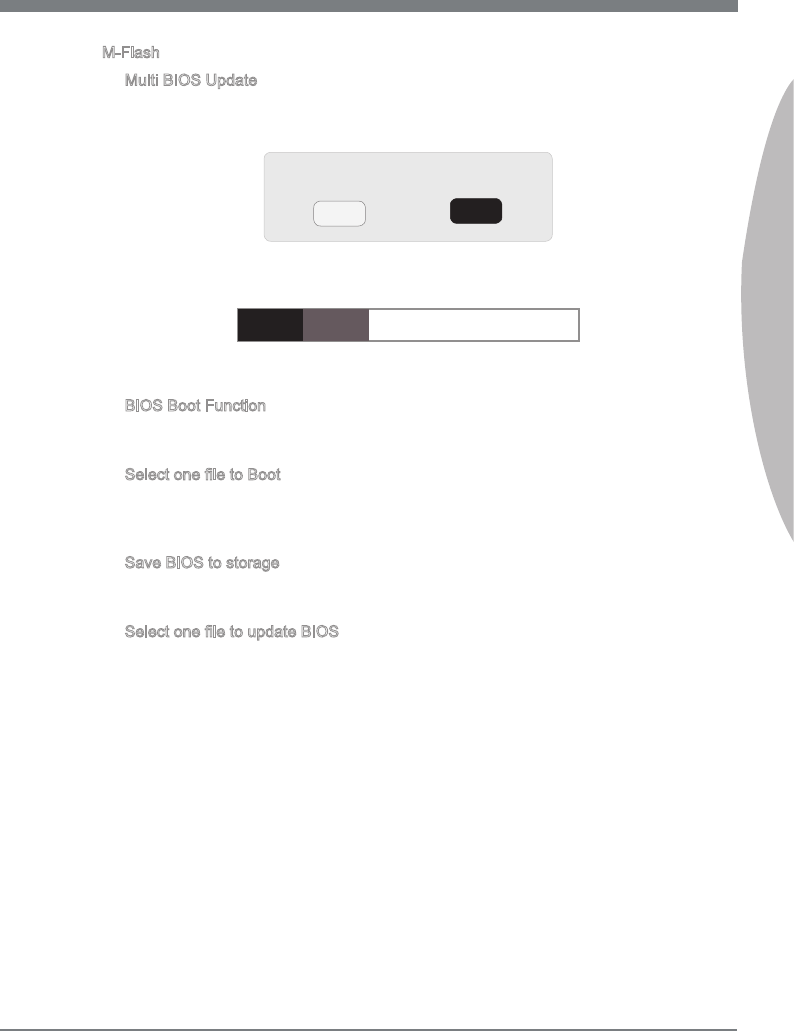
2-21
MS-7751
Chapter 2
M-Flash
Mult BIOS Update
Ths tem s used to recover the faled BIOS ROM. Once you enter ths tem a
message prompts you to conrm the BIOS update request. Please select "Yes" and
press <Enter>.
Are you gong to recover/ update BIOS?
Yes No
The system wll start to recover the faled BIOS ROM and wll show the progress
message as below. Do not press any buttons to shutdown or restart the computer
durng the BIOS ashng operaton.
Flashng... 23%
After BIOS recovery s done, please ext BIOS setup. Power o the system and then
swtch back to the recovered BIOS ROM.
BIOS Boot Functon
Ths allows you to enable/ dsable the system to boot from the BIOS le nsde USB
drve (FAT/ 32 format only).
Select one le to Boot
When the BIOS Boot functon as sets to [Enabled], ths tem s selectable. Ths tem
allows to select partcular BIOS le from the USB/ Storage (FAT/ 32 format only)
drve. And the system wll boot from selected BIOS le.
Save BIOS to storage
Please setup a specc folder n specc USB/ Storage drve to save BIOS le from
BIOS ROM chp data. Note: t only supports FAT/ 32 le system drve.
Select one le to update BIOS
Ths tem allows you to select a partcular BIOS le from the USB/ Storage (FAT/ 32
format only) drve for updatng BIOS.
▶
▶
▶
▶
▶
▶

2-22
BIOS Setup
Updatng the BIOS wth Lve Update
Ths secton tells you how to update the BIOS by usng the Lve Update utlty before
enterng Operatng System. Lve Update wll update the BIOS automatcally when
connectng to the Internet. To update the BIOS wth the Lve Update utlty:
Clck Lve Update button on the BIOS UTILITIES menu. (The Wnk must be
nstalled).
1.
Setup the connecton by clck the settng button f necessary.
Clck the next button .
Lve Update wll automatcally detect the verson of BIOS and download the ap-
proprate le.
2.
3.
4.
Clck the conrm button to update the BIOS.5.
Important
Do not unplug or shut o your system durng BIOS Flash. Incorrect BIOS ashng can
cause the motherboard to not POST. Please ensure you have the correct verson and
model of your motherboard BIOS when updatng.

2-23
MS-7751
Chapter 2
SECURITY
Admnstrator Password
Set the admnstratve password that wll be requred to enter the BIOS.
User Password
Set the user password that wll be requred to enter the operatng system.
Important
When selectng the Admnstratve / User Password tems, a password box wll appear
on the screen. Type the password then press <Enter>. The password typed now wll re-
place any prevous set password from CMOS memory. You wll be prompted to conrm
the password. You may also press <Esc> to abort the selecton.
To clear a set password, press <Enter> when you are prompted to enter a new pass-
word. A message wll conrm the password s beng dsabled. Once the password s
dsabled, you can enter the setup and OS wthout authorzaton.
U-Key
Enable or dsable USB drver devce as key. Ths requres the USB devce to be plugged
n for access to the computer..
Make U-Key at
When the “U-Key” as sets to [Enabled], ths tem s selectable. Ths tem allows you to
specfy the USB drve.
▶
▶
▶
▶
2-24
BIOS Setup
Chasss Intruson Conguraton
Press <Enter> to enter the sub-menu.
Chasss Intruson
Enables or dsables the feature of recordng the chasss ntruson status and ssung
a warnng message f opened. To clear the warnng logs, set the eld to [Reset]. The
settng of the eld wll return to [Enabled] later.
▶
▶

The Realtek audo provdes 10-channel DAC that smul-
taneously supports 7.1 sound playback and 2 channels
of ndependent stereo sound output (multple streamng)
through the Front-Out-Left and Front-Out-Rght chan-
nels.
Appendx A
Realtek Audo

A-2
Realtek Audo
Installng the Realtek HD Audo Drver
You need to nstall the HD audo drver for Realtek audo codec to functon properly
before you can get access to 2-, 4-, 6-, 8- channel or 7.1+2 channel audo operatons.
Follow the procedures descrbed below to nstall the drvers for derent operatng sys-
tems.
Installaton for Wndows®
For Wndows® XP, you must nstall Wndows® XP Servce Pack3 or later before nstallng
the drver.
The followng llustratons are based on Wndows® 7 envronment and could look slghtly
derent f you nstall the drvers n derent operatng systems.
Insert the applcaton DVD nto the DVD-ROM drve. The setup screen wll automat-
cally appear.
Clck Drver tab.
Clck AUDIO button.
1.
2.
3.
Select Realtek HD Audo Drvers to start nstallng the drvers.
Clck Next to nstall the Realtek Hgh Denton Audo Drver.
Follow the on-screen nstructons to nstall drvers.
Clck Fnsh to restart the system.
Important
The HD Audo Conguraton software utlty s under contnuous update to enhance au-
do applcatons. Hence, the program screens shown here n ths secton may be slghtly
derent from the latest software utlty and shall be held for reference only.
4.
5.
6.
7.
Clck here
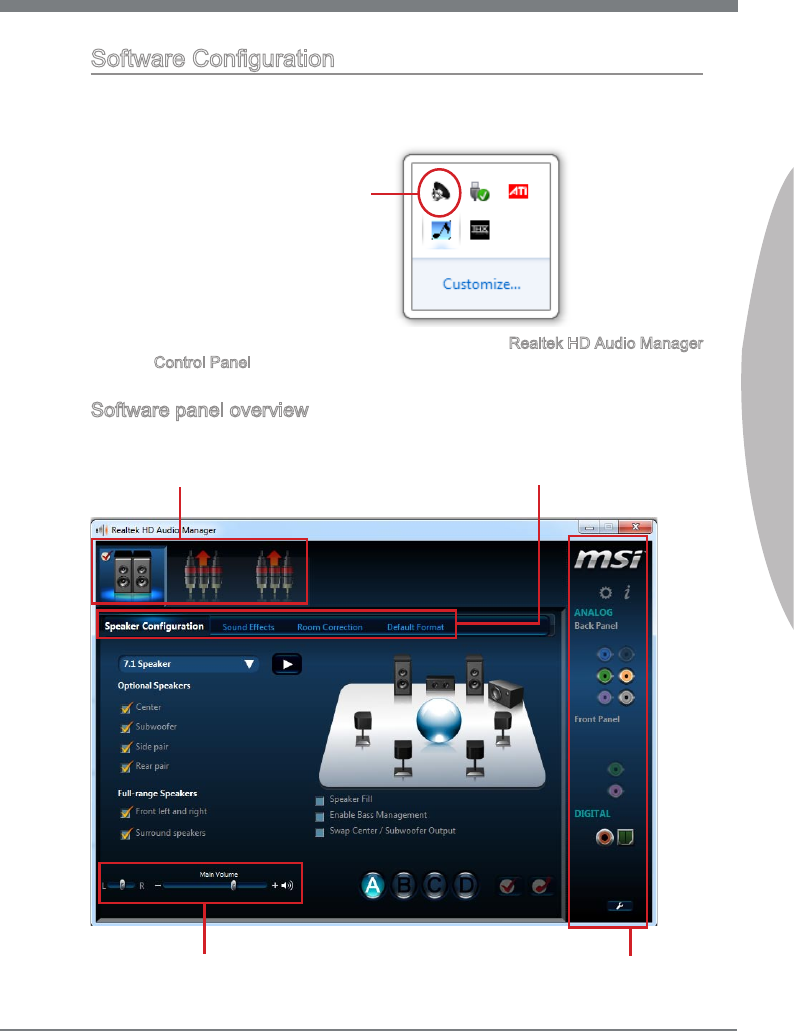
A-3
MS-7751
Appendx A
Software Conguraton
After nstallng the audo drver, the “Realtek HD Audo Manager” con wll appear at the
notcaton area (lower rght of the screen). You may double clck the con and the GUI
wll pop up accordngly.
double clck the con
It s also avalable to enable the audo drver by clckng the Realtek HD Audo Manager
from the Control Panel.
Software panel overvew
The followng gure descrbes the functon of the Realtek HD Audo Manager panel.
Devce Selecton
Volume Adjustment
Applcaton Enhancement
Jack status panel
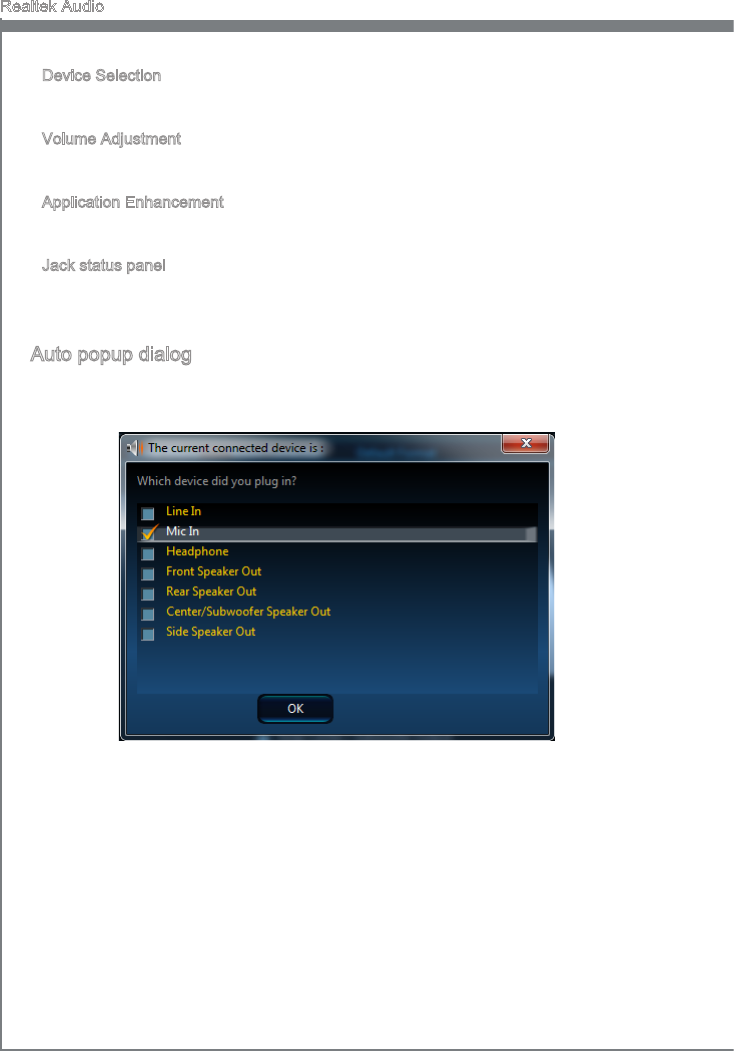
A-4
Realtek Audo
Devce Selecton
Here you can select a audo output source to change the related optons. The “check”
sgn (n orange) ndcates the devces as default.
Volume Adjustment
You can control the volume or balance the rght/left sde of the speakers that you
plugged n front or rear panel by adjust the bar.
Applcaton Enhancement
The array of optons wll provde you a complete gudance of antcpated sound eect for
both output and nput devce.
Jack status panel
Ths panel depcts all render and capture devces currently connected wth your com-
puter.
Auto popup dalog
When you plug nto the devce at the jack, a dalogue wndow wll pop up askng you
whch devce s current connected.
As you know, each jack corresponds to ts default settng, you can refer to the next sec-
ton “Hardware Default Settng”.
■
■
■
■
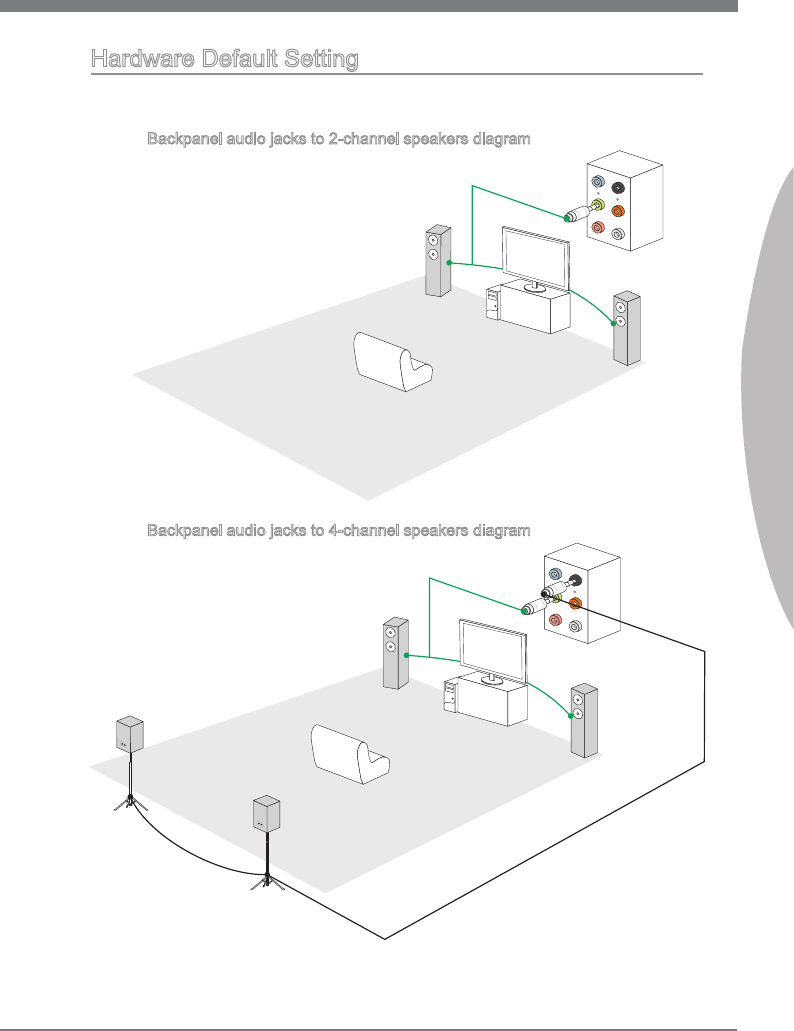
A-5
MS-7751
Appendx A
Hardware Default Settng
The followng dagrams are audo back panel default settng.
Backpanel audo jacks to 2-channel speakers dagram
Front
Backpanel audo jacks to 4-channel speakers dagram
Rear
Front
■
■

A-6
Realtek Audo
Backpanel audo jacks to 6-channel speakers dagram
Rear
Front
Center&Subwoofer
Backpanel audo jacks to 8-channel speakers dagram
Rear
Front
Center&Subwoofer
Side Surround
■
■
Ths appendx wll assst users n congurng and en-
ablng RAID functonalty and acceleratng system on
platforms
Appendx B
Intel RAID

B-2
Intel RAID
Introducton
The motherboard comes wth the Intel RAID controller that allows you to congure
SATA hard drves as RAID sets.
SATA hard drves delver blsterng transfer speeds up to 6 Gb/s. Seral ATA uses long,
thn cables, makng t easer to connect your drve and mprovng the arow nsde your
PC. The most outstandng features are:
Supports 3 Gb/s or 6 Gb/s transfers wth CRC error checkng.
Supports Hot-plug-n-play feature.
Data handlng optmzatons ncludng tagged command queung, elevator seek and
packet chan command.
Intel® RAID controller oers RAID level 0 (Strpng), RAID level 1 (Mrrorng and Duplex-
ng), RAID level 5 (Block Interleaved Dstrbuted Party), RAID level 10 (A Strpe of Mr-
rors) , Intel® Rapd Storage Technology.
RAID 0 breaks the data nto blocks whch are wrtten to separate hard drves. Spread-
ng the hard drve I/O load across ndependent channels greatly mproves I/O perfor-
mance.
RAID 1 provdes data redundancy by mrrorng data between the hard drves and pro-
vdes enhanced read performance.
RAID 5 Provdes data strpng at the byte level and also strpe error correcton nforma-
ton. Ths results n excellent performance and good fault tolerance. Level 5 s one of the
most popular mplementatons of RAID.
RAID 10 Not one of the orgnal RAID levels, multple RAID 1 mrrors are created, and a
RAID 0 strpe s created over these.
Intel® Rapd Storage Technology s the advanced ablty for two RAID volumes to share
the combned space of two hard drves beng used n unson.
Intel® Rapd Storage Technology utlzes RAID 1 functonalty to copy data from a des-
gnated Master drve to a desgnated Recovery drve. The sze of the Master drve must
be less than or equal to the sze of the Recovery drve. When a Recovery volume s
created, complete capacty of the Master drve wll be used as the Master volume. Only
one Recovery Volume can exst on a system. There are 2 methods of updatng the
data on the Master to the Recovery drve. They are Contnuous Update Polcy and On
Request Update Polcy.
Important
The least number of hard drves for RAID 0, RAID 1, Recovery or Matrx mode s 2. The
least number of hard drves for RAID 10 mode s 4. And the least number of hard drves
for RAID 5 mode s 3.
All the nformaton/ volumes/ pctures lsted n your system mght der from the llustra-
tons n ths appendx.
1.
2.
3.
B-3
MS-7751
Appendx B
Usng Intel Rapd Storage Technology Opton ROM
The Intel Rapd Storage Technology Opton ROM should be ntegrated wth the sys-
tem BIOS on all motherboards wth a supported Intel chpset. The Intel Rapd Storage
Technology Opton ROM s the Intel RAID mplementaton and provdes BIOS and DOS
dsk servces. Please use <Ctrl> + <I> keys to enter the “Intel® RAID for Seral ATA”
status screen, whch should appear early n system boot-up, durng the POST (Power-
On Self Test). Also, you need to enable the RAID functon n BIOS to create, delete and
reset RAID volumes.
Creatng, Deletng and Resettng RAID Volumes:
The Seral ATA RAID volume may be congured usng the RAID Conguraton utlty
stored wthn the Intel RAID Opton ROM. Durng the Power-On Self Test (POST), the
followng message wll appear for a few seconds.
Important
The “Devce Model”, “Seral #” and “Sze” n the followng example mght be derent
from your system.
RAID Volumes
None dened.
Physcal Dsks:
Port Devce Model Seral # Sze Type/Status(Vol ID)
1 XXXXXXXXXXXXX XXXXXXXXXXXXX XXX.XGB Non-RAID Dsk
2 XXXXXXXXXXXXX XXXXXXXXXXXXX XXX.XGB Non-RAID Dsk
Press <CTRL-I> to enter Conguraton Utlty..
After the above message shows, press <Ctrl> and <I> keys smultaneously to enter the
Intel Rapd Storage Technology Opton ROM.
Important
The followng procedure s only avalable wth a newly-bult system or f you are renstall-
ng your OS. It should not be used to mgrate an exstng system to RAID.
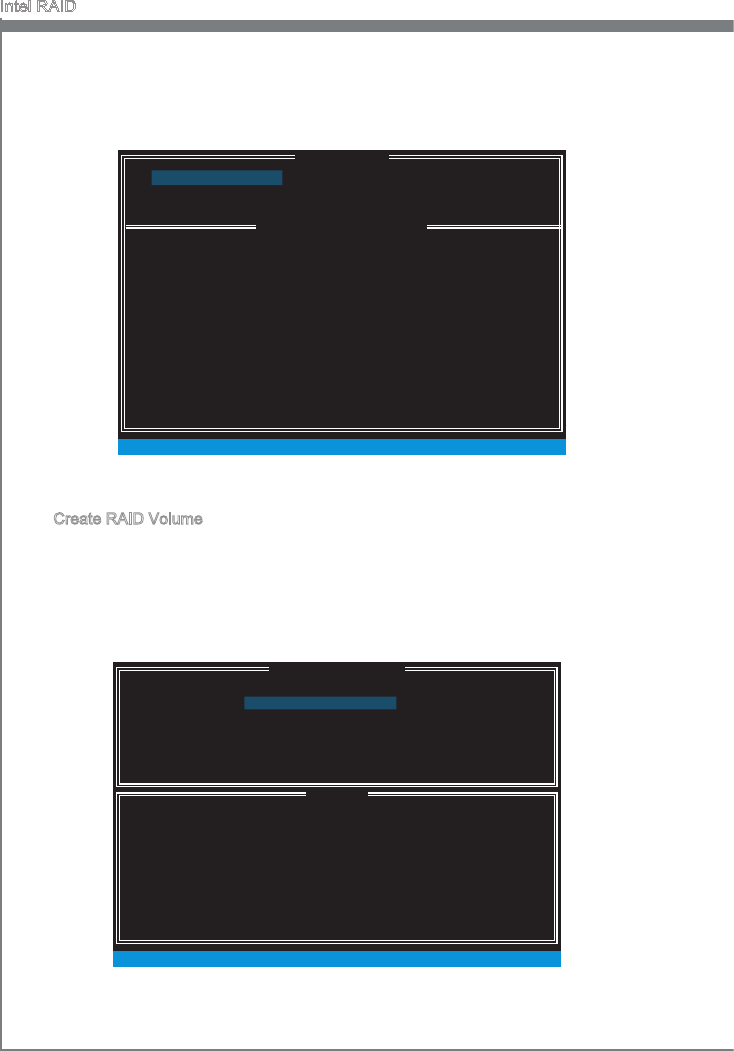
B-4
Intel RAID
After pressng the <Ctrl> and <I> keys smultaneously, the followng wndow wll ap-
pear:
Create RAID Volume
Select opton 1 “Create RAID Volume” and press <Enter> key. The followng screen
appears. Then n the Name eld, specfy a RAID Volume name and then press the
<TAB> or <Enter> key to go to the next eld.
Use the arrow keys to select the RAID level best suted to your usage model n
RAID Level.
■
1.
2.
[ ]
CREATE VOLUME MENU
[ ]
HELP
Name :
RAID 1 : Mrrors data (redundancy) .
[ ↑↓] - Change [TAB] - Next [ESC] - Prevous Menu [ENTER] - Select
RAID Level :
Dsks :
Strp Sze :
Capacty :
Sync :
Volume0
RAID1(Mrror)
Select Dsks
N / A
XXX.X GB
N / A
Create Volume
MAIN MENU
[ ]
DISK / VOLUME INFORMATION
[ ]
4. Recovery Volume Optons
5. Acceleraton Optons
6. Ext
RAID Volumes :
None dened.
Physcal Devces :
Port Devce Model Seral # Sze Type/Status (Vol ID)
1 XXXX-XXXXXXXX XXXXXXXXXXXXXX XXX.XGB Non-RAID Dsk
2 XXXX-XXXXXXXX XXXXXXXXXXXXXX XXX.XGB Non-RAID Dsk
[ ↑↓] - Select [ESC] - Ext [ENTER] - Select Menu
1. Create RAID Volume
2. Delete RAID Volume
3. Reset Dsks to Non-RAID
[ ]
MAIN MENU
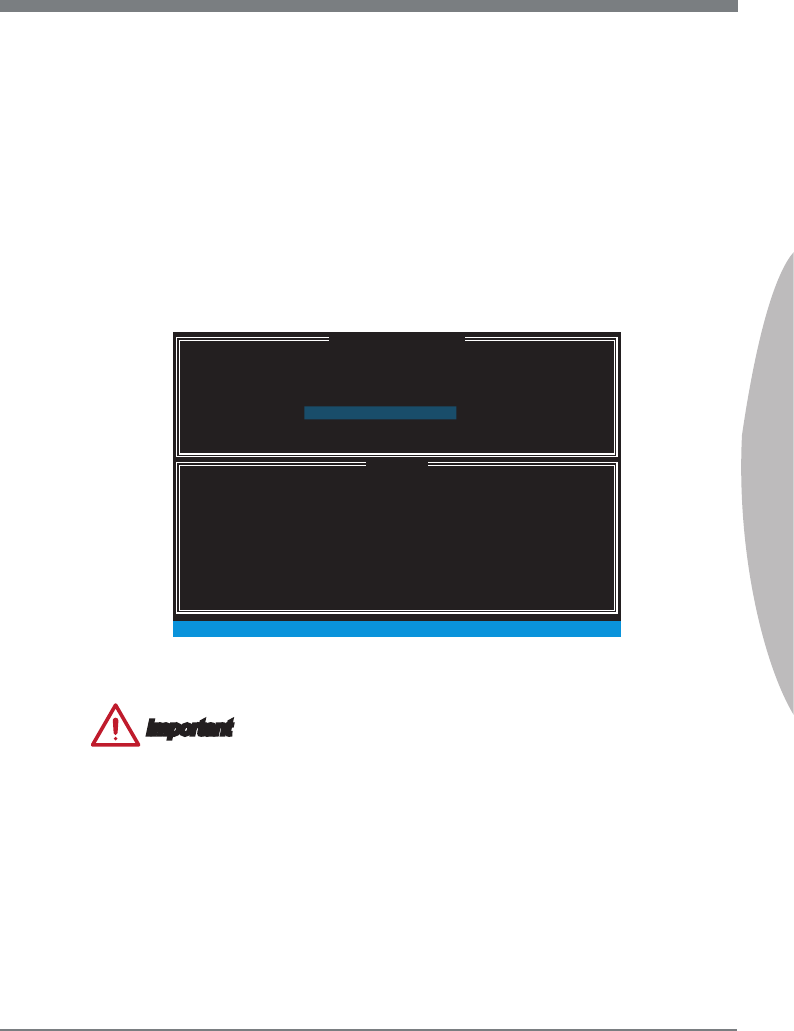
B-5
MS-7751
Appendx B
In the Dsk eld, press <Enter> key and use <Space> key to select the dsks you
want to create for the RAID volume, then clck <Enter> key to nsh selecton. Ths
eld wll become avalable accordng to the selected RAID level.
Then select the strp sze for the RAID array by usng the “upper arrow”
or “down arrow” keys to scroll through the avalable values, and pressng
the <Enter> key to select and advance to the next eld. The avalable val-
ues range from 4KB to 128 KB n power of 2 ncrements. The strp sze should
be chosen based on the planned drve usage. Here are some typcal values:
RAID0 -128KB / RAID10 - 64KB / RAID5 - 64KB. Ths eld wll become avalable
accordng to the selected RAID level.
Then select the capacty of the volume n the Capacty eld. The default value s the
maxmum volume capacty of the selected dsks.
3.
4.
5.
[ ]
CREATE VOLUME MENU
[ ]
HELP
Name :
The default value ndcates the maxmum capacty usng the selected
dsks. Enterng a lower capacty allows you to create a second
volume on these dsks.
[ ↑↓] - Change [TAB] - Next [ESC] - Prevous Menu [ENTER] - Select
RAID Level :
Dsks :
Strp Sze :
Capacty :
Sync :
Volume0
RAID1(Mrror)
Select Dsks
N / A
XXX.X GB
N / A
Create Volume
Important
Snce you want to create two volumes, ths default sze (maxmum) needs to be re-
duced. Type n a new sze for the rst volume. As an example: f you want the rst
volume to span the rst half of the two dsks, re-type the sze to be half of what s shown
by default. The second volume, when created, wll automatcally span the remander of
two hard drves.
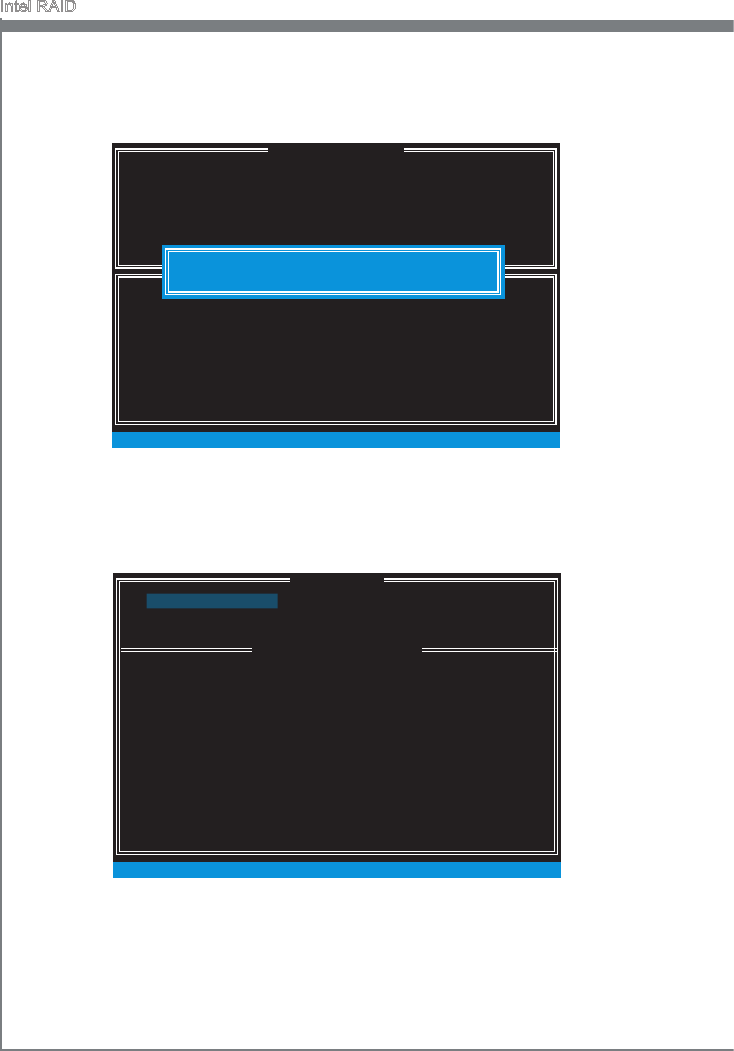
B-6
Intel RAID
Then the followng screen appears to ndcate that the creaton s nshed.7.
Go to the Create Volume eld and press <Enter>, the followng screen appears for
you to conrm f you are sure to create the RAID volume. Press <Y> to contnue.
6.
[ ]
CREATE VOLUME MENU
[ ]
HELP
Name :
Press ENTER to create the speced volume.
[ ↑↓] - Change [TAB] - Next [ESC] - Prevous Menu [ENTER] - Select
RAID Level :
Dsks :
Strp Sze :
Capacty :
Sync :
Volume0
RAID1(Mrror)
Select Dsks
N / A
XXX.X GB
N / A
Create Volume
WARNING : ALL DATA ON SELECTED DISKS WILL BE LOST.
Are you sure you want to create ths volume? (Y / N) :
DISK / VOLUME INFORMATION
[ ]
4. Recovery Volume Optons
5. Acceleraton Optons
6. Ext
RAID Volumes :
ID Name Level Strp Sze Status Bootable
0 Volume0 RAID1(Mrror) N / A XXX.XGB Normal Yes
Physcal Devces :
Port Devce Model Seral # Sze Type/Status (Vol ID)
1 XXXX-XXXXXXXX XXXXXXXXXXXXXX XXX.XGB Member Dsk(0)
2 XXXX-XXXXXXXX XXXXXXXXXXXXXX XXX.XGB Member Dsk(0)
[ ↑↓] - Select [ESC] - Ext [ENTER] - Select Menu
1. Create RAID Volume
2. Delete RAID Volume
3. Reset Dsks to Non-RAID
MAIN MENU
[ ]
[ ]
MAIN MENU
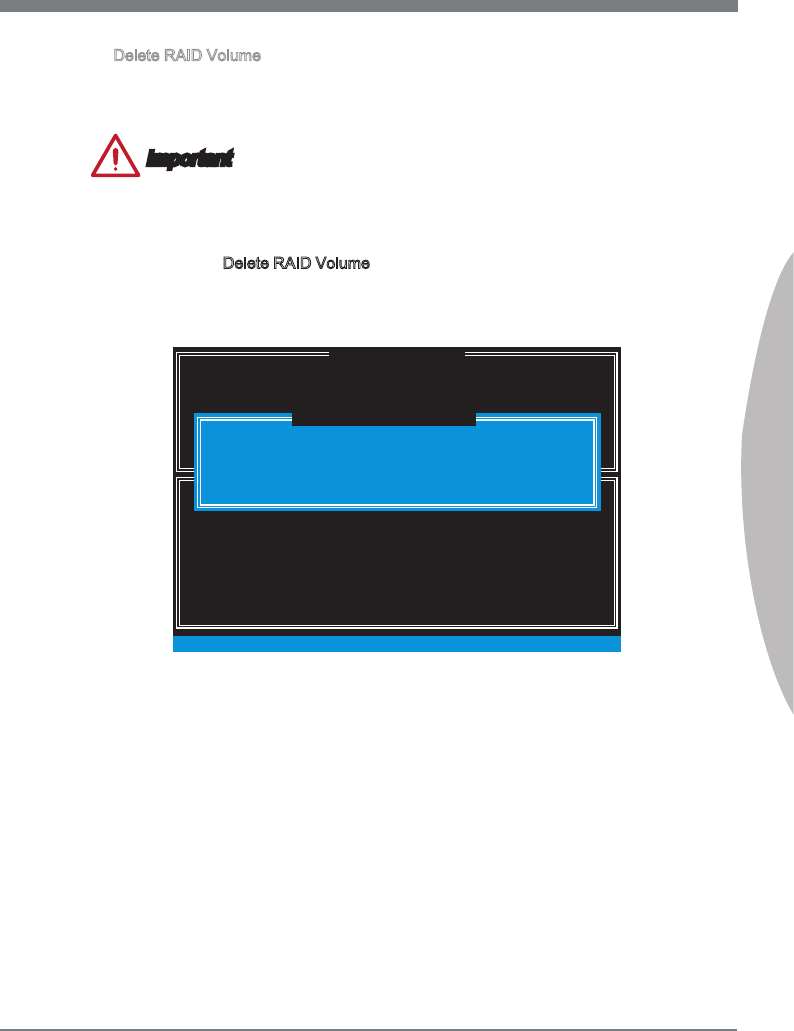
B-7
MS-7751
Appendx B
Delete RAID Volume
Here you can delete the RAID volume, but please be noted that all data on RAID
drves wll be lost.
Important
If your system currently boots to RAID and you delete the RAID volume n the Intel RAID
Opton ROM, your system wll become un-bootable.
Select opton 2 Delete RAID Volume from the man menu screen and press <Enter>
key to select a RAID volume for deleton. Then press <Delete> key to delete the
selected RAID volume. The followng screen appears.
[ ]
DELETE VOLUME MENU
[ ]
HELP
Deletng a volume wll reset the dsks to non-RAID.
[ ↑↓] - Select [ESC] - Prevous Menu [DEL] - Delete Volume
WARNING : ALL DISK DATA WILL BE DELETED.
(Ths does not apply to Recovery volumes)
Name Level Drves Capacty Status Bootable
Volume0 RAID1(Mrror) 2 XXX.XGB Normal Yes
ALL DATA IN THE VOLUME WILL BE LOST!
(Ths does not apply to Recovery volumes)
Are you sure you want to delete “Volume0”? (Y / N) :
DELETE VOLUME VERIFICATION
[ ]
Press <Y> key to accept the volume deleton.
■
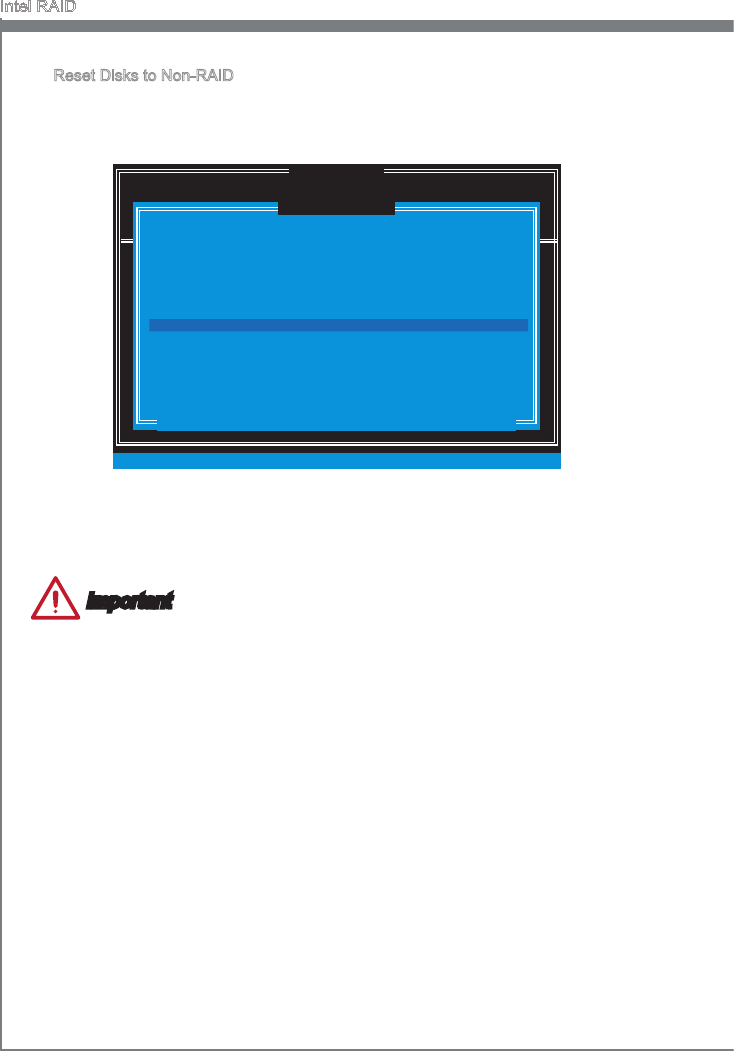
B-8
Intel RAID
Reset Dsks to Non-RAID
Select opton 3 Reset Dsks to Non-RAID and press <Enter> to delete the RAID
volume and remove any RAID structures from the drves. The followng screen
appears:
DISK / VOLUME INFORMATION
[ ]
4. Recovery Volume Optons
4. Recovery Volume Optons
5. Ext
RAID Volumes :
None dened.
Physcal Devces :
Port Devce Model Seral # Sze Type/Status (Vol ID)
1 XXXX-XXXXXXXX XXXXXXXXXXXXXX XXX.XGB Non-RAID Dsk
2 XXXX-XXXXXXXX XXXXXXXXXXXXXX XXX.XGB Non-RAID Dsk
[ ↑↓] - Select [ESC] - Ext [ENTER] - Select Menu
1. Create RAID Volume
2. Delete RAID Volume
Resettng RAID dsk wll remove ts RAID structures
and revert t to a non-RAID dsk.
[ ]
RESET RAID DATA
WARNING : Resettng a dsk causes all data on the dsk to be lost.
(Ths does not apply to Recovery volumes)
Select the dsks that should be reset.
[ ↑↓] - Prevous/ Next [SPACE] - Selects [ENTER] - Selecton Complete
Port Drve Model Seral # Sze Status
1 XXXX-XXXXXXXX XXXXXXXXXXXXXX XXX.XGB Member Dsk
2 XXXX-XXXXXXXX XXXXXXXXXXXXXX XXX.XGB Member Dsk
[ ]
MAIN MENU
Use the <Space> key to select the dsks and press <Enter> key. A conrmaton sen-
tence wll appear below, and then press <Y> key to accept the selecton.
Important
You wll lose all data on the RAID drves and any nternal RAID structures when you
perform ths operaton.
Possble reasons to “Reset Dsks to Non-RAID” could nclude ssues such as ncom-
patble RAID conguratons or a faled volume or faled dsk.
■
•
•
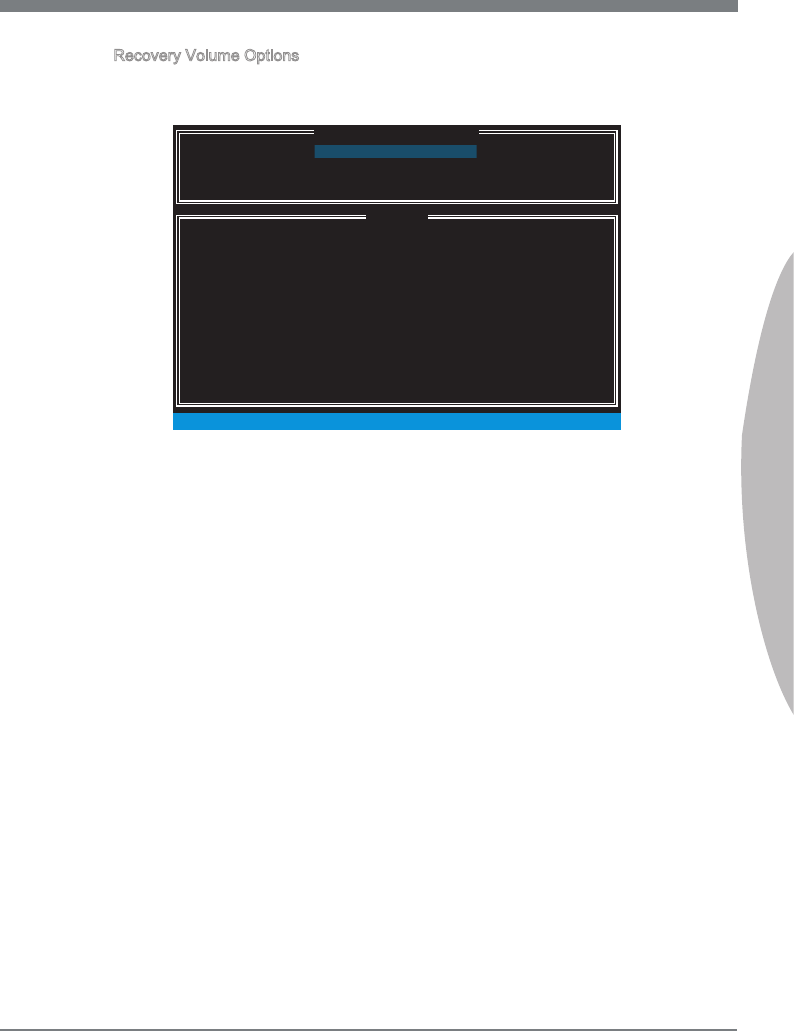
B-9
MS-7751
Appendx B
Recovery Volume Optons
Select opton 4 Recovery Volume Optons and press <Enter> to change recovery
volume mode. The followng screen appears:
[ ]
RECOVERY VOLUME OPTIONS
[ ]
HELP
Enable Only Recovery Dsk - enables recovery dsk f avalable and
dsables master dsk.
Enable Only Master Dsk - enables master dsk f avalable and
dsables recovery dsk.
Actons wll result n change from Contnuous Update mode to On-Request.
[ ↑↓] - select [ESC] - Prevous Menu [ENTER] - Select
1. Enable Only Recovery Dsk
2. Enable Only Master Dsk
Recovery mode wll change from Contnuous Update to On-Request after you en-
able “Only Recovery Dsk” or “Only Master Dsk”.
■
B-10
Intel RAID
Important
Please follow the nstructon below to make an “Intel
®
RAID Drver” for yourself.
Insert the MSI DVD nto the DVD-ROM drve.
Clck the “Browse CD” on the Setup screen.
Copy all the contents n \\Storage\Intel\PCH 7\f6py-x86 or f6py-x64 to a formatted
oppy dskette.
The drver dskette for Intel
®
RAID Controller s done.
•
•
•
•
Installng Drver
New Wndows 7/ Wndows 8/ Wndows XP Installaton
The followng detals the nstallaton of the drvers whle nstallng operatng system.
When you start nstallng Wndows XP, you may encounter a message statng,
“Setup could not determne the type of one or more mass storage devces nstalled
n your system”. If ths s the case, then you are already n the rght place and are
ready to supply the drver. If ths s not the case, then press F6 when prompted at
the begnnng of Wndows setup.
Press the “S” key to select “Specfy Addtonal Devce”.
You should be prompted to nsert a oppy dsk contanng the Intel
®
RAID drver
nto the A: drve.
Note: For Wndows XP, you can use the USB oppy drve only.
For Wndows 7/ 8 you can use CD/ DVD/ USB drve.
■
1.
2.
3.
For Wndows 7/ 8: Durng the Operatng system nstallaton, after selectng the loca-
ton to nstall Wndows 7 clck on “Load Drver” button to nstall a thrd party SCSI
or RAID drver.
When prompted, nsert the oppy dsk or meda (CD/DVD or USB) you created n
step 3 and press Enter.
You should be shown a lst of avalable SCSI Adapters.
Select the approprate Intel RAID controller and press ENTER.
The next screen should conrm that you have selected the Intel
®
RAID controller.
Press ENTER agan to contnue.
You have successfully nstalled the Intel
®
Rapd Storage Technology drver, and
Wndows setup should contnue.
Leave the dsk n the oppy drve untl the system reboots tself. Wndows setup wll
need to copy the les from the oppy agan after the RAID volume s formatted, and
Wndows setup starts copyng les.
4.
5.
6.
7.
8.
9.
10.
B-11
MS-7751
Appendx B
Exstng Wndows Drver Installaton
Insert the MSI DVD nto the DVD-ROM drve.
The DVD wll auto-run and the setup screen wll appear.
Under the Drver tab, clck on Intel RAID Drvers.
The drvers wll be automatcally nstalled.
Conrmng Wndows Drver Installaton
From Wndows, open the Control Panel from My Computer followed by the System
con.
Choose the Hardware tab, then clck the Devce Manager tab.
Clck the “+” n front of the SCSI and RAID Controllers hardware type. The drver
Intel(R) SATA RAID Controller should appear.
■
1.
2.
3.
4.
■
1.
2.
3.

B-12
Intel RAID
Degraded RAID Array
A RAID 1, RAID 5 or RAID 10 volume s reported as degraded when one of ts hard drve
members fals or s temporarly dsconnected, and data mrrorng s lost. As a result, the
system can only utlze the remanng functonal hard drve member. To re-establsh
data mrrorng and restore data redundancy, refer to the procedure below that corre-
sponds to the current stuaton.
Mssng Hard Drve Member
Make sure the system s powered o.
Reconnect the hard drve.
Reboot the system to Wndows; the rebuld wll occur automatcally.
Faled Hard Drve Member
Make sure the system s powered o.
Replace the faled hard drve wth a new one that s of equal or greater capacty.
Reboot the system to Intel RAID Opton ROM by press <Ctrl> and <I> keys smul-
taneously durng the Power-On Self Test (POST).
1.
2.
3.
1.
2.
3.
Select the port of the destnaton dsk for rebuldng, and then press ENTER.
4.
RAID Volumes
ID Name Level Strp Sze Status Bootable
0 Volume0 RAID 1(Mrror) N/A XXX.XGB Degraded Yes
Physcal Dsks:
Port Devce Model Seral # Sze Type/Status(Vol ID)
1 XXXXXXXXXXXXX XXXXXXXXXXXXX XXX.XGB Member Dsk (0)
2 XXXXXXXXXXXXX XXXXXXXXXXXXX XXX.XGB Member Dsk (0)
Press <CTRL-I> to enter Conguraton Utlty..
DISK / VOLUME INFORMATION
[ ]
4. Recovery Volume Optons
4. Recovery Volume Optons
5. Ext
RAID Volumes :
None dened.
Physcal Devces :
Port Devce Model Seral # Sze Type/Status (Vol ID)
1 XXXX-XXXXXXXX XXXXXXXXXXXXXX XXX.XGB Non-RAID Dsk
2 XXXX-XXXXXXXX XXXXXXXXXXXXXX XXX.XGB Non-RAID Dsk
[ ↑↓] - Select [ESC] - Ext [ENTER] - Select Menu
1. Create RAID Volume
2. Delete RAID Volume
“Degraded” volume and dsk avalable for rebuldng detected. Selectng
a dsk ntates a rebuld. Rebuld completes n the operatng system.
[ ]
DEGRADED VOLUME DETECTED
Select the port of the destnaton dsk for rebuldng (ESC to ext):
[ ↑↓] - Prevous/ Next [ENTER] - Select [ESC] - Ext
Port Drve Model Seral # Sze
1 XXXX-XXXXXXXX XXXXXXXXXXXXXX XXX.XGB
[ ]
MAIN MENU
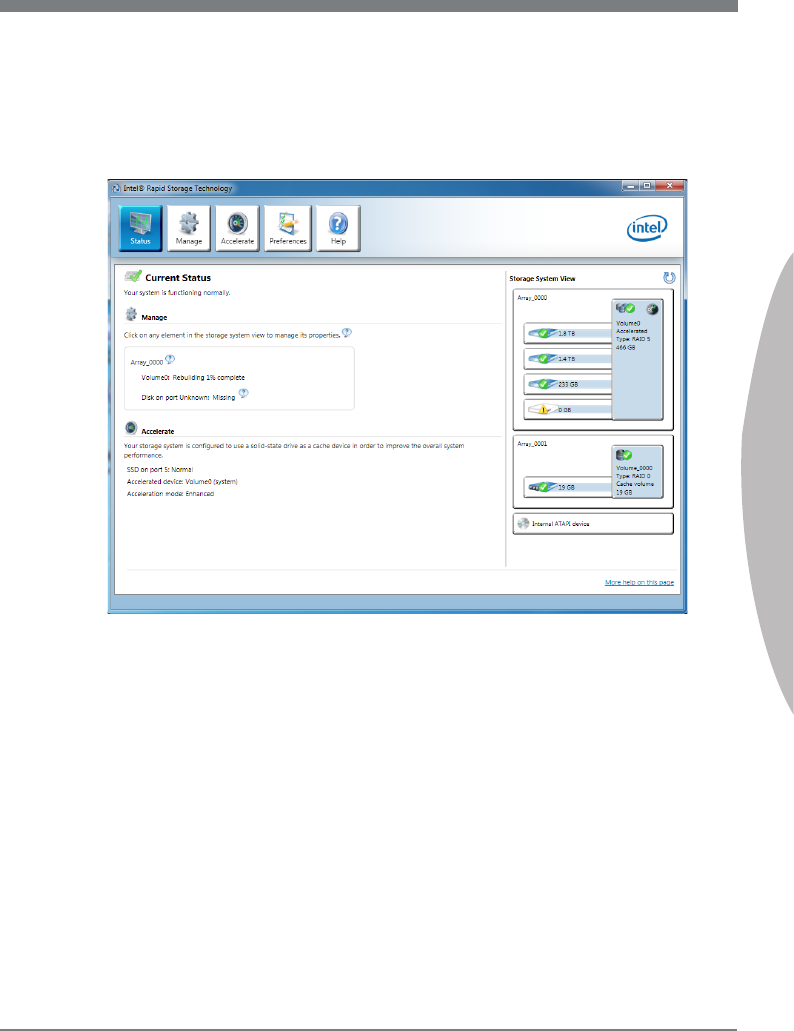
B-13
MS-7751
Appendx B
Ext Intel RAID Opton ROM, and then reboot to Wndows system.
When prompted to rebuld the RAID volume, clck ‘Yes’.
The Intel Rapd Storage Technology applcaton wll be launched. Rght-clck the new
hard drve and select ‘Rebuld to ths Dsk’. The ‘Rebuld Wzard’ wll be launched
whch wll gude you through the process of rebuldng to the new hard drve.
5.
6.
7.
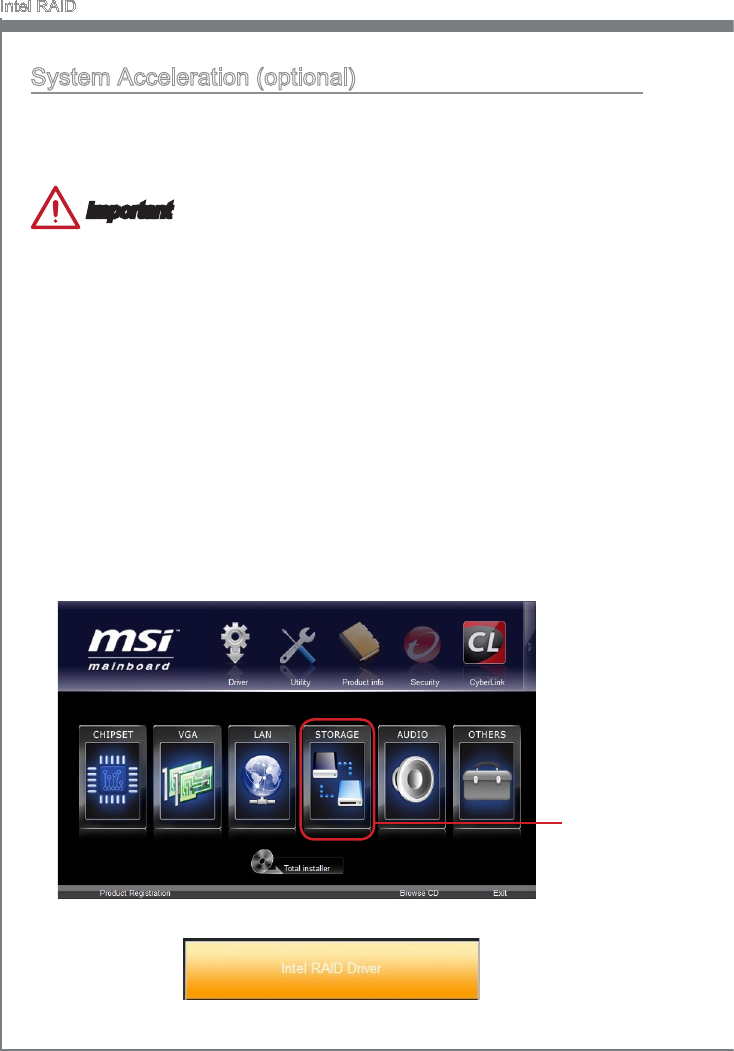
B-14
Intel RAID
System Acceleraton (optonal)
Intel® Rapd Storage Technology use a SSD as a cache. Whch can store frequently
used data wthout havng to use a slow vrtual dsk or depend on RAM. The SSD cache
wth the advantages of hgh-speed read/wrte and non-volatle memory to accelerate the
system performance.
Important
Check your SSD manufacturer's webste, upgrade rmware n order to support
Intel®
Rapd Storage Technology
.
Intel® Rapd Storage Technology can only work wth RAID mode. Even though there s
only one hard drve, you must set the SATA Mode to RAID n BIOS. The OS must be
nstalled n the RAID ready dsk n order to use the SSD cachng.
Follow these steps to enable system acceleraton. If Wndows has been nstalled n
RAID mode, skp to the step 5.
Reboot and enter the BIOS steup.
Set the SATA Mode to RAID n BIOS.
Install Intel
®
RAID controller drver. Please refer to the secton "Installng Drver".
Install Wndows operatng system.
Powered o.
Connect the SSD.
Reboot the system to Wndows.
Insert the MSI DVD nto the DVD-ROM drve.
1.
2.
3.
4.
5.
6.
7.
8.
Clck the “STORAGE” on the Setup screen.
9.
Clck the "Intel RAID Drver" to nstall Intel® Rapd Storage Technology applcaton.10.
Clck here

B-15
MS-7751
Appendx B
Run Intel® Rapd Storage Technology applcaton.
Clck "Enable acceleraton" under Accelerate.
11.
12.
Clck here
Select the acceleraton optons.13.
Clck OK and reboot the system.
The page refreshes and reports the new acceleraton conguraton n the Acceleraton
Vew.
Important
You can clck “More help on ths page” or "More help" of the Intel
®
Rapd Storage
Technology applcaton to vew more nformaton.
14.
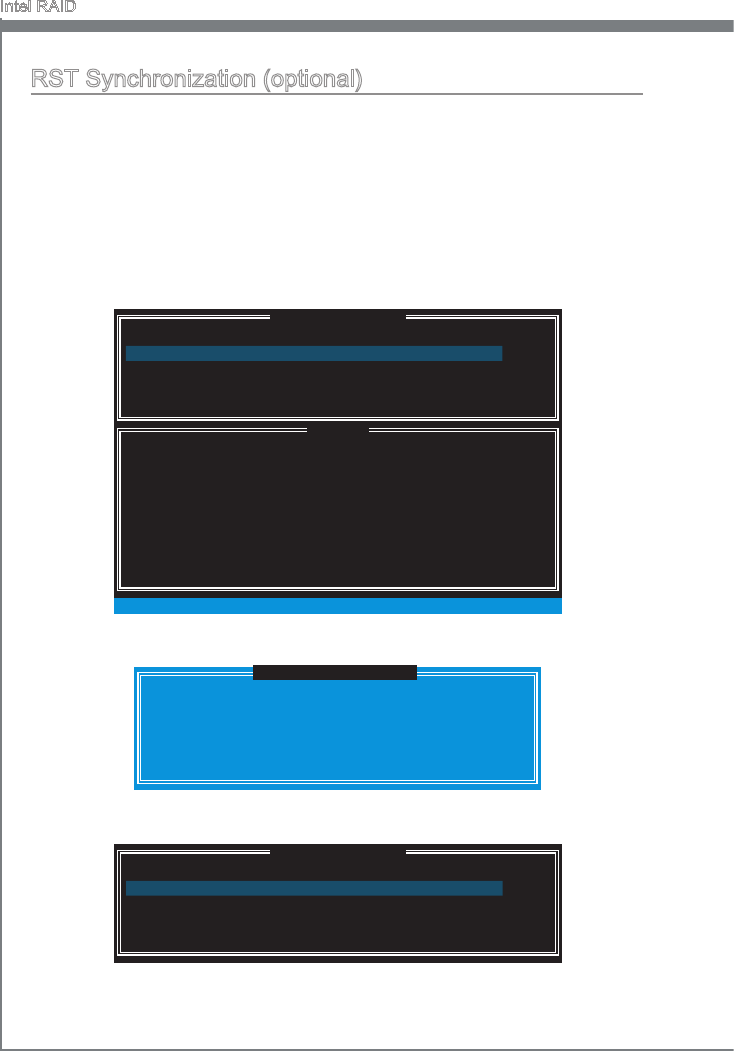
B-16
Intel RAID
RST Synchronzaton (optonal)
If you are usng Maxmzed mode as the Acceleraton mode, the data on the hard dsk
s not always synchronzed wth the data n the SSD cache. In some stuatons, you may
want to manually sync the dsks for avodng data loss.
Follow these steps to sync manually.
Reboot system, durng the Power-On Self Test (POST) press, press <Ctrl> and <I>
keys smultaneously to enter the Intel Rapd Storage Technology Opton ROM.
Select opton 5 “Acceleraton Optons” and press <Enter> key. The followng screen
appears.
1.
2.
[ ]
ACCELERATION OPTIONS
[ ]
HELP
Name
Press 's' to synchronze data from the cache devce to
the Accelerated Dsk/Volume.
Press 'r' to remove the Dsk/Volume Acceleraton.
WARNING: IT IS RECOMMENDED THAT YOU [ERFORM A SYNCHRONIZATION
BEFORE REMOVING ACCELERATION.
[ ↑↓] - Select [ESC] - Prevous Menu
Type Capacty Status
DISK PORT 0 Non-RAID Dsk 153.4GB
Mode
Maxmzed No Sync
Press <S> to synchronze data.3.
[ ]
ACCELERATION OPTIONS
Name Type Capacty Status
DISK PORT 0 Non-RAID Dsk 153.4GB
Mode
Maxmzed In Sync
DISK / VOLUME INFORMATION
[ ]
5. Ext
SYNCHRONIZING THE DATA MAY TAKE SEVERAL MINUTES.
DO NOT INTERRUPT THE PROCESS!
[ ]
SYNCHRONIZATION VERIFICATION
Are you sure you want to synchronze data to
"DISK PORT 0"? (Y/N):
When prompted, press <Y> to conrm.4.
Once synchronzaton s complete, the status wll change to In Sync.
5.
Ths chapter descrbes how to nstall Wndows XP wth
IDE or AHCI mode.
Appendx C
Install Wndows XP
Notes
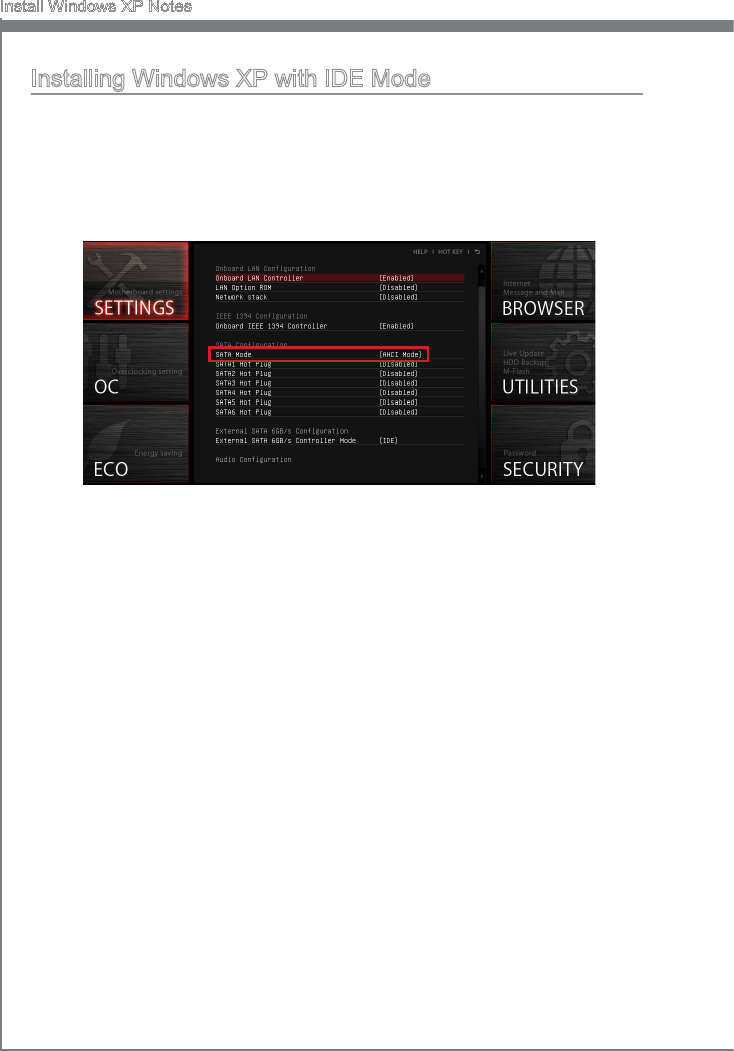
C-2
Install Wndows XP Notes
Installng Wndows XP wth IDE Mode
You wll fal and encounter a blue screen whle nstallng Wndows XP, because t s
not natvely supported to be nstalled n the storage devce wth AHCI mode. If you stll
prefer to nstall Wndows XP as the operatng system, please change the BIOS tem as
below.
Refer to Chapter 2 to access BIOS.
Go to SETTINGS → Integrated Perpherals → SATA Mode.
1.
2.
Set ths tem to IDE mode.
Go to SETTINGS → Save & Ext → Save changes and reboot.
Install the Wndows XP operatng system.
3.
4.
5.
C-3
MS-7751
Appendx C
Installng Wndows XP wth AHCI Mode
If you prefer to nstall Wndows XP as the operatng system wth AHCI mode, please
prepare AHCI drvers for Wndows XP n advanced.
Creatng a Intel AHCI Drver Dsc
Please follow the nstructon below to make an “Intel® AHCI Drver” for yourself.
Insert the MSI DVD nto the DVD-ROM drve.
Clck the “Browse CD” on the Setup screen.
Copy all the contents from \\Storage\Intel\PCH 7\f6py-x86 or f6py-x64 to a
formatted oppy dskette.
The drver dskette s done.
Important
You can download the drver from
http://download3.ms.com/les/downloads/dvr_exe/ntel7x_rst_oppy_mb.zp
Installng the Wndows XP Operatng System:
Please follow the below steps:
Access BIOS, set SATA Mode to AHCI mode, save, ext and reboot.
Ensure the USB Floppy Dsk Drve s connected to the computer.
Install Wndows XP. When Wndows Setup screen appears a message “Press F6 f
you need to nstall a thrd party SCSI or RAID drver....”, press “F6” key.
Insert the oppy dsk contanng the AHCI drvers nto the oppy dsk drve.
When the next screen appears, press the “S” key to specfy an addtonal devce.
From the provded lst, select the Intel(R) SATA AHCI Controller.
Follow the on-screen nstructons to complete the nstallaton.
■
■
■
■
1.
2.
3.
4.
5.
6.
7.