Multilaser S A 0025852203 CHROMEBOOK M11C User Manual
Multilaser Industrial S/A CHROMEBOOK M11C
User Manual
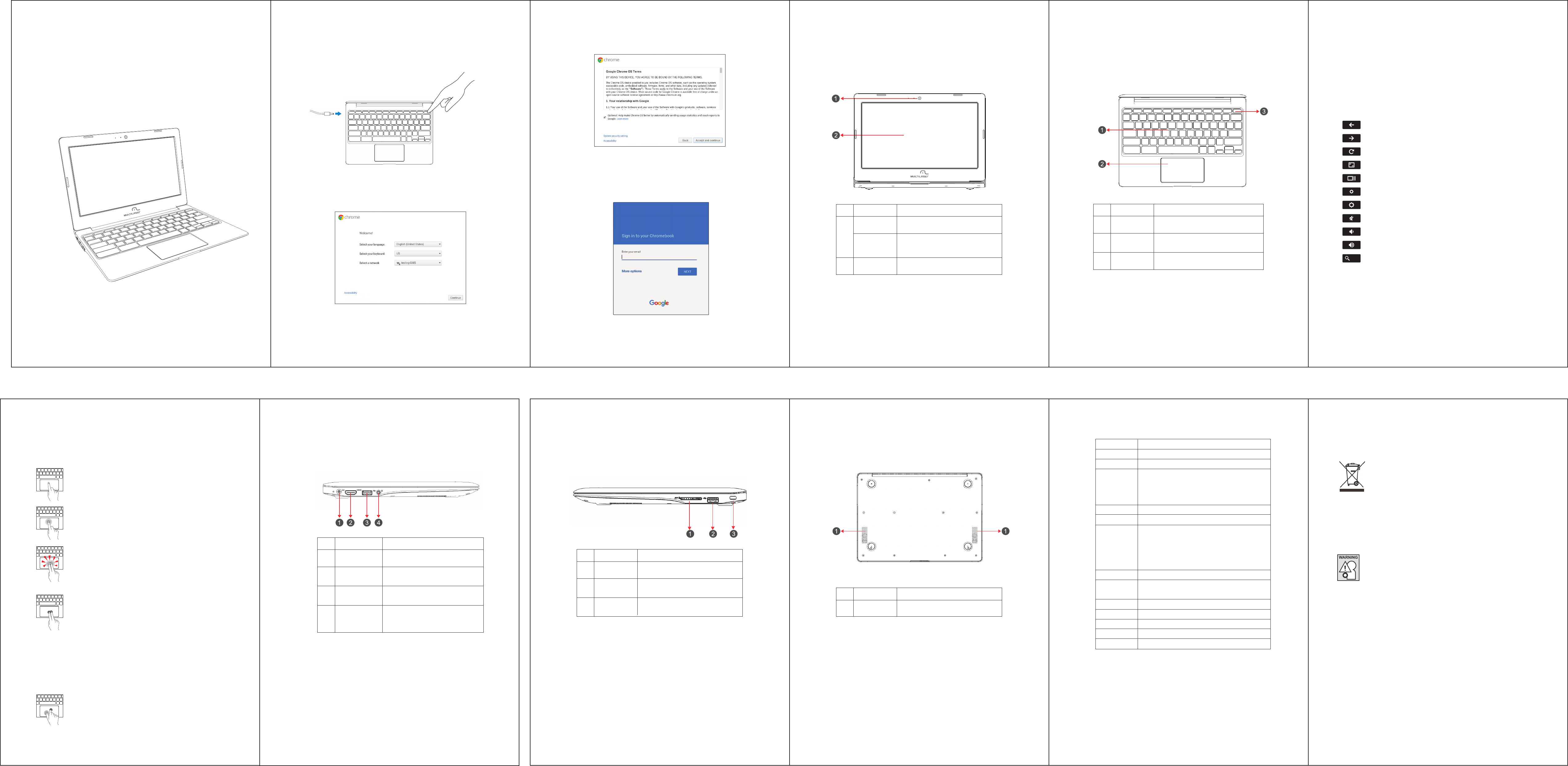
Touchpad
When you're using a Chromebook, use the touchpad to move the pointer and select
items on the screen. Here are some gestures and actions supported by the touchpad:
3. Specification
Bottom view
then download any available system updates, so you automatically get the latest
Chrome OS features.
x86 based Dual-Core
12345
6 9 10 11
Travel Notice
To reduce the risk of electric shock, fire or damage to the equipment, do
not attempt to power the computer with a voltage converter kit sold for
appliances.
Move the pointer: Simply move your finger across the
touchpad.
Click: Press down on the lower half of the touchpad.
Since tap-to-click is on by default, you can quickly tap
the touchpad to click.
Right-click: Click the touchpad with two fingers, or
hold Alt while doing a single click.
Middle-click: Click the touchpad with three fingers.
Scroll: Place two fingers on the touchpad and move
them up and down to scroll vertically, left and right to
scroll horizontally.
If you have Australian scrolling enabled, move two fingers
up to scroll down. (It works in the same way as say, your
smartphone or tablet.) If you have multiple browser tabs
open, you can also swipe left and right with three fingers
to quickly move between tabs.
Swipe: Quickly move two fingers left or right to go
backward or forward on web pages or while using apps.
You can also swipe up with three fingers to see all of your
open windows.
Drag and drop: Click the item you want to move with
one finger. With a second finger, move the item. Release
both fingers to drop the item at its new location.
CHROMEBOOK M11C 1.Getting started
User Manual
Please read carefully before use.
2.Your Chromebook tour
Now that you are done setting it up, let us show you around your new
Chromebook.
Front view
Keyboard view
1.1 Turn on your Chromebook
Connect the power adapter and turn on your Chromebook. The power button is
located at the upper-right corner of the keyboard.
1.2 Connect to your network
Select your wireless network from the “Select a network” list to connect to the
internet. If your network access is protected, you will need to input the password
to connect.
1.3 Wait for update to finish
Once connected to the internet, accept the Terms of Service. Your Chromebook will
If you already have a Google Account, enter your username and password to sign in.
If you don’t already have one, click More options and then select Create a Google
Account on the right to set up a new account. A Google Account gives you access to
useful web services developed by Google, such as Gmail, Google Docs and Google
Calendar.
Important:
Sign in with your primary Google Account. This account will be set as
the owner and is the only account that will be able to change certain Chrome settings.
1.4 Sign in to your Google account or create a new account
Shortcut keys
To help you find things quickly, your Chromebook keyboard has special shortcut
keys, including a dedicated search key. The shortcut keys make it easy to get
around online and control your Chromebook, and the search key lets you search
your apps and the web at the same time.
Some special keys sit along the top of Chromebook keyboards. If you're using a
Windows keyboard with your Chromebook, the F keys at the top of the keyboard
will work just like the keys below.
Go to the previous page in your browser history (F1)
Go to the next page in your browser history (F2)
Reload your current page (F3)
Enter Immersive mode, which hides the tabs and launcher (F4)
Enter Overview mode, which shows all windows (F5)
Decrease screen brightness (F6)
Increase screen brightness (F7)
Mute (F8)
Decrease the volume (F9)
Increase the volume (F10)
Search your apps and the web at the same time. On a
Chromebook, this key is located on the side, where you'd
normally find the Caps Lock key. If you're using a regular
keyboard, the Windows key in between Ctrl and Alt will
work as the search key.
Tip: To turn Caps lock on temporarily, press Alt + the search key.
LCD
Platform
Video
Audio
Memory
Storage
I/O Ports
Camera
Wireless
Battery
Power
OS
Dimensions
Weight
11.6" HD (1366*768) LCD
Intel HD Graphics(4EU)
Two internal speakers
One microphone on the camera
3.5mm Audio combo jack (Headphone &
Microphone)
2GB DDR3L
eMMC 5.0 16GB
One USB 2.0 port right;One USB 3.0 port left
One HDMI port
One SD slot
One Audio jack (Headphone-out & Microphone-in)
One DC-in jack for power adapter connection
720p HD resolution camera
WiFi dual band with integrated bluetooth 4.0
802.11 a/b/g/n/ac 2*2
36.5WHrs Li-ion polymer battery
19V 2.1A
Chrome OS
292×205×19.2mm
1.15kg
#
Speakers Left and right speakers deliver stereo
audio output.
1
Left side view
7
Connects to USB 3.0 devices.
Accepts SD cards.
DC-in
HDMI port
USB port
SD card reader
Connects to the charger.
Supports high-definition video
connections.
Connects to audio devices (e.g.,
speakers, headphones), or a headset
with microphone.
#
1
2
3
4
3
Audio jack
Item Description
Right side view
8
#
USB port Connects to USB 2.0 devices.
1
Kensington
lock slot
Connects to a Kensington-compatible
computer security lock.
2
Item Description
Item Description
Products with the CE marking comply with both the EMC Directive (2004/108/EC), (93/68/EEC)
and the Low Voltage Directive (2006/95/EC) issued by the Commission of the European
Community.
Li-Polymer Battery Warning
This Chromebook contains a Li-polymer battery to power the clock and calendar circuitry.
Caution: Danger of explosion if battery is replaced incorrectly. Only qualified service technicians
should replace and discard the battery. Replace only with the same or equivalent type recom-
mended by the manufacturer. Discard used batteries according to the manufacturer’s
instructions.
The European directiove 2002/96/EC on Waste Electrical and Electronic Equipment
(WEEE), requires that old household electrical appliances must not be disposed of
in the normal unsorted municipal waste stream. Old appliancesmust be collected
separately in order to optimize the recovery and recycling of the materials they
contain, and reduce the impact on human health and the environment. The crossed
out “wheeled bin”symbol on the product reminds you of your obligation, that when
you dispose of the appliance, it must be separately collected.
#Item Description
Microphone Internal microphone.
1
Webcam
Web camera for video communication.
A light next to the webcam indicates
that the webcam is active.
2 Screen Displays computer output.
# Item Description
1 Keyboard For entering data into your computer.
2 Touchpad Touch-sensitive pointing device which
functions like a computer mouse.
3 Power key Turns the computer on and off.
European Notice
FCC Warning
This device complies with part 15 of the FCC Rules. Operation is subject to the condition that this device
does not cause harmful interference.
Any Changes or modifications not expressly approved by the party responsible for compliance could void
the user's authority to operate the equipment.
Note: This equipment has been tested and found to comply with the limits for a Class B digital device,
pursuant to part 15 of the FCC Rules. These limits are designed to provide reasonable protection against
harmful interference in a residential installation. This equipment generates uses and can radiate radio
frequency energy and, if not installed and used in accordance with the instructions, may cause harmful
interference to radio communications. However, there is no guarantee that interference will not occur in a
particular installation. If this equipment does cause harmful interference to radio or television reception,
which can be determined by turning the equipment off and on, the user is encouraged to try to correct the
interference by one or more of the following measures:
-Reorient or relocate the receiving antenna.
-Increase the separation between the equipment and receiver.
-Connect the equipment into an outlet on a circuit different from that to which the receiver is
connected.
-Consult the dealer or an experienced radio/TV technician for help.
FCC RF Exposure Information and Statement
The SAR limit of USA (FCC) is 1.6 W/kg averaged over one gram of tissue. Device types: M11C (FCC ID:
2AAVQ0025852203) has also been tested against this SAR limit. When properly worn on the body is
1.033W/kg. This device was tested for typical body-worn operations with the back of the handset kept
0mm from the body. To maintain compliance with FCC RF exposure requirements, use accessories that
maintain a 0mm separation distance between the user's body and the back of the handset. The use of
belt clips, holsters and similar accessories should not contain metallic components in its assembly. The
use of accessories that do not satisfy these requirements may not comply with FCC RF exposure
requirements, and should be avoided.
Body-worn Operation
This device was tested for typical body-worn operations. To comply with RF exposure requirements, a
minimum separation distance of 0mm must be maintained between the user’s body and the handset,
including the antenna. Third-party belt-clips, holsters, and similar accessories used by this device should
not contain any metallic components. Body-worn accessories that do not meet these requirements may
not comply with RF exposure requirements and should be avoided. Use only the supplied or an approved
antenna.
The device has been evaluated to meet general RF exposure requirement. The device can be
used in portable exposure condition without restriction.