Muratec F 320 Users Manual
f320 444178cb-e5fe-48c9-867f-25c27914af2c Muratec Fax Machine F-320 User Guide |
2015-02-09
: Muratec Muratec-F-320-Users-Manual-558816 muratec-f-320-users-manual-558816 muratec pdf
Open the PDF directly: View PDF  .
.
Page Count: 142 [warning: Documents this large are best viewed by clicking the View PDF Link!]
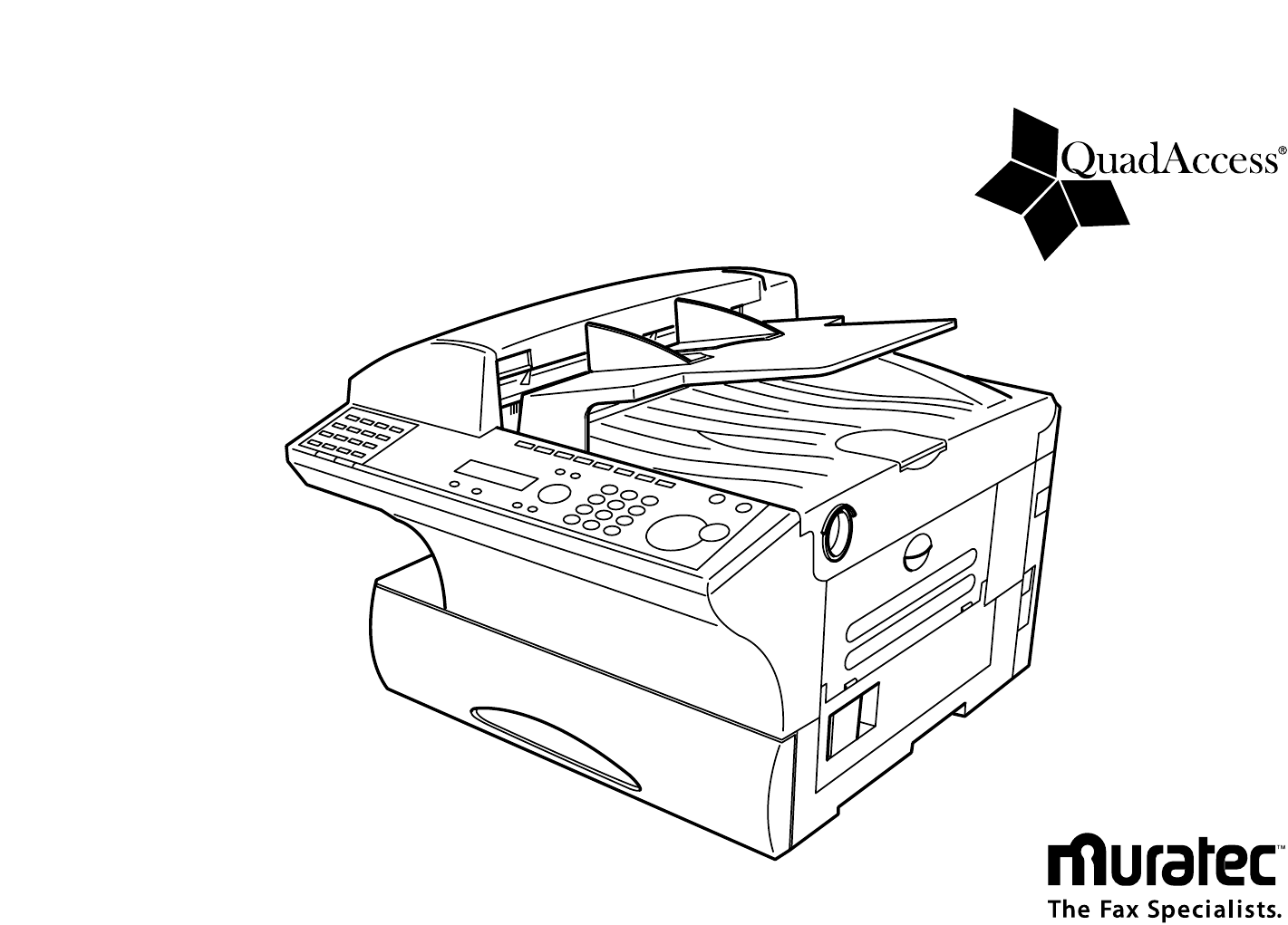
F-320
Operating Instructions
Plain-paper Digital Fax

Welcome …
Thank you!
Thanks for selecting a Muratec fax machine for your
business.
Before you begin, please note that before your fax can be
used and before you can turn on power to the unit for the
first time, there are important precautions to take. Please
see page 1.5 for more information.

Trademarks
Muratec, the Muratec logo and all Muratec fax product names contained herein are
trademarks of Muratec America, Inc. QuardAccess is registered trademark of Muratec
America, Inc.
E
NERGY
S
TAR
is a registered mark of the United States Environmental Protection
Agency.
Copyright
Copyright © 2002 by Muratec America, Inc,All rights reserved.
As an E
NERGY
S
TAR
®partner, Muratec America, Inc. has deter-
mined that this product meets the E
NERGY
S
TAR
®guidelines for
energy efficiency. Regarding the outline of E
NERGY
S
TAR
®, see page
5.17.
Energy saving
Your machine can save the energy with its Energy Saving Mode.
In the Energy Saving Mode the printer will not use its fusing lamp. If your machine
receives a fax message or if any key is pressed your machine will automatically wake
up.The time for the machine to enter the Energy saving mode can be selected from 1 to
240 minutes.For details, see “EasyStart,” page 1.20.
Super G3 is an extension of Group 3 fax technology standards,
allowing the use of high-speed
ITU
-
TV
.34 modems for 33.6 Kbps
transmission and high-speed protocols for rapid handshaking.
JBIG
— Joint Bi-level Image experts Group, the new
ITU
-
T
stan-
dard image data compression method.As
JBIG
compresses the
data more efficiently than
MMR
, it is especially effective when
transmitting halftone (grayscale) image document.
This manual and any updates to it can be found online at www.muratec.com
Go to the “Products” section of this site, then click on “F-320”
Where to set up your fax machine
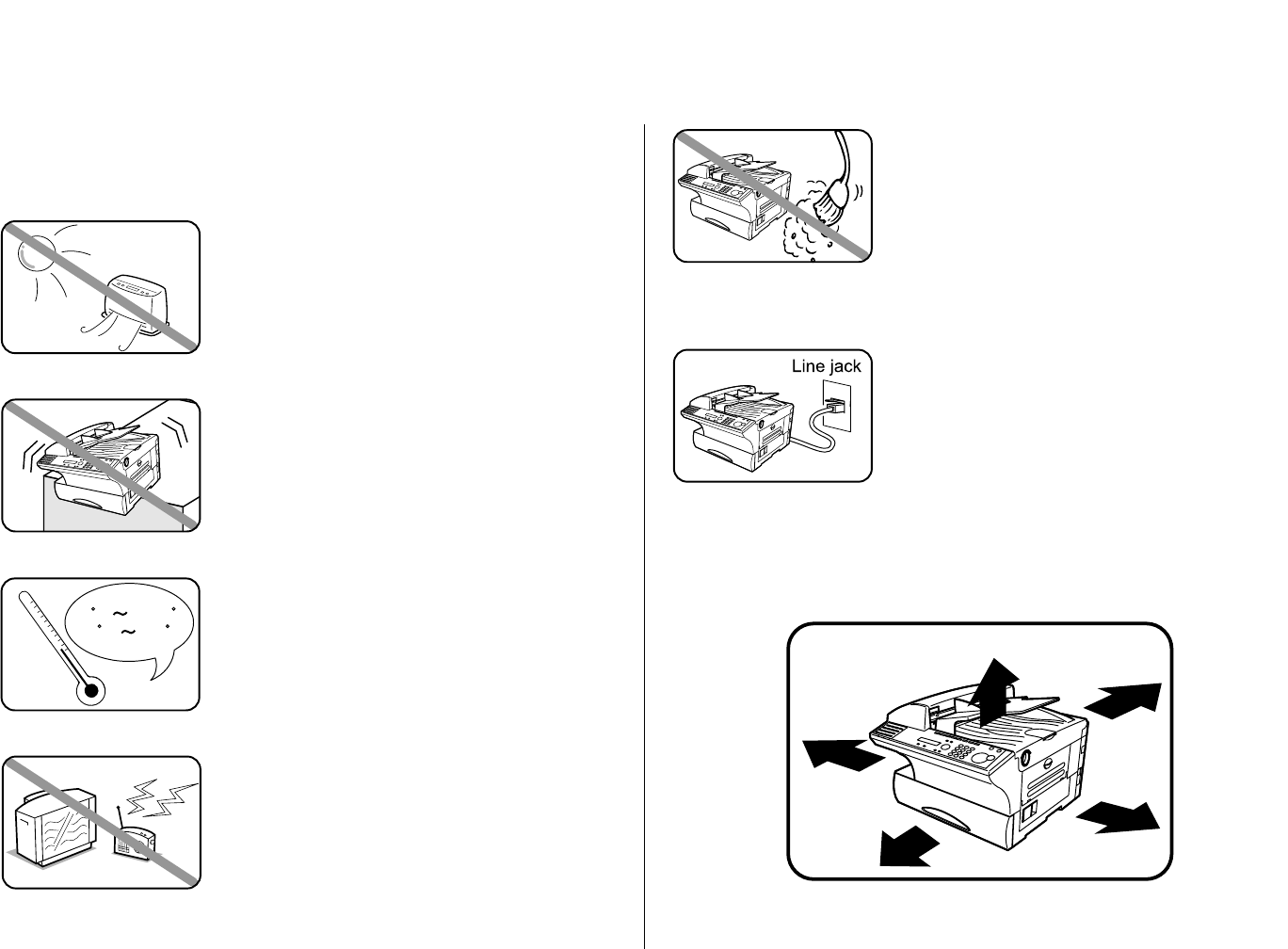
Follow these guidelines when setting up your fax machine:
Away from direct sunlight
To avoid overheating, set up your fax machine away
from direct sunlight or a heater.
Level, and vibration-free
To avoid damage to the machine or injuries, set the
fax machine up in a level, vibration-free location.
Avoid extreme high / low temperature
Use your fax machine within the temperature range
of 50º F to 89.6º F (10º C to 32º C).
Away from a television or radio
Many appliances and office equipment, including
televisions,radios, copy machines, air conditioners
and computers,can generate electronic noise that
can interfere with the operation of your fax
machine.
Clean
Dust buildup can damage your fax. Periodically
clean your fax machine as described in the operating
instructions. Do not use a dust cover, which can
cause damaging overheating.
Near a phone jack
Your fax machine uses a standard (modular) tele-
phone jack, also known as an
RJ
-11.
Space around the fax machine
To ensure proper ventilation and easy operation, set
up the machine in an area that meets the minimum
requirements for clearance as illustrated below.
50 F 89.6 F
(10 C 32 C)
Before using your Muratec fax machine
15 cm
(5.9 inches)
25 cm
(9.8 inches)
40 cm
(15.7 inches)
40 cm
(15.7 inches)
35 cm
(13.8 inches)
Power requirements
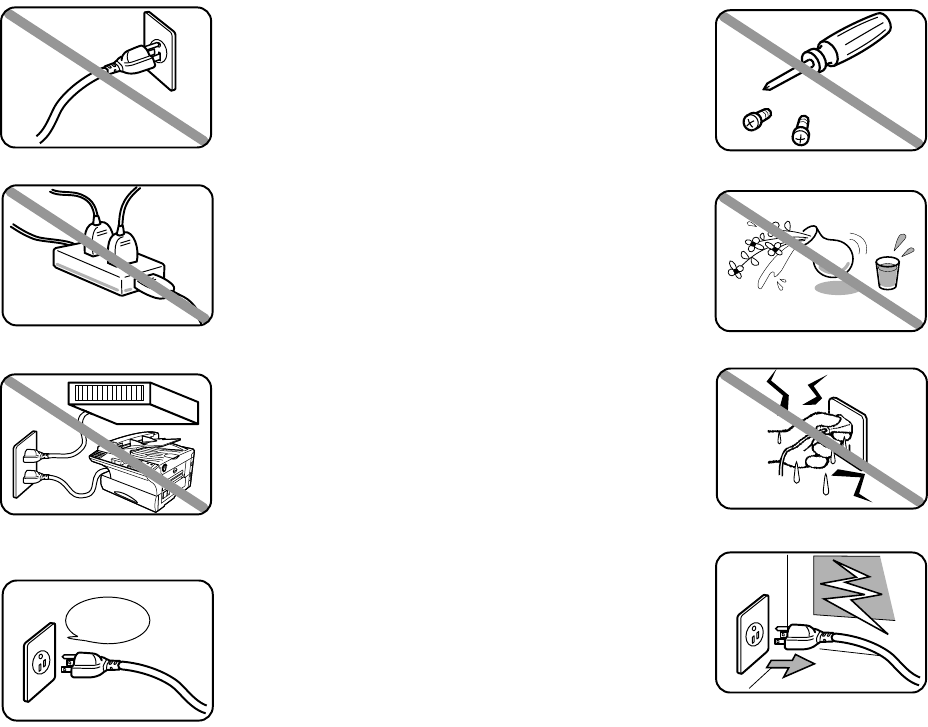
Plug in the power cord
Plug the power cord carefully and completely into a
wall outlet. Do not leave any portion of the electrical
cord’s metal plugs exposed.Doing so could cause a
fire and poses a risk of electrical shock.
Do not share an extension cord
connector with other plugs
It can cause electrical shock.
Do not share an outlet with a large
appliance
High-consumption appliances such as a refrigerator
or air conditioner can cause “draw-downs” which
could damage your fax machine.
120 VAC outlet
Use a standard three-pronged 120 V electrical outlet
to power your fax machine.Using any other electri-
cal outlet will cause damage to your fax.
For domestic use only
Never use your fax machine outside the country in
which you purchased it. Doing so may violate
telecommunication and safety regulations of that
country, and variations in electrical and telephone
standards can cause poor performance and damage
to your fax.
General Precautions
Never disassemble your fax machine!
Disassembling your fax machine can cause serious
injury to you and damage to your fax. If service is
required, call your authorized Muratec dealer.
Keep away from liquids
Keep liquids and metal pins or other objects away
from your fax machine.If something falls into the
fax machine,remove the plug from the outlet, and
call your authorized Muratec dealer.
Never handle your fax machine or
power cord with wet hands
Never touch your fax machine or power cord if your
hands are wet.
During electrical storms, disconnect
the plug from the outlet
Electrical storms can cause electrical shock or
damage to the fax machine.
AC 120V
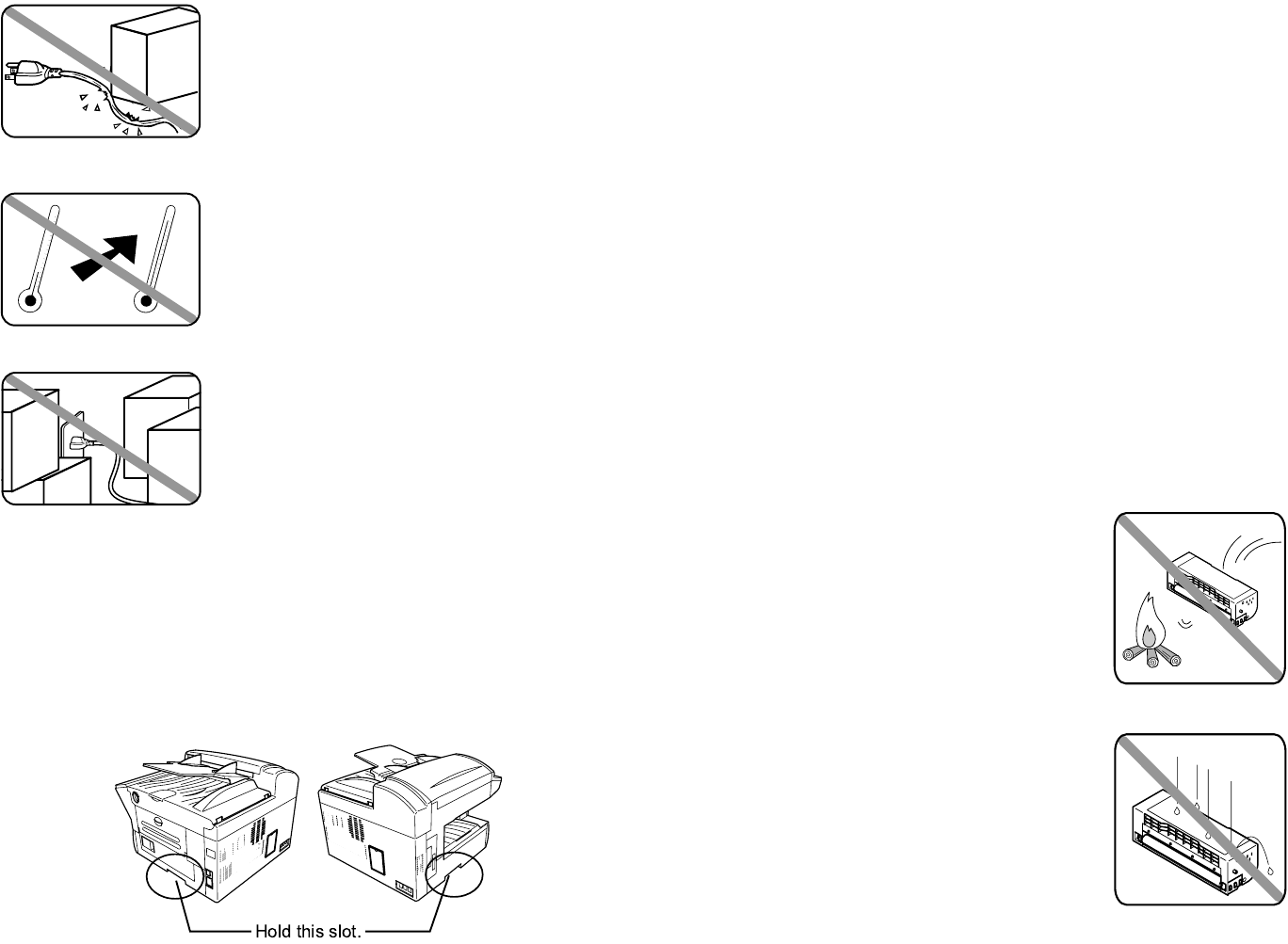
Do not put furniture or equipment on
the power cord
Do not put anything on or over the electrical power
cord, and do not route the power cord under rugs or
carpets.Doing so can damage the power cord or fax,
and can cause fire or electrical shock.
Avoid temperature fluctuations
Sudden changes in temperature can cause damag-
ing condensation to form inside your fax machine.
Allow clearance around the outlet
Don’t stack boxes or furniture around the outlet.
Use supplies manufactured specifically for Muratec machines
Using toner cartridges and other supplies that are not manufactured specifically for
Muratec machines may affect the operation of your unit.
Use caution when carrying the machine
When you lift and carry the machine,the slots as shown in the illustration below
should be held. Do not hold the any parts of the machine except the following slots
to lift; damage could result.
Storing and handling toner and drum cartridges
To avoid damage to your fax machine and to assure the best performance possible,
follow these guidelines when storing and handling toner and drum cartridges:
Store the cartridge
Store the cartridge at a constant temperature within a range of 32º F to 95º F (0º C
to 35º C).To avoid dew do not store cartridges in locations subject to extreme fluctu-
ation of temperature and humidity.
Do not stand the cartridge on its end and do not store it
upside down.
Do not open the protective bag of the cartridge until you are
ready to install the cartridge.
Do not store cartridges in areas of:
• Direct sunlight
• Dusty conditions
• Near floppy disks or other computer media, computer screens, or any other mate-
rials sensitive to magnetic fields.
DO NOT BURN TONER CARTRIDGES!
The toner powder is extremely flammable. Exposure to
flame can cause toner cartridges to burn or explode,
causing serious injury.
Be careful not to get the toner powder in
your eyes.
If the toner powder gets in your eyes,wash your eyes well
and see a doctor.
Keep cartridges away from water or oil.
Do not expose cartridges to direct sunlight.
Do not expose the cartridges to static or
other electrical shock.
This page intentionally blank.
These instructions are divided into the following sections.
•
“Getting started” (page 1.1) describes how to set up your
machine, operating tips and some important settings that you
should perform before you use your machine.
•
“Basic operations” (page 2.1) describes the basic operations of
the transmission, reception and copying.
•
“Advanced features” (page 3.1) describes the convenient features
of your machine.
•
“Changing the default settings” (page 4.1) describes how to
change the settings of your machine.
•
Finally, “Just in case … ” (page 5.1) helps you if you ever have a
problem with your machine. It also tells you how to give your
machine the kind of easy, sensible care that should keep troubles to
a minimum.
Thanks for choosing Muratec.
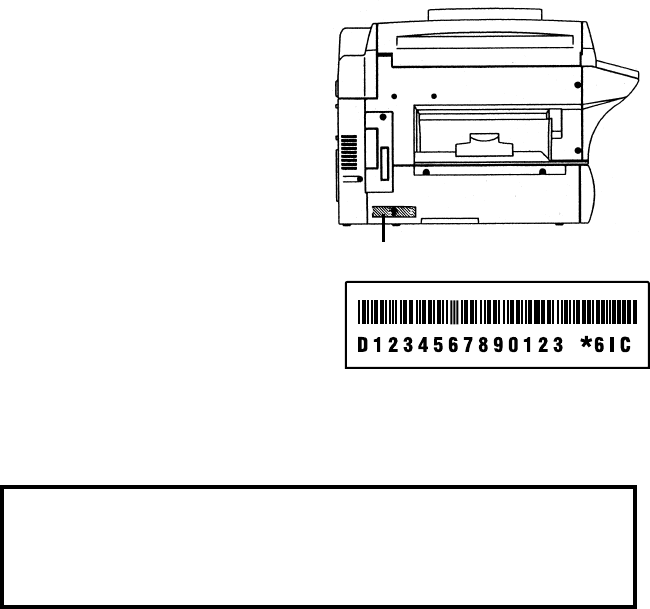
Find your serial number and write it down
Please note that your machine’s serial
number is located on the bar code label
as shown on the drawing at right. Use
the blank at the bottom of this column
to copy this down before you set up
your machine.
Close up, the bar code label looks some-
thing like this,but with a different set of
numbers:
Please copy down your machine’s serial number below for future reference, and note
the machine’s model number:
My machine’s serial number: ________________________________________
My machine’s model number: Muratec F-320
Bar code label
Welcome to your Muratec fax machine!
Getting started
Packaging contents . . . . . . . . . . . . . . . . . . . . . . . . . . . . . . . . . . . . . . . . . . . . .1.1
Parts of your machine . . . . . . . . . . . . . . . . . . . . . . . . . . . . . . . . . . . . . . . . . . .1.1
Control Panel Overview . . . . . . . . . . . . . . . . . . . . . . . . . . . . . . . . . . . . . . . . .1.3
Setting up . . . . . . . . . . . . . . . . . . . . . . . . . . . . . . . . . . . . . . . . . . . . . . . . . . . . .1.5
Pick an installation spot . . . . . . . . . . . . . . . . . . . . . . . . . . . . . . . . . . . . . .1.5
Power tips . . . . . . . . . . . . . . . . . . . . . . . . . . . . . . . . . . . . . . . . . . . . . . . . . .1.5
Installing the printing supplies . . . . . . . . . . . . . . . . . . . . . . . . . . . . . . . .1.5
Attach the paper-handling parts . . . . . . . . . . . . . . . . . . . . . . . . . . . . . . . .1.6
Plug in and power up . . . . . . . . . . . . . . . . . . . . . . . . . . . . . . . . . . . . . . . . .1.7
Adjust the monitor speaker’s volume . . . . . . . . . . . . . . . . . . . . . . . . . . . .1.7
Loading paper . . . . . . . . . . . . . . . . . . . . . . . . . . . . . . . . . . . . . . . . . . . . . . .1.7
Operating tips . . . . . . . . . . . . . . . . . . . . . . . . . . . . . . . . . . . . . . . . . . . . . . . .1.10
Symbol and terms . . . . . . . . . . . . . . . . . . . . . . . . . . . . . . . . . . . . . . . . . .1.10
How to operate the machine . . . . . . . . . . . . . . . . . . . . . . . . . . . . . . . . . .1.10
Searching the functions using the cursor key . . . . . . . . . . . . . . . . . . . .1.11
Entering characters . . . . . . . . . . . . . . . . . . . . . . . . . . . . . . . . . . . . . . . . .1.12
Function table . . . . . . . . . . . . . . . . . . . . . . . . . . . . . . . . . . . . . . . . . . . . . . . .1.13
EasyStart (Initial settings) . . . . . . . . . . . . . . . . . . . . . . . . . . . . . . . . . . . . . .1.18
Getting started . . . . . . . . . . . . . . . . . . . . . . . . . . . . . . . . . . . . . . . . . . . . .1.18
Clearing stored settings . . . . . . . . . . . . . . . . . . . . . . . . . . . . . . . . . . . . . .1.18
Entering initial settings . . . . . . . . . . . . . . . . . . . . . . . . . . . . . . . . . . . . .1.18
Basic Operations
Sending faxes . . . . . . . . . . . . . . . . . . . . . . . . . . . . . . . . . . . . . . . . . . . . . . . . . .2.1
Guidelines . . . . . . . . . . . . . . . . . . . . . . . . . . . . . . . . . . . . . . . . . . . . . . . . . .2.1
Memory transmission . . . . . . . . . . . . . . . . . . . . . . . . . . . . . . . . . . . . . . . .2.2
Quick memory transmission . . . . . . . . . . . . . . . . . . . . . . . . . . . . . . . . . . .2.3
Memory overflow message . . . . . . . . . . . . . . . . . . . . . . . . . . . . . . . . . . . . .2.3
Real time transmission (Non-memory transmission) . . . . . . . . . . . . . . .2.3
Sending a fax . . . . . . . . . . . . . . . . . . . . . . . . . . . . . . . . . . . . . . . . . . . . . . .2.4
Sending a fax using
MONITOR
/
CALL
key or a handset . . . . . . . . . . . . . . .2.5
Redialing . . . . . . . . . . . . . . . . . . . . . . . . . . . . . . . . . . . . . . . . . . . . . . . . . . .2.5
Reviewing or canceling commands . . . . . . . . . . . . . . . . . . . . . . . . . . . . . .2.6
Receiving faxes . . . . . . . . . . . . . . . . . . . . . . . . . . . . . . . . . . . . . . . . . . . . . . . .2.9
Answering calls manually . . . . . . . . . . . . . . . . . . . . . . . . . . . . . . . . . . . . .2.9
Reception modes . . . . . . . . . . . . . . . . . . . . . . . . . . . . . . . . . . . . . . . . . . . . .2.9
How to select the fax reception mode . . . . . . . . . . . . . . . . . . . . . . . . . . .2.10
If the paper runs out while fax reception . . . . . . . . . . . . . . . . . . . . . . . .2.10
Making copies . . . . . . . . . . . . . . . . . . . . . . . . . . . . . . . . . . . . . . . . . . . . . . . .2.11
Guidelines . . . . . . . . . . . . . . . . . . . . . . . . . . . . . . . . . . . . . . . . . . . . . . . . .2.11
How to make copies . . . . . . . . . . . . . . . . . . . . . . . . . . . . . . . . . . . . . . . . .2.11
Changing the reduction ratio . . . . . . . . . . . . . . . . . . . . . . . . . . . . . . . . .2.11
Using the bypass tray . . . . . . . . . . . . . . . . . . . . . . . . . . . . . . . . . . . . . . .2.12
Memory overflow message . . . . . . . . . . . . . . . . . . . . . . . . . . . . . . . . . . . .2.12
If the paper runs out while copying . . . . . . . . . . . . . . . . . . . . . . . . . . . .2.12
Using your fax machine as a phone . . . . . . . . . . . . . . . . . . . . . . . . . . . . . . .2.13
Dialing a telephone number . . . . . . . . . . . . . . . . . . . . . . . . . . . . . . . . . .2.13
On-hook dialing . . . . . . . . . . . . . . . . . . . . . . . . . . . . . . . . . . . . . . . . . . . .2.13
Redial . . . . . . . . . . . . . . . . . . . . . . . . . . . . . . . . . . . . . . . . . . . . . . . . . . . .2.13
Call request . . . . . . . . . . . . . . . . . . . . . . . . . . . . . . . . . . . . . . . . . . . . . . .2.13
Changing the dialing type . . . . . . . . . . . . . . . . . . . . . . . . . . . . . . . . . . . .2.13
Dialing in the event of a power failure . . . . . . . . . . . . . . . . . . . . . . . . . .2.13
Attaching an optional handset . . . . . . . . . . . . . . . . . . . . . . . . . . . . . . . .2.14
Attaching a second phone . . . . . . . . . . . . . . . . . . . . . . . . . . . . . . . . . . . .2.14
Advanced Features
Autodialer . . . . . . . . . . . . . . . . . . . . . . . . . . . . . . . . . . . . . . . . . . . . . . . . . . . .3.1
Autodialer basics . . . . . . . . . . . . . . . . . . . . . . . . . . . . . . . . . . . . . . . . . . . .3.1
Using one-touch keys . . . . . . . . . . . . . . . . . . . . . . . . . . . . . . . . . . . . . . . . .3.2
Using speed-dial numbers . . . . . . . . . . . . . . . . . . . . . . . . . . . . . . . . . . . . .3.4
Call group dialing . . . . . . . . . . . . . . . . . . . . . . . . . . . . . . . . . . . . . . . . . . . .3.6
EasyDial directory dialing . . . . . . . . . . . . . . . . . . . . . . . . . . . . . . . . . . . . .3.7
Broadcasting . . . . . . . . . . . . . . . . . . . . . . . . . . . . . . . . . . . . . . . . . . . . . . . . . .3.9
Reviewing or canceling parts of a broadcast . . . . . . . . . . . . . . . . . . . . . .3.9
Delayed transmission . . . . . . . . . . . . . . . . . . . . . . . . . . . . . . . . . . . . . . . . . .3.10
Setting up a delayed transmission . . . . . . . . . . . . . . . . . . . . . . . . . . . . .3.10
Batch transmission . . . . . . . . . . . . . . . . . . . . . . . . . . . . . . . . . . . . . . . . . . . .3.11
Creating or modifying a batch box . . . . . . . . . . . . . . . . . . . . . . . . . . . . .3.11
Printing a list of batch boxes . . . . . . . . . . . . . . . . . . . . . . . . . . . . . . . . . .3.12
Storing a document for batch transmission . . . . . . . . . . . . . . . . . . . . . .3.12
Printing a list of stored batch documents . . . . . . . . . . . . . . . . . . . . . . . .3.12
Printing a document stored in a batch box . . . . . . . . . . . . . . . . . . . . . .3.12
Erasing a document stored in a batch box . . . . . . . . . . . . . . . . . . . . . . .3.13
Erasing an empty batch box . . . . . . . . . . . . . . . . . . . . . . . . . . . . . . . . . .3.13
Polling . . . . . . . . . . . . . . . . . . . . . . . . . . . . . . . . . . . . . . . . . . . . . . . . . . . . . .3.14
Regular polling . . . . . . . . . . . . . . . . . . . . . . . . . . . . . . . . . . . . . . . . . . . . .3.14
Being polled . . . . . . . . . . . . . . . . . . . . . . . . . . . . . . . . . . . . . . . . . . . . . . .3.14
Table of Contents
Printing a stored polling document . . . . . . . . . . . . . . . . . . . . . . . . . . . .3.14
Erasing a stored polling document . . . . . . . . . . . . . . . . . . . . . . . . . . . . .3.14
Soft keys . . . . . . . . . . . . . . . . . . . . . . . . . . . . . . . . . . . . . . . . . . . . . . . . . . . . .3.15
Special features . . . . . . . . . . . . . . . . . . . . . . . . . . . . . . . . . . . . . . . . . . . . . . .3.16
Macro keys . . . . . . . . . . . . . . . . . . . . . . . . . . . . . . . . . . . . . . . . . . . . . . . .3.16
Fax & Copy . . . . . . . . . . . . . . . . . . . . . . . . . . . . . . . . . . . . . . . . . . . . . . . .3.19
Setting the journal and the report . . . . . . . . . . . . . . . . . . . . . . . . . . . . .3.19
Separate each received document (Separator Page) . . . . . . . . . . . . . . .3.21
Cover page . . . . . . . . . . . . . . . . . . . . . . . . . . . . . . . . . . . . . . . . . . . . . . . .3.21
OneLine + distinctive ring detection . . . . . . . . . . . . . . . . . . . . . . . . . . .3.22
Call request . . . . . . . . . . . . . . . . . . . . . . . . . . . . . . . . . . . . . . . . . . . . . . .3.23
The power of QuadAccess® . . . . . . . . . . . . . . . . . . . . . . . . . . . . . . . . . . . .3.24
F-Code Boxes . . . . . . . . . . . . . . . . . . . . . . . . . . . . . . . . . . . . . . . . . . . . . .3.24
Programmable one-touch keys . . . . . . . . . . . . . . . . . . . . . . . . . . . . . . . .3.33
Security features . . . . . . . . . . . . . . . . . . . . . . . . . . . . . . . . . . . . . . . . . . . . . .3.42
The passcode . . . . . . . . . . . . . . . . . . . . . . . . . . . . . . . . . . . . . . . . . . . . . . .3.42
Security reception . . . . . . . . . . . . . . . . . . . . . . . . . . . . . . . . . . . . . . . . . .3.42
Masking the
PIN
. . . . . . . . . . . . . . . . . . . . . . . . . . . . . . . . . . . . . . . . . . . .3.43
Setting Block Junk Fax . . . . . . . . . . . . . . . . . . . . . . . . . . . . . . . . . . . . . .3.45
Using department codes . . . . . . . . . . . . . . . . . . . . . . . . . . . . . . . . . . . . .3.47
Changing the default settings
Settings for transmission . . . . . . . . . . . . . . . . . . . . . . . . . . . . . . . . . . . . . . . .4.1
Scan settings . . . . . . . . . . . . . . . . . . . . . . . . . . . . . . . . . . . . . . . . . . . . . . .4.1
Setting
ECM
. . . . . . . . . . . . . . . . . . . . . . . . . . . . . . . . . . . . . . . . . . . . . . . . .4.1
Memory transmission . . . . . . . . . . . . . . . . . . . . . . . . . . . . . . . . . . . . . . . .4.2
Quick Memory transmission . . . . . . . . . . . . . . . . . . . . . . . . . . . . . . . . . . .4.2
TTI transmission . . . . . . . . . . . . . . . . . . . . . . . . . . . . . . . . . . . . . . . . . . . .4.2
Settings for reception . . . . . . . . . . . . . . . . . . . . . . . . . . . . . . . . . . . . . . . . . . .4.3
Print settings . . . . . . . . . . . . . . . . . . . . . . . . . . . . . . . . . . . . . . . . . . . . . . .4.3
Setting the number of rings . . . . . . . . . . . . . . . . . . . . . . . . . . . . . . . . . . .4.4
Settings for dialing . . . . . . . . . . . . . . . . . . . . . . . . . . . . . . . . . . . . . . . . . . . . .4.5
Changing the dialing pause length . . . . . . . . . . . . . . . . . . . . . . . . . . . . . .4.5
Changing redial settings . . . . . . . . . . . . . . . . . . . . . . . . . . . . . . . . . . . . . .4.5
Settings for copying . . . . . . . . . . . . . . . . . . . . . . . . . . . . . . . . . . . . . . . . . . . . .4.6
Scan settings . . . . . . . . . . . . . . . . . . . . . . . . . . . . . . . . . . . . . . . . . . . . . . .4.6
Copy print settings . . . . . . . . . . . . . . . . . . . . . . . . . . . . . . . . . . . . . . . . . . .4.6
Settings for operation . . . . . . . . . . . . . . . . . . . . . . . . . . . . . . . . . . . . . . . . . . .4.8
Setting the silent mode . . . . . . . . . . . . . . . . . . . . . . . . . . . . . . . . . . . . . . .4.8
Setting Sleep mode (Energy saving mode) . . . . . . . . . . . . . . . . . . . . . . . .4.9
Setting the paper source . . . . . . . . . . . . . . . . . . . . . . . . . . . . . . . . . . . . . .4.9
Adjusting the machine’s clock . . . . . . . . . . . . . . . . . . . . . . . . . . . . . . . . . .4.9
Setting 2-bin tray (Option) . . . . . . . . . . . . . . . . . . . . . . . . . . . . . . . . . . . .4.9
Printing your settings . . . . . . . . . . . . . . . . . . . . . . . . . . . . . . . . . . . . . . .4.10
Just in case …
Clearing paper jams . . . . . . . . . . . . . . . . . . . . . . . . . . . . . . . . . . . . . . . . . . . .5.1
If an original document jams . . . . . . . . . . . . . . . . . . . . . . . . . . . . . . . . . .5.1
If a printout jams inside your machine . . . . . . . . . . . . . . . . . . . . . . . . . .5.2
Print quality problems . . . . . . . . . . . . . . . . . . . . . . . . . . . . . . . . . . . . . . . . . .5.3
Troubleshooting . . . . . . . . . . . . . . . . . . . . . . . . . . . . . . . . . . . . . . . . . . . . . . . .5.5
Errors . . . . . . . . . . . . . . . . . . . . . . . . . . . . . . . . . . . . . . . . . . . . . . . . . . . . .5.8
Caring for your fax machine . . . . . . . . . . . . . . . . . . . . . . . . . . . . . . . . . . . . .5.11
Corrective cleaning . . . . . . . . . . . . . . . . . . . . . . . . . . . . . . . . . . . . . . . . .5.11
If you have unsatisfactory printout quality . . . . . . . . . . . . . . . . . . . . . .5.12
Common questions . . . . . . . . . . . . . . . . . . . . . . . . . . . . . . . . . . . . . . . . . . . .5.13
General questions . . . . . . . . . . . . . . . . . . . . . . . . . . . . . . . . . . . . . . . . . .5.13
Sending faxes . . . . . . . . . . . . . . . . . . . . . . . . . . . . . . . . . . . . . . . . . . . . . .5.13
We’re here to help you! . . . . . . . . . . . . . . . . . . . . . . . . . . . . . . . . . . . . . . .5.13
Receiving faxes . . . . . . . . . . . . . . . . . . . . . . . . . . . . . . . . . . . . . . . . . . . . .5.15
Polling . . . . . . . . . . . . . . . . . . . . . . . . . . . . . . . . . . . . . . . . . . . . . . . . . . . .5.15
Glossary . . . . . . . . . . . . . . . . . . . . . . . . . . . . . . . . . . . . . . . . . . . . . . . . . . . . .5.16
Appendix and index
Specifications . . . . . . . . . . . . . . . . . . . . . . . . . . . . . . . . . . . . . . . . . . . . . . . . .
AI
.1
Regulatory information . . . . . . . . . . . . . . . . . . . . . . . . . . . . . . . . . . . . . . . . .
AI
.3
Limited warranty . . . . . . . . . . . . . . . . . . . . . . . . . . . . . . . . . . . . . . . . . . . . . .
AI
.4
Index . . . . . . . . . . . . . . . . . . . . . . . . . . . . . . . . . . . . . . . . . . . . . . . . . . . . . . . .
AI
.5

Getting started
This chapter describes how to
set up your machine, operating tips
and some important settings
before you use your machine
Packaging contents . . . . . . . . . . . . . . . . . . . . . . . . . . . . . . . . . . . . . . . . . . . . . . . . . . . 1.1
Parts of your machine . . . . . . . . . . . . . . . . . . . . . . . . . . . . . . . . . . . . . . . . . . . . . . . . 1.1
Control Panel Overview . . . . . . . . . . . . . . . . . . . . . . . . . . . . . . . . . . . . . . . . . . . . . . . 1.3
Setting up . . . . . . . . . . . . . . . . . . . . . . . . . . . . . . . . . . . . . . . . . . . . . . . . . . . . . . . . . . 1.5
Operating tips . . . . . . . . . . . . . . . . . . . . . . . . . . . . . . . . . . . . . . . . . . . . . . . . . . . . . . 1.10
Function table . . . . . . . . . . . . . . . . . . . . . . . . . . . . . . . . . . . . . . . . . . . . . . . . . . . . . . 1.13
EasyStart (Initial settings) . . . . . . . . . . . . . . . . . . . . . . . . . . . . . . . . . . . . . . . . . . . 1.18
1.1
Getting started
Packaging contents
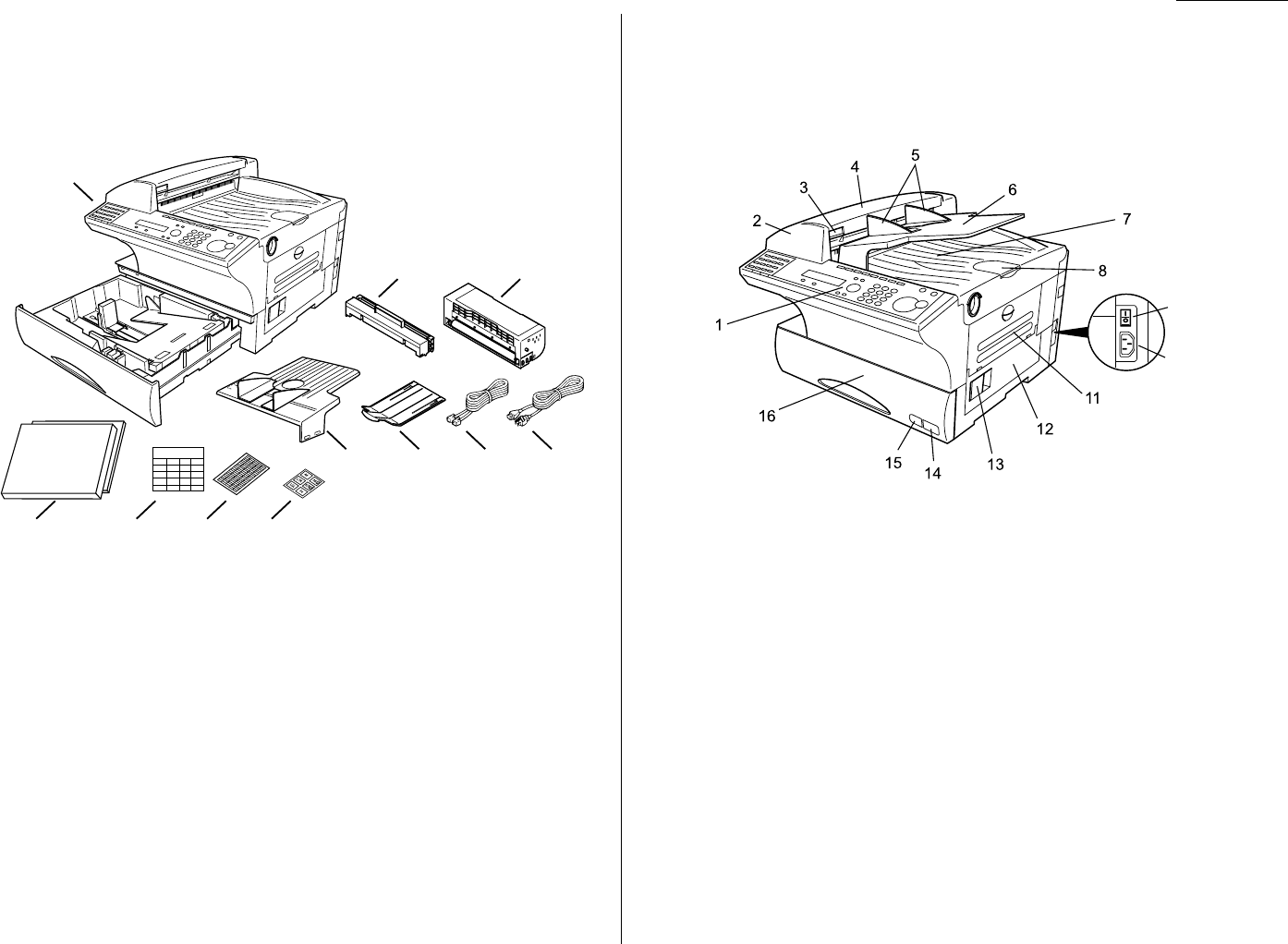
Included in your machine’s packaging:
1. Main unit with 500-sheet paper cassette installed (paper not included)
2. Drum cartridge 7.
AC
power cord
3. Toner cartridge* 8. Operating instructions and Quick reference
4. Document tray 9. Soft Key labels
5. Extension paper tray 10. One-touch labels
6. Telephone line cord 11. Paper size stickers
*: The toner cartridge included with your machine is starter toner cartridge, which
yields 3,000 printouts.Please purchase regular, full-yield toner cartridge from
your authorized Muratec dealer.
Be sure to save the box (or boxes) and packing materials for reshipment.
Parts of your machine
Note: These terms and features of your fax will be explained in the coming pages.
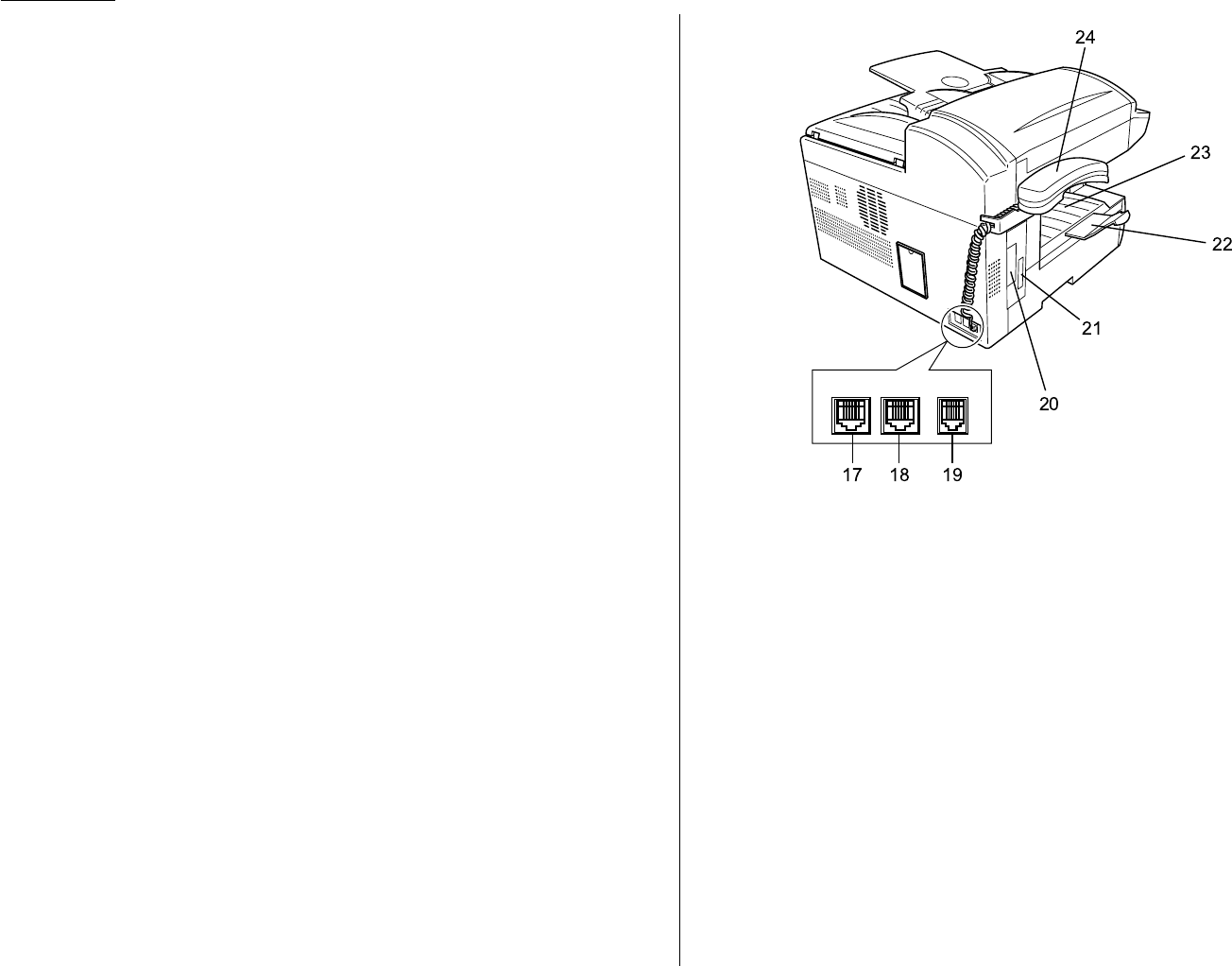
1Control Panel — The keys you use to operate your machine. (See pages
1.3–1.4 for more details.)
2
ADF
(Automatic Document Feeder) — The
ADF
automatically feeds
original document into the machine,one at a time. It can hold up to 80 pages
of letter-sized document.
3Scanner cover release — Pull up on this to open the scanner cover.
4Scanner cover — Open this cover to remove original document jams.
5Document guides — Adjust these to fit the width of the original document
so it will feed properly into the machine.
6Document tray — Holds original documents in place for scanning into the
machine.
7Top cover — Open to provide access for changing the toner and drum car-
tridge (or, occasionally, fixing printout jams).
8Document stopper — Holds original documents after they’ve been scanned
into the machine for faxing/copying.
9
10
COMM.
CANCEL
/CONFIRM. BROADCAST COMM.
OPTIONS PAUSE
/DIAL OPT.
SPEED DIAL
/GROUP MONITOR
/CALL REPORT MEMORY
TRANSMIT
FAX & COPY TTI
TRANSMIT TTI
SELECT SECURITY
RECEIVE
COVER PAGE AUTO
RECEIVE FLASH DIAL PREFIX
TOP PAGE TO/CC/BCC ONLINE
SOFT KEY
1
23
4567
8910
11
1.2
Getting started
9
AC
power switch — Turns your fax machine on and off.
10
AC
power jack — Where you plug in the
AC
power cord.
11 Bypass tray — Open the bypass tray to use the paper that is not set in the
paper cassette. It can hold up to 50 sheets of paper. For details about paper
capacity of the bypass tray, see “Specifications,” page
AI
.2.
12 Side cover — Open to fix a printout jam.
13 Side cover release — Pull this to open the side cover.
14 Recording paper size sticker — Shows the size of the paper that is set in
the paper cassette.
15 Recording paper level indicator — Shows the level of the paper supply
without requiring you to open the paper cassette.
16 Paper cassette — Set paper here. It can hold up to 500 sheets. For details
about paper capacity of the paper cassette, see “Specifications,” page
AI
.2.
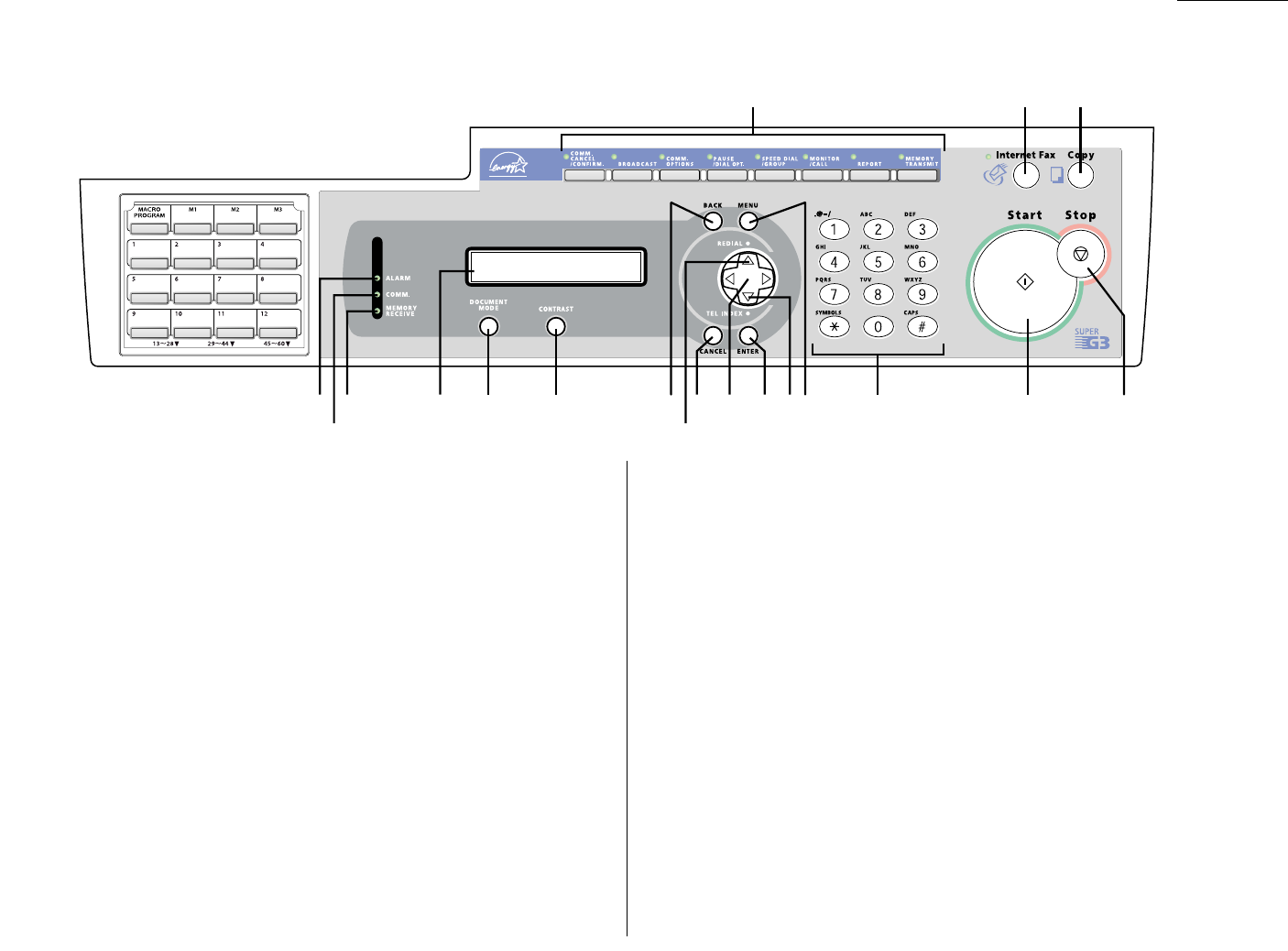
17
LINE
jack — Where you plug in the telephone line cord. The other end of the
cord plugs into a wall telephone jack.
18
PHONE
2 jack — If you connect a second telephone to your machine, this is
where you plug in the cord.
19
PHONE
1 jack — Where you plug in the optional handset.
20
PRINTER PARALLEL
port (optional) — Where you plug in the printer cable,
when you use the optional printer controller.
21 RS-232C interface port (optional) — Where you plug in the RS-232C
cable, when you use the optional RS-232C interface kit.
22 Extension paper tray — Holds up the printout after it emerges.
23 Printed document exit — Where the printout emerges.
24 Handset (optional ) — Used for voice communication.This handset is avail-
able from your authorized Muratec dealer, and can be added when you
purchase the F-320 or as an upgrade afterward.
LINE
PHONE1PHONE2
1.3
Getting started
1Soft Keys — Soft Keys are shortcut keys. If the light above any one of these
keys glows,that means the setting programmed into that key is active.You
can assign some functions into these eight keys as you want. (See page 3.15
for details.) The following functions are assigned at the factory:
Soft Key 1:
COMM
.
CANCEL
/
CONFIRM
.— Press to stop the transmission, or to
review pending fax commands and the activity journal.
Soft Key 2:
BROADCAST
— Press to send a broadcast fax (sending the same
document to more than one location).
Soft Key 3:
COMM
.
OPTIONS
— Choose from several fax options – delayed trans-
mission, polling, F-Code transmission, F-Code polling and batch transmission.
Soft Key 4:
PAUSE
/
DIAL OPT
.— It produces a special pause character which
can be useful when dialing long-distance numbers.Or, press this to insert spe-
cial symbols into telephone numbers.
Soft Key 5:
SPEED DIAL
/
GROUP
— Press to enter speed-dial numbers or group
numbers.
Soft Key 6:
MONITOR
/
CALL
— Turns the monitor speaker on or off.When
turned on, it allows you to hear the call you’re making.When using this fea-
ture, you can only hear the communication taking place.You cannot be heard
unless you use a handset (optional).When sending a fax, this key also acti-
vates the call request feature.
Soft Key 7:
REPORT
— Press to turn the confirmation report feature on or off
for the next fax transmission.
Soft Key 8:
MEMORY TRANSMISSION
— Selects which transmission mode your
fax machine uses, whether Memory transmission or Real time transmission
(see pages 2.2–2.3).
2Internet Fax — Press to deliver the fax message to another computer as an
E-mail attachment via the Internet.
Note: This function is available only if the optional Internet Fax kit has
been installed.Ask your Muratec dealer for details.
3Copy — Press to change from Fax mode to Copy mode.
Note: If the optional TWAIN driver has been installed, pressing this key
changes from Fax mode to Copy mode to Scan mode.
4Stop — Stops the current operation and ejects a document from the
ADF
.
5Start — Press to begin a fax transmission, reception or copying.
6Numeric keypad — Identical to the numeric keys on a regular tone-dialing
phone. Use these to dial phone as well as fax numbers, and to enter numbers
when you’re setting up the machine.Also, you may use these keys to enter the
characters when you are setting up the machine.
Control Panel Overview
123
4567891011
12
13
14
1617
18
19 15
1.4
Getting started
7
MENU
— Any function can be started by first pressing this key and then enter-
ing the function number.
8
TEL INDEX
— Press to display one-touch and speed-dial entries sorted
alphanumerically, as in a telephone directory. (See page 3.7.)
9
ENTER
— This key confirms user settings, begins operations, and moves
through command levels.
10 Cursor Keys
— Scrolls (moves) through features and command options as dis-
played on the
LCD
.
11
CANCEL
— Press to delete characters on the
LCD
and cancel commands you
have entered into the machine.
12
REDIAL
— Press to redial the numbers you have dialed.
13
BACK
— Press to go back to the previous step.
14
CONTRAST
— Press to adjust the contrast level.
15
DOCUMENT MODE
— Press to select the document mode – Normal, Fine,
Superfine or Grayscale.
16 Liquid crystal display (
LCD
)— Shows the machine’s status and lets you
see what you’re programming into the machine.The display shows 2 lines, 20
characters per line.If the
LCD
is blank, the machine is off.
17
MEMORY RECEIVE
light — Glows when the machine is receiving an incoming
fax document into its electronic memory.
18
COMM
. light — Glows when the machine is communicating with another
machine.
19
ALARM
light — Glows when a problem occurs during fax communication,
printing or scanning.The light stays on until the machine prints a Check
Message report.
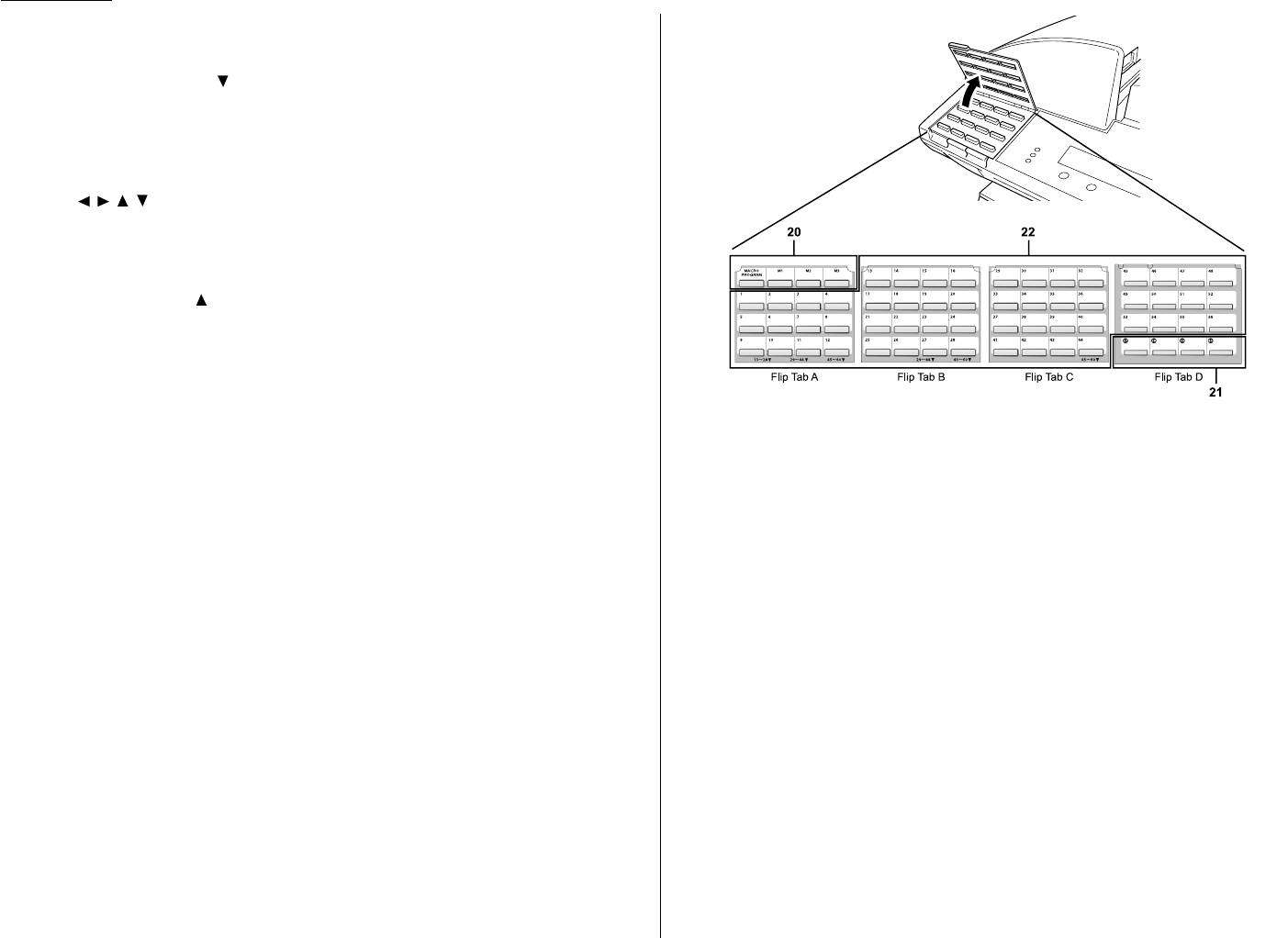
20 Macro Keys — Programming the Macro keys (
M
1,
M
2and
M
3) can reduce
many steps of the operation to a simple press of a key.You can “teach” the
Macro keys to carry out one of the several operations (see pages 3.16–3.18).
21 Programmable One-touch Keys — The keys labeled 57 to 60 let you teach
your machine an advanced multi-step function just once,and then recall the
function at any time by pressing one of these keys.
22 One-touch Keys — The keys labeled 01-56 offer one-touch dialing conve-
nience.
1.5
Getting started
Pick an installation spot
Where should you install your fax machine? The location should be:
•Clean — Dust build-up can damage your fax. (However, do not use a cover!)
•In the open — Allow at least 12 inches of clearance around your machine.Be
sure that you never cover the machine.Its vents must be able to “breathe.”
•Away from direct sunlight — This helps avoid overheating.
•Dry — Avoid any location where splatters or sprays (such as from a water foun-
tain) could reach your fax machine.
•Level, and vibration-free.
•Near a phone jack — Your fax machine uses a standard (modular) telephone
jack, also known as an
RJ
-11.
•Near an
AC
power outlet — The
AC
power cord is about 6 feet long when
stretched to its limit, and the power cord should never be stretched to its limit.
Power tips
•Use a standard three-pronged 120
VAC
outlet.
•Make sure the outlet isn’t controlled by a wall switch.
If it is,you’ll risk occasional shutoffs to the machine, causing you
to lose fax messages.
•Don’t use an outlet which also is supplying power to a
large appliance, such as a refrigerator or air conditioner.
Such high-consumption appliances can cause “draw-downs”
(temporary drops in the power available for other equipment on
the circuit) which could damage your fax machine.
•Use an electrical surge suppressor, preferably one which guards both tele-
phone and electrical lines.This device helps to shield your fax machine from
damaging high-voltage electrical surges.
Installing the printing supplies
Your fax prints incoming faxes and copies with a reliable 600 dpi print engine.Your
fax requires two types of printing supplies (sometimes also called consumables):
• The drum cartridge — It yields 16,000 “normal” letter-sized printouts (see
“Specifications,” page
AI
.2). By “normal,” we’re referring to the amount of text
and/or graphics on each page.This is based on an industry-standard test docu-
ment.
• The toner cartridge — It yields 15,000 “normal”, letter-sized printouts (see
“Specifications,” page
AI
.2).
Note: The toner cartridge included with your machine is starter toner cartridge,
which yields 3,000 printouts. Please purchase regular, full-yield toner car-
tridge from your authorized Muratec dealer.
To install these supplies:
Important: Gently close the top cover to avoid injury to your hands.
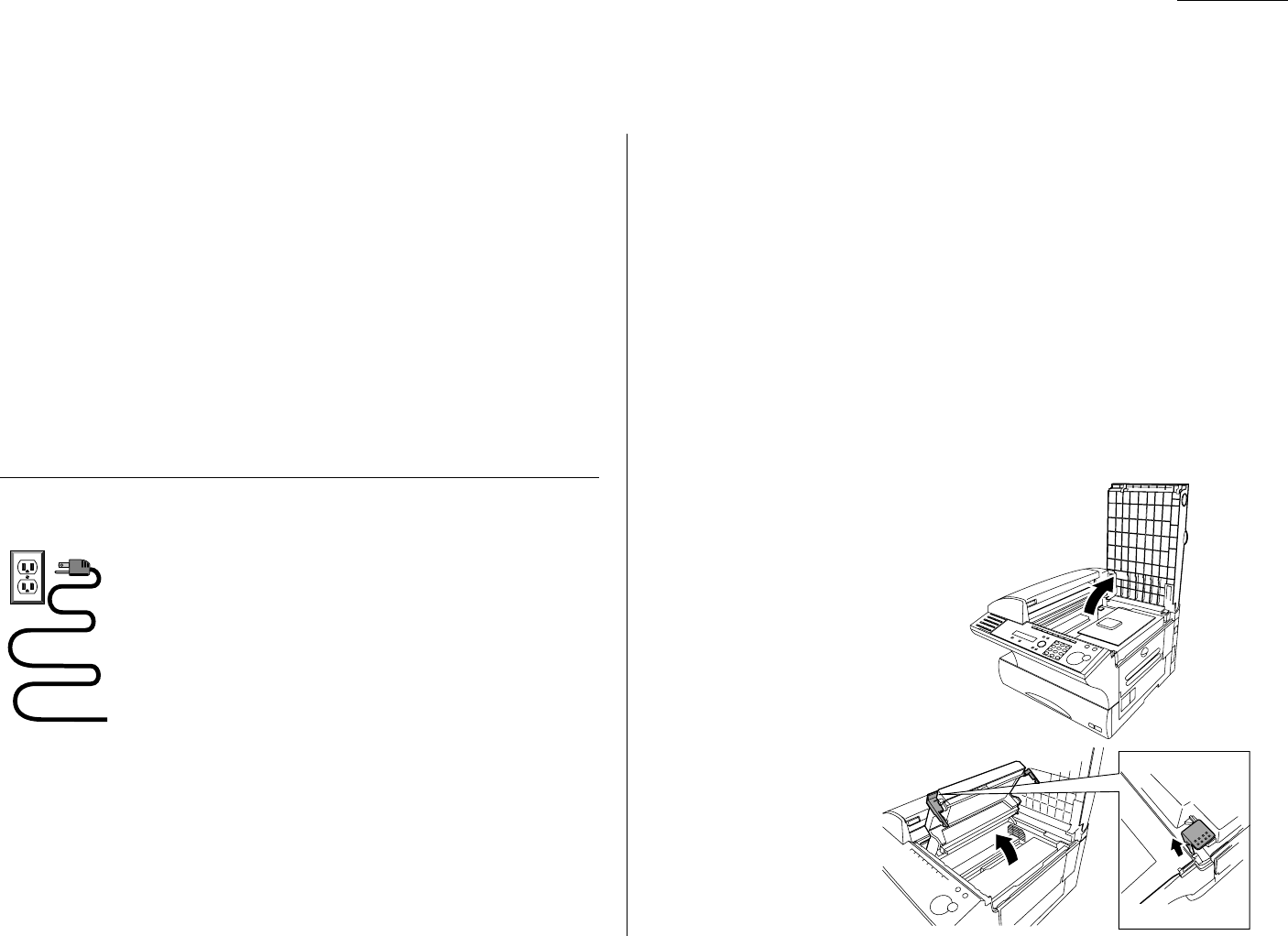
1Open the top cover.
2Pull up the printer cover
release and open the
printer cover.
Setting up
1.6
Getting started
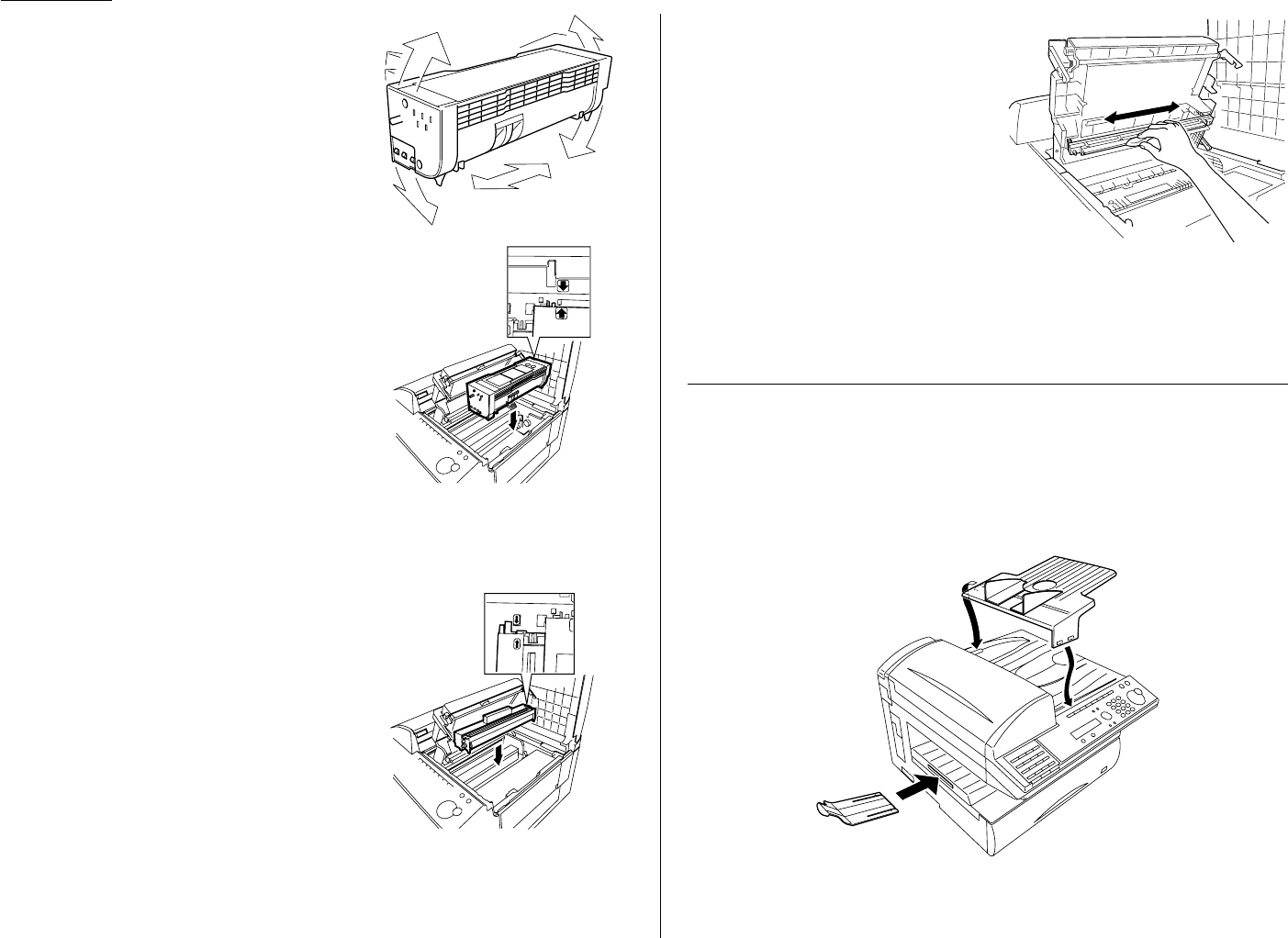
3Unpack a new toner cartridge from its
carton.Then, holding the toner car-
tridge with both hands,slowly shake it
to distribute the toner evenly inside the
cartridge.
Note: Do not touch the roller of the
toner cartridge.
4Gently install the toner cartridge in
the printer, making sure the toner car-
tridge’s two pins fit in the slits inside
the printer frame.
5Unpack the drum cartridge from its carton.
Note: Shield the drum cartridge from light, especially strong light. Later, if
you have to remove the cartridge from the machine, immediately
wrap it in a thick cloth to protect it from light.
6Gently install the drum cartridge in
the printer, making sure the drum
cartridge’s four pins fit in the slits
inside the printer frame.
7Gently clean the LED print head
using the cleaning paper included in
the toner cartridge carton box.
For best print quality, you should
clean the LED head every time you
change the new toner cartridge.
Note: Do not use abrasive materials
on the LED print head, and do
not subject the LED print
head to strongly shock.
8Gently close the printer cover.
9Close the top cover.
Note: The fax machine will not work unless the cover is properly closed.
Attach the paper-handling parts
1Attach the document tray by inserting it into the appropriate holes, as shown.
2Attach the extension paper tray by inserting its two pegs at a slightly upward
angle into the appropriate holes,as shown.
Plug in and power up
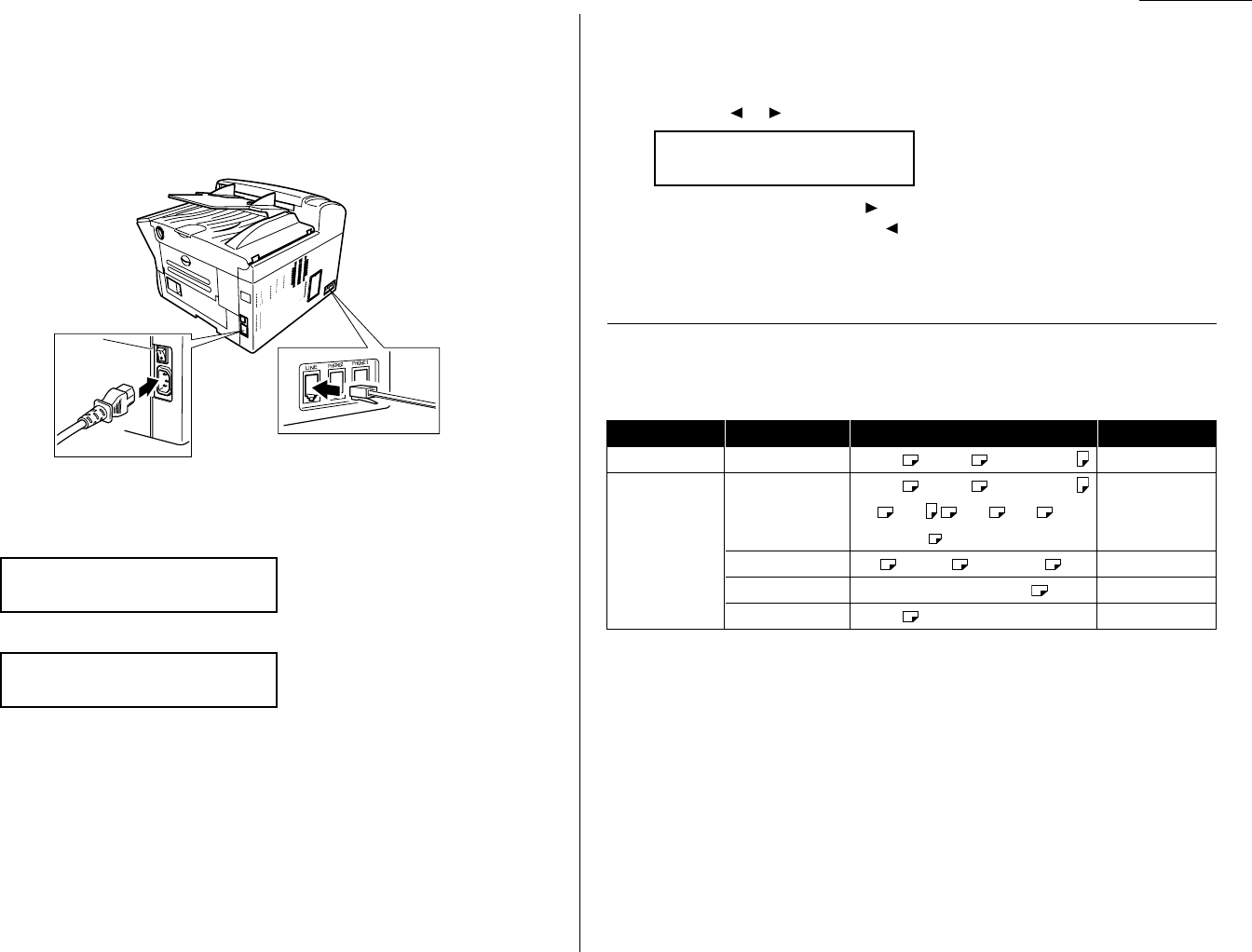
1Plug one end of the telephone line cord into the
LINE
jack on the machine’s
rear side and the other end into a standard telephone wall jack.
2Plug the non-pronged end of the
AC
power cord into the
AC
power cord jack on
the right rear side of the machine and the pronged end into a 120 V electrical
outlet (preferably on a surge suppressor, as mentioned on page 1.5).
3Use the
AC
power switch to turn on your machine.The markings are interna-
tional standards: I means on, O means off.
It will take a few seconds for the machine to warm up. The
LCD
shows:
When the machine is ready to use (standby mode), you will see:
Adjust the monitor speaker’s volume
You can set the volume of the monitor speaker.
1Press
MONITOR
/
CALL
on the control panel.You now should hear a dial tone.
And press or .The
LCD
indicates the volume:
2To turn the volume up, press .
To turn the volume down, press .
3Press
MONITOR
/
CALL
again to hang up.
Loading paper
Acceptable paper size and cassette capacity
Paper source Paper type Paper size Capacity
Paper cassette Plain paper*1Letter , Legal , Half-letter 500 sheets
Letter , Legal , Half-letter ,
Plain paper*1, *2A4 ,A5 ,A6 , F4 , 50 sheets
Bypass Tray Executive , Custom-sized*3
Envelopes*2DL , CM10 , Monarch 1 sheet
Postcard*23.9″ × 5.8″(100 ×148mm) 20 sheets
Transparency*4Letter 20 sheets
*1Paper weight: 60 – 90 g/m2
*2A4,A5,A6, F4, Executive, DL, CM10, Monarch, Postcard, Custom-sized paper
and Transparency can be used only if the optional Printer Controller is attached.
*3(3.8 – 8.5) inches × (5.5 – 14.0) inches (Width × Length)
*4We recommend: 3M PP2500 for laser printers or equivalent
Note: Do not use any paper which has been creased, wrinkled or has absorbed any
moisture.
** Tel Mode **
Volume:■■■■■■■■■■■■
Fax Ready
Jan 1 2001 12:00am
** Warming Up **
1.7
Getting started
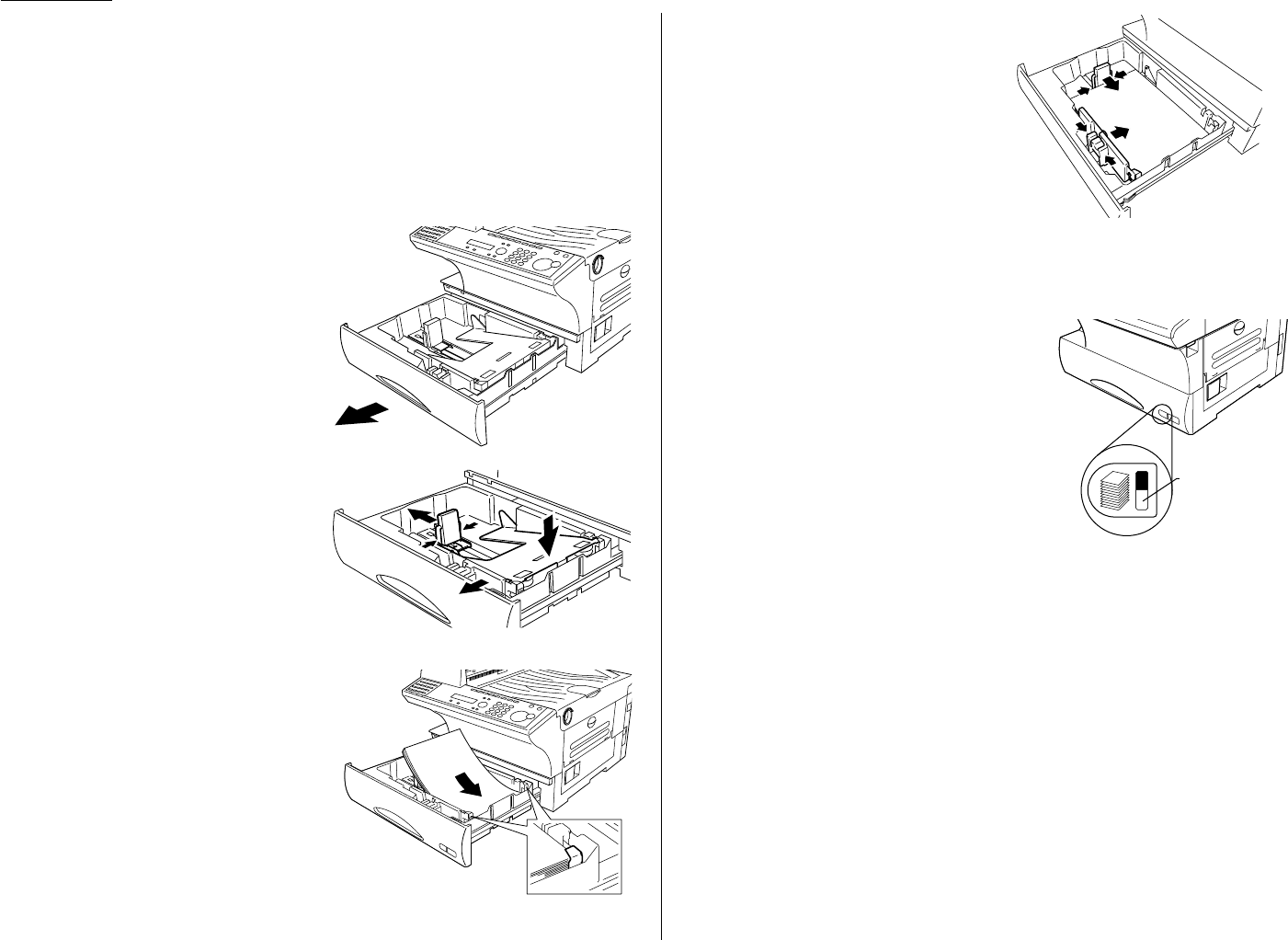
Loading paper in paper cassette
Before you load paper, note the following:
• After you load paper in fax’s cassette, you must “tell” your machine what size
paper you loaded: letter-, legal- or half letter-sized.
You can do this by the “Setting of the paper size” operation. (See page 1.9.)
Note:If you will be using letter-sized paper, there’s no need to adjust the cas-
sette; your machine is initially set for Letter-sized paper. Simply attach
the LTR sticker to the outside of the paper cassette.
1Open the paper cassette from the
front of your machine by gently
pulling it toward you.
2While pressing the release lever,
slide the paper length guide to
select the paper size you want to
use.
3Press down the paper lifting plate.
4Insert the paper into the cassette.
• Before you insert paper in the
cassette, stack it so the leading
edge and sides of the paper are
even.
•Do not stack the paper over
the limit mark inside of the
cassette.
• Place the edges of the top sheet
under the metal tabs on the
cassette’s left and right side.
5Adjust the paper guides to fit the
size of paper.
6Gently push the paper cassette back into its original (closed) position.You’ll
feel a click when it’s properly in place.
7Attach the paper size sticker on the cassette’s front.
Helpful Tip: The paper level indicator on the
front paper cassette lets you see
how much paper is in the cassette
without your having to open the cas-
sette.When you see the paper level
indicator drop (i. e., show more blue
area), make sure you have a supply
of paper nearby.Then, when you see
the “Please Supply Paper” message
on the display, you’ll be ready to
refill the cassette.
Important: To avoid paper jams, do not refill this paper cassette without first
removing all of any paper which may remain in it. In other words, do
not just add sheets to an already-loaded stack.
Paper level
indicator
1.8
Getting started
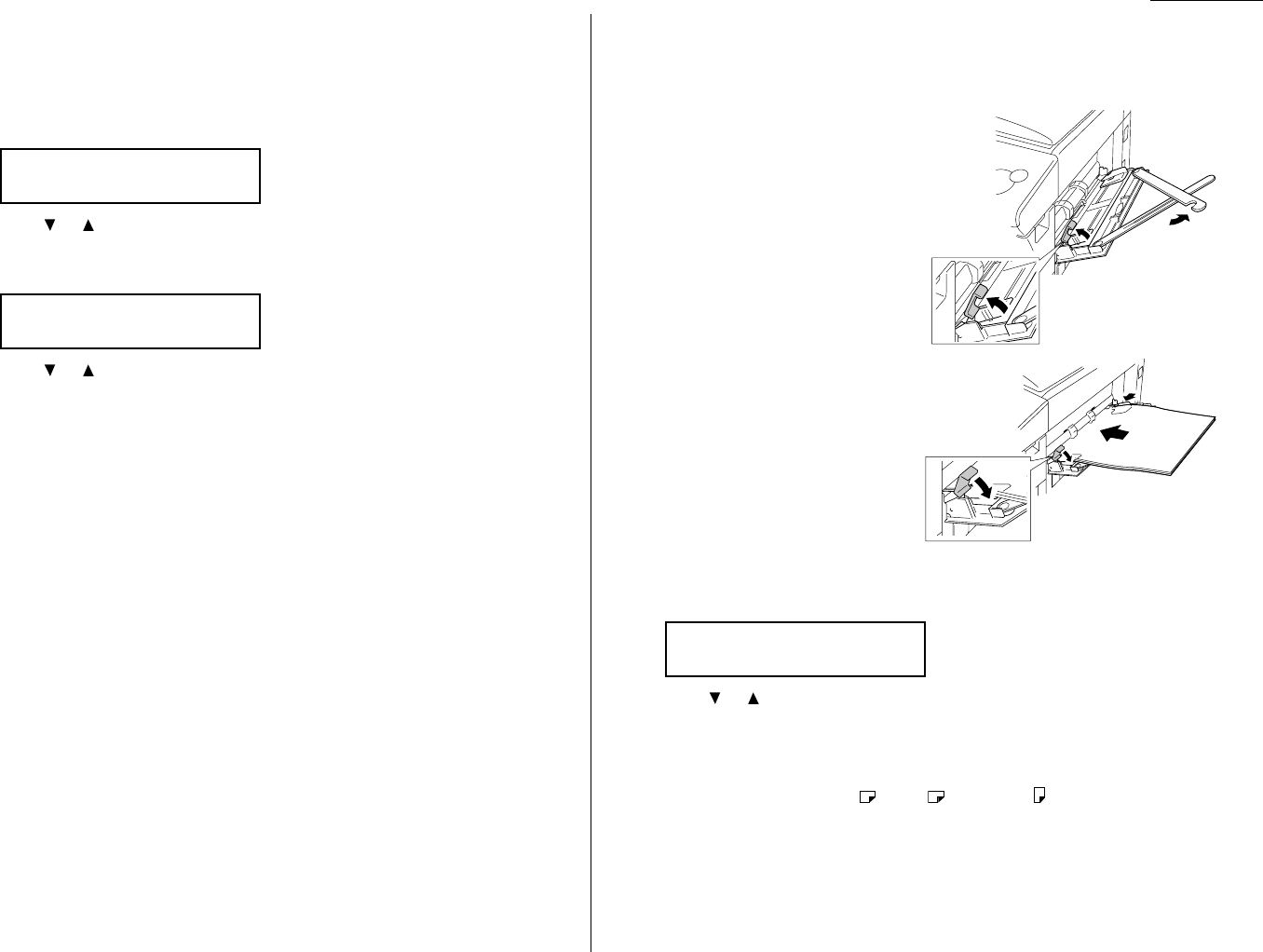
1.9
Getting started
Setting of the Paper Size
Default setting: Ltr (Letter-sized paper)
When you change the size of paper in the paper cassette,you must also change the
paper size setting,as shown below.
1Press
MENU
,2,1,0,1,
ENTER
.The
LCD
shows:
2Press or until the recording paper size for the first cassette you want
appears.
3Press
ENTER
.The
LCD
shows:
4Press or until the recording paper size for the bypass tray you want
appears.
5Press
ENTER
.
Press
STOP
to return to standby mode.
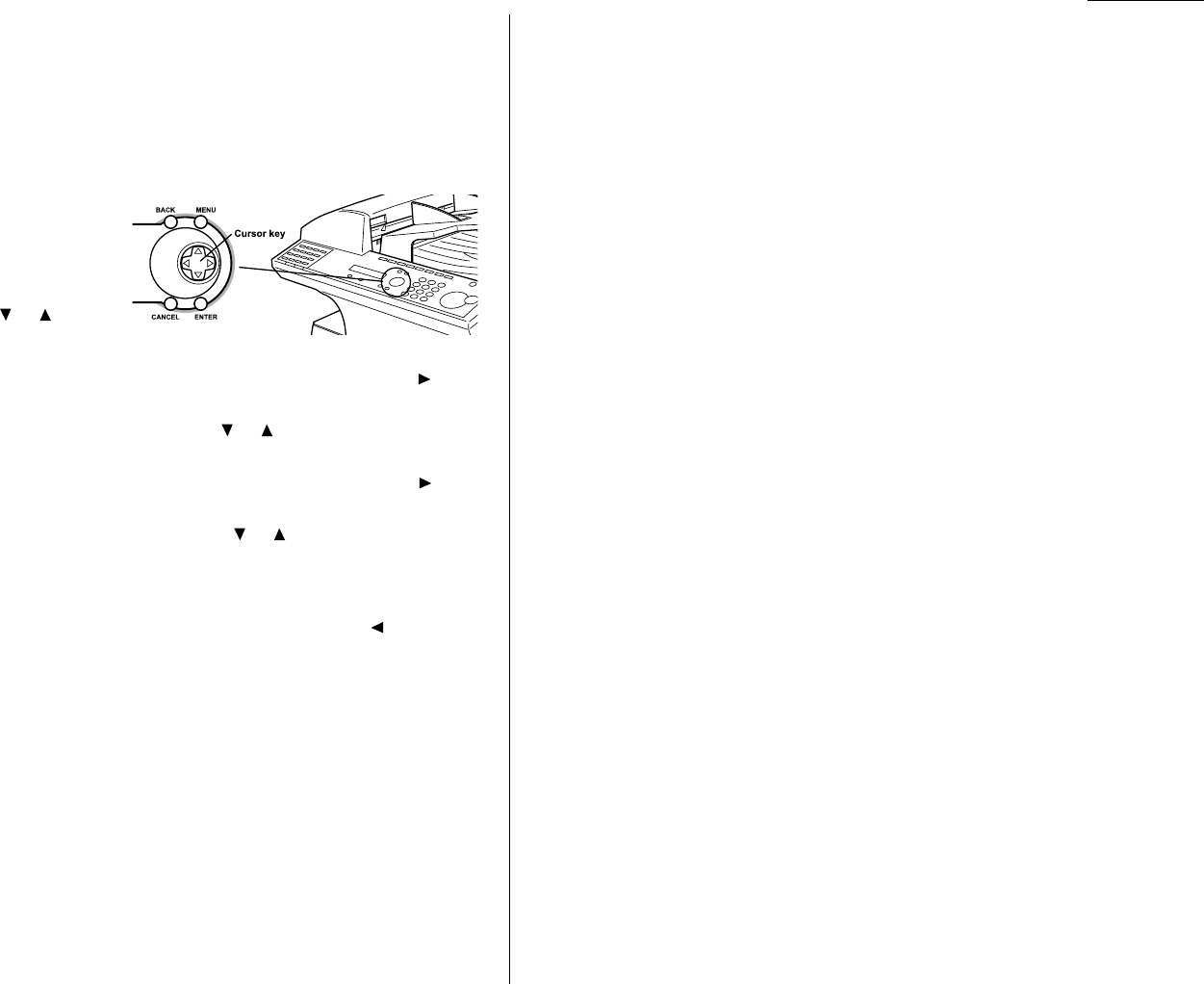
Loading paper in bypass tray
When you need to use a size of paper not currently loaded in your machine’s paper
cassette(s), or when you want to use a special type of paper (such as transparency
film), use the bypass tray.
1Open the bypass tray on the right
side of your machine.
2Pull out the hopper of the bypass
tray and raise the flapper release
lever.
3Place the paper on the bypass
tray.Adjust the paper guide to fit
the paper and insert the paper
until it comes to a stop.
Then lower the flapper release
lever.
4When you load the paper on the bypass tray, the
LCD
will show the primary
paper size you’ve set. (See “Setting of the paper size,” left column.)
5Press or until your desired recording paper size appears.
Note: If you use transparency film, select “OHP”.
6Press
ENTER
.
Note: If you have set the Letter , Legal , Half-letter sized paper in the
bypass tray, the machine will use them when it runs out of the paper in the
paper cassette during the fax reception.
Set Bypass Ppr:Ltr
$$
/
##
/Enter
Bypass Tray :Ltr
$$
/
##
/Enter
1st Cassette :Ltr
$$
/
##
/Enter

1.10
Getting started
Symbol and terms
In this manual, the following symbols and terms are used, make sure you know
what they mean.
CAUTION This symbol indicates how to avoid personal injury.
Important: This instruction describes conditions or incorrect operations that
could cause damage to your machine.
Note: A note describes helpful hints,restrictions, or how to avoid diffi-
culties.
“ ” Items that appear on the
LCD
.
BOLD WORDS
Keys built into the machine’s control panel.
LCD
The Liquid Crystal Display. It shows the machine’s status, error
messages and function menu, etc.
Document “Document” is the original sheet(s) of paper you send or copy on
your machine.
Paper “Paper” is the recording paper for printing.
, Shows the direction of the document or paper.
MENU
Any function can be started by first pressing the
MENU
key.
Cursor key Press , , or to select items in a menu or move the cursor.
How to operate the machine
Most settings and functions are started by first pressing the
MENU
key.Then press
three- or four-digit numbers to select the function. In this manual, we explain the
operation with short-cut operations (for example,we will say,“press
MENU
,2,1,0,1.”).
To press: 0 (zero),1,2,3,4,5,6,7,8,9,#or *
Use: The numeric keypad.
Here’s an example. If we say “press
MENU
,2,1,0,1,
ENTER
”…
… you’d press
MENU
key
… then 2
… then 1
… then 0(the numeric key zero)
… then 1
… and then
ENTER
Note: Even though our example above includes commas, do not enter them into
the fax machine.Those characters appear in our instructions to separate
one number from the other.They do not need to be entered into your fax
machine.
There is a function (broadcasting) which requires commas to be entered, but
there is a special way to enter them.We’ll explain this process later.
Operating tips
1.11
Getting started
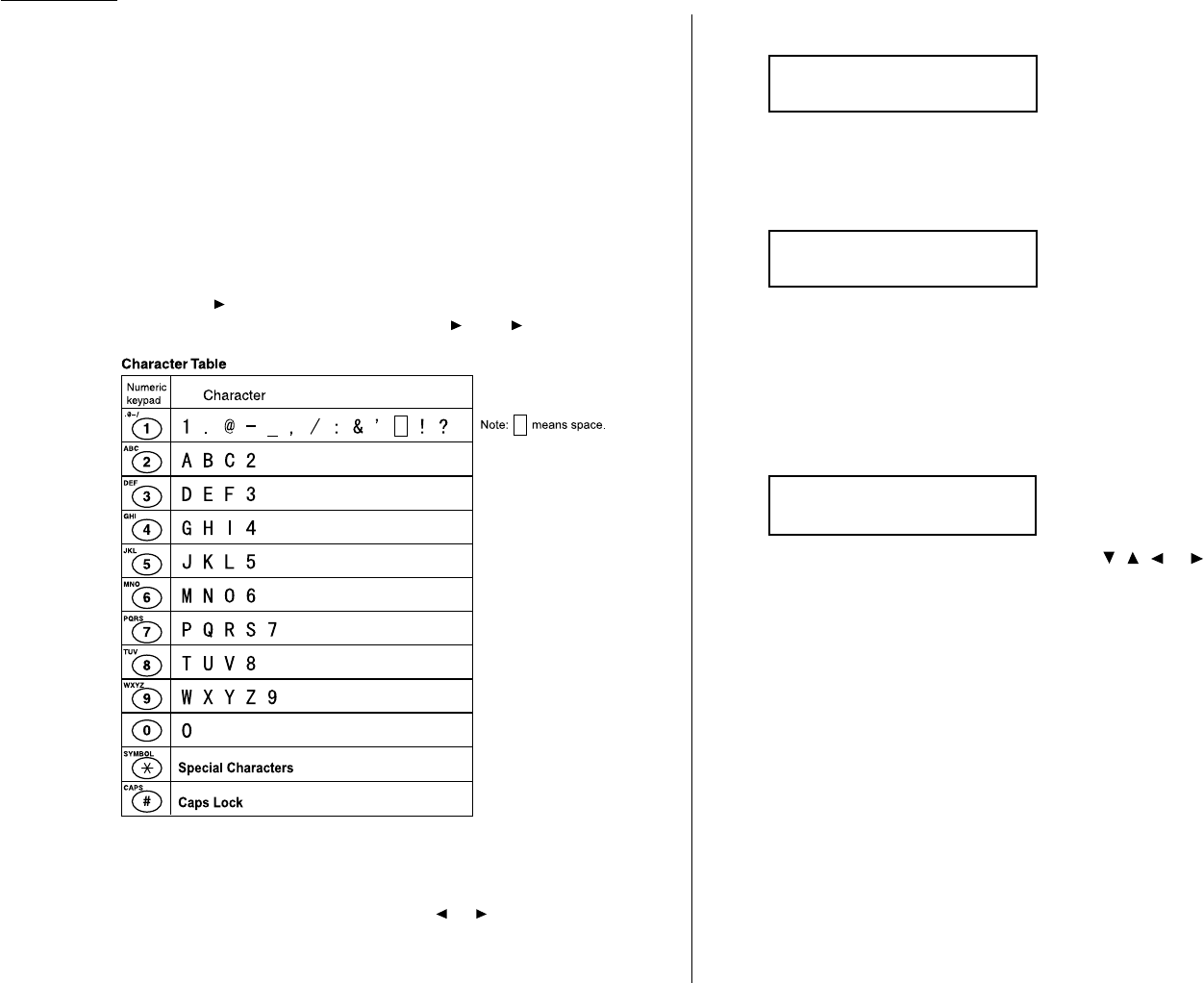
Searching the functions using the cursor key
Even if you don’t remember the exact commands needed for an operation, you can
search for and enter almost all of your unit’s functions using the
MENU
key, Cursor
key and the
ENTER
key.
Note: You can also search for any function with the function table (see pages
1.13 – 1.17). Keep a copy of this table nearby for reference.
To search and enter the function set-
tings:
1Press
MENU
.
2Search the level one function
groups using or until
your desired item appears.
3After you find the level one function item you want to program, press to go
to the level two function groups.
4Search the level two function groups using or until your desired item
appears.
5After you find the level two function item you want to program, press to go
to the level three function groups .
6Search the level three function groups using or until your desired func-
tion appears.
7Press
ENTER
to entry the function setting.
Note: You can go back to previous level function groups by pressing before you
have entered the level three function by pressing
ENTER
. If you want to go
back to previous level function group after entering the level three function,
press
BACK
.
Note: Stop the operation at any time by pressing
STOP
.
1.12
Getting started
Entering characters
Some settings give you a chance to enter characters; for your TTI, remote fax’s name
or others.To enter letters or other characters, use the following guidelines:
Using numeric keypad to enter characters
You can enter 40 letters,digits or symbols (and space) using the numeric keypad as
shown in the character table below.
Pressing the 2numeric key once, for example, will enter an “A”. Pressing 2twice,
will enter a “B”. If you want to enter “LA”, for example, you would press 5, 5, 5, 2.
When you want to enter two characters that share the same numeric key (“D”and
“E”, for example), press to move the cursor to the right after you enter the first
letter. For example, if you want to enter “ABC”: press 2, , 2, 2, , 2, 2, 2.
Canceling characters
If you entered an incorrect letter or digit, press
CANCEL
to erase to the left.To
change just one character in name and/or digit, press or to move the cursor to
that character or digit.Then press
CANCEL
to erase it. Re-enter the character or
digit correctly.
To change upper/lower case
Press #(
CAPS
)key to toggle upper case and lower case.
The word “Upper” means the machine will enter only upper-case letters.
To type a lower-case letter, press #(
CAPS
)key.
The
LCD
changes to:
This means the machine will enter lower-case letters.
To switch back for upper-case entries, press #(
CAPS
)key again.
Entering the special characters
You can also enter special characters or symbols.
1When the machine prompts you to enter a name,press * key.
The
LCD
changes to:
2Select the character you want to enter using , , or of cursor key.
3To enter the character, press
ENTER
key.
4If you want to enter other character, repeat steps 1–3.
Otherwise, go to next step.
5Press
ENTER
to save the name.
·
@
-
_
,/:
&
’
!?
"
#
$%
()∗∗+
$$
/
##
/!!
/""
/Enter
Your Name ;Lower
_
Your Name ;Upper
_

1.13
Getting started
Function table
Note: Your machine can print a function list. It lists the functions available on your fax machine and the keystrokes needed to complete them.
To print a function list, press
MENU
,5,1,0,1.
Level one function Level two function Level three function Summary of setting Default setting Page
1.Autodial Entries 1.One-Touch Dial 1.Enter One-Touch Select one-touch key and register the fax dial numbers and names
(Max. 56 locations.) on one-touch dial keys. — 3.2
If you register the name, you can use the telephone index feature.
2.Erase One-Touch Erase the registration in a one-touch key. — 3.2
2.Speed Dial 1.Enter Speed Dial Select speed-dial number and register the fax dial numbers and
(Max. 144 locations.) names as Speed-Dial numbers. — 3.4
If you register the name, you can use the telephone index feature.
2.Erase Speed Dial Erase the registration in a speed-dial number. — 3.4
3.Group Dial 1.Enter Group Dial Select group number and register the one-touch dial or speed-dial — 3.6
(Max. 32 group.) numbers you want to group.
2.Erase Group Dial Erase the registration in a group number. — 3.6
2. User Settings 1.Machine Settings 01.Cassette Size Set the size of paper in the paper cassette. Letter 1.9
02.Protect Passcode Enter the protection passcode for using the security features. — 3.42
03.Soft Key Program to turn on or off the function by pressing this key.
Soft key 1:
COMM
.
CANCEL
/
CONFIRM
. Soft key 5:
SPEED DIAL
/
GROUP
Soft key 2:
BROADCAST
Soft key 6:
MONITOR
/
CALL
See left. 3.15
Soft key 3:
COMM
.
OPTIONS
Soft key 7:
REPORT
Soft key 4:
PAUSE
/
DIAL OPT
. Soft key 8:
MEMORY TRANSMIT
04.Silent Mode Mute your machine. Off 4.8
05.Sleep Mode Conserve power. On 4.9
06.Fax & Copy Make a copy of your document each time it transmit. Off 3.19
07.Date & Time Enter the current date and time. — 4.9
08.Paper Source Select paper source (paper cassette and bypass tray) for For Fax / Copy 4.9
fax reception or copying.
09.Service Mode For technical support. Do not turn this setting to on unless an Off —
authorized technician asks you to do so.
10.2-Bin Tray*1Select the paper tray for delivery.
• Copy exit Lower tray
• Received fax document exit Upper tray 4.9
• List exit Upper tray
• PC-Fax print exit*2Upper tray
*1:This option appears only if the optional 2-Bin tray has been installed. *2: This option appears only if the optional RS-232C interface has been installed.

Level one function Level two function Level three function Summary of setting Default setting Page
2. User Settings 2.Fax Settings 01.Scan Parameters You can set the following settings for send fax message.
• Primary document mode Normal
• Primary contrast mode Normal 4.1
02.Print Parameters You can set the following settings for receive fax message.
• Reduction rate Auto
• Reduction margin 40 mm 4.3
• Half-page reception Off
03.Number of Rings Number of rings before your machine answers. 2 times 4.4
04.Redial Number of times and interval for automatic fax redialing. 2 times 4.5
1 minute
05.Dialing Pause Dialing pause length. 2 seconds 4.5
06.Memory Tx On/Off setting for Memory transmission. On 4.2
07.Quick Tx On/Off setting for Quick Memory transmission. On 4.2
08.TTI Tx On/Off setting for sending your TTI. On 4.2
09.ECM Mode On/Off setting for ECM mode. On 4.1
10.Block Junk Fax Reject the fax reception from unauthorized incoming faxes. Off 3.45
11.Security Rx Keep all received fax messages in memory and after print them. Off 3.42
12.Separator Page Partition each received documents by inserting the separator page. Off 3.21
13.PIN Mode Prevent unauthorized long-distance calls. Off 3.43
14.DRD Set the ring pattern to use with phone company’s Distinctive Ring Off 3.22
service.
3.Copy Settings 1.Scan Parameters You can set the following settings for copying.
• Primary document mode Fine
• Primary contrast mode Normal 4.6
2.Print Parameters You can set the following settings for copying.
• Reduction rate 100%
• Reduction margin 24 mm 4.7
• Bypass Tray priority Off
4.Printer Settings*31.TCP/IP Enter the IP Address, Subnet mask and Gate way address. — —
5.Scanner Settings*41.Scan Parameters Enter the scanning parameters. — —
2.Auto Reset Set the time (minutes) for resetting the scan parameters and . 3 minutes —
returning to the Fax mode.
1.14
Getting started
*3:This option appears only if the optional NIC (network interface card) has been installed.
*4:This option appears only if the optional printer controller has been installed. For details see the operating instructions included with the printer controller kit.

1.15
Getting started
*4:This option appears only if the optional printer controller has been installed. For details see the operating instructions included with the printer controller kit.
*5:This option appears only if the optional Internet fax kit has been installed. For details see the operating instructions included with the Internet fax kit.
Level one function Level two function Level three function Summary of setting Default setting Page
3. Other Settings 1.Journal & Reports 1.Journal AutoPrt. Print the Activity journal automatically after 100 transactions. Off 3.20
2.Journal Line Up Change the printing order of the activity journal. Off 3.20
3.Report AutoPrint Print the TCR automatically at every transmission. Off 3.20
2.Cover Page 1.Set Cover Page On/Off setting for sending the Cover page. Off 3.21
2.CoverPage Message Enter your message for the cover page. — 3.22
3.Department Code 1.Set Dept. Protect Protection for department code settings. Off 3.48
2.Set Dept. Code Register the Department code. — 3.47
3.Set Dept. Setting On/Off setting for Department code activation. Off 3.47
4.Erase Dp.TimeList Clear the total counts of each department code. — 3.47
4.Program One-Touch 1.Enter P One-Touch Program several operations for a function you frequently use. — 3.33–3.41
This key can reduce several steps to a simple press of a key.
2.Erase P One-Touch Erase the programming in a programmable one-touch key. — 3.41
5.F-Code Box 1.Set F-Code Box Create the F-Code box. — 3.24–3.27
2.Erase F-Code Box Erase an empty F-Code box. — 3.31
6.Batch Tx 1.Set Batch Box Create the Batch box. — 3.11
2.Erase Batch Box Erase an empty batch box. — 3.13
7.Scan Box*41.Set Scan Box Create the Scan box. — —
2.Erase Scan Box Erase an empty scan box. — —
8.Internet Fax*51.TCP/IP Set the TCP/IP address. — —
2.MAC Address Enter the Media Access Control Address for network card. — —
3.Default Relay Setting of relay box. — —
4.Archive Tx Fax Enter the e-mail address for archiving of Tx document. — —
5.Archive Rx Fax Enter the e-mail address for archiving of Rx document. — —
4. Doc. Management 1.Store Document 1.Polling Document Store the document to be retrieved by other fax machine. — 3.14
2.F-Code Document Store the document to be retrieved by other F-Code compatible — 3.28
fax machine.
2.Erase Document 1.Polling Document Erase stored document for polling transmission. — 3.14
2.F-Code Document Erase stored document in the F-Code box. — 3.29
3.Batch Document Erase stored document in the Batch box. — 3.13
4.Scan Box Document*4Erase stored document in the Scan box. — —
3.Print Document 1.Polling Document Print the stored document for polling transmission. — 3.14
2.F-Code Document Print the stored document in the F-Code box. — 3.29, 3.30
3.Batch Document Print the stored document in the Batch box. — 3.12

1.16
Getting started
*2:This option appears only if the optional RS-232C interface has been installed.
*3:This option appears only if the optional NIC (network interface card) has been installed.
*4:This option appears only if the optional printer controller has been installed. For details see the operating instructions included with the printer controller kit.
Level one function Level two function Level three function Summary of setting Default setting Page
4. Doc. Management 3.Print Document 4.Security Rx Doc. Print the fax received document during Security reception (and
return to your machine to normal reception mode until the next — 3.43
time).
5.Comm.Stored Doc. Print the stored document for delayed transmission. — 2.7
5.Print 1.List Print 01.Function List Print a list of your machine’s functions. — 1.13
02.User Settings Print a list of your machine settings. — 4.10
03.Journal Print the activity journal manually. — 3.20
04.Commands List Print a list of the delayed commands. — 2.7
05.One-Touch List Print a list of the one-touch dial keys. — 3.2
06.Speed Dial List Print a list of the speed-dial numbers. — 3.4
07.Group List Print a list of the group numbers. — 3.7
08.BlockJunkFax List Print a list of the blocked numbers. — 3.46
09.Cover Page Print a cover page. — 3.22
10.Dept.Time List Print a total communication time and printed pages of each — 3.48
department code.
11.P One-Touch List Print a list of the programmable one-touch keys. — 3.41
12.F-Code Box List Print a list of F-Code boxes. — 3.28
13.F-Code Doc. List Print a list of the document stored in the F-Code boxes. — 3.28
14.Batch Box List Print a list of Batch boxes. — 3.12
15.Batch Doc.List Print a list of the document stored in the batch boxes. — 3.12
16.Macros List Print a list of Macro keys. — 3.18
17.Scan Box List*4Print a list of Scan boxes. — —
2.Printer Function*41.Status Page Print all the status and configuration of the printer. — —
2.Font List Print the list of all PCL fonts currently installed in the printer. — —
3.NIC Status*3Print the NIC (network interface card) settings. — —
6. PC-FAX Commands*21.PC-FAX 1.PC-FAX Scan Scanning a document into the PC. — —
2.PC-FAX Initial Initializing your machine. — —
3.Set RS-232C Setting of the RS-232C parameters. — —

1.17
Getting started
Level one function Level two function Level three function Summary of setting Default setting Page
9. User Install Set-up the following settings:
• Language on the LCD and Lists English
• Current Day and Time —
• Automatically Daylight saving time Off
• Fax reception mode Fax Ready 1.18–1.20
• Phone dialing type Tone
• Subscriber ID (your fax phone number) —
• Your TTI (your name) —
• TTI select —
• Time for the machine to enter the sleep mode 5 minutes
1.18
Getting started
EasyStart software is already installed on your Muratec fax machine. It guides you
through the process of entering the following settings.These settings you make here
can always be changed later.
• Language on the LCD and Lists
• Current Day and Time
• Automatically Daylight saving time
• Fax reception mode
• Phone dialing type
• Subscriber ID (your fax phone number)
• Your TTI (your name)
• TTI select
• Time for the machine to enter the sleep mode
Getting started
Determine the following before you go any further:
1The type of dialing your telephone system requires — Choose either Tone
or Pulse (rotary) dialing.
2The name and fax number you want to appear on your faxes —
Every fax page you send arrives at the receiving machine with a single line of
text at the very top of the page.This text lists a name (called the Transmit
Terminal Identifier (
TTI
)) and a fax number (called the Subscriber
ID
).
The
TTI
cannot be longer than 22 characters.
Clearing stored settings
Before using EasyStart, clear your machine’s built-in user data memory. This
ensures the memory will hold only your settings.
Important: After you use EasyStart, do not clear the memory again unless an
authorized technician asks you to do so.
To clear the machine’s memory:
1Press
MENU
,*,0,2.The
LCD
now asks if you want to clear the memory. The
following two displays will appear alternately:
Note: If you don’t want to clear the memory, just press
CANCEL
.
2If you do want to clear the memory, press
ENTER
.
Entering initial settings
Important: If you press
STOP
during EasyStart, your fax machine returns to
standby mode (its normal condition). But it will keep the settings you
saved by pressing
ENTER
as described in these instructions.
1To start EasyStart software, press
MENU
,9,
ENTER
.The
LCD
shows:
2Press or until the language you want appears.
3Press
ENTER
to save the language setting and continue EasyStart.
4The
LCD
now shows the current calendar/clock setting, with a cursor appear-
ing on the first digit.
Enter Time
01/01 ’01 00:00
Language :English
$$
/
##
/Enter
Clear User Settings
No
→→
Cancel
Clear User Settings
Yes
→→
Enter
EasyStart (Initial settings)
1.19
Getting started
5Use the numeric keypad to enter the correct date and time, using a
MMDDYY
format for the date and 24-hour format for the time. For instance, to set 2:30
PM
on January 27,2002, press 0 1 2 7 0 2 1 4 3 0, which results in:
Note: Your fax machine automatically inserts the spaces and date-slash. All
you have to do is enter the digits.
To change a digit, press to move the cursor left, or to move it right.
Then enter the correct digit.
6Press
ENTER
to save the clock setting and continue.
7The
LCD
now asks if you want to set the calendar/clock to automatically
recognize daylight saving time (
DST
).
When the setting is ON, your machine automatically recognizes
DST
at 2
AM
on
the appropriate switchover Sundays each year.
When the setting is OFF, no automatic change will occur.
8Press or until the mode you want appears.
9Press
ENTER
to save the setting and continue.
10 The
LCD
now shows the machine’s current reception mode.
11 For now, select Fax Ready. (This setting can always be changed.We’ll discuss
reception modes further on pages 2.9–2.10.)
12 Press
ENTER
to save the setting and continue.
13 The
LCD
now asks you to enter the type of dialing needed for the fax machine,
either tone or pulse:
14 Press or until the mode you want appears.
15 Press
ENTER
to save the setting and continue.
16 The
LCD
now asks you to enter your fax number as you want it to appear on
other fax machines’ displays or printouts. The fax industry term for this
number is Subscriber
ID
.
17 Use the numeric keypad to enter the fax number.To insert a dash, as shown
here, press
PAUSE
/
DIAL OPT
.once.The number may contain up to 20 charac-
ters (numbers and dashes).
Note: If you make a mistake,press
CANCEL
to erase to the left.
To change just one number, press to move left, or to move right.
Press
CANCEL
to erase the number.Then re-enter the fax number cor-
rectly.
18 Press
ENTER
to save the number and continue.
19 The
LCD
now asks you to enter the name you want to appear at the top of
faxes you send.You can enter three of TTI.The name may be up to 22 charac-
ters in length.
20 Use the numeric keypad to enter characters for TTI 1. (Refer to “Entering
characters” on page 1.12.)
Note: If you make a mistake,press
CANCEL
to erase to the left.
To change just one character in the name, move the cursor by cursor
key. Press
CANCEL
to erase the character. Then re-enter the character
correctly.
21 Press
ENTER
.The
LCD
will show:
If you do not want to enter other TTI, press
ENTER
twice and skip to step 26.
22 Use the numeric keypad to enter characters for TTI 2.
TTI 2 ;Upper
_
TTI 1 ;Upper
_
Your Fax Number
972-555-5525_
Your Fax Number
Dialing Type :Tone
$$
/
##
/Enter
Fax Ready
$$
/
##
/Enter
Daylight Saving :Off
$$
/
##
/Enter
Enter Time
01/27 ’02 14:30
1.20
Getting started
23 Press
ENTER
.The
LCD
will show:
If you do not want to enter TTI 3, press
ENTER
and skip to step 26.
24 Use the numeric keypad to enter characters for TTI 3.
25 Press
ENTER
to save the setting and continue.
26 The
LCD
now asks you to set the usual TTI which will appear usually at the
top of faxes you send.
27 Press or until desired TTI appears.
28 Press
ENTER
to save the setting and continue.
29 The
LCD
now asks you to enter the time for the sleep mode.Your machine will
automatically enter sleep mode after your selected idle time has elapsed.
30 Enter the time (in minutes) using the numeric keypad.
31 Press
ENTER
to save the setting.Your machine will return to standby mode.
Sleep Mode Timing
(001-240) 005 min.
Usual TTI :TTI 1
$$
/
##
/Enter
TTI 3 ;Upper
_

1.21
Getting started
This page intentionally blank.

Basic Operations
This chapter describes the basic
operation of the transmission,
reception and copying
Sending faxes . . . . . . . . . . . . . . . . . . . . . . . . . . . . . . . . . . . . . . . . . . . . . . . . . . . . . . . 2.1
Receiving faxes . . . . . . . . . . . . . . . . . . . . . . . . . . . . . . . . . . . . . . . . . . . . . . . . . . . . . . 2.9
Making copies . . . . . . . . . . . . . . . . . . . . . . . . . . . . . . . . . . . . . . . . . . . . . . . . . . . . . . 2.11
Using your fax machine as a phone . . . . . . . . . . . . . . . . . . . . . . . . . . . . . . . . . . . . 2.13
2.1
Basic operation
Guidelines
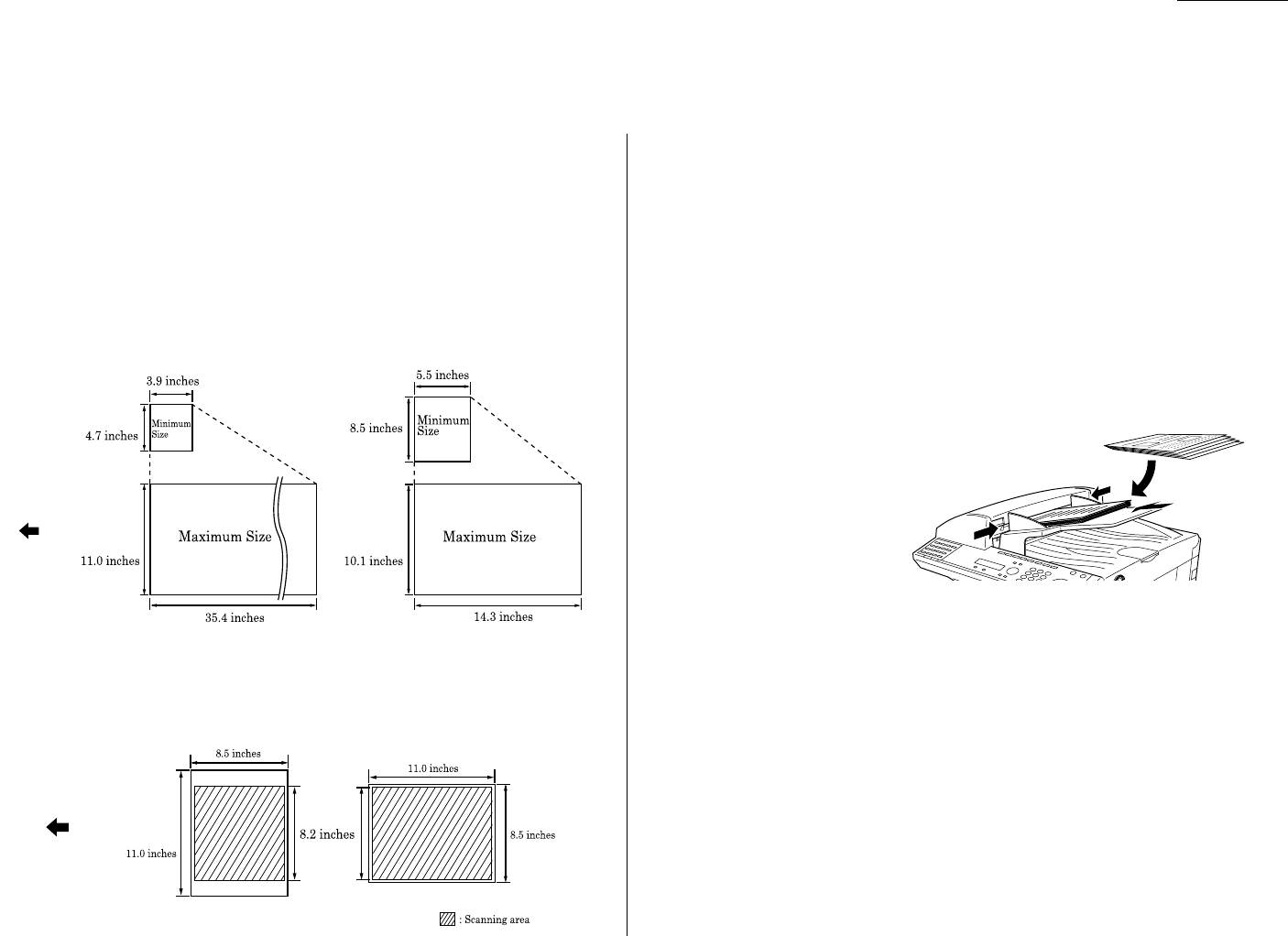
Before you begin the fax sending,please read the following guidelines.
Acceptable document sizes
You can set up to 80 sheets of letter-sized document in the
ADF
at one time.
However, it’s possible to fax a piece of paper as small as a notepad sheet or one up to
three feet long.
The acceptable document size are:
Single-sheet Multiple-sheet
Scanning width
The scanning width when you send a fax is 8.2 inches, no matter the document size.
Note: If the document size is Letter, for example, the scanning area will be as
follows:
Avoid placing the following items in your machine
To avoid paper jams and damage to your machine, don’t insert:
• Folded, curled, torn, wrinkled or very thin pages
• Documents with staples,glue, tape, paper clips or still-wet correction fluid
• “Sticky notes” (or documents with “sticky notes” attached)
• Cardboard, newspaper or fabric
• Pages with duplicating carbon on either side
• Credit cards or any small, thick items
• OHP transparency film
How to set the document
1Insert your document(s) face
up, top edge first. If you’re
sending a multi-page docu-
ments,“fan” the pages
slightly.
2Adjust the document width
guide to fit your documents.
Document mode and contrast
Reviewing document mode:
•Normal is suitable for most typed documents and simple drawings.
•Fine is ideal for maps, moderately complicated drawings, floorplans or handwrit-
ten documents.
•Superfine (“S-Fine” on the
LCD
) reproduces the detail of extremely complicated
drawings or line art.
•Grayscale (“Gray” on the
LCD
) captures shades in photos and drawings.
Note: If you send a fax in superfine, certain fax models (especially older, non-
Muratec models) receive it only in fine mode. However, you can send a fax in
grayscale mode to virtually any fax machine currently in use.
Feed direction
Feed direction
Sending faxes

2.2
Basic operation
To change the document mode, press
DOCUMENT MODE
.The
LCD
will show:
Press or until the mode you want appears. It will toggle Normal, Fine, S-Fine
and Gray.
Note: You can also toggle them by pressing
DOCUMENT MODE
repeatedly.
Reviewing contrast
Setting the contrast allows you to compensate for any excessive lightness or dark-
ness,as the case may be, of document pages you are sending or copying.
To change the contrast setting, press
CONTRAST
.The
LCD
will show:
Press to be dark, or press to be light.
Note: To avoid confusing the Light and Dark settings, just remember — “Light
lightens” and “Dark darkens” — to keep it straight.
Note: You can also toggle them by pressing
CONTRAST
repeatedly.
Mixing document mode and contrast in a multiple page
When you send a document with more than one page, you can select different docu-
ment modes and contrasts for each page.
Insert your documents,select document mode and contrast for the first page, dial
and press
START
. Before starting to scan the next page, select document mode and
contrast for the next page.
Dialing pause
Some long-distance systems require dialing pauses,and pauses can also be useful
when you’re dialing through special telephone exchanges.
To insert a pause, just press
PAUSE
/
DIAL OPT
.. (The pause character (
-/
) will appear
on the
LCD
.) Each pause entered lasts for a factory-set two seconds.
For example, pressing 9,
PAUSE
/
DIAL OPT
., 0123456789 dials 9 [2-second pause] 0 1 2
3 4 5 6 7 8 9.
Note: You can change the dialing pause length within 2 to 10 seconds.
(see “Changing the dialing pause length,” page 4.5.)
Potential problems with call-waiting and voice mail
Telephone call-waiting signals can stop fax transmission and reception.And any
service — such as voice mail — which may intercept your calls can keep your fax
machine from receiving fax calls.
If you use only one line for both phone and fax, consult your telephone company to
see how you can temporarily disable call-waiting or voice mail while using the fax
machine.
Memory transmission
Your fax machine has a great memory! Take advantage of it, and you could:
Save Time. By using your fax machine’s memory, you won’t have to wait for your
machine while it completes the transmission. Simply scan your document into your
machine’s memory, and you can walk away with your original in hand.
Save Money. If you’re transmitting to another memory-equipped fax machine, your
machine will send the document directly into the other machine’s memory and hang
up. (The receiving machine then prints out your message from its memory after the
call has ended.) This cuts your actual on-line time to a minimum.
Save Even More Money. Set up a delayed transmission (see page 3.10) to send
your document after hours.This allows you to take advantage of cheaper line
charges, saving you even more money.
Note: Some documents use up memory more quickly than others.They include
documents with many pages and those with many dark areas. When the
machine’s memory is full, it can only transmit through the document feeder.
The memory transmission is On for default setting. However, you can turn it off for
the default. (See page 4.2.)
Note: You can override the default setting of memory transmission for only one
transmission by pressing
MEMORY TRANSMISSION
before you send your docu-
ment.After completing the communication, your machine will return to the
default setting.
Set Contrast
Light ·
❚❚
·""Dark
Set Document Mode
←←
Normal
→→

2.3
Basic operation
Quick memory transmission
Using Quick Memory transmission can save you time over standard memory trans-
missions.
For a normal memory transmission, your fax: (1) scans your entire document into
memory, (2) dials the other fax machine,then (3) transmits the document.
But with Quick Memory transmission, your machine doesn’t wait to scan all pages
into memory before dialing.After it scans the first page of your document, your
machine dials the call.While dialing, connecting and transmitting, your fax
machine continues to scan in the remaining pages of the document.
The quick memory transmission is On for default setting. However, you can turn off
it for the default. (See page 4.2.)
Important: To use Quick Memory transmission, the memory transmission feature
must be turned on.
Memory overflow message
In normal memory transmission, if you’ve stored too much information in your
machine’s memory, a “Memory Overflow” message may appear on the
LCD
:
This appears because (1) too many pages have been stored in the memory, or (2)
the pages that are stored have too much information on them for your fax machine
to remember.
If this message appears,press
START
to tell your fax to keep as many pages in mem-
ory as possible, or press
CANCEL
to erase from memory all pages stored during the
current operation (but not previous operations).
Note: If you don’t operate your machine within 60 seconds, the machine automati-
cally erase the document stored in the memory during the current
operation.
Dividing a large document into smaller batches will help you avoid this error.
Real time transmission (Non-memory transmission)
In the following cases,the machine does not use its memory for sending a fax:
• When you turned off the memory transmission
• When you are sending a fax using
MONITOR
/
CALL
key or optional handset (see
page 2.5.)
• When the machine’s memory is full
It is called Real time transmission mode. In this mode, the next page is not scanned
in while the current page is being transmitted.
Note: In this mode, only one destination can be dialed.
Memory Overflow
Start Or Cancel
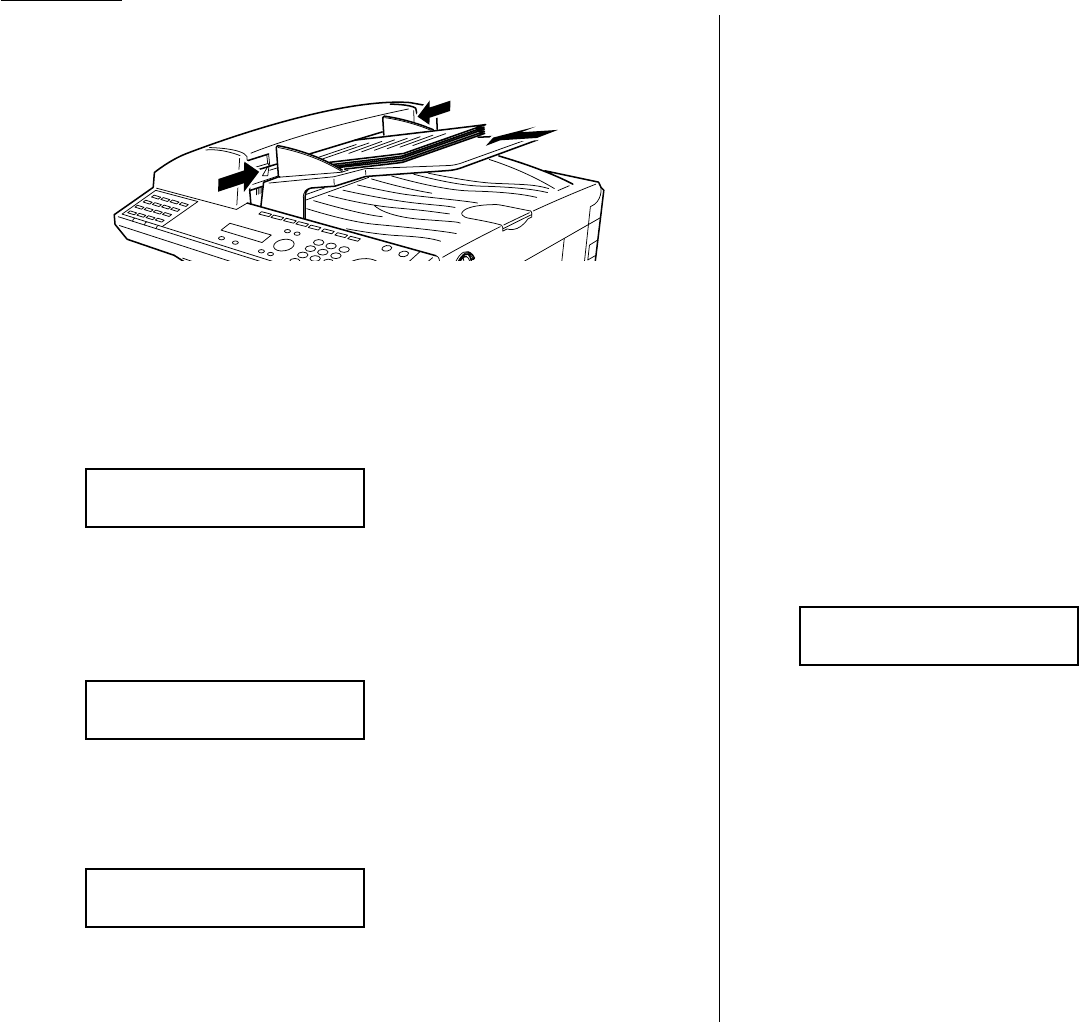
2.4
Basic operation
Sending a fax
1Insert the document face up, top edge first.Adjust the document guides —
by sliding either of them to the left or right — to fit the page(s) you’ll be fax-
ing.Your fax machine’s
ADF
(Automatic Document Feeder) will hold up to 80
pages with letter-sized paper.
When a document is in the feeder, the
LCD
shows the scanning width (see “A4”
in the Glossary beginning on page 5.16), the document mode and the amount
of memory available:
2Adjust document mode and contrast if necessary.
3Enter the fax number.
Also, enter any access codes necessary, just as you would for a regular phone
call. (Example: Enter 9to “dial out” from an office telephone system, or 1for
long-distance.)
4Press
START
.
By pressing
START
, you’ve just given your machine a command. In turn, your
machine gives this action a command number as it scans the fax document.
This command number appears on the first line of the
LCD
for a few seconds:
You’ll need to know this command number if you later wish to cancel the
transmission or to print a stored document (see pages 2.6–2.7).
5Now, everything is up to the machines — yours and the one you’re dialing.
• If the fax has been set for Quick Memory transmit, your machine scans the
first page of your document into memory, then dials the other fax.When it
makes contact, your machine transmits the stored document from memory
while at the same time scanning the remaining pages of your document
into memory. (In default setting, the Quick Memory transmission is On.If
you want to turn off this feature, see page 4.2.)
• If the fax has been set for the normal memory transmit, your fax scans the
entire document into memory, then dials the other fax.When it makes con-
tact, your machine transmits the entire stored document from memory.
• If the fax is set for Real time transmit (non-memory transmission), your
machine simply dials the other fax.When it makes contact, your machine
feeds the document through, scanning and transmitting it as it goes.
Note: The more “stuff” (called black coverage) your machine “sees” on a
page, the slower the page feeds through as the fax scans it. And even
if the page is relatively clean, sending it in grayscale mode or at cer-
tain document mode makes your machine “see” more “stuff.”
The same is true if you set the contrast to Dark.
Important: If you want to cancel a transmission while scanning the docu-
ment, press the
STOP
key.
If you want to cancel a transmission in progress, use the Review
Commands feature. See “Reviewing or canceling commands,”
page 2.6.
6At the end of the operation, your fax machine beeps and displays:
Important: Whenever you transmit a document, what actually appears on
the top line of the display depends on information stored in the
remote fax.The line may even be blank.
Note: If the call fails,see “Redialing,” page 2.5.
919725552009
** Complete **
== Command:01 ==
Press Start
919725552009_
Document Ready
A4 Normal Mem100%
2.5
Basic operation
Sending a fax using MONITOR/CALL key or a handset
You also can fax a document using either the monitor speaker or the optional
handset to dial the call.
1Insert the document to the
ADF
. If necessary, adjust document mode and con-
trast.
2Obtain a dial tone, either by:
• Pressing
MONITOR
/
CALL
… or …
• Lifting the optional handset.
In either case, the
LCD
shows:
3Enter the fax number by using the numeric keypad.
Also, enter access codes with the number, just as for a regular phone call.
4When you hear fax tones from the remote unit, press
START
.
Note: If a person answers the phone, use the optional handset to tell that
person that you’re trying to send a fax.When you hear fax tones,
press
START
.
5If you’re using an optional handset, hang up after pressing
START
.
6At the end of the operation, your fax machine will beep and display:
Note: If the call fails and you used
MONITOR
/
CALL
to dial, press
MONITOR
/
CALL
to hang up. Or if you’ve pressed
START
to begin the fax
transmission, press
STOP
to end it.
Also see “Redialing manually,” right column, if the call fails.
Redialing
Automatically fax redialing
If your fax call fails,your machine automatically redials it. In this Auto Redial
mode, your fax automatically redials the number up to two times at one minute inter-
vals.
Note: You can change the redial time and interval settings. (See “Changing redial
settings,” page 4.5.)
While in the Auto Redial mode, “AutoRedial” appears on the first line of the
LCD
, and
the machine can continue to receive faxes and can make as many as 99 fax trans-
missions.
Note: If you used either the
MONITOR
/
CALL
key or a handset to dial the call, you
must redial manually (see below).
Note: If the last redial attempt fails,your machine may print (and/or display)
error messages.
Redialing manually
You can always redial calls manually.And you must redial manually if you used
either the
MONITOR
/
CALL
key or an optional handset to dial the failed call.
To redial a fax call manually without using the
MONITOR
/
CALL
key or an
optional handset:
1Set the document and set the document mode and contrast.
2Press (
REDIAL
).The
LCD
will show:
3Your machine can remember the last 10 dial numbers. Press or until the
dial number you want to redial appears.
4Press
START
.
View Redial History
0:1234567890
** Auto Redial **
Jan 27 2002 2:30pm
919725552009
** Complete **
** Tel Mode **
919725552009_
** Tel Mode **
_
2.6
Basic operation
To redial a fax call manually with the
MONITOR
/
CALL
key or an optional
handset:
1Make sure the document is in the
ADF
and that the document mode and con-
trast are set.
2Press
MONITOR
/
CALL
or lift the optional handset to get a dial tone.
3Press (
REDIAL
).The
LCD
will show:
4Your machine can remember the last 10 dial numbers. Press or until the
dial number you want to redial appears.
5When you hear fax tones from the remote unit, press
START
.
Note: If a person answers the phone, use the optional handset to tell that
person you’re sending a fax.When you hear fax tones, press
START
.
To redial a voice call manually using the optional handset:
1Lift the optional handset to get a dial tone.
2Press (
REDIAL
).The
LCD
will show:
3Your machine can memory the latest 10 dial numbers. Press or until the
dial number you want to redial appears.
4Press
START
.
When the other person answers,use the optional handset to speak to that
person.
Reviewing or canceling commands
Your fax machine can store many “jobs” in its memory. It also keeps track of each
command by assigning it a command number, like “C01.”
Delayed commands, redial attempts and current fax transmissions are all stored in
your fax machine’s memory and given a command number.
Your machine can store up to 99 delayed commands.It identifies each by a two-digit
command number from 01 to 99.
The Review Commands function gives you the power to check on each job (or com-
mand) in your machine’s memory. It also allows you to cancel a command of fax
transaction if you decide not to send the document.
To see your machine’s stored commands or to cancel them:
1Press
COMM
.
CANCEL
/
CONFIRM
.The
LCD
will show:
• The
LCD
shows the first command, indicated by its command number and
the phone number it will dial.
• If your machine is attempting to perform a command now, it appears on
the display.
Note: If there are no stored commands in your machine,the
LCD
will show:
Press
STOP
to return to standby mode.
Or, if you want to see the result of fax transaction, press
COMM
.
CAN
-
CEL
/
CONFIRM
.(See “View the result of fax transaction” on page 2.7.)
Here, you see Command No. : 01, and the number it’s set to dial. If the com-
mand is to send a broadcast, “Broadcast” appears instead of the phone
number. (For more information of “Broadcasting,” see page 3.9.)
If the command is to send a batch transmission, the
LCD
shows its batch box
number (such as “B01”) rather than the command number. (For more informa-
tion of “Batch transmission,” see pages 3.11–3.13.)
If the command is for a Call group dialing, the group number (such as “G01”)
appears instead of the phone number. (For more information of “Call group
dialing,” see pages 3.6–3.7.)
2Press or to scroll through currently stored commands.
No Command
Comm.Cancel/Stop
C01:5552009
$$
/
##
/""
/Cancel
View Redial History
0:1234567890
View Redial History
0:1234567890
2.7
Basic operation
3If you want to cancel the command shown, press
CANCEL
.The following two
displays will appear alternately:
4To go ahead with canceling the command, press
CANCEL
. Go back to step 2 to
view other delayed commands.
To keep this command but to continue reviewing stored commands, press
BACK
. Go back to step 2.
To keep this command and stop reviewing commands, press
STOP
to return
your machine to standby mode.
Reviewing or canceling parts of a broadcast
You also can review or cancel certain numbers within a broadcast:
1Press
COMM
.
CANCEL
/
CONFIRM
..
2Press or to scroll through currently stored broadcast command.
3When the command you want to cancel shown, skip to step 6.
If you want to review individual numbers within this broadcast, go on to step
4 without pressing
CANCEL
.
4To review individual numbers within this broadcast, press to see the first
number.The
LCD
shows:
5Press or until you find the number you want to cancel.
6Press
CANCEL
,
CANCEL
.The next number will appear.
If you want to cancel this number, also, repeat this step.
If you want to cancel a different number, go back to step 5.
If you want to go back to reviewing or canceling other command,press .
If you don’t want to cancel any more numbers, press
STOP
.The machine
returns to standby mode.
Printing a delayed command list
Your machine can print a command list which tells you:
• The command’s identification number
• The phone number, or “remote location”
• The start time (this appears in a
DD
,
HH
:
MM
format)
• A “note” telling if the command is a polling or F-Code operation (see pages 3.14
for more on polling and 3.24–3.32 for more on F-Code communication).
To print a delayed command list, press
MENU
,5,1,0,4
ENTER
.
Printing a stored document
Your fax machine can print out each document stored for delayed transmission.
To print a stored document, you’ll need to know the document’s command number,
which you can get by either reviewing the commands or printing a delayed com-
mand list (see above).
1Press
MENU
,4,3,5
ENTER
.The
LCD
shows:
2Use the numeric keypad to enter the command’s identification number, 1–99.
3Press
ENTER
.Your fax machine will print a copy of the stored document.
View the result of fax transaction
You can see 70 most recent fax transactions and result of each transactions with the
following information.
• Assigned number, starting each day at 001
• Remote location called (The destination name)
• Starting date and time
• Result of the call — If preceded by an asterisk (*), this signifies an
ECM
commu-
nication. If preceded by a pound (#), this signifies communication was via the
highspeed V.34 modem.
Note: Your machine’s
LCD
shortens the word Transmission to Tx and the Reception
to Rx.
Comm. Stored Doc.
Command No. :_
9-5550388
$$
/
##
/!!
/Cancel
C01:Broadcast
$$
/
##
/""
/Cancel
C01:5552009
No
→→
Back
C01:5552009
Yes
→→
Cancel

2.8
Basic operation
1Press
COMM
.
CANCEL
/
CONFIRM
.twice.The
LCD
shows:
Note: If you want to go back to the previous display,
press
COMM
.
CANCEL
/
CONFIRM
.
2Press
ENTER
.The
LCD
will show the latest fax transaction.
3Press or until the transaction you want appears.
Note: You can print a result of the fax transaction appears on the
LCD
by
pressing
ENTER
.
4If you wish to exit this mode, press
STOP
.
Printing all result of daily fax transactions:
If you want to print all results of fax transactions, press
MENU
,5,1,0,3
ENTER
.
Note: You can set your machine to print all results of faxing automatically.
See “Setting the Activity journal” on pages 3.19–3.20 for more details.
Tx001:ABC
OK 1/27 10:26
$$
Communication Result
Comm.Cancel/Enter
2.9
Basic operation
Answering calls manually
In any reception mode, you can always answer calls manually if you have an
optional handset installed. Just pick it up, as you would if using a normal phone.
If you hear someone speaking to you, use your
optional handset to speak back.
If you hear fax tones (“beep — beep — beep”),
press
START
and hang up the optional handset.
The fax machine will begin receiving a fax.
Note: Don’t try to answer a call by pressing
MONITOR
/
CALL
.The monitor function is
for dialing only.
Answering fax calls using another phone, not the fax machine
If you have one phone line ringing to several phones in your office and you have an
optional handset attached to your fax, there’s no need to run to the fax machine to
answer every call. If you happen to answer a fax call while you’re at another
extension, put the handset down, but don’t hang up.Walk to the fax machine and
pick up the optional handset.Then press
START
.
After you press
START
, hang up both the fax machine’s optional handset and the
second telephone’s handset.Because remote fax machines will wait several seconds
to hear reception tones from your unit, you have about 30 seconds to walk to your
fax, pick up the handset, and press
START
.
Reception modes
Your fax machine has five different reception modes — Tel Ready,Fax Ready,
Fax/Tel Ready,Tel/Fax Ready and Ans/Fax Ready.We’ll explain each of these in
this section.
Tel Ready mode
Use it if: • You want to use the same line for both fax and phone calls
and
• On that line, you’re using at least one other phone which is not
connected to your fax machine
or
• You have an optional handset installed on your fax machine
In this mode: Your fax machine never answers calls automatically.You must
answer each call as described in “Answering calls manually” (this
page, left column).
Fax Ready mode
Use it if: Your fax machine uses its own phone line and doesn’t share it with a
phone or an answering machine.
In this mode: Your fax machine answers each call and attempts to receive a fax.
Fax/Tel Ready mode
The Fax/Tel Ready mode is a combination of the Fax Ready and Tel Ready modes.
Use it if: • An optional handset is installed on your fax machine
and
• You’re using the machine as both a fax machine and a telephone
In this mode: Your fax machine receives faxes silently but also alerts you when a
regular voice call comes in. (Your fax machine also beeps once at the
end of each reception.)
If a voice call comes in, your fax machine detects it and sounds a
special ring.If you hear it, answer using your optional handset.
Note: This Fax/Tel Ready mode won’t turn off ringers on other telephones in your
house or office. Other phones won’t distinguish between fax and voice calls.
Receiving faxes
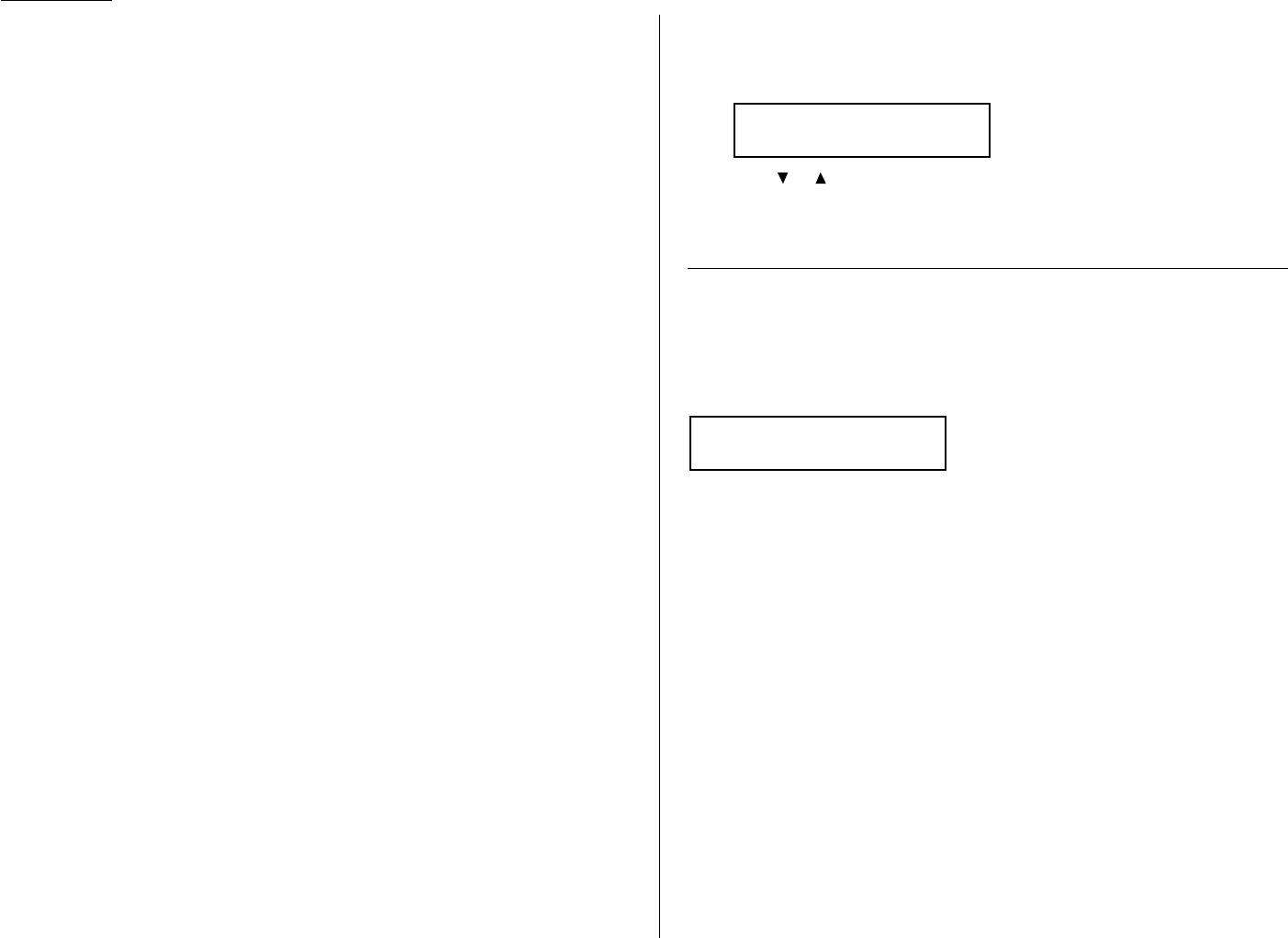
2.10
Basic operation
Tel/Fax Ready mode
The Tel/Fax Ready mode is a combination of the Tel Ready and Fax Ready modes.
Use it if: • An optional handset is installed on your fax machine
and
• You’re using the machine as both a telephone and a fax machine
In this mode: Your fax machine rings the number of times you’ve identified in the
user settings (the default setting is two times). If you don’t use the
optional handset to answer the call, your fax machine answers the
call. If a caller sends a fax, your machine begins receiving it. If a
voice call comes in, your machine detects it and sounds a special
ring,telling you to answer using the optional handset.
Ans/Fax Ready mode
Use it if: You’re using an answering machine that’s connected directly to your
fax machine.
In this mode: An answering machine connected to your fax machine answers each
call. If a voice call comes in, the answering machine begins to record
the incoming message. If your fax machine hears a fax tone, it
begins receiving the fax message.
Using an answering machine with your fax machine
To connect your answering machine to your fax machine:
1Set the fax machine for Ans/Fax Ready, as described on right column.
2Set your answering machine to answer calls after no more than two rings.
(See the answering machine’s instructions if necessary.)
3Create a new outgoing message on your answering machine.
Here’s a suggested message:
Hello! You’ve reached [your name or telephone number].To leave a voice
message, please wait for the beep.To send a fax, press
START
on your fax
machine.Thanks for calling!
Important: Your answering machine’s outgoing message must be no longer
than 10 seconds.
Detection of “silent” fax machines
Some older fax machines don’t send fax tones when transmitting, which can cause
problems when using an answering machine with your fax.
But your fax machine can accommodate these “silent” machines without disrupting
your answering machine operation.
How to select the fax reception mode
1Press
MENU
,9, and then press
ENTER
four times.The
LCD
shows your current
fax reception mode:
2Press or until your desired reception mode appears.
3Press
ENTER
to save the setting.
If the paper runs out while fax reception
When your machine runs out of paper, it beeps, the
ALARM
light glows and the
LCD
shows which source has run out of paper – the 1st cassette,2nd cassette (optional)
or the bypass tray.
In this example, the machine runs out of paper in 1st cassette:
Note: If the letter, legal or half-letter sized paper has been set in the bypass tray,
your machine uses it when running out of paper in the paper cassette(s)
during fax reception.Your machine’s bypass tray can hold up to 50 sheets of
the paper.
Your fax machine cannot print fax messages without paper. But it can still receive
documents into its memory, as described in the section below.
Out-of-paper reception
If your machine runs out of paper, it stores up to 250 fax receptions in its memory.
This is called out-of-paper reception. Once you refill the paper supply, the fax
machine prints the stored messages automatically.
Note: The number of pages (not receptions) your fax machine can store for
out-of-paper reception will vary. It depends on:
• Your machine’s memory capacity
• Types of documents being sent to your machine
• Document mode of documents being sent to your machine
1st Cassette
Please Supply Paper
Fax Ready
$$
/
##
/Enter
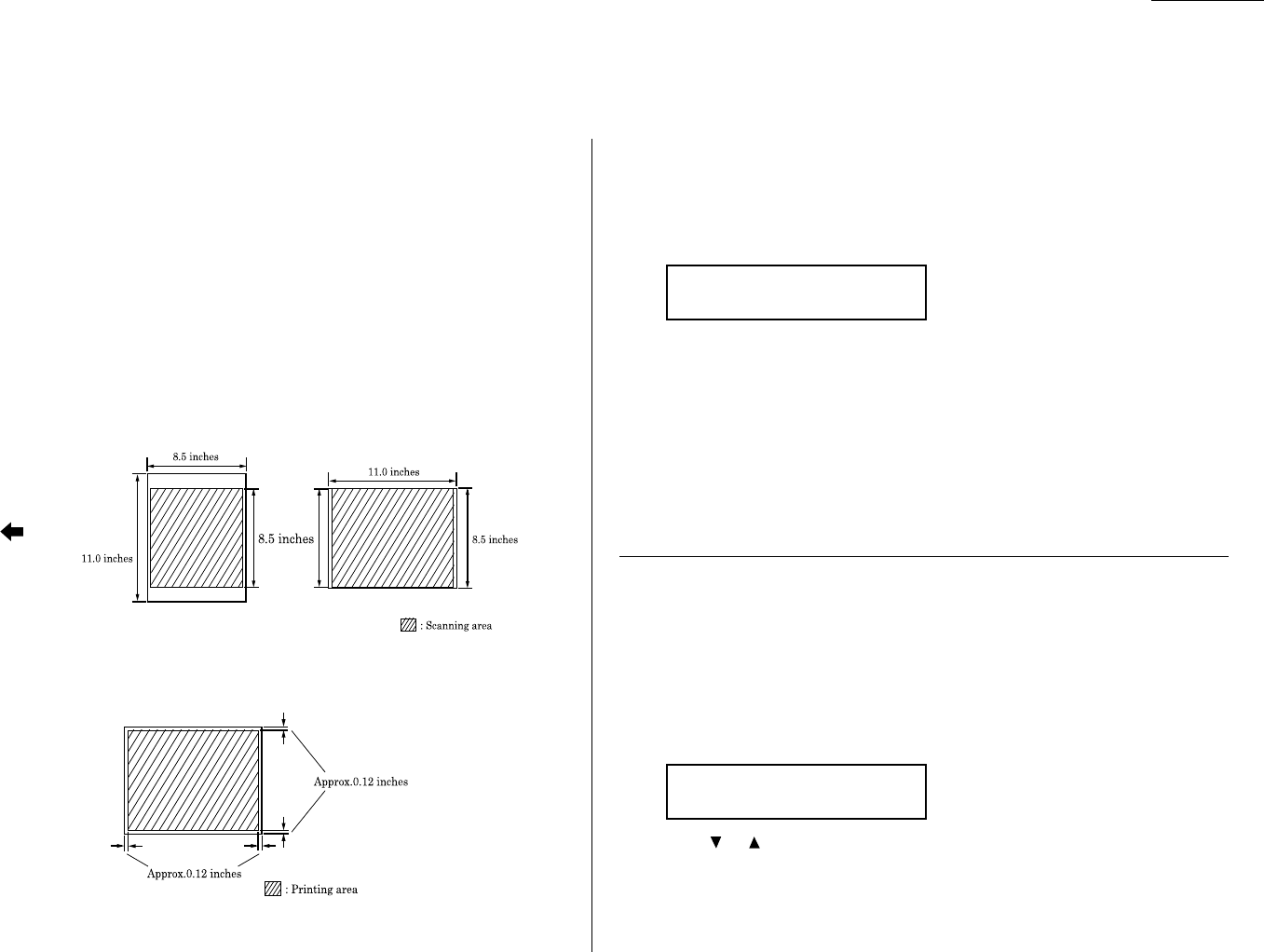
2.11
Basic operation
Guidelines
Before you begin making copies,please read the following guidelines.
Acceptable document sizes
You can set up to 80 sheets of letter-sized document in the
ADF
at one time.
The acceptable document sizes for coping are same as for faxing.Refer to page 2.1.
Scanning width
The scanning width when you make copies is 8.5 inches, no matter the document
size.
Note: If the document size is Letter, for example, the scanning area will be as
follows:
Printing margin
The machine does not print approx. 0.12 inches on each side of the paper.
How to make copies
Your fax machine also doubles as a convenient copier.
1Press
COPY
to change to Copy mode.
When the machine is in the Copy mode,the
LCD
shows:
2Place your original document in
ADF
face up just as you would sending a fax.
3As needed, set the following:
• Adjust document mode and contrast
• Enter the number of copies
4Press
START
to start the copying.
Note: When you make multiple copies,your machine always sort copies.
Note: To stop the copying, press
STOP
.
Changing the reduction ratio
Your fax machine is capable of reduction when copying.You can choose from
78% (Legal → Letter), 100% and Auto.
Note: If the “Auto” is set, the machine automatically reduce the original document
size to fit on the paper size, which makes the margin as little as possible.
To change the reduction ratio:
1Press
MENU
,2,3,2,
ENTER
.
2Press or until your desired ratio appears.
3Press
ENTER
to save the setting.
4Press
STOP
to return to the standby mode.
Prt Reduc. Rate:100%
$$
/
##
/Enter
# Of Pgs. To Copy 01
Fine
Feed direction
Making copies

2.12
Basic operation
Using the bypass tray
When you need to use a size of paper not currently loaded in your machine’s paper
cassette(s), or when you want to use a special type of paper (such as transparency
film), use the bypass tray.
Important: Your machine automatically selects suitable paper according to the
document size and reduction rate. So, if the suitable sized paper for
your copying is in the paper cassette, the machine will use it even if
you set the paper in the bypass tray.
Note: If the same sized paper is set in the both the paper cassette and bypass tray,
turn the bypass tray priority mode (see page 4.7) to get the priority to use
the paper which is set on the bypass tray than the paper in the cassette.
Note: If loading transparency (OHP) film into the bypass tray, be sure that the
sheet is designed for laser printers and not for copiers.Also, be sure that the
film does not have a paper backing and/or a leading strip. If it does, remove
the paper backing and/or strip before inserting. Only film should go in, not
film with any backing or strip.
1Place your original document in
ADF
face up just as you would send a fax.
Note: Place the original document in the same orientation as the paper in
the bypass tray.
2Set the paper in the bypass tray.
See the table of “Acceptable paper size and cassette capacity” on page 1.7 and
“Loading paper in bypass tray” on page 1.9 for more information.
3If necessary, select desired document mode, contrast, reduction ratio.
4Press
START
to begin the copying process.
Memory overflow message
If you’ve stored too much information in your machine’s memory, a “Memory
Overflow” message may appear on the
LCD
:
This appears because (1) too many pages have been stored in the memory, or (2)
the pages that are stored have too much information on them for your fax machine
to remember.
If this message appears,press
START
to tell your machine to copy as many pages in
memory, or press
CANCEL
to delete from memory all pages stored during the current
operation (but not previous operations).
Note: If you don’t operate your machine within 60 seconds, the machine will auto-
matically print the document stored in the memory during the current
operation.
If the paper runs out while copying
When your machine runs out of paper, it beeps, the
ALARM
light glows and the
LCD
shows which source has run out of paper – the 1st cassette,2nd cassette (optional)
or the bypass tray.
In this example, the machine runs out of the paper in the 1st cassette:
If you want to cancel the current copying job, press
STOP
. Otherwise, supply the
paper to displayed paper source to resume the copying.
1st Cassette
Please Supply Paper
Memory Overflow
Start Or Cancel
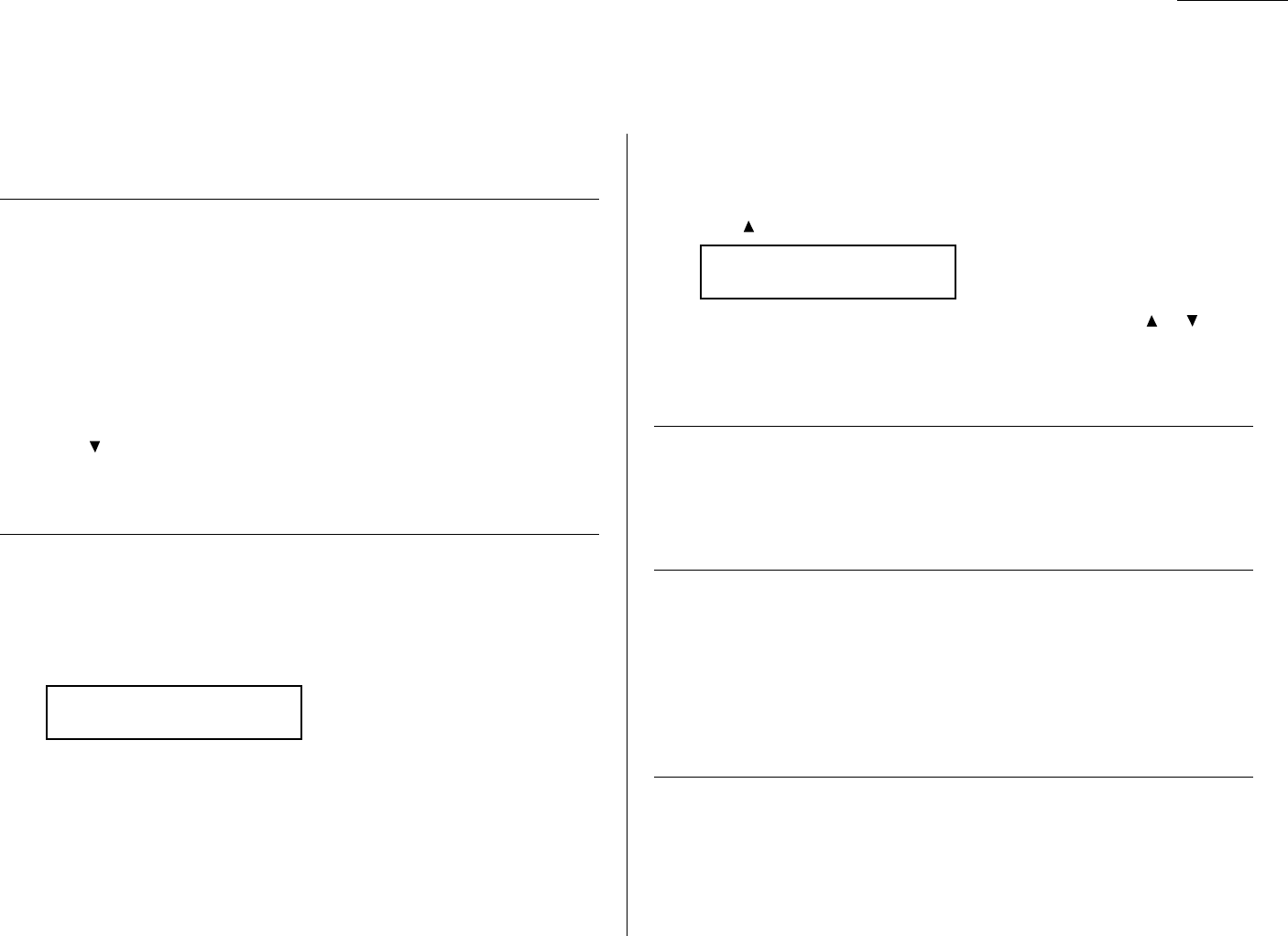
2.13
Basic operation
Your fax machine can also be used as a phone, if you have an optional handset
installed.The following is a brief look at the machine’s telephone features.
Dialing a telephone number
1Pick up the optional handset.You will hear a dial tone.
2Dial the number by the using numeric keypad.
— or —
Press the one-touch key. (See “One-touch phone dialing,” on page 3.3.)
— or —
Press
SPEED DIAL
/
GROUP
, then press the three digit speed-dial number. (See
“Phoning via speed-dial,” on page 3.5.)
— or —
Press (
TEL INDEX
), then search the name you want to call using the cursor
key. (See “Easy dial directory dialing,” page 3.7.)
3When the other person answers,begin speaking.
On-hook dialing
Because your machine has a monitor speaker, you can dial without picking up the
optional handset. For hands-free dialing:
1Press
MONITOR
/
CALL
.You’ll hear a dial tone (unless you have set your speaker
volume to Off; see page 1.7), and the
LCD
shows:
2Dial the number you want. Use either the numeric keypad, a one-touch key, a
speed-dial number or telephone index to dial.
Important: Your machine’s monitor speaker is not a speaker phone. If a person
answers the call, pick up the handset to speak.
Note: If the call fails,press
MONITOR
/
CALL
to hang up.
Redial
1Lift the optional handset to get a dial tone.
2Press (
REDIAL
).The
LCD
will show:
3Your machine can remember the latest 10 dial numbers. Press or until
the dial number you want to redial appears.
4Press
START
.
When the other person answers,use the optional handset to speak.
Call request
You can send or receive a fax message and have a regular phone conversation on the
same call.
For more information on how to use this function, see page 3.23.
Changing the dialing type
If, with your machine set for “pulse” dialing, you must enter tones (“
DTMF
”) during a
call, press
PAUSE
/
DIAL OPT
.five times (the “–!” symbol will be shown on the
LCD
).Your
machine now will “tone” dial all subsequent numbers.
Note: Using this key enables tone transmission from the numeric keypad after the
call is connected.When you hang up the call, your machine will return to
“pulse” dialing for the next call.
Dialing in the event of a power failure
If your fax is equipped with an optional handset, you can use that handset to manu-
ally answer calls in the event of a power failure.But your fax machine cannot send or
receive a fax during a power failure.
View Redial History
0:1234567890
** Tel Mode **
_
Using your fax machine as a phone
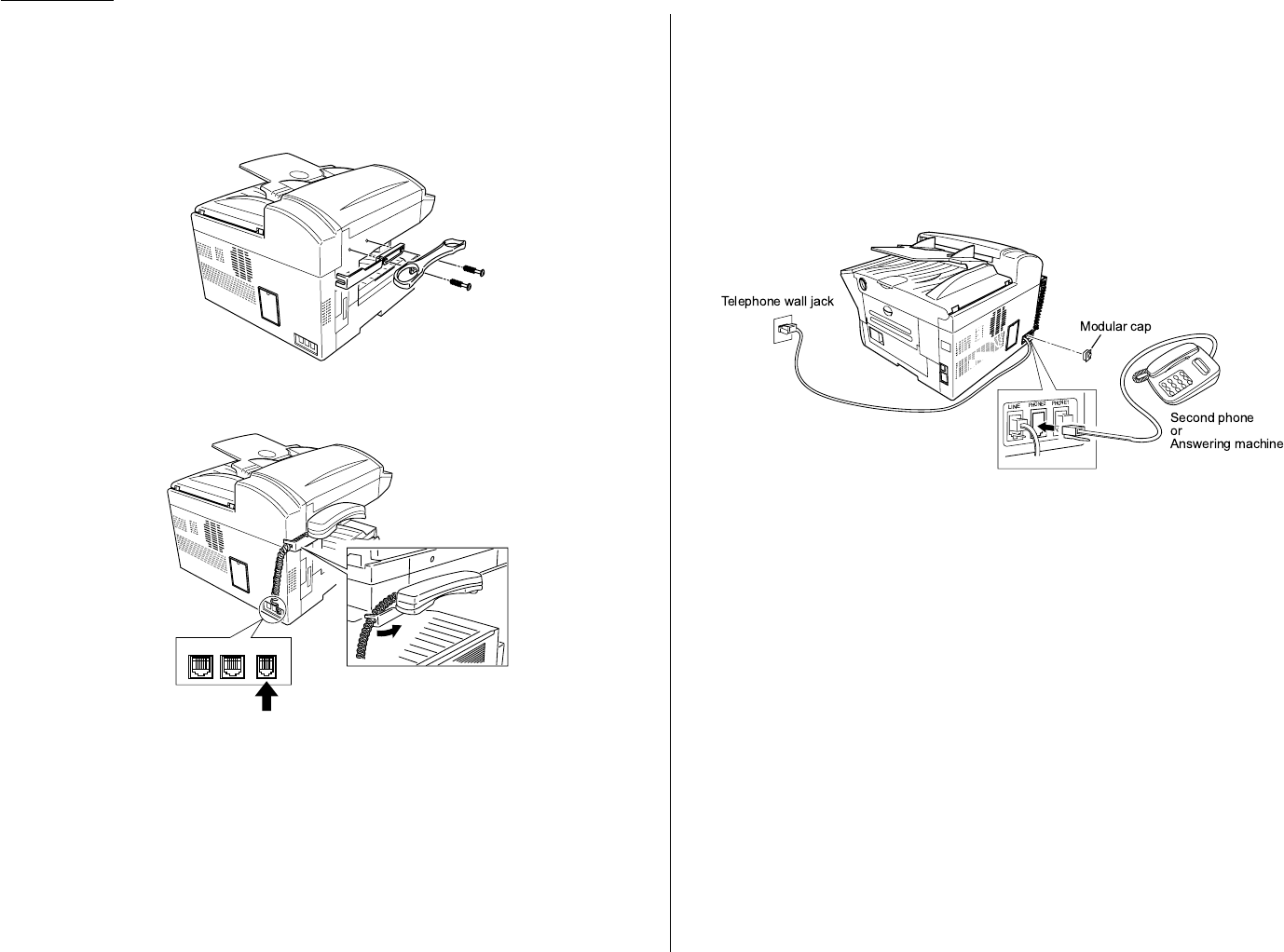
2.14
Basic operation
Attaching an optional handset
You may purchase an optional handset for your fax machine. Here is how to attach
the handset.
1Using a Phillips-head screwdriver, attach the handset cradle to the left
side of your machine,using the screws included with the cradle.
2Plug one end of the handset cord (it’s curled) into the
PHONE
1jack on the rear
side of your machine.
3Plug the other end of the handset cord into the jack on the handset. If con-
nected to a phone line, your fax machine is now “off-hook.”
Note: The handset has a small “flash” button which you can press while
holding the handset, putting the fax machine back “on-hook” until you
can hang up the handset properly in step 4.
4Place the telephone handset onto the handset cradle.The cradle will press the
handset’s “flash” button, hanging up the handset.
Attaching a second phone
Want to attach a second phone (even a cordless model!) to your fax machine, so they
can share the same phone jack? No problem.
Before we go further, let’s explain the idea.You’re plugging the second phone’s
phone line into your machine’s
PHONE
2jack, not the wall phone jack. In such a
setup, only your machine connects to the wall.The second phone receives phone sig-
nals through your machine.
Now, let’s proceed…
1If your second phone is already plugged into a wall phone jack,disconnect it
from that jack. Hold onto the phone plug; you’ll need it in step 2.
Note: Of course, if your second phone is a model which requires
AC
power, as
is true for the base of a cordless phone, don’t unplug it from its
AC
power jack!
2Using the plug mentioned in step 1, plug the phone cable from your second
phone into the
PHONE
2jack on the left side of your fax machine.
LINE
PHONE1PHONE2

2.15
Basic operation
This page intentionally blank.

This chapter describes
convenient features of your
machine.
Autodialer . . . . . . . . . . . . . . . . . . . . . . . . . . . . . . . . . . . . . . . . . . . . . . . . . . . . . . . . . . 3.1
Broadcasting . . . . . . . . . . . . . . . . . . . . . . . . . . . . . . . . . . . . . . . . . . . . . . . . . . . . . . . . 3.9
Delayed transmission . . . . . . . . . . . . . . . . . . . . . . . . . . . . . . . . . . . . . . . . . . . . . . . . 3.10
Batch transmission . . . . . . . . . . . . . . . . . . . . . . . . . . . . . . . . . . . . . . . . . . . . . . . . . . 3.11
Polling . . . . . . . . . . . . . . . . . . . . . . . . . . . . . . . . . . . . . . . . . . . . . . . . . . . . . . . . . . . . 3.14
Soft keys . . . . . . . . . . . . . . . . . . . . . . . . . . . . . . . . . . . . . . . . . . . . . . . . . . . . . . . . . . 3.15
Special features . . . . . . . . . . . . . . . . . . . . . . . . . . . . . . . . . . . . . . . . . . . . . . . . . . . . 3.16
Security features . . . . . . . . . . . . . . . . . . . . . . . . . . . . . . . . . . . . . . . . . . . . . . . . . . . 3.42
Advanced Features
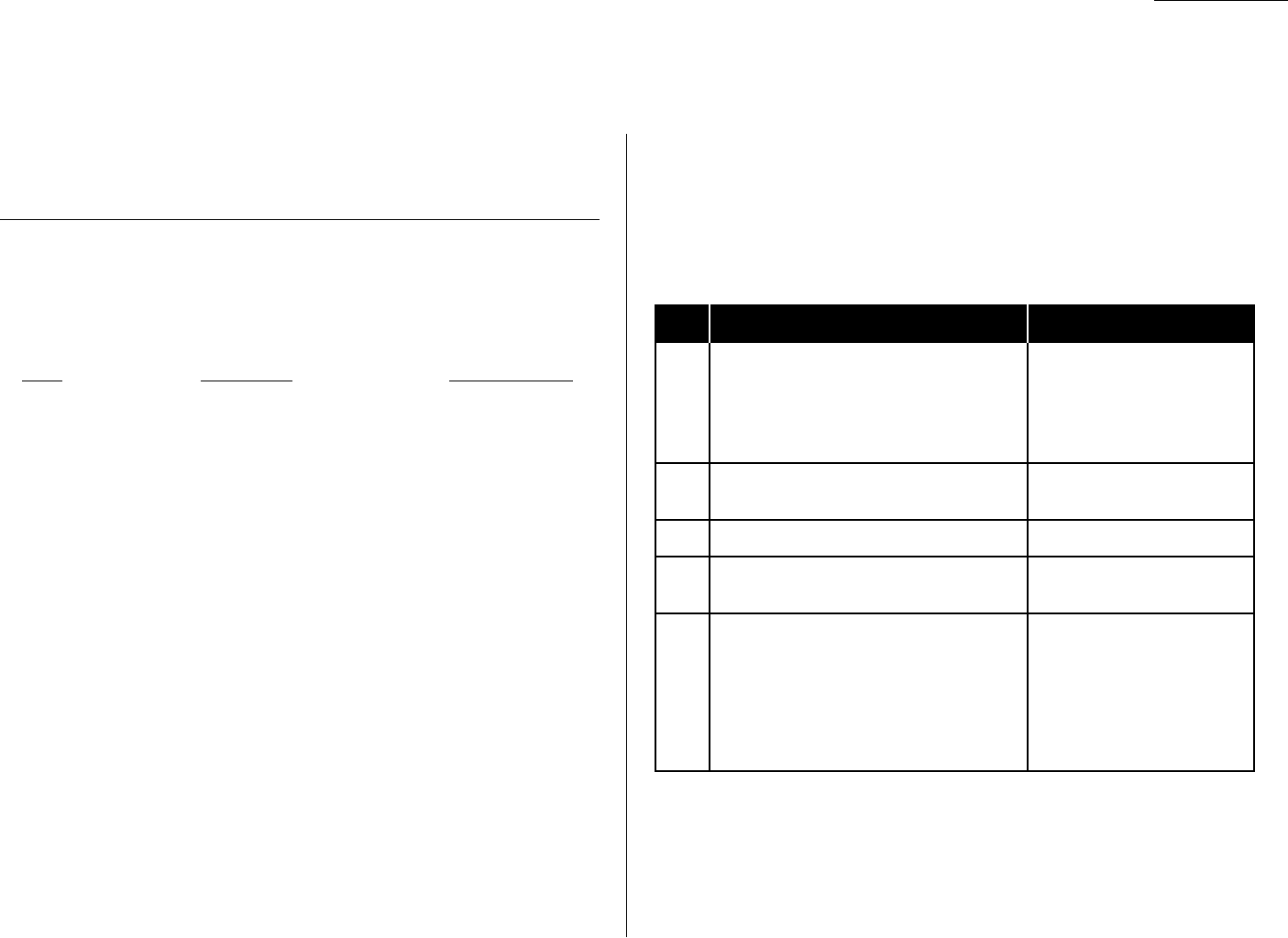
Your fax machine’s autodialer stores your most frequently called phone and fax
numbers for instant recall so you don’t have to remember them. It’s something like
an electronic phone book.
Autodialer basics
How do you autodial?
There are two kinds of autodialer numbers.The difference between the two is how
you dial them:
Type How to dial Amount stored
One-touch Press one of the keys, marked 01–56 56
on the left side of the control panel
Speed-dial Press
SPEED DIAL
/
GROUP
followed by a 144
three-digit identifier, from 001 to 144
Total amount of numbers stored 200
Call groups
As you set up your autodialer, you may also want to set up call groups. These are sets
of phone numbers that make it easy to send the same fax to many different loca-
tions. For example, one call group may include all of your clients in one city, another
group may include all of your employees and another may include all your vendors.
Your fax machine can store as many as 200 numbers in up to 32 call groups.
See also “Call group dialing,” pages 3.6–3.7.
Location
ID
s and the EasyDial directory
When you store numbers in your autodialer, you can give these numbers descriptive
names,such as “Chicago office” or “Billing department”.Your machine calls this
name a Location
ID
.
Your machine’s autodialer sorts these location
ID
s alphabetically. Using your
EasyDial directory, you can look up these numbers by their descriptive names, just
as if you were using a phone book.
We’ll explain how to store the numbers and location
ID
s in the next few pages.
The EasyDial directory is discussed in detail on page 3.7.
Special Dialing Characters
Your fax machine allows you to enter special dialing characters when programming
the autodialer.These characters include hyphens, which make phone numbers eas-
ier to read, and special characters needed for international calls.
The chart below briefly describes each of these characters. It also tells you what
keys to press on your fax machine to store those characters in your autodialer:
Char. What it does Keystroke(s)
Enters a pause. Each pause lasts two
PAUSE
/
DIAL OPT
.(once)
seconds (or whatever length you set; see [after you enter at least one
–/ page 4.5). Each pause uses two of the other character]
characters you can store in one phone
number.
–Makes long numbers easier to read.
PAUSE
/
DIAL OPT
.(twice)
Doesn’t change fax machine operation.
/(Has no effect in the United States.)
PAUSE
/
DIAL OPT
.(3 times)
!Tells your fax machine to pause until it
PAUSE
/
DIAL OPT
.(4 times)
“hears” a dial tone.
If your fax machine is on a pulse (not
tone-dialing) line, switches from pulse-
dialing to tone (“
DTMF
”)-dialing.Use after
PAUSE
/
DIAL OPT
.(5 times)
–! the actual phone number but before any
characters (such as a long-distance
carrier’s access code) which must be in
DTMF
tone. Do not use on a tone line.
Advanced features
3.1
Autodialer
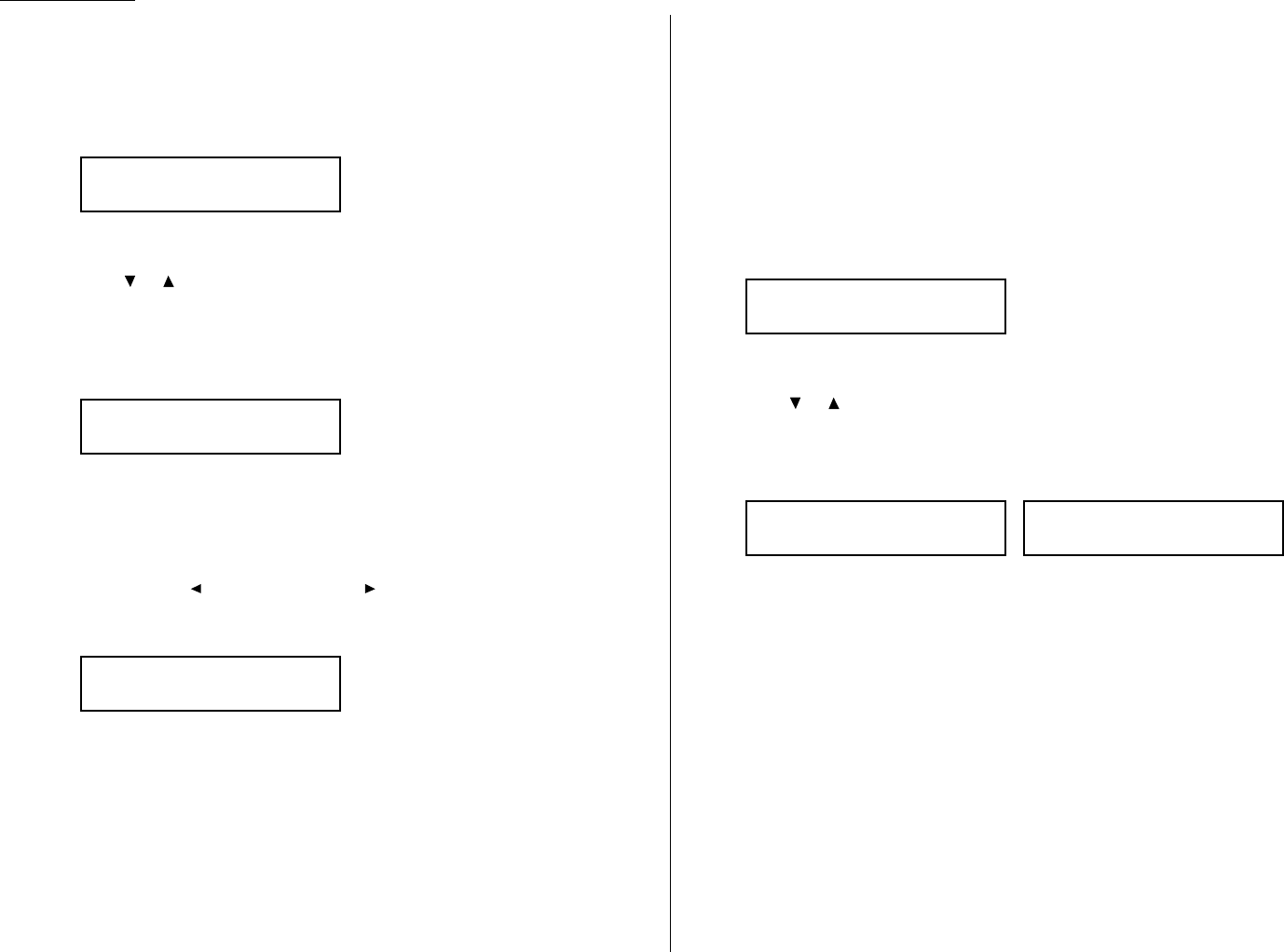
Using one-touch keys
Your fax machine stores up to 56 one-touch numbers using the keys marked 01–56.
Entering or changing a one-touch number
1Press
MENU
,1,1,1,
ENTER
.The
LCD
shows the empty one-touch number:
Note: If a one-touch number other than 01 appears on the
LCD
, it means
that you have already entered a number for 01.
2Press or to select the one-touch key in which you want to store a number
or change a previously stored number.
Note: You can select the one-touch key by pressing that key on the control
panel.
3Press
ENTER
.The
LCD
shows:
4Use the numeric keypad to enter the number exactly as your machine should
dial it, including whatever access codes your phone system requires. (You may
want to review “Special dialing characters,” page 3.1.) The number can be up
to 40 characters in length:
Your
LCD
can show only 20 characters at a time.To view characters beyond
those 20, press to scroll to the left or to scroll to the right.
5When the number is as you want it, press
ENTER
to store it.The
LCD
will
show:
The machine is now prompting you for a name — a Location
ID
— so you’ll be
able to find it in the EasyDial directory (see page 3.7).
Note: If a Location
ID
is already registered in this one-touch key, it is shown
on the
LCD
. If you wish to change the location
ID
, press
CANCEL
to
erase it and then enter another location
ID
.
6Enter the Location
ID
. (Regarding how to enter the character, see “Entering
character” on page 1.12.) A number’s Location
ID
may be up to 24 characters
in length.
7Press
ENTER
to save the setting.
The
LCD
will display the next empty one-touch number.
If you do want to enter another one-touch number, go back to step 2.
If you do not want to enter any more one-touch numbers, press
STOP
to finish.
Use the autodialer labels in your fax’s packaging to write down the stored
numbers for easy reference.
Erasing a one-touch number
1Press
MENU
,1,1,2,
ENTER
.The
LCD
shows the one-touch number you have
already entered:
Note: If the one-touch number that appears is other than 01, it means that
01 is empty.
2Press or to select the one-touch key you want to erase.
Note: You can select the one-touch key by pressing that key on the control
panel.
3Press
ENTER
.The following two displays will appear alternately:
Important: If you want to quit without erasing the one-touch number
you’ve selected, press
CANCEL
.The fax will return to step 2.
4Press
ENTER
to erase the number.
To erase another one-touch number, repeat steps 2–4.
Otherwise, press
STOP
to return to standby mode.
Printing a list of one-touch numbers
Forgot which number is stored in which one-touch key? Just print a list of your one-
touch numbers. The list includes each key’s number, the Location
ID
(if any) and
fax/telephone number you’ve stored in the key.
To print a list of one-touch numbers, press
MENU
,5,1,0,5,
ENTER
.
02:Erase One-Touch
No
→→
Cancel
02:Erase One-Touch
Yes
→→
Enter
Select One-Touch
01:9-1-555-345-6789
02:Name ;Upper
_
02:Fax Number
_
Select One-Touch
01:No Number Stored
Advanced features
3.2

Advanced features
One-touch fax dialing
To dial a fax call using a one-touch number:
1Place the the document in the
ADF
.
2Adjust document mode and contrast if necessary.
3Press the one-touch key in which you’ve stored the number.
What happens next depends on whether you specified memory transmission or
real time transmission:
If you specified Quick Memory transmission:
• Your fax machine scans the first page of your document into memory, then dials
the other fax machine.
• While dialing,your machine scans the other documents into memory.
• The
LCD
shows the Location
ID
, the document’s width and document mode.
Note: If the one-touch key doesn’t have a Location
ID
, the number appears.
• When the other machine answers,your fax transmits the scanned document
directly from memory. (To review Quick memory transmission,see page 2.3.)
If you specified normal memory transmission:
• Your fax machine scans your entire document into memory first, then dials the
other fax machine.
• The
LCD
shows the Location
ID
, the document’s width and document mode.
Note: If the one-touch key doesn’t have a Location
ID
, the number appears.
• When the other machine answers,your fax transmits the document directly from
memory. (To review Memory transmission, see page 2.2.)
If you specified real time transmission:
• Your fax machine dials the other fax machine.
• The
LCD
shows the Location
ID
, the document’s width and document mode.
Note: If the one-touch key doesn’t have a Location
ID
, the number appears.
• When the other machine answers, your fax feeds the document through its scan-
ner, transmitting as it goes. (To review Real time transmission, see page 2.3.)
One-touch phone dialing
To dial a phone call using a one-touch number, you must have an optional handset
attached to your machine. (Contact your authorized Muratec dealer to order an
optional handset.)
To make the call:
1Obtain a dial tone by doing one of the following:
• Lift the optional handset
• Press
MONITOR
/
CALL
to use the monitor speaker
2Press the one-touch key in which you’ve stored the number.As the machine
dials,it shows the number on the
LCD
.
Note: Remember that your fax machine’s monitor speaker is not a speakerphone.
If you dialed by using the monitor speaker, pick up the handset to speak to
the person that answers.
Note: If the call fails,and you used
MONITOR
/
CALL
to dial, press
MONITOR
/
CALL
to
hang up.
3.3
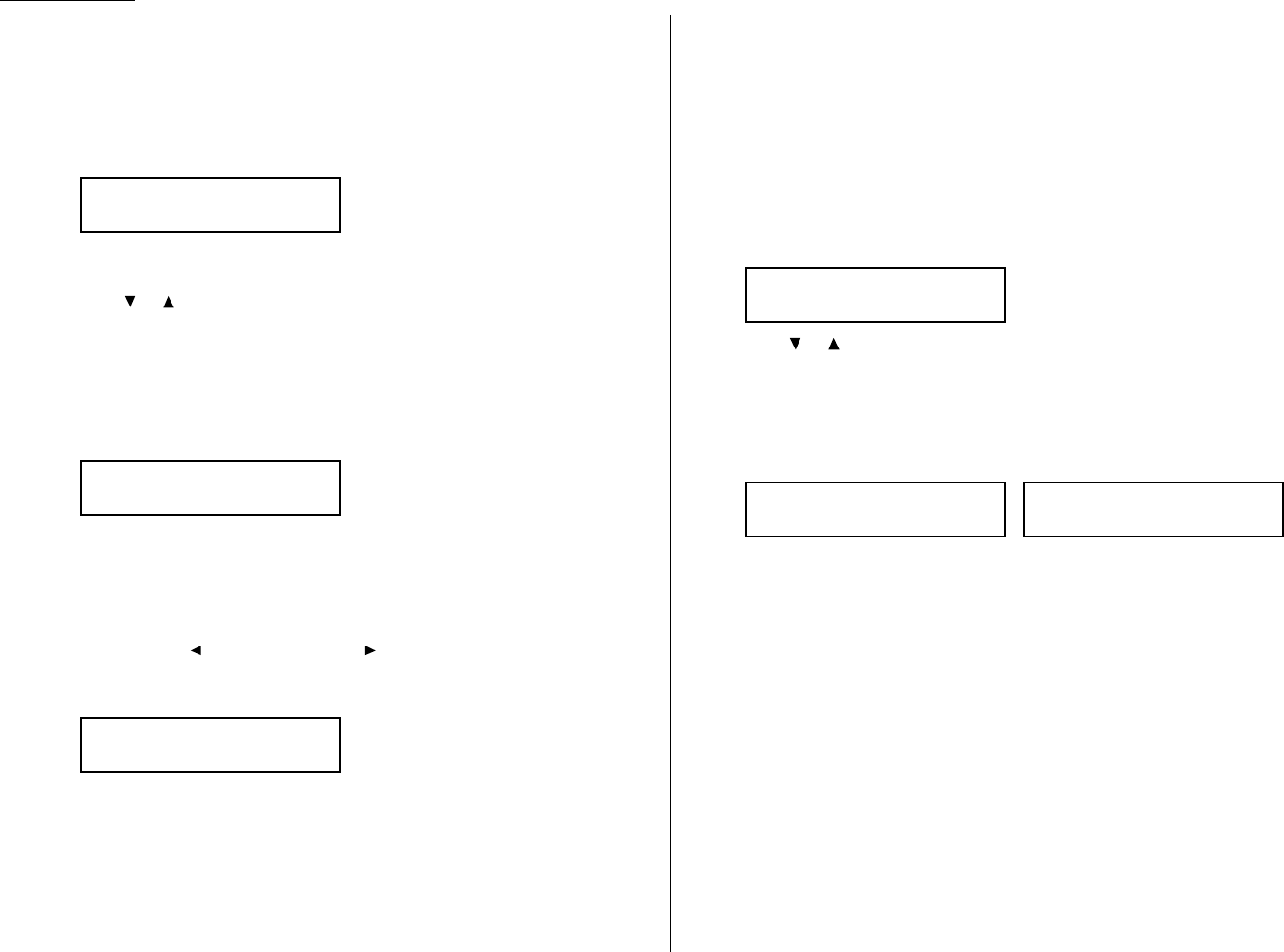
Advanced features
Using speed-dial numbers
Your fax machine will store up to 144 speed-dial numbers, designated by three-digit
identifier codes from 001 through 144.
Entering or changing a speed-dial number
1Press
MENU
,1,2,1,
ENTER
.The
LCD
shows:
Note: If a speed-dial number other than 001 appears on the
LCD
, it means
you have already entered a number for 001.
2Press or to select the speed-dial number in which you want to store a
number or change a previously stored number.
Note: You can select the speed-dial number by directly entering that three-
digit identifier code.When entering the identifier code for speed-dial
numbers less than 100, you must enter leading zeroes to make three
digits.For example,001-099.
3Press
ENTER
.The
LCD
shows:
4Use the numeric keypad to enter the number exactly as your machine should
dial it, including whatever access codes your phone system requires. (You may
want to review “Special dialing characters,” page 3.1.) The number can be up
to 40 characters in length:
Your
LCD
can show only 20 characters at a time.To view characters beyond
those 20, press to scroll to the left or to scroll to the right.
5When the number is as you want it, press
ENTER
to store it.The
LCD
now
shows:
The machine is now prompting you for a name — a Location
ID
— so you’ll be
able to find it in the EasyDial directory (see page 3.7).
Note: If a Location
ID
is already registered in this one-touch key, it is shown
on the
LCD
. If you wish to change the location
ID
, press
CANCEL
to
erase it and then enter another location
ID
.
6Enter the Location
ID
. (Regarding how to enter the character, see “Entering
character” on page 1.12.) A number’s Location
ID
may be up to 24 characters
in length.
7Press
ENTER
to save the setting.
The
LCD
will display the next empty speed-dial number.
If you do want to enter another speed-dial number, go back to step 2.
If you do not want to enter any more speed-dial numbers, press
STOP
to finish.
Erasing a speed-dial number
1Press
MENU
,1,2,2,
ENTER
.The
LCD
shows:
2Press or to select the speed-dial in which you want to erase.
Note: You can select the speed-dial number by directly entering that three-
digit identifier code.When entering the identifier code for speed-dial
numbers less than 100, you must enter leading zeroes to make three
digits.For example,001-099.
3Press
ENTER
.The following two displays will appear alternately:
Note: If you want to quit without erasing the speed-dial number you’ve
selected, press
CANCEL
.The fax will return to step 2.
4Press
ENTER
to erase the number.
To erase another speed-dial number, repeat steps 2–4.
Otherwise, press
STOP
to return to standby mode.
Printing a list of speed-dial numbers
You can easily print a list of your speed-dial numbers. The list includes each number’s
three-digit identifier, the Location
ID
(if any) and fax/telephone number you’ve
stored for that speed-dial number.
To print a list of speed-dial numbers, press
MENU
,5,1,0,6,
ENTER
.
005:Erase Speed Dial
No
→→
Cancel
005:Erase Speed Dial
Yes
→→
Enter
Enter Speed Dial No.
001:9-555-584-6950
005:Name ;Upper
_
005:Fax Number
_
Enter Speed Dial No.
001:No Number Stored
3.4

Advanced features
Fax dialing via speed-dial
To dial a fax call using a speed-dial number:
1Place the document in the
ADF
.
2Adjust document mode and contrast if necessary.
3Press
SPEED DIAL
/
GROUP
once.The
LCD
shows:
4Use the numeric keypad to enter the three-digit identifier (such as 018, in this
example) for the speed-dial number you want to dial. The
LCD
shows the
Location
ID
(or fax number) you stored:
5Press
START
.
What happens next depends on whether you specified memory transmission or real
time transmission:
If you specified quick memory transmission:
• Your fax machine scans the first page of your document into memory, then dials
the other fax machine.
• While dialing,your machine scans the other documents into memory.
• The
LCD
shows the Location
ID
, the document’s width and document mode.
Note: If the speed-dial number doesn’t have a Location
ID
, the number appears.
• When the other machine answers,your fax transmits the scanned document
directly from memory. (To review Quick memory transmission,see page 2.3.)
If you specified normal memory transmission:
• Your fax machine scans your entire document into memory, then dials the other
fax machine.
• The
LCD
shows the Location
ID
, the document’s width and document mode.
Note: If the speed-dial number doesn’t have a Location
ID
, the number appears.
• When the other machine answers,your fax will transmit the document directly
from memory. (To review Memory transmission, see page 2.2.)
If you specified real time transmission:
• Your fax machine dials the other fax machine.
• The
LCD
shows the Location
ID
, the document’s width and document mode.
Note: If the speed-dial number doesn’t have a Location
ID
, the number appears.
• When the other machine answers, your fax feeds the document through its scan-
ner, transmitting as it goes. (To review the Real time transmission, see page 2.3)
Phoning via speed-dial
To dial a phone call using a speed-dial number, you must have an optional handset
attached to your machine.To make the call:
1Obtain a dial tone by doing one of the following:
• Lift the handset
• Press
MONITOR
/
CALL
to use the monitor speaker
2Press
SPEED DIAL
/
GROUP
once.The
LCD
shows:
3Use the numeric keypad to enter the three-digit identifier for the speed-dial
number you want to dial. As the machine dials, it shows the number on the
LCD
.
Note: Remember that your fax machine’s monitor speaker is not a speakerphone.
If you dialed using the monitor speaker, pick up the handset to speak to the
person that answers!
Note: If the call fails,and you used
MONITOR
/
CALL
to dial, press
MONITOR
/
CALL
to
hang up.
** Tel Mode **
S_
Plano Office
S018_
Enter Speed Dial No.
S_
3.5
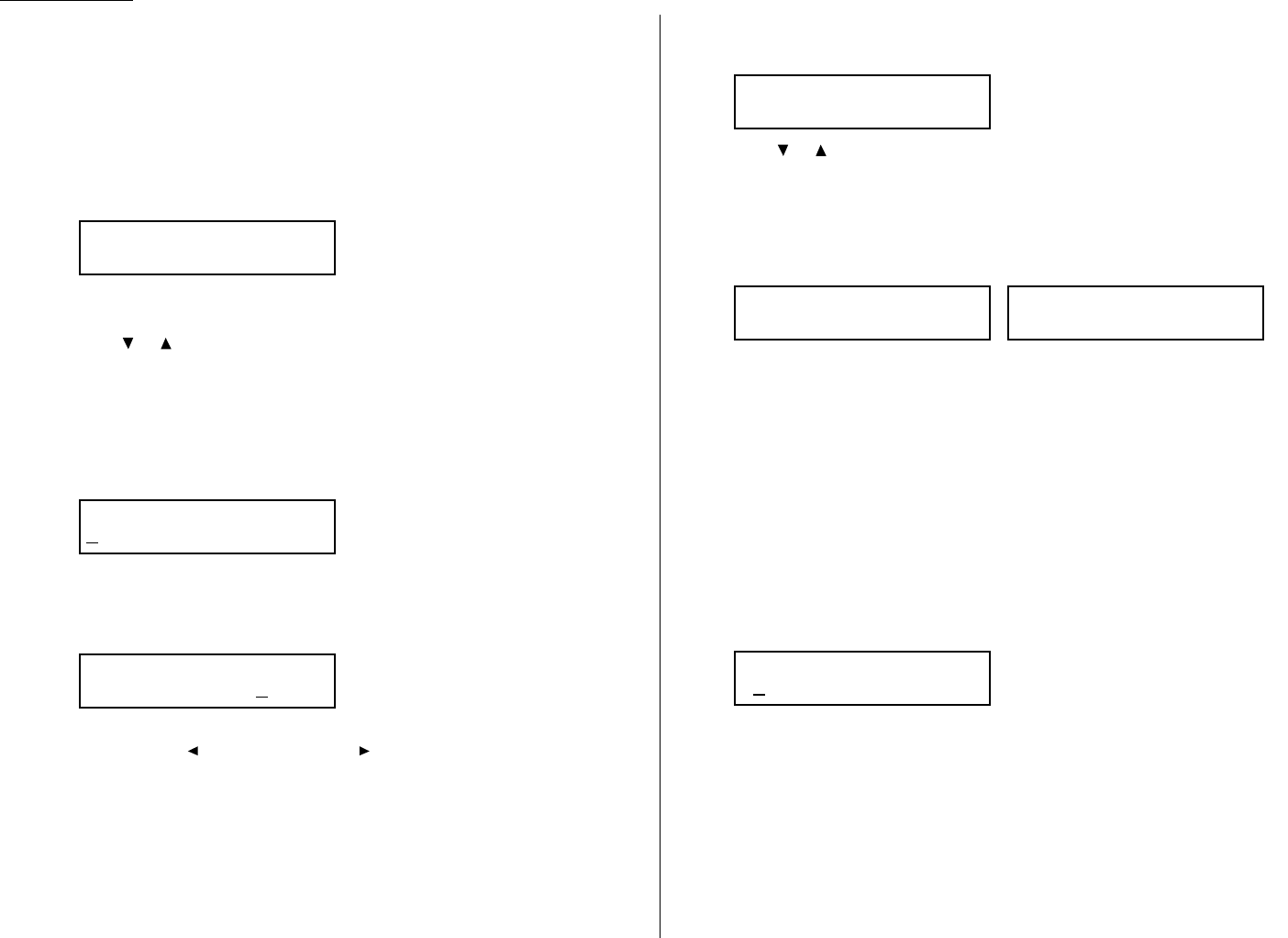
Advanced features
Call group dialing
If you frequently send the same fax message to more than one location, store the
one-touch key(s) or speed-dial number(s) into a group.
After you store, you can send the same fax to many different locations by pressing
SPEED DIAL
/
GROUP
.
Entering or changing a call group
1Press
MENU
,1,3,1,
ENTER
.The
LCD
shows the empty group number:
Note: If a group number other than 01 appears on the
LCD
, it means that
you have already entered numbers for 01.
2Press or to select the group number in which you want to store a num-
ber or change a previously stored number.
Note: You can select the group number by directly entering that two-digit
identifier code.When entering the identifier code for group numbers
less than 10, you must enter leading zero to make two digits. For exam-
ple, 01-09.
3Press
ENTER
.The
LCD
shows:
4Enter all the one-touch number(s) or the speed-dial number(s) you want to
store into the group number by pressing the one-touch key or
SPEED DIAL
/
GROUP
and the numeric keypad.A comma will be automatically
inserted between each number.
Your
LCD
can show only 20 characters at a time.To view characters beyond
those 20, press to scroll to the left or to scroll to the right.
5When all numbers are entered, press
ENTER
to store it.
6The
LCD
will display the next empty group number.
If you do want to enter numbers for another group number, go back to step 2.
If you do not want to enter any more numbers, press
STOP
to return to
standby mode.
Erasing a call group
1Press
MENU
,1,3,2,
ENTER
.The
LCD
shows:
2Press or to select the group number you want to erase.
Note: You can select the group number by directly entering that two-digit
identifier code.When entering the identifier code for group numbers
less than 10, you must enter leading zero to make two digits. For exam-
ple, 01-09.
3Press
ENTER
.The following two displays will appear alternately:
Note: If you want to quit without erasing the group number you’ve selected,
press
CANCEL
.The fax will return to step 2.
4Press
ENTER
to erase the number.
To erase another group number, repeat steps 2–4.
Otherwise, press
STOP
to return to standby mode.
Send a fax via call group
Note: The call group dialing can be used only with memory transmission.
1Place the document in the
ADF
.Adjust document mode and contrast if neces-
sary.
2Press
SPEED DIAL
/
GROUP
twice.
3Use the numeric keypad to enter the group number you want to send a fax.
Note: If you want to send a fax to several groups at a time, press
BROADCAST
then repeat steps 2–3.Also,you can include the one-touch location,
speed-dial location and up to 30 manually dialed number. (See
“Broadcasting,” page 3.9.)
4Press
START
.
Enter Group No.
G
01:Erase Group Dial
No
→→
Cancel
01:Erase Group Dial
Yes
→→
Enter
Enter Group No.
01:[01],[03],S002
01:Enter One-T/Speed
[01],[03],S002
01:Enter One-T/Speed
Enter Group No.
01:No Number Stored
3.6
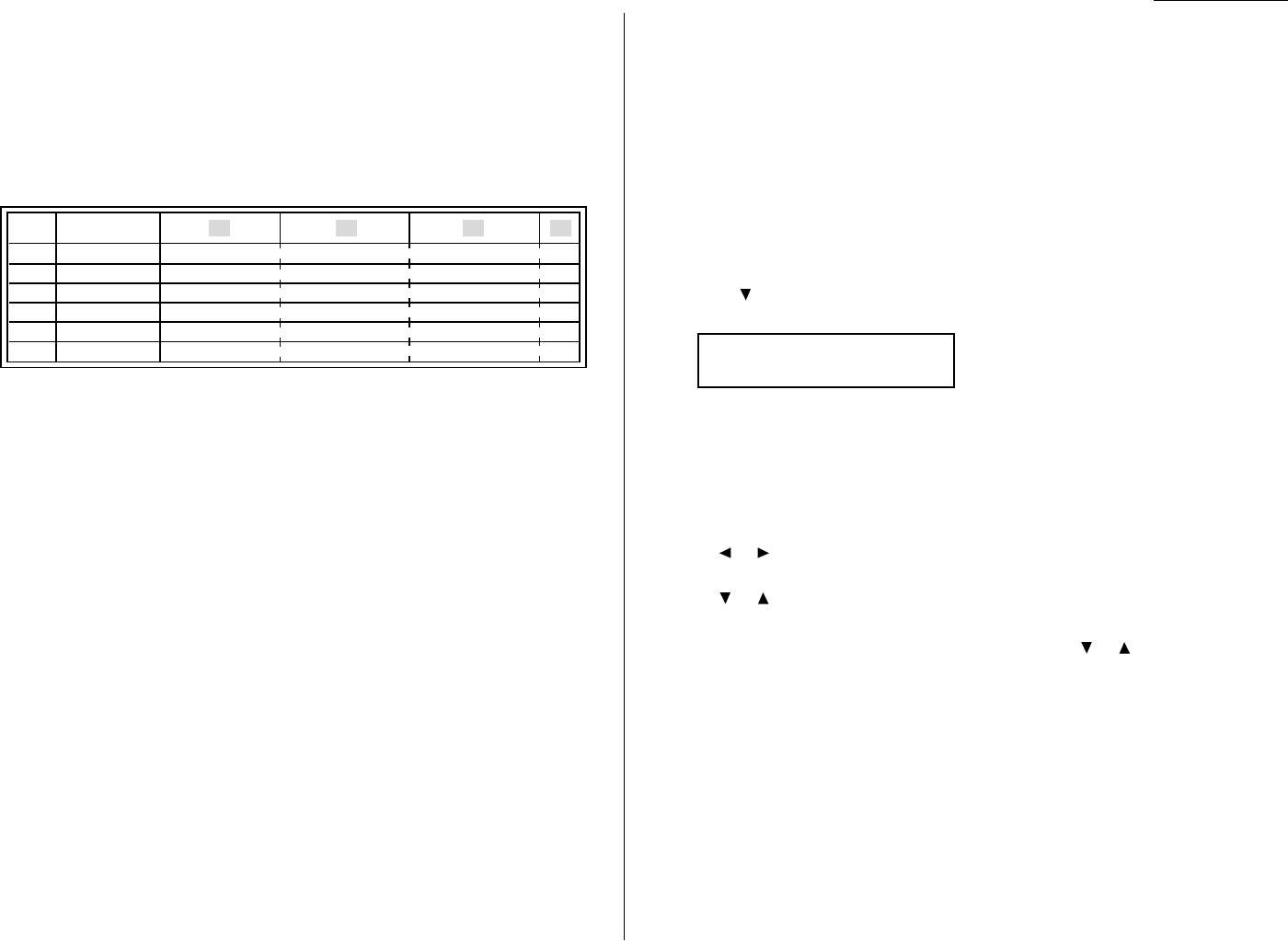
Printing a group list
Your machine can also print a group list. This lists all your stored autodialer numbers
by Location
ID
and lists the groups to which these numbers belong.
The list divides the call groups into four banks, 01–09 (the list shows 00), 10–19 (the
list shows 10), 20–29 (the list shows 20) and 30–32 (the list shows 30). If you specify
call group 0(which puts the number in all call groups), the list shows all numbers (see
below).
For example,the list might show:
In this list, one-touch number 01 ([01]) is in groups 4, 10 and 14; one-touch number
02 ([02]) is in group 1; one-touch number 03 ([03]) is in groups 20 and 32; speed-dial
number 001 (S001) is in groups 2 and 4; speed-dial number 002 (S002) is in groups
7, 10 and 21; and speed-dial number 003 (S003) is in all groups, 1 to 32.
To print a group list, press
MENU
,5,1,0,7,
ENTER
.
EasyDial directory dialing
EasyDial directory dialing makes your autodialer even more like an electronic
phone book. EasyDial sorts and displays numbers alphabetically according to their
Location
ID
s,so you can find them and dial them easily.
To dial using EasyDial:
1For a regular phone call: Pick up the optional handset.
Note: To make a regular phone call from your machine, you must have an
optional handset attached.
For a fax call: Place the document in
ADF
.And adjust document mode and
contrast if necessary.
2Press (
TEL INDEX
) .The
LCD
shows the first listing in your fax machine’s
EasyDial directory:
The EasyDial directory sorts entries alphabetically in the following order:
(1) by alphabet, (2) by number and (3) by symbol.
If the listing that appears is the one you want to dial, skip to step 4.
Otherwise, proceed to next step.
3Scroll through the listings to find the one you want.You do this by pressing
the following cursor key:
• or to select the character set — alphabet, number or symbol — for
the first character of the Location
ID
.
• or to check different listings within that character set.
Note: The scrolling is “open-ended.” For example, when you run out of
listings beginning with alphabet “
A
”, pressing or automatically
moves you into listings beginning with other characters.
Note: To quickly search, press capital letter of Location
I
.
D
. using the
numeric keypad.
4When the
LCD
displays the name you want to dial, press
START
.
• If you’ve set the document in the
ADF
, your machine will start the fax
transmission.
• If you make a regular phone call, speak after a person answers.
Telephone Index [A]
ABC Company :[01]
[01] Carson Co 4 0 4
[02] Tex. Ofc. 1
[03] e.e.gummi 0 2
S001 And Sew I 2 4
S002 KC Enterp 7 0 1
S003 Katz Cat 12345678901234567890123456789012
00 10 20 30No. Location
Advanced features
3.7
If an EasyDial call fails
If an EasyDial call fails,what happens next depends upon the kind of call it was.
If it was a fax call …
… Your fax machine automatically redials the number according to the redial inter-
val you’ve set. It keeps trying until either of the following occurs:
• It successfully reaches the other number
• It has attempted the number of redials programmed and has still not connected
(see “Changing redial settings,” page 4.5).
If it was a regular phone call …
… You’ll have to redial manually:
1Lift the optional handset.
2Press (
REDIAL
).The
LCD
will show:
3Your machine can remember the latest 10 dial numbers. Press or until
the dial number you want to redial appears.
4Press
START
.
View Redial History
0:1234567890
Advanced features
3.8
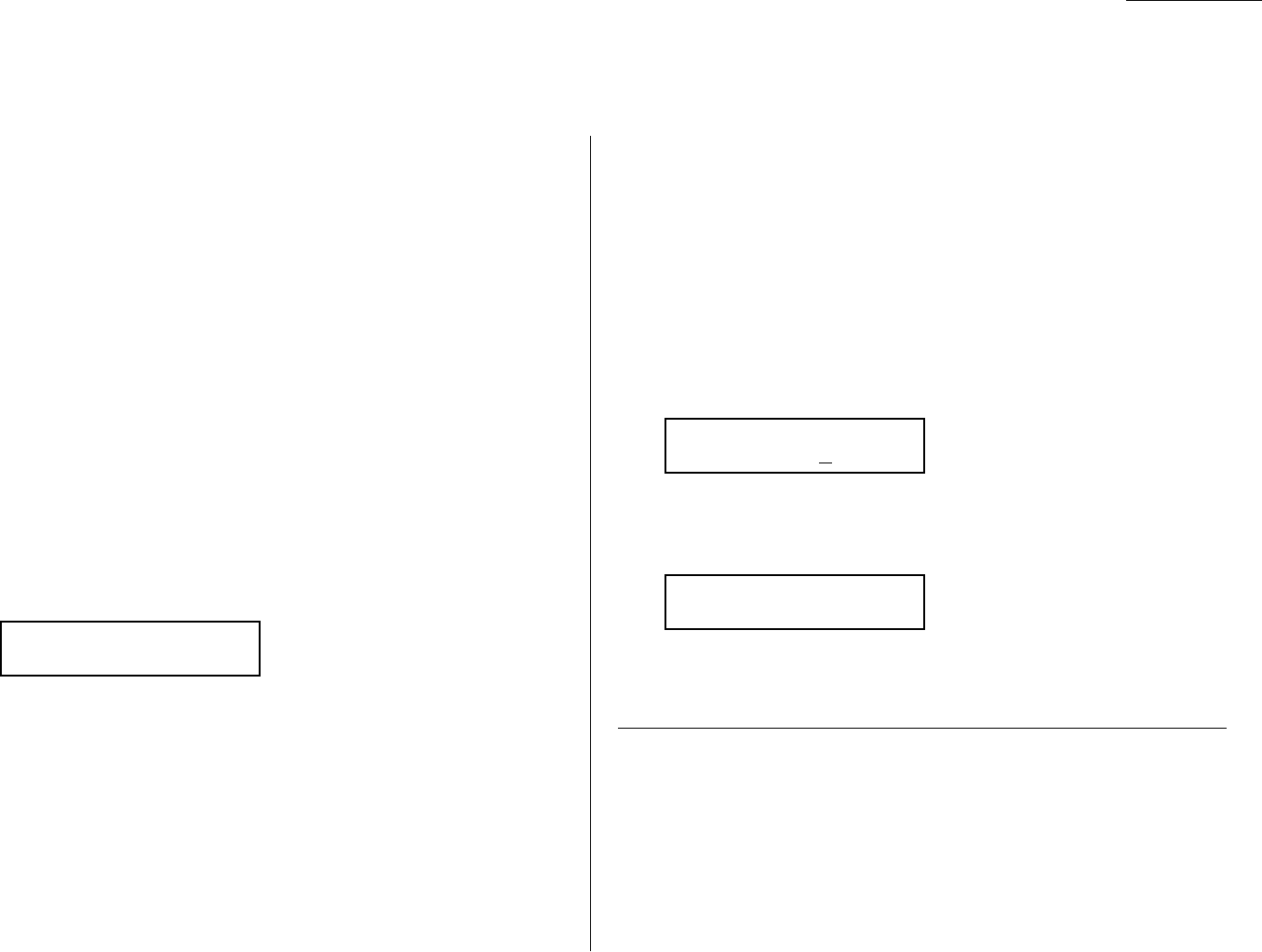
Advanced features
The fastest way to fax one document to many recipients is to broadcast it.
In an ordinary broadcast, you send the fax as you normally would, except you just
add more fax numbers.You can enter up to 230 numbers:
• 30 manually-dialed numbers AND
• 200 autodialer numbers OR 1 call group with all 200 autodialer numbers
You can broadcast using any function that requires a fax number to be
entered. That means you can send a delayed broadcast, program a polling broad-
cast and even broadcast to “hub” units for F-Code relay broadcast initiation.All of
these are explained in this chapter.
To send a broadcast fax:
1Insert the document and make any necessary adjustments as you would for a
regular fax transmission.
2Press
BROADCAST
.
3Enter the first fax number, as usual. Use either a one-touch number, a speed-
dial number, a call group or a regular number dialed from the numeric keypad.
4To add more fax numbers,press
BROADCAST
between each one to insert a
comma.Then enter the number as described in step 3 (pressing one-touch key and
SPEED DIAL
/
GROUP
inserts its own comma).You can send up to 230 numbers for
a broadcast.
Important: Do not insert a comma after the last fax number.
Note: If you enter characters by mistake,press
CANCEL
to erase them.
5Press
START
.Your fax machine scans the document into memory and then
sends it to each number or call group you’ve entered.
Delayed broadcasting
What if you want the broadcast to take place later? That’s the purpose of setting up
a delayed broadcast.
Note: Delayed commands are discussed on pages 2.6–2.8.And you may want to
read “Delayed transmission” on page 3.10 before proceeding.
1Follow steps 1–4 of “Broadcasting basics” (left column).
2Press
COMM
.
OPTIONS
,
ENTER
.
3Use the numeric keypad to enter the day of the month and time (in 24-hour
format) when you want the broadcast to occur.
Here, we’ve scheduled it for 10:15
PM
on the 30th.
4Press
ENTER
to save the setting.
5Press
START
.Your machine will scan your document into the memory and
return to standby mode, while showing this on the
LCD
:
This means your fax machine is “reserved” for the delayed broadcast you
just programmed, but it can still be used to send and receive faxes or to make
copies if your broadcast document is stored in memory.
Reviewing or canceling parts of a broadcast
If you need to review or cancel a broadcast you set, see “Reviewing or canceling
parts of a broadcast,” page 2.7.
** Reserved **
Jan 27 2002 5:17pm
Delayed
Enter Time: 30/22:15
Press Start
[03],S098,G12,9-555_
3.9
Broadcasting
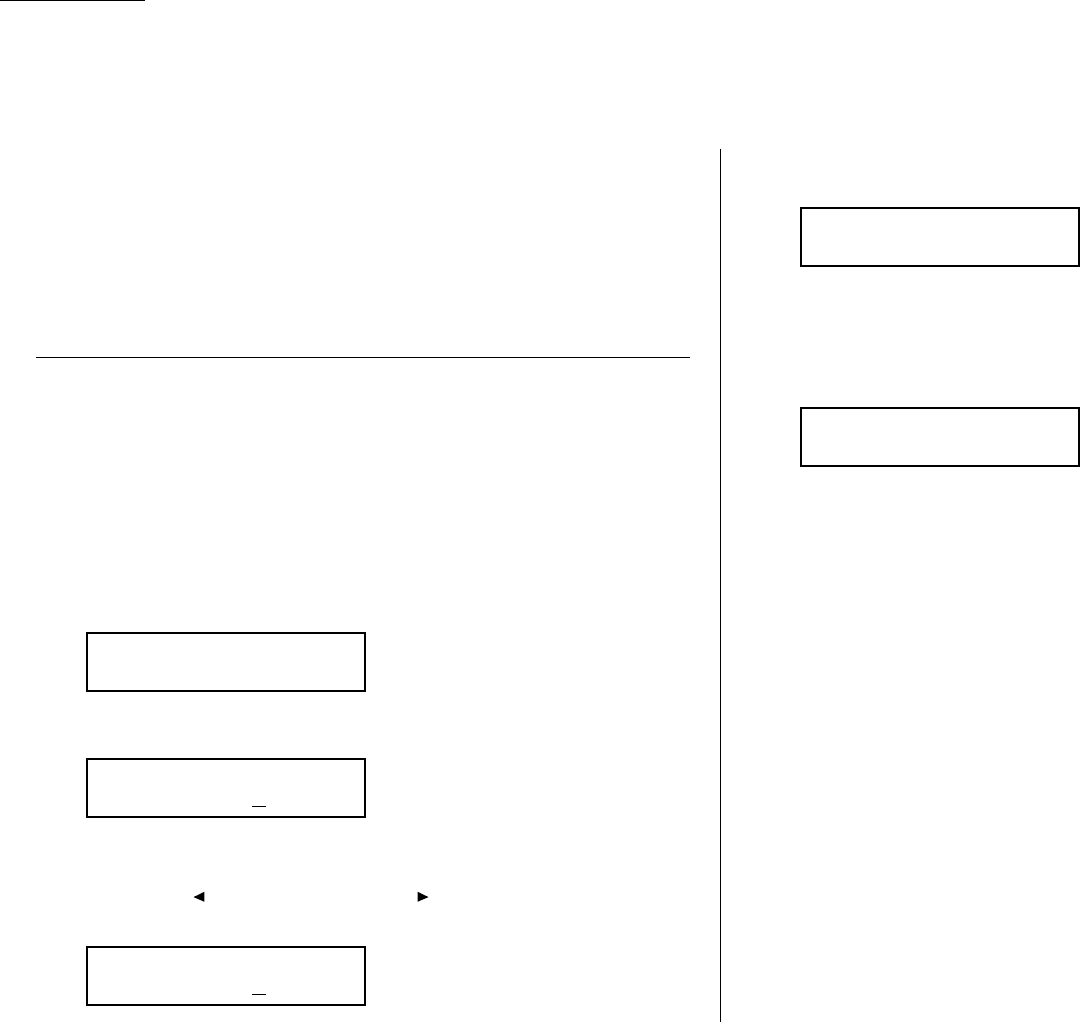
Advanced features
Take advantage of lower evening and weekend long-distance rates with delayed
transmission. Your fax machine can store up to 99 delayed commands, each of which
you can program up to 31 days in advance.
Important: If you program all 99 delayed transmission commands, no further
memory transmission is possible until one or more of the commands is
completed. (To review Memory transmission, see page 2.2.) However, if
all 99 delayed commands are programmed, you can always transmit
with the Real time transmission from
ADF
(see page 2.3).
Setting up a delayed transmission
Important: Your machine only remembers the day of the month that it’s supposed
to send a delayed transmission. It does not remember the month
itself. So if you want to send a transmission at 5:05
PM
on June 26,
don’t program the transmission sooner than 5:06
PM
on May 26.
To set up a delayed transmission:
1Insert the document and make any necessary adjustments.
2Press
COMM
.
OPTIONS
.The
LCD
shows:
3Press
ENTER
.The
LCD
shows the current day of the month, followed by the
current time (in 24-hour format):
4Use the numeric keypad to enter the day of the month and the time when you
want the fax to send the delayed transmission.
Note: Press to move the cursor left, or to move it right.
Here, we’ve set the transmission to occur on the 11th at 11:05
PM
:
5When the date and time are entered, press
ENTER
to save the delayed trans-
mission.The
LCD
shows:
6Enter the fax number for the delayed transmission document.You can either
press a one-touch key, enter a speed-dial number or use the numeric keypad
to enter the fax number.
7Press
START
.Your machine returns to standby mode,while showing this on
the
LCD
:
This means your fax machine is “reserved” for the delayed transmission you
just programmed.
• If you set the machine for memory transmission, it will scan the document
into memory, after which you can use the machine normally.
• If you set the machine for non-memory transmission (real time transmis-
sion), the machine can receive faxes but can’t transmit until your delayed
command has been performed.
Important: If you specified the delayed non-memory transmission (real
time transmission), do not remove the document in
ADF
. If the
document is removed from
ADF
before a delayed command com-
pletes,it cancels the delayed real time transmission.
** Reserved **
Jan 27 2002 5:17pm
Enter Fax Number
_
Delayed
Enter Time: 11/23:05
Delayed
Enter Time: 06/17:16
1.Delayed
$$
/
##
/Enter
3.10
Delayed transmission
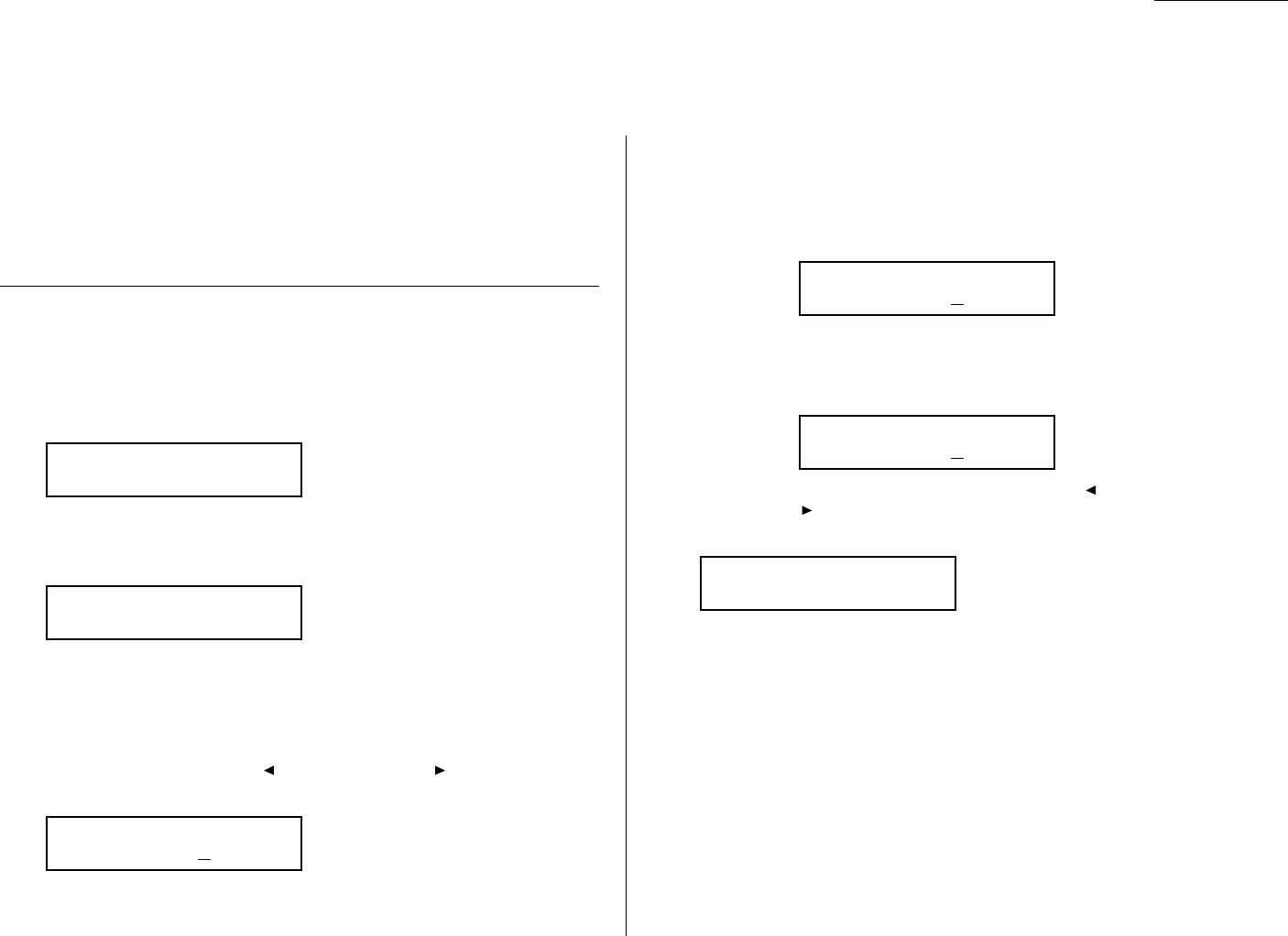
Advanced features
Batch transmission allows you to store multiple documents in an electronic “basket”
throughout the day and then fax that entire basket to one location.
To do this, just tell the machine when and where the transmission should go.When
that date and time arrives,your machine will transmit each document in the batch
box to the remote fax machine.You can store up to 40 documents (each document
can include one page or many pages) into your machine’s five electronic batch boxes.
Creating or modifying a batch box
Before sending a batch transmission, you have to create batch boxes in your fax
machine.The steps below also let you modify existing batch boxes.
To create or modify a batch box:
1Press
MENU
,3,6,1,
ENTER
.The
LCD
shows:
2Use the numeric keypad to enter the number (1–5) of the batch box you want
to create or modify.
3Press
ENTER
.The
LCD
now shows:
4Use the numeric keypad to enter the fax number exactly as your machine
should dial it, including whatever access codes your phone system requires.
(You may want to review “Special dialing characters,” page 3.1.) The number
can be up to 40 characters in length.
Note: Your display can show only 20 characters at a time.To view characters
beyond those 20, press to scroll to the left or to scroll to the right.
5When the number appears as you want it, press
ENTER
.The
LCD
now shows:
6Instruct your fax to send from this batch box in one of the following ways:
Option 1: Once at a certain time on a certain day of the month (For exam-
ple: “Do this at 5:05
PM
on the 30th.”) — Use the numeric keypad
to enter the date and time (24-hour format) the machine should
send the documents from the batch box:
Option 2: At a certain time each day you press the key (For example: “Do
this at 5:05
PM
today.”) — Use the numeric keypad to enter 0, 0
(00), and then the time when the fax should send the documents
from the batch box:
Note: To change a digit in the date or the time, press to move the cursor
left or to move it right.Then enter the correct number.
7When the date and time are set, press
ENTER
.The
LCD
now shows:
The machine now asks you to name this batch box.
If you do not want to enter or change this batch box’s name,skip to step 9.
8Enter the name by using the numeric keypad. (If necessary, review “Entering
characters”, page 1.12) A batch box’s name may be up to 24 characters in
length.
9Press
ENTER
to save the batch box information.
To create or modify another batch box, repeat steps 2–9.
To finish, press
STOP
.
3:Name ;Upper
_
3:Transmit Time
Enter Time: 00/17:05
3:Transmit Time
Enter Time: 30/17:05
3:Transmit Time
Enter Time: 26/14:00
3:Fax Number
_
Select Batch Box
1:No Number Stored
3.11
Batch transmission
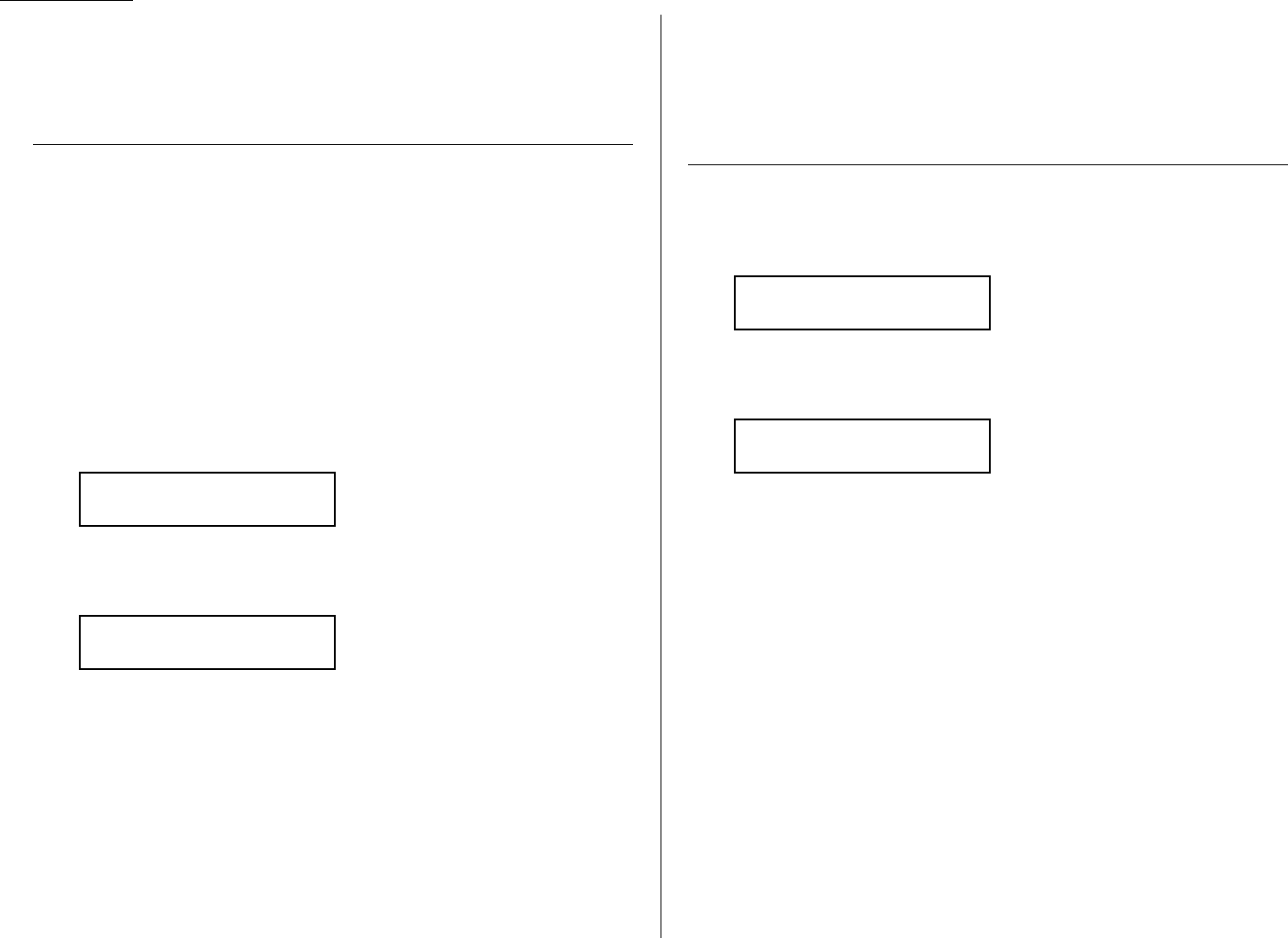
Advanced features
Printing a list of batch boxes
You can easily print a list of your batch boxes. The list includes each box’s identifier
number, the Location
ID
, fax number and date/time the transmission should start.
To print the list, press
MENU
,5,1,1,4,
ENTER
.
Storing a document for batch transmission
Your fax machine can store up to 40 documents (each document can include one
page or many pages) in each batch box until the date and time you designate the
batch transmission to take place.Once the batch documents are transmitted, they
are automatically erased from the machine’s memory.
Note: For this operation to work, two things must be true:
• The batch box must exist on your fax machine.
• You must know the batch box’s one-digit number (1–5).
To store a document in a batch box for batch transmission:
1Insert the document and make any necessary adjustments.
2Press
COMM
.
OPTIONS
five times and then press
ENTER
.The
LCD
shows:
3Use the numeric keypad to enter the one-digit number for the batch box you
want to use.
4Press
ENTER
.The
LCD
shows:
Note: Your machine gives each document in a batch box a file number.You
will need to know this file number should you later wish to erase or
print the stored document. Each batch box holds up to 40 files (1-40).
6Press
START
.The machine displays “Reserved” on the top line of the
LCD
.This
means the document is stored in memory.
Printing a list of stored batch documents
You can print a list of the documents stored in your machine’s batch boxes. This list
provides you with the documents’ file numbers so you can erase or print them as
needed.
To print the list, press
MENU
,5,1,1,5,
ENTER
.
Printing a document stored in a batch box
To print a document stored in a batch box:
1Press
MENU
,4,3,3,
ENTER
.The
LCD
shows:
2Use the numeric keypad to enter the number (1–5) of the batch box storing the
document you want to print.
3Press
ENTER
.The
LCD
shows:
4Use the numeric keypad to enter the document’s file number (1–40).
5Press
ENTER
.
Your fax machine prints the document, then returns to standby mode.
1:Batch Document
Enter File No. :_
Batch Document
Enter Box No. :_
Press Start
Box :5 File : 1
Batch Tx
Enter Box No. :_
3.12
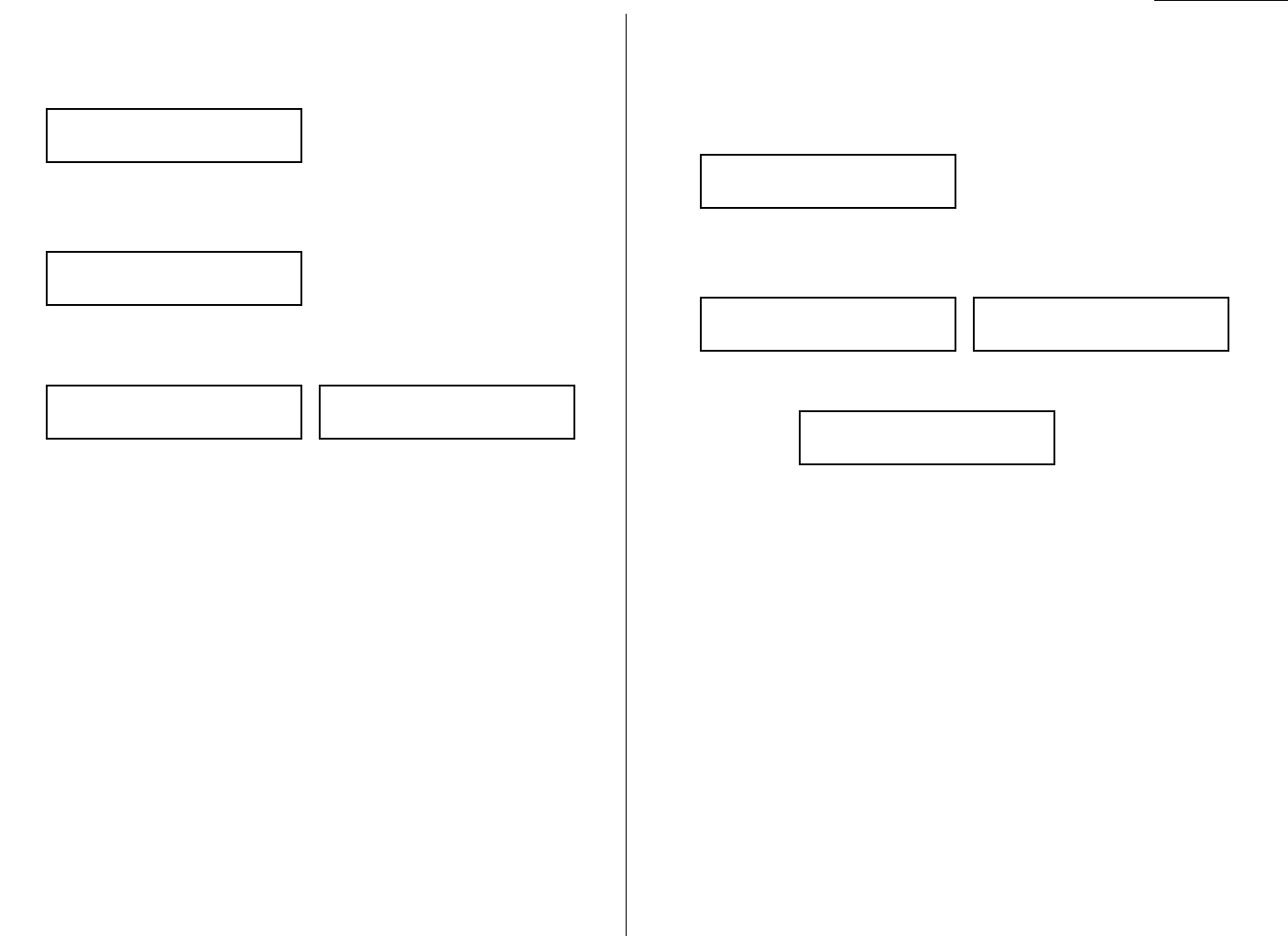
Advanced features
Erasing a document stored in a batch box
To erase a document stored in a batch box on your fax machine:
1Press
MENU
,4,2,3,
ENTER
.The
LCD
shows:
2Use the numeric keypad to enter the number (1–5) of the batch box storing the
document you want to erase.
3Press
ENTER
.The
LCD
shows:
4Use the numeric keypad to enter the document’s file number (1–40).
5Press
ENTER
.The following two displays will appear alternately:
Important: To quit the operation without erasing this or any document,
press
CANCEL
.The machine returns to standby mode.
6Press
ENTER
.The fax machine erases the document you’ve chosen, then
returns to standby mode.
Erasing an empty batch box
Batch boxes must be empty to be erased. If a box has documents stored in it, then
you first have to erase those documents. See left column.
To erase an empty batch box:
1Press
MENU
,3,6,2,
ENTER
.The
LCD
shows:
2Use the numeric keypad to enter the number (1–5) of the batch box you want
to erase.
3Press
ENTER
.The following two displays will appear alternately:
Important: If you select a batch box which is not empty, the machine beeps
and briefly shows:
Erase any documents stored in the batch box (see left column),
then go back to step 4.
Important: If you want to quit without erasing the batch box you’ve
selected, press
CANCEL
.The fax will return to step 2.
Important: If you want to quit without erasing any batch box, press
STOP
.
The machine returns to standby mode.
4Press
ENTER
to erase the batch box.
To erase another batch box, repeat steps 2–4.To finish, press
STOP
.
Select Batch Box
Document Stored
2:Erase Batch Box
No
→→
Cancel
2:Erase Batch Box
Yes
→→
Enter
Select Batch Box
1:9-5551023
1:Batch Document
Erase
→→
Enter
1:Batch Document
Not Erase
→→
Cancel
1:Batch Document
Enter File No. :_
Batch Document
Enter Box No. :_
3.13

Advanced features
Polling allows someone to fax a document to you without having to make the call or
pay for it.There are two kinds of polling:
• Regular polling — Your fax retrieves a document from a remote fax machine.
• F-Code polling — Your fax retrieves a document stored as a file in the remote fax
machine.To do this, you must be communicating with another F-code-compatible
fax machine.For more information on F-Code polling,see “F-Code Boxes,”pages
3.24–3.32.
Note: For polling to work, the remote machine must also be set up to be polled.
Regular polling
To set up your machine for regular polling:
1Make sure the document is inserted in the remote fax machine.
2Press
COMM
.
OPTIONS
twice and then press
ENTER
.The
LCD
shows:
3Enter the remote fax machine’s number by either pressing a one-touch key,
entering a speed-dial number or using the numeric keypad.
4To perform the regular polling now, skip to step 8.
To perform delayed regular polling, go on to step 5.
5Press
COMM
.
OPTIONS
,
ENTER
.The
LCD
shows:
6Use the numeric keypad to enter the date and time (use the 24-hour format)
when your machine should perform the delayed regular polling.
7Press
ENTER
.
8Press
START
.
When your machine polls for documents, it dials the number and, upon making con-
tact with the other machine,begins receiving the document as if the other machine
had placed the call.
Being polled
Not only can you poll, but you can also be polled.To set up a document for regular
polling:
1If your fax machine is set for Tel Ready reception, change it to the reception
mode except the Tel Ready.
Important: Your machine can’t be polled if it’s in Tel Ready mode.
2Insert the document.
3Adjust document mode and contrast if necessary. (Your fax machine will be
transmitting to the machine doing the polling.)
4Press
MENU
,4,1,1,
ENTER
.
Your fax will scan the document into memory and return to standby mode.
Once the remote fax machine polls the document you stored, your fax machine auto-
matically erases the document from memory.
Printing a stored polling document
To print a document you’ve stored for regular polling without erasing it,
press
MENU
,4,3,1,
ENTER
.
Erasing a stored polling document
To erase a document you’ve stored for regular polling from your machine’s memory:
1Press
MENU
,4,2,1,
ENTER
.The following two displays will appear alter-
nately:
Important: To quit the operation without erasing this or any document,
press
CANCEL
.The machine returns to standby mode.
2Press
ENTER
to erase it.
Polling Document
Not Erase
→→
Cancel
Polling Document
Erase
→→
Enter
Delayed
Enter Time: 15/17:05
Enter Fax Number
_
3.14
Polling
Advanced features
Soft Keys are shortcut keys.You can assign some functions into these eight keys as
you want. If the light above any one of these keys glows, that means the setting
programmed into that key is active.
The following functions are assigned at the factory:
• Communication cancel / confirmation (see pages 2.6–2.8)
• Broadcast (see page 3.9)
• Communication options (to select advanced fax features)
• Dialing pause (to enter the dialing pause and the dialing characters. See pages
2.2 and 3.1)
• Speed dial / Group (see pages 3.4–3.7)
• Monitor / Call request (see pages 2.5 and 3.23)
• Confirmation report (see page 3.20)*
• Memory transmission (see page 2.2)*
Other functions you can assign to the Soft Keys are as follows:
• Fax & Copy (see page 3.19)*
• Send TTI (see page 4.2)*
• Select usual TTI (see page 1.20)*
• Security reception (see pages 3.42–3.43)
• Separator page setting for reception (see page 3.21)
• Bypass tray priority (see page 4.7)
• Cover page (see pages 3.21–3.22)*
• Auto answer (to toggle the Manual answer and Auto answer)
• Select
TO
/
CC
/
BCC
(Available only when the optional Internet Fax kit is installed.)
*When you change the setting by using the Soft Key, it will be available only for
the next transmission. Once that transmission is complete, your machine returns
to its default setting.If you want to change the default setting, see “Changing the
default settings” on page 4.1–4.10
Note: When the optional printer controller is installed to your machine,one of Soft
Keys, which was assigned to Memory transmission at the fuctory, will be
changed to the
ONLINE
key. For details,see the operating instructions
included with the printer controller kit.
Setting the Soft Key
1Press
MENU
,2,1,0,3,
ENTER
.The
LCD
shows:
. . . or indicates another function you’ve stored into the Soft Key 1.
2Press or until the Soft Key (1-8) you want to change appears.
3Press
ENTER
.The
LCD
shows:
4Press or until the function appears that you want to program into the
key.
5Press
ENTER
to save the setting.
The
LCD
will display the next Soft Key.
If you do want to set this Soft Key, go back step 3.
If you do not want to set the currently displayed Soft Key but do want to set
another Soft Key, go back to step 2.
If you do not want to set any more Soft Keys, press
STOP
to finish.
Now you can use the labels included in your machine’s original packaging to label
the Soft Key function you just set.
8:Memory Tx
$$
/
##
/Enter
Select Soft Key No.
1:Comm. Cancel
3.15
Soft keys

Advanced features
Your fax machine has numerous special features to make your communication
easier.We’ll cover them here.
Macro keys
If you perform the same operation repeatedly, you can automate the operation using
a macro.A macro is a series of the several steps that you group together as a single
command to accomplish the operation automatically.
A macro key faithfully records up to 60 steps that you performed to teach the macro.
You can “teach” the Macro keys to carry out any of the following jobs, but you cannot
teach the operation regarding the machine settings.
Note: One Macro key can hold only one job. It cannot combine two or more jobs.
Copy:
• All copy settings
Printouts:
• Function list (page 1.13)
• User settings list (page 4.10)
• Activity journal (page 3.20)
• Delayed commands list (page 2.7)
• Delayed commands documents (page 2.7)
• One-touch list (page 3.2)
• Speed-dial list (page 3.4)
• Programmable one-touch numbers list (page 3.41)
• Group list (page 3.7)
• Blocked numbers list (page 3.46)
• Sample cover page (page 3.22)
• Department time list (page 3.48)
• List of F-Code boxes (page 3.28)
• List of documents stored in F-Code boxes (page 3.28)
• Batch transmission documents (page 3.12)
• Batch box list (page 3.12)
• List of stored batch documents (page 3.12)
• F-Code Box (bulletin box) documents (page 3.29)
• Macros list (page 3.18)
• Stored polling documents (page 3.14)
• Security receive documents (page 3.30)
Document storage:
• Regular polling documents (page 3.14)
• F-Code Box (bulletin box) documents (page 3.28)
Communications functions:
• Delayed transmission (explained on pages 3.10)
• Broadcasting (page 3.9)
• Regular polling (page 3.14)
• Batch transmission (pages 3.11–3.13)
• F-Code transmission (pages 3.31–3.32)
• F-Code polling (pages 3.31–3.32)
Programming the Macro key
1Press
MACRO PROGRAM
,
ENTER
.The
LCD
shows:
2Press the Macro key (
M
1,
M
2or
M
3) you want to program or change.
3Press
ENTER
. If you chose the key already programmed, proceed to step 4.
Otherwise, skip to step 5.
4The following two displays will appear alternately:
If you want to overwrite the operation already programmed, press
ENTER
.
If you want to overwrite only the job’s name, press
CANCEL
and go to step 9.
If you do not want to overwrite the key you have choice,press
STOP
.
Overwrite?
No
→→
Cancel
Overwrite?
Yes
→→
Enter
Select Macro Key
M1:No Number Stored
3.16
Special features
Advanced features
5The standby
LCD
display appears and the machine begins to beep which indi-
cates the machine is in the
MACRO
programming mode.
6Press the keys exactly as though you were programming a current job.The
machine will beep during programming to confirm
MACRO
programming mode.
Note: You can program up to 60 steps.When it comes over 60 steps, your fax
machine asks if you want to register the operations you have entered.
If you want to register them, press
ENTER
.If not, press
STOP
.
Note: If you want to cancel the operations you have set, press
MACRO PROGRAM
,
STOP
and then go back to step 1.
Example 1: To program some operations for copy: Press
COPY
to change to the
copy mode, and set number of the copies, contrast, document mode and reduc-
tion rate as you want.
Note: See “Making copies” (pages 2.11–2.12) for detail operations.
Example 2: To program the operations for printing the one-touch numbers
list: Press
MENU
,5,1,0,5,
ENTER
.
7If you programmed
ENTER
or
START
into the operation, proceed to step 8.
Otherwise, press
MACRO PROGRAM
and skip to step 9.
8If you want to start immediately after pressing the Macro key when you use
it, press
ENTER
. If not, press
CANCEL
.
Note: If you want to confirm the settings or operations in the Macro key
before you start it, press
CANCEL
here.
9The
LCD
now shows:
The machine now asks you to enter the title of this job.
If you do not want to enter or change it,skip to step 11.
10 Enter the title by using the numeric keypad. (If necessary, review “Entering
characters”, page 1.12) It may be up to 130 characters in length.
11 Press
ENTER
to save the setting.
Fax dialing with the Macro key
To dial a fax call using a Macro key:
1Insert the document.
2Press the Macro key in which you’ve stored the fax communication com-
mand.
3Press
START
, if you have not registered
START
in the Macro key.
Your fax will perform the operation now, or at whatever time you programmed.
If you programmed this key to delay its operation, the
LCD
shows:
If you programmed this key to perform the operation immediately after you press it,
the
LCD
shows the number:
Copying with the Macro key
To copy using a Macro key:
1Insert the document.
2Press the Macro key in which you’ve stored the copy command.
3Press
START
, if you have not registered
START
in the Macro key.
Printing lists using the Macro key
To print a list using a Macro key:
1Press the Macro key that is programmed for the printing lists.
2Press
ENTER
, if you have not registered
ENTER
in the Macro key.
9-1-972-555-4335
A4 Normal
** Reserved **
Jan 27 2002 5:17pm
M2:Name ;Upper
_
Include Start/Enter?
No
→→
Cancel
Include Start/Enter?
Yes
→→
Enter
Fax Ready
Jan 27 2002 1:30pm
3.17
Advanced features
3.18
Storing fax documents with the Macro key
To store a fax document for either polling or F-Code polling using a Macro key:
1Insert the document.
2Press the Macro key that is programmed for the storing operation you want
to use.
3Press
ENTER
, if you have not registered
ENTER
in the Macro key.
Erasing a Macro key
1Press
MACRO PROGRAM
twice,
ENTER
.The
LCD
shows:
2Press the Macro key (
M
1,
M
2 or
M
3) you want to erase.
3Press
ENTER
.The following two displays will appear alternately:
Important: If you want to quit without erasing the Macro key you’ve
selected, press
CANCEL
.The machine will return to step 2.
4Press
ENTER
to erase the job.
To erase another Macro key, repeat steps 2–4. Or press
STOP
to return to standby
mode.
Printing a list of your Macro keys
Your fax machine can print a list of the Macro keys.
The list includes:
(1) each key’s Macro key number
(2) the name of the job stored in the Macro key
To print a list of Macro keys, press
MENU
,5,1,1,6,
ENTER
.
Setting the speed for Macros
You can adjust the speed of one step in the Macro key.
1Press
MACRO PROGRAM
three times,
ENTER
.The
LCD
shows:
2Press or until the mode you want appears. The possible settings are:
3Press
ENTER
to save the setting.
Macro Speed :Fast
$$
/
##
/Enter
Macro Speed :Slow
$$
/
##
/Enter
Macro Speed :Norm
$$
/
##
/Enter
Macro Speed :Norm
$$
/
##
/Enter
Erase Macro
No
→→
Cancel
Erase Macro
Yes
→→
Enter
Select Macro Key
M1:Activity journal
Advanced features
Fax & Copy
With the Fax & Copy feature turned on, your machine asks if you want to make a
copy of a document each time it transmits that document from memory.
Note: The Fax & Copy function cannot be used for real time transmission
Note: Quick Memory transmission (see page 2.3) and the Fax & Copy function
cannot be used at the same time. If both are turned on, Quick Memory will
not work.
Note: The Fax & Copy feature will use the same document mode you set for the
transmission for the copy’s scanning mode.
Setting the Fax & Copy function
1Press
MENU
,2,1,0,6,
ENTER
.The
LCD
shows:
2Press or until the mode you want appears.
3Press
ENTER
to save the setting.
Press
STOP
to return to standby mode.
Using the Fax & Copy function
1Place the document and select document mode and contrast you require.
2Enter the fax number. Either press a one-touch key, enter a speed-dial number,
call group number or use the numeric keypad to enter the fax number.
If you entered the fax number using a one-touch key, skip to step 4.
Otherwise, go on to step 3.
3Press
START
.
4The
LCD
changes copy mode and asks the number of copies you want to make.
5Use the numeric keypad to enter the number of copies you want for each page
in the document. Choose from 01 to 99 copies.
Note: If you want to quit without transmitting and copying the document,
press
STOP
.The machine returns to standby mode.
6Press
START
to begin the transmission and copying process.
Note: If you do not wish to make a copy, press
CANCEL
in step 4.The following two
displays will appear alternately:
To cancel the making copy, press
START
.The machine will start transmission
process without copying the document.
If you press
CANCEL
, the machine will return to step 4.
Setting the journal and the report
You can turn the following three items on or off, regarding the activity journal and
the confirmation report (
TCR
):
• Automatic printing of the activity journal
• Printing order of the activity journal
• Automatic printing of the confirmation report (
TCR
)
Automatic printing of the activity journal
Just as a checkbook records your daily financial transactions, your fax machine
keeps an activity journal which records its 100 most recent fax transactions.The
activity journal lists the following information for each transaction:
•Assigned number, starting each day at 001
•Remote location called
•Document mode
•Starting date and time
•Duration, in minutes and seconds
•Length, in number of pages
•Department code (see page 3.47)
•Result of the call — If preceded by an asterisk (*), this signifies an
ECM
communication. If preceded by a pound (#), this signifies communication was via
the highspeed V.34 modem.
•Any special operations — For example, a fax call made using an optional handset
will appear as “Manual”
Canceled Copying
No
→→
Cancel
Canceled Copying
Yes
→→
Start
# Of Pgs. To Copy 01
Start/Cancel
Fax & Copy :Off
$$
/
##
/Enter
3.19
Advanced features
Your fax machine can print the activity journal automatically after 100 transac-
tions.To turn this automatic printing of the activity journal on or off:
1Press
MENU
,3,1,1,
ENTER
.The
LCD
shows:
2Press or until the mode you want appears.
3Press
ENTER
to save the setting.
Printing an activity journal manually
To print an activity journal immediately without waiting for 100 transmissions to be
completed, press
MENU
,5,1,0,3,
ENTER
.
Setting the printing order of the activity journal
Your fax machine prints the activity journal for every fax transaction. For example,
if your machine has to redial a call, it will list those redials on the journal.
If you want to list those activities in the order of their assigned numbers, you can
change the printing order of the activity journal.To change the printing order:
1Press
MENU
,3,1,2,
ENTER
.The
LCD
shows:
2Press or until the mode you want appears.
If you want the activity journal to print in the order of assigned number,
choose “On”.
Otherwise, the machine will list every fax transaction of the same command
and same location.
3Press
ENTER
to save the setting.
Setting the report:
TCR
Your fax machine can print a transmit confirmation report (
TCR
)after sending every
fax to any Group 3 fax machine.The
TCR
lists the following information for each com-
munication:
•Date and time of the
TCR
’s printout
•Remote location called
•Document mode
•Starting date and time
•Duration, in minutes and seconds
•Length, in number of pages
•Result of the call
•Any special operations — For example, a fax call made using an optional handset
will appear as “Manual”
•Sample of the document — An image of the first page of the document
If an error occurs,the
TCR
tells you the remote location which was called,the error
code and error message (see pages 5.8–5.10).
To turn this automatic printing of the
TCR
on or off:
1Press
MENU
,3,1,3,
ENTER
.The
LCD
shows:
2Press or until the mode you want appears.
3Press
ENTER
to save the setting.
To turn the confirmation report feature on or off for only the next fax transmission,
press
REPORT
.
What happens next depends on the setting you chose:
• If the light above the
REPORT
key glows,the fax machine will print the
confirmation report automatically.
• If the light above the
REPORT
key doesn’t glow, the fax machine will not print a
confirmation report.
After you send this transmission, your machine returns to the setting you chose
above.
Report AutoPrint:Off
$$
/
##
/Enter
Journal Line Up :Off
$$
/
##
/Enter
Journal AutoPrt.:Off
$$
/
##
/Enter
3.20
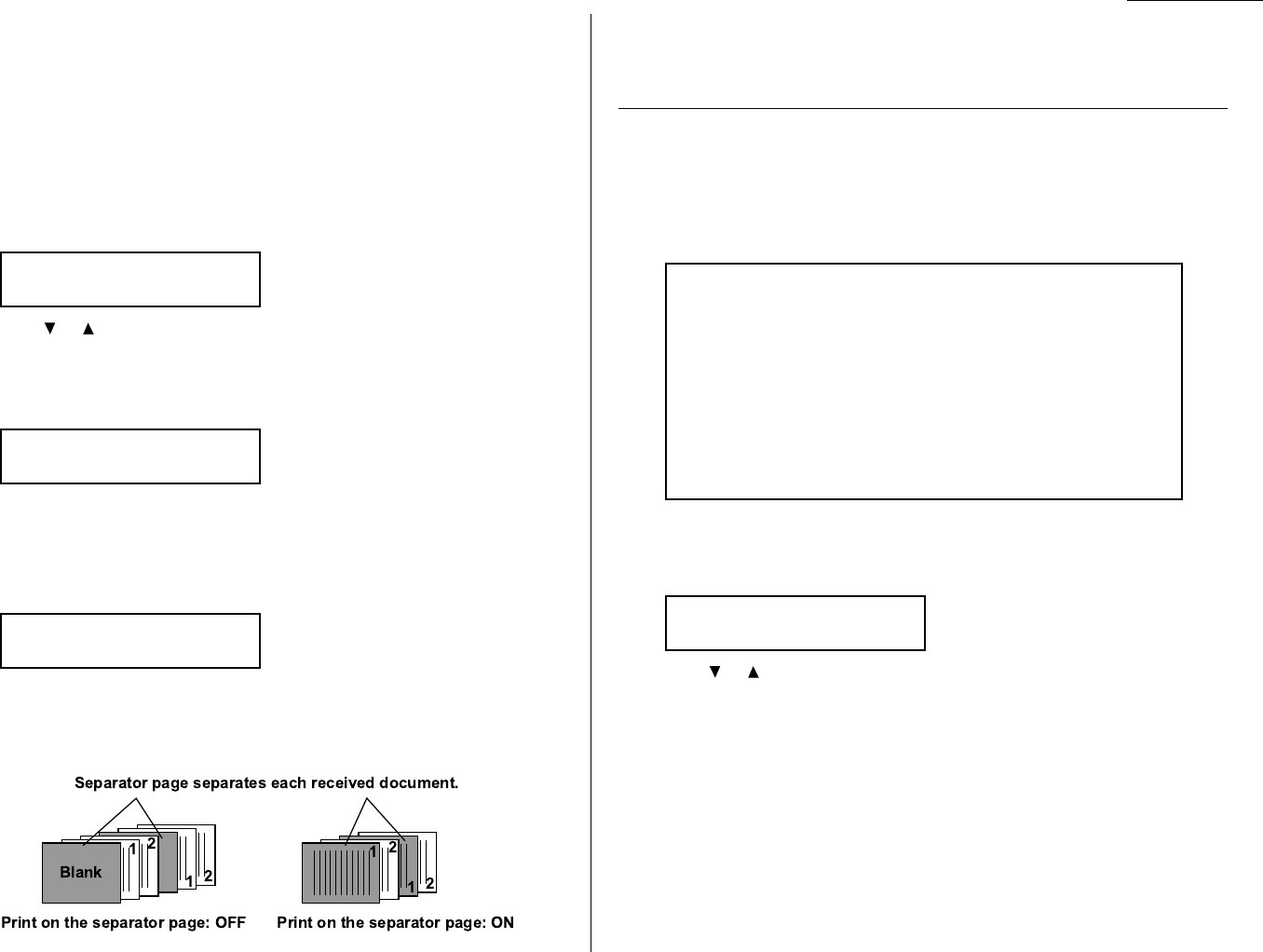
Advanced features
Separate each received document (Separator Page)
Your machine has a simple sorting feature. It can separate each received document
by inserting the separator page on the top of the received document.
For example, if you use the colored paper for the separator page, it is easy to see the
individual received document.
Note: You can assign the turning this feature on/off to a Soft Key. (See page 3.15.)
Setting the Separator Page feature:
1Press
MENU
,2,2,1,2,
ENTER
.The
LCD
shows:
2Press or until the mode you want appears.
To turn the Separator Page feature on, select “On” and proceed to step 3.
To turn it off, select “Off” and skip to step 6.
3Press
ENTER
.The
LCD
will show:
Note: The paper source which has not been attached to your machine will be
not displayed on this list.
4To select the paper source for the separator page using the cursor key.
5Press
ENTER
.The
LCD
will show:
Determine if the separator page will be printed with blank or not.
If you wish that the separator page will be blank, select “OFF”.
If you wish to print the first page of the received documents on the separator
page, select “ON”.
6Press
ENTER
to save the settings.
To return to standby mode, press
STOP
.
Cover page
Your fax machine can store a cover page to send at the beginning of each outgoing
fax.This page includes the current date and time, your Location
ID
, your fax number
(as stored in the
TTI
) and a message of up to 40 characters in length.The informa-
tion appears in a box similar to this:
Turning the cover page on
1Press
MENU
,3,2,1,
ENTER
.The
LCD
shows:
2Press or until the mode you want appears.
To tell the fax machine it should send a cover page before each document you
transmit, select “On”.
To tell the machine not to send a cover page, select “Off”.
3Press
ENTER
to save the setting.
Now the cover page feature is working but your message line (shown in the example
as “We appreciate your business.Thank you!”) is blank.To enter that message, see
“Entering the cover page message,” next page.
Cover Page :Off
$$
/
##
/Enter
Fax Message From:
Jan 27 2002 14:00
Name: And Sew It Goes Co.
Fax Number: 972-555-2009
We appreciate your business. Thank you!
Print on S.Page :Off
$$
/
##
/Enter
1st Cassette
$$
/
##
/Enter
Separator Page :Off
$$
/
##
/Enter
3.21
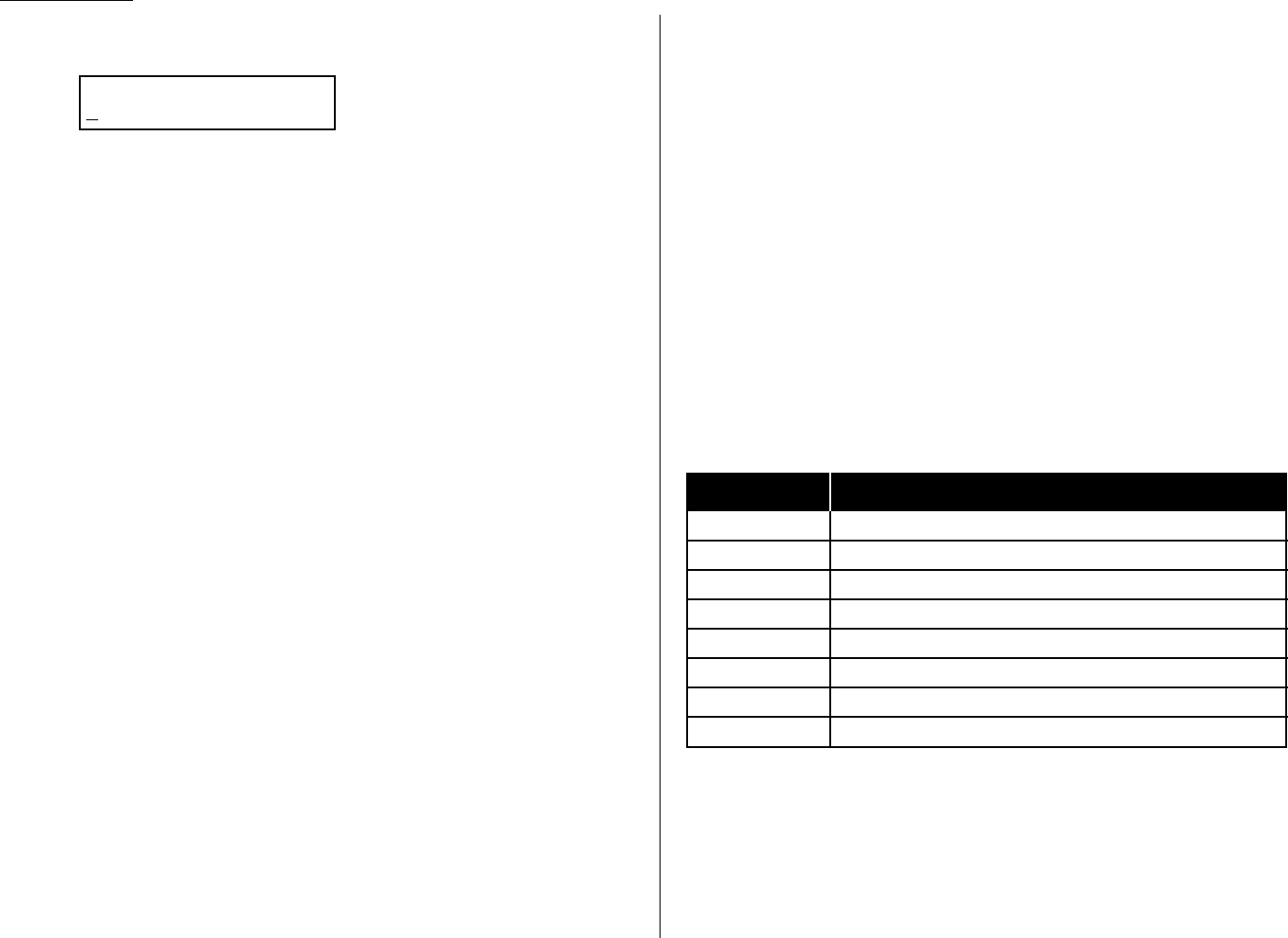
Advanced features
Entering the cover page message
1Press
MENU
,3,2,2,
ENTER
.The
LCD
shows:
2Use the numeric keypad to enter a message for the cover page. (Regarding
how to enter the character, see “Entering character” on page 1.12.) The mes-
sage can be up to 40 characters in length.
3When the message appears as you want it, press
ENTER
to save it.
Printing the cover page
To confirm that the cover page is set correctly, print a sample cover page from your
fax machine.Press
MENU
,5,1,0,9,
ENTER
.
OneLine + distinctive ring detection
Many phone companies now offer their customers a special service which makes it
possible for one phone line to do the work of two.
With this service, you physically still have one phone line, but, electronically, you
have two phone numbers. Your phone recognizes these different numbers and rings
differently for each one.
For example, this makes it easy for you to have both a business number and a home
number on one phone line, so you can answer one with “Jane Doe Consulting,” and
the other with “Hello.”This works because you can tell the difference between the
distinctive patterns of the two rings.
Your fax machine is also smart enough to tell the difference between two different
numbers that are ringing it. All you have to do is set up your machine for the
OneLine + distinctive ring detection (
DRD
) feature.
In order to use OneLine +
DRD
, your phone company must set up your distinctive
ring service.When it does, it will assign a ring pattern. For example, the standard
telephone ring is 2 seconds “on” (ringing) and 4 seconds “off” (silent), after which it
repeats itself.
Your fax has eight possible distinctive ring patterns for use with OneLine +
DRD
.
One of them should work with your phone company’s
DRD
service.This chart lists
the patterns:
Pattern One complete ring pattern (seconds)
A0.8 on, 0.4 off, 0.8 on, 4.0 off
B0.4 on, 0.2 off, 0.4 on, 0.2 off, 0.8 on, 4.0 off
C0.3 on, 0.2 off, 1.0 on, 0.2 off, 0.3 on, 4.0 off
D1.0 on, 0.5 off, 1.0 on, 3.5 off
E0.5 on, 0.5 off, 0.5 on, 0.5 off,1.0 on, 3.0 off
F0.5 on, 0.5 off, 1.0 on, 0.5 off, 0.5 on, 3.0 off
G0.4 on, 0.6 off, 0.4 on, 4.6 off
H1.5 on, 0.5 off, 0.5 on,3.5 off
For example: pattern
C
is 0.3 seconds ringing,0.2 seconds silent, 1 second ringing,
0.2 seconds silent, 0.3 seconds ringing and 4 seconds silent.Then it goes back to the
first 0.3-second ring and starts over.
Cover Page ;Upper
3.22
Advanced features
To use
DRD
on your fax machine:
1Contact your phone company to make sure it has set up
DRD
service for you. If
possible, also find out which distinctive ring pattern the phone company has
assigned you.
2Press
MENU
,2,2,1,4,
ENTER
.The
LCD
shows:
3Press or until the mode you want appears.
When you select “On”, proceed to step 4.
When you select “Off”, skip to step 6.
4Press
ENTER
.The
LCD
shows:
5Press or until the pattern you want appears.
6Press
ENTER
to save the setting.
Important: If your telephone company gives you only very general ring pattern
specifications, or if you encounter a problem while using your
machine’s
DRD
feature, please try
ALL
of the listed ring patterns.
If you still have a problem after trying all of the patterns, please call
the Muratec Customer Support Center. (From the United States, call
800-347-3296.)
Important: With your machine set for using
DRD
, it won’t respond to any ring pat-
tern other than the one you selected above.To reset the fax so it will
respond once again to normal rings,select “OFF” in step 3 above.Your
fax will now respond normally.
Call request
You can send or receive a fax message and have a regular phone conversation on the
same call (although, not at the same time).This is called a call request. It doesn’t
matter whether you’re sending the fax or receiving it.You may fax first and then
talk, or talk first and then fax.
Important: For this feature to work, the remote fax machine must have a similar
call-request capability.Your machine must also have an optional
handset attached.
Faxing/receiving first, then talking
To send or receive a fax first and then talk:
1While your fax machine is sending or receiving the fax, press
MONITOR
/
CALL
.
2At the remote fax machine,the ringer will sound after that machine receives
each page.
3If someone answers at the remote fax machine,your fax machine will ring
several times.If so, pick up the optional handset. In a few seconds, the line
will open and you can begin your conversation.
Talking first, then sending a fax
To talk first and then send a fax:
1When you’ve finished your phone conversation, don’t hang up.
2Insert the document you want to fax.
3Adjust the document mode and contrast if necessary.
4Tell the person at the other fax machine to press
START
and to hang up
his/her handset. Don’t hang up your handset yet!
5When you hear fax tones,press
START
and hang up your fax machine’s
optional handset.Your fax machine will send the document.
Talking first, then receiving a fax
To talk first and then receive a fax:
1When you’ve finished your phone conversation, don’t hang up.
2Tell the person at the other fax machine to press
START
and to hang up
his/her handset. Don’t hang up your handset yet!
3When you hear fax tones,press
START
and hang up your machine’s optional
handset.Your machine will receive the document and print it out.
Ring Pattern :A
$$
/
##
/Enter
DRD :Off
$$
/
##
/Enter
3.23

Responding to a call request
If someone requests a call from you during a fax communication, you’ll hear a long
ring after the receiving machine has received each page.To answer the call request:
1Lift your machine’s optional handset, and listen for a few seconds.You may
hear a brief series of fax tones.
2Shortly, the line will open and the person at the other end of the line will
answer.You and the other person now can have a normal phone conversation.
The power of QuadAccess®
Your fax machine’s QuadAccess feature sharply reduces the time you might spend
waiting for the machine to finish its work.QuadAccess is a more powerful version of
what already is a pretty powerful feature, called dual access.While a fax with normal
dual access allows you to do two things at once,QuadAccess allows you to do four
operations at once. For example, even if the machine is (1) printing a copy, (2) trans-
mitting from memory and (3) scanning documents for a different memory
transmission, you can still (4) program the machine.
F-Code Boxes
F-Code: an introduction
The
ITU
-
T
, the United Nations agency that standardizes international telecommuni-
cations,has created a fax industry standard for using sub-addressing and
password-based communication. One name for this standard is F-Code, and that’s
what we’ll call it in these instructions and on your machine’s display.
How sub-addressing works
To help understand sub-addressing, think about how someone in a large company
receives mail. For example, mail for the Accounting department is first delivered to
the company’s main mailroom.Then the mailroom routes the mail to Accounting.
That’s the idea behind sub-addressing.Your fax and another F-Code-compatible fax
exchange special signals to indicate just where the fax really should go.It’s as if the
sending fax is saying,“Deliver this to room 48,” and the receiving fax does just that.
Your machine has up to 50 mailboxes for these special deliveries.When someone
sends an F-Code fax to you, your machine receives it into one of those 50 mailboxes
— whichever box the sender chooses.
Sending F-Code securely
For greater security, you can set up a password with each F-Code sub-address,
which lets you use secure transmission, polling and relay broadcasting when com-
municating with any other F-Code compatible fax machine.
Guidelines for using F-Code
(1) To use
ITU
-
T
sub-addressing,you must create F-Code boxes in your machine
(2) Your machine holds up to 50 of these boxes
(3) Your machine stores up to 30 documents into each F-Code box (each document
can include one or more pages)
Creating or modifying an F-Code box
Choosing the F-Code box type
Before you set up an F-Code box, first decide how your callers will use it — as a
bulletin box, a security box or a relay box.
•Bulletin box — Stores documents that people in remote locations retrieve by
polling the box. For example, your sales branches could call in at any time to get
a printout of your latest prices that you’ve stored in a bulletin box.
A bulletin box stores both scanned and retrieved documents, and it holds its
contents indefinitely (as long as the unit has
AC
power).
•Security box — Receives and stores F-Code secure communications.
Advanced features
3.24
•Relay box — Receives documents, then relays them to other machines.The
machine that relays the document is called a “hub”.Your fax machine can either
send to a hub or it can be a hub.
4 elements of an F-Code box
Each F-Code box has the following four elements:
(1) F-Code box number (01-50)
(2) F-Code box name (up to 16 characters)
(3) F-Code sub-address (up to 20 characters - can include numbers and the *and #
characters only)
(4)
I
.
D
. Code (4 digits)
You will choose the information for each of these elements, and enter it into your
machine.The following steps will walk you through entering and changing that
information.
To create or modify an F-Code box:
1Keep pen and paper with you as you follow these steps.As you decide on a
sub-address and enter it into your machine,write it down. Remember to:
(1) write down which box goes with which sub-address, (2) write down any
passwords or
I
.
D
. codes you enter, (3) keep these printed records in a safe
place.
2Press
MENU
,3,5,1,
ENTER
.The
LCD
shows:
3Use the numeric keypad to enter the two-digit number (01-50) of the F-Code
box you want to create or modify.
4Press
ENTER
.What you do next depends on whether you’re creating or
modifying the F-Code box:
If creating — skip to step 6.
If modifying — the
LCD
asks you to enter the proper
I
.
D
. code.The
LCD
shows:
5Use the numeric keypad to enter the 4-digit
I
.
D
. code (not the
ITU
-
T
sub-
address and not the
ITU
-
T
password). Skip to step 7.
Note: If you enter an invalid
I
.
D
. code, the fax machine rejects the attempt
and aborts this operation.
Note: If you want to modify an existing F-Code box and want to change the
box type, you first must erase the old box, then create a new one.
6The machine is now asking you to name this F-Code box.The
LCD
shows:
If you do not want to enter or change this F-Code box’s name, skip to step 8.
If you do want to enter or change this F-Code box’s name, go on to step 7.
7Enter the name by using the numeric keypad. (If necessary, review “Entering
characters”, page 1.12) An F-Code box’s name can be up to 16 characters in
length.
8Press
ENTER
to save the box’s name and continue.The
LCD
shows:
The fax machine now asks for this F-Code box’s sub-address.This is the
numerical identifier you must enter in order to communicate with any remote
F-Code compatible fax.
If you do not want to change an existing sub-address, skip to step 10.
9Use the numeric keypad to enter the sub-address to identify this F-Code box.
The sub-address can be up to 20 characters in length and include any
combination of numbers and the * and # characters (but no other non-
numeric characters).
Note: No other F-Code box in this machine can have the same sub-address
as the one you enter here.
10 Press
ENTER
to save the sub-address.
Note: If you entered a sub-address already being used by another F-Code
box, the machine beeps and briefly displays:
The machine now returns you to step 10. Please enter a different
number for your F-Code box’s sub-address.
11 Next, the machine asks for your F-Code box’s password. This is the password
for
ITU
-
T
-compatible F-Code fax transactions.The
LCD
shows:
Note: You don’t need to have a password for the F-Code box. However, using
a password will make your F-Code communication much more secure.
If you do not want to enter or change this box’s password, skip to step 14.
03:Password
_
03:Sub-Address No.
Sub-Address In Use
03:Sub-Address No.
_
03:Box Name;Upper
_
03:Set F-Code Box
Enter I.D. Code:****
Select F-Code Box
01:No Number Stored
Advanced features
3.25
12 Use the numeric keypad to enter this box’s
ITU
-
T
-compatible password.This
password can be up to 20 characters in length and include any combination of
numbers and the * and # characters (but no other non-numerical characters).
Note: You cannot change the type of an existing F-Code box. If you’re modi-
fying an existing F-Code box and want to change the box type, you
first must erase the old box, then create a new one.
13 Press
ENTER
to save the password.The
LCD
now shows:
The fax machine is asking which box type you want to assign to this box —
bulletin,security or relay.
Press or until the type of box you want appears.
14 Press
ENTER
.
If you chose Bulletin, go on to step 15.
If you chose Security, skip to step 16.
If you chose Relay, skip to step 19.
If you chose Bulletin:
15 The bulletin box has four additional settings:
• Reception protection (“Rx Protect” on the
LCD
)
• Automatic printing of received documents (“Auto Print”)
• Overwriting documents (“Overwrite Doc.”)
• Erasure of transmitted documents (“Erase Tx Doc.”)
Rx Protect — Reception protection tells this box if it’s okay to receive
documents from remote locations.Callers can then poll these documents.
On: Open this box to receive documents from callers.
Off: Do not open this box to receive documents from callers.
Press or until the mode you want appears.
Then press
ENTER
to save the setting and go on to the next one.
Auto Print — Automatic printing of received documents tells the fax machine
if it should print a document automatically upon receiving it into this box.
Note: This setting is available only when the reception protection (Rx pro-
tect) setting is set to off (see above).
On: Print the document automatically when the box receives it.
Off: Print the document manually, when you want to print it.
Press or until the mode you want appears.
Then press
ENTER
to save the setting and go on to the next one.
Overwrite Doc — Overwriting documents tells your machine if it should
overwrite (erase) existing documents when it receives a new one.
Note: This setting is available only when the reception protection setting is
set to off (see Rx Protect above).
On: When your machine receives a new document into this box,it will erase
any documents currently stored in it.
Off: When your machine receives a new document into this box, it will not
erase the documents stored in it.Your machine can store up to 30
documents (each document can include one or more pages) in each box.
Press or until the mode you want appears.
Then press
ENTER
to save the setting and go on to the next one.
Erase Tx Doc — Erasure of transmitted documents tells your machine if it
should erase a document from the box after a caller retrieves (polls) the
document.
On: Your machine erases the document from the box as soon as it sends it. If
you choose “On”, this box can be polled only once per document.
Off: Your machine does not erase a document from the box when it’s polled.
As long as your machine holds
AC
power and you do not erase the docu-
ment from the box, the document is available indefinitely for polling.
Press or until the mode you want appears.
Press
ENTER
to save the setting.Then skip to step 23.
Erase Tx Doc. :Off
$$
/
##
/Enter
Overwrite Doc. :Off
$$
/
##
/Enter
Auto Print :Off
$$
/
##
/Enter
Rx Protect :Off
$$
/
##
/Enter
Box Type :Bulletin
$$
/
##
/Enter
Advanced features
3.26
If you chose Security:
16 The machine asks how long you want to keep a document stored in your
machine’s F-Code box.The
LCD
shows:
17 Use the numeric keypad to enter a two-digit number indicating how many
days (00-31), you want your fax machine to keep received documents in this
F-Code box.
Note: Your fax machine can store incoming documents in F-Code boxes (up
to 30 documents) as long as 31 days, after which it automatically
erases the documents.But if your machine has plenty of memory, you
may want to override the 31-day limit in order to keep the documents
indefinitely. If so, enter 00. If you choose this, you will have to delete
documents manually. (You may want to contact your authorized
Muratec dealer regarding optional memory expansion.)
18 Press
ENTER
to save the settings. Skip to step 23.
If you chose Relay:
19 The machine asks for the fax number for the remote unit.
The
LCD
shows:
20 Enter the fax number using a one-touch key, a speed-dial number or a call
group number.You cannot use the numeric keypad to enter these numbers.
To add each fax number, press
BROADCAST
between each one to insert a
comma, then enter the number. You can specify up to 200 numbers for a
remote unit.
21 Press
ENTER
to save the settings.The
LCD
shows:
The machine asks for the type of
TTI
you want to appear on the faxes that are
relayed to other callers.
•Sender — Relay the document with sender unit’s
TTI
(don’t send your
TTI
).
•Both — Relay the document with both the sender unit’s
TTI
and your
TTI
.
•Yours — Relay the document with your
TTI
instead of the sender unit’s.
Press or until the mode you want appears.
22 Press
ENTER
to save the settings.The
LCD
shows:
On: Print the document automatically when it’s received.
Off: The machine does not print it, but only relays it to the other machine.
Press or until the mode you want appears.
Then press
ENTER
to save the settings and go on to step 24.
23 The machine asks for your F-Code box’s four-digit security
I
.
D
. code.This is
the
I
.
D
. code for the box’s security, which you use to (1) print a document any
remote F-Code-compatible fax sends to this F-Code box or (2) you enter before
you can make any changes to this F-Code box.
If you do not want to change the
I
.
D
. code, skip to step 27.
24 Decide on a four-digit
I
.
D
. code (0001-9999) for this F-Code box.
Write it down, and put it in a safe place.
Important: Do not use 0000 as an
I
.
D
. code.
25 Use the numeric keypad to enter the four-digit
I
.
D
. code for this F-Code box.
Important: After completing this step, you must know this code to print
documents sent to this F-Code box. Be sure to write it down.
26 Press
ENTER
to save the F-Code box information.
To create or modify another F-Code box, repeat steps 3-26.
To finish, press
STOP
.
03:Set F-Code Box
Enter I.D. Code:0000
Auto Print :Off
$$
/
##
/Enter
Select TTI :Sender
$$
/
##
/Enter
Enter Relay Number
_
F-Code Doc Hold Time
(00-31) 00 days
Advanced features
3.27
Printing a list of F-Code boxes
The list of F-Code boxes includes:
(1) Each box’s identifier number
(2) Box name (if any)
(3) Sub-address
(4) Password
(5) Box type
(6) Each box’s settings
To print a list of your F-Code boxes, press
MENU
,5,1,1,2,
ENTER
.
Printing a list of documents stored in your F-Code boxes
The list of documents stored in your machine’s F-Code boxes includes:
(1) Each box’s identifier number
(2) Box name (if any)
(3) Box type
(4) Each file number (or document number) that is stored
To print a list of documents stored in F-Code boxes, press
MENU
,5,1,1,3,
ENTER
.
Using a bulletin box
Storing a document
Your fax machine can store up to 30 documents in each bulletin box.
Note: For this operation to work, two things must be true:
• The bulletin box must exist on your fax machine.
• You must know the bulletin box’s two-digit number (01-50) and four-digit
I
.
D
. code. (See “Creating or Modifying an F-Code box,” pages 3.24–3.27, if
necessary.)
To store a document in a bulletin box for polling.
1Insert the document and make any necessary adjustments.
2Press
MENU
,4,1,2,
ENTER
The
LCD
shows:
3Use the numeric keypad to enter the two-digit identifier number (01-50) of
the F-Code box where you want to store the document.
4Press
ENTER
.The
LCD
shows:
5Use the numeric keypad to enter the four-digit
I
.
D
. code.
6Press
ENTER
.
If you’ve entered an incorrect
I
.
D
. code, your fax machine rejects the attempt
and returns to standby mode.
If you’ve entered the correct
I
.
D
. code, the display shows:
If you choose:
On: Your bulletin box erases the currently stored document when a new
document is stored in it
Off: Your bulletin box keeps both the currently stored document and the new
document, up to 30 documents in each box.
7Press or until the mode you want appears.
8Press
ENTER
to save the setting.Your machine starts scanning the document
into the selected bulletin box:
Important: The file number (shown above as 1) tells you how many docu-
ments are in this bulletin box.Your machine numbers files 1-30.
You need to know the file’s number to erase or print it.
F-Code Doc. File: 1
A4 Normal Mem 99%
Overwrite Doc. :Off
$$
/
##
/Enter
03:F-Code Document
Enter I.D. Code:****
Select F-Code Box
01:No Number Stored
Advanced features
3.28
Printing a document stored in a bulletin box
You can print a document stored in your machine’s F-Code bulletin boxes without
erasing the document from memory.
To print a stored document:
1Press
MENU
,4,3,2,
ENTER
.The
LCD
shows:
2Use the numeric keypad to enter the two-digit number (01-50) of the F-Code
bulletin box that stores the document you want to print.We’ve entered 03:
3Press
ENTER
.The
LCD
shows:
4Use the numeric keypad to enter your F-Code box’s four-digit
I
.
D
. code.
5Press
ENTER
.
If you’ve entered an incorrect
I
.
D
. code, your fax machine rejects the attempt
and aborts this operation.
If you’ve entered the correct
I
.
D
. code, the display shows:
6Use the numeric keypad to enter the file number (1-30) of the document you
want to print.
Note: If you want to print all documents stored in the bulletin box, simply
enter 0(zero).
7Press
ENTER
.
Your fax machine prints the chosen document(s), then returns to standby
mode.
Note: If the F-Code box is not storing any documents,the machine briefly
displays the following before returning to standby mode:
Erasing a document stored in a bulletin box
To erase a stored document:
1Press
MENU
,4,2,2,
ENTER
The
LCD
shows:
2Use the numeric keypad to enter the two-digit number (01-50) of the F-Code
bulletin box that stores the document you want to erase.
3Press
ENTER
.The
LCD
shows:
Note: If the F-Code box is not storing any documents,the machine briefly
displays the following before returning to step 2:
4Use the numeric keypad to enter your F-Code box’s four-digit
I
.
D
. code.
5Press
ENTER
.
If you’ve entered an incorrect
I
.
D
. code, your fax machine rejects the attempt
and aborts this operation.
If you’ve entered the correct
I
.
D
. code, the display shows:
6Use the numeric keypad to enter the file number (1-30) of the document you
want to erase.
Note: If you want to erase all documents stored in the bulletin box, enter 0
(zero).
03:F-Code Document
File No. :_
Select F-Code Box
No Document Stored
03:F-Code Document
Enter I.D. Code:****
Select F-Code Box
01:Murata Machinery
03:Select F-Code Box
No Document Stored
03:F-Code Document
File No. :_
03:F-Code Document
Enter I.D. Code:****
Select F-Code Box
03:Muratec America
Select F-Code Box
01:Murata Machinery
Advanced features
3.29
Advanced features
7Press
ENTER
.The following two displays will appear alternately:
Note: If you want to quit without erasing any document in the bulletin box,
press
CANCEL
.The machine will return to standby mode.
Note: If the F-Code box is not storing any documents,the machine briefly
displays the following and then returns to standby mode:
8Press
ENTER
to erase the document(s) and to return to standby mode.
Using a security box
Printing a document you receive
When your fax machine receives a document via
ITU
-
T
sub-addressing to an F-Code
security box, your machine prints a message to let you know.The message lists: (1)
the F-Code box number that received the document, (2) the Box name,(3) the
remote machine’s
TTI
(if any), and (4) the file numbers stored in the F-Code box.
You then have a certain number of days (see step 16 and 17 on page 3.27) in which
to print out the document before your machine automatically erases it.
Note: For this operation to work, two things must be true:
• You must know the F-Code security box’s two-digit number.
• You must know the F-Code security box’s four-digit
I
.
D
. code.
To print a received message:
1Press
MENU
,4,3,2,
ENTER
.The
LCD
shows:
2Use the numeric keypad to enter the two-digit number (01-50) of the F-Code
security box that stores the document you want to print.
3Press
ENTER
.The
LCD
shows:
Note: If the F-Code security box is not storing any documents,the machine
briefly displays the following before returning to step 2:
4Use the numeric keypad to enter your F-Code box’s four-digit
I
.
D
. code.
5Press
ENTER
.
• If you’ve entered the correct
I
.
D
. code, your fax machine prints all docu-
ments in the F-Code security box and then erases them.
• If you’ve entered an incorrect
I
.
D
. code, your fax machine aborts the opera-
tion and returns to standby mode.
Using a relay box
Once your fax machine receives a document via
ITU
-
T
sub-addressing to one of its F-
Code relay boxes, it sends it to the other fax machines that you’ve set up on your
relay box. (See “Creating or Modifying an F-Code box”, pages 3.24–3.27.)
If you set the Auto print mode to on when you created the relay box, your machine
will print the received document, then relay it to the other machine. Otherwise,
your machine will only relay it to the other machines, not print it.See “If you chose
Relay,” page 3.27 for more details on this setting.
Also, you can send (relay broadcast initiation) the document to another hub
machine’s F-Code box and get that machine to relay it to others. See “F-Code trans-
mission” on page 3.31 for more detail.
The hub performs a relay broadcast, and the machine which sends the original doc-
ument to the hub has performed a relay broadcast initiation.
03:Select F-Code Box
No Document Stored
03:F-Code Document
Enter I.D. Code:****
Select F-Code Box
01:Murata Machinery
F-Code Document
** Complete **
03:F-Code Document
No Document Stored
03:F-Code Document
Erase
→→
Enter
03:F-Code Document
Not Erase
→→
Cancel
3.30
Erasing an empty F-Code box
An F-Code box must be empty in order to erase it. (If you select an F-Code box in
these steps which is not empty, the machine beeps. If this happens, print all docu-
ments in that box before erasing it.)
To erase an empty F-Code box:
1Press
MENU
,3,5,2,
ENTER
.The
LCD
shows:
2Use the numeric keypad to enter the two-digit identifier number (01-50) of
the F-Code box you want to erase.
3Press
ENTER
. If the F-Code box is empty, the
LCD
shows:
Important: If you select an F-Code box which is not empty, the machine
beeps and, before returning to step 2, briefly displays:
Print any documents received in the F-Code box, then repeat
this procedure from the beginning to erase the box.
Otherwise, select another F-Code box.
4Use the numeric keypad to enter the four-digit
I
.
D
. code.
5Press
ENTER
.
If you’ve entered an incorrect
I
.
D
. code, your fax machine rejects the attempt
and returns to standby mode.
If you’ve entered the correct
I
.
D
. code, the following two displays will appear
alternately:
Note: If you want to quit without erasing the F-Code box you’ve selected,
press
CANCEL
.The fax will return to step 2.
Note: If you want to quit without erasing any F-Code box, press
STOP
.
The machine returns to standby mode.
6Press
ENTER
to erase the F-Code box.
To erase another F-Code box, repeat steps 2-6.
To finish, press
STOP
.
F-Code transmission and polling
With F-Code, your machine can send secure transmissions, perform relay broadcast
initiations and even poll from other
ITU
-
T
-equipped machines, regardless of manu-
facturer.
You can do this two ways:
• Using the programmable one-touch key (see pages 3.36–3.38)
• Entering the
ITU
-
T
sub-address and password directly, which is what we’ll
describe here.
Note: For F-Code communication to work, three things must be true:
• The remote fax machine must support
ITU
-
T
sub-addressing
• The remote fax must have a mailbox with an
ITU
-
T
sub-address created
on it
• You must know the
ITU
-
T
sub-address and password (if any) for the
remote machine’s mailbox
F-Code transmission
1Insert the document.
2Adjust the document mode and contrast if necessary.
3If you want to toggle between real time transmission and memory transmis-
sion, press
MEMORY TRANSMIT
.
4Press
COMM
.
OPTIONS
three times and then press
ENTER
.
5Use the numeric keypad to enter the appropriate sub-address in the remote
machine.
Note: If you make a mistake, press
CANCEL
to erase the character, then
enter the correct number.
6Press
ENTER
.The
LCD
shows:
Note: If this sub-address does not have a password, skip to step 8.
Enter Password
_
Enter Sub-Address
_
03:Erase F-Code Box
No
→→
Cancel
03:Erase F-Code Box
Yes
→→
Enter
Select F-Code Box
Box In Use
03:Erase F-Code Box
Enter I.D. Code:****
Select F-Code Box
01:No Number Stored
Advanced features
3.31
Advanced features
7Use the numeric keypad to enter the password.
8Press
ENTER
.The
LCD
shows:
9Enter the fax number either by pressing a one-touch key, entering a speed-
dial number or dialing from the numeric keypad. Do not press
START
.
10 What you do now depends on when you want the transmission to begin.
• To have it begin now, skip to step 13.
• To delay it, go on to step 11.
11 Press
COMM
.
OPTIONS
,
ENTER
.The
LCD
shows:
12 Use the numeric keypad to enter the day and time when the transmission
should begin, then press
ENTER
.
13 Press
START
.
If in step 10 you chose an immediate transmission, your fax machine begins dialing.
If you chose a delayed command, the machine shows “Reserved” on the
LCD
, indicat-
ing that it has stored the command in memory and will complete it later.
F-Code polling
1Press
COMM
.
OPTIONS
four times and then press
ENTER
.
2Use the numeric keypad to enter the appropriate sub-address.
Note: If you make a mistake, press
CANCEL
to erase the character, then
enter the correct number.
3Press
ENTER
.The
LCD
shows:
Note: If this sub-address does not have a password, skip to step 5.
4Use the numeric keypad to enter the password.
5Press
ENTER
.The
LCD
shows:
6Enter the fax number either by pressing a one-touch key, entering a speed-
dial number or dialing from the numeric keypad. Do not press
START
.
7What you do now depends upon when you want the polling to begin.
• To have it begin now, skip to step 10.
• To delay it, go on to step 8.
8Press
COMM
.
OPTIONS
,
ENTER
.The
LCD
shows:
9Use the numeric keypad to enter the day and time when the polling should
begin, then press
ENTER
.
10 Press
START
.
If in step 7 you chose an immediate polling, your fax machine begins dialing. If you
chose a delayed command, the machine shows “Reserved” on the
LCD
, indicating that
it has stored the command in memory and will complete it later.
Delayed
Enter Time: 15/17:05
Enter Fax Number
_
Enter Password
_
Enter Sub-Address
_
Delayed
Enter Time: 15/17:05
Enter Fax Number
_
3.32
Programmable one-touch keys
Using the power of programmable one-touch keys
In order to complete some operations on your machine,you may have to follow sev-
eral steps and press several different buttons.But programming your machine’s
one-touch keys (57 to 60) can reduce those many steps to a simple press of a key.
You can “teach” the one-touch keys to carry out some operations for communication
commands,printing lists and document storage.
Programming a communication command
The communication commands you can program into programmable one-touch keys
are as follows:
• Delayed transmission (explained on page 3.10)
• Broadcasting (page 3.9)
• Regular polling (page 3.14)
• F-Code transmission (pages 3.31–3.32)
• F-Code polling (pages 3.31–3.32)
• Batch transmission (pages 3.11–3.13)
To “teach” these keys, you must tell the machine four simple things:
How — The key you’re programming
Who — The number(s) the machine should dial
What — The operation it should perform
When — The date(s) and time(s) when you want it to perform the operation
Programming a delayed transmission
To program a delayed transmission into a programmable one-touch key:
1Press
MENU
,3,4,1,
ENTER
.The
LCD
shows the first empty programmable one-
touch number available:
2Press or to select the programmable one-touch key in which you want to
store or change.
Note: You can select the one-touch key by pressing that key on the control
panel.
3If you selected the empty programmable one-touch key, proceed to step 4.
If you selected the key already programmed and you want to change it,skip
to step 6.
Note: If your previous command for this key was a delayed transmission and
you want to keep this key programmed a delayed transmission, use
these instructions to make changes. But if the previous command for
this key was a different command, you must first erase the stored com-
mand (see page 3.41) before programming the new one.
4Press
ENTER
.The
LCD
shows:
5Press or until “Communication” appears.
6Press
ENTER
.The
LCD
shows:
7Press
COMM
.
OPTIONS
.The
LCD
shows:
8Press
ENTER
.The
LCD
shows:
9Next, tell your fax to carry out this delayed command one of these ways:
Option 1: Perform the command once at a certain time on a certain day of
the month. (For example,“Do this at 5:05
PM
on the 30th.”)
To select this option, use the numeric keypad to enter the date
and time when the fax should perform the command:
Delayed
Enter Time: 30/17:05
Delayed
Enter Time: 11/20:30
1.Delayed
$$
/
##
/Enter
58:Fax#/Comm.Options
_
Type :Communication
$$
/
##
/Enter
Select Program No.
58:No Number Stored
Advanced features
3.33
Advanced features
Option 2: Perform the command at a certain time each day you press the
key. (For example,“Do this at 5:05
PM
today.”)
To select this option, use the numeric keypad to enter 0, 0 and
then the time the fax should perform the command:
10 Press
ENTER
.The
LCD
shows:
11 Use the numeric keypad to enter the number exactly as your machine should
dial it, including whatever codes your phone system requires. The number can
be up to 40 characters in length.
Your display can show only 20 characters at a time. To view characters beyond
those 20, press to scroll to the left or to scroll to the right.
12 Press
ENTER
.The
LCD
now asks if you want to make additional settings for
this programmable one-touch number.
If you do not want to make additional settings, select “Off” and press
ENTER
.
Then skip to step 45.
If you do want to make additional settings, press to select “On” and press
ENTER
.
13 The
LCD
asks which document mode you want to use for this programmable
one-touch number.
14 Press or until the mode you want appears.
Note: For any of the following settings, choose “-----” if you do not want to
specify the displayed setting for this programmable one-touch key.
15 Press
ENTER
.The
LCD
asks you to select a contrast mode for each programma-
ble one-touch number.
16 Press or until the mode you want appears.
17 Press
ENTER
.The
LCD
asks if you want the memory transmission on or off
when using this programmable one-touch number.
18 Press or until the mode you want appears.
19 Press
ENTER
.The
LCD
asks you for the type of confirmation report that you
want to set for this programmable one-touch number.
20 Press or until the mode you want appears.
21 Press
ENTER
.The
LCD
asks if you want to send a cover page for this program-
mable one-touch number.
22 Press or until the mode you want appears.
23 Press
ENTER
.The
LCD
asks if you want to turn the Fax & Copy feature on or
off for this programmable one-touch number.
Note: When the memory transmission is set to off in step 17, this
LCD
will
not appear and skip to step 26.
24 Press or until the mode you want appears.
25 Press
ENTER
.
26 Press
STOP
to return your machine to standby mode.
Fax & Copy :---
$$
/
##
/Enter
Cover Page :---
$$
/
##
/Enter
Report :---
$$
/
##
/Enter
Memory Tx :---
$$
/
##
/Enter
Contrast :-------
$$
/
##
/Enter
Document Mode:------
$$
/
##
/Enter
Option :Off
$$
/
##
/Enter
58:Fax#/Comm.Options
_
Delayed
Enter Time: 00/17:05
3.34
Advanced features
Programming a broadcast / group
Programming a broadcast is very similar to programming a delayed transmission.
But instead of sending to just one phone number, you set up multiple numbers for
the transmission.
To program a broadcast / group into a programmable one-touch key:
1Press
MENU
,3,4,1,
ENTER
.The
LCD
shows the first empty programmable one-
touch number available:
2Press or to select the programmable one-touch key in which you want to
store or change.
Note: You can select the one-touch key by pressing that key on the control
panel.
3If you selected the empty programmable one-touch key, proceed to step 4.
If you selected the key already programmed and you want to change it,skip
to step 6.
Note: If your previous command for this key was a broadcast/group trans-
mission and you want to keep this key programmed a broadcast/group
transmission, use these instructions to make changes. But if the previ-
ous command for this key was a different command,you must first
erase the stored command (see page 3.41) before programming the new
one.
4Press
ENTER
.The
LCD
shows:
5Press or until “Communication” appears.
6Press
ENTER
.The
LCD
shows:
7Use the numeric keypad to enter up to 230 fax numbers — you can use any
combination of call groups,one-touch keys, speed-dial numbers and manually-
dialed numbers.
Important: Do not press
ENTER
.
Press
BROADCAST
to enter a comma between each number or call group.
Important: Do not insert a comma after the last number.
Your display can show only 20 characters at a time. To view characters beyond
those 20, press to scroll to the left or to scroll to the right.
8If you want the broadcast to begin immediately every time you press the key,
press
ENTER
and proceed to step 9.
If you want to delay the broadcast, follow steps 7–9 on page 3.33. Then press
ENTER
,
ENTER
.
9The
LCD
now asks if you want to make additional settings for this program-
mable one-touch number.
If you do not want to make additional settings, select “Off” and press
ENTER
.
Then skip to step 11.
If you do want to make additional settings, press to select “On” and press
ENTER
.
10 Follow steps 13–25 on page 3.34.
Note: “Memory Tx” will not appear when you program broadcast operation.
11 Press
STOP
to return your machine to standby mode.
Programming regular polling
To program a regular polling operation into a programmable one-touch key:
1Press
MENU
,3,4,1,
ENTER
.The
LCD
shows the first empty programmable one-
touch number available:
2Press or to select the programmable one-touch key in which you want to
store or change.
Note: You can select the one-touch key by pressing that key on the control
panel.
3If you selected the empty programmable one-touch key, proceed to step 4.
If you selected the key already programmed and you want to change it,skip
to step 6.
Note: If your previous command for this key was a regular polling and you
want to keep this key programmed a regular polling, use these instruc-
tions to make changes. But if the previous command for this key was a
different command, you must first erase the stored command (see page
3.41) before programming the new one.
Select Program No.
58:No Number Stored
Option :Off
$$
/
##
/Enter
58:Fax#/Comm.Options
_
Type :Communication
$$
/
##
/Enter
Select Program No.
58:No Number Stored
3.35
Advanced features
4Press
ENTER
.The
LCD
shows:
5Press or until “Communication” appears.
6Press
ENTER
.The
LCD
shows:
7Press
COMM
.
OPTIONS
twice. The
LCD
shows:
8Press
ENTER
.The
LCD
shows:
9Use the numeric keypad to enter the number exactly as your machine should
dial it, including whatever codes your phone system requires. The number can
be up to 40 characters in length.
Your display can show only 20 characters at a time. To view characters beyond
those 20, press to scroll to the left or to scroll to the right.
10 If you want the polling to begin immediately every time you press the key,
press
ENTER
and proceed to step 11.
If you want to delay the polling, follow steps 7–9 on page 3.33.Then press
ENTER
,
ENTER
.
11 Press
STOP
to return your machine to standby mode.
Programming an F-Code transmission
For this operation to work, two things must be true:
• You must know how the remote fax is using each F-Code box to which you’re
transmitting — for example, as a security box or a relay box. Different fax manu-
facturers may use slightly different terms, but the concepts are the same.
• You must know the remote fax’s
ITU
-
T
sub-address and password for each box to
which you want to transmit.
To program an F-Code transmission into a programmable one-touch key:
1Press
MENU
,3,4,1,
ENTER
.The
LCD
shows the first empty programmable one-
touch number available:
2Press or to select the programmable one-touch key in which you want to
store or change.
Note: You can select the one-touch key by pressing that key on the control
panel.
3If you selected the empty programmable one-touch key, proceed to step 4.
If you selected the key already programmed and you want to change it,skip
to step 6.
Note: If your previous command for this key was a F-Code transmission and
you want to keep this key programmed a F-Code transmission,use
these instructions to make changes. But if the previous command for
this key was a different command, you must first erase the stored com-
mand (see page 3.41) before programming the new one.
4Press
ENTER
.The
LCD
shows:
5Press or until “Communication” appears.
6Press
ENTER
.The
LCD
shows:
7Press
COMM
.
OPTIONS
three times. The
LCD
shows:
8Press
ENTER
.The
LCD
shows:
9Use the numeric keypad to enter the
ITU
-
T
sub-address for the box to which
you want to send the document.
Enter Sub-Address
_
3.F-Code Tx
$$
/
##
/Enter
58:Fax#/Comm.Options
_
Type :Communication
$$
/
##
/Enter
Select Program No.
58:No Number Stored
58:Fax#/Comm.Options
_
2.Polling
$$
/
##
/Enter
58:Fax#/Comm.Options
_
Type :Communication
$$
/
##
/Enter
3.36
Advanced features
10 Press
ENTER
.The
LCD
shows:
Note: If there isn’t a password for this box, skip to step 12.
11 Use the numeric keypad to enter the appropriate
ITU
-
T
password for the box.
12 Press
ENTER
.The
LCD
shows:
13 Use the numeric keypad to enter the number exactly as your machine should
dial it, including whatever codes your phone system requires. The number can
be up to 40 characters in length.
Your display can show only 20 characters at a time. To view characters beyond
those 20, press to scroll to the left or to scroll to the right.
14 If you want the transmission to begin immediately every time you press the
key, press
ENTER
and proceed to step 15.
If you want to delay the transmission, follow steps 7–9 on page 3.33. Then
press
ENTER
,
ENTER
.
15 The
LCD
now asks if you want to make additional settings for this program-
mable one-touch number.
If you do not want to make additional settings, select “Off” and press
ENTER
.
Then skip to step 17.
If you do want to make additional settings, press to select “On” and press
ENTER
.
16 Follow steps 13–25 on page 3.34.
17 Press
STOP
to return your machine to standby mode.
Programming F-Code polling
For this operation to work, two things must be true:
• The document which you’re polling must exist in the remote fax’s F-Code box (
ITU
-
T
standard sub-addressing/password box).
• You must know the remote fax’s
ITU
-
T
sub-address and password (if any) for each
box you want to poll.
To program an F-Code polling operating into a programmable one-touch key:
1Press
MENU
,3,4,1,
ENTER
.The
LCD
shows the first empty programmable one-
touch number available:
2Press or to select the programmable one-touch key in which you want to
store or change.
Note: You can select the one-touch key by pressing that key on the control
panel.
3If you selected the empty programmable one-touch key, proceed to step 4.
If you selected the key already programmed and you want to change it,skip
to step 6.
Note: If your previous command for this key was a F-Code polling and you
want to keep this key programmed a F-Code polling, use these instruc-
tions to make changes. But if the previous command for this key was a
different command, you must first erase the stored command (see page
3.41) before programming the new one.
4Press
ENTER
.The
LCD
shows:
5Press or until “Communication” appears.
6Press
ENTER
.The
LCD
shows:
7Press
COMM
.
OPTIONS
four times. The
LCD
shows:
4.F-Code Polling
$$
/
##
/Enter
58:Fax#/Comm.Options
_
Type :Communication
$$
/
##
/Enter
Select Program No.
58:No Number Stored
Option :Off
$$
/
##
/Enter
58:Fax#/Comm.Options
_
Enter Password
_
3.37
Advanced features
8Press
ENTER
.The
LCD
shows:
9Use the numeric keypad to enter the
ITU
-
T
sub-address for the box from which
you want to poll the document.
10 Press
ENTER
.The
LCD
shows:
Note: If there isn’t a password for this box, skip to step 12.
11 Use the numeric keypad to enter the appropriate
ITU
-
T
password for the box.
12 Press
ENTER
.The
LCD
shows:
13 Use the numeric keypad to enter the number exactly as your machine should
dial it, including whatever codes your phone system requires. The number can
be up to 40 characters in length.
Your display can show only 20 characters at a time. To view characters beyond
those 20, press to scroll to the left or to scroll to the right.
14 If you want the polling to begin immediately every time you press the key,
press
ENTER
and proceed to step 11.
If you want to delay the polling, follow steps 7–9 on page 3.33.Then press
ENTER
,
ENTER
.
15 Press
STOP
to return your machine to standby mode.
Programming a batch transmission
For this operation to work, two things must be true:
• The batch box you’re using must exist on your fax machine.
• You must know the batch box’s identifier number (1–5).
To program a batch transmission into a programmable one-touch key:
1Press
MENU
,3,4,1,
ENTER
.The
LCD
shows the first empty programmable one-
touch number available:
2Press or to select the programmable one-touch key in which you want to
store or change.
Note: You can select the one-touch key by pressing that key on the control
panel.
3If you selected the empty programmable one-touch key, proceed to step 4.
If you selected the key already programmed and you want to change it,skip
to step 6.
Note: If your previous command for this key was a batch transmission and
you want to keep this key programmed a batch transmission,use these
instructions to make changes. But if the previous command for this
key was a different command, you must first erase the stored com-
mand (see page 3.41) before programming the new one.
4Press
ENTER
.The
LCD
shows:
5Press or until “Communication” appears.
6Press
ENTER
.The
LCD
shows:
7Press
COMM
.
OPTIONS
five times. The
LCD
shows:
8Press
ENTER
.The
LCD
shows:
9Use the numeric keypad to enter the one-digit identifier for the batch box you
want.
Note: To change an identifier already entered, press
CANCEL
to erase it.
Then re-enter the correct identifier.
Batch Tx
Enter Box No. :_
5.Batch Tx
$$
/
##
/Enter
58:Fax#/Comm.Options
_
Type :Communication
$$
/
##
/Enter
Select Program No.
58:No Number Stored
58:Fax#/Comm.Options
_
Enter Password
_
Enter Sub-Address
_
3.38
Advanced features
10 Press
ENTER
.The
LCD
now asks if you want to make additional settings for
this programmable one-touch number.
If you do not want to make additional settings, select “Off” and press
ENTER
.
Then skip to step 12.
If you do want to make additional settings, press to select “On” and press
ENTER
.
11 Follow steps 13–25 on page 3.34.
Note: “Memory Tx”, “Report” and “Cover Page” will not appear when you
program batch transmission.
12 Press
STOP
to return your machine to standby mode.
Programming printouts
You can program the operation for printing following lists into programmable one-
touch keys:
• Function list (page 1.13)
• User settings list (page 4.10)
• Activity journal (page 3.20)
• Delayed commands list (page 2.7)
• One-touch list (page 3.2)
• Speed-dial list (page 3.4)
• Programmable one-touch list (page 3.41)
• Group list (page 3.7)
• Blocked numbers list (page 3.46)
• Sample cover page (page 3.22)
• Department time list (page 3.48)
• List of F-Code boxes (page 3.28)
• List of documents stored in F-Code boxes (page 3.28)
• Batch box list (page 3.12)
• List of stored batch documents (page 3.12)
• Macros list (page 3.18)
To program a programmable one-touch key to print a list:
1Press
MENU
,3,4,1,
ENTER
.The
LCD
shows the first empty programmable one-
touch number available:
2Press or to select the programmable one-touch key in which you want to
store or change.
If changing a previously stored command, skip to step 5.
Note: You can select the one-touch key by pressing that key on the control
panel.
Note: If your previous command for this key was a printing lists operation,
and you want to keep this key programmed for a printing lists opera-
tion, use these instructions to make changes. But if the previous
command for this key was a fax communication command or a docu-
ment storage operation, you must first erase the stored command
before programming the new one.
3Press
ENTER
.The
LCD
asks which operation you want to program into the pro-
grammable one-touch:
4Press or until “List Print” appears.
5Press
ENTER
.The
LCD
asks which list you want to program into the program-
mable one-touch:
6Press or until the list you want appears.
7Press
ENTER
.
8Press
STOP
to return your machine to standby mode.
58:Machine Settings
$$
/
##
/Enter
Type :List Print
$$
/
##
/Enter
Type :Communication
$$
/
##
/Enter
Select Program No.
58:No Number Stored
Option :Off
$$
/
##
/Enter
3.39
Advanced features
Programming a document storage operation
You can program the operation for storing following documents into programmable
one-touch keys:
• Regular polling documents (page 3.14)
• F-Code polling documents (page 3.28)
If you want to program a programmable one-touch key to store an F-Code polling
document, two things must be true:
• The F-Code bulletin box must exist on your fax machine.
• You must know the F-Code bulletin box’s two-digit number (01-50) and name.
To program your programmable one-touch to store a regular polling document or
F-Code polling document:
1Press
MENU
,3,4,1,
ENTER
.The
LCD
shows the first empty programmable one-
touch number available:
2Press or to select the programmable one-touch key in which you want to
store or change.
If changing a previously stored command, skip to step 5.
Note: You can select the one-touch key by pressing that key on the control
panel.
Note: If your previous command for this key was for a document storage
operation, and you want to keep this key programmed for a document
storage operation, use these instructions to make changes. But if the
previous command for this key was a fax communication command or
a printing lists operation, you must first erase the stored command
before programming the new one.
3Press
ENTER
.The
LCD
asks which operation you want to program into the pro-
grammable one-touch:
4Press or until “Store Document” appears.
5Press
ENTER
.The
LCD
asks which storing menu you want to program into the
programmable one-touch:
6Press or until the mode you want appears.
7Press
ENTER
.
If you select the “Polling Document” operation, skip to step 12.
If you select the “F-Code Document” operation, go on to step 8.
8The
LCD
asks which F-Code bulletin box you want to use.
9Use the numeric keypad to enter the two-digit identifier number (01-50) of
the F-Code box in which you want to store the document.
10 Press
ENTER
.The
LCD
asks if you want the box to overwrite (erase) any docu-
ments it is currently storing whenever it stores a new document.
On: When your machine stores a new document into this box,it will over-
write documents stored in it.
Off: When your machine stores a new document into this box, it won’t erase
(overwrite) any documents stored in it.Your machine can store up to 30
documents in each box (each document can include one or more pages).
11 Press or until the mode you want appears.
Then press
ENTER
to save the setting.
12 The
LCD
asks if you want to program additional settings for this one-touch.
If you do not want to make additional settings, select “Off” and press
ENTER
.
Then skip to step 20.
If you do want to make additional settings, press to select “On” and press
ENTER
.
Option :Off
$$
/
##
/Enter
Overwrite Doc. :Off
$$
/
##
/Enter
Select F-Code Box
01:Murata Machinery
58:Polling Document
$$
/
##
/Enter
Type :Store Document
$$
/
##
/Enter
Type :Communication
$$
/
##
/Enter
Select Program No.
58:No Number Stored
3.40
Advanced features
13 The
LCD
asks which document mode you want each time you use this pro-
grammable one-touch number.
14 Press or until the mode you want appears.
Note: For any of the following settings, choosing “---” tells the machine to
use its default setting for this programmable one-touch key.
15 Press
ENTER
.The
LCD
asks which contrast mode you want each time you use
this programmable one-touch number.
16 Press or until the mode you want appears.
17 Press
ENTER
.The
LCD
asks if you want the Fax & Copy feature on or off each
time you use this programmable one-touch number.
18 Press or until the mode you want appears.
19 Press
ENTER
.
20 Press
STOP
to return your machine to standby mode.
Fax dialing with programmable one-touch
To dial a fax call using a programmable one-touch number:
1Set your document in the
ADF
.
2Make any necessary adjustments as usual.
3Press the programmable one-touch key in which you’ve stored the fax commu-
nication command.
Your fax will perform the operation now, or at whatever time you programmed.
Note: To review the details of each operation, review the instructions for that
operation. See page 3.33 for a list of each operation and where to find it.
If you programmed this key to delay its operation, the
LCD
shows:
If you programmed this key to perform the operation immediately after you press it,
the
LCD
shows the number:
Printing a list of your programmable one-touch keys
You fax machine can print a list of the commands you’ve stored in your programma-
ble one-touch keys.
The list includes:
(1) each key’s one-touch number
(2) the fax/telephone number
(3) when the command should start
(4) which command you’ve selected
(5) if applicable, the selected call group(s) or F-Code box(es) you’ve stored in
the key
(6) the individual settings for each key
To print a list of programmable one-touch keys, press
MENU
,5,1,1,1,
ENTER
.
Erasing a programmable one-touch key
1Press
MENU
,3,4,2.The
LCD
shows:
2Select the programmable one-touch key you want to erase.
Note: You can select the programmable one-touch key by pressing that key
on the control panel.
3Press
ENTER
.The following two displays will appear alternately:
Important: If you want to quit without erasing the one-touch number
you’ve selected, press
CANCEL
.The fax will return to step 2.
4Press
ENTER
to erase the number.
To erase another program one-touch number, repeat steps 2–4. Or press
STOP
to
return to standby mode.
57:Erase P One-Touch
No
→→
Cancel
57:Erase P One-Touch
Yes
→→
Enter
Select Program No.
57:Delayed
9-1-972-555-4335
A4 Normal
** Reserved **
Jan 29 2002 5:17pm
Fax & Copy :---
$$
/
##
/Enter
Contrast :-------
$$
/
##
/Enter
Document Mode:------
$$
/
##
/Enter
3.41
Advanced features
Your machine has a number of security features to keep your private fax documents
private, avoid unwanted outside communication and even protect against unautho-
rized use of your machine.
These security features include:
(1) Security reception, (2) PIN mask, (3) Block junk fax, and (4) Department codes.
The passcode
Your machine has a passcode protection system which must be turned on in order to
use the security features listed below:
• Security reception
• PIN mask
• Department code protection
To set your machine’s passcode:
1Decide on the four-digit passcode (0001–9999) you want to use. Write it down,
and put it in a safe place.
Important: Do not use 0000. This turns off passcode protection.
2Press
MENU
,2,1,0,2,
ENTER
.The
LCD
shows:
3If you are creating a passcode, use the numeric keypad to enter 0000.
If you are changing an existing passcode, enter the existing passcode.
4Press
ENTER
.
5Enter the new four-digit passcode.
6Press
ENTER
to save the passcode.
Note: Any time you want to turn off the passcode, change the passcode back to
0000 by repeating steps 2–6 and entering 0000 in step 5.
Security reception
Security reception tells your machine to keep all received faxes in memory (but not
print them).Then you can print them out later, at your convenience. For example,
you could use this if you’re concerned about workers reading documents intended
for your eyes only.
Important: For this feature to work, you must have activated the passcode protec-
tion as described on left column.You must also know the passcode.
Note: In the following instructions,your machine’s
LCD
shortens the word
Transmission to Tx and the word Receive to Rx.
Activating security reception
1Press
MENU
,2,2,1,1,
ENTER
.The
LCD
shows:
2Use the numeric keypad to enter the protection passcode.
3Press
ENTER
.The
LCD
shows:
4Press or until the setting you want appears.
5Press
ENTER
.The
LCD
shows the machine’s current clock setting:
6If you want security reception to begin now (and at this same time every day),
skip to step 8.
Otherwise, go on to step 7.
7Use the numeric keypad to enter the time (use a 24-hour format) when secu-
rity reception should begin every day.“Type over” the numbers displayed.
To change a digit, press to move to the left, or to move right.Then enter
the correct digit.
Security Rx
Enter Time: 15:42
Security Rx :Off
$$
/
##
/Enter
Security Rx
Enter Passcode :****
Protect Passcode
Old Passcode :****
3.42
Security features
Advanced features
8Press
ENTER
to save the setting.
Note: After setting for activating the security reception, you can assign the secu-
rity reception to the Soft key (see page 3.15) to turn it on and off. Turning on
the security reception by pressing a Soft key is not effected the time setting
you entered at step 7. It begins the security reception immediately.
To turn the security reception on by pressing a soft key:
1Program a Soft key for security reception. (See page 3.15.)
2Press a Soft key that is assigned for security reception.
3Enter the protection passcode and then press
ENTER
.
The
LCD
briefly shows following and the
LED
of the Soft key will light and the
security reception begins immediately.
Note: To turn the security reception off, see “Printing from security
reception/Turning off security reception,” next column.
Printing from security reception / Turning off security reception
When security reception is on, an incoming fax goes directly into your machine’s
memory and the
MEMORY RECEIVE
light comes on. But the incoming fax message is
not printed.
To retrieve the faxes received during this security reception (and to return your
machine to normal reception until the next time):
1Press
MENU
,4,3,4,
ENTER
.
If you using the Soft key, press the Soft key instead of this operation.
In which way, the
LCD
shows:
2Use the numeric keypad to enter the passcode.
3Press
ENTER
.
• If you’ve entered the correct passcode, your fax machine will print all docu-
ments in its memory and then erase them.Then it will turn security
reception off until the next time you’ve scheduled security reception or the
Soft key which programmed security reception is pressed.
If you using the Soft key, the
LED
light of the Soft key will be off.
• If you’ve entered an incorrect passcode, your fax machine will refuse to
print, and security reception remains on.
Masking the PIN
To prevent unauthorized long-distance calls, some office telephone systems require
you to enter a personal identification number (
PIN
)whenever you dial long distance.
Your fax’s
PIN
mask feature helps you keep that
PIN
number private.With the
PIN
mask activated, you can dial a fax number plus a
PIN
, but the
PIN
will not appear in
a journal, error message printout, delayed command list or a
TCR
.The
PIN
may be up
to eight characters in length. It also can include the *or #symbols, and it can be
entered from the numeric keypad.
There are three possible settings for the
PIN
mask:
•Off — Turns off the
PIN
mask feature.Any
PIN
you enter will appear on any dis-
play or printout which shows the number you dial.
•Mode 1 — Each remote fax unit has a departmental
PIN
access code.
•Mode 2 — Each fax user has a departmental
PIN
access code.
Note: If you select Mode 1 and you will use a one-touch or speed-dial number, you
must store the remote unit’s
PIN
access code within that number. However, if
you select Mode 2, this isn’t necessary. (See “Autodialing while using the
PIN
mask,” next column for further details.)
Note: If you select either Mode 1 or Mode 2 and will be using batch transmission
(see pages 3.11–3.13), you must store the
PIN
access code for the remote unit
within the appropriate batch box.
Important: For this feature to work, you must have activated the passcode protec-
tion as described on page 3.42.You must also know the passcode.
Activating the
PIN
mask
Important: For this feature to work, you must have activated the passcode protec-
tion as described on page 3.42.You must also know the passcode.
1Press
MENU
,2,2,1,3,
ENTER
.The
LCD
shows:
PIN Mode
Enter Passcode :****
Security Rx Doc.
Enter Passcode :****
** Sec. Rx Active **
Enter Passcode :****
3.43
Advanced features
2Use the numeric keypad to enter the four-digit passcode.
Note: If you enter an invalid passcode,the machine’s security feature rejects
the attempt and returns to standby mode.
3Press
ENTER
.The
LCD
shows:
4Press or until the mode you want appears.
5Press
ENTER
.
Autodialing while using the
PIN
mask
Note: The following instructions presume you understand how to set and use your
machine’s autodialer. If you need to review, see pages 3.1–3.7.
If you chose “Mode 1” — the
PIN
goes in
In Mode 1, before autodialing a number for the first time, you must add the
PIN
to
the stored one-touch key or speed-dial number. Here’s how:
1Begin by creating or changing an entry in the autodialer. See pages 3.1–3.7 if
necessary.While you’re setting this up, the machine asks you to enter the
PIN
.
The
LCD
shows:
2Use the numeric keypad to enter the four-digit passcode.
3Press
ENTER
.The
LCD
shows:
4Use the numeric keypad to enter the desired
PIN
, up to eight characters in
length.
5Press
ENTER
to save the
PIN
.
Note: If you press
ENTER
without entering the
PIN
, the fax machine beeps,
indicates “Invalid Number” on the
LCD
and then returns to step 4.
Now you may autodial the number as usual.
Important: While in
PIN
Mode 1, any autodialer numbers you use must include
the
PIN
. This also applies to autodialer numbers used with batch
transmission (see pages 3.11–3.13) or programmable one-touch keys
(see pages 3.33–3.41).
Note: If you select either Mode 1 or Mode 2 and will be using batch transmission,
you must store the
PIN
access code for the remote unit within the appropri-
ate batch box.
If you chose “Mode 2” — as you autodial, load the code
In this mode, you don’t have to add the
PIN
to the autodialer setting.Instead, you
enter the
PIN
manually each time you autodial:
1Dial the number as you normally would, using the autodialer. The machine
now asks for the
PIN
:
2Use the numeric keypad to enter the
PIN
.
3Press
START
.Your machine dials the number.
Note: If you select either Mode 1 or Mode 2 and will be using batch transmission
(see pages 3.11–3.13), you must store the
PIN
access code for the remote unit
within the appropriate batch box.
Dialing from the numeric keypad while using the
PIN
mask
If you’ve specified Mode 1 — use “star” power
1Enter the phone number, then press the *(“star”) key and enter the
PIN
.
The
PIN
always goes last. For example,to dial 19725550911 with a
PIN
of
“123456”, enter 19725550911*123456:
2Press
START
.The
PIN
disappears from the display, and your machine dials the
desired phone number.
Press Start
19725550911*123456_
Enter PIN Number
1057_
Enter PIN Number
_
001:PIN Number
_
Set PIN Number
Enter Passcode :****
PIN Mode :Mode1
$$
/
##
/Enter
PIN Mode :Off
$$
/
##
/Enter
3.44

Advanced features
If you’ve specified Mode 2 — the machine guides you
1Enter the phone number as usual.
2Press
START
.The
LCD
shows:
3Use the numeric keypad to enter the
PIN
.
4Press
START
.Your machine dials the number.
Performing batch transmission while using the
PIN
mask
Note: The following instructions presume you are familiar with how to set and use
both your machine’s autodialer and its batch transmission feature. If you
need to review, see pages 3.1–3.7 for more on the autodialer and/or pages
3.11–3.13 for more on batch transmission.
If you’ve specified Mode 1 or Mode 2
Important: Any autodialer number you use with batch transmission must include
the
PIN
. (To review how to include this information in an autodialer
number, review the Mode 1 instructions under “Autodialing while
using the
PIN
mask,” page 3.44.)
Before sending a batch transmission the first time,you must store the
PIN
within its
batch box. Here’s how:
1Follow the steps for creating or modifying a batch box (page 3.11).
The
LCD
asks for the fax number (here, we’re working with batch box 1).
2Enter an autodialer number, or use the numeric keypad to enter the fax num-
ber, to which the batch transmission should go.
Important: If you’re entering a number from the numeric keypad, enter the
fax number, followed by the *(“star”) key and then the
PIN
.
3Press
ENTER
to save the setting.
Note: If you press
ENTER
without entering the
PIN
, the fax machine beeps,
indicates “PIN is not Stored” on the
LCD
and then returns you to step
2.
4Continue with the steps for creating or modifying a batch box (page 3.11).
Now you can perform batch transmission to this box while the
PIN
mask is activated.
Setting Block Junk Fax
Your fax machine’s Block Junk Fax feature lets you bar the gates against unautho-
rized incoming faxes (“junk fax”). But before you block junk fax, first understand
how this feature works,to determine if it’s right for you.There are four possible set-
tings for Block Junk Fax:
•Off — The feature isn’t activated.
•Mode1 — Your fax machine checks whether the last four digits of any phone
number in your autodialer matches the last four digits of the remote fax’s sub-
scriber
ID
(the phone number part of the
TTI
). If it doesn’t find a match, your
machine disconnects the call.
•Mode2 — This mode rejects any call from a number whose last eight digits
match any number in the blocked numbers list (explained later).Your machine
can hold up to 50 blocked numbers.
•Mode3 — This rejects numbers that are not in the autodialer and also rejects num-
bers that are in the blocked numbers list.This lets you keep a number on your
autodialer for transmission to it, while still blocking its incoming calls by putting
it in the blocked numbers list.
But before you activate the Block Junk Fax feature, please consider:
•Not all fax machine owners enter their phone numbers in their Subscriber
ID
s. —
With Block Junk Fax activated, your machine would reject faxes from these
machines.
•Access codes can cause confusion. — If an autodialer entry ends with extra codes,
such as long-distance codes, Block Junk Fax will block out calls from those faxes.
To set the mode for Block Junk Fax:
1Press
MENU
,2,2,1,0,
ENTER
.The
LCD
shows your fax’s current setting:
Block Junk Fax:Off
$$
/
##
/Enter
1:Fax Number
_
Enter PIN Number
123456_
Enter PIN Number
_
Press Start
19725550911_
3.45
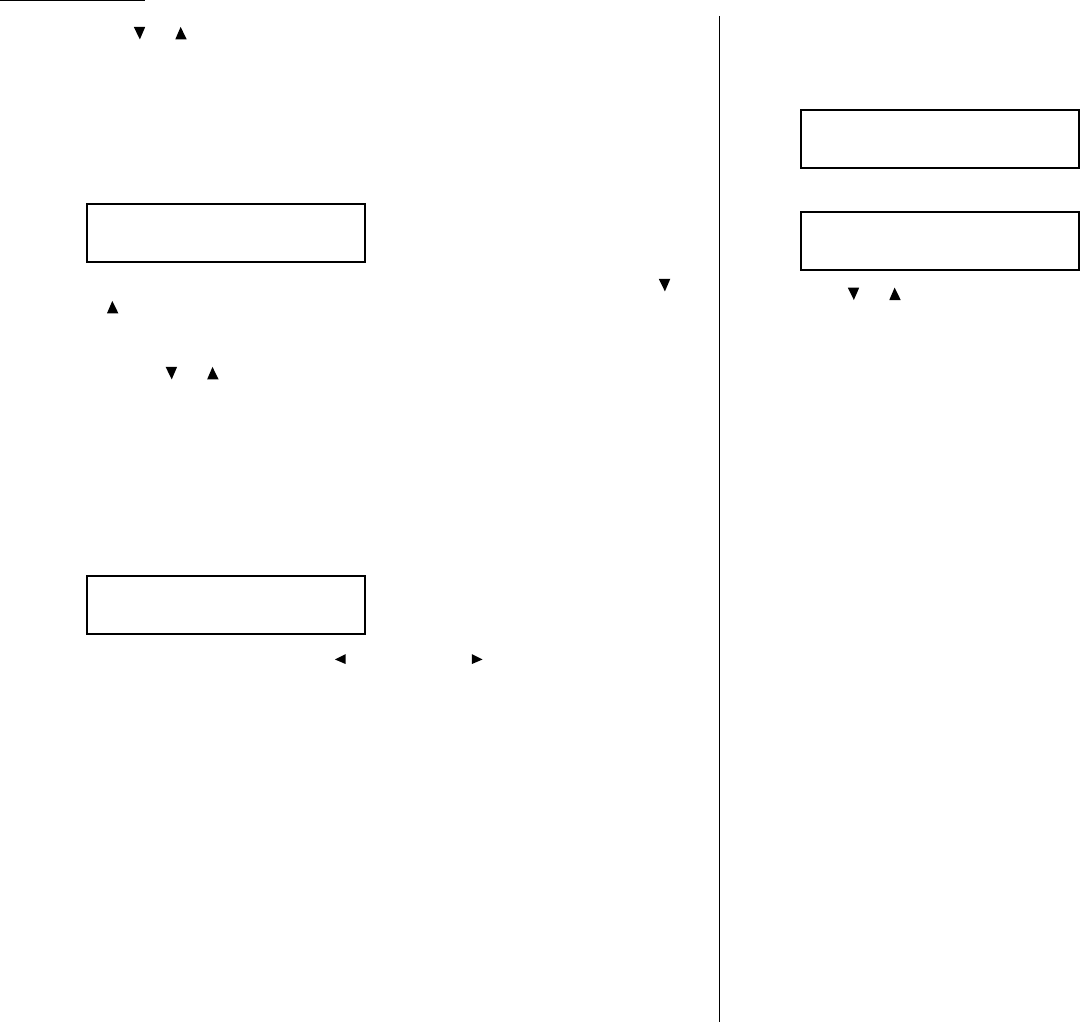
Advanced features
2Press or until the mode you want appears.
3Press
ENTER
to save the setting.
What you do next depends on what you selected in step 1:
• If you selected Off or Mode1, press
STOP
to return to standby mode.
• If you selected either Mode2 or Mode3, go on to step 4.
4The
LCD
shows:
5If you want to modify an existing entry in the blocked numbers list,press
or until you see the number you want to modify.
… or …
If you want to enter a new number in an already-started blocked numbers
list, press or until you find an empty position in the list.
Then press
ENTER
to enter or modify the blocked number.
Note: To clear a number from the list, see “Clearing a number from the
blocked numbers list,” right column.
6Use the numeric keypad to enter the last eight characters of a fax number you
want to block.For example, if you want to block a fax from someone with a
Subscriber
ID
of 972-555-3038, you should enter 5, 5, 5,
DIALING OPTIONS
,3,0,
3, 8:
To change a specific digit, press to move left or to move right until the
cursor is under the digit, then use the numeric keypad to enter the correct
number.
7Press
ENTER
to save the setting.The
LCD
shows the next “slot” in the blocked
numbers list.
If you do not want to enter or change a number for this slot,go on to step 8.
If you do want to enter or change a number for this slot,repeat steps 5–7.
8Press
STOP
.Your machine will return to standby mode.
Clearing a number from the blocked numbers list
To clear a number from the list:
1Press
MENU
,2,2,1,0,
ENTER
.The
LCD
will show:
2Press
ENTER
.The
LCD
shows:
3Press or until you see the number you want to clear.
4Press
CANCEL
to clear the number.
To clear another number from the blocked numbers list, repeat steps 3–4.
Otherwise, go on to step 5.
5Press
STOP
to return your machine to standby mode.
Printing a list of the blocked numbers
Forgot which number is stored in the blocked number list? Just print a list of the
blocked numbers.
To print a list of the blocked numbers, press
MENU
,5,1,0,8,
ENTER
.
Select BlockJunk No.
01:555-2971
Block Junk Fax:Mode2
$$
/
##
/Enter
Enter Fax Number
01:555-3038_
Enter Fax Number
01:_
3.46
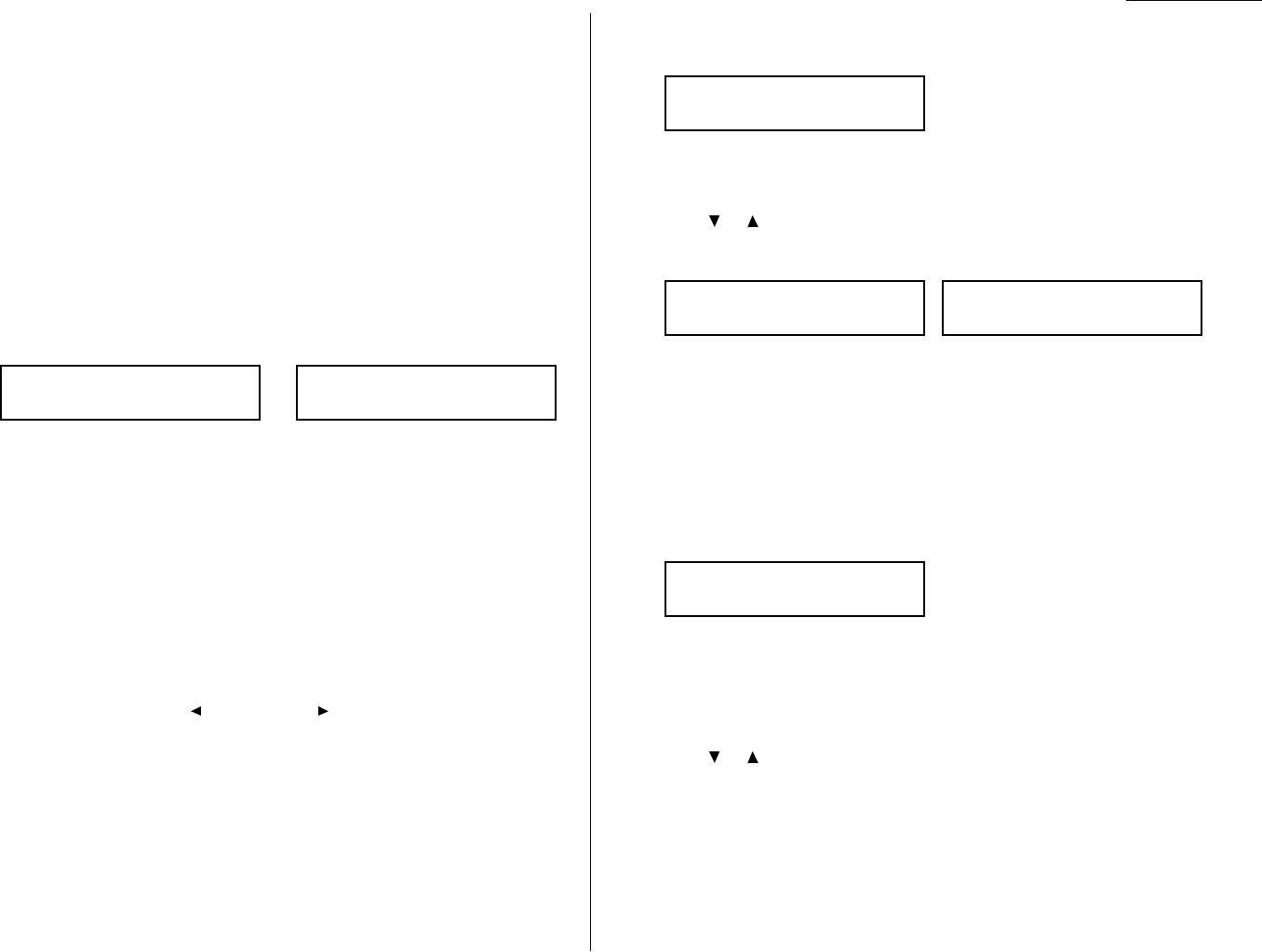
Advanced features
Using department codes
You can keep track of how your machine is used through its department code feature.
When the department code setting is activated, the machine reminds each user to
enter the department code before sending or polling a document.The Activity
Journal then keeps track of fax transactions by department.
After you turn on this setting,assign specific code numbers to your office’s fax users
and tell them to enter these department codes before sending faxes.
Note: Please note that using this setting may block access to the fax machine.
Entering a department code
Your machine can hold up to 100 separate department codes.
To enter a department code:
1Press
MENU
,3,3,2,
ENTER
.Depending upon whether you’ve already entered a
department code, the
LCD
shows:
or
Note: If department code operation is protected (see page 3.48), the fax
beeps briefly and then returns to standby mode.You will have to turn
off the protection first, then repeat this step.
2If you have not entered any codes in your fax, skip to step 4.
Otherwise, go on to step 3.
3To enter a new code in a department code list that’s already been started,
press
ENTER
.The fax will skip to the next empty position in the list.
Note: If you want to modify an existing entry in the department code, you
first clear a department code you want to modify and then enter a
new code (see “Clearing a department code,” right column).
4Use the numeric keypad to enter the four-digit department code, 0000–9999.
To change one digit, press to move left or to move right until the cursor
is under the digit, then use the numeric keypad to enter the correct number.
5Press
ENTER
to save the setting.
To enter another department code, repeat steps 4–5.
To stop entering department codes, press
STOP
to return to standby mode.
Clearing a department code
1Press
MENU
,3,3,2,
ENTER
.The
LCD
shows:
Note: If department code operation is protected (see next page), the fax
beeps briefly and then returns to standby mode.You will have to turn
off the protection first, then repeat this step.
2Press or until you see the code you want to clear.
3Press
CANCEL
.The following two displays will appear alternately:
Note: If you want to quit without erasing the department code you’ve
selected, press
CANCEL
.The machine will return to step 2.
4Press
ENTER
.The code you selected will be cleared.
To clear another department code, repeat steps 2–3.
If you don’t want to clear another department code, press
STOP
to return to
standby mode.
Turning the department code setting on and off
1Press
MENU
,3,3,3,
ENTER
.The
LCD
shows:
Note: If department code operation is protected (see next page), the fax
beeps briefly and then returns to standby mode.You will have to turn
off the protection first, then repeat this step.
Important: To turn the department code setting on, at least one depart-
ment code must be existed in your machine.
2Press or until the mode you want appears.
3Press
ENTER
.
Dept. Setting :Off
$$
/
##
/Enter
3111:Erase Dpt. Code
No
→→
Cancel
3111:Erase Dpt. Code
Yes
→→
Enter
Select Department No
001:1555
Select Department No
001:1555
Enter Dept. Code
001:_
3.47
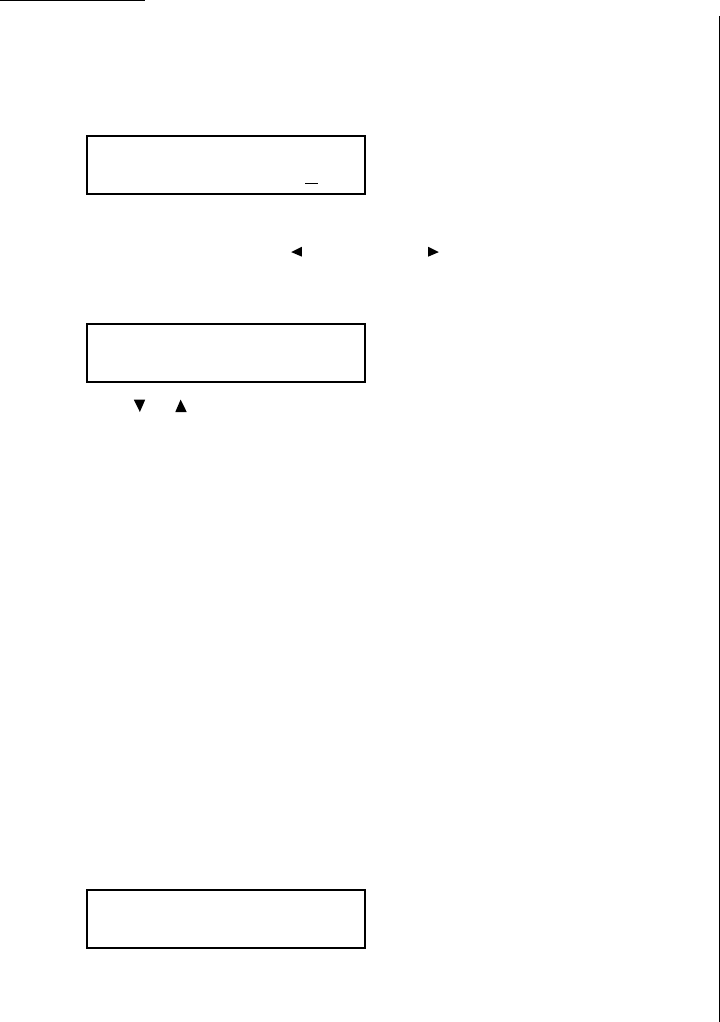
Advanced features
Turning department code protection on and off
Important: This feature will work only if you’ve activated the passcode protection
(see page 3.42).
1Press
MENU
,3,3,1,
ENTER
.The
LCD
shows:
2Use the numeric keypad to enter the four-digit passcode:
To change one digit, press to move left or to move right until the cursor
is under the digit, then use the numeric keypad to enter the correct number.
3Press
ENTER
.The
LCD
shows:
4Press or until the setting you want appears.
5Press
ENTER
to save the setting.
Sending a fax using a department code
For this operation to work, two things must be true:
• The four-digit department code must exist on your fax machine.
• You must know the department code.
1Insert the document.
2Adjust document mode and contrast if necessary.
3Enter the fax number by either pressing a one-touch key, entering a speed-
dial number or dialing from the numeric keypad.
If you enter the fax number using a one-touch key, skip to step 5.
Otherwise, go on to step 4.
4Press
START
.
5The
LCD
shows:
6Use the numeric keypad to enter the appropriate four-digit department code.
7Press
START
again.
Printing the department time list
To print the list, press
MENU
,5,1,1,0,
ENTER
.
Note: If department code operation is protected (see left column), the fax beeps
briefly and then returns to standby mode.You will have to turn off the pro-
tection first, then repeat the above.
The department time list includes the following information for each department
code:
•Time period covered by the department time list
• Each department code
•Total communication time (in hours, minutes and seconds;
HH
:
MM
:
SS
) — Counts
the communication time up to 999:59:59 (999 hours:59 minutes:59 seconds). If the
fax exceeds the maximum time, it does not count further.
•Total printed pages — Counts the pages up to 65535 pages.If the fax exceeds the
maximum number of pages,it counts the total pages from 0 (zero).
Note: If you want to clear the total counts of each department code, see “Clearing
the department time list”, below.
Clearing the department time list
To clear the current total counts of each department code:
Press
MENU
,3,3,4,
ENTER
,
ENTER
.
The total communication time and total printed pages for each department code are
cleared.The department code will not be erased.
Enter Dept. Code
_
Dept. Protect :Off
$$
/
##
/Enter
Set Dept. Protect
Enter Passcode: ****
3.48

Advanced features
This page intentionally blank.
3.49

Changing the
default settings
This chapter describes
how to change the settings of your
machine.
Settings for transmission . . . . . . . . . . . . . . . . . . . . . . . . . . . . . . . . . . . . . . . . . . . . . . 4.1
Settings for reception . . . . . . . . . . . . . . . . . . . . . . . . . . . . . . . . . . . . . . . . . . . . . . . . . 4.3
Settings for dialing . . . . . . . . . . . . . . . . . . . . . . . . . . . . . . . . . . . . . . . . . . . . . . . . . . . 4.5
Settings for copying . . . . . . . . . . . . . . . . . . . . . . . . . . . . . . . . . . . . . . . . . . . . . . . . . . 4.6
Settings for operation . . . . . . . . . . . . . . . . . . . . . . . . . . . . . . . . . . . . . . . . . . . . . . . . . 4.8
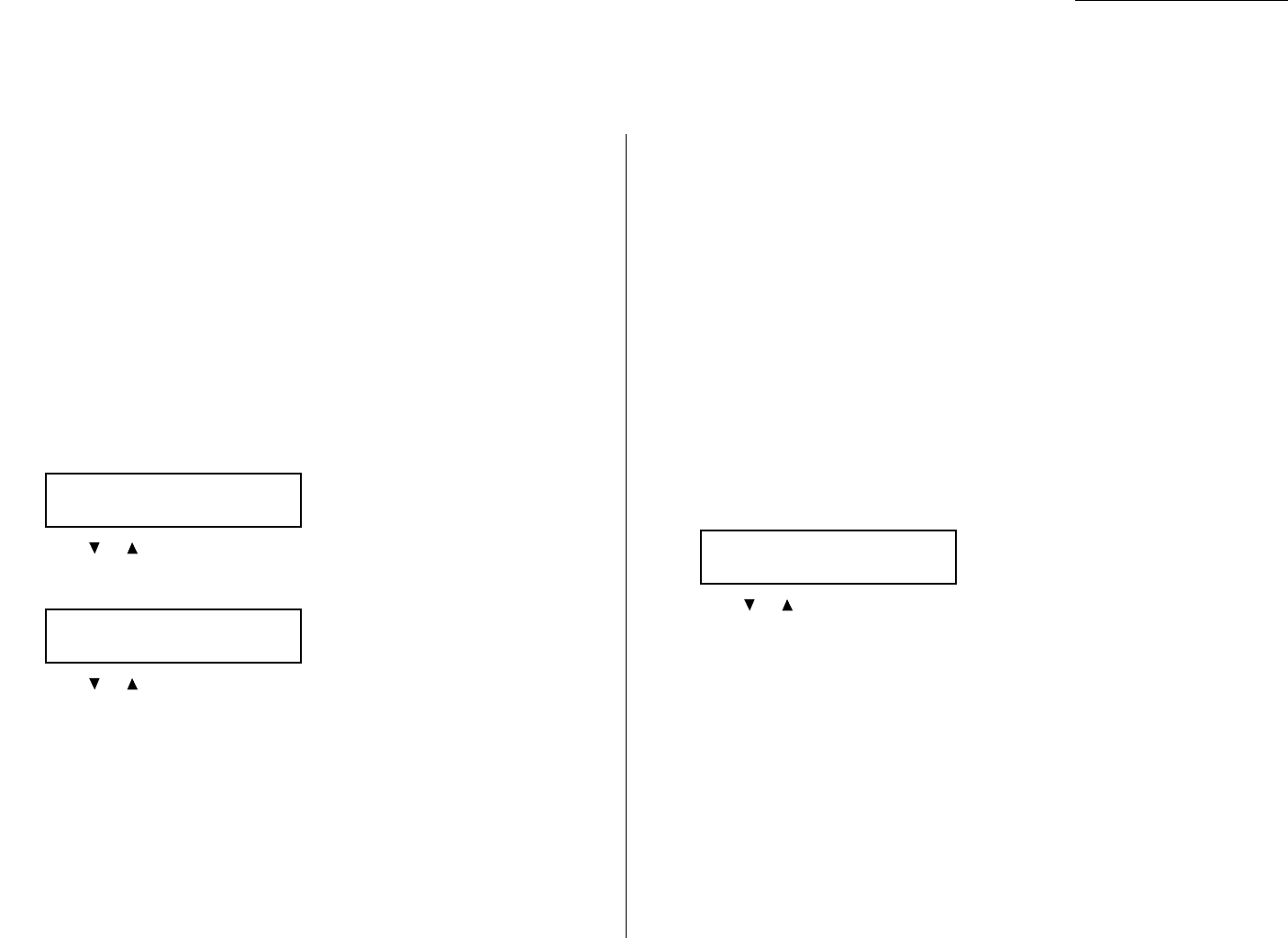
Scan settings
Default setting: Primary document mode: Normal, Primary contrast: Normal
Two different settings tell your machine how to scan documents.The initial factory
settings are probably right for most applications,so try using them before changing
any of these settings:
•Primary document mode — Sets the document mode for your documents.
Choose either normal, fine, superfine (“S-Fine” on the
LCD
) or grayscale mode
(“Gray”).
•Primary contrast mode — Sets how light or dark you want faxed documents
to be when they arrive at their destinations.
Note: These settings you choose effect your fax activity only.
To set these modes:
1Press
MENU
,2,2,0,1,
ENTER
.The
LCD
asks you to select a document mode:
2Press or until the mode you want appears.
3Press
ENTER
to save the setting. The
LCD
asks you to select a contrast setting:
4Press or until the mode you want appears.
5Press
ENTER
to save the setting.
By following the steps above, you’ve set your defaults for scanning. Before sending
documents,you can “override” these default scan settings for that transmission.
To override the default document mode and contrast settings before sending a docu-
ment:
• Press
DOCUMENT MODE
to change the document mode.
• Press
CONTRAST
to change the contrast.
Once your document is transmitted, your machine returns to its default settings.
Setting ECM
Default setting: ON.
“Line noise,” or static on the line during a call, can easily disrupt the flow of data
from one fax machine to another.
That’s why your fax machine gives you the option of using Error Correction Mode
(
ECM
). When two fax machines communicate while running in
ECM
, the sending
machine automatically checks the data as it sends. If the receiving fax machine can’t
verify the transmission, the first machine will re-send it as necessary.
Note:
ECM
gives you a better chance of transmitting a fax document over a bad
phone line, but it could also slow down the transmission time.The worse a
line is,the slower the transmission. That’s why the machine lets you turn
ECM
on or off as needed.
Note: Not all fax machines have
ECM
. If you’ve activated
ECM
and then transmit to
a fax machine not currently using
ECM
, there will be no change in the fax
transmission from a usual, non-
ECM
transmission.
1Press
MENU
,2,2,0,9,
ENTER
.The
LCD
shows the current
ECM
setting:
2Press or until the mode you want appears.
3Press
ENTER
to save the setting.
ECM Mode :On
$$
/
##
/Enter
Contrast :Normal
$$
/
##
/Enter
Document Mode:Normal
$$
/
##
/Enter
Changing the default settings
4.1
Settings for transmission
Memory transmission
Default setting: ON.
Note: When the machine’s memory is full, it can transmit only through the docu-
ment feeder (real time transmission).
To change the default setting of memory transmission:
1Press
MENU
,2,2,0,6,
ENTER
.The
LCD
shows:
2Press or until the mode you want appears.
3Press
ENTER
to save the setting.
If the
MEMORY TRANSMIT
light glows,memory transmission is on.
If the
MEMORY TRANSMIT
light doesn’t glow, memory transmission is off.
Quick Memory transmission
Default setting: ON.
Important: Your fax machine’s memory transmission feature must be turned on
to use Quick Memory transmission (see above).
To change the default setting of Quick Memory transmission:
1Press
MENU
,2,2,0,7,
ENTER
.The
LCD
shows:
2Press or until the mode you want appears.
3Press
ENTER
to save the setting.
TTI transmission
Default setting: ON.
Every fax page you send arrives at the receiving machine with a single line of text
at the very top of the page.This text lists a name, called the Transmit Terminal
Identifier (
TTI
), and a fax number. You can set the machine to not send the
TTI
.
1Press
MENU
,2,2,0,8,
ENTER
.The
LCD
shows:
2Press or until the mode you want appears.
3Press
ENTER
to save the setting.
TTI Tx :On
$$
/
##
/Enter
Quick Tx :On
$$
/
##
/Enter
Memory Tx :On
$$
/
##
/Enter
Changing the default settings
4.2
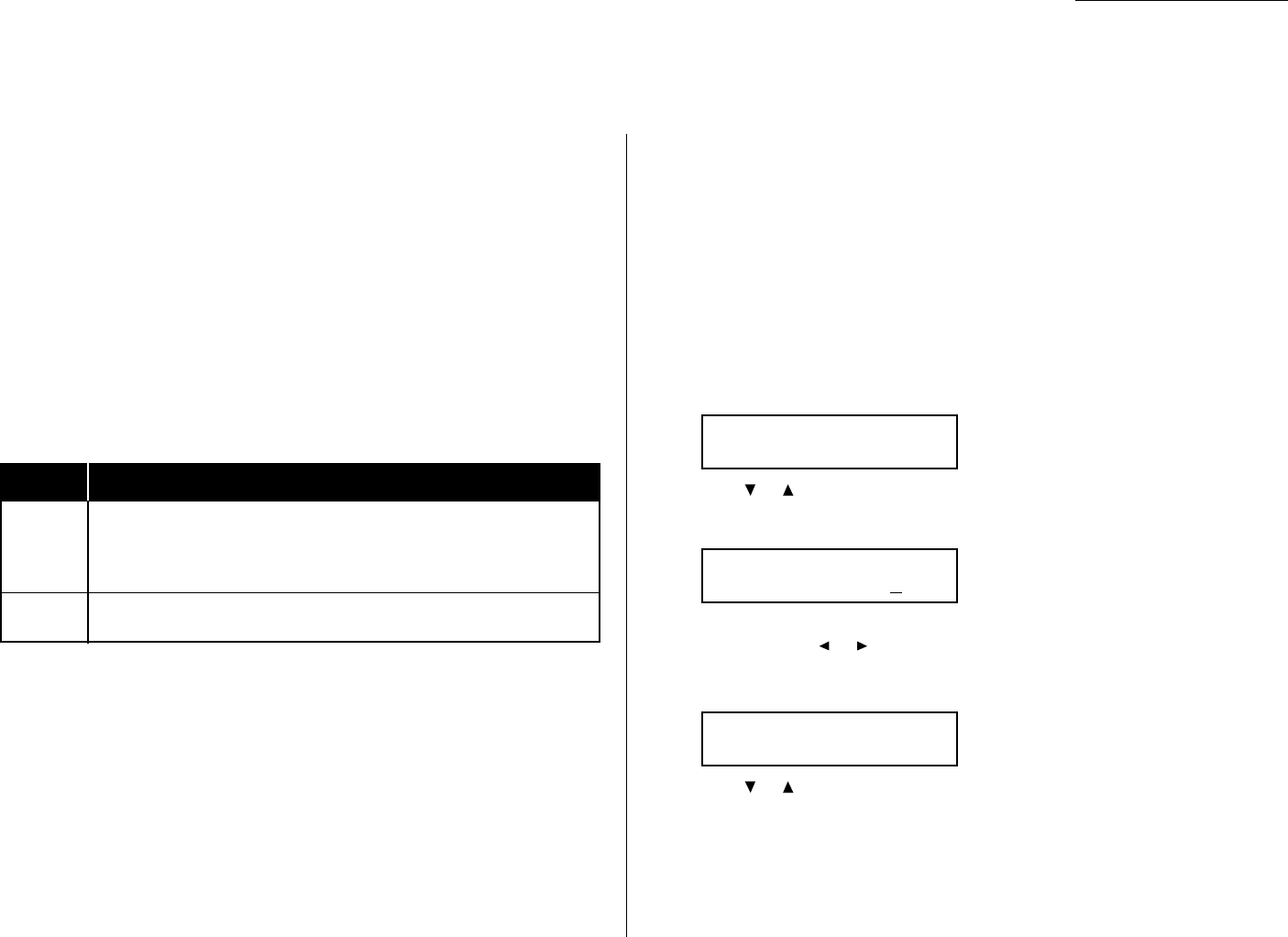
Print settings
You can set three parameters for printing received fax messages:
• Print reduction rate
• Reduction margin
• Paper save function
You set all three in the same procedure, discussed on next column. Following is a
explanation for each:
Print reduction rate
Print reduction lets you set the machine to reduce large incoming documents to a
size that fits the paper in your machine.(This setting doesn’t affect copies you may
make with your machine.)
Below are the options for the print reduction rate for fax reception:
Setting What it does
Automatically reduces printouts at variable rates down to a
Auto minimum of 50%.Tries to reduce printout to fit on one sheet of
your selected paper size. If it can’t, print the image at 100% size
on two or more pages.
100% Does not reduce documents.(Due to the sender’s
TTI
, this may print
two pages when receiving a one-page fax document.)
Reduction margin
Your machine’s reduction margin is measured in millimeters (mm).We’ll define
reduction margin by explaining how it’s used:
When a fax message enters your machine’s electronic brain, the machine measures
the message’s length and compares it to (a) the length of your selected paper (not
include the print margins) plus (b) the reduction margin you set. If the length of
the incoming message is shorter than (a) and (b) put together, your machine prints
the message on just one sheet.
If it’s longer, your machine prints the message on more than one sheet.
Note: An Auto reduction setting and a reduction margin setting of 40mm will
print most incoming faxes as single pages.Try this combination first and
then, only if you have problems with it, select different settings.
Half-page reception
Half-page reception can conserve paper if some of the faxes you receive are half-
page,“memo-sized” messages. When activated, this feature tells the machine to
combine two of these half-page receptions onto a single sheet. Half-page reception
only combines half-page messages sent back-to-back during the same transmission.
It won’t combine two half-page faxes from separate transmissions.
To adjust the print settings
Default setting: Rx reduction rate:Auto, Reduction margin: 40 mm,
Half-page reception: OFF.
1Press
MENU
,2,2,0,2,
ENTER
.The
LCD
shows the current reduction rate for
fax reception:
2Press or until the reduction setting you want appears.
3Press
ENTER
to save the setting.The
LCD
shows the current reduction margin:
4Use the numeric keypad to enter the reduction margin you want. If
necessary, press or to move the cursor.
5Press
ENTER
to save the setting.The
LCD
shows the current setting for
half-page reception:
6Press or until the setting you want appears.
7Press
ENTER
to save the setting.
Half Page Recpt.:Off
$$
/
##
/Enter
Margin
(00-85) 40 mm
Rx Reduc.Rate :Auto
$$
/
##
/Enter
Changing the default settings
4.3
Settings for reception

Setting the number of rings
Default setting: 2 times.
You can set how many times your fax machine will ring before answering a call.
Choose from 1 to 9 rings.
1Press
MENU
,2,2,0,3,
ENTER
.The
LCD
shows:
2Use the numeric keypad to enter the number of rings you want, from 1 to 9.
Note: If you enter the number except 1-9, the machine will beep briefly to
warn you that it can’t accept that setting.
3Press
ENTER
to save the setting.
# Of Rings
(1-9) 2 times
Changing the default settings
4.4
Changing the default settings
Changing the dialing pause length
Default setting: 2 seconds.
The pause is set by the factory to last two seconds,but you can set it to last as long
as ten seconds if necessary.To change the pause length:
1Press
MENU
,2,2,0,5,
ENTER
.The
LCD
shows:
2Use the numeric keypad to enter the length you want for the dialing pause.
Note: The length setting requires two digits.Always enter a leading zero for
lengths less than 10 seconds.
3Press
ENTER
to save the setting.
Changing redial settings
Default setting: Number of redial: 2 times, Redial interval: 1 minute.
It’s up to you how many times the fax redials a number and how long it waits
between redials (that length of time between calls is the redial interval).
To program the redial settings:
1Press
MENU
,2,2,0,4,
ENTER
.The
LCD
shows:
2Use the numeric keypad to enter the number of redials you want. Choose
from 2 to 15 redials.
Note: Enter a leading zero when entering a quantity less than 10.
3Press
ENTER
to save the setting.
4The
LCD
now shows:
5Use the numeric keypad to enter the length you want between redial
attempts.Choose from 1 to 5 minutes.
6Press
ENTER
to save the setting.
Redial Interval
(1-5) 1 min.
# Of Redials
(02-15) 02 times
Dialing Pause
(02-10) 02 sec.
4.5
Settings for dialing
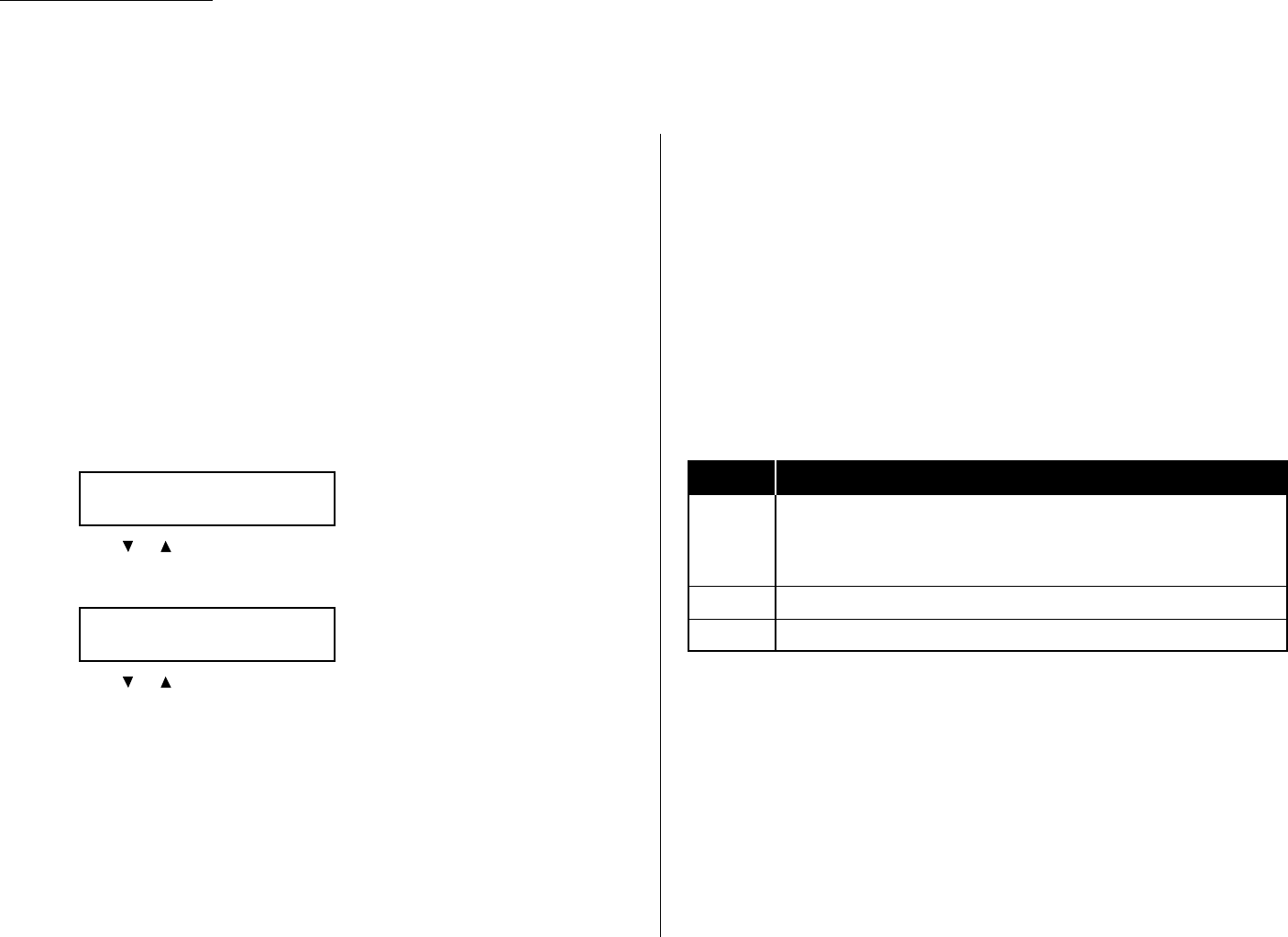
Scan settings
Default setting: Primary document mode: Fine, Primary contrast: Normal
Two different settings tell your machine how to scan documents.The initial factory
settings are probably right for most applications,so try using them before changing
any of these settings:
•Primary document mode — Sets the document mode for your documents.
Choose either normal, fine, superfine (“S-Fine” on the
LCD
) or grayscale mode
(“Gray”).
•Primary contrast mode — Sets how light or dark you want faxed documents
to be when they arrive at their destinations.
Note: These settings you choose effect your copy activity only.
To set these modes:
1Press
MENU
,2,3,1,
ENTER
.The
LCD
asks you to select a document mode:
2Press or until the mode you want appears.
3Press
ENTER
to save the setting. The
LCD
asks you to select a contrast setting:
4Press or until the mode you want appears.
5Press
ENTER
to save the setting.
By following the steps above, you’ve set your defaults for scanning. Before making
copies,you can “override” these default scan settings for that copy.
To override the default document mode and contrast settings before making copies:
• Press
DOCUMENT MODE
to change the document mode.
• Press
CONTRAST
to change the contrast.
Once you made copies,your machine returns to its default settings.
Copy print settings
You can set three print parameters for copy:
• Print reduction rate for copy
• Print margin for copy
• Bypass Tray priority
You set these three in the same procedure, discussed below. Following is an explana-
tion for each:
Print reduction rate
Copy reduction lets you set the machine to reduce large documents to a size that fits
the paper in your machine.(This setting doesn’t affect printing fax message you
may receive with your machine.)
Below are the options for the print reduction rate for copy:
Setting What it does
Automatically reduces printouts at variable rates down to a
Auto minimum of 50%.Tries to reduce printout to fit on one sheet of
your selected paper size. If it can’t, print the image at 100% size
on two or more pages.
100% Does not reduce documents.
78% Reduces to fit a legal-sized document to a letter-sized paper.
Print margin
Your machine’s print margin for copying is measured in millimeters (mm).We’ll
define print margin by explaining how it’s used:
When an original document is scanned, the machine measures the document’s
length and compares it to: (a) the length of your selected paper (not include the
print margins) plus (b) the print margin you set. If the length of the document is
longer than (a) and (b) put together, your machine prints the document on more
than one sheet.
Note: A print margin setting of 24 mm will print most documents as single pages.
Try this combination first and then, only if you have problems with it, select
different settings.
Contrast :Normal
$$
/
##
/Enter
Document Mode:Fine
$$
/
##
/Enter
Changing the default settings
4.6
Settings for copying
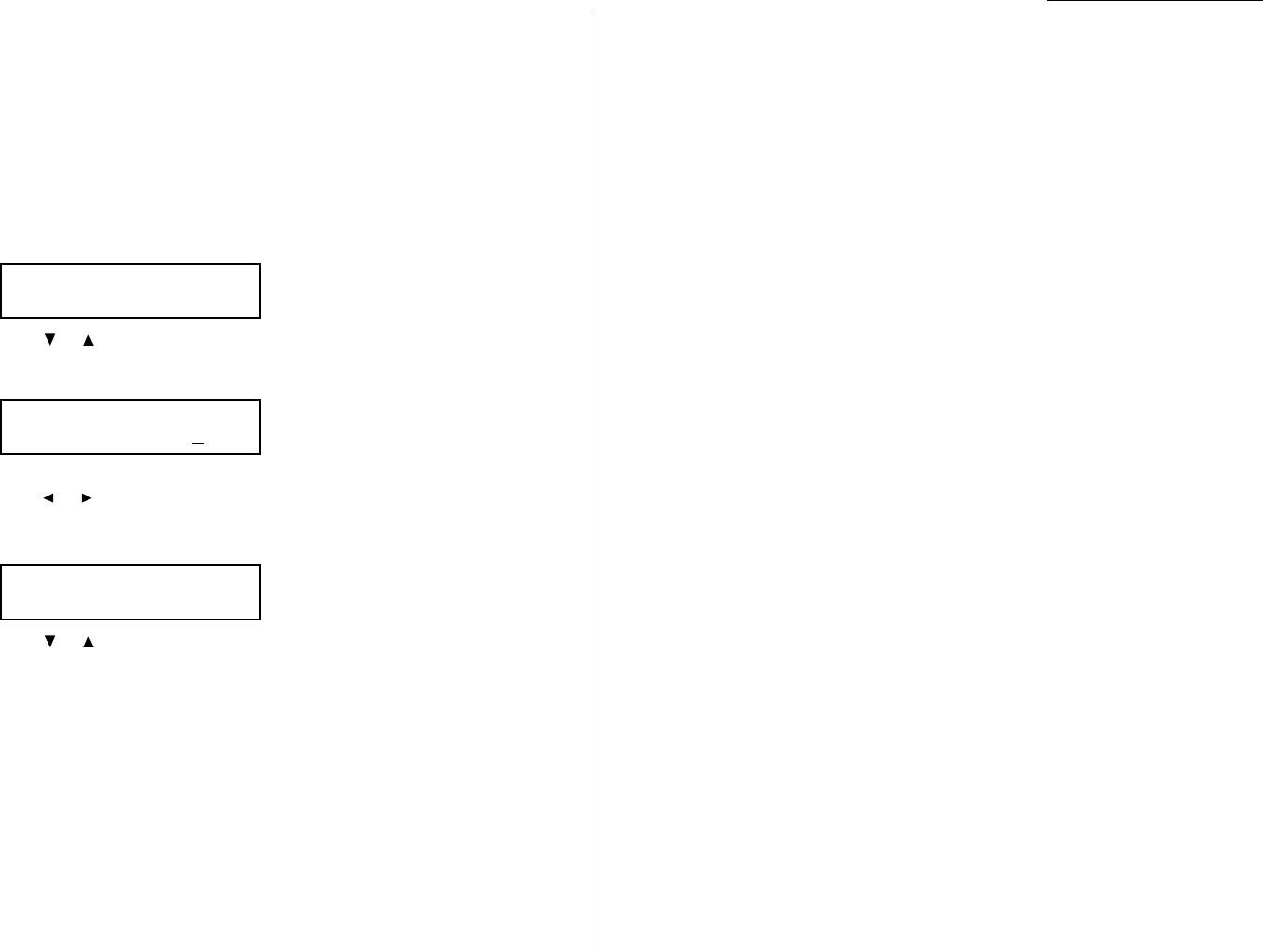
Bypass Tray priority
If you set the same sized paper to both the paper cassette and bypass tray, and this
mode is turned to on, the machine gives priority to use the paper which is set on the
bypass tray than the paper in the cassette.
To adjust the copy print settings
Default setting: Copy reduction rate:100%, Margin:24 mm, Bypass tray priority:Off
1Press
MENU
,2,3,2,
ENTER
.The
LCD
shows the current reduction rate for copy-
ing:
2Press or until the reduction setting you want appears.
3Press
ENTER
to save the setting.The
LCD
shows the current print margin:
4Use the numeric keypad to enter the print margin you want. If necessary,
press or to move the cursor.
5Press
ENTER
to save the setting.The
LCD
shows the current setting for bypass
tray priority:
6Press or until the setting you want appears.
7Press
ENTER
to save the setting.
Bypass Priority :Off
$$
/
##
/Enter
Margin
(00-85) 24 mm
Prt Reduc.Rate :100%
$$
/
##
/Enter
Changing the default settings
4.7
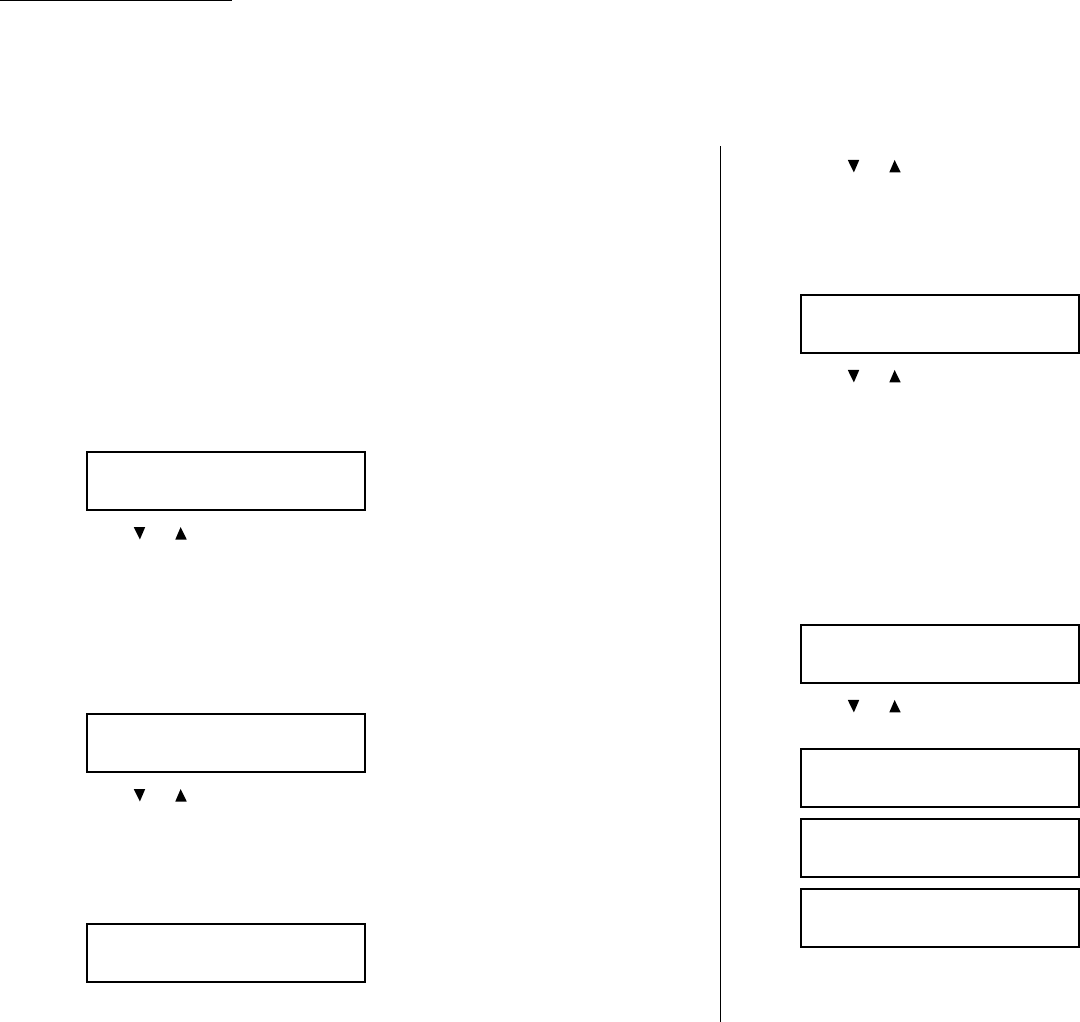
Changing the default settings
Setting the silent mode
Default setting: OFF.
Silent mode allows you to mute the ringer, the alarm and the key tones.
•Ringer Silent — If you turn the ringer off in silent mode, a ring alerts you
when you receive fax or voice call and a call request.
•Alarm Silent — If you disable the alarm in silent mode, the sound your
machine makes when an error occurs and the beep your machine makes after
sending or receiving a fax or making a copy cannot be heard.
•Key Buzzer Silent — If you mute the key tone, your machine will not make a
sound when you press the buttons on the control panel.
1Press
MENU
,2,1,0,4,
ENTER
.The
LCD
shows your fax’s current setting:
2Press or until the mode you want appears.
Note: If you chose On, the silent mode of Ringer,Alarm or Key tone can be
set to be available. If you chose Off, the machine will ring and beep as
usual.
If you chose Off, skip to step 10.
3Press
ENTER
to save the setting. The
LCD
now asks if you want the ringer to be
on or off:
4Press or until the mode you want appears.
If you want to turn off the ringer, select “On” and the machine will be quiet.
Otherwise, the machine will ring.
5Press
ENTER
to save the setting. The
LCD
now asks if you want the alarm turned
on or off:
6Press or until the mode you want appears.
If you want to turn off the alarm, select “On” and the machine will be quiet.
Otherwise, the machine will beep.
7Press
ENTER
to save the setting. The
LCD
now asks if you want the key tones on
or off:
8Press or until the mode you want appears.
If you want to turn off the tones, select “On” and the machine will be quiet.
Otherwise, the machine will beep when the keys are pressed.
9Press
ENTER
to save the setting.
If you turned off the alarm or the key tones in the steps above,your machine
gives you the option of setting the volume for the alarm and key tones. If this
option appears,skip to step 10.
If you didn’t turn any of these off, your fax machine returns to standby mode.
10 The
LCD
shows your fax’s current setting:
11 Press or until the mode you want appears.
Below are the possible settings:
= Loudest setting.
= Medium setting.
= Low setting.
12 Press
ENTER
to save the setting.
Alarm&Key Volume:Min
$$
/
##
/Enter
Alarm&Key Volume:Mid
$$
/
##
/Enter
Alarm&Key Volume:Max
$$
/
##
/Enter
Alarm&Key Volume:Mid
$$
/
##
/Enter
KeyBuzzer Silent:Off
$$
/
##
/Enter
Alarm Silent :Off
$$
/
##
/Enter
Ringer Silent :Off
$$
/
##
/Enter
Silent Mode :Off
$$
/
##
/Enter
4.8
Settings for operation
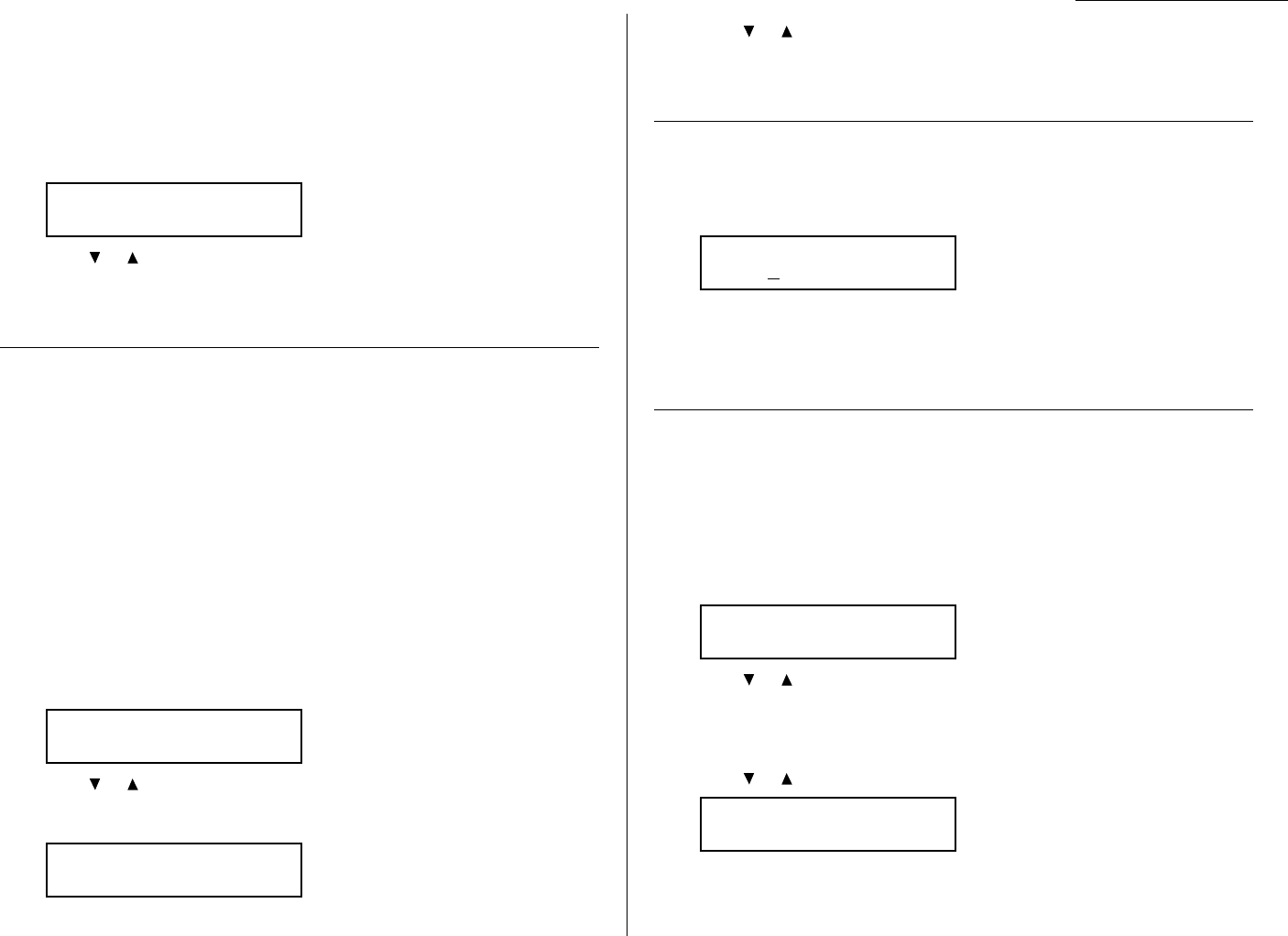
Changing the default settings
Setting Sleep mode (Energy saving mode)
Default setting: On
Note: All
LED
lamps on the control panel will not be off, even when the machine is
in the sleep mode.
If you want to change the Sleep mode to OFF, you can set it here.
1Press
MENU
,2,1,0,5,
ENTER
.The
LCD
shows:
2Press or until the mode you want appears.
3Press
ENTER
to save the setting.
Setting the paper source
Default setting: 1st cassette: Fax/Copy, Bypass Tray: Fax/Copy
You can choose one of following for each paper source:
“Fax”: Select this if you want to use the paper source you selected for fax-
ing and list (or report) printing.
“Copy”: Select this if you want to use the paper source you selected for copy-
ing only.
“Fax/Copy”: Select this if you want to use the paper source you selected for fax-
ing,list (or report) printing and copying.
“Not Used”: Select this if you want to use the paper source you selected for sepa-
rator page (see page 3.21) or PC printing.
Note: PC printing is available only when your machine has the
optional printer controller kit.
1Press
MENU
,2,1,0,8,
ENTER
.The
LCD
shows:
2Press or until the mode you want appears.
3Press
ENTER
to save the setting. The
LCD
shows:
4Press or until the mode you want appears.
5Press
ENTER
to save the setting.
Adjusting the machine’s clock
You can adjust the machine’s clock here.
1Press
MENU
,2, 1, 0, 7,
ENTER
.The
LCD
shows:
2Use the numeric keypad to enter the current date and time to adjust the
clock.
3Press
ENTER
to save the setting.
Setting 2-bin tray (Option)
Default setting: Copy exit: Lower tray, Fax exit: Upper tray, List exit: Upper tray
You will set where the printed paper emerges in this operation.
Note: This operation will appear only if the optional 2-bin tray has been attached
to your machine.
1Press
MENU
,2, 1, 1, 0,
ENTER
.The
LCD
shows:
2Press or until the mode you want appears.
If you chose On, proceed to step 3.
If you chose Off, skip to step 7.
3Press
ENTER
.The
LCD
asks you to select Lower or Upper tray for copy exit.
Press or until the tray you want appears.
Copy Exit :Lower
$$
/
##
/Enter
2-Bin Tray :Off
$$
/
##
/Enter
Enter Time
01/27 ’02 14:30
Bypass Tray:Fax/Copy
$$
/
##
/Enter
Cassette1 :Fax/Copy
$$
/
##
/Enter
Sleep Mode :On
$$
/
##
/Enter
4.9
Changing the default settings
4Press
ENTER
to save the setting.
The
LCD
now asks you to select Lower or Upper tray for fax reception.
Press or until the tray you want appears.
5Press
ENTER
to save the setting.
The
LCD
now asks you to select Lower or Upper tray for list printing.
Press or until the tray you want appears.
6Press
ENTER
to save the setting.
Printing your settings
After you’ve programmed settings into your machine,print a settings list. We
recommend this,particularly if you’re sharing the machine with other users, who
might change the settings.
With this list, you can quickly confirm that all of your settings are correct, without
having to go back and check them on the machine. Or, if you do need to undo
someone else’s changes, this list guides you in returning the machine to your
preferred settings.
To print the User settings list, press
MENU
,5,1,0,2,
ENTER
.
List Exit :Upper
$$
/
##
/Enter
Fax Exit :Upper
$$
/
##
/Enter
4.10

Changing the default settings
This page intentionally blank.
4.11

Just in case …
Tips on caring for your machine
What to do if problems occur
Glossary
Clearing paper jams . . . . . . . . . . . . . . . . . . . . . . . . . . . . . . . . . . . . . . . . . . . . . . . . . . 5.1
Print quality problems . . . . . . . . . . . . . . . . . . . . . . . . . . . . . . . . . . . . . . . . . . . . . . . . 5.3
Troubleshooting . . . . . . . . . . . . . . . . . . . . . . . . . . . . . . . . . . . . . . . . . . . . . . . . . . . . . 5.5
Caring for your fax machine . . . . . . . . . . . . . . . . . . . . . . . . . . . . . . . . . . . . . . . . . . 5.11
Common questions . . . . . . . . . . . . . . . . . . . . . . . . . . . . . . . . . . . . . . . . . . . . . . . . . . 5.13
Glossary . . . . . . . . . . . . . . . . . . . . . . . . . . . . . . . . . . . . . . . . . . . . . . . . . . . . . . . . . . . 5.16
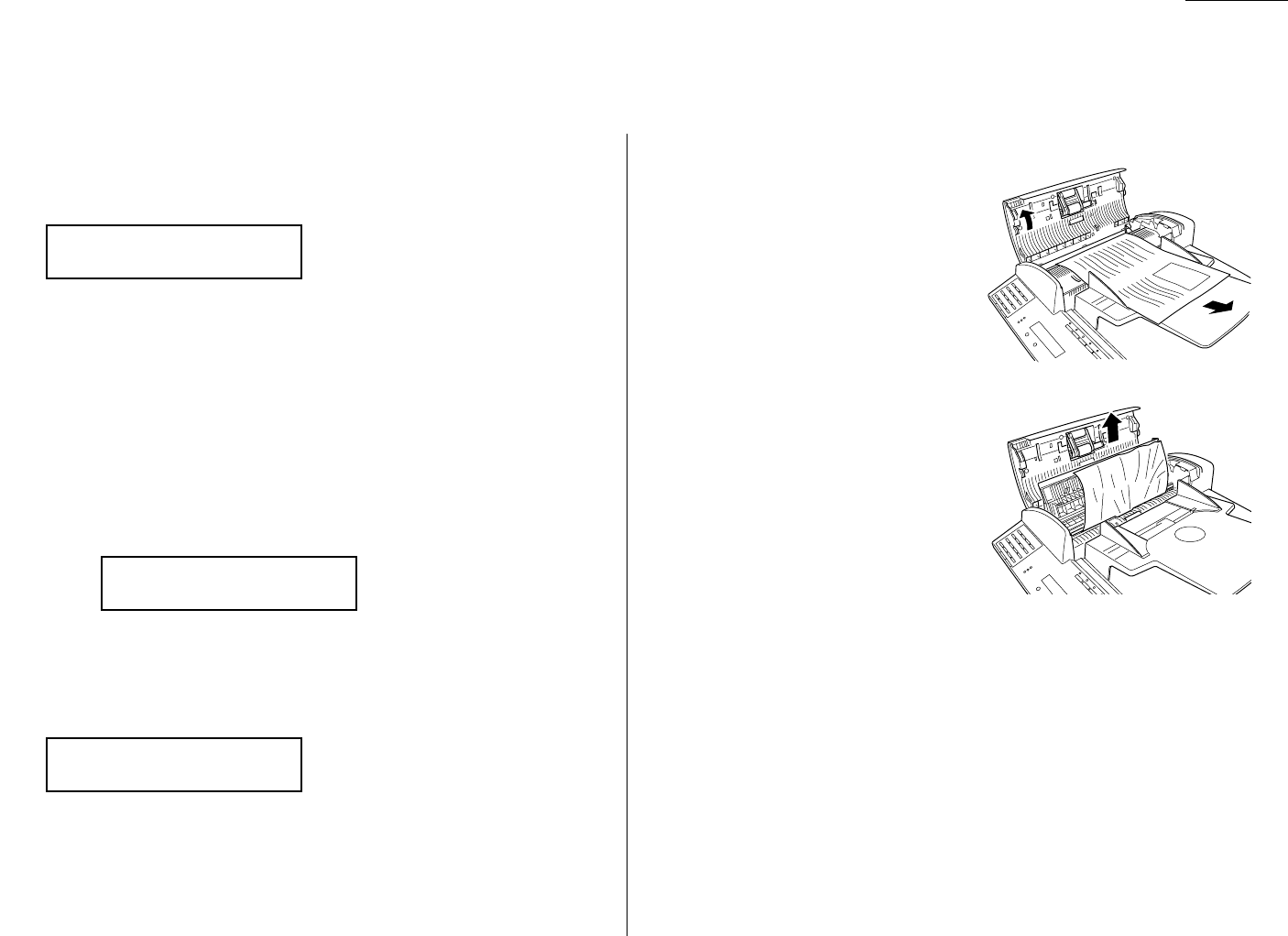
Just in case …
If an original document jams
1If an original document jams in the
ADF
while scanning the document into the
memory for faxing or copying,the
LCD
will show:
If you do wish to continue the operation, press
ENTER
and proceed to step 2.
To abort the operation, press
CANCEL
.This will erase from memory all pages
stored during this operation, and the machine will return to standby mode.
Important: If you wait more than 60 seconds without pressing any key, the
machine will erase from memory all pages stored during this
operation and the machine will ask you to remove the jammed
paper.
Note: If the document jammed in the following case, the following message
will appear and the machine will abort the operation anyway; instead,
you’ll have to perform the job again from the beginning.
The first page of the document jammed
During quick memory transmission
Also, the “Repeat transmission. Error on scan at page xx” message
will be printed out if the document jammed during transmission.
2The
LCD
will show which page (i. e., which page number) is jammed.To con-
tinue scanning from the jammed page forward (keeping in mind the Note at
the end of step 1, above), press
START
after clearing the jam.
Note: If you wait more than 60 seconds without pressing any key, the
machine will begin to send or copy the document(s) it has.
If you wish to cancel this operation, press
STOP
.The machine will delete all
pages from memory and then return to its standby mode.
To remove the document:
1Open the scanner cover.
If you can remove the document,
remove it and skip to step 3.
If not, proceed to step2.
2Open the inner cover and lift the
document from the machine.
3Gently close the scanner cover, making
sure both sides are snapped down
securely.
Note: If the original document has
become wrinkled or torn, do not
re-send it.
p 2. Reset Document
Press Start Key
Open&Close ScanCover
Reset Document
Document Jam
ContStor Enter/Cancl
5.1
Clearing paper jams
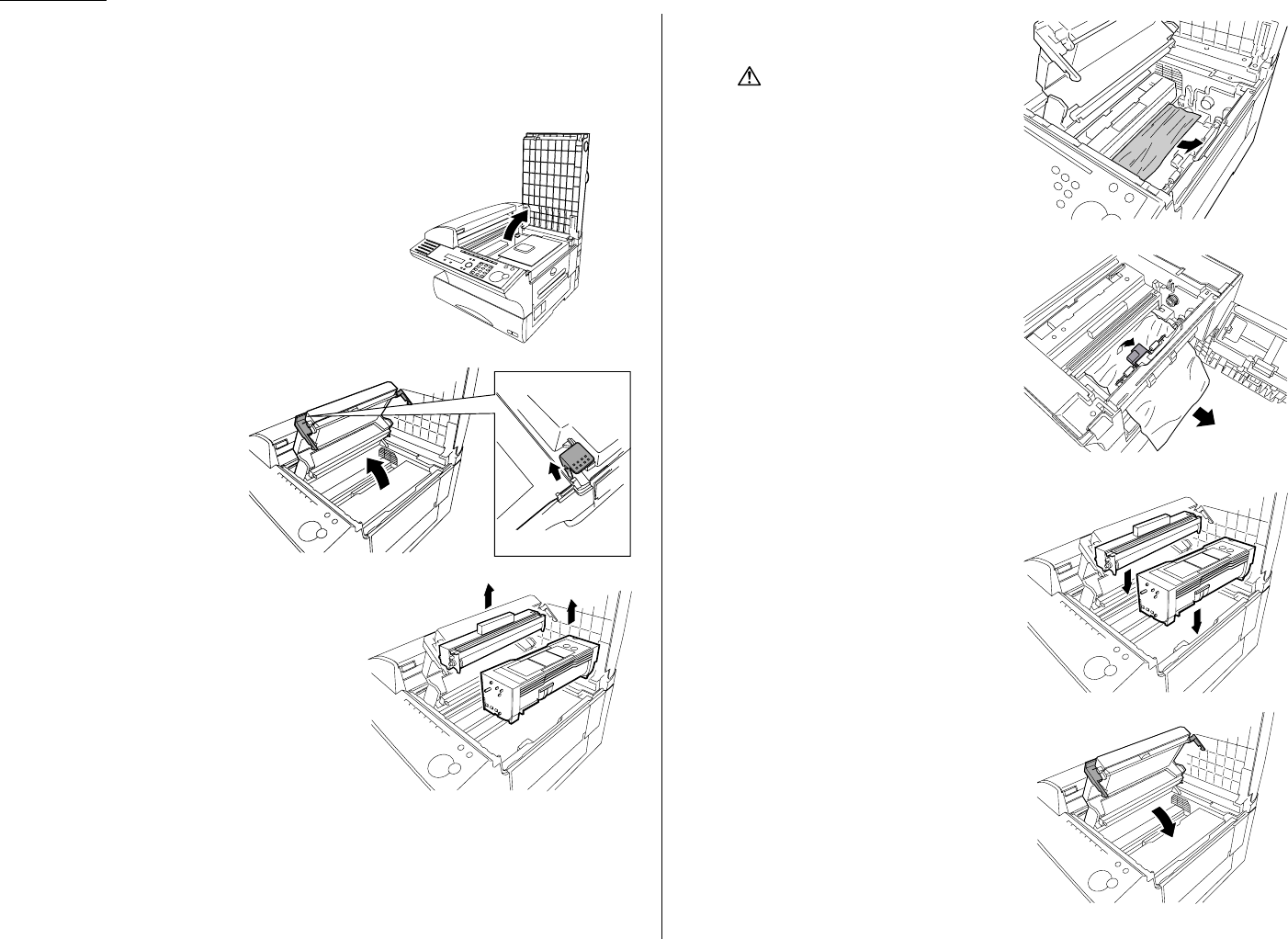
Just in case …
If a printout jams inside your machine
Important: Be careful not to put your hand between the top cover and the
machine.
To clear a printout jammed inside your machine:
1Open the top cover.
2Open the printer cover.
3Remove the toner and drum cartridge.
Important: Shield the drum cartridge
from light, especially
strong light. Later, if you
have to remove the car-
tridge from the fax,
immediately wrap it in a
thick cloth to protect it
from light.
4Remove the jammed paper.
CAUTION:
The fuser unit becomes very hot.
Do not touch the fuser unit when you
are removing a paper jam.
Note: Avoid getting “unfixed” toner on
your hands and clothes.
Open the side cover.
Raise the jam release lever to remove
the jammed paper.
5Reset the toner and drum cartridge.
6Gently close the printer cover, pressing
firmly on the both sides of the printer
cover until you hear it click.
7Gently close the top cover, pressing
firmly on the both sides of the top cover
until you hear it click.
5.2
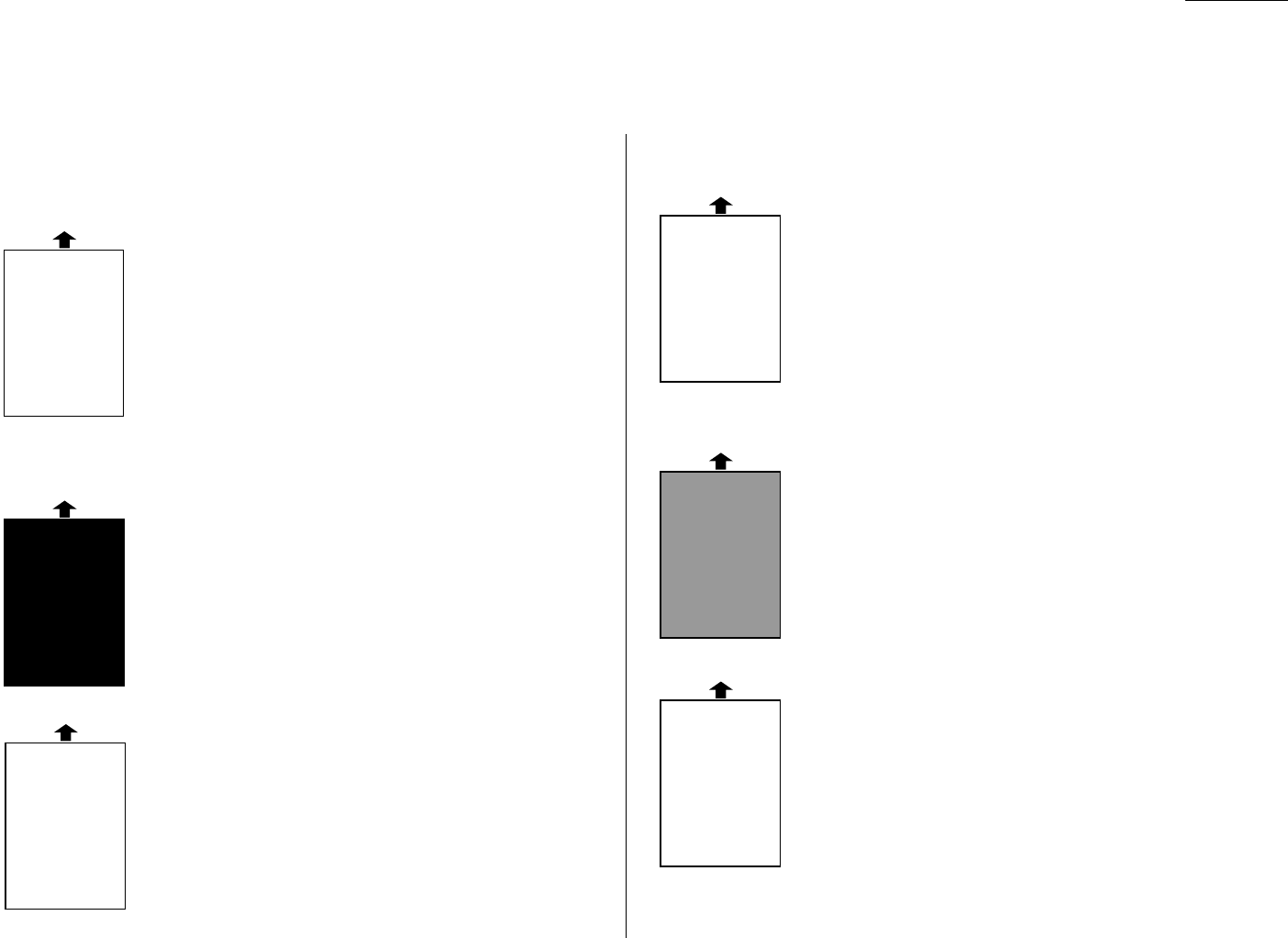
Just in case …
If your machine’s printouts develop quality problems,try to find the example below
that matches your printout problem.When you find one which is like yours, try the
suggested solutions.If they don’t work, contact your authorized Muratec dealer.
Pages are blank
• The drum cartridge or toner cartridge may not be installed
correctly.
Install each cartridge correctly.
• The toner cartridge may be out of toner, or the toner may
be very low.
Remove the toner cartridge and shake it a few times to
redistribute the toner inside.
If the problem persists, replace the toner cartridge.
• The toner cartridge may be defective.
Remove the toner cartridge and check it for damage.
If the problem persists, replace the toner cartridge.
Pages are black
• The toner cartridge may be defective.
Remove the toner cartridge and check it for damage.
If the problem persists, replace the toner cartridge.
• Your fax machine’s printer may be due for a service check.
Call your dealer.
Printouts are too light
• The toner cartridge may be out of toner, or the toner may
be very low.
Remove the toner cartridge and shake it a few times to
redistribute the toner inside.
If the problem persists, replace the toner cartridge.
• The toner cartridge may be defective.
Remove the toner cartridge and check it for damage.
If the problem persists, replace the toner cartridge.
Printouts are too dark
• The toner cartridge may be defective.
Remove the toner cartridge and check it for damage.
If the problem persists, replace the toner cartridge.
Printouts have a blurred background
• The toner cartridge may be defective.
Remove the toner cartridge and check it for damage.
If the problem persists, replace the toner cartridge.
Printouts are of uneven density
• The toner may be unevenly distributed inside the
toner cartridge.
Remove the toner cartridge and shake it a few times to
redistribute the toner inside.
• The drum cartridge may be defective.
Remove the drum cartridge and check it for damage.
If the problem persists, replace the drum cartridge.
B
B
B
B
B
A
A
A
A
A
CDE
CDE
CDE
CDE
CDE
ABCDE
ABCDE
ABCDE
ABCDE
ABCDE
ABCDE
ABCDE
ABCDE
ABCDE
ABCDE
ABCDE
ABCDE
ABCDE
ABCDE
ABCDE
5.3
Print quality problems
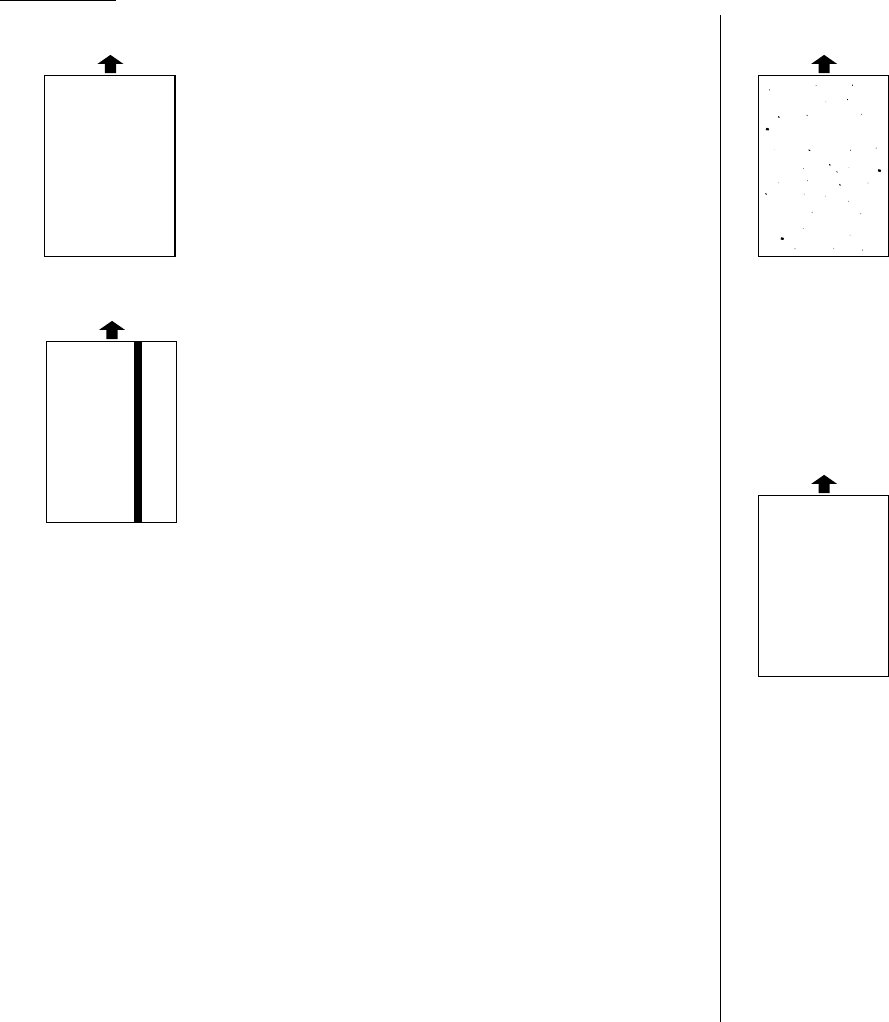
Just in case …
5.4
Printouts have irregularities
• The paper you’re using may have absorbed moisture, per-
haps due either to high humidity or water having been
spilled on the paper supply.Toner will not adhere well to
wet paper.
Replace the paper with dry paper and try printing again.
Printouts have white and/or black lines
• The toner cartridge or drum cartridge may be defective.
Remove the cartridges and check them for damage.
If the problem persists, replace either or both of the car-
tridges as indicated.
• The LED print head may be dirty.
Using the cleaning paper, gently clean the LED print head.
• The charger may be dirty.
Your machine normally cleans the charger automatically.
If other solutions fail, please contact your authorized
Muratec dealer.
Printouts have toner smudges
• The toner may be unevenly distributed inside the toner
cartridge.
Remove the toner cartridge and shake it a few times to
redistribute the toner inside. If the problem persists, replace
the cartridge.
• The toner cartridge or drum cartridge may be defective.
Remove the cartridges and check them for damage. If the
problem persists, replace either or both of the cartridges as
indicated.
• If you find smudges on the back of the printouts, the trans-
port roller may be dirty.
Your machine normally cleans the transport roller automat-
ically. If other solutions fail, please contact your authorized
Muratec dealer.
Printouts have white spots
• The charger may be dirty.
Your machine normally cleans the charger automatically.
If other solutions fail, please contact your authorized
Muratec dealer.
ABCDE
ABCDE
ABCDE
ABCDE
ABCDE
ABCDE
ABCDE
ABCDE
ABCDE
ABCDE
ABCDE
ABCDE
ABCDE
ABCDE
ABCDE
ABCDE
ABCDE
ABCDE
ABCDE
ABCDE

Just in case …
Occasionally, your fax machine encounters some trouble transmitting or receiving
documents.When it does, it alerts you with an alarm.You can identify the problem
with
LCD
messages and printed check messages and error reports, explained in the
following pages.
Alarm
Your fax machine sounds an alarm tone — a series of short beeps — if either of
these two problems occur:
• Trouble transmitting or receiving
• The machine is out of paper
LCD error messages
What you see on the
LCD
What it means/What to do
All Commands In Use Your fax machine has all of its 99 possible
delayed commands (automatic redialing counts
as one) stored in memory and cannot accept
another. Wait until your fax has completed one of
the delayed commands or delete an existing
command by using
COMM
.
CANCEL
/
CONFIRM
.
Box In Use You tried to erase a F-Code box which contains
at least one document.
Erase the document(s), then try again.
Call For Service The scanner lamp is dim or inoperable.
Make repeated copies to help evaporate any
internal moisture. If that doesn’t resolve the
problem, call your authorized Muratec dealer or
Muratec Customer Support.
Check Memory Tx You tried to turn the Fax&Copy feature
ON
, but
the memory transmission setting is
OFF
.To use
the Fax&Copy feature, the memory transmis-
sion setting must be set to
ON
.
Set the Memory Tx to
ON
, then try again.
What you see on the
LCD
What it means/What to do
Check Paper Size The different sized paper which is not same
Open&Close Top Cover sized paper you told your machine is loaded.
Set correct sized paper or change the paper size
setting (see pages 1.7–1.9).
Check Paper Source The paper source setting is not proper for the
operation you tried to do.
Set the paper source setting properly (see page
4.9). For example, if you want to make a copy, set
“Copy” or “Fax/Copy” for one of the paper sources
in the paper source setting.
Close Scanner Cover The cover indicated on the
LCD
is open or has
Close Top Cover not been closed securely. Close it properly.
Close 1st Side Cover
Close 2nd Side Cover
Close 1st Cassette The paper cassette indicated on the
LCD
is open
Close 2nd Cassette or has not been closed securely. Close it properly.
Communication Error A communication error disrupted the reception
or transmission. If you were transmitting, press
STOP
to clear the error message and then re-try
the transmission. If you were receiving a fax, try
to contact the other person and have him/her re-
try the transmission. (The problem may be
entirely with his/her machine, phone line, etc.)
Department Code Full You tried to enter department code more than
100.Your machine can store up to 100 depart-
ment codes.
Document Full You tried to enter an document into an F-Code
box, but the machine has reached its capacity
(30 documents). Delete documents stored in
F-Code boxes until the machine will let you pro-
ceed.
5.5
Troubleshooting

Just in case …
What you see on the
LCD
What it means/What to do
Document Jam An original document jam while you are using
ContStor Enter/Cancl the ADF for either faxing or copying. See page
5.1 for instructions on clearing the jam.
Document Stored You tried to erase a batch box which contains at
least one document. Erase the document(s), then
try again.
Enter No. (0-32) You tried to enter a call group number greater
than 32.Your machine can maintain 32 call
groups,numbered 1-32 (call group 0 covers all
the groups). Determine the correct call group
identifier number and enter it, instead.
Enter No. (000-255) If the optional NIC (network interface card) is
attached to your machine, and you tried to enter
a TCP/IP address greater than 255.
Enter the correct TCP/IP address.
Feeder In Use The command you’re trying to enter requires the
use of the
ADF
, which is already in use. Wait for
the machine to stop using the
ADF
, then try
again.
Hang Up Phone The optional handset is off-hook.
Hang it up, making sure the upper part of the
handset presses down on the “hook” button.
In Relay Box You tried to store a document for polling in an
F-Code box which is set to be a relay box.
Select an F-Code box which is set to be a bulletin
box, then try again.
In Secure Box You tried to store a document for polling in an
F-Code box which is set to be a security box.
Select an F-Code box which is set to be a bulletin
box, then try again.
In Use in P OneTouch You tried to erase the F-Code box or Batch box,
which is programmed in the programmable one-
touch key.
Erase the programmable one-touch key that con-
tains the F-Code box or Batch box you want to
erase, then try again.
Invalid I.D. Code The F-Code box
I
.
D
. code you entered isn’t valid.
Try re-entering your F-Code box
I
.
D
. code.
What you see on the
LCD
What it means/What to do
Invalid Number You pressed a key which has no function during
the current operation.
Invalid Passcode The protection passcode you entered isn’t valid.
Repeat the operation, entering the correct protec-
tion passcode.
Line Busy You tried to erase a document which someone is
polling from your machine.Wait for the fax to
complete the polling operation, then try again.
Macro In Use You tried to change the function for a Soft key,
but that Soft key has been programmed in a
Macro key. You cannot change the Soft key func-
tion until erase the Macro key that contains the
Soft key you want to change. Erase the Macro
key, then try again.
Memory Overflow During transmission (or copying), you tried to
Start Or Cancel enter more pages into memory than your fax
could store. Press
START
to tell your fax to keep
as many pages in memory as possible, or press
CANCEL
to delete from memory all pages stored
during this operation (but not previous opera-
tions).
No Command You pressed
COMM
.
CANCEL
/
CONFIRM
.to review
upcoming commands,but your fax machine had
none stored.
No Department Code You tried to turn on the department code setting
but there are no department codes stored in
your fax machine.Store at least one department
code, then try again.
...or ...
You entered incorrect department code at fax
sending while the department feature is on.
Enter correct department code.
No Document Stored You tried to print a document from memory, but
your fax machine had none stored.
No Drum The drum cartridge is missing or has not been
properly installed in your fax machine.
Please properly install the drum cartridge.
5.6

Just in case …
What you see on the
LCD
What it means/What to do
No Number Stored You selected an autodialer, batch box or F-Code
box number for which there is no fax (or phone)
number programmed. Either choose another
number or dial a phone number directly from the
numeric keypad.
No Passcode You tried to program a security feature (see
page 3.42), but there’s no protection passcode
stored in your fax machine.Store a protection
passcode in your machine, then retry again.
No PIN Number You selected “Mode1” in the
PIN
mask feature
and tried to call an autodialer number in which
no PIN has been entered, or to call using
numeric keypad without
PIN
.Enter a
PIN
, then
try again.
No Report You requested an activity journal or confirma-
tion report, but your fax machine has no record
of any fax jobs having occurred.
No Toner Cartridge The toner cartridge is missing or has not been
properly installed in your fax machine. Please
properly install the toner cartridge.
Not Allowed in Macro During macro registration, you pressed the key
which cannot be registered in Macro,such as
Monitor/Call key or Security Reception key.
Open Top Cover The paper is jammed in your fax machine.
Please Remove Paper Open the cover indicated on the LCD, and
Open 1st Side Cover remove the jammed paper carefully.
Please Remove Paper
Open 2nd Side Cover
Please Remove Paper
Open Top/2-Bin Cover
Please Remove Paper
Remove Bypass Paper
Open&Close Top Cover
Open&Close ScanCover Either your document wasn’t inserted correctly,
Reset Document or the fax to which you’re sending can’t handle
the document’s page length.Reset the page and
try again.
What you see on the
LCD
What it means/What to do
Please Call Service The printer unit of your fax machine has become
inoperable. Call your authorized Muratec dealer
or Muratec Customer Support.
Please Supply Paper The paper cassette or bypass tray is out of
paper. Supply paper to the cassette and/or the
bypass tray.
Please Wait Your fax machine’s printer is either warming up
or busy. Please wait until the fax is finished
printing and then re-try your command or opera-
tion.
Polling In Use You tried to store the polling document in your
fax machine,where one already had been
stored. Wait for the fax to complete the regular
polling operation or delete the stored document,
then try again.
Printer In Use The command you’re trying to enter requires the
use of the printer, which is already in use. Wait
for the fax to finish printing, then try again.
Protect Doc. Stored A received document was in your fax’s memory
when you tried to turn off the security reception
passcode. Print the received document from your
fax’s memory, then retry the desired operation.
REPLACE DRUM SOON Your drum will need to be replaced soon.
Please contact your authorized Muratec dealer to
purchase a new drum cartridge if you don’t
already have one.
REPLACE DRUM UNIT Your drum cartridge doesn’t work. Your machine
PRINTER NOT USABLE cannot print until it is replaced with a new
drum cartridge. Replace it.
Scanner In Use The command you’re trying to enter requires the
use of the scanner, which is already in use. Wait
for the fax to complete the scan, then re-try the
desired command.
5.7

Just in case …
What you see on the
LCD
What it means/What to do
SecurityRx is Off You tried to turn the security reception
ON
using
a Soft key which is assigned to set the security
reception to
ON
or
OFF
, but security reception
setting has not set to on.
To turn on or off the security reception using a
Soft key, first set the security reception setting to
on. (See pages 3.42–3.43.)
Sub-address In Use You tried to enter a sub-address identical to one
already being used in another F-Code box. Enter
a different sub-address.
Supply Separat. Paper The paper cassette or bypass tray which is set
for the separator paper is out of paper. Supply
paper to it.
TONER ALMOST EMPTY Your machine is almost out of toner.
Please contact your authorized Muratec dealer
soon to purchase a new toner cartridge if you
don’t already have one.
TONER EMPTY Your toner cartridge is empty.
PRINTER NOT USABLE Replace the toner cartridge.Your machine cannot
print until it is replaced with a new toner car-
tridge.
Too Many Characters You attempted to enter too many numbers or
other characters in the current operation.
Press
CANCEL
to delete the extra characters, then
try again.You may wish to review the operation’s
appropriate instructions.
Too Many Locations You tried to enter too many numbers for a
broadcast.You can enter up to 200 autodialer
number and up to 30 numbers entered through
the numeric keypad.
Press
CANCEL
to delete the extra numbers and
then try again.
Too Many Steps You tried to enter too many steps for a macro.
You can enter up to 60 steps into a macro key.
Errors
When sending faxes,your machine occasionally runs into communications errors.
These can be caused by anything from lightning to telephone line interference.
(These same factors cause the static, or line noise, you sometimes hear on phone
calls.) They also can be caused by problems with the fax machine at the other end of
the line.
Often, simply trying your call again is all that’s necessary. However, if the problem
persists regularly, call your local telephone company for help. If that doesn’t help and
the problem persists regularly, call your authorized Muratec dealer.
Error reports
When an error occurs,your fax machine prints an error report. Each fax error report
lists an error message which includes:
• A possible solution to the problem
• The sending location (if the remote fax stores a Location
ID
of its own)
• The result — which is a special error code.
•A sample of the document’s first page.
Kinds of error codes
The error code listed in the “Result” column of the error report indicates the specific
problem encountered:
•“
D
”codes — Occur while dialing
•“
R
”codes — Occur during reception
•“
T
”codes — Occur during transmission
Specific errors
Following are some error codes you may see on an error report:
Dialing errors
D
.0.3, The remote unit didn’t respond, the call couldn’t be completed or
STOP
was
D
.0.8 pressed during dialing. Re-try the call. If your machine repeats the message,
call the remote fax unit’s operator and verify that unit is operating properly.
D
.0.2 The remote unit is busy. Try the call again.
D
.0.6, Either the remote unit didn’t respond, the call somehow didn’t go through or
D
.0.7
STOP
was pressed during dialing. Try the call again.
5.8

Just in case …
Reception errors
R
.1.1 The calling fax machine didn’t respond to your fax machine.This can hap-
pen if someone dials a wrong number or if the remote machine restricts
access through use of a passcode.
R
.1.2 The two fax machines were incompatible.Your fax machine sends and
receives only
ITU
-
T
Group 3 (see Glossary, page 5.17) fax communication, the
industry standard since the early 1980s.
R
.1.4 Someone pressed
STOP
at the receiving fax machine.
R
.1.5 The fax machine didn’t detect the silence at the end of the call for receiving
an
RCR
.
R
.2.3 Poor phone line conditions made fax communication impossible. Call some-
one at the remote machine’s location.
R
.3.1 The sending fax machine detected too many errors from the receiving
fax machine.
R
.3.3 The sending fax machine is incompatible or had a document feeder problem
during transmission.
R
.3.4 Poor phone line conditions may have prevented your fax machine from prop-
erly printing some or all of the pages it received.
R
.4.2 Either the line disconnected before transmission or the transmitting fax
machine needs maintenance.
R
.4.4 The fax machine has reached its memory capacity.
R
.5.1,
ECM
reception failed (perhaps due to line noise).
R
.5.2
R
.8.1 A compatibility error occurred.
R
.8.10 Line noise or other problems prevented line probing.
R
.8.11 The fax machine timed out while waiting for the retrain signal.
Transmission errors
T
.1.1 The remote fax machine didn’t respond to your machine. Call someone at the
remote machine’s location.
T
.1.2 Your fax machine’s page counter detected a possible document feeder error.
Carefully put the document back into the feeder and try the call again.
T
.2.1 Either the phone line disconnected during transmission or fax communica-
tion became impossible due to bad phone line conditions. Try the call again.
T
.2.2 The two fax machines were incompatible.Your fax machine sends and
receives only
ITU
-
T
Group 3 (see “Glossary,” page 5.17) fax communication,
the industry standard since the early 1980s.
T
.2.3 Bad phone line conditions made fax communication impossible. Conditions
can change rapidly, so try the call again later.
T
.3.1 The page counter in your fax machine detected a document feeder error dur-
ing transmission. Carefully re-insert the document into the feeder and re-try
the call.
T
.3.2 The fax machine didn’t detect the silence indicating the call had ended.
T
.4.1 The telephone line disconnected during transmission because of excessive
modem errors or because remote unit ran out of paper. Try the call again.
T
.4.2 After transmission began, poor line conditions developed. Try the call again.
T
.4.4 Poor line conditions prevented transmission. Try the call again.
T
.5.1,
ECM
transmission failed (perhaps due to line noise). Conditions can change
T
.5.2, rapidly, so try the call again later.
T
.5.3
T
.8.1 A compatibility error occurred.
T
.8.10 Line noise or other problems prevented line probing.
T
.8.11 The remote fax machine didn’t complete the equalizer training phase.
5.9
“Check Message” printouts
When there’s a problem with a fax call and your machine detects an error, it pro-
duces an error printout headed by the words “Check Message.” This printout lists
the following information about the transmission:
• The resulting error code
• A communications error message (see “What error messages can mean,” below)
• The phone number (or
TTI
, if programmed) of the fax machine with which your
machine had attempted to communicate.
What error messages can mean
The error messages on Check Message printouts can mean a variety of things.
Here’s a brief summary:
Error message Possible meanings
Check condition of remote fax. • Remote machine malfunctioned
• No “handshake” signals from remote fax
• Wrong phone number reached
Repeat transmission. • Poor phone line conditions
• No “handshake” signals from remote fax
• Document misfeed or miscount
• Unable to reach remote machine after
attempting specified number of redial tries
Line is busy. • Remote machine’s line was busy
• Remote machine’s line didn’t answer
Check received documents. • Remote confirmation signal not received
from remote fax
• Poor line conditions caused a poor image
Memory full. • Remote fax’s memory is full
Dialing number is not set. • Stored phone number failed to dial properly
Stopped. • Someone pressed
STOP
at the remote fax
in the middle of the “handshake”
Just in case …
5.10
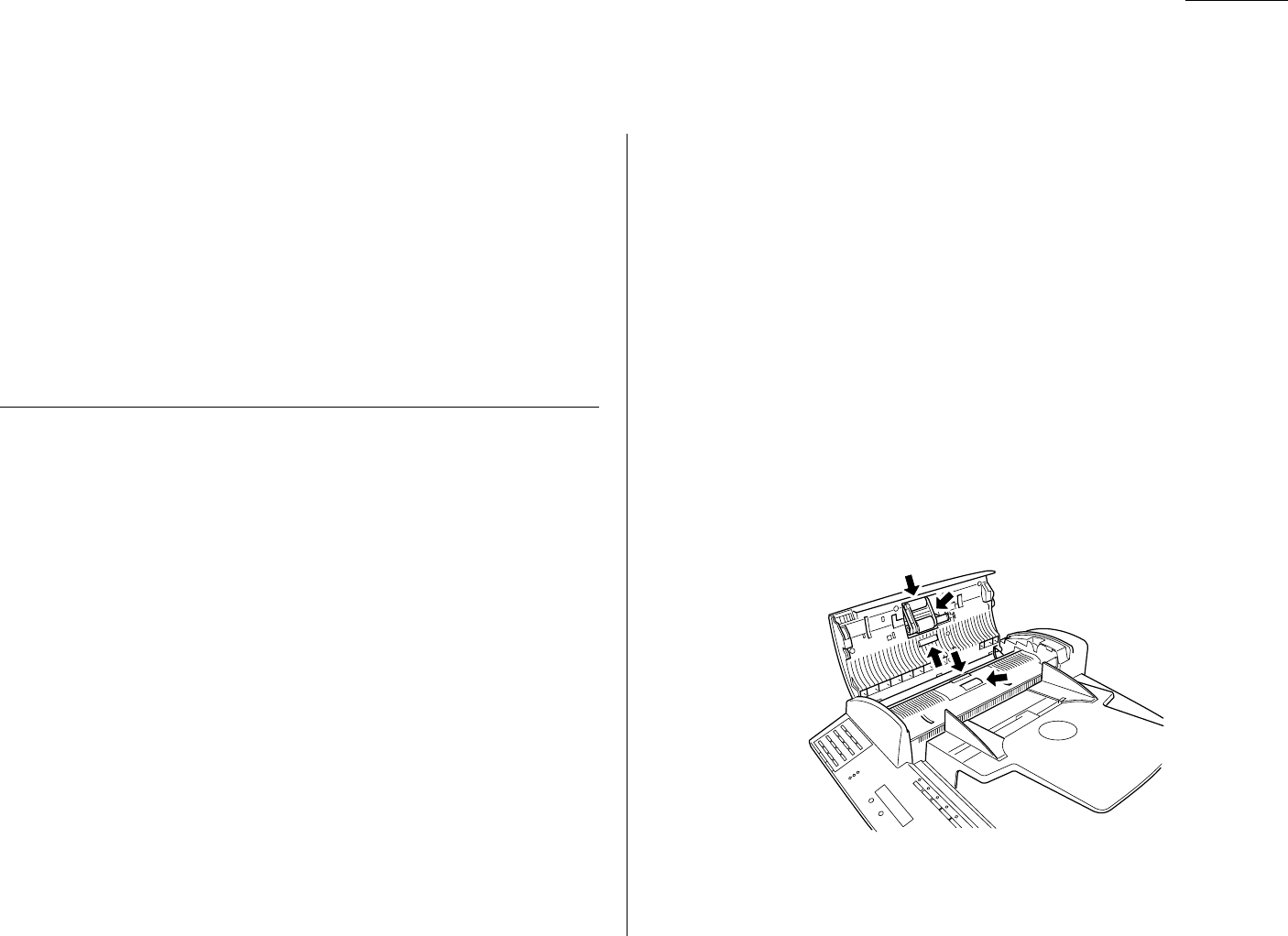
With proper installation and a little maintenance, your fax machine should give you
dependable service for years to come.
Although it requires little day-to-day care, you can take these simple precautions to
keep it in top form:
•Always make sure your fax machine is installed according to our specifications,
including using an electrical surge suppressor. (If necessary, review “Pick an
installation spot,” page 1.5.)
•Always use good, copier-quality paper.
•Always clean your fax machine as needed (see “Cleaning tips,” below).
•Never install your fax machine where it can overheat, gather dust or get
splashed by any liquids (even water).
Cleaning tips
Some things to keep in mind about cleaning your fax machine:
•Clean it! Dust and dirt, especially around the fax machine’s air vents can
shorten your machine’s life.
•Always unplug the fax machine before you clean it.
•Never spray any cleaner
DIRECTLY
onto your fax machine. The drifting
spray could damage components inside.
•Never try to clean
SEALED
areas inside your fax machine. They’re sealed to
protect your safety and the machine.
• For cleaning external surfaces, such as the cover and handset: use a mild clean-
ing solution sprayed onto a lint-free towel or cloth.
•Always use a lint-free cloth (or swabs) moistened with alcohol to gently wipe
components inside your machine.
• In areas you can’t reach with swabs, always use dry, dust-free compressed air to
gently blow away dust and other material.
Corrective cleaning
Here are some simple cleaning procedures for keeping your fax machine operating
smoothly. Use each as the need arises.
Curing frequent jams in the
ADF
If you’re having trouble with getting your original documents to feed properly, try
this procedure:
1Turn off your fax machine.
2Get two soft, lint-free cloths and moisten them as follows:
• One with a cleaner suitable for use on platen/rubber rollers. In steps 4 and
6, we’ll call this the rollers cleaner.
• The other with isopropyl alcohol
3Open the scanner cover by holding the scanner cover release.
Important: You must hold the cover open. It won’t stay open by itself.
4Use the cloth with the rollers cleaner to clean the face of the rollers. Rotate
the rollers by hand to allow cleaning of the entire roller surface.
Just in case …
5.11
Caring for your fax machine
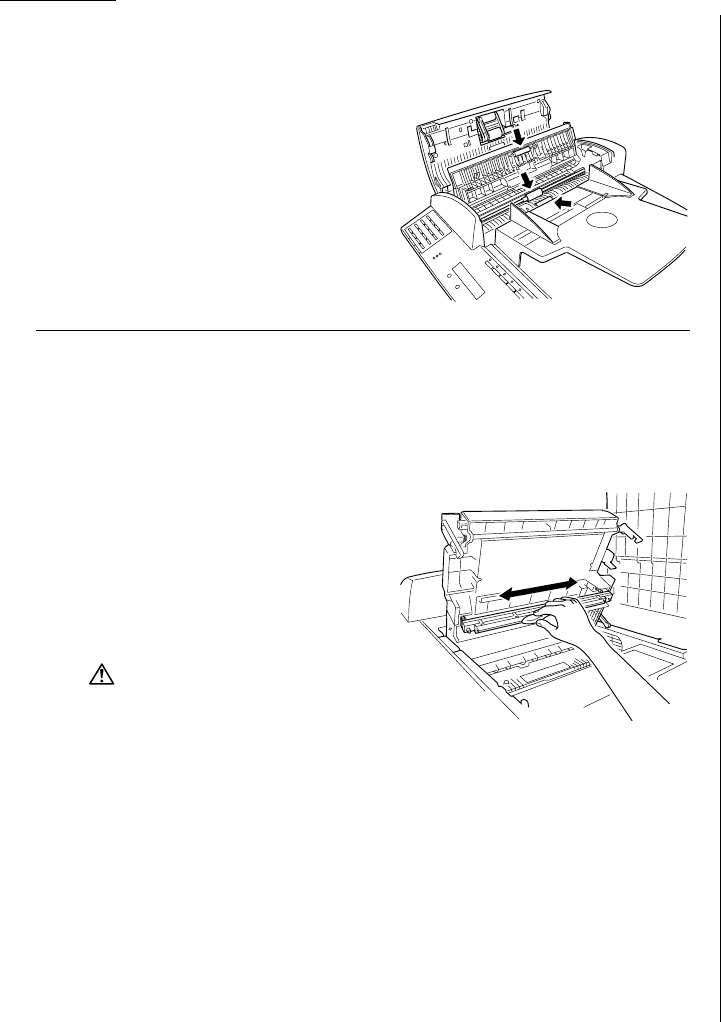
Just in case …
5Open the inner cover fully.
Important: You must hold the cover open. It won’t stay open by itself.
6Use the cloth with the rollers cleaner to
clean the face of the rollers. Rotate the
rollers by hand to allow cleaning of the
entire roller surface.
Cleaning the LED print head
If you find your fax recipients complaining that the faxes you receive or copy image
quality are streaked, the LED print head may be dirty.
Important: Be careful not to put your hand between the top cover and the
machine.
1Turn off your fax machine.
2Get a soft, lint-free cloth and moisten it
with isopropyl alcohol.
3Open the top cover and then open the
printer cover.
CAUTION:
The fuser unit becomes very hot.
Do not touch the fuser unit when you
are cleaning the LED print head.
4Using the cloth, gently clean the LED print head.
Note: Do not use abrasive materials on the LED print head, and do not
subject the LED print head to strongly shock.
If you have unsatisfactory printout quality
Your machine automatically cleans its charger and transport roller, two items which
are very important to printout quality. So, if you notice poor printout quality
(whether on received faxes or on copies), it may mean that your machine requires
service. Review “Print quality problems” (pages 5.3-5.4), and see whether any of the
proposed solutions helps your machine.If none do, please call your authorized
Muratec dealer or call the Muratec Customer Support Center at (800) 347-3296
(from the U.S. only)
.
5.12

Just in case …
General questions
Q: Where do I add ink or toner to make my fax machine’s printouts darker?
A: You can’t adjust the darkness of an incoming fax printout, but you can adjust
the darkness of a copy or of a transmission. Insert a document and press
CON
-
TRAST
to adjust the contrast setting.“Dark” prints at the darkest setting.The
machine will reset automatically to normal contrast after you finish copying or
sending the fax.
Q: When I unplug my machine or if the power goes off, will I lose the information
I’ve stored — such as my
TTI
, autodialer entries, the time and date,etc. — and
have to re-enter them?
A: No.There’s a special battery built into your fax machine which protects user
settings for several days if power fails or if you decide to move your machine.
However, we do advise you to restore power to the machine as soon as possible.
Q: Can I use a dust cover on my fax machine?
A: No! A dust cover blocks air circulation, which could cause your machine to over-
heat.
Sending faxes
Q: Sometimes,I try to send a fax while using either the optional handset or the
MONITOR
/
CALL
feature. But, when the other side answers, I hear a horrible
screeching sound, so I hang up.What’s happening?
A: That was the other fax machine trying to say “Hello” to your machine! You’ll
hear sounds like that any time you call a fax machine which is set to answer
automatically (as when you set your machine to Auto Answer mode). It’s by
using these tones that fax machines are able to send faxes over ordinary phone
lines.So, next time you hear the tones, press
START
(and, if you’re using an
optional handset, hang up) to send a fax.
Q: I just sent a fax. However, the number that appeared in my machine’s display
during the transmission wasn’t the number I dialed.Why?
A: That number you saw is programmed into the remote fax machine by the user.
Some users prefer different numbers to appear than the ones they’re really
using.And some people don’t know how to change the number once it’s set.
Q: Can I transmit and receive at the same time?
A: No. Use the call request feature (see pages 3.23–3.24) to ask the person at the
remote fax machine if he or she wants to transmit or receive after your fax
communication is complete.
Q: Do I have to dial a 1for a long-distance call?
A: Yes.Dialing a fax number is just like dialing any other phone number, so be
sure to include any special long-distance codes or dialing pauses when dialing.
Also, remember to include them when you set your autodialer numbers.
Q: How do I send a fax to an overseas telephone number?
A: Dialing requirements for international calls may vary depending on your local
telephone company’s requirements. For most international calls, call 011, then
dial the appropriate country code, city code and phone number. (You may find
country and city codes in the front section of your telephone directory.)
Q: Can I transmit if my fax machine runs out of paper?
A: Yes,but confirmation reports (see page 3.20) aren’t available when you trans-
mit without recording paper in your fax machine.
We’re here to help you!
The Muratec Information System is available to you 24 hours a day, 7 days a
week.You can use your fax machine to call this “fax-on-demand” system and
receive printouts of information, such as the most common questions asked
about your machine.Often, this is the fastest way to find out the answer to
any question you may have. And it’s a free call!
To use the Muratec Information System:
1On your fax machine,press
MONITOR
/
CALL
to get a dial tone, or lift
your optional handset.
2Call 1-800-215-1698.
3Follow the voice instructions you’ll receive from the system.
5.13
Common questions

Just in case …
Q: Can I transmit a document that’s extra long?
A: Yes, if the receiving fax machine is equipped to handle long documents.Many
machines have a special setting which allows them to receive documents that
exceed the normal length.
Q: Can I transmit a page from a newspaper?
A: No.A newspaper page can jam in your document feeder. First,use a copy
machine to make an appropriately sized copy of the newspaper page,then
transmit the copy.
Q: Can I transmit a page with correction fluid on it?
A: Yes, but only if the fluid is completely dry before you begin transmission.
Q: How can I be sure my fax was received?
A: Set your machine to print a confirmation report after each transmission (see
pages 3.20).
Q: I don’t want to install a dedicated phone line for my fax machine, so I’ve con-
nected the machine to a
PBX
phone system.When I get a fax call, all the phones
ring.How do I prevent this?
A: Call your
PBX
manufacturer or telephone company for assistance.They may be
able to convert one of the
PBX
lines for use only by your fax machine.
Q: Sometimes when I dial a fax call by using either the optional handset or
MONITOR
/
CALL
,I don’t hear the fax receiving tones from the other machine.
Am I doing something wrong?
A: When this happens,try pressing
START
(and then hanging up the optional
handset if you’re using it), as usual. It’s possible you’re calling an older, non-
standard fax machine that doesn’t emit answering tones. Even a few Group 3
faxes (see “Glossary,” page 5.17) on the market sound a sending tone but don’t
sound a receiving tone.After you transmit, call the person at the other fax
machine’s location to see if that person got your document.
Q: I inserted a document in the feeder and dialed a fax number, but my machine
didn’t transmit the document. Instead,“** Auto Redial **” now appears on
my
LCD
.What does this mean?
A: The remote fax machine was busy, so your machine will try the call again, auto-
matically.As long as it hasn’t stored more than 99 delayed commands (counting
automatic redials), your machine should still accept commands from you. If it
has exceeded this quantity and will accept no more commands, try canceling one
of the delayed commands (see page 2.6). If the machine still won’t cooperate,
keep canceling commands until it does.
Q: The specifications (page
AI
.1) list an average per-page transmission time, but
when I transmit a page it can take much longer. Why?
A: We base this specification on transmission of an industry-standard test docu-
ment called
ITU
-
T
Test Document 1 (sometimes also called the “Slerexe letter”).
Fax manufacturers use this method to test transmission speeds. However:
• The pages you send may be darker, or otherwise contain more information,
than
ITU
-
T
Test Document 1.
• The transmission time measured for test documents doesn’t include hand-
shake time — the time during which two fax machines “introduce”
themselves to each other and “agree on” the parameters of the call.
• The specification time is based on the use of normal resolution mode.You
may be using fine, superfine or grayscale transmission, each of which takes
longer than normal mode.
Q: What’s a default?
A: A default is a setting that your machine will always refer to if nothing else is
programmed. For example, you can set the default for this machine to send a
fax by using its memory. If you set this action as the default, that’s how your
machine will always send a fax, until you tell it to do differently.
Reports
Q: I called the number 011-555-555-1212, but not all of the digits appear on my
transmit confirmation report (
TCR
).Why didn’t the whole number appear? How
can I be sure my document went to the right location?
A: The numbers you enter using the fax keypad are temporarily stored in a mem-
ory “buffer”, and it’s only the last part of the phone number that the buffer
“remembers.” An easy way to avoid getting incomplete telephone numbers on
your printouts is to store your most frequently used numbers as one-touch keys
or speed-dial numbers.These autodialer numbers will appear in their entirety
on your
TCR
.
5.14

Just in case …
Receiving faxes
Q: My fax never answers.What’s wrong?
A: Check to make sure your fax machine is properly connected to a working
AC
power outlet and phone jack (see page 1.7). If you’re using a second phone with
your machine,make sure it’s connected properly (page 2.14).
Q: Sometimes when I answer my machine with the optional handset, I hear a
beeping sound that repeats every few seconds.Is this a fax?
A: Yes.When you hear these fax tones, someone is trying to send you a fax. Next
time, press
START
and hang up the handset.Your fax will receive the message.
Q: Does my fax machine have to be plugged in to the
AC
power jack to receive a
message?
A: Yes.Your phone will ring if the phone line is connected, but you can’t receive a
fax unless your fax machine is plugged into both the phone jack and the
AC
power jack. Make sure your fax machine is always plugged in so you never miss
an important fax message.
Q: Can I receive a fax if I’m using the phone on my machine?
A: You can receive a fax from the person to whom you’re talking.When that per-
son has a document ready in his/her machine’s feeder, press
START
.
Working with your answering machine
Q: People have complained that they call my fax machine and hear my answering
machine’s message, but are cut off before they can send a fax. What happened?
A: Any remote fax machine attempting to send a fax must “hear” responding fax
tones within 40 seconds after the person at that machine presses the start key.
That 40 seconds includes getting the dial tone,dialing the number, “listening”
to the pause before the ringing starts and the remote fax machine answering
the ring.Only after that time does your message play.
That’s why we urge you to create a short outgoing message. The shorter the
waiting period, the more likely it is that the remote fax machine will proceed
with the transmission. Please create an outgoing message on your answering
machine that’s no longer than 10 seconds (see page 2.10 for a suggestion).
Polling
Q: What’s the purpose of polling?
A: Polling lets you automatically “pull” a document which is set in another fax
machine.You can poll whenever you need to retrieve information and don’t
want the source to pay for the phone call.With polling, you pay for the call and
get the information you need.
How your fax machine works
How a fax machine works is simple:
You put a page into your fax machine’s feeder and call a fax number. Your machine
makes a satisfactory connection with the other machine,and then …
•Your machine takes the document.
An image scanner in your fax machine examines the information on the page.
•Your machine wraps the document.
Your fax machine translates the scanned information into a numeric code and
compresses the code for the fastest possible transmission speed.
•Your machine sends the document.
Finally, your fax machine sends the compressed code.
On the other end of the line …
• The remote fax machine receives the code.
• Your machine unwraps the document.
The remote fax machine uncompresses and deciphers the code,turning it into a
representation of the scan your machine made.
• The remote fax machine prints the representation.
The only difference between a regular telephone call and a fax call is the content of
the transmission:
• On a regular call, your telephone sends your voice.
• On a fax call, your fax machine sends a coded image.
The way fax machines work is regulated closely by the International
Telecommunications Union (
ITU
), an agency of the United Nations.The standards the
ITU
applies ensure the compatibility of your fax machine with millions of other
machines worldwide.However, they also limit the way you can use your machine
with other devices,such as telephones and answering machines.
5.15

Just in case …
This glossary contains terms you may encounter when discussing or reading about fax
machines. Please use these definitions for reference only.A list of definitions can also be
found on the Muratec website at www.muratec.com.
24-hour format — Also called military format.A format for keeping time that does not use
a.m. or p.m. to distinguish between morning and afternoon. In the 24-hour format, one o’clock
in the morning marks 1:00, noon marks 12:00 and midnight marks 24:00. To calculate the 24-
hour format, add 12 hours to all times after noon.
For example, 1:30 p.m. would be 13:30 in the 24-hour format; 10:45 p.m. would be 22:45 in the
24-hour format.And 11:15 a.m. would be 11:15 in the 24-hour format.
A3, A4, B4 — Standard stationery sizes defined by the International Standards
Organization, an agency of the United Nations. See also Paper sizes.
ADF — Automatic document feeder. See document feeder.
Alternate number — The number your machine dials after all attempts to the regular
number fail.The user programs this alternate number, if so desired.
Answering machine — See
TAD
.
Autodialing — Enables user to store preprogrammed telephone numbers in the unit’s mem-
ory. Storage capability varies from unit to unit.
Automatic fallback — The ability of a fax machine to slow down (“fall back”), when commu-
nicating with another fax which is communicating at a slower rate.
Automatic reduction — Many Muratec fax machines will automatically reduce the size of
documents being transmitted to accommodate the effective printing width of the receiving
unit. For example, this allows a fax machine with a 10″(256 mm) scanning width to send an
image 10″(256 mm) wide to a unit with an 8.3″(210 mm) print width.The receiving fax
machine will receive a reduced-size printout of the complete image.
Bit — The smallest unit of information in a computer. Some Muratec fax machines, which
are actually computers “dedicated” to telecommunications, allow users to change bits of infor-
mation to provide or cancel features through software settings.
Bits per second — See bps.
Black density — Also called black coverage. The amount of non-white area on a page. For
example, most regular office correspondence has a black density well under 10%, due to the
presence of margins,spaces between words, spaces between lines and paragraphs and even
spaces within letters.However, drawings and photographs have a much higher black density,
sometimes approaching 100%.The higher a page’s black density, the more slowly a fax
machine sends it.
Broadcast — A fax transmission in which a single document is sent to more than one loca-
tion.
bps — Bits per second. Used to express the speed of transmission of data. Because fax trans-
mission treats a document as a graphic image rather than as a series of alphabetic and
numeric characters, bps does not correspond to the number of characters transmitted per sec-
ond.
Byte — A group of digital elements, usually sent as eight bits to the byte.
Call reserve — Also called call request. An
ITU
-
T
standard fax feature which allows a user to
request voice communication prior to, during or after transmission.
Call-waiting service — An optional telephone company service that alerts you to another
incoming call when the phone is already in use. Call-waiting signals often cause interruption
of fax transmission or reception.
Caller
ID
— Optional service provided by your local telephone company that allows you to
see a display of the number (phone or fax) that is calling.
CCITT
— See
ITU
-
T
.
CCD
,
CIS
— Charged coupled device, contact image sensor.Two types of scanning mechanisms
used in some Muratec fax machines.The
CCD
“reads” fluorescent light bouncing off a docu-
ment.The
CIS
uses a flat bar of light-emitting diodes (
LED
s).
Command queue — The “list” your machine keeps of all its pending commands.
Command number — The number your machine gives to each “job” it is programmed to
complete.You must know the command number in order to cancel or change any of the
machine’s jobs that it stores.
Compatibility — The term “compatible” describes the ability of separate things to function
together.Your Muratec fax machine features
ITU
-
T
Group 3 compatibility, the modern stan-
dard for worldwide communication.
Confidential transmission — See SecureMail.
Confirmation report — See
RCR
and
TCR
.
Continuous polling — See Polling.
Copy mode — Allows your fax machine to be used as a convenience copier.
Cover page (automatic) — A small, user-created message; can be the first page of every
transmission.
Database polling — See Polling.
Data compression — Used in digital fax machines to speed transmission. See also Digital
fax,
MH
and
MSE
,
SMSE
.
5.16
Glossary

Just in case …
Default — The setting your machine will always refer to if no other action has been pro-
grammed. For example, you can set the default for this machine to send a fax by using its
memory. If you set this action as the default, that’s how your machine will always send a fax,
until you tell it to do differently.
Delayed command — Transmission or polling operation set by the user to occur later, auto-
matically, at a predetermined time. Great for reducing costs by making fax calls during times
when telephone costs are lowest, such as late at night or on weekends.
Digital — Using the binary system (which uses a combination of 0s or 1s) to describe every-
thing,so that 0means off and 1means on; digital fax machines convert the graphic image of
your document into a series of zeros and ones by using the binary system of transmission to
encode black and white occurrences.This increases transmission speed by passing over white
spaces.See also White-line skip.
Digital fax — Unlike analog systems that scan every portion of a document, digital fax
machines survey a document’s overall picture content. Digital fax machines scan a line and
convert the information into a binary code of zeros and ones.The fax machine takes this
information and compresses it, providing high transmission speeds. Many Muratec units
offer proprietary methods for faster transmissions between Muratec-manufactured units (see
also
MSE
,
SMSE
).
DIP
switches — Dual in-line package switch; a two-position on/off switch. Many Muratec fax
machines include
DIP
switches to control optional settings or features.
Document feeder — The adjustable slot into which users place documents for faxing or
copying.
Document mode — It can be said the resolution. (See Resolution.)
Effective printing width — The widest image that can be printed on a fax.
Effective scan width — The maximum width the scanner in a fax can scan during trans-
mission.
E
NERGY
S
TAR
®
— The International E
NERGY
S
TAR
®
Office Equipment Program is an interna-
tional program that promotes energy saving through the penetration of energy efficient
computers and other office equipment.The program backs the development and dissemina-
tion of products with functions that effectively reduce energy consumption. It is an open
system in which business proprietors can participate voluntarily.The targeted products are
office equipment such as computers, monitors, printers, facsimiles, copiers, scanners,and
multifunction devices.Their standards and logos are uniform among participating nations.
F-Code — A fax-industry standard created by the
ITU
-
T
for sub-addressing/password-based
communications.Because F-Code is an industry standard, Muratec fax machines as well as
all
ITU
-
T
equipped fax machines from other manufacturers can communicate with each other
using sub-addressing.
Facsimile (or fax) — A form of communication involving the scanning and decoding of a docu-
ment into electrical signals and transmitting of the document, over telephone lines to another
device.This device then reconstructs the signals to produce an exact duplicate of the document.
Also, a machine that performs such communication.
Fallback — Group 3 fax machines operate at the highest transmission speed possible on a
given telephone line. Muratec systems offer automatic fallback; if line quality drops during
transmission, the fax machine will reduce speed to the fastest possible level.
File number — A number the machine gives to each document it stores for a batch, F-Code
or polling operation.
Fine resolution — 203
H
×196
V
lpi.Also shown as
G
3
F
(“Group 3 fine”) on some fax units.
Grayscale — Not a level of resolution, but a method of scanning and transmitting halftone
images.Fax machines with grayscale abilities interpret photographs in
levels of gray between white and black.The transmitting fax machine must have grayscale
ability to send a photographic image accurately, but the receiving machine does not need it to
print the image.
Group 3 — Refers to fax machines that use digital encoding. These units transmit one page
in less than one minute and produce resolution of 203 ×98, 203 ×196, or 203 ×392 lpi.
Halftone — See Grayscale.
Handshaking — An exchange of data between telecommunications and/or
computer equipment that “introduces” two systems to each other. For example,faxes use a
handshaking protocol to identify the
ITU
-
T
group of each unit and to begin fax communication.
Hub — See Relay broadcasting.
Hz (or Hertz) — A measure of frequency equal to one cycle per second. Used in the specifica-
tions for a fax machine,it identifies the
AC
power the unit requires.
ITU
-
T
— International Telecommunications Union – Telecommunications Sector. (Formerly
known as
CCITT
, for Consultative Committee for International Telegraph and Telephone.)A
telecommunications forum for member countries of the United Nations whose Study Group
XIV
established the primary groups for fax equipment, covering communication protocol and
transmission. Muratec Group 3 fax machines offer the fastest transmissions allowed by the
ITU
-
T
when communicating with other Group 3 units.
ITU
-
T
Test Document 1 — Also called the Slerexe (“slehr-rehks”) letter; An
ITU
-
T
standard
document with a known black density which fax makers often use to test transmission
speeds of their fax machines. Published transmission speeds are also based on this document.
ITU
-
TV
.29 and
V
.27 ter. — A standard set of communication procedures allowing fax
machines to talk to all other units adhering to those standards.
JBIG
— Joint Bi-level Image experts Group, the new
ITU
-
T
standard image data compression
method.As
JBIG
compresses the data more efficiently than
MMR
, it is especially effective when
transmitting halftone (grayscale) image document.
(Of course, the compression ratio may vary with the image data.)
Laser printing — A plain-paper printing system. Toner is attached to a charged drum and
an image is transferred onto plain paper through electrical currents,then fused with heat
and pressure to produce a dry, permanent printout.
LCD
— Liquid crystal display. Used on some Muratec units for status displays.
Leased line — See Private line.
5.17

Just in case …
Load number — A number assigned to telecommunications equipment used in Canada;
designed to help prevent overloading on a telephone circuit. See also Ringer equivalence num-
ber.
Location
ID
— See Station
ID
.
lpi — Lines per inch.The way fax image resolution is measured. (For example, see Normal
resolution.)
Memory — Internal document storage. In Muratec fax machines, random access memory in
the form of computer chips is used to store and hold documents for transmission and to hold
some documents that have been received.
Memory overflow — A message that appears on the machine’s
LCD
when the
current operation requires more of the machine’s electronic memory than what is available.
MH
— Modified Huffman, the standard
ITU
-
T
Group 3 data compression method.A one-dimen-
sional coding scheme that compresses data in a horizontal direction only.A feature of all
Muratec fax machines,
MH
assures transmissions faster than one page per minute when com-
municating with other Group 3 units,regardless of
manufacturer. See also
MR
,
MMR
,
MSE
,
SMSE
.
Military format — See 24-hour format.
Modem — Modulator-demodulator.A device that converts digital data, like information from
a fax machine,into an analog signal for transmission over ordinary telephone lines.A modem
is included in a fax machine and allows it to be connected directly to a
PSTN
telephone line.
MR
— Modified Read, an
ITU
-
T
Group 3 standard data compression method.A two-dimen-
sional coding scheme that compresses data in both horizontal and vertical directions and
allows for faster transmission when communicating with other Group 3 units,regardless of
manufacturer. See also
MH
,
MMR
,
MSE
,
SMSE
.
MMR
— Modified Modified Read, an
ITU
-
T
Group 3 standard data compression method.A two-
dimensional coding scheme that compresses data in both horizontal and vertical directions
and allows for faster transmission when communicating with other Group 3 units,regardless
of manufacturer. See also
MH
,
MR
,
MSE
,
SMSE
.
Monitor — A speaker in most Muratec fax machines which allows the user to hear the dial-
ing process.This is not a speakerphone, because it has no microphone for speaking to the
person being called. For regular two-way voice communication, users must use the optional
handset. See also On-hook dialing.
MSE
,
SMSE
— Muratec’s proprietary data compression methods, allowing a Muratec-manufac-
tured fax machine to transmit more quickly when communicating with another
Muratec-manufactured unit.
MSE
and
SMSE
are features on many Muratec fax machines. See
also
MH
,
MR
,
MMR
.
Normal resolution — Shown as “norm”; 203
H
×98
V
lpi.The default resolution mode for all
Muratec fax machines.
One-touch dialing — Allows the fax user to store frequently used fax numbers for dialing
with the touch of one key. See also Autodialing and Speed-dialing.
On-hook dialing — Dialing numbers by using the keypad on the fax unit without lifting a
handset. On most Muratec fax models, the user can do this either silently or by using the
monitor. See also Monitor.
Original document size — The largest (or smallest) document that can be fed safely
through a fax machine.
Override — To change existing settings.
5.18

Just in case …
Paper sizes — All are width ×length:
Letter-sized = 8.5″×11.0″(216 ×279 mm) Legal-sized = 8.5″×14.0″(216 ×356 mm)
A5 = 5.8″× 8.3″ (148 ×210 mm) B5 = 7.2″×10.1″ (182 ×257 mm)
A4 = 8.3″×11.7″(210 ×297 mm) B4 = 10.1″×14.3″ (257 ×364 mm)
A3 = 11.7″×16.5″ (297 ×420 mm)
Passcode — A four-digit code-number. On your fax machine, the protection passcode lets the
user limit access to fax operations,as well as certain settings and even documents readied for
polling (in the case of polling,only calling machines whose users enter the proper passcode
will be able to poll the document.)
PBX
(or
PABX
) — Private branch exchange; privately-owned telephone equipment serving a
particular building,business or area. Many
PBX
systems use digital transmission lines which,
unlike more common
PSTN
lines,are not compatible with fax machine use.The user should
not connect a fax unit to a
PBX
without first checking with the system manufacturer or ser-
vice representative.
PCL — Printer Control Language.An industry standard for printer control. Some Muratec
fax machines include or offer PCL-compatible printing for Windows-based personal comput-
ers.
Platen — A traditional copier-style top to a fax machine or digital copier. Some Muratec fax
machines and multifunctional products include a platen top, allowing you to fax from books
and other awkward sources.
Polling — Automatic transmission to a calling remote fax,or reception of a document from a
remote fax set for this operation. Polling is convenient whenever a central unit must receive
information from one or several remote faxes.The caller bears all telephone charges and pre-
vents several remote units from calling at the same time. See also Secure polling.
Private line — (Or leased line.) A service offered by many telephone systems; provides an
exclusive phone circuit between two geographic points. A Muratec fax does not require a pri-
vate line. See also
PSTN
.
Proprietary — Non-standard. In fax, refers to a fax feature which works only in communi-
cations between fax machines that are the same brand.
PSTN
— Public switched telephone network; the most common type of telephone lines and
service in use, in contrast to private or leased lines.A Muratec fax provides fast, reliable data
transmission over a
PSTN
line, and does not need a special or dedicated telephone line. See
also Private line.
QuadAccess
®
— Muratec’s QuadAccess allows your Muratec fax machine to perform four or
more tasks simultaneously without slowing.
RCR
— Receive confirmation report.An
RCR
is your assurance that the document you trans-
mitted was received.The
RCR
prints after your transmission, identifying the receiving unit
and recording the date, time, transmission mode, number of pages sent and the result.The
RCR
is an exclusive feature of Muratec fax machines and is available only when transmitting
to other, compatible Muratec fax machines.See also
TCR
.
Receiver
ID
— See Station
ID
.
Redialing — The dialing again, either manually or automatically controlled, of the most
recently dialed fax or phone number.Automatic redialing follows an unsuccessful dialing
attempt and can be done manually or automatically.
Relay broadcasting — Lets some Muratec fax machines store a document in internal mem-
ory, transmit the document to the memory of a remote “hub” fax and then instruct that unit
to relay (re-transmit) the document to each fax in a call group in the “hub” unit.This feature
speeds extremely high-volume fax communication and allows a single command to initiate
document transmission to hundreds of preprogrammed fax locations.It also saves phone
charges for the originating machine.Your machine can initiate a relay broadcast.
Remote fax machine — The machine on the other “end” of a fax communication.
REN
— See Ringer equivalence number.
Resolution — The resolution of documents transmitted or copied by fax machines is mea-
sured by the number of horizontal (
H
) and vertical (
V
) lines per inch (lpi) the unit can print.A
Muratec unit may offer one or more of these resolution levels:
Normal 203
H
×98
V
lpi
Fine 203
H
×196
V
lpi
Superfine 203
H
×392
V
lpi
Some Muratec units also offer grayscale transmission (see also Grayscale) for accurate repro-
duction of photographs and other shaded originals.
Ringer equivalence number — Also called
REN
.A number assigned to telecommunications
equipment used in the United States; designed to prevent overloading on a telephone circuit.
See also Load number.
Scanning width — See Effective scanning width.
SecureMail — Allows a Muratec fax user to send a document to or receive one into (usually
something confidential) an “electronic mail box.” The transmission is protected at the receiv-
ing Muratec fax by an access code; the receiving fax prints the document only when an
authorized user enters the code.
Secure polling — Polling in which preset passcodes are checked between two machines
before polling is allowed to take place.
Speed-dialing — Allows the fax user to store frequently used fax numbers for dialing with
the touch of three keys — an identifier key (either *or #) and then a three-digit code — for
each number. See also Autodialing and One-touch dialing.
Station
ID
— (Also called Location
ID
or Receiver
ID
.) An autodialer feature which lets the fax
user enter a descriptive name to correspond with the number in an autodialer entry. For
example, rather than entering only 1-972-555-3465, the user can enter that number and a
name, such as Dallas Branch Office. (Many Muratec models with this feature allow entry of
both upper-case and lower-case letters, for greater ease of reading.)
Subaddressing — An ITU-T standard allowing fax machines to specify special delivery
characteristics of a transmission. For example, subaddressing allows fax machines from dif-
ferent manufacturers to send and receive messages into confidential memory mailboxes,or to
retrieve specific files from polling memory.
Subscriber
ID
— A fax machine’s telephone number, as identified by a user setting. See
TTI
.
5.19

Just in case …
Super Group 3 — An extension of Group 3 fax technology standards, allowing the use of
high-speed v.34 modems for 33.6 Kbps transmission and high-speed protocols for rapid hand-
shaking.
Superfine resolution — 203
H
×392
V
lpi.Your Muratec fax machine’s superfine transmis-
sion mode is Group-3-compatible, not the more limited proprietary version.
TAD
— Telephone answering device, or answering machine. Records incoming voice messages
for playback.You can connect a
TAD
to a Muratec fax machine and use the two on one phone
line.
TCR
— Transmit confirmation report; this provides proof that your Muratec fax did send the
document you set for transmission. Printed after transmission, the
TCR
also identifies the
telephone number to which the fax sent the document, plus the actual time of transmission
and how many pages the unit transmitted. See also
RCR
.
Thermal (paper) printing — A thermal head heats chemically treated, thermally sensitive
paper in patterns conforming to the image the machine has scanned, creating a printed
image.Thermal paper’s tendency to discolor and fade, in addition to its curliness and the
usual difficulty in writing on it, have made this method considerably less popular than plain-
paper fax printing — particularly as plain-paper fax machines have dropped sharply in price.
TriAccess — Muratec’s TriAccess allows a Muratec fax machine to perform three or more
tasks simultaneously without slowing.
TTI
— Transmit terminal identifier.A user-programmable line of information sent automati-
cally with every page a fax machine sends; it appears at the top of each page printed by the
receiving unit.
Transmission speed — How fast a fax machine is sending a fax document.This speed
depends upon the modem speed of each unit, the resolution setting, the content of the docu-
ment, the encoding technique and the condition of the phone line (clean, noisy, etc.) Any
change in any one of these five conditions will affect the speed, sometimes significantly.
V
.29 and v.27 ter — A standard set of communication procedures allowing fax machines to
talk to other units using those standards.Specifically, these standards cover fax transmission
at 9600 bps or slower.
V
.34 — An international standard for fax modems — and other modems — with transmission
speeds of up to 36.6 Kbps. It represents the current maximum standard transmission speed
possible under ITU-T Group 3.
White-line skip — A technique used to speed up fax transmission by bypassing redundant
areas,such as white space.
5.20

Just in case …
This page intentionally blank.
5.21

Appendix and index

General
Type: Desktop plain paper facsimile
Compatibility: ITU-T Group 3 and Super Group 3
Phone system: Public Switched Telephone Network (PSTN) or
equivalent
Dual access: Multitasking QuadAccess
Memory capacity: Standard:
8MB (650 pages* approx.)
Upgrade Option:
plus 8MB (additional 680 pages* approx.)
= total 1330 pages*
Memory backup time: (Total memory capacity: Backup time)
8MB : 72 hours
16MB: 36 hours
(Must be charged for at least 24 hours to reach full
charge)
LCD (Liquid Crystal Display): 20 characters × 2 lines
Communication
Coding method: ITU-T-standard MMR, MR, MH and JBIG.
Modem speed: 33,600, 31,200, 28,800, 26,400, 24,000, 21,600,
19,200, 16,800, 14,400, 12,000, 9,600, 7,200, 4,800,
2,400 bps
Error correction mode: Yes
Polling/Broadcasting: 230 locations / 230 locations
Transmission speed: Approx. 3 seconds per page.**
One-touch dial: 56 locations
Speed dial: 144 locations
Document input
Document set: Face Up
Original reference position: Center
Scanning resolution: (horizontal ×vertical):
Transmission:
Normal: 203 dots/inch × 98 lines/inch
Fine: 203 dots/inch × 196 lines/inch
Superfine: 203 dots/inch × 392 lines/inch***
Grayscale: 203 dots/inch × 196 lines/inch
Copy:
Normal: 300 dots/inch × 200 dots/inch
Fine: 300 dots/inch × 300 dots/inch
Superfine: 300 dots/inch × 400 dots/inch
Grayscale: 300 dots/inch × 300 dots/inch
Scanning method: Flatbed CCD
Scanning speed: (horizontal ×vertical):
Transmission:
Normal: 1.90 sec/page
Fine: 1.90 sec/page
Superfine: 3.79 sec/page
Grayscale: 1.90 sec/page
Copy:
Normal: 1.94 sec/page
Fine: 2.90 sec/page
Superfine: 3.87 sec/page
Grayscale: 2.90 sec/page
Scanning width: 8.2 inch (Fax), 8.5 inch (Copy)
Acceptable document size : (width × height)
Single sheet:
Maximum 11 inches × 35.4 inches,
Minimum 4.7 inches × 3.9 inches
Two or more sheets :
Maximum 10.1 inches × 14.3 inches,
Minimum 8.5 inches × 5.5 inches
ADF capacity: 80 sheets of letter or A4 sized-paper
Appendix and index
AI
.1
Specifications

Document thickness: 30.2–104.7 g/m2, 13-24 lb (Single sheet)
52.3–80 g/m2, 13-20 lb (Two or more sheets)
Grayscale: 256-level
Printout
Printer resolution: 600 dpi × 600 dpi
Paper exit system: Face up exit system
Printing method: LED scanning,Electrophotographic dry powered
image transfer to plain paper
Print speed: 12 ppm, letter size, from 1st paper cassette
Printing margin: 0.12 inch (3 mm) on each side of the paper.
Smoothing print: Yes
Printing paper size: Paper cassette;
Letter, Legal, Half-letter
Bypass tray; ****
Letter, Legal, Half-letter,A4,A5,A6, F4, Executive,
DL, CM10, Monarch, Postcard (3.9 × 5.8 inches),
Custom size
Paper capacity: Paper cassette; 500 sheets (60–90 g/m2, 20–24 lb)
Bypass tray; 50 sheets (60–90 g/m2, 20–24 lb)
Receiving paper tray capacity: 300 sheets (60–90 g/m2, 20–24 lb)
Power
Power source: 120V AC 50/60 Hz.
Power consumption: Sleep mode : Approx. 9.6 W
Standby : Approx. 66 Wh
Transmission : Approx. 38 W
Reception : Approx. 880 W
Copying : Approx. 890 W
Maximum : Approx. 920 W
Operating Environment
Environmental temperature: 10º C to 32º C (50° F to 89.6° F)
Relative humidity: 20 to 80% RH
Miscellaneous
Weight: Approx. 43.7 lb (19.8 Kg)
Dimensions : Width 18.3 × Depth 20.8 × Height 14.2 (inches)
Drum cartridge life: Approx. 16,000 pages*****
Toner cartridge life: Approx. 15,000 pages*****
Starter toner cartridge life: Approx. 3,000 pages*****
* Using the ITU-T Test Document 1 to a Muratec fax machine with normal resolution.
** Based on transmission of ITU-T Test Document 1 to a Muratec fax machine.Your
transmission times will vary, but your fax machine always will provide the fastest
transmission speeds possible under ITU-T guidelines and phone-line conditions.
*** In the case that the remote fax has the ability of “203 dpi ×392 lpi”.
If not, the superfine resolution is “203 dpi ×196 lpi”.
**** The A4,A5, A6, F4, Executive, DL, CM10, Monarch, Postcard (3.9 × 5.8 inches) and
custom sized paper can be used only if the optional printer controller has been
installed.
***** Based on 4% document coverage and letter-sized two-page interval printing.
Note: Specifications are subject to change without notice.
Appendix and index
AI
.2

United States of America
Federal Communications Commission (
FCC
) information
Ringer Equivalence Number (
REN
s):
AC REN
, 2.2B;
DC REN
, 0.3.
This facsimile machine has been tested and found to comply with the limits for a Class
A
digital device, pursuant to
Part 15 of the
FCC
rules.These limits are designed to provide reasonable protection against such interference in a
residential installation.
This equipment generates,uses and can radiate radio frequency energy and, if not installed and used in accordance
with the instructions,may cause harmful interference to radio communications. However, there is no guarantee that
interference will not occur in a particular installation.
If this equipment causes interference in radio or television reception (which can be determined by turning the equip-
ment off and on), the user is encouraged to try to correct the interference by one or more of the following measures:
• Reorient or relocate the receiving antenna.
• Increase the separation between the equipment and receiver.
• Connect the equipment into an outlet on a circuit different from that to which the receiver is connected.
• Consult the dealer or an experienced radio/
TV
technician for help.
This equipment complies with Part 68 of the
FCC
rules.On the bottom of this equipment is a label that contains, among
other information, the
FCC
registration number and
REN
for this equipment. If so requested, you must provide this infor-
mation to the telephone company.
An
FCC
-compliant telephone cord and modular plug are provided with this equipment. This equipment is designed to be
connected to the telephone network or premises wiring using a compatible modular jack which is Part-68-compliant.
Telephone company procedures
The goal of the telephone company is to provide you with the best service it can. In order to do this, it may occasionally
have to make changes in its equipment, operations or procedures.If these changes might affect your service or the oper-
ation of your equipment, the telephone company will give you notice, in writing,to allow you to make any changes
necessary to maintain uninterrupted service.
If you have any questions about your telephone line,such as how many pieces of equipment you can connect to it, the
telephone company will provide this information upon request.
In certain circumstances,it may be necessary for the telephone company to request information from you about the
equipment which you have connected to your telephone line.Upon request of the telephone company, provide the
FCC
registration number and the Ringer Equivalence Number (
REN
) of the equipment which is connected to your line.Both
of these numbers are listed on the equipment label attached to your fax machine.
The sum of all
RENS
on your telephone line should be fewer than five (5) in order to assure proper service from the tele-
phone company. Sometimes, a sum of five (5) may not be usable on a given telephone line.
Note: This equipment is hearing-aid-compatible (
HAC
).
Notice: The Telephone Consumer Protection Act of 1991 makes it unlawful for any person to use a computer or other
electronic device to send any message via a telephone fax machine unless such message clearly contains,
either in a margin at the top or bottom of each transmitted page or on the first page of the transmission, the
date and time it was sent and an identification of the business or other identity, or other individual sending
the message and the telephone number of the sending machine or such business, entity or individual. For
instructions on programming this information (the “
TTI
”) into your fax machine,see pages 1.18–1.20.
Type of service
Your fax is designed for use on standard-device telephone lines.The fax connects to the telephone line with a standard
line called the
USOC RJ
-11. Connection to telephone-company-provided coin service (central-office-implemented systems).
Connection to party line service is subject to State tariffs.
If problems arise
If any of your telephone equipment is not operating properly, you should immediately remote it from your telephone
line, as it may cause harm to the telephone network. If the telephone company notes a problem, they may temporarily
stop service.When practical, they will notify you before this disconnection. If advance notice is not feasible, you will be
notified as soon as possible.When you are notified, you will be given the opportunity to correct the problem and will be
informed of your right to file a complaint with the
FCC
.
In the event repairs are ever needed on your fax machine,they should be done by Muratec America, Inc., or an
authorized representative of Muratec America, Inc. For information, contact the Muratec Customer Support Center at
800-347-3296 (from the U. S. only).
Canada
Industry Canada (
IC
) regulations
IC
R
INGER
E
QUIVALENCE
N
UMBER
(
REN
): 0.8.
This digital apparatus does not exceed the Class
A
limits for radio noise emissions from digital apparatus as set out in the
interference-causing equipment standard entitled “Digital Apparatus,”
ICES
-003 of the Department of Communications.
Cet appareil numérique respecte les limites de bruits radioélectriques applicables aux appareils numériques de
Classe
A
prescrites dans la norme sur le matériel brouilleur: “Appareils Numériques,”
NMB
-003 édictée par le Ministre
des Communications.
Notice: The Canadian Department of Communications label identifies certified equipment. This certification means
the equipment meets certain telecommunications network protective, operational and safety requirements.
The Department does not guarantee the equipment will operate to the user’s satisfaction.
Before installing this equipment, users should ensure that it is permissible to be connected to the facilities of the local
telecommunications company. The equipment must also be installed using an acceptable method of connection.
Sometimes,the company’s inside wiring associated with a single-line individual service may be extended with a certified
connector assembly (telephone extension cord).The customer should be aware that compliance with these conditions
may not prevent degradation of service in some situations.
Repairs to certified equipment should be made by an authorized Canadian maintenance facility designated by the
supplier.Any equipment malfunction, or repairs or alterations made by the user to this equipment,may give the
telecommunications company cause to request the user to disconnect the equipment.
Users should ensure for their own protection that the electrical ground connections of the power utility, telephone lines
and internal metallic water pipe system, if present, are connected.This precaution may be particularly important in
rural areas.
Caution: Users should not attempt to make such connections themselves,but should contact the appropriate electric
inspection authority or electrician.
The Ringer Equivalence Number (
REN
) assigned to each terminal device provides an indication of the maximum number
of terminals allowed to be connected to a telephone interface.The termination on an interface may consist of any combi-
nation of devices subject only to the requirement that the sum of the
REN
s of all the devices does not exceed 5.The
IC REN
for your equipment is 0.8.
Appendix and index
AI
.3
Regulatory information

This warranty is made by Muratec America, Inc. (hereafter referred to as “Muratec”). This warranty is
valid only on Muratec products purchased and used in the United States of America. This warranty
applies to the product only while owned and used by the original purchaser (“Customer”). If ownership of
the product is transferred, this warranty terminates. This warranty does not apply to any product in use
for rental purposes.
This Muratec product is warranted against defects in material and workmanship for ninety (90) days com-
mencing the date of original Customer purchase. If the product is defective in material and/or
workmanship (normal wear and tear excepted) during the warranty period,Muratec or its authorized rep-
resentative will, during Muratec’s established service availability hours, make necessary adjustments and
repairs, including, at Muratec’s option, installation of replacement parts. Muratec’s service availability
hours are 8:30 AM to 5:00 PM (Central time) Monday through Friday, excluding Muratec-recognized holi-
days. Muratec will complete the necessary adjustments and repairs within a reasonable time period, as
dictated by the nature of the problem and by Muratec’s service schedule. Replacement parts may have
been used and/or reconditioned. Parts that have been replaced will remain the property of Muratec. This
warranty is subject to the OBLIGATIONS and EXCLUSIONS set forth.
Obligations
1. This warranty will be honored only on presentation of the original dated authorized Muratec bill of sale
or Muratec dealer bill of sale or sales slip to an authorized Muratec service representative or service
center. For the name of your authorized service center, contact Muratec (from the United States, call
1-972-364-3350; from Canada, check your in-box materials for the number to call).
2. During the warranty period, the Customer must notify Muratec by telephone of any defective product
material and/or workmanship.
3. Transportation (including prepayment of freight and insurance charges) of the product to and from an
authorized service center, designated by Muratec,is the responsibility of the Customer.
4. If Muratec provides maintenance or responds to a call which is outside the scope of this warranty, such
maintenance shall be billed to the Customer at Muratec’s then-current rates for maintenance and
parts and shall be due and payable in full upon receipt of invoice.
Exclusions
1. This warranty shall not cover a product with missing or altered original identification marks.
2. This warranty applies only to products that the purchaser has properly installed, adjusted and oper-
ated in accordance with the instructions set forth in or provided with product literature.This warranty
does not apply to any product which has been subjected to tampering, alteration, misuse, abuse,
neglect, improper installation or transportation damage. Nor does it apply to costs for any service
requested for demonstration or to confirm proper operation of this product.
3. The warranty shall not apply to adjustments, repairs or replacements necessitated by any cause
beyond the control of Muratec (whether foreseeable or not) including, but not limited to, any malfunc-
tion, defects or failure caused by or resulting from any of the following: improper unpacking or
installation,unauthorized service or parts,or improper maintenance or cleaning,modification or repair
by the Customer, accident (including, without limitation, unavoidable accidents), fire, flood or other
Acts of God, improper telephone or electrical power or surges thereof, interconnection with or use of
non-compatible equipment or supplies (including paper), or placement of the product in an area which
does not conform to Muratec space, electrical and/or environmental requirements.
4. Muratec will not be required to make adjustments,repairs or replacements if the product is installed or
used at a location deemed by Muratec to be hazardous to health or safety, or if Muratec is not provided
with free and reasonable access to the product and a telephone during service availability hours, or if
the product location is not accessible by an authorized Muratec service vehicle.
EXCEPT AS EXPRESSLY SET FORTH ABOVE,AND EXCEPT TO THE EXTENT PROHIBITED BY APPLICABLE LAW,MURATEC
MAKES NO OTHER WARRANTIES,EXPRESS OR IMPLIED (INCLUDING,BUT NOT LIMITED TO,ANY IMPLIED WARRANTIES
OF MERCHANTABILITY OR FITNESS FOR A PARTICULAR PURPOSE,AND ANY WARRANTY ARISING FROM COURSE OF
DEALING OR USAGE OF TRADE), AND MURATEC EXPRESSLY DISCLAIMS ALL WARRANTIES NOT STATED HEREIN.IN THE
EVENT THE PRODUCT IS NOT FREE FROM DEFECTS AS WARRANTED ABOVE,THE CUSTOMER’S SOLE REMEDY SHALL BE
REPAIR OR REPLACEMENT AS PROVIDED ABOVE.UNDER NO CIRCUMSTANCES SHALL MURATEC BE LIABLE TO THE CUS-
TOMER,OR TO ANY USER,FOR ANY DAMAGES,INCLUDING ANY INCIDENTAL OR CONSEQUENTIAL DAMAGES,EXPENSES,
LOST PROFITS,LOST SAVINGS OR ANY OTHER DAMAGES ARISING OUT OF THE USE OR INABILITY TO USE THE MURATEC
PRODUCT,EVEN IF MURATEC OR ITS REPRESENTATIVES HAVE BEEN ADVISED OF THE POSSIBILITY OF SUCH DAMAGES.
Some States do not allow the exclusion or limitation of incidental or consequential damages, and some
States do not allow limitations on how long an implied warranty lasts, so the above limitations or exclu-
sions may not apply to you. This warranty gives you specific legal rights, and you may also have other
rights which vary from State to State.
Appendix and index
AI
.4
Limited warranty

A
AC power cord . . . . . . . . . . . . . . . . . . . . . . . . . . . . . . . . . . . . . . . . . . . . . . . . . . . . . . . . . . . . . . . 1.1
AC power switch . . . . . . . . . . . . . . . . . . . . . . . . . . . . . . . . . . . . . . . . . . . . . . . . . . . . . . . . . . . . . 1.7
Activity journal . . . . . . . . . . . . . . . . . . . . . . . . . . . . . . . . . . . . . . . . . . . . . . . . . . . . . . . . . . . . . 3.19
Autodialer . . . . . . . . . . . . . . . . . . . . . . . . . . . . . . . . . . . . . . . . . . . . . . . . . . . . . . . . . . . . . . . . . . 3.1
Call group . . . . . . . . . . . . . . . . . . . . . . . . . . . . . . . . . . . . . . . . . . . . . . . . . . . . . . . . . . . . . . . 3.6
Dialing characters . . . . . . . . . . . . . . . . . . . . . . . . . . . . . . . . . . . . . . . . . . . . . . . . . . . . . . . . 3.1
One-touch dialing . . . . . . . . . . . . . . . . . . . . . . . . . . . . . . . . . . . . . . . . . . . . . . . . . . . . . . . . 3.2
Speed-dial . . . . . . . . . . . . . . . . . . . . . . . . . . . . . . . . . . . . . . . . . . . . . . . . . . . . . . . . . . . . . . . 3.4
B
Batch transmission . . . . . . . . . . . . . . . . . . . . . . . . . . . . . . . . . . . . . . . . . . . . . . . . . . . . . . . . . . 3.11
Creating or modifying . . . . . . . . . . . . . . . . . . . . . . . . . . . . . . . . . . . . . . . . . . . . . . . . . . . . 3.11
Erasing a document . . . . . . . . . . . . . . . . . . . . . . . . . . . . . . . . . . . . . . . . . . . . . . . . . . . . . . 3.13
Erasing an empty batch box . . . . . . . . . . . . . . . . . . . . . . . . . . . . . . . . . . . . . . . . . . . . . . . 3.13
Printing a document stored in a batch box . . . . . . . . . . . . . . . . . . . . . . . . . . . . . . . . . . . 3.12
Printing a list of batch boxes . . . . . . . . . . . . . . . . . . . . . . . . . . . . . . . . . . . . . . . . . . . . . . 3.12
Printing a list of stored batch documents . . . . . . . . . . . . . . . . . . . . . . . . . . . . . . . . . . . . 3.12
Storing a document . . . . . . . . . . . . . . . . . . . . . . . . . . . . . . . . . . . . . . . . . . . . . . . . . . . . . . 3.12
Block JunkFax . . . . . . . . . . . . . . . . . . . . . . . . . . . . . . . . . . . . . . . . . . . . . . . . . . . . . . . . . . . . . 3.45
Broadcasting . . . . . . . . . . . . . . . . . . . . . . . . . . . . . . . . . . . . . . . . . . . . . . . . . . . . . . . . . . . . . . . . 3.9
C
Call group dialing . . . . . . . . . . . . . . . . . . . . . . . . . . . . . . . . . . . . . . . . . . . . . . . . . . . . . . . . . . . . 3.6
Call request . . . . . . . . . . . . . . . . . . . . . . . . . . . . . . . . . . . . . . . . . . . . . . . . . . . . . . . . . . . . . . . . 3.23
Canceling commands . . . . . . . . . . . . . . . . . . . . . . . . . . . . . . . . . . . . . . . . . . . . . . . . . . . . . . . . . 2.6
Caring for your fax machine . . . . . . . . . . . . . . . . . . . . . . . . . . . . . . . . . . . . . . . . . . . . . . . . . . 5.11
Corrective cleaning . . . . . . . . . . . . . . . . . . . . . . . . . . . . . . . . . . . . . . . . . . . . . . . . . . . . . . 5.11
Changing the default settings
for copying . . . . . . . . . . . . . . . . . . . . . . . . . . . . . . . . . . . . . . . . . . . . . . . . . . . . . . . . . . . . . . 4.6
Bypass Tray priority . . . . . . . . . . . . . . . . . . . . . . . . . . . . . . . . . . . . . . . . . . . . . . . . . . . 4.7
Primary contrast mode . . . . . . . . . . . . . . . . . . . . . . . . . . . . . . . . . . . . . . . . . . . . . . . . . 4.6
Primary document mode . . . . . . . . . . . . . . . . . . . . . . . . . . . . . . . . . . . . . . . . . . . . . . . 4.6
Print margin . . . . . . . . . . . . . . . . . . . . . . . . . . . . . . . . . . . . . . . . . . . . . . . . . . . . . . . . . 4.6
Reduction rate . . . . . . . . . . . . . . . . . . . . . . . . . . . . . . . . . . . . . . . . . . . . . . . . . . . . . . . . 4.6
for dialing . . . . . . . . . . . . . . . . . . . . . . . . . . . . . . . . . . . . . . . . . . . . . . . . . . . . . . . . . . . . . . . 4.5
Pause length . . . . . . . . . . . . . . . . . . . . . . . . . . . . . . . . . . . . . . . . . . . . . . . . . . . . . . . . . 4.5
Redial settings . . . . . . . . . . . . . . . . . . . . . . . . . . . . . . . . . . . . . . . . . . . . . . . . . . . . . . . 4.5
for operation . . . . . . . . . . . . . . . . . . . . . . . . . . . . . . . . . . . . . . . . . . . . . . . . . . . . . . . . . . . . . 4.8
2-bin tray . . . . . . . . . . . . . . . . . . . . . . . . . . . . . . . . . . . . . . . . . . . . . . . . . . . . . . . . . . . . 4.9
Adjusting the machine’s clock . . . . . . . . . . . . . . . . . . . . . . . . . . . . . . . . . . . . . . . . . . . 4.9
Paper source setting . . . . . . . . . . . . . . . . . . . . . . . . . . . . . . . . . . . . . . . . . . . . . . . . . . . 4.9
Silent mode . . . . . . . . . . . . . . . . . . . . . . . . . . . . . . . . . . . . . . . . . . . . . . . . . . . . . . . . . . 4.8
Sleep mode . . . . . . . . . . . . . . . . . . . . . . . . . . . . . . . . . . . . . . . . . . . . . . . . . . . . . . . . . . 4.9
for reception . . . . . . . . . . . . . . . . . . . . . . . . . . . . . . . . . . . . . . . . . . . . . . . . . . . . . . . . . . . . . 4.3
Half-page reception . . . . . . . . . . . . . . . . . . . . . . . . . . . . . . . . . . . . . . . . . . . . . . . . . . . . 4.3
Print reduction rate . . . . . . . . . . . . . . . . . . . . . . . . . . . . . . . . . . . . . . . . . . . . . . . . . . . 4.3
Reduction margin . . . . . . . . . . . . . . . . . . . . . . . . . . . . . . . . . . . . . . . . . . . . . . . . . . . . . 4.3
for transmission . . . . . . . . . . . . . . . . . . . . . . . . . . . . . . . . . . . . . . . . . . . . . . . . . . . . . . . . . . 4.1
Primary contrast mode . . . . . . . . . . . . . . . . . . . . . . . . . . . . . . . . . . . . . . . . . . . . . . . . . 4.1
Primary resolution mode . . . . . . . . . . . . . . . . . . . . . . . . . . . . . . . . . . . . . . . . . . . . . . . 4.1
Quick Memory transmission . . . . . . . . . . . . . . . . . . . . . . . . . . . . . . . . . . . . . . . . . . . . 4.2
Print your settings . . . . . . . . . . . . . . . . . . . . . . . . . . . . . . . . . . . . . . . . . . . . . . . . . . . . . . . 4.10
Contrast . . . . . . . . . . . . . . . . . . . . . . . . . . . . . . . . . . . . . . . . . . . . . . . . . . . . . . . . . . . . . . . . . . . . 2.1
Control Panel . . . . . . . . . . . . . . . . . . . . . . . . . . . . . . . . . . . . . . . . . . . . . . . . . . . . . . . . . . . . . . . 1.3
Copies . . . . . . . . . . . . . . . . . . . . . . . . . . . . . . . . . . . . . . . . . . . . . . . . . . . . . . . . . . . . . . . . . . . . 2.11
Reduction ratio . . . . . . . . . . . . . . . . . . . . . . . . . . . . . . . . . . . . . . . . . . . . . . . . . . . . . . . . . . 2.11
Using the bypass tray . . . . . . . . . . . . . . . . . . . . . . . . . . . . . . . . . . . . . . . . . . . . . . . . . . . . 2.12
Cover page . . . . . . . . . . . . . . . . . . . . . . . . . . . . . . . . . . . . . . . . . . . . . . . . . . . . . . . . . . . . . . . . . 3.21
D
Delayed transmission . . . . . . . . . . . . . . . . . . . . . . . . . . . . . . . . . . . . . . . . . . . . . . . . . . . . . . . . 3.10
Department code . . . . . . . . . . . . . . . . . . . . . . . . . . . . . . . . . . . . . . . . . . . . . . . . . . . . . . . . . . . . 3.47
Dialing Characters . . . . . . . . . . . . . . . . . . . . . . . . . . . . . . . . . . . . . . . . . . . . . . . . . . . . . . . . . . . 3.1
Document mode . . . . . . . . . . . . . . . . . . . . . . . . . . . . . . . . . . . . . . . . . . . . . . . . . . . . . . . . . . . . . 2.1
Document size . . . . . . . . . . . . . . . . . . . . . . . . . . . . . . . . . . . . . . . . . . . . . . . . . . . . . . . . . . 2.1, 2.11
Document tray . . . . . . . . . . . . . . . . . . . . . . . . . . . . . . . . . . . . . . . . . . . . . . . . . . . . . . . . . . . . . . 1.1
DRD (distinctive ring detection) . . . . . . . . . . . . . . . . . . . . . . . . . . . . . . . . . . . . . . . . . . . . . . . 3.22
Drum cartridge . . . . . . . . . . . . . . . . . . . . . . . . . . . . . . . . . . . . . . . . . . . . . . . . . . . . . . . . . . 1.1, 1.5
E
EasyDial directory dialing . . . . . . . . . . . . . . . . . . . . . . . . . . . . . . . . . . . . . . . . . . . . . . . . . . . . . 3.7
Extension paper tray . . . . . . . . . . . . . . . . . . . . . . . . . . . . . . . . . . . . . . . . . . . . . . . . . . . . . . . . . 1.1
F
Fax & Copy . . . . . . . . . . . . . . . . . . . . . . . . . . . . . . . . . . . . . . . . . . . . . . . . . . . . . . . . . . . . . . . . 3.19
Fax setting list . . . . . . . . . . . . . . . . . . . . . . . . . . . . . . . . . . . . . . . . . . . . . . . . . . . . . 1.20, 2.9, 3.45
Block Junk Fax . . . . . . . . . . . . . . . . . . . . . . . . . . . . . . . . . . . . . . . . . . . . . . . . . . . . . . . . . 3.45
Contrast . . . . . . . . . . . . . . . . . . . . . . . . . . . . . . . . . . . . . . . . . . . . . . . . . . . . . . . . . . . . . . . . 4.1
Department code . . . . . . . . . . . . . . . . . . . . . . . . . . . . . . . . . . . . . . . . . . . . . . . . . . . . . . . . 3.47
Department code protection . . . . . . . . . . . . . . . . . . . . . . . . . . . . . . . . . . . . . . . . . . . . . . . 3.48
DRD . . . . . . . . . . . . . . . . . . . . . . . . . . . . . . . . . . . . . . . . . . . . . . . . . . . . . . . . . . . . . . . . . . 3.22
ECM . . . . . . . . . . . . . . . . . . . . . . . . . . . . . . . . . . . . . . . . . . . . . . . . . . . . . . . . . . . . . . . . . . . 4.1
Half-page reception . . . . . . . . . . . . . . . . . . . . . . . . . . . . . . . . . . . . . . . . . . . . . . . . . . . . . . . 4.3
Appendix and index
AI
.5
Index

Memory transmission . . . . . . . . . . . . . . . . . . . . . . . . . . . . . . . . . . . . . . . . . . . . . . . . . . . . . 4.2
Number of rings . . . . . . . . . . . . . . . . . . . . . . . . . . . . . . . . . . . . . . . . . . . . . . . . . . . . . . . . . . 4.4
PIN mask feature . . . . . . . . . . . . . . . . . . . . . . . . . . . . . . . . . . . . . . . . . . . . . . . . . . . . . . . 3.43
Quick Memory transmission . . . . . . . . . . . . . . . . . . . . . . . . . . . . . . . . . . . . . . . . . . . . . . . . 4.2
Reception modes . . . . . . . . . . . . . . . . . . . . . . . . . . . . . . . . . . . . . . . . . . . . . . . . . . . . . . . . . 2.9
Redial . . . . . . . . . . . . . . . . . . . . . . . . . . . . . . . . . . . . . . . . . . . . . . . . . . . . . . . . . . . . . . . . . . 4.5
Reduction margin . . . . . . . . . . . . . . . . . . . . . . . . . . . . . . . . . . . . . . . . . . . . . . . . . . . . . . . . 4.3
Rx reduction rate . . . . . . . . . . . . . . . . . . . . . . . . . . . . . . . . . . . . . . . . . . . . . . . . . . . . . . . . . 4.3
Security reception . . . . . . . . . . . . . . . . . . . . . . . . . . . . . . . . . . . . . . . . . . . . . . . . . . . . . . . 3.42
TTI transmission . . . . . . . . . . . . . . . . . . . . . . . . . . . . . . . . . . . . . . . . . . . . . . . . . . . . . . . . . 4.2
Faxes . . . . . . . . . . . . . . . . . . . . . . . . . . . . . . . . . . . . . . . . . . . . . . . . . . . . . . . . . . . . . . . . . . . . . . 2.1
Receiving . . . . . . . . . . . . . . . . . . . . . . . . . . . . . . . . . . . . . . . . . . . . . . . . . . . . . . . . . . . . . . . 2.9
Answering calls manually . . . . . . . . . . . . . . . . . . . . . . . . . . . . . . . . . . . . . . . . . . . . . . 2.9
Reception modes . . . . . . . . . . . . . . . . . . . . . . . . . . . . . . . . . . . . . . . . . . . . . . . . . . . . . . 2.9
Sending . . . . . . . . . . . . . . . . . . . . . . . . . . . . . . . . . . . . . . . . . . . . . . . . . . . . . . . . . . . . . . . . . 2.1
Canceling commands . . . . . . . . . . . . . . . . . . . . . . . . . . . . . . . . . . . . . . . . . . . . . . . . . . 2.6
Contrast . . . . . . . . . . . . . . . . . . . . . . . . . . . . . . . . . . . . . . . . . . . . . . . . . . . . . . . . . . . . . 2.2
Dialing pause . . . . . . . . . . . . . . . . . . . . . . . . . . . . . . . . . . . . . . . . . . . . . . . . . . . . . . . . 2.2
Document mode . . . . . . . . . . . . . . . . . . . . . . . . . . . . . . . . . . . . . . . . . . . . . . . . . . . . . . 2.1
from Memory . . . . . . . . . . . . . . . . . . . . . . . . . . . . . . . . . . . . . . . . . . . . . . . . . . . . . . . . . 2.2
How to set the document . . . . . . . . . . . . . . . . . . . . . . . . . . . . . . . . . . . . . . . . . . . . . . . 2.1
In real time . . . . . . . . . . . . . . . . . . . . . . . . . . . . . . . . . . . . . . . . . . . . . . . . . . . . . . . . . . 2.3
Using
MONITOR
/
CALL
key or a handset . . . . . . . . . . . . . . . . . . . . . . . . . . . . . . . . . . . . 2.5
F-Code boxes . . . . . . . . . . . . . . . . . . . . . . . . . . . . . . . . . . . . . . . . . . . . . . . . . . . . . . . . . . . . . . . 3.24
Bulletin box . . . . . . . . . . . . . . . . . . . . . . . . . . . . . . . . . . . . . . . . . . . . . . . . . . . . . . . . 3.24, 3.28
Creating or modifying . . . . . . . . . . . . . . . . . . . . . . . . . . . . . . . . . . . . . . . . . . . . . . . . . . . . 3.24
Erasing an empty F-Code box . . . . . . . . . . . . . . . . . . . . . . . . . . . . . . . . . . . . . . . . . . . . . . 3.31
F-Code polling . . . . . . . . . . . . . . . . . . . . . . . . . . . . . . . . . . . . . . . . . . . . . . . . . . . . . . . . . . 3.32
F-Code transmission . . . . . . . . . . . . . . . . . . . . . . . . . . . . . . . . . . . . . . . . . . . . . . . . . . . . . 3.31
Printing a list of documents stored in your F-Code boxes . . . . . . . . . . . . . . . . . . . . . . . 3.28
Printing a list of F-Code boxes . . . . . . . . . . . . . . . . . . . . . . . . . . . . . . . . . . . . . . . . . . . . . 3.28
Relay box . . . . . . . . . . . . . . . . . . . . . . . . . . . . . . . . . . . . . . . . . . . . . . . . . . . . . . . . . . 3.25, 3.30
Security box . . . . . . . . . . . . . . . . . . . . . . . . . . . . . . . . . . . . . . . . . . . . . . . . . . . . . . . . 3.24, 3.30
Function table . . . . . . . . . . . . . . . . . . . . . . . . . . . . . . . . . . . . . . . . . . . . . . . . . . . . . . . . . . . . . . 1.13
H
Handset . . . . . . . . . . . . . . . . . . . . . . . . . . . . . . . . . . . . . . . . . . . . . . . . . . . . . . . . . . . . . . . . . . . 2.13
I
Initial settings . . . . . . . . . . . . . . . . . . . . . . . . . . . . . . . . . . . . . . . . . . . . . . . . . . . . . . . . . . . . . . 1.18
J
Jammed paper, removing . . . . . . . . . . . . . . . . . . . . . . . . . . . . . . . . . . . . . . . . . . . . . . . . . . . . . . 5.1
L
Location ID . . . . . . . . . . . . . . . . . . . . . . . . . . . . . . . . . . . . . . . . . . . . . . . . . . . . . . . . . . . . . . . . . 3.1
M
Machine setting list . . . . . . . . . . . . . . . . . . . . . . . . . . . . . . . . . . . . . . . . . . . . . . . . . . . . . 1.18, 4.10
2-bin . . . . . . . . . . . . . . . . . . . . . . . . . . . . . . . . . . . . . . . . . . . . . . . . . . . . . . . . . . . . . . . . . . . 4.9
Service Mode . . . . . . . . . . . . . . . . . . . . . . . . . . . . . . . . . . . . . . . . . . . . . . . . . . . . . . . . . . . 1.13
Silent mode . . . . . . . . . . . . . . . . . . . . . . . . . . . . . . . . . . . . . . . . . . . . . . . . . . . . . . . . . . . . . . 4.8
Soft Keys . . . . . . . . . . . . . . . . . . . . . . . . . . . . . . . . . . . . . . . . . . . . . . . . . . . . . . . . . . . . . . 3.15
Macros . . . . . . . . . . . . . . . . . . . . . . . . . . . . . . . . . . . . . . . . . . . . . . . . . . . . . . . . . . . . . . . . . . . . 3.16
Printing a list of your Macro keys . . . . . . . . . . . . . . . . . . . . . . . . . . . . . . . . . . . . . . . . . . 3.18
Programming . . . . . . . . . . . . . . . . . . . . . . . . . . . . . . . . . . . . . . . . . . . . . . . . . . . . . . . . . . . 3.16
Margin . . . . . . . . . . . . . . . . . . . . . . . . . . . . . . . . . . . . . . . . . . . . . . . . . . . . . . . . . . . . . . . . . . . . 2.11
Memory overflow . . . . . . . . . . . . . . . . . . . . . . . . . . . . . . . . . . . . . . . . . . . . . . . . . . . . . . . . 2.3, 2.12
Memory transmission . . . . . . . . . . . . . . . . . . . . . . . . . . . . . . . . . . . . . . . . . . . . . . . . . . . . . . . . . 2.2
O
One-touch keys . . . . . . . . . . . . . . . . . . . . . . . . . . . . . . . . . . . . . . . . . . . . . . . . . . . . . . . . . . . . . . 3.2
Entering or changing . . . . . . . . . . . . . . . . . . . . . . . . . . . . . . . . . . . . . . . . . . . . . . . . . . . . . . 3.2
Erasing . . . . . . . . . . . . . . . . . . . . . . . . . . . . . . . . . . . . . . . . . . . . . . . . . . . . . . . . . . . . . . . . . 3.2
One-touch fax dialing . . . . . . . . . . . . . . . . . . . . . . . . . . . . . . . . . . . . . . . . . . . . . . . . . . . . . 3.3
One-touch phone dialing . . . . . . . . . . . . . . . . . . . . . . . . . . . . . . . . . . . . . . . . . . . . . . . . . . . 3.3
Printing a list of one-touch numbers . . . . . . . . . . . . . . . . . . . . . . . . . . . . . . . . . . . . . . . . . 3.2
One-touch labels . . . . . . . . . . . . . . . . . . . . . . . . . . . . . . . . . . . . . . . . . . . . . . . . . . . . . . . . . . . . . 1.1
Operating tips . . . . . . . . . . . . . . . . . . . . . . . . . . . . . . . . . . . . . . . . . . . . . . . . . . . . . . . . . . . . . . 1.10
Out-of-paper reception . . . . . . . . . . . . . . . . . . . . . . . . . . . . . . . . . . . . . . . . . . . . . . . . . . . . . . . 2.10
P
Paper . . . . . . . . . . . . . . . . . . . . . . . . . . . . . . . . . . . . . . . . . . . . . . . . . . . . . . . . . . . . . . . . . . . . . . 1.7
Acceptable paper size . . . . . . . . . . . . . . . . . . . . . . . . . . . . . . . . . . . . . . . . . . . . . . . . . . . . . 1.7
Paper size setting . . . . . . . . . . . . . . . . . . . . . . . . . . . . . . . . . . . . . . . . . . . . . . . . . . . . . . . . . 1.9
Pause character, entering . . . . . . . . . . . . . . . . . . . . . . . . . . . . . . . . . . . . . . . . . . . . . . . . . . . . . . 2.2
PIN masking . . . . . . . . . . . . . . . . . . . . . . . . . . . . . . . . . . . . . . . . . . . . . . . . . . . . . . . . . . . . . . . 3.43
Passcode . . . . . . . . . . . . . . . . . . . . . . . . . . . . . . . . . . . . . . . . . . . . . . . . . . . . . . . . . . . . . . . 3.42
Polling . . . . . . . . . . . . . . . . . . . . . . . . . . . . . . . . . . . . . . . . . . . . . . . . . . . . . . . . . . . . . . . . . . . . 3.14
Being polled . . . . . . . . . . . . . . . . . . . . . . . . . . . . . . . . . . . . . . . . . . . . . . . . . . . . . . . . . . . . 3.14
Regular polling . . . . . . . . . . . . . . . . . . . . . . . . . . . . . . . . . . . . . . . . . . . . . . . . . . . . . . . . . . 3.14
Print quality problems . . . . . . . . . . . . . . . . . . . . . . . . . . . . . . . . . . . . . . . . . . . . . . . . . . . . . . . . 5.3
Printing your settings . . . . . . . . . . . . . . . . . . . . . . . . . . . . . . . . . . . . . . . . . . . . . . . . . . . . . . . 4.10
Machine settings list . . . . . . . . . . . . . . . . . . . . . . . . . . . . . . . . . . . . . . . . . . . . . . . . . . . . . 4.10
Programmable one-touch keys . . . . . . . . . . . . . . . . . . . . . . . . . . . . . . . . . . . . . . . . . . . . . . . . . 3.33
Q
QuadAccess . . . . . . . . . . . . . . . . . . . . . . . . . . . . . . . . . . . . . . . . . . . . . . . . . . . . . . . . . . . . . . . . 3.24
Quick memory transmission . . . . . . . . . . . . . . . . . . . . . . . . . . . . . . . . . . . . . . . . . . . . . . . . . . . 2.3
R
Real time transmission . . . . . . . . . . . . . . . . . . . . . . . . . . . . . . . . . . . . . . . . . . . . . . . . . . . . . . . 2.3
Receiving faxes . . . . . . . . . . . . . . . . . . . . . . . . . . . . . . . . . . . . . . . . . . . . . . . . . . . . . . . . . . . . . . 2.9
Redialing . . . . . . . . . . . . . . . . . . . . . . . . . . . . . . . . . . . . . . . . . . . . . . . . . . . . . . . . . . . . . . . . . . . 2.5
Reduction ratio . . . . . . . . . . . . . . . . . . . . . . . . . . . . . . . . . . . . . . . . . . . . . . . . . . . . . . . . . . . . . 2.11
Appendix and index
AI
.6

Regulatory information . . . . . . . . . . . . . . . . . . . . . . . . . . . . . . . . . . . . . . . . . . . . . . . . . . . . . . .
AI
.3
Reports,confirmation . . . . . . . . . . . . . . . . . . . . . . . . . . . . . . . . . . . . . . . . . . . . . . . . . . . . . . . . 3.20
S
Scanning width . . . . . . . . . . . . . . . . . . . . . . . . . . . . . . . . . . . . . . . . . . . . . . . . . . . . . . . . . . . . . . 2.1
Copy scanning width . . . . . . . . . . . . . . . . . . . . . . . . . . . . . . . . . . . . . . . . . . . . . . . . . . . . . 2.11
Fax scanning width . . . . . . . . . . . . . . . . . . . . . . . . . . . . . . . . . . . . . . . . . . . . . . . . . . . . . . . 2.1
Security features . . . . . . . . . . . . . . . . . . . . . . . . . . . . . . . . . . . . . . . . . . . . . . . . . . . . . . . . . . . . 3.42
Block Junk Fax . . . . . . . . . . . . . . . . . . . . . . . . . . . . . . . . . . . . . . . . . . . . . . . . . . . . . . . . . 3.45
Department codes . . . . . . . . . . . . . . . . . . . . . . . . . . . . . . . . . . . . . . . . . . . . . . . . . . . . . . . 3.47
Masking the pin . . . . . . . . . . . . . . . . . . . . . . . . . . . . . . . . . . . . . . . . . . . . . . . . . . . . . . . . . 3.43
Passcode . . . . . . . . . . . . . . . . . . . . . . . . . . . . . . . . . . . . . . . . . . . . . . . . . . . . . . . . . . . . . . . 3.42
Security reception . . . . . . . . . . . . . . . . . . . . . . . . . . . . . . . . . . . . . . . . . . . . . . . . . . . . . . . 3.42
Security reception . . . . . . . . . . . . . . . . . . . . . . . . . . . . . . . . . . . . . . . . . . . . . . . . . . . . . . . . . . . 3.42
Passcode . . . . . . . . . . . . . . . . . . . . . . . . . . . . . . . . . . . . . . . . . . . . . . . . . . . . . . . . . . . . . . . 3.42
Sending faxes . . . . . . . . . . . . . . . . . . . . . . . . . . . . . . . . . . . . . . . . . . . . . . . . . . . . . . . . . . . . . . . 2.1
Separator Page . . . . . . . . . . . . . . . . . . . . . . . . . . . . . . . . . . . . . . . . . . . . . . . . . . . . . . . . . . . . . 3.21
Setting up . . . . . . . . . . . . . . . . . . . . . . . . . . . . . . . . . . . . . . . . . . . . . . . . . . . . . . . . . . . . . . . . . . 1.5
Adjust the monitor speaker’s volume . . . . . . . . . . . . . . . . . . . . . . . . . . . . . . . . . . . . . . . . . 1.7
Attach the paper-handling parts . . . . . . . . . . . . . . . . . . . . . . . . . . . . . . . . . . . . . . . . . . . . 1.6
Initial settings . . . . . . . . . . . . . . . . . . . . . . . . . . . . . . . . . . . . . . . . . . . . . . . . . . . . . . . . . . 1.18
Installing the printing supplies . . . . . . . . . . . . . . . . . . . . . . . . . . . . . . . . . . . . . . . . . . . . . 1.5
Pick an installation spot . . . . . . . . . . . . . . . . . . . . . . . . . . . . . . . . . . . . . . . . . . . . . . . . . . . 1.5
Soft keys
Setting . . . . . . . . . . . . . . . . . . . . . . . . . . . . . . . . . . . . . . . . . . . . . . . . . . . . . . . . . . . . . . . . 3.15
Special features
Activity journal . . . . . . . . . . . . . . . . . . . . . . . . . . . . . . . . . . . . . . . . . . . . . . . . . . . . . . . . . 3.19
Call request . . . . . . . . . . . . . . . . . . . . . . . . . . . . . . . . . . . . . . . . . . . . . . . . . . . . . . . . . . . . 3.23
Cover page . . . . . . . . . . . . . . . . . . . . . . . . . . . . . . . . . . . . . . . . . . . . . . . . . . . . . . . . . . . . . 3.21
Distinctive ring detection (DRD) . . . . . . . . . . . . . . . . . . . . . . . . . . . . . . . . . . . . . . . . . . . 3.22
Fax & Copy . . . . . . . . . . . . . . . . . . . . . . . . . . . . . . . . . . . . . . . . . . . . . . . . . . . . . . . . . . . . . 3.19
F-Code Boxes . . . . . . . . . . . . . . . . . . . . . . . . . . . . . . . . . . . . . . . . . . . . . . . . . . . . . . . . . . . 3.24
Macro keys . . . . . . . . . . . . . . . . . . . . . . . . . . . . . . . . . . . . . . . . . . . . . . . . . . . . . . . . . . . . . 3.16
Programmable one-touch keys . . . . . . . . . . . . . . . . . . . . . . . . . . . . . . . . . . . . . . . . . . . . . 3.33
Reports . . . . . . . . . . . . . . . . . . . . . . . . . . . . . . . . . . . . . . . . . . . . . . . . . . . . . . . . . . . . . . . . 3.20
Specifications . . . . . . . . . . . . . . . . . . . . . . . . . . . . . . . . . . . . . . . . . . . . . . . . . . . . . . . . . . .
AI
.1-
AI
.2
Speed-dial numbers . . . . . . . . . . . . . . . . . . . . . . . . . . . . . . . . . . . . . . . . . . . . . . . . . . . . . . . . . . 3.4
Entering or changing . . . . . . . . . . . . . . . . . . . . . . . . . . . . . . . . . . . . . . . . . . . . . . . . . . . . . . 3.4
Erasing . . . . . . . . . . . . . . . . . . . . . . . . . . . . . . . . . . . . . . . . . . . . . . . . . . . . . . . . . . . . . . . . . 3.4
Fax dialing via speed-dial . . . . . . . . . . . . . . . . . . . . . . . . . . . . . . . . . . . . . . . . . . . . . . . . . . 3.5
Phoning via speed-dial . . . . . . . . . . . . . . . . . . . . . . . . . . . . . . . . . . . . . . . . . . . . . . . . . . . . 3.5
Printing a list of speed-dial numbers . . . . . . . . . . . . . . . . . . . . . . . . . . . . . . . . . . . . . . . . . 3.4
Subscriber ID (your fax's phone number) . . . . . . . . . . . . . . . . . . . . . . . . . . . . . . . . . . . . . . . . 1.19
T
Telephone line cord . . . . . . . . . . . . . . . . . . . . . . . . . . . . . . . . . . . . . . . . . . . . . . . . . . . . . . . . . . . 1.1
Toner cartridge . . . . . . . . . . . . . . . . . . . . . . . . . . . . . . . . . . . . . . . . . . . . . . . . . . . . . . . . . . . 1.1, 1.5
Troubleshooting . . . . . . . . . . . . . . . . . . . . . . . . . . . . . . . . . . . . . . . . . . . . . . . . . . . . . . . . . . . . . 5.5
TTI (Transmit Terminal Identifier) . . . . . . . . . . . . . . . . . . . . . . . . . . . . . . . . . . . . . . . . . . . . . 1.18
W
Warranty, limited . . . . . . . . . . . . . . . . . . . . . . . . . . . . . . . . . . . . . . . . . . . . . . . . . . . . . . . . . . . .
AI
.4
Appendix and index
AI
.7

This page intentionally blank.
Appendix and index
AI
.8

Muratec America, Inc.
6400 International Parkway
Suite 1500
Plano, Texas 75093
http://www.muratec.com
MAI order number: OMF320
MML item number: D94-90070-60
© Muratec America, Inc. 2002 Printed in China.
