NDS Surgical Imaging TZ7110 Ultra-Wideband evaluation kit User Manual Professional Report

NDS Surgical Imaging Ultra-Wideband evaluation kit Professional Report

Users Guide Document

  Tzero Technologies Confidential & Proprietary  TzTzTzTzero ero ero ero 7110 RevA1 Mini7110 RevA1 Mini7110 RevA1 Mini7110 RevA1 Mini----PCI CarPCI CarPCI CarPCI Card d d d Windows Windows Windows Windows Evaluation Evaluation Evaluation Evaluation KKKKitsitsitsits    UserUserUserUser    GuideGuideGuideGuide     08-14-2006 Rev. A1  For Software Releases 1.2.2 (Windows) And Above
 Tzero Technologies Confidential & Proprietary © Tzero Technologies 2006. All rights reserved.  All right, title and interest, copyrights, patents, know-how, trade secrets and other intellectual property relating to this publication and to the Tzero 7110 Mini-PCI card product are proprietary products of Tzero Technologies Inc. (“Tzero”). Any and all other trademarks, product names and other intellectual property rights are the sole property of their respective owners.  The information presented in this publication does not form part of any quotation or contract, is believed to be accurate and reliable and may change. No part of this publication may be reproduced in any form whatsoever without prior written approval by Tzero. All products are sold subject to Tzero’s terms and conditions of sale supplied at the time of order. Tzero™ is a registered trademark of Tzero. No right, license, or interest to such trademark is granted hereunder.   Regulatory Notice  U.S. Operation:  This device is under certification for compliance with FCC Code of Federal Regulations (CFR) 47, Part 15 Subpart F: Ultra-Wideband Operation. Operation is subject to the following two conditions: (1) this device may not cause harmful interference, and (2) this device must accept any interference received, including interference that may cause undesired operation.  Changes or modifications to the Tzero 7110 Mini-PCI card without the prior written consent of Tzero may void the user’s authority to operate this device.  Please consult with Tzero if you have any questions, prior to use.  Non-U.S. Operation:  Tzero chipset technology has not been authorized for use or commercial exploitation under the regulations of any non-U.S. government agency. Please confer with your government’s regulatory agency to obtain proper authorizations.  Disclaimer  •  Tzero reserves the right to make any corrections, modifications, enhancements, improvements and other changes to the 7110 Mini-PCI Card Module and its services at any time and to discontinue any product or service without notice. As far as possible, major changes of the 7110 Mini-PCI Card Module specifications and functionality will be stated in product specific errata Notes.  •  Tzero warrants the performance of its products to the specifications applicable at the time of sale in accordance with Tzero’s standard warranty.  •  Tzero shall be released from all obligations under its warranty in the event that the equipment has been subjected to misuse, neglect, accident or improper installation, or if repairs or modifications were made by persons other than Tzero’s own authorized service personnel, unless such repairs by others were made with the written consent of Tzero. You will be liable for any damages caused by the above mentioned to yourself, Tzero or any third party.  •  There are no warranties which extend beyond the face of Tzero’s standard warranty, including, but not limited to, warranties of title, non-infringement, merchantability or fitness for a particular purpose, and in no event shall Tzero be liable for consequential damages.  •  You are responsible for your products and applications using Tzero products. Tzero assumes no liability for applications assistance or customer product design.
 Tzero Technologies Confidential & Proprietary 2•  Tzero shall not be liable to any person for any special or indirect damages, including, but not limited to, lost profits from any cause whatsoever arising from or in any way connected with the manufacture, sale, handling, repair, maintenance or use of the 7110 Mini-PCI Card Module.  •  Software components in the 7110 Mini-PCI Card Module are provided "as is" and without warranty of any kind. Notwithstanding the foregoing, Tzero shall do its best to provide error-free software products and shall offer free software updates during the warranty period.  •  Tzero’s cumulative liability to you or any other party for any loss or damages resulting from any claims, demands, or actions arising out of or relating to this publication and the Mini-PCI Module shall not exceed the sum paid to Tzero for the purchase of the 7110 Mini-PCI Card Module.  •  You may not, directly or indirectly, develop, market, distribute, license, or sell any product that supports substantially similar functionality as the 7110 Mini-PCI Card Module, based on or derived in any way from the 7110 Mini-PCI Card Module.   Life Support Policy  Tzero assumes no liability for the use of the 7110 Mini-PCI Card Module. The 7110 Mini-PCI Card Module is not designed for use in life support appliances, devices or other systems where malfunction can reasonably be expected to result in significant personal injury to the user or as a critical component in any life support device or system whose failure to perform can be reasonably expected to cause the failure of the life support device or system or to affect its safety or effectiveness. If you use or sell the product for use in such applications you do that at your own risk and agree to fully indemnify Tzero for any damages resulting from any of the abovementioned.
 Tzero Technologies Confidential & Proprietary 3Getting Started  Package Content Your Windows Evaluation Kit consists of two host systems, each comprised of the following modules: 1) A laptop running Windows XP Pro and configured with Tzero software. 2) One  Mini-PCI card with Tzero chip set.   One antenna and its mounting system: Tripod with mounting SMA bulkhead 3) One cable. 4) One Reverse Polarity (RP) SMA -> SMA adaptor In addition, the following documents are included in the package: 1) Windows Evaluation Kits User Guide. 2) Chip datasheets for Tz7110 and Tz7210. 3) Driver CD if required.  Assembly 1) Mount mini-PCI card in mini-PCI card slot on laptop when laptop is OFF. 2) Mount antenna on tripod bulkhead connector using SMA connector, and then unfurl tripod and align antenna to be vertical.   3) Connect antenna to provided cable, and then cable to RP SMA -> SMA adaptor using the standard SMA side of the adaptor. 4) Connect RP SMA -> SMA adaptor to RP SMA pigtail on Tzero mini-PCI card using the RP side of the adaptor.
 Tzero Technologies Confidential & Proprietary 4Installing the Driver and Tzero Software To install the driver and Tzero software: •  Turn the computer off and install the Tzero wireless card into any available PCI slot.  •  Turn the computer on and log into the Windows operating system. Insert the Tzero software CD in the CD drive of this PC •  A dialog will come up indicating that the OS has found new hardware and will ask you for a driver for the newly discovered hardware. In that dialog, say that you want to install it yourself and it should not check the net for this driver. Then in the following dialogs point it to the “hostdriver” directory that’s part of the release on this CD •  Click on the appropriate “OK” and “Install Anyway” buttons in the dialogs that follow in this procedure. •  Now, double-click on the tzero software installer icon named tzero_setup.exe in the installation software directory to install the rest of the software and utilities.  User Names and Passwords  [Windows Only] Upon powering up, you are asked to log in into the system. A user is predefined, as shown in the following table: User Name  Password  Description Swlab swlab For the normal user Server and Client The PC’s in the evaluation kits have different roles in a typical evaluation scenario. One will be referred to as the “Server”, and the other as the “Client”, throughout this document. The Server PC is the source for wireless media transmission. The Client receives wireless transmission, decodes incoming media data, and displays it onto the screen.   System Boot (and Reboot)  [Windows Only] Standard re-boot: Start Menu->Shut Down->Select Restart
 Tzero Technologies Confidential & Proprietary 5 Directories and Paths [Windows Only] Path to all application executables are preset. The following information is for reference only. Tzero software and utilities are located at C:/tzero.
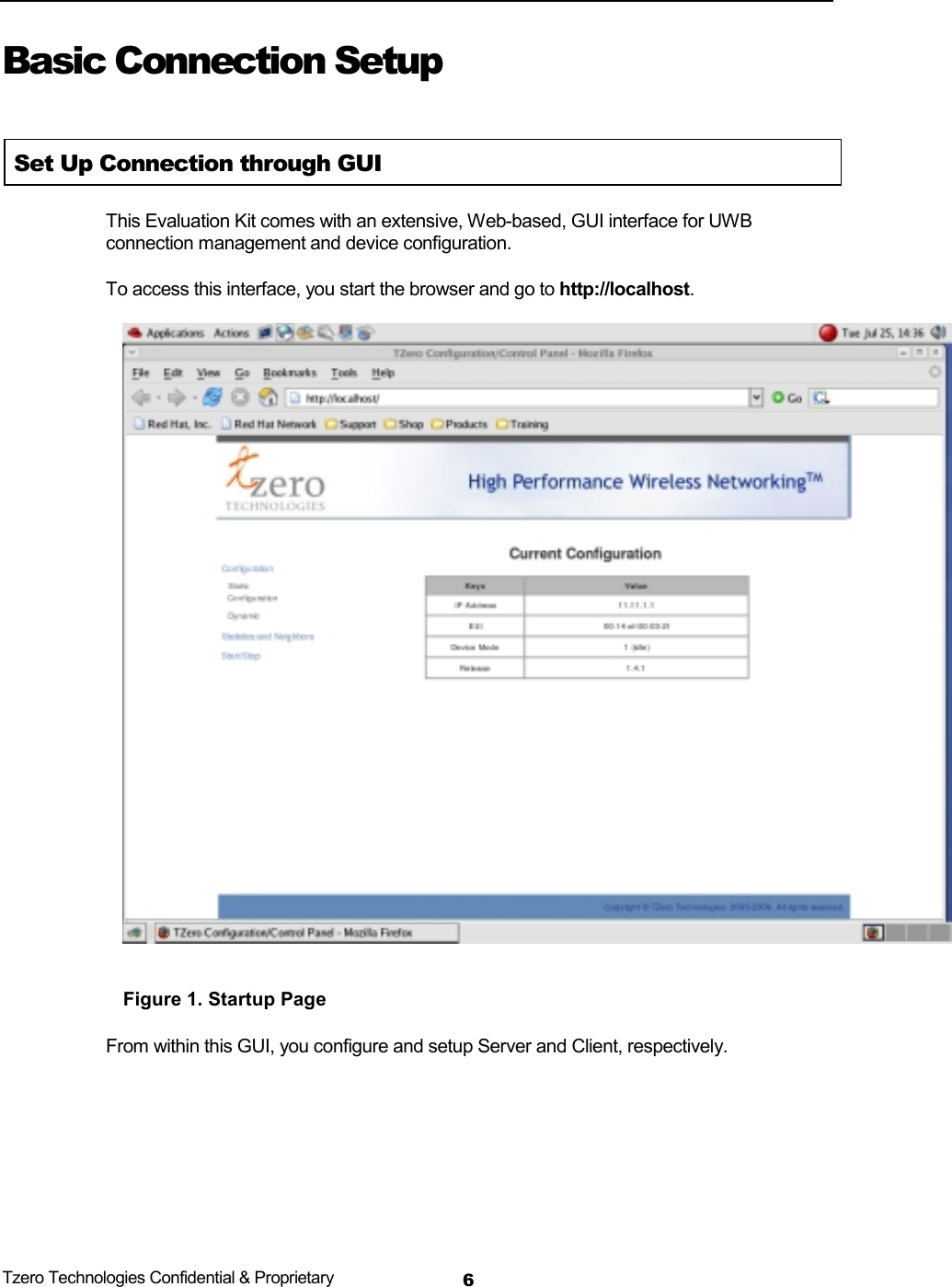
 Tzero Technologies Confidential & Proprietary 6Basic Connection Setup  Set Up Connection through GUI This Evaluation Kit comes with an extensive, Web-based, GUI interface for UWB connection management and device configuration. To access this interface, you start the browser and go to http://localhost.   Figure 1. Startup Page From within this GUI, you configure and setup Server and Client, respectively.
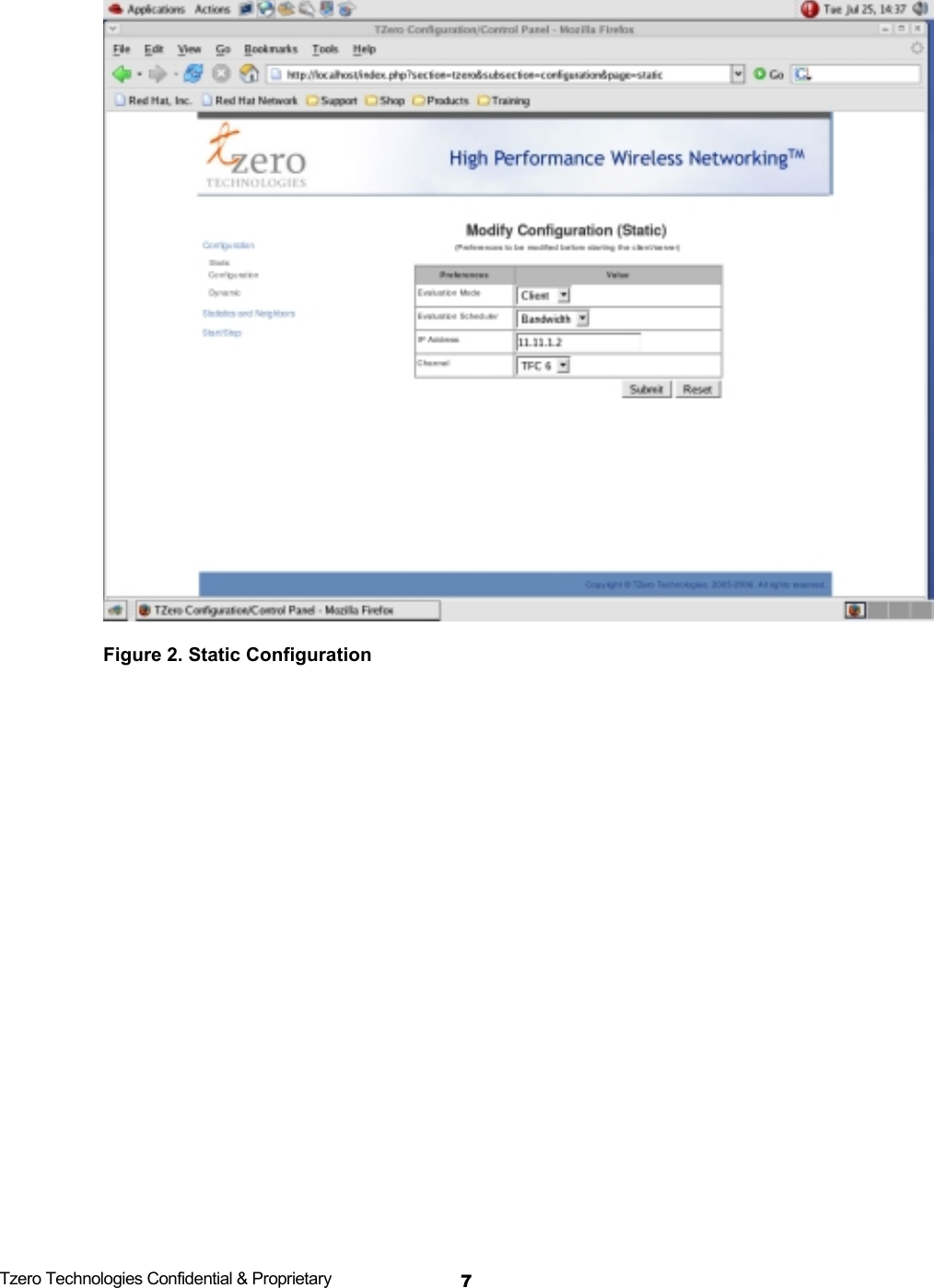
 Tzero Technologies Confidential & Proprietary 7 Figure 2. Static Configuration
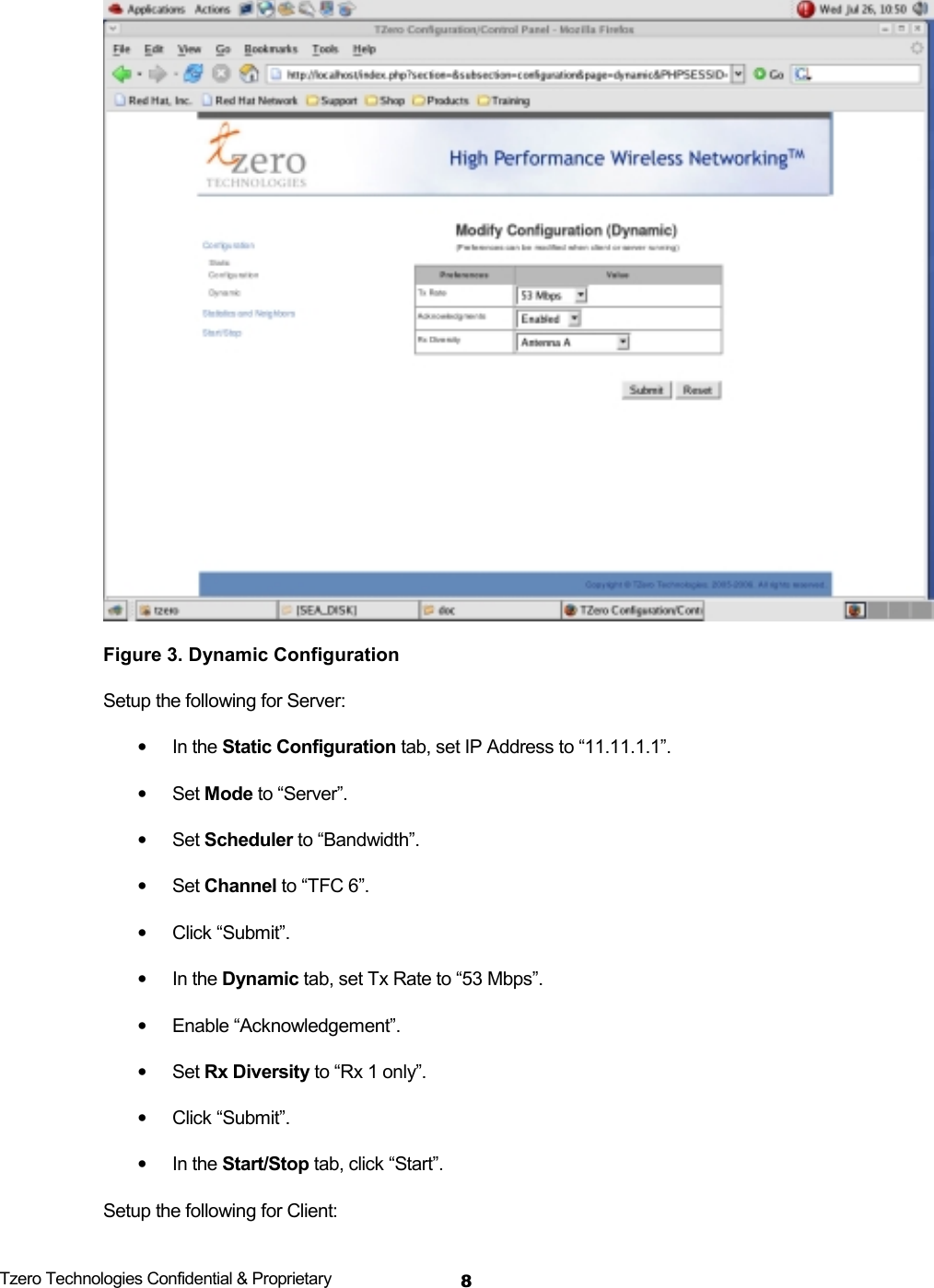
 Tzero Technologies Confidential & Proprietary 8 Figure 3. Dynamic Configuration Setup the following for Server: • In the Static Configuration tab, set IP Address to “11.11.1.1”. • Set Mode to “Server”. • Set Scheduler to “Bandwidth”. • Set Channel to “TFC 6”. • Click “Submit”. • In the Dynamic tab, set Tx Rate to “53 Mbps”. • Enable “Acknowledgement”. • Set Rx Diversity to “Rx 1 only”. • Click “Submit”. • In the Start/Stop tab, click “Start”. Setup the following for Client:
 Tzero Technologies Confidential & Proprietary 9• In the Static Configuration tab, set IP Address to “11.11.1.2”. • Set Mode to “Client”. • Set Scheduler to “Bandwidth”. • Set Channel to “TFC 6”. • Click “Submit”. • In the Dynamic tab, set Tx Rate to “53 Mbps”. • Enable “Acknowledgement”. • Set Rx Diversity to “Rx 1 only”. • Click “Submit”. • In the Start/Stop tab, click “Start”. You now should have an UWB connection between Client and Server. By default, the connection is set up at 53.3Mbps PHY data rate, at TFC 6, with a reservation scheme that allows Server to transmit 90% of the time and Client to transmit 10% of the time. When it Fails to Connect You should see “Neighbor” message in the Statistics tab after executing the above steps. If the connection attempt failed, you should reboot both Server and Client PC and retry.  Single Device Only     For data transmission to occur, the TZ7110 must receive beacons from a remote device.  If a system does not receive a beacon, it will cease data transmission in less than 300ms.  This brings the Tzero Mini-PCI card in compliance with Part 15 Subpart F Section 15.519 (a)(1): “(1) A UWB device operating under the provisions of this section shall transmit only when it is sending information to an associated receiver. The UWB intentional radiator shall cease transmission within 10 seconds unless it receives an acknowledgement from the associated receiver that its transmission is being received. An acknowledgment of reception must continue to be received by the UWB intentional radiator at least every 10 seconds or the UWB device must cease transmitting.”
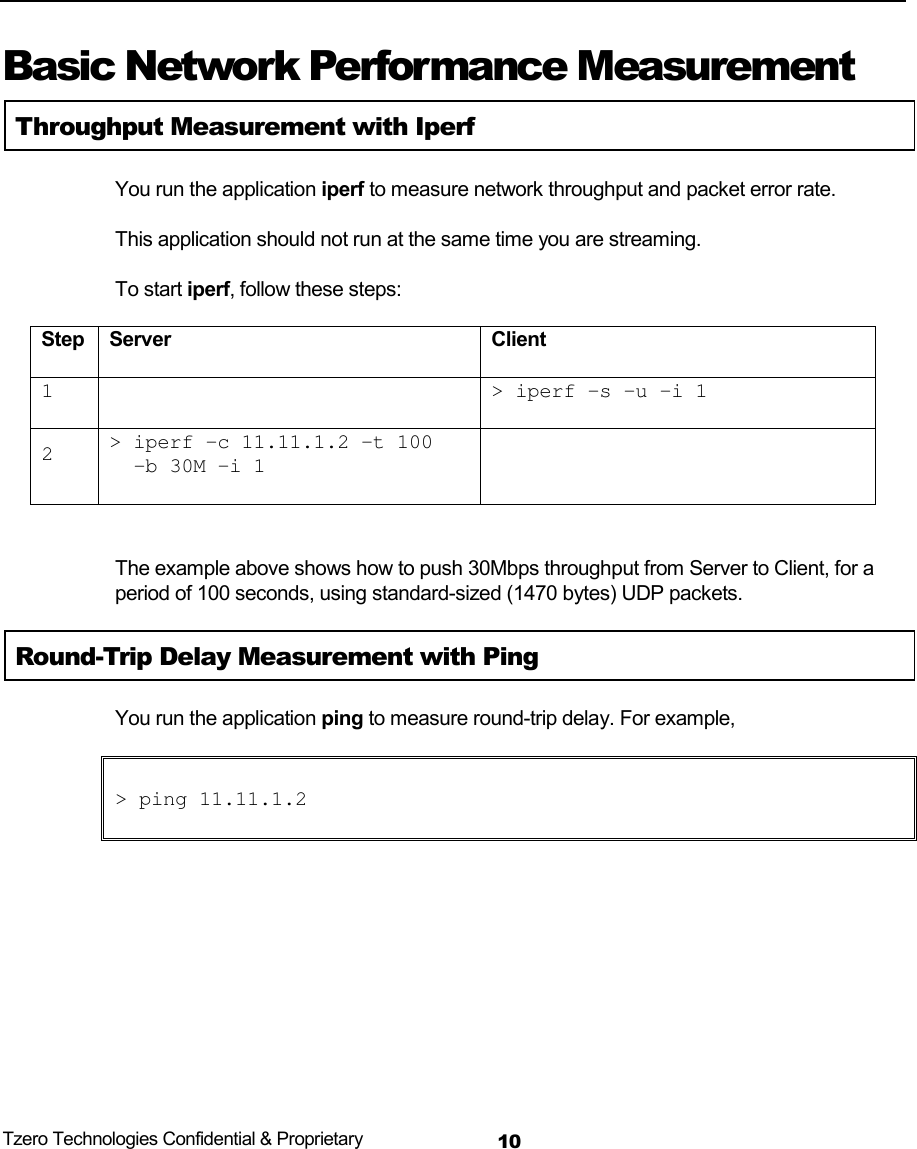
 Tzero Technologies Confidential & Proprietary 10     Basic Network Performance Measurement Throughput Measurement with Iperf You run the application iperf to measure network throughput and packet error rate. This application should not run at the same time you are streaming. To start iperf, follow these steps: Step Server  Client 1 > iperf –s –u –i 12> iperf –c 11.11.1.2 –t 100-b 30M –i 1 The example above shows how to push 30Mbps throughput from Server to Client, for a period of 100 seconds, using standard-sized (1470 bytes) UDP packets. Round-Trip Delay Measurement with Ping You run the application ping to measure round-trip delay. For example, > ping 11.11.1.2
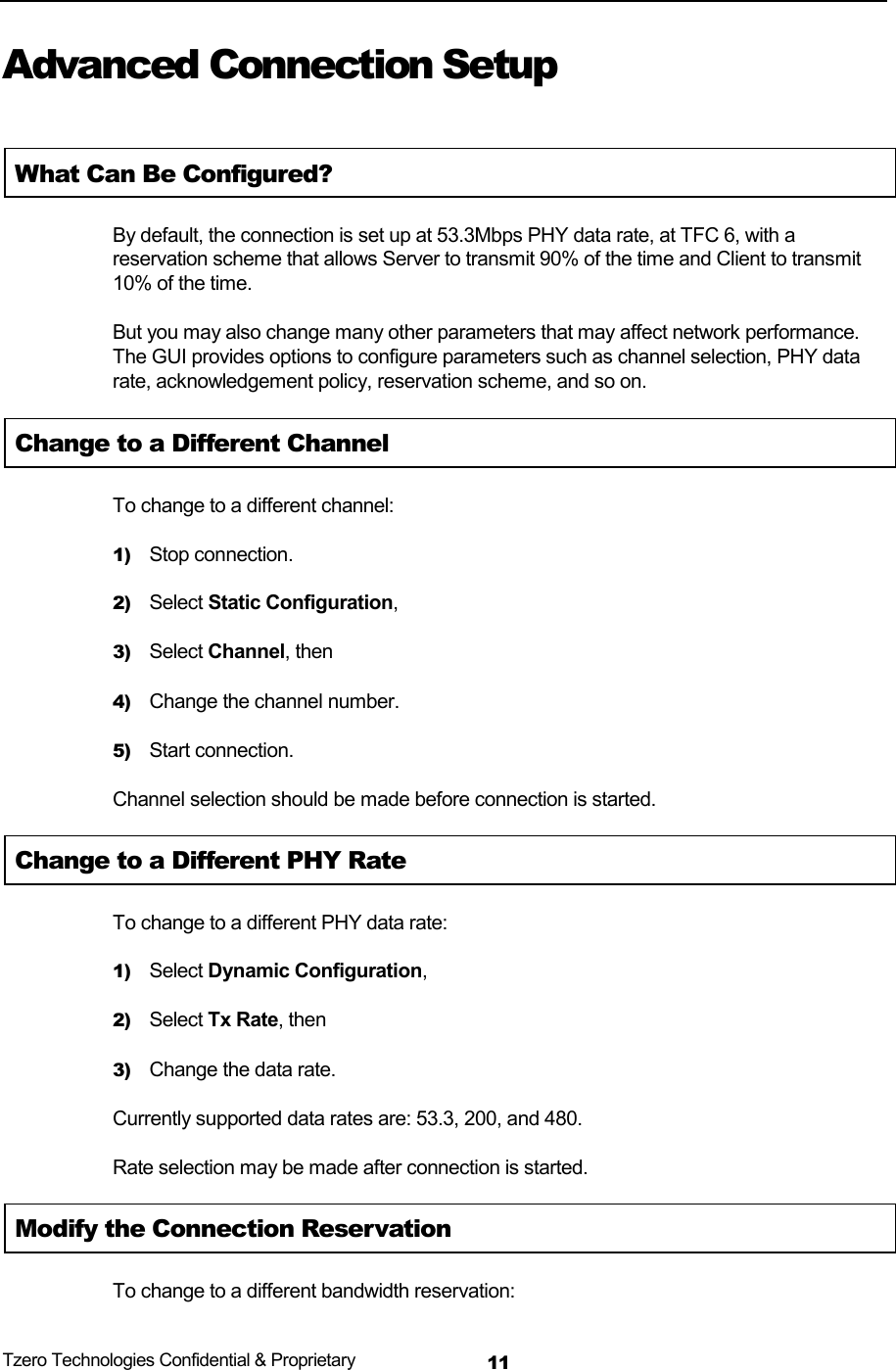
 Tzero Technologies Confidential & Proprietary 11Advanced Connection Setup  What Can Be Configured? By default, the connection is set up at 53.3Mbps PHY data rate, at TFC 6, with a reservation scheme that allows Server to transmit 90% of the time and Client to transmit 10% of the time. But you may also change many other parameters that may affect network performance. The GUI provides options to configure parameters such as channel selection, PHY data rate, acknowledgement policy, reservation scheme, and so on. Change to a Different Channel To change to a different channel: 1) Stop connection. 2) Select Static Configuration, 3) Select Channel, then 4) Change the channel number. 5) Start connection. Channel selection should be made before connection is started. Change to a Different PHY Rate To change to a different PHY data rate: 1) Select Dynamic Configuration, 2) Select Tx Rate, then 3) Change the data rate. Currently supported data rates are: 53.3, 200, and 480. Rate selection may be made after connection is started. Modify the Connection Reservation To change to a different bandwidth reservation:
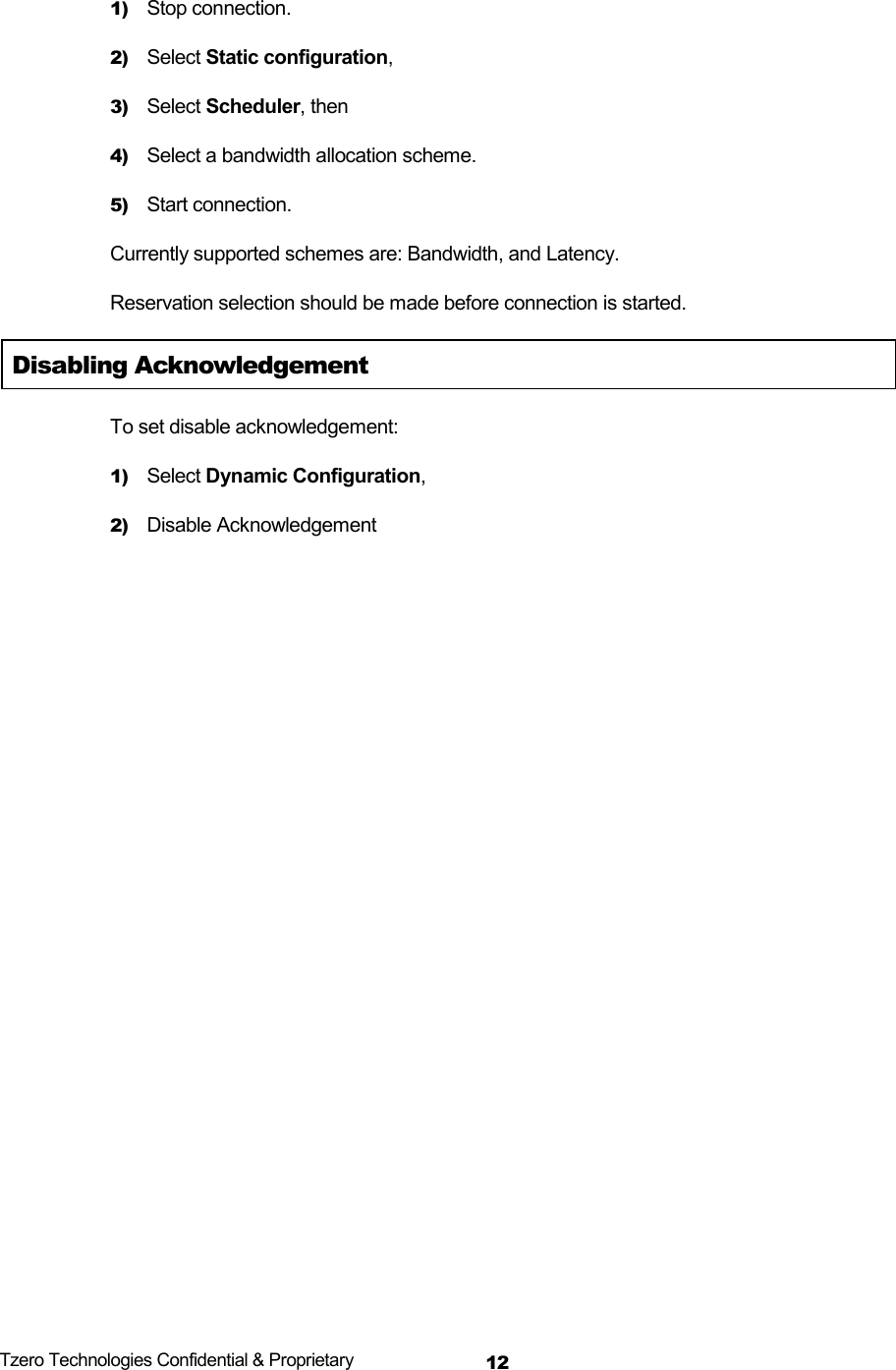
 Tzero Technologies Confidential & Proprietary 121) Stop connection. 2) Select Static configuration, 3) Select Scheduler, then 4) Select a bandwidth allocation scheme. 5) Start connection. Currently supported schemes are: Bandwidth, and Latency. Reservation selection should be made before connection is started. Disabling Acknowledgement To set disable acknowledgement: 1) Select Dynamic Configuration, 2) Disable Acknowledgement
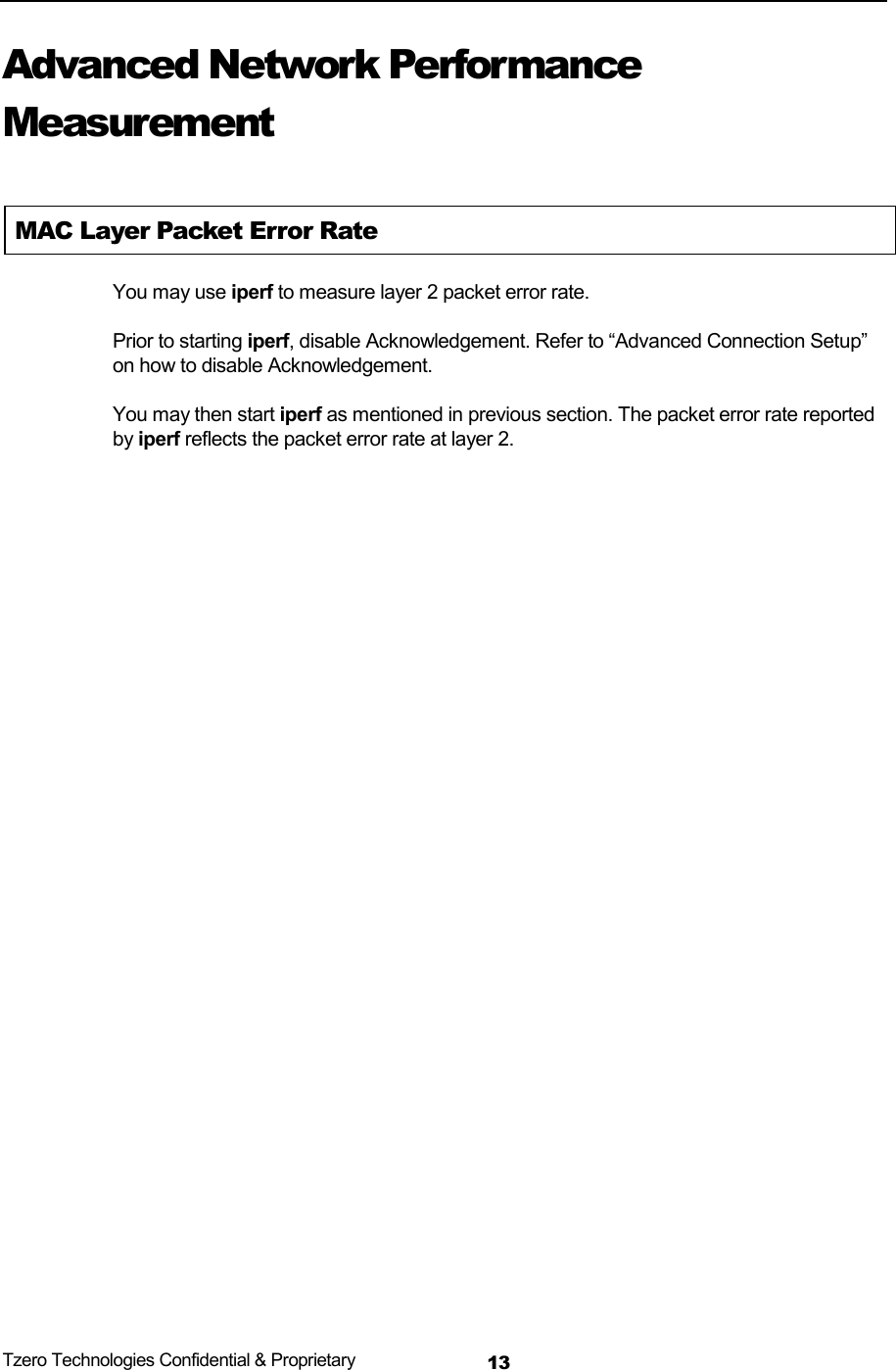
 Tzero Technologies Confidential & Proprietary 13Advanced Network Performance Measurement  MAC Layer Packet Error Rate You may use iperf to measure layer 2 packet error rate. Prior to starting iperf, disable Acknowledgement. Refer to “Advanced Connection Setup” on how to disable Acknowledgement. You may then start iperf as mentioned in previous section. The packet error rate reported by iperf reflects the packet error rate at layer 2.
 Tzero Technologies Confidential & Proprietary 14Technical Support  How to Get the Latest Update Online tech support is available at our website: http://www.tzti.com You will be provided user name and password to log in to our support web site. Once logged in, you may access all the latest updates of data sheets, schematics, characterization data, software releases, and FAQ. Upgrading to a New Release New software releases are packaged in one single TAR file. You may download this TAR file and untar it into a directory of your choice. For Further Technical Support FAQ on our support Web site provides comprehensive answers to various questions. You may also contact your designated Tzero application engineer, or email us at support@tzti.com.
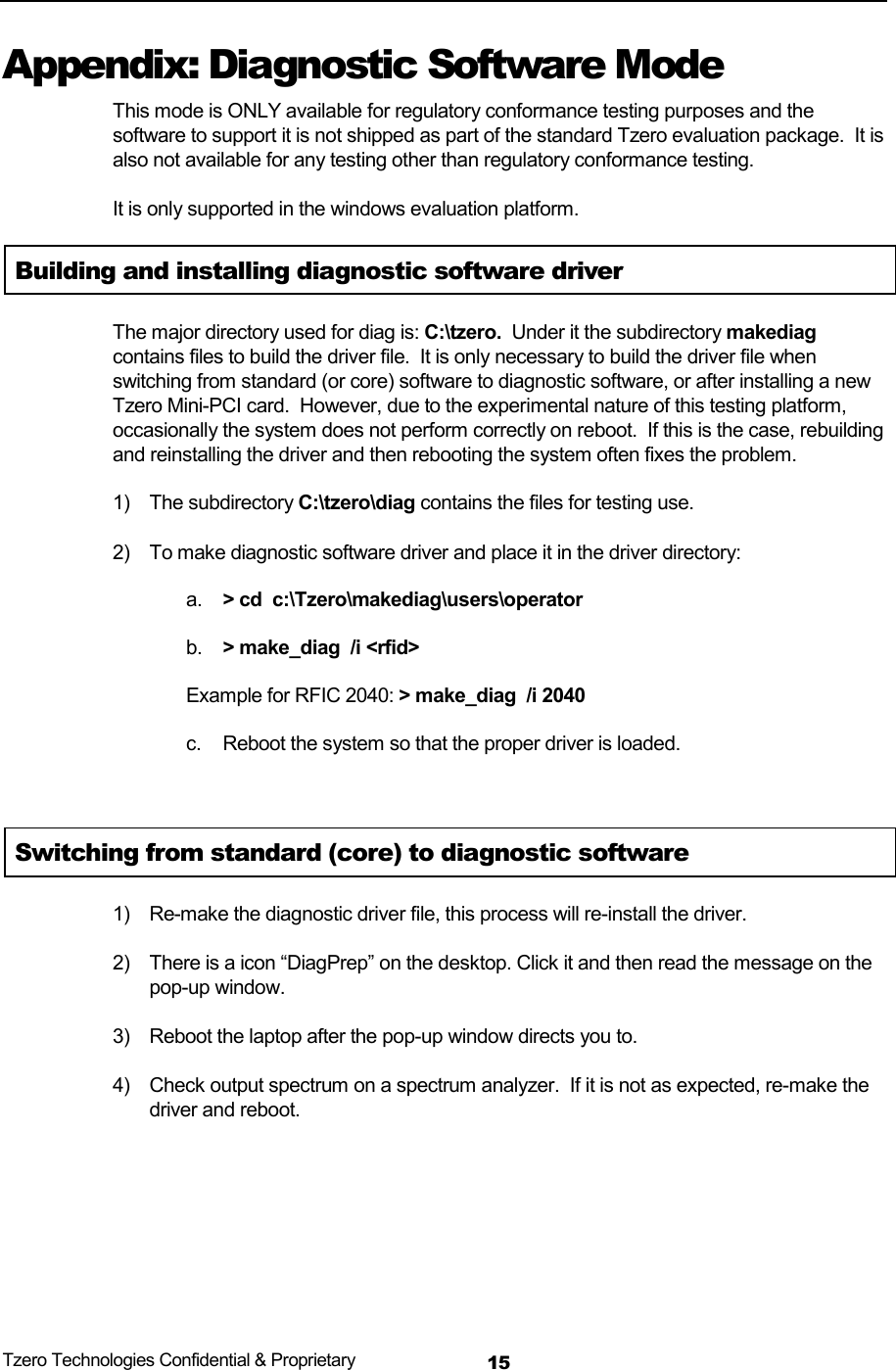
 Tzero Technologies Confidential & Proprietary 15Appendix: Diagnostic Software Mode This mode is ONLY available for regulatory conformance testing purposes and the software to support it is not shipped as part of the standard Tzero evaluation package.  It is also not available for any testing other than regulatory conformance testing.   It is only supported in the windows evaluation platform. Building and installing diagnostic software driver The major directory used for diag is: C:\tzero.  Under it the subdirectory makediag contains files to build the driver file.  It is only necessary to build the driver file when switching from standard (or core) software to diagnostic software, or after installing a new Tzero Mini-PCI card.  However, due to the experimental nature of this testing platform, occasionally the system does not perform correctly on reboot.  If this is the case, rebuilding and reinstalling the driver and then rebooting the system often fixes the problem. 1) The subdirectory C:\tzero\diag contains the files for testing use. 2)  To make diagnostic software driver and place it in the driver directory: a.  > cd  c:\Tzero\makediag\users\operator b.  > make_diag  /i <rfid> Example for RFIC 2040: > make_diag  /i 2040  c.  Reboot the system so that the proper driver is loaded.   Switching from standard (core) to diagnostic software 1)  Re-make the diagnostic driver file, this process will re-install the driver. 2)  There is a icon “DiagPrep” on the desktop. Click it and then read the message on the pop-up window. 3)  Reboot the laptop after the pop-up window directs you to. 4)  Check output spectrum on a spectrum analyzer.  If it is not as expected, re-make the driver and reboot.
 Tzero Technologies Confidential & Proprietary 16 Testing with diagnostic software   Diagnostic software controls the mini-PCI card through a serial cable.  A serial cable assembly is provided, attach one end of the serial cable assembly to the serial port on the laptop PC, and then the other end of the serial cable assembly to the 3 pin header on the mini-PCI card.  The 3 pin serial cable assembly should have a black mark on one side.  The alignment of the cable to the mini-PCI card is to place this black mark closer to the edge of the PC when the mini-PCI card is mounted.    Once the steps described in the section 2 are completed, we can start running the diagnostic software for transmit mode after the system is booted up. To do this, follow these steps:  1)  Open a command window. Either click the icon on the desktop or run “cmd”. 2)  > cd C:\tzero\diag\users\operator 3)  > gotx 1 The tzdiag command transmits and/or receives a specified number of data frames, displaying TX/RX frame counts after each block. The command syntax is: > tzdiag mode direction tfc rate [frames] [length] [txlevel] The fields without brackets are mandatory. The fields in brackets are optional. All fields are case-insensitive. 1)  Valid mode entries are: once, loop.  a.  The once option performs PHY setup and a single test.  It is NOT possible to stop this test by using CTRL-C, as although the program will exit, the Tzero chipset will continue to execute this command.  The only way to stop the test is to wait for it to finish or reboot the computer.  Therefore, be careful about transmitting a very large number of packets (>200,000). b.  The loop option performs PHY setup and performs the specified test repeatedly in a loop.  To stop the looping command only employ CTRL-C once and then wait for the program to prompt to exit.  If CTRL-C is hit twice, the tzdiag command will exit, but the Tzero chipset will be unavailable until it completes its current set of transmit frames. 2)  Valid direction entries are: tx 3)  Valid tfc entries are: 1, 2, 3, 4, 5, 6, 7. This controls the TF code used to transmit. 4)  Valid rate entries are: 53, 80, 106, 160, 200, 480. This controls the payload data rate (TX only). 5)  Valid frames entries are: 1 to 2147483649. This controls the number of frames per TX execution. If not specified, this field defaults to 10,000 frames. 6)  Valid length entries are: 0 to 4095. This controls the number of payload bytes in each TX frame. If not specified, this field defaults to 1024 bytes per frame.
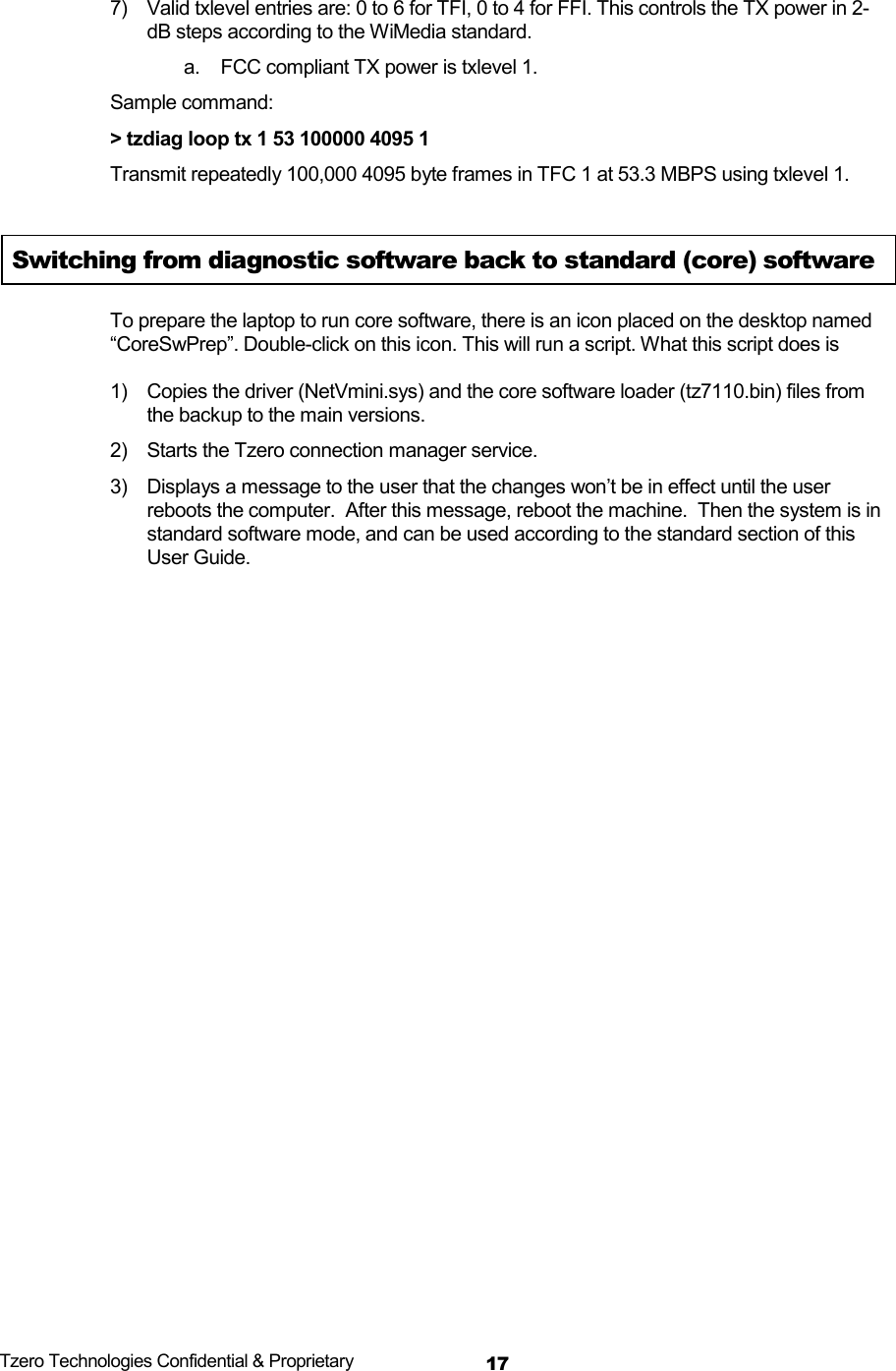
 Tzero Technologies Confidential & Proprietary 177)  Valid txlevel entries are: 0 to 6 for TFI, 0 to 4 for FFI. This controls the TX power in 2-dB steps according to the WiMedia standard.  a.  FCC compliant TX power is txlevel 1. Sample command: > tzdiag loop tx 1 53 100000 4095 1 Transmit repeatedly 100,000 4095 byte frames in TFC 1 at 53.3 MBPS using txlevel 1.  Switching from diagnostic software back to standard (core) software To prepare the laptop to run core software, there is an icon placed on the desktop named “CoreSwPrep”. Double-click on this icon. This will run a script. What this script does is   1)  Copies the driver (NetVmini.sys) and the core software loader (tz7110.bin) files from the backup to the main versions.  2)  Starts the Tzero connection manager service.  3)  Displays a message to the user that the changes won’t be in effect until the user reboots the computer.  After this message, reboot the machine.  Then the system is in standard software mode, and can be used according to the standard section of this User Guide.

Navigation menu