NDS Surgical Imaging WR-P42-11 ZeroWire G2 Receiver User Manual

NDS Surgical Imaging ZeroWire G2 Receiver

User Manual

High-Definition Wireless Video SystemUSER MANUAL ENGLISHAsia Pacic Oces1st Fl., RISE Building, 5-13, Asakusabashi 5-Chome,Taito-Ku, Tokyo,  Japan, 111-0053 Tel: + 81 3 6420 3031Email: info@ndssi.jpZeroWire® G2
© 2015 NDS Surgical Imaging, LLC. All rights reserved. Information in this document has been carefully checked for accuracy; however, no guarantee is given to the correctness of the contents. This document is subject to change without notice. NDSsi provides this information  as  reference  only.    Reference  to  products  from  other  vendors  does  not  imply  any recommendation or endorsement.  This document contains proprietary  information  protected by copyright. No part of  this manual may be reproduced by any mechanical, electronic, or other means, in any form, without prior written permission of NDSsi. All trademarks are the property of their respective owners.
i Tab 1 Warnings and Cautions ------------------------------------------------------------------------------ ii Recycling ------------------------------------------------------------------------------------------------- ii Declarations of Conformity ------------------------------------------------------------------------ iii Legal Statement -------------------------------------------------------------------------------------- iii Tab 2 About This Manual ------------------------------------------------------------------------------------ 1 Intended Use and Contraindications ------------------------------------------------------------ 1 Overview ------------------------------------------------------------------------------------------------- 1 Tab 3 Connector Panels ------------------------------------------------------------------------------------- 2 Installation ---------------------------------------------------------------------------------------------- 3 Power Options ----------------------------------------------------------------------------------------- 4 Wiring Diagrams -------------------------------------------------------------------------------------- 6 Cable Bend Radius ------------------------------------------------------------------------------------ 6 Setup ----------------------------------------------------------------------------------------------------- 7 Typical  Installation ---------------------------------------------------------------------------------- 8  Performance ------------------------------------------------------------------------------------------ 8 Positioning  and  Orientation --------------------------------------------------------------------- 9 Non Line of Sight Operation --------------------------------------------------------------------- 12 Avoiding Co-Channel Interference ------------------------------------------------------------ 13 Channel Usage --------------------------------------------------------------------------------------- 14 Multi System Installation -------------------------------------------------------------------------- 14 Signal Strength  -------------------------------------------------------------------------------------- 14 Tab 4 Troubleshooting  ------------------------------------------------------------------------------------ 15 Tab 5 Specifications  --------------------------------------------------------------------------------------- 16 Supported Video Modes  ------------------------------------------------------------------------- 17  Cleaning and Disinfecting instructions ------------------------------------------------------- 18 Tab 6 Electromagnetic Compatibility (EMC) Tables ----------------------------------------------- 19 Contact ---------------------------------------------------------------------------------------------- Back
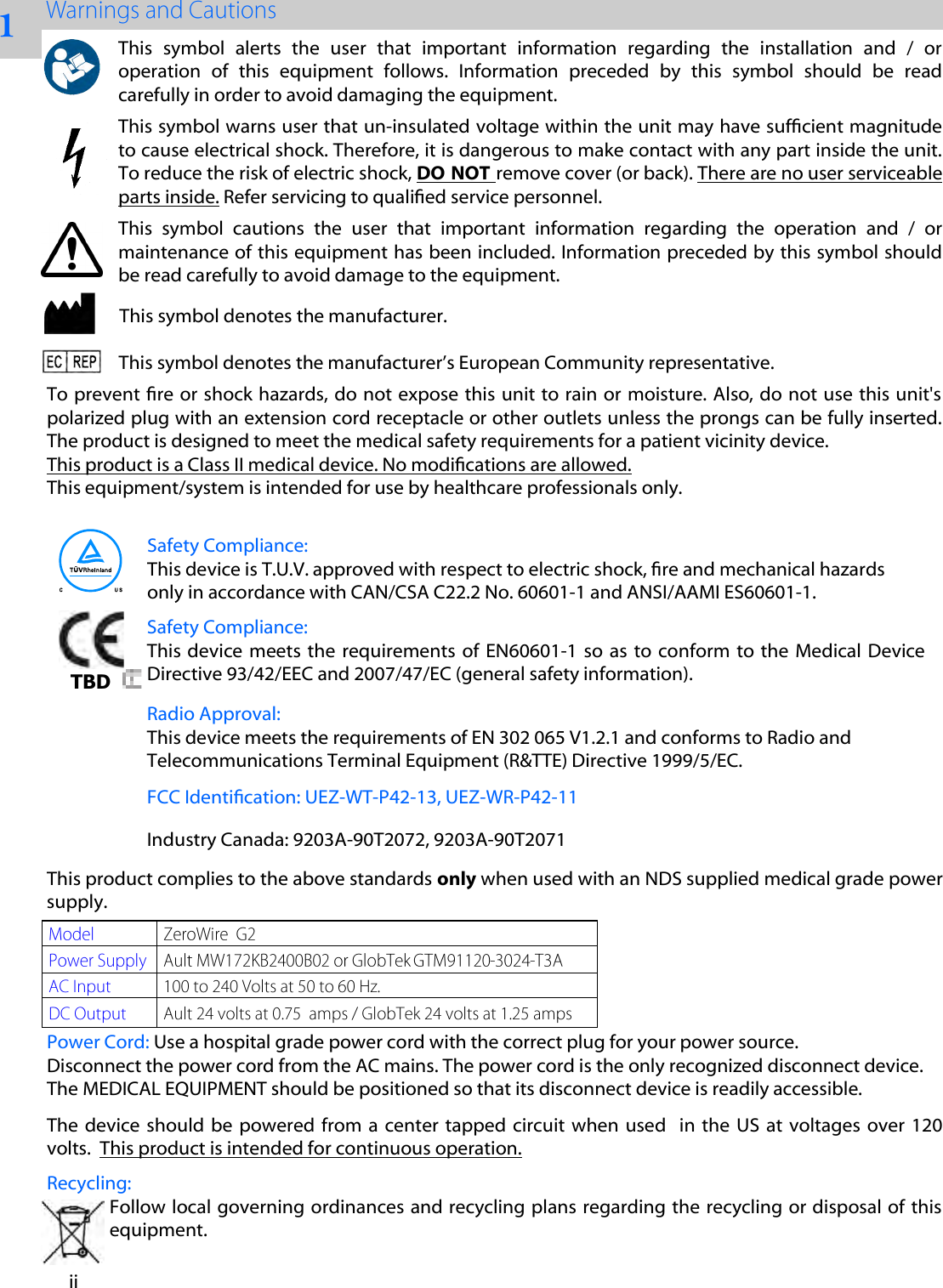
1 ii Recycling: Follow local governing ordinances and recycling plans regarding the recycling or disposal of this equipment. Safety Compliance: This device  meets  the  requirements of  EN60601-1 so  as  to conform to the  Medical  Device Directive 93/42/EEC and 2007/47/EC (general safety information). Safety Compliance: This device is T.U.V. approved with respect to electric shock, re and mechanical hazards only in accordance with CAN/CSA C22.2 No. 60601-1 and ANSI/AAMI ES60601-1. FCC Identication: UEZ-WT-P42-13, UEZ-WR-P42-11 Industry Canada: 9203A-90T2072, 9203A-90T2071Radio Approval: This device meets the requirements of EN 302 065 V1.2.1 and conforms to Radio and Telecommunications Terminal Equipment (R&TTE) Directive 1999/5/EC. TBD This  symbol  alerts  the  user  that  important  information  regarding  the  installation  and  /  or operation  of  this  equipment  follows.  Information  preceded  by  this  symbol  should  be  read carefully in order to avoid damaging the equipment. This symbol warns user that un-insulated voltage within the unit may have sufcient magnitude to cause electrical shock. Therefore, it is dangerous to make contact with any part inside the unit. To reduce the risk of electric shock, DO NOT remove cover (or back). There are no user serviceable parts inside. Refer servicing to qualied service personnel. This  symbol  cautions  the  user  that  important  information  regarding  the  operation  and  /  or maintenance of this equipment has been included. Information preceded by this symbol should be read carefully to avoid damage to the equipment. This symbol denotes the manufacturer. This symbol denotes the manufacturer’s European Community representative. To prevent re or shock hazards, do not expose this unit to rain or moisture. Also, do not use this unit's polarized plug with an extension cord receptacle or other outlets unless the prongs can be fully inserted. The product is designed to meet the medical safety requirements for a patient vicinity device.  This product is a Class II medical device. No modications are allowed. This equipment/system is intended for use by healthcare professionals only.  This product complies to the above standards only when used with an NDS supplied medical grade power supply.   Power Cord: Use a hospital grade power cord with the correct plug for your power source.  Disconnect the power cord from the AC mains. The power cord is the only recognized disconnect device. The MEDICAL EQUIPMENT should be positioned so that its disconnect device is readily accessible.  The  device  should  be  powered  from  a  center  tapped  circuit when  used    in  the  US  at voltages  over  120 volts.  This product is intended for continuous operation.
iii and 2007/47/EC    
2 1 This manual is designed to assist the user with installation, setup and operation of the NDS ZeroWire® G2 Wireless HD video system.  A numbered tab on the side of the page denotes the beginning of a section. The functional descriptions in this manual are representative of:  Part Numbers:  90T2071 = ZeroWire G2 Receiver     90T2072 = ZeroWire G2 Transmitter (Input: DVI and 3G-SDI)   Manual Part Number:  60A0571 Rev A  27 February 2015 The ZeroWire G2 transmitter and receiver pair allows wireless delivery of video signals from the DVI or 3G-SDI output of an endoscopic camera processor or other video source to the DVI input of a video display.  It operates  as  a  60Ghz-Based  Wireless  HD  system  in  compliance  with  FCC  (Part  15)  rules  governing  the unlicensed 57-64 GHz band which is located in the millimetre-wave (mmW) portion of the electromagnetic spectrum. At any time, a minimum separation of 20 cm must be maintained from the operating device and the user or patient.The system is composed of a transmitter (Tx) and a receiver (Rx) pair.  The Tx and Rx are designed to be mounted on the top rear edge of a display on a surgical cart. The Tx may obtain its input video signal from either an endoscopic camera processor or the display’s DVI or SDI re-drive outputs. The Rx’ output is connected to the display’s DVI input  The units are powered from the provided 24 VDC power supply (“wall-wart”) or through the optional ‘Y’ adapter cable*. The ‘Y’ adapter cable is described on page 4.  A typical installation is shown on page 8. *Note:  The  ‘Y’  adapter  cables  are  for  use  with  displays  that  are  powered  by  24  VDC  and  whosepower connector accepts one of the J2 connectors shown on page 4. The  NDSsi  ZeroWire  G2  Wireless  HD  Video  System  is  a  paired  transmitter  and  receiver,  intended  for delivery  of  video  signals  over  a  radio-frequency  link  to  a  video  display  during  endoscopic  and  general surgical  procedures.  The  ZeroWire  G2  Wireless  HD  Video  System  is  a  non-sterile  reusable  device  not intended  for  use  in  the  sterile  field.  It  is  intended  for  use  by  qualified  physicians  having  complete knowledge of these surgical procedures. Contraindications: 1. These units are non-sterile reusable devices and are not intended for use within a sterile eld.2. This equipment may not be used in the presence of  ammable anesthetics mixture with air, oxygen ornitrous oxide.No part of this product may come in contact with a patient. Never touch the product and a patient at the same time.  For  mission  critical  applications,  we  strongly  recommend  that  a  replacement  ZeroWire  G2  transmitter  and  receiver  pair,  and  a  DVI  cable  be  immediately  available.    Additionally,  we recommend  that  a  display  that  is  hard  wired  to  the  video  source  be  immediately  available whenever a surgical procedure is in progress.  See typical installation drawing on page 10. OR rooms whose walls and/or ceiling are constructed with metal sheets, may reduce ZeroWire G2 performance. This condition can be mitigated by moving the Tx and Rx closer to each other, setting their line-of-sight to 0 degrees (see item 1 on page 12),  and ensuring that there are no obstructions between the Tx and the Rx.
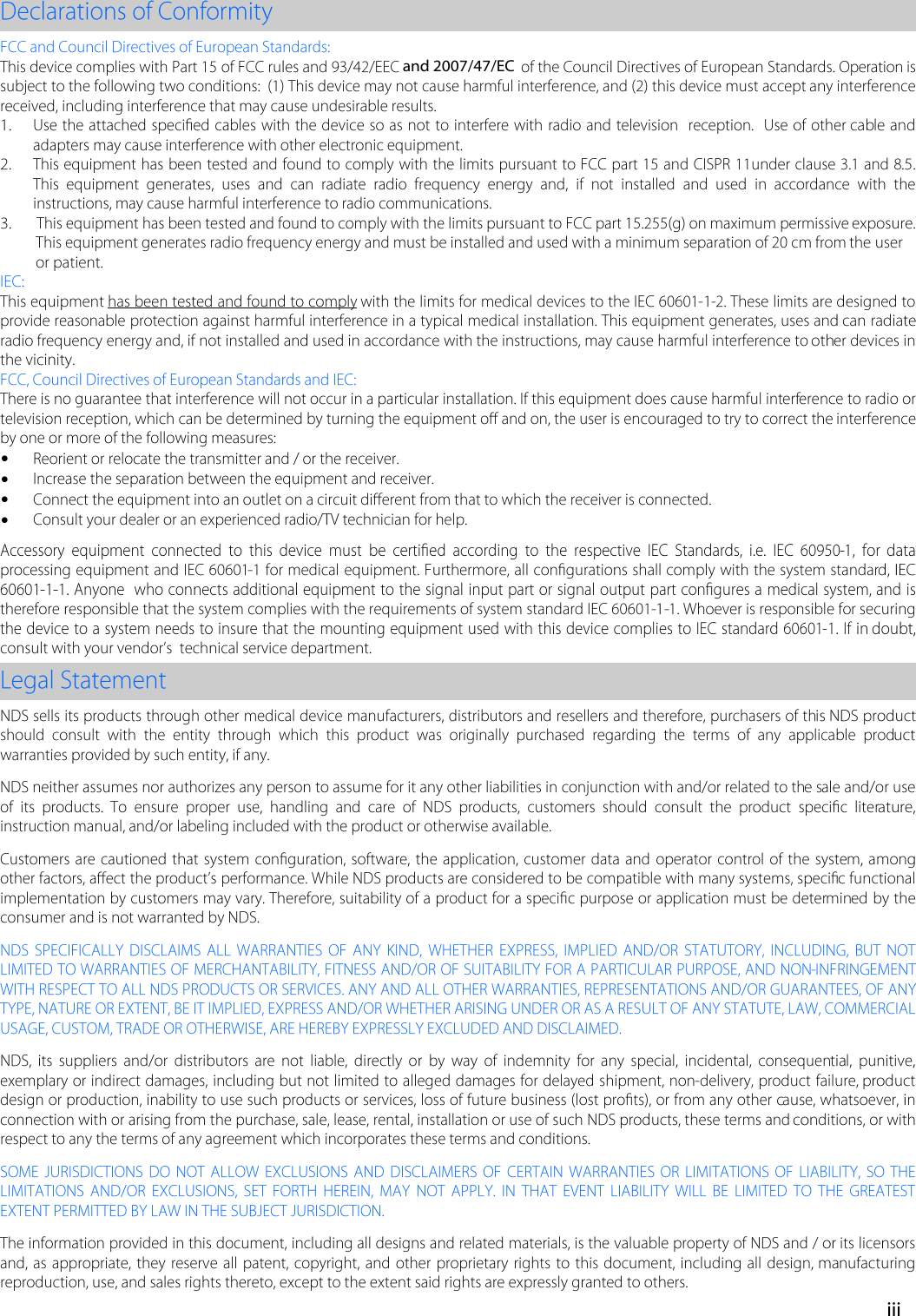
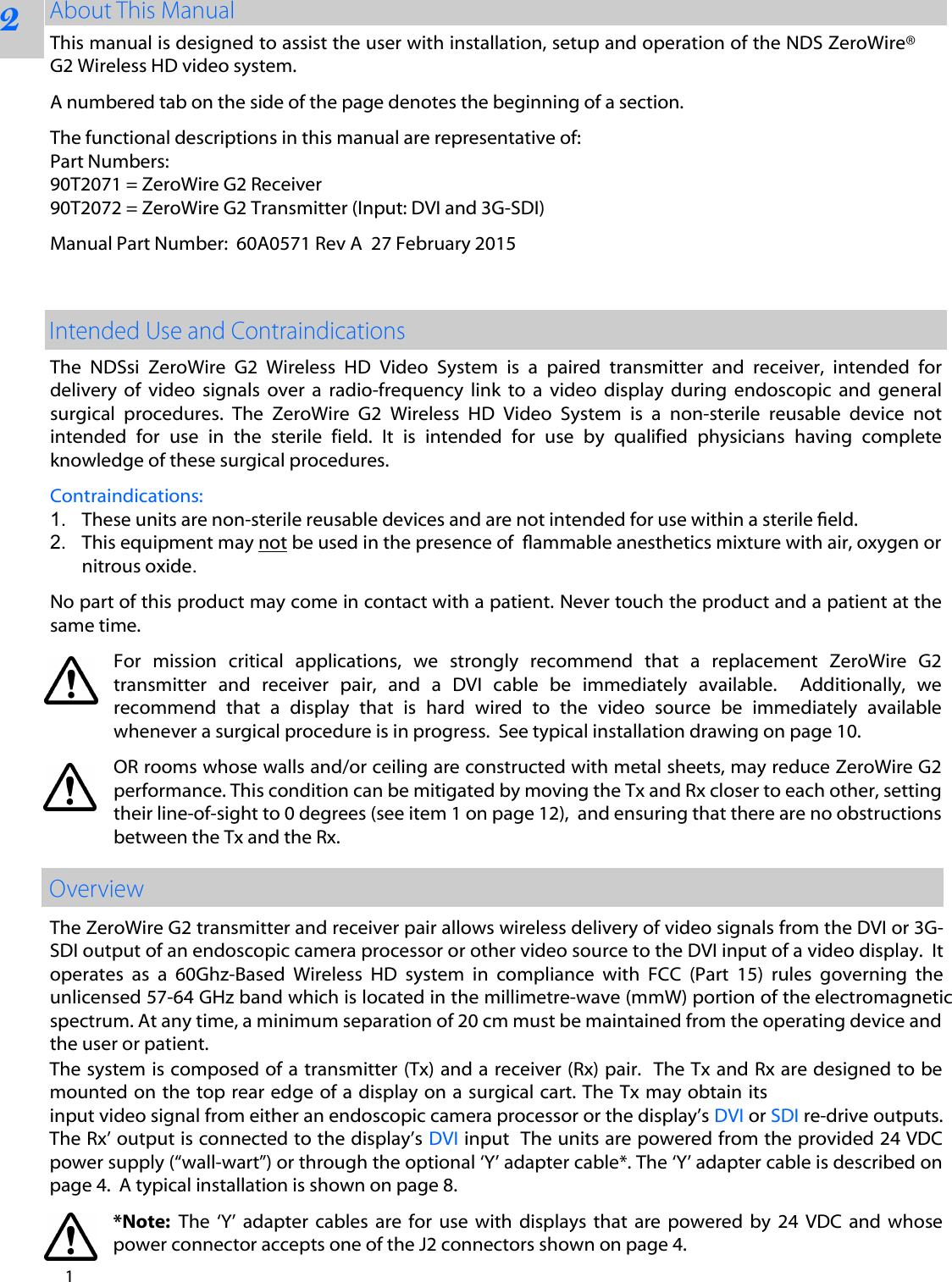
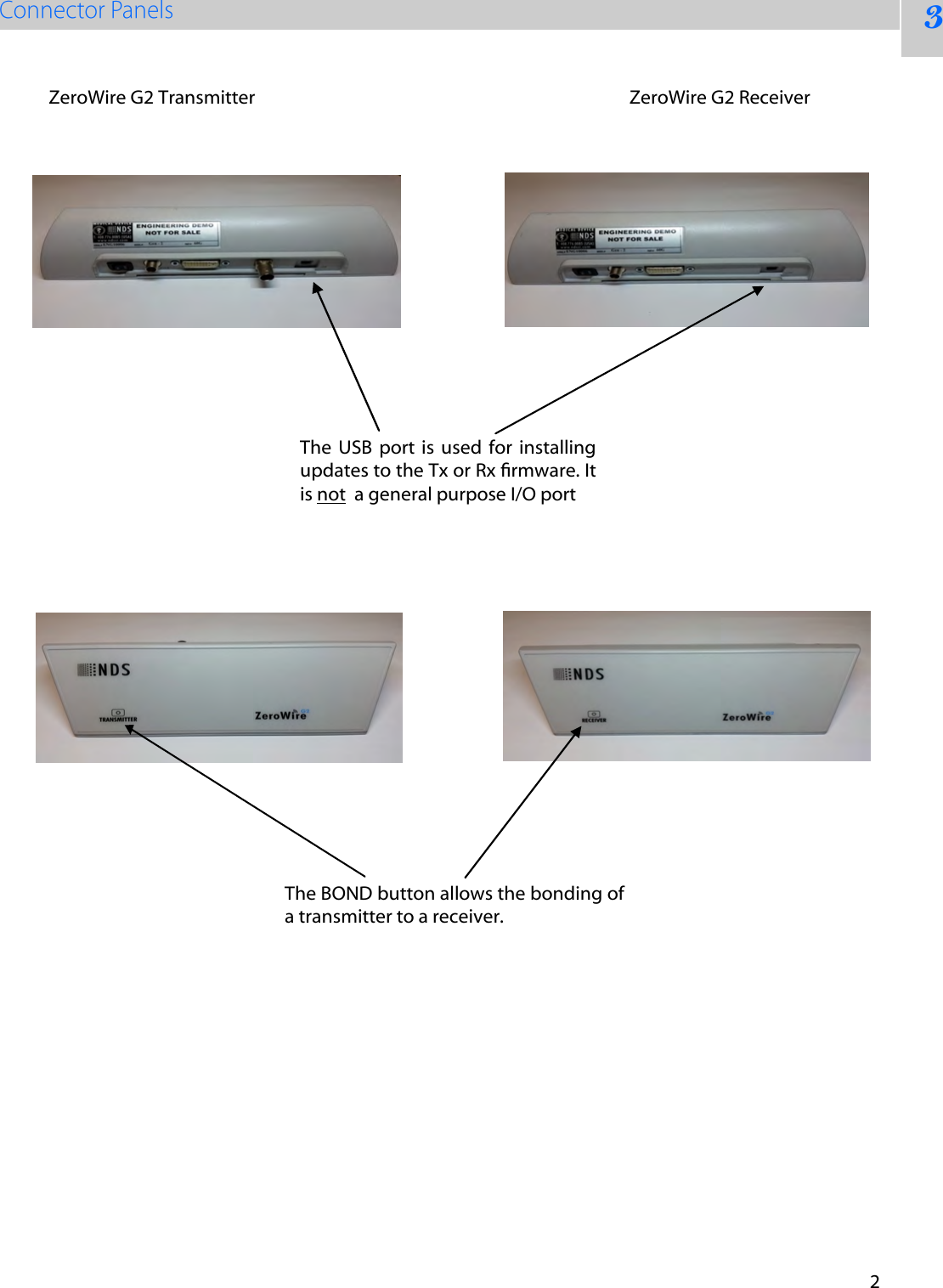
2 3 The  USB  port is  used  for  installing updates to the Tx or Rx rmware. It is not  a general purpose I/O port ZeroWire G2 Transmitter ZeroWire G2 Receiver The BOND button allows the bonding of a transmitter to a receiver.
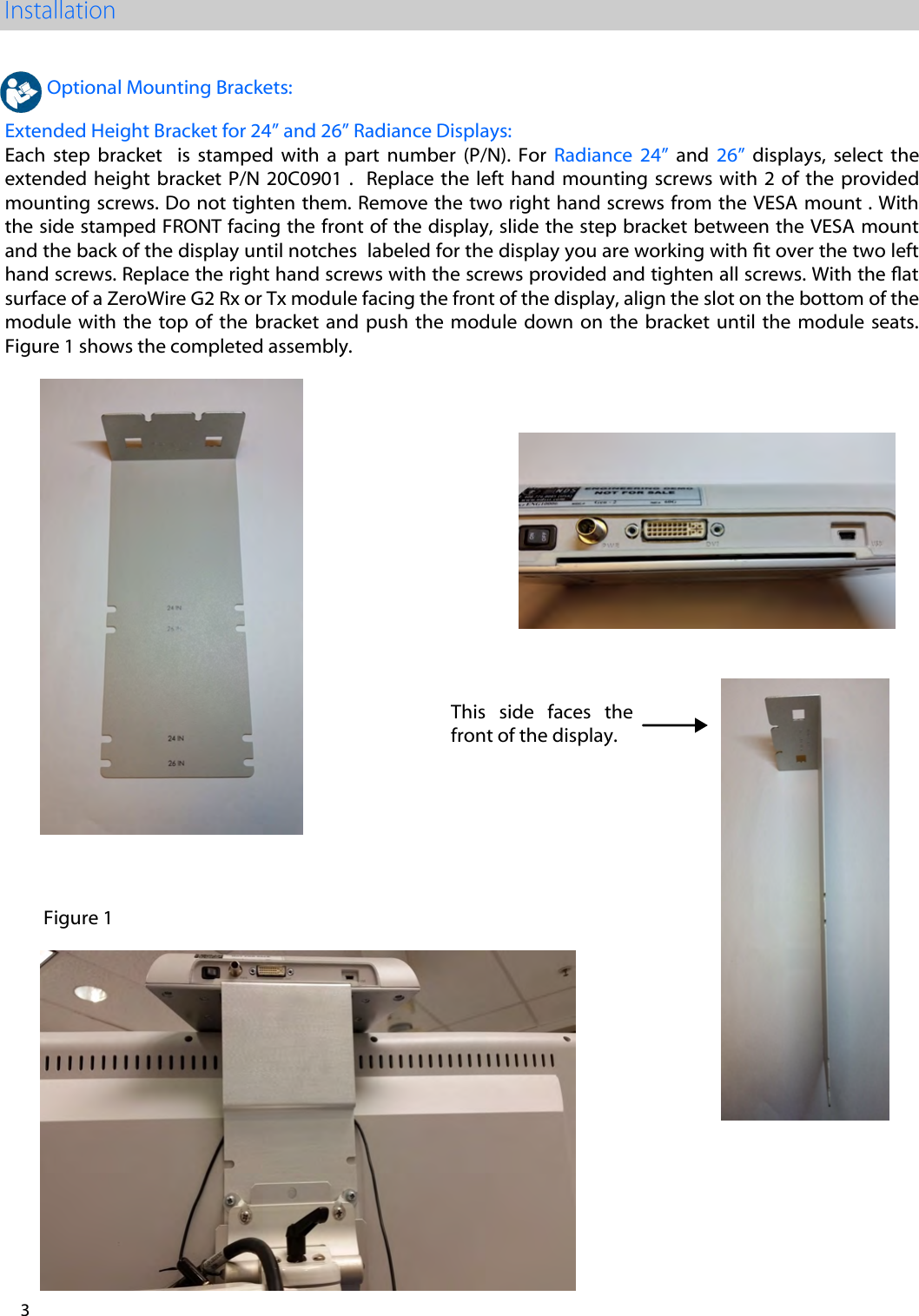
3 This side faces the front of the display. Optional Mounting Brackets: Extended Height Bracket for 24” and 26” Radiance Displays: Each  step  bracket    is  stamped  with  a  part  number  (P/N).  For  Radiance  24”  and  26”  displays,  select  the extended height  bracket  P/N  20C0901 .    Replace the  left  hand  mounting screws  with  2 of  the  provided mounting screws. Do not tighten them. Remove the two right hand screws from the VESA mount . With the side stamped FRONT facing the front of the display, slide the step bracket between the VESA mount and the back of the display until notches  labeled for the display you are working with t over the two left hand screws. Replace the right hand screws with the screws provided and tighten all screws. With the at surface of a ZeroWire G2 Rx or Tx module facing the front of the display, align the slot on the bottom of the module with  the  top of  the  bracket and  push  the module  down  on  the  bracket  until  the  module  seats. Figure 1 shows the completed assembly. Figure 1
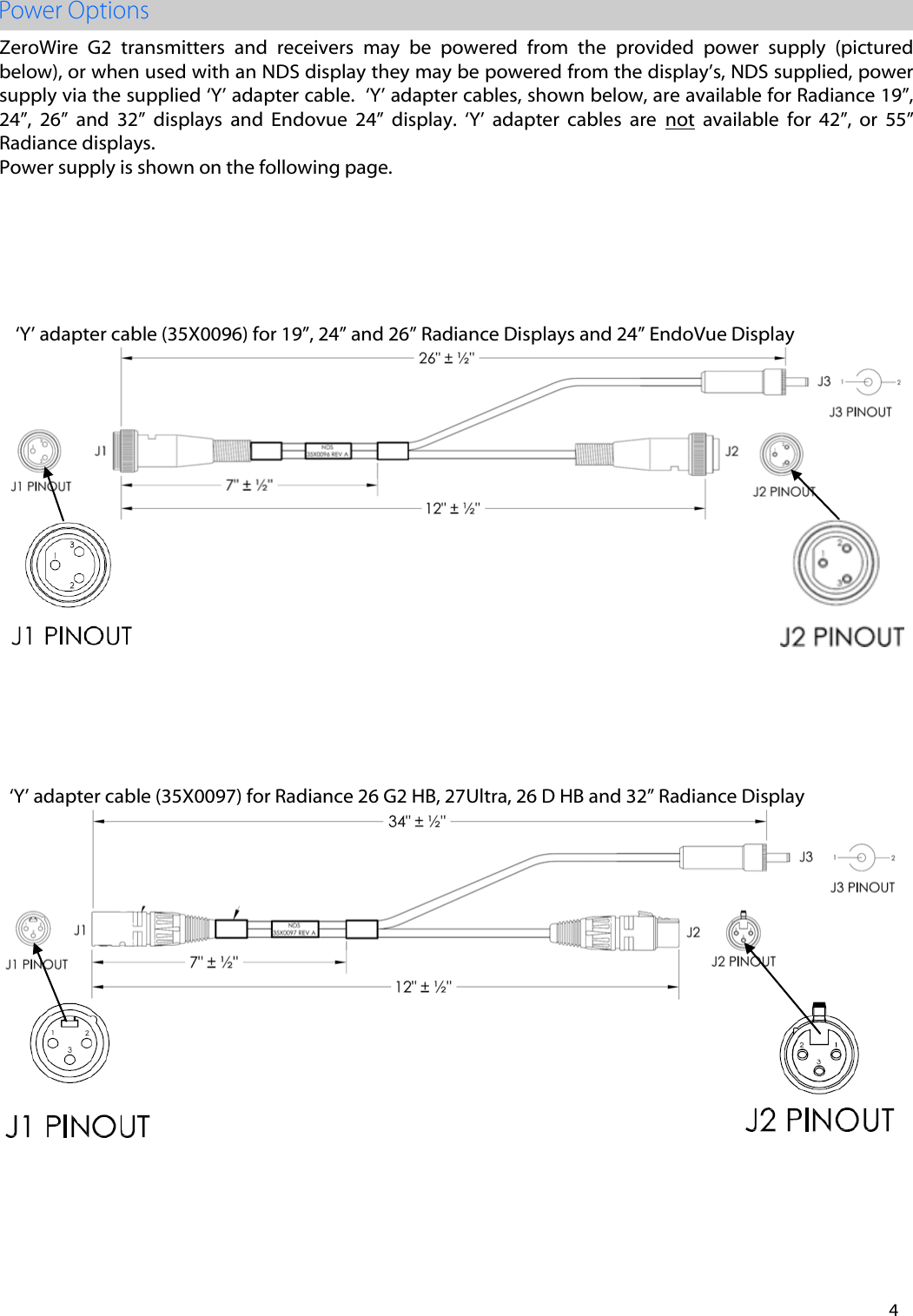
4 ZeroWire  G2  transmitters  and  receivers  may  be  powered  from  the  provided  power  supply  (pictured below), or when used with an NDS display they may be powered from the display’s, NDS supplied, power supply via the supplied ‘Y’ adapter cable.  ‘Y’ adapter cables, shown below, are available for Radiance 19”, 24”,  26”  and  32”  displays  and  Endovue  24”  display.  ‘Y’  adapter  cables  are  not  available  for  42”,  or  55” Radiance displays.   Power supply is shown on the following page. ‘Y’ adapter cable (35X0097) for Radiance 26 G2 HB, 27Ultra, 26 D HB and 32” Radiance Display ‘Y’ adapter cable (35X0096) for 19”, 24” and 26” Radiance Displays and 24” EndoVue Display
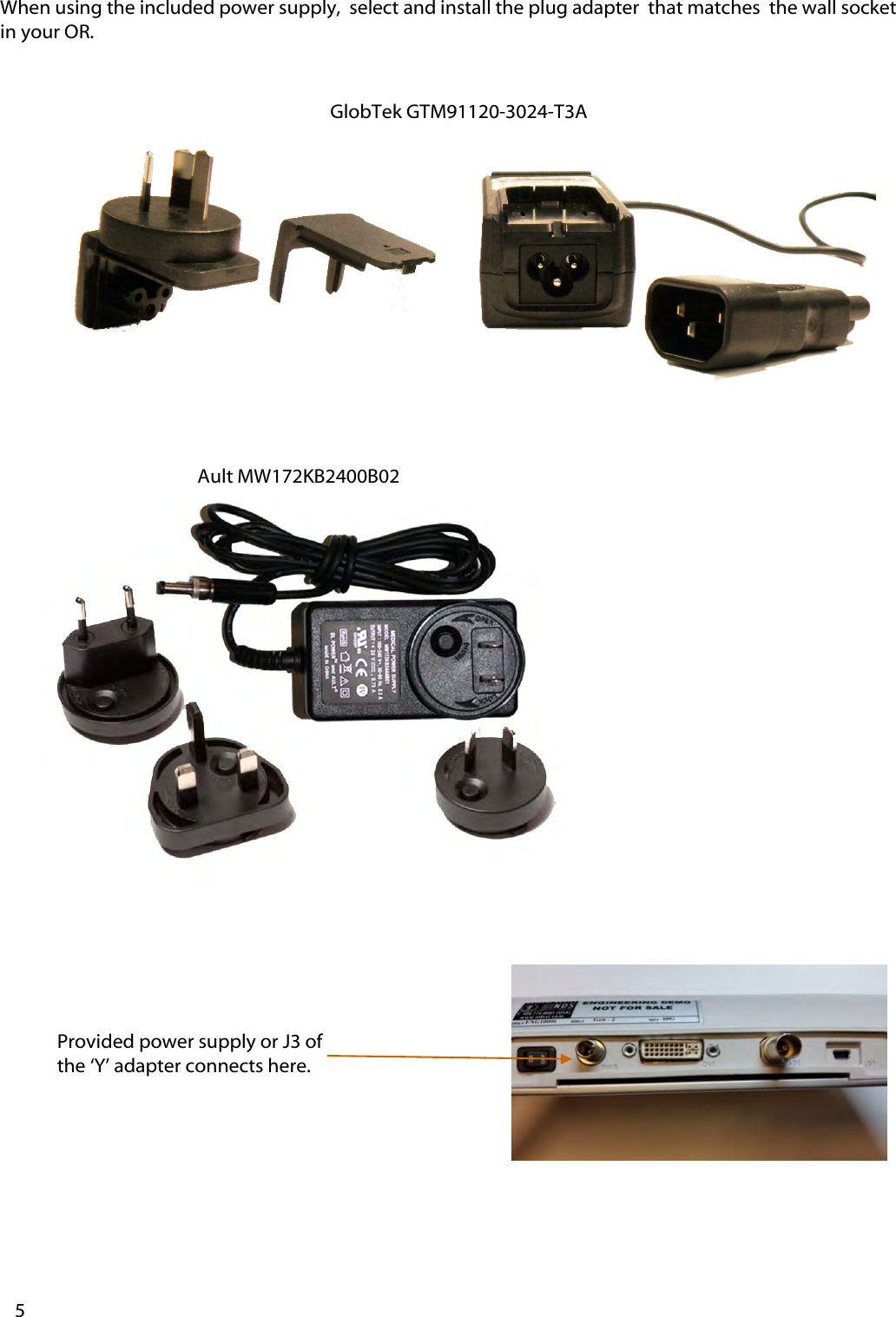
Provided power supply or J3 of the ‘Y’ adapter connects here. When using the included power supply,  select and install the plug adapter  that matches  the wall socket in your OR. 5 Ault MW172KB2400B02 GlobTek GTM91120-3024-T3A
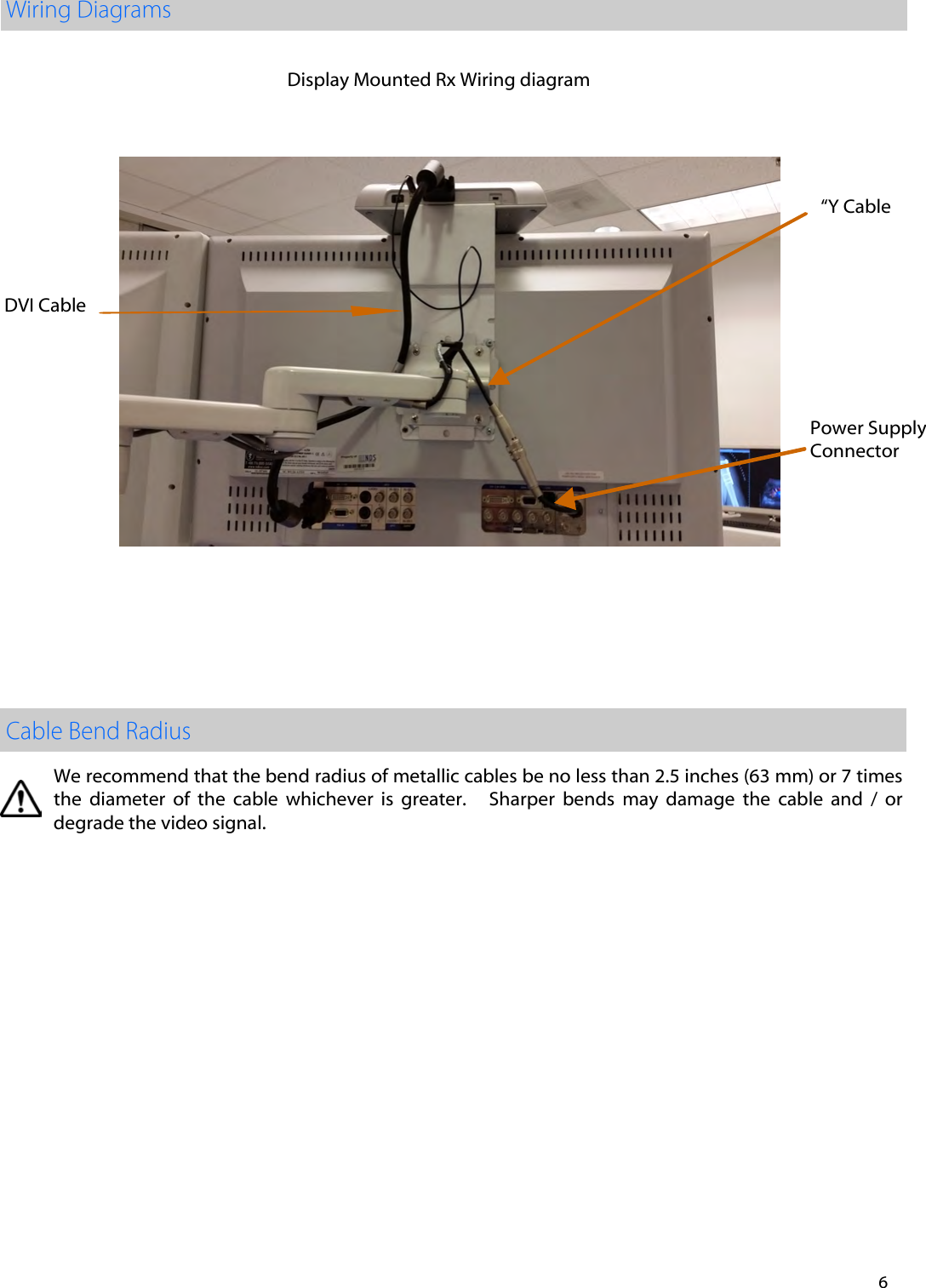
We recommend that the bend radius of metallic cables be no less than 2.5 inches (63 mm) or 7 times   the  diameter  of  the  cable  whichever  is  greater.      Sharper  bends  may  damage  the  cable  and  /  or degrade the video signal.  6 Display Mounted Rx Wiring diagram “Y Cable Power SupplyConnector DVI Cable
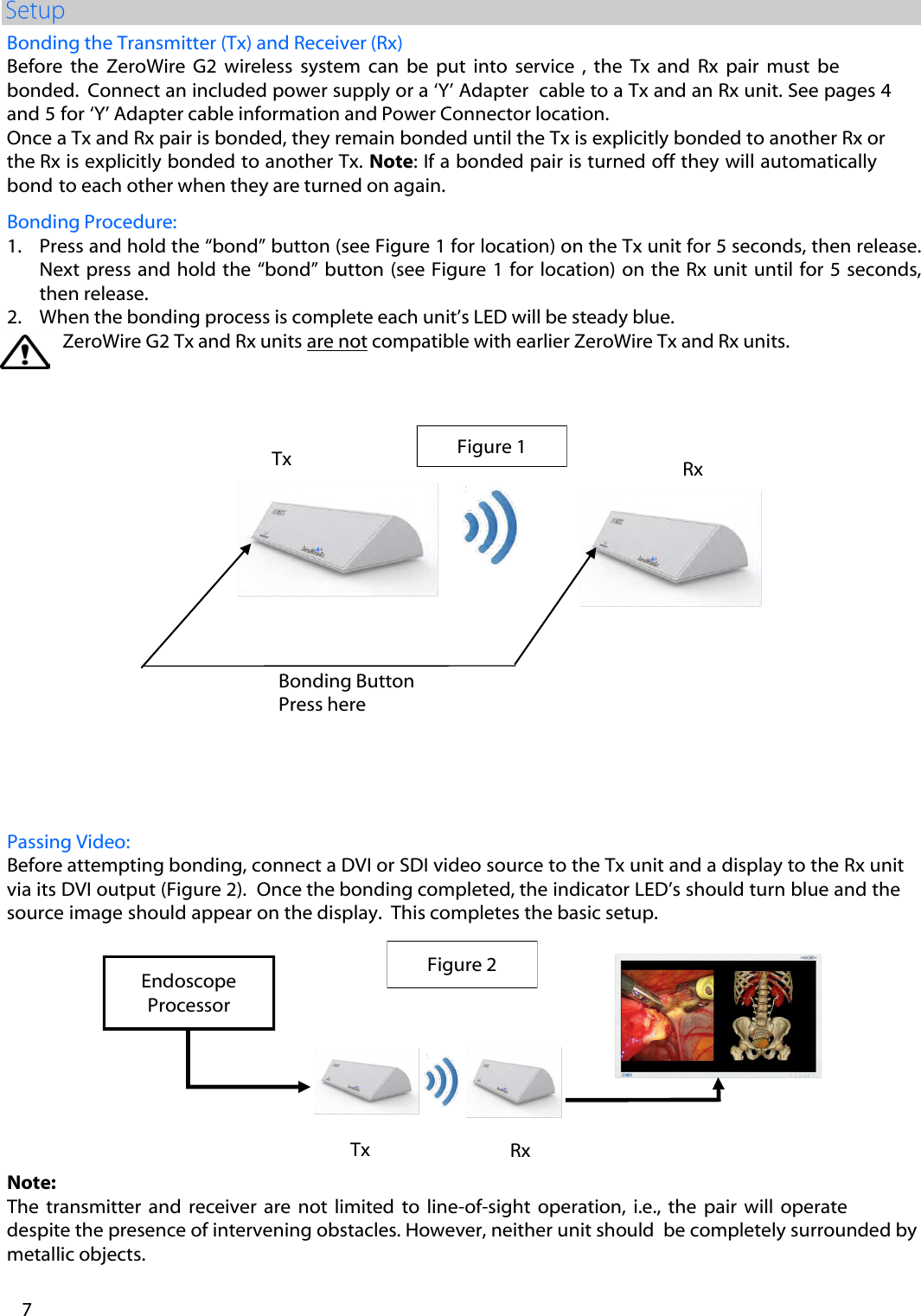
Note: The  transmitter and receiver  are not  limited  to  line-of-sight operation,  i.e.,  the  pair  will operate  despite the presence of intervening obstacles. However, neither unit should  be completely surrounded by metallic objects.   Passing Video: Before attempting bonding, connect a DVI or SDI video source to the Tx unit and a display to the Rx unit via its DVI output (Figure 2).  Once the bonding completed, the indicator LED’s should turn blue and the source image should appear on the display.  This completes the basic setup. Bonding the Transmitter (Tx) and Receiver (Rx) Before  the  ZeroWire  G2 wireless  system  can  be  put  into  service  ,  the  Tx  and  Rx  pair  must  be bonded.  Connect an included power supply or a ‘Y’ Adapter  cable to a Tx and an Rx unit. See pages 4 and 5 for ‘Y’ Adapter cable information and Power Connector location.   Once a Tx and Rx pair is bonded, they remain bonded until the Tx is explicitly bonded to another Rx or the Rx is explicitly bonded to another Tx. Note: If a bonded pair is turned off they will automatically bond to each other when they are turned on again. Bonding Procedure: 1. Press and hold the “bond” button (see Figure 1 for location) on the Tx unit for 5 seconds, then release.Next press  and  hold  the “bond” button (see Figure 1 for  location)  on the Rx unit until for 5 seconds,then release.2. When the bonding process is complete each unit’s LED will be steady blue.ZeroWire G2 Tx and Rx units are not compatible with earlier ZeroWire Tx and Rx units.  7 Figure 1 Tx Bonding Button Press here Rx Figure 2 Tx Rx Endoscope Processor
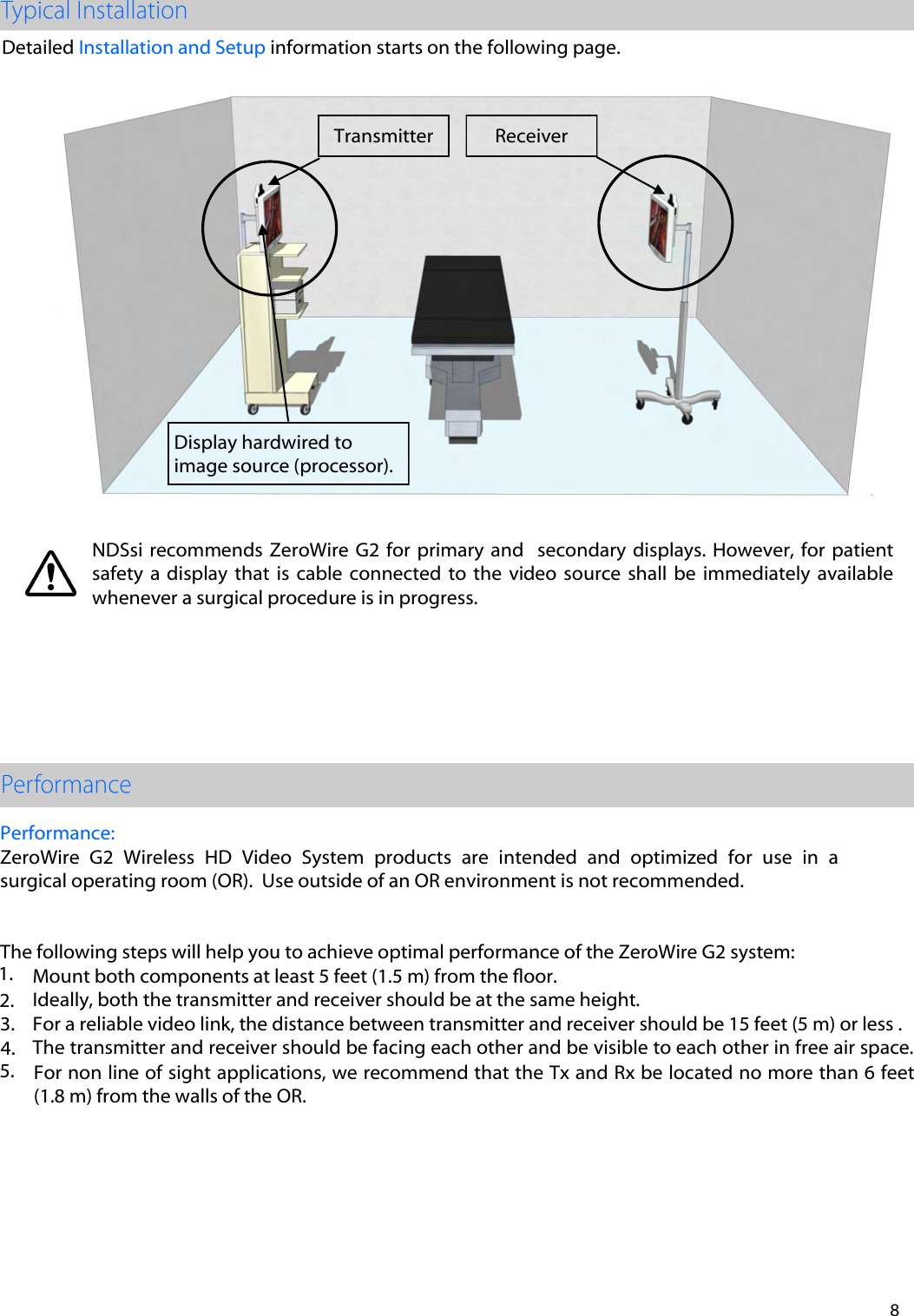
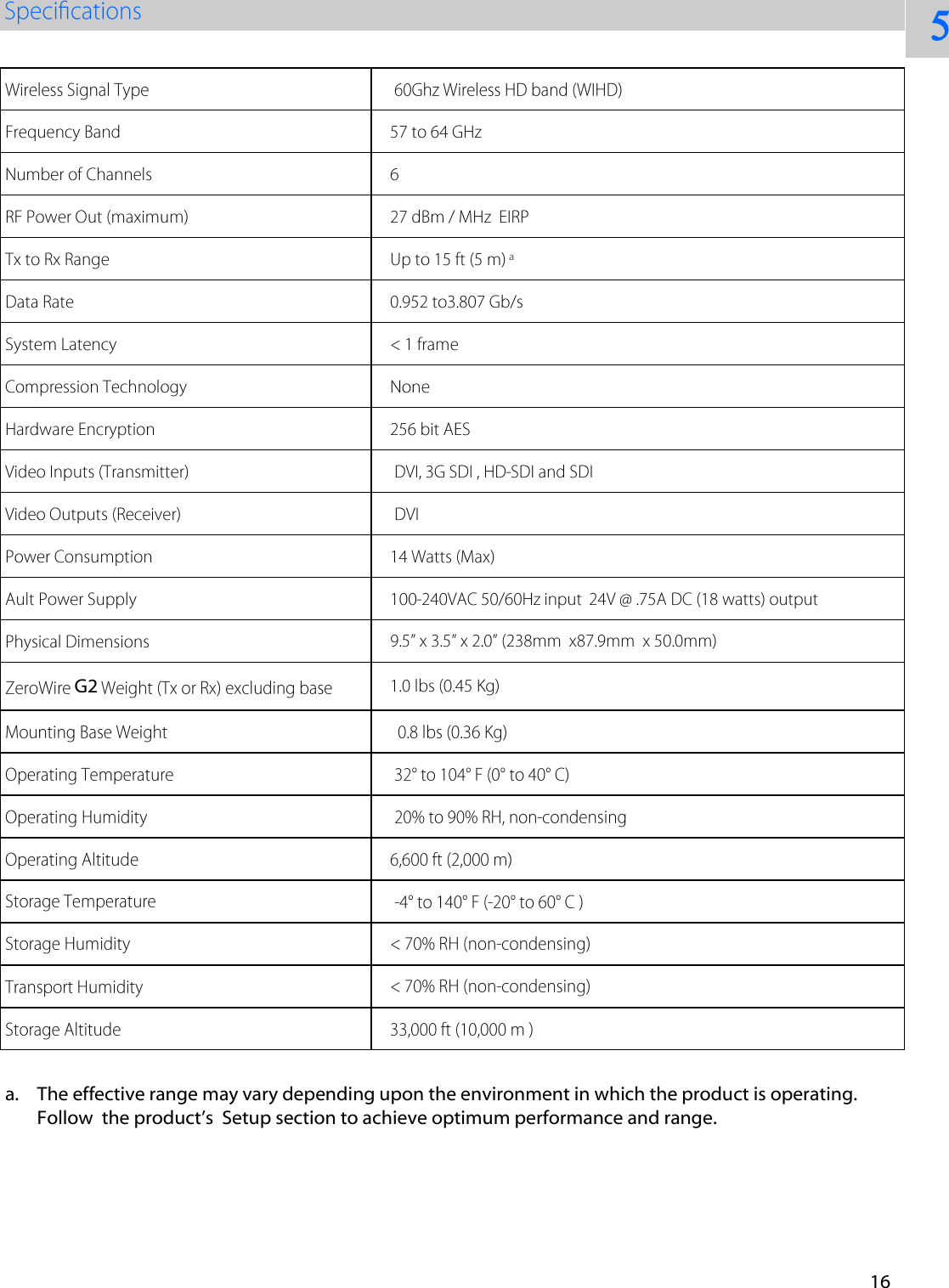
Transmitter Receiver Display hardwired to image source (processor). NDSsi  recommends ZeroWire G2  for  primary and   secondary displays.  However,  for patient safety  a display  that  is  cable  connected  to  the  video  source  shall  be  immediately  available whenever a surgical procedure is in progress.   Detailed Installation and Setup information starts on the following page. Performance: ZeroWire  G2 Wireless  HD Video  System  products  are intended  and  optimized  for  use  in a surgical operating room (OR).  Use outside of an OR environment is not recommended. The following steps will help you to achieve optimal performance of the ZeroWire G2 system: 1.Mount both components at least 5 feet (1.5 m) from the oor.2. Ideally, both the transmitter and receiver should be at the same height.3. For a reliable video link, the distance between transmitter and receiver should be 15 feet (5 m) or less .4. The transmitter and receiver should be facing each other and be visible to each other in free air space.5. For non line of sight applications, we recommend that the Tx and Rx be located no more than 6 feet(1.8 m) from the walls of the OR. 8
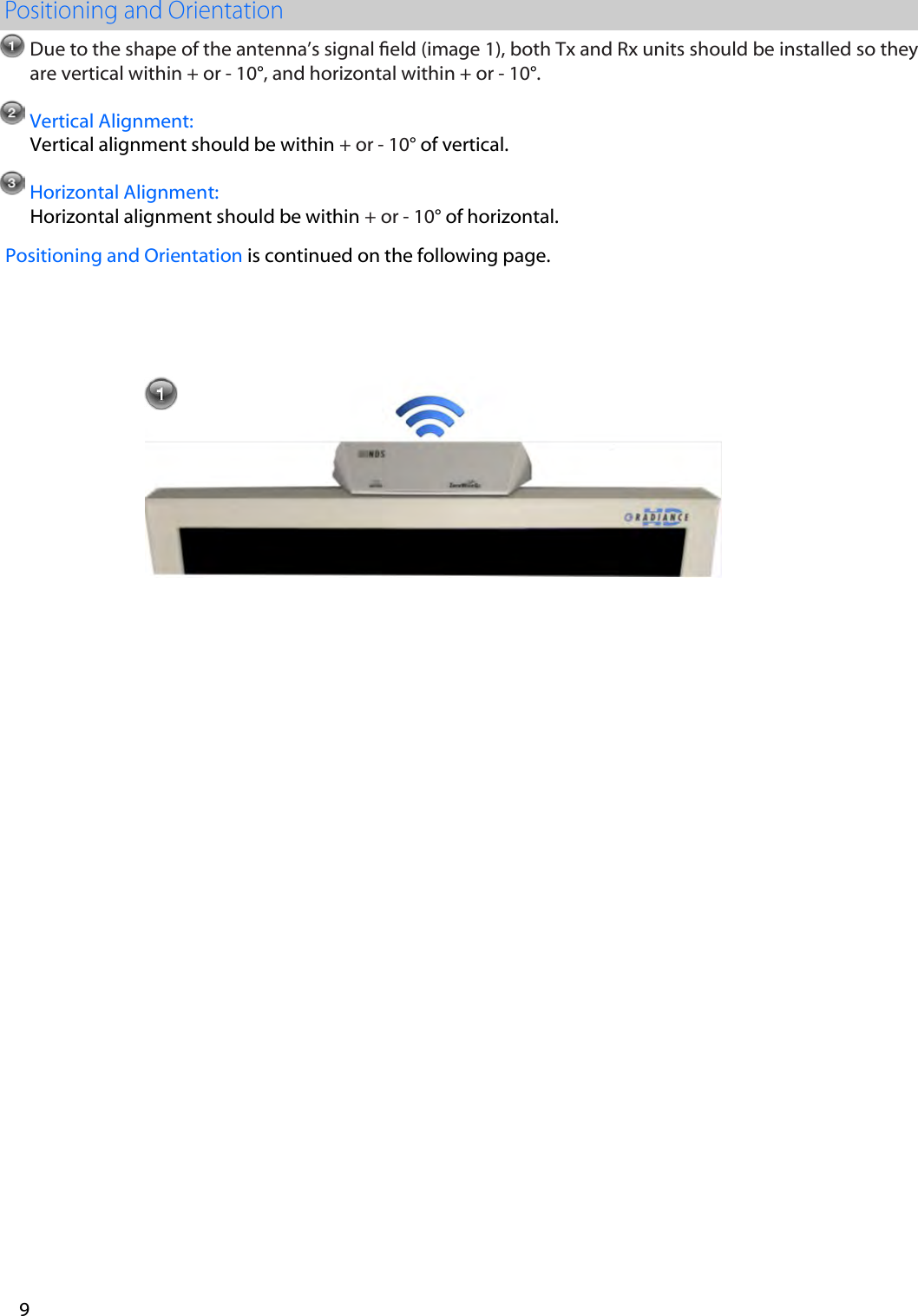
Due to the shape of the antenna’s signal eld (image 1), both Tx and Rx units should be installed so they are vertical within + or - 10°, and horizontal within + or - 10°.  Vertical Alignment: Vertical alignment should be within + or - 10° of vertical. Horizontal Alignment: Horizontal alignment should be within + or - 10° of horizontal. Positioning and Orientation is continued on the following page.  9
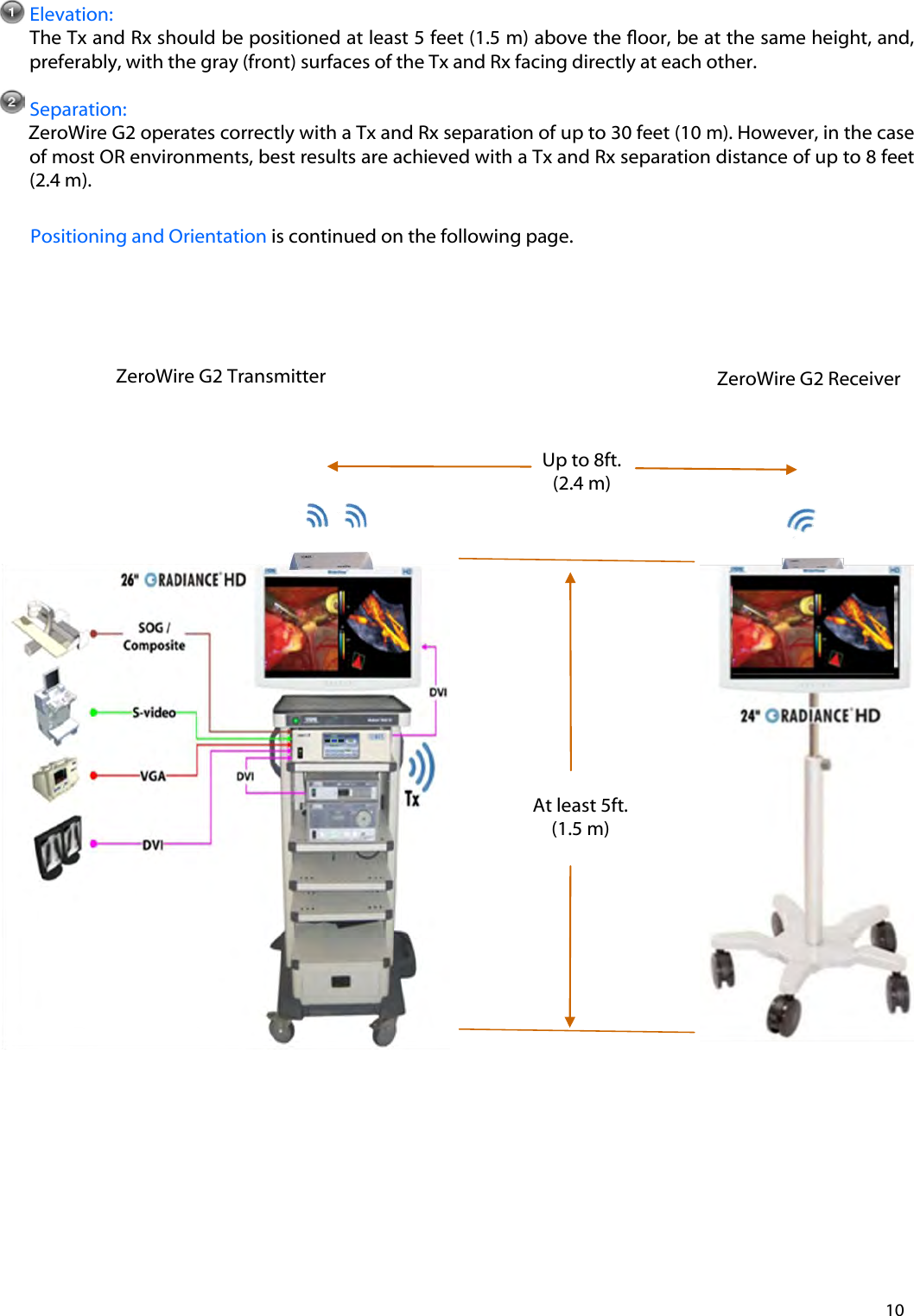
Elevation: The Tx and Rx should be positioned at least 5 feet (1.5 m) above the oor, be at the same height, and, preferably, with the gray (front) surfaces of the Tx and Rx facing directly at each other.   Separation:  ZeroWire G2 operates correctly with a Tx and Rx separation of up to 30 feet (10 m). However, in the case of most OR environments, best results are achieved with a Tx and Rx separation distance of up to 8 feet (2.4 m). Positioning and Orientation is continued on the following page. 10 ZeroWire G2 Receiver ZeroWire G2 Transmitter Up to 8ft.  (2.4 m) At least 5ft.  (1.5 m)
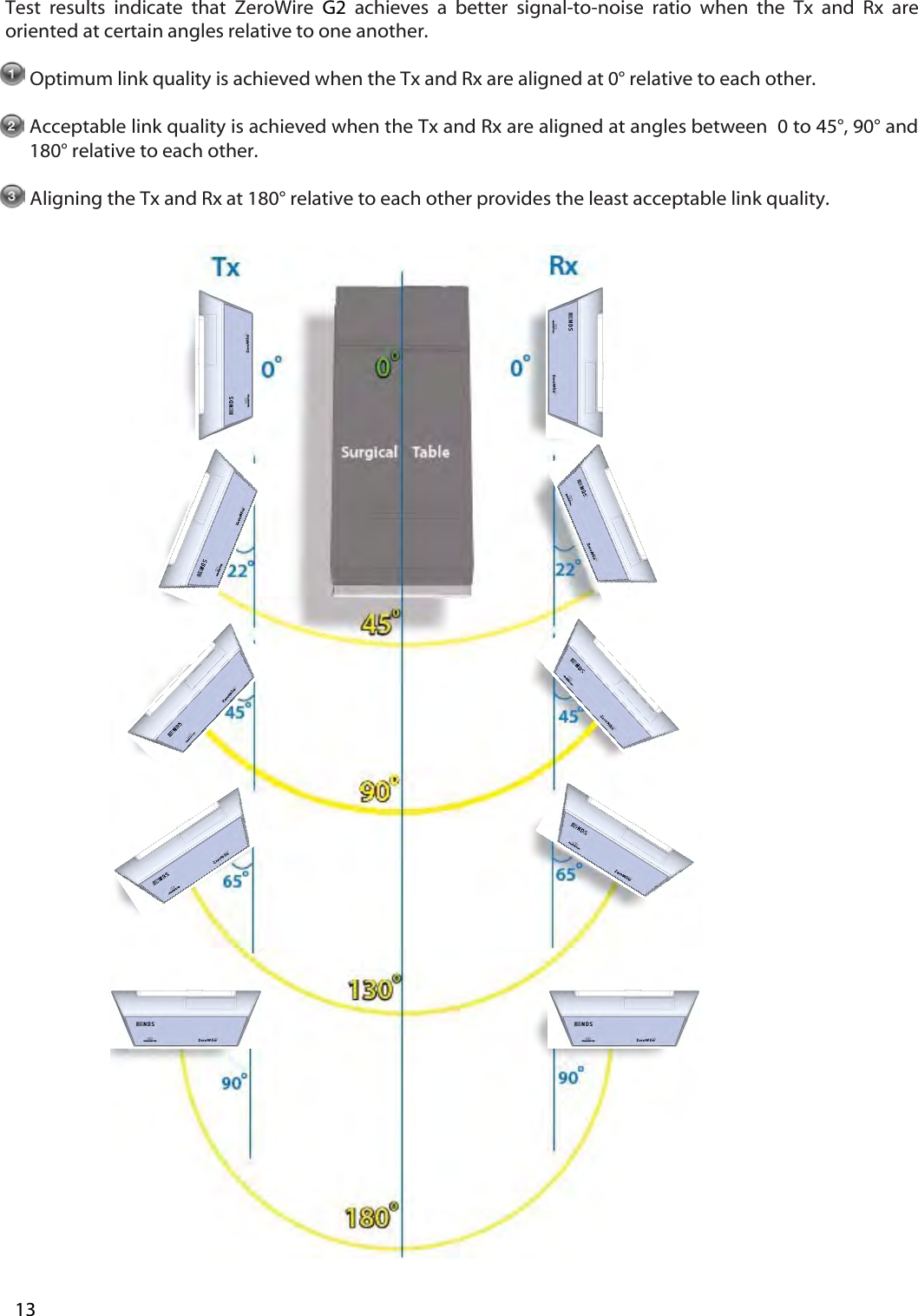
Test  results  indicate  that  ZeroWire  G2  achieves  a  better  signal-to-noise  ratio  when  the  Tx  and  Rx  are oriented at certain angles relative to one another.   Optimum link quality is achieved when the Tx and Rx are aligned at 0° relative to each other.   Acceptable link quality is achieved when the Tx and Rx are aligned at angles between  0 to 45°, 90° and 180° relative to each other.  Aligning the Tx and Rx at 180° relative to each other provides the least acceptable link quality. 13
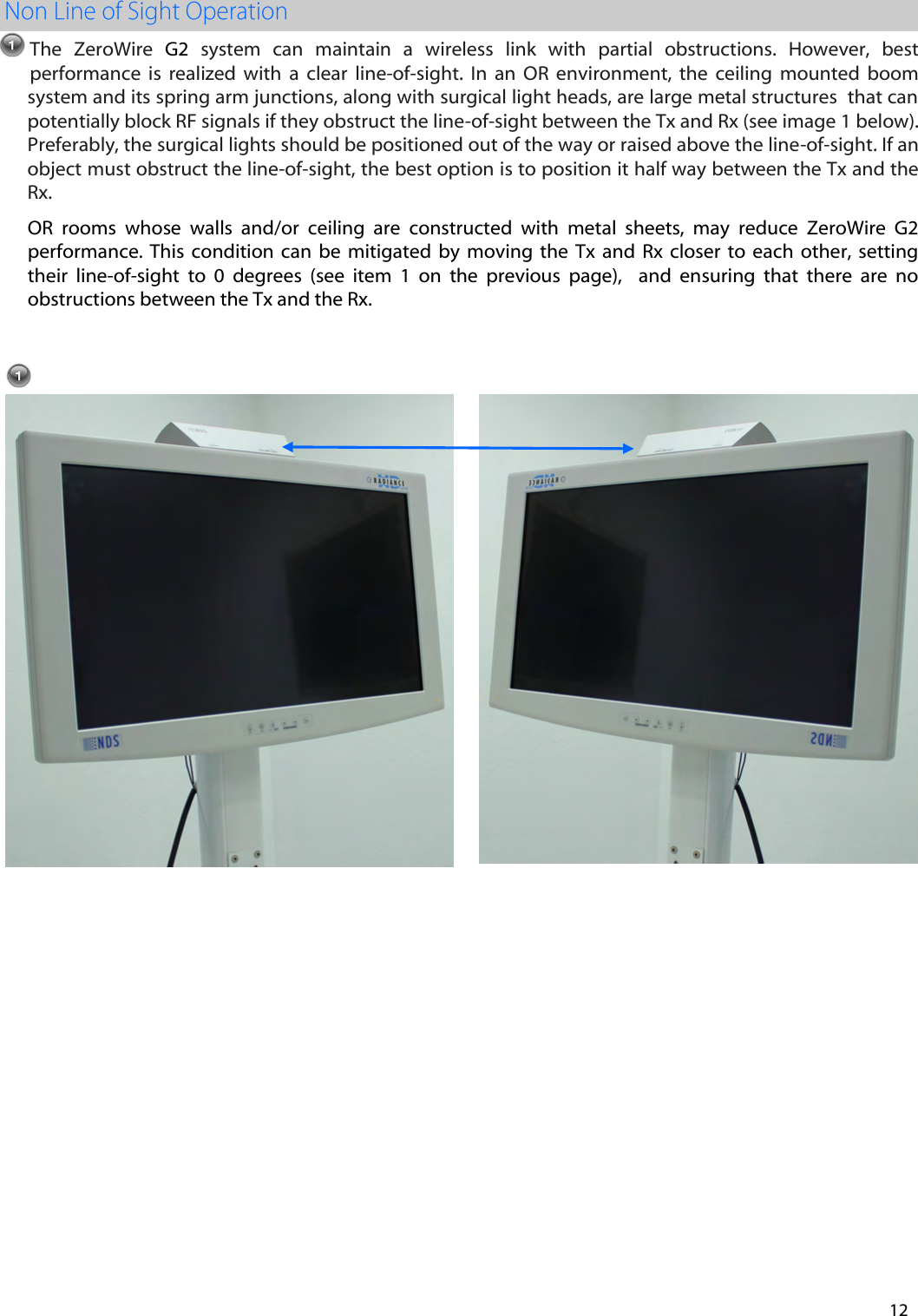
12 The  ZeroWire  G2  system  can  maintain  a  wireless  link  with  partial  obstructions.  However,  best performance  is  realized  with  a  clear  line-of-sight.  In  an  OR  environment,  the  ceiling  mounted  boom system and its spring arm junctions, along with surgical light heads, are large metal structures  that can potentially block RF signals if they obstruct the line-of-sight between the Tx and Rx (see image 1 below). Preferably, the surgical lights should be positioned out of the way or raised above the line-of-sight. If an object must obstruct the line-of-sight, the best option is to position it half way between the Tx and the Rx.OR  rooms  whose  walls  and/or  ceiling  are  constructed  with  metal  sheets,  may  reduce  ZeroWire  G2 performance. This  condition can  be  mitigated by  moving  the  Tx  and  Rx  closer  to  each  other,  setting their  line-of-sight  to  0  degrees  (see  item  1  on  the  previous  page),    and  ensuring  that  there  are  no obstructions between the Tx and the Rx.
If the ZeroWire G2 deployment is a typical one-system per room, there is essentially no restriction.  The transmitter’s Channel Selection  feature picks the channel that is least susceptible to interference from the available six channels based on the result of its scan at power on. Some of the factors affecting how well the ZeroWire G2 channels are isolated are listed below. 1) The thickness and material of the room walls.2) The opening and closing of room doors.3) The room’s ceiling structure and the materials used in its construction.*Notes:ZeroWire G2 Tx / Rx pairs must be installed in the same room.  Cross room operation is not supported When multiple Tx /Rx pairs are installed in a given room, each pair must be powered up separately.  13
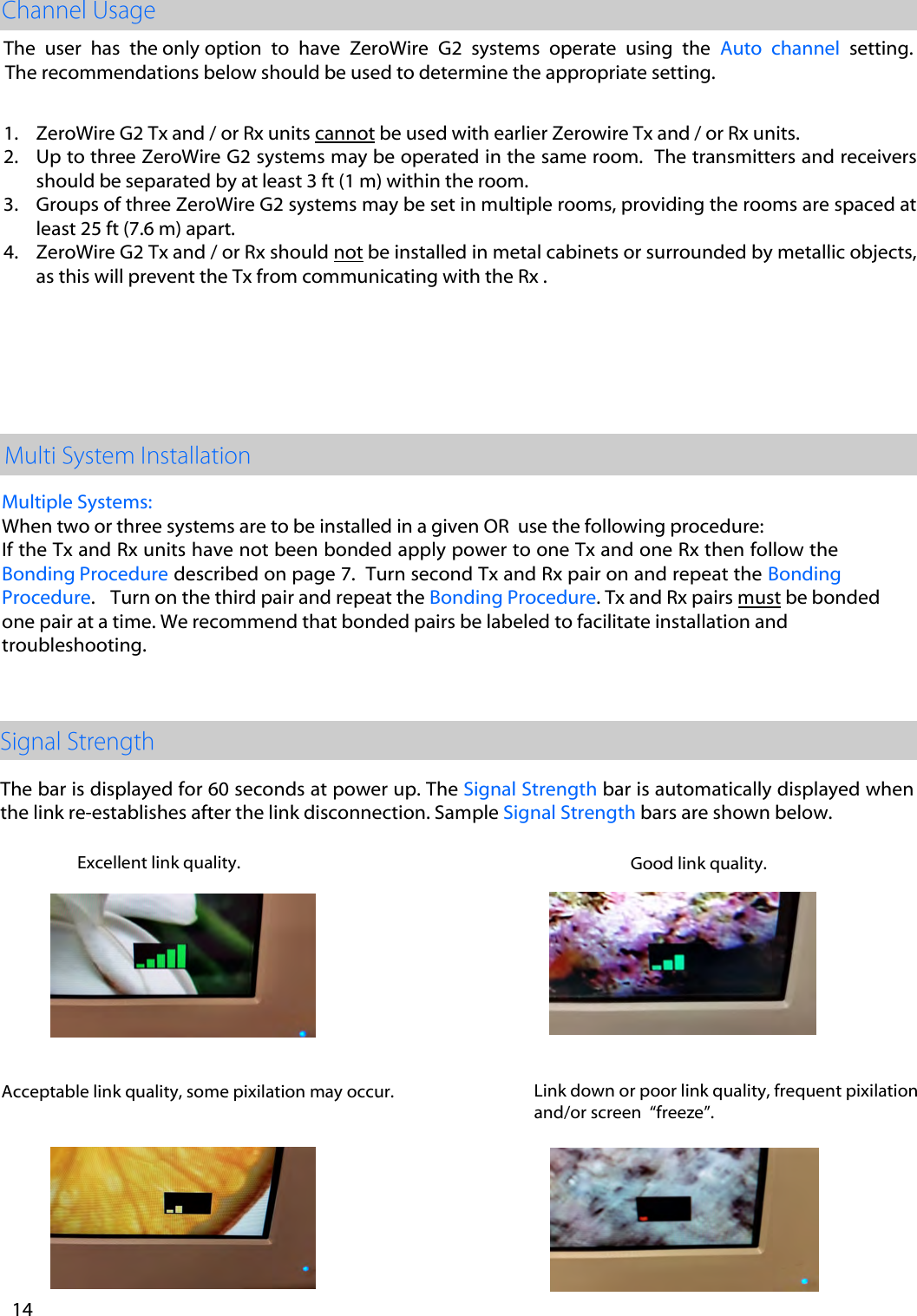
Multiple Systems: When two or three systems are to be installed in a given OR  use the following procedure: If the Tx and Rx units have not been bonded apply power to one Tx and one Rx then follow the Bonding Procedure described on page 7.  Turn second Tx and Rx pair on and repeat the Bonding Procedure.   Turn on the third pair and repeat the Bonding Procedure. Tx and Rx pairs must be bonded one pair at a time. We recommend that bonded pairs be labeled to facilitate installation and troubleshooting.  The bar is displayed for 60 seconds at power up. The Signal Strength bar is automatically displayed when the link re-establishes after the link disconnection. Sample Signal Strength bars are shown below. Excellent link quality. Good link quality. Acceptable link quality, some pixilation may occur. Link down or poor link quality, frequent pixilation and/or screen  “freeze”. The  user  has  the only option  to  have  ZeroWire  G2  systems  operate  using  the  Auto  channel  setting. The recommendations below should be used to determine the appropriate setting.  1. ZeroWire G2 Tx and / or Rx units cannot be used with earlier Zerowire Tx and / or Rx units.2. Up to three ZeroWire G2 systems may be operated in the same room.  The transmitters and receiversshould be separated by at least 3 ft (1 m) within the room.3. Groups of three ZeroWire G2 systems may be set in multiple rooms, providing the rooms are spaced atleast 25 ft (7.6 m) apart.4. ZeroWire G2 Tx and / or Rx should not be installed in metal cabinets or surrounded by metallic objects,as this will prevent the Tx from communicating with the Rx .14
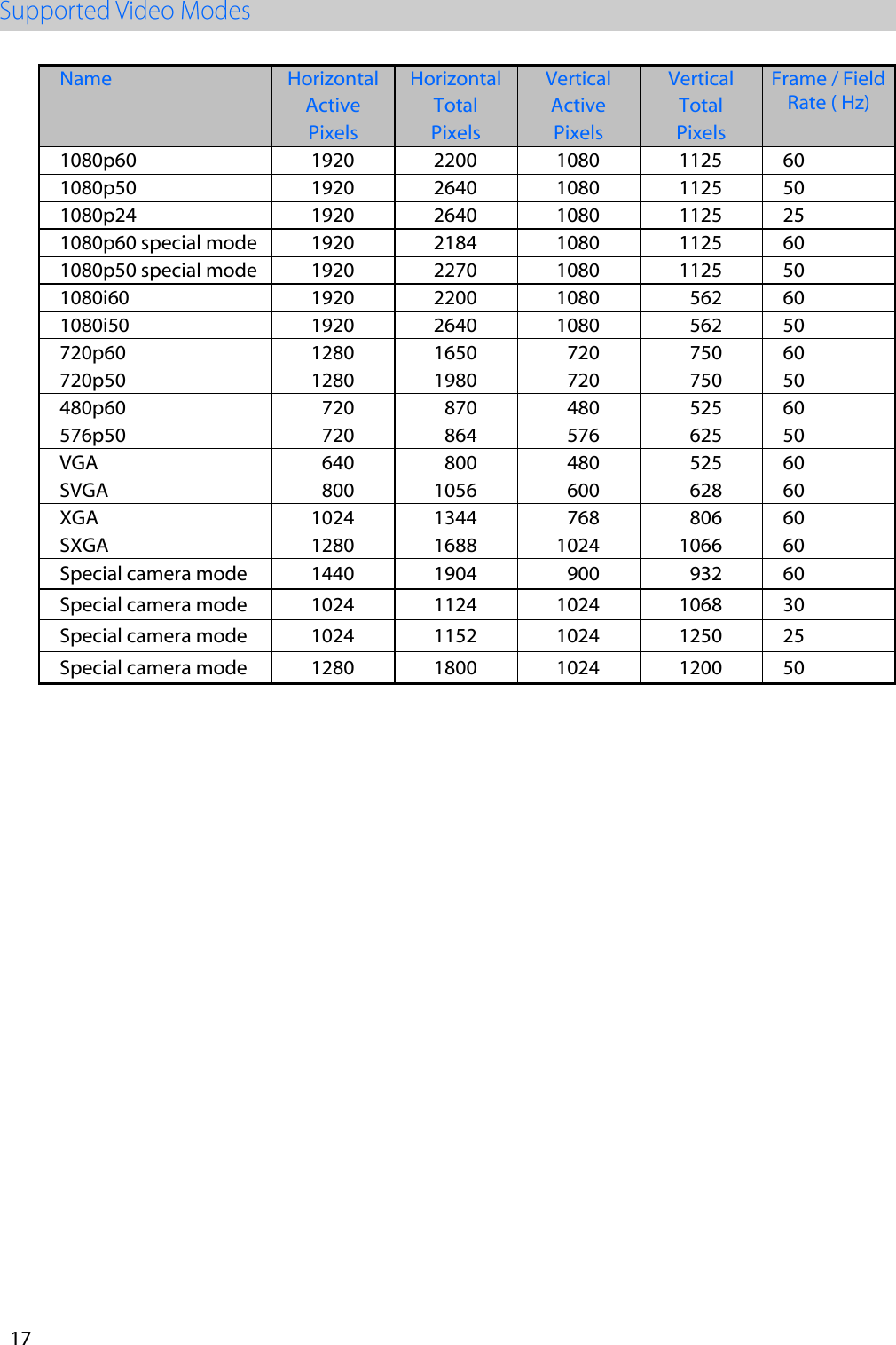
4 LED Indicators LED State Description Blue and blinking slowly The unit is scanning for a channel. Blue and ashing rapidly Unit is attempting to link. Blue and steady The unit is sending (Tx) or receiving (Rx) video data. Problem Possible Causes Indicator LED is not on. Loose Power Connector: Verify that the power source connector is fully inserted into the unit’s power connector. 'Y'  Cable:  If  you    are  using  the  ‘Y’  cable  to  supply power  to  the unit, conrm  that it is connected to a power supply and that the power supply is energized. Stand Alone Power Supply: If the stand alone power supply is being used conrm that it is fully inserted into the wall socket. Wall Socket: Some wall sockets have on / off switches built in. If the socket you are using has a built in switch, check that it is in the on position.  Additional Information:  See Power Options on pages 4 and 5.   Poor or intermittent video Possible causes  Remedial Action Tx  and  RX  are  spaced  more  than  30 feet (10 m) apart. Reduce the spacing between the Tx and Rx to 15 feet (5 m) or less. See Tx to Rx Range specification on page 16. Tx and Rx are not aligned properly See Tx / Rx alignment recommendations on page 11. DVI or SDI (Tx only) connections Conrm that the cables are properly connected. Unsupported video mode  Verify  that the applied video  mode  is supported.  See  the  Supported Video Modes table on page 17. DVI or SDI (Tx only) cables Replace  the cables one at a time and  check the video  display. If  the  video signal displays properly after a cable is replaced, discard the cable you just replaced.  Crosstalk See Avoiding Co-Channel Interference on page 13 Low signal strength See Signal Strength on page 14. The Tx and Rx are switched Verify that the video source is connected to the Tx, not the Rx. 15
a. The effective range may vary depending upon the environment in which the product is operating.Follow  the product’s  Setup section to achieve optimum performance and range.5 G216
Name Horizontal  Horizontal  Vertical  Vertical Frame / Field Rate ( Hz) Active  Total Active  Total Pixels Pixels Pixels Pixels 1080p60 1920 2200 1080 1125 60 1080p50 1920 2640 1080 1125 50 1080p24 1920 2640 1080 1125 25 1080p60 special mode 1920 2184 1080 1125 60 1080p50 special mode 1920 2270 1080 1125 50 1080i60 1920 2200 1080 562 60 1080i50 1920 2640 1080 562 50 720p60 1280 1650 720 750 60 720p50 1280 1980 720 750 50 480p60 720 870 480 525 60 576p50 720 864 576 625 50 VGA 640 800 480 525 60 SVGA 800 1056 600 628 60 XGA 1024 1344 768 806 60 SXGA 1280 1688 1024 1066 60 Special camera mode 1440 1904 900 932 60 Special camera mode 1024 1124 1024 1068 30 Special camera mode 1024 1152 1024 1250 25 Special camera mode 1280 1800 1024 1200 50 17
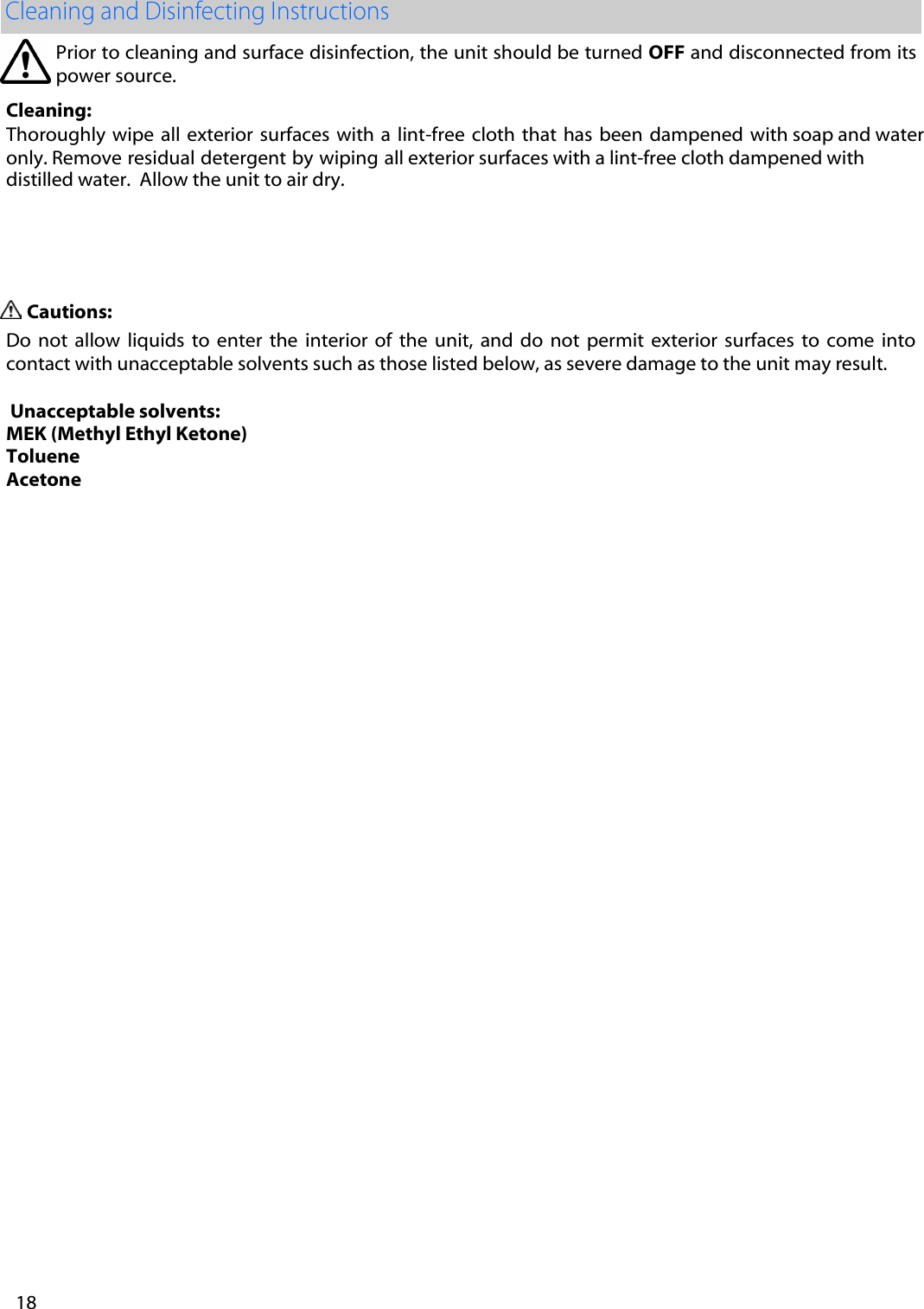
Prior to cleaning and surface disinfection, the unit should be turned OFF and disconnected from its power source.   Cleaning: Thoroughly wipe  all  exterior surfaces with a  lint-free cloth that has  been  dampened  with soap and water only. Remove residual detergent by wiping all exterior surfaces with a lint-free cloth dampened with distilled water.  Allow the unit to air dry.  Cautions: Do  not  allow  liquids  to  enter  the  interior  of  the  unit,  and do  not  permit  exterior  surfaces  to  come  into contact with unacceptable solvents such as those listed below, as severe damage to the unit may result.  Unacceptable solvents: MEK (Methyl Ethyl Ketone)Toluene Acetone   18
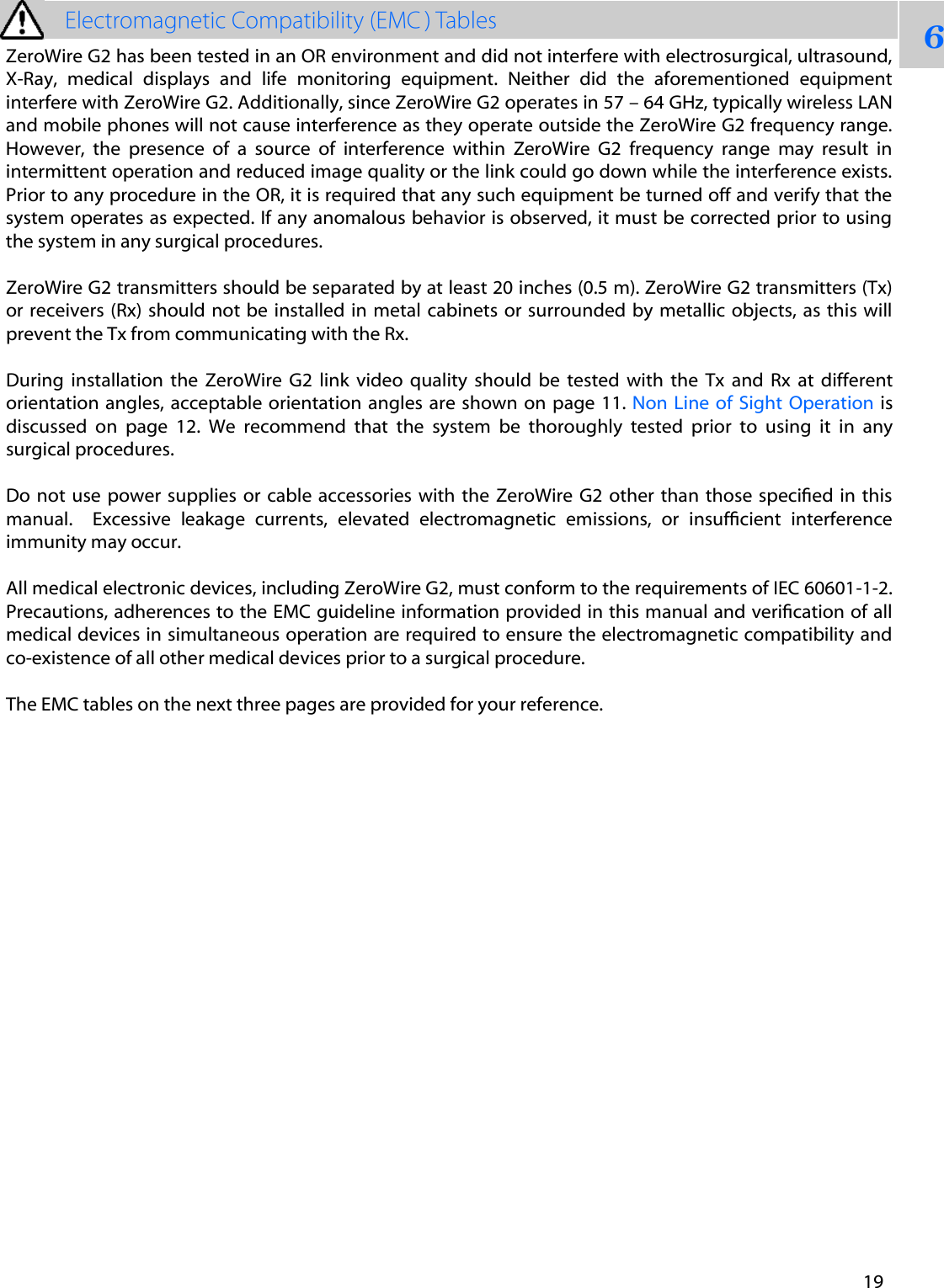
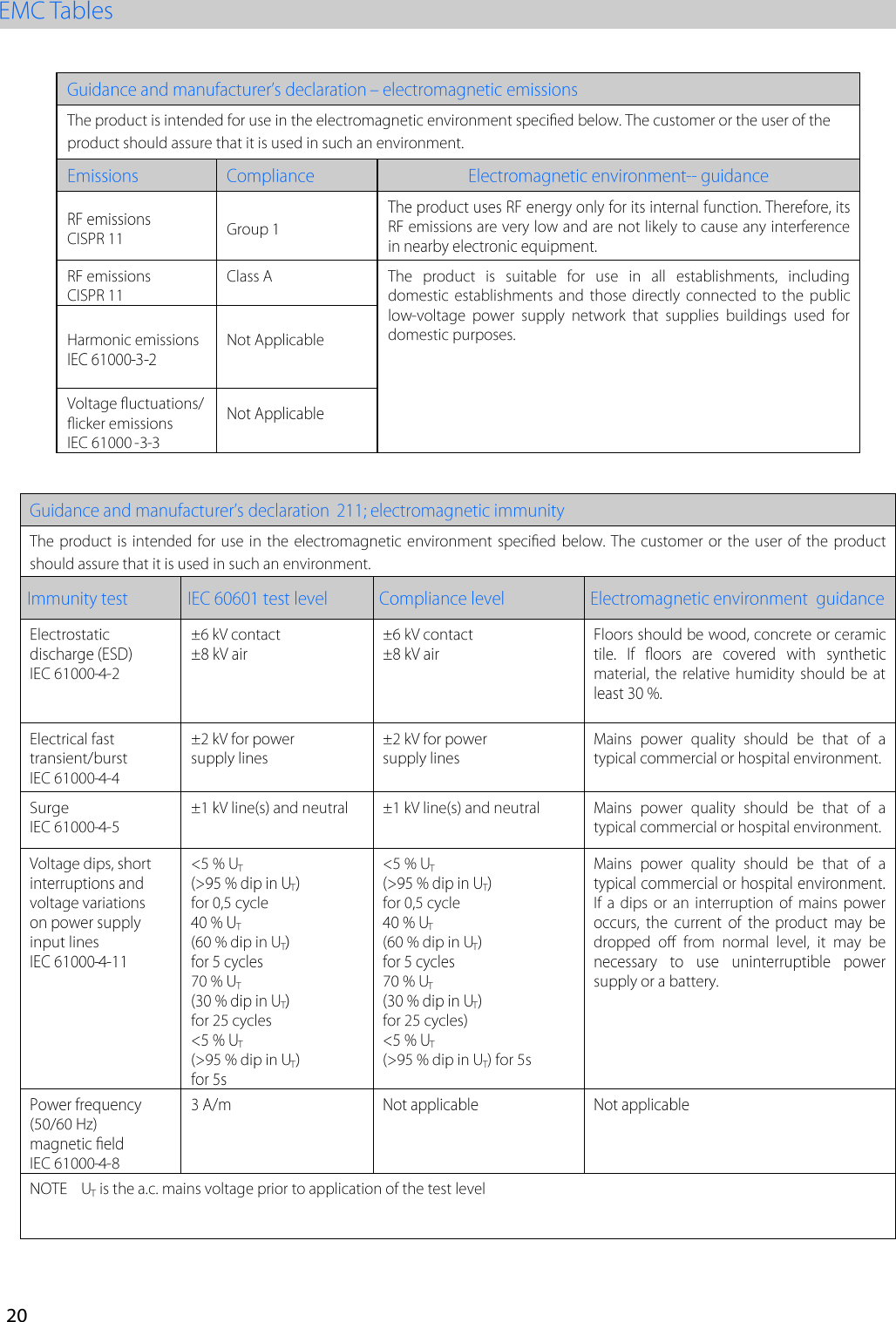
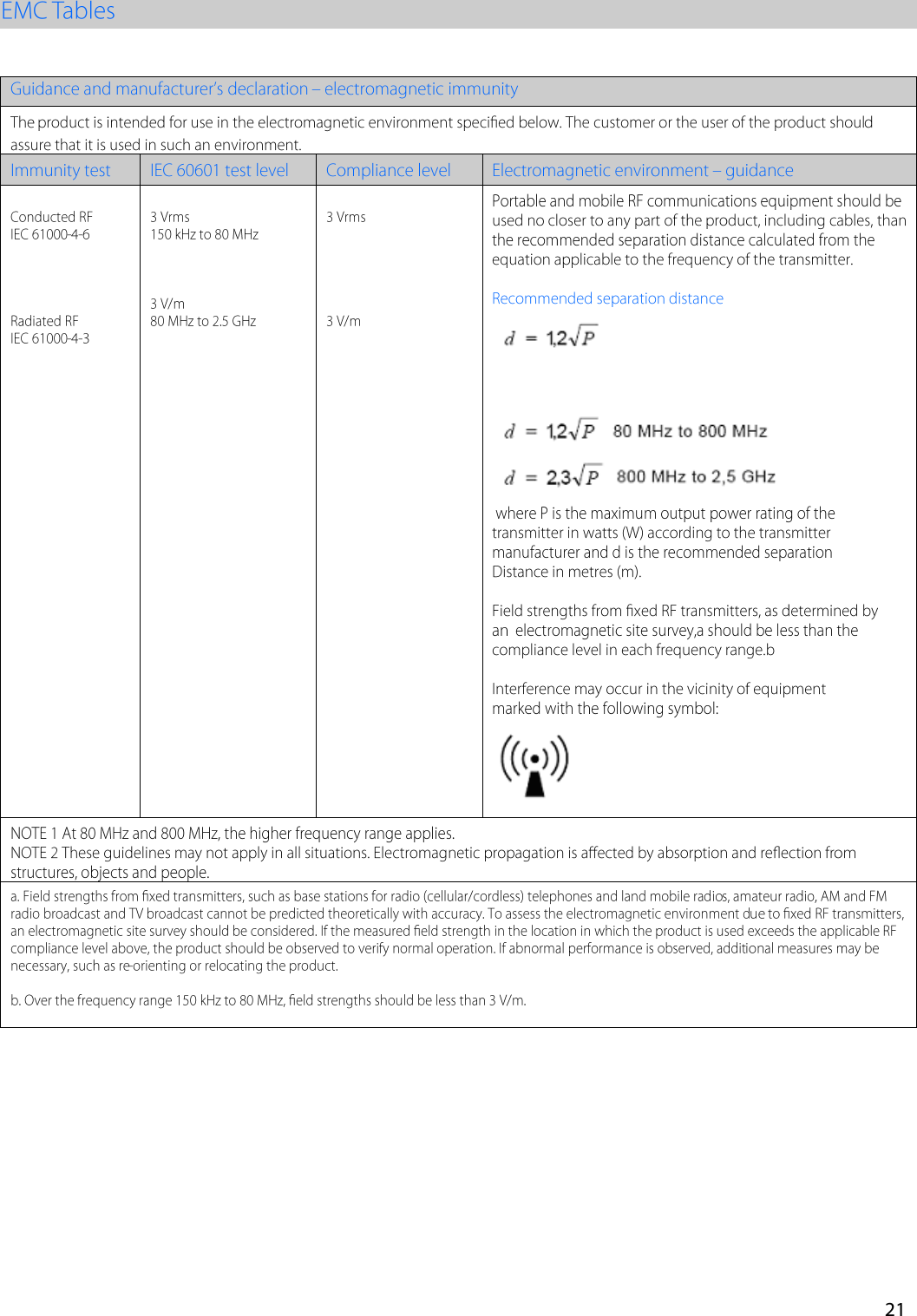
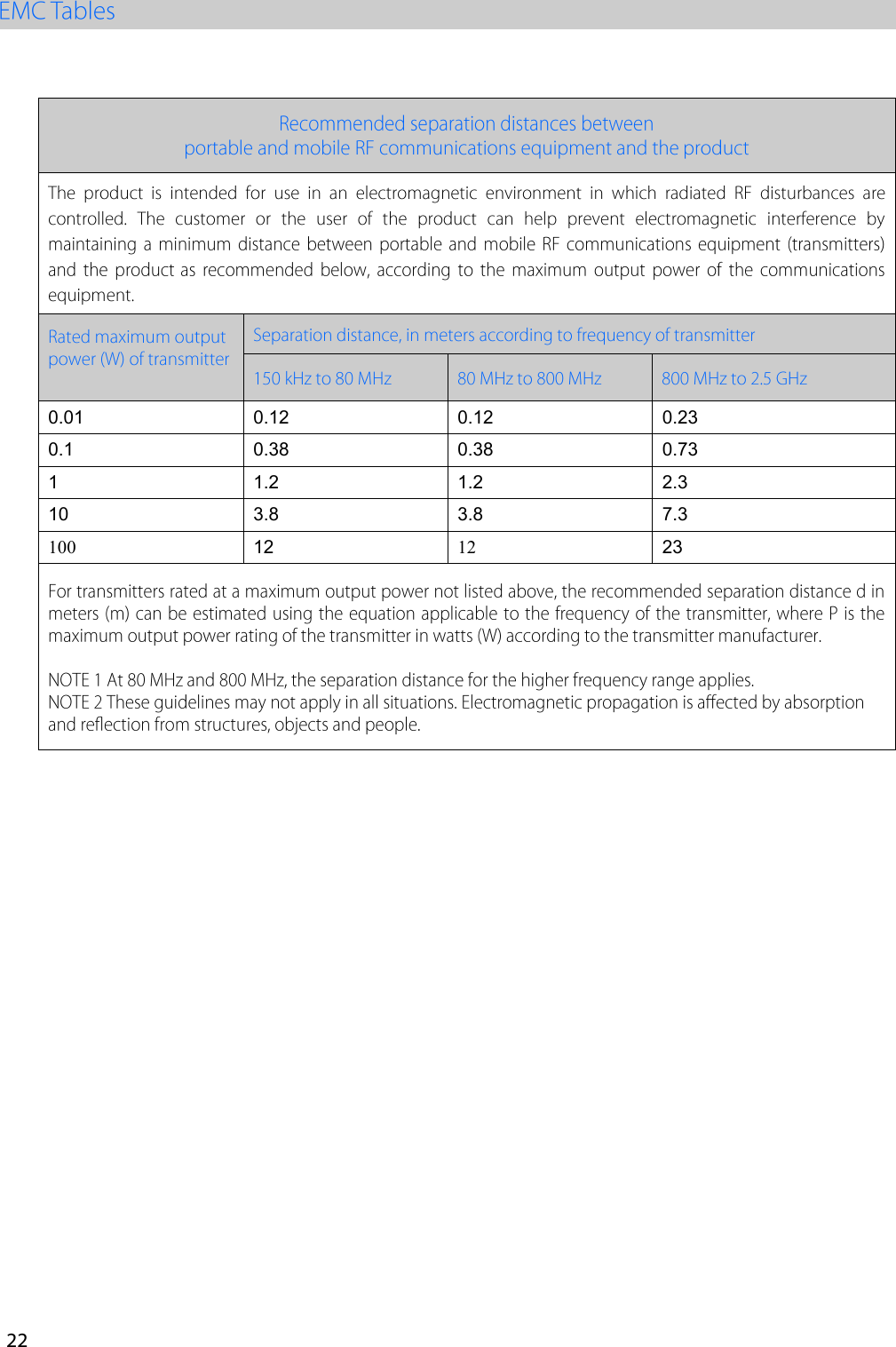
6ZeroWire G2 has been tested in an OR environment and did not interfere with electrosurgical, ultrasound, X-Ray,  medical  displays  and  life  monitoring  equipment.  Neither  did  the  aforementioned  equipment interfere with ZeroWire G2. Additionally, since ZeroWire G2 operates in 57 – 64 GHz, typically wireless LAN and mobile phones will not cause interference as they operate outside the ZeroWire G2 frequency range. However,  the  presence  of  a  source  of  interference  within  ZeroWire  G2  frequency  range  may  result  in intermittent operation and reduced image quality or the link could go down while the interference exists. Prior to any procedure in the OR, it is required that any such equipment be turned off and verify that the system operates as expected. If any anomalous behavior is observed, it must be corrected prior to using the system in any surgical procedures. ZeroWire G2 transmitters should be separated by at least 20 inches (0.5 m). ZeroWire G2 transmitters (Tx) or receivers  (Rx) should not be installed in  metal cabinets or surrounded by metallic objects,  as  this  will prevent the Tx from communicating with the Rx.  During  installation  the  ZeroWire  G2  link  video  quality  should  be  tested  with  the  Tx  and  Rx  at  different orientation angles, acceptable orientation  angles  are  shown  on  page 11. Non Line  of  Sight  Operation  is discussed  on  page  12.  We  recommend  that  the  system  be  thoroughly  tested  prior  to  using  it  in  any surgical procedures.  Do not  use  power supplies or  cable accessories with  the  ZeroWire G2 other than  those  specied in this manual.   Excessive  leakage  currents,  elevated  electromagnetic  emissions,  or  insufcient  interference immunity may occur. All medical electronic devices, including ZeroWire G2, must conform to the requirements of IEC 60601-1-2. Precautions, adherences to the EMC guideline information provided in this manual and verication of all medical devices in simultaneous operation are required to ensure the electromagnetic compatibility and co-existence of all other medical devices prior to a surgical procedure. The EMC tables on the next three pages are provided for your reference. 19
20
21
0.01 0.12 0.12 0.23 0.1 0.38 0.38 0.73 1 1.2 1.2 2.3 10 3.8 3.8 7.3 100 12 12 23 22
    E60G0571 Asia Pacic  GSI Group Japan Corporation  East Square Omori,  6-20-14 Minamioi, Shinagawa-ku Tokyo 140-0013, Japan Tel:  +81-3-5753-2466 Email: info@ndssi.jp ISO 9001:2008 and ISO 13485:2003; FDA Registration # 2954921 Europe Nijverheidscentrum 28 2761 JP Zevenhuizen (ZH) The Netherlands Tel: + 31 180 63 43 56 Email: info-EMEA@ndssi.com  Corporate Headquarters 5750 Hellyer Avenue  San Jose, CA 95138 (USA) Tel: 408 776 0085  Toll Free: 866 637 5237 Email: info@ndssi.com

Navigation menu