NEOLAB CONVERGENCE NWP-F121 Neo smartpen N2 User Manual

NEOLAB CONVERGENCE Neo smartpen N2

User Manual

Neo smartpenUSER QUICK GUIDEThis is a quick user guide for rst-time Neo smartpen user.Please refer to the following site for detailed manualwww.neosmartpen.comSupport E-mail (English & Español)support.eng@neolab.netSupport E-mail (Korean only)support.kr@neolab.netSupport E-mail (Japanese only)supportjp@neolab.co.jp
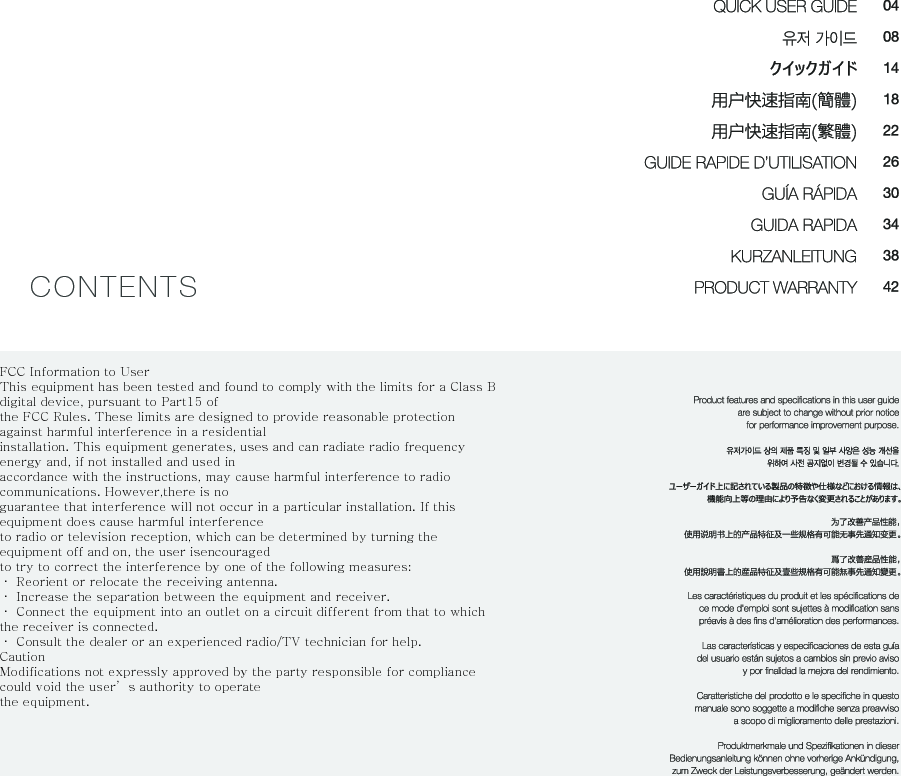
CONTENTSFCC Information to UserThis equipment has been tested and found to comply with the limits for a Class B digital device, pursuant to Part15 ofthe FCC Rules. These limits are designed to provide reasonable protection against harmful interference in a residentialinstallation. This equipment generates, uses and can radiate radio frequency energy and, if not installed and used inaccordance with the instructions, may cause harmful interference to radio communications. However,there is noguarantee that interference will not occur in a particular installation. If this equipment does cause harmful interferenceto radio or television reception, which can be determined by turning the equipment off and on, the user isencouragedto try to correct the interference by one of the following measures:· Reorient or relocate the receiving antenna.· Increase the separation between the equipment and receiver.· Connect the equipment into an outlet on a circuit different from that to which the receiver is connected.· Consult the dealer or an experienced radio/TV technician for help.CautionModifications not expressly approved by the party responsible for compliance could void the user’s authority to operatethe equipment.
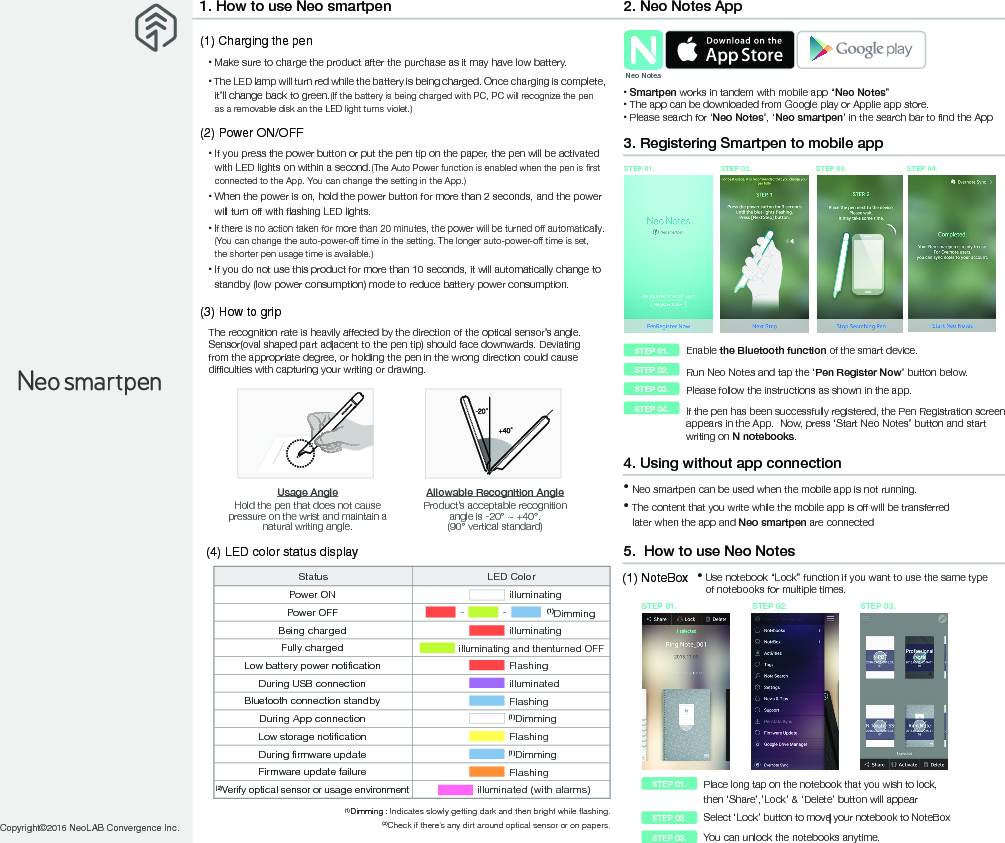
Copyright©2016 NeoLAB Convergence Inc.1. How to use Neo smartpen(1) Charging the pen • Make sure to charge the product after the purchase as it may have low battery.  • The LED lamp will turn red while the battery is being charged. Once charging is complete, it’ll change back to green.(If the battery is being charged with PC, PC will recognize the pen as a removable disk an the LED light turns violet.)(2) Power ON/OFF • If you press the power button or put the pen tip on the paper, the pen will be activatedwith LED lights on within a second.(The Auto Power function is enabled when the pen is firstconnected to the App. You can change the setting in the App.)• When the power is on, hold the power button for more than 2 seconds, and the powerwill turn off with flashing LED lights.• If there is no action taken for more than 20 minutes, the power will be turned off automatically.(You can change the auto-power-off time in the setting. The longer auto-power-off time is set, the shorter pen usage time is available.)•  If you do not use this product for more than 10 seconds, it will automatically change to standby (low power consumption) mode to reduce battery power consumption.(3) How to grip The recognition rate is heavily affected by the direction of the optical sensor’s angle. Sensor(oval shaped part adjacent to the pen tip) should face downwards. Deviatingfrom the appropriate degree, or holding the pen in the wrong direction could causedifficulties with capturing your writing or drawing.Usage AngleHold the pen that does not cause pressure on the wrist and maintain a natural writing angle. Allowable Recognition AngleProduct’s acceptable recognition angle is -20° ~ +40°. (90° vertical standard) 2. Neo Notes App • Smartpen works in tandem with mobile app “Neo Notes”• The app can be downloaded from Google play or Applie app store.• Please search for ‘Neo Notes’, ‘Neo smartpen’ in the search bar to find the App Neo Notes4. Using without app connection• Neo smartpen can be used when the mobile app is not running. • The content that you write while the mobile app is off will be transferred   later when the app and Neo smartpen are connectedEnable the Bluetooth function of the smart device.  Run Neo Notes and tap the ‘Pen Register Now’ button below.Please follow the instructions as shown in the app. STEP 01.STEP 02.STEP 03.If the pen has been successfully registered, the Pen Registration screen appears in the App.  Now, press ‘Start Neo Notes’ button and startwriting on N notebooks.STEP 04.3. Registering Smartpen to mobile app  STEP 04.STEP 01. STEP 02. STEP 03.5.  How to use Neo NotesPlace long tap on the notebook that you wish to lock, then ‘Share’,’Lock’ & ‘Delete’ button will appearSelect ‘Lock’ button to move your notebook to NoteBoxYou can unlock the notebooks anytime. STEP 01. STEP 02. STEP 03.(1) NoteBox • Use notebook “Lock” function if you want to use the same type   of notebooks for multiple times.STEP 01.STEP 02.STEP 03.(4) LED color status display (1)Dimming : Indicates slowly getting dark and then bright while flashing.(2)Check if there’s any dirt around optical sensor or on papers.Status LED Color         illuminating                 illuminating              illuminating and thenturned OFFFlashing         illuminated         FlashingFlashingFlashingilluminated (with alarms)- -(1)DimmingPower ONPower OFFBeing chargedFully chargedLow battery power notificationDuring USB connectionBluetooth connection standbyDuring App connectionLow storage notificationDuring firmware updateFirmware update failure(2)Verify optical sensor or usage environment(1)Dimming(1)Dimming
NotebooksCheck your current notebooksNoteboxCheck Your locked notebooks to NoteBoxActivitiesCheck your writing by date TagsSearch tagged pagesNote SearchSearch transcribed textSettingsSelect your pen & app settingsNews & TipsCheck latest news & updated tipsPen Data SyncTransfer stored writing data to the appFirmware UpdateUpdate pen’s firmware to the latest version(3) Pen preference settings•Press   button to see pen setting menu.•Press   button on your note page to see.(2) Using   buttonEdit ModeEdit,erase,change color/thickness or highlight your writing in the notebooksTranscribeTranscribe your handwritten notes into digital textTagTag your notes to organiza and search themRecordingRecord voice while writing notesReplayReplay your written notes and/with voice ShareShare the notes in PNG,PDF, TEXT & SVG format• Tap on  icon, then a color palette will openand select a thickness and color(while the smartpen is connected to the app) •Tap anywhere outside the palette to make itdisappear. (4) Color & Thickness change•You have various pen colors and thickness settings to choose from in the app.6. Notebooks & StoresFind the perfect fit for among our wide range of notebooks.Worldshop.neosmartpen.com(except Latin America and Africa) * Pentips are D1 type which you can buy from any online or stationery store * Direct sunshine or any strong light may cause the loss of recognition of writing.Product specification tableModel Name NWP-F121Support Supported OS / Bluetooth Specification  OS versionBluetooth versionAndroidKitkat 4.4 or higher 2.1 or higheriOSiOS 8.1 or higher[iPod 5th generation, iPhone 5, iPad 3rd generation] 4.0 LEWireless Connection   Bluetooth 4.2 (CLASSIC / BLE)Receiving / Transmitting Frequency 2402 ~ 2480MHzAntenna Output  Class 2Storage Media Battery Charging Time Rated Input Usage Time 90MB of internal memoryRechargeable Lithium Polymer Battery 3.7V / 280mAh About 2 hoursDC 5V / 300mA125 days in standby mode, 5 hours for continuous writingPC Connection Method  USB2.0HS (microUSB) Usage Environment Temperature: 10~35℃ / humidity: ~95%Ink refills  D1 multi pen ink refillsSize and Weight Length: 156mm (without a pen cap), thickness: 11.5~11.8mm / 22g (without a pen cap)
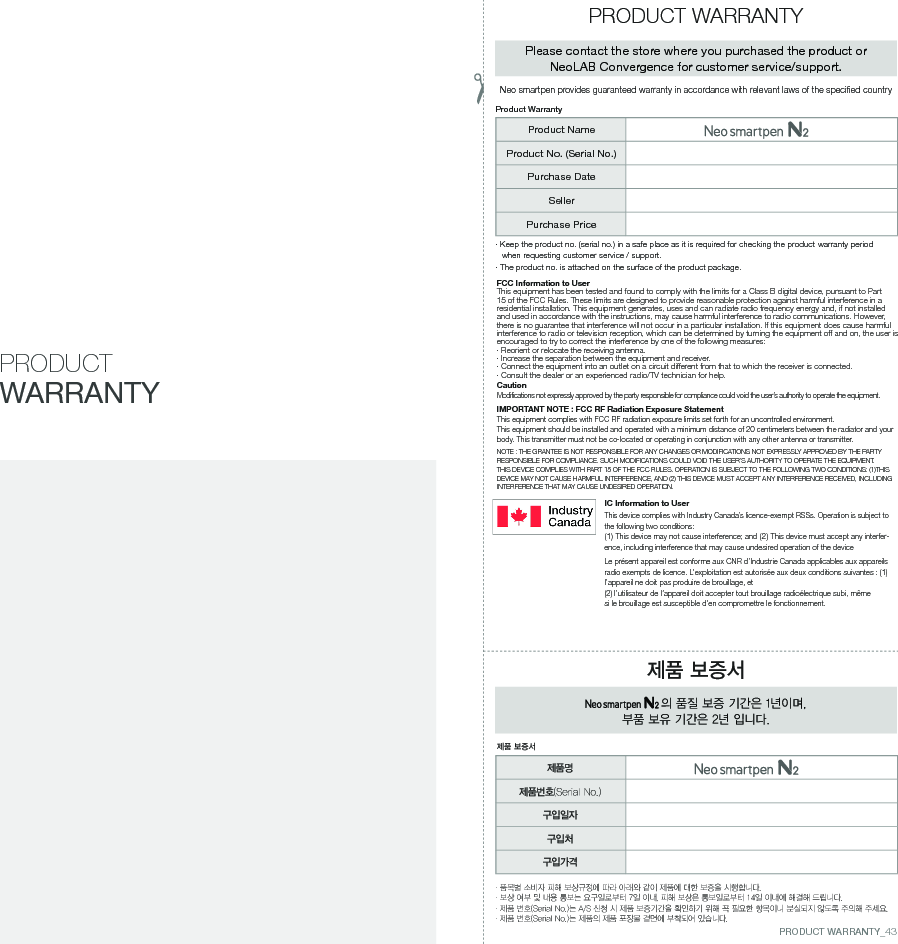
FCC Information to UserThis equipment has been tested and found to comply with the limits for a Class B digital device, pursuant to Part 15 of the FCC Rules. These limits are designed to provide reasonable protection against harmful interference in a residential installation. This equipment generates, uses and can radiate radio frequency energy and, if not installed and used in accordance with the instructions, may cause harmful interference to radio communications. However, there is no guarantee that interference will not occur in a particular installation. If this equipment does cause harmful interference to radio or television reception, which can be determined by turning the equipment off and on, the user is encouraged to try to correct the interference by one of the following measures:· Reorient or relocate the receiving antenna.· Increase the separation between the equipment and receiver.·  Connect the equipment into an outlet on a circuit different from that to which the receiver is connected.· Consult the dealer or an experienced radio/TV technician for help.CautionModifications not expressly approved by the party responsible for compliance could void the user’s authority to operate the equipment.IMPORTANT NOTE : FCC RF Radiation Exposure StatementThis equipment complies with FCC RF radiation exposure limits set forth for an uncontrolled environment. This equipment should be installed and operated with a minimum distance of 20 centimeters between the radiator and your body. This transmitter must not be co-located or operating in conjunction with any other antenna or transmitter.NOTE : THE GRANTEE IS NOT RESPONSIBLE FOR ANY CHANGES OR MODIFICATIONS NOT EXPRESSLY APPROVED BY THE PARTY RESPONSIBLE FOR COMPLIANCE. SUCH MODIFICATIONS COULD VOID THE USER’S AUTHORITY TO OPERATE THE EQUIPMENT.THIS DEVICE COMPLIES WITH PART 15 OF THE FCC RULES. OPERATION IS SUBJECT TO THE FOLLOWING TWO CONDITIONS: (1)THIS DEVICE MAY NOT CAUSE HARMFUL INTERFERENCE, AND (2) THIS DEVICE MUST ACCEPT ANY INTERFERENCE RECEIVED, INCLUDING INTERFERENCE THAT MAY CAUSE UNDESIRED OPERATION.IC Information to UserThis device complies with Industry Canada’s licence-exempt RSSs. Operation is subject to the following two conditions:(1) This device may not cause interference; and (2) This device must accept any interfer-ence, including interference that may cause undesired operation of the deviceLe présent appareil est conforme aux CNR d’Industrie Canada applicables aux appareils radio exempts de licence. L’exploitation est autorisée aux deux conditions suivantes : (1) l’appareil ne doit pas produire de brouillage, et(2) l’utilisateur de l’appareil doit accepter tout brouillage radioélectrique subi, même si le brouillage est susceptible d’en compromettre le fonctionnement.PRODUCT WARRANTY·  품목별 소비자 피해 보상규정에 따라 아래와 같이 제품에 대한 보증을 시행합니다.· 보상 여부 및 내용 통보는 요구일로부터 7일 이내, 피해 보상은 통보일로부터 14일 이내에 해결해 드립니다.· 제품 번호(Serial No.)는 A/S 신청 시 제품 보증기간을 확인하기 위해 꼭 필요한 항목이니 분실되지 않도록 주의해 주세요.· 제품 번호(Serial No.)는 제품의 제품 포장물 겉면에 부착되어 있습니다.제품 보증서 의 품질 보증 기간은 1년이며, 부품 보유 기간은 2년 입니다.제품 보증서PRODUCT WARRANTYPlease contact the store where you purchased the product or NeoLAB Convergence for customer service/support.·  Keep the product no. (serial no.) in a safe place as it is required for checking the product warranty period when requesting customer service / support.· The product no. is attached on the surface of the product package.Product WarrantyProduct NameProduct No. (Serial No.)Purchase DateSellerPurchase Price제품명제품번호(Serial No.)구입일자구입처구입가격Neo smartpen provides guaranteed warranty in accordance with relevant laws of the specified countryPRODUCT WARRANTY_43
048. Copyright©2016 NeoLAB Convergence Inc.

Navigation menu