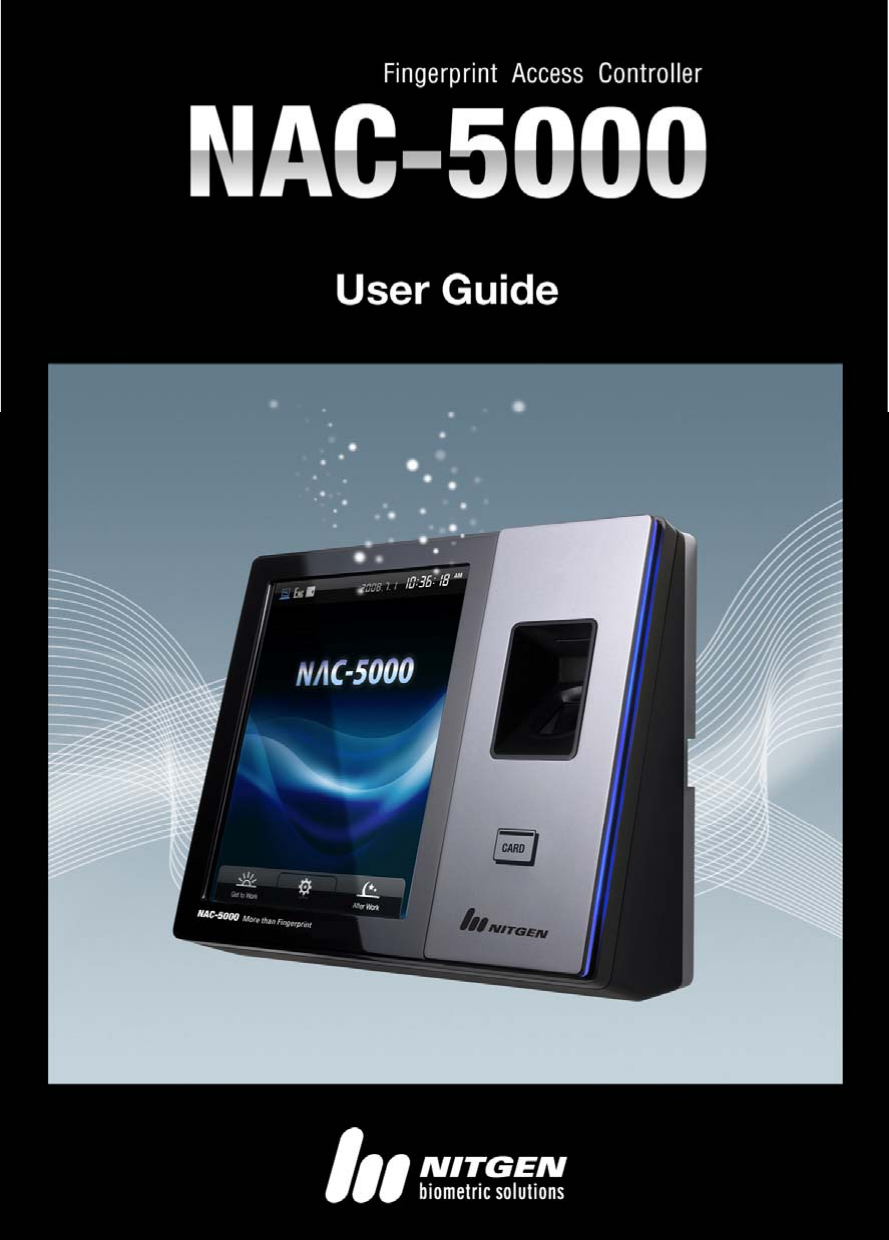
NITGEN and NAC-5000R COMMERCIAL User Manual

NITGEN & COMPANY COMMERCIAL

Users Manual

                   © Copyright 2009, NITGEN&COMPANY Co., Ltd. All rights reserved.  `  z  Unauthorized reproduction of part or all of this manual’s content in any form is prohibited.  z  Product specifications may change without prior notice to improve functionality.    z  NITGEN and the NITGEN logo are registered trademarks of NITGEN. z  Other names and trademarks belong to respective companies. z The font used in this product is Naver’s “Nanum”.    NITGEN Customer Service Center Tel: 080.060.1600 (Toll Free) Fax: 02.513.2191 Email: customer@nitgen.com
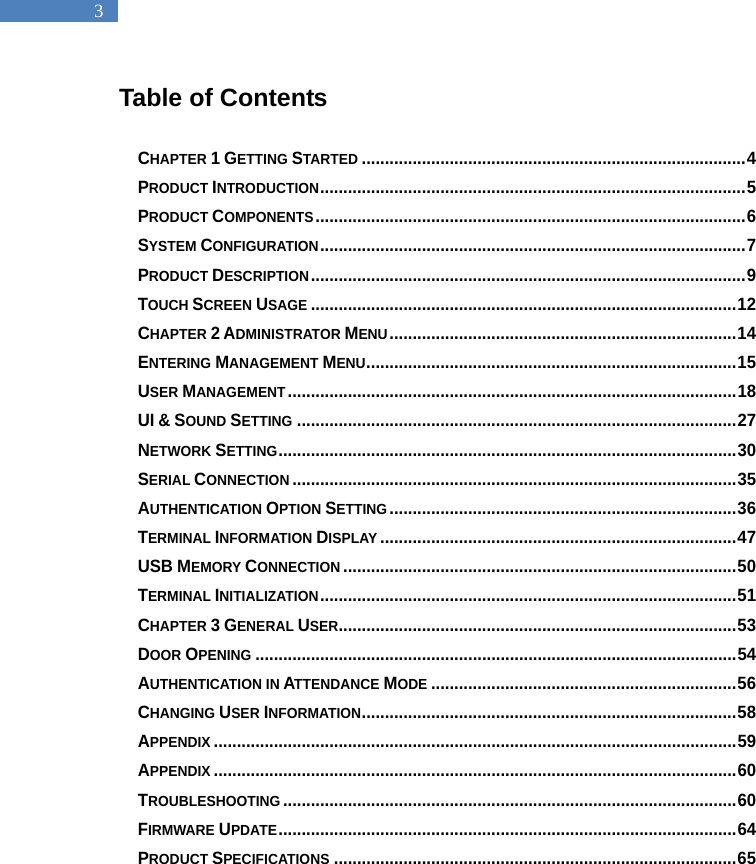
  3 Table of Contents  CHAPTER 1 GETTING STARTED ................................................................................... 4 PRODUCT INTRODUCTION ............................................................................................ 5 PRODUCT COMPONENTS ............................................................................................. 6 SYSTEM CONFIGURATION ............................................................................................ 7 PRODUCT DESCRIPTION .............................................................................................. 9 TOUCH SCREEN USAGE ............................................................................................ 12 CHAPTER 2 ADMINISTRATOR MENU ........................................................................... 14 ENTERING MANAGEMENT MENU ................................................................................ 15 USER MANAGEMENT ................................................................................................. 18 UI & SOUND SETTING ............................................................................................... 27 NETWORK SETTING ................................................................................................... 30 SERIAL CONNECTION ................................................................................................ 35 AUTHENTICATION OPTION SETTING ........................................................................... 36 TERMINAL INFORMATION DISPLAY ............................................................................. 47 USB MEMORY CONNECTION ..................................................................................... 50 TERMINAL INITIALIZATION .......................................................................................... 51 CHAPTER 3 GENERAL USER ...................................................................................... 53 DOOR OPENING ........................................................................................................ 54 AUTHENTICATION IN ATTENDANCE MODE .................................................................. 56 CHANGING USER INFORMATION ................................................................................. 58 APPENDIX ................................................................................................................. 59 APPENDIX ................................................................................................................. 60 TROUBLESHOOTING .................................................................................................. 60 FIRMWARE UPDATE ................................................................................................... 64 PRODUCT SPECIFICATIONS ....................................................................................... 65
  4                  Chapter 1 Getting Started   Product Introduction - 5 Product Components - 6 System Configuration - 7 Product Description - 9 Touch Screen Usage - 12
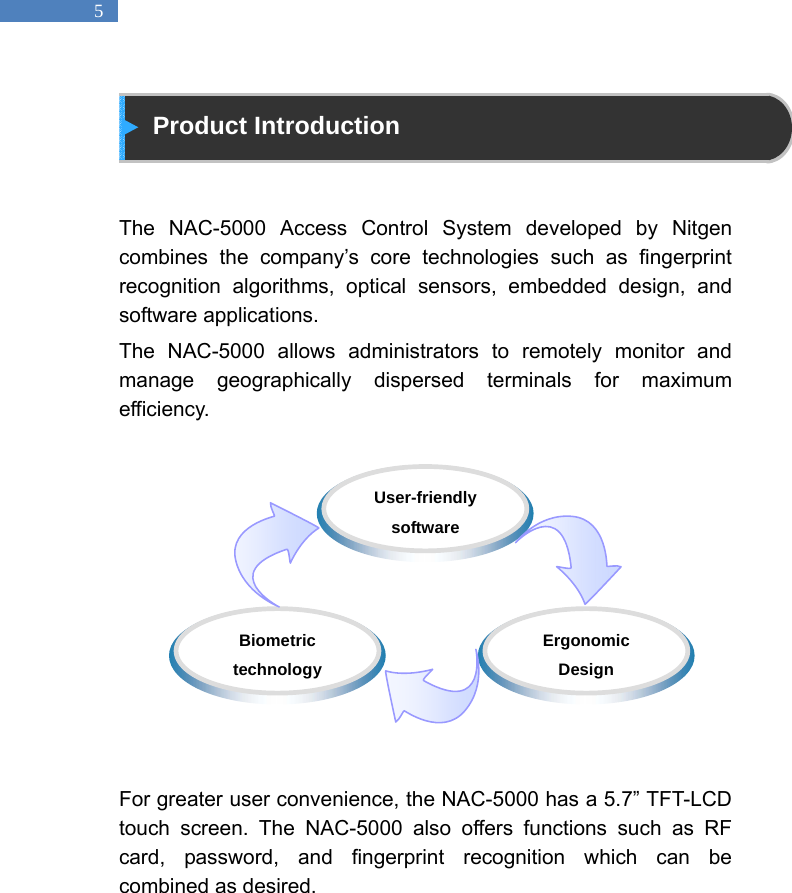
  5  Product Introduction   The NAC-5000 Access Control System developed by Nitgen combines the company’s core technologies such as fingerprint recognition algorithms, optical sensors, embedded design, and software applications.   The NAC-5000 allows administrators to remotely monitor and manage geographically dispersed terminals for maximum efficiency.            For greater user convenience, the NAC-5000 has a 5.7” TFT-LCD touch screen. The NAC-5000 also offers functions such as RF card, password, and fingerprint recognition which can be combined as desired.    Biometric technology  Ergonomic Design  User-friendly software
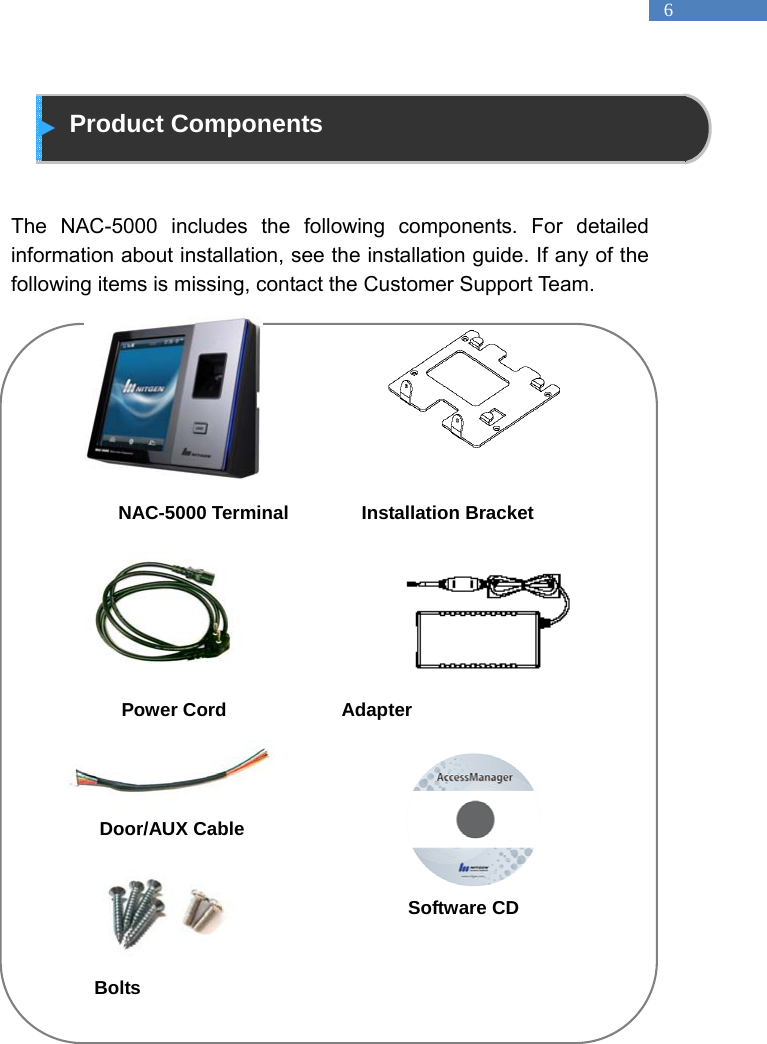
  6  Product Components   The NAC-5000 includes the following components. For detailed information about installation, see the installation guide. If any of the following items is missing, contact the Customer Support Team.                        NAC-5000 Terminal       Installation Bracket       Power Cord           Adapter   Door/AUX Cable                     Software CD        Bolts
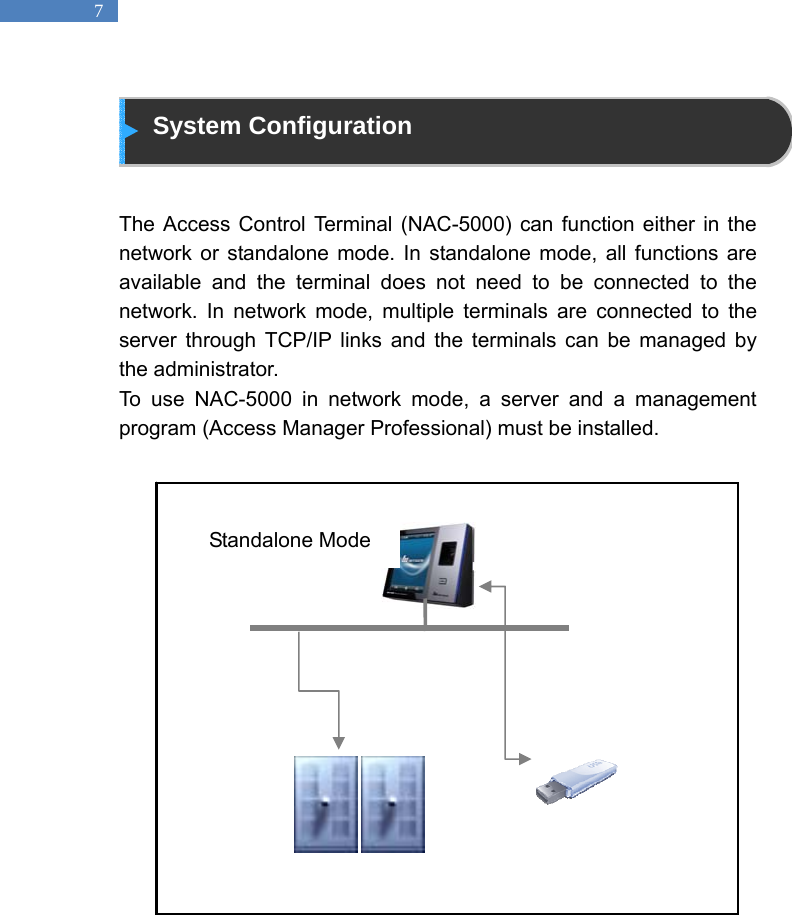
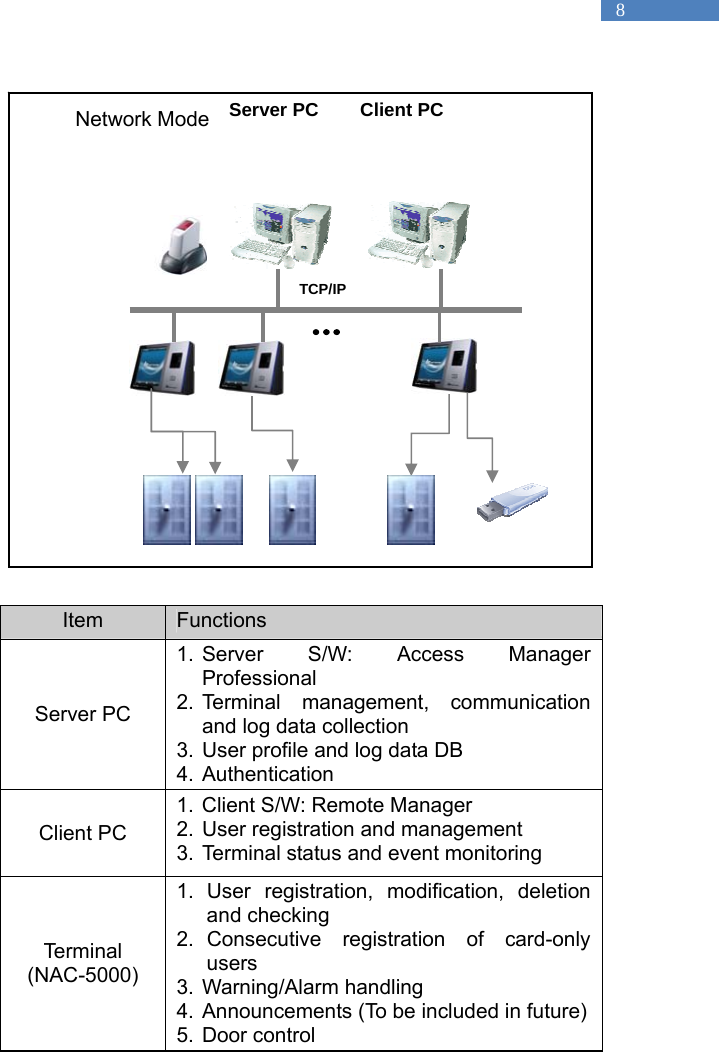
  7  System Configuration   The Access Control Terminal (NAC-5000) can function either in the network or standalone mode. In standalone mode, all functions are available and the terminal does not need to be connected to the network. In network mode, multiple terminals are connected to the server through TCP/IP links and the terminals can be managed by the administrator.   To use NAC-5000 in network mode, a server and a management program (Access Manager Professional) must be installed.                      Standalone Mode
  8                   Item  Functions Server PC 1. Server S/W: Access Manager Professional 2. Terminal management, communication and log data collection 3. User profile and log data DB 4. Authentication Client PC 1. Client S/W: Remote Manager 2. User registration and management   3. Terminal status and event monitoring Terminal (NAC-5000) 1. User registration, modification, deletion and checking 2. Consecutive registration of card-only users 3. Warning/Alarm handling 4. Announcements (To be included in future) 5. Door control TCP/IP Server PC  Client PC Network Mode
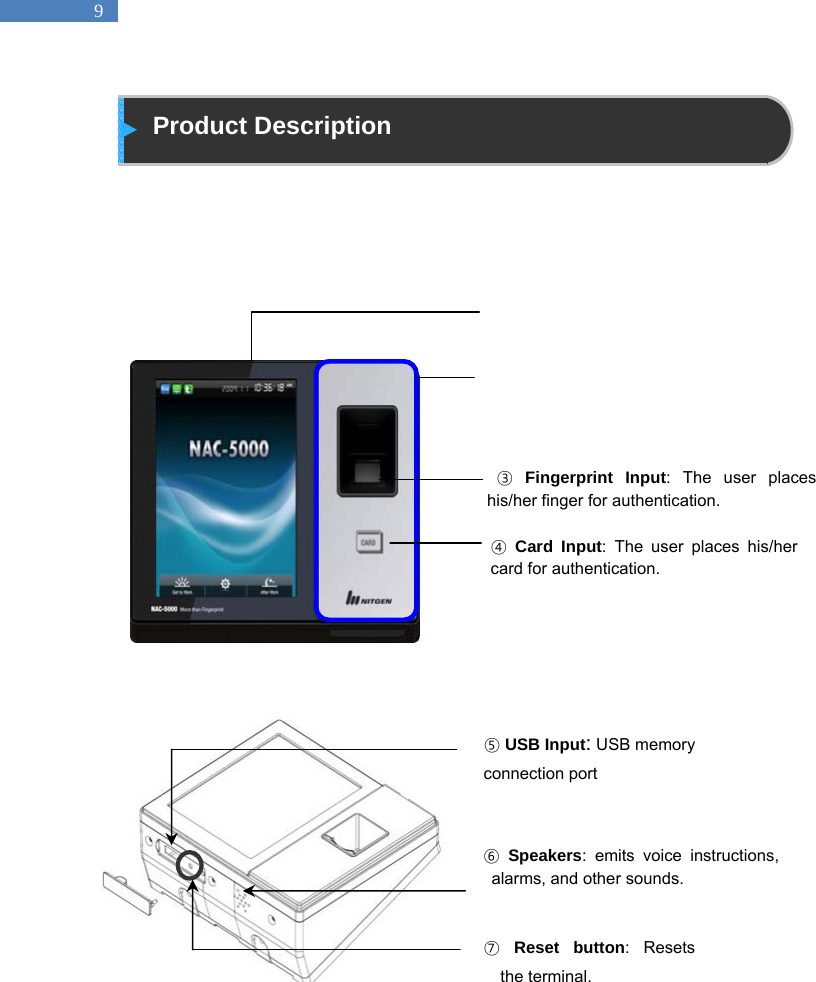
  9  Product Description                         ③ Fingerprint Input: The user places his/her finger for authentication. ④ Card Input: The user places his/her card for authentication.  ⑥ Speakers: emits voice instructions, alarms, and other sounds. ⑤ USB Input: USB memory connection port ⑦ Reset button: Resets the terminal.
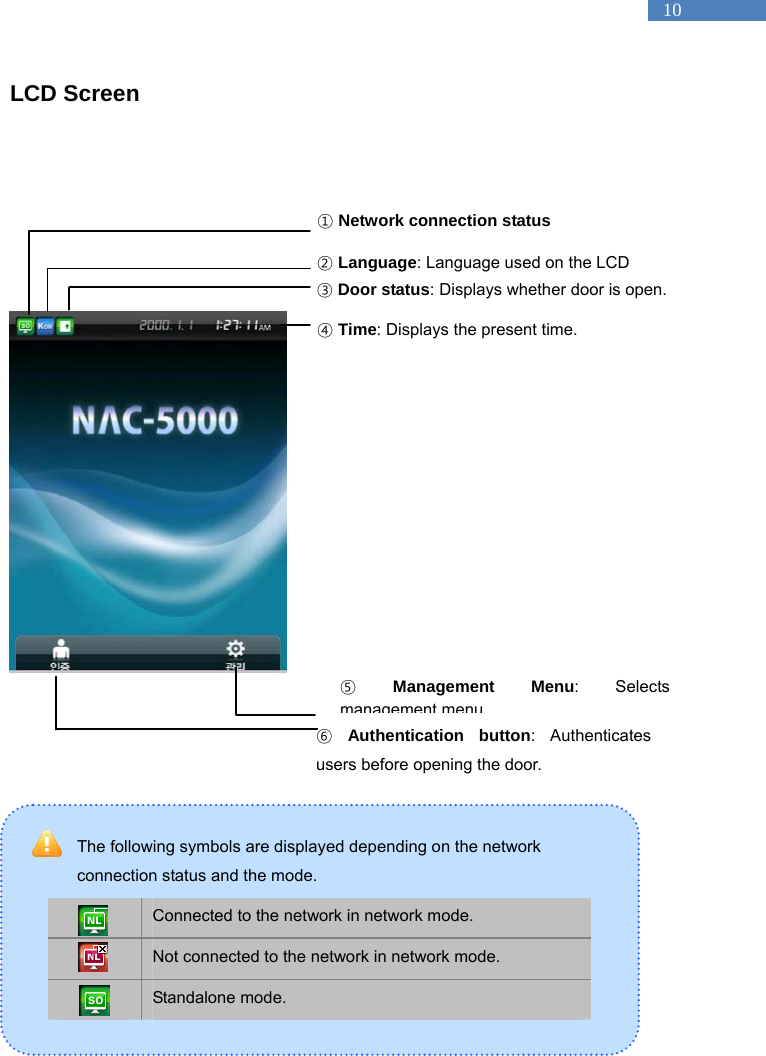
  10 LCD Screen                   The following symbols are displayed depending on the network   connection status and the mode.    Connected to the network in network mode.  Not connected to the network in network mode.  Standalone mode.    ① Network connection status ② Language: Language used on the LCD ③ Door status: Displays whether door is open. ④ Time: Displays the present time. ⑤ Management Menu: Selects management menu⑥ Authentication button: Authenticates users before opening the door.
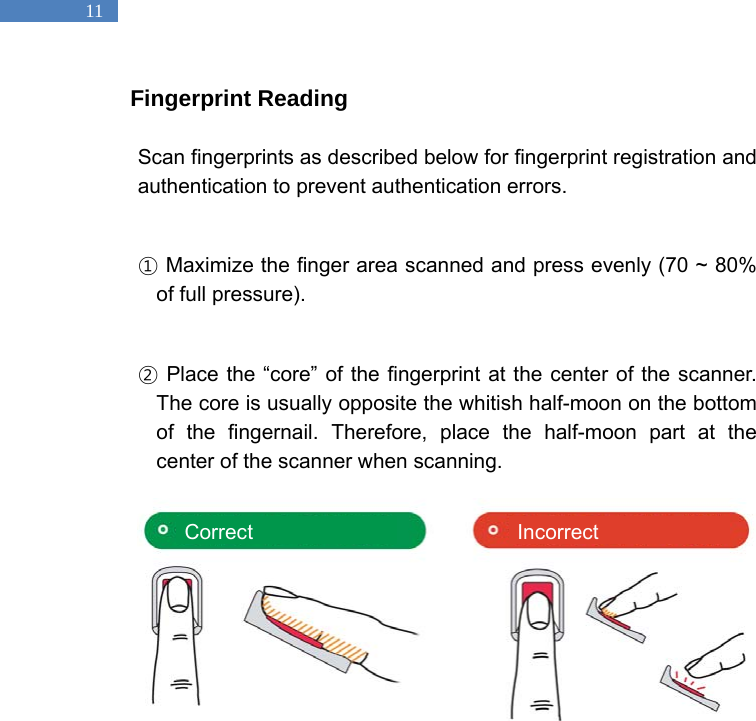
  11 Fingerprint Reading  Scan fingerprints as described below for fingerprint registration and authentication to prevent authentication errors.  ① Maximize the finger area scanned and press evenly (70 ~ 80% of full pressure).  ② Place the “core” of the fingerprint at the center of the scanner. The core is usually opposite the whitish half-moon on the bottom of the fingernail. Therefore, place the half-moon part at the center of the scanner when scanning.         Correct Incorrect
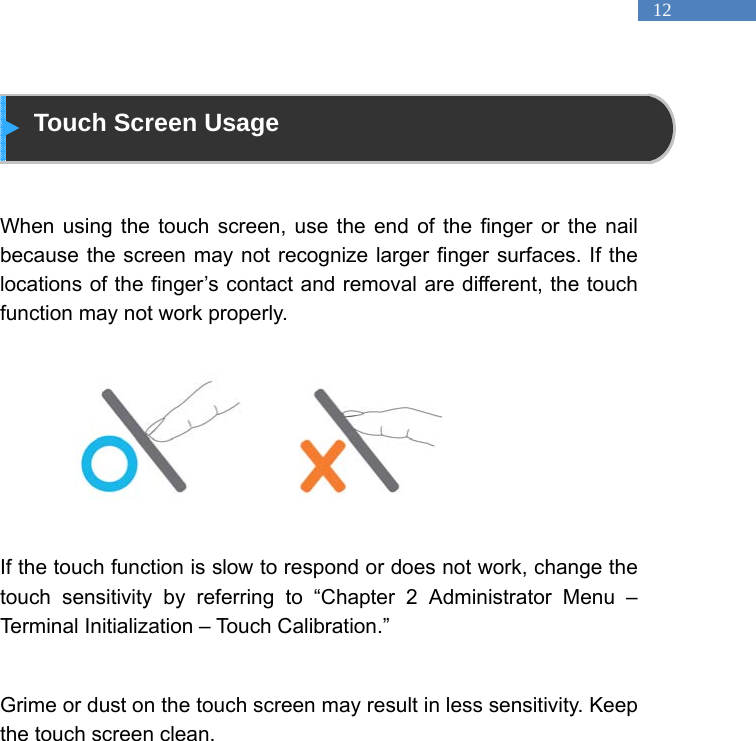
  12  Touch Screen Usage   When using the touch screen, use the end of the finger or the nail because the screen may not recognize larger finger surfaces. If the locations of the finger’s contact and removal are different, the touch function may not work properly.          If the touch function is slow to respond or does not work, change the touch sensitivity by referring to “Chapter 2 Administrator Menu – Terminal Initialization – Touch Calibration.”    Grime or dust on the touch screen may result in less sensitivity. Keep the touch screen clean.
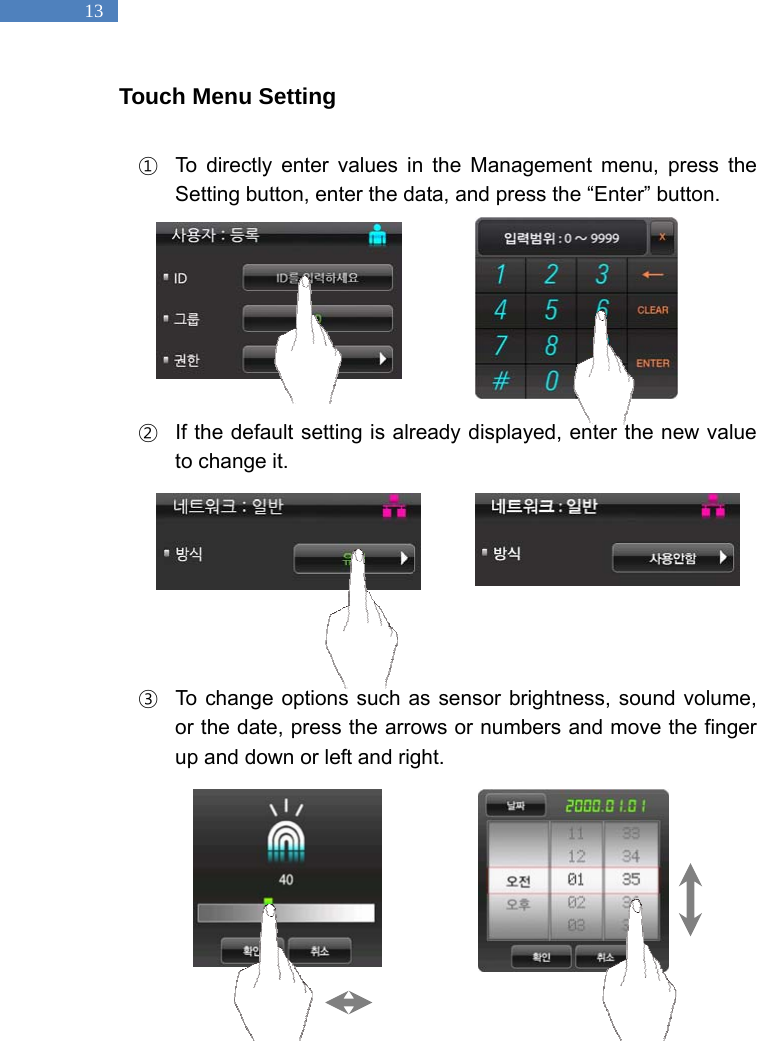
  13 Touch Menu Setting  ①  To directly enter values in the Management menu, press the Setting button, enter the data, and press the “Enter” button.        ②  If the default setting is already displayed, enter the new value to change it.        ③  To change options such as sensor brightness, sound volume, or the date, press the arrows or numbers and move the finger up and down or left and right.
            Chapter 2 Administrator Menu  Entering Management Menu    - 15 User Management     - 18 UI & Sound Setting   - 26 Network Setting    - 29 Serial Connection     - 33 Authentication Option Setting    - 34 Terminal Information Display   - 42 USB Memory Connection - 45 Terminal Initialization    - 46
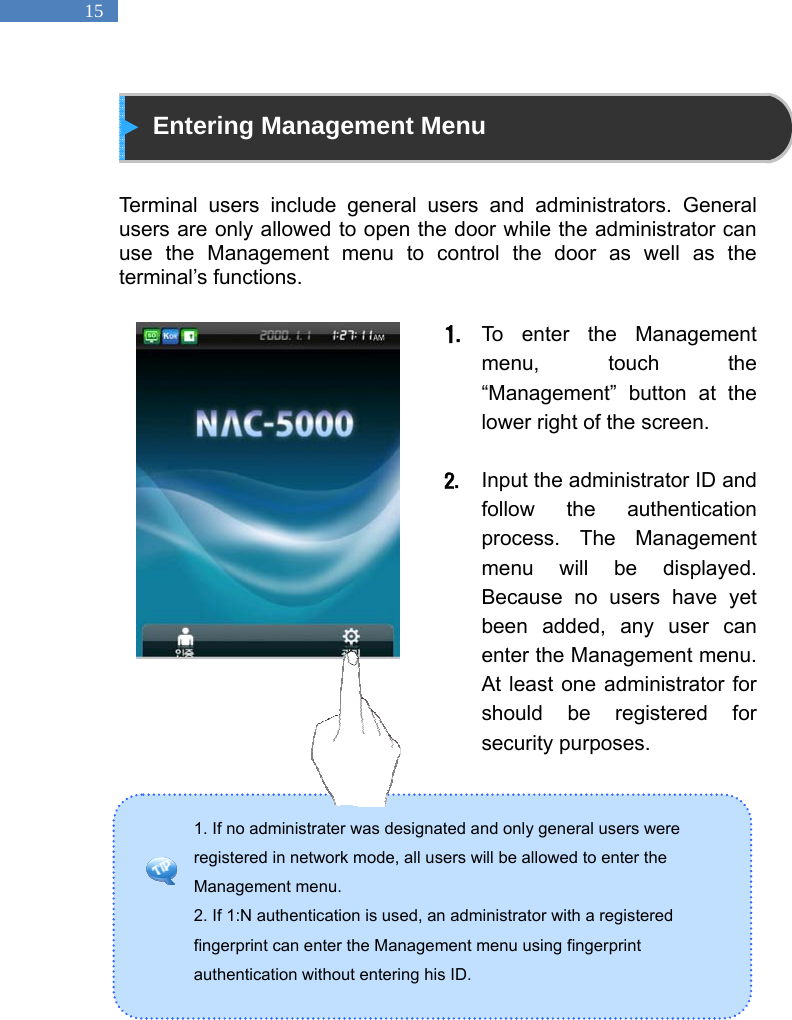
  15 1. If no administrater was designated and only general users were registered in network mode, all users will be allowed to enter the Management menu.   2. If 1:N authentication is used, an administrator with a registered fingerprint can enter the Management menu using fingerprint authentication without entering his ID.    Entering Management Menu   Terminal users include general users and administrators. General users are only allowed to open the door while the administrator can use the Management menu to control the door as well as the terminal’s functions.    1. To enter the Management menu, touch the “Management” button at the lower right of the screen.  2. Input the administrator ID and follow the authentication process. The Management menu will be displayed. Because no users have yet been added, any user can enter the Management menu. At least one administrator for should be registered for security purposes.
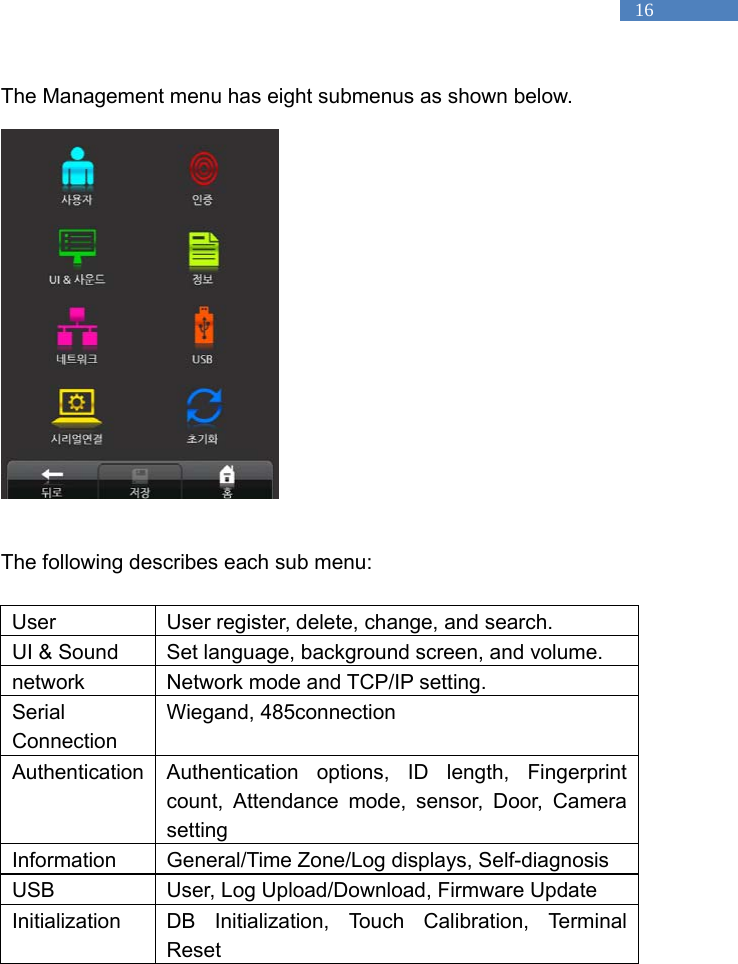
  16 The Management menu has eight submenus as shown below.                                The following describes each sub menu:  User  User register, delete, change, and search. UI & Sound  Set language, background screen, and volume. network  Network mode and TCP/IP setting. Serial Connection Wiegand, 485connection Authentication Authentication options, ID length, Fingerprint count, Attendance mode, sensor, Door, Camera setting Information  General/Time Zone/Log displays, Self-diagnosis USB  User, Log Upload/Download, Firmware Update Initialization DB Initialization, Touch Calibration, Terminal Reset
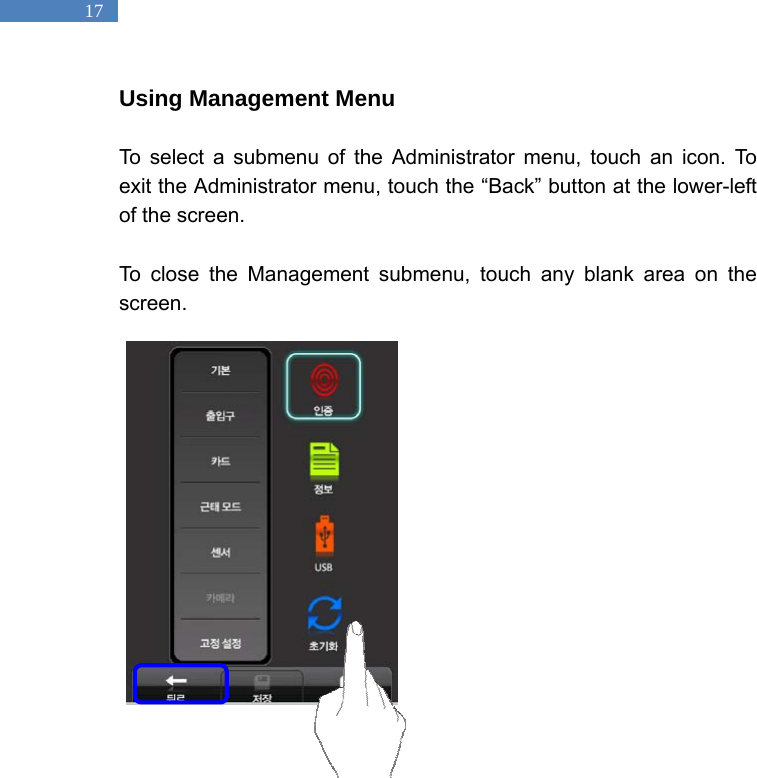
  17 Using Management Menu  To select a submenu of the Administrator menu, touch an icon. To exit the Administrator menu, touch the “Back” button at the lower-left of the screen.  To close the Management submenu, touch any blank area on the screen.
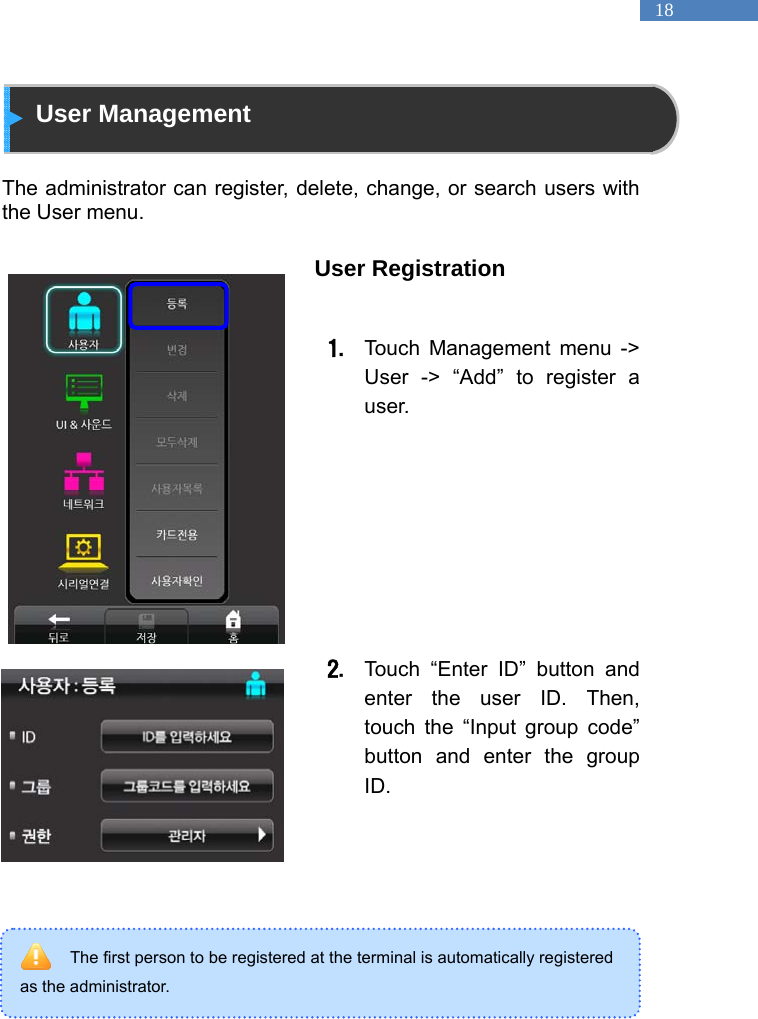
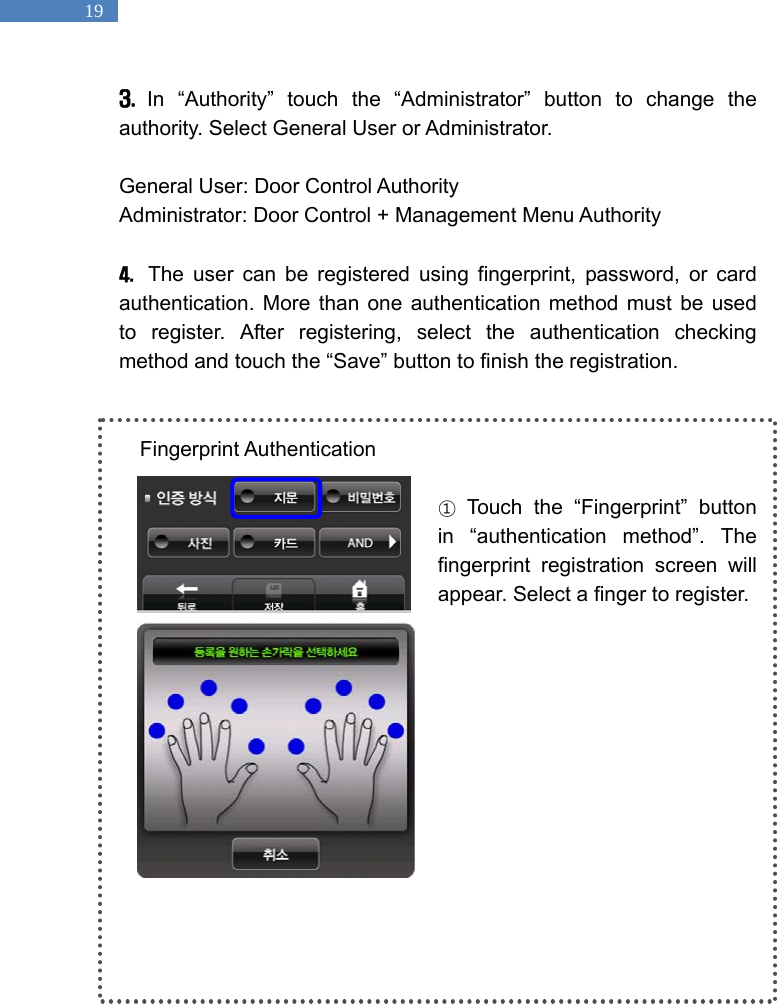
  18 The first person to be registered at the terminal is automatically registered as the administrator.  User Management  The administrator can register, delete, change, or search users with the User menu.    User Registration  1. Touch Management menu -> User -> “Add” to register a user.          2. Touch “Enter ID” button and enter the user ID. Then, touch the “Input group code” button and enter the group ID.
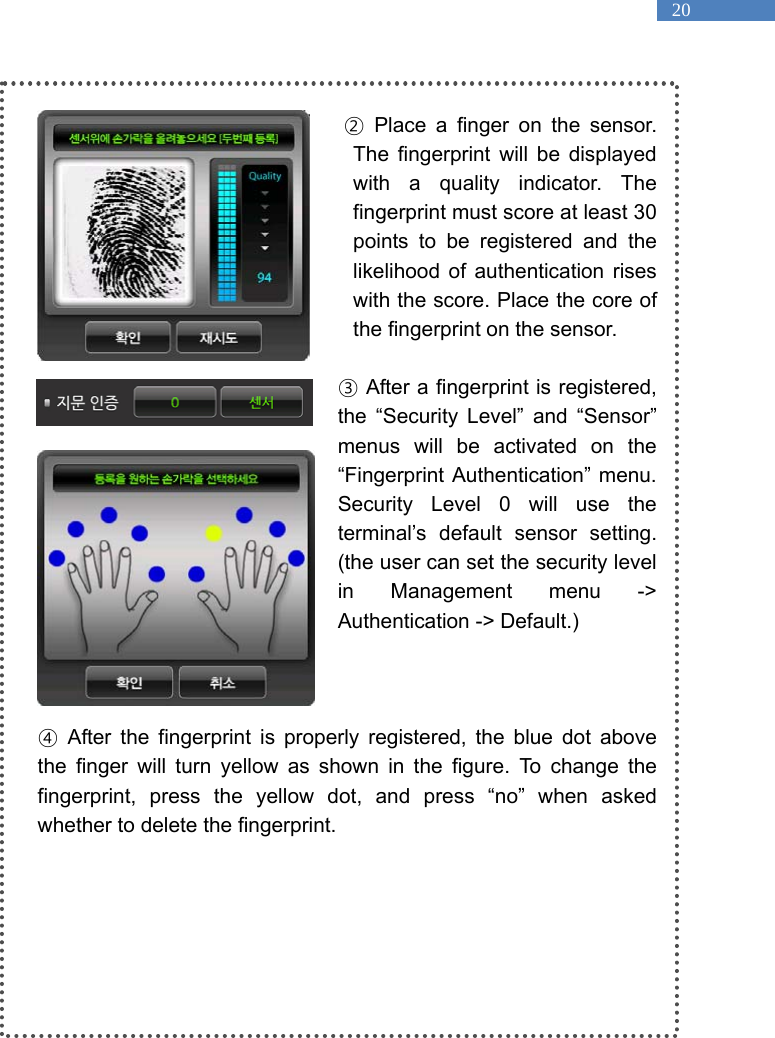
  19 3.  In “Authority” touch the “Administrator” button to change the authority. Select General User or Administrator.    General User: Door Control Authority Administrator: Door Control + Management Menu Authority  4.  The user can be registered using fingerprint, password, or card authentication. More than one authentication method must be used to register. After registering, select the authentication checking method and touch the “Save” button to finish the registration.   Fingerprint Authentication  ① Touch the “Fingerprint” button in “authentication method”. The fingerprint registration screen will appear. Select a finger to register.
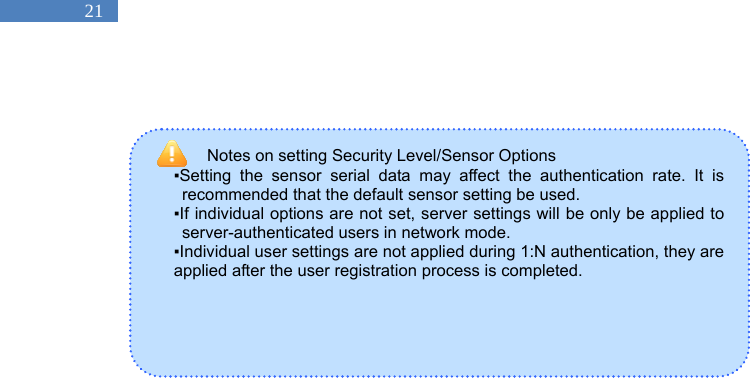
  20  ② Place a finger on the sensor. The fingerprint will be displayed with a quality indicator. The fingerprint must score at least 30 points to be registered and the likelihood of authentication rises with the score. Place the core of the fingerprint on the sensor.    ③ After a fingerprint is registered, the “Security Level” and “Sensor” menus will be activated on the “Fingerprint Authentication” menu. Security Level 0 will use the terminal’s default sensor setting. (the user can set the security level in Management menu -> Authentication -> Default.)    ④ After the fingerprint is properly registered, the blue dot above the finger will turn yellow as shown in the figure. To change the fingerprint, press the yellow dot, and press “no” when asked whether to delete the fingerprint.
  21 Notes on setting Security Level/Sensor Options   ▪Setting the sensor serial data may affect the authentication rate. It is recommended that the default sensor setting be used.   ▪If individual options are not set, server settings will be only be applied to server-authenticated users in network mode.   ▪Individual user settings are not applied during 1:N authentication, they are applied after the user registration process is completed.
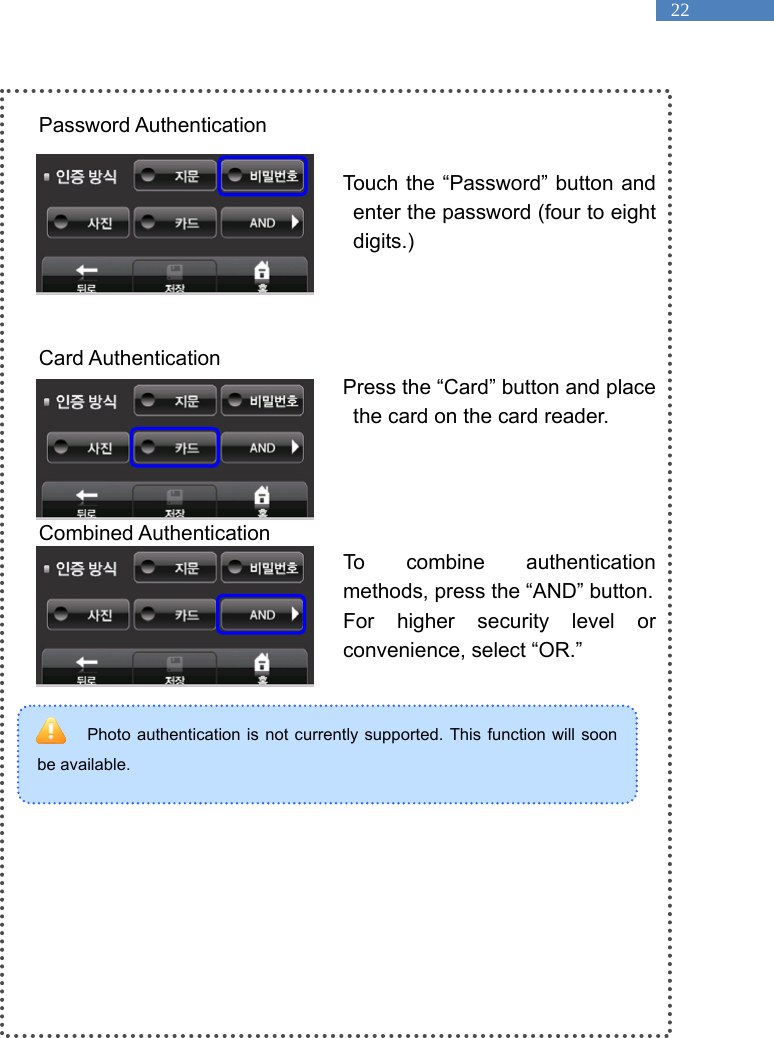
  22 Photo authentication is not currently supported. This function will soon be available.    Password Authentication  Touch the “Password” button and enter the password (four to eight digits.)     Card Authentication Press the “Card” button and place the card on the card reader.      Combined Authentication To combine authentication methods, press the “AND” button. For higher security level or convenience, select “OR.”
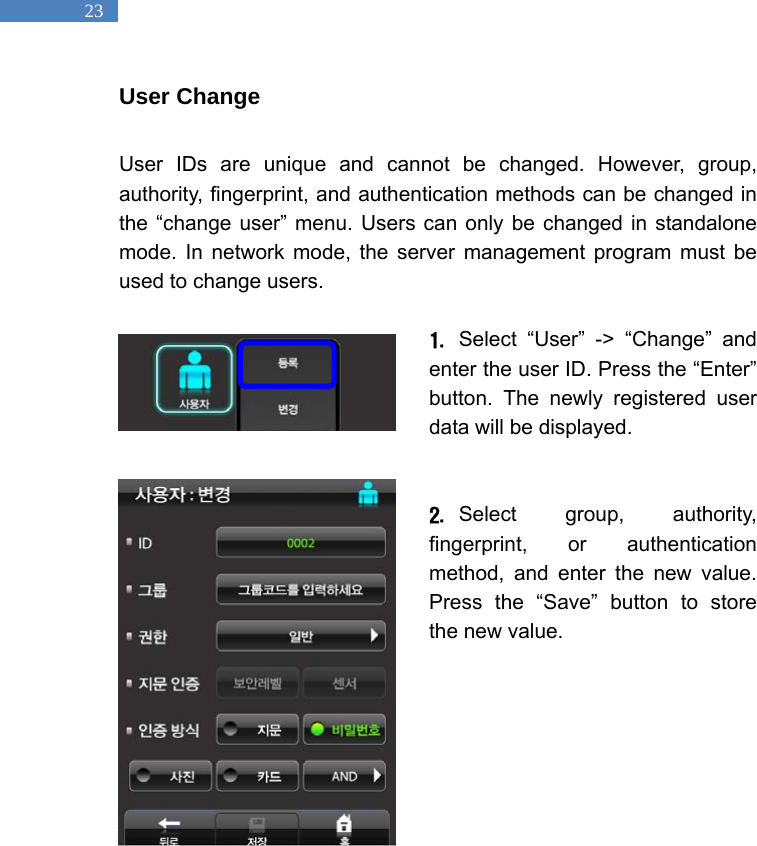
  23 User Change  User IDs are unique and cannot be changed. However, group, authority, fingerprint, and authentication methods can be changed in the “change user” menu. Users can only be changed in standalone mode. In network mode, the server management program must be used to change users.    1. Select “User” -> “Change” and enter the user ID. Press the “Enter” button. The newly registered user data will be displayed.   2. Select group, authority, fingerprint, or authentication method, and enter the new value. Press the “Save” button to store the new value.
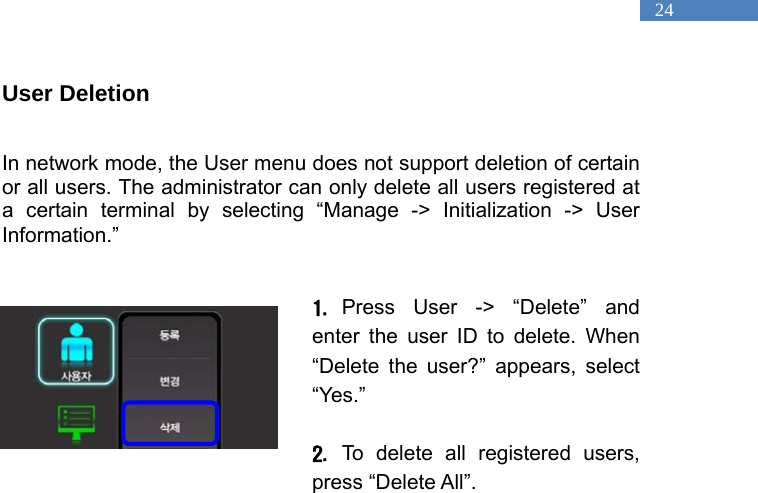
  24 User Deletion  In network mode, the User menu does not support deletion of certain or all users. The administrator can only delete all users registered at a certain terminal by selecting “Manage -> Initialization -> User Information.”   1. Press User -> “Delete” and enter the user ID to delete. When “Delete the user?” appears, select “Yes.”   2. To delete all registered users, press “Delete All”.
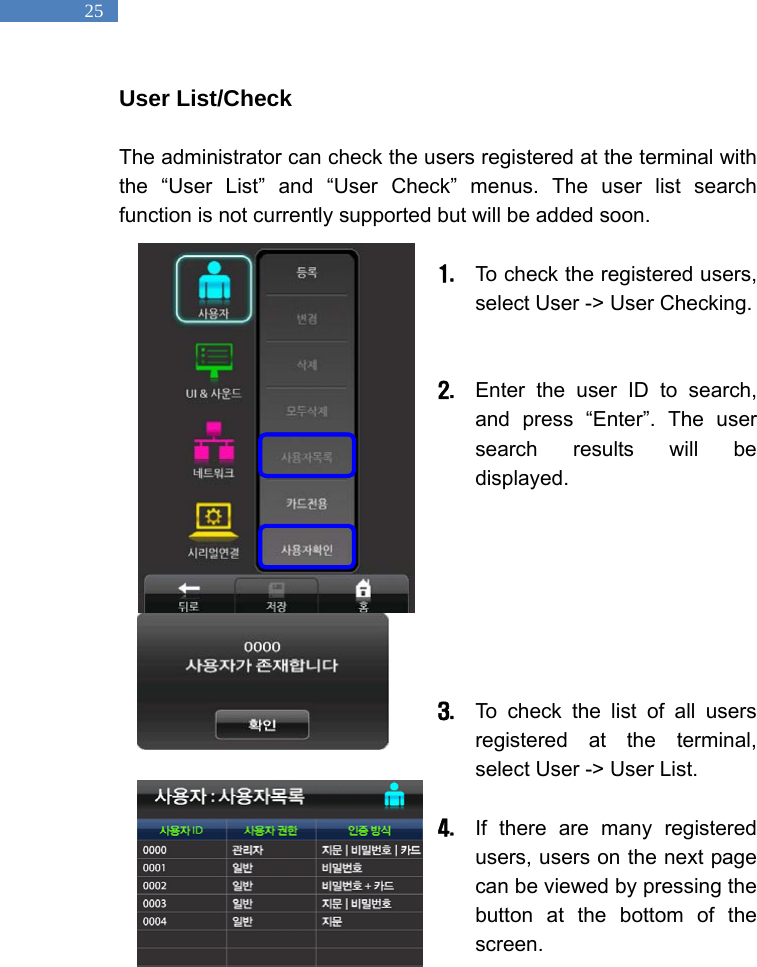
  25 User List/Check  The administrator can check the users registered at the terminal with the “User List” and “User Check” menus. The user list search function is not currently supported but will be added soon.    1. To check the registered users, select User -> User Checking.     2. Enter the user ID to search, and press “Enter”. The user search results will be displayed.          3. To check the list of all users registered at the terminal, select User -> User List.    4. If there are many registered users, users on the next page can be viewed by pressing the button at the bottom of the screen.
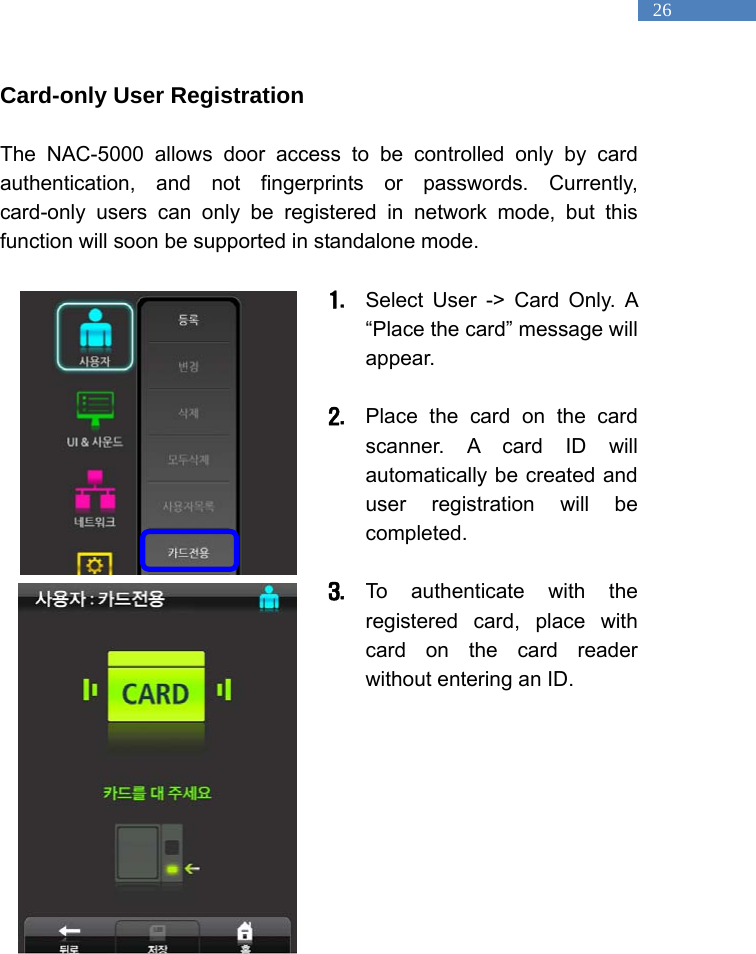
  26 Card-only User Registration  The NAC-5000 allows door access to be controlled only by card authentication, and not fingerprints or passwords. Currently, card-only users can only be registered in network mode, but this function will soon be supported in standalone mode.  1. Select User -> Card Only. A “Place the card” message will appear.   2. Place the card on the card scanner. A card ID will automatically be created and user registration will be completed.   3. To authenticate with the registered card, place with card on the card reader without entering an ID.
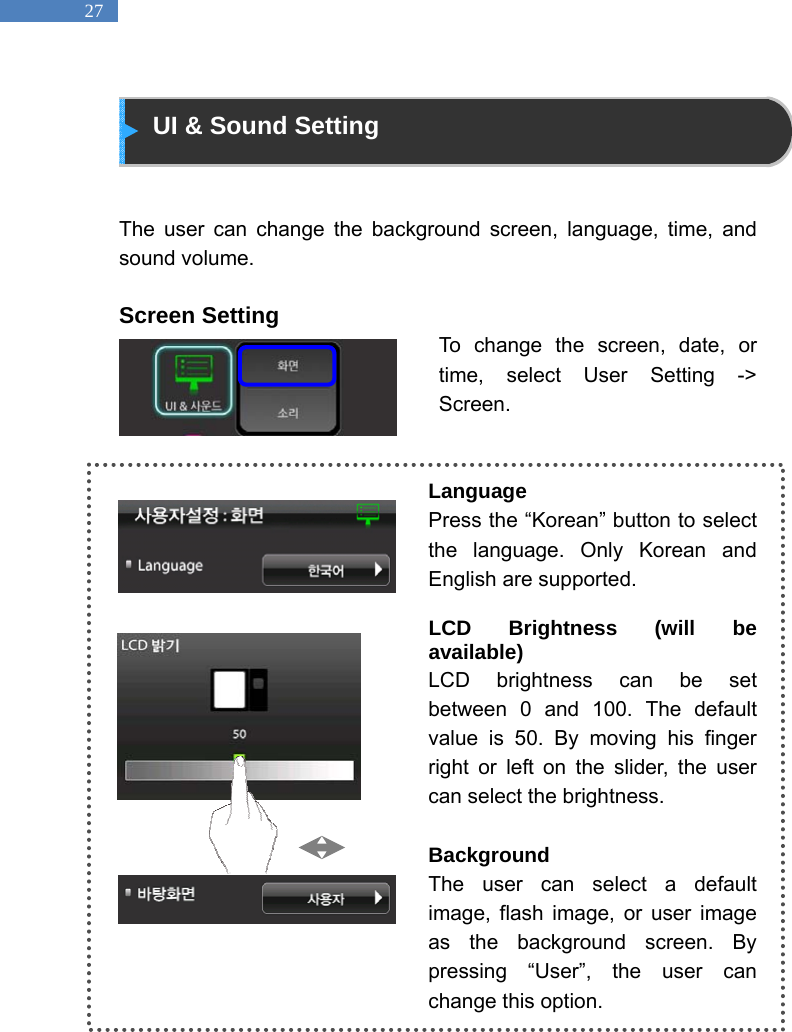
  27  UI & Sound Setting   The user can change the background screen, language, time, and sound volume.    Screen Setting To change the screen, date, or time, select User Setting -> Screen.    Language Press the “Korean” button to select the language. Only Korean and English are supported.  LCD Brightness (will be available) LCD brightness can be set between 0 and 100. The default value is 50. By moving his finger right or left on the slider, the user can select the brightness.    Background The user can select a default image, flash image, or user image as the background screen. By pressing “User”, the user can change this option.
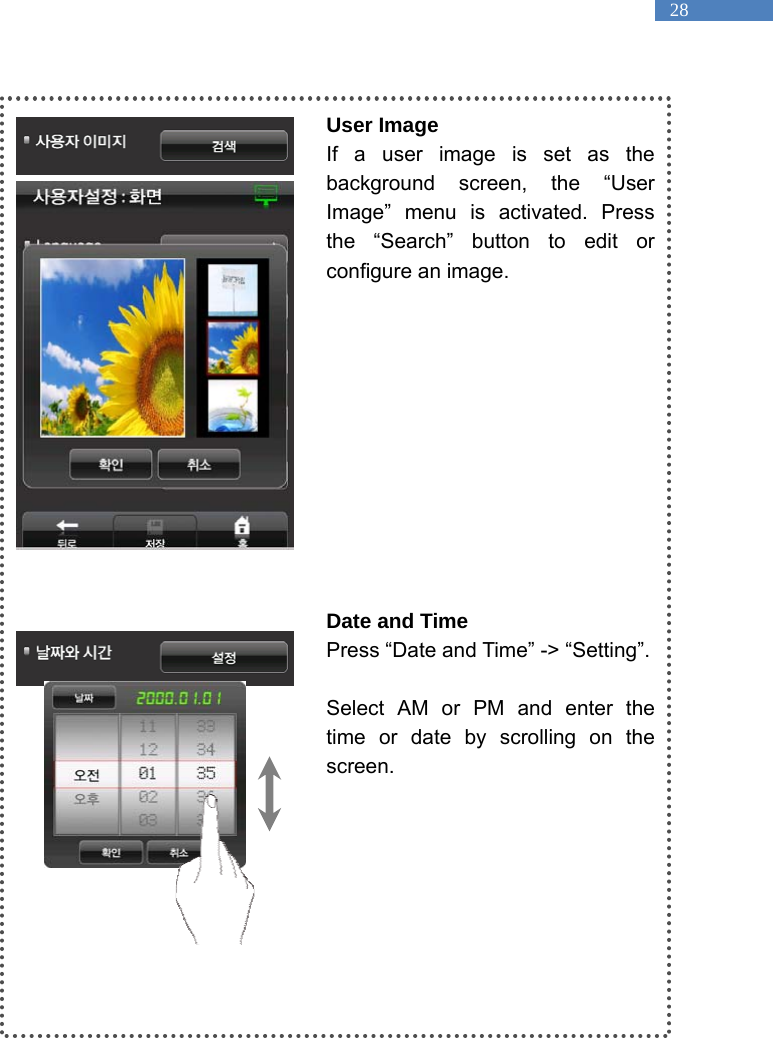
  28  User Image If a user image is set as the background screen, the “User Image” menu is activated. Press the “Search” button to edit or configure an image.              Date and Time Press “Date and Time” -> “Setting”.    Select AM or PM and enter the time or date by scrolling on the screen.
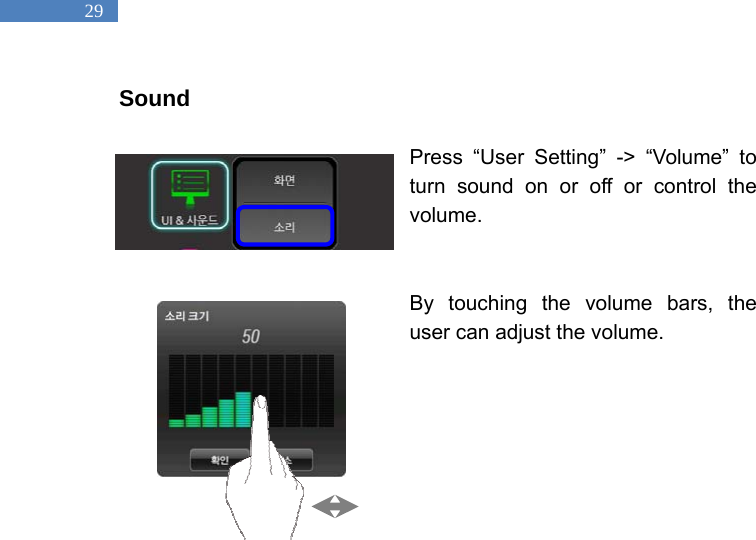
  29 Sound  Press “User Setting” -> “Volume” to turn sound on or off or control the volume.    By touching the volume bars, the user can adjust the volume.
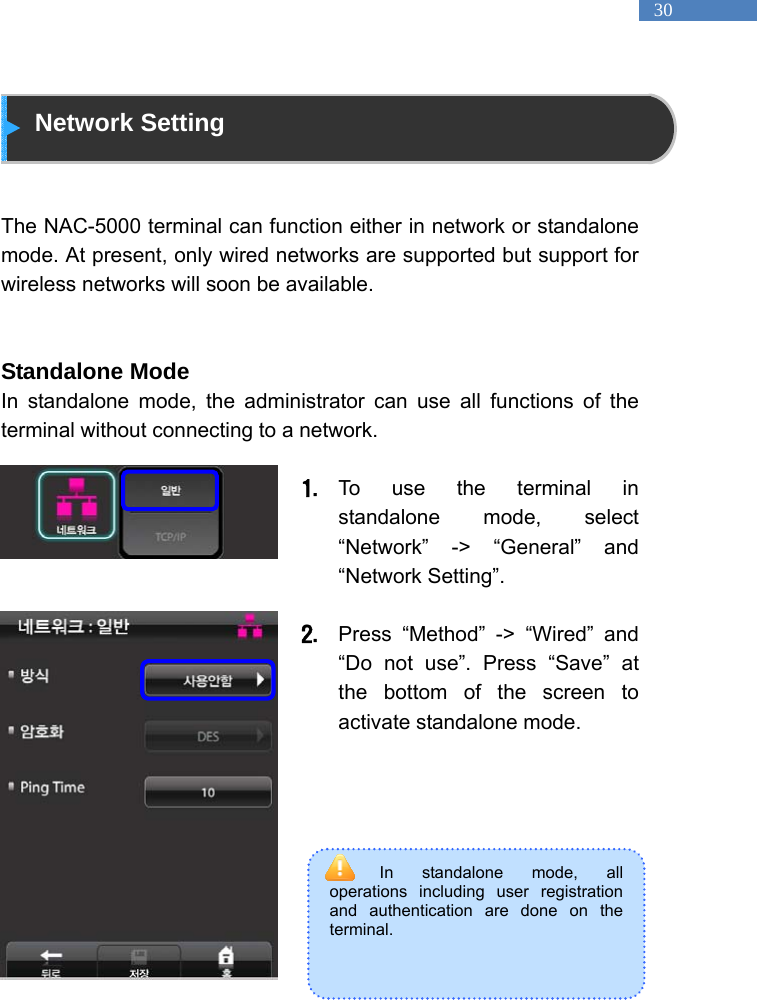
  30 In standalone mode, all operations including user registration and authentication are done on the terminal.    Network Setting   The NAC-5000 terminal can function either in network or standalone mode. At present, only wired networks are supported but support for wireless networks will soon be available.     Standalone Mode In standalone mode, the administrator can use all functions of the terminal without connecting to a network.              1. To use the terminal in standalone mode, select “Network” -> “General” and “Network Setting”.  2. Press “Method” -> “Wired” and “Do not use”. Press “Save” at the bottom of the screen to activate standalone mode.
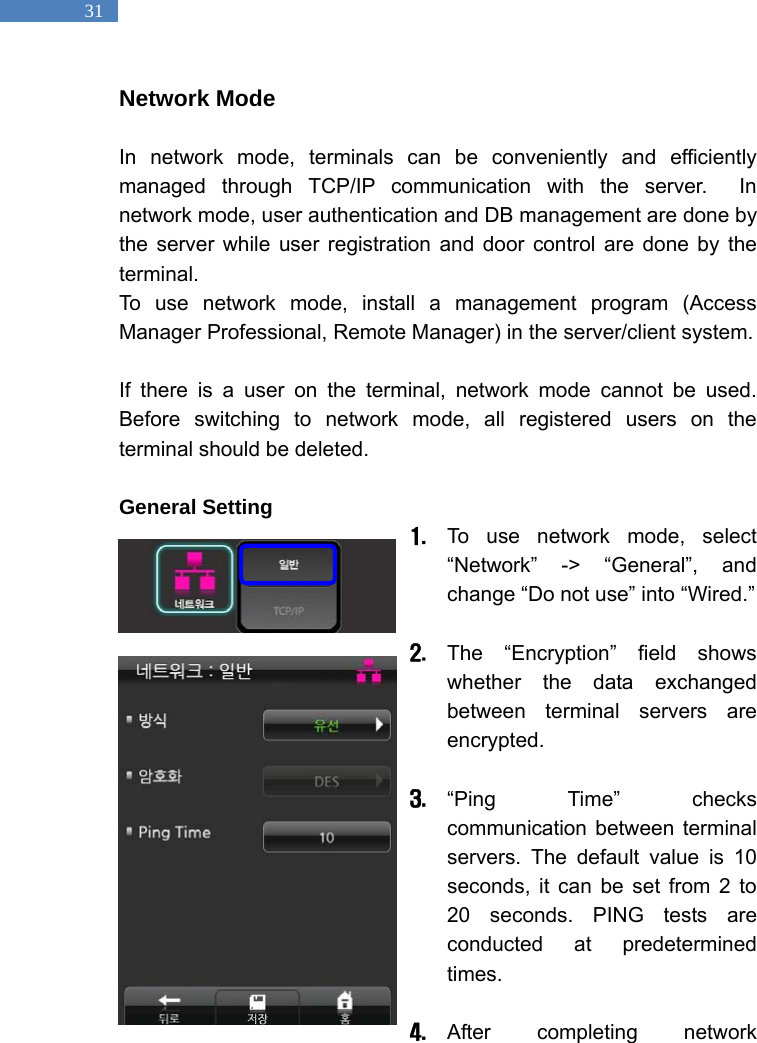
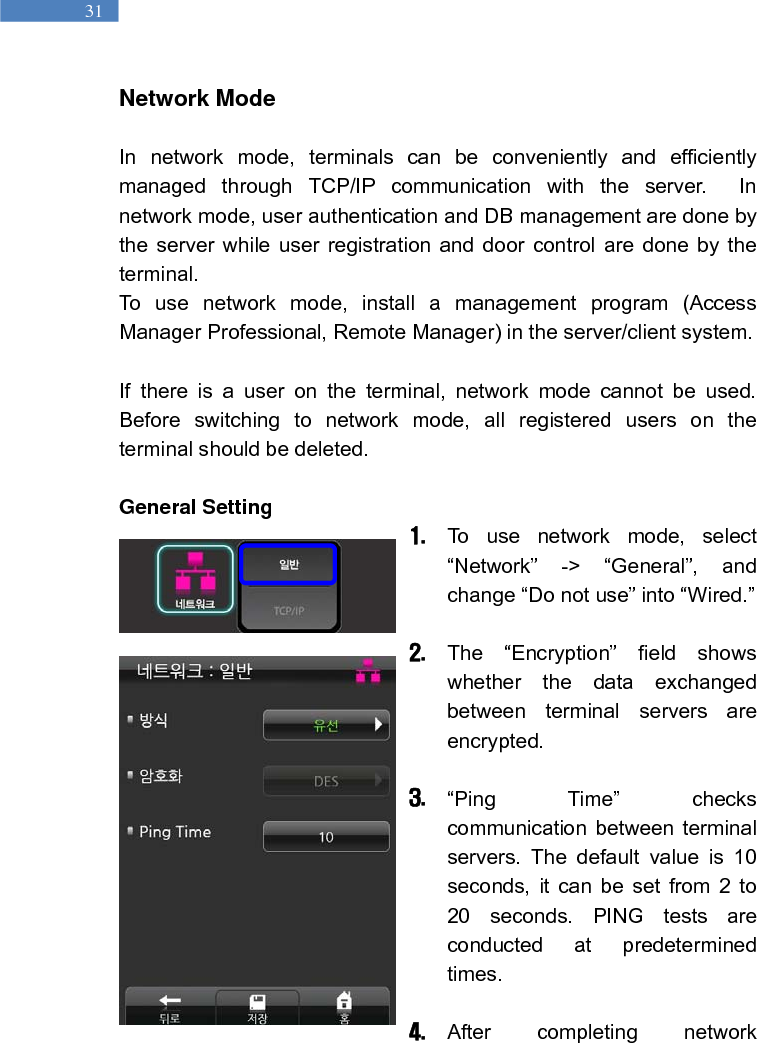
  31 Network Mode  In network mode, terminals can be conveniently and efficiently managed through TCP/IP communication with the server.  In network mode, user authentication and DB management are done by the server while user registration and door control are done by the terminal.  To use network mode, install a management program (Access Manager Professional, Remote Manager) in the server/client system.    If there is a user on the terminal, network mode cannot be used. Before switching to network mode, all registered users on the terminal should be deleted.    General Setting 1. To use network mode, select “Network” -> “General”, and change “Do not use” into “Wired.”    2. The “Encryption” field shows whether the data exchanged between terminal servers are encrypted.  3. “Ping Time” checks communication between terminal servers. The default value is 10 seconds, it can be set from 2 to 20 seconds. PING tests are conducted at predetermined times.   4. After completing network
  32 configuration, press “Save” at the bottom of the screen.
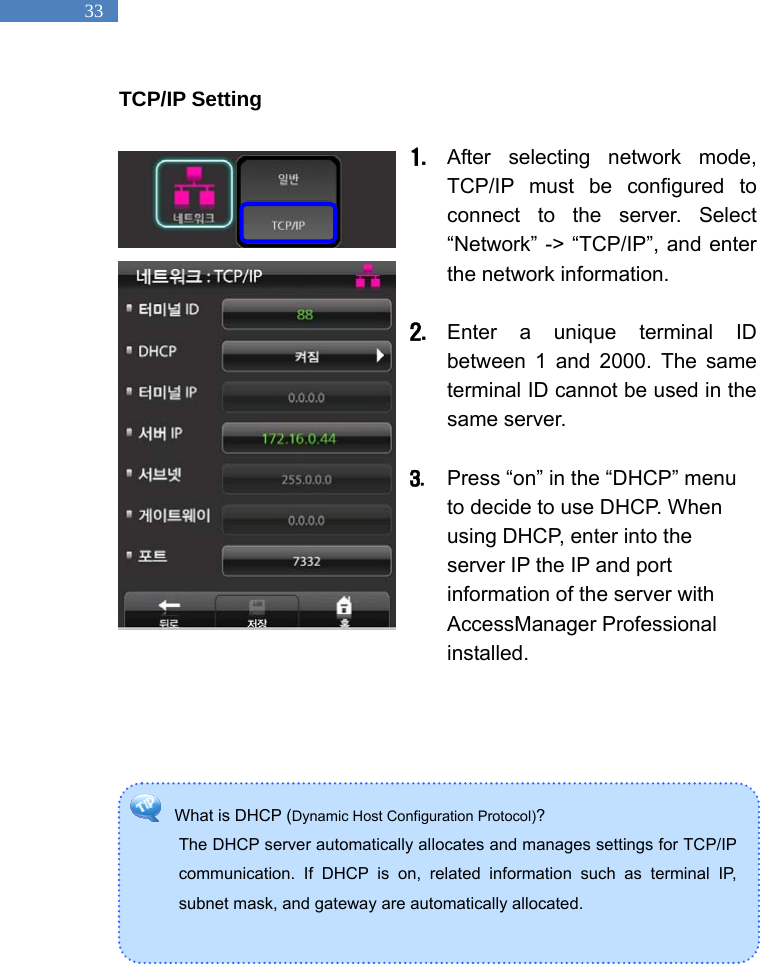
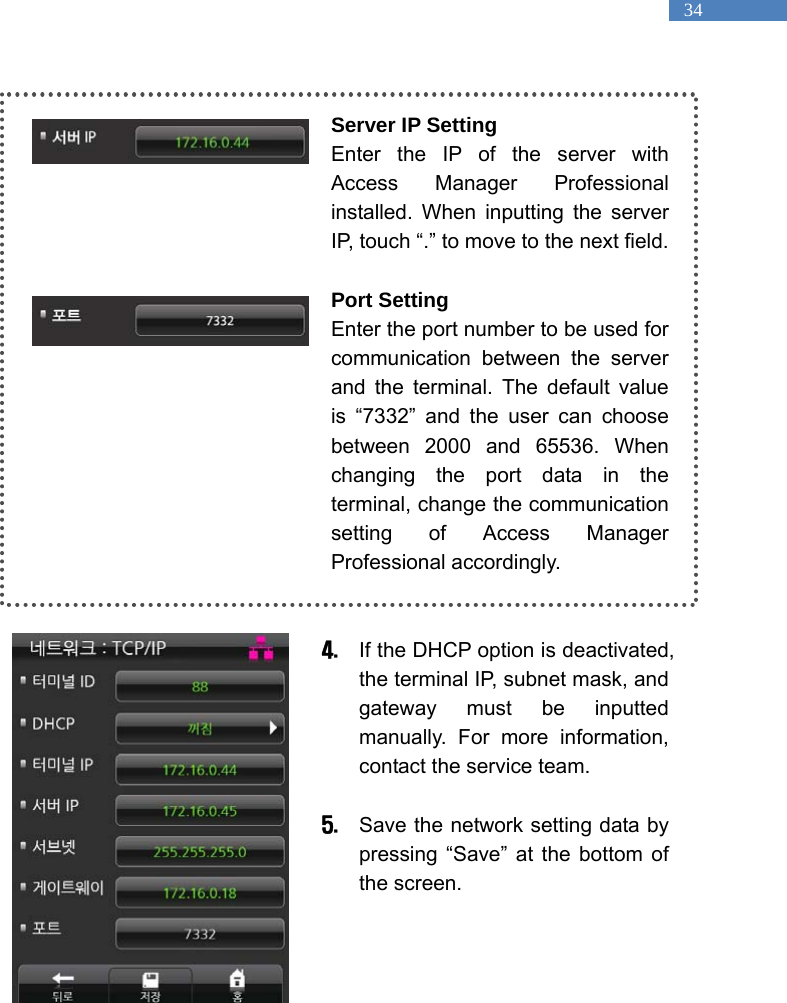
  33 What is DHCP (Dynamic Host Configuration Protocol)?  The DHCP server automatically allocates and manages settings for TCP/IP communication. If DHCP is on, related information such as terminal IP, subnet mask, and gateway are automatically allocated.    TCP/IP Setting  1. After selecting network mode, TCP/IP must be configured to connect to the server. Select “Network” -> “TCP/IP”, and enter the network information.    2. Enter a unique terminal ID between 1 and 2000. The same terminal ID cannot be used in the same server.    3. Press “on” in the “DHCP” menu to decide to use DHCP. When using DHCP, enter into the server IP the IP and port information of the server with AccessManager Professional installed.
  34  Server IP Setting Enter the IP of the server with Access Manager Professional installed. When inputting the server IP, touch “.” to move to the next field.      Port Setting Enter the port number to be used for communication between the server and the terminal. The default value is “7332” and the user can choose between 2000 and 65536. When changing the port data in the terminal, change the communication setting of Access Manager Professional accordingly.     4. If the DHCP option is deactivated, the terminal IP, subnet mask, and gateway must be inputted manually. For more information, contact the service team.  5. Save the network setting data by pressing “Save” at the bottom of the screen.
  35  Serial Connection   Through serial connection, other devices such as RF card readers can be controlled. This function will soon be available.
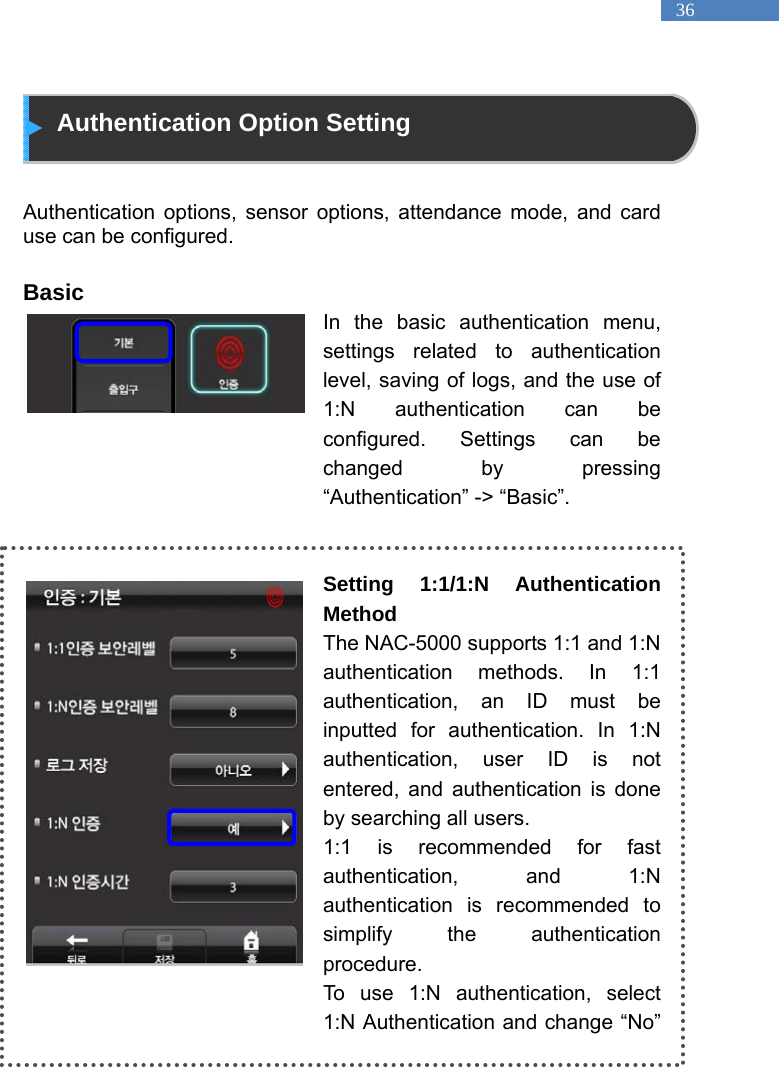
  36  Authentication Option Setting   Authentication options, sensor options, attendance mode, and card use can be configured.  Basic In the basic authentication menu, settings related to authentication level, saving of logs, and the use of 1:N authentication can be configured. Settings can be changed by pressing “Authentication” -> “Basic”.   Setting 1:1/1:N Authentication Method The NAC-5000 supports 1:1 and 1:N authentication methods. In 1:1 authentication, an ID must be inputted for authentication. In 1:N authentication, user ID is not entered, and authentication is done by searching all users. 1:1 is recommended for fast authentication, and 1:N authentication is recommended to simplify the authentication procedure.  To use 1:N authentication, select 1:N Authentication and change “No”
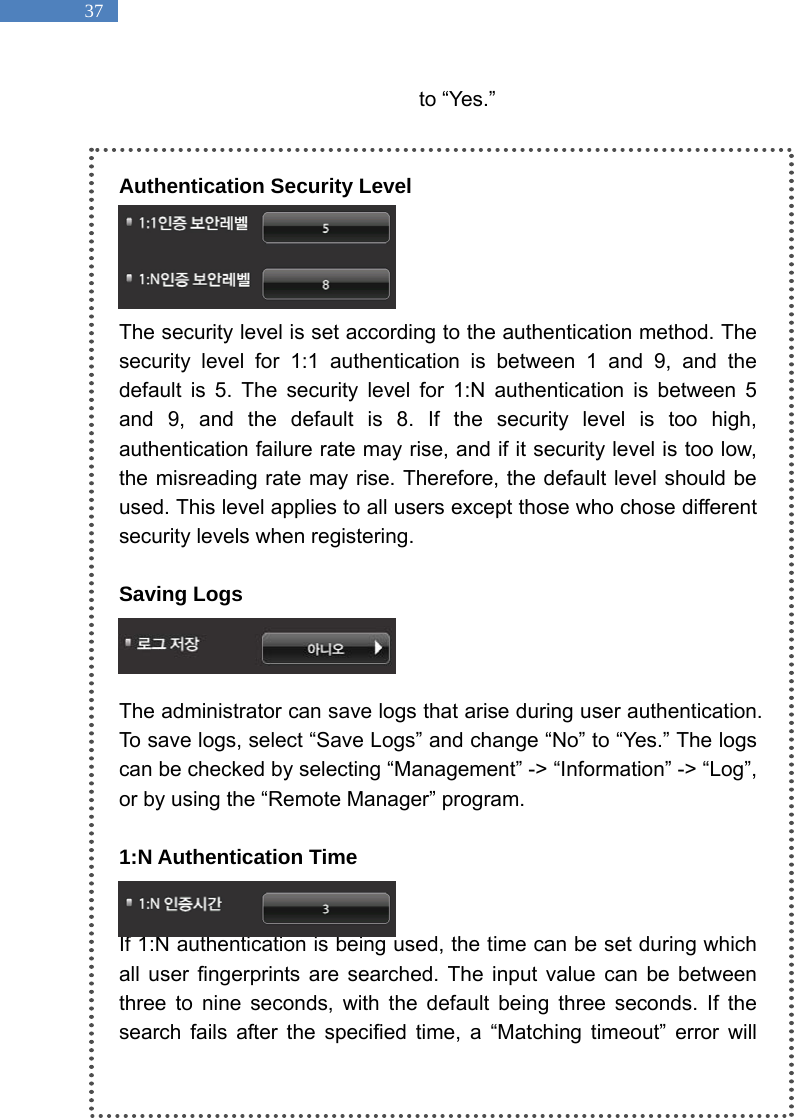
  37 to “Yes.”      Authentication Security Level     The security level is set according to the authentication method. The security level for 1:1 authentication is between 1 and 9, and the default is 5. The security level for 1:N authentication is between 5 and 9, and the default is 8. If the security level is too high, authentication failure rate may rise, and if it security level is too low, the misreading rate may rise. Therefore, the default level should be used. This level applies to all users except those who chose different security levels when registering.    Saving Logs      The administrator can save logs that arise during user authentication. To save logs, select “Save Logs” and change “No” to “Yes.” The logs can be checked by selecting “Management” -> “Information” -> “Log”, or by using the “Remote Manager” program.    1:N Authentication Time   If 1:N authentication is being used, the time can be set during which all user fingerprints are searched. The input value can be between three to nine seconds, with the default being three seconds. If the search fails after the specified time, a “Matching timeout” error will
  38 occur.
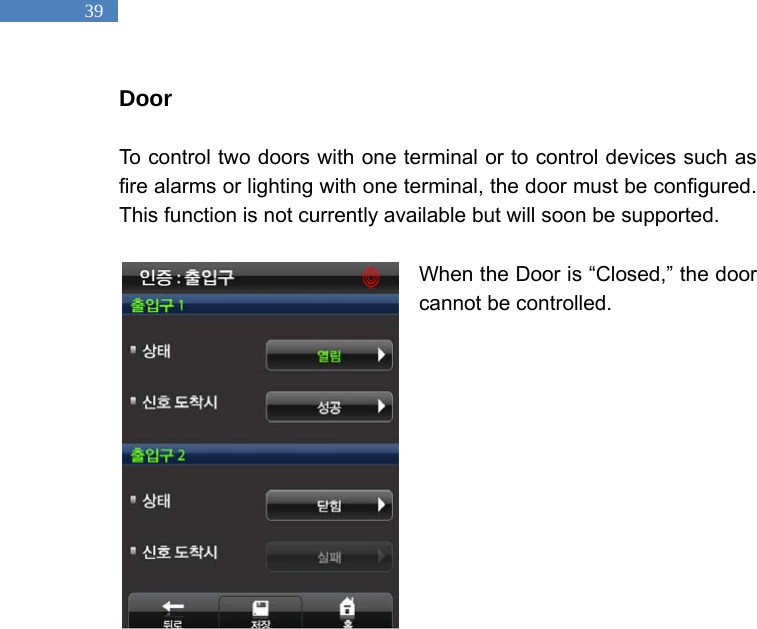
  39 Door   To control two doors with one terminal or to control devices such as fire alarms or lighting with one terminal, the door must be configured. This function is not currently available but will soon be supported.    When the Door is “Closed,” the door cannot be controlled.
  40 Card   To use card authentication to authenticate users, do the following. The card authentication method has general and SOC modes.    1. To use card authentication, select “Authentication” -> “Card”.       2.  Press “Card Method” and change “Not Use” into “General.”  3. Select the card type – MIFARE, HID, EM, or SOC. (At present, only MIFARE is supported )  If SOC was selected, the “SOC Type” menu will be activated. Select “1K” or “4K” depending on the SOC Card type to use.
  41 Attendance mode    In attendance mode, the user must press a function key and perform the user authentication process when opening the door. The entry logs will be sent with the function key data to the server management program. Depending on the function key, user attendance records can be classified into “Coming to work”, “Leaving work”, “Going out”, and “Returning” for efficient attendance management.                     Attendance Mode Setting 1.  To use the attendance mode, select “Authentication” -> “Attendance Mode”.    2.   Press “Use” -> “Off” and change it to “On”.    3.   Select the type: Simple, General, or Extended. “Simple” supports two function keys, “General” supports four, and “Extended” supports 100.  The default setting for Simple and General are as follows:  F1: Coming to work F2: Leaving work F3: Going out   F4: Returning  For the Extended type, function keys can be freely configured depending on the S/W requirements.
  42  4.  To allow entry only through attendance authentication, select “Allow only Attendance Authentication” -> “Yes.” When “Allow only Attendance Authentication” mode is activated, users must press the function key to open the door.    5.   After finishing configuration, press “Save”.
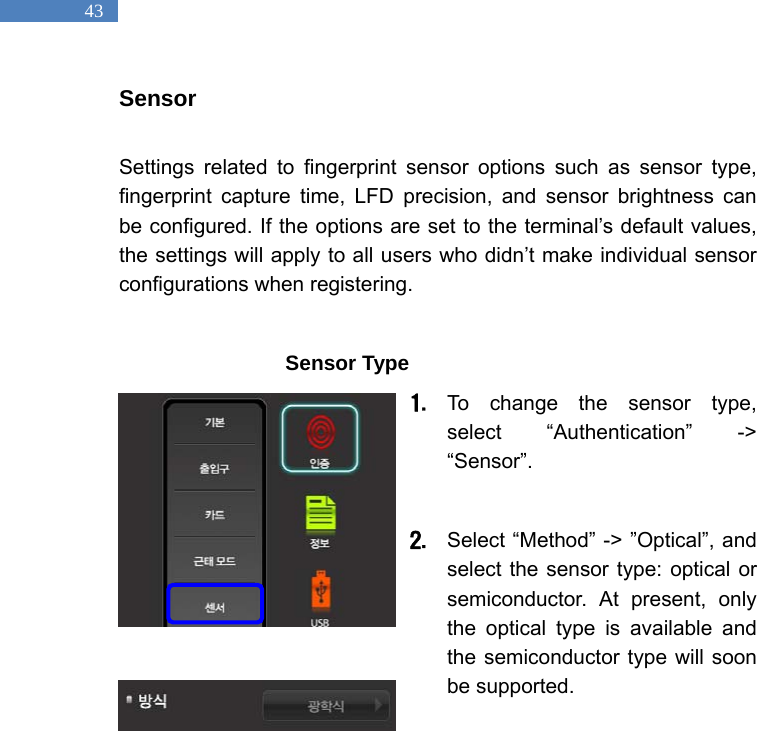
  43 Sensor  Settings related to fingerprint sensor options such as sensor type, fingerprint capture time, LFD precision, and sensor brightness can be configured. If the options are set to the terminal’s default values, the settings will apply to all users who didn’t make individual sensor configurations when registering.                  Sensor Type 1. To change the sensor type, select “Authentication” -> “Sensor”.   2. Select “Method” -> ”Optical”, and select the sensor type: optical or semiconductor. At present, only the optical type is available and the semiconductor type will soon be supported.
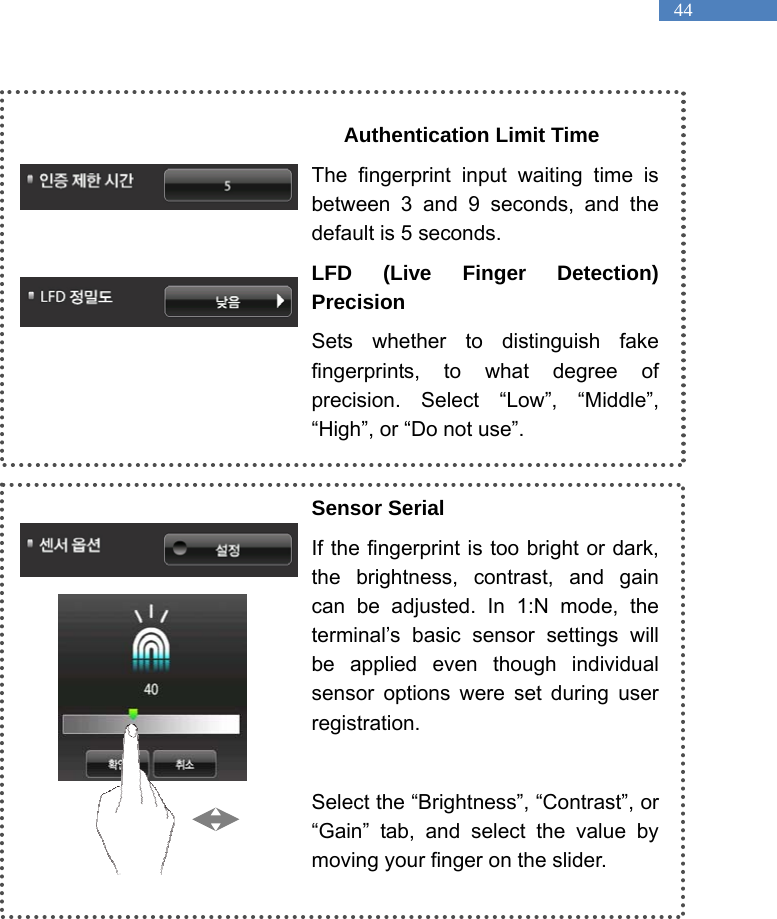
  44  Authentication Limit Time The fingerprint input waiting time is between 3 and 9 seconds, and the default is 5 seconds.   LFD (Live Finger Detection) Precision Sets whether to distinguish fake fingerprints, to what degree of precision. Select “Low”, “Middle”, “High”, or “Do not use”.    Sensor Serial If the fingerprint is too bright or dark, the brightness, contrast, and gain can be adjusted. In 1:N mode, the terminal’s basic sensor settings will be applied even though individual sensor options were set during user registration.   Select the “Brightness”, “Contrast”, or “Gain” tab, and select the value by moving your finger on the slider.
  45 Camera   The terminal camera can take photos of users and add the photos to user profiles. This function is not currently available but will soon be supported.
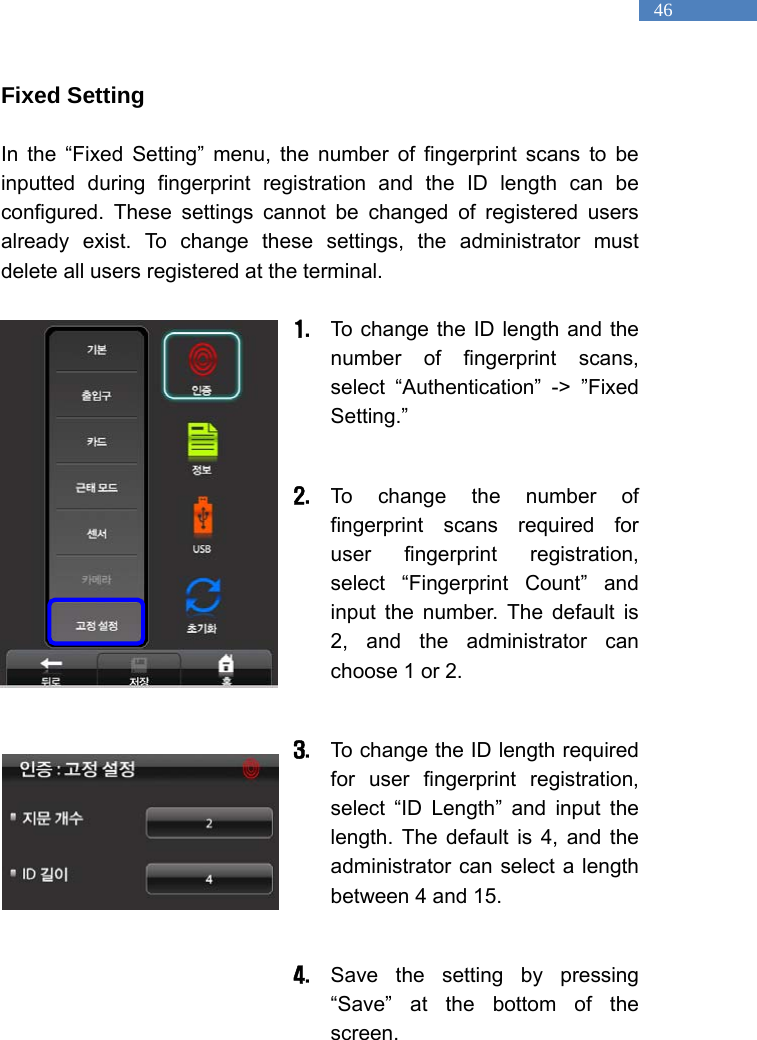
  46 Fixed Setting  In the “Fixed Setting” menu, the number of fingerprint scans to be inputted during fingerprint registration and the ID length can be configured. These settings cannot be changed of registered users already exist. To change these settings, the administrator must delete all users registered at the terminal.    1. To change the ID length and the number of fingerprint scans, select “Authentication” -> ”Fixed Setting.”   2. To change the number of fingerprint scans required for user fingerprint registration, select “Fingerprint Count” and input the number. The default is 2, and the administrator can choose 1 or 2.  3. To change the ID length required for user fingerprint registration, select “ID Length” and input the length. The default is 4, and the administrator can select a length between 4 and 15.    4. Save the setting by pressing “Save” at the bottom of the screen.
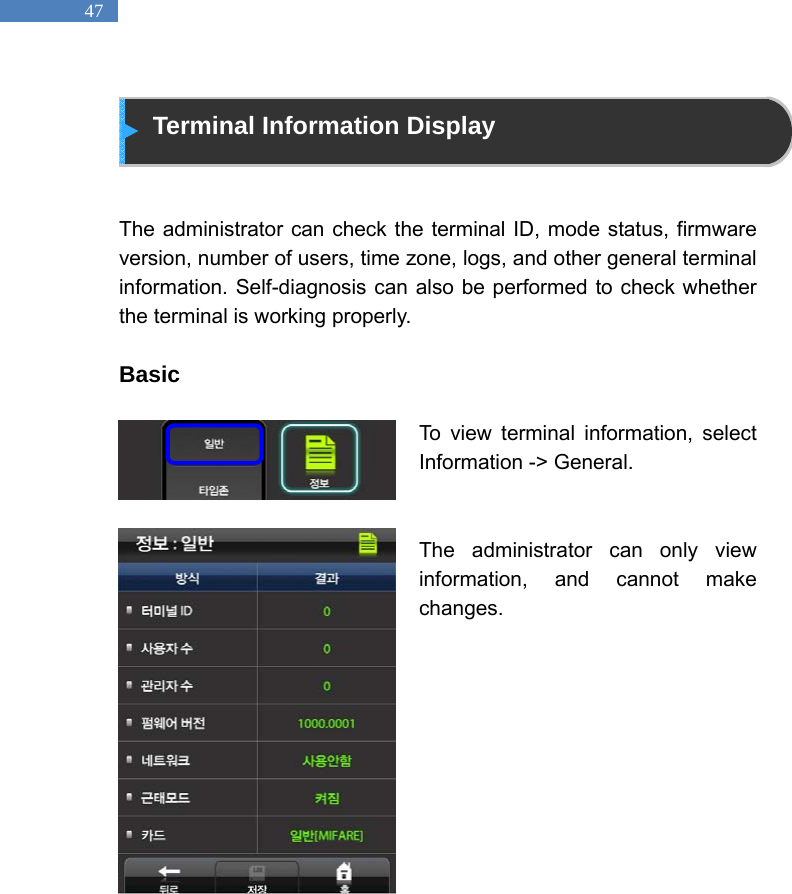
  47  Terminal Information Display   The administrator can check the terminal ID, mode status, firmware version, number of users, time zone, logs, and other general terminal information. Self-diagnosis can also be performed to check whether the terminal is working properly.    Basic  To view terminal information, select Information -> General.     The administrator can only view information, and cannot make changes.
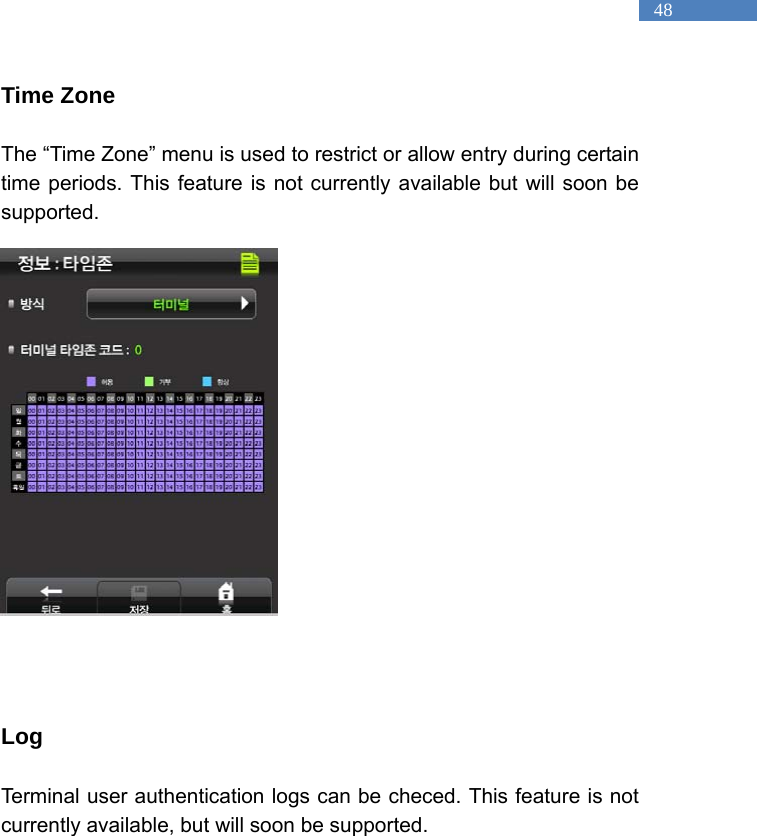
  48 Time Zone  The “Time Zone” menu is used to restrict or allow entry during certain time periods. This feature is not currently available but will soon be supported.                   Log  Terminal user authentication logs can be checed. This feature is not currently available, but will soon be supported.
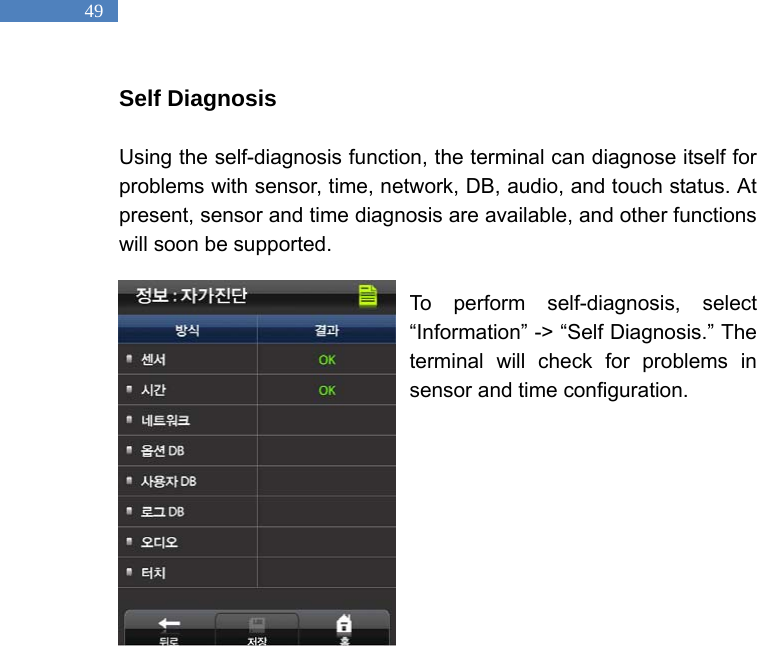
  49 Self Diagnosis  Using the self-diagnosis function, the terminal can diagnose itself for problems with sensor, time, network, DB, audio, and touch status. At present, sensor and time diagnosis are available, and other functions will soon be supported.    To perform self-diagnosis, select “Information” -> “Self Diagnosis.” The terminal will check for problems in sensor and time configuration.
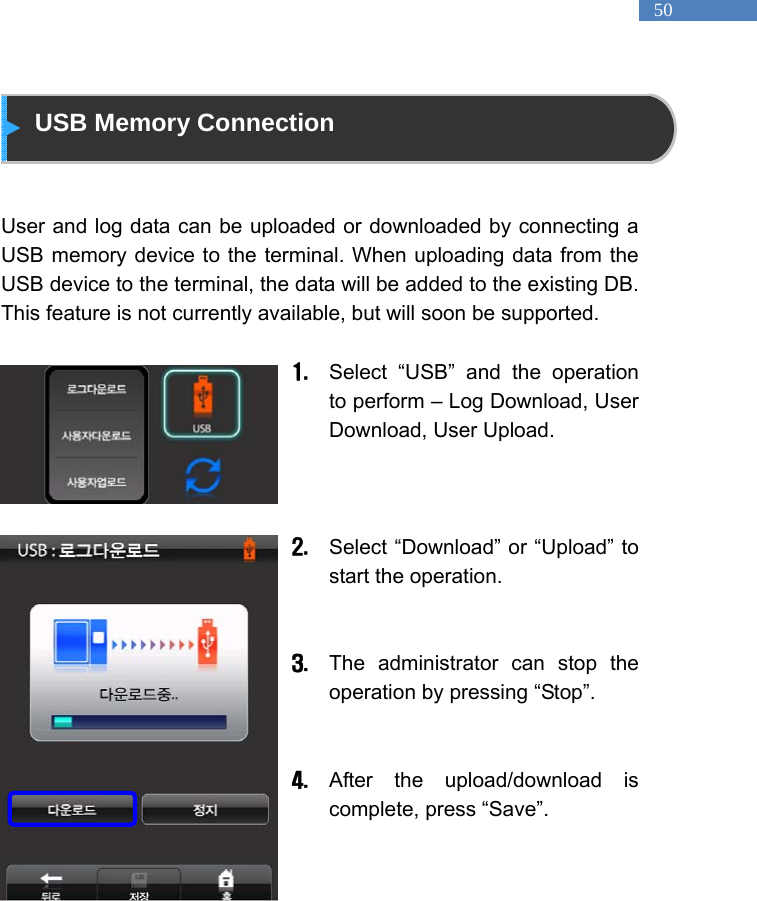
  50  USB Memory Connection   User and log data can be uploaded or downloaded by connecting a USB memory device to the terminal. When uploading data from the USB device to the terminal, the data will be added to the existing DB. This feature is not currently available, but will soon be supported.    1. Select “USB” and the operation to perform – Log Download, User Download, User Upload.      2. Select “Download” or “Upload” to start the operation.     3. The administrator can stop the operation by pressing “Stop”.   4. After the upload/download is complete, press “Save”.
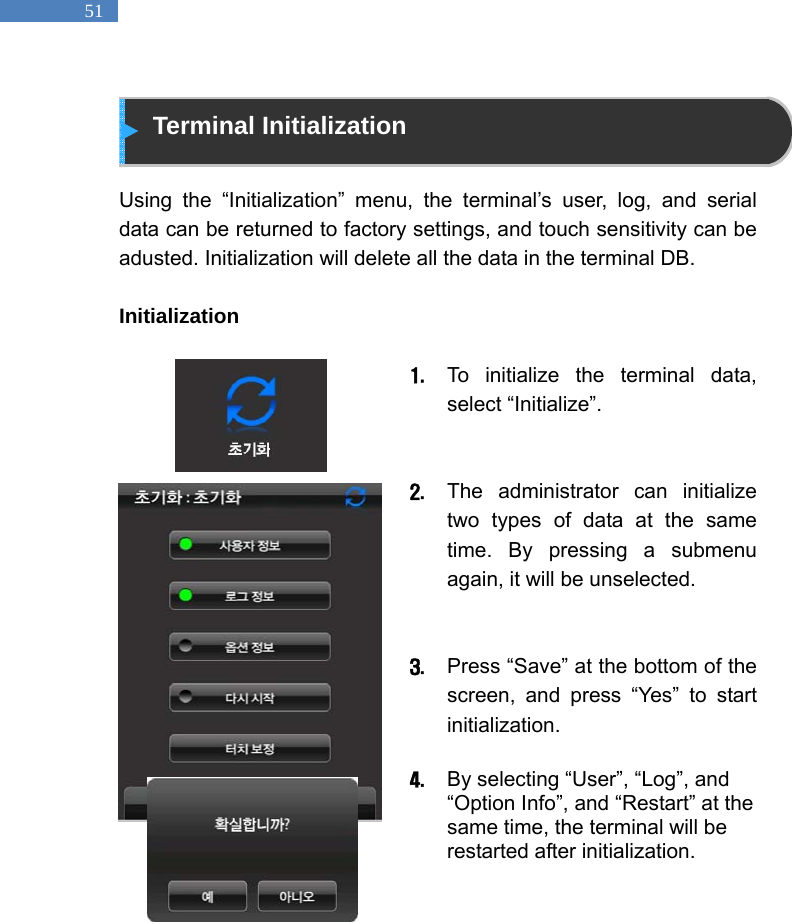
  51  Terminal Initialization  Using the “Initialization” menu, the terminal’s user, log, and serial data can be returned to factory settings, and touch sensitivity can be adusted. Initialization will delete all the data in the terminal DB.  Initialization   1. To initialize the terminal data, select “Initialize”.     2. The administrator can initialize two types of data at the same time. By pressing a submenu again, it will be unselected.     3. Press “Save” at the bottom of the screen, and press “Yes” to start initialization.   4. By selecting “User”, “Log”, and “Option Info”, and “Restart” at the same time, the terminal will be restarted after initialization.
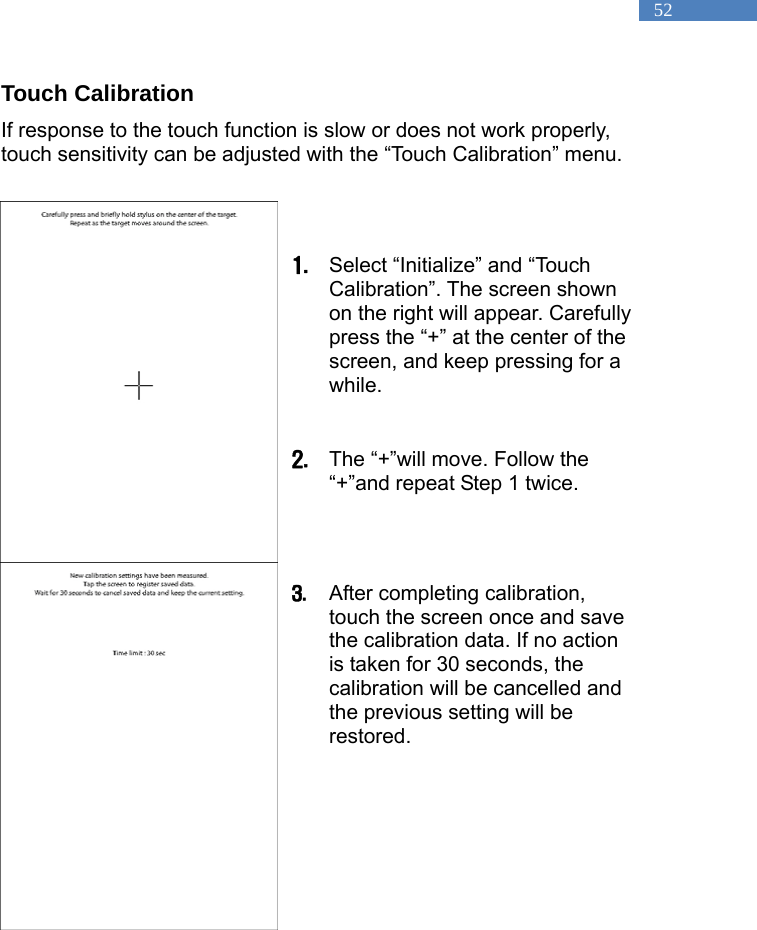
  52 Touch Calibration If response to the touch function is slow or does not work properly, touch sensitivity can be adjusted with the “Touch Calibration” menu.     1. Select “Initialize” and “Touch Calibration”. The screen shown on the right will appear. Carefully press the “+” at the center of the screen, and keep pressing for a while.   2. The “+”will move. Follow the “+”and repeat Step 1 twice.     3. After completing calibration, touch the screen once and save the calibration data. If no action is taken for 30 seconds, the calibration will be cancelled and the previous setting will be restored.
  53             Chapter 3 General User   Door Opening - 49 Authentication in Attendance Mode - 51 Changing User Information -53
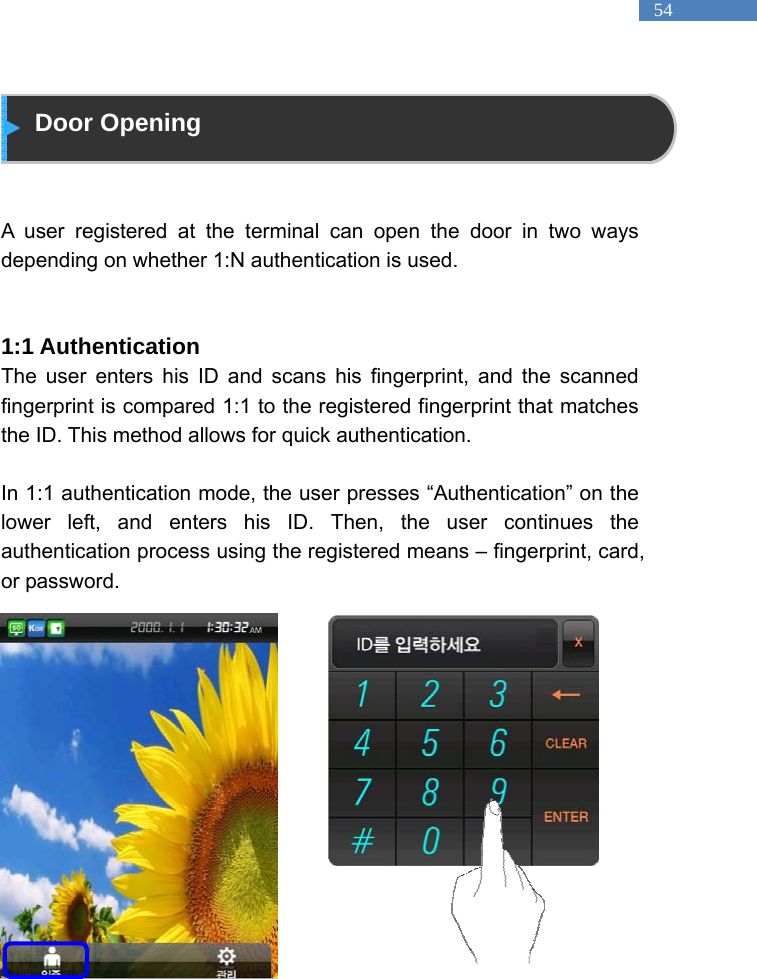
  54  Door Opening   A user registered at the terminal can open the door in two ways depending on whether 1:N authentication is used.     1:1 Authentication The user enters his ID and scans his fingerprint, and the scanned fingerprint is compared 1:1 to the registered fingerprint that matches the ID. This method allows for quick authentication.    In 1:1 authentication mode, the user presses “Authentication” on the lower left, and enters his ID. Then, the user continues the authentication process using the registered means – fingerprint, card, or password.
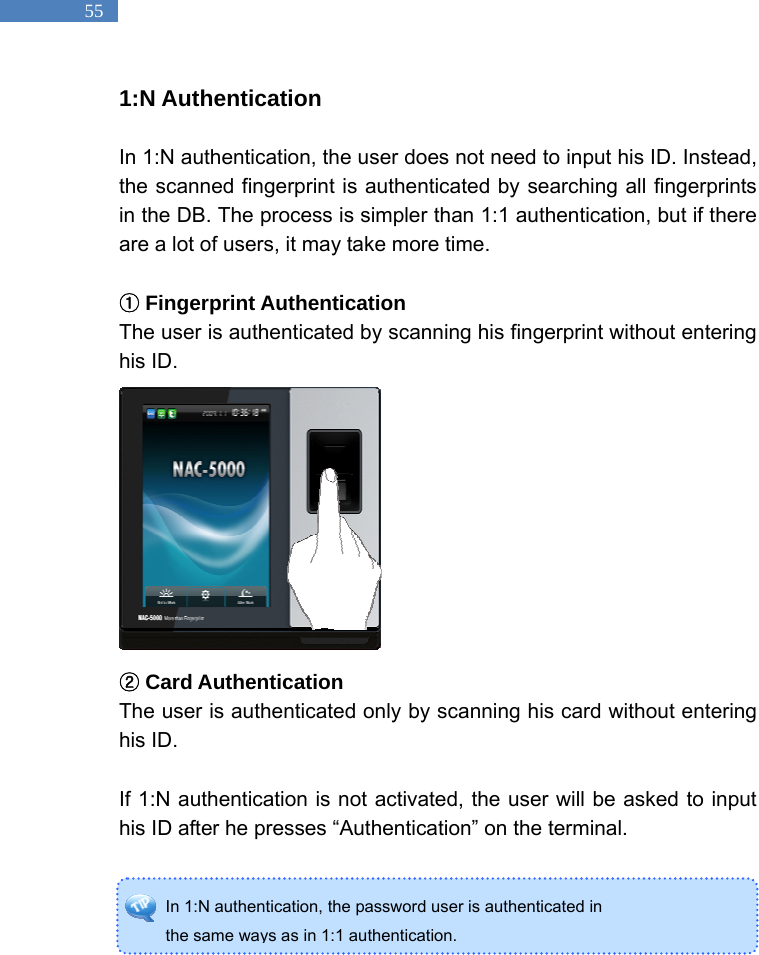
  55 In 1:N authentication, the password user is authenticated in   the same ways as in 1:1 authentication. 1:N Authentication  In 1:N authentication, the user does not need to input his ID. Instead, the scanned fingerprint is authenticated by searching all fingerprints in the DB. The process is simpler than 1:1 authentication, but if there are a lot of users, it may take more time.     ①Fingerprint Authentication The user is authenticated by scanning his fingerprint without entering his ID.              ②Card Authentication The user is authenticated only by scanning his card without entering his ID.    If 1:N authentication is not activated, the user will be asked to input his ID after he presses “Authentication” on the terminal.
  56  Authentication in Attendance Mode  In attendance mode, the user must select a function key and be authenticated for logs regarding entry and exit to be generated and sent to the server.    Using Attendance Mode                  General/Simple  In attendance mode, function keys are displayed on the lower-right of the initial screen.     1. In Simple or General Attendance mode, the user must press a function key and input his ID to be authenticated. Function keys are as follows:   F1: Coming to work   F2: Leaving work   F3: Going out   F4: Returning    2.   After the user presses a function key, the key will be included in the server log data which will be used by the attendance management program.   ManagF1  F2 [Attendance Mode - Simple] ManagF1  F2 F4 F3 [Attendance Mode - General]
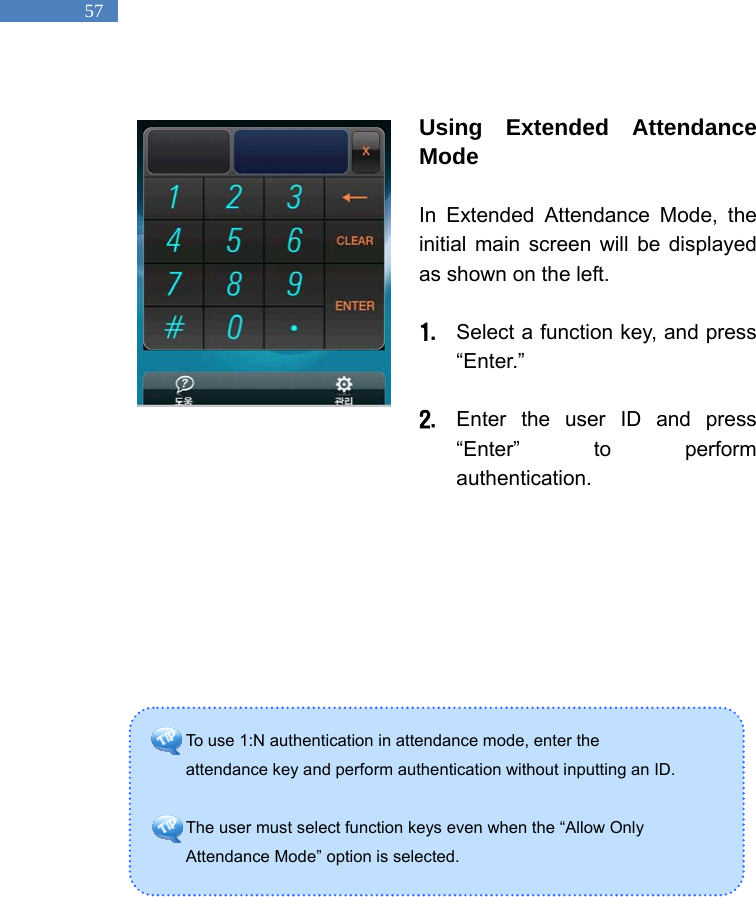
  57 To use 1:N authentication in attendance mode, enter the   attendance key and perform authentication without inputting an ID.    The user must select function keys even when the “Allow Only   Attendance Mode” option is selected.    Using Extended Attendance Mode  In Extended Attendance Mode, the initial main screen will be displayed as shown on the left.    1. Select a function key, and press “Enter.”   2. Enter the user ID and press “Enter” to perform authentication.
  58  Changing User Information  The administrator can change passwords, fingerprints, and card information of registered users using the terminal’s Management menu or the server program. To change user information, contact the administrator.
  59        Appendix  Troubleshooting - 55 Firmware Update - 58 Product Specifications -59
  60 Appendix Troubleshooting  <If the Touch function does not work properly>   1.  Check if there is any dust on the touch sensor, and clean the sensor with soft towel or paper.   2.  If the area of the finger touching the screen is large, sensitivity may drop. Use your fingertip when touching the screen.  3.  Scratches or damage to the touch sensor may result in malfunctioning. Check for scratches or damage to the touch screen.   4.  Adjust the sensitivity of the touch screen by selecting “Manage Menu -> Initialize -> Touch Calibration”.   5.  The device is designed to respond when your finger is removed from the touch screen. If the position where the finger was placed is different from the position where the finger was removed, the touch function may not work properly.
  61 <If fingerprint authentication takes too long> 1.  If the terminal uses 1:N authentication in network mode, server overload may occur, resulting in slow authentication and recognition. In this case, a dedicated server should be used.  2.  Check if the finger and the sensor are clean. Clean the finger and the sensor. If the user’s finger is hurt, the user must register another fingerprint.   3.  If the fingerprint is not clean, lower the security level of the user and use the 1:1 authentication method.   4.  Input the user’s ID in 1:1 mode and check if the user exists.
  62 <If fingerprint is not registered>   If the finger is too dry or humid, fingerprint image quality may be poor and may not register. Dry or moisturize the finger before registering the fingerprint.    <If RF card authentication fails> 1.  Select “Management”, “Authentication -> Card Setting” and check if the card setting matches the actual card.   2.  In attendance mode, check if the “Allow Only Attendance Authentication” option is selected. If so, the user must enter the attendance number to be authenticated.  <If network connection cannot be established> 1.  Select “Management –> Network and check if the network setting is correct.   2.  Check the TCP/IP setting.    ①IP of the server where Access Manager Professional is installed.  ②The server and the terminal must use the same port.   ④ Related settings if DHCP is not used.   3. Synchronize the terminal and the server settings.
  63 <If the door does not open after authentication> 1.  Check the time period during which access is allowed.   2.  Select Management – Authentication -> Door and check if the door is set to Open.    <If users cannot be registered> In default configuration, this product operates in network mode which requires a proper network connection for user registration. Check the network connection, or disable network mode to not use the network.    <If the product is unstable or does not function> 1. Select Management –> Information –> General/Self-diagnosis, and check for problems.   2. Restart the terminal by selecting Management –> Initialize–> Restart.   3.  Restart the server if the server management program is in use.  4.  If the terminal buttons do not function, restart the terminal by opening the rubber cover near the bottom of the product and use a pointed item like a ballpoint pen to press the small button next to the USB slot for two or three seconds.   5.  If the problem remains after the above actions are taken, contact the Customer Support Team.
  64 Firmware Update  NAC-5000 firmware can be updated through the USB port.  Do the following to update firmware.    1. Store firmware cab file under the root folder of the USB memory.   2. Connect a USB memory to the terminal USB port.   3. Restart the system by using the power switch of the terminal or by selecting Management – Initialize – Restart.   4. When the system is restarted, the firmware will be loaded from the USB memory and will be automatically updated.  The administrator can also update the firmware using “Remote Manager“, a server management program. For more information, see the Access Manager Professional manual.
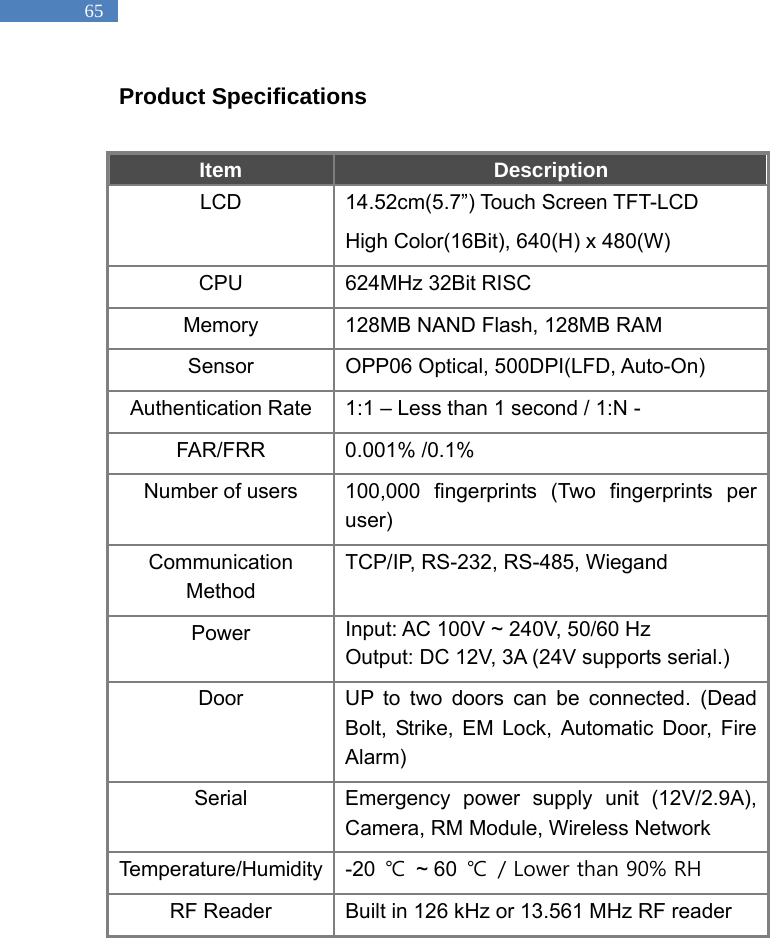
  65 Product Specifications  Item  Description LCD  14.52cm(5.7”) Touch Screen TFT-LCD High Color(16Bit), 640(H) x 480(W) CPU  624MHz 32Bit RISC Memory  128MB NAND Flash, 128MB RAM Sensor  OPP06 Optical, 500DPI(LFD, Auto-On) Authentication Rate  1:1 – Less than 1 second / 1:N -   FAR/FRR 0.001% /0.1% Number of users  100,000 fingerprints (Two fingerprints per user) Communication Method TCP/IP, RS-232, RS-485, Wiegand Power  Input: AC 100V ~ 240V, 50/60 Hz Output: DC 12V, 3A (24V supports serial.) Door  UP to two doors can be connected. (Dead Bolt, Strike, EM Lock, Automatic Door, Fire Alarm) Serial  Emergency power supply unit (12V/2.9A), Camera, RM Module, Wireless Network Temperature/Humidity -20 ℃ ~ 60 ℃  / Lower than 90% RH RF Reader  Built in 126 kHz or 13.561 MHz RF reader
  66 Note  This equipment has been tested and found to comply with the limits for a Class B digital device, pursuant to Part 15 of the FCC rules.   These limits are designed to provide reasonable protection against harmful interference in a residential installation. This equipment generates, uses and can radiate radio frequency energy and if not installed and used in accordance with the instructions, may cause harmful interference to radio communications. However, there is no guarantee that interference will not occur in a particular installation. If this equipment does cause harmful interference to radio or television reception which can be determined by turning the equipment off and on the user is encouraged to try to correct the interference by one or more of the following measures:  -Reorient or relocate the receiving antenna. -Increase the separation between the equipment and receiver. -Connect the equipment into an outlet on a circuit different from that to which the receiver is connected. -Consult the dealer or an experienced radio/TV technician for help.    This device complies with part 15 of the FCC Rules. Operation is subject to the following two conditions: (1)This device may not cause harmful interference, and (2)This device must accept any interference received, including interference that may cause undesired operation   ** CAUTION ** Changes or modifications no expressly approved by the party responsible for compliance could void the user’s authority to operate the equipment.

Navigation menu