Navi NAVI USB Storage Device Using Fingerprint User Manual
Navi Co., Ltd. USB Storage Device Using Fingerprint Users Manual
UserManual.wiki
>
Navi
>
NAVI User Manual
Users Manual
Navigation menu
Upload a User Manual
Namespaces
Wiki Guide
HTML
PDF
Info
Views
User Manual
Discussion / Help
Navigation
![GYGGGGGiG|G{GkGUGUGUGUGUGUGUGUGUGUGUGUGUGUGUGUGUGUGUGUGUGUGUGUGUGUGUGUGUGUGUGUGUGUGUGUGUGUGUGUGUGUGUGUGUGUGUGUGUGUUGUZGG~GG{GkfGUGUGUGUGUGUGUGUGUGUGUGUGUGUGUGUGUGUGUGUGUGUGUGUGUGUGUGUGUGUGUGUGUGUGUGUGUGUGUGUGUGUGUGUGUGUGUGUGUGUGUGUGUGUGUGU[GGpV|G{GkGGtG~GtlVYWWWVwGUGUGUGUGUGUGUGUGUGUGUGU\GGpV|G{GkGGtG~G`_V`_zlUGUGUGUGUGUGUGUGUUGUGUGUGUGUGU]GGpV|G{GkGtGvzGOGtGvzG`UWGGGPGUGUGUGUGUGUUGUGUGUGUGUGU_GG|GnGG{ktG|GUGUGUGUGUGUGUGUGUGUGUGUGUGUGUGUGUGUGUGUGUGUGUGUGUGUGUGUGUGUGUGUGUGUGUGUGUGUGUGUGUGUGUGUGUG`GGzGUGUGUGUGUGUGUGUGUGUGUGUGUGUGUGUGUGUGUGUGUGUGUGUGUGUGUGUGUGUGUGUGUGUGUGUGUGUGUGUGUGUGUGUGUGUGUGUGUGUGUGUGUGUGUGUGUGUGUGUGUGUGUX\GGmhxUGUGUGUGUGUGUGUGUGUGUGUGUGUGUGUGUGUGUGUGUGUGUGUGUGUGUGUGUGUGUGUGUGUGUGUGUGUGUGUGUGUGUGUGUGUGUGUGUGUGUGUGUGUGUGUGUGUGUGUGUGUGUUGUGUGUGUGUGUGUGUX^GGzUGUGUGUGUGUGUGUGUGUGUGUGUGUGUGUGUUGUGUGUGUGUGUGUGUGUGUGUGUGUGUGUGUGUGUGUGUGUGUGUGUGUGUGUGUGUGUGUGUGUGUGUGUGUGUGUUGUGUGUGUGUX`GG~UGUGUGUGUGUGUGUGUGUGUGUGUGUGUGUGUGUGUGUGUGUGUGUGUGUGUGUGUGUGUGUGUGUGUGUGUGUGUGUGUGUGUGUGUGUGUGUGUGUGUGUGUGUGUGUGUGUGUGUGUGUUGUGUGUGUGUGYWGGGGGGGGGGGGpG](https://usermanual.wiki/Navi/NAVI/User-Guide-555365-Page-2.png)
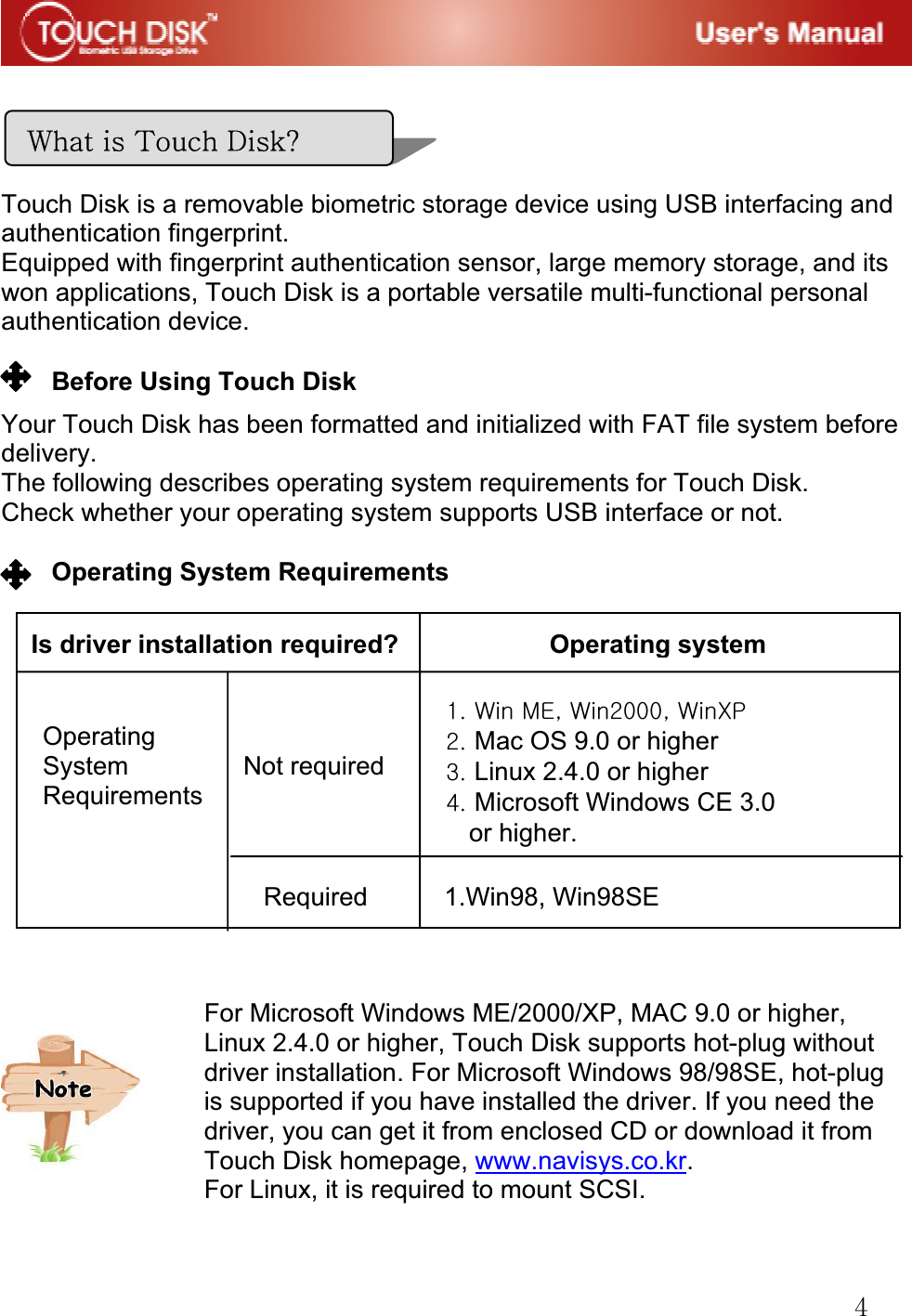
![GZGGGGGGWelcome to Touch Disk. This user guide is designed to help you using Touch Disk correctly and safely. Please read this before to use Touch Disk. [Safety Instructions] given below include the directions and precautions you have to follow during using the product to secure your safety and to prevent any damage to the product and your data. Warning: Indicates that failure to follow the directions could result in serious personal injuries. Caution: Indicates that failure to follow the directions could result in minor personal injuries or damage to the product or data.GGSafety Instructions Warning- If there occur any smoke or strange smells or noise, make sure to turn off your computer and peripheral devices immediately and disconnect the power cords. - Be careful not to bend or drop the product. Do not place any heavy material on the product. - If the product is wet with any liquids such as water, chemicals, and oil, make sure not to use it because there is a danger of short circuit and it may cause a fire or electrical shock. - Never disassemble or modify the product. It can cause malfunction of the product. Caution- Do not use your Touch Disk in the place exposed to the following conditions. Otherwise, it can cause malfunction of the product : Vibration or shock; wetness, moisture or dust; much temperature variation Strong electrical discharge; strong magnetic interference, and heat. - Be careful that any foreign material does not enter the insertion holes of Touch Disk. - Do not impose any vibration or shock to the product or disconnect the product from the USB port while transferring (reading or writing) data. Otherwise, your data can be corrupted or lost. - NAVI does not have any responsibility for corruption or loss of the saved data and accompanying results due to your incorrect use of the product. Make sure to periodically backup the data saved in your Touch Disk because it is difficult to recover data once they have been corrupted or lost. Before Using Touch Disk](https://usermanual.wiki/Navi/NAVI/User-Guide-555365-Page-3.png)
![G\GGGV|GGGtG~GtlVYWWWVwGGGXUGStart Windows ME, 2000 or Windows XP.GYUGRemove the cover from your Touch Disk and plug it into an USB port of your computer. If it is the first time to use Touch Disk, Windows will automatically recognize it and install drivers.GZUGThe Status LED will flicker with a red light during installation or recognition procedure.G[UGClick [My Computer] on Windows Desktop. You can find that Touch Disk is recognized as a removable disk as shown in the following figure.GGGGOThe drive name is different from the systems which you usePGG\UGYou can use Touch Disk to read or write data as the same with the hard disk.GGRemoving Touch Disk in Microsoft Windows ME/2000/XP GXUGClose all files currently opened from Touch Disk.GYUGFor Microsoft Windows 2000, click [USB Mass Storage Device - Stop Drive (F)] on the system tray as shown in the following figure. For other operating systems, this step is not needed and you can unplug Touch Disk directly.GGGGGGInstalling/Using Touch Disk in Microsoft Window ME/2000/XP](https://usermanual.wiki/Navi/NAVI/User-Guide-555365-Page-5.png)
![G]GGZUGClick [OK].G[UGUnplug Touch Disk from the USB port.GGGGGGGGGFor Microsoft Windows 98/98SE, hot-plug is supported if you have installed the driver. If you need the driver, you can get it from enclosed CD or download it from Touch Disk homepage, www.navisys.co.kr.GGInstalling Device Driver G1. Start Windows 98 or Windows 98SE. 2. Insert the enclosed CD into the CD drive. 3. Click [Windows 98/98SE Device Driver Installation] in the CD and then the progress bar appears, as shown in the following figure. 4. When driver is successfully installed, you will find the figure as below.GGGGGGQGCaution : Never remove or unplug Touch Disk while the Status LED is very fast flickering with a red light, because your data or FAT table can be corrupted.Installing/Using Touch Disk in Microsoft Windows 98/98SE](https://usermanual.wiki/Navi/NAVI/User-Guide-555365-Page-6.png)
![G^GG\UGRemove the cover from your Touch Disk and plug it into an USB port of your computer.G]UGClick [My Computer] on Windows Desktop. You can find that Touch Disk is recognized as a removable disk as shown in the following figure.GGGGOThe drive name is different from the systems which you usePGGGRemoving Touch Disk in Microsoft Windows 98/98SE GGXUGClose all files currently opened from Touch Disk.GYUGUnplug Touch Disk from the USB port.UGGGGGGGGGGGGGGGGQGjGaGNever remove or unplug Touch Disk while the Status LED is very fast flickering with a red light, because your data or FAT table can be corrupted. G](https://usermanual.wiki/Navi/NAVI/User-Guide-555365-Page-7.png)
![G_GGGGGXUGStart Mac OS.GYUGRemove the cover from your Touch Disk and plug it into an USB port of your computer. If it is the first time to use Touch Disk, MAC will automatically recognize it. Install drivers necessary for operating it.GZUG{ Disk is recognized as an [untitled] folder in MAC.GGGG[UGYou can use Touch Disk to read or write data as the same with the hard disk. In the case of MAC 8.6, you can enable hot-plug function for your Touch Disk by downloading and installing drivers and patches from www.apple.com.GGGGRemoving Touch Disk GXUGClose all files currently opened from Touch Disk.GYUGDrag and drop the [untitled] folder to the Recycle Bin.GZUGUnplug Touch Disk from the USB port.GGGGGGGGInstalling/Using Touch Disk in Mac OS ( Mac OS 9.0 or higher)QGjGaGNever remove or unplug Touch Disk while the Status LED is very fast flickering with a red light, because your data or FAT table can be corrupted. G](https://usermanual.wiki/Navi/NAVI/User-Guide-555365-Page-8.png)
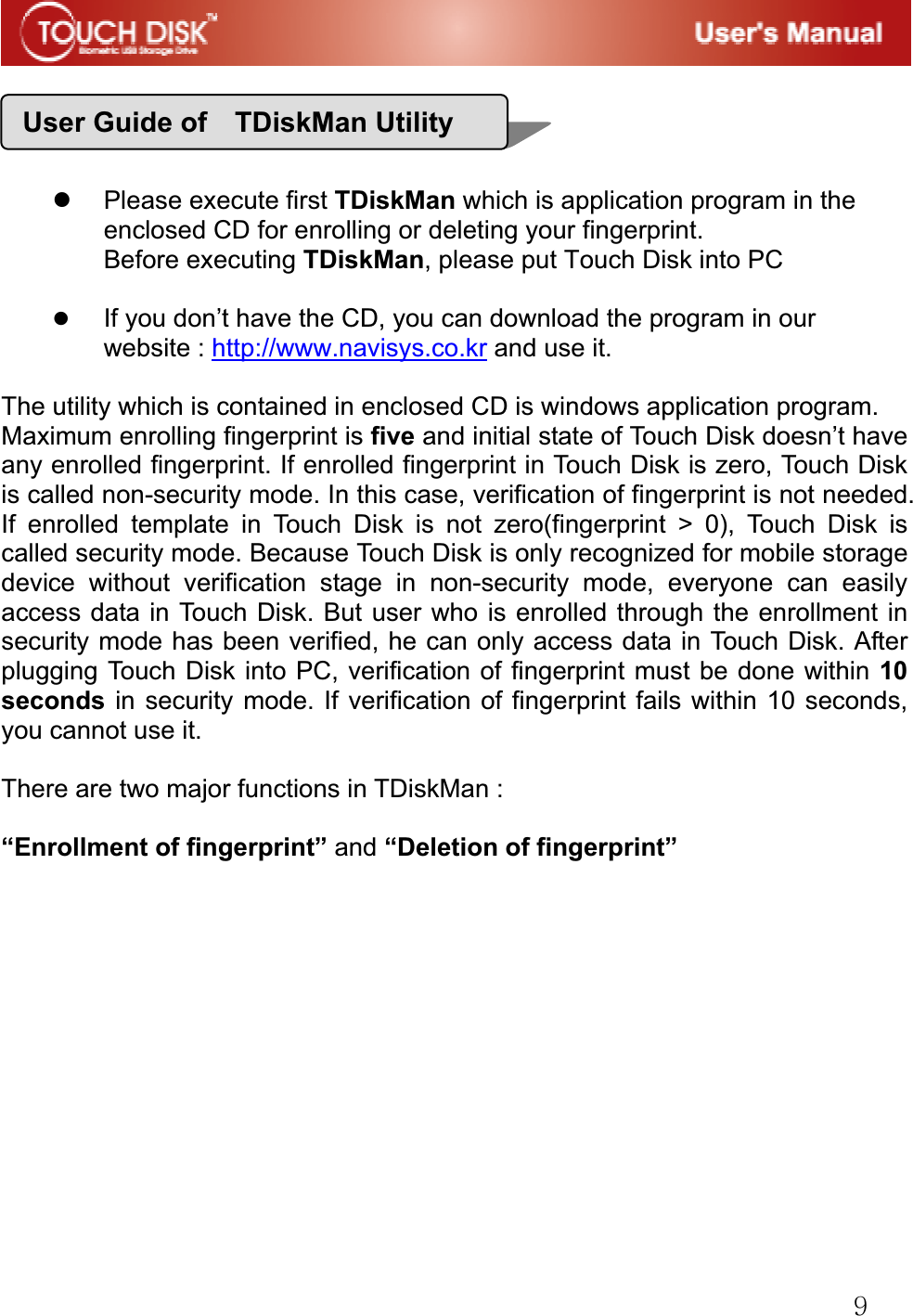
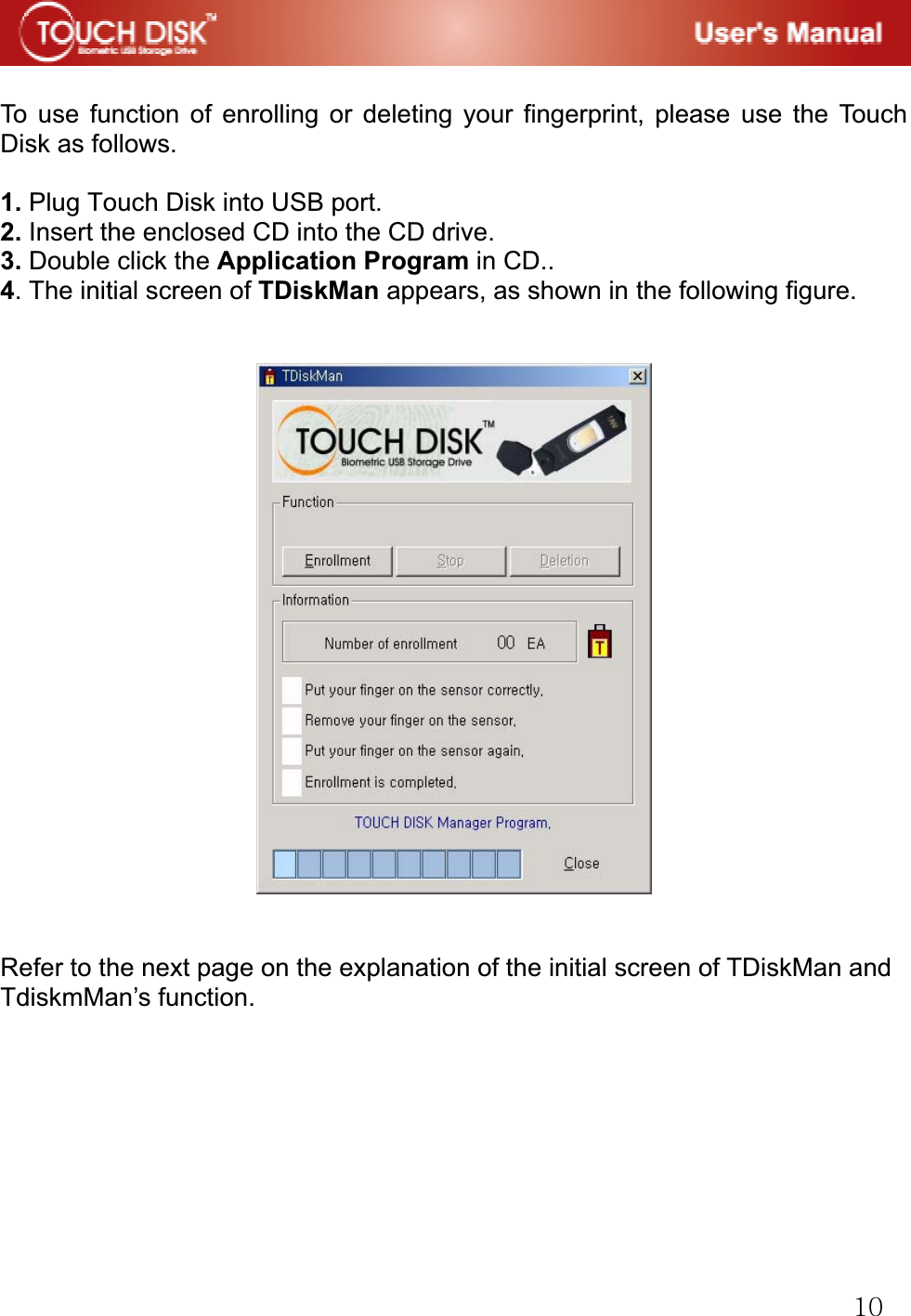
![GXXGGThe initial screen of TDiskMan GGGGGGGGGGG GGGGGGGGGGGGz Click [Enrollment] button when you enroll your fingerprint. z Click [Stop] button when you cancel enrolling your fingerprint. z Click [Deletion] button when you delete your all enrolled fingerprints. z Maximum enrolling fingerprint is five.GGGGGGGGGNumber of enrolled fingerprints.Stop Enrollment of fingerprint.Deletion of all enrolled fingerprints.CloseState indication of each step of fingerprint enrollment](https://usermanual.wiki/Navi/NAVI/User-Guide-555365-Page-11.png)
![GXYGGGEnrollment of fingerprint G1. Click [Enrollment] button, then a notice screen appears as the picture below.(Picture. 1) (Picture. 1) 2. Put your finger on the sensor for a second. (Picture. 2)3. Remove your finger on the sensor. It will take 7~8 seconds to enroll your fingerprint. (Picture. 3)GGGGGGGGGGGGGGGGGGGGGGGGGGGGGGGGGGGGGGG(Picture. 2) (Picture. 3)](https://usermanual.wiki/Navi/NAVI/User-Guide-555365-Page-12.png)
![GXZ4. Put the finger on the sensor again to verity the enrolled fingerprint. (Picture. 4)5. If the process of enrollment is completed, the number of enrolled fingerprint appears as the picture below.(Picture. 5) GGGGGGGGGGGGGGGGGGGGGGGGGGGGGGGGGGGGGGGGGGGGGG(Picture. 4) (Picture. 5) 6. When you click [OK] button, the condition to enroll a new fingerprint or delete the enrolled fingerprint will automatically appear as the picture below.(Picture. 6)GGGGGGGGGGG (Picture. 6)](https://usermanual.wiki/Navi/NAVI/User-Guide-555365-Page-13.png)
![GX[GGDeletion of fingerprint G1. Click [Deletion] button, then Dialog box appears.(Picture. 7) 2. After Clicking [YES] button, put your enrolled fingerprint on the sensor in order to verify your fingerprint. When the verification is successful, dialog box appears as the picture below.(Picture. 8)GGGGGGGGGGGGGGGGG(Picture. 7) (Picture. 8)G3. When you click [Yes] button, all enrolled fingerprints are deleted.(Picture. 9) 4 When you click [OK] button, the condition to enroll a new fingerprint will automatically appear as the picture below. (Picture. 10) GGGGGGGGGGGGGGGGGGGGGGGGGGGGGGGGGGGGGGGGGGGGGGGGGG(Picture. 9) (Picture. 10)](https://usermanual.wiki/Navi/NAVI/User-Guide-555365-Page-14.png)
![GX\Many users complain about USB disk may cause data loss, because they don’t “eject ”USB disk before remove it from PC. When you copy files from or to Touch Disk, operation systems (ex: Windows 2000) will create a memory area called “buffer” to manage file I/O on Touch Disk. If you suddenly remove Touch Disk from PC, data in “buffer” would be lost because there is no time for Windows to flush the data in buffer into Touch Disk. To avoid data loss, please use “Safe ejection” GG zGGG1. Double click “Unplug or eject hardware” in right-bottom corner of Windows desktop. (Picture. 11) G(Picture. 11) 2. In “Remove or Eject hardware” dialog box, click [Stop] button.(Picture. 12) GGGGGGGGGG(Picture. 12)zGlG](https://usermanual.wiki/Navi/NAVI/User-Guide-555365-Page-15.png)
![GX]GG3. Choose the device you want to stop, than click [OK] button.(Picture. 13)GGGGGGGGGGGGGGG(Picture. 13)G4. When you see this message, the Touch Disk has been safely ejected from PC.(Picture. 14)GGGGGGGG(Picture. 14) GGGGGG](https://usermanual.wiki/Navi/NAVI/User-Guide-555365-Page-16.png)
![GX^GGGG GGQ. I do not have any Touch Disk driver CD. What can I do? A. Visit http://www.navisys.co.kr and download to install the driver. GQ. What operating system does Touch Disk work for? A. Microsoft Windows 98/98SE/ME/2000/XP, Mac, Linux, and Microsoft Windows CE.GGQ. I want to use Touch Disk in other computer, but I do not have the driver installation CD. A. The best advantage of Touch Disk is that it supports 'hot-plug' for Microsoft Windows ME/2000/XP, MAC 9.0 or higher, Linux 2.4.0 or higher, Microsoft Windows CE 3.0 or higher. It means that you need not to install any driver if the operating system is one of those. Just plug your Touch Disk to the USB port of the desired computer. If you are using Microsoft Windows 98/98SE, you need to install the driver. For the driver, please download the installation program from UUUGGQ. My computer does not recognize Touch Disk. A. Click Start Settings Control Panel System and select Device Manager tab. Then check whether your computer has a USB controller. When your computer has a USB controller: If Touch Disk is configured as an unknown device, remove it by clicking [Remove] and install the driver again. If Touch Disk is not configured as an unknown device, re-install the driver using the New Hardware Installation applet.GGQ. I plugged Touch Disk into the USB port of my computer. But I still cannot find the "removable disk" icon from My Computer or Windows Explorer. A. Please unplug Touch Disk and plug again. If your operating system is Microsoft Windows 98/98SE, ensure that you have installed the driver. Then, if you cannot still find the "removable disk" icon, contact NAVI service engineer.GFAQs](https://usermanual.wiki/Navi/NAVI/User-Guide-555365-Page-17.png)