Nero Handbuch Applikation Wave Editor 4 Instruction Manual Eng
User Manual: Nero Wave Editor 4 - Instruction Manual Free User Guide for Nero Software, Manual - page1
Open the PDF directly: View PDF  .
.
Page Count: 45
- 1 General information
- 1.1 About the manual
- 1.2 About Nero WaveEditor
- 2 Technical information
- 3 Terminology
- 4 Launching the program
- 5 User interface
- 6 Configuration
- 7 Audio
- 8 Filters
- 8.1 Tools
- 8.2 Effects
- 8.2.1 Chorus
- 8.2.2 Convolution Reverb
- 8.2.3 Delay
- 8.2.4 Distortion
- 8.2.5 Doppler
- 8.2.6 Flanger
- 8.2.7 Loudness
- 8.2.8 Low Fidelity
- 8.2.9 Modulation
- 8.2.10 Multi-Tap Delay
- 8.2.11 Phaser
- 8.2.12 Pitch Bend
- 8.2.13 Pseudo Reverse
- 8.2.14 Re-analogue
- 8.2.15 Reverb
- 8.2.16 Stutter
- 8.2.17 Surround Expansion
- 8.2.18 Surround Reverb
- 8.2.19 Voice Modification
- 8.2.20 Wah-Wah
- 8.3 Enhancement
- 8.4 Changing the sound of an audio file
- 9 List of figures
- 10 Index
- 11 Contact Information
Nero WaveEditor Manual
Nero AG
Copyright and Trademark Information
The manual for Nero WaveEditor and all its contents are protected by copyright and are the
property of Nero AG. All rights reserved. This manual contains materials which are protected
by internationally recognized copyright laws. This manual may not - in whole or in part - be
copied, transmitted, or otherwise reproduced without the express written permission of Nero
AG.
Nero AG rejects any claims that transcend the clauses of the guarantee rights. Nero AG
does not undertake any liability for the correctness of the content of the Nero WaveEditor
manual. The contents of the software supplied, as well as of the Nero WaveEditor manual,
may be changed without prior warning.
All trade names and trademarks are the property of the respective owners.
The trademarks mentioned here are only listed for information purposes.
Copyright © 2007 by Nero AG, Karlsbad, Germany.
REV 1.0, SW 4.00.0.0

Contents
Page 3
Contents
1 General information 6
1.1 About the manual 6
1.2 About Nero WaveEditor 6
2 Technical information 7
2.1 System requirements 7
2.1.1 Supported Formats 7
3 Terminology 8
4 Launching the program 9
4.1 Starting Nero WaveEditor via Nero StartSmart 9
5 User interface 10
5.1 Main screen 10
5.1.1 Menu bar 10
5.1.2 Toolbar 11
5.1.3 File display 12
5.1.4 Display window 12
6 Configuration 13
6.1 Device Settings 13
6.2 Editor Options 13
6.2.1 View tab 13
6.2.2 Folders tab 14
6.2.3 Save/Output Settings tab 14
6.2.4 VST Plug-Ins tab 15
6.3 Audio Format Settings 15
6.3.1 Decoder tab 15
6.3.2 Encoder tab 16
6.3.3 Converter tab 16
7 Audio 17
7.1 Playing Audio Files 17
7.2 Recording Audio files 17
7.3 Editing Audio Files 18
7.3.1 Fade out and fade in methods 20
7.3.2 Converting Sample Format 21
7.3.3 Implementing Pause Detection 22

Contents
Page 4
7.3.4 Inserting a Test Signal in an Audio File 23
8 Filters 25
8.1 Tools 25
8.1.1 DeEsser 25
8.1.2 Dynamic Processor 26
8.1.3 Equalizer 26
8.1.4 Karaoke Filter 26
8.1.5 Noise Gate 27
8.1.6 Pitch Tuning 27
8.1.7 Stereo Processor 28
8.1.8 Time Correction 28
8.1.9 Transpose 28
8.2 Effects 29
8.2.1 Chorus 29
8.2.2 Convolution Reverb 29
8.2.3 Delay 30
8.2.4 Distortion 30
8.2.5 Doppler 31
8.2.6 Flanger 31
8.2.7 Loudness 31
8.2.8 Low Fidelity 31
8.2.9 Modulation 32
8.2.10 Multi-Tap Delay 32
8.2.11 Phaser 33
8.2.12 Pitch Bend 33
8.2.13 Pseudo Reverse 33
8.2.14 Re-analogue 33
8.2.15 Reverb 34
8.2.16 Stutter 34
8.2.17 Surround Expansion 35
8.2.18 Surround Reverb 35
8.2.19 Voice Modification 36
8.2.20 Wah-Wah 36
8.3 Enhancement 37
8.3.1 Band Extrapolation 37
8.3.2 Camera Denoiser 37
8.3.3 DC Offset Correction 37
8.3.4 Declicker 37
8.3.5 Declipper 38
8.3.6 DeHum 38
8.3.7 Filter Toolbox 38
8.3.8 Noise Reduction 39
8.3.9 Noise Analysis 39
8.4 Changing the sound of an audio file 40

General information
Page 6
1 General information
1.1 About the manual
This manual is intended for all users who want to find out how to use Nero WaveEditor. It is
therefore structured according to operations and provides step-by-step instructions for what
you want to do..
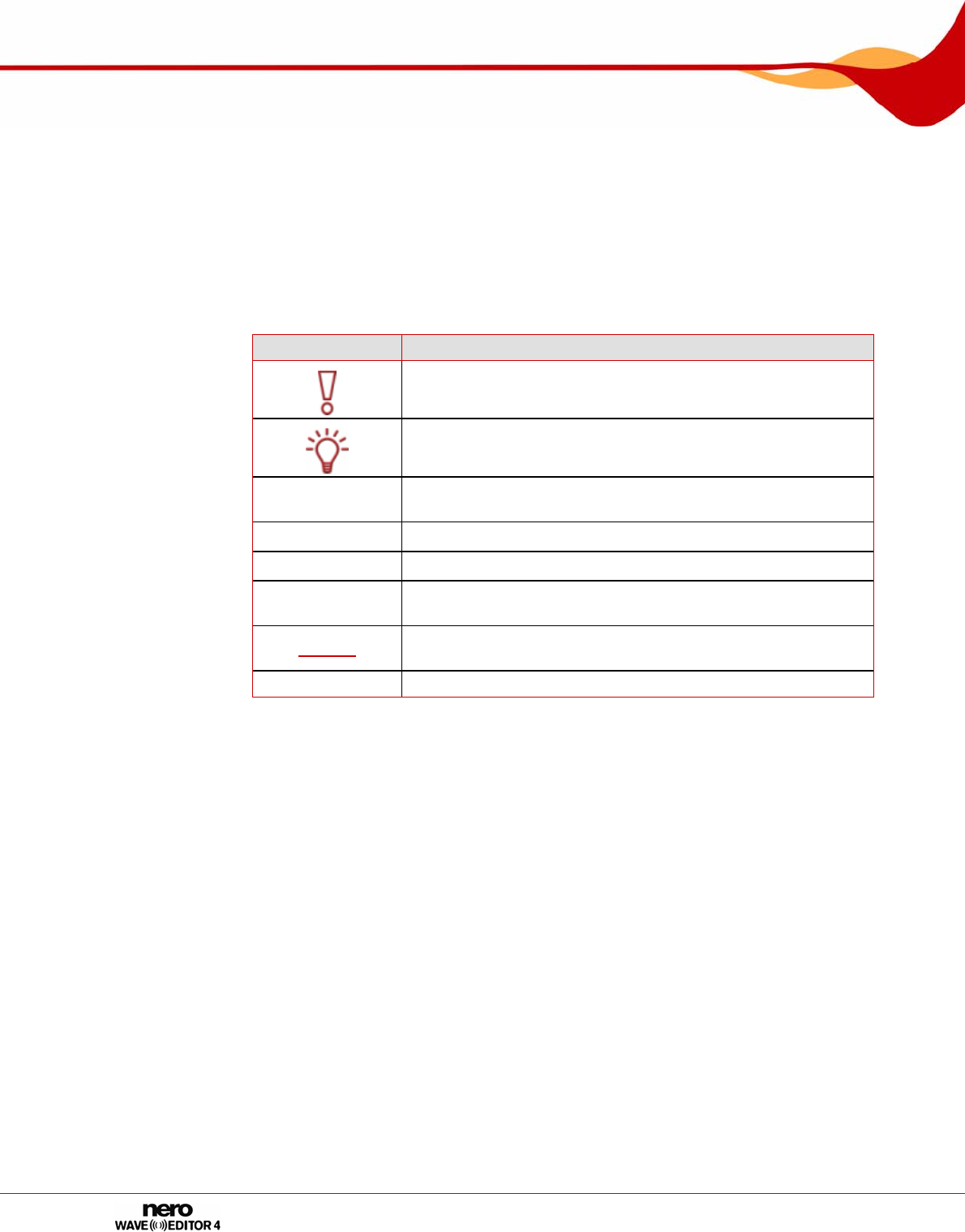
In order to make best use of this manual, please note the following conventions:
Symbol Meaning
Indicates warnings, requirements, or notice messages that have
to be precisely followed.
Indicates additional information or notice messages.
1. Start … A number at the beginning of a line indicates a request for
action. Carry out these actions in the order specified.
Æ Indicates an intermediate result.
Î Indicates a result.
OK Indicates text passages or buttons that appear in the program
interface. They are shown in bold print.
Chapter Indicates references to other chapters. They are executed as
links and are shown in red and underlined.
[…] Indicates keyboard shortcuts for entering commands.
1.2 About Nero WaveEditor
Nero WaveEditor allows you to record pieces of music, edit the corresponding audio files, for
example using various filters and sound enhancement methods, and finally burn them using
Nero Burning ROM or Nero Express.
With Nero WaveEditor, you edit the audio files non-destructively in real time. Thanks to an
internal reference-based audio format, the editing history is simultaneously stored so that
changes can also be undone. Various effects (e.g. chorus, delay, flanger, hall), numerous
tools (e.g. stereo processor, equalizer, noise gate), sophisticated improvement algorithms
(band extrapolation, noise suppression, declicker) as well as the filters and tools within Nero
WaveEditor are provided to assist you in editing your files.
Technical information
Page 7
2 Technical information
2.1 System requirements
Nero WaveEditor is installed together with the full version of Nero. Its system requirements
are the same. You can find more detailed information on the system requirements in the
Nero QuickStart Guide.
In addition, the following requirements apply:
Microsoft® DirectX® 9.0b (or greater).
The latest version of DirectX® can be downloaded from the Internet under
http://www.microsoft.com/windows/directx and installed.
Minimum 5 MB free hard-disk space
16-bit Windows® compatible sound card and speakers or headphones
Installation of the latest WHQL-certified drivers is recommended. WHQL stands for
Windows Hardware Quality Labs and means that the device driver from Microsoft® is
certified compatible with Microsoft® Windows® and the relevant hardware.
2.1.1 Supported Formats
Nero WaveEditor allows you to open the following formats or to save files in these formats:
*.AC3
*.aif, .aiff
*.mp3
*.wma
*.mp4
*.ogg
*.wav, .wave
*.nwf

Terminology
Page 8
3 Terminology
Sound is transmitted in air via waves. This characteristic gives rise to the following terms that
can be important for working with Nero WaveEditor:
Frequency is the number of vibrations per time unit. It is measured in Hertz.
In the case of a sound wave, the amplitude is perceived as volume (loudness). This is
the highest peak of a vibration.
Sampling rate indicates how often the sound card determines the sampling value of an
analog signal. It is measured in sampling values per second (Hertz or Hz). The higher the
sampling rate, the more precise the measurement, and the better the audio quality.
The sampling rate influences the frequency range. CDs use a sampling rate of 44,100 Hz,
in other words 44,100 sampling values per second. This means that frequencies of up to
22, 050 Hz can be recorded.
Bit depth indicates the precision with which a vibration will be captured. The higher the
bit depth, the more precise the capture, and the better the audio quality. CD's store audio
data in 16 bits. this means that each sample value can accept 65,536 possible values.
Launching the program
Page 9
4 Launching the program
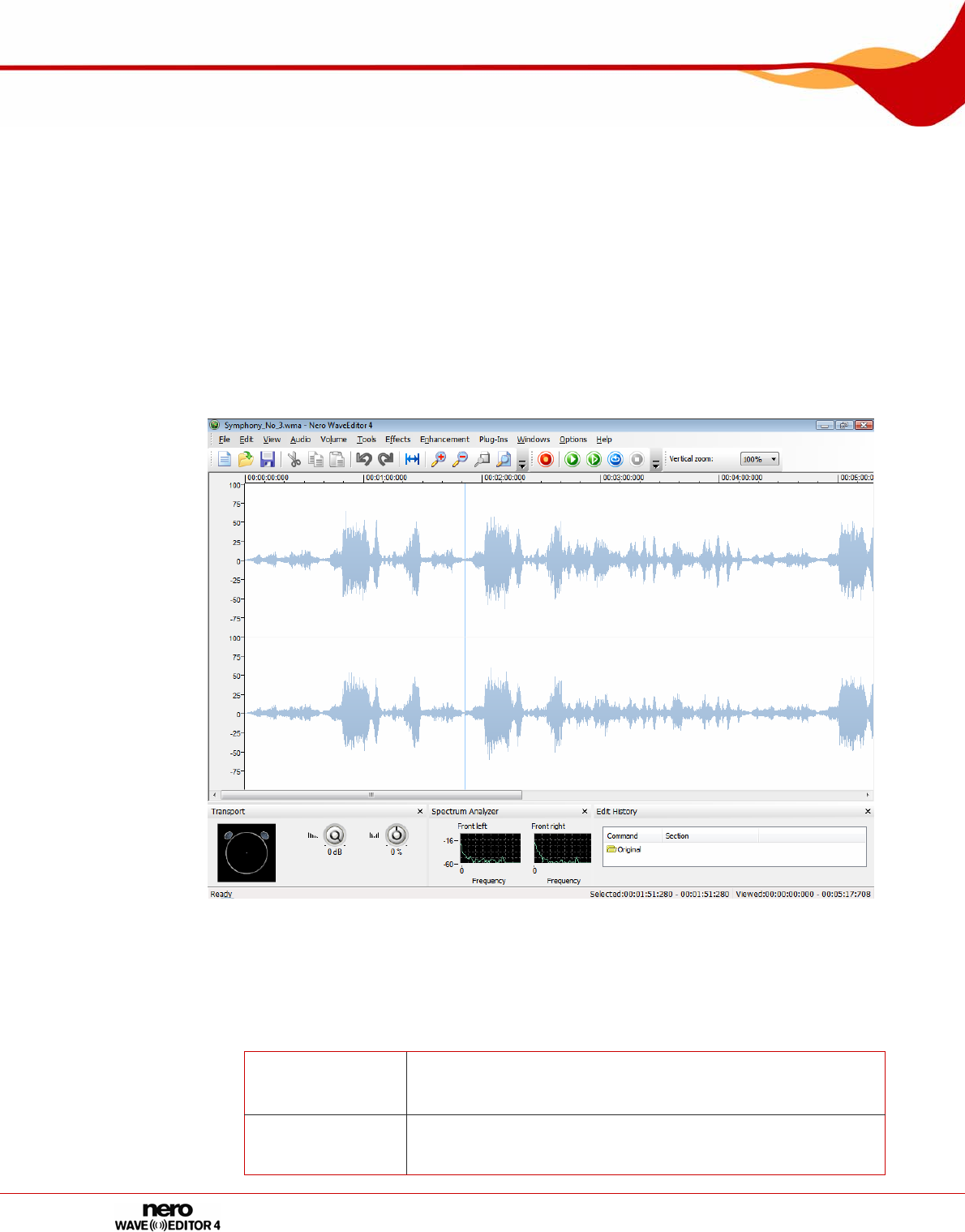
4.1 Starting Nero WaveEditor via Nero StartSmart
To start Nero WaveEditor via Nero StartSmart, proceed as follows:
1. Click on the Nero StartSmart icon.
Æ The Nero StartSmart window is opened.
2. Click the button.
Æ The list of Nero applications is displayed.
Fig. 1: Nero StartSmart
3. Select the Nero WaveEditor entry in the Applications list box.
Æ The Nero WaveEditor window opens.
Î You have launched Nero WaveEditor via Nero StartSmart.
User interface
Page 10
5 User interface
5.1 Main screen
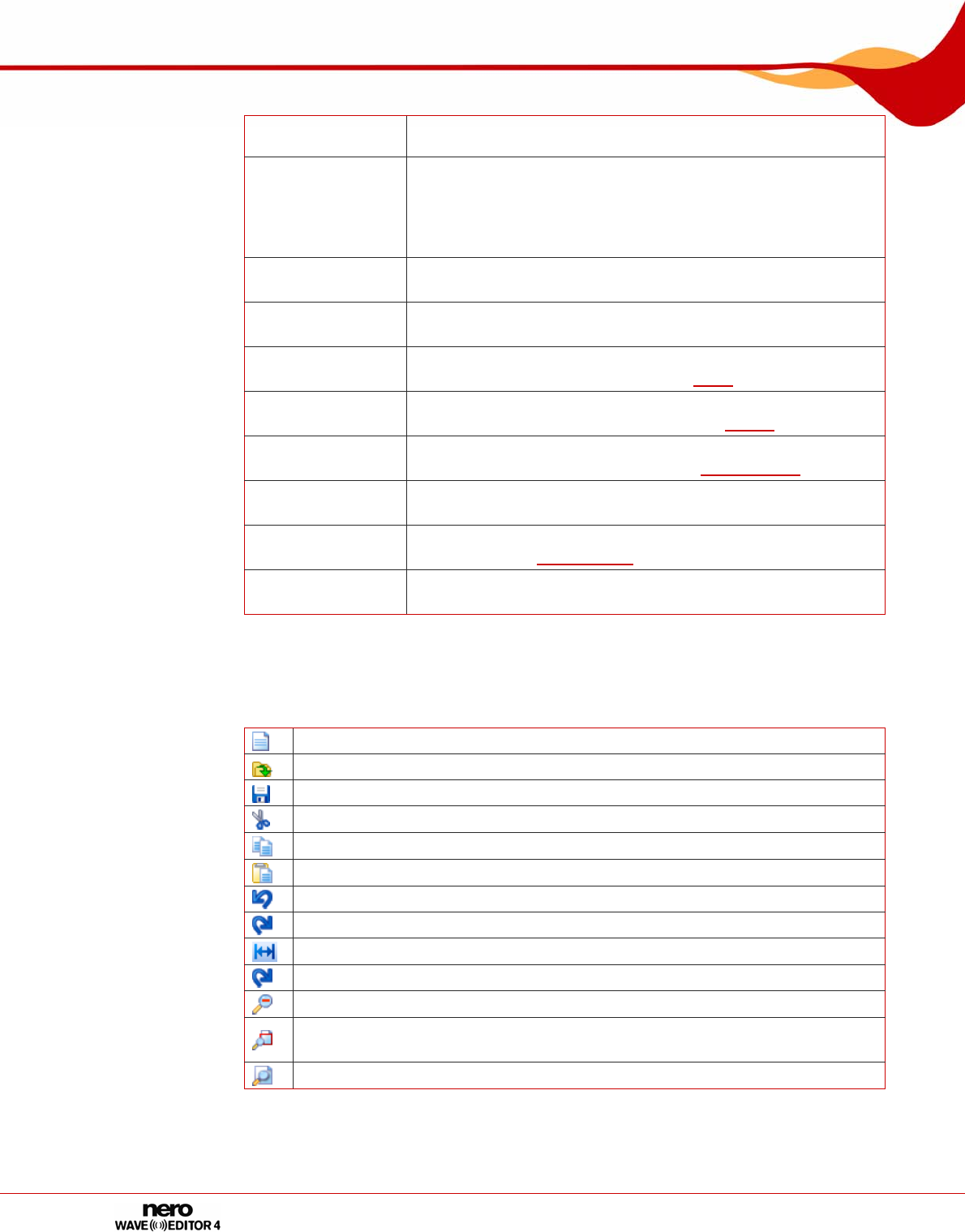
When you start Nero WaveEditor the main screen is displayed. The main screen is divided
into the following sections:
Menu bar and toolbar
File display
Displays
Fig. 2: Nero WaveEditor main screen
5.1.1 Menu bar
The following setting options are available in the menu bar:
File Opens the File menu that contains file functions such as open,
save, and close with which you are already familiar from
Windows®.
Edit Opens the Edit menu containing editing functions for the files
in the selection screen such as cutting, copying, and deleting
that you are already familiar with from Windows®. You can
User interface
Page 11
also change the audio file, in different ways, insert files and
track splits and activate automatic silence detection.
View
Opens the View menu that offers the possibility of individually
adjusting the menu bar and toolbar, and enlarging or reducing
the view of the project. You can also change the view of the
audio file, show and hide windows and display information
about the loaded audio file.
Audio Opens the Audio menu that offers the possibility of recording,
playing and stopping audio files.
Volume Opens the Volume menu, which allows the volume of the
opened audio file to be edited.
Tools Opens the Tools menu, which allows the opened audio file to
be edited using a variety of tools (see Tools).
Effects Opens the Effects menu, which allows the opened audio file
to be edited using a variety of effects (see Effects).
Enhancement Opens the Enhancement menu, which allows the sound of
the opened audio file to be edited (see Enhancement).
Windows Opens the Windows menu, which allows all windows to be
closed at once.
Settings Opens the Settings menu, which allows the program to be
configured (see Configuration).
Help Opens the Help menu, which allows the help file to be called
or information about Nero WaveEditor to be viewed.
5.1.2 Toolbar
The following setting options are available in the toolbar:
Creates an audio file.
Opens an existing audio file.
Saves the audio file.
Cuts out the selected section and saves it on the clipboard
Copies the selected section and saves it on the clipboard
Pastes the contents of the clipboard at the selected point.
This undoes the last action.
Restores the last action that you have undone.
Selects the entire audio file.
Zooms into the audio file.
Zooms out from the audio file.
Zooms into the audio file so that the selected section is displayed in a manner
that fills the screen.
Zooms out from the audio file so that the whole file can be seen.
User interface
Page 12
5.1.3 File display
The opened file is displayed in the file display as a peak file with the wave display as
standard. It is also possible to change the display to spectrogram display or wavelet display.
5.1.4 Display window
The following setting options are available in the View menu:
Level Meters
Opens the Transport window, the left half of which
visualizes the room sound. You can also reproduce the
audio file in the right half of the window, also changing
the volume and the use of the loudspeakers.
Spectrum Analyzer Opens the Spectrum Analyzer window in which the
frequencies of the audio file are displayed graphically
during playback.
Edit History Opens the Edit History window which lists all the editing
steps of the audio file. You can also return to any edit
phase here and restore the original state of the audio file.
5.1.4.1 Showing a display window or toolbar
To show a display window or toolbar, proceed as follows:
1. Click on the View > Required Display Window menu or toolbar.
Î The display windows are shown at the bottom of the main screen. You can move the
display windows about as required and change their size.
The toolbars are shown under the menu bar. These can also be moved using the
mouse.
Configuration
Page 13
6 Configuration
You can configure Nero WaveEditor to suit your needs. The following adjustable sections are
available to you.
Device settings (see Device Settings)
Editor Options (see Editor Options)
Audio Format Settings (see Audio Format Settings )
6.1 Device Settings
You can adjust device settings in the Device Settings window.
You reach this window via the menu bar under Options > Device Settings.
The following setting options are available in the Device Settings window:
Input Device
pull-down menu Displays the input device.
Output Device
pull-down menu Displays the output device.
6.2 Editor Options
The editor options are customized in the Editor Options window.
You reach this window via the menu bar under Settings > Editor Options..
6.2.1 View tab
The View tab offers the following setting possibilities:
Show axis to the left of
the audio visualization
check box
Displays an axis to the left of the peak file of the audio
file.
Show time rules above
the audio visualization
check box Displays an axis above the peak file of the audio file.
Trace playback
position line while
playing
check box
Uses a red line to show the position of the playback in
the audio file.
Use green on black
color set
check box
Displays the peak file in green and the background in
black. The default is for the peak file to be shown in blue
and the background in white.
Configuration
Page 14
6.2.2 Folders tab
The Folders tab offers the following setting possibilities:
Temporary folder
input field
Defines the folder in which temporary files are stored.
The folder should be located on a drive with plenty of
storage space.
Peak File Directory
input field
Specifies the default folder where peak files are stored.
Peak files are cache files that Nero WaveEditor uses to
more quickly open audio files. The folder should be
located on a drive with plenty of storage space.
Always recreate peak
files
check box
Always creates a new peak file when an audio file is
opened. Otherwise the peak files are stores temporarily
in a directory and are called up again there.
My Music Directory
input field Specifies the default folder where files are stored.
Always start file open
dialog in My Music
folder
check box
When calling the Open dialog box the system will always
first show the folder that is specified in the My Music
folder input field.
6.2.3 Save/Output Settings tab
The Save/Output Settings tab offers the following setting possibilities:
Use dithering when
converting to lower bit
depths
check box
Overlays sound errors that arise when converting to a
lower bit depth with a white noise that is hardly noticed
by human hearing. If there is no dithering, clearly audible
interference can be heard when converting to lower bit
depths.
Pull-down menu
Noise shaping filter
Specifies the type of noise shaping
IIR filter (2nd order): Infinite Duration Impulse
Response. Uses IIR-filters. Second order means that
sound is attenuated by 12 dB. IIR filters generally
achieve a better audio quality than FIR filters.
FIR filter (3 taps): Finite Impulse Response Filter. Uses
FIR filters. This entry is selected by default.
Restore wave output
volume when closing
Nero WaveEditor
check box
Restores the volume of the audio file when Nero
WaveEditor is closed.
Bit depth during
playback:
pull-down menu
Specifies the bit depth during the playback of the loaded
audio file.
Configuration
Page 15
Pull-down menu:
Play surround audio as
Specifies how surround audio is played back.
Multichannel Audio
Plays back surround audio with all channels.
Stereo with Nero HeadPhone (virtual surround):
Plays back surround audio filtered down as stereo and a
virtual surround effect is generated for headphones,
Stereo with Nero VirtualSpeakers (virtual surround):
Plays surround audio filtered down as stereo and a
virtual sound effect is generated for speakers.
6.2.4 VST Plug-Ins tab
The VST Pug-Ins tab offers the following setting possibilities:
Display section
Installed VST Plug-Ins: Shows the currently installed VST plug-ins
Delete button Deletes the selected VST plug-in
Button
Add plug-in Opens the Open dialog box. Installs a new VST plug-in
Button
Scan folder Opens the Open dialog box. Searches for new VST
plug-ins in the specified folder.
6.3 Audio Format Settings
Use the Audio Format Settings window to adjust the audio settings.
You reach this window via the menu bar under Options > Audioformat Settings.
6.3.1 Decoder tab
The Decoder tab offers the following setting possibilities:
Button
Configure
Opens a dialog box where additional settings can be made
for the selected decoder.
This button is not available for all decoders.
Button
Info
Opens the About dialog box where you can view
information about the selected decoder.
This button is not available for all decoders.
Button
Move Up Moves the decoder up one entry.
Button
Move Down Moves the decoder down one entry.
Button
Artist/Title
Information Source
Opens the dialog box Get Artist / Title Information which
shows the source from which information relative to artist
and title will be input.
Configuration
Page 16
6.3.2 Encoder tab
The Encoder tab offers the following setting possibilities:
Button
Configure
Opens a dialog box where additional settings can be made
for the selected encoder.
This button is not available for all encoders.
Button
Info
Opens the About dialog box where information about the
selected encoder is displayed. This button is not available
for all encoders.
Button
Artist/Title
Information Source
Opens the dialog box Get Artist / Title Information which
shows the source from which information relative to artist
and title will be input.
6.3.3 Converter tab
The Converter tab offers the following setting possibilities:
Button
Configure
Opens a dialog box where additional settings can be made
for the selected converter.
This button is not available for all converters.
Button
Info
Opens the About dialog box where you can view
information about the selected converter.
This button is not available for all converters.
Button
Artist/Title
Information Source
Opens the dialog box Get Artist / Title Information which
shows the source from which information relative to artist
and title will be input.
Audio
Page 17
7 Audio
7.1 Playing Audio Files
To play an audio file, proceed as follows:
1. Click on the File > Open menu.
Æ The Open window appears.
2. Select the audio file you want to open in the file system and click on the Open button.
Æ The two channels of the audio file are presented as peak file.
3. To play back to complete audio file, click on the Audio > Play All menu.
4. If you have marked a section of the audio file and only want to play this section, click on the
Audio > Play Section menu.
5. If you want to play back the file without interruption, click on the Audio > Play Looped
menu.
6. To stop playback, click on the Audio > Stop menu.
Î You have played back an audio file.
7.2 Recording Audio files
You can use Nero WaveEditor to connect many types of playback devices to the computer
and to record the medium played there.
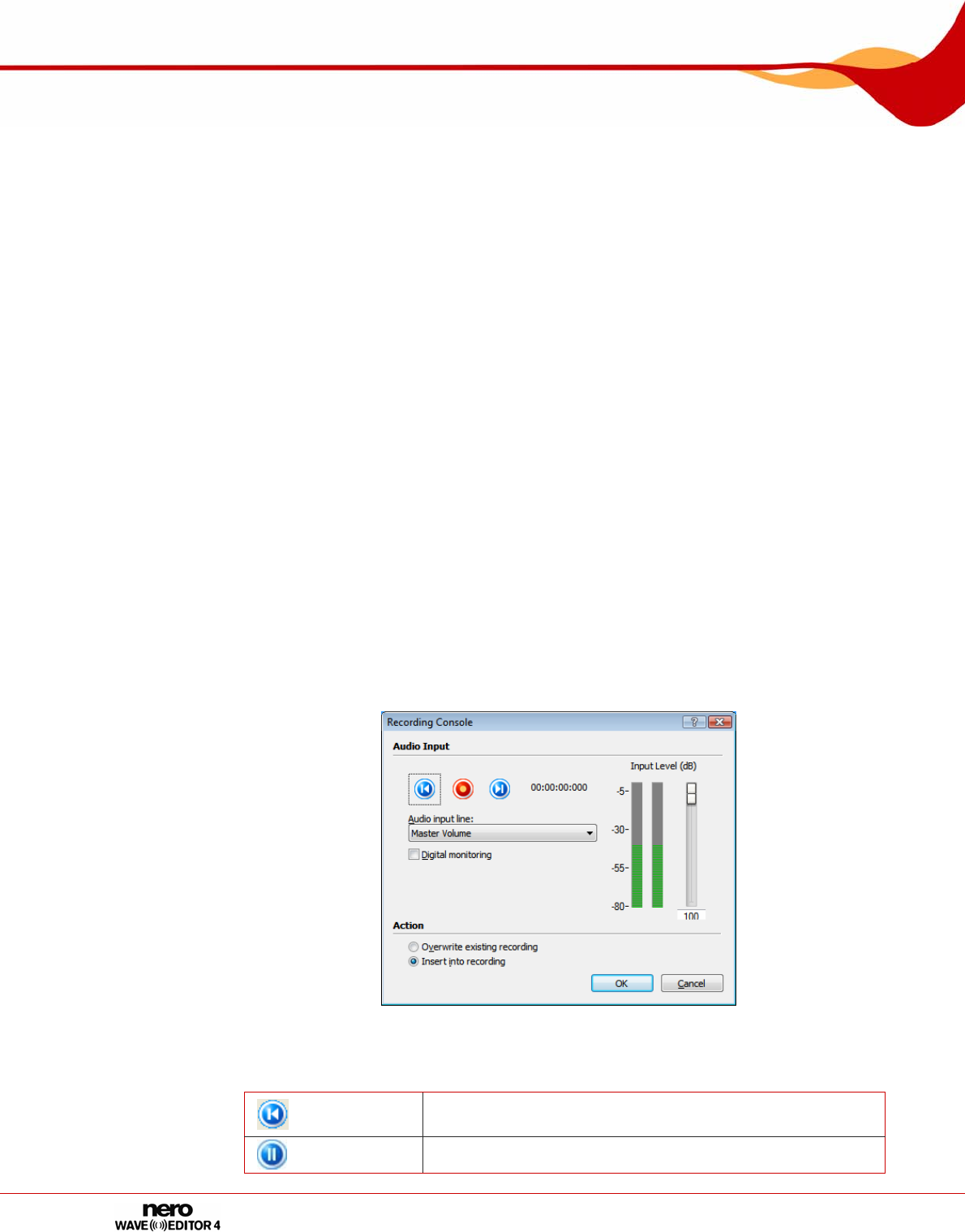
Fig. 3: Recording Console window while recording an audio file
The Recording Console window offers you the following setting options:
Returns to the start of the recording so that this can be
overwritten.
Pauses recording.
Audio
Page 18
Records an audio file.
Goes to the end of the recording so that recording can be
resumed there.
Overwrite existing
recording
pull-down menu
Overwrites the existing recording or audio file which is open
in Nero WaveEditor.
Insert into
recording
radio button
Inserts the recording into the audio file at the point where
the marker is located.
Audio input line
pull-down menu Specifies the audio input.
Digital Monitoring
check box Activates the Input level control.
Input level
control Specifies the volume of the recording. The recording should
be in the yellow area in the spectrum analyzer.
To record an audio file, proceed as follows:
1. Click on the Audio > Capture menu.
Æ The Recording Console window will open.
2. Make the desired capture settings.
3. Click on the button to make a recording.
4. Click on the button to interrupt the recording.
5. Click on the OK button if you want to insert the recording into the file display.
Î You have created an audio file.
7.3 Editing Audio Files
To edit an audio file, proceed as follows:
1. If you want to play back the highlighted part of the audio file in reverse, click on the Edit >
Reverse menu.
2. To insert a test signal into the audio file, click on the Edit > Insert Test Signal menu (see
Inserting a Test Signal in an Audio File).
3. To convert the sample format, click on the Edit > Convert Sample Format menu (see
Converting Sample Format).
4. If you want silences in a song to be detected automatically so as to be able to skip these
when playing the audio file, click on the Edit > Pause Detection menu (see Implementing
Pause Detection).
5. If you want to insert a track split in the audio file to be able to skip directly to this point, click
on the Edit > Insert Track Split menu.
6. If you want to save a single track produced by inserting track splits as a file:
1. Click on the Edit > Save Tracks as Files menu.
Audio
Page 19
Æ The Save Tracks as Separate Files window is opened.
2. Select the track you want to save, name it and select the required file format.
3. Click on the OK button.
7. If you want to fade out the volume of the marked section of the audio file , click on the
Volume > Fade out > required hide method menu (see Fade out and fade in methods).
Æ The change in volume in the marked section is displayed graphically in the file display.
8. If you want to fade in the volume of the marked section of the audio file , click on the Volume
> Fade in > required show method menu (see Fade out and fade in methods).
Æ The change in volume in the marked section is displayed graphically in the file display.
9. If you want to normalize the frequencies of the marked part of the audio file to a particular dB
value.
Normalizing in audio technology is the process whereby analog and/or digital audio data is
raised to a uniform volume level.
1. Click on the Volume > Normalization menu.
Æ The Normalization window will open.
2. Move the Normalize to control to the required position. The set dB value will appear in the
display panel.
3. Click on the OK button.
10. If you want to raise or lower the volume of the marked section of the audio file:
Raising the volume raises all frequencies of the audio file by the specified dB value.
Lowering the volume reduces all frequencies by the specified dB value.
1. Click on the Volume > Volume Change menu.
Æ The Volume Change window will be opened.
2. Move the Volume Change control to the required position. The set dB value will appear in
the display panel.
3. Click on the OK button.
11. If you want to mute the marked section of the audio file, click on the Volume > Mute menu.
Æ The change in volume in the marked section is displayed graphically in the file display.
12. If you want to change the marked section of the audio file with a tool, click on the Tool menu
(see Tools).
13. If you want to change the marked section of the audio file with an effect, click on the Effect
menu (see Effects).
14. If you want to change the marked section of the audio file with an enhancement tool, click on
the Enhancement menu (see Enhancement).
Î You have edited the audio file.
Audio
Page 20
7.3.1 Fade out and fade in methods
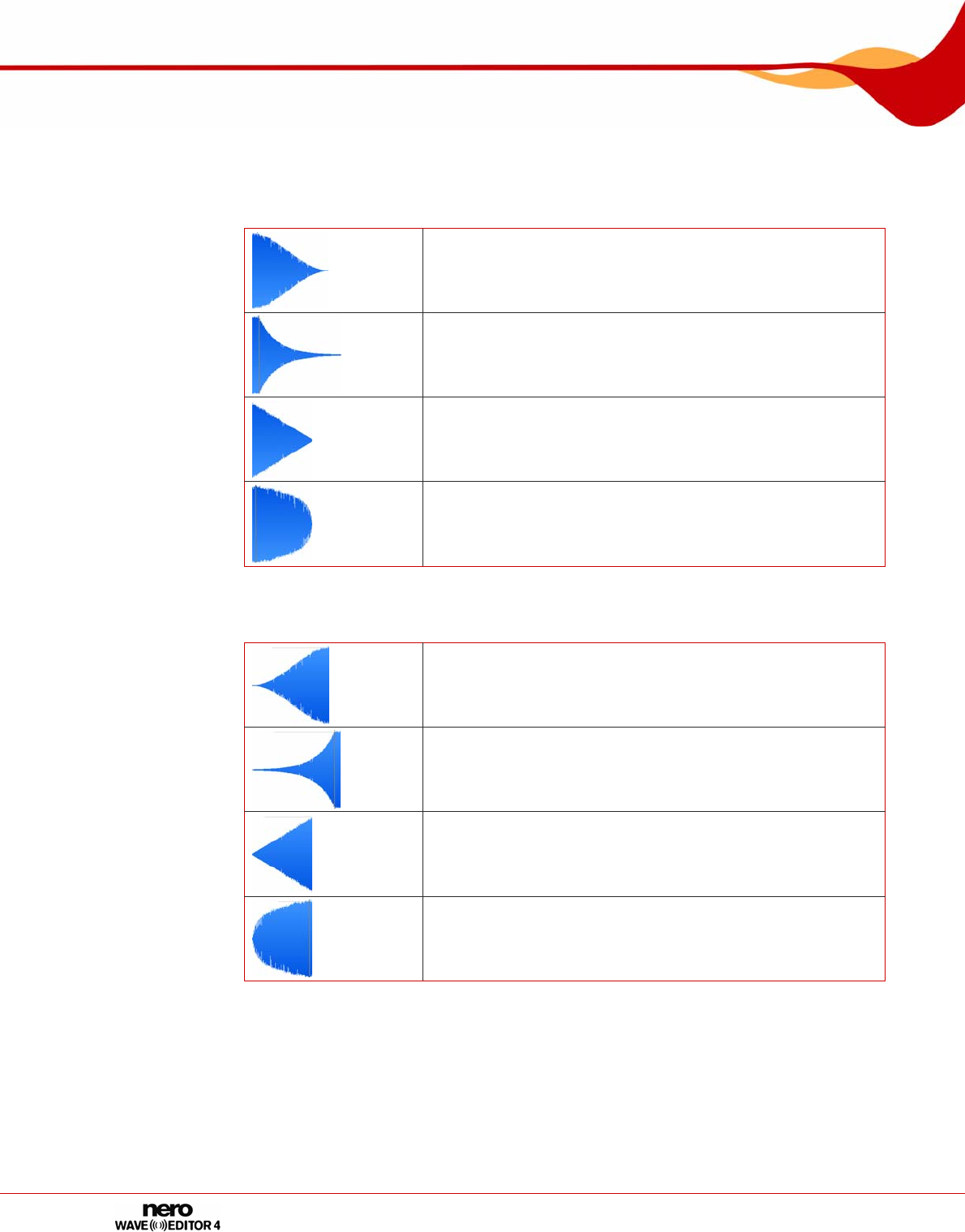
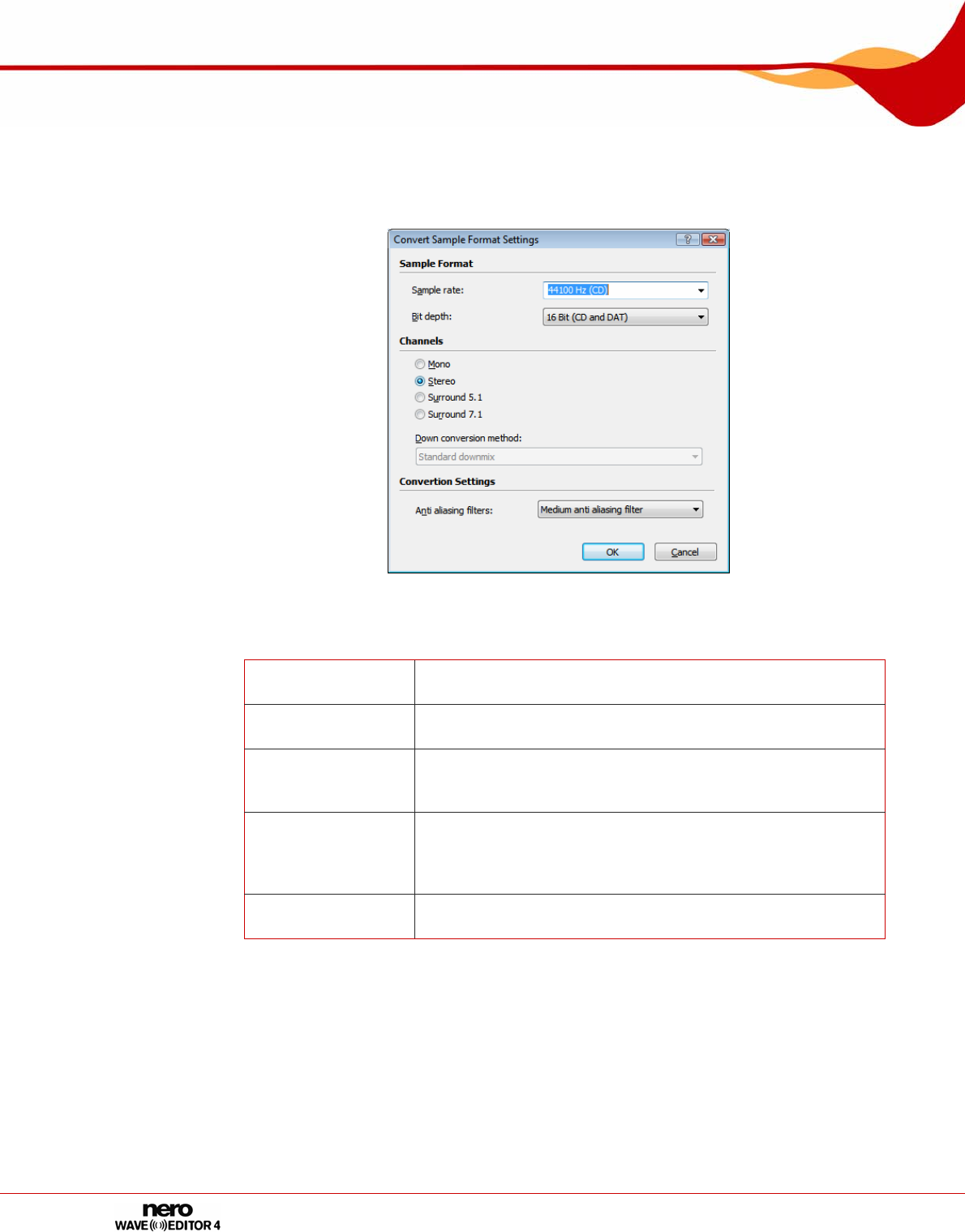
The following options are available in the Volume > Fade out menu:
Fade out Sinusoidal
Fade out Exponential
Fade out Linear
Fade out Logarithmic
The following options are available in the Volume > Fade in menu:
Fade in Sinusoidal
Fade in Exponential
Fade in Linear
Fade in Logarithmic
Audio
Page 21
7.3.2 Converting Sample Format
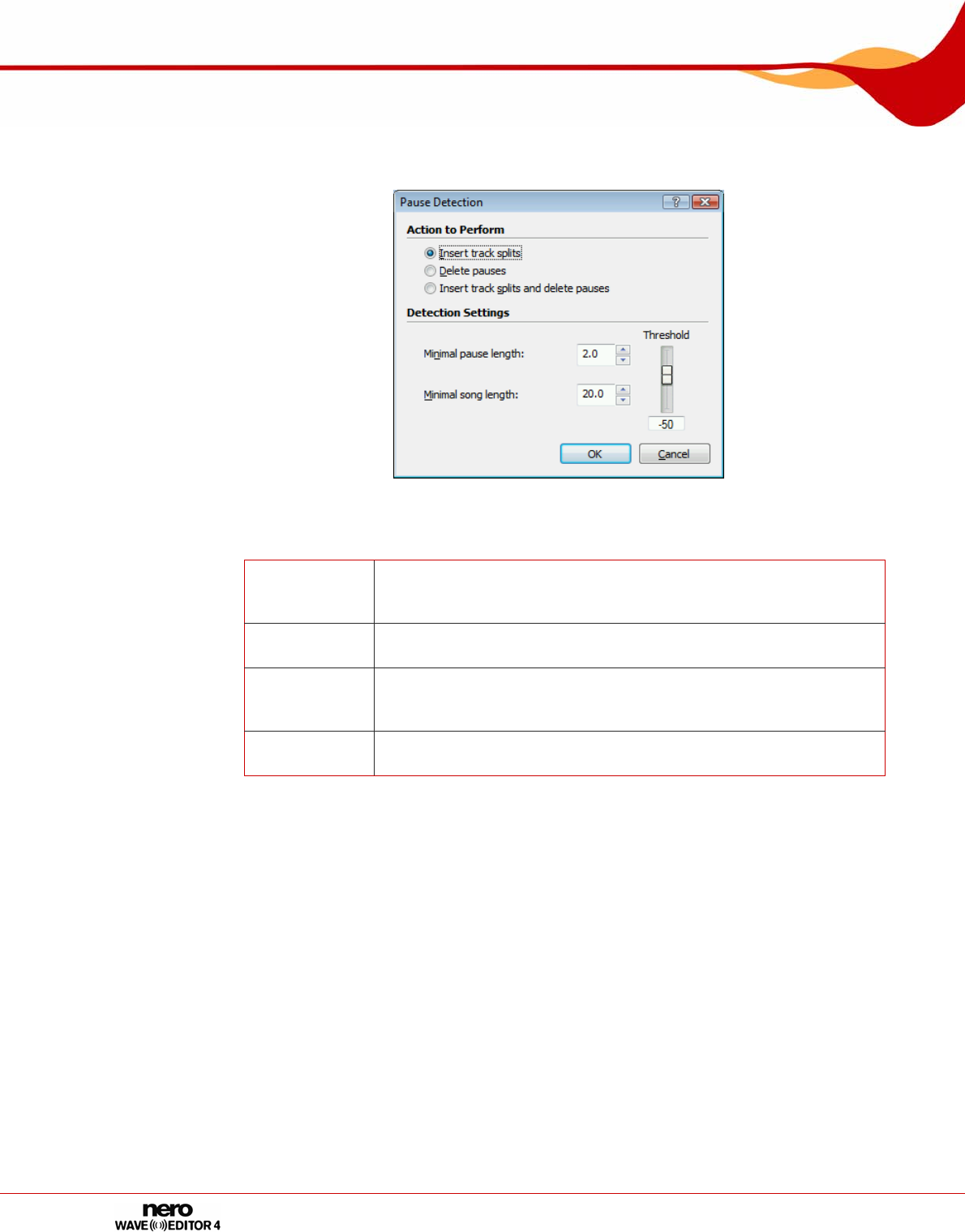
The Edit menu allows you to convert the sample format.
Fig. 4: Converted Sample Format Settings window
The Converted Sample Format Settings window offers you the following setting options:
Sample Rate
drop-down menu Provides different sample rates for selection.
Bit Depth
pull-down menu Provides different bit depths for selection.
Channels
radio buttons
Provides different output types for selection. You can create a
Surround audio file with five or seven channels by selecting
Surround 5.1 and 7.1.
Down conversion
method
combo box
Converts a Surround audio file into a normal stereo-audio file,
a stereo audio file with artificial Surroundsound for headsets
or a stereo audio file with artificial Surroundsound for
speakers. Only available with Surround audio files.
Antialiasing Filter
combo box This provides different kinds of antialiasing-filters.
To convert the sample format, proceed as follows:
1. Click on the Edit > Convert Sample Format menu.
Æ The Converted Sample Format Settings window will be opened.
2. Define the required settings in the Converted Sample Format Settings window.
3. Click on the OK button.
Î You have converted the sample format.
Audio
Page 22
7.3.3 Implementing Pause Detection
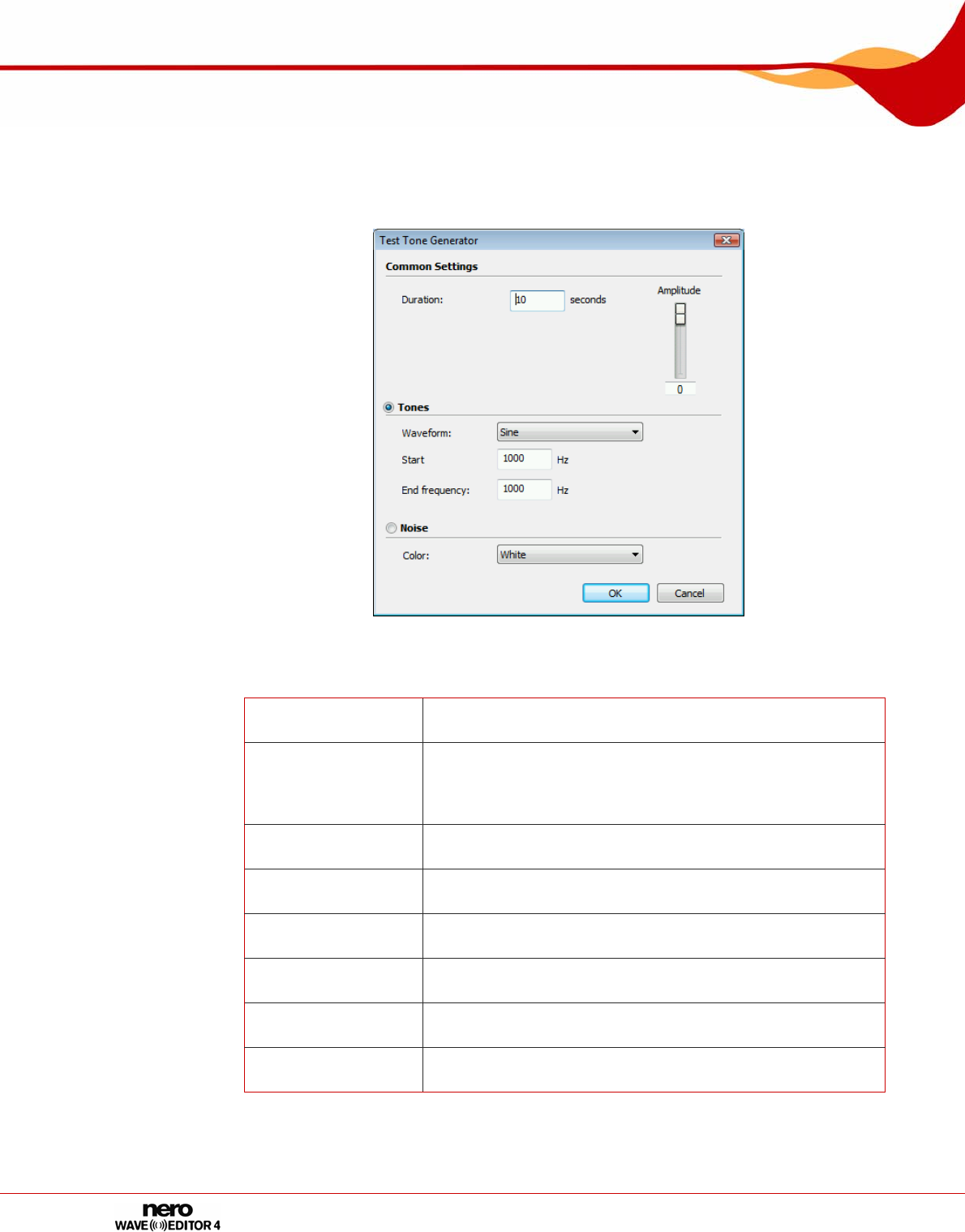
The Edit menu allows you to implement automatic pause detection for the audio file.
Fig. 5: Pause Detection window
The Pause Detection window offers you the following setting options:
Action field Provides different actions for selection. You can insert track splits
at the detected pauses, delete the detected pauses or delete the
detected pauses and replace them with track splits.
Pause Length
input field Defines the minimum length of a pause in the audio file if it is to be
detected automatically. The number is specified in seconds.
Minimum
Song length
input field
Defines the minimum length of a song if it is to be recognized as a
whole song. The number is specified in seconds.
Threshold
control Defines the threshold for the volume below which the tracks of the
audio file will be detected as pauses.
To implement automatic pause detection, proceed as follows:
1. Click on the Edit > Pause Detection menu.
Æ The Pause Detection menu will be opened..
2. Define the required settings in the Pause Detection window.
3. Click on the OK button.
Î You have now implemented automatic silence detection.
Audio
Page 23
7.3.4 Inserting a Test Signal in an Audio File
The Test Signal-Generator window allows you to insert a test signal in the audio file.
Fig. 6: Test Signal Generator window
The Test Signal Generator window offers you the following setting options:
Duration
input field Specifies the duration of the test signal.
Tones
radio button
Defines that the test signal is reproduced as a tone. Also
activates the area containing the setting options for the
wave form, start frequency and end frequency of the test
signal.
Wave form
combo box Specifies the wave form that the test signal should have.
Start Frequency
input field Specifies the start frequency of the test signal.
End frequency
input field Specifies the end frequency of the test signal.
Noise
radio button Defines that the test signal is reproduced as a noise. Also
activates the area that defines the type of noise.
Color
combo-box Specifies the type of noise. White is a loud noise, Pink a
medium noise and Brown a quiet noise.
Amplitude
control Specifies the amplitude of the test signal both for sound and
noise.
1. Click on the Edit > Insert Test Signal menu.
Æ The Test Signal Generator window will be opened.

Audio
Page 24
2. Make the required settings for the test signal to be inserted.
3. Click on the OK button.
4. Now define the range of the test signal by moving the arrows at the bottom of the file display.
5. To exclude an audio file before the test signal, move the blue-green arrows at the start of the
test signal at the top of the file display from left to right.
6. To insert an audio file after the test signal, move the blue-green arrows at the end of the test
signal at the top of the file display from left to right.
7. Click on the OK button.
Î You have inserted a test signal in the audio file.
Filters
Page 25
8 Filters
You can change the sound of an audio file in a variety of ways. The following menus are
available for this purpose:
Tools
Effects
Enhancement
The following setting options are available in all windows:
Plays the audio file changed by the filter.
Stops playing.
Active
Channels Provides the active channels for selection. You can switch the
channels on and off separately.
Bypass Retains the change by the filter for the duration of the activation.
This enables you to listen to the unedited file and the edited
version alternately.
Process offline Processes the change to the audio file offline. This enables the
changed file to be played back with a weaker processor without
jerking.
Provides both predefined and personally produced profiles for
selection.
Creates a new profile with the current settings.
Deletes the selected profile.
8.1 Tools
8.1.1 DeEsser
The DeEsser tool is used to filter out unpleasant hissing sounds (sibilants) from recorded
speech and song.
Threshold Specifies the level after which hiss is to be suppressed as a dB
value. If this value is very low, even very quiet hiss will be
suppressed.
Attenuation Specifies the extent to which hiss is to be damped if it is not
filtered out completely.
Attack Time Specifies how long the hiss has to be in order to be detected.
Release Time Specifies for how long the hiss is to be filtered.
Filters
Page 26
8.1.2 Dynamic Processor
You can use the Dynamic Processor tool to adjust the ratio between the input and output
volume. This makes it possible, for example, to emphasize quiet noises, thereby lending
more dynamism to the audio file.
Characteristics Shows the ratio of input volume to output volume. In this case
the y-axis is the output, and the x-axis the input.
Attack Time Specifies the time it takes before the full effect is heard.
Release Time Specifies the time it takes before the effect is no longer heard.
Movie Processes all Surround channels for the same parts. This can
only be activated when a Surround audio file is being processed.
8.1.3 Equalizer
The Equalizer tool allows you to emphasize certain frequencies, specifying the amplitude
and bandwidth.
Frequency
Response
Graph
Shows the frequency response. The y-axis represents the
amplitude and the x-axis the frequency.
Center
Frequencies Indicates the distribution of the handles on the x-axis. You can
enter the values (in Hz) of the center frequencies in the fields.
Emphasis Specifies the amplification of the signal on the y-axis of the curve
in the diagram.
Bandwidths Indicates whether the bandwidth of the medium frequency rises
and falls steeply or gently. You can set a value between 0.1 and
3 octaves with the control.
Low Shelf Increases or decreases low frequencies.
Cut Off Allows the filter to start after a certain frequency.
Gain Specifies the degree of increase or decrease.
High Shelf Increases or decreases high frequencies.
Cut Off Allows the filter to start after a certain frequency.
Gain Specifies the degree of increase or decrease.
8.1.4 Karaoke Filter
The Karaoke Filter tool filters frequencies from the audio file that are the same on both
channels of a stereo file. On older recordings this is usually the voice. However, if the voice
us not distributed evenly on both channels, you can perform some fine tuning.
Vocal Pan Specifies the channel and intensity with which the voice is to be
filtered.
Gain
Compensation Increases the volume of the audio file, which had become quieter
because the filter was applied.
Filters
Page 27
Vocal
Frequency
Band Specifies the frequency band of the voice.
Lower
Frequency Specifies the lower frequency limit for the voice. This is typically a
value of 100 Hz.
Upper
Frequency Specifies the upper frequency limit for the voice. This is typically
a value of 7000 Hz.
8.1.5 Noise Gate
The Noise Gate tools suppresses quiet sections in the signal transmission. For example, it
helps prevent noise. The Noise Gate belongs to the category of dynamic processors.
Threshold Specifies the minimum dB value below which the audio file is to
be muted. In other words, the gate is closed if the dB value is too
low.
Attack Time Specifies the time required to reopen the gate in milliseconds
after the threshold has been exceeded, in other words to restore
the sound of the audio file.
Release Time Specifies the time in milliseconds required to close the gate, in
other words to mute the audio file, after the level has dropped
below the threshold.
Channel Mode
Only relevant for audio files in stereo format.
If the Linked radio button is enabled, the noise gate for both
channels is opened as soon as one or both of the two channels
exceeds the threshold.
If the Independent radio button is enabled, the noise gate closes
or opens both channels independently when the threshold is
reached.
8.1.6 Pitch Tuning
The Pitch Tuning tools changes the pitch, for example of the voice, for a short time, so that
incorrectly sung tones can be corrected.
Correction Corrects incorrect sounds.
Corrected Shows the level of correction on the basis of the movement of
the green arrow.
Reference Specifies the reference sound used for correction..
Binding Specifies for how long the sound is to be corrected. The lower
the value, the shorter the correction period for an incorrect
sound.
Scale: Provides a variety of scales for selection. The most commonly
used scale in Europe is Equally Tempered Chrome.
Vibrato Adds sound changes, both high and low. This causes the voice
to "vibrate".
Frequency Indicates the frequency of the sound changes.
Depth Indicates the intensity of the sound change.
Filters
Page 28
8.1.7 Stereo Processor
The Stereo Processor tool allows you to manipulate the stereo sounds.
Left Out Specifies the output intensity of the left hand loudspeaker
Left In Specifies the intensity of the left input signal for the left hand
loudspeaker.
Right In Specifies the intensity of the right input signal for the left hand
loudspeaker.
Right Out Specifies the output intensity of the right hand loudspeaker
Left In Specifies the intensity of the left input signal for the right hand
loudspeaker.
Right In Specifies the intensity of the right input signal for the right hand
loudspeaker.
Stereo Settings Provides further stereo sound settings.
Phase Offset Compensates for differences in run-time between the left and
right channel.
Stereo
Broadening Makes a mono recording sound like a stereo recording. This
setting will give a stereo recording an even broader feeling.
8.1.8 Time Correction
The Time Correction tool changes the playback speed, but not the pitch.
Timescale
Modification
Factor
Offers two different ways to change the playback speed of the
audio file.
Percentage Changes the playback speed in percent. The change can either
be set on the control or entered in the input field.
Beats per
Minute Changes the playback speed to beats per minute (BpM).
Optimization Specifies the type of music of the audio file to be altered, so as
to optimize speed changes for this file.
8.1.9 Transpose
The Transpose tool changes the pitch. The length of the audio file can be changed or
retained. However, it is possible to adjust the length of the audio file to the faster playback
speed.
Interval Changes the interval in the audio file.
Fine-tune Permits fine tuning if retaining the original length causes
distortion.
Maintain
Original
Length Retains the original length of the audio file.
Filters
Page 29
8.2 Effects
8.2.1 Chorus
The Chorus effect creates an echo effect, which when applies to a recorded voice, makes it
sound like there is a choir singing in the background.
Modulation Changes the copied signal
Depth Specifies the degree of the change in pitch
Frequency Specifies the frequency of the change in pitch (oscillations).
Delay Specifies the delay with which the copy is played in comparison
with the original signal.
Filters Allows a low pass filter to be activated.
Low Pass Reduces frequencies above the specified Hertz rate and allows
low frequencies beneath the specified value to pass almost
unfiltered.
Mix Mixes the original signal with the copied signal.
Effect Specifies the intensity of the copied signal.
Dry Signal Indicates the intensity of the original signal.
Stereo Chorus Gives the processed part of the audio file a more "stereo-like"
sound
8.2.2 Convolution Reverb
The Convolution Reverb effect transfers the convolution reverb conditions of a reference
file and adjusts the audio file to the relevant reverb conditions.
Select Impulse
Response Opens the source file for the impulse response from which the
reverb effect for the audio file to be edited is generated.
Impulse
Response Gain Displays the signal of the impulse response.
Gain Displays the frequency limit for the reverb. The y-axis of the
curve specifies the gain of the reverb effect in the diagram, while
the x-axis shows the frequency.
Switches between a linear and logarithmic scale for the limiting
frequency graphic.
Pre-Delay Specifies the length of time required by the sound to be deflected
from an obstacle, thereby indicating the intensity of the echo.
Mix Mixes the original signal with the copied signal.
Dry Signal Indicates the intensity of the original signal.
Effect Specifies the intensity of the copied signal.
Filters
Page 30
8.2.3 Delay
The Delay effect creates an echo using a copy of the original signal which is played back
with a delay.
Delay Provides setting options for the copy of the original signal.
Delay Time Specifies the delay in playing back the copied signal.
Feedback Specifies how many copies of the original signal are to be made.
Mix Mixes the original signal with the copied signal.
Dry Signal Indicates the intensity of the original signal.
Effect Specifies the intensity of the copied signal.
8.2.4 Distortion
The Distortion effect is used for guitars. This means that a recording of acoustic guitar can
be distorted to sound like an electric guitar.
Distortion Distorts the original signal.
Method Offers a variety of distortion options, e.g. an old megaphone.
Drive Indicates the intensity of the interference.
Hardness
Specifies the hardness of the distortion.
This can only be adjusted if the entries Tube, Fuzz3 and
Variable clipping have been selected in the Method combo
box..
Pre-Filtering Filters the original signal before it is distorted.
Lower Cutoff Specifies the lower limit of the frequency band for the original
signal.
Upper Cutoff Specifies the upper limit of the frequency band for the original
signal.
Post-Filtering Filters the distorted signal.
Lower Cutoff Specifies the lower limit of the frequency band for the edited
signal.
Upper Cutoff Specifies the upper limit of the frequency band for the edited
signal.
Mix Mixes the original signal with the edited signal.
Dry Signal Indicates the intensity of the original signal.
Effect Specifies the intensity of the copied signal.
Filters
Page 31
8.2.5 Doppler
The Doppler effect simulates a noise source passing by and the resulting special auditory
features.
Graphic
Shows the target and end point of the movement of the noise
source. The listener is at the center of the graphic.
The pattern of the movement can be changed using the straight
lines in the graphic.
Diameter Specifies the diameters of the movement radius.
Duration Specifies the duration of the movement.
8.2.6 Flanger
The Flanger effect is a guitar effect that distorts the sound by playing back a copy of the
original signal with a delay. The copy is changed by means of modulation, so that the sound
is distorted in a characteristic way.
Modulation Changes the copied signal
Depth Specifies the degree of the change in pitch.
Frequency Specifies the frequency of the change in pitch.
Mix Mixes the original signal with the copied signal.
Dry Signal Indicates the intensity of the original signal.
Effect Specifies the intensity of the copied signal.
Stereo Flanger Gives the processed part of the audio file a more "stereo-like"
sound
8.2.7 Loudness
The Loudness effect increases the volume of the audio file without increasing the maximum
value of the amplitude (value 1) by raising the amplitude of other areas in the audio file. The
file is thus louder overall without exceeding value 1 of the amplitude.
Aimed Gain Specifies the degree of amplification.
8.2.8 Low Fidelity
The Low Fidelity effect creates interference effects, so called quantification errors, by
reducing the bit rate. Noise can be heard when the bit rate is dramatically reduced. If the
sample rate is reduced, the audio file sounds duller and less detailed.
Bit Depth /
Sample Rate Shows the change in the two controls under the graphic.
Bit depth Specifies the bit depth. Music CDs have a bit depth of 16, for
example.
Sample Rate Specifies the sample rate. Music CDs have a sample rate of
44100 Hz.
Filters
Page 32
8.2.9 Modulation
The Modulation effect allows the amplitude and frequency to be changed separately.
Amplitude
Modulation Shows the amplitude of the audio signal.
Frequency Specifies the frequency of the signal.
Amplitude
Range Specifies the signal volume.
Modulation
Signal Provides different signal forms.
Blend Edges Balances different end and start values.
Only activated for self-produced signals.
Frequency
Modulation Shows the frequency of the audio signal.
Frequency Specifies the frequency of the signal.
Depth Specifies the depth of the signal.
Modulation
Signal Provides different signal forms.
Blend Edges Balances different end and start values.
Only activated for self-produced signals.
Mix Mixes the original signal with the modulated amplitude signal and
the modulated frequency signal..
Dry Signal Indicates the intensity of the original signal.
Amplitude
Modulated Specifies the intensity of the signal with the modulated
amplitude.
Frequency
Modulated Specifies the intensity of the signal with the modulated
frequency.
8.2.10 Multi-Tap Delay
The Multi-Tap-Delay effect allows several copies of the original signal to be created and
played back with a delay. This creates the reverb effect.
Active tap Provides several copies for selection.
Graphic Shows the copy and its copies.
Delay Specifies the intervals at which copies are to be played back.
Emphasis Specifies the volume/intensity of the copies.
Pan In the case of stereo files, this indicates the speaker on which
the copies are to be heard.
Feedback Offers settings for the copies of the copy of the original signal.
Type Provides different filters for the copied signals for selection.
Feedback Gain Specifies the volume of the copies that are played back after the
time specified with the Delay control.
Mix Mixes the original signal with the edited copies.
Dry Signal Indicates the intensity of the original signal.
Effect Specifies the intensity of the edited signal.
Filters
Page 33
8.2.11 Phaser
The Phaser effect is a guitar effect that distorts the sound by playing back a band-filtered
copy of the original signal with a delay.
Modulation Provides settings for modulating the copied signal.
Modulation
Function Provides different signal forms.
Frequency Specifies the frequency of the copied signal.
Settings Offers settings for band filtering.
Lower Limit Specifies the lower limit of the frequency band.
Upper Limit Specifies the upper limit of the frequency band.
Bandwidth Indicates the bandwidth of the signal.
Stereo Flanger Gives the processed part of the audio file a more "stereo-like"
sound
Mix Mixes the original signal with the edited copy.
Dry Signal Indicates the intensity of the original signal.
Effect Specifies the intensity of the edited signal.
8.2.12 Pitch Bend
The Pitch Bend effect changes the pitch over the length of the audio file with the help of a
"speed curve". The length of the audio file can be changed or retained.
Graphic Shows the pitch over the length of the audio file.
Pitch Range Sets the y-axis of the graphic. The higher the value, the more
noticeably the pitch can be changed.
Keep Length Maintains the length of the audio file when the check box is
enabled.
8.2.13 Pseudo Reverse
The Pseudo-Reverse does not reverse the entire audio file, but rather divides it into small
sequences that are played back in reverse order in "normal" direction . This means that the
content of the audio file can still be recognized and creates the effect of reversing the order
of play.
Reverse
Duration Indicates how long the sequences should be to be played in
reverse.
8.2.14 Re-analogue
The Re-Analogue effect adds effect to the audio file that make it sound artificially older.
Noise Adds noise to the audio file.
Levels Specifies the intensity of the noise.
Filters
Page 34
Retro-Radio Makes the audio file sound slightly distorted, similar to the effect
of an old radio.
Levels Specifies the intensity of the distortion effect.
Gramophone Adds the effect of scratches and dust on an old record.
Clicks Specifies the frequency and intensity of scratches as on a vinyl
record.
Crackle Specifies the frequency and intensity of crackle as on a vinyl
record.
Source Offers a choice of different record types.
Humming Adds a low frequency hum
Levels Indicates the intensity of the hum.
Overtones Specifies the number of overtones the frequency has.
Curve Specifies the steepness of the transitions between high and low
level. This setting make the hiss sound "scratchy".
Frequency Specifies the hum frequency.
8.2.15 Reverb
Reverb creates a reverb effect.
Reverb Time Specifies the duration of the reverb.
Room Size Specifies the size of the imaginary room in which the reverb is to
be generated.
Brightness Specifies the brightness of the reverb.
Mix Mixes the original signal with the edited copy.
Dry Signal Indicates the intensity of the original signal.
Effect Specifies the intensity of the edited copy of the signal.
8.2.16 Stutter
The Stutter effect allows there different stutter effects to be applied.
Graphic Shows the length of the silence on the y axis and the signal
length on the x axis.
Silence
Duration Specifies the length of silences or repetitions.
Signal Duration Specifies the length of the signals to be repeated.
Mode Provides three different stutter modes.
Mute
Plays back the audio file in mute mode. The file is played for the
period set using the Signal Duration control and muted for the
period set with the Silence Duration control. The file retains its
file length.
Stretch
Plays back the audio file in stretch mode. The file is played for
the period set using the Signal Duration control and muted for
the period set with the Silence Duration control. The length of
the file changes because after muting at the appropriate place in
Filters
Page 35
the file, playback resumes where the last playback ended.
Repeat
Plays back the audio file in Repeat mode. The file is played back
for the length of time set using the Signal Duration control. The
same section of the audio file is then played again for the length
of time set with the Silence Duration control. After this section
has been played again, playback resumes at the point at which
the playback specified by the signal length ends, and so on.
8.2.17 Surround Expansion
The Surround Expansion effect is only available if you are editing a Surround audio file (5.1
or 7.1). This offers advanced Surround Sound settings.
Expansion Indicates the degree of expansion.
Front Channels Extends the expansion to include the front channels.
Side Channels Extends the expansion to include the side channels.
Surround
Channels Extends the expansion to include the Surround channels.
8.2.18 Surround Reverb
The Surround Reverb allows reverb effects to be added to the audio file, making it sound as
if it was recorded under different spatial conditions.
Room
Dimension Allows you to set the dimensions of the room in which the audio
source is to be located.
Graphic Visualizes the changes to the room dimensions.
Width Changes the width of the room.
Depth Changes the depth of the room.
Height Changes the height of the room.
Room
Parameters Allows you to set the surface and air damping properties of the
room in which the audio source is to be located.
Air Damping Specifies the level of damping by the air.
Surface
Material Specifies the characteristic surface material of the room.
Output This offers advanced Surround Reverb settings.
Early
Reflections Indicates the distance between the audio source and the listener.
Late
Reflections Indicates the reverb of the audio source in the room
Dry Gain Indicates the intensity of the original signal.
Filters
Page 36
8.2.19 Voice Modification
The Voice Modification effect mainly allows the voice in an audio file to be manipulated.
Envelope Provides setting options for frequencies.
Graphic
Changes the input and output frequency of the audio file. You
can change the straight lines using the handles. In the graphic,
the y axis represents the output frequency and the x axis the
input frequency.
Scaling Moves the elements that form the voice
Pitch Used to set the pitch.
Interval Changes the interval in the audio file.
Fine-tune Permits fine tuning if retaining the original audio file length
causes distortion due to the interval and patch changes.
Time Offers options for changing the playback time of the audio file.
Dilate Specifies whether the length of the audio file is to vary or
whether the original length is to be retained.
Mode Offers a variety of change modes.
Normal Applies the effects to the unchanged audio file.
Robotize Adds a robot-like quality to the already activated effects.
Whisper Adds a whisper-like quality to the already activated effects.
8.2.20 Wah-Wah
The Wah-Wah effect allows you to distort the recording of a guitar with the characteristic
Wah-Wah effect device.
Modulation Offers frequency modulation settings..
Modulation
Frequency Specifies the frequency of the modulation.
Modulation
Function Offers several forms of the modulation signal to choose from.
Mix Mixes the original signal with the edited copy.
Dry Signal Indicates the intensity of the original signal.
Effect Specifies the intensity of the edited signal.
Filters Offers a variety of filters.
Lower Limit Defines the lower limit for the frequency.
Upper Limit Defines the upper limit for the frequency.
Bandwidth Defines the bandwidth of the frequency.
Feedback Specifies the number of copied signals..
Filters
Page 37
8.3 Enhancement
8.3.1 Band Extrapolation
Band Extrapolation enhancement allows certain frequencies to be emphasized or
suppressed.
Spectral
Remixer Mixes high, low and original frequencies.
High Frequency Indicates the intensity of the high frequency.
Dry Signal Indicates the intensity of the original signal.
Low Frequency Indicates the intensity of the low frequency.
Filters Amplifies high and low frequencies.
High Frequency Indicates the frequency above which high frequencies are to be
amplified.
Low Frequency Indicates the frequency below which low frequencies are to be
amplified.
8.3.2 Camera Denoiser
Camera Denoiser enhancement reduces buzz and other background noise from camera
recordings in particular.
Noise
Reduction
Level: Displays the signal in graphical form.
Reduction
Level Specifies the extent to which interfering noises are to be filtered
out.
8.3.3 DC Offset Correction
DC offset correction improves recordings from poorly calibrated equipment (not centered
around the zero point).
8.3.4 Declicker
DeClicker enhancement allows audio files to have noises such as clicks or crackle removed.
Declicker Removes interfering noises such as clicks, which can be caused
by scratches on records for example, from audio files.
Detection Value Indicates how strong interfering noises must be if it is to be
recognized and filtered out.
Maximum
Length Indicates the maximum length of time for which an interfering
noise is to be filtered.
High Quality Offers higher filtering quality. However, this setting is very
processor-intensive.
Decrackle Removes interfering noises such as crackle, which can be
caused by dust or needle sounds from the audio file.
Filters
Page 38
Detection Value Indicates how strong interfering noises must be to be recognized
and filtered out.
Reduction
Level Specifies the extent to which interfering noises are to be filtered
out.
Automatic
restoration
Automatically sets the optimum values for both areas. Click the
check boxes for the areas to be adjusted and activate the
Automatic Restore option.
8.3.5 Declipper
The DeClipper enhancement adds amplitude peaks that were higher than the value 1 and
were therefore cut off when being imported into Nero WaveEditor.
Detection Value Specifies the volume at which removed amplitude peaks should
be reattached.
Gain
Modification
Reattaches the removed amplitude peaks. This should not be set
too high because the peaks would otherwise be removed again
after the file has been saved.
8.3.6 DeHum
The DeHum enhancement suppresses humming noises in the audio file
Hum Reduction Displays the four notch filters.
Automatic Hum
Detection Automatically sets the optimum values for all filters.
Dehum Filter
Settings Offers various filters to suppress hum.
Filters
Offers four different notch filters. These can be defined with the
controls. The four notch filters can also be linked with the Link
Filter radio button. In this case all changes by the controls apply
to all filters..
Frequency Specifies the frequency of the hum that is to be filtered.
Emphasis Specifies the extent to which hum is to be suppressed.
Width Specifies whether the range of the notch filter rises and falls
steeply or gently.
8.3.7 Filter Toolbox
The Filter Toolbox enhancement allows you to define your own audio filters.
User drawn
filter response Activates the option for changing the graphic itself using handles.
Graphic Allows you to define a filter yourself by means of adjustable
curves.
Switches between a linear and logarithmic scale for the limiting
frequency graphic.
Filters
Page 39
Bandpass Filter Adds a band-pass filter that allows a certain frequency range to
be exceeded.
Upper Limit Specifies the upper frequency limit for the bandpass filter.
Lower Limit Specifies the lower frequency limit for the bandpass filter.
Notch Filters Inserts up to three notch filters and bandpass stops that prevent
a particular frequency range from being exceeded.
Center Specifies the frequency of the relevant notch filter.
8.3.8 Noise Reduction
The Noise Reduction enhancement suppresses distracting noise in an audio file.
Spectral
Subtraction
Profile Maps the interfering signal.
Switches between a linear and logarithmic scale for the limiting
frequency graphic.
Gain Floor Specifies the level of noise reduction when some noise is to be
retained.
Reduction
Level Specifies the level of noise reduction.Specifies the level of noise
reduction.
Mode Provides three different modes.
Automatic
Noise Analysis Automatically analyzes the audio file in relation to noise.
Freeze Fixes the noise curve in the spectral subtraction profile and uses
this as a reference signal.
Editable Noise
Curve Inserts handles into the noise curve in the spectral subtraction
profile; these can be used to edit the curve.
Noise Print
This is automatically activated after the implementation of the
noise analysis and after the first time the noise suppression is
called.
The noise curve generated by the noise analysis can be edited.
Residual
Output Only plays back the noise signal.
8.3.9 Noise Analysis
The Noise analysis enhancement uses a marked area in the audio file as a noise reference
sound. This reference sound is then used in the noise suppression sound optimization to
suppress the noise.

Filters
Page 40
8.4 Changing the sound of an audio file
To change the sound of an audio file with tools , effects and sound optimizing tools, proceed
as follows:
1. Mark the area of the audio file where you want to change the sound.
Æ The marked area will be highlighted in a different color.
2. Click on whichever of the following menus you require:
Tools > required entry
Effects > required entry
Enhancement > required entry
Æ The relevant window is opened.
3. You can decide the required settings in the open window.
4. Click on the OK button.
Î You have changes the sound of the highlighted part of the audio file.

List of figures
Page 41
9 List of figures
Fig. 1: Nero StartSmart.......................................................................................................................................9
Fig. 2: Nero WaveEditor main screen ..............................................................................................................10
Fig. 3: Recording Console window while recording an audio file...................................................................17
Fig. 4: Converted Sample Format Settings window .....................................................................................21
Fig. 5: Pause Detection window .....................................................................................................................22
Fig. 6: Test Signal Generator window............................................................................................................23

Index
Page 42
10 Index
A
Air Damping Properties ..............................................35
Amplitude .....................................................................8
Amplitude Peaks.........................................................38
Amplitude Signal.........................................................32
Antialiasing .................................................................21
Audio Ffile
Editing .................................................................................18
Audio file
Recording............................................................................17
Audio File
Fade in ................................................................................19
Fade out ..............................................................................19
Mute ....................................................................................19
Audio format settings
calling ............................................................................13, 15
B
Band Extrapolation .....................................................37
Bandpass Stop ...........................................................39
Bandpsdd Filter ..........................................................39
Bit depth .......................................................................8
BpM............................................................................28
C
Camera Denoiser .......................................................37
Choir...........................................................................29
Chorus........................................................................29
Clicking.......................................................................37
Configuration ........................................................11, 13
Contact .......................................................................45
Conventions..................................................................6
Converter....................................................................16
Convolution Reverb....................................................29
Convolution Reverb Conditions ..................................29
Copy
Band-filtered........................................................................33
Crackle .................................................................34, 37
D
DC Offset Correction ..................................................37
DeClicker ....................................................................37
DeClipper....................................................................38
DeHum........................................................................38
Delay...........................................................................30
Device Settings...........................................................13
Digital Monitoring........................................................18
DirectX® .......................................................................7
Display Window ..........................................................12
Distortion.....................................................................30
Distortion Effect ..........................................................30
Dithering .....................................................................14
Doppler .......................................................................31
Dynamc Processor .....................................................27
Dynamic Processor.....................................................26
E
Echo Effect .................................................................29
Effect device ...............................................................36
Effects.........................................................................25
Enhancement..............................................................25
Equalizer.....................................................................26
Equally Tempered Chrome.........................................27
F
File Display .................................................................12
Filter Toolbox..............................................................38
Filters..........................................................................25
FIR filter ......................................................................14
Flanger........................................................................31
Formants.....................................................................36
Formats.........................................................................7
Frequency.....................................................................8
Frequency Band
Voice................................................................................... 27
Frequency Limit
Voice................................................................................... 27

Index
Page 43
Frequency Range.........................................................8
G
Guitar effect................................................................31
Guitar Effect................................................................33
H
Hertz.............................................................................8
High Frequencies .......................................................37
Hiss ............................................................................25
Hum............................................................................34
I
IIR-filter.......................................................................14
Impulse Response......................................................29
Input ...........................................................................26
Installation ....................................................................7
Interfering Noises
Filtering................................................................................37
K
Karaoke Filter .............................................................26
L
Launching the Program ................................................9
loudness .......................................................................8
Low Fidelity.................................................................31
Low Frequency...........................................................37
Low Pass....................................................................29
M
Megaphone.................................................................30
Menu Bar....................................................................10
Modulation............................................................31, 32
Multichannel-Audio.....................................................15
Multi-Tap-Delay ..........................................................32
N
Nero HeadPhone........................................................15
Nero VirtualSpeakers .................................................15
Noise
Brown ..................................................................................23
Pink..................................................................................... 23
White................................................................................... 23
Noise Analysis ............................................................39
Noise Gate..................................................................27
Noise Reduction .........................................................39
Noise Shaping ............................................................14
Noise Signal................................................................39
Noise Suppression......................................................39
Normalization..............................................................19
Notch Filters................................................................38
O
Output.........................................................................26
Output Device.............................................................13
P
Pause Detection
AUtomatic ........................................................................... 22
Phaser ........................................................................33
Pitch Bend ..................................................................33
Playback Speed
Change ............................................................................... 28
Playing
Reverse .............................................................................. 33
Playing Audio Files .....................................................17
Process Offline ...........................................................25
Pseudo-Reverse.........................................................33
Q
Quantifcation Errors....................................................31
R
Re-Analogue...............................................................33
Recording Console .....................................................18
Reference Sound........................................................27
Reverb ........................................................................34
Reverb Effect..................................................32, 34, 35
S
Sample Format
Convert ......................................................................... 18, 21
Sampling Rate ..............................................................8

Index
Page 44
Sampling Value ............................................................8
Scale
Linear ............................................................................29, 38
Logarithmic....................................................................29, 38
Scratches ...................................................................34
Sibilants......................................................................25
Signal Forms ..............................................................32
Sound card ...................................................................7
Spectral Subtraction Profile ........................................39
Spectrogram Display ..................................................12
Speed Curve...............................................................33
Stereo Processor........................................................28
Stereo Sound..............................................................28
Stutter.........................................................................34
Surface Material .........................................................35
Surround.....................................................................15
Headset...............................................................................21
Surround Expansion...................................................35
Surround Reverb ........................................................35
System Requirements ..................................................7
T
Tab
Converter.............................................................................16
Decoder...............................................................................15
Encoder .............................................................................. 16
Target group .................................................................6
Test Signal
Noise................................................................................... 23
Tone.................................................................................... 23
Test Signal Generator.................................................23
Threshold....................................................................27
Time Correction ..........................................................28
Toolbar........................................................................11
Tools...........................................................................25
Track Split...................................................................18
Transpose...................................................................28
Tube ...........................................................................30
V
Vibrato ........................................................................27
Virtual Surround..........................................................15
Vocal Pan ...................................................................26
Voice Modification.......................................................36
Volume..........................................................................8
VST Plug-in.................................................................15
W
Wah-Wah....................................................................36
Wavelet Display..........................................................12