Netgear Srxn3205 Quick Reference Guide FullManual
2014-07-06
: Netgear Netgear-Srxn3205-Quick-Reference-Guide netgear-srxn3205-quick-reference-guide netgear pdf
Open the PDF directly: View PDF  .
.
Page Count: 258 [warning: Documents this large are best viewed by clicking the View PDF Link!]
- ProSafe Wireless-N VPN Firewall SRXN3205 Reference Manual
- Contents
- About This Manual
- Chapter 1 Introduction
- Chapter 2 Connecting to the Internet (WAN)
- Chapter 3 LAN Configuration
- Chapter 4 Wireless Configuration
- Wireless Equipment Placement and Range Guidelines
- Understanding the VPN Firewall Wireless Security Options
- Configuring Basic Wireless Setup (Without Security)
- Testing and Completing Wireless Setup (Without Security)
- Wireless Security Types and Settings
- Configuring Advanced Wireless Settings
- Restricting Wireless Access by MAC Address
- Chapter 5 Firewall Security and Content Filtering
- About Firewall Security and Content Filtering
- Using Rules & Services to Block or Allow Traffic
- Configuring Other Firewall Features
- Creating Services, QoS Profiles, and Bandwidth Profiles
- Setting Schedules to Block or Allow Specific Traffic
- Blocking Internet Sites (Content Filtering)
- Enabling Source MAC Filtering (Address Filtering)
- Configuring IP/MAC Address Binding
- Configuring Port Triggering
- Configuring UPnP (Universal Plug and Play)
- E-Mail Notifications of Event Logs and Alerts
- Administrator Tips
- Chapter 6 Virtual Private Networking Using IPsec
- Using the VPN Wizard for Client and Gateway Configurations
- Creating Gateway to Gateway VPN Tunnels with the Wizard
- Creating a Client to Gateway VPN Tunnel with the Wizard
- Creating a VPN Client to VPN Firewall Connection
- Viewing VPN Firewall VPN Connection Status and Logs
- Managing IPsec VPN Policies
- Assigning IP Addresses to Remote Users (Mode Config)
- Configuring Extended Authentication (XAUTH)
- Configuring Keepalives and Dead Peer Detection
- Configuring NetBIOS Bridging with VPN
- Chapter 7 Virtual Private Networking Using SSL
- Chapter 8 Managing Users, Authentication, and Certificates
- Chapter 9 VPN Firewall and Network Management
- Chapter 10 Monitoring System Performance
- Activating Notification of Events and Alerts
- Viewing the Logs
- Enabling the Traffic Meter
- Viewing VPN Firewall Configuration and System Status
- Monitoring VPN Firewall Statistics
- Monitoring the WAN Port Status
- Monitoring Attached Devices
- Viewing the DHCP Log
- Monitoring Active Users
- Viewing the Port Triggering Status
- Monitoring the VPN Tunnel Connection Status
- Viewing the VPN Logs
- Chapter 11 Troubleshooting
- Appendix A Default Settings and Technical Specifications
- Appendix B Two Factor Authentication
- Appendix C Related Documents
- Index
202-10416-02
v1.0
January 2010
NETGEAR, Inc.
350 East Plumeria Drive
San Jose, CA 95134
ProSafe Wireless-N VPN
Firewall SRXN3205
Reference Manual

ii
v1.0, January 2010
© 2008–2010 by NETGEAR, Inc. All rights reserved..
Technical Support
Please refer to the support information card that shipped with your product. By registering your product at
http://www.netgear.com/register, we can provide you with faster expert technical support and timely notices of
product and software upgrades.
NETGEAR, INC. Support Information
Phone: 1-888-NETGEAR, for US & Canada only. For other countries, see your Support information card.
E-mail: support@netgear.com
North American NETGEAR website: http://www.netgear.com
Trademarks
NETGEAR and the NETGEAR logo are registered trademarks and ProSafe is a trademark of NETGEAR, Inc.
Microsoft, Windows, and Windows NT are registered trademarks of Microsoft Corporation. Other brand and product
names are registered trademarks or trademarks of their respective holders.
Statement of Conditions
In the interest of improving internal design, operational function, and/or reliability, NETGEAR reserves the right to
make changes to the products described in this document without notice.
NETGEAR does not assume any liability that may occur due to the use or application of the product(s) or circuit
layout(s) described herein.
Federal Communications Commission (FCC) Compliance Notice: Radio Frequency
Notice
This equipment has been tested and found to comply with the limits for a Class B digital device, pursuant to
part 15 of the FCC Rules. These limits are designed to provide reasonable protection against harmful interference in a
residential installation. This equipment generates, uses, and can radiate radio frequency energy and, if not installed and
used in accordance with the instructions, may cause harmful interference to radio communications. However, there is no
guarantee that interference will not occur in a particular installation. If this equipment does cause harmful interference to
radio or television reception, which can be determined by turning the equipment off and on, the user is encouraged to try
to correct the interference by one or more of the following measures:
• Reorient or relocate the receiving antenna.
• Increase the separation between the equipment and receiver.
• Connect the equipment into an outlet on a circuit different from that to which the receiver is connected.
• Consult the dealer or an experienced radio/TV technician for help.
EU Regulatory Compliance Statement
The ProSafe Wireless-N VPN Firewall is compliant with the following EU Council Directives: 89/336/EEC and LVD
73/23/EEC. Compliance is verified by testing to the following standards: EN55022 Class B, EN55024 and EN60950-1.
For EU Declaration of Conformity please visit: http://kb.netgear.com/app/answers/detail/a_id/11621/sno/0.

v1.0, January 2010
iii
Bestätigung des Herstellers/Importeurs
Es wird hiermit bestätigt, daß das ProSafe Wireless-N VPN Firewall gemäß der im BMPT-AmtsblVfg 243/1991 und Vfg
46/1992 aufgeführten Bestimmungen entstört ist. Das vorschriftsmäßige Betreiben einiger Geräte (z.B. Testsender) kann
jedoch gewissen Beschränkungen unterliegen. Lesen Sie dazu bitte die Anmerkungen in der Betriebsanleitung.
Das Bundesamt für Zulassungen in der Telekommunikation wurde davon unterrichtet, daß dieses Gerät auf den Markt
gebracht wurde und es ist berechtigt, die Serie auf die Erfüllung der Vorschriften hin zu überprüfen.
Certificate of the Manufacturer/Importer
It is hereby certified that the ProSafe Wireless-N VPN Firewall has been suppressed in accordance with the conditions
set out in the BMPT-AmtsblVfg 243/1991 and Vfg 46/1992. The operation of some equipment (for example, test
transmitters) in accordance with the regulations may, however, be subject to certain restrictions. Please refer to the notes
in the operating instructions.
Federal Office for Telecommunications Approvals has been notified of the placing of this equipment on the market
and has been granted the right to test the series for compliance with the regulations.
Voluntary Control Council for Interference (VCCI) Statement
This equipment is in the second category (information equipment to be used in a residential area or an adjacent area
thereto) and conforms to the standards set by the Voluntary Control Council for Interference by Data Processing
Equipment and Electronic Office Machines aimed at preventing radio interference in such residential areas.
When used near a radio or TV receiver, it may become the cause of radio interference.
Read instructions for correct handling.
Additional Copyrights
AES Copyright (c) 2001, Dr Brian Gladman <brg@gladman.uk.net>, Worcester, UK.
All rights reserved.
TERMS
Redistribution and use in source and binary forms, with or without modification, are permitted
subject to the following conditions:
1. Redistributions of source code must retain the above copyright notice, this list of
conditions and the following disclaimer.
2. Redistributions in binary form must reproduce the above copyright notice, this list of
conditions and the following disclaimer in the documentation and/or other materials
provided with the distribution.
3. The copyright holder's name must not be used to endorse or promote any products
derived from this software without his specific prior written permission.
This software is provided 'as is' with no express or implied warranties of correctness or fitness
for purpose.

v1.0, January 2010
iv
Open SSL Copyright (c) 1998-2000 The OpenSSL Project. All rights reserved.
Redistribution and use in source and binary forms, with or without modification, are permitted
provided that the following conditions * are met:
1. Redistributions of source code must retain the above copyright notice, this list of conditions
and the following disclaimer.
2. Redistributions in binary form must reproduce the above copyright notice, this list of
conditions and the following disclaimer in the documentation and/or other materials
provided with the distribution.
3. All advertising materials mentioning features or use of this software must display the
following acknowledgment: “This product includes software developed by the OpenSSL
Project for use in the OpenSSL Toolkit. (http://www.openssl.org/)”
4. The names "OpenSSL Toolkit" and "OpenSSL Project" must not be used to endorse or
promote products derived from this software without prior written permission. For written
permission, please contact openssl-core@openssl.org.
5. Products derived from this software may not be called "OpenSSL" nor may "OpenSSL"
appear in their names without prior written permission of the OpenSSL Project.
6. Redistributions of any form whatsoever must retain the following acknowledgment: "This
product includes software developed by the OpenSSL Project for use in the OpenSSL
Toolkit (http://www.openssl.org/)"
THIS SOFTWARE IS PROVIDED BY THE OpenSSL PROJECT ``AS IS'' AND ANY
EXPRESSED OR IMPLIED WARRANTIES, INCLUDING, BUT NOT LIMITED TO, THE
IMPLIED WARRANTIES OF MERCHANTABILITY AND FITNESS FOR A PARTICULAR
PURPOSE ARE DISCLAIMED. IN NO EVENT SHALL THE OpenSSL PROJECT OR ITS
CONTRIBUTORS BE LIABLE FOR ANY DIRECT, INDIRECT, INCIDENTAL, SPECIAL,
EXEMPLARY, OR CONSEQUENTIAL DAMAGES (INCLUDING, BUT NOT LIMITED TO,
PROCUREMENT OF SUBSTITUTE GOODS OR SERVICES; LOSS OF USE, DATA, OR
PROFITS; OR BUSINESS INTERRUPTION) HOWEVER CAUSED AND ON ANY THEORY
OF LIABILITY, WHETHER IN CONTRACT, STRICT LIABILITY, OR TORT (INCLUDING
NEGLIGENCE OR OTHERWISE) ARISING IN ANY WAY OUT OF THE USE OF THIS
SOFTWARE, EVEN IF ADVISED OF THE POSSIBILITY OF SUCH DAMAGE.
This product includes cryptographic software written by Eric Young (eay@cryptsoft.com). This
product includes software written by Tim Hudson (tjh@cryptsoft.com).
MD5 Copyright (C) 1990, RSA Data Security, Inc. All rights reserved.
License to copy and use this software is granted provided that it is identified as the "RSA Data
Security, Inc. MD5 Message-Digest Algorithm" in all material mentioning or referencing this
software or this function. License is also granted to make and use derivative works provided
that such works are identified as "derived from the RSA Data Security, Inc. MD5 Message-
Digest Algorithm" in all material mentioning or referencing the derived work.
RSA Data Security, Inc. makes no representations concerning either the merchantability of
this software or the suitability of this software for any particular purpose. It is provided "as is"
without express or implied warranty of any kind.
These notices must be retained in any copies of any part of this documentation and/or
software.

v1.0, January 2010
v
Product and Publication Details
PPP Copyright (c) 1989 Carnegie Mellon University. All rights reserved.
Redistribution and use in source and binary forms are permitted provided that the above
copyright notice and this paragraph are duplicated in all such forms and that any
documentation, advertising materials, and other materials related to such distribution and use
acknowledge that the software was developed by Carnegie Mellon University. The name of
the University may not be used to endorse or promote products derived from this software
without specific prior written permission.
THIS SOFTWARE IS PROVIDED ``AS IS'' AND WITHOUT ANY EXPRESS OR IMPLIED
WARRANTIES, INCLUDING, WITHOUT LIMITATION, THE IMPLIED WARRANTIES OF
MERCHANTIBILITY AND FITNESS FOR A PARTICULAR PURPOSE.
Zlib zlib.h -- interface of the 'zlib' general purpose compression library version 1.1.4, March 11th,
2002. Copyright (C) 1995-2002 Jean-loup Gailly and Mark Adler.
This software is provided 'as-is', without any express or implied warranty. In no event will the
authors be held liable for any damages arising from the use of this software. Permission is
granted to anyone to use this software for any purpose, including commercial applications,
and to alter it and redistribute it freely, subject to the following restrictions:
1. The origin of this software must not be misrepresented; you must not claim that you wrote
the original software. If you use this software in a product, an acknowledgment in the
product documentation would be appreciated but is not required.
2. Altered source versions must be plainly marked as such, and must not be misrepresented
as being the original software.
3. This notice may not be removed or altered from any source distribution.
Jean-loup Gailly: jloup@gzip.org; Mark Adler: madler@alumni.caltech.edu
The data format used by the zlib library is described by RFCs (Request for Comments) 1950
to 1952 in the files ftp://ds.internic.net/rfc/rfc1950.txt (zlib format), rfc1951.txt (deflate format)
and rfc1952.txt (gzip format)
Model Number: SRXN3205
Publication Date: January 2010
Product Family: VPN Firewall
Product Name: ProSafe Wireless-N VPN Firewall
Home or Business Product: Business
Language: English
Publication Part Number: 202-10416-02
Publication Version Number 1.0

v1.0, January 2010
vi

ProSafe Wireless-N VPN Firewall SRXN3205 Reference Manual
vii
v1.0, January 2010
Contents
ProSafe Wireless-N VPN Firewall SRXN3205 Reference Manual
About This Manual
Conventions, Formats, and Scope ..................................................................................xiii
How to Print this Manual ..................................................................................................xiv
Revision History ...............................................................................................................xiv
Chapter 1
Introduction
Key Features ..................................................................................................................1-1
A Powerful, True Firewall with Content Filtering ......................................................1-2
Autosensing Ethernet Connections with Auto Uplink ...............................................1-2
Extensive Protocol Support ......................................................................................1-3
Advanced VPN Support for Both IPsec and SSL .....................................................1-3
Wireless Networking Features ........................................................................................1-4
Easy Installation and Management ................................................................................1-5
System Requirements ..............................................................................................1-5
Package Contents ..........................................................................................................1-6
Front Panel Features ......................................................................................................1-6
Rear Panel Features ......................................................................................................1-8
Default IP Address, Login Name, and Password Location .............................................1-9
Qualified Web Browsers .................................................................................................1-9
Chapter 2
Connecting to the Internet (WAN)
Understanding the Connection Steps .............................................................................2-1
Logging into the VPN Firewall ........................................................................................2-2
Navigating the Menus .....................................................................................................2-3
Configuring the Internet Connection (WAN) ...................................................................2-4
Automatically Detecting and Connecting .................................................................2-4
Manually Configuring the Internet Connection .........................................................2-7

ProSafe Wireless-N VPN Firewall SRXN3205 Reference Manual
viii
v1.0, January 2010
Configuring the WAN Mode ................................................................................... 2-11
Configuring Dynamic DNS ...........................................................................................2-12
Configuring the Advanced WAN Options (Optional) .....................................................2-14
Additional WAN Related Configuration ..................................................................2-15
Chapter 3
LAN Configuration
Using the VPN Firewall as a DHCP Server ....................................................................3-1
Configuring the LAN Setup Options ...............................................................................3-2
Managing Groups and Hosts (LAN Groups) ...................................................................3-5
Viewing the LAN Groups Database .........................................................................3-7
Adding Devices to the LAN Groups Database .........................................................3-8
Changing Group Names in the LAN Groups Database ...........................................3-9
Configuring DHCP Address Reservation .................................................................3-9
Configuring Multi Home LAN IP Addresses ..................................................................3-10
Configuring Static Routes .............................................................................................3-11
Configuring Routing Information Protocol (RIP) ...........................................................3-13
Chapter 4
Wireless Configuration
Wireless Equipment Placement and Range Guidelines .................................................4-2
Understanding the VPN Firewall Wireless Security Options ..........................................4-2
Configuring Basic Wireless Setup (Without Security) .....................................................4-4
Testing and Completing Wireless Setup (Without Security) ...........................................4-6
Testing Wireless Connectivity (Without Security) .....................................................4-6
Configuring the Wireless Channel Settings (Without Security) ................................4-7
Wireless Security Types and Settings ............................................................................4-8
SSID and WEP/WPA Settings Setup Form ..............................................................4-9
Configuring WEP Security ...................................................................................... 4-11
Configuring WPA Security Without RADIUS ..........................................................4-12
Configuring WPA Security with RADIUS ................................................................4-13
Verifying Wireless Connectivity (With Security) .....................................................4-16
Deploying the VPN Firewall ...................................................................................4-16
Configuring Advanced Wireless Settings .....................................................................4-17
Restricting Wireless Access by MAC Address .............................................................4-18

ProSafe Wireless-N VPN Firewall SRXN3205 Reference Manual
ix
v1.0, January 2010
Chapter 5
Firewall Security and Content Filtering
About Firewall Security and Content Filtering ................................................................5-1
Using Rules & Services to Block or Allow Traffic ............................................................5-2
Services-Based Rules ..............................................................................................5-2
Viewing the Firewall Rules .......................................................................................5-7
Order of Precedence for Rules ................................................................................5-7
Setting the Outbound Policy .....................................................................................5-7
Creating a LAN WAN Outbound Services Rule .......................................................5-8
Creating a LAN WAN Inbound Services Rule ..........................................................5-9
Modifying Rules ......................................................................................................5-10
Inbound Rules Examples .......................................................................................5-11
Outbound Rules Example ......................................................................................5-14
Configuring Other Firewall Features .............................................................................5-14
Attack Checks ........................................................................................................5-14
Configuring Session Limits .....................................................................................5-17
Managing the Application Level Gateway for SIP Sessions ..................................5-18
Creating Services, QoS Profiles, and Bandwidth Profiles ............................................5-19
Adding Customized Services .................................................................................5-19
Setting Quality of Service (QoS) Priorities .............................................................5-21
Creating Bandwidth Profiles ...................................................................................5-21
Setting Schedules to Block or Allow Specific Traffic .....................................................5-24
Blocking Internet Sites (Content Filtering) ....................................................................5-25
Enabling Source MAC Filtering (Address Filtering) ......................................................5-28
Configuring IP/MAC Address Binding ...........................................................................5-29
Configuring Port Triggering ...........................................................................................5-31
Configuring UPnP (Universal Plug and Play) ...............................................................5-34
E-Mail Notifications of Event Logs and Alerts ...............................................................5-35
Administrator Tips .........................................................................................................5-36
Chapter 6
Virtual Private Networking Using IPsec
Using the VPN Wizard for Client and Gateway Configurations ......................................6-1
Creating Gateway to Gateway VPN Tunnels with the Wizard ........................................6-2
Creating a Client to Gateway VPN Tunnel with the Wizard ............................................6-5
Creating a VPN Client to VPN Firewall Connection .......................................................6-6

ProSafe Wireless-N VPN Firewall SRXN3205 Reference Manual
x
v1.0, January 2010
Configuring the VPN Firewall ...................................................................................6-7
Configuring the VPN Client ......................................................................................6-7
Testing the Connection ...........................................................................................6-10
Viewing VPN Firewall VPN Connection Status and Logs ............................................. 6-11
Managing IPsec VPN Policies ......................................................................................6-12
Managing IKE Polices ............................................................................................6-12
Configuring VPN Policies .......................................................................................6-20
Assigning IP Addresses to Remote Users (Mode Config) ............................................6-27
Mode Config Operation ..........................................................................................6-28
Configuring Mode Config Operation on the VPN Firewall ......................................6-28
Configuring Mode Config Operation on the VPN Client .........................................6-32
Configuring Extended Authentication (XAUTH) ............................................................6-33
Configuring XAUTH for VPN Clients ......................................................................6-34
User Database Configuration .................................................................................6-35
RADIUS Client Configuration .................................................................................6-35
Configuring Keepalives and Dead Peer Detection .......................................................6-37
Configuring Keepalives ..........................................................................................6-38
Configuring Dead Peer Detection ..........................................................................6-39
Configuring NetBIOS Bridging with VPN ......................................................................6-40
Chapter 7
Virtual Private Networking Using SSL
Understanding the Portal Options ...................................................................................7-1
Planning for SSL VPN ....................................................................................................7-2
Creating the Portal Layout ..............................................................................................7-3
Configuring Domains, Groups, and Users ......................................................................7-7
Configuring Applications for Port Forwarding .................................................................7-8
Adding Servers .........................................................................................................7-8
Adding A New Host Name .......................................................................................7-9
Configuring the SSL VPN Client ...................................................................................7-10
Configuring the Client IP Address Range .............................................................. 7-11
Adding Routes for VPN Tunnel Clients ..................................................................7-12
Using Network Resource Objects to Simplify Policies ..................................................7-13
Adding New Network Resources ..........................................................................7-13
Configuring User, Group, and Global Policies ..............................................................7-15
Viewing Policies .....................................................................................................7-17

ProSafe Wireless-N VPN Firewall SRXN3205 Reference Manual
xi
v1.0, January 2010
Adding a Policy ......................................................................................................7-18
Chapter 8
Managing Users, Authentication, and Certificates
Adding Authentication Domains, Groups, and Users .....................................................8-1
Creating a Domain ...................................................................................................8-1
Creating a Group ......................................................................................................8-5
Creating a New User Account ..................................................................................8-6
Setting User Login Policies ......................................................................................8-7
Changing Passwords and Other User Settings ........................................................8-9
Managing Certificates ...................................................................................................8-11
Viewing and Loading CA Certificates .....................................................................8-12
Viewing Active Self Certificates ..............................................................................8-13
Obtaining a Self Certificate from a Certificate Authority .........................................8-14
Managing your Certificate Revocation List (CRL) ..................................................8-17
Chapter 9
VPN Firewall and Network Management
Performance Management .............................................................................................9-1
Bandwidth Capacity .................................................................................................9-1
Features that Reduce Traffic ....................................................................................9-2
Features that Increase Traffic ..................................................................................9-4
Using QoS to Shift the Traffic Mix ............................................................................9-7
Tools for Traffic Management ...................................................................................9-7
Changing Passwords and Administrator Settings ..........................................................9-8
Enabling Remote Management Access .........................................................................9-9
Using an SNMP Manager .............................................................................................9-12
Managing the Configuration File ...................................................................................9-14
Configuring Date and Time Service ..............................................................................9-17
Chapter 10
Monitoring System Performance
Activating Notification of Events and Alerts ..................................................................10-1
Viewing the Logs ..........................................................................................................10-4
Enabling the Traffic Meter .............................................................................................10-5
Viewing VPN Firewall Configuration and System Status ..............................................10-8
Monitoring VPN Firewall Statistics ..............................................................................10-10
Monitoring the WAN Port Status .................................................................................10-10

ProSafe Wireless-N VPN Firewall SRXN3205 Reference Manual
xii
v1.0, January 2010
Monitoring Attached Devices ...................................................................................... 10-11
Viewing the DHCP Log ...............................................................................................10-13
Monitoring Active Users ..............................................................................................10-14
Viewing the Port Triggering Status .............................................................................10-14
Monitoring the VPN Tunnel Connection Status ..........................................................10-15
Viewing the VPN Logs ................................................................................................10-17
Chapter 11
Troubleshooting
Basic Functions ............................................................................................................11-1
Power LED Not On ................................................................................................. 11-2
LEDs Never Turn Off ..............................................................................................11-2
LAN or WAN Port LEDs Not On ............................................................................. 11-2
Troubleshooting the Web Configuration Interface ........................................................ 11-3
Troubleshooting the ISP Connection ............................................................................11-4
Troubleshooting a TCP/IP Network Using a Ping Utility ...............................................11-5
Testing the LAN Path to Your VPN Firewall ........................................................... 11-5
Testing the Path from Your PC to a Remote Device .............................................. 11-6
Restoring the Default Configuration and Password ......................................................11-7
Problems with Date and Time ....................................................................................... 11-7
Using the Diagnostics Utilities ...................................................................................... 11-8
Appendix A
Default Settings and Technical Specifications
Default Settings ............................................................................................................. A-1
Technical Specifications ................................................................................................. A-3
Appendix B
Two Factor Authentication
Why do I need Two-Factor Authentication? ................................................................... B-1
What are the benefits of Two-Factor Authentication? ............................................. B-1
What is Two-Factor Authentication ......................................................................... B-2
NETGEAR Two-Factor Authentication Solutions ........................................................... B-2
Appendix C
Related Documents
Index
ProSafe Wireless-N VPN Firewall SRXN3205 Reference Manual
xiii
v1.0, January 2010
About This Manual
The NETGEAR® ProSafe™ Wireless-N VPN FirewallReference Manual describes how to
configure and troubleshoot a ProSafe Wireless-N VPN Firewall. The information in this manual is
intended for readers with intermediate computer and networking skills.
Conventions, Formats, and Scope
The conventions, formats, and scope of this manual are described in the following paragraphs:
•Typographical Conventions. This manual uses the following typographical conventions:
•Formats. This manual uses the following formats to highlight special messages:
Italic Emphasis, books, CDs, file and server names, extensions
Bold User input, IP addresses, GUI screen text
Fixed Command prompt, CLI text, code
italic URL links
Note: This format is used to highlight information of importance or special interest.
Tip: This format is used to highlight a procedure that will save time or resources.
Warning: Ignoring this type of note may result in a malfunction or damage to the
equipment.
Danger: This is a safety warning. Failure to take heed of this notice may result in
personal injury or death.
ProSafe Wireless-N VPN Firewall SRXN3205 Reference Manual
xiv
v1.0, January 2010
•Scope. This manual is written for the VPN firewall according to these specifications:
For more information about network, Internet, firewall, and VPN technologies, see the links to the
NETGEAR website in Appendix C, “Related Documents.”.
How to Print this Manual
To print this manual, your computer must have the free Adobe Acrobat reader installed in order to
view and print PDF files. The Acrobat reader is available on the Adobe website at
http://www.adobe.com.
Revision History
Product ProSafe Wireless-N VPN Firewall
Manual Publication Date January 2010
Note: Product updates are available on the NETGEAR, Inc. website at
http://kbserver.netgear.com/products/SRXN3205.asp.
Tip: If your printer supports printing two pages on a single sheet of paper, you can save
paper and printer ink by selecting this feature.
Manual Part
Number
Manual
Version
Number
Publication
Date Description
202-10416-01 1.0 October 2008 First publication
202-10416-02 1.0 January 2009 Added the following new features for the January 2010 firmware
maintenance release:
• Connection reset and delay options on the WAN ISP Settings
screen (see “Manually Configuring the Internet Connection”).
• Support for DNS 3322 in the Dynamic DNS submenu (see
“Configuring Dynamic DNS”).

ProSafe Wireless-N VPN Firewall SRXN3205 Reference Manual
xv
v1.0, January 2010
202-10416-02
(continued) 1.0 January 2009 (continued)
• Support for an address range for inbound LAN rules on the Add
LAN WAN Inbound Service screen (see “Inbound Rules (Port
Forwarding)” and “Creating a LAN WAN Inbound Services Rule”).
• Support for new log options such as Resolved DNS Names and
VPN on the Firewall Logs & E-mail screen (see “Activating
Notification of Events and Alerts”).
In addition, made the following substantial changes to the book:
• Provided new captures for most screens and resized the existing
screen captures for better viewing.
• Made global stylistic changes for consistency and clarity.
• Revised the following sections in Chapter 2, “Connecting to the
Internet (WAN)”:
*“Configuring the Internet Connection (WAN)”
*“Configuring Dynamic DNS”
• Revised the following sections in Chapter 3, “LAN Configuration”:
*“Using the VPN Firewall as a DHCP Server”
*“Configuring the LAN Setup Options”
• Reorganized Chapter 4, “Wireless Configuration,” and revised
the following sections in this chapter:
*“Understanding the VPN Firewall Wireless Security Options”
*“Configuring Basic Wireless Setup (Without Security)”
*“Wireless Security Types and Settings”
*“Configuring Advanced Wireless Settings”
*“Restricting Wireless Access by MAC Address”
• Added the “Configuring Other Firewall Features” section to
Chapter 5, “Firewall Security and Content Filtering,” and revised
the following sections in this chapter:
*“Using Rules & Services to Block or Allow Traffic”
*“Creating Services, QoS Profiles, and Bandwidth Profiles”
*“Setting Schedules to Block or Allow Specific Traffic”
*“Blocking Internet Sites (Content Filtering)”
*“Enabling Source MAC Filtering (Address Filtering)”
*“Configuring IP/MAC Address Binding”
*“Configuring Port Triggering”
*“E-Mail Notifications of Event Logs and Alerts”

ProSafe Wireless-N VPN Firewall SRXN3205 Reference Manual
xvi
v1.0, January 2010
202-10416-02
(continued) 1.0 January 2009 (continued)
• Reorganized Chapter 6, “Virtual Private Networking Using IPsec,
added the “Viewing VPN Firewall VPN Connection Status and
Logs,” “Configuring Keepalives and Dead Peer Detection,” and
“Configuring NetBIOS Bridging with VPN” sections, and revised
the following sections in this chapter:
*“Using the VPN Wizard for Client and Gateway
Configurations”
*“Creating Gateway to Gateway VPN Tunnels with the Wizard”
*“Managing IPsec VPN Policies”
*“Assigning IP Addresses to Remote Users (Mode Config)”
*“Configuring Extended Authentication (XAUTH)”
• Made minor changes in Chapter 7, “Virtual Private Networking
Using SSL.”
• Revised the following sections in Chapter 8, “Managing Users,
Authentication, and Certificates:
*“Adding Authentication Domains, Groups, and Users”
*“Managing Certificates”
• Revised the following sections in Chapter 9, “VPN Firewall and
Network Management”:
*“Enabling Remote Management Access”
*“Managing the Configuration File”
• Revised the following sections in Chapter 10, “Monitoring System
Performance”:
*“Activating Notification of Events and Alerts”
*“Viewing the Logs”
*“Viewing VPN Firewall Configuration and System Status”
*“Monitoring the WAN Port Status”
*“Monitoring Attached Devices”
*“Viewing the VPN Logs”
• Revised the following sections in Chapter 11, “Troubleshooting
*“Troubleshooting the ISP Connection”
*“Troubleshooting a TCP/IP Network Using a Ping Utility”
*“Restoring the Default Configuration and Password”
• Added Appendix B, “Two Factor Authentication”

ProSafe Wireless-N VPN Firewall SRXN3205 Reference Manual
Introduction 1-1
v1.0, January 2010
Chapter 1
Introduction
The ProSafe Wireless-N VPN Firewall SRXN3205 provides Internet connectivity to your local
Ethernet and wireless networks via a broadband cable or DSL modem. The SRXN3205 is a
complete security solution with a powerful and flexible firewall to safeguard your networks along
with advanced IPsec and SSL VPN technologies for secure wired and wireless connections.
Moreover, the ProSafe Wireless-N VPN Firewall supports wireless connections over the wider
range and more robust connections afforded by 802.11N and 802.11a wireless networks. The
SRXN3205 also supports wireless bridging.
The Gigabit Ethernet LAN ports and WAN port ensure extremely high data transfer speeds.
The SRXN3205 is a plug-and-play device that can be installed and configured within minutes.
This chapter contains the following sections:
•“Key Features” on this page
•“Wireless Networking Features” on page 1-4
•“System Requirements” on page 1-5
•“Package Contents” on page 1-6
•“Front Panel Features” on page 1-6
•“Rear Panel Features” on page 1-8
•“Default IP Address, Login Name, and Password Location” on page 1-9
•“Qualified Web Browsers” on page 1-9
Key Features
The SRXN3205 provides the following key features:
• A single 10/100/1000 Mbps Gigabit Ethernet WAN port for your Internet connection.
• Built-in four-port 10/100/1000 Mbps Gigabit Ethernet LAN switch for extremely fast data
transfer between local network resources and all of the wireless clients.
• Advanced IPsec and SSL VPN support

ProSafe Wireless-N VPN Firewall SRXN3205 Reference Manual
1-2 Introduction
v1.0, January 2010
• Advanced stateful packet inspection (SPI) firewall with multi-NAT support
• Easy, web-based setup for installation and management
• Front panel LEDs for easy monitoring of status and activity
• Flash memory for firmware upgrade
• AC-DC power adapter for low current draw
A Powerful, True Firewall with Content Filtering
Unlike simple Internet sharing NAT routers, the SRXN3205 is a true firewall, using stateful packet
inspection (SPI) to defend against hacker attacks. Its firewall features include:
• Automatically detects and thwarts denial of service (DoS) attacks such as Ping of Death and
SYN Flood.
• Blocks unwanted traffic from the Internet to your LAN.
• Blocks access from your LAN to Internet locations or services that you specify as off-limits.
• Prevents objectionable content from reaching your PCs. You can control access to Internet
content by screening for Web services, Web addresses, and keywords within Web addresses.
You can configure the firewall to log and report attempts to access objectionable Internet sites.
• Permits scheduling of firewall policies by day and time.
• Logs security events such as blocked incoming traffic, port scans, attacks, and administrator
logins. You can configure the firewall to e-mail the log to you at specified intervals. You can
also configure the firewall to send immediate alert messages to your e-mail address or e-mail
pager whenever a significant event occurs.
Autosensing Ethernet Connections with Auto Uplink
With its internal 5-port 10/100/1000 Mbps switch and 10/100/1000 WAN port, the SRXN3205 can
connect to either a 10 Mbps standard Ethernet network, a 100 Mbps Fast Ethernet network, or a
1000 Mbps Gigabit Ethernet network. The five LAN and WAN interfaces are autosensing and
capable of full-duplex or half-duplex operation.
The SRXN3205 incorporates Auto UplinkTM technology. Each Ethernet port will automatically
sense whether the Ethernet cable plugged into the port should have a “normal” connection such as
to a PC or an “uplink” connection such as to a switch or hub. That port will then configure itself to
the correct configuration. This feature eliminates the need to worry about crossover cables, as
Auto Uplink will accommodate either type of cable to make the right connection.

ProSafe Wireless-N VPN Firewall SRXN3205 Reference Manual
Introduction 1-3
v1.0, January 2010
Extensive Protocol Support
The SRXN3205 supports the Transmission Control Protocol/Internet Protocol (TCP/IP) and
Routing Information Protocol (RIP). For further information about TCP/IP, see the document that
you can access from “TCP/IP Networking Basics” in Appendix C.
•IP Address Sharing by NAT. The SRXN3205 allows many networked PCs to share an
Internet account using only a single IP address, which may be statically or dynamically
assigned by your Internet service provider (ISP). This technique, known as NAT, allows the
use of an inexpensive single-user ISP account.
•Automatic Configuration of (Wired & Wireless) PCs by DHCP. The SRXN3205
dynamically assigns network configuration information, including IP, gateway, and domain
name server (DNS) addresses, to PCs on the LAN and Wireless LAN using the Dynamic Host
Configuration Protocol (DHCP). This feature greatly simplifies configuration of PCs on your
local network.
•DNS Proxy. When DHCP is enabled and no DNS addresses are specified, the SRXN3205
provides its own address as a DNS server to the attached PCs. The SRXN3205 obtains actual
DNS addresses from the ISP during connection setup and forwards DNS requests from the
LAN.
•PPP over Ethernet (PPPoE). PPPoE is a protocol for connecting remote hosts to the Internet
over a DSL connection by simulating a dial-up connection. This feature eliminates the need to
run a login program such as EnterNet or WinPOET on your PC.
•Quality of Service (QoS). Support for traffic prioritization.
Advanced VPN Support for Both IPsec and SSL
The SRXN3205 supports IPsec and SSL virtual private network (VPN) connections.
• IPsec VPN delivers full network access between a central office and branch offices, or
between a central office and telecommuters. Remote access by telecommuters requires the
installation of VPN client software on the remote computer.
– IPsec VPN with broad protocol support for secure connection to other IPsec gateways and
clients.
– Bundled with the single-user license of the NETGEAR ProSafe VPN Client software
(VPN01L)
– Supports up to 5 (max) IPsec VPN tunnels (alternately, 4 IPsec VPN tunnels concurrently
with 4 SSL VPN sessions, or 5 IPsec VPN tunnels concurrently with 3 SSL VPN
sessions). The total number of concurrent tunnels and sessions is not to exceed eight.

ProSafe Wireless-N VPN Firewall SRXN3205 Reference Manual
1-4 Introduction
v1.0, January 2010
• SSL VPN provides remote access for mobile users to selected corporate resources without
requiring a pre-installed VPN client on their computers.
– Uses the familiar Secure Sockets Layer (SSL) protocol, commonly used for e-commerce
transactions, to provide client-free access with customizable user portals and support for a
wide variety of user repositories.
– Browser based, platform-independent, remote access through a number of popular
browsers, such as Microsoft Internet Explorer or Apple Safari.
– Provides granular access to corporate resources based upon user type or group
membership.
– Supports up to 5 IPse VPN sessions and up to 5 SSL and VPN sessions.
Wireless Networking Features
•Dual Band Selection. The SRXN3205 allows you to configure the 802.11 wireless options for
the 2.4 GHz band or the 5 GHz bands.
•Upgradeable Firmware. Firmware is stored in a flash memory and can be upgraded easily,
using only your Web browser, and can be also upgraded remotely. In addition to using Web
browser to do so, command-line interface can also be used.
•Access Control. The Access Control MAC address filtering feature can ensure that only
trusted wireless stations can use the SRXN3205 to gain access to your LAN.
•Hidden Mode. The SSID is not broadcast, assuring only clients configured with the correct
SSID can connect.
•Configuration Backup. Configuration settings can be backed up to a file and restored.
•Secure and Economical Operation. Adjustable power output allows more secure or
economical operation.
•Autosensing Ethernet Connection with Auto Uplink Interface. Connects to 10/100/1000
Mbps IEEE 802.3 Ethernet networks.
•LED Indicators. Power, test, LAN speed, LAN activity, and wireless activity for each radio
mode are easily identified.

ProSafe Wireless-N VPN Firewall SRXN3205 Reference Manual
Introduction 1-5
v1.0, January 2010
Easy Installation and Management
You can install, configure, and operate the SRXN3205 within minutes after connecting it to the
network. The following features simplify installation and management tasks:
•Browser-Based Management. Browser-based configuration allows you to easily configure
your SRXN3205 and Wireless access from almost any type of personal computer, such as
Windows, Macintosh, or Linux. A user-friendly Setup Wizard is provided and online help
documentation is built into the browser-based Web Management Interface.
•Auto Detection of ISP. The SRXN3205 automatically senses the type of Internet connection,
asking you only for the information required for your type of ISP account.
•VPN Wizard. The SRXN3205 includes the NETGEAR VPN Wizard to easily configure IPsec
VPN tunnels according to the recommendations of the Virtual Private Network Consortium
(VPNC) to ensure the IPsec VPN tunnels are interoperable with other VPNC-compliant VPN
firewalls and clients.
•SNMP. The SRXN3205 supports the Simple Network Management Protocol (SNMP) to let
you monitor and manage log resources from an SNMP-compliant system manager. The SNMP
system configuration lets you change the system variables for MIB2.
•Diagnostic Functions. The SRXN3205 incorporates built-in diagnostic functions such as
Ping, Trace Route, DNS lookup, and remote reboot.
•Remote Management. The SRXN3205 allows you to login to the Web Management Interface
from a remote location on the Internet. For security, you can limit remote management access
to a specified remote IP address or range of addresses.
•Visual monitoring. The SRXN3205’s front panel LEDs provide an easy way to monitor its
status and activity.
System Requirements
Before installing the SRXN3205, ensure your system meets the following requirements:
• Category 5 UTP straight through Ethernet cable with RJ-45 connectors, like the one included
in the package
• A 100-240 V, 50-60 Hz AC power source
• A Web browser for configuration, such as, Microsoft Internet Explorer 5.0 or above, or
Mozilla 3.0 or above
ProSafe Wireless-N VPN Firewall SRXN3205 Reference Manual
1-6 Introduction
v1.0, January 2010
Package Contents
The SRXN3205 product package contains the following items:
• ProSafe Wireless-N VPN Firewall SRXN3205
• Rubber feet (4) with adhesive backing
• One AC-DC power adapter (12V, 1.5A) with cord (approximately 6 ft, or 183 cm)
• Three dual-band antennas (SMA connectors): 2 dipole (long); 1 patch (square)
• One Straight through Category 5 (Cat5) Ethernet cable.
•Installation Guide, SRXN3205 ProSafe Wireless-N VPN Firewall .
•Resource CD, including:
– Application Notes and other helpful information.
– ProSafe VPN Client Software – one user license.
• Warranty and Support Information Card.
If any of the parts are incorrect, missing, or damaged, contact your NETGEAR dealer. Keep the
carton, including the original packing materials, in case you need to return the firewall for repair.
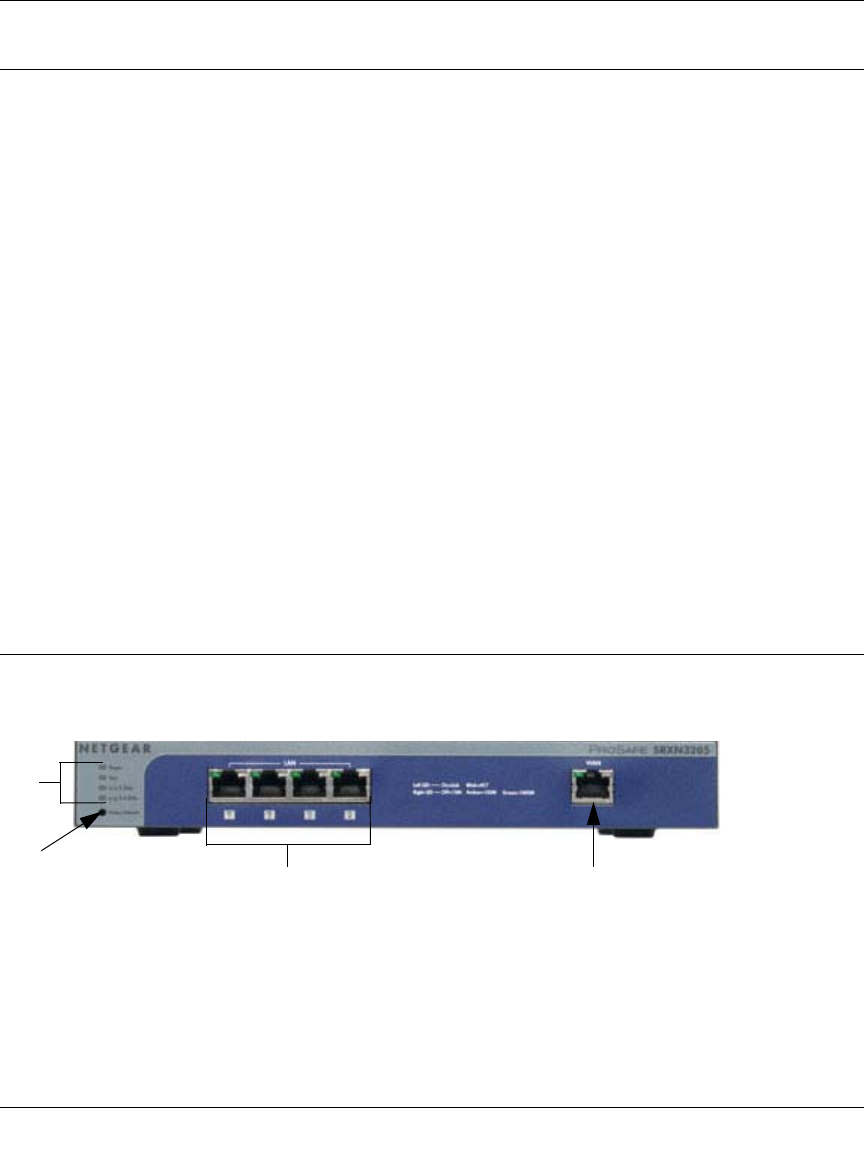
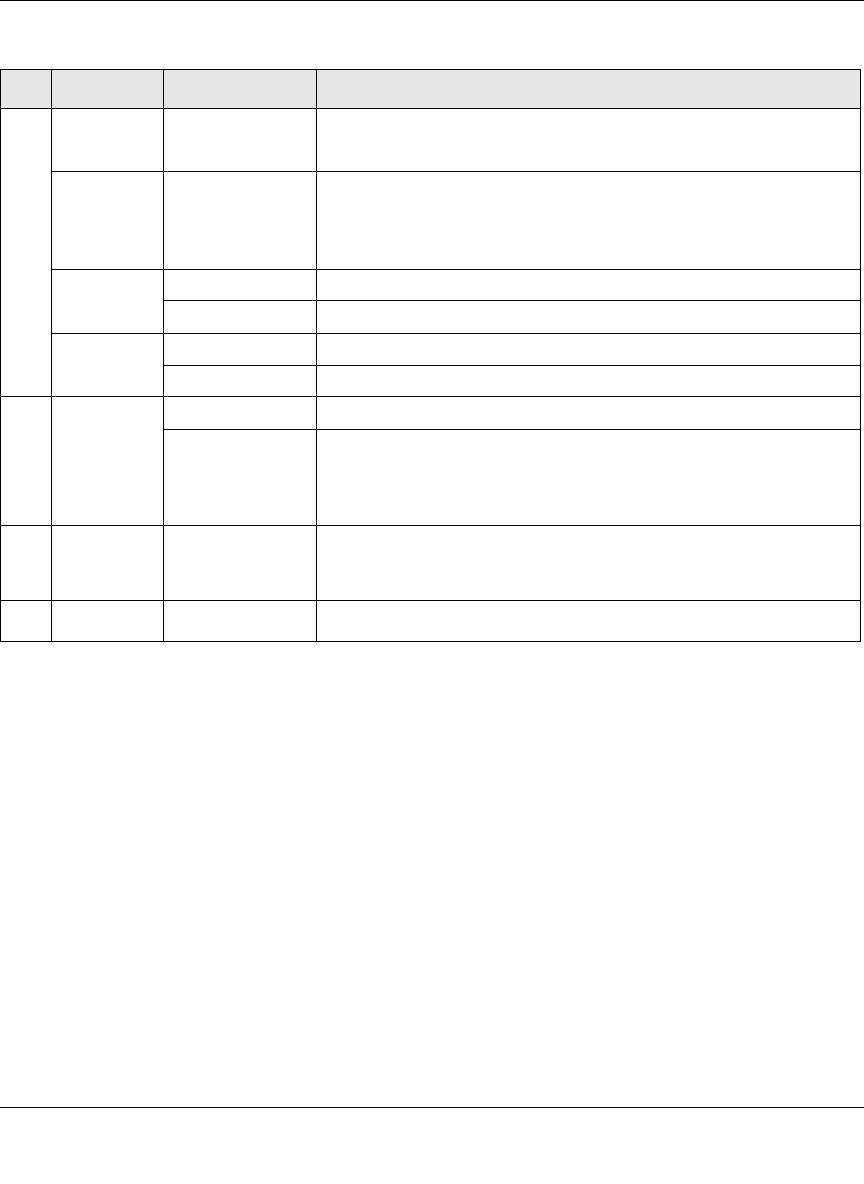
Front Panel Features
The SRXN3205’s front panel is shown below:
Figure 1-1
1
2
34
ProSafe Wireless-N VPN Firewall SRXN3205 Reference Manual
Introduction 1-7
v1.0, January 2010
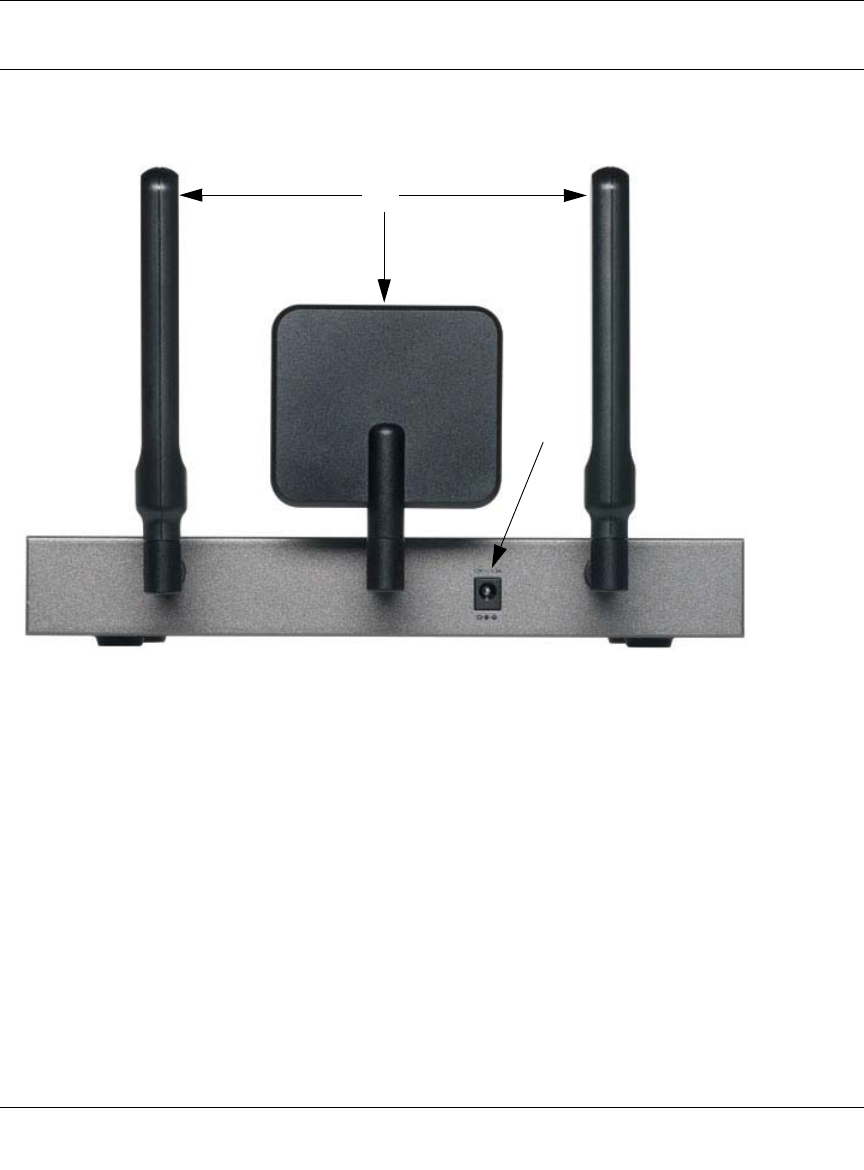
Table 1-1. Description of Front Panel Items
Item Activity Description
1
PWR
(Power)
On Green
Off Power is supplied to the SRXN3205.
Power is not supplied to the SRXN3205.
TEST
On Amber
Blinking Amber
Off
Test mode: The system is initializing (On) or the initialization has
failed (Blinking).
Writing to Flash memory (during upgrading or resetting to defaults).
The system has booted successfully.
n/a 5 GHz Off WLAN 802.11n/a (5GHz) mode is disabled.
Blink (Green) Wireless data traffic in 5GHz modes.
n/g 2.4 GHz Off WLAN 802.11b/g/n (2.4 GHz) mode is disabled.
Blink (Green) Wireless data traffic in 2.4 GHz modes
2
Reset
button
(Press with
a sharp
object)
Reboot Press once to reboot the unit.
Factory Defaults Hold in for 15 seconds (until the TEST light flashes). This resets
the unit to factory default settings, erasing all configuration settings
and restores the default password.
3LAN Ports LAN connections Four Auto MDI/MDIX, Gigabit Ethernet ports.
Left LED (status): On = Link; Blink = ACT
Right LED (speed): Off = 10M; Amber = 100M; Green = 1000M
4WAN Port WAN connection One Auto MDI/MDIX, Gigabit Ethernet port.
ProSafe Wireless-N VPN Firewall SRXN3205 Reference Manual
1-8 Introduction
v1.0, January 2010
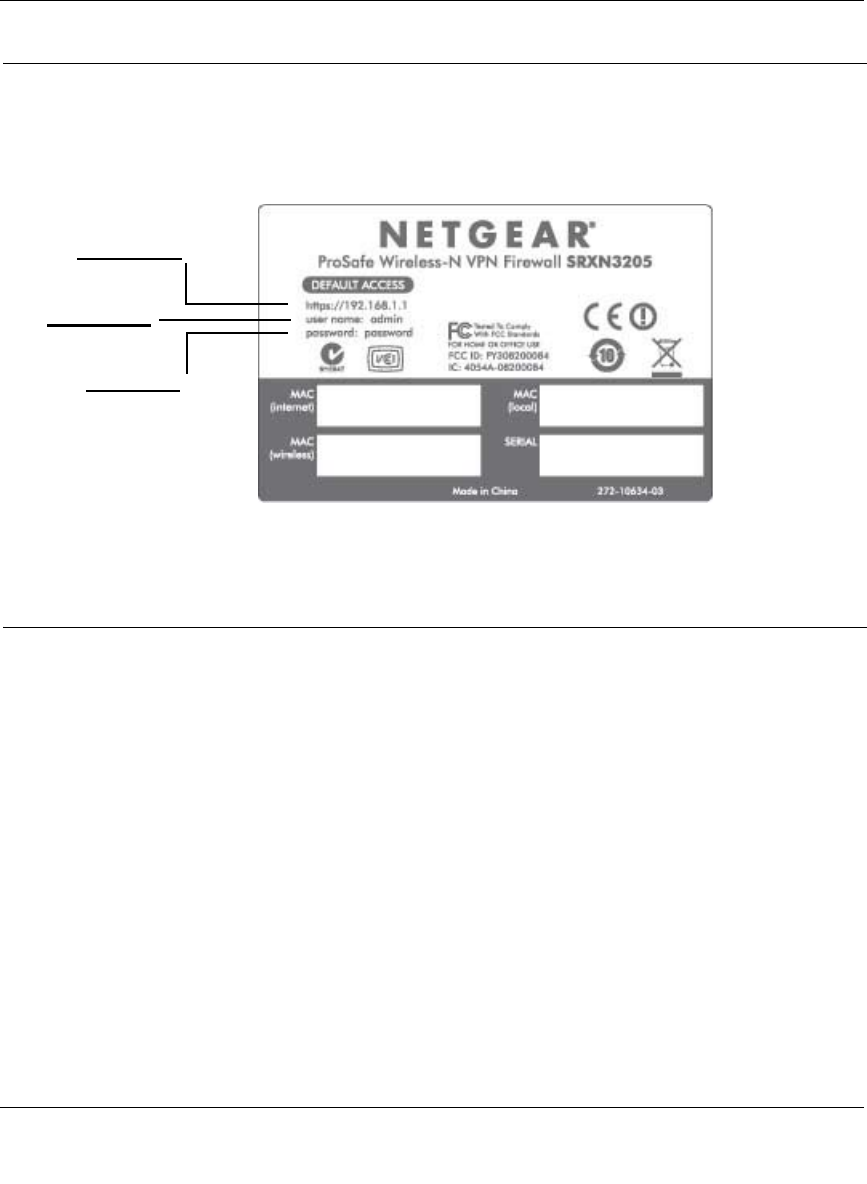
Rear Panel Features
The rear panel of the SRXN3205 is shown below.
1. Detachable (SMA) Antennas: The SRXN3205 provides three SMA connectors for the
detachable antennas (two dipole and one patch). For the best performance, attach the patch
antenna to the middle connector and attach the dipole antennas to the two connectors on both
corners. The three antennas can be positioned horizontally or vertically for the best coverage.
2. DC Power Jack: This jack connects to the SRXN3205 12V 1.5A AC-DC power adapter.
Figure 1-2
1
2
ProSafe Wireless-N VPN Firewall SRXN3205 Reference Manual
Introduction 1-9
v1.0, January 2010
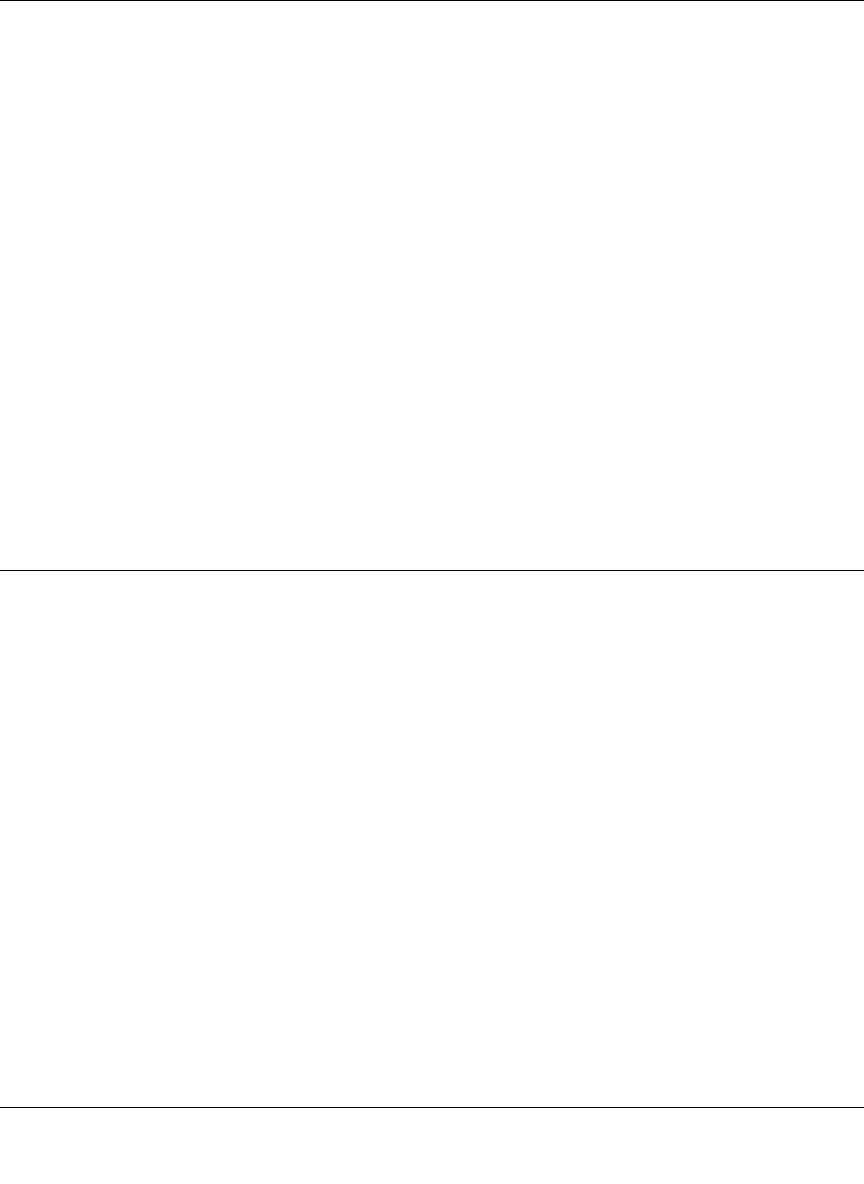
Default IP Address, Login Name, and Password Location
Check the label on the bottom of the SRXN3205’s enclosure if you need a reminder of the
following factory default information:
Qualified Web Browsers
To configure the SRXN3205, an administrator must use Internet Explorer 5.1 or higher, Apple
Safari 1.2 or higher, or Mozilla Firefox l.x Web browser with JavaScript, cookies, and SSL
enabled.
Although these web browsers are qualified for use with the SRXN3205’s Web Management
Interface for configuring the SRXN3205, SSL VPN users should choose a browser that supports
JavaScript, Java, cookies, SSL, and ActiveX to take advantage of the full suite of applications.
Note that Java is only required for the SSL VPN portal, not the Web Management Interface.
Figure 1-3
IP Address
User Name
Password

ProSafe Wireless-N VPN Firewall SRXN3205 Reference Manual
1-10 Introduction
v1.0, January 2010
ProSafe Wireless-N VPN Firewall SRXN3205 Reference Manual
Connecting to the Internet (WAN) 2-1
v1.0, January 2010
Chapter 2
Connecting to the Internet (WAN)
The initial Internet configuration of the ProSafe Wireless-N VPN Firewall SRXN3205 is described
in this chapter.
This chapter contains the following sections:
•“Understanding the Connection Steps” on this page
•“Logging into the VPN Firewall” on page 2-2
•“Navigating the Menus” on page 2-3
•“Configuring the Internet Connection (WAN)” on page 2-4
•“Configuring Dynamic DNS” on page 2-12
•“Configuring the Advanced WAN Options (Optional)” on page 2-14
Understanding the Connection Steps
Typically, six steps are required to complete the basic Internet connection of your VPN firewall.
1. Connect the firewall to your network. Connect the cables and restart your network
according to the instructions in the printed installation guide included in the product package.
A PDF of the FVX338 ProSafe VPN Firewall 200 Installation Guide is on the product CD and
on the NETGEAR website at http://kbserver.netgear.com.
2. Log in to the VPN firewall. After logging in, you are ready to set up and configure your VPN
firewall. You can also change your password and enable remote management at this time. See
“Logging into the VPN Firewall” on page 2-2.
3. Configure the Internet connection to your ISP. During this phase, you will connect to your
ISP. See “Configuring the Internet Connection (WAN)” on page 2-4.
4. Configure the WAN mode. Select either Network Address Translation (NAT) or Classical
Routing. See “Configuring the WAN Mode” on page 2-11.
5. Configure dynamic DNS on the WAN port (optional). Configure your fully qualified
domain name (FQDN) during this phase (if required). See “Configuring Dynamic DNS” on
page 2-12.
ProSafe Wireless-N VPN Firewall SRXN3205 Reference Manual
2-2 Connecting to the Internet (WAN)
v1.0, January 2010
6. Configure the WAN options (optional). Optionally, you can enable each WAN port to
respond to a ping, and you can change the factory default MTU size and port speed. However,
these are advanced features and changing them is not usually required. See “Configuring the
Advanced WAN Options (Optional)” on page 2-14.
Each of these tasks is detailed separately in this chapter. The configuration of wireless, firewall,
and VPN features are described in later chapters.
Logging into the VPN Firewall
To connect to the VPN firewall, your computer needs to be configured to get an IP address
automatically from the VPN firewall by DHCP. For instructions on how to configure your
computer for DHCP, see the “Preparing Your Network” document that you can access from
Appendix C, “Related Documents.”
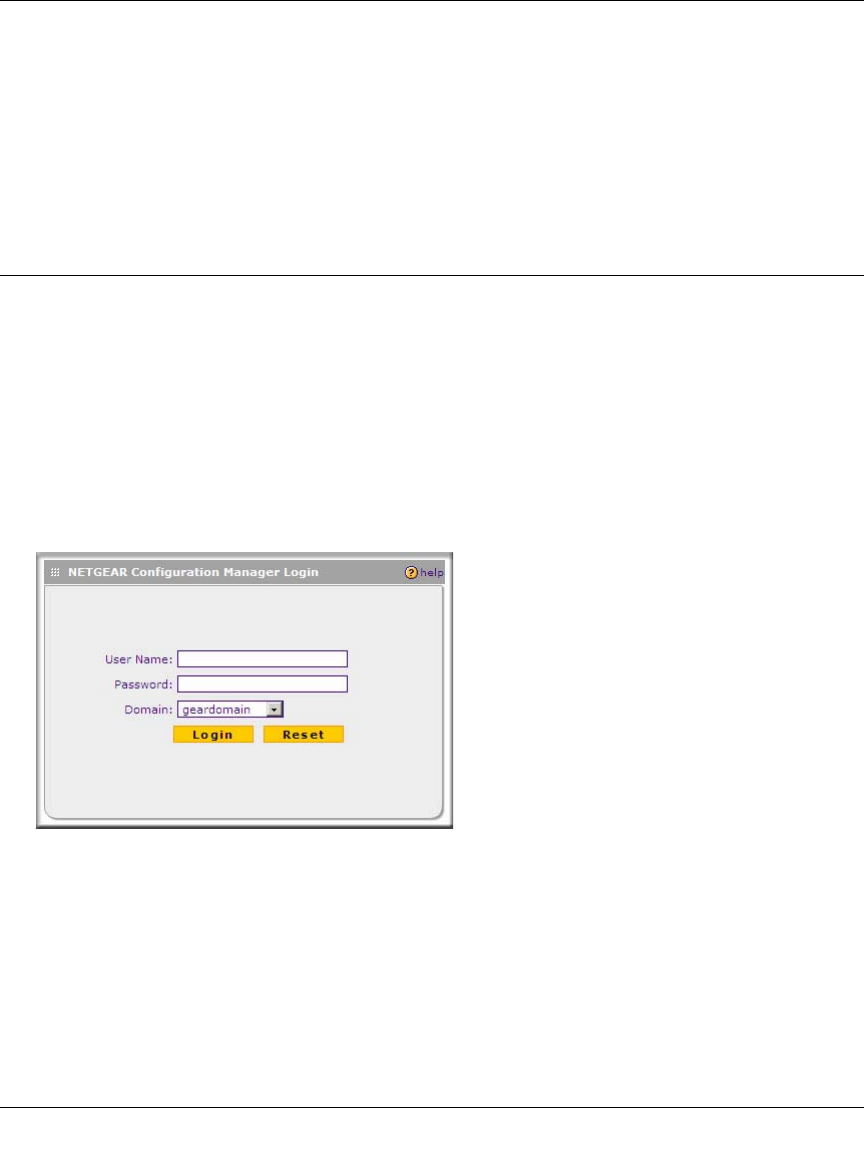
To log in to the VPN firewall, follow these steps:
1. Open a browser, and enter https://192.168.1.1 in the address field.
The login window displays in the browser.
2. Enter admin in lower case for the User Name and password for the Password.
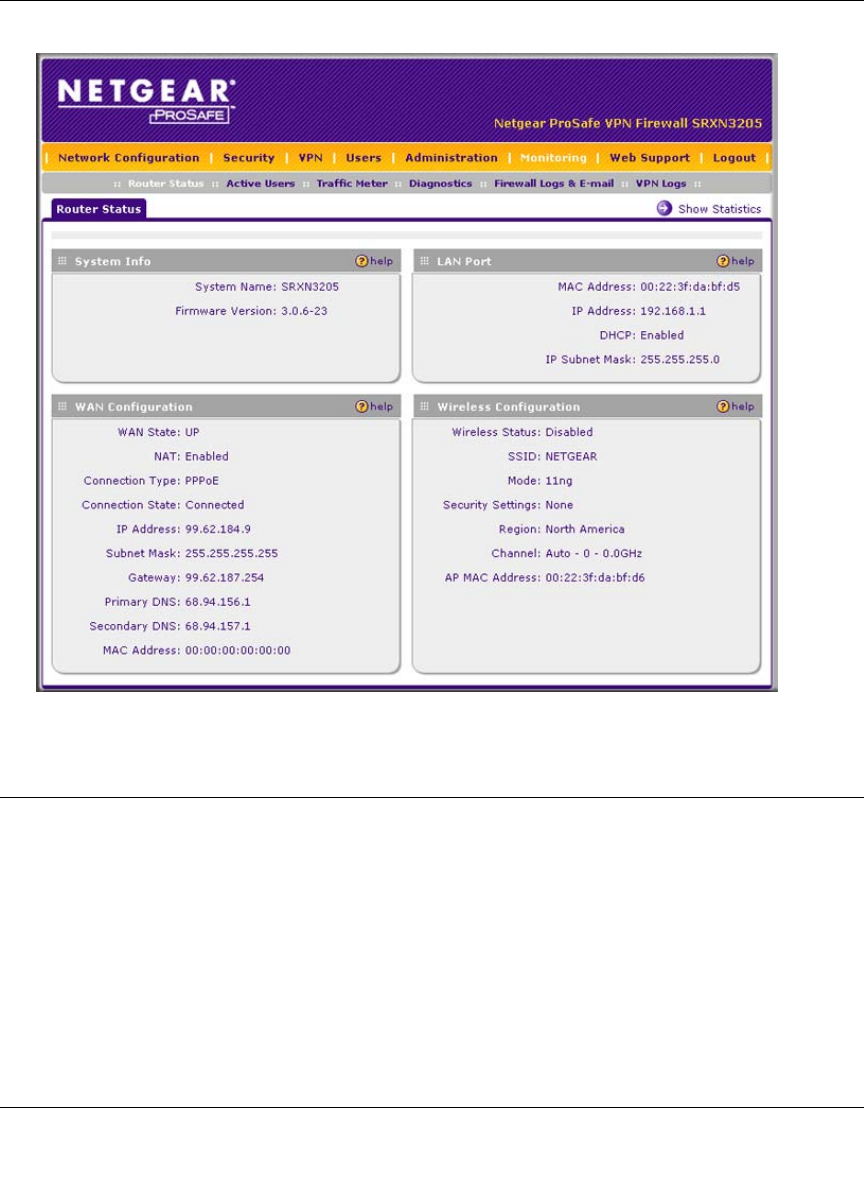
3. Click Login. The Web Configuration Manager appears, displaying the Router Status screen as
the default screen (see Figure 2-2 on page 2-3).
Figure 2-1
ProSafe Wireless-N VPN Firewall SRXN3205 Reference Manual
Connecting to the Internet (WAN) 2-3
v1.0, January 2010
Navigating the Menus
The Web Configuration Manager menus are organized in a layered structure of main categories
and submenus:
•Main menu. The horizontal orange bar near the top of the screen is the main menu, containing
the primary configuration categories. Clicking on a primary category changes the contents of
the submenu bar.
•Submenu. The horizontal grey bar immediately below the main menu is the submenu,
containing subcategories of the currently selected primary category.
Figure 2-2
ProSafe Wireless-N VPN Firewall SRXN3205 Reference Manual
2-4 Connecting to the Internet (WAN)
v1.0, January 2010
•Tab. Immediately below the submenu bar, at the top of the menu active window, are one or
more tabs, further subdividing the currently selected subcategory if necessary.
•Option arrow. To the right of the tabs on some menus are one or more blue dots with an arrow
in the center. Clicking an option arrow brings up either a popup window or an advanced option
menu.
You can now proceed to the first configuration task, configuring the VPN firewall’s Internet
connections.
Configuring the Internet Connection (WAN)
To set up your VPN firewall for secure Internet connections, you configure the WAN port. The
Web Configuration Manager offers two connection configuration options:
• Automatic detection and configuration of the network connection.
• Manual configuration of the network connection.
Each option is detailed in the following sections.
Automatically Detecting and Connecting
To automatically configure the WAN port for connection to the Internet:
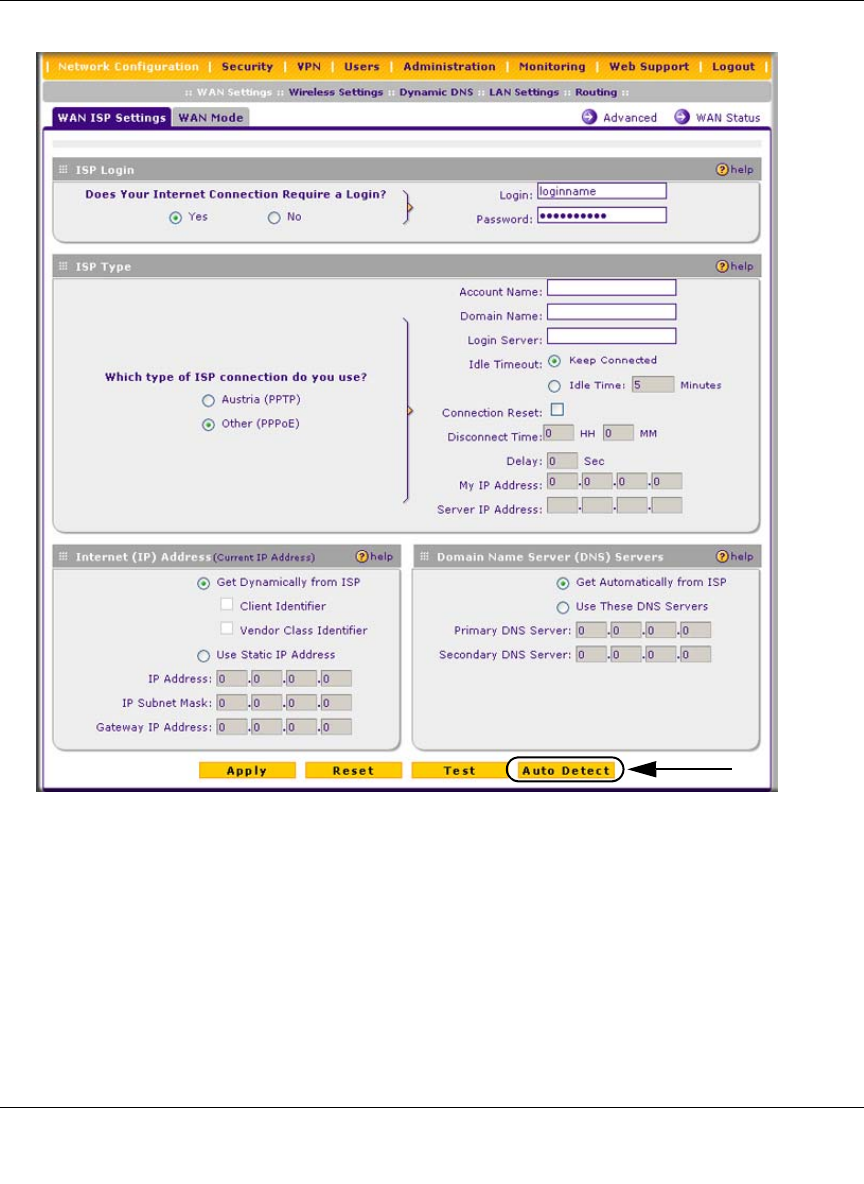
1. Select Network Configuration > WAN Settings from the menu/submenu.
The WAN tabs appear on screen with the WAN ISP Settings screen in view (see Figure 2-3 on
page 2-5).
Tip: In the instructions in this guide, we may refer to a menu using the notation
primary > subcategory, such as Network Configuration > WAN Settings. In
this example, Network Configuration is the selected primary category (in the
main menu) and WAN Settings is the selected subcategory (in the submenu).
ProSafe Wireless-N VPN Firewall SRXN3205 Reference Manual
Connecting to the Internet (WAN) 2-5
v1.0, January 2010
2. Click Auto Detect at the bottom of the screen.
Figure 2-3
ProSafe Wireless-N VPN Firewall SRXN3205 Reference Manual
2-6 Connecting to the Internet (WAN)
v1.0, January 2010
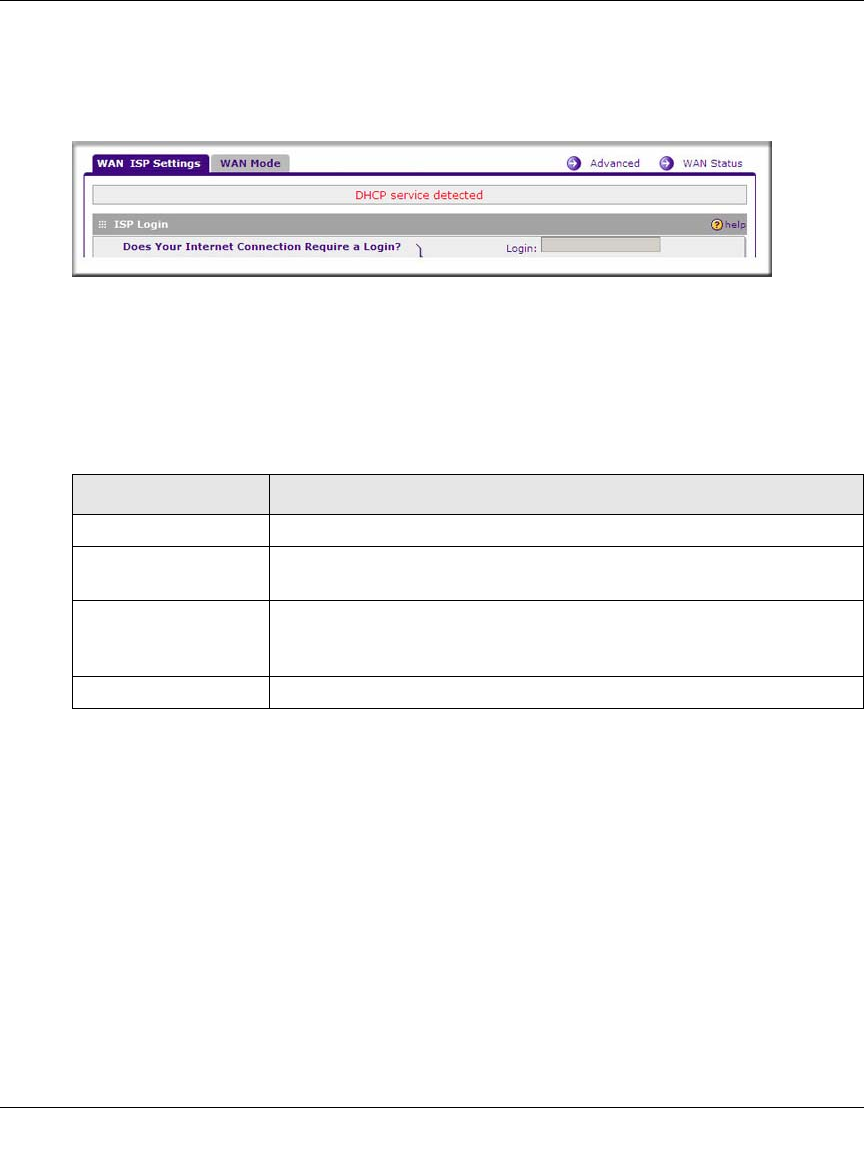
Auto Detect will probe the WAN port for a range of connection methods and suggest one that
your ISP appears to support.
a. If Auto Detect is successful, a status bar at the top of the screen will display the results:.
b. If Auto Detect senses a connection method that requires input from you, it will prompt you
for the information. All methods with the required settings are detailed in the following
table.
c. If Auto Detect does not find a connection, you will be prompted to (1) check the physical
connection between your VPN firewall and the cable or DSL line, or to (2) check your
VPN firewall’s MAC address (For more information, see “Troubleshooting the ISP
Connection” on page 11-4).
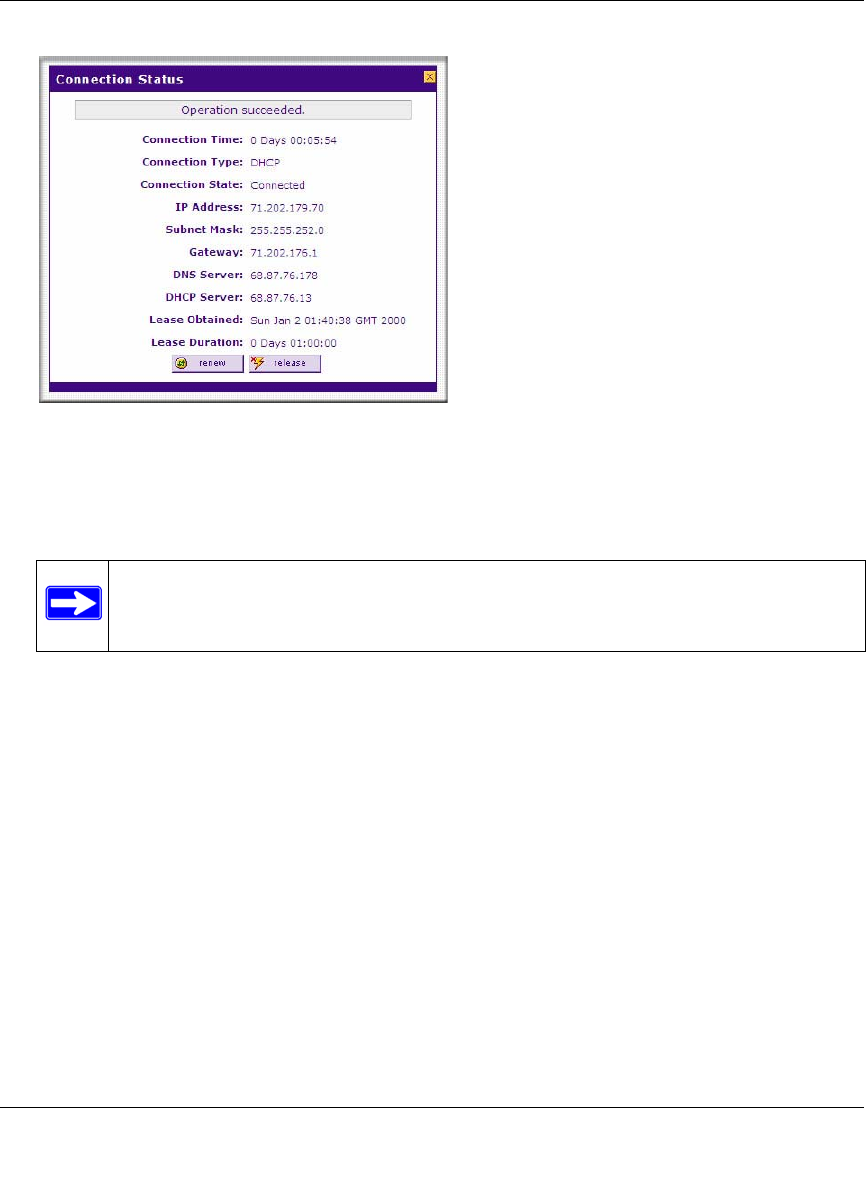
3. To verify the connection, click the WAN Status option arrow at the top right of the screen.
A popup window appears, displaying the connection status of the WAN port (see Figure 2-5
on page 2-7).
Figure 2-4
Table 2-1. Internet connection methods
Connection Method Data Required
DHCP (Dynamic IP) No data is required.
PPPoE Login (Username, Password);
Account Name, Domain Name (sometimes required).
PPTP Login (Username, Password),
Local IP address, and PPTP Server IP address;
Account Name (sometimes required).
Fixed (Static) IP Static IP address, Subnet, and Gateway IP; DNS Server IP addresses.
ProSafe Wireless-N VPN Firewall SRXN3205 Reference Manual
Connecting to the Internet (WAN) 2-7
v1.0, January 2010
The WAN Status window should show a valid IP address and gateway. If the configuration
was not successful, go to “Manually Configuring the Internet Connection” following this
section, or see “Troubleshooting the ISP Connection” on page 11-4.
4. Click Test to evaluate your entries.
The VPN firewall will attempt to connect to the NETGEAR website. If a successful
connection is made, NETGEAR’s website appears.
If the automatic WAN ISP configurations failed, you can attempt a manual configuration as
described in the following section, or see “Troubleshooting the ISP Connection” on page 11-4.
Manually Configuring the Internet Connection
Unless your ISP automatically assigns your configuration automatically via DHCP, you will need
to obtain configuration parameters from your ISP in order to manually establish an Internet
connection. The necessary parameters for various connection types are listed in Table 2-1 on
page 2-6.
Figure 2-5
Note: If the configuration process was successful, you are connected to the Internet
through the WAN port.
ProSafe Wireless-N VPN Firewall SRXN3205 Reference Manual
2-8 Connecting to the Internet (WAN)
v1.0, January 2010
To manually configure your WAN ISP Settings:
1. Select Network Configuration > WAN ISP Settings. The WAN ISP Settings screen is
displayed (see Figure 2-3 on page 2-5 for the entire screen).
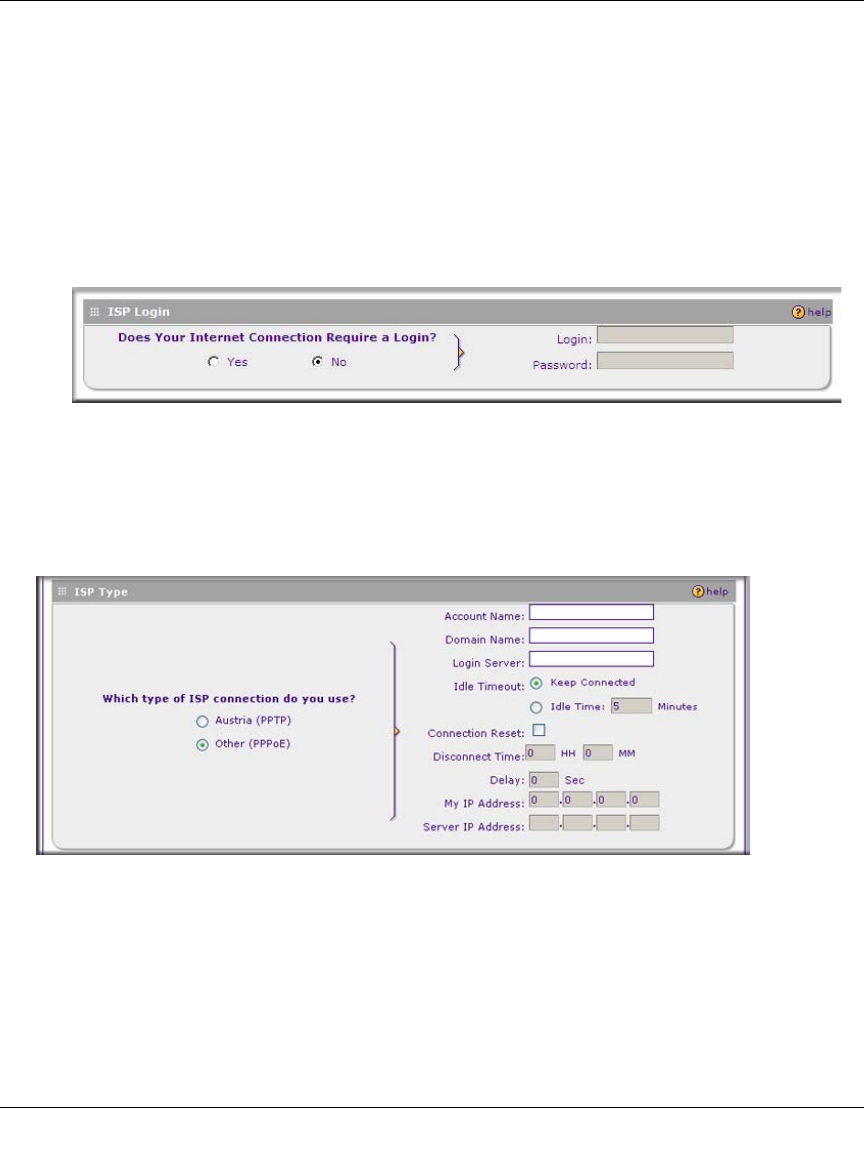
2. In the ISP Login section, choose one of these options:
• If your ISP requires an initial login to establish an Internet connection, click Yes (this is
the default).
• If a login is not required, click No and ignore the Login and Password fields.
3. If you clicked Yes, enter the ISP-provided Login and Password information.
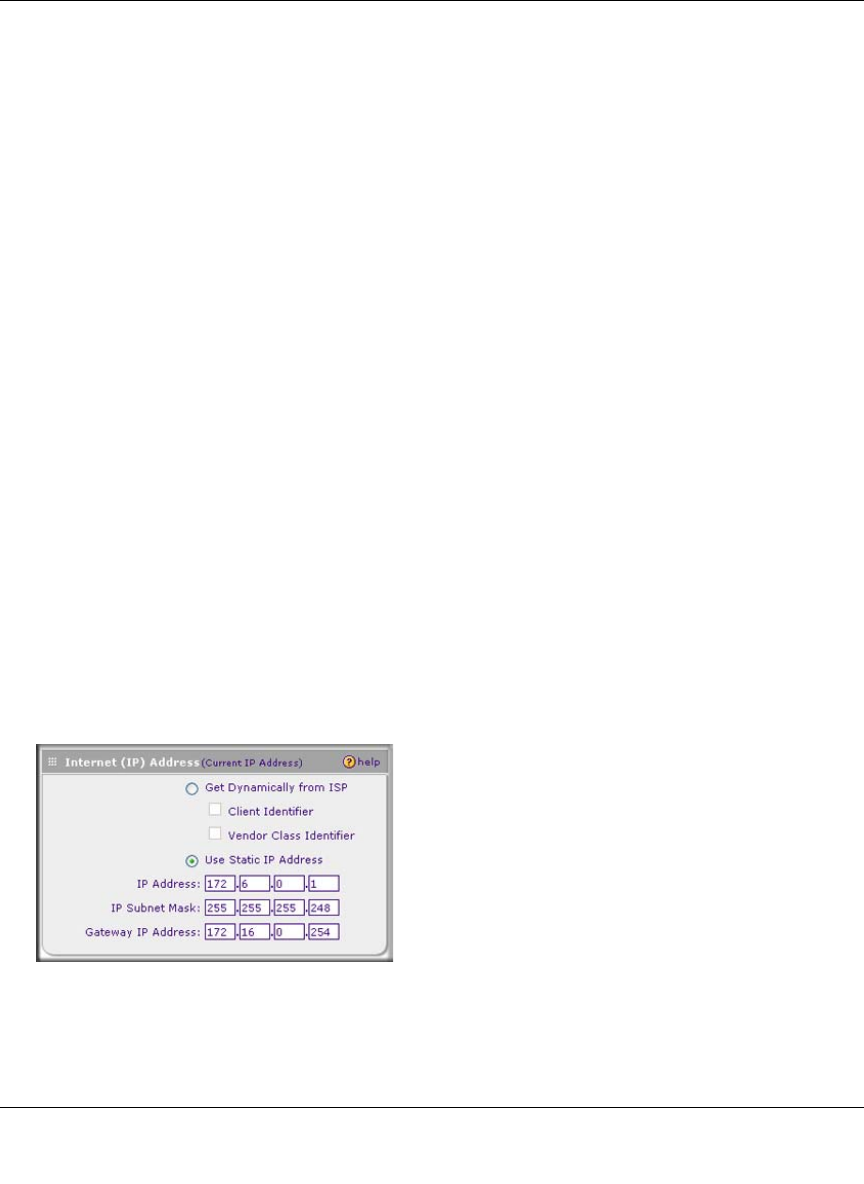
4. In the ISP Type section, select the type of ISP connection you use from the two listed options.
(By default, “Other (PPPoE)” is selected.)
•Other (PPPoE). If you have installed login software such as WinPoET or Ethernet, then
your connection type is PPPoE. Configure the following fields:
–Account Name. Valid account name for the PPPoE connection.
–Domain Name. Name of your ISP’s domain or your domain name if your ISP has
assigned one. In most cases, you may leave this field blank.
Figure 2-6
Figure 2-7
ProSafe Wireless-N VPN Firewall SRXN3205 Reference Manual
Connecting to the Internet (WAN) 2-9
v1.0, January 2010
–Idle Timeout. Select Keep Connected, to keep the connection always on. To logout
after the connection is idle for a period of time, click Idle Time and in the timeout
field enter the number of minutes to wait before disconnecting.
–Connection Reset. Select this checkbox to to specify a time when the PPPoE WAN
connection is reset, that is, the connection is disconnected momentarily and then re-
established. Enter the hour and minutes in the Disconnect Time fields to specify when
the connection should be disconnected. Enter the seconds in the Delay field to specify
the period after which the connection should be re-established.
•PPTP. Select this option if your ISP is Austria Telecom or any other ISP that uses PPTP as
a login protocol. Configure the following fields:
–Account Name. (Also known as Host Name or System Name.) Enter the valid
account name for the PPTP connection (usually your e-mail name as assigned by your
ISP). Some ISPs require entering your full e-mail address here.
–Domain Name. Your domain name or workgroup name assigned by your ISP, or your
ISPs domain name. You may leave this field blank.
–Idle Timeout. Check the Keep Connected radio box to keep the connection always
on. To logout after the connection is idle for a period of time, click Idle Time and
enter the number of minutes to wait before disconnecting in the timeout field. This is
useful if your ISP charges you based on the amount of time you have logged in.
–My IP Address. IP address assigned by the ISP to make the connection with the ISP
server.
–Server IP Address. IP address of the PPTP server.
5. Review the Internet (IP) Address options.
Figure 2-8
ProSafe Wireless-N VPN Firewall SRXN3205 Reference Manual
2-10 Connecting to the Internet (WAN)
v1.0, January 2010
•Get Dynamically from ISP. If your ISP has not assigned a static IP address, select this
radio button. The ISP will automatically assign an IP address to the VPN firewall using
DHCP network protocol. The IP address and subnet mask fields will be inactivated. As an
option, you can select the following checkboxes:
–Client Identifier. Select this checkbox if your ISP requires the Client Identifier
information to assign an IP address using DHCP.
–Vendor Class Identifier. Select this checkbox if your ISP requires the Vendor Class
Identifier information to assign an IP address using DHCP.
•Use Static IP Address. If your ISP has assigned a fixed (static) IP address, select this
radio button, and configure the following fields:
–IP Address. Enter the Static IP address assigned to you, that identifies the VPN
firewall to your ISP.
–Subnet Mask. Enter the mask provided by the ISP or your network administrator.
–Gateway IP Address. Enter the IP address of the ISP’s gateway, provided by the ISP
or your network administrator.
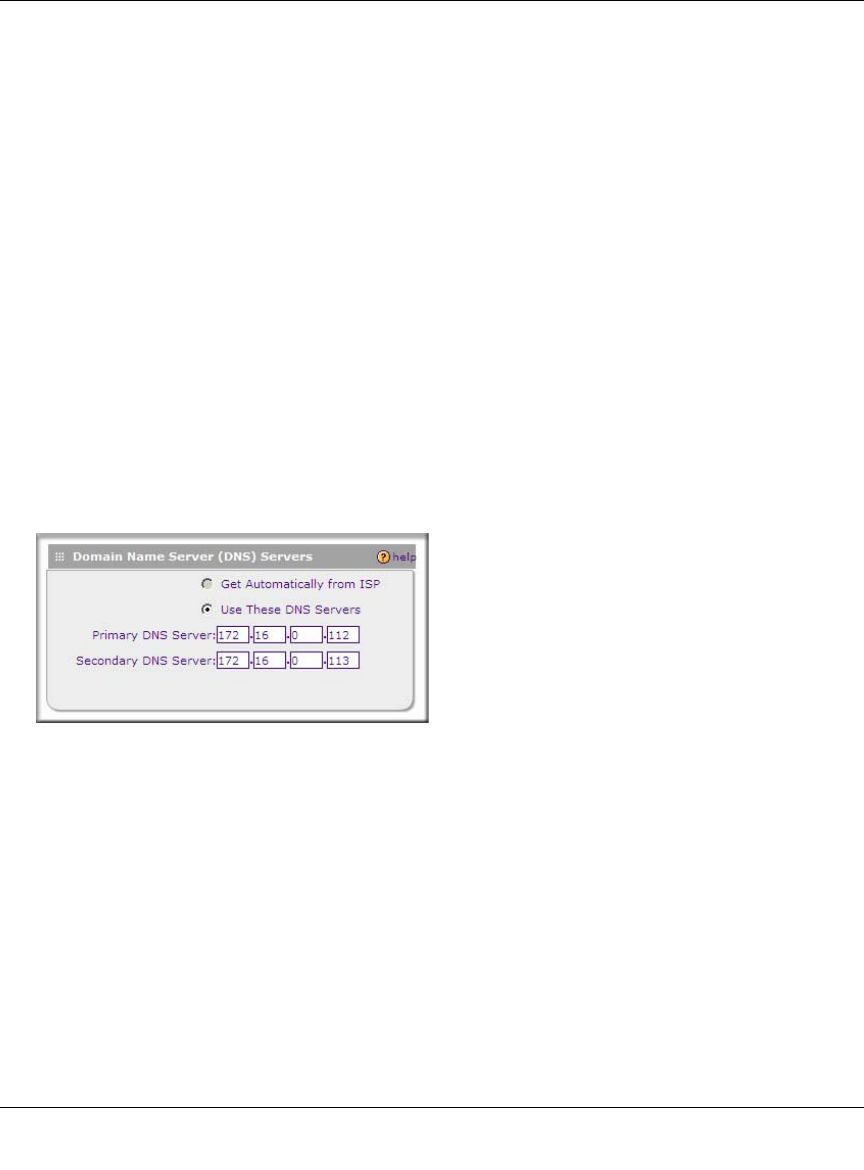
6. Review the Domain Name Server (DNS) server options.
• If your ISP has not assigned any Domain Name Servers (DNS) addresses, click Get
Dynamically from ISP.
• If your ISP (or your IT department) has assigned DNS addresses, click Use These DNS
Servers and enter the DNS server IP addresses provided to you in the fields.
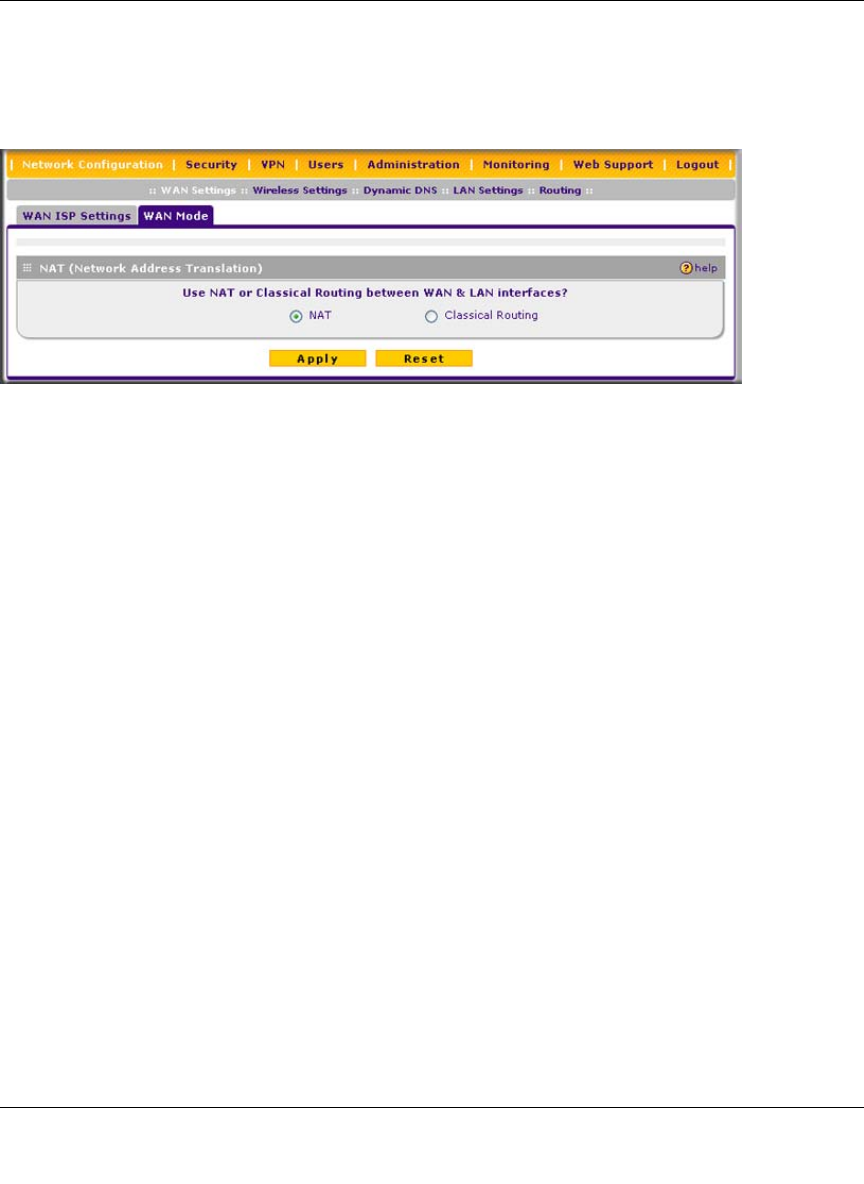
7. Click Apply to save any changes to the WAN ISP Settings. (Or click Reset to discard any
changes and revert to the previous settings.)
8. Click Test to evaluate your entries.
The VPN firewall will attempt to connect to the NETGEAR website. If a successful
connection is made, NETGEAR’s website appears.
Figure 2-9
ProSafe Wireless-N VPN Firewall SRXN3205 Reference Manual
Connecting to the Internet (WAN) 2-11
v1.0, January 2010
Configuring the WAN Mode
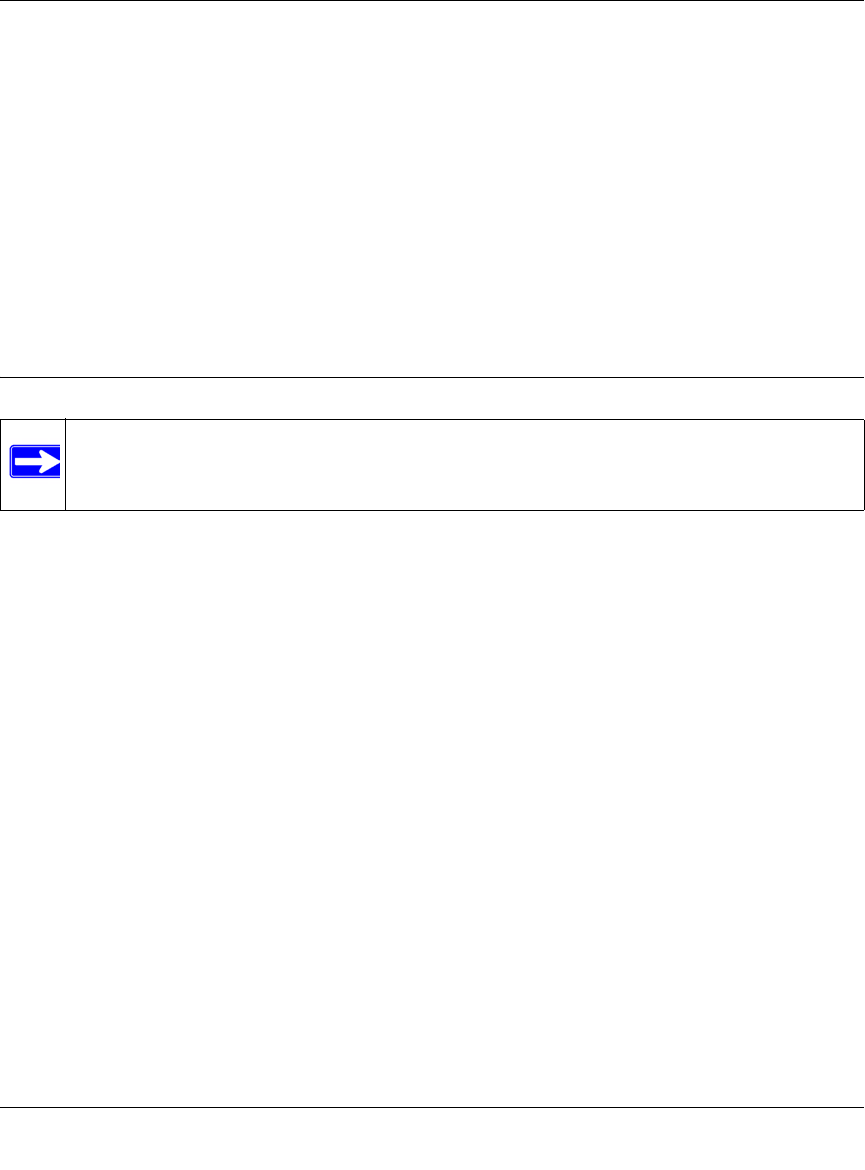
To access the WAN Mode, click on Network Configuration > WAN Settings and select the WAN
Mode tab. The WAN Mode screen displays.
The WAN Mode screen allows you to configure how your firewall uses the external Internet
connection. This screen gives you two choices for accessing the external Internet connection.
•Network Address Translation (NAT). This technique allows several computers on a LAN to
share the same Internet connection (IP address) while using private IP address on the LAN,
which are hidden from the Internet.
•Classical Routing. This method allows the firewall to perform the routing, but requires
separate valid static Internet IP address for each PC on your LAN.
Network Address Translation
Network Address Translation (NAT) allows all PCs on your LAN to share a single public Internet
IP address. From the Internet, there is only a single device (the VPN firewall) and a single IP
address. PCs on your LAN can use any private IP address range, and these IP addresses are not
visible from the Internet.
• The VPN firewall uses NAT to select the correct PC (on your LAN) to receive any incoming
data.
• If you only have a single public Internet IP address, you MUST use NAT. (the default setting).
• If your ISP has provided you with multiple public IP addresses, you can use one address as the
primary shared address for Internet access by your PCs, and you can map incoming traffic on
the other public IP addresses to specific PCs on your LAN. This one-to-one inbound mapping
is configured using an inbound firewall rule.
Figure 2-10
ProSafe Wireless-N VPN Firewall SRXN3205 Reference Manual
2-12 Connecting to the Internet (WAN)
v1.0, January 2010
Classical Routing
In classical routing mode, the VPN firewall performs routing, but without NAT. To gain Internet
access, each PC on your LAN must have a valid static Internet IP address.
If your ISP has allocated a number of static IP addresses to you, and you have assigned one of
these addresses to each PC, you can choose classical routing. Or, you can use classical routing for
routing private IP addresses within a campus environment.
To learn the status of the WAN port, you can view the Router Status screen (see “Monitoring the
VPN Tunnel Connection Status” on page 10-15) or look at the LEDs on the front panel (see “Front
Panel Features” on page 1-6).
Configuring Dynamic DNS
Dynamic DNS (DDNS) is an Internet service that allows routers with varying public IP addresses
to be located using Internet domain names. To use DDNS, you must setup an account with a
DDNS provider such as DynDNS.org, TZO.com, Oray.net, or 3322.org. Links to DynDNS, TZO,
Oray, and 3322 are provided for your convenience on the Dynamic DNS Configuration screen.
The VPN firewall firmware includes software that notifies dynamic DNS servers of changes in the
WAN IP address, so that the services running on this network can be accessed by others on the
Internet.
If your network has a permanently assigned IP address, you can register a domain name and have
that name linked with your IP address by public Domain Name Servers (DNS). However, if your
Internet account uses a dynamically assigned IP address, you will not know in advance what your
IP address will be, and the address can change frequently—hence, the need for a commercial
DDNS service, which allows you to register an extension to its domain, and restores DNS requests
for the resulting FQDN to your frequently-changing IP address.
After you have configured your account information in the firewall, whenever your ISP-assigned
IP address changes, your firewall will automatically contact your DDNS service provider, log in to
your account, and register your new IP address.
• For auto-rollover mode, you will need a fully qualified domain name (FQDN) to implement
features such as exposed hosts and virtual private networks regardless of whether you have a
fixed or dynamic IP address.
Note: Dynamic DNS enables you to employ some VPN configurations that require using
an FQDN instead of the WAN IP address.
ProSafe Wireless-N VPN Firewall SRXN3205 Reference Manual
Connecting to the Internet (WAN) 2-13
v1.0, January 2010
• For load balancing mode, you may still need a fully qualified domain name (FQDN) either for
convenience or if you have a dynamic IP address.
To configure dynamic DNS:
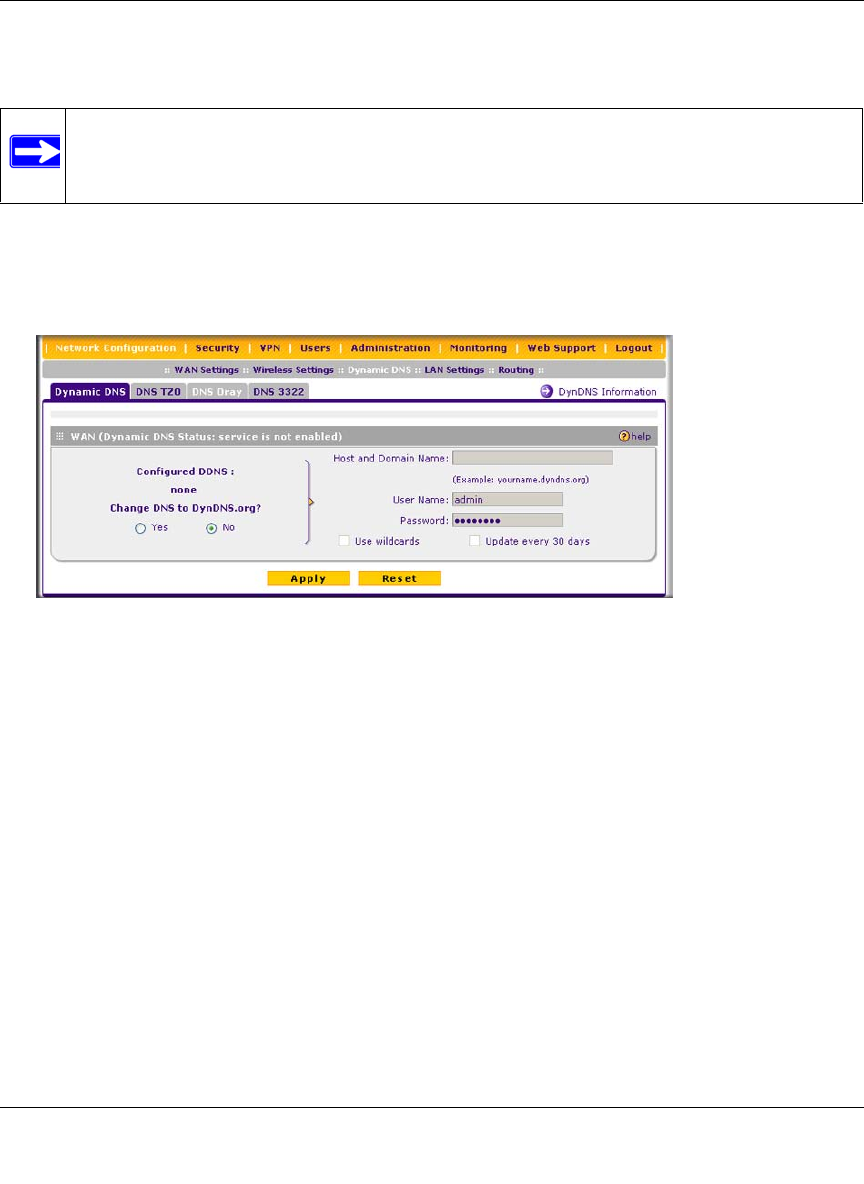
1. Select Network Configuration > Dynamic DNS from the main/submenu. The Dynamic DNS
screen is displayed.
2. Select the dynamic DNS service that you will use.
The fields corresponding to the selection you have chosen will be activated. Each DDNS
service provider requires its own parameters.
3. Access the website of one of the DDNS service providers and set up an account. Links to three
DDNS providers are in the tab header.
4. After registering for your account, return to the Dynamic DNS screen and enter the required
fields for the DDNS service you selected:
a. In the Host and Domain Name field, enter the entire FQDN name that your dynamic DNS
service provider gave you (for example: <yourname>.dyndns.org).
b. Enter the user name, user e-mail Address, or account name requested by the DDNS
Service to identify you when logging into your DDNS account.
c. Enter the password, or user key, for your DDNS account.
Note: If your ISP assigns a private WAN IP address such as 192.168.x.x or 10.x.x.x, the
dynamic DNS service will not work because private addresses will not be routed
on the Internet.
Figure 2-11
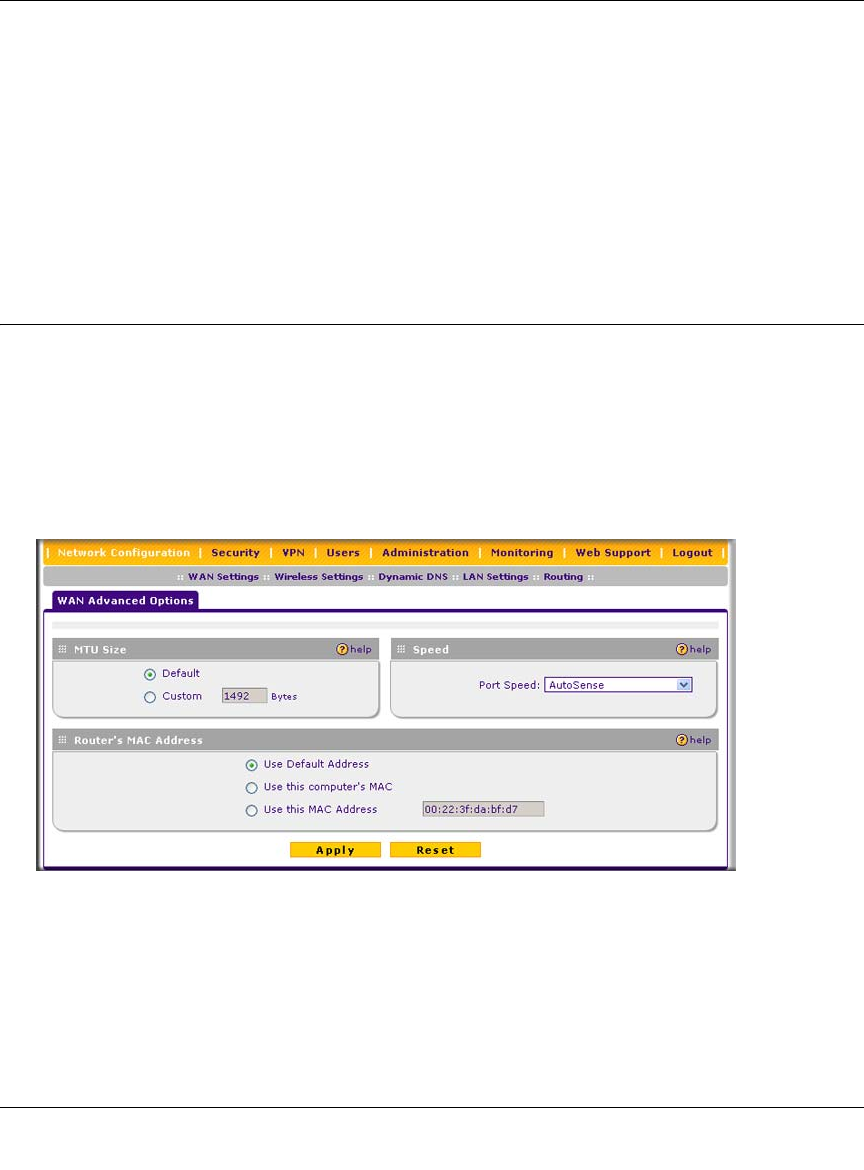
ProSafe Wireless-N VPN Firewall SRXN3205 Reference Manual
2-14 Connecting to the Internet (WAN)
v1.0, January 2010
d. If your dynamic DNS provider allows the use of wildcards in resolving your URL, check
Use wildcards to activate this feature.
For example, the wildcard feature will cause anything.yourhost.dyndns.org to be aliased
to the same IP address as yourhost.dyndns.org
e. If your dynamic DNS provider requires you to renew your account monthly, check
Update every 30 days to have the VPN firewall renew the account automatically.
5. Click Apply to save your configuration.
Configuring the Advanced WAN Options (Optional)
To configure the Advanced WAN options:
1. Select Network Configuration > WAN Settings from the main/submenu. The WAN ISP
Settings screen displays.
2. Click the Advanced link to the right of the tabs. The WAN Advanced Options screen is
displayed.
3. Edit the default information you want to change.
a. MTU Size. The normal MTU (Maximum Transmit Unit) value for most Ethernet
networks is 1500 Bytes, or 1492 Bytes for PPPoE connections. For some ISPs, you may
need to reduce the MTU. This is rarely required, and should not be done unless you are
sure it is necessary for your ISP connection.
Figure 2-12

ProSafe Wireless-N VPN Firewall SRXN3205 Reference Manual
Connecting to the Internet (WAN) 2-15
v1.0, January 2010
b. Port Speed. In most cases, your VPN firewall can automatically determine the connection
speed of the WAN port. If you cannot establish an Internet connection and the WAN Link
or Speed LED blinks continuously, you may need to manually select the port speed.
AutoSense is the default.
If you know the Ethernet port speed that your broadband modem supports, select it;
otherwise, select 10M. Use the half-duplex settings unless you are sure your broadband
modem supports full duplex.
c. Router’s MAC Address. Each computer or router on your network has a unique 32-bit
local Ethernet address. This is also referred to as the computer’s MAC (Media Access
Control) address. The default is Use Default Address. However, if your ISP requires
MAC authentication, then select either of these options:
• Select the Use this computer’s MAC radio button to enable the VPN firewall to use
the MAC address of the computer you are now using, or
• Select the Use this MAC Address radio button to manually type in the MAC address
that your ISP expects.
The format for the MAC address is 01:23:45:67:89:AB (numbers 0-9 and either uppercase
or lowercase letters A-F). If you select Use this MAC Address and then type in a MAC
address, your entry will be overwritten.
4. Click Apply to save your changes.
Additional WAN Related Configuration
• If you want the ability to manage the VPN firewall remotely, enable remote management at
this time (see “Enabling Remote Management Access” on page 9-9). If you enable remote
management, we strongly recommend that you change your password (see “Changing
Passwords and Administrator Settings” on page 9-8).
• At this point, you can set up the traffic meter for the WAN, if desired. See “Enabling the
Traffic Meter” on page 10-5.

ProSafe Wireless-N VPN Firewall SRXN3205 Reference Manual
2-16 Connecting to the Internet (WAN)
v1.0, January 2010
ProSafe Wireless-N VPN Firewall SRXN3205 Reference Manual
LAN Configuration 3-1
v1.0, January 2010
Chapter 3
LAN Configuration
This chapter describes how to configure the advanced LAN features of your ProSafe Wireless-N
VPN Firewall SRXN3205.
This chapter contains the following sections:
•“Using the VPN Firewall as a DHCP Server” on this page
•“Configuring the LAN Setup Options” on page 3-2”
•“Managing Groups and Hosts (LAN Groups)” on page 3-5
•“Configuring Multi Home LAN IP Addresses” on page 3-10
•“Configuring Static Routes” on page 3-11
•“Configuring Routing Information Protocol (RIP)” on page 3-13
Using the VPN Firewall as a DHCP Server
By default, the VPN firewall will function as a DHCP (Dynamic Host Configuration Protocol)
server, allowing it to assign IP, DNS server, WINS Server, and default gateway addresses to all
computers connected to the LAN. The assigned default gateway address is the LAN address of the
VPN firewall. IP addresses will be assigned to the attached PCs from a pool of addresses that you
must specify. Each pool address is tested before it is assigned to avoid duplicate addresses on the
LAN.
For most applications, the default DHCP and TCP/IP settings of the firewall are satisfactory. See
the link to “TCP/IP Networking Basics” in Appendix C, “Related Documents” for an explanation
of DHCP and information about how to assign IP addresses for your network.
If another device on your network will be the DHCP server, or if you will manually configure the
network settings of all of your computers, clear the Enable DHCP server radio box by selecting
the Disable DHCP Server radio box. Otherwise, leave it checked.

ProSafe Wireless-N VPN Firewall SRXN3205 Reference Manual
3-2 LAN Configuration
v1.0, January 2010
Specify the pool of IP addresses to be assigned by setting the starting IP address and ending IP
address. These addresses should be part of the same IP address subnet as the VPN firewall’s LAN
IP address. Using the default addressing scheme, you would define a range between 192.168.1.2
and 192.168.1.100, although you may wish to save part of the range for devices with fixed
addresses.
The VPN firewall will deliver the following settings to any LAN device that requests DHCP:
• An IP address from the range you have defined.
• Subnet mask.
• Gateway IP address (the VPN firewall’s LAN IP address).
• Primary DNS server (the VPN firewall’s LAN IP address).
• WINS server (if you entered a WINS server address in the DHCP section of the LAN Setup
screen).
• Lease time (date obtained and duration of lease).
DHCP Relay options allow you to make the VPN firewall a DHCP relay agent. The DHCP Relay
Agent makes it possible for DHCP broadcast messages to be sent over routers that do not support
forwarding of these types of messages. The DHCP Relay Agent is therefore the routing protocol
that enables DHCP clients to obtain IP addresses from a DHCP server on a remote subnet, or
which is not located on the local subnet. If you have no configured DHCP Relay Agent, your
clients would only be able to obtain IP addresses from the DHCP server which is on the same
subnet. To enable clients to obtain IP addresses from a DHCP server on a remote subnet, you have
to configure the DHCP Relay Agent on the subnet that contains the remote clients, so that it can
relay DHCP broadcast messages to your DHCP server.
When the DNS Proxy option is enabled, the VPN firewallwill act as a proxy for all DNS requests
and communicate with the ISP’s DNS servers (as configured in the WAN settings page). All
DHCP clients will receive the Primary/Secondary DNS IP along with the IP address where the
DNS proxy is running, that is, the VPN firewall’s LAN IP address. When disabled, all DHCP
clients will receive the DNS IP addresses of the ISP excluding the DNS proxy IP address.
Configuring the LAN Setup Options
The LAN Setup screen allows configuration of LAN IP services such as DHCP and allows you to
configure a secondary or “multi-home” LAN IP setup on the LAN. The default values are suitable
for most users and situations. These are advanced settings usually configured by a network
administrator.
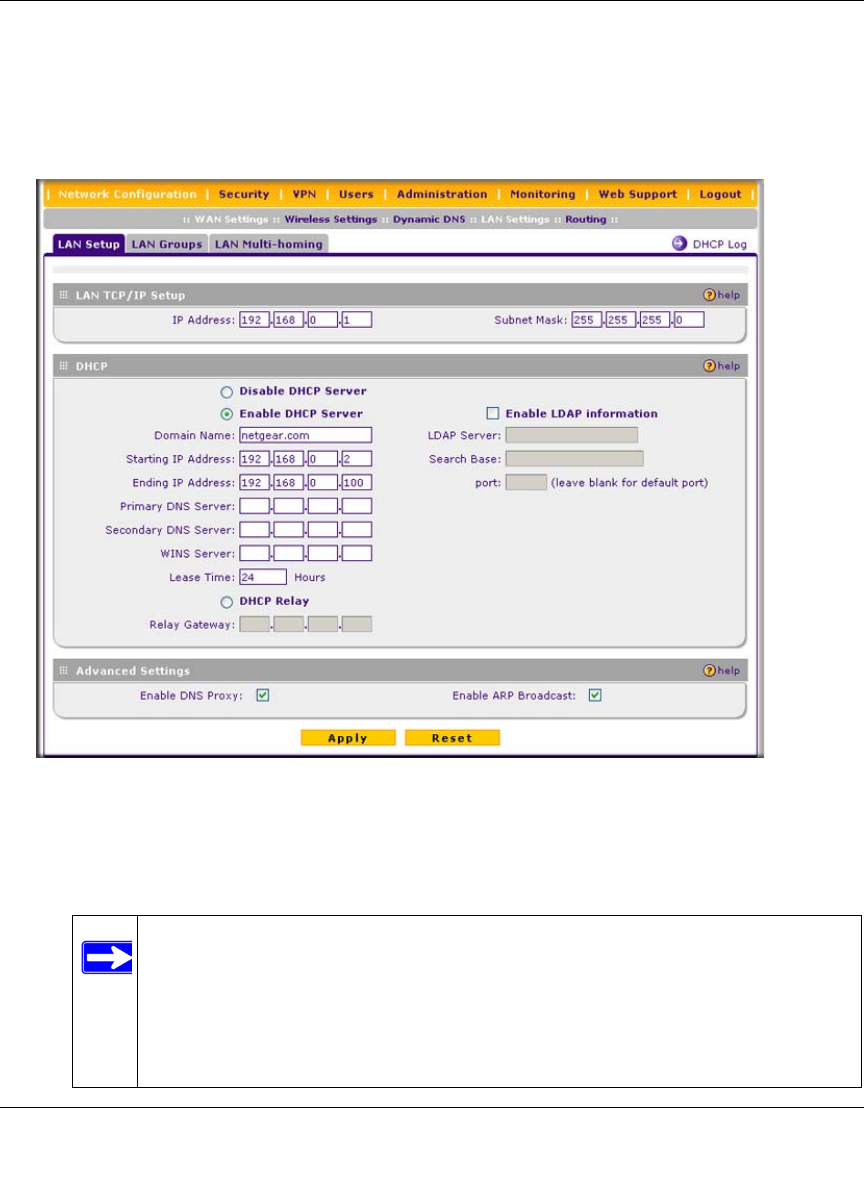
ProSafe Wireless-N VPN Firewall SRXN3205 Reference Manual
LAN Configuration 3-3
v1.0, January 2010
To modify your LAN setup, follow these steps:
1. Select Network Configuration > LAN Settings from the main/submenu.
The LAN Settings tabs (LAN Setup, LAN Groups, and LAN Multi-homing) are displayed
with the LAN Setup screen in view..
2. In the LAN TCP/IP Setup section, configure the following settings:
•IP Address. The LAN address of your VPN firewall (factory default: 192.168.1.1).
Figure 3-1
Note: If you change the LAN IP address of the VPN firewall while connected
through the browser, you will be disconnected. You must then open a new
connection to the new IP address and log in again. For example, if you
change the default IP address 192.168.1.1 to 10.0.0.1, you must now enter
https://10.0.0.1 in your browser to reconnect to the Web Configuration
Manager.
ProSafe Wireless-N VPN Firewall SRXN3205 Reference Manual
3-4 LAN Configuration
v1.0, January 2010
•IP Subnet Mask. The subnet mask specifies the network number portion of an IP address.
Your VPN firewall will automatically calculate the subnet mask based on the IP address
that you assign. Unless you are implementing subnetting, use 255.255.255.0 as the subnet
mask.
3. In the DHCP section, select Disable DHCP Server, Enable DHCP Server, or DHCP Relay.
By default, the VPN firewall will function as a DHCP server, providing TCP/IP configuration
settings for all computers connected to the VPN firewall’s LAN. If another device on your
network will be the DHCP server, or if you will manually configure all devices, click Disable
DHCP Server. If the VPN firewall will function as a DHCP relay agent, select DHCP Relay
and enter the IP address of the DHCP relay gateway in the Relay Gateway field.
If the DHCP server is enabled, enter the following settings:
•Domain Name. (Optional) The DHCP will assign the entered domain to its DHCP clients.
•Starting IP Address. Specifies the first of the contiguous addresses in the IP address pool.
Any new DHCP client joining the LAN will be assigned an IP address between this
address and the Ending IP Address. The IP address 192.168.1.2 is the default start address.
•Ending IP Address. Specifies the last of the contiguous addresses in the IP address pool.
The IP address 192.168.1.100 is the default ending address.
•Primary DNS Server. (Optional) If an IP address is specified, the VPN firewall will
provide this address as the primary DNS server IP address. If no address is specified, the
VPN firewall will provide its own LAN IP address as the primary DNS server IP address.
•Secondary DNS Server. (Optional) If an IP address is specified, the VPN firewall will
provide this address as the secondary DNS server IP address.
•WINS Server. (Optional) Specifies the IP address of a local Windows NetBios Server if
one is present in your network.
•Lease Time. Specifies the duration for which a DHCP-provided IP address will be leased
to a client.
•Enable DNS Proxy. When DNS proxy is enabled (default), the DHCP server will provide
the VPN firewall LAN IP address as the DNS server for address name resolution. If this
box is unchecked, the DHCP server will provide the ISP’s DNS server IP addresses. The
VPN firewall will still service DNS requests sent to its LAN IP address unless you disable
DNS Proxy in the DHCP settings (see “Attack Checks” on page 5-14).
Note: The Starting and Ending DHCP addresses should be in the same subnet as
the LAN IP address of the VPN firewall (the IP Address configured in the
LAN TCP/IP Setup section).
ProSafe Wireless-N VPN Firewall SRXN3205 Reference Manual
LAN Configuration 3-5
v1.0, January 2010
If you will use a Lightweight Directory Access Protocol (LDAP) authentication server for
network-validated domain-based authentication, select Enable LDAP Information to enable
the DHCP server to provide LDAP server information.
Enter the following settings:
•LDAP Server. Specifies the name or the IP address of the device that hosts the LDAP
server.
•Search Base. Specifies the distinguished name (dn) at which to start the search, specified
as a sequence of relative distinguished names (rdn), connected with commas and without
any blank spaces. For most users, the search base is a variation of the domain name. For
example, if your domain is yourcompany.com, your search base dn might be as follows:
dc=yourcompany,dc=com.
•port. Specifies the port number that the LDAP server is using. Leave this field blank for
the default port.
4. In the Advanced Settings section, enter the following settings, which are optional:
•Enable DNS Proxy. If the DNS proxy is enabled (which is the default setting), the DHCP
server will provide the VPN firewall’s LAN IP address as the DNS server for address
name resolution. If this box is unchecked, the DHCP server will provide the ISP’s DNS
server IP addresses. The VPN firewall will still service DNS requests sent to its LAN IP
address unless you disable DNS Proxy in the firewall settings (see “Attack Checks” on
page 5-14).
•Enable ARP Broadcast. If ARP broadcast is enabled (which is the default setting), the
Address Resolution Protocol (ARP) is broadcasted on the LAN so that IP addresses can be
mapped to physical addresses (that is, MAC addresses).
5. Click Apply to save your settings.
Managing Groups and Hosts (LAN Groups)
The Known PCs and Devices table on the LAN Groups screen contains a list of all known PCs
and network devices that are assigned dynamic IP addresses by the VPN firewall, or have been
discovered by other means. Collectively, these entries make up the LAN Groups Database.
Note: Once you have completed the LAN setup, all outbound traffic is allowed and
all inbound traffic is discarded. To change these default traffic rules, refer to
Chapter 5, “Firewall Security and Content Filtering.”

ProSafe Wireless-N VPN Firewall SRXN3205 Reference Manual
3-6 LAN Configuration
v1.0, January 2010
The LAN Groups Database is updated by these methods:
•DHCP Client Requests. By default, the DHCP server in this VPN firewall is enabled, and
will accept and respond to DHCP client requests from PCs and other network devices. These
requests also generate an entry in the LAN Groups Database. Because of this, leaving the
DHCP server feature (LAN Setup screen) enabled is strongly recommended.
•Scanning the Network. The local network is scanned using ARP requests. The ARP scan will
detect active devices that are not DHCP clients. However, sometimes the name of the PC or
device cannot be accurately determined, and will appear in the database as unknown.
•Manual Entry. You can manually enter information about a network device.
Some advantages of the LAN Groups Database are:
• Generally, you do not need to enter IP addresses or MAC addresses. Instead, you can just
select the desired PC or device.
• No need to reserve an IP address for a PC in the DHCP server. All IP address assignments
made by the DHCP server will be maintained until the PC or device is removed from the
database, either by expiry (inactive for a long time) or by you.
• No need to use a fixed IP on PCs. Because the address allocated by the DHCP server will
never change, you don't need to assign a fixed IP to a PC to ensure it always has the same IP
address.
• MAC level control over PCs. The LAN Groups Database uses the MAC address to identify
each PC or device. So changing a PC’s IP address does not affect any restrictions on that PC.
• Group and individual control over PCs.
– You can assign PCs to Groups and apply restrictions to each Group using the Firewall
Rules screen (see “Using Rules & Services to Block or Allow Traffic” on page 5-2).
– You can also select the Groups to be covered by the Block Sites feature (see “Blocking
Internet Sites (Content Filtering)” on page 5-25).
– If necessary, you can also create Firewall Rules to apply to a single PC (see “Enabling
Source MAC Filtering (Address Filtering)” on page 5-28). Because the MAC address is
used to identify each PC, users cannot avoid these restrictions by changing the IP address.
• A computer is identified by its MAC address—not its IP address. Hence, changing a
computer’s IP address does not affect any restrictions applied to that PC.
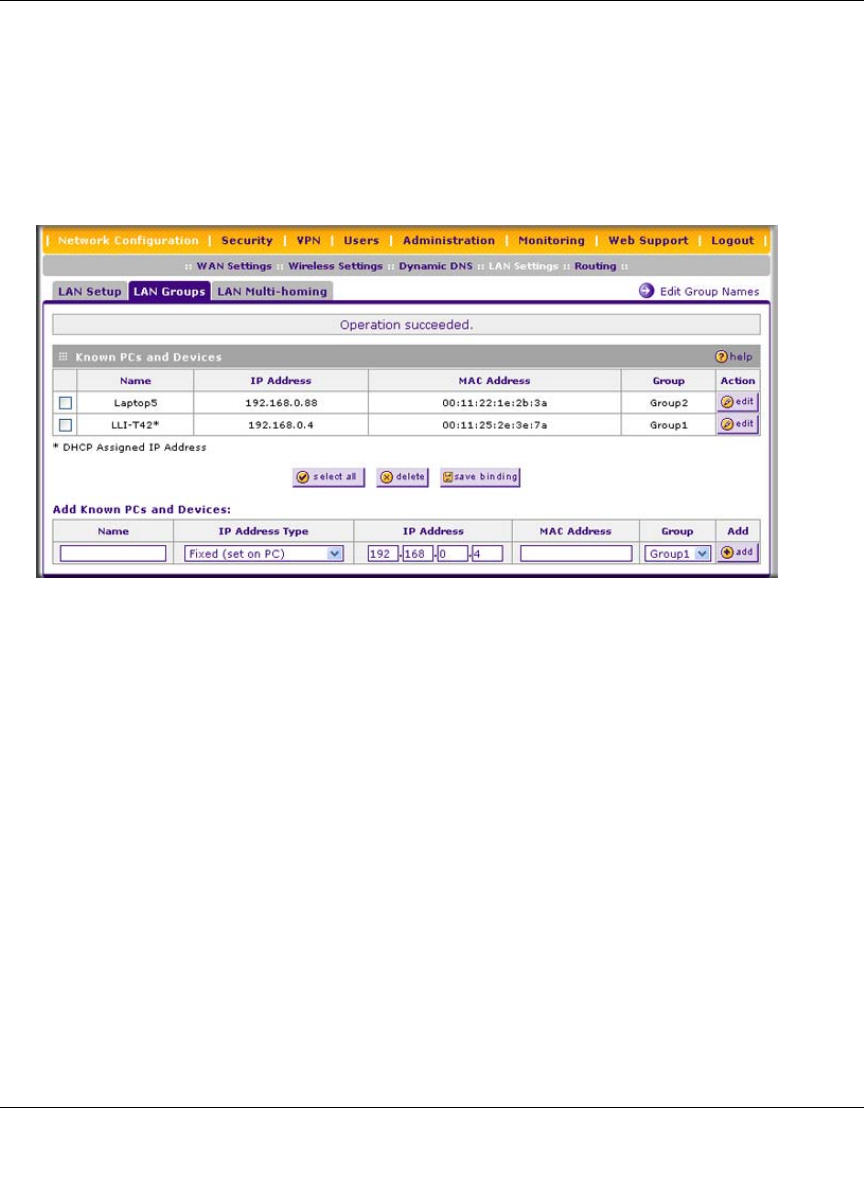
ProSafe Wireless-N VPN Firewall SRXN3205 Reference Manual
LAN Configuration 3-7
v1.0, January 2010
Viewing the LAN Groups Database
To view the LAN Groups Database, follow these steps:
1. Select Network Configuration > LAN Settings from the main/submenu. The LAN Setup
screen displays (see Figure 3-1 on page 3-3).
2. Click the LAN Groups tab. The LAN Groups screen is displayed.
The Known PCs and Devices table lists the entries in the LAN Groups Database. For each
computer or device, the following fields are displayed:
•Name. The name of the PC or device. For computers that do not support the NetBIOS
protocol, this will be listed as “Unknown” (you can edit the entry manually to add a
meaningful name). If the computer was assigned an IP address by the DHCP server, then the
Name will be appended by an asterisk.
•IP Address. The current IP address of the computer. For DHCP clients of the VPN firewall,
this IP address will not change. If a computer is assigned a static IP addresses, you will need to
update this entry manually if the IP address on the computer has been changed.
•MAC Address. The MAC address of the PC’s network interface.
•Group. Each PC or device can be assigned to a single group. By default, a computer is
assigned to Group 1, unless a different group is chosen from the Group pull-down menu.
Figure 3-2
ProSafe Wireless-N VPN Firewall SRXN3205 Reference Manual
3-8 LAN Configuration
v1.0, January 2010
•Action. Allows modification of the selected entry by clicking edit.
Adding Devices to the LAN Groups Database
To add devices manually to the LAN Groups Database, follow these steps:
1. In the Add Known PCs and Devices section, make the following entries:
•Name. Enter the name of the PC or device.
•IP Address Type. From the pull-down menu, choose how this device receives its IP
address. The choices are:
–Fixed (Set on PC). The IP address is statically assigned on the computer.
–Reserved (DHCP Client). Directs the VPN firewall’s DHCP server to always assign
the specified IP address to this client during the DHCP negotiation.
•IP Address. Enter the IP address that this computer or device is assigned in the IP
Address field. If the IP Address Type is Reserved (DHCP Client), the VPN firewall will
reserve the IP address for the associated MAC address.
•MAC Address. Enter the MAC address of the computer’s network interface in the MAC
Address field. The MAC address format is six colon-separated pairs of hexadecimal
characters (0-9 and A-F), such as 01:23:45:67:89:AB.
•Group. From the pull-down menu, select the LAN Group to which the computer will be
assigned. (Group 1 is the default group.)
2. Click Add. The device will be added to the Known PCs and Devices table.
3. As an optional step: To enable DHCP address reservation for the entry that you just added to
the Known PCs and Devices table, select the checkbox for the table entry and click Save
Binding to bind the IP address to the MAC address for DHCP assignment.
Note: If the VPN firewall is rebooted, the table data is lost until the VPN firewall
rediscovers the devices.
Note: When assigning a Reserved IP address to a client, the IP address selected
must be outside the range of addresses allocated to the DHCP server pool.
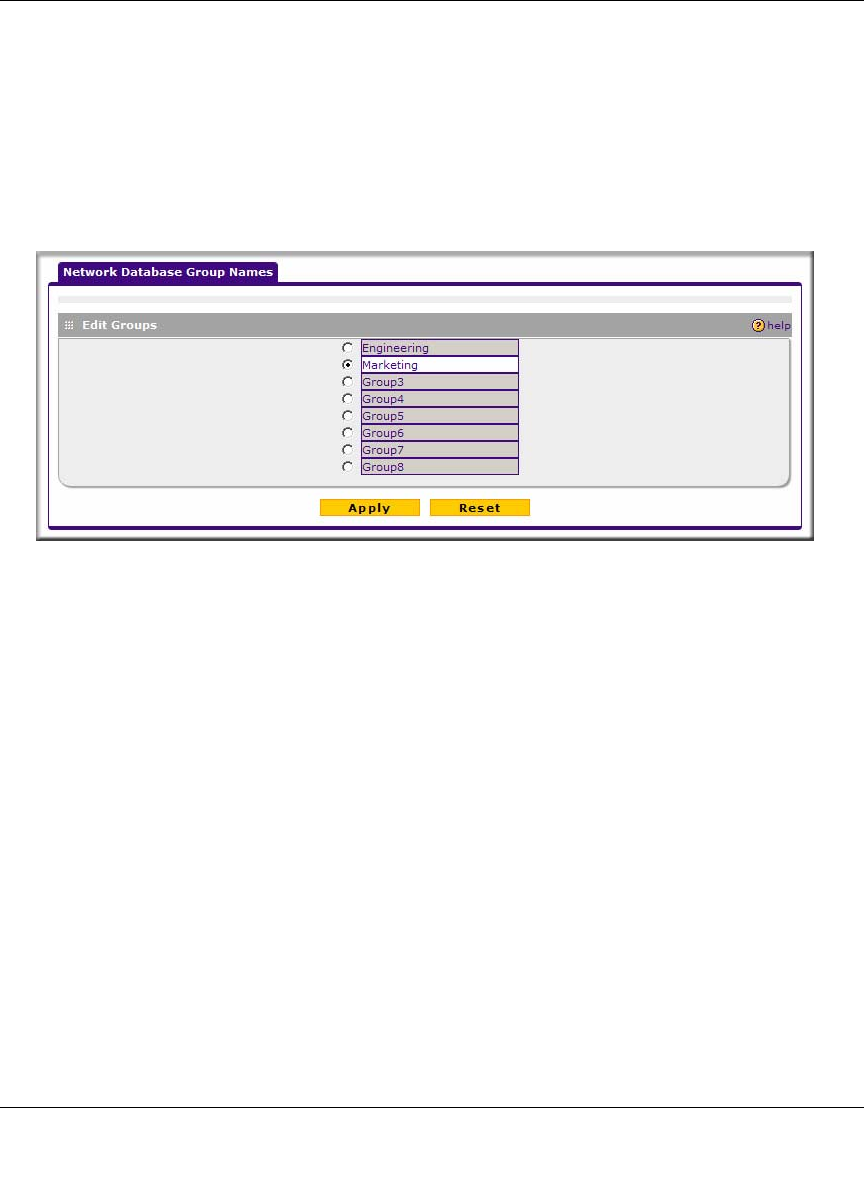
ProSafe Wireless-N VPN Firewall SRXN3205 Reference Manual
LAN Configuration 3-9
v1.0, January 2010
Changing Group Names in the LAN Groups Database
By default, the LAN Groups are named Group1 through Group8. You can rename these group
names to be more descriptive, such as Engineering or Marketing.
To edit the names of any of the eight available groups:
1. From the LAN Groups tab, click the Edit Group Names link to the right of the tabs. The
Network Database Group Names screen appears.
2. Select the radio button next to any group name to make that name active for editing.
3. Type a new name in the field.
4. Click Apply to save your setting, each time you change a name in the field.
5. Select and edit other group names if desired.
6. Click Apply to save each field change.
Configuring DHCP Address Reservation
A computer (or device) will always receive the same IP address, if you specify a reserved IP
address for the computer (or device) on the LAN (based on the MAC address of the device), each
time it accesses the VPN firewall’s DHCP server. Reserved IP addresses should be assigned to
servers or access points that require permanent IP address settings. The reserved IP address that
you select must be outside of the DHCP Server pool.
To reserve an IP address, manually enter the device in the LAN Groups screen, specifying
Reserved (DHCP Client), as described in “Adding Devices to the LAN Groups Database” on
page 3-8.
Figure 3-3
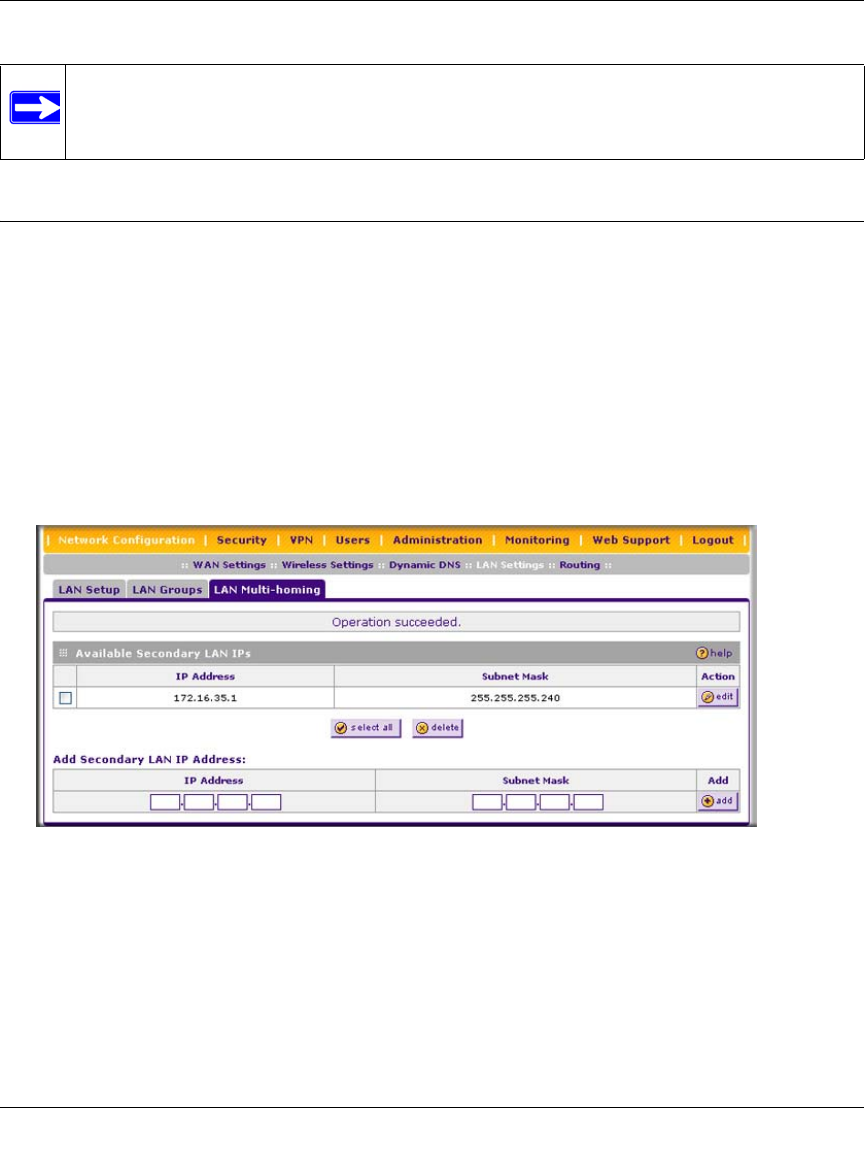
ProSafe Wireless-N VPN Firewall SRXN3205 Reference Manual
3-10 LAN Configuration
v1.0, January 2010
Configuring Multi Home LAN IP Addresses
If you have computers on your LAN using different IP address ranges (for example, 172.16.2.0 or
10.0.0.0), you can add “aliases” to the LAN port, giving computers on those networks access to the
Internet through the VPN firewall. This allows the VPN firewall to act as a gateway to additional
logical subnets on your LAN. You can assign the VPN firewall an IP address on each additional
logical subnet.
To add a secondary LAN IP address, follow these steps:
1. Select Network Configuration > LAN Settings from the main/submenu.
2. Click the LAN Multi-homing tab and the LAN Multi-homing screen displays.
The Available Secondary LAN IPs table lists the secondary LAN IP addresses added to the
VPN firewall.
•IP Address. The “alias,” an additional IP address hosted by the LAN port of the VPN
firewall. This address will be the gateway for computers on the secondary subnet.
•Subnet Mask. The IPv4 subnet mask that defines the range of the secondary subnet.
Note: The reserved address will not be assigned until the next time the PC contacts the
VPN firewall’s DHCP server. Reboot the PC or access its IP configuration and
force a DHCP release and renew.
Figure 3-4
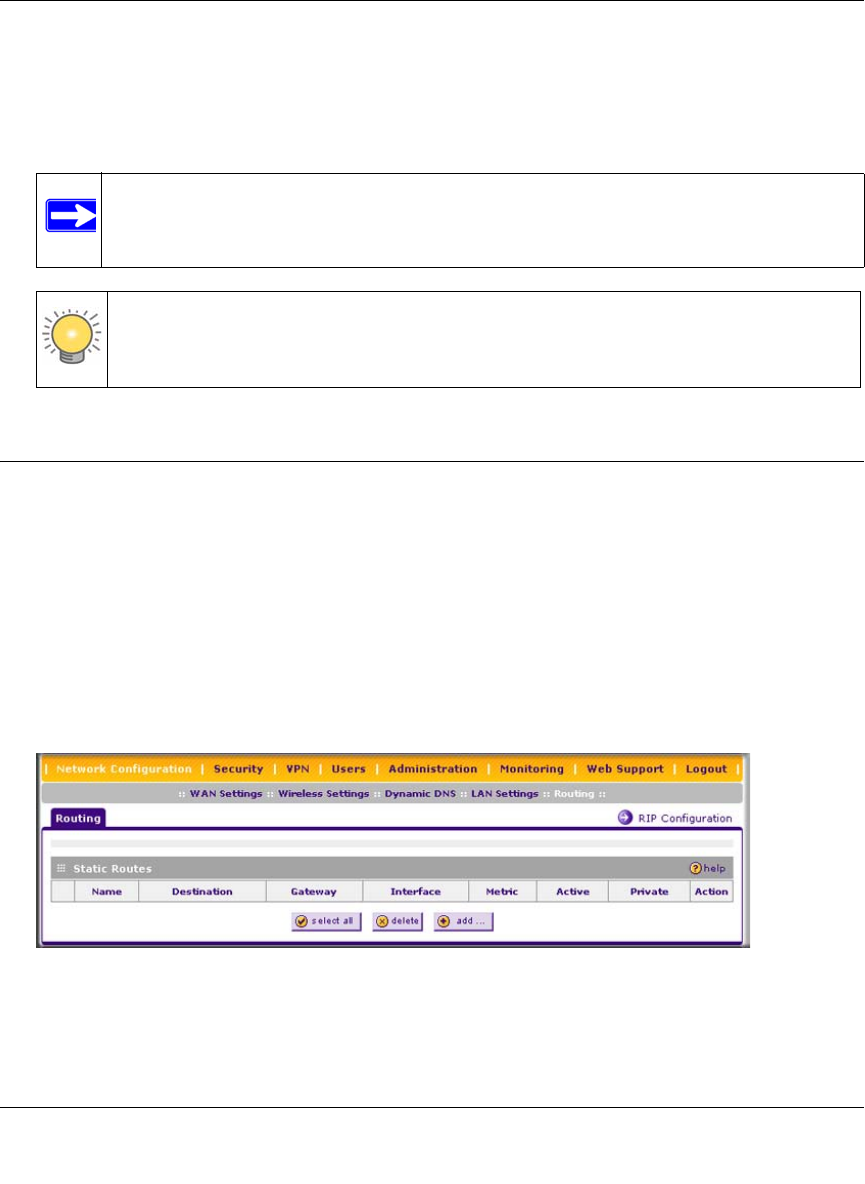
ProSafe Wireless-N VPN Firewall SRXN3205 Reference Manual
LAN Configuration 3-11
v1.0, January 2010
3. In the Add Secondary LAN IP Address section, enter the additional IP address and subnet
mask to be assigned to the LAN port of the VPN firewall.
4. Click Add. The new Secondary LAN IP address will appear in the Available Secondary LAN
IPs table.
Configuring Static Routes
Static Routes provide additional routing information to your VPN firewall. Under normal
circumstances, the VPN firewall has adequate routing information after it has been configured for
Internet access, and you do not need to configure additional static routes. You should configure
static routes only for unusual cases such as multiple firewalls or multiple IP subnets located on
your network.
To add or edit a static route:
1. Select Network Configuration > Routing from the main/submenu. The Routing screen is
displayed.
Note: IP addresses on these secondary subnets cannot be configured in the DHCP
server. The hosts on the secondary subnets must be manually configured with
IP addresses, gateway IP addresses, and DNS server IP addresses.
Tip: The secondary LAN IP address will be assigned to the LAN interface of the
VPN firewall and can be used as a gateway by computers on the secondary
subnet.
Figure 3-5
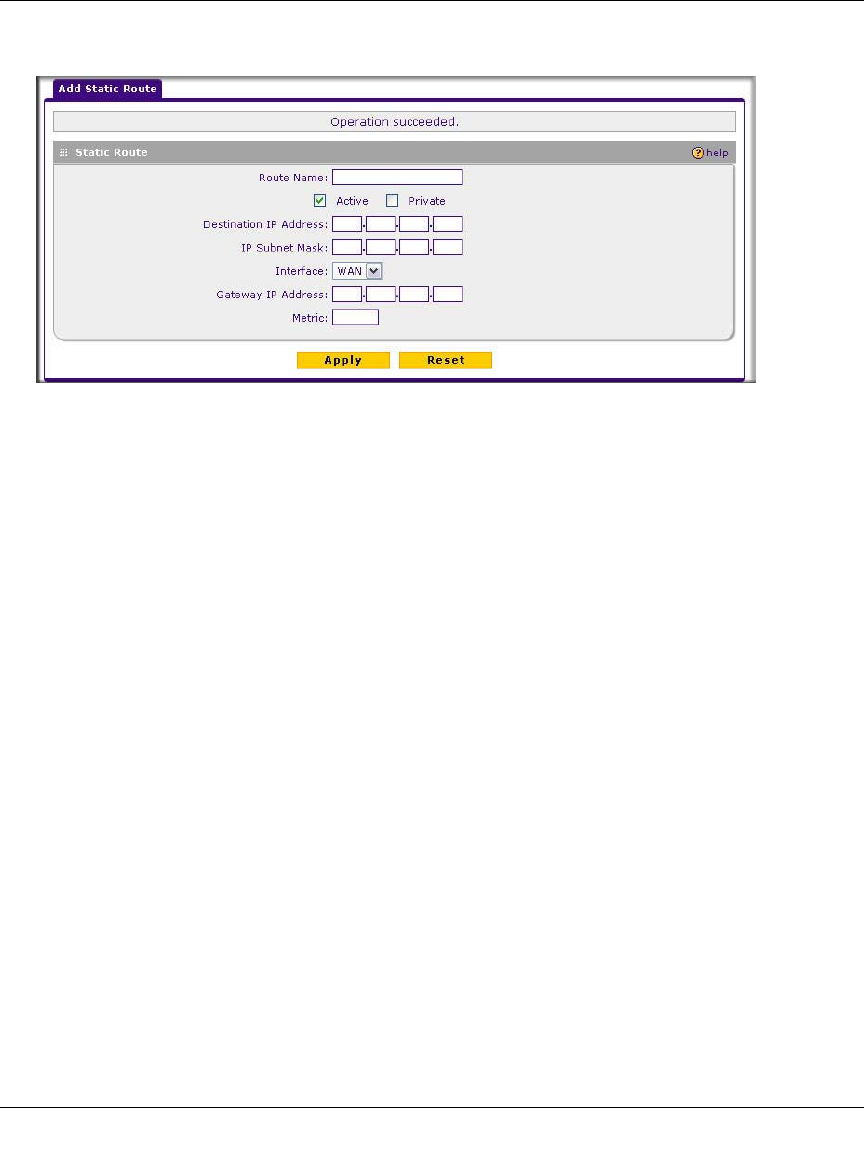
ProSafe Wireless-N VPN Firewall SRXN3205 Reference Manual
3-12 LAN Configuration
v1.0, January 2010
2. Click add. The Add Static Route screen is displayed.
3. Enter a route name for this static route in the Route Name field (for identification and
management).
4. Select Active to make this route effective.
5. Select Private if you want to limit access to the LAN only.
The static route will not be advertised in RIP.
6. Enter the Destination IP Address to the host or network where the route leads.
7. Enter the IP Subnet Mask for this destination.
If the destination is a single host, enter 255.255.255.255.
8. Enter the Interface which is the physical network interface (WAN or LAN) through which
this route is accessible.
9. Enter the Gateway IP Address through which the destination host or network can be reached.
This must be a firewall on the same LAN segment as the VPN firewall.
10. Enter the Metric priority for this route.
If multiple routes to the same destination exits, the route with the lowest metric is chosen
(value must be between 1 and 15).
11. Click Apply to save your settings.
The new static route will be added to the Static Route table.
You can edit the route’s settings by clicking edit in the Action column adjacent to the route.
Figure 3-6
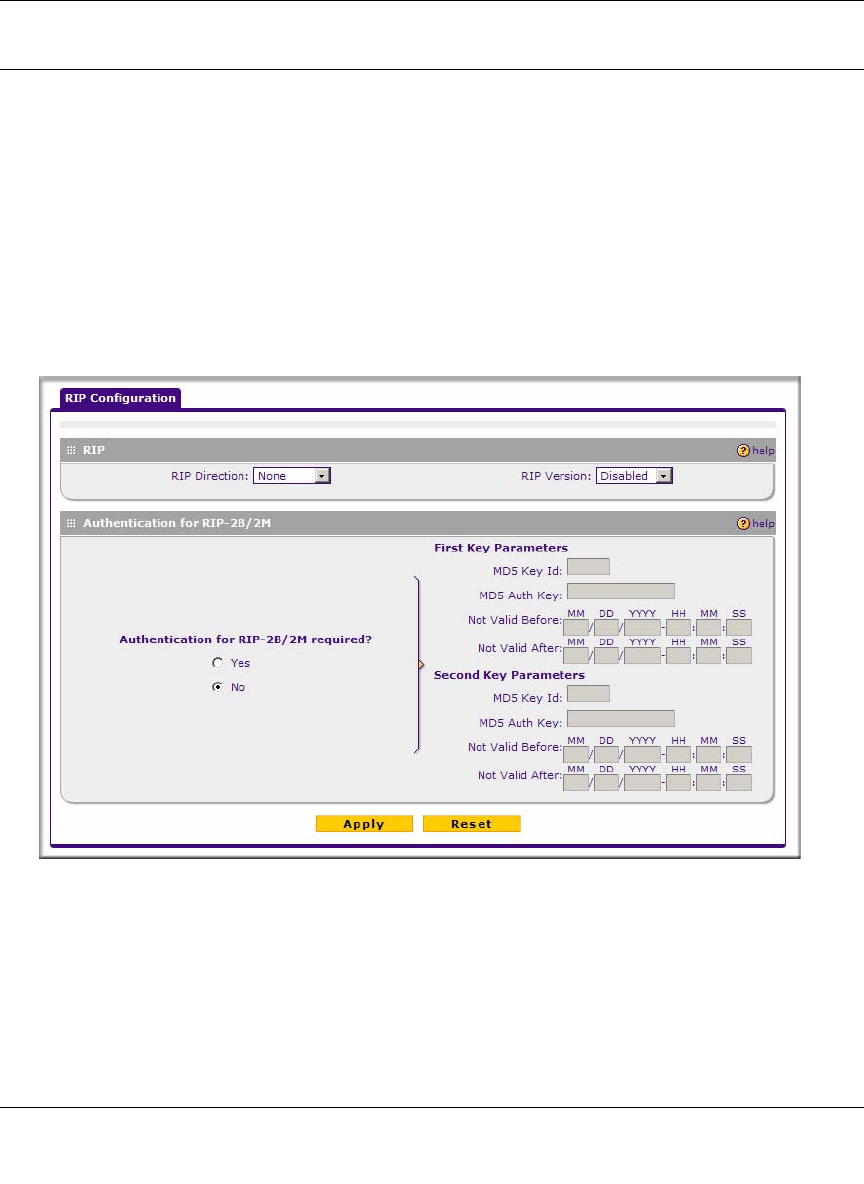
ProSafe Wireless-N VPN Firewall SRXN3205 Reference Manual
LAN Configuration 3-13
v1.0, January 2010
Configuring Routing Information Protocol (RIP)
RIP (Routing Information Protocol, RFC 2453) is an Interior Gateway Protocol (IGP) that is
commonly used in internal networks (LANs). It allows a router to exchange its routing information
automatically with other routers, and allows it to dynamically adjust its routing tables and adapt to
changes in the network. RIP is disabled by default.
To configure RIP:
1. Select Network Configuration > Routing from the main/submenu.
2. Click the RIP Configuration link to the right of the Routing tab. The RIP Configuration
screen is displayed.
3. From the RIP Direction pull-down menu, choose the direction in which the VPN firewall will
send and receive RIP packets. The choices are:
•None. The VPN firewall neither broadcasts its route table nor does it accept any RIP
packets from other routers. This effectively disables RIP.
Figure 3-7

ProSafe Wireless-N VPN Firewall SRXN3205 Reference Manual
3-14 LAN Configuration
v1.0, January 2010
•In Only. The VPN firewall accepts RIP information from other routers, but does not
broadcast its routing table.
•Out Only. The VPN firewall broadcasts its routing table periodically but does not accept
RIP information from other routers.
•Both. The VPN firewall broadcasts its routing table and also processes RIP information
received from other routers.
4. From the RIP Version pull-down menu, choose the version from the following options:
•Disabled. The default section disables RIP versions.
•RIP-1. A class-based routing that does not include subnet information. This is the most
commonly supported version.
•RIP-2. This includes all the functionality of RIPv1 plus it supports subnet information.
Though the data is sent in RIP-2 format for both RIP-2B and RIP-2M, the modes in which
packets are sent are different.
–RIP-2B. Sends the routing data in RIP-2 format and uses subnet broadcasting.
–RIP-2M. Sends the routing data in RIP-2 format and uses multicasting.
5. Authentication for RIP2B/2M required? If you selected RIP-2B or RIP-2M, check the Yes
radio box to enable authentication, and enter the MD-5 keys to authenticate between devices in
the First Key Parameters and Second Key Parameters sections on the screen.
6. Click Apply to save your settings.
ProSafe Wireless-N VPN Firewall SRXN3205 Reference Manual
Wireless Configuration 4-1
v1.0, January 2010
Chapter 4
Wireless Configuration
This chapter describes how to set up your ProSafe Wireless-N VPN Firewall SRXN3205 for
wireless connectivity to your LAN. This basic configuration will enable computers with 802.11b/
g/n or 802.11a/n wireless adapters to do such things as connect to the Internet, or access printers
and files on your LAN.
You need to prepare these four things before you can establish a connection through your wireless
VPN firewall:
• The VPN firewall connected to your LAN through the WAN port to a device such as a hub,
switch, router, or Cable/DSL gateway.
• A correctly set up ProSafe Wireless-N VPN Firewall for wireless access.
• One or more computers with properly configured 802.11b/g/n or 802.11a/n wireless adapters.
• A location for the VPN firewall that conforms to the “Wireless Equipment Placement and
Range Guidelines.
Use the following topics to set up your SRXN3205 for use as a wireless VPN firewall:
•“Wireless Equipment Placement and Range Guidelines” on page 4-2
•“Understanding the VPN Firewall Wireless Security Options” on page 4-2
•“Configuring Basic Wireless Setup (Without Security)” on page 4-4
•“Testing and Completing Wireless Setup (Without Security)” on page 4-6
•“Wireless Security Types and Settings” on page 4-8
•“Configuring Advanced Wireless Settings” on page 4-17
•“Restricting Wireless Access by MAC Address” on page 4-18
Note: Indoors, computers can connect over 802.11b/g/n or 802.11a/g/n wireless networks
at ranges of several hundred feet or more. This distance can allow for others
outside your area to access your network. It is important to take appropriate steps
to secure your network from unauthorized access. The VPN firewall provides
highly effective security features which are covered in detail in “SSID and WEP/
WPA Settings Setup Form” on page 4-9. Deploy the security features appropriate
to your needs.
ProSafe Wireless-N VPN Firewall SRXN3205 Reference Manual
4-2 Wireless Configuration
v1.0, January 2010
Wireless Equipment Placement and Range Guidelines
The operating distance or range of your wireless connection can vary significantly based on the
physical placement of the VPN firewall. The latency, data throughput performance, and notebook
power consumption of wireless adapters also vary depending on your configuration choices.
For best results, place your VPN firewall:
• Near the center of the area in which your PCs will operate.
• In an elevated location such as a high shelf where the wirelessly connected PCs have line-of-
sight access (even if through walls).
• Away from sources of interference, such as PCs, microwaves, and 2.4 GHz cordless phones.
• Away from large metal surfaces.
Placing the antenna in a vertical position provides best side-to-side coverage. Placing the antenna
in a horizontal position provides best up-and-down coverage.
If you are using multiple access points for 11b/bg/ng, it is better if adjacent access points use
different radio frequency Channels to reduce interference. The recommended Channel spacing
between adjacent access points is 5 Channels (for example, use Channels 1 and 6, or 6 and 11). For
11a/na, the 6 Channel spacing is not needed.
The time it takes to establish a wireless connection can vary depending on both your security
settings and placement. Some types of security connections can take slightly longer to establish
and can consume more battery power on a notebook computer.
Understanding the VPN Firewall Wireless Security Options
Your wireless data transmissions can be received well beyond your walls by anyone with a
compatible adapter. For this reason, use the security features of your wireless equipment. The VPN
firewall provides highly effective security features which are covered in detail in this chapter.
Deploy the security features appropriate to your needs.
Note: Failure to follow these guidelines can result in significant performance degradation
or inability to wirelessly connect to the VPN firewall. For complete performance
specifications, see Appendix A, “Default Settings and Technical Specifications.”
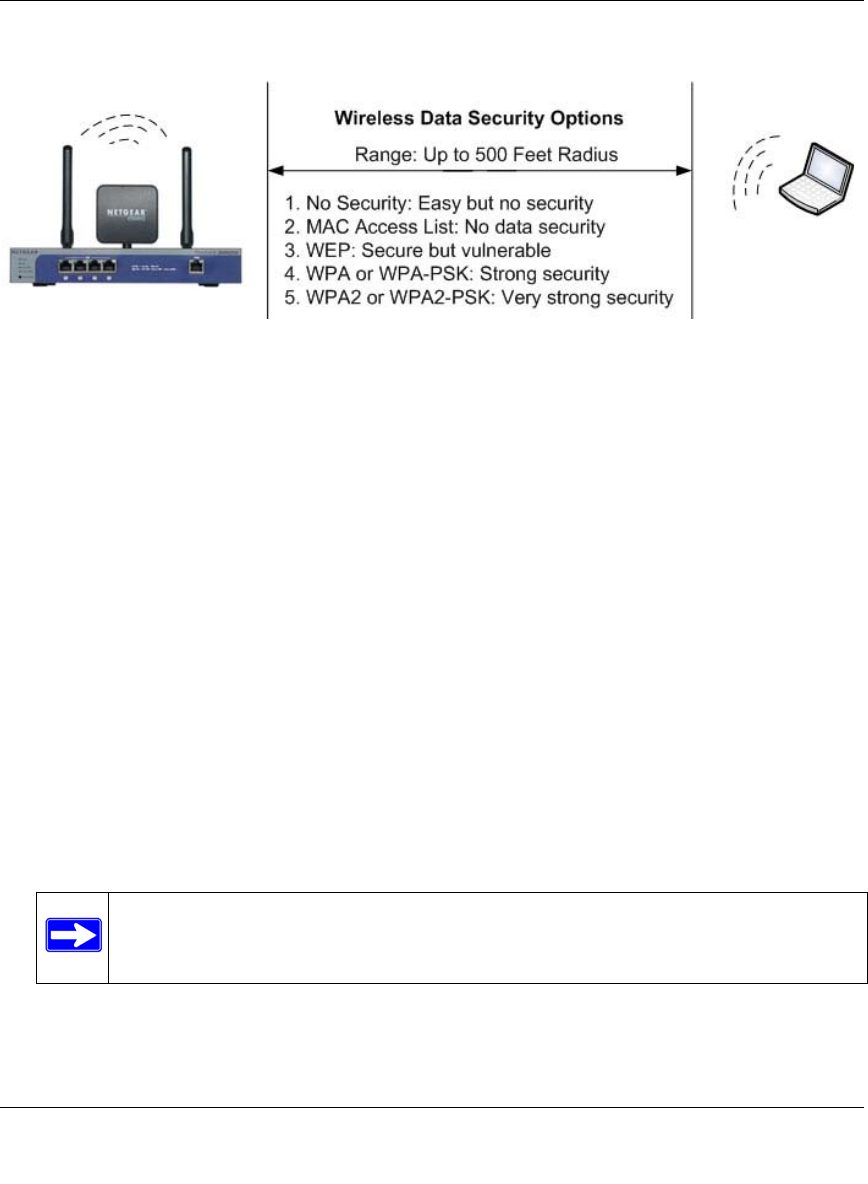
ProSafe Wireless-N VPN Firewall SRXN3205 Reference Manual
Wireless Configuration 4-3
v1.0, January 2010
There are several ways you can enhance the security of your wireless network:
•Restrict Access Based on MAC address. You can restrict access to only trusted PCs so that
unknown PCs cannot wirelessly connect to the VPN firewall. MAC address filtering adds an
obstacle against unwanted access to your network, but the data broadcast over the wireless link
is fully exposed.
•Turn Off the Broadcast of the Wireless Network Name (SSID). If you disable broadcast of
the SSID, only devices that have the correct SSID can connect. This nullifies the wireless
network “discovery” feature of some products such as Windows XP, but the data is still fully
exposed to a determined snoop using specialized test equipment like wireless sniffers.
•Use WEP. Wired Equivalent Privacy (WEP) data encryption provides data security. WEP
open authentication and WEP data encryption will block all but the most determined
eavesdropper. This data encryption mode has been superseded by WPA-PSK and WPA2-PSK
•Use WPA, WPA-PSK, WPA2, or WPA2-PSK (with or without RADIUS). Wi-Fi Protected
Access (WPA) data encryption provides data security. The very strong authentication along
with dynamic per frame rekeying of WPA make it virtually impossible to compromise. WPA
functions with TKIP (Temporal Key Integrity Protocol ) or (Advanced Encryption Standard)
encryption, WPA2 functions with AES only, and WPA+WPA2 functions with a combination
of TKIP and AES encryption.
Figure 4-1
Note: WEP and TKIP support only legacy rates of operation. So, AES is the
recommended encryption for use with 11n rates and speed.
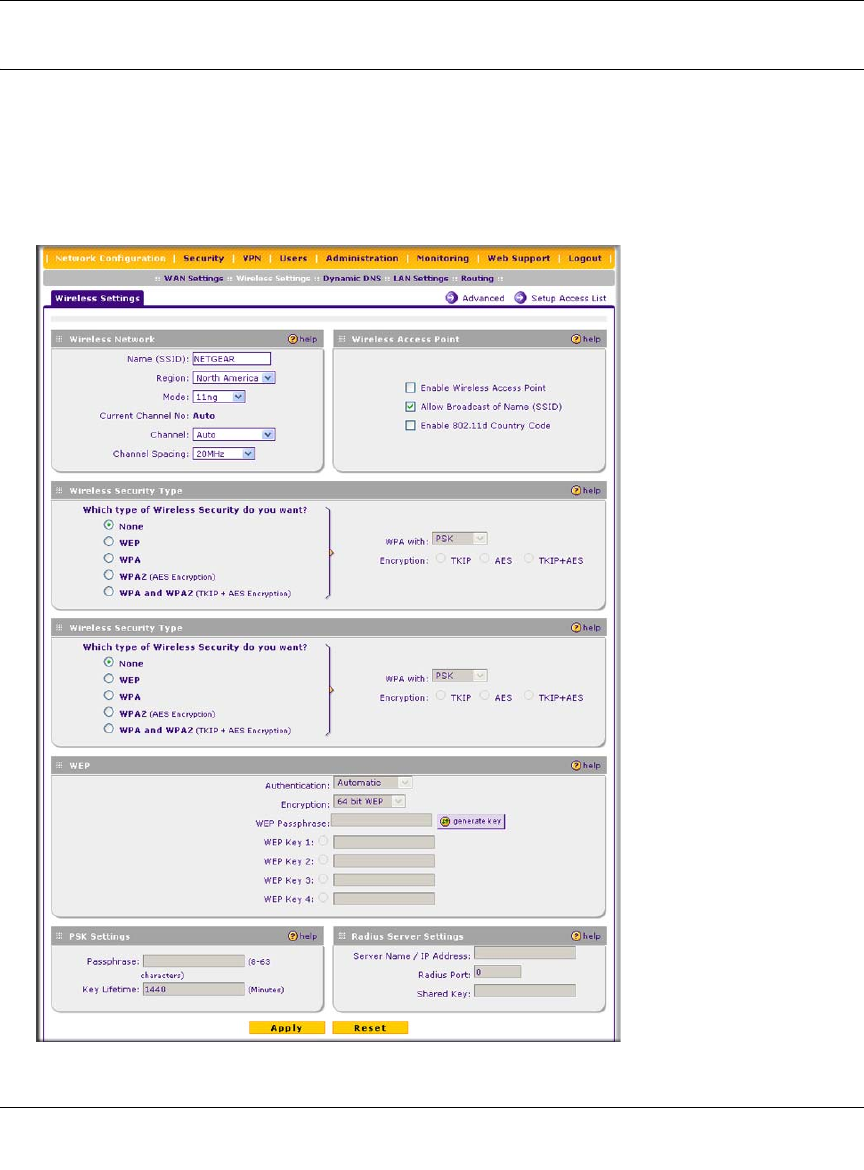
ProSafe Wireless-N VPN Firewall SRXN3205 Reference Manual
4-4 Wireless Configuration
v1.0, January 2010
Configuring Basic Wireless Setup (Without Security)
Test wireless connectivity in your environment by setting up the unit without wireless security. To
configure the VPN firewall for basic Wireless access, follow these simple steps:
1. Select Network Configuration > Wireless Settings from the main/submenu. The Wireless
Settings screen is displayed. Use this screen to set up your wireless connectivity requirements.
Figure 4-2
ProSafe Wireless-N VPN Firewall SRXN3205 Reference Manual
Wireless Configuration 4-5
v1.0, January 2010
2. In the Wireless Access Point section of the screen, configure the following settings:
•Enable Wireless Access Point. Select this checkbox to allow multiple devices in the
wireless network to access the WAN network and other LAN devices through the wireless
VPN firewall. This checkbox is deselected by default.
•Allow Broadcast of Name (SSID). If you want your SSID (network name) to be
broadcasted, leave this checkbox selected, which is the default setting. If you deselect this
checkbox, only devices that have the correct SSID can connect. This nullifies the wireless
network “discovery” feature of some products such as Windows XP, but the data is still
fully exposed to a determined snoop using specialized test equipment like wireless
sniffers.
•Enable 802.11d Country Code. Select this checkbox to enable the VPN firewall to
comply with the IEEE 802.11d standard (also referred to as global harmonization) in order
to satisfy regulatory wireless requirements in your country. This checkbox is deselected by
default.
3. In the Wireless Network section of the screen, configure the following settings:
•Name (SSID). Enter your network name.
•Region. From the pull-down menu, select the region where the VPN firewall will be used
(the default Region is North America).
•Mode. Select a wireless mode from the pulldown menu or accept the default (11ng)
setting. The 802.11 selections are: a only, b only, g only, g and b, 11ng, or 11na. Select an
“only” option if all devices in the wireless network can support. Select ng mode if there
are clients in the network that support 802.11n; this mode also supports legacy 802.11b
and 802.11g clients. To support 802.11a and 802.11n clients concurrently, select na mode;
this mode will not support 802.11b or 802.11g clients.
• Leave all channel settings at the defaults.
4. In the other sections of the screen, leave all other settings at the defaults, including None as the
Wireless Security Type.
5. Click Apply at the bottom of the Wireless Settings screen.
If the settings were accepted, a message appears in the center of the screen: Operation
succeeded.
Note: If your country or region is not listed, contact NETGEAR Support.
ProSafe Wireless-N VPN Firewall SRXN3205 Reference Manual
4-6 Wireless Configuration
v1.0, January 2010
6. Prepare a PC as the wireless PC Client with a wireless Ethernet adapter installed. Verify that
you can wirelessly access a file or a printer on the LAN connected to the VPN firewall.
Testing and Completing Wireless Setup (Without Security)
The purpose of setting your wireless settings in stages, without the security settings, is to eliminate
any possible errors in setting up your wireless settings before adding the more complicated
security settings. This method will greatly aid you in discovering where the errors in your security
settings are by removing doubts about your wireless settings.
Testing Wireless Connectivity (Without Security)
Follow the instructions below to test wireless connectivity. Once you have established wireless
connectivity, you can enable security settings appropriate to your needs.
1. Select Network Configuration > Wireless Settings from main/submenu.
2. In the Wireless Network section of the screen, ensure that Auto is selected from the Channel
pull-down menu. (Auto is the default setting.)
The Auto setting selects a channel that has the least interference. It should not be necessary to
change the wireless channel unless you notice interference problems or are near another
wireless access point. Select a channel that is not being used by any other wireless networks
within several hundred feet of your VPN firewall.
3. From the Wireless Network section of the screen, record the name used for SSID.
4. In the Wireless Access Point section of the screen, deselect the Allow Broadcast of Name
(SSID) checkbox.
5. Click Apply to save any changes.
Note: The SSID of a client computer must match what you configured in the VPN
firewall. If these do not match, you will not get a wireless connection to the
VPN firewall.
Note: If you are configuring the VPN firewall from a wireless computer, you will
lose your wireless connection when you click Apply to update settings. You
will then need to update the wireless settings of your computer accordingly.
ProSafe Wireless-N VPN Firewall SRXN3205 Reference Manual
Wireless Configuration 4-7
v1.0, January 2010
6. Prepare PC(s) as the wireless PC Client(s) with wireless Ethernet adapters installed.
7. Configure the Client PCs to obtain the IP and DNS addresses automatically using the internal
DHCP server (DHCP is the default firewall setting).
8. Configure the wireless adapters of your Client PCs to have the same SSID that you configured
on the VPN firewall.
9. Using this Client PCs, verify these PCs have a wireless link by trying to access a file or a
printer on the LAN connected to the VPN firewall.
10. Once you have verified wireless connectivity to the VPN firewall, you can configure the
wireless channel and security functions. See the “Configuring the Wireless Channel Settings
(Without Security)” on this page and the “Wireless Security Types and Settings” on page 4-8.
Configuring the Wireless Channel Settings (Without Security)
To configure the wireless channel settings of your VPN firewall:
1. Select Network Configuration > Wireless Settings from the main/submenu. The Wireless
Settings screen is displayed (see Figure 4-1 on page 4-3).
2. In the Wireless Network section of the screen, configure the following settings:
•Channel. The default setting is Auto. Use the default setting or select a channel and
frequency from the pull-down menu to use on your wireless LAN.
The Auto option intelligently picks a channel and frequency with least interference. The
wireless channel in use are between 1 to 11 for the US and Canada, and 1 to 13 for Europe
and Australia.
It is not necessary to change the wireless channel unless you experience interference
(shown by lost connections, slow data transfers, or both). If this happens, you may need to
experiment with different channels to see which is the best. See the article on “Wireless
Channels” available on the NETGEAR website. A link to this article and other articles of
interest can be found in Appendix C, “Related Documents.”
•Channel Spacing. For 11ng and 11na modes only, from the pull-down menu, select the
desired channel spacing:
–20 MHz . The static, legacy mode, which provides the least throughput. This is the
default setting.
Note: The Current Channel No shows the currently configured channel.

ProSafe Wireless-N VPN Firewall SRXN3205 Reference Manual
4-8 Wireless Configuration
v1.0, January 2010
–20/40 MHz. The dynamic, compatibility mode. Legacy clients can connect to 20 MHz
and 11n clients can connect to 40 MHz.
–40 MHz. The static, high-throughput mode. Legacy clients will not be able to connect
in this mode.
3. Click Apply to save your wireless settings.
Wireless Security Types and Settings
Configure the Wireless Security type based on the level of security that you need using one of the
following methods and print out the form provided to aid you in making your selection:
• Print out the “SSID and WEP/WPA Settings Setup Form” on page 4-9.
• To configure WEP encryption for open systems or shared key systems, see “Configuring
WEP Security” on page 4-11.
• To configure WPA-PSK, see “Configuring WPA-PSK” on page 4-12.
• To configure WPA2-PSK, see “Configuring WPA2-PSK” on page 4-12.
• To configure WPA-PSK and WPA2-PSK, see “Configuring WPA-PSK and WPA2-PSK”
on page 4-13.
• To configure WPA with RADIUS, see “Configuring WPA with RADIUS” on page 4-14.
• To configure WPA2 with RADIUS, see “Configuring WPA2 with RADIUS” on
page 4-14.
• To configure WPA and WPA2 with RADIUS, see “Configuring WPA and WPA2 with
RADIUS” on page 4-15.
Use the Wireless Security Type section on the Wireless Settings screen (see Figure 4-1 on page
4-3) to select the desired wireless security method. Other security settings are discussed in the
following chapters and sections:
•Go to “Firewall Security and Content Filtering” in Chapter 5 for firewall security settings.
•Go to “Virtual Private Networking Using IPsec” in Chapter 6 for VPN IPsec tunnel settings.
•Go to “Virtual Private Networking Using SSL” in Chapter 7 for VPN SSL tunnel settings.
•Go to “Managing Users, Authentication, and Certificates” in Chapter 8 for users settings.
•Go to “VPN Firewall and Network Management” in Chapter 9 for the administration settings.

ProSafe Wireless-N VPN Firewall SRXN3205 Reference Manual
Wireless Configuration 4-9
v1.0, January 2010
SSID and WEP/WPA Settings Setup Form
802.11b/g/n Configuration
For a new wireless network, print or copy this form and fill in the configuration parameters. For an
existing wireless network, the person who set it up or is responsible for the network will be able to
provide this information. Be sure to set the Regulatory Domain correctly as the first step.
•SSID: The Service Set Identification (SSID) requires the identity or name of the wireless local
area network. NETGEAR is the default VPN firewall SSID. However, you may customize it
by using up to 32 alphanumeric characters. Write your customized SSID on the line below.
___________________________________
Note: The SSID in the VPN firewall is the SSID you configure in the wireless adapter card.
All wireless nodes in the same network must be configured with the same SSID:
• Authentication:
Circle one: Automatic, Open System, or Shared Key. (Choose Shared Key for more security.)
Note: If you select shared key, the other devices in the network will not connect unless they
are set to Shared Key as well and have the same keys in the same positions as those in the VPN
firewall.
• WEP Encryption Keys.
Circle one: 64, 128, or 152 bits. (Enter all four 802.11a/n keys for the Key Size chosen.)
Key 1: ___________________________________
Key 2: ___________________________________
Key 3: ___________________________________
Key 4: ___________________________________
• WPA-PSK (Preshared Key)
Record the WPA-PSK key. Key: ___________________________________
• WPA RADIUS Settings. For WPA, record the following settings for the primary and
secondary RADIUS servers:
Server Name/IP Address: Primary _________________ (Secondary __________________ ?)
RADIUS Port: ___________________________________
Shared Key: ___________________________________

ProSafe Wireless-N VPN Firewall SRXN3205 Reference Manual
4-10 Wireless Configuration
v1.0, January 2010
802.11a/n Configuration
For a new wireless network, print or copy this form and fill in the configuration parameters. For an
existing wireless network, the person who set up or is responsible for the network will be able to
provide this information. Be sure to set the Regulatory Domain correctly as the first step.
•SSID: The Service Set Identification (SSID) requires the identity or name of the wireless local
area network. NETGEAR is the default VPN firewall SSID. However, you may customize it
by using up to 32 alphanumeric characters. Write your customized SSID on the line below.
___________________________________
Note: The SSID in the VPN firewall is the SSID you configure in the wireless adapter card.
All wireless nodes in the same network must be configured with the same SSID:
• Authentication
Circle one: Automatic, Open System, or Shared Key. Choose Shared Key for more security.
Note: If you select shared key, the other devices in the network will not connect unless they
are set to Shared Key as well and have the same keys in the same positions as those in the VPN
firewall.
• WEP Encryption Keys
Circle one: 64, 128, or 152 bits. (Enter all four 802.11b/g/n keys for the Key Size chosen.)
Key 1: ___________________________________
Key 2: ___________________________________
Key 3: ___________________________________
Key 4: ___________________________________
• WPA-PSK (Preshared Key)
Record the WPA-PSK key. Key: ___________________________________
• WPA RADIUS Settings. For WPA, record the following settings for the primary and
secondary RADIUS servers:
Server Name/IP Address: Primary _________________ (Secondary __________________ ?)
RADIUS Port: ___________________________________
Shared Key: ___________________________________
Use the procedures described in the following sections to configure the VPN firewall. Store this
information in a safe place.
ProSafe Wireless-N VPN Firewall SRXN3205 Reference Manual
Wireless Configuration 4-11
v1.0, January 2010
Configuring WEP Security
To configure WEP data encryption on the Wireless Settings screen:
1. Click the WEP radio button in the Wireless Security Type section of the screen to enable
WEP data encryption.
When you select WEP data encryption, the WEP fields in the WEP section of the screen are
made active:
2. From the Authentication pull-down menu, select Automatic, Open System, or Shared Key
authentication.
3. From the Encryption pull-down menu, select the encryption strength: 64 bit WEP,
128 bit WEP, or 152 bit WEP.
4. Enter a word or group in any combination of 0-9, a-f, and A-F characters in the WEP
Passphrase field to automatically program the four data encryption keys. These values must
be identical on all PCs and VPN firewalls in your network.
a. Select which of the four keys will be the default by clicking on the radio button next to the
WEP Key. Data transmissions are always encrypted using the default key.
b. When done, click the generate key button. The four key boxes will be automatically
populated with key values.
You can also program the four keys manually:
a. In each of the WEP Key fields, enter the number of hexadecimal characters appropriate to
the encryption strength for the key: The number of characters should be 10 for 64-bit, 26
for 128-bit, and 32 for 152-bit, in any combination of 0-9, a-f, and A-F characters.
b. Select which of the four keys will be the default by clicking on the radio button next to the
WEP Key. Data transmissions are always encrypted using the default key.
5. Click Apply to save your settings.
Note: Your wireless connection will drop when you click Apply. Reconfigure your
wireless adapter to match the new settings or access the VPN firewall from a
wired computer to make any further changes.
Note: For more information about WEP, see the “Wireless Networking Basics”
document that you can access from the link that is provided in Appendix C,
“Related Documents.”

ProSafe Wireless-N VPN Firewall SRXN3205 Reference Manual
4-12 Wireless Configuration
v1.0, January 2010
Configuring WPA Security Without RADIUS
Not all wireless adapters support WPA and WPA2. Client software is required on the client:
• Windows XP and Windows 2000 with Service Pack 3 or above do include the client software
that supports WPA. The wireless adapter hardware and driver must also support WPA.
• Service Pack 3 does not include the client software that supports WPA2. Make sure your client
card supports WPA2. The wireless adapter hardware and driver must also support WPA2.
Consult the product documentation for your wireless adapter; WPA client software for instructions
on configuring WPA settings; WPA2 client software for instructions on configuring WPA2
settings.
Configuring WPA-PSK
To configure WPA-PSK on the Wireless Settings screen:
1. In the Wireless Security Type section of the screen, configure the following:
a. Click the WPA radio button to enable WPA data encryption. The WPA fields in the PSK
Settings section of the screen are made active.
b. From the WPA with pull-down menu, select PSK.
c. For Encryption, select the TKIP radio button.
2. In the PSK Settings section of the screen, configure the following:
a. In the Passphrase field, enter a phrase consisting of 8-63 characters.
b. In the the Key Lifetime field, enter a value in minutes. This setting determines how often
the encryption key is changed; shorter periods are more secure but may slow down the
overall authentication times. The default setting is 1440 minutes (24 hours).
3. Click Apply to save your settings.
Configuring WPA2-PSK
To configure WPA2-PSK on the Wireless Settings screen:
1. In the Wireless Security Type section of the screen, configure the following:
a. Click the WPA2 radio button to enable WPA data encryption. The WPA fields in the PSK
Settings section of the screen are made active.
b. From the WPA with pull-down menu, select PSK.
For Encryption, the AES radio button is preselected.

ProSafe Wireless-N VPN Firewall SRXN3205 Reference Manual
Wireless Configuration 4-13
v1.0, January 2010
2. In the PSK Settings section of the screen, configure the following:
a. In the Passphrase field, enter a phrase consisting of 8-63 characters.
b. In the the Key Lifetime field, enter a value in minutes. This setting determines how often
the encryption key is changed; shorter periods are more secure but may slow down the
overall authentication times. The default setting is 1440 minutes (24 hours).
3. Click Apply to save your settings.
Configuring WPA-PSK and WPA2-PSK
To configure WPA-PSK and WPA2-PSK on the Wireless Settings screen, configure the following:
1. In the Wireless Security Type section of the screen, configure the following:
a. Click the WPA and WPA2 radio button to enable WPA data encryption. The WPA fields
in the PSK Settings section of the screen are made active.
b. From the WPA with pull-down menu, select PSK.
For Encryption, the TKIP + AES radio button is preselected.
2. In the PSK Settings section of the screen, configure the following:
a. In the Passphrase field, enter a phrase consisting of 8-63 characters.
b. In the the Key Lifetime field, enter a value in minutes. This setting determines how often
the encryption key is changed; shorter periods are more secure but may slow down the
overall authentication times. The default setting is 1440 minutes (24 hours).
3. Click Apply to save your settings.
Configuring WPA Security with RADIUS
Not all wireless adapters support WPA and WPA2. Client software is required on the client:
• Windows XP and Windows 2000 with Service Pack 3 or above do include the client software
that supports WPA. The wireless adapter hardware and driver must also support WPA.
• Service Pack 3 does not include the client software that supports WPA2. Make sure your client
card supports WPA2. The wireless adapter hardware and driver must also support WPA2.
Consult the product documentation for your wireless adapter; WPA client software for instructions
on configuring WPA settings; WPA2 client software for instructions on configuring WPA2
settings.

ProSafe Wireless-N VPN Firewall SRXN3205 Reference Manual
4-14 Wireless Configuration
v1.0, January 2010
Configuring WPA with RADIUS
To configure WPA with RADIUS on the Wireless Settings screen:
1. In the Wireless Security Type section of the screen, configure the following:
a. Click the WPA radio button to enable WPA data encryption. The WPA fields in the PSK
Settings section of the screen are made active.
b. From the WPA with pull-down menu, select RADIUS. The RADIUS fields in the Radius
Server Settings section of the screen are made active.
For Encryption, the TKIP radio button is preselected.
2. In the PSK Settings section of the screen, configure the following:
a. In the Passphrase field, enter a phrase consisting of 8-63 characters.
b. In the the Key Lifetime field, enter a value in minutes. This setting determines how often
the encryption key is changed; shorter periods are more secure but may slow down the
overall authentication times. The default setting is 1440 minutes (24 hours).
1. In the Radius Server Settings section of the screen, configure the following:
a. Server Name / IP Address. The name or IP address of the RADIUS server.
b. Radius Port. The port number of the RADIUS Server. The default is 0.
c. Shared Key. This is they phrase that is shared between the VPN firewall and the RADIUS
server while authenticating the supplicant (wireless client).
2. Click Apply to save your settings.
Configuring WPA2 with RADIUS
To configure WPA2 with RADIUS on the Wireless Settings screen:
1. In the Wireless Security Type section of the screen, configure the following:
a. Click the WPA2 radio button to enable WPA data encryption. The WPA fields in the PSK
Settings section of the screen are made active.
b. From the WPA with pull-down menu, select RADIUS. The RADIUS fields in the Radius
Server Settings section of the screen are made active.
For Encryption, the AES radio button is preselected.
2. In the PSK Settings section of the screen, configure the following:
a. In the Passphrase field, enter a phrase consisting of 8-63 characters.

ProSafe Wireless-N VPN Firewall SRXN3205 Reference Manual
Wireless Configuration 4-15
v1.0, January 2010
b. In the the Key Lifetime field, enter a value in minutes. This setting determines how often
the encryption key is changed; shorter periods are more secure but may slow down the
overall authentication times. The default setting is 1440 minutes (24 hours).
1. In the Radius Server Settings section of the screen, configure the following:
a. Server Name / IP Address. The name or IP address of the RADIUS server.
b. Radius Port. The port number of the RADIUS Server. The default is 0.
c. Shared Key. This is they phrase that is shared between the VPN firewall and the RADIUS
server while authenticating the supplicant (wireless client).
2. Click Apply to save your settings.
Configuring WPA and WPA2 with RADIUS
To configure WPA and WPA2 with RADIUS on the Wireless Settings screen:
1. In the Wireless Security Type section of the screen, configure the following:
a. Click the WPA and WPA2 radio button to enable WPA data encryption. The WPA fields
in the PSK Settings section of the screen are made active.
b. From the WPA with pull-down menu, select RADIUS. The RADIUS fields in the Radius
Server Settings section of the screen are made active.
For Encryption, the TKIP+AES radio button is preselected.
2. In the PSK Settings section of the screen, configure the following:
a. In the Passphrase field, enter a phrase consisting of 8-63 characters.
b. In the the Key Lifetime field, enter a value in minutes. This setting determines how often
the encryption key is changed; shorter periods are more secure but may slow down the
overall authentication times. The default setting is 1440 minutes (24 hours).
1. In the Radius Server Settings section of the screen, configure the following:
a. Server Name / IP Address. The name or IP address of the RADIUS server.
b. Radius Port. The port number of the RADIUS Server. The default is 0.
c. Shared Key. This is they phrase that is shared between the VPN firewall and the RADIUS
server while authenticating the supplicant (wireless client).
2. Click Apply to save your settings.
ProSafe Wireless-N VPN Firewall SRXN3205 Reference Manual
4-16 Wireless Configuration
v1.0, January 2010
Verifying Wireless Connectivity (With Security)
Using a Client PC with an 802.11b/g/n or 802.11a/n wireless adapter with the correct wireless and
security settings for connection to the VPN firewall (SSID, WEP/WPA settings, and so on), verify
connectivity by using a browser such as Mozilla Firefox or Internet Explorer to browse the
Internet, or check for file and printer access on your network.
The SSID of any wireless access adapters must match the SSID configured in the VPN firewall. If
they do not match, no wireless connection will be made.
Deploying the VPN Firewall
Once you deploy your firewall in its final location, retest the VPN firewall to ensure it is still
operating properly.
To deploy the VPN firewall:
1. Disconnect the VPN firewall and position it where it will be deployed.
The best location is elevated, such as, on the top of a cubicle or wall mounted at the center of
your wireless coverage area, and within line of sight of all the mobile devices.
2. Position the antennas for the best coverage in your situation.
3. Connect an Ethernet cable from the WAN connection on your VPN firewall to a LAN port on
your router, switch, or hub.
4. Connect an Ethernet cable from a LAN port on your VPN firewall to a LAN port on your
switch.
5. Connect the power adapter to the VPN firewall and plug the power adapter in to a AC power
outlet. The PWR, Test, LAN, WAN, and Wireless LAN LEDs should light up.
6. Verify that you still have wireless connections to the VPN firewall.
Note: If you are unable to connect, see Chapter 11, “Troubleshooting.”
Note: For information about antenna positioning, see “Wireless Equipment
Placement and Range Guidelines” on page 4-2.
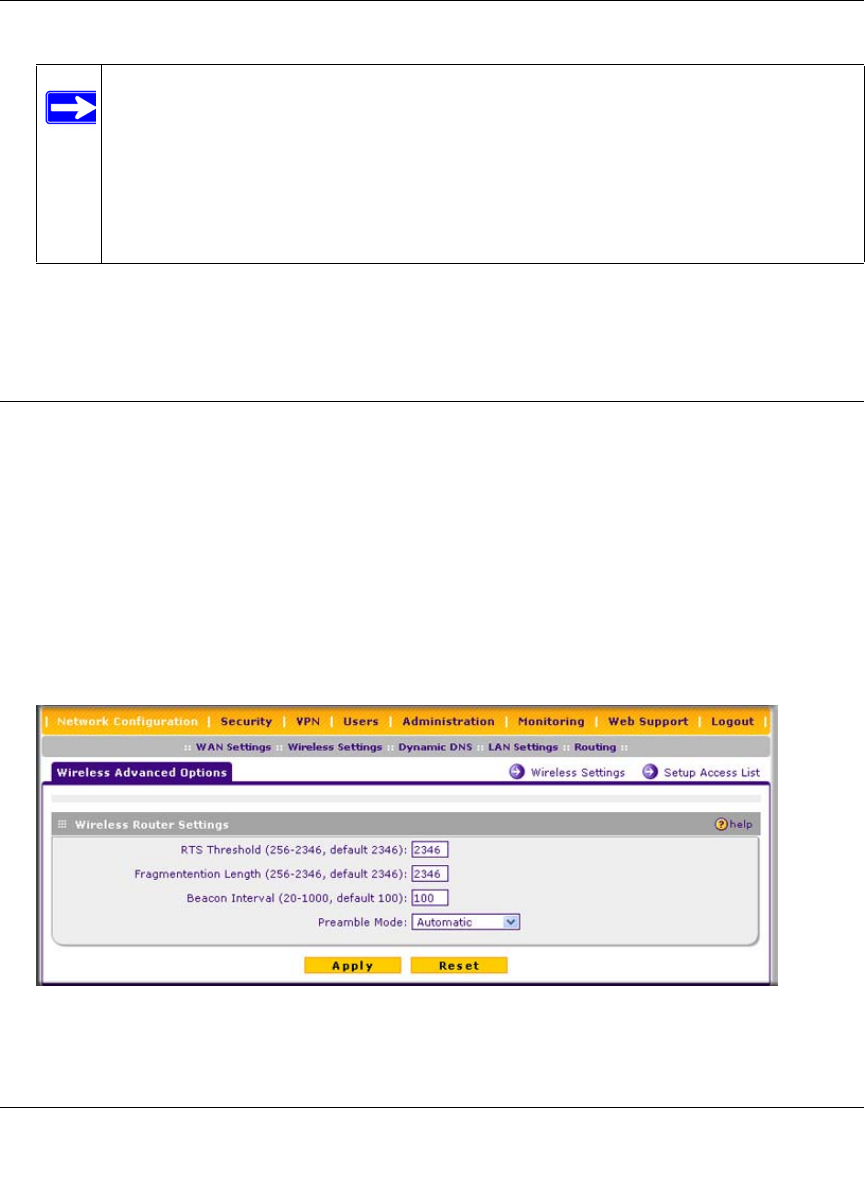
ProSafe Wireless-N VPN Firewall SRXN3205 Reference Manual
Wireless Configuration 4-17
v1.0, January 2010
7. If you want to fine tune the overall performance of the Wireless Settings for your environment,
see “Configuring Advanced Wireless Settings” on this page.
Configuring Advanced Wireless Settings
Use the Wireless Advanced Options screen to configure and enable various wireless LAN
parameters for all of the 802.11a/n and 802.11b/g/n modes. The default wireless LAN parameters
usually work well. However, you can use these settings to fine-tune the overall performance of
your Wireless Settings for your environment.
To configure advanced wireless features:
1. Select Network Configuration > Wireless Settings from the main/submenu.
2. Select Advanced to the right of the Wireless Settings tab. The Advanced Wireless Options
screen is displayed.
Note: By default, the VPN firewall is configured with the DHCP client enabled. If
your network uses dynamic IP addresses, you must change this setting. To
connect to the VPN firewall after the DHCP server on your network assigns it
a new IP address, enter the VPN firewall name into your Web browser. The
default VPN firewall name is netgearxxxxxx, where xxxxxx represents the last
6 bytes of the MAC address. The default name is printed on the bottom label of
the VPN firewall.
Figure 4-3
ProSafe Wireless-N VPN Firewall SRXN3205 Reference Manual
4-18 Wireless Configuration
v1.0, January 2010
3. Enter the appropriate information in the fields described below:
•RTS Threshold (256 - 2346, default 2346). The RTS (Request to Send Threshold) is the
packet size that determines if the CSMA/CD (Carrier Sense Multiple Access with
Collision Detection) mechanism or the CSMA/CA (CSMA with Collision Avoidance)
mechanism should be used for packet transmission. With the CSMA/CD transmission
mechanism, the transmitting station sends the actual packet as soon as the silence period
has expired. With the CSMA/CA transmission mechanism, the transmitting station sends
an RTS packet to the receiving station, and waits for the receiving station to return a CTS
(Clear to Send) packet before sending the actual packet data. The default is 2346.
•Fragmentation Length (256 - 2346, default 2346). This is the maximum packet size
used for fragmentation. Packets larger than the size entered in this field will be
fragmented. The fragment threshold value must be larger than the RTS threshold value.
The default is 2346.
•Beacon Interval (20-1000, default 100). This is the interval time (in ms) between beacon
transmissions. The value must be between 20 ms and 1000 ms. The default is 100ms. The
interval time allows for the synchronization of the wireless network.
•Preamble Mode. A long transmit preamble may provide a more reliable connection or a
slightly longer range. A short transmit preamble gives better performance. The Automatic
settings automatically handles both long and short preambles. The default is Automatic.
4. Click Apply to save your settings.
Restricting Wireless Access by MAC Address
Enabling of the access control list lets you block the wireless access privileges of any specified
stations through the VPN firewall. When you enable access control, the VPN firewall only accepts
connections from wireless clients on the selected access control list. This provides an additional
layer of security.
Note: When you configure the VPN firewall from a wireless computer whose MAC
address is not in the access control list, and you select Turn Access Control On,
you will lose your wireless connection when you click Apply. You must then
access the VPN firewall from a wired computer or from a wireless computer that
is on the access control list to make any further changes.
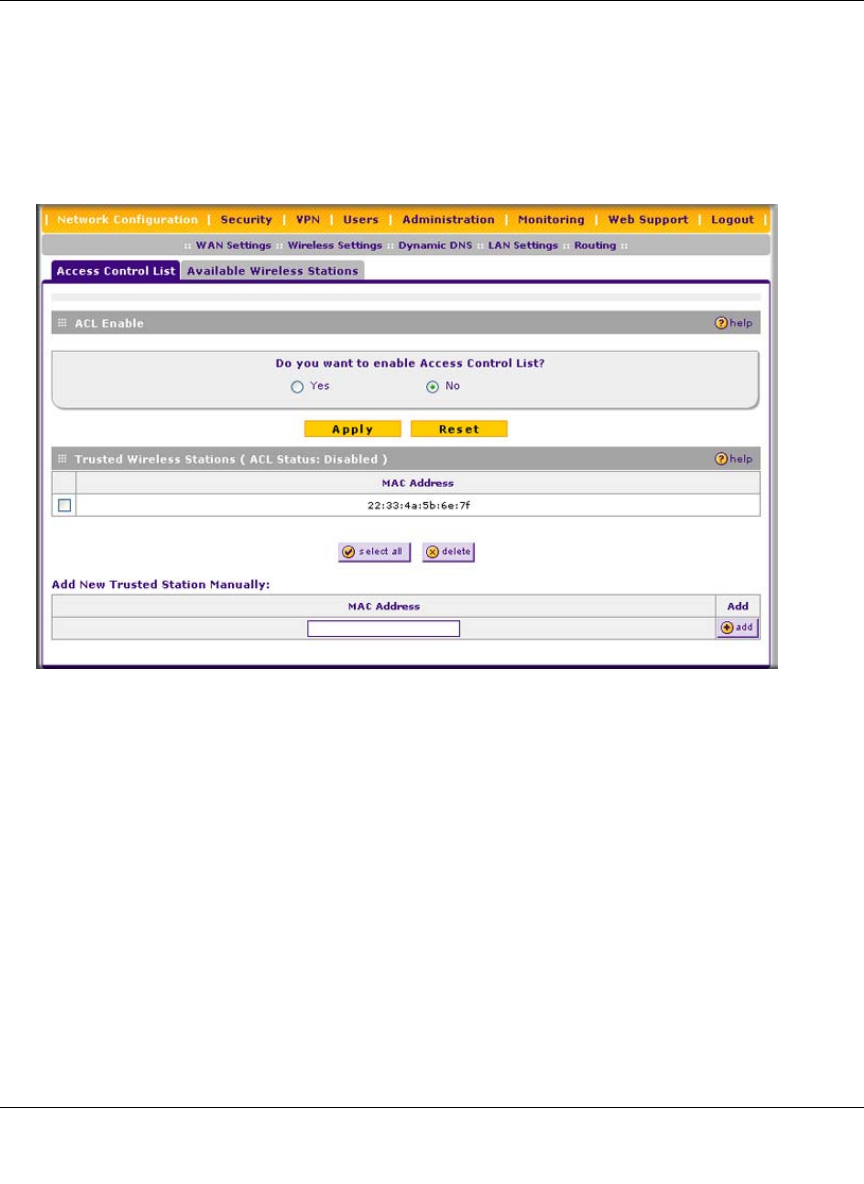
ProSafe Wireless-N VPN Firewall SRXN3205 Reference Manual
Wireless Configuration 4-19
v1.0, January 2010
To restrict access based on MAC addresses:
1. Click the Network Configurations > Wireless Settings in the main/submenu.
2. Click the Setup Access List link to the right of the Wireless Settings tab. The Access Control
List tab and Available Wireless Stations tab appear on screen with the Access Control List
screen in view.
3. Select the Yes radio button in the ACL Enable section of the screen to enable the access
control list.
The Trusted Wireless Stations table displays any wireless stations you have manually entered
or that were discovered by the VPN firewall within its range. If you have not added any
wireless stations to the table, or if the VPN firewall did not discover any wireless stations, the
Trusted Wireless Stations table will be empty. The access control list does not need to be
enabled to add or delete MAC address to the table.
4. Click Apply to save your settings. Now, only devices in this table will be allowed to wirelessly
connect to the VPN firewall.
Figure 4-4
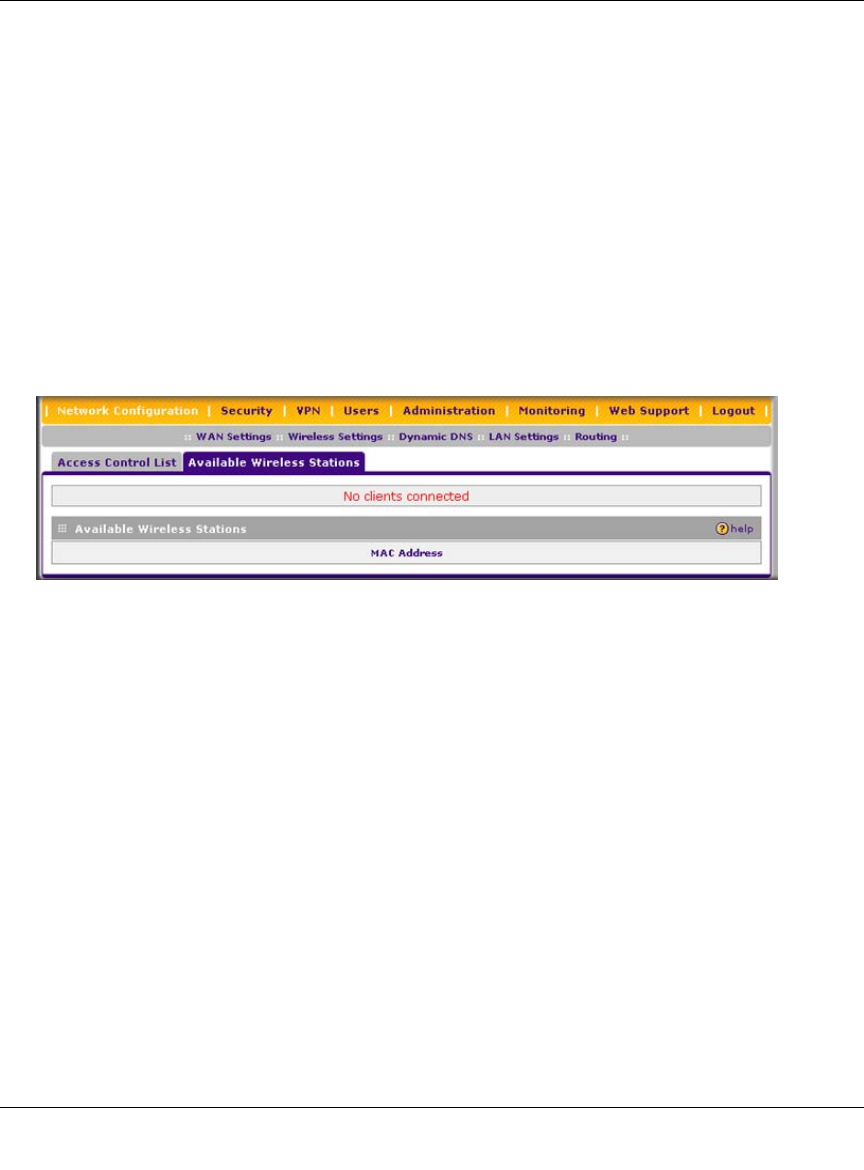
ProSafe Wireless-N VPN Firewall SRXN3205 Reference Manual
4-20 Wireless Configuration
v1.0, January 2010
To manually add MAC address to the Trusted Wireless Station table on the Access Control List
screen:
1. Enter the MAC address in the MAC Address field of the Add New Trusted Station Manually
section of the screen. The MAC address should be in the xx:xx:xx:xx:xx:xx format.
You can usually find the MAC address printed on the bottom of the wireless adapter.
2. Click the Add button. Repeat these steps for each additional device you want to add to the
table.
To add the MAC address of an automatically discovered wireless station to the Trusted Wireless
Station table:
1. Click the Available Wireless Stations tab to the right of the Access Control List tab. The
Available Wireless Stations screen is displayed.
The Available Wireless Stations table displays any wireless stations that were discovered by
the VPN firewall within its range
1. Select the check box to the left of the entry that you want to add to the Trusted Wireless
Station table, or click select all to select all entries to the Trusted Wireless Station table.
2. Click the Add to Trusted List button. (Figure 4-5 does not show any buttons because there
are no wireless stations in the Available Wireless Stations table.)
To delete one ore more existing entries from the Trusted Wireless Station table on the Access
Control List screen:
1. Select the check box to the left of the entry that you want to delete, or click select all to select
all entries.
2. Click the delete button.
Figure 4-5

ProSafe Wireless-N VPN Firewall SRXN3205 Reference Manual
Firewall Security and Content Filtering 5-1
v1.0, January 2010
Chapter 5
Firewall Security and Content Filtering
This chapter describes how to set up your firewall and use the content filtering features of the
ProSafe Wireless-N VPN Firewall SRXN3205 to protect your network.
This chapter contains the following sections:
•“About Firewall Security and Content Filtering” on this page
•“Using Rules & Services to Block or Allow Traffic” on page 5-2
•“Configuring Other Firewall Features” on page 5-14
•“Creating Services, QoS Profiles, and Bandwidth Profiles” on page 5-19
•“Blocking Internet Sites (Content Filtering)” on page 5-25
•“Enabling Source MAC Filtering (Address Filtering)” on page 5-28
•“Configuring IP/MAC Address Binding” on page 5-29
•“Configuring Port Triggering” on page 5-31
•“Configuring UPnP (Universal Plug and Play)” on page 5-34
•“E-Mail Notifications of Event Logs and Alerts” on page 5-35
•“Administrator Tips” on page 5-36
About Firewall Security and Content Filtering
The VPN firewall provides you with Web content filtering options, plus browsing activity
reporting and instant alerts via e-mail. Network administrators can establish restricted access
policies based on time-of-day, Web addresses, and Web address keywords. You can also block
Internet access by applications and services, such as chat or games.
A firewall is a special category of router that protects one network (the “trusted” network, such as
your LAN) from another (the untrusted network, such as the Internet), while allowing
communication between the two. You can further segment keyword blocking to certain known
groups (see “Managing Groups and Hosts (LAN Groups)” on page 3-5 to set up LAN Groups).
A firewall incorporates the functions of a NAT (Network Address Translation) router, while
adding features for dealing with a hacker intrusion or attack, and for controlling the types of traffic
that can flow between the two networks. Unlike simple Internet sharing NAT routers, a firewall

ProSafe Wireless-N VPN Firewall SRXN3205 Reference Manual
5-2 Firewall Security and Content Filtering
v1.0, January 2010
uses a process called stateful packet inspection to protect your network from attacks and
intrusions. NAT performs a very limited stateful inspection in that it considers whether the
incoming packet is in response to an outgoing request, but true Stateful Packet Inspection goes far
beyond NAT.
Using Rules & Services to Block or Allow Traffic
This section includes the following topics:
•“Services-Based Rules” on this page
•“Viewing the Firewall Rules” on page 5-7
•“Order of Precedence for Rules” on page 5-7
•“Setting the Outbound Policy” on page 5-7
•“Creating a LAN WAN Outbound Services Rule” on page 5-8
•“Creating a LAN WAN Inbound Services Rule” on page 5-9
•“Inbound Rules Examples” on page 5-11
•“Outbound Rules Example” on page 5-14
Firewall rules and services are used to block or allow specific traffic passing through from one side
to the other. Inbound rules (WAN to LAN) restrict access by outsiders to private resources,
selectively allowing only specific outside users to access specific resources. Outbound rules (LAN
to WAN) determine what outside resources local users can have access to.
A firewall has two default rules, one for inbound traffic and one for outbound traffic. The default
rules of the VPN firewall are:
•Inbound. Block all access from outside except responses to requests from the LAN side.
•Outbound. Allow all access from the LAN side to the outside.
User-defined firewall rules for blocking or allowing traffic on the VPN firewall can be applied to
inbound or outbound traffic.
Services-Based Rules
The rules to block traffic are based on the traffic’s category of service.
•Outbound Rules (service blocking). Outbound traffic is normally allowed unless the firewall
is configured to disallow it.
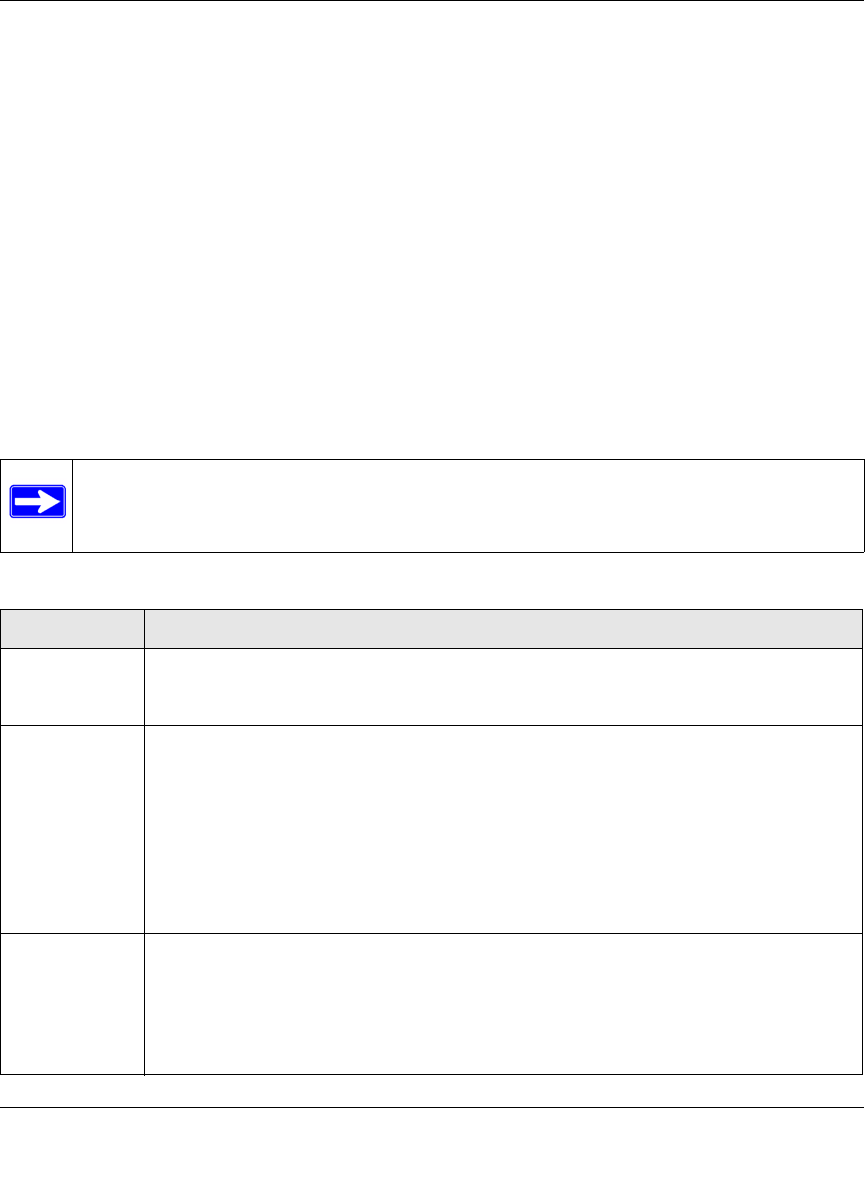
ProSafe Wireless-N VPN Firewall SRXN3205 Reference Manual
Firewall Security and Content Filtering 5-3
v1.0, January 2010
•Inbound Rules (port forwarding). Inbound traffic is normally blocked by the firewall unless
the traffic is in response to a request from the LAN side. The firewall can be configured to
allow this otherwise blocked traffic.
•Customized Services. Additional services can be added to the list of services in the factory
default list. These added services can then have rules defined for them to either allow or block
that traffic (see “Adding Customized Services” on page 5-19).
•Quality of Service (QoS) priorities. Each service at its own native priority that impacts its
quality of performance and tolerance for jitter or delays. You can change this QoS priority if
desired to change the traffic mix through the system (see “Setting Quality of Service (QoS)
Priorities” on page 5-21).
Outbound Rules (Service Blocking)
The VPN firewall allows you to block the use of certain Internet services by PCs on your network.
This is called service blocking or port filtering.
Note: See “Enabling Source MAC Filtering (Address Filtering)” on page 5-28 for yet
another way to block outbound traffic from selected PCs that would otherwise be
allowed by the firewall.
Table 5-1. Outbound Rules
Item Description
Service Select the desired service or application to be covered by this rule. If the desired service
or application does not appear in the list, you must define it using the Services screen
(see “Adding Customized Services” on page 5-19).
Action Select the desired action for outgoing connections covered by this rule:
• BLOCK always
• BLOCK by schedule, otherwise Allow
• ALLOW always
• ALLOW by schedule, otherwise Block
Note: Any outbound traffic that is not blocked by rules you create will be allowed by the
default rule.
ALLOW rules are only useful if the traffic is already covered by a BLOCK rule. That is, you
wish to allow a subset of traffic that is currently blocked by another rule.
Select Schedule Select the desired time schedule (Schedule1, Schedule2, or Schedule3) that will be used
by this rule.
• This pull-down menu gets activated only when “BLOCK by schedule, otherwise Allow”
or “ALLOW by schedule, otherwise Block” is selected as Action.
• Use a Schedule screen to configure the time schedules (see “Setting Schedules to
Block or Allow Specific Traffic” on page 5-24).

ProSafe Wireless-N VPN Firewall SRXN3205 Reference Manual
5-4 Firewall Security and Content Filtering
v1.0, January 2010
Inbound Rules (Port Forwarding)
When the VPN firewall uses Network Address Translation (NAT), your network presents only one
IP address to the Internet and outside users cannot directly address any of your local computers.
However, by defining an inbound rule you can make a local server (for example, a Web server or
game server) visible and available to the Internet. The rule tells the firewall to direct inbound
traffic for a particular service to one local server based on the destination port number. This is also
known as port forwarding.
LAN Users These settings determine which computers on your network are affected by this rule.
Select the desired options:
• Any – All PCs and devices on your LAN.
• Single address – Enter the required address and the rule will be applied to that
particular PC.
• Address range – If this option is selected, you must enter the start and finish fields.
• Groups – Select the Group to which this rule will apply. Use the (under Network
Configuration) to assign PCs to Groups. See “Managing Groups and Hosts (LAN
Groups)” on page 3-5.
WAN Users These settings determine which Internet locations are covered by the rule, based on their
IP address. Select the desired option:
• Any – All Internet IP address are covered by this rule.
• Single address – Enter the required address in the start field.
• Address range – If this option is selected, you must enter the start and end fields.
QoS Priority This setting determines the priority of a service which, in turn, determines the quality of
that service for the traffic passing through the firewall. By default, the priority shown is that
of the selected service. The user can change it accordingly. If the user does not make a
selection (leaves it as Normal-Service), then the native priority of the service will be
applied to the policy. See “Setting Quality of Service (QoS) Priorities” on page 5-21.
Log This determines whether packets covered by this rule are logged. Select the desired
action:
• Always – always log traffic considered by this rule, whether it matches or not. This is
useful when debugging your rules.
• Never – never log traffic considered by this rule, whether it matches or not.
Bandwidth
Profile Specifies the name of a bandwidth limiting profile. Using a bandwidth profile, bandwidth
consumed by different connections can be limited. If multiple connections correspond to
the same firewall rule, they will share the same bandwidth limiting. See “Creating
Bandwidth Profiles” on page 5-21.
NAT Single IP Is
On (interface) Specifies to which WAN interface the NAT IP address belongs. All outgoing packets will
be routed through the specified WAN interface only.
Table 5-1. Outbound Rules (continued)
Item Description
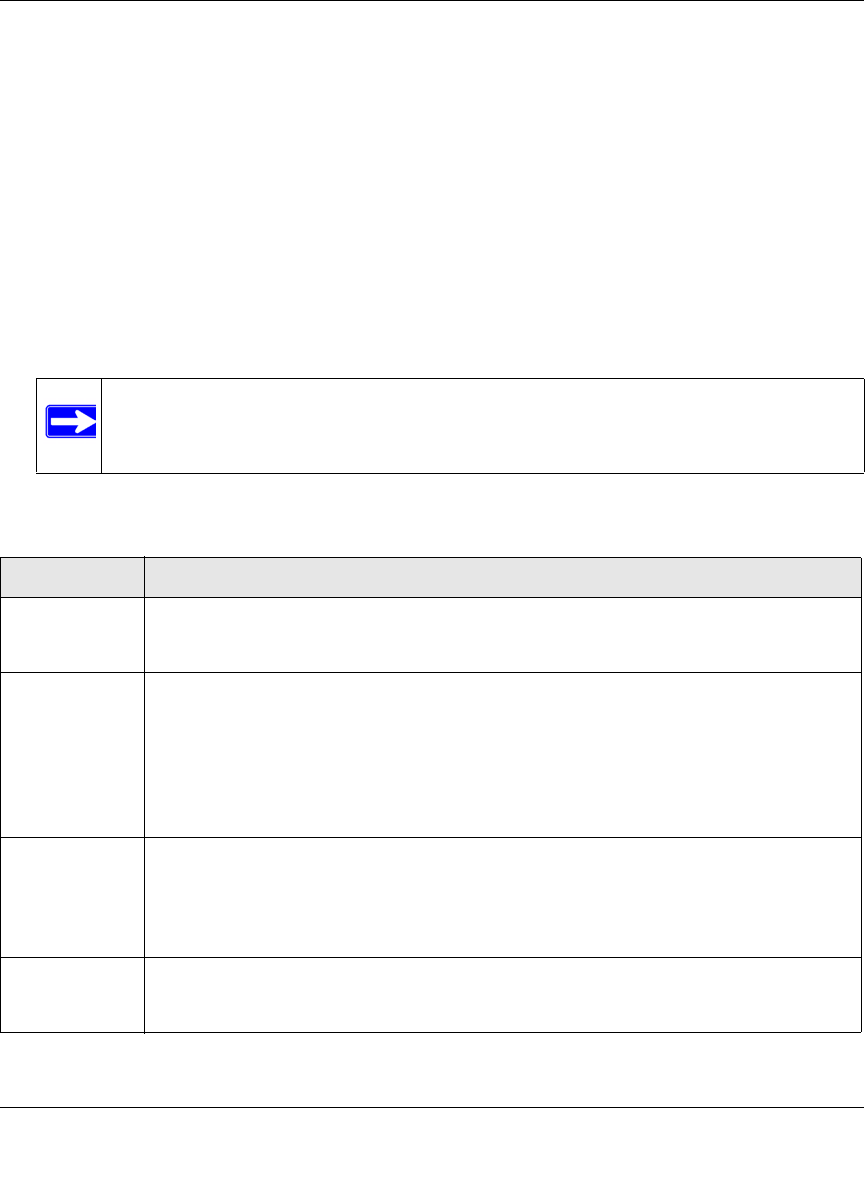
ProSafe Wireless-N VPN Firewall SRXN3205 Reference Manual
Firewall Security and Content Filtering 5-5
v1.0, January 2010
Whether or not DHCP is enabled, how the PCs will access the server’s LAN address impacts the
inbound rules. For example:
• If your external IP address is assigned dynamically by your ISP (DHCP enabled), the IP
address may change periodically as the DHCP lease expires. Consider using dynamic DNS so
that external users can always find your network (see “Configuring Dynamic DNS” on page 2-
12).
• If the IP address of the local server PC is assigned by DHCP, it may change when the PC is
rebooted. To avoid this, use the Reserved IP address feature to keep the PC’s IP address
constant (see “Configuring DHCP Address Reservation” on page 3-9).
• Local PCs must access the local server using the server’s local LAN address. Attempts by
local PCs to access the server using the external WAN IP address will fail.
Note: See “Configuring Port Triggering” on page 5-31 for yet another way to allow
certain types of inbound traffic that would otherwise be blocked by the
firewall.
Table 5-2. Inbound Rules
Item Description
Service Select the desired service or application to be covered by this rule. If the desired service
or application does not appear in the list, you must define it using the Services screen
(see “Adding Customized Services” on page 5-19).
Action Select the desired action for packets covered by this rule:
• BLOCK always
• BLOCK by schedule, otherwise Allow
• ALLOW always
• ALLOW by schedule, otherwise Block
Note: Any inbound traffic which is not allowed by rules you create will be blocked by the
Default rule.
Select Schedule Select the desired time schedule (Schedule1, Schedule2, or Schedule3) that will be used
by this rule (see “Setting Schedules to Block or Allow Specific Traffic” on page 5-24).
• This pull-down menu gets activated only when “BLOCK by schedule, otherwise Allow”
or “ALLOW by schedule, otherwise Block” is selected as Action.
• Use a Schedule screen to configure the time schedules.
Send to LAN
Server This field appears only with NAT routing (not classical routing). This LAN address or
range of LAN addresses determines which computer or computers on your network are
hosting this service rule. (You can also translate these addresses to a port number.)
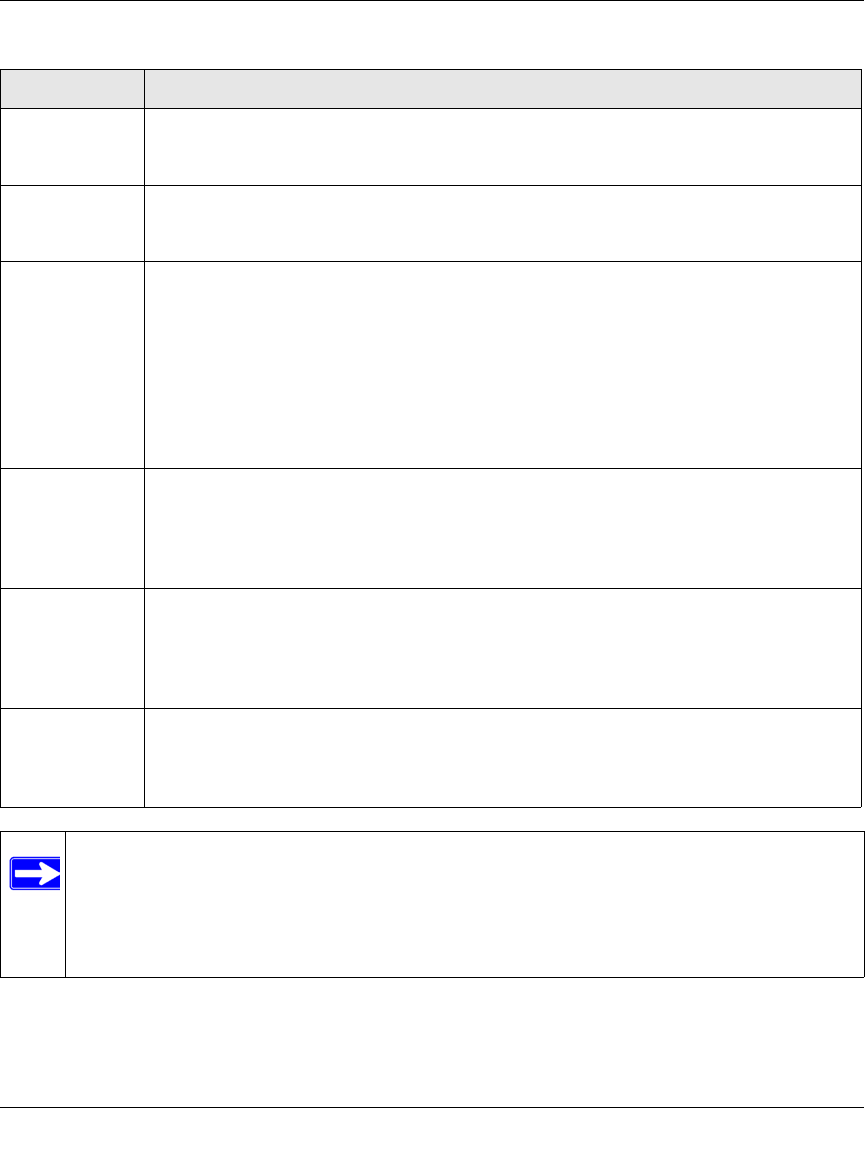
ProSafe Wireless-N VPN Firewall SRXN3205 Reference Manual
5-6 Firewall Security and Content Filtering
v1.0, January 2010
Remember that allowing inbound services opens holes in your VPN firewall. Only enable those
ports that are necessary for your network. It is also advisable to turn on the server application
security and invoke the user password or privilege levels, if provided.
Translate to Port
Number Check this box and enter a port number to assign the LAN server to a different service
port number. Inbound traffic to the service port will have the destination port number
modified to the port number configured here.
WAN
Destination IP
Address
This setting determines the destination IP address applicable to incoming traffic.
This is the public IP address that will map to the internal LAN server; it can either be the
address of the WAN port, another public IP address, or an address range.
LAN Users These settings determine which computers on your network are affected by this rule.
Select the desired options:
• Any – All PCs and devices on your LAN.
• Single address – Enter the required address and the rule will be applied to that
particular PC.
• Address range – If this option is selected, you must enter the start and finish fields.
• Groups – Select the Group to which this rule will apply. Use the (under Network
Configuration) to assign PCs to Groups. See “Managing Groups and Hosts (LAN
Groups)” on page 3-5.
WAN Users These settings determine which Internet locations are covered by the rule, based on their
IP addresses. Select the desired option:
• Any – All Internet IP address are covered by this rule.
• Single address – Enter the required address in the start field.
• Address range – If this option is selected, you must enter the start and end fields.
Log This determines whether packets covered by this rule are logged. Select the desired
action:
• Always – Always log traffic considered by this rule, whether it matches or not. This is
useful when debugging your rules.
• Never – Never log traffic considered by this rule, whether it matches or not.
Bandwidth
Profile Specifies the name of a bandwidth limiting profile. Using a bandwidth profile, bandwidth
consumed by different connections can be limited. If multiple connections correspond to
the same firewall rule, they will share the same bandwidth limiting. See “Creating
Bandwidth Profiles” on page 5-21.
Note: Some residential broadband ISP accounts do not allow you to run any server
processes (such as a Web or FTP server) from your location. Your ISP may
periodically check for servers and may suspend your account if it discovers any
active services at your location. If you are unsure, refer to the Acceptable Use
Policy of your ISP.
Table 5-2. Inbound Rules (continued)
Item Description
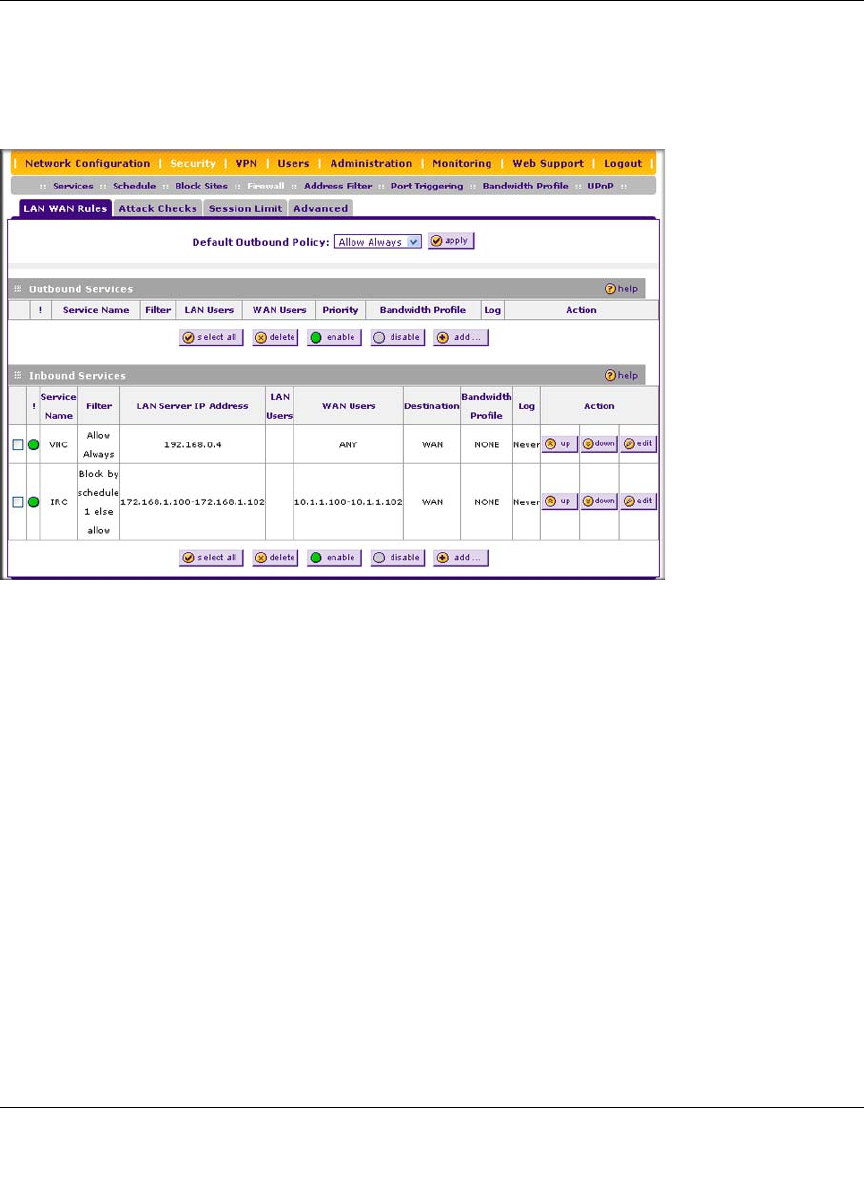
ProSafe Wireless-N VPN Firewall SRXN3205 Reference Manual
Firewall Security and Content Filtering 5-7
v1.0, January 2010
Viewing the Firewall Rules
To view the firewall rules, go to Security > Firewall from the main/submenu. The LAN WAN
Rules screen displays (Figure 5-1 shows some examples).
Order of Precedence for Rules
As you define new rules, they are added to the tables in the LAN WAN Rules screen as the last
item in the list, as shown in Figure 5-1. For any traffic attempting to pass through the firewall, the
packet information is subjected to the rules in the order shown in the Outbound Services and
Inbound Services rules tables, beginning at the top and proceeding to the bottom, before applying
the default rule. In some cases, the order of precedence of two or more rules may be important in
determining the disposition of a packet. For example, you should place the most strict rules at the
top (those with the most specific services or addresses). The up and down buttons allow you to
relocate a defined rule to a new position in the table.
Setting the Outbound Policy
The default outbound policy is to allow all traffic to the Internet to pass through. Firewall rules can
then be applied to block specific types of traffic from going out from the LAN to the Internet
(Outbound). The default policy of Allow Always can be changed to block all outbound traffic
which then allows you to enable only specific services to pass through the VPN firewall.
Figure 5-1
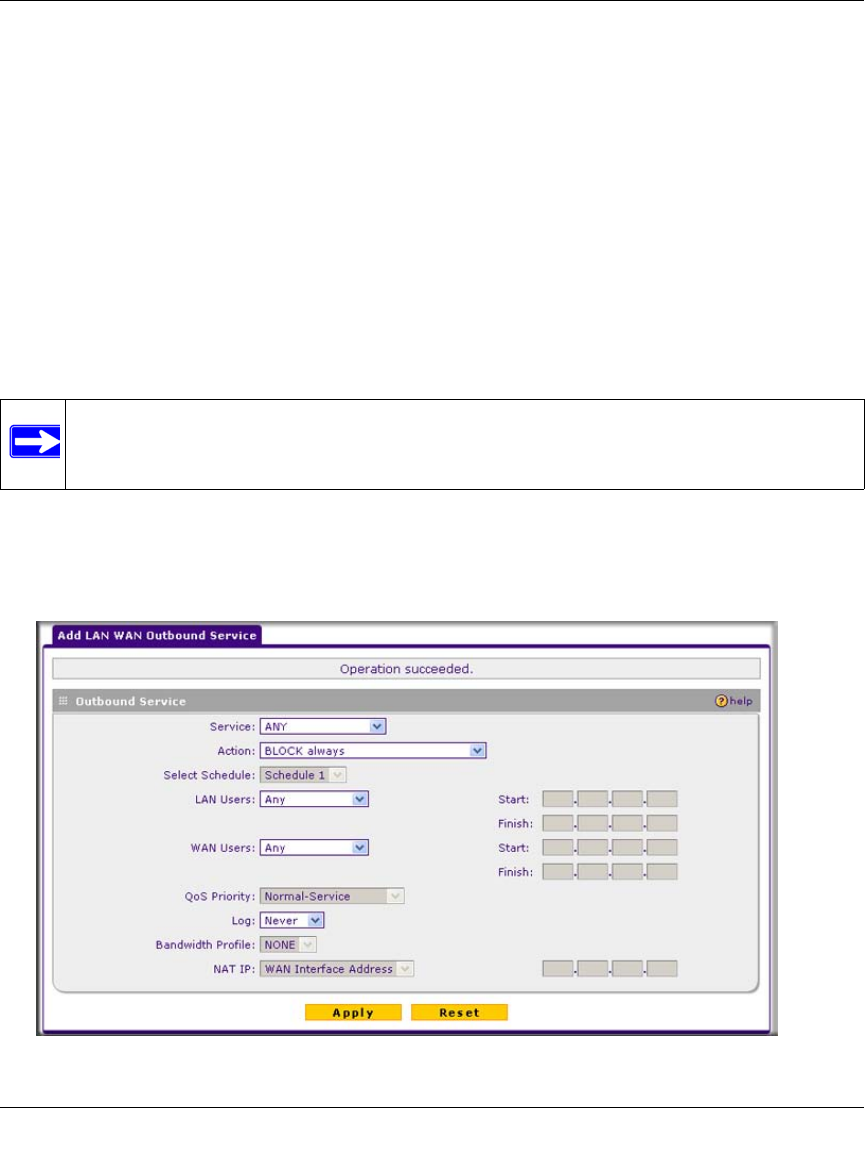
ProSafe Wireless-N VPN Firewall SRXN3205 Reference Manual
5-8 Firewall Security and Content Filtering
v1.0, January 2010
To change the default outbound policy, follow these steps:
1. Go to the LAN WAN Rules screen, shown in Figure 5-1 on page 5-7.
2. Add the outbound rules you plan to use.
3. Change the outbound policy by choosing Block Always from the pull-down menu.
4. Click Apply.
Creating a LAN WAN Outbound Services Rule
An outbound rule will block or allow the selected application from an internal IP LAN address to
an external WAN IP address according to the schedule created on the Schedule screen.
You can also tailor these rules to your specific needs (see “Administrator Tips” on page 5-36).
To create a new outbound service rule in the LAN WAN Rules screen:
1. In the LAN WAN Rules screen, click add under the Outbound Services table. The Add LAN
WAN Outbound Service screen is displayed.
Note: This feature is for advanced administrators only! Incorrect configuration will cause
serious problems.
Figure 5-2
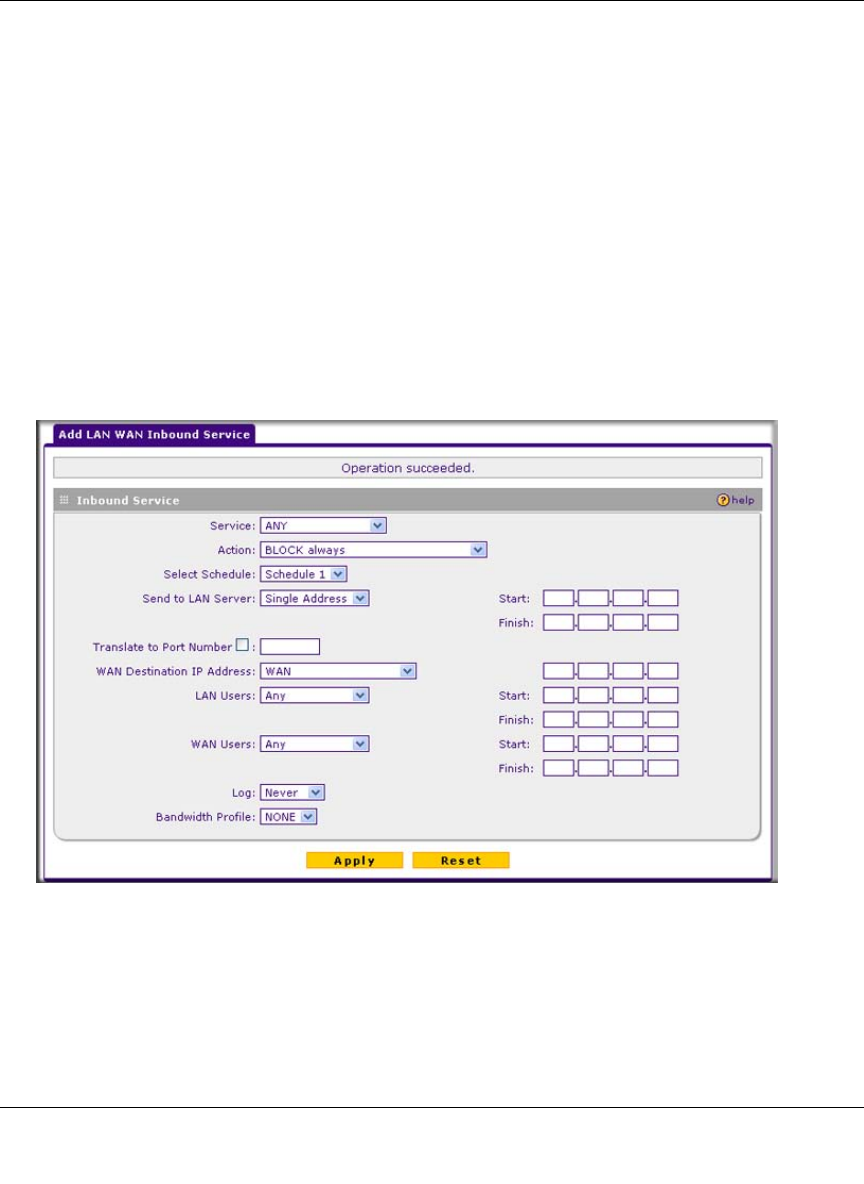
ProSafe Wireless-N VPN Firewall SRXN3205 Reference Manual
Firewall Security and Content Filtering 5-9
v1.0, January 2010
2. Configure the settings as explained in Table 5-1 on page 5-3.
3. Click Apply to save your changes. The new rule is added to the Outbound Services table on
the LAN WAN Rules screen.
Creating a LAN WAN Inbound Services Rule
The Inbound Services table lists all existing rules for inbound traffic. If you have not defined any
rules, no rules will be listed. By default, all inbound traffic is blocked. Remember that allowing
inbound services opens holes in your firewall. Only enable those ports that are necessary for your
network.
To create a new inbound service rule in the LAN WAN Rules screen:
1. In the LAN WAN Rules screen, click add under the Inbound Services table. The Add LAN
WAN Inbound Service screen is displayed.
2. Configure the settings as explained in Table 5-2 on page 5-5.
3. Click Apply to save your changes. The new rule is added to the Inbound Services table on the
LAN WAN Rules screen.
Figure 5-3

ProSafe Wireless-N VPN Firewall SRXN3205 Reference Manual
5-10 Firewall Security and Content Filtering
v1.0, January 2010
Modifying Rules
To make changes to an existing outbound or inbound service rule on the the LAN WAN Rules
screen, in the Action column to the right of to the rule, click on of the following table buttons:
•edit. Allows you to make any changes to the rule definition of an existing rule. Depending on
your selection, either the Edit LAN WAN Outbound Service screen (identical to Figure 5-2 on
page 5-8) or Edit LAN WAN Inbound Service screen (identical to Figure 5-3 on page 5-9)
displays, containing the data for the selected rule.
•up. Moves the rule up one position in the table rank.
•down. Moves the rule down one position in the table rank.
To enable, disable, or delete one or more rules:
1. Select the checkbox to the left of the rule that you want to delete or disable or click the select
all table button to select all rules.
2. Click one of the following table buttons:
•enable. Enables the rule or rules. The “!” status icon changes from a grey circle to a green
circle, indicating that the rule is or rules are enabled. (By default, when a rule is added to
the table, it is automatically enabled.)
•disable. Disables the rule or rules. The “!” status icon changes from a green circle to a
grey circle, indicating that the rule is or rules are disabled.
•delete. Deletes the rule or rules.
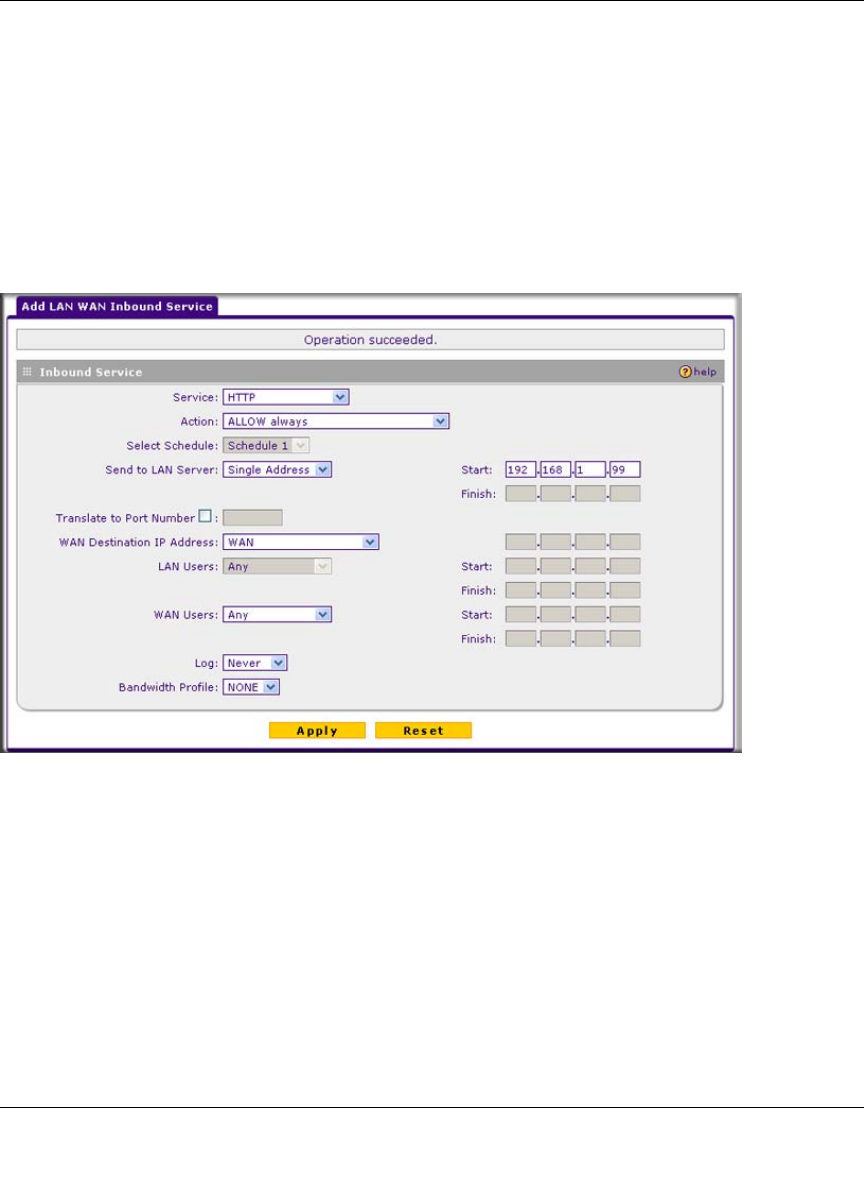
ProSafe Wireless-N VPN Firewall SRXN3205 Reference Manual
Firewall Security and Content Filtering 5-11
v1.0, January 2010
Inbound Rules Examples
LAN WAN Inbound Rule: Hosting a Local Public Web Server
If you host a public Web server on your local network, you can define a rule to allow inbound Web
(HTTP) requests from any outside IP address to the IP address of your Web server at any time of
day.
In the example shown in Figure 5-4, unrestricted access is provided from the Internet to the local
Web server at LAN IP address 192.168.1.99.
LAN WAN Inbound Rule: Allowing Videoconference from Restricted Addresses
If you want to allow incoming videoconferencing to be initiated from a restricted range of outside
IP addresses, such as from a branch office, you can create an inbound rule.
In the example shown in Figure 5-5 on page 5-12, CU-SeeMe connections are allowed to a local
host only from a specified range of external IP addresses. Connections are blocked during the
period specified by Schedule 1.
Figure 5-4
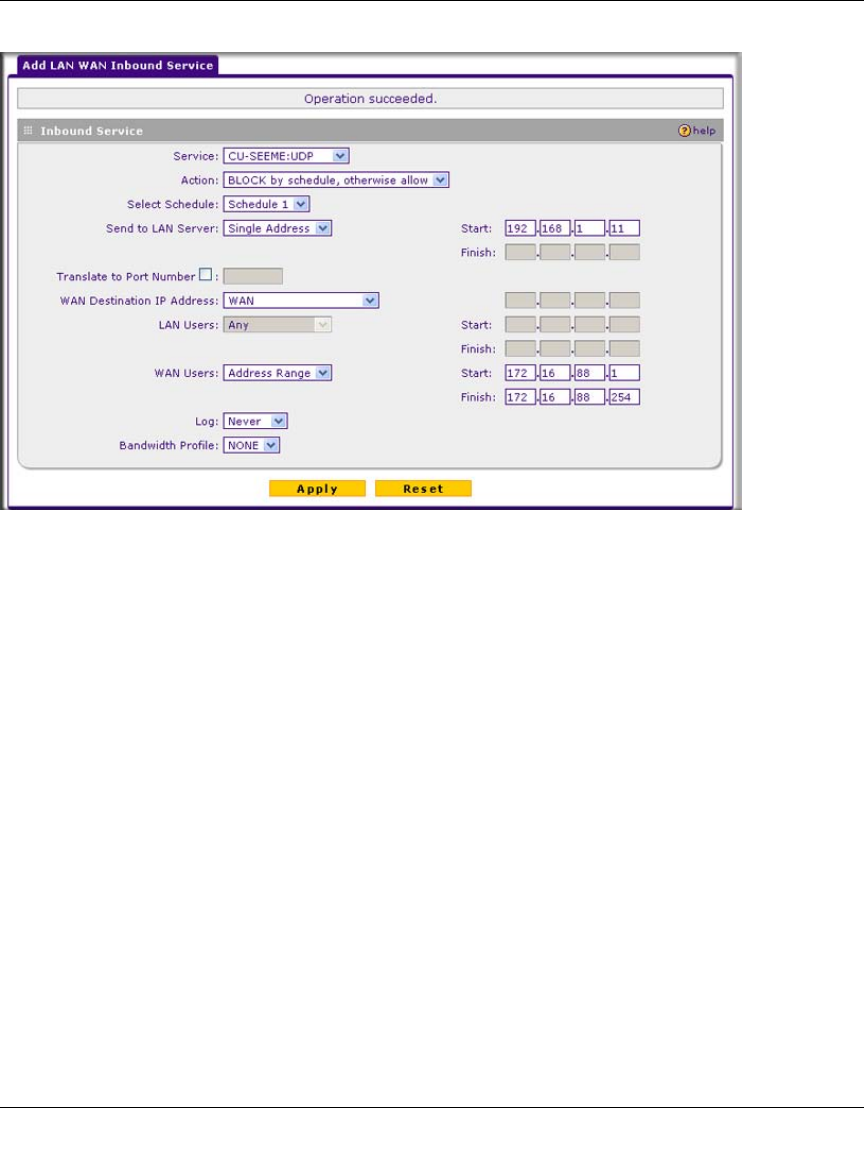
ProSafe Wireless-N VPN Firewall SRXN3205 Reference Manual
5-12 Firewall Security and Content Filtering
v1.0, January 2010
LAN WAN Inbound Rule: Setting Up One-to-One NAT Mapping
If you arrange with your ISP to have more than one public IP address for your use, you can use the
additional public IP addresses to map to servers on your LAN. One of these public IP addresses
will be used as the primary IP address of the VPN firewall. This address will be used to provide
Internet access to your LAN PCs through NAT. The other addresses are available to map to your
servers.
In the example shown in Figure 5-6 on page 5-13, we have configured multi-NAT to support
multiple public IP addresses on one WAN interface. The inbound rule instructs the VPN firewall
to host an additional public IP address (10.1.0.5) and to associate this address with the Web server
on the LAN (at 192.168.0.1). We also instruct the VPN firewall to translate the incoming HTTP
port number (port 80) to a different port number (port 8080).
The following addressing scheme is used in this example:
• VPN firewall:
– WAN primary public IP address: 10.1.0.1
– WAN additional public IP address: 10.1.0.5
– LAN IP address 192.168.1.1
Figure 5-5
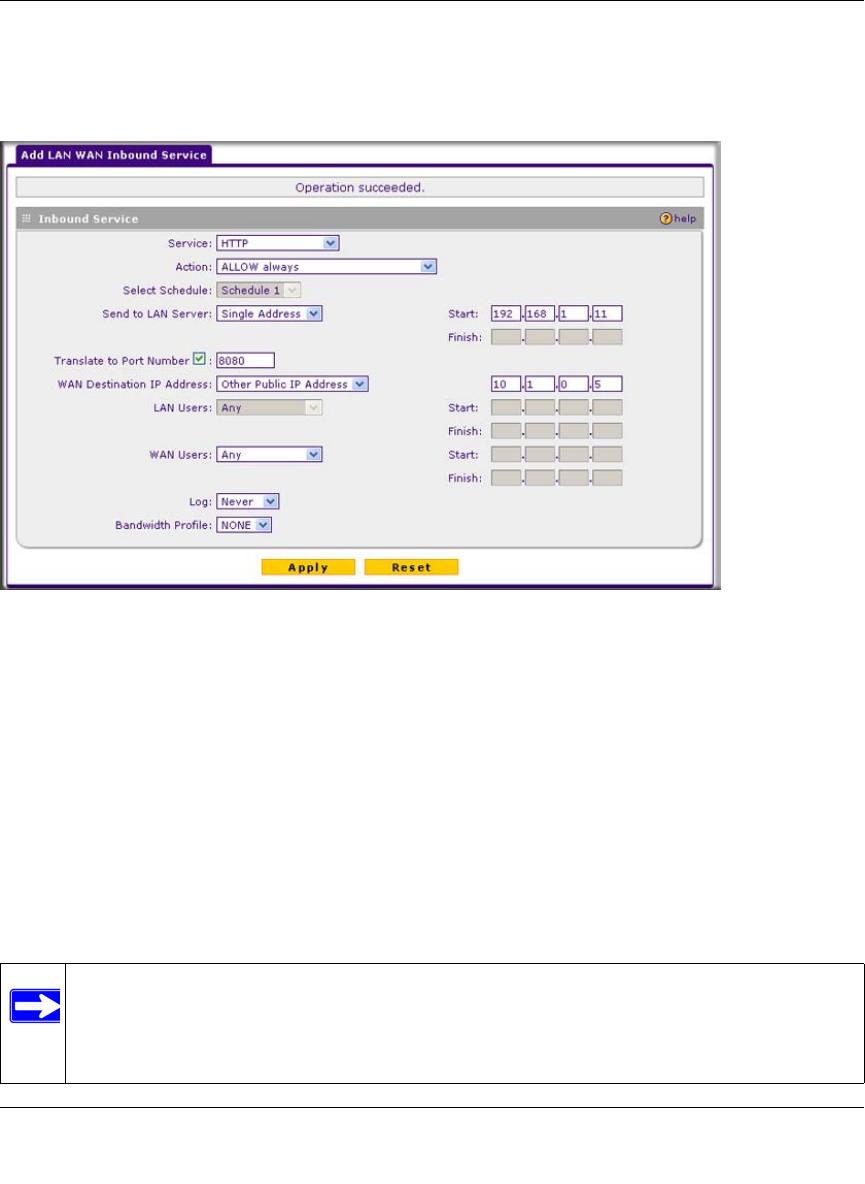
ProSafe Wireless-N VPN Firewall SRXN3205 Reference Manual
Firewall Security and Content Filtering 5-13
v1.0, January 2010
• Web server PC on the VPN firewall’s LAN
– LAN IP address: 192.168.1.11
– Port number for Web service: 8080
To test the connection from a PC on the WAN side, type http://10.1.0.5. The home page of the
Web server should appear.
LAN WAN Inbound Rule: Specifying an Exposed Host
Specifying an exposed host allows you to set up a computer or server that is available to anyone on
the Internet for services that you have not yet defined.
To expose one of the PCs on your LAN as this host:
1. Create an inbound rule that allows all protocols.
2. Place the new rule below all other inbound rules.
Figure 5-6
Note: For security, NETGEAR strongly recommends that you avoid creating an exposed
host. When a computer on your LAN is designated as the exposed host, it loses
much of the protection of the firewall and is exposed to many exploits from the
Internet. If compromised, the computer can be used to attack your network.
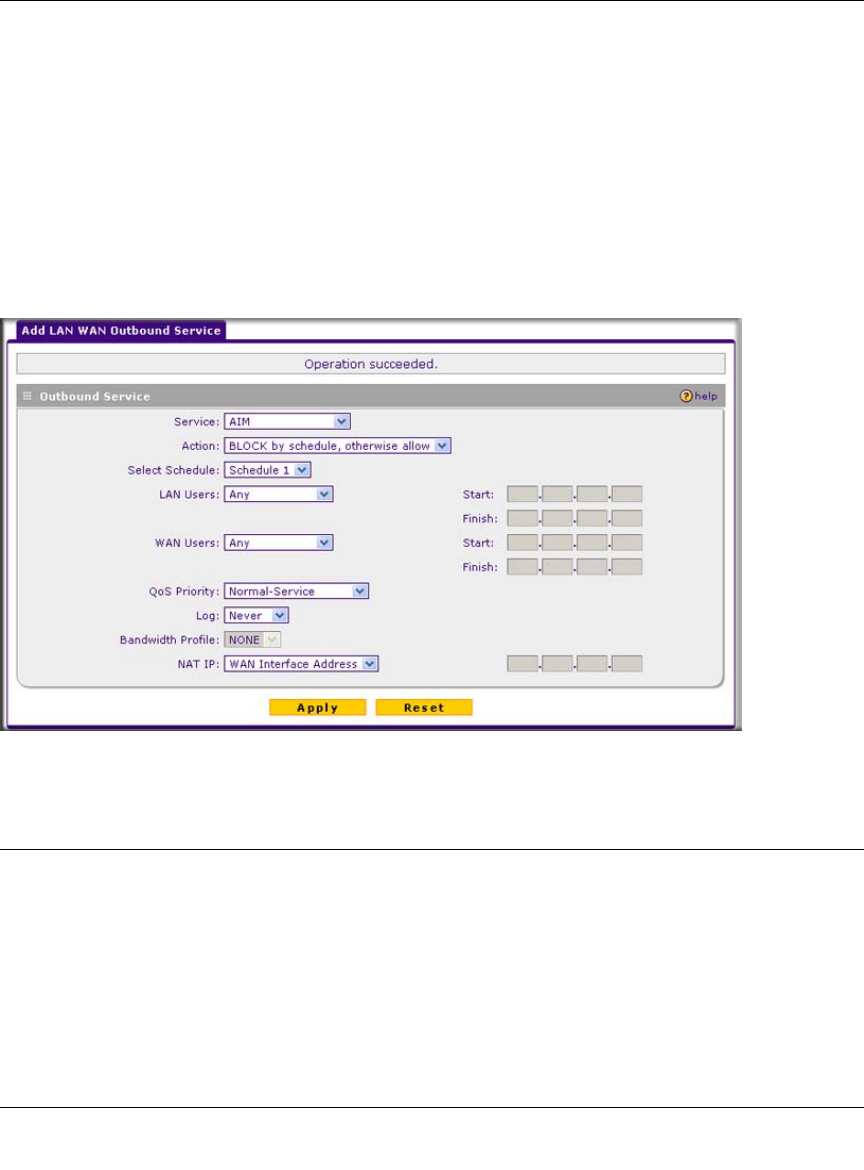
ProSafe Wireless-N VPN Firewall SRXN3205 Reference Manual
5-14 Firewall Security and Content Filtering
v1.0, January 2010
Outbound Rules Example
Outbound rules let you prevent users from using applications such as Instant Messenger, Real
Audio, or other non-essential services.
LAN WAN Outbound Rule: Blocking Instant Messenger
To block Instant Messenger usage by employees during working hours, you can create an
outbound rule to block that application from any internal IP address to any external address
according to the schedule that you have created on the Schedule screen. You can also have the
firewall log any attempt to use Instant Messenger during that blocked period.
Configuring Other Firewall Features
You can configure attack checks, set session limits, and manage the Application Level Gateway
(ALG) for SIP sessions.
Attack Checks
The Attack Checks screen allows you to specify whether or not the VPN firewall should be
protected against common attacks in the LAN and WAN networks.
Figure 5-7
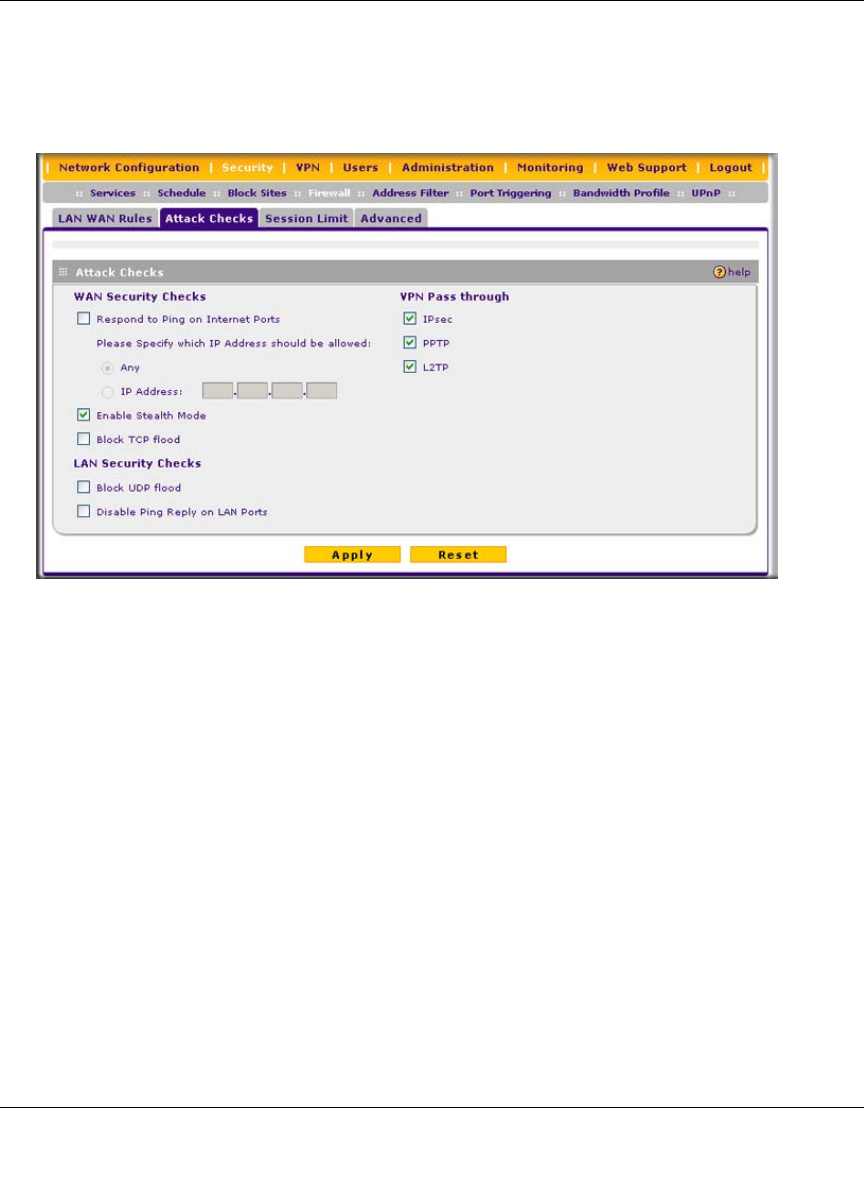
ProSafe Wireless-N VPN Firewall SRXN3205 Reference Manual
Firewall Security and Content Filtering 5-15
v1.0, January 2010
To enable the appropriate Attack Checks for your environment:
1. Select Security > Firewall from the main/submenu.
2. Click the Attack Checks tab. The Attack Checks screen is displayed.
3. Check the boxes for the Attack Checks you wish to monitor. The various types of attack
checks are listed and defined below.
4. Click Apply to save your settings.
The various types of attack checks listed on the Attack Checks screen are:
• WAN Security Checks
–Respond To Ping On Internet Ports. By default, the VPN firewall responds to an ICMP
Echo (ping) packet coming from the Internet or WAN side. Responding to a ping can be a
useful diagnostic tool when there are connectivity problems. If the ping option is enabled,
you can allow either any IP address or a specific IP address only to respond to a ping. You
can disable the ping option to prevent hackers from easily discovering the VPN firewall
via a ping.
–Enable Stealth Mode. In stealth mode, the VPN firewall will not respond to port scans
from the WAN, thus making it less susceptible to discovery and attacks.
Figure 5-8

ProSafe Wireless-N VPN Firewall SRXN3205 Reference Manual
5-16 Firewall Security and Content Filtering
v1.0, January 2010
–Block TCP Flood. A SYN flood is a form of denial of service attack in which an attacker
sends a succession of SYN requests to a target system. When the system responds, the
attacker does not complete the connection, thus saturating the server with half-open
connections. No legitimate connections can then be made.
When blocking is enabled, the VPN firewall will limit the lifetime of partial connections
and will be protected from a SYN flood attack.
• LAN Security Checks
–Block UDP flood. A UDP flood is a form of denial of service attack that can be initiated
when one machine sends a large number of UDP packets to random ports on a remote
host. As a result, the distant host will (1) check for the application listening at that port, (2)
see that no application is listening at that port, and (3) reply with an ICMP Destination
Unreachable packet.
When the victimized system is flooded, it is forced to send many ICMP packets,
eventually making it unreachable by other clients. The attacker may also spoof the IP
address of the UDP packets, ensuring that the excessive ICMP return packets do not reach
him, thus making the attacker’s network location anonymous.
If flood checking is enabled, the VPN firewall will not accept more than 20 simultaneous,
active UDP connections from a single computer on the LAN.
–Disable Ping Reply on LAN Ports. To prevent the VPN firewall from responding to Ping
requests from the LAN, click this checkbox.
•VPN Pass through. When the VPN firewall is in NAT mode, all packets going to the remote
VPN gateway are first filtered through NAT and then encrypted per the VPN policy.
For example, if a VPN Client or Gateway on the LAN side of this VPN firewall wants to
connect to another VPN endpoint on the WAN (placing this VPN firewall between two VPN
end points), encrypted packets are sent to this VPN firewall. Since this VPN firewall filters the
encrypted packets through NAT, the packets become invalid unless VPN pass through is
enabled.
IPSec, PPTP, and L2TP represent different types of VPN tunnels that can pass through the
VPN firewall. To allow the VPN traffic to pass through without filtering, enable those options
for the type of tunnel(s) that will pass through the VPN firewall. By default, IPSec, PPTP, and
L2TP are selected.
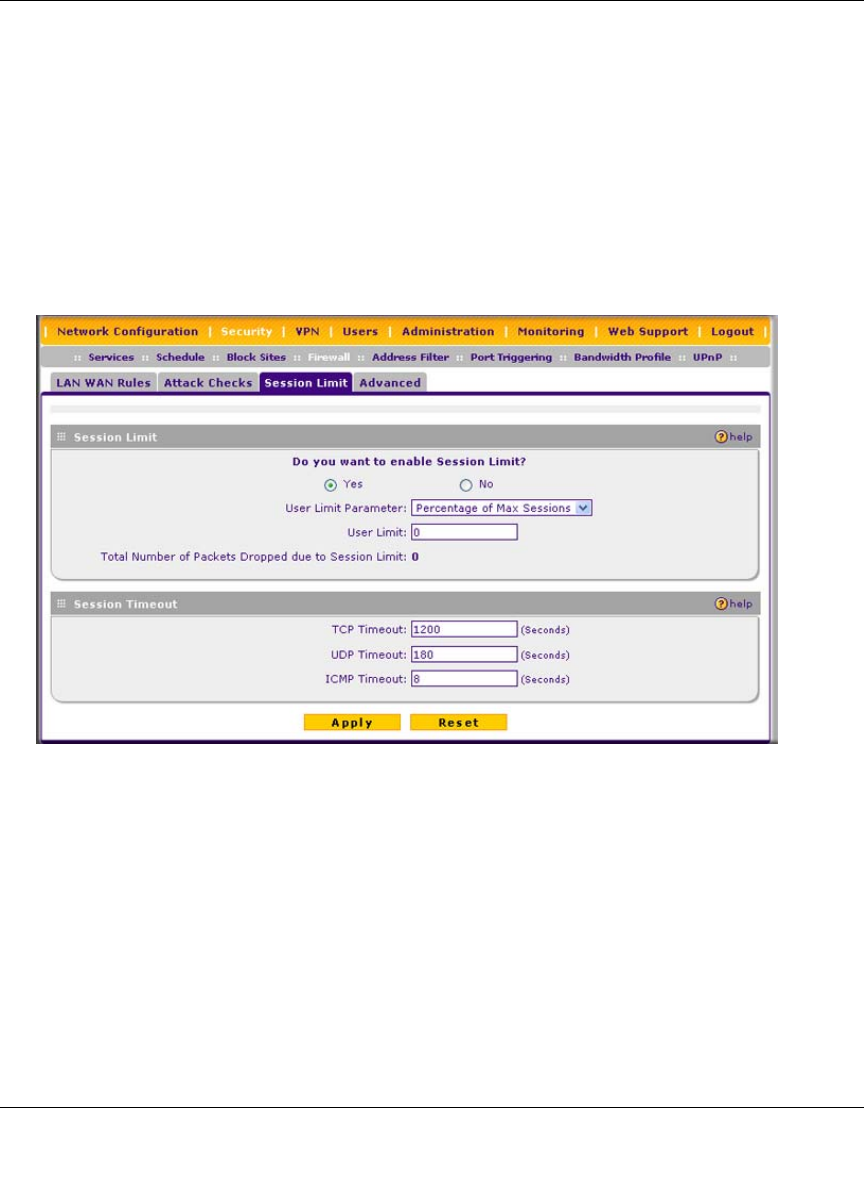
ProSafe Wireless-N VPN Firewall SRXN3205 Reference Manual
Firewall Security and Content Filtering 5-17
v1.0, January 2010
Configuring Session Limits
To prevent one user or group from using excessive system resources, you can limit the total
number of IP sessions allowed through the VPN firewall for an individual or group. You can
specify the maximum number of sessions by either a percentage of maximum sessions or an
absolute number of maximum sessions. Session limiting is disabled by default.
To configure session limits:
1. Select Security > Firewall from the main/submenu.
2. Click the Session Limit tab. The Session Limit screen is displayed.
3. Click the Yes radio button under Do you want to enable Session Limit?
4. From the User Limit Parameter drop-down list, define the maximum number of sessions per
IP either as a percentage of maximum sessions or as an absolute.
The percentage is computed on the total connection capacity of the device.
5. Enter the User Limit. If the User Limit Parameter is set to Percentage of Max Sessions, this
is the maximum number of sessions allowed from a single source machine as a percentage of
the total connection capacity. (Session Limit is per machine based.) Otherwise, if the User
Limit Parameter is set to Number of Sessions, the user limit is an absolute value.
Figure 5-9
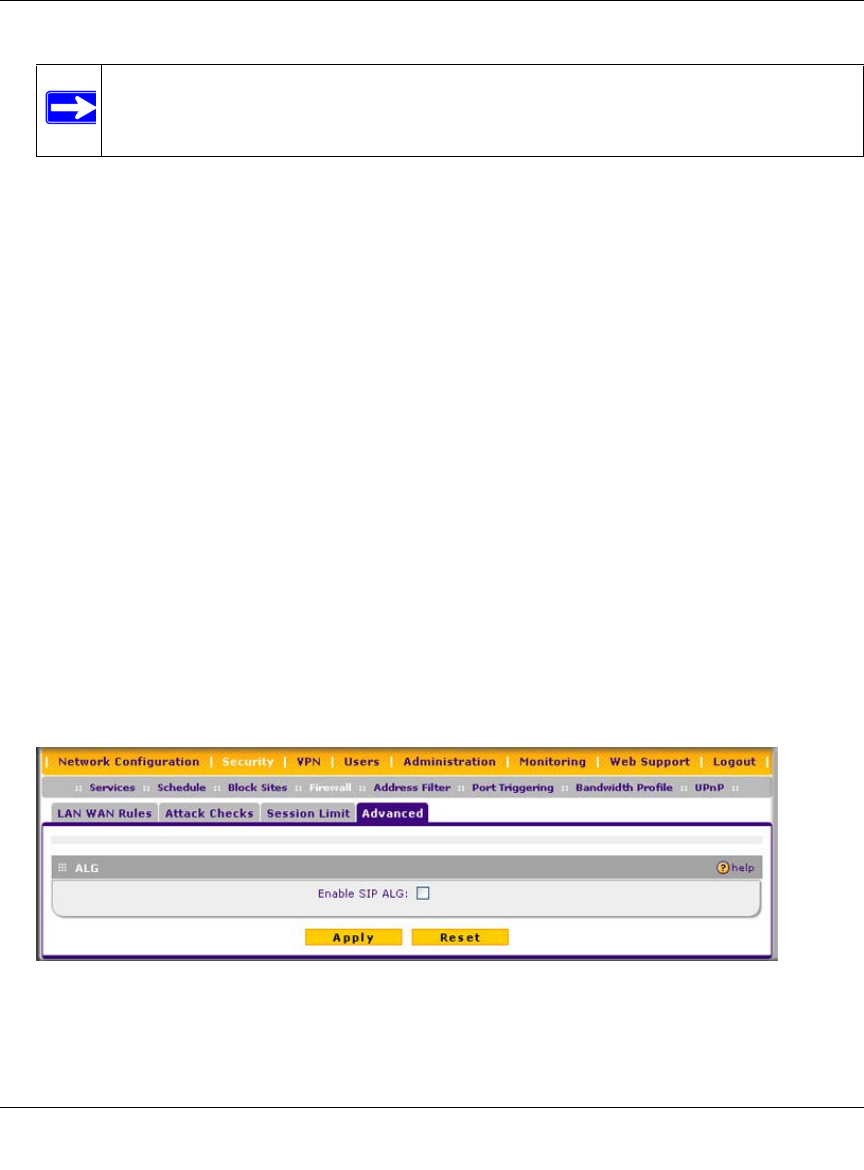
ProSafe Wireless-N VPN Firewall SRXN3205 Reference Manual
5-18 Firewall Security and Content Filtering
v1.0, January 2010
The Total Number of Packets Dropped due to Session Limit field shows total number of
packets dropped when session limit is reached.
6. In the Session Timeout section, modify the TCP, UDP and ICMP timeout values as you
require. A session will expire if no data for the session is received for the duration of the
timeout value. The default timeout values are 1200 seconds for TCP sessions, 180 seconds for
UDP sessions, and 8 seconds for ICMP sessions.
7. Click Apply to save your settings.
To monitor session limiting, return to this screen periodically and check the display of Total
Number of Packets Dropped due to Session Limit, which indicates that session limits have been
reached.
Managing the Application Level Gateway for SIP Sessions
The Application Level Gateway (ALG) facilitates multimedia sessions such as voice over IP
(VoIP) sessions that use the Session Initiation Protocol (SIP) across the firewall and provides
support for multiple SIP clients. ALG support for SIP is disabled by default.
To enable ALG for SIP:
1. Select Security > Firewall from the main/submenu.
1. Click the Advanced tab. The Advanced screen is displayed.
2. Select the Enable SIP ALG checkbox.
3. Click Apply to save your settings.
Note: Some protocols (such as FTP or RSTP) create two sessions per connection
which should be considered when configuring Session Limiting.
Figure 5-10
ProSafe Wireless-N VPN Firewall SRXN3205 Reference Manual
Firewall Security and Content Filtering 5-19
v1.0, January 2010
Creating Services, QoS Profiles, and Bandwidth Profiles
When you create inbound and outbound firewall rules, you use firewall objects such as services,
QoS profiles, bandwidth profiles, and schedules to narrow down the firewall rules:
•Services. A service narrows down the firewall rule to an application and a port number. For
information about adding services, see “Adding Customized Services” on page 5-19.
•QoS profiles. A quality of service (QoS) profile defines the relative priority of an IP packet
for traffic that matches the firewall rule. For information about creating QoS profiles, see
“Setting Quality of Service (QoS) Priorities” on page 5-21.
•Bandwidth Profiles. A bandwidth profile allocates and limits traffic bandwidth for the LAN
users to which a firewall rule is applied. For information about creating bandwidth profiles,
see “Creating Bandwidth Profiles” on page 5-21.
Adding Customized Services
Services are functions performed by server computers at the request of client computers. For
example, Web servers serve Web pages, time servers serve time and date information, and game
hosts serve data about other players’ moves. When a computer on the Internet sends a request for
service to a server computer, the requested service is identified by a service or port number. This
number appears as the destination port number in the transmitted IP packets. For example, a packet
that is sent with destination port number 80 is an HTTP (Web server) request.
The service numbers for many common protocols are defined by the Internet Engineering Task
Force (IETF) and published in RFC1700, “Assigned Numbers.” Service numbers for other
applications are typically chosen from the range 1024 to 65535 by the authors of the application.
Although the VPN firewall already holds a list of many service port numbers, you are not limited
to these choices. Use the Services screen to add additional services and applications to the list for
use in defining firewall rules. The Services screen shows a list of services that you have defined, as
shown in Figure 5-11 on page 5-20.
To define a new service, first you must determine which port number or range of numbers is used
by the application. This information can usually be determined by contacting the publisher of the
application or from user groups or newsgroups. When you have the port number information, you
can enter it on the Services screen.
Note: A schedule narrows down the period during which a firewall rule is applied. For
information about specifying schedules, see “Setting Schedules to Block or Allow
Specific Traffic” on page 5-24.
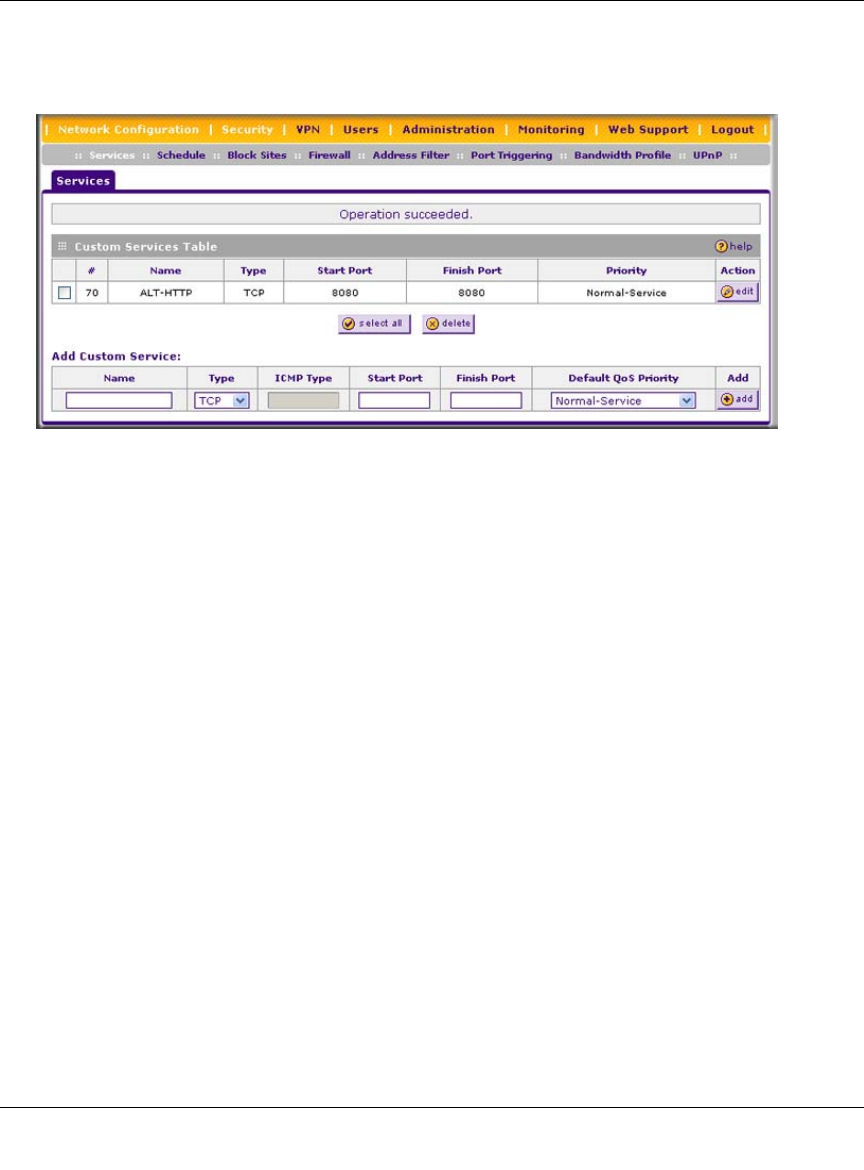
ProSafe Wireless-N VPN Firewall SRXN3205 Reference Manual
5-20 Firewall Security and Content Filtering
v1.0, January 2010
To add a custom service:
1. Select Security > Services from the main/submenu. The Services screen is displayed.
2. In the Add Custom Services section, enter a descriptive name for the service (this name is for
your convenience).
3. Select the Layer 3 transport protocol of the service: TCP, UDP, or ICMP.
4. Enter the first TCP or UDP port of the range that the service uses.
5. Enter the last port of the range that the service uses. If the service only uses a single port
number, enter the same number in both fields.
6. Click Add. The new custom service will be added to the Custom Services Table.
Modifying a Service
To edit the settings of an existing service:
1. In the Custom Services Table, click the edit button adjacent to the service you want to edit.
The Edit Service screen is displayed.
2. Modify the settings that you wish to change.
3. Click Apply to confirm your changes. The modified service is displayed in the Custom
Services Table.
Figure 5-11

ProSafe Wireless-N VPN Firewall SRXN3205 Reference Manual
Firewall Security and Content Filtering 5-21
v1.0, January 2010
Setting Quality of Service (QoS) Priorities
The QoS setting determines the priority of a service, which in turn determines the quality of that
service for the traffic passing through the firewall. You can change the QoS Priority:
• On the Services screen in the Custom Services Table for customized services (see
Figure 5-11 on page 5-20).
• On the Add LAN WAN Outbound Services screen (see Figure 5-2 on page 5-8).
The QoS priority definition for a service determines the queue that is used for the traffic passing
through the VPN firewall. A priority is assigned to IP packets using this service. Priorities are
defined by the “Type of Service (ToS) in the Internet Protocol Suite” standards, RFC 1349. A ToS
priority for traffic passing through the VPN firewall is one of the following:
•Normal-Service. No special priority given to the traffic. The IP packets for services with this
priority are marked with a ToS value of 0.
•Minimize-Cost. Used when data has to be transferred over a link that has a lower “cost”. The
IP packets for services with this priority are marked with a ToS value of 1.
•Maximize-Reliability. Used when data needs to travel to the destination over a reliable link
and with little or no retransmission. The IP packets for services with this priority are marked
with a ToS value of 2.
•Maximize-Throughput. Used when the volume of data transferred during an interval is
important even if the latency over the link is high. The IP packets for services with this priority
are marked with a ToS value of 4.
•Minimize-Delay. Used when the time required (latency) for the packet to reach the destination
must be low. The IP packets for services with this priority are marked with a ToS value of 8.
Creating Bandwidth Profiles
Bandwidth limiting determines the way in which data is communicated with your host. The
purpose of bandwidth limiting is to provide a method for limiting traffic, thus preventing LAN
users from consuming all the bandwidth on your WAN link. Bandwidth limiting is done on the
available WAN interface.
As an example: when a new connection is established by a device, the device will locate the
firewall rule corresponding to the connection.
• If the rule has a bandwidth profile specification, then the device will create a bandwidth class
in the kernel.
• If multiple connections correspond to the same firewall rule, they will share the same class.
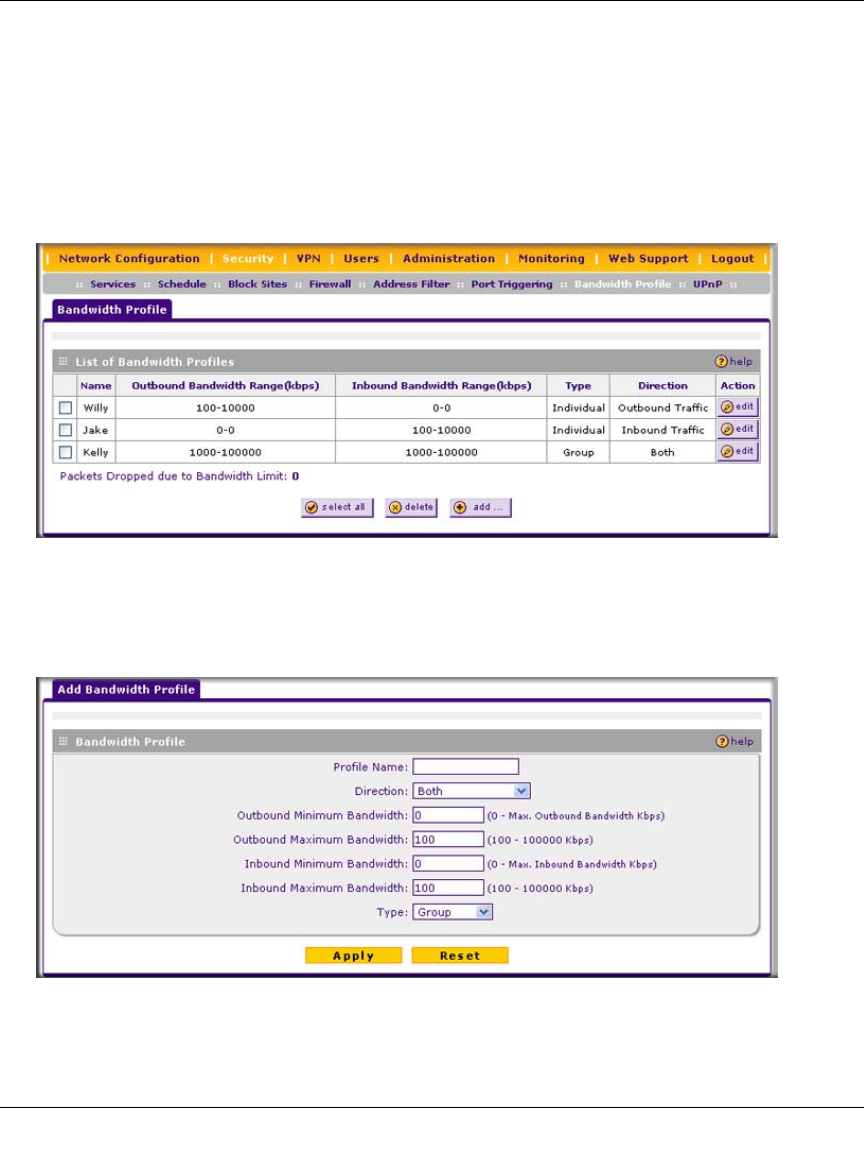
ProSafe Wireless-N VPN Firewall SRXN3205 Reference Manual
5-22 Firewall Security and Content Filtering
v1.0, January 2010
An exception occurs for an individual bandwidth profile if the classes are per source IP. The source
IP is the IP of the first packet of the connection:
The class is deleted when all the connections using the class expire.
To add a bandwidth profile:
1. Select Security > Bandwidth Profile from the main/submenu. The Bandwidth Profile screen
is displayed.
2. Click Add to add a new bandwidth profile. The Add New Bandwidth Profile screen is
displayed.
Figure 5-12
Figure 5-13

ProSafe Wireless-N VPN Firewall SRXN3205 Reference Manual
Firewall Security and Content Filtering 5-23
v1.0, January 2010
3. Enter the following information:
a. Enter a Profile Name. This name will become available in the firewall rules definition
menus.
b. From the Direction pull-down box, select whether the profile will apply to outbound,
inbound, or both outbound and inbound traffic.
c. Depending on the direction that you selected, enter the minimum and maximum
bandwidths to be allowed:
• Enter the Outbound Minimum Bandwidth and Outbound Maximum Bandwidth
in Kbps.
• Enter the Inbound Minimum Bandwidth and Inbound Maximum Bandwidth in
Kbps.
The minimum bandwidth can range from 0 Kbps to the maximum bandwidth that you
specify. The maximum bandwidth can range from 100 Kbps to 100,000 Kbps.
d. From the Type pull-down box, select whether the profile will apply to a group or
individual.
e. From the WAN pull-down box, specify the WAN interface (if in Load Balancing Mode)
for the profile.
• Click Apply. The new bandwidth profile will be added to the List of Bandwidth Profiles
table.
To edit a Bandwidth Profile:
1. Click the Edit link adjacent to the profile you want to edit. The Edit Bandwidth Profile screen
is displayed.
2. Modify the settings that you wish to change.
3. Click Apply. Your modified profile will display in the Bandwidth Profile table.
To remove an entry from the table, select the profile and click delete.
To remove all the profiles, click select all and then click delete.
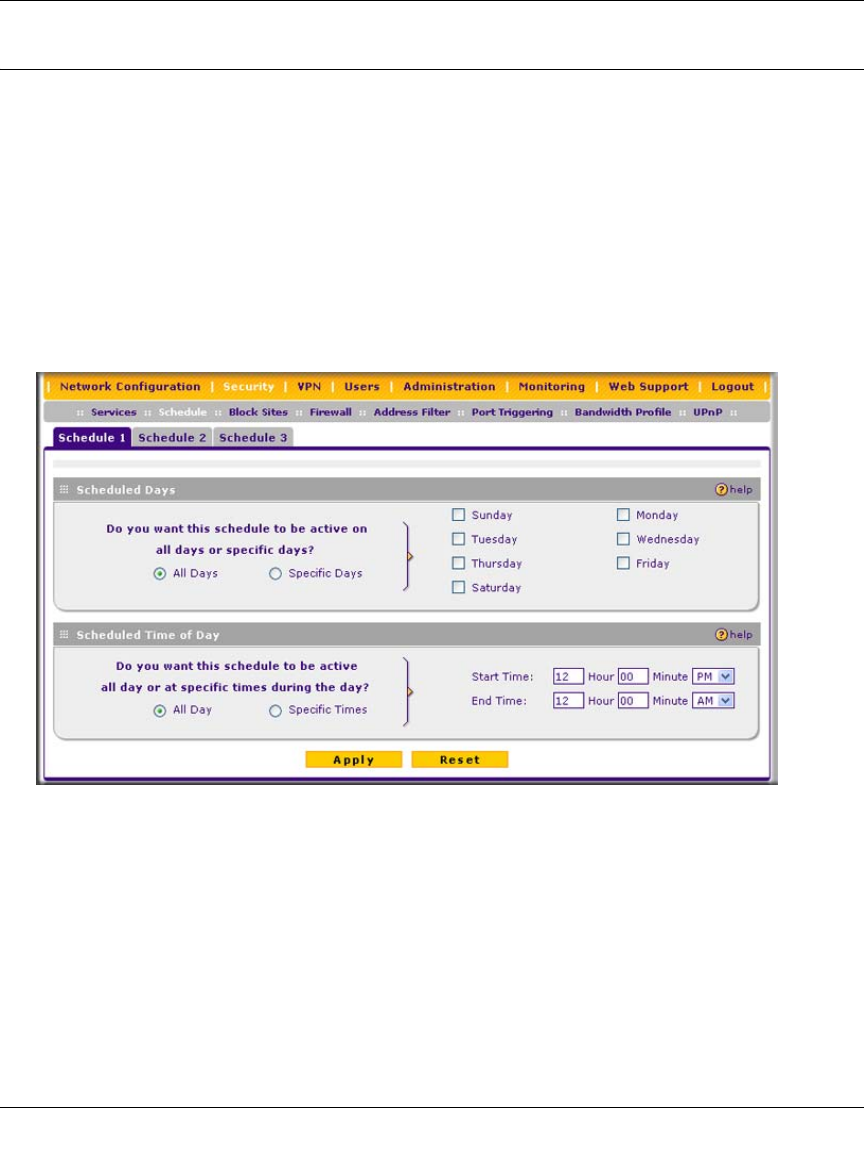
ProSafe Wireless-N VPN Firewall SRXN3205 Reference Manual
5-24 Firewall Security and Content Filtering
v1.0, January 2010
Setting Schedules to Block or Allow Specific Traffic
If you enabled content filtering on the Block Sites screen, or if you defined an outbound or
inbound rule to use a schedule, you can set up a schedule for when blocking occurs or when access
is restricted. The firewall allows you to specify when blocking will be enforced by configuring one
of the Schedules—Schedule 1, Schedule 2 or Schedule 3.
To invoke rules and block keywords or Internet domains based on a schedule:
1. Select Security > Schedule from the main/submenu.
The Schedule 1 screen is displayed as the default selection, along with tabs for Schedules 2
and 3. .
2. Check the radio button for All Days or Specific Days. If you chose Specific Days, check the
radio button for each day you want the schedule to be in effect.
3. Check the radio button to schedule the time of day: All Day, or Specific Times. If you chose
Specific Times, enter the Start Time and End Time fields (Hour, Minute, AM/PM), which
will limit access during certain times for the selected days.
4. Click Apply to save your settings to Schedule 1.
Repeat this procedure to set schedules for Schedule 2 and Schedule 3.
Figure 5-14
ProSafe Wireless-N VPN Firewall SRXN3205 Reference Manual
Firewall Security and Content Filtering 5-25
v1.0, January 2010
Blocking Internet Sites (Content Filtering)
To restrict internal LAN users from access to certain sites on the Internet, you can use the VPN
firewall’s Content Filtering and Web Components filtering. By default, these features are disabled;
all requested traffic from any website is allowed. If you enable one or more of these features and
users try to access a blocked site, they will see a “Blocked by NETGEAR” message.
Several types of blocking are available:
•Web Components blocking. You can block the following Web component types: Proxy, Java,
ActiveX, and Cookies. Even sites on the Trusted Domains list will be subject to Web
Components blocking when the blocking of a particular Web component is enabled.
–Proxy. A proxy server (or simply, proxy) allows computers to route connections to other
computers through the proxy, thus circumventing certain firewall rules. For example, if
connections to a specific IP address are blocked by a firewall rule, the requests can be
routed through a proxy that is not blocked by the rule, rendering the restriction ineffective.
Enabling this feature blocks proxy servers.
–Java. Blocks java applets from being downloaded from pages that contain them. Java
applets are small programs embedded in web pages that enable dynamic functionality of
the page. A malicious applet can be used to compromise or infect computers. Enabling this
setting blocks Java applets from being downloaded.
–ActiveX. Similar to Java applets, ActiveX controls install on a Windows computer
running Internet Explorer. A malicious ActiveX control can be used to compromise or
infect computers. Enabling this setting blocks ActiveX applets from being downloaded.
–Cookies. Cookies are used to store session information by Websites that usually require
login. However, several websites use cookies to store tracking information and browsing
habits. Enabling this option filters out cookies from being created by a website..
•Keyword Blocking (Domain Name Blocking). You can specify up to 32 words to block. If
any of these words appear in the website name (URL) or in a newsgroup name, the website or
newsgroup will be blocked by the VPN firewall.
Note: Many websites require that cookies be accepted in order for the site to be
accessed properly. Blocking cookies may interfere with useful functions
provided by these websites.

ProSafe Wireless-N VPN Firewall SRXN3205 Reference Manual
5-26 Firewall Security and Content Filtering
v1.0, January 2010
You can apply the keywords to one or more groups. Requests from the PCs in the groups will
be blocked where keyword blocking has been enabled. Blocking does not occur for the PCs in
the groups where keyword blocking has been disabled.
You can bypass Keyword blocking for trusted domains by adding the exact matching domain
to the list of Trusted Domains. Access to the domains or keywords on this list by PCs in the
groups where keyword blocking has been enabled, will be allowed to pass without any
blocking.
Keyword application examples:
• If the keyword “XXX” is specified, the URL <http://www.badstuff.com/xxx.html> is blocked,
as is the newsgroup alt.pictures.XXX.
• If the keyword “.com” is specified, only Web sites with other domain suffixes (such as .edu or
.gov) can be viewed.
• If you wish to block all Internet browsing access, enter the keyword “.”.
To enable content filtering:
1. Select Security > Block Sites from the main/submenu. The Block Sites screen is displayed
(see Figure 5-15 on page 5-27).
2. Select Yes to enable Content Filtering.
3. Click Apply to activate the screen controls.
4. Select any Web components you wish to block (Proxy, Java, ActiveX, or Cookies).
5. Select the groups to which keyword blocking will apply. Click Enable to activate keyword
blocking (or disable to deactivate keyword blocking).
6. Enter your list of blocked keywords or domain names in the Blocked Keyword fields and
click add after each entry.
The keyword or domain name will be added to the Blocked Keywords table. You can also edit
an entry by clicking edit in the Action column adjacent to the entry.
7. Enter a list of trusted domains in the Trusted Domains fields, and click add after each entry.
The trusted domain will appear in the Trusted Domains table. You can also edit any entry by
clicking edit in the Action column adjacent to the entry.
8. Click Apply to save your settings.
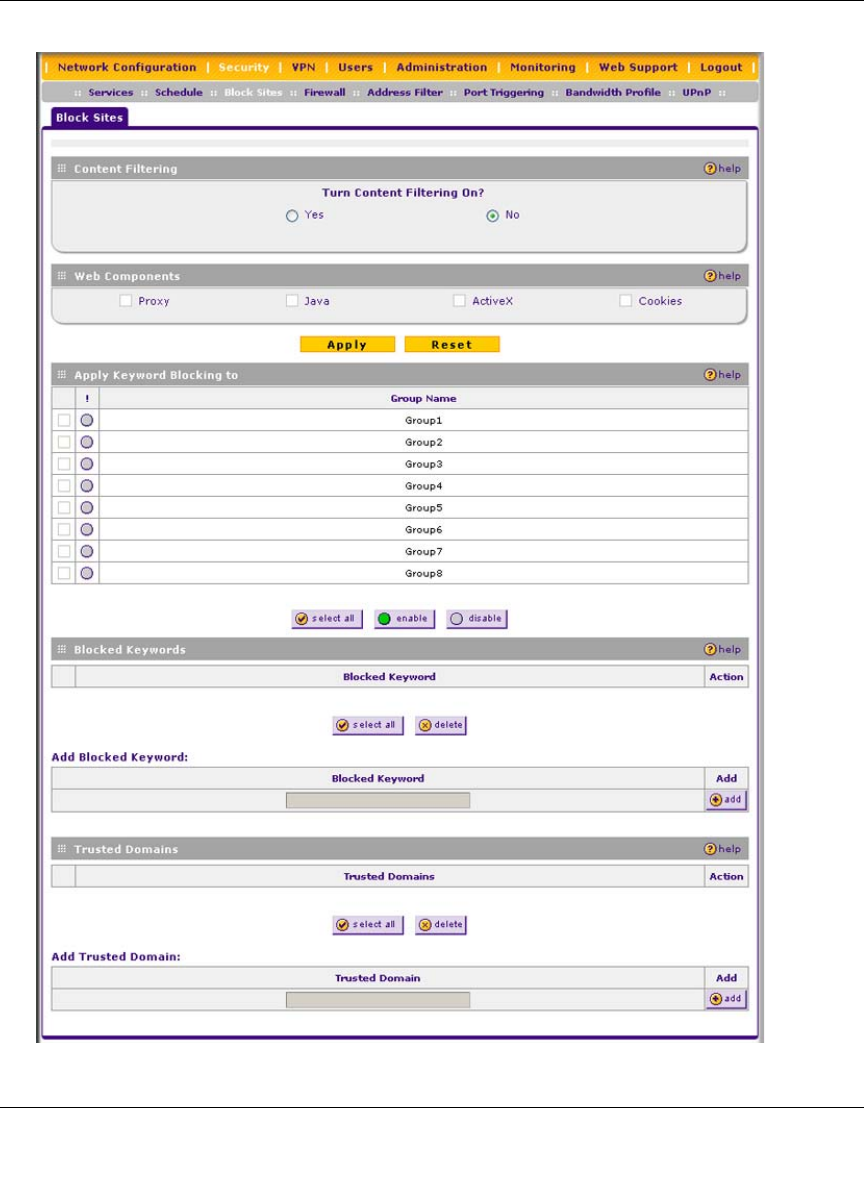
ProSafe Wireless-N VPN Firewall SRXN3205 Reference Manual
Firewall Security and Content Filtering 5-27
v1.0, January 2010
Figure 5-15
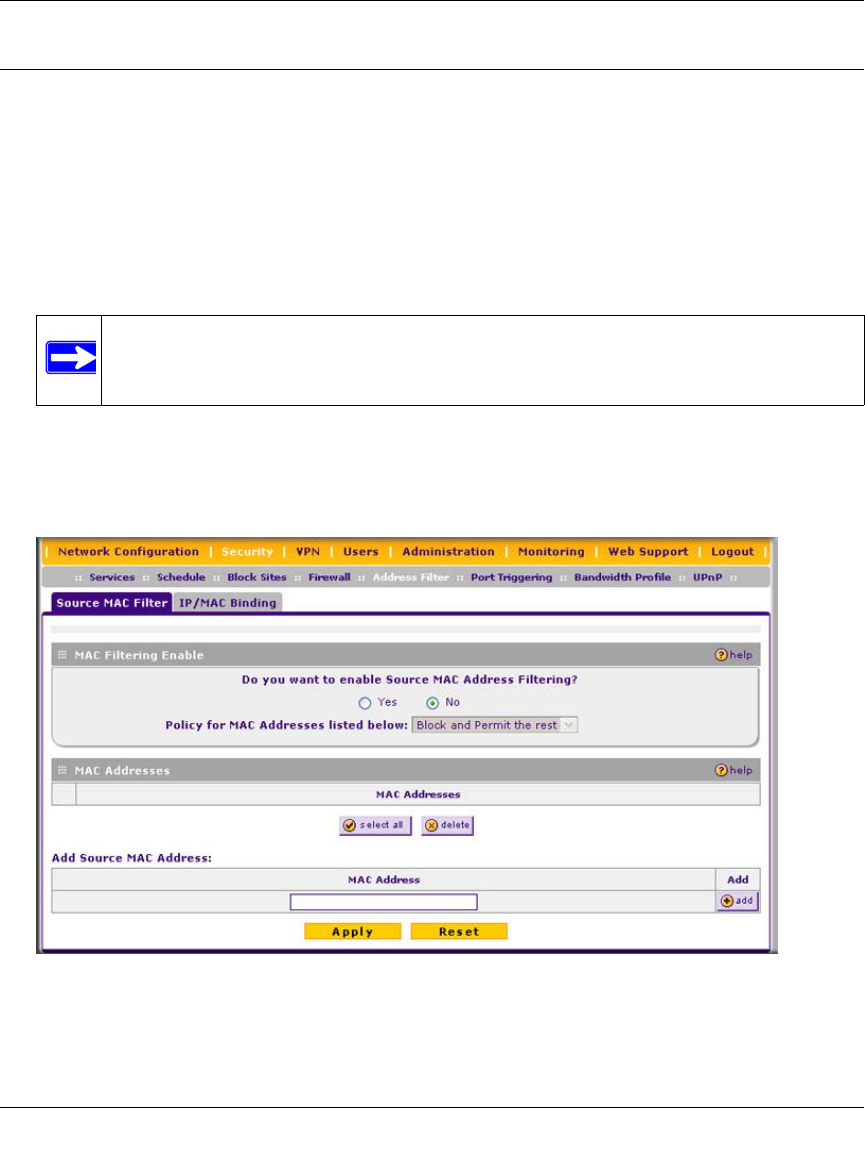
ProSafe Wireless-N VPN Firewall SRXN3205 Reference Manual
5-28 Firewall Security and Content Filtering
v1.0, January 2010
Enabling Source MAC Filtering (Address Filtering)
In the Address Filter submenu, the Source MAC Filter screen allows you to block traffic coming
from certain known machines or devices.
• By default, the source MAC address filter is disabled. Traffic received from any MAC address
is allowed.
• When source MAC address filtering is enabled, traffic will be dropped from any computers or
devices whose MAC addresses are listed in the Blocked MAC Addresses table.
To enable MAC filtering and add MAC addresses for blocking:
1. Select Security > Address Filter from the main/submenu. The Source MAC Filter screen is
displayed.
2. Click the Yes radio button to enable source MAC filtering.
Note: For additional ways of restricting outbound traffic, see “Outbound Rules
(Service Blocking)” on page 5-3.
Figure 5-16
ProSafe Wireless-N VPN Firewall SRXN3205 Reference Manual
Firewall Security and Content Filtering 5-29
v1.0, January 2010
3. Select the action to be taken on outbound traffic from the listed MAC addresses:
– Block this list and permit all other MAC addresses.
– Permit this list and block all other MAC addresses.
4. Enter a MAC Address in the Add Source MAC Address checkbox and click Add. The MAC
address will appear in the MAC Addresses table. Repeat this process to add additional MAC
addresses.
A valid MAC address is six colon-separated pairs of hexadecimal digits (0 to 9 and a to f). For
example: 01:23:45:ab:cd:ef.
5. Click Apply to save your settings.
You can edit the MAC address by clicking Edit in the Action column adjacent to the MAC
Address.
To remove an entry from the table, select the MAC address entry and click Delete.
To select all the list of MAC addresses, click Select All. A checkmark will appear in the box to the
left of each MAC address in the MAC Addresses table.
Configuring IP/MAC Address Binding
IP/MAC Binding allows you to bind an IP address to a MAC address and the other way around.
Some devices are configured with static addresses. To prevent users from changing their static IP
addresses, IP/MAC binding must be enabled on the VPN firewall. If the VPN firewall detects
packets with a matching IP address, but with the inconsistent MAC address (or the other way
around), it will drop these packets. If users have enabled the logging option for IP/MAC binding,
these packets will be logged before they are dropped. The VPN firewallwill then display the total
number of dropped packets that violated either the IP-to-MAC binding or the MAC-to-IP binding.
Following is an example:
Assume that three computers on the LAN are set up as follows:
• Host1: MAC address (00:01:02:03:04:05) and IP address (192.168.10.10)
• Host2: MAC address (00:01:02:03:04:06) and IP address (192.168.10.11)
• Host3: MAC address (00:01:02:03:04:07) and IP address (192.168.10.12)
If all the above host entries are added to the IP/MAC Binding table, the following scenarios
indicate the possible outcome.
• Host1: Matching IP and MAC address in the IP/MAC Bindings table.
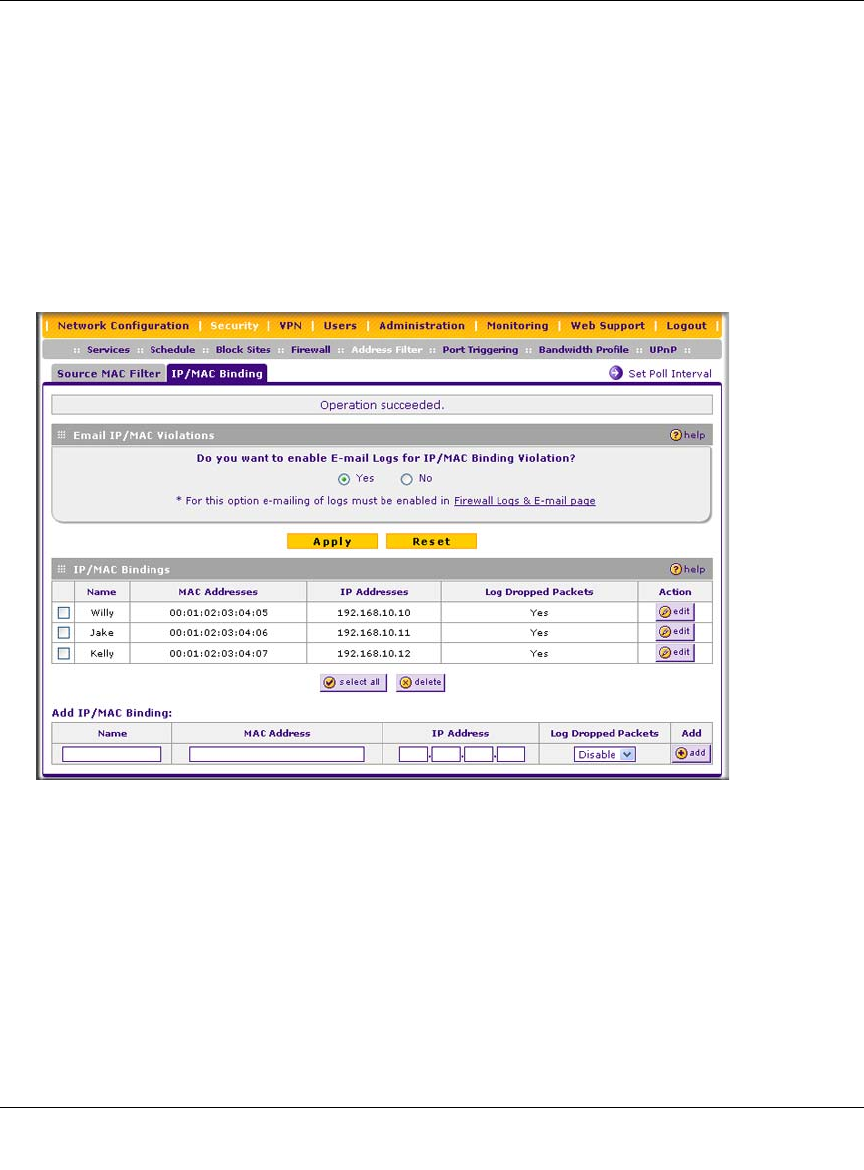
ProSafe Wireless-N VPN Firewall SRXN3205 Reference Manual
5-30 Firewall Security and Content Filtering
v1.0, January 2010
• Host2: Matching IP address but inconsistent MAC address in the IP/MAC Bindings table.
• Host3: Matching MAC address but inconsistent IP address in the IP/MAC Bindings table.
The VPN firewall will block the traffic coming from Host2 and Host3, but allow the traffic coming
from Host1 to any external network. The total count of dropped packets will be displayed.
To enable IP/MAC Binding and add IP and MAC address for binding:
1. Select Security > Address Filter from the main/submenu. The Source MAC Filter screen is
displayed as the default screen.
2. Click the IP/MAC Binding tab. The IP/MAC Binding screen is displayed.
3. Select the Yes radio box and click Apply. Make sure that you have enabled the e-maling of
logs (see “Activating Notification of Events and Alerts” on page 10-1).
4. Add an IP/MAC Bind rule by entering:
a. Name. Specify an easily identifiable name for this rule.
b. MAC Address. Specify the MAC Address for this rule.
c. IP Addresses. Specify the IP Address for this rule.
d. Log Dropped Packets. Select the logging option for this rule from the pull-down menu.
Figure 5-17
ProSafe Wireless-N VPN Firewall SRXN3205 Reference Manual
Firewall Security and Content Filtering 5-31
v1.0, January 2010
5. Click Add. The new IP/MAC rule will be appear the IP/MAC Bindings table.
The IP/MAC Bindings table lists the currently defined IP/MAC Bind rules:
•Name. Displays the user-defined name for this rule.
•MAC Addresses. Displays the MAC addresses for this rule.
•IP Addresses. Displays the IP addresses for this rule.
•Log Dropped Packets. Displays the logging option for this rule.
To edit an IP/MAC bind rule, click edit adjacent to the entry. The following fields of an existing
IP/MAC bind rule can be modified:
•MAC Address. Specify the MAC address for this rule.
•IP Addresses. Specify the IP address for this rule.
•Log Dropped Packets. Specify the logging option for this rule.
To remove an entry from the table, select the IP/MAC Binding entry and click delete.
To see the counter that shows the packets that were dropped because of IP-MAC binding
violations and to set the poll interval, click the Set Poll Interval link at the top of the IP/MAC
Binding screen.
Configuring Port Triggering
Port triggering allows some applications to function correctly that would otherwise be partially
blocked by the VPN firewall when it functions in NAT mode. Some applications require that when
external devices connect to them, they receive data on a specific port or range of ports. The VPN
firewall must send all incoming data for that application only on the required port or range of
ports. Using this feature requires that you know the port numbers used by the application.
Port triggering allows computers on the private network (LAN) to request that one or more ports
be forwarded to them. Unlike basic port forwarding which forwards ports to only one
preconfigured IP address, port triggering waits for an outbound request from the private network
on one of the defined outgoing ports. It then automatically sets up forwarding to the IP address that
sent the request. When the application ceases to transmit data over the port, the VPN firewall waits
for a timeout interval and then closes the port or range of ports, making them available to other
computers on the private network.
Once configured, port triggering operates as follows:
1. A PC makes an outgoing connection using a port number defined in the Port Triggering table.
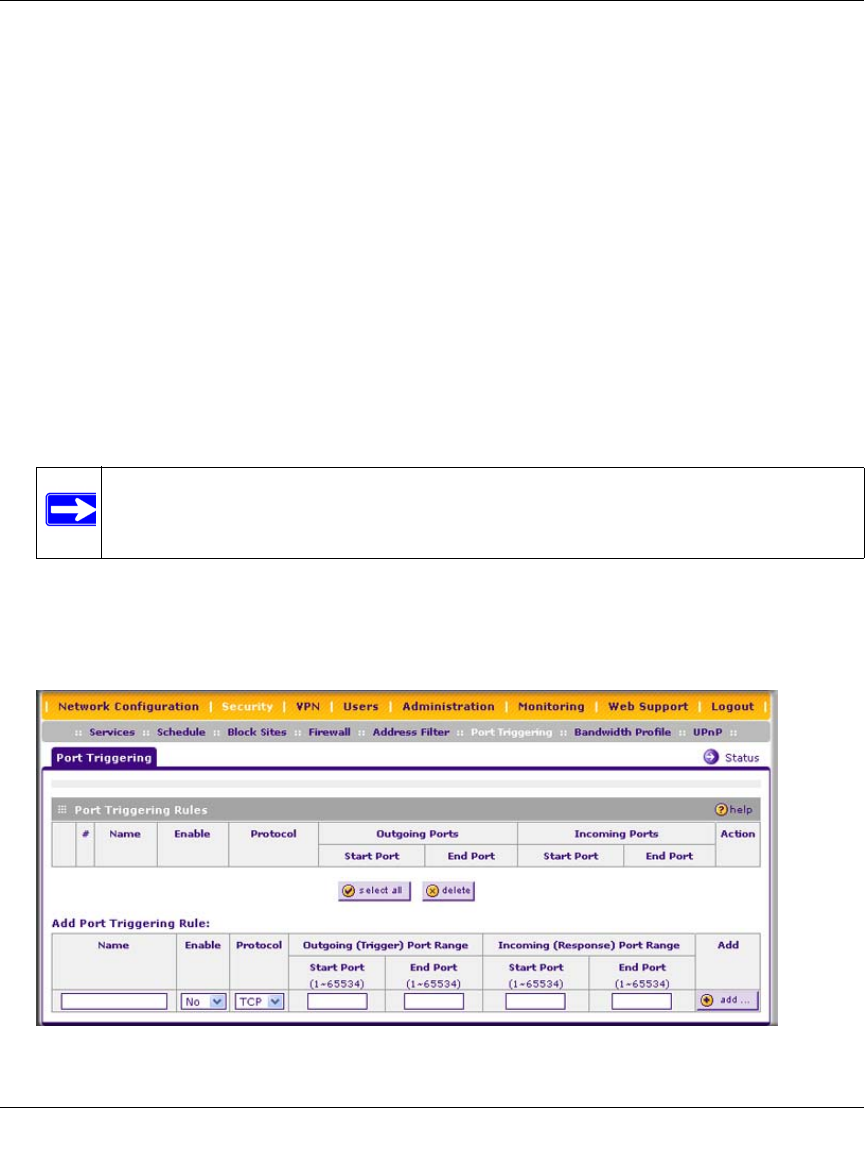
ProSafe Wireless-N VPN Firewall SRXN3205 Reference Manual
5-32 Firewall Security and Content Filtering
v1.0, January 2010
2. The VPN firewall records this connection, opens the additional incoming port or ports
associated with this entry in the Port Triggering table, and associates them with the PC.
3. The remote system receives the PC’s request and responds using the different port numbers
that you have now opened.
4. The VPN firewall matches the response to the previous request, and forwards the response to
the PC.
Without port triggering, this response would be treated as a new connection request rather than a
response. As such, it would be handled in accordance with the inbound service rules.
Note these restrictions with port triggering:
• Only one PC can use a port triggering application at any time.
• After a PC has finished using a port triggering application, there is a time-out period before the
application can be used by another PC. This is required because the VPN firewall cannot be
sure when the application has terminated.
To add a port triggering rule:
1. Select Security > Port Triggering from the main/submenu. The Port Triggering screen is
displayed.
Note: For additional ways of allowing inbound traffic, see “Inbound Rules (Port
Forwarding)” on page 5-4.
Figure 5-18
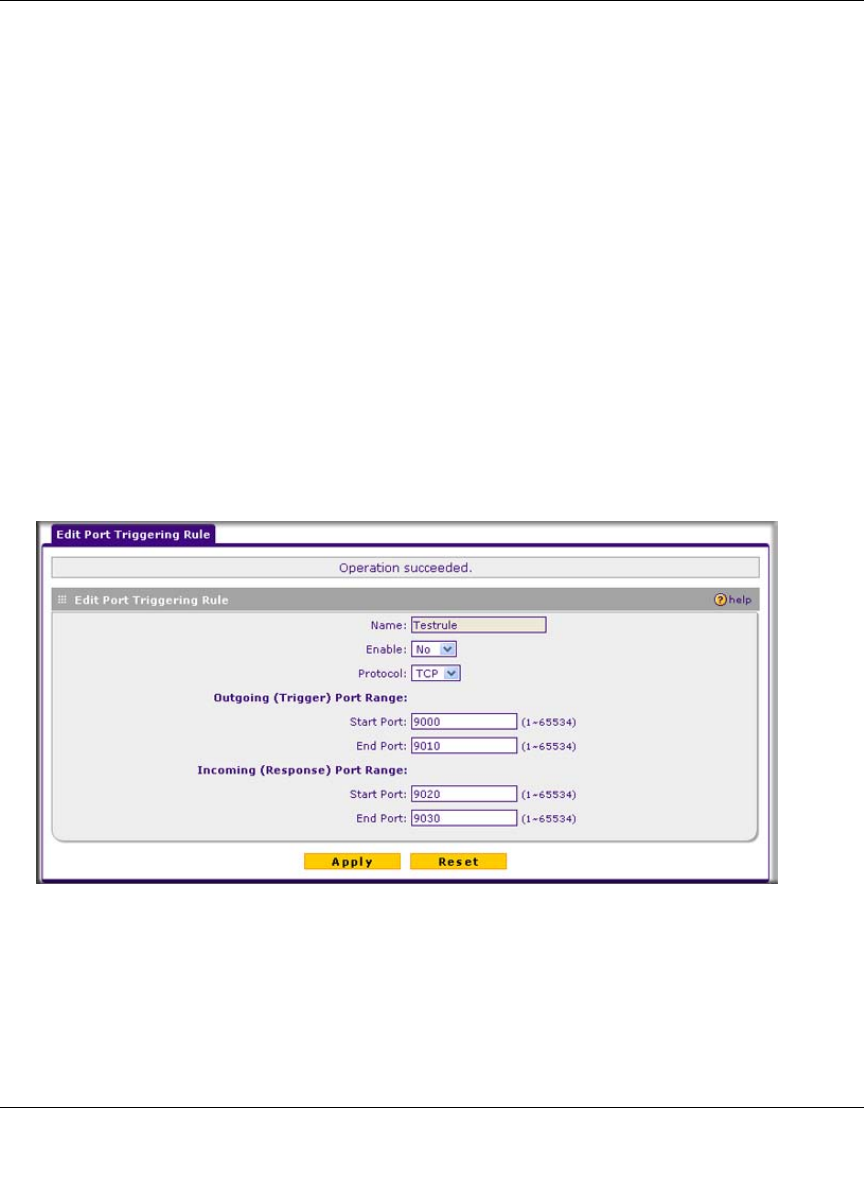
ProSafe Wireless-N VPN Firewall SRXN3205 Reference Manual
Firewall Security and Content Filtering 5-33
v1.0, January 2010
2. Enter a user-defined name for this rule in the Name field.
3. From the Enable pull-down menu, indicate if the rule is enabled or disabled.
4. From the Protocol pull-down menu, choose either TCP or UDP transport protocol.
5. In the Outgoing (Trigger) Port Range fields:
a. Enter the Start Port range (1 - 65534).
b. Enter the End Port range (1 - 65534).
6. In the Incoming (Response) Port Range fields:
a. Enter the Start Port range (1 - 65534).
b. Enter the End Port range (1 - 65534).
7. Click add. The port triggering rule is added to the Port Triggering Rules table.
To edit or modify a rule:
1. Click edit in the Action column opposite the rule you wish to edit. The Edit Port Triggering
Rule screen is displayed.
2. Modify any of the fields for this rule.
3. Click Reset to cancel any changes and return to the previous settings or click Apply to save
your modifications. Your changes will appear in the Port Triggering Rules table.
Figure 5-19
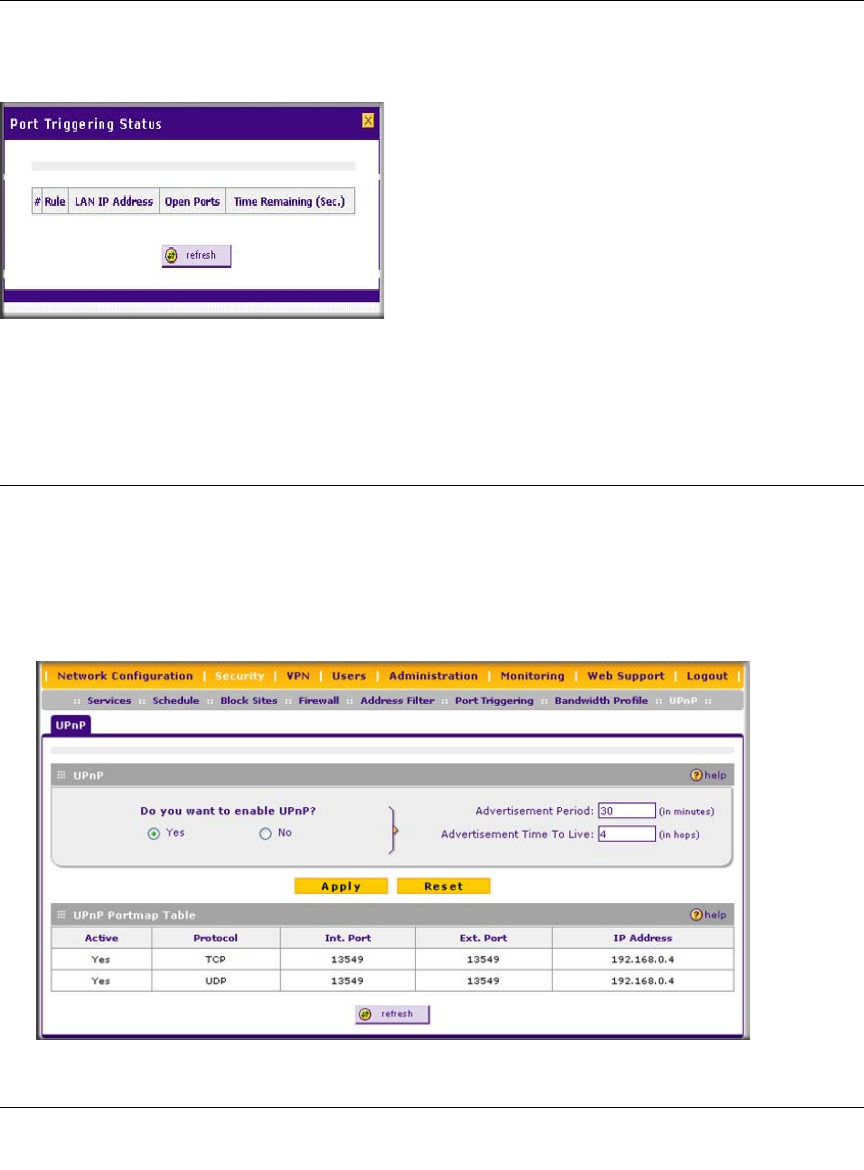
ProSafe Wireless-N VPN Firewall SRXN3205 Reference Manual
5-34 Firewall Security and Content Filtering
v1.0, January 2010
To check the status of the port triggering, click the Status link to the right of the Port Triggering
tab on the Port Triggering screen.
For more information, see “Viewing the Port Triggering Status” on page 10-14.
Configuring UPnP (Universal Plug and Play)
The UPnP (Universal Plug and Play) feature allows the VPN Firewall to automatically discover
and configure the devices when it searches over LAN and WAN.
1. To access the UPnP screen, click Security > UPnP in the main/submenu. The UPnP screen is
displayed.
Figure 5-20
Figure 5-21
ProSafe Wireless-N VPN Firewall SRXN3205 Reference Manual
Firewall Security and Content Filtering 5-35
v1.0, January 2010
2. To enable the UPnP feature, click the Yes radio button. (The feature is enabled by default.) To
disable the feature, click or No.
3. Configure the following fields:
–Advertisement Period. Enter the period in minutes that specified how often the VPN
firewall should broadcast its UPnP information to all devices within its range.
–Advertisement Time to Live. Enter a number that specifies how many steps (hops) each
UPnP packet is allowed to propagate before being discarded. Small values will limit the
UPnP broadcast range.
4. Click Apply to save your settings.
The UPnP Portmap Table shows the IP addresses and other settings of UPnP devices that
have accessed the VPN firewall.
–Active. A Yes or No indicates if the UPnP device port that established a connection is
currently active.
–Protocol. Indicates the network protocol such as HTTP or FTP that is used by the device
to connect to the VPN firewall.
–Int. Port. Indicates if any internal ports are opened by the UPnP device.
–Ext. Port. Indicates if any external ports are opened by the UPnP device.
–IP Address. Lists the IP address of the UPnP device accessing the VPN firewall.
To refresh the contents of the UPnP Portmap Table, click refresh.
E-Mail Notifications of Event Logs and Alerts
The Firewall Logs can be configured to log and then e-mail denial of access, general attack
information, and other information to a specified e-mail address. For example, your VPN firewall
will log security-related events such as: accepted and dropped packets on different segments of
your LAN; denied incoming and outgoing service requests; hacker probes and login attempts; and
other general information based on the settings that you enter on the Firewall Logs & E-mail
screen. In addition, if you have set up content filtering on the Block Sites screen (see “Blocking
Internet Sites (Content Filtering)” on page 5-25), a log will be generated when someone on your
network tries to access a blocked site.
To configure e-mail or syslog notification, or to view the logs, see “Activating Notification of
Events and Alerts” on page 10-1.

ProSafe Wireless-N VPN Firewall SRXN3205 Reference Manual
5-36 Firewall Security and Content Filtering
v1.0, January 2010
Administrator Tips
Consider the following operational items:
• As an option, you can enable remote management if you have to manage distant sites from a
central location (see “Enabling Remote Management Access” on page 9-9).
• Although rules are the basic way of managing the traffic through your system (see “Using
Rules & Services to Block or Allow Traffic” on page 5-2), you can further refine your control
with the following optional features of the VPN firewall:
– Groups and hosts (see “Managing Groups and Hosts (LAN Groups)” on page 3-5)
– Services (see “Services-Based Rules” on page 5-2)
– Schedules (see “Setting Schedules to Block or Allow Specific Traffic” on page 5-24)
– Block sites (see “Blocking Internet Sites (Content Filtering)” on page 5-25)
– Source MAC filtering (see “Enabling Source MAC Filtering (Address Filtering)” on
page 5-28)
– Port triggering (see “Configuring Port Triggering” on page 5-31)

ProSafe Wireless-N VPN Firewall SRXN3205 Reference Manual
Virtual Private Networking Using IPsec 6-1
v1.0, January 2010
Chapter 6
Virtual Private Networking Using IPsec
This chapter describes how to use the IPsec virtual private networking (VPN) features of the
ProSafe Wireless-N VPN Firewall SRXN3205 to provide secure, encrypted communications
between your local network and a remote network or computer.
This chapter contains the following sections:
•“Using the VPN Wizard for Client and Gateway Configurations” on this page
•“Creating Gateway to Gateway VPN Tunnels with the Wizard” on page 6-2
•“Creating a Client to Gateway VPN Tunnel with the Wizard” on page 6-5
•“Managing IPsec VPN Policies” on page 6-12
•“Assigning IP Addresses to Remote Users (Mode Config)” on page 6-27
•“Configuring Extended Authentication (XAUTH)” on page 6-33
•“Configuring Keepalives and Dead Peer Detection” on page 6-37
•“Configuring NetBIOS Bridging with VPN” on page 6-40
Using the VPN Wizard for Client and Gateway Configurations
Configuring a VPN tunnel connection requires that all settings and parameters on both sides of the
VPN tunnel match or mirror each other precisely, which can be a daunting task. The VPN Wizard
efficiently guides you through the setup procedure with a series of questions that will determine
the IPsec keys and VPN policies it sets up. The VPN Wizard will also set the parameters for the
network connection: Security Association, traffic selectors, authentication algorithm, and
encryption. The parameters used by the VPN wizard are based on the recommendations of the
VPN Consortium (VPNC), an organization that promotes multi-vendor VPN interoperability.
The section below provides wizard and NETGEAR VPN Client configuration procedures for the
following scenarios:
• Using the wizard to configure a VPN tunnel between 2 VPN gateways.
• Using the wizard to configure a VPN tunnel between a VPN gateway and a VPN client.
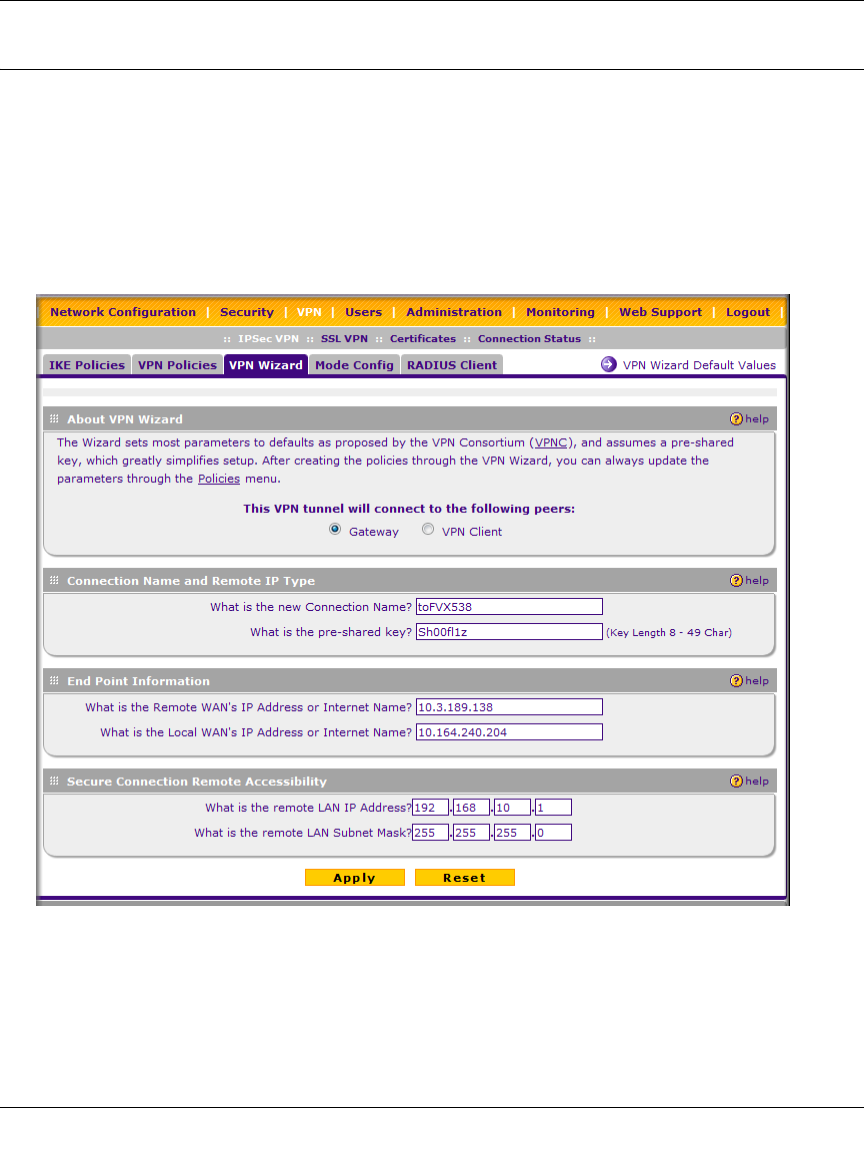
ProSafe Wireless-N VPN Firewall SRXN3205 Reference Manual
6-2 Virtual Private Networking Using IPsec
v1.0, January 2010
Creating Gateway to Gateway VPN Tunnels with the Wizard
You can configure multiple gateway VPN tunnel policies through the VPN Wizard. You can also
set up multiple remote VPN client policies through the VPN Wizard.
To set up a gateway VPN Tunnel using the VPN Wizard:
1. Select VPN > IPsec VPN from the main/submenu.
2. Click the VPN Wizard tab. The VPN Wizard screen is displayed.
To view the wizard default settings, click the VPN Wizard Default Values link. You can
modify these settings after completing the wizard (see Figure 6-2 on page 6-3).
Figure 6-1
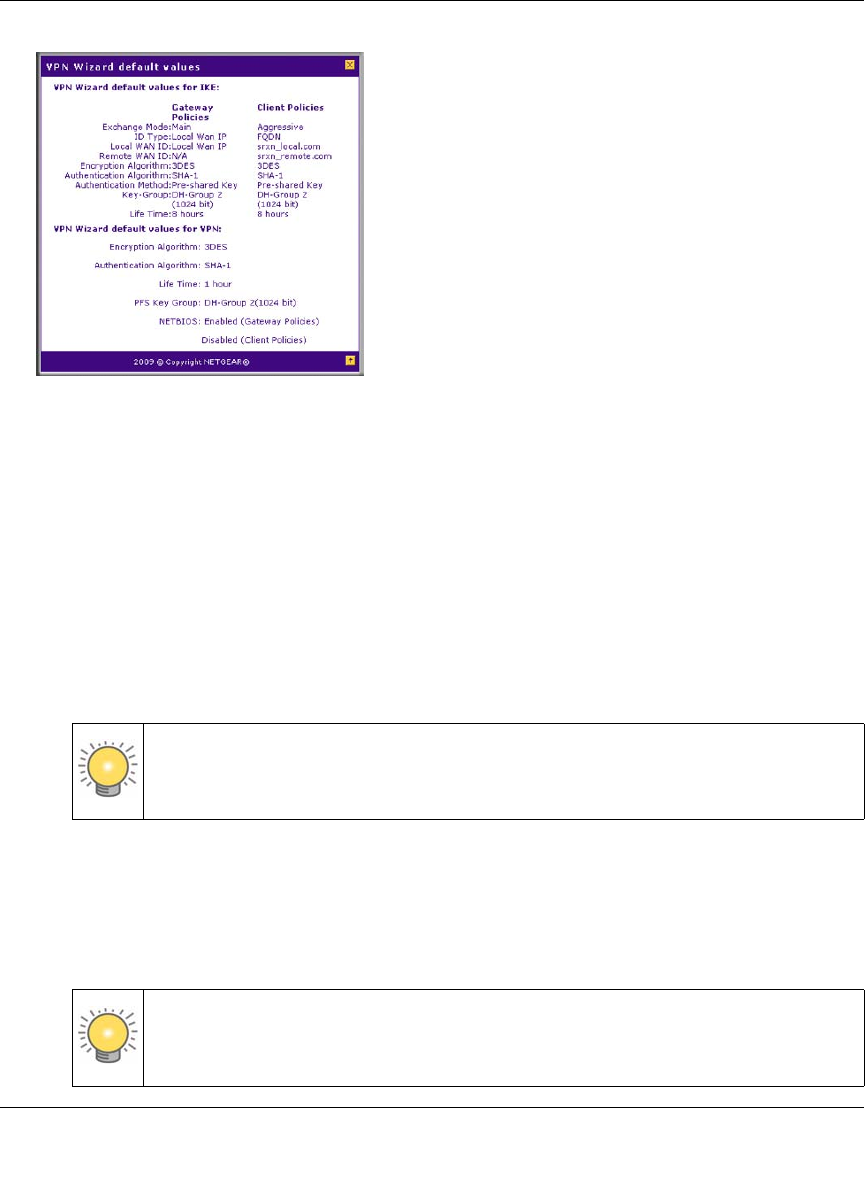
ProSafe Wireless-N VPN Firewall SRXN3205 Reference Manual
Virtual Private Networking Using IPsec 6-3
v1.0, January 2010
3. Select Gateway as your VPN tunnel connection type.
4. Create a Connection Name. Enter an appropriate name for the connection. This name is not
supplied to the remote VPN endpoint. It is used to help you manage the VPN settings.
5. Enter a Pre-shared Key. The key must be entered both here and on the remote VPN gateway,
or the remote VPN client. This key should be minimum of 8 characters and should not exceed
49 characters. This method does not require using a CA (Certificate Authority).
6. Enter the Remote WAN IP Address or Internet Name of the gateway to which you want to
connect.
• Both the remote WAN address and your local WAN address are required.
• The remote WAN IP address must be a public address or the Internet name of the remote
gateway. The Internet name is the Fully Qualified Domain Name (FQDN) as registered in
a Dynamic DNS service (see “Configuring Dynamic DNS” on page 2-12). Both local and
remote endpoints should be defined as either FQDN or IP addresses. A combination of IP
address and FQDN is not permissible.
Figure 6-2
Tip: To assure tunnels stay active, after completing the wizard, manually edit the
VPN policy to enable keepalive which periodically sends ping packets to
the host on the peer side of the network to keep the tunnel alive.
Tip: For DHCP WAN configurations, first, set up the tunnel with IP addresses.
Once you validate the connection, use the wizard to create new policies
using FQDN for the WAN addresses.
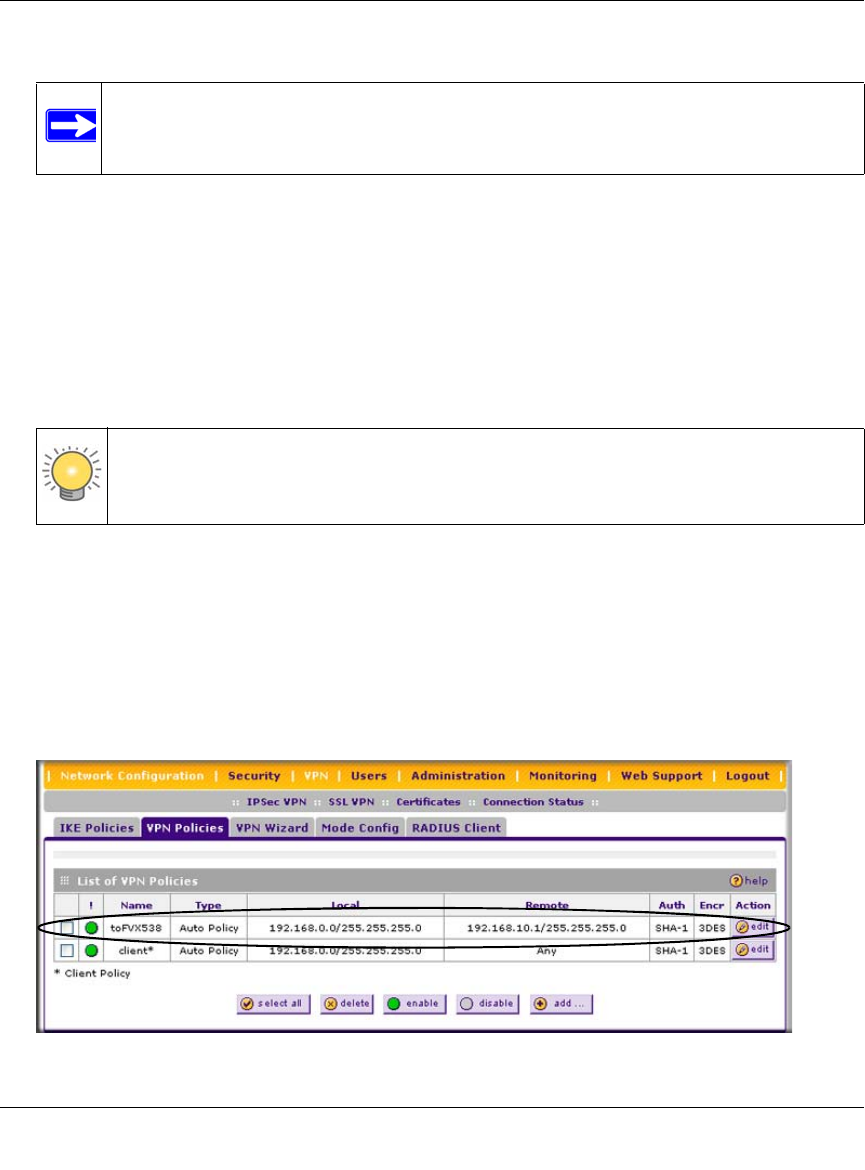
ProSafe Wireless-N VPN Firewall SRXN3205 Reference Manual
6-4 Virtual Private Networking Using IPsec
v1.0, January 2010
7. Enter the Local WAN IP Address or FQDN of your VPN firewall.
The Local WAN IP address is used in the IKE negotiation phase. The WAN IP address
assigned by your ISP may display automatically. You can modify the address to use your
FQDN.
8. Enter the Remote LAN IP Address and Subnet Mask of the remote gateway.
The remote LAN IP address information that you enter on this screen is the local LAN IP
address and subnet mask of the remote gateway. If this information is incorrect, the tunnel will
fail to connect.
Click the VPN Wizard Default Values option arrow at the top right of the screen to view the
recommended VPNC parameters (Figure 6-2 on page 6-3) that will be used for additional
settings configured by the Wizard. You can always modify the default settings after
completing the wizard. If you do modify those settings, you will have to make the same
modifications on both of the gateway units.
9. Click Apply to save your settings. The VPN Policies screen is displayed showing the new
policy as enabled.
Note: When the VPN firewall is online, this IP address is automatically filled in.
Tip: The remote LAN IP address must be in a different subnet than the local LAN IP
address. For example, if the local subnet is 192.168.1.x, then the remote subnet
could be 192.168.10.x. but could not be 192.168.1.x.
Figure 6-3
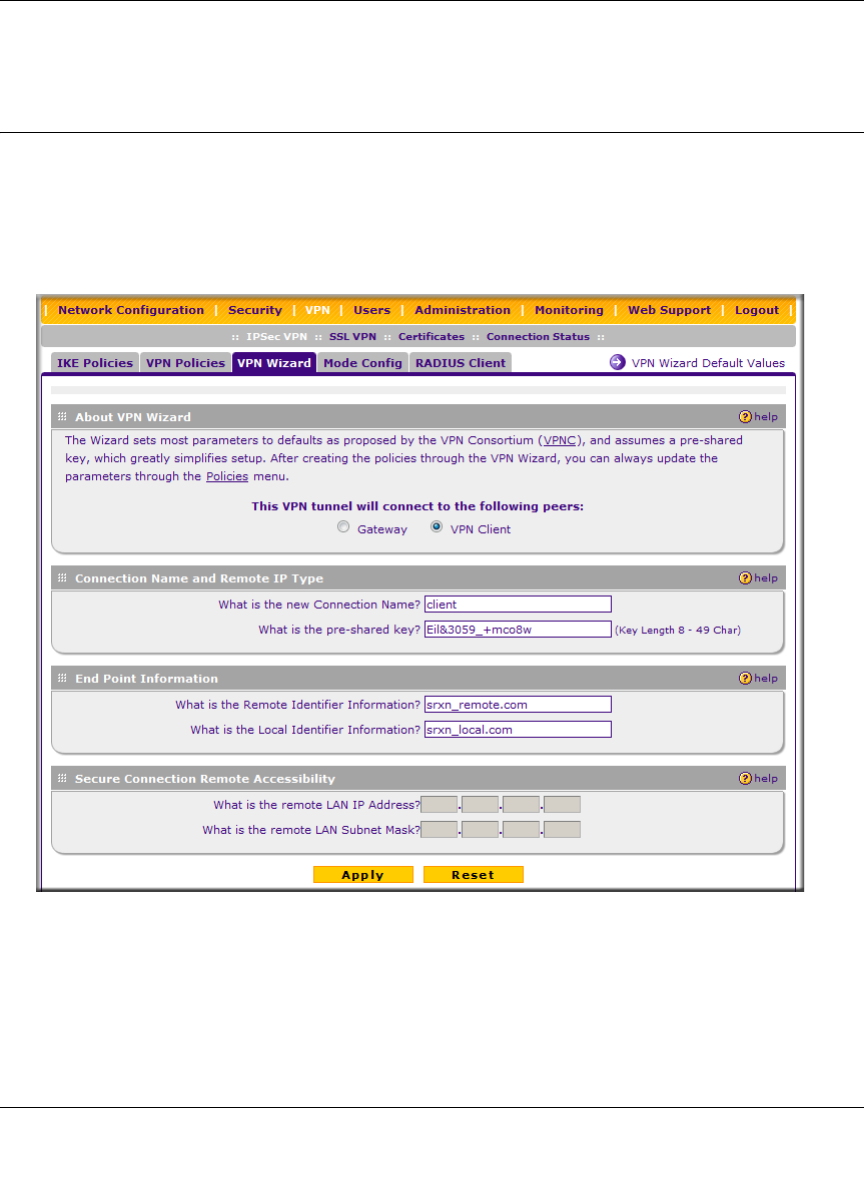
ProSafe Wireless-N VPN Firewall SRXN3205 Reference Manual
Virtual Private Networking Using IPsec 6-5
v1.0, January 2010
To view or modify the VPN policy, see “Configuring VPN Policies” on page 6-20.
Creating a Client to Gateway VPN Tunnel with the Wizard
Follow these steps to configure the VPN client.
1. Select VPN > IPsec VPN from the main/submenu.
2. Click the VPN Wizard tab. The VPN Wizard screen is displayed..
3. Select VPN Client as your VPN tunnel connection type.
4. Create a Connection Name such as “client”.
Enter an appropriate name for the connection. This name is not supplied to the remote VPN
client. It is only used to help you manage the VPN settings.
Figure 6-4
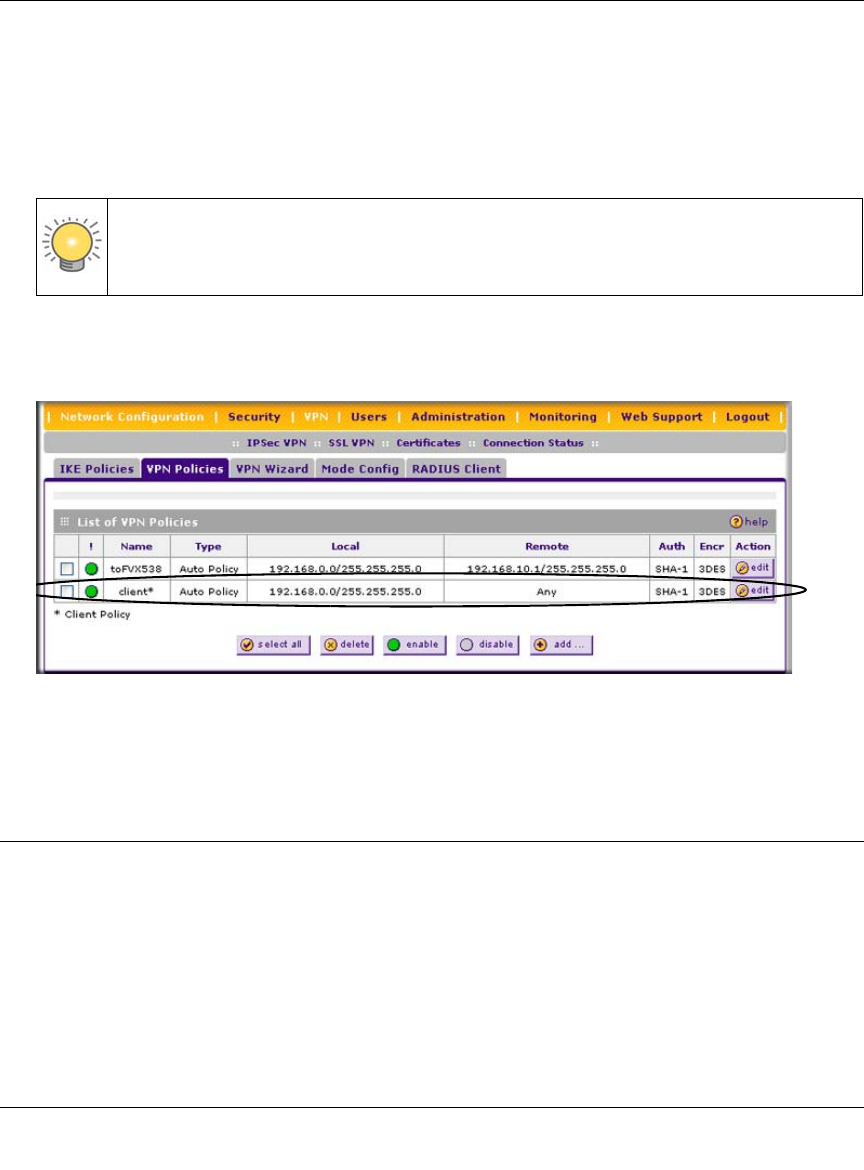
ProSafe Wireless-N VPN Firewall SRXN3205 Reference Manual
6-6 Virtual Private Networking Using IPsec
v1.0, January 2010
5. Enter a Pre-shared Key. The key must be entered both here and on the VPN Client. This key
length should be minimum 8 characters and should not exceed 49 characters.
6. The public Remote and Local Identifier are automatically filled in by pre-pending the first
several letters of the model number of your gateway to form FQDNs used in the VPN policies.
In this example, we are using srxn_remote.com, and srxn_local.com.
7. Click Apply to save your settings.
The VPN Policies screen is displayed showing the new policy as enabled.
To view or modify the VPN policy, see “Configuring VPN Policies” on page 6-20.
Creating a VPN Client to VPN Firewall Connection
This section describes how to configure a VPN connection between a Windows PC and the VPN
firewall.
Using the VPN firewall’s VPN Wizard, we will create VPN client policies (IKE and VPN) that
will allow remote PCs to connect from locations in which their IP addresses are unknown in
advance. The PCs may be directly connected to the Internet or may be located behind NAT routers.
Tip: To assure tunnels stay active, after completing the wizard, manually edit the
VPN policy to enable keepalive which periodically sends ping packets to the
host on the peer side of the network to keep the tunnel alive.
Figure 6-5
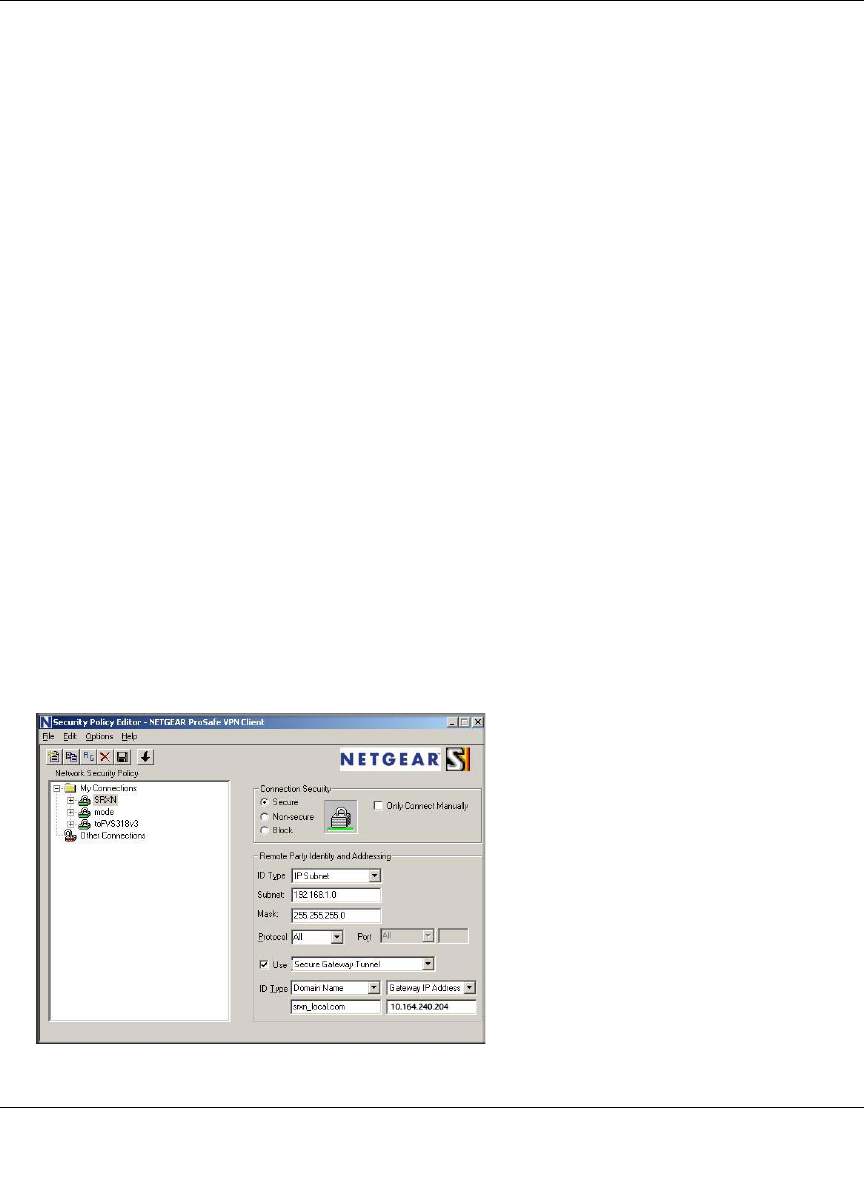
ProSafe Wireless-N VPN Firewall SRXN3205 Reference Manual
Virtual Private Networking Using IPsec 6-7
v1.0, January 2010
Each PC will use NETGEAR’s ProSafe VPN Client software. Since the PC’s IP address is
assumed to be unknown, the PC must always be the initiator of the connection.
This procedure was developed and tested using the following products:
• NETGEAR ProSafe Wireless-N VPN Firewall SRXN3205
• NETGEAR ProSafe VPN Client
• NETGEAR ProSafe VPN firewall 200 FVX538 functioning as a NAT router.
Configuring the VPN Firewall
The VPN firewall configuration is described in “Creating a Client to Gateway VPN Tunnel with
the Wizard” on page 6-5.
You can augment user authentication security by enabling the XAUTH server by selecting the
Edge Device radio box and then adding users to the user database (see “Configuring Extended
Authentication (XAUTH)” on page 6-33 and “User Database Configuration” on page 6-35,
respectively). As an alternative to the local user database, you can also choose a RADIUS server.
Configuring the VPN Client
From a PC with the Netgear Prosafe VPN Client installed, you can configure a VPN client policy
to connect to the VPN firewall. To configure your VPN client:
1. Right-click on the VPN client icon in your Windows toolbar and choose Security Policy
Editor. In the upper left of the Policy Editor window, click the New Document icon to open a
new connection. Give the new connection a name, such as SRXN.
Figure 6-6
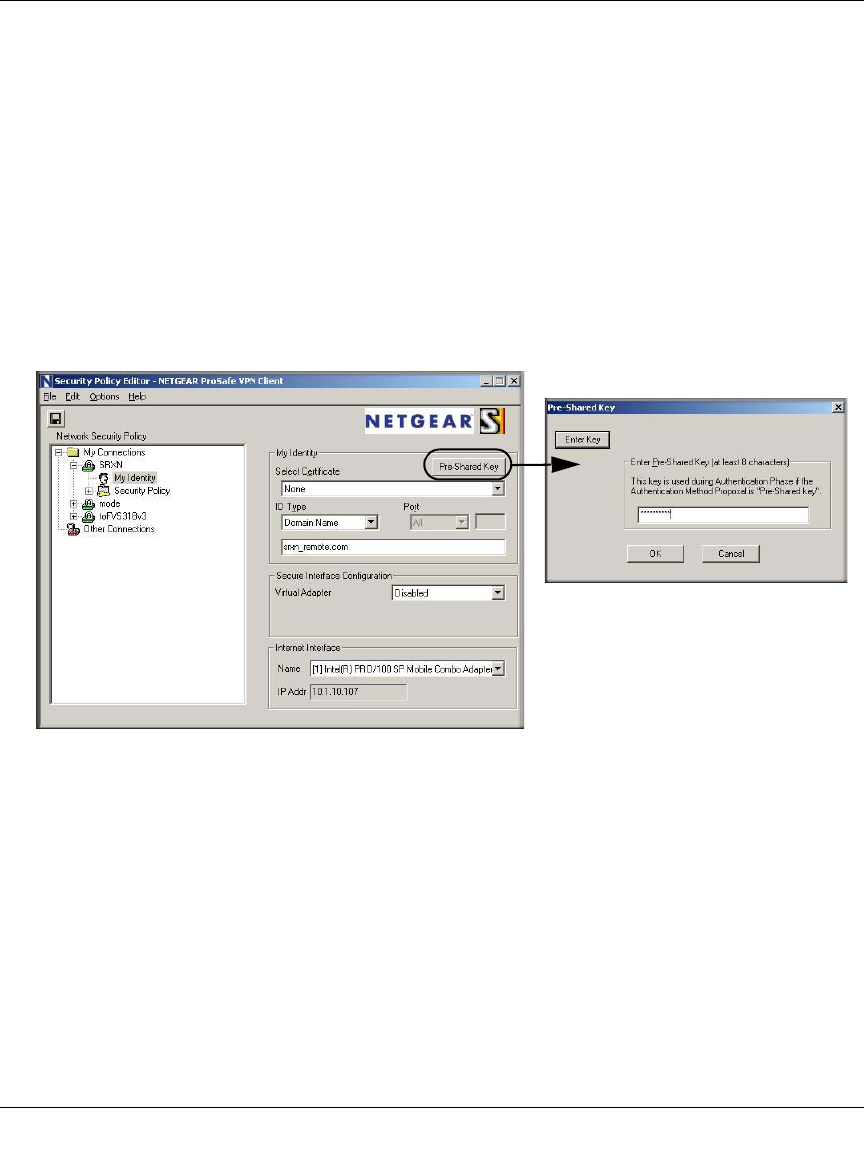
ProSafe Wireless-N VPN Firewall SRXN3205 Reference Manual
6-8 Virtual Private Networking Using IPsec
v1.0, January 2010
2. Configure the following:
•From the ID Type pull-down menu, choose IP Subnet.
• Enter the LAN IP Subnet Address and Subnet Mask of the VPN firewall’s LAN. Check
the Connect using radio box and choose Secure Gateway Tunnel from the pull-down
menu.
•From the first ID Type pull-down menus, choose Domain Name and enter the FQDN
address of the VPN firewall.
• From the second ID Type pull-down menu, choose Gateway IP Address and enter the
WAN IP Gateway address of the VPN firewall.
3. In the left frame, click My Identity.
4. Configure the following:
•From the Select Certificate pull-down menu, choose None.
• From the ID Type pull-down menu, choose Domain Name.
• Leave Virtual Adapter disabled, and click your computer’s Network Adapter. Your
current IP address will appear.
5. Click Pre-Shared Key. The Pre-Shared Key window opens.
6. Click Enter Key, enter your preshared key, and then click OK. This key will be shared by all
users of the VPN firewall policy “client”.
Figure 6-7
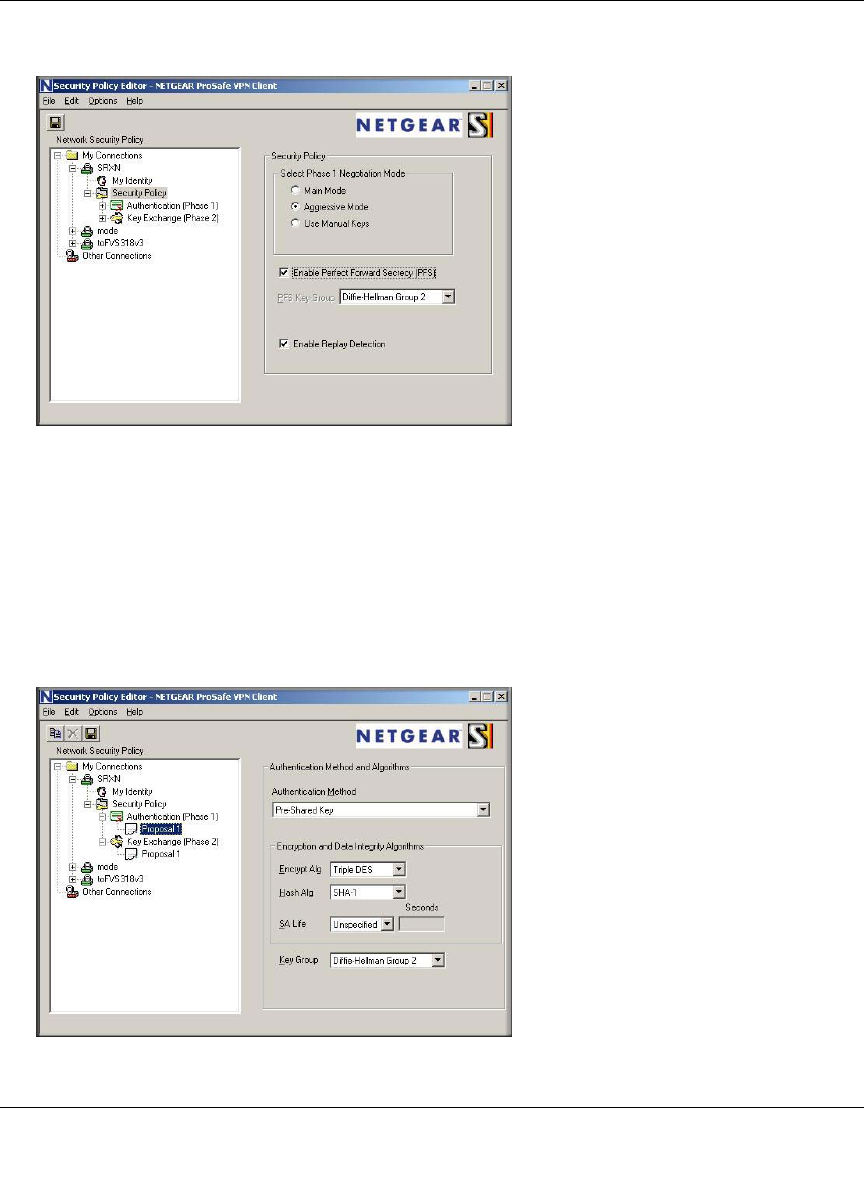
ProSafe Wireless-N VPN Firewall SRXN3205 Reference Manual
Virtual Private Networking Using IPsec 6-9
v1.0, January 2010
7. In the left frame, click Security Policy.
8. Configure the following:
•For the Phase 1 Negotiation Mode, select the Aggressive Mode radio box.
• Deselect the Enable Perfect Forward Secrecy (PFS) radio box.
• Select the Enable Replay Detection radio box.
9. In the left frame, expand Authentication (Phase 1).
Figure 6-8
Figure 6-9
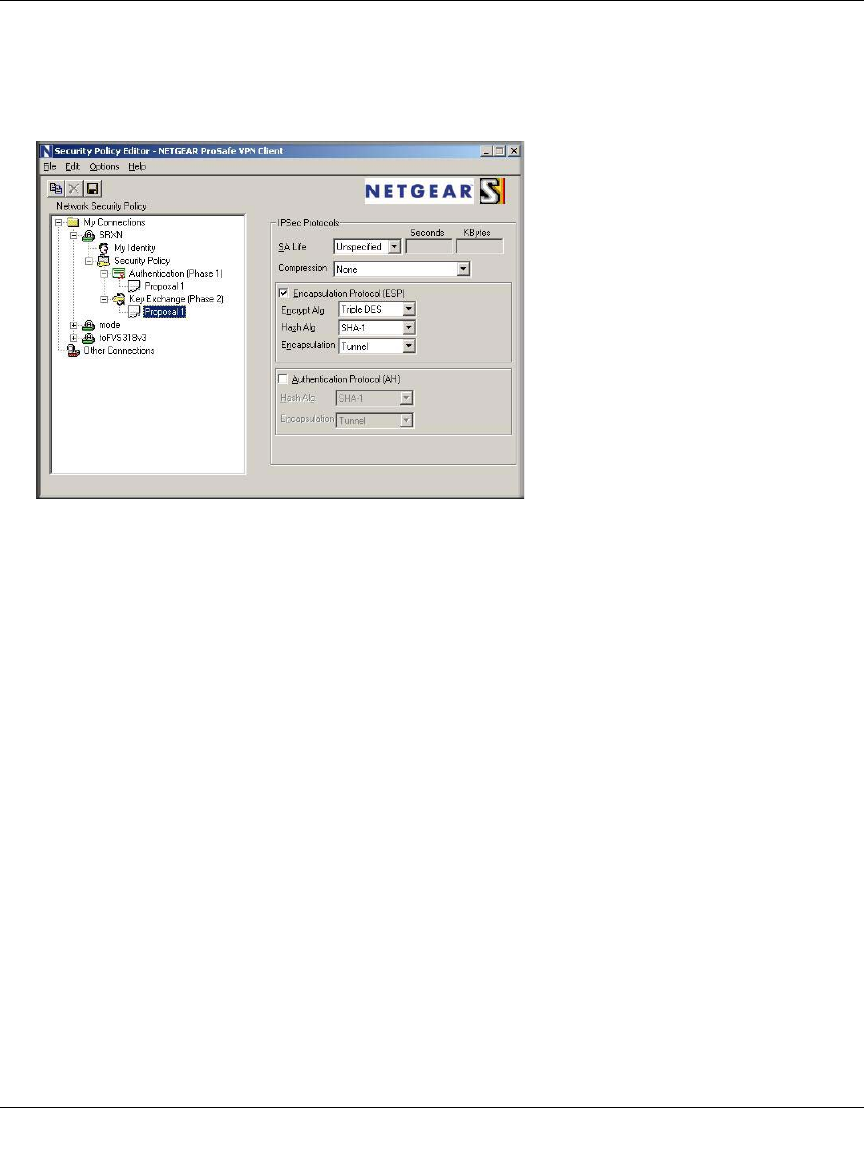
ProSafe Wireless-N VPN Firewall SRXN3205 Reference Manual
6-10 Virtual Private Networking Using IPsec
v1.0, January 2010
10. Choose Proposal 1. The Proposal 1 fields should mirror those in Figure 6-9 on page 6-9. No
changes should be necessary.
11. In the left frame, expand Key Exchange (Phase 2).
12. Choose Proposal 1. The fields in this proposal should also mirror those in Figure 6-9. No
changes should be necessary.
13. In the upper left of the window, click the disk icon to save the policy.
Testing the Connection
To test the VPN connection from the PC to the VPN firewall:
1. From your PC, right-click on the VPN client icon in your Windows toolbar and choose
Connect...
2. Select My Connections\SRXN.
Within 30 seconds you should receive the message “Successfully connected to My
Connections\SRXN” and the VPN client icon in the toolbar should indicate that it is on.
For additional status and troubleshooting information, right-click on the VPN client icon Logs or
view the Connection Status screen on the VPN firewall (see “Monitoring the VPN Tunnel
Connection Status” on page 10-15).
Figure 6-10
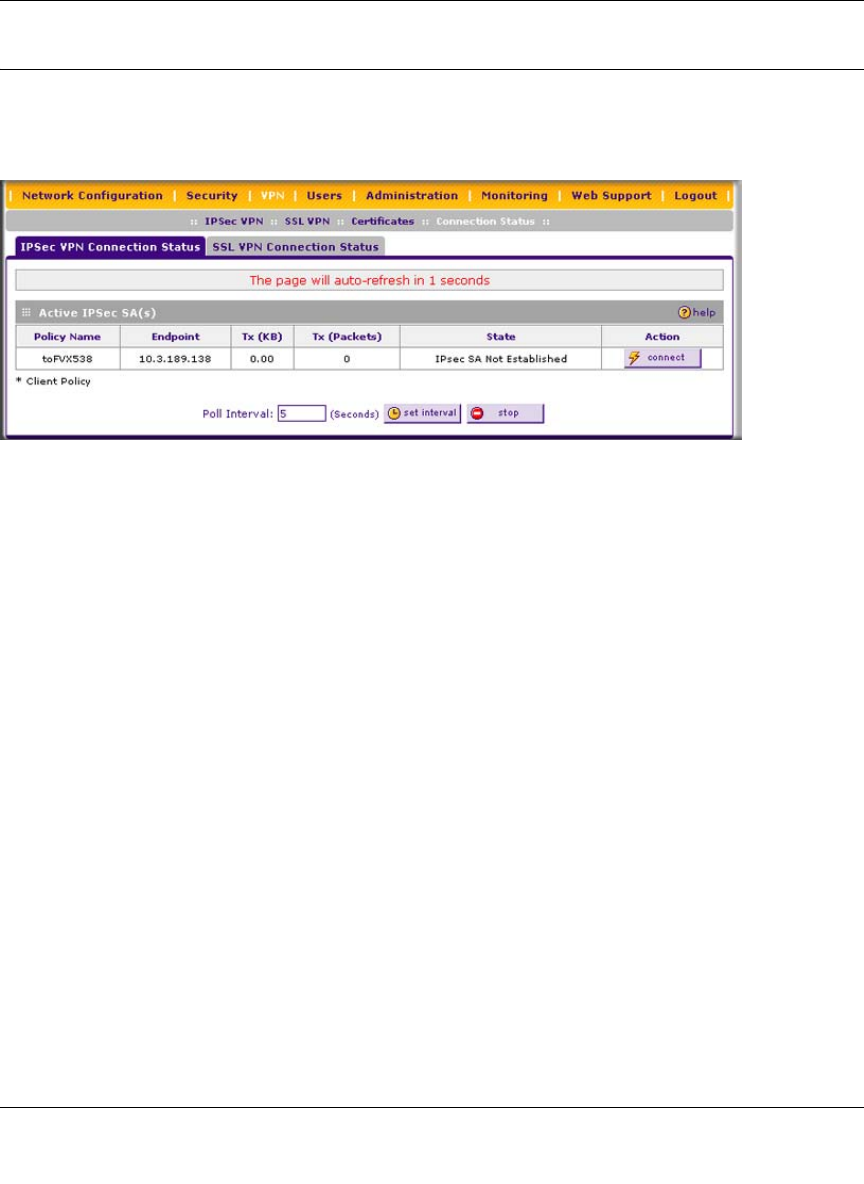
ProSafe Wireless-N VPN Firewall SRXN3205 Reference Manual
Virtual Private Networking Using IPsec 6-11
v1.0, January 2010
Viewing VPN Firewall VPN Connection Status and Logs
To view recent VPN tunnel activity, select VPN > Connection Status from the main/submenu.
The IPSec VPN Connection Status screen is displayed.
You can set a Poll Interval (in seconds) to check the connection status of all active IKE policies to
obtain the latest VPN tunnel activity. The Active IPSec SA(s) table also lists current data for each
active IPsec SA (security association):
•Policy Name. The name of the VPN policy associated with this SA.
•Endpoint. The IP address on the remote VPN endpoint.
•Tx (KBytes). The amount of data transmitted over this SA.
•Tx (Packets). The number of packets transmitted over this SA.
•State. The current state of the SA. Phase 1 is “Authentication phase” and Phase 2 is “Key
Exchange phase”.
•Action. Allows you to terminate or build the SA (connection), if required.
To view VPN firewall VPN logs, select Monitoring > VPN Logs from the main/submenu. The
IPsec VPN Logs screen is displayed (see Figure 6-12 on page 6-12).
Figure 6-11
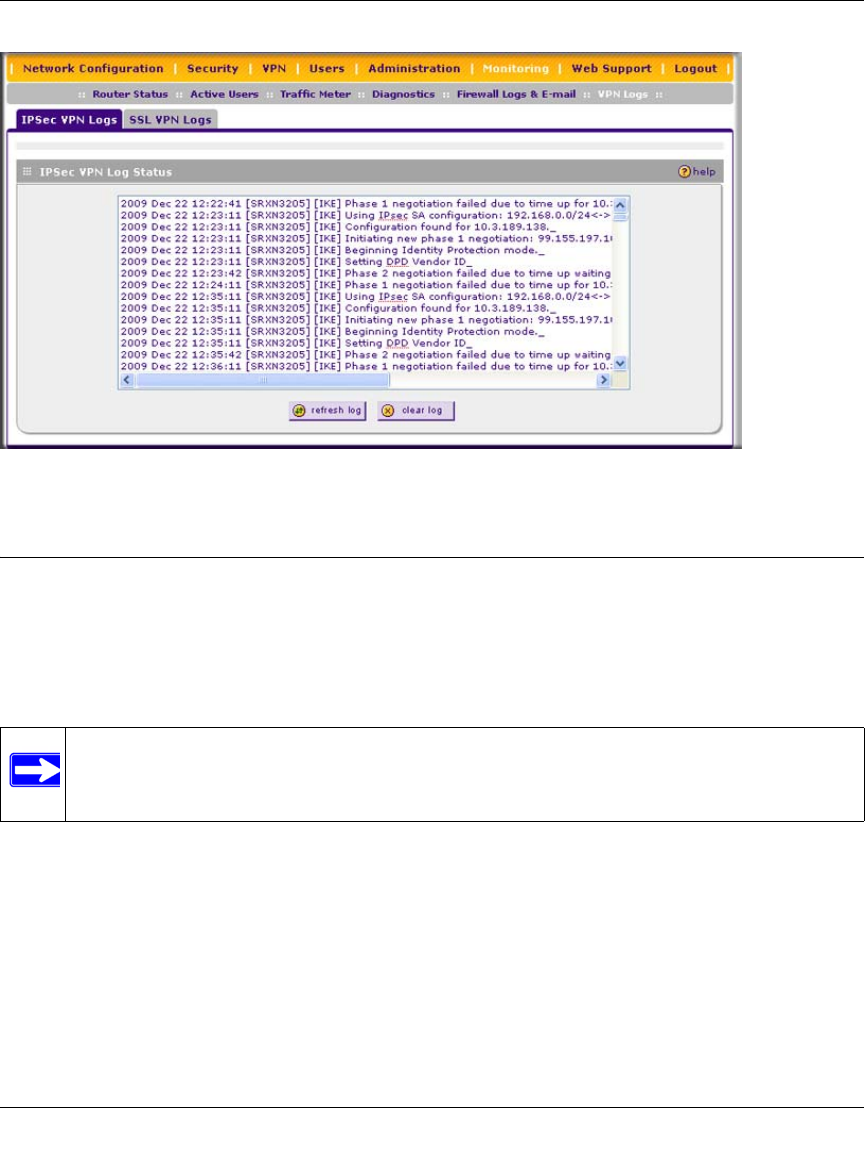
ProSafe Wireless-N VPN Firewall SRXN3205 Reference Manual
6-12 Virtual Private Networking Using IPsec
v1.0, January 2010
Managing IPsec VPN Policies
After you use the VPN Wizard to set up a VPN tunnel, a VPN policy and an IKE policy are stored
in separate policy tables. The name you selected as the VPN tunnel connection name during
Wizard setup identifies both the VPN policy and IKE policy. You can edit existing policies, or add
new VPN and IKE policies directly in the policy tables.
Managing IKE Polices
The IKE (Internet Key Exchange) protocol performs negotiations between the two VPN gateways,
and provides automatic management of the keys used in IPsec. It is important to remember the
following:
• “Auto” generated VPN policies must use the IKE negotiation protocol.
• “Manual” generated VPN policies cannot use the IKE negotiation protocol.
Figure 6-12
Note: You cannot modify an IKE policy that is associated with an enabled VPN policy.
To modify the IKE policy, first disable the VPN policy. After you have modified
and saved the IKE policy, you can then re-enable the VPN policy.
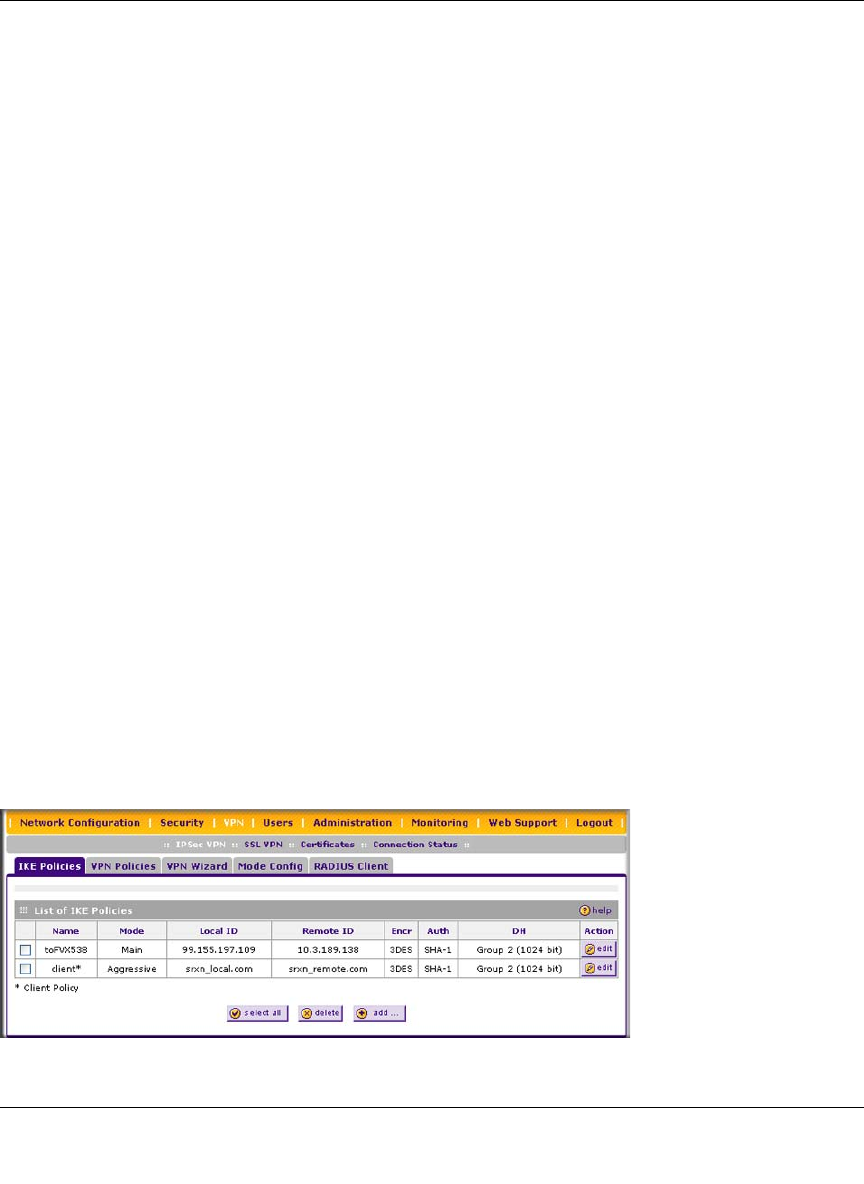
ProSafe Wireless-N VPN Firewall SRXN3205 Reference Manual
Virtual Private Networking Using IPsec 6-13
v1.0, January 2010
IKE policies are activated when the following occur:
1. The VPN Policy Selector determines that some traffic matches an existing VPN policy. If the
VPN policy is of type “Auto”, then the Auto Policy Parameters defined in the VPN policy are
accessed which specify which IKE Policy to use.
2. If the VPN policy is a “Manual” policy, then the Manual Policy Parameters defined in the
VPN Policy are accessed and the first matching IKE policy is used to start negotiations with
the remote VPN gateway.
• If negotiations fail, the next matching IKE policy is used.
• If none of the matching IKE policies are acceptable to the remote VPN gateway, then a
VPN tunnel cannot be established.
3. An IKE session is established, using the SA (Security Association) parameters specified in a
matching IKE policy:
• Keys and other parameters are exchanged.
• An IPsec SA (Security Association) is established, using the parameters in the VPN
policy.
The VPN tunnel is then available for data transfer.
When you use the VPN Wizard to set up a VPN tunnel, an IKE policy is established and populated
in the List of IKE Policies table, and is given the same name as the new VPN connection name.
You can also edit exiting policies or add new IKE policies from the IKE Policies screen.
The IKE Policies Screen
To access the IKE Policies screen:
Select VPN > IPsec VPN from the main/submenu. The IPsec VPN submenu tabs appear with the
IKE Policies screen in view.
Figure 6-13
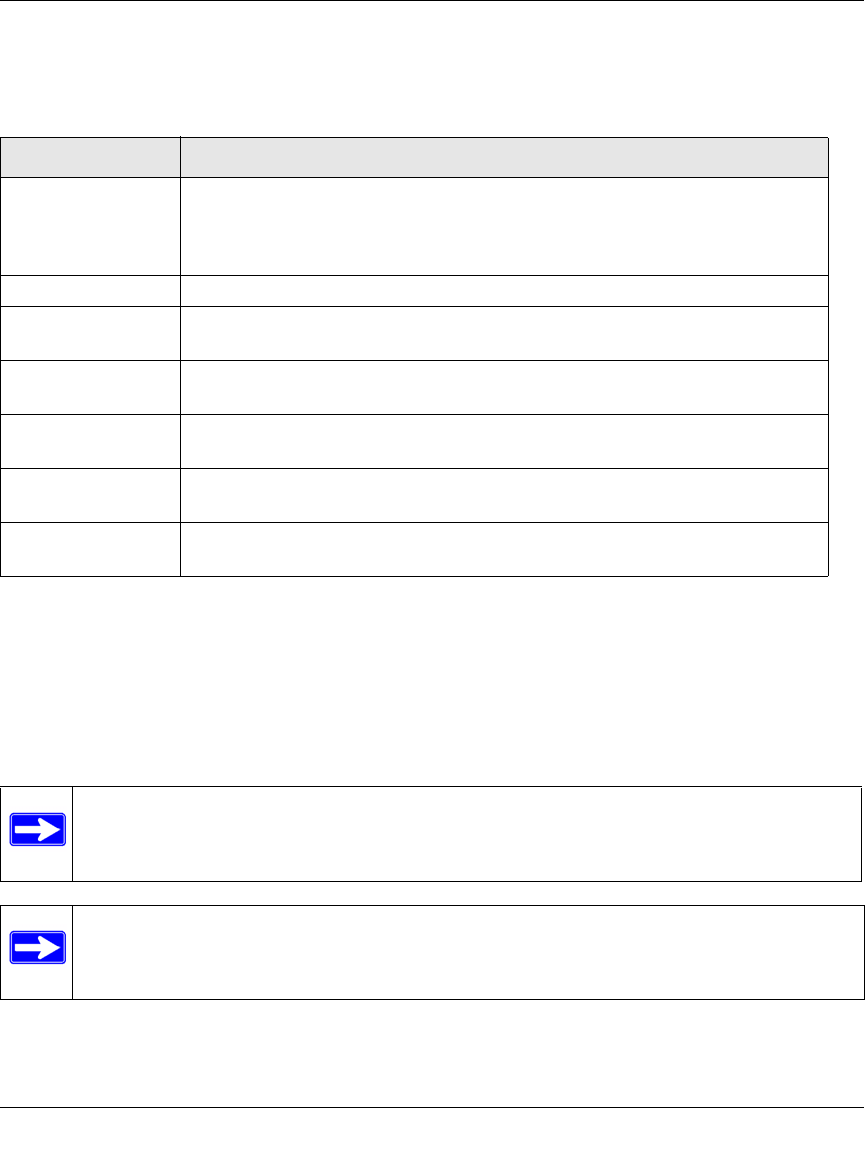
ProSafe Wireless-N VPN Firewall SRXN3205 Reference Manual
6-14 Virtual Private Networking Using IPsec
v1.0, January 2010
Each policy contains the data that are explained in Table 6-1 These fields are explained in more
detail in Table 6-2 on page 6-16.
To delete one or more IKE polices:
1. Select the checkbox to the left of the policy that you want to delete or click the select all
button to select all IKE policies.
2. Click the delete button.
To add or edit an IKE policy, see “Manually Adding or Editing an IKE Policy” on page 6-15.
Table 6-1. List of IKE Policies Information
Item Description (or Subfield and Description)
Name The name that identifies the IKE policy. When you use the VPN Wizard to set up
a VPN policy, an accompanying IKE policy is automatically created with the
same name that you select for the VPN policy.
Note: The name is not supplied to the remote VPN endpoint.
Mode The exchange mode: Main or Aggressive.
Local ID The IKE/ISAKMP identifier of the VPN firewall. The remote endpoint must have
this value as its remote ID.
Remote ID The IKE/ISAKMP identifier of the remote endpoint, which must have this value
as its Local ID.
Encr The encryption algorithm that is used for the IKE security association (SA). This
setting must match the setting on the remote endpoint.
Auth The authentication algorithm that is used for the IKE SA. This setting must match
the setting on the remote endpoint.
DH The Diffie-Hellman (DH) group that is used when exchanging keys. This setting
must match the setting on the remote endpoint.
Note: You cannot delete or edit an IKE policy for which the VPN policy is active. You
first must disable or delete the VPN policy before you can delete or edit the IKE
policy.
Note: To gain a more complete understanding of the encryption, authentication and
DH algorithm technologies, see the link to “Virtual Private Networking Basics” in
Appendix C.
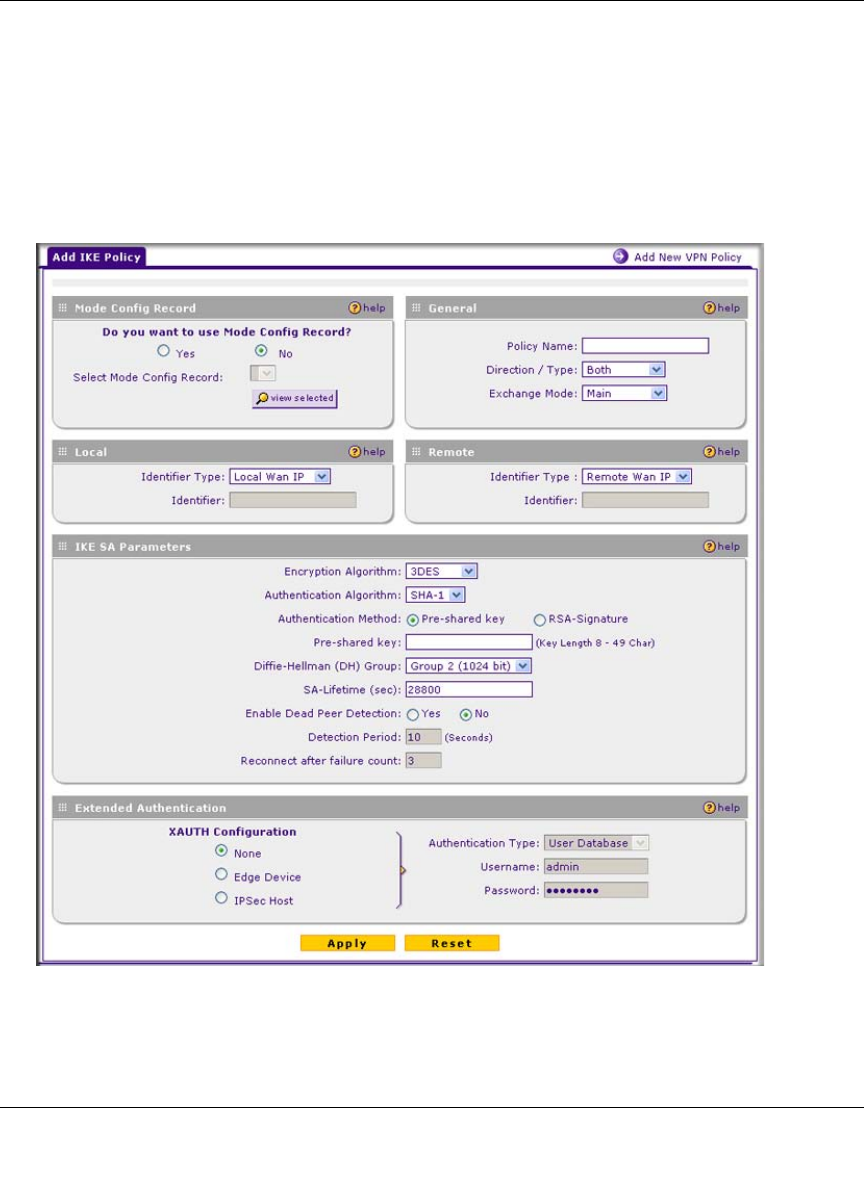
ProSafe Wireless-N VPN Firewall SRXN3205 Reference Manual
Virtual Private Networking Using IPsec 6-15
v1.0, January 2010
Manually Adding or Editing an IKE Policy
To manually add an IKE policy:
1. Select VPN > IPsec VPN from the main/submenu. The IPsec VPN submenu tabs appear with
the IKE Policies screen in view (see Figure 6-13 on page 6-13).
2. Under the List of IKE Policies table, click the add button. The Add IKE Policy screen is
displayed.
Figure 6-14

ProSafe Wireless-N VPN Firewall SRXN3205 Reference Manual
6-16 Virtual Private Networking Using IPsec
v1.0, January 2010
3. Complete the fields, select the radio buttons, and make your selections from the pull-down
menus as explained Table 6-2.
Table 6-2. Add IKE Policy Settings
Item Description (or Subfield and Description)
Mode Config Record
Do you want to use
Mode Config
Record?
Specify whether or not the IKE policy uses a Mode Config Record. For
information about how to define a Mode Config Record, see “Mode Config
Operation” on page 6-28. Select one of the following radio buttons:
•Yes. IP addresses are assigned to remote VPN clients. You must select a Mode
Config record from the pull-down menu.
Note: Because Mode Config functions only in Aggressive Mode, selecting the
Yes radio button sets the tunnel exchange mode to Aggressive mode and
disables the Main mode. Mode Config also requires that both the local and
remote ends are defined by their FQDNs.
•No. Disables Mode Config for this IKE policy.
Note: An XAUTH configuration via an edge device is not possible without Mode
Config and is therefore disabled too. For more information about XAUTH, see
“Configuring Extended Authentication (XAUTH)” on page 6-33.
Select Mode
Config Record From the pull-down menu, select one of the Mode Config
records that you defined on the Add Mode Config Record
screen (see “Configuring Mode Config Operation on the VPN
Firewall” on page 6-28).
Note: Click the View Selected button to open the Selected
Mode Config Record Details popup window,
General
Policy Name A descriptive name of the IKE policy for identification and management purposes.
Note: The name is not supplied to the remote VPN endpoint.
Direction / Type From the pull-down menu, select the connection method for the VPN firewall:
•Initiator. The VPN firewall initiates the connection to the remote endpoint.
•Responder. The VPN firewall responds only to an IKE request from the remote
endpoint.
•Both. The VPN firewall can both initiate a connection to the remote endpoint
and respond to an IKE request from the remote endpoint.
Exchange Mode From the pull-down menu, select the exchange more between the VPN firewall
and the remote VPN endpoint:
•Main. This mode is slower than the Aggressive mode but more secure.
•Aggressive. This mode is faster than the Main mode but less secure.
Note: If you specify either a FQDN or a User FQDN name as the local ID and/or
remote ID (see the sections below), the aggressive mode is automatically
selected.

ProSafe Wireless-N VPN Firewall SRXN3205 Reference Manual
Virtual Private Networking Using IPsec 6-17
v1.0, January 2010
Local
Identifier Type From the pull-down menu, select one of the following ISAKMP identifiers to be
used by the VPN firewall, and then specify the identifier in the field below:
•Local Wan IP. The WAN IP address of the VPN firewall. When you select this
option, the Identifier field automatically shows the IP address of the selected
WAN interface.
•FQDN. The Internet address for the VPN firewall.
•User FQDN. The e-mail address for a local VPN client or the VPN firewall.
•DER ASN1 DN. A distinguished name (DN) that identifies the VPN firewall in
the DER encoding and ASN.1 format.
Identifier Depending on the selection of the Identifier Type pull-down
menu, enter the IP address, e-mail address, FQDN, or
distinguished name.
Remote
Identifier Type From the pull-down menu, select one of the following ISAKMP identifiers to be
used by the remote endpoint, and then specify the identifier in the field below:
•Local Wan IP. The WAN IP address of the remote endpoint. When you select
this option, the Identifier field automatically shows the IP address of the
selected WAN interface.
•FQDN. The FQDN for a remote gateway.
•User FQDN. The e-mail address for a remote VPN client or gateway.
•DER ASN1 DN. A distinguished name (DN) that identifies the remote endpoint
in the DER encoding and ASN.1 format.
Identifier Depending on the selection of the Identifier Type pull-down
menu, enter the IP address, e-mail address, FQDN, or
distinguished name.
IKE SA Parameters
Encryption
Algorithm From the pull-down menu, select one of the following five algorithms to negotiate
the security association (SA):
•DES. Data Encryption Standard (DES)
•3DES. Triple DES. This is the default algorithm.
•AES-128. Advanced Encryption Standard (AES) with a 128-bits key size.
•AES-192. AES with a 192-bits key size.
•AES-256. AES with a 256-bits key size.
Authentication
Algorithm From the pull-down menu, select one of the following two algorithms to use in the
VPN header for the authentication process:
•SHA-1. Hash algorithm that produces a 160-bit digest. This is the default
setting.
•MD5. Hash algorithm that produces a 128-bit digest.
Table 6-2. Add IKE Policy Settings (continued)
Item Description (or Subfield and Description)

ProSafe Wireless-N VPN Firewall SRXN3205 Reference Manual
6-18 Virtual Private Networking Using IPsec
v1.0, January 2010
Authentication
Method Select one of the following radio buttons to specify the authentication method:
•Pre-shared key. A secret that is shared between the VPN firewall and the
remote endpoint.
•RSA-Signature. Uses the active Self Certificate that you uploaded on the
Certificates screen (see “Managing Certificates” on page 8-11). The Pre-shared
key is masked out when you select the RSA-Signature option.
Pre-shared key A key with a minimum length of 8 characters no more than 49
characters. Do not use a double quote (“) in the key.
Diffie-Hellman (DH)
Group The DH Group sets the strength of the algorithm in bits. The higher the group, the
more secure the exchange. From the pull-down menu, select one of the following
three strengths:
•Group 1 (768 bit).
•Group 2 (1024 bit). This is the default setting.
•Group 5 (1536 bit).
Note: Ensure that the DH Group is configured identically on both sides.
SA-Lifetime (sec) The period in seconds for which the IKE SA is valid. When the period times out,
the next rekeying must occur. The default is 28800 seconds (8 hours).
Enable Dead Peer
Detection
Note: See also
“Configuring
Keepalives and
Dead Peer
Detection” on
page 6-37.
Select a radio button to specify whether or not Dead Peer Detection (DPD) is
enabled:
•Yes. This feature is enabled: when the VPN firewall detects an IKE connection
failure, it deletes the IPsec and IKE SA and forces a reestablishment of the
connection. You must enter the detection period and the maximum number of
times that the VPN firewall attempts to reconnect (see below).
•No. This feature is disabled. This is the default setting.
Detection Period The period in seconds between consecutive
“DPD R-U-THERE” messages, which are sent only when the
IPsec traffic is idle.
Reconnect after
failure count The maximum number of times that the VPN firewall attempts
to reconnect after a DPD situation. When the maximum
number of times is exceeded, the IPsec connection is
terminated.
Table 6-2. Add IKE Policy Settings (continued)
Item Description (or Subfield and Description)

ProSafe Wireless-N VPN Firewall SRXN3205 Reference Manual
Virtual Private Networking Using IPsec 6-19
v1.0, January 2010
4. Click Apply to save your settings. The IKE policy is added to the List of IKE Policies table.
To edit an IKE policy:
1. Select VPN > IPsec VPN from the main/submenu. The IPsec VPN submenu tabs appear with
the IKE Policies screen in view (see Figure 6-13 on page 6-13).
2. In the List of IKE Policies table, click the edit button to the right of the IKE policy that you
want to edit. The Edit IKE Policy screen is displayed. This screen shows the same field as the
Add IKE Policy screen (see Figure 6-14 on page 6-15).
3. Modify the settings that you wish to change (see Table 6-2 on page 6-16).
Extended Authentication
XAUTH
Configuration
Note: For more
information about
XAUTH and its
authentication
modes, see
“Configuring
XAUTH for VPN
Clients” on
page 6-34.
Select one of the following radio buttons to specify whether or not Extended
Authentication (XAUTH) is enabled, and–if enabled–which device is used to verify
user account information:
•None. XAUTH is disabled. This the default setting.
•Edge Device. The VPN firewall functions as a VPN concentrator on which one
or more gateway tunnels terminate. The authentication mode that is available
for this configuration is User Database, RADIUS PAP, or RADIUS CHAP.
•IPSec Host. The VPN firewall functions as a VPN client of the remote gateway.
In this configuration the VPN firewall is authenticated by a remote gateway with
a user name and password combination.
Authentication
Type For an Edge Device configuration: from the pull-down menu,
select one of the following authentication types:
•User Database. XAUTH occurs through the VPN firewall’s
user database. Users must be added through the Add User
screen (see “User Database Configuration” on page 6-35).
•Radius PAP. XAUTH occurs through RADIUS Password
Authentication Protocol (PAP). The local user database is
first checked. If the user account is not present in the local
user database, the VPN firewall connects to a RADIUS
server. For more information, see “RADIUS Client
Configuration” on page 6-35.
•Radius CHAP. XAUTH occurs through RADIUS Challenge
Handshake Authentication Protocol (CHAP). For more
information, see “RADIUS Client Configuration” on
page 6-35.
Username The user name for XAUTH.
Password The password for XAUTH.
Table 6-2. Add IKE Policy Settings (continued)
Item Description (or Subfield and Description)

ProSafe Wireless-N VPN Firewall SRXN3205 Reference Manual
6-20 Virtual Private Networking Using IPsec
v1.0, January 2010
4. Click Apply to save your changes. The modified IKE policy is displayed in the List of IKE
Policies table.
Configuring VPN Policies
You can create two types of VPN policies. When using the VPN Wizard to create a VPN policy,
only the Auto method is available.
•Manual. All settings (including the keys) for the VPN tunnel are manually entered at each end
(both VPN endpoints). No third party server or organization is involved.
•Auto. Some parameters for the VPN tunnel are generated automatically by using the IKE
protocol to perform negotiations between the two VPN endpoints (the local ID endpoint and
the remote ID endpoint). You still must manually enter all settings on the remote VPN
endpoint (unless the remote VPN endpoint also has a VPN Wizard).
In addition, a Certificate Authority (CA) can also be used to perform authentication (see
“Managing Certificates” on page 8-11). To use a CA, each VPN gateway must have a certificate
from the CA. For each certificate, there is both a public key and a private key. The public key is
freely distributed, and is used to encrypt data. The receiver then uses its private key to decrypt the
data (without the private key, decryption is impossible). The use of certificates for authentication
reduces the amount of data entry required on each VPN endpoint.
The VPN Policies Screen
The VPN Policies screen allows you to add additional policies—either Auto or Manual—and to
manage the VPN policies already created. You can edit policies, enable or disable policies, or
delete them entirely. The rules for VPN policy use are:
1. Traffic covered by a policy will automatically be sent via a VPN tunnel.
2. When traffic is covered by two or more policies, the first matching policy will be used. (In this
situation, the order of the policies is important. However, if you have only one policy for each
remote VPN endpoint, then the policy order is not important.)
3. The VPN tunnel is created according to the parameters in the SA (Security Association).
4. The remote VPN endpoint must have a matching SA, or it will refuse the connection.
To access the VPN Policies screen:
1. Select VPN > IPsec VPN from the main/submenu. The IPsec VPN submenu tabs appear with
the IKE Policies screen in view (see Figure 6-13 on page 6-13).
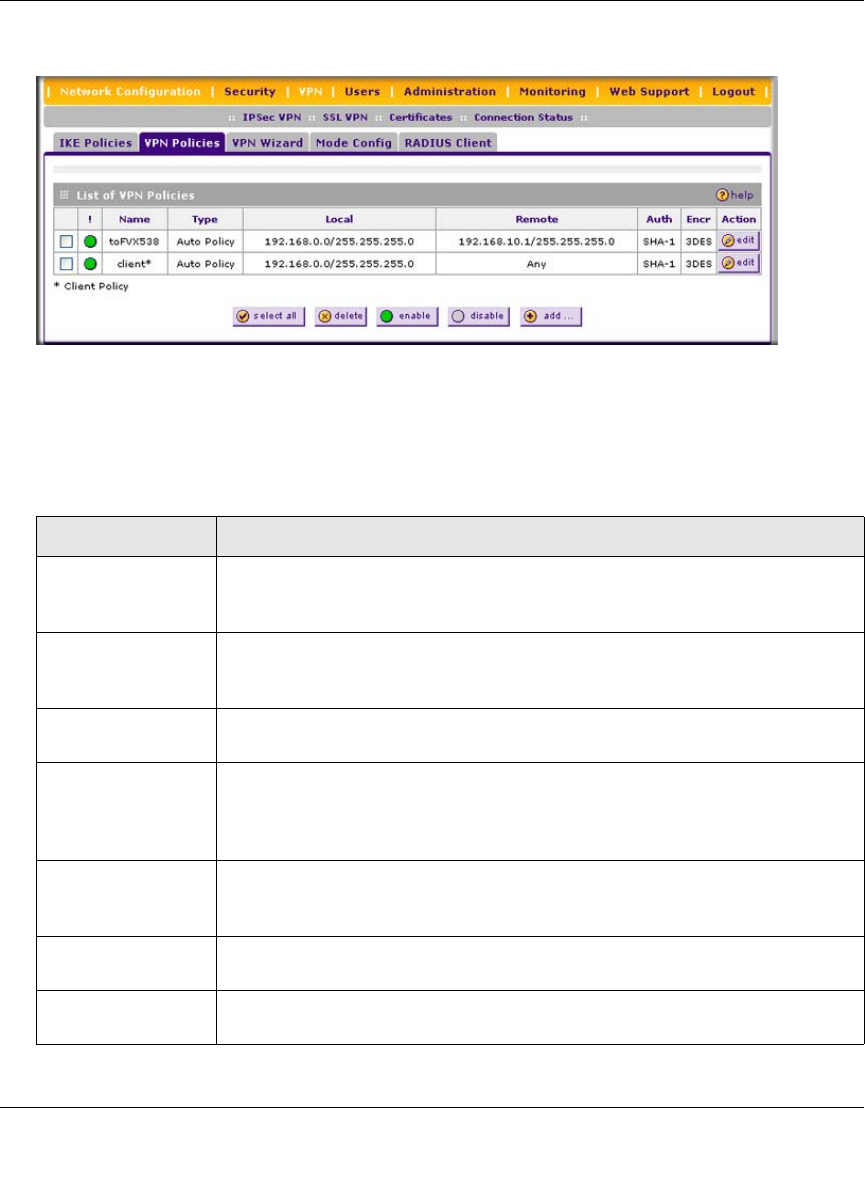
ProSafe Wireless-N VPN Firewall SRXN3205 Reference Manual
Virtual Private Networking Using IPsec 6-21
v1.0, January 2010
2. Click the VPN Policies tab. The VPN Policies screen is displayed.
Each policy contains the data that are explained in Table 6-3. These fields are explained in
more detail in Table 6-4 on page 6-24.
Figure 6-15
Table 6-3. List of VPN Policies Information
Item Description (or Subfield and Description)
! (Status) Indicates whether the policy is enabled (green circle) or disabled (grey circle). To
enable or disable a policy, select the checkbox adjacent to the circle and click
the Enable or Disable table button, as required.
Name The name that identifies the VPN policy. When you use the VPN Wizard to cre-
ate a VPN policy, the name of the VPN policy (and of the automatically created
accompanying IKE policy) is the Connection Name.
Type “Auto” or “Manual” as described previously (Auto is used during VPN Wizard
configuration).
Local IP address (either a single address, range of address or subnet address) on your
local LAN. Traffic must be from (or to) these addresses to be covered by this pol-
icy. (The subnet address is supplied as the default IP address when using the
VPN Wizard).
Remote IP address or address range of the remote network. Traffic must be to (or from)
these addresses to be covered by this policy. (The VPN Wizard default requires
the remote LAN IP address and subnet mask).
Auth The authentication algorithm that is used for the VPN tunnel. This setting must
match the setting on the remote endpoint.
Encr The encryption algorithm that is used for the VPN tunnel. This setting must
match the setting on the remote endpoint.
ProSafe Wireless-N VPN Firewall SRXN3205 Reference Manual
6-22 Virtual Private Networking Using IPsec
v1.0, January 2010
To delete one or more VPN polices:
1. Select the checkbox to the left of the policy that you want to delete or click the select all table
button to select all VPN policies.
2. Click the delete table button.
To enable or disable one ore more VPN policies:
1. Select the checkbox to the left of the policy that you want to delete or click the select all table
button to select all IKE Policies.
2. Click the enable or disable table button.
To add or edit a VPN policy, see “Manually Adding or Editing a VPN Policy” on this page.
Manually Adding or Editing a VPN Policy
To manually add a VPN policy:
1. Select VPN > IPsec VPN from the main/submenu. The IPsec VPN submenu tabs appear with
the IKE Policies screen in view (see Figure 6-13 on page 6-13).
2. Click the VPN Policies tab. The VPN Policies screen displays (see Figure 6-15 on page 6-21).
3. Under the List of VPN Policies table, click the add button. The Add VPN Policy screen
displays (see Figure 6-16 on page 6-23).
Note: You cannot delete or edit an IKE policy for which the VPN policy is active. You
first must disable or delete the VPN policy before you can delete or edit the IKE
policy.
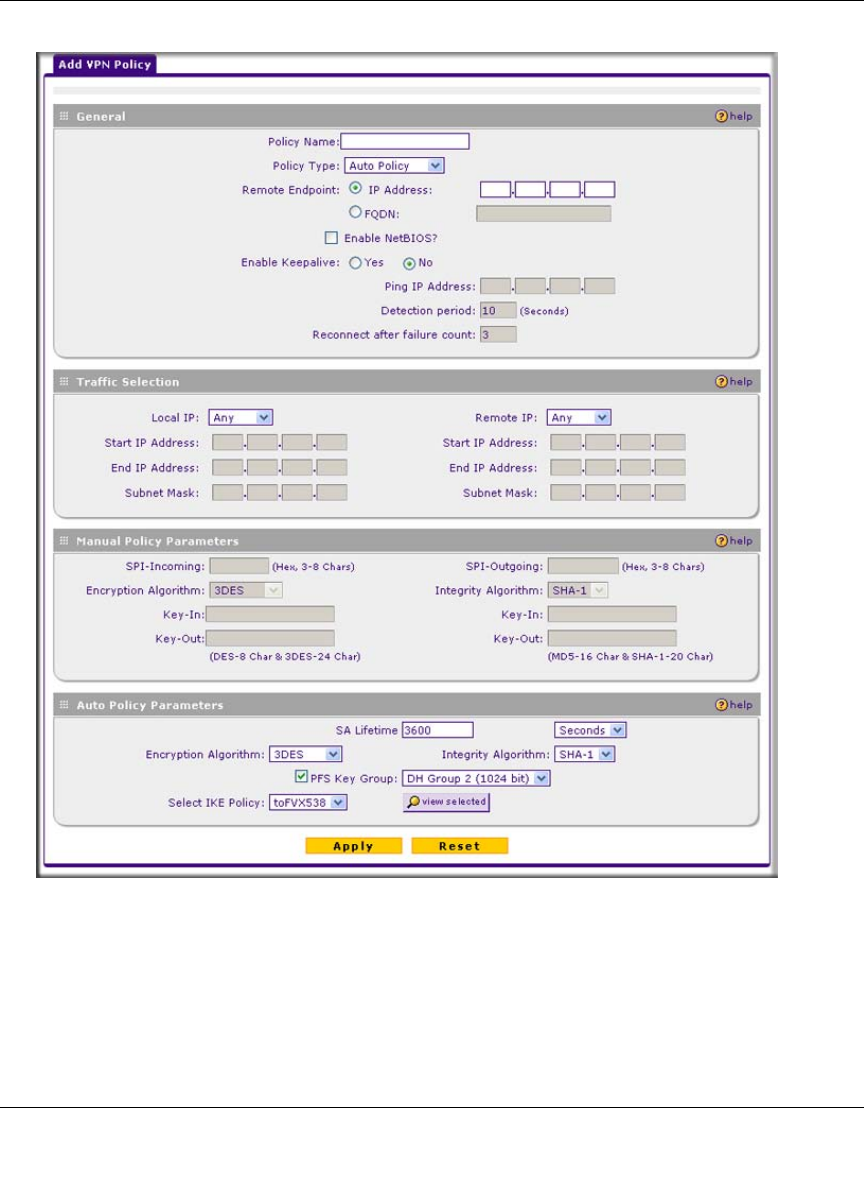
ProSafe Wireless-N VPN Firewall SRXN3205 Reference Manual
Virtual Private Networking Using IPsec 6-23
v1.0, January 2010
4. Complete the fields, select the radio buttons and checkboxes, and make your selections from
the pull-down menus as explained Table 6-4 on page 6-24.
Figure 6-16

ProSafe Wireless-N VPN Firewall SRXN3205 Reference Manual
6-24 Virtual Private Networking Using IPsec
v1.0, January 2010
Table 6-4. Add VPN Policy Settings
Item Description (or Subfield and Description)
General
Policy Name A descriptive name of the VPN policy for identification and management
purposes.
Note: The name is not supplied to the remote VPN endpoint.
Policy Type From the pull-down menu, select one of the following policy types:
•Auto Policy. Some settings (the ones in the Manual Policy Parameters section
of the screen) for the VPN tunnel are generated automatically.
•Manual Policy. All settings must be specified, including the ones in the Manual
Policy Parameters section of the screen.
Remote Endpoint Select a radio button to specify how the remote endpoint is defined:
•IP Address. Enter the IP address of the remote endpoint in the fields to the
right of the radio button.
•FQDN. Enter the FQDN of the remote endpoint in the field to the right of the
radio button.
Enable NetBIOS? Select this checkbox to allow NetBIOS broadcasts to travel over the VPN tunnel.
For more information about NetBIOS, see “Configuring NetBIOS Bridging with
VPN” on page 6-40. This feature is disabled by default.
Enable Keepalive
Note: See also
“Configuring
Keepalives and
Dead Peer
Detection” on
page 6-37.
Select a radio button to specify if Keepalive is enabled:
•Yes. This feature is enabled: periodically, the VPN firewall sends ping packets
to the remote endpoint to keep the tunnel alive. You must enter the ping IP
address, detection period, and the maximum number of times that the VPN
firewall attempts to reconnect (see below).
•No. This feature is disabled. This is the default setting.
Ping IP Address The IP address that the VPN firewall pings. The address
must be of a host that can respond to ICMP ping requests.
Detection period The period in seconds between the ping packets. The default
setting is 10 seconds.
Reconnect after
failure count The number of consecutive missed responses that are
considered a tunnel connection failure. The default setting is
3 missed responses.

ProSafe Wireless-N VPN Firewall SRXN3205 Reference Manual
Virtual Private Networking Using IPsec 6-25
v1.0, January 2010
Traffic Selection
Local IP From the pull-down menu, select the address or addresses that are part of the
VPN tunnel on the VPN firewall:
•Any. All PCs and devices on the network.
Note: You cannot select Any for both the VPN firewall and the remote endpoint.
•Single. A single IP address on the network. Enter the IP address in the Start IP
Address field.
•Range. A range of IP addresses on the network. Enter the starting IP address
in the Start IP Address field and the ending IP address in the End IP Address
field.
•Subnet. A subnet on the network. Enter the starting IP address in the Start IP
Address field and the subnet mask in the Subnet Mask field.
Remote IP From the pull-down menu, select the address or addresses that are part of the
VPN tunnel on the remote endpoint. The menu choices are the same as for the
Local IP pull-down menu (see above).
Manual Policy Parameters
Note: These fields apply only when you select Manual Policy as the policy type. When you specify the
settings for the fields in this section, a security association (SA) is created.
SPI-Incoming The Security Parameters Index (SPI) for the inbound policy. Enter a hexadecimal
value between 3 and 8 characters (for example: 0x1234).
Encryption
Algorithm From the pull-down menu, select one of the following five algorithms to negotiate
the security association (SA):
•DES. Data Encryption Standard (DES)
•3DES. Triple DES. This is the default algorithm.
•AES-128. Advanced Encryption Standard (AES) with a 128-bits key size.
•AES-192. AES with a 192-bits key size.
•AES-256. AES with a 256-bits key size.
Key-In The encryption key for he inbound policy. The length of the key depends on the
selected encryption algorithm:
• DES: enter 8 characters.
• 3DES: enter 24 characters.
• AES-128: enter 16 characters.
• AES-192: enter 24 characters.
• AES-256: enter 32 characters.
Key-Out The encryption key for he outbound policy. The length of the key depends on the
selected encryption algorithm. The required key lengths are the same as for the
Key-In (se above).
SPI-Outgoing The Security Parameters Index (SPI) for the outbound policy. Enter a
hexadecimal value between 3 and 8 characters (for example: 0x1234).
Table 6-4. Add VPN Policy Settings (continued)
Item Description (or Subfield and Description)

ProSafe Wireless-N VPN Firewall SRXN3205 Reference Manual
6-26 Virtual Private Networking Using IPsec
v1.0, January 2010
Integrity Algorithm From the pull-down menu, select one of the following two algorithms to be used
in the VPN header for the authentication process:
•SHA-1. Hash algorithm that produces a 160-bit digest. This is the default
setting.
•MD5. Hash algorithm that produces a 128-bit digest.
Key-In The integrity key for the inbound policy. The length of the key depends on the
selected integrity algorithm:
• MD5: enter 16 characters.
• SHA-1: enter 20 characters.
Key-Out The integrity key for he outbound policy. The length of the key depends on the
selected integrity algorithm. The required key lengths are the same as for the
Key-In (se above).
Auto Policy Parameters
Note: These fields apply only when you select Auto Policy as the policy type.
SA Lifetime The lifetime of the Security Association (SA) is the period or the amount of
transmitted data after which the SA becomes invalid and must be renegotiated.
From the pull-down menu, select how the SA lifetime is specified:
•Seconds. In the SA Lifetime field, enter a period in seconds. The minimum
value is 300 seconds. The default value is 3600 seconds.
•KBytes. In the SA Lifetime field, enter a number of kilobytes. The minimum
value is 1920000 KB.
Encryption
Algorithm From the pull-down menu, select one of the following five algorithms to negotiate
the security association (SA):
•DES. Data Encryption Standard (DES)
•3DES. Triple DES. This is the default algorithm.
•AES-128. Advanced Encryption Standard (AES) with a 128-bits key size.
•AES-192. AES with a 192-bits key size.
•AES-256. AES with a 256-bits key size.
Integrity Algorithm From the pull-down menu, select one of the following two algorithms to be used
in the VPN header for the authentication process:
•SHA-1. Hash algorithm that produces a 160-bit digest. This is the default
setting.
•MD5. Hash algorithm that produces a 128-bit digest.
Table 6-4. Add VPN Policy Settings (continued)
Item Description (or Subfield and Description)
ProSafe Wireless-N VPN Firewall SRXN3205 Reference Manual
Virtual Private Networking Using IPsec 6-27
v1.0, January 2010
5. Click Apply to save your settings. The VPN policy is added to the List of VPN Policies table.
To edit a VPN policy:
1. Select VPN > IPsec VPN from the main/submenu. The IPsec VPN submenu tabs appear with
the IKE Policies screen in view (see Figure 6-13 on page 6-13).
2. Click the VPN Policies tab. The VPN Policies screen is displayed (see Figure 6-15 on page
6-21).
3. In the List of VPN Policies table, click the edit button to the right of the VPN policy that you
want to edit. The Edit VPN Policy screen displays. This screen shows the same field as the
Add VPN Policy screen (see Figure 6-16 on page 6-23).
4. Modify the settings that you wish to change (see Table 6-4).
Click Apply to save your changes. The modified VPN policy is displayed in the List of VPN
Policies table.
Assigning IP Addresses to Remote Users (Mode Config)
To simplify the process of connecting remote VPN clients to the VPN firewall, use the Mode
Config feature to assign IP addresses to remote users, including a network access IP address,
subnet mask, WINS server, and DNS address from the VPN firewall. Remote users are given IP
addresses available in a secured network space so that remote users appear as seamless extensions
of the network.
PFS Key Group Select this checkbox to enable Perfect Forward Secrecy (PFS), and then select a
Diffie-Hellman (DH) group from the pull-down menu. The DH Group sets the
strength of the algorithm in bits. The higher the group, the more secure the
exchange. From the pull-down menu, select one of the following three strengths:
•Group 1 (768 bit).
•Group 2 (1024 bit). This is the default setting.
•Group 5 (1536 bit).
Select IKE Policy Select an existing IKE policy that defines the characteristics of the Phase-1
negotiation. Click the view selected button to display the selected IKE policy.
Table 6-4. Add VPN Policy Settings (continued)
Item Description (or Subfield and Description)
ProSafe Wireless-N VPN Firewall SRXN3205 Reference Manual
6-28 Virtual Private Networking Using IPsec
v1.0, January 2010
In the following example, we configured the VPN firewall using ModeConfig, and then
configured a PC running ProSafe VPN Client software using these IP addresses.
• ProSafe Wireless-N VPN Firewall SRXN3205
– WAN IP address: 172.21.4.1
– LAN IP address/subnet: 192.168.2.1/255.255.255.0
• ProSafe VPN Client software IP address: 192.168.1.2
Mode Config Operation
After the IKE Phase 1 negotiation is complete, the VPN connection initiator (which is the remote
user with a VPN client) requests the IP configuration settings such as the IP address, subnet mask,
WINS server, and DNS address from the VPN firewall. The Mode Config feature allocates an IP
address from the configured IP address pool and activates a temporary IPsec policy, using the
information that is specified in the Traffic Tunnel Security Level section of the Mode Config
record (on the Add Mode Config Record screen that is shown in Figure 6-18 on page 6-29).
Configuring Mode Config Operation on the VPN Firewall
To configure Mode Config on the VPN firewall, you first must create a Mode Config record, and
then select the Mode Config record for an IKE policy.
Creating the Mode Config Record
1. Select VPN > IPSec VPN from the main/submenu. The IPsec VPN submenu tabs appear with
the IKE Policies screen in view.
2. Click the Mode Config tab. The Mode Config screen is displayed (see Figure 6-17 on page
6-29).
Note: After configuring a Mode Config record, you must manually configure an IKE
policy and select the newly-created Mode Config record from the Select Mode
Config Record pull-down menu (see “Configuring Mode Config Operation on the
VPN Firewall” on this page. You do not need to make changes to any VPN policy.
Note: An IP address that is allocated to a VPN client is released only after the VPN client
has gracefully disconnected or after the SA liftetime for the connection has timed
out.
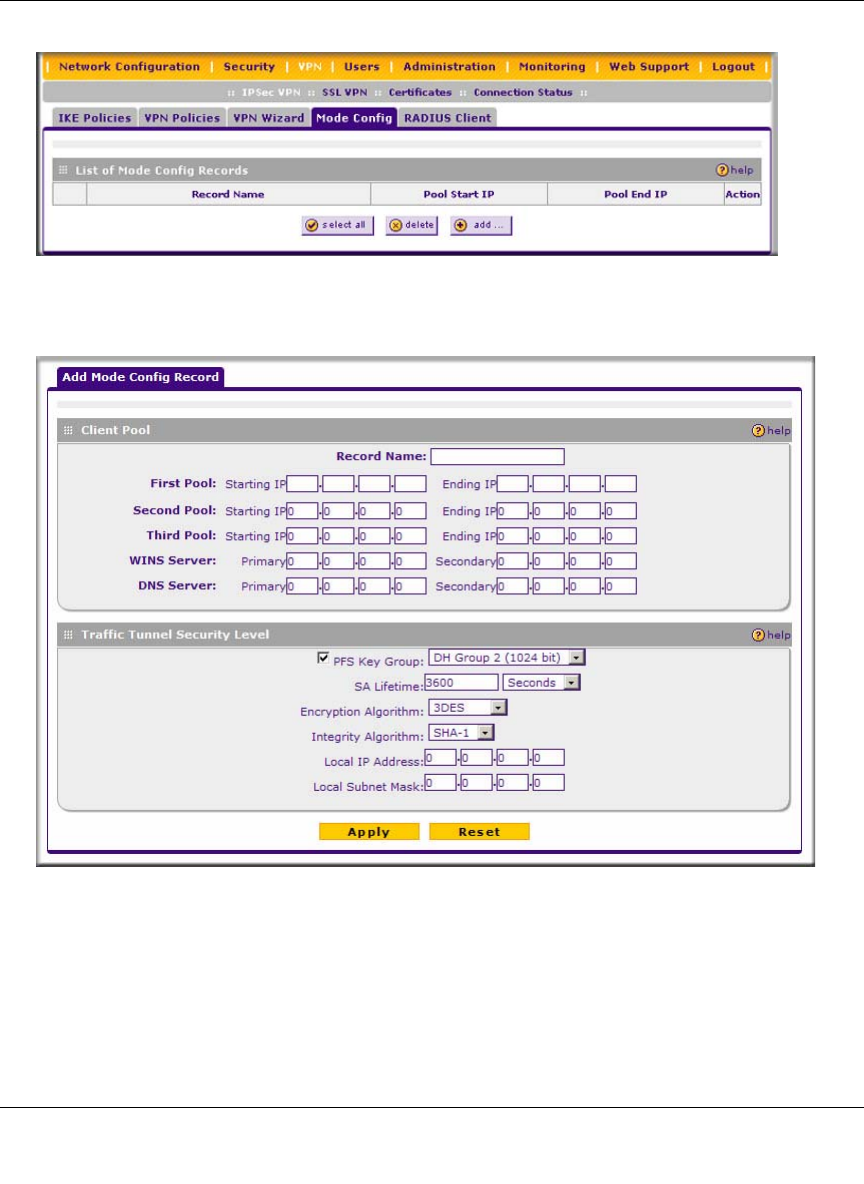
ProSafe Wireless-N VPN Firewall SRXN3205 Reference Manual
Virtual Private Networking Using IPsec 6-29
v1.0, January 2010
3. Click add. The Add Mode Config Record screen is displayed.
4. Enter a descriptive Record Name such as “Sales”.
Figure 6-17
Figure 6-18
ProSafe Wireless-N VPN Firewall SRXN3205 Reference Manual
6-30 Virtual Private Networking Using IPsec
v1.0, January 2010
5. Assign at least one range of IP Pool addresses in the First IP Pool field to give to remote VPN
clients.
6. If you have a WINS Server on your local network, enter its IP address.
7. Enter one or two DNS Server IP addresses to be used by remote VPN clients.
8. If you enable Perfect Forward Secrecy (PFS), choose DH Group 1 or 2. This setting must
match exactly the configuration of the remote VPN client,
9. Specify the Local IP Subnet to which the remote client will have access. Typically, this is your
VPN firewall’s LAN subnet, such as 192.168.2.1/255.255.255.0. (If not specified, it will
default to the LAN subnet of the VPN firewall.)
10. Specify the VPN policy settings. These settings must match the configuration of the remote
VPN client. Recommended settings are:
• SA Lifetime: 3600 seconds
• Encryption Algorithm: 3DES
• Authentication Algorithm: SHA-1
11. Click Apply.
The new record should appear in the List of Mode Config Records table on the Mode Config
screen.
Selecting a Mode Config Record for an IKE Policy
Configure an IKE policy:
1. Select VPN > IPSec VPN from the main/submenu. The IPsec VPN submenu tabs appear with
the IKE Policies screen in view (see Figure 6-13 on page 6-13).
2. Click add to configure a new IKE Policy. The Add IKE Policy screen is displayed (see
Figure 6-14 on page 6-15).
3. Enable Mode Config by checking the Yes radio box and selecting the Mode Config record
you just created from the pull-down menu. (You can view the parameters of the selected record
by clicking the view selected button.)
Mode Config works only in Aggressive Mode, and Aggressive Mode requires that both ends
of the tunnel are defined by an FQDN.
Note: The IP Pool should not be within your local network IP addresses. Use a
different range of private IP addresses such as 172.20.xx.xx.

ProSafe Wireless-N VPN Firewall SRXN3205 Reference Manual
Virtual Private Networking Using IPsec 6-31
v1.0, January 2010
4. In the General section:
a. Enter a descriptive name in the Policy Name Field such as “salesperson”. This name will
be used as part of the remote identifier in the VPN client configuration.
b. Set Direction/Type to Responder.
c. The Exchange Mode will automatically be set to Aggressive.
5. For Local information:
a. Select FQDN for the Local Identity Type.
b. Enter an identifier in the Remote Identity Data field that is not used by any other IKE
policies. This identifier will be used as part of the local identifier in the VPN client
configuration.
6. Specify the IKE SA parameters. These settings must be matched in the configuration of the
remote VPN client. Recommended settings are:
• Encryption Algorithm: 3DES
• Authentication Algorithm: SHA-1
• Diffie-Hellman: Group 2
• SA Lifetime: 3600 seconds
7. Enter a Pre-Shared Key that will also be configured in the VPN client.
8. XAUTH is disabled by default. To enable XAUTH, choose one of the following:
•Edge Device to use this VPN firewall as a VPN concentrator where one or more gateway
tunnels terminate. If selected, you must specify the authentication type to be used in
verifying credentials of the remote VPN gateways.
•XIPsec Host if you want this gateway to be authenticated by the remote gateway. Enter a
Username and Password to be associated with the IKE policy. When this option is chosen,
you will need to specify the user name and password to be used in authenticating this
gateway (by the remote gateway).
9. If Edge Device was enabled, choose the Authentication Type from the pull down menu
which will be used to verify account information: User Database, RADIUS-CHAP or
RADIUS-PAP. Users must be added through the User Database screen (see “Creating a New
User Account” on page 8-6 or “RADIUS Client Configuration” on page 6-35).
Note: If RADIUS-PAP is selected, the VPN firewall will first check the User
Database to see if the user credentials are available. If the user account is not
present, the VPN firewall will then connect to the RADIUS server.
ProSafe Wireless-N VPN Firewall SRXN3205 Reference Manual
6-32 Virtual Private Networking Using IPsec
v1.0, January 2010
10. Click Apply. The new policy will appear in the List of IKE Policies table.
Configuring Mode Config Operation on the VPN Client
From a client PC running NETGEAR ProSafe VPN Client software, configure the remote VPN
client connection.
To configure the client PC:
1. Right-click the VPN client icon in the Windows toolbar. In the upper left of the Policy Editor
window, click the New Policy editor icon.
a. Give the connection a descriptive name such as “modecfg_test”. (This name will only be
used internally).
b. From the ID Type pull-down menu, choose IP Subnet.
c. Enter the IP Subnet and Mask of the VPN firewall (this is the LAN network IP address of
the gateway).
d. Check the Connect using radio button and choose Secure Gateway Tunnel from the pull-
down menu.
e. From the ID Type pull-down menu, choose Domain name and enter the FQDN of the VPN
firewall; in this example it is “local_id.com”.
f. Choose Gateway IP Address from the second pull-down menu and enter the WAN IP
address of the VPN firewall; in this example it is “172.21.4.1”.
2. From the left side of the menu, click My Identity and enter the following information:
a. Click Pre-Shared Key and enter the key you configured on the VPN firewall IKE screen.
b. From the Select Certificate pull-down menu, choose None.
c. From the ID Type pull-down menu, choose Domain Name and create an identifier based
on the name of the IKE policy you created; for example “salesperson11.remote_id.com”.
d. Under Virtual Adapter pull-down menu, choose Preferred. The Internal Network IP
Address should be 0.0.0.0.
e. Select your Internet Interface adapter from the Name pull-down menu.
Note: If no box is displayed for Internal Network IP Address, go to Options/
Global Policy Settings, and check the box for “Allow to Specify Internal
Network Address.”

ProSafe Wireless-N VPN Firewall SRXN3205 Reference Manual
Virtual Private Networking Using IPsec 6-33
v1.0, January 2010
3. On the left-side of the menu, choose Security Policy.
a. Under Security Policy, Phase 1 Negotiation Mode, check the Aggressive Mode radio
button.
b. Check the Enable Perfect Forward Secrecy (PFS) radio button, and choose the Diffie-
Hellman Group 2 from the PFS Key Group pull-down menu.
c. Enable Replay Detection should be checked.
4. Click on Authentication (Phase 1) on the left-side of the menu and choose Proposal 1. Enter
the Authentication values to match those on the VPN firewall’s ModeConfig Record screen.
5. Click on Key Exchange (Phase 2) on the left-side of the menu and choose Proposal 1. Enter
the values to match your configuration of the VPN firewall’s ModeConfig Record screen. (The
SA Lifetime can be longer, such as 8 hours [28800 seconds])
6. Click the Save icon to save the Security Policy and close the VPN ProSafe VPN client.
Testing the Mode Config Connection
To test the Mode Config connection that you just created:
1. Right-click on the VPN client icon in the Windows toolbar and click Connect. The connection
policy you configured will appear; in this case “My Connections\modecfg_test”.
2. Click on the connection. Within 30 seconds the message “Successfully connected to
MyConnections/modecfg_test is displayed and the VPN client icon in the toolbar will read
“On”.
3. From the client PC, ping a computer on the VPN firewall LAN.
Configuring Extended Authentication (XAUTH)
When connecting many VPN clients to the VPN firewall, an administrator may want a unique user
authentication method beyond relying on a single common preshared key for all clients. Although
the administrator could configure a unique VPN policy for each user, it is more convenient for the
VPN firewall to authenticate users from a stored list of user accounts. XAUTH provides the
mechanism for requesting individual authentication information from the user, and a local User
Database or an external authentication server, such as a RADIUS server, provides a method for
storing the authentication information centrally in the local network.
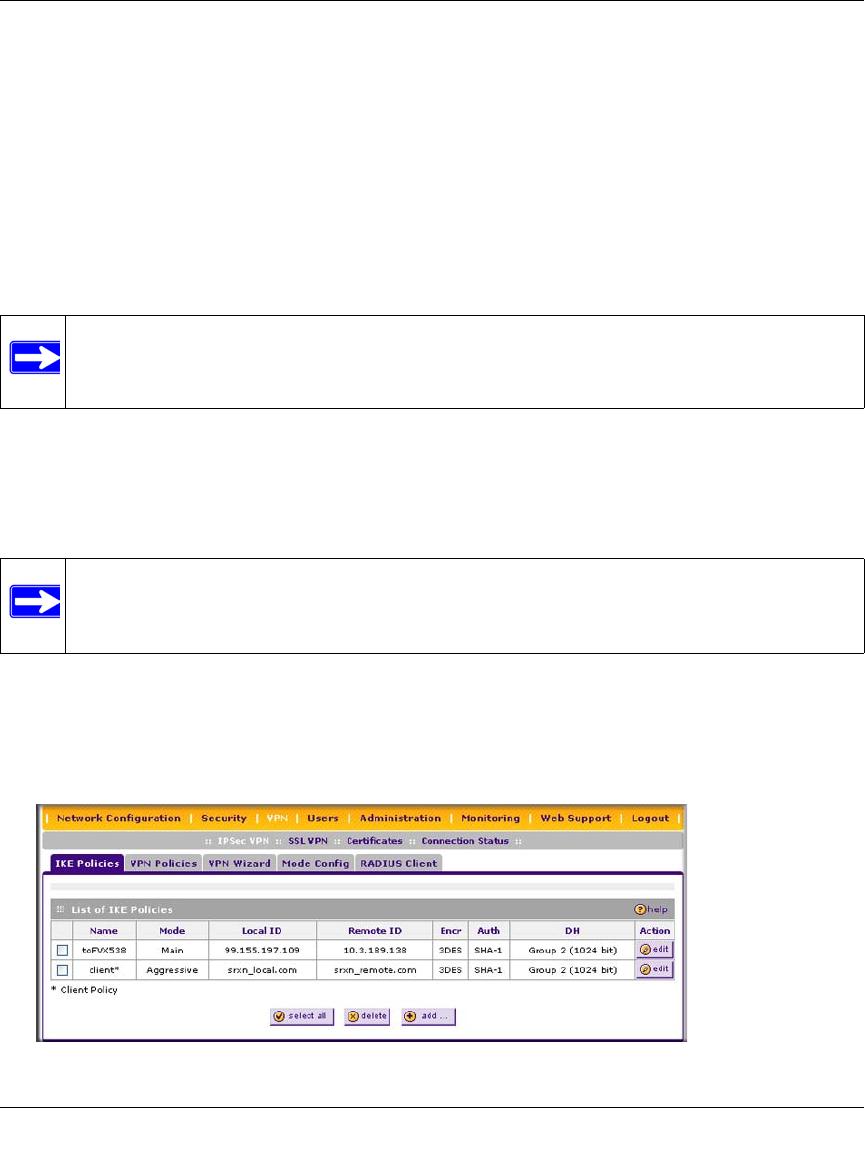
ProSafe Wireless-N VPN Firewall SRXN3205 Reference Manual
6-34 Virtual Private Networking Using IPsec
v1.0, January 2010
XAUTH can be enabled when adding or editing an IKE Policy. Two types of XAUTH are
available:
•Edge Device. If this is selected, the VPN firewall is used as a VPN concentrator where one or
more gateway tunnels terminate. If this option is chosen, you must specify the authentication
type to be used in verifying credentials of the remote VPN gateways: User Database,
RADIUS-PAP, or RADIUS-CHAP.
•IPsec Host. If you want authentication by the remote gateway, enter a User Name and
Password to be associated with this IKE policy. If this option is chosen, the remote gateway
must specify the user name and password used for authenticating this gateway.
Configuring XAUTH for VPN Clients
Once the XAUTH has been enabled, you must establish user accounts in the User Database to be
authenticated against XAUTH, or you must enable a RADIUS-CHAP or RADIUS-PAP server.
To enable and configure XAUTH:
1. Select VPN > IPsec VPN from the main/submenu.
2. Click the IKE Policies tab. The IKE Policies screen is displayed.
Note: If a RADIUS-PAP server is enabled for authentication, XAUTH will first check the
local User Database for the user credentials. If the user account is not present, the
VPN firewall will then connect to a RADIUS server.
Note: If you are modifying an existing IKE Policy to add XAUTH, if it is in use by a
VPN policy, the VPN policy must be disabled before you can modify the IKE
Policy.
Figure 6-19

ProSafe Wireless-N VPN Firewall SRXN3205 Reference Manual
Virtual Private Networking Using IPsec 6-35
v1.0, January 2010
3. You can add XAUTH to an existing IKE policy by clicking edit adjacent to the policy to be
modified or you can create a new IKE policy incorporating XAUTH by clicking add.
4. In the Extended Authentication section, check the Edge Device radio box to use this VPN
firewall as a VPN concentrator where one or more gateway tunnels terminate. You then must
specify the authentication type to be used in verifying credentials of the remote VPN
gateways. (Either the User Database or RADIUS Client must be configured when XAUTH is
enabled.)
5. In the Extended Authentication section, choose the Authentication Type from the pull-
down menu which will be used to verify user account information. Select
•Edge Device to use this VPN firewall as a VPN concentrator where one or more gateway
tunnels terminate. When this option is chosen, you will need to specify the authentication
type to be used in verifying credentials of the remote VPN gateways.
–User Database to verify against the VPN firewall’s user database. Users must be
added through the User Database screen (see “User Database Configuration” on
page 6-35).
–RADIUS–CHAP or RADIUS–PAP (depending on the authentication mode accepted
by the RADIUS server) to add a RADIUS server. If RADIUS–PAP is selected, the
VPN firewall will first check in the user database to see if the user credentials are
available. If the user account is not present, the VPN firewall will then connect to the
RADIUS server (see “RADIUS Client Configuration” on page 6-35).
•IPsec Host if you want to be authenticated by the remote gateway. In the adjacent
Username and Password fields, type in the information user name and password
associated with the IKE policy for authenticating this gateway (by the remote gateway).
6. Click Apply to save your settings.
User Database Configuration
When XAUTH is enabled as an Edge Device, users must be authenticated either by a local User
Database account or by an external RADIUS server. Whether or not you use a RADIUS server,
you may want some users to be authenticated locally. These users must be added to the List of
Users table, as described in “Creating a New User Account” on page 8-6.
RADIUS Client Configuration
RADIUS (Remote Authentication Dial In User Service, RFC 2865) is a protocol for managing
Authentication, Authorization, and Accounting (AAA) of multiple users in a network. A RADIUS
server will store a database of user information, and can validate a user at the request of a gateway
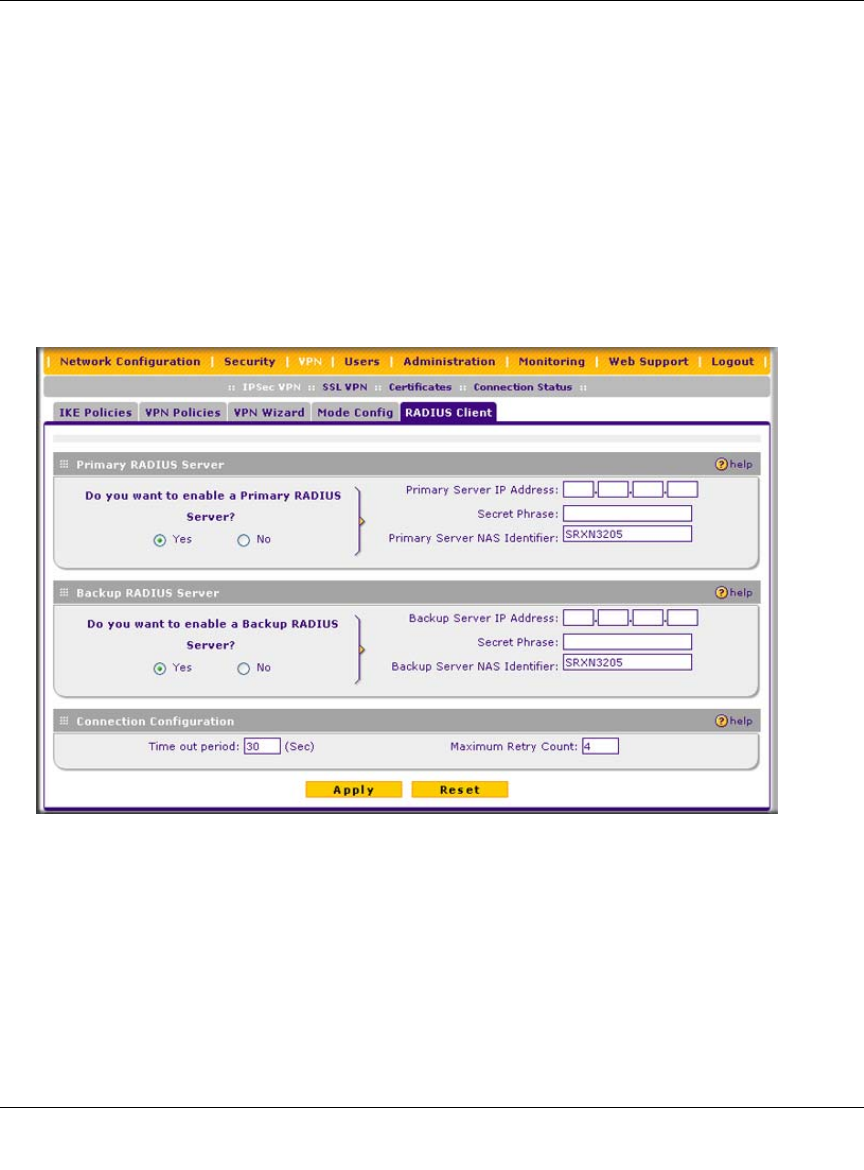
ProSafe Wireless-N VPN Firewall SRXN3205 Reference Manual
6-36 Virtual Private Networking Using IPsec
v1.0, January 2010
or server in the network when a user requests access to network resources. During the
establishment of a VPN connection, the VPN gateway can interrupt the process with an XAUTH
request. At that point, the remote user must provide authentication information such as a
username/password or some encrypted response using his username/password information. The
gateway will try to verify this information, first against a local User Database (if RADIUS-PAP is
enabled) and then by relaying the information to a central authentication server such as a RADIUS
server.
To configure the primary RADIUS Server:
1. Select VPN > IPsec VPN from the main/submenu.
2. Click the RADIUS Client tab. The RADIUS Client screen is displayed.
3. To activate (enable) the Primary RADIUS server, click the Ye s radio button. The primary
server options become active.
4. Configure the following entries:
•Primary RADIUS Server IP address. The IP address of the RADIUS server.
Figure 6-20
ProSafe Wireless-N VPN Firewall SRXN3205 Reference Manual
Virtual Private Networking Using IPsec 6-37
v1.0, January 2010
•Secret Phrase. Transactions between the client and the RADIUS server are authenticated
using a shared secret phrase, so the same Secret Phrase must be configured on both client
and server.
•Primary Server NAS Identifier. (Network Access Server). This Identifier must be
present in a RADIUS request. Ensure the NAS Identifier is configured identically on both
client and server.
The VPN firewall is acting as a NAS (Network Access Server), allowing network access
to external users after verifying their authentication information. In a RADIUS
transaction, the NAS must provide some NAS Identifier information to the RADIUS
Server. Depending on the configuration of the RADIUS Server, the VPN firewall’s IP
address may be sufficient as an identifier, or the server may require a name, which you
would enter here. This name would also be configured on the RADIUS server, although in
some cases it should be left blank on the RADIUS server.
5. Enable a backup RADIUS Server (if required).
6. Set the Time Out Period, in seconds, that the VPN firewall should wait for a response from
the RADIUS server.
7. Set the Maximum Retry Count. This is the number of tries the VPN firewall will make to the
RADIUS server before giving up.
8. Click Apply to save the settings.
Configuring Keepalives and Dead Peer Detection
In some cases, it may not be desirable to have a VPN tunnel drop when traffic is idle; for example,
when client-server applications over the tunnel cannot tolerate the tunnel establishment time. If
you require your VPN tunnel to remain connected, you can use the Keepalive and Dead Peer
Detection features to prevent the tunnel from dropping and to force a reconnection if the tunnel
drops for any reason.
For Dead Peer Detection to function, the peer VPN device on the other end of the tunnel must also
support Dead Peer Detection. Keepalive, though less reliable than Dead Peer Detection, does not
require any support from the peer device.
Note: Selection of the Authentication Protocol, usually PAP or CHAP, is configured
on the individual IKE policy screens.
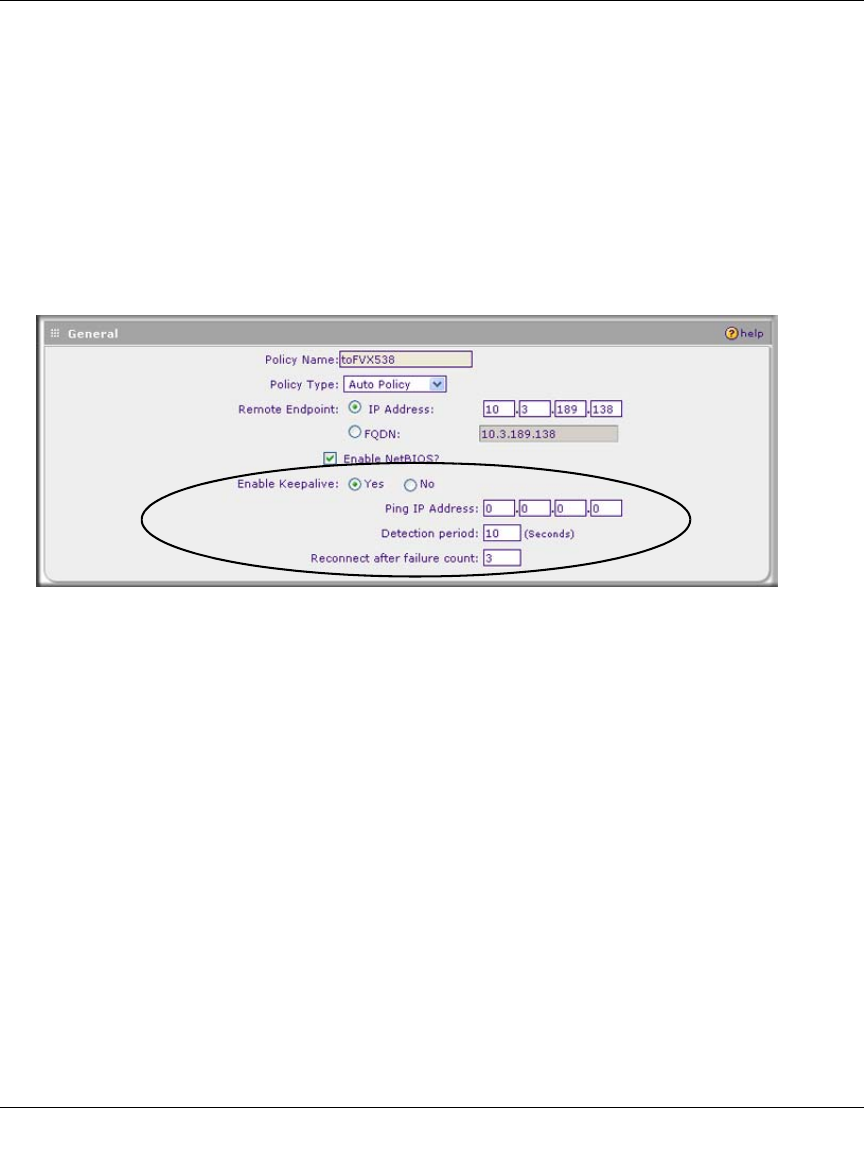
ProSafe Wireless-N VPN Firewall SRXN3205 Reference Manual
6-38 Virtual Private Networking Using IPsec
v1.0, January 2010
Configuring Keepalives
The keepalive feature maintains the IPSec SA by sending periodic ping requests to a host across
the tunnel and monitoring the replies. To configure the keepalive on a configured VPN policy,
follow these steps:
1. Select VPN > Policies from the main/submenu.
2. Click the VPN Policies tab, then click the edit button next to the desired VPN policy.
3. In the General section of the Edit VPN Policy screen, locate the keepalive configuration
settings, as shown in Figure 6-21.
4. Click the Yes radio button to enable keepalive.
5. In the Ping IP Address boxes, enter an IP address on the remote LAN. This must be the
address of a host that can respond to ICMP ping requests.
6. Enter the Detection Period to set the time between ICMP ping requests. The default is 10
seconds.
7. In Reconnect after failure count, set the number of consecutive missed responses that will be
considered a tunnel connection failure. The default is 3 missed responses. When the VPN
firewall senses a tunnel connection failure, it forces a reestablishment of the tunnel.
8. Click Apply at the bottom of the screen.
Figure 6-21
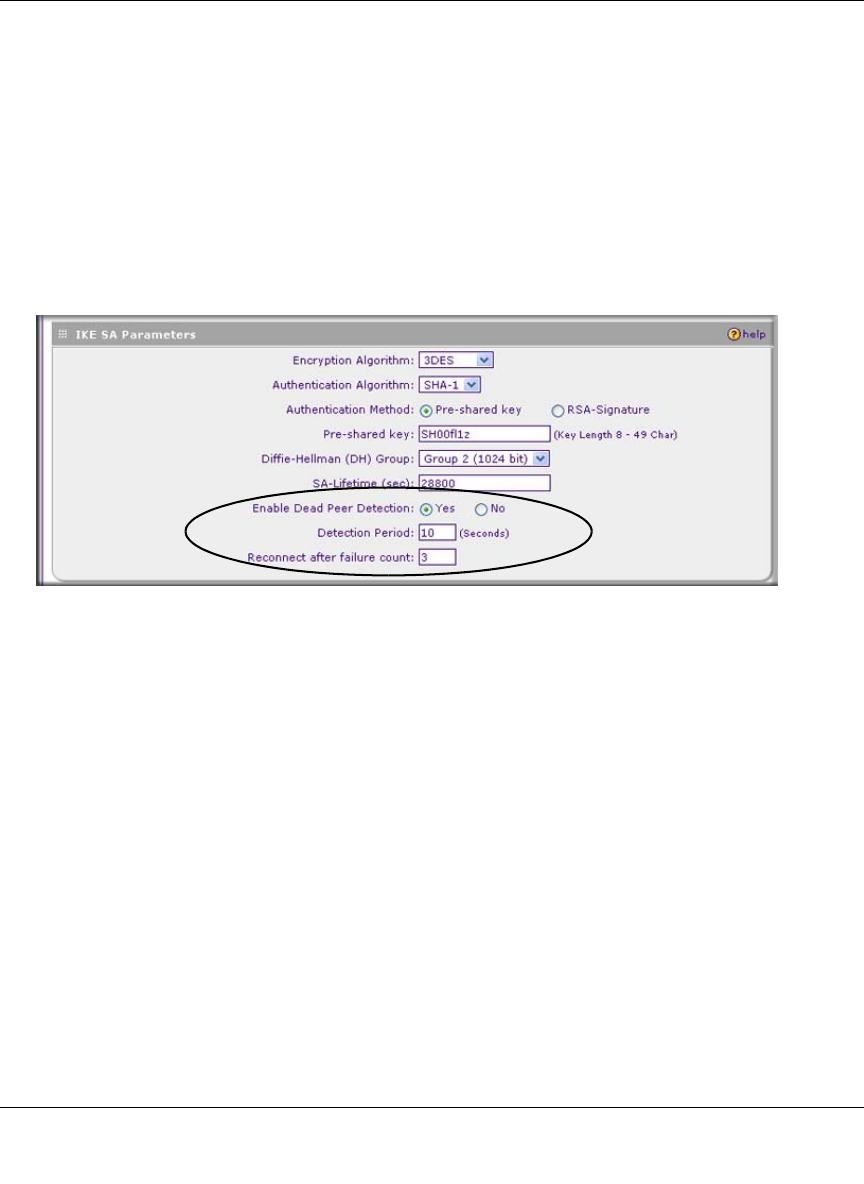
ProSafe Wireless-N VPN Firewall SRXN3205 Reference Manual
Virtual Private Networking Using IPsec 6-39
v1.0, January 2010
Configuring Dead Peer Detection
The Dead Peer Detection feature maintains the IKE SA by exchanging periodic messages with the
remote VPN peer. To configure Dead Peer Detection on a configured IKE policy, follow these
steps:
1. Select VPN > Policies from the main/submenu.
2. Click the IKE Policies tab, then click the edit button next to the desired VPN policy.
3. In the IKE SA Parameters section of the Edit IKE Policy screen, locate the Dead Peer
Detection configuration settings, as shown in Figure 6-22.
4. Click the Yes radio button to Enable Dead Peer Detection.
5. Enter the Detection Period to set the interval between consecutive DPD R-U-THERE
messages. DPD R-U-THERE messages are sent only when the IPSec traffic is idle. The
default is 10 seconds.
6. In Reconnect after failure count, set the number of DPD failures allowed before tearing
down the connection. The default is 3 failures. When the VPN firewall senses an IKE
connection failure, it deletes the IPSec and IKE Security Association and forces a
reestablishment of the connection.
7. Click Apply at the bottom of the screen.
Figure 6-22
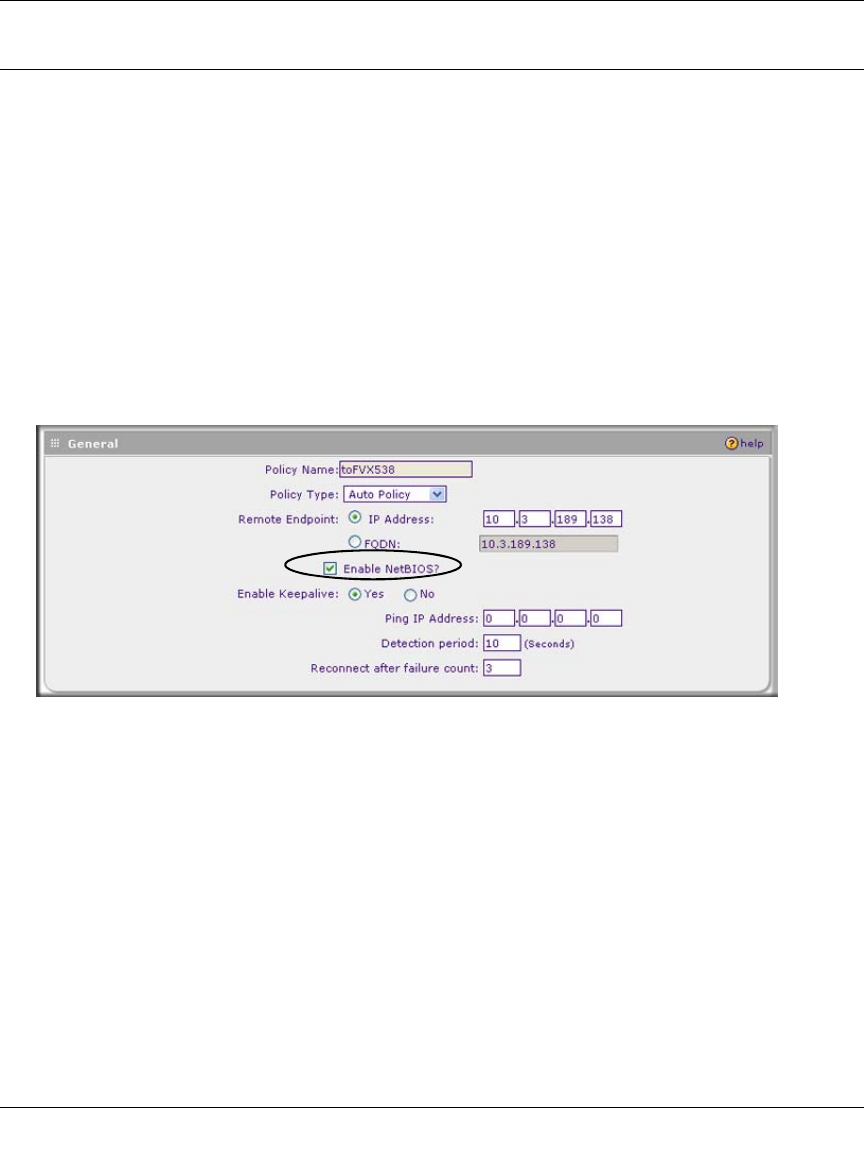
ProSafe Wireless-N VPN Firewall SRXN3205 Reference Manual
6-40 Virtual Private Networking Using IPsec
v1.0, January 2010
Configuring NetBIOS Bridging with VPN
Windows networks use the Network Basic Input/Output System (NetBIOS) for several basic
network services such as naming and neighborhood device discovery. Because VPN routers do not
normally pass NetBIOS traffic, these network services do not work for hosts on opposite ends of a
VPN connection. To solve this problem, you can configure the VPN firewall to bridge NetBIOS
traffic over the VPN tunnel. To enable NetBIOS bridging on a configured VPN tunnel, follow
these steps:
1. Select VPN > Policies from the main/submenu.
2. Click the VPN Policies tab, then click the edit button next to the desired VPN policy.
3. In the General section of the Edit VPN Policy screen, click the Enable NetBIOS checkbox,
as shown in Figure 6-23.
4. Click Apply at the bottom of the screen.
Figure 6-23

ProSafe Wireless-N VPN Firewall SRXN3205 Reference Manual
Virtual Private Networking Using SSL 7-1
v1.0, January 2010
Chapter 7
Virtual Private Networking Using SSL
The ProSafe Wireless-N VPN Firewall SRXN3205 provides a hardware-based SSL VPN solution
designed specifically to provide remote access for mobile users to their corporate resources,
bypassing the need for a pre-installed VPN client on their computers. Using the familiar Secure
Sockets Layer (SSL) protocol, commonly used for e-commerce transactions, the VPN firewall can
authenticate itself to an SSL-enabled client, such as a standard web browser. Once the
authentication and negotiation of encryption information is completed, the server and client can
establish an encrypted connection. With support for 10 concurrent sessions, users can easily access
the remote network for a customizable, secure, user portal experience from virtually any available
platform.
This chapter contains the following sections:
•“Understanding the Portal Options” on this page
•“Planning for SSL VPN” on page 7-2
•“Creating the Portal Layout” on page 7-3
•“Configuring Domains, Groups, and Users” on page 7-7
•“Configuring Applications for Port Forwarding” on page 7-8
•“Configuring the SSL VPN Client” on page 7-10
•“Using Network Resource Objects to Simplify Policies” on page 7-13
•“Configuring User, Group, and Global Policies” on page 7-15
Understanding the Portal Options
The VPN firewall’s SSL VPN portal can provide two levels of SSL service to the remote user:
•VPN Tunnel
The VPN firewall can provide the full network connectivity of a VPN tunnel using the remote
user’s browser in the place of a traditional IPsec VPN client. The SSL capability of the user’s
browser provides authentication and encryption, establishing a secure connection to the VPN
firewall.

ProSafe Wireless-N VPN Firewall SRXN3205 Reference Manual
7-2 Virtual Private Networking Using SSL
v1.0, January 2010
Upon successful connection, an ActiveX-based SSL VPN client is downloaded to the remote
PC that will allow the remote user to virtually join the corporate network. The SSL VPN
Client provides a PPP (point-to-point) connection between the client and the VPN firewall,
and a virtual network interface is created on the user’s PC. The VPN firewall will assign the
PC an IP address and DNS server IP addresses, allowing the remote PC to access network
resources in the same manner as if it were connected directly to the corporate network, subject
to any policy restrictions configured by the administrator.
• Port Forwarding
Like VPN Tunnel, Port Forwarding is a web-based client that installs transparently and then
creates a virtual, encrypted tunnel to the remote network. However, Port Forwarding differs
from VPN Tunnel in several ways. For example, Port Forwarding:
– Only supports TCP connections, not UDP or other IP protocols.
– Detects and reroutes individual data streams on the user’s PC to the Port Forwarding
connection rather than opening up a full tunnel to the corporate network.
– Offers more fine grained management than VPN Tunnel. The administrator defines
individual applications and resources that will be available to remote users.
The SSL VPN portal can present the remote user with one or both of these SSL service levels,
depending on the configuration by the administrator.
Planning for SSL VPN
To set up and activate SSL VPN connections, you will perform these basic steps in this order:
1. Edit the existing SSL Portal or create a new one.
When remote users log in to the SSL VPN firewall, they see a portal screen that you can
customize to present the resources and functions that you choose to make available.
2. Create one or more authentication domains for authentication of SSL VPN users.
When remote users log in to the SSL VPN firewall, they must specify a domain to which their
login account belongs. The domain determines the authentication method to be used and the
portal layout that will be presented, which in turn determines the network resources to which
they will have access. Because you must assign a portal layout when creating a domain, the
domain is created after you have created the portal layout.
ProSafe Wireless-N VPN Firewall SRXN3205 Reference Manual
Virtual Private Networking Using SSL 7-3
v1.0, January 2010
3. Create one or more groups for your SSL VPN users.
When you define the SSL VPN policies that determine network resource access for your SSL
VPN users, you can define global policies, group policies, or individual policies. Because you
must assign an authentication domain when creating a group, the group is created after you
have created the domain.
4. Create one or more SSL VPN user accounts.
Because you must assign a group when creating a SSL VPN user account, the user account is
created after you have created the group.
5. For port forwarding, declare the servers and services.
Create a list of servers and services that can be made available through user, group, or global
policies. You can also associate fully qualified domain names with these servers. The VPN
firewall will resolve the names to the servers using the list you have created.
6. For VPN tunnel service, configure the virtual network adapter.
In the VPN tunnel option, the VPN firewall creates a virtual network adapter on the remote PC
that will function as if it were on the local network. Configure the portal’s SSL VPN Client to
define a pool of local IP addresses to be issued to remote clients, as well as DNS addresses.
Declare static routes or grant full access to the local network, subject to additional policies.
7. For simplifying policies, define network resource objects.
Network resource objects are groups of IP addresses, IP address ranges, and services. By
defining resource objects, you can more quickly create and configure network policies.
8. Configure the policies.
Policies determine access to network resources and addresses for individual users, groups, or
everyone.
Creating the Portal Layout
The SSL VPN Portal Layouts menu allows you to create a custom screen that remote users will see
when they log into the portal. Because the screen is completely customizable, it provides an ideal
way to communicate remote access instructions, support information, technical contact info, or
VPN-related news updates to remote users. The screen is also well-suited as a starting screen for
restricted users; if mobile users or business partners are only permitted to access a few resources,
the screen you create will present only the resources relevant to these users.
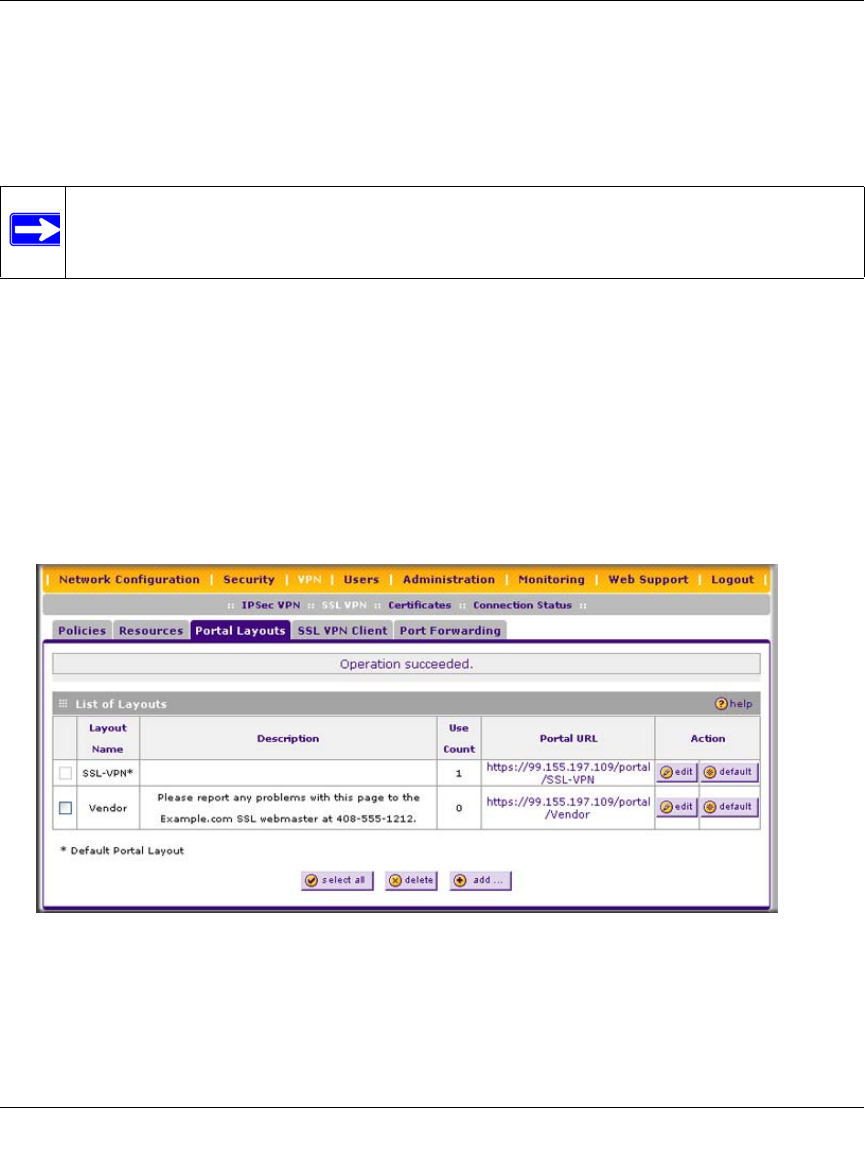
ProSafe Wireless-N VPN Firewall SRXN3205 Reference Manual
7-4 Virtual Private Networking Using SSL
v1.0, January 2010
Portal Layouts are applied by selecting from available portal layouts in the configuration of a
Domain. When you have completed your Portal Layout, you can apply the Portal Layout to one or
more authentication domains (see “Creating a Domain” on page 8-1 to apply a Portal Layout to a
Domain). You can also make the new portal the default portal for the SSL VPN gateway by
selecting the default radio button adjacent to the portal layout name.
The VPN firewall administrator may define individual layouts for the SSL VPN portal. The layout
configuration includes the menu layout, theme, portal screens to display, and web cache control
options. The default portal layout is the SSL-VPN portal. You can add additional portal layouts.
You can also make any portal the default portal for the SSL VPN firewall by clicking the default
button in the Action column of the List of Layouts table, to the right of the desired portal layout.
To create a new Portal Layout:
1. Select VPN > SSL VPN from the main/submenu.
2. Select the Portal Layouts tab. The Portal Layouts screen is displayed.
3. Click add. The Add Portal Layout screen is displayed (see Figure 7-2 on page 7-5).
Note: The default portal address is https://<IP_Address>/portal/SSL-VPN.
The domain geardomain is attached to the SSL-VPN portal.
Figure 7-1
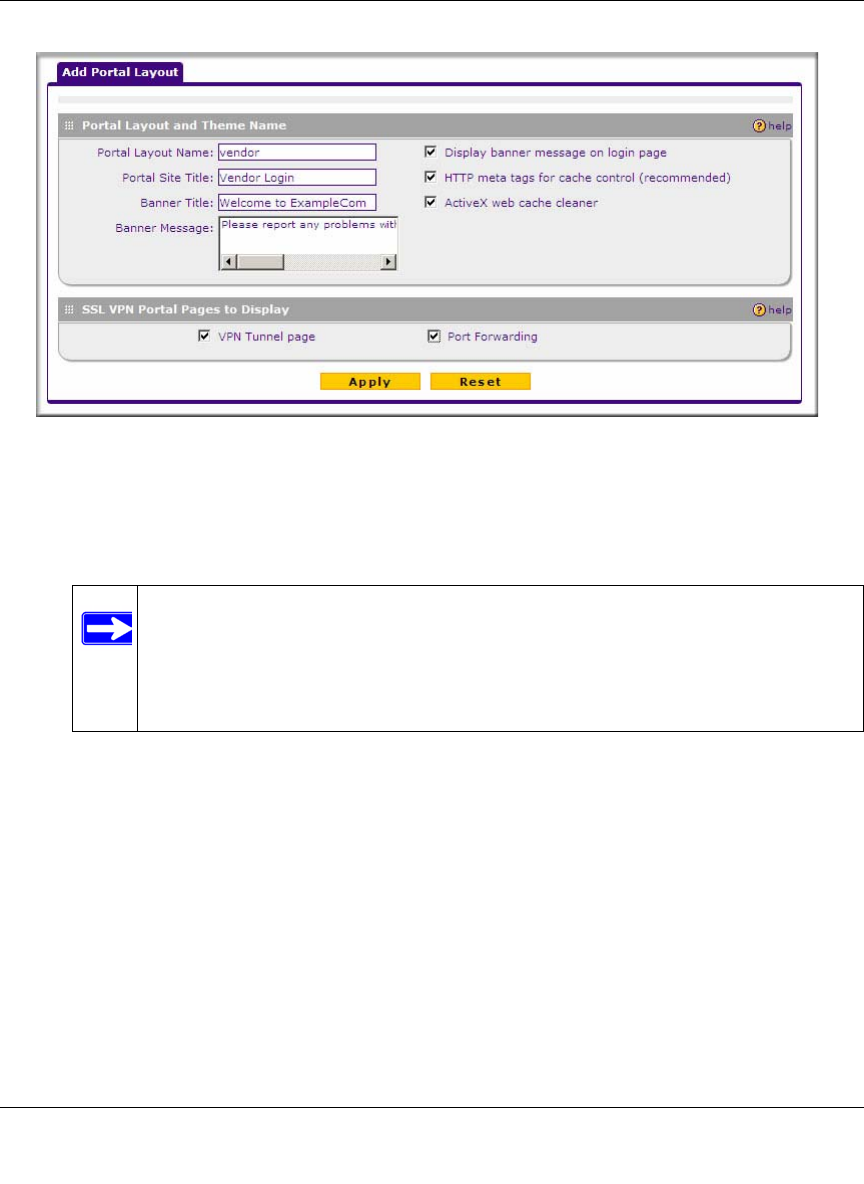
ProSafe Wireless-N VPN Firewall SRXN3205 Reference Manual
Virtual Private Networking Using SSL 7-5
v1.0, January 2010
4. In the Portal Layout and Theme Name section of the screen, configure the following entries:
a. Enter a descriptive name for the portal layout in the Portal Layout Name field. This name
will be part of the path of the SSL VPN portal URL.
Only alphanumeric characters, hyphen (-), and underscore (_) are accepted for the Portal
Layout Name. If you enter other types of characters or spaces, the layout name will be
truncated before the first non-alphanumeric character. Note that unlike most other URLs,
this name is case sensitive.
b. In the Portal Site Title field, enter a title that will appear at the top of the user’s web
browser window.
Figure 7-2
Note: Custom portals are accessed at a different URL than the default portal. For
example, if your SSL VPN portal is hosted at
https://vpn.company.com, and you created a portal layout named “sales”,
then users will be able to access the sub-site at
https://vpn.company.com/portal/sales.
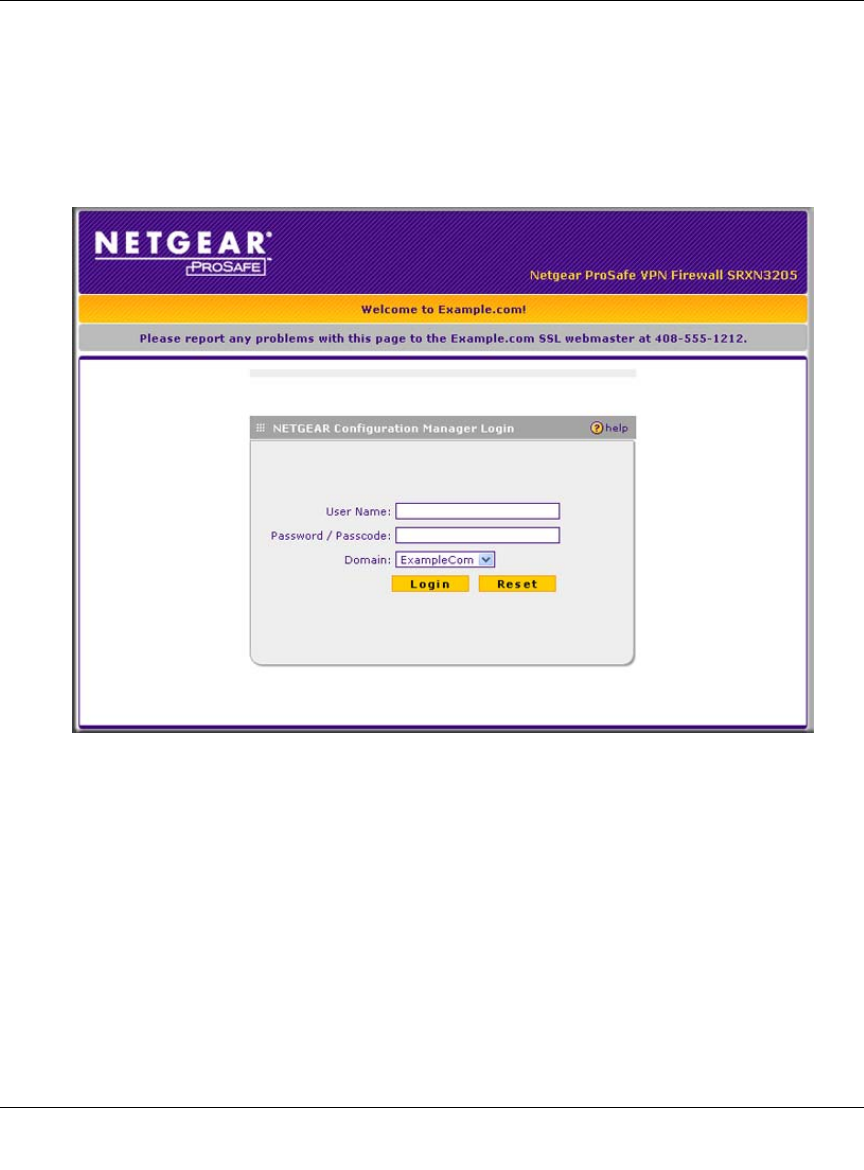
ProSafe Wireless-N VPN Firewall SRXN3205 Reference Manual
7-6 Virtual Private Networking Using SSL
v1.0, January 2010
c. To display a banner message to users before they log in to the portal, enter the banner title
text in the Banner Title field. Also enter the banner message text in the Banner Message
text area. Enter a plain text message or include HTML and JavaScript tags. The maximum
length of the login screen message is 4096 characters. Select the Display banner message
on login page checkbox to show the banner title and banner message text on the Login
screen as shown below.
As shown in the figure, the banner title text is displayed in the orange header bar. The
banner message text is displayed in the grey header bar.
d. Check the Enable HTTP meta tags for cache control checkbox to apply HTTP meta tag
cache control directives to this Portal Layout. Cache control directives include:
<meta http-equiv=”pragma” content=”no-cache”>
<meta http-equiv=”cache-control” content=”no-cache”>
<meta http-equiv=”cache-control” content=”must-revalidate”>
Figure 7-3
ProSafe Wireless-N VPN Firewall SRXN3205 Reference Manual
Virtual Private Networking Using SSL 7-7
v1.0, January 2010
These directives help prevent clients browsers from caching SSL VPN portal screens and
other web content.
e. Check the “ActiveX web cache cleaner checkbox to load an ActiveX cache control when
users log in to the SSL VPN portal.
The web cache cleaner will prompt the user to delete all temporary Internet files, cookies
and browser history when the user logs out or closes the web browser window. The
ActiveX web cache control will be ignored by web browsers that don't support ActiveX.
5. In the SSL VPN Portal Pages to Display section, check the checkboxes for the portal screens
you wish users to access. Any screens that are not selected will not be visible from the portal
navigation menu. Your choices are:
• VPN Tunnel. Provides full network connectivity.
• Port Forwarding. Provides access to specific defined network services.
6. Click Apply to confirm your settings.
The “Operation succeeded” message appears at the top of the screen. Your new layout appears
in the List of Layouts table.
Configuring Domains, Groups, and Users
Remote users connecting to the SSL VPN firewall must be authenticated before being allowed to
access the network. The login window presented to the user requires three items: a User Name, a
Password, and a Domain selection. The Domain determines the authentication method to be used
and the portal layout that will be presented.
You must create name and password accounts for your SSL VPN users. When you create a user
account, you must specify a group. Groups are used to simplify the application of access policies.
When you create a group, you must specify a domain. Therefore, you should create any needed
domains first, then groups, then user accounts.
To configure domains, groups, and users, see “Adding Authentication Domains, Groups, and
Users” on page 8-1.
Note: NETGEAR strongly recommends enabling HTTP meta tags for security
reasons and to prevent out-of-date Web pages, themes, and data being
stored in a user’s Web browser cache.
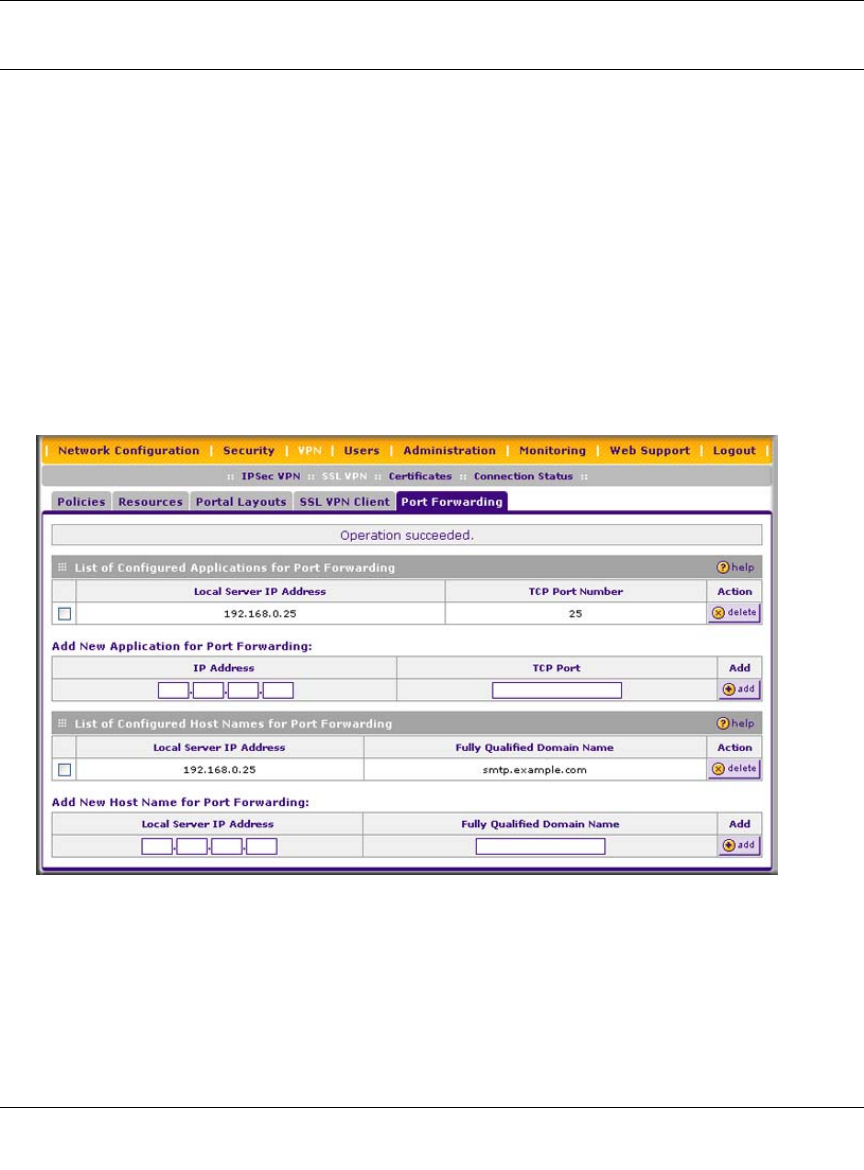
ProSafe Wireless-N VPN Firewall SRXN3205 Reference Manual
7-8 Virtual Private Networking Using SSL
v1.0, January 2010
Configuring Applications for Port Forwarding
Port Forwarding provides access to specific defined network services. To define these services,
you must specify the internal addresses and TCP applications (port numbers) that will be
intercepted by the Port Forwarding client on the user’s PC. The client will reroute this traffic to the
VPN firewall.
Adding Servers
To configure Port Forwarding, you must define the internal host machines (servers) and TCP
applications available to remote users. To add servers, follow these steps:
1. Select VPN > SSL VPN from the main/submenu.
2. Select the Port Forwarding tab. The Port Forwarding screen is displayed..
3. In the Add New Application for Port Forwarding section, enter the IP address of an internal
server or host computer.
Figure 7-4

ProSafe Wireless-N VPN Firewall SRXN3205 Reference Manual
Virtual Private Networking Using SSL 7-9
v1.0, January 2010
4. In the TCP Port field, enter the TCP port number of the application to be tunneled. The table
below lists many commonly used TCP applications and port numbers.
5. Click Add.
The “Operation succeeded” message appears at the top of the screen, and the new application
entry is listed in the List of Configured Applications table.
6. Repeat this process to add other applications for use in Port Forwarding.
Adding A New Host Name
Once the server IP address and port information has been configured, remote users will be able to
access the private network servers using port forwarding. As a convenience for users, you can also
specify host name to IP address resolution for the network servers. Host Name Resolution allows
users to access TCP applications at familiar addresses such as mail.example.com or
ftp.example.com rather than by IP addresses.
To add a host name for client name resolution:
1. Select VPN > SSL VPN from the main/submenu.
Table 7-1. Port Forwarding Applications/TCP Port Numbers
TCP Application Port Number
FTP Data (usually not needed) 20
FTP Control Protocol 21
SSH 22a
a. Users can specify the port number together with
the host name or IP address.
Telnet 23a
SMTP (send mail) 25
HTTP (web) 80
POP3 (receive mail) 110
NTP (network time protocol) 123
Citrix 1494
Terminal Services 3389
VNC (virtual network computing) 5900 or 5800

ProSafe Wireless-N VPN Firewall SRXN3205 Reference Manual
7-10 Virtual Private Networking Using SSL
v1.0, January 2010
2. Select the Port Forwarding tab. The Port Forwarding screen is displayed. (see Figure 7-4 on
page 7-8).
3. If the server that you want to name does not appear in the List of Configured Applications
for Port Forwarding table, you must add it before you can rename it.
4. In the Add New Host Name for Port Forwarding section, enter the IP address of the server
that you want to name.
5. In the Fully Qualified Domain Name field, enter the full server name.
6. Click Add.
The “Operation succeeded” message appears at the top of the screen, and the new entry is
listed in the List of Configured Host Names for Port Forwarding table.
Remote users can now securely access network applications once they have logged into the SSL
VPN portal and launched port forwarding.
Configuring the SSL VPN Client
The SSL VPN Client within the VPN firewall will assign IP addresses to remote VPN tunnel
clients. Because the VPN tunnel connection is a point-to-point connection, you can assign IP
addresses from the corporate subnet to the remote VPN tunnel clients.
Some additional considerations are:
• So that the virtual (PPP) interface address of a VPN tunnel client does not conflict with
addresses on the corporate network, configure an IP address range that does not directly
overlap with addresses on your local network. For example, if 192.168.1.1 through
192.168.1.100 are currently assigned to devices on your local network, then start the client
address range at 192.168.1.101 or choose an entirely different subnet altogether.
• The VPN tunnel client cannot contact a server on the corporate network if the VPN tunnel
client’s Ethernet interface shares the same IP address as the server or the VPN firewall (for
example, if your laptop has a network interface IP address of 10.0.0.45, then you will not be
able to contact a server on the remote network that also has the IP address 10.0.0.45).
• If you assign an entirely different subnet to the VPN tunnel clients than the subnet used by the
corporate network, you must
– Add a client route to configure the VPN tunnel client to connect to the corporate network
using the VPN tunnel.
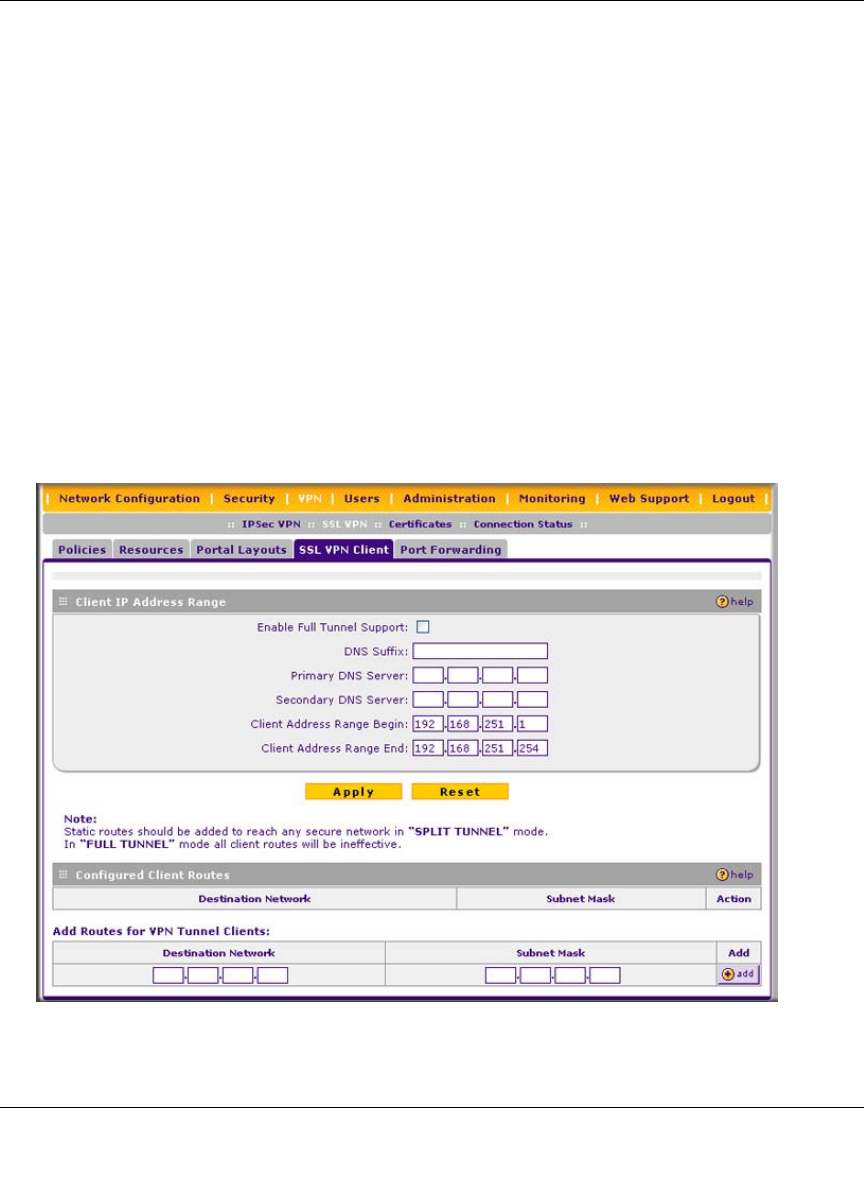
ProSafe Wireless-N VPN Firewall SRXN3205 Reference Manual
Virtual Private Networking Using SSL 7-11
v1.0, January 2010
– Create a static route on the corporate network’s firewall to forward local traffic intended
for the VPN tunnel clients to the VPN firewall.
• Select whether you want to enable full tunnel or split tunnel support based on your bandwidth:
– Full tunnel. Sends all of the client’s traffic across the VPN tunnel.
– Split tunnel. Sends only traffic destined for the corporate network based on the specified
client routes. All other traffic is sent to the Internet. Split tunnel allows you to manage
your company bandwidth by reserving the VPN tunnel for corporate traffic only.
Configuring the Client IP Address Range
Determine the address range to be assigned to VPN tunnel clients, then define the address range.
To configure the client IP address range:
1. Select VPN > SSL VPN from the main/submenu.
2. Select the SSL VPN Client tab. The SSL VPN Client screen is displayed.
Figure 7-5
ProSafe Wireless-N VPN Firewall SRXN3205 Reference Manual
7-12 Virtual Private Networking Using SSL
v1.0, January 2010
3. Select Enable Full Tunnel Support unless you want split tunneling.
4. (Optional) Enter a DNS Suffix to be appended to incomplete DNS search strings.
5. Enter Primary and Secondary DNS Server IP addresses to be assigned to the VPN tunnel
clients.
6. In the Client Address Range Begin field, enter the first IP address of the IP address range.
7. In the Client Address Range End field, enter the last IP address of the IP address range.
8. Click Apply.
The “Operation succeeded” message appears at the top of the screen.
VPN tunnel clients are now able to connect to the VPN firewall and receive a virtual IP address in
the client address range.
Adding Routes for VPN Tunnel Clients
The VPN Tunnel Clients assume that the following networks are located across the VPN over the
SSL tunnel:
• The subnet containing the client IP address (PPP interface), as determined by the class of the
address (Class A, B, or C).
• Subnets specified in the Configured Client Routes table.
If the assigned client IP address range is in a different subnet than the corporate network, or the
corporate network has multiple subnets, you must define Client Routes.
To add an SSL VPN Tunnel client route, follow these steps:
1. Select VPN > SSL VPN from the main/submenu.
2. Select the SSL VPN Client tab. The SSL VPN Client screen is displayed (see Figure 7-5 on
page 7-11).
Note: In split tunneling, appropriate client routes must be added to allow traffic to be
directed through the VPN tunnel. In full tunneling, all traffic is forwarded
through the tunnel, including Internet traffic; client routes are not required.
Note: VPN client routs need to be added in split tunnel mode only.
ProSafe Wireless-N VPN Firewall SRXN3205 Reference Manual
Virtual Private Networking Using SSL 7-13
v1.0, January 2010
3. In the Add Routes for VPN Tunnel Clients section, enter the destination network IP address
of a local area network or subnet. For example, enter 192.168.0.0.
4. Enter the appropriate Subnet Mask.
5. Click Add.
The “Operation succeeded” message appears at the top of the screen and the new client route
is listed in the Configured Client Routes table.
Restart the VPN firewall if VPN tunnel clients are currently connected. Restarting forces clients to
reconnect and receive new addresses and routes.
Replacing and Deleting Client Routes
If an existing route is no longer needed, or if the specifications of an existing route need to be
changed, follow these steps:
1. Make a new entry with the correct specifications. (This step is not applicable if you only want
to delete the route.)
2. In the Configured Client Routes table, click the delete button in the actions column.
Using Network Resource Objects to Simplify Policies
Network resources are groups of IP addresses, IP address ranges, and services. By defining
resource objects, you can more quickly create and configure network policies. You will not need to
redefine the same set of IP addresses or address ranges when configuring the same access policies
for multiple users.
Defining network resources is optional; smaller organizations can choose to create access policies
using individual IP addresses or IP networks rather than predefined network resources. But for
most organizations, we recommend that you use network resources. If your server or network
configuration changes, by using network resources you can perform an update quickly instead of
individually updating all of the user and group policies.
Adding New Network Resources
To define a network resource:
1. Select VPN > SSL VPN from the main/submenu.
2. Select the Resources tab. The Resources screen is displayed (see Figure 7-6 on page 7-14).
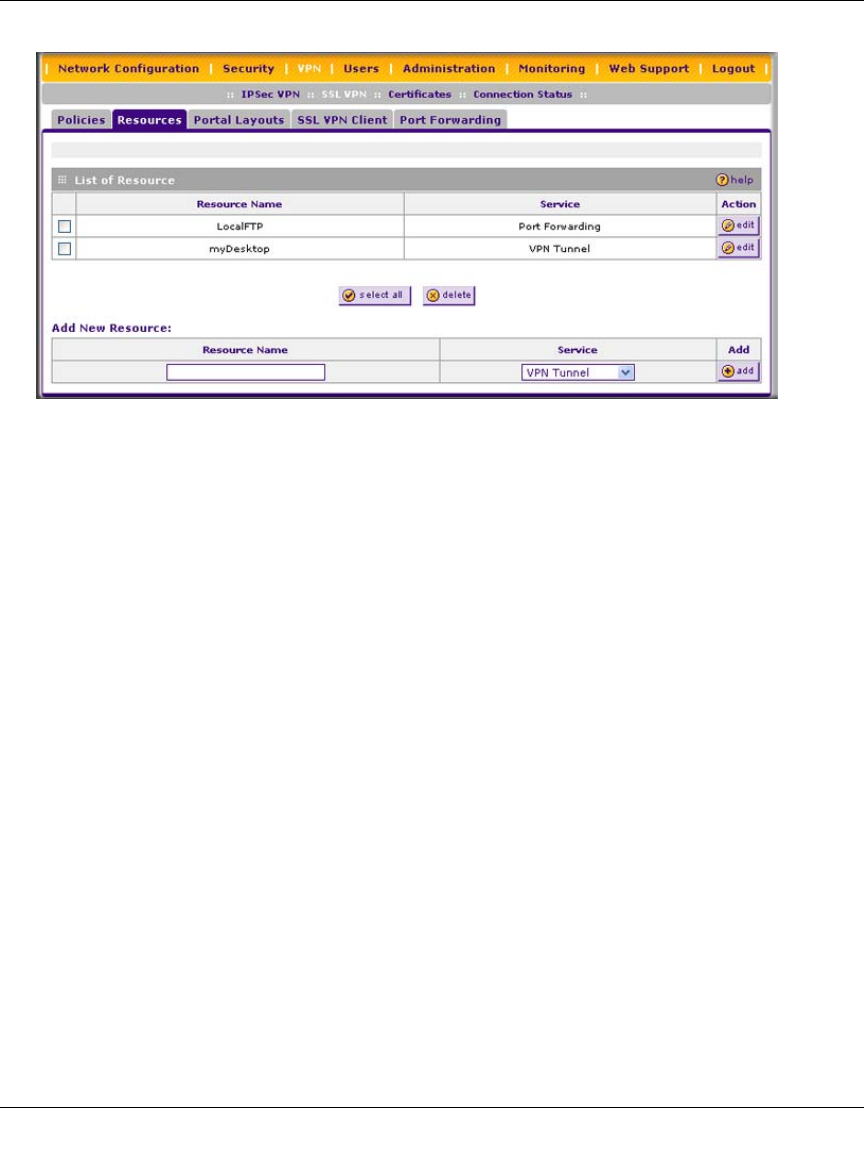
ProSafe Wireless-N VPN Firewall SRXN3205 Reference Manual
7-14 Virtual Private Networking Using SSL
v1.0, January 2010
3. In the Add New Resource section, type the (qualified) resource name in the Resource Name
field.
4. In the Service pull-down menu, select the type of service to apply to the resource: either VPN
Tunnel or Port Forwarding.
5. Click Add.
The “Operation succeeded” message appears at the top of the screen, and the newly-added
resource name appears on the List of Resources table.
6. Adjacent to the new resource, click the edit button. The Add Resource Addresses screen is
displayed (see Figure 7-7 on page 7-15).
Figure 7-6
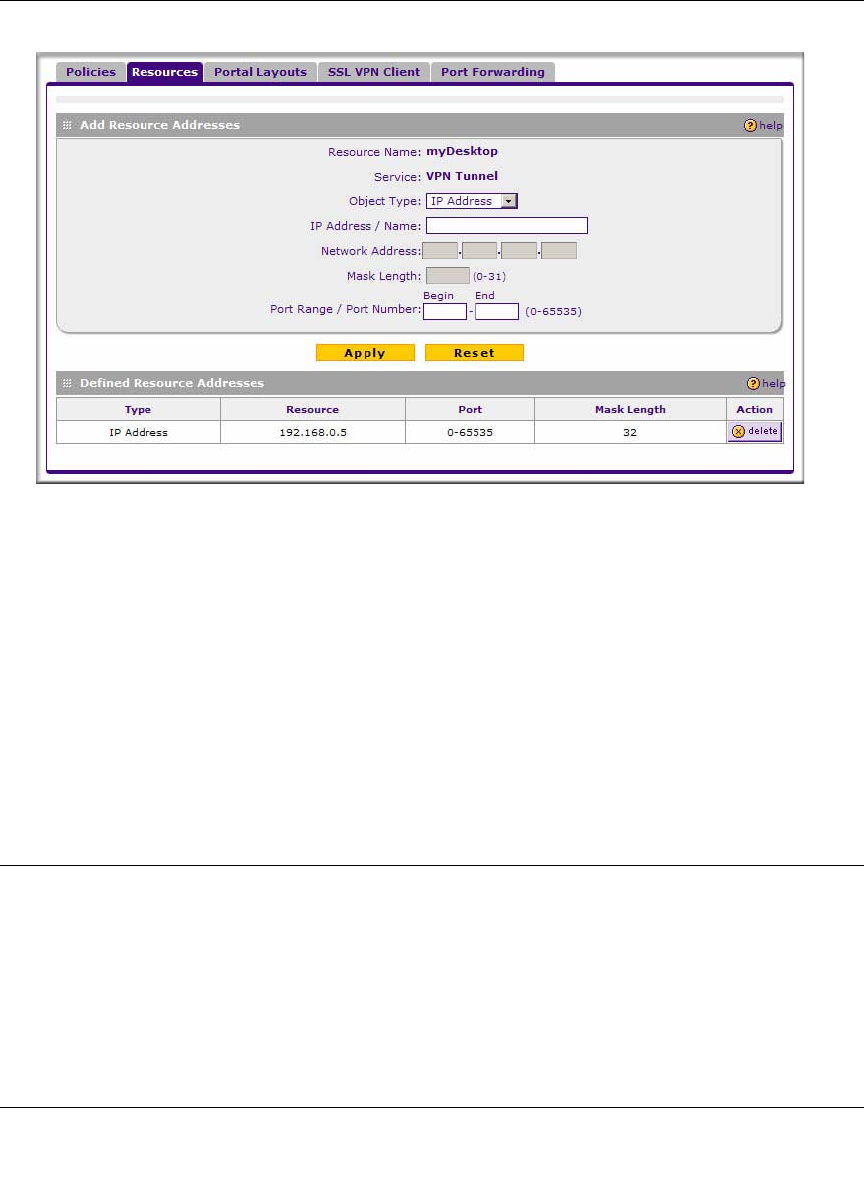
ProSafe Wireless-N VPN Firewall SRXN3205 Reference Manual
Virtual Private Networking Using SSL 7-15
v1.0, January 2010
7. From the Object Type pull-down menu, select one of the following:
•IP Address. Enter an IP address or fully qualified domain name in the IP Address/Name
field.
•IP Network. Enter the IP network address in the Network Address field. Enter the mask
length in the Mask Length (0-31) field.
8. Enter the Port Range or Port Number for the IP address or IP network you selected.
9. Click Apply to add the IP address or IP network to the resource. The new configuration
appears in the Defined Resource Addresses table, as shown in Figure 7-7.
Configuring User, Group, and Global Policies
An administrator can define and apply user, group and global policies to predefined network
resource objects, IP addresses, address ranges, or all IP addresses and to different SSL VPN
services. A specific hierarchy is invoked over which policies take precedence. The VPN firewall
policy hierarchy is defined as:
1. User Policies take precedence over all Group Policies.
2. Group Policies take precedence over all Global Policies.
Figure 7-7
ProSafe Wireless-N VPN Firewall SRXN3205 Reference Manual
7-16 Virtual Private Networking Using SSL
v1.0, January 2010
3. If two or more user, group, or global policies are configured, the most specific policy takes
precedence.
For example, a policy configured for a single IP address takes precedence over a policy configured
for a range of addresses. And a policy that applies to a range of IP addresses takes precedence over
a policy applied to all IP addresses. If two or more IP address ranges are configured, then the
smallest address range takes precedence. Hostnames are treated the same as individual IP
addresses.
Network resources are prioritized just like other address ranges. However, the prioritization is
based on the individual address or address range, not the entire network resource.
For example, let’s assume the following global policy configuration:
• Policy 1: A Deny rule has been configured to block all services to the IP address range
10.0.0.0 – 10.0.0.255.
• Policy 2: A Deny rule has been configured to block FTP access to 10.0.1.2 – 10.0.1.10.
• Policy 3: A Permit rule has been configured to allow FTP access to the predefined network
resource, FTP Servers. The FTP Servers network resource includes the following addresses:
10.0.0.5 – 10.0.0.20 and ftp.company.com, which resolves to 10.0.1.3.
Assuming that no conflicting user or group policies have been configured, if a user attempted to
access:
• An FTP server at 10.0.0.1, the user would be blocked by Policy 1.
• An FTP server at 10.0.1.5, the user would be blocked by Policy 2.
• An FTP server at 10.0.0.10, the user would be granted access by Policy 3. The IP address
range 10.0.0.5 - 10.0.0.20 is more specific than the IP address range defined in Policy 1.
• An FTP server at ftp.company.com, the user would be granted access by Policy 3. A single
host name is more specific than the IP address range configured in Policy 2.
Note: The user would not be able to access ftp.company.com using its IP address
10.0.1.3. The VPN firewall policy engine does not perform reverse DNS
lookups.
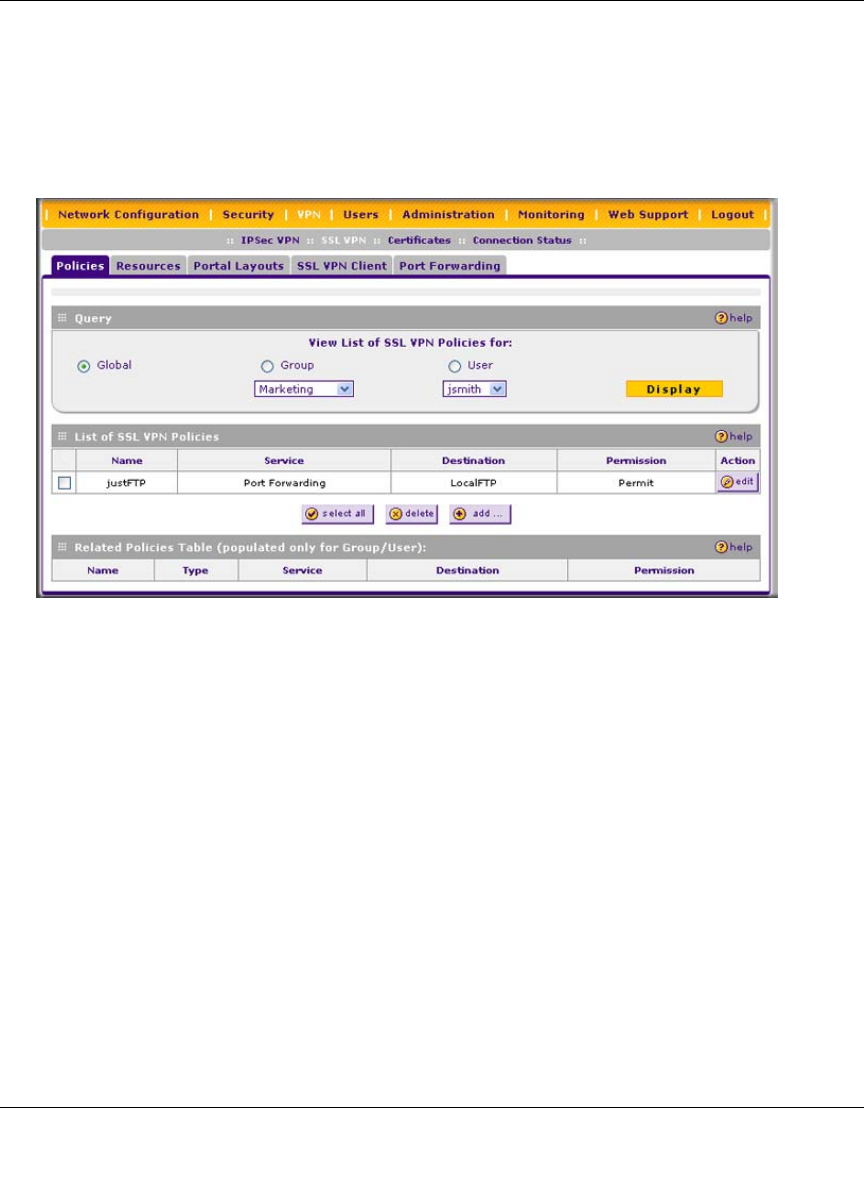
ProSafe Wireless-N VPN Firewall SRXN3205 Reference Manual
Virtual Private Networking Using SSL 7-17
v1.0, January 2010
Viewing Policies
To view the existing policies, follow these steps:
1. Select VPN > SSL VPN from the main/submenu.
2. Select the Policies tab. The Policies screen is displayed.
3. Make your selection from the following Query options:
• Click Global to view all global policies.
• Click Group to view group policies, and choose the relevant group’s name from the pull-
down menu.
• Click User to view group policies, and choose the relevant user’s name from the pull-
down menu.
4. Click the Display button. The List of SSL VPN Policies table will display the list for your
selected Query option. Change the Query selection and click Display again for each of the
three queries.
Figure 7-8
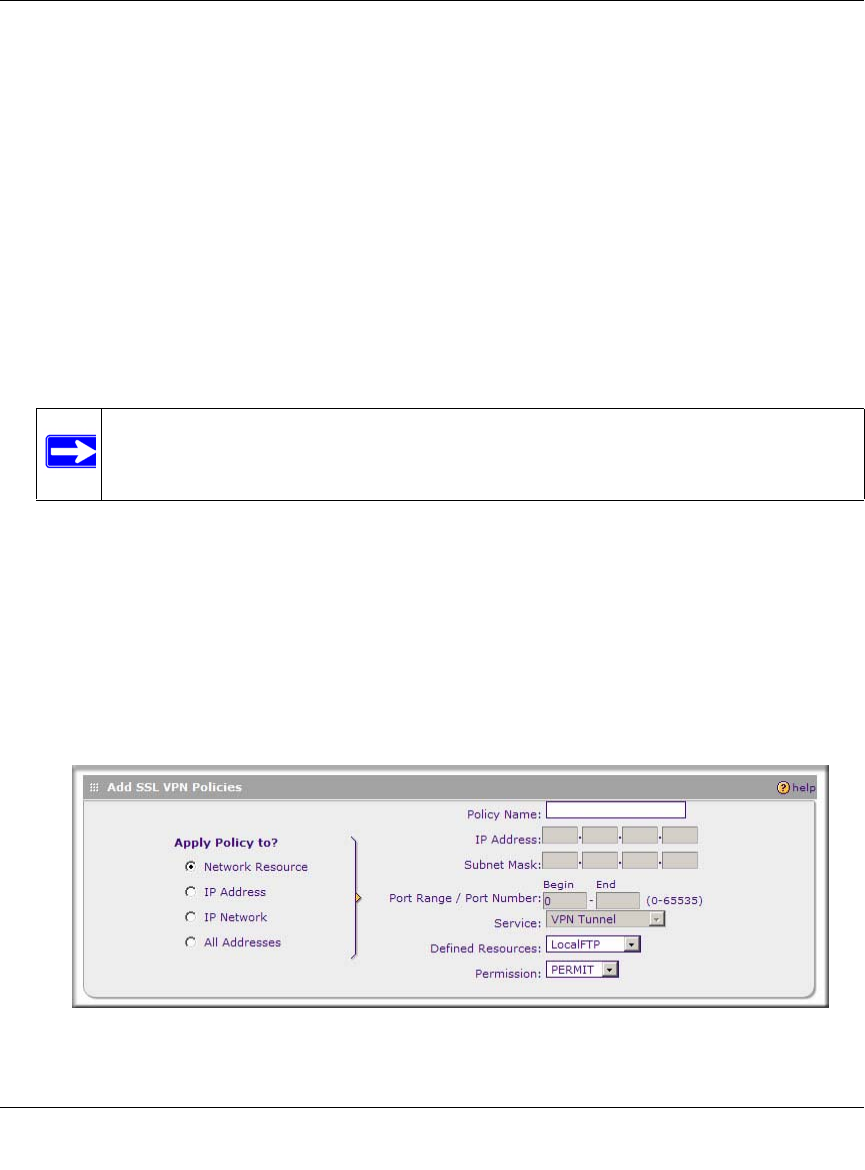
ProSafe Wireless-N VPN Firewall SRXN3205 Reference Manual
7-18 Virtual Private Networking Using SSL
v1.0, January 2010
Adding a Policy
To add a policy, follow these steps:
1. Select VPN > SSL VPN from the main/submenu.
2. Select the Policies tab. The Policies screen will be displayed (see Figure 7-8 on this page).
3. Make your selection from the following Query options:
• Click Global if this new policy is to exclude all users and groups.
• Click Group if this new policy is to be limited to a selected group.
Open the pull-down menu and choose the relevant group’s name.
• Click User if this new policy is to be limited to a selected user.
Open the pull-down menu and choose the individual user’s name.
4. Click Add. The Add Policies screen appears.
5. In the Add SSL VPN Policies section, review the Apply Policy To options and click one.
Depending upon your selection, specific options to the right are activated or inactivated as
noted in the following:
• If you choose Network Resource, enter a descriptive policy name in the Policy Name
field, and then select a Defined Resource and a relevant Permission (PERMIT or DENY)
from the pull-down menus.
Note: You should have already created the needed groups or users as described in
“Adding Authentication Domains, Groups, and Users” on page 8-1.
Figure 7-9
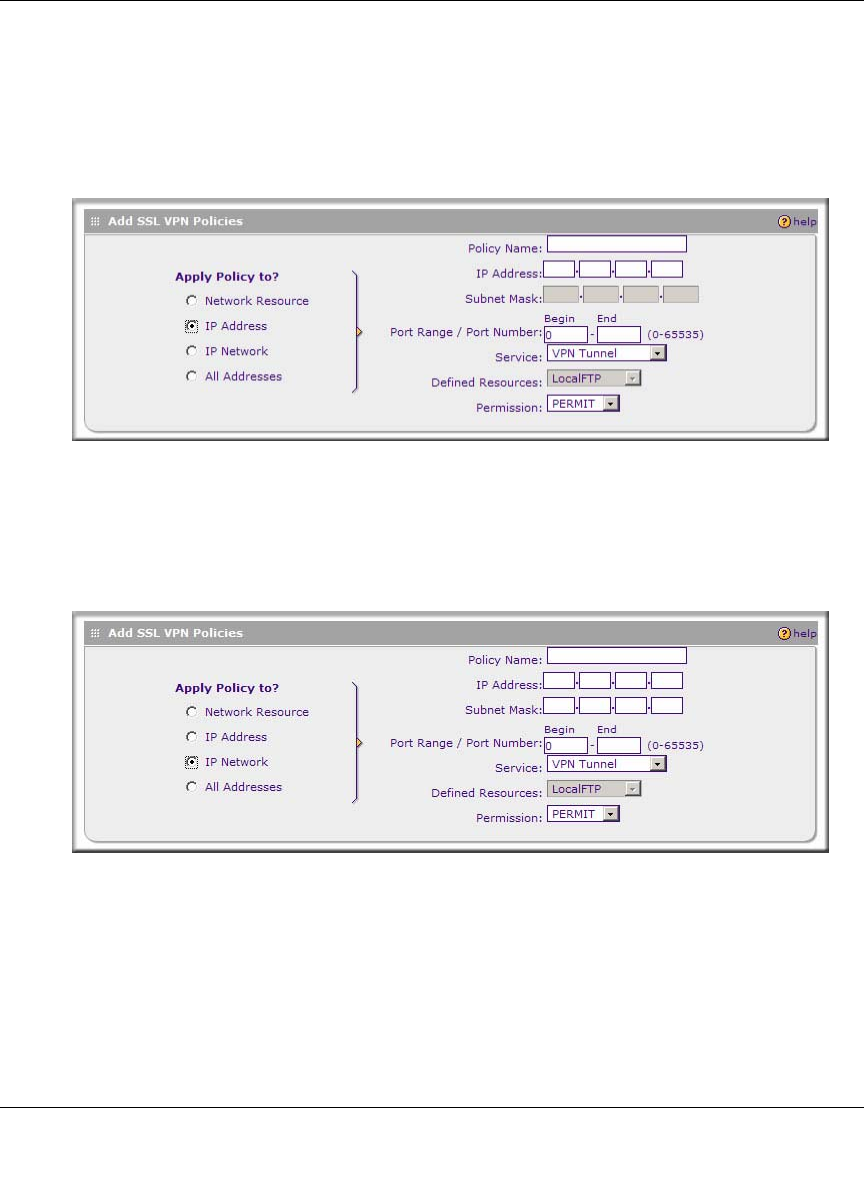
ProSafe Wireless-N VPN Firewall SRXN3205 Reference Manual
Virtual Private Networking Using SSL 7-19
v1.0, January 2010
If a needed network resource has not been defined, you can add it before proceeding with
this new policy. See “Adding New Network Resources ” on page 7-13.
• If you choose IP Address, enter a descriptive policy name in the Policy Name field, enter
the specific IP Address, then choose the Service and relevant Permission from the pull-
down menus.
• If you choose IP Network, enter a descriptive policy name in the Policy Name field, enter
an IP Address and Subnet Mask, then choose the Service and relevant Permission from
the pull-down menus.
Figure 7-10
Figure 7-11
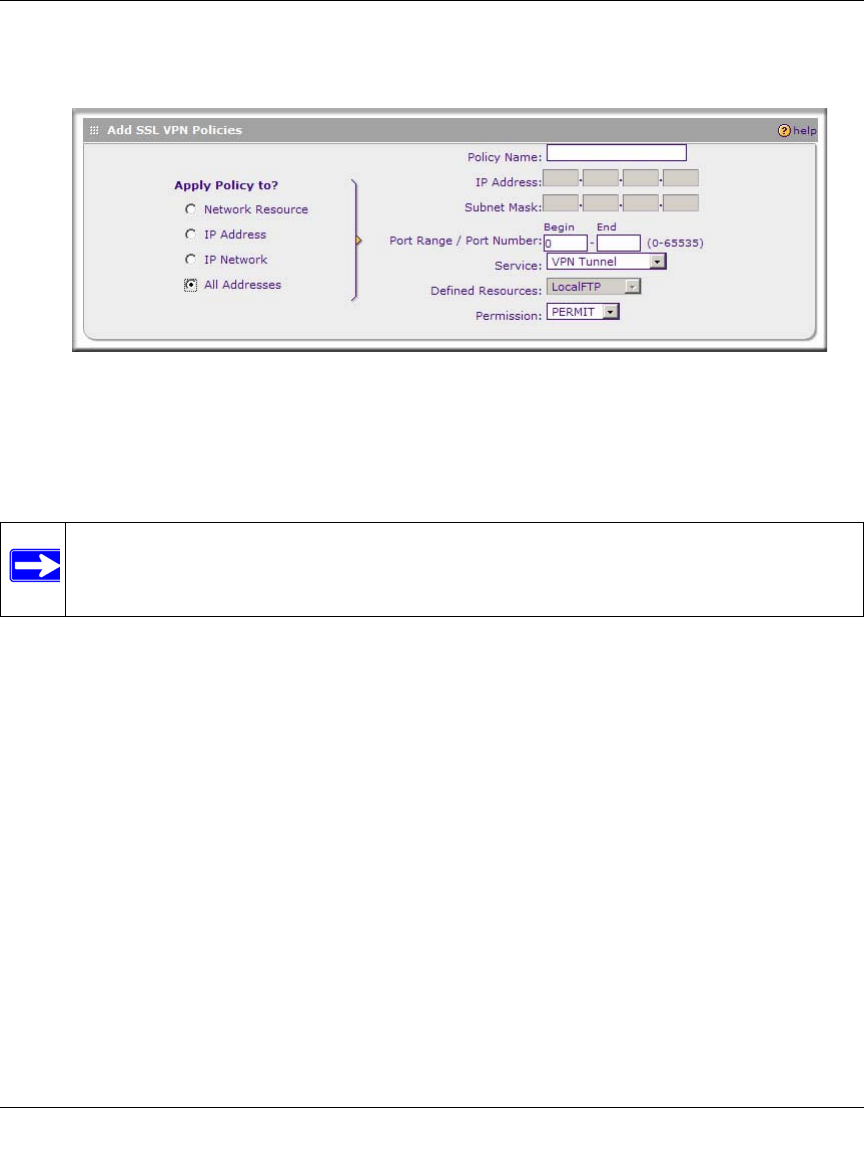
ProSafe Wireless-N VPN Firewall SRXN3205 Reference Manual
7-20 Virtual Private Networking Using SSL
v1.0, January 2010
• If you choose All Addresses, enter a descriptive policy name in the Policy Name field,
then choose the Service and relevant Permission from the pull-down menus.
6. When you are finished making your selections, click Apply. The Policies screen reappears.
The new policy goes into effect immediately and is added to the policies in the List of SSL
VPN Policies table on this screen.
Figure 7-12
Note: In addition to configuring SSL VPN user policies, be sure that HTTPS remote
management is enabled. Otherwise, all SSL VPN user connections will be
disabled. See “Enabling Remote Management Access” on page 9-9.
ProSafe Wireless-N VPN Firewall SRXN3205 Reference Manual
Managing Users, Authentication, and Certificates 8-1
v1.0, January 2010
Chapter 8
Managing Users, Authentication, and Certificates
This chapter contains the following sections:
•“Adding Authentication Domains, Groups, and Users” on this page
•“Managing Certificates” on page 8-11
Adding Authentication Domains, Groups, and Users
You must create name and password accounts for all users who will connect to the VPN firewall.
This includes administrators and SSL VPN clients. Accounts for IPsec VPN clients are only
needed if you have enabled Extended Authentication (XAUTH) in your IPsec VPN configuration.
Users connecting to the VPN firewall must be authenticated before being allowed to access the
VPN firewall or the VPN-protected network. The login window presented to the user requires
three items: a User Name, a Password, and a Domain selection. The Domain determines the
authentication method to be used and, for SSL VPN connections, the portal layout that will be
presented.
Except in the case of IPsec VPN users, when you create a user account, you must specify a group.
When you create a group, you must specify a domain. Therefore, you should create any needed
domains first, then groups, then user accounts.
Creating a Domain
The domain determines the authentication method to be used for associated users. For SSL VPN
connections, the domain also determines the portal layout that will be presented, which in turn
determines the network resources to which the associated users will have access. The default
domain of the VPN firewall is named geardomain. You cannot delete the default domain.
Note: IPsec VPN users will always belong to the default domain (geardomain) and are
not assigned to groups.

ProSafe Wireless-N VPN Firewall SRXN3205 Reference Manual
8-2 Managing Users, Authentication, and Certificates
v1.0, January 2010
Table 8-1 summarizes the authentication protocols and methods that the VPN firewall supports.
Table 8-1.Authentication Protocols and Methods
Authentication
Protocol or Method Description (or Subfield and Description)
PAP Password Authentication Protocol (PAP) is a simple protocol in which the client sends
a password in clear text.
CHAP Challenge Handshake Authentication Protocol (CHAP) executes a three-way hand-
shake in which the client and server trade challenge messages, each responding with
a hash of the other’s challenge message that is calculated using a shared secret
value.
RADIUS A network-validated PAP or CHAP password-based authentication method that func-
tions with Remote Authentication Dial In User Service (RADIUS).
MIAS A network-validated PAP or CHAP password-based authentication method that func-
tions with Microsoft Internet Authentication Service (MIAS), which is a component of
Microsoft Windows 2003 Server.
WiKID WiKID Systems is a PAP or CHAP key-based two-factor authentication method that
functions with public key cryptography. The client sends an encrypted PIN to the
WiKID server and receives a one-time pass code with a short expiration period. The
client logs in with the pass code. See Appendix B, “Two Factor Authentication” for
more on WiKID authentication.
NT Domain A network-validated domain-based authentication method that functions with a Micro-
soft Windows NT Domain authentication server. This authentication method has been
superseded by Microsoft Active Directory authentication but is supported to authenti-
cate legacy Windows clients.
Active Directory A network-validated domain-based authentication method that functions with a Micro-
soft Active Directory authentication server. Microsoft Active Directory authentication
servers support a group and user structure. Because the Active Directory supports a
multilevel hierarchy (for example, groups or organizational units), this information can
be queried to provide specific group policies or bookmarks based on Active Directory
attributes.
Note: A Microsoft Active Directory database uses an LDAP organization schema.
LDAP A network-validated domain-based authentication method that functions with a Light-
weight Directory Access Protocol (LDAP) authentication server. LDAP is a standard
for querying and updating a directory. Because LDAP supports a multilevel hierarchy
(for example, groups or organizational units), this information can be queried to pro-
vide specific group policies or bookmarks based on LDAP attributes.
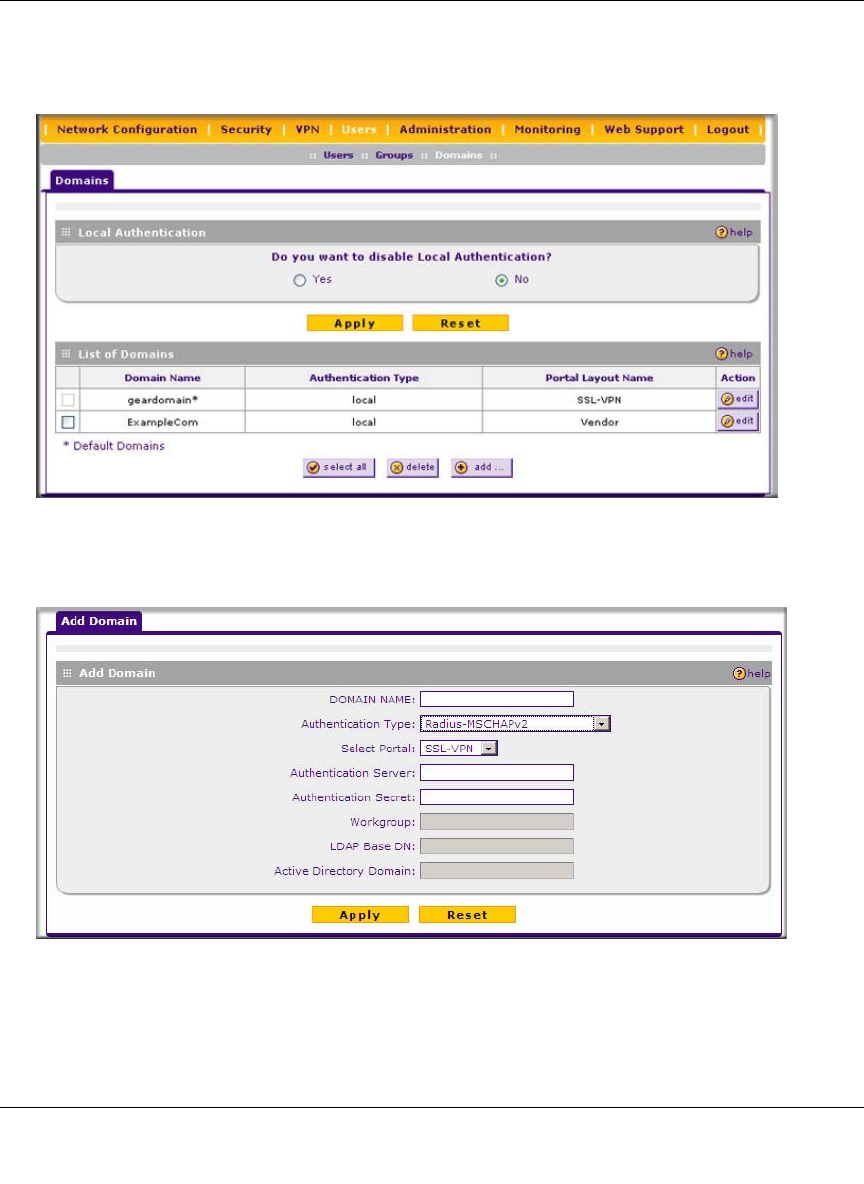
ProSafe Wireless-N VPN Firewall SRXN3205 Reference Manual
Managing Users, Authentication, and Certificates 8-3
v1.0, January 2010
To create a domain:
1. Select Users > Domains from the main/submenu. The Domains screen is displayed.
2. Click add. The Add Domain screen is displayed.
3. Configure the following fields:
a. Enter a descriptive name for the domain in the Domain Name field.
Figure 8-1
Figure 8-2
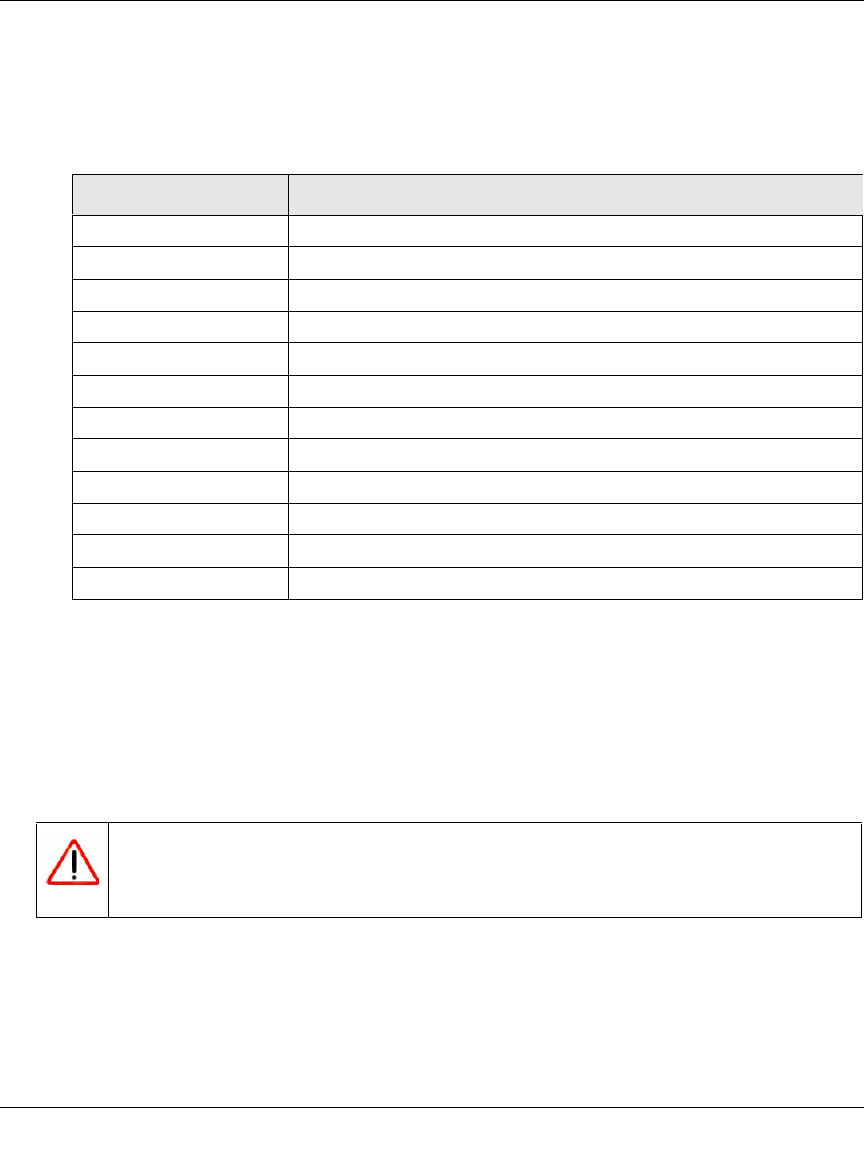
ProSafe Wireless-N VPN Firewall SRXN3205 Reference Manual
8-4 Managing Users, Authentication, and Certificates
v1.0, January 2010
b. Select the Authentication Type.
The required fields are activated in varying combinations according to your selection of
Authentication Type:
c. From the Select Portal pull-down menu, select a portal with which this domain will be
associated.
4. Click Apply to save and apply your entries. The Domain screen will display a new domain
row.
5. If you use local authentication, make sure that it is not disabled: select the Yes radio button in
the Local Authentication section of the Domain screen (see Figure 8-1 on page 8-3).
6. If you change local authentication, click Apply in the Domain screen to save your settings.
Table 8-2.
Authentication Type Required Authentication Information Fields
Local User Database None
Radius-PAP Authentication Server, Authentication Secret
Radius-CHAP Authentication Server, Authentication Secret
Radius-MSCHAP Authentication Server, Authentication Secret
Radius-MSCHAPv2 Authentication Server, Authentication Secret
WIKID-PAP Authentication Server, Authentication Secret
WIKID-CHAP Authentication Server, Authentication Secret
MIAS-PAP Authentication Server, Authentication Secret
MIAS-CHAP Authentication Server, Authentication Secret
NT Domain Authentication Server, Workgroup
Active Directory Authentication Server, Active Directory Domain
LDAP Authentication Server, LDAP Base DN
Warning: If you disable local authentication, make sure that there is at least one
external administrative user otherwise access to the VPN firewall is
blocked.
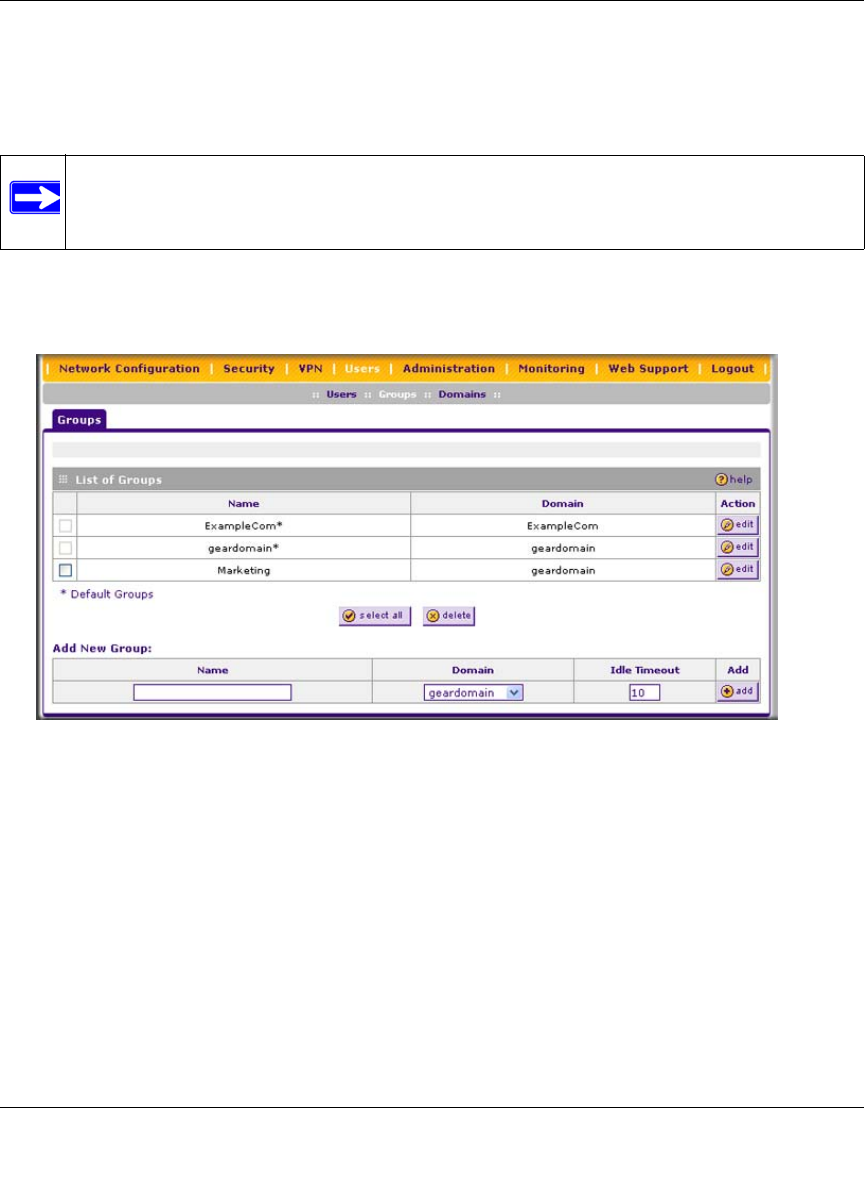
ProSafe Wireless-N VPN Firewall SRXN3205 Reference Manual
Managing Users, Authentication, and Certificates 8-5
v1.0, January 2010
Creating a Group
The use of groups simplifies the configuration of VPN policies when different sets of users will
have different restrictions and access controls.
To create a group:
1. Select Users > Groups from the main/submenu. The Groups screen is displayed.
2. Configure the new group settings in the Add New Group section of the screen:
a. Name. Enter a descriptive name for the group.
b. Domain. Select the appropriate domain (only for Administrator or SSL VPN User).
c. Timeout. For an Administrator, this is the period at which an idle user will be
automatically logged out of the Web Configuration Manager
3. Click add.
The new group appears in the List of Groups table, ready for use in user account setup.
Note: Groups that are defined on the User screen are used for setting SSL VPN policies.
These groups should not be confused with LAN groups that are defined on the
LAN Groups screen, which are used to simplify firewall policies.
Figure 8-3
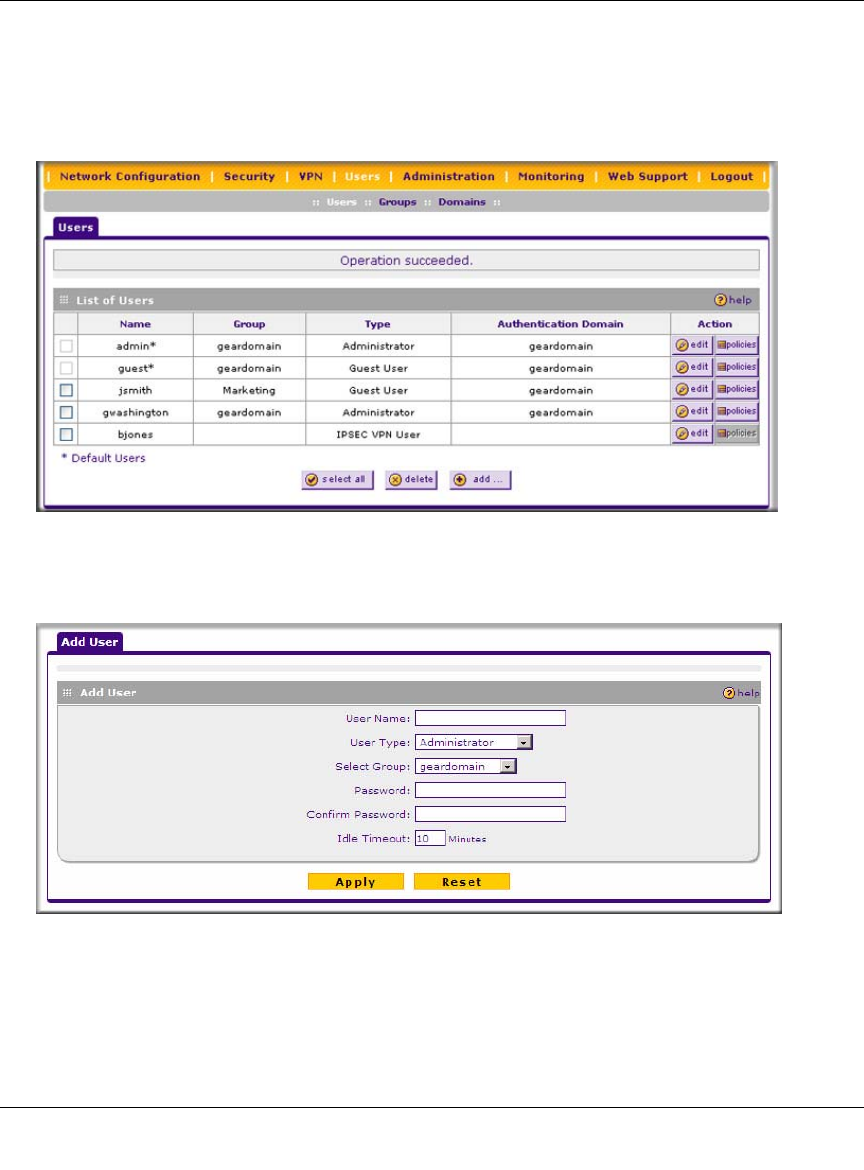
ProSafe Wireless-N VPN Firewall SRXN3205 Reference Manual
8-6 Managing Users, Authentication, and Certificates
v1.0, January 2010
Creating a New User Account
To add individual user accounts:
1. Select Users > Users from the main/submenu. The Users screen is displayed..
2. Click add. The Add User screen is displayed.
3. Configure the following fields:
a. User Name. Enter a unique identifier, using any alphanumeric characters.
b. User Type. Select either Administrator, SSL VPN User, or IPsec VPN User.
Figure 8-4
Figure 8-5
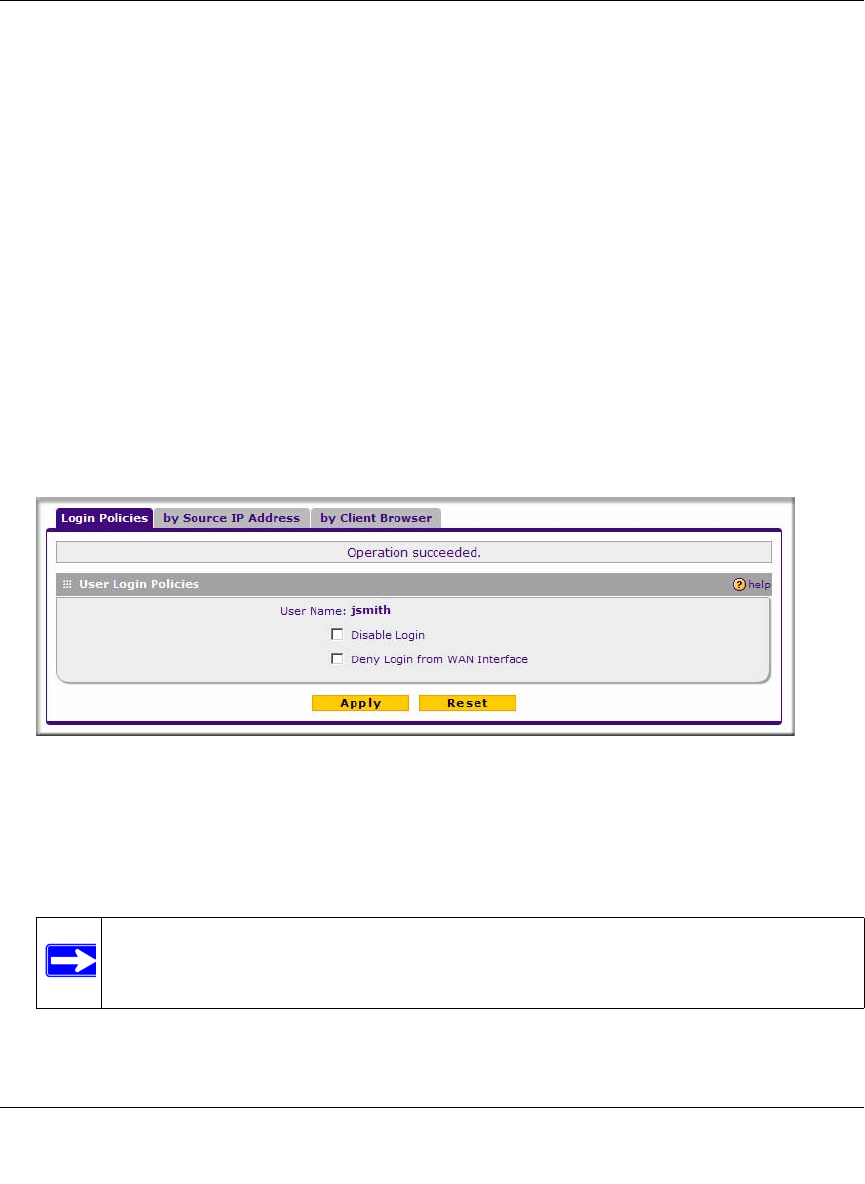
ProSafe Wireless-N VPN Firewall SRXN3205 Reference Manual
Managing Users, Authentication, and Certificates 8-7
v1.0, January 2010
c. Select Group. Select from a list of configured groups. The user will be associated with the
domain that is associated with that group.
d. Password/Confirm Password. The password can contain alphanumeric characters, dash,
and underscore.
e. Idle Timeout. For an Administrator, this is the period at which an idle user will be
automatically logged out of the Web Configuration Manager.
4. Click Apply to save and apply your entries. The new user appears in the List of Users table.
Setting User Login Policies
You can restrict the ability of defined users to log into the Web Configuration Manager. You can
also require or prohibit logging in from certain IP addresses or using particular browsers.
To configure user login policies:
1. In the Action column of the List of Users table, click policies adjacent to the user policy you
want to configure. The Login Policies screen is displayed.
2. To prohibit this user from logging in to the VPN firewall, select the Disable Login checkbox.
3. To prohibit this user from logging in from the WAN interface, select the Deny Login from
WAN Interface checkbox. In this case, the user can log in only from the LAN interface.
4. Click Apply to save your settings.
Figure 8-6
Note: For security reasons, Deny Login from WAN Interface is checked by default
for admin and guest.
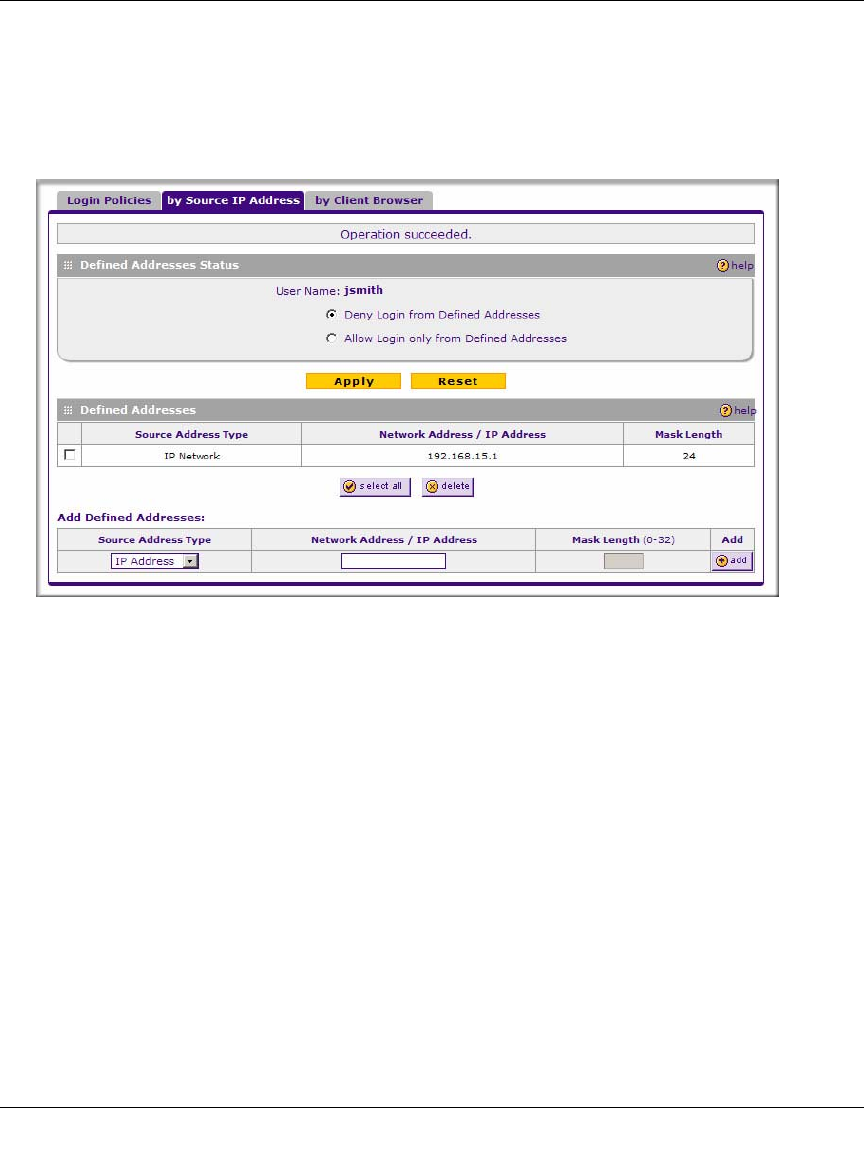
ProSafe Wireless-N VPN Firewall SRXN3205 Reference Manual
8-8 Managing Users, Authentication, and Certificates
v1.0, January 2010
To restrict logging in based on IP address:
1. In the Action column of the List of Users table, click Policies adjacent to the user policy you
want to configure. The Login Policies screen is displayed.
2. Select the by Source IP Address tab. The by Source IP Address screen is displayed.
3. In the Defined Addresses Status section, select:
•the Deny Login from Defined Addresses to deny logging in from the IP addresses that
you will specify
•the Allow Login only from Defined Addresses to allow logging in from the IP addresses
that you will specify.
4. Click Apply.
5. To specify a single IP address, select IP Address from the Source Address Type pull-down
menu and enter the IP address in the Network Address/IP address field.
6. To specify a subnet of IP addresses, select IP Network from the Source Address Type pull-
down menu. Enter the network address and netmask length in the Network Address/IP
address field.
7. Click add to move the defined address to the Defined Addresses table.
8. Repeat these steps to add additional addresses or subnets.
Figure 8-7
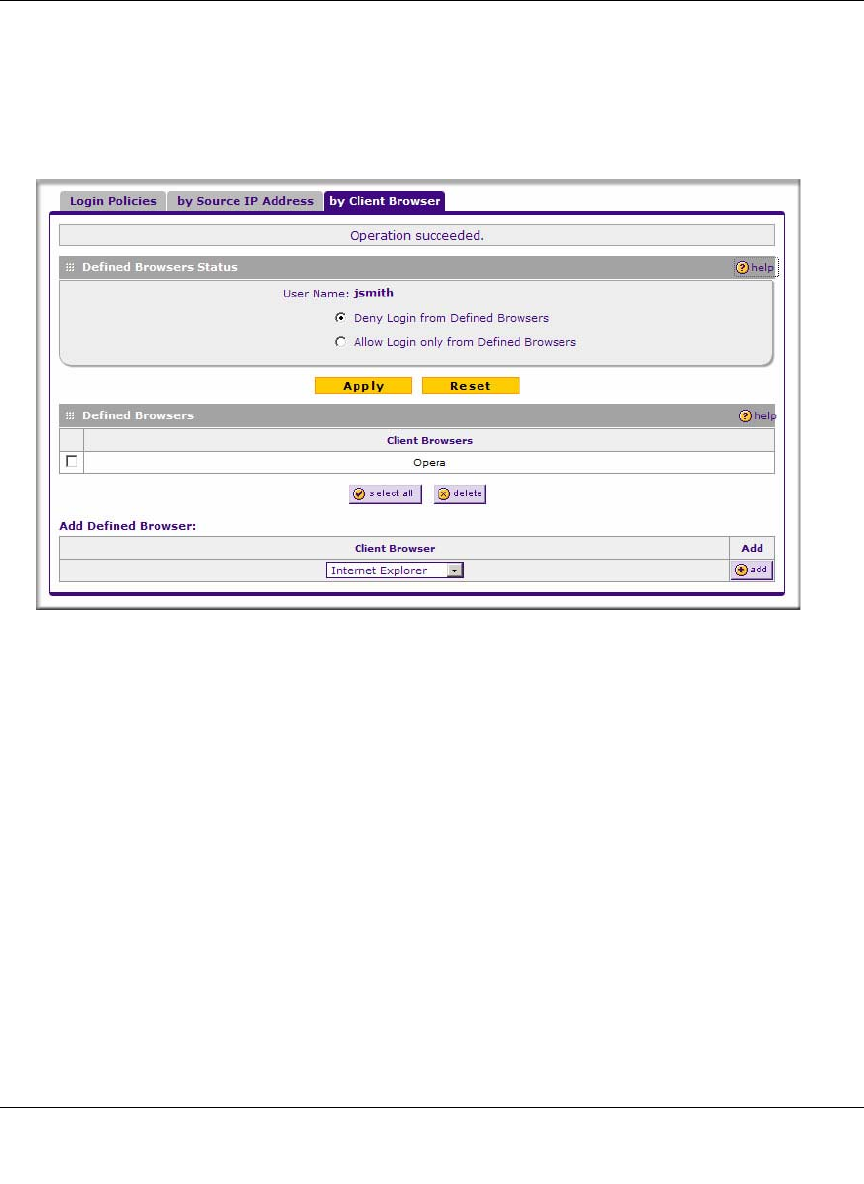
ProSafe Wireless-N VPN Firewall SRXN3205 Reference Manual
Managing Users, Authentication, and Certificates 8-9
v1.0, January 2010
To restrict logging in based on the user’s browser:
1. In the Action column of the List of Users table, click Policies adjacent to the user policy you
want to configure. The Login Policies screen is displayed.
1. Select the by Client Browser tab. The by Client Browser screen is displayed.
2. In the Defined Browsers Status section, select:
•the Deny Login from Defined Browsers to deny logging in from browsers that you will
specify.
•the Allow Login only from Defined Browsers to allow logging in from browsers that you
will specify.
3. From the Add Defined Browser selection, select a browser from the Client Browser pull-
down menu and click add to move the defined browser to the Defined Browsers table.
4. Repeat these steps to add additional browsers, then click Apply to save your changes.
Changing Passwords and Other User Settings
For any user, you can change the password, user type, and idle timeout settings. Only
administrators have read/write access. All other users have read-only access. The default
passwords for the VPN firewall’s Web Configuration Manager is password.
Figure 8-8
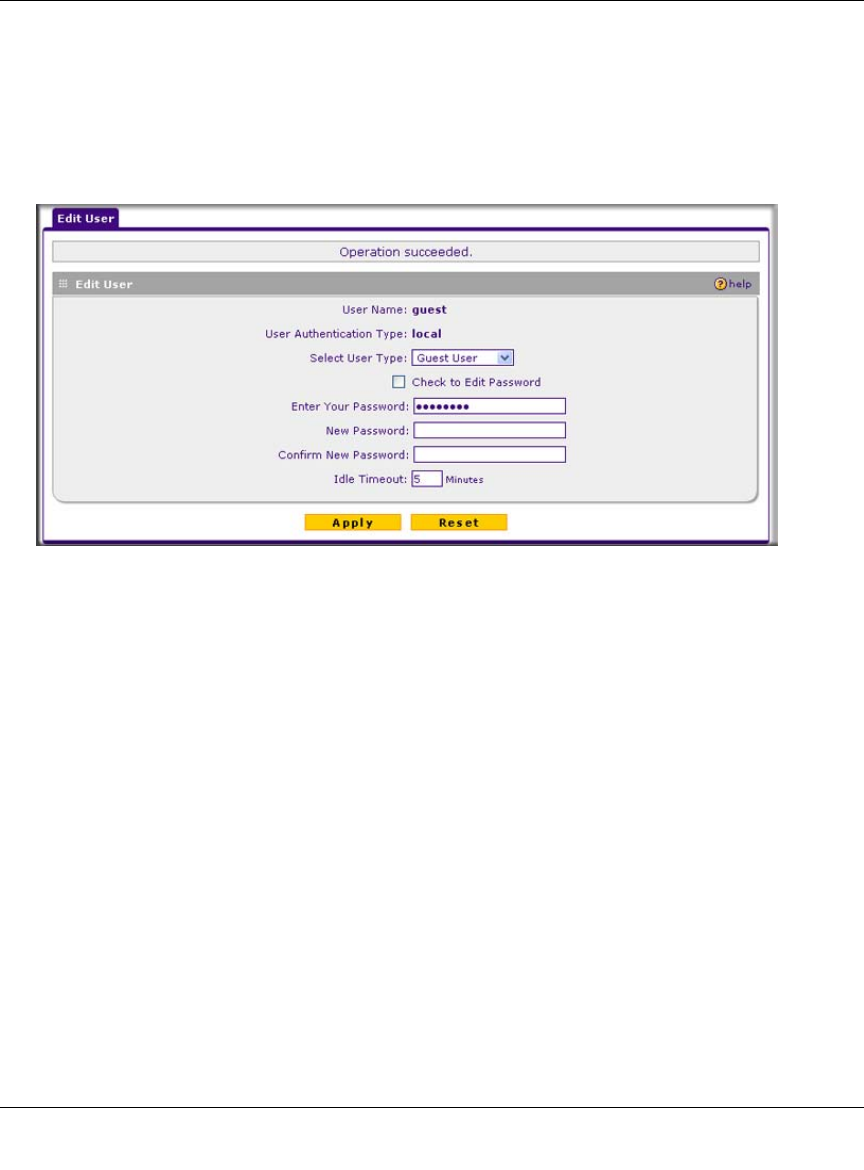
ProSafe Wireless-N VPN Firewall SRXN3205 Reference Manual
8-10 Managing Users, Authentication, and Certificates
v1.0, January 2010
To modify user settings, including administrative user settings:
1. Select Users > Users from the main/submenu. The Users screen is displayed (see Figure 8-4
on page 8-6).
2. In the Action column of the List of Users table, click edit for the user for which you want to
modify the settings. The Edit User screen is displayed.
3. Configure the following fields:
a. Select User Type. From the pull-down menu, select one of the pre-defined user types that
determines the access credentials:
•Administrator. User who has full access and the capacity to change the VPN
firewall’s configuration (that is, read/write access).
•SSL VPN User. User who can only log in to the SSL VPN portal.
•IPSEC VPN User. User who can only make an IPsec VPN connection via a
NETGEAR ProSafe VPN Client, and only when the XAUTH feature is enabled (see
“Configuring Extended Authentication (XAUTH)” on page 6-33”).
•Guest User. User who can only view the VPN firewall’s configuration (that is,
read-only access).
b. Check to Edit Password. Select this checkbox to make the password fields accessible to
modify the password. Change the password by first entering the old password, and then
entering the new password twice.
Figure 8-9
ProSafe Wireless-N VPN Firewall SRXN3205 Reference Manual
Managing Users, Authentication, and Certificates 8-11
v1.0, January 2010
c. Idle Timeout. Change the idle logout time to the number of minutes you require. The
default is 5 minutes.
4. Click Apply to save your settings or Cancel to return to your previous settings.
Managing Certificates
The VPN firewall uses Digital Certificates (also known as X509 Certificates) during the Internet
Key Exchange (IKE) authentication phase to authenticate connecting VPN gateways or clients, or
to be authenticated by remote entities. The same Digital Certificates are extended for secure web
access connections over HTTPS.
Digital Certificates can be either self signed or can be issued by Certification Authorities (CA)
such as via an in-house Windows server, or by an external organization such as Verisign or
Thawte.
However, if the Digital Certificates contain the extKeyUsage extension then the certificate must be
used for one of the purposes defined by the extension. For example, if the Digital Certificate
contains the extKeyUsage extension defined to SNMPV2 then the same certificate cannot be used
for secure web management.
The extKeyUsage would govern the certificate acceptance criteria in the VPN firewall when the
same digital certificate is being used for secure web management.
In the VPN firewall, the uploaded digital certificate is checked for validity and also the purpose of
the certificate is verified. Upon passing the validity test and the purpose matches its use (has to be
SSL and VPN) the digital certificate is accepted. The additional check for the purpose of the
uploaded digital certificate must correspond to use for VPN and secure web remote management
via HTTPS. If the purpose defined is for VPN and HTTPS then the certificate is uploaded to the
HTTPS certificate repository and as well in the VPN certificate repository. If the purpose defined
is only for VPN then the certificate is only uploaded to the VPN certificate repository. Thus,
certificates used by HTTPS and IPSec will be different if their purpose is not defined to be VPN
and HTTPS.
Note: The password and time-out value you enter will be changed back to password
and 10 minutes, respectively, after a factory defaults reset.

ProSafe Wireless-N VPN Firewall SRXN3205 Reference Manual
8-12 Managing Users, Authentication, and Certificates
v1.0, January 2010
The VPN firewall uses digital certificates to authenticate connecting VPN gateways or clients, and
to be authenticated by remote entities. A certificate that authenticates a server, for example, is a
file that contains:
• A public encryption key to be used by clients for encrypting messages to the server.
• Information identifying the operator of the server.
• A digital signature confirming the identity of the operator of the server. Ideally, the signature is
from a trusted third party whose identity can be verified absolutely.
You can obtain a certificate from a well-known commercial Certificate Authority (CA) such as
Verisign or Thawte, or you can generate and sign your own certificate. Because a commercial CA
takes steps to verify the identity of an applicant, a certificate from a commercial CA provides a
strong assurance of the server’s identity. A self-signed certificate will trigger a warning from most
browsers as it provides no protection against identity theft of the server.
Your VPN firewall contains a self-signed certificate from NETGEAR. We recommend that you
replace this certificate prior to deploying the VPN firewall in your network.
From the Certificates screen, you can view the currently loaded certificates, upload a new
certificate and generate a Certificate Signing Request (CSR). Your VPN firewall will typically
hold two types of certificates:
• CA certificate. Each CA issues its own CA identity certificate in order to validate
communication with the CA and to verify the validity of certificates signed by the CA.
• Self certificate. The certificate issued to you by a CA identifying your device.
Viewing and Loading CA Certificates
The Trusted Certificates (CA Certificates) table lists the certificates of CAs and contains the
following data:
•CA Identity (Subject Name). The organization or person to whom the certificate is issued.
•Issuer Name. The name of the CA that issued the certificate.
•Expiry Time. The date after which the certificate becomes invalid.
To view the VPN Certificates:
Select VPN > Certificates from the main/submenu. The Certificates screen is displayed. The top
section of the Certificates screen shows the Trusted Certificates (CA Certificates) section (see
Figure 8-10 on page 8-13).
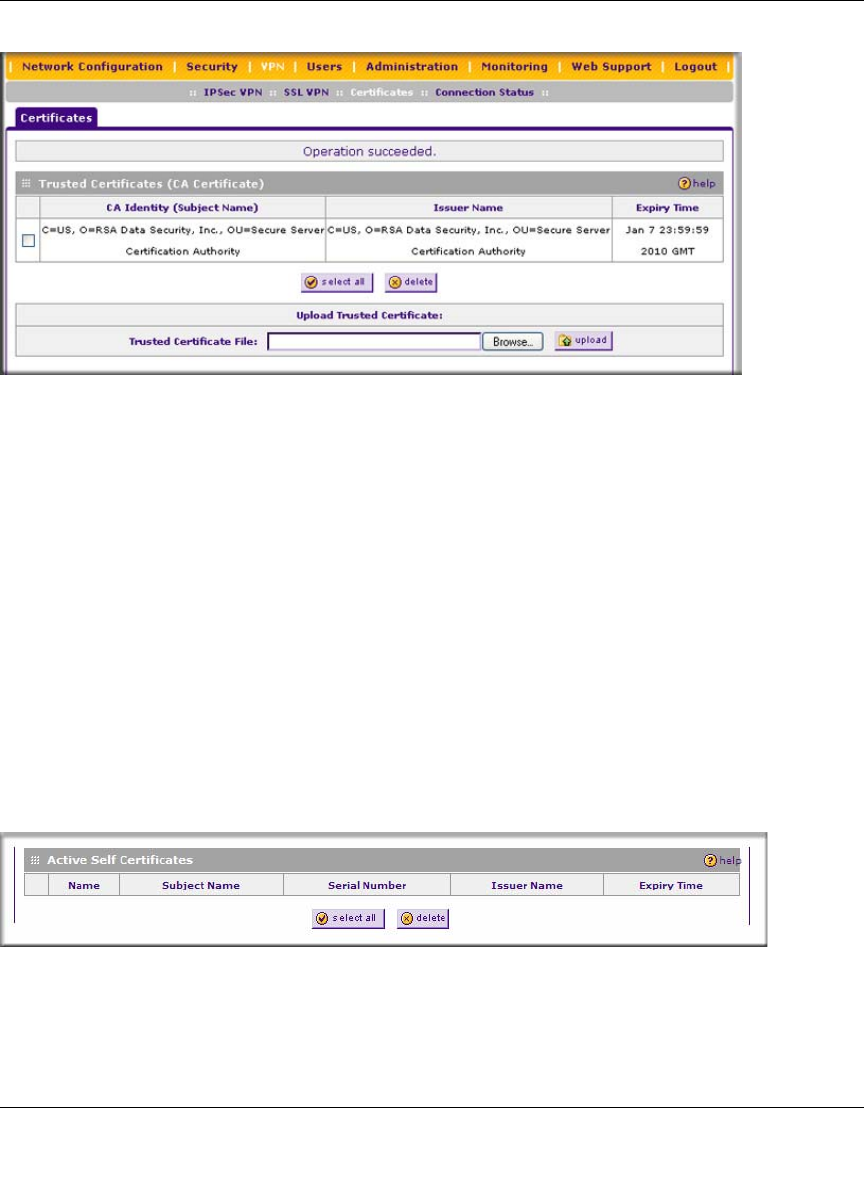
ProSafe Wireless-N VPN Firewall SRXN3205 Reference Manual
Managing Users, Authentication, and Certificates 8-13
v1.0, January 2010
When you obtain a self certificate from a CA, you will also receive the CA certificate. In addition,
many CAs make their certificates available on their websites.
To load a CA certificate into your VPN firewall:
1. Store the CA certificate file on your computer.
2. Under Upload Trusted Certificates on the Certificates screen, click Browse and locate the
CA certificate file.
3. Click upload. The CA Certificate will appear in the Trusted Certificates (CA Certificates)
table.
Viewing Active Self Certificates
The Active Self Certificates table on the Certificates screen shows the certificates issued to you
by a CA and available for use.
For each self certificate, the following data is listed:
•Name. The name you used to identify this certificate.
Figure 8-10
Figure 8-11

ProSafe Wireless-N VPN Firewall SRXN3205 Reference Manual
8-14 Managing Users, Authentication, and Certificates
v1.0, January 2010
•Subject Name. This is the name that other organizations will see as the holder (owner) of this
certificate. This should be your registered business name or official company name. Generally,
all of your certificates should have the same value in the Subject field.
•Serial Number. This is a serial number maintained by the CA. It is used to identify the
certificate with in the CA.
•Issuer Name. The name of the CA that issued the certificate.
•Expiry Time. The date on which the certificate expires. You should renew the certificate
before it expires.
Obtaining a Self Certificate from a Certificate Authority
To use a self certificate, you must first request the certificate from the CA, then download and
activate the certificate on your system. To request a self certificate from a CA, you must generate a
Certificate Signing Request (CSR) for your VPN firewall. The CSR is a file containing
information about your company and about the device that will hold the certificate. Refer to the
CA for guidelines on the information you include in your CSR.
To generate a new Certificate Signing Request (CSR) file:
1. Locate the Generate Self Certificate Request section of the Certificates screen (see Figure 8-
12 on page 8-15).
2. Configure the following fields:
•Name. Enter a descriptive name that will identify this certificate.
•Subject. This is the name which other organizations will see as the holder (owner) of the
certificate. Since this name will be seen by other organizations, you should use your
registered business name or official company name. (Using the same name, or a derivation
of the name, in the Title field would be useful.)
• From the pull-down menus, choose the following values:
– Hash Algorithm: MD5 or SHA2.
– Signature Algorithm: RSA.
– Signature Key Length: 512, 1024, 2048. (Larger key sizes may improve security, but
may also decrease performance.)
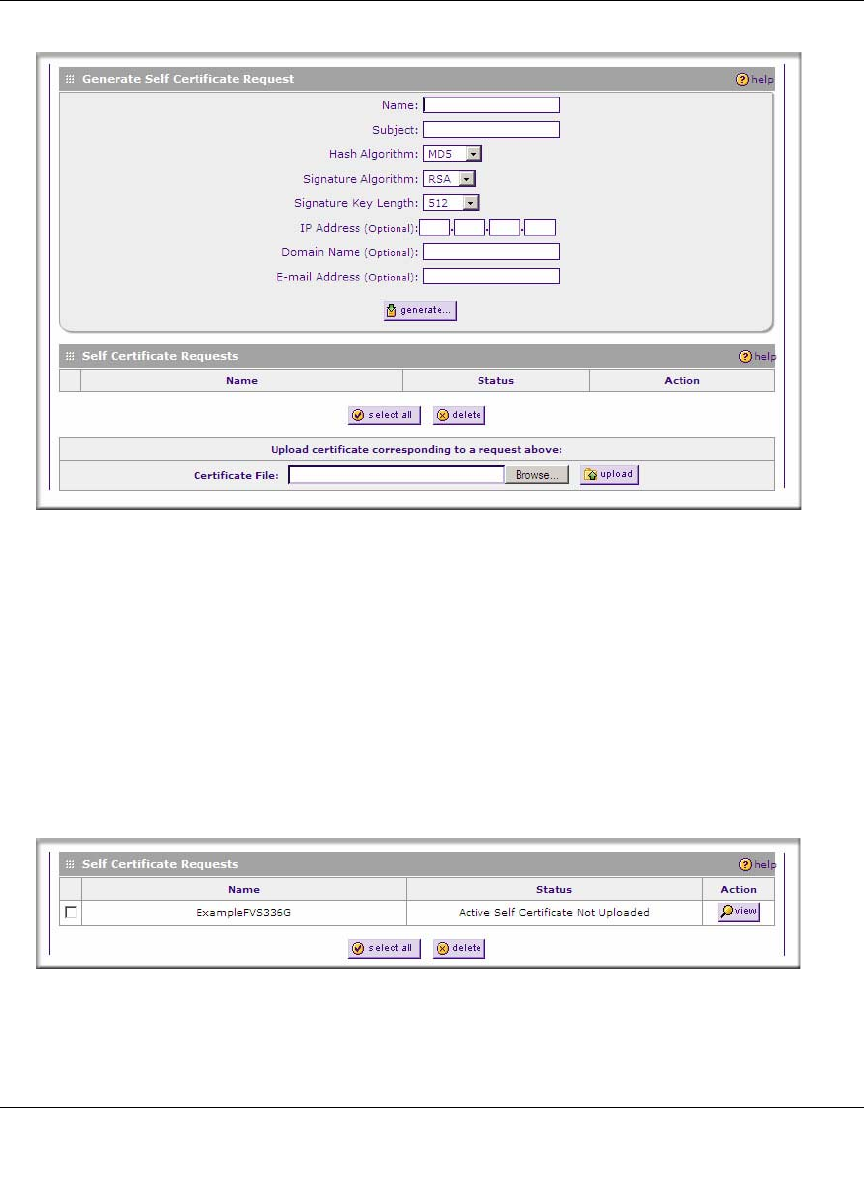
ProSafe Wireless-N VPN Firewall SRXN3205 Reference Manual
Managing Users, Authentication, and Certificates 8-15
v1.0, January 2010
3. Complete the Optional fields, if desired, with the following information:
•IP Address. If you have a fixed IP address, you may enter it here. Otherwise, you should
leave this field blank.
•Domain Name. If you have an Internet domain name, you can enter it here. Otherwise,
you should leave this field blank.
•E-mail Address. Enter the e-mail address of a technical contact in your organization.
4. Click generate. A new certificate request is created and added to the Self Certificate
Requests table.
Figure 8-12
Figure 8-13
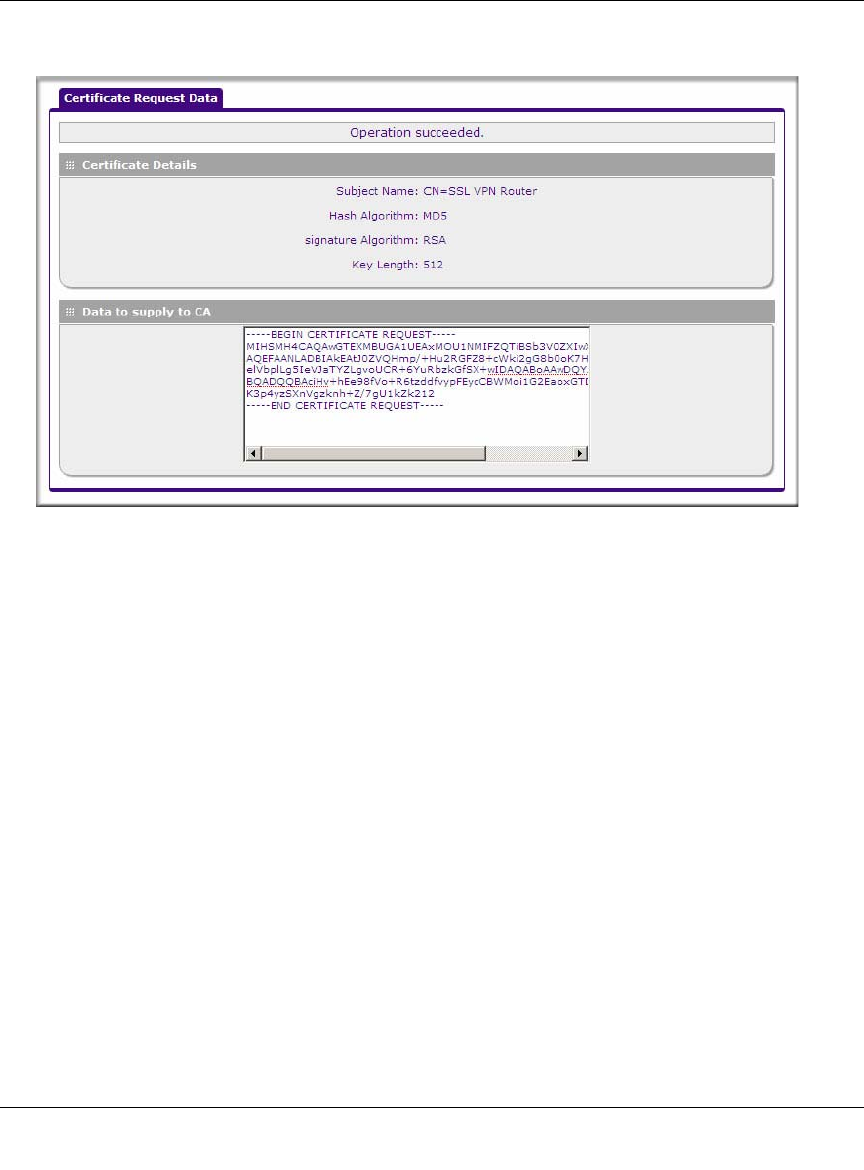
ProSafe Wireless-N VPN Firewall SRXN3205 Reference Manual
8-16 Managing Users, Authentication, and Certificates
v1.0, January 2010
5. In the Self Certificate Requests table, click view in the Action column to view the request.
6. Copy the contents of the Data to supply to CA text box into a text file, including all of the
data contained from “----BEGIN CERTIFICATE REQUEST---” to “---END CERTIFICATE
REQUEST---”.
7. Submit your certificate request to a CA:
a. Connect to the website of the CA.
b. Start the Self Certificate request procedure.
c. When prompted for the requested data, copy the data from your saved text file (including
“----BEGIN CERTIFICATE REQUEST---” and “---END CERTIFICATE REQUEST”).
d. Submit the CA form. If no problems occur, the certificate will be issued.
8. Store the certificate file from the CA on your computer and backup the certificate file from the
CA in another location.
Figure 8-14
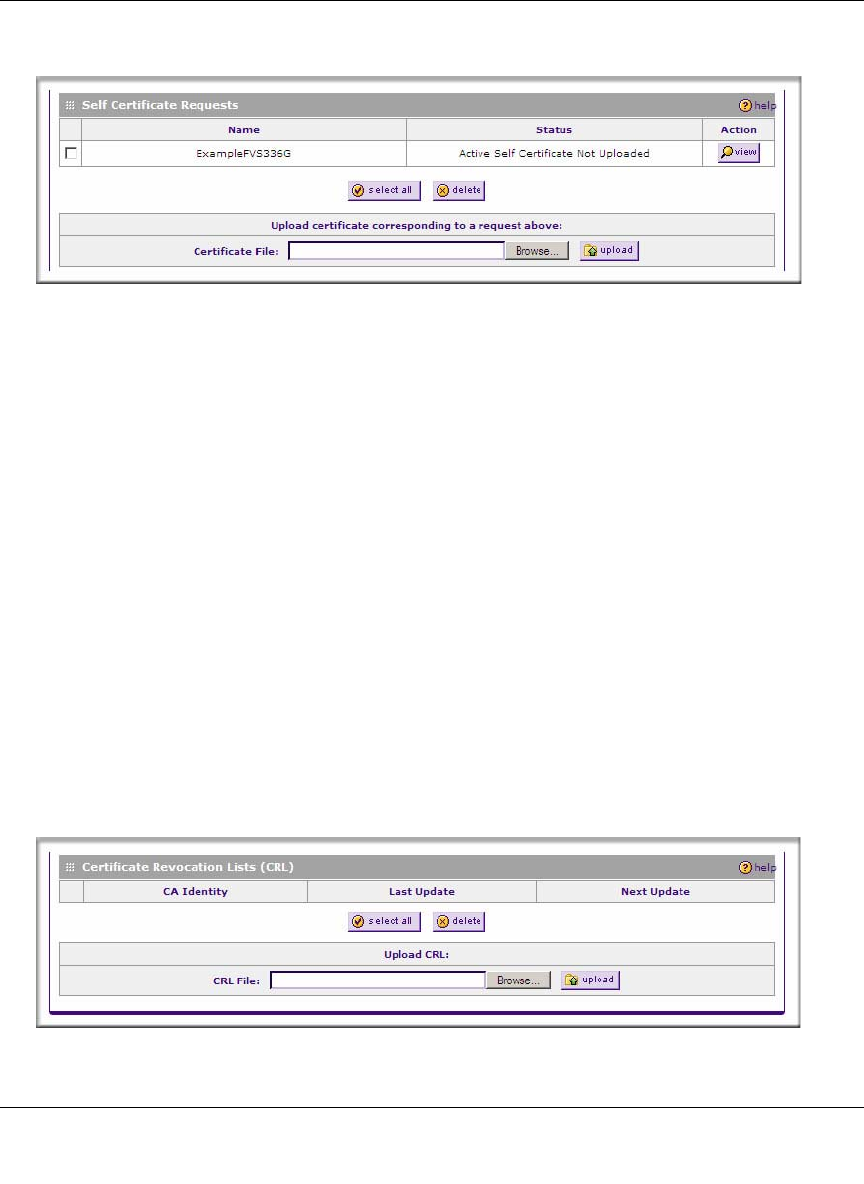
ProSafe Wireless-N VPN Firewall SRXN3205 Reference Manual
Managing Users, Authentication, and Certificates 8-17
v1.0, January 2010
9. Return to the Certificates screen and locate the Self Certificate Requests section.
10. Select the checkbox next to the certificate request, then click Browse and locate the certificate
file on your PC.
11. Click upload. The certificate file will be uploaded to this device and will appear in the Active
Self Certificates table.
If you have not already uploaded the CA certificate, do so now, as described in “Viewing and
Loading CA Certificates” on page 8-12. You should also periodically check the Certificate
Revocation Lists (CRL) table, as described in the following section.
Managing your Certificate Revocation List (CRL)
A CRL file shows certificates that have been revoked and are no longer valid. Each CA issues their
own CRLs. It is important that you keep your CRLs up-to-date. You should obtain the CRL for
each CA regularly.
On the Certificates screen, you can view your currently-loaded CRLs and upload a new CRL.
To view your currently-loaded CRLs and upload a new CRL, follow these steps:
1. Locate the Certificate Revocation Lists (CRL) table at the bottom of the Certificates screen.
Figure 8-15
Figure 8-16

ProSafe Wireless-N VPN Firewall SRXN3205 Reference Manual
8-18 Managing Users, Authentication, and Certificates
v1.0, January 2010
The Certificate Revocation Lists (CRL) table lists your active CAs and their critical release
dates:
•CA Identify – The official name of the CA which issued this CRL.
•Last Update – The date when this CRL was released.
•Next Update – The date when the next CRL will be released.
2. Click Browse and locate the CRL file you previously downloaded from a CA.
3. Click upload. The CRL file will be uploaded and the CA Identity will appear in the
Certificate Revocation Lists (CRL) table. If you had a previous CA Identity from the same
CA, it will be deleted.

ProSafe Wireless-N VPN Firewall SRXN3205 Reference Manual
VPN Firewall and Network Management 9-1
v1.0, January 2010
Chapter 9
VPN Firewall and Network Management
This chapter describes how to use the network management features of your ProSafe Wireless-N
VPN Firewall SRXN3205.
The VPN firewall offers many tools for managing the network traffic to optimize its performance.
You can also control administrator access, be alerted to important events requiring prompt action,
monitor the firewall status, perform diagnostics, and manage the firewall configuration file.
This chapter contains the following sections:
•“Performance Management” on this page
•“Changing Passwords and Administrator Settings” on page 9-8
•“Enabling Remote Management Access” on page 9-9
•“Using an SNMP Manager” on page 9-12
•“Managing the Configuration File” on page 9-14
•“Configuring Date and Time Service” on page 9-17
Performance Management
Performance management consists of controlling the traffic through the VPN firewall so that the
necessary traffic gets through when there is a bottleneck and either reducing unnecessary traffic or
rescheduling some traffic to low-peak times to prevent bottlenecks from occurring in the first
place. The VPN firewall has the necessary features and tools to help the network manager
accomplish these goals.
Bandwidth Capacity
The maximum bandwidth capacity of the VPN firewall in each direction is as follows:
• LAN side: 5000 Mbps (five LAN ports at 1000 Mbps each)
• WAN side: 1000 Mbps (one WAN port at 1000 Mbps)
ProSafe Wireless-N VPN Firewall SRXN3205 Reference Manual
9-2 VPN Firewall and Network Management
v1.0, January 2010
In practice, the WAN side bandwidth capacity will be much lower when DSL or cable modems are
used to connect to the Internet. As a result and depending on the traffic being carried, the WAN
side of the firewall will be the limiting factor to throughput for most installations.
Features that Reduce Traffic
Features of the VPN firewall that can be called upon to decrease WAN-side loading are as follows:
• Service blocking
• Blocking sites
• Source MAC filtering
Service Blocking
You can control specific outbound traffic (from LAN to WAN). The LAN WAN Rules screen lists
all existing rules for outbound traffic. If you have not defined any rules, only the default rule will
be listed. The default rule allows all outgoing traffic. (See “Using Rules & Services to Block or
Allow Traffic” on page 5-2 for the procedure on how to use this feature.)
Each rule lets you specify the desired action for the connections covered by the rule:
•BLOCK always
• BLOCK by schedule, otherwise Allow
• ALLOW always
• ALLOW by schedule, otherwise Block
As you define your firewall rules, you can further refine the application according to the following
criteria:
•LAN Users. These settings determine which computers on your network are affected by this
rule. Select the desired options:
–Any. All PCs and devices on your LAN.
–Single address. The rule will be applied to the address of a particular PC.
–Address range. The rule is applied to a range of addresses.
–Groups. The rule is applied to a Group (see “Managing Groups and Hosts (LAN Groups)”
on page 3-5 to assign PCs to a Group using the LAN Groups Database).
Warning: This feature is for advanced administrators only! Incorrect configuration will
cause serious problems.

ProSafe Wireless-N VPN Firewall SRXN3205 Reference Manual
VPN Firewall and Network Management 9-3
v1.0, January 2010
•WAN Users. These settings determine which Internet locations are covered by the rule, based
on the IP address.
–Any. The rule applies to all Internet IP address.
–Single address. The rule applies to a single Internet IP address.
–Address range. The rule is applied to a range of Internet IP addresses.
•Services. You can specify the desired services or applications to be covered a rule. If the
desired service or application does not appear in the list, you must define it using the Services
screen (see “Adding Customized Services” on page 5-19).
•Groups and Hosts. You can apply these rules selectively to groups of PCs to reduce the
outbound or inbound traffic. The LAN Groups Database is an automatically-maintained list of
all known PCs and network devices. PCs and devices become known by the following
methods:
–DHCP Client Request. By default, the DHCP server in this VPN firewall is enabled, and
will accept and respond to DHCP client requests from PCs and other network devices.
These requests also generate an entry in the LAN Groups Database. Because of this,
leaving the DHCP server feature (on the LAN Setup screen) enabled is strongly
recommended.
–Scanning the Network. The local network is scanned using ARP. requests. The ARP scan
will detect active devices that are not DHCP clients. However, sometimes the name of the
PC or device cannot be accurately determined, and will appear in the database as
Unknown.
–Manual Entry. You can manually enter information about a device.
See “Managing Groups and Hosts (LAN Groups)” on page 3-5 for the procedure on how to
use this feature.
•Schedule. If you have set firewall rules on the LAN WAN Rules screen, you can configure
three different schedules (for example, schedule 1, schedule 2, and schedule 3) for when a rule
is to be applied. Once a schedule is configured, it affects all rules that use this schedule. You
specify the days of the week and time of day for each schedule. (See “Setting Schedules to
Block or Allow Specific Traffic” on page 5-24 for the procedure on how to use this feature.)

ProSafe Wireless-N VPN Firewall SRXN3205 Reference Manual
9-4 VPN Firewall and Network Management
v1.0, January 2010
Blocking Sites
If you want to reduce traffic by preventing access to certain sites on the Internet, you can use the
VPN firewall’s filtering feature. By default, this feature is disabled; all requested traffic from any
website is allowed.
•Keyword (and Domain Name) Blocking. You can specify up to 32 words that, should they
appear in the website name (that is, URL) or in a newsgroup name, will cause that site or
newsgroup to be blocked by the VPN firewall.
You can apply the keywords to one or more groups. Requests from the PCs in the groups for
which keyword blocking has been enabled will be blocked. Blocking does not occur for the
PCs that are in the groups for which keyword blocking has not been enabled.
You can bypass keyword blocking for trusted domains by adding the exact matching domain
to the list of Trusted Domains. Access to the domains on this list by PCs even in the groups for
which keyword blocking has been enabled will still be allowed without any blocking.
•Web Component blocking. You can block the following Web component types: Proxy, Java,
ActiveX, and Cookies. Sites on the Trusted Domains list are still subject to Web component
blocking when the blocking of a particular Web component has been enabled.
See “Blocking Internet Sites (Content Filtering)” on page 5-25 for the procedure on how to use
this feature.
Source MAC Filtering
If you want to reduce outgoing traffic to prevent Internet access by certain PCs on the LAN, you
can use the source MAC filtering feature to drop the traffic received from the PCs with the
specified MAC addresses. By default, this feature is disabled; all traffic received from PCs with
any MAC address is allowed.
See “Enabling Source MAC Filtering (Address Filtering)” on page 5-28 for the procedure on how
to use this feature.
Features that Increase Traffic
Features that tend to increase WAN-side loading are as follows:
• Port forwarding
• Port triggering
• Exposed hosts
•VPN tunnels
ProSafe Wireless-N VPN Firewall SRXN3205 Reference Manual
VPN Firewall and Network Management 9-5
v1.0, January 2010
Port Forwarding
The firewall always blocks DoS (Denial of Service) attacks. A DoS attack does not attempt to steal
data or damage your PCs, but overloads your Internet connection so you can not use it (that is, the
service is unavailable). You can also create additional firewall rules that are customized to block or
allow specific traffic. (See “Using Rules & Services to Block or Allow Traffic” on page 5-2 for the
procedure on how to use this feature.)
You can control specific inbound traffic (that is, from WAN to LAN). The LAN WAN Rules
screen lists all existing rules for inbound traffic If you have not defined any rules, only the default
rule will be listed. The default rule blocks all inbound traffic.
Each rule lets you specify the desired action for the connections covered by the rule:
•BLOCK always
• ALLOW always
• BLOCK by schedule, otherwise allow
• ALLOW by schedule, otherwise block
You can also enable a check on special rules:
•VPN Passthrough. Passes the VPN traffic without any filtering, specially used when this
firewall is between two VPN tunnel end points.
•Drop fragmented IP packets. Drops any fragmented IP packets.
•UDP Flooding. Limits the number of UDP sessions created from one LAN machine.
•TCP Flooding. Protects the VPN firewall from SYN flood attack.
•Enable DNS Proxy. Allows the VPN firewall to handle DNS queries from the LAN.
•Enable Stealth Mode. Prevents the VPN firewall from responding to incoming requests for
unsupported services.
As you define your firewall rules, you can further refine the application according to the following
criteria:
•LAN Users. These settings determine which computers on your network are affected by this
rule. Select the desired IP Address in this field.
Warning: This feature is for advanced administrators only! Incorrect configuration will
cause serious problems.

ProSafe Wireless-N VPN Firewall SRXN3205 Reference Manual
9-6 VPN Firewall and Network Management
v1.0, January 2010
•WAN Users. These settings determine which Internet locations are covered by the rule, based
on the IP address.
–Any. The rule applies to all Internet IP address.
–Single address. The rule applies to a single Internet IP address.
–Address range. The rule is applied to a range of Internet IP addresses.
•Destination Address. These settings determine the destination IP address for this rule which
will be applicable to incoming traffic. This rule will be applied only when the destination IP
address of the incoming packet matches the IP address of the WAN interface. Selecting ANY
enables the rule for any LAN IP destination.
•Services. You can specify the desired services or applications to be covered a rule. If the
desired service or application does not appear in the list, you must define it using the Services
screen (see “Adding Customized Services” on page 5-19).
•Schedule. If you have set firewall rules on the LAN WAN Rules screen, you can configure
three different schedules (for example, schedule 1, schedule 2, and schedule 3) for when a rule
is to be applied. Once a schedule is configured, it affects all rules that use this schedule. You
specify the days of the week and time of day for each schedule. (See “Setting Schedules to
Block or Allow Specific Traffic” on page 5-24 for the procedure on how to use this feature.)
Port Triggering
Port triggering allows some applications to function correctly that would otherwise be partially
blocked by the firewall. Using this feature requires that you know the port numbers used by the
application.
Once configured, port triggering operates as follows:
• A PC makes an outgoing connection using a port number defined in the Port Triggering table.
• The VPN firewall records this connection, opens the additional incoming port or ports
associated with this entry in the Port Triggering table, and associates them with the PC.
• The remote system receives the PCs request and responds using the different port numbers that
you have now opened.
• The VPN firewall matches the response to the previous request and forwards the response to
the PC. Without port triggering, this response would be treated as a new connection request
rather than a response. As such, it would be handled in accordance with the Port Forwarding
rules.
– Only one PC can use a port triggering application at any time.

ProSafe Wireless-N VPN Firewall SRXN3205 Reference Manual
VPN Firewall and Network Management 9-7
v1.0, January 2010
– After a PC has finished using a port triggering application, there is a time-out period
before the application can be used by another PC. This is required because the firewall
cannot be sure when the application has terminated.
See “Configuring Port Triggering” on page 5-31 for the procedure on how to use this feature.
VPN Tunnels
The VPN firewall permits up to 5 IPsec VPN tunnels and 3 SSL VPN tunnels not to exceed 8 total
tunnels at a time. Each tunnel requires extensive processing for encryption and authentication.
See Chapter 6, “Virtual Private Networking Using IPsec” for the procedures on how to use IPsec
VPN, and Chapter 7, “Virtual Private Networking Using SSL” for the procedures on how to use
SSL VPN.
Using QoS to Shift the Traffic Mix
The QoS priority settings determine the priority and, in turn, the quality of service for the traffic
passing through the firewall. The QoS is set individually for each service.
• You can accept the default priority defined by the service itself by not changing its QoS
setting.
• You can change the priority to a higher or lower value than its default setting to give the
service higher or lower priority than it otherwise would have.
The QoS priority settings conform to the IEEE 802.1D-1998 (formerly 802.1p) standard for class
of service tag.
You will not change the WAN bandwidth used by changing any QoS priority settings. But you will
change the mix of traffic through the WAN port by granting some services a higher priority than
others. The quality of a service is impacted by its QoS setting, however.
See “Setting Quality of Service (QoS) Priorities” on page 5-21 for the procedure on how to use
this feature.
Tools for Traffic Management
The VPN firewall includes several tools that can be used to monitor the traffic conditions and
control who has access to the Internet and the types of traffic each individual is allowed to have.
See Chapter 10, “Monitoring System Performance” for a discussion of the tools.
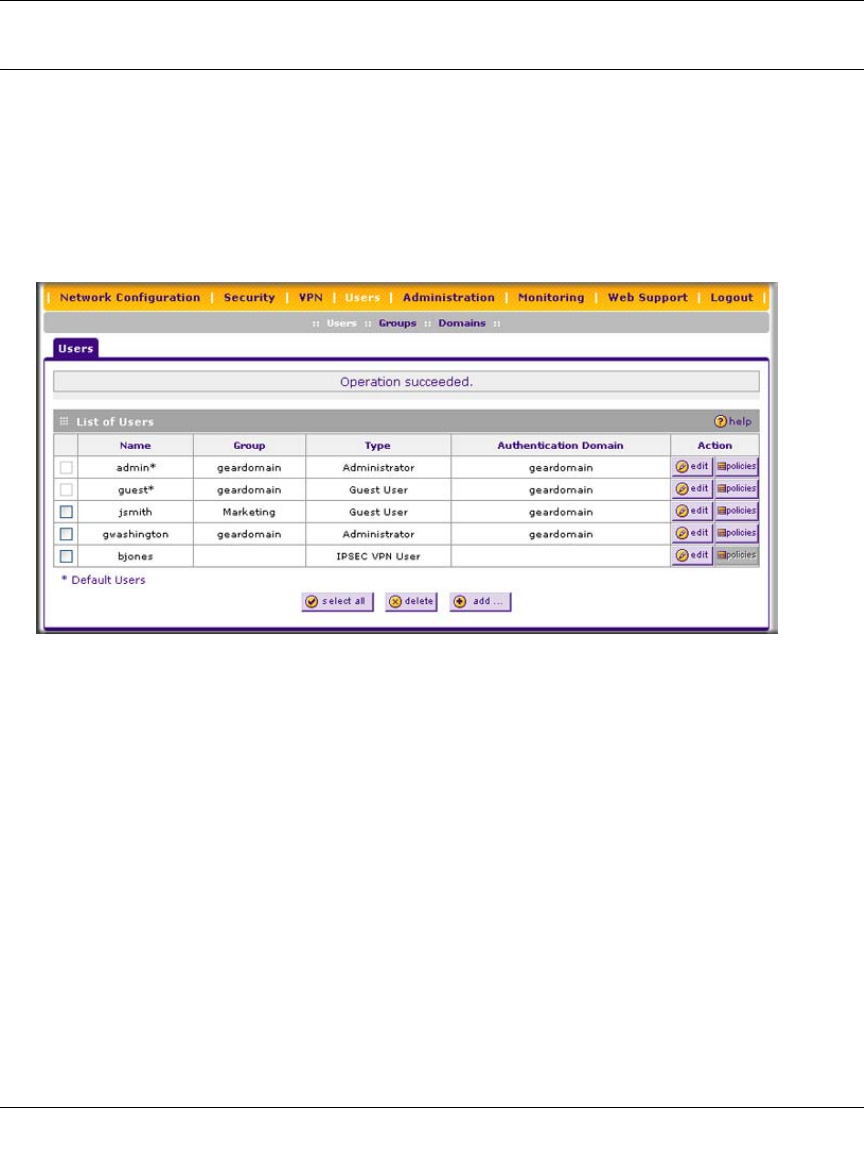
ProSafe Wireless-N VPN Firewall SRXN3205 Reference Manual
9-8 VPN Firewall and Network Management
v1.0, January 2010
Changing Passwords and Administrator Settings
The default administrator and guest password for the Web Configuration Manager is password.
Netgear recommends that you change this password to a more secure password. You can also
configure a separate password for the guest account.
To modify the Administrator user account settings, including the password:
1. Select Users > Users from the main/submenu. The List of Users screen is displayed.
2. Select the checkbox adjacent to admin in the Name column, then click edit in the Action
column.
The Edit User screen is displayed (see Figure 9-2 on page 9-9), with the current settings for
Administrator displayed in the Select User Type pull-down menu (for more information about
the different types of users, see “Changing Passwords and Other User Settings” on page 8-9).
Figure 9-1
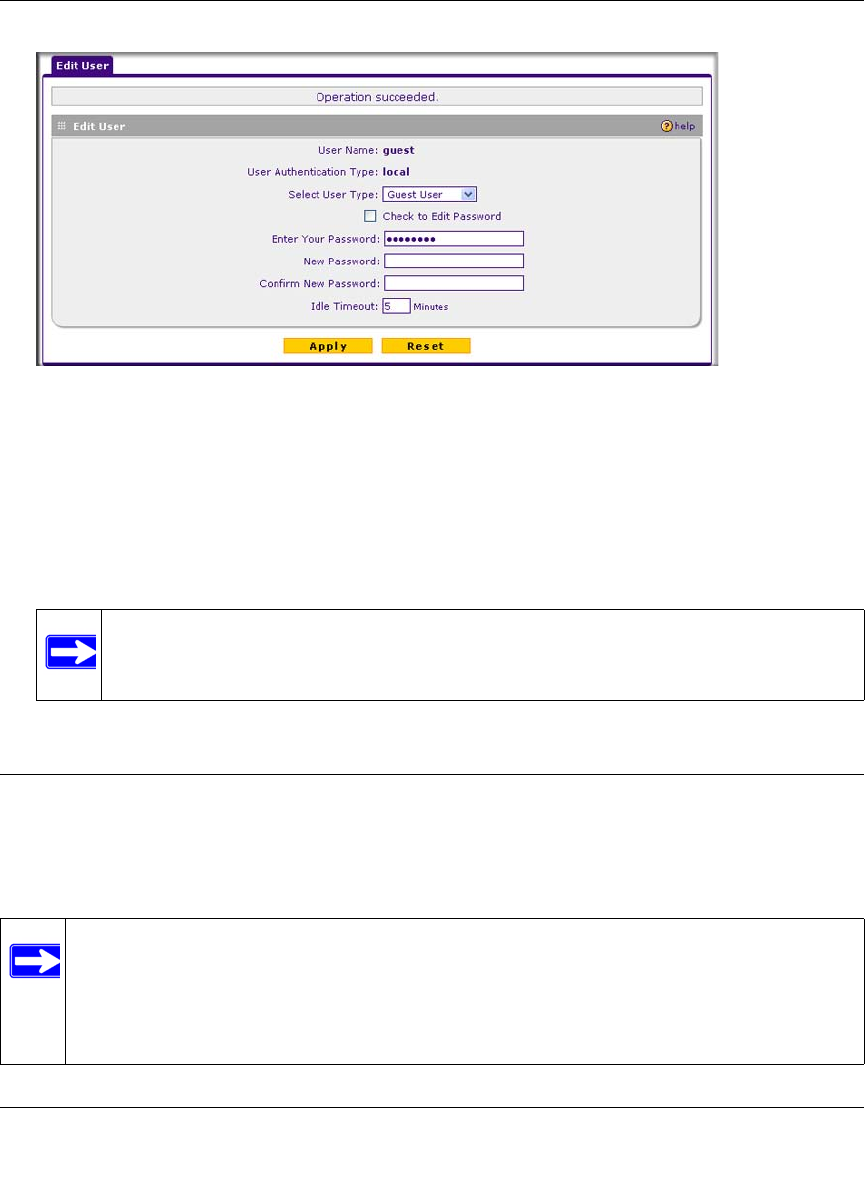
ProSafe Wireless-N VPN Firewall SRXN3205 Reference Manual
VPN Firewall and Network Management 9-9
v1.0, January 2010
3. Select the Check to Edit Password checkbox. The password fields become active.
4. Enter the old password, then enter the new password twice.
5. (Optional) To change the idle timeout for an administrator login session, enter a new number
of minutes in the Idle Timeout field.
6. Click Apply to save your settings or Reset to return to your previous settings.
Enabling Remote Management Access
Using the Remote Management screen, you can allow an administrator on the Internet to
configure, upgrade, and check the status of your VPN firewall. You must be logged in locally to
enable remote management.
Figure 9-2
Note: After a factory default reset, the password and timeout value will be changed
back to password and 10 minutes, respectively.
Note: Be sure to change the default configuration password of the firewall to a very
secure password. The ideal password should contain no dictionary words from any
language, and should be a mixture of letters (both upper and lower case), numbers,
and symbols. Your password can be up to 30 characters. See “Changing Passwords
and Administrator Settings” on page 9-8 for the procedure on how to do this.
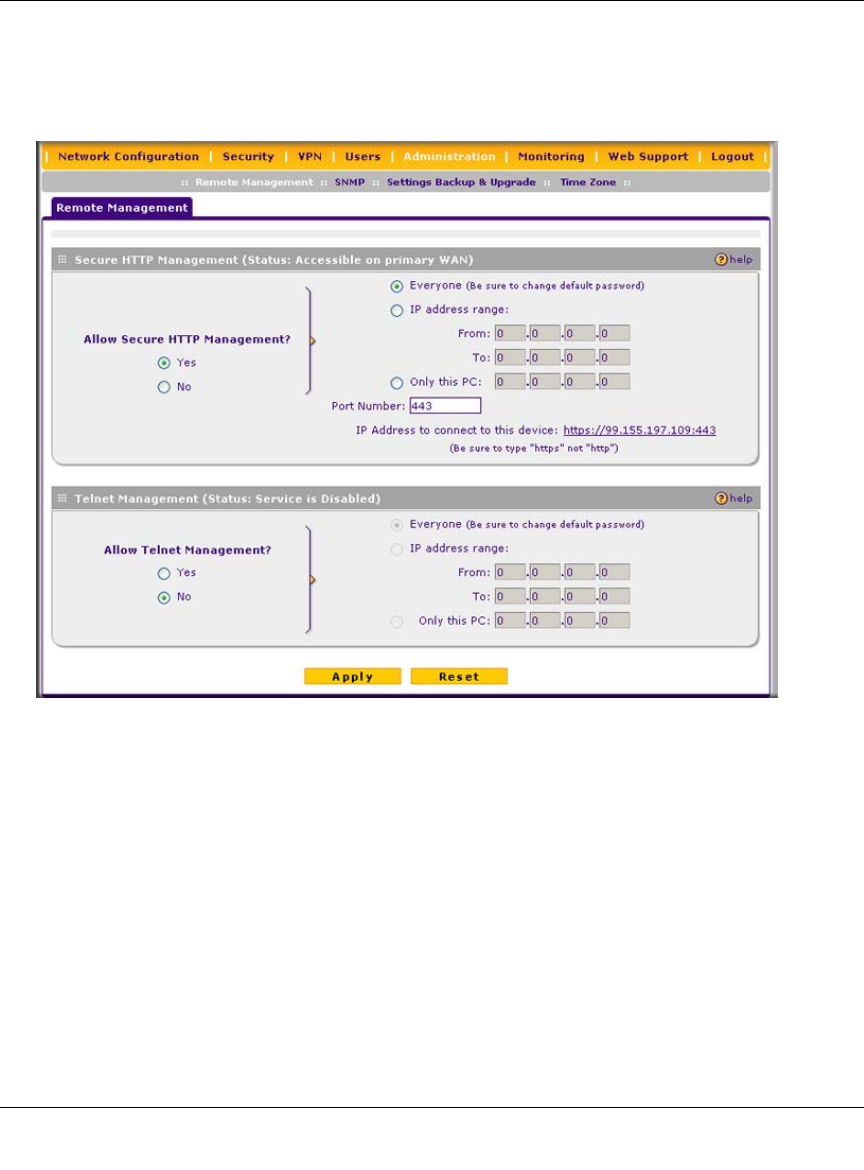
ProSafe Wireless-N VPN Firewall SRXN3205 Reference Manual
9-10 VPN Firewall and Network Management
v1.0, January 2010
To configure the VPN firewallfor remote management:
1. Select Administration > Remote Management from the main/submenu. The Remote
Management screen is displayed.
2. Click the Yes radio button to enable secure HTTP management (enabled by default), and
configure the external IP addresses that will be allowed to connect.
a. To allow access from any IP address on the Internet, select Everyone.
b. To allow access from a range of IP addresses on the Internet, select IP address range.
Enter a beginning and ending IP address to define the allowed range.
c. To allow access from a single IP address on the Internet, select Only this PC.
Enter the IP address that will be allowed access.
3. Configure the port number that will be used for secure HTTP management. The default port
number is 443.
Figure 9-3
ProSafe Wireless-N VPN Firewall SRXN3205 Reference Manual
VPN Firewall and Network Management 9-11
v1.0, January 2010
4. To enable remote management by the command line interface (CLI) over Telnet, click Yes to
Allow Telnet Management, and configure the external IP addresses that will be allowed to
connect.
a. To allow access from any IP address on the Internet, select Everyone.
b. To allow access from a range of IP addresses on the Internet, select IP address range.
Enter a beginning and ending IP address to define the allowed range.
c. To allow access from a single IP address on the Internet, select Only this PC.
Enter the IP address that will be allowed access.
5. Click Apply to have your changes take effect.
When accessing your VPN firewall from the Internet, the Secure Sockets Layer (SSL) will be
enabled. You will enter https:// (not http://) and type your firewall’s WAN IP address into your
browser. For example, if your WAN IP address is 172.16.0.123, type the following in your
browser: https://172.16.0.123.
The VPN firewall’s remote login URL is https://<IP_address> or
https://<FullyQualifiedDomainName>..
Note: For enhanced security, restrict access to as few external IP addresses as
practical. See “Setting User Login Policies” on page 8-7 for instructions on
restricting administrator access. Be sure to use strong passwords.
Note: To maintain security, the VPN firewall will reject a login that uses http://address
rather than the SSL https://address.
Note: The first time you remotely connect to the VPN firewall with a browser via SSL,
you may get a warning message regarding the SSL certificate. If you are using a
Windows computer with Internet Explorer 5.5 or higher, simply click Yes to accept
the certificate.
Note: If you are unable to remotely connect to the VPN firewall after enabling HTTPS
remote management, check whether other user policies, such as the default user
policy, are preventing access.
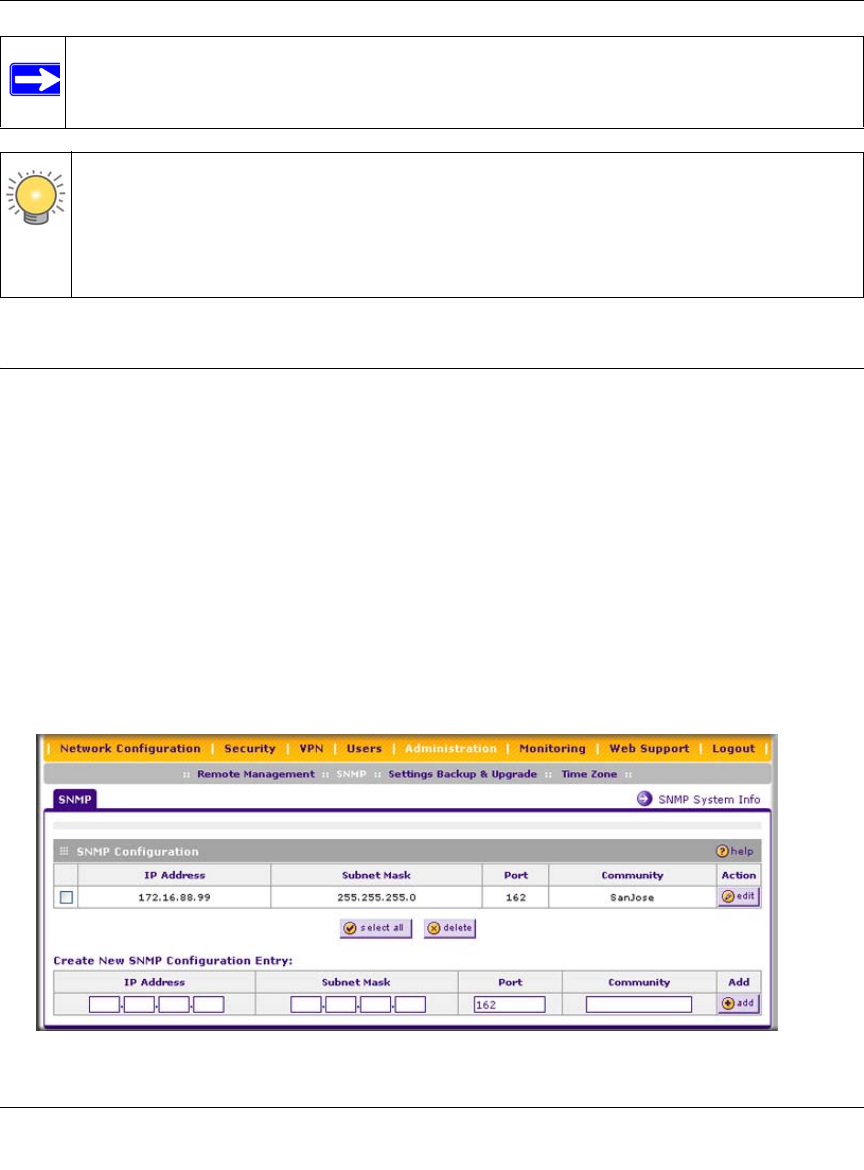
ProSafe Wireless-N VPN Firewall SRXN3205 Reference Manual
9-12 VPN Firewall and Network Management
v1.0, January 2010
Using an SNMP Manager
Simple Network Management Protocol (SNMP) lets you monitor and manage your VPN firewall
from an SNMP Manager. It provides a remote means to monitor and control network devices, and
to manage configurations, statistics collection, performance, and security.
The SNMP Configuration table lists the SNMP configurations by:
•IP Address. The IP address of the SNMP manager.
•Port. The trap port of the configuration.
•Community. The trap community string of the configuration.
To create a new SNMP configuration entry:
1. Select Administration > SNMP from the main/submenu. The SNMP screen is displayed..
Note: If you disable HTTPS remote management, all SSL VPN user connections will
also be disabled.
Tip: If you are using a dynamic DNS service such as TZO, you can identify the WAN IP
address of your VPN firewall by running tracert from the Windows Run menu
option. Trace the route to your registered FQDN. For example, enter tracert
SRXN3205.mynetgear.net, and the WAN IP address that your ISP assigned to
the VPN firewall is displayed.
Figure 9-4
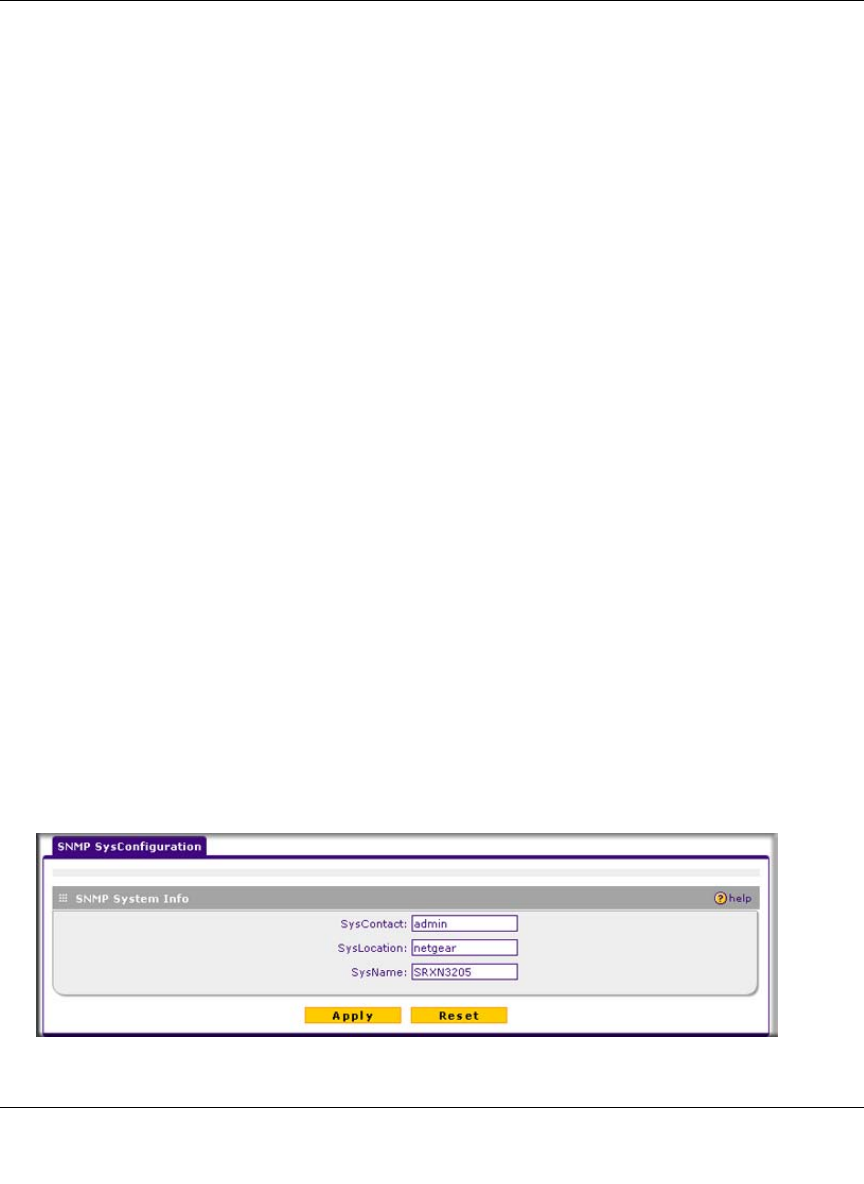
ProSafe Wireless-N VPN Firewall SRXN3205 Reference Manual
VPN Firewall and Network Management 9-13
v1.0, January 2010
2. Configure the following fields in the Create New SNMP Configuration Entry section:
• Enter the IP address of the SNMP manager in the IP Address field and the subnet mask in
the Subnet Mask field.
– If you want to allow only the host address to access the VPN firewall and receive
traps, enter an IP Address of, for example, 192.168.1.101 with a subnet mask of
255.255.255.255.
– If you want to allow a subnet access to the VPN firewall through SNMP, enter an IP
address of, for example, 192.168.1.101 with a subnet mask of 255.255.255.0. The
traps will still be received on 192.168.1.101, but the entire subnet will have access
through the community string.
– If you want to make the VPN firewall globally accessible using the community string,
but still receive traps on the host, enter 0.0.0.0 as the subnet mask and an IP address
for where the traps will be received.
• Enter the trap port number of the configuration in the Port field. The default is 162.
• Enter the trap community string of the configuration in the Community field.
3. Click add to create the new configuration. The entry is displayed in the SNMP Configuration
table.
To modify an SNMP configuration, click edit in the Action column adjacent to the entry that you
wish to modify.
When you click on the SNMP System Info link on the SNMP screen, the VPN firewall’s
identification information is displayed. This following identification information is available to the
SNMP Manager: system contact, system location, and system name.
To modify the SNMP identification information:
1. Click the SNMP System Info link on the SNMP screen. The SNMP SysConfiguration screen
is displayed.
Figure 9-5
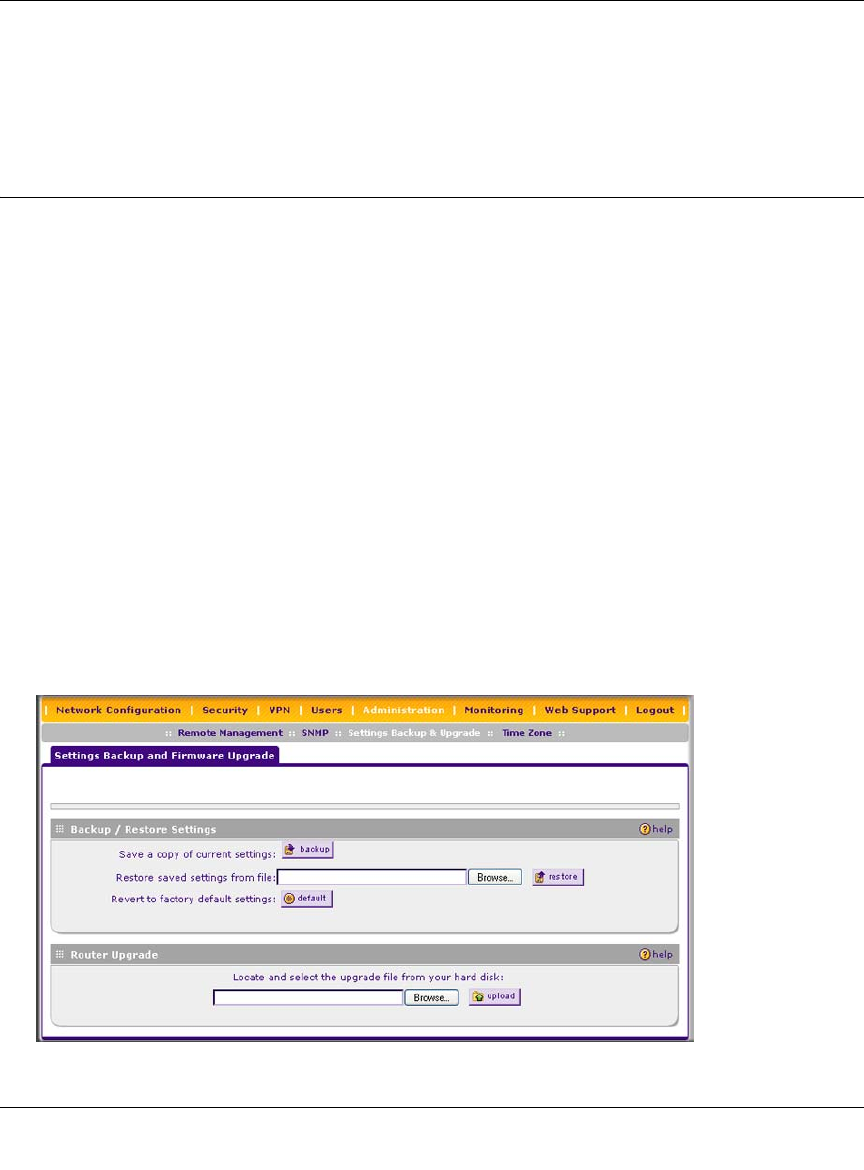
ProSafe Wireless-N VPN Firewall SRXN3205 Reference Manual
9-14 VPN Firewall and Network Management
v1.0, January 2010
2. Modify any of the information that you want the SNMP Manager to use. You can edit the
system contact, system location, and system name.
3. Click Apply to save your settings.
Managing the Configuration File
Once you have installed the VPN firewall and have it working properly, you should back up a copy
of your settings, in case something gets corrupted. When you backup the settings, these are saved
as a file on your computer. You can then restore the VPN firewall settings from this file. The
Settings Backup and Firmware Upgrade screen allows you to:
• Back up and save a copy of your current settings
• Restore saved settings from the backed-up file.
• Revert to the factory default settings.
• Upgrade the VPN firewall firmware from a saved file on your hard disk to use a different
firmware version.
Backing Up Settings
1. To back up settings:
1. Select Administration > Settings Backup and Firmware Upgrade from the main/submenu.
The Settings Backup and Firmware Upgrade screen is displayed.
Figure 9-6
ProSafe Wireless-N VPN Firewall SRXN3205 Reference Manual
VPN Firewall and Network Management 9-15
v1.0, January 2010
2. Click backup to save a copy of your current settings.
• If your browser is not set up to save downloaded files automatically, locate where you
want to save the file, specify file name, and click Save.
• If you have your browser set up to save downloaded files automatically, the file will be
saved to your browser’s download location on the hard disk.
Restoring Settings
To restore settings from a backup file:
1. On the Settings Backup and Firmware Upgrade screen, next to Restore save settings from
file, click browse.
2. Locate and select the previously saved backup file (by default, netgear.cfg).
3. When you have located the file, click the restore button.
An Alert screen will appear indicating the status of the restore operation. You must manually
restart the VPN firewall for the restored settings to take effect.
Reverting to Factory Default Settings
To reset the VPN firewall to the original factory default settings:
1. On the Settings Backup and Firmware Upgrade screen, click default.
2. You must manually restart the VPN firewall before the default settings to take effect. After
rebooting, the VPN firewall’s password will be password and the LAN IP address will be
192.168.1.1. The VPN firewall will act as a DHCP server on the LAN, to the wireless clients,
and act as a DHCP client to the Internet.
Warning: Once you start restoring settings or erasing the VPN firewall, do not
interrupt the process. Do not try to go online, turn off the VPN firewall,
shut down the computer or do anything else to the VPN firewall until it
finishes restarting!
Warning: When you click default, your VPN firewall settings will be erased. All
firewall rules, VPN policies, LAN/WAN settings and other settings will be
lost. Back up your settings if you intend on using them again!
ProSafe Wireless-N VPN Firewall SRXN3205 Reference Manual
9-16 VPN Firewall and Network Management
v1.0, January 2010
Upgrading the Firmware
You can install a different version of the VPN firewall firmware from the Settings Backup and
Firmware Upgrade screen. To view the current version of the firmware that your VPN firewall is
running, select Monitoring from the main menu. The Router Status screen is displayed, showing
all of the VPN firewall router statistics, including the firmware version. When you upgrade your
firmware, the new firmware version will be displayed.
To download a firmware version and upgrade the VPN firewall:
1. Go to the NETGEAR website at http://www.netgear.com/support and click Downloads.
2. From the Product Selection pull-down menu, choose the SRXN3205.
3. Click on the desired firmware version to reach the download page. Be sure to read the release
notes on the download page before upgrading the VPN firewall’s software.
4. Select Administration > Settings Backup and Firmware Upgrade from the main/submenu.
The Settings Backup and Firmware Upgrade screen is displayed.
5. In the Router Upgrade section, click browse.
6. Locate the downloaded file and click upload. This will start the software upgrade to your VPN
firewall. This may take some time. At the conclusion of the upgrade, your VPN firewall will
reboot.
7. After the VPN firewall has rebooted, click Monitoring and confirm the new firmware version
to verify that your VPN firewall now has the new software installed.
Warning: Do not try to go online, turn off the VPN firewall, shutdown the computer
or do anything else to the VPN firewall until the VPN firewall finishes the
upgrade! When the Test light turns off, wait a few more seconds before
doing anything.
Note: In some cases, such as a major upgrade, it may be necessary to erase the
configuration and manually reconfigure your VPN firewall after upgrading it.
Refer to the release notes included with the software to find out if this is
required.
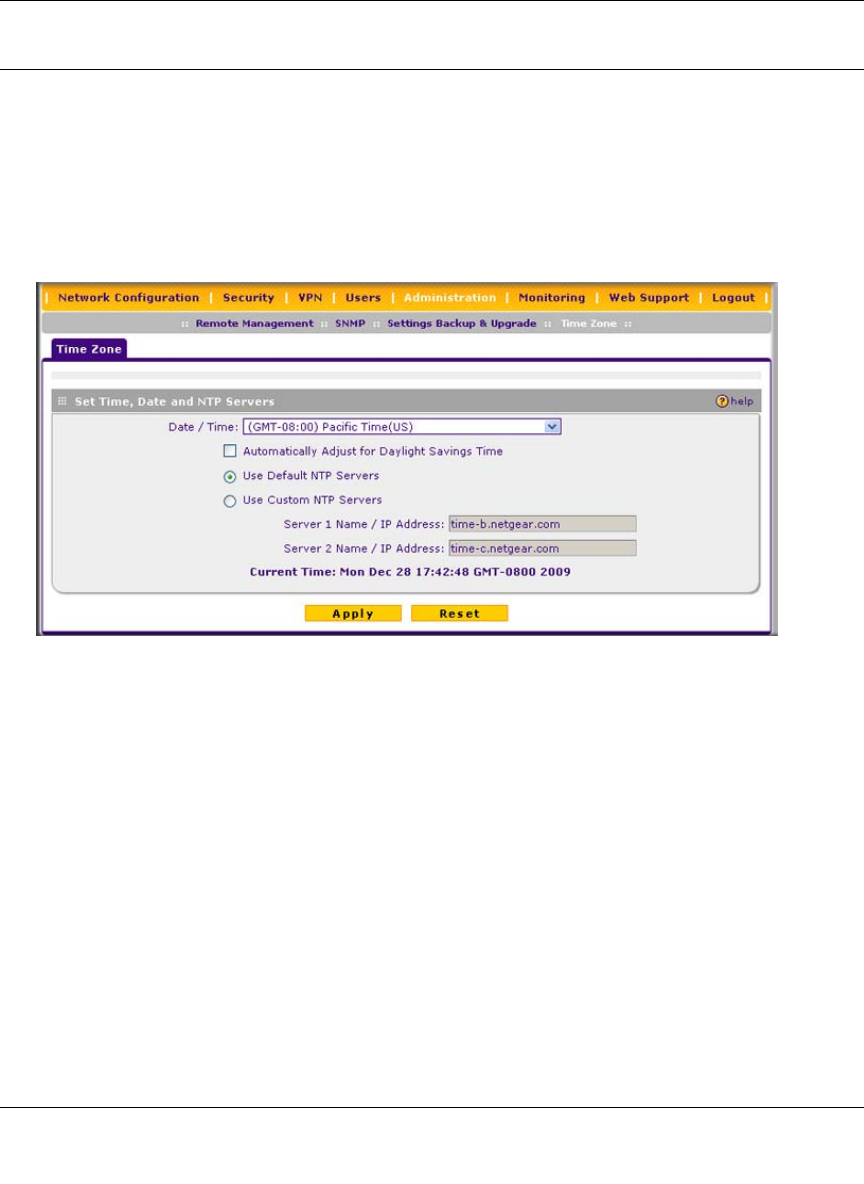
ProSafe Wireless-N VPN Firewall SRXN3205 Reference Manual
VPN Firewall and Network Management 9-17
v1.0, January 2010
Configuring Date and Time Service
The Time Zone screen provides settings for date, time and NTP server designations. The Network
Time Protocol (NTP) is used to synchronize computer clock times in a network of computers.
To set date, time, and NTP servers:
1. Select Administration > Time Zone from the main/submenu. The Time Zone screen is
displayed.
2. From the Date/Time pull-down menu, select the local time zone. This is required in order for
scheduling to work correctly. The VPN firewall includes a Real-Time Clock (RTC), which it
uses for scheduling.
3. If supported in your region, click Automatically Adjust for Daylight Savings Time.
4. Select an NTP Server option:
•Use Default NTP Servers. The RTC is updated regularly by contacting a Netgear NTP
server on the Internet. A primary and secondary (backup) server are preloaded.
•Use Custom NTP Servers. If you prefer to use a particular NTP server, enter the name or
IP address of the NTP Server in the Server 1 Name/IP Address field. You can enter the
address of a backup NTP server in the Server 2 Name/IP Address field. If you select this
option and leave either the Server 1 or Server 2 fields empty, they will be set to the default
Netgear NTP servers.
Figure 9-7
ProSafe Wireless-N VPN Firewall SRXN3205 Reference Manual
9-18 VPN Firewall and Network Management
v1.0, January 2010
5. Click Apply to save your settings.
Note: If you select the default NTP servers or if you enter a custom server FQDN, the
VPN firewall must determine the IP address of the NTP server by a DNS
lookup. You must configure a DNS server address on the WAN ISP Settings
screen before the VPN firewall can perform this lookup.

ProSafe Wireless-N VPN Firewall SRXN3205 Reference Manual
Monitoring System Performance 10-1
v1.0, January 2010
Chapter 10
Monitoring System Performance
This chapter describes the full set of system monitoring features of your ProSafe Wireless-N VPN
Firewall SRXN3205. You can be alerted to important events such as {{WAN port rollover}},
WAN traffic limits reached, and login failures and attacks. You can also view status information
about the firewall, WAN port, LAN ports, and VPN tunnels.
This chapter contains the following sections:
•“Activating Notification of Events and Alerts” on this page
•“Viewing the Logs” on page 10-4
•“Enabling the Traffic Meter” on page 10-5
•“Viewing VPN Firewall Configuration and System Status” on page 10-8
•“Monitoring VPN Firewall Statistics” on page 10-10
•“Monitoring the WAN Port Status” on page 10-10
•“Monitoring Attached Devices” on page 10-11
•“Viewing the DHCP Log” on page 10-13
•“Monitoring Active Users” on page 10-14
•“Viewing the Port Triggering Status” on page 10-14
•“Monitoring the VPN Tunnel Connection Status” on page 10-15
•“Viewing the VPN Logs” on page 10-17
Activating Notification of Events and Alerts
The firewall logs can be configured to log and then e-mail denial of access, general attack
information, and other information to a specified e-mail address. For example, your VPN firewall
will log security-related events such as: accepted and dropped packets on different segments of
your LAN; denied incoming and outgoing service requests; hacker probes and login attempts; and
other general information based on the settings that you enter on the Firewall Logs & E-mail
screen. In addition, if you have set up content filtering on the Block Sites screen (see “Blocking
Internet Sites (Content Filtering)” on page 5-25), a log will be generated when someone on your
network tries to access a blocked site.
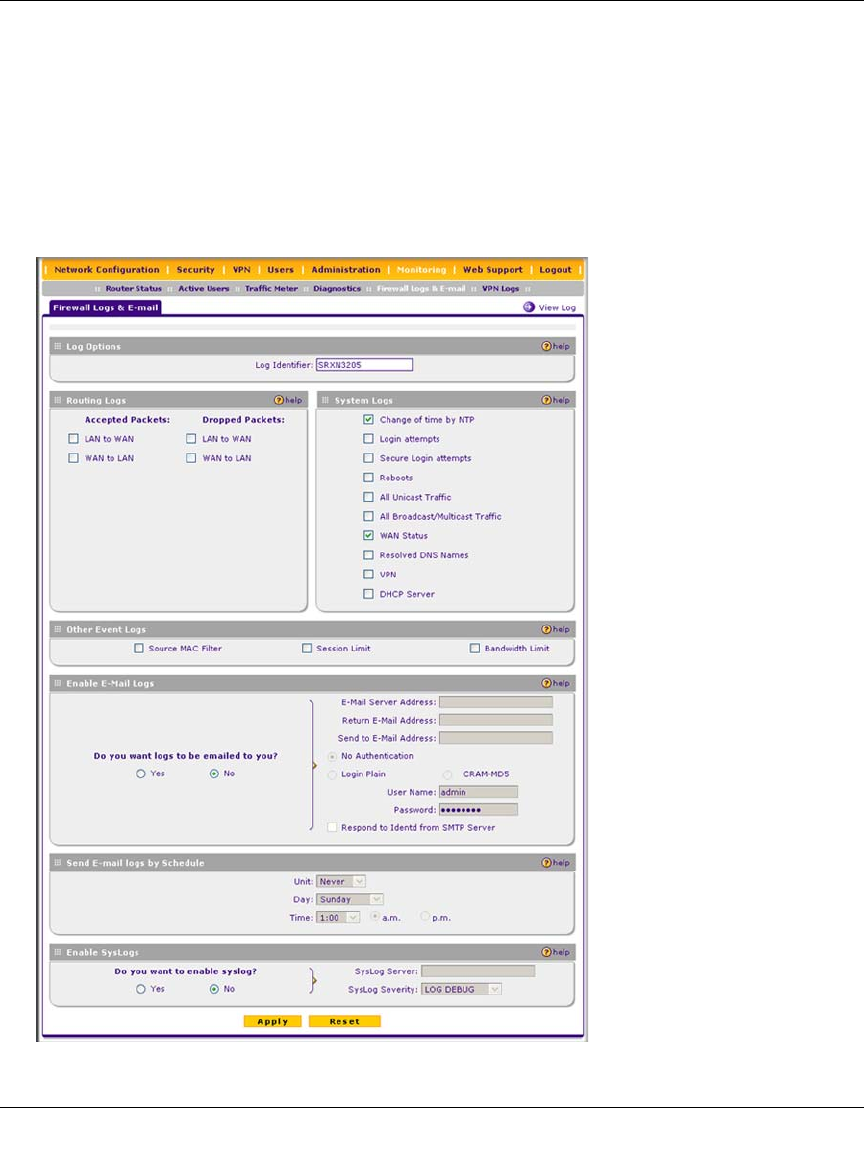
ProSafe Wireless-N VPN Firewall SRXN3205 Reference Manual
10-2 Monitoring System Performance
v1.0, January 2010
You must have e-mail notification enabled to receive the logs in an e-mail message. If you do not
have e-mail notification enabled, you can view the logs by clicking the View Log link to the right
of the Firewall Logs & E-mail tab (see “Viewing the Logs” on page 10-4). Selecting all events will
increase the size of the log, so it is good practice to select only those events which are required.
To configure logging and notifications:
1. Select Monitoring > Firewall Logs & E-mail from the main/submenu. The Firewall Logs &
E-mail screen is displayed.
Figure 10-1

ProSafe Wireless-N VPN Firewall SRXN3205 Reference Manual
Monitoring System Performance 10-3
v1.0, January 2010
2. In the Log Options section, enter the name of the log in the Log Identifier field, which is a
mandatory field used to identify which device sent the log messages. The identifier is
appended to log messages.
3. In the Routing Logs section, select the network segments for which you would like logs to be
sent (for example, LAN to WAN under Dropped Packets).
4. In the System Logs section and the Other Event Logs section, select the type of events to be
logged.
5. In the Enable E-Mail Logs section, select the Yes radio box to enable e-mail logs. Then enter:
a. E-mail Server address. Enter either the IP address or Internet name of your ISP’s
outgoing E-mail SMTP server. If you leave this box blank, no logs will be sent to you.
b. Return E-mail Address. Enter an e-mail address to appear as the sender.
c. Send To E-mail Address. Enter the e-mail address where the logs and alerts should be
sent. You must use the full e-mail address (for example, jsmith@example.com).
6. No Authentication is selected by default. If your SMTP server requires user authentication,
select the required authentication type—either Login Plain or CRAM-MD5. Then enter the
user name and password to be used for authentication.
7. To respond to IDENT protocol messages, check the Respond to Identd from SMTP Server
radio box. The Ident Protocol is a weak scheme to verify the sender of e-mail (a common
daemon program for providing the ident service is identd).
8. In the Send E-mail logs by Schedule section , enter a Schedule for sending the logs. From the
Unit pull-down menu, choose: Never, Hourly, Daily, or Weekly. Then set the Day and Time
fields that correspond to your selection.
9. In the Enable SysLogs section, you can configure the VPN firewall to send system logs to an
external PC that is running a syslog logging program. Click Yes to enable SysLogs and send
messages to the syslog server, then:
a. Enter your SysLog Server IP address.
b. Select the appropriate syslog facility from the SysLog Facility pull-down menu. The
SysLog Facility levels of severity are described in Table 10-1 on page 10-4.
10. Click Apply to save your settings.
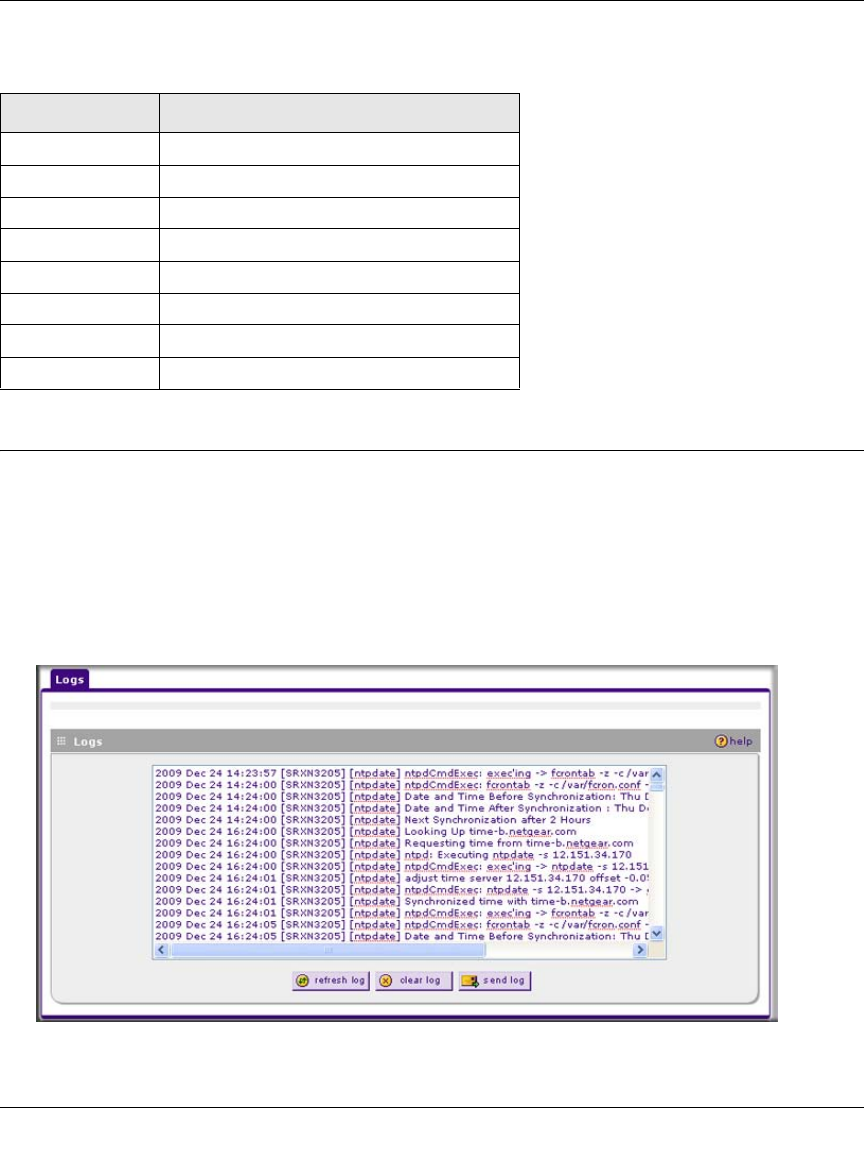
ProSafe Wireless-N VPN Firewall SRXN3205 Reference Manual
10-4 Monitoring System Performance
v1.0, January 2010
Viewing the Logs
To view the logs:
1. Select Monitoring > Firewall Logs & E-mail from the main/submenu. The Firewall Logs &
E-mail screen is displayed (see Figure 10-1 on page 10-2).
2. Click the View Log link to the right of the Firewall Logs & E-mail tab. The Logs screen is
displayed.
Table 10-1. SysLog Facility Levels of Severity
Severity Description
LOG EMERG Emergency: System is unusable
LOG ALERT Alert: Action must be taken immediately
LOG CRITICAL Critical: Critical conditions
LOG ERROR Error: Error conditions
LOG WARNING Warning: Warning conditions
LOG NOTICE Notice: Normal but significant conditions
LOG INFO Informational: Informational messages
LOG DEBUG Debug: Debug level messages
Figure 10-2
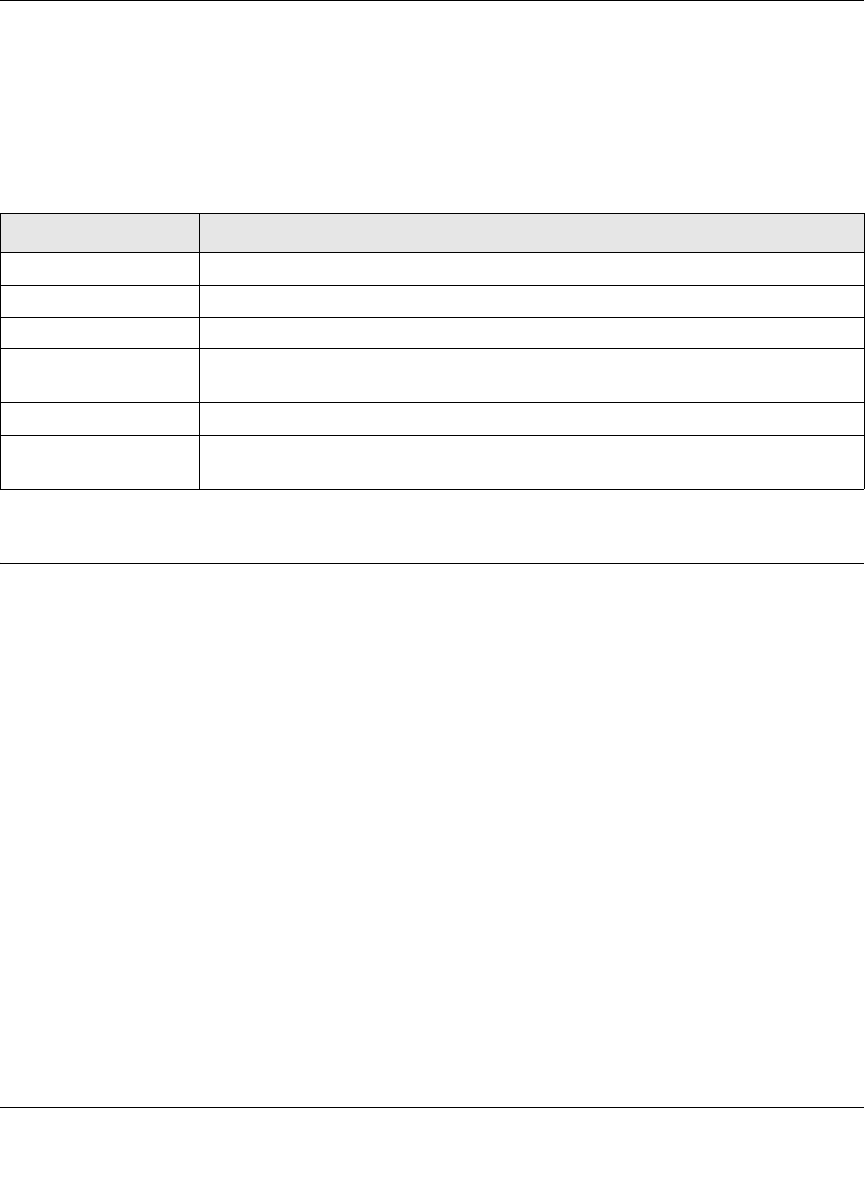
ProSafe Wireless-N VPN Firewall SRXN3205 Reference Manual
Monitoring System Performance 10-5
v1.0, January 2010
If the E-mail Logs option has been enabled on the Firewall Logs & E-mail screen, you can send a
copy of the log by clicking send log.
Click refresh log to retrieve the latest update. Click clear log to delete all entries.
Log entries are described in Log entries are described in Table 10-2.
Enabling the Traffic Meter
If your ISP charges by traffic volume over a given period of time, or if you want to study traffic
types over a period of time, you can activate the Traffic Meter for the WAN port.
To monitor traffic limits on the WAN port:
1. Select Monitoring > Traffic Meter from the main/submenu.
2. Select the WAN Traffic Meter tab. The WAN Traffic Meter screen is displayed (see
Figure 10-3 on page 10-6).
Table 10-2. Firewall Log Field Descriptions
Field Description
Date and Time The date and time the log entry was recorded.
Description or Action The type of event and what action was taken if any.
Source IP The IP address of the initiating device for this log entry.
Source port and
interface The service port number of the initiating device, and whether it originated from the
LAN, WLAN, or WAN.
Destination The name or IP address of the destination device or website.
Destination port and
interface The service port number of the destination device, and whether it’s on the LAN,
WLAN, or WAN.
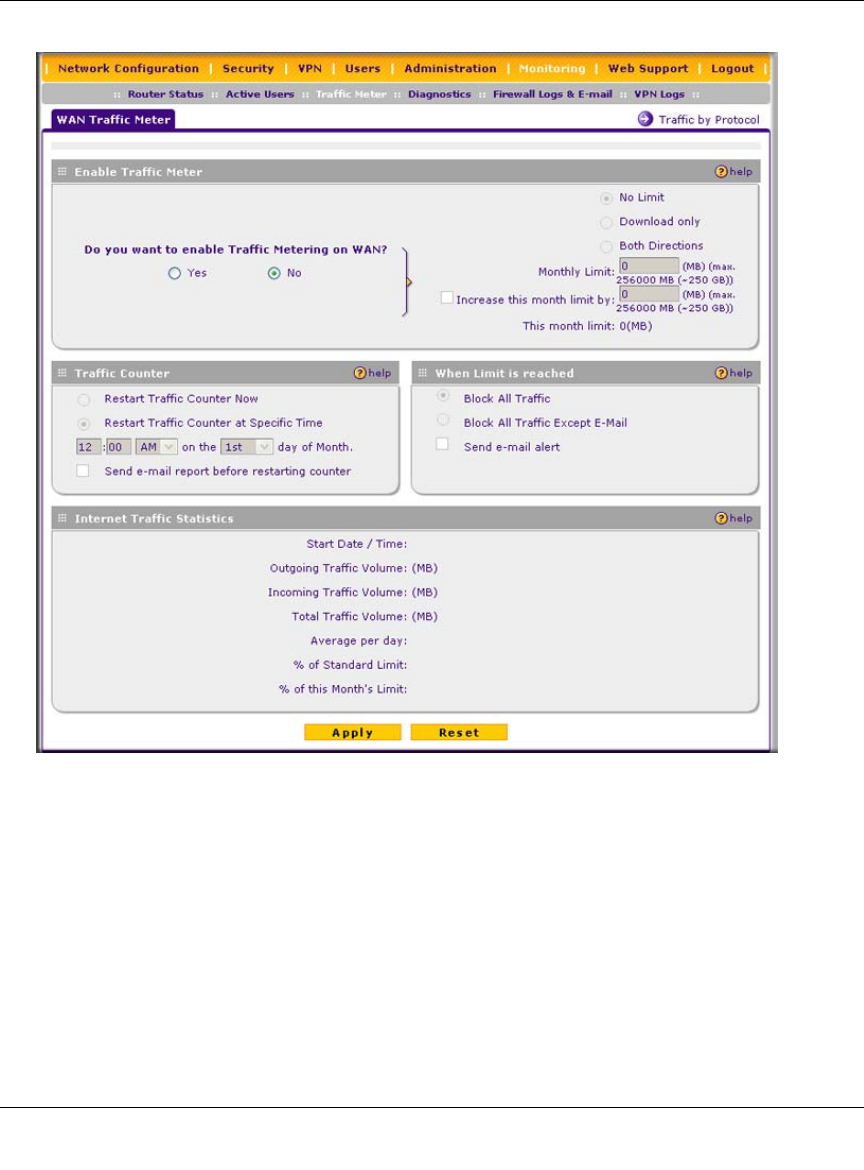
ProSafe Wireless-N VPN Firewall SRXN3205 Reference Manual
10-6 Monitoring System Performance
v1.0, January 2010
3. Enable the traffic meter by clicking the Yes radio box under Do you want to enable Traffic
Metering on WAN? The traffic meter will record the volume of Internet traffic passing
through the WAN. Select the following options:
•No Limit. Any specified restrictions will not be applied when traffic limit is reached.
•Download only. The specified restrictions will be applied to the incoming traffic only
•Both Directions. The specified restrictions will be applied to both incoming and outgoing
traffic only
•Monthly Limit. Enter the monthly volume limit and select the desired behavior when the
limit is reached.
Figure 10-3
ProSafe Wireless-N VPN Firewall SRXN3205 Reference Manual
Monitoring System Performance 10-7
v1.0, January 2010
•Increase this month limit by. Temporarily increase the Traffic Limit if you have reached
the monthly limit, but need to continue accessing the Internet. Select the checkbox and
enter the desired increase. (The checkbox will automatically be cleared when saved so that
the increase is only applied once.)
•This month limit. Displays the limit for the current month.
4. In the Traffic Counter section, make your traffic counter selections:
•Restart Traffic Counter Now. Select this option and click Apply to restart the Traffic
Counter immediately.
•Restart Traffic Counter at Specific Time. Restart the Traffic Counter at a specific time
and day of the month. Fill in the time fields and choose AM or PM and the day of the
month from the pull-down menus.
•Send e-mail report before restarting counter. An E-mail report will be sent immediately
before restarting the counter. You must configure the E-mail screen in order for this
function to work (see “Activating Notification of Events and Alerts” on page 10-1).
5. In the When limit is reached section, make the following choice:
•Block all traffic. All access to and from the Internet will be blocked.
•Block all traffic except E-mail. Only E-mail traffic will be allowed. All other traffic will
be blocked.
•Send E-mail alert. You must configure the E-mail screen in order for this function to
work (see “Activating Notification of Events and Alerts” on page 10-1).
6. Click Apply to save your settings.
The Internet Traffic Statistics section displays statistics on Internet Traffic via the WAN port.
If you have not enabled the Traffic Meter, these statistics are not available.
Note: Both incoming and outgoing traffic are included in the limit.
Warning: If the Block All Traffic radio button is selected, the WAN port shuts
down once its traffic limit is reached
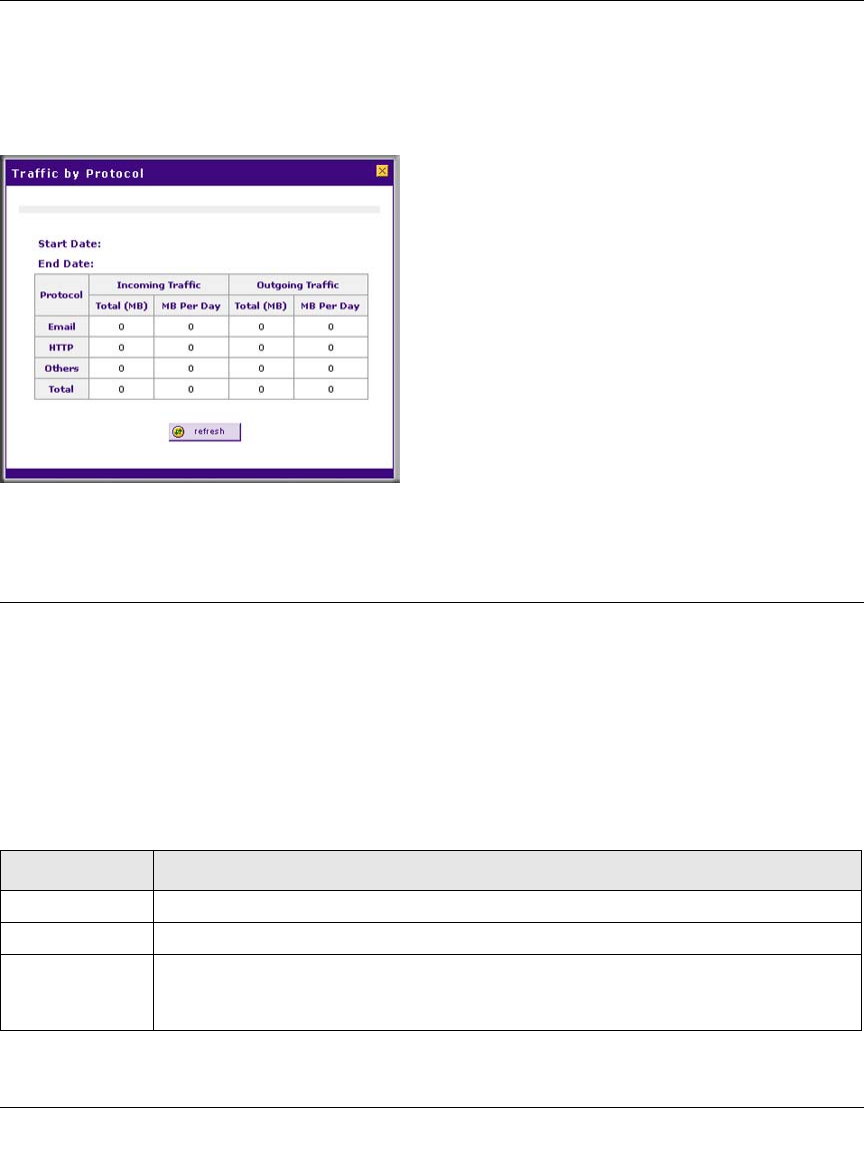
ProSafe Wireless-N VPN Firewall SRXN3205 Reference Manual
10-8 Monitoring System Performance
v1.0, January 2010
To display a report of Internet traffic by type, click the Traffic by Protocol link to the right of the
WAN Traffic Meter tab. The volume of traffic for each protocol will be displayed in a popup
window. Traffic counters are updated in MBytes scale; the counter starts only when traffic passed
is at least 1MB.
Viewing VPN Firewall Configuration and System Status
The Router Status screen provides status and usage information. To view the VPN firewall
configuration and system status:
Select Monitoring > Router Status from the main/submenu. The Router Status screen is
displayed (see Figure 10-5 on page 10-9).
Table 10-3 explains the information that is presented on the Router Status screen.:
Figure 10-4
Table 10-3. Router Status Fields
Item Description
System Info The NETGEAR product name.
Firmware Version The current software the VPN firewall is using.
LAN Port Displays the current settings for the MAC address, IP address, DHCP, and IP subnet
mask that you have configured on the LAN Setup screen (see “Configuring the LAN
Setup Options” on page 3-2). DHCP can be either Enabled or Disabled.
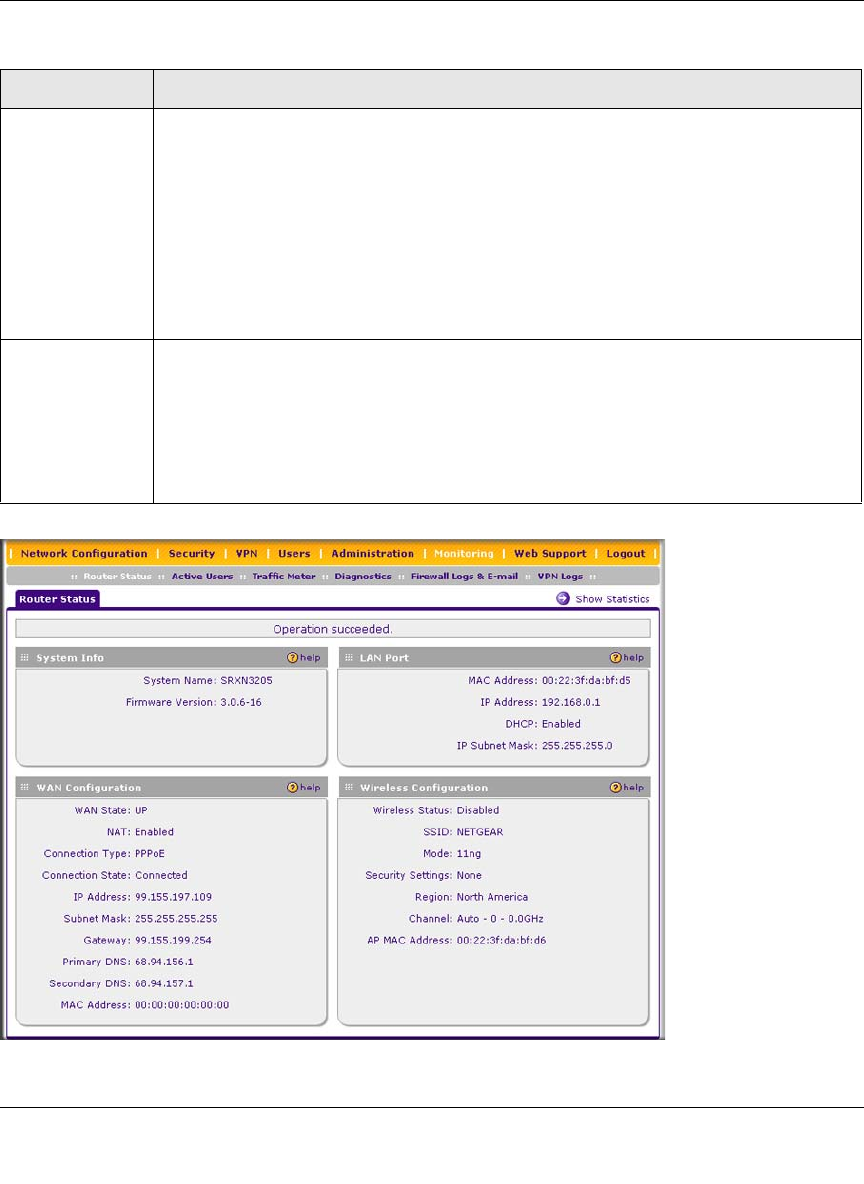
ProSafe Wireless-N VPN Firewall SRXN3205 Reference Manual
Monitoring System Performance 10-9
v1.0, January 2010
WAN
Configuration
For configuration,
see “Configuring
the Internet
Connection
(WAN)” on
page 2-4
• WAN State: UP or DOWN.
• NAT: Enabled or Disabled.
• Connection Type: Static IP, DHCP, PPPoE, or PPTP.
• Connection State: Connected or Disconnected.
• WAN IP Address.: The IP address of the WAN interface.
• Subnet Mask: The IP subnet mask of the WAN interface.
• Gateway: The gateway IP address for the WAN interface.
• Primary DNS: The IP address of the primary DNS server for the WAN interface.
• Secondary DNS: The IP address of the secondary DNS server for the WAN interface.
• MAC Address: The MAC address of the WAN interface.
Wireless
Configuration
For configuration,
see Chapter 4,
“Wireless
Configuration.”
• Wireless Status: Enabled or Disabled.
• SSID: The SSID that you have configured.
• Mode: a only, b only, g only, g and b, 11ng, or 11na.
• Security Settings: None, WEP, WPA, WPA2, or WPA and WPA2.
• Region: The region that you have configured.
• Channel: Auto, 1, 2, 3, 4, 5, 6, 7, 8, 9, 10, or 11.
• AP MAC Address: The MAC address of the Wireless Access Point.
Figure 10-5
Table 10-3. Router Status Fields (continued)
Item Description
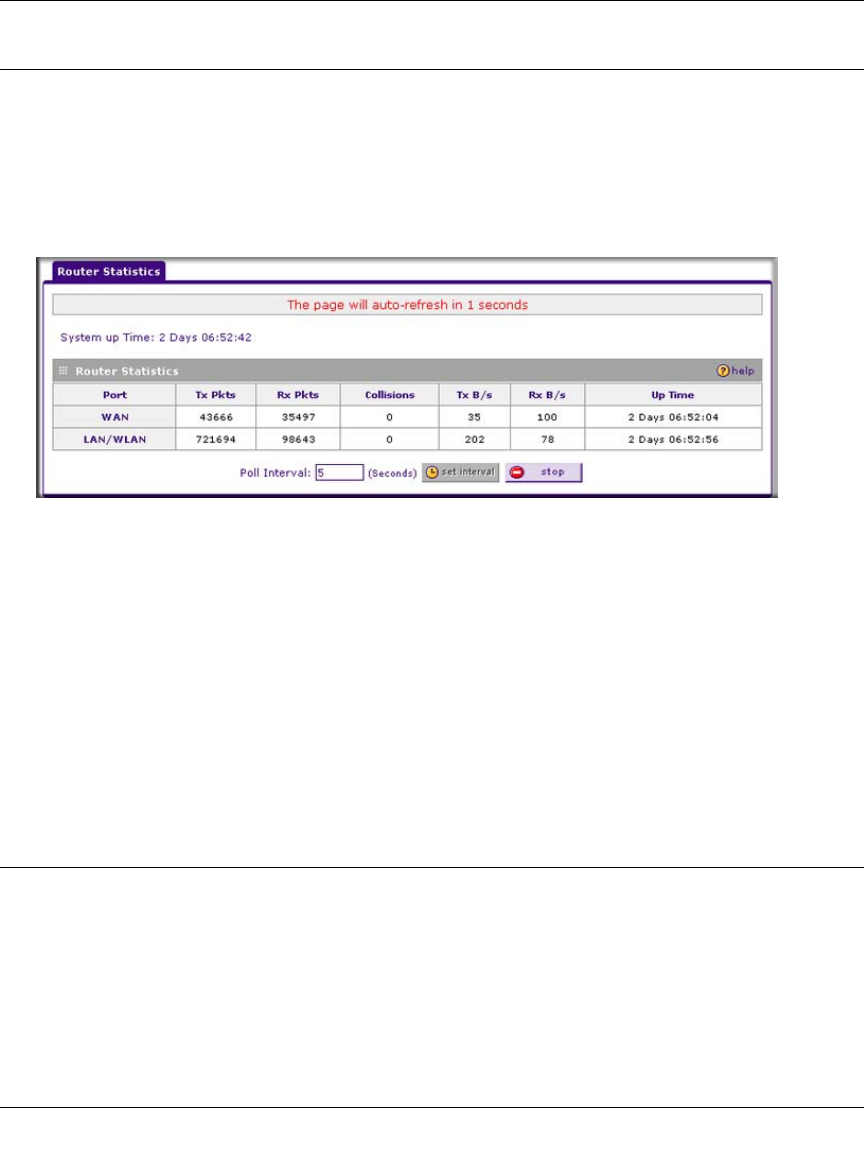
ProSafe Wireless-N VPN Firewall SRXN3205 Reference Manual
10-10 Monitoring System Performance
v1.0, January 2010
Monitoring VPN Firewall Statistics
To display the VPN firewall statistics:
1. Select Monitoring > Router Status from the menu. The Router Status screen is displayed.
2. Click the Show Statistics link in the upper right-hand section of the screen. The Router
Statistics screen is displayed.
For each interface, the number of transmitted and received packets, the number of collided
packets, the transmitted and received Bytes per second, and the interface up-time are shown.
To set the poll interval:
1. Click the Stop button.
2. From the Poll Interval pull-down menu, select a new interval (the minimum is 5 seconds, the
maximum is 5 minutes).
3. Click the Set Interval button.
Monitoring the WAN Port Status
You can monitor the status of the WAN connection, the dynamic DNS server connection, and the
DHCP server connection. To monitor the status of the WAN port:
1. Select Network Configuration > WAN Settings from the main/submenu. The WAN ISP
Settings screen is displayed (see Figure 2-3 on page 2-5).
Figure 10-6
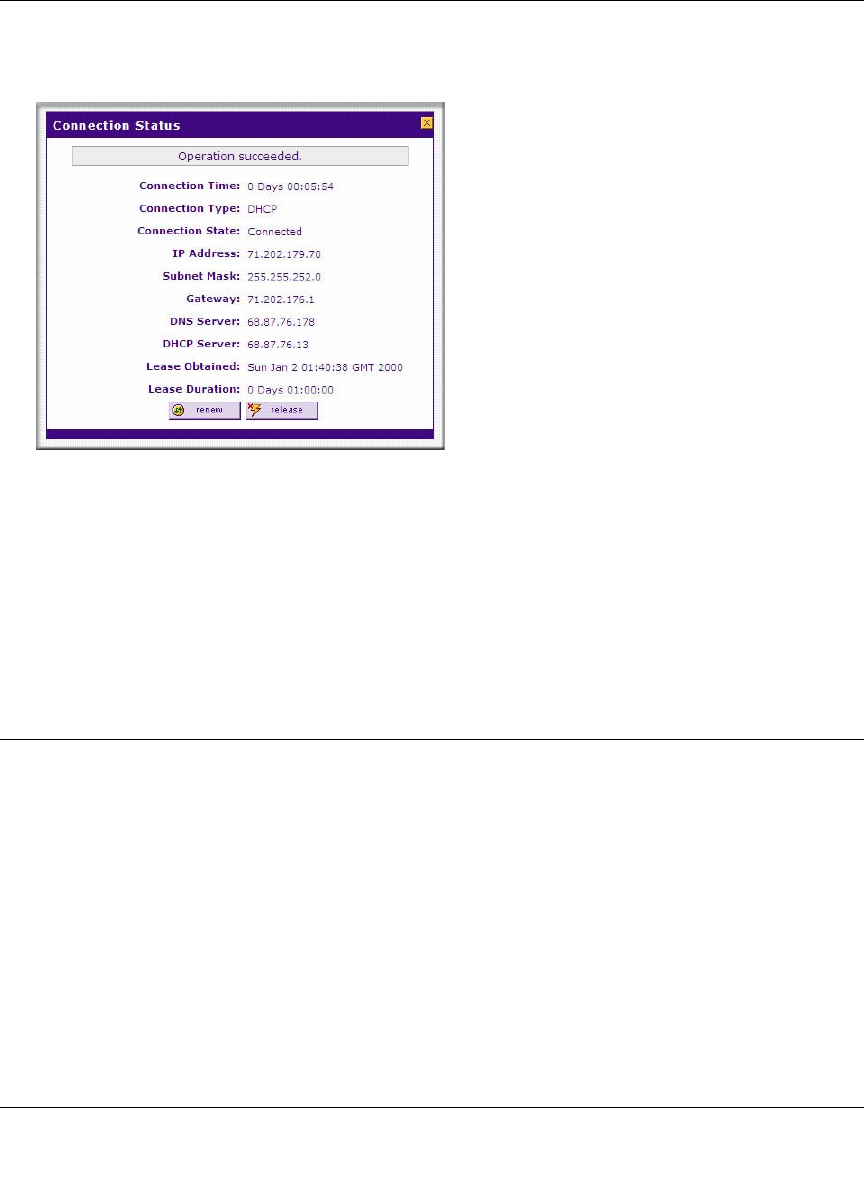
ProSafe Wireless-N VPN Firewall SRXN3205 Reference Manual
Monitoring System Performance 10-11
v1.0, January 2010
2. Click the WAN Status link to the very right of the WAN ISP Settings screen. The Connection
Status popup window is displayed.
Depending on the type of connections, any of the following buttons may be displayed on the
Connection Status screen:
•renew. Click to renew the DHCP lease.
•release. Click to disconnect the DHCP connection.
•disconnect. Click to disconnect the static IP connection.
Monitoring Attached Devices
The contains the LAN Groups Database that shows all IP devices that the VPN firewall has
discovered on the local network.
To view the attached devices:
1. Select Network Configuration > LAN Settings from the main/submenu. The LAN Setup
screen displays (see Figure 3-1 on page 3-3).
Figure 10-7
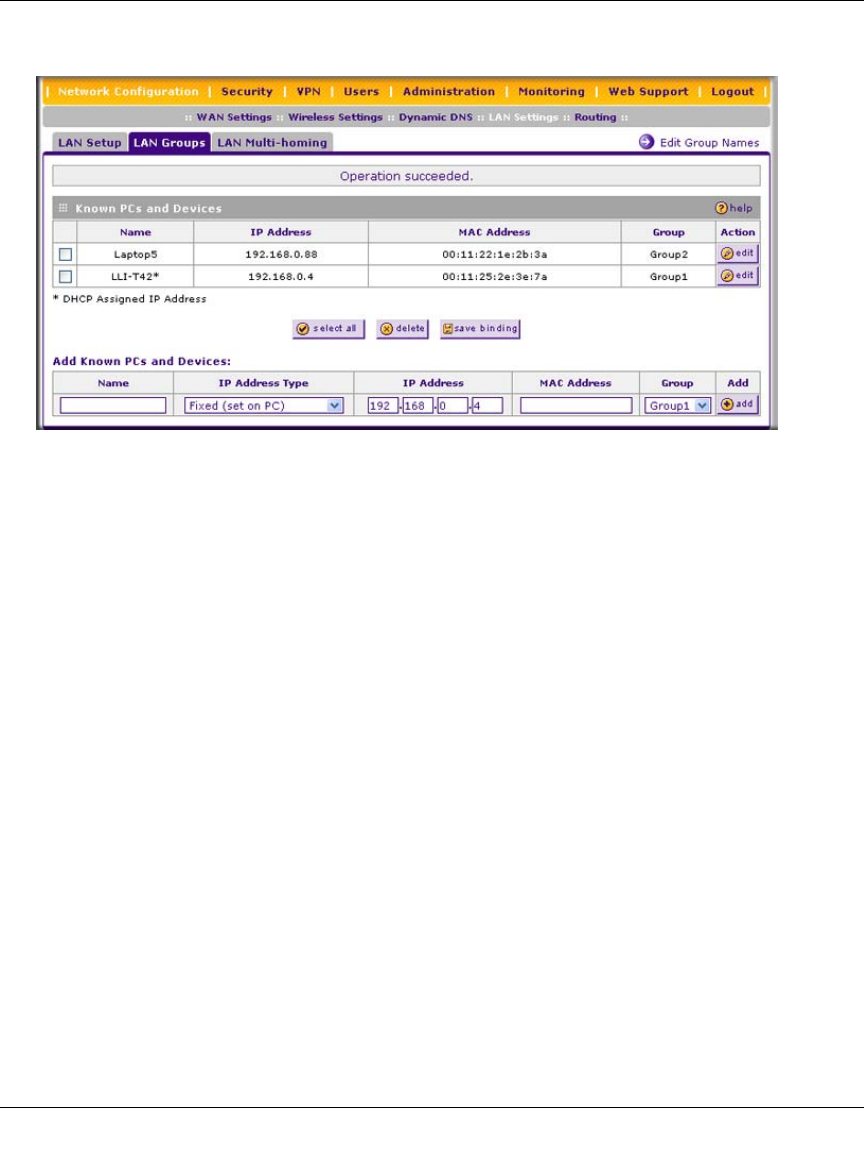
ProSafe Wireless-N VPN Firewall SRXN3205 Reference Manual
10-12 Monitoring System Performance
v1.0, January 2010
2. Click the LAN Groups tab. The LAN Groups screen is displayed.
The Known PCs and Devices table on the contains a list of all known PCs and network devices
that are assigned dynamic IP addresses by the VPN firewall, or have been discovered by other
means. Collectively, these entries make up the LAN Groups Database.
The LAN Groups Database is updated by these methods:
•DHCP Client Requests. By default, the DHCP server in this VPN firewall is enabled, and
will accept and respond to DHCP client requests from PCs and other network devices. These
requests also generate an entry in the LAN Groups Database. Because of this, leaving the
DHCP server feature (LAN Setup screen) enabled is strongly recommended.
•Scanning the Network. The local network is scanned using ARP requests. The ARP scan will
detect active devices that are not DHCP clients. However, sometimes the name of the PC or
device cannot be accurately determined, and will appear in the database as unknown.
•Manual Entry. You can manually enter information about a network device in the Add
Known PCs and Devices section. Then click add to manually add the device to the database.
For each computer or device, the following fields are displayed in the Known PCs and Devices
table:
•Name. The name of the PC or device. For computers that do not support the NetBIOS
protocol, this will be listed as “Unknown” (you can edit the entry manually to add a
meaningful name). If the computer was assigned an IP address by the DHCP server, then the
Name will be appended by an asterisk.
Figure 10-8
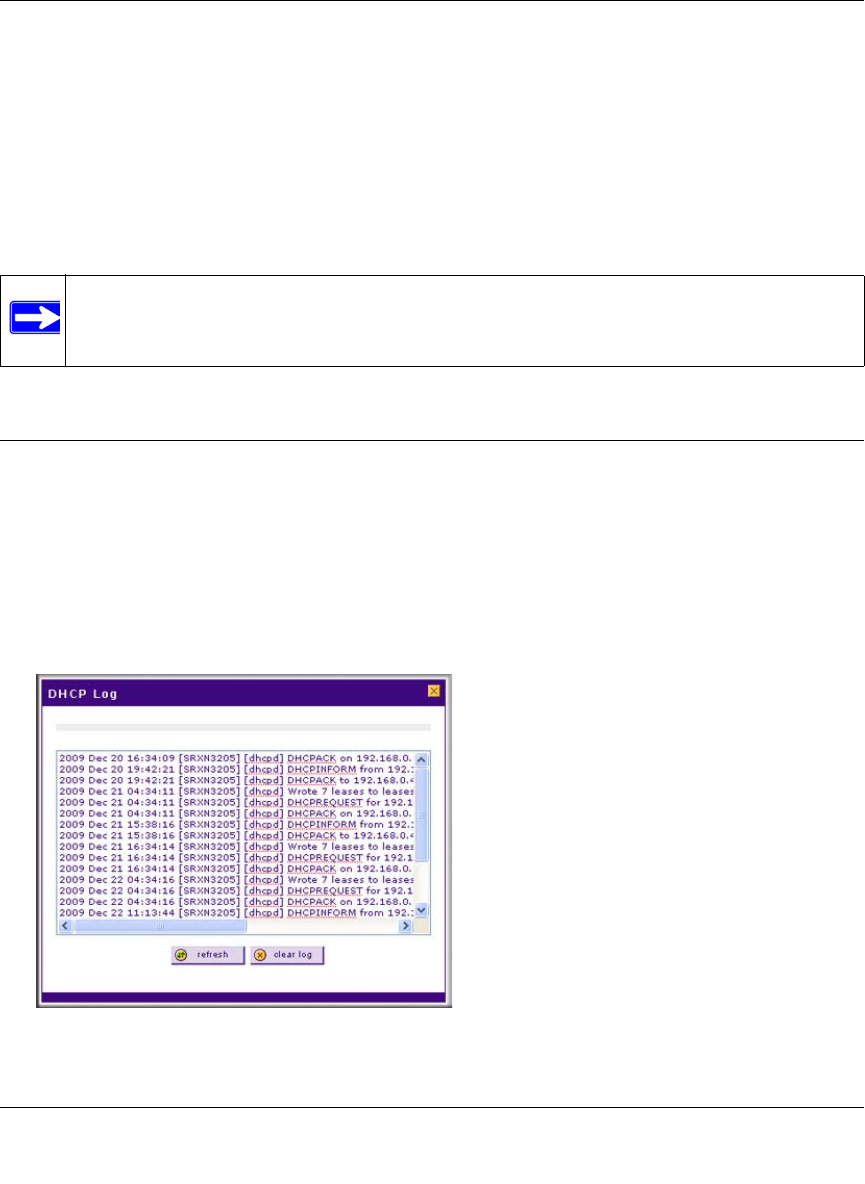
ProSafe Wireless-N VPN Firewall SRXN3205 Reference Manual
Monitoring System Performance 10-13
v1.0, January 2010
•IP Address. The current IP address of the computer. For DHCP clients of the VPN firewall,
this IP address will not change. If a computer is assigned a static IP addresses, you will need to
update this entry manually if the IP address on the computer has been changed.
•MAC Address. The MAC address of the PC’s network interface.
•Group. Each PC or device can be assigned to a single group. By default, a computer is
assigned to Group 1, unless a different group is chosen from the Group pull-down menu.
•Action. Allows modification of the selected entry by clicking edit.
Viewing the DHCP Log
To review the most recent entries in the DHCP log:
1. Select Network Configuration > LAN Settings from the main/submenu.
2. Click the LAN Setup tab. The LAN Setup screen is displayed (see Figure 3-1 on page 3-3).
3. Click the DHCP Log link to the right of the tabs. The DHCP Log popup window is displayed
(see Figure 10-9 on page 10-13).
.
To view the most recent entries, click refresh. To delete all the existing log entries, click clear log.
Note: If the VPN firewall is rebooted, the table data is lost until the VPN firewall
rediscovers the devices.
Figure 10-9
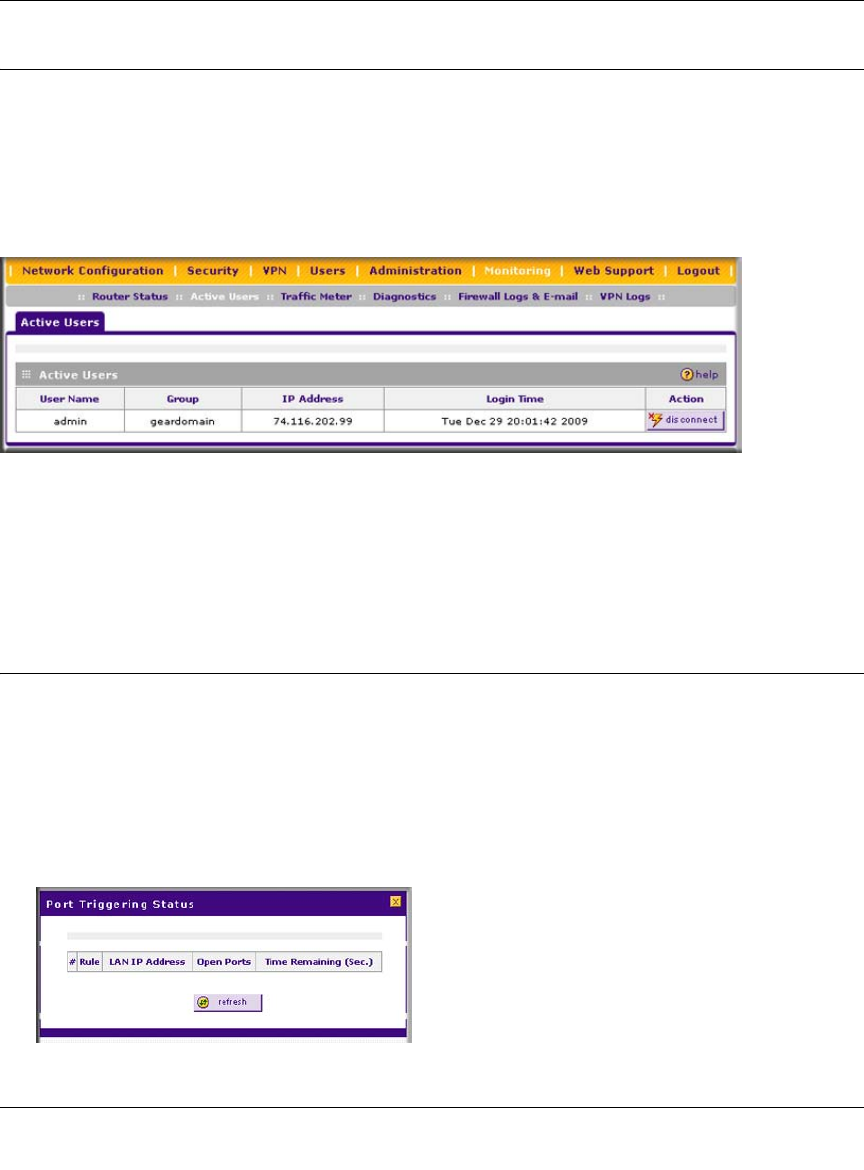
ProSafe Wireless-N VPN Firewall SRXN3205 Reference Manual
10-14 Monitoring System Performance
v1.0, January 2010
Monitoring Active Users
The Active Users screen displays a list of administrators and SSL VPN users currently logged into
the device.
To display the list of active users:
Select Monitoring > Active Users from the main/submenu. The Active Users screen is displayed.
The active user’s username, group, and IP address are listed in the table with a timestamp
indicating the time and date that the user logged in. You can disconnect an active user by clicking
disconnect to the right of the user’s list entry.
Viewing the Port Triggering Status
To view the status of port triggering:
1. Select Security > Port Triggering from the main/submenu. The Port Triggering screen is
displayed (see Figure 5-18 on page 5-32).
2. Click the Status link to the right of the Port Triggering tab on the Port Triggering screen. The
Port Triggering Status popup window is displayed.
Figure 10-10
Figure 10-11
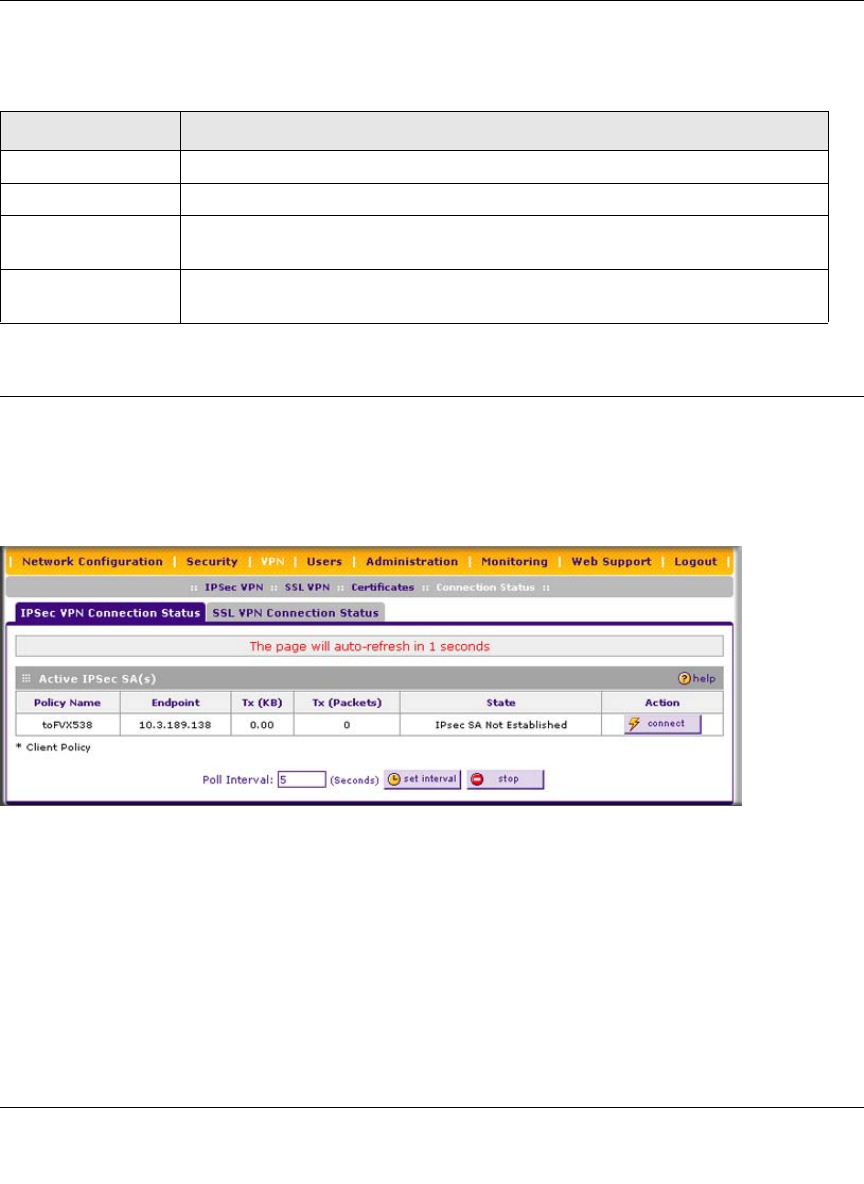
ProSafe Wireless-N VPN Firewall SRXN3205 Reference Manual
Monitoring System Performance 10-15
v1.0, January 2010
The status window displays the following information:
Monitoring the VPN Tunnel Connection Status
To view recent IPsec VPN tunnel activity:
Select VPN > Connection Status from the main/submenu. The IPSec VPN Connection Status
screen is displayed.
You can set a Poll Interval (in seconds) to check the connection status of all active IKE policies to
obtain the latest VPN tunnel activity. Table 10-5 on page 10-16 shows the fields of the Active
IPsec SA(s) table, which also lists current data for each active IPsec SA (Security Association).
Table 10-4. Port Triggering Status
Item Description
Rule The name of the port triggering rule associated with this entry.
LAN IP Address The IP address of the PC currently using this rule.
Open Ports The incoming ports which are associated the this rule. Incoming traffic using one
of these ports will be sent to the IP address above.
Time Remaining The time remaining before this rule is released and made available for other
PCs. This timer is restarted whenever incoming or outgoing traffic is received.
Figure 10-12
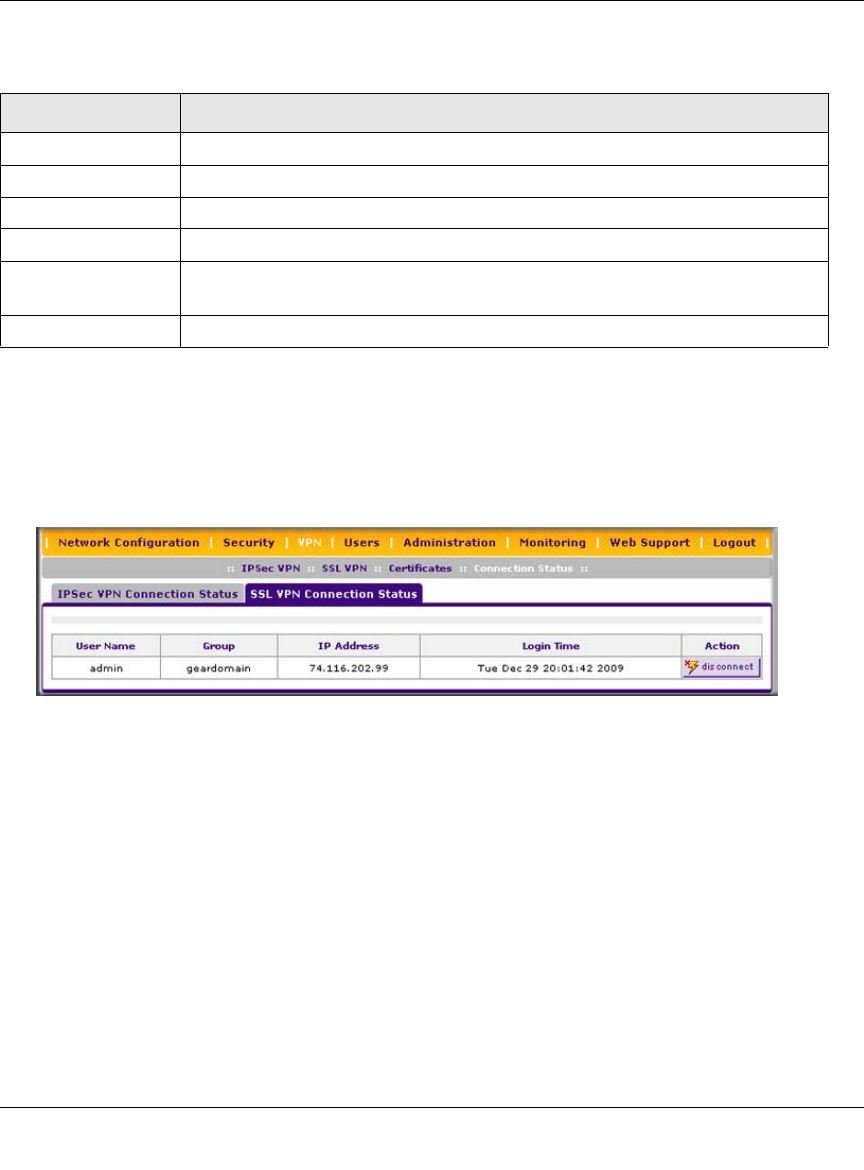
ProSafe Wireless-N VPN Firewall SRXN3205 Reference Manual
10-16 Monitoring System Performance
v1.0, January 2010
To view recent SSL VPN tunnel activity:
1. Select VPN > Connection Status from the main/submenu. The IPSec VPN Connection Status
screen is displayed.
2. Select the SSL VPN Connection Status tab. The SSL VPN Connection Status screen is
displayed.
The active SSL VPN user’s username, group, and IP address are listed in the table with a
timestamp indicating the time and date that the user connected.
You can disconnect an active SSL VPN user by clicking disconnect to the right of the user’s list
entry.
Table 10-5. IPsec Connection Status Fields
Item Description
Policy Name The name of the VPN policy associated with this SA.
Endpoint The IP address on the remote VPN endpoint.
Tx (KB) The amount of data transmitted over this SA.
Tx (Packets) The number of IP packets transmitted over this SA.
State The current status of the SA. Phase 1 is Authentication phase and Phase 2 is
Key Exchange phase.
Action Use this button to terminate/build the SA (connection) if required.
Figure 10-13
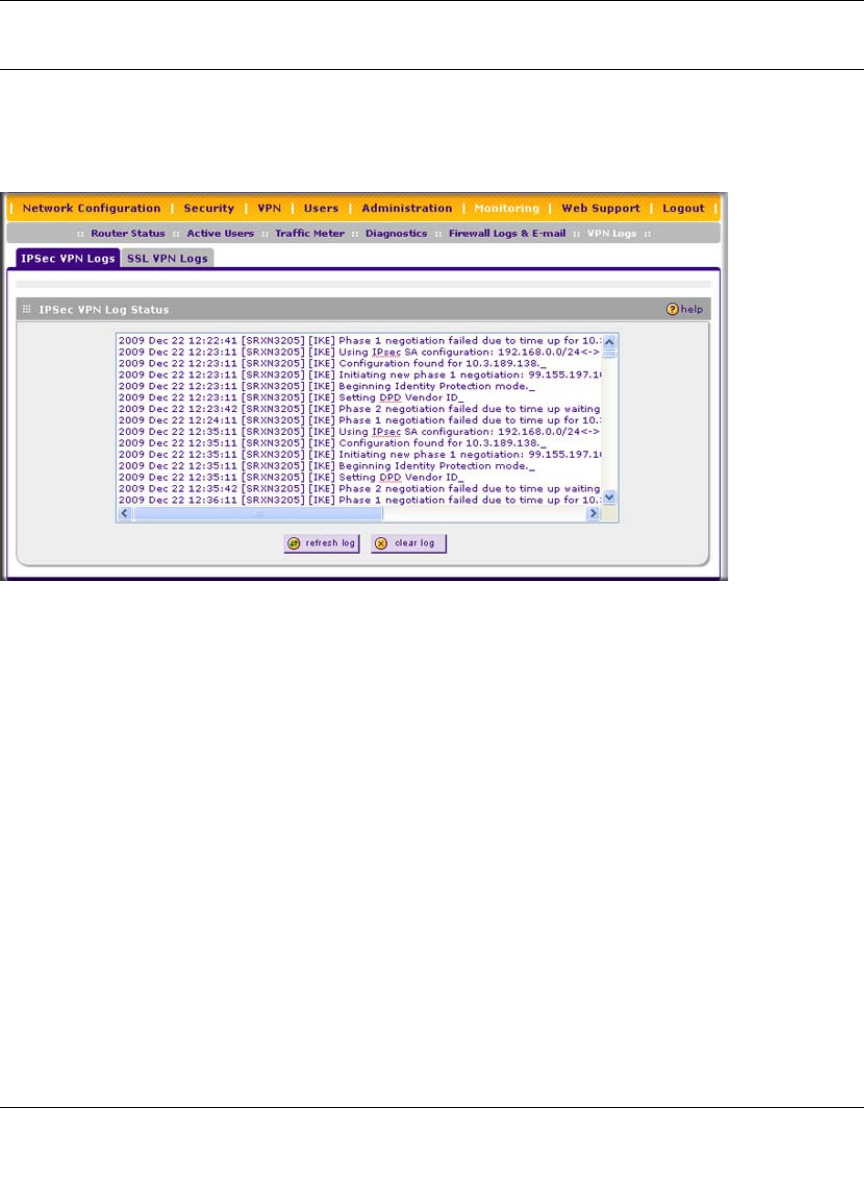
ProSafe Wireless-N VPN Firewall SRXN3205 Reference Manual
Monitoring System Performance 10-17
v1.0, January 2010
Viewing the VPN Logs
To view VPN firewall IPsec VPN logs:
Select Monitoring > VPN Logs from the main/submenu. The IPsec VPN Logs screen is displayed.
To view the most recent entries, click refresh log; to delete all the existing log entries, click clear
log.
To view VPN firewall SSL VPN logs:
1. Select Monitoring > VPN Logs from the main/submenu. The IPsec VPN Logs screen is
displayed.
2. Select the SSL VPN Logs tab. The SSL VPN Logs screen is displayed (see Figure 10-15 on
page 10-18).
Figure 10-14
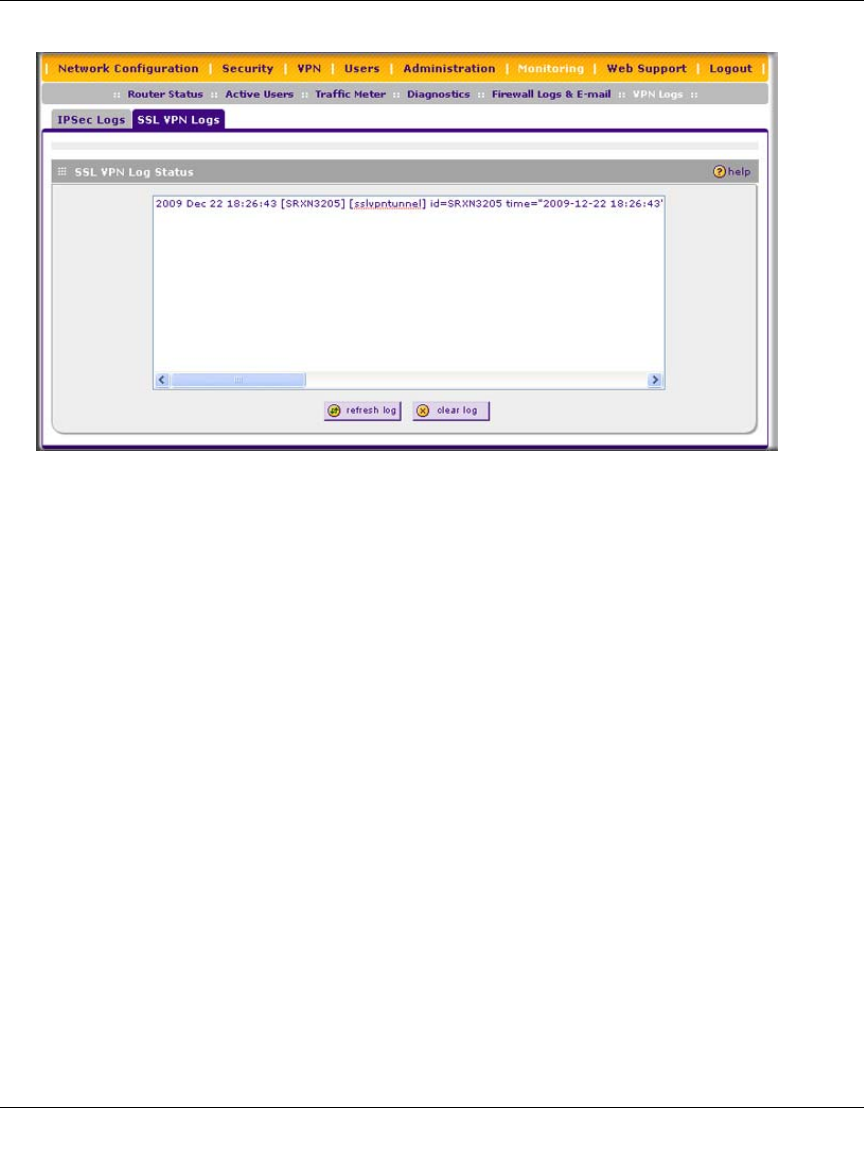
ProSafe Wireless-N VPN Firewall SRXN3205 Reference Manual
10-18 Monitoring System Performance
v1.0, January 2010
To view the most recent entries, click refresh log; to delete all the existing log entries, click clear
log.
Figure 10-15
ProSafe Wireless-N VPN Firewall SRXN3205 Reference Manual
Troubleshooting 11-1
v1.0, January 2010
Chapter 11
Troubleshooting
This chapter provides troubleshooting tips and information for your ProSafe Wireless-N VPN
Firewall SRXN3205. After each problem description, instructions are provided to help you
diagnose and solve the problem.
This chapter contains the following sections:
•“Basic Functions” on this page
•“Troubleshooting the Web Configuration Interface” on page 11-3
•“Troubleshooting the ISP Connection” on page 11-4
•“Troubleshooting a TCP/IP Network Using a Ping Utility” on page 11-5
•“Restoring the Default Configuration and Password” on page 11-7
•“Problems with Date and Time” on page 11-7
•“Using the Diagnostics Utilities” on page 11-8
Basic Functions
After you turn on power to the VPN firewall, the following sequence of events should occur:
1. When power is first applied, verify the PWR LED is on.
2. After approximately two minutes, verify:
a. The TEST LED is not lit.
b. The LAN port LINK/ACT LEDs are lit for any local ports connected.
c. The WAN port LINK/ACT LEDs are lit on the WAN port.
If a port’s LINK/ACT LED is lit, a link has been established to the connected device. If a LAN
port is connected to a 1000 Mbps device, verify the port’s SPEED LED is green. If the port is
100 Mbps, the LED will be amber. If the port is 10 Mbps, the LED will be off.
If any of these conditions does not occur, refer to the appropriate following section.

ProSafe Wireless-N VPN Firewall SRXN3205 Reference Manual
11-2 Troubleshooting
v1.0, January 2010
Power LED Not On
If the Power and other LEDs are off when your VPN firewall is turned on:
• Verify the power adapter cord is properly connected to your VPN firewall and the power
adapter is properly connected to a functioning power outlet.
• Verify you are using the 12VDC, 1.5A power adapter supplied by NETGEAR for this product.
If the error persists, you have a hardware problem and should contact technical support.
LEDs Never Turn Off
When the VPN firewall is turned on, the LEDs turns on for about 10 seconds and then turn off. If
all the LEDs stay on, there is a fault within the firewall.
If all LEDs are still on one minute after power up:
• Cycle the power to see if the VPN firewall recovers.
• Clear the VPN firewall’s configuration to factory defaults. This will set the VPN firewall’s IP
address to 192.168.1.1. This procedure is explained in “Restoring the Default Configuration
and Password” on page 11-7.
If the error persists, you might have a hardware problem and should contact technical support.
LAN or WAN Port LEDs Not On
If either the LAN LEDs or WAN LEDs do not light when the Ethernet connection is made, check
the following:
• Verify the Ethernet cable connections are secure at the VPN firewall and at the hub or
workstation.
• Verify the power is turned on to the connected workstation.
• Ensure you are using the correct cable:
When connecting the VPN firewall’s Internet port to a cable or DSL modem, use the cable that
was supplied with the cable or DSL modem. This cable could be a standard straight-through
Ethernet cable or an Ethernet crossover cable.
ProSafe Wireless-N VPN Firewall SRXN3205 Reference Manual
Troubleshooting 11-3
v1.0, January 2010
Troubleshooting the Web Configuration Interface
If you are unable to access the VPN firewall’s Web Configuration interface from a PC on your
local network, check the following:
• Check the Ethernet connection between the PC and the VPN firewall as described in the
previous section.
• Ensure your PC’s IP address is on the same subnet as the VPN firewall. If you are using the
recommended addressing scheme, your PC’s address should be in the range of 192.168.1.2 to
192.168.1.254.
• If your VPN firewall’s IP address has been changed and you do not know the current IP
address, clear the VPN firewall’s configuration to factory defaults. This will set the VPN
firewall’s IP address to 192.168.1.1. This procedure is explained in “Restoring the Default
Configuration and Password” on page 11-7.
• Ensure you are using the SSL https://address login rather than http://address.
• Ensure your browser has Java, JavaScript, or ActiveX enabled. If you are using Internet
Explorer, click Refresh to be sure the Java applet is loaded.
• Try quitting the browser and launching it again.
• Ensure you are using the correct login information. The factory default login name is admin
and the password is password. Verify Caps Lock is off when entering this information.
Note: If your PC’s IP address is shown as 169.254.x.x:
Windows and MacOS will generate and assign an IP address if the computer
cannot reach a DHCP server. These auto-generated addresses are in the range
of 169.254.x.x. If your IP address is in this range, check the connection from
the PC to the VPN firewall and reboot your PC.
Tip: If you do not want to revert to the factory default settings and lose your
configuration settings, you can reboot the VPN firewall and use a sniffer to
capture packets sent during the reboot. Look at the ARP packets to locate the
VPN firewall’s LAN interface address.

ProSafe Wireless-N VPN Firewall SRXN3205 Reference Manual
11-4 Troubleshooting
v1.0, January 2010
If the VPN firewall does not save changes you have made in the Web Configuration Interface,
check the following:
• When entering configuration settings, be sure to click the Apply button before moving to
another screen, or your changes are lost.
• Click the Refresh or Reload button in the Web browser. The changes may have occurred, but
the Web browser may be caching the old configuration.
Troubleshooting the ISP Connection
If your VPN firewall is unable to access the Internet, you should first determine whether the VPN
firewall is able to obtain a WAN IP address from the ISP. Unless you have been assigned a static IP
address, your VPN firewall must request an IP address from the ISP. You can determine whether
the request was successful using the Web Configuration Manager.
To check the WAN IP address:
1. Launch your browser and navigate to an external site such as www.netgear.com
2. Access the Main Menu of the VPN firewall’s configuration at https://192.168.1.1
3. Select Monitoring from the main menu and Router Status from the submenu.
4. Check that an IP address is shown for the WAN port.
If 0.0.0.0 is shown, your VPN firewall has not obtained an IP address from your ISP.
If your VPN firewall is unable to obtain an IP address from the ISP, you may need to force your
cable or DSL modem to recognize your new VPN firewall by performing the following procedure:
1. Turn off power to the cable or DSL modem.
2. Turn off power to your VPN firewall.
3. Wait five minutes and reapply power to the cable or DSL modem.
4. When the modem’s LEDs indicate that it has reacquired sync with the ISP, reapply power to
your VPN firewall.
If your VPN firewall is still unable to obtain an IP address from the ISP, the problem may be one of
the following:
• Your ISP may require a login program.
Ask your ISP whether they require PPP over Ethernet (PPPoE) or some other type of login.
• If your ISP requires a login, you may have incorrectly set the login name and password.
ProSafe Wireless-N VPN Firewall SRXN3205 Reference Manual
Troubleshooting 11-5
v1.0, January 2010
• Your ISP may check for your PC's host name.
Assign the PC Host Name of your ISP account as the Account Name in the WAN ISP Settings
screen (see Figure 2-3 on page 2-5).
• Your ISP only allows one Ethernet MAC address to connect to the Internet, and may check for
your PC’s MAC address. In this case:
– Inform your ISP that you have bought a new network device, and ask them to use the VPN
firewall’s MAC address; or
– Configure your VPN firewall to spoof your PC’s MAC address. You can do this on the
WAN Advanced Options screen (see Figure 2-12 on page 2-14).
If your VPN firewall can obtain an IP address, but your PC is unable to load any Web pages from
the Internet:
• Your PC may not recognize any DNS server addresses.
A DNS server is a host on the Internet that translates Internet names (such as www addresses)
to numeric IP addresses. Typically your ISP will provide the addresses of one or two DNS
servers for your use. You may configure your PC manually with DNS addresses, as explained
in your operating system documentation.
• Your PC may not have the VPN firewall configured as its TCP/IP gateway.
Troubleshooting a TCP/IP Network Using a Ping Utility
Most TCP/IP terminal devices and firewalls contain a ping utility that sends an echo request packet
to the designated device. The device then responds with an echo reply. Troubleshooting a TCP/IP
network is made very easy by using the Ping utility in your PC or workstation.
Testing the LAN Path to Your VPN Firewall
You can ping the VPN firewall from your PC to verify that the LAN path to your firewall is set up
correctly.
To ping the firewall from a PC running Windows 95 or later:
1. From the Windows toolbar, click Start and choose Run.
2. In the field provided, type “ping” followed by the IP address of the VPN firewall; for example:
ping 192.168.1.1
3. Click OK. A message, similar to the following, should display:

ProSafe Wireless-N VPN Firewall SRXN3205 Reference Manual
11-6 Troubleshooting
v1.0, January 2010
Pinging <IP address> with 32 bytes of data
If the path is working, you will see this message:
Reply from <IP address>: bytes=32 time=NN ms TTL=xxx
If the path is not working, you will see this message:
Request timed out
If the path is not functioning correctly, you could have one of the following problems:
• Wrong physical connections
– Make sure the LAN port LED is on. If the LED is off, follow the instructions in “LAN
or WAN Port LEDs Not On” on page 11-2.
– Check that the corresponding Link LEDs are on for your network interface card and
for the hub ports (if any) that are connected to your workstation and VPN firewall.
• Wrong network configuration
– Verify that the Ethernet card driver software and TCP/IP software are both installed
and configured on your PC or workstation.
– Verify that the IP address for your VPN firewall and your workstation are correct and
that the addresses are on the same subnet.
Testing the Path from Your PC to a Remote Device
After verifying the LAN path works correctly, test the path from your PC to a remote device. From
the Windows run menu, type:
PING -n 10 <IP address>
where <IP address> is the IP address of a remote device such as your ISP’s DNS server.
If the path is functioning correctly, replies as in the previous section are displayed. If you do not
receive replies:
– Verify your PC has the IP address of your VPN firewall listed as the default gateway. If the
IP configuration of your PC is assigned by DHCP, this information will not be visible in
your PC’s Network Control Panel.
– Verify the network address of your PC (the portion of the IP address specified by the
netmask) is different from the network address of the remote device.
– Verify your cable or DSL modem is connected and functioning.
ProSafe Wireless-N VPN Firewall SRXN3205 Reference Manual
Troubleshooting 11-7
v1.0, January 2010
– If your ISP assigned a host name to your PC, enter that host name as the Account Name on
the WAN ISP Settings screen (see Figure 2-3 on page 2-5).
– Your ISP could be rejecting the Ethernet MAC addresses of all but one of your PCs. Many
broadband ISPs restrict access by only allowing traffic from the MAC address of your
broadband modem, but some ISPs additionally restrict access to the MAC address of a
single PC connected to that modem. If this is the case, you must configure your VPN
firewall to “clone” or “spoof” the MAC address from the authorized PC. You can do this
on the WAN Advanced Options screen (see Figure 2-12 on page 2-14).
Restoring the Default Configuration and Password
This section explains how to restore the factory default configuration settings, changing the VPN
firewall’s administration password to password and the IP address to 192.168.1.1. You can erase
the current configuration and restore factory defaults in two ways:
• Restore the VPN firewall to factory default settings from the Settings Backup and Firmware
Upgrade screen (see “Managing the Configuration File” on page 9-14).
• Use the reset button (Factory Defaults) on the front panel of the VPN firewall. Use this method
for cases when the administration password or IP address is not known.
To restore the factory default configuration settings without knowing the administration password
or IP address, you must use the reset button on the rear panel of the VPN firewall.
To restore the factory defaults:
1. Press and hold the Factory Defaults (reset button) until the Test LED turns on and begins to
blink (about 10 seconds).
Use a slender pointed object, such as an ink pen or paper clip, to press and hold the reset
button (Factory Defaults).
2. Release the reset button (Factory Defaults) and wait for the VPN firewall to reboot.
Problems with Date and Time
The Time Zone screen (select Administration from the main and Time Zone from the submenu)
displays the current date and time of day. The VPN firewall uses the Network Time Protocol
(NTP) to obtain the current time from one of several Network Time Servers on the Internet. Each
entry in the log is stamped with the date and time of day.
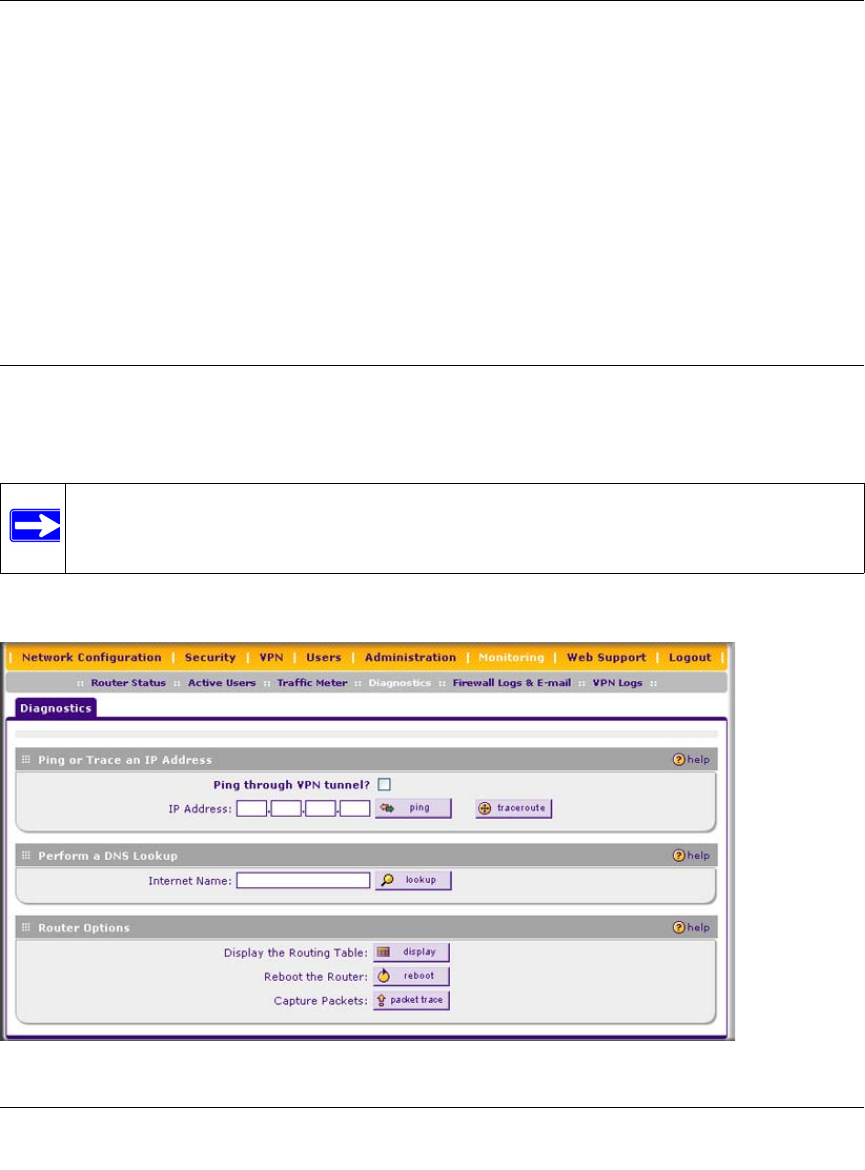
ProSafe Wireless-N VPN Firewall SRXN3205 Reference Manual
11-8 Troubleshooting
v1.0, January 2010
Problems with the date and time function can include:
• Date shown is January 1, 2000. Cause: The VPN firewall has not yet successfully reached a
Network Time Server. Verify your Internet access settings are configured correctly. If you
have just completed configuring the VPN firewall, wait at least five minutes and check the
date and time again.
• Time is off by one hour. Cause: The VPN firewall does not automatically sense Daylight
Savings Time. Go to the Time Zone screen (see “Configuring Date and Time Service” on
page 9-17), and select or deselect the check box marked “Automatically Adjust for Daylight
Savings Time”.
Using the Diagnostics Utilities
You can perform diagnostics such as pinging an IP address, performing a DNS lookup, displaying
the routing table, rebooting the VPN firewall, and capturing packets.
Select Monitoring > Diagnostics from the main/submenu. The Diagnostics screen is displayed.
Note: For normal operation, diagnostics are not required.
Figure 11-1
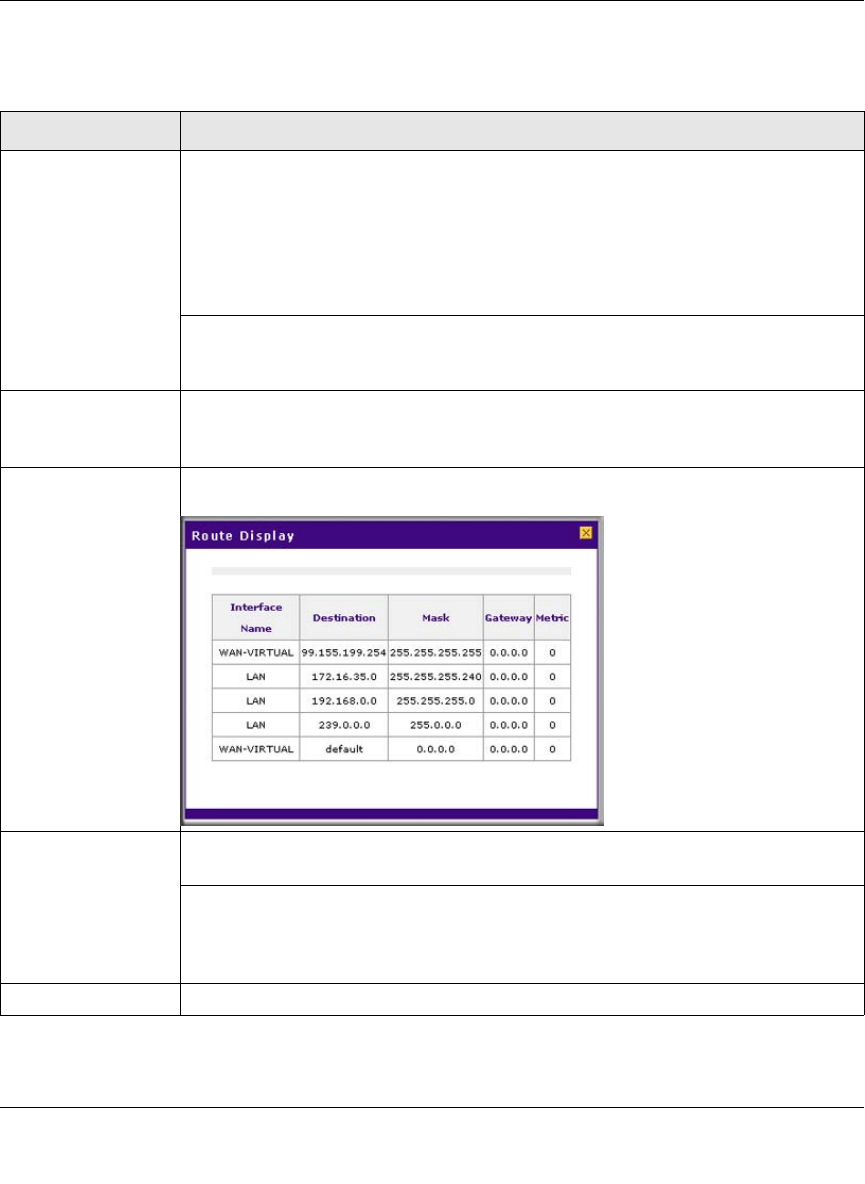
ProSafe Wireless-N VPN Firewall SRXN3205 Reference Manual
Troubleshooting 11-9
v1.0, January 2010
Table 11-1 explains the utilities that are available on the Diagnostic screen.
Table 11-1. Diagnostics
Item Description
Ping or trace an IP
address Ping. Used to send a ping packet request to a specified IP address—most often, to
test a connection. If the request times out (no reply is received), it usually means that
the destination is unreachable. However, some network devices can be configured
not to respond to a ping. The ping results will be displayed in a new screen; click
“Back” on the Windows menu bar to return to the Diagnostics screen.
If the specified address is intended to be reached through a VPN tunnel, select Ping
through VPN tunnel.
Traceroute. Lists all routers between the source (this device) and the destination IP
address. The traceroute results will be displayed in a new screen; click “Back” on the
Windows menu bar to return to the Diagnostics screen.
Perform a DNS
lookup A DNS (Domain Name Server) converts the Internet name (for example,
www.netgear.com) to an IP address. If you need the IP address of a Web, FTP, Mail
or other Server on the Internet, you can request a DNS lookup to find the IP address.
Display the routing
table This operation will display the internal routing table, which can be used by Technical
Support to diagnose routing problems.
Reboot the VPN
firewall Used to perform a remote reboot (restart). You can use this if the VPN firewall seems
to have become unstable or is not operating normally.
Note: Rebooting will break any existing connections either to the VPN firewall (such
as your management session) or through the VPN firewall (for example, LAN users
accessing the Internet). However, connections to the Internet will automatically be re-
established when possible.
Packet trace Packet Trace selects the interface and starts the packet capture on that interface.

ProSafe Wireless-N VPN Firewall SRXN3205 Reference Manual
11-10 Troubleshooting
v1.0, January 2010
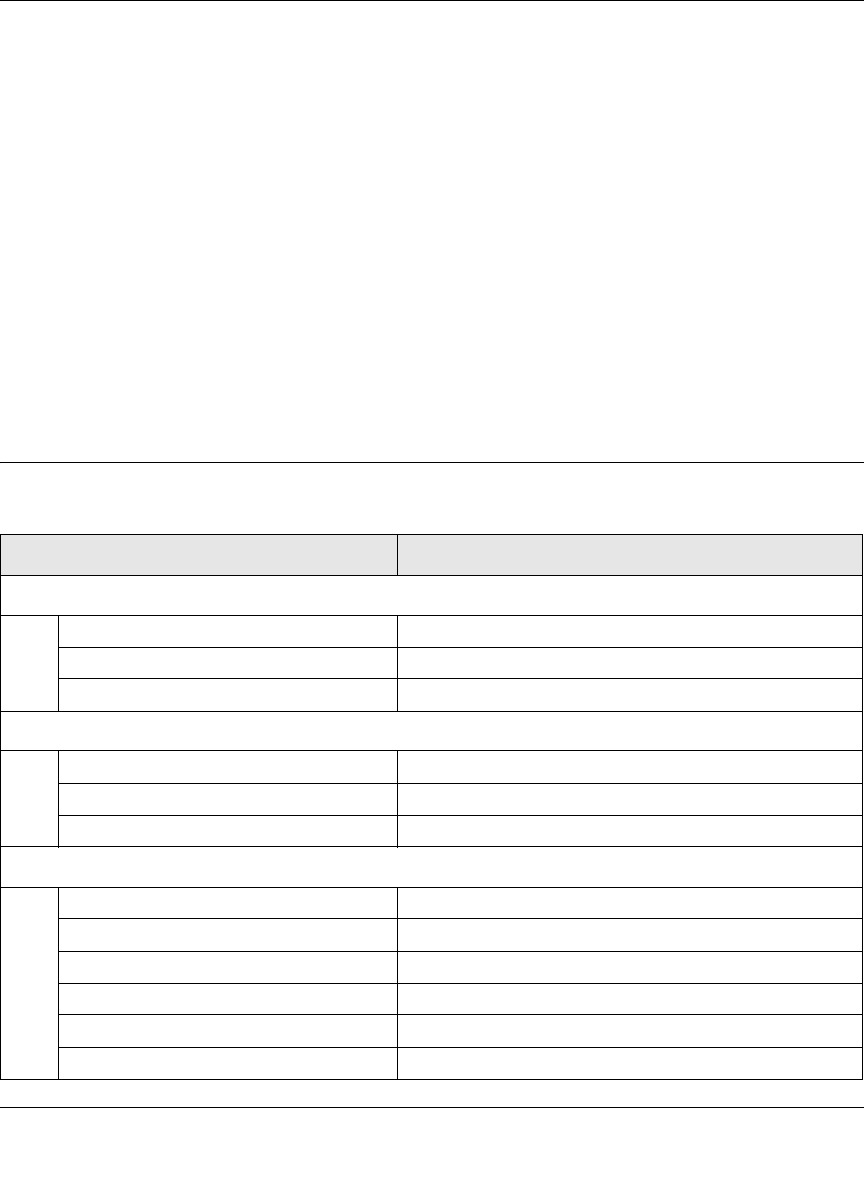
ProSafe Wireless-N VPN Firewall SRXN3205 Reference Manual
Default Settings and Technical Specifications A-1
v1.0, January 2010
Appendix A
Default Settings and Technical Specifications
You can use the reset button located on the rear panel to reset all settings to their factory defaults.
This is called a hard reset.
• To perform a hard reset, press and hold the reset button for approximately 10 seconds (until the
TEST LED blinks rapidly). Your device will return to the factory configuration settings shown
in Table A-1 below.
• Pressing the reset button for a shorter period of time will simply cause your device to reboot.
Default Settings
Table A-1. VPN firewall Default Configuration Settings
Feature Default Behavior
VPN Firewall Login
User Login URL https://192.168.1.1
User Name (case sensitive) admin
Login Password (case sensitive) password
Internet Connection
WAN MAC Address Uses default address as printed on bottom label
WAN MTU Size 1500
Port Speed 10/100/1000 AutoSense
Local Network (LAN)
Lan IP Address 192.168.1.1
Subnet Mask 255.255.255.0
RIP Direction None
RIP Version Disabled
RIP Authentication Disabled
DHCP Server Enabled
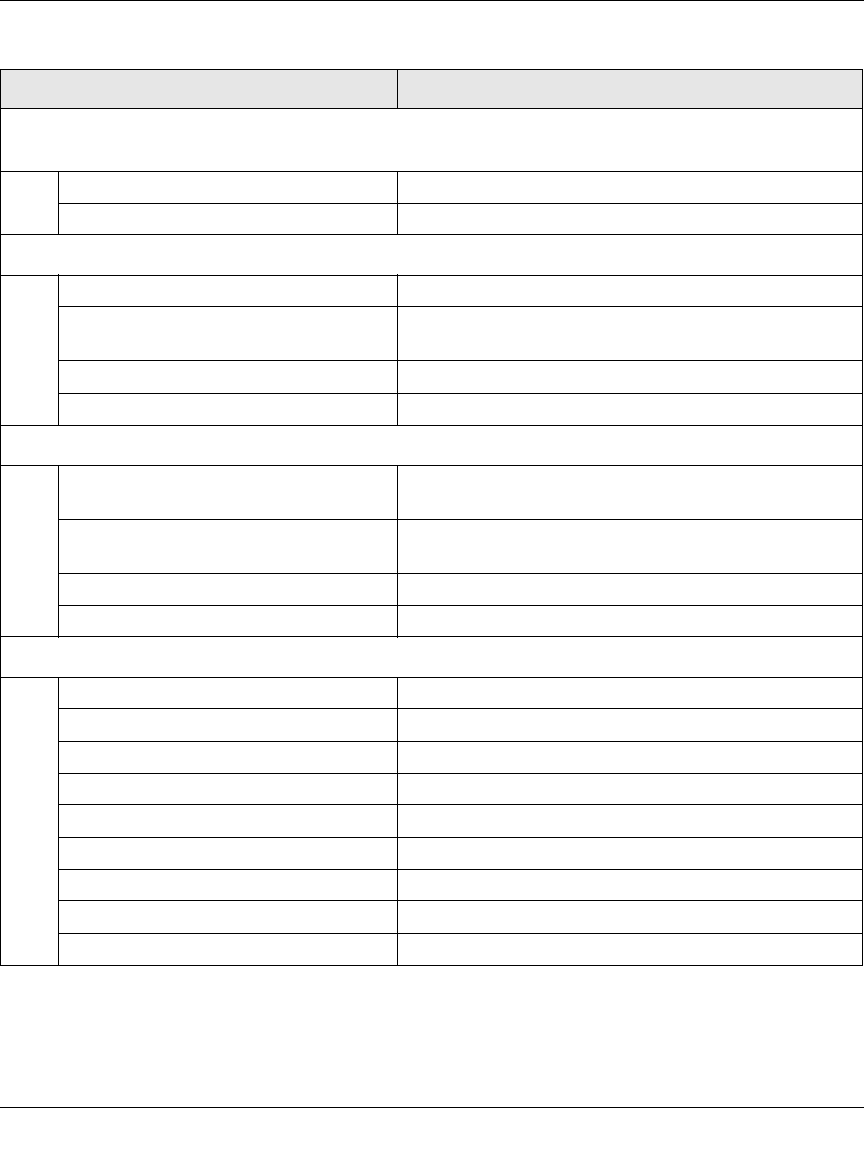
ProSafe Wireless-N VPN Firewall SRXN3205 Reference Manual
A-2 Default Settings and Technical Specifications
v1.0, January 2010
Local Network (LAN)
(continued)
DHCP Starting IP Address 192.168.1.2
DHCP Ending IP Address 192.168.1.100
Management
Time Zone GMT
Time Zone Adjusted for Daylight Saving
Time Disabled
SNMP Disabled
Remote Management Disabled
Firewall
Inbound (communications coming in from
the Internet) Denied
Outbound (communications from the
LAN to the Internet) Allowed (all)
Source MAC filtering Disabled
Stealth Mode Enabled
Wireless
Wireless Communication Enabled
Network Name (SSID) NETGEAR
Broadcast Network Name SSID Enabled
Security Disabled
Transmission Speed Besta
Country/Region Varies by region
80211.a/b/g/n Radio Frequency Channel Auto
80211.na and 80211.ng Channel Spacing 20/40MHz
Wireless Card Access List All wireless stations allowed
a. Maximum Wireless signal rate derived from IEEE Standard 802.11 specifications. Actual throughput will vary.
Network conditions and environmental factors, including volume of network traffic, building materials and
construction, and network overhead, lower actual data throughput rate.
Table A-1. VPN firewall Default Configuration Settings (continued)
Feature Default Behavior

ProSafe Wireless-N VPN Firewall SRXN3205 Reference Manual
Default Settings and Technical Specifications A-3
v1.0, January 2010
Technical Specifications
Table A-2. VPN firewall Technical Specifications
Feature Specifications
Network Protocol and Standards Compatibility
Data and Routing Protocols: TCP/IP, RIP-1, RIP-2, DHCP
PPP over Ethernet (PPPoE)
Power Adapter
North America: 120V, 60 Hz, input
United Kingdom, Australia: 240V, 50 Hz, input
Europe: 230V, 50 Hz, input
Japan: 100V, 50/60 Hz, input
Physical Specifications
Dimensions: 1.7 x 10 x 7.2 in.
Weight: 2 kg (4.5 lb)
Environmental Specifications
Operating temperature: 0° to 40° C (32º to 104º F)
Operating humidity: 90% maximum relative humidity, noncondensing
Electromagnetic Emissions
Meets requirements of: FCC Part 15 Class B
VCCI Class B
EN 55 022 (CISPR 22), Class B
Interface Specifications
LAN: 10BASE-T or 100BASE-Tx 1000BASE-T, RJ-45
WAN: 10BASE-T or 100BASE-Tx 1000BASE-T, RJ-45

ProSafe Wireless-N VPN Firewall SRXN3205 Reference Manual
A-4 Default Settings and Technical Specifications
v1.0, January 2010
Table A-3. SSL VPN Technical Specifications
Parameter Specification
Network Management Web-based configuration and status monitoring
Concurrent Users
Supported 10 tunnels
Encryption DES, 3DES, AES, MD5, SHA-1
Authentication Local User database, RADIUS, LDAP, MS Active Directory
Certificates supported X.509, CRL
Electromagnetic
Compliance FCC Part 15 Class B, CE, and C-TICK
Environmental
Specifications Operating temperature: 0 to 50° C
Operating humidity: 5-95%, non-condensing
Table A-4. Wireless Technical Specifications
Parameter ProSafe Wireless-N VPN Firewall
802.11a Data Rates 6, 9, 12, 18, 24, 36, 48, 54, and 108 Mbps (Auto-rate capable)
802.11na Data Rates Data Rates for Channel Width=20MHz and Guard Interval=short (400ms): Best,
7.2 Mbps, 14.4 Mbps, 21.7 Mbps, 28.9 Mbps, 43.3 Mbps, 57.8 Mbps, 65 Mbps,
72.2 Mbps, 14.44 Mbps, 28.88 Mbps, 43.33 Mbps, 57.77 Mbps, 86.66 Mbps,
115.56 Mbps, 130 Mbps, 144.44 Mbps
Data Rates for Channel Width=20MHz and Guard Interval=long (800ms): Best,
6.5 Mbps, 13 Mbps, 19.5 Mbps, 26 Mbps, 39 Mbps, 52 Mbps, 58.5 Mbps, 65
Mbps, 13 Mbps, 26 Mbps, 39 Mbps, 52 Mbps, 78 Mbps, 104 Mbps, 117 Mbps,
130 Mbps
Data Rates for Channel Width=40MHz and Guard Interval=short: Best, 15 Mbps,
30 Mbps, 45 Mbps, 60 Mbps, 90 Mbps, 120 Mbps, 135 Mbps, 150 Mbps, 30
Mbps, 60 Mbps, 90 Mbps, 120 Mbps, 180 Mbps, 240 Mbps, 270 Mbps, 300
Mbps
Data Rates for Channel Width=40MHz and Guard Interval=long: Best, 13.5
Mbps, 27 Mbps, 40.5 Mbps, 54 Mbps, 81 Mbps, 121.5 Mbps, 135 Mbps, 27
Mbps, 54 Mbps, 81 Mbps, 162 Mbps, 216 Mbps, 243 Mbps, 270 Mbps
802.11a/na
Operating Frequencies 5.15 ~ 5.25
5.25 ~ 5.35
5.57 ~ 5.825
802.11a/na Encryption 64-bits, 128- and 152-bits WEP, AES, TKIP data encryption
802.11g Data Rates 1, 2, 5.5, 11, 12, 18, 24, 36, 38, 54, & 108 Mbps (Auto-rate capable)

ProSafe Wireless-N VPN Firewall SRXN3205 Reference Manual
Default Settings and Technical Specifications A-5
v1.0, January 2010
802.11ng Data Rates Data Rates for Channel Width=20MHz and Guard Interval=short (400ms): Best,
7.2 Mbps, 14.4 Mbps, 21.7 Mbps, 28.9 Mbps, 43.3 Mbps, 57.8 Mbps, 65 Mbps,
72.2 Mbps, 14.44 Mbps, 28.88 Mbps, 43.33 Mbps, 57.77 Mbps, 86.66 Mbps,
115.56 Mbps, 130 Mbps, 144.44 Mbps
Data Rates for Channel Width=20MHz and Guard Interval=long (800ms): Best,
6.5 Mbps, 13 Mbps, 19.5 Mbps, 26 Mbps, 39 Mbps, 52 Mbps, 58.5 Mbps, 65
Mbps, 13 Mbps, 26 Mbps, 39 Mbps, 52 Mbps, 78 Mbps, 104 Mbps, 117 Mbps,
130 Mbps
Data Rates for Channel Width=40MHz and Guard Interval=short: Best, 15 Mbps,
30 Mbps, 45 Mbps, 60 Mbps, 90 Mbps, 120 Mbps, 135 Mbps, 150 Mbps, 30
Mbps, 60 Mbps, 90 Mbps, 120 Mbps, 180 Mbps, 240 Mbps, 270 Mbps, 300
Mbps
Data Rates for Channel Width=40MHz and Guard Interval=long: Best, 13.5
Mbps, 27 Mbps, 40.5 Mbps, 54 Mbps, 81 Mbps, 121.5 Mbps, 135 Mbps, 27
Mbps, 54 Mbps, 81 Mbps, 162 Mbps, 216 Mbps, 243 Mbps, 270 Mbps
802.11b/bg/ng
Operating Frequencies 2.412 ~ 2.462 GHz (US) 2.457 ~ 2.462 GHz (Spain)
2.412 ~ 2.484 GHz (Japan)2.457 ~ 2.472 GHz (France)
2.412 ~ 2.472 GHz (Europe ETSI)
802.11 b/bg/ng
Encryption 64-bits, 128- and 152-bits WEP, AES, TKIP data encryption
Network Management Web-based configuration and status monitoring
Maximum Clients Limited by the amount of wireless network traffic generated by each node;
maximum 64 supported.
Status LEDs Power/Ethernet LAN/Wireless LAN/Test
Power Adapter 12V DC, 1.5 A
Electromagnetic
Compliance FCC Part 15 Class B and Class E, CE, and C-TICK
Environmental
Specifications Operating temperature: 0 to 50° C
Operating humidity: 5-95%, non-condensing
Table A-4. Wireless Technical Specifications (continued)
Parameter ProSafe Wireless-N VPN Firewall

ProSafe Wireless-N VPN Firewall SRXN3205 Reference Manual
A-6 Default Settings and Technical Specifications
v1.0, January 2010

Two Factor Authentication B-1
v1.0, January 2010
Appendix B
Two Factor Authentication
This appendix provides an overview of Two-Factor Authentication, and an example of how to
implement the WiKID solution.
This appendix contains the following sections:
•“Why do I need Two-Factor Authentication?” on this page.
•“NETGEAR Two-Factor Authentication Solutions” on page B-2
Why do I need Two-Factor Authentication?
In today’s market, online identity theft and online fraud continue to be one of the fast-growing
cyber crime activities used by many unethical hackers and cyber criminals to steal digital assets for
financial gains. Many companies and corporations are losing millions of dollars and running into
risks of revealing their trade secrets and other proprietary information as the results of these cyber
crime activities. Security threats and hackers have become more sophisticated, and user names,
encrypted passwords, and the presence of firewalls are no longer enough to protect the networks
from being compromised. IT professionals and security experts have recognized the need to go
beyond the traditional authentication process by introducing and requiring additional factors to the
authentication process. NETGEAR has also recognized the need to provide more than just a
firewall to protect the networks. As part the new maintenance firmware release, NETGEAR has
implemented a more robust authentication system known as Two-Factor Authentication (2FA or
T-FA) on its SSL and IPSec VPN firewall product line to help address the fast-growing network
security issues.
What are the benefits of Two-Factor Authentication?
•Stronger security. Passwords cannot efficiently protect the corporate networks because
attackers can easily guess simple passwords or users cannot remember complex and unique
passwords. One-time passcode (OTP) strengthens and replaces the need to remember complex
password.
•No need to replace existing hardware. Two-Factor Authentication can be added to existing
NETGEAR products through via firmware upgrade.

ProSafe Dual WAN Gigabit Firewall with SSL & IPsec VPN FVS336G Reference Manual
B-2 Two Factor Authentication
v1.0, January 2010
•Quick to deploy and manage. The WiKID solution integrates seamlessly with the
NETGEAR SSL and VPN firewall products.
•Proven regulatory compliance. Two-Factor Authentication has been used as a mandatory
authentication process for many corporations and enterprises worldwide.
What is Two-Factor Authentication
Two-factor authentication is a new security solution that enhances and strengthens security by
implementing multiple factors to the authentication process that challenge and confirm the users
identities before they can gain access to the network. There are several factors that are used to
validate the users to make that you are who you said you are. These factors are:
• Something you know—for example, your password or your PIN.
• Something you have—for example, a token with generated passcode that is either 6 to 8 digits
in length.
• Something you are—for example, biometrics such as fingerprints or retinal.
This appendix focuses and discusses only the first two factors, something you know and
something you have. This new security method can be viewed as a two-tiered authentication
approach because it typically relies on what you know and what you have. A common example of
two-factor authentication is a bank (ATM) card that has been issued by a bank institute:
• The PIN to access your account is “something you know”
• The ATM card is “something you have”
You must have both of these factors to gain access to your bank account. Similar to the ATM card,
access to the corporate networks and data can also be strengthen using combination of the multiple
factors such as a PIN and a token (hardware or software) to validate the users and reduce the
incidence of online identity theft.
NETGEAR Two-Factor Authentication Solutions
NETGEAR has implemented 2 Two-Factor Authentication solutions from WiKID. WiKID is the
software-based token solution. So instead of using only Windows Active Directory or LDAP as
the authentication server, administrators now have the option to use WiKID to perform Two-Factor
Authentication on NETGEAR SSL and VPN firewall products.
The WiKID solution is based on a request-response architecture where a one-time passcode
(OTP), that is time-synchronized with the authentication server, is generated and sent to the user
after the validity of a user credential has been confirmed by the server.
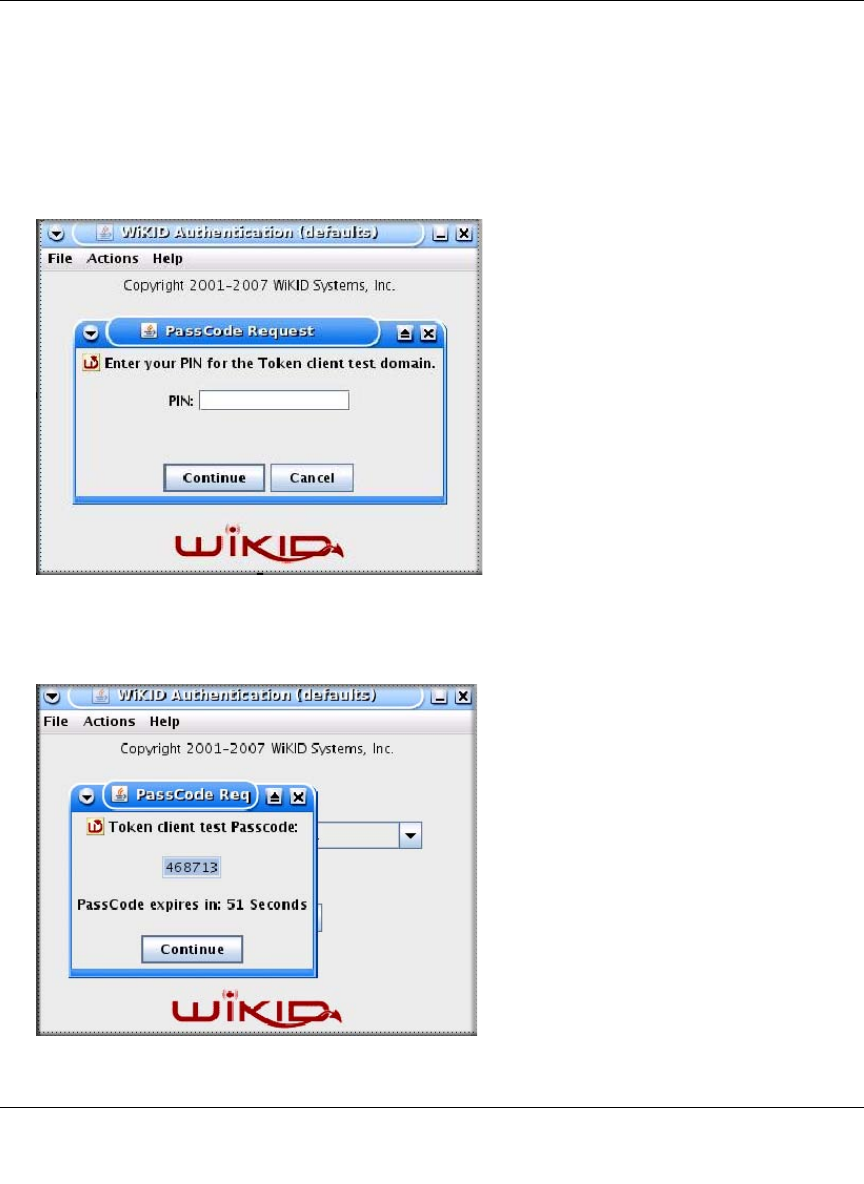
ProSafe Dual WAN Gigabit Firewall with SSL & IPsec VPN FVS336G Reference Manual
Two Factor Authentication B-3
v1.0, January 2010
The request-response architecture is capable of self-service initialization by end-users,
dramatically reducing implementation and maintenance costs. Here is an example of how WiKID
works.
1. The user launches the WiKID token software, enter the PIN that has been given to them
(something they know) and then press “continue” to receive the OTP from the WiKID
authentication server:
2. A one-time passcode (something they have) is generated for this user.
Figure B-1
Figure B-2
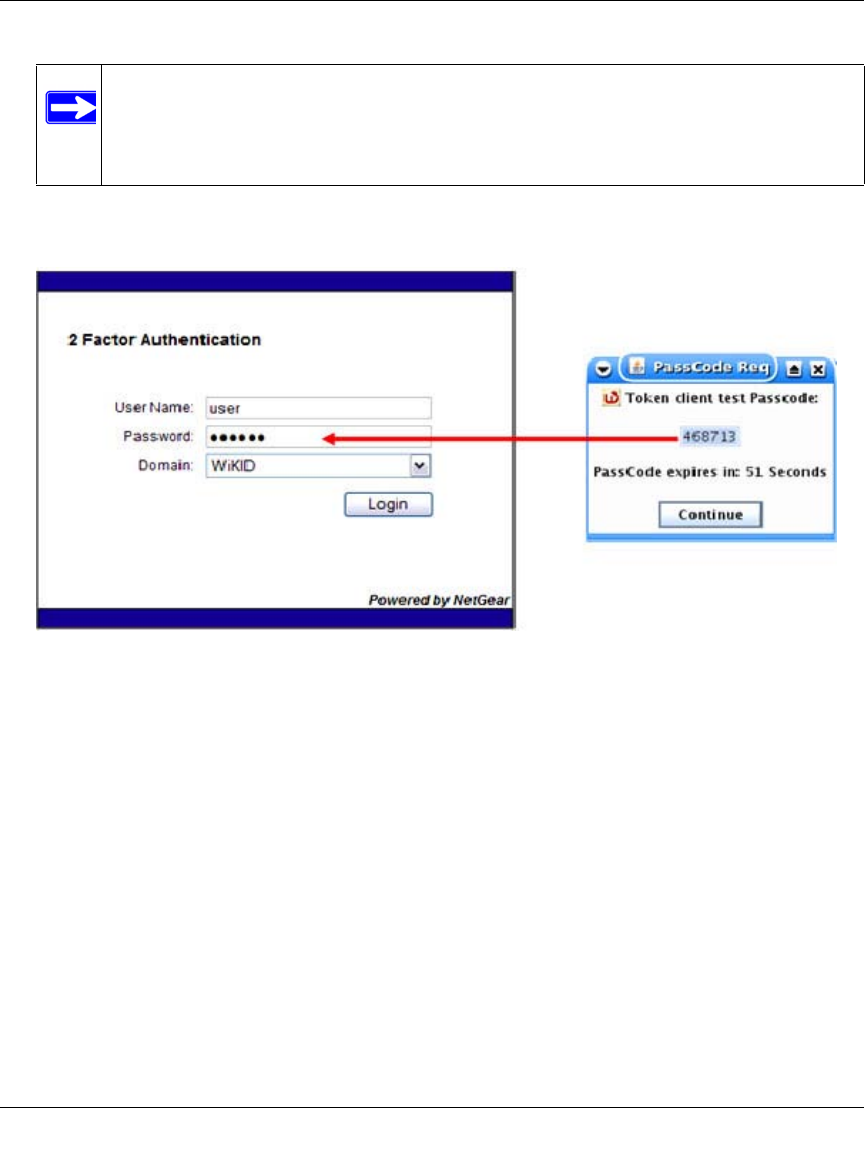
ProSafe Dual WAN Gigabit Firewall with SSL & IPsec VPN FVS336G Reference Manual
B-4 Two Factor Authentication
v1.0, January 2010
3. The user then proceeds to the Two-Factor Authentication login screen and enters the generated
one-time passcode as the login password.
Note: The one-time passcode is time synchronized to the authentication server so that
the OTP can only be used once and must be used before the expiration time. If
a user does not use this passcode before it is expired, the user must go through
the request process again to generate a new OTP.
Figure B-3

ProSafe Wireless-N VPN Firewall SRXN3205 Reference Manual
Related Documents C-1
v1.0, January 2010
Appendix C
Related Documents
This appendix provides links to reference documents you can use to gain a more complete
understanding of the technologies used in your NETGEAR product.
Document Link
TCP/IP Networking Basics http://documentation.netgear.com/reference/enu/tcpip/index.htm
Wireless Networking Basics http://documentation.netgear.com/reference/enu/wireless/index.htm
Preparing Your Network http://documentation.netgear.com/reference/enu/wsdhcp/index.htm
Virtual Private Networking
Basics http://documentation.netgear.com/reference/enu/vpn/index.htm
Glossary http://documentation.netgear.com/reference/enu/glossary/index.htm

ProSafe Wireless-N VPN Firewall SRXN3205 Reference Manual
C-2 Related Documents
v1.0, January 2010

Index-1
v1.0, January 2010
Index
Numerics
3322.org 2-12
A
access
remote management 9-9
Access Control screens 4-20
Active Directory 8-2
ActiveX web cache control 7-7
Add LAN WAN Inbound Service 5-9
Add LAN WAN Outbound Service 5-8
Add Mode Config Record screen 6-29
Add Resource Addresses menu 7-14
Adding 5-19
address reservation 3-9
Advanced Encryption Standard. See AES.
Advanced Options
MTU Size 2-14
Port Speed 2-15
Router’s MAC Address 2-15
Advanced screens of Wireless Settings 4-17
Advanced Security screen 5-18
AES 6-17, 6-25, 6-26
ALG 5-18
Allowing Videoconference from Restricted Addresses
example of 5-11
Antenna
2.4 GHz 1-8
5 GHZ 1-8
antenna position 4-2, 4-16
Application Level Gateway. See ALG.
ARP broadcast
enable 3-5
Attack Checks
about 5-14
Attack Checks screen 5-15
authentication
for IPsec VPN
pre-shared key 6-18
RSA signature 6-18
See also RADIUS, MIAS, WiKID, NT Domain,
Active Directory, or LDAP.
Auto Detect 2-5
Auto Uplink 1-2, 1-4
Auto-Rollover
use with DDNS 2-12
Available Wireless Stations 4-20
B
backup and restore settings 9-14
Band selection 1-4
bandwidth capacity 9-1
LAN side 9-1
WAN side 9-1
Bandwidth Profile screen 5-22
Banner Message 7-6
Banner Title 7-6
Beacon Interval
default setting 4-18
Block Sites
Content Filtering 5-25
reducing traffic 9-4
Block Sites screen 5-26
Block TCP Flood 5-16
block traffic
with schedule 5-24
Blocking Instant Messenger

ProSafe Wireless-N VPN Firewall SRXN3205 Reference Manual
Index-2
v1.0, January 2010
example of 5-14
Broadcast Wireless Network Name. See SSID
C
CA
about 8-12
Carrier Sense Multiple Access with Collision Detection.
See CSMA/CD.
certificate
generate new CSR 8-14
Certificate Authority. See CA.
Certificate Signing Request, see CSR
certificates
management of 8-14
Challenge Handshake Authentication Protocol. See
CHAP.
channel
interference, multiple access points
channel spacing 4-2
channel settings, configuring 4-7
Channel Width 4-7
Channel/Frequency 4-7
CHAP. See also RADIUS-CHAP, MIAS-CHAP, or
WiKID-CHAP. 8-2
Classical Routing
definition of 2-12
CLI management
by Telnet 9-11
command line interface 9-12
configuration
automatic by DHCP 1-3
connecting the VPN firewall 2-1
Connection Status
VPN Tunnels 6-11, 10-15
Content 5-25
Content Filtering 5-1
about 5-25
Block Sites 5-25
enabling 5-26
firewall protection, about 5-1
content filtering 1-2, 5-1
crossover cable 1-2, 11-2
CSMA/CD 4-18
CSR 8-14
customized service
adding 5-3, 5-20
editing 5-20
D
Data Encryption Standard. See DES.
Date
setting 9-17
troubleshooting 11-7
Daylight Savings Time
adjusting for 9-17
DDNS
about 2-12
configuration of 2-13
links to 2-13
providers of 2-12
services, examples 2-13
DDNS providers
links to 2-13
Dead Peer Detection 6-39
default configuration
restoring 11-7
default password 2-2
denial of service attack 5-16
Denial of Service. See DoS.
DES and 3DES 6-17, 6-25, 6-26
DH 6-18, 6-27
DH group 6-14
DHCP 2-6
DNS server address 3-4
DHCP Address Pool 3-4
DHCP log
monitoring 10-13
DHCP server
about 3-1
address pool 3-2, 3-4
configuring secondary IP addresses 3-11
enable 3-4

ProSafe Wireless-N VPN Firewall SRXN3205 Reference Manual
Index-3
v1.0, January 2010
lease time 3-4
diagnostics
DNS lookup 11-8
packet capture 11-8
ping 11-8
rebooting 11-8
routing table 11-8
Diagnostics screen 11-8
Diffie-Hellman. See DH (group).
Disable DHCP Server 3-1
DNS 7-2
ISP server addresses 2-10
server IP address 3-4
DNS proxy 9-5
enable 3-4, 3-5
feature 1-3
DNS Suffix 7-12
Domain Name
router 3-4
Domain Name Blocking 5-25
Domain Name Servers. See DNS.
DoS
about protection 1-2
DPD 6-18
Dynamic DNS
configuration of 2-12
Dynamic DNS Configuration screen 2-12, 2-13
Dynamic DNS. See DDNS
dynamic IP addresses
enabling 4-17
DynDNS.org 2-12
E
Edge Device 6-35
XAUTH, with ModeConfig 6-31
Edit Group Names 3-9
e-mail logs
enabling notification 5-35, 10-2
E-mail Server address 10-3
Enable ARP Broadcast 3-5
Enable DHCP server 3-1
Enable DNS Proxy 3-4, 3-5
Enable LDAP Information 3-5
Ending IP Address
DHCP Address Pool 3-4
equipment placement
reception range 4-2
Ethernet
Autosensing connection 1-4
Event Logs
e-mailing of 5-35, 10-1
exchange mode, IKE policies 6-14, 6-16
Extended Authentication. See XAUTH.
F
factory default login 1-9
factory default settings
revert to 9-14
firewall
connecting to the Internet 2-1
features 1-3
front panel 1-6
rear panel 1-8
technical specifications A-1
viewing activity 10-15
Firewall Log
Field Description 10-5
Firewall Logs
e-mailing of 5-35, 10-1
viewing 10-4
Firewall Logs & E-mail screen 5-35, 10-1
Firewall Protection
Content Filtering, about 5-1
firewall protection 5-1
firmware
downloading 9-16
upgrade 9-16
firmware, upgrading 1-4
fixed IP address 2-6, 3-8
FQDN 2-12, 2-13
Fragmentation Length

ProSafe Wireless-N VPN Firewall SRXN3205 Reference Manual
Index-4
v1.0, January 2010
default setting 4-18
fragmented IP packets 9-5
fully qualified domain name. See FQDN.
G
Global Policies 7-15
Group Names
editing 3-9
Group Policies 7-15
groups, managing 3-5
H
host name resolution 7-9
Hosting A Local Public Web Server
example of 5-11
hosts, managing 3-5
hotspot
settings 1-4
HTTP meta tags 7-6
I
IGP 3-13
IKE policies
exchange mode 6-14, 6-16
ISAKMP identifier 6-14, 6-17
ModeConfig 6-16
XAUTH 6-19
IKE Policy
about 6-12
management of 6-13
ModeConfig, configuring with 6-30
XAUTH, adding to 6-35
Inbound Rules
default definition 5-2
field descriptions 5-5
order of precedence 5-7
Port Forwarding 5-3, 5-4
rules for use 5-5
inbound rules 5-4
example 5-12
Inbound Service Rule
modifying 5-10
Inbound Services
field descriptions 5-5
increasing traffic 9-4
Port Forwarding 9-5
Port Triggering 9-6
VPN Tunnels 9-7
installation 1-5
interference sources 4-2
Interior Gateway Protocol. See IGP.
Internet
configuring the connection manually 2-7
connecting to 2-1
Internet connection
manual configuration 2-7
IP addresses
auto-generated 11-3
DHCP address pool 3-2
how to assign 3-1
multi home LAN 3-5
reserved 3-9
router default 3-3
IP Subnet Mask
router default 3-4
IPsec 5-16
IPSec Host 6-35
IPsec Host
XAUTH, with ModeConfig 6-31
IPsec host 6-34
ISAKMP identifier 6-14, 6-17
ISP connection
troubleshooting 11-4
K
Keep Connected
Idle TImeout 2-9
Idle Timeout 2-9
keepalives, VPN tunnels 6-24, 6-38
Keyword Blocking 5-25
applying 5-26
Known PCs and Devices

ProSafe Wireless-N VPN Firewall SRXN3205 Reference Manual
Index-5
v1.0, January 2010
list of 3-7, 10-12
L
L2TP 5-16
LAN
configuration 3-1
using LAN IP setup options 3-2
LAN Groups Database
about 3-5, 10-12
advantages of 3-6
fields 3-7
LAN Groups menu 3-7, 10-12
LAN Security Checks 5-16
LAN Setup screen 3-3
LAN side
bandwidth capacity 9-1
LAN WAN Inbound Rule
example of 5-11, 5-13
LAN WAN Inbound Services Rules
about 5-9
add 5-9
LAN WAN Outbound Rule
example of 5-14
LAN WAN Rule
example of 5-12
LAN WAN Rules
default outbound 5-7
LDAP 8-2
overview 3-5
lease time 3-4
LEDs
troubleshooting 11-2
Lightweight Directory Access Protocol. See LDAP.
Load Balancing
use with DDNS 2-13
logging in
default login 2-2
login policy
restrict by browser 8-9
restrict by IP address 8-8
restrict by port 8-7
M
MAC address 4-18, 11-7
authentication by ISP 2-15
configuring 2-6
format 2-15
in LAN groups database 3-8
restricting access 4-3
spoofing 11-5
trusted PCs 4-3
MAC addresses
blocked, adding 5-28
main menu 2-3
MD5
IKE polices 6-17
VPN policies 6-26
metric
in static routes 3-12
MIAS
description 8-2
ModeConfig
assigning addresses 6-27
assigning remote addresses, example 6-28
Client Configuration 6-32
IKE Policies menu, configuring 6-28
menu, configuring 6-28
record 6-16
testing Client 6-33
monitoring devices 10-11
by DHCP Client Requests 10-12
by Scanning the Network 10-12
MTU Size 2-14
multi home LAN IPs 3-5
about 3-10
multi-NAT 5-12
multiple access points
placement of 4-2
N
NAS
Identifier 6-37
NAT
configuring 2-11

ProSafe Wireless-N VPN Firewall SRXN3205 Reference Manual
Index-6
v1.0, January 2010
firewall, use with 5-1
multi-NAT 5-12
one-to-one mapping 2-11
one-to-one mapping example 5-12
NetBIOS bridging over VPN 6-40
NetBIOS, VPN tunnels 6-24
Network 9-17
Network Access Server. See NAS.
Network Address Translation. See NAT.
Network Database
table 3-7
Network Database Group Names screen 3-9
Network Time Protocol. See NTP.
newsgroup 5-26
NT Domain 8-2
NTP 9-17
troubleshooting 11-7
NTP servers
custom 9-17
default 9-17
setting 9-17
O
one-time passcode. See OTP.
option arrow 2-4
Oray.net 2-12
OTP B-1, B-2
Outbound Rules
default definition 5-2
field descriptions 5-3
order of precedence 5-7
service blocking 5-2
outbound rules 5-3
Outbound Service Rule
adding 5-8
modifying 5-10
Outbound Services
field descriptions 5-3
P
package contents 1-6
packet capture 11-9
PAP. See also RADIUS-PAP, MIAS-PAP, or WiKID-
PAP. 8-2
Password Authentication Protocol. See PAP.
passwords and login timeout
changing 8-9, 9-8
passwords,restoring 11-7
Perfect Forward Secrecy. See PFS.
performance degradation
causes of 4-2
performance management 9-1, 10-1
PFS 6-27
Ping
troubleshooting TCP/IP 11-5
ping 11-9
Ping On Internet Ports 5-15
point-to-point bridge 1-4
policies
IKE
exchange mode 6-14, 6-16
ISAKMP identifier 6-14, 6-17
ModeConfig 6-16
XAUTH 6-19
policy hierarchy 7-15
port filtering
service blocking 5-3
Port Forwarding
Inbound Rules 5-3, 5-4
increasing traffic 9-5
rules, about 5-4
port numbers 5-19
Port Speed 2-15
Port Triggering
about 5-31
adding a rule 5-32
increasing traffic 9-6
modifying a rule 5-33
rules of use 5-32
status monitoring 10-14

ProSafe Wireless-N VPN Firewall SRXN3205 Reference Manual
Index-7
v1.0, January 2010
Port Triggering screen 5-32
Portal Site Title 7-5
power adapter 1-8
PPP connection 7-2
PPP over Ethernet. See PPPoE.
PPPoE 1-3, 2-6
Internet connection 2-8
PPTP 2-6, 5-16
Preamble Type
default setting 4-18
pre-shared key 6-18
protocol numbers
assigned 5-19
protocols
Routing Information Protocol 1-3
Q
QoS
about 5-21
priority definitions 5-21
shifting traffic mix 9-7
using in firewall rules 5-3
QoS. See Quality of Service 1-5
Quality of Service 1-5
Quality of Service. See QoS.
R
RADIUS
description 8-2
RADIUS-CHAP 6-19
RADIUS-PAP 6-19
RADIUS Server
configuring 6-36
RADIUS-CHAP 6-34, 6-35
AUTH, using with 6-34
RADIUS-PAP 6-34
XAUTH, using with 6-34
Range 4-2
reception range
equipment placement 4-2
reducing traffic 9-2
Block Sites 9-4
service blocking 9-2
Source MAC Filtering 9-4
remote management 9-9
access 9-9
configuration 9-10
remote users, assigning addresses via ModeConfig 6-27
reserved IP address
configuring 3-9
in LAN groups database 3-8
restrictions 3-8
resources
defining 7-13
restore saved settings 9-14
restricting access
MAC address, using 4-18
Return E-mail Address 10-3
RFC 1349 5-21
RFC1700
protocol numbers 5-19
RIP
about 3-13
advertising static routes 3-12
configuring parameters 3-13
feature 1-3
versions of 3-14
RIP Configuration menu 3-13
router
upgrade software 9-16
router administration
tips on 5-36
Router Status 2-12
Router Status screen 10-8
Router Upgrade
about 9-16
Router’s MAC Address 2-15
Routing Information Protocol. See RIP.
routing menu 3-11
RSA signatures 6-18
RTS Threshold
default setting 4-18

ProSafe Wireless-N VPN Firewall SRXN3205 Reference Manual
Index-8
v1.0, January 2010
rules
blocking traffic 5-2
inbound 5-4
inbound example 5-12
outbound 5-3
service blocking 5-3
services-based 5-2
running tracert 9-12
S
SA
IKE policies 6-14, 6-17
VPN policies 6-25, 6-26
schedule
blocking traffic 5-24
Schedule 1 screen 5-24
secondary IP addresses
DHCP, use with 3-11
Secondary LAN IPs
see Multi Home LAN IPs 3-10
Secure Hash Algorithm 1. See SHA-1.
security
network enhancements 4-3
WPA 4-3
WPA-PSK 4-3
security association. See SA.
security options
WEP data encryption 4-3
WPA-PSK 4-3
Security Parameters Index. See SPI.
self certificate request 8-14
Send To E-mail Address 10-3
service 5-19
Service Based Rules 5-2
service blocking 5-3
Outbound Rules 5-2
port filtering 5-3
reducing traffic 9-2
service numbers
common protocols 5-19
Services 5-19
Services menu 5-20
Session Initiation Protocol. See SIP.
Session Limits screen 5-17
Setting Up One-to-One NAT Mapping
example of 5-12
Settings Backup & Upgrade screen 9-14
Settings Backup and Firmware Upgrade 9-14
SHA-1
IKE policies 6-17
VPN policies 6-26
Simple Network Management Protocol. See SNMP.
SIP 5-18
sniffer 11-3
SNMP
about 9-12
configuring 9-12
global access 9-13
host only access 9-13
subnet access 9-13
SNMP screen 9-12
Source MAC Filter screen 5-28, 5-30
Source MAC Filtering
enabling 5-28
reducing traffic 9-4
Specifying an Exposed Host
example of 5-13
SPI 6-25
split tunnel
configuring 7-12
description 7-11
spoof MAC address 11-5
SSID 1-4
11a default name 4-5
11b/g default name 4-5
disabling, consequences of 4-3
SSL VPN Client
description 7-2
Starting IP Address
DHCP Address Pool 3-4
Stateful Packet Inspection
firewall, use with 5-2
stateful packet inspection. See SPI.
Static 3-11

ProSafe Wireless-N VPN Firewall SRXN3205 Reference Manual
Index-9
v1.0, January 2010
static IP address
configuring 2-10
detecting 2-6
static routes
about 3-11
configuring 3-11
metric 3-12
stealth mode 5-15, 9-5
submenu 2-3
SYN flood 5-16, 9-5
SysLog Server
IP Address 10-3
system requirements 1-5
T
tab, menu 2-4
TCP flood
special rule 9-5
TCP/IP
network, troubleshooting 11-5
Technical Specifications A-4
Time
daylight savings, troubleshooting 11-8
setting 9-17
troubleshooting 11-7
Time Zone
settings 9-17
Time Zone screen 9-17
ToS. See QoS.
traceroute 11-9
tracert
use with DDNS 9-12
traffic
increasing 9-4
reducing 9-2
traffic management 9-7
traffic meter 2-15
troubleshooting 11-1
browsers 11-3
configuration settings, using sniffer 11-3
defaults 11-3
ISP connection 11-4
NTP 11-7
testing your setup 11-6
Web configuration 11-3
Trusted Certificates 8-12
Trusted Domains
building list of 5-26
Trusted Wireless Stations 4-19
trusted wireless stations
MAC address filtering, use with 1-4
Turn Access Control On 4-19
Two-Factor Authentication. See WiKID.
TZO.com 2-12
U
UDP flood 5-16
special rule 9-5
User Database 6-35
User Policies 7-15
V
VoIP (voice over IP) sessions 5-18
VPN Client
configuring 6-5
configuring PC, example 6-7
VPN firewall
connecting 2-1
VPN Logs screen 10-17
VPN passthrough 5-16, 9-5
VPN Policies screen 6-4, 6-6
VPN Policy
Auto 6-20
Manual 6-20
VPN Tunnel Connection
monitoring status 10-15
VPN tunnels
about 6-1
Connection Status 6-11, 10-15
IKE policies
exchange mode 6-14, 6-16
ISAKMP identifier 6-14, 6-17

ProSafe Wireless-N VPN Firewall SRXN3205 Reference Manual
Index-10
v1.0, January 2010
ModeConfig 6-16
XAUTH 6-19
increasing traffic 9-7
IPsec 5-16
keepalives 6-24
L2TP 5-16
NetBIOS 6-24
PPTP 5-16
pre-shared key 6-18
RSA signature 6-18
VPN Wizard
Gateway tunnel 6-2
VPN Client, configuring 6-5
VPN Wizard Default Values 6-4
VPNC 6-1
VPNs
viewing VPN tunnel status 10-15
W
WAN
configuring Advanced options 2-14
WAN Advanced Options 2-14
WAN ISP Settings
manual setup 2-8
WAN Port 1 status 2-6
WAN Ports
monitoring status 10-10
WAN ports
status of 2-12
WAN Security Check
about 5-15
WAN side
bandwidth capacity 9-1
WAN Status 2-6
WAN Traffic Meter 10-5
Web Components 5-25
blocking 5-26
filtering, about 5-25
Web configuration
troubleshooting 11-3
WEP 4-3
WiKID
authentication, overview B-1
description 8-2
WinPoET 2-8
WINS server 3-4
wireless access point
default name 4-17
deployment of 4-16
verifying connectivity 4-16
wireless connectivity
testing 4-6
Wireless Mode 4-5, 4-7
Wireless Multimedia 1-5
Wireless Repeater 1-4
wireless security
options 4-2
wireless settings
configuring channel settings 4-7
Wireless Station
adding new 4-20
WPA 4-3
WPA and WPA2 with RADIUS
configuration of 4-15
restrictions 4-15
WPA2 with RADIUS
Network Authentication screen 4-14
WPA2-PSK
configuration of 4-12
restrictions 4-12
WPA-PSK 4-3
configuration of 4-12
restrictions 4-12
WPA-PSK and WPA2-PSK
configuration of 4-13
Network Authentication screens 4-12, 4-13
restrictions 4-13
WWM. See Wireless Multimedia.
X
XAUTH
IKE policies 6-19
IPsec host 6-34
types of 6-34
