Neurio Technology ULC PTMK2 Zigbee transceiver User Manual User s Manual

Energy Aware Technology Inc Zigbee transceiver User s Manual

Contents

User's Manual

1PowerTab™ User GuideCopyright © 2011, Energy Aware Technology Inc.  All rights reserved.
2Table of Contents1.  Introduction  2 .  PowerTab Basics    2.1  Your PowerTab’s power modes    2.2  Charging your PowerTab    2.3  Joining a ZigBee Smart Energy network  2.4 Leaving a ZigBee Smart Energy network   2.5  Navigating your PowerTab screens    2.6  Signal strength and battery charge indicators  3 .  Using Your PowerTab   3.1  Viewing your current electricity use    3.2  Tracking your electricity use over time    3.3  Receiving messages from your service provider    3.4  Viewing the date and time  3.5  Understanding the lights on your PowerTab4667891011121213141515
34 .  Troubleshooting/FAQ   4.1  If your PowerTab fails to join a network    4.2  If your PowerTab has lost the network   4.3  If your PowerTab will not turn on  4.4  If your PowerTab will not recharge 4.5  If you need to change the battery  4.6 Your Running Total does not match your electricity bill  4.7  How to figure out what an individual appliance        is consuming  4.8  Your current use value does not change when you turn        on/off a light   4.9 Your service provider sent you a message,       where did it go?5 .  Appendix     5.1  Safety Instructions  5.2  Product Specifications    5.3  FCC Compliance    5.4 Warranty  5.5  Manufacturing Information18181920202122222223242425262830
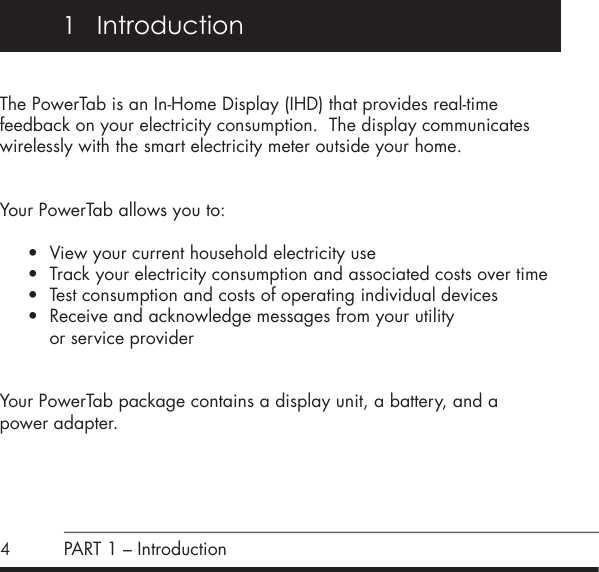
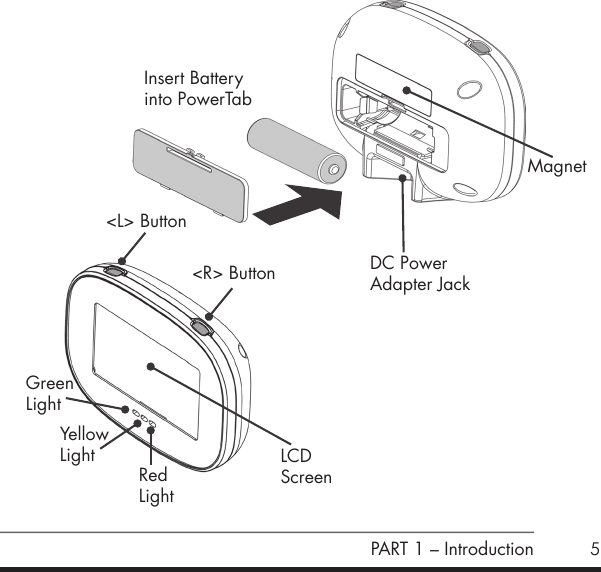
41   IntroductionThe PowerTab is an In-Home Display (IHD) that provides real-time feedback on your electricity consumption.  The display communicates wirelessly with the smart electricity meter outside your home.Your PowerTab allows you to: • View your current household electricity use• Track your electricity consumption and associated costs over time• Test consumption and costs of operating individual devices• Receive and acknowledge messages from your utility    or service providerYour PowerTab package contains a display unit, a battery, and a  power adapter.PART 1 – Introduction
5PART 1 – IntroductionInsert Battery into PowerTabMagnetLCDScreenGreenLightYellowLightRedLightDC PowerAdapter Jack <L> Button<R> Button
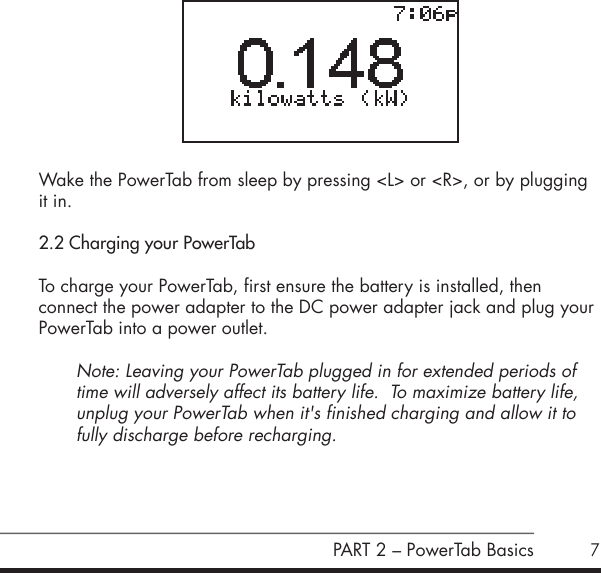
6This section provides information on the primary functions of  your PowerTab.2.1 Your PowerTab’s power modesYour PowerTab has three power modes: On, Off, and Sleep. To turn your PowerTab on, press either <L> or <R>.  Turn your PowerTab off by pressing and holding <L> for three seconds.  A confirmation screen will appear.  Press <L> again (“Yes”) to approve the shutdown.Note: Your PowerTab is unable to receive text messages from  your service provider when it is off. When not connected to a network, the PowerTab will turn off  automatically after 5 minutes of inactivity.  When the PowerTab is  connected to a network, it will enter sleep mode after 5 minutes of inactivity.  In sleep mode, only primary information remains visible and the current time is shown in the top right corner of the screen.  This is depicted in the following sample screen.  2   PowerTab BasicsPART 2 – PowerTab Basics
7 Wake the PowerTab from sleep by pressing <L> or <R>, or by plugging it in.2.2 Charging your PowerTabTo charge your PowerTab, first ensure the battery is installed, then  connect the power adapter to the DC power adapter jack and plug your PowerTab into a power outlet.Note: Leaving your PowerTab plugged in for extended periods of time will adversely affect its battery life.  To maximize battery life, unplug your PowerTab when it's finished charging and allow it to fully discharge before recharging.  PART 2 – PowerTab Basics
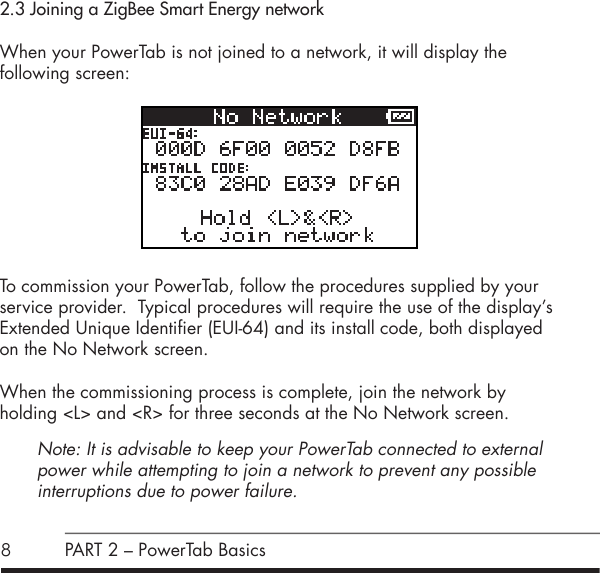
82.3 Joining a ZigBee Smart Energy networkWhen your PowerTab is not joined to a network, it will display the  following screen:          To commission your PowerTab, follow the procedures supplied by your service provider.  Typical procedures will require the use of the display’s Extended Unique Identifier (EUI-64) and its install code, both displayed on the No Network screen.  When the commissioning process is complete, join the network by  holding <L> and <R> for three seconds at the No Network screen.Note: It is advisable to keep your PowerTab connected to external power while attempting to join a network to prevent any possible  interruptions due to power failure.PART 2 – PowerTab Basics
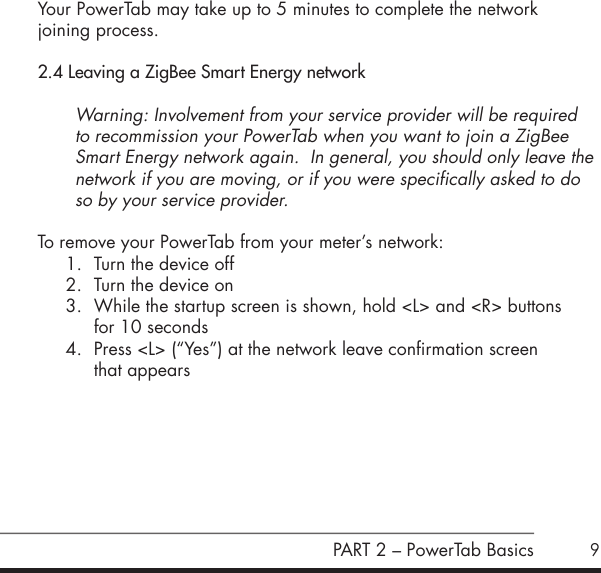
9Your PowerTab may take up to 5 minutes to complete the network  joining process.2.4 Leaving a ZigBee Smart Energy networkWarning: Involvement from your service provider will be required to recommission your PowerTab when you want to join a ZigBee Smart Energy network again.  In general, you should only leave the network if you are moving, or if you were specifically asked to do so by your service provider.To remove your PowerTab from your meter’s network:1.  Turn the device off2.  Turn the device on3.  While the startup screen is shown, hold <L> and <R> buttons  for 10 seconds4.  Press <L> (“Yes”) at the network leave confirmation screen  that appears      PART 2 – PowerTab Basics
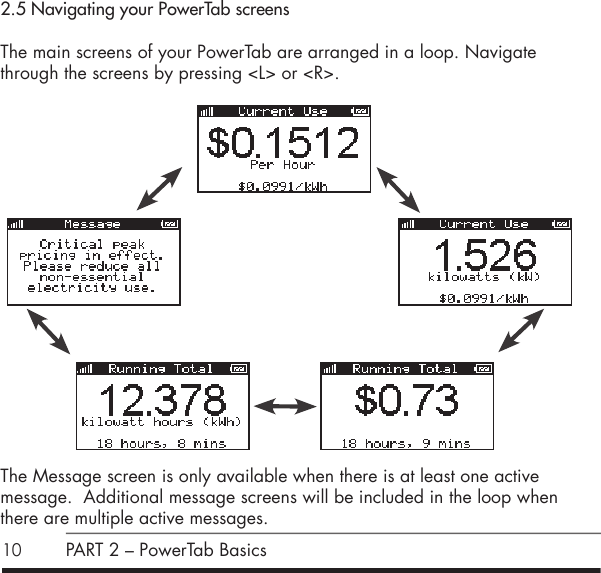
102.5 Navigating your PowerTab screensThe main screens of your PowerTab are arranged in a loop. Navigate through the screens by pressing <L> or <R>.              The Message screen is only available when there is at least one active message.  Additional message screens will be included in the loop when there are multiple active messages.  PART 2 – PowerTab Basics
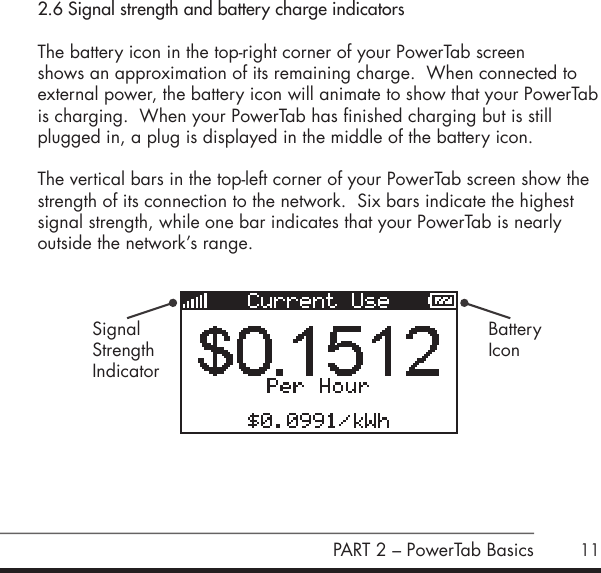
112.6 Signal strength and battery charge indicatorsThe battery icon in the top-right corner of your PowerTab screen  shows an approximation of its remaining charge.  When connected to  external power, the battery icon will animate to show that your PowerTab is charging.  When your PowerTab has finished charging but is still plugged in, a plug is displayed in the middle of the battery icon.  The vertical bars in the top-left corner of your PowerTab screen show the strength of its connection to the network.  Six bars indicate the highest signal strength, while one bar indicates that your PowerTab is nearly outside the network’s range.PART 2 – PowerTab BasicsSignalStrengthIndicatorBatteryIcon
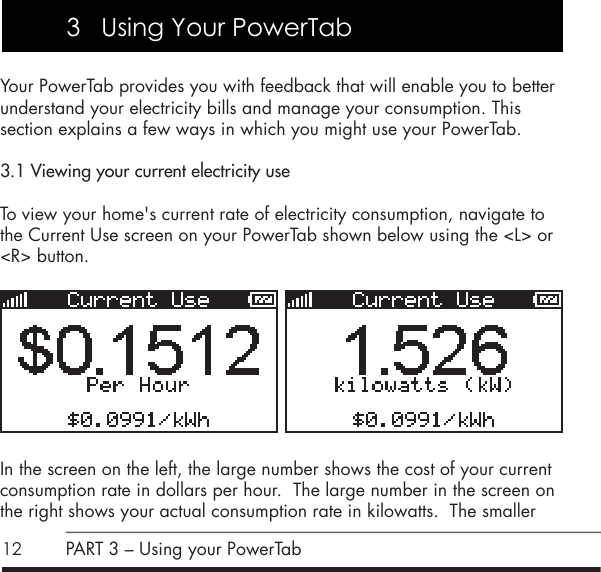
12Your PowerTab provides you with feedback that will enable you to better understand your electricity bills and manage your consumption. This  section explains a few ways in which you might use your PowerTab.3.1 Viewing your current electricity useTo view your home's current rate of electricity consumption, navigate to  the Current Use screen on your PowerTab shown below using the <L> or <R> button.   In the screen on the left, the large number shows the cost of your current consumption rate in dollars per hour.  The large number in the screen on the right shows your actual consumption rate in kilowatts.  The smaller PART 3 – Using your PowerTab3   Using Your PowerTab
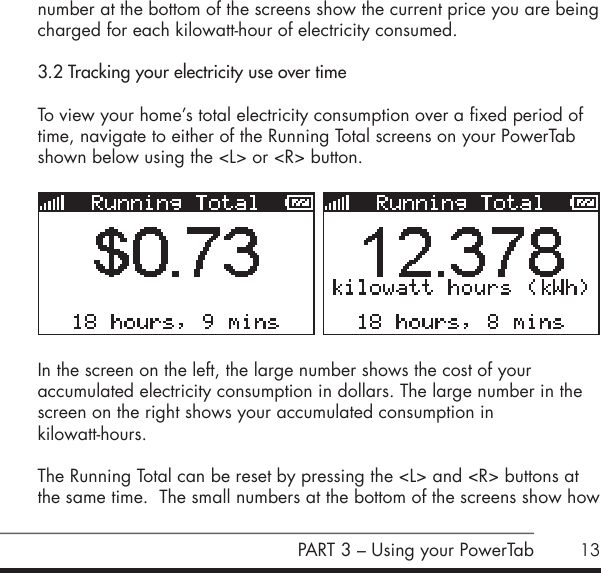
13number at the bottom of the screens show the current price you are being charged for each kilowatt-hour of electricity consumed.3.2 Tracking your electricity use over timeTo view your home’s total electricity consumption over a fixed period of time, navigate to either of the Running Total screens on your PowerTab shown below using the <L> or <R> button.       In the screen on the left, the large number shows the cost of your  accumulated electricity consumption in dollars. The large number in the screen on the right shows your accumulated consumption in  kilowatt-hours.The Running Total can be reset by pressing the <L> and <R> buttons at the same time.  The small numbers at the bottom of the screens show how PART 3 – Using your PowerTab
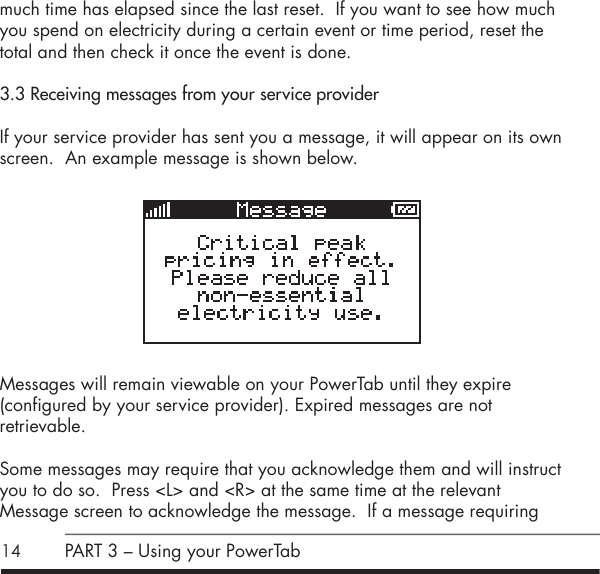
14much time has elapsed since the last reset.  If you want to see how much you spend on electricity during a certain event or time period, reset the total and then check it once the event is done.3.3 Receiving messages from your service providerIf your service provider has sent you a message, it will appear on its own screen.  An example message is shown below.           Messages will remain viewable on your PowerTab until they expire  (configured by your service provider). Expired messages are not  retrievable.Some messages may require that you acknowledge them and will instruct you to do so.  Press <L> and <R> at the same time at the relevant  Message screen to acknowledge the message.  If a message requiring PART 3 – Using your PowerTab
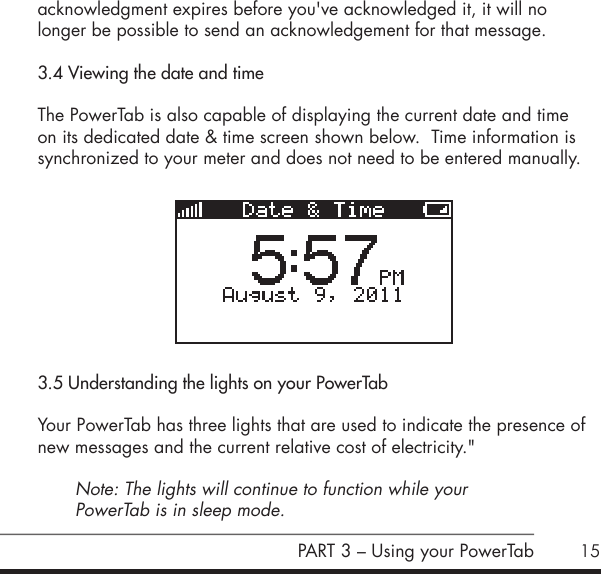
15acknowledgment expires before you've acknowledged it, it will no  longer be possible to send an acknowledgement for that message. 3.4 Viewing the date and timeThe PowerTab is also capable of displaying the current date and time on its dedicated date & time screen shown below.  Time information is synchronized to your meter and does not need to be entered manually.          3.5 Understanding the lights on your PowerTabYour PowerTab has three lights that are used to indicate the presence of new messages and the current relative cost of electricity." Note: The lights will continue to function while your  PowerTab is in sleep mode.PART 3 – Using your PowerTab
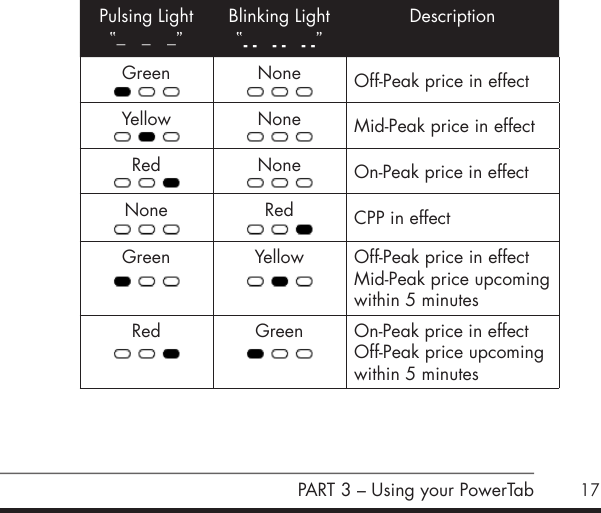
16When a new or unacknowledged message is available on your  PowerTab, the lights will show this by simultaneously blinking once every 7 seconds. The lights will continue to blink until you have acknowledged this message or changed to another display screen.When no new messages are present, the lights will indicate the current relative cost of electricity.  A pulsing light indicates the price period you are currently in, while a blinking light in conjunction with a pulsing light indicates an upcoming price period change.  The special case of Critical Peak Pricing (CPP) is indicated when the red light is blinking on its own.The exact behaviour of the lights is dependent on the number of active price tiers, however green will always indicate the cheapest tiers, and red the most expensive.The following table shows examples of the lights’ behaviour for a typical time-of-use pricing structure involving four price tiers: Off-Peak, Mid-Peak, On-Peak, and CPP. PART 3 – Using your PowerTab
17Pulsing Light“_   _   _”Blinking Light“‐ ‐  ‐ ‐  ‐ ‐”DescriptionGreen None Off-Peak price in effectYellow None Mid-Peak price in effectRed None On-Peak price in effectNone Red CPP in effectGreen Yellow Off-Peak price in effectMid-Peak price upcomingwithin 5 minutesRed Green On-Peak price in effectOff-Peak price upcomingwithin 5 minutesPART 3 – Using your PowerTab
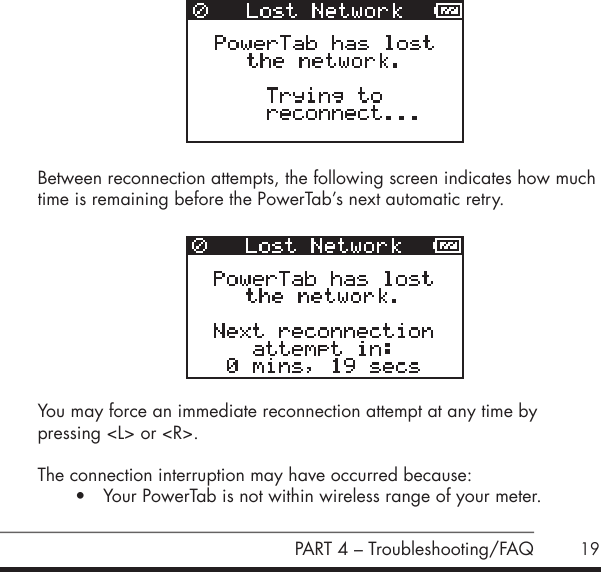
18Solutions to most of the problems you might encounter with your  PowerTab are described in this section. 4.1 If your PowerTab fails to join a networkIf your PowerTab displays "No networks found" after you attempt to join your meter's network, your PowerTab may not be in wireless range of your meter.  Try moving closer to your meter and attempt joining again.  If this does not solve the issue, it may be necessary to recommission the PowerTab.  Contact your service provider and ask them to commission your PowerTab again.4.2 If your PowerTab has lost the networkWhen your PowerTab loses connection to the network it will periodically attempt to reconnect.  During a reconnection attempt you will see the following screen.PART 4 – Troubleshooting/FAQ4  Troubleshooting/FAQ
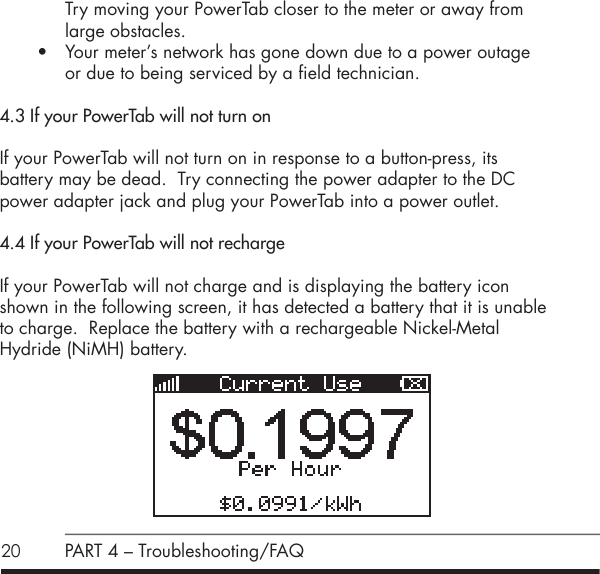
19     Between reconnection attempts, the following screen indicates how much time is remaining before the PowerTab’s next automatic retry. You may force an immediate reconnection attempt at any time by  pressing <L> or <R>. The connection interruption may have occurred because:• Your PowerTab is not within wireless range of your meter.  PART 4 – Troubleshooting/FAQ
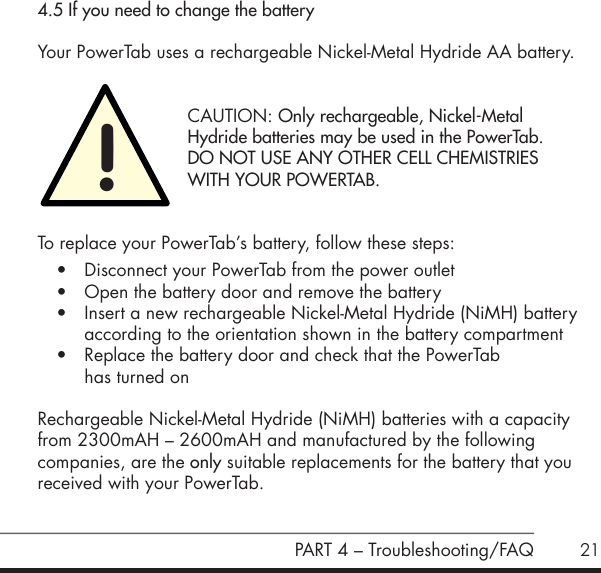
20 PART 4 – Troubleshooting/FAQTry moving your PowerTab closer to the meter or away from large obstacles.• Your meter’s network has gone down due to a power outage  or due to being serviced by a field technician.4.3 If your PowerTab will not turn onIf your PowerTab will not turn on in response to a button-press, its  battery may be dead.  Try connecting the power adapter to the DC power adapter jack and plug your PowerTab into a power outlet.4.4 If your PowerTab will not rechargeIf your PowerTab will not charge and is displaying the battery icon shown in the following screen, it has detected a battery that it is unable to charge.  Replace the battery with a rechargeable Nickel-Metal  Hydride (NiMH) battery.
21PART 4 – Troubleshooting/FAQ4.5 If you need to change the batteryYour PowerTab uses a rechargeable Nickel-Metal Hydride AA battery.    CAUTION: Only rechargeable, Nickel-Metal    Hydride batteries may be used in the PowerTab.    DO NOT USE ANY OTHER CELL CHEMISTRIES    WITH YOUR POWERTAB.To replace your PowerTab’s battery, follow these steps:• Disconnect your PowerTab from the power outlet• Open the battery door and remove the battery• Insert a new rechargeable Nickel-Metal Hydride (NiMH) battery according to the orientation shown in the battery compartment• Replace the battery door and check that the PowerTab  has turned onRechargeable Nickel-Metal Hydride (NiMH) batteries with a capacity from 2300mAH – 2600mAH and manufactured by the following  companies, are the only suitable replacements for the battery that you received with your PowerTab.
22 PART 4 – Troubleshooting/FAQYou should not replace the battery with anything other than those  listed here:• Energizer rechargeable NiMH battery, 2300mAH – 2600mAH• Duracell rechargeable NiMH battery, 2300mAH – 2600mAH• PowerEx rechargeable NiMH battery, 2300mAH – 2600mAH• Sanyo rechargeable NiMH battery, 2300mAH – 2600mAH• Rayovac rechargeable NiMH battery, 2300mAH – 2600mAH4.6 Your Running Total does not match your electricity billYour PowerTab is intended for feedback purposes only and is not a billing tool.  Discrepancies may exist between your PowerTab’s running total and your bill, even if you reset your running total at the beginning of your billing cycle.4.7 How to figure out what an individual appliance is consumingYour PowerTab displays the electricity used by your entire home.  Electricity consumed by individual outlets or appliances can only be  indirectly measured by comparing your home's consumption rate with those appliances on and off. (See section 3.1.)
23PART 4 – Troubleshooting/FAQ4.8 Your current use value does not change when you turn on/off a light Some electrical loads are too small to register a change in your meter's current electricity use value.  For example, Compact Florescent Light bulbs (CFLs) draw very little electricity and may not cause a change on your PowerTab's Current Use screen.4.9 Your service provider sent you a message, where did it go?Your service provider sends messages with a pre-set expiration time.  Once a message has expired it can no longer be viewed.  Generally, messages will not be set to expire until they are no longer relevant.
245.1 Safety InstructionsTo ensure your PowerTab is used safely, please read these Safety Instructions and the rest of this User Manual thoroughly before using the product.• The PowerTab contains a magnet.  Do not place your PowerTab directly on credit cards, computers, or other pieces of electronic equipment, as this may cause damage.• Do not attempt to repair your PowerTab or DC power  adaptor yourself.  If you are experiencing problems with the device, contact your service provider for assistance.  Opening the product casing for any reason will void the product warranty.• Do not touch any exposed electronic circuitry of the device if it becomes damaged.• Do not immerse your PowerTab in water.• Avoid using your PowerTab in high moisture areas such as a  bathroom for extended periods of time.• Keep your PowerTab away from heat sources such as stoves and heaters.5   AppendixPART 5 – Appendix
25• Do not drop your PowerTab or cause any sudden impact to it.• Take care when handling a damaged LCD display as the liquid crystals can be harmful to your health.  If any fluid does leak from your PowerTab’s LCD, immediately wash with soap and water.5.2 Product SpecificationsCommunications• Frequency Band: 2.4GHz• Radio Output Power: 20dBm• Protocol: IEEE 802.15.4Size and Weight• Length: 28 mm (1.10 inches)• Width: 108 mm (4.25 inches)• Height: 79 mm (3.11 inches)• Weight: 134 grams (4.7 ounces)Battery• Approximate life between charges: 2 weeks • Recharge time: 15 hoursPART 5 – Appendix
265.3 FCC ComplianceFCC Class B Part 15 This device complies with part 15 of the FCC Rules. Operation is subject to the following two conditions:• This device may not cause harmful interference, and• This device must accept any interference received, including  interference that may cause undesired operation.Changes or modifications not expressly approved by Energy Aware  Technology Inc. may void the user's authority to operate the equipment.IC RSS 210This device complies with Industry Canada license-exempt RSS standard(s).  Operation is subject to the following two conditions: (1) this device may not cause interference, and (2) this device must accept any interference, including interference that may cause undesired operation of the device.Le présent appareil est conforme aux CNR d'Industrie Canada  applicables aux appareils radio exempts de licence.  L'exploitation PART 5 – Appendix
27est autorisée aux deux conditions suivantes: (1) l'appareil ne doit pas produire de brouillage, et (2) l'utilisateur de l'appareil doit accepter tout brouillage radioélectrique subi, même si le brouillage est susceptible d'en compromettre le fonctionnement.FCC/IC RF Exposure StatementThis equipment complies with FCC radiation exposure limits set forth for an uncontrolled environment.  The antenna(s) used for this equipment must be installed to provide a separation distance of at least 8 inches (20cm) from all persons.Cet équipement est conforme à l'exposition aux radiations de FCC et d'Industrie Canada établies pour un environnement non contrôlé.  L'antenne (s) utilisé pour cet équipement doit être installé pour fournir  une distance d'au moins 20cm à partir de toutes les personnes.       PART 5 – Appendix
28PowerTab is a trademark of Energy Aware Technology Inc. 5.4 Manufacturing InformationDesigned by Energy Aware Technology Inc.  134 Abbott Street, Suite 604Vancouver, BCV6B 2K4Made in Canada in an ISO 9000-2008 certified facility.

Navigation menu