Neurio Technology ULC PTSMILP1 Power Portal User Manual PowerTab DRAFT

Energy Aware Technology Inc Power Portal PowerTab DRAFT

Users Manual

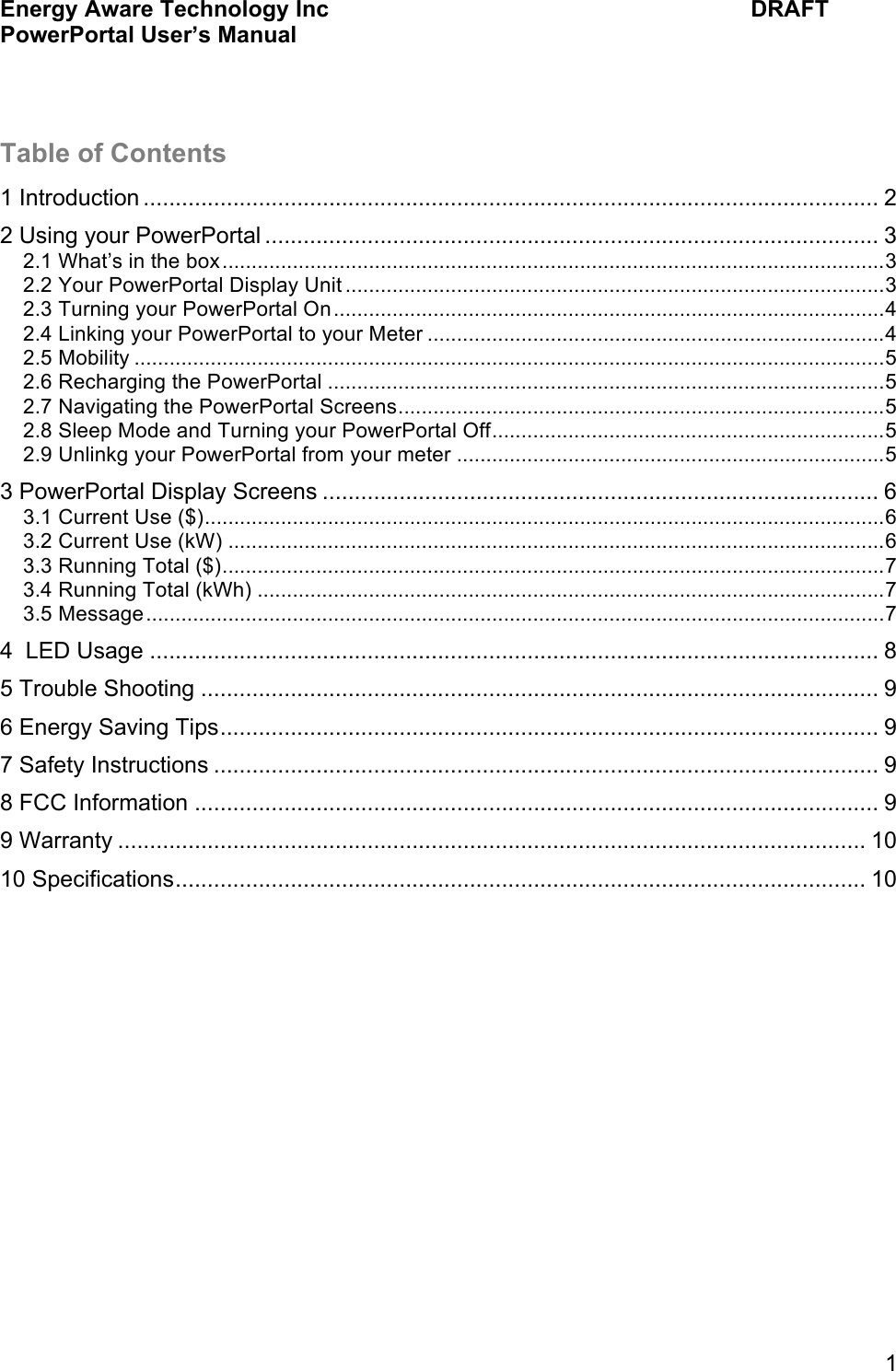
Energy Aware Technology Inc    DRAFT PowerPortal User’s Manual  1  Table of Contents 1 Introduction ................................................................................................................... 2 2 Using your PowerPortal ................................................................................................ 3 2.1 What’s in the box .................................................................................................................3 2.2 Your PowerPortal Display Unit ............................................................................................3 2.3 Turning your PowerPortal On..............................................................................................4 2.4 Linking your PowerPortal to your Meter ..............................................................................4 2.5 Mobility ................................................................................................................................5 2.6 Recharging the PowerPortal ...............................................................................................5 2.7 Navigating the PowerPortal Screens...................................................................................5 2.8 Sleep Mode and Turning your PowerPortal Off...................................................................5 2.9 Unlinkg your PowerPortal from your meter .........................................................................5 3 PowerPortal Display Screens ....................................................................................... 6 3.1 Current Use ($)....................................................................................................................6 3.2 Current Use (kW) ................................................................................................................6 3.3 Running Total ($).................................................................................................................7 3.4 Running Total (kWh) ...........................................................................................................7 3.5 Message..............................................................................................................................7 4  LED Usage .................................................................................................................. 8 5 Trouble Shooting .......................................................................................................... 9 6 Energy Saving Tips....................................................................................................... 9 7 Safety Instructions ........................................................................................................ 9 8 FCC Information ........................................................................................................... 9 9 Warranty ..................................................................................................................... 10 10 Specifications............................................................................................................ 10
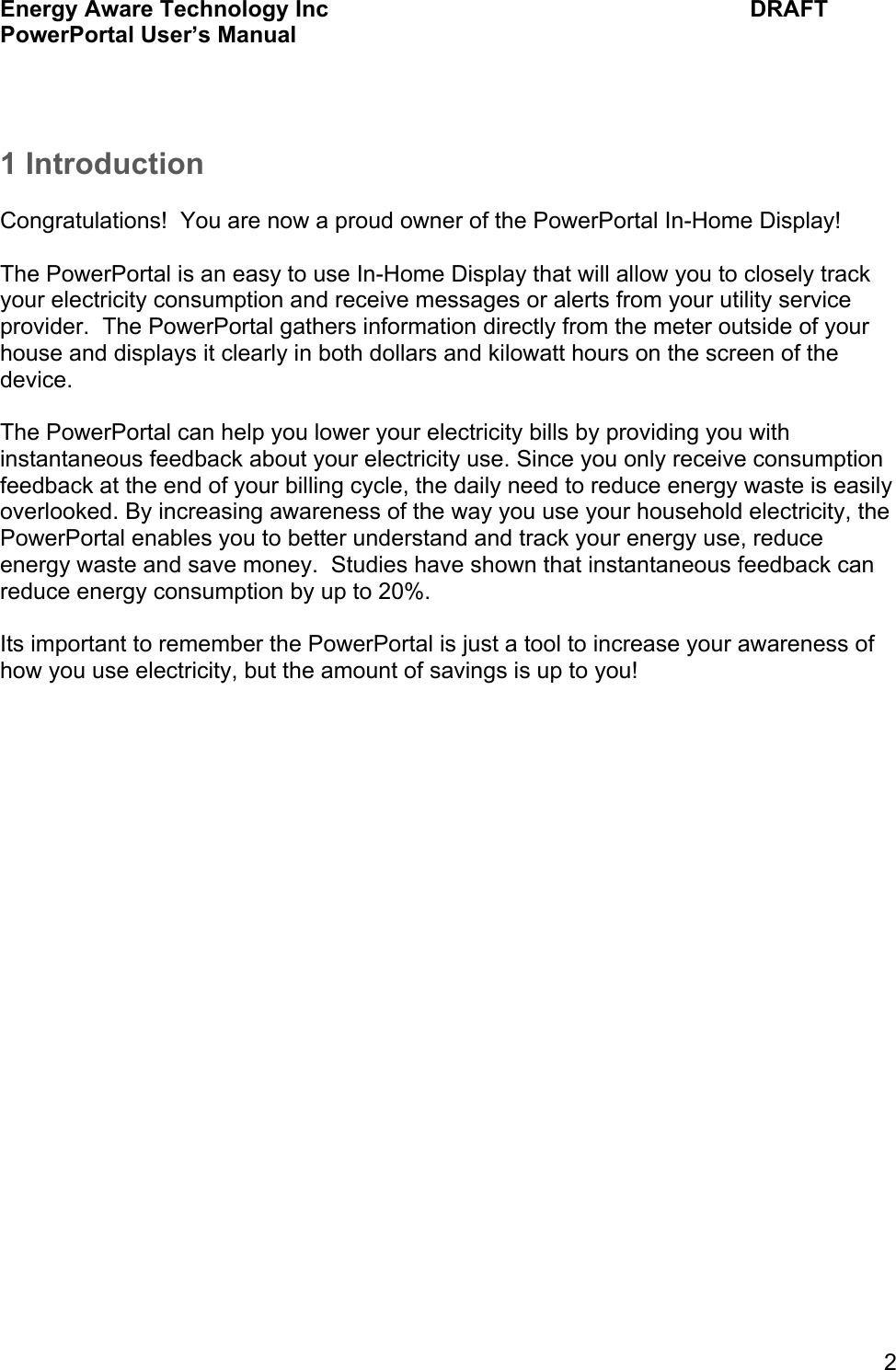
Energy Aware Technology Inc    DRAFT PowerPortal User’s Manual  2  1 Introduction  Congratulations!  You are now a proud owner of the PowerPortal In-Home Display!  The PowerPortal is an easy to use In-Home Display that will allow you to closely track your electricity consumption and receive messages or alerts from your utility service provider.  The PowerPortal gathers information directly from the meter outside of your house and displays it clearly in both dollars and kilowatt hours on the screen of the device.  The PowerPortal can help you lower your electricity bills by providing you with instantaneous feedback about your electricity use. Since you only receive consumption feedback at the end of your billing cycle, the daily need to reduce energy waste is easily overlooked. By increasing awareness of the way you use your household electricity, the PowerPortal enables you to better understand and track your energy use, reduce energy waste and save money.  Studies have shown that instantaneous feedback can reduce energy consumption by up to 20%.  Its important to remember the PowerPortal is just a tool to increase your awareness of how you use electricity, but the amount of savings is up to you!
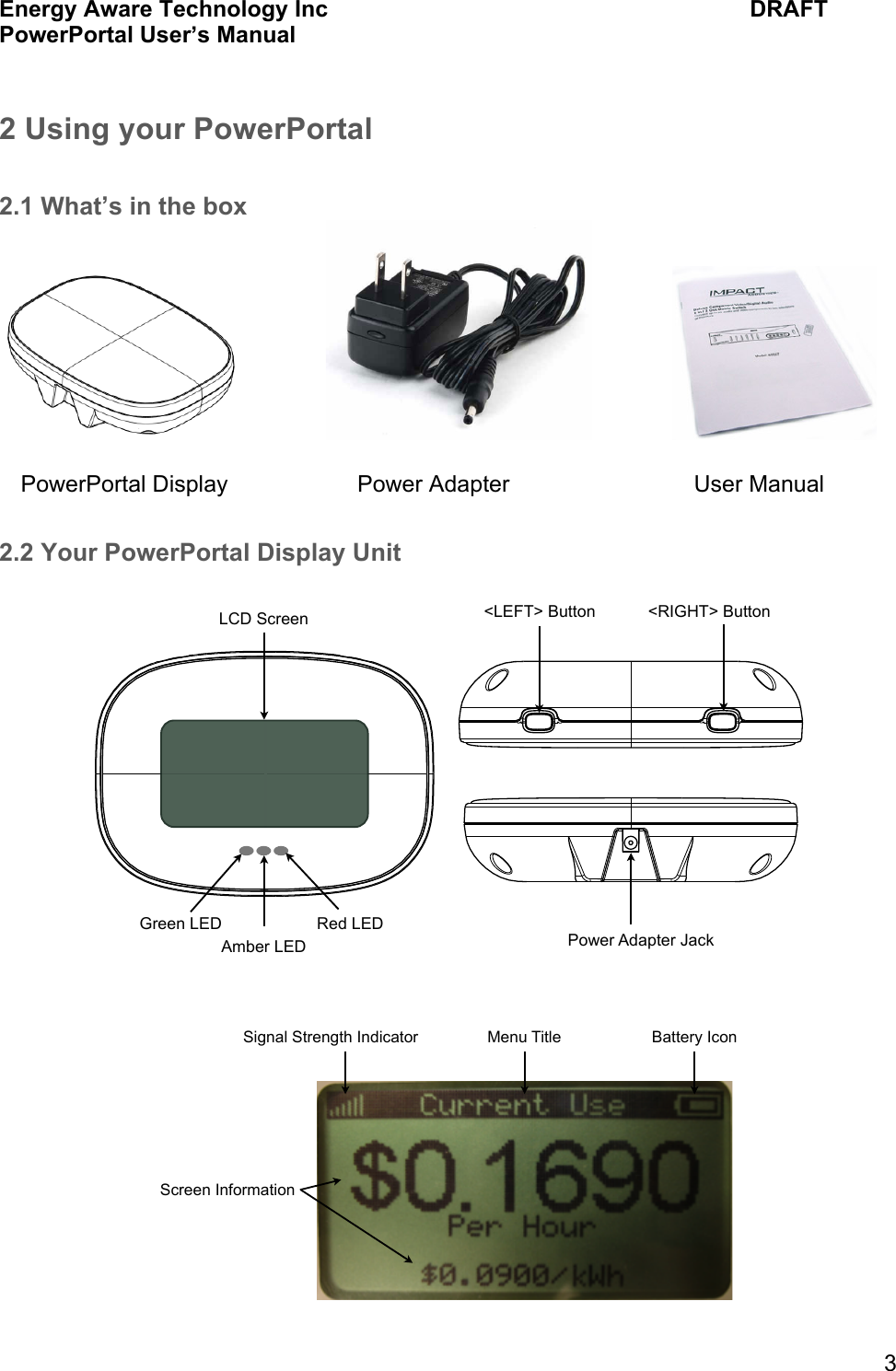
Energy Aware Technology Inc    DRAFT PowerPortal User’s Manual  3 2 Using your PowerPortal  2.1 What’s in the box                                2.2 Your PowerPortal Display Unit      Power Adapter Jack<LEFT> Button <RIGHT> ButtonLCD ScreenAmber LEDGreen LED Red LEDMenu TitleSignal Strength Indicator Battery IconScreen InformationPowerPortal Display Power Adapter User Manual
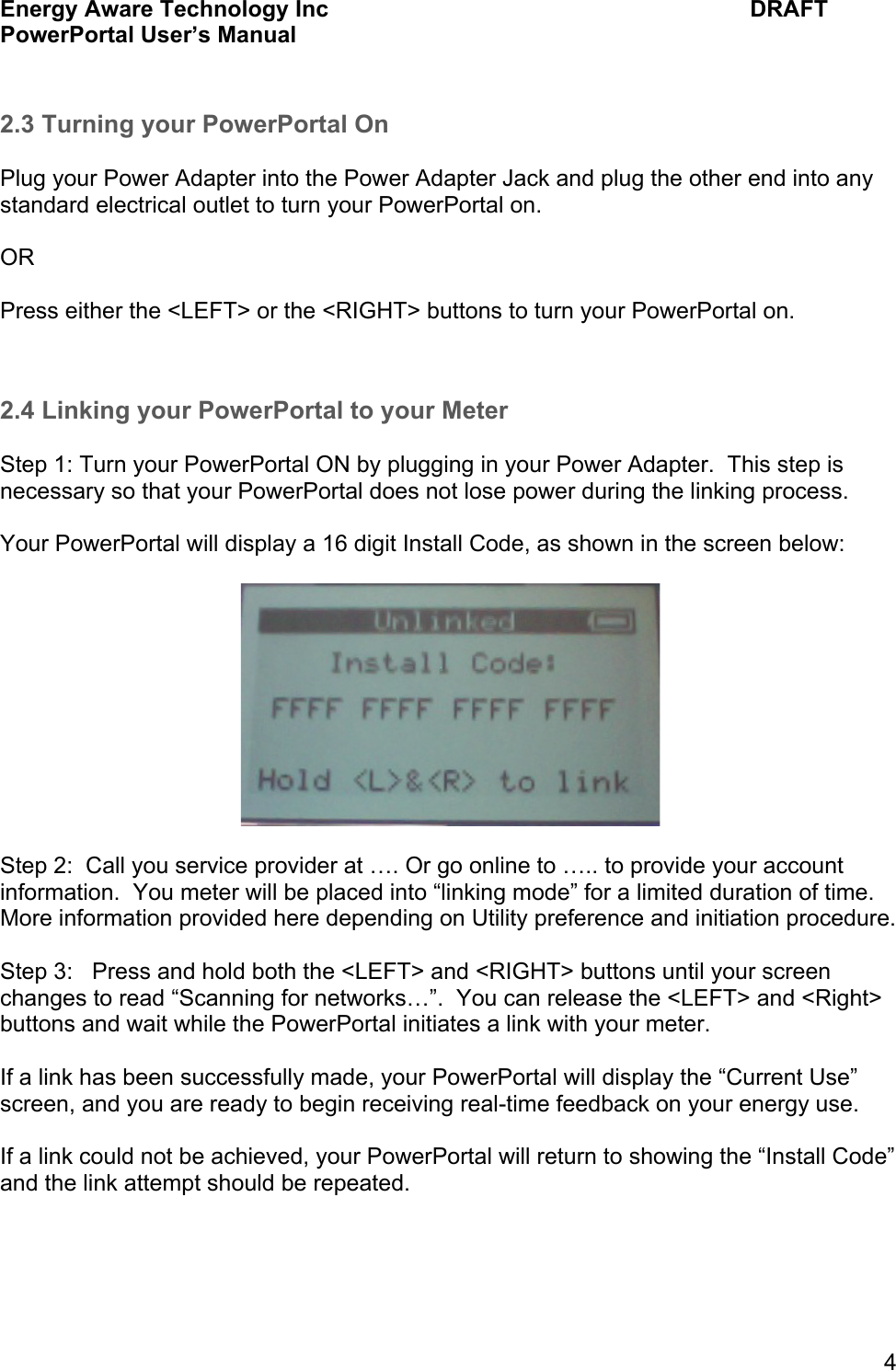
Energy Aware Technology Inc    DRAFT PowerPortal User’s Manual  4  2.3 Turning your PowerPortal On  Plug your Power Adapter into the Power Adapter Jack and plug the other end into any standard electrical outlet to turn your PowerPortal on.  OR  Press either the <LEFT> or the <RIGHT> buttons to turn your PowerPortal on.   2.4 Linking your PowerPortal to your Meter  Step 1: Turn your PowerPortal ON by plugging in your Power Adapter.  This step is necessary so that your PowerPortal does not lose power during the linking process.  Your PowerPortal will display a 16 digit Install Code, as shown in the screen below:    Step 2:  Call you service provider at …. Or go online to ….. to provide your account information.  You meter will be placed into “linking mode” for a limited duration of time.  More information provided here depending on Utility preference and initiation procedure.  Step 3:   Press and hold both the <LEFT> and <RIGHT> buttons until your screen changes to read “Scanning for networks…”.  You can release the <LEFT> and <Right> buttons and wait while the PowerPortal initiates a link with your meter.  If a link has been successfully made, your PowerPortal will display the “Current Use” screen, and you are ready to begin receiving real-time feedback on your energy use.  If a link could not be achieved, your PowerPortal will return to showing the “Install Code” and the link attempt should be repeated.
Energy Aware Technology Inc    DRAFT PowerPortal User’s Manual  5  2.5 Mobility  The PowerPortal is wireless and can be taken anywhere in the home.  It has a magnetic backing so that it can be mounted on a refrigerator, or it can stand upright so it can be placed on a table or countertop.  2.6 Recharging the PowerPortal  The PowerPortal has a battery life of approximately 3 weeks to 2 months depending on its usage.  The battery icon in the top right corner of the screen will indicate how full the battery is, and when the icon indicates that the battery is almost empty, the PowerPortal should be plugged into its Power Adapter to be charged.  Charging your PowerPortal will take approximately eight hours.  2.7 Navigating the PowerPortal Screens  The PowerPortal has 5 main screens, which are described in Section 3 “PowerPortal Display Screens”.  The screens are on a continuous loop, and can be navigated by pressing either the <LEFT> or the <Right> buttons.      2.8 Sleep Mode and Turning your PowerPortal Off  When your PowerPortal has been inactive for 5 minutes, the display screen will go into sleep mode, which means the LCD screen will be off, but the LEDs will continue to operate.  You can wake your PowerPortal up from Sleep Mode by pressing either button or plugging in your Power Adapter.  When you PowerPortal is woken from sleep mode, it will show the last menu screen your were using.    If you would like to turn your PowerPortal off completely, you can do so by pressing and holding the <LEFT> button for 5 seconds.  You will then be asked if you are sure you want to turn your PowerPortal off.  Press the <LEFT> button to turn it off, or press the <RIGHT> button to return to the display screens.  2.9 Unlinkg your PowerPortal from your meter  Unlinking your PowerPortal should only be done if you are moving or have received a new meter that you would like to link your PowerPortal to.  Unlinking accidentally will result in the need to re-link using the step outlined in section 2.4 Linking your PowerPortal to your Meter.
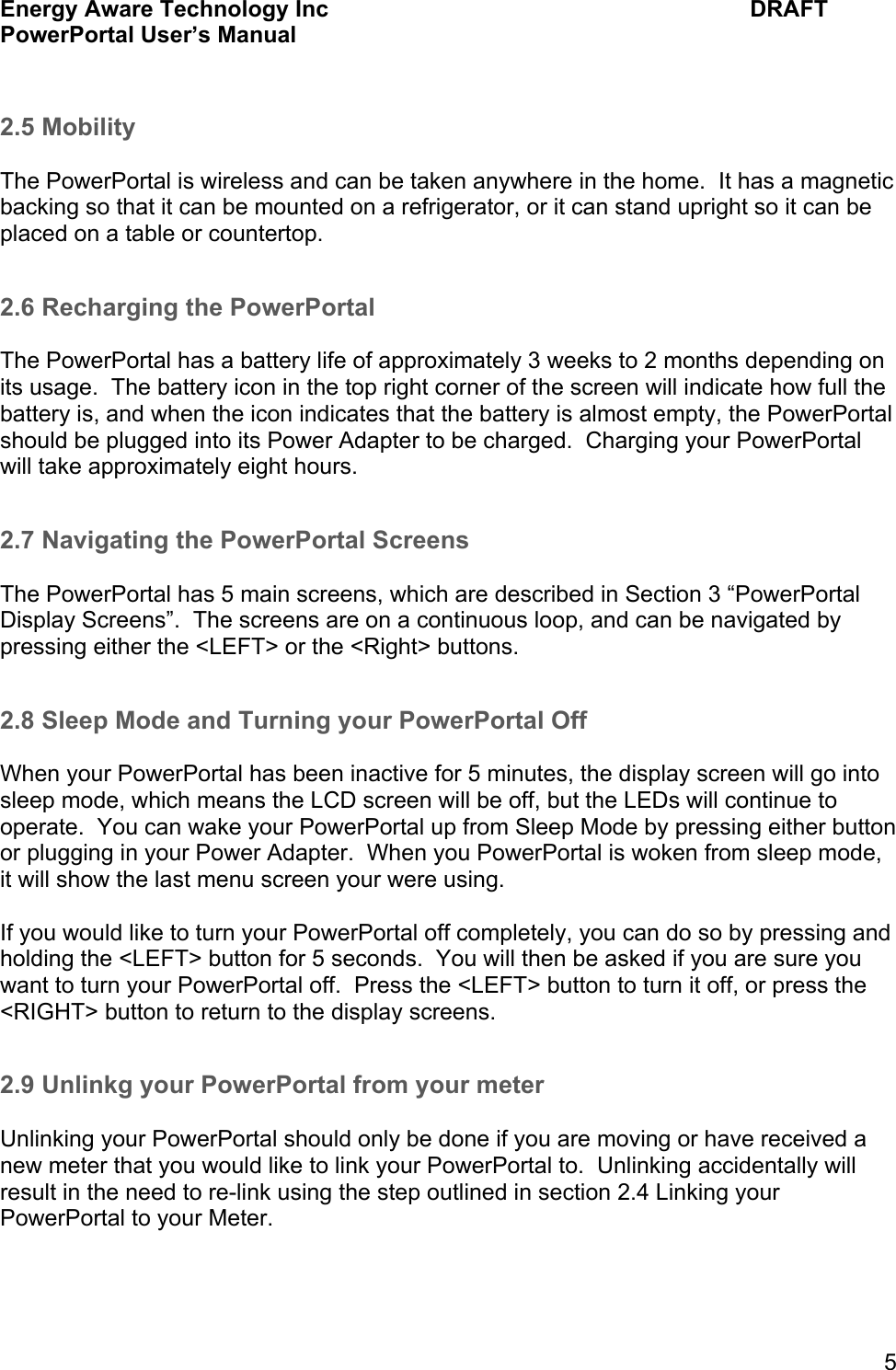
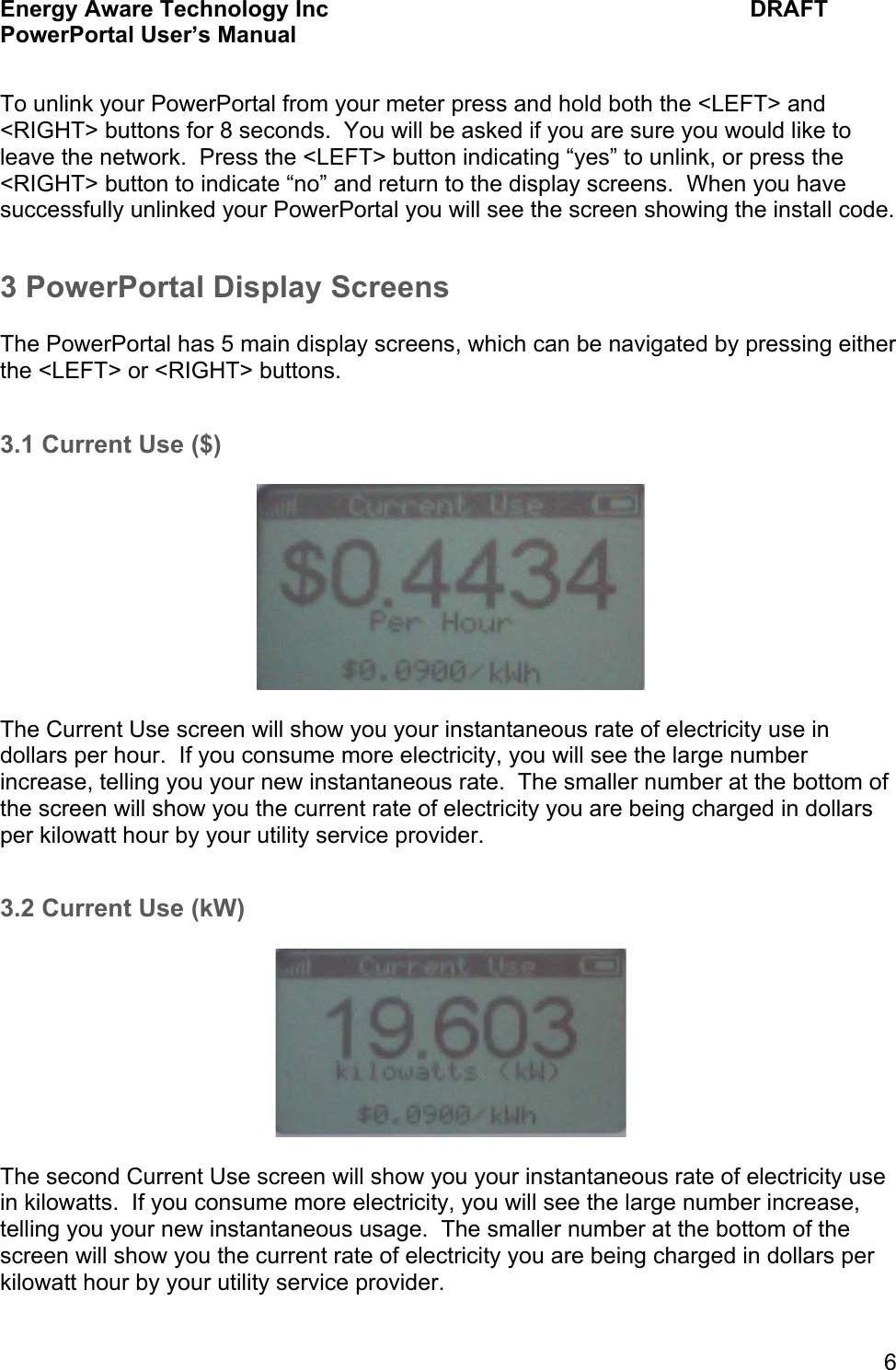
Energy Aware Technology Inc    DRAFT PowerPortal User’s Manual  6  To unlink your PowerPortal from your meter press and hold both the <LEFT> and <RIGHT> buttons for 8 seconds.  You will be asked if you are sure you would like to leave the network.  Press the <LEFT> button indicating “yes” to unlink, or press the <RIGHT> button to indicate “no” and return to the display screens.  When you have successfully unlinked your PowerPortal you will see the screen showing the install code. 3 PowerPortal Display Screens  The PowerPortal has 5 main display screens, which can be navigated by pressing either the <LEFT> or <RIGHT> buttons.    3.1 Current Use ($)    The Current Use screen will show you your instantaneous rate of electricity use in dollars per hour.  If you consume more electricity, you will see the large number increase, telling you your new instantaneous rate.  The smaller number at the bottom of the screen will show you the current rate of electricity you are being charged in dollars per kilowatt hour by your utility service provider.    3.2 Current Use (kW)    The second Current Use screen will show you your instantaneous rate of electricity use in kilowatts.  If you consume more electricity, you will see the large number increase, telling you your new instantaneous usage.  The smaller number at the bottom of the screen will show you the current rate of electricity you are being charged in dollars per kilowatt hour by your utility service provider.
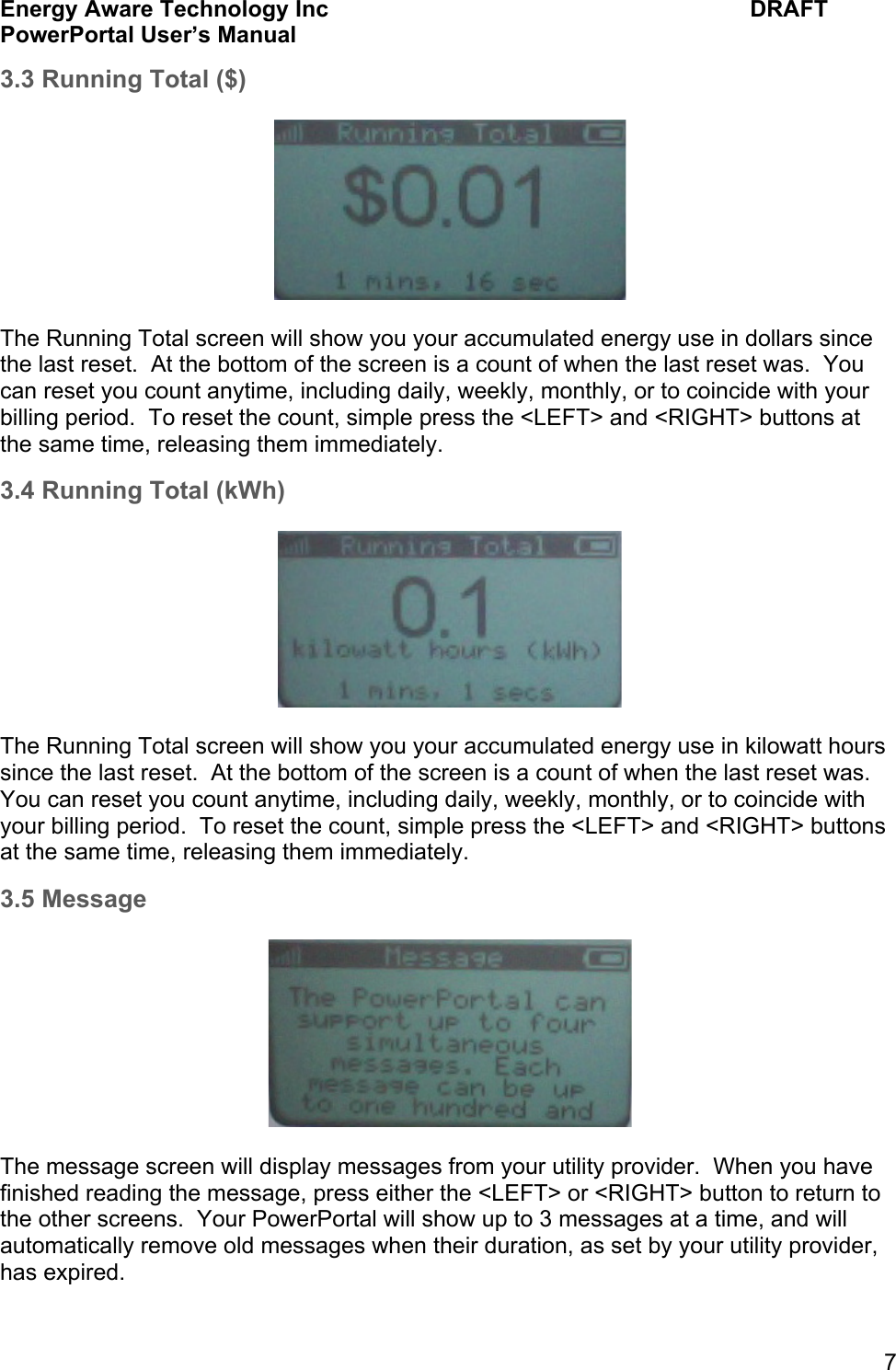
Energy Aware Technology Inc    DRAFT PowerPortal User’s Manual  7 3.3 Running Total ($)    The Running Total screen will show you your accumulated energy use in dollars since the last reset.  At the bottom of the screen is a count of when the last reset was.  You can reset you count anytime, including daily, weekly, monthly, or to coincide with your billing period.  To reset the count, simple press the <LEFT> and <RIGHT> buttons at the same time, releasing them immediately. 3.4 Running Total (kWh)    The Running Total screen will show you your accumulated energy use in kilowatt hours since the last reset.  At the bottom of the screen is a count of when the last reset was.  You can reset you count anytime, including daily, weekly, monthly, or to coincide with your billing period.  To reset the count, simple press the <LEFT> and <RIGHT> buttons at the same time, releasing them immediately. 3.5 Message    The message screen will display messages from your utility provider.  When you have finished reading the message, press either the <LEFT> or <RIGHT> button to return to the other screens.  Your PowerPortal will show up to 3 messages at a time, and will automatically remove old messages when their duration, as set by your utility provider, has expired.
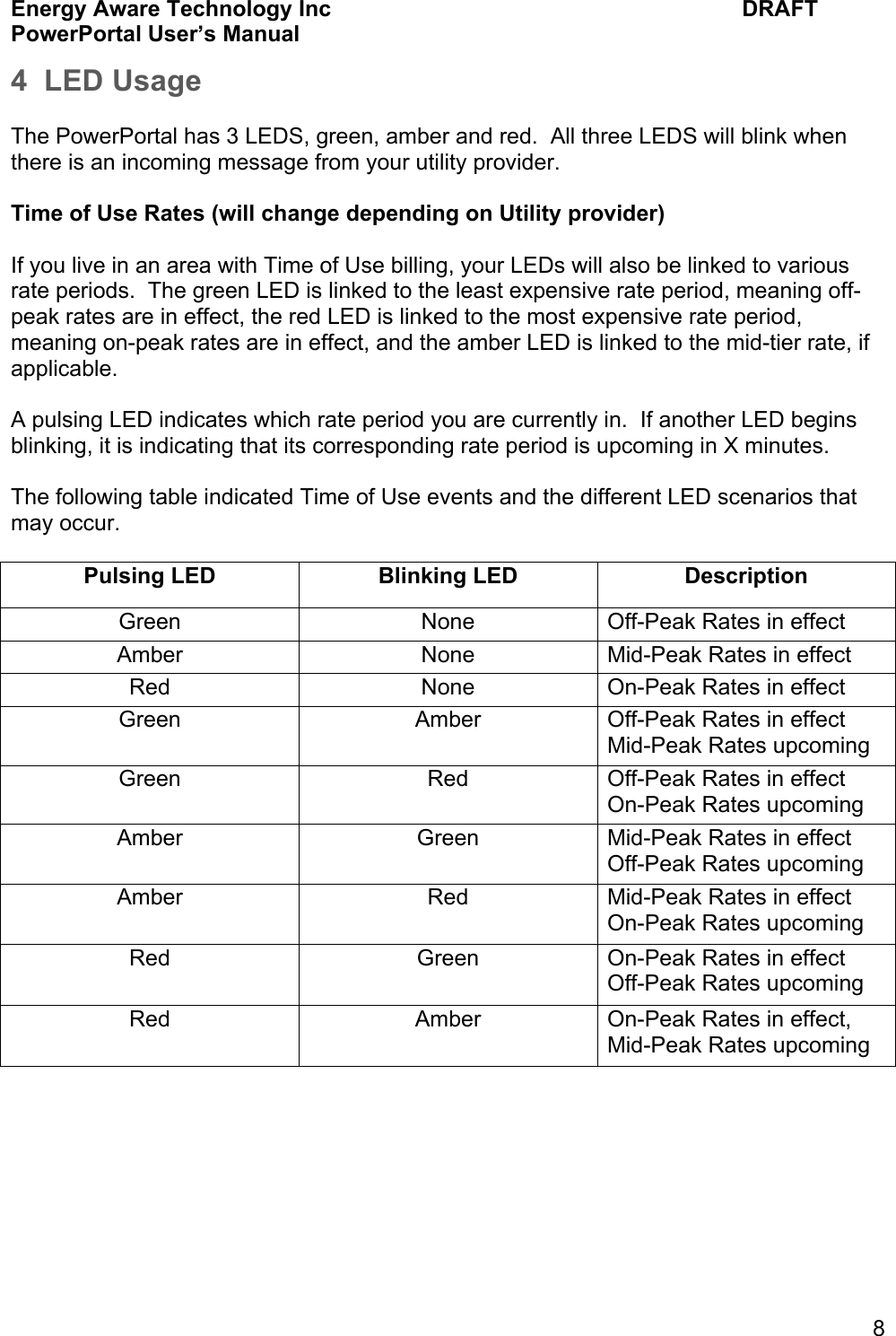
Energy Aware Technology Inc    DRAFT PowerPortal User’s Manual  8 4  LED Usage  The PowerPortal has 3 LEDS, green, amber and red.  All three LEDS will blink when there is an incoming message from your utility provider.  Time of Use Rates (will change depending on Utility provider)  If you live in an area with Time of Use billing, your LEDs will also be linked to various rate periods.  The green LED is linked to the least expensive rate period, meaning off-peak rates are in effect, the red LED is linked to the most expensive rate period, meaning on-peak rates are in effect, and the amber LED is linked to the mid-tier rate, if applicable.    A pulsing LED indicates which rate period you are currently in.  If another LED begins blinking, it is indicating that its corresponding rate period is upcoming in X minutes.    The following table indicated Time of Use events and the different LED scenarios that may occur.  Pulsing LED Blinking LED Description Green None Off-Peak Rates in effect Amber None Mid-Peak Rates in effect Red None On-Peak Rates in effect Green Amber Off-Peak Rates in effect Mid-Peak Rates upcoming Green Red Off-Peak Rates in effect On-Peak Rates upcoming Amber Green Mid-Peak Rates in effect  Off-Peak Rates upcoming Amber Red Mid-Peak Rates in effect On-Peak Rates upcoming Red Green On-Peak Rates in effect Off-Peak Rates upcoming Red Amber On-Peak Rates in effect, Mid-Peak Rates upcoming
Energy Aware Technology Inc    DRAFT PowerPortal User’s Manual  9 5 Trouble Shooting 6 Energy Saving Tips 7 Safety Instructions  8 FCC Information  FCC Class B Part 15 This device complies with part 15 of the FCC Rules. Operation is subject to the following two conditions:  (1) This device may not cause harmful interference, and  (2) this device must accept any interference received, including interference that may cause undesired operation.   Changes or modifications not expressly approved by Energy Aware Technology Inc. could void the user’s authority to operate the equipment.  This equipment has been tested and found to comply with the limits for a Class B digital device, pursuant to part 15 of the FCC Rules. These limits are designed to provide reasonable protection against harmful interference in a residential installation. This equipment generates, uses and can radiate radio frequency energy and, if not installed and used in accordance with the instructions, may cause harmful interference to radio communications. However, there is no guarantee that interference will not occur in a particular installation. If this equipment does cause harmful interference to radio or television reception, which can be determined by turning the equipment off and on, the user is encouraged to try to correct the interference by one or more of the following measures:  -  Reorient or relocate the receiving antenna.  -  Increase the separation between the equipment and receiver.  -  Connect the equipment into an outlet on a circuit different from that to which the receiver is connected.  -  Consult the dealer or an experienced radio/TV technician for help.   ICES-003 Compliance This Class B digital apparatus complies with Canadian ICES-003.  FCC RF Exposure Statement This equipment complies with FCC radiation exposure limits set forth for an uncontrolled environment. The antenna(s) used for this equipment must be installed to provide a separation distance of at least 8 inches (20cm) from all persons.
Energy Aware Technology Inc    DRAFT PowerPortal User’s Manual  10 9 Warranty  10 Specifications

Navigation menu