New World Net NEW-H100 USB STORAGE User Manual USERS MANUAL
New World Net Co., Ltd USB STORAGE USERS MANUAL
USERS MANUAL
Digital Frontier………………………………………………………….………NEW WORLD NET
The contents of this manual are subject to change without prior notice, depending on
updates and changes in specification, etc. Keep the manual to use at any time.
Any time of imitation, copying, reproduction or translation in part or in whole of both
the product and its accompanying documents or shrinking the product in such a form as
to be read by electronic means without NEW WORLD NET ’s prior consent is prohibited
by the Copyrights Act.
Microsoft, Windows, Windows Explorer, and Windows Logo are trademarks or
registered trademarks of Microsoft Corporation.
Intel & Pentium are registered trademarks of Intel Corporation.
Macintosh, Macintosh Logo is trademarks or registered trademarks of Apple
Computer, Inc.
The system and products appearing in this manual are covered by trademarks
or registered trademarks of each company or organization concerned; the
markTM or R is not always indicated.
Table of Contents
1. Introduction
2. Specifications
3. Safety Precautions
4. Composition
5. NEW-H100 Overview
6. In Case of Windows Computer
1)NEW-H100 Using
A. Driver Installation
B. How to confirm the Driver Installation
C. Data Storage
2)NEW-H100 Management
A. Assigning a Unique Code
B. Formatting
3)Removing NEW-H100 From Your Computer
7. Troubleshooting
1. Introduction
NEW-H100 is a small, light storage device with a capacity of 5GB of its 1-inch hard
disk. It commands the strength of both a large capacity HDD and a small Flash Memory
storage device. It is also capable of fast data transmission by using the USB 2.0
Interface.
2. Specifications
Model NEW-H100 USB External Hard Drive
USB Interface USB 2.0 (High Speed) / USB 1.1 (Full Speed)
Storage medium 1-inch hard disk drive
Storage Capacity 5GB
Weight 45g (included 1inch type hard disk drive)
Dimensions 44(W)*68(H)*14(D) (mm)
Transfer rate 50Mbps
Platform OS Windows 98/SE/ME/2000/XP
Macintosh OS Version 9.X later
NEW-H100 is initially formatted in FAT32. Actual usable capacity can be changed via
the logic file system regardless of the physical capacity of NEW-H100(5GB)
-The warranty does not cover PC connections with the use of extended cords like the
USB hub, etc.
-Connection of NEW-H100 to the USB 1.1 Host Adapter enables you to operate at the
speed of the USB 1.1
-You need to mount a USB 2.0 Host Adapter on the computer to achieve maximum
transmission speed when using the device.
3. Safety Precautions
You should be fully aware of the notice below, before using the product.
The company does not take the responsibility for the defect of the product (accessory,
connecting device etc.), damage, data loss, accident & disorder etc., occurred form not
fully understanding the notice below, so please be sure to check this notice.
- Do not use the product for the other purpose except for the matters
described in the manual.
- Pay attention not to hurt your hand while you touch a product box, manual,
accessory etc.
- Hard disk is sensitive to impact. Pay attention not to have a severe impact
on the product, might cause a trouble or damage.
- Pay attention not to use the device or leave it alone in places with high
temperature and humidity or of high thermal difference, and by the strong
magnetic body.
- Remember that liquid (water, beverage etc.) not leaked into the device.
- The device that you discretionary disassembled or remodeled can not be
provided with a free service and can be excluded from the service areas, so
pay special attention to this.
- The company shall not be held liable for data lost and damaged during data
transmissions between NEW-H100 and your computer.
- Be sure to backup your data during data storage. Device malfunction,
operational errors, external shock, or power failure can cause loss of
stored data. The company does not assume any liability for such
occurrences. Please take proper precaution
- Customers must back up the data stored in the device before requesting for
the service. For the service-requested device, the data are assumed to
have been backed up by customer; we do not provide any data backup
service separately. We assume no liability for any data loss during the
service.
- Please plug or unplug the cable by holding the plugs not by pulling out the
cable, to prevent internal line breaking.
- Do not give an impact to the connected part while the Computer is
connected to the device.
- When the device is covered with foreign particles, please wipe off it with
soft cloth or clean towel and be careful not to use chemicals
4. Composition
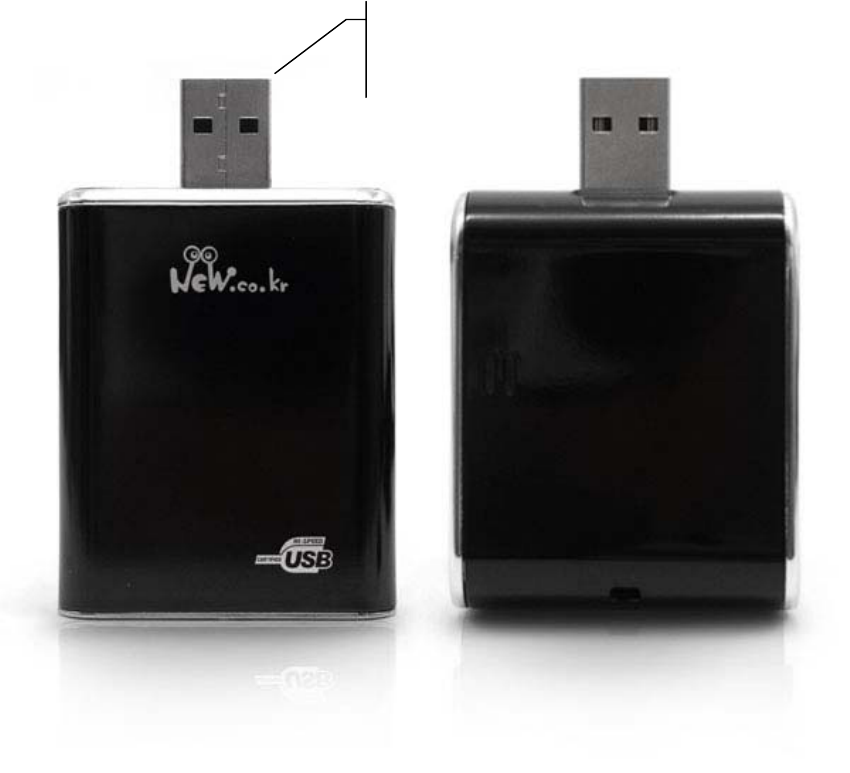
NEW-H100 / User’s Guide / Installation CD / Mini USB cable / Extension USB Cable /
Caring Case
5. NEW-H100 Overview
1) USB Terminal: insert this into the computer’s USB terminal.
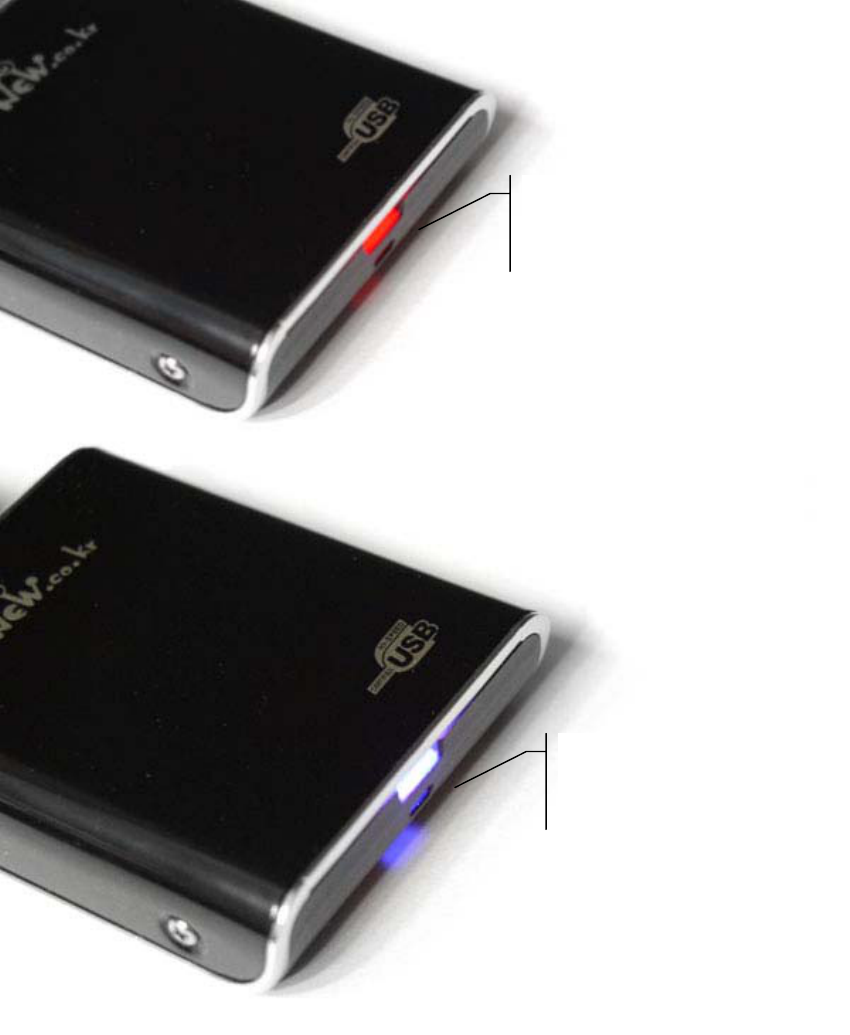
2) LED display: When the device is connected to the PC, the light on the LED
display is turned on when data is being transmitted.
Red light: this indicates the connection of the device to the computer when
power is turned on.
Blue light: indicates that the disk is transmitting the data.
USB
Terminal
6. In case of Windows Computer
1)NEW-H100 Using
A. Driver Installation
You can use NEW-H100 without installing the Driver in Windows 2000/XP.
-How to Install the Driver in Windows 98/SE Computer:
If NEW-H100 is connected to the Windows 98 Computer, a new hardware wizard is
LED display (RED)
LED display (Blue)
executed. If you find a location for the new device driver in Widows while the wizard is
executed, insert the Installation CD in the CD ROM and designate such location as the
driver location.
B. How to confirm the Driver Installation:
-Use of Windows 98/SE/ME
If the Driver Installation is completed normally, you can confirm “USB Mass Storage
Device” in the control panel/system/device manager/universal serial bus controllers.
-Use of Windows 2000/XP
If the Driver Installation is completed normally, you can confirm “USB Mass Storage
Device” in the control panel/system/hardware/device manager/universal serial bus
controllers.
C. Data Storage
-After connecting NEW-H100 to your computer, open the My Computer icon on your
desktop to see whether the device has been recognized as a Local Disk. Use NEW-
H100 like any ordinary hard disk.
2) NEW-H100 Management
Do not perform “Close Checking” during disk defragmenter or Error-Checking to
prevent data loss.
A. Assigning a Unique Code
-Connect NEW-H100 to the computer. Select the Manage item by opening the My
Computer icon, then select the Disk Management from the tree tab of the computer
Management window.
-Confirm that the new hard disk has been indicated, in addition to the existing hard disk.
Tip> What is Volume?
Volume is a large capacity auxiliary storage device for the semi permanent storage of
data in your computer. Each disk that operates independently is equal to one volume. A
large capacity storage device is composed of several volumes.
-Right click the Properties item that indicates this device.
-Assign a unique code to the nameless new volume.
Tip>What is Label?
Information recorded in the disk indicates the data stored in the auxiliary memory
device.
- When NEW-H100 is connected to the computer, the device appears, bearing the
unique code it has been assigned with.
B. Formatting
- Connect NEW-H100 to the computer.
- Select the Manage item by opening the My Computer icon, then select the Disk
Management from the tree tab of the Computer Management window.
- Select the [Format] item by right clicking the NEW-H100 icon.
- Designate FAT32 for the File System and select the default value for the Allocation
unit size. If you want quick formatting, select the Perform a quick format
Warning>
Removing the device form the computer while formatting is going on may cause Device
damage. Please take extra precautions.
3) Removing NEW-H100 From Your computer
- To remove the device safely from your computer, just go through the following steps.
Be sure to double-check each step so as to avoid the disk of data loss or damage to the
device.
- Direct the mouse’s pointer on the hot plug icon of the work tray and then right click it.
- If you select “Safe Remove Hardware” the following message pops up.
- When the window for the “Safe Remove hardware” appears, select the “USB Mass
Storage Device” in the window. This indicates the hardware device. Click the [Stop]
button.
- When the “Stop a Hardware Device” window appears, confirm the “USB Mass Storage
Device” item and then press the [OK] button.
- When the window for the “Safe Detachment of Hardware” appears, press the
[Close]button, then remove NEW-H100 from the computer.
7. In Case of Macintosh Computer
Driver Installation
- You can use NEW-H100 without installing the Driver in Macintosh OS version 9.x~X.
8. Troubleshooting
Q1. What happens when I see a message saying, “Hi-Speed USB device plugged into
Nom-Hi-Speed USB Hub”?
A1. This message is displayed when the USB2.0 product is connected to the
USB1.1 Host Adapter in Windows XP. In such case, the USB2.0 product
operates at the standard speed of a USB1.1
Q2. A tricking sound was produced while NEW-H100 was not normally connected to the
computer.
A2. Product failure may be the cause. Contact the customer call center for
more information.
FCC NOTE
:This equipment has been tested and found to comply with the limits for a Class B digital device,
pursuant to Part 15 of the FCC Rules. These limits are designed to provide reasonable
protection against harmful interference in a residential installation. This equipment generates,
uses and can radiate radio frequency energy and, if not installed and used in accordance with
the instructions, may cause harmful interference to radio communications.
However, there is no guarantee that interference will not occur in a particular installation. If this
equipment does cause harmful interference to radio or television reception, which can be
determined by turning the equipment off and on, the user is encouraged to try to correct the
interference by one or more of the following measures:
-- Reorient or relocate the receiving antenna.
-- Increase the separation between the equipment and receiver.
-- Connect the equipment into an outlet on a circuit different from that to which
the receiver is connected.
-- Consult the dealer or an experienced radio/TV technician for help.
THIS DEVICE COMPLIES WITH PART 15 OF THE FCC RULES.
OPERATION IS SUBJECT TO THE FOLLOWING TWO CONDITIONS:
(1) THIS DEVICE MAY NOT CAUSE HARMFUL INTERFERENCE, AND
(2) THIS DEVICE MUST ACCEPT ANY INTERFERENCE RECEIVED,
INCLUDING INTERFERENCE THAT MAY CAUSE UNDESIRED OPERATION
THE MANUFACTURER IS NOT RESPONSIBLE FOR ANY RADIO OR TV INTERFERENCE
CAUSED UNAUTHORIZED MODIFICATIONS TO THIS EQUIPMENT. SUCH
MODIFICATIONS COULD VOID THE USER'S AUTHORITY TO OPERATE THE EQUIPMENT.