Nike SE13 Personal activity recorder User Manual Users manual
Nike, Inc. Personal activity recorder Users manual
Nike >
Users manual
Nike+ FuelBand SE

2The Nike+ FuelBand SE User’s Guide
Welcome
03 System Requirements
04 Included in the Box
04 Overview
Getting Started
05 Set Up
08 Adjusting Your Fit
Display
10 View Your Results
10 Brightness
11 Progress Toward Your Daily Goal
11 Nike+ Sessions
12 How to Start a Nike+ Session
13 Other Features on your FuelBand SE
14 Customizing the Display
Connect to Mobile Device
16 Bluetooth Pairing
17 How to Sync Activity
Track Your Progress
18 Upload Activity to nikeplus.com
19 Changing Your Daily Goal
20 Nike+ FuelBand SE Features
Maintenance
21 Charging
22 Updating the Nike+ FuelBand SE
22 Updating Nike+ Connect
22 Care for Your Nike+ FuelBand SE
23 Resetting Nike+ FuelBand SE
24 Technical Specifications
26 Service and Support
26 Warranty
27 Compliance Information
Table of Contents
3The Nike+ FuelBand SE User’s Guide
Welcome
Welcome to your Nike+ FuelBand SE, a device that measures your everyday activity and turns it
into NikeFuel. NikeFuel reflects your level of effort throughout the day. It’s calculated the same way
for everyone, so you can compare and compete with friends and other Nike+ members. Plug your
Nike+ FuelBand SE into your computer’s USB port or sync wirelessly through Bluetooth LE with
our mobile app to access Nike+ where you can track your performance, see results and get
motivated to do more.
TO USE YOUR NIKE+ FUELBAND SE, YOU MUST HAVE:
• One of the following two operating systems:
• Mac (OS v10.6 and above)
• PC (Windows XP, Vista, 7 or 8)
• A USB port
• Internet access (broadband recommended, fees may apply)
• Approximately 25 MB free space for Nike+ Connect installation
• Optional mobile app available for iOS 6.1 and above, in English, French, German, or
Japanese; iPhone 4gs and above, iPod Touch 5th gen and above (For the latest compatible
handsets check nikeplus.com/support)
System Requirements
4The Nike+ FuelBand SE User’s Guide
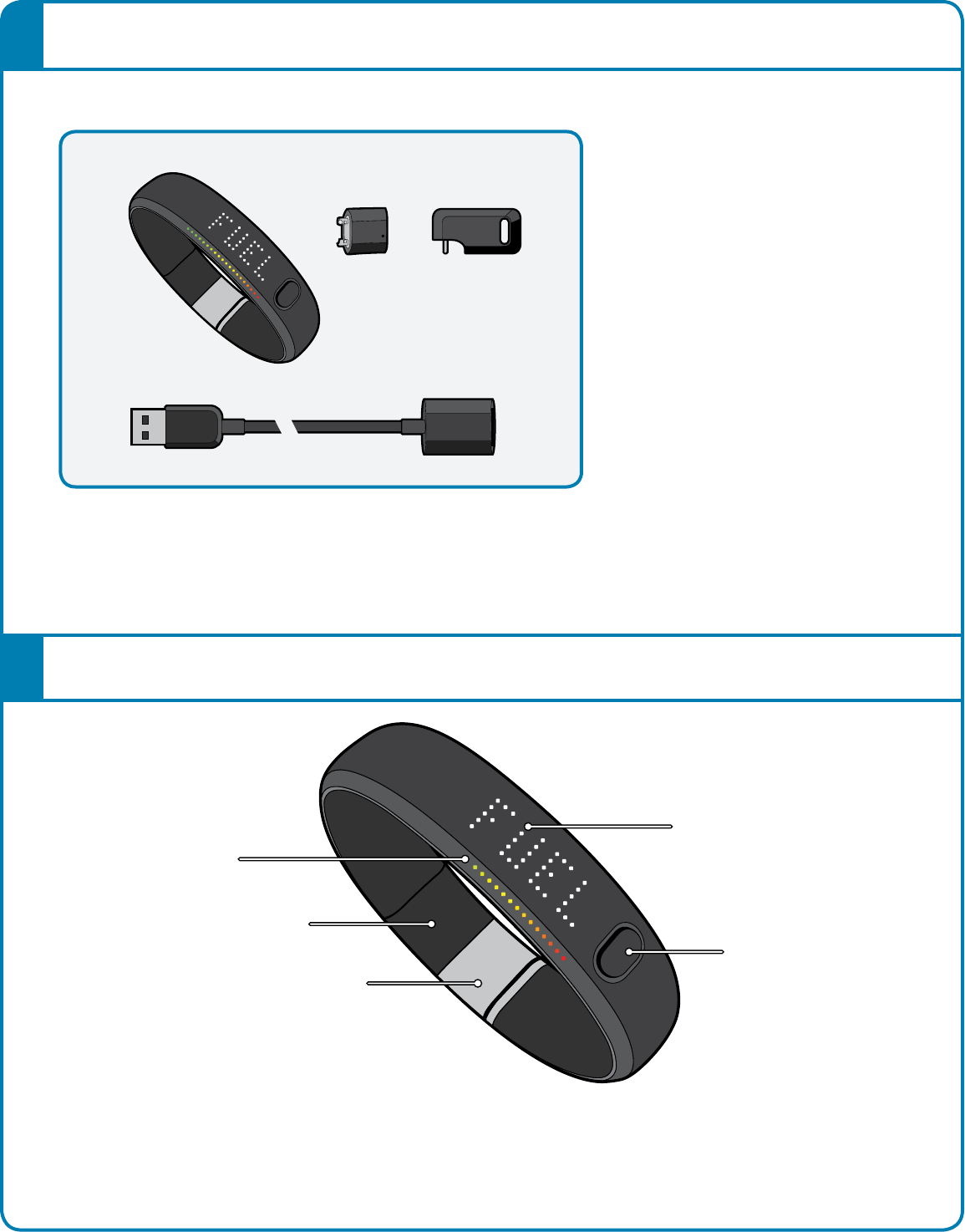
Goal Progress
Link
Clasp
Button
Screen
Included in the Box
WHAT’S INCLUDED IN THE NIKE+ FUELBAND SE BOX
1. Nike+ FuelBand SE (with 8mm link)
2. 16mm Link
3. Sizing Tool
4. USB Cable
1
4
23
Overview
5The Nike+ FuelBand SE User’s Guide
Getting Started
Set Up
You’ll need to set up your Nike+ FuelBand SE before you use it. To get started, open an internet
browser on your computer and go to www.nikeplus.com/setup.
The Nike+ Connect software allows you to sync your data to Nike+, customize your settings, and
set your daily NikeFuel goal.
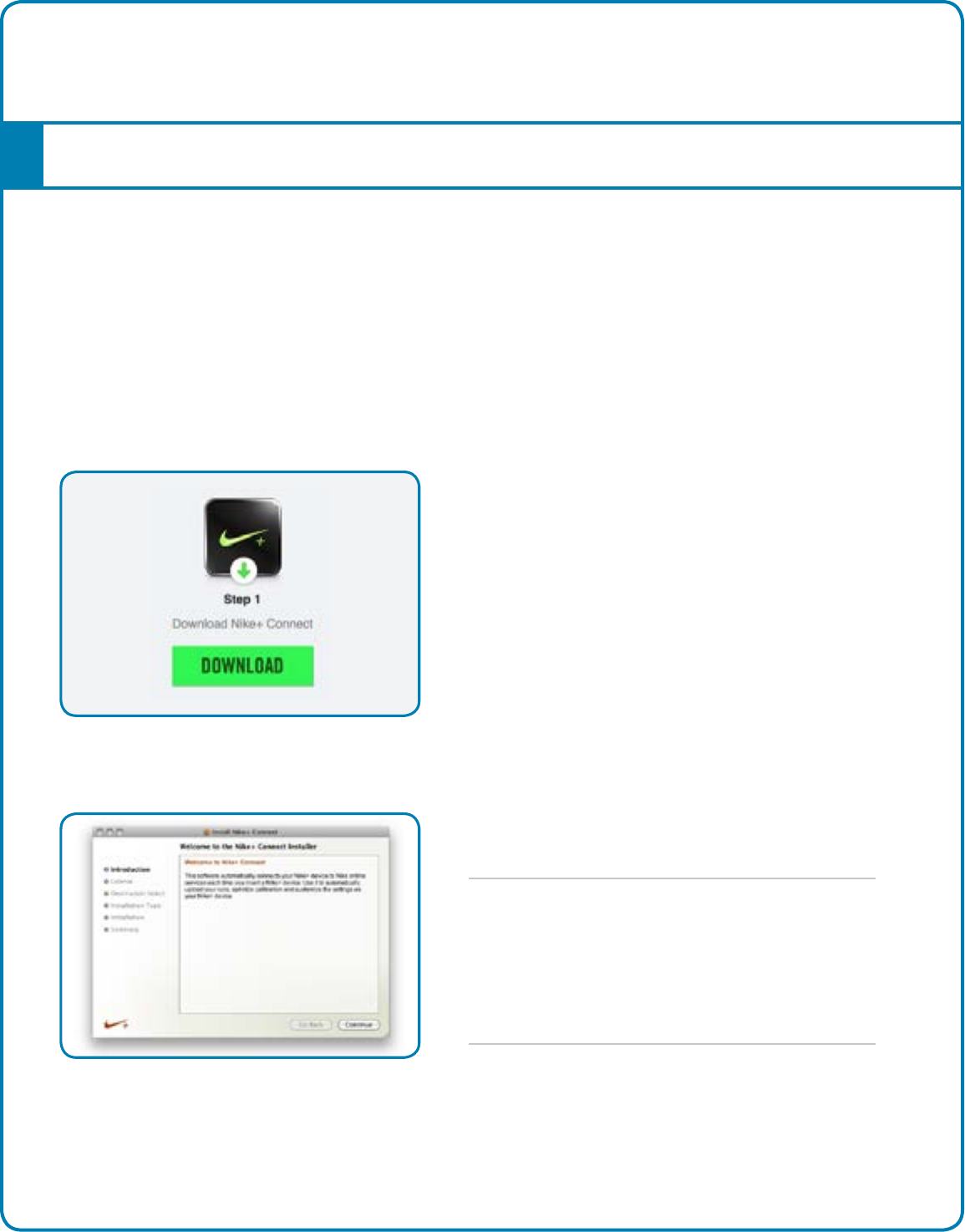
1. DOWNLOAD AND INSTALL NIKE+ CONNECT
Click on “Download Nike+ Connect” to save the Nike+
Connect Installer file to your computer.
Once downloaded, the Nike+ Connect Installer
should automatically open.
If it does not automatically open:
Mac: Double click the downloaded Nike+Connect.
dmg file. When it opens, double click the Nike+
Connect Installer.mpkg file.
PC: Double click the downloaded
Nike+Connect_Installer.exe file.
6The Nike+ FuelBand SE User’s Guide
Follow the on-screen instructions to install the software.
Each time you connect your Nike+ FuelBand SE to this computer, the
software will automatically launch, uploading your activity to nikeplus.com
and removing it from the Nike+ FuelBand SE’s memory.
Note: You can download and install the software to more than one computer.
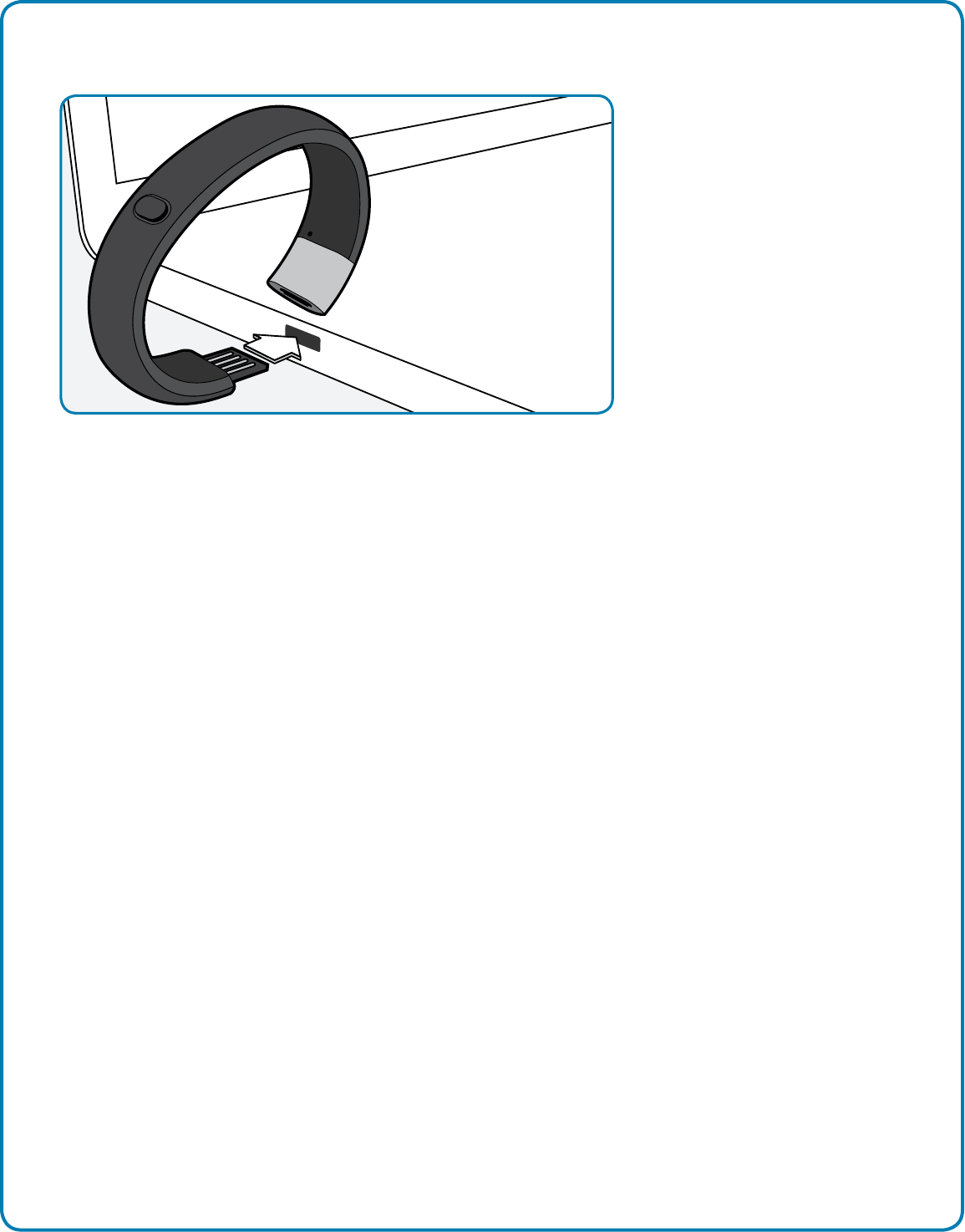
Take your Nike+ FuelBand SE out of the box and plug it into a USB port on your
computer. You can also use the USB cable that came in the box.
2. MAKE IT YOURS
Enter your height and weight so Nike+ FuelBand SE can accurately calculate your
daily results. Indicate which wrist you’ll wear it on so the LED display orients
correctly. You can also give your Nike+ FuelBand SE a unique name, which will
show up in the mobile app and will help distinguish between your devices if you
have multiple Nike+ FuelBands.
3. SET YOUR DAILY GOAL
Choose how active you will strive to be each day. Don’t worry, you can adjust
your daily goal any time (see page 19).

7The Nike+ FuelBand SE User’s Guide
4. JOIN THE NIKE+ COMMUNITY
In order to save your activity and view your progress, you’ll need to create a
Nike+ profile. Nike+ is also a great way to share activity with friends and get
motivated to reach your goals.
To create a new account, click “register.”
If you already have a Nike+ account, you can log in with your email address and
password, or use your Facebook account. Once you’ve joined Nike+
or logged in to your account, click the green “Finish” button to complete the
set-up process.
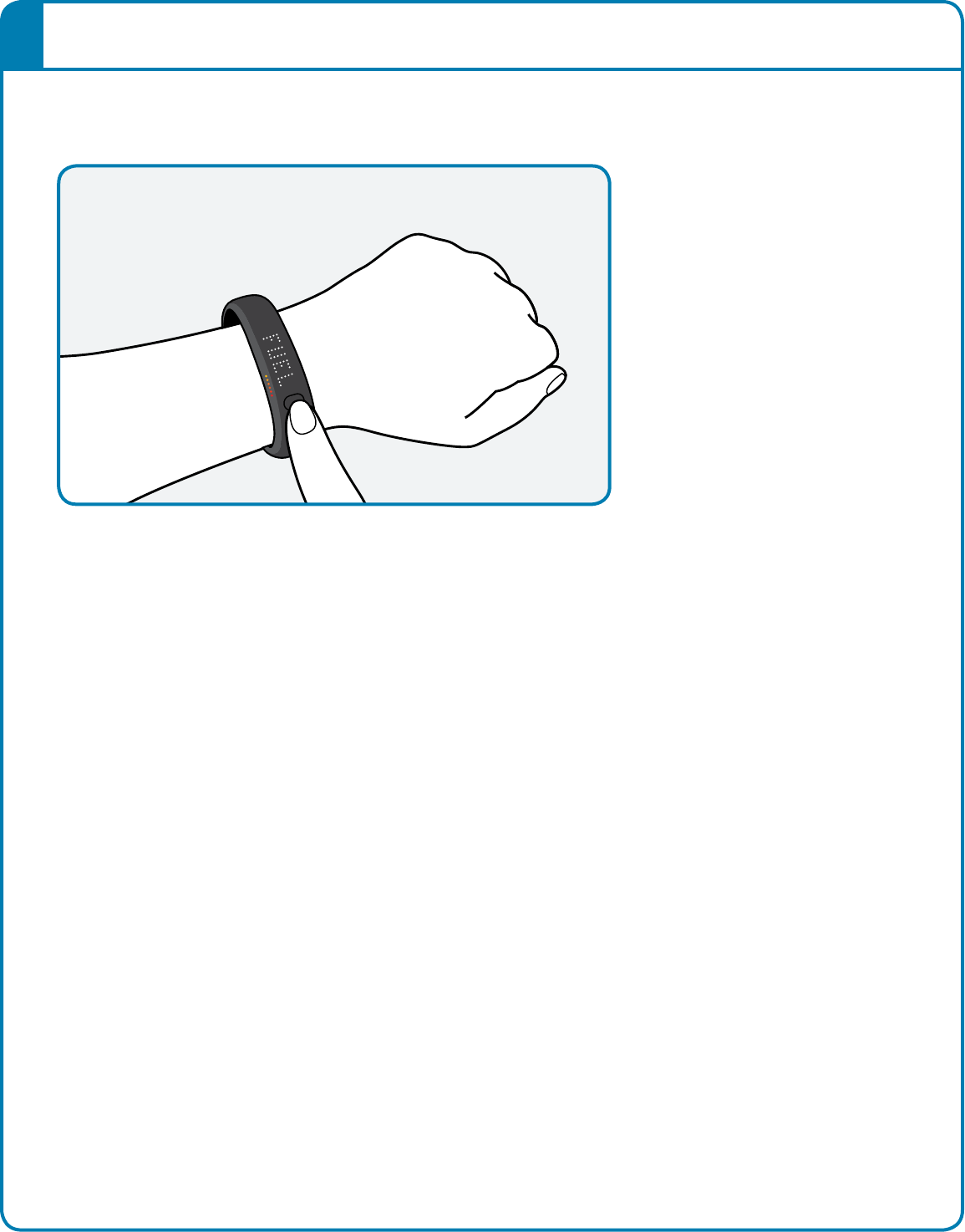
5. CHARGE
Your Nike+ FuelBand SE needs to charge completely. The battery icon on the
Nike+ FuelBand SE display will fill to indicate the level of your battery’s charge.
Once your battery is charged, unplug Nike+ FuelBand SE from your computer,
put it on, and get moving!
8The Nike+ FuelBand SE User’s Guide
Adjusting Your Fit
NIKE+ FUELBAND SE IS DESIGNED TO BE WORN ON YOUR WRIST
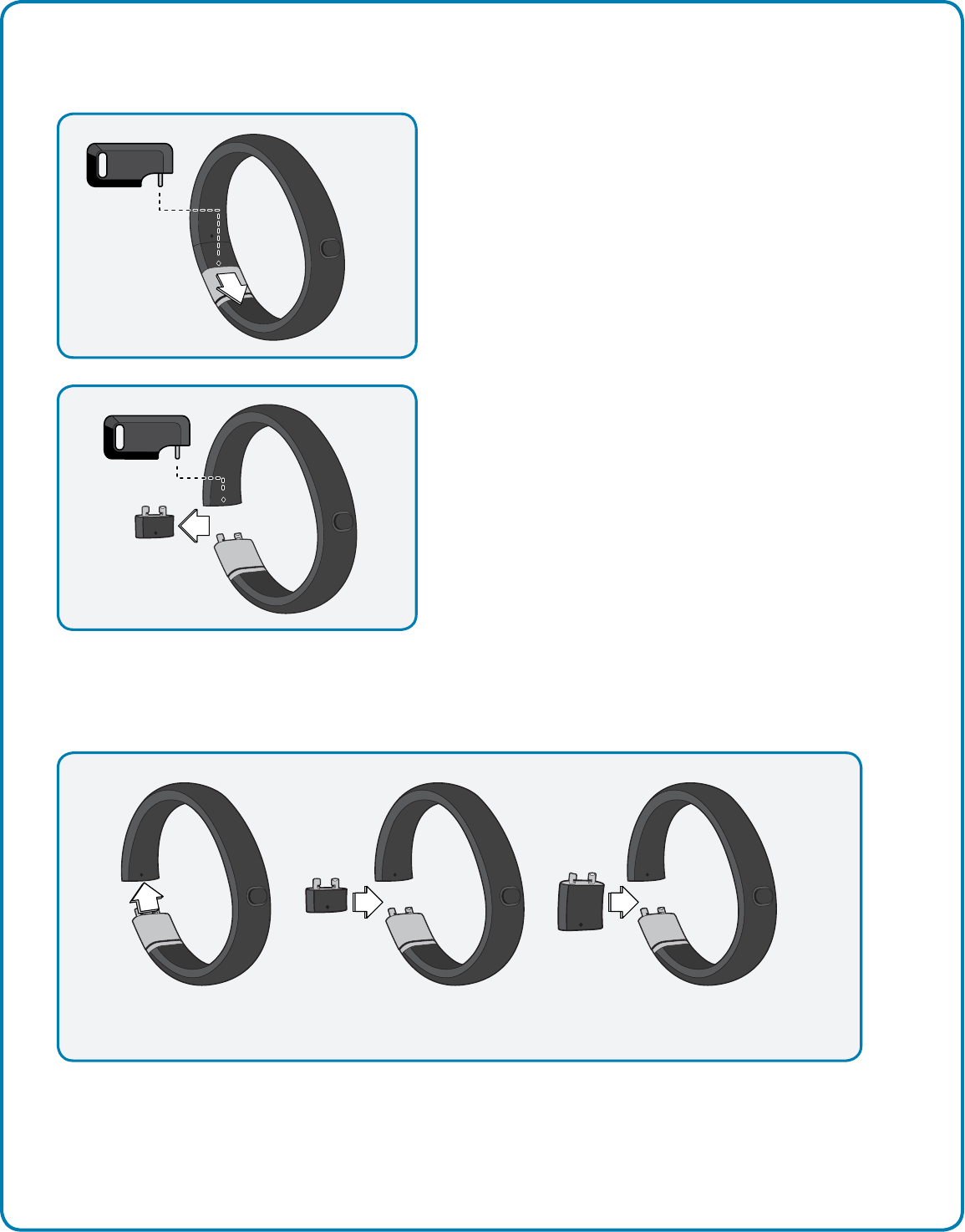
Your Nike+ FuelBand SE comes with two extender links—an 8mm link that’s
already inserted in the band and an extra 16mm link. You can add or remove
the links to make the fit looser or tighter.
9The Nike+ FuelBand SE User’s Guide
REMOVING LINKS
ADDING LINKS
2. Push the pin into the hole on the 8mm
link to release it from the clasp.
1. Insert the pin on the Sizing Tool into
the hole on Nike+ FuelBand SE. (If you
no longer have a Sizing Tool, a bent
paperclip will also work.)
Push down until you feel the link release.
Connect the links to the band as shown below, and snap the band closed.
No Link 8mm Link 16mm Link
10The Nike+ FuelBand SE User’s Guide
Display
The LED display on your Nike+ FuelBand SE lets you view results, check progress and access
advanced features with the press of a button.
Note: When the Nike+ FuelBand SE is connected to a PC or wall charger, the button
becomes inactive.
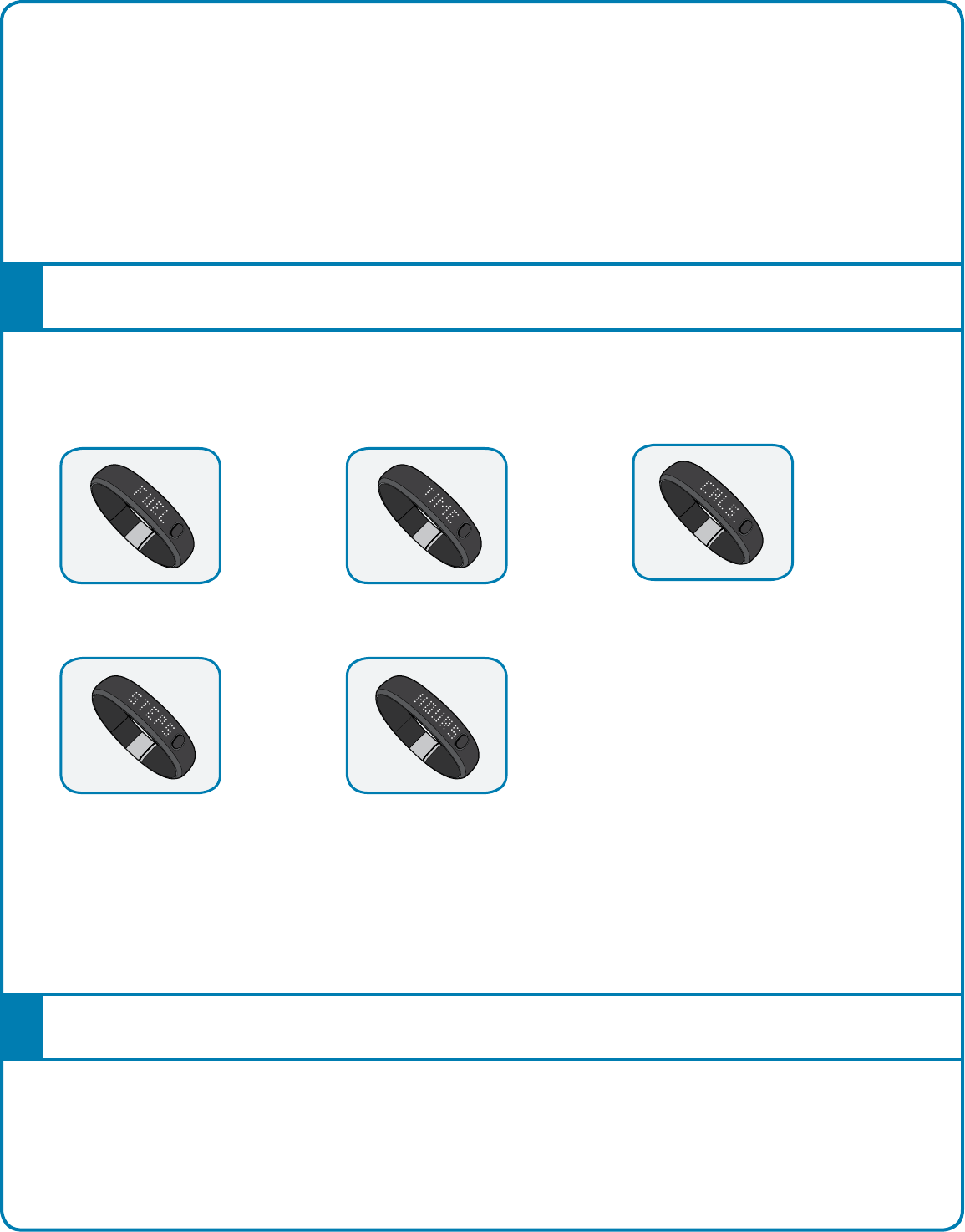
View Your Results
Current Time
A short press of the button will cycle the display through your current day’s
results in this order:
Three seconds after releasing the button, the display will go into a sleep state.
A short button press resumes the cycle to the last result seen.
NikeFuel Earned Calories Burned
Number of Steps Taken Hours
Brightness
The brightness level of the display automatically adjusts according to the light levels
in your environment. The brighter your environment, the brighter your display.
11The Nike+ FuelBand SE User’s Guide
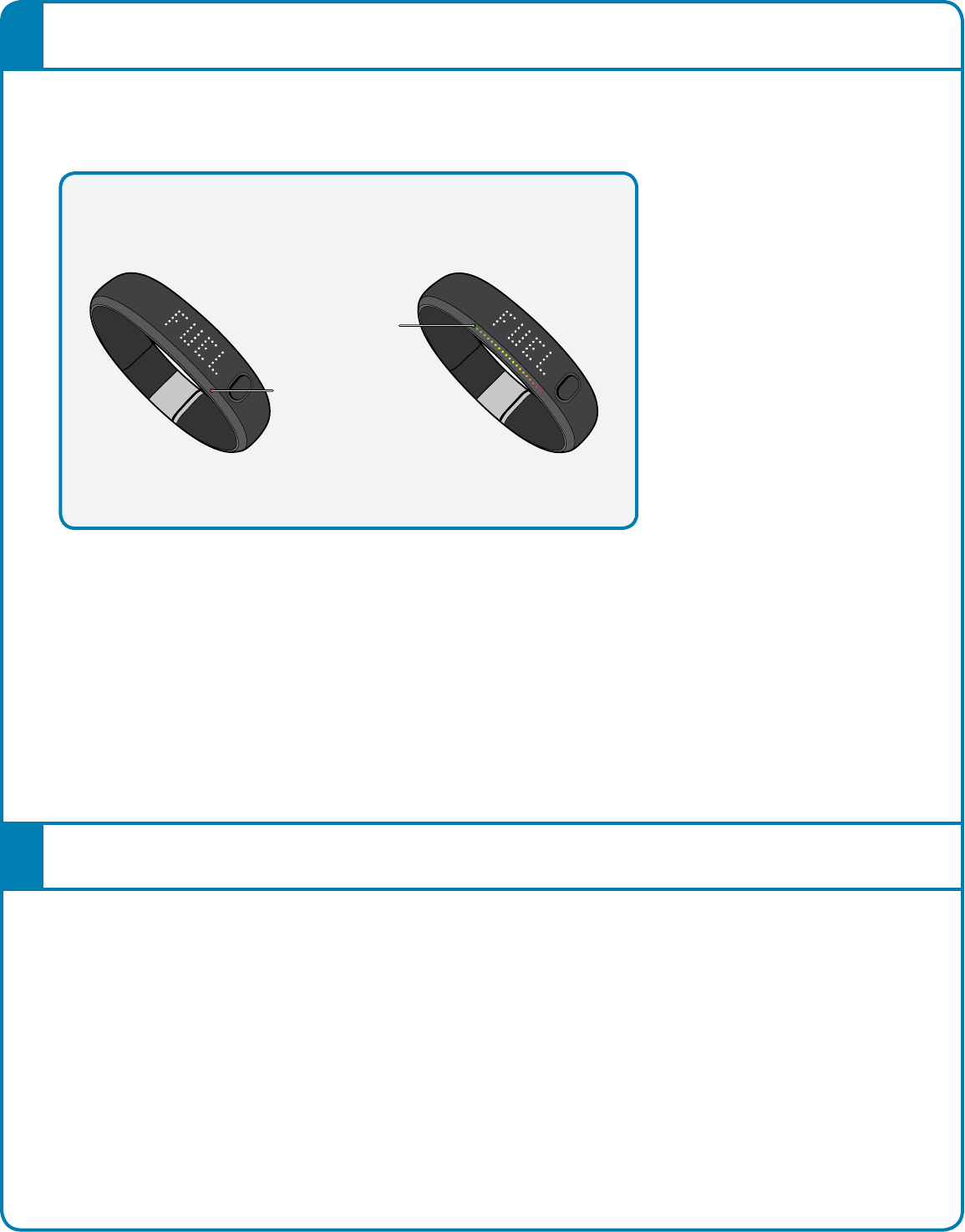
It will start each day with a single red light and a flashing green light
that represents your daily NikeFuel goal. As your activity increases,
Nike+ FuelBand SE will light up to yellow, then turn to green. When
you fill all the green lights, you’ve hit your Daily Goal.
Once you hit your Daily Goal, your first short button press will reveal a
celebration.
Progress Toward Your Daily Goal
Nike+ FuelBand SE’s display represents your progress toward your Daily Goal.
Goal
Achieved
No
Activity
Nike+ Sessions
Label your activities and track your progress with Nike+ Sessions. You can start a Session
directly from your Nike+ FuelBand SE.
12The Nike+ FuelBand SE User’s Guide
How to Start a Nike+ Session
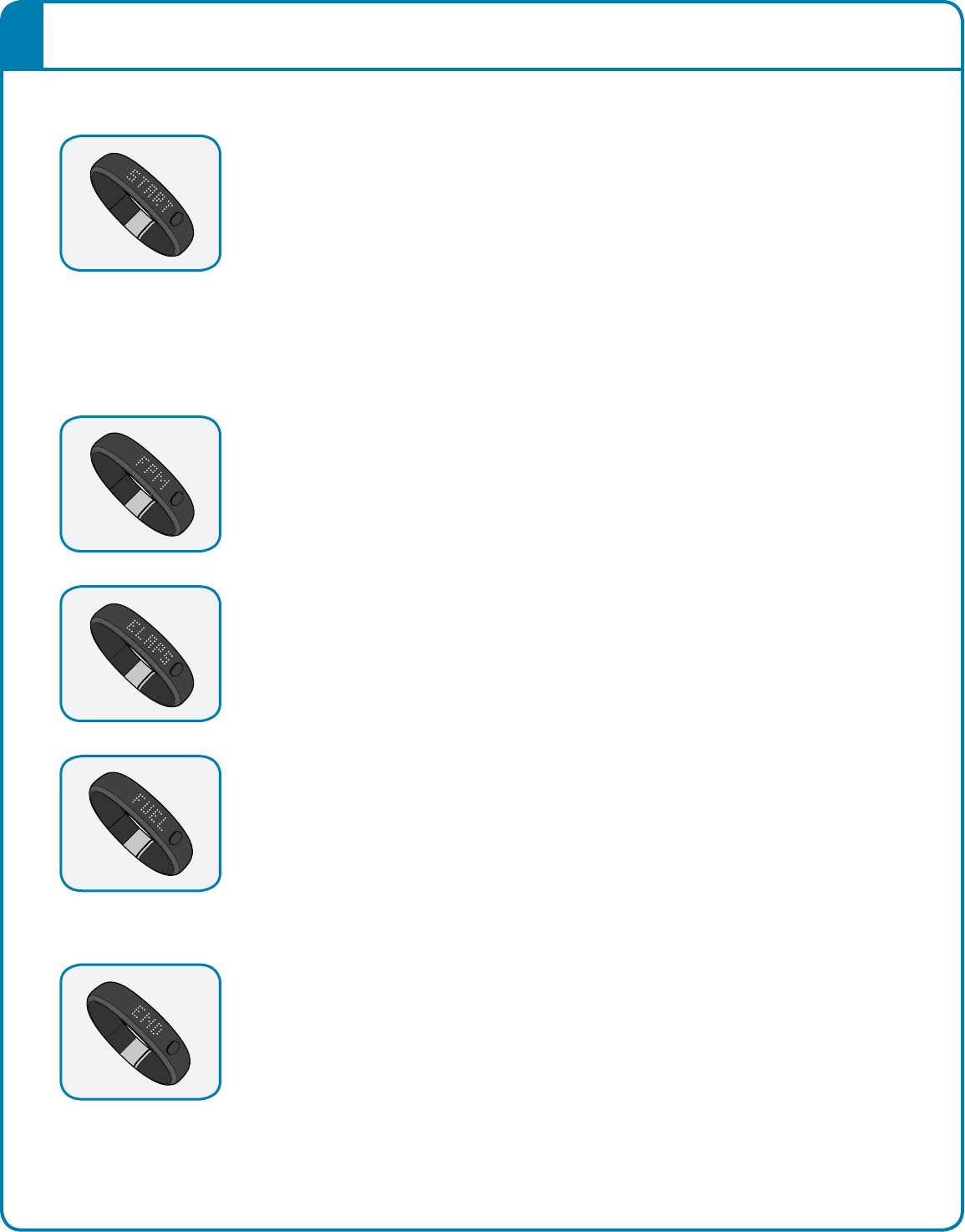
1. To start a session, hold down the button on your Nike+ FuelBand SE until it says,
“START” on the display. Press the button again when this is displayed.
2. The band will give you a countdown to start – 3, 2, 1, GO!
To signify that you currently are in a session, a blinking LED light will appear on
your Nike+ FuelBand SE.
Once your session is started, a short press of the button will cycle the display
through your in-sessions metrics.
To end your session, hold down the button on your Nike+ FuelBand SE until it says,
“END” on the display. Press the button again when this is displayed. Your Nike+
FuelBand SE will then display your average NikeFuel per Minute, total time of the
session, and the total NikeFuel earned for the session.
Once you have ended your session, the blinking LED light on the Nike+ FuelBand SE
display will also disappear.
NikeFuel per Minute (Average from entire session)
Elapsed time in-session
NikeFuel earned in-session
13The Nike+ FuelBand SE User’s Guide
Other Features on Your FuelBand SE
TIME OF DAY
In order to see the time of day, simply press the button on your Nike+ FuelBandSE twice.
This can be done while you’re in the information loop, or even while you’re in a Session.
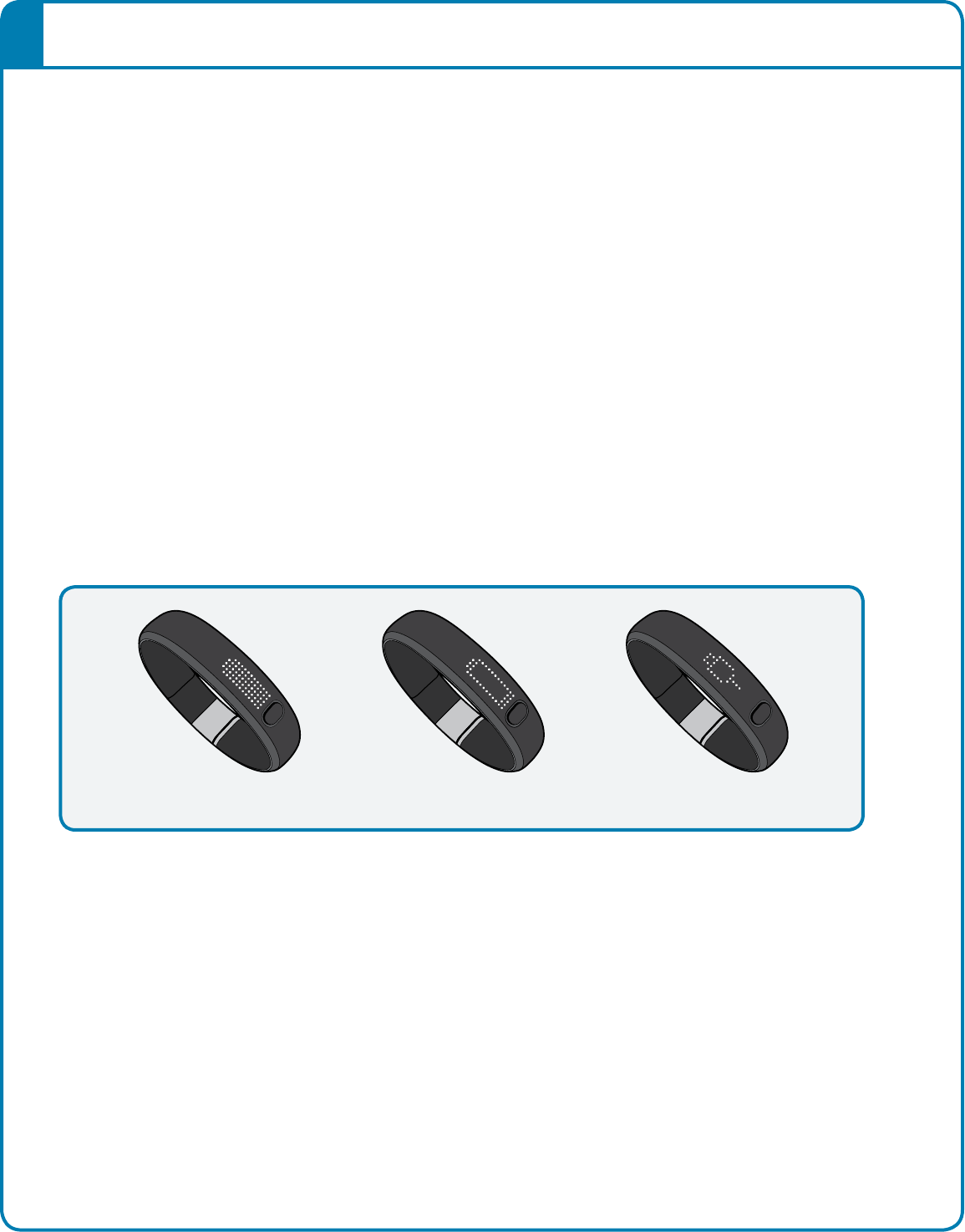
Low BatteryFull Battery Plug In
BATTERY LOW
When your battery is running low and needs to be recharged, a battery icon will be
displayed on your first short button press. (You can press the button again to dismiss the
icon and view your results).
When your battery has zero charge left, the plug in icon will display, indicating you must
plug Nike+ FuelBand SE into your computer to charge.
See page 21 for instructions on how to charge.
14The Nike+ FuelBand SE User’s Guide
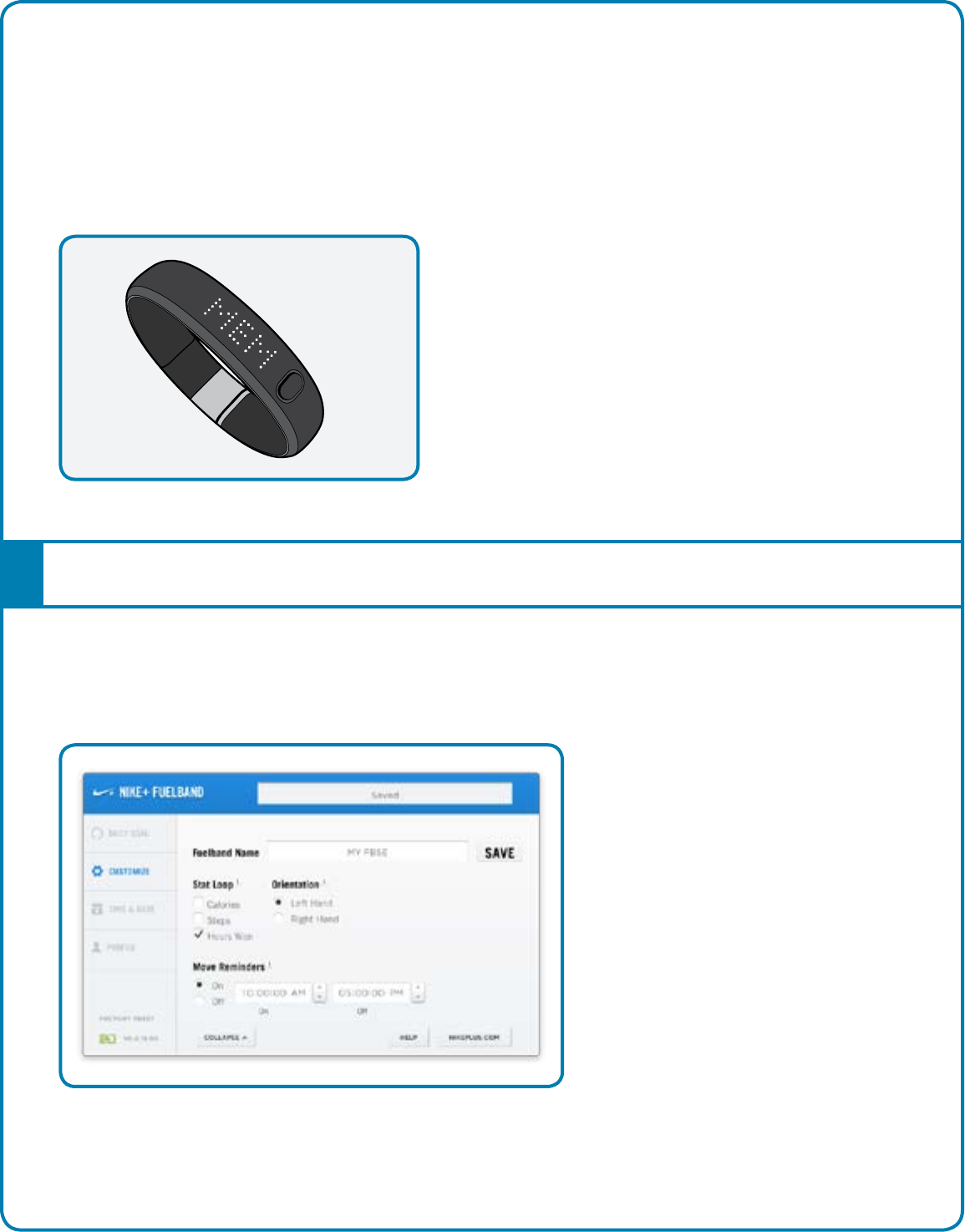
CUSTOMIZE NIKE+ FUELBAND SE DISPLAY USING NIKE+ CONNECT
The Customize Tab on Nike+ Connect allows you to add and remove items from your
Nike+ FuelBand SE display.
Customizing the Display
MEMORY FULL/LOW
When the internal memory on the device reaches 80% full, “MEM LOW” displays on a
first button press followed by the plug icon. When the internal memory on the Nike+
FuelBand SE reaches 100% capacity, “MEM FULL” displays on the first button press
followed by the plug icon. To clear the memory, just sync your Nike+ FuelBand SE activity
to your Nike+ account.
15The Nike+ FuelBand SE User’s Guide
TIME & DATE
Plug into a computer running the Nike+ Connect software to set your Nike+ FuelBand SE’s
date and time. Nike+ FuelBand SE will automatically be set to the time and date on that
computer. To set the time manually, click on the Time and Date tab, then click “manually
set the time and date” to make adjustments.
Check the box “Use 24-hour time” to display the time in a 24-hour time format.
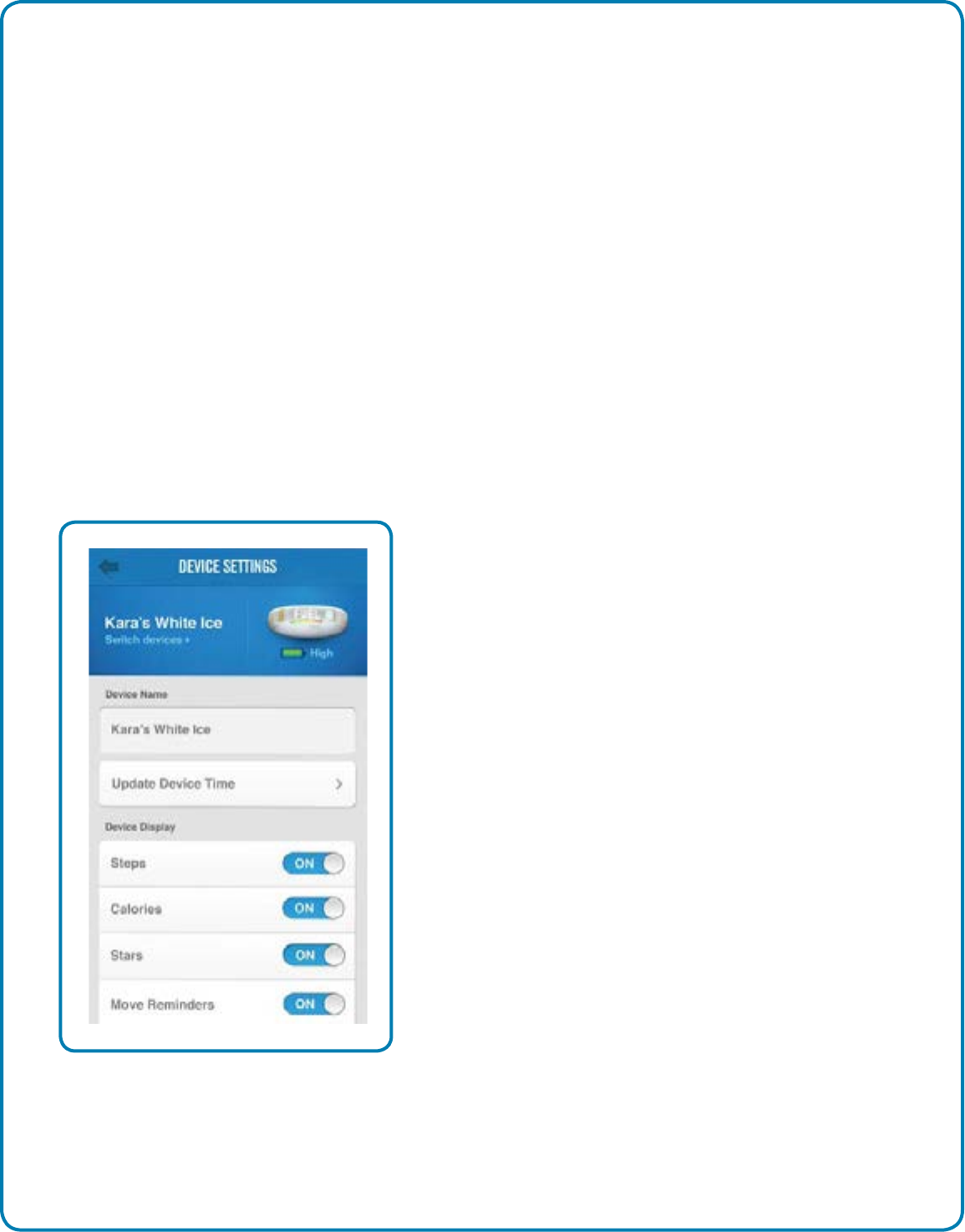
CUSTOMIZE NIKE+ FUELBAND SE DISPLAY USING YOUR MOBILE PHONE
To customize the display on your Nike+ Fuelband SE from your phone, you must first
download the Nike+ FuelBand mobile app and pair your Nike+ FuelBand SE with your
phone (see page 15).
Then, open the app and sync your Nike+ FuelBand SE activity via the Bluetooth connection
(see page 16). Now, swipe to the right to reveal your Nike+ FuelBand menu tray. Select
“Settings” and then “Device Settings” to personalize your display options.
Low Battery Full Battery
16The Nike+ FuelBand SE User’s Guide
Connect to Mobile Device
Get the free Nike+ FuelBand mobile app to track your progress and get extra motivation on
the go. You can now sync wirelessly and automatically via Bluetooth LE. Available for
iOS 6.1 and above in the Apple iTunes Store. Check nikeplus.com/fuelband for compatibility
with other handsets.
Bluetooth Pairing
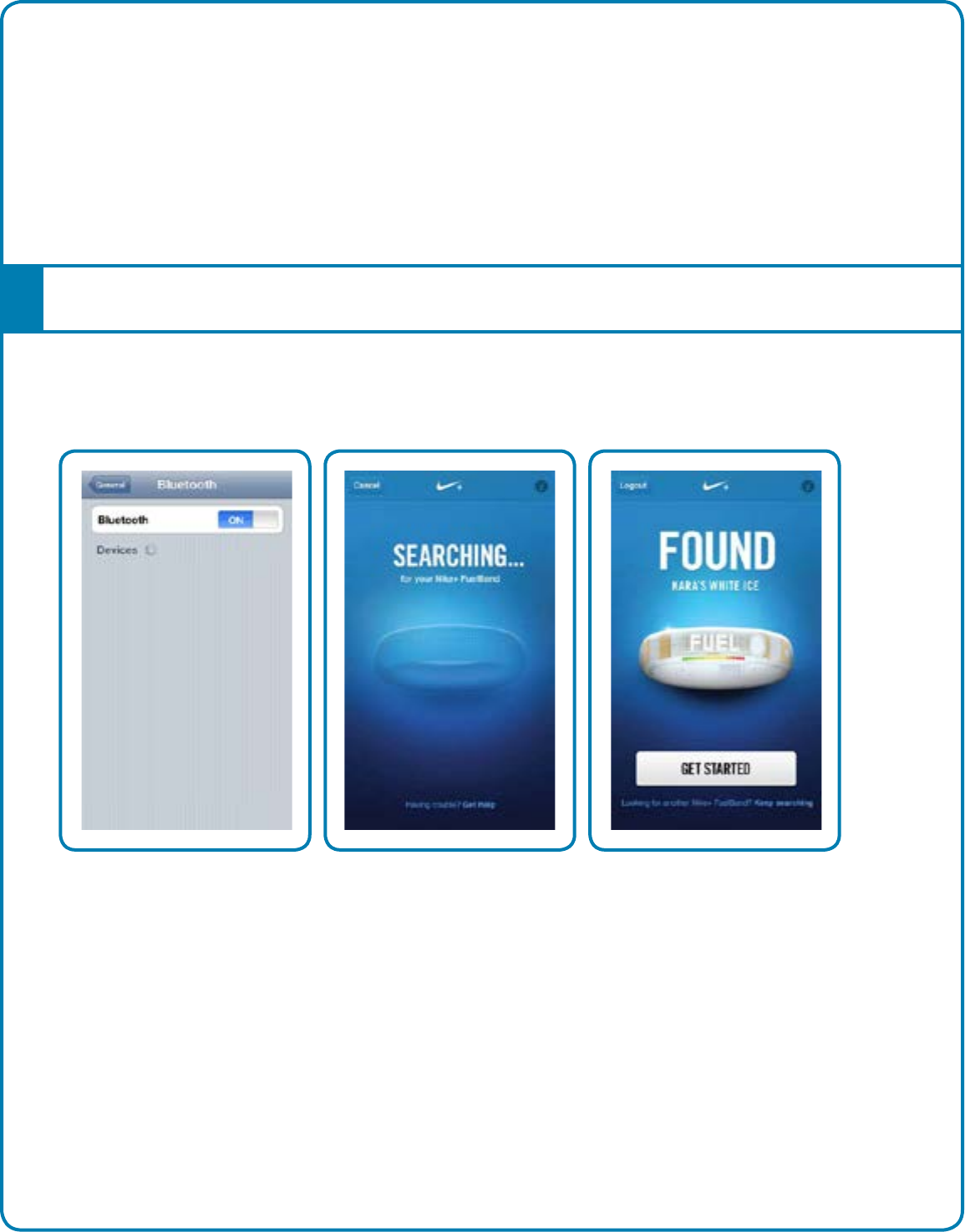
First, you must “pair” your Nike+ FuelBand and mobile phone so they can
communicate. You only have to do this once.
Once successfully paired, you are ready to sync and track your progress using
the Nike+ FuelBand app.
2. Open the app and it will
automatically begin to search for
your Nike+ FuelBand SE.
1. Go to Settings in your iOS
device and activate Bluetooth.
3. Your Nike+ FuelBand SE was
successfully found and linked to
your app.

17The Nike+ FuelBand SE User’s Guide
How Syncing Works
SETUP
The first time you open the Nike+ FuelBand SE app, the app will prompt you to sign into the
Nike+ account used when you set up your Nike+ FuelBand SE. You must sign in to pair
your Nike+ FuelBand SE automatically to your iOS device.
SYNCING
When your app is opened and your Nike+ FuelBand SE is within range and charged, it will
automatically sync your NikeFuel to your account. The Nike+ FuelBand SE app will also
sync at different intervals if the app is in the background of your iOS device.
A progress indicator will inform you when all activity is synced to your Nike+ account.
If connected, you can sync to Nike+ again by pulling down the home screen of the app
with your finger.
If you are logged in to your Nike+ FuelBand mobile app and you’re having problems
syncing, ensure that your FuelBand is fully charged, within range, and is actively moving.

18The Nike+ FuelBand SE User’s Guide
Track Your Progress
You can upload your activity to Nike+ using your computer or mobile device. On Nike+ you can
track your progress, set goals and share achievements.
Upload Activity to nikeplus.com
To sync activity wirelessly to the Nike+ FuelBand mobile app, see page 16.
TO SYNC YOUR ACTIVITY TO NIKE+ USING YOUR COMPUTER:
1. Connect your Nike+ FuelBand SE to a USB port on a computer installed with
Nike+ Connect software. Make sure the USB connector is dry before you attach
it to your computer.
2. Nike+ Connect will automatically launch and upload your activity to nikeplus.com.
When the upload is complete, the message “All activity uploaded” will appear on
the Nike+ Connect software.
3. Your web browser will open automatically and take you to nikeplus.com.
Sign into your Nike+ account to track your goals, challenge your friends, share your
progress through Facebook and get the motivation to do more.
4. It is now safe to unplug your Nike+ FuelBand SE (or USB cable) from the computer.
Note: If no Internet connection is detected, Nike+ Connect will show the message “No internet
connection.” Click on the Try Again button to reconnect.
19The Nike+ FuelBand SE User’s Guide
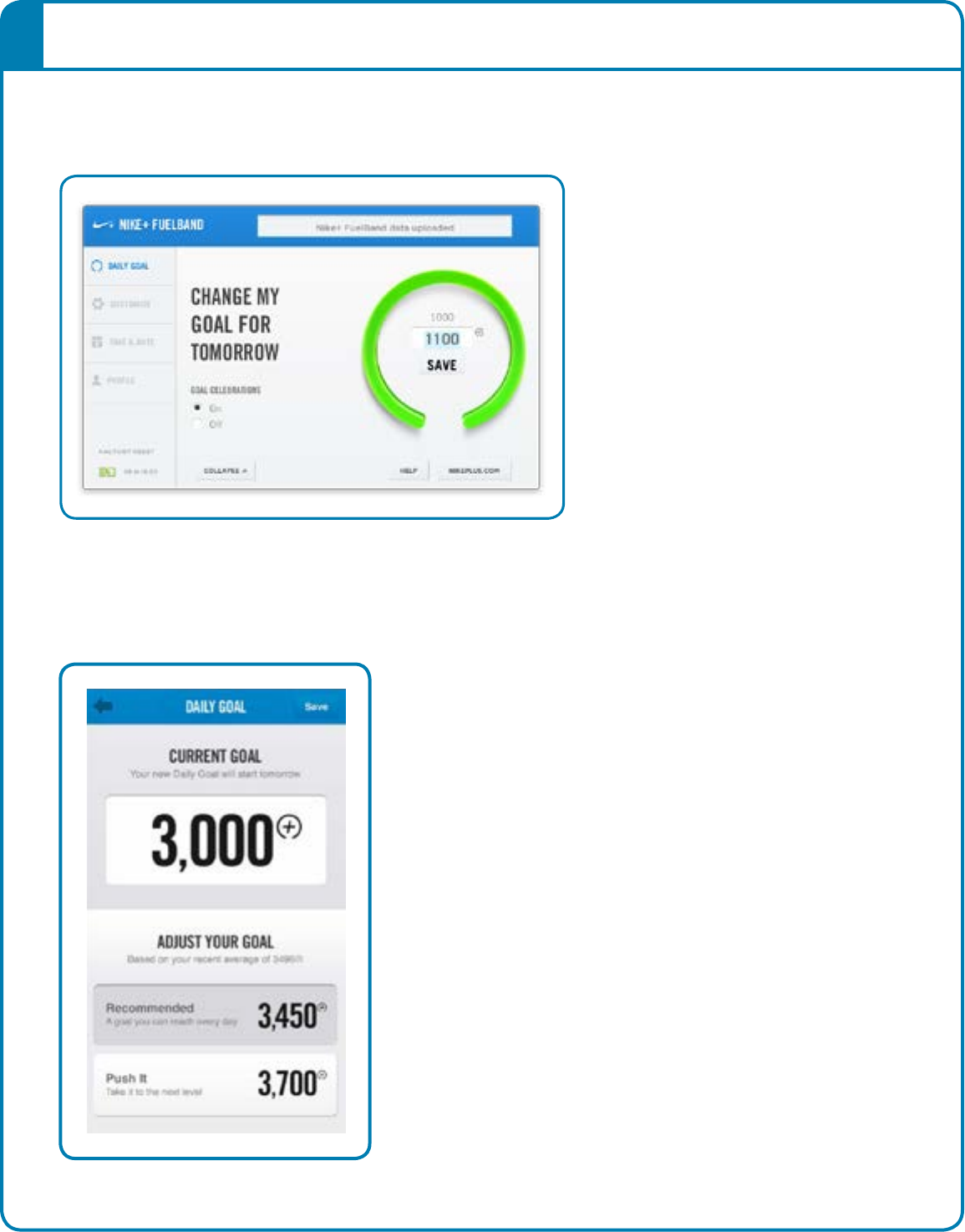
You can increase or decrease your daily activity goal any time from your Nike+
Connect software.
You can also change your daily goal using the Nike+ FuelBand SE app. To do so,
go to the left tray > “Settings” > “Daily Goal,” or simply tap on your NikeFuel
score on the app’s home screen.
Changing Your Daily Goal

20The Nike+ FuelBand SE User’s Guide
Find out how you did this week, month and beyond. Nike+ breaks your
activity down and graphs it up, so you can make sense of it at a glance.
It also keeps track of your progress and rewards your achievements
along the way.
DAILY GOAL
The more active you are during the day, the more your NikeFuel Gauge
fills up. Hit your Daily Goal and get to green.
NIKE+ SESSIONS
From tennis to basketball to walking, label your activity and track your
progress with Nike+ Sessions. You can start a Session from your Nike+
FuelBand SE or from the mobile app.
VIEW PROGRESS
View results by day, week, month, or year so you can get a big picture
of your progress.
STREAKS
Get to green multiple days in a row, and you’re on a streak. See how
long you can keep it going.
WIN THE HOUR
Win the hour by staying active for 5 consecutive minutes each hour.
RECORDS
Nike+ keeps track of your best day, best week, best month, and
longest streak.
NIKE+ GAMES
See the trophies you can take home when you earn more NikeFuel and
complete special tasks.
MILESTONES
Nike+ rewards your success over time with Time Milestones, and your
Fuel accomplishments with Fuel Milestones.
Nike+ FuelBand SE Features
21The Nike+ FuelBand SE User’s Guide
FULL BATTERY
Fig. 4
Pg. 22
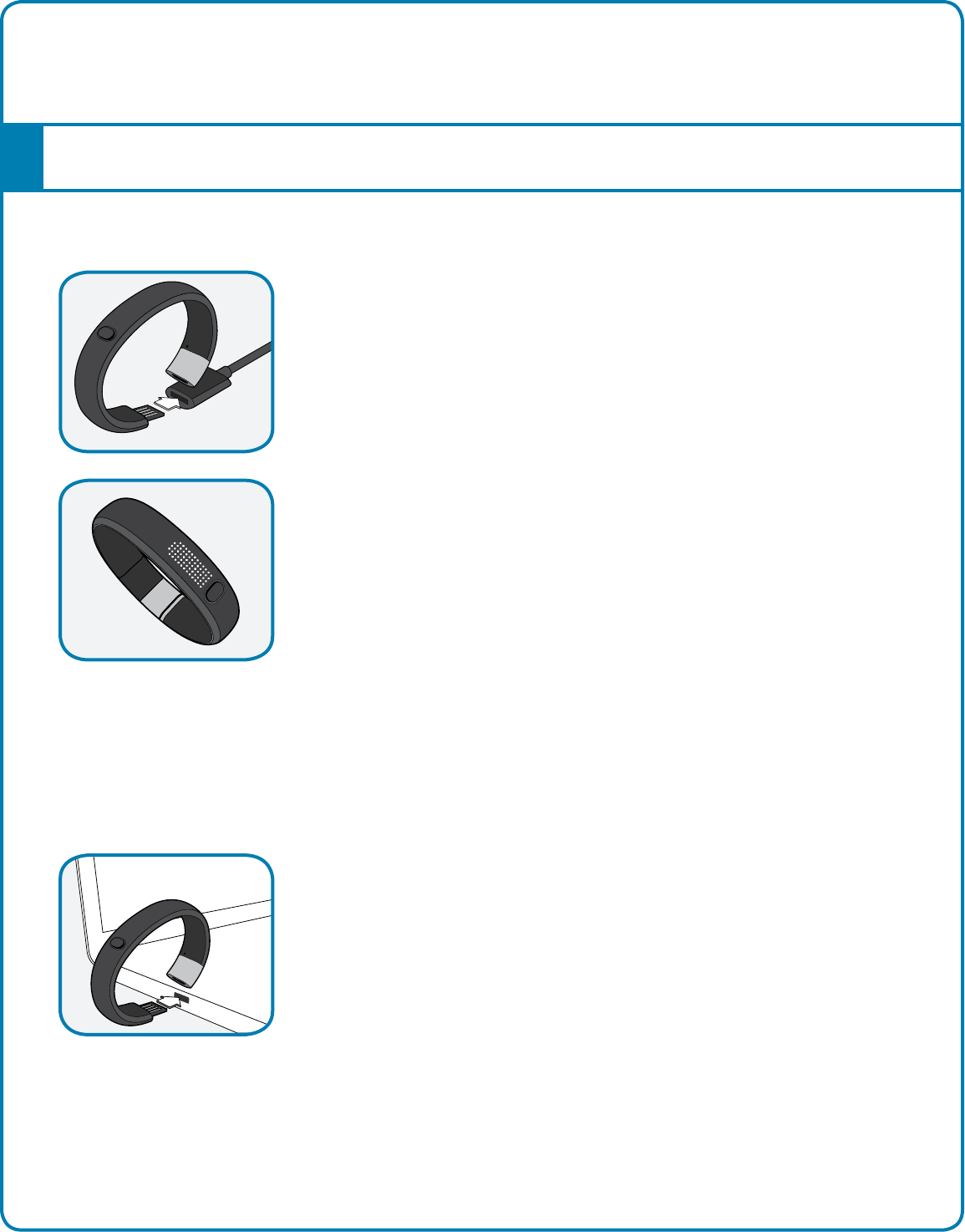
You can charge Nike+ FuelBand SE using the included USB charging cable:
It takes approximately 3-4 hours for the battery to fully
charge. You can view your charge level in Nike+ Connect or
by checking the icon on your Nike+ FuelBand SE’s display.
The battery icon will change from empty to full to indicate
the amount of charge left on the battery.
Plug Nike+ FuelBand SE directly into the USB cable.
Fig. 1
OR
You can charge your Nike+ FuelBand SE by connecting it to your computer’s USB port.
Maintenance
Charging
22The Nike+ FuelBand SE User’s Guide
Each time you plug Nike+ FuelBand SE into the USB port on your
computer, Nike+ Connect will check for new firmware (updates for your
Nike+ FuelBand SE). When new updates are available, a message in
Nike+ Connect will prompt you to accept the update.
When Nike+ Connect software updates are available, a message in the
software will say, “A newer version of Nike+ Connect is available, would
you like to download and install it now?” Clicking the Update button will
update the software.
To clean your Nike+FuelBand SE, please use mild soap and water and
a soft cloth. Avoid solvents or detergents.
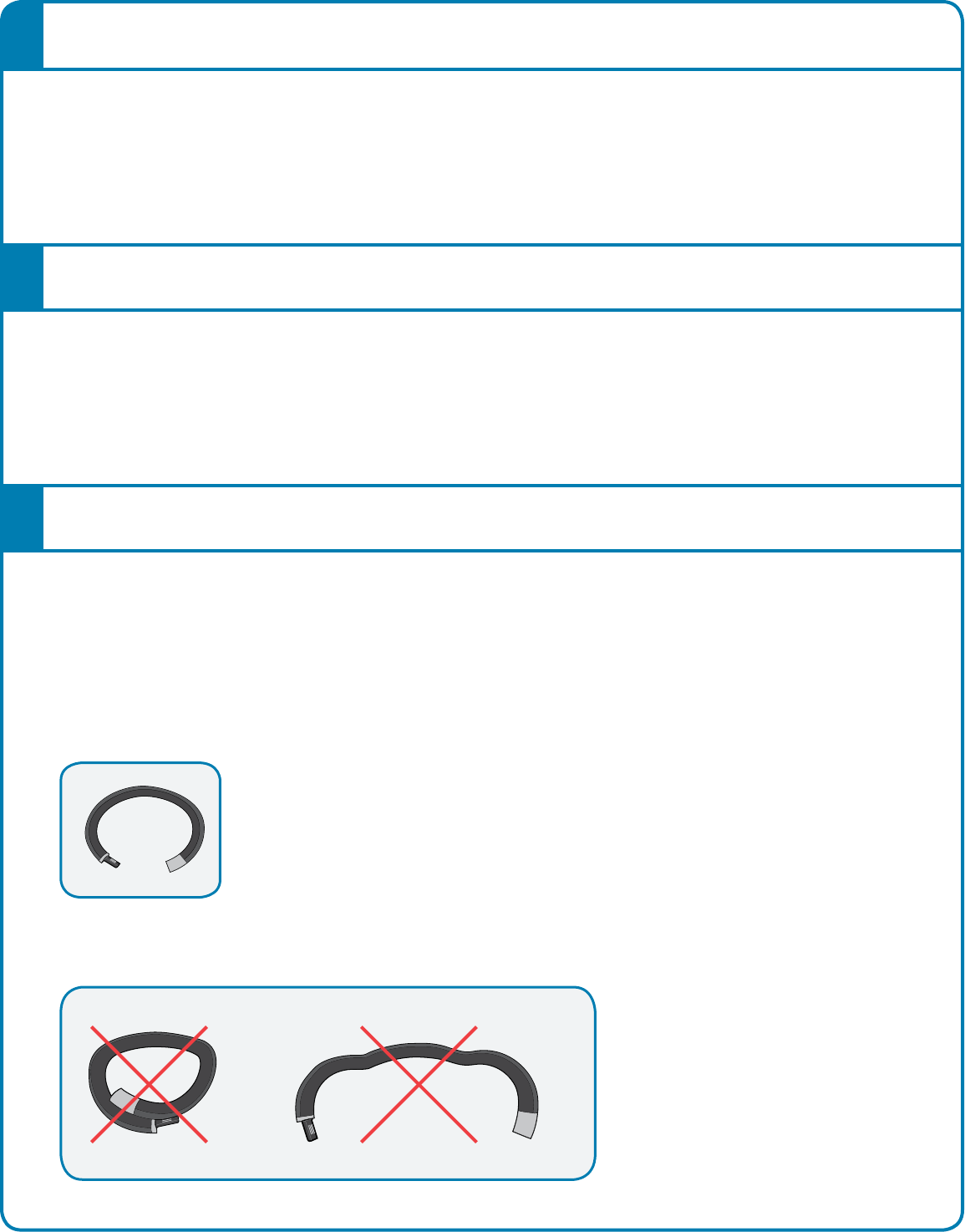
DO NOT OVERBEND
Open the Nike+ FuelBand SE to the width of your wrist to put it on.
Overbending will damage the electronics inside Nike+ FuelBand SE.
Updating the Nike+ FuelBand SE
Updating Nike+ Connect
Care for Your Nike+ FuelBand SE
23The Nike+ FuelBand SE User’s Guide
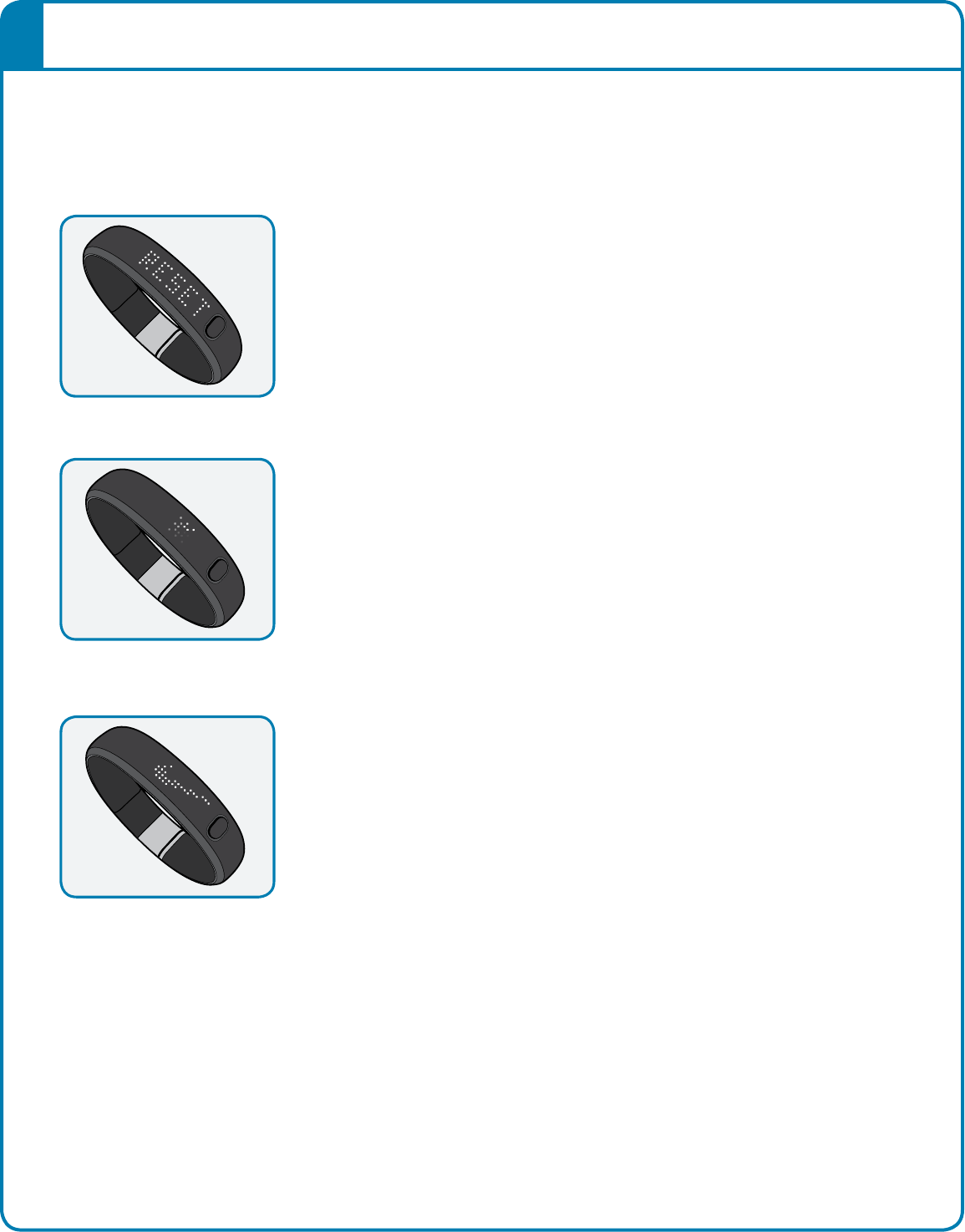
1. Hold the Nike+ FuelBand SE button down
until you see “RESET”
2. Release the button and quickly press it again.
“RESET” will blink. It blinks 4 times before resetting
Nike+ FuelBand SE. During that time, a short button press
will cancel the reset. Pressing the button again resumes
the reset.
After “RESET” blinks 4 times, an icon animates clockwise
for a minimum of 2 seconds or until the devices resets.
3. The “Swoosh” then appears and confirms the device
has been reset.
Resetting Nike+ FuelBand SE
RESET
“Reset” on the Nike+ FuelBand SE will reboot the device. The band will save all your
settings and results.
FACTORY RESET
“Factory Reset” will completely clear your settings, time, and activity history from your
Nike+ FuelBand SE. Your profile, activity history and achievements, however, will remain
on Nike+.
To perform a factory reset, click FACTORY RESET on the lower left of Nike+ Connect.
RESET RESETTING SWOOSH
RESET RESETTING SWOOSH
RESET RESETTING SWOOSH

24The Nike+ FuelBand SE User’s Guide
SIZES (CIRCUMFERENCE)
Small: 5.79 in (147 mm)
Medium: 6.77 in (172 mm)
Large: 7.76 in (197 mm)
Width: 0.63 in (16 mm) at LEDs, 0.75 in (19 mm) at latch
Thickness: 0.27 in (6.90 mm) at LEDs, 0.32 in (8.00 mm) at latch
Nike+ FuelBand SE comes with two easy to insert links so you can fine tune your fit: 0.32 in (8
mm) and 0.63 in (16 mm)
WEIGHT
Small: 0.95 oz (27 g)
Medium: 1.06 oz (30 g)
Large: 1.13 oz (32 g)
8 mm link: 0.07 oz (2 g)
16mm link: 0.11 oz (3 g)
DISPLAY
20 color LED lights show your Daily Goal progress from red to green.
Array of 100 white LED lights shows time, NikeFuel earned, calories burned, and steps taken. You can cycle
through all this with the push of a button.
The brightness level automatically adjusts according to your environment.
SENSORS
A built-in 3 axis accelerometer measures your motion all day long.
An ambient light sensor detects environmental light levels. The brighter your environment, the brighter your
display.
CONNECT AND SYNC
Connect to your computer with the built-in USB 2.0 or use the included USB cable.
Bluetooth pairing to mobile phones for use with the Nike+ FuelBand mobile app for iOS 6.1 and above;
Check nikeplus.com/fuelband for compatibility with other handsets.
Technical Specifications

25The Nike+ FuelBand SE User’s Guide
BATTERY
Type: Two Lithium Polymer Batteries
Nominal voltage: 3.7V
Rated capacity:
Small size: 50 mAh battery, 25 mAh cell.
Medium and Large: 70 mAh battery, 35 mAh cell.
Designation:
Small size: 50 mAh battery 1ICP3/11/22-2, 25 mAh cells 1ICP3/11/22.
Medium and Large: 70 mAh battery 1ICP3/10/31-2, 35 mAh cells 1CP3/10/31.
Your Nike+ FuelBand SE should stay charged for up to four days.
WATER RESISTANCE
The Nike+ FuelBand SE is water resistant. It is safe to wear in the shower or when dancing in the rain.
Since it’s not waterproof, it’s not recommended for use while swimming.
MATERIALS
TPE 43%, Polypropylene 34%, Magnesium 14%, Stainless Steel 9%
PVC free
Package is 100% recyclable paper.

26The Nike+ FuelBand SE User’s Guide
HAVE QUESTIONS FOR US?
For service and support, tutorials, and software downloads, go to: www.nikeplus.com/support
Service and Support
Warranty
Go to www.nikeplus.com/support to view, download and print the limited
warranty for all countries where NIKE or NIKE+ authorized retailers sell
NIKE+ FuelBand SE. The limited warranty gives you specific legal rights,
and you may have other rights that vary from state to state or jurisdiction
to jurisdiction.

27The Nike+ FuelBand SE User’s Guide
Compliance Information
United States:
This device complies with part 15 of the FCC rules.
Operation is subject to the following two conditions (1)
this device may not cause harmful interference, and (2)
this device must accept any interference received
including interference that may cause undesired
operation.
FCC WARNING: any changes or modications not
expressly approved by the party responsible for
compliance could void the user’s authority to operate this
equipment under FCC regulations.
Note: This equipment has been tested and found to
comply with the limits for a Class B digital device,
pursuant to part 15 of the FCC Rules. These limits are
designed to provide reasonable protection against
harmful interference in a residential installation. This
equipment generates, uses and can radiate radio
frequency energy and, if not installed and used in
accordance with the instructions, may cause harmful
interference to radio communications. However, there is
no guarantee that interference will not occur in a
particular installation. If this equipment does cause
harmful interference to radio or television reception,
which can be determined by turning the equipment off
and on, the user is encouraged to try to correct the
interference by one or more of the following measures:
—Reorient or relocate the receiving antenna.
—Increase the separation between the equipment and
receiver.
—Connect the equipment into an outlet on a circuit
different from that to which the receiver is connected.
—Consult the dealer or an experienced radio/TV
technician for help.
Note: The Transmitters within this device must not be
co-located or operating in conjunction with any other
antenna or transmitter.
Battery replacement:
Do not attempt to replace the rechargeable battery in the
Nike+ FuelBand yourself. The battery should be replaced
only by Nike or a Nike Authorized Service Provider.
Do not disassemble or remove batteries from device.
Do not expose to re or dispose of in re.
Do not use any charger other than that specied for use
with the equipment. Refer to User Manual for proper
charging instructions.
Do not leave battery on prolonged charge when not in
use.
Do not crush or modify.
Dispose of properly.
IC Notice to Users English/French in accordance with
RSS GEN Issue 3:
This device complies with Industry Canada license-
exempt RSS standard(s). Operation is subject to the
following two conditions: (1) this device may not cause
interference, and (2) this device must accept any
interference, including interference that may cause
undesired operation of the device.
Cet appareil est conforme avec Industrie Canada RSS
standard exempts de licence (s). Son utilisation est
soumise à Les deux conditions suivantes: (1) cet appareil
ne peut pas provoquer d’interférences et (2) cet appareil
doit accepter Toute interférence, y compris les
interférences qui peuvent causer un mauvais
fonctionnement du dispositif.
This device complies with Health Canada’s Safety Code
6 / IC RSS-102. Information can be obtained at:
http://www.hc-sc.gc.ca/ewh-semt/pubs/radiation/
radio_guidelines_direct-eng.php
Cet appareil est conforme avec Santé Canada Code de
sécurité 6 / IC RSS-210. Le programme
d’installation de cet appareil doit s’assurer que les
rayonnements RF n’est pas émis au-delà de
This Class B digital apparatus complies with Canadian
ICES-003.
Cet appareil numérique de la classe B est conforme à la
norme NMB-003 du Canada.
EU (European Union): Declaration of Conformity with
Regard to the EU Directive 1999/5/EC
English: Hereby, Nike, declares that this Nike+ FuelBand
SE
is in compliance with the essential requirements and
other relevant provisions of Directive 1999/5/EC.
This product contains a battery that is not user
accessible. Do not attempt to open the case, otherwise
data may be lost and performance compromised.
Substances contained in this product and/or its battery
may damage the environment and/or human health if
disposed of improperly. The wheeled bin on this product
indicates that it should not be disposed of together with
household waste. Please be responsible and take it to
your nearest recycling collection point to ensure it is
recycled. To locate your nearest collection point, contact
the retailer where you made your purchase or your local
municipality.