Nikon Coolpix L101 Users Manual
L101 to the manual 85f3c75d-1bee-430c-867c-dec7593c1941
2015-01-26
: Nikon Nikon-Coolpix-L101-Users-Manual-347375 nikon-coolpix-l101-users-manual-347375 nikon pdf
Open the PDF directly: View PDF  .
.
Page Count: 24
En
Package Contents pg. 2
First Steps pg. 4
Taking Pictures pg. 9
Installing PictureProject pg. 12
Viewing Pictures on a Computer pg. 21
NOTE: Illustrations show the COOLPIX L1.
Quick Start Guide
Quick Start Guide
DIGITAL CAMERA
2
P
ac
k
age Contents
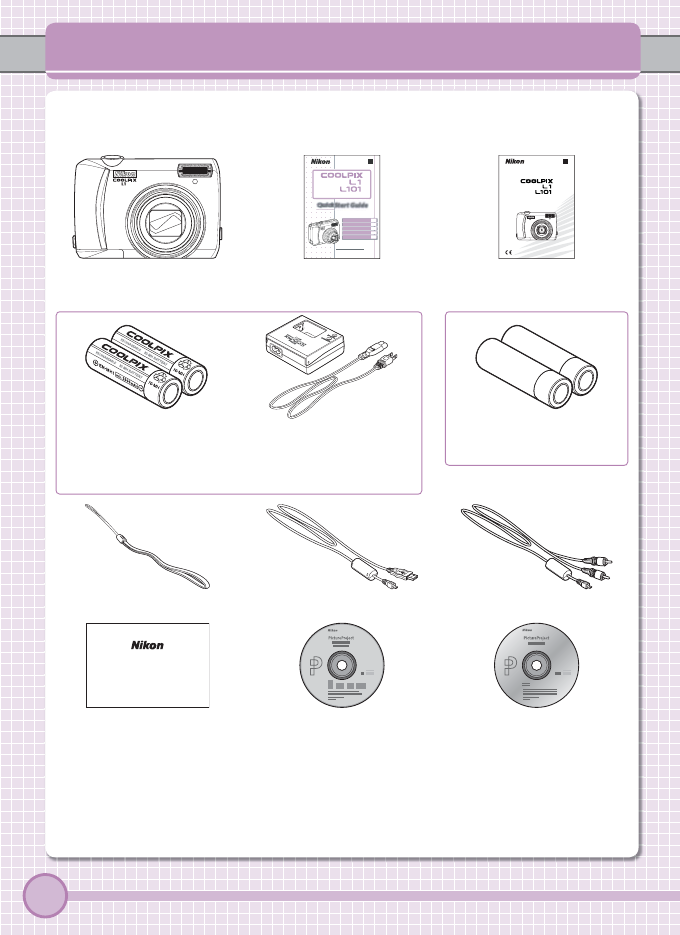
Package Contents
Remove the camera and accessories from the box and confi rm that you have all
the items listed below.
Rechargeable EN-MH1-B2
batteries (× 2)
and
MH-71 battery charger
with power cable
(also available as options)
or
LR6 (AA) alkaline
batteries (× 2)
EG-CP14 audio/video cableCamera strap UC-E6 USB cable
PictureProject reference
manual CD (silver)
Warranty
Warranty
PictureProject installer CD
(yellow)
Depending on the country or region of purchase, the package will include either alkaline
batteries or an MH-71 battery charger with rechargeable EN-MH1-B2 batteries.
NOTE: Memory card not provided. See page 58 of the Guide to Digital Photography for a list
of approved memory cards.
Guide to Digital PhotographyCOOLPIX L1/L101
digital camera
Quick Start Guide (this guide)
En
The Nikon Guide to Digital Photography
with the
DIGITAL CAMERA
Quick St
Quick St
art Guide
t Guide
DIGITAL CAMERA
Quick Start Guide
En
3
Package Contents
Parts of the Camera
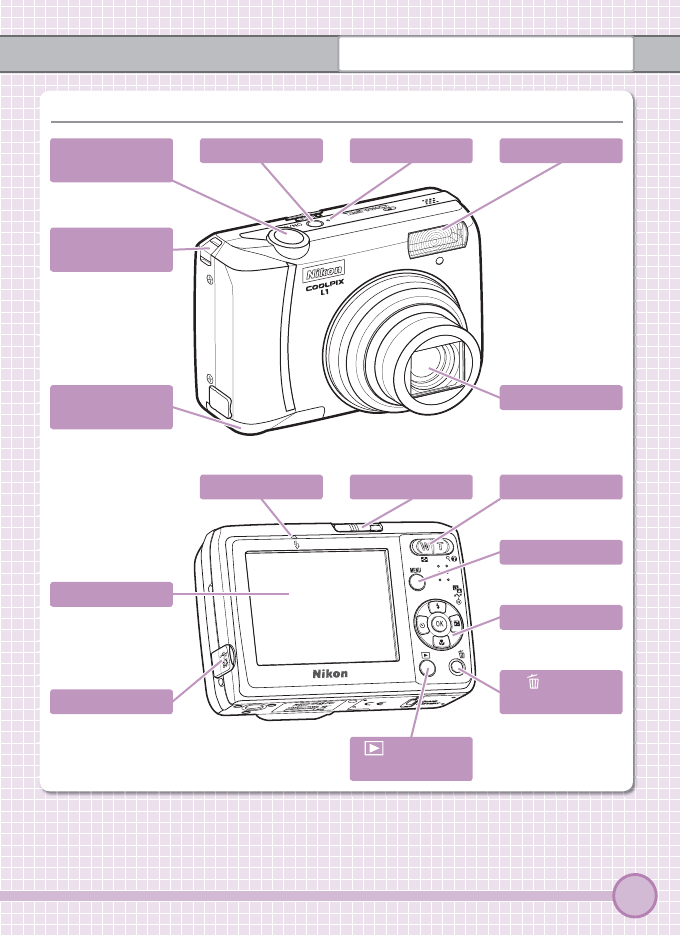
Parts of the Camera
Eyelet for
camera strap
Battery-chamber
cover
Lens
Shutter-release
button
FlashPower-on lampPower switch
Connector cover
Monitor
(playback)
button
(delete)
button
Multi selector
MENU button
Zoom buttonMode selectorFlash lamp
4
Fi
rst Steps
First Steps
Step
Step
1
1
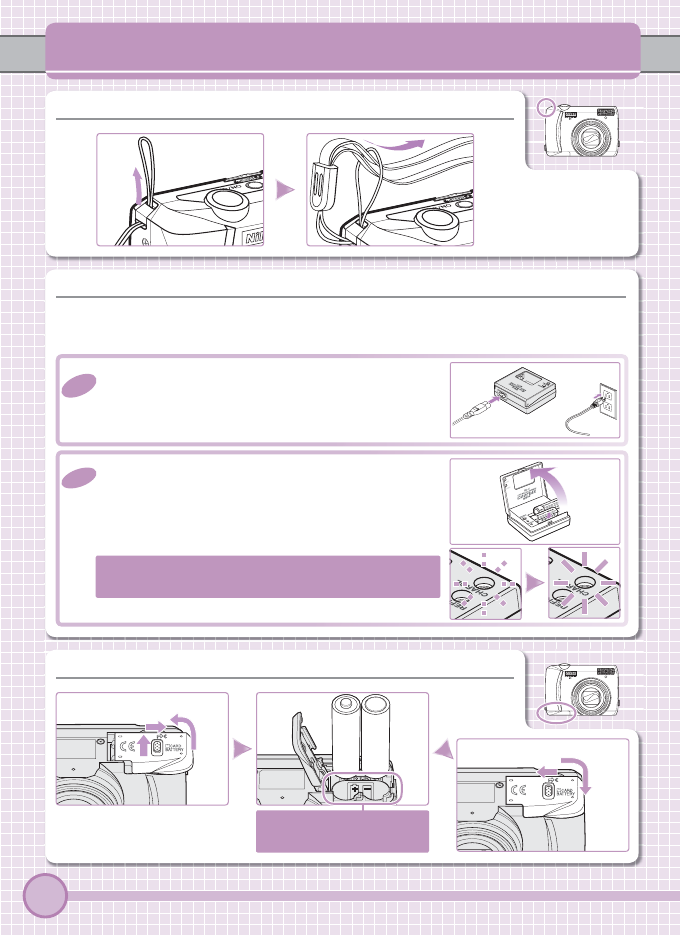
—Attach the Camera Strap
—Attach the Camera Strap
Step
Step
2
2
—Charge the Batteries
—Charge the Batteries
If your camera came with alkaline batteries, skip this step and proceed directly
to Step 3.
2
2
.
.
1
1 Connect the power cable to the charger (
햲
햲)
and then plug it into a power outlet (
햳
햳). The
CHARGE lamp will light (
햴
햴).
2
2
.
.
2
2 Insert the batteries as indicated on the charger.
The CHARGE lamp will start to blink. Charg-
ing is complete when the CHARGE lamp stops
blinking.
A pair of new or fully exhausted batteries will
charge in about two and a half hours.
햲
햲
햳
햳
햴
햴
Step
Step
3
3
—Insert the Batteries
—Insert the Batteries
Note orientation of “+”
and “–” terminals
햲
햲
햳
햳
햴
햴
햳
햳
햲
햲
5
First Steps
Step
Step
4
4
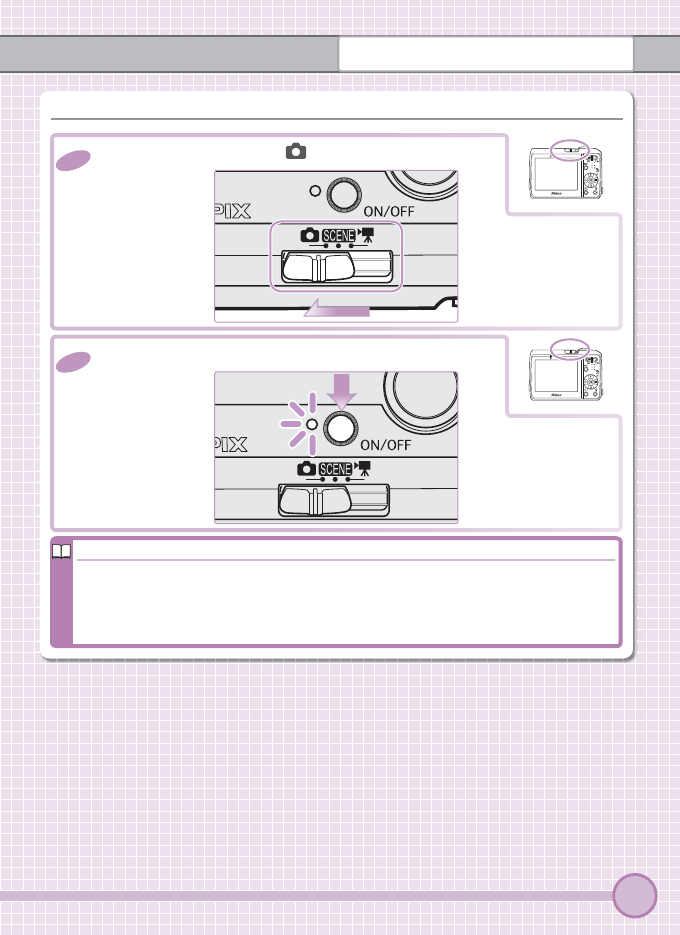
—Turn the Camera On
—Turn the Camera On
4
4
.
.
2
2 Press the power switch to turn the camera on.
4
4
.
.
1
1 Slide the mode selector to .
Auto off (Stand-by Mode)
Auto off (Stand-by Mode)
If no operations are performed for about a minute, the monitor will turn off to save
power. The power-on lamp will blink, and the display can be reactivated by press-
ing the shutter-release button. If no operations are performed for a further three
minutes, the camera will turn off automatically.
6
First Steps
The Multi Selector
The Multi Selector
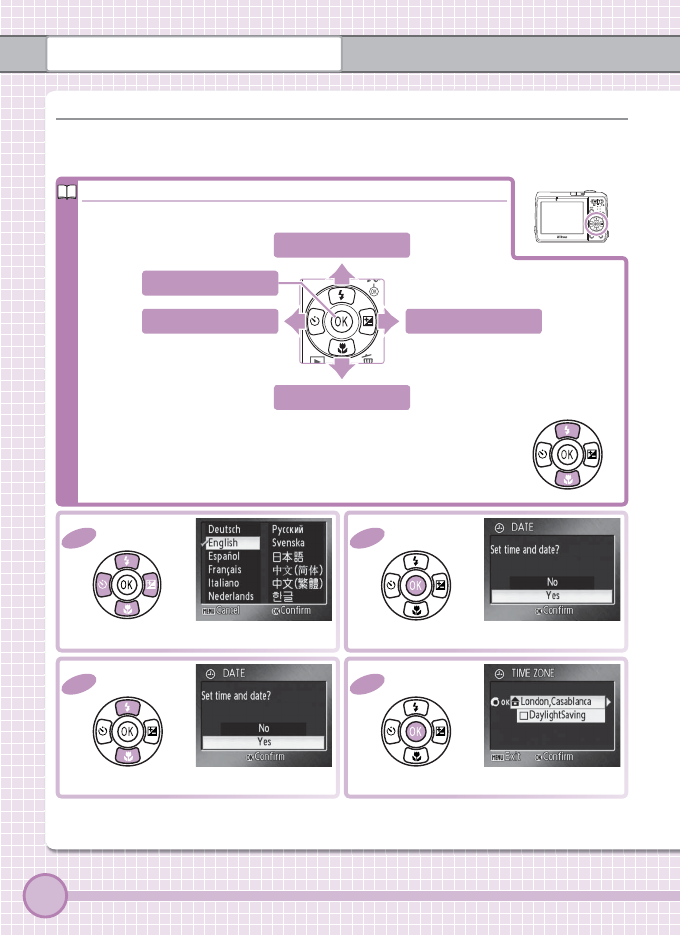
Use the multi selector to navigate the camera menus.
Move cursor up
Move cursor down
Move cursor left Move cursor right
Make selection
5
5
.
.
1
1
Highlight language.
5
5
.
.
2
2
Confi rmation dialog displayed.
5
5
.
.
3
3
Highlight Yes.
5
5
.
.
4
4
TIME ZONE menu displayed. *
* If dayli ght sav ing t ime is in e ff ect, press multi selector down to highlight DaylightSaving
and press center to select. Press multi selector up to return to Step 5.4.
Step
Step
5
5
—Choose a Language and Set the Camera Clock
—Choose a Language and Set the Camera Clock
A language-selection dialog is displayed the fi rst time the camera is turned on.
Follow the steps below to choose a language and set the time and date.
In the description that follows, the buttons used to perform a task
are shown in color; if more than one button is highlighted, any
of the highlighted buttons can be used. For example, “press the
multi selector up or down” is shown as illustrated at right.
7
First Steps
5
5
.
.
5
5
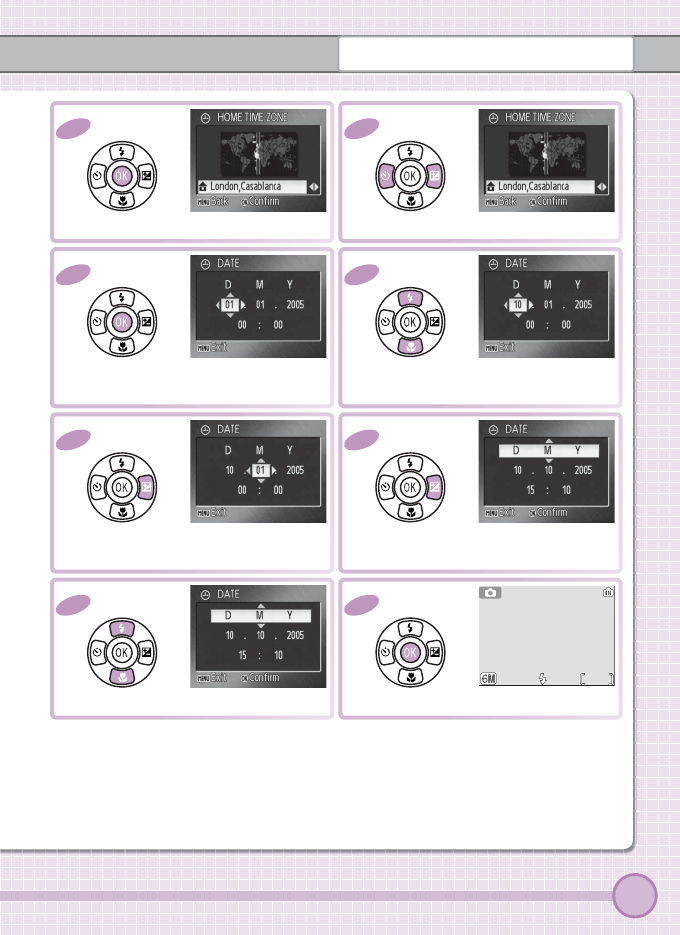
Display map of world time zones.
5
5
.
.
6
6
Select home time zone.
5
5
.
.
7
7
Display DATE menu.
5
5
.
.
8
8
Edit Day (order of Day, Month, and Year
may diff er in some areas).
5
5
.
.
9
9
Select Month. Repeat Steps 5.8–5.9 to
edit Month, Year, hour, and minute
5
5
.
.
10
10
Highlight D M Y.
5
5
.
.
11
11
Choose date display order.
5
5
.
.
12
12
AUTO
AUTO
AUTO 6
6
Exit to shooting mode.
8
Step
Step
6
6
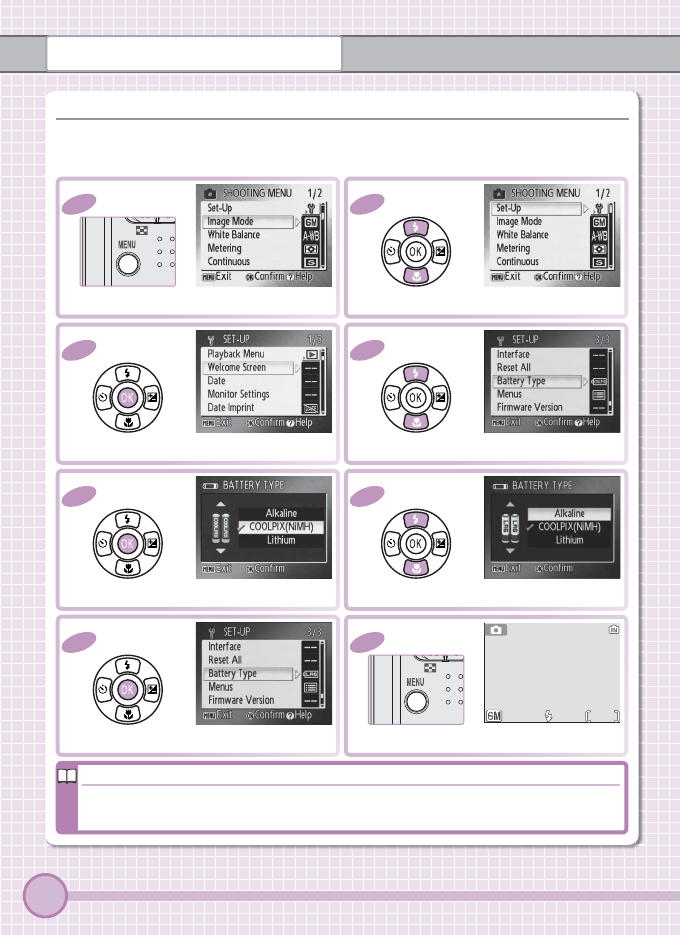
—Choose the Battery Type
—Choose the Battery Type
This step is only required with alkaline batteries. If your camera came with EN-
MH1-B2 NiMH batteries, skip this step and proceed directly to “Taking Pictures.”
6
6
.
.
1
1
Display shooting menu.
6
6
.
.
2
2
Highlight Set-Up.
6
6
.
.
3
3
Display setup menu.
6
6
.
.
4
4
Highlight Battery Type.
6
6
.
.
5
5
6
6
.
.
6
6
Highlight Alkaline.Display options.
6
6
.
.
8
8
AUTO
AUTO
AUTO 6
6
Exit to shooting mode.
6
6
.
.
7
7
Select and return to setup menu.
Replacing the Batteries
Replacing the Batteries
After inserting new batteries, check that the correct type is selected in the Battery
Type menu as described on page 47 of the Guide to Digital Photography.
First Steps
Step
Step
1
1
—
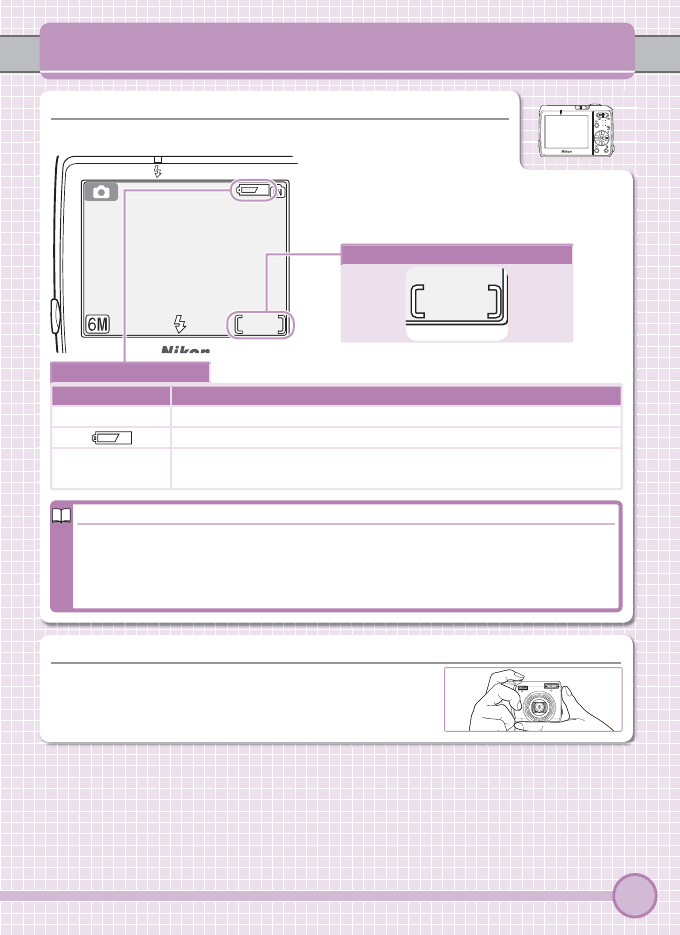
—Check Indicators in the Monitor
Check the battery level and number of exposures remaining.
9
T
akin
g
Pictures
Taking Pictures
AUTOAUTOAUTO 66
Battery level indicator
Display Description
NO ICON Battery fully charged.
Low battery. Ready spare batteries.
WARNING!!
BATTERY EXHAUSTED
Batteries exhausted. No pictures can be taken until fresh batteries
are inserted.
Number of exposures remaining
AUTO 66
Where Are My Pictures Stored?
Where Are My Pictures Stored?
The camera stores pictures in internal memory (approximately 10 MB) or on remov-
able Secure Digital (SD) memory cards (available separately; a list of approved mem-
ory cards is provided on page 58 of the Guide to Digital Photography). Pictures are
stored in internal memory when no memory card is inserted.
Step
Step
2
2
—
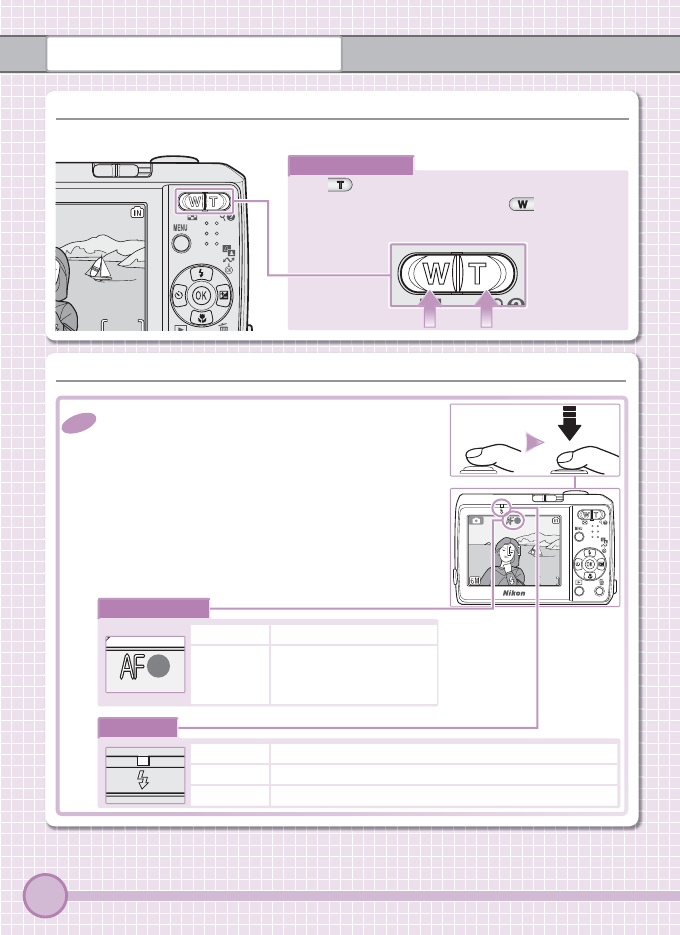
—Ready the Camera
Hold the camera steady in both hands, keeping your
fi ngers and other objects away from the lens, fl ash,
and microphone.
10
Taking Pictures
Step
Step
3
3
—
—Frame a Picture
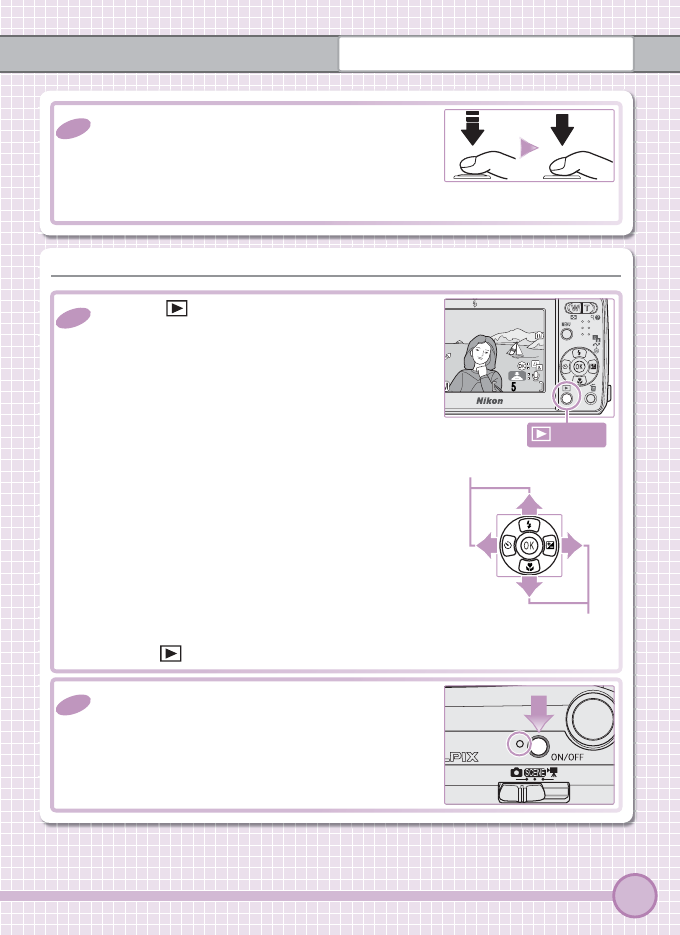
Use the zoom button to frame the subject near the center of the monitor.
The zoom button
Press to zoom in on the subject so that it fi lls
a larger area of the frame. Press to zoom out,
increasing the area visible in the frame.
AUTOAUTOAUTO
66
AUTO
6
Step
Step
4
4
—
—Focus and Shoot
4
4
.
.
1
1 Lightly press the shutter-release button about
halfway, stopping when you feel resistance.
The camera will set focus and exposure for the
subject closest to the camera. Focus and ex-
posure remain locked while the shutter-release
button is pressed halfway.
With the shutter-release button pressed half-
way, check the focus indicator and fl ash lamp:
Focus indicator
AUTO
6
On (green) Subject in focus.
Blinks red
Camera unable to focus.
Change composition and
try again.
Flash lamp
On Flash will fi re when picture is taken.
Blinks Flash charging.
Off Flash off or not required.
AUTOAUTOAUTO
66
11
Taking Pictures
4
4
.
.
2
2 Smoothly press the shutter-release button the
rest of the way down to release the shutter and
take the picture. To prevent blur, avoid moving
the camera while pressing the shutter-release
button.
Step
Step
5
5
—View Pictures
—View Pictures
5
5
.
.
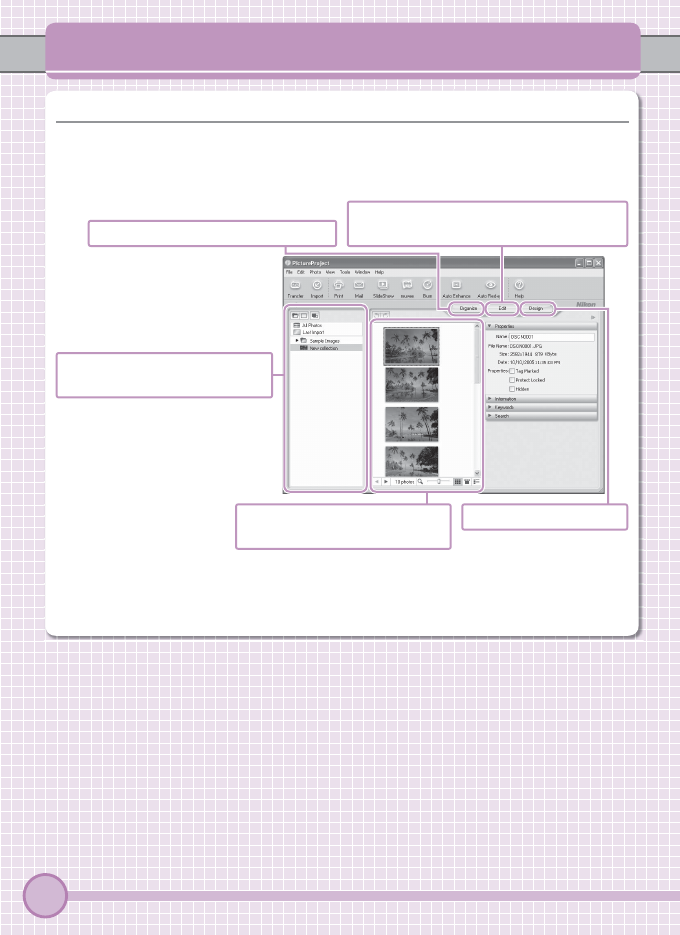
1
1 Press the button to view a picture in the
monitor.
100NIKON100NIKON
5
/
55
/
5
005.10.10
2005.10.10005.10.10
5:35
15:355:35
100NIKON
0005.JPG
0005.JPG0005.JPG
5
5
.
.
2
2 Press the power switch to turn the camera off .
The power-on lamp will go out.
Use the multi selector to view other pictures.
Press the multi selector down or right to view
pictures in the order recorded, up or left to view
pictures in reverse order.
View previous picture
View next picture
Press the button again to return to shooting mode.
button
12
I
nstallin
g
PicturePro
j
ect
Installing PictureProject
PictureProject
PictureProject
Install the supplied PictureProject software to transfer pictures to a computer
for easy viewing and storage. The main controls in the PictureProject are shown
below. See the PictureProject reference manual on the silver CD for details.
PictureProject can also be used for a variety of other tasks, including printing
pictures, sending pictures by e-mail, viewing slide shows, and copying pictures
to CD or DVD (requires Windows or Mac OS X version 10.2.8 or later).
Collection list: Group pictures into
collections and folders.
Picture list: View the pictures in
the current collection or folder.
Edit: Crop pictures, adjust brightness and
hue, and use other retouch tools.Organize: View and organize pictures.
Design: Arrange pictures.
13
Installing PictureProject
Important!
Before You Begin: System Requirements
Confi rm that your system meets the following requirements:
Windows
CPU 300 MHz Pentium or better recommended (550 MHz Pentium III or better
recommended for muvee)
OS
Preinstalled versions of Windows XP Home Edition, Windows XP Profes-
sional, Windows 2000 Professional, Windows Millennium Edition (Me), or
Windows 98 Second Edition (SE)
Hard disk space 60 MB required for installation
RAM Minimum 64 MB (128 MB for muvee)
Video resolution 800 × 600 or more with 16-bit color (High Color) or better
Miscellaneous Only computers with built-in USB ports supported
Macintosh
OS Mac OS X version 10.1.5 or later (10.2.8 or later required for Burn Disc)
Hard disk space 60 MB required for installation
RAM Minimum 64 MB
Video resolution 800 × 600 or more with 16-bit color (thousands of colors) or better
Miscellaneous Only computers with built-in USB ports supported
Exit All Other Applications
Exit all other applications and turn off any virus-checking software.
Notice to Users of Nikon View or Nikon Capture
Notice to Users of Nikon View or Nikon Capture
Uninstall Nikon View before installing PictureProject. For information on using
PictureProject with Nikon Capture, see the PictureProject reference manual on the silver
CD.
Log on as an Administrator
Log on as an Administrator
Use an account with administrator privileges to install or uninstall PictureProject under
Windows XP Home Edition, Windows XP Professional, Windows 2000 Professional, or
Mac OS X.
14
Installing PictureProject Windows
NOTE: The dialogs displayed during installation may diff er from those shown here.
Installing PictureProject: Windows
Installing PictureProject: Windows
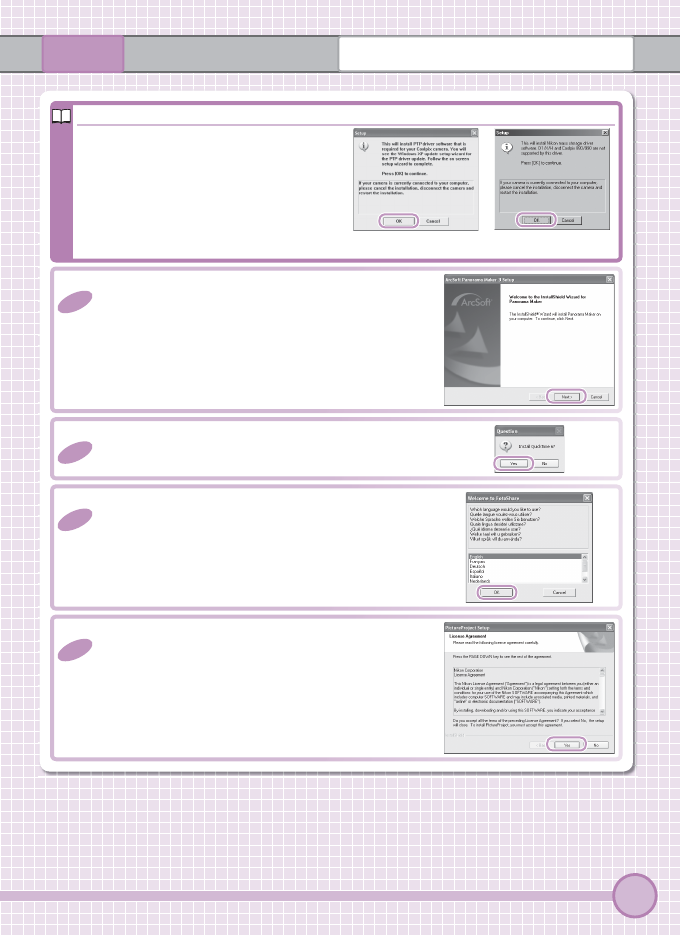
1
1 Turn the computer on and wait for Windows to start up.
2
2 Insert the yellow installer CD. The Install Center
program will start and a “Select Region” dialog
will be displayed. Select a region and click Next.
(The “Select Region” dialog is not displayed in
the European release of PictureProject. Euro-
pean users can proceed directly to Step 3.)
3
3 Select a language and click Next.
4
4 Click Easy Install to install the following:
• PTP drivers for COOLPIX-series cameras (Win-
dows XP only)
• Nikon Mass Storage Camera Drivers (Windows
98 SE only)
• Panorama Maker
• Apple QuickTime 6
• Nikon Fotoshare (Europe only)
• PictureProject
• Microsoft DirectX 9
If the Install Center Does Not Start
If the Install Center Does Not Start
Open the “My Computer” window by selecting My Computer from the
Start menu (Windows XP) or by double-clicking the My Computer icon
on the desktop (other versions of Windows), then double-click the CD
(PictureProject) icon.
15
Installing PictureProject
Windows
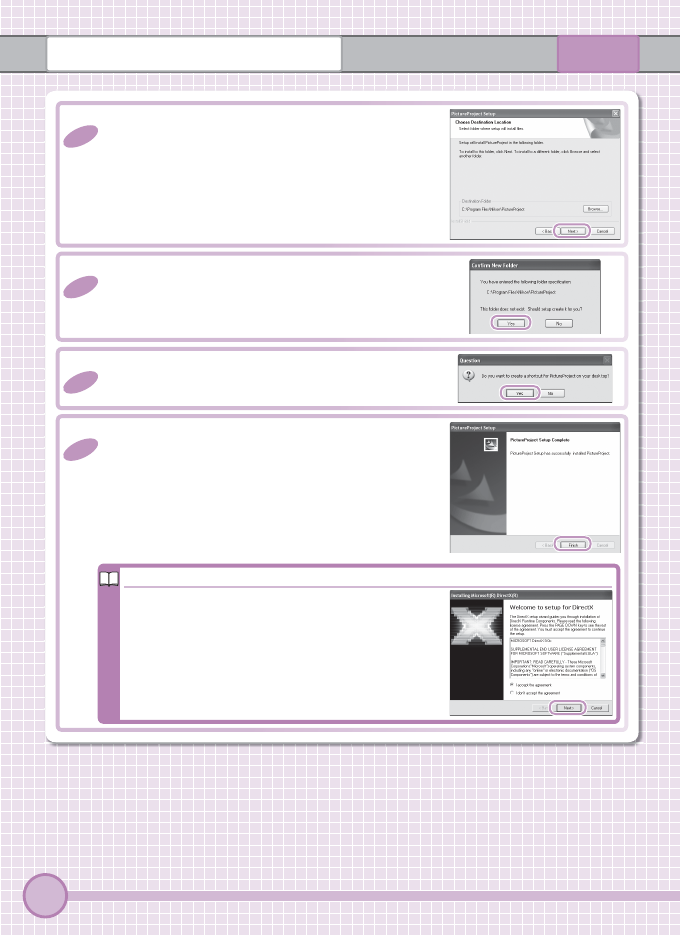
5
5 Follow the on-screen instructions to install
Panorama Maker.
6
6 Click Yes to install QuickTime 6.
7
7 Follow the on-screen instructions to install
Fotoshare (Europe only).
8
8 Read the license agreement and click Yes.
Windows XP Windows 98 SE
Installing Drivers (Windows XP/Windows 98 SE Only)
Installing Drivers (Windows XP/Windows 98 SE Only)
Follow the on-screen instructions to
install the drivers. On some Windows
XP systems the installation may be per-
formed by a wizard.
16
Installing PictureProject Windows
9
9 Click Next to install PictureProject to the des-
tination shown, or click Browse… to choose a
diff erent folder.
10
10
Click Yes to create the destination folder.
11
11
Click Yes to create a shortcut to PictureProject
on the desktop.
12
12
Click Finish.
DirectX 9
DirectX 9
If DirectX 9 is not already installed, the dialog
shown at right will be displayed. Follow the on-
screen instructions to install DirectX 9.
17
Installing PictureProject
Windows
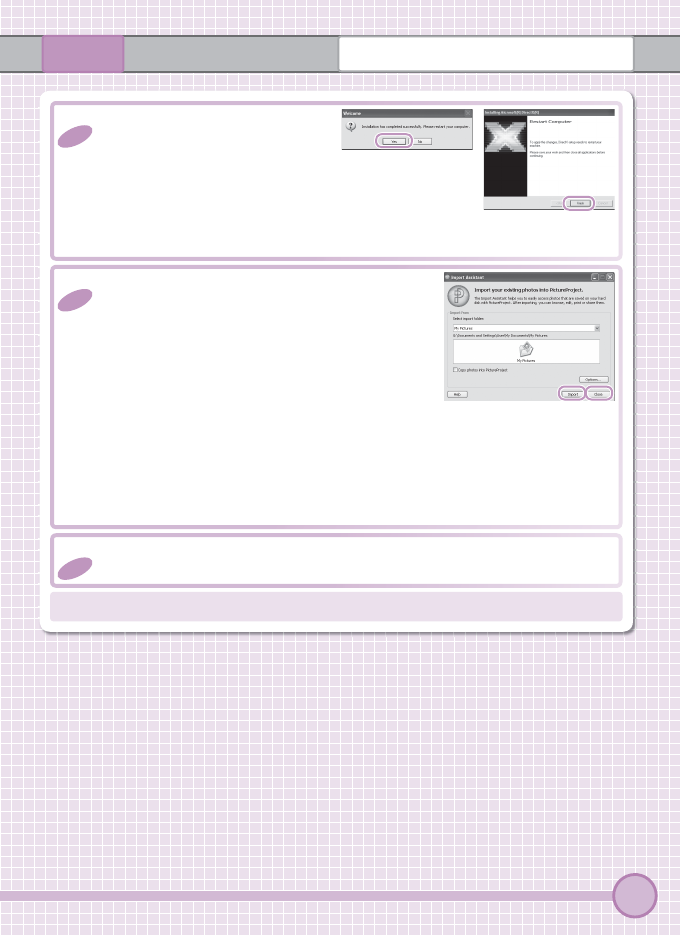
13
13
Click Finish or Yes to restart the
computer.
DirectX 9 not
installed in Step 12.
DirectX 9 installed
in Step 12.
14
14
The PictureProject Import Assistant will be dis-
played once the computer restarts. To catalog
the images in the “Import from” folder for dis-
play in PictureProject:
1
1 Click Import. The time needed to catalog
the images is proportional to the number of
images in the folder.
2
2 Click Close to close the Import Assistant when import is complete.
To proceed without cataloging images, click Close. Images can be cata-
loged at any time; see the PictureProject reference manual on the silver CD
for details.
15
15
Remove the PictureProject installer CD from the CD-ROM drive.
You can now to transfer pictures to the computer as described on page 21.
18
Installing PictureProject Macintosh
NOTE: The dialogs displayed during installation may diff er from those shown here.
Installing PictureProject: Macintosh
Installing PictureProject: Macintosh
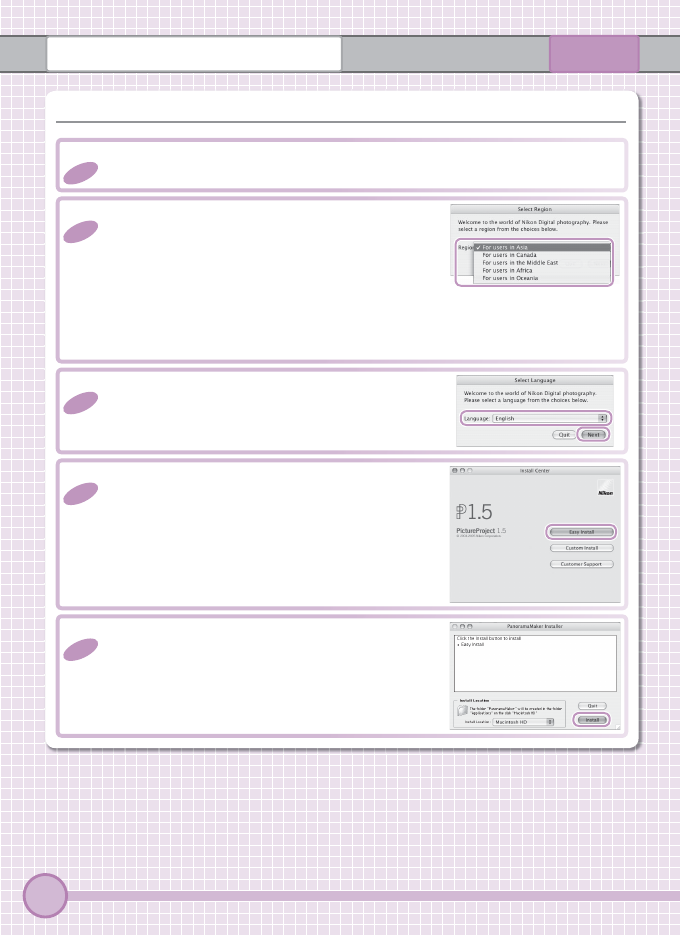
1
1 Turn the computer on and insert the yellow installer CD.
2
2 Double-click the CD icon on the desktop and
then double-click the Welcome icon. The In-
stall Center program will start and a “Select Re-
gion” dialog will be displayed. Select a region
and click Next. (The “Select Region” dialog is not displayed in the Euro-
pean release of PictureProject. European users can proceed directly to
Step 3.)
3
3 Select a language and click Next.
4
4 Click Easy Install to install the following:
• Panorama Maker
• PictureProject
• Apple QuickTime 6
5
5 Follow the on-screen instructions to install
Panorama Maker.
19
Installing PictureProject
Macintosh
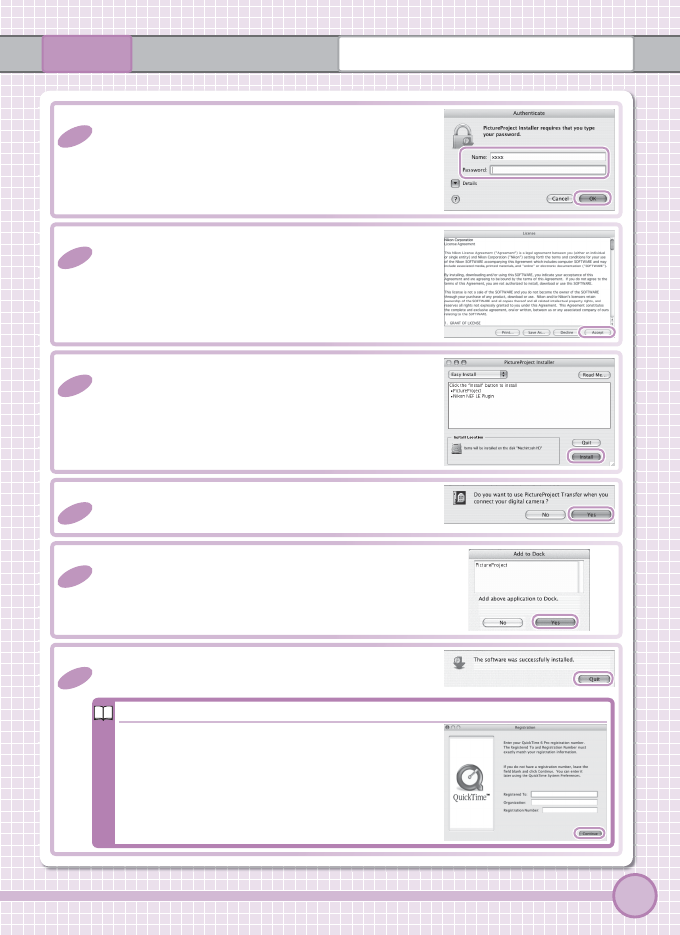
9
9 Click Yes to have PictureProject start automati-
cally when the camera is connected.
7
7 Read the license agreement and click Accept.
Take a few moments to view the ReadMe fi le,
which may contain important information that
could not be included in this guide. Click Con-
tinue… to proceed with installation.
6
6 Enter the administrator name and password
and click OK.
8
8 Click Install.
10
10
Click Yes to add PictureProject to the Dock.
11
11
Click Quit.
Apple QuickTime 6
Apple QuickTime 6
If an earlier version of QuickTime is installed,
the QuickTime 6 installer will start. Follow the
on-screen instructions to complete installation.
When the dialog shown at right is displayed, click
Continue. Do not complete the “Registered To,”
“Organization,” and “Registration Number” fi elds.
20
Installing PictureProject Macintosh
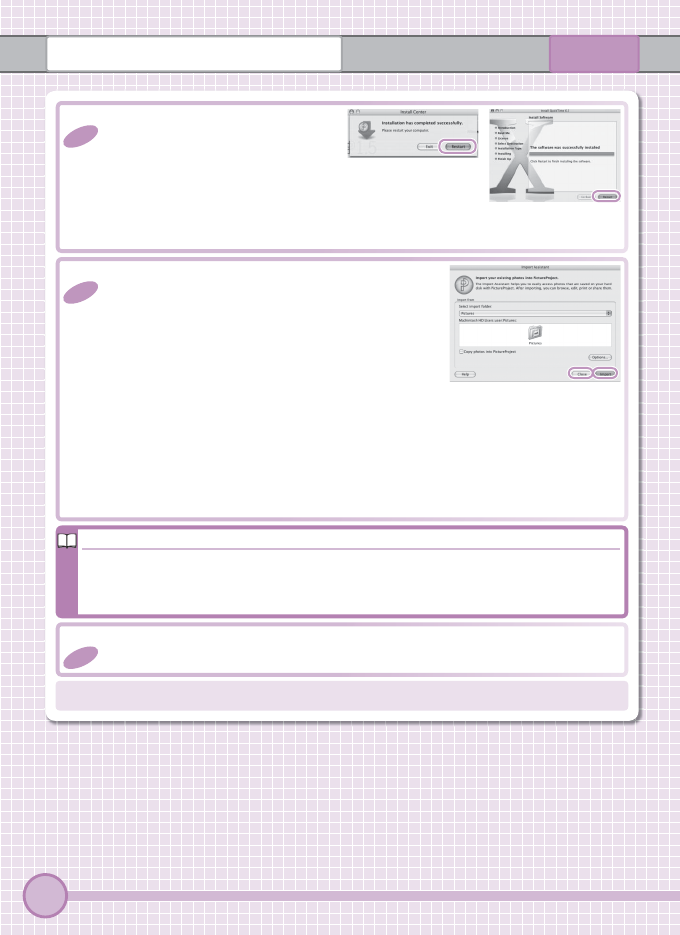
12
12
Click Restart to restart the com-
puter. When the computer re-
starts, log in to the account used
to install PictureProject. QuickTime 6 not
installed in Step 11.
QuickTime 6
installed in Step 11.
13
13
The PictureProject Import Assistant will be dis-
played once the computer restarts. To catalog
the images in the “Import from” folder for dis-
play in PictureProject:
1
1 Click Import. The time needed to catalog
the images is proportional to the number of
images in the folder.
2
2 Click Close to close the Import Assistant when import is complete.
To proceed without cataloging images, click Close. Images can be cata-
loged at any time; see the PictureProject reference manual on the silver CD
for details.
14
14
Remove the PictureProject installer CD from the CD-ROM drive.
You can now to transfer pictures to the computer as described on page 21.
Installing Nikon Fotoshare (Europe Only)
Installing Nikon Fotoshare (Europe Only)
To install Nikon Fotoshare (available only in Europe), open the “Fotoshare” folder
on the PictureProject installer CD and drag Nikon Fotoshare to the “Applications”
folder on the computer hard disk.
21
V
iewin
g
Pictures on a Compute
r
Viewing Pictures on a Computer
NOTE: The screenshots in this section are from Windows XP.
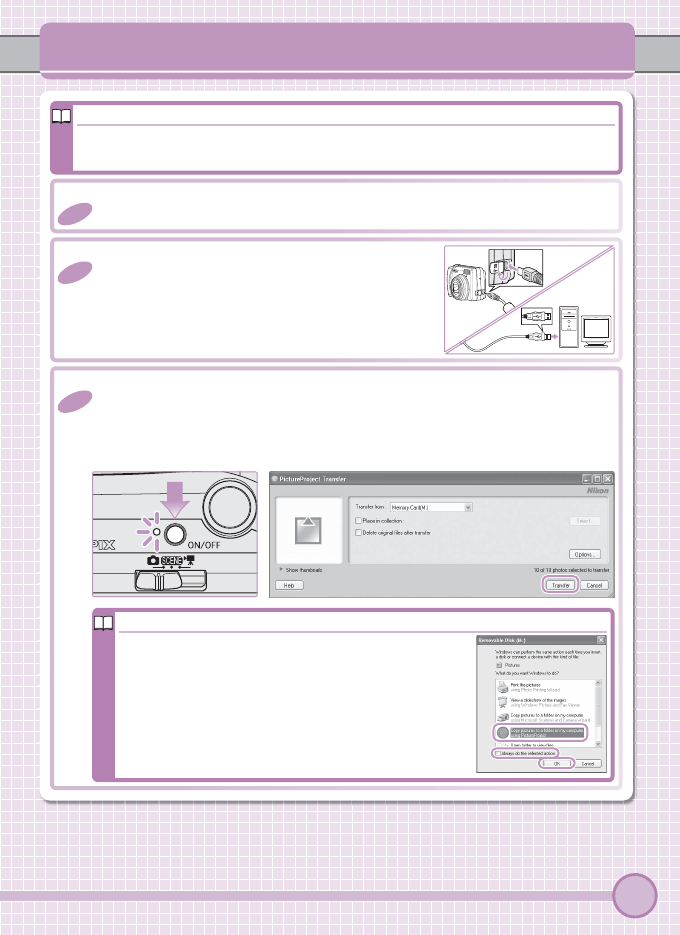
1
1 Turn the camera off .
3
3 Turn the camera on. PictureProject will automatically detect the camera
and the PictureProject Transfer window will be displayed in the computer
monitor. Click Transfer to copy all the pictures in the camera memory to
the computer.
Windows XP
Windows XP
If the dialog shown at right is displayed, select Copy
pictures to a folder on my computer using
PictureProject and click OK. To bypass this dialog in
future, check Always do the selected action.
2
2 Connect the USB cable as shown at right. Con-
nect the camera directly to the computer; do
not connect the cable via a USB hub or key-
board. Do not use force.
Install PictureProject Before Connecting the Camera
If PictureProject is not installed before the camera is connected, a hardware wizard
may be displayed. Click Cancel to exit and then disconnect the camera.
22
Viewing Pictures on a Computer
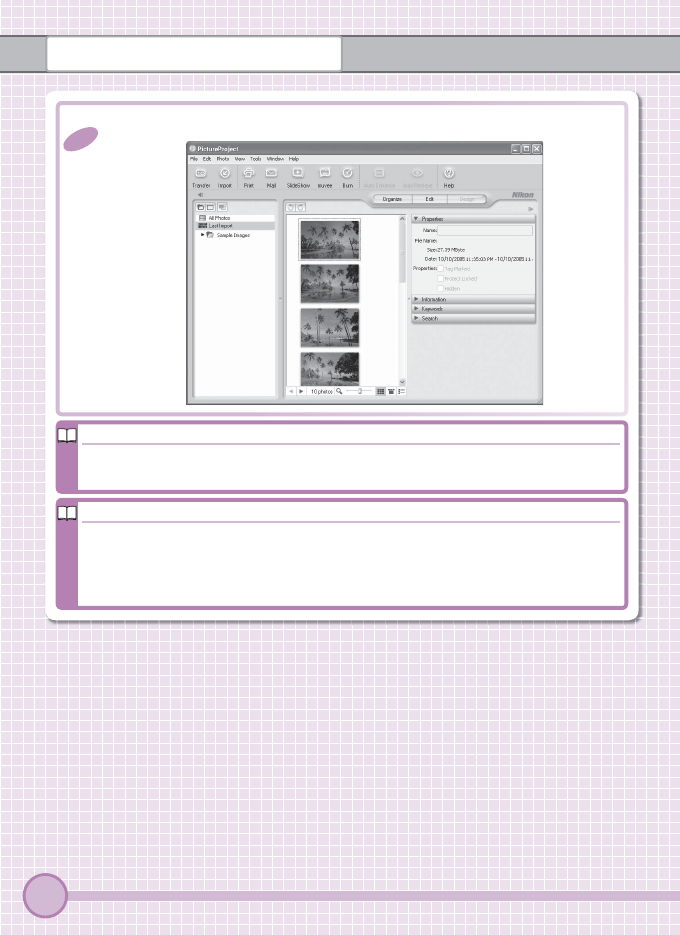
4
4 The pictures are displayed in PictureProject when transfer is complete.
Use a Reliable Power Source
Use a Reliable Power Source
Nikon recommends using the optional EH-62B AC adapter kit to power the camera
for extended periods. Do not use another make or model of AC adapter.
Automatic Updates
Automatic Updates
PictureProject periodically checks for updates when the computer is connected to
the Internet. If an update is detected when PictureProject starts, an update dialog
will be displayed. Follow the on-screen instructions to update to the latest version
of PictureProject.
23
Viewing Pictures on a Computer
Please refer to the Guide to Digital Photography for more information on using
your Nikon digital camera.
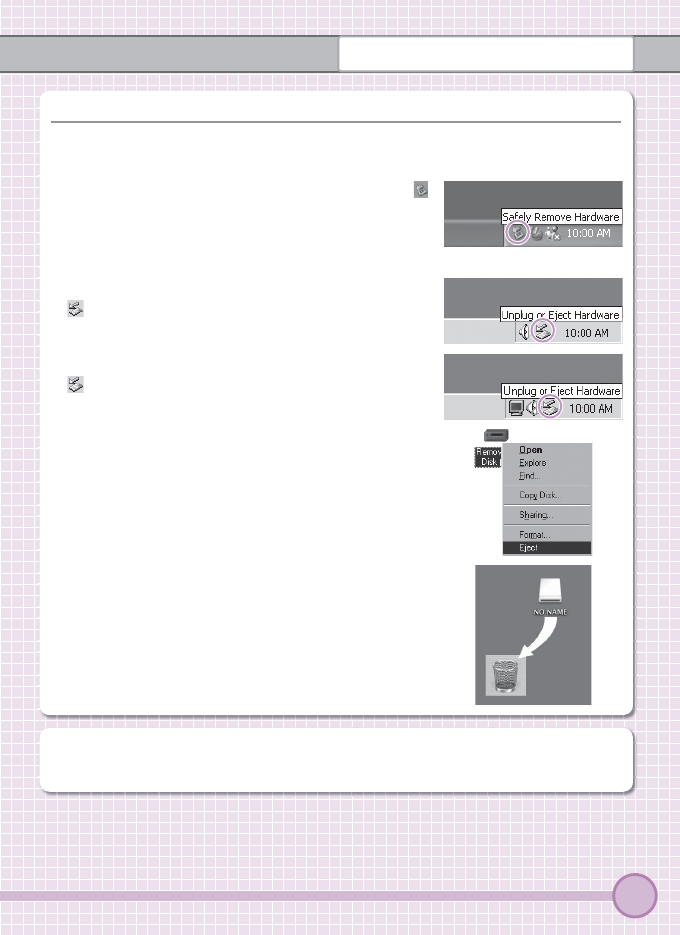
Disconnecting the Camera
Disconnecting the Camera
Before turning the camera off and disconnecting the USB cable, remove the
camera from the system as described below.
• Windows XP: Click the “Safely Remove Hardware” ( )
icon in the taskbar and select Safely Remove USB
Mass Storage Device from the menu that ap-
pears.
• Windows 2000: Click the “Unplug or Eject Hardware”
() icon in the taskbar and select Stop USB Mass
Storage Device from the menu that appears.
• Windows Me: Click the “Unplug or Eject Hardware”
() icon in the taskbar and select Stop USB Disk
from the menu that appears.
• Windows 98 SE: In My Computer, right click on the
removable disk corresponding to the camera and
select Eject from the menu that appears.
• Macintosh: Drag the untitled camera volume (“NO
NAME”) into the Trash.
Viewing the PictureProject Reference Manual
Viewing the PictureProject Reference Manual
1
1 Start the computer and insert the silver reference CD.
2
2 Double-click the CD icon.
• Windows: Double-click the CD (Nikon) icon in My Computer.
• Macintosh: Double-click the CD (Nikon) icon on the desktop.
3
3 Double-click the INDEX or INDEX.pdf icon to display a language selec-
tion screen. Click a language to display an index of the documentation
available for PictureProject and click a title to view.
Printed in China
SB5G01(11)
6MA13211-01
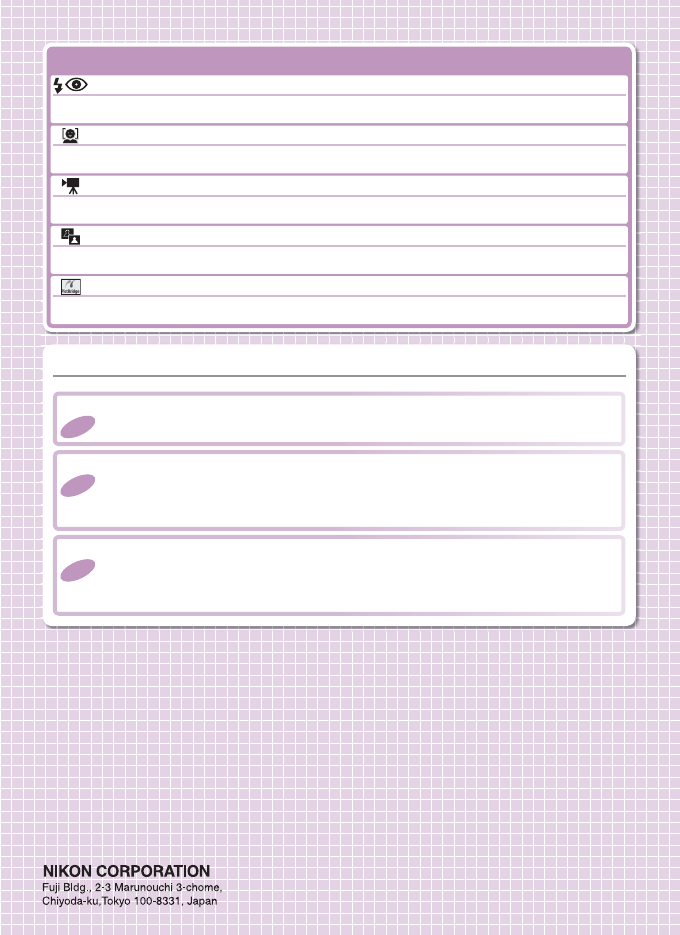
Other Features of the COOLPIX L1/L101
Other Features of the COOLPIX L1/L101
D-Lighting
D-Lighting
(
(
Guide to Digital Photography
Guide to Digital Photography
, pg. 28)
, pg. 28)
Bring out details in shadows.
Face-Priority AF
Face-Priority AF
(
(
Guide to Digital Photography
Guide to Digital Photography
, pp. 19–20)
, pp. 19–20)
Let the camera fi nd the focus point for portraits.
Movie Mode
Movie Mode
(
(
Guide to Digital Photography
Guide to Digital Photography
, pg. 25)
, pg. 25)
Record short movies with sound.
PictBridge
PictBridge
(
(
Guide to Digital Photography
Guide to Digital Photography
, pp. 34–38)
, pp. 34–38)
Print pictures directly from the camera.
Advanced Red-Eye Reduction
Advanced Red-Eye Reduction
(
(
Guide to Digital Photography
Guide to Digital Photography
, pg. 14)
, pg. 14)
Reduce “red-eye” when using the fl ash.
