Nikon Coolpix P5000 Users Manual
P5000 to the manual 839805e8-f20d-4c89-b3a1-5f98039e528b
2015-01-26
: Nikon Nikon-Coolpix-P5000-Users-Manual-347408 nikon-coolpix-p5000-users-manual-347408 nikon pdf
Open the PDF directly: View PDF  .
.
Page Count: 1
- For Your Safety
- Notices
- Q&A Index
- Introduction
- First Steps
- Basic Photography and Playback
- Scene Mode
- Anti-Shake and High Sensitivity Modes
- P, S, A, and M Modes
- More on Playback
- Movies
- Voice Recordings
- Connecting to Televisions, Computers, and Printers
- Menu Guide
- Technical Notes

Where to Find It
Find what you’re looking for from:
OThe Table of Contents
Î
aBvi–vii
Find items by function or menu name.
OThe Q&A Index
Î
aBviii–ix
Know what you want to do but don’t know the function name? Find
it from the “question and answer” index.
OThe Index
Î
aB111–114
Search by key word.
OError Messages
Î
aB97–99
If a warning is displayed in the viewfinder or monitor, find the solution
here.
OTroubleshooting
Î
aB100–103
Camera behaving unexpectedly? Find the solution here.
Help
Use the camera’s on-board help feature for help on menu items and other topics. See
page 7 for details.
Trademark Information
Macintosh, Mac OS, and QuickTime are registered trademarks of Apple Computer, Inc.
Microsoft and Windows are registered trademarks of Microsoft Corporation. The SD logo is
a trademark of the SD Card Association. Adobe and Acrobat are registered trademarks of
Adobe Systems Inc. PictBridge is a trademark. D-Lighting technology is provided by B
Apical Limited. All other trade names mentioned in this manual or the other documenta-
tion provided with your Nikon product are trademarks or registered trademarks of their
respective holders.
i
Symbols and Conventions
To make it easier to find the information you
need, the following symbols and conventions
are used:
DThis icon marks cautions, information
that should be read before use to pre-
vent damage to the camera.
AThis icon marks notes, information that
should be read before using the cam-
era.
CThis icon marks tips, additional informa-
tion that may be helpful when using
the camera.
BThis icon indicates that more informa-
tion may be found elsewhere in this
manual or in the Quick Start Guide.
Introduction
First Steps
Basic Photography and Play-
back
Scene Mode
P and T Modes
P, S, A, and M Modes
More on Playback
Movies
Voice Recordings
Connecting to Televisions,
Computers, and Printers
Menu Guide
Technical Notes
ii
For Your Safety
To prevent damage to the product or injury to yourself or to others, read the fol-
lowing safety precautions in their entirety before using this equipment. Keep
these safety instructions where all those who use the product will read them.
The consequences that could result from failure to observe the precautions
listed in this section are indicated by the following symbol:
WARNINGS
Turn off in the event of malfunction
Should you notice smoke or an unusual
smell coming from the camera or optional
AC adapter, unplug the AC adapter and/ or
remove the battery immediately, taking
care to avoid burns. Continued operation
could result in injury. After removing or
disconnecting the power source, take the
equipment to a Nikon-authorized service
representative for inspection.
Do not disassemble
Touching the internal parts of the camera
or AC adapter could result in injury. Re-
pairs should be performed only by quali-
fied technicians. Should the camera or AC
adapter break open as the result of a fall or
other accident, take the product to a
Nikon-authorized service representative
for inspection after unplugging the prod-
uct and removing the battery.
Do not use the camera, battery charger, or AC
adapter in the presence of flammable gas
Do not use electronic equipment in the
presence of flammable gas, as this could
result in explosion or fire.
Handle the camera strap with care
Never place the strap around the neck of
an infant or child.
Keep out of reach of children
Particular care should be taken to prevent
infants from putting batteries or other
small parts into their mouths.
Observe caution when handling batteries
Batteries may leak or explode if improperly
handled. Observe the following precau-
tions when handling batteries for use in
this product:
• Before replacing the battery, turn the
product off. If you are using the AC adapt-
er, be sure it is unplugged.
• Use only rechargeable Nikon EN-EL5 lithi-
um-ion batteries (supplied). Use the sup-
plied MH-61 battery charger to charge the
batteries.
• When inserting the battery, do not at-
tempt to insert it upside down or back-
wards.
• Do not short or disassemble batteries.
• Do not expose to flame or to excessive
heat.
• Do not immerse in or expose to water.
• Replace the terminal cover when trans-
porting the battery. Do not transport or
store with metal objects such as necklaces
or hairpins.
• Batteries are prone to leakage when fully
discharged. To avoid damage to the prod-
uct, be sure to remove the battery when
no charge remains.
• Discontinue use immediately should you
notice any change in the battery, such as
discoloration or deformation.
• If liquid from the damaged batteries
comes in contact with clothing or skin,
rinse immediately with plenty of water.
This icon marks warnings, information that should be read before using this Nikon
product to prevent possible injury.
A
A
A
A
A
A
A

iii
Observe the following precautions when han-
dling the battery charger
• Use only battery chargers designated for
use with this product.
• Keep dry. Failure to observe this precau-
tion could result in fire or electric shock.
• Dust on or near the metal parts of the plug
should be removed with a dry cloth. Con-
tinued use could result in fire.
• Do not handle the power cable or go near
the adapter during thunderstorms. Failure
to observe this precaution could result in
electric shock.
• Do not damage, modify, forcibly tug or
bend the power cable, place it under
heavy objects, or expose it to heat or
flame. Should the insulation be damaged
and the wires become exposed, take it to a
Nikon-authorized service representative
for inspection. Failure to observe these
precautions could result in electric shock.
Do not look at the sun through the viewfinder
Viewing the sun or other strong light
source through the viewfinder could
cause permanent visual impairment.
Use appropriate cables
When connecting cables to the input and
output jacks, use only the cables sold or
provided by Nikon for the purpose, to
maintain compliance with product regula-
tions.
Handle moving parts with care
Be careful that your fingers or other ob-
jects are not pinched in the lens or other
moving parts.
CD-ROMs
The CD-ROMs supplied with this device
should not be played back on audio CD
equipment. Playing CD-ROMs on an audio
CD player could cause hearing loss of
damage the equipment.
Observe caution when operating the flash
Using the flash close to your subject’s eyes
could cause temporary visual impairment.
Particular care should be observed when
photographing infants, when the flash
should be no less than one meter (39in.)
from the subject.
Do not fire the flash while it is touching a person
or object
Such use can result in the person being
burned, and/or their clothes igniting from
the heat of the flash.
Avoid contact with liquid crystal
Should the monitor break, care should be
taken to avoid injury due to broken glass
and to prevent liquid crystal from the
monitor touching the skin or entering the
eyes or mouth.
A
A
A
A
A
A
A
A

iv
Notices
• No part of the manuals included with this
product may be reproduced, transmitted,
stored in a retrieval system, or translated into
any language in any form, by any means,
without Nikon’s prior written permission.
• Nikon reserves the right to change the speci-
fications of the hardware and software
described in these manuals at any time and
without prior notice.
• Nikon will not be held liable for any damages
resulting from the use of this product.
• While every effort has been made to ensure
that the information in these manuals is
accurate and complete, we would appreci-
ate it were you to bring any errors or omis-
sions to the attention of the Nikon
representative in your area (address provided
separately).
Notice for Customers in the U.S.A
Federal Communications Commission (FCC) Radio Frequency Interference Statement
This equipment has been tested and found to
comply with the limits for a Class B digital
device, pursuant to Part 15 of the FCC rules.
These limits are designed to provide reason-
able protection against harmful interference
in a residential installation. This equipment
generates, uses, and can radiate radio fre-
quency energy and, if not installed and used
in accordance with the instructions, may
cause harmful interference to radio communi-
cations. However, there is no guarantee that
interference will not occur in a particular
installation. If this equipment does cause
harmful interference to radio or television
reception, which can be determined by turn-
ing the equipment off and on, the user is
encouraged to try to correct the interference
by one or more of the following measures:
• Reorient or relocate the receiving antenna.
• Increase the separation between the equip-
ment and receiver.
• Connect the equipment into an outlet on a
circuit different from that to which the
receiver is connected.
• Consult the dealer or an experienced radio/
television technician for help.
CAUTIONS
Modifications
The FCC requires the user be notified that any
changes or modifications made to this device
that are not expressly approved by Nikon Cor-
poration may void the user’s authority to
operate the equipment.
Interface Cables
Use the interface cables sold or provided by
Nikon for your equipment. Using other inter-
face cables may exceed the limits of Class B
Part 15 of the FCC rules.
Notice for Customers in the State of California
WARNING: Handling the cord on this product
may expose you to lead, a chemical known to
the State of California to cause birth defects or
other reproductive harm. Wash hands after
handling.
Nikon Inc.
1300 Walt Whitman Road, Melville, New York
11747-3064, U.S.A. Tel.: 631-547-4200
Notice for customers in Canada
CAUTION
This Class B digital apparatus complies with
Canadian ICES-003.
ATTENTION
Cet appareil numérique de la classe B est con-
forme à la norme NMB-003 du Canada.
COOLPIX P5000

v
Symbol for Separate Collection in European Countries
This symbol indicates that this product is to be collected separately.
The following apply only to users in European countries:
• This product is designated for separate collection at an appropriate collection
point. Do not dispose of as household waste.
• For more information, contact the retailer or the local authorities in charge of
waste management.
Notice Concerning Prohibition of Copying or Reproduction
Note that simply being in possession of material that has been digitally copied or reproduced by
means of a scanner, digital camera, or other device may be punishable by law.
• Items prohibited by law from being copied or
reproduced
Do not copy or reproduce paper money,
coins, securities, government bonds, or local
government bonds, even if such copies or
reproductions are stamped “Sample.”
The copying or reproduction of paper
money, coins, or securities which are circu-
lated in a foreign country is prohibited.
Unless the prior permission of the govern-
ment has been obtained, the copying or
reproduction of unused postage stamps or
post cards issued by the government is pro-
hibited.
The copying or reproduction of stamps
issued by the government and of certified
documents stipulated by law is prohibited.
•Cautions on certain copies and reproductions
The government has issued cautions on cop-
ies or reproductions of securities issued by
private companies (shares, bills, checks, gift
certificates, etc.), commuter passes, or cou-
pon tickets, except when a minimum of nec-
essary copies are to be provided for business
use by a company. Also, do not copy or
reproduce passports issued by the govern-
ment, licenses issued by public agencies and
private groups, ID cards, and tickets, such as
passes and meal coupons.
• Comply with copyright notices
The copying or reproduction of copyrighted
creative works such as books, music, paint-
ings, woodcuts, prints, maps, drawings, mov-
ies, and photographs is governed by national
and international copyright laws. Do not use
this product for the purpose of making ille-
gal copies or to infringe copyright laws.
Disposing of Data Storage Devices
Please note that deleting images or formatting data storage devices such as memory cards or
built-in camera memory does not completely erase the original image data. Deleted files can
sometimes be recovered from discarded storage devices using commercially available software,
potentially resulting in the malicious use of personal image data. Ensuring the privacy of such
data is the user’s responsibility.
Before discarding a data storage device or transferring ownership to another person, erase all
data using commercial deletion software, or format the device and then completely refill it with
images containing no private information (for example, pictures of empty sky). Be sure to also
replace any pictures selected for the welcome screen (B 84). Care should be taken to avoid
injury when physically destroying data storage devices.

vi
Table of Contents
For Your Safety.............................................................................................................................................. ii
Notices............................................................................................................................................................ iv
Q&A Index ................................................................................................................................................... viii
Introduction ..................................................................................................................... 1
Parts of the Camera .................................................................................................................................... 2
First Steps ......................................................................................................................... 9
Charging the Battery.................................................................................................................................. 9
Inserting the Battery ................................................................................................................................10
Turning the Camera on and Off............................................................................................................12
Basic Setup...................................................................................................................................................12
Inserting Memory Cards .........................................................................................................................14
Basic Photography and Playback ................................................................................. 16
U Mode........................................................................................................................................................16
Viewing Pictures ........................................................................................................................................22
Using the Flash...........................................................................................................................................24
Taking Pictures with the Self-Timer.....................................................................................................26
Choosing a Focus Mode..........................................................................................................................27
Exposure Compensation.........................................................................................................................28
Scene Mode .................................................................................................................... 29
P and T Modes........................................................................................................... 36
P (Anti-Shake) Mode.............................................................................................................................36
T (High Sensitivity) Mode....................................................................................................................37
P, S, A, and M Modes....................................................................................................... 38
More on Playback........................................................................................................... 43
Viewing Multiple Pictures: Thumbnail Playback............................................................................43
Taking a Closer Look: Playback Zoom................................................................................................43
Creating Retouched Copies...................................................................................................................44
Voice Memos: Recording and Playback.............................................................................................46
Movies............................................................................................................................. 47
Recording Movies......................................................................................................................................47
Movie Playback...........................................................................................................................................50
Voice Recordings ............................................................................................................ 51
Connecting to Televisions, Computers, and Printers .................................................. 54
Viewing Pictures on TV............................................................................................................................55
Viewing Pictures on a Computer .........................................................................................................56
Printing Pictures.........................................................................................................................................60

vii
Menu Guide .................................................................................................................... 65
Shooting Options: The Shooting Menu ............................................................................................65
j Image Quality...................................................66
n Image Size ..........................................................66
C Optimize Image..............................................68
k White Balance ..................................................70
n ISO Sensitivity...................................................71
p Metering..............................................................72
a Continuous........................................................73
L BSS ..........................................................................75
a Auto Bracketing..............................................75
G AF Area Mode ..................................................76
E Auto-focus Mode........................................... 76
t Flash Exp. Comp. ............................................78
o Flash Control..................................................... 78
d Fixed Aperture .................................................78
h Noise Reduction ............................................ 78
e Converter............................................................ 79
Playback Options: The Playback Menu.............................................................................................. 80
J D-Lighting.........................................................44
M Print Set................................................................64
d Slide Show .........................................................81
j Delete ....................................................................81
O Protect..................................................................81
X Transfer Marking............................................. 82
Z Hide Image........................................................ 82
w Small Pic. .............................................................45
f Copy...................................................................... 82
Basic Camera Setup: The Setup Menu............................................................................................... 83
a Menus ...................................................................83
P Quick Startup....................................................83
s Welcome Screen ............................................84
W Date........................................................................84
r Brightness...........................................................85
h Date Imprint......................................................86
K Vibration Reduction......................................87
B AF Assist ..............................................................87
0 Digital Zoom ....................................................87
e Sound Settings................................................ 88
L Auto Off ............................................................... 88
q Format Memory/Q Format Card ......... 88
o Language ............................................................ 88
m Interface............................................................... 89
N FUNC Button..................................................... 89
V Reset All ............................................................... 89
f Firmware Version ........................................... 89
Technical Notes .............................................................................................................. 90
Optional Accessories................................................................................................................................90
Caring for the Camera ............................................................................................................................. 94
Cleaning.................................................................................................................................................................................. 96
Storage ....................................................................................................................................................................................96
Error Messages...........................................................................................................................................97
Troubleshooting......................................................................................................................................100
Appendix....................................................................................................................................................104
Specifications............................................................................................................................................108
Index ............................................................................................................................................................111

viii
Q&A Index
Find what you're looking for using this “question and answer” index.
General Questions
Camera Setup
Question Key phrase B
What do these indicators mean? Monitor 4
What does this warning mean? Error messages and displays 97
How do I get more information on a menu? Help 7
How much charge does the battery have left? Battery level 16
What does “exposure” mean and how does it work? Exposure 38
What accessories are available for my camera? Optional accessories 90
What optional converter lenses can I use? Optional converter lenses 92
What optional flash units can I use? Optional Speedlights 93
What memory cards can I use? Approved memory cards 91
How do I clean the camera? Cleaning the camera 96
Question Key phrase B
How do I keep the monitor from turning off? Auto off 88
How do I turn the monitor on and off? The Q button 8
How do I adjust monitor brightness? Brightness 85
How do I set the clock?
Date 84How do I set the clock for daylight saving time?
How do I change time zones when I travel?
How do I restore default settings? Reset all 89
Can I display the menus in a different language? Language 88
How do I turn off the light on the front of the camera
(AF-assist illuminator)? AF assist 87
How do I keep the camera from beeping? Sound settings 88
ix
Taking Photographs
Viewing, Printing, and Retouching Photographs
Question Key phrase B
Is there an easy way to take snapshots? U (auto) mode 16
Is there an easy way to take more creative shots? S (scene) mode 29
How can I avoid blur with the camera zoomed in? P (anti-shake) mode 36
How can I avoid blur when lighting is poor? T (high-sensitivity) mode 37
How do I record and play movies? Movies 47
How do I record and play audio? Voice recordings 51
How do I use the flash? Flash mode 24
How do I use the self-timer? Self-timer 26
Can I focus on nearby or distant objects? Focus mode 27
Can I make photos brighter or darker? Exposure compensation 28
How do I adjust exposure? P, S, A, and M modes 38
How do I improve image quality?
Image quality and size 66How do I take bigger photographs?
How can I get more photos on the memory card?
Question Key phrase B
Can I view my photographs on the camera? Camera playback 22
How do I get rid of an unwanted photo? Deleting individual photos 22
Can I delete several photos at once? Delete 81
Can I zoom in on pictures to make sure they're in
focus? Playback zoom 43
Can I protect photos from accidental deletion? Protect 81
Can I hide selected photos? Hide image 82
How do I bring out details in shadows? D-lighting 44
Can I crop pictures? Cropped copies 45
Can I copy pictures at a smaller size? Small picture 45
Can I record a voice memo about a picture? Voice memos 46
Can I view my photos on TV? Television playback 55
How do I copy photos to my computer? Connecting to a computer 56
Can I print photos without a computer? PictBridge 60
Can I print the date on my photographs? Printing the date of recording 60
How do I order professional prints? Printing photographs; print set 60,
64
x
Use Only Nikon Brand Electronic Accessories
Nikon COOLPIX cameras are designed to the highest standards and include complex
electronic circuitry. Only Nikon brand electronic accessories (including battery chargers,
batteries, AC adapters, and flash accessories) certified by Nikon specifically for use with
this Nikon digital camera are engineered and proven to operate within the operational
and safety requirements of this electronic circuitry.
THE USE OF NON-NIKON ELECTRONIC ACCESSORIES COULD DAMAGE THE CAMERA AND MAY VOID YOUR
NIKON WARRANTY. The use of third-party rechargeable Li-ion batteries not bearing the
Nikon holographic seal shown below could interfere with normal operation of the cam-
era or result in the batteries overheating, igniting, rupturing, or leaking.
For more information about Nikon brand accessories, contact a local authorized Nikon
dealer.
EN-EL5
rechargeable
battery
Holographic seal: Identifies this device as an
authentic Nikon product.

Introduction 1
Introduction
Thank you for your purchase of a Nikon COOLPIX P5000 digital camera. This
manual has been written to help you enjoy taking pictures with your Nikon digi-
tal camera. Please be sure to read all instructions thoroughly to get the most
from the camera, and keep them where they will be read by all those who use
the product.
A Before Taking Important Pictures
Before taking pictures on important occasions (such as at weddings or before taking the
camera on a trip), take a test shot to ensure that the camera is functioning normally. Nikon
will not be held liable for damages or lost profits that may result from product malfunction.
C Life-Long Learning
As part of Nikon’s “Life-Long Learning” commitment to ongoing product support and edu-
cation, continually-updated information is available on-line at the following sites:
•For users in the U.S.A.: http://www.nikonusa.com/
•For users in Europe and Africa: http://www.europe-nikon.com/support
•For users in Asia, Oceania, and the Middle East: http://www.nikon-asia.com/
Visit these sites to keep up-to-date with the latest product information, tips, answers to fre-
quently-asked questions (FAQs), and general advice on digital imaging and photography.
Additional information may be available from the Nikon representative in your area. See
the following URL for contact information: http://nikonimaging.com/
2 Introduction
Parts of the Camera
e
w
qt
ry
!0
o
!1
!8
!5 !6 !7 !9
!4
!2
!3
Introduction 3
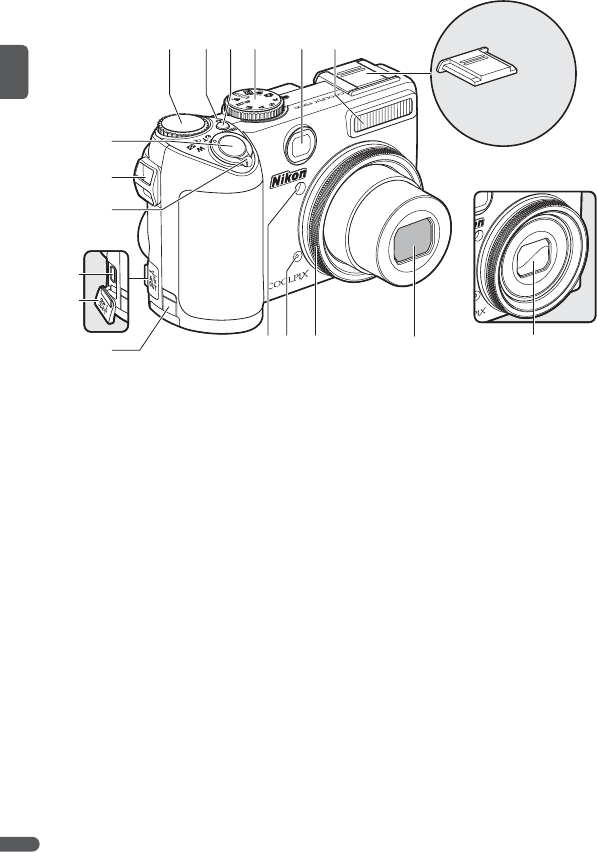
1A (FUNC) button ............................. 29, 48, 89
2Q (monitor) button .........................................8
3G (playback) button ............................. 22, 23
4F (menu) button........29, 48, 53, 65, 80
5I (delete) button.............22, 43, 46, 50, 52
6Speaker
7Viewfinder ............................................................ 18
8Flash lamp............................................................ 24
9Autofocus (AF) lamp...................................... 20
10 Monitor ...........4–5, 16–17, 18, 85, 96, 108

4 Introduction
The Monitor
The following indicators may appear in the monitor during shooting and play-
back (actual display varies with current camera settings).
Shooting
*Displayed only in P, S, A, M, and T modes.
9999
9999
99991/125
1/125
1/125 F4.3
F4.3
F4.3
0h00m00s
0h00m00s
0h00m00s
qr
!2
!3
@5
@7
@6
tw
o!0yi
!5
!6
!4
@4
!7
ue
@3 @2
#0
@9@8
#1
@0
!9
!8
@1
!1
1Shooting mode..................17, 29, 36, 37, 38
2Exposure lock..................................................... 35
3Focus mode ........................................................ 27
4Zoom indicator .................................................19
5Focus indicator.................................................. 20
6Digital zoom interpolation indicator...19
7Flash mode (built-in flash).......................... 24
8Flash mode (optional flash unit) ............ 25
9Internal memory indicator................. 17, 21
10 Battery level indicator...................................16
11 ISO sensitivity ............................................. 25, 71
12 Vibration reduction ........................................87
13 Focus area ............................................ 20, 33, 76
14 Self-timer indicator......................................... 26
15 “Date not set” indicator................................ 97
16 Time zone indicator .......................................85
17 Date imprint/date counter ........................ 86
18 Number of exposures remaining... 16, 67
Movie length ...................................................... 47
19 Aperture ........................................ 38, 39, 41, 42
20 Exposure display .............................................. 42
21 Shutter speed............................. 38, 39, 40, 42
22 Image quality .....................................................66
23 Image size ............................................................66
24 Exposure compensation ............................. 28
25 Image optimization*.............................68–69
26 Converter lens setting*................................79
27 White balance*.................................................. 70
28 Best Shot Selector (BSS)*............................75
29 Noise reduction*..............................................78
30 Bracketing*..........................................................75
31 Continuous shooting mode*...................73

Introduction 5
Playback
j
j
j
0h00m00s
0h00m00s
0h00m00s
01/01/2007 00:00
01/01/2007 00:00
01/01/2007 00:00
9999.JPG
9999.JPG
9999.JPG
9999/9999
9999/9999
9999/9999
t
e
qw
r
y
!0
o
!1
!4
!5
!8
!9
!7
!6
!2!3
u
i
1Date of recording ............................12–13, 84
2Time of recording............................12–13, 84
3Internal memory indicator ........................ 17
4Battery level indicator................................... 16
5File number and type ................................ 106
6Volume indicator ..................................... 46, 50
7Voice memo recording guide.................. 46
8Voice memo playback guide.................... 46
9Current frame number/
total number of frames................................ 22
Movie length...................................................... 50
10 D-Lighting icon................................................. 44
11 Movie playback indicator ........................... 50
12 Voice memo icon............................................. 46
13 Image quality ..................................................... 66
14 Image size ............................................................ 66
15 Small picture indicator................................. 45
16 Protect icon......................................................... 81
17 Print-order icon................................................. 64
18 Transfer icon........................................ 56, 82, 89
19 Movie indicator................................................. 50
6 Introduction
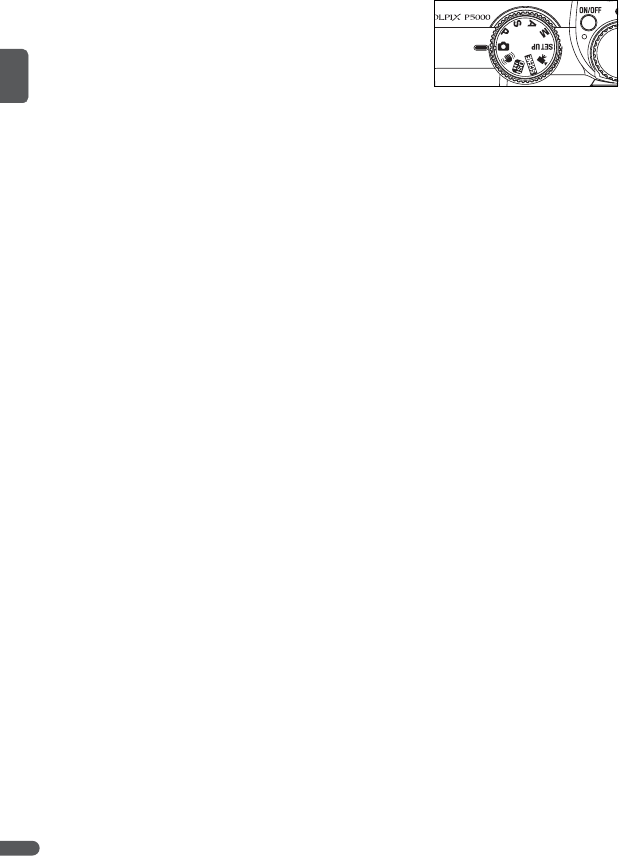
The Mode Dial
To select a mode, align the mode icon with the mark
next to the mode dial.

Introduction 7
The Multi Selector
The multi selector is used to navigate the camera menus and to display the flash
mode, self-timer, focus mode, and exposure compensation menus.
Changing Settings (Shooting Mode)
Navigating the Camera Menus (B 65)
C Lost?
If a question mark (“8”) is displayed in the monitor, help for
the current menu item can be displayed by pressing the
zoom control to T (L). To return to the original menu, press
the zoom control to T (L) again.
Press up to display
D
(flash mode) menu (B24)
or move cursor up
Press left to display H (self-
timer) menu (B26)
Press center (B) to
make selection
Press right to display b
(exposure compensation)
menu (B28)
Press down to display E (focus mode) menu (B27)
or move cursor down
Press up to move cursor up
Press left to return to previ-
ous menu, or move cursor
left
Press center (B) to
make selection
Press right to display sub-
menu or move cursor right
Press down to move cursor down
8 Introduction
The Q Button
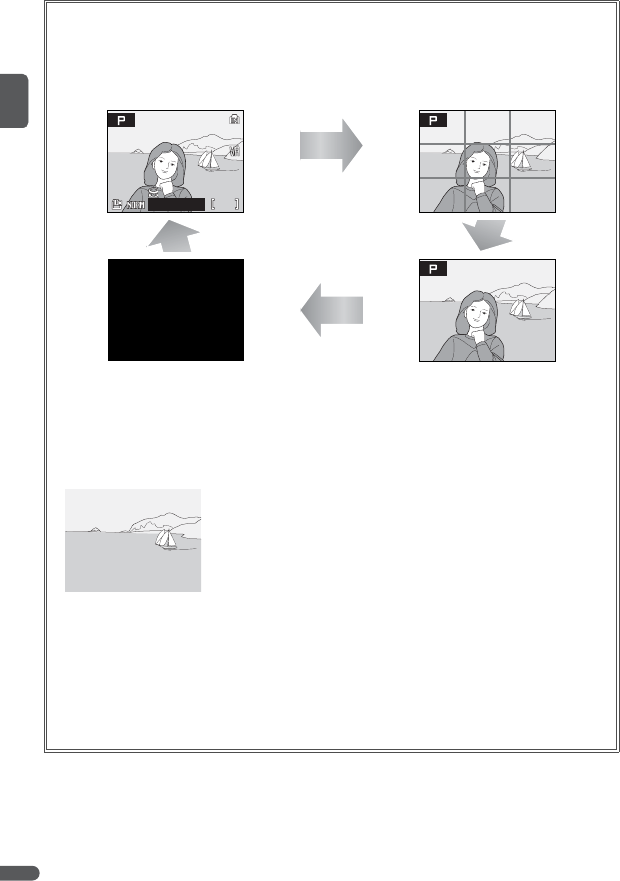
To hide or display indicators in the monitor, press the Q button.
Shooting
Current settings
Framing guides
(P, T, P, S, A, and M modes only)
Monitor off (modes P, S, A, and M only).
Pictures can only be taken when
camera is in focus.
View through lens only
Playback
Photo information
displayed
Shooting data displayed
(see below)
Photo information
hidden
Shooting data: Shows the folder name, file name, exposure mode, shutter speed, aperture,
exposure compensation, ISO sensitivity, and histogram for the current picture. Shooting
data are not displayed if the current picture is a movie.
•Exposure mode: P, S, A, or M (B 38). P is also displayed on pictures taken in A (auto), P
(anti-shake), T (high sensitivity), and scene modes.
•Histogram: A graph showing tone distribution. The horizontal axis corresponds to pixel
brightness, with dark tones to the left and bright tones to the right; the vertical axis
shows number of pixels of each brightness in image.
9
9
91/125
1/125
1/125 F4.3
F4.3
F4.3

First Steps 9
First Steps
Charging the Battery
The camera uses a rechargeable EN-EL5 Li-ion battery (supplied). Charge the
battery with the supplied MH-61 battery charger before first use or when the
battery is running low.
1Plug the charger in
Connect the power cable to the charger (c) and
then plug it into a power outlet (d). The
CHARGE lamp will light (e).
2Insert the battery
Remove the battery terminal cover and insert
the battery as shown, matching the projections
on the battery to the indentations in the charger.
3Charge the battery
The CHARGE lamp will blink as the battery
recharges. (If the lamp flickers rapidly, either the
temperature is not in the range of 5–35°C/41–
95°F supported by the charger or the battery is
faulty. If the battery is faulty, unplug the charger
immediately and bring the battery and charger
to a Nikon-authorized service representative for
inspection.) A fully-exhausted battery will
charge in about two hours.
Charging is complete when the CHARGE lamp
stops blinking. Remove the battery and unplug
the charger.
D The Battery Charger
Read and follow the warnings on pages ii–iii of this manual. Use with compatible batteries
only.
d
e
c
10 First Steps
Inserting the Battery
After charging the battery, insert it as described below.
D Batteries
Read and follow the warnings and cautions on pages ii–iii and 95 of this manual. The cam-
era can be used with EN-EL5 batteries only; do not, under any circumstances, attempt to
use other types. If desired, the optional EH-62A AC adapter kit can be used to power the
camera for extended periods (B 90). Do not, under any circumstances, use another make
or model of AC adapter. Failure to observe this precaution could result in overheating or in
damage to the camera.
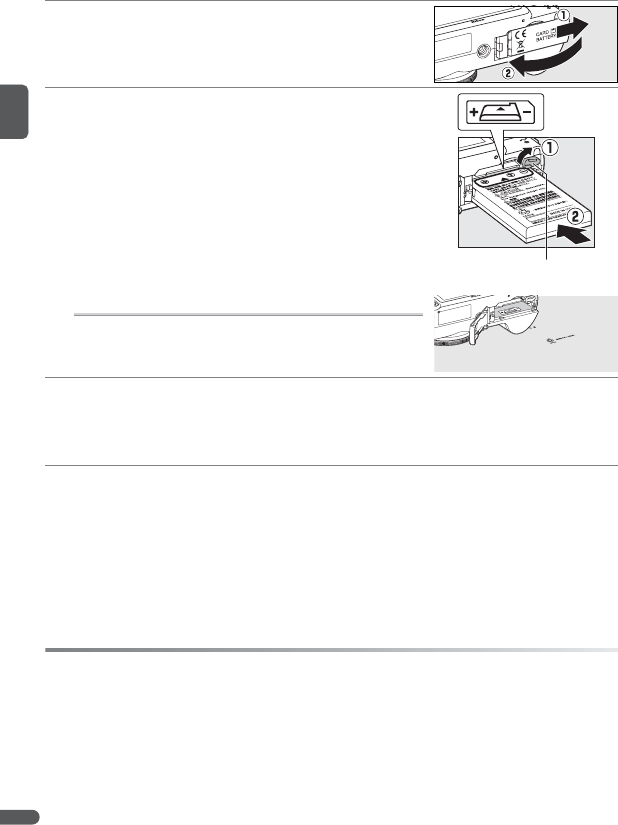
1Open the battery-chamber/memory card slot
cover
2Insert the battery
Insert the battery in the orientation shown in the
label inside the battery chamber. The orange
battery latch is pushed aside as the battery is
inserted. The battery is fully inserted when the
latch clicks back into place.
D Inserting the Battery
Inserting the battery upside down or backwards could
damage the camera. Check to be sure the battery is in
the correct orientation.
3Close the battery-chamber/memory card slot
cover
Battery latch
First Steps 11
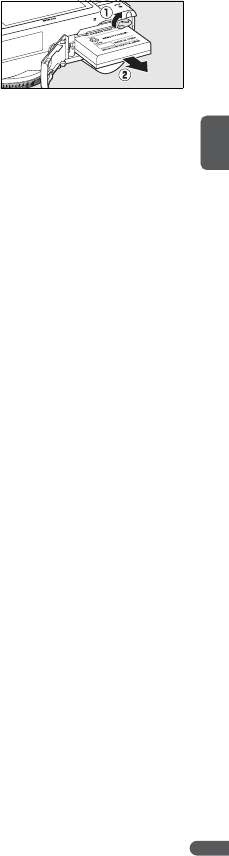
Removing the Battery
Turn the camera off before removing or inserting
batteries. To eject the battery, open the battery-
chamber/memory card slot cover and slide the bat-
tery latch in the direction shown. The battery can
then be removed by hand. Note that the battery
may become hot during use; observe due caution
when removing the battery.
12 First Steps
Turning the Camera on and Off
To turn the camera on, press the power switch. The
green power-on lamp lights and the monitor turns
on. To turn the camera off, press the power switch
again.
Press and hold the G button to turn the camera on in playback mode (B 22).
Basic Setup
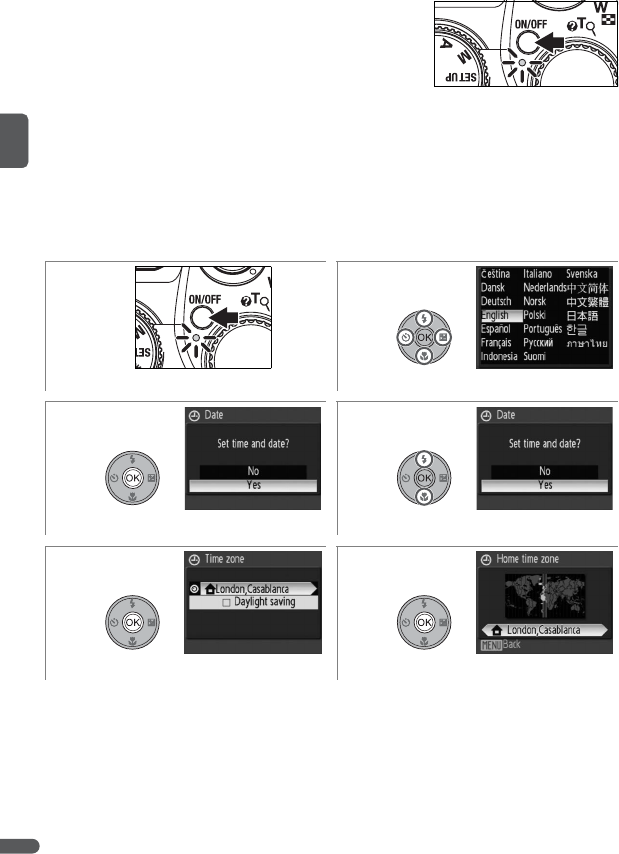
A language-selection dialog is displayed the first time the camera is turned on.
Use the multi selector to choose a language and set the time and date as
described below (in the steps that follow, the multi selector controls used are
highlighted in white).
12
Turn camera on. Highlight language.
34
Confirmation dialog displayed. Highlight Yes.
56
Time zone menu displayed.*Display map of world time zones.
* If daylight saving time is in effect, press multi selector down to highlight Daylight sav-
ing and press B to select. Press multi selector up to return to Step 5. See page 85 for
more information on turning daylight saving time on and off.
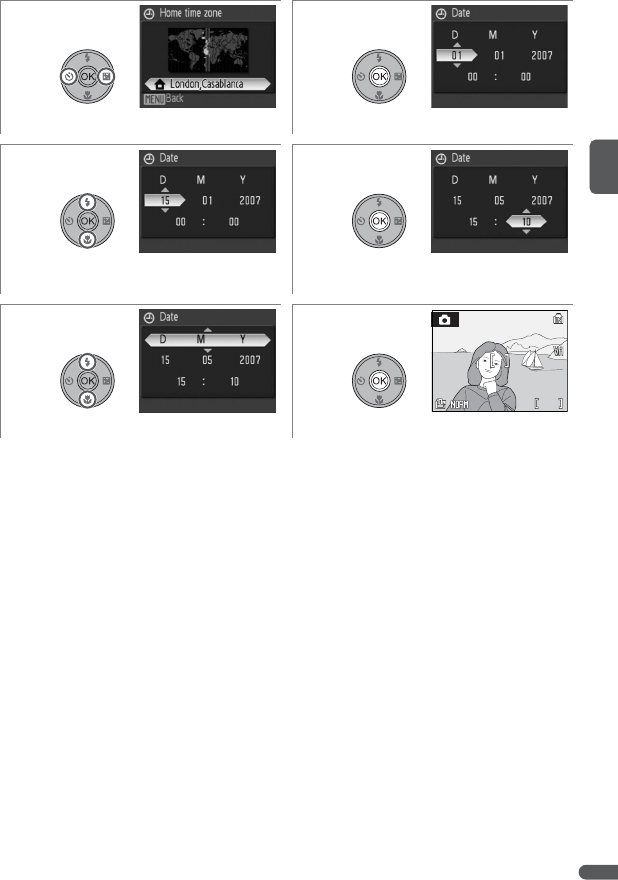
First Steps 13
78
Select home time zone. Display Date menu.
910
Edit Day (order of day, month, and year
may differ in some areas).
Select Month. Repeat Steps 9–10 to edit
Month, Year, hour, and minute.
11 12
Choose date display order. Set clock and exit to shooting mode.
9
9
91/125
1/125
1/125 F4.3
F4.3
F4.3
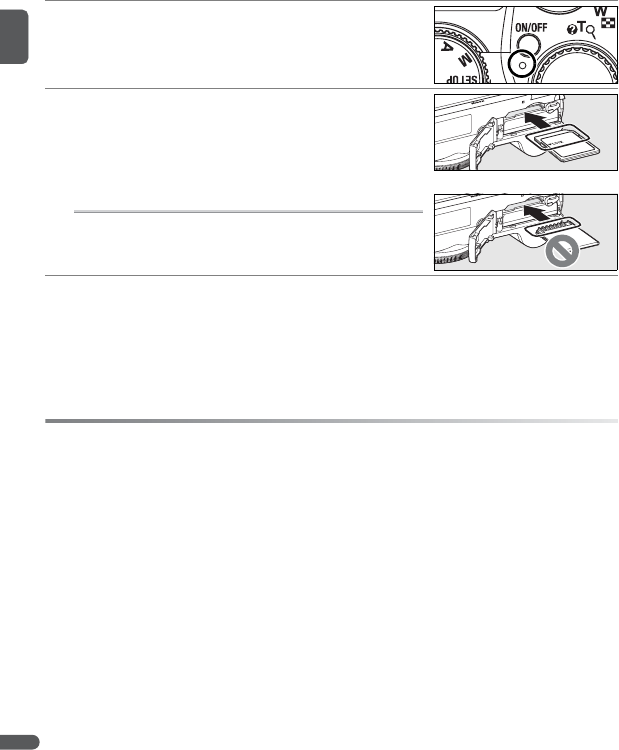
14 First Steps
Inserting Memory Cards
Pictures are stored in the camera’s internal memory (approximately 21MB) or on
removable Secure Digital (SD) memory cards (B 91). Internal memory is used
for recording, playback, and deletion only if no memory card is inserted.
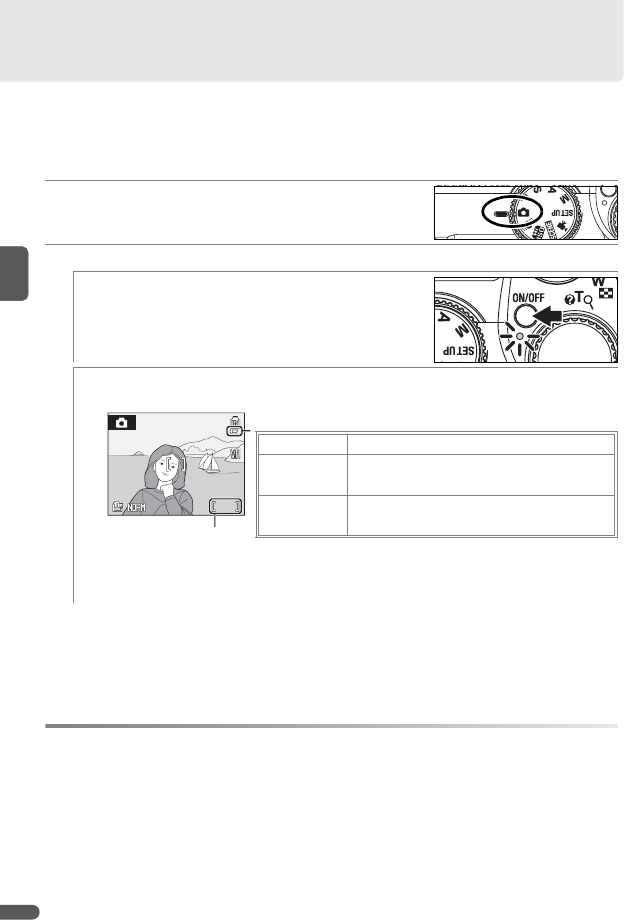
To insert a memory card:
A Memory Cards
•Use only Secure Digital (SD) memory cards.
• Memory cards that have been formatted in a computer or other device must be refor-
matted in the camera before they can be used for recording or playback (B 15, 88).
• Turn the power off before inserting or removing memory cards. Do not open the bat-
tery-chamber/memory card slot cover, turn the camera off, or remove or disconnect the
power source during formatting or while data are being recorded, deleted, or copied to a
computer. Failure to observe these precautions could result in loss of data or in damage
to the camera or card.
• Do not disassemble or modify.
• Do not bend, drop, or subject to strong physical shocks.
• Do not touch the card terminals with your fingers or metal objects.
• Do not affix labels or stickers to memory cards.
• Do not leave in direct sunlight, closed vehicles, or areas exposed to high temperatures.
• Do not expose to high levels of humidity or to corrosive gas.
1Turn the camera off
If the power-on lamp is lit, press the power
switch to turn the camera off.
2Insert the memory card
Open the battery-chamber/memory card slot
cover and slide the memory card in until it clicks
into place. Close the cover.
D Inserting Memory Cards
Be sure the card is in the correct orientation. Inserting
the card upside down or backwards could damage the
camera or card.

First Steps 15
Removing Memory Cards
Before removing memory cards, turn the camera off
and confirm that the power-on lamp is off. Open the
battery-chamber/memory card slot cover, press the
card in to partially eject it, and then remove it by
hand.
A Formatting Memory Cards
If the message shown at right is displayed when the camera
is turned on, the memory card must be formatted before
use. Note that formatting permanently deletes all pictures
and other data on the memory card. Be sure to make cop-
ies of any pictures you wish to keep before beginning for-
matting.
To begin formatting, press the multi selector up to highlight Format and then press B. Do
not turn the camera off or remove the battery or memory card until formatting is complete.
A The Write Protect Switch
SD cards are equipped with a write protect switch. Pictures
can not be recorded or deleted and the memory card can
not be formatted when this switch is in the “lock” position.
Write protect switch
16 Basic Photography and Playback
Basic Photography and Playback
U Mode
This section describes how to take pictures in U (auto) mode, an automatic,
“point-and-shoot” mode recommended for first-time users of digital cameras.
C Auto Power off (Stand-by Mode)
In shooting mode, the monitor will dim to reduce the drain on the battery if no operations
are performed for about five seconds. The monitor will brighten when camera controls are
used. At default settings, the monitor will turn off altogether if no operations are per-
formed for about a minute during shooting and playback (stand-by mode; B 88). While
the camera is in stand-by mode, the power-on lamp will blink and the monitor can be
reactivated by pressing the shutter-release button halfway. The camera will turn off auto-
matically if no operations are performed for another three minutes.
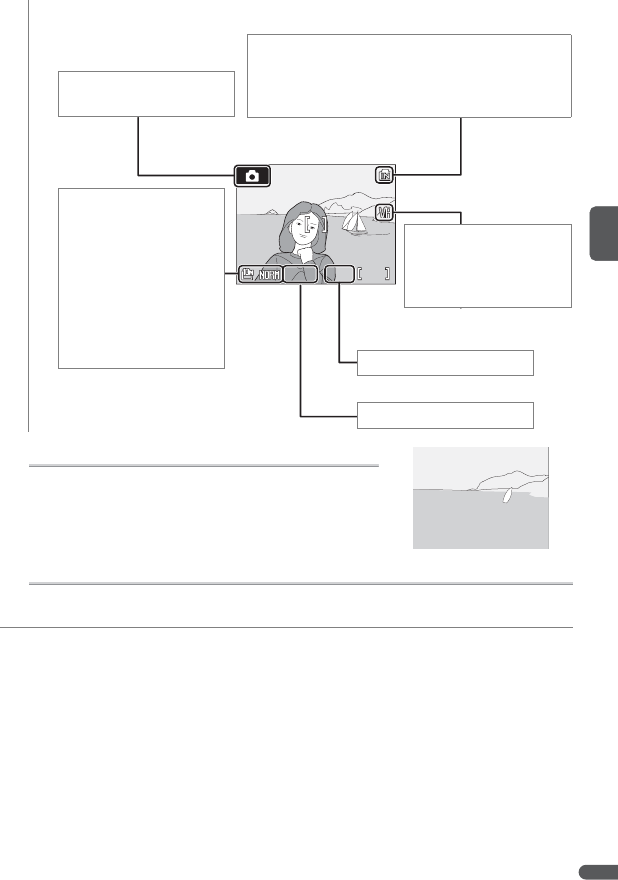
1Select U mode
Rotate the mode dial to U.
2Turn the camera on
2.1 Turn the camera on
Press the power switch to turn the camera
on. The green power-on lamp lights, the
monitor turns on, and the lens extends.
2.2 Check indicators in the monitor
Check the battery level and number of exposures remaining.
* Depends on capacity of internal memory or memory card (B 14) and on
options chosen for image quality (B 66) and size (B 66).
Battery indicator
NO ICON Battery fully charged.
JLow battery; prepare to recharge or
change battery.
NWarning!
Battery exhausted.
Battery exhausted. Recharge or change
battery.
Number of exposures
remaining*
9
9
91/125
1/125
1/125 F4.3
F4.3
F4.3
Basic Photography and Playback 17
In U (auto) mode, the following indicators are also displayed.
C Vibration Reduction
When vibration reduction is on (the default setting),
the camera compensates for slight hand movements
that can blur pictures at slow shutter speeds or high
zoom ratios.
C Image Quality and Size
In U (auto mode), pressing the F button displays options for adjusting image
quality (j; B 66) and size (n; B 66).
9
9
91/125
1/125
1/125 F4.3
F4.3
F4.3
Internal memory indicator: If q is displayed, pictures
will be recorded to internal memory. If memory
card is inserted, q icon is no longer displayed
and pictures are recorded to memory card.
Shooting mode: 0 is dis-
played in U (auto) mode.
Image quality and size:
Choose image quality
(B 66) and size (B 66)
according to how pic-
ture will be used.
Default settings are nor-
mal image quality
(NORM) with an image
size of 3,648×2,736 (j).
Vibration reduction: K is
displayed when vibra-
tion reduction is on (see
below).
Shutter speed (B 38)
Aperture (B 38)
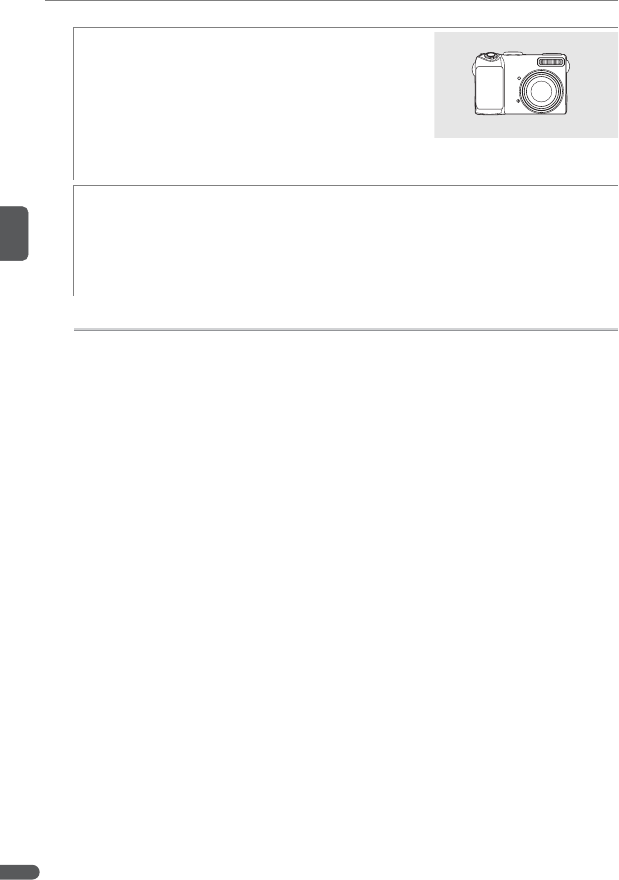
18 Basic Photography and Playback
3Frame a picture
3.1 Ready the camera
Hold the camera steadily in both hands,
keeping your fingers and other objects
away from the lens, flash, and microphone.
When taking pictures in portrait orientation
with the camera rotated 90°, hold the cam-
era with the flash uppermost.
3.2 Frame the picture
Frame the picture with the subject posi-
tioned in approximately the center of the
monitor or viewfinder.
A The Viewfinder
Use the viewfinder to frame pictures when bright light makes it difficult to see the dis-
play in the monitor. Note that because the image in the viewfinder may differ from
the final picture, the monitor should be used at distances of about 1m (3ft. 3in.) or
less, at image sizes of 3,648×2,432 (h) or 3,584×2,016 (9), or when using converter
lenses (available separately; B 79, 90) or digital zoom (B 19).

Basic Photography and Playback 19
Zoom
The zoom control can be used to frame subjects
in the monitor or viewfinder. Select W to zoom
out, increasing the area visible in the frame.
Select T to zoom in up to 3.5× so that the subject
fills a larger area of the frame. The amount of
zoom is displayed in the monitor.
Holding the control to T at 3.5× zoom will trigger digital zoom, allowing the
subject to be magnified up to 4× more, for a total magnification of 14×.
A Digital Zoom
If possible, digital zoom will create a picture by cropping the area visible in the moni-
tor to the current image size (B 66), increasing magnification without affecting qual-
ity. If the crop would be smaller than the current image size, additional pixels are
added through a process known as interpolation, creating a slightly “grainy” image.
The amount of zoom available before interpolation is used depends on the option
currently selected for image size, as shown in the following table.
2 is displayed when interpolation is in effect. Using digital zoom at sizes of 3,648×
2,736 (j), 3,648×2,432 (h), or 3,584×2,016 (9) always triggers interpolation.
20 Basic Photography and Playback
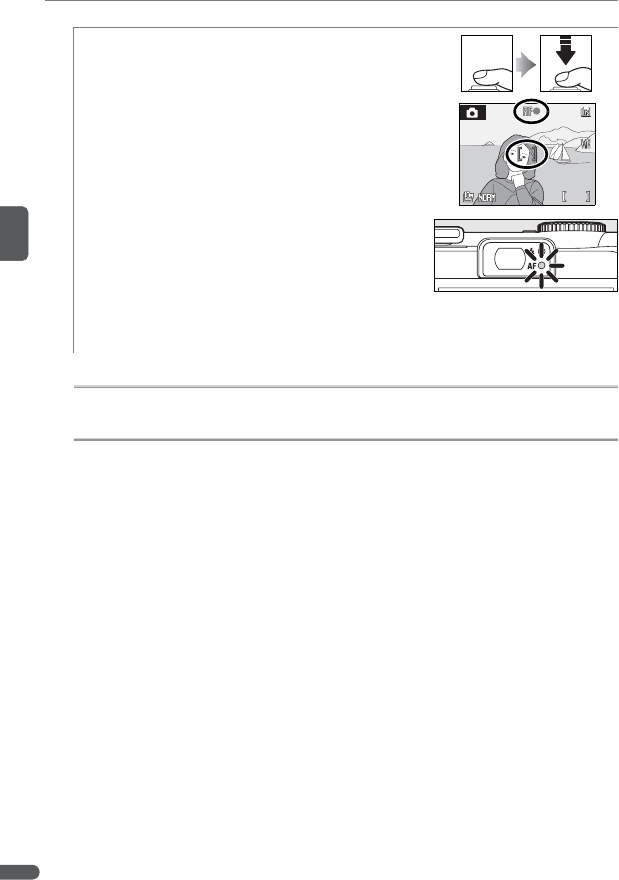
4Focus and shoot
4.1 Focus
Lightly press the shutter-release button
about halfway, stopping when you feel
resistance. In U mode, the camera auto-
matically sets focus and exposure for the
subject in the center focus area.
•If the camera is able to focus, the focus indica-
tor and focus area will be displayed in
green, and the green AF lamp next to the
viewfinder will light. Proceed to Step 4.2.
•If the camera is unable to focus, the focus indi-
cator and focus area blink red, and the
green AF lamp next to the viewfinder will
flicker. Change the composition and try
again.
A Digital Zoom
The focus area is not displayed when digital zoom is in effect.
C Getting Good Results with Autofocus
Autofocus performs best when there is contrast between the subject and the back-
ground and the subject is evenly lit. It does not perform well if the subject is very dark
or moving rapidly, if there are objects of sharply differing brightness in the scene (e.g.,
the sun is behind the subject and their features are in deep shadow), or if the focus
area contains objects at different distances from the camera (e.g., the subject is inside
a cage). If the camera is unable to focus using autofocus, change the composition,
press the shutter-release button halfway several times to refocus, or use focus lock (B
77) to focus on another subject at the same distance and then recompose the photo-
graph.
9
9
91/125
1/125
1/125 F4.3
F4.3
F4.3
Basic Photography and Playback 21
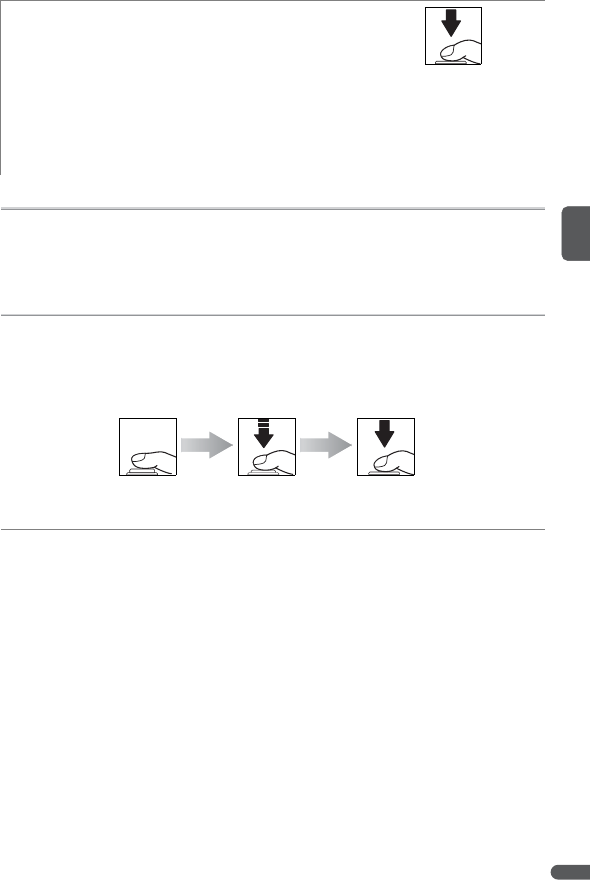
4.2 Take the picture
Gently press the shutter-release button the
rest of the way down to take the picture
(moving the camera while pressing the
shutter-release button can result in blurred
pictures). The AF-assist illuminator may
light or the flash may fire if the subject is
poorly lit (B 24–25).
D During Recording
While pictures are being recorded, a Q or q icon will blink in the monitor and a o
(wait) icon may be displayed. Opening the battery-chamber/memory card slot cover
or removing memory cards or batteries while the Q or q icon is blinking or the o icon
is displayed could affect pictures or damage the camera or card.
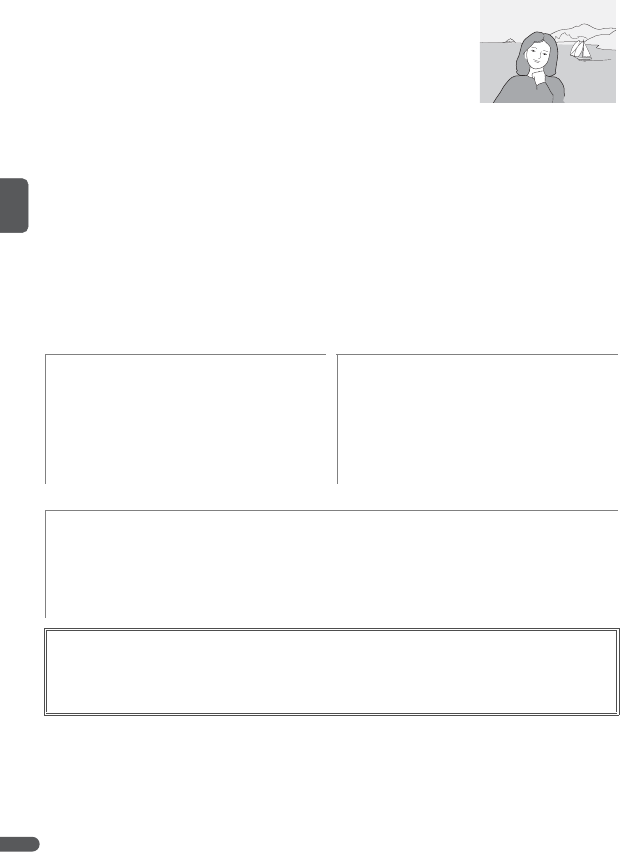
C The Shutter-Release Button
To set focus and exposure, press the shutter-release button about halfway, stopping
when you feel resistance. Focus and exposure lock while the shutter-release button is
held in this position. To release the shutter and take a picture, press the shutter-
release button down the rest of the way. Use a gentle touch; moving the camera
while pressing the shutter-release button can result in blurred pictures.
Set focus and
exposure
Take picture
22 Basic Photography and Playback
Viewing Pictures
Press the G button to display the most recent pic-
ture full-frame in the monitor (full-frame playback).
Use the multi selector to view additional pictures:
press the multi selector down or right to view pic-
tures in the order recorded, up or left to view pictures
in reverse order. Keep the multi selector pressed to
scroll rapidly to the desired picture. Pictures may be
displayed briefly at low resolution while being read
from memory.
If no memory card is inserted in the camera, a q icon is displayed and pictures
are played back from internal memory. If a memory card is inserted, the q icon
will not be displayed and pictures will be played back from the memory card.
Press the G button again or press the shutter-release button to return to shoot-
ing mode when playback is complete.
Deleting Unwanted Pictures
12
Confirmation dialog displayed. Highlight Ye s.*
* To exit without deleting picture, highlight No and press B.
3Delete picture.
Deleting the Last Shot
To delete the most recent picture, press the I button while the camera is in shooting
mode. A confirmation dialog will be displayed; highlight Yes and press B to delete the
last shot taken.
Basic Photography and Playback 23
C Full-Frame Playback
The following operations can be performed during full-frame playback:
C Turning the Camera on in Playback Mode
To turn the camera on in playback mode, press and hold the G button. The most recent
picture will be displayed full-frame in the monitor, but the lens will not extend.
C Viewing Pictures in Internal Memory
Pictures can only be played back from internal memory if no memory card is inserted. If an
empty memory card is inserted, the message “Memory contains no images” will be dis-
played. To view the pictures in internal memory, remove the memory card or use the
Copy option in the playback menu to copy the pictures to the memory card (B 82).
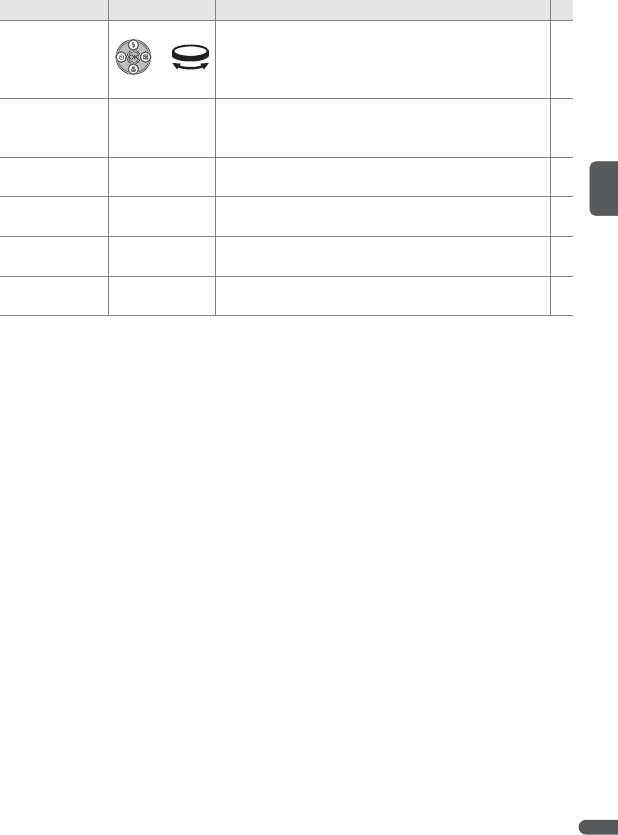
To Use Description B
View other
pictures or
Press multi selector to down or right, or rotate com-
mand dial right, to view pictures in order recorded.
Press multi selector up or left, or rotate command
dial left, to view pictures in reverse order.
—
Zoom picture
in T (O)
Zoom current picture in 3×, with center of picture
displayed in monitor (quick playback zoom). Press
B to return to full-frame playback.
43
View
thumbnails W (M) View multiple pictures. 43
Hide or display
photo info QHide or display photo info in monitor. 8
Record/play
voice memo BRecord or play voice memos of up to 20s in length. 46
Exit to shooting
mode
G or shutter-
release button End playback and return to shooting mode. —
24 Basic Photography and Playback
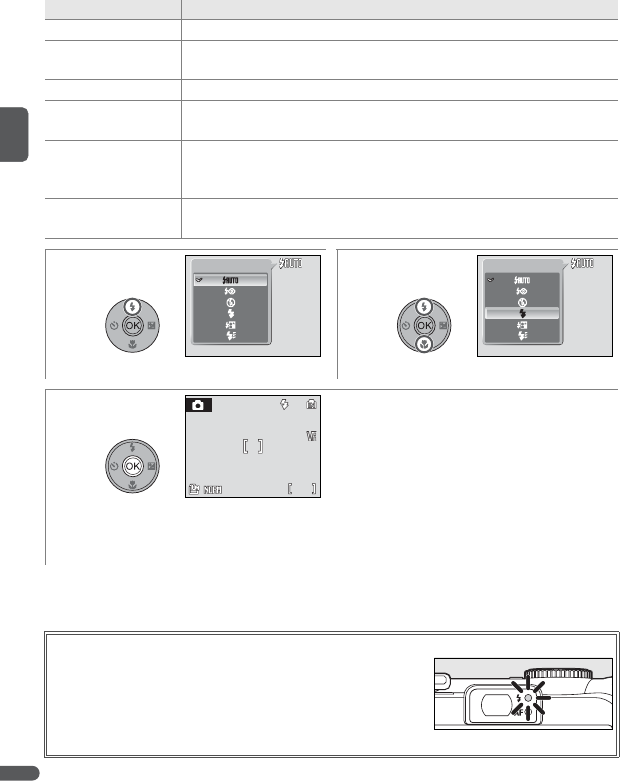
Using the Flash
The flash has a range of 0.3–8m (1–26ft.) when the camera is zoomed all the
way out. The range at maximum zoom is 0.3–4m (1–13ft.). The following flash
modes are available:
Mode Description
SAuto Flash fires automatically when lighting is poor.
VAuto with red-
eye reduction
Advanced red-eye reduction is used to reduce “red-eye” in portraits
(see following page).
UOff Flash will not fire even when lighting is poor.
TFill flash Flash fires whenever picture is taken. Use to “fill in” (illuminate)
back-lit subjects.
WSlow sync
Combines auto flash with slow shutter speeds. Flash illuminates
main subject; slow shutter speeds capture background at night or
under dim light
NRear-curtain
sync
Flash fires just before shutter closes, creating effect of a stream of
light behind moving subjects.
12
Display options. Highlight mode.
3Make selection (to exit without changing
mode, wait five seconds). Selection is
shown by icon in display (if S is selected,
S icon is displayed for five seconds only).
Except in P, S, A, M, and T modes or when
picture has been taken with S or V (auto
with red-eye reduction) selected in U
mode, flash mode is not stored when cam-
era is turned off.
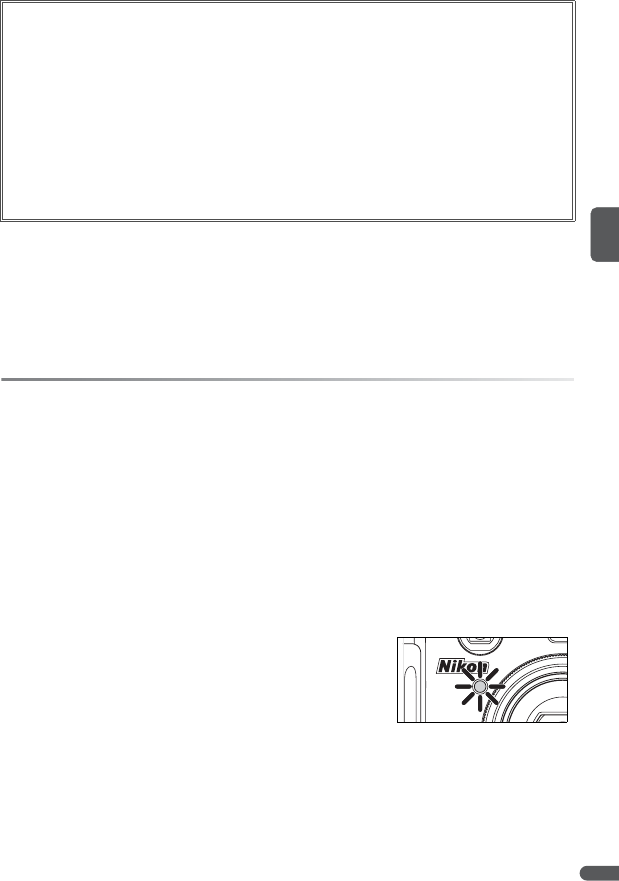
The Flash Lamp
The flash lamp shows flash status when the shutter-release
button is pressed halfway.
•On: Flash will fire when picture is taken.
•Blinks: Flash charging. Wait a few seconds and try again.
•Off: Flash off or not required.
Flash Flash
9
9
91/125
1/125
1/125 F4.3
F4.3
F4.3
Basic Photography and Playback 25
A When Lighting Is Poor
When lighting is poor and the flash is off (U), shutter speeds may slow and pictures may
be blurred. Blur can be reduced by placing the camera on a steady, level surface or by
turning Vibration reduction (B 87) off and using a tripod.
If an ISO icon is displayed, sensitivity has been raised to compensate for poor lighting and
pictures may be affected by “noise” in the form of randomly-spaced, brightly colored dots
(B 71).
A Dust or Mist
Light from the flash reflected from particles of dust or other matter in the air may appear in
pictures as bright specks. If this occurs, turn the flash off and try again.
C The AF-Assist Illuminator
If lighting is poor, the AF-assist illuminator may light to
assist the focus operation when the shutter-release button
is pressed halfway. The illuminator has a maximum range
of about 1.8m/5ft. 11in. (W) to 1m/3ft. 3in. (T). The AF-
assist illuminator is not available in some modes (B 30–33)
and can also be turned off manually (B 87), although in this
case the camera may not focus when lighting is poor.
C Optional Flash Units
See page 93 for information on using optional flash units mounted on the camera acces-
sory shoe. The flash modes available with optional flash units are the same as for the built-
in flash.
Advanced Red-Eye Reduction
This camera uses advanced red-eye reduction (“In-Camera Red-Eye Fix”). The flash fires
repeatedly at low intensity before the main flash, reducing red-eye. The camera then
analyzes the picture; if red-eye is detected, the affected area will be processed to further
reduce red-eye before the picture is saved. Note that because there is a slight lag
between the shutter-release button being pressed and the picture being taken, this
mode is not recommended when a quick shutter response is required. The time before
the next picture can be taken also increases slightly. Advanced red-eye reduction may
not produce the desired results in all situations. In extremely rare instances, areas not
subject to red-eye may be affected by advanced red-eye reduction processing; in these
cases, choose another mode and try again.
26 Basic Photography and Playback
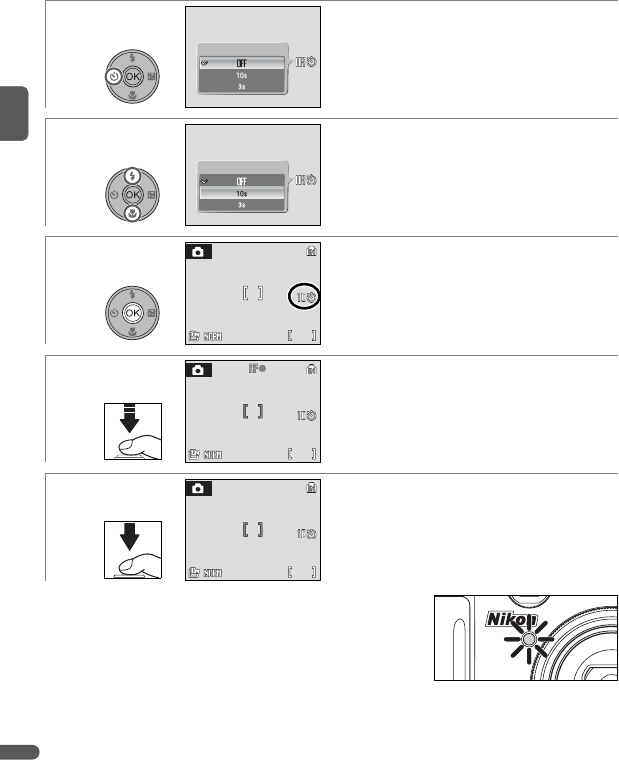
Taking Pictures with the Self-Timer
The camera is equipped with ten- and three-second timers for self-portraits and
to reduce blur. When using the self-timer, mount the camera on a tripod or rest
it on a flat, level surface. Be sure to turn vibration reduction off when using a tri-
pod (B 87).
The self-timer lamp will blink until one second before
the picture is taken, staying lit during the final sec-
ond to warn that the shutter is about to be released.
1Display self-timer menu.
2Highlight option.
• 10s: 10s timer. Use for self portraits.
• 3s: 3s timer. Use to reduce blur.
3Make selection (to exit without changing
mode, wait five seconds). Selection
appears next to Y icon in display.
4Frame picture and press shutter-release
button halfway to set focus and exposure.
5Start timer; display in monitor shows sec-
onds remaining before shutter is released.
To stop timer before picture is taken, press
shutter-release button again.
Self-timer
Self-timer
9
9
91/125
1/125
1/125 F4.3
F4.3
F4.3
9
9
91/125
1/125
1/125 F4.3
F4.3
F4.3
9
9
91/125
1/125
1/125 F4.3
F4.3
F4.3

Basic Photography and Playback 27
Choosing a Focus Mode
Choose a focus mode according to the subject and composition.
Mode Description
ZAutofocus
Camera automatically adjusts focus according to distance to subject.
Use when subject is 30cm/1ft. or more from lens (70cm/2ft. 4in. or
more when camera is zoomed all the way out).
a

28 Basic Photography and Playback
Exposure Compensation
In modes other than M, exposure compensation is used to alter exposure from
the value selected by the camera. Choose from values between –2.0 and +2.0EV
in increments of 1/3EV.
Exposure compensation is not available in mode M.
12
Display options. Select exposure compensation value.
Pictures can be taken at any time.
3Return to shooting display. Selection is
shown by icon. Option last selected in P, S,
A, or T mode is stored when camera is
turned off.
Using Exposure Compensation
The camera tends to lower exposure when the frame is dominated by brightly lit objects
and to increase exposure when the frame is mostly dark. Positive compensation may
therefore be required to capture the brilliancy of very bright objects that fill the frame
(for example, sunlit expanses of water, sand, or snow) or when the background is much
brighter than the main subject. Negative compensation may be called for when large
areas of the frame contain very dark objects (for example, a swath of dark green leaves)
or when the background is much darker than the main subject.
ExitExit
Exit
Exit
Exit
Exit
9
9
91/125
1/125
1/125 F4.3
F4.3
F4.3
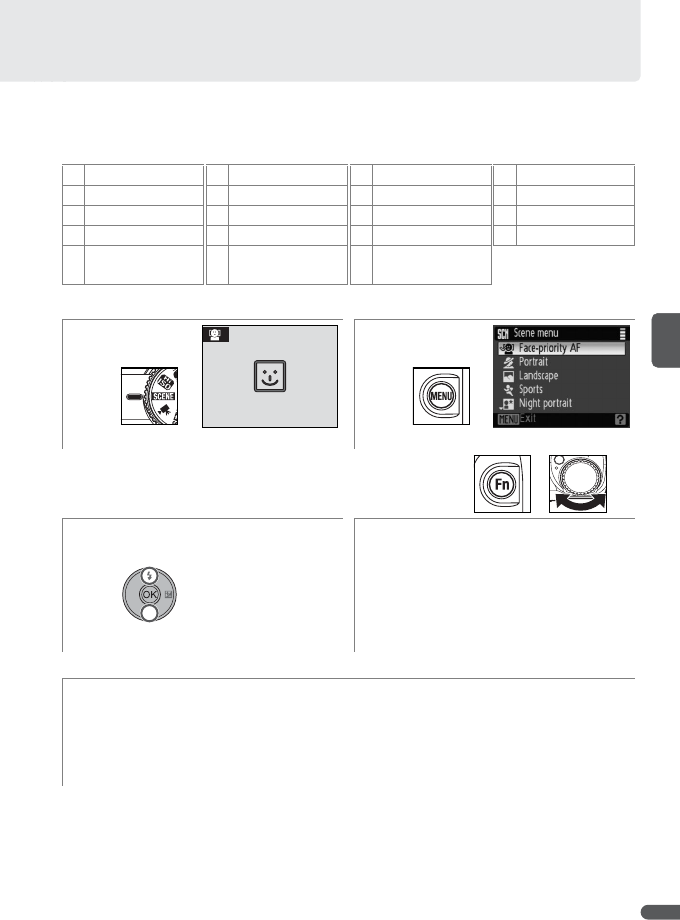
Scene Mode 29
Scene Mode
The camera offers a choice of sixteen scenes. Camera settings are automatically
optimized for the selected subject type. Scene mode can also be used to make
voice recordings (B 51).
To take pictures in scene mode:
KFace-priority AF APortrait BLandscape CSports
DNight portrait EParty/Indoor FBeach/Snow GSunset
HDusk/Dawn INight landscape JClose up KMuseum
LFireworks show MCopy N Back light OPanorama assist
BVoice recording
(B 51)
jImage quality
(B 66)
nImage size
(B 66)
12
Display last selected scene.*Display scene menu.
* To skip Steps 2–4, press A button and rotate command
dial until desired scene is displayed in monitor.
34
Highlight option.†Exit to selected scene.
† To exit without changing scene selection, press F.
5Take pictures.
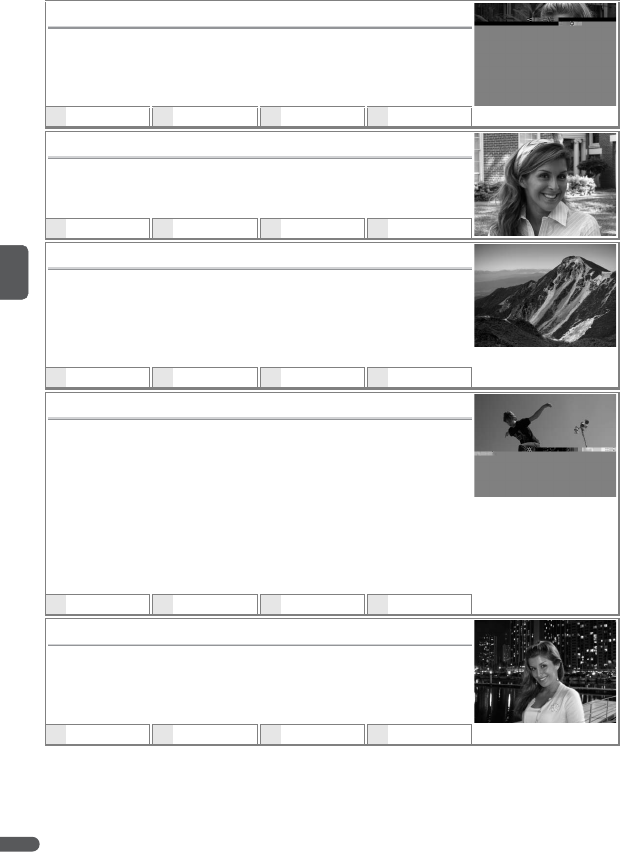
30 Scene Mode
The following scenes are available:
KFace-Priority AF
Frame portrait shots of from one to three subjects from the waist
up (B 34). The camera automatically detects and focuses on the
faces of the subjects.
• Digital zoom is not available.
DV*HOFF*EZb0*
APortrait
Use for smooth, natural-looking portraits. The focus area can be
selected using the multi selector (B 33).
• Digital zoom is not available.
DV*HOFF*EZb0*
BLandscape
Create vivid landscape shots that enhance outlines, colors, and
contrast in such subjects as skyscapes and forests.
• Camera focuses at infinity; AF lamp lights and focus indicator is
displayed in green whenever shutter-release button is pressed
halfway. AF-assist illuminator will not light even if lighting is poor.
DUHOFF*Eab0*
CSports
Freeze action with fast shutter speeds. The camera focuses contin-
uously on the subject in center of frame until the shutter-release
button is pressed halfway to lock focus. While the shutter-release
button fully pressed, the camera shoots up to eight pictures at
about 0.8fps (image quality Normal, image size 3,648×2,736 (j);
frame rate may vary with image quality and size and make of
memory card).
• Focus, exposure, and white balance are determined by first shot in each series.
• AF-assist illuminator will not light even when lighting is poor.
DUHOFF EZb0*
DNight Portrait UJ
Capture background lighting in portraits taken at night or under
low light. The focus area can be selected using the multi selector
(B 33).
• Digital zoom is not available.
DV†HOFF*EZb0*
* Other options can be selected. † Slow-sync fill-flash with red-eye reduction.
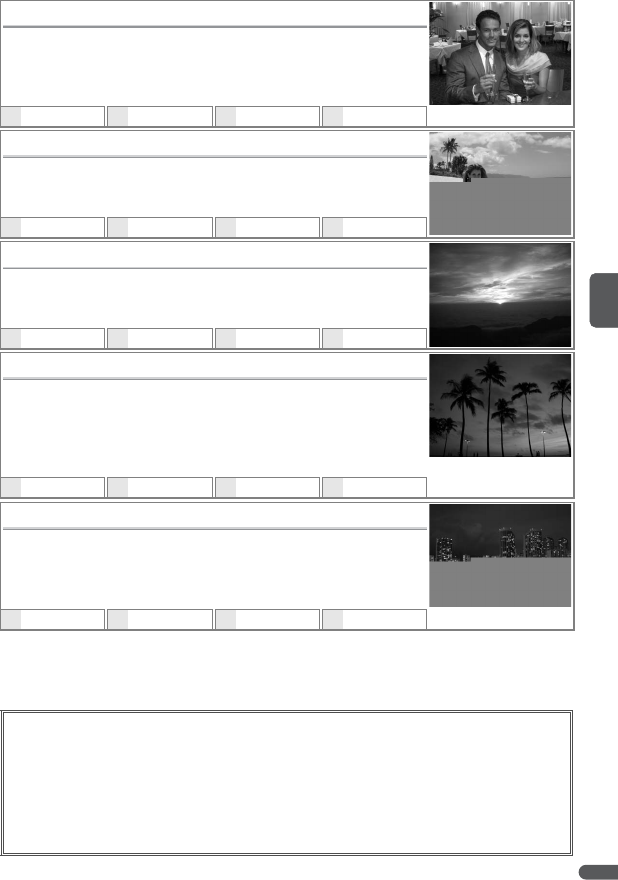
Scene Mode 31
EParty/Indoor
Use for shots that include details of the background, or to capture
the effects of candlelight and other indoor background lighting.
• Camera focuses on subject in center of frame.
• Hold camera steadily in both hands to prevent blur.
DV or W*HOFF*EZb0*
FBeach/Snow
Capture the brightness of such subjects as snowfields, beaches, or
sunlit expanses of water.
• Camera focuses on subject in center of frame.
DS*HOFF*EZb0*
GSunset U
Preserve the deep hues seen in sunsets and sunrises.
• Camera focuses on subject in center of frame.
DU*HOFF*EZb0*
HDusk/Dawn UJ
Preserve colors in the weak natural light before sunrise or after sun-
set.
• Camera focuses at infinity; AF lamp lights and focus indicator is
displayed in green whenever shutter-release button is pressed
halfway. AF-assist illuminator will not light even if lighting is poor.
DUHOFF*Eab0*
INight Landscape UJ
Slow shutter speeds produce stunning night landscapes.
• Camera focuses at infinity; AF lamp lights and focus indicator is
displayed in green whenever shutter-release button is pressed
halfway. AF-assist illuminator will not light even if lighting is poor.
DUHOFF*Eab0*
* Other options can be selected.
Setting Icons
The default flash (D; B 24), self-timer (H; B 26), focus (E; B 27), and exposure compen-
sation (b; B 28) settings for each mode are shown below the scene description. A U
icon to the right of the scene name indicates that a tripod is recommended to avoid
blur at slow shutter speeds. Be sure to turn vibration reduction off when using a tripod.
A J icon indicates that pictures may be processed to reduce noise, resulting in
increased recording times.
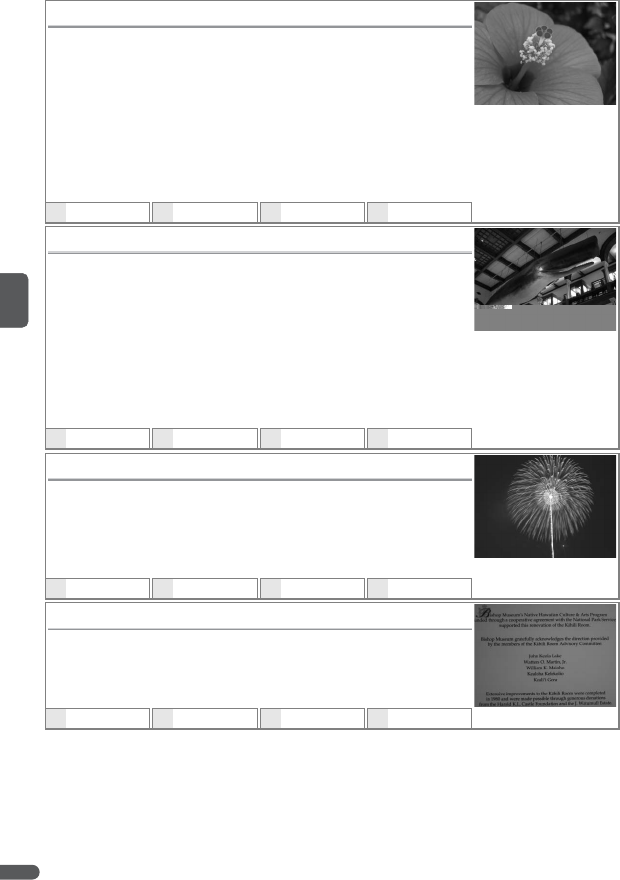
32 Scene Mode
JClose Up
Take close-ups of flowers, insects, and other small objects, with the
background artistically blurred. The camera zooms to the macro
close-up position and the macro close-up icon (E) turns green,
indicating that the camera can focus as close as 4cm (1.6in.) to the
lens (minimum focus distance varies with zoom position). The
focus area can be selected using the multi selector (B 33). The
camera focuses continuously until the shutter-release button is
pressed halfway to lock focus.
• Hold camera steadily in both hands to prevent blur.
DS*HOFF*EE b0*
KMuseum
Use indoors where flash photography is prohibited (for example, in
museums or art galleries) or in other settings in which you do not
wish to use the flash. The AF-assist illuminator turns off and the
camera takes up to ten shots while the shutter-release button is
pressed, using the Best Shot Selector (BSS; B 75) to select the
clearest picture.
• Photography may be prohibited altogether in some settings. Be sure to obtain permis-
sion first.
• Hold camera steadily in both hands to prevent blur.
DUHOFF*EZ†b0*
LFireworks Show U
Slow shutter speeds are used to capture the expanding burst of
light from a firework.
• Camera focuses at infinity; AF lamp lights and focus indicator is
displayed in green whenever shutter-release button is pressed
halfway. AF-assist illuminator will not light even if lighting is poor.
DUHOFF Eab0
MCopy
Provides clear pictures of text or drawings in printed matter or on a
white board. Use macro close-up (B 27) to focus at short ranges.
• Colored text and drawings may not show up well.
• Camera focuses on subject in center of frame.
DU*HOFF*EZ†b0*
* Other options can be selected. † E (macro close-up) can be selected.
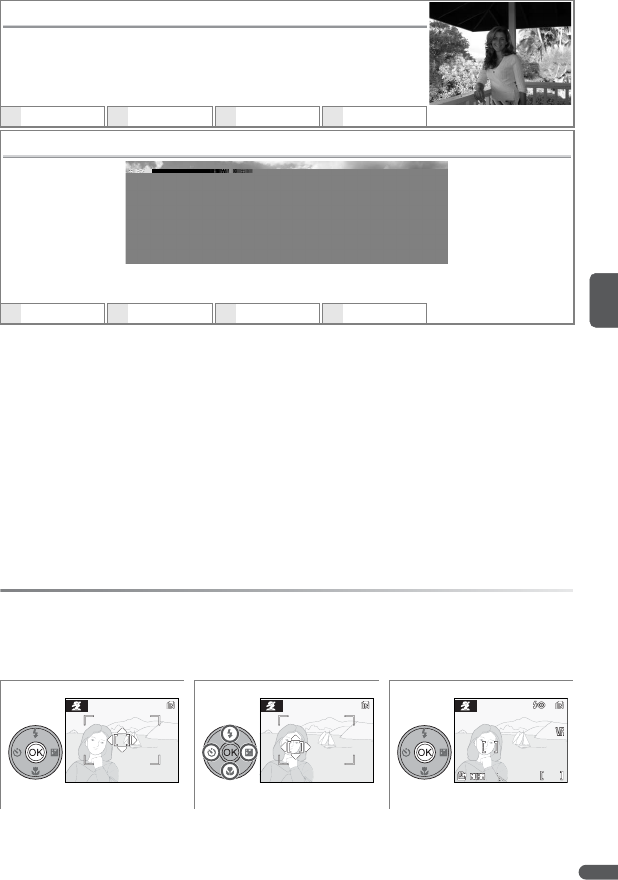
Scene Mode 33
C Focus Area Selection
In A (portrait), D (night portrait), and J (close up) modes, the focus area can be selected
by pressing the B button. Press the multi selector up, down, left, or right to select from 99
focus areas, then press the B button again to return to shooting mode.
NBack Light
Use when light is coming from behind a portrait subject, throwing
their features into shadow. The built-in flash fires automatically to
“fill in” (illuminate) shadows.
• Camera focuses on subject in center of frame.
DDHOFF*EZb0*
OPanorama Assist
Use when taking a series of pictures that will later be joined together in PictureProject to
form a panorama (B 35).
DU*HOFF*EZ*b0*
* Other options can be selected.
123
Display focus area. Select focus area.*Exit to shooting mode.
* To end focus area selection and adjust flash, focus, self-timer, and exposure compensa-
tion settings, press B.
9
9
91/125
1/125
1/125 F4.3
F4.3
F4.3
34 Scene Mode
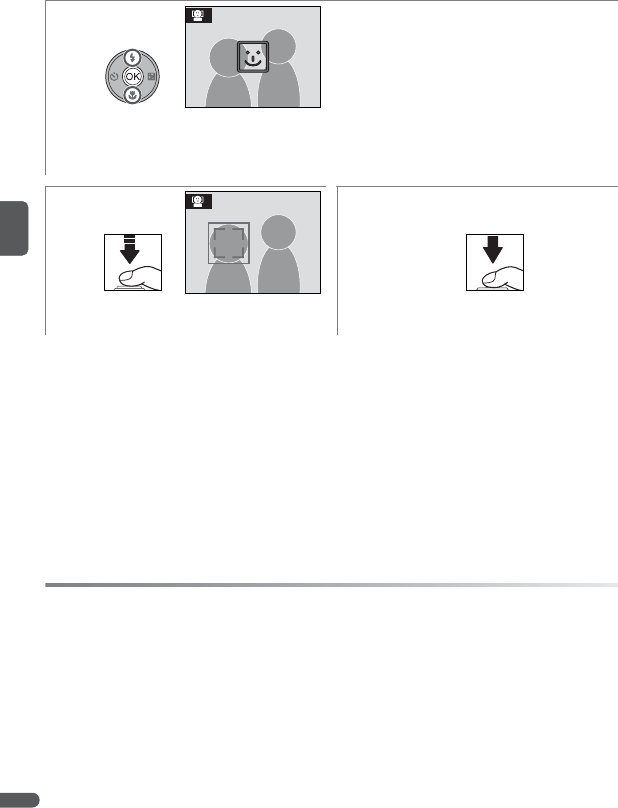
Taking Pictures in Face-Priority AF Mode
When K (face-priority AF) is selected in the scene menu (B 29), a m icon is dis-
played in the center of the monitor. Take pictures as described below.
1Frame picture using m icon as guide.
When camera detects face, m will change
to double yellow border. If camera detects
multiple faces, it will focus on closest sub-
ject; other subjects are indicated by single
border. If camera can no longer detect
subject (for example, because subject has
looked away from camera), borders will no
longer be displayed; recompose picture.
23
Set focus and exposure. Double border
turns green.
Take picture.
A Face-Priority AF
The camera’s ability to detect faces depends on a variety of factors, including whether or
not the subject is facing the camera. The camera may be unable to detect faces that are
hidden by sunglasses or other obstructions or that occupy too much or too little of the
frame. If no face is detected when the shutter-release button is pressed halfway, the cam-
era will focus on the subject in the center of the frame.
The camera will focus continuously until a face is detected. If the double border flashes yel-
low when the shutter-release button is pressed halfway, the camera is unable to focus; re-
lease the button and try again.

Scene Mode 35
Taking Pictures for a Panorama
Selecting O (panorama assist) in the scene menu (B
29) displays the default pan direction as shown at
right. Take pictures as described below. Use a tripod
for better results.
1Select how pictures will be joined together
in completed panorama. This is the direc-
tion in which camera will be panned after
each shot.
2Make selection (to return to Step 1, press B
again). Pan direction displayed in white.
Complete any changes to flash, self-timer,
focus, or exposure compensation settings
before proceeding to next step.
3Take first shot; camera will focus on subject
in center of frame. About one third of pic-
ture is superimposed on view through lens.
AE-L icon turns white to show that white
balance and exposure settings for this pic-
ture apply to all shots in series.
45
Compose next shot to overlap with
previous picture.
Take next shot. Repeat steps 4–5 until all
shots in series have been taken.
6End series. Shooting will also end if new
mode is selected or camera enters standby
mode (B 16).
36 P and T Modes
P and T Modes
P (Anti-Shake) Mode
If the camera or the subject moves while the shutter is open, pictures can be
blurred. In P (anti-shake) mode, vibration reduction (B 87) and BSS (Best Shot
Selector; B 75) turn on and ISO sensitivity (B 71) is raised to a maximum of ISO
1600, reducing blur caused by camera shake when the flash is off or the camera
is zoomed in. Use this mode to capture natural lighting or when shooting sub-
jects at a distance from the camera, for example when taking pictures of animals
or when trying to capture natural expressions on a portrait subject.
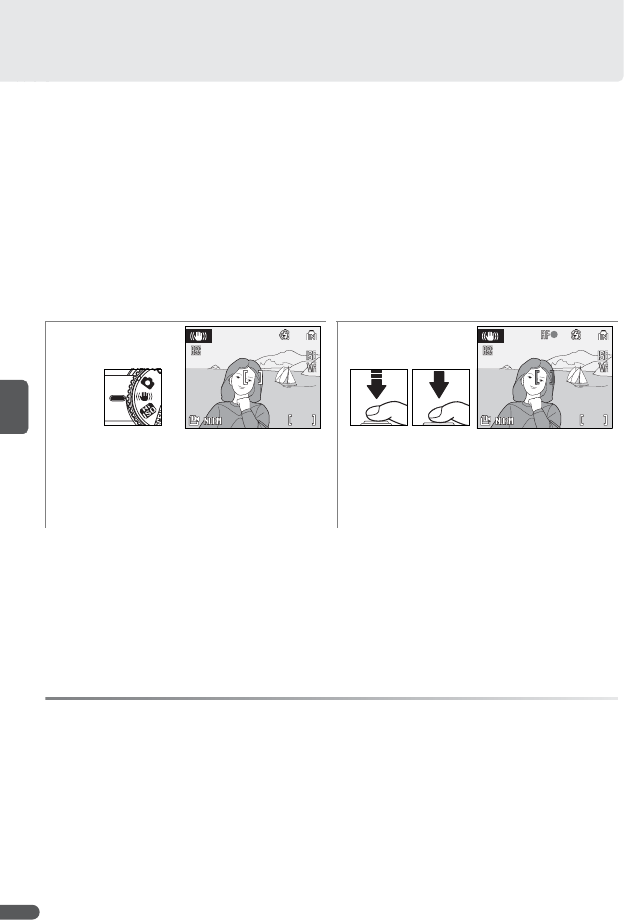
To take pictures in anti-shake mode:
A P (Anti-Shake) Mode
Pictures taken in anti-shake mode may be affected by “noise” in the form of bright, ran-
domly-spaced bright dots. The flash turns off automatically and the self-timer can not be
used. Slower shutter speeds are not available, and consequently T (high sensitivity)
mode is recommended to reduce blur when the subject is dark. Date imprint (B 86) is not
available in anti-shake mode.
C Image Quality and Size
Pressing the F button in P mode brings up a menu that contains options for adjust-
ing image quality (B 66) and size (B 66).
12
Rotate mode dial to P. Focus (camera focuses on subject in cen-
ter focus area) and shoot. Camera takes
up to ten shots while shutter-release
button is pressed and selects clearest
picture (B75).
9
9
91/125
1/125
1/125 F4.3
F4.3
F4.3 9
9
91/125
1/125
1/125 F4.3
F4.3
F4.3
P and T Modes 37
T (High Sensitivity) Mode
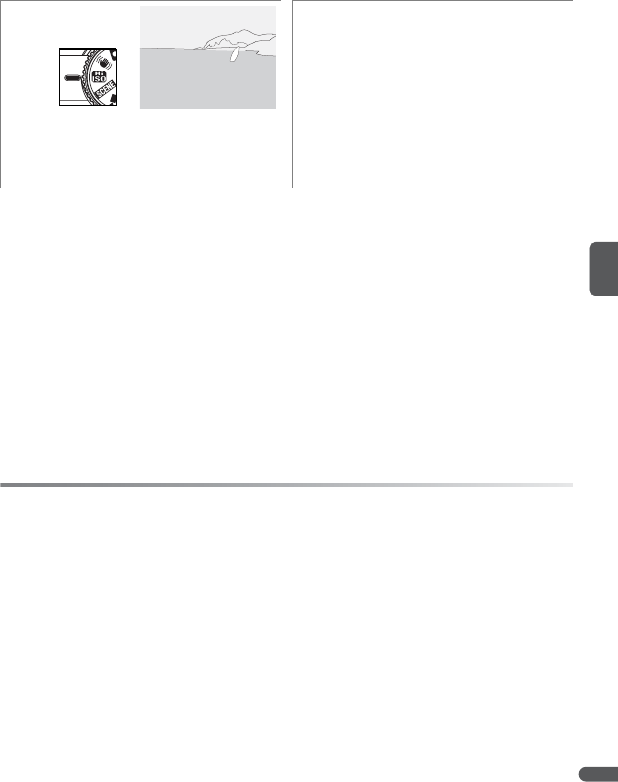
In T (high sensitivity) mode, the camera automatically raises ISO sensitivity to a
maximum of 1600, reducing blur when the subject is moving or poorly lit (B 71).
To take pictures in T mode:
A T (High Sensitivity) Mode
Pictures taken in T mode may be affected by “noise” in the form of randomly-spaced,
brightly-colored dots.
If the subject is poorly lit, shutter speeds will slow and pictures may be blurred. Turn vibra-
tion reduction (B 87) off and use a tripod for best results. The camera may be unable to
focus if the subject is very dark.
C The Shooting Menu
Pressing the F button in T mode brings up a menu of shooting options (B 65). The
ISO sensitivity option in the shooting menu is not available in T mode.
C T (High Sensitivity) Versus P (Anti-Shake)
T (high sensitivity) mode is recommended when shooting indoors or under low light,
P (anti-shake) mode when the flash is off or the camera is zoomed in.
12
Rotate mode dial to T. Take pictures. Camera automatically
compares distances to subjects in nine
focus areas and sets focus and exposure
for closest subject.
38 P, S, A, and M Modes
P, S, A, and M Modes
P, S, A, and M modes offer control over a variety of advanced settings, including
shutter speed, aperture, and white balance.
Mode Description
PProgrammed
auto (B 39)
Camera sets shutter speed and aperture for optimal exposure. Rec-
ommended for snapshots and in other situations in which there is
little time to adjust camera settings.
SShutter-priority
auto (B 40)
User chooses shutter speed; camera selects aperture for best results.
Use to freeze or blur motion.
AAperture-priority
auto (B 41)
User chooses aperture; camera selects shutter speed for best results.
Use to blur background or bring both foreground and background
into focus.
MManual (B 42) User controls both shutter speed and aperture.
C Shutter Speed and Aperture
The same exposure can be achieved with different combinations of shutter speed and
aperture, allowing you to freeze or blur motion and control depth of field. The following
figure shows how shutter speed and aperture affect exposure.
Fast shutter speed: 1/1,000 sSmall aperture (large f-number): f/7.6
Slow shutter speed: 1/30 sLarge aperture (small f-number): f/2.7

P, S, A, and M Modes 39
P: Programmed Auto
In this mode, the camera automatically adjusts shutter speed and aperture for
optimal exposure. To take pictures in programmed auto:
12
Rotate mode dial to P. Take pictures. Camera automatically
compares distances to subjects in nine
focus areas and sets focus and exposure
for closest subject (B 76).
C Flexible Program
In mode P, different combinations of shutter speed and
aperture can be selected by rotating the command dial
(“flexible program”). Rotate the command dial to the right
for large apertures (small f-numbers) that blur background
details or fast shutter speeds that “freeze” motion. Rotate
the command dial to the left for small apertures (large f-
numbers) that increase depth of field or slow shutter
speeds that blur motion. All combinations produce the
same exposure. While flexible program is in effect, an aster-
isk (“*”) appears next to the mode indicator (P) in the moni-
tor. To restore default shutter speed and aperture settings,
rotate the command dial until the indicator is no longer dis-
played, choose another mode, or turn the camera off.
9
9
91/125
1/125
1/125 F4.3
F4.3
F4.3
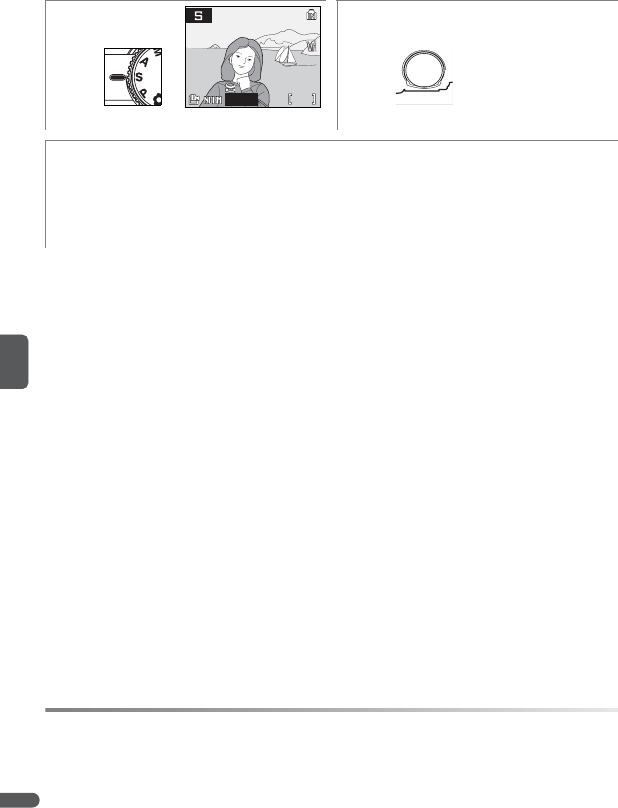
40 P, S, A, and M Modes
S: Shutter-Priority Auto
In shutter-priority auto, you choose the shutter speed from values between 8s
and 1/2,000 s and the camera sets aperture for optimum exposure.
If the selected shutter speed would result in the picture being over- or under-
exposed, the shutter-speed display will flash when the shutter-release button is
pressed halfway. Choose another shutter speed and try again. At speeds slower
than 1/4s, the shutter speed indicator will turn red to show that noise reduction
(B 78) is recommended to reduce “noise” in the form of randomly-spaced,
brightly colored dots.
12
Rotate mode dial to S. Choose shutter speed.
3Take pictures. Camera automatically com-
pares distances to subjects in nine focus
areas and sets focus and exposure for clos-
est subject (B 76).
A Shutter Speed
A shutter speed of 1/2,000 s is only available when the camera is zoomed all the way out.
Aperture is restricted to f/7.6.
9
9
91/125
1/125
1/125 F4.3
F4.3
F4.3
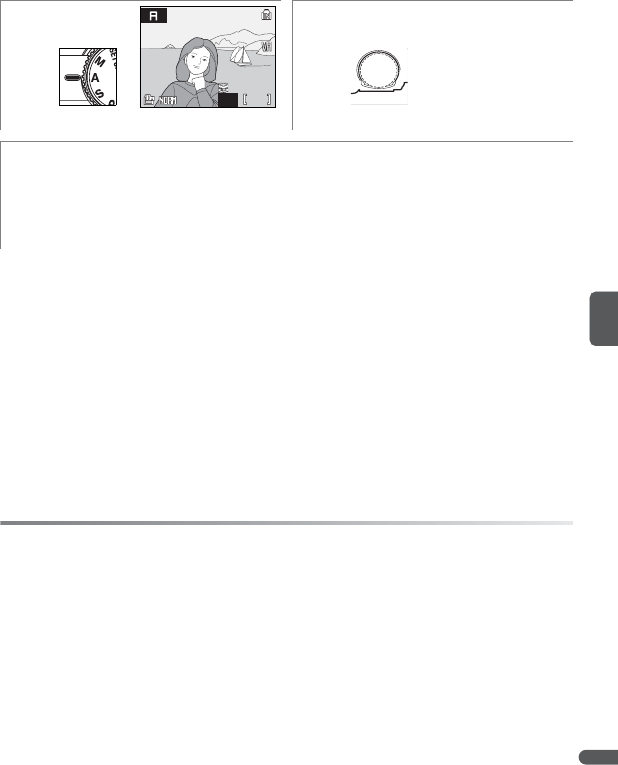
P, S, A, and M Modes 41
A: Aperture-Priority Auto
In aperture-priority auto, you choose the aperture and the camera sets shutter
speed for optimum exposure. When the camera is zoomed all the way out,
aperture can be set to values between f/2.7 and f/7.6; at maximum zoom, aper-
ture can be set to values between f/5.3 and f/7.3.
If the selected aperture would result in the picture being over- or under-
exposed, the aperture display will flash when the shutter-release button is
pressed halfway. Choose another aperture and try again.
C Aperture and Zoom
Aperture is expressed as an f-number, which is the ratio of the focal length of the lens to
the effective diameter of the opening (aperture) through which light enters the camera.
Large apertures (expressed by small f-numbers) let more light into the camera, small aper-
tures (large f-numbers) less. When the camera is zoomed out, the focal length of the lens
diminishes and the f-number decreases. When the camera is zoomed in, the focal length
and f-number increase. In modes A and M, this effect can be minimized by selecting On for
Fixed aperture (B 78).
The COOLPIX P5000 has a lens with a focal length of 7.5–26.3mm and an aperture of f/2.7
to f/5.3.
12
Rotate mode dial to A.Choose aperture.
3Take pictures. Camera automatically com-
pares distances to subjects in nine focus
areas and sets focus and exposure for clos-
est subject (B 76).
9
9
91/125
1/125
1/125 F4.3
F4.3
F4.3

42 P, S, A, and M Modes
M: Manual
In mode M, the user controls both shutter speed and aperture.
C The Exposure Display
The exposure display, which is displayed for a few seconds
each time aperture or shutter speed is adjusted, shows the
amount exposure deviates from the value selected by the
camera in EVs (–2 to +2EV in increments of 1/3EV). The dis-
play at right indicates that the picture will be underexposed
by –1EV.
1Rotate mode dial to M.
2Select shutter speed or aperture. Selected
item changes each time multi selector is
pressed to right.
3Set selected item. Exposure display shows
amount pictures will over- or under-
exposed at current settings (see below).
Shutter speeds slower than 1/4s are dis-
played in red (B 40). Shutter speed of
1/2,000 s is only available if camera is zoomed
all the way out and aperture is set to f/7.6.
4Select remaining item (aperture or shutter
speed). Repeat steps 3–4 until desired
exposure is achieved.
5Take pictures. Camera automatically com-
pares distances to subjects in nine focus
areas and sets focus and exposure for clos-
est subject (B 76).
U
n
d
erexpose
dO
verexpose
d
–2 ±0 +2
–1 +1
(Values in EVs)
9
9
91/125
1/125
1/125 F4.3
F4.3
F4.3
9
9
91/125
1/125
1/125 F4.3
F4.3
F4.3
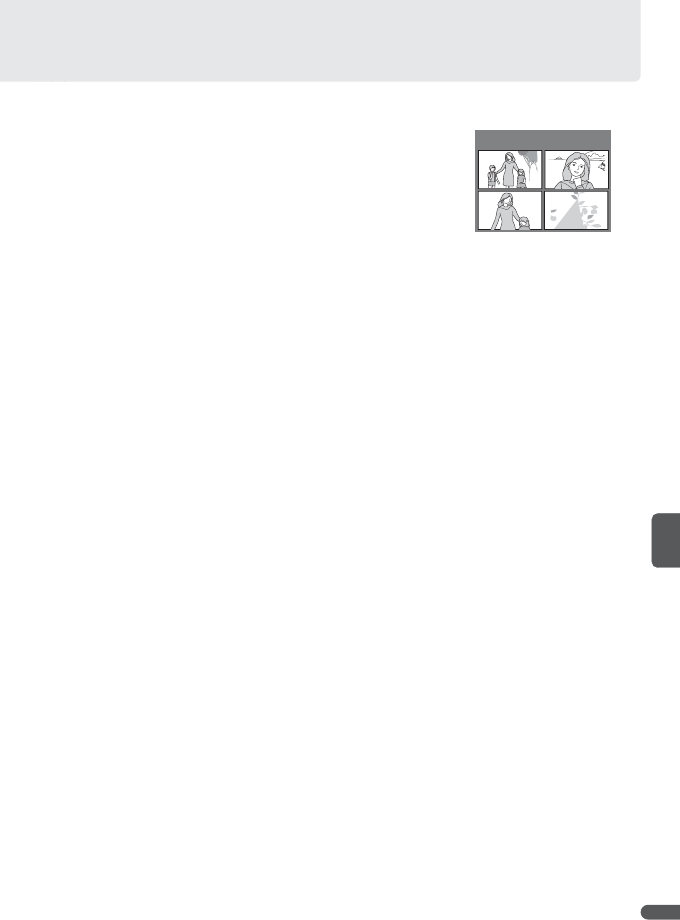
More on Playback 43
More on Playback
Viewing Multiple Pictures: Thumbnail Playback
Pressing the zoom control to W (M) in full-frame
playback (B 22) displays pictures in “contact sheets”
of four, nine, or sixteen thumbnail images. The fol-
lowing operations can be performed while thumb-
nails are displayed:
In displays of four or nine thumbnails, protected pic-
tures are identified by a y, pictures selected for trans-
fer by a z. Movies are identified by a movie frame.
Taking a Closer Look: Playback Zoom
Pressing the zoom control to T (O) during full-frame
playback (B 22) zooms the current picture in 3×,
with the center of the picture displayed in the
monitor (quick playback zoom). The following
operations can be performed while pictures are
zoomed in:
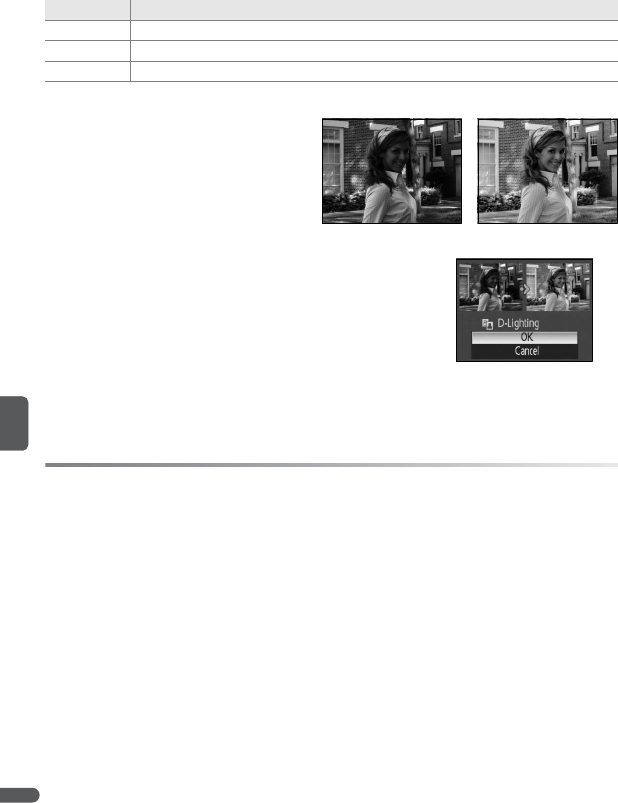
44 More on Playback
Creating Retouched Copies
The following options can be used to create retouched copies of the pictures in
internal memory or on the memory card.
Enhancing Contrast: D-Lighting
Copies created using D-Lighting are
processed to enhance contrast and
brightness in dark areas of the pic-
ture, brightening dark and backlit
subjects.
After selecting a picture in full-frame or thumbnail
playback, press the F button and select D-Light-
ing from the playback menu (B 80). A confirmation
dialog will be displayed; highlight OK and press B to
create an enhanced copy of the selected picture.
During playback, pictures created with D-Lighting
are indicated by an icon (B 5).
Option Description
D-Lighting Create copies with enhanced contrast and brightness in shadows.
Crop Create cropped copies.
Small picture Create small copies.
C Copies
Copies are independent of the originals: deleting the copy has no effect on the original,
deleting the original no effect on the copy. Copies are created with the same transfer
marking and date and time of recording as the original, but any subsequent changes to
transfer marking or to protect and print attributes must be made separately.
Copies can not be created from pictures with a size of 3,648 ×2,432 (h) or 3,584 ×2,016 (9).
The camera may be unable to make copies of pictures that were created with other types
of camera or that have been modified on a computer. Copies may not display or transfer
correctly when viewed on other types of camera.
The crop and small picture options can not be used with copies created with crop or small
picture; D-Lighting is not available with copies created with crop, D-Lighting, or small pic-
ture. D-Lighting can be applied before using crop or small picture to create additional cop-
ies; note, however, that each option can only be applied once.
See the Appendix for information on how copies are stored (B 106).
Before After
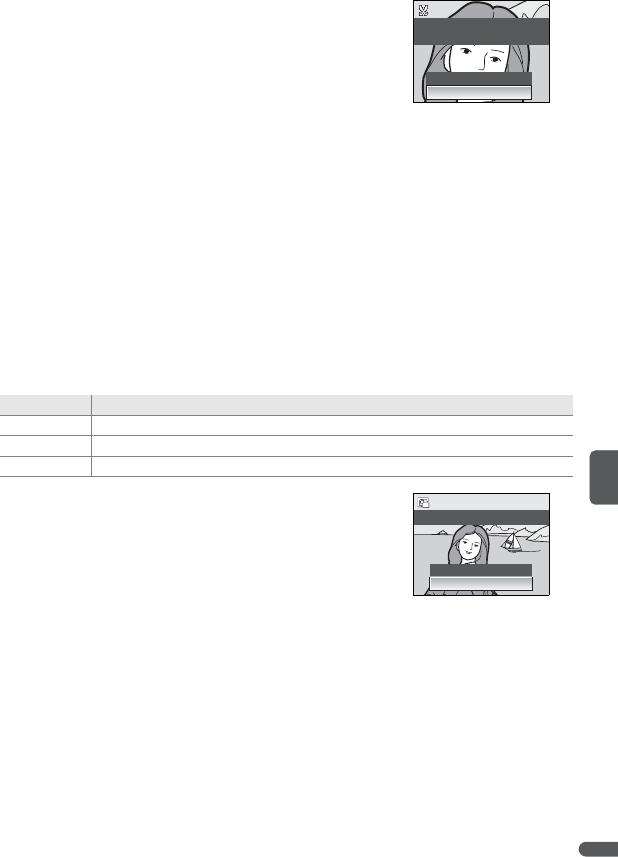
More on Playback 45
Creating a Cropped Copy
If a y icon is displayed in the monitor during play-
back zoom (B 43), the portion of the picture cur-
rently visible in the monitor can be saved to a
separate file. Pressing the F button displays the
dialog shown at right; highlight Yes and press B to
create a new picture containing only the area visible
in the monitor.
Cropped copies are stored as JPEG files with a compression ratio of 1:8.
Depending on the size of the original and the zoom ratio at the time the copy
was created, copies will be 2,592×1,944 (f), 2,272×1,704 (Z), 2,048×1,536 (g),
1,600×1,200 (e), 1,280×960 (d), 1,024×768 (i), 640×480 (k), 320×240 (u),
or 160×120 (t) pixels in size. Sizes of 320×240 and 160×120 are indicated by a
gray border during playback.
Creating Small Copies: Small Pic.
To create small copy of the picture currently selected in full-frame or thumbnail
playback, press the F button and select Small pic. from the playback menu
(B 80). The following options will be displayed; highlight a size and press B.
A confirmation dialog will be displayed; highlight
Yes and press B. Copies are stored as JPEG files with
a compression ratio of 1:16. Copies are indicated by
a gray border and in full-frame playback by a v, u, or
t icon (B 5).
Option Description
v640×480 Suited to television playback.
u320×240 Suited to display on web pages.
t160×120 Suitable for e-mail.
Save this image
Save this image
as displayed?
as displayed?
Save this image
as displayed?
No
Yes
Yes
No
Create small picture file?
Create small picture file?
Create small picture file?
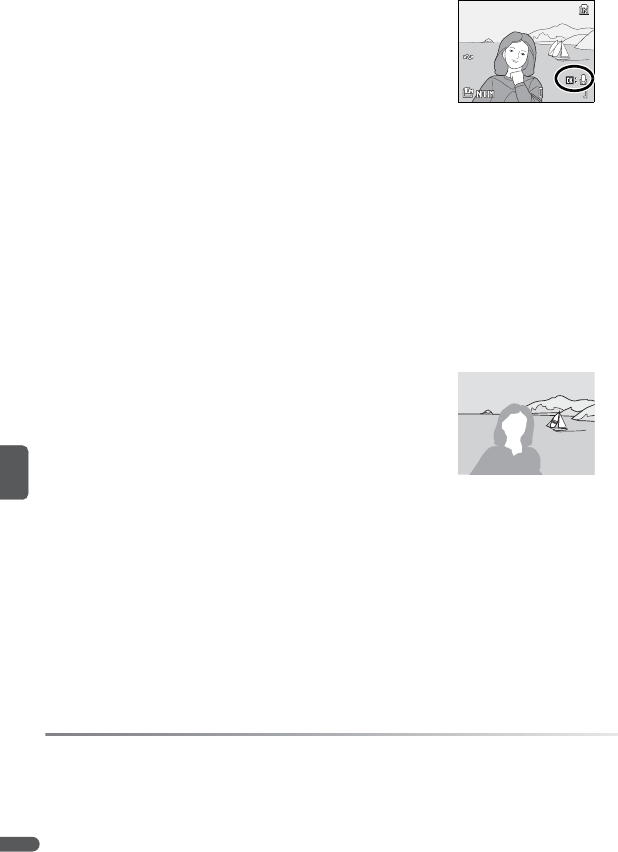
46 More on Playback
Voice Memos: Recording and Playback
The built-in microphone (B 2) can be used to record
voice memos for pictures marked with a x icon in
full-frame playback (B 22).
Recording Voice Memos
To record a voice memo, press and hold the B button. REC and g icons will
flash. Recording ends after about 20 seconds or when the button is released.
Do not touch the microphone during recording. Note that if a voice memo
already exists for the current picture, it must be deleted before a new voice
memo can be recorded.
Playing Voice Memos
During playback, pictures to which a voice memo has been appended are indi-
cated by z and g icons. Press B to start and stop playback. Use the zoom
control to adjust volume: select W to lower volume, T to increase.
Deleting Voice Memos
To delete the voice memo for the current picture,
press the I button. The dialog shown at right will be
displayed; press the multi selector up or down to
highlight an option and press B to select.
•No: Exit without deleting the picture or voice memo.
•g: Delete voice memo only.
•Yes: Delete both picture and voice memo.
A Voice Memos
Voice memos can not be added to movies or to pictures created with other types of cam-
era. Voice memos recorded using other types of camera can not be played back on the
COOLPIX P5000. See the Appendix for more information on voice memos (B 106).
15/05/2007 15:30
15/05/2007 15:30
15/05/2007 15:30
0004.JPG
0004.JPG
4/
4/ 4
0004.JPG
4/ 4
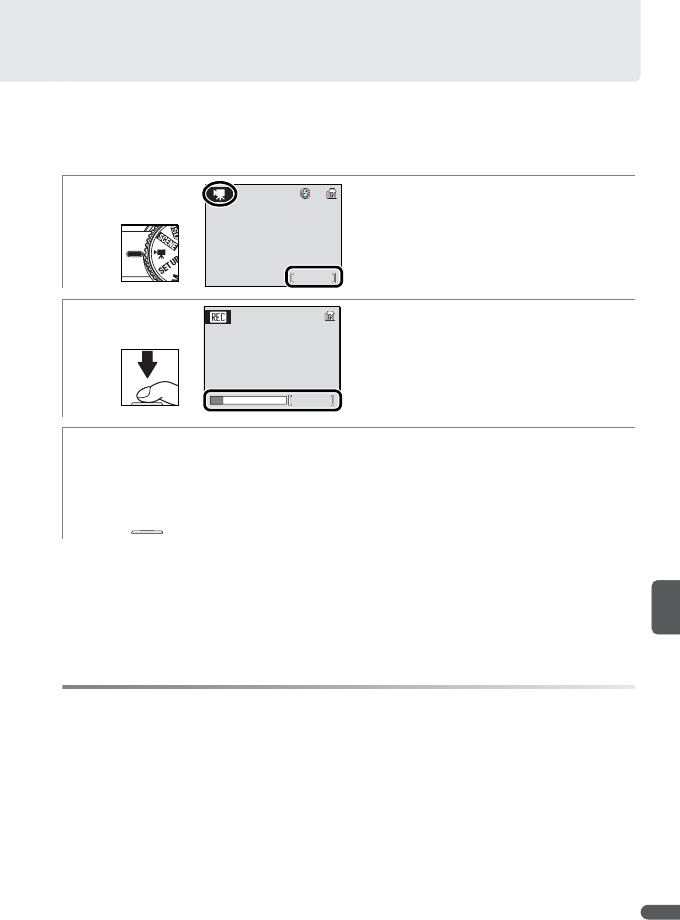
Movies 47
Movies
Recording Movies
Follow the steps below to shoot movies with sound recorded via the built-in
microphone (for information on recording time-lapse movies, see page 49).
A Movies
See the Appendix for information on movie menu defaults (B 104) and on how movie files
are stored (B 106).
The self-timer is not available in movie mode. In all modes except Time-lapse movie,
the flash will turn off and exposure compensation can not be used. Optical zoom can not
be adjusted during recording; digital zoom is available to a maximum of 2×.
If the camera is pointed at the sun or other bright light source during recording, vertical
comet-like streaks (“smear”) may appear in the movie. Avoid pointing the camera at bright
light sources while filming movies.
1Rotate mode dial to p and select desired
movie option (B 48). Exposure count dis-
play shows length of movie that can be
recorded.
2Press shutter-release button all the way
down to start recording (camera will focus
on subject in center of frame). Progress
bar shows amount of memory remaining.
Avoid touching microphone during
recording.
3Press shutter-release button all the way
down a second time to end recording.
Recording will end automatically when
memory is full or movie reaches file size of
2GB.
1m17s
1m17s
1m17s
57s
57s
57s

48 Movies
The Movie Menu
Pressing the F button in movie mode displays the movie menu.
To choose a movie option without displaying the
movie menu, press the A button and rotate the
command dial until the desired setting is displayed
in the monitor.
The following table lists the approximate maximum length of movies that can
be recorded to internal memory or to a 256MB memory card.
* All figures are approximate. Actual length may vary with make of memory card and type
of scene recorded. If more than 2GB of memory are available, camera shows recording
time available for 2GB file.
Option Description
Movie
options
Choose type of movie that will be recorded from:
•w TV movie 640: Movie will be recorded at 30
frames per second (fps); each frame is 640×480
pixels in size.
•q TV movie 640: 15fps; frame size 640×480.
•p Small size 320: 15fps; frame size 320×240.
•t Smaller size 160: 15fps; frame size 160×120.
•v Time-lapse movie: Camera takes up to 1,800 stills at specified intervals and
joins them into silent movie up to 60s long. Use for time-lapse movies of such
subjects as flowers opening or butterflies emerging from cocoons (B 49).
•k Sepia movie 320: Record sepia movies at 15fps; frame size 320×240.
•l B&W movie 320: Record black-and-white movies at 15fps; frame size 320×240.
Auto-
focus
mode
Choose from:
•D Single AF: Camera focuses on subject in center of frame when shutter-release
button is pressed halfway and locks at this position during shooting, prevent-
ing sound of camera focusing from interfering with recording.
•C Full-time AF: Camera constantly adjusts focus for subject in center of frame,
even when shutter-release button is not pressed.
Movie option Internal memory (21MB) 256MB memory card*
wTV movie 64019s 3min. 40s
qTV movie 640 39s 7min. 20s
pSmall size 320 1min. 17s 14min. 30s
tSmaller size 160 4min. 16s 48min.
vTime-lapse movie233 frames 1800 frames
kSepia movie 320 1min. 17s 14min. 30s
lB&W movie 320 1min. 17s 14min. 30s

Movies 49
Recording Time-Lapse Movies
Selecting Time-lapse movie from the movie options menu (B 48) displays
the menu shown in Step 1, below.
A Time-Lapse Movies
Adjust flash mode, focus mode, and exposure compensation before shooting begins. To
prevent loss of power during recording, use a fully-charged battery or optional EH-62A AC
adapter kit. Do not rotate the mode dial to a different setting during recording.
12
Choose interval between shots. Select and exit to movie options menu.
Press F button to exit menu.
3Press shutter-release button all the way
down to start recording. Camera will take
pictures at specified interval until shutter-
release button is pressed again, memory is
full, or 1,800 frames have been recorded.
Monitor turns off and power-on lamp
blinks between shots.
233
233
233

50 Movies
Movie Playback
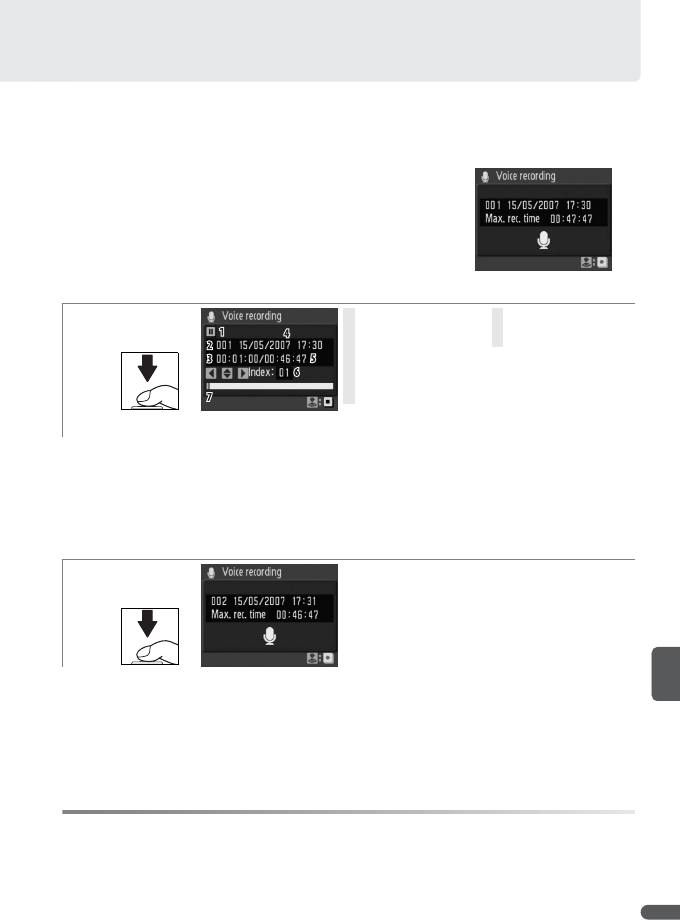
Voice Recordings 51
Voice Recordings
Audio voice recordings can be recorded over the built-in microphone and
played back over the built-in speaker.
Making a Voice Recording
To make a voice recording, rotate the mode dial to
S and select B in the scene menu (B 29). The
length of the recording that can be made will be dis-
played as shown at right.
1
Press shutter-release button all the way down to start recording.*
* AF lamp lights while recording is in progress. Camera will enter stand-by mode (B 16)
after about 30s; press G to reactivate display. To pause recording, press B; AF lamp will
blink. Press again to resume.
† To create index, press multi selector up, down, left, or right during recording. Camera can
skip to any index during playback. Start of recording is index number 01; other numbers
are assigned in ascending order, to maximum of 98.
2Press shutter-release button all the way
down a second time to end recording.
Recording will end automatically after five
hours or when no more memory is avail-
able.
A Voice Recordings
See the Appendix for information on how voice recordings are stored (B 106).
The COOLPIX P5000 may be unable to play or copy sound files created with other devices.
1Pause icon
2File number
3Length of recording
4Date of recording
5Time remaining
6Index number
†
7Progress indicator
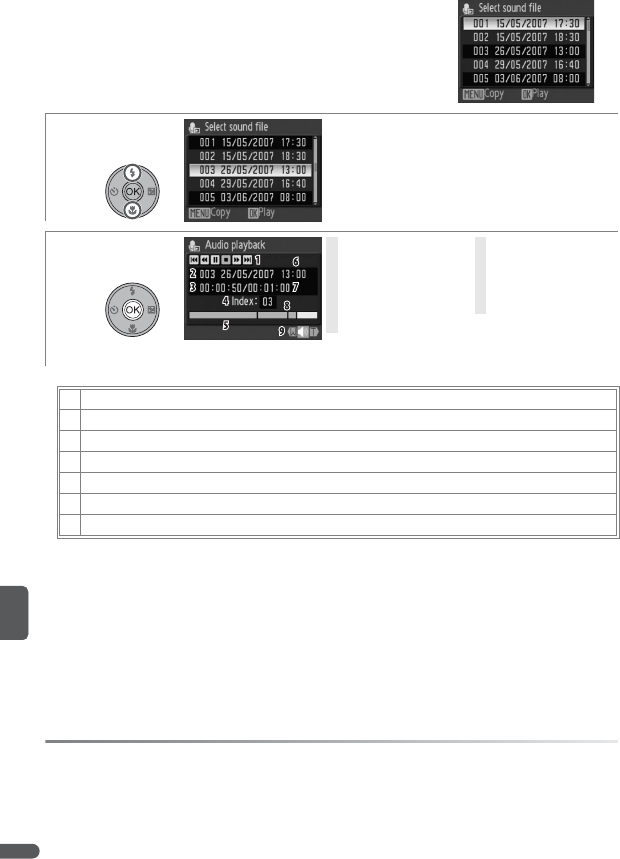
52 Voice Recordings
Playing Voice Recordings
To play voice recordings, select B in the scene menu
(B 29) and press the G button. A list of recordings
will be displayed as shown at right.
* Press multi selector left or right to highlight control, press B to select.
Recordings can also be advanced or rewound by rotating command dial.
† Zoom control controls volume. Select W to lower volume, T to increase.
A “No Sound File”
If the memory card contains no voice recordings, the message “No sound file” will be dis-
played when the G button is pressed. To copy voice recordings from internal memory to
the memory card, press the F button and follow the instructions on page 53.
1Select recording.
2
Play recording. To delete recording, press I.
3Pause playback.
8Resume playback.
2Advance recording. Playback resumes when B button is released.
1Rewind recording. Playback resumes when B button is released.
7Go back to previous index.
6Skip to next index.
9End playback and return to voice recording list.
1Control icons
*
2File number
3Playback time
4Index number
5Progress indicator
6Date of recording
7Length of recording
8Index
9Volume †
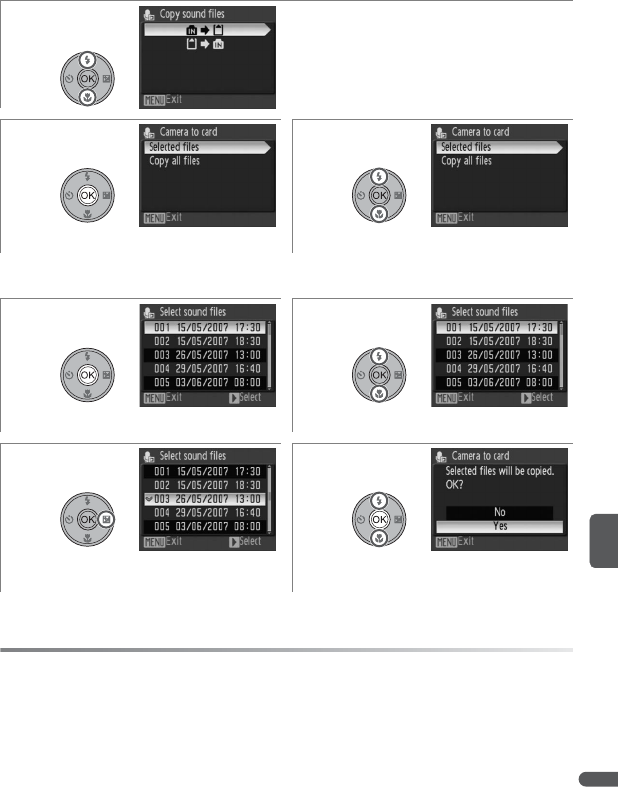
Voice Recordings 53
Copying Voice Recordings
If a memory card is inserted, voice recordings can be copied between internal
memory and the memory card by pressing the F button while the recording
list is displayed (see previous page).
1Highlight option.
• q→Q: Copy recordings from internal
memory to memory card.
• Q→q: Copy recordings from memory
card to internal memory.
23
Display menu of copy options. Highlight Selected files.*
* To copy all voice recordings, highlight Copy all files and press B. Confirmation dialog
will be displayed; highlight Ye s and press B.
45
Display list of voice recording files. Highlight file.
67
Selected files shown by S. Repeat steps
5–6 to select additional files.†
Confirmation dialog displayed. To copy
files, highlight Ye s and press B.
† To deselect file, highlight and press multi selector right.
A Copying Voice Recordings to a Computer
PictureProject can not be used to transfer or play voice recordings. Select Interface>
Mass storage for USB in the camera setup menu, copy the files manually, and play them
back using QuickTime or another WAV-compatible audio player. Note that index points
can not be used when voice recordings are played back on another device.

54 Connecting to Televisions, Computers, and Printers
Connecting to Televisions, Computers, and Printers
In addition to viewing pictures on the camera, you can:
• View pictures on TV (B 55)
• Copy pictures to a computer for storage and editing (B 56–59)
• Print pictures on a home printer (B 60–63) or order prints from a photofinisher
Before connecting the camera to another device, it may be necessary to change
the interface settings in the setup menu (B 89). To prevent the camera from
turning off unexpectedly, use a fully-charged battery or an optional EH-62A AC
adapter kit.
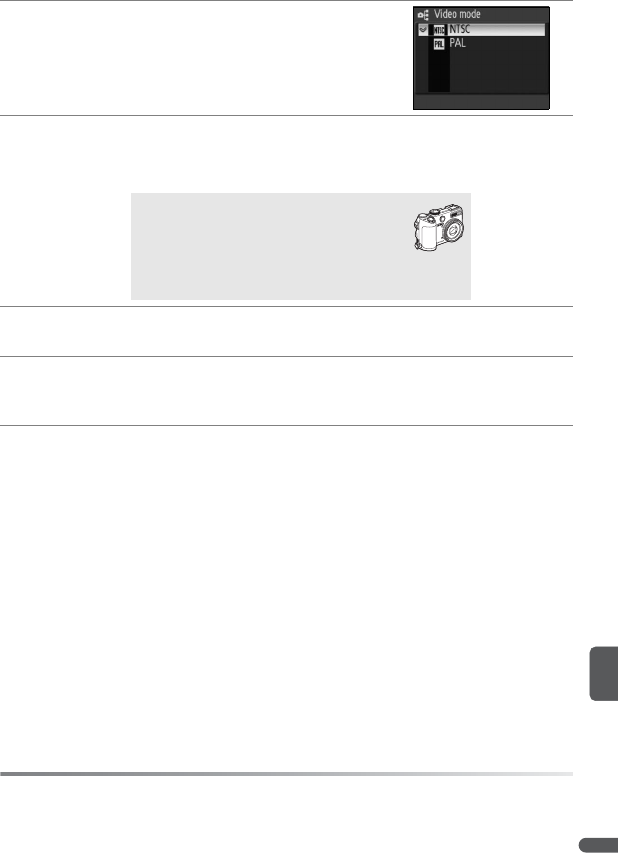
Connecting to Televisions, Computers, and Printers 55
Viewing Pictures on TV
1Check that the option selected for Interface>
Video mode matches the video device (B 89),
and then turn the camera off.
2Connect the camera to the TV using the supplied EG-CP14 A/V cable. Con-
nect the black plug to the camera, the yellow plug to the video-in jack on
the TV, and the white plug to the audio-in jack.
3Tune the television to the video channel. If in doubt, consult the documen-
tation for the TV.
4Press and hold the G button to turn the camera on. The camera monitor
will remain off and the television will show the image normally displayed in
the monitor.
D Connecting Cables
Do not use force or attempt to insert or remove the connectors at an angle.
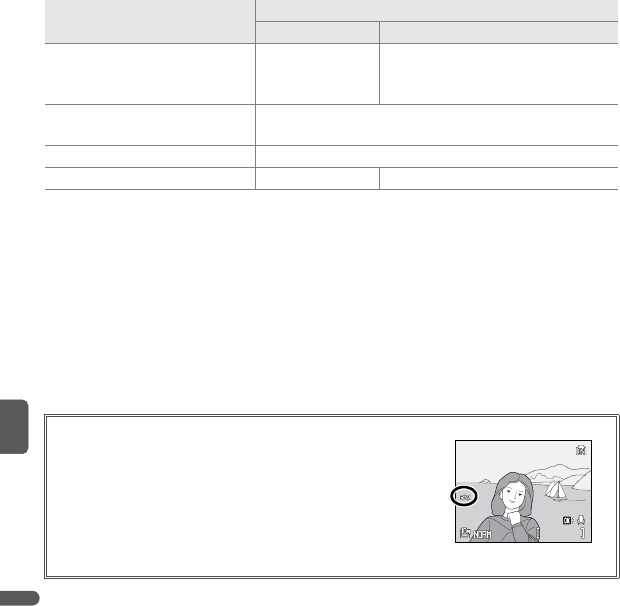
56 Connecting to Televisions, Computers, and Printers
Viewing Pictures on a Computer
The camera can be connected to a computer using the supplied USB cable. The
supplied PictureProject software can then be used to copy pictures to the com-
puter, where they can be organized, retouched, and printed.
Before Connecting the Camera
Install PictureProject from the supplied installer CD. For more information on
installing and using PictureProject, see the Quick Start Guide and reference CD.
The appropriate USB option must be selected in the camera setup menu before
the camera can be connected a computer or printer (B 57). When connecting
to a computer, select a USB option according to the computer operating system
and how pictures will be transferred.
* Can not be used to transfer pictures if memory card is locked (B 15) or if Mass storage
is selected for Interface>USB and no memory card is inserted. Use PictureProject
Transfer button.
†Do
NOT select MTP/PTP. If MTP/PTP is selected when camera is connected, wait until
Windows hardware wizard is displayed, then click Cancel and disconnect camera. Select
Mass storage in camera USB menu before reconnecting camera.
When connecting to a printer (B 61), set USB to MTP/PTP.
Computer operating system
Pictures transferred using
Camera B button*PictureProject “Transfer” button
Windows Vista (32-bit Home
Basic/Home Premium/Business/
Enterprise/Ultimate editions)
Choose Mass
storage.Choose MTP/PTP or Mass storage.
Windows XP
(Home Edition/Professional) Choose MTP/PTP or Mass storage.
Windows 2000 Professional Choose Mass storage.†
Mac OS 10.3.9 or 10.4.x Choose MTP/PTP. Choose MTP/PTP or Mass storage.
Marking Pictures for Transfer
Pictures marked for transfer are shown by a Y icon during
playback. By default, all pictures are automatically marked
for transfer. Two options control transfer marking:
•Interface>Auto transfer (setup menu): Choose On to
mark all new pictures for transfer (B 89).
•Transfer marking (playback menu): Change marking
for existing pictures (B 82).
15/05/2007 15:30
15/05/2007 15:30
15/05/2007 15:30
0004.JPG
0004.JPG
4/
4/ 4
0004.JPG
4/ 4

Connecting to Televisions, Computers, and Printers 57
Follow the steps below to choose a USB option.
12
Rotate mode dial to R. Highlight Interface.
34
Display options. Highlight USB.
56
Display USB options. Highlight desired option.
7Select option. Rotate mode dial to differ-
ent setting to exit setup menu.
58 Connecting to Televisions, Computers, and Printers
Transferring Pictures to a Computer
1Start a computer to which PictureProject has been installed.
2Turn the camera off.
3Connect the camera to the computer using the supplied USB cable.
4Turn the camera on. PictureProject will start.
5Press B to transfer all marked pictures to the
computer.* The following messages will be dis-
played:
* Note that the B button can not be used to transfer pictures if the memory card is
locked (B 15) or if Mass storage is selected for Interface>USB and no memory
card is inserted. Transfer pictures using the PictureProject Transfer button (see
below).
6The pictures will be displayed in PictureProject when transfer is complete.
Disconnect the camera as described on the following page.
The PictureProject Transfer Button
To copy both marked and unmarked pictures to the com-
puter, click the PictureProject Transfer button instead of
pressing B in Step 5. See the Quick Start Guide or the
PictureProject reference manual (on CD) for details.
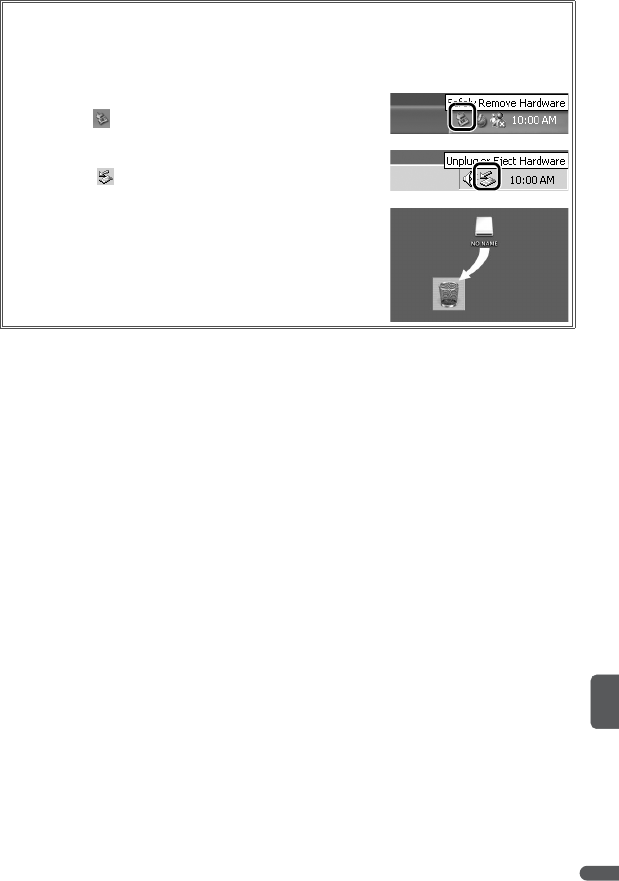
Connecting to Televisions, Computers, and Printers 59
Disconnecting the Camera
If MTP/PTP is selected for USB, turn the camera off and disconnect the USB cable.
If Mass storage is selected for USB, remove the camera from the system as described be-
low before turning the camera off and disconnecting the USB cable.
•Windows Vista/Windows XP: Click the “Safely Remove Hard-
ware” icon ( ) in the taskbar and select Safely remove
USB Mass Storage Device.
•Windows 2000 Professional: Click the “Unplug or Eject Hard-
ware” icon ( ) in the taskbar and select Stop USB Mass
Storage Device.
•Macintosh: Drag the untitled camera volume (“NO NAME”)
into the Trash.
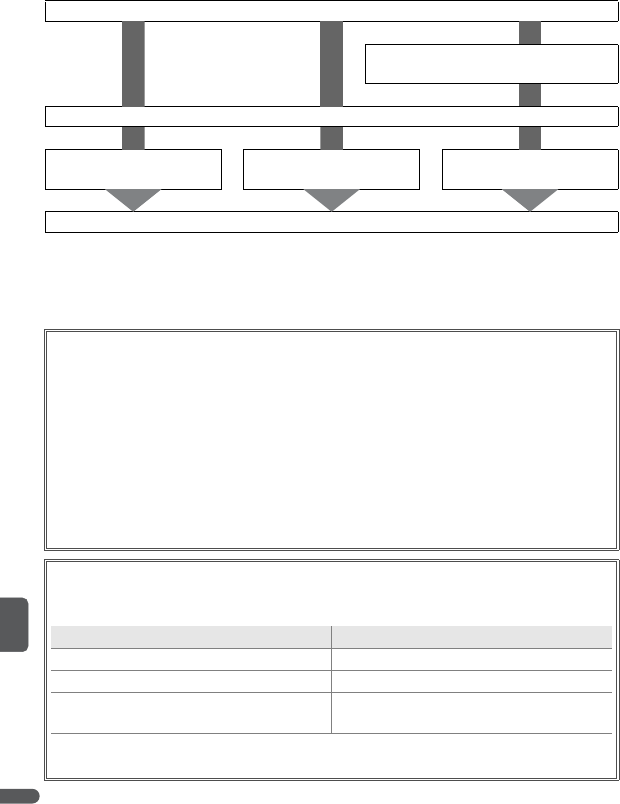
60 Connecting to Televisions, Computers, and Printers
Printing Pictures
Users of PictBridge-compatible printers can connect the camera directly to the
printer and print pictures without using a computer.
Take pictures
Select pictures for printing
using Print set (B 64)
Select MTP/PTP in camera USB menu and connect camera to printer (B 61)
Print pictures
one at a time (B 62)
Print multiple
pictures (B 63)
Print current print order
(DPOF printing; B 63)
Disconnect USB cable
Other Ways to Print Pictures
Pictures can also be printed by:
•Inserting a memory card in the printer: If the printer is equipped with a card slot, a memory
card can be inserted in the printer and pictures printed directly from the card. If the
printer supports DPOF, the camera Print set option can be used to select pictures for
printing (B 64). See the printer manual for details.
•Taking memory cards to a digital print service: If the service supports DPOF, the camera Print
set option can be used to select pictures for printing (B 64).
•Transferring pictures to a computer: Once transferred to a computer (B 56–59), pictures
can be printed using imaging software or uploaded to a digital print service. See the
application and printer manuals for details.
Printing the Date of Recording on Pictures
Two options are available for printing the date of recording on pictures: Date imprint
(B 86) and Print set>Date (B 64).
Date imprint Print set>Date
Must be set before picture is taken. Set after picture is taken.
Date permanently imprinted on picture. Date stored separately.
Date appears whenever picture is printed. Date only appears when picture is printed
on DPOF-compatible printer.
The date only appears once; Print set>Date can not be used to print two dates on pic-
tures with a date imprint.
Connecting to Televisions, Computers, and Printers 61
Connecting the Printer
1Turn the camera off.
D USB
MTP/PTP (the default option) must be selected for Interface>USB in the camera
setup menu before the camera can be connected to a printer (B 57).
2Turn the printer on.
3Connect the camera to the printer using the supplied USB cable.
4Turn the camera on. A PictBridge start-up screen
will be displayed, followed by the PictBridge
playback screen.
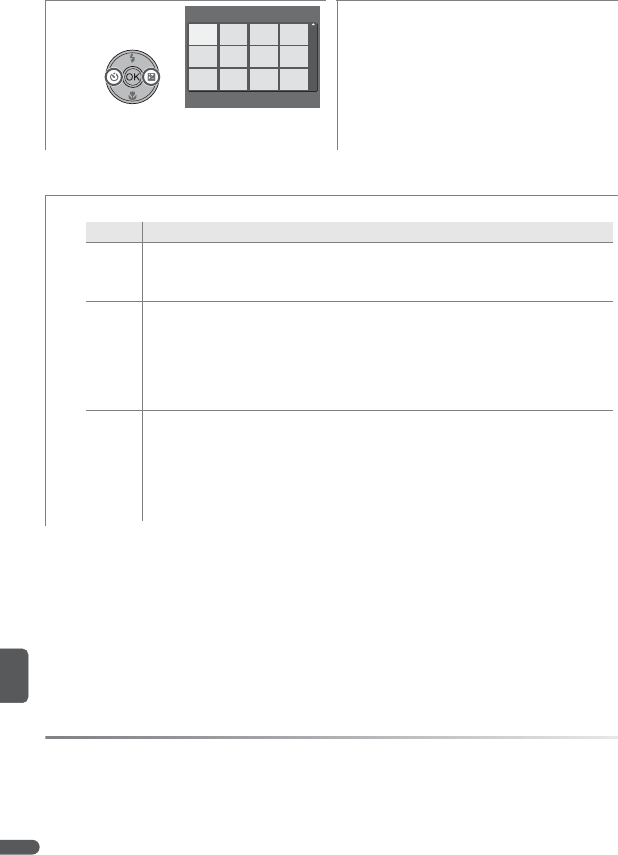
62 Connecting to Televisions, Computers, and Printers
Printing Pictures One at a Time
12
Highlight picture (command dial can be
used in place of multi selector).*
Display PictBridge menu.
* Press zoom control to T (O) to display highlighted picture full frame. Press zoom control
to W (M) to return to thumbnail list.
3Highlight option and press B.
Option Description
Start
print
Start printing. To cancel before all copies have been printed, press B.
Camera returns to PictBridge playback display when printing is complete;
repeat from Step 1 to print additional pictures.
Copies Choose number of copies (up to 9).
Paper
size
Choose from Default (default page size for
current printer), 3.5×5in., 5×7in., Post-
card, 100×150mm, 4×6in., 8×10in.,
Letter, A4, and A3. Only sizes supported by
the current printer will be displayed.
A Paper Size
Paper size can not be selected from the camera if the printer does not support the page
sizes used by the camera or if the printer automatically selects the page size. Use the
printer to select the page size.
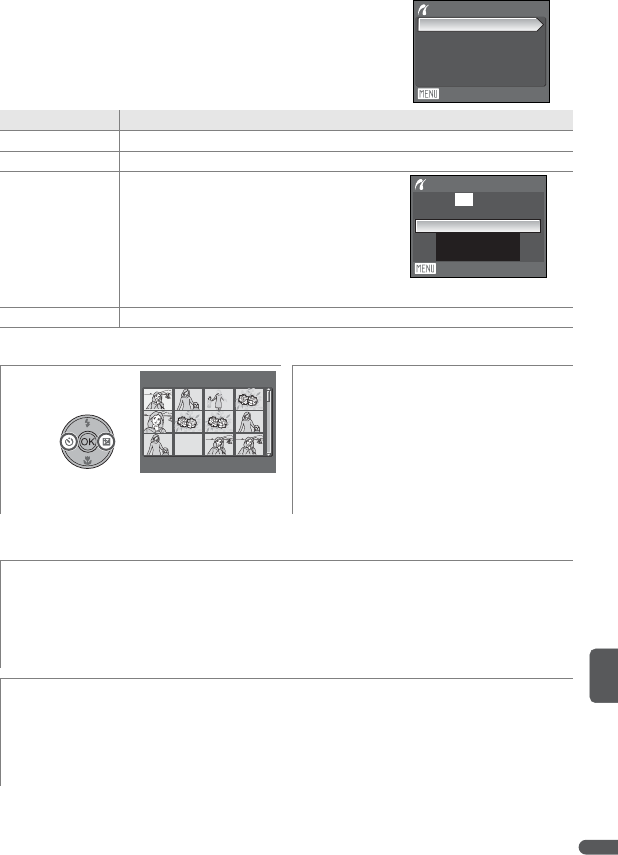
Connecting to Televisions, Computers, and Printers 63
Printing Multiple Pictures
To print multiple pictures, press the F button
while the PictBridge playback screen is displayed (B
61). The menu shown at right will be displayed;
highlight an option and press B.
Choosing Print selection displays the menu shown in Step 1, below.
Option Description
Print selection Print selected pictures (see below).
Print all images Print one copy of all pictures.
DPOF printing
Menu shown at right will be displayed.
Highlight option and press B.
•Start print: Print current print order (B
64).
•View images: View print order. Press B
to start printing (See Step 4, below).
•Cancel: Return to print menu.
Paper size Choose page size (B 62, Step 3).
12
Scroll through pictures (command dial
can be used in place of multi selector).*
Select picture and set number of prints
to 1. Selected items marked by icon.
* Press zoom control to T (O) to display selected picture full frame. Press zoom control to W
(M) to return to thumbnail list.
3Choose number of prints (up to 9). To
deselect picture, press multi selector down
when number of prints is 1. Repeat Steps
1–3 to select additional pictures.
4Start printing (press B to cancel before
printing is complete). PictBridge menu is
displayed when printing is complete.
Exit
Print menu
Print all images
Print selection
Paper size
DPOF printing
Exit
DPOF printing
Cancel
View images
010 prints
Start print
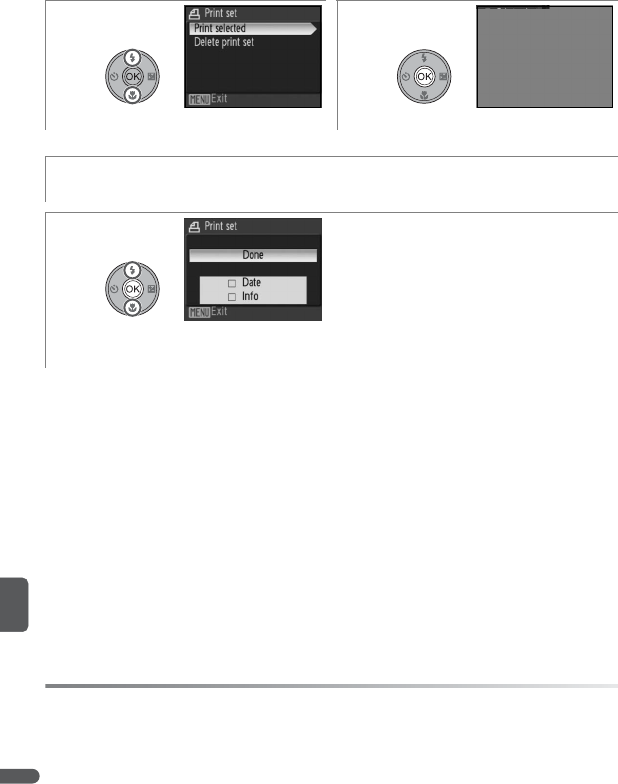
64 Connecting to Televisions, Computers, and Printers
Creating a DPOF Print Order: Print Set
The Print set option in the playback menu (B 80) is used to create digital “print
orders” for printing on DPOF-compatible devices (B 60). Selecting Print set dis-
plays the menu shown in Step 1, below.
A Print Set
Date and Info are reset each time the menu shown in Step 4 is displayed. Shutter speed
and aperture are not printed when the camera is connected directly to the printer.
12
Highlight Print selected.*Display selection dialog.
* To delete current print order, highlight Delete print set and press B.
3Select pictures as described in steps 1–3 on page 63.
4Highlight option and press B:
• Date: Print date of recording on all pictures
in print order.
• Info: Print shutter speed and aperture on
all pictures in print order.
• Done: Complete print order and exit. Pic-
tures in print order are shown by icon
during playback (B 5).
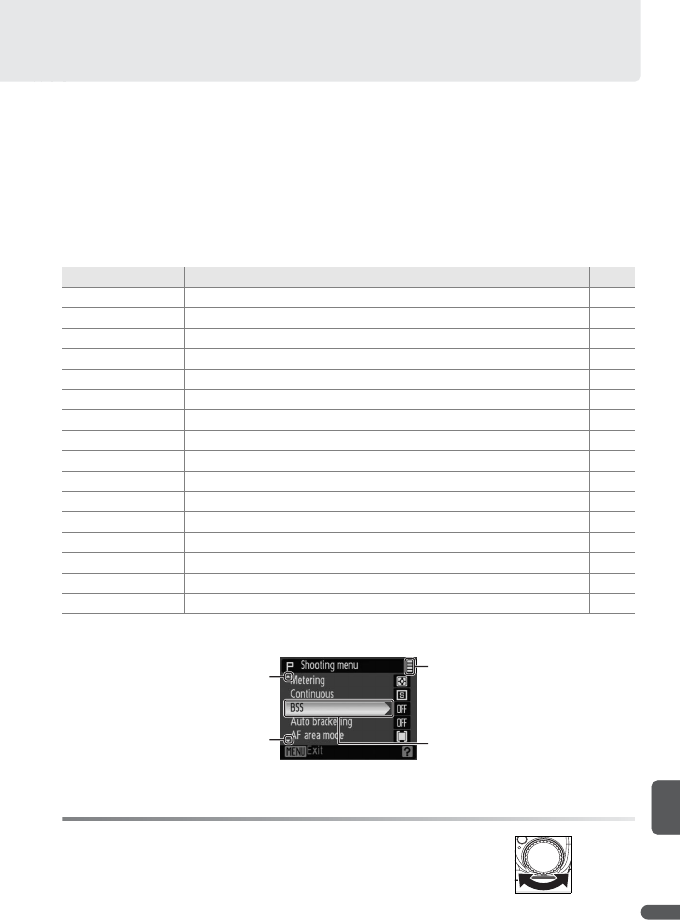
Menu Guide 65
Menu Guide
Shooting Options: The Shooting Menu
To display the shooting menu, select P, S, A, M, or T mode and press the F
button. After using the multi selector to adjust settings (B 7), press the shutter-
release button or F button to return to shooting mode. Unless Reset all (B
89) is used to restore default settings, changes to settings will be recalled the
next time P, S, A, M, or T mode is selected. See the Appendix for information on
default settings (B 104) and on settings that can not be used together (B 105).
The shooting menu is shown below:
C Using the Command Dial
The command dial can be used in place of the multi selec-
tor to scroll up and down through menus.
Option Description B
jImage quality Choose how pictures are stored. 66
nImage size Choose a size according to how pictures will be used. 66
COptimize image Control contrast, sharpness, and saturation. 68–69
kWhite balance Match white balance to the light source. 70
nISO sensitivity Control the camera’s sensitivity to light (not available in T mode). 71
pMetering Choose how the camera meters exposure. 72
aContinuous Take pictures one at a time or in a sequence. 73–74
LBSS Use BSS to choose the sharpest picture. 75
aAuto bracketing Vary exposure over a sequence of pictures. 75
GAF area mode Choose where the camera focuses. 76
EAuto-focus mode Choose how the camera focuses. 76
tFlash exp. comp. Adjust flash level. 78
oFlash control Control built-in and optional flash units. 78
dFixed aperture Choose whether aperture changes with zoom position. 78
hNoise reduction Reduce noise in pictures taken at slow shutter speeds. 78
eConverter Adjust settings for optional converter lenses. 79
Scroll up to view
more options
Displayed if menu has more
than one page
Scroll down to view
more options
Current menu item is
highlighted
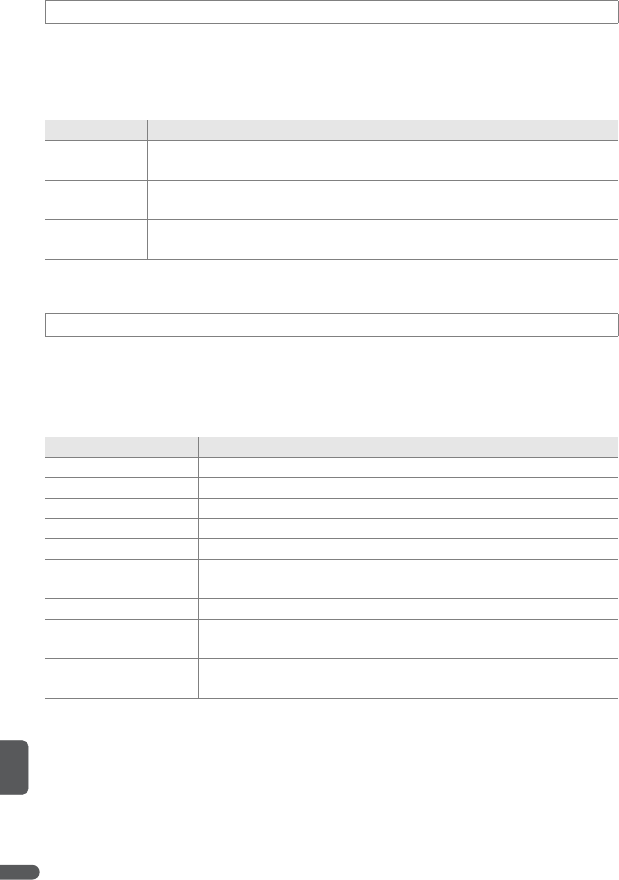
66 Menu Guide
Pictures are stored in compressed JPEG format. The more pictures are com-
pressed, the less memory they require (B 67). Compression also however selec-
tively reduces image quality, and the more pictures are compressed the more
noticeable this loss of quality is likely to be.
Image quality is shown by an icon in the monitor (B 4–5).
Image size is measured in pixels. Pictures taken at smaller sizes require less
memory (B 67), making them suited to distribution by e-mail or the web. Con-
versely, the larger the image, the larger the size at which it can be printed or dis-
played without becoming noticeably “grainy.”
Image size is shown by an icon in the monitor (B 4–5).
jImage Quality
Option Description
mFine Fine quality images (compression ratio of 1:4), suitable for enlargement
or high-quality prints.
lNormal
(default) Normal image quality (compression of 1:8), suited to most applications.
kBasic Basic image quality (compression of 1:16), suitable for pictures that will
be distributed by e-mail or used in web pages.
nImage Size
Option Description (print sizes assume printer resolution of 300dpi)
j3648×2736 (default) Will print at size of about 31 ×23cm (12 ×9in.)
f2592×1944 Will print at size of about 22 ×16cm (81/2×61/2in.)
g2048×1536 Will print at size of about 17 ×13cm (7 ×5in.)
e1600×1200 Will print at size of about 14 ×10cm (51/2×3in.)
d1280×960 Will print at size of about 11 ×8cm (4 ×3in.)
i1024×768 Suited to display on a computer; will print at size of about
9×7cm (3
1/2×21/2in.)
k640× 480 Suited to e-mail; will print at size of about 5 ×4cm (2 ×11/2in.)
h3648×2432 Picture has same proportions as pictures taken on 35-mm film;
will print at size of about 31 ×21cm (12 ×8in.)
93584×2016 Picture has same proportions as wide-screen television display;
will print at size of about 30 ×17cm (12 ×7in.)
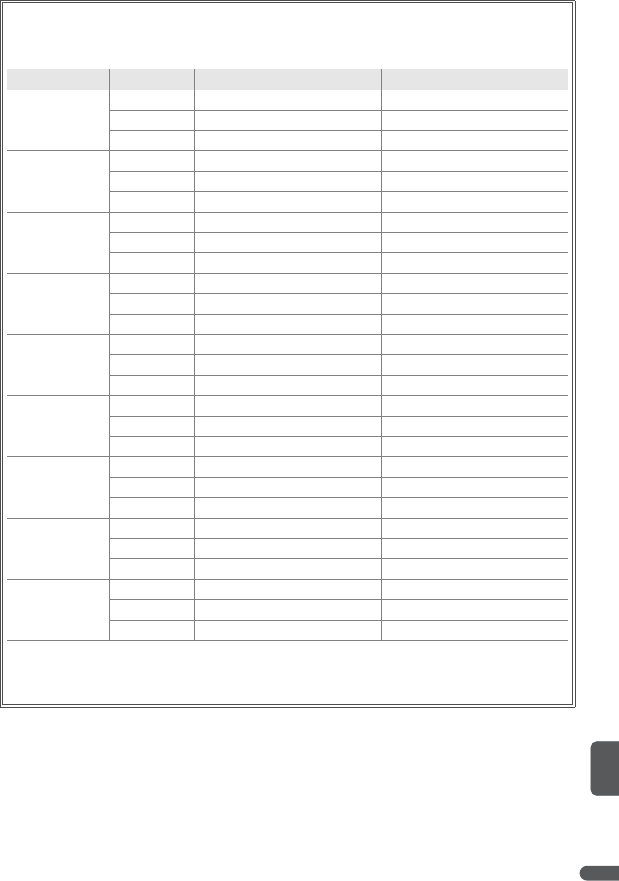
Menu Guide 67
Memory Capacity, Image Quality, and Image Size
The following table lists the number of pictures that can be recorded to internal memory
and to a 256MB memory card.
Image size Image quality Internal memory (21MB)*256MB memory card*
j3648×2736
(default)
Fine 450
Normal 9100
Basic 17 195
f2592×1944
Fine 895
Normal 17 195
Basic 34 380
g2048×1536
Fine 14 155
Normal 27 305
Basic 51 575
e1600×1200
Fine 22 255
Normal 43 485
Basic 77 865
d1280×960
Fine 35 390
Normal 63 705
Basic 116 1300
i1024×768
Fine 51 575
Normal 93 1040
Basic 155 1730
k640× 480
Fine 116 1300
Normal 175 1950
Basic 280 3120
h3648×2432
Fine 555
Normal 10 110
Basic 19 215
93584×2016
Fine 665
Normal 12 135
Basic 24 265
* All figures are approximate. Actual capacity varies with make of memory card and type
of scene recorded. If memory remains for more than 9999 pictures, exposure count
display will show 9999.
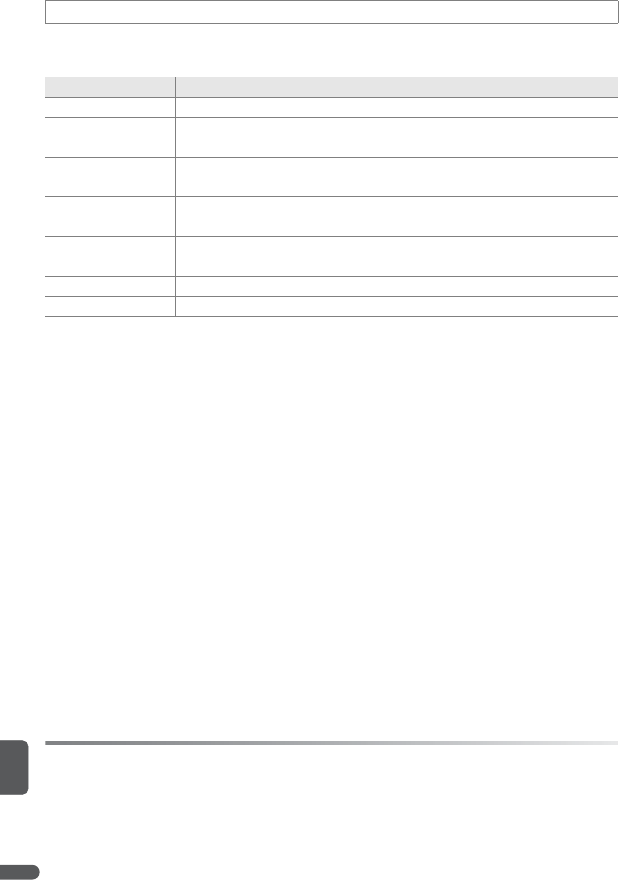
68 Menu Guide
Optimize contrast, sharpening, and other settings according to how pictures will
be used or the type of scene.
Customizing Image Enhancement Options: Custom
Select Custom to make separate adjustments to the following options. The
default setting for all three options is Auto.
•Contrast: Control contrast. Lower settings prevent loss of detail in highlights
under harsh lighting or in direct sunlight. Higher settings preserve detail in
misty landscapes and other low-contrast subjects.
•Image sharpening: Choose how much outlines are sharpened during shooting.
Choose high settings for sharp outlines, low settings for softer outlines. Note
that the effects of sharpening can not be previewed in the monitor during
shooting.
•Saturation: Control the vividness of colors. Choose Moderate for less saturated
colors, Enhanced for more vivid colors.
COptimize Image
Option Description
DNormal (default) Recommended in most situations.
ESofter Softens outlines, producing natural results suitable for portraits or
retouching on a computer.
HVivid Enhances saturation, contrast, and sharpness to produce vivid
images with vibrant reds, greens, and blues.
GMore vivid Maximizes saturation, contrast, and sharpness to produce crisp
images with sharp outlines.
HPortrait Lowers contrast while lending natural texture and rounded feel to
skin of portrait subjects.
QCustom Customize image optimization settings (see below).
DBlack-and-white Take photos in black-and-white (B 69).
A Optimize Image
At settings other than Custom and Black-and-white>Custom, results are optimized for
current shooting conditions and vary with exposure and the position of the subject in the
frame. For consistent results over a series of photographs, select Custom and choose a
setting other than Auto for contrast, sharpening, and saturation.
Menu Guide 69
Taking Pictures in Black-and-White: Black-and-White
Select this option to take pictures in black and white. Choose Standard to take
standard black-and-white pictures, or Custom to adjust contrast and sharpen-
ing as described on the preceding page. Custom also offers a Monochrome
filter option for the following color filter effects:
Option Description
None No color filter effect.
Yellow Enhances contrast. Can be used to tone down the brightness of the sky in land-
scape photographs. Orange produces more contrast than yellow, red more con-
trast than orange.
Orange
Red
Green Softens skin tones. Can be used for portraits.
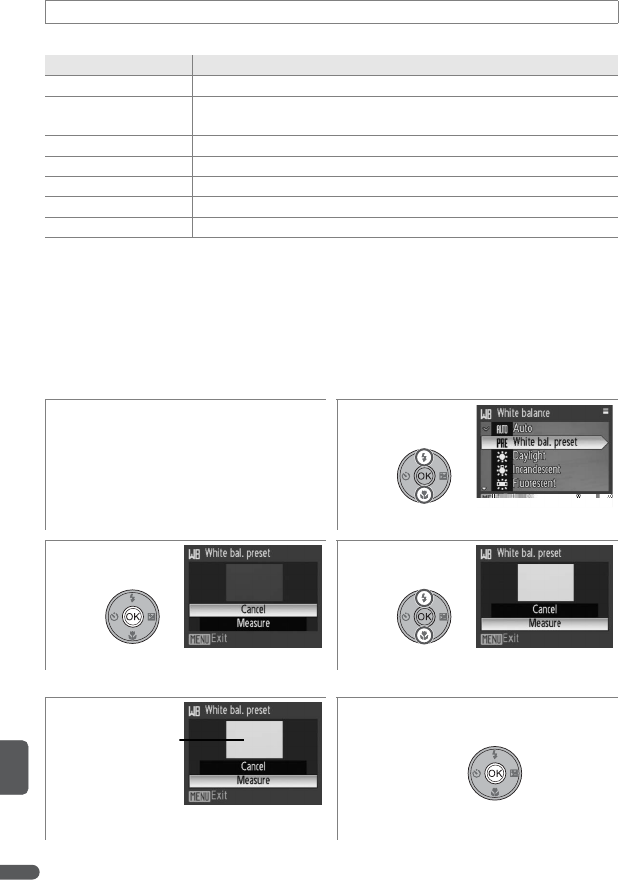
70 Menu Guide
Process pictures to produce natural colors under different types of light.
* For best results, turn the flash off (U) when using this option.
White balance is shown in the display at settings other than Auto (B 4).
q Preset White Balance
Preset white balance is used with mixed lighting or to compensate for light
sources with a strong color cast (for example, to make pictures taken under a
lamp with a red shade look as though they had been taken under white light).
kWhite Balance
Option Description
lAuto (default) Best choice in most situations.
qWhite bal. preset Neutral-colored object used as a reference to set white balance
under unusual lighting conditions (see below).*
nDaylight White balance adjusted for direct sunlight.*
pIncandescent Use under incandescent lighting.*
oFluorescent Use under most types of fluorescent lighting.*
mCloudy Use when taking pictures under overcast skies.*
rFlash Use with the flash.
1Place white or gray reference
object under lighting that will be
used during shooting. Note that
preset white balance can not be
measured with flash.
2
Highlight White bal. preset.
34
Camera zooms in. Highlight Measure.*
* To restore most recent value for preset white balance, highlight Cancel and press B.
56
Frame reference object. Set preset white balance to new value
and return to shooting menu.
Frame
reference
object here

Menu Guide 71
Sensitivity is a measure of how quickly the camera reacts to light. The higher the
sensitivity, the less light needed to make an exposure. Much as film with a high
ISO rating tends to produce “grainy” images, high sensitivities may however be
associated with “noise”—randomly-spaced, brightly-colored pixels concen-
trated in dark parts of the image. Choose from values between ISO 64 and ISO
3,200. Auto is equivalent to ISO 64 under normal conditions; when lighting is
poor and the flash is off, the camera compensates by raising ISO sensitivity to a
maximum of ISO 800 (note that ISO sensitivity is fixed at 64 in mode M).
The current ISO sensitivity is displayed in the monitor at settings other than
Auto (B 4). If Auto is selected, an ISO icon will be displayed when sensitivity is
raised above ISO 64.
nISO Sensitivity
A ISO 3200
Image sizes over 2,592×1,944 (f) are not available at ISO 3200 (B 66). If 3,648×2,736 (j),
3,648×2,432 (h), or 3,584×2,016 (9) is selected for Image size when ISO sensitivity is set
to 3200, Image size will automatically be set to 2,592×1,944 (f). The original image size
will be restored when a lower ISO sensitivity is selected.
When 3200 is selected for ISO sensitivity, image size is displayed in red and the slowest
shutter speed available is 2s.
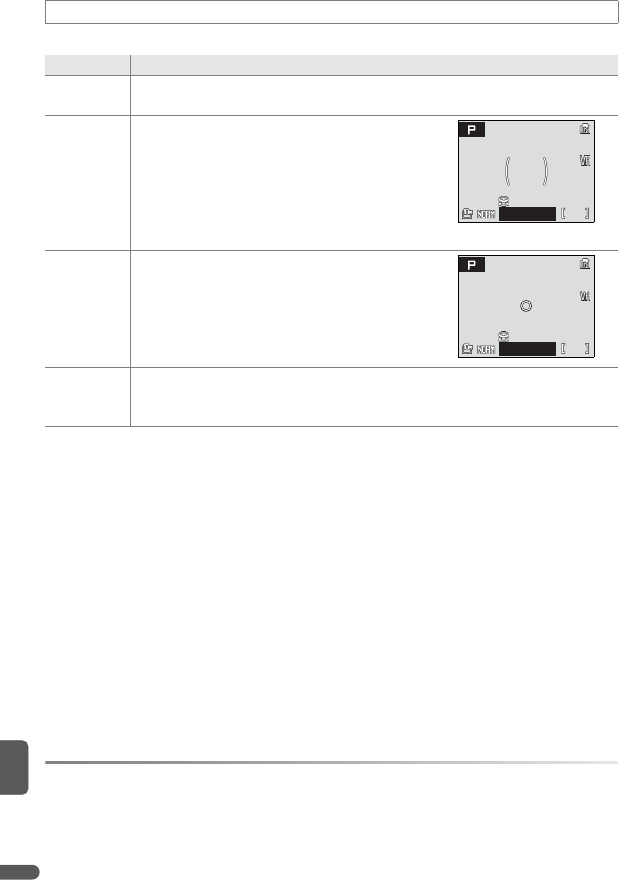
72 Menu Guide
Choose how the camera meters exposure.
pMetering
Option Description
pMatrix
(default) Camera sets exposure for entire frame. Recommended in most situations.
qCenter-
weighted
Camera meters entire frame but assigns
greatest weight to subject in center of moni-
tor (see right). Classic meter for portraits; pre-
serves background details while letting
lighting conditions at center of frame deter-
mine exposure. Can be used with focus lock
(B 77) to meter off-center subjects.
rSpot
Camera meters area shown by circle in center
of monitor (see right). Ensures that subject in
metering target is correctly exposed even if
background is much lighter or darker. Can be
used with focus lock (B 77) to meter off-cen-
ter subjects.
sSpot AF
area
Camera meters selected focus area (B 76). Not available when Center is
selected for AF-area mode (if Center is selected for AF-area mode when
spot AF-area metering is in effect, Metering will be set to Matrix).
A Digital Zoom
When digital zoom is in effect, the camera focuses on the subject in the center focus area
and center-weighted metering is used. At magnifications of 2.0× or higher, the camera
meters the center focus area only. The metered area is not shown in the monitor.
9
9
91/125
1/125
1/125 F4.3
F4.3
F4.3
9
9
91/125
1/125
1/125 F4.3
F4.3
F4.3
Menu Guide 73
Capture a fleeting expression on a portrait subject, photograph subjects that are
moving unpredictably, or capture motion in a series of pictures.
*Image quality Normal, image size 3,648×2,736 (j). Actual frame rate varies with image
quality and size (B 66) and make of memory card.
At settings other than Single, the current continuous setting is shown by an
icon in the display (B 4).
aContinuous
Option Description
dSingle (default) One shot is taken each time shutter-release button is pressed.
cContinuous While shutter-release button is pressed, camera takes up to eight
pictures at up to 0.8 frames per second (fps).*
0Continuous flash
While shutter-release button is pressed, camera takes 3 shots at up
to 0.8 fps* using flash. Once shooting ends, no additional pictures
can be taken until flash has charged. Pictures may be affected by
“noise” (randomly-spaced, brightly-colored dots).
eIntvl timer shooting Camera takes pictures automatically at specified interval (B 74).
A Continuous Flash
Continuous will be set to Single if an option other than None is selected for Converter
when Continuous flash is in effect (B 79). The original Continuous setting is not be
restored when None is selected for Converter.
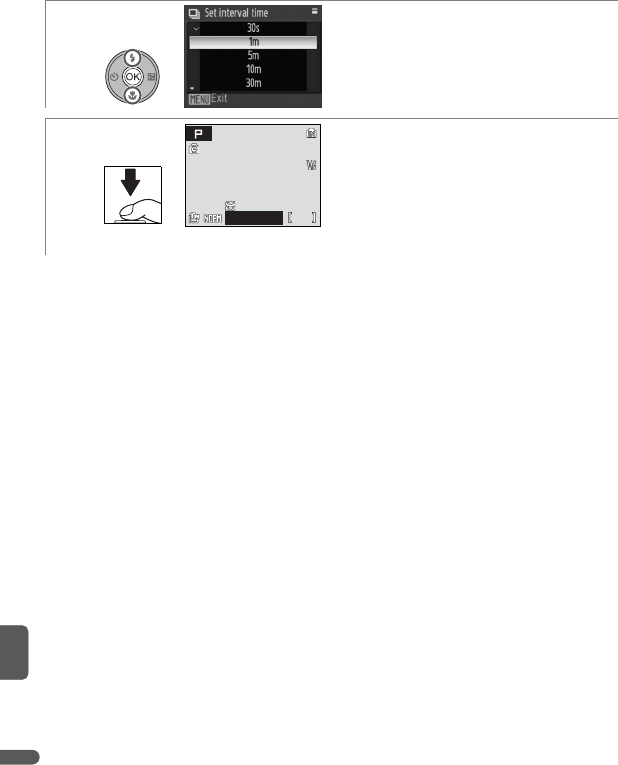
74 Menu Guide
e Interval Timer Photography
To display the interval timer menu, highlight Intvl timer shooting in the Con-
tinuous menu (B 73) and press B. To prevent unexpected loss of power, use a
fully-charged battery or an optional EH-62A AC adapter kit. Do not rotate the
mode dial to a different setting during recording.
See the Appendix for information on how pictures taken using interval timer
photography are stored (B 106).
1Choose interval between shots. Press B to
make selection, then press F to return
to shooting mode.
2Press shutter-release button all the way
down to start recording. Camera will take
pictures at specified interval until shutter-
release button is pressed again, memory is
full, or 1,800 frames have been recorded.
Monitor turns off and power-on lamp
blinks between shots.
8
8
81/125
1/125
1/125 F4.3
F4.3
F4.3
Menu Guide 75
BSS is recommended for situations in which inadvertent camera movement can
produce blurred pictures. It may not produce the desired results if the subject
moves or the composition is changed while the shutter-release button is
pressed.
When On is selected, a L icon appears in the display (B 4).
Auto bracketing is used to vary exposure by a selected amount over a series of
pictures, “bracketing” the exposure value selected by the camera or with expo-
sure compensation (B 28). Use in situations in which it is difficult to guess the
correct exposure.
Auto bracketing is not available when the mode dial is rotated to M. At settings
other than Off, auto bracketing is shown by an icon in the display (B 4). The
flash turns off automatically when auto bracketing is on.
LBSS
Option Description
On
Camera takes up to ten shots while shutter-release button is pressed. These
images are compared and sharpest picture (picture with highest level of
detail) is saved. Flash turns off automatically and focus, exposure, and white
balance for all photos are determined by first picture in series.
Off (default) BSS off.
aAuto Bracketing
Option Description
6±0.3
Camera varies exposure by 0 EV, +0.3EV, and –0.3EV over next three
shots. Keep shutter-release button pressed to take all three shots in
sequence.
7±0.7
Camera varies exposure by 0 EV, +0.7EV, and –0.7EV over next three
shots. Keep shutter-release button pressed to take all three shots in
sequence.
8±1.0
Camera varies exposure by 0 EV, +1.0EV, and –1.0EV over next three
shots. Keep shutter-release button pressed to take all three shots in
sequence.
4Off (default) Bracketing is not performed.
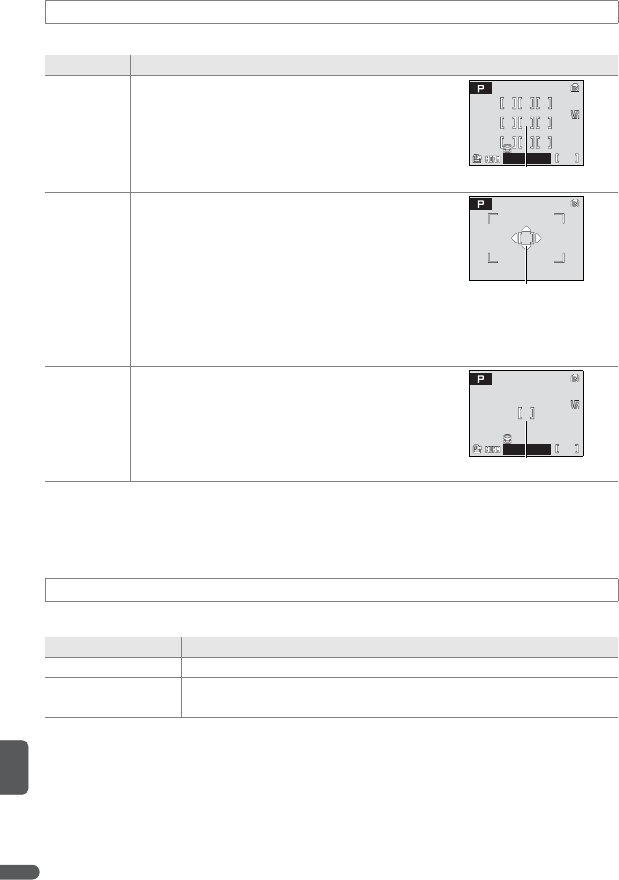
76 Menu Guide
Choose where the camera focuses.
The focus area is displayed in green when the camera is able to focus. If the
focus area blinks red, the camera is unable to focus. In Auto mode, the focus
area is not displayed until the shutter-release button is pressed halfway.
Choose how the camera focuses.
GAF Area Mode
Option Description
3Auto
(default)
Use for snapshots. Camera automatically
compares distances to subjects in nine focus
areas shown at right and selects focus area
containing closest subject. Selected focus
area is highlighted when shutter-release but-
ton is pressed halfway.
IManual
Use to focus on relatively stationary subjects
not in center of frame. Press multi selector
up, down, left, or right to select from 99 focus
areas in large frame shown at right. Pictures
can be taken while focus area selection
screen is displayed. To end focus area selec-
tion and adjust flash, focus, self-timer, and
exposure compensation settings, press B.
Press B again to change focus area.
HCenter
Camera focuses on subject in center focus
area. Focus lock (B 77) can be used to focus
on off-center subject.
EAuto-focus Mode
Option Description
DSingle AF (default) Camera focuses when shutter-release button is pressed halfway.
CFull-time AF Camera adjusts focus continuously until shutter-release button is
pressed halfway. Use with moving subjects.
Focus areas
9
9
91/125
1/125
1/125 F4.3
F4.3
F4.3
Focus area
Center focus area
9
9
91/125
1/125
1/125 F4.3
F4.3
F4.3
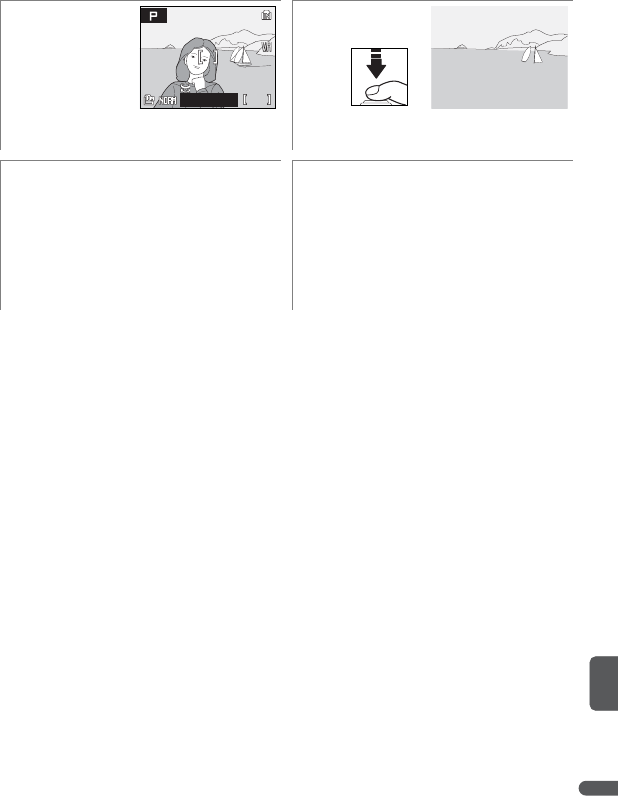
Menu Guide 77
C Focus Lock
Focus locks while the shutter-release button is pressed halfway. Focus lock can be used to
photograph subjects that will not be in the selected focus area in the final composition or
in situations in which the camera is unable to focus (B 20).
12
Position subject in focus area. Press shutter-release button halfway
and check focus.
34
Recompose picture, keeping shutter-
release button pressed halfway.
Take picture.
5
5
51/125
1/125
1/125 F4.3
F4.3
F4.3
78 Menu Guide
Flash compensation is used to alter flash output by ±2.0EV in increments of
1/3EV, changing the brightness of the main subject relative to the background.
Flash output can be increased to make the main subject appear brighter, or
reduced to prevent unwanted highlights or reflections. Flash compensation is
available with the built-in flash and with optional SB-400, SB-600, and SB-800
flash units (B 93).
Choose Auto (the default option) to use the built-in flash when no optional
flash unit is mounted on the camera accessory shoe (B 93), or choose Built-in
off to disable the built-in flash altogether.
Choose whether aperture varies with zoom position.
At slow shutter speeds, pictures may be affected by “noise” in the form of ran-
domly-spaced, brightly-colored dots concentrated in dark parts of the image.
Use this option to reduce noise at slow shutter speeds.
When noise reduction is on, a h icon is displayed in the monitor.
tFlash Exp. Comp.
oFlash Control
dFixed Aperture
Option Description
@On
In A and M modes, aperture is kept as close as possible to selected f-
number. To prevent selected f-number from exceeding exposure range
at new zoom position, set aperture to around f/5.1–f/7.3.
@Off (default) Aperture varies with zoom position.
hNoise Reduction
Option Description
@On Noise reduction takes effect at slow shutter speeds, increasing time
needed to record pictures after shooting.
@Off (default) No noise reduction performed.
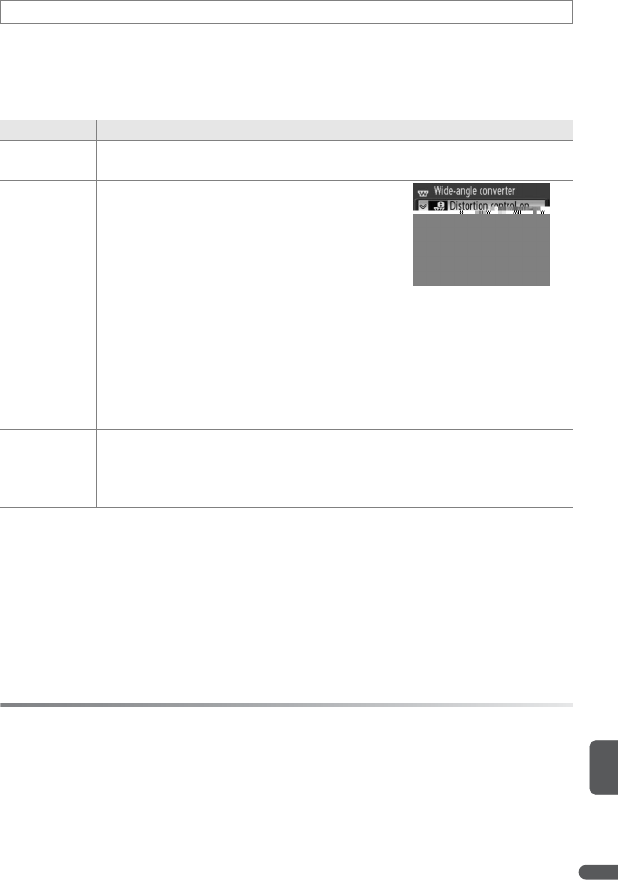
Menu Guide 79
This option is for use with the optional converter lenses listed below. Note that
these accessories require a lens adapter ring (available separately); for more
information, see page 92 of this manual or the documentation provided with
the converter lens.
At settings other than None, a converter icon appears in the display.
eConverter
Option Description
4None
(default)
No modifications made to camera settings. Use when no converter lens is
attached (be sure to remove lens adapter ring).
gWide-angle
converter
Use with WC-E67 wide-angle converter.
Camera zooms to widest angle; menu
shown at right is displayed. Choose from:
•Distortion control on (default): Correct for
pin-cushion and barrel distortion. Con-
tinuous set to Single (B 73); BSS and
bracketing can not be used (B 75).
Note: Distortion control reduces the area visible in the final picture.
•Distortion control off: No distortion correction performed.
Zoom can be adjusted manually while Wide-angle converter is in effect;
note, however, that best results will be achieved with camera zoomed out.
Focal length at widest angle is 24mm (35-mm format equivalent, distor-
tion control off).
fTelephoto
converter
Use with TC-E3ED telephoto converter. Camera will zoom all the way in;
optical zoom is restricted to positions near maximum zoom. Focal length
at maximum zoom is 378mm (35-mm format equivalent). Focus mode
can not be adjusted.
A Converter
Be sure to select the appropriate option when using a converter lens. Select None when
no converter lens is attached. At settings other than None, the built-in flash and AF-assist
illuminator turn off, Continuous flash (B 73) can not be used. Optional flash units can
still be used, although the converter may cast shadows in pictures taken with the SB-400,
SB-600, or SB-800 (B 93; a wide panel is recommended when shooting with the SB-600 or
SB-800). Check pictures in the monitor after shooting.

80 Menu Guide

Menu Guide 81
Selecting Slide show displays the options shown at
right. Press the multi selector up or down to high-
light an option and press B to select.
While the slide show is in progress, press the multi selector to the right to skip
ahead, left to rewind. Press B to pause the slide show.
When the slide show ends or is paused, the menu
shown at right will be displayed. Highlight Restart
and press B to restart the show, or select End to end
the show and return to the playback menu.
A Slide Show
Movies (B 47) appear as still images showing the first frame. The camera will turn off auto-
matically if no operations are performed for 30 minutes during the show, even if Loop is
selected (B 88).
Choose Erase all images to delete all pictures, or Erase selected images to
select pictures for deletion (B 80). Pictures marked with a O icon will not be
deleted.
Protect selected pictures from accidental deletion (B 80). Protected pictures are
marked with a O icon (B 5) and can not be deleted using the I button or
Delete. Note, however, that formatting will delete protected files (B 88).
dSlide Show
Option Description
Frame intvl Choose length of time each slide will be dis-
played.
Loop If this option is checked, slide show will repeat
until B button is pressed.
Start Start slide show.
jDelete
OProtect
Frame intvl
Restart
End
Pause
Pause
Pause
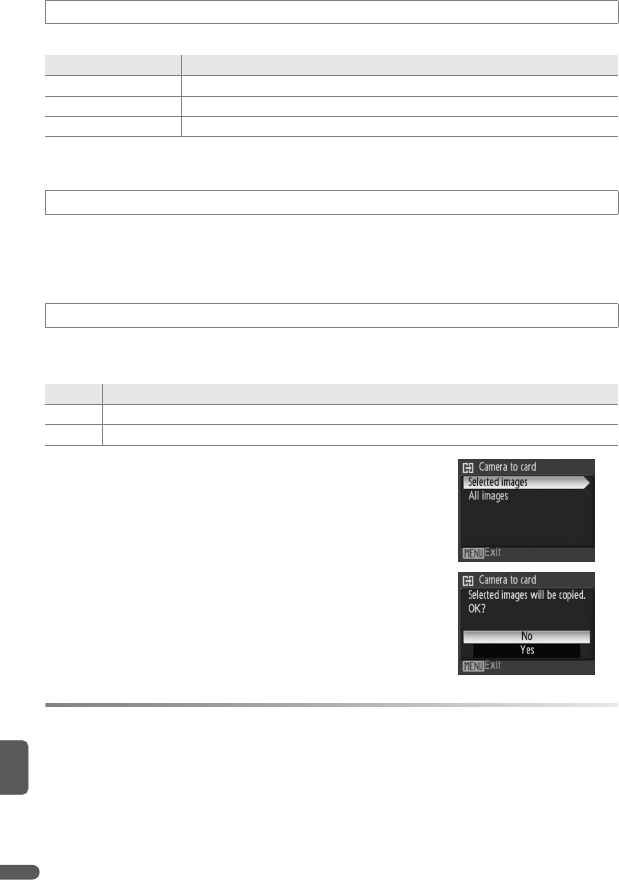
82 Menu Guide
Mark existing pictures for transfer to a computer (B 56–59).
Pictures selected for transfer are marked by a Y icon (B 5, 43).
Hide or reveal selected pictures (B 80). Hidden pictures are visible only in the
Hide image menu and can not be deleted using Delete. Note, however, that
formatting will delete hidden pictures (B 88).
Copy pictures between internal memory and a memory card. This option is only
available when a memory card is inserted.
Selecting either of the above options displays the
menu shown at right. Choose Selected images to
select the pictures that will be copied (B 80) or All
images to copy all pictures.
A confirmation dialog will be displayed; highlight
Yes and press B.
XTransfer Marking
Option Description
All on (default) Mark all images for transfer.
All off Remove transfer marking from all images.
Selected image(s) Mark selected images for transfer (B 80).
ZHide Image
fCopy
Option Description
qQCopy pictures from internal memory to memory card.
QqCopy pictures from memory card to internal memory.
A Copy
Voice memos (B 46) will be copied with the associated picture, but voice recordings (B
51) will not. Copies created using Copy have the same protection marking as the original
but are not marked for printing or transfer. Hidden pictures can not be copied. The cam-
era may be unable to copy pictures that were created with another make of camera or
that have been modified on a computer. See page 106 for information on how copies are
stored.
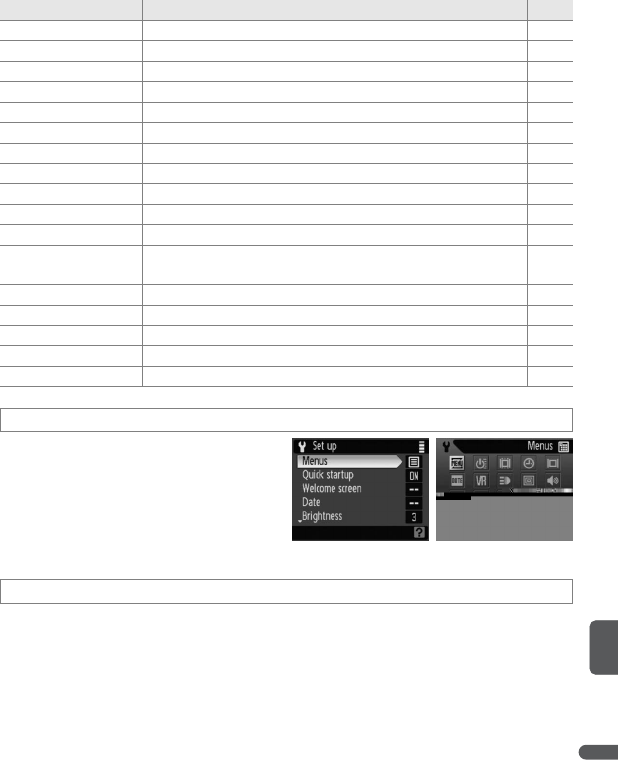
Menu Guide 83
Basic Camera Setup: The Setup Menu
To make changes to the items in the setup menu, rotate the mode dial to R
and use the multi selector (B 7). To exit the setup menu, rotate the mode dial to
a different setting. Settings remain in effect until reset (B 89). See the Appendix
for setup menu defaults (B 104).
Choose how menus are displayed.
Choose On (the default setting) to disable the welcome screen (B 84) and start-
up sound. The camera will be ready for use immediately after being turned on.
Option Description B
aMenus Choose how menus are displayed. 83
PQuick startup Enable or disable welcome screen and start-up sound. 83
sWelcome screen Select screen displayed when camera is turned on. 84
WDate Set clock and choose home and destination time zones. 84–85
rBrightness Adjust monitor brightness. 85
hDate imprint Imprint date or birthday counter on pictures. 86
KVibration reduction Reduce blur caused by camera shake. 87
BAF assist Enable or disable AF assist illumination. 87
0Digital zoom Enable or disable digital zoom. 87
eSound settings Adjust sound and volume settings. 88
LAuto off Choose when monitor will turn off to save power. 88
q
Q
Format memory/
Format card Format internal memory or memory card. 88
oLanguage Choose language for camera menus and messages. 88
mInterface Adjust settings for connection to TV, computer, or printer. 89
NFUNC button Choose function performed by A button. 89
VReset all Restore camera settings to default values. 89
fFirmware version Display camera firmware version. 89
aMenus
PQuick Startup
Tex t Icon

84 Menu Guide
Choose the welcome screen displayed when the camera is turned on. This
option is only available when Off is selected for Quick startup.
Set the camera clock and choose home and travel destination time zones.
Selecting Date displays the menu shown in Step 1. Follow the steps below to
set the camera clock.
sWelcome Screen
Option Description
Nikon COOLPIX logo is displayed at start-up.
Animation
(default) Animation displayed at start-up.
Select an
image
Select picture from internal memory or memory card. Copy of selected image
is created for use in welcome screen and remains when original is deleted or
memory card is removed.
WDate
Option Description
Date Set camera clock to current date and time (see below).
Time zone Choose home or travel destination time zone (B 85); turn daylight saving time
on or off.
12
Edit Day (order of Day, Month,
and Year may differ).
Select Month. Repeat steps 1–2 to edit
Month, Year, hour and minute.
34
Select D M Y. Choose date display order.
Press B to return to setup menu.

Menu Guide 85
Selecting Time zone from the Date menu displays the dialog shown in Step 1.
Follow the steps below to set the clock to the time in a new time zone.
A The Clock Battery
The clock battery charges when the main battery is installed or an AC adapter is con-
nected and can provide several days of backup power after about 10 hours of charging.
Choose from five settings for monitor brightness (the
default setting is 3).
12
Select s (travel destination time zone)
or n (home time zone).
Set clock to time in selected time zone.*
*If s is selected, s will be displayed when camera is in shooting mode. To turn daylight
saving time in selected zone on or off, highlight Daylight saving and press B. Clock
will automatically be adjusted one hour. Press F button to skip steps 3–6.
34
To change selected time zone, press
multi selector right. Map of world time
zones displayed.
Highlight time zone.
56
Set clock to time in new time
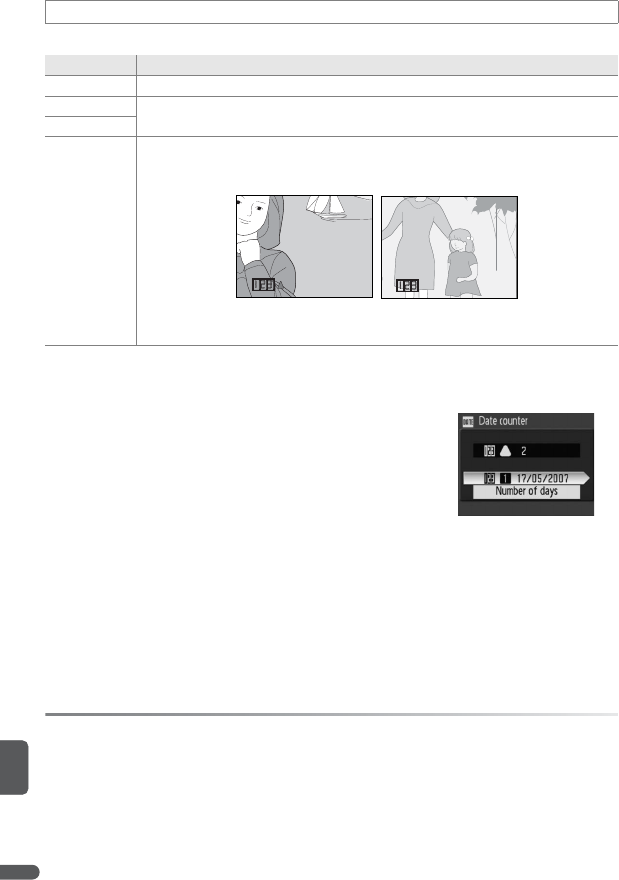
86 Menu Guide
Imprint date information on pictures as they are taken.
At settings other than Off, the selected option is shown in the monitor (B 4).
Date Counter
Selecting Date counter displays the dialog shown
at right. To change the date, highlight the current
date and press B. The camera can store up to three
dates; to enter a new date, highlight date 1, 2, or 3,
press the multi selector right, and enter a date as
described on page 84. To choose one of the existing
dates, highlight the date and press B.
Date stamps created with the date counter option can show the number of
days, years and days, or years, months and days remaining until or elapsed since
the selected date. To change how dates are displayed, highlight the current dis-
play option in the date counter dialog and press B. Press the multi selector up
or down to highlight an option and press B.
hDate Imprint
Option Description
Off (default) Time and date do not appear on pictures.
Date Date or date and time are imprinted on pictures taken while this option is
in effect.
Date and time
Date counter
Time stamp shows number of days remaining until or elapsed since
selected date (see below). Use to track growth of a child or count down
days to a birthday or wedding.
A Date Imprint
The date is recorded in the order selected in the Date menu (B 84). Date imprints do not
appear on pictures taken at the settings listed on page 100 and can not be added to exist-
ing pictures. See page 60 for a comparison of date imprint and Print set>Date.
Data imprinted at an image size of 640×480 (k) may be difficult to read. Choose sizes of
1,024×768 (i) or larger when using date imprint.
Future date
(days remaining)
Past date
(days elapsed)
02/18.05.2007
02/18.05.2007
02/18.05.2007 02/22.05.2007
02/22.05.2007
02/22.05.2007
Menu Guide 87
Vibration reduction (VR) compensates for slight hand movements that can blur
pictures or cause shake in the monitor when the camera is zoomed in or when
shooting in the dark without a flash. Vibration reduction can also be used when
shooting movies. When vibration reduction is on, the camera detects and fac-
tors out panning movements. If the camera is panned horizontally, for example,
vibration reduction reduces only vertical shake. If the camera is panned verti-
cally, vibration reduction affects only horizontal shake.
Vibration reduction is on by default. Choose Off when using a tripod. The cur-
rent setting is displayed in the monitor (B 4).
A Vibration Reduction
Vibration reduction may take a few seconds to activate after the camera is turned on. Wait
until the display stabilizes before shooting. There may also be a slight lag after a picture is
taken. Vibration reduction may not produce the desired results in all cases.
If Auto is selected, AF-assist illumination will be used to assist the focus opera-
tion when the subject is poorly lit (AF-assist illumination is unavailable in some
modes; B 30–33). Choose Off to disable AF-assist illumination (note that the
camera may be unable to focus if lighting is poor).
When On (the default setting) is selected, digital zoom functions as described
on page 19: cropping is used when possible to increase magnification without
affecting image quality. Select Crop to limit digital zoom to magnifications at
which cropping can be used (B 19), or Off to turn digital zoom off altogether.
KVibration Reduction
BAF Assist
0Digital Zoom
A Digital Zoom
Digital zoom is not available when K (face-priority AF), A (portrait), or D (night portrait) is
selected in scene mode or when Wide-angle converter is selected for Converter. Crop
is not available at an image size of 3,648×2,736 (j), 3,648×2,432 (h), or 3,584×2,016 (9).
When digital zoom is in effect, the camera focuses on the subject in the center focus area
and center-weighted metering is used. At magnifications of 2.0× or higher, the camera
meters the center focus area only. The option selected for Digital zoom has no effect in
movie mode, as interpolation is not used when recording movies.
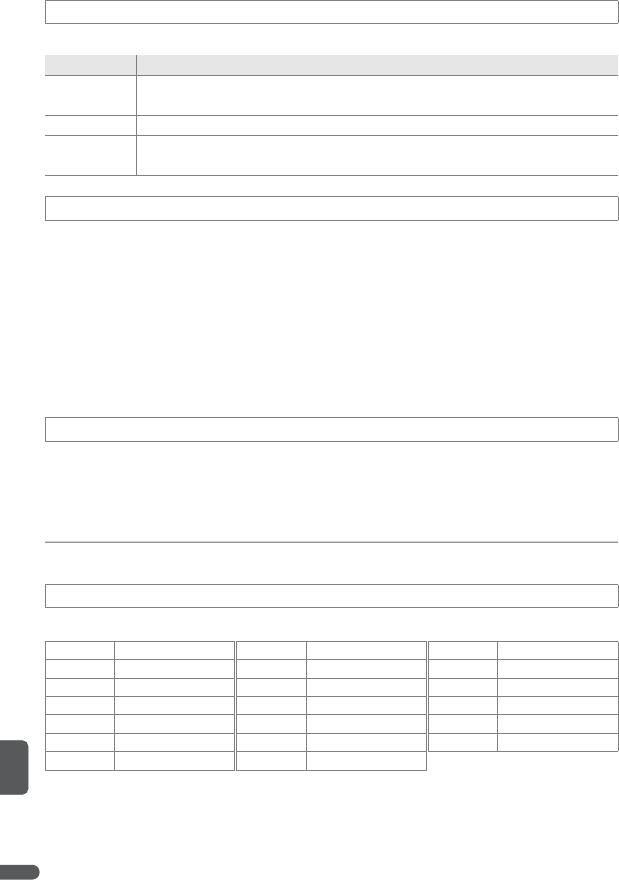
88 Menu Guide
Adjust the following sound settings:
Choose from 30 seconds, 1 minute (the default setting), 5 minutes, or 30 min-
utes. If no operations are performed for the selected length of time, the camera
will enter stand-by mode to reduce the drain on the battery. The monitor will
turn off and the power-on lamp will blink. If no operations are performed for
about another 3 minutes, the camera will turn off automatically. Regardless of
the setting chosen, the camera will remain active for 3 minutes when menus are
displayed, and for 30 minutes when the camera is powered by an optional EH-
62A AC adapter kit or when Loop is selected in slide show playback.
Format the current storage medium (internal memory or memory card). Note
that formatting permanently deletes all pictures and other data. Be sure to
make copies as required before formatting.
D Format
Do not turn the camera off or remove memory cards during formatting.
Choose a language for camera menus and messages from the following options:
eSound Settings
Option Description
Button sound When On (default) is selected, a beep will sound once when operations
are completed successfully, three times when errors are detected.
Shutter sound Choose sound played when shutter is released. Default setting is 1.
Volume Choose volume for shutter and start-up sounds from Loud, Normal, and
Off.
LAuto Off
qFormat Memory/Q Format Card
oLanguage
Čeština
Czech
Italiano
Italian
Svenska
Swedish
Dansk
Danish
Nederlands
Dutch sSimplified Chinese
Deutsch
German
Norsk
Norwegian hTraditional Chinese
English
English
Polski
Polish jJapanese
Español
Spanish
Português
Portuguese kKorean
Français
French
Русский
Russian tThai
Indonesia
Indonesian
Suomi
Finnish
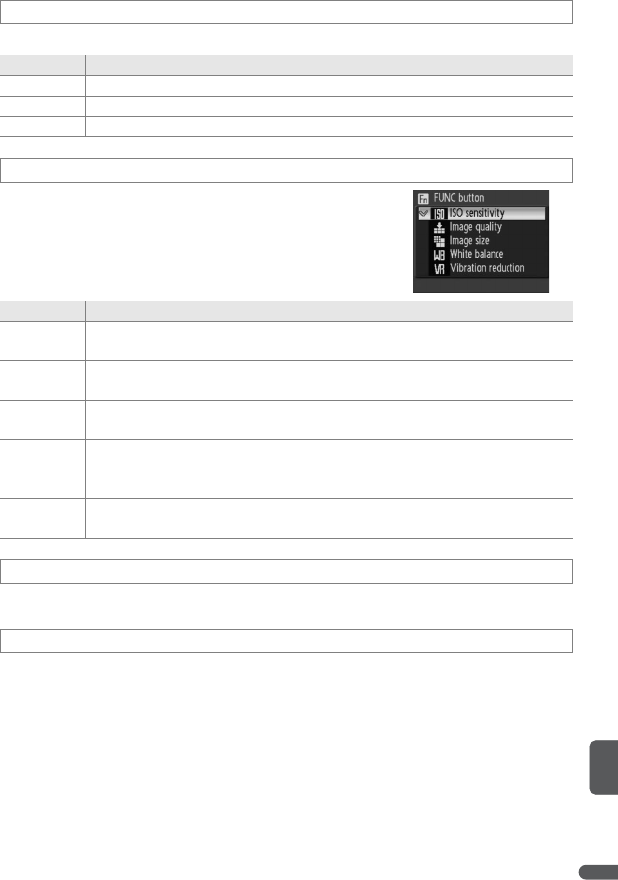
Menu Guide 89
Adjust settings for connection to a computer or video device.
Choose the function performed by the A button in P,
S, A, and M modes.
Select Reset to restore camera settings to default values (B 104).
View the current camera firmware version.
mInterface
Option Description
USB Select USB option for connection to computer (B 56) or printer (B 61).
Video mode Choose from NTSC and PAL (B 55).
Auto transfer Choose On to mark all new pictures for transfer to computer (B 56).
NFUNC Button
Option Description
ISO sensitivity
(default)
Pressing A button displays ISO sensitivity options (B 71). Rotate command
dial to highlight desired option and release A button.
Image quality Pressing A button displays image quality options (B 66). Rotate command
dial to highlight desired option and release A button.
Image size Pressing A button displays image size options (B 66). Rotate command dial
to highlight desired option and release A button.
White
balance
Pressing A button displays white balance options (B 70). Rotate command
dial to highlight desired option and release A button. If White bal. preset
is selected, dialog shown in Step 3 on page 70 will be displayed.
Vibration
reduction
Pressing A button displays vibration reduction options (B 87). Rotate com-
mand dial to highlight desired option and release A button.
VReset All
fFirmware Version
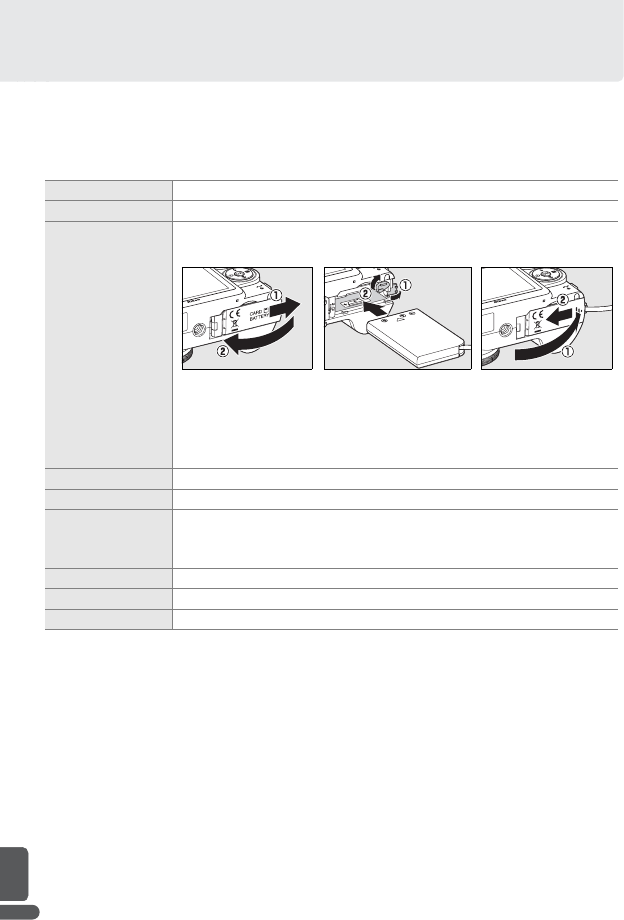
90 Technical Notes
Technical Notes
Optional Accessories
At the time of writing, the following items were available for this camera. Con-
tact your local retailer or Nikon representative for details.
Rechargeable battery Rechargeable EN-EL5 Li-ion batteries
Battery charger MH-61 battery charger
AC adapter EH-62A AC adapter kit (connects as shown)
Open the power connector cover and ensure that the power connec-
tor cord passes through the opening before closing the battery-
chamber/memory card slot cover. Failure to observe this precaution
could cause damage to the battery-chamber/memory card slot
cover.
USB cable UC-E6 USB cable
A/V cable EG-CP14 audio/video cable
Converter lenses
(require UR-E20 lens
adapter ring)
• WC-E67 wide-angle converter (0.67×)
• TC-E3ED telephoto converter (3×)
Lens adapter ring UR-E20 step-down ring adapter
Optional Speedlights SB-series 400, 600, 800
Strap AN-CP16 strap
12 3
Technical Notes 91
Approved Memory Cards
The following memory cards have been tested and approved for use in the
COOLPIX P5000:
Other cards have not been tested. For more details on the above cards, please
contact the manufacturer.
High speed (10MB/s) High speed (20MB/s) Other
Panasonic 256MB 512MB, 1GB, 2GB*64MB, 128MB, 256MB,
512MB, 1GB, 2GB*, 4GB*, †
SanDisk 512MB, 1GB, 2GB*1GB, 2GB*64MB, 128MB, 256MB,
512MB, 1GB, 2GB*, 4GB*, †
Toshiba 128MB, 256MB, 512MB,
1GB —64MB, 128MB, 256MB,
512MB, 1GB, 2GB*, 4GB*, †
* When using card reader or other device, check that device supports 2 GB cards. Pictures
can still be copied to computer if camera is connected using supplied USB cable.
†SDHC (
P) compliant.
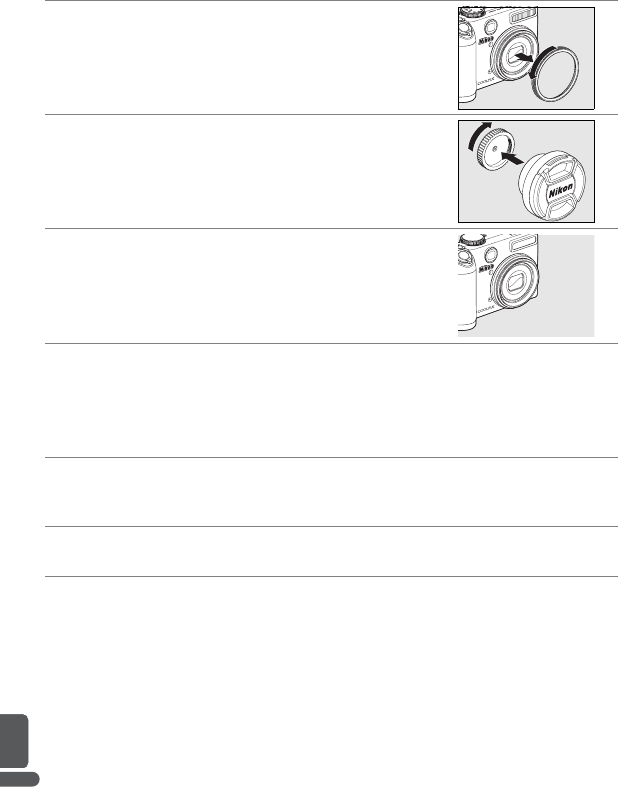
92 Technical Notes
Attaching Converter Lenses
The optional WC-E67 wide-angle and TC-E3ED telephoto converter lenses
attach as described below (the illustrations show the WC-E67). See the con-
verter instruction manual for details.
Rotate the mode dial to P, S, A, M, or T when using optional converter lenses. To
remove the converter, turn the camera off and perform steps 1–4 in reverse
order. Set the Converter option in the camera shooting menu (B 79) to None
when no converter is attached.
1Remove the lens ring
Turn the camera off and remove the lens ring as
shown at right.
2Remove the rear cap from the converter lens
3Attach the UR-E20 adapter ring
Attach the UR-E20 to the camera lens as shown
at right.
4Attach the converter lens
Screw the converter lens into the UR-E20 as
shown at right.
5Choose a Converter option
Rotate the mode dial to P, S, A, M, or T and select the appropriate setting for
the Converter option in the camera shooting menu (B 79).
6Remove the lens cap
Remove the front cap from the converter lens.
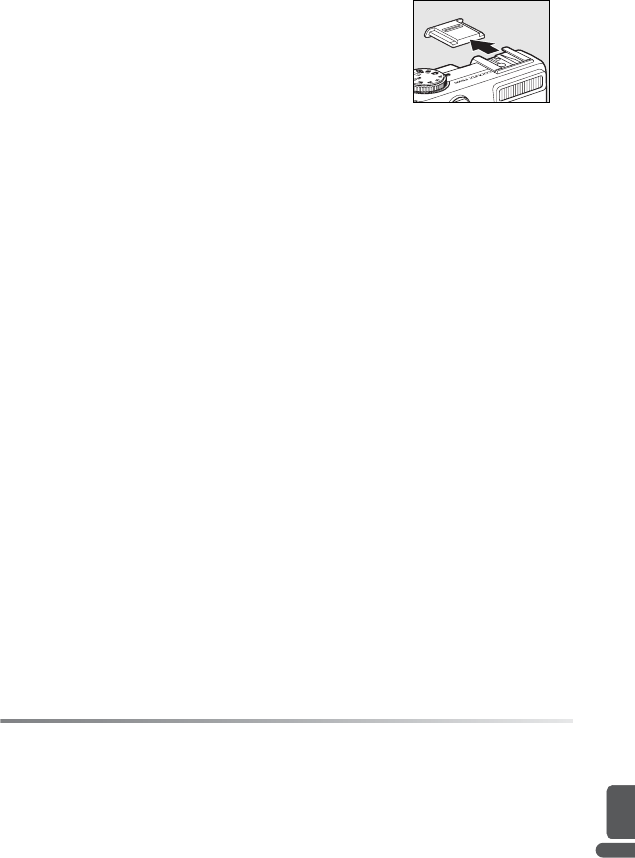
Technical Notes 93
Using Optional Speedlights
The camera is equipped with an accessory shoe with
a safety lock, allowing optional SB-400, SB-600, and
SB-800 Speedlights to be mounted directly on the
camera without a sync cable. Remove the accessory
shoe cover before attaching a Speedlight and
replace it when the Speedlight is not in use.
Use optional Speedlights for indirect lighting or when additional lighting is
required. The built-in flash turns off automatically and a 5 icon appears in the
display. Before using an optional Speedlight, set the Speedlight flash control
mode to TTL for i-TTL flash control, which uses monitor pre-flashes to adjust
flash output automatically in response to lighting conditions. Flash mode can
be set as described on page 24. Power zoom can be used with SB-800 and SB-
600 Speedlights, although a wide panel may be needed to illuminate the edges
of the picture at ranges under 2m (2ft. 7in.) when the camera is zoomed out.
Refer to the Speedlight manual for detailed in instructions.
When set to STBY (stand-by), the optional Speedlight will power on and off at
the same time as the camera. The camera does not support Advanced Wireless
Lighting, Flash Color Information Communication, Auto FP High-Speed Sync, FV
lock, or AF-assist for multi-area AF.
D Use Only Nikon Flash Accessories
Use only Nikon Speedlights. Negative voltages or voltages over 250V applied to the acces-
sory shoe could not only prevent normal operation, but damage the sync circuitry of the
camera or flash. Before using a Nikon Speedlight not listed in this section, contact a Nikon-
authorized service representative for more information.

94 Technical Notes
Caring for the Camera
To ensure continued enjoyment of this Nikon product, observe the following
precautions when storing or using the device.
DHandle the lens and all moving parts with care
Do not apply force to the lens or monitor or
to the lens cover, connector cover, or battery-
chamber/memory card slot cover. Should
the monitor break, care should be taken to
avoid injury due to broken glass and to pre-
vent the liquid crystal from the display from
touching the skin or entering the eyes or
mouth.
DDo not point the lens at strong light sources for
extended periods
Avoid framing the sun or other strong light
sources for extended periods when using or
storing the camera. Intense light may cause
deterioration in the image sensor, produc-
ing a white blur effect in photographs.
DTurn the product off before removing or discon-
necting the power source
Do not unplug the product or remove the
battery while the product is on, or while im-
ages are being recorded or deleted. Forc-
ibly cutting power could result in loss of
data or in damage to product memory or
circuitry. To prevent an accidental interrup-
tion of power, do not move the product
while the AC adapter is connected.
DKeep dry
The device will be damaged if immersed in
water or subjected to high levels of moisture.
DDo not drop
The product may malfunction if subjected
to strong shocks or vibration.
DKeep away from strong magnetic fields
Do not use or store this device in the vicinity
of equipment that generates strong electro-
magnetic radiation or magnetic fields.
Strong static charges or the magnetic fields
produced by equipment such as radio trans-
mitters could interfere with the monitor,
damage stored data, or affect the product’s
internal circuitry.
DAvoid sudden changes in temperature
Sudden changes in temperature, such as
occur when entering or leaving a heated
building on a cold day, can cause conden-
sation inside the device. To prevent con-
densation, place the device in a carrying
case or plastic bag before exposing it to
sudden changes in temperature.
DThe AF-assist illuminator/self-timer lamp LED
The light-emitting diode (LED) used in the
AF-assist illuminator/self-timer lamp (B 2, 25)
conforms to the following IEC standard.
IEC60825-1 Edition 1.2-2001
CLASS 1 LED PRODUCT

Technical Notes 95
A Notes on the Monitor
• The monitor may contain a few pixels that are always lit or that do not light. This is char-
acteristic of all TFT LCD displays and does not indicate a malfunction. Images recorded
using the product will not be affected.
• When you frame bright subjects, vertical, red, comet-like streaks that brighten toward
either end may appear in the display. This phenomenon, known as “smear,” does not
appear in the final photograph and does not indicate a malfunction. Some smear may
appear in movies.
• Images in the monitor may be difficult to see in a bright light.
• The monitor is lit by an LED backlight. Should the monitor begin to dim or flicker, con-
tact a Nikon-authorized service representative.
A Batteries
• Check the battery level when taking the camera out and charge the battery if necessary
(B 16). Do not continue charging once the battery is fully charged, as this will result in
reduced battery performance. If possible, carry a fully-charged spare battery when tak-
ing pictures on important occasions.
• Do not use the battery at ambient temperatures below 0°C (32°F) or above 40°C (104°F).
During charging, the temperature should be in the vicinity of 5–35°C (41–95°F). Note
that the battery may become hot during use; wait for the battery to cool before
charging. Failure to observe these precautions could damage the battery, impair its
performance, or prevent it from charging normally.
• On cold days, the capacity of batteries tends to decrease. Be sure that the battery is fully
charged before heading outside to take pictures in cold weather. Keep spare batteries in
a warm place and exchange as necessary. Once warmed, a cold battery may recover
some of its charge.
• Dirt on the battery terminals can prevent the camera from functioning.
• When the battery is not in use, remove it from the camera or battery charger and replace
the terminal cover. The camera and battery charger draw minute amounts of current
even when off; if left in place, the battery could be drained to the point that it no longer
functions. Turning the camera on or off while the battery is exhausted can result in
reduced battery life. If the battery will not be used for an extended period, store it in a
cool (15°C–25°C/59°F–77°F), dry place. Recharge it at least once a year and run it flat
before returning it to storage.
• Replace the battery when it no longer holds a charge. Used batteries are a valuable
resource. Please recycle used batteries in accordance with local regulations.
96 Technical Notes
Cleaning
Do not use alcohol, thinner, or other volatile chemicals.
Storage
Turn the camera off when not in use. Check that the power-on lamp is off before
putting the camera away and remove the battery if the camera will not be used
for an extended period. Do not store the camera with naphtha or camphor
moth balls or in locations that:
• are next to equipment that produces strong electromagnetic fields, such as
televisions or radios
• are exposed to temperatures below –10°C (14°F) or above 50°C (122°F)
• are poorly ventilated or subject to humidities of over 60%
To prevent mold or mildew, take the camera out of storage at least once a
month. Turn the camera on and release the shutter a few times before putting it
away again.
Lens/
viewfinder
Avoid touching glass parts with your fingers. Remove dust or lint with a blower
(typically a small device with a rubber bulb attached to one end that is
pumped to produce a stream of air out the other). To remove fingerprints or
other stains that can not be removed with a blower, wipe with a soft cloth,
using a spiral motion that starts in the center of the lens and works outwards
to the edges. If this fails, clean using a cloth lightly dampened with commer-
cial lens cleaner.
Monitor Remove dust or lint with a blower. To remove fingerprints and other stains,
clean the monitor with a soft, dry cloth, being careful not to apply pressure.
Body Use a blower to remove dust, dirt, or sand and then wipe gently with a soft, dry
cloth. After using the camera at the beach or seaside, wipe off any sand or salt
with a dry cloth lightly dampened with fresh water, then dry thoroughly. Note
that foreign matter inside the camera could cause damage not covered under
warranty.

Technical Notes 97
Error Messages
The following table lists the error messages and other warnings that appear in
the monitor and how to deal with them.
Display Problem Solution B
w (blinks) Clock not set. Set clock. 84–85
JBattery running low. Prepare to charge or change battery. 9, 10
NWarning! Battery
exhausted. Battery exhausted. Charge or exchange battery. 9, 10
Fz
(z blinks red) Camera can not focus.
Use focus lock to focus on another
subject at same distance, then
recompose picture.
20, 77
OWarning!!
Please wait for the camera to
finish recording.
o
Other operations can
not be performed until
recording is complete.
Message clears from display auto-
matically when recording is com-
plete.
—
NMemory card is
write protected.
Write-protect switch is
in “lock” position.
Slide write-protect switch to “write”
position. 15
OThis card cannot
be used. Error accessing mem-
ory card.
•Use approved card.
• Check that connectors are clean.
• Confirm that memory card is cor-
rectly inserted.
91
—
14
OWarning!
This card cannot be read.
OCard is not formatted.
No
Format
Memory card has not
been formatted for use
in camera.
Highlight Format and press B to
format card, or turn camera off and
replace card.
15
NOut of memory. Internal memory or
memory card is full.
• Lower image quality or size.
• Delete files.
• Insert new memory card.
• Remove memory card and use
internal memory
66
52, 81
14
15
OImage cannot be
saved.
Error occurred while
recording picture.
Format internal memory or mem-
ory card. 88
Camera has run out of
file numbers.
• Insert new memory card.
•Select Reset all after either insert-
ing memory card or formatting
internal memory or memory card.
14
14,
88, 89
Cannot create cropped,
D-lighting, or small copy.
Select picture that supports crop, D-
lighting, or small picture. 44
Picture can not be used
for welcome screen.
Minimum size is 640×480. Pictures
taken at h or 9 can not be used. —
Cannot copy picture. Delete pictures from destination. 81
OSound file can
not be saved.
Camera has run out of
file numbers.
Select Reset all after either insert-
ing memory card or formatting
internal memory or memory card.
14,
88, 89

98 Technical Notes
Display Problem Solution B
NCannot record
movie.
Time out error while
recording movie.
Choose memory card with faster
write speed. 91
NMemory contains
no images.
No pictures available
for playback.
• Insert card containing pictures.
•Copy pictures to card.
14
82
NNo sound file. No sound file available
for playback.
• Insert card containing sound files.
• Copy voice recordings to card.
14
53
NThere are no
more index points.
Sound recording con-
tains no indices. Insert index before using 7 or 6.51
NFile contains
no image data. File not created with
COOLPIX P5000.
View or play file on computer or
other device. —
OThis file cannot
be played back.
NAll images are
hidden.
All pictures in internal
memory or on mem-
ory card are hidden.
Use Hide image to change hidden
status of pictures. 82
NThis image cannot
be deleted. Picture is protected. Remove protection. 81
NImage has already
been modified. D-Lighting
can not be used.
Original does not sup-
port D-lighting.
D-lighting can not be used with
copies. 44
NNew city is in
the current time zone.
Destination is in same
time zone as home. No need to change time zone. 85
OWARNING! Mode dial
is not in the proper position.
Mode dial is between
two modes.
Rotate mode dial to select desired
mode. 6
CLens error Lens error.
Turn camera off and then on again.
If error persists, contact retailer or
Nikon representative.
12
OCommunications error
USB cable disconnected
during transfer or print-
ing.
If PictureProject displays error, click
OK to exit. Resume operation after
turning camera off and reconnect-
ing cable.
58
USB option is incorrect. Choose correct USB option. 56–57
PictureProject did not
start.
See the PictureProject reference
manual (on CD) for more information. —
NNo images are
marked for transfer.
No pictures selected
for transfer.
Select pictures for transfer and try
again. 82
OTransfer error Transfer error. •Check battery level.
• Check that USB cable is connected.
16
58
CSystem error
Error has occurred in
camera’s internal cir-
cuitry.
Turn camera off, remove and reinsert
batteries, and turn camera on. If
error persists, contact retailer or
Nikon representative.
12,
10–11
Technical Notes 99
*See printer manual for more information.
Display Problem Solution B
OMPrinter error.
Check printer status. Printer error. Check printer. To resume, highlight
Resume (if available) and press B.—*
OMPrinter error:
check paper
Paper in printer is not
of selected size.
Insert paper of correct size, then
highlight Resume and press B.62*
OMPrinter error:
paper jam
Paper is jammed in
printer.
Clear jam, then highlight Resume
and press B.—*
OMPrinter error:
out of paper Printer is out of paper. Insert paper of selected size, then
highlight Resume and press B.62*
OMPrinter error:
check ink Ink error. Check ink. To resume, highlight
Resume and press B.—*
OMPrinter error:
out of ink Printer is out of ink. Replace ink, then highlight Resume
and press B.—*
OMPrinter error:
file corrupt
File is corrupt; image
can not be printed.
Highlight Cancel and press B to
end printing. —*
Electronically Controlled Cameras
In extremely rare instances, unusual characters may appear in the monitor and the cam-
era may stop functioning. In most cases, this phenomenon is caused by a strong exter-
nal static charge. Turn the camera off, remove and replace the batteries, and then turn
the camera on again. In the event of continued malfunction, contact your retailer or
Nikon representative. Note that disconnecting the power source as described above
may result in the loss of any data not recorded to internal memory or the memory card
at the time the problem occurred. Data already recorded will not be affected.

100 Technical Notes
Troubleshooting
If the camera fails to function as expected, check the list of common problems
below before consulting your retailer or Nikon representative. Refer to the page
numbers in the right-most column for more information.
Display and Setup
Problem Solution B
Monitor is blank.
• Camera is off.
• Battery is exhausted.
• Monitor is off: press Q button.
• Stand-by mode: press shutter-release button.
• Flash lamp blinks red: wait until flash has charged.
•USB cable is connected.
•A/V cable is connected.
• Time lapse or interval timer photography in progress:
monitor turns off automatically between shots.
12
16
8
16
24
58
55
49, 74
Monitor is hard to
read.
• Ambient lighting too bright: use viewfinder or move to
darker location.
• Monitor has dimmed to saved power: press shutter-
release button halfway.
• Adjust monitor brightness.
• Monitor is dirty: clean monitor.
18
16
85
96
Camera turns off
without warning.
• Battery is low.
• Camera has turned off automatically to save power.
• Battery is cold.
16
16
95
Camera clock is not
correct.
Check camera clock regularly against more accurate time-
pieces and reset as required. 84–85
No indicators appear
in monitor.
•Press Q button until indicators are displayed.
• Slide show is in progress.
8
81
Date imprint not
available. Camera clock has not been set. 84–85
Date not appearing
on pictures taken
with Date imprint.
Date does not appear on movies or on pictures taken in C,
K, O, P, or p mode, with Continuous or Continuous
flash selected for Continuous, or while BSS or bracketing
is on.
30, 32,
33, 36,
47, 73,
75
Camera settings
reset.
Clock battery exhausted: recharge clock battery. Pictures
recorded before clock has been set will have time stamp of
“00.00.0000 00:00”; movies will be dated “01.01.2007 00:00.”
85

Technical Notes 101
Shooting
Problem Solution B
No picture taken
when shutter-release
button is pressed.
• Battery is exhausted.
• Flash lamp blinks: flash is charging.
16
24
Camera can not focus
using autofocus.
• Subject is low in contrast, dominated by repeating geo-
metric patterns, occupies too little of the frame, or con-
tains many fine details, objects of sharply differing
brightness, or objects at different distances from camera.
Use focus lock to focus on another subject at same dis-
tance, then recompose picture.
•Off is selected for AF-assist option in setup menu.
• AF lamp flickers: subject not in focus area when shutter-
release button pressed halfway.
• Focus error: turn camera off and then on again.
77
87
20
12
Pictures are blurred.
• Rotate mode dial to P.
• Use flash or BSS.
• Turn on vibration reduction or use tripod and self-timer.
• Incorrect option selected in converter menu.
36
24, 75
26, 87
79
Bright specks in pic-
tures taken with flash. Flash is reflecting from particles in air. Turn flash off. 24
Built-in flash does not
fire.
Flash is off. Note that flash turns off automatically in p
mode (Time lapse movie excepted) and some scene
modes, when Continuous is selected for Continuous,
when BSS or bracketing is on, when an option other than
None is selected for Converter, when Built-in off is
selected for Flash control, or when optional flash unit is
attached.
24,
30–33,
47, 73,
75, 78,
79, 93
Optical zoom can not
be used. Optical zoom can not be used while shooting movies. 47
Digital zoom can not
be used.
K, A, or D selected in scene mode, Wide angle con-
verter selected for Converter, or Off selected for Digital
zoom.
30, 79,
87
Image size options
not available.
Settings of 3,648×2,736 (j), 3,648×2,432 (h), and
3,584×2,016 (9) are not available when 3200 is selected
for ISO sensitivity.
71
No sound when shut-
ter is released.
Sound is not played in C, K, P, or p mode or when Off
is selected for Sound settings>Shutter sound, BSS or
bracketing is on, or option other than Single is selected
for Continuous.
30, 32,
36, 47,
73, 75,
88
AF-assist illuminator
does not light.
•Off selected for AF-assist option in setup menu.
• AF assist illumination turns off automatically in some
modes.
87
30–33

102 Technical Notes
Shooting (Continued)
Problem Solution B
Pictures are smeared. Lens is dirty. Clean lens. 96
Colors are unnatural. White balance does not match light source. 70
Randomly-spaced
bright pixels (“noise”)
appear in image.
Shutter speed too slow or ISO sensitivity too high. Noise
can be reduced by:
•Using flash
• Choosing P, S, A, or M mode and setting ISO sensitivity to
64
• Choosing scene mode with noise reduction or turning
Noise reduction on
24
71
30–33,
78
Pictures are too dark
(underexposed).
• Rotate mode dial to T or choose higher ISO sensitivity.
•Flash is off.
• Flash window is blocked.
• Subject is outside of range of flash.
• Exposure compensation is too low.
• Subject is backlit: select N (scene mode) or use fill flash.
37, 71
24
18
24
28
24, 33
Pictures are too bright
(overexposed). Exposure compensation is too high. 28
Unexpected results
when flash set to V
(auto with red-eye
reduction).
Advanced red-eye reduction may, in very rare cases, be
applied to areas not affected by red-eye. Set flash to S
or T and try again. Note that red-eye reduction is default
flash setting for K, A, and D modes.
24–25,
30

Technical Notes 103
Playback
Problem Solution B
Pictures can not be
played back.
• Time lapse or interval timer photography in progress: pic-
tures can not be played back until recording is complete.
• File has been overwritten or renamed by computer or
other make of camera.
49, 74
—
Can not zoom in on
picture.
Playback zoom can not be used with movies, small pic-
tures, or pictures cropped below 320×240. —
Can not record voice
memo. Voice memos can not be appended to movies. 50
Can not use crop, D-
lighting, or small pic-
ture options.
These options can not be used with movies or with pictures
recorded at image sizes of 3,648×2,432 (h) or 3,584×2,016
(9), and may not be available with pictures created with
other cameras. Select picture that supports crop, D-light-
ing, or small picture.
44
Pictures not dis-
played on television
• Choose correct video mode.
• Memory card contains no pictures. Insert memory card
containing pictures, or remove card to view pictures in
internal memory.
89
14–15
PictureProject does
not start when cam-
era is connected.
•Camera is off.
• Battery is exhausted.
• USB cable is not correctly connected.
• Appropriate USB option is not selected.
• Computer can not detect camera.
• PictureProject auto-launch disabled.
See PictureProject reference manual (on CD) for details.
12
16
58
56
—
—
Can not mark pictures
for transfer.
No more than 999 pictures can be marked for transfer. Use
PictureProject Transfer button to transfer pictures. 58
Transfer marking does
not appear.
Pictures were marked for transfer using another model of
camera. Mark pictures for transfer using COOLPIX P5000. 82
Can not transfer pic-
tures.
B button can not be used to transfer pictures if memory
card is locked, or if no memory card is inserted and Mass
storage is selected for USB. Use PictureProject Transfer
button.
58
104 Technical Notes
Appendix
Defaults
Choosing Reset for Reset all (B 89) restores the following default settings:
Choosing Reset also clears the current file number (B 106) from memory. Numbering will
continue from the lowest number available (to reset file numbering to 0001, delete all pic-
tures before selecting Reset). All other settings are unaffected, including Date (B 84),
Date counter (B 86), Language (B 88), USB (B 89), and Video mode (B 89).
Option Default
Shooting mode (B 24–28)
Flash mode Auto
Self-timer Off
Focus mode Autofocus
Exposure compensation 0
Scene mode (B 29–35) Face-priority AF
Movie mode (B 47–50)
Movie options Small size 320
Set interval time 30s
Auto-focus mode Single AF
Shooting menu (B 65–79)
Image quality Normal
Image size 3648×2736 (j)
Optimize image Normal
Custom
Contrast Auto
Image sharpening Auto
Saturation Auto
Black-and-white Standard
Custom
Contrast Auto
Image sharpening Auto
Monochrome filter None
White balance Auto
ISO sensitivity Auto
Metering Matrix
Continuous Single
Interval timer shooting 30s
BSS Off
Auto bracketing Off
Option Default
Shooting menu (continued)
AF-area mode Auto
Auto-focus mode Single AF
Flash exp. comp. 0
Flash control Auto
Fixed aperture Off
Noise reduction Off
Converter None
Wide-angle converter Distortion control on
Playback menu (B 80–82)
Slide show
Frame intvl 3s
Setup menu (B 83–89)
Menus Text
Quick startup On
Welcome screen Animation
Brightness 3
Date imprint Off
Vibration reduction On
AF assist Auto
Digital zoom On
Sound settings
Button sound On
Shutter sound 1
Volume Normal
Auto off 1m
Interface
Auto transfer On
FUNC button ISO sensitivity
Miscellaneous
Paper size (B 62) Default
Technical Notes 105
Restrictions on Camera Settings
Restrictions apply to the following settings in P, S, A, M, and T modes:
A Auto Noise Reduction
Noise reduction will only turn on automatically if Continuous is set to Single and BSS
and Auto bracketing are off.
Using a Flash in Continuous Mode (B 73)
The built-in flash turns off automatically when Continuous is selected for Continuous;
optional flash units mounted on the camera accessory shoe can still be used.
Self-timer
(B 26)
If self-timer is on, only one shot will be taken each time shutter is released,
regardless of settings chosen for Continuous, BSS, and Auto bracketing.
Original Continuous, BSS, and Auto bracketing settings are restored when
picture is taken or self-timer is turned off.
Continuous
(B 73)
Selecting option other than Single for Continuous turns BSS and Auto
bracketing off.
BSS
(B 75) When BSS is on, Continuous is set to Single and Auto bracketing turns off.
Auto
bracketing
(B 75)
When Auto bracketing is on, Continuous is set to Single and BSS turns off.
106 Technical Notes
Image File and Folder Names
Pictures, movies, and voice memos are assigned file names with three parts: a four letter
identifier, a four-digit file number assigned automatically by the camera in ascending
order, and a three-letter extension (e.g., “DSCN0001.JPG”).
Pictures and sound files are stored in folders named with a three-digit folder number fol-
lowed by a five-character identifier: “P_” plus a three-digit sequence number for pictures
taken using panorama assist (e.g., “101P_001”; B 35), “INTVL” for interval timer photogra-
phy (e.g., “101INTVL”; B 74), “SOUND” for voice recordings (e.g., “101SOUND”; B 51), and
“NIKON” for all other pictures (e.g., “101NIKON”). Folders can hold up to 200 pictures; if a
picture is taken when the current folder contains 200 pictures, a new folder will be created
by adding one to the current folder number. If a picture is taken when the current folder is
numbered 999 and contains 200 pictures or a picture numbered 9999, no further pictures
can be taken until the medium is formatted (B 88) or a new memory card is inserted.
Files copied using Copy >Selected images or COPY SOUND FILES>Selected files are
copied to the current folder, where they are assigned new file numbers in ascending order
starting from the largest file number in memory. Copy>All images and COPY SOUND
FILES>Copy all files copy all folders from the source device; file names do not change
but new folder numbers are assigned in ascending order starting from the largest folder
number on the destination device (B 53, 82).
Originals Identifier Extension
Still picture DSCN .JPG
Movie DSCN .AVI
Time-lapse INTN
Voice recording DSCN .WAV
Voice memo Same as picture
Copies Identifier Extension
Cropped copy RSCN
.JPGSmall copy SSCN
D-lighting copy FSCN
Technical Notes 107
Time Zones (B 12, 85)
The camera supports the time zones listed below. Increments of less than one hour are
not supported; when travelling to or from destinations at half- or quarter-hour increments
from Greenwich Mean Time (GMT), such as Afghanistan, Central Australia, India, Iran,
Nepal, or Newfoundland, set the camera clock to local time (B 84).
GMT +/– Location
–11 Midway, Samoa
–10 Hawaii, Tahiti
–9 Alaska, Anchorage
–8 PST: Los Angeles, Seattle, Vancouver
–7 MST: Denver, Phoenix, La Paz
–6 CST: Chicago, Houston, Mexico City
–5 EST: New York, Toronto, Lima
–4 Caracas, Manaus
–3 Buenos Aires, São Paulo
–2 Fernando de Noronha
–1 Azores
±0 London, Casablanca
GMT +/– Location
+1 Madrid, Paris, Berlin
+2 Athens, Helsinki
+3 Moscow, Nairobi
+4 Abu Dhabi, Dubai
+5 Islamabad, Karachi
+6 Colombo, Dhaka
+7 Bangkok, Jakarta
+8 Beijing, Hong Kong (HK), Singapore
+9 Tokyo, Seoul
+10 Sydney, Guam
+11 New Caledonia
+12 Auckland, Fiji
108 Technical Notes
Specifications
Nikon COOLPIX P5000 Digital Camera
A Specifications
Nikon will not be held liable for any errors this manual may contain. The appearance of
this product and its specifications are subject to change without notice.
Type Compact digital camera
Effective pixels 10.0 million
Image sensor 1/1.8-in. CCD; total pixels: approx. 10.37 million
Lens 3.5× Zoom-Nikkor lens
Focal length 7.5 to 26.3mm (35mm [135] picture angle equivalent approx. 36–126mm)
f-number f/2.7 to 5.3
Construction 7 elements in 6 groups
Digital zoom Up to 4× (35mm [135] picture angle equivalent approx. 504mm)
Vibration reduction (VR) Lens shift
Autofocus (AF) Contrast-detect AF
Focus range (from lens) 30cm/1ft to ∞ (W); 70cm/2ft. 4in. to ∞ (T)
Macro close-up mode: 4cm/1.6in. to ∞ (W); 40cm/1ft.4in. to ∞ (T)
Focus-area selection Auto (9 focus areas), manual (99 focus areas), center
AF-assist illumination Class 1 LED product (IEC 60825-1 Edition 1.2-2001); max. output: 1,500μW
Viewfinder Real-image optical viewfinder with LED indication
Frame coverage Approx. 80% vertical and 80% horizontal
Monitor 2.5-in., 230,000-dot, wide viewing angle TFT LCD with anti-reflection
coating and 5-level brightness adjustment
Frame coverage Shooting mode: approx. 97% vertical and 97% horizontal
Playback mode: approx. 100% vertical and 100% horizontal
Storage
Media Internal memory (approx. 21MB); SD (Secure Digital) memory cards
File system DCF, Exif 2.2, and DPOF compliant
File formats Compressed: JPEG-Baseline-compliant (Fine 1:4, Normal 1:8, Basic 1:16)
Movies: AVI Sound files: WAV
Image size (pixels) • 3,648×2,736 (j) • 2,592×1,944 (f)
• 2,048×1,536 (g) • 1,600×1,200 (e)
• 1,280×960 (d) • 1,024×768 (i)
• 640×480 (k) • 3,648×2,432 (h)
• 3,584×2,016 (9)
ISO sensitivity ISO 64, 100, 200, 400, 800, 1600, 2000, 3200; Auto (auto gain from
ISO 64 to ISO 800)
Technical Notes 109
*Based on Camera and Imaging Products Association (CIPA) standards for measuring life of cam-
era batteries. Measured at 23°C (77°F); zoom adjusted with each shot, flash fired with every
other shot, image quality set to Normal and image size set to 3,648×2,736 (j).
Unless otherwise stated, all figures are for a camera with a fully-charged EN-EL5 battery operated
at an ambient temperature of 25°C (77°F).
Exposure
Metering 256-segment matrix, center-weighted, spot, spot AF area (with
support for 99 AF areas)
Exposure control Programmed auto exposure with flexible program, shutter-priority
auto, aperture-priority auto, manual, exposure compensation (–2.0–
+2.0EV in steps of 1/3EV), auto bracketing
Range (ISO 100) [W]: –1.0 to +17.5EV [T]: +0.9 to +16.4EV
Shutter Mechanical and charge-coupled electronic shutter
Speed 1/2,000 s to 8s
Aperture 6-blade iris diaphragm
Number of stops 10 steps of 1/3EV
Self-timer Can be selected from 10 and 3 seconds duration
Built-in flash
Range (approx.) [W]: 0.3 to 8m/1 to 26ft. [T]: 0.3 to 4m/1 to 13ft.
Flash control Sensor flash system
Accessory shoe ISO 518 hot-shoe contact with safety lock
Sync contact X-contact only
Interface USB
Video output Can be selected from NTSC and PAL
I/O terminals Audio/video out; digital I/O (USB)
Supported languages Chinese (Simplified and Traditional), Czech, Danish, Dutch, English,
Finnish, French, German, Indonesian, Italian, Japanese, Korean, Polish,
Portuguese, Norwegian, Russian, Spanish, Swedish, Thai
Power sources • One EN-EL5 rechargeable Li-ion battery (supplied)
• EH-62A AC adapter kit (available separately)
Battery life*Approx. 250 shots (EN-EL5)
Dimensions (W×H×D) Approx. 98×64.5×41mm/3.9×2.5×1.6in. (excluding projections)
Weight Approx. 200g/7.1oz. (without battery or memory card)
Operating environment
Temperature 0 to 40°C/32 to 104°F
Humidity Less than 85% (no condensation)
110 Technical Notes
MH-61 Battery Charger
EN-EL5 Rechargeable Li-ion Battery
Supported Standards
•DCF: Design Rule for Camera File System (DCF) is a standard widely used in the digital
camera industry to ensure compatibility among different makes of camera.
•DPOF: Digital Print Order Format (DPOF) is an industry-wide standard that allows pictures
to be printed from print orders stored on a memory card.
•Exif version 2.2: This camera supports Exif (Exchangeable Image File Format for Digital Still
Cameras) version 2.2, a standard that allows information stored with photographs to be
used for optimal color reproduction when images are output on Exif-compliant printers.
•PictBridge: A standard developed in cooperation with the digital camera and printer
industries, allowing photographs to be output directly to a printer without connecting
the camera to a computer.
Rated input 100 to 240V AC, 50/60Hz, 0.12 to 0.08A
Rated capacity 11 to 16VA
Rated output DC 4.2 V/950mA
Supported batteries EN-EL5 rechargeable Li-ion batteries (supplied)
Charging time Approximately 2 hours when battery is fully discharged
Operating temperature 0 to 40°C/32 to 104°F
Dimensions (W×H×D) Approx. 67×26×67mm/2.6×1.0×2.6in. (excluding projections)
Weight Approx. 70g/2.5oz. (excluding power cable)
Type Rechargeable Li-ion battery
Rated capacity 3.7V/1100mAh
Operating temperature 0 to 40°C /32 to 104°F
Dimensions (W×H×D) Approx. 36×54×8mm/1.4×2.1×0.3in. (excluding projections)
Weight Approx. 30g/1.1oz. (excluding terminal cover)

Index 111
Index
Symbols
P (anti-shake) mode 6, 36
U (auto) mode 6, 16–21
I (delete) button 3, 22
Q (monitor) button 3, 8
V (movie) mode 6, 47–49
G (playback) button 3, 12, 22, 23
K, A, B, C, D, E, F, G, H, I, J, K, L, M,
N, O. See Scene mode 6, 29–35
N (transfer) button 3
o (wait) icon 21
A
A. See Aperture-priority auto 38, 41
A/V cable 55
AC adapter 2, 10, 49, 54, 85, 88, 90, 94, 109
Accessories x, 90–93
AE-L 4, 35
Fz. See Focus, indicator 4, 20, 97
AF area mode 76
AF assist 87
AF lamp 3, 20
AF-assist illuminator 2, 25, 87, 94, 101, 108
Aperture 4, 17, 38, 39, 41, 42, 78
Aperture-priority auto 38, 41
Audio. See Movies; Sound; Voice memo;
Voice recording 47, 88, 46, 51
Auto bracketing 75, 105
Auto off 16, 88
Auto off 88
Auto-focus mode 76
AVI 106
B
Backlit subjects 24, 33, 44
Batteries ii, x, 9–11, 90, 95, 109, 110
charging 9
inserting 10
removing 11
Battery chamber 3, 10
Battery charger iii, 9, 90, 110
Battery level indicator 4, 5, 16
Best Shot Selector. See BSS 75, 105
Black-and-white. See Movies; Optimize
image 68–69
Blur 21, 25, 26, 87, 101. See also P (anti-
shake) mode 6, 36
Bracketing. See Auto bracketing 75, 105
Brightness 85
BSS 75, 105
Burst. See Continuous; Scene mode, Sports
(C) 73–74, 30
C
Cleaning 96
Clock. See Date 12–13, 84–85
Close-ups. See Focus, mode; Scene mode,
Close-up (J) 7, 27, 32
Color 68, 70, 102
Command dial 2, 23, 65, 89
Computer 56, 58, 60
copying pictures to 56–59, 60, 103
Continuous 73–74, 105
Contrast 44, 68
Converter 79
Converter lens 79, 90, 92. See also Accesso-
ries; Converter 90, 79, 92
Copies 44–45, 106. See also Copy (playback
menu); Cropping pictures; D-Lighting;
Small pic. 82, 44–45
Copy (playback menu) 82, 106
Cropping pictures 43, 45, 103
D
Date 12–13, 84–85
Date and time 12–13, 84. See also Date 12–
13, 84–85
printing 60, 64, 86
Date counter 86
Date imprint 60, 86, 100
Daylight saving time.
See
Date
12–13, 84–85
DCF. See Design Rule for Camera File System
110
Defaults 104
restoring. See Reset all 89, 104
Delete 81

112 Index
Deleting 22, 81
all pictures 81. See also Formatting 15, 88
individual pictures 22, 43
last picture 22
movies 50
selected pictures 81
voice memos 46
voice recordings 52
Design Rule for Camera File System 110
Digital Print Order Format 60, 64, 110
Digital zoom 87
Digital zoom. See Zoom, digital 19, 47, 72, 87,
101, 108
Direct Print. See PictBridge 60–63, 110
Distortion 79
Distortion control off. See Converter 79
Distortion control on. See Converter 79
D-Lighting 44, 103
DPOF. See Digital Print Order Format 60, 64,
110
E
E-mail 45, 66
Energy saving. See Auto off 16, 88
Error messages 97–99
Exif 2.2 110
Exif Print. See Exif 2.2 110
Exposure 38, 42, 75, 102
bracketing 75
compensation 4, 7, 28, 75, 102
Extension 106
F
File names 8, 106
Fill flash 24, 33
Firmware 89
Firmware version 89
Fixed aperture 41, 78
Flash iii, 24–25, 73, 78
built-in 2, 24, 78, 105, 109
compensation 78
mode 7, 24, 102
optional 25, 73, 78, 90, 93, 105
Flash control 78
Flash exp. comp. 78
Flash lamp 3, 24
A (FUNC) button 3, 29, 48, 89. See also
FUNC button 89
Focus 20, 27, 76, 101, 108
area 4, 20, 33, 76
face-priority 34
indicator 4, 20, 97
lock 77
mode 7, 27
Folders 8, 106
Format card 88
Format memory 88
Formatting 81, 82, 88, 97
internal memory.
See
Format memory
88
memory cards. See Format card 88
FUNC button 89
H
Help 7
Hide image 82
Hiding images 82
T (high sensitivity) mode 6, 37
Histogram 8
I
Image quality 66
Image quality and size 17, 29, 36, 66–67, 89,
101
Image size 66
Indoor photography 31, 32, 37
Interface 55, 57, 61, 89
Internal memory v, 14, 17, 22, 23
capacity of 14, 48, 67
formatting 88
Interval timer. See Continuous; Movies,
time-lapse 73–74, 106, 49
ISO sensitivity 25, 71, 89
ISO sensitivity 71
J
JPEG (“*.JPG”) 45, 66, 106, 108
L
Landscapes 27, 30, 31
Language 88
Language, choosing 12, 88
Lens 2, 96, 108
adapter ring 90, 92
Lens cover 2

Index 113
M
M. See Manual 38, 42
Manual 38, 42
Memory card slot 3, 14–15
Memory cards v, 14–15, 17, 22, 60, 91
approved 91
capacity of 48, 67
formatting 15
inserting 14
removing 15
F button 3, 65, 80
Menus 29, 37, 48, 65–89
text or icons 83
Menus 83
Metering 72
Metering 72
Microphone 2, 46, 47, 51
Mode dial 2, 6
Monitor 3, 4–5, 8, 95, 96, 108
brightness 85
indicators in 4–5, 8, 16–17, 100
Movie menu 48
Movies 43, 47–50, 106
deleting 50
recording 47–49
time-lapse 49
viewing 50
Moving subjects 30, 37
Multi selector 3, 7, 22
N
Night photography 24, 30, 31
Noise reduction 31, 40, 78, 102
Noise reduction 78, 105
NTSC. See Video mode 55, 89
Number of exposures remaining 4, 16
O
B button 3, 7
On/off. See Power switch 2, 12
Optimize image 68–69
P
P. See Programmed auto 38, 39
PA L. See Video mode 55, 89
Panorama 33, 35
PictBridge 60–63, 110
PictureProject 53, 56, 58, 103
Playback 5, 22–23, 43–46
full-frame 22–23
menu 44, 45, 64, 80–82
movies 50
thumbnail 23, 43
voice memos 46
voice recording 52
zoom 23, 43
Portraits 24, 26, 30, 33, 34, 72
Power saving. See Auto off 16, 88
Power switch 2, 12
Power-on lamp 2, 12
Print set 60, 64
Print size 66
Printing 60–63. See also Date and time,
printing; Date imprint; Digital Print Order
Format; PictBridge; Print set 12–13, 84, 60–
63, 86, 110, 64
Programmed auto 38, 39
Protect 81
Protected pictures 43, 81
Q
Quick startup 83
QuickTime 53
R
Rear-curtain sync. See Flash, mode 7, 24
Red-eye reduction.
See
Flash, mode 7, 24, 102
Reset all 89, 104
Retouching pictures 44–45
S
S. See Shutter-priority auto 38, 40
S. See Scene mode 6, 29–35
Scene mode 6, 29–35
Back light (N) 33
Beach/Snow (F) 31
Close-up (J) 32
Copy (M) 32
Dusk/Dawn (H) 31
Face-priority AF (K) 30, 34
Fireworks show (L) 32
Landscape (B) 30
Museum (K) 32
Night landscape (I) 31
Night portrait (D) 30

114 Index
Panorama assist (O) 33, 35
Party/Indoor (E) 31
Portrait (A) 30
Sports (C) 30
Sunset (G) 31
Voice recording (B). See Voice recording
51–53, 106
SD (Secure Digital). See Memory cards 14, 91
Secure Digital (SD). See Memory cards 14, 91
Self-timer 7, 26, 105
Self-timer lamp 2, 26, 94
Sensitivity. See ISO sensitivity 71
Sepia 48
R. See Setup mode 6, 83
Setup menu 83–89
Setup mode 6, 83
Sharpening 68
Shooting menu 65–79
Shutter speed 4, 17, 38, 39, 40, 42, 78
Shutter-priority auto 38, 40
Shutter-release button 2, 20–21
Slide show 81
Slide shows 81
Slow sync. See Flash, mode 7, 24
Small pic. 45, 103
Smear 47, 95
Sound 88, 101. See also Volume 46, 50, 52, 88
Sound settings 88
Speaker 3
Speedlight. See Flash, optional 93
Stand-by. See Auto off 16, 88
Startup 83, 84
Strap, camera 3
Support information 1
T
T. See Zoom control 2, 7, 19, 43
Telephoto. See Accessories; Converter;
Zoom 90, 79, 92, 19
Television 55, 103
connecting to 55
Thumbnail playback 43
Time lapse. See Continuous; Movies, time-
lapse 73–74, 106, 49
Time zone 12–13, 85, 107. See also Date 12–
13, 84–85
Time. See Date 12–13, 84–85
Timer. See Self-timer 2, 26, 105
Transfer
mark 43, 56, 103
marking pictures for 56, 82, 89, 103
Transfer marking 82
Tripod 3, 25, 26, 31, 35
U
USB 56–57, 59, 60, 61, 89. See also Interface
57, 89
cable 56, 58, 59
V
Vibration reduction 17, 87, 89, 108
Vibration reduction 87
Video mode 55, 89
Viewfinder iii, 2, 3, 18, 96, 108
Voice memo 23, 46, 82, 103, 106
deleting 46
playback 46
recording 46
Voice recording 51–53, 82, 106
copying 53
deleting 52
playback 52
recording 51
Volume 46, 50, 52, 88
VR. See Vibration reduction 17, 87, 89, 108
W
W. See Zoom control 2, 19, 43
WAV 106
Welcome screen 84
White balance 70, 89, 102
preset 70
White balance 70
Wide angle. See Accessories; Converter;
Zoom 90, 79, 92, 19
Z
Zoom 19, 36, 41, 78
digital 19, 47, 72, 87, 101, 108
indicator 4, 19
optical 19, 47, 101
playback 23, 43, 103
Zoom control 2, 7, 19, 43
Printed in Japan
SB7B02(11)
6MA28511--
No reproduction in any form of this manual, in whole or in
part (except for brief quotation in critical articles or
reviews), may be made without written authorization from
NIKON CORPORATION.
